RX-G955 - Mouse Sven - Free user manual and instructions
Find the device manual for free RX-G955 Sven in PDF.


User questions about RX-G955 Sven
0 question about this device. Answer the ones you know or ask your own.
Ask a new question about this device
Download the instructions for your Mouse in PDF format for free! Find your manual RX-G955 - Sven and take your electronic device back in hand. On this page are published all the documents necessary for the use of your device. RX-G955 by Sven.
USER MANUAL RX-G955 Sven
natural_image
Black SVEN computer mouse with visible control buttons and lens (no text or symbols on body)text_image
Main Advanced Mouse Support Key setting Mode1 Mode2 Mode3 1 Left button 2 Right button 3 Mode button 4 Forward 5 Back 6 Left loop 7 8 Deploy - Left button Parameters Forward gain 500 Hz Moves inconsistency Incentive powder process 90 Sounding speed Scroll one page 3 Double click speed 550 Profile Profile1 Profile2 Profile3 Profile4 Profile5 Profile6 Other versions: 1.18 GAMING HOUSE Features Apply Canceltext_image
Multi Advanced Key setting Model 1 Model 2 Model 3 1 Left button 2 Right button 3 Multi-Boxer 4 Forward 5 Left touch Right touch Multi-Boxer Forward Back DPI Preview 10 Multi Box Display PlayTune Text Present View Mix Volume-up Input User Ctrl Calculate Export Reference Close controls: 1.16SVEN®
Игровая
оптическая мышь
text_image
Fire key OFF A Speed (5-25) 5 Times (1-25) 1 Note: The smaller speed value is, the faster speed is OK CancelНастройка параметра "Key combination"
text_image
Tips Please enter keystroke L-Alt + Q + W OKtext_image
Macron Support Parameter Request rate 500 Hz Maximum sensitivity Improve counter prediction Order-to-set speed Set off two pages Order-to-set speed 148 Finish Finish Finish Finish Finish Apply Cancel USEtext_image
SAPING MODE SAPING MODE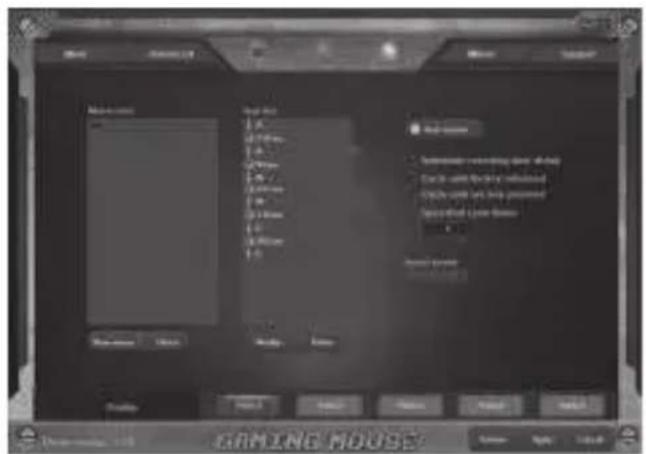
text_image
GAMING MOUSE Name Size Size Size Size Size Size Size Size Size Size Size Size Size Size Size Size Size Size Size Size Size Size Size Size Size Size Size Size Size Size Size Size Size Size Size Size Size Size Size Size Size Size Size Size Size Size Size Size Size Size Bubble Cancel Cancel Cancel Cancel Cancel Cancel Cancel Cancel Cancel Cancel Cancel Cancel Cancel Cancel Cancel Cancel Cancel Cancel Cancel Cancel Cancel Cancel Cancel Cancel Cancel Cancel Cancel Cancel Cancel Cancel Cancel Cancel Cancel Cancel Cancel Cancel Cancel Cancel Cancel Cancel Cancel Cancel Cancel Cancel Cancel Cancel Cancel Cancel Cancel Cancel Cancer: 100% Cancer: 100% Cancer: 100% Cancer: 100% Cancer: 100% Cancer: 100% Cancer: 100% Cancer: 100% Cancer: 100% Cancer: 100% Cancer: 100% Cancer: 100% Cancer: 100% Cancer: Cancer: Cancer: Cancer: Cancer: Cancer: Cancer: Cancer: Cancer: Cancer: Cancer: Cancer: Cancer: Cancer: Cancer: Cancer: Cancer: Cancer: Cancer: Cancer: Cancer: Cancer: Cancer: Cancer: Cancer: Cancer:Вкладка "Macro"
text_image
Main Advanced Macro Support Key setting Model 1 Model 2 Model 3 Parameters Export rate 500 Hz Music sensitivity Imploys pinier precision X3 Scrolling speed Scroll one page 3 Double clock speed 500 Profile Profile 1 Profile 2 Profile 3 Profile 4 Profile 5 Owner returns: J.I.E GRMING MOUSE Finish Apply Canceltext_image
Fire key OFF A Speed ( 5-256 ) 5 Times ( 1-256 ) 1 Note: The smaller speed value is, the faster speed is OK Canceltext_image
Tips Please enter keystroke: L-Alt + Q + W OKtext_image
Macro Support Parameter Request rate 500 Hz Measure rendering Improve counter precision Ordering speed Scroll one page Order seek speed 5Hz Preview Preview Preview Preview Apply Cancel USECongratulations on your purchase of the Sven mouse!
Please read this User's Manual before using the unit and retain this User's Manual in a safe place for future reference.
COPYRIGHT
© 2018. SVEN PTE. LTD. Version 1.0 (V 1.0).
This Manual and information contained in it are copyrighted. All rights reserved.
TRADEMARKS
All trademarks are the property of their legal holders.
NOTICE OF RESPONSIBILITY RESTRICTION
Despite the exerted efforts to make this Manual more exact, some discrepancies may occur. The information of this Manual is given on "as is" terms. The author and the publisher do not bear any liability to a person or an organization for loss or damages which have arisen from the information contained in the given Manual.
BUYER RECOMMENDATIONS
- Shipping and transportation equipment is permitted only in the original container.
- Does not require special conditions for realization.
- Dispose of in accordance with regulations for the disposal of household and computer equipment.
APPOINTMENT
RX-G955 gaming mouse is an input device. It is designed for entering (entering) information into the computer, as well as controlling the operation of the computer.
PACKAGE CONTENTS
• Gaming mouse — 1 pc
• Operation Manual — 1 pc
- Warranty card — 1 pc
User's Manual
RX-G955
SPECIAL FEATURES
• Optical sensor Avago 3050
• Non-slip coating Soft Touch
- Programmable buttons
- Braided cable
• Acceleration to 20G
- RGB backlight
- Polling rate up to 1000Hz / Response rate up to 1ms
SYSTEM REQUIREMENTS
• Windows XP/Vista/7/8/10.
- Free USB port.
PREPARATION TO WORK
- Connect the gaming mouse to an available USB connector on the PC.
• After connecting to the USB port, the PC will automatically recognize the device. - To use the built-in mouse memory, adjust the buttons and backlight, you need to install the software (downloaded from the website www.sven.fi). Connect the mouse to the free USB port of your PC, run the previously downloaded SVEN RX-G955.exe file to install the driver, follow the installer's advice.
- After installation, the program will automatically detect the presence of the mouse. You can call up the control window using the icon in the taskbar or in the Windows system tray. The program is completely in English, although it requires special knowledge of the language – a person more or less familiar with computer technology will not be difficult to understand.
Key Assignments and Mouse Settings
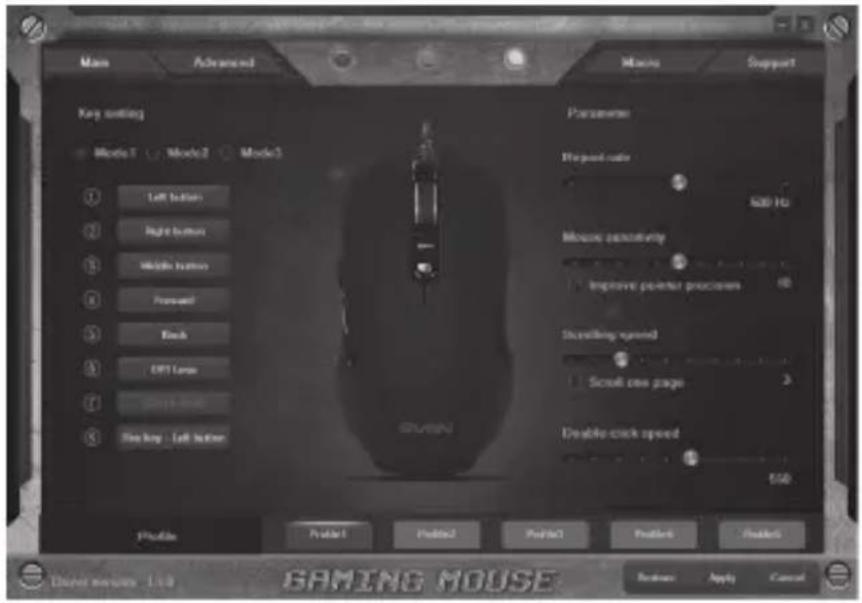
The "Key Setting" field is used to configure the basic mouse functions, for maximum convenience in the game.
text_image
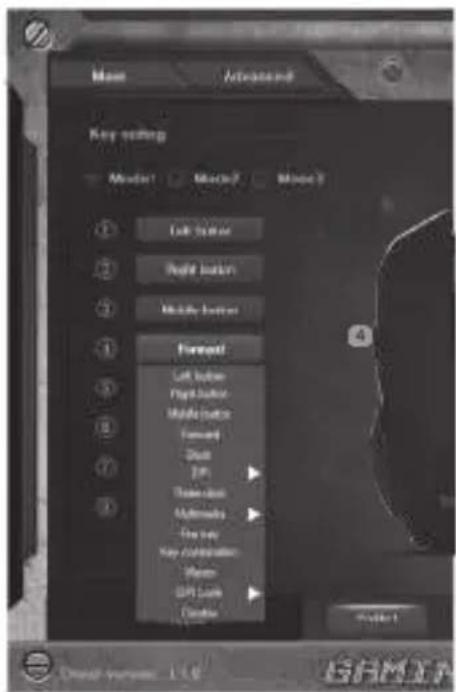
Main Advanced Mixing Support Key setting Mode 1 Mode 2 Mode 3 Left button Right button Middle button Forward Back OUT Long Scroll Long Shaking Left button Parameters Harpent rate 500 Hz Mouse sensitivity Improve potential processes Shrailing speed Scroll one page Disable click speed 500 Profile Profile Profile Profile Profile Profile Profile Cluster version 1.4.0 Random Apply Cancel GAMING MOUSEInitially, all mouse buttons are set to their default settings. However, the user can change the keys functions. The only key that can not be reassigned is the key with the number 7 "Switch mode" (not active, highlighted in gray), switching modes "Mode1", "Mode2", "Mode3". You can reassign the buttons by clicking on the menu items, thus pop-up menu, in which you can redefine the keys, assign a macro (pre-configured shortcut options), bind buttons to the multimedia button.
Key Assignment
- Left Button – left mouse button
- Right Button – right mouse button
- Middle Button – mouse wheel button
- Forward – next browser page
- Back – previous browser page
- DPI – submenu, DPI + (resolution increase), DPI- (decrease resolution), DPI Loop (change resolution cyclically)
User's Manual
RX-G955
- Three click – press the button three times
- Multimedia – opens a submenu. The standard commands for managing the media player are collected (detailed description below)
- Fire key – selection of hot keys
• Key combination – key combination - Macro – setting up macro commands
- DPI Lock – allows you to select the resolution of the sensor (DPI) from 400 to 4000 from the pop-up list. Holding the button, during the game, will switch the resolution of the mouse, which allows you to more accurately aim at shooting, for example from a sniper rifle
- Disable – resets all default settings
text_image
Main Advanced Key setting Model1 Model2 Model3 1 Lock button 2 Reset button 3 Modify button 4 Forward 5 Left button 6 Play button 7 Make buttons 8 Forward 9 Drive 10 Win 11 Take-out 12 Multimedia 13 Free help 14 Key combination 15 Play 16 GPI Lock 17 Finish"Multimedia" settings
This section allows you to configure the controls for playing multimedia objects. If you select "Multimedia", a submenu appears. The following are the controls that it includes.
• Media Player – launches a media player.
- Play/Pause – starts / stops the playback of the media file.
- Next – go to the next track.
- Previous – go to the previous track.
- Stop – stops the playback of the media file.
- Mute – turn off the sound.
• Volume up – increase the volume.
• Volume down – decrease the volume.
- Email – starting the mail client.
- Calculator – start the calculator.
- Explorer – launch My Computer.
- Home page – open the browser (if not open), if the browser is open, then opens the home page.

text_image
Menu Advanced Key setting Model 1 Node2 Mode3 Left buttons Right buttons Middle buttons Forward Left button Right button Middle button Forward Back DPI Forward Media Play Player Play Player Text Playout Up Up Volume us Up to start Up Calculate Figure Shower"Fire key" settings
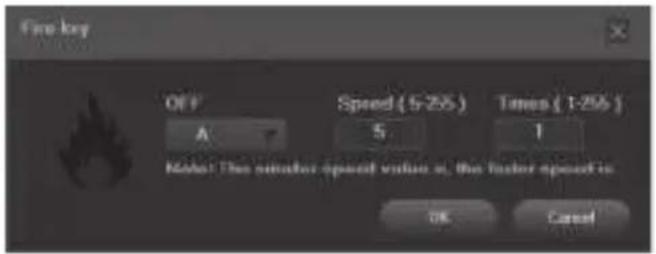
The "Fire key" parameter allows you to assign keyboard functions, mouse buttons. To select a keyboard key, click the area with the letter "A", select "Keystroke", a window will appear in which all keystrokes will be displayed. You can also adjust the input speed and the number of symbol repetitions.
text_image
Fire key OFF A Speed (5-255) 5 Times (1-256) 1 Make: The smaller speed value is, the faster speed is OK Cancel"Key combination" settings
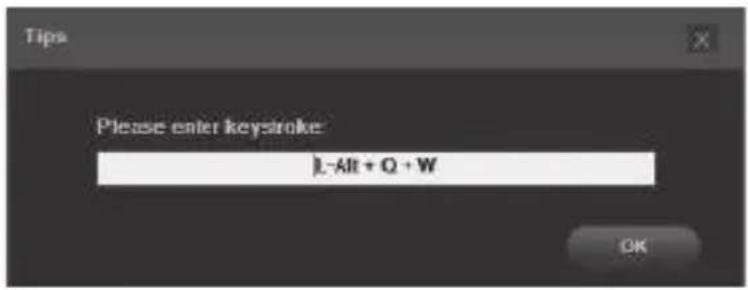
The keyboard shortcuts speed up the work and allows you to send a combination of pressed buttons on the keyboard in one click. Enter a combination of keys from the keyboard (one or more) in the "Tips" window, then press "OK", and the mouse button performs the function of key combination from the keyboard.
text_image
Tips Please enter keystroke: L-Alt + Q + W OKUser's Manual
RX-G955
Mouse response setting
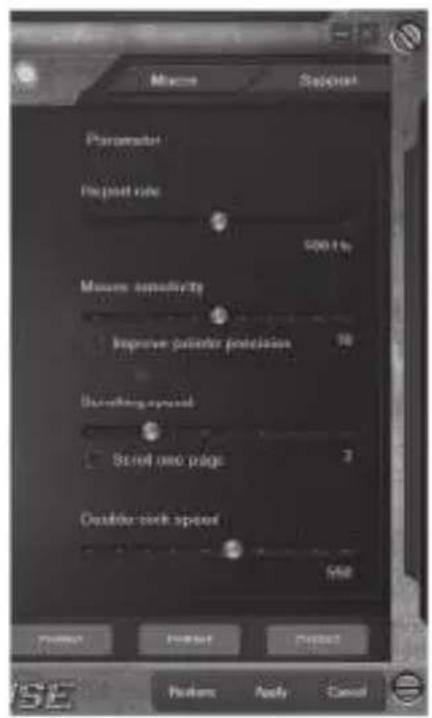
This parameter allows you to adjust the speed of moving the pointer on the screen, the speed of scrolling and the speed of double-clicking.
- Report Rate – in the mouse response speed setting area, the user can choose how many times per second the mouse will inform the operating system of its position – 125, 500, 1000 Hz.
- Mouse sensitivity – a measure of how fast your cursor moves (sight). Setting the checkbox "Improve pointer precision", allows increasing the accuracy of the pointer (sight).
- Scrolling speed – the speed of scrolling the contents of the window with the mouse wheel, setting the "Scroll one page" checkbox allows you to scroll the contents on a page by page.
- Double-click speed – the double-click speed.
text_image
Macron Sagout Parameter Papart rate 500 Hz Mouse sensitivity Improve pixelation precision 10 Unwelling speed Scroll into page 3 Outdoor sink speed 5Hz Preview Preview Preview Preview Preview Apply Cancel USEBacklight control and sensor resolution (DPI)
The "Advanced" tab allows you to adjust the resolution of the sensor (DPI) by moving the slider to the left or right, the color in the box corresponds to the resolution of the sensor, clicking on the color squares allows you to highlight the color of the mouse wheel illumination. In the "LED" area, you can adjust the brightness and mouse backlight modes.
In the "LED" area, you can select the mouse backlight mode. Only four modes: "Steady" – constantly lit with one color; "Breathe" – breathable mode: the brightness changes smoothly, the brightness change speed can be set to 4.6,8 seconds; "Neon" – the breathing mode in combination with the change of colors; "OFF" – turn off the backlight.

text_image
SPRING HOUSE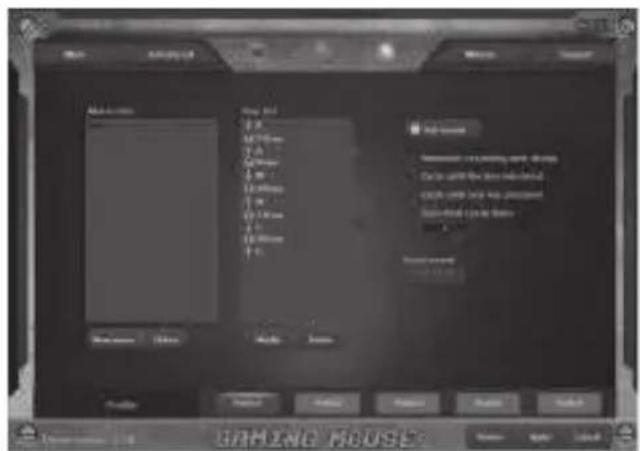
text_image
GRIHING MOUSEMacro tab
The "Macros" tab allows you to create exact sequences of keystrokes and buttons. This tab also allows you to configure macros and super-long macros for the right tasks. Assigning a macro to a key allows you to easily perform complex operations.
To create a macro, click the "New macro" button, enter any macro name in the opened window and click "OK". The name of the entered macro appears in the "Macro list" window, the names of the macro commands are created in a similar way. Then in the "Macro list" window select the macro name with the mouse from the list and click the "Start record" button. Then you must successively press the key combination, the pressed keys will be displayed in the "Key list" window. To end the recording, click the "Stop record" button.
PROFILE
The profile is a convenient way to organize all user settings, allows you to quickly change and immediately load all pre-configured settings. When selecting the profile switching function five profiles are available:
- Click button with Profile name: "Profile1" – "Profile5".
- Set up required mouse settings.
- Click "Apply" button and your Profile will be saved
TROUBLESHOOTING
| Problem | Solution |
| The mouse is not working. | 1. Disconnect the mouse from the PC and check connector pins for possible damage. If there is no external damage found and connector pins are OK, connect the mouse to the PC.2. Address your nearest authorized service center. |
TECHNICAL SPECIFICATIONS
| Parameter, measurement unit | Value |
| OS compatibility | Windows XP/Vista/7/8/10 |
| Type of mouse | optical |
| Resolution, dpi | 600/800/1000/1200/1600/1800/2000/2600/3000/3600/4000 |
| Q-ty of buttons | 7 + 1 (scroll wheel) |
| Interface | USB |
| Conformity with | FCC, CE, EAC |
| Cable length, m | 2 |
| Dimensions, mm | 127 × 40 × 67 |
| Weight, g | 148 |
Notes:
- Technical specifications given in this table are supplemental information and cannot give occasion to claims.
- Technical specifications are subject to change without notice due to the improvement of SVEN production.
Technical support is on www.sven.fi.
Manufacturer: SVEN PTE. LTD, 176 Joo Chiat Road, N° 02-02, Singapore, 427447. Produced under the control of Oy Sven Scandinavia Ltd. 15, Kotolah-dentie, Kotka, Finland, 48310. Made in China.
® Registered Trademark of Oy SVEN
Scandinavia Ltd. Finland.
EAC CE
RX-G955