JU-DK0611-S1 - Computer accessory Siig - Free user manual and instructions
Find the device manual for free JU-DK0611-S1 Siig in PDF.


| Product Type | USB-C Docking Station |
| Brand | Siig |
| Model | JU-DK0611-S1 |
| Dimensions (L x W x H) | 6.7 x 2.4 x 0.9 in (170 x 61 x 23 mm) |
| Weight | 5.3 oz (150 g) |
| Power Input | USB-C PD 3.0, up to 100W |
| Video Output | HDMI 2.0 (4K@60Hz), VGA (1080p@60Hz) |
| USB Ports | 2x USB 3.0 Type-A, 1x USB-C Data |
| Ethernet Port | Gigabit RJ45 |
| Audio Jack | 3.5mm Combo |
| Card Reader | SD/TF Card Slot |
| Operating Temperature | 32°F to 104°F (0°C to 40°C) |
| Storage Temperature | -4°F to 140°F (-20°C to 60°C) |
| Humidity | 10% to 90% RH (non-condensing) |
| Housing Material | Aluminum Alloy |
| Cable Length | 7.9 in (20 cm) |
| Compatible OS | Windows, macOS, Chrome OS, Linux |
| Maintenance | Wipe with a dry, soft cloth. Do not use liquid cleaners. |
| Safety | Overcurrent, overvoltage, short-circuit, and overtemperature protection |
| Spare Parts Availability | Contact Siig support for replacement cable or adapter |
| Repairability | Not user-serviceable. Contact qualified service center. |
Frequently Asked Questions - JU-DK0611-S1 Siig
User questions about JU-DK0611-S1 Siig
0 question about this device. Answer the ones you know or ask your own.
Ask a new question about this device
Download the instructions for your Computer accessory in PDF format for free! Find your manual JU-DK0611-S1 - Siig and take your electronic device back in hand. On this page are published all the documents necessary for the use of your device. JU-DK0611-S1 by Siig.
USER MANUAL JU-DK0611-S1 Siig
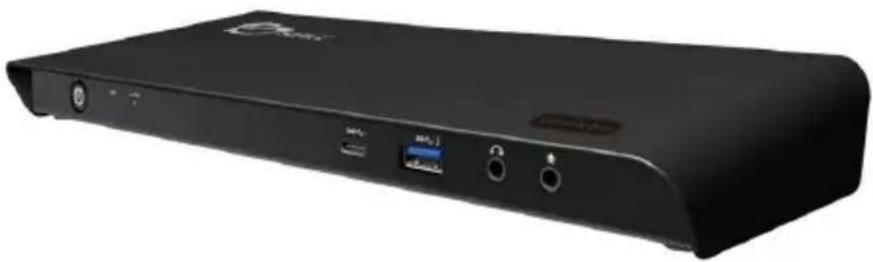
USB-C 4K Triple Display Docking Station with PD Charging - 60W User Reference Guide
natural_image
Black electronic device rear panel with ports and indicator lights (no visible text or symbols)P/N: JU-DK0611-S1
Introduction
The USB-C 4K Triple Display Docking Station with PD Charging - 60W uses a single USB-C port of your computer (Thunderbolt 3 compatible) to allow for multiple connections including three simultaneous 4K video outputs.
Features and Benefits
- Features a USB-C port, five USB 3.0 ports (one with fast charging), HDMI and DisplayPort ports, one Gigabit Ethernet port, headphone and microphone jacks
- Leading Display Technology from DisplayLink ^® - Supports single 5K @60Hz Ultra HD video output through dual DisplayPort
* Note: In order to support 5K video output, must connect both DisplayPort outputs to a single 5K TV/Monitor
• Supports PD charging up to 60W to charge your laptop and power connected peripherals
System Requirements
- Desktop or laptop computer with an available USB-C port (DP Alt Mode)
Note: The docking station's HDMI output will work properly only when the USB-C port transmits DisplayPort signal. - Windows ^ 10 (32-/64-bit) / 8 (32-/64-bit) / 7 (32-/64-bit)
• Mac OS X ^® 10.10 or later
Specifications
| Resolution 5K / 4K / 1080p / 1080i / 720p / 480p | |
| Audio 2.1 Channel | |
| USB data transfer rate Up to 5Gb/s | |
| Compatible networks 10/100/1000 Mbps | |
| Connectors | Input:1x 24-pin, USB-C, FemaleOutput:1x USB-C, charge and data, Female5x USB 3.0, Type-A, Female(one front port supports fast charging)1x 8-pin, RJ45, Network, Female1x 19-pin, HDMI Type-A, Female2x 20-pin, DisplayPort, Female1x 3.5mm, Stereo audio, Output1x 3.5mm, Mic, Input |
| Housing material PC + ABS (Plastic) | |
| Power adapter | Input: AC 100-240V/ 50~60HzOutput: DC 20V / 6.75A |
| Dimensions 9.72" (W) x 3.47" (H) x 1.10" (D) | |
| Weight 0.72lbs | |
| Operating Temperature 32 to 104 degrees F | |
| Storage Temperature -4 to 158 degrees F | |
| Relative Humidity 5% to 90% RH (non-condensing) | |
Package Contents
• USB-C 4K Triple Display Docking Station with PD Charging - 60W
- Power Adapter
• USB-C to USB-C cable
- Driver CD
• User Reference Guide
Layout

text_image
USB-C host* USB 3.0(x4) Power jack RJ45 port HDMI DisplayPort(x2)Figure 1
• Power jack: Connects to the power adapter
- USB-C host: Connects to your laptop's USB-C port, use only the supplied USB-C cable to connect the docking station to your computer
*Note: The USB-C host supports USB Power Delivery, DP alt mode and USB data.
• RJ45 port : Connects to an Ethernet network
• HDMI: Connects to HDMI display
- DisplayPort(x2): Connects to DisplayPort display(s)
*Note: In order to support 5K video output, must connect BOTH DisplayPort outputs to a SINGLE 5K DisplayPort TV/Monitor.
- USB 3.0(x4): Connects to USB devices
text_image
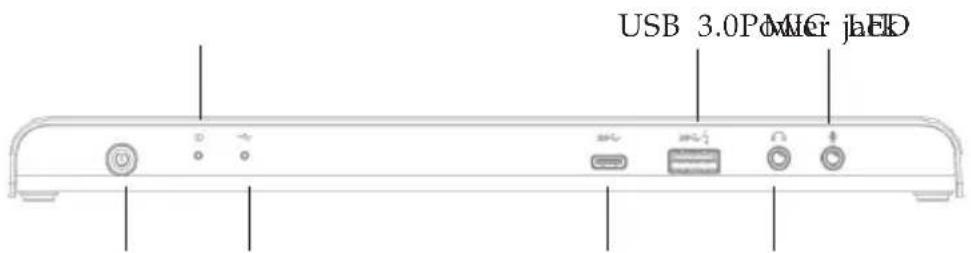
USB 3.0P MICr jhEDUSB connection LEDPowerSwitchSpeaker jack
Figure 2
• Power switch: Turns On/Off the Docking Station
• Power LED: Lights up when the power is on
• USB connection LED: Lights up when any of the USB ports (Type-A or Type-C) is connected
- USB-C: Connects to USB-C device only
- USB 3.0: Connects to USB device and this port supports fast charging
- Speaker jack: Connects to a speaker or earphone
• MIC jack: Connects to a microphone
Software Installation
Make sure the proper version driver for your graphics card is installed, the The USB-C 4K Triple Display Docking Station with PD Charging - 60W is not designed to work with Windows' Standard VGA Graphics Adapter driver.
Important: Do not plug the docking station into the computer until instructed to do so.
- Insert the driver CD. The Auto-play pop-up window will display. If not, browse the CD/DVD manually.
- Run Setup.exe, and click Yes at the User Account Control window.
- DisplayLink Graphics window appears, select Install at "system check" stage.
- At "First connect" stage, connect your second monitor to the Docking and turn it on.
- Connect the Power Adapter to the Docking Station, then plug the power adapter into a reliable power outlet.
- Plug the Docking Station into the USB-C port of the computer using the included USB-C cable. When the Docking Station is detected, the Final Setup will run automatically.
- Once the Final Setup is done, an "Installation complete" message shows, at that time select Finish.
- Restart the computer and the Docking is ready for use.
Note: If the AutoPlay pop-up window does not appear automatically, locate and double-click Setup.exe in the driver folder to launch the setup.
To Verify Windows Installation
- From the desktop, right click This PC or Computer, then click Manage.
For Windows 10 / 8 / 7: Click Device Manager.
- Double click Display Adapters. USB-C triple 4K Dock should be displayed.
Note: If there is a 🔒(yellow question mark) or (exclamation mark) next to that item, then the driver is not properly installed. In this case, please delete the item, unplug the Docking and repeat the driver installation steps.
Multi-Monitor Configuration
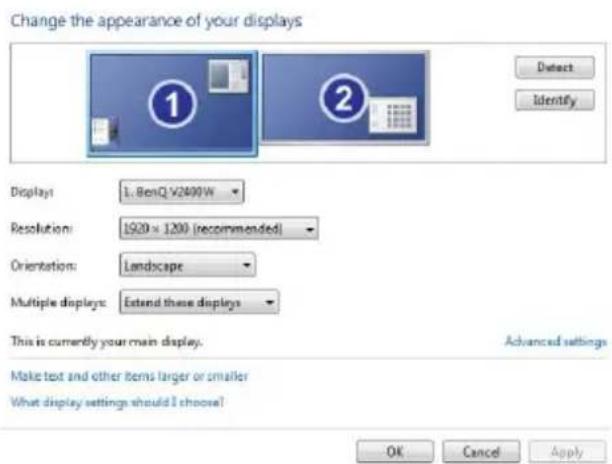
The add-on monitors can be configured by clicking the utility icon and selecting DisplayLink Manager or Video Setup. The configuration page can also be opened using the steps below.
Position the mouse anywhere on the desktop:
-
For Windows 10: Right click, then select Display settings.
-
For Windows 8 / 7: Right click, then select Screen resolution.
text_image
Change the appearance of your displays Detect Identify Display: 1. BenQ V2400W Resolution: 1920 x 1200 (recommended) Orientation: Landscape Multiple displays: Extend these displays This is currently your main display. Advanced settings Make text and other items larger or smaller What display settings should I choose! OK Cancel ApplyFigure 3: Monitor Orientation
Extended Mode
-
Refer to the Multi-Monitor Configuration on page 7 to open the configuration page.
-
In the Display drop-down menu, select the preferred monitor.
For Windows 10/8/7: In the Multiple displays drop-down menu, select Extend desktop to this display.
-
Click APPLY to confirm and close the settings screen.
-
Once the setting is completed, simply drag and drop the application icons or the opened window, in restore down mode, to the add-on display. However, some applications may not support the extended desktop add-on display.
Mirror Mode
-
Refer to the Multi-Monitor Configuration on page 7 to open the configuration page.
-
In the Display drop-down menu, select the preferred monitor.
For Windows 10 / 8 / 7: Check Multiple displays, then select Duplicate these displays.
- Click APPLY to save your changes.
Windows Shortcut
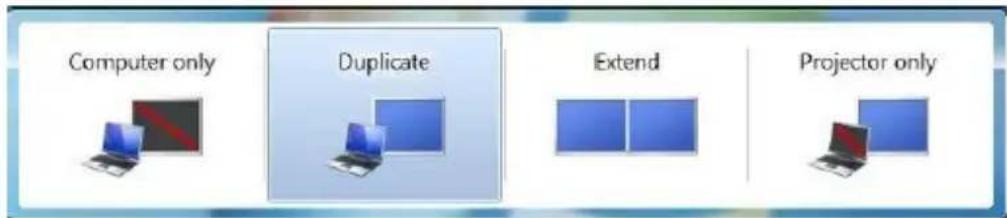
Press Windows key and P to bring up the menu and choose a desired mode
text_image
Computer only Duplicate Extend Projector onlyFigure 4: Windows Shortcut
Cursor Disappearing
In some cases, when removing the Docking while in extended mode, the desktop will still be paired to the add-on monitor(s) and the mouse cursor may not return to the primary monitor. If this happens, connect the add-on monitor(s) and Docking again or keep moving the mouse.
Video Playback in Extended Mode
If the video or DVD playback quality is poor or skips frames in the extended mode, please playback on the primary monitor instead of the add-on monitors.
Uninstall the Driver
Windows 10 (32-/64-bit) / 8 & 7 (32-/64-bit)
- Open Control Panel> Programs> Programs and Features.
- Click DisplayLink Graphics Driver, click Uninstall, then click Yes.
- At User Account Control, click Yes, and click OK.
- Click Yes to restart the computer.
Mac OS Driver Installation
- Connect your second monitor to the USB-C triple 4K Dock and turn it on, then plug the USB-C triple 4K Dock into the computer.
- Insert the driver CD, then double click Driver CD icon on the Desktop.
- Choose the Mac folder according to your OS.
- Double click DisplayLink_OSX_....dmg
- At the DisplayLink Installer, double click DisplayLink Software Installer.pkg.
- At the Introduction, click Continue one to two times as needed.
- At the License, click Continue, and Agree.
- At the Destination Select screen, click Continue. Skip this step if not prompted.
- At the Installation Type screen, click Change Install Location if you want to change the default folder; otherwise, click Install, then click Continue Installation.
- Type in Name and Password, click OK or Install Software, then click Continue Installation.
- Click Restart to complete the installation.
To Verify Driver Installation
- Click the Apple logo from the top menu bar.
- Click About this Mac, More Info..., System Report.
- Under Software/Extensions, both DisplayLink Driver and DisplayLinkEthernetDriver will be displayed.
Mac Display Utility
Click the utility icon in the taskbar to change the modes or resolutions, or double click System Preference, click the Display icon, then select the Arrangement pane.
Setting the Display Resolutions
Select an available resolution from the Display Preferences window. The resolutions available depend on both the USB-C 4K Triple Display Docking Station with PD Charging - 60W and the capabilities of the connected display.
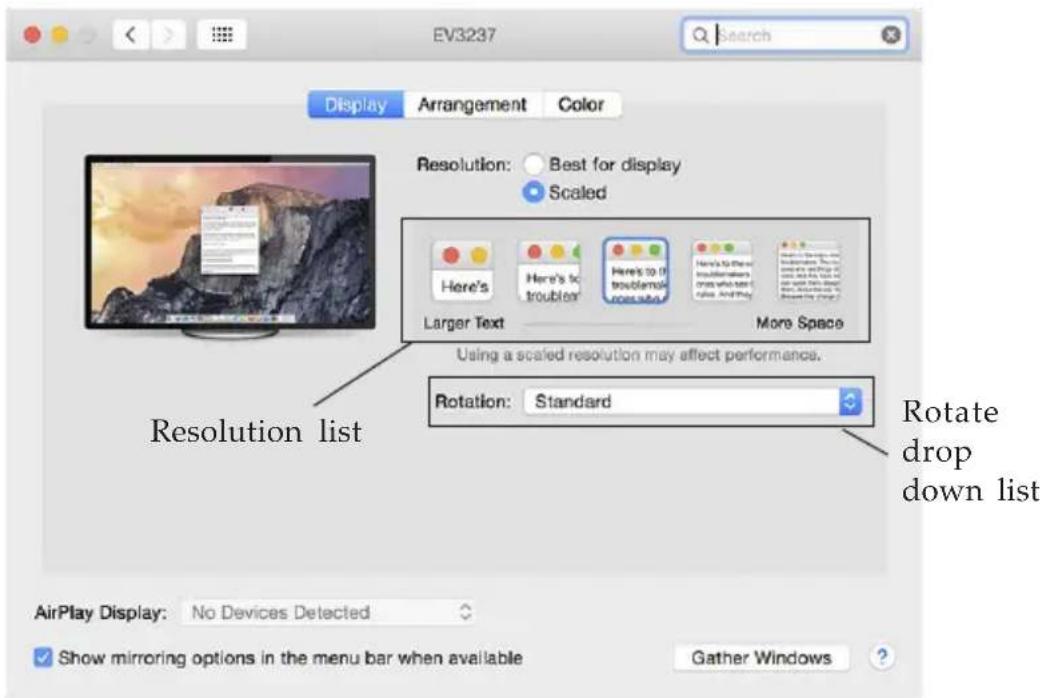
text_image
EV3237 Search Display Arrangement Color Resolution: Best for display Scaled Here's Here's to troubler Here's to if troubler is also Here's to the troubler is also where who has a angle. And they More Space Larger Text Using a scaled resolution may affect performance. Resolution list Rotation: Standard Rotate drop down list AirPlay Display: No Devices Detected Show mirroring options in the menu bar when available Gather WindowsFigure 5
Rotating a Display
Configure the orientation using the Rotate drop down box, see Figure 5. Select the appropriate angle of rotation to match your display's set up.
Setting the Display to Mirror/Extend Mode
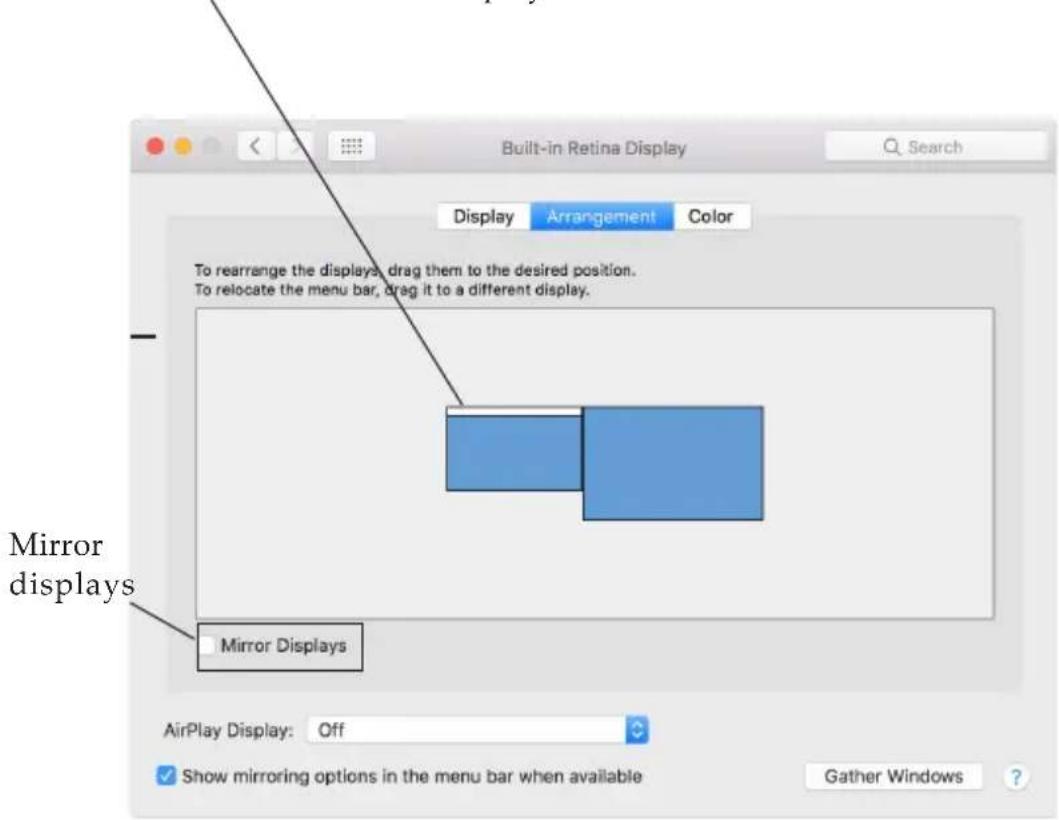
Check Mirror Displays box on the Arrangement pane to enable mirror mode. Uncheck the box to set the display to extend mode. See Figure 6.
Change the main display by simply dragging the white menu bar between the displays.
text_image
Built-in Retina Display Search Display Arrangement Color To rearrange the displays, drag them to the desired position. To relocate the menu bar, drag it to a different display. Mirror displays Mirror Displays AirPlay Display: Off Show mirroring options in the menu bar when available Gather Windows ?Figure 6
Changing the Main Display
You can change the main display by moving the Menu Bar between the displays. Changing the main display affects where new windows appear and the position of the Docking Station see Figure 6.
Application
The image below shows the varied peripheral devices supported by the triple display video docking station.

text_image
USB-C Charging Video Output x 3 HDMI Monitor 3840x2160@30Hz DP Monitor x 2 4096x2160@60Hz Power Adapter USB 3.0 Devices USB-C Devices Charging Mobile Devices Earphone & MIC Internet* Note: Supports single 5K@60Hz through dual DisplayPort
Figure 7: Connections
Blank Page
Technical Support and Warranty
QUESTIONS? SIIG's Online Support has answers! Simply visit our web site at www.siig.com and click Support. Our online support database is updated daily with new drivers and solutions. Answers to your questions could be just a few clicks away. You can also submit questions online and a technical support analyst will promptly respond.
SIIG offers a 2-year manufacturer warranty with this product. This warranty covers the original purchaser and guarantees the product to be free of any defects in materials or workmanship for two (2) years from the date of purchase of the product. This warranty is not transferable and is available only to the original purchaser of the product.
SIIG will, at our discretion, repair or replace (with an identical product or product having similar features and functionality) the product if defective in materials or workmanship. This warranty gives you specific legal rights, and you may also have other rights which vary from state to state. Please see our web site for more warranty details.
If you encounter any problems with this product, please follow the procedures below.
A) If it is within the store's return policy period, please return the product to the store where you purchased it.
B) If your purchase has passed the store's return policy period, please follow these steps to have the product repaired or replaced.
Step 1: Submit your RMA request. Go to www.siig.com, click Support, then Request A Product Replacement to submit a request to SIIG RMA or fax a request to 510-657-5962. Your RMA request will be processed, if the product is determined to be defective, an RMA number will be issued.
Step 2: After obtaining an RMA number, ship the product.
• Properly pack the product for shipping. All software, cable(s) and any other accessories that came with the original package must be included
- Include a copy of your original sales receipt inside the package with date of purchase and place of purchase circled and clearly visible
- Clearly write your RMA number on the top of the returned package. SIIG will refuse to accept any shipping package, and will not be responsible for a product returned without an RMA number posted on the outside of the shipping carton
- You are responsible for the cost of shipping to SIIG. Ship the product to the following address:
SIIG, Inc.
6078 Stewart Avenue
Fremont, CA 94538-3152, USA
RMA #:
• SIIG will ship the repaired or replaced product via Ground in the U.S. and International Economy outside of the U.S. at no cost to the customer
About SllG, Inc.
Founded in 1985, SIIG, Inc. is a leading manufacturer of IT connectivity solutions (including Serial ATA and Ultra ATA Controllers, FireWire, USB, and legacy I/O adapters) that bridge the connection between Desktop/Notebook systems and external peripherals. SIIG continues to grow by adding A/V and Digital Signage connectivity solutions to our extensive portfolio. All centered around the distribution and switching of A/V signals over CAT5/6, these products include matrix switches, distribution amplifiers, extenders, converters, splitters, cabling, and more.
SIIG is the premier one-stop source of upgrades and is committed to providing high quality products while keeping economical and competitive prices. High-quality control standards are evident by one of the lowest defective return rates in the industry. Our products offer comprehensive user manuals, user-friendly features, and are backed by an extensive manufacturer warranty.
SIIG products can be found in many computer retail stores, mail order catalogs, and e-commerce sites in the Americas, as well as through major distributors, system integrators, VARs and e-commerce sites.
PRODUCT NAME
USB-C 4K Triple Display Dockimg Station with PD Charging - 60W
FCC RULES: TESTED TO COMPLY WITH FCC PART 15, CLASS B OPERATING ENVIRONMENT: FOR HOME OR OFFICE USE
FCC COMPLIANCE STATEMENT:
This device complies with part 15 of the FCC Rules. Operation is subject to the following two conditions: (1) This device may not cause harmful interference, and (2) this device must accept any interference received, including interference that may cause undesired operation.
THE PARTY RESPONSIBLE FOR PRODUCT COMPLIANCE
SIIG, Inc.
6078 Stewart Avenue
Fremont, CA 94538-3152, USA
Phone: 510-657-8688
USB-C 4K Triple Display Dockimg Station with PD Charging - 60W is a trademark of SIIG, Inc. SIIG and the SIIG logo are registered trademarks of SIIG, Inc. All other names used in this publication are for identification only and may be trademarks of their respective owners.
December, 2017
Copyright © 2017 by SIIG, Inc. All rights reserved.