
EMX 5016CF - Digital Mixer YAMAHA - Free user manual and instructions
Find the device manual for free EMX 5016CF YAMAHA in PDF.


| Product type | Digital mixing console |
| Brand | YAMAHA |
| Model | EMX 5016CF |
| Number of input channels | 16 channels (mic/line) |
| Built-in effects processor | Yes, with multiple presets |
| Built-in amplifier | Yes, typical power 2x 500W (depending on version) |
| Main outputs | Stereo (XLR), monitor, headphones |
| Equalization | 3-band per channel + global graphic |
| Connectivity | XLR, 6.35 mm jack, RCA |
| Power supply | AC 100-240V, 50/60 Hz |
| Power consumption | Approximately 100 W |
| Dimensions (W x D x H) | Approximately 500 x 400 x 150 mm |
| Weight | Approximately 12 kg |
| Materials | Metal chassis, plastic panels |
| Main functions | Digital mixing, DSP effects, built-in amplifier, direct recording |
| Maintenance and cleaning | Use a soft dry cloth, avoid solvents and water |
| Safety | Do not expose to moisture, respect mains polarity, ensure adequate ventilation |
| Spare parts and repairability | Contact an authorized Yamaha dealer for parts and repairs |
| General information | Manual available for free download at notice-facile.com |
Frequently Asked Questions - EMX 5016CF YAMAHA
User questions about EMX 5016CF YAMAHA
0 question about this device. Answer the ones you know or ask your own.
Ask a new question about this device
Download the instructions for your Digital Mixer in PDF format for free! Find your manual EMX 5016CF - YAMAHA and take your electronic device back in hand. On this page are published all the documents necessary for the use of your device. EMX 5016CF by YAMAHA.
USER MANUAL EMX 5016CF YAMAHA
Making the Most of Your Mixer
Pages 12 to 18
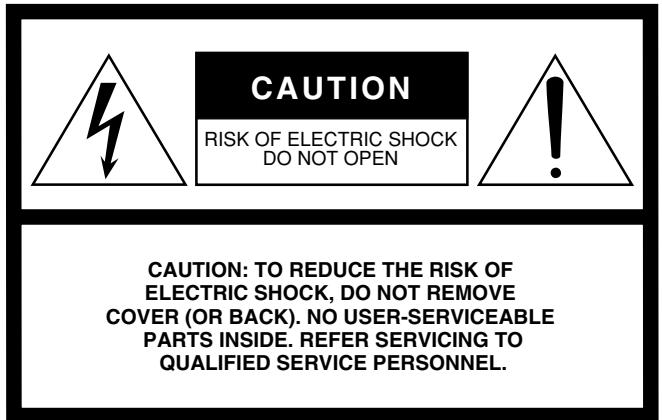
The above warning is located on the rear of the unit.
Explanation of Graphical Symbols
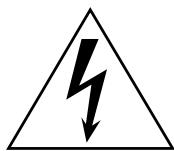
The lightning flash with arrowhead symbol within an equilateral triangle is intended to alert the user to the presence of uninsulated "dangerous voltage" within the product's enclosure that may be of sufficient magnitude to constitute a risk of electric shock to persons.

The exclamation point within an equilateral triangle is intended to alert the user to the presence of important operating and maintenance (servicing) instructions in the literature accompanying the product.
IMPORTANT SAFETY INSTRUCTIONS
1 Read these instructions.
2 Keep these instructions.
3 Heed all warnings.
4 Follow all instructions.
5 Do not use this apparatus near water.
6 Clean only with dry cloth.
7 Do not block any ventilation openings. Install in accordance with the manufacturer's instructions.
8 Do not install near any heat sources such as radiators, heat registers, stoves, or other apparatus (including amplifiers) that produce heat.
9 Do not defeat the safety purpose of the polarized or grounding-type plug. A polarized plug has two blades with one wider than the other. A grounding type plug has two blades and a third grounding prong. The wide blade or the third prong are provided for your safety. If the provided plug does not fit into your outlet, consult an electrician for replacement of the obsolete outlet.
10 Protect the power cord from being walked on or pinched particularly at plugs, convenience receptacles, and the point where they exit from the apparatus.
11 Only use attachments/accessories specified by the manufacturer.
12 Use only with the cart, stand, tripod, bracket, or table specified by the manufacturer, or sold with the apparatus. When a cart is used, use caution when moving the cart/apparatus combination to avoid injury from tip-over.
13 Unplug this apparatus during lightning storms or when unused for long periods of time.
14 Refer all servicing to qualified service personnel. Servicing is required when the apparatus has been damaged in any way, such as power-supply cord or plug is damaged, liquid has been spilled or objects have fallen into the apparatus, the apparatus has been exposed to rain or moisture, does not operate normally, or has been dropped.
WARNING
TO REDUCE THE RISK OF FIRE OR ELECTRIC SHOCK, DO NOT EXPOSE THIS APPARATUS TO RAIN OR MOISTURE.
(98-6500)
IMPORTANT
Please record the serial number of this unit in the space below.
Model:
Serial No.:
The serial number is located on the bottom or rear of the unit.
Retain this Owner's Manual in a safe place for future reference.
PRECAUTIONS
PLEASE READ CAREFULLY BEFORE PROCEEDING
- Please keep this manual in a safe place for future reference.

WARNING
Always follow the basic precautions listed below to avoid the possibility of serious injury or even death from electrical shock, short-circuiting, damages, fire or other hazards. These precautions include, but are not limited to, the following:
Power supply/Power cord
- Only use the voltage specified as correct for the device. The required voltage is printed on the name plate of the device.
- Use only the included power cord.
- Do not place the power cord near heat sources such as heaters or radiators, and do not excessively bend or otherwise damage the cord, place heavy objects on it, or place it in a position where anyone could walk on, trip over, or roll anything over it.
- Be sure to connect to an appropriate outlet with a protective grounding connection. Improper grounding can result in electrical shock.
Do not open
- Do not open the device or attempt to disassemble the internal parts or modify them in any way. The device contains no user-serviceable parts. If it should appear to be malfunctioning, discontinue use immediately and have it inspected by qualified Yamaha service personnel.
Water warning
- Do not expose the device to rain, use it near water or in damp or wet conditions, or place containers on it containing liquids which might spill into any openings.
- Never insert or remove an electric plug with wet hands.
If you notice any abnormality
- If the power cord or plug becomes frayed or damaged, or if there is a sudden loss of sound during use of the device, or if any unusual smells or smoke should appear to be caused by it, immediately turn off the power switch, disconnect the electric plug from the outlet, and have the device inspected by qualified Yamaha service personnel.
- If this device should be dropped or damaged, immediately turn off the power switch, disconnect the electric plug from the outlet, and have the device inspected by qualified Yamaha service personnel.

CAUTION
Always follow the basic precautions listed below to avoid the possibility of physical injury to you or others, or damage to the device or other property. These precautions include, but are not limited to, the following:
Power supply/Power cord
- Remove the electric plug from the outlet when the device is not to be used for extended periods of time, or during electrical storms.
- When removing the electric plug from the device or an outlet, always hold the plug itself and not the cord. Pulling by the cord can damage it.
Location
- Before moving the device, remove all connected cables.
- When setting up the device, make sure that the AC outlet you are using is easily accessible. If some trouble or malfunction occurs, immediately turn off the power switch and disconnect the plug from the outlet. Even when the power switch is turned off, electricity is still flowing to the product at the minimum level. When you are not using the device for a long time, make sure to unplug the power cord from the wall AC outlet.
- If this device is to be mounted in an EIA-standard rack, leave the back of the rack open and make sure that it is at least 10cm away from walls or surfaces. Also, if this device is to be mounted with devices that tend to generate heat, such as power amplifiers, be sure to keep an adequate gap between this device and the heat-generating devices or install ventilation panels to prevent high temperatures from developing inside this device.
Inadequate ventilation can result in overheating, possibly causing damage to the device(s), or even fire.
- Avoid setting all equalizer controls and faders to their maximum. Depending on the condition of the connected devices, doing so may cause feedback and may damage the speakers.
- Do not expose the device to excessive dust or vibrations, or extreme cold or heat (such as in direct sunlight, near a heater, or in a car during the day) to prevent the possibility of panel disfiguration or damage to the internal components.
- Do not place the device in an unstable position where it might accidentally fall over.
- Do not block the vents. This device has ventilation holes at the front and rear to prevent the internal temperature from becoming too high. In particular, do not
place the device on its side or upside down. Inadequate ventilation can result in overheating, possibly causing damage to the device(s), or even fire.
- Do not use the device in the vicinity of a TV, radio, stereo equipment, mobile phone, or other electric devices. Doing so may result in noise, both in the device itself and in the TV or radio next to it.
Connections
- Before connecting the device to other devices, turn off the power for all devices. Before turning the power on or off for all devices, set all volume levels to minimum.
- Use only speaker cables for connecting speakers to the speaker jacks. Use of other types of cables may result in fire.
- Do not use speaker cables with a metal-housing connector. Doing so may result in electrical shock due to differences in voltage. Use speaker cables with a non-metal-housing connector, or with an insulated-housing connector.
Handling caution
- When turning on the AC power in your audio system, always turn on the device or external power amplifiers LAST, to avoid speaker damage. When turning the power off, the device or external power amplifiers should be turned off FIRST for the same reason.
- Do not insert your fingers or hands in any gaps or openings on the device (vents, etc.).
- Avoid inserting or dropping foreign objects (paper, plastic, metal, etc.) into any gaps or openings on the device (vents, etc.) If this happens, turn off the power immediately and unplug the power cord from the AC outlet. Then have the device inspected by qualified Yamaha service personnel.
- Do not use the speakers or headphones for a long period of time at a high or uncomfortable volume level, since this can cause permanent hearing loss. If you experience any hearing loss or ringing in the ears, consult a physician.
- Do not rest your weight on the device or place heavy objects on it, and avoid use excessive force on the buttons, switches or connectors.
Yamaha cannot be held responsible for damage caused by improper use or modifications to the device.
Always turn the power off when the device is not in use.
The performance of components with moving contacts, such as switches, volume controls, and connectors, deteriorates over time. Consult qualified Yamaha service personnel about replacing defective components.
IMPORTANT NOTICE FOR THE UNITED KINGDOM Connecting the Plug and Cord
WARNING: THIS APPARATUS MUST BE EARTHED
IMPORTANT. The wires in this mains lead are coloured in accordance with the following code:
GREEN-AND-YELLOW : EARTH
BLUE : NEUTR
BROWN : LIVE
As the colours of the wires in the mains lead of this apparatus may not correspond with the coloured markings identifying the terminals in your plug proceed as follows:
The wire which is coloured GREEN-and-YELLOW must be connected to the terminal in the plug which is marked by the letter E or by the safety earth symbol ④ or coloured GREEN or GREEN-and-YELLOW.
The wire which is coloured BLUE must be connected to the terminal which is marked with the letter N or coloured BLACK.
The wire which is coloured BROWN must be connected to the terminal which is marked with the letter L or coloured RED.
- This applies only to products distributed by Yamaha-Kemble Music (U.K.) Ltd.
(3 wires)
FCC INFORMATION (U.S.A.)
1. IMPORTANT NOTICE: DO NOT MODIFY THIS UNIT!
This product, when installed as indicated in the instructions contained in this manual, meets FCC requirements. Modifications not expressly approved by Yamaha may void your authority, granted by the FCC, to use the product.
2. IMPORTANT: When connecting this product to accessories and/ or another product use only high quality shielded cables. Cable/s supplied with this product MUST be used. Follow all installation instructions. Failure to follow instructions could void your FCC authorization to use this product in the USA.
3. NOTE: This product has been tested and found to comply with the requirements listed in FCC Regulations, Part 15 for Class "B" digital devices. Compliance with these requirements provides a reasonable level of assurance that your use of this product in a residential environment will not result in harmful interference with other electronic devices. This equipment generates/uses radio frequencies and, if not installed and used according to the instructions found in the users manual, may cause interference harmful to the operation of other electronic devices. Compliance with FCC
regulations does not guarantee that interference will not occur in all installations. If this product is found to be the source of interference, which can be determined by turning the unit "OFF" and "ON", please try to eliminate the problem by using one of the following measures:
Relocate either this product or the device that is being affected by the interference.
Utilize power outlets that are on different branch (circuit breaker or fuse) circuits or install AC line filter/s.
In the case of radio or TV interference, relocate/reorient the antenna. If the antenna lead-in is 300 ohm ribbon lead, change the lead-in to co-axial type cable.
If these corrective measures do not produce satisfactory results, please contact the local retailer authorized to distribute this type of product. If you can not locate the appropriate retailer, please contact Yamaha Corporation of America, Electronic Service Division, 6600 Orangethorpe Ave, Buena Park, CA90620
The above statements apply ONLY to those products distributed by Yamaha Corporation of America or its subsidiaries.
- This applies only to products distributed by YAMAHA CORPORATION OF AMERICA.
(class B)
About this Manual
This manual is divided into two main sections, as follows.
Mixer Basics (starts on page 7)
Presents a general explanation of mixers and mixer concepts. Includes a Quick Guide that will help beginners get up to speed very quickly.
Reference (starts on page 19)
Provides detailed information about the EMX. Introduces the EMX features, identifies and explains the controls, indicators, and connectors; and explains how to set up the equipment.
- Within this manual, the term "EMX" refers to model EMX5016CF.
- Illustrations herein are for explanatory purposes only, and may not match actual appearance during operation.
- Company names and product names herein are trademarks or registered trademarks of their respective companies.
Copyright of commercially available music or other audio data for purposes other than personal use is strictly prohibited by copyright law. Please respect all copyrights, and consult with a copyright specialist if you are in doubt about permissible use.
Specifications and descriptions in this owner's manual are for information purposes only. Yamaha Corp. reserves the right to change or modify products or specifications at any time without prior notice. Since specifications, equipment or options may not be the same in every locale, please check with your Yamaha dealer.
Thank you for your purchase of this Yamaha EMX5016CF powered mixer. Please read through this manual carefully before beginning use, so that you will be able to take full advantage of your mixer's superlative features and enjoy trouble-free operation for years to come. After reading the manual, please store it in a safe place.
Contents
Features 6
Before Turning on the Mixer 6
Mixer Basics
Quick Guide 7
Getting Sound to the Speakers 7
Adding Some Reverb 10
Using the Compressors to Enhance Vocals 11
Making the Most of Your Mixer 12
A Place for Everything and Everything in its Place 12
A Plethora of Connectors-What Goes Where? 12
Balanced, Unbalanced-What's the Difference? 13
How Do Balanced Lines Reject Noise? 13
A balanced cable has three conductors: 14
Signal Levels and the Decibel. 14
Making Better Mixes. 15
Approaching the Mix-Where Do You Start? 15
To EQ or Not to EQ 16
Ambience 17
The Modulation Effects: Phasing, Chorus, and Flanging 17
Compression 18
Reference
Front & Rear Panels 19
Controls on Each Channel 19
Digital Effects Section 22
Master Section 23
Rear Panel 28
Speaker Connections 29
2-channel connection 29
2-channel parallel connection 29
Setting the GEQ with the FRC function 30
Rack Mounting 32
Setup 33
Troubleshooting 34
Specifications 35
Features
Input Channels.. page 19
The EMX offers 12 monaural mic/line input channels (1 to 15/16) and four stereo input channel pairs (9/10 to 15/16), allowing you to freely mix inputs from microphones, line-level devices, and stereo devices. For example, you can mix eight microphones with four stereo devices, or ten microphones with two stereo synthesizers.
High-Quality Digital Effects.. page 22
The mixer's internal effector (two blocks) is in the same league as our SPX effector series, allowing you to create a rich range of variations with no external help. But of course you are also free to use the SEND EFF jacks to connect to an external effector of your choice.
Compressors page 18
Individual compressors are provided on channels 1 to 8. These let you compress the dynamic range of input signals such as vocals, guitars and bass, allowing you to bring down high signal peaks and boost lower level sounds. This feature helps reduce distortion and allows overall volume to be set higher, resulting in a stronger and more punchy sound. Moreover, a 3-band compressor is available for applying to the stereobus signal output, which enhances the overall output volume (MAXIMIZE function).
Internal Power Amp page 25
The internal amp makes it possible to connect the SPEAKERS jacks directly to nonpowered speakers, with no need for an external amplifier in between. The rear panel offers two types of speaker connectors: phone jacks and Neutrik Speakon jacks.
Graphic Equalizer and FRC.. page 30
This 9-band graphic equalizer adjusts the frequency characteristics of the Stereo-bus signal output. A convenient FRC function (Frequency Response Correction System) allows you to measure the frequency characteristics of the sound field, and automatically adjust the graphic equalizer settings according to the measurement results to compensate for any sound field anomalies.
Feedback Suppressor.. page 25
This function automatically checks for and removes feedback.
Before Turning On the Mixer
Connecting to Power
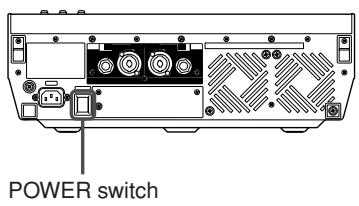
1 Be sure that the POWER switch is in the OFF position.
2 Connect the included power cord to the AC IN connector on the rear panel.
3 Plug the power cord into a standard power outlet.
■Turning the Unit On and Off
NOTE
- To prevent an unpleasant burst of noise from the speakers, you should power up the sound sources first, and then the other devices in order of their distance from the source (starting with the closest).
For example: Sound source (external device) EMX unit Amps (Powered speakers)
When turning power off, proceed in the opposite order.
- Before turning power on, make sure that the channel faders, ST master fader, AUX1/2 faders, ST SUB OUT control are all the way down.
- Rapidly turning the unit ON and OFF in succession can cause it to malfunction. After turning the unit OFF, wait for about 10 seconds before turning it ON again.
Push the POWER switch in to turn the power ON.
The model name "EMX5016CF" is shown in the GEQ display. To turn the power off, push the POWER switch again, so that the indication goes off.
Getting Sound to the Speakers
We begin by connecting up two speakers and generating some stereo output. Note that operations and procedures will vary somewhat according to the input devices you are using.
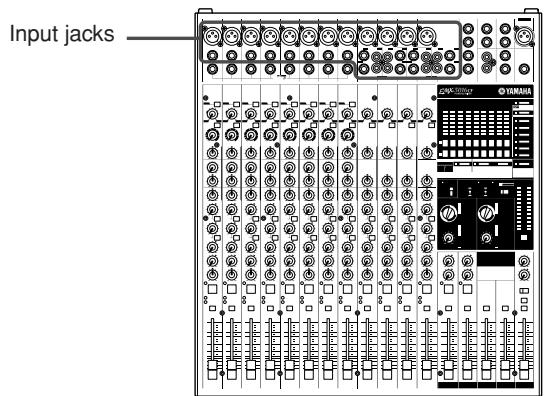
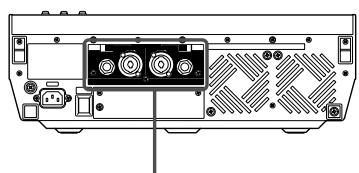
SPEAKERS jacks
1 Connect up the speakers and your input devices (microphones, instruments, etc.).
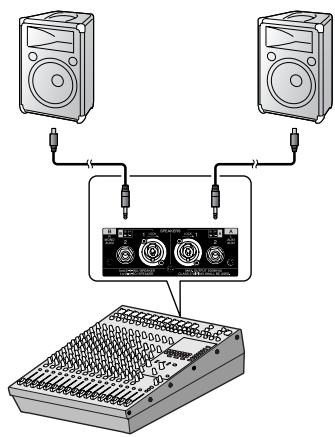
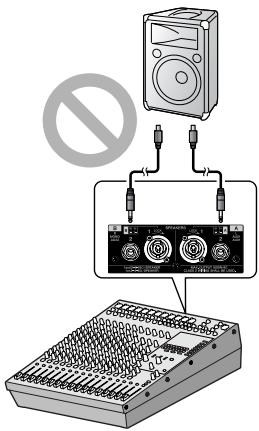
Use non-powered speakers and dedicated speaker cable. Connect one speaker to SPEAKERS jack A (A1 or A2), and the other to jack B (B1 or B2). Then connect your input devices (microphones, guitar, etc.) to the appropriate input jacks on the top panel. For details, see page 33.

CAUTION
- Before connecting input devices to the EMX, be sure that all of these devices (including microphones) are powered off. And before turning the power to any device on or off, be sure to turn the volume of that device all the way down.
- Never connect both A and B jacks to a single speaker. Connection of both jacks to the same speaker may result in damage to the mixer.
NOTE
We recommend that you avoid connecting electric instruments (such as electric guitars and basses) directly to the EMX. Instead, these instruments should be connected through an intermediary device such as a direct box, a preamp (guitar amp), or an amp simulator.
RIGHT
WRONG!!
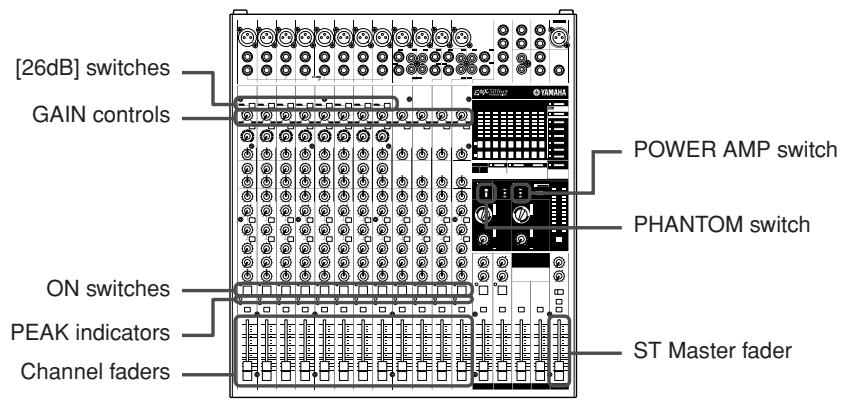
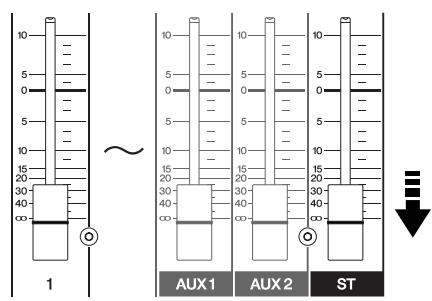
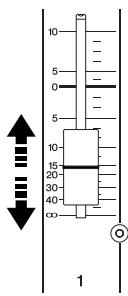
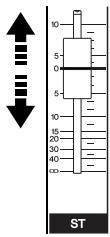
2 Turn the Channel faders and the ST Master fader all the way down.
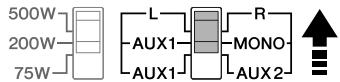
3 Set the POWER AMP switch to its upper position (to L-R).
For information about this switch, see page 25.
POWER AMP LIMITER
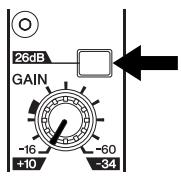
4 If you have connected input devices to channels 1 to 8, set the [26dB] switch ON (—) or OFF (■) on each channel accordingly.
If you have connected a line-level device, such as a keyboard or audio device, set the channel's switch to the ON ( ). If you have connected a microphone or other mic-level device, set the switch to the OFF ( ).
5 If you are using one or more condenser microphones for your inputs, set the PHANTOM switch to the ON position ( ).
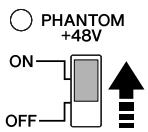

- Be sure to leave this switch off if you do not need phantom power.
- When using phantom power, do not connect any devices other than condenser microphones to the XLR input jacks. Other devices may be damaged if connected to phantom power. This precaution does not apply to balanced dynamic microphones, however, as these will not be affected by phantom power.
- To protect your speakers and ears: Before turning the PHANTOM switch ON or OFF, be sure to turn off the power to the mixer and to all other devices having internal amplifiers. We also recommend that you turn all output controls (Channel faders, ST Master fader, etc.) to minimum settings before operating the switch, to avoid risk of loud noises that could cause hearing loss or device damage.

Turn on the power.
First turn on the power to all connected devices other than powered speakers and amp, and then turn on the EMX itself. If using powered speakers or amps, turn these on last.
NOTE
To prevent an unpleasant burst of noise from the speakers, you should power up the sound sources first, and then the other devices in order of their distance from the source (starting with the closest).
For example: Sound source (external device) EMX unit Amps (Powered speakers)

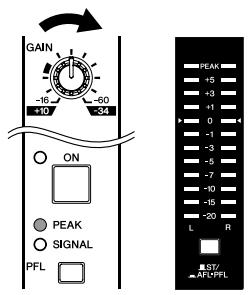
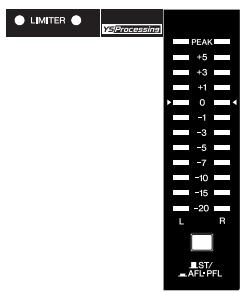
Adjust the GAIN control for each channel you are using so that the PEAK indicator comes on only at about maximum input level.
NOTE
To use the LEVEL meter to get an accurate reading of the incoming signal level: Set the ST/AFL-PFL switch to AFL-PFL( ) and turn on the PFL switch for each channel you are using. Adjust the GAIN controls so that LEVEL meter indication occasionally rises above the "▼" (0) level. Note that the PHONES jack outputs the pre-faded signal from all channels whose PFL switch is ON, so that you can monitor these signals through the headphones.

Turn the ON switch on.

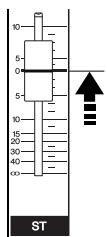
Set the ST Master fader to the "0" position.

Adjust the channel faders on all occupied channels.
Adjust the faders while listening to the output from the speakers.
NOTE
- To use the LEVEL meter to view the level being input to the internal amp: Set the ST/AFL-PFL switch to ST( ).
- Use the LIMITER lamps to check for clipping of the signal from the SPEAKERS jacks. Note that the LIMITER lamps will come on earlier than the level meter's PEAK indicators come on.

Adjust the overall volume of the ST Master fader.

CAUTION
It is acceptable for the LIMITER lamps to flash on briefly at times, but if they remain lit continuously then there is risk of damage to your speakers or to the internal amp. Reduce the ST master fader setting so that these lamps do not stay on.

Adding Some Reverb
You can use the reverb effect to simulate the sound of a concert hall or jazz club.
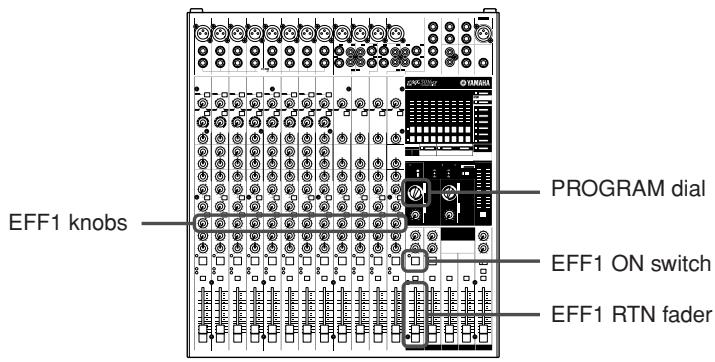
1 Turn the EFFECT1 PROGRAM dial to select the desired effect type.
To select a reverb effect, turn the dial to any value from 1 to 5.
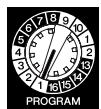
| 1 | HALL 1 | 5 | SMALL STAGE 1 | 9 | CHORUS | 13 | TREMOLO |
| 2 | ROOM 1 | 6 | VOCAL ECHO | 10 | EARLY REF. | 14 | SINGLE DELAY |
| 3 | PLATE 1 | 7 | KARAOKE | 11 | GATE REVERB | 15 | DYNA FILTER |
| 4 | LARGE STAGE 1 | 8 | DELAY | 12 | REVERSE GATE | 16 | PITCH CHANGE |
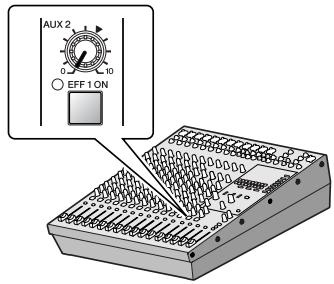
2 To turn on the effector, set the EFF1 ON switch to its ON position ( ).
The switch lights up when turned on. As an alternative to the ON switch, you can use a separately sold FC5 foot switch to toggle the effector on and off.
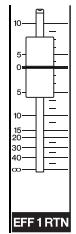
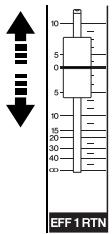
3 Set the EFF1 RTN fader to the "0" position.
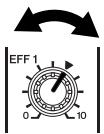
4 Use the channel EFF1 knobs to adjust the effect depth for each channel.
5 Use the EFF1 RTN fader to adjust the overall effect depth.
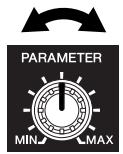
Note that you can use the PARAMETER knob to adjust the characteristic sound of the selected effect. If you have selected a reverb effect, the knob adjusts the reverb time.
Using the Compressors to Enhance Vocals
The compressor evens out the input level, reducing the level of loud passages and bringing up softer passages. The result is a cleaner sound where nuances remain audible and the lyrics are easier to hear.
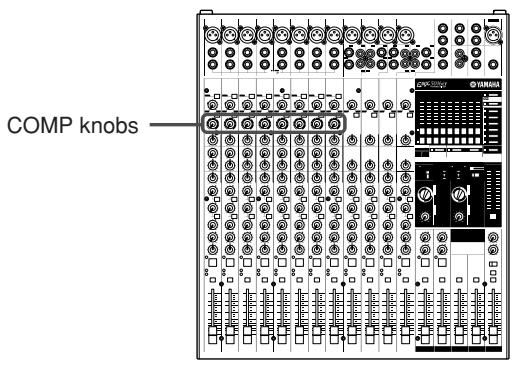
1 Adjust the COMP knobs on the relevant channels.
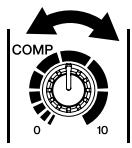
Turn the knob clockwise to increase the compression. Avoid setting the value too high, as too much compression may result in howling. For more information about the compressors, see page 18.
An Introduction
You've got yourself a mixer and now you're ready to use it. Just plug everything in, twiddle the controls, and away you go ... right?
Well, if you've done this before you won't have any problems, but if this is the first time you've ever used a mixer you might want to read through this little tutorial and pick up a few basics that will help you get better performance and make better mixes.
A Place for Everything and Everything in its Place
A Plethora of Connectors—What Goes Where?
Questions you're likely to encounter when setting up a system for the first time might include "Why all these different types of connectors on the back of my mixer?" and "What's the difference?".
Let's start by taking a look at the most common connector types.
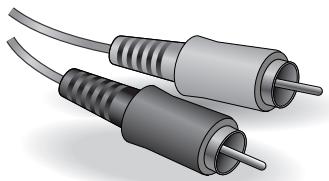
The Venerable RCA Pin Jack
This is the "consumer connector," and the one that has been most commonly used on home audio gear for many years. Also known as "phono" jacks (short for "phonogram"), but the term isn't used much these days—besides, it's too easily confusable with "phone" jacks, below. RCA pin jacks are always unbalanced, and generally carry a line-level signal at -10 dB, nominal. You're most likely to use this type of connector when connecting a CD player or other home audio type source to your mixer, or when connecting the output of your mixer to a cassette recorder or similar gear.
The Versatile Phone Jack
The name "phone jack" arose simply because this configuration was first used in telephone switchboards. Phone jacks can be tricky because you can't always tell what type of signal they're designed to handle just by looking at them. It could be unbalanced mono, unbalanced stereo, balanced mono, or an insert patch point. The connector's label will usually tell you what type of signal it handles, as will the owner's manual (you do keep your manuals in a safe place, don't you?). A phone jack that is set up to handle balanced signals is also often referred to as a "TRS" phone jack. "TRS" stands for Tip-Ring-Sleeve, which describes the configuration of the phone plug used.
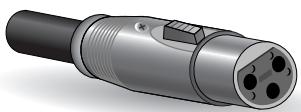
The Sturdy XLR
This type of connector is generally referred to as "XLR-type," and almost always carries a balanced signal. If the corresponding circuitry is designed properly, however, XLR-type connectors will also handle unbalanced signals with no problem. Microphone cables usually have this type of connector, as do the inputs and outputs of most professional audio gear.
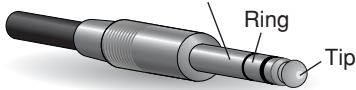
Sleeve
Stereo/TRS phone plug
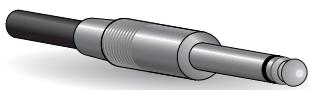
Mono phone plug
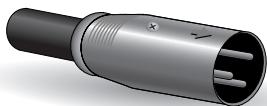
Male
Female
Balanced, Unbalanced—What's the Difference?
In a word: "noise." The whole point of balanced lines is noise rejection, and it's something they're very good at. Any length of wire will act as an antenna to pick up the random electromagnetic radiation we're constantly surrounded by: radio and TV signals as well as spurious electromagnetic noise generated by power lines, motors, electric appliances, computer monitors, and a variety of other sources. The longer the wire, the more noise it is likely to pick up. That's why balanced lines are the best choice for long cable runs. If your "studio" is basically confined to your desktop and all connections are no more than a meter or two in length, then unbalanced lines are fine—unless you're surrounded by extremely high levels of electromagnetic noise. Another place balanced lines are almost always used is in microphone cables. The reason for this is that the output signal from most microphones is very small, so even a tiny amount of noise will be relatively large, and will be amplified to an alarming degree in the mixer's high-gain head amplifier.
To summarize
| Microphones: | Use balanced lines. |
| Short line-level runs: | Unbalanced lines are fine if you’re in a relatively noise-free environment. |
| Long line-level runs: | The ambient electromagnetic noise level will be the ultimate deciding factor, but balanced is best. |
How Do Balanced Lines Reject Noise?
** Skip this section if technical details make you queasy. **
Balanced lines work on the principle of "phase cancellation": if you add two identical signals out of phase (i.e. one signal is inverted so its peaks coincide with the troughs in the other signal), the result is ... nothing. A flat line. The signals cancel each other out.
While the desired audio signals in the hot and cold conductors are out of phase, any noise induced in the line will be exactly the same in both conductors, and thus in phase. The trick is that the phase of one signal is reversed at the receiving end of the line so that the desired audio signals become in-phase, and the induced noise suddenly finds itself out of phase. The out-of-phase noise signal is effectively canceled while the audio signal is left intact. Clever, eh?
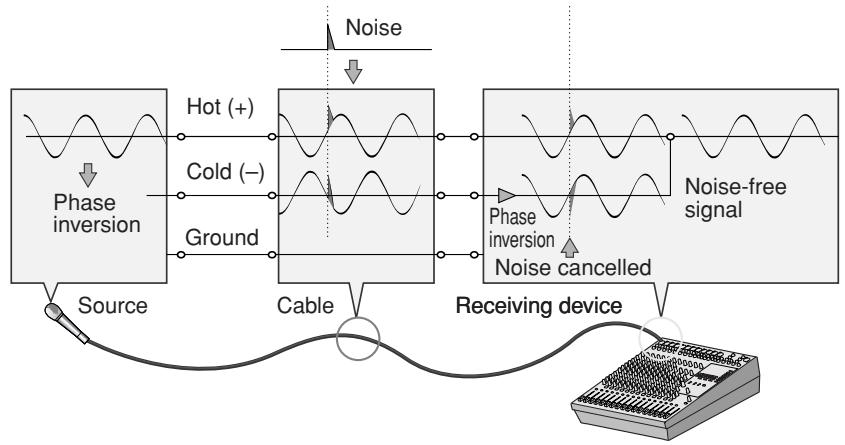
Balanced noise cancellation
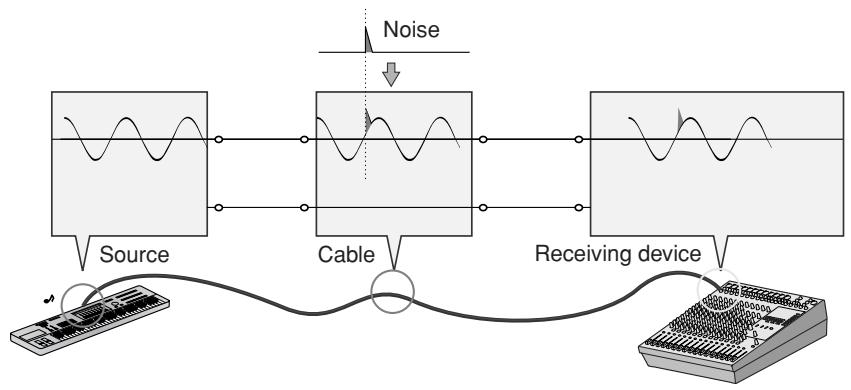
Unbalanced noise
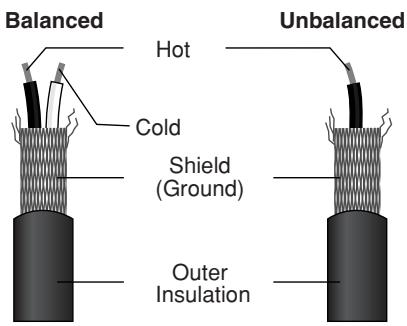
A balanced cable has three conductors:
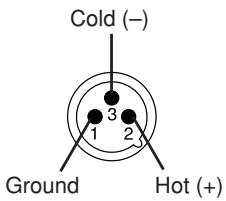
1) A ground conductor which carries no signal, just the "ground" or "0" reference against which the signal in the other conductors fluctuates.
2) A "hot" or "+" conductor which carries the normal-phase audio signal.
3) A "cold" or "-" conductor which carries the reverse-phase audio signal.
Signal Levels and the Decibel
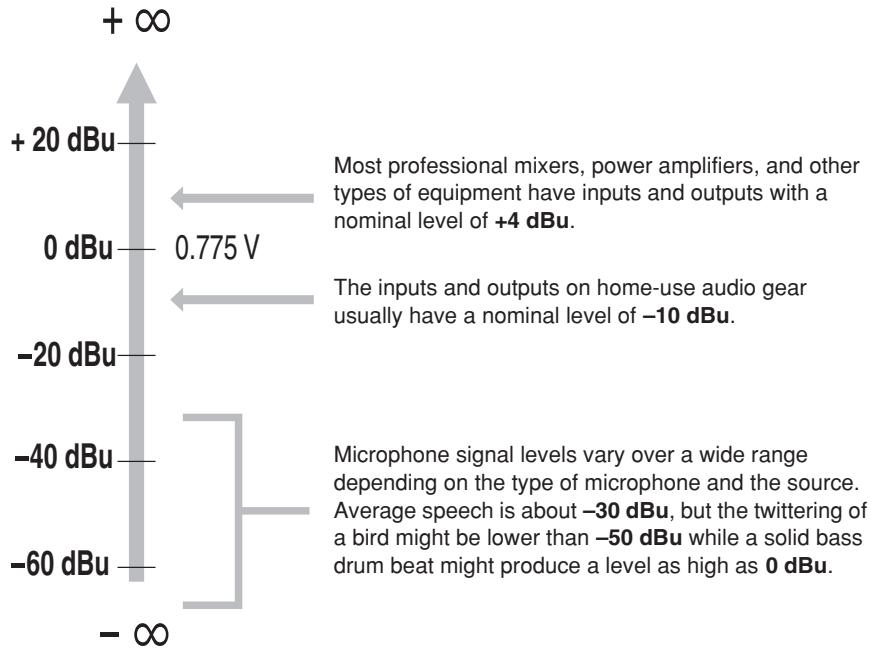
Let's take a look at one of the most commonly used units in audio: the decibel (dB). If the smallest sound that can be heard by the human ear is given an arbitrary value of 1, then the loudest sound that can be heard is approximately 1,000,000 (one million) times louder. That's too many digits to deal with for practical calculations, and so the more appropriate "decibel" (dB) unit was created for sound-related measurements. In this system the difference between the softest and loudest sounds that can be heard is 120 dB. This is a non-linear scale, and a difference of 3 dB actually results in a doubling or halving of the loudness.
You might encounter a number of different varieties of the dB: dBu, dBV, dBM and others, but the dBu is the basic decibel unit. In the case of dBu, "0 dBu" is specified as a signal level of 0.775 volts. For example, if a microphone's output level is -40 dBu (0.00775 V), then to raise that level to 0 dBu (0.775 V) in the mixer's preamp stage requires that the signal be amplified by 100 times.
A mixer may be required to handle signals at a wide range of levels, and it is necessary match input and output levels as closely as possible. In most cases the "nominal" level for a mixer's input and outputs is marked on the panel or listed in the owner's manual.
Making Better Mixes
Approaching the Mix—Where Do You Start?
Mixing is easy, right? Just move the faders around until it sounds right? Well, you can do it that way, but a more systematic approach that is suited to the material you're mixing will produce much better results, and faster. There are no rules, and you'll probably end up developing a system that works best for you. But the key is to develop a system rather than working haphazardly. Here are a few ideas to get you started:
Faders Down
It might sound overly simple, but it is usually a good idea to start with all channel faders off—all the way down. It's also possible to start with all faders at their nominal settings, but it's too easy to lose perspective with this approach. Start with all faders down, then bring them up one by one to fill out the mix. But which channel should you start with?
Example1: Vocal Ballad Backed by Piano Trio
What are you mixing? Is it a song in which the vocals are the most important element?
If so you might want to build the mix around the vocals. This means bringing the vocal channel up to nominal first (if your level setup procedure has been done properly this will be a good starting point), and then adding the other instruments.
What you add next will depend on the type of material you are working with and your approach to it. If the vocals are backed by a piano trio and the song is a ballad, for example, you might want to bring in the piano next and get the vocal/piano relationship just right, then bring in the bass and drums to support the overall sound.
Example2: Funky R&B Groove
The approach will be totally different if you're mixing a funky R&B number that centers on the groove. In this case most engineers will start with the drums, and then add the bass. The relationship between the drums and bass is extremely important to achieve the "drive" or groove the music rides on. Pay particular attention to how the bass works with the kick (bass drum).
They should almost sound like a single instrument—with the kick supplying the punch and the bass supplying the pitch. Once again, there are no rules, but these are concepts that have been proven to work well.


To EQ or Not to EQ
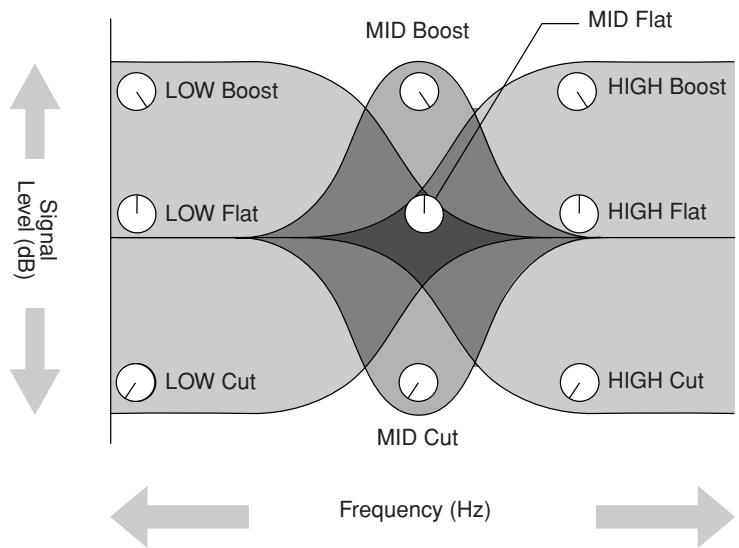
In general: less is better. There are many situations in which you'll need to cut certain frequency ranges, but use boost sparingly, and with caution. Proper use of EQ can eliminate interference between instruments in a mix and give the overall sound better definition. Bad EQ—and most commonly bad boost—just sounds terrible.
Cut for a Cleaner Mix
For example: cymbals have a lot of energy in the mid and low frequency ranges that you don't really perceive as musical sound, but which can interfere with the clarity of other instruments in these ranges. You can basically turn the low EQ on cymbal channels all the way down without changing the way they sound in the mix. You'll hear the difference, however, in the way the mix sounds more "spacious," and instruments in the lower ranges will have better definition. Surprisingly enough, piano also has an incredibly powerful low end that can benefit from a bit of low-frequency roll-off to let other instruments— notably drums and bass—do their jobs more effectively. Naturally you won't want to do this if the piano is playing solo.
The fundamental ■ and harmonic ■ frequency ranges of some musical instruments.
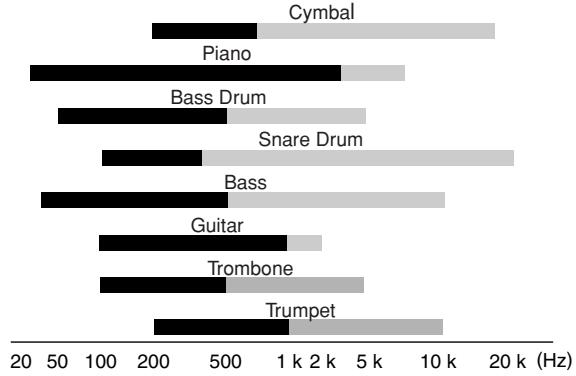
Fundamental: The frequency that determines the basic musical pitch.
Harmonics: Multiples of the fundamental frequency that play a role in determining the timbre of the instrument.
The reverse applies to kick drums and bass guitars: you can often roll off the high end to create more space in the mix without compromising the character of the instruments. You'll have to use your ears, though, because each instrument is different and sometimes you'll want the "snap" of a bass guitar, for example, to come through.
Some Frequency Facts
The lowest and highest frequencies than can be heard by the human ear are generally considered to be around 20Hz and 20,000Hz , respectively. Average conversation occurs in the range from about 300Hz to about 3,000Hz . The frequency of a standard pitchfork used to tune guitars and other instruments is 440Hz (this corresponds to the "A3" key on a piano tuned to concert pitch). Double this frequency to 880Hz and you have a pitch one octave higher (i.e. "A4" on the piano keyboard). In the same way you can halve the frequency to 220Hz to produce "A2" an octave lower.
Boost with Caution
If you're trying to create special or unusual effects, go ahead and boost away as much as you like. But if you're just trying to achieve a good-sounding mix, boost only in very small increments. A tiny boost in the midrange can give vocals more presence, or a touch of high boost can give certain instruments more "air." Listen, and if things don't sound clear and clean try using cut to remove frequencies that are cluttering up the mix rather than trying to boost the mix into clarity.
One of the biggest problems with too much boost is that it adds gain to the signal, increasing noise and potentially overloading the subsequent circuitry.
Ambience
Your mixes can be further refined by adding ambience effects such as reverb or delay. On the EMX mixers these effects are built in. The internal DSP (Digital Signal Processor) can be used to add reverb or delay to individual channels in the same way as external effects processors, with the extra connections required by, or the loss in sound quality often caused by external processing. (Refer to page 22).
You need to be careful not to overdo effects, however, because going to far can undermine the clarity and quality of your mix. Use your ambience effects just enough to create the required feeling of depth, but no more than is necessary to keep your sound clean.
Reverb and Delay Time
A variety of reverb and delay effect programs are provided, and nearly all of then have a reverb/delay time parameter than can be adjusted via the panel PARAMETER control.
Small adjustments to the reverb/delay time can actually have a significant effect on the sound. The optimum reverb time for a piece of music will depend on the music's demo and density, but as a general rule longer reverb times are good for ballads, while shorter reverb times are more suited to up-tempo tunes. Delay times can be adjusted to create a wide variety of "grooves", and you need to select the time that best suits the music. When adding delay to a vocal, for example, try setting the delay time to dotted eighth notes corresponding to the tune's tempo.
Reverb Tone
Different reverb programs will have different "reverb tone" due to differences in the reverb time of the high or low frequencies, or differences in the overall frequency response of the reverb sound. Always be careful not apply too much reverb, particularly in the high frequencies. In addition to resulting in unnatural sound, excessive high-frequency reverb can interfere with the high frequencies in other parts of the mix. If you can hear more reverb than direct sound in the upper frequency range, try selecting a different effect program. It's always a good idea to choose a reverb program that gives you the depth you want without detracting from the clarity of the mix.
Reverb Level
It's amazing how quickly your ears can lose perspective and fool you into believing that a totally washed-out mix sounds perfectly fine. To avoid falling into this trap start with reverb level all the way down, then gradually bring the reverb into the mix until you can just hear the difference. Any more than this normally becomes a "special effect." You don't want reverb to dominate the mix unless you are trying to create the effect of a band in a cave—which is a perfectly legitimate creative goal if that's the sort of thing you're aiming for.
The Modulation Effects: Phasing, Chorus, and Flanging
All of these effects work on basically the same principle: a portion of the audio signal is "time-shifted" and then mixed back with the direct signal. The amount of time shift is controlled, or "modulated", by an LFO (Low-frequency Oscillator). When we say "time shift," however, we're not talking in terms of minutes or even seconds.
For phasing effects the shift is very small indeed – a difference measured in degrees of phase shift rather than time units. The phase difference between the modulated and direct signals causes cancellation at some frequencies and reinforces the signal at others – a “comb filter” effect – and this causes the shimmering sound we hear. Phasing is the subtlet of all these effects, producing a gentle shimmer that can add life to a wide range of sources without being too obtrusive.
For chorus and flanging the signal is actually delayed by several milliseconds (a millisecond is a thousandth of a second), with the delay time modulated by an LFO, and recombined with the direct signal. In addition to the comb-filter effect described above, the delay modulation in these effects causes a perceived pitch shift which, when mixed with the direct signal, results in a harmonically rich swirling or swishing sound. The difference between chorus and flanging effects is primarily in the amount of delay time and feedback used - flanging uses longer delay times than chorus, whereas chorus generally uses a more complex delay structure. Chorus is most often used to thicken the sound of an instrument, while flanging is usually used as an outright "special effect" to produce otherworldly sonic swoops.
Compression
Have you ever wondered why professionally produced recordings sound so different from your own? There are numerous reasons, of course, but one important factor is the judicious use of compression.
One form of compression known as "limiting" can, when properly used, produce a smooth, unified sound with no excessive peaks or distortion. Compression can also be used within a mix to make a voice or instrument seem to come forward, or simply to even out level differences. Compression can be used to make a mix seem bigger and louder by producing a more "saturated" sound. Professional compressors have numerous parameters that need to be carefully adjusted: attack, release, threshold, level, and sometimes more. A professional sound engineer might need to spend a considerable amount of time, based on a considerable amount of experience, to set each of these parameters to achieve the desired sound.
The EMX compressor makes achieving great sound much easier. All you need to do is set a single "compression" control and all of the pertinent parameters are automatically adjusted for you.
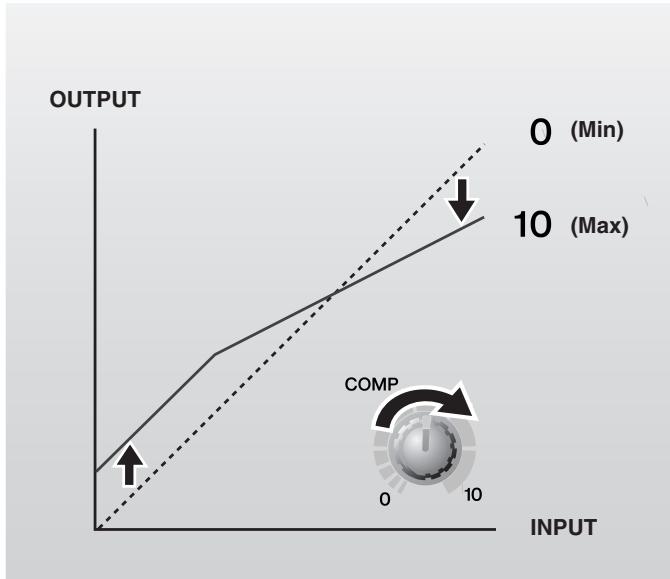
The engineers who designed this fine compressor paid careful attention to achieving the best sound quality possible so that you can quickly achieve pro-quality compression without having to worry about a confusing multitude of settings.
A common example of the use of compression is to "tame" a vocal that has a wide dynamic range in order to tighten up the mix. With the right amount of compression you'll be able to clearly hear whispered passages while passionate shouts are still well balanced in the mix. Compression can also be valuable on bass guitar, producing a smooth bass sound that stays solid through the tune. Compression can also be applied to guitar tracks to add extra sustain. Too much compression can be a cause of feedback, however, so use it sparingly.
Music First-Then Mix
In any case, the music comes first. Think about the music and let it guide the mix, rather than trying to do things the other way around. What is the music saying and what instrument or technique is being used to drive the message? That's where the focus of your mix should be. You're using a high-tech tool to do the mixing, but the mix itself is as much art as the music. Approach it that way and your mixes will become a vital part of the music.
Front & Rear Panels
Controls on Each Channel
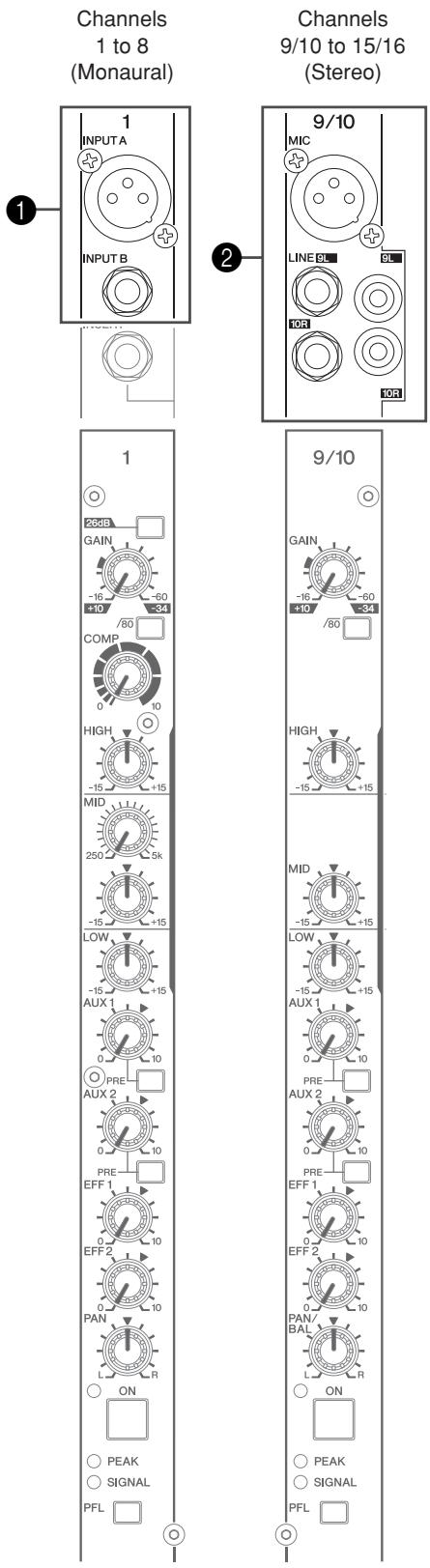
1 INPUT A and INPUT B Jacks (Channels 1 to 8)
You can connect an input source to either jack. Be sure to set the [26 dB] switch 4 to match the type of device you are connecting.
INPUT A: A balanced XLR-type microphone input jack (1:Ground; 2:Hot; 3:Cold). If you are connecting a condenser microphone, be sure to turn the PHANTOM switch 48 to its ON position.
INPUT B: A TRS phone-type balanced line input jack (T: hot, R: cold, S: ground). Accepts both balanced and unbalanced line input.
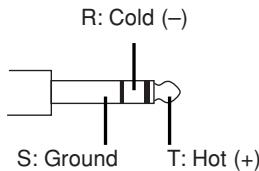

When using phantom power, do not connect any devices other than condenser microphones to the XLR input jacks. Other devices may be damaged if connected to phantom power. This precaution does not apply to balanced dynamic microphones, however, as these will not be affected by phantom power.
NOTE On any given channel, you may use either INPUT A or INPUT B, but not both. Please connect to only either of these jacks on each channel.
LINE/MIC Jacks (Channels 9/10 to 15/16)
These jacks accept stereo inputs and mic inputs. Use these to connect up stereo output devices, such as stereo synthesizers and CD players, and microphones.
LINE jacks: Unbalanced stereo inputs. Each channel pair have phone jacks and RCA pin jacks.
MIC jack: XLR balanced mic-level input jack. If you are connecting a condenser microphone, be sure to turn the PHANTOM switch 48 to its ON position.
CAUTION When using phantom power, do not connect any devices other than condenser microphones to the XLR input jacks. Other devices may be damaged if connected to phantom power. This precaution does not apply to balanced dynamic microphones, however, as these will not be affected by phantom power.
NOTE If you wish, you may use the channel pair's LINE and MIC jacks together at the same time. But note that the levels cannot be adjusted independently.

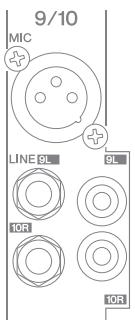
Channels 9/10 to 15/16 (Stereo)

3 INSERT I/O Jack (Channels 1 to 8)
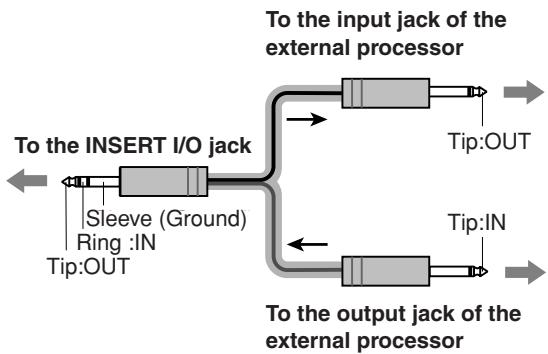
Each of these jacks is positioned between the equalizer and fader of the corresponding input channel (1 to 8). You can use these jacks to connect channels to devices such as graphic equalizers, compressors, and noise filters. These are TRS (tip, ring, sleeve) phone jacks that support bidirectional operation.
NOTE Connection to an INSERT I/O jack requires a special separately-sold insertion cable—such as the Yamaha YIC025, YIC050, or YIC070—as shown below.
[26 dB] Switch (Channels 1 to 8)
Pressing this button turns on the attenuator for each channel, attenuating the input signal level by 26 dB. If you have connected a line-level device, such as a keyboard or audio device, set the channel's switch to ON (■). If you have connected a microphone or other mic-level device, set the switch to OFF (■).
GAIN Control
Adjusts the gain applied to the input signal level. To get the best balance between the S/N ratio and the dynamic range, adjust the gain so that the PEAK indicator 14 comes on only at about maximum input level. The -60 to -16 scale indicates the MIC input adjustment level. The -34 to 10 scale indicates the LINE input adjustment level.
6 /80 (High Pass Filter) Switch
Switches the high pass filter on/off. To turn the HPF on, press this switch in. The HPF cuts frequencies below 80Hz . (But note that regardless of the switch setting, the mixer does not apply this HPF to the line inputs of stereo input channels.)
COMP knob (Channels 1 to 8)
This knob adjusts the level of compression applied to the channel. As the knob is turned to the right, the mixer automatically raises the compression ratio while adjusting the output gain accordingly. The result is a narrower, more even dynamic range, as louder signals are softened while the overall level is boosted. Avoid setting the knob too high, however, as excess compression may lead to howling.
Equalizer (HIGH, MID, and LOW)
This three-band equalizer adjusts the channel's high, mid, and low frequency bands. Setting the knob to the "▼" position produces a flat frequency response for the corresponding frequency band. Turning the knob to the right boosts the corresponding frequency band, while turning to the left attenuates the band.
On channels 1 to 8, the MID range is controlled by two knobs. The upper knob sets the center frequency for the mid range, while the lower knob sets the attenuation (counterclockwise) or boost (clockwise) for the range. (Again, setting the lower knob to “▼” produces a flat response.) On stereo channel pairs 9/10 to 15/16 the mid-range frequency is fixed at 2.5kHz , so only one MID knob is provided.
The following table shows the equalization type, the base frequency, and the maximum cut/boost for each of the three bands.
| Band | Type | Base Frequency | Maximum Cut/Boost |
| HIGH | Shelving | 10 kHz | ±15 dB |
| MID | Peaking | 250 Hz to 5 kHz variable (CHs 1 to 8) 2.5 kHz (CHs 9/10 to 15/16) | |
| LOW | Shelving | 100 Hz |
AUX1/2 Knobs (PRE/POST)
Each knob adjusts the channel's signal level into the AUX1/2 bus. The knob should generally be set close to the “▼” position. Note that you can use the PRE switch ⑩ to choose whether the pre-fader or post-fader signal is fed into the AUX1/2 buses. On stereo channels, the L (odd) and R (even) input signals are mixed before being sent to the AUX1/2 buses.
NOTE If the PRE switch is on, the channel's fader will not have any effect on the signal sent to the AUX1/2 buses.
PRE Switch
Selects whether the pre-fader or the post-fader signal is fed to the AUX1/2 buses. If the switch is on, the mixer feeds the pre-fader signal to the buses. If off, the mixer feeds the post-fader signal.
EFF1/2 Knobs
Each knob adjust the level of the signal sent from the channel to the EFFECT1/2 bus. If input is from a stereo channel pair (9/10 to 15/16), the signals from the L and R channels are mixed before moving into the buses. The EFFECT1/2 bus signal is fed both to the internal digital effector and to the SEND EFF1/2 jack 18.
NOTE The level into the EFFECT1/2 buses is affected by the setting of the channel's fader ①7.
12 PAN Control (Channels 1 to 8); BAL Control (Channels 9/10 to 15/16)
The PAN control determines the positioning of the channel's signal on the Stereo L and R buses.
The BAL control sets the balance between left and right channels. Signals into the L input (odd channel) feed to the Stereo L bus; signals into the R input (even channel) feed to the Stereo R bus.
13 ON Switch
Switches the channel on or off. (The indicator lights up if the channel is on.) Be sure to turn on all the channels that you wish to use. If you switch the channel off, you cut off all of its signal feed into the Stereo, AUX, and EFFECT buses.
NOTE To reduce noise, turn off all unused channels.
14 PEAK Indicator
Detects the peak level of the post-equalizer signal, and lights up red when the level reaches 3 dB below the clipping level.
15 SIGNAL Indicator
Lights up when a signal is being input into the channel.
16 PFL (Pre-Fader Listen) Switch
Set this switch on to feed the channel's pre-fader signal into the PFL bus, so that it can be monitored at the PHONES jack. To set the switch on, press it in so that it lights up.
NOTE
-
PFL switching and output are not affected by the ON switch. You can monitor the channel's pre-fader signal through the PHONES jack even when the ON switch is set off.
-
The PFL (16, 23, 49) and AFL 50 switches select the mix to be monitored at the PHONES jack. If the channel's PFL or AFL switch is ON, the channel's output is mixed into the monitor signal to the PHONES jack. If both switches are OFF, the channel output is not fed to the PHONES jack.
17 Channel Fader
Adjusts the signal's output level. Use these faders to adjust the volume balance among the various channels.
NOTE
To reduce noise, set the fader sliders for unused channels all the way down.
Digital Effects Section
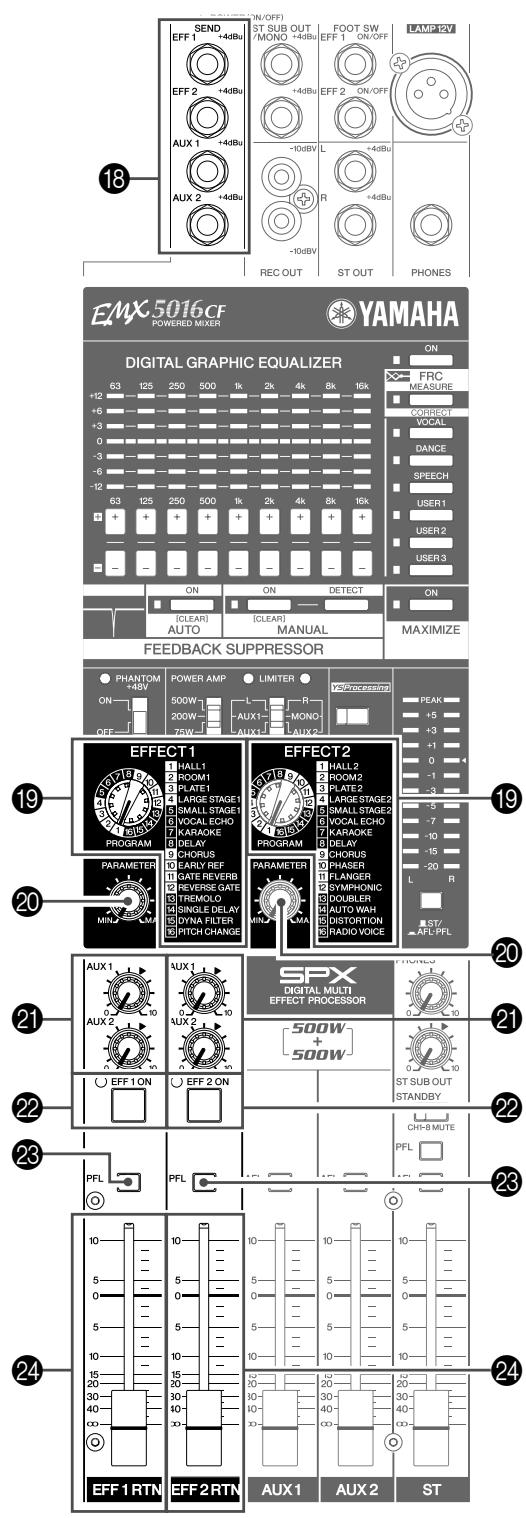
18 SEND Jacks
- EFF1, EFF2
These unbalanced phone output jacks output the signal from the EFFECT1/2 buses. You use these jacks, for example, to connect to an external effector. You can then return the signal by connecting the external effector to any of the LINE jacks on channel pairs 9/10 to 15/16.

If you are returning a signal from an external effector into a LINE jack on any channel pair 9/10 to 15/16, please be sure to turn the EFF1/2 knob for that channel pair to "0".
AUX1,AUX2
These unbalanced phone jacks output monaural monitor signals from the AUX1 and AUX2 buses, respectively. You use these jacks, for example, to connect to an effector or to a cue box or other such monitoring system.
19 PROGRAM Dials
These let you select the type of effect from 16 different types for EFFECT 1 and EFFECT 2. For details on each of the effect types, refer to page 37.
20 PARAMETER Knobs
Each knob adjust the parameter (depth, speed, etc.) associated with the selected effect type.
NOTE The mixer saves the last value used with each effect type. When you change to a different effect type, the mixer automatically restores the value that was previously used with that type (regardless of the current position of the PARAMETER knob).
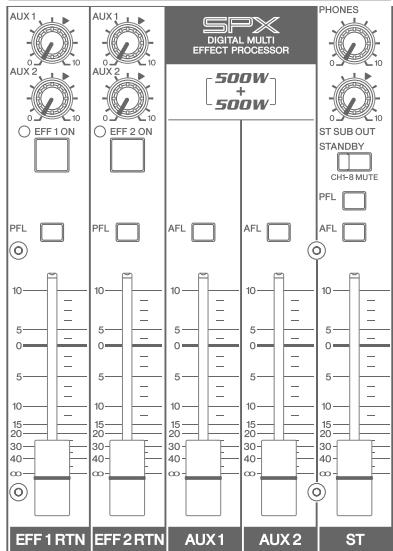
2 AUX1/2 Knobs
Each knob adjusts the level of the effected sound into the corresponding AUX1 and AUX2 buses.
2 EFF1/2 ON Switches/Indicators
Switches use of the internal effect on or off. The internal effect is applied only if this switch is turned on. To set the switch on, press it in so that it lights up.
As an alternative to the ON switch, you can use a separately sold FC5 foot switch to toggle the effector on and off.
NOTE The On/Off status of the internal effects will be retained, even when you turn off the mixer's power.
23 PFL (Pre-Fader Listen) Switches
Set this switch on to feed the signal from the internal digital effect signal (pre the EFF1/2 RTN faders) into the PFL bus, so that it can be monitored at the PHONES jack.
NOTE The signal will not feed into the PFL bus if the effect's ON switch is turned off.
- The PFL (16, 23, 49) and AFL 50 switches select the mix to be monitored at the PHONES jack. If the channel's PFL or AFL switch is ON, the channel's output is mixed into the monitor signal to the PHONES jack. If both switches are OFF, the channel output is not fed to the PHONES jack.
2 EFF1/2 RTN Faders
Adjusts the level of the effected sound into the Stereo bus.
Master Section
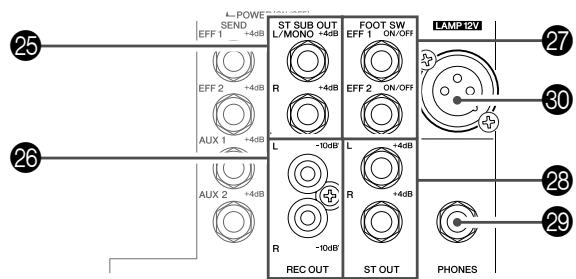
ST SUB OUT Jacks
These unbalanced phone jacks output the mixed stereo signal (L and R), where the level is adjusted by the ST SUB OUT control 47. You would typically use these jacks to connect to an external mixer or a supplementary SR system.
26 REC OUT Jacks
These RCA pin-type unbalanced output jacks can be used to send the main stereo signal to an external DAT recorder or cassette recorder. The jacks output the stereo signal pre adjustment by the ST master fader 52 and graphic equalizer 33. As the signal is not adjusted by these controls, please be sure to make appropriate level adjustments at the external recording device side.
EFF1/2 ON/OFF Jacks
These phone input jacks are for connection to a separately sold FC5 foot switch. The foot switch can be used as an alternative to the ON switch to toggle the effector on and off.
ST OUT Jacks
These unbalanced phone jacks output the mixed stereo signal (L and R), where the level is adjusted by the ST master fader 52. You would typically connect these jacks to a power amp or powered speakers.
29 PHONES Jack
Connector for headphones. This is a balanced stereo phone-type output jack.
30 LAMP Jack
This XLR 3 pin-type output jack is for connection to an optional lamp.
NOTE Supported lamps: 12V (AC or DC), max. 5 W. Power of 12V is supplied between pins 2 and 3. Pin 1 is not connected.
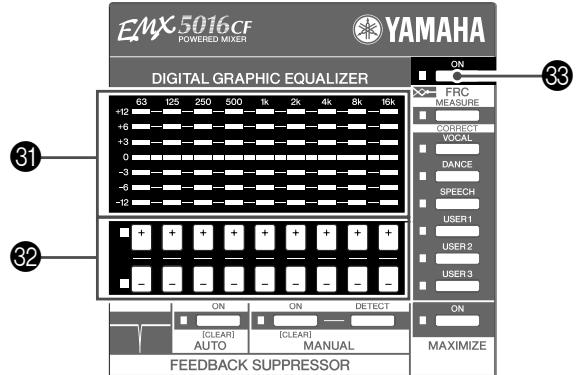
GEQ (Graphic Equalizer) display
Indicates the GEQ settings. This 9-band GEQ adjusts the frequency characteristics of the stereo-bus signal output at the ST OUT jacks 28, ST SUB OUT jacks 25, and SPEAKERS jacks 53.
GEQ +/- Switches
These switches boost or cut the gain of each frequency band by ± 12 dB. The central frequencies for the bands are: 63, 125, 250, 500, 1k, 2k, 4k, 8k and 16kHz . The adjustable gain values are: 0dB, ± 1.5dB , ± 3dB , ± 4.5dB , ± 6dB , ± 9dB and ± 12dB . For intermediate values not printed on the scale, both the upper and lower indicators light. (For example, the 0 and +3 indicators light to indicate a value of +1.5dB.)
33 GEQ ON Switch
This switch toggles the graphic equalizer on or off. The switch is illuminated when on.
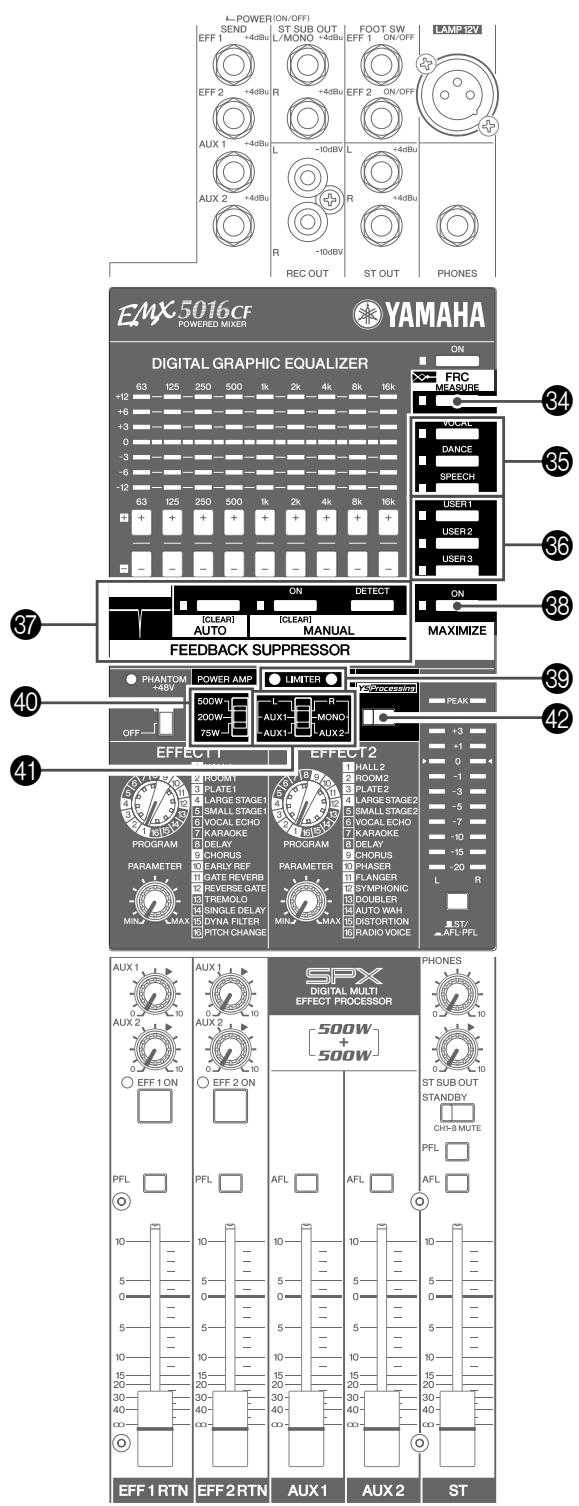
34 FRC MEASURE/CORRECT switch
FRC (Frequency Response Correction System) can measure the frequency characteristics of the sound field, and apply the correction curve to the GEQ automatically. The MEASURE mode measures the frequency characteristics, and the CORRECT mode applies the correction curve to the GEQ according to the measurement results. For details on using FRC, refer to page 30.
- MEASURE mode
There are two measurement methods: noise measurement, engaged by pressing and holding the MEASURE/CORRECT switch for two seconds or longer, and music playback measurement, by pressing and holding for three seconds or longer.
To measure the frequency characteristics by noise output generated from the EMX, press and hold the MEASURE/CORRECT switch for two to three seconds. The indicator flashes quickly and the measurement starts. The measurement result is updated on the GEQ display every five seconds after measurement starts.
To measure the frequency characteristics by music playback, such as from connected CD players, press and hold the MEASURE/CORRECT switch for three seconds or longer. The indicator flashes slowly and the measurement starts. The measurement result is updated on the GEQ display every five seconds after measurement starts.
CORRECT mode
If you press and hold the MEASURE/CORRECT switch for two seconds or longer after measurement, the correction curve corresponding to the frequency characteristics of the measurement result is applied to the GEQ, and the indicator lights up. The correction curve will be retained until the next measurement. If you wish to recall the correction curve after turning off the GEQ ON switch or power switch, press the MEASURE/CORRECT switch again.
35 VOCAL, DANCE, SPEECH Switches
Pressing either of these switches recalls the preset GEQ settings. The GEQ display ③ indicates the settings, and the switch indicator lights up. If you change the GEQ settings after recall, the switch indicator turns off. To restore the preset settings, press the switch again.
36 USER 1, USER 2, USER 3 Switches
These switches are used to store the GEQ settings in each memory area and recall them.
- Storing
Press and hold the USER switch for two seconds or longer until the switch indicator flashes.
- Recalling the stored settings
Press the USER switch to be recalled. The settings are recalled and indicated on the GEQ display ③, and the switch indicator lights up. Pressing the GEQ +/- switches to adjust the settings after recall turns off the indicator. To restore the settings, press the USER switch again.
NOTE After recalling the GEQ settings by pressing either of the MEASURE/CORRECT, VOCAL, DANCE, SPEECH, or USER switches, pressing the switch again restores the GEQ settings before recall. This is handy for comparing two GEQ settings.
Feedback Suppressor
This function monitors the stereo-bus signal for howling and creates notch filters (filters which cut specific frequencies) to eliminate the howling. There are two methods: AUTO mode monitors the signal periodically, and MANUAL mode searches for each feedback point individually. You can use both methods in tandem or either method alone.
- AUTO mode
Pressing the AUTO ON switch turns on the indicator and monitors for howling periodically. If howling is found, the corresponding notch filter is created automatically. Pressing the AUTO ON switch again turns off Feedback Suppressor (notch filters) and the switch indicator.
To clear the notch filters, press and hold the AUTO ON switch for two seconds or longer. The indicator flashes when all notch filters are cleared. As long as you do not clear the notch filters, the filter settings will be retained even when you turn off the mixer's power.
NOTE A notch filter created by AUTO mode will be reduced by 3 dB a minute after the filter has been created.
- MANUAL mode
Press the MANUAL DETECT switch to check for the next feedback point in the signal. If howling is found, (up to) one notch filter is created automatically. During the check, the MANUAL DETECT switch indicator flashes. The check is stopped when howling is found or not found for five seconds. If notch filters are already created and another howling point is not found, the indicator goes off for a second, then lights up again.
MANUAL mode detects howling more sensitively than AUTO mode. Use of this mode may mistakenly identify musical notes as howling during a performance; however, this mode is handy to set up precautionary notch filters beforehand by intentionally raising the levels and finding the howling points.
NOTE - If a notch filter is created by pressing the MANUAL DETECT switch, the MANUAL ON switch is turned on automatically. To turn off Feedback Suppressor, press the MANUAL ON switch. The switch indicator turns off.
- If no notch filters are created, pressing the MANUAL ON switch cannot turn on Feedback Suppressor.
To clear the notch filters, press and hold the MANUAL ON switch for two seconds or longer. The indicator flashes when all notch filters are cleared. As long as you do not clear the notch filters, the filter settings will be retained even when you turn off the mixer's power.
38 MAXIMIZE ON switch
When this switch is turned on, a multi-band (3-band) compressor is applied to the Stereo L/R bus signal enhancing the sound and volume of the overall output. Turning on the switch lights up the indicator.
NOTE Turning on the power while holding the GEQ ON switch 33 and MAXIMIZE ON switch 38 restores the initial factory settings for GEQ, Effects, Feedback Suppressor, and MAXIMIZE.
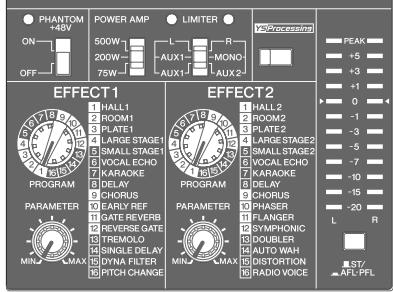
39 LIMITER Indicators
The lamp lights up when the amplified signal output at the SPEAKERS jacks hits its maximum value.

The lamp indicates that the limiter has come on. If the lamps are flashing frequently, the load on the amp is too high and there is risk of damage to your equipment. Reduce the setting of the ST master fader
or the AUX1 or AUX2 fader 46 until the lamps flash only briefly or not at all.
40 Maximum Output Switch
This selector lets you set the maximum output from for the 2-channel internal amp to any of three levels. Set this to match the size of your room or the input capacity of your speakers.
500W: Maximum 500W + 500W/4 ohms.
200W: Maximum 200W + 200W/4 ohms.
75W: Maximum 75W + 75W/4 ohms
4 POWER AMP Switch
Selects the output that gets sent to the SPEAKERS jacks, as follows.
L/R:
SPEAKERS jacks A1 and A2 output the signal from the Stereo L bus, while jacks B1 and B2 output the signal from the Stereo R bus. The overall volume is adjusted by the ST master fader.
AUX1/MONO:
SPEAKERS jacks A1 and A2 output the signal from the AUX 1 bus; the volume for this signal can be adjusted using the AUX1 fader. SPEAKERS jacks B1 and B2 output the mix of the signals on the Stereo L and R buses; the volume can be adjusted with the ST master fader.
AUX1/AUX2:
SPEAKERS jacks A1 and A2 output the signal from the AUX 1 bus, while jacks B1 and B2 output the signal from the AUX2 bus. Volumes can be adjusted using the AUX1 and AUX2 faders, respectively.
42 YS Processing Switch
This switch turns Yamaha Speaker Processing on or off. The processor adjusts the speaker's bass ranges so as to compensate, for example, for a lack of subwoofoers. Note however that the resulting frequency balance may vary according to the speakers you are using.
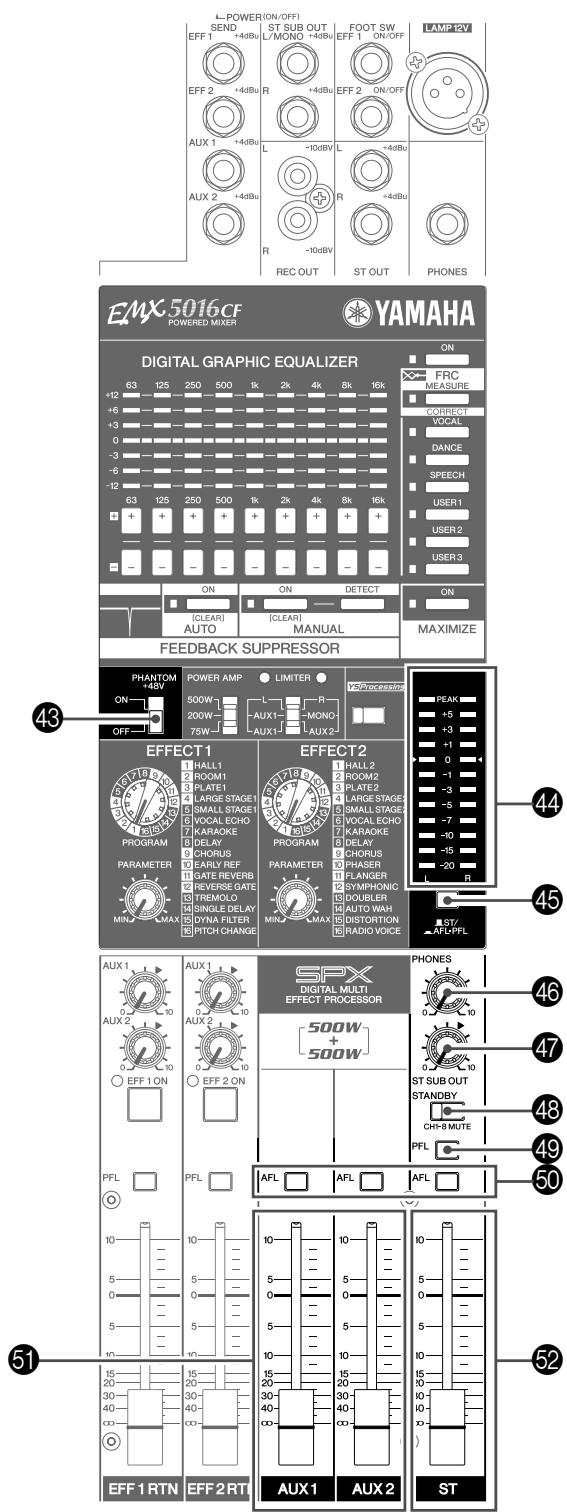
43 PHANTOM Switch and Indicator
This switch toggles phantom power on and off. The indicator lights up when the setting is on. If you set the switch on, the mixer supplies power to the XLR mic input jacks on all channels (the INPUT A jacks on channels 1 to 8, and the MIC jacks on channel pairs 9/10 to 15/16). Set this switch on when using one or more condenser microphones.
NOTE When the switch is on, the mixer supplies DC +48V power to pins 2 and 3 of all XLR input jacks.

- Be sure to leave this switch off if you do not need phantom power.
- When using phantom power, do not connect any devices other than condenser microphones to the XLR input jacks. Other devices may be damaged if connected to phantom power. This precaution does not apply to balanced dynamic microphones, however, as these will not be affected by phantom power.
- To avoid damage to speakers, be sure to turn off the power to the EMX itself and to any other power amplifiers and power speakers before switching phantom power on or off. We also recommend that you turn all output controls (channel faders, ST Master fader, AUX1/2 faders, etc.) to minimum settings before operating the switch, to avoid risk of loud noises that could cause hearing loss or device damage.
44 LEVEL Meters
If the ST/AFL-PFL switch 45 is set to ST, these meters show the L and R levels of the signal output from the ST OUT jacks 28. If the ST/AFL-PFL switch is set to AFL-PFL, the meters show the levels output from the PHONES jack 29.
NOTE Note that the signal output to the ST OUT jacks is also passed through the internal amplifier and then output at the SPEAKERS jacks 53. Keep an eye on the LIMITER lamps 39 to ensure that the level at the SPEAKERS jacks does not stay too high.
45 ST/AFL-PFL Switch
If the switch is set to AFL-PFL (■), the LEVEL meters show the level of the output at the PHONES jack prior to adjustment by the PHONES control. If the switch is set to ST (■), the meters show the level output at the ST OUT jacks following adjustment by the ST master fader.
NOTE The PFL (16, 23, 49) and AFL 50 switches select the mix to be monitored at the PHONES jack.
46 PHONES Control
Controls the level of the signal output to the PHONES jack.
47 ST SUB OUT Control
Adjusts the signal level to the ST SUB OUT jacks.
NOTE Has no effect on the output from the ST OUT and SPEAKERS jacks.
48 STANDBY Switch
This switch mutes the input to channels 1 to 8. The switch lights up to indicate that the mute has been turned on. Note that the mute does not work on channels 9/10 to 15/16.
NOTE When using the mixer for live performances, you can fill in gaps in the performance by turning on the STANDBY switch and feeding background music from a CD player or other such device into channels 9/10 to 15/16.
49 PFL (Pre-Fader Listen) Switch
Set this switch on if you want to monitor the pre-fade of the signal that is being output at the ST OUT or ST SUB OUT jacks. If the switch is on, the signal (prior to adjustment by the ST master fader and ST SUB control) is fed to the PFL bus so that it can be monitored at the PHONES jack.
NOTE The signal level into the PFL bus is not affected by the settings of the ST master fader and ST SUB OUT Control.
- The PFL (16, 23, 49) and AFL 50 switches select the mix to be monitored at the PHONES jack. If the channel's PFL or AFL switch is ON, the channel's output is mixed into the monitor signal to the PHONES jack.
50 AFL (After-Fader Listen) Switches
Set this relevant switch on if you want to monitor the post-fade of the signal that is being output at the ST OUT or the SEND AUX1 or SEND AUX2 jack. If the switch is on, the signal (following adjustment by the ST master fader or AUX1 or AUX2 fader) is fed to the AFL bus so that it can be monitored at the PHONES jack.
NOTE The signal levels into the AFL bus are not affected by the settings of the ST master fader or the AUX1/2 fader settings.
- The PFL (16, 23, 49) and AFL 50 switches select the mix to be monitored at the PHONES jack. If the channel's PFL or AFL switch is ON, the channel's output is mixed into the monitor signal to the PHONES jack.
⑤ AUX1 and AUX2 Faders
The AUX1 fader adjusts the level of the output from the SPEAKERS A jacks 53 or the SEND AUX1 jack 18. The AUX2 fader adjusts the level of the output from the SPEAKERS B jacks 53 or the SEND AUX2 jack 18.
ST Master Fader
Adjusts the level to the SPEAKERS jacks 53 or ST OUT jacks 28.
NOTE Does not affect the level of the output from the ST SUB OUT jacks.
- The signal to the SPEAKERS jacks is determined by the setting of the POWER AMP switch 41.
Rear Panel
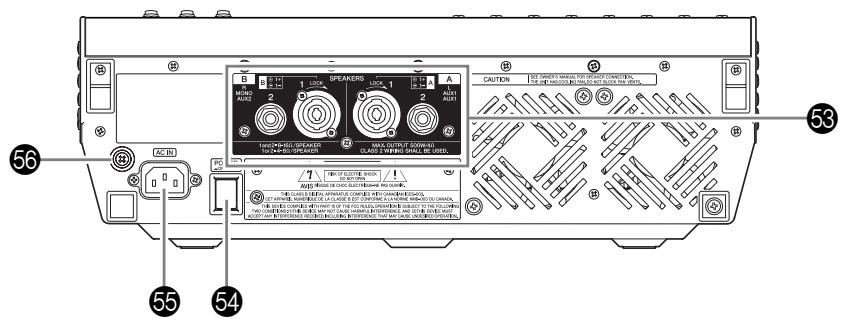
SPEAKERS jacks
Use these jacks to connect to speakers. Note that the output directed to these jacks varies according to the setting of the POWER AMP switch 41.
A1, B1: NEUTRIK NL4 Speakon outputs. Polarities are as shown below.
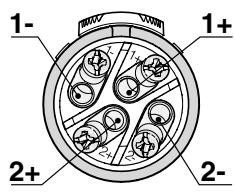
| Neutrik Plug | A1 and B1 Connectors |
| 1+ | ⊕ |
| 1- | - |
| 2+ | |
| 2- |
A2, B2: Phone output jacks.
54 POWER Switch
This switch turns the EMX power ON and OFF.

Before turning the power ON or OFF, be sure to turn both the ST master fader and the AUX1 and AUX2 faders are all the way down.
55 AC IN Connector
Connect the included power cable here. Connect one end of the cord to this connector, and then plug the other end into a standard power outlet.

Before turning the power ON or OFF, be sure to turn both the ST master fader and the AUX1 and AUX2 faders are all the way down.
Ground Screw
For maximum safety be sure to securely connect the EMX to an earth connection. The supplied power cable has a three-prong plug that will ground the unit when the plug is inserted into an appropriately grounded three-prong type AC mains outlet. If the AC outlet is not grounded, be sure to ground the unit by using this ground screw. Correct grounding will effectively eliminate hum noise and interference.
Speaker Connections
When making 2-channel and 2-channel parallel connections to the SPEAKERS jacks, be sure that the impedance of your speakers meets the conditions indicated below. Note that actual speaker impedance varies according to the connection method and the number of speakers.

- When making connections, be sure that your cables have the appropriate ratings and the correct plugs.
- Be sure to use dedicated speaker cables when connecting speakers to the SPEAKERS jacks.
2-channel connection
When connecting by 2-channel connection, use speakers with impedance of 4 ohms to 8 ohms.
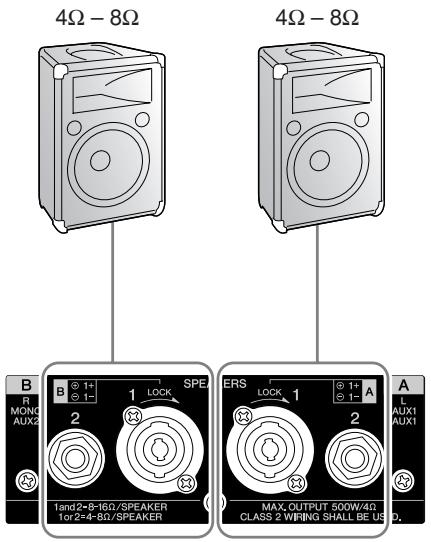
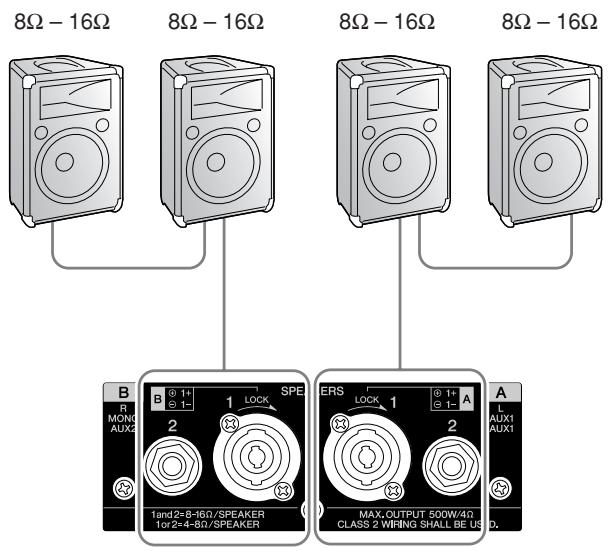
2-channel parallel connection
When connecting speakers in parallel as shown below, use speakers with impedance of 8 ohms to 16 ohms.
Setting the GEQ with the FRC function
FRC (Frequency Response Correction System) can measure the frequency characteristics of the sound field, and apply the correction curve to the GEQ according to the measurement result. There are two measurement methods available: pink noise measurement or music playback measurement.
Setting up the GEQ by Pink Noise Measurement
This explains how to output pink noise (a kind of measurement noise) from the speakers, pick up that noise from a microphone plugged into channel 1, and measure the frequency characteristics of the room.
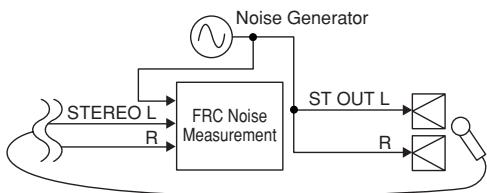
[Block Diagram of Noise Measurement]
1 Connect the EMX to a set of speakers. Connect a microphone to channel 1 INPUT A or INPUT B, and place the microphone at the point to be measured.
2 Set up channel 1 as follows, and lower the ST Master fader all the way down.
| Controls | Settings |
| [26dB] switch | Proper level* |
| GAIN control | Proper level* |
| /80 switch | Off |
| COMP knob | 0 |
| HIGH | 0dB |
| MID F | — |
| MID | 0dB |
| LOW | 0dB |
| AUX1 knob | — |
| AUX2 knob | — |
| EFF1 knob | — |
| EFF2 knob | — |
| PAN control | Center |
| ON switch | On |
| Channel fader | -∞ (→0dB)* |
- Adjust these settings in step 4.
NOTE - Make sure that all faders other than channel 1 are set to their minimum and that no other signals are input. - Set the POWER AMP switch to L/R.
3 Press and hold the MEASURE/CORRECT switch for two to three seconds. The indicator begins flashing quickly, and measurement of the frequency characteristics starts.
4 Adjust the ST Master fader to adjust the pink noise output level.
To adjust the channel 1 input level, turn on the PFL switch, and adjust the [26dB] switch and GAIN control so that the LEVEL meter 0 flashes occasionally. Finally set the channel fader to the 0dB position.
5 The measurement result is updated on the GEQ display every five seconds after measurement starts.
6 Confirm that the measurement result is consistent, and then press the MEASURE/CORRECT switch to suspend the measurement.
The result is retained even after suspension. At this time, the GEQ display indications flash.
NOTE This step is also handy for altering the location of the speakers and microphone, since the noise output is muted during the suspension. To resume the measurement, press the MEASURE/CORRECT switch again.
7 Turn off the channel 1 ON switch and lower the channel fader all the way down. Leaving the fader up and stopping the measurement in the step below can result in howling.
Press the MEASURE/CORRECT switch for two seconds or longer to apply the correction curve to the GEQ according to the frequency characteristics of the measurement result.
The MEASURE/CORRECT switch indicator flashes. Also, the GEQ ON switch lights up so that the GEQ is enabled.
NOTE To prevent clipping at the power amp stage by excessive equalization, the correction curve is never set over ± 6dB
9 If necessary, adjust the GEQ settings using the GEQ +/- switches.
If you adjust the GEQ settings, the FRC indicator turns off. To restore the correction curve immediately after measurement, press the FRC MEASURE/CORRECT switch again. The indicator lights up.
10 If necessary, store the GEQ settings to a USER switch.
Setting up GEQ by Music Playback Measurement
This explains how to output music playback (such as from a CD player) via channels 15/16, pick up that signal picked from a microphone plugged into channel 1, and measure the frequency characteristics.
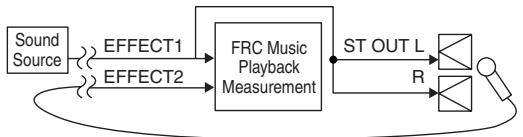
[Block Diagram of Music Playback Measurement]
1 Connect the EMX to a set of speakers. Connect a microphone to channel 1 INPUT A or INPUT B, and place the microphone at the point to be measured. Connect a CD player to channels 15/16.
2 Set up channels 1 and 15/16 as follows, and lower the ST Master fader all the way down.
- Channel 1
| Controls | Settings |
| [26dB] switch | Proper level* |
| GAIN control | Proper level* |
| /80 switch | Off |
| COMP knob | 0 |
| HIGH | 0dB |
| MID F | — |
| MID | 0dB |
| LOW | 0dB |
| AUX1 knob | — |
| AUX2 knob | — |
| EFF1 knob | 0 |
| EFF2 knob | Nominal “▼” position |
| PAN control | Center |
| ON switch | On |
| Channel fader | →0dB)* |
Channels 15/16
| Controls | Settings |
| GAIN control | Proper level* |
| /80 switch | Off |
| HIGH | 0dB |
| MID | 0dB |
| LOW | 0dB |
| AUX1 knob | — |
| AUX2 knob | — |
| EFF1 knob | Nominal “▼” position |
| EFF2 knob | 0 |
| PAN control | Center |
| ON switch | On |
| Channel fader | →0dB* |
- Adjust these settings in step 4.
NOTE - Make sure that all faders other than channels 1 and 15/16 are set to their minimum and that no other signals are input.
- Set the POWER AMP switch to L/R.
Press and hold the MEASURE/CORRECT switch for three seconds or longer. The indicator begins flashing slowly, and measurement of the frequency characteristics starts.
4 To adjust the playback level of the CD player, turn on the channel 15/16 PFL switch, adjust the GAIN control so that the LEVEL meter 0 flashes occasionally, set the channel faders to the 0dB position, and then adjust the ST Master fader.
To adjust the channel 1 input level, turn on the PFL switch, adjust the [26dB] switch and GAIN control so that the LEVEL meter 0 flashes occasionally, and set the channel faders to the 0dB position.
5 The measurement result is updated on the GEQ display every five seconds after measurement starts.
6 Confirm that the measurement result is consistent, and then press the MEASURE/CORRECT switch to suspend the measurement.
The result is retained even after suspension. At this time, the GEQ display indications flash.
NOTE This step is also handy for altering the location of the speakers and microphone, since the noise output is muted during the suspension. To resume the measurement, press the MEASURE/CORRECT switch again.
7 Turn off the channels 1 and 15/16 ON switches and lower the channel fader all the way down. Leaving the fader up and stopping the measurement in the step below can result in howling.
Press the MEASURE/CORRECT switch for two seconds or longer to apply the correction curve to the GEQ according to the frequency characteristics of the measurement result.
The MEASURE/CORRECT switch indicator flashes. Also, the GEQ ON switch lights up so that the GEQ is enabled.
NOTE To prevent clipping at the power amp stage by excessive equalization, the correction curve is never set over ± 6dB
9 If necessary, and adjust the GEQ settings using the GEQ + / - switches. If you adjust the GEQ settings, the FRC indicator turns off. To restore the correction curve immediately after measurement, press the FRC MEASURE/CORRECT switch again. The indicator lights up.
10 If necessary, store the GEQ settings to a USER switch.
To prepare the unit for rack mounting, use the (separately sold) RK5014 rack mount kit.

If rack-mounting the unit, be sure to maintain adequate ventilation so the unit does not overheat. Consider attaching a vent panel, and do not use a sealed rack.
NOTE The EMX unit requires 12U of rack space.
RK5014 Rack Mount Kit
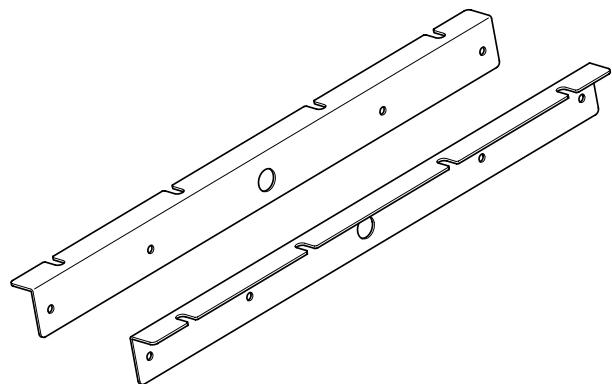
How to install the rack-mount hardware
Use a screwdriver to remove the screws from the EMX unit.
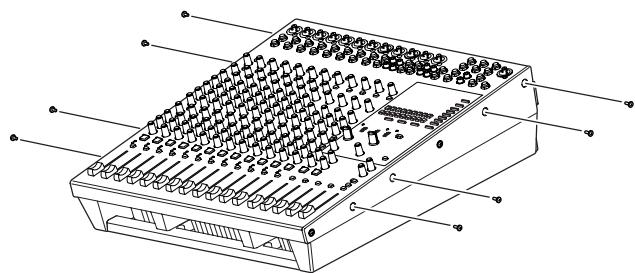
2 Set the kit's two metal fittings into position, and screw them in using the screws (silver) included in the RK5014.

Do not use the screws (black) you just removed from the EMX unit.
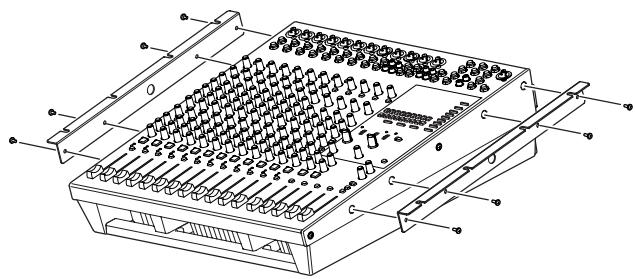
3 Mount the unit into the rack, and fasten it into place.

Do not install the mixer near power amps or other heat-generating devices.
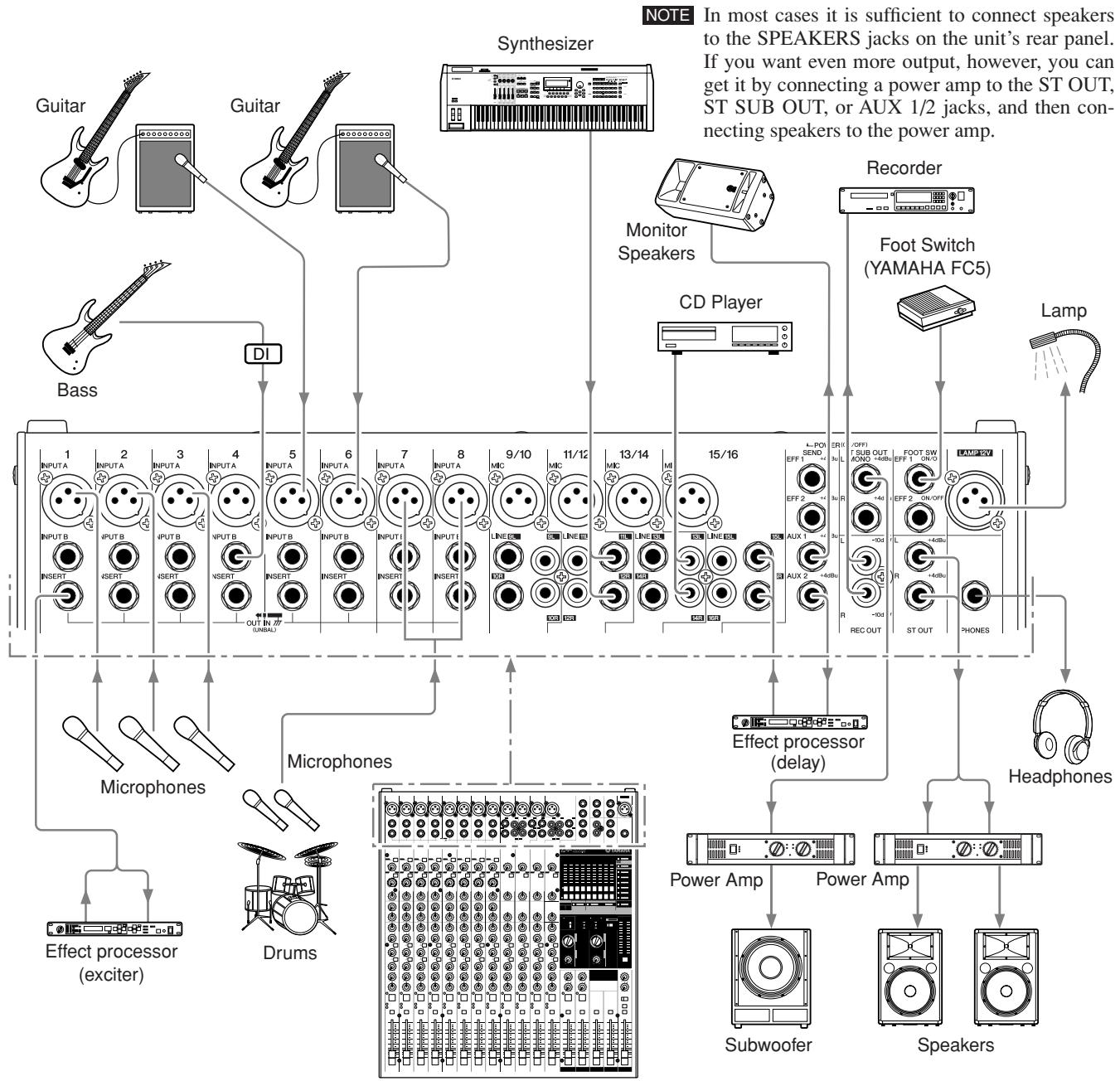
Top panel
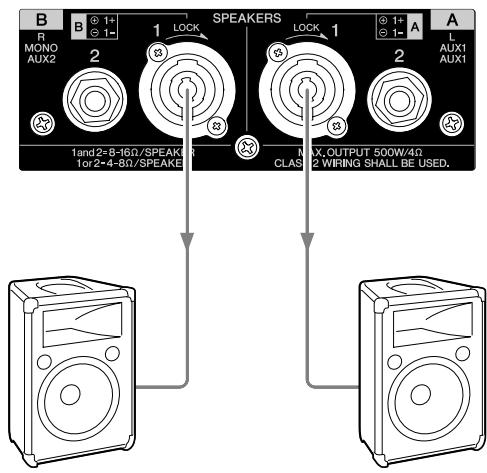
Rear Panel
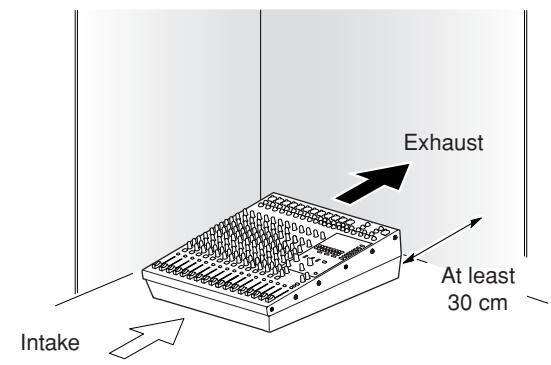
EMX Installation

Vents are located on the front and rear of the EMX unit. Position the unit so that the vents are not blocked by nearby walls or objects.
Troubleshooting
| ■ Power doesn't come on. | □ Be sure that you are using the supplied power cord, and that it is correctly connected to the AC IN connector and plugged into a working power out-let. |
| ■ Power suddenly went off. | □ Check whether the vents at the front and rear of the unit are blocked. The EMX unit may overheat if the vents are blocked. If the unit overheats, the power may automatically go off. Wait for the unit to cool down, and then turn the power back on. |
| ■ Sound suddenly stopped. | □ Check whether the vents at the front and rear of the unit are blocked. The EMX unit may overheat if the vents are blocked. If the unit overheats, it may cut off the output to the internal amp until things cool down. |
| ■ No sound. | □ Are microphones, external devices, and speakers connected correctly?□ Are the GAIN controls, channel faders, ST master fader, and AUX1/2 faders set to appropriate levels?□ Is the POWER AMP switch set correctly? When outputting a stereo signal, set it to the L/R position.□ Check that the speaker cables are not shorted.□ If the above checks do not identify the problem, call Yamaha for service. (Refer to the end of this manual for a list of Yamaha dealers.) |
| ■ Sound is faint, distorted, or noisy. | □ Are the GAIN controls, channel faders, ST master fader, and AUX1/2 faders set to appropriate levels?□ Check that the [26 dB] switches on channels 1 to 8 are set correctly.□ On channels 1 to 8, be sure that you have not connected to both INPUT A and INPUT B. (On each of these channels you may use one input or the other, but not both.)□ Is the input signal from the connected device set to an appropriate level?□ You may be applying excessive digital effect. Check your effect settings. |
| ■ No effect is applied. | □ Check that the EFF1/2 knob on each channel is correctly adjusted.□ Be sure that the internal effector's ON switch is turned on.□ Check that the EFF1/2 RTN fader is correctly adjusted. |
| ■ The sound from the speakers seems dull. I want a more forceful sound. | □ Try turning on the YS Processing switch.□ Try turning on the MAXIMIZE ON switch.□ Adjust the equalizers (HIGH, MID, and LOW knobs) on each channel.□ Adjust the graphic equalizers. |
| ■ I want spoken words to be heard more clearly. | □ Check that the /80 switches (high pass filters) for the relevant channels are turned ON as appropriate.□ Be sure that the YS Processing switch is turned off.□ Adjusting the equalizers (HIGH, MID, and LOW knobs) on each channel.□ Adjusting the graphic equalizers. |
| ■ I want to output a monitor signal through speakers. | □ Connect a powered speaker to the AUX1/2 jacks. Then adjust the AUX1/2 signal by adjusting the channel AUX1/2 controls and the AUX1 and AUX2 faders.□ If you want to send the monitor signal to SPEAKERS A jack, set the POWER AMP switch to the AUX1/MONO position. (Note that in this case the A jack will output the monitor signal, and the B jack will output a mix of the stereo L and R signals.) |
| ■ I want to initialize the GEQ and digital effect settings. | □ Turning on the power while holding the GEQ ON switch and MAXIMIZE ON switch restores the initial factory settings for GEQ, Effects, Feedback Suppressor, and MAXIMIZE. |
General Specifications
- All level controls are nominal, when measured. Output impedance of signal generator: 150
| Conditions | MIN | TYP | MAX | Unit | ||
| Maximum Output Power (SPEAKERS) | RL=4Ω | Both channels drive, 1 kHz, THD+N ≤ 0.5% Rated power supplies: 120V, 230V and 240V | 500 | W | ||
| RL=8Ω | 350 (US, AU) 320 (EU) | |||||
| Total Harmonic Distortion (THD+N)@20Hz-20kHz | ST, ST SUB, AUX, EFFECT | +14dBu output into 600Ω | 0.3 | % | ||
| REC | 0dBV output into 10kΩ | 0.5 | ||||
| Frequency Response | ST, ST SUB, AUX, EFFECT | 20Hz-20kHz, 1kHz output level, GAIN at minimum level, PAD=Off, +4dBu, RL=8Ω, 1W | -3.0 | 0.0 | 1.0 | dB |
| SPEAKERS | -3.0 | 0.0 | 1.0 | |||
| EIN=Equivalent Input Noise | CH1-8 MIC | GAIN at maximum level, 20Hz-20kHz | -128 | dBu | ||
| Residual Output Noise | SPEAKERS | -68 | dBu | |||
| ST, ST SUB, AUX | -95 | |||||
| Crosstalk @ 1kHz | Adjacent inputs | -68 | dB | |||
| Input to output | -68 | |||||
| Maximum Voltage Gain @1kHz | MIC to SPEAKERS | 109 | dB | |||
| MIC to ST OUT | 84 | |||||
| MIC to ST SUB OUT | 80 | |||||
| MIC to AUX SEND (PRE) | 80 | |||||
| MIC to AUX SEND (POST) | 90 | |||||
| MIC to EFFECT SEND | 80 | |||||
| MIC to REC OUT | 62.2 | |||||
| CH 9/10-15/16 LINE to ST OUT | 58 | |||||
| Phantom Voltage | CH 1-15/16 XLR | No load | 48 | V DC | ||
| Channel Equalizer | HIGH | 10kHz (Shelving) | ||||
| Maximum Variation: ±15dB | MID (MONO) | 250Hz-5kHz (Peaking) | ||||
| Turn over/roll-off frequency of shelving is 3dB below maxi-mum level. | MID (ST) | 2.5kHz (Peaking) | ||||
| LOW | 100Hz (Shelving) | |||||
| Compressor (COMP) | CH1-8 | On each channel 1-8: One control adjusts the Gain, Threshold, and Ratio simultaneously. | ||||
| PEAK Indicator | On each channel: Indicator lights if post-EQ signal comes within 3dB of the clipping level. | |||||
| SIGNAL Indicator | On each channel: Indicator lights if post-EQ signal reaches -10dB. | |||||
| STANDBY Switch | CH1-8 mute | |||||
| Level Meter | ST, PFL/AFL | Two 12-points LED level meter (PEAK, +5, +3, +1, 0, -1, -3, -5, -7, -10, -15, -20 dB) PEAK lights if the signal comes within 3 dB of the clipping level. | ||||
| Digital Graphic Equalizer | ST OUT | 9-band (63, 125, 250, 500, 1k, 2k, 4k, 8k, 16kHz), ±12 dB (maximum varia-tion) Preset × 3, User preset × 3 | ||||
| Frequency Response Correction (FRC) System | Pink noise/Music playback measurement mode | |||||
| Feedback Suppressor (FBS) | AUTO/MANUAL mode | |||||
| MAXIMIZE | 3-band compressor on/off | |||||
| Digital Effect | 2 effect processors, 16 programs each, PARAMETER control each Foot switches (effects on/off) | |||||
| Lamp | XLR-3-31 type, 12 V DC between pins 2 and 3, 5 W max. | |||||
| Maximum Output Power Select Switch | 500W+500W, 200W+200W, 75W+75W | |||||
| Power Amplifier Signal Select Switch | L/R, AUX1/MONO, AUX1/AUX2 | |||||
| Yamaha Speaker Processing | SPEAKERS | Speaker EQ on/off | ||||
| Power Amplifier Protection | POWER switch on/off mute | |||||
| DC-fault: power supply shutdown/manual reset | ||||||
| Thermal/heatsink temp ≥ 90°C: output mute/auto reset | ||||||
| VI limiter/RL ≤ 2Ω | ||||||
| Clip limiter/THD ≥ 1%: compression, Indicator × 2 | ||||||
| Power Supply Protection | Thermal/heatsink temp ≥ 100°C: power supply shutdown/manual reset | |||||
| Cooling | Dual variable-speed fan | |||||
| Power Consumption | 500 | W | ||||
| AC Cord | Length | 2500 | mm | |||
| Dimensions | Height | 155 | mm | |||
| Depth | 493 | |||||
| Width | 444 | |||||
| Net Weight | 11 | kg | ||||
■ Input Characteristics
| Input Terminals | PAD | GAIN | Actual Load Impedance | For Use With Nominal | Input level | Connector | ||
| Sensitivity *2 | Nominal | Max. before clip | ||||||
| CH INPUT A 1-8 | 0 dB | -60 dB | 3 kΩ | 50-600 Ω Mics | -80 dBu (0.078 mV) | -60 dBu (0.775 mV) | -40 dBu (7.75 mV) | XLR-3-31 type *3 |
| -16 dB | -36 dBu (12.3 mV) | -16 dBu (123 mV) | +4 dBu (1.23 V) | |||||
| 26 dB | -34 dB | -54 dBu (1.55 mV) | -34 dBu (15.5 mV) | -14 dBu (155 mV) | ||||
| +10 dB | -10 dBu (245 mV) | +10 dBu (2.45 V) | +30 dBu (24.5 V) | |||||
| CH INPUT B 1-8 | 0 dB | -60 dB | 10 kΩ | 600 Ω Lines | -80 dBu (0.078 mV) | -60 dBu (0.775 mV) | -40 dBu (7.75 V) | Phone jack *4 |
| -16 dB | -36 dBu (12.3 mV) | -16 dBu (123 mV) | +4 dBu (1.23 V) | |||||
| 26 dB | -34 dB | -54 dBu (1.55 mV) | -34 dBu (15.5 mV) | -14 dBu(155 mV) | ||||
| +10 dB | -10 dBu (245 mV) | +10 dBu (2.45 V) | +30 dBu (24.5 V) | |||||
| ST CH MIC INPUT9/10-15/16 | — | -60 dB | 3 kΩ | 50-600 Ω Mics | -80 dBu (0.078 mV) | -60 dBu (0.775 mV) | -40 dBu (7.75 mV) | XLR-3-31 type *3 |
| -16 dB | -36 dBu (12.3 mV ) | -16 dBu (123 mV) | -10 dBu (245 mV) | |||||
| ST CH LINE INPUT9/10-15/16 | — | -34 dB | 10 kΩ | 600 Ω Lines | -54 dBu (1.55 mV) | -34 dBu (15.5 mV) | -14 dBu (155 mV) | Phone jack *5RCA Pin jack *5 |
| +10 dB | -10 dBu (245 mV) | +10 dBu (2.45 V) | +30 dBu (24.5 V) | |||||
| CH INSERT IN 1-8 | — | — | 10 kΩ | 600 Ω Lines | -20 dBu (77.5 mV) | 0 dBu (0.775 V) | +20 dBu (7.75 V) | Phone jack *5 |
1 0dBu is referenced to 0.775Vrms.
2 Sensitivity is the lowest level that will produce an output of +4dBu (1.23V), or the nominal output level when the unit is set to maximum level. (All faders and level controls are at maximum position.)
3 XLR-3-31 type connectors are balanced.
4 Phone jacks are balanced. (T=HOT, R=COLD, S=GND)
*5 Phone jacks and RCA pin jacks are unbalanced.
Output Characteristics
| Output Terminals | Actual Source Impedance | For Use With Nominal | Output level | Connector | |
| Nominal | Max. before clip | ||||
| ST OUT [L, R] | 150 Ω | 600 Ω Lines | +4 dBu (1.23 V) | +20 dBu (7.75 V) | Phone jack *2 |
| ST SUB OUT [L, R] | 150 Ω | 600 Ω Lines | +4 dBu (1.23 V) | +20 dBu (7.75 V) | Phone jack *2 |
| AUX SEND 1, 2 | 150 Ω | 600 Ω Lines | +4 dBu (1.23 V) | +20 dBu (7.75 V) | Phone jack *2 |
| EFF SEND 1, 2 | 150 Ω | 600 Ω Lines | +4 dBu (1.23 V) | +20 dBu (7.75 V) | Phone jack *2 |
| CH INSERT OUT 1-8 | 600 Ω | 10 kΩ Lines | 0 dBu (0.775 V) | +20 dBu (7.75 V) | Phone jack *2 |
| REC OUT [L, R] | 600 Ω | 10 kΩ Lines | -10 dBV (316 mV) | +10 dBV (3.16 V) | RCA pin jack |
| PHONES [L, R] | 100 Ω | 40 Ω Lines | 3 mW | 75 mW | Phone jack (TRS) |
| SPEAKERS | 0.1 Ω | 4 Ω Speakers | 125 W | 500 W | SPEAKON Phone jack *2 |
1 0dBu is referenced to 0.775Vrms. 0dBV is referenced to 1Vrms.
2 Phone jacks are unbalanced.
Digital Effect Program List
EFFECT 1
| No. | Program | Parameter | Range | Descriptions |
| 1 | HALL 1 | Reverb Time | 0.3 to 10.0 s | Reverb simulating a large space such as a concert hall. |
| 2 | ROOM 1 | Reverb Time | 0.3 to 3.2 s | Reverb simulating the acoustics of a small space (room). |
| 3 | PLATE 1 | Reverb Time | 0.3 to 10.0 s | Simulation of a metal-plate reverb unit, producing a more hard-edged reverberation. |
| 4 | LARGE STAGE 1 | Reverb Time | 0.3 to 10.0 s | Reverb simulating a large stage. |
| 5 | SMALL STAGE 1 | Reverb Time | 0.3 to 10.0 s | Reverb simulating a small stage. |
| 6 | VOCAL ECHO | Delay | 30.0 to 743.0 ms | Echo designed for conventional vocals. |
| 7 | KARAOKE | Delay | 40.0 to 265.0 ms | Echo designed for karaoke (sing-along) applications. |
| 8 | DELAY | Delay | 20.0 to 743.0 ms | Feedback delay adding multiple delayed signals. |
| 9 | CHORUS | LFO Freq | 0 to 39.7 Hz | Creates a thicker sound by modulating the delay time. |
| 10 | EARLY REF. | Room Size | 0.1 to 10.0 | An effect which isolates only the early reflection components from reverberation, creating a 'flashier' effect than conventional reverb. |
| 11 | GATE REVERB | Room Size | 0.1 to 10.0 | An effect which abruptly cuts the tail-end of the reverberation, making a more powerful sound. |
| 12 | REVERSE GATE | Room Size | 0.1 to 10.0 | A reverse-playback type early reflection. |
| 13 | TREMOLO | LFO | 0 to 39.7 Hz | An effect which cyclically modulates the volume. |
| 14 | SINGLE DELAY | Delay | 0 to 743.0 ms | Monaural delay adding a delayed signal. |
| 15 | DYNA FILTER | Sensitivity | 0 to 127 | An effect which applies a low pass filter. |
| 16 | PITCH CHANGE | Pitch | -12 to +12 | An effect which changes the pitch of the signal. |
EFFECT 2
| No. | Program | Parameter | Range | Descriptions |
| 1 | HALL 2 | Reverb Time | 0.3 to 10.0 s | Reverb simulating a large space such as a concert hall. |
| 2 | ROOM 2 | Reverb Time | 0.3 to 3.2 s | Reverb simulating the acoustics of a small space (room). |
| 3 | PLATE 2 | Reverb Time | 0.3 to 10.0 s | Simulation of a metal-plate reverb unit, producing a more hard-edged reverberation. |
| 4 | LARGE STAGE 2 | Reverb Time | 0.3 to 10.0 s | Reverb simulating a large stage. |
| 5 | SMALL STAGE 2 | Reverb Time | 0.3 to 10.0 s | Reverb simulating a small stage. |
| 6 | VOCAL ECHO | Delay | 30.0 to 743.0 ms | Echo designed for conventional vocals. |
| 7 | KARAOKE | Delay | 40.0 to 265.0 ms | Echo designed for karaoke (sing-along) applications. |
| 8 | DELAY | Delay | 20.0 to 743.0 ms | Feedback delay adding multiple delayed signals. |
| 9 | CHORUS | LFO Freq | 0 to 39.7 Hz | Creates a thicker sound by modulating the delay time. |
| 10 | PHASER | LFO Freq | 0 to 8.08 Hz | Cyclically changes the phase to add modulation to the sound. |
| 11 | FLANGER | LFO Freq | 0 to 8.08 Hz | Adds a feeling of pitched sound. |
| 12 | SYMPHONIC | LFO Depth | 0 to 127 | Multiplies the sound for thicker texture. |
| 13 | DOUBLEER | Pitch Fine | 0 to 50 cent | Creates the effect of two voices or two instruments singing or playing the same phrase. |
| 14 | AUTO WAH | LFO Freq | 0 to 8.41 Hz | A wah-wah effect in which the the frequency is modulated by LFO. |
| 15 | DISTORTION | Drive | 0 to 63 | Adds a sharp-edged distortion to the sound. |
| 16 | RADIO VOICE | Cutoff Offset | 0 to 63 | Recreates the lo-fi sound of an AM radio. The parameter adjusts the frequency band to be emphasized. |
Dimensional Diagrams
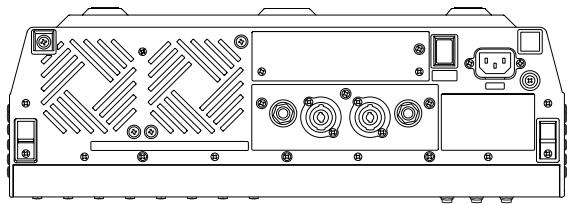
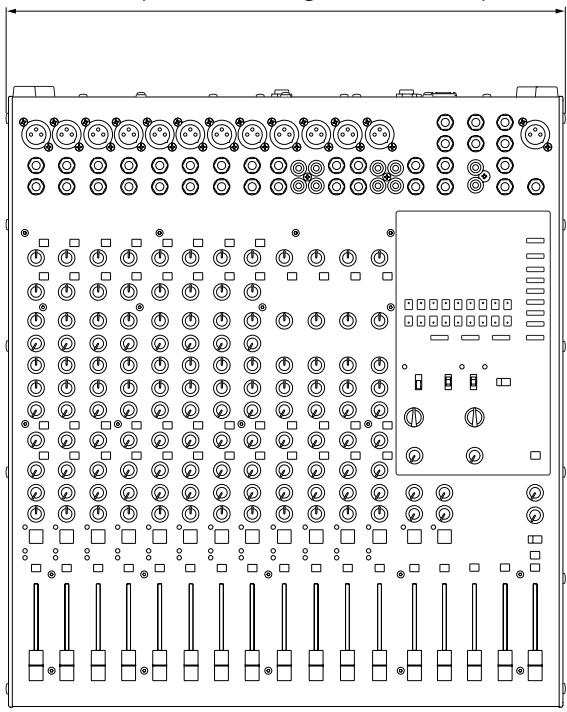
444 (440 excluding screw heads)
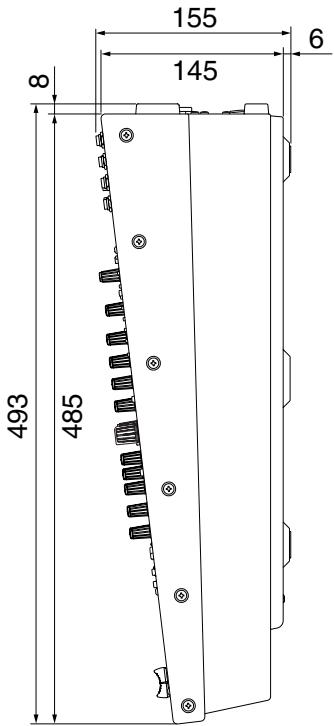
Unit: mm
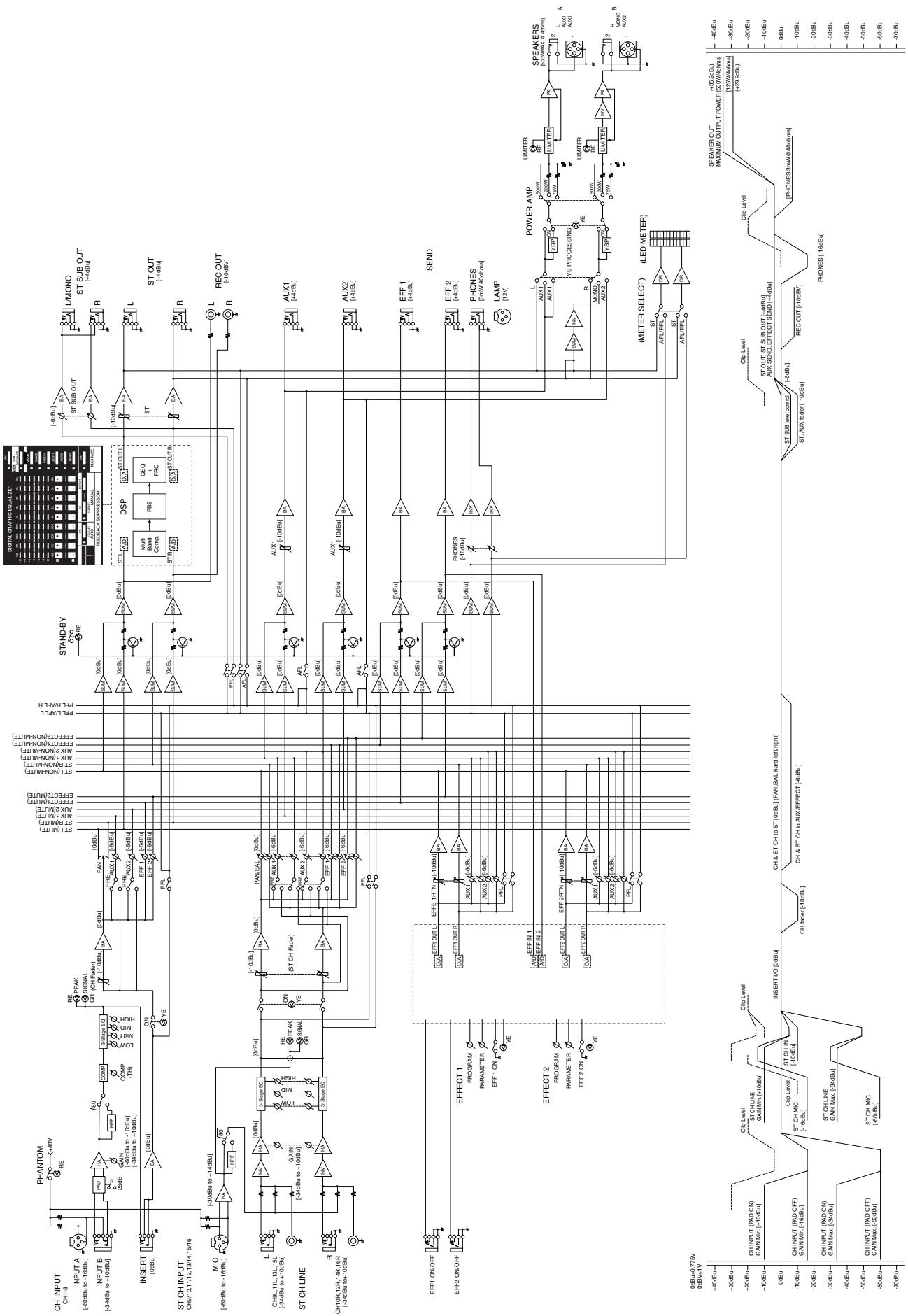
Block Diagram and Level Diagram
For details of products, please contact your nearest Yamaha representative or the authorized distributor listed below.
Yamaha Canada Music Ltd.
135 Milner Avenue, Scarborough, Ontario,
M1S 3R1, Canada
Tel: 416-298-1311
U.S.A.
Yamaha Corporation of America
6600 Orangethorpe Ave., Buena Park, Calif. 90620, U.S.A.
Tel: 714-522-9011
CENTRAL & SOUTH AMERICA
MEXICO
Yamaha de Mexico S.A. de C.V.
Calz. Javier Rojo Gomez #1149,
Col. Guadalupe del Moral
C.P.09300, Mexico,D.F.,Mexico
Tel: 55-5804-0600
BRAZIL
PANAMA AND OTHER LATIN
AMERICAN COUNTRIES/
CARIBBEAN COUNTRIES
Yamaha Music Latin America, S.A.
Torre Banco General, Piso 7, Urbanizacion Marbella,
Sherbourne Drive, Tilbrook, Milton Keynes,
MK7 8BL, England
Tel: 01908-366700
GERMANY
Yamaha Music Europe GmbH
Siemensstraße 22-34, 25462 Rellingen, Germany
Tel: 04101-3030
Branch Switzerland in Zurich
Seefeldstrasse 94, 8008 Zurich, Switzerland
Tel: 044-387-8080
AUSTRIA/BULGARIA
Yamaha Music Europe GmbH Branch Austria
Schleiergasse 20, A-1100 Wien, Austria
Tel: 01-60203900
CZECH REPUBLIC/HUNGARY/
ROMANIA/SLOVAKIA/SLOVENIA
Yamaha Music Europe GmbH
Branch Austria (Central Eastern Europe Office)
Schleiergasse 20, A-1100 Wien, Austria
Tel: 01-602039025
POLAND/LITHUANIA/LATVIA/ESTONIA
Yamaha Music Europe GmbH
Yamaha Music Europe GmbH, Branch Italy
Viale Italia 88, 20020 Lainate (Milano), Italy
Tel: 02-935-771
SPAIN/PORTUGAL
Yamaha Music Europe GmbH Ibérica, Sucursal
en España
Ctra.de la Coruna km.17,200,28230
Las Rozas (Madrid), Spain
Tel: +34-902-39-8888
GREECE
Philippos Nakas S.A. The Music House
147 Skiathou Street, 112-55 Athens, Greece
Tel: 01-228 2160
SWEDEN/FINLAND/ICELAND
Yamaha Music Europe GmbH Germany filial
Scandinavia
J. A. Wettergrens Gata 1, Box 30053
S-400 43 Göteborg, Sweden
Tel: 031 89 34 00
DENMARK
Yamaha Music Europe GmbH, Tyskland - filial
Denmark
Generatorvej 6A, DK-2730 Herlev, Denmark
Tel: 44 92 49 00
NORWAY
Yamaha Music Europe GmbH Germany -
Norwegian Branch
Grini Næringspark 1, N-1345 Østerås, Norway
Tel: 67 16 77 70
RUSSIA
Yamaha Music (Russia)
Room 37, bld. 7, Kievskaya street, Moscow,
121059, Russia
Tel: 495 626 5005
OTHER EUROPEAN COUNTRIES
Yamaha Music Europe GmbH
Siemensstraße 22-34, 25462 Rellingen, Germany
Tel: +49-4101-3030
AFRICA
Yamaha Corporation.
Asia-Pacific Sales & Marketing Group
Nakazawa-cho 10-1, Naka-ku, Hamamatsu,
Japan 430-8650
Tel: +81-53-460-2303
MIDDLE EAST
TURKEY/CYPRUS
Yamaha Music Europe GmbH
Siemensstraße 22-34, 25462 Rellingen, Germany
Tel: 04101-3030
OTHER COUNTRIES
Yamaha Music Gulf FZE
LOB 16-513, P.O.Box 17328, Jubei Ali,
Dubai, United Arab Emirates
Tel: +971-4-881-5868
ASIA
THE PEOPLE'S REPUBLIC OF CHINA
Yamaha Music & Electronics (China) Co.,Ltd.
2F, Yunhedasha, 1818 Xinzha-lu, Jingan-qu,
Shanghai, China
Tel: 021-6247-2211
INDIA
Yamaha Music India Pvt. Ltd.
Spazedge building, Ground Floor, Tower A, Sector
47, Gurgaon- Sohna Road, Gurgaon, Haryana, India
Tel: 0124-485-3300
INDONESIA
PT. Yamaha Musik Indonesia (Distributor)
PT. Nusantik
Gedung Yamaha Music Center, Jalan Jend. Gatot
SubROTO Kav. 4, Jakarta 12930, Indonesia
Tel: 021-520-2577
KOREA
Yamaha Music Korea Ltd.
8F, 9F, Dongsung Bldg. 158-9 Samsung-Dong,
Kangnam-Gu, Seoul, Korea
Tel: 02-3467-3300
MALAYSIA
Yamaha Music (Malaysia) Sdn., Bhd.
Lot 8, Jalan Perbandaran, 47301 Kelana Jaya,
Petaling Jaya, Selangor, Malaysia
Tel: 03-78030900
SINGAPORE
Yamaha Music (Asia) PRIVATE LIMITED
Blk 202 Hougang Street 21, #02-00,
Singapore 530202, Singapore
Tel: 6747-4374
TAIWAN
Yamaha KHS Music Co., Ltd.
3F, #6, Sec.2, Nan Jing E. Rd. Taipei.
Taiwan 104, R.O.C.
Tel: 02-2511-8688
THAILAND
Siam Music Yamaha Co., Ltd.
4, 6, 15 and 16th floor, Siam Motors Building,
891/1 Rama 1 Road, Wangmai,
Pathumwan, Bangkok 10330, Thailand
Tel: 02-215-2622
OTHER ASIAN COUNTRIES
Yamaha Corporation,
Asia-Pacific Sales & Marketing Group
Nakazawa-cho 10-1, Naka-ku, Hamamatsu,
Japan 430-8650
Tel: +81-53-460-2303
OCEANIA
AUSTRALIA
Yamaha Music Australia Pty. Ltd.
Level 1, 99 Queensbridge Street, Southbank,
Victoria 3006, Australia
Tel: 3-9693-5111
COUNTRIES AND TRUST
TERRITORIES IN PACIFIC OCEAN
Yamaha Corporation,
Asia-Pacific Sales & Marketing Group
Nakazawa-cho 10-1, Naka-ku, Hamamatsu,
Japan 430-8650
Tel: +81-53-460-2303
PA30
Yamaha Pro Audio global web site
http://www.yamahaproaudio.com/
Yamaha Manual Library
Yamaha Corporation, Pro Audio Division
Nakazawa-cho 10-1, Naka-ku, Hamamatsu, Japan 430-8650
Tel: +81-53-460-2441