
MW12CX-MW12C - Digital Mixer YAMAHA - Free user manual and instructions
Find the device manual for free MW12CX-MW12C YAMAHA in PDF.


| Product Type | Digital Mixing Console |
| Brand | YAMAHA |
| Model | MW12CX-MW12C |
| Number of Channels | 12 channels (8 mono + 2 stereo) |
| Built-in Effects | Digital effects processor with 24 programs (MW12CX) |
| Dimensions (W x D x H) | approx 400 x 350 x 100 mm |
| Weight | approx 5 kg |
| Power Supply | AC adapter (included) |
| Power Consumption | 30 W |
| Main Features | 12-input analog mixer, high-quality mic preamps, 3-band EQ, auxiliary sends, stereo bus, record output |
| Inputs | 8 mic/line inputs (XLR/Jack), 2 stereo line inputs (Jack), 2 RCA inputs, 1 aux stereo input |
| Outputs | Stereo main output (XLR), monitor output (Jack), headphone output, record output (RCA) |
| Connectivity | MIDI in/out (on MW12CX), USB port for recording/playback (if available) |
| Maintenance and Cleaning | Unplug the device before cleaning; use a soft dry cloth; avoid solvents |
| Safety | Do not expose to moisture or rain; do not open the casing; use only the provided adapter |
| Spare Parts and Repairability | Contact an authorized Yamaha service center; parts available on request |
| General Information | User manual available for free download at notice-facile.com |
Frequently Asked Questions - MW12CX-MW12C YAMAHA
User questions about MW12CX-MW12C YAMAHA
0 question about this device. Answer the ones you know or ask your own.
Ask a new question about this device
Download the instructions for your Digital Mixer in PDF format for free! Find your manual MW12CX-MW12C - YAMAHA and take your electronic device back in hand. On this page are published all the documents necessary for the use of your device. MW12CX-MW12C by YAMAHA.
USER MANUAL MW12CX-MW12C YAMAHA
Connecting the Plug and Cord
IMPORTANT. The wires in this mains lead are coloured in accordance with the following code:
BLUE : NEUTRAL
BROWN : LIVE
As the colours of the wires in the mains lead of this apparatus may not correspond with the coloured makings identifying the terminals in your plug proceed as follows:
The wire which is coloured BLUE must be connected to the terminal which is marked with the letter N or coloured BLACK.
The wire which is coloured BROWN must be connected to the terminal which is marked with the letter L or coloured RED.
Making sure that neither core is connected to the earth terminal of the three pin plug.
- This applies only to products distributed by Yamaha-Kemble Music (U.K.) Ltd.
(2 wires)
COMPLIANCE INFORMATION STATEMENT (DECLARATION OF CONFORMITY PROCEDURE)
Responsible Party : Yamaha Corporation of America
Address: 6600 Orangethorpe Ave., Buena Park, Calif. 90620
Telephone:714-522-9011
Type of Equipment : USB Mixing Studio
Model Name: MW12CX/MW12C
This device complies with Part 15 of the FCC Rules.
Operation is subject to the following two conditions:
1) this device may not cause harmful interference, and
2) this device must accept any interference received including interference that may cause undesired operation.
See user manual instructions if interference to radio reception is suspected.
- This applies only to products distributed by YAMAHA CORPORATION OF AMERICA.
(FCC DoC)
FCC INFORMATION (U.S.A.)
- IMPORTANT NOTICE: DO NOT MODIFY THIS UNIT!
This product, when installed as indicated in the instructions contained in this manual, meets FCC requirements. Modifications not expressly approved by Yamaha may void your authority, granted by the FCC, to use the product.
- IMPORTANT: When connecting this product to accessories and/or another product use only high quality shielded cables. Cable/s supplied with this product MUST be used. Follow all installation instructions. Failure to follow instructions could void your FCC authorization to use this product in the USA.
- NOTE: This product has been tested and found to comply with the requirements listed in FCC Regulations, Part 15 for Class "B" digital devices. Compliance with these requirements provides a reasonable level of assurance that your use of this product in a residential environment will not result in harmful interference with other electronic devices. This equipment generates/uses radio frequencies and, if not installed and used according to the instructions found in the users manual, may cause interference harmful to the operation of other electronic devices. Compliance with FCC regula
tions does not guarantee that interference will not occur in all installations. If this product is found to be the source of interference, which can be determined by turning the unit "OFF" and "ON", please try to eliminate the problem by using one of the following measures:
Relocate either this product or the device that is being affected by the interference.
Utilize power outlets that are on different branch (circuit breaker or fuse) circuits or install AC line filter/s.
In the case of radio or TV interference, relocate/reorient the antenna. If the antenna lead-in is 300 ohm ribbon lead, change the lead-in to co-axial type cable.
If these corrective measures do not produce satisfactory results, please contact the local retailer authorized to distribute this type of product. If you can not locate the appropriate retailer, please contact Yamaha Corporation of America, Electronic Service Division, 6600 Orangethorpe Ave, Buena Park, CA90620
The above statements apply ONLY to those products distributed by Yamaha Corporation of America or its subsidiaries.
- This applies only to products distributed by YAMAHA CORPORATION OF AMERICA.
(class B)
PRECAUTIONS
PLEASE READ CAREFULLY BEFORE PROCEEDING
- Please keep this manual in a safe place for future reference.

WARNING
Always follow the basic precautions listed below to avoid the possibility of serious injury or even death from electrical shock, short-circuiting, damages, fire or other hazards. These precautions include, but are not limited to, the following:
Power supply/Power cord
- Only use the voltage specified as correct for the device. The required voltage is printed on the name plate of the device.
- Use only the included AC power adaptor (PA-20 or an equivalent recommended by Yamaha).
- Do not place the power cord near heat sources such as heaters or radiators, and do not excessively bend or otherwise damage the cord, place heavy objects on it, or place it in a position where anyone could walk on, trip over, or roll anything over it.
Do not open
- Do not open the device or attempt to disassemble the internal parts or modify them in any way. The device contains no user-serviceable parts. If it should appear to be malfunctioning, discontinue use immediately and have it inspected by qualified Yamaha service personnel.
Water warning
- Do not expose the device to rain, use it near water or in damp or wet conditions, or place containers on it containing liquids which might spill into any openings.
- Never insert or remove an electric plug with wet hands.
If you notice any abnormality
- If the power cord or plug becomes frayed or damaged, or if there is a sudden loss of sound during use of the device, or if any unusual smells or smoke should appear to be caused by it, immediately turn off the power switch, disconnect the electric plug from the outlet, and have the device inspected by qualified Yamaha service personnel.
- If this device or the AC power adaptor should be dropped or damaged, immediately turn off the power switch, disconnect the electric plug from the outlet, and have the device inspected by qualified Yamaha service personnel.

CAUTION
Always follow the basic precautions listed below to avoid the possibility of physical injury to you or others, or damage to the device or other property. These precautions include, but are not limited to, the following:
Power supply/Power cord
- Remove the electric plug from the outlet when the device is not to be used for extended periods of time, or during electrical storms.
- When removing the electric plug from the device or an outlet, always hold the plug itself and not the cord. Pulling by the cord can damage it.
- To avoid generating unwanted noise, make sure there is adequate distance (50 cm or more) between the AC power adaptor and the device.
- Do not cover or wrap the AC power adaptor with a cloth or blanket.
Location
- Before moving the device, remove all connected cables.
- When setting up the device, make sure that the AC outlet you are using is easily accessible. If some trouble or malfunction occurs, immediately turn off the power switch and disconnect the plug from the outlet. Even when the power switch is turned off, electricity is still flowing to the product all the minimum level. When you are not using the product for a long time, make sure to unplug the power cord from the wall AC outlet.
- Avoid setting all equalizer controls and faders to their maximum. Depending on the condition of the connected devices, doing so may cause feedback and may damage the speakers.
-
Do not expose the device to excessive dust or vibrations, or extreme cold or heat (such as in direct sunlight, near a heater, or in a car during the day) to prevent the possibility of panel disfiguration or damage to the internal components.
-
Do not place the device in an unstable position where it might accidentally fall over.
- Do not use the device in the vicinity of a TV, radio, stereo equipment, mobile phone, or other electric devices. Doing so may result in noise, both in the device itself and in the TV or radio next to it.
Connections
- Before connecting the device to other devices, turn off the power for all devices. Before turning the power on or off for all devices, set all volume levels to minimum.
Handling caution
- When turning on the AC power in your audio system, always turn on the power amplifier LAST, to avoid speaker damage. When turning the power off, the power amplifier should be turned off FIRST for the same reason.
- Do not insert your fingers or hands in any gaps or openings on the device.
- Avoid inserting or dropping foreign objects (paper, plastic, metal, etc.) into any gaps or openings on the device. If this happens, turn off the power immediately and unplug the power cord from the AC outlet. Then have the device inspected by qualified Yamaha service personnel.
- Do not use the device or headphones for a long period of time at a high or uncomfortable volume level, since this can cause permanent hearing loss. If you experience any hearing loss or ringing in the ears, consult a physician.
- Do not rest your weight on the device or place heavy objects on it, and avoid use excessive force on the buttons, switches or connectors.
XLR-type connectors are wired as follows (IEC60268 standard): pin 1: ground, pin 2: hot (+), and pin 3: cold (-). Insert TRS phone jacks are wired as follows: sleeve: ground, tip: send, and ring: return.
Yamaha cannot be held responsible for damage caused by improper use or modifications to the device, or data that is lost or destroyed.
Always turn the power off when the device is not in use.
Even when the power switch is in the "STANDBY" position, electricity is still flowing to the device at the minimum level. When you are not using the device for a long time, make sure you unplug the power cord from the wall AC outlet.
The performance of components with moving contacts, such as switches, volume controls, and connectors, deteriorates over time. Consult qualified Yamaha service personnel about replacing defective components.
The MW mixer may heat up by as much as 15 to 20^ while the power is on. This is normal. Please note that the panel temperature may exceed 50^ in ambient temperatures higher than 30^ , and use caution to prevent burns.
- This Owner's Manual applies to both the MW12CX and MW12C. The main difference between the two models is that the MW12CX includes digital effects while the MW12C has no internal effects.
- In this manual the term "MW mixers" refers to both the MW12CX and MW12C. In cases where different features need to be described for each model, the MW12CX feature will be described first, followed by the MW12C feature in brackets: MW12CX (MW12C).
SPECIALNOTICES
- The owner's manual is the exclusive copyright of Yamaha Corporation.
- The included software is the exclusive copyright of Steinberg Media Technologies GmbH.
- Use of the software and this manual is governed by the license agreement which the purchaser fully agrees to upon breaking the seal of the software packaging. (Please read carefully the Software Licensing Agreement at the end of this manual before installing the application.)
- Copying of the software or reproduction of this manual in whole or in part by any means is expressly forbidden without the written consent of the manufacturer.
- Yamaha makes no representations or warranties with regard to the use of the software and documentation and cannot be held responsible for the results of the use of this manual and the software.
This disk is a DVD-ROM. Do not attempt to play the disk on a DVD player. Doing so may result in irreparable damage to your DVD player. - Visit the web address below for the latest information on supplied software and operating system requirements. http://www.yamahasynth.com/
The ilustrations and LCD screens as shown in this owner's manual are for instructional purposes only, and may appear somewhat different from those on your instrument.
This product incorporates and bundles computer programs and contents in which Yamaha owns copyrights or with respect to which it has license to use others' copyrights. Such copyrighted materials include, without limitation, all computer software, style files, MIDI files, WAVE data, musical scores and sound recordings. Any unauthorized use of such programs and contents outside of personal use is not permitted under relevant laws. Any violation of copyright has legal consequences. DON'T MAKE, DISTRIBUTE OR USE ILLEGAL COPIES.
Copyright of the commercially available musical data including but not limited to MIDI data and/or audio data is strictly prohibited except for your personal use.
- Windows is the registered trademarks of Microsoft® Corporation.
- Apple and Macintosh are trademarks of Apple Computer, Inc., registered in the U.S. and other countries.
- Steinberg and Cubase are the registered trademarks of Steinberg Media Technologies GmbH.
The company names and product names in this Owner's Manual are the trademarks or registered trademarks of their respective companies.
Specifications and descriptions in this owner's manual are for information purposes only. Yamaha Corp. reserves the right to change or modify products or specifications at any time without prior notice. Since specifications, equipment or options may not be the same in every locale, please check with your Yamaha dealer.
Introduction
Thank you for choosing a Yamaha MW12CX/MW12C USB Mixing Studio. The MW12CX/MW12C includes an audio mixer equipped with a USB interface for digital audio data transfer, and Cubase AI4 DAW (Digital Audio Workstation) software for Windows® and Macintosh® computer operating systems. With the MW12CX/MW12C USB Mixing Studio and your personal computer you have the basic elements of a high-performance computer recording system that is easy to set up and operate.
Please read through this manual carefully before beginning use, so that you will be able to take full advantage of your mixer's superlative features and enjoy trouble-free operation for years to come. After reading the manual, please store it in a safe place.
Features
Connect To Your Computer via a Single USB Cable (page 7)
The MW mixer connects to your computer via the supplied USB cable. Stereo audio data is transferred in both directions—from the mixer to the computer, and vice-versa—via the USB connection (44.1 kHz or 48 kHz sampling frequency).
No Driver Installation Required (page 7)
The MW system uses the standard drivers included in your computer's operating system, so there's no need to install any extra driver software.
Cubase AI4 DAW Software Supplied (page 7)
Cubase AI4 software, included in the MW package, offers versatile, high-performance hard-disk recording capability.
Compression (page 9)
Compression increase the overall level without introducing distortion by compressing excessive peaks in the signals from microphones and guitars.
Mixer Functions (page 16)
The MW mixer can handle up to 12 simultaneous inputs, mixing them to STEREO OUT or REC OUT. You could connect four microphones and four stereo sources, or six microphones and two stereo sources, for example. AUX SEND connectors are provided for convenient connection to external signal processors or other equipment.
48V Phantom Power (page 19)
A PHANTOM switch supplies +48V phantom power to the mixer's microphone inputs, so you can use high-quality phantom-powered condenser microphones for superior recording quality.
Accessories
Cubase AI4 DVD-ROM
Power adaptor (PA-20)*
USB cable
- Owner's Manual (this book)
- May not be included depending on your particular area. Please check with your Yamaha dealer.
Contents
Introduction. 5
Features. 5
Contents. 5
Before Turning on the Mixer 6
Turning the Power On/OFF. 6
Computer System Requirements. 6
Cubase AI4 System Requirements. 6
Mixer Basics. 7
Quick Guide 7
- Installing Cubase AI4 7
- Connecting to the MW mixer 7
- Powering Up the System 8
- Adjusting Level and Tone 9
- Recording with Cubase AI4 10
- Mixing with Cubase AI4 13
■ Reference 15
Setup. 15
Front & Rear Panels 16
Channel Control Section 16
Master Control Section 18
Digital Effect. 20
Rear Input/Output Section 20
Digital Effect Program List 21
Jack List. 21
Troubleshooting 22
Specifications 90
Electrical Specifications 90
General Specifications. 90
Analog Input Specifications. 91
Analog Output Specifications. 91
Digital Input/Output Specifications. 91
Dimensional Diagrams. 92
Block Diagram and Level Diagram 93
About the accessory disk. 94
SOFTWARE LICENSE AGREEMENT ...94
Before Turning on the Mixer
1 Be sure that the mixer's power switch is in the STANDBY position.

Use only the included power adaptor (PA-20) or an equivalent recommended by Yamaha. Use of a different adaptor may result in equipment damage, overheating, or fire.
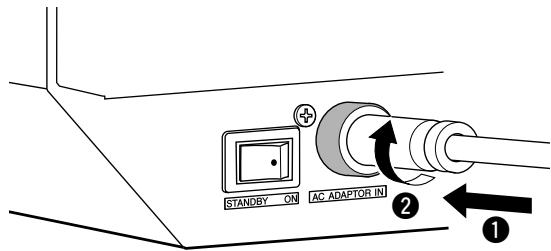
2 Connect the power adaptor to the AC ADAPTOR IN connector (1) on the rear of the mixer, and then turn the fastening ring clockwise (2) to secure the connection.
3 Plug the power adaptor into a standard household power outlet.

-
Be sure to unplug the adaptor from the outlet when not using the mixer, or when there are lightning storms in the area.
-
To avoid generating unwanted noise, make sure there is 50~cm or more between the power adaptor and the mixer.
Turning the Power On/OFF
Press the mixer's power switch to the ON position. When you are ready to turn the power off, press the power switch to the STANDBY position.

Note that trace current continues to flow while the switch is in the STANDBY position. If you do not plan to use the mixer again for a long while, please be sure to unplug the adaptor from the wall outlet.
NOTE
To prevent loud pops and noises, turn on the power to your sound gear starting with the sources (instruments, CD players, etc.) and ending with the power amplifier or powered speakers.
Example: Instruments, microphones, and CD players first, then the mixer, and finally the power amplifier or powered speakers.
When turning off the power to the system, reverse the order described above.
Computer System Requirements
Windows Vista
| Computer | Windows-based computer with built-in USB inter-face |
| OS | Windows Vista |
| CPU | 1 GHz or higher Intel Core/Pentium/Celeron proces-sor |
| Memory | 1 GB or more |
Windows XP
| Computer | Windows-based computer with built-in USB inter-face |
| OS | Windows XP Professional/XP Home Edition |
| CPU | 750 MHz or higher Intel Core/Pentium/Celeron processor |
| Memory | 96 MB or more (128 MB or more recommended) |
Macintosh
| Computer | Macintosh computer with built-in USB interface |
| OS | MacOS X 10.3.3 or higher |
| CPU | Macintosh G3 300 MHz or higher/Intel processor |
| Memory | 128 MB or more |
Cubase AI4 System Requirements
Windows
| OS | Windows XP Professional/XP Home Edition |
| CPU | 1.4 GHz or higher Intel Pentium processor |
| Memory | 512 MB or more |
| Audio Interface | Windows DirectX compatible |
| Hard Disk | 400 MB or more |
Macintosh
| OS | MacOS X 10.4 or higher |
| CPU | Power Mac G4 1 GHz/Core Solo 1.5 GHz or higher |
| Memory | 512 MB or more |
| Hard Disk | 400 MB or more |
NOTE A DVD driver is required for installation.
- To activate your software license, install the application while the computer is connected to the internet.
This quick setup and operation guide covers everything from installing the Cubase AI4 software to using Cubase AI4 for recording and mixdown. While going through this section you might find it useful to also refer to the "Front and Rear Panels" section on page 16, as well as the pdf manual supplied with the Cubase AI4 software.
Step
1 | Installing Cubase AI4
IMPORTANT!
Since the End-User Software License Agreement (EUSLA) shown on your PC-display in your installing the "DAW" software is replaced by the agreement at the end of this manual, you should disregard the EUSLA. Read the Software License Agreement at the end of this manual carefully, and install the software if you agree to it.
1 Start the computer and log on to the Administrator account.
2 Insert the included DVD-ROM into the computer's DVD-ROM drive.
3 Open the "Cubase AI 4 for Windows" folder and double-click on the "CubaseAI4.msi".
Follow the on-screen instructions to install the Cubase AI4 software.
NOTE
- When installing Cubase AI4, you will need a working internet connection to register your Cubase AI4. Make sure to fill in all required fields for user registration. If you do not register the product, you will be unable to use the application after a limited period of time expires.
- For a Macintosh computer, double-click the "CubaseAI4.mkpg" icon for installation.
Step
2 Connecting to the MW mixer
1 Turn the power to the MW mixer and all gear that is to be connected to the MW mixer off/standby (except the computer), and set the channel faders, STEREO OUT Master fader, and REC OUT fader to their minimum settings.
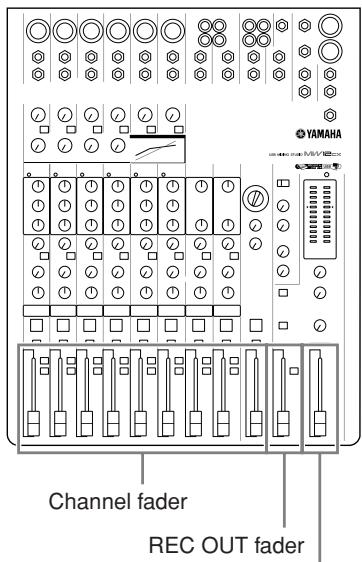
STEREO OUT Master fader
2 Connect the MW mixer to your computer using the supplied USB cable.
USB Connection Precautions
Be sure to observe the following points when connecting to the computer's USB interface.
Failure to observe these rules can result in computer freezes/ hang-ups and possibly data loss or corruption. If the MW mixer or computer does hang up, turn the power to both devices off and then on again, and restart the computer.

- Be sure to wake the computer from sleep/suspended/standby mode before making a connection to the computer's USB connector.
- Connect the MW mixer to the computer before turning the MW mixer power on.
- Always quit all applications running on the computer before turning the MW mixer's power on or off, or connecting or disconnecting the USB cable.
- Wait at least 6 seconds between turning the MW mixer on or off, and between connecting or disconnecting the USB cable.

When connecting or disconnecting the USB cable be sure to turn the 2TR IN/USB control all the way down.

Disconnect the USB cable when using the MW mixer without the computer.
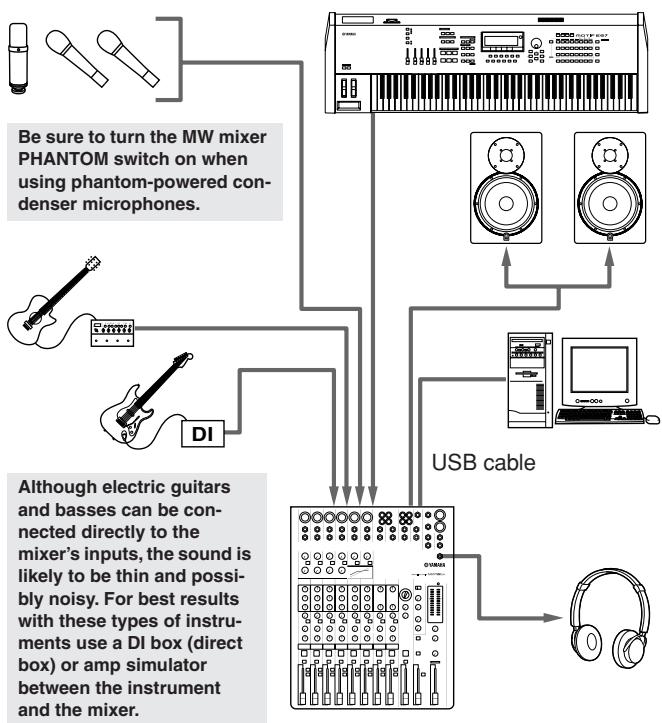
3 Connecting Microphones and/or Instruments.
For details on making connections refer to the "Setup" section on page 15 and the "Front & Rear Panels" section on page 16.
Step
3 Powering Up the System
To prevent loud pops and noises, turn on the power to your sound gear starting with the sources (instruments, CD players, etc.) and ending with the power amplifier or powered speakers.
Example : Instruments, microphones, and CD players first, then the mixer, and finally the power amplifier or powered speakers.

Observe the following precautions when turning on phantom power.
- Make sure that the PHANTOM switch is off when phantom power is not needed.
- When turning the switch on, be sure that only condenser microphones are connected to the XLR input jacks. Other devices may be damaged if connected to phantom power. This precaution does not apply to balanced dynamic microphones, however, as these will not be affected by phantom power.
- To minimize the possibility of speaker damage, turn phantom power on ONLY while your power amplifier or powered speakers are switched off. It's also a good idea to turn the mixer's output controls—STE-REO OUT Master fader and REC OUT fader—all the way down.
NOTE
- We recommend that you set the computer output to the maximum level and mute the computer's internal speaker. For details on how to make the setting refer to the "The recorded sound is too low in level." in the "Troubleshooting" on page 22.
- The first time you connect to the computer's USB connector, or change the connection to a different USB port, a driver installation display may appear after turning the power to the MW mixer on. If this occurs, wait until the installation is complete before proceeding.
Balanced Cables and Unbalanced Cables
Two types of cables can be used to connect microphones, electronic instruments, and other audio sources to the mixer's inputs, as well as to connect the mixer's outputs to a power amplifier or related gear: balanced or unbalanced. Balanced cables are highly resistant to noise, and are the best choice for low-level signals such as the output from microphones, as well as for long cable runs. Unbalanced cables are generally used for short runs from line-level sources such as synthesizers.
Cable Guidelines
| Microphone cable | Balanced is best. |
| Short line-level cables | Unbalanced cable is fine in a relatively noise-free environment. |
| Long line-level cables | Balanced is best. |
Connector Types
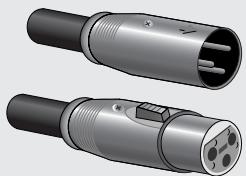
XLR Connectors
This 3-pin connector is resistant to externally induced noise, and is used primarily for balanced connections. With properly designed receiving circuitry cables with this type of connector can also be used for unbalanced signals. XLR type
connectors are the standard for microphone connections as well as most professional audio gear.
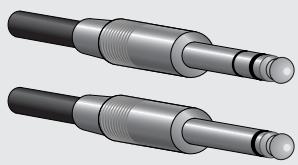
Phone Connectors
Phone connectors are available in mono and stereo versions. Stereo types are also known as "TRS" connectors (Tip-Ring-Sleeve), and are used for stereo headphone jacks, insert jacks, and also to carry balanced signals in many cases. Unbalanced types are used for mono signals -guitar cables are a common example.
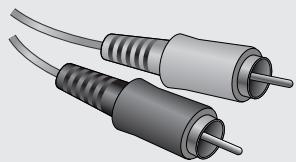
RCA Pin Connectors
This type of unbalanced connector is most commonly found on home audio and video equipment. RCA type pin jacks are often color coded: white for left audio channel and red for right audio channel, for example.
Step
4 Adjusting Level and Tone
Level Adjustment
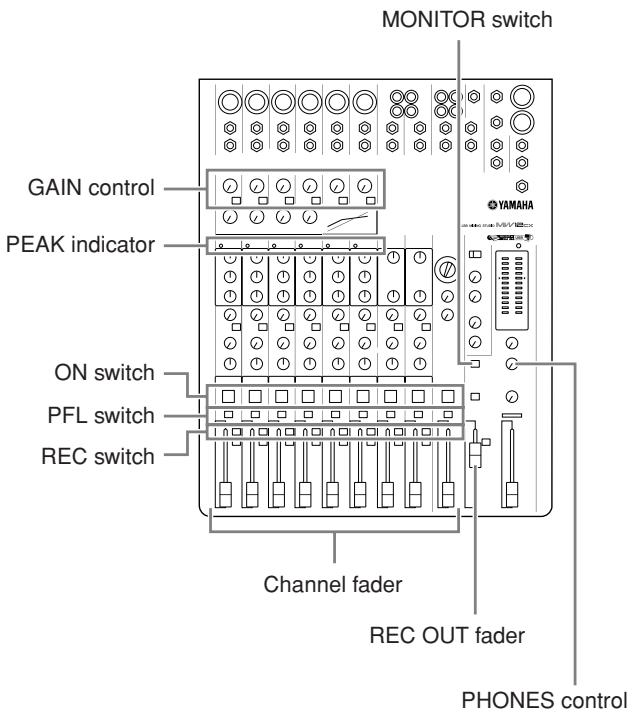
1 The first step is to set the level controls on all instruments and other sources appropriately.
2 Adjust the channel GAIN controls so that the corresponding PEAK indicators flash briefly on the highest peak levels. (GAIN controls are not provided on the stereo channels—9/10 and 11/12).
3 Engage the ON and REC switches of the input channels that you would like to record.
4 Make sure that the PFL switch is off () , and that the MONITOR switch is set to REC (一) .
5 Raise the REC OUT fader to the 0 dB position.
6 Set the channel faders to create the desired initial balance while monitoring via headphones or monitor speakers. The overall headache level is adjusted by the PHONES control.
Tone Adjustment
The MW mixer's compressors and 3-band equalizers make it easy to shape the tone of independent channels to achieve the best possible mix.
Use the High-pass Filter for Microphone Input
As the name implies, a "high-pass filter" allows only signals above a certain frequency to pass. Conversely, signals below that "cutoff frequency" are attenuated. When an MW high-pass filter is turned on, signals below 80Hz are attenuated. This can be useful for minimizing low-frequency breath noise from a vocalist, as well as handling noise, or rumble transmitted via the microphone stand. It is generally a good idea to turn the high-pass filter on for microphone channels.
Compression
One form of compression known as "limiting" can, when properly used, produce a smooth, unified sound with no excessive peaks or distortion. A common example of the use of compression is to "tame" a vocal that has a wide dynamic range in order to tighten up the mix. Compression can also be applied to guitar tracks to add extra sustain. Too much compression can be a cause of feedback, however, so use it sparingly.
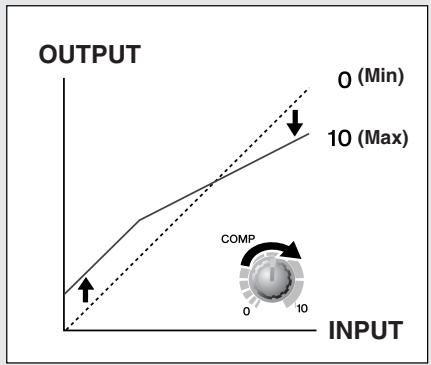
Equalizer Tips
The best advice that can be given regarding equalization while recording is simply to use as little equalization as possible. If you want a little more presence you can turn the HIGH end up a bit. Or you can boost the bass a little if you feel the low end is lacking. During recording it's better to use EQ sparingly for compensation only.
Step
5 Recording with Cubase AI4
This section describes the procedure for recording to the Cubase AI4 software we installed earlier via the MW mixer.
NOTE For details on operation of the Cubase AI4 software refer to the pdf-format manual provided with the software.
Cubase AI4 Setup
1 Launch Cubase AI4.
Windows:
Click [Start] [All Program] [Steinberg Cubase AI 4] [Cubase AI 4] to launch the program. If the ASIO Multimedia dialog window appears, click [Yes].
ASIO Multimedia
The audio card configuration appears to have changed.
This test can check the sync reliability of all the currently selected audio input and output ports, with their current options.
This test is the definitive check to see if your current configuration supports effective audio communication and therefore MIDI to audio sync.
If the test fails, you will have to either select fewer simultaneous audio input and output ports or adjust their buffer sizes or options.
Should this new configuration be tested?
No

Macintosh:
Double-click the [Application] [Cubase AI 4].
NOTE - If you specified a file destination when installing the Cubase AI4 software, launch the application from that location.
- Create a Cubase AI4 shortcut or alias on your desktop so you can easily launch the program when required.
2 Select [Device Setup] from the [Device] menu to open the Device Setup window.
Windows:
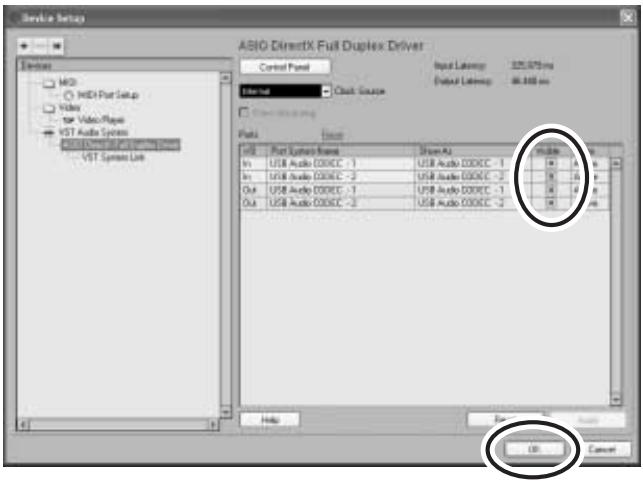
Select [VST Audio System] in the [Device] field on the left side of the window. Select [ASIO DirectX Full Duplex Driver] in the [ASIO Driver] field on the right side of the window. A dialog box will appear asking "Do you want to switch the ASIO driver?" . Click [Switch].
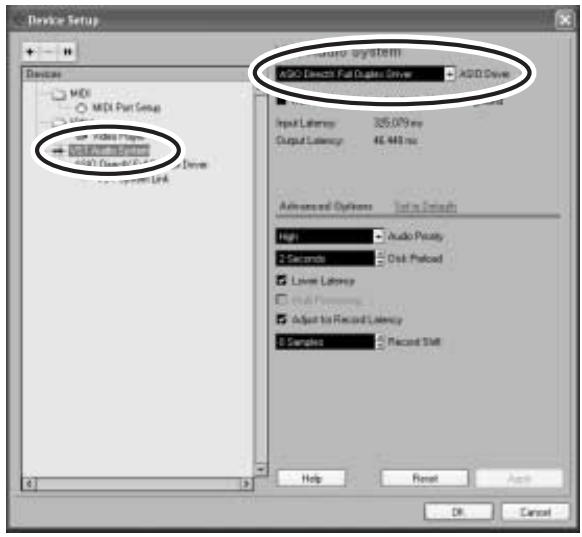
Macintosh:
Select [VST Audio System] in the [Device] field on the left side of the window. Select [USB Audio CODEC (2)] in the [ASIO Driver] field on the right side of the window, and click [OK]. Skip ahead to step 6, below.
NOTE Under Mac OS X you can select either [USB Audio CODEC (1)] or [USB Audio CODEC (2)] in the [ASIO Driver] field. Normally you should select [USB Audio CODEC (2)], but if you will only be playing back and mixing previously recorded data you can select [USB Audio CODEC (1)] to lighten the load on the computer's CPU.
3 On a Windows computer select [ASIO DirectX Full Duplex Driver] in the [Devices] field on the left side of the Device Setup window, and click [Control Panel] on the right side of the window.
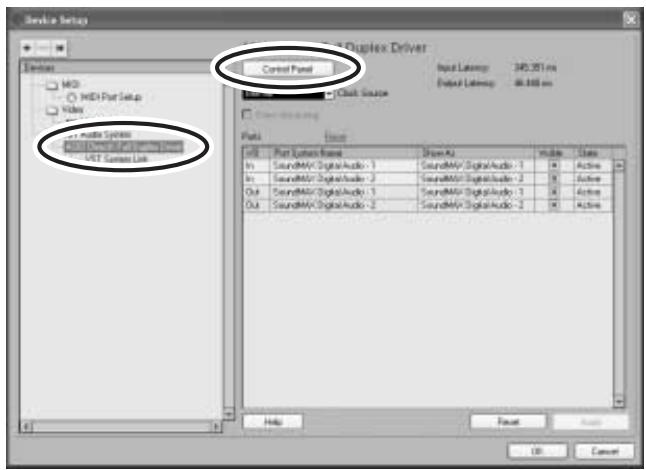
4 The ASIO Direct Sound Full Duplex Setup dialog box will be displayed. Check only the input port and output port [USB Audio CODEC] checkbox.
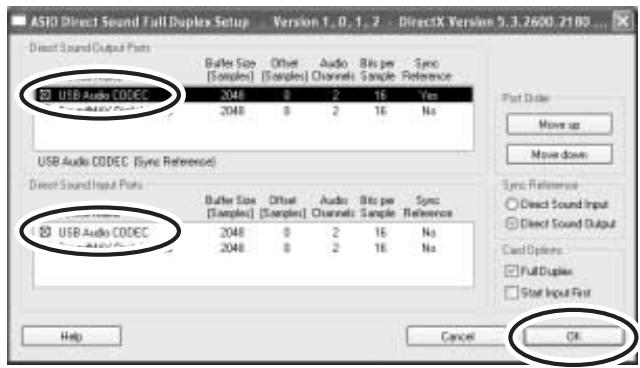
5 Make sure that "USB Audio CODEC 1/2" are shown in the [Port System Name] field, and check the [Visible] column in the Device Setup window. Click [OK] to close the window.
NOTE If the [Port System Name] field does not change, close and restart the Cubase AI4, then open the Device Setup window.
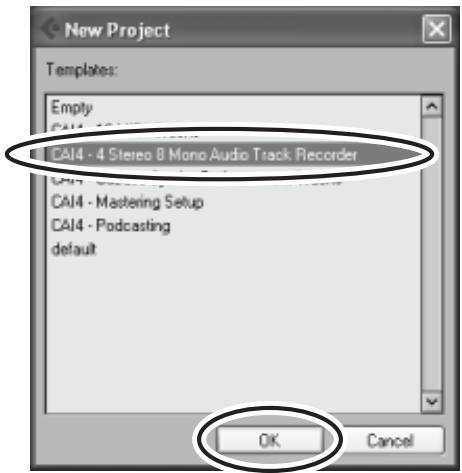
6 Select [New Project] from the [File] menu to create a new project file.
The new project dialog window will open. For this example select [CAI4 - 4 Stereo 8 Mono Audio Track Recorder] and click [OK].
NOTE Recorded Cubase AI4 data is stored as a "project file".
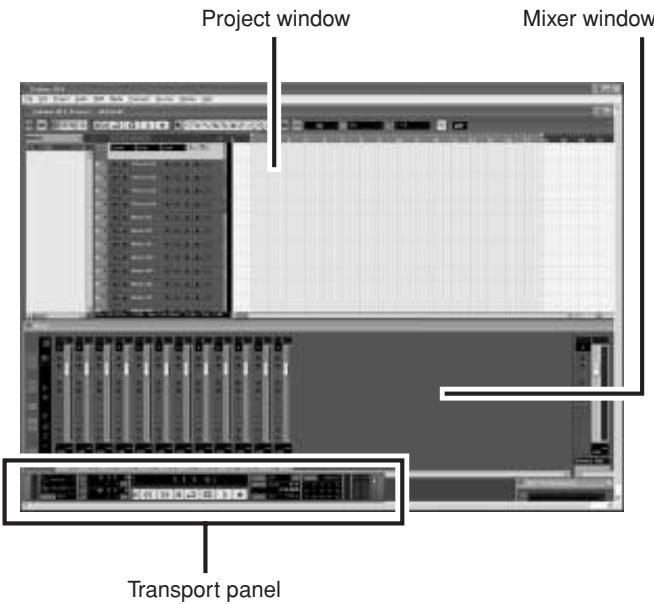
7 When the directory selection dialog window appears, select the folder to which the project and audio files for the project are to be stored, and click [OK].
An empty project window with 4 stereo and 8 monaural tracks will appear.
Preparing to Record
1 Click in the track list (the area in which the track names are displayed) to select a track to record on.
The various settings for the selected track are available in the Inspector on the left side of the display.
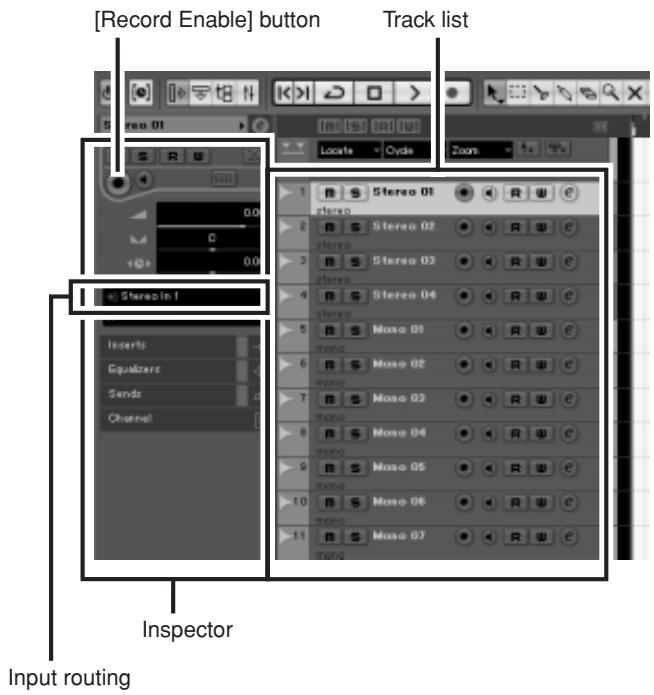

You will normally use a stereo track when recording synthesizers, and a monaural track when recording vocals or guitar.
2 Click the Input Routing field in the Inspector to select the audio input source. Select "Stereo In 1" for a stereo track and "Left (Right)-Stereo In 1" for a monaural track.
3 Make sure the [Record Enable] button for the track to be recorded is turned on.
If the [Record Enable] button is off, click it to turn it on.
4 Play the instrument to be recorded, and adjust the MW mixer's GAIN control, channel faders and REC OUT fader so that the Clipping indicator never light.
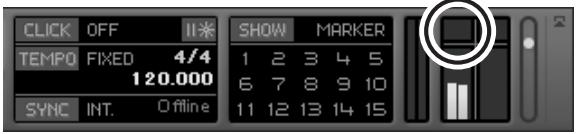
5 Specify the point at which you want to start recording via the ruler at the top of the project window.
Click the black area of the ruler to move the project cursor (the vertical black line) to that position.

Recording and Playback
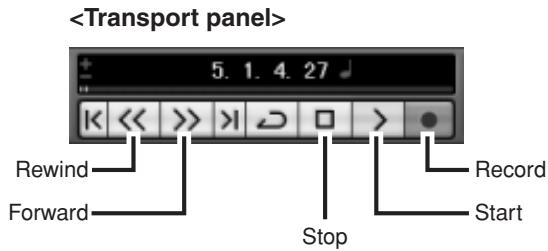
1 Click the Transport panel [Record] button to begin recording.
When recording is started the project cursor will begin moving to the right and a box that displays the recording results will be created.
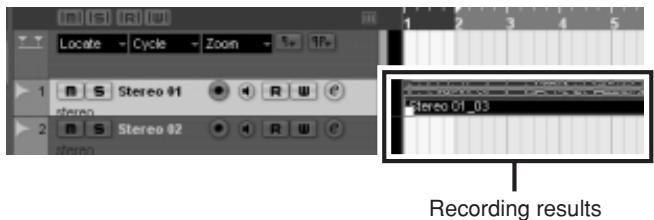
2 Play the part.
3 When you finish recording the track, click the Transport panel [Stop] button.
4 To hear playback of the track you have just recorded, use either the Transport panel [Rewind] button or the ruler to rewind to the beginning of the recorded section, then click the Transport panel [Start] button.
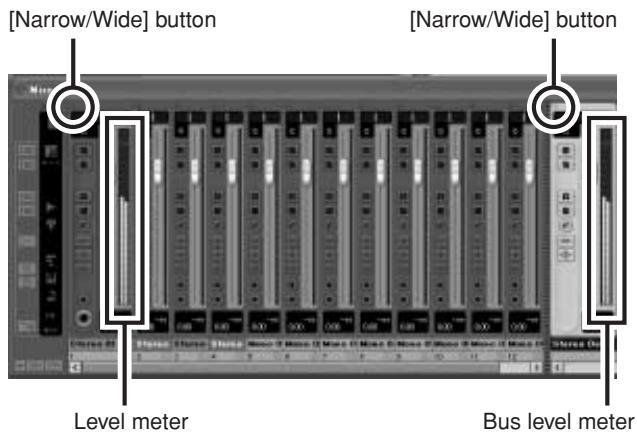
The overall playback level will be displayed via the master section bus level meter on the right side of the mixer window, and the channel level will be displayed via the channel strip level meter.
NOTE
- Click the [Narrow/Wide] button in the upper left corner of the mixer window to increase the width of the mixer's channel strips.
- The output signal from Cubase AI4 is routed to the MW mixer's 2TR IN inputs. To hear the playback sound via a pair of headphones plugged into the MW mixer, set the bus select switch to TO MONITOR ( - ) and adjust the volume with the 2TR IN/USB control and the PHONES control.
5 To save the project file select [Save] from the [File] menu and enter a file name before actually saving the file.
Save your project file frequently to insure against losing large amounts of data if a problem occurs.
6 Repeat steps 1 through 5 to record further material on the same track.
7 To record additional material on a different track, select a new track and repeat the record procedure.
NOTE
You can monitor the sound being recorded and a previously recorded sound simultaneously while recording (MONITOR MIX). Refer to "15 2TR IN/USB" on page 19 for details.
Step

Mixing with Cubase AI4
In this section we'll try mixing down multiple recorded audio tracks to stereo, and creating a wav file. Mixes can be stored as WAV or AIFF files, which can then be recorded to audio CDs.
Launch Cubase AI4 and open a project file.
2 Click the [Start] button on the Transport Panel.
3 While listening to playback, drag the channel strip level faders up and down to create the desired initial balance, then adjust the overall volume using the bus volume fader.
Start with the Featured Part
You can start working on a mix from almost any part, but it makes the most sense to start with the main instrument or vocal. Set up an initial level for the main part, and then build the rest of the mix around it.
For example, if you're mixing a piano trio with a vocalist, begin by setting the level of the vocal track at around the nominal level, and then gradually add the other instruments. Your choices will also be influenced by the type of music you are working on. If the song is a ballad you might want to add the piano to the mix after the vocal, and then add the bass and drums. If it's a more rhythmically oriented piece you could add the bass and drums first, and then the piano. Whatever best serves the music is right.
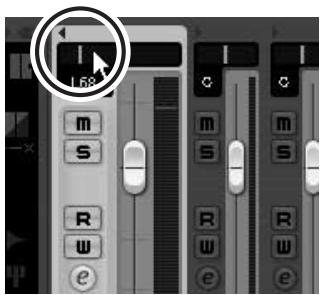
4 Drag the pan controls on the top of the channel strips left and right to set the stereo position of each track.
Pan Effectively
"Panning" creates the illusion of stereo space by changing the relative levels of each track's signal sent to the left and right speakers. If a signal is sent only to the left speaker, the sound will appear to come from the far left side of the stereo sound field. If it sent with equal level to both left and right speakers our ears tell us the sound is located in the center of the stage. Judicious panning can also help to create cleaner-sounding mixes by spreading the instruments out across the sound stage so that they don't "get in each other's way." There are no hard and fast rules, but the bass and kick drum are usually placed in the center of the mix, as is the lead instrument or vocal. Other instruments should be evenly balanced throughout the sound stage in a well-balanced manner.
5 At this point you can begin to use EQ to refine your mix, and add effects.
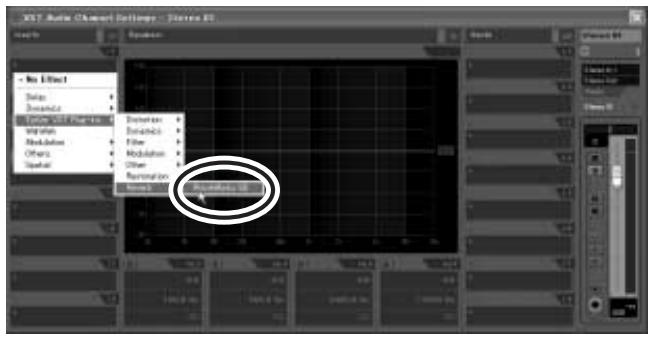
As an example let's try adding reverb. Click the [Edit] button (e) on the left side of the channel strip to open the VST audio channel settings window. Click Insert 1 and select Earlier VST Plug-ins Reverb RoomWorks SE.

For further details refer to the pdf manual provided with the Cubase AI4 software.

It's a good idea to lower the channel fader a bit before adding an effect, since the effect can cause an increase in the overall channel level.
6 When the final mix adjustments have been made, go to the [File] menu and select [Export] [Audio Mixdown].
7 Enter a file name and select a destination for the file as well as a file type.
If you intend to use the file to create an audio CD, select the WAV file type (AIFF on Macintosh OS X), Stereo Out (stereo), 16 bit, and 44.1kHz .
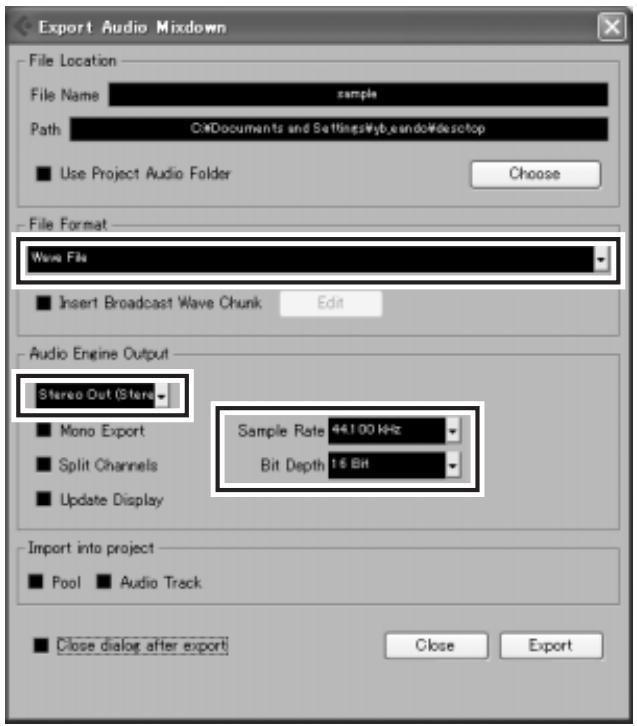
8 Click [Export].
Progress of the mixdown operation will be shown in a progress window. When the progress window closes the mixdown is complete.
NOTE Wave files created by mixdown can be directly played back using the Windows Media Player, or iTunes on a Macintosh computer.
![YAMAHA MW12CX-MW12C - Click [Export]. - 1](/content/2025/01/114765/images/237a9ba161b44cb6ac8a45ef9c54170b149833da4a1c74332bd636919a4c927c.jpg)
MW12CX
Front & Rear Panels
The following applies to both the MW12CX and MW12C. In cases where different features need to be described for each model, the MW12CX feature will be described first, followed by the MW12C feature in brackets: MW12CX (MW12C).
Channel Control Section
Channels
1 to 4
(Monaural)
Channels
5/6 and 7/8
(Stereo)
Channels
9/10 and 11/12
(Stereo)
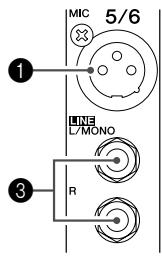
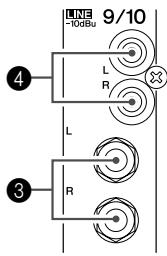
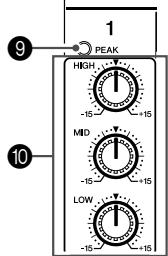
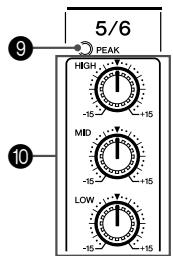
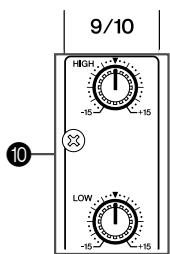
MW12CX
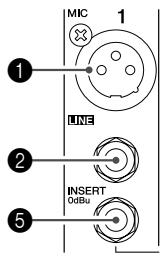
MIC Input Jacks (CHs 1 to 4, 5/6, 7/8)
These are balanced XLR-type microphone input jacks (1:Ground; 2:Hot; 3:Cold).
LINE Input Jacks (CHs 1 to 4)
These are balanced TRS phone-jack line inputs (T:Hot; R:Cold; S:Ground).
You can connect either balanced or unbalanced phone plugs to these jacks.
LINE Input Jacks (CHs 5/6 to 11/12)
These are unbalanced phone-jack stereo line inputs.
LINE Input Jacks (CHs 9/10, 11/12)
These are unbalanced stereo RCA pin jacks.
NOTE Where an input channel provides both a MIC input jack and a LINE input jack, or a LINE input jack and an RCA pin jack, you can use either jack but not both at the same time. Please connect to only one jack on each channel.
INSERT Jacks (CHs 1 to 4)
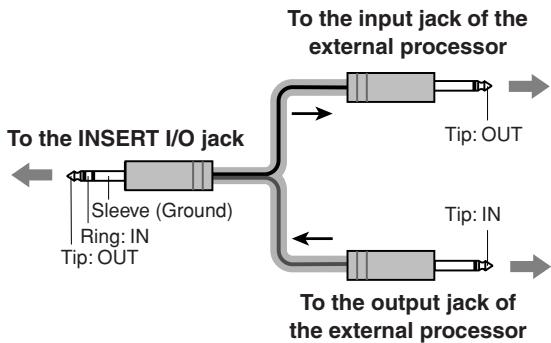
Each of these jacks provides an insert point between the equalizer and fader of the corresponding monaural input channel (CHs 1 to 4). The INSERT jacks are ideal for connecting devices such as graphic equalizers, compressors, or noise filters into the corresponding channels. These are TRS (tip, ring, sleeve) phone jacks that carry both the send and return signal (tip = send/out; ring = return/in; sleeve = ground).
NOTE Patching external devices via an INSERT jack requires a special insert cable such as illustrated below (insert cable sold separately).

The signal output from the INSERT jacks is reverse-phased. This should not be a problem when connecting to an effect unit, but please be aware of the possibility of phase conflict when connecting to other types of device.
A reversed-phased signal may result in degraded sound quality or even complete sound cancellation.
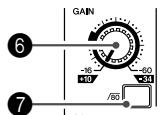
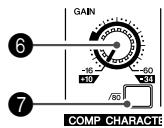
GAIN Control
Adjusts the input signal level.
To achieve the best balance between S/N ratio and dynamic range, adjust the level so that the PEAK indicator 9 lights only occasionally and briefly on the highest input transients. The -60 to -16 scale is the MIC input adjustment range. The -34 to +10 scale is the LINE input adjustment range.
7 /80 Switch (High Pass Filter)
This switch toggles the HPF on or off. To turn the HPF on, press the switch in ( ). The HPF cuts frequencies below 80Hz (the HPF does not apply to the line inputs of stereo input channels 3).
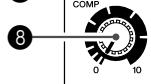
COMP Control
Adjusts the amount of compression applied to the channel. As the knob is turned to the right the compression ratio increases while the output gain is automatically adjusted accordingly. The result is smoother, more even dynamics because louder signals are attenuated while the overall level is boosted.
NOTE Avoid setting the compression too high, as the the higher average output level that results may lead to feedback.
PEAK Indicator
The peak level of the post-EQ signal is detected, and the PEAK indicator lights red when the level reaches 3 dB below clipping. For XLR-equipped stereo input channels (5/6 and 7/8), both the post-EQ and post-mic-amp peak levels are detected, and the indicator lights red if either of these levels reaches 3 dB below clipping.
Equalizer (HIGH, MID, and LOW)
This three-band equalizer adjusts the channel's high, mid, and low frequency bands. Channels 9/10 and 11/12 have two bands: high and low. Setting the knob to the position produces a flat response in the corresponding band. Turning the knob to the right boosts the corresponding frequency band, while turning to the left attenuates the band. The following table shows the EQ type, frequency, and maximum cut/boost for each of the three bands.
| Band | Type | Frequency | Maximum Cut/Boost |
| HIGH | Shelving | 10 kHz | ±15 dB |
| MID | Peaking | 2.5 kHz | |
| LOW | Shelving | 100 Hz |
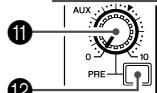
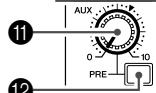
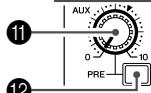
11 AUX (AUX1) Control
Adjusts the level of the signal sent from the channel to the AUX (AUX1) bus. The knob should generally be set close to the position.
On stereo channels, the signals from the L (odd) and R (even) channels are mixed and sent to the AUX (AUX1) bus.
NOTE To send the signal to the buses set the ON switch to on ( ).
12 AUX PRE Switch
Selects whether the pre-fader or the post-fader signal is fed to the AUX (AUX1) bus. If the switch is on (一) ,the mixer sends the pre-fader signal (the signal immediately prior to the Channel fader 19) to the AUX (AUX1) bus, so that AUX (AUX1) output is not affected by the fader. If the switch is off (一) the mixer sends the post-fader signal to the AUX (AUX1) bus.
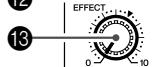
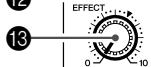
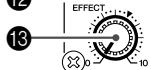
13 EFFECT (AUX2) Controls
Adjusts the level of the signal sent from the channel to the EFFECT (AUX2) bus. Note that the signal level sent to the bus is also affected by the Channel fader 19. On stereo channels (5/6, 7/8, 9/10, or 11/12), the signals from the L (odd) and R (even) channels are mixed and then sent to the EFFECT (AUX2) bus.
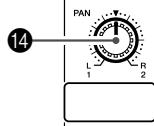
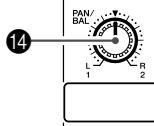
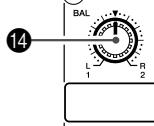
14 PAN Control (1 to 4) PAN/BAL Control (5/6 and 7/8) BAL Control (9/10 and 11/12)
The PAN control determines the stereo positioning of the channel signal on the REC L and R buses or on the Stereo L and R buses.
The BAL control knob sets the balance between left and right channels. Signals input to the L input (odd channel) go to the REC L bus or to the Stereo L bus; signals input to the R input (even channel) go to the REC R bus or the Stereo R bus.
NOTE On channels where this knob provides both PAN and BAL control (channels 5/6 and 7/8), the knob operates as a PAN control when input is received via the MIC jack or L (MONO) input only, and as a BAL control when input is received via both L and R inputs.
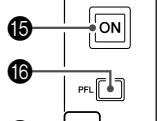
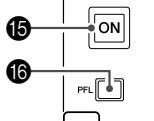
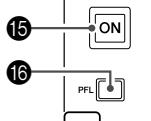
15 ON Switch
Turn this switch on to send the signal to the buses. The switch lights orange when on.
16 PFL (Pre-Fader Listen) Switch
This switch lets you monitor the channel's pre-fader signal. Press the switch in ( ) so that it lights to turn it on. When the switch is on the channel pre-fader signal is output to the PHONES and MONITOR OUT jacks for monitoring.
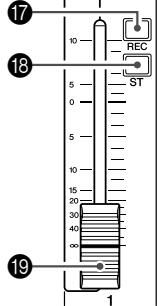
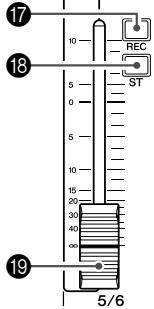
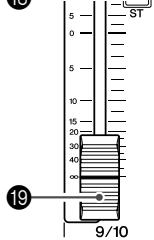
17 REC Switch
This switch assigns the channel's signal to the REC L and R buses.
NOTE To send the signal to the REC bus engage the ON switch ( ).
ST Switch
This switch assigns the channel's signal to the Stereo L and R buses.
NOTE To send the signal to the Stereo bus engage the ON switch ( ).
19 Channel Fader
Adjusts the level of the channel signal. Use these faders to adjust the balance between the various channels.
NOTE Set the fader sliders for unused channels all the way down to minimize noise.
Master Control Section
YAMAHA
MW12CX
- impedance balanced
Since the hot and cold terminals of impedance balanced output jacks have the same impedance, these output jacks are less affected by induced noise.
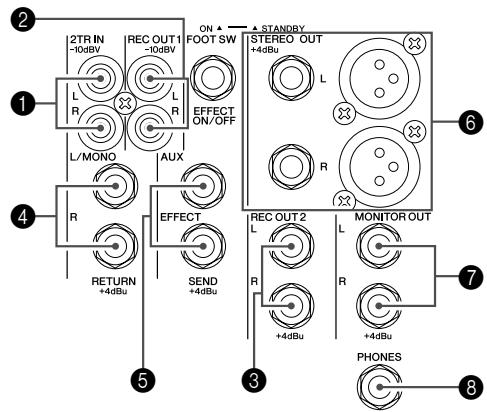
1 2TR IN Jacks
These RCA pin jacks can be used to input a stereo sound source. Use these jacks when you want to connect a CD player directly to the mixer.

- Select where you want to send the signal using the 2TR IN/USB switch 15, and adjust the signal level using the 2TR IN/USB control in the Master Control section.
- A signals input via both the 2TR IN input and the USB input are mixed.
REC OUT 1 (L, R) Jacks
These are RCA pin jacks that can be used to connect to an external stereo recorder. The signal processed by the REC OUT fader is output via these jacks.
REC OUT 2 (L, R) Jacks
These are impedance-balanced TRS phone jacks that can be used to connect to an external stereo recorder. The signal processed by the REC OUT fader is output via the these jacks.
RETURNS L (MONO), R Jacks
These are unbalanced phone-jack type line inputs. The signal received by these jacks is sent to the STEREO L/R bus and the AUX (AUX1) bus. These jacks are typically used to receive the signal returned from an external effect device (reverb, delay, etc.).

These jacks can also be used as an auxiliary stereo input. If you connect to the L (MONO) jack only, the mixer will recognize the signal as monaural and will send the identical signal to both the L and R jacks.
SEND Jacks
AUX (AUX1)
This is an impedance balanced* TRS phone jack that outputs the signals from AUX (AUX1) bus. You can use this jack, for example, to connect to an effect unit, cue box, or other monitoring system.
- EFFECT (AUX2)
This is an impedance balanced* TRS phone jack that outputs the signal from the EFFECT (AUX2) bus. You can use this jack, for example, to connect to an external effect unit.
STEREO OUT (L, R) Jacks
These jacks deliver the mixer's stereo output. You can use these jacks, for example, to connect to the power amplifier driving your main speakers. You can also connect these jacks to a recording device when you wish to record mixer's stereo output while using the STEREO OUT Master fader 18 for level control.
XLR jacks
XLR-type balanced output jacks.
LINEjacks
TRS phone-jack type balanced outputs.
7 MONITOR OUT Jacks
Connect these impedance-balanced* TRS phone jacks to your monitor system.

The signal output by these jacks is determined by the MONITOR switch 14, the 2TR IN/USB 15, and the PFL switches on the input channels.
8 PHONES Jack
Connect a pair of headphones to this TRS phone jack. The PHONES jack outputs the same signal as the MONITOR OUT jacks.
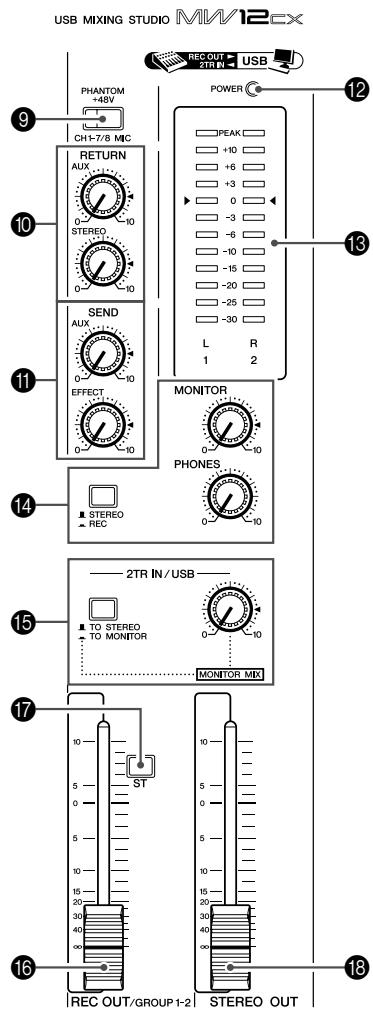
9 PHANTOM +48 V Switch
This switch toggles phantom power on and off. When the switch is on the mixer supplies +48V phantom power to all channels that have XLR mic input jacks (CHs 1-4, 5/6, 7/8). Turn this switch on when using one or more phantom-powered condenser microphones.
NOTE
When this switch is on the mixer supplies DC +48V power to pins 2 and 3 of all XLR-type MIC INPUT jacks.

- Be sure to leave this switch off (■) if you do not need phantom power.
- When tuning the switch on (■), be sure that only condenser mics are connected to the XLR input jacks (CHs: 1 to 7/8). Devices other than condenser mics may be damaged if connected to the phantom power supply. Note, however, that the switch may be left on when connecting to balanced dynamic microphones.
- To avoid damage to speakers, be sure to turn off amplifiers (or powered speakers) before turning this switch on or off. We also recommend that you turn all output controls (STEREO OUT Master Fader, REC OUT Fader, etc.) to their minimum settings before operating the switch to avoid the risk of loud noises that could cause hearing loss or device damage.
10 RETURN
AUX (AUX1) Control
Adjusts the level at which the L/R signal received at the RETURN jacks (L (MONO) and R) is sent to the AUX (AUX2) bus.
STEREO Control
Adjusts the level at which the signal received at the RETURN jacks (L (MONO) and R) is sent to the STEREOL/R bus.
NOTE
If you supply a signal to the RETURN L (MONO) jack only, the mixer sends the same signal to both the L and R Stereo buses.
1 Master SEND
- Master AUX (AUX1) Control
Adjusts the signal level sent to the AUX (AUX1) SEND jack.
- Master EFFECT (AUX2) Control
Adjusts the level of the signal sent to the EFFECT (AUX2) bus.
NOTE
If you are using the MW12CX, the Master EFFECT control does not affect the level of the signal sent from the EFFECT bus to the internal digital effect processor.
12 POWER Indicator
This indicator lights when the mixer's power is ON.
13 Level Meter
This LED meter displays the level of the signal selected by the MONITOR switch 14, 2TR IN/USB switch 15 and PFL switch. The "0" segment corresponds to the nominal output level. The PEAK segment lights red when the output reaches the clipping level.
14 MONITOR/PHONES
- MONITOR Switch
If this switch is set to REC (■), the REC L/R bus signals are sent to the MONITOR OUT jacks, the PHONES jack, and the level meter. If it is set to STEREO (■), the STEREO L/R bus signals are sent to these jacks and the level meter.
- MONITOR Control
Controls the level of the signal output to the MONITOR OUT jacks.
PHONES Control
Controls the level of the signal output to the PHONES jack.
15 2TR IN/USB
2TR IN/USB Switch
If this switch is set to TO MONITOR (■), the signals input via the 2TR IN jacks and the USB connector are sent to the MONITOR OUT jacks, the PHONES jack, and the level meter. If it is set to TO STEREO (■), the signals are sent to the STEREO L/R bus.
2TR IN/USB control
Adjusts the level of the signal sent from the 2TR IN jacks and the USB connector to the STEREO L/R bus.
The following illustration shows how the switch settings correspond to the signal selection.
| Switches | Signals output via the MONITOR/PHONES jacks | ||
| PFL | MONITOR/PHONES | 2TR IN/USB | |
| ON | — | — | PFL |
| OFF | STEREO | TO STEREO | STEREO (+ 2TR IN/USB) |
| TO MONITOR | STEREO + 2TR IN/USB MONITOR MIX* | ||
| REC | TO STEREO | REC | |
| TO MONITOR | REC (+ 2TR IN/USB) | ||
- MONITOR MIX: When overdebbing, you can adjust the levels of the monitor playback signal and the signal being recorded separately. For MONITOR MIX turn on the REC and ST switches of the corresponding channels.
MONITOR MIX Signal Flow
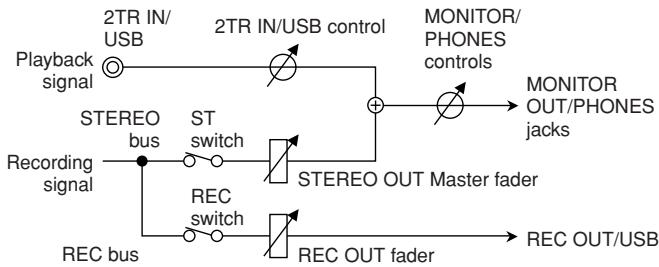
NOTE
If the input channel PFL switch is on ( - ), then only the PFL output from that channel is sent to the C-R OUT jacks, PHONES jacks, and level meter.
16 REC OUT Fader
Adjusts the signal level sent to the REC OUT jacks and the USB connector.
ST Switch
If this switch is on (—), the signals are sent to the STEREOL/R bus via the REC OUT fader 16. The REC L signal goes to Stereo L and the REC R signal goes to Stereo R.
STEREO OUT Master Fader
Adjusts the signal level sent to the STEREO OUT jacks.
Digital Effect
- Only the MW12CX has digital effects.
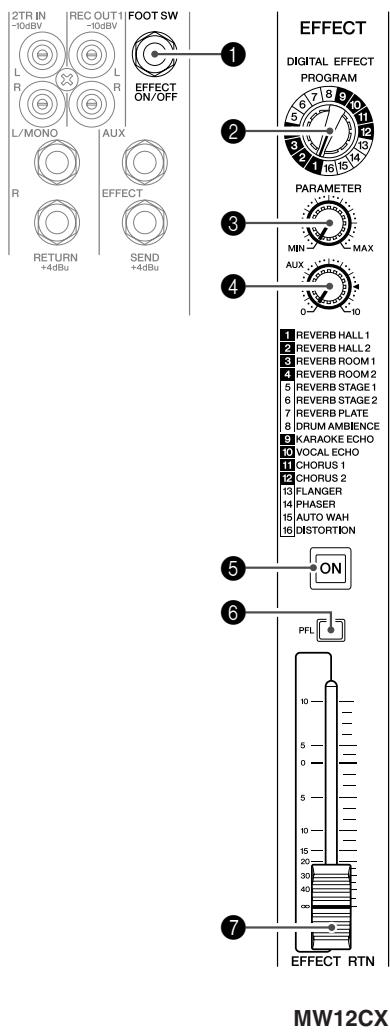
① FOOT SWITCH Jack
A Yamaha FC5 foot switch (sold separately) can be connected to this jack and used to toggle the digital effects ON and OFF.
2 PROGRAM Dial
Selects one of the 16 internal effects. See page 21 for details about the internal effects.
3 PARAMETER Control
Adjusts the parameter (depth, speed, etc.) for the selected effect.
The last value used with each effect type is saved.
NOTE When you change to a different effect type, the mixer automatically restores the value that was previously used with the newly selected effect (regardless of the current position of the PARAMETER Control knob).
These parameter values are reset when the power is turned off.
AUX Control
Adjusts the level of the signal sent from the internal digital effect unit to the AUX bus.
NOTE The EFFECT RTN fader does not affect the level of the signal sent to the AUX bus.
ON Switch
Switches the internal effect on or off. The internal effect is applied only if this switch is turned on. The switch lights orange when on.
An optional Yamaha FC5 foot switch (sold separately) can be used to toggle the digital effects ON and OFF.
NOTE The ON switch lights and the internal effect unit is active by default when the power is initially turned on.
PFL Switch
Turn this switch on to send the effect signal to the PFL bus.
EFFECT RTN Fader
Adjusts the signal level sent from the internal digital effect unit to the STEREO bus.
Rear Input/Output Section
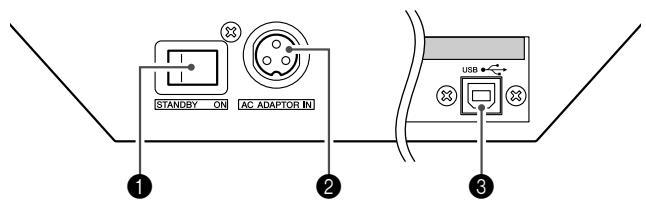
1 POWER Switch
Use this switch to turn the mixer's power ON or to STANDBY mode.

Note that a small current continues to flow while the switch is in the STANDBY position. If you do not plan to use the mixer for a while, be sure to unplug the AC adaptor from the wall outlet.
AC ADAPTOR IN Connector
Connect the supplied power adaptor to this connector (see page 6).
3 USB Connector
Connects to the computer via the included cable. The USB connector outputs the same signal as the REC OUT jacks.

When connecting or disconnecting the USB cable be sure to turn the 2TR IN/USB control all the way down.
Digital Effect Program List
| No | Program | Parameter | Description |
| 1 | REVERB HALL 1 | REVERB TIME | Reverb simulating a large space such as a concert hall. |
| 2 | REVERB HALL 2 | REVERB TIME | |
| 3 | REVERB ROOM 1 | REVERB TIME | Reverb simulating the acoustics of a small space (room). |
| 4 | REVERB ROOM 2 | REVERB TIME | |
| 5 | REVERB STAGE 1 | REVERB TIME | Reverb simulating a large stage. |
| 6 | REVERB STAGE 2 | REVERB TIME | |
| 7 | REVERB PLATE | REVERB TIME | Simulation of a metal-plate reverb unit, producing a more hard-edged sound. |
| 8 | DRUM AMBIENCE | REVERB TIME | A short reverb that is ideal for use with kick drum. |
| 9 | KARAOKE ECHO | DELAY TIME | Echo designed for karaoke (sing-along) applications. |
| 10 | VOCAL ECHO | DELAY TIME | Echo suitable for vocals. |
| 11 | CHORUS 1 | LFO Frequency | Creates a thick sound by modulating the delay time. The PARAMETER control adjusts the frequency of the LFO* that modulates the delay time. |
| 12 | CHORUS 2 | LFO Frequency | |
| 13 | FLANGER | LFO Frequency | A sweeping pitched effect. The PARAMETER control adjusts the frequency of the LFO* that modulates the delay time. |
| 14 | PHASER | LFO Frequency | Phase modulation produces a cyclical phasing effect. The PARAMETER control adjusts the frequency of the LFO* that modulates the delay time. |
| 15 | AUTO WAH | LFO Frequency | A wah-wah effect with cyclical filter modulation. The PARAMETER control adjusts the frequency of the LFO* that modulates the delay time. |
| 16 | DISTORTION | DRIVE | Adds a sharp-edged distortion to the sound. |
- "LFO" stands for Low Frequency Oscillator. An LFO is normally used to modulate another signal, determining the modulation speed and waveform shape.
Jack List
| Input and Output Jacks | Polarities | Configurations |
| MIC INPUT, STEREO OUT | Pin 1: GroundPin 2: Hot (+)Pin 3: Cold (-) | INPUT OUTPUTXLR Connector |
| LINE INPUT (CH1 to 4)REC OUT, STEREO OUT, MONITOR OUT,AUX (AUX1), EFFECT (AUX2)* | Tip: Hot (+)Ring: Cold (-)Sleeve: Ground | RingSleeve TipTRS Phone Connector |
| INSERT | Tip: OutputRing: InputSleeve: Ground | |
| PHONES | Tip: LRing: RSleeve: Ground | |
| RETURNLINE INPUT (CH5/6 to 11/12) | Tip: HotSleeve: Ground | Sleeve TipPhone Connector |
- These jacks will also accept connection to monaural phone Connectors. If you use monaural phone connectors, the connection will be unbalanced.
Troubleshooting
| The MW mixer won't turn on. | □ Is the included adaptor properly plugged into both the mixer and an appropriate AC wall outlet? |
| The system doesn't work properly. | □ Are the USB cable and all necessary audio cables properly connected?□ Are you using a USB hub?USB hubs can interfere with proper operation, so try connecting the MW mixer directly to a USB port on the computer. If the computer has multiple USB ports, try a different USB port.□ Are you using other USB devices at the same time?If so, try removing the other device(s) and connecting only the Yamaha USB device. |
| No sound. | □ Are your speaker cables connected properly, or are they shorted?□ Are the ON switch, ST switch, and REC switch for the channels you are using turned on?□ Are the volume controls of your sources, audio devices, applications software, computer operating system, etc., set at appropriate levels?□ Is the output of your computer operating system muted?□ Do you have several applications running at the same time?Be sure to quit all applications you are not using.□ Is the sound output of your computer operating system assigned properly?Windows:1. From the [START] menu click [Control Panel], then double-click the "Sounds and Audio Devices" icon to open the "Sounds and Audio Devices Properties" dialog window.2. Click the "Audio" tab.3. Set "Sound playback: Default device" and "Sound recording: Default device" to "USB Audio CODEC."4. Click [OK].Macintosh:1. Select "System Preferences ..." from the Apple menu and then select "Sound" to open the "Sound" dialog window.2. Click the "Input" tab and under "Choose a device for sound input" select "USB Audio CODEC".3. Click the "Output" tab and under "Choose a device for sound output" select "USB Audio CODEC".□ Is the sound output of the Cubase AI4 application assigned properly?For setup details refer to page 7 of the Quick Guide. |
| The recorded sound is too low in level. | □ Is the computer's output level setting too low?We recommend that you set the computer output to the maximum level and mute the computer's internal speaker.Windows:1. From the [START] menu click [Control Panel], then double-click the "Sounds and Audio Devices" icon to open the "Sounds and Audio Devices Properties" dialog window.2. Click the "Volume" tab.3. Set "Device volume" to "High."4. Click the "Sound" tab.5. Select "No sound" in the "Sound scheme."Macintosh:1. Select [System Preferences ...] from the Apple menu and then select "Sound" to open the "Sound" dialog window.2. Click the "Output" tab and set the volume slider at the bottom of the window to its maximum level.3. Click the "Sound Effect" tab and set the volume slider of the "Alert volume" slider to its minimum level.□ Have you connected or disconnected the USB cable while Cubase AI4 is running?Doing so can sometimes cause the Windows output level to be reset to its default level. Check and raise the output level if necessary. |
| The level meter doesn't show the output signal level. | □ Are the PFL switches for the channels you are not using turned on? |
| The sound is intermittent or distorted. | □ Is the PEAK indicator flashing read?You might have to lower GAIN control or channel fader levels to avoid distortion.□ Are you applying the effects and compressor at an appropriate level?You might have to lower EFFECT RTN fader, ETTECT control and COMP control levels.□ Does the computer you are using meet the listed system requirements?Refer to "Computer System Requirements" on page 6 for details.□ Are any other applications, device drivers, or USB devices (scanners, printers, etc.) running at the same time?Be sure to quit all applications you are not using.□ Are you playing back a large number of audio tracks?The number of tracks you can play at the same time will depend on the performance of the computer you are using. You may experience intermittent playback if you exceed your computer's capabilities.□ Are you recording or playing long continuous sections of audio?The audio data processing capabilities of your computer will depend on a number of factors including CPU speed and access to external devices.On Windows computers, changing some settings as outlined below can improve performance.1. Click [Control Panel] from the [START] menu, and double-click the "Sounds and Audio Devices" icon to open the "Sounds and Audio Devices Properties" dialog window.2. Click the "Volume" tab and click "Advanced" in "Speaker settings." The "Advanced Audio Properties" dialog window will open.3. Click the "Performance" tab. Set "Hardware acceleration" to "Full", and "Sample rate conversion quality" to "Good."Don't change these settings if you are not familiar with your computer's operating system. Check that the file system is set properly, and make sure that you have a plenty of free memory (more than 128 megabytes). If the wave files you are recording or playing are not too large, changing the virtual memory settings can sometimes improve audio performance.In some cases it might be necessary to update your hard disk controller, device drivers, or BIOS. Refer to your computer's support center or support page on the web for more information.□ Try adding memory.Adding more RAM memory can significantly increase your computer's audio performance.Refer to your computer's owner's manual for information on installing and setting up extra memory. |
| There is a delay when playing a software synthesizer via a MIDI keyboard (latency). | □ Check the URL listed below for the latest information.<http://www.yamahasynth.com/> |
Electrical Specifications
| MIN | TYP | MAX | UNIT | |||
| Frequency Response | STEREO OUT | GAIN: min (CHs 1-7/8)20 Hz-20 kHzNominal output level @1 kHzInput: CHs 1 to 11/12, RETURN, 2TR IN | -3.0 | 0.0 | 1.0 | dB |
| REC OUT2 | ||||||
| EFFECT/AUX(AUX1, 2*) SEND | ||||||
| MONITOR OUT, REC OUT1 | ||||||
| Total Harmonic Distortion (THD + N) | STEREO OUT | +14 dBu @ 20 Hz-20 kHz, Input GAIN Control at minimum | 0.1 | % | ||
| Hum & Noise | CH INPUT 1-4 MIC | EIN (Equivalent Input Noise): Rs = 150 Ω, GAIN: maximum | -128 | dBu | ||
| Hum & Noise are measured with a 6 dB/octave filter @ 12.7 kHz; equivalent to a 20 kHz filter with infinite dB/octave attenuation. | STEREO OUT | STEREO OUT, REC OUT fader at nominal level and all chan-nels' ST and REC switches off. | -88 | |||
| REC OUT2 | ||||||
| EFFECT/AUX(AUX1, 2*) SEND | Master EFFECT/AUX (AUX1, 2) control at nominal level and all CH EFFECT/AUX (AUX1, 2) controls at minimum. | -81 | ||||
| STEREO OUT | STEREO OUT, REC OUT fader and one CH fader at nominal level. | -64 | ||||
| REC OUT2 | ||||||
| STEREO OUT | Residual Output Noise | -98 | ||||
| Crosstalk (1 kHz) | Adjacent Input | CHs 1-4 | -70 | dB | ||
| Input to Output | STEREO L/R, CHs 1-4, PAN: panned hard left or right | -70 | ||||
| Maximum voltage gain (1 kHz) | Rs = 150 ΩINPUT GAIN: maximum | MIC to CH INSERT OUT | 60 | dB | ||
| MIC to STEREO OUT | 84 | |||||
| MIC to REC OUT2 | ||||||
| MIC to REC to ST | 94 | |||||
| MIC to REC OUT1 | 72.2 | |||||
| MIC to MONITOR OUT, ST TO MONITOR | 84 | |||||
| MIC to PHONES OUT | 83 | |||||
| MIC to AUX (AUX1*) SEND PRE | 76 | |||||
| MIC to AUX (AUX1*) SEND POST, EFFECT (AUX2*) SEND | 86 | |||||
| CH 5/6, 7/8 LINE to STEREO OUT | 58 | |||||
| CH 5/6, 7/8 LINE to REC OUT2 | ||||||
| CH 5/6, 7/8 AUX (AUX1*) SEND PRE | 47 | |||||
| CH 5/6, 7/8 LINE to AUX (AUX1*) SEND POST, EFFECT (AUX2*) SEND | 57 | |||||
| CH 9/10, 11/12 to STEREO OUT | 34 | |||||
| CH 9/10, 11/12 to REC OUT2 | ||||||
| Rs = 150 Ω | RETURN to STEREO OUT | 16 | ||||
| RETURN to EFFECT (AUX2*) SEND | 9 | |||||
| Rs = 600 Ω | 2TR IN to STEREO OUT | 27.8 | ||||
| Phantom Voltage | MIC | no load | 48 | V | ||
General Specifications
| USB Audio | Input/Output: 44.1/48 kHz | |
| Input HPF | CHs 1-7/8, 80 Hz, 12 dB/oct | |
| Input equalization ±15 dB maximum Turn over/roll-off frequency of shelving: 3 dB blow maximum variable level. | CHs 1-7/8 | HIGH: 10 kHz (shelving) MID: 2.5 kHz (peaking) LOW: 100 Hz (shelving) |
| CH 9/10-11/12 | HIGH: 10 kHz (shelving) LOW: 100 Hz (shelving) | |
| PEAK Indicator | Red LED turns on when post EQ signal (either post MIC HA or post EQ signal for CHs 5/6, 7/8) reaches -3 dB below clipping (+17 dBu). | |
| Internal Digital Effect (Only MW12CX) | 16 PROGRAM, PARAMETER control Foot Switch (Digital Effect On/Off) | |
| LED Level Meter | Pre MONITOR Level | 2x12 points LED meter (PEAK, +10, +6, +3, 0, -3, -6, -10, -15, -20, -25, -30 dB) PEAK lights if the signal level reaches 3 dB below the clipping level. |
| Power Supply Adaptor | PA-20 | AC 35 VCT, 0.94 A, Cable Length = 3.6 m |
| Power Consumption | 30 W | |
| Dimensions (W x H x D) | 346.2 mm x 86.1 mm x 436.6 mm | |
| Net Weight | 3.2 kg (MW12CX), 3 kg (MW12C) | |
All faders are nominal if not specified.
Output impedance of signal generator: 150 ohms
- The MW12CX feature is described first, followed by the MW12C feature in brackets: MW12CX (MW12C)
■ Analog Input Specifications
| Input Connectors | Gain | Input Impedance | Appropriate Impedance | Sensitivity * | Nominal Level | Max. before Clipping | Connector Specifications |
| CH INPUT MIC (CHs 1-4) | -60 dB | 3kΩ | 50-600Ω Mics | -80 dBu (0.078 mV) | -60 dBu (0.775 mV) | -40 dBu (7.75 mV) | XLR-3-31 type (balanced [1 = GND, 2 = HOT, 3 = COLD]) |
| -16 dB | -36 dBu (12.3 mV) | -16 dBu (123 mV) | +4 dBu (1.23 V) | ||||
| CH INPUT LINE (CHs 1-4) | -34 dB | 10kΩ | 600Ω Lines | -54 dBu (1.55 mV) | -34 dBu (15.5 mV) | -14 dBu (155 mV) | TRS phone jack (balanced [Tip = HOT, Ring = COLD, Sleeve = GND]) |
| +10 dB | -10 dBu (245 mV) | +10 dBu (2.45 V) | +30 dBu (24.5 V) | ||||
| ST CH MIC INPUT (CHs 5/6, 7/8) | -60 dB | 3kΩ | 50-600Ω Mics | -80 dBu (0.078 mV) | -60 dBu (0.775 mV) | -40 dBu (7.75 mV) | XLR-3-31 type (balanced [1 = GND, 2 = HOT, 3 = COLD]) |
| -16dB | -36 dBu (12.3 mV) | -16 dBu (123 mV) | -6 dBu (389 mV) | ||||
| ST CH LINE INPUT (CHs 5/6, 7/8) | -34 dB | 10kΩ | 600Ω Lines | -54 dBu (1.55 mV) | -34 dBu (15.5 mV) | -14 dBu (155 mV) | Phone jack (unbalanced) |
| +10 dB | -10 dBu (245 mV) | +10 dBu (2.45 V) | +30 dBu (24.5 V) | ||||
| ST CH INPUT (CHs 9/10, 11/12) | — | 10kΩ | 600Ω Lines | -30 dBu (24.5 mV) | -10 dBu (245 mV) | +10 dBu (2.45 V) | Phone jack (unbalanced) RCA pin jack |
| CH INSERT IN (CHs 1-4) | — | 10kΩ | 600Ω Lines | -20 dBu (77.5 mV) | 0 dBu (0.775 V) | +20 dBu (7.75 V) | TRS phone Jack (unbalanced [Tip = Out, Ring = In, Sleeve = GND]) |
| RETURN (L, R) | — | 10kΩ | 600Ω Lines | -12 dBu (195 mV) | +4 dBu (1.23 V) | +24 dBu (12.3 V) | Phone jack (unbalanced) |
| 2TR IN (L, R) | — | 10kΩ | 600Ω Lines | -26 dBV (50.1 mV) | -10dBV (0.316V) | +10dBV (3.16 V) | RCA pin jack |
Where 0 dBu = 0.775 Vrms and 0 dBV = 1 Vrms
* Sensitivity : The lowest level that will produce an output of +4 dB (1.23 V), or the nominal output level when the unit is set to the maximum level. (All faders and level controls are at their maximum position.)
■ Analog Output Specifications
| Output Connectors | Output Impedance | Appropriate Impedance | Nominal Level | Max. before clipping | Connector Specifications |
| STEREO OUT (L, R) | 75Ω | 600Ω Lines | +4dBu (1.23 V) | +24 dBu (12.3 V) | XLR-3-32 type (balanced [1 = GND, 2 = HOT, 3 = COLD])TRS phone jack (balanced [Tip = HOT, Ring = COLD, Sleeve = GND]) |
| REC OUT2 (L, R) | 150Ω | 10kΩ Lines | +4dBu (1.23 V) | +20 dBu (7.75 V) | TRS phone jack (impedance balanced [Tip = HOT, Ring = COLD, Sleeve = GND]) |
| EFFECT/AUX (AUX1, 2*) SEND | 150Ω | 10kΩ Lines | +4dBu (1.23 V) | +20 dBu (7.75 V) | TRS phone jack (impedance balanced [Tip = HOT, Ring = COLD, Sleeve = GND]) |
| CH INSERT OUT (CHs 1–4) | 75Ω | 10kΩ Lines | 0 dBu (0.775 V) | +20 dBu (7.75 V) | TRS phone jack (unbalanced [Tip = Out, Ring = In, Sleeve = GND]) |
| REC OUT1 (L, R) | 600Ω | 10kΩ Lines | -10 dBV (0.316 V) | +10 dBV (3.16 V) | RCA pin jack |
| MONITOR OUT (L, R) | 150Ω | 10kΩ Lines | +4 dBu (1.23 V) | +20 dBu (7.75 V) | TRS phone jack (impedance balanced [Tip = HOT, Ring = COLD, Sleeve = GND]) |
| PHONES OUT | 100Ω | 40Ω Phones | 3 mW | 75 mW | TRS phone jack |
Where 0 dBu = 0.775 Vrms and 0 dBV = 1 Vrms
* The MW12CX feature is described first, followed by the MW12C feature in brackets: MW12CX (MW12C)
Digital Input/Output Specifications
| Connector | Format | Data Length | Connector Specification |
| USB | USB Audio 1.1 | 16 bit | USB B type |
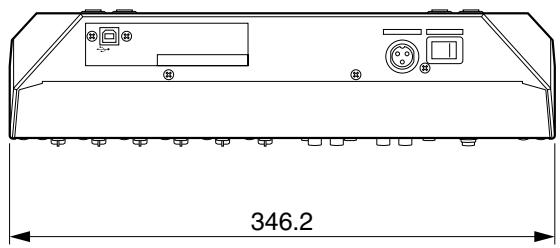
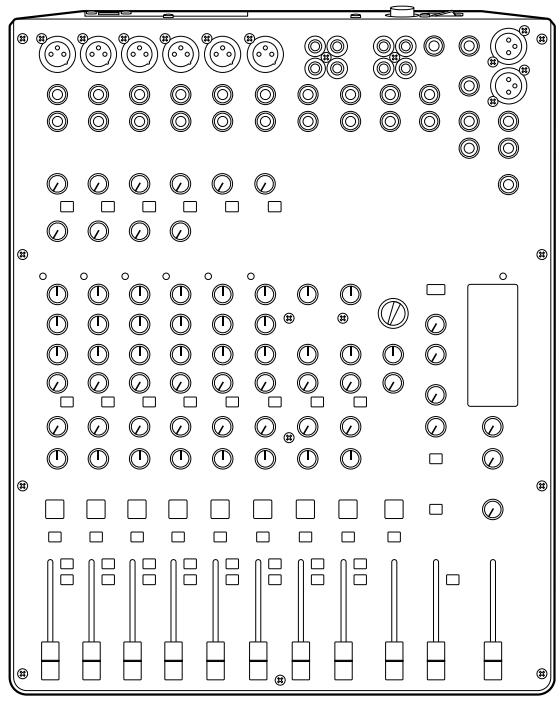
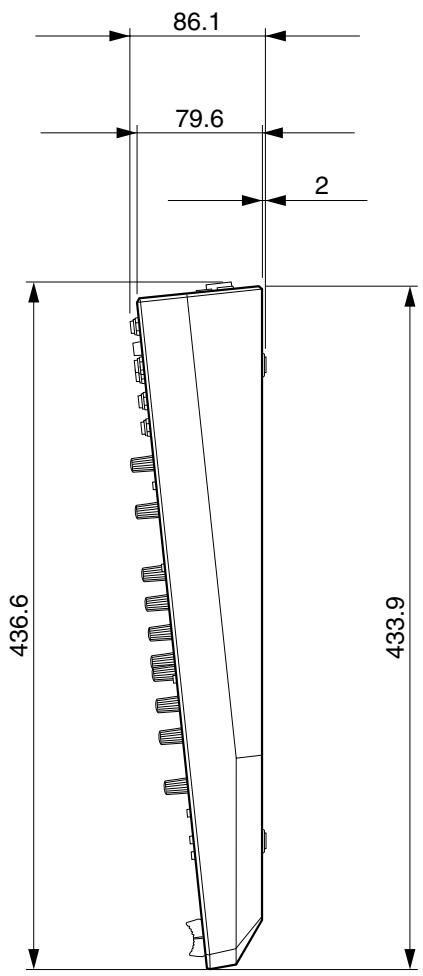
MW12CX
Unit: mm
* Specifications and descriptions in this owner's manual are for information purposes only. Yamaha Corp. reserves the right to change or modify products or specifications at any time without prior notice. Since specifications, equipment or options may not be the same in every locale, please check with your Yamaha dealer.
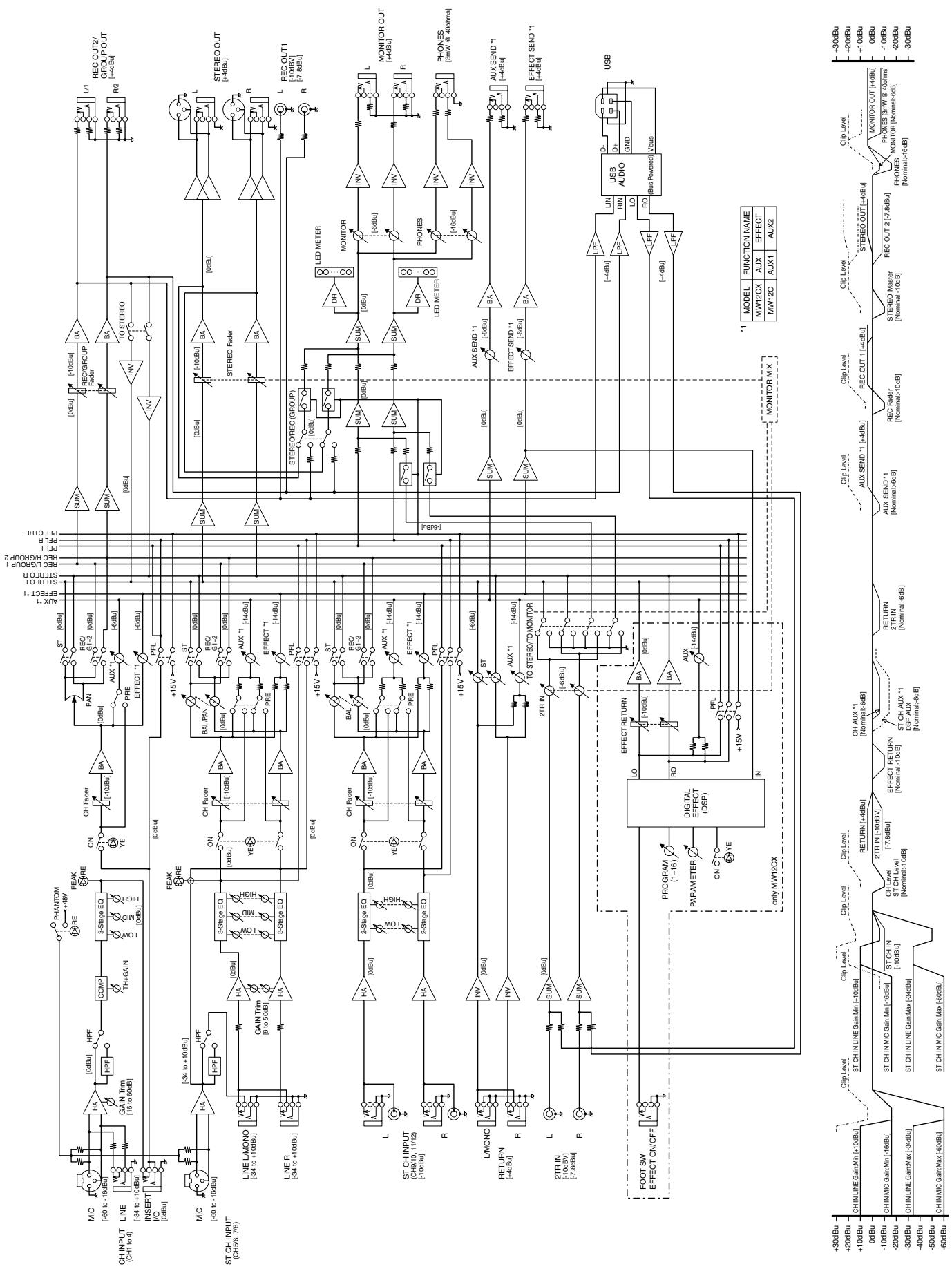
■ Block Diagram and Level Diagram
About the accessory disk
SPECIAL NOTICE
- The software included in the accessory disk and the copyrights thereof are under exclusive ownership by Steinberg Media Technologies GmbH.
- Use of the software and this manual is governed by the license agreement which the purchaser fully agrees to upon breaking the seal of the software packaging. (Please read carefully the Software Licensing Agreement at the end of this manual before installing the application.)
- Copying of the software or reproduction of this manual in whole or in part by any means is expressly forbidden without the written consent of the manufacturer.
- Yamaha makes no representations or warranties with regard to the use of the software and documentation and cannot be held responsible for the results of the use of this manual and the software.
- This disk is NOT for audio/visual purpose. Do not attempt to play the disk on an audio/visual CD/DVD player. Doing so may result in irreparable damage to your player.
- For information about the minimum system requirements and latest information of the software in the disk, check the web site below. http://www.yamahasynth.com/
- Note that Yamaha does not offer technical support for the DAW software in the accessory disk.
About the DAW software in the accessory disk
The accessory disk contains DAW software both for Windows and Macintosh.
NOTE - Make sure to install DAW software under the "Administrator" account.
- In order to install the software in the accessory disk, you'll need a working Internet connection. Make sure to fill in all required fields when installing.
- If you are using a Macintosh computer, double-click the ***.mpkg" file to start installation.
For information about the minimum system requirements and latest information on the software in the disk, check the web site below.
About software support
Support for the DAW software in the accessory disk is provided by Steinberg on its website at the following address. http://www.steinberg.net
You can visit the Steinberg site also via the Help menu of the included DAW software. (The Help menu also includes the PDF manual and other information on the software.)
ATTENTION
SOFTWARE LICENSE AGREEMENT
PLEASE READ THIS SOFTWARE LICENSE AGREEMENT ("AGREEMENT") CAREFULLY BEFORE USING THIS SOFTWARE. YOU ARE ONLY PERMITTED TO USE THIS SOFTWARE PURSUANT TO THE TERMS AND CONDITIONS OF THIS AGREEMENT. THIS AGREEMENT IS BETWEEN YOU (AS AN INDIVIDUAL OR LEGAL ENTITY) AND YAMAHA CORPORATION ("YAMAHA").
BY BREAKING THE SEAL OF THIS PACKAGE YOU ARE AGREEING TO BE BOUND BY THE TERMS OF THIS LICENSE. IF YOU DO NOT AGREE WITH THE TERMS, DO NOT INSTALL, COPY, OR OTHERWISE USE THIS SOFTWARE.
THIS AGREEMENT PROVIDES YOUR USE-CONDITIONS ABOUT THE "DAW" SOFTWARE OF STEINBERG MEDIA TECHNOLOGIES GMBH("STEINBERG") WHICH IS BUNDLED WITH THIS PRODUCT. SINCE THE END-USER SOFTWARE LICENSE AGREEMENT (EUSLA) SHOWN ON YOUR PC-DISPLAY IN YOUR INSTALLING THE "DAW" SOFTWARE IS REPLACED BY THIS AGREEMENT, YOU SHOULD DISREGARD THE EUSLA. THAT IS, IN THE INSTALLING PROCESS, YOU SHOULD SELECT "AGREE" WITH THE EUSLA, WITHOUT YOUR JUDGMENT THERETO, SO AS TO PROCEED TO THE NEXT PAGE.
1. GRANT OF LICENSE AND COPYRIGHT
Yamaha hereby grants you the right to use one copy of the software program(s) and data ("SOFTWARE") accompanying this Agreement. The term SOFTWARE shall encompass any updates to the accompanying software and data. The SOFTWARE is owned by STEINBERG, and is protected by relevant copyright laws and all applicable treaty provisions. Yamaha has acquired the sublicense right to license you to use the SOFTWARE. While you are entitled to claim ownership of the data created with the use of SOFTWARE, the SOFTWARE will continue to be protected under relevant copyrights.
- You may use the SOFTWARE on a single computer.
- You may make one copy of the SOFTWARE in machine-readable form for backup purposes only, if the SOFTWARE is on media where such backup copy is permitted. On the backup copy, you must reproduce Yamaha's copyright notice and any other proprietary legends that were on the original copy of the SOFTWARE.
- You may permanently transfer to a third party all your rights in the SOFTWARE only when you transfer this product together, provided that you do not retain any copies and the recipient reads and agrees to the terms of this Agreement.
2. RESTRICTIONS
- You may not engage in reverse engineering, disassembly, decompilation or otherwise deriving a source code form of the SOFTWARE by any method whatsoever.
- You may not reproduce, modify, change, rent, lease, or distribute the SOFTWARE in whole or in part, or create derivative works of the SOFTWARE.
- You may not electronically transmit the SOFTWARE from one computer to another or share the SOFTWARE in a network with other computers.
- You may not use the SOFTWARE to distribute illegal data or data that violates public policy.
- You may not initiate services based on the use of the SOFTWARE without permission by Yamaha Corporation.
Copyrighted data, including but not limited to MIDI data for songs, obtained by means of the SOFTWARE, are subject to the following restrictions which you must observe.
- Data received by means of the SOFTWARE may not be used for any commercial purposes without permission of the copyright owner.
- Data received by means of the SOFTWARE may not be duplicated, transferred, or distributed, or played back or performed for listeners in public without permission of the copyright owner.
- The encryption of data received by means of the SOFTWARE may not be removed nor may the electronic watermark be modified without permission of the copyright owner.
3. TERMINATION
This Agreement becomes effective on the day that you receive the SOFTWARE and remains effective until terminated. If any copyright law or provisions of this Agreement is violated, the Agreement shall terminate automatically and immediately without notice from Yamaha. Upon such termination, you must immediately destroy the licensed SOFTWARE, any accompanying written documents and all copies thereof.
4. LIMITED WARRANTY ON MEDIA
As to SOFTWARE sold on tangible media, Yamaha warrants that the tangible media on which the SOFTWARE is recorded will be free from defects in materials and workmanship under normal use for a period of fourteen (14) days from the date of receipt, as evidenced by a copy of the receipt. Yamaha's entire liability and your exclusive remedy will be replacement of the defective media if it is returned to Yamaha or an authorized Yamaha dealer within fourteen days with a copy of the receipt. Yamaha is not responsible for replacing media damaged by accident, abuse or misapplication. TO THE FULLEST EXTENT PERMITTED BY LAW, YAMAHARA EXPRESSLY DISCLAIMS ANY IMPLIED WARRANTYES ON THE TANGIBLE MEDIA, INCLUDING THE IMPLIED WARRANTYES OF MERCHANT-ABILITY AND FITNESS FOR A PARTICULAR PURPOSE.
5. DISCLAIMER OF WARRANTY ON SOFTWARE
You expressly acknowledge and agree that use of the SOFTWARE is at your sole risk. The SOFTWARE and related documentation are provided "AS IS" and without warranty of any kind. NOTWITHSTANDING ANY OTHER PROVISION OF THIS AGREEMENT, YAMAHA EXPRESSLY DISCLAIMS ALL WARRANTYES AS TO THE SOFTWARE, EXPRESS, AND IMPLIED, INCLUDING BUT NOT LIMITED TO THE IMPLIED WARRANTYES OF MERCHANTABILITY, FITNESS FOR A PARTICULAR PURPOSE AND NONINFRINGEMENT OF THIRD PARTY RIGHTS. SPECIFICALLY, BUT WITHOUT LIMITING THE FOREGOING, YAMAHA DOES NOT WARRANTY THAT THE SOFTWARE WILL MEET YOUR REQUIREMENTS, THAT THE OPERATION OF THE SOFTWARE WILL BE UNINTERRUPTED OR ERROR-FREE, OR THAT DEFECTS IN THE SOFTWARE WILL BE CORRECTED.
6. LIMITATION OF LIABILITY
YAMAHA'S ENTIRE OBLIGATION HEREUNDER SHALL BE TO PERMIT USE OF THE SOFTWARE UNDER THE TERMS HEREOF. IN NO EVENT SHALL YAMAHA BE LIABLE TO YOU OR ANY OTHER PERSON FOR ANY DAMAGES, INCLUDING, WITHOUT LIMITATION, ANY DIRECT, INDIRECT, INCIDENTAL OR CONSEQUENTIAL DAMAGES, EXPENSES, LOST PROFITS, LOST DATA OR OTHER DAMAGES ARISING OUT OF THE USE, MISUSE OR INABILITY TO USE THE SOFTWARE, EVEN IF YAMAHA OR AN AUTHORIZED DEALER HAS BEEN ADVISED OF THE POSSIBILITY OF SUCH DAMAGES. In no event shall Yamaha's total liability to you for all damages, losses and causes of action (whether in contract, tort or otherwise) exceed the amount paid for the SOFTWARE.
7. GENERAL
This Agreement shall be interpreted according to and governed by Japanese law without reference to principles of conflict of laws. Any dispute or procedure shall be heard before the Tokyo District Court in Japan. If for any reason a court of competent jurisdiction finds any portion of this Agreement to be unenforceable, the remainder of this Agreement shall continue in full force and effect.
8. COMPLETE AGREEMENT
This Agreement constitutes the entire agreement between the parties with respect to use of the SOFTWARE and any accompanying written materials and supersedes all prior or contemporaneous understandings or agreements, written or oral, regarding the subject matter of this Agreement. No amendment or revision of this Agreement will be binding unless in writing and signed by a fully authorized representative of Yamaha.
For details of products, please contact your nearest Yamaha representative or the authorized distributor listed below.
Yamaha Canada Music Ltd.
135 Milner Avenue, Scarborough, Ontario,
M1S 3R1, Canada
Tel: 416-298-1311
U.S.A.
Yamaha Corporation of America
6600 Orangethorpe Ave., Buena Park, Calif. 90620,
U.S.A.
Tel: 714-522-9011
CENTRAL & SOUTH AMERICA
MEXICO
Yamaha de Mexico S.A. de C.V.
Calz. Javier Rojo Gomez #1149.
Col. Guadalupe del Moral
C.P.09300, Mexico, D.F., Mexico
Tel: 55-5804-0600
BRAZIL
PANAMA AND OTHER LATIN
AMERICAN COUNTRIES/
CARIBBEAN COUNTER
Yamaha Music Latin America, S.A.
Torre Banco General, Piso 7, Urbanizacion Marbella,
Sherbourne Drive, Tilbrook, Milton Keynes,
MK7 8BL, England
Tel: 01908-366700
IRELAND
Danfay Ltd.
61D, Sallynoggin Road, Dun Laoghaire, Co. Dublin
Tel: 01-2859177
GERMANY
Yamaha Music Central Europe GmbH
Siemensstraße 22-34, 25462 Rellingen, Germany
Tel: 04101-3030
Branch Austria, CEE Department
Schleiergasse 20, A-1100 Wien, Austria
Tel: 01-602039025
POLAND
Yamaha Music Central Europe GmbH
147 Skiathou Street, 112-55 Athens, Greece
Tel: 01-228 2160
SWEDEN
Yamaha Scandinavia AB
J. A. Wettergrens Gata 1
Box 30053
S-400 43 Göteborg, Sweden
Tel: 031 89 34 00
DENMARK
YS Copenhagen Liaison Office
Generatorvej 6A
DK-2730 Herlev, Denmark
Tel: 44 92 49 00
FINLAND
F-Musiikki Oy
Kluuvikatu 6, P.O. Box 260,
SF-00101 Helsinki, Finland
Tel: 09 618511
NORWAY
N-1345 Østerås, Norway
Tel: 67 16 77 70
ICELAND
Skifan HF
Skeifan 17 P.O. Box 8120
IS-128 Reykjavik, Iceland
Tel: 525 5000
OTHER EUROPEAN COUNTRIES
Yamaha Music Central Europe GmbH
Siemensstraße 22-34, 25462 Rellingen, Germany
Tel: +49-4101-3030
AFRICA
Yamaha Corporation,
Asia-Pacific Music Marketing Group
Nakazawa-cho 10-1, Naka-ku, Hamamatsu,
Japan 430-8650
Tel: +81-53-460-2312
MIDDLE EAST
TURKEY/CYPRUS
Yamaha Music Central Europe GmbH
Siemensstraße 22-34, 25462 Rellingen, Germany
Tel: 04101-3030
OTHER COUNTRIES
Yamaha Music Gulf FZE
LOB 16-513, P.O.Box 17328, Jubel Ali,
Dubai, United Arab Emirates
Tel: +971-4-881-5868
ASIA
THE PEOPLE'S REPUBLIC OF CHINA
Yamaha Music & Electronics (China) Co.,Ltd.
25/F., United Plaza, 1468 Nanjing Road (West),
Jingan, Shanghai, China
Tel: 021-6247-2211
HONG KONG
Tom Lee Music Co., Ltd.
11/F., Silvercord Tower 1, 30 Canton Road,
Tsimshatsui, Kowloon, Hong Kong
Tel: 2737-7688
INDONESIA
PT. Yamaha Music Indonesia (Distributor)
PT. Nusantik
Gedung Yamaha Music Center, Jalan Jend. Gatot
SubROTO Kav. 4, Jakarta 12930, Indonesia
Tel: 21-520-2577
KOREA
Yamaha Music Korea Ltd.
8F, 9F, Dongsung Bldg. 158-9 Samsung-Dong,
Kangnam-Gu, Seoul, Korea
Tel: 080-004-0022
MALAYSIA
Yamaha Music Malaysia, Sdn., Bhd.
Lot 8, Jalan Perbandaran, 47301 Kelana Jaya,
Petaling Jaya, Selangor, Malaysia
Tel: 3-78030900
PHILIPPINES
Yupangco Music Corporation
339 Gil J. Puyat Avenue, P.O. Box 885 MCPO,
Makati, Metro Manila, Philippines
Tel: 819-7551
SINGAPORE
Yamaha Music Asia Pte., Ltd.
03-11 A-Z Building
140 Paya Lebor Road, Singapore 409015
Tel: 747-4374
TAIWAN
Yamaha KHS Music Co., Ltd.
3F, #6, Sec.2, Nan Jing E. Rd. Taipei.
Taiwan 104, R.O.C.
Tel: 02-2511-8688
THAILAND
Siam Music Yamaha Co., Ltd.
891/1 Siam Motors Building, 15-16 floor
Rama 1 road, Wangmai, Pathumwan
Bangkok 10330, Thailand
Tel: 02-215-2626
OTHER ASIAN COUNTRIES
Yamaha Corporation,
Asia-Pacific Music Marketing Group
Nakazawa-cho 10-1, Naka-ku, Hamamatsu,
Japan 430-8650
Tel: +81-53-460-2317
OCEANIA
AUSTRALIA
Yamaha Music Australia Pty. Ltd.
Level 1, 99 Queensbridge Street, Southbank,
Victoria 3006, Australia
Tel: 3-9693-5111
NEW ZEALAND
Music Houses of N.Z. Ltd.
146/148 Captain Springs Road, Te Papapa,
Auckland, New Zealand
Tel: 9-634-0099
COUNTRIES AND TRUST
TERRITORIES IN PACIFIC OCEAN
Yamaha Corporation,
Asia-Pacific Music Marketing Group
Nakazawa-cho 10-1, Naka-ku, Hamamatsu,
Japan 430-8650
Tel: +81-53-460-2312

YAMAHA
Yamaha Web Site (English only)
http://www.yamahasynth.com/
Yamaha Manual Library
- Connecting the Plug and Cord
- COMPLIANCE INFORMATION STATEMENT (DECLARATION OF CONFORMITY PROCEDURE)
- FCC INFORMATION (U.S.A.)
- PRECAUTIONS
- PLEASE READ CAREFULLY BEFORE PROCEEDING
- WARNING
- Power supply/Power cord
- Do not open
- Water warning
- If you notice any abnormality
- CAUTION
- Location
- Connections
- Handling caution
- SPECIALNOTICES
- Introduction
- Features
- Connect To Your Computer via a Single USB Cable (page 7)
- No Driver Installation Required (page 7)
- Cubase AI4 DAW Software Supplied (page 7)
- Compression (page 9)
- Mixer Functions (page 16)
- 48V Phantom Power (page 19)
- Accessories
- Contents
- Introduction. 5
- Mixer Basics. 7
- Quick Guide 7
- ■ Reference 15
- Setup. 15
- Front & Rear Panels 16
- Troubleshooting 22
- Specifications 90
- About the accessory disk. 94
- SOFTWARE LICENSE AGREEMENT ...94
- Before Turning on the Mixer
- Turning the Power On/OFF
- NOTE
- Computer System Requirements
- Cubase AI4 System Requirements
- | Installing Cubase AI4
- IMPORTANT!
- Connecting to the MW mixer
- USB Connection Precautions
- Connecting Microphones and/or Instruments.
- Powering Up the System
- Observe the following precautions when turning on phantom power.
- Balanced Cables and Unbalanced Cables
- Cable Guidelines
- Connector Types
- XLR Connectors
- Phone Connectors
- RCA Pin Connectors
- Adjusting Level and Tone
- Level Adjustment
- Tone Adjustment
- Use the High-pass Filter for Microphone Input
- Compression
- Equalizer Tips
- Recording with Cubase AI4
- Cubase AI4 Setup
- Launch Cubase AI4.
- Windows:
- ASIO Multimedia
- Macintosh:
- Select [Device Setup] from the [Device] menu to open the Device Setup window.
- Preparing to Record
- Recording and Playback
- Mixing with Cubase AI4
- Start with the Featured Part
- Pan Effectively
- At this point you can begin to use EQ to refine your mix, and add effects.
- Enter a file name and select a destination for the file as well as a file type.
- Click [Export].
- Front & Rear Panels
- Channel Control Section
- MIC Input Jacks (CHs 1 to 4, 5/6, 7/8)
- LINE Input Jacks (CHs 1 to 4)
- LINE Input Jacks (CHs 5/6 to 11/12)
- LINE Input Jacks (CHs 9/10, 11/12)
- INSERT Jacks (CHs 1 to 4)
- GAIN Control
- /80 Switch (High Pass Filter)
- COMP Control
- PEAK Indicator
- Equalizer (HIGH, MID, and LOW)
- AUX (AUX1) Control
- AUX PRE Switch
- EFFECT (AUX2) Controls
- PAN Control (1 to 4) PAN/BAL Control (5/6 and 7/8) BAL Control (9/10 and 11/12)
- ON Switch
- PFL (Pre-Fader Listen) Switch
- REC Switch
- ST Switch
- Channel Fader
- Master Control Section
- 2TR IN Jacks
- REC OUT 1 (L, R) Jacks
- REC OUT 2 (L, R) Jacks
- RETURNS L (MONO), R Jacks
- SEND Jacks
- AUX (AUX1)
- - EFFECT (AUX2)
- STEREO OUT (L, R) Jacks
- XLR jacks
- LINEjacks
- MONITOR OUT Jacks
- PHONES Jack
- PHANTOM +48 V Switch
- RETURN
- AUX (AUX1) Control
- STEREO Control
- Master SEND
- - Master AUX (AUX1) Control
- - Master EFFECT (AUX2) Control
- POWER Indicator
- Level Meter
- MONITOR/PHONES
- - MONITOR Switch
- - MONITOR Control
- PHONES Control
- 2TR IN/USB
- 2TR IN/USB Switch
- 2TR IN/USB control
- MONITOR MIX Signal Flow
- REC OUT Fader
- STEREO OUT Master Fader
- Digital Effect
- ① FOOT SWITCH Jack
- PROGRAM Dial
- PARAMETER Control
- AUX Control
- ON Switch
- PFL Switch
- EFFECT RTN Fader
- Rear Input/Output Section
- POWER Switch
- AC ADAPTOR IN Connector
- USB Connector
- Troubleshooting
- About the accessory disk
- SPECIAL NOTICE
- About the DAW software in the accessory disk
- About software support
- ATTENTION
- SOFTWARE LICENSE AGREEMENT
- GRANT OF LICENSE AND COPYRIGHT
- RESTRICTIONS
- TERMINATION
- LIMITED WARRANTY ON MEDIA
- DISCLAIMER OF WARRANTY ON SOFTWARE
- LIMITATION OF LIABILITY
- GENERAL
- COMPLETE AGREEMENT
- U.S.A.
- CENTRAL & SOUTH AMERICA
- MEXICO
- BRAZIL
- PANAMA AND OTHER LATIN
- AMERICAN COUNTRIES/
- CARIBBEAN COUNTER
- IRELAND
- GERMANY
- POLAND
- SWEDEN
- DENMARK
- FINLAND
- NORWAY
- ICELAND
- OTHER EUROPEAN COUNTRIES
- AFRICA
- MIDDLE EAST
- TURKEY/CYPRUS
- OTHER COUNTRIES
- ASIA
- THE PEOPLE'S REPUBLIC OF CHINA
- HONG KONG
- INDONESIA
- KOREA
- MALAYSIA
- PHILIPPINES
- SINGAPORE
- TAIWAN
- THAILAND
- OTHER ASIAN COUNTRIES
- OCEANIA
- AUSTRALIA
- NEW ZEALAND
- COUNTRIES AND TRUST
- TERRITORIES IN PACIFIC OCEAN
- YAMAHA
Brand : YAMAHA
Model : MW12CX-MW12C
Category : Digital Mixer