1337-2 - Caméra de documents Elmo - Free user manual and instructions
Find the device manual for free 1337-2 Elmo in PDF.


User questions about 1337-2 Elmo
0 question about this device. Answer the ones you know or ask your own.
Ask a new question about this device
Download the instructions for your Caméra de documents in PDF format for free! Find your manual 1337-2 - Elmo and take your electronic device back in hand. On this page are published all the documents necessary for the use of your device. 1337-2 by Elmo.
USER MANUAL 1337-2 Elmo
All the safety and operating instructions should be read before the appliance is operated.
■ Retain Instructions
The safety and operating instructions should be retained for future reference.
■ Heed Warnings
All warnings on the product and in the operating instructions should be adhered to.
■ Follow Instructions
All operating and use instructions should be followed.
■ Cleaning
Unplug this product from the wall outlet before cleaning. Do not use liquid cleaners or aerosol cleaners. Use a damp cloth for cleaning.
■ Attachments
Do not use attachments not recommended by the product manufacturer as they may cause hazards.
■ Water and Moisture
Do not use this product near water - for example, near a bath tub, wash bowl, kitchen sink, or laundry tub, in a wet basement, or near a swimming pool, and the like.
Placement
Do not place this product on an unstable cart, stand, tripod, bracket, or table. The product may fall, causing serious injury to a child or adult, and serious damage to the product. Use only with a cart, stand, tripod, bracket, or table recommended by the manufacturer, or sold with the product.
Any mounting of the product should follow the manufacturer's instructions, and should use a mounting accessory recommended by the manufacturer.
Ventilation
Slots and openings in the cabinet are provided for ventilation and to ensure reliable operation of the product and to protect it from overheating, and these openings must not be blocked or covered.
The openings should never be blocked by placing the product on a bed, sofa, rug, or other similar surface. This product should not be placed in a built-in installation such as a bookcase or rack unless proper ventilation is provided or the manufacturer's instructions have been adhered to.
■ Power Sources
This product should be operated only from the type of power source indicated on the marking label. If you are not sure of the type of power supply to your home consult your appliance dealer or local power company. For products intended to operate from battery power, or other sources, refer to the operating instructions.
■ Grounding or Polarization
This product may be equipped with either a polarized 2-wire AC line plug (a plug having one blade wider than the other) or a 3-wire grounding type plug, a plug having a third (grounding) pin.
The 2-wire polarized plug will outlet, try reversing the plug. If the plug still fails to fit, contact your electrician to replace your obsolete outlet. Do not defeat the safety purpose of the polarized plug. The 3-wire grounding type plug will fit into a grounding type power outlet. This is a safety feature. If you are unable to insert the plug into the outlet, contact your electrician to replace your obsolete outlet. Do not defeat the safety purpose of the grounding type plug.
■ Power-Cord Protection
Power-supply cords should be routed so that they are not likely to be walked on or pinched by items placed upon or against them, paying particular attention to cords at plugs, convenience receptacles, and the point where they exit from the product.
Lightning
For added protection for this product during a lightning storm, or when it is left unattended and unused for long periods of time, unplug it from the wall outlet and disconnect the antenna or cable system. This will prevent damage to the product due to lightning and power-line surges.
■ Overloading
Do not overload wall outlets, extension cords, or integral convenience receptacles as this can result in a risk of fire or electric shock.
A product and cart combination should be moved with care. Quick stops, excessive force, and uneven surfaces may cause the product and cart combination to overturn.
■ Object and Liquid Entry

Never push objects of any kind into this product through openings as they may touch dangerous voltage points or short-out parts that could result in a fire or electric shock. Never spill liquid of any kind on the product.
Servicing
Do not attempt to service this product yourself as opening or removing covers may expose you to dangerous voltage or other hazards. Refer all servicing to qualified service personnel.
■ Damage Requiring Service
Unplug this product from the wall outlet and refer servicing to qualified service personnel under the following conditions:
- When the power-supply cord or plug is damaged.
- If liquid has been spilled, or objects have fallen into the product.
- If the product has been exposed to rain or water.
- If the product does not operate normally by following the operating instructions.
Adjust only those controls that are covered by the operating instructions as an improper adjustment of other controls may result in damage and will often require extensive work by a qualified technician to restore the product to its normal operation. - If the product has been dropped or damaged in any way.
- When the product exhibits a distinct change in performance - this indicates a need for service.
■ Replacement Parts
When replacement parts are required, be sure the service technician has used replacement parts specified by the manufacturer or have the same characteristics as the original part. Unauthorized substitutions may result in fire, electric shock or other hazards.
■ Safety Check
Upon completion of any service or repairs to this product, ask the service technician to perform safety checks to determine that the product is in proper operating condition.
Heat
The product should be situated away from heat sources such as radiators, heat registers, stoves, or other products (including amplifiers) that produce heat.

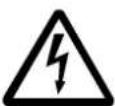
SA 1965
The lightning flash with arrowhead symbol, within an equilateral triangle, is intended to alert the user to the presence of uninsulated "dangerous voltage" within the product's enclosure that may be of sufficient magnitude to constitute a risk of electric shock to persons.

SA 1966
The exclamation point within an equilateral triangle is intended to alert the user to the presence of important operating and maintenance (servicing) instructions in the literature
WARNING:
TO REDUCE THE RISK OF FIRE OR ELECTRIC SHOCK, DO NOT EXPOSE THIS PRODUCT TO RAIN OR MOISTURE.
THIS IS A CLASS A PRODUCT.
IN A DOMESTIC ENVIRONMENT THIS PRODUCT MAY CAUSE RADIO
INTERFERENCE IN WHICH CASE THE USER MAY BE REQUIRED TO TAKE ADEQUATE MEASURES.
FOR UNITED STATES USERS:
INFORMATION
This equipment has been tested and found to comply with the limits for a Class A digital device, pursuant to Part 15 of the FCC Rules. These limits are designed to provide reasonable protection against harmful interference when the equipment is operated in a commercial environment.
This equipment generates, uses, and can radiate radio frequency energy and, if not installed and used in accordance with the instruction manual, may cause harmful interference to radio communications.
Operation of this equipment in a residential area is likely to cause harmful interference in which case the user will be required to correct the interference at his own expense.
USER-INSTALLER
CAUTION:
Your authority to operate this FCC verified equipment could be voided if you make changes or modifications not expressly approved by the party responsible for compliance to Part 15 of the FCC rules.
WARNING:
Handling the cord on this product or cords associated with accessories sold with this product, wi expose you to lead, a chemical known to the State of California to cause birth defects or other reproductive harm.
Wash hands after handling.
BEFORE YOU USE
■ The supplied power cord and AC adapter are designed for exclusive use with this product. Do not use them with other equipments.
■ Be sure to use the power cord applicable to your local power specifications. If the product was sold in Japan, use the AC adapter sold with the product with 100VAC and 50 or 60 Hz.
- Do not knot or coil the power cord or AC adapter cord or wrap them around the AC adapter. Doing so may damage the cords, causing fire or electric shock.
■ When storing the product, do not leave it under direct sunlight or by heaters. It may be discolored, deformed, or damaged.
■ Do not place this product in any humid, dusty, salt bearing wind, or vibrating locations.
Use it under the following environmental conditions:
Temperature: 0^ C - 40^ C ( 32^ F - 104^ F)
Humidity: 30% - 85% (No condensation)
■ Use a soft, dry cloth for cleaning.
Do not use any volatile solvent such as thinner or benzene.
■ Do not point the camera lens directly at the sun. It may be damaged and you may not be able to take pictures
■ Luminescent and Black Spots
There may be some pixels that do not properly operate due to the use of CMOS Area Image Sensors made-up of many pixels. Though luminescent or black spots may be found on the screen, it is a phenomenon peculiar to the CMOS Area Image Sensors and is not a malfunction.
■ Follow the guidelines below to prevent the unit from dropping or overturning.
- Use the product on a stable base, desk, or table. Do not place the product on an unstable base or slanted location.
- Place or wire the unit to prevent the AC adapter cord or video cable from pulling.
- Carry the product by holding the lower part of the main unit in both hands. Never hold the product by the arm or the camera head.
■ Pay careful attention when using (including setting-up and storing) or transferring the product to prevent the camera head from receiving any shocks.
■ Do not look directly into the LED light. If you look directly into it at point-blank range, your eyes may be injured.
■ Depending on the type of SD card being used, it may not be used with the product.
■ Transfer the data from the SD card onto a device such as a PC to save a backup copy. Malfunction of the product or repairs to it may cause the data saved in the SD card to be deleted.
Note
In the description of this manual, the notation is as follows:
-SD memory card, SDHC memory card → "SD card"
If this product is used for longer than the warranty period, its performance and quality may deteriorate due to the lifetime of its parts. To purchase replacement parts, consult the dealer from whom you purchased this product or our branch/office near your location.
■ Menu
Some functions may not be set or operated depending on the mode or the menu settings being used.
■ The product may not operate properly if a USB hub is used to connect the product and a PC.
■ Do not commercially use or transfer images taken by the product without the permission of the copyright holder except for personal use.
■ Do not use the camera in locations where taking images are prohibited.
■ Important notes when connecting HDMI cable.
- Use HDMI cable with Type-D Micro connectors.
- Use HIGH SPEED HDMI cable with HDMI logo.
HDMI cable that is not compliant with HDMI standard cannot be used. - Pay attention not to apply excessive force when an external device is connected to HDMI. It may cause damage or malfunction.
- Depending on the devices to be connected to HDMI image or audio may not output properly. In such cases, disconnect HDMI cable and reconnect it. It may improve the problem. When performing above connection checking, make sure the power supplies of the product and the TV are OFF.
If the problem still remains, try to change HDMI cable.
CONTENTS
IMPORTANT SAFEGUARDS....2
BEFORE YOU USE 7
1 BUNDLED ITEMS....11
2 PART NAMES AND FUNCTIONS....12
Appearance....12
Operating panel....13
Rear panel and cable connections....15
Side Panel....18
Bottom panel 19
3 PREPARATION AND CONNECTION....20
Setting Up....20
Moving Parts of the Mobile Document Camera....21
Connecting to a projector or a monitor....22
Connecting to a PC 23
Turning on the power....24
Power supply from the AC adapter ....24
Power supply from the USB....24
4 SHOOTING IMAGES....25
Adjusting the size ....25
Adjusting the brightness 25
Adjusting the focus 25
Turning the lamp ON/OFF 25
Pausing the video....25
Saving a still image....26
Rotating the image....26
Switching the output video....27
In the order that the output video changes (in the order that the LED lights up) 28
5 CHANGING THE SETTINGS....29
Changing the settings....29
Descriptions of each menu ....30
Camera output display mode menu 30
Setting Date/Time (Clock Set) 32
6 USING A USB....33
Installing the software....33
Connecting to a PC 33
Controlling the product from a USB-connected PC....34
7 USING AN SD CARD 35
Saving images....36
Displaying the saved data....36
Thumbnail display mode....37
8 TROUBLE SHOOTING....38
9 SPECIFICATIONS....40
General....40
Main Camera....40
Illumination Device ....41
Trademarks and License ....42
Repairable Period....42
1 BUNDLED ITEMS
Product's package has the following contents. Contact your dealer if any of the following items are not included in the package you purchased.
VISUAL PRESENTER

CD-ROM
Image Mate Instruction manual
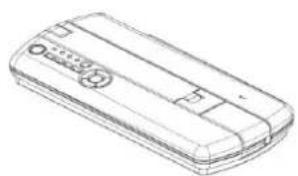
natural_image
Line drawing of a rectangular electronic device with no visible text or symbols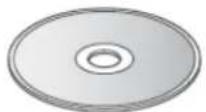
Manual/Image Mate CD
Contents of the CD
-Image Mate
-Instruction manual
-Basic Startup Guide
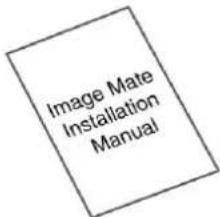
AC adapter

Power cord

USB cable

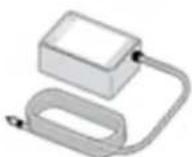
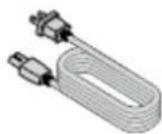
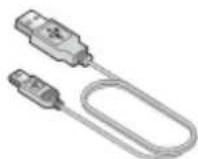
Warranty card※
Important Safeguards

※North America only
2 PART NAMES AND FUNCTIONS
Appearance
Operation of the main unit:

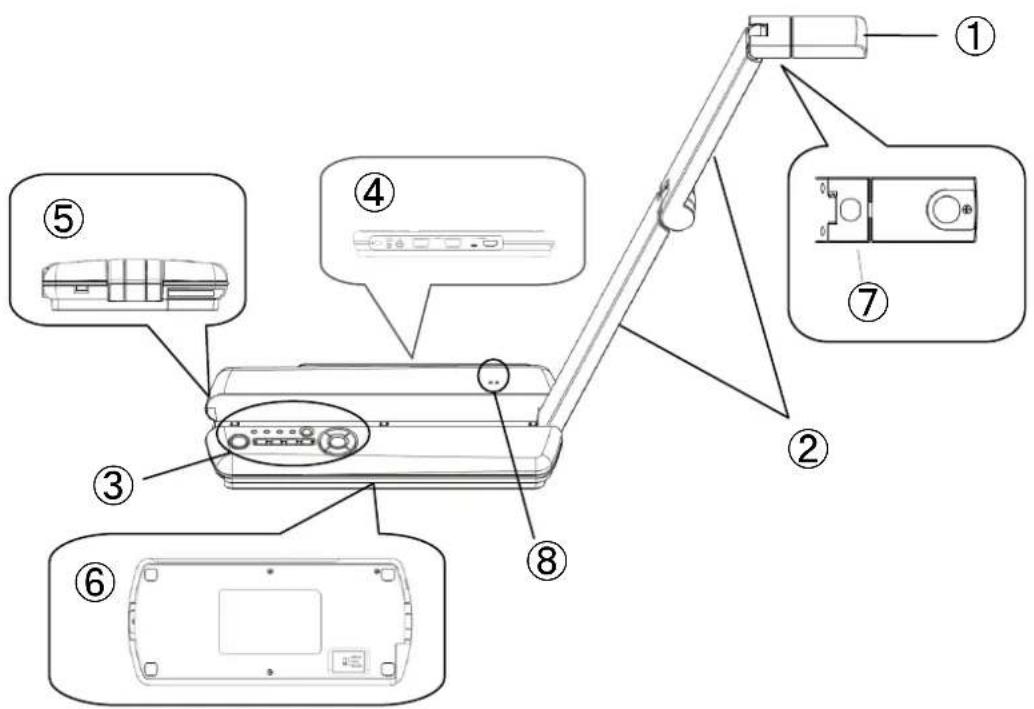
| Name | ||
| 1 | Camera head | |
| 2 | Arm | |
| 3 | Operating panel |  |
| 4 | Rear panel |  |
| 5 | Side panel |  |
| 6 | Bottom panel |  |
| 7 | Lamp |  |
| 8 | Microphone | |
Operating panel
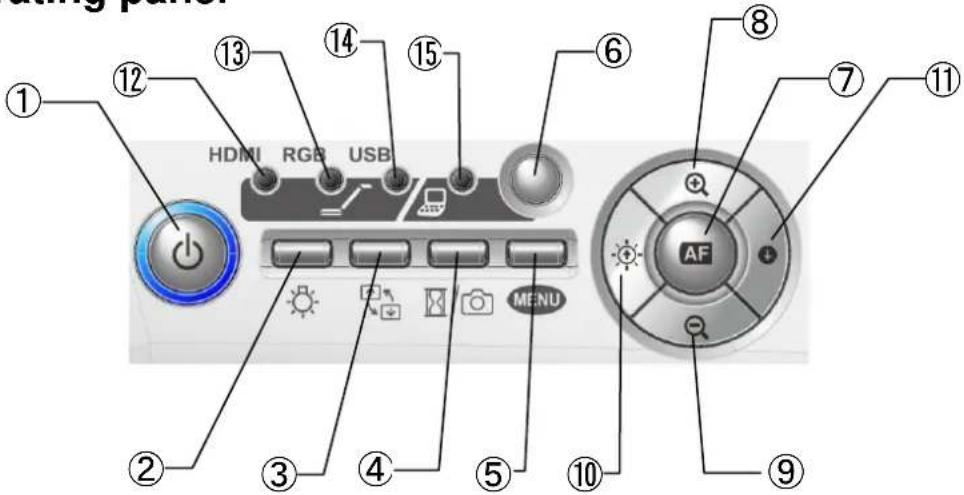
| Mark | Name | Function | |
| 1 |  | Power | To turn the power ON/OFF.Power ON: Blue lightPower OFF (standby status): Red light |
| 2 |  | Lamp | To turn the lamp ON/OFFNoteThe lamp is always OFF when power is turned on. |
| 3 | [SXXG] | Image Rotation | To rotate the imageStill image (Captured image): Rotates by 90°Live image (Camera image): Rotates by 180° |
| 4 |  | Image Freeze / Capture | To pause the camera image by pressing this button for a short moment (less than 1 second). Press this button again to restart.To save a still image to the SD card by pressing this button for long (more than 1 second). |
| 5 |  | Menu | To show/hide the menu on the screenP29 |
| 6 | [7C08] | Image Selection | To switch the output video.LED of the selected output video 12~15 lights up.P28 |
| 7 |  | Auto Focus | To automatically focus on the object.AF works once when this button is pressed. |
| 8 |  | Zoom In | To zoom in an object. The lamp is always OFF when power is turned on. The lamp is always OFF when power is turned on. |
| 9 |  | Zoom Out | To zoom out an object. |
| 10 |  | Bright | To brighten the camera image. |
| 11 |  | Dark | To darken the camera image. |
| 12 |  | Video OutputLED [HDMI] | When this LED is lit in blue, digital video is output.Select the output mode with the Image Selection button. |
| 13 |  | Video OutputLED [RGB] | When this LED is lit in blue, analog RGB video is output.Select the output mode with the Image Selection button. |
| 14 |  | Video OutputLED [USB] | When this LED is lit in blue, the product can be connected to a PC via a USB cable.Select the output mode with the Image Selection button. |
| 15 |  | Video OutputLED [EXT] | When this LED is lit in blue, external input video is output.Select the output mode with the Image Selection button. |
Rear panel and cable connections
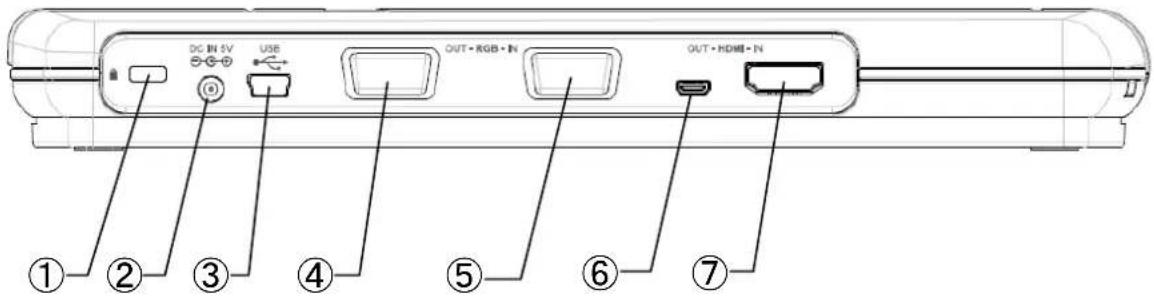
| Mark Name | Function | |
| 1 | [607H] | Security slot |
| 2 | DC IN 5V⊖⊖⊖ | Plug-in for the AC adapter.Connect the supplied AC adapter. |
| 3 |  | To connect the product to a PC. (USB cable is supplied with the product.)Connect the Mini-B-Type connector to the product. |
| 4 | RGB OUT | To output analog RGB video. (Analog RGB cable is not supplied with the product.) |
| 5 | RGB IN | To output the video input to the [RGB-IN] terminal from the [RGB-OUT] terminal. |
| 6 | HDMI OUT | To output digital video. (HDMI cable is not supplied with the product.)Connect the Micro HDMI (Type D) connector to the product. |
| 7 | HDMI IN | To output the video input to the [HDMI-IN] terminal from the [HDMI-OUT] terminal. (HDMI cable is not supplied with the product.)Connect the Standard HDMI (Type A) connector to the product. |
① To connect a security cable.
An anti-theft security cable can be connected.
An anti-theft security cable is not supplied with the product.
② To connect the AC adapter.
Before inserting the AC adapter in an outlet, connect the DC plug of the supplied AC adapter to the [\] terminal on the rear panel.
③ To connect the product to a PC with a USB cable.
Install the control software “Image Mate” contained in the supplied CD-ROM onto your PC to connect the product to a PC.
For information on the PC requirements, OS types and the software guides, see the "Image Mate" installation manual and the "HELP folder" in the CD-ROM.
④ To connect the product to a device with an analog RGB input terminal.
Connect the RGB cable to the [RGB IN] terminal on the rear panel.
Press the Image Selection button to light up the Video Output LED [RGB]
⑤ To connect the product to a device with an analog RGB output terminal.
Connect the RGB cable to the [RGB OUT] terminal on the rear panel.
Press the Image Selection button to light up the Video Output LED [EXT]. The video input to the [RGB IN] terminal is output from the [RGB OUT] terminal.
⑥ To connect the product to a device with an HDMI input terminal.
Connect a commercially available HDMI cable to the [HDMI OUT] terminal on the rear panel. The product has a Micro HDMI (Type D) terminal.
Press the Image Selection button to light up the Video Output LED [HDMI].

Note
- Use a monitor that supports video signals (resolution) higher than 720p.
The product does not operate with a cable that is not compliant with HDMI standard. - HDMI of the product is compliant with HDMI standard. Elmo does not guarantee operation of all HDMI-compatible monitors.
⑦ To connect the product to a device with an HDMI output terminal.
Connect a commercially available HDMI cable to the [HDMI IN] terminal on the rear panel. The product has a Standard HDMI (Type A) terminal.
Press the Image Selection button to light up the Video Output LED [EXT].
Note
- If the displayed image is off-center, adjustment of the horizontal and vertical position should be made from the connected device.
- In some cases, vertical stripes may appear on the display device. This can be reduced by adjusting the "clock phase" function of the connected device.
- When using a PC with an external output mode, set the PC to the external output mode after lighting up the Video Output LED [EXT].
- We recommend using a USB 2.0 compliant USB cable.
• Operation is not guaranteed for all environments. - Press the Image Selection button to select the output video. For the information on the switching of the output video, refer to “Switching the output video” P27
- We recommend to use the AC adapter when connecting the product to a PC via a USB cable.
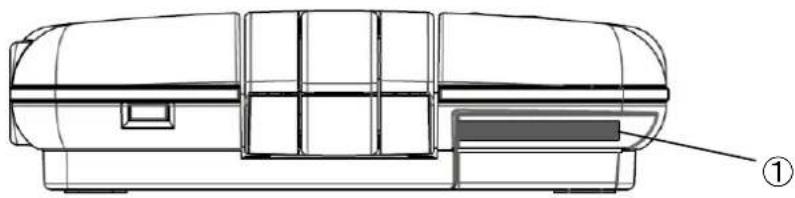
Side Panel
natural_image
Technical line drawing of a mechanical device with labeled component (①), no readable text or symbols present.| Function | |
| 1 | To insert an SD card (commercially available).Push the card again to remove the SD card. |
Bottom panel
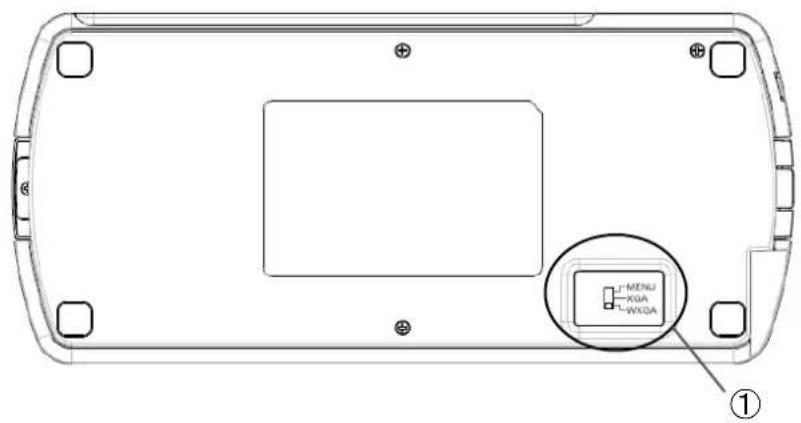
Output resolution from the RGB OUT terminal can be changed with the dip switch.
| Change Resolution Switch | Function | |
| 1 | 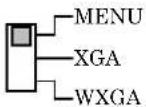 | MENUAnalog RGB output resolution can be changed from the OSD menu settings. |
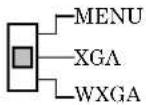 | XGAAnalog RGB output resolution is fixed to XGA. | |
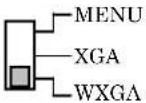 | WXGAAnalog RGB output resolution is fixed to WXGA. |
Note
- When the dip switch is set to XGA or WXGA, the resolution setting of the OSD menu is disabled.
- Perform the output resolution change with the power supply turned off. When the power supply turned on, output resolution does not change according to the dip switch setting.
3 PREPARATION AND CONNECTION
Setting Up

Note
- Carry the product by holding the lower part of the body in both hands. Never hold the product by the arm or the camera head.
- Pay attention to prevent the camera head from knocking against a desk or the like.
- Move the arm while supporting the body with your hand.
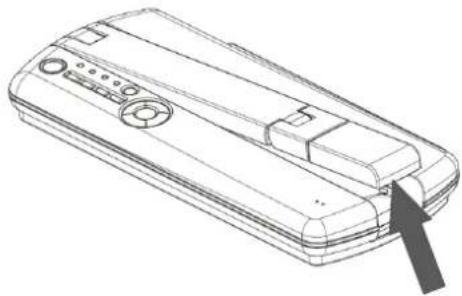
① Hooking your finger to the position indicated by an arrow in the drawing, slightly lift up
natural_image
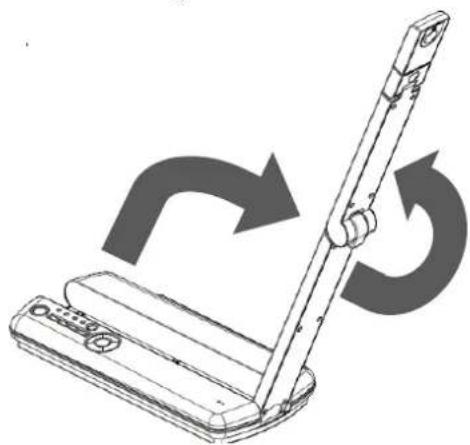
Line drawing of a mobile phone casing with control panel and buttons (no text or symbols)③ Move the arm in the direction indicated by an arrow.
natural_image
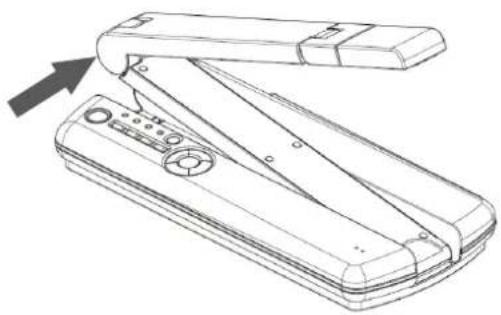
Diagram of a vacuum cleaner with rotating arm mechanism (no text or symbols)② Lift up the other side of the arm.
natural_image
Line drawing of a mobile phone with an open lid and control panel (no text or symbols)④ Move the camera head so that it is horizontal.
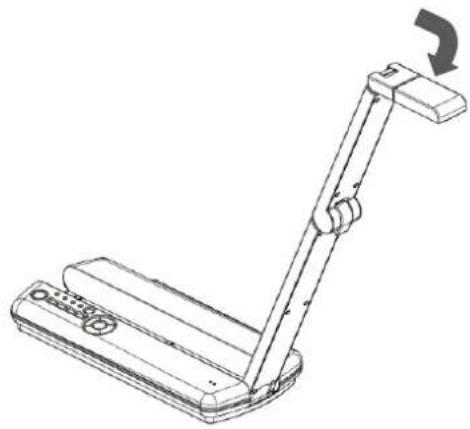
natural_image
Technical line drawing of a mechanical lever assembly (no text or symbols)CAUTION
When moving the arm, pay attention not to pinch your finger.
Moving Parts of the Mobile Document Camera
This unit can be moved as shown below.
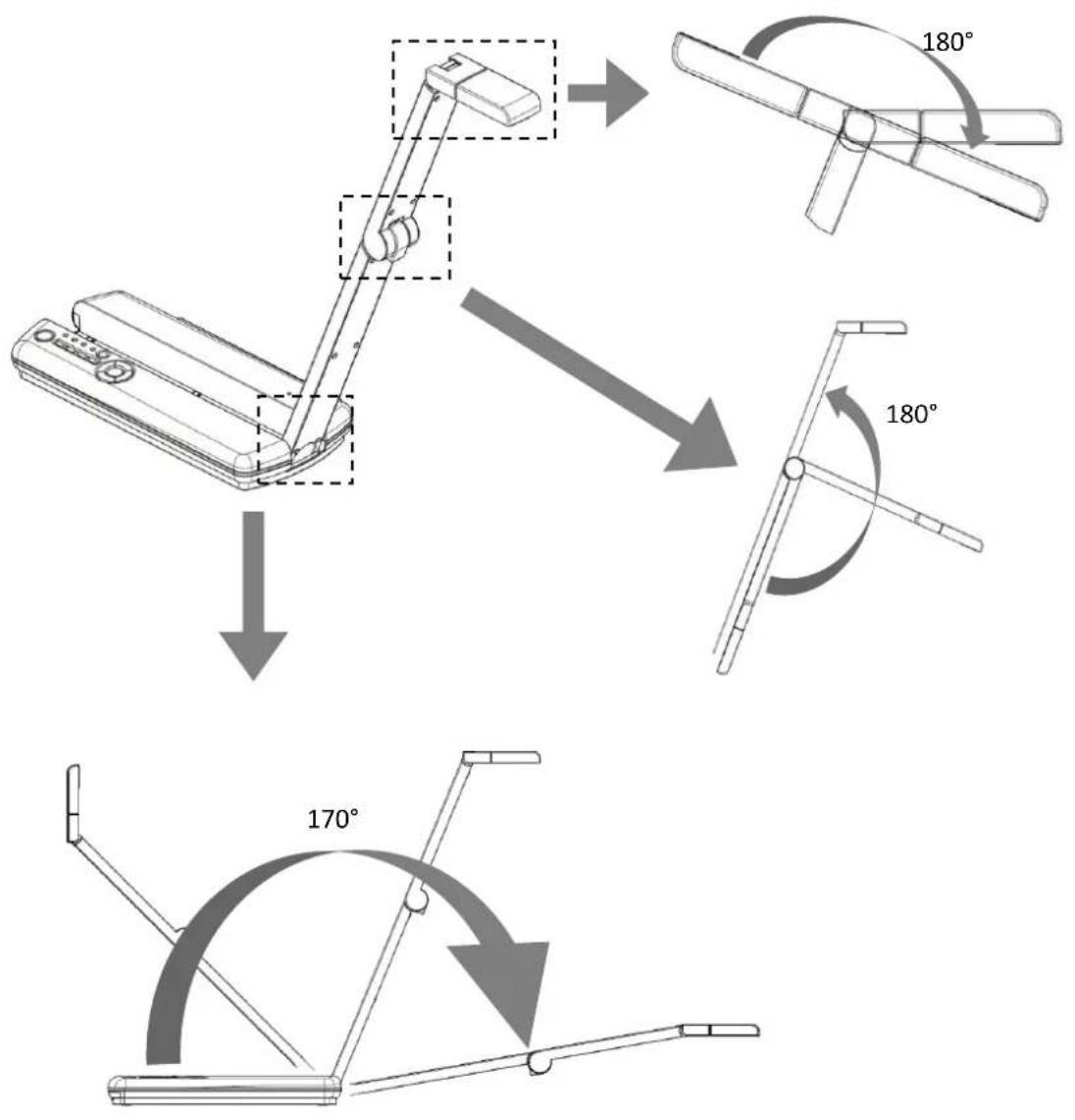
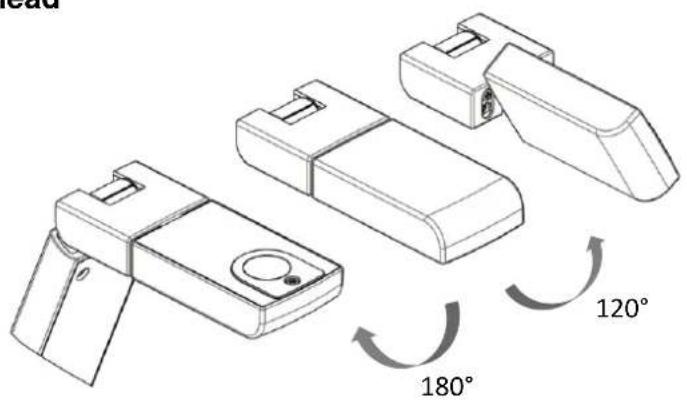
Camera head
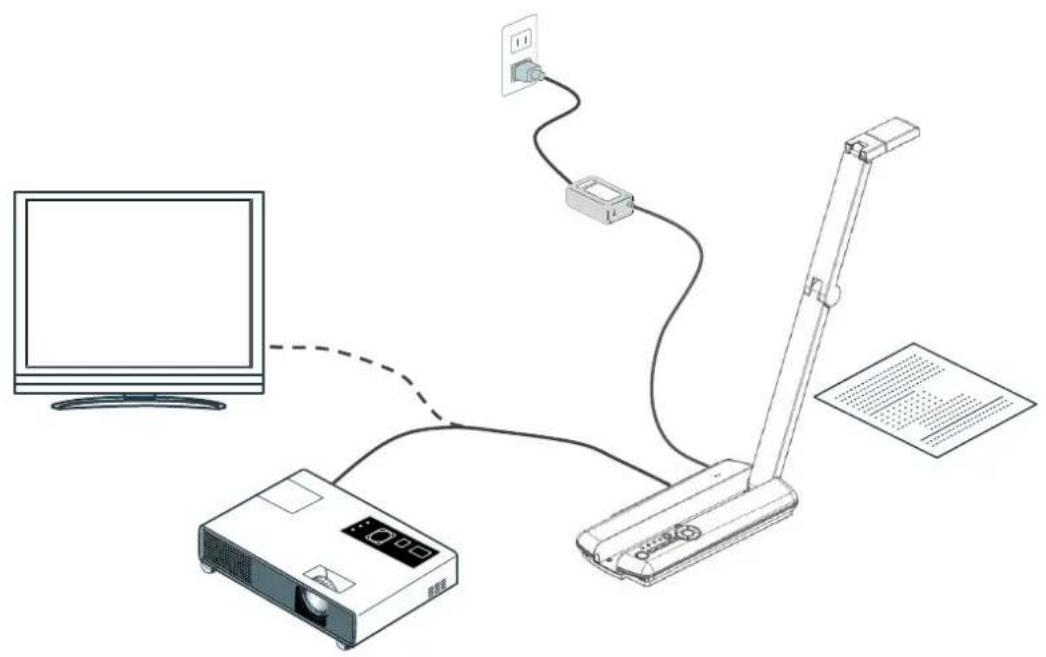
Connecting to a projector or a monitor
natural_image
Diagram of a computer setup with monitor, projector, lamp, and paperboard (no text or symbols)Set up the product as shown in the above drawing and turn on the power after connecting a projector or a monitor.
Note
- Either an HDMI signal or an analog RGB signal can be output to a projector or a monitor.
Output signal can be selected with the Image Selection button.
Connecting to a PC
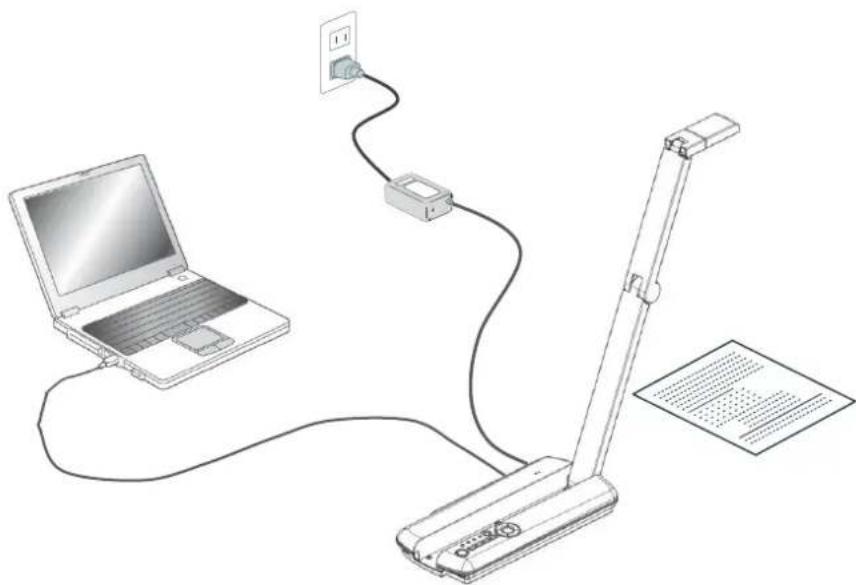
natural_image
Line drawing of a laptop connected to a desk lamp via cable, with a separate paper sheet nearby (no text or symbols)Set up the product as shown in the above drawing and turn on the power after connecting a PC.
Turning on the power
Power supply from the AC adapter
- Connect the AC cord and the AC adapter. Then connect the AC adapter to the [DCIN5V] terminal at the rear panel of the product, and insert the AC cord into an outlet.
- Turn the power on by pressing the power button on the operating panel.
Power supply from the USB
Note
To operate the product with the power from the USB, a USB port that can output more than 3.4W is needed. When supplying the power from the USB, connect to the USB3.0 port of the PC or use a commercially available 2-port USB cable with power supply function to connect to the 2 USB2.0 ports of the PC.
If both are not available, use the AC adapter.(Recommendation)
- Connect the miniUSB plug (Type B) of the USB cable to the USB connector at the rear panel.
- Connect the USB plug (Type A) of the USB cable to the USB port of a PC.
- Turn the power on by pressing the power button on the operating panel.
Note
- When connecting to the USB port, pay attention to its direction.
- When the power is supplied from the USB port (the AC adapter is not used), a video signal is not output from the HDMI OUT terminal and the RGB OUT terminal.
4 SHOOTING IMAGES
Adjusting the size
The display range of the document can be adjusted by pressing the [ + / - ] buttons on the operating panel.
[+] :ZOOM-IN····The object can be shown in large size.
[Q]:ZOOM-OUT···The object can be shown in small size.
Note
Zoom ratio: Digital Max 8x.
Image quality will be degraded when ZOOM-IN.
Still images and the images saved in an SD card cannot be zoomed in or out.
When the camera mode is changed while zoom function is in operation, the zoom is deactivated and the size of the image returns to normal.
Adjusting the brightness
Press the [-↑-/↓] button on the operating panel to adjust the image brightness. The brightness does not change automatically according to the brightness of the shooting environment.
[ -↑- ] : bright · · · · The image becomes bright.
[↓]:dark ·····The image becomes dark.
Adjusting the focus
Press the [AF] button to automatically focus on an object.
Turning the lamp ON/OFF
Press the [☐] button to turn on the lamp. Press the button again to turn off the lamp.
Pausing the video
Press the [☐/☐] button for a short moment (less than 1 second) to pause the camera image. Press the button again to restart.
Note
- When a camera image is paused by pressing [ ☒/☐ ] for a short moment in digital zoom, the digital zoom is deactivated. The digital zoom is activated again when the pause is released by pressing [ ☒/☐ ] again.
- Pressing any button other than [ ☐/☐ ] button will release the pause.
Saving a still image
Press the [ ☒/☐] button for long (more than 1 second) to save a still image to the SD card.
Rotating the image
• Live image (Camera image):
【Upside▲】mark in the camera head indicates the direction of the sensor. The image appears upside-down when the camera head is set as shown in the below drawing. The image rotates by 180° by pressing the [ ] button.
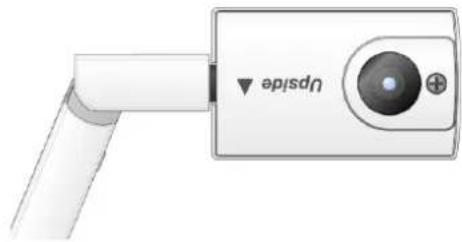
natural_image
Close-up of a white handheld device with a circular button labeled 'Upgrade' and a downward arrow, no readable text or symbols beyond the button.- Still image (Camera image):
The image rotates counterclockwise by 90°by pressing the [ ] button.
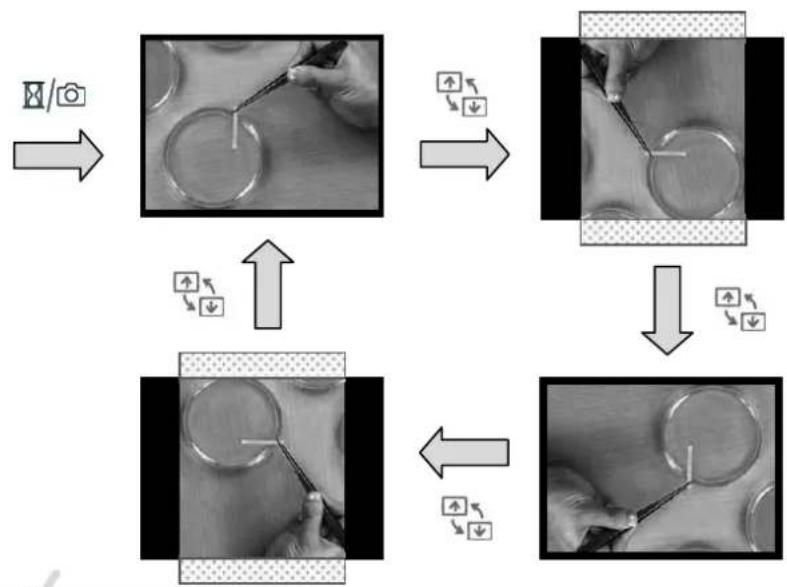
flowchart
graph TD
    A["Input Camera"] --> B["Image Scan"]
    B --> C{Rotation}
    C -->|Up/Down| D["Output Image"]
    C -->|Left/Right| E["Image Mask"]
    E --> F["Final Output"]
Note
- Both ends of the image are cut when a still image is rotated by 90^ or 270^ .
- The image that is saved in an SD card cannot be rotated.
- When a camera image is rotated, Pressing any button other than [ ↑ ↓ ] button will release the rotation.
- The image rotation cannot be used when the MENU is on display.
Switching the output video
The Video Output LED of the output terminal used is lit.
The output video can be selected by pressing the Image Selection button.
| Video OutputLED | Function | |
| 1 | HDMI | A video signal is output from the HDMI OUT terminal. |
| 2 | RGB | A video signal is output from the RGB OUT terminal. |
| 3 | USB | The product can be connected to a PC via a USB cable. |
| 4 | EXIT | In standby status (power is OFF)•the AC Adaptor is use (*1):A video signal input to the RGB IN terminal is output from the RGB OUT terminal.In operation (power is ON)•the AC Adaptor is used:A video signal input to the HDMI IN terminal is output from the HDMI OUT terminal(*2):A video signal input to the RGB IN terminal is output from the RGB OUT terminal. |
In the order that the output video changes (in the order that the LED lights up)
| Connected Item | 1 | Image Selection Button | 2 | Image Selection Button | 3 | Image Selection Button | ||
| AC Adaptor | Power ON | HDMI | → | RGB | → | EXT | → | To 1 |
| USB Cable | Power ON | USB | → | No Change | ||||
| AC Adaptor USB Cable | Power ON | HDMI | → | RGB | → | USB EXT | → | To 1 |
Note
- When the USB power supply is enabled (when the AC adapter is not used) and when the power is OFF (standby status), a video signal input to the [RGB II terminal is output from the [RGB OUT] terminal. (EXT lamp is not lit.) The video signal input to the [RGB IN] terminal is not output from the [RGB OUT] terminal when the power is ON. (*1)
- When the power is supplied from the USB port (the AC adapter is not used), a video signal is not output from the HDMI OUT terminal and the RGB OUT terminal. ^*2
- When the power is OFF (standby status), a video signal input to the HDMI IN terminal is not output from the HDMI OUT terminal.
5 CHANGING THE SETTINGS
Various settings for the product are changed through the menu (characters and icons) displayed on the screen.
Changing the settings
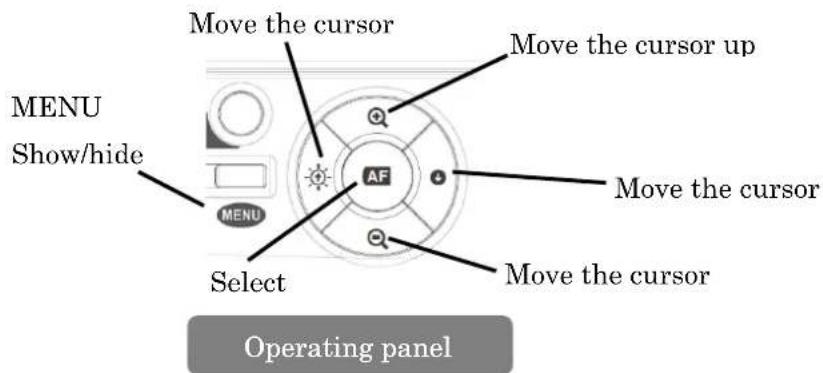
① Press the [MENU] button on the operating panel to display the menu on the screen, and then use the[ ] button to move the cursor to the icon you want to operate or set.
② Press the [AF] button to select the setting values.
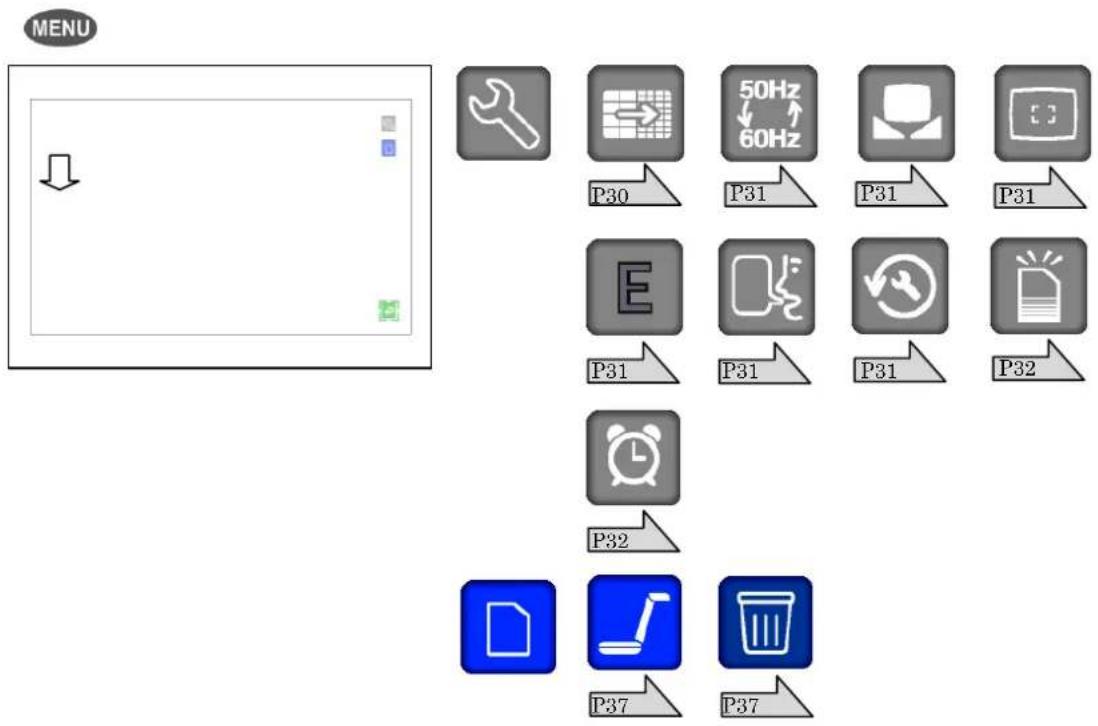
flowchart
graph TD
    A["MENU"] --> B["↓"]
    B --> C["1. Tool Icon: wrench, 50Hz, 60Hz, 3. Device Icon: printer, 3. Display Icon: monitor icon"]
    C --> D["2. Function Key: P30, P31, P31, P31, P31, E, P31, P31, P31, P32"]
    D --> E["3. Process Step: clock, alarm, 3. Display, 3. Display, 3. Display, 3. Display"]
    E --> F["4. File Icon: document, 3. Workload, 3. Waste Bin"]
    F --> G["5. Status Indicator: P37, P37"]
※To go back a layer or to hide the menu, select [←] and press the [AF] button.
Descriptions of each menu
Camera output display mode menu
| Icon | Name | Selection Item | Factory Setting | Function |
 | Preferences | To display the setting menu for the camera image. | ||
 | Thumbnails | To display thumbnails of images saved in the SD card. | ||
 | Exit | To hide the menu. |

Setting menu (Second layer)
| Icon | Name | Selection Item | Factory Setting | Function |
 | ResolutionFor HDMI | 1080i | √ | To set the HDMI output resolution.The resolution that the connected display device does not support cannot be set.*1 Suitable when shooting moving objects.*2 Suitable when taking wide angle images. |
| 720p 60fps*1 | ||||
| 720p 30fps*2 | ||||
 | ResolutionFor RGB | WXGA [WXGA] | To set the analog RGB output resolutionEffective when the output resolution setting switch on in the bottom panel is set to [MENU]. | |
| XGA [XGA] | √ | |||
 | Flickerless | Off | √ | To lower the fluorescent light flickering due to power frequency. Select the same value as used for the power supply frequency. |
| 60Hz | Japan/U.S. | |||
| 50Hz | Others | |||
 | White Balance | Auto | √ | The white balance is adjusted automatically to ensure a more natural color according to the shooting scene. |
| Natural | Suitable for the scene where there is outside light. | |||
| Fluorescent | Suitable for the scene under a fluorescent light. | |||
| Incandescent | Suitable for the scene under an incandescent lamp. | |||
 | Focus | Near | Suitable for the scene under a fluorescent light. | |
| Far | ||||
| Exit | ||||
 | Edge Effect | On | To emphasize the outline of the image. | |
| Off | √ | |||
 | Language | Japanese | Japan | To set the language for the OSD menu. |
| English | Others | |||
 | Reset All | Yes | To reset the settings of resolution, flickerless, white balance, edge effect, language and brightness to factory settings. | |
| No | ||||
 | Format | Yes | To format the SD card. (No operation is allowed during the formatting process.) | |
| No | ||||
 | Clock Set | To set the time. | ||
 | Exit | To return to the camera output display mode menu. |
Note
When the output resolution is HDMI, actual output resolution might be different from the resolution set by the Setting menu depending on the connected monitor.
Setting Date/Time (Clock Set)
Press [ 🔍 ] in the Setting menu (Second layer) to display the following screen. You can set the time.
Numbers displayed indicate Year (4 digits)/ Month (2 digits)/ Day (2 digits)
/ Hour (2 digits)/ :/ Minute (2 digits).
The number indicated by green arrows can be changed with the [+] / [ -] buttons. The green arrows move to the left each time when the [-+/-] button is pressed and move to the right each time when the [↓] button is pressed.
Press the AF button to save the set time.
2016 05 26 09:47
Note
The clock setting will be reset automatically after a long period of non-operation. Then you will need to perform the clock setting again.
6 USING A USB
Installing the software
Install the control software “Image Mate” contained in the supplied CD-ROM onto your PC to connect the product to a PC.
For details about the operating environment and the OS of the connected computer or the operation of the software, refer to the installation manual of Image Mate.
Connecting to a PC
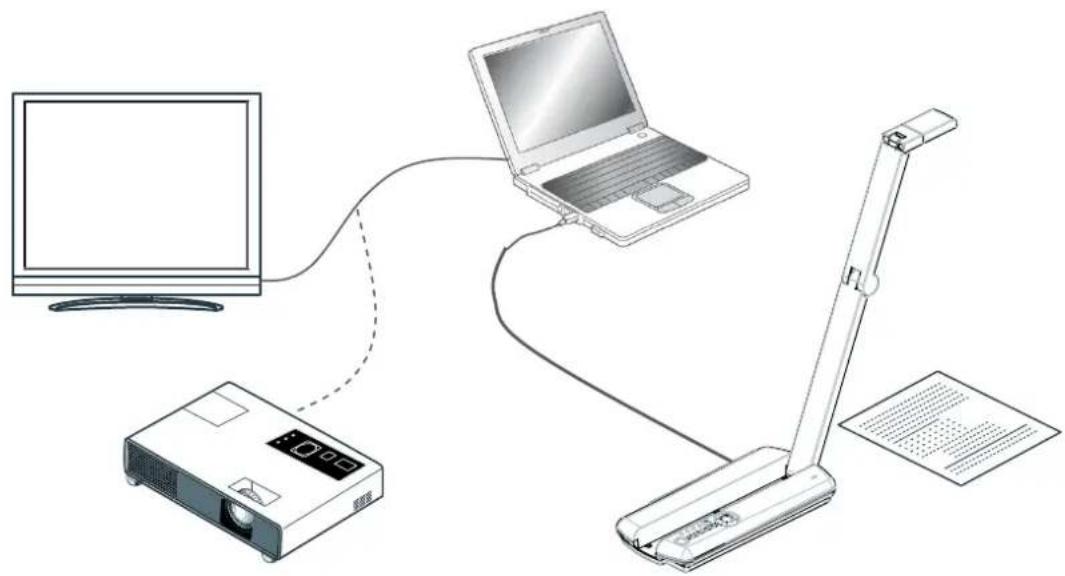
natural_image
Diagram showing connections between a projector, laptop, and lamp (no text or symbols present)Set up the product as shown in the above drawing and turn on the power after connecting a PC.
Note
- When the product does not recognize the PC, turn off the product and turn it on again.
- Depending on the environment of your PC, the product is not recognized when the PC is in standby status or in sleep status. Make sure to cancel the standby
Controlling the product from a USB-connected PC
By using the "Image Mate", you can perform the following tasks:
• To transfer the camera image to a PC
• To operate the product from a PC
CAUTION
- Do not connect/disconnect the USB cable while operating the operating panel.
- We recommend using a USB 2.0-compliant USB cable.
- Use a high specification PC (Core2Duo or higher) or down-convert the resolution to 640x480.
- When viewing an image with other viewer than Image Mate, start the viewer after setting the unit to USB mode.
7 USING AN SD CARD
With this product, you can save the camera image as a picture on an SD card. You can also display the data stored in the SD card on the screen.
Before you begin, insert a commercially available SD card into the SD card slot of the side panel.
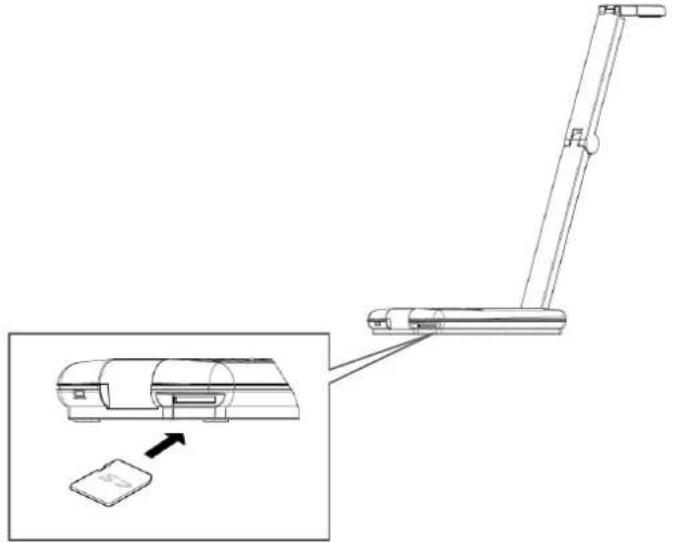
natural_image
Line drawing of a printer with an open lid and a close-up inset showing the device's tip (no text or symbols)Note
- SD card
• The SDXC card cannot be used.
- Formatting the SD card with the product before you use is recommended.
- Using the SD card class 6 or higher is recommended.
- It may take some time to recognize the SD card after inserting it or to save images to the SD card.
- Do not remove the SD card when it is in read/write operation.
• We do not guarantee the proper operation when you use the image taken by this product with any third party product or when you use the image taken by any third party product with this product or when you use the modified image with this product.
Saving images
① Press the [☐/☐] button on the operating panel for 1 second or more while the menu is not displayed on the screen.
② Saving begins when [图标] appears on the screen.
Displaying the saved data
① Press the [MENU] button on the operating panel to display the menu.
② Select [ ] and press the [ AF ] button on the operating panel to display thumbnails (list of pictures).
③ Move the cursor using the [→]·[↓]·[⊕]·[←] button on the operating panel.
④ Press the [AF] button to display the selected picture full-screen.
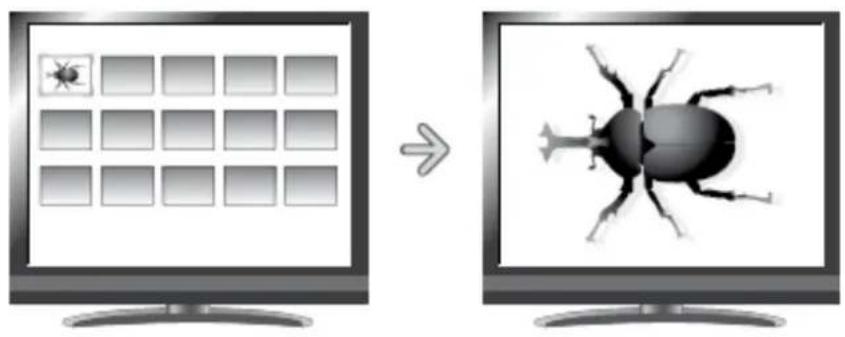
Note
- Files larger than 5MB cannot be displayed.
• We do not guarantee the proper operation when you use the image taken by this product with any third party product or when you use the image taken by any third party product with this product or when you use the modified image with this product. - Images with more than 4000 horizontal pixels or 3000 vertical pixels cannot be displayed.
Thumbnail display mode
Thumbnail display mode menu
| Icon | Name | Selection Item | Factory Setting | Function |
 | Camera | To display the camera image. |
Still image display mode menu
| Icon | Name | Selection Item | Factory Setting | Function |
 | Camera | To display the camera image. | ||
 | Delete | Yes | To delete the displayed still image. Next image is displayed after the deletion. | |
| No | ||||
 | Exit | To hide the menu. |
8 TROUBLE SHOOTING
If you have a problem or questions about this product, please read this troubleshooting guide first. If the problem still exists, consult the dealer from whom you purchased this product.
| Symptom | Possible cause/ remedy |
| No image is displayed. | The cable is not properly connected.The AC adapter is disconnected from the wall outlet.The AC adapter is disconnected from the power supply socket of the unit.The power is not ON. (Blue light)Zoom is set at the TELE side, displaying only the white/black part of the document.If you turn the power ON immediately after turning it OFF, the unit may not start. Wait for several seconds after turning the power OFF, and then turn it back ON.The setting of the Image Selection does not correspond to the video cable connected.Reconnect the AC adapter.When the power is supplied from USB, check if the USB cable is connected properly. |
| The output image (resolution) changes automatically. | When the HDMI monitor is connected, the output image (resolution) is automatically changed based on information from the connected monitor |
| No image is displayed from the USB. | The slide switch is not set to the correct image output (USB). Set the switch correctly. |
| The image is out of focus. | The document (object) is too close to the lens. Move the document (object) slightly away from the lens.Auto focus may have difficulty in adjusting correctly.Adjust the focus manually by using "FOCUS" in the setting menu. |
| The image is too dark. | The intensity of the lighting is insufficient. Press the [icon] button on the operating panel to adjust the brightness.Turn on the lamp. |
| The image is striped. | This may be interference fringes between dots of the printed material and TV scanning lines or CMOS pixels.Changing the shooting range may help the problem.Vertical stripes may appear on an LCD projector image Manually adjusting the dot clock at the projector side may help the problem. |
| There is a flickering of the fluorescent light. | Set the value of the flicker correction in the menu same as the power frequency of your area. |
| Images on the SD card are not displayed. | Remove the SD card, wait a few seconds and reinsert. |
| The image does not move. | Camera image is set to [Pause]. Press the Pause button on the operating panel again to restart. |
| After inserting the SD card, operations cannot be performed. | The SD card is not being read correctly.Format the card using the main unit. |
| The set time is reset. | The clock setting will be reset automatically after a long period of non-operation. Then you will need to perform the clock setting again. After the clock setting is performed, connect the AC adapter and leave the product for over 6 hours to charge the battery for the clock. |
About the lamp (LED lamp)
The brightness of the lamp will diminish with long-term use. If its brightness has significantly diminished, consult the dealer from whom you purchased the product or our nearest branch/office for replacement.
About long-term usage of this product
Due to the lifetime of its parts, if the product is used for longer than the warranty period, its performance and quality may deteriorate. In this case, we will replace the parts for a charge. Consult the dealer from whom you purchased the product or our nearest branch/office.
9 SPECIFICATIONS
General
| Item | Specifications |
| Power source | DC5V(AC adapter AC100~240V)PC requirements for the power supply from a USB:- A PC with the USB3.0 port- A PC with 2 USB portsRefer to P22 for details about the connection procedure. |
| Power consumption | 4.2W(DC5.0V)(USB Power Supply:3.3W) |
| Outside dimensions | W101×D416×H338[mm](When setup)W101×D行226×H28[mm](When folded) |
| Weight | Approx. 550g |
| Output terminal | RGB output Mini Dsub 15P connector female×1HDMI output TypeD Micro HDMI terminal |
| Input terminal | RGB input Mini Dsub 15P connector female×1HDMI input Type A Standard HDMI terminal |
| USB interface | USB2.0 High Speed、Full Speed compliantUSB VIDEO CLASS Ver.1.1compliantType Mini B receptacle ×1 |
| Memory interface | SD card slot×1 |
Main Camera
| Item | Specifications | |||||
| Lens | F2.9 | |||||
| CameraFrame rate / Shooting area | Frame rate | Max. | Min. | |||
| 1080i | 30fps | 342mm | 192mm | 42.75mm | 24mm | |
| 1080p | 15fps | 342mm | 192mm | 42.75mm | 24mm | |
| 720p | 60fps | 214mm | 120mm | 26.75mm | 15mm | |
| 720p | 30fps | 342mm | 192mm | 42.75mm | 24mm | |
| WXGA | 20fps | 342mm | 214mm | 42.75mm | 26.75mm | |
| XGA | 20fps | 342mm | 257mm | 42.75mm | 32.125mm | |
| VGA | 20fps | 342mm | 257mm | 42.75mm | 32.125mm | |
| Item | Specifications | |
| Limit of focus adjustment | From lens surface 70mm~∞ | |
| Focus | Auto/ Manual | |
| Image pick-up element | 1/3.2” 5M pixel CMOS Sensor | |
| Effective pixels | Horizontal 2048, Vertical 1536 | |
| Sync. system | Internal | |
| HDMI output | Image output1080i, 720p(max Shooting area: 342mmx192mm)720p (max Shooting area: 214mmx120mm) | |
| Analog RGB output | Analog RGB output 0.7V(p-p)75ΩunbalancedSync. signalWXGA : Horizontal negative polarity, Vertical positive polarityXGA : Negative polarity | WXGA:1280x800 @60HzHorizontal frequency:49.702kHzVertical frequency:59.810HzXGA:1024x768 @60HzHorizontal frequency:48. 363kHzVertical frequency:60.004Hz |
| USB output | Image output1080p, 720p(max Shooting area: 342mmx192mm)WXGA:1280x800, XGA:1024x768, VGA:680x480 | |
| White balance | Auto/ Outdoor/ Fluorescent light/ Incandescent lamp | |
| Brightness control | Provided | |
| Image rotation | Camera live image :0°/180°Camera Still image :0°/90°/180°/270° | |
| Edge effect | ON / OFF | |
| Pause | Provided | |
| Still image capture | Provided | |
| Flicker correction | OFF / 60Hz / 50Hz | |
Illumination Device
| Item | Specifications |
| Illumination | White LED |
Trademarks and License
ELMO and Image Mate are registered trademarks of ELMO Co., Ltd.
SD、SDHC、SD (SD logo) and SD (SDHC logo) are trademarks of SD-3C, LLC.
HDMI, Hoge-inHigh-Definition Multimedia interface are trademarks or registered trademarks of HDMI Licensing LLC.
All other company/ product names described in this manual are trademarks or registered trademarks of their respective companies.
WARNING
- Unauthorized recording of copyrighted slide films, materials, photographs, etc. may infringe on the rights of copyright owners and be contrary to copyright laws.
- This device is an information device designed to be used in an industrial area. Using this device in a residential area or its vicinity may interfere with receivers such as radios and televisions.
- Images of a person or other objects taken by the camera system that can be used to identify individuals are considered personal information. Please note that the person who uses the camera system is responsible for the handling of such images.
Repairable Period
ELMO will maintain and keep spare parts for this product for eight years after the discontinuation of this product. After this period, ELMO will no longer offer repair service for this product.
ELMO CO., LTD.
6-14, Meizen-cho, Mizuho-ku, Nagoya, 467-8567, Japan
OVERSEAS SUBSIDIARY COMPANIES
ELMO USA CORP.
Headquarters 1478 Old Country Road
Plainview, NY 11803-5034, U.S.A
Tel:(516) 501-1400 Fax:(516) 501-0429
E-mail: elmo@elmousa.com Web: http://www.elmousa.com
West Coast Branch Cypress Pointe Business Park
5676 Corporate Avenue
Cypress, CA 90630, U.S.A
Tel:(714) 828-8457 Fax:(714) 828-8429