TT-12i - Caméra de documents Elmo - Free user manual and instructions
Find the device manual for free TT-12i Elmo in PDF.


| Product Type | Document Camera |
| Brand | Elmo |
| Model | TT-12i |
| Dimensions (W x D x H) | Approx. 330 x 280 x 520 mm (folded) |
| Weight | Approx. 3.5 kg |
| Power Supply | AC 100-240V, 50/60 Hz |
| Image Sensor | 1/3-inch CMOS |
| Resolution | Up to 1080p full HD |
| Optical Zoom | 12x optical zoom |
| Digital Zoom | 8x digital zoom |
| Light Source | LED lamps (adjustable) |
| Output Interface | HDMI, VGA, USB |
| Main Functions | Live image display, annotation, image capture, recording |
| Compatible Operating Systems | Windows, macOS, Chrome OS |
| Maintenance | Clean lens with soft cloth; avoid liquids |
| Safety | Use only supplied power adapter; do not disassemble |
| Spare Parts & Repairability | Contact Elmo support for replacement parts |
| User Manual | Available for free download at notice-facile.com |
Frequently Asked Questions - TT-12i Elmo
User questions about TT-12i Elmo
0 question about this device. Answer the ones you know or ask your own.
Ask a new question about this device
Download the instructions for your Caméra de documents in PDF format for free! Find your manual TT-12i - Elmo and take your electronic device back in hand. On this page are published all the documents necessary for the use of your device. TT-12i by Elmo.
USER MANUAL TT-12i Elmo
Please read this instruction manual carefully before using this product and keep it for future reference.
Read Instructions
All the safety and operating instructions should be read before the appliance is operated.
■ Retain Instructions
The safety and operating instructions should be retained for future reference.
■ Heed Warnings
All warnings on the product and in the operating instructions should be adhered to.
■ Follow Instructions
All operating and use instructions should be followed.
■ Cleaning
Unplug this product from the wall outlet before cleaning. Do not use liquid cleaners or aerosol cleaners. Use a damp cloth for cleaning.
■ Attachments
Do not use attachments not recommended by the product manufacturer as they may cause hazards.
■ Water and Moisture
Do not use this product near water - for example, near a bath tub, wash bowl, kitchen sink, or laundry tub, in a wet basement, or near a swimming pool, and the like.
Placement
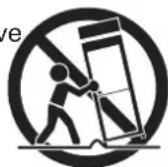
Do not place this product on an unstable cart, stand, tripod, bracket, or table. The product may fall, causing serious injury to a child or adult, and serious damage to the product. Use only with a cart, stand, tripod, bracket, or table recommended by the manufacturer, or sold with the product. Any mounting of the product should follow the manufacturer's instructions, and should use a mounting accessory recommended by the manufacturer.
Ventilation
Slots and openings in the cabinet are provided for ventilation and to ensure reliable operation of the product and to protect it from overheating, and these openings must not be blocked or covered. The openings should never be blocked by placing the product on a bed, sofa, rug, or other similar surface. This product should not be placed in a built-in installation such as a bookcase or rack unless proper ventilation is provided or the manufacturer's instructions have been adhered to.
■ Power Sources
This product should be operated only from the type of power source indicated on the marking label. If you are not sure of the type of power supply to your home consult your appliance dealer or local power company. For products intended to operate from battery power, or other sources, refer to the operating instructions.
■ Grounding or Polarization
This product may be equipped with either a polarized 2-wire AC line plug (a plug having one blade wider than the other) or a 3-wire grounding type plug, a plug having a third (grounding) pin. The 2-wire polarized plug will outlet, try reversing the plug. If the plug still fails to fit, contact your electrician to replace your obsolete outlet. Do not defeat the safety purpose of the polarized plug. The 3-wire grounding type plug will fit into a grounding type power outlet. This is a safety feature. If you are unable to insert the plug into the outlet, contact your electrician to replace your obsolete outlet. Do not defeat the safety purpose of the grounding type plug.
■ Power-Cord Protection
Power-supply cords should be routed so that they are not likely to be walked on or pinched by items placed upon or against them, paying particular attention to cords at plugs, convenience receptacles, and the point where they exit from the product.
Lightning
For added protection for this product during a lightning storm, or when it is left unattended and unused for long periods of time, unplug it from the wall outlet and disconnect the antenna or cable system. This will prevent damage to the product due to lightning and power-line surges.
■ Overloading
Do not overload wall outlets, extension cords, or integral convenience receptacles as this can result in a risk of fire or electric shock.
A product and cart combination should be moved with care. Quick stops, excessive force, and uneven surfaces may cause the product and cart combination to overturn.
■ Object and Liquid Entry
Never push objects of any kind into this product through openings as they may touch dangerous voltage points or short-out parts that could result in a fire or electric shock. Never spill liquid of any kind on the product.
Servicing
Do not attempt to service this product yourself as opening or removing covers may expose you to dangerous voltage or other hazards. Refer all servicing to qualified service personnel.
■ Damage Requiring Service
Unplug this product from the wall outlet and refer servicing to qualified service personnel under the following conditions:
- When the power-supply cord or plug is damaged.
- If liquid has been spilled, or objects have fallen into the product.
- If the product has been exposed to rain or water.
- If the product does not operate normally by following the operating instructions. Adjust only those controls that are covered by the operating instructions as an improper adjustment of other controls may result in damage and will often require extensive work by a qualified technician to restore the product to its normal operation.
- If the product has been dropped or damaged in any way.
- When the product exhibits a distinct change in performance - this indicates a need for service.
■ Replacement Parts
When replacement parts are required, be sure the service technician has used replacement parts specified by the manufacturer or have the same characteristics as the original part. Unauthorized substitutions may result in fire, electric shock or other hazards.
■ Safety Check
Upon completion of any service or repairs to this product, ask the service technician to perform safety checks to determine that the product is in proper operating condition.
Heat
The product should be situated away from heat sources such as radiators, heat registers, stoves, or other products (including amplifiers) that produce heat.

CAUTION
RISK OF ELECTRIC SHOCK DO NOT OPEN
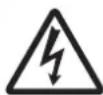
CAUTION: TO REDUCE THE RISK OF ELECTRIC SHOCK, DO NOT REMOVE COVER (OR BACK). NO USER-SERVICEABLE PARTS INSIDE. REFER SERVICING TO QUALIFIED SERVICE PERSONNEL.
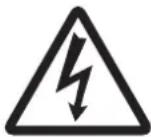
SA 1965
The lightning flash with arrowhead symbol, within an equilateral triangle, is intended to alert the user to the presence of uninsulated “dangerous voltage” within the product’s enclosure that may be of sufficient magnitude to constitute a risk of electric shock to persons.

SA 1966
The exclamation point within an equilateral triangle is intended to alert the user to the presence of important operating and maintenance (servicing) instructions in the literature accompanying the product.
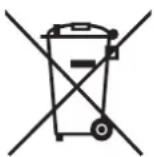
This symbol [crossed-out wheeled bin WEEE Annex IV] indicates separate collection of waste electrical and electronic equipment in the EU countries.
Please do not throw the equipment into the domestic refuse.
Please use the return and collection systems available in your country for the disposal of this product.
WARNING:
TO REDUCE THE RISK OF FIRE OR ELECTRIC SHOCK, DO NOT EXPOSE THIS PRODUCT TO RAIN OR MOISTURE.
The connection of a non-shielded equipment interface cable to this equipment will invalidate the FCC Certification or Declaration of this device and may cause interference levels which exceed the limits established by the FCC for this equipment. It is the responsibility of the user to obtain and as shielded equipment interface cable with this device. If this equipment has more than one interface connector, do not leave cables connected to unused interfaces. Changes or modifications not expressly approved by the manufacturer could void the user's authority to operate the equipment.
FOR UNITED STATES USERS:
INFORMATION
This equipment has been tested and found to comply with the limits for a Class A digital device, pursuant to part 15 of the FCC Rules. These limits are designed to provide reasonable protection against harmful interference when the equipment is operated in a commercial environment. This equipment generates, uses, and can radiate radio frequency energy and, if not installed and used in accordance with the instruction manual, may cause harmful interference to radio communications. Operation of this equipment in a residential area is likely to cause harmful interference in which case the user will be required to correct the interference at his own expense.
This device complies with part 15 of the FCC Rules. Operation is subject to the following two conditions: (1) This device may not cause harmful interference, and (2) this device must accept any interference received, including interference that may cause undesired operation.
FCC CAUTION
Changes or modifications not expressly approved by the party responsible for compliance could void the user's authority to operate the equipment.
This Class A digital apparatus complies with Canadian ICES-003.
Handling the cord on this product or cords associated with accessories sold with this product, will expose you to lead, a chemical known to the State of California to cause birth defects or other reproductive harm.
Wash hands after handling.
BEFORE YOU USE
■ When using this device, be sure to use the supplied power cord and AC adapter.
■The power cord and AC adapter that come with this product are for this product only. Do not use them with another product.
■ Be sure to use the power cord applicable to your local power specifications.
■When storing the product, do not leave it under direct sunlight or by heaters. It may become discolored, deformed, or damaged.
■ Do not place this product in any humid, dusty, salt bearing wind, or vibrating locations.
Only use it under the following environmental conditions:
Temperature: 0°C - 40°C (32°F - 104°F)
Humidity: 30% - 85% (No condensation)
■ Use a soft, dry cloth for cleaning.
Do not use any volatile solvent such as thinner or benzene.
■ Do not point the camera lens directly at the sun. It may be damaged and you may not be able to take pictures.
■ Luminescent and Black Spots
There may be some pixels that do not properly operate due to the use of CMOS Area Image Sensors made-up of many pixels.
Though luminescent or black spots may be found on the screen, it is a phenomenon peculiar to the CMOS Area Image Sensors and is not a malfunction.
■ Follow the guidelines below to prevent the unit from dropping or overturning.
- Use the product on a stable base, desk, or table. Do not place the product on an unstable base or slanted surface.
- Place or wire the unit to prevent the AC adapter cord or video cable from pulling.
- Carry the product by holding the lower part of the main unit in both hands. Never hold the product by the column or the camera head.
■ Pay careful attention when using (including setting-up and storing) or transferring the product to prevent the camera head from receiving any shocks.
■ Do not look directly into the LED light. If you look directly into it at point-blank range, your eyes may be injured.
■ Some type of SD card/USB flash drive can be used.
■ Transfer the data from the SD card onto a device such as a PC to save a backup copy. Malfunction of the product or repairs to it may cause the data saved in the SD card to be deleted.
If this product is used for longer than the warranty period, its performance and quality may deteriorate due to the lifetime of its parts. To purchase replacement parts, consult the dealer from whom you purchased this product or our branch/office near your location.
■ Battery precautions: - If this product is not going to be used for a long time, take the batteries out of the remote control.
- Do not use rechargeable batteries (e.g., Ni-Cd (NiCad batteries)).
- Do not use new and old batteries or batteries of different types together.
- Do not try to recharge or short-circuit the batteries.
- When disposing of used batteries, follow the instructions of your local government.
- Insert from one side and pay particular attention to the polarity (+/- directions).
- Be sure to use AAA batteries.
If any liquid from a battery leaks onto your skin or clothes, flush the area with clean water immediately. If it gets into your eye, flush immediately with clean water and then contact a doctor.
■ Do not keep the batteries in the reach of children because there may be a choking hazard.
If a battery is swallowed, consult a physician immediately as this could result in asphyxiation or the battery may become lodged in the stomach or esophagus.
■ About using microphones
Connecting microphones other than electret condenser microphones (microphones for PCs and so on) could cause a malfunction to occur. If you are concerned about this product's operating noise when using the built-in microphone, we recommend using an external microphone.
■ About the audio input port
Do not connect any audio line-output devices such as a CD/MP3 player to the audio input port when the Audio Selector is set to "Mic-in." Audio input is a dual purpose port (microphone/line-in) which supplies power when "Mic-in" is selected, adding external output devices (CD/MP3) may damage them.
Menu
Some functions may not be set or operated depending on the mode or the menu settings being used.
Record/Play
- Before recording an important scene, make sure to do a test recording to confirm that the camera is working properly.
- The maximum file size of the continuous recording is 2GB. (The maximum recording length varies depending on other factors such as resolution and recording quality.)
- Movie files that are recorded with this camera or converted by the proprietary software can only be played with this camera.
Copyright
Do not commercially use or transfer movies or audio files recorded with the camera without the permission of the copyright holder except for personal use.
Do not use the camera in locations where recording movies or audio files are prohibited.
IMPORTANT SAFEGUARDS....i
BEFORE YOU USE ...... vi
Contents 2
1. BUNDLED ITEMS ...... 4
2. BASIC OPERATIONS .... 5
2-1 Document Camera....5
Part Names 5
Operating panel....6
Rear panel and cable connection 7
Side panel....10
Moving Parts of the Document Camera.... 11
2-2 Supplied Accessories.... 12
Remote Control 12
Preparation of Remote Control.... 12
Operation of the remote control 12
Receiving signal from the remote control 12
Image Mate CD-ROM/Instruction manual CD-ROM 13
2-3 Shooting Images.... 14
Setting up the main unit 14
Connecting the AC cord 14
Connecting the video cable....15
Turning the power ON/OFF 15
Adjusting the size 16
Adjusting the brightness.... 17
Automatic brightness adjustment 17
Manual brightness adjustment.... 18
Turning the illumination ON/OFF 19
Image selection 20
Pausing the image 20
2-4 Setting Changes 21
Changing a Setting 21
List of the Menus....21
Descriptions of Each Menu.... 22
Main Unit 22
Camera Controls [Second Layer] 22
Preferences [Second Layer] 24
Support Function.... 25
Support Function Setting 26
Details of Each Function 28
Highlight Function 28
Mask Function 30
Scroll Function 31
Compare Picture Function 32
Picture in Picture Function 33
Mosaic Function 35
Marker Mask Function.... 36
3. ADVANCED OPERATIONS ...... 37
3-1 Using an SD card/USB flash drive.... 37
Saving images 38
Picture 38
Movie....39
Displaying the stored data.... 41
Thumbnail display (list of pictures/movies).... 41
Displaying a picture full-screen 45
Playing a movie full-screen....50
3-2 Saving data stored on an SD card to PC via USB cable 53
3-3 Using this device by connecting to a PC with an USB cable 55
3-4 Using this device with a wireless pen tablet or a portable IWB (both sold separately) 57
Connection with the wireless pen tablet 57
Basic operations of the pen tablet....58
Selecting how to use the pen tablet from the tablet menu 60
Connection with the portable IWB 61
Basic operations of the portable IWB 62
Using the pen tablet or portable IWB to draw on the camera image.... 65
Menu descriptions 65
Using the pen tablet or portable IWB as a whiteboard 70
Menu descriptions 70
Using the pen tablet or portable IWB and an SD card....73
Menu descriptions 74
3-5 Displaying enlarged images using a microscope 80
Procedure 80
Exiting the Microscope mode 82
4. TROUBLE SHOOTING....83
4-1 Symptoms and Confirmation 83
5. SPECIFICATIONS......86
5-1 General 86
5-2 Main Camera 87
5-3 Illumination Device....88
5-4 Trademarks · License....89
1 BUNDLED ITEMS
The items below are included with this product. If any item is missing, contact the dealer from whom you purchased this product.
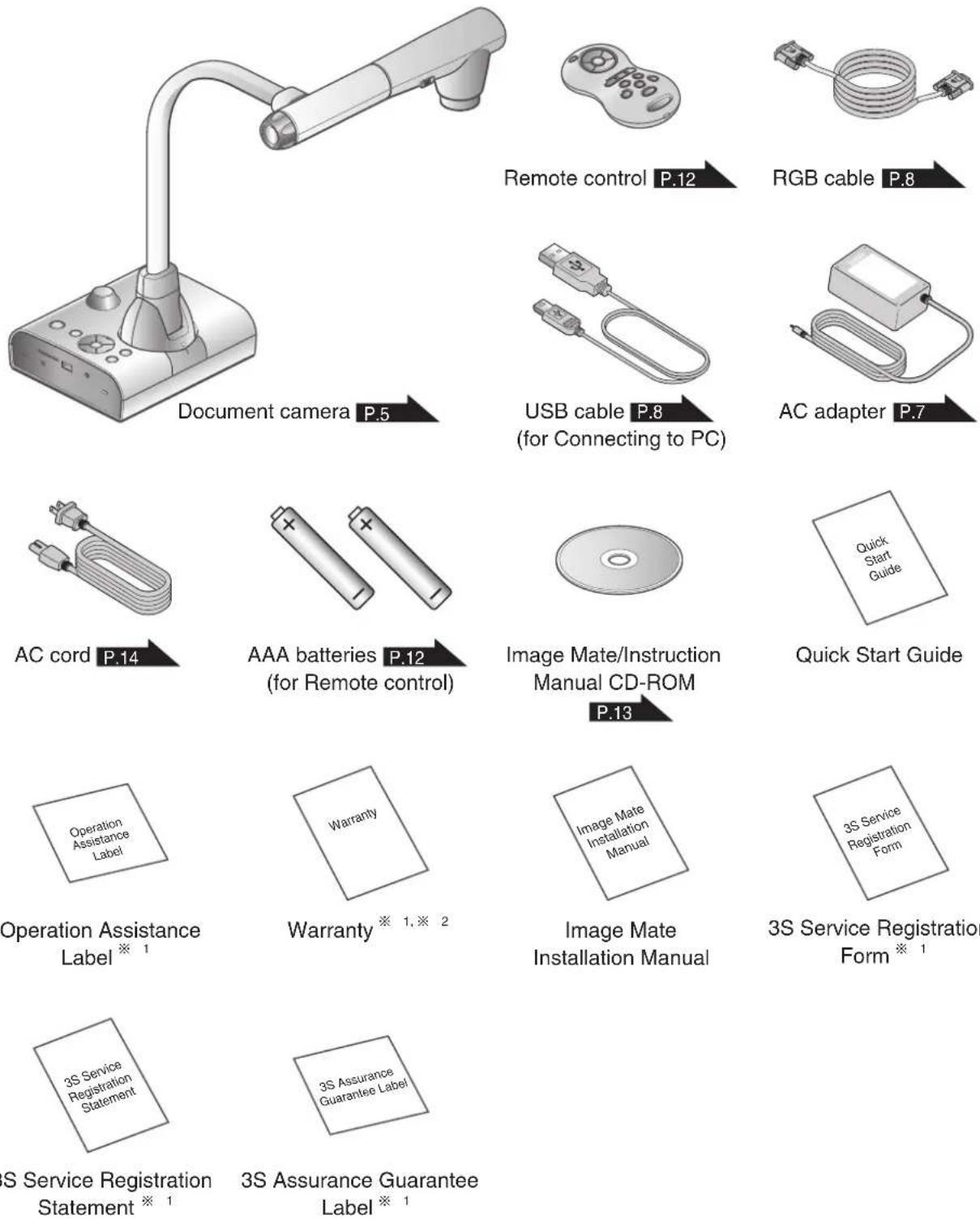
Remote control P.12
RGB cable P.8
USB cable P.8 (for Connecting to PC)
AC adapter P.7
AC cord P.14
AAA batteries P.12 (for Remote control)
Image Mate/Instruction Manual CD-ROM
Quick Start Guide
Operation Assistance Label ^※1
Warranty ^ 1, ^ 2
Image Mate Installation Manual
3S Service Registration Form ^※1
3S Service Registration Statement ※ 1
3S Assurance Guarantee Label ^※ 1
※ 1 Japan only
※ 2 N. America only
2 BASIC OPERATIONS
2-1 Document Camera
Port Names
Operation of the main unit:
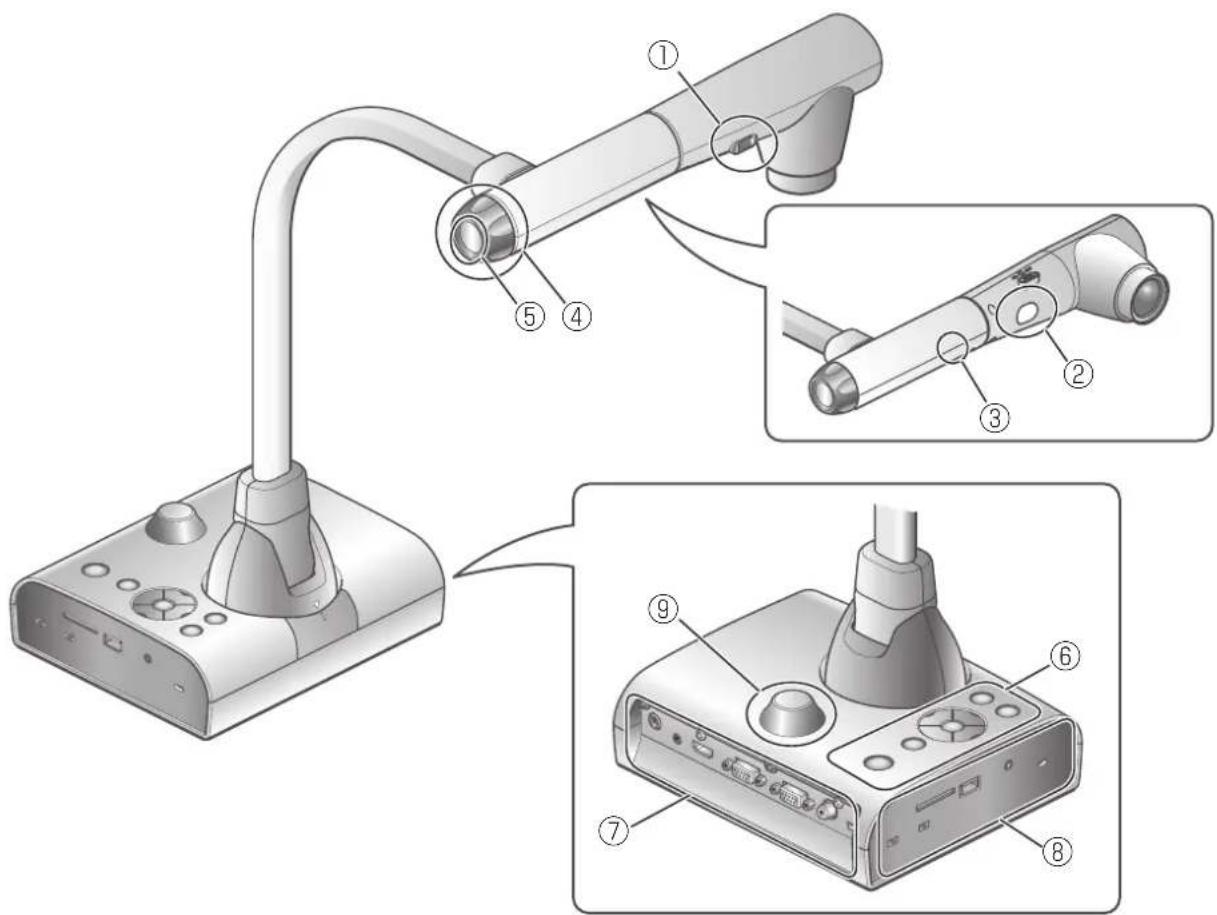
| No Name | |
| 1 | Illumination switch P.19 |
| 2 | Illumination P.19 |
| 3 | Built-in mic |
| 4 | Zoom dial P.16 |
| 5 | AF button |
| 6 | Operating panel P.6 |
| 7 | Rear panel P.7 |
| 8 | Side panel P.10 |
| 9 | Remote control sensor P.12 |
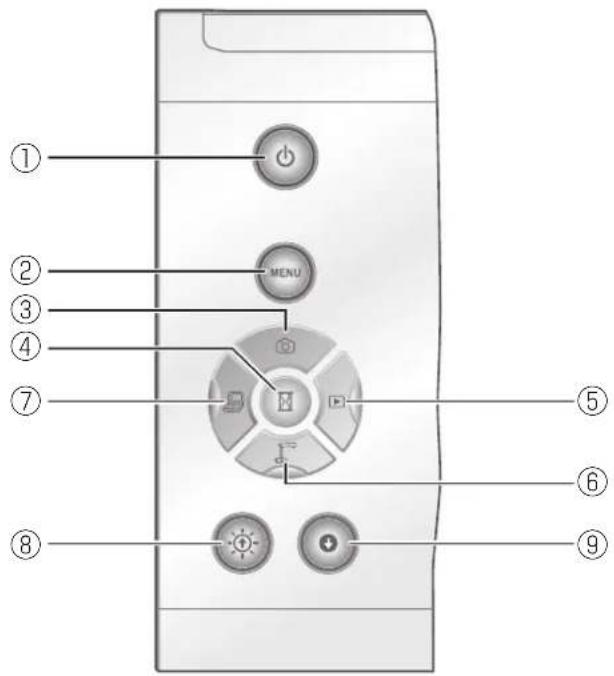
Operating panel
| MarkFunction | |||
| 1 | 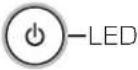 | To turn the power ON/OFF.Power ON: Blue lightPower OFF (standby status): Red lightNotePress and hold for more than 2 seconds to turn the power OFF. | |
| 2 |  | To show/hide the menu on screen.P.21 | |
| 3 |  | To save the still image on the SD card/USB flash drive.P.38 | |
| 4 |  | To pause the camera image. Press this button again to restart. | |
| 5 | Image select | 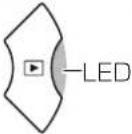 | To switch the screen to images stored on the SD card/USB flash drive.The LED is lit when the [ ] button is selected.P.20 |
| 6 |  | To switch the screen to camera image.The LED is lit when the [ ] button is selected.P.20 | |
| 7 |  | To switch the screen to the image input to RGB IN.The LED is lit when the [ ] button is selected.P.20 | |
| 8 | Brightness Adjust |  | To brighten the camera image.P.17 |
| 9 |  | To darken the camera image.P.17 | |
Fear panel and cable connection
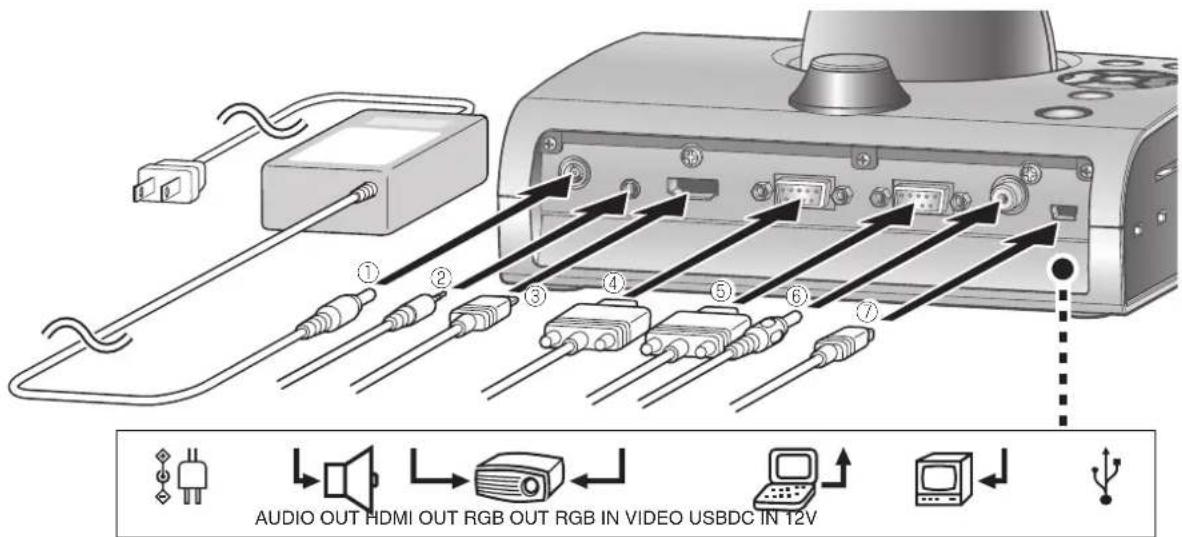
①
②
③
④
⑤
⑥
⑦
| Mark Function | ||
| 1 |  | Plug-in for the AC adapter. (A cable is supplied with this product.) |
| 2 |  | To output audio line . (An audio cable is not supplied with this product.) |
| 3 |  HDMI OUT HDMI OUT | To output digital images. (HDMI cable is not supplied with this product.) |
| 4 |  RGB OUT RGB OUT | To output analog RGB images. (A cable is supplied with this product.) |
| 5 |  | When the [ ] button is selected in Image Select, the image input to [ ] terminal can be output from the [ ] terminal. (A cable is supplied with this product.) |
| 6 |  VIDEO VIDEO | To output video images. (RCA cable is not supplied with this product.) |
| 7 | ### | To connect to a PC. (USB cable is supplied with this product.) |

Note
- When [VIDEO OUT] is output [RGB OUT], [HDMI OUT] is not output. When [RGB OUT], [HDMI OUT] is output [VIDEO OUT] is not output.
① To connect the AC adapter.
Before inserting the AC adapter in an outlet, connect the DC plug of the supplied AC adapter to the [DCON32V] terminal on the rear panel.
② To connect the unit to a device (speaker with amplifire etc) with an audio line input terminal. Connect a commercially available audio cable to the [AUDIO OUT] terminal on the rear panel.
③ To connect the unit to a device with an HDMI input terminal.
Connect a commercially available HDMI cable to the [→] terminal on the rear panel.
- Please use the monitor corresponding to the input of the image (resolution) or 720p or more.
It doesn't operate with the cable that doesn't conform to the HDMI standard. - Elmo does not guarantee operation for all HDMI-compatible monitors.
④ To connect the unit to a device with an analog RGB input terminal.
Connect the RGB cable to the [RGB OUT] terminal on the rear panel.
Only 1 RGB cable is supplied with the product.
⑤ To connect the unit to a device with an analog RGB output terminal.
Connect the RGB cable to the [RGB II] terminal on the rear panel.
Only 1 RGB cable is supplied with the product.
■ Specifications of the [RGB IN] terminal
Signal allocation
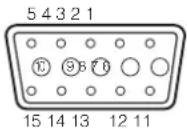
Video signal
Horizontal synchronized signal
Vertical synchronized signal
Analog 0.7V (p-p) 75Ω terminated
TTL level (Positive/negative polarity)
TTL level (Positive/negative polarity)
DSUB 15P shrink terminal (Female)
Pin assignment
| Pin No. | Name Pin No. Name |
| 1 Video | signal (Red) 6 GND (Re |
| 2 | Video signal (Green) |
| 3 | Video signal (Blue) |
| 4 | N.C |
| 5 | GND |
| Pin No. Name | |
| 1) 11 GND | |
| 7 | GND (Green) |
| 8 | GND (Blue) |
| 9 | N.C |
| 10 | GND |
| 12 | N.C |
| 13 | Horizontal synchronized signal |
| 14 | Vertical synchronized signal |
| 15 | N.C |
⑥ To connect the unit to a device with a composite video input terminal.
Connect a commercially available RCA pin plug video cable to the [VIDEO] terminal on the rear panel.
⑦ To connect a PC with the USB cable.
Connect the supplied USB cable to the [USB] terminal on the rear panel.

Note
- If the displayed image is off-center, adjustment of the horizontal and vertical position should be made from the connected device.
- In some cases, vertical stripes may appear on the display device. This can be reduced by adjusting the "clock phase" function of the connected device.
- When using a PC with an external output mode, set the PC to the external output mode after pressing the [] button on the operating panel.
- We recommend using a USB 2.0 compliant USB cable.
- If you plug into the USB cable with the power on, the PC may not recognize the device.
- Depending on the PC's USB environment or the peripheral equipment using the USB 2.0 compliant cable, image transfer may be disrupted.
- Operation is not guaranteed for all environments.
Side panel
Note
- Move the switch in ① according to the specification of the display device.
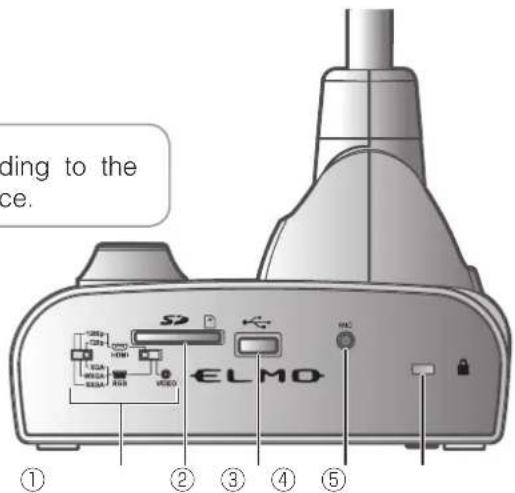
| MarkFunction | |||||
| 1 |  | To switch the output image type.Left switch: To switch the output terminal.Right switch: To switch the resolution. | |||
  | Resolution | Left switch | Right switch | Output image | |
| 1080 P (1920 × 1080) | II | ☐ | HDMI OUT | ||
| 720P (1280 × 720) | ☐ | ☐ | |||
| SXGA (1280 × 1024) | ☐ | ☐ | RGB OUT | ||
| WXGA (1280 × 800) | ☐ | ☐ | |||
| XGA (1024 × 768) | ☐ | ☐ | |||
| NTSC/PAL VIDEO OUT | III | ☐ | |||
| (NTSC/PAL is changed in the menu setting.) | |||||
| 2 |  | To insert an SD card (commercially available).Push the card again to remove the SD card. | |||
| 3 |  | To connect a wireless pen Tablet (commercially available) P.57 or a USB flash drive (commercially available) P.37 | |||
| 4 | MIC | Plug-in for an mic and line input. (A mic cable is not supplied with this product.) (The mic is only for the electret capacitor mic.) | |||
| 5 |  | Security slot. | |||
Note
- The same image is output to [RGB OUT] and [HDMI OUT].
- When the HDMI monitor is connected, the output image (resolution) is automatically changed based on information form the connected monitor. Even if [RGB OUT] is selected, it is not reflected.
- We recommend that you change the output image (resolution) with the power supply turned off (standby status).
In case you wish to change the output image (resolution) by looking at the output image with the power supply turned on, make sure to set the output image to camera image and hide all menus beforehand. We do not guarantee proper operation when the output image (resolution) was changed in any other condition than specified above. - Depending on the monitor you use, edge of the screen may not be displayed when OSD menu is shown on the VIDEO output. This is not a malfunction. Set the monitor to Underscan mode (if available).
- Connecting microphones other than electret condenser microphones (microphones for PCs and so on) could cause a malfunction to occur.
Nobing Parts of the Document Camera
This unit can be moved as shown below.
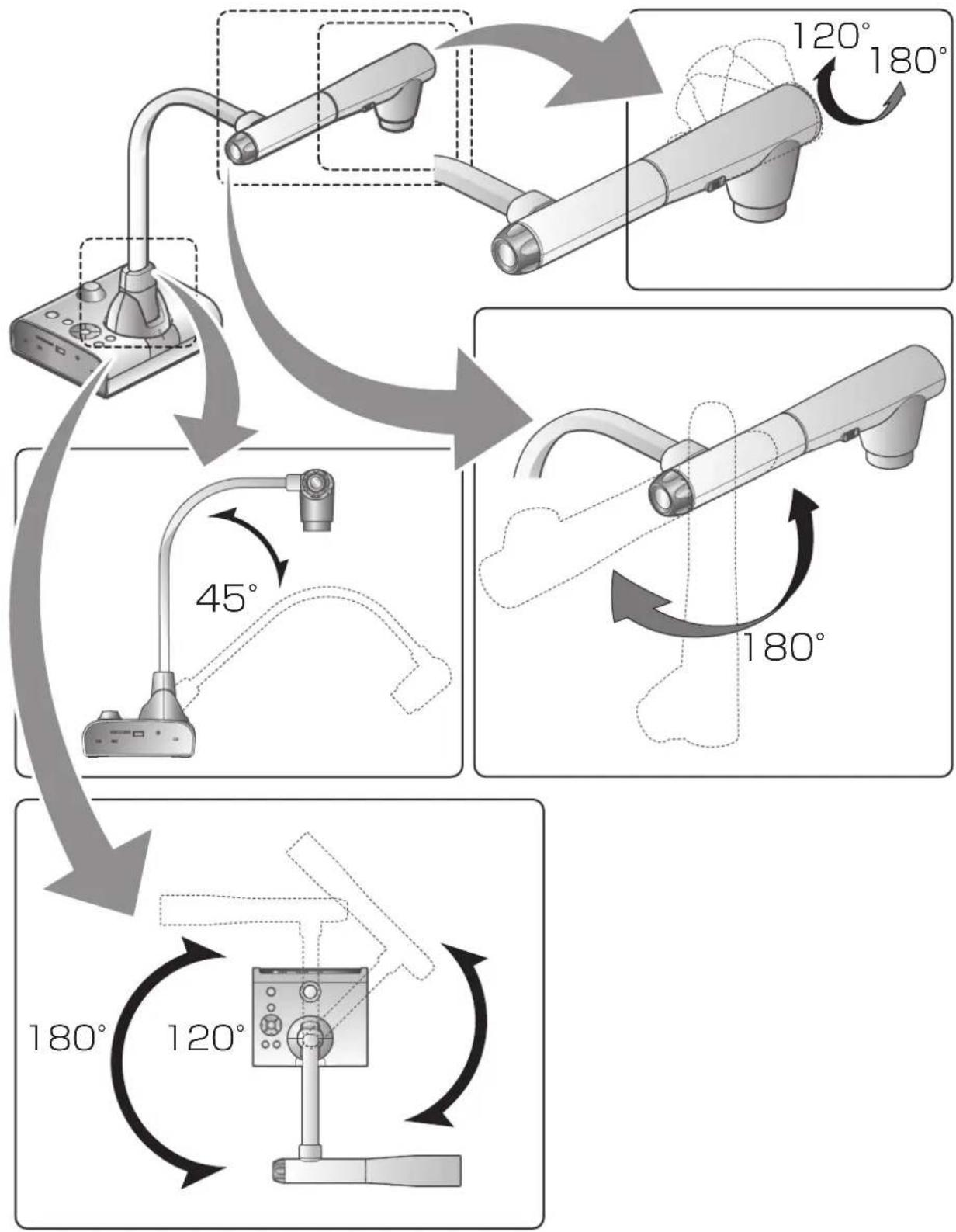
flowchart
graph TD
    A["Device with remote control"] --> B{Rotation Angle}
    B -->|120° 180°| C["Actuator with articulated arm"]
    C --> D["45° Remote Arm"]
    D --> E["Actuator with articulated arm"]
    E --> F["180° Remote Arm"]
    F --> G["Actuator with articulated arm"]
    G --> H["120° Remote Arm"]
BASIC
OPERATIONS
2-2 Supplied Accessories
Remote Control
Preparation of Remote Control
Remove the battery case cover at the back of the remote control and install 2 batteries. (TYPE AAA)
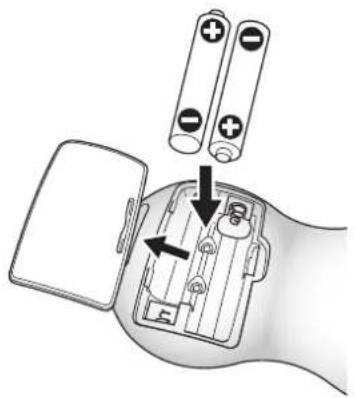
natural_image
Diagram of a battery pack with two batteries and an open case, showing internal components (no text or symbols)WARNING
Children may ingest small batteries; always keep batteries safe and out of reach.
If a battery is swallowed, consult a doctor immediately as this could result in asphyxiation or be an obstacle to digestion, etc.
Operation of the remote control
When a camera image is displayed
When data in an SD card/USB flash drive is displayed
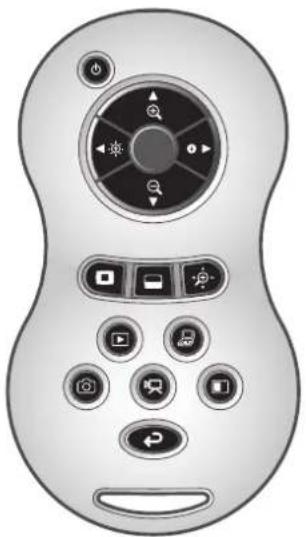
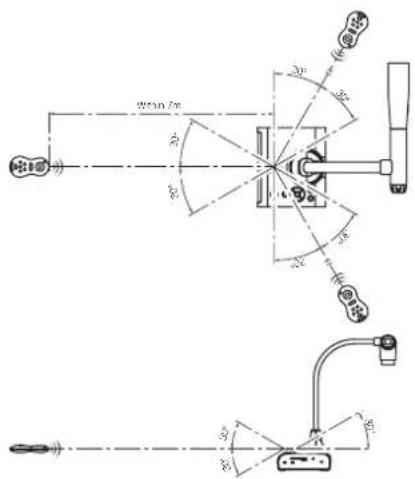
Receiving signal from the remote control
Point the infrared light lens of the remote control at the infrared sensor, and press the button of the desired function.
Receivable range
Distance: Within approx. 7m from the front of the infrared sensor
Angle: Within 30^ up, down, left, and right of the infrared sensor
natural_image
Front view of a stylized remote control device with control buttons and display (no text or symbols visible)
- The receivable range may be reduced when the main unit is placed in direct sunlight, near an inverter fluorescent light or in any other unfavorable conditions. Depending on the light source conditions, the sensor may fail to receive any infrared light. In such cases, relocate the main unit or shield the light source.
■age Mate CD-ROM/Instruction manual CD-ROM
The CD-ROM contains the software for connecting to a PC and the Instruction Manual. For software installation, follow the instructions in the separate Image Mate Installation Manual.
2-3 Shooting Images
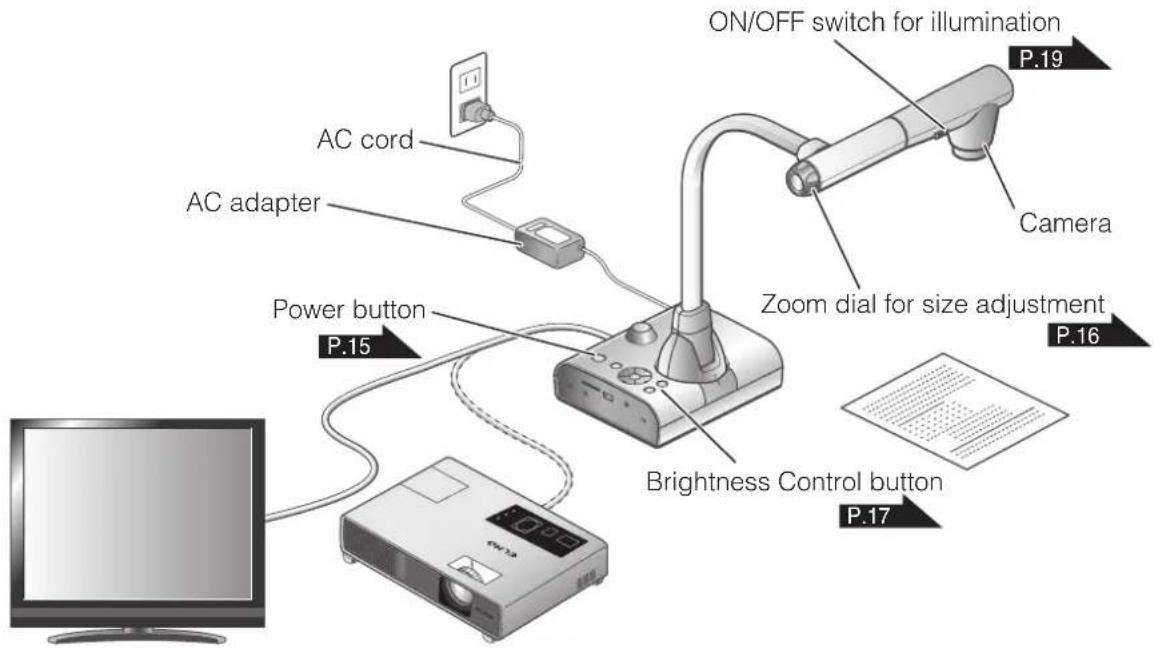
Setting up the main unit
Set up the main unit as shown in the figure above. Then connect the main unit to a projector or a PC monitor, and turn on the power of the main unit. P.15
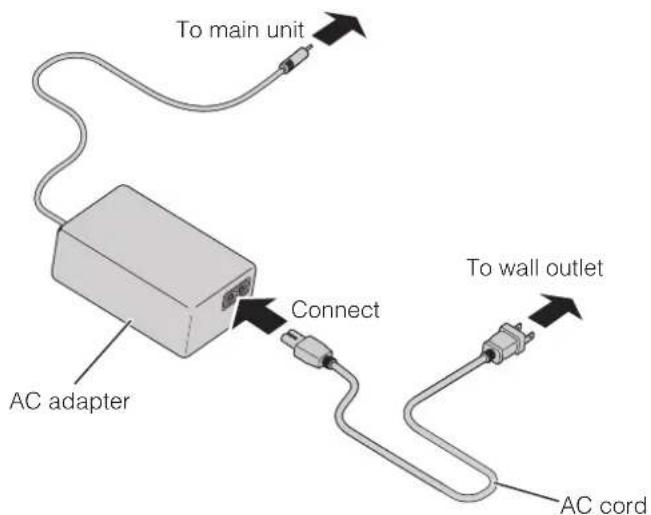
Connecting the AC cord
Connect the AC cord and the AC adapter. Then connect the AC adapter to the [_DCIN12] terminal at the rear panel of the document camera, and insert the AC cord into an outlet.
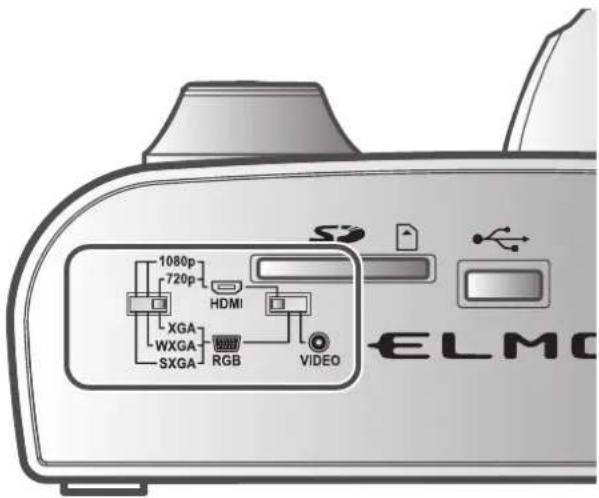
Connecting the video cable
① Move the switch on the side panel according to the specification of the display device. P.10
② Use the cable corresponding to the switch position specified in ① to connect the document camera to the display device.
BASIC
OPERATIONS
CAUTION
Before connecting the main unit to other devices, be sure to turn OFF the power for all of the devices.
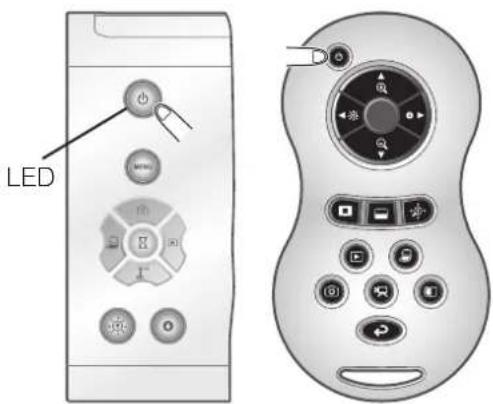
Turning the power ON/OFF
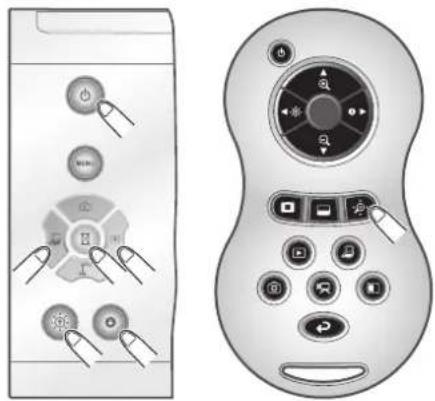
- Press the [ ] on the operating panel or the [] button on the remote control to turn the power ON.
(After the [ ◎ ] Button flashes blue, it is illuminated a few seconds later.) - Press the [💡] button on the operating panel or the ⏻ button on the remote control to turn the power OFF. You need to hold down the button for two seconds or more for the button on the operating panel.
(The LED of the [ ⏻] button is illuminated in red.)

Note
- Do not operate this device while it is flashing.
Adjusting the size
The display range of the document can be adjusted by rotating the zoom dial on the main unit or by pressing the [ ] is on the remote control.
• ZOOM-IN + : The object can be shown in large size.
• ZOOM-OUT 🔒 : The object can be shown in small size.
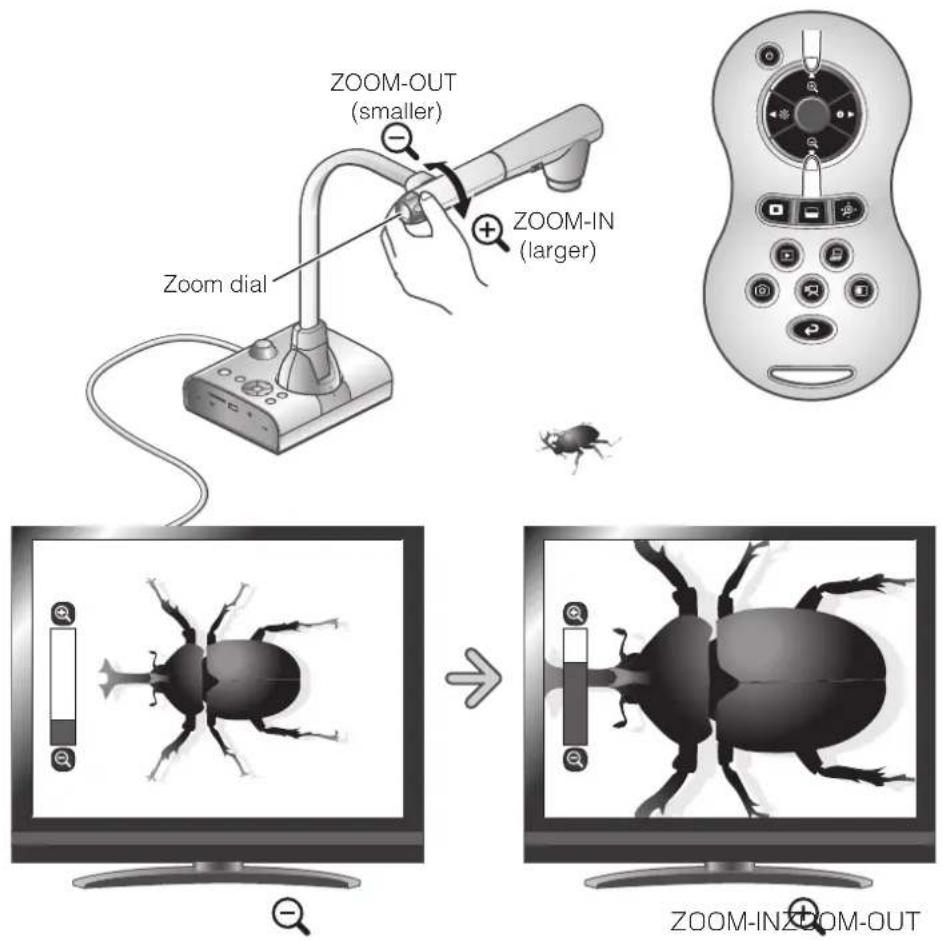

Note
- Zoom ratio: Optical 12x, Digital 8x
- When the optical zoom reaches 12x, it automatically shifts to digital zoom.
- Within the digital zoom range, the image quality is degraded.
- ON/OFF of the digital zoom can be set from the setting menu.
Adjusting the brightness
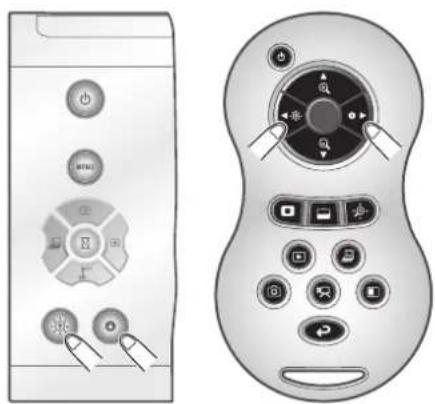
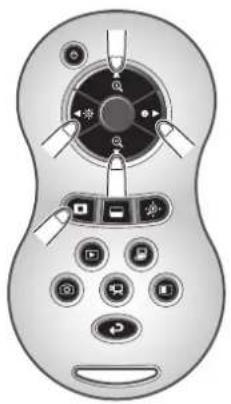
Press the [ / button] on the operating panel or the
[◀※ / ▶●●●●●●●●●●●●●●●●●●●●●●●●●●●●●●●●●●●●●●●●●●●●●●●●●●●●●●●●●●●●●●●●●●●●●●●●●●●●●●●●●●●●●●●●●●●●●
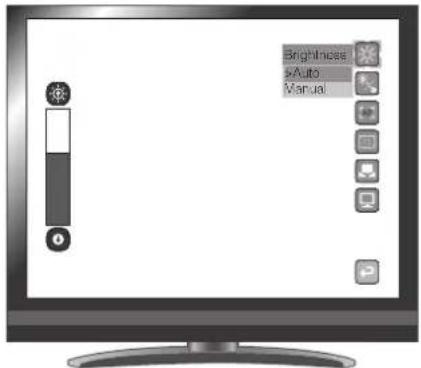
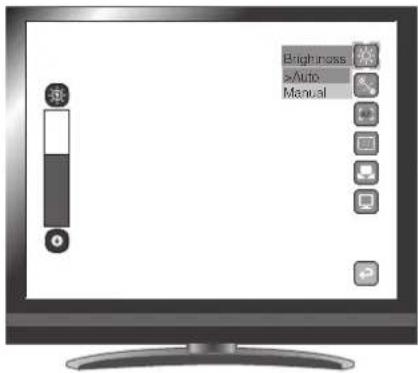
The following two adjustment modes can be set by selecting [Brightness] from the menu on the screen.
natural_image
Two remote control panels showing navigation buttons and function keys (no text or symbols)BASIC OPERATIONS
Automatic brightness adjustment
([MENU] →[ICON] →[ICON] →[Auto])
To ensure a constant degree of brightness, the brightness of the image changes automatically according to the brightness of the shooting environment. Use the [ /] button on the operating panel or the [ /] buttons on the remote control to change the automatic brightness adjustment.
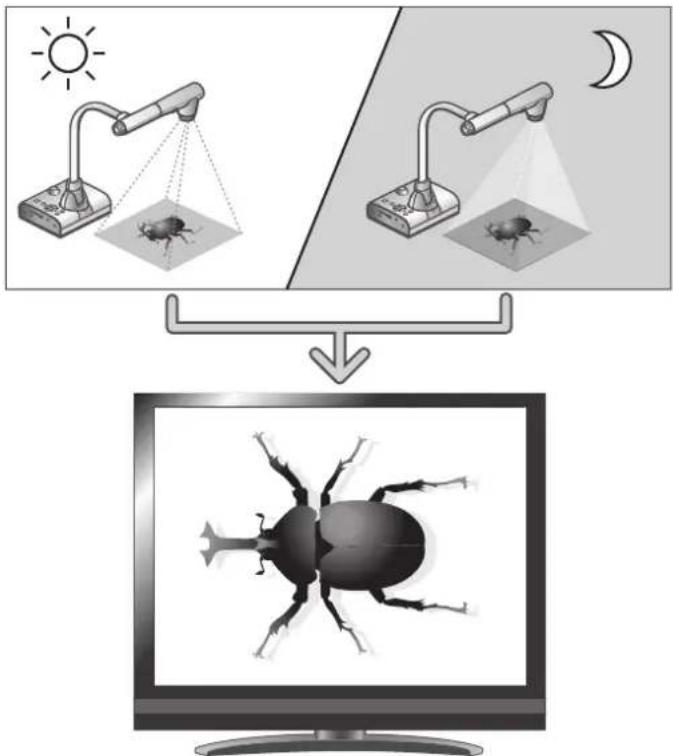
Brightness of the screen is the same
Manual brightness adjustment

Use the [ /- ] buttons on the operating panel or the
[◀※ / ●●●●●●●●●●●●●●●●●●●●●●●●●●●●●●●●●●●●●●●●●●●●●●●●●●●●●●●●●●●●●●●●●●●●●●●●●●●●●●●●●●●●●●●●●●●●●●●●●
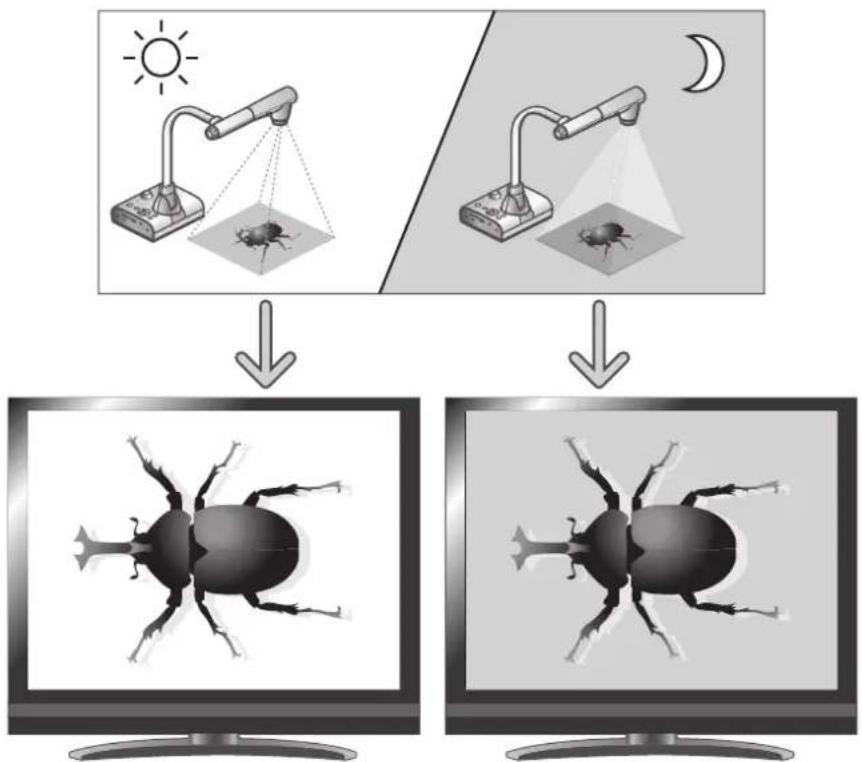
Brightness of the screen is different
Note
• Factory setting is set to [Auto].
- By setting [ [MENU] →[ [1] →[On], the setting details are displayed on the screen.
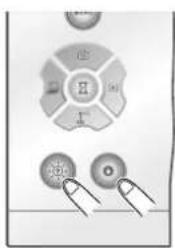
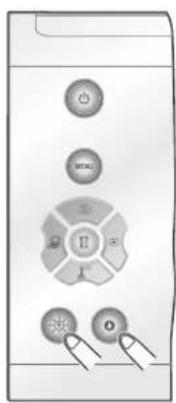
- To return to the factory settings, press the [√] buttons on the operating panel at the same time, or select [Rst Brightness] from the menu.
- In places where the object is exposed to bright sunlight (e.g. near a window), or extremely bright lights, the brightness of the screen may not dim sufficiently, even when the [ ] button on the operating panel or the [ ] button on the remote control is pressed.
In such cases, to adjust the amount of light, close the curtains or move the object away from the light.
Turning the illumination ON/OFF
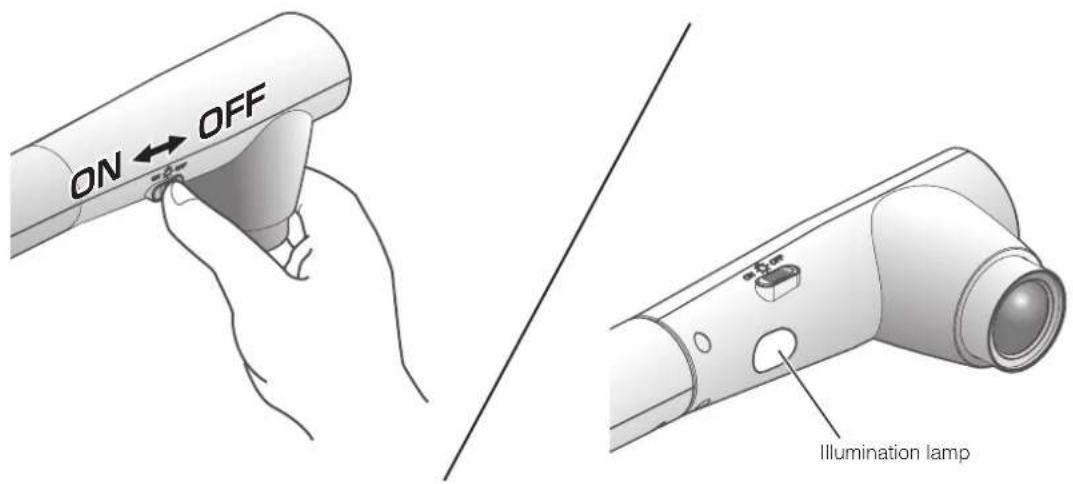
The illumination light can be turned ON/OFF by sliding the illumination light switch.
• [ON] : The illumination light turns on.
• [OFF]: The illumination light turns off.
CAUTION
• To take shots of people, turn the illumination light switch to OFF.
• Make sure that the light from the illumination light does not shine directly into your eyes.
- This product is equipped with a high-brightness LED light. You can safely use the light to light up objects, however its brightness will gradually diminish with long-term use. This is not a malfunction of the light, but a feature of LED performance.
- Do not touch the illumination light while it is on as it may become very hot.
Image selection
Select the image as described below.
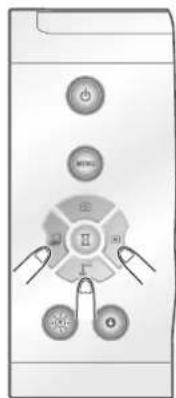
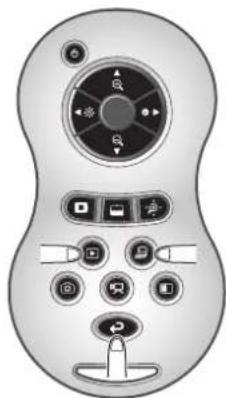
natural_image
Front view of a stylized remote control device with buttons and display (no readable text or symbols)Camera image:
[ ] button on the operating panel or
[ ] on the remote control.
Image input to the [ RCU P ] terminal:
[ ] button on the operating panel or [ ] button on the remote control.
Image stored on the SD card/USB flash drive:
[ ] button on the operating panel or [ ] button on the remote control.

Note
- When using a PC with an external output mode, set the PC to the external output mode after pressing the [ ] button on the operating panel or the [ ] button on the remote control.
- Image of the [ ] terminal is output from the [ ] terminal only. As to [ ] terminal and [ ] terminal, press the [ ] button on the operating panel or the [ ] button on the remote control to display the camera image on the screen.
using the image
Press the [ ] button on the operating panel to pause the camera image. Press the button again to cancel the pause.
2-4 Setting Changes
Various settings for this unit are changed through the menu (characters and icons) displayed on the screen.
Changing a Setting
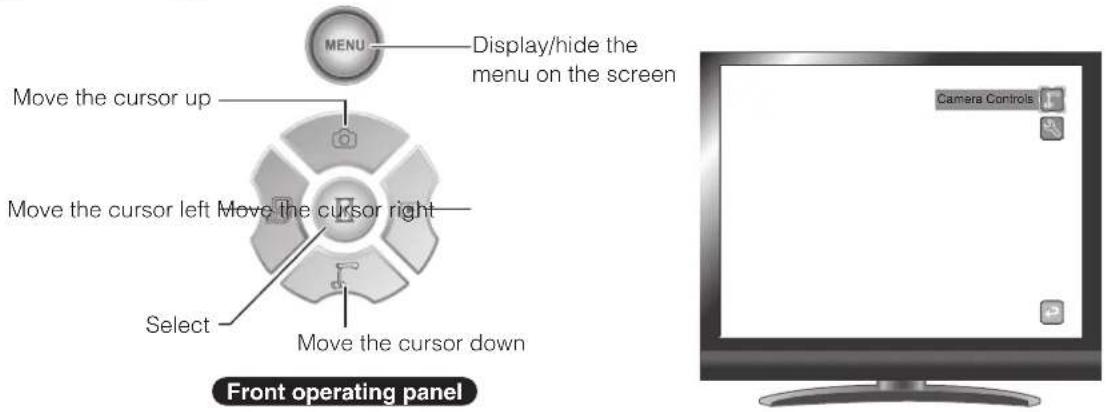
① Press the [] button on the operating panel to display the menu on the screen, and then use the
buttons to move the cursor to the icon you want to operate or set.
② Press the [] button to select the function to be changed.
List of the Menus
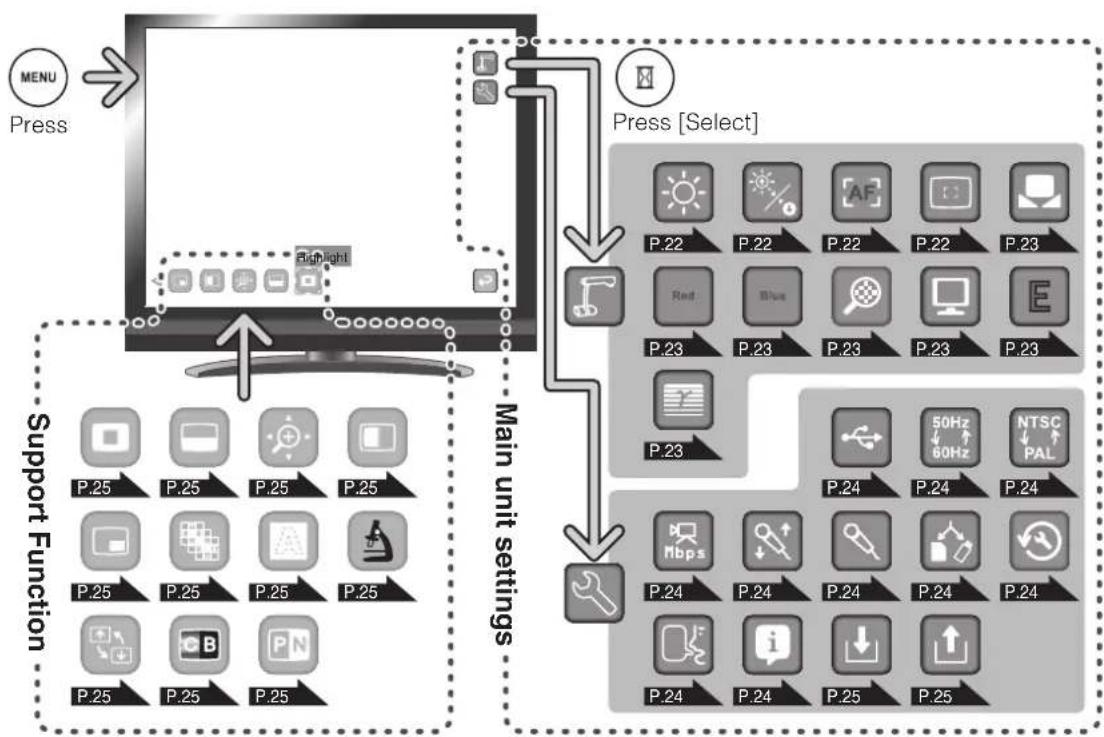
flowchart
graph TD
    A["MENU"] --> B["Press"]
    B --> C["Main unit settings"]
    C --> D["Press [Select"]]
    D --> E["P.22"]
    D --> F["P.22"]
    D --> G["AF"]
    D --> H["Instagram"]
    D --> I["Video"]
    D --> J["Video"]
    D --> K["Red"]
    D --> L["Blue"]
    D --> M["Computer"]
    D --> N["E"]
    C --> O["P.23"]
    C --> P["P.23"]
    C --> Q["P.23"]
    C --> R["P.23"]
    C --> S["P.23"]
    C --> T["P.23"]
    C --> U["P.23"]
    C --> V["P.23"]
    C --> W["P.23"]
    C --> X["P.23"]
    C --> Y["P.23"]
    C --> Z["P.23"]
    C --> AA["P.23"]
    C --> AB["P.23"]
    C --> AC["P.23"]
    C --> AD["P.23"]
    C --> AE["P.23"]
    C --> AF["P.23"]
    C --> AG["P.23"]
    C --> AH["P.23"]
    C --> AI["P.23"]
    C --> AJ["P.23"]
    C --> AK["P.23"]
    C --> AL["P.23"]
    C --> AM["P.23"]
    C --> AN["P.23"]
    C --> AO["P.23"]
    C --> AP["P.23"]
    C --> AQ["P.23"]
    C --> AR["P.23"]
    C --> AS["P.23"]
    C --> AT["P.23"]
    C --> AU["P.23"]
    C --> AV["P.23"]
    C --> AW["P.23"]
    C --> AX["P.23"]
    C --> AY["P.23"]
    C --> AZ["P.23"]
    C --> BA["P.23"]
    C --> BB["P.23"]
    C --> BC["P.23"]
    C --> BD["P.23"]
    C --> BE["P.23"]
    C --> BF["P.23"]
    C --> BG["P.23"]
    C --> BH["P.23"]
    C --> BI["P.23"]
    C --> BJ["P.23"]
    C --> BK["P.23"]
    C --> BL["P.23"]
    C --> BM["P.23"]
    C --> BN["P.23"]
    C --> BO["P.23"]
    C --> BP["P.23"]
    C --> BQ["P.23"]
    C --> BR["P.23"]
    C --> BS["P.23"]
    C --> BT["P.23"]
    C --> BU["P.23"]
    C --> BV["P.23"]
    C --> BW["P.23"]
※ To go back a layer or to hide the menu, select [] and press the [] button.
Descriptions of Each Menu
Main Unit
| Icon Name Function | ||
 | Camera Controls To display the setting menu for camera image. | |
 | Preferences To display the preference menu for various functions. | |
 | Exit To hide the menu. | |

Camera Controls [Second Layer]
| Icon Name | Selection Item | Factory Setting | Function | |
 | Brightness | Auto | To maintain constant brightness of the image, the brightness of the image changes automatically according to the brightness of the shooting environment. Press the [ * / ] buttons on the operating panel or the [ * / ] buttons on the remote control to change the brightness. P.17 | |
| Manual | Press the [ * / ] buttons on the operating panel or the [ * / ] buttons on the remote control to change the level of brightness. The brightness of the image will not change automatically in response to the brightness of the shooting environment. | |||
 | Rst Brightness | Reset To reset the brightness setting. | ||
| Exit To go back one layer | in the menu. | |||
 | AF Mode★What is AF?A function to automatically focus the camera. | Auto | To constantly auto focus. You do not need to press the AF button on the main unit or the [ ● ] button on the remote control. The focus changes automatically as the object changes. | |
| Manual | To auto focus only once when the AF button on the main unit or the [ ● ] button on the remote control is pressed.AF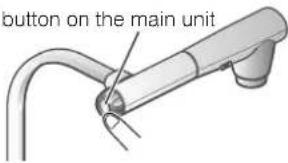 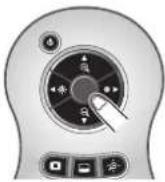 | |||
| Zoom Sync To auto focus | only once after zooming. | |||
 | Focus | Near | To focus manually. | |
| Far | ||||
| Exit To go back one layer | in the menu. | |||
| Icon Name | Selection Item | Factory Setting | Function | |
 | White Balance | Auto | √ | To constantly adjust the white balance. The white balance is adjusted automatically to ensure a more natural color according to the characteristics of the object. |
| ★What is White Balance?A function to adjust any area of white color and ensure it is projected accurately as white. This allows colors to be seen naturally according to the characteristics of the object. | ||||
| One-Push | To automatically adjust the white balance only once when this setting is selected. | |||
| Manual To manually adjust the [R-Gain] and the [B-Gain]. | ||||
 | R-Gain | Up | /one layer | To adjust the R-Gain of the camera image when the white balance is set to Manual. Use [Up] or [Down] to increase or decrease the red color. |
| Down | ||||
| Exit To go back | in the menu. | |||
 | B-Gain | Up | /one layer | To adjust the B-Gain of the camera image when the white balance is set to Manual. Use [Up] or [Down] to increase or decrease the blue color. |
| Down | ||||
| Exit To go back | in the menu. | |||
 | Digital Zoom | Valid | √ | To set the digital zoom to Valid/Invalid. |
| Invalid | ||||
 | Image Mode | Text 1 | √ | To clearly reproduce black & white documents including such features as characters and lines.The effect intensifies as the number increases. |
| Text 2 | ||||
| Text 3 | ||||
| ★What is Image Mode?A special effect to project a clear image. | Graphic 1 | To clearly reproduce photographs and color documents. | ||
| Graphic 2 | The image could be improved if used with a DLP projector.(The effect depends on the projector used.) | |||
 | Edge Effect | Low | √ | To emphasizes the outline of images. Enabled only when [Graphic1] is selected for the Image Mode ( ) |
| Medium | ||||
| High | ||||
 | Gamma | Low | To change the characteristics of the image. Enabled only when [Graphic1] is selected for the Image Mode ( ) . The setting can be changed according to user preference. | |
| ★What is Gamma?An image characteristic unique to image I/O devices. | Medium | √ | ||
| High | ||||
 | Exit To go back one layer in the menu. | |||

Preferences [Second Layer]
| Icon Name | Selection Item | Factory Setting | Function | |
 | USB Mode | Mass Storage | To send the data on the SD card loaded in the device to the PC. | |
| ★What is USB Mode?Functions described on the right can be used by connecting the document camera to a PC with the USB cable. | Application | To control this device from a PC using special software. | ||
| UVC (USB Video Class) | ✓ | To use this device as a UVC camera in a video conferencing system, for example, without the use of a special software program. | ||
 | Flickerless | 60Hz | Japan/U.S. | To reduce fluorescent light flickering due to the power supply frequency. Select the same value as used for the power supply frequency. |
| 50Hz Others | ||||
 | Video Format | NTSC | Japan/U.S. | Video output NTSC from the [ ] terminal on the rear panel. |
| ★What is Video Format?A radio wave system used for analog TV broadcasting.Countries use different systems, and analog TVs are sold according to the system. | ||||
| PAL Others | Video output PAL from the [ ] terminal on the rear panel. | |||
 | Movie Quality | Low | To set the quality of the movie to record.Medium | |
| High | ✓ | |||
 | Volume | Up | To set the volume of the audio line output and the HDMI output. | |
| Down | ||||
| Exit To go back to the previous layer of the menu. | ||||
 | Audio Selector | Built-in mic | ✓ | To select the source of the audio input.Mic-in |
| Line-in | ||||
 | Select Memory | SD Card | ✓ | To select where to save still images/movies, when both SD card and USB flash drive are inserted. |
| USB Flash Drive | ||||
 | Reset All | Yes | To reset various settings to factory settings. | |
| No | ||||
 | Language | Japanese Japan To display the menu in Japanese. | ||
| English Others To display the menu in English. | ||||
 | Guide | ON | ✓ | The device's operating status and an explanation of the icons is displayed on the screen. |
| OFF | The device's operating status and an explanation of the icons is not displayed on the screen. | |||
| Icon Name | Name | Selection Item | Factory Setting | Function |
 | Save Presets | 1 | To save the current setting as the preset setting of the selected number. | |
| ★Saved Items Zoom Brightness Mode Brightness Level White Balance R-Gain B-Gain Image Mode Edge Effect Gamma | 2 | |||
| 3 | ||||
| Exit To go back one layer in the menu. | ||||
 | Load Presets | 1 | one layer in the menu. | To call the setting saved for the selected number.2 |
| 3 | ||||
| Exit To go back one layer in the menu. | ||||
 | Exit To go back one layer in the menu. | |||
Support Function
| Icon Name Function | ||
 | Highlight To highlight and draw attention to a particular section of the image. | P.28 |
 | Mask To mask a section of the image. | P.30 |
 | Scroll To expand to a set size and allow scrolling of the enlarged section. | P.31 |
 | Compare Picture | To display a still image and live image together. The still image is displayed on the left side of the screen, and the camera image on the right. P.32 |
 | PIP (Picture in Picture) | To display either a still image or a Camera image while displaying the other. The image is displayed at the bottom right of the Screen. P.33 |
 | Mosaic | To apply a mosaic effect to the image. P.35 |
 | Marker Mask | A filter to blacken a color section of the image. For instance, this can be used to temporarily hide colored text, so students can be questioned about the hidden text. P.36 |
 | Microscope | For use with a microscope. P.80 |
 | Image Rotation | To rotate the image by 180°. |
 | Color/B&W | To display an image in color. |
| To display an image in black & white. | ||
 | Posi/Nega | To output a positive image. |
| To output a negative image. | ||
Support Function Setting
Highlight
| Icon Name Selection Item Function | |||
 | Darkness |  Darken Darken | To set the darkness of a dark section. The dark section becomes darker when [+] is selected, and becomes more visible when [1] is selected. |
 Lighten Lighten | |||
 Exit Exit | |||
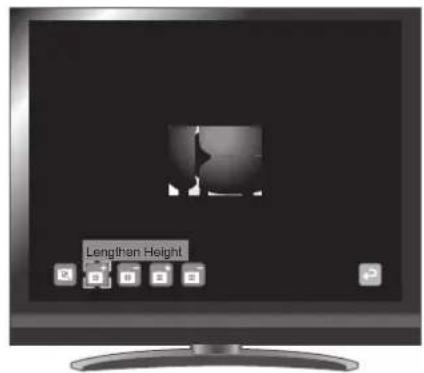
 | Size |  Lengthen Height (stretch) Lengthen Height (stretch) | To change the size of the highlighted display area. |
 Shorten Height Shorten Height | |||
 Lengthen Width (stretch) Lengthen Width (stretch) | |||
 Shorten Width Shorten Width | |||
 Exit Exit | |||
 | Exit | ||
Mask
| Icon Name Function | ||
 | Exit | |
Scroll
| Icon Name Function | ||
 | x2 To set the digital zoom magnification to 2x when the Scroll icon is selected. | |
 | x3 To set the digital zoom magnification to 3x when the Scroll icon is selected. | |
 | x4 To set the digital zoom magnification to 4x when the Scroll icon is selected. | |
 | Exit | |
Compare Picture
| Icon Name Function | ||
| Prev Picture To show the previous picture. | ||
| Next Picture To show the next picture. | ||
| Exit | ||

PIP
| Icon Name Function | ||
| [head] | Prev Picture To show the previous picture. | |
| [head] | Next Picture To show the next picture. | |
 | Change Window To switch the sub screen and the main screen. | |
 | Exit | |

Mosaic
| Icon Name Function | ||
 | Coarse To make the mosaic pattern coarser. | |
 | Fine To make the mosaic pattern finer. | |
 | Exit | |

Marker Mask
| Icon Name Function | ||
 | Exit | |

Microscope
| Icon Name Function | |
| Exit |
Details of Each Function
Highlight Function
This is a function to highlight a particular section of the image.
Use this function to draw attention to a section.
Highlight operations
When you press the [ ] button on the remote control or [ ] on the menu while a camera image or a Play mode is displayed, the highlight function uses the darkness and size set previously.
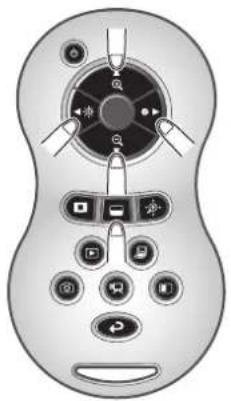
You can move the highlighted area using the [ ] buttons on the remote control.
The highlight display is cleared when you press the [☐] button on the remote control or [☐] on the menu again.
natural_image
Diagram of a stylized computer mouse with control buttons and display (no text or symbols)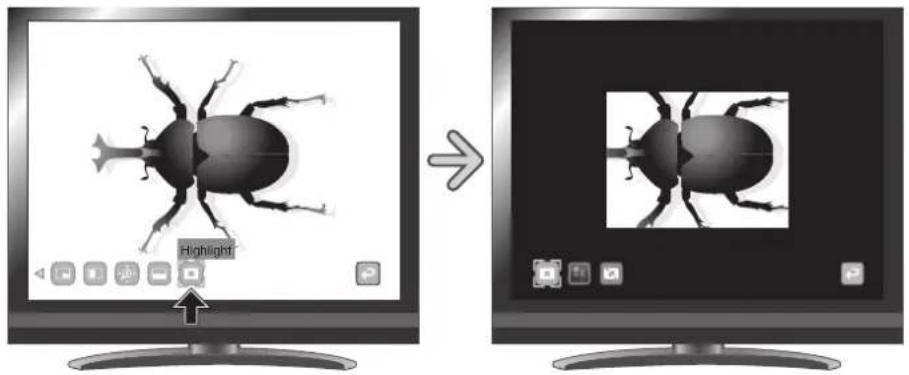
Note
- The Highlight function cannot be used when the [] button is selected in the Image Selection.
• Highlighted image cannot be saved.
Setting operations
You can change the darkness of a particular section by changing the setting of [↑] on the menu while the section is highlighted.

natural_image
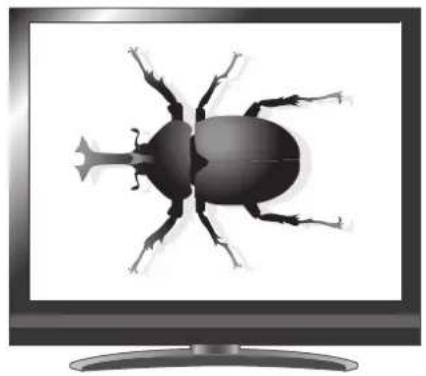
Computer monitor displaying a black beetle illustration with no visible text or symbols on the image itself.BASIC OPERATIONS
You can also change the size of the highlighted display area by changing the setting of [ ] on the menu.
Mask Function
This is a function to mask a section of an image.
Mask operations
When you press the [ ] button on the remote control or [ ] on the menu while a camera image or a Play mode is displayed, the mask effect is applied with the darkness set previously.
You can move the masked area using the [ * ] buttons on the remote control.
The mask display is cleared when you press the [ ] button on the remote control or [ ] on the menu again.
natural_image
Diagram of a stylized device with control buttons and a central circular dial (no text or symbols)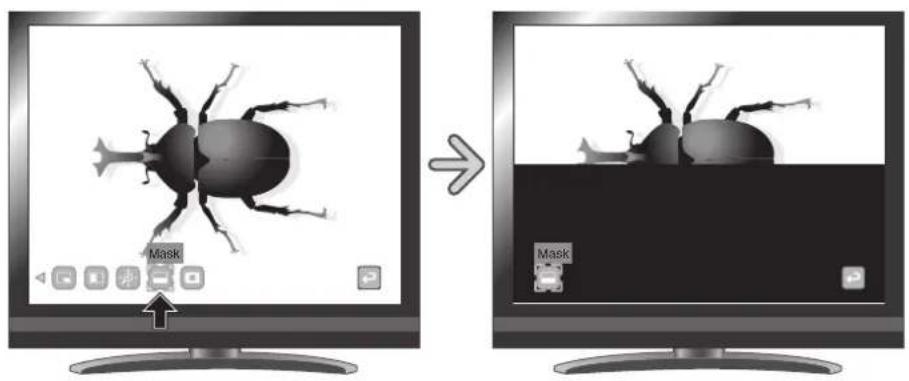
Note
- The Mask function cannot be used when the [] button is selected in the Image Selection.
- Masked image cannot be saved.
Scroll Function
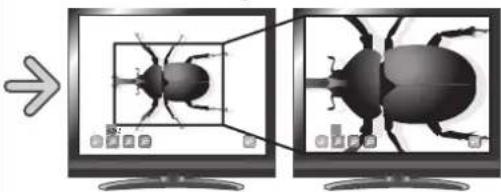
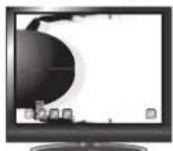
The image expands to the digital zoom set previously, and the enlarged screen can be scrolled.
Scroll operations
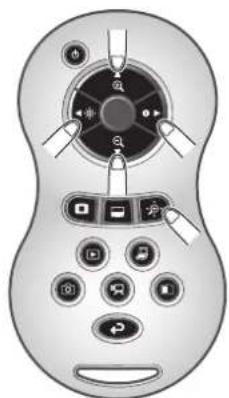
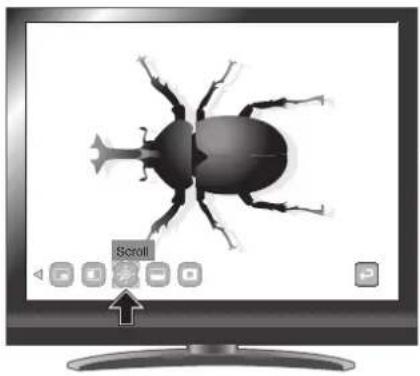
When you press the [ ] button on the remote control or [ ] on the menu
while a camera image or a Play mode is displayed, the image expands to the
digital zoom set previously.
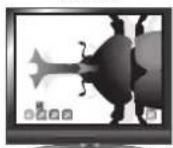
You can scroll the enlarged image by using the [ * ] buttons on the remote control.
Digital zoom is canceled when you press the [icon] button on the remote control or [icon] on the menu again.
natural_image
Diagram of a stylized telephone handset with control buttons and display (no text or symbols)BASIC
OPERATIONS
natural_image
Illustration of a beetle on a monitor with playback controls (no text or symbols on the beetle itself)Normal Digital zoom
natural_image
Two computer monitors displaying a beetle image, one with magnified view and arrow indicating direction (no text or symbols)↗
↓
Note
- The Scroll function cannot be used when the [] button is selected in the Image Selection.
- When digital zoom has already been performed from the zoom dial on the main unit or the zoom buttons on the remote control, digital zoom is released and the scroll function works at the magnification ratio currently set.
- Cannot use zoom while scrolling.
- Within the digital zoom range, the image quality deteriorates.
Digital zoom setting operations
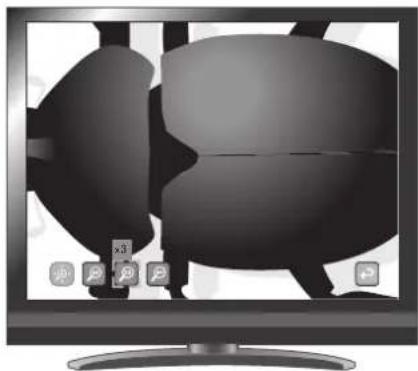
You can change the digital zoom ratio to either x2, x3, or x4 by
selecting [ ], [ ], or [ ] on the onscreen menu while
the scroll function is working.
natural_image
Black-and-white illustration of a computer monitor displaying a stylized cartoon character (no text or symbols visible)Compare Picture Function
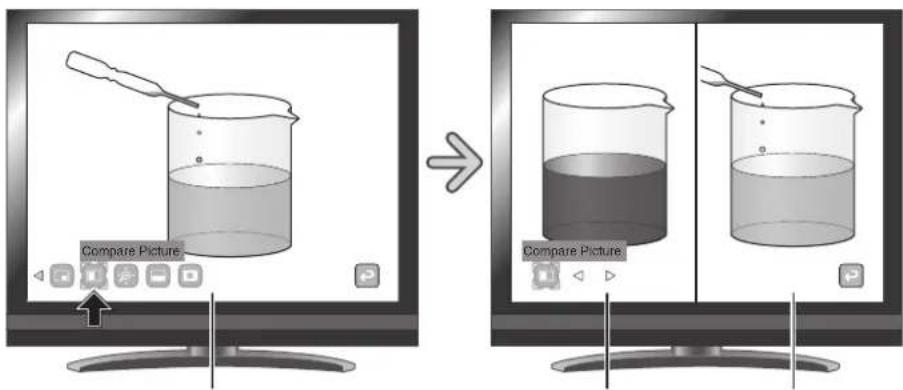
To display the camera image and the picture stored on the SD card/USB flash drive together.
Compare Picture operations
When you press the [ button on the remote control or [ ] on the menu, while a camera image or a play mode is displayed, the camera image is displayed at the right side of the screen and the picture stored on the SD card/USB flash drive is displayed at the left side of the screen.
The Compare Picture function is cleared when you press the [ ] button on the remote control or [ ] on the menu again.
Camera image Camera imagePicture
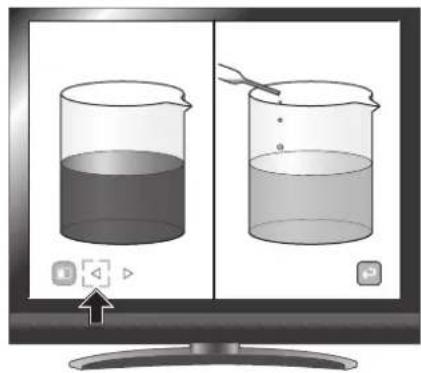
Changing the still Picture
You can change the picture displayed on the screen to an other picture stored on the SD card/USB flash drive by selecting [ ◀ ] or [ ▷ ] on the menu or the [ ◀*/ ◀▶ ] buttons on the remote control, while the compare picture function is working.
natural_image
Illustration of a beaker being heated by a hand, showing liquid level and action buttons (no text or symbols)Note
- The Compare Picture Function cannot be used when the [] button is selected in the Image Selection.
- When using the Compare Picture Function, the image cannot be saved.
Picture in Picture Function
To display either a picture stored on the SD card/USB flash drive or a camera image at the bottom right of the screen.
Picture in Picture Operations
When you press the [] on the menu, while a camera image is displayed, the picture stored on the SD card/USB flash drive is displayed at the bottom right of the screen.
When you press the [ ] on the menu, while the picture stored on the SD card/USB flash drive is displayed, a camera image is displayed at the bottom right of the screen.
The Picture in Picture effect is cleared when you press the [ ] on the menu again.
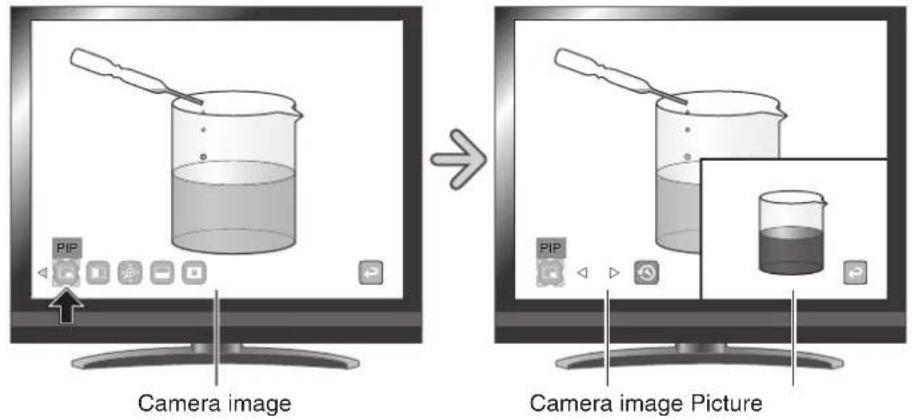
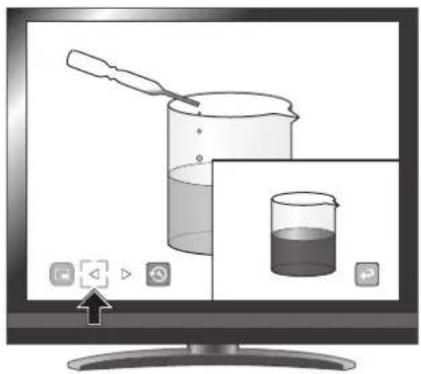
Changing the still picture
You can change the picture displayed on the screen to an other picture stored on the SD card/USB flash drive by selecting [ ◀ ] or [ ▷ ] on the menu or the [ ◀ / ◀ ] buttons on the remote control, while the picture in picture function is working.
natural_image
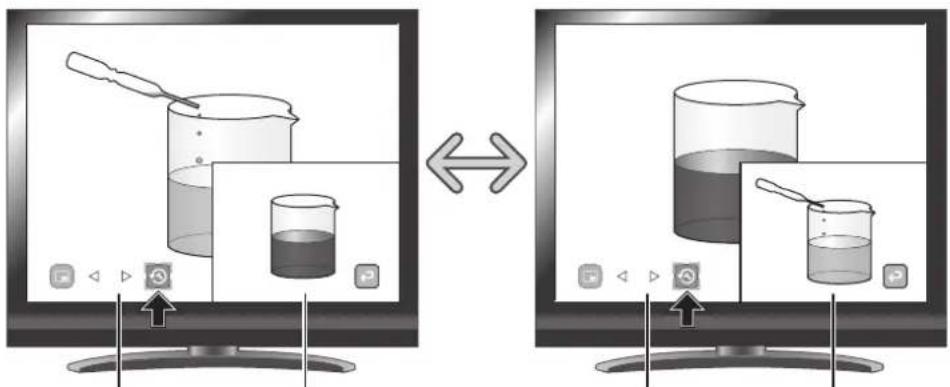
Illustration of a beaker being painted with a brush, shown in an open screen (no text or symbols)Switching the subscreen and the main screen.
You can switch the subscreen and the main screen by selecting [] on the menu. While the Picture in Picture function is working.
Camera image Picture Picture Camera image

Note
- The Picture in Picture function cannot be used when the [ ] button is selected in the image selection.
- When using the Picture in Picture function, the image cannot be captured.
- When digital zoom is used, the still screen is displayed only at 12x optical zoom magnification.
- When using the Picture in Picture function, the image cannot be saved.
Mosaic Function
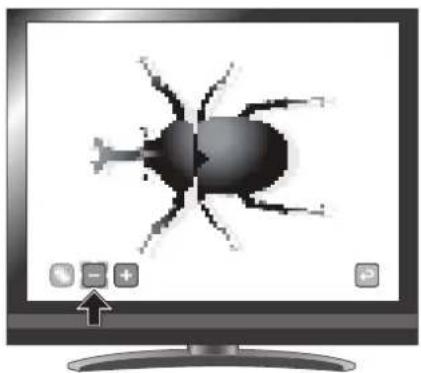
To apply a mosaic effect to the image. You can change the extent of mosaic.
Mosaic Operations
When you press the [ ] on the menu, while a camera image or a Play mode is displayed, the mosaic effect is applied. The mosaic effect is cleared when you press the [ ] on the menu again.
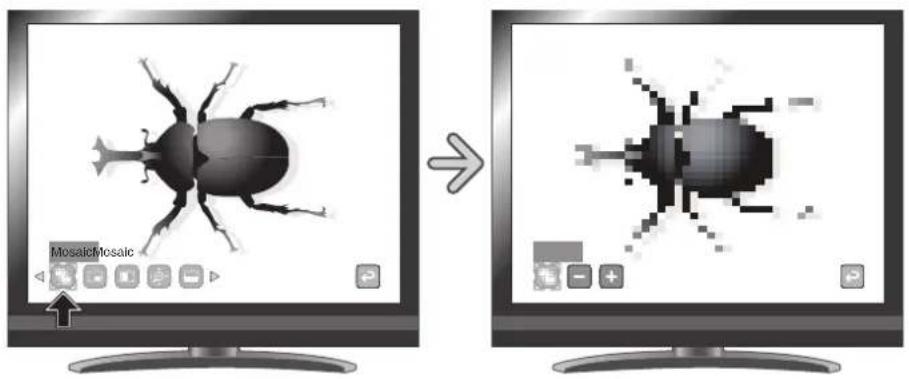
Mosaic setting Operations
You can change the extent of mosaic by selecting [ ] or [ - ] on the menu.
While the mosaic function is working.
natural_image
Computer monitor displaying a pixelated black beetle illustration (no text or symbols)Note
- The Mosaic function cannot be used when the []P button is selected in the image selection.
- When using the Mosaic function, the image cannot be saved.
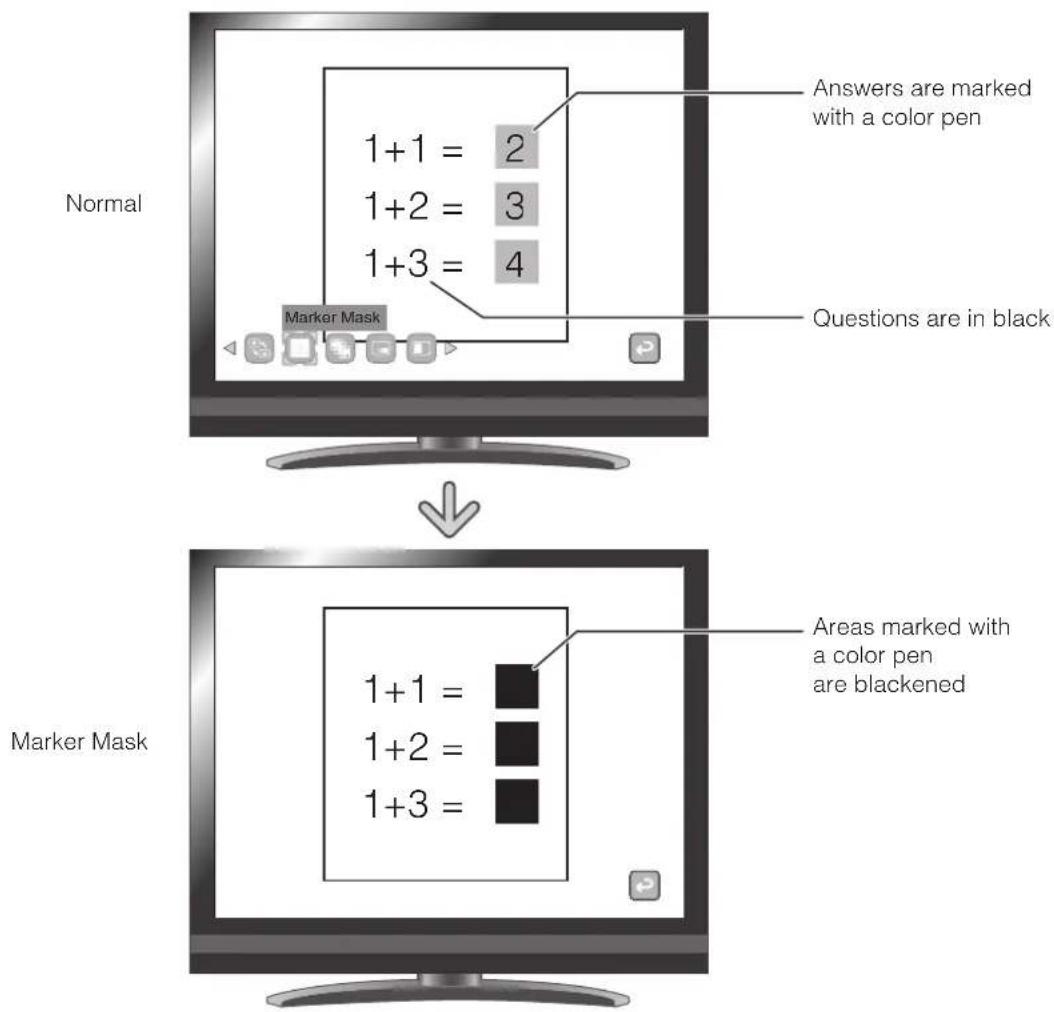
Marker Mask Function
This is a filter to blacken the color section of an image.
For instance, this can be used to temporarily hide colored text, so students can be questioned about the hidden text.
Marker Mask operations
Press [] on the menu to blacken the color section in the image.
Note
- The Marker Mask function can be used only when a still image is selected using the
[ ] button and
- When using the Marker Mask function, the image cannot be saved.
- The proper effect of this function may not be obtained depending on the material used.
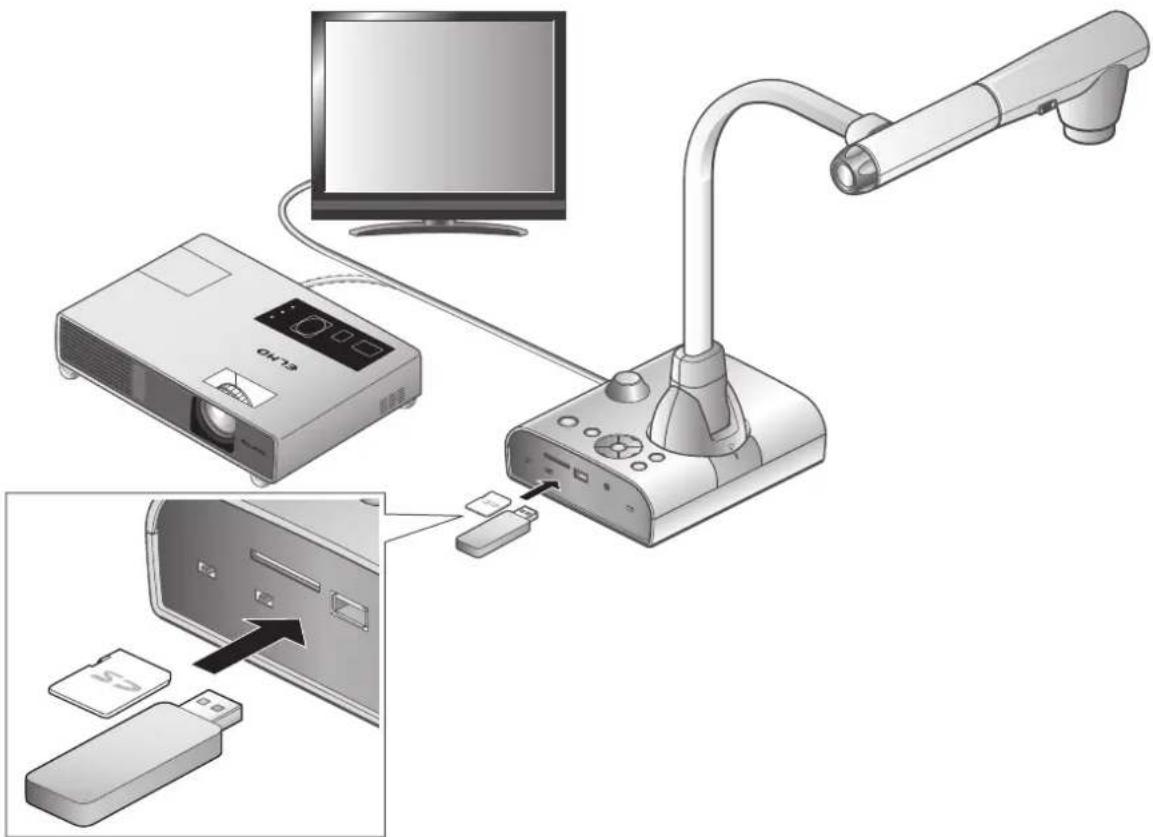
With this equipment, you can save a camera image as a picture or movie on an SD card or USB flash drive. You can also display the data stored on the SD card or USB flash drive on the screen.
Before you begin, insert a commercially available SD card or USB flash drive into the corresponding slot on the side panel.
ADVANCED OPERATIONS
Note
- SD card
- The SDXC card cannot be used.
- Formatting the SD card with this product before you use is recommended.
- Using the SD card to record movies is recommended.
- Using the SD card class 6 or higer is recommended.
- USB flash drive
- Supports the USB flash drive up to 32GB.
- Formatting the USB flash drive with this product before you use is recommended.
- It may take some time to recognize the memory card after inserting it or to save images to the memory card.
- Please do not remove the memory card while recording, playing or using education support function when the main unit is accessing the memory card.

Note
- Formatting the SD card/USB flash drive.
When you need to format the SD card/USB flash drive, insert it into this product and excute formatting.
① Press the [ ] button on the operating panel or [ ] button on the remote control to switch the output image to Play mode.
②Press the [ ◎] button on the operating panel to display the menu.
③From the menu, select [] to switch the menu.
④ Select [from the menu.
⑤Select [no] start formatting. If you do not want to format, select [] NO
Saving images
Picture
Basic operations
① Press the [ ] button on the operating panel or the [ ] button on the remote control.
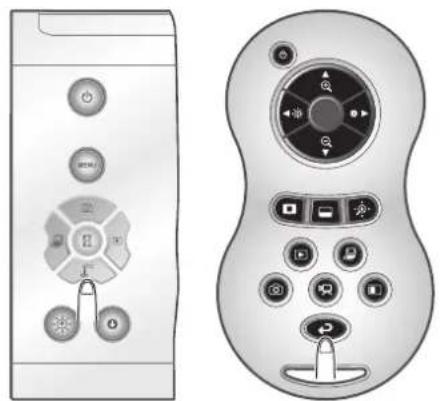
natural_image
Illustration of a remote control panel with buttons and display screen (no text or symbols)② Make sure that the menu is not displayed on the screen and press the [ ] button on the operating panel or the [ ] button on the remote control.
If the menu is displayed on the screen, do the above-operation after hiding the menu by pressing the [MENU] on the operating panel.
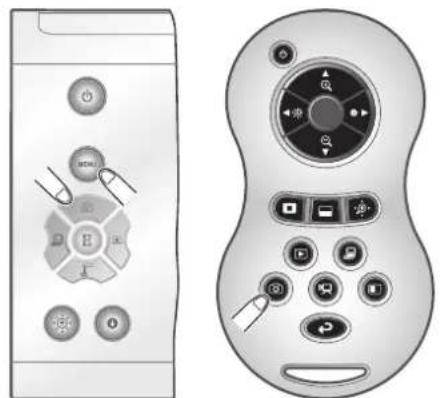
natural_image
Two grayscale remote control panels: one with a keypad and function buttons, the other with a keypad and control buttons (no text or symbols visible)③ Saving begins when [ ] appears on the screen.
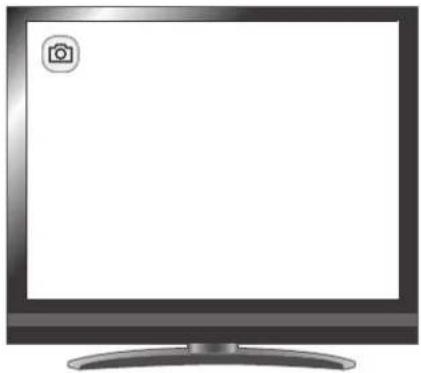
natural_image
Front view of a flat-screen monitor with an icon on the screen (no text or symbols visible)- Saving -
Movie
Basic operations
① Press the [ ] button on the operating panel or the [ ] button on the remote control.
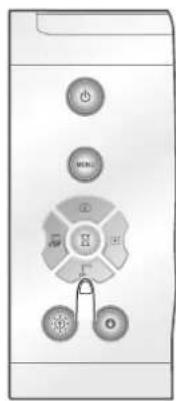
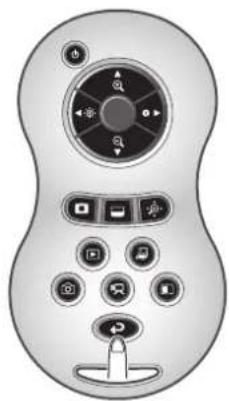
natural_image
Front view of a remote control device with control buttons and display icons (no text or symbols visible)② Press the [ ] button on the remote control.
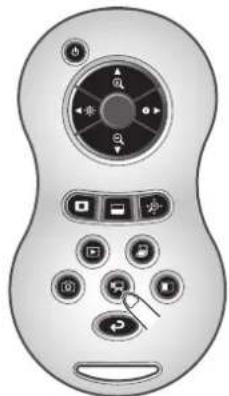
natural_image
Front view of a stylized computer mouse with control panel and buttons (no text or symbols visible)③ Recording begins when [ ] appears at the top left of the screen. When you press the [ ] button again on the remote control, recording stops and [ ] disappears.
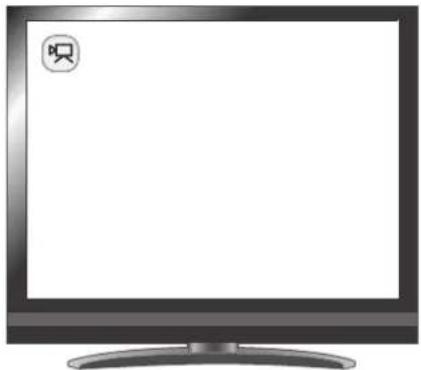
natural_image
Illustration of a flat-screen monitor with a circular icon labeled '只' on the screen (no text or symbols on the screen)- Recording -
Note
- Even if the output image is set to HDMI and the resolution is set to 1080p, it is recorded with 720p.
- Use a memory card with a faster read/write speeds (in case of SD card: Class 6 or better), or the image quality may deteriorates.
- How to select the destination to save when both SD card and USB flash drive are inserted. While the camera image is displayed on the screen, select [SD Card] or [USB Flash Drive] in the

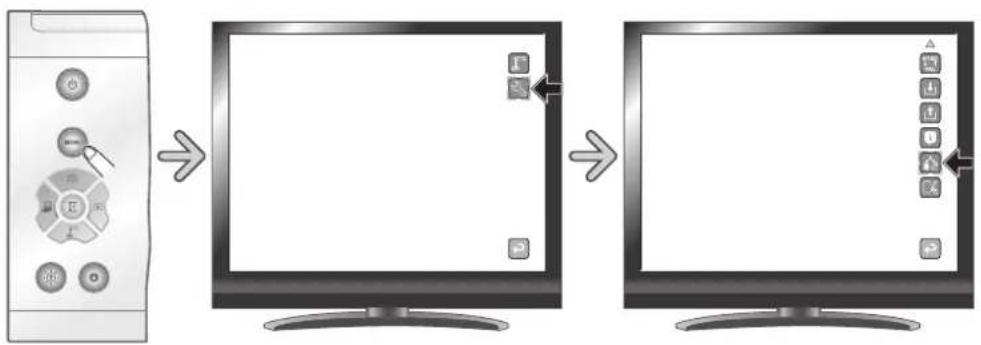
flowchart
graph LR
    A["Device 1"] --> B["Placement"]
    B --> C["Monitor with Display"]
    C --> D["Monitor with Display"]
■splaying the stored data
Thumbnail display (list of pictures/movies)
Basic operations
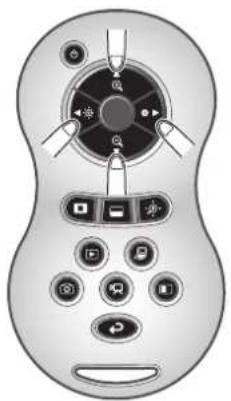
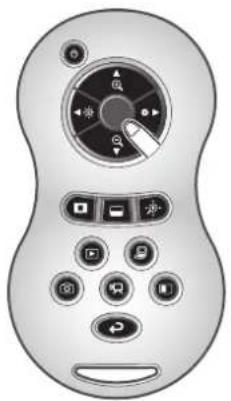
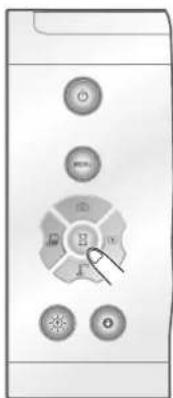
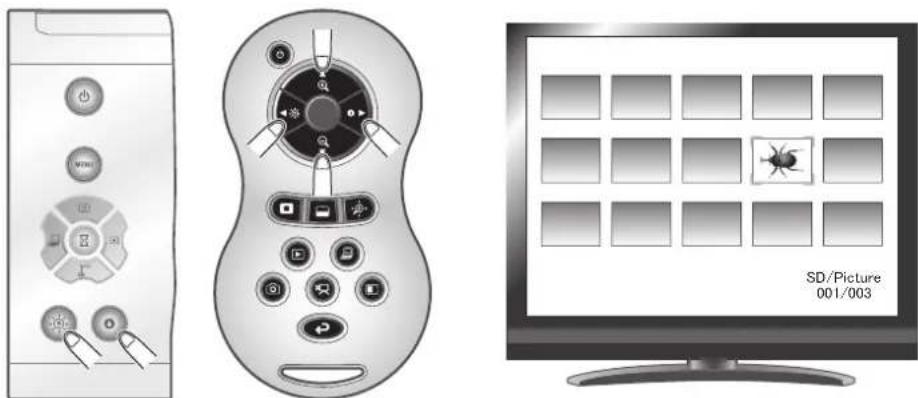
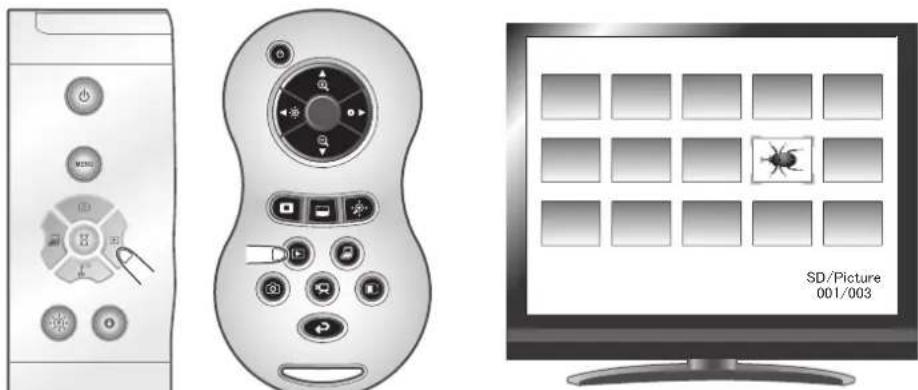
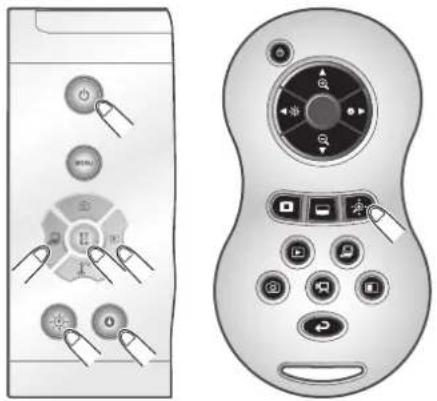
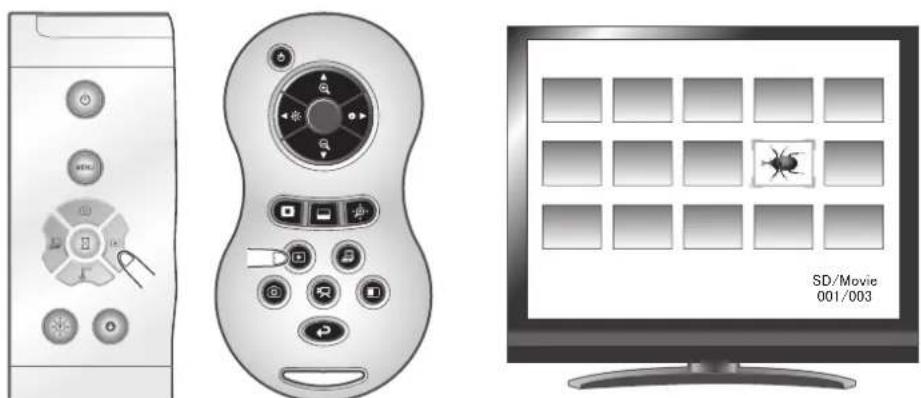
① Press the [] button on the operating panel or the [▶] button on the remote control to display the thumbnails (list of pictures/movies).
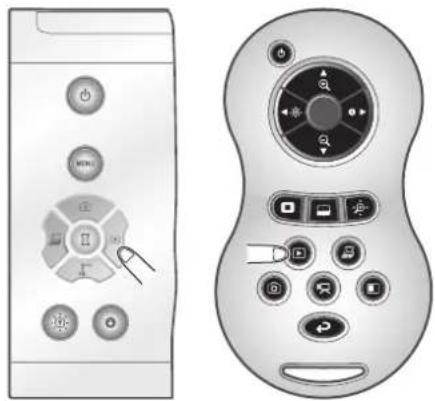
natural_image
Two remote control panels: one with a power button and control buttons, the other with a display screen and app icons (no text or symbols visible)ADVANCED OPERATIONS
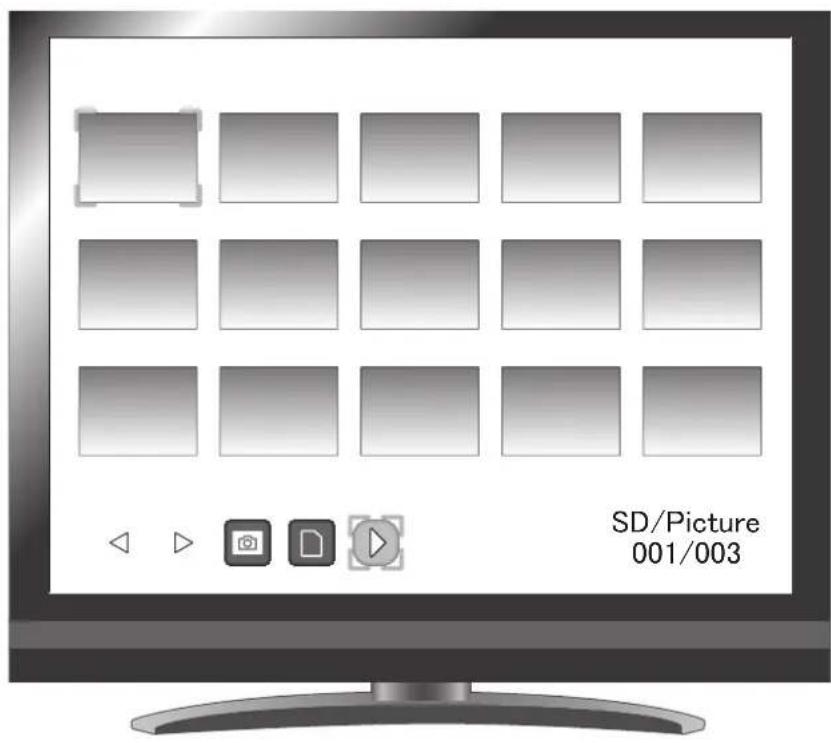

How to move the cursor
(1) You can move the cursor using the [💡] or [💡] button on the operating panel or the
] button on the remote control.
(2) You can display the selected picture/movie full-screen by pressing the [ Ⓗ ] button on the operating panel or the [ ● ] button on the remote control.
natural_image
Illustration of a stylized remote control device with buttons and display (no text or symbols)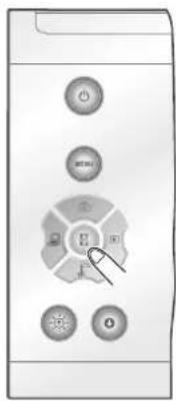
natural_image
Front view of a stylized remote control device with control knob and keypad (no text or symbols visible)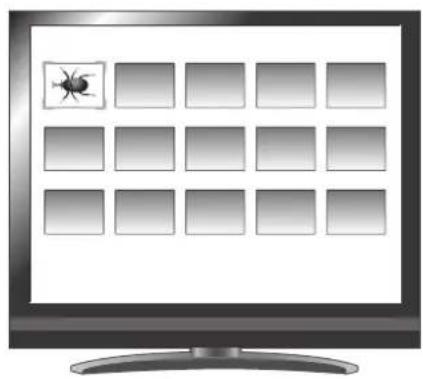
natural_image
Computer monitor displaying a grid of 16 blank square tiles with a small insect icon in the top-left corner (no text or symbols on tiles)
natural_image
Illustration of a beetle displayed on a monitor (no text or symbols)Changing settings
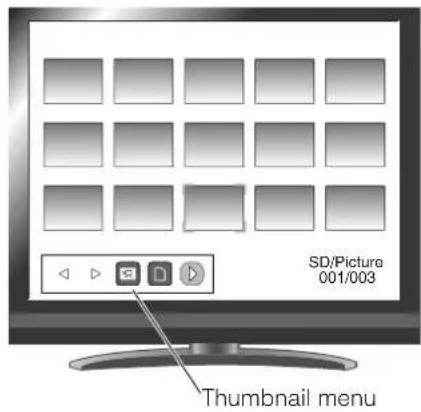
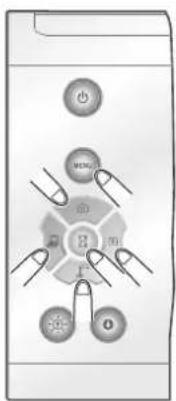
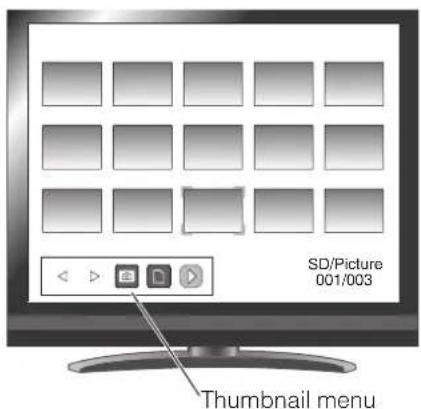
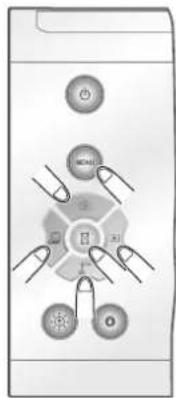
You can display the Thumbnail Menu by pressing the [MENU] button on the operating panel while the thumbnails are displayed on the screen.
- Move the cursor using the [ ] or [ ] button on the operating panel.
- Press the [ ] button on the operating panel to select the menu item.
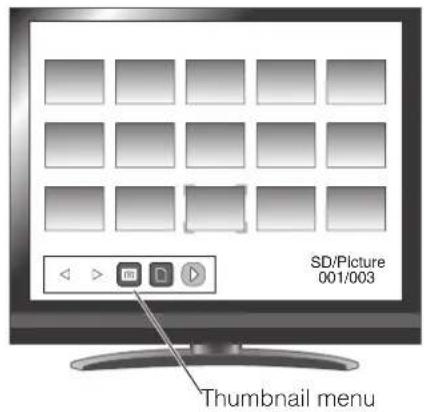
[ ] button: Moves the cursor left [ ] button: Moves the cursor right
If you press [ ▶ ], the next set of menu icons appears.
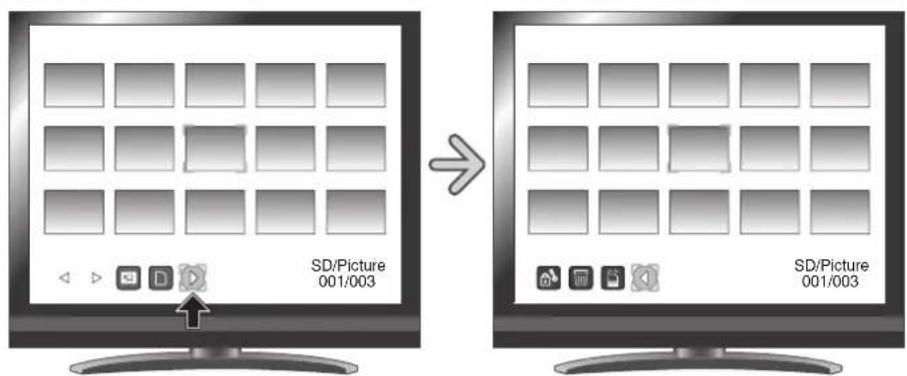
CAUTION
Pressing the [] or [] button on the operating panel while the menu icons are hidden allows you to navigate among the images.
You can not operate the menu from the remote control.
Menu descriptions
Thumbnail display
| Icon Name Selection Item Function | |||
| Prev Page To move to the previous thumbnail page. | |||
| Next Page To move to the next thumbnail page. | |||
 | SD Card | To switch between the memory from which images are displayed. | |
 | USB Flash Drive | It can be switched with the [button on the remote control too. | |
 | Movie | To switch the data displayed as thumbnails between movies and pictures. | |
 | Picture | It can be switched with the [button on the remote control too. | |
 | Next Menu To move to the next menu page. | ||
 | Memory Lock | Lock/Unlock | To lock (set as protected) or unlock (set as unprotected) the selected image. It can be switched with the [button on the remote control too. |
| Lock All To lock (set as protected) all thumbnail images. | |||
| Unlock All | To unlock (set as unprotected) all thumbnail images. | ||
| Exit To go back to the previous layer of the menu. | |||
 | Delete | Yes To delete the selected image. | |
| No To cancel deletion. | |||
| Exit To go back to the previous layer of the menu. | |||
 | Format | Yes To format the USB flash drive or SD card. | |
| No To cancel formatting. | |||
| Exit To go back to the previous layer of the menu. | |||
 | Prev Menu To move to the previous menu page. | ||
Displaying a picture full-screen
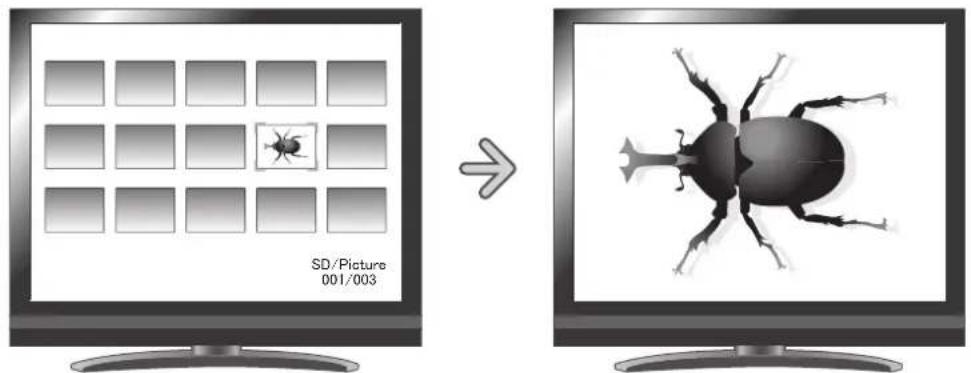
You can display a picture you selected from the thumbnails (list of pictures/movies) full-screen.
Basic operations
① Show in the Thumbnail Menu the icon for displaying the list of pictures.
Press the [MENU] button on the operating panel to display the Thumbnail Menu.
Then, the current status of the selection is displayed at the button right of the screen.

(1) If you see [ ] in the menu, the list of pictures has already been displayed.
(2) If you see [ ] in the menu, press the [ ] or [ ] button on the operating panel to move the cursor to [ ] and then press the [ ] button. You can display the list of pictures.
Or a list of images can be displayed with the
[ ] button on the remote control.
(3) Press the [MENU] button again to hide the Thumbnail Menu.

Select the picture you want to display full-screen.
Press the [icon] or [button] button on the operating panel or the [ ] but not on the remote control to move the cursor.
natural_image
Illustration of a remote control panel, a stylized remote device with control buttons, and a monitor displaying a spider image (no text or symbols on the devices themselves)
Select the picture you want to display full-screen.
Press the [ ] button on the operating panel or the [ ] button on the remote control.
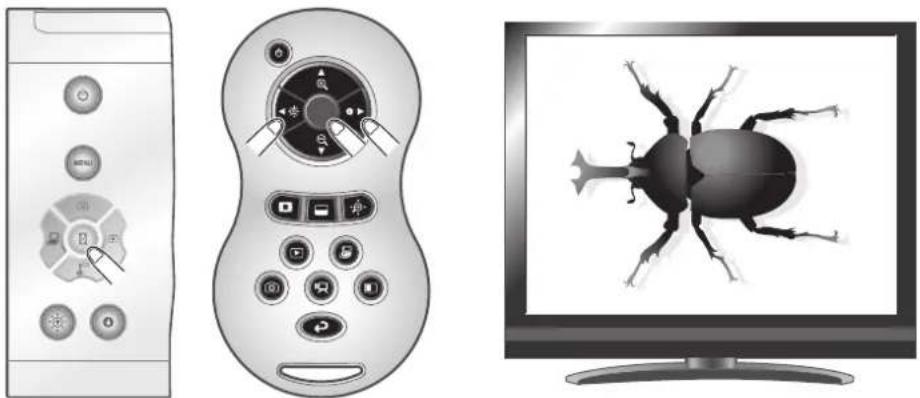
natural_image
Illustration of remote control panels, a stylized insect, and a monitor displaying an insect illustration (no text or symbols)In this status, press the [ ] button on the control panel or the remote control to display another image in the thumbnail list.

To return to the thumbnail display, press the [] button on the operating panel or the [] button on the remote control.
natural_image
Illustration of remote control devices and a monitor displaying a pixelated image (no text or symbols on main objects)Changing settings
While a picture is displayed full-screen, you can display the Picture Menu and Support Function Menu by pressing the [MENU] button on the operating panel.
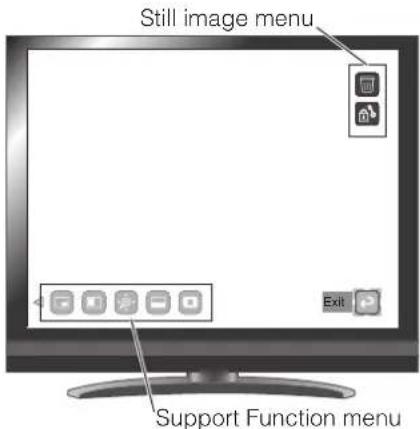
Move the cursor using the [ ] button on the operating panel and select a menu item with the [ ] button.
Menu descriptions
Picture Display Menu
| Icon Name Selection Item Function | |||
 | Delete | YES Yes | To delete the image displayed on the screen (You can not delete the image if it is protected). |
 No To cancel deletion. No To cancel deletion. | |||
 Exit To go back to the previous layer of the menu. Exit To go back to the previous layer of the menu. | |||
 | Memory Lock | To lock (set as protected) or unlock (set as unprotected) the selected image. | |
 | Exit To return to the previous level of menu. | ||
Support Function
| Icon Name Function | ||
 | Highlight To highlight part of the image you want to emphasize. | P.28 |
 | Mask To mask part of the image. | P.30 |
 | Scroll | To enlarge the image to the size you specify, allowing you to move within the enlarged area. |
 | Compare Picture | To display the still image captured when this icon is selected on the left, and display the camera image on the right. |
 | PIP (Picture in Picture) | To display a Camera image while displaying a still image saved in the memory card. The Camera image is displayed at the bottom right of the screen. |
 | Mosaic | To apply the mosaic effect to the image. |
 | Marker Mask | To apply a filter to a colored area to cover it with the black marker.This function allows you to temporarilyhide selected color characters and question the students. P.36 |
 | Image Rotation To rotate | a still image saved in the memory card by 90°. |
Highlight
| Icon Name Selection Item Function | |||
 | Darkness | + Darken | To set the darkness of the darkened (not highlighted) area. [+] makes the dark area less transparent and harder to see through, and [ ]makes the area more transparent and easier to see through. |
| - Lighten | |||
| ↑ Exit | |||
 | Size | + Lengthen Height (stretch) | To change the size of the highlighted area. |
| - Shorten Height | |||
| + Lengthen Width (stretch) | |||
| - Shorten Width | |||
| Exit | |||
 | Exit | ||
Mask
| Icon Name Function | ||
| [wwzs] | Exit | |
Scroll
| Icon Name Function | ||
 | ×2 To set the digital zoom magnification to x2 when the Scroll icon is selected. | |
 | ×3 To set the digital zoom magnification to x3 when the Scroll icon is selected. | |
 | ×4 To set the digital zoom magnification to x4 when the Scroll icon is selected. | |
 | Exit | |

Compare Picture
| Icon Name Function | ||
| [0x0x1] | Prev Picture To show the previous picture. | |
| [0x0x2] | Next Picture To show the next picture. | |
 | Exit | |

PIP
| Icon Name Function | ||
| [IMAGE] | Prev Picture To show the previous picture. | |
| [IMAGE] | Next Picture To show the next picture. | |
 | Change Window To switch the sub screen and the main screen. | |
— | Exit | |

Mosaic
| Icon Name Function | ||
 | Coarse To make the mosaic pattern coarser. | |
 | Fine To make the mosaic pattern finer. | |
 | Exit | |

Marker Mask
| Icon Name Function | ||
 | Exit | |
Playing a movie full-screen
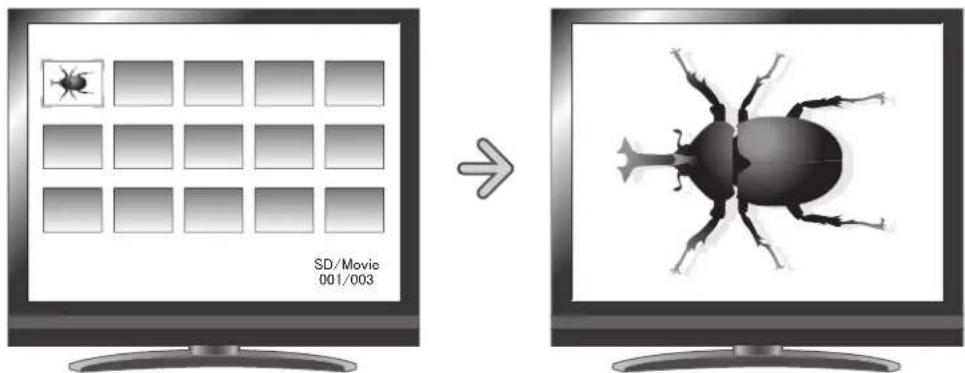
You can play a selected movie from the thumbnails (list of pictures/movies) full-screen.
Basic operations
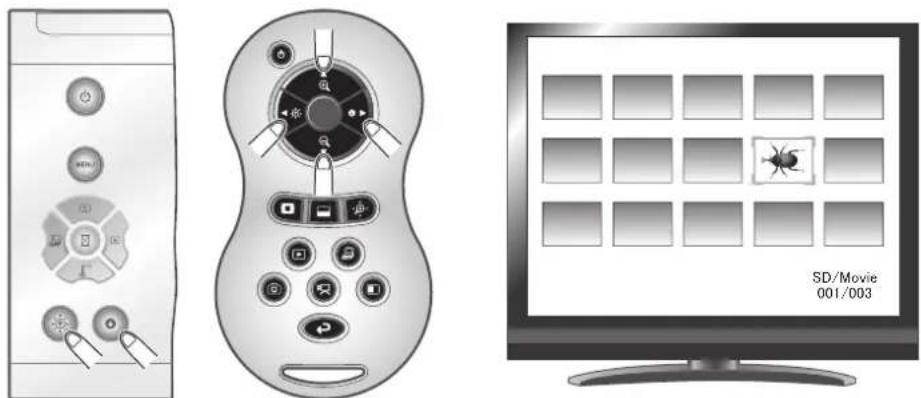
① Show in the Thumbnail Menu the icon for displaying the list of movies.
Press the [MENU] button on the operating panel to display the Thumbnail Menu.
Then, the current status of the selection is displayed at the button right of the screen.

(1) If you see [ ] the menu, the list of movies has already been displayed.
(2) If you see [ ] in the menu, press the [ ] or [ ] button on the operating panel to move the cursor to [ ] and then press the [ ] button. You can display the list of movies.
Or a list of images can be displayed with the [ ] button on the remote control.
(3) Press the [MENU] button again to hide the Thumbnail Menu.
② Select the movie you want to display full-screen.
Press the [icon] or [button] on the operating panel or the [ ] button on the remote control to move the cursor.
natural_image
Illustration of a remote control panel, a mouse control panel with an insect, and a monitor displaying a grid of square grids (no text or symbols on the devices themselves)③ Select the movie you want to display full-screen.
Press the [ ] button on the operating panel or the [ ] button on the remote control.
The movie automatically starts to play.
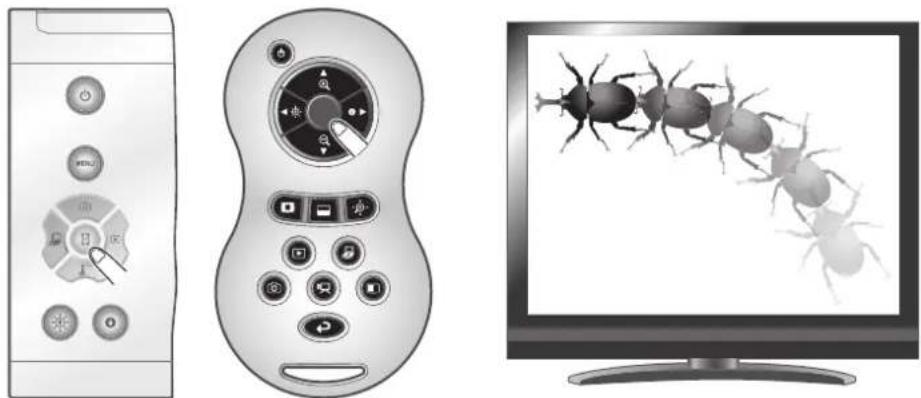
natural_image
Illustration of remote control panels, a handheld device, and a computer monitor displaying an image of a beetle (no text or symbols present)④ To return to the thumbnail display, press the [ ] button on the operating panel or the [ ] button on the remote control.
natural_image
Illustration of remote control devices including a remote, a handheld device, and a monitor displaying a cartoon-style icon (no text or symbols on main objects)Changing settings
You can display the Movie Menu by pressing the [MENU] button on the operating panel while a movie is displayed full-screen.
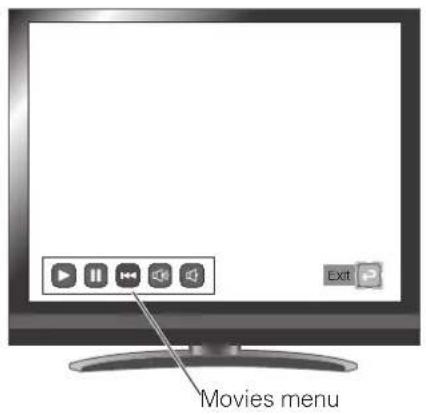
Move the cursor using the [ ] button on the operating panel and select a menu item with the [ ] button.
Menu descriptions
Movie Play Menu
| Icon Name Function | ||
 | Play | To play/stop/cueing the movie. |
 | Pause | |
 | Cueing | |
 | Up | To set the output audio volume. |
 | Down | |
 | Repeat On | To play the movie on loop. |
 | Repeat Off | |

Note
- You cannot display pictures other than DCF system compliant files and file structures.
- Movie files other than those recorded on this product (MVI_*MP*, represents file identification numbers) cannot be played on.
- Many, but not all Images taken by other digital cameras can be displayed (viewed) on this product (examples of images that cannot be displayed: images larger than 4092 X 4092 pixels in size, 4:1:1 image file formats, etc.).
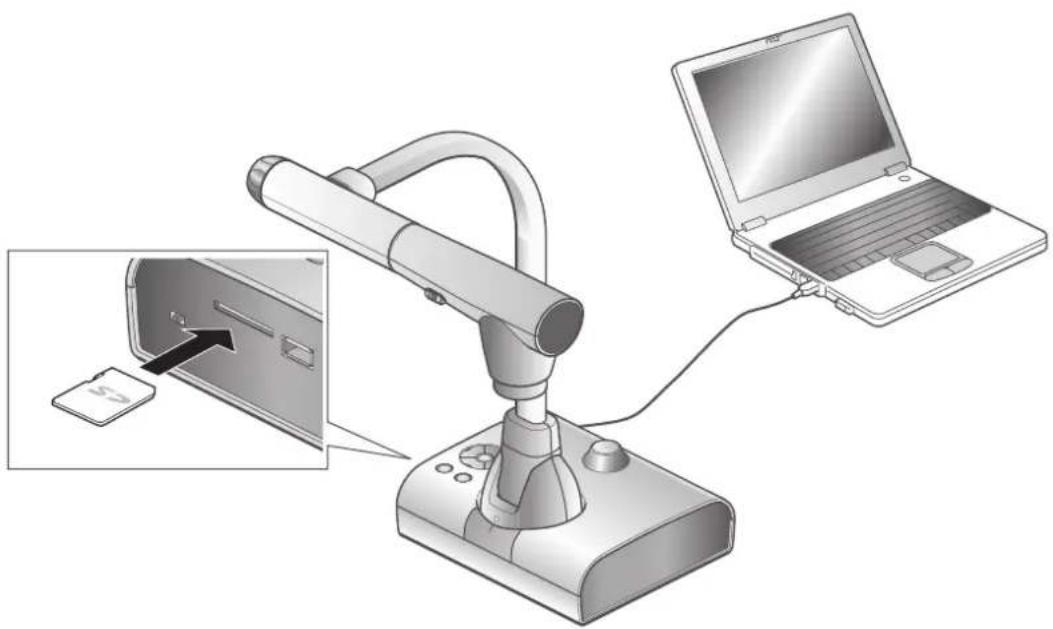
3-2 Saving data stored on an SD card to PC via USB cable
natural_image
Illustration of a desktop computer with an open device and a laptop connected to it, showing internal components (no text or symbols)CAUTION
- Set [ ] (USB Mode) to [Mass Storage] from the Preferences menu on the screen.

- Insert the SD card with the label facing up. Forcing it into the slot with the wrong side up may cause a malfunction.
By connecting this equipment to a PC via USB, you can save the image data stored on the SD card to the PC.
The operating system (OS) for the connected PC should be Microsoft Windows XP (SP2 or later), Windows Vista, Windows 7 or Windows 8.
① Turn on the equipment and the PC.
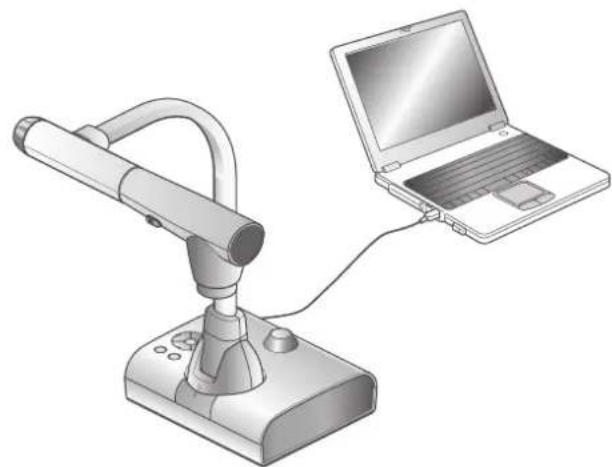
② Connect the equipment to the PC with the supplied USB cable.

Note
- When you connect the equipment to the PC for the first time, the required drivers are installed automatically using the plug-and-play function of Windows. From the second time and thereafter, the drivers are not installed again.
③ The equipment is recognized as a removable disk. You can view the image data on the SD card with the viewer software of the PC.
- The image data is stored as JPEG files in the following folders:
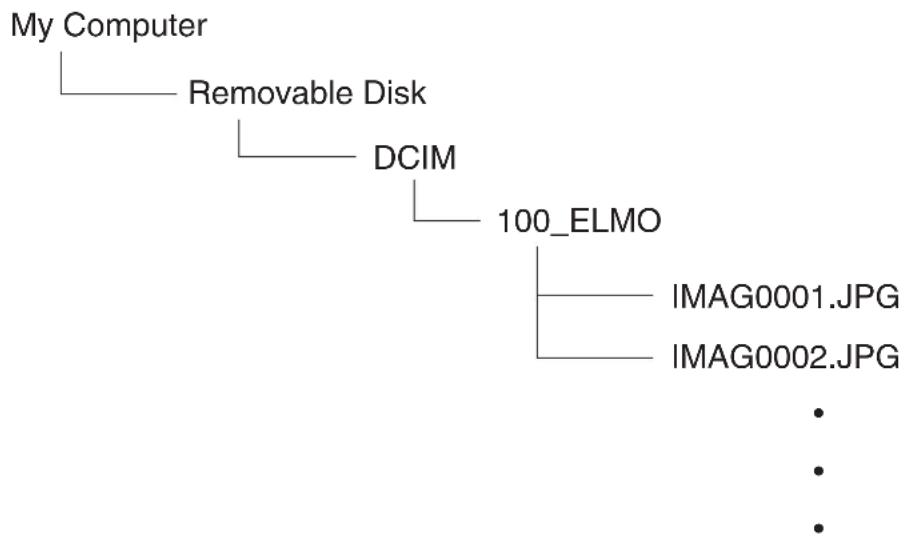
flowchart
graph TD
    A["My Computer"] --> B["Removable Disk"]
    B --> C["DCIM"]
    C --> D["100_ELMO"]
    D --> E["IMAG0001.JPG"]
    D --> F["IMAG0002.JPG"]
CAUTION
- You can not save, delete, lock, unlock, or format the images from the PC.
- The image files are not stored with the correct date and time.
- Do not connect/disconnect the USB cable while operating the equipment using the operating panel or remote control. This may cause a malfunction.
- While the equipment is in the USB-connection mode, do not switch [←] (USB Mode) to another mode from the Preferences menu on the screen.
- We recommend using a USB 2.0-compliant USB cable.

Note
- Depending on the USB environment used by the PC or any peripheral devices, image transfer may be disrupted.
- Operation is not guaranteed for all environments.
- If [USB Mode] has been set to [Mass Storage] and the equipment is connected to the PC, you can not save, delete, lock or unlock the pictures and movies in the SD card or format the SD card using the equipment. (You can do above operations to the files in the USB flash drive).
- Make sure to disconnect the USB cable before switching [USB Mode] from the OSD menu.
3-3 Using this device by connecting to a PC with an USB cable
natural_image
Illustration of a desktop computer with a laptop connected to its screen (no text or symbols present)Note
- Set the [USB Mode] to [UVC] using the Preferences menu on the screen.
- The device will restart when the setting is changed. Please wait until the restart is completed.
This device supports the UVC (USB Video Class) standard. You do not need to install driver software. The video conferencing system and various applications can be used just by connecting the device to the USB port on your PC.
(Operation is not guaranteed for all applications.)
You can also use the Image Mate (bundled software) and perform the operations described below.
- Capturing, recording (including audio), and drawing on the PC
- Controlling (zoom/focus) this device from the PC
For information on the operating requirements for the connected PC, OS types and the software guides, see the "Image Mate" installation manual.
If the refresh rate of the image in Image Mate appears to be slow, set the [USB Mode] to [Application]. Only the image data is sent in this mode, but the image refresh rate may be better than [UVC].
CAUTION
- Do not connect/disconnect the USB cable while operating the equipment using the operating panel or remote control. Doing so may cause a malfunction.
• We recommend using a USB 2.0-compliant USB cable. - When the [USB Mode] is set to [Application], you can only use the device with Image Mate.
- The device restarts when the USB mode is changed. Do not turn off the power while the device is restarting.
- When you display a UVC image, it may take awhile before the image is displayed. Be sure not to turn off the power of the device or disconnect the USB cable until the image is displayed.
- When you change the resolution for UVC, it may take awhile before the image is displayed. Be sure not to turn off the power to the device or disconnect the USB cable until the image is displayed.
- The image displayed using USB only supports MJPEG. Depending on the software you are using, you may not be able to display an image.
- Some buttons on the remote control and operation panel cannot be used when the resolution for UVC is set to VGA (640×480).
- You cannot record a document camera image, display a thumbnail, or play back a still image or video, when you are displaying an image through USB.
- The image may stop for a moment if there is an abrupt change in the subject.
Setting the [Brightness] to [Manual] using the Preferences menu on the screen may solve this problem to some degree.

Note
- The USB environment used by the PC or peripheral equipment may disrupt the image transfer in some cases.
- Operation is not guaranteed for all environments.
- When the device is started, be sure to disconnect the cable before switching the USB mode using the menu.
3-4 Using this device with a wireless pen tablet or a portable IWB (both sold separately)
By using a separately sold wireless pen tablet or a portable IWB with this device, you can draw on camera images directly and record the result.
You can also directly perform such operations as zooming in/out with the device.
Connection with the wireless pen tablet
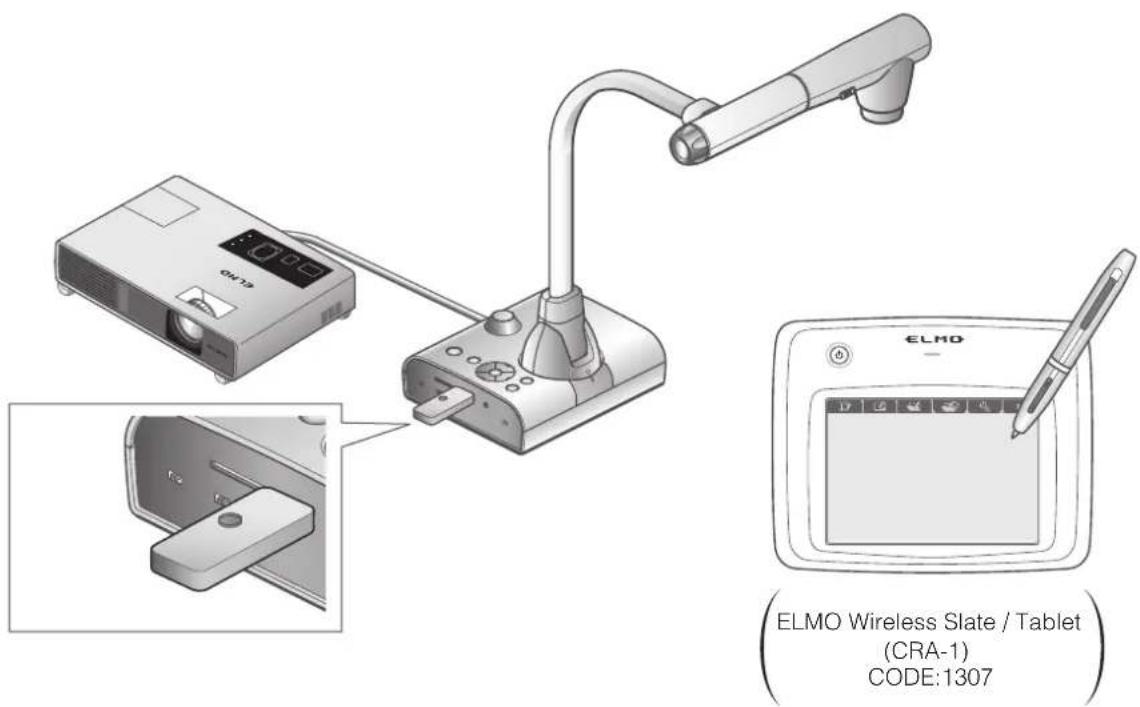
① Set up the device as shown in the figure above and connect to the projector, and then turn on the power.
② Connect the special wireless adapter (supplied with the pen tablet) to the device.
③ Turn on the power of the pen tablet.
■sic operations of the pen tablet
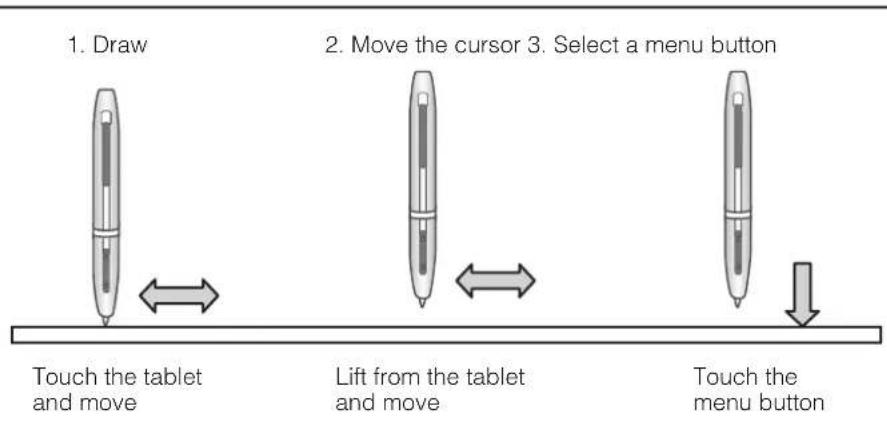
Touch the tablet and move
Lift from the tablet and move
Touch the menu button
● Drawing lines
Touch the tip of the pen to the surface of the tablet and move the pen.
If [ ] or [ ] has been selected, the pen will draw a line. Use this function to draw/erase lines.
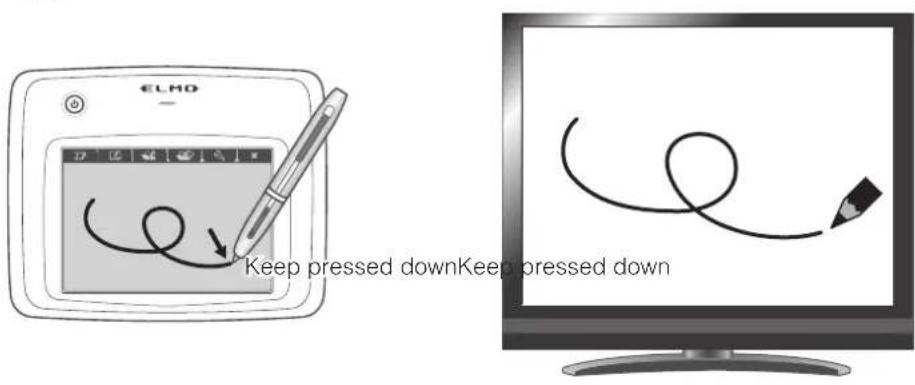
Keep pressed downKeep pressed down
● Moving the cursor
Move the pen slightly above the surface of the tablet.
The cursor on the screen moves as the pen moves. Use this function to move the cursor.
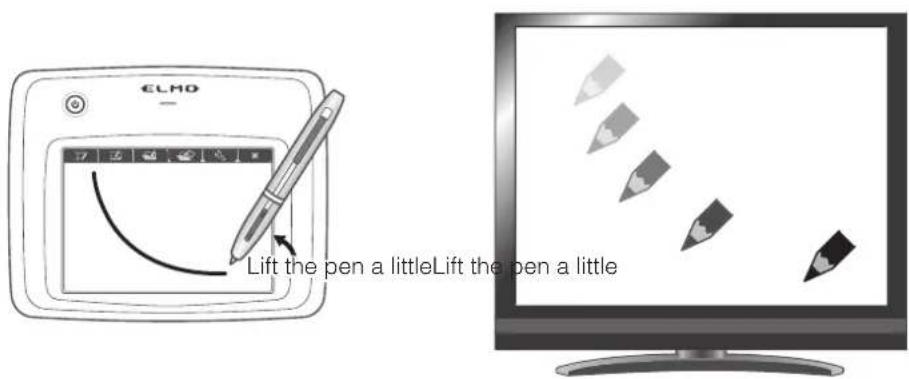
Lift the pen a little Lift the pen a little
- Selecting a menu button
Move the pen slightly above the surface of the tablet to move the cursor and then touch the pen within the working area on the tablet.
Use this function to select a menu button.
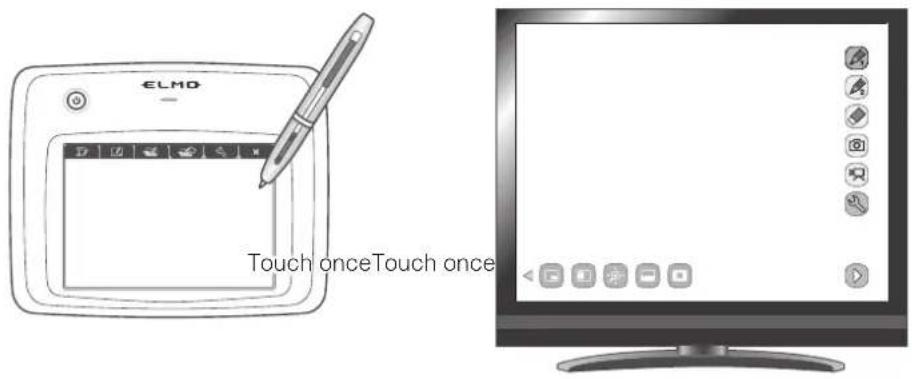
CAUTION
Press the tablet lightly with the pen; do not press hard.

Note
- Hold the pen as upright as possible; holding the pen at an angle may result in a failure of the tablet to recognize the pen.
- If the pen is not used for a while, the power saving mode is activated. Touch the tip to reactivate the pen before you use it again.
The working area on the tablet corresponds to the whole screen.
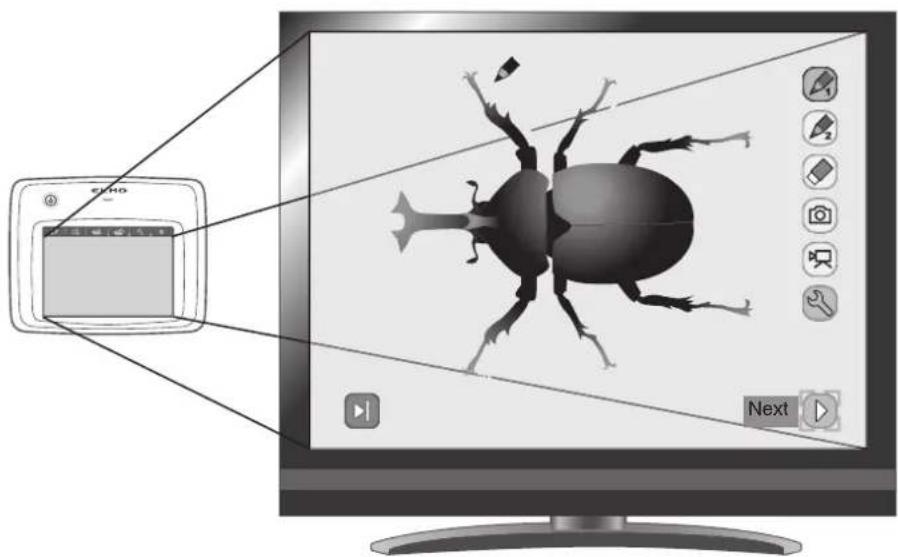
Selecting how to use the pen tablet from the tablet menu
To use the pen tablet, touch a function key at the top of the tablet and select a mode according to the situation described in the table below:
| Icon Name | Function | |
 | Write to/work with camera images (Camera Mode) | Display an image on the document camera as a background, and draw on it with the pen tablet. P.65 |
 | Write on a white screen (Whiteboard Mode) | Display a white image as a background, and draw on it using the pen tablet. P.70 |
 | Work with/write to stored data (Play Mode) | Display images stored on the SD card. You can draw on the displayed image only when it is a still picture. You can not draw on a movie with the pen tablet. P.73 |
 | ||
 | Setting | Specify settings for the pen tablet (the settings are common to all modes). |
 |
Connection with the portable IWB
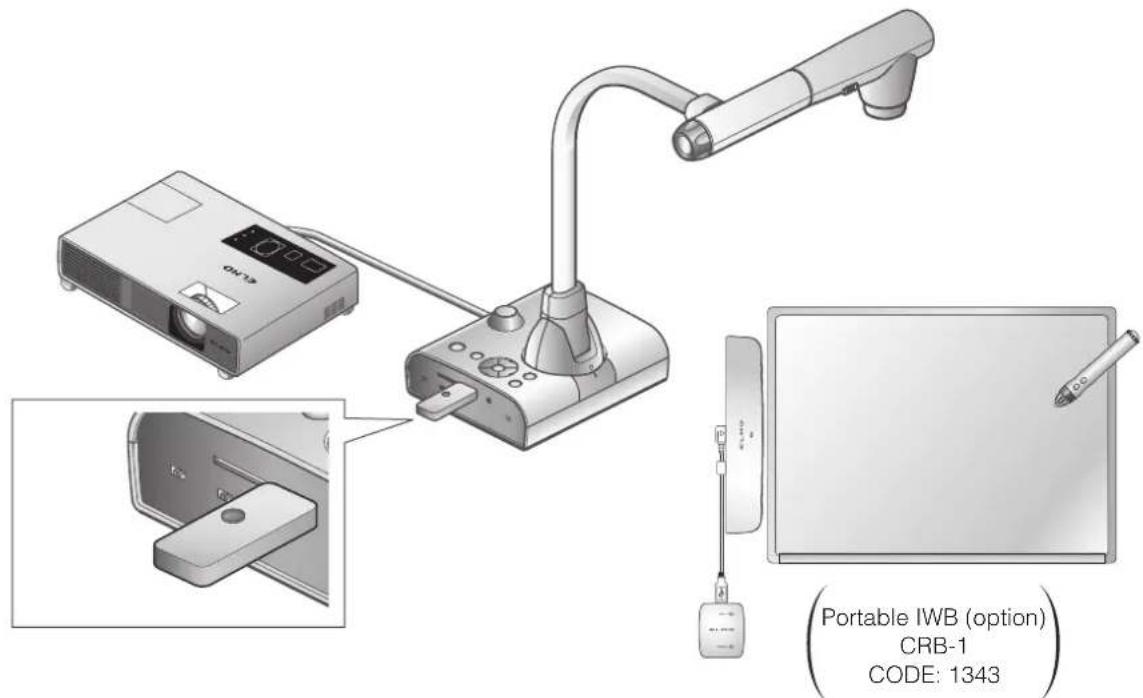
ADVANCED OPERATIONS
① Set up the device as shown in the figure above and connect to the projector, and then turn on the power.
② Connect the portable IWB or special wireless adapter (supplied with the IWB) to the device. For information on how to install the portable IWB, refer to the portable IWB's instruction manual.
■sic operations of the portable IWB
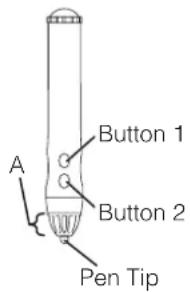
◆About the Pen
- Do not cover A with your hand when holding the pen. Doing so will hinder detection of information about the pen's position.
- Write with the pen perpendicular to the screen. Problems occur when the pen is tilted too much.
- If "Pen Tip", "Pen Button 1" or "Pen Button 2" are pressed for 2 minutes and 30 seconds, the power to the pen will automatically turn off.
You cannot write continuously for more than 2 minutes and 30 seconds. - Do not use rechargeable batteries in the pen.
Pen Tip: Left mouse button
Button 1: Right mouse button Button 2: Middle mouse button (wheel)
● Recognition of the write range (calibration)
Hold down Button 1 on the pen (three seconds or more) at the center of the portable IWB receiver (within a 2 cm radius).
You are in the Calibration mode when you hear a long beep.
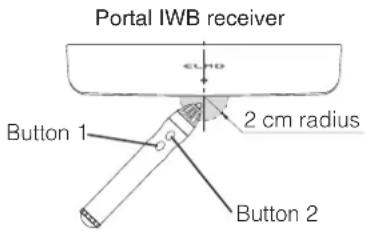
A symbol appears at the top left of the screen (① in figure below) when you enter the Calibration mode. You will hear a short beep when you touch the symbol with the tip of the pen. The symbol appears in the ①, ②, ③, and ④ positions in this order. There will be three short beeps when you touch the last symbol, which means the calibration is completed.
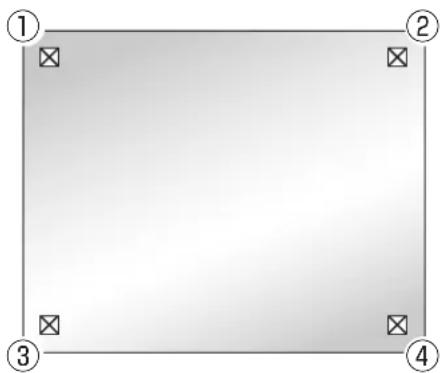
natural_image
Empty rounded rectangle with four corner markers (no text or symbols)Note
- Be sure the pen is perpendicular to the screen when clicking.
- If you clicked the wrong place in relation to the cursor, hold down Button 2 on the pen (for two seconds or more), and then calibrate again.
- During the calibration, the Calibration mode is canceled automatically with two short beeps if there is no pen operation for more than 30 seconds.
- The calibration cannot be performed when the resolution is set to VGA (640 x 480).
● Drawing
Touch the pen to the portable IWB-installed whiteboard and move it. When [ ]/[ ] is selected, a line is drawn along with the movement of the pen.
Use this function to draw or erase lines.
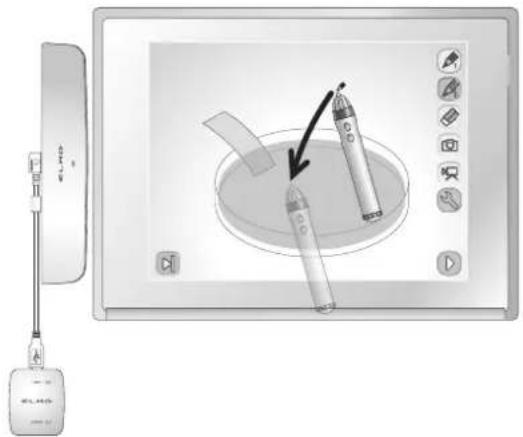
● Moving the cursor
Hold the pen slightly away from the portable IWB-installed whiteboard, and move the pen while the sound is coming out. The cursor moves on the screen along with the movement of the pen.
Use this function to move the cursor.
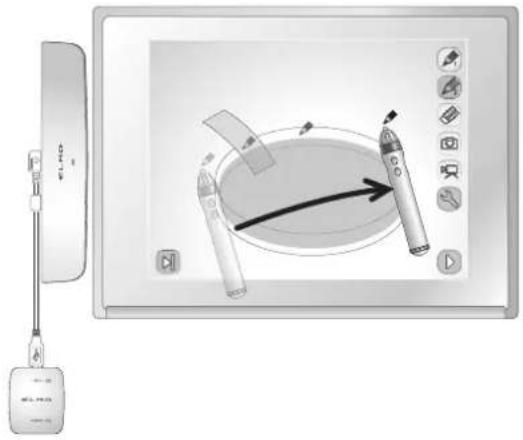
natural_image
Illustration of a computer monitor displaying a screen with two pens and a curved arrow, alongside a vertical toolbar (no text or symbols)- Selecting a menu button
Move the cursor and touch the menu button that you want to select.
Use this function to select a menu button.
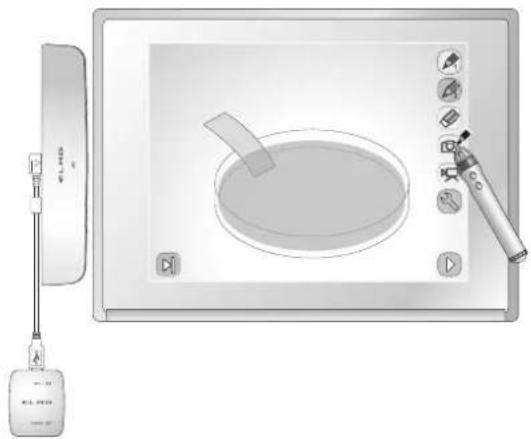
natural_image
Illustration of a digital drawing tablet with a screen, toolbar, and a stylus (no text or symbols)CAUTION
Touch the whiteboard lightly with the pen. Do not press hard on the whiteboard.

Note
- Holding the pen at an extreme angle may result in a failure of the whiteboard to recognize the position of the pen.
Hold the pen perpendicular to the whiteboard if possible. - When using the portable IWB, you can select the mode to be used from Main Menu 2.
- When the resolution is set to VGA (640 x 480), you cannot see the menu or draw lines with a pen.
Using the pen tablet or portable IWB to draw on the camera image
You can draw on camera images.
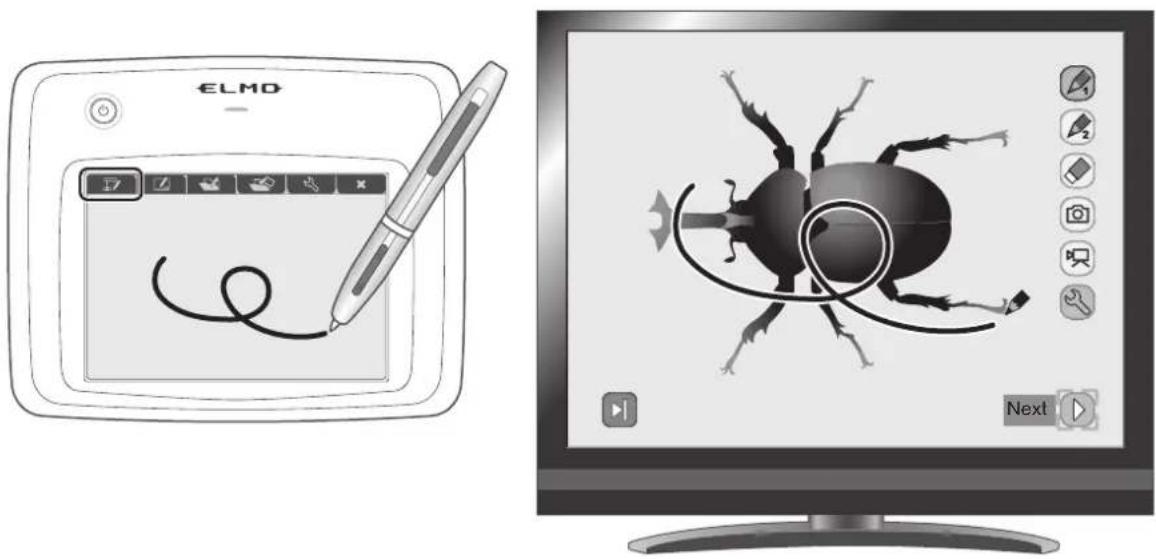
natural_image
Illustration of a digital drawing tablet and a computer monitor displaying a spider illustration (no text or symbols on the graphics)ADVANCED OPERATIONS
Menu descriptions
Pressing [] or [] switches the menu pages.
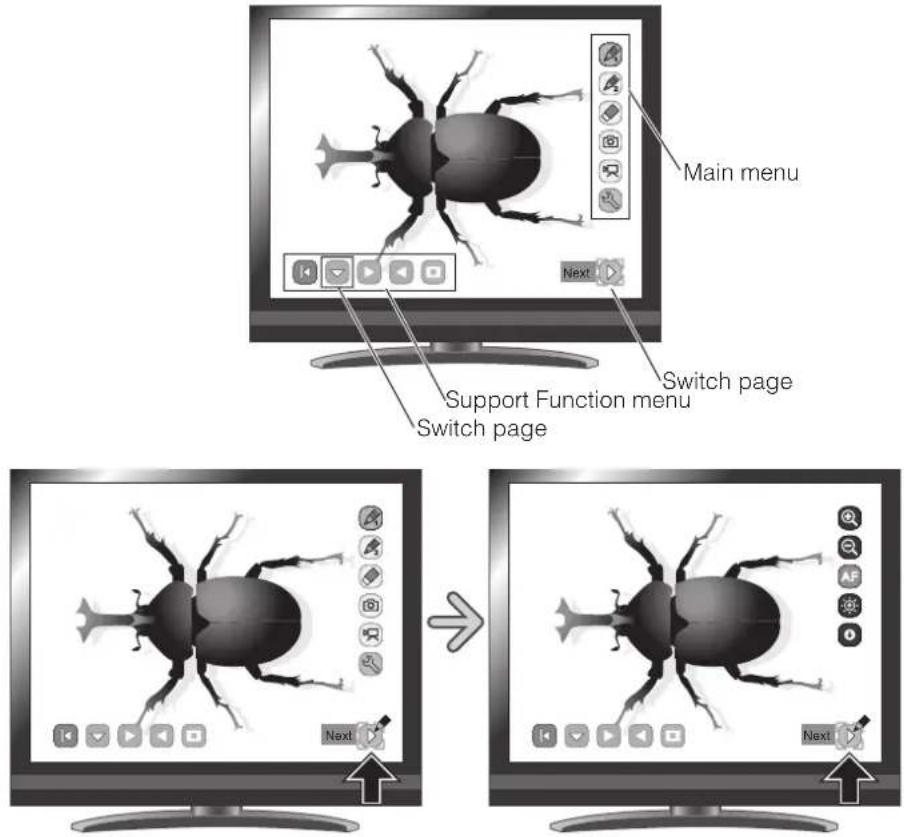
- Main Menu 1
| Icon Name Function | ||
 | Pen1 | To select Pen1.The initial color setting is Red.You can change the settings for the pen in the Setting menu. |
 | Pen2 | To select Pen2.The initial color setting is Black.You can change the settings for the pen in the Setting menu. |
 | Clear Screen | To erase anything drawn on the screen.If you need to erase a part of a drawing, move the cursor to the section to be erased, and touch the section with the pen while pressing the pen Erase button. |
 | Capture | To capture the image currently displayed on the screen as a picture and save it on the SD card.This feature captures only the displayed camera image and your comments/ drawings; the cursor and menu icons are not captured. |
 | Rec | To record the image currently displayed on the screen as a movie and save it on the SD card.This does not record the lines drawn with the tablet, the menu icons, or the cursor. |
 | Setting To specify the settings for Pen and Eraser. | |
 | Next To go to Main Menu 2. | |
- Main Menu 2
| Icon Name Function | ||
 | Camera Mode | To display an image on the document camera as a background and draw on it with the pen tablet or the portable IWB. P.65 |
 | Whiteboard Mode | To display a white image as a background and draw on it with the pen tablet or the portable IWB. P.70 |
 | Play Mode | To display images stored on the SD card. You can draw on the displayed image with the pen tablet or the portable IWB, only when it is a still image. You cannot draw on a movie with the pen tablet or the portable IWB. P.73 |
 | Hide | To hide the menu. (Only Main Menu 4 is displayed) |
 | Next To go to Main Menu 3. | |
- Main Menu 3
| Icon Name Function | ||
 | Zoom In To enlarge the size of the camera image. | |
— | Zoom Out To reduce the size of the camera image. | |
— | AF To enable autofocus operation. | |
— | Brighten To brighten the camera image. | |
— | Darken To darken the camera image. | |
— | Next To go to Main Menu 1. | |
- Main Menu 4
| Icon Name Function | ||
 _ _ | Show To show the menu. | |

Setting Menu
| Icon Name Selection Item Default Function | ||||
 | Pen1 Color |  Red Red | √ | To set the pen color to red. |
 |  Blue To set the pen color to blue. Blue To set the pen color to blue. | |||
 |  Black To set the pen color to black. Black To set the pen color to black. | |||
 | Pen1 Thickness |  Thin Thin | To decrease the pen thickness. | |
 |  Medium Medium | √ | To set the pen thickness to medium width. | |
 |  Thick Thick | To increase the pen thickness. | ||
 | Pen2 Color |  Red Red | To set the pen color to red. | |
 |  Blue To set the pen color to blue. Blue To set the pen color to blue. | |||
 |  Black Black | √ | To set the pen color to black. | |
| Icon Name | Selection Item | Default Function | ||
 | Pen2 Thickness | |||
 | ||||
 | ||||
 | Erase Area | |||
 | Exit To return to the previous level of menu. | |||
Support Function Menu
| Icon Name Function | ||
 | Show | To show/hide the Support Function Menu. |
 | Hide | |
 | Menu To change Support Function Menu. | |
 | Next Picture To move to the next picture page. | |
 | Prev Picture To move to the prev picture page. | |
 | Highlight To highlight part of the image you want to emphasize. | P.28 |
 | Mask To mask part of the image. | P.30 |
 | Scroll | To enlarge the image to the size you specify, allowing you to move within the enlarged area. |
 | Compare Picture | To display the still image captured when this icon is selected on the left, and display the camera image on the right. |
 | PIP (Picture in Picture) | In Camera mode, a still image saved in the SD card is displayed at the bottom right of the screen.In Playback mode, a Camera image is displayed at the bottom right of the screen while a still image saved in the SD card is displayed. |
 | Mosaic To apply the mosaic effect to the image. | P.35 |
 | Marker Mask | To apply a filter to a colored area to cover it with the black marker.You can use this to temporarily hide color characters and question the students about the contents. |
 | Microscope | You can use it to view images using a microscope. |
 | Image Rotation | To rotate a Camera image by 180° in Camera mode.To rotate a still image saved in the SD card by 90° in Playback mode. |
 | Color/B&W | To output color camera images.* |
| To output black and white camera images.* | ||
 | Posi/Nega | To output positive camera images.* |
| To output negative camera images.* | ||
* : Camera mode only.
Using the pen tablet or portable IWB as a whiteboard
You can draw on any blank white images or areas used as a background.
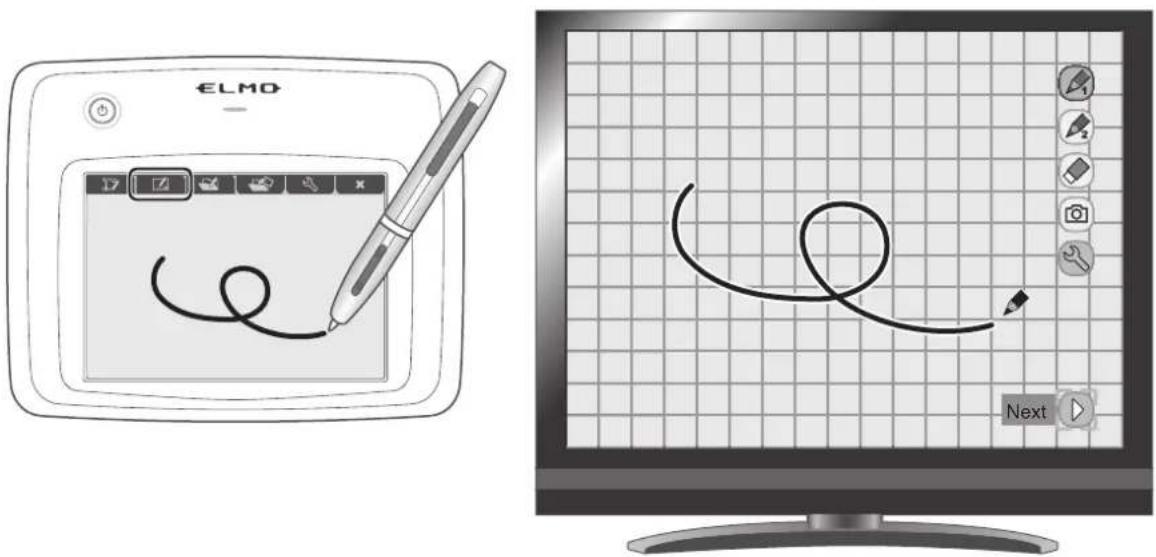
natural_image
Illustration of a digital drawing tablet and a computer monitor displaying a curved line drawing on grid paper (no text or symbols)Menu descriptions
Main Menu 1
| Icon Name Function | ||
 — — | Pen 1 | To select Pen 1.The initial color setting is Red.You can change the settings for the pen in the Setting menu. |
 — — | Pen 2 | To select Pen 2.The initial color setting is Black.You can change the settings for the pen in the Setting menu. |
 | Clear Screen | To clear all lines drawn on the screen.To clear just a part of the screen, move the cursor to the target area, and touch that area with the pen while pressing the pen Erase button. |
 — — | Capture | To save the image currently displayed on the screen to the SD card as a still image.The camera image and the lines drawn are saved, but the menu and cursor are not saved. |
 | Setting To specify the settings for Pen and Eraser. | |
 | Next To go to Main Menu 2. | |
Main Menu 2
| Icon Name Function | ||
 | Camera Mode | To display an image on the document camera as a background and draw on it with the pen tablet or portable IWB. P.65 |
 | Whiteboard Mode | To display a white image as a background and draw on it with the pen tablet or portable IWB. P.70 |
 | Play Mode | To display images stored on the SD card. You can draw on the displayed image with the pen tablet or portable IWB, only when it is a still image. You cannot draw on a movie with the pen tablet or portable IWB. P.73 |
 | Hide | To hide the menu. (Only Main Menu 3 is displayed) |
 | Next To go to Main Menu 1. | |
Main Menu 3
| Icon Name Function | ||
 | Show To show the menu. | |

Setting Menu
| Icon Name | Selection Item | Default Function | ||
 | Pen 1 Color | Red | To set the pen color to red. | |
 | Blue To set the pen color to blue. | |||
 | Black To set the pen color to black. | |||
 | Pen 1 Thickness | Thin | To decrease the pen thickness. | |
 | Medium | To set the pen thickness to medium width. | ||
 | Thick | To increase the pen thickness. | ||
 | Pen 2 Color | Red | To set the pen color to red. | |
 | Blue To set the pen color to blue. | |||
 | Black | To set the pen color to black. | ||
 | Pen 2 Thickness | Thin | To decrease the pen thickness. | |
 | Medium | To set the pen thickness to medium width. | ||
 | Thick | To increase the pen thickness. | ||
 | Erase Area |  Narrow To make the area of partial erasure smaller. Narrow To make the area of partial erasure smaller. | ||
 Middle Middle | √ | To set the area of partial erasure to the medium range. | ||
 Wide To increase the area of partial erasure. Wide To increase the area of partial erasure. | ||||
 | Exit To return to the previous level of menu. | |||
Using the pen tablet or portable IWB and an SD card
You can display a picture or movie stored on the SD card and use the pen tablet or portable IWB to draw or write on it.
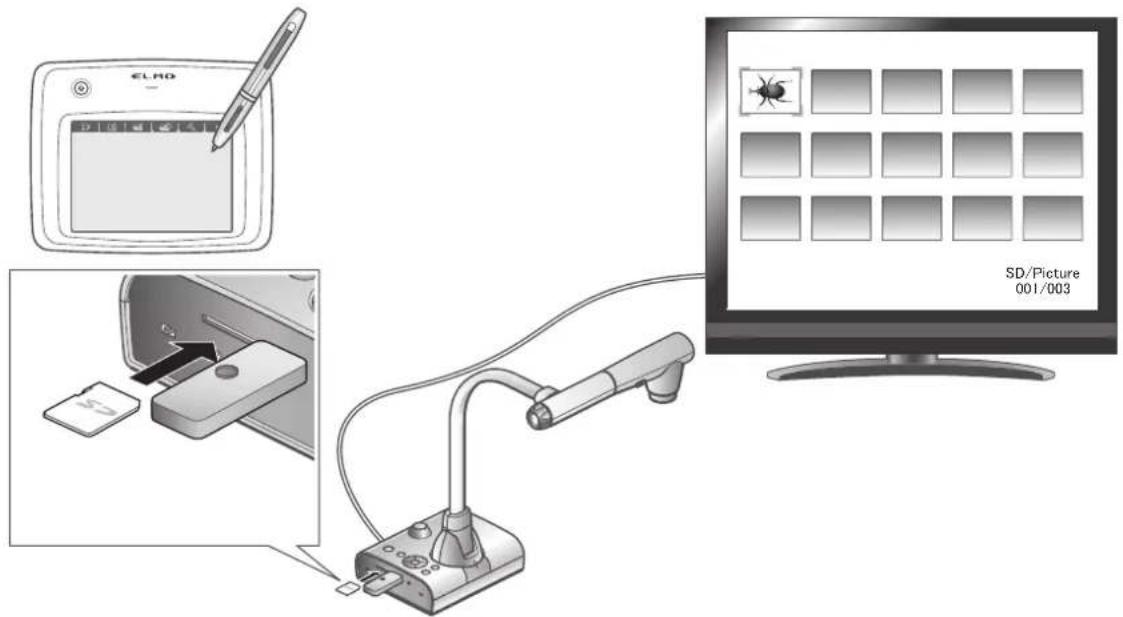
- Thumbnail display
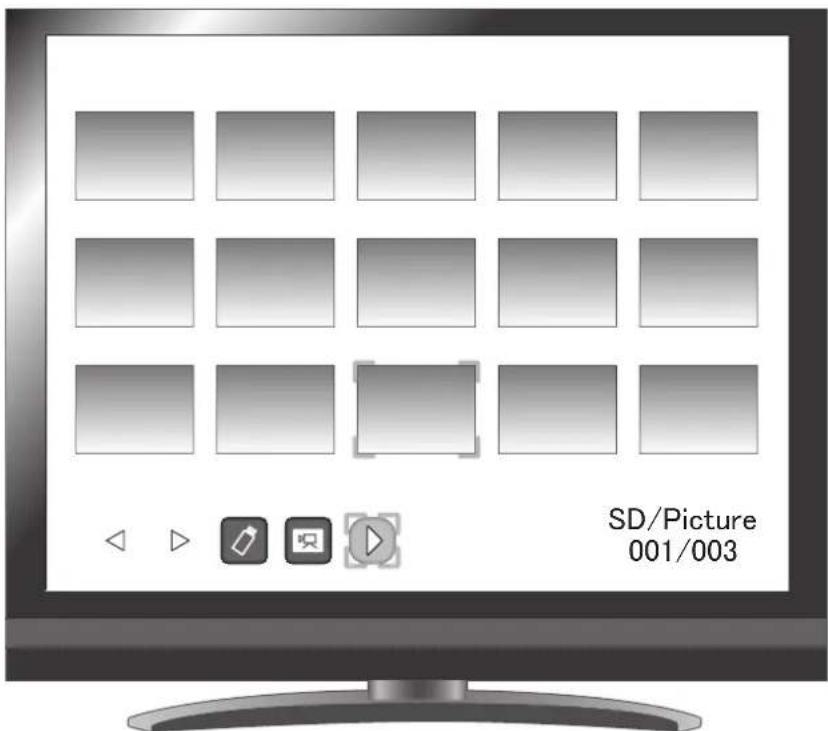
When you select an image from the thumbnails, the selected image is displayed on the screen.
Menu descriptions
Thumbnail Mode Menu 1
| Icon Name Selection Item Function | |||
| Prev Page To move the | thumbnail to the previous page. | ||
| Next Page To move the | thumbnail to the next page. | ||
 | USB Flash Drive | ||
 | Movie | To switch the data displayed as thumbnails between movies and pictures. | |
 | Picture | ||
 | Next Menu To go to Thumbnail Mode Menu 2. | ||
Thumbnail Mode Menu 2
| Icon Name | Selection Item Function | |
| Prev Page To move the thumbnail to the previous page. | ||
| Next Page To move the thumbnail to the next page. | ||
 | Camera Mode | |
 | Whiteboard Mode | |
 | Hide | |
 | Next Menu To go to Thumbnail Mode Menu 3. |
Thumbnail Mode Menu 3
| Icon Name Selection Item Function | |||
| ◀ | Prev Page To move the | thumbnail to the previous page. | |
| ▷ | Next Page To move the | thumbnail to the next page. | |
 | Memory Lock |  Lock/Unlock Lock/Unlock | To lock (set as protected) or unlock (set as unprotected) the selected image. |
 Lock All To lock (set as protected) all thumbnail images. Lock All To lock (set as protected) all thumbnail images. | |||
 Unlock All Unlock All | To unlock (set as unprotected) all thumbnail images. | ||
 Exit To go back one layer in the menu. Exit To go back one layer in the menu. | |||
 | Delete |  Yes To delete the selected image. Yes To delete the selected image. | |
 No To cancel deletion. No To cancel deletion. | |||
 Exit To go back one layer in the menu. Exit To go back one layer in the menu. | |||
 | Format |  Yes To format the SD card. Yes To format the SD card. | |
 No To cancel formatting. No To cancel formatting. | |||
 Exit To go back one layer in the menu. Exit To go back one layer in the menu. | |||
 | Next Menu To go to Thumbnail Mode Menu 1. | ||
Thumbnail Mode Menu 4
| Icon Name | Selection Item | Function | |
 | Show To show the menu. | ||
Picture Display Menu
- Main Menu 1
| Icon Name Function | ||
 | Pen 1 | To select Pen 1.The initial color setting is Red.You can change the settings for the pen in the Setting menu. |
 | Pen 2 | To select Pen 2.The initial color setting is Black.You can change the settings for the pen in the Setting menu. |
 | Clear Screen | To clear all lines drawn on the screen.To clear just a part of the screen, move the cursor to the target area, and touch that area with the pen while pressing the pen Erase button. |
 | Capture | To save the image currently displayed on the screen to the SD card as a still image.The camera image and the lines drawn are saved, but the menu and cursor are not saved. |
 | Setting To specify the settings for Pen and Eraser. | |
 | Next To go to Main Menu 2. | |
- Main Menu 2
| Icon Name Function | ||
 | Camera Mode | To display an image on the document camera as a background and draw on it with the pen tablet or portable IWB. P.65 |
 | Whiteboard Mode | To display a white image as a background and draw on it with the pen tablet or portable IWB. P.70 |
 | Play Mode | To display images stored on the SD card. You can draw on the displayed image with the pen tablet or portable IWB, only when it is a still image. You cannot draw on a movie with the pen tablet or portable IWB. P.73 |
 | Hide | To hide the menu. (Only Main Menu 4 is displayed) |
 | Next To go to Main Menu 3. | |
- Main Menu 3
| Icon Name | Selection Item | Function | |
 | Delete |  Yes Yes | To delete the displayed image. (You cannot delete locked images.) |
 No To cancel deletion. No To cancel deletion. | |||
 Exit To go back one layer in the menu. Exit To go back one layer in the menu. | |||
 | Memory Lock | To lock (set as protected) or unlock (set as unprotected) the selected image. | |
 | Next Menu To go to Main Menu 1. | ||
- Main Menu 4
| Icon Name Function | ||
 | Show To show the menu. | |

Setting Menu (when Setting Menu is selected)
| Icon Name Selection Item Default Function | ||||
 | Pen 1 Color |  Red Red | √ | To set the pen color to red. |
 |  Blue To set the pen color to blue. Blue To set the pen color to blue. | |||
 Black To set the pen color to black. Black To set the pen color to black. | ||||
 | Pen 1 Thickness |  Thin Thin | To decrease the pen thickness. | |
 |  Medium Medium | √ | To set the pen thickness to medium width. | |
 |  Thick Thick | To increase the pen thickness. | ||
 | Pen 2 Color |  Red Red | To set the pen color to red. | |
 |  Blue To set the pen color to blue. Blue To set the pen color to blue. | |||
 |  Black Black | √ | To set the pen color to black. | |
 | Pen 2 Thickness |  Thin Thin | To decrease the pen thickness. | |
 |  Medium Medium | √ | To set the pen thickness to medium width. | |
| [IMAGE] |  Thick Thick | To increase the pen thickness. | ||
| Icon Name | Selection Item | Default Function | ||
| Erase Area |  Narrow To decrease the area of partial erasure. Narrow To decrease the area of partial erasure. | ||
 Medium Medium | √ | To set the area of partial erasure to the medium range. | ||
 Wide To increase the area of partial erasure. Wide To increase the area of partial erasure. | ||||
 | Exit To return to the previous level of menu. | |||
Movie Play Menu
- Movie Play Menu 1
| Icon Name Function | ||
 | Show | To show or hide Movie Play Menu 1. |
 | Hide | |
 | Menu To go to Movie P | ay Menu 2. |
 | Play | To play, pause, or cue the movie. |
 | Pause | |
 | Cueing | |
- Movie Play Menu 2
| Icon Name Function | ||
 | Show | To show or hide Movie Play Menu 2. |
 | Hide | |
 | Menu To go to Movie P | Play Menu 3. |
 | Camera Mode | To display an image on the document camera as a background and draw on it with the pen tablet or portable IWB.P.65 |
 | Whiteboard Mode | To display a white image as a background and draw on it with the pen tablet or portable IWB.P.70 |
 | Play Mode | To display images stored on the SD card. You can draw on the displayed image with the pen tablet or portable IWB, only when it is a still image. You cannot draw on a movie with the pen tablet or portable IWB.P.73 |
- Movie Play Menu 3
| Icon Name Function | ||
 | Show | To show or hide Movie Play Menu 3. |
 | Hide | |
 | Menu To go to Movie Play Menu 1. | |
 | Up | To set the audio output volume. |
 | Down | |
 | Repeat On | To repeat the playback of movies. |
 | Repeat Off | |
3-5 Displaying enlarged images using a microscope
By attaching the separately sold microscope attachment lens to a microscope, you can display the enlarged image through the document camera lens.
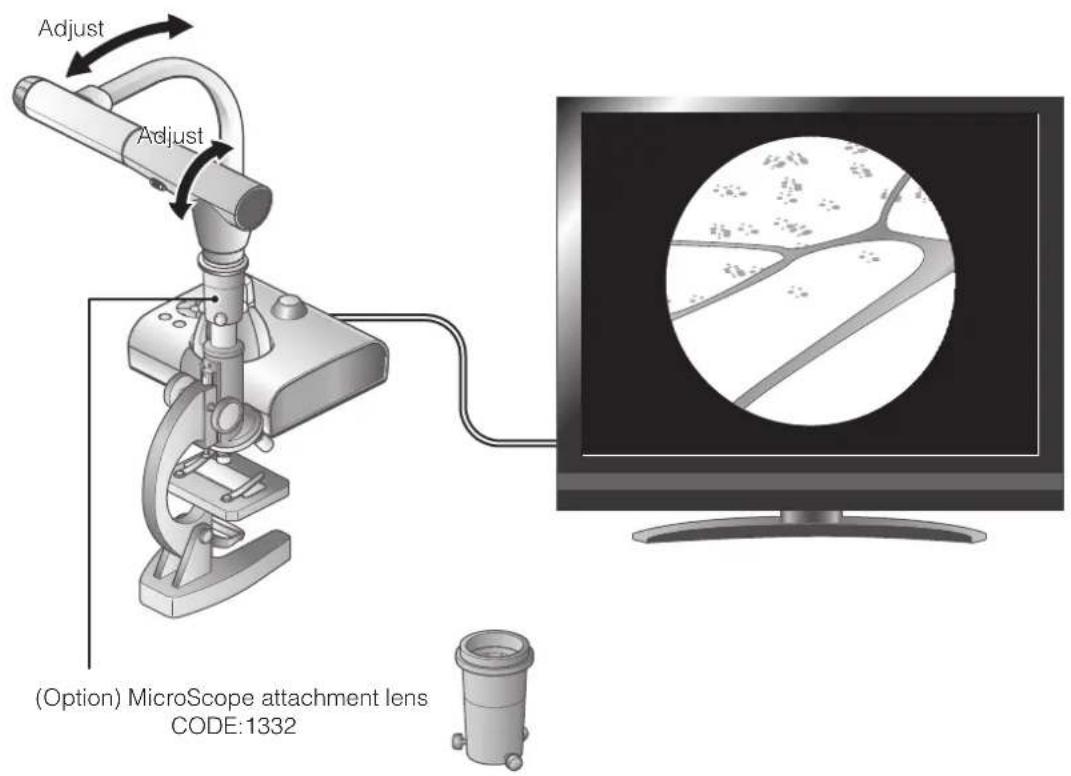
Procedure
① Change the setting of this equipment for using a microscope.
Press the [MENU] button.

Press [ ]
② Set the microscope.
Place the object you want to view, such as a prepared slide, on the microscope and then look into the microscope to adjust the focus and brightness.
③ Attach the microscope attachment lens.
- Attach the guide ring to the microscope attachment lens and cover the eyepiece with it.
Set the microscope attachment lens
- Match the centers of the microscope attachment lens and eyepiece, and use the three screws to evenly tighten the lenses against each other.
CAUTION
If the screws are screwed too tightly, the microscope eyepiece or tube may be damaged.
The screws may leave scratches where they come in contact with the microscope.
Taping the microscope before attaching it may alleviate this problem.
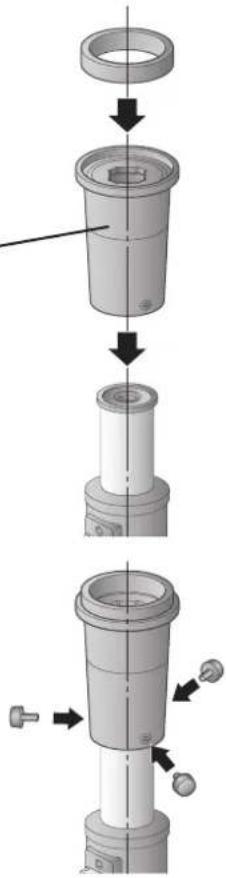
④ Adjust the angle of the microscope and the equipment to fit each other.
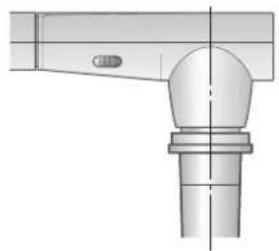
natural_image
Technical line drawing of a mechanical component with a flanged base and cylindrical body (no text or symbols)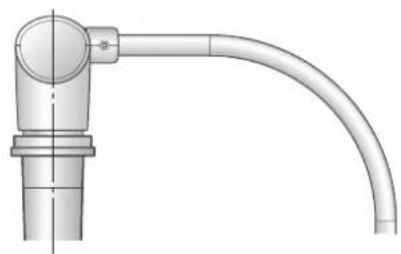
natural_image
Technical illustration of a mechanical pipe fitting with a curved handle (no text or symbols)⑤ Adjust the brightness.
Adjust the brightness with the mirror or the light on the microscope.
⑥ Adjust the display range.
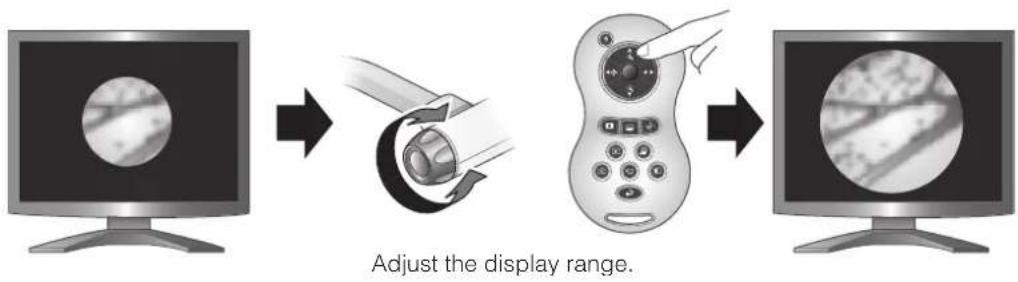
⑦ Focus a camera.
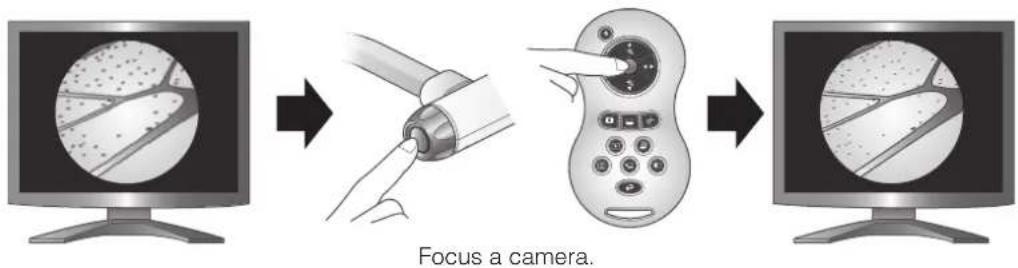
Eiting the Microscope mode
Change the setting of the equipment.
Press the [MENU] button.

Press [ ]
Note
- Depending on the type of eyepiece, you may not be able to view the object clearly even after adjusting the zoom.
- We recommend using a WF type eyepiece. If you do not use a WF type, we recommend using an eyepiece of 10x or less.
- Adjust the focus manually when it is hard to focus automatically.
- You can use the microscope attachment lens when the external diameter of the eyepiece is 20 to 28mm.
- Use the thinner guide ring for Microscope Lens Attachment. There are two types of rings included in the package; the thicker one is not used here.
4 TROUBLE SHOOTING
4-1 Symptoms and Confirmation
Check the following items. If any abnormality is found, consult the dealer from whom you purchased this product or our nearest branch/office.
| Symptom Possible | cause/remedy |
| No image is displayed. | The cable is not correctly connected.The AC adapter is disconnected from the wall outlet.The AC adapter is disconnected from the power supply socket of the unit.The power is not ON. (Blue light)Zoom is set at the TELE side, displaying only the white/black part of the document.If you turn the power ON immediately after turning it OFF, the unit may not start. Wait for several seconds after turning the power OFF, and then turn it back ON.The slide switch is not set to the correct image output (RGB/HDMI/VIDEO). Set the “RGB/HDMI/VIDEO Switch” correctly.P.10Reconnect the AC adapter. |
| The output image (resolution) changes automatically. | When the HDMI monitor is connected, the output image (resolution) is automatically changed based on information from the connected monitor. |
| No image is displayed from the USB. | No image is output from USB, when USB mode is set to mass Storage or in Play mode or in Recording mode or when using the Compare Picture Function or the PIP Function. Switch the USB mode from Mass Storage to Application by referring to the “Function Setting Menu”. When using Play mode, change the output image to Camera image. |
| The image is out of focus. | The document (object) is too close to the lens. Move the document (object) slightly away from the lens.Auto focus may have difficulty in adjusting correctly. Focus on an image manually by referring to “Manual focus”. |
| The video output image is scrambled or unclear. | Video output is set to [NTSC]. If this product is set to the NTSC system and connected to a monitor specially designed for the PAL system, the video image may not be normally output but be scrambled or be displayed in black and white. Set the video output system to PAL. |
| The image is too dark. | ·The intensity of the lighting is insufficient. Press the [◎] button on the operating panel or the [◆] button on the remote control to adjust the brightness. |
| The image is striped. | ·This may be interference fringes between dots of printed matter and TV scanning lines or CMOS pixels. Changing the shooting range may help the problem.·Vertical stripes may appear on an LCD projector image. Manually adjusting the dot clock at the projector side may help the problem. |
| Images on the SD card/USB flash drive are not displayed. | ·Remove the SD card/USB flash drive, wait a few seconds and reinsert. |
| The image does not move. | ·Camera image is set to [Pause]. Press the Pause button on the operating panel again to restart. |
| The remote control does not work. | ·Battery power is low. Replace the batteries with new ones.·The incorrect remote control is being used. Use the supplied remote control. |
| After inserting the SD card/USB flash drive, operations cannot be performed. | ·The SD card/USB flash drive is not being read correctly. Use the SD card/USB flash drive after formatting it twice as described below.First, format the card using a computer. Second, format the card using the main unit. |
| Drawing speed of the tablet is too slow. | ·Drawing speed may become slow depending on the resolution setting of the unit. This is not a malfunction. |
| UVC image is upside down | ·Check that the graphics driver and other device drivers on your PC are updated. The latest device drivers are available from the PC manufacturer. |
| The displayed UVC image contains images other than the camera image | ·The software and OS you are using or the connection status may be causing images other than the camera image to break through while displaying the camera image. This problem can be solved by reconnecting the device or restarting the software. |
| A software error message appears and the UVC image is not displayed | ·If it is taking too much time for the preparation of the image output, the software may determine this to be an error. Restart the device, reconnect it to the PC, and then start the software. |
| The UVC image/ audio fails to be output | · Disconnect the USB cable, restart the software, and then connect the USB cable again.· If UVC image/audio still fails to be output after restarting, contact the software vendor and ask if the software you are using supports MJPEG. |
| Some buttons on the remote control and operation panel cannot be used in the USB mode (UVC) | · Some buttons on the remote control and operation panel cannot be used when the USB mode is set to UVC and the resolution is set to VGA (640×480). Also, you cannot record a camera image, display a thumbnail, or play back a still image/video while there is a UVC image/audio output. |
| The UVC image stops for a moment | · The image may stop for a moment if there is an abrupt change in the subject. If the [Brightness] in the Preferences menu on the screen is set to [Auto], change the setting to [Manual]. Doing so may solve the problem to some degree. |
| Operation is disabled during calibration | · The image switches to the camera image when you disconnect the wireless adapter. Start the calibration again after the image switches to the camera image. |
| When the portable IWB and the device are connected:· Lines cannot be drawn· The menu cannot be displayed· The symbols are not displayed on the screen after the calibration | · If you performed the calibration with the resolution set to VGA (640 x 480), then the symbols for the calibration mode are not displayed. Also, you cannot see the menu or draw lines with a pen. If this is the case, do not perform any operation for a while or disconnect the special wireless adapter (supplied with the portable IWB) that is connected to this device. The calibration will be canceled, allowing you to perform an operation.· When using this device as a portable IWB, set the device resolution to XGA (1024 x 768), WXGA (1280 x 800), SXGA (1280 x 1024), 720P (1280 x 720), or 1080P (1920×1080). |
About the light (LED lighting)
- The brightness of the light will diminish with long-term use. If its brightness has significantly diminished, consult the dealer from whom you purchased this product or our nearest branch/office for replacement.
About long-term usage of this product
- Due to the lifetime of its parts, if this product is used for longer than the warranty period, its performance and quality may deteriorate. In this case, we will replace the parts for a charge. Consult the dealer from whom you purchased this product or our nearest branch/office.
5 SPECIFICATIONS
5-1 General
| Item Specifications | |
| Power source 12VDC | (AC adapter AC100 - 240V) |
| Power consumption | 16.2W |
| Outside dimensions | W355 x D373.5 x H426.5mm (W14.0 x D14.7 x H16.8 in)(When setup) |
| W195 x D294 x H469mm (W7.7 x D11.6 x H18.5 in)(When folded) | |
| Weight Approx. 3.2kg | (7.1 lbs) (Main body only) |
| Input selection Main/ | External |
| Output terminal | RGB output Mini Dsub 15P connector, female x 1 |
| Composite video output RCA pin jack/75 Ω unbalanced x 1(NTSC/PAL) | |
| HDMI output terminal x 1 | |
| Line Out terminal φ 3.5mm stereo minijack x 1 | |
| Input terminal | RGB input Mini Dsub 15P connector, female x 1 |
| Mic In/Line Out terminal (shared)φ 3.5mm stereo minijack x 1 | |
| Ext. control terminal | USB device (2.0 compliant) Mini-B receptacle x 1 |
| Memory Interface | SD card slot x 1 |
| USB host (2.0 compliant) Type A receptacle x 1 | |
※ Use pin plug for RCA pin in accordance with EIAJ RC-6703.
- Line input
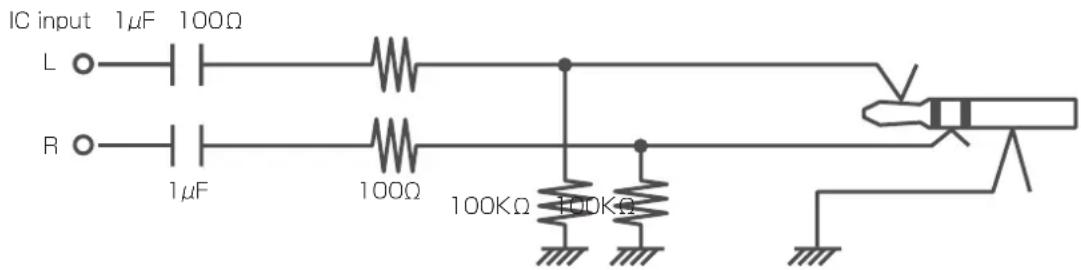
| Item Specifications | ||||
| Lens | f = 4.0mm - 48.0mm (12x zoom) F3.2 - 3.6 | |||
| Frame rate 30fps | ||||
| Shooting area | Max. Min. | |||
| 1080p | 420mm x 233mm 48.5mm | x 27.5mm | ||
| 720p | 420mm x 233mm 48.5mm | x 27.5mm | ||
| SXGA | 420mm x 334mm 48.5mm | x 38.5mm | ||
| WXGA | 420mm x 259mm 48.5mm | x 30.5mm | ||
| XGA | 420mm x 313mm 48.5mm | x 36.5mm | ||
| Limit of focus adjustment | From lens surface:50mm (2.0 in) - ∞ (f=4.0mm - 23.4mm)200mm (7.9 in x) - ∞ (f=23.4mm and higher) | |||
| Optical zoom 12X | ||||
| Digital zoom 8X | ||||
| Focus Auto/Manual/Zoom Sync | ||||
| Image pick-up element | 1/2.8" CMOS | |||
| Total pixels Horizontal | 2144, Vertical 1588 | |||
| Effective pixels Horizontal | 1920, Vertical 1536 | |||
| Synchronized signal | Internal | |||
| Resolution | Analog RGB Horizontal 800TV lines or more Vertical800TV lines or more | |||
| Video output Horizontal 500TV lines or more | ||||
| Analog RGB output | Analog RGB output 0.7 V (p-p)75 Ω unbalancedSynchronized signalSXGA : Positive polarityWXGA : Horizontalnegative polarity,Vertical positivepolarityXGA : Negative polarity1080p : Positive polarity720p : Positive polarity | SXGA: 1280x1024@60HzHorizontal frequency: 63.981kHzVertical frequency: 60.020HzWXGA: 1280x800@60HzHorizontal frequency: 49.306kHzVertical frequency: 59.910HzXGA: 1024x768@60HzHorizontal frequency: 48.363kHzVertical frequency: 60.004Hz1080p: 1920x1080@60HzHorizontal frequency: 67.50kHzVertical frequency: 60.00Hz720p: 1280x720@60HzHorizontal frequency: 45.00kHzVertical frequency: 60.00Hz | ||
| Item Specifications | |
| HDMI output | Image output1080p720p |
| Audio outputPCM 44.1kHz sampling frequency | |
| Composite video output | Compliant with NTSC/PAL |
| White Balance Auto/ | One-Push/Manual |
| Video output selection switch | Provided (NTSC/PAL) |
| Brightness Control Auto (W/Level adjustment)/Manual | |
| Posi/Nega conversion | Provided |
| Color/B&W selection | Provided |
| Image rotation Provided (0°/180°) | |
| Image Mode | Text1/Text2/Text3/Graphics1/Graphics2 |
| Gamma setting Provided (Only for graphic mode 1) | |
| Edge Effect Provided (Only for graphic mode 1) | |
| Pause Provided | |
| Still Image storage Provided | |
| Movie storage Provided | |
| Flicker connection 60Hz/50Hz | |
5-3 Illumination Device
| Item Specifications | |
| Illumination light White LED |
5-4 Trademarks · License
ELMO and Teacher's + Choice are trademarks or registered trademarks of ELMO Co., Ltd.
SD ^TM , are the registered trademarks of SD-3C, LLC respectively.
HDMI ^™ , High-Definition Multimedia Interface are the registered trademarks of HDMI Licensing LLC.
This product is based on the work of the Independent JPEG Group.
All other company/product names described in this manual are trademarks or registered trademarks of their respective companies.
This product is licensed under the AVC Visual Patent Portfolio License (AVC Video), for the personal and a non-commercial use of a consumer to
(i) Play AVC Video that was recorded by a consumer engaged in a personal and a non-commercial activity and/or,
(ii) Play AVC Video that was obtained from a video provider licensed from MPEG-LA and LLC
and it admitted to use only in personal and a non-commercial purpose.
- When you play AVC Video recorded by the personal and non-commercial purpose.
- When you play AVC Video offered by the provider licensed from MPEG-LA, LLC to provide AVC Video.
Additional information including that relating to promotional and commercial uses may be obtained from MPEG-LA, LLC.
WARNING
Unauthorized recording of copyrighted slide films, materials, photographs, etc. may infringe on the rights of copyright owners and be contrary to copyright laws.
6X1VHYC6 R0-Xxx