DXSIMULATOR - Musical instrument YAMAHA - Free user manual and instructions
Find the device manual for free DXSIMULATOR YAMAHA in PDF.


User questions about DXSIMULATOR YAMAHA
0 question about this device. Answer the ones you know or ask your own.
Ask a new question about this device
Download the instructions for your Musical instrument in PDF format for free! Find your manual DXSIMULATOR - YAMAHA and take your electronic device back in hand. On this page are published all the documents necessary for the use of your device. DXSIMULATOR by YAMAHA.
USER MANUAL DXSIMULATOR YAMAHA
The DX Simulator provides an easy, intuitive way to edit and create your own original DX voices for the PLG150-DX Advanced DX/TX Plug-in Board.
NOTE
- Do not use any of the panel controls on an external tone generator while editing the DX voices with the DX Simulator, since this may inadvertently change the settings of the PLG150-DX.
Copyright Notices
- The software and this owner's manual are the exclusive copyrights of Yamaha Corporation.
- Copying of the software or reproduction of this manual in whole or in part by any means is expressly forbidden without the written consent of the manufacturer.
- Copying of the commercially available music sequence data and/or digital audio files is strictly prohibited except for your personal use.
Trade Marks and Registered Trade Marks
- The company names and product names in this Owner's Manual are the trademarks or registered trademarks of their respective companies.
Notices
- Yamaha makes no representations or warranties with regard to the use of the software and documentation and cannot be held responsible for the results of the use of this manual and the software.
- The windows and illustrations in this manual are for instructional purposes only, and may slightly different from the ones shown on your software.
About this manual
- The screens shown in this manual are almost all on Windows systems. Although some screens may differ for Macintosh systems, the basic operations are the same.
- Keyboard shortcuts referred in this manual are effective for only Windows system.
For Windows users
When you use the DX Simulator, set "Font Size" to "Small Fonts" at the "Control Panel I Display I (Settings I) Advanced" page. If "Large Fonts" is selected, messages in some dialog boxes may not be displayed properly.
The DX Simulator is providing an exceptionally simple and convenient way to edit and control all of the parameters on the PLG150-DX Advanced DX/TX Plug-in Board — even providing the same control format as used on the original DX7.
DX Simulator lets you store your edits as an original Custom voice and save up to 64 Custom voices directly to the PLG150-DX. Naturally, you can save additional sets of 64 Custom voices to floppy disks or your hard disk drive as DX Cartridge Files. The DX Simulator also features a convenient, easy-to-use DX Librarian that lets you organize your Custom voices.
Editing on the DX Simulator can be done from two different windows: Edit Panel or Edit List. The DX Simulator lets you edit the Part parameters the sound of the DX voices from the software side (Host application) without actually having to save the changes to a Custom voice.
For general instructions and explanations on how to use the DX Simulator, see Setting and Changing Parameter Values and Toolbar. For information on specific, commonly used operations, see Operations.
Assigning the PLG150-DX to a Part
NOTE
- The following information pertains only to the Plug-in Editor.
In order to play and edit the PLG150-DX, the DX voice must be assigned to a Part on the tone generator/sound card. This can be done from two separate menus on the DX Simulator: the initial Select DX Part pop-up menu (which appears automatically whenever you start the DX Simulator) and DX Simulator Setup.
Select DX Part Pop-up Menu
text_image
Select DX Part OK Part 1 Cancel DetailsNOTE
- “Cancel” button may not be available depending on the editor you use.
1 Select the desired Part.
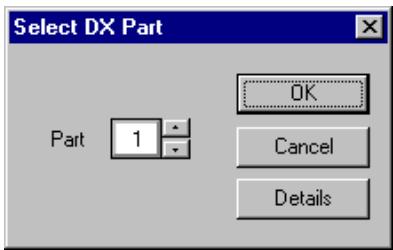
The Select DX Part pop-up menu appears when you first call up the DX Simulator. Select the desired Part from the Part combo box.
2 Click "OK."
NOTE
- Click "Details" to call up the DX Simulator Setup menu for making more detailed settings.
DX Simulator Setup
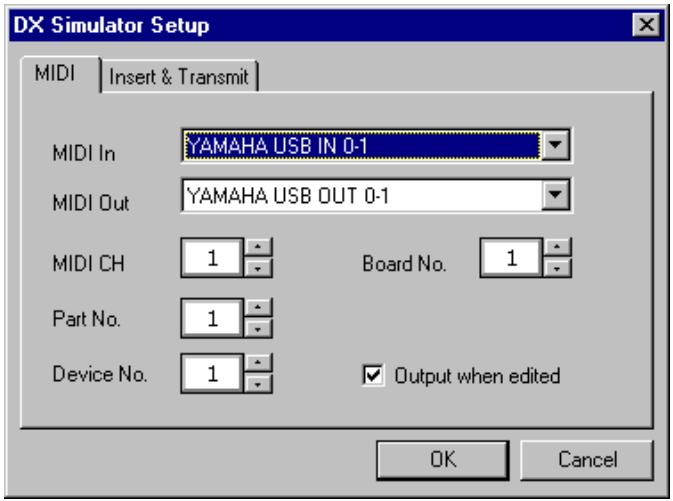
Even after you've set the DX Part from the pop-up menu, you can change the setting during an editing session from the DX Simulator Setup dialog box.
text_image
DX Simulator Setup MIDI Insert & Transmit MIDI In YAMAHA USB IN 0-1 MIDI Out YAMAHA USB OUT 0-1 MIDI CH 1 Board No. 1 Part No. 1 Device No. 1 Output when edited OK Cancel1 Select "DX Simulator Setup."
While the DX Simulator is active and selected, click "Setup" on the menu bar, then select "DX Simulator Setup." (Keyboard shortcut: [Alt], [U], [U], then [ENTER].)
NOTE
- “DX Simulator Setup” can also be selected from the toolbar.
2 Select the desired Part.
Do this from the Part No. combo box in the MIDI tab. Make other settings if necessary. (See DX Simulator Setup.)
3 Click "OK."
Selecting a DX Voice
Selecting a DX voice is the important first step in editing. Once you've edited a voice you can store it to the PLG150-DX or save it to a floppy disk/hard disk drive with other voices as a DX Cartridge File.
DX voices can be selected from either the Edit Panel window or the Edit List window.
NOTE
- Only Custom voices can be selected in the DX Simulator.
- Make sure to store your edits to a voice before selecting another voice. If you've edited the DX Simulator parameters and then select a different voice, all your edited parameters will be replaced by those of the newly selected voice.
Selecting a Voice From the Edit Panel Window
1 Call up the Play mode.
Click one of the MEMORY SELECT buttons ([1 - 32] or [33 - 64]), depending on the desired voice number.
2 Click the desired Voice Select button, [1] - [32] or [33] - [64].
The LED displays the voice number, and the LCD displays the voice name and number.
![YAMAHA DXSIMULATOR - Click the desired Voice Select button, [1] - [32] or [33] - [64]. - 1](/content/2025/01/114590/images/e1c12fce1dd6bb8c77c10ad8692dd3ac4c5c8fc20dd94cfcec427e5a449097ea.jpg)
text_image
Edit Panel VOLUME MAX MIN DATA ENTRY NO YES -1 +1 OFF ON MEMORY PROTECT STORE W X Y OPERATOR SELECT EDIT/ COMPARE MEMORY SELECT 1-32 33-64 FUNCTION CHARACTER - SPACE PLAY 1-32 VOICE VOI 1 BRASS 1 Simulator OPERATOR ON-OFF / EG COPY 1 2 3 4 5 6 ALGORITHM FEEDBACK WAVE SPEED DELAY PMD AMD SYNC PITCH AMPLITUDE 1 1 2 3 4 5 6 7 8 9 10 0 11 A 12 B 13 C 14 D 15 E 16 F POLY / MONO RANGE STEP MODE GLISSANDO TIME EDIT VOICE INIT VERSION SAVE LOAD PITCH BEND PORTAMENTO RECALL RECALL CHECK FILE OSCILLATOR EG KEYBOARD LEVEL SCALING BREAK POINT CURVE DEPTH KEYBOARD OPERATOR PITCH EG MODE / SYNC FREQUENCY COARSE FINE DETUNE RATE LEVEL BREAK RATE SCALING OUTPUT LEVEL KEY VELOCITY SENSITIVITY RATE LEVEL KEY TRANSPOSE VOICE NAME 17 G 18 H 19 I 20 J 21 K 22 L 23 M 24 N 25 O 26 P 27 Q 28 R 29 S 30 T 31 U 32 VSelecting a Voice From the Edit List Window
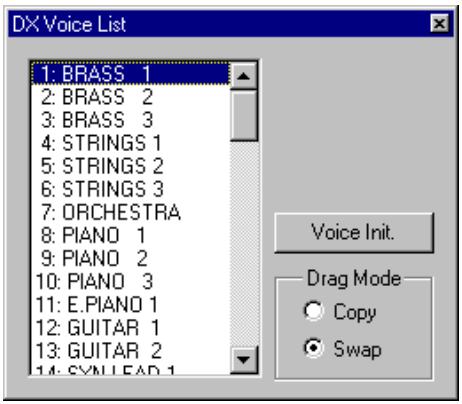
1 Select "DX Voice List."
Click “Edit” on the menu bar, then select “DX Voice List.” (Keyboard shortcut: [Alt], [E], [V].)
You can also quickly call up this dialog box by right-clicking any inactive part of the window (on the Macintosh, click while holding the CONTROL key) and clicking "DX Voice List" in the pop-up menu.
text_image
DX Voice List 1: BRASS 1 2: BRASS 2 3: BRASS 3 4: STRINGS 1 5: STRINGS 2 6: STRINGS 3 7: ORCHESTRA 8: PIANO 1 9: PIANO 2 10: PIANO 3 11: E.PIANO 1 12: GUITAR 1 13: GUITAR 2 14: SYNLEAD 1 Voice Init. Drag Mode Copy Swap2 Select the desired voice.
Click on the desired voice, then close the dialog box (click the close button) to return to the Edit List window.
HINT
- You can play the currently selected voice by clicking on the keys of the keyboard in the DX Simulator window.
Opening the Various Windows
DX Simulator Window
text_image
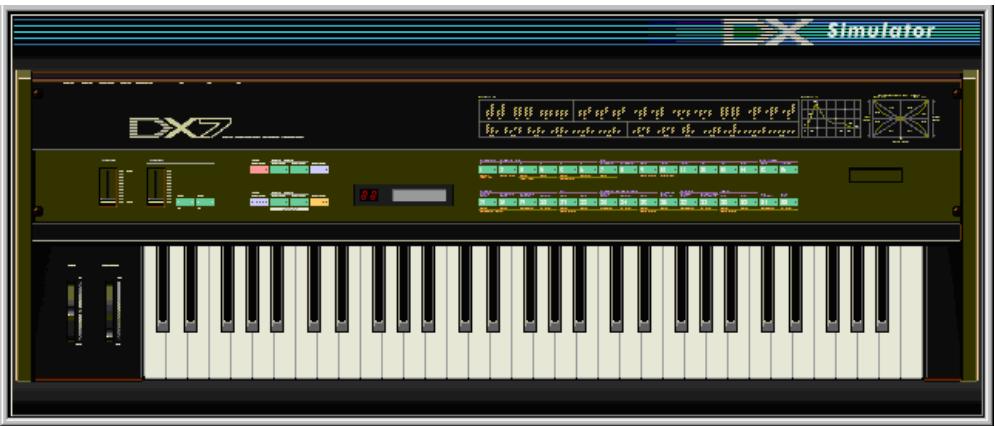
DX Simulator DX7 100 mm x 0.0 x 0.0 x 0.0 x 0.0 x 0.0 x 0.0 x 0.0 x 0.0 x 0.0 x 0.0 x 0.0 x 0.0 x 0.0 x 0.0 x 0.0 x 0.0 x 0.0 x 0.0 x 0.0 x 0.0 x 0.5 the to be able the right side, so it is the left of the right side.This window automatically appears when you open the DX Simulator and serves as the “front end” of the plug-in module. For the most part, no editing functions are available from the DX Simulator window. However, from this window you can:
- Audition the currently selected voice by clicking on the keys of the keyboard.
- Open a DX Cartridge File by clicking on the cartridge or cartridge slot.
- Open the Edit Panel and Edit List windows (below).
Closing the DX Simulator window exits from the DX Simulator plug-in module.
Edit Panel Window
text_image
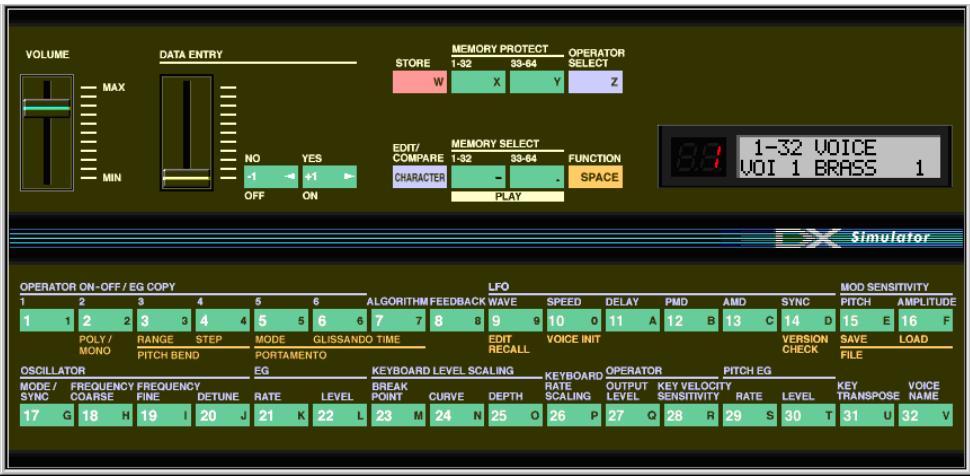
VOLUME MAX MIN DATA ENTRY NO YES -1 +1 OFF ON STORE MEMORY PROTECT OPERATOR 1-32 33-64 SELECT W X Y Z EDIT/ COMPARE MEMORY SELECT FUNCTION 1-32 33-64 SPACE CHARACTER PLAY 1-32 VOICE VOI 1 BRASS 1 BIT: 1-32 VOICE SPACE DX Simulator OPERATOR ON-OFF / EG COPY LFO MOD SENSITIVITY 1 2 3 4 5 6 ALGORITHM FEEDBACK WAVE SPEED DELAY PMD AMD SYNC PITCH AMPLITUDE 1 1 2 3 4 5 6 7 8 9 10 0 11 A 12 B 13 C 14 D 15 E 16 F POLY / RANGE STEP MODE GLISSANDO TIME EDIT VOICE INIT VERSION MONO PITCH BEND PORTAMENTO RECALL CHECK SAVE LOAD OSCILLATOR EG KEYBOARD LEVEL SCALING KEYBOARD OPERATOR PITCH EG MODE / FREQUENCY KEYBOARD KEYBOARD OPERATOR PITCH EG SYNC COARSE FINDE TURATE LEVEL BREAK RATE OUTPUT KEY TRANSPPOSE VOICE 17 G H I J 20 J 21 K 22 L 23 M 24 N 25 O 26 P 27 Q 28 R 29 S 30 T 31 U 32 VThis window provides a “virtual” DX7 panel, and lets you edit the voices much as you would if you were operating the panel controls of an actual DX7 keyboard. (For more information, see Editing a DX Voice and DX Simulator Window.)
To call up this window, click anywhere on the panel control area of the DX Simulator window.

text_image
Control panel interface with digital display, signal waveforms, and labeled buttons for system statusEdit List Window
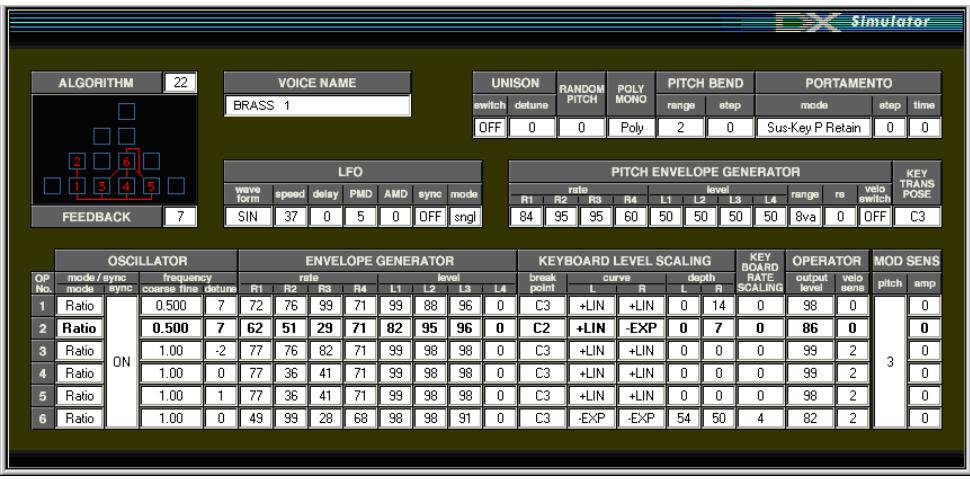
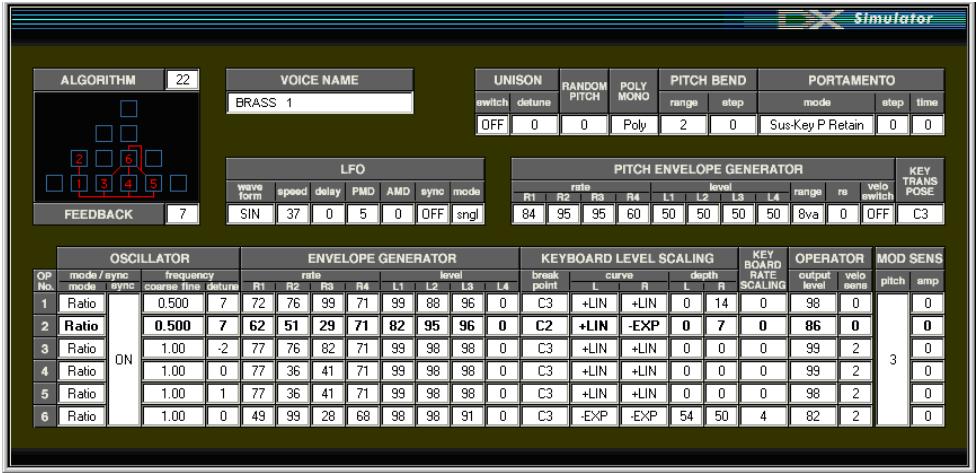
This window provides a comprehensive, at-a-glance display of all DX voice parameters, and allows you to easily change any desired parameter. (For more information, see Editing a DX Voice.)
To call up this window, click the DX7 logo in the DX Simulator window.

Alternately, click "Edit" on the menu bar, then select "DX Edit List." (Keyboard shortcut: [Alt], [E], [X].) You can also call it up from the toolbar.
Selecting a Mode — Play, Edit or Function
In the Edit Panel window, you can select from among the three main modes: Play, Edit and Function.
- Play Mode
In the Play mode, you can:
- Select one of the 64 Custom voices.
- Play the selected voice (from the connected MIDI keyboard or from the keys in the DX Simulator window).
To select the Play mode:
Click one of the [MEMORY SELECT] buttons: [1-32] or [33-64].
text_image
MEMORY SELECT 1-32 33-64 - . PLAY- Edit Mode
In the Edit mode, you can:
- Edit the voice, using the Edit parameters (printed in lavender above each button).
To select the Edit mode:
Click the [EDIT] button.
- Function Mode
In the Function mode, you can:
- Edit the Function (global) parameters of the voice (printed in yellow below the appropriate buttons). These include other miscellaneous Function parameters as well, such as Edit Recall and Voice Initialize.
To select the Function mode:
Click the [FUNCTION] button.
Editing a DX Voice
1 Select the desired voice.
Refer to Selecting a DX Voice.
2 Edit the voice parameters as desired from one of the editing windows: Edit Panel or Edit List.
The Edit Panel window provides a “virtual” DX7 panel, and lets you edit the voices much as you would if you were operating the panel controls of an actual DX7 keyboard.
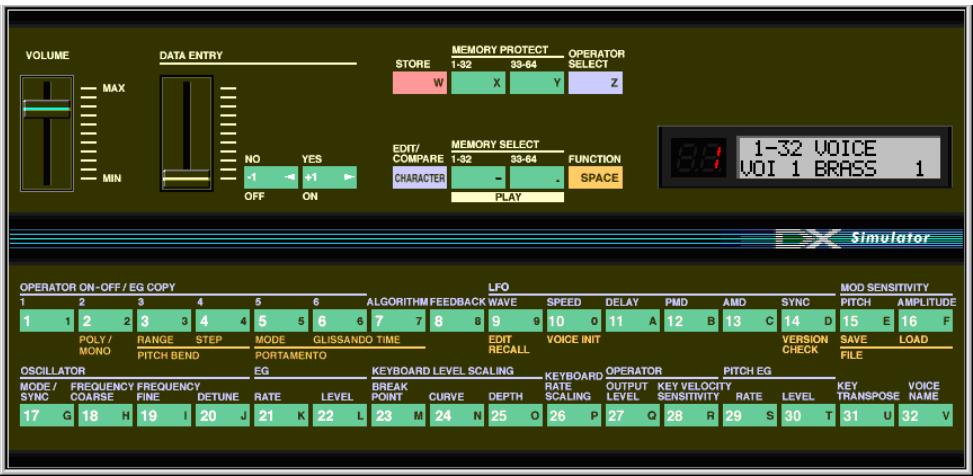
text_image
VOLUME MAX MIN DATA ENTRY NO YES -1 +1 OFF ON STORE MEMORY PROTECT OPERATOR 1-32 33-64 SELECT W X Y Z EDIT/ COMPARE MEMORY SELECT FUNCTION 1-32 33-64 SPACE CHARACTER - . PLAY 8: 1-32 VOICE VOI 1 BRASS 1 SIMULATOR OPERATOR ON-OFF / EG COPY LFO MOD SENSITIVITY 1 2 3 4 5 6 ALGORITHM FEEDBACK WAVE SPEED DELAY PMD AMD SYNC PITCH AMPLITUDE 1 1 2 3 4 5 6 7 8 9 10 0 11 A 12 B 13 C 14 D 15 E 16 F POLY / RANGE STEP MODE GLISSANDO TIME EDIT VOICE INIT VERSION MONO PITCH BEND PORTAMENTO RECALL CHECK SAVE LOAD OSCILLATOR EG KEYBOARD LEVEL SCALING KEYBOARD OPERATOR PITCH EG MODE / NETWORK FREQUENCY NAME FREQUENCY COARSE FINE DETUNE RATE LEVEL BREAK POINT CURVE DEPTH RATE SCALING OUTPUT KEY VELOCITY PITCH EG 17 G 18 H 19 I 20 J 21 K 22 L 23 M 24 N 25 O 26 P 27 Q 28 R 29 S 30 T KEY TRANSPOSE VOICE NAME 8: 1-32 VOICE VOI 1 BRASS 1The Edit List window provides a comprehensive, at-a-glance display of all voice parameters, and allows you to easily change any desired parameter.
3 Store the edited settings as a Custom voice, then save it with other edited voices as a DX Cartridge File.
Use the Store operation to store your newly edited voice. Then use the Save operation to save that edited voice with other Custom voices to a DX Cartridge File.
Both the Store and Save operations are necessary to ensure that your voice is saved properly. Failing to do so would be roughly similar to writing a letter but not putting it in an envelope. Make sure to execute both operations when you wish to keep a voice you've edited.
Compare
This function lets you switch back and forth between the current edited condition of the voice and its original un-edited condition. This allows you to easily hear and compare the changes you make to a voice with its original condition.
Using Compare From the Edit Panel Window
1 Select the Edit mode.
Click the [EDIT/COMPARE] button.
2 Edit the voice as desired.
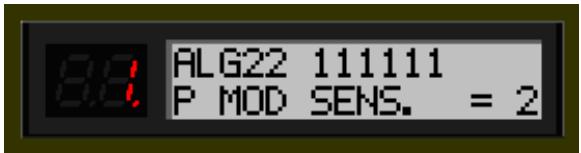
As soon as any parameter has been edited, a dot appears at the bottom right of the voice number in the LED.
text_image
8.8 ALG22 111111 P MOD SENS. = 23 Select Compare.
Click the [EDIT/COMPARE] button. In the Compare condition, the voice number in the LED flashes. Play the connected MIDI keyboard (or click the keys in the DX Simulator window) to hear the original un-edited voice.
While Compare is active, the voice cannot be edited. (Moving the DATA ENTRY slider has no effect.)
4 Click [EDIT/COMPARE] again to return to the edited condition.
Click the [EDIT/COMPARE] button as often as you wish to go back and forth between the two conditions.
Using Compare From the Edit List Window
1 Edit the voice as desired.
2 Select "DX Compare."
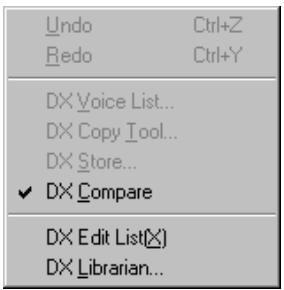
Click "Edit" on the menu bar, then select "DX Compare." (Keyboard shortcut: [Alt], [E], [C].)
You can also quickly use Compare by right-clicking any inactive part of the window (on the Macintosh, click while holding the CONTROL key) and clicking “DX Compare” in the pop-up menu.
text_image
Undo Ctrl+Z Redo Ctrl+Y DX Voice List... DX Copy Tool... DX Store... ✓ DX Compare DX Edit List(X) DX Librarian...In the Compare condition, a check appears beside “DX Compare” in the menu. All parameter values are ghosted and cannot be edited. Play the connected MIDI keyboard (or click the keys in the DX Simulator window) to hear the original un-edited voice.
3 Select "DX Compare" again to return to the edited condition.
Do this as often as you wish to go back and forth between the two conditions.
NOTE
- “DX Compare” is ghosted and cannot be selected if the voice has not yet been edited.
Initializing a DX Voice to the Default Settings
This function allows you to reset all the parameters of the selected voice to the factory "initial voice" default values. This gives you a "blank slate" from which you can create your own voice.
The currently selected voice can be initialized from either the Edit Panel window or the Edit List window.
Initializing a Voice From the Edit Panel Window
1 Select the Function mode.
Click the [FUNCTION] button.
2 Initialize the voice.
To do this:
1) Click the [VOICE INIT] button.
2) At the "VOICE INIT?" prompt, click the [YES] button.
3) At the "ARE YOU SURE?" prompt, click [YES] again to actually execute the operation. Click [NO] to cancel.
Initializing a Voice From the Edit List Window
NOTE
- Keep in mind that this operation automatically erases all the settings of the selected voice.
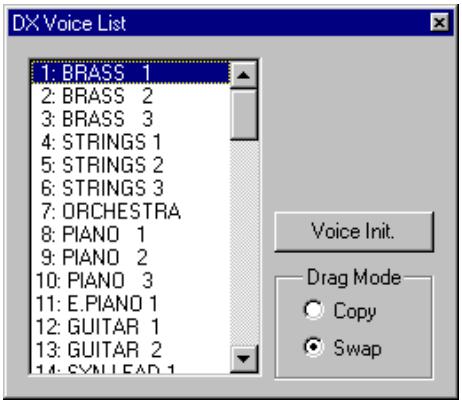
1 Select "DX Voice List."
Click “Edit” on the menu bar, then select “DX Voice List.” (Keyboard shortcut: [Alt], [E], [V].)
You can also quickly call up this dialog box by right-clicking any inactive part of the window (on the Macintosh, click while holding the CONTROL key) and clicking "DX Voice List" in the pop-up menu.
text_image
DX Voice List 1: BRASS 1 2: BRASS 2 3: BRASS 3 4: STRINGS 1 5: STRINGS 2 6: STRINGS 3 7: ORCHESTRA 8: PIANO 1 9: PIANO 2 10: PIANO 3 11: E.PIANO 1 12: GUITAR 1 13: GUITAR 2 14: SYNLEAD 1 Voice Init. Drag Mode Copy Swap2 Select the desired voice to be initialized.
Click on the desired voice.
3 Initialize the voice.
Click the "Voice Init." button in the dialog box. The specified voice is initialized and automatically selected for editing.
Storing a DX Voice
This operation lets you store your voice edits as a Custom voice. The currently edited voice can be stored from either the Edit Panel window or the Edit List window.
NOTE
- To ensure that your new voice is available for future recall, make sure to also save the voice (with other voices) to a DX Cartridge File.
Storing a Voice From the Edit Panel Window
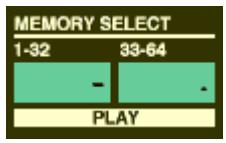
1 Select the Play mode, and the destination bank (1 - 32, or 33 - 64) to which the edited voice will be stored.
Click the desired [MEMORY SELECT] button: [1-32] or [33-64]. If necessary, turn Memory Protect off for the selected bank.
text_image
MEMORY SELECT 1-32 33-64 - - PLAY2 Click the [STORE] button.
3 Select the destination voice number to which the edited voice will be stored.
Click the desired voice select button (1 - 32, or 33 - 64). The specified voice is replaced with the newly edited voice.
Storing a Voice From the Edit List Window
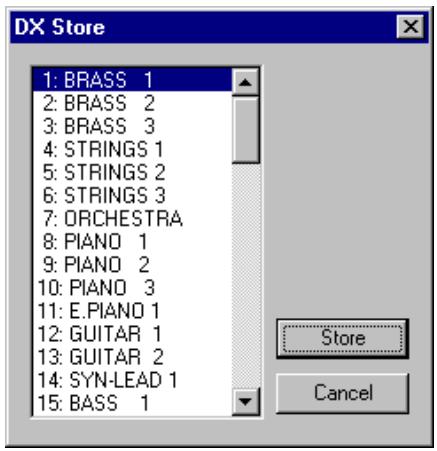
1 Select "DX Store."
Click "Edit" on the menu bar, then select "DX Store." (Keyboard shortcut: [Alt], [E], [S].)
You can also quickly call up this dialog box by right-clicking any inactive part of the window (on the Macintosh, click while holding the CONTROL key) and clicking "DX Store" in the pop-up menu.
text_image
DX Store 1: BRASS 1 2: BRASS 2 3: BRASS 3 4: STRINGS 1 5: STRINGS 2 6: STRINGS 3 7: ORCHESTRA 8: PIANO 1 9: PIANO 2 10: PIANO 3 11: E.PIANO 1 12: GUITAR 1 13: GUITAR 2 14: SYN-LEAD 1 15: BASS 1 Store Cancel2 Select the destination voice.
Click on the desired voice in the dialog box.
3 Store the voice.
Click the "Store" button in the dialog box. The specified voice is replaced with the newly edited voice.
NOTE
- This operation deletes the original voice data at the destination.
Saving Voices to a DX Cartridge File
Once you've edited a DX voice to your satisfaction you can save it to a DX Cartridge File. Each DX Cartridge File can contain up to 64 voices, and these can be called up at any time with the Open function. (Also see Calling Up Voices from a DX Cartridge File.)
Additional DX Cartridge Files of 64 Custom voices each can be saved to floppy disks or your hard disk drive as DX Cartridge Files — giving you unlimited storage for your original voices. For organizing the voices in the DX Cartridge Files, use the convenient DX Librarian function.
1 Select "Save DX Cartridge File."
Click "File" on the menu bar, then select "Save DX Cartridge File." (Keyboard shortcut: [Alt], [F], [W].)
NOTE
- “Save DX Cartridge File” can also be selected from the toolbar.
2 Select the desired folder, type in the file name, and click "Save."
When a DX Cartridge File has been saved, a cartridge appears in the cartridge slot of the DX Simulator window.
text_image
DX - RMCalling Up Voices from a DX Cartridge File (Open)
Once you've saved a set of Custom voices to one or more DX Cartridge Files (see Saving Voices), you can instantly call up the desired voices with this command.
To create a new DX Cartridge File, use the New DX Cartridge File command.
1 Select "Open DX Cartridge File."
Click "File" on the menu bar, then select "Open DX Cartridge File." (Keyboard shortcut: [Alt], [F], [R].)
2 Select the desired folder and file name, then click "Open."
NOTE
- "Open DX Cartridge File" can also be selected by clicking on the cartridge slot in the DX Simulator window. (When a DX Cartridge File has been opened, a cartridge is shown in the slot.)
text_image
DX - RMInserting Edited Voice Data to a Track
NOTE
- The following information pertains only to the Plug-in Editor.
Custom voice data can be inserted to a host application's track (using Insert DX Bulk Dump Data). By inserting appropriate data at appropriate points in the song, you can have the DX voices change automatically as needed.
1 Select "Insert DX Bulk Dump Data" from the Setup menu, or from the toolbar.
3 Set the location (Track, Measure, Beat, and Clock).
2 Click "OK."
Extracting Edited Voice Data from a Track
NOTE
- The following information pertains only to the Plug-in Editor.
This operation lets you extract Custom voice data contained in a host application's track (by using Extract DX Bulk Dump Data).
1 Select "Extract DX Bulk Dump Data" from the Setup menu, or from the toolbar.
3 Set the location (Track, Measure, Beat, and Clock).
2 Click "OK."
HINT
- By using the Insert and Extract functions together, you can record and recall your edits as needed — giving you an unlimited amount of “undos.” For each major edit, use Insert to save the edited condition to a section of a track (inserting each edit to subsequent sections of the same track). Then, to recall any given edit, use the Extract function and select the appropriate range of measures.
Receiving Voice Data from a DX7/DX7II
This operation lets you transfer voice data from a DX7, DX7II or other DX-compatible instrument. A single voice or 32 voices can be received. (See Receive DX Bulk Dump Data).
1 Select "Receive DX Bulk Dump Data" from the Setup menu.
2 Select the desired Receive Method (“1 Voice” or “32 Voices”). When “32 Voices” is selected, specify the desired set of voices (“1 - 32,” or “33 - 64”).
3 Click "Start." The "Start" button changes to "Stop" and the operation is set to standby (waiting for incoming data).
4 Transmit the data from the DX7 or other instrument. (See the owner's manual of the instrument for instructions.)
NOTE
- Make sure that the MIDI connections and settings are appropriate. (This includes the host application “MIDI In” setting: Setup menu → System Setup dialog box → Device tab → “MIDI In.”)
5 As soon as the DX Simulator starts receiving data, the progress bar moves, indicating the amount of data received. When the bar is completely filled, the operation is complete.
To cancel the operation, click "Stop."
6 Click "OK" to exit the operation.
Most of the DX Simulator parameters for editing the DX voices are contained in the virtual “main control panel” screen. From this main panel, you can also jump to other windows for controlling additional PLG150-DX functions (such as the EditPanel and EditList).
Setting and Changing Parameter Values
NOTE
- The conventions described here pertain primarily to the Edit List Window. For information on the controls in the Edit Panel window, see Edit Panel Window / Play and Edit Modes.
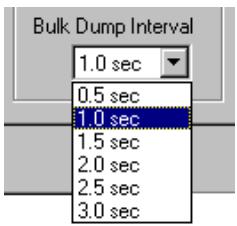
- Combo boxes
For combo boxes, click the down arrow to expand the box, then highlight the desired setting.
text_image
Bulk Dump Interval 1.0 sec 0.5 sec 1.0 sec 1.5 sec 2.0 sec 2.5 sec 3.0 sec- Parameter sliders
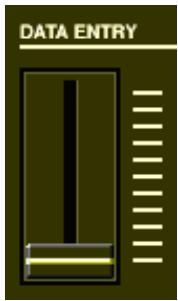
For parameter sliders, click and hold the slider, then drag as desired. Alternately, click and hold any position along the slider path; the slider automatically snaps to the new position.
text_image
DATA ENTRY- Incrementing/decrementing values
Values and settings in the Edit List window can be changed by clicking on the value box, and then dragging the cursor up or down, in the direction of the desired change. To increment or decrement a value, click the right or left mouse button, respectively. Holding down either mouse button continuously increases or decreases through the value. The cursor keys on the keyboard can be used to move around the parameter grid of the Edit List window.
- Typing values directly
Most parameters in the Edit List window can also be set by typing the value directly in the value box. Click on the box, then type the desired value and press Enter. (To cancel the type-in value, press Esc.) Once a value box has been selected, you can also use the left and right mouse buttons as decrement and increment controls, respectively.
flowchart
graph TD
    A[" "] --> B["2"]
    A --> C[" "]
    A --> D["6"]
    E["1"] --> F["3"]
    E --> G["4"]
    H["5"] --> I["5"]
    J[" "] --> K[" "]
    style A fill:#000,stroke:#000,color:#fff
    style B fill:#000,stroke:#000,color:#fff
    style C fill:#000,stroke:#000,color:#fff
    style D fill:#000,stroke:#000,color:#fff
    style E fill:#000,stroke:#000,color:#fff
    style F fill:#000,stroke:#000,color:#fff
    style G fill:#000,stroke:#000,color:#fff
    style H fill:#000,stroke:#000,color:#fff
    style I fill:#000,stroke:#000,color:#fff
    style J fill:#000,stroke:#000,color:#fff
    style K fill:#000,stroke:#000,color:#fff
    style L fill:#000,stroke:#000,color:#fff
    style M fill:#000,stroke:#000,color:#fff
    style N fill:#000,stroke:#000,color:#fff
    subgraph ALGORITHM
        A
        B
        C
        D
        E
        F
        G
        H
        I
        J
        K
        L
    end
    subgraph FEEDBACK
        M
        N
        O
        P
        Q
        R
        S
        T
        U
        V
        W
        X
        Y
        Z
        AA
        AB
        AC
        AD
        AE
        AF
        AG
        AH
        AI
        AJ
        AK
        AL
        AM
        AN
        AO
        AP
        AQ
        AR
        AS
        AT
        AU
        AV
        AW
        AX
        AY
        AZ
        BA
        BB
        BC
        BD
        BE
        BF
        BG
        BH
        BI
        BJ
        BK
        BL
        BM
        BN
        BO
        BP
        BPB
        BZ
        BZB
        BZB
        BZB
        BZB
NOTE
- The ENTER and ESC keys have no effect in the Voice Name parameter.
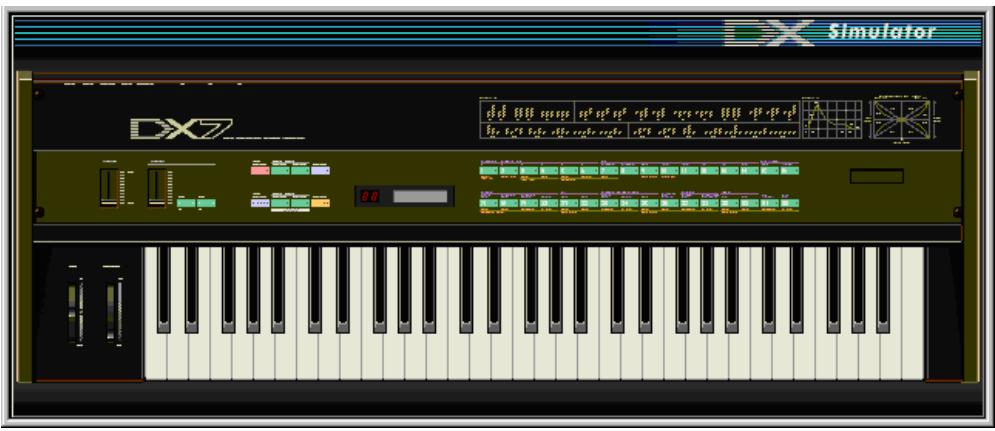
DX Simulator Window
This is the main control panel for the DX Simulator, and is comprised of the virtual "panel" controls.
text_image
DX Simulator DX7 the 100 mm x 0.0 pt x 0.0 pt x 0.0 pt x 0.0 pt x 0.0 pt x 0.0 pt x 0.0 pt x 0.0 pt x 0.0 pt x 0.0 pt x 0.0 pt x 0.0 pt x 0.0 pt x 0.0 pt x 0.0 pt x 0.0 pt x 0.0 pt x 0 the 100 mm x 0.0 pt x 0.0 pt x 0.0 pt x 0.0 pt x 0.0 pt x 0.0 pt x 0.0 pt x 0.0 pt x 0.0 pt x 0.0 pt x 0.0 pt x 0.0 pt x 0.0 pt x 0.0 pt x 0.0 pt x 1 the 100 mm x 0.0 pt x 0.0 pt x 0.0 pt x 0.0 pt x 0.0 pt x 0.0 pt x 0.0 pt x 0.0 pt x 0.0 pt x 0.0 pt x 0.0 pt x 1 the 100 mm x 0.0 pt x 0.0 pt x 0.0 pt x 0.0 PT x 1 the 100 mm x 1 the 100 mm x 2 the 100 mm x 3 the 100 mm x 4 the 100 mm x 5 the 100 mm x 6 the 100 mm x 7 the 100 mm x 8 the 100 mm x 9 the 100 mm x 10 the 100 mm x 11 the 100 mm x 12 the 100 mm x 13 the 100 mm x 14 the 100 mm x 15 the 100 mm x 16 the 100 mm x 17 the 100 mm x 18 the 100 mm x 19 the 100 mm x 20 the 100 mm x 21 the 100 mm x 22 the 100 mm x 23 the 100 mm x 24 the 100 mm x 25 the 100 mm x 26 the 100 mm x 27 the 100 mm x 28 the 100 mm x 29 the 100 mm x 30 the 100 mm x 31 the 100 mm x 32 the 100 mm x 33 the 100 mm x 34 the 100 mm x 35 the 100 mm x 36 the 100 mm x 37 the 100 mm x 38 the 100 mm x 39 the 100 mm x4 the 18x4x4x4x4x4x4x4x4x4x4x4x4x4x4x4x4x4x4x4x4x4x4x4x4x4x4x4x4x4x4x4x4x4x4x4x4x4x4x4x4x4x4x4x4x4x4x4x4x4x4x6 the X:\ the Y:\ the Z:\ the AA:\ the AB:\ the AC:\ the AD:\ the AE:\ the AF:\ the AG:\ the AH:\ the AI:\ the AJ:\ the AK:\ the AL:\ the AM:\ the AN:\ the AO:\ the AP:\ The V:\ The W:\ The X:\ The Y:\ The Z:\ The AA:\ The AB:\ The AC:\ The AD:\ The AE:\ The AF:\ The AF:\ The AG:\ The AI:\ The AO:\ The AP:\ The V:\ The V:\ The W:\ The X:\ The Y:\ The Z:\ The AA:\ The AB:\ The AC:\ The AD:\ The AE:\ The AF:\ The AI:\ The AI:\ The AO:\ The AP:\ The V:\ The V:\ The W:\ The X:\ The Y:\ The Z:\ The AA:\ The AB:\ The AC:\ The AD:\ The AE:\ The AF:\ The AI:\ The AI:\ The AO:\ The AP:\ The V:\ The V:\ The W:\ The X:\ The Y:\ TheZ: the X: the Y: the Z: the AA: the AB: the AC: the AD: the AE: the AF: the AF: the AG: the AI: the AO: the AP: the V: the V: the W: the X: the Y: the Z: the AA: the AB: the AC: the AD: the AE: the AF: the AI: the AI: the AO: the AP: the V: the V: the W: the X: the Y: the Z: the AA: the AB: the AC: the AD: the AE: the AF: the AI: the AI: the AO: the AP: the V: the V: the W: the X: the Y: the Z: the AA: the AB: the AC: the AD: the AE: the AF: the AI: the AI:- Toolbar
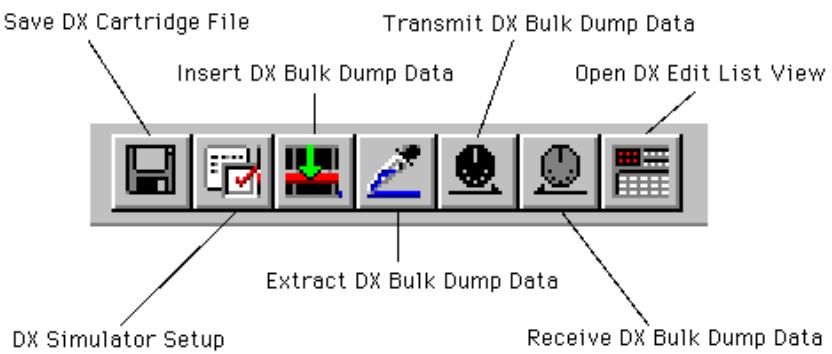
The toolbar gives you quick access to some important functions and controls. These buttons let you easily execute the desired function without having to select a menu.
text_image
Save DX Cartridge File Transmit DX Bulk Dump Data Insert DX Bulk Dump Data Open DX Edit List View Extract DX Bulk Dump Data DX Simulator Setup Receive DX Bulk Dump DataSave DX Cartridge File
This is the same as the corresponding command in the File menu. It lets you save the current set of Custom voices as a DX Cartridge File for future recall. (See File Menus, Save DX Cartridge File.)
DX Simulator Setup
This is the same as the corresponding command in the Setup menu. It lets you make various important settings for configuring the DX Simulator with the PLG150-DX. (See Setup Menus, DX Simulator Setup.)
Insert DX Bulk Dump Data (Plug-in Editor only)
This is the same as the corresponding command in the Setup menu. It lets you insert the current DX Simulator settings to a specified track/position in the host application song. (See Setup Menus, Insert DX Bulk Dump Data. Also see Inserting Edited Voice to a Track.)
Extract DX Bulk Dump Data (Plug-in Editor only)
This is the same as the corresponding command in the Setup menu. It lets you import Part parameter settings in the sequence data to the DX Simulator. (See Setup Menus, Extract DX Bulk Dump Data. Also see Extracting Edited Voice Data from a Track.)
Transmit DX Bulk Dump Data
This is the same as the corresponding command in the Setup menu. It lets you transmit the current DX Simulator settings as MIDI data to the PLG150-DX board. (See Setup Menus, Transmit DX Bulk Dump Data.)
Receive DX Bulk Dump Data
This is the same as the corresponding command in the Setup menu. It lets you receive the current DX Simulator settings as MIDI data from a DX7, DX7II or other DX-compatible instrument. (See Setup Menus, Receive DX Bulk Dump Data. Also see Receiving Voice Data from a DX7/DX7II)
Open DX Edit List View
This is the same as the corresponding command in the Edit menu. It lets you call up the Edit List window for editing a voice. (See Edit Menus, DX Edit List.) You can also call up the Edit List window by clicking on the DX7 logo in the DX Simulator window.
Edit Panel Window / Play and Edit Modes
text_image
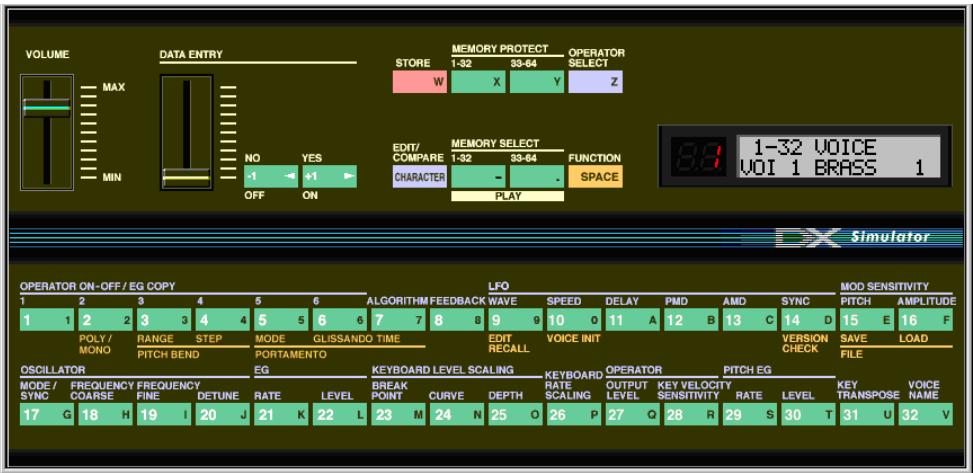
VOLUME MAX MIN DATA ENTRY NO YES -1 +1 OFF ON MEMORY PROTECT OPERATOR STORE 1-32 33-64 SELECT W X Y Z EDIT/ COMPARE MEMORY SELECT FUNCTION CHARACTER - SPACE PLAY 8:1 1-32 VOICE VOI 1 BRASS 1 SIMULATOR OPERATOR ON-OFF / EG COPY LFO MOD SENSITIVITY 1 2 3 4 5 6 ALGORITHM FEEDBACK WAVE SPEED DELAY PMD AMD SYNC PITCH AMPLITUDE 1 1 2 3 4 5 6 7 8 9 10 0 11 A 12 B 13 C 14 D 15 E 16 F POLY / RANGE STEP MODE GLISSANDO TIME EDIT VOICE INIT VERSION MONO PITCH BEND PORTAMENTO RECALL CHECK SAVE LOAD OSCILLATOR EG KEYBOARD LEVEL SCALING KEYBOARD OPERATOR PITCH EG MODE / FREQUENCY KEY BOARD OPERATOR PITCH EG SYNC COARSE FIN DEUTURE RATE LEVEL BREAK RATE OUTPUT KEY TRANSPPOSE VOICE 17 G H I J 20 J 21 K 22 L 23 M 24 N 25 O 26 P 27 Q 28 R 29 S 30 T U 32 VTo select the Play mode, click either one of the [MEMORY SELECT] buttons. To select the Edit mode, click the [EDIT/COMPARE] button.
- Volume slider
This adjusts the overall output level.
- DATA ENTRY slider
This is used for making rapid or large changes. Moving it all the way down and up covers the full range available for each parameter.
- [NO]/[YES] buttons
These are used to increment or decrement parameter values, to turn a function on or off, answer display prompts, and to move the cursor when naming a voice.
- [STORE] button
This button calls up the Store operation, for storing the selected voice to the memory of the PLG150-DX. In the Edit mode, this selects the EG Copy function.
NOTE
- After you've stored a voice to the PLG150-DX, make sure to save the voice to a DX Cartridge File.
• [MEMORY PROTECT 1-32/33-64] buttons
These buttons let you view and change the MEMORY PROTECT status.
NOTE
• These are effective only when using the Store operation in the Edit Panel window.
• [OPERATOR SELECT] button
This button is used to select the desired operator (1-6) for editing in the Edit mode. Each successive click of the button steps through the available operators. (If an operator is off, it will be unavailable.) The operator number is shown at the top right of the LCD for the appropriate parameters.
![YAMAHA DXSIMULATOR - • [OPERATOR SELECT] button - 1](/content/2025/01/114590/images/f4f6c38ad9d33fb341817375b5690f92ee81841d9292e6dbb1c2272b80c3ce88.jpg)
text_image
8.8 ALG22 111111 OP6 EG RATE 1 =49Currently selected operator (Operator 6).
Use this button when editing the following Edit parameters:
Amplitude Modulation Sensitivity
Oscillator
Envelope Generator (EG)
Keyboard Level Scaling
Keyboard Rate Scaling
Operator (Output Level and Velocity Sensitivity)
These parameters can all be edited independently for each of the operators.
• [EDIT/COMPARE] button
This button is used to select the Edit mode or the Compare function.
• [MEMORY SELECT 1-32/33-64] buttons
These buttons are used to select the two voice banks of the Custom voices: 1-32 or 33-64. Clicking either of these buttons also activates the Play mode.
- [FUNCTION] button
This button is used to select the Function mode, which lets you edit certain global parameters of the voice or instrument (printed in yellow below the appropriate voice buttons).
- LED display
The LED window indicates the number of the selected voice. It also indicates whether the original or edited voice is active when using the Compare function.
- LCD display
The LCD window displays the current status of the PLG150-DX. In the Play mode, it indicates the selected voice bank, and the selected voice name and number. In the Edit and Function modes, it shows the selected parameter, function, or operation, along with the relevant value(s) or setting(s).
- Voice Select buttons
In the Play mode, these are used to select voices 1-32 (or 33-64) on the PLG150-DX. In the Edit mode, the buttons are used to select the Edit parameters (printed in lavender above the buttons). In the Function mode, they are used to select the Function parameters (printed in yellow below the appropriate buttons).
The following descriptions explain each button's use in the Edit mode.
• [1] - [6] OPERATOR ON/OFF-EG COPY (1-6)
These buttons have two functions: 1) to turn individual operators on and off while you are programming a voice, and 2) to select the operator to which you wish to copy certain envelope generator (EG) settings.
• [7] ALGORITHM
This button is used to select the Algorithm parameter.
• [8] FEEDBACK
This button is used to select the Feedback parameter.
• [9] - [14] LFO
These buttons are used to select the LFO (Low Frequency Oscillator) parameters.
• [9] WAVE
This is used to select the LFO Waveform parameter.
• [10] SPEED
This is used to select the LFO Speed parameter.
• [11] DELAY
This is used to select the LFO Delay parameter.
• [12] PMD
This is used to select the LFO Pitch Modulation Depth parameter.
• [13] AMD
This is used to select the LFO Amplitude Modulation Depth parameter.
• [14] SYNC
This is used to select the LFO Key Synchronization parameter.
• [15], [16] MOD SENSITIVITY
These buttons are used to select the Modulation Sensitivity parameters.
• [15] PITCH
This is used to select the Pitch Modulation Sensitivity parameter.
• [16] AMPLITUDE
This is used to select the Amplitude Modulation Sensitivity parameter.
• [17] - [20] OSCILLATOR
These buttons are used to select the Oscillator parameters.
• [17] MODE/SYNC
These buttons are used to alternately select the Oscillator Mode and Oscillator Sync parameters.
• [18] FREQUENCY COARSE
This is used to select the Oscillator Frequency Coarse parameter, letting you make large changes in the current operator's frequency.
• [19] FREQUENCY FINE
This is used to select the Oscillator Frequency Fine parameter, letting you make small changes in the current operator's frequency.
• [20] DETUNE
This is used to select the Oscillator Detune parameter.
• [21], [22] EG
These buttons are used to select the EG Rate 1 - 4 and EG Level 1 - 4 parameters.
• [21] RATE
This is used to select the EG Rate 1 - 4 parameters.
• [22] LEVEL
This is used to select the EG Level 1 - 4 parameters.
• [23] - [25] KEYBOARD LEVEL SCALING
These buttons are used to select the Keyboard Level Scaling parameters.
• [23] BREAK POINT
This is used to select the Keyboard Level Scaling Break Point parameter.
• [24] CURVE
This is used to select the Keyboard Level Scaling Curve parameters.
• [25] DEPTH
This is used to select the Keyboard Level Scaling Depth parameters.
• [26] KEYBOARD RATE SCALING
This is used to select the Keyboard Rate Scaling parameter.
• [27], [28] OPERATOR
These buttons are used to select the Operator parameters.
• [27] OUTPUT LEVEL
This is used to select the Operator Output Level parameter.
• [28] KEY VELOCITY SENSITIVITY
This is used to select the Operator Velocity Sensitivity parameter.
• [29], [30] PITCH EG
These buttons are used to select the Pitch EG parameters.
• [29] RATE
This is used to select the Pitch EG Rate 1 - 4 and Pitch EG Rate Scaling parameters.
• [30] LEVEL
This is used to select the Pitch EG Level 1 - 4 and Pitch EG Level Range parameters.
• [31] KEY TRANSPOSE
This is used to select the Key Transpose parameter.
• [32] VOICE NAME
This is used to select the Voice Name parameter.
Edit Panel Window / Function Mode
To select the Function mode, click the [FUNCTION] button.
• [2] POLY/MONO
This is used to select the Poly/Mono parameter.
• [3], [4] PITCH BEND
These buttons are used to select the Pitch Bend parameters.
• [3] RANGE
This is used to select the Pitch Bend Range parameter.
• [4] STEP
This is used to select the Pitch Bend Step parameter.
These buttons are used to select the Portamento parameters.
• [5] MODE
This is used to select the Portamento Mode parameter.
• [6] GLISSANDO
This is used to select the Portamento Glissando (Step) parameter.
• [7] TIME
This is used to select the Portamento Time parameter.
• [9] EDIT RECALL
This is used to select the Edit Recall function.
• [10] VOICE INIT
This is used to select the Voice Initialize function.
• [14] VERSION CHECK
This is used to select the Version Check function.
• [15], [16] FILE
These buttons are used to select the File Save and File Load operations.
• [15] SAVE
This is used to select the File Save operation.
• [16] LOAD
This is used to select the File Load operation.
Edit List Window
other
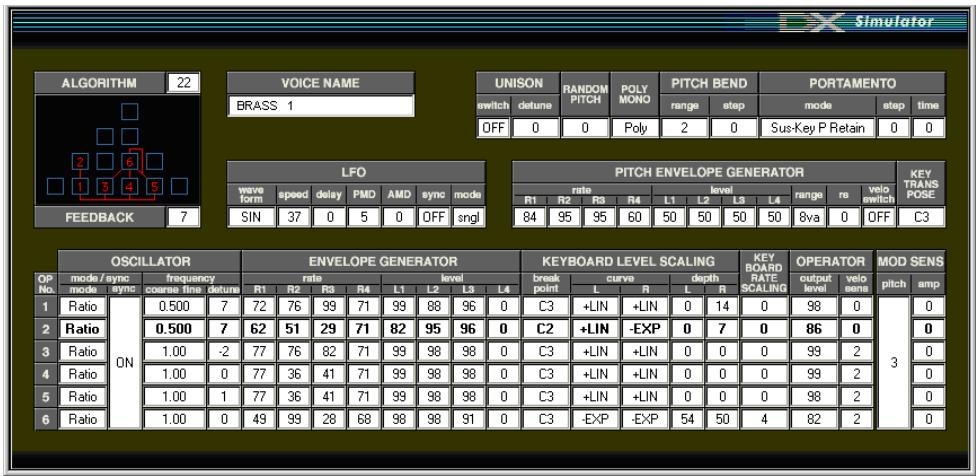
Simulator | Category | Mode | Mode Type | Frequency | Frequency Time | Mode Type | Level | Level Scale | | :--- | :--- | :--- | :--- | :--- | :--- | :--- | :--- | | 1 | Ratio | ON | 0.500 | 7 | 72 | 76 | 99 | | 2 | Ratio | ON | 0.500 | 7 | 62 | 51 | 29 | | 3 | Ratio | ON | 1.00 | -2 | 77 | 76 | 82 | | 4 | Ratio | ON | 1.00 | 0 | 77 | 36 | 41 | | 5 | Ratio | ON | 1.00 | 1 | 77 | 36 | 41 | | 6 | Ratio | ON | 1.00 | 0 | 49 | 99 | 28 | | VOICE NAME BRASS 1 UNISON SWITCH detune RANDOM PITCH POLY MONO PITCH BEND range step SUS-Key P Retain PORTAMENTO mode step time OFF 0 0 Poly 2 0 Sus-Key P Retain 0 0 LFO wave form speed delay PMD AMD sync mode PITCH ENVELOPE GENERATOR rate R1 R2 R3 R4 L1 L2 L3 L4 level 84 95 95 60 50 50 50 8va 0 0 C3 +LIN +LIN C2 +LIN -EXP C3 +LIN +LIN C3 +LIN +LIN C3 +LIN +LIN C3 -EXP -EXP KEYBOARD LEVEL SCALING depth L R 0 0 0 0 0 54 50 KEY BOARD RATE SCALING output level veo sens pitch amp 3 KEY TRANS PVSE MOD SENSTo call up this window, click the DX7 logo in the DX Simulator window. Or click “Edit” on the menu bar, then select “DX Edit List.”
Parameter Descriptions
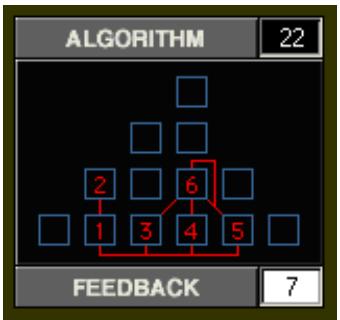
Algorithm
Range: 1 ... 32
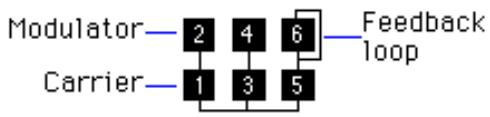
This determines the algorithm used for the voice. The algorithm determines how the operators are configured for the voice. The FM synthesis system of the PLG150-DX has 32 of these configurations, called “algorithms.” (Refer to the Algorithm List.)
flowchart
graph TD
    A["Modulator"] --> B["2"]
    A --> C["4"]
    A --> D["6"]
    E["Carrier"] --> F["1"]
    E --> G["3"]
    E --> H["5"]
    I["Feedback loop"] --> J["6"]
This section displays the signal path, showing which operators are “carriers” and which are “modulators.” The carriers are in the bottom row of the algorithm and are the actual sound producers for the voice. Modulators are stacked above the carriers and alter the timbre or tonal quality of the carriers. A modulator stacked on top of another modulator alters the timbre even further. Simply put, the carriers produce the sound, and the modulators change the character of the sound.
NOTE
- Changing the algorithm may result in drastic changes to the voice, and could produce unexpectedly loud and noisy sounds.
Feedback
Range: 0 ... 7
This determines the level of feedback. Each algorithm provides a feedback operator, in which the output signal of the operator is looped back to its input. As its name implies, Feedback produces harsh noise-like harmonics in the voice. The degree of harshness or amount of noise depends not only on this setting, but also on the level of the feedback operator and its position in the algorithm.
Voice Name
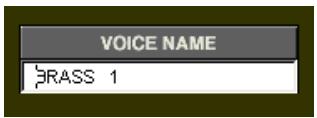
This determines the name of the voice being edited. Up to ten characters can be entered. (In the Edit List window, both uppercase and lowercase letters can be entered.)
In the Edit List window:
1) Click on the VOICE NAME box.
text_image
VOICE NAME BRASS 12) At the cursor position, type the desired name. Up to ten characters (uppercase or lowercase) can be entered.
3) Store the voice, if desired.
In the Edit Panel window:
1) Click the [EDIT] button to call up the Edit mode.
2) Click the [VOICE NAME] button.
3) Click the [CHARACTER] ([EDIT/COMPARE]) button.
4) Click the [NO]/[YES] buttons to select the cursor position.
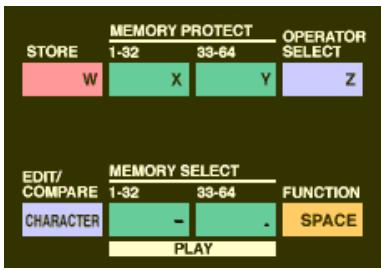
5) Click the desired character (printed on the right part of the relevant button).
- Numbers 0 - 9 and letters A - V are selected from the Voice Select buttons.
- Letters W - Z are selected respectively from the STORE, MEMORY PROTECT, and OPERATOR SELECT buttons.
- Hyphen, period, and space are selected respectively from the MEMORY SELECT and FUNCTION buttons.
flowchart
graph TD
    A["STORE"] --> B["W"]
    B --> C["X"]
    C --> D["Y"]
    D --> E["Z"]
    F["EDIT/COMPARE"] --> G["CHARACTER"]
    G --> H["PLAY"]
    I["MEMORY PROTECT"] --> J["1-32"]
    I --> K["33-64"]
    L["OPERATOR SELECT"] --> M["FUNCTION"]
    N["MEMORY SELECT"] --> O["-"]
    N --> P["SPACE"]

text_image
OPERATOR ON-OFF / EG COPY 1 2 3 4 5 6 ALGORITHM FEEDBACK WAVE SPEED DELAY PMD AMD SYNC PITCH AMPLITUDE 1 1 2 3 4 5 6 7 8 9 10 0 11 A 12 B 13 C 14 D 15 E 16 F POLY / RANGE STEP MODE GLISSANDO TIME EDIT RECALL VOICE INIT VERSION CHECK SAVE LOAD MONO PITCH BEND PORTAMENTO OSCILLATOR MODE / FREQUENCY FREQUENCY KEY BOARD LEVEL SCALING KEYBOARD OPERATOR PITCH EG KEY TRANPOSE VOICE NAME SYNC COARSE FINE DETUNE RATE LEVEL BREAK POINT CURVE DEPTH RATE SCALING OUTPUT LEVEL KEY VELOCITY SENSITIVITY RATE LEVEL 17 G 18 H 19 I 20 J 21 K 22 L 23 M 24 N 25 O 26 P 27 Q 28 R 29 S 30 T 31 U 32 V6) Click the [CHARACTER] ([EDIT/COMPARE]) button to exit from the Voice Name operation.
7) Store the voice, if desired.
LFO Parameters
The LFO (Low Frequency Oscillator) parameters are used to regularly modulate the pitch or volume of a voice, letting you create vibrato, tremolo, or “wah” effects. These are also related to the Modulation Sensitivity parameters.
- LFO Waveform
Settings:
TRI (triangle)
SAW- (sawtooth down)
SAW (sawtooth up)
SQU (square)
SIN (sine)
S/Hold (sample and hold)
This determines the waveform of the LFO: triangle, sawtooth down, sawtooth up, square, sine, or sample and hold.
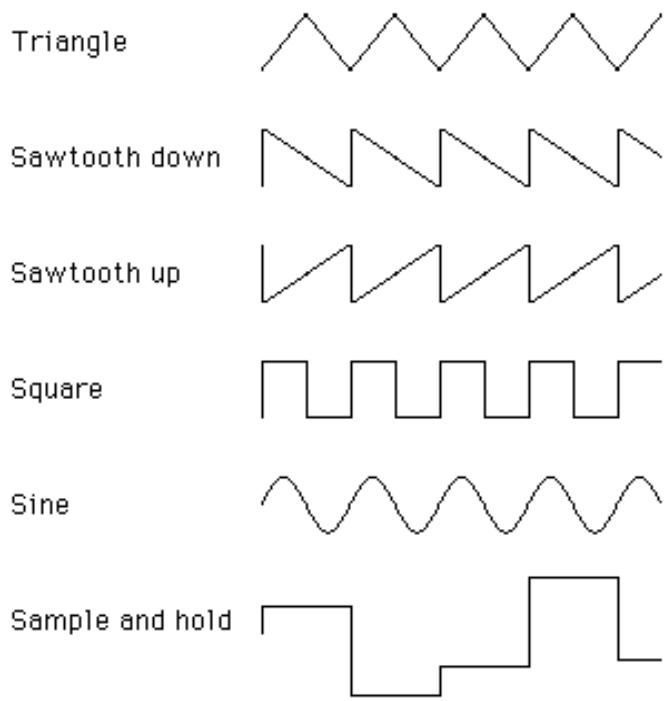
text_image
Triangle Sawtooth down Sawtooth up Square Sine Sample and hold- LFO Speed
Range: 0 ... 99
This determines the speed or frequency of the LFO, with higher values resulting in higher frequencies (greater speed).
- LFO Delay
Range: 0 ... 99
This determines the delay time for the LFO, or the amount of time that elapses between the press of a key and onset of the LFO effect. This is useful in producing delayed vibrato or tremolo effects (often used by singers or instrumentalists). Higher values result in a longer delay time.
• LFO PMD (Pitch Modulation Depth)
Range: 0 ... 99
This determines the amount of Pitch Modulation Depth. This sets the degree to which LFO modulation affects the pitch of the voice, or how widely pitch is modulated by the LFO. This produces a vibrato effect for the voice. This has no effect if Pitch Modulation Sensitivity is set to zero.
• LFO AMD (Amplitude Modulation Depth)
Range: 0 ... 99
This determines the amount of Amplitude Modulation Depth. This sets the degree to which LFO modulation affects the volume of the voice, or how widely volume is modulated by the LFO. When applied to a carrier operator, this produces a tremolo effect; when applied to a modulator, it produces a “wah” effect. This has no effect if Amplitude Modulation Sensitivity is set to zero.
NOTE
- Both Pitch and Amplitude are modulated together by the LFO; LFO cannot be set to modulate these independently. However, by using the Sensitivity and Depth controls, you can set different degrees of the LFO effect for each.
• LFO Sync (Key Synchronization)
Settings: ON, OFF
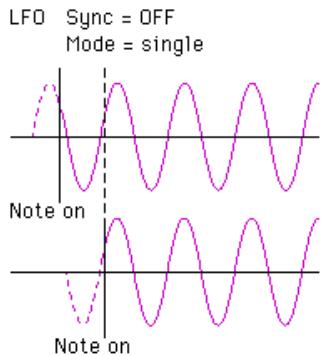
This determines whether LFO Key Synchronization is on or off. When Sync is ON, the LFO is automatically reset to the beginning of the selected waveform each time you play a note. When sync is OFF, the LFO waveform continues in a “free running” condition; when you play a note, the result will vary depending on where the LFO is in the cycle. The effect can be easily detected at low LFO frequencies (i.e., LFO Speed settings below 10).
- LFO Mode
Settings: sngl (single), mult (multi)
This determines the operating mode of the LFO; in effect, it determines how many LFOs are used to modulate the voice (when several notes are played simultaneously).
When set to “sngl,” a single LFO affects all notes played. In other words, the LFO effect begins when the first key is played, and continues in the same way at the same phase for all subsequent notes. (This is true when LFO Sync is off; when LFO Sync is on, the waveform is interrupted and begins anew for each note played.)
When set to “mult,” there are sixteen independent LFOs, one for each of the sixteen polyphonic notes of the PLG150-DX. This means that when you play several notes in succession, the LFO will affect each note individually, depending on when each note is played. This creates an exceptionally rich and natural modulation effect for sustained notes in strings and pad voices, especially when LFO Delay is set to an appropriate value.
NOTE
• These illustrations show the various LFO conditions for different Sync and Mode settings.
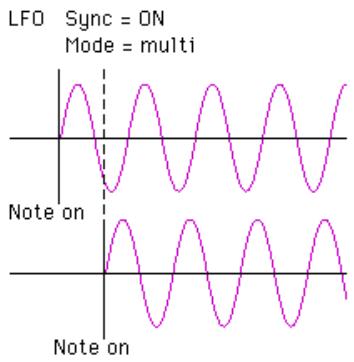
text_image
LFO Sync = ON Mode = multi Note on Note on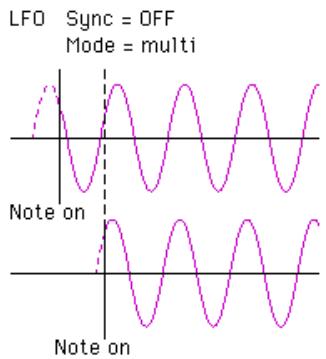
line
| Time | LFO Sync = OFF Mode = multi | |------|------------------------------| | 0 | 0 | | 1 | High | | 2 | Low | | 3 | High | | 4 | Low | | 5 | High | | 6 | Low | | 7 | High | | 8 | Low | | 9 | High | | 10 | Low | | 11 | High | | 12 | Low | | 13 | High | | 14 | Low | | 15 | High | | 16 | Low | | 17 | High | | 18 | Low | | 19 | High | | 20 | Low | | 21 | High | | 22 | Low | | 23 | High | | 24 | Low | | 25 | High | | 26 | Low | | 27 | High | | 28 | Low | | 29 | High | | 30 | Low | | 31 | High | | 32 | Low | | 33 | High | | 34 | Low | | 35 | High | | 36 | Low | | 37 | High | | 38 | Low | | 39 | High | | 40 | Low | | 41 | High | | 42 | Low | | 43 | High | | 44 | Low | | 45 | High | | 46 | Low | | 47 | High | | 48 | Low | | 49 | High | | 50 | Low | | Note on | Note on | Note on (labeled) Note on (labeled) Note on (labeled)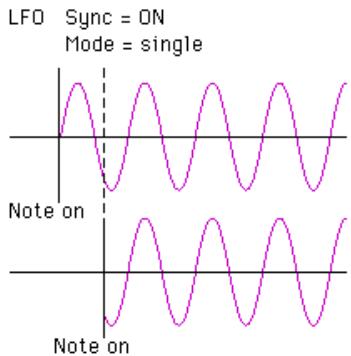
line
| Time | LFO Sync = ON | Mode = single | |------|---------------|---------------| | 0 | 0 | 0 | | 1 | Low | High | | 2 | High | Low | | 3 | Low | High | | 4 | High | Low | | 5 | Low | High | | 6 | High | Low | | 7 | Low | High | | 8 | High | Low | | 9 | Low | High | | 10 | High | Low | | 11 | Low | High | | 12 | High | Low | | 13 | Low | High | | 14 | High | Low | | 15 | Low | High | | 16 | High | Low | | 17 | Low | High | | 18 | High | Low | | 19 | Low | High | | 20 | High | Low | | 21 | Low | High | | 22 | High | Low | | 23 | Low | High | | 24 | High | Low | | 25 | Low | High | | 26 | High | Low | | 27 | Low | High | | 28 | High | Low | | 29 | Low | High | | 30 | High | Low | | 31 | Low | High | | 32 | High | Low | | 33 | Low | High | | 34 | High | Low | | 35 | Low | High | | 36 | High | Low | | 37 | Low | High | | 38 | High | Low | | 39 | Low | High | | 40 | High | Low | | 41 | Low | High | | 42 | High | Low | | 43 | Low | High | | 44 | High | Low | | 45 | Low | High | | 46 | High | Low | | 47 | Low | High | | 48 | High | Low | | 49 | Low | High | | 50 | High | Low | | 51 | Low | High | | 52 | High | Low | | 53 | Low | High | | 54 | High | Low | | 55 | Low | High | | 56 | High | Low | | 57 | Low | High | | 58 | High | Low | | 59 | Low | High | | 60 | High | Low | | 61 | Low | High | | 62 | High | Low | | 63 | Low | High | | 64 | High | Low | | 65 | Low | High | | 66 | High | Low | | 67 | Low | High | | 68 | High | Low | | 69 | Low | High | | 70 | High | Low | | 71 | Low | High | | 72 | High | Low | | 73 | Low | High | | 74 | High | Low | | 75 | Low | High | | 76 | High | Low | | 77 | Low | High | | 78 | High | Low | | 79 | Low | High | | 80 | High | Low | | 81 | Low | High | | 82 | High | Low | | 83 | Low | High | | 84 | High | Low | | 85 | Low | High | | 86 | High | Low | | 87 | Low | High | | 88 | High | Low | | 89 | Low | High | | 90 | High | Low | | 91 | Low | High | | 92 | High | Low | | 93 | Low | High | | 94 | High | Low | | 95 | Low | High | | 96 | High | Low | | 97 | Low | High | | 98 | High | Low | | 99 | Low | High | | 100 | High | Low | | Note on A: Sync = ON B: Mode = single C: Note on D: Note on E: Note on F: Note on G: Note on H: Note on I: Note on J: Note on K: Note on L: Note on