
DTXPRESSI3 - Electronic drum YAMAHA - Free user manual and instructions
Find the device manual for free DTXPRESSI3 YAMAHA in PDF.


| Brand | YAMAHA |
| Model | DTXPRESSI3 |
| Product type | Electronic drum module |
| Sound generator | AWM2 16-bit, 32-voice polyphonic |
| Drum and percussion sounds | 990 |
| Melodic voices | 128 (GM System Level 1 compatible) |
| Preset drum kits | 48 |
| User drum kits | 32 |
| Preset songs | 95 |
| User songs | 32 |
| Trigger inputs | 10 (stereo jacks) + 1 hi-hat controller input |
| Maximum polyphony | 32 voices |
| Reverb | Built-in digital |
| Connectivity | MIDI IN/OUT, TO HOST, AUX IN (stereo mini-jack), OUTPUT L/MONO & R jacks, PHONES |
| Dimensions (W x D x H) | 220 x 240 x 44 mm |
| Weight | 1.6 kg |
| Power supply | DC 12V AC adapter (PA-3C or equivalent), consumption 4.8W |
| Included accessories | Owner's manual (Quick Reference Guide, Reference Guide), AC adapter (depending on region) |
| Maintenance | Clean with a soft, dry cloth; do not use solvents, thinners, or chemical wipes |
| Safety | Use only the adapter specified by Yamaha; do not open the unit; unplug before cleaning |
| Main functions | 2-track sequencer, metronome, Groove Check, training, computer connection |
Frequently Asked Questions - DTXPRESSI3 YAMAHA
User questions about DTXPRESSI3 YAMAHA
0 question about this device. Answer the ones you know or ask your own.
Ask a new question about this device
Download the instructions for your Electronic drum in PDF format for free! Find your manual DTXPRESSI3 - YAMAHA and take your electronic device back in hand. On this page are published all the documents necessary for the use of your device. DTXPRESSI3 by YAMAHA.
USER MANUAL DTXPRESSI3 YAMAHA
This product utilizes batteries or an external power supply (adapter).
DO NOT connect this product to any power supply or adapter other than one described in the manual, on the name plate, or specifically recommended by Yamaha.
WARNING: Do not place this product in a position where anyone could walk on, trip over, or roll anything over power or connecting cords of any kind. The use of an extension cord is not recommended! If you must use an extension cord, the minimum wire size for a 25' cord (or less) is 18 AWG. NOTE: The smaller the AWG number, the larger the current handling capacity. For longer extension cords, consult a local electrician.
This product should be used only with the components supplied or; a cart, rack, or stand that is recommended by Yamaha. If a cart, etc., is used, please observe all safety markings and instructions that accompany the accessory product.
SPECIFICATIONS SUBJECT TO CHANGE:
The information contained in this manual is believed to be correct at the time of printing. However, Yamaha reserves the right to change or modify any of the specifications without notice or obligation to update existing units.
This product, either alone or in combination with an amplifier and headphones or speaker/s, may be capable of producing sound levels that could cause permanent hearing loss. DO NOT operate for long periods of time at a high volume level or at a level that is uncomfortable. If you experience any hearing loss or ringing in the ears, you should consult an audiologist.
IMPORTANT: The louder the sound, the shorter the time period before damage occurs.
Some Yamaha products may have benches and / or accessory mounting fixtures that are either supplied with the product or as optional accessories. Some of these items are designed to be dealer assembled or installed. Please make sure that benches are stable and any optional fixtures (where applicable) are well secured BEFORE using.
NOTICE:
Service charges incurred due to a lack of knowledge relating to how a function or effect works (when the unit is operating as designed) are not covered by the manufacturer's warranty, and are therefore the owners responsibility. Please study this manual carefully and consult your dealer before requesting service.
ENVIRONMENTAL ISSUES:
Yamaha strives to produce products that are both user safe and environmentally friendly. We sincerely believe that our products and the production methods used to produce them, meet these goals. In keeping with both the letter and the spirit of the law, we want you to be aware of the following:
Battery Notice:
This product MAY contain a small non-rechargeable battery which (if applicable) is soldered in place. The average life span of this type of battery is approximately five years. When replacement becomes necessary, contact a qualified service representative to perform the replacement.
This product may also use "household" type batteries. Some of these may be rechargeable. Make sure that the battery being charged is a rechargeable type and that the charger is intended for the battery being charged.
When installing batteries, do not mix batteries with new, or with batteries of a different type. Batteries MUST be installed correctly. Mismatches or incorrect installation may result in overheating and battery case rupture.
Warning:
Do not attempt to disassemble, or incinerate any battery. Keep all batteries away from children. Dispose of used batteries promptly and as regulated by the laws in your area. Note: Check with any retailer of household type batteries in your area for battery disposal information.
Disposal Notice:
Should this product become damaged beyond repair, or for some reason its useful life is considered to be at an end, please observe all local, state, and federal regulations that relate to the disposal of products that contain lead, batteries, plastics, etc. If your dealer is unable to assist you, please contact Yamaha directly.
NAME PLATE LOCATION:
The name plate is located on the bottom of the product. The name plate lists the product's model number, power requirements, and other information. The serial number is located on the rear panel. Please record the model number, serial number, and date of purchase in the spaces provided below, and keep this manual as a permanent record of your purchase.
Model
Serial No.
Purchase Date
PLEASE KEEP THIS MANUAL
92-BP (others)
FCC INFORMATION (U.S.A.)
- IMPORTANT NOTICE: DO NOT MODIFY THIS UNIT!
This product, when installed as indicated in the instructions contained in this manual, meets FCC requirements. Modifications not expressly approved by Yamaha may void your authority, granted by the FCC, to use the product.
2. IMPORTANT: When connecting this product to accessories and/ or another product use only high quality shielded cables. Cable/s supplied with this product MUST be used. Follow all installation instructions. Failure to follow instructions could void your FCC authorization to use this product in the USA.
3. NOTE: This product has been tested and found to comply with the requirements listed in FCC Regulations, Part 15 for Class "B" digital devices. Compliance with these requirements provides a reasonable level of assurance that your use of this product in a residential environment will not result in harmful interference with other electronic devices. This equipment generates uses radio frequencies and, if not installed and used according to the instructions found in the users manual, may cause interference harmful to the operation of other electronic devices. Compliance with FCC
regulations does not guarantee that interference will not occur in all installations. If this product is found to be the source of interference, which can be determined by turning the unit "OFF" and "ON", please try to eliminate the problem by using one of the following measures:
Relocate either this product or the device that is being affected by the interference.
Utilize power outlets that are on different branch (circuit breaker or fuse) circuits or install AC line filter/s.
In the case of radio or TV interference, relocate/reorient the antenna. If the antenna lead-in is 300 ohm ribbon lead, change the lead-in to co-axial type cable.
If these corrective measures do not produce satisfactory results, please contact the local retailer authorized to distribute this type of product. If you can not locate the appropriate retailer, please contact Yamaha Corporation of America, Electronic Service Division, 6600 Orangethorpe Ave, Buena Park, CA90620
The above statements apply ONLY to those products distributed by Yamaha Corporation of America or its subsidiaries.
- This applies only to products distributed by YAMAHA CORPORATION OF AMERICA.
(class B)
NEDERLAND / THE NETHERLANDS
- For the removal of the battery at the moment of the disposal at the end of the service life please consult your retailer or Yamaha Service Center as follows:
Yamaha Music Nederland Service Center
Address : Kanaalweg 18-G, 3526 KL UTRECHT
Tel : 030-2828425 - Gooi de batterij Niet weg, maar lever hem in als KCA.
- Do not throw away the battery. Instead, hand it in as small chemical waste.
(lithium disposal)
ADVARSEL!
Use ONLY a Yamaha PA-3C AC Power Adaptor (or other adaptor specifically recommended by Yamaha) to power your instrument from the AC mains. The use of other adaptors may result in irreparable damage to both the adaptor and the instrument.
PRECAUTIONS
PLEASE READ CAREFULLY BEFORE PROCEEDING
- Please keep these precautions in a safe place for future reference.

WARNING
Always follow the basic precautions listed below to avoid the possibility of serious injury or even death from electrical shock, short-circuiting, damages, fire or other hazards. These precautions include, but are not limited to, the following:
- Do not open the instrument or attempt to disassemble the internal parts or modify them in any way. The instrument contains no user-serviceable parts. If it should appear to be malfunctioning, discontinue use immediately and have it inspected by qualified Yamaha service personnel.
- Do not expose the instrument to rain, use it near water or in damp or wet conditions, or place containers on it containing liquids which might spill into any openings.
- If the AC adaptor cord or plug becomes frayed or damaged, or if there is a sudden loss of sound during use of the instrument, or if any unusual smells or smoke should appear to be caused by it, immediately turn off the power switch,
disconnect the adaptor plug from the outlet, and have the instrument inspected by qualified Yamaha service personnel.
- Use the specified adaptor (PA-3C or an equivalent recommended by Yamaha) only. Using the wrong adaptor can result in damage to the instrument or overheating.
- Before cleaning the instrument, always remove the electric plug from the outlet. Never insert or remove an electric plug with wet hands.
- Check the electric plug periodically and remove any dirt or dust which may have accumulated on it.

CAUTION
Always follow the basic precautions listed below to avoid the possibility of physical injury to you or others, or damage to the instrument or other property. These precautions include, but are not limited to, the following:
- Do not place the AC adaptor cord near heat sources such as heaters or radiators, and do not excessively bend or otherwise damage the cord, place heavy objects on it, or place it in a position where anyone could walk on, trip over, or roll anything over it.
- When removing the electric plug from the instrument or an outlet, always hold the plug itself and not the cord.
- Do not connect the instrument to an electrical outlet using a multiple-connector. Doing so can result in lower sound quality, or possibly cause overheating in the outlet.
- Unplug the AC power adaptor when not using the instrument, or during electrical storms.
- Before connecting the instrument to other electronic components, turn off the power for all components. Before turning the power on or off for all components, set all volume levels to minimum. Also, be sure to set the volumes of all components at their minimum levels and gradually raise the volume controls while playing the instrument to set the desired listening level.
- Do not expose the instrument to excessive dust or vibrations, or extreme cold or heat (such as in direct sunlight, near a heater, or in a car during the day) to prevent the possibility of panel disfiguration or damage to the internal components.
- Do not use the instrument near other electrical products such as televisions, radios, or speakers, since this might cause interference which can affect proper operation of the other products.
- Do not place the instrument in an unstable position where it might accidentally fall over.
- Before moving the instrument, remove all connected adaptor and other cables.
- When cleaning the instrument, use a soft, dry cloth. Do not use paint thinkers, solvents, cleaning fluids, or chemical-impregnated wiping cloths. Also, do not place vinyl, plastic or rubber objects on the instrument, since this might discolor the panel or keyboard.
-
Do not rest your weight on, or place heavy objects on the instrument, and do not use excessive force on the buttons, switches or connectors.
-
Use only the stand/rack specified for the instrument. When attaching the stand or rack, use the provided screws only. Failure to do so could cause damage to the internal components or result in the instrument falling over.
- Do not operate the instrument for a long period of time at a high or uncomfortable volume level, since this can cause permanent hearing loss. If you experience any hearing loss or ringing in the ears, consult a physician.
REPLACING THE BACKUP BATTERY
- This instrument contains a non-rechargeable internal backup battery which permits internal data to remain stored even when the power is off. When the backup battery needs replacing, the message "Battery Low" will display in the display. When this happens, immediately back up your data using an external device such as the floppy disk-based Yamaha MIDI Data Filer MDF3, then have qualified Yamaha service personnel replace the backup battery.
- Do not attempt to replace the backup battery yourself, in order to prevent the possible serious hazards. Always have qualified Yamaha service personnel replace the backup battery.
- Never place the backup battery in a location that a child can reach, since a child might accidentally swallow the battery. If this should happen, consult a physician immediately.
SAVING USER DATA
- Save all data to an external device such as the Yamaha MIDI Data Filer MDF3, in order to help prevent the loss of important data due to a malfunction or user operating error.
Yamaha cannot be held responsible for damage caused by improper use or modifications to the instrument, or data that is lost or destroyed.
Always turn the power off when the instrument is not in use.
Thank you for purchasing the YAMAHA DTXPRESS III.
The DTXPRESS III is a compact drum trigger module that is equipped with an AWM tone generator and sequencer functions.
To get the most out of your DTXPRESS III, please read this manual carefully.
Also, after reading, keep this manual in a safe place for future reference.
How to use the Manual
The DTXPRESS III Owner's Manual is divided into the following two books.
Basic Guide (this book)
Please read this book before using the DTXPRESS III.
This book contains cautions that must be followed for safe and proper use of the DTXPRESS III.
Also, control and function names, connecting the pads and how to play the DTXPRESS III, how to record and playback songs, how to create original drum kits are all described in this book.
At the rear of this book you will find an appendix section with specifications and error messages.
Reference Guide
This book describes in detail each of the DTXPRESS III's functions.
At the rear of this book you will find an appendix section with drum voice, song, MIDI data format, etc.
About the descriptions
This manual describes buttons and explanations using the following rules.
- [DRUMKIT], [▶/■], etc.
The button on the front panel is indicated with [ ]. (brackets).
[SHIFT]+[▶■], etc.
Means hold the [SHIFT] button and press the button.
- [PAGE▲]/[PAGE▼], etc.
Means use the [PAGE▲] button or [PAGE▼] button.
"Complete!", etc.
Words inside " " indicate the message shown on the display.
P.10,etc
Indicates the reference page where further information can be found.
NOTE
The illustrations and LCD screens as shown in this owner's manual are for instructional purposes only, and may appear somewhat different from those on your instrument.
Inside this package
This package contains the following items. After opening the package, please check and makes sure that all the items In the list are present.
The DTXPRESS III
Power Adaptor
- Owner's Manual ... Basic Guide (this book), Reference Guide
- May not be included depending on your particular area. Please check with your Yamaha dealer.
DTXPRESS III Main Features
Along with the drum trigger function found in the DTXPRESS III's compact half-rack 1U size body is a 32 voice polyphonic tone generator compatible with the GM System Level 1 standard and 2-track sequencer all especially designed for drummers.
You can use the DTXPRESS III in many situations such as live performance, rhythm practice, original song creation and recording.
Drum Trigger Function
- 10 trigger input jacks and a hi-hat controller input jack are provided. Besides trigger pads you can also use Yamaha's DT20 Drum Triggers, etc. The DTXPRESS III is compatible with both switch type and 3-zone type pads.
- Setup data for the connected pads, such as trigger input types, sensitivity, etc., consists of 7 preset patterns. A user area also provides 4 patterns.
- 48 preset drum kits as well as memory space for 32 user drum kits.
■ Tone Generator Section
- A high-quality 16-bit AWM2 (PCM) tone generator that complies with the GM System Level 1 standard. 32 voice polyphonic.
- A total of 990 drum and percussion voices as well as 128 keyboard voices that comply to the GM System Level 1.
- An internal digital reverb section that is the same as found in Yamaha's MU Series of GM/XG tone generators.
- User drum kits use a single drum map that can be edited freely.
■ Sequencer Section
- A 2-track sequencer for recording songs. Each track can contain data for MIDI channels 1-16.
-
A total of 95 preset songs as well as a User Song Area that provides memory space for 32 original user songs.
-
In addition to one main song that is controlled from the panel and with MIDI, 3 pad songs can be individually controlled and simultaneously played by trigger input from the pads.
- Pad songs can be played one measure at a time, each measure triggered with a stroke on a pad.
- Record your performance in real-time along with sequencer data from an external device.
- Easily mute the song's drum part or a specified drum voice and play along with the song.
- Playback in sync with an external sequencer is possible.
- Groove Check Function checks and provides instant feedback on your rhythmic skills offering a great way to improve your technique.
Interface
- Equipped with both MIDI IN/OUT jacks and a TO HOST jack. Connect the DTXPRESS III to external MIDI devices or a computer to expand your system.
- The TO HOST jack and HOST SELECT switch provides direct connection to a computer.
- Connect a CD or MD player, etc. to the AUX IN jack and play along with your favorite recordings.
- Equipped with a headphone jack.
PRECAUTIONS 4
How to use the Manual 5
About the descriptions 5
Inside this package 5
DTXPRESS III Main Features 6
Controls and Functions 8
Front Panel 8
Rear Panel 9
Setting Up 10
- Connecting the pads 10
■ Select Trigger Setup. 12
Setting up with Acoustic Drums 13
- Connecting a Mixer or Audio Equipment 14
■ Connecting a MIDI Device 14 - Connecting a Computer 14
■ Connecting a CD Player, etc. (AUX IN jack) 15
■ Connecting a Pair of Headphones (PHONES jack) 15 - Connecting the Power Supply 15
The DTXPRESS III Quick Guide (Basic Functions List) 16
Play the DTXPRESS III! 18
Play Along with the Metronome 19
Play Along with a Song 20
Record Your Performance 22
Create Your Own Original Drum Kit 24
Getting More Out of Your DTXPRESS III 26
■ Factory Set 26
Functions related to connections and input source (pads) 26
■ Set the Reverb 26
■ Settings related to the Drum Voice 26
■ Settings Related to the Tone Generator 27
■ Settings Related to the Song 27
■ Other Functions 27
UsingMIDI 27
- Connecting a Computer 28
Specifications 29
Error Messages 30
Trouble shooting 31
Index 33
Front Panel
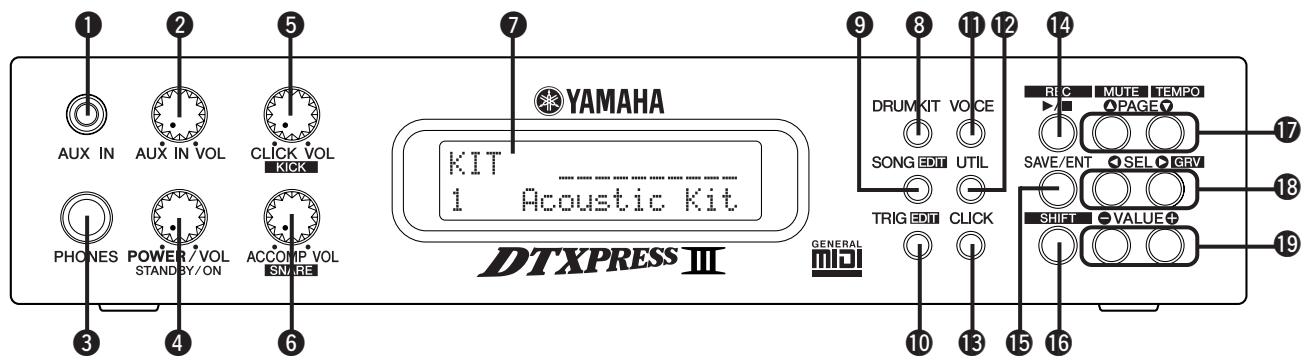
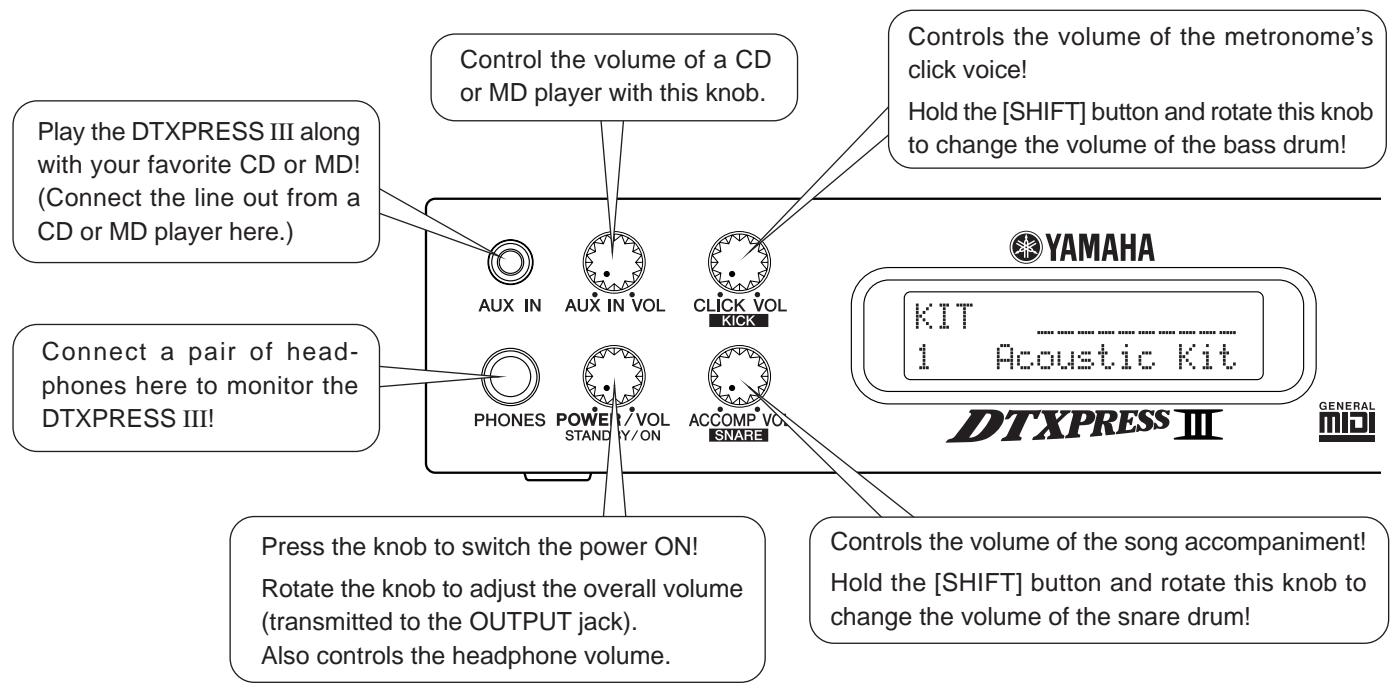
1 AUX IN Jack
Connect the output of an external audio device, etc., to this jack (stereo mini jack). (P. 15)
This is convenient for playing along with music from a CD or cassette player.
AUX IN Volume (AUX IN VOL)
This volume control adjusts the volume of a CD or cassette player connected to the AUX IN jack 1.
Head Phone Jack (PHONES)
Connect a pair of headphones to this jack to monitor the DTXPRESS III. (P. 15)
Power Switch/Master Volume (POWER/VOL)
Switches the power ON/OFF and controls the overall volume level (output from the OUTPUT jacks and PHONES jack) of the DTXPRESS III.
Rotate the knob clockwise to increase volume, counter-clockwise to decrease volume. Push the button to switch the power ON/OFF.
Click Volume (CLICK VOL) Kick Volume (KICK VOL)
- This volume control adjusts the volume of the metronome's click. (P. 19)
- Holding the [SHIFT] button and rotating the knob adjusts the volume of the bass drum.
⑥ Accompaniment Volume (ACCOMP VOL) Snare Volume (SNARE VOL)
- This volume control adjusts the volume of the song's accompaniment. (P. 20)
- Holding the [SHIFT] button and rotating the knob adjusts the volume of the snare drum.
LCD Display
The LCD Display shows information and data that is necessary to operate the DTXPRESS III.
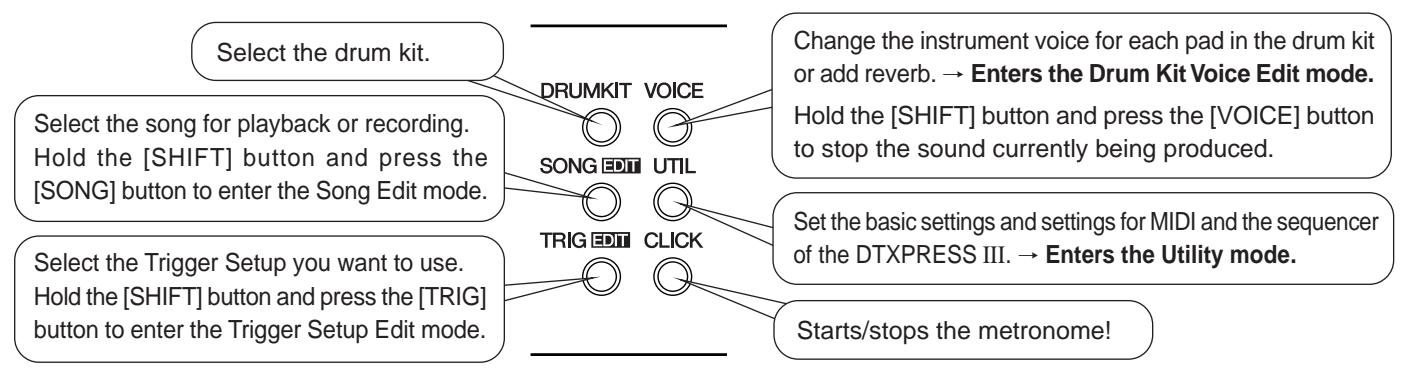
Drum Kit Button (DRUMKIT)
Press the button to enter the DTXPRESS III's Drum Kit Select display. (P. 32)
Song Button (SONG)
- Press this button to enter the Song Select display. (P. 32)
- Hold the [SHIFT] button and press the [SONG] button to enter the Song Edit mode. (P. 51)
10 Trigger Button (TRIG)
- Press this button to enter the Trigger Setup Select display. (P. 33)
- Hold the [SHIFT] button and press the [TRIG] button to enter the Trigger Setup Edit mode. (P. 37)
Voice Button (VOICE)
- Press this button to enter the Drum Kit Voice Edit Mode. (P. 42) Press the button while in the Drum Kit Edit Mode allows you to listen to the voice currently being set as if it were triggered from the pad (audition function).
- Hold the [SHIFT] button and press the [VOICE] button to mute audio output from the OUTPUT JACK ② and PHONES JACK ③.
Utility Button (UTIL)
Press the button to enter the Utility Mode that contains basic settings for operation of the DTXPRESS III. (P. 54)
13 Click Button (CLICK)
Press this button to start/stop the metronome (click sound). (P. 19)
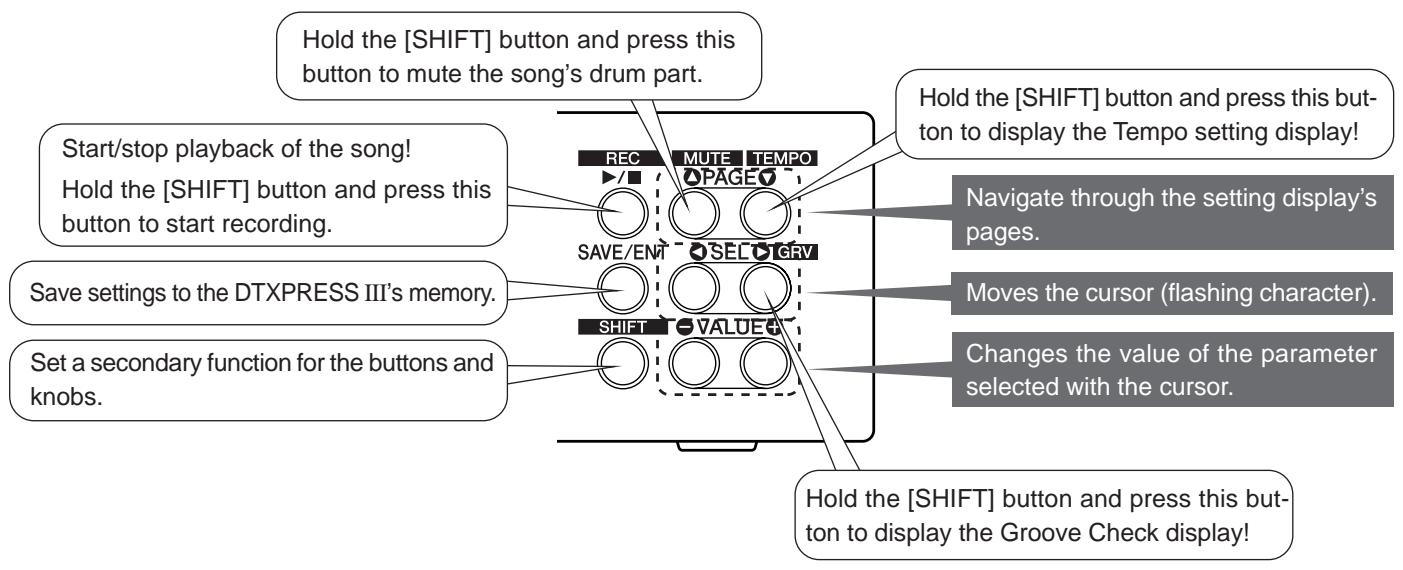
14 Start/Stop Button (▶/■)
- This button starts/stops playback or recording of the song.
- Hold the [SHIFT] button and press [ / ] puts the DTXPRESS III in recording standby mode.
Save/Enter Button (SAVE/ENT)
Carries out (enter) the command or save operation.
Shift Button (SHIFT)
Holding this button and pressing another specific button switches the button to its secondary function.
17 Page Button [PAGE▲, PAGE▼]
- These buttons are used to navigate through the display pages. The [PAGE▲] button moves to the next page while the [PAGE▼] button moves to the previous.
Hold the button to continuously move through the pages.
- Hold the [SHIFT] button and press the [PAGE▲] button to mute the drum voice during playback (Rhythm Mute Function).
- Hold the [SHIFT] button and press the [PAGE▼] button to display the Song Tempo Setting (P. 20)
18 Select Button [SEL<, SEL>
- Use these buttons to move the cursor.
- Hold the [SHIFT] button and press the [SEL▶] button to switch to the "Groove Check Function". (P. 19)
19 Value Button (VALUE-, VALUE+)
- Changes the data value selected with the cursor. Hold the button to continuously change the valu
- Hold the [VALUE+] button and press the [VALUE-] button to increase the value by 10 continuously.
- Hold the [VALUE-] button and press the [VALUE+] button to decrease the value by 10 continuously.
Rear Panel
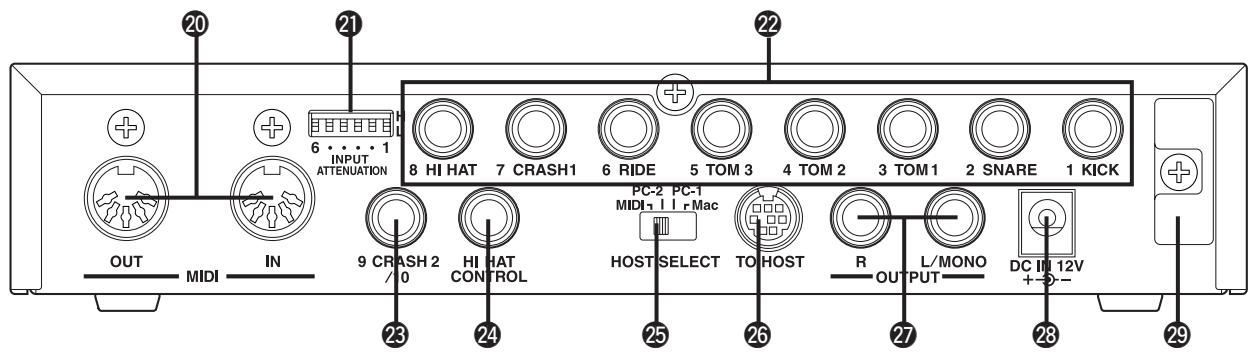
20 MIDI IN/OUT Jack
These jacks are for the transmission and reception of MIDI data to and from external MIDI devices.
Connecting external MIDI devices will expand the function of the DTXPRESS III.
21 Input Attenuation Switch (INPUT ATTENUATION)
Sets the general Input Attenuation for each Trigger Input Jack (1 KICK-6 RIDE). Lowering the switch (L) lowers the attenuation. Raising the switch (H) increases attenuation. This adjusts the input level to meet the specification of pads and trigger sensors connected to the DTXPRESS III. (P. 10)
Trigger Input Jack (1 KICK-8HI HAT)
Connect pads and trigger sensors to these jacks. Connect pads according to the indication below each input. (P. 10)
Inputs 1-8 are compatible with switch type pads while inputs 2, 6, and 7 are compatible with 3-zone type pads.
Trigger Input Jack (9 CRASH2/10)
Used to connect a pad to the DTXPRESS III. The stereo jack's L corresponds to input 9, R corresponds to input 10. Two-trigger input is possible using a stereo phone plug, such as the optional Yamaha CO4Y, etc., to connect two pads. If a monaural phone plug is used, only input 9 is available for use.
2 Hi-Hat Controller Jack (HI HAT CONTROL)
This jack is used to connect a hi-hat controller (P. 10).
- Use a cable with a stereo plug (shown below) when connecting a Hi-hat controller.
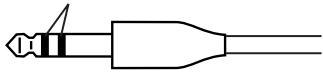
Double Insulator
25 Host Select Switch
(HOST SELECT Mac/PC-1/PC-2/MIDI)
Set the switch according to the type of computer connected to the TO HOST jack 26. If the MIDI jack is used set the switch to the "MIDI" position. (P. 14, 28)
TO HOST Jack
This jack is used to connect a computer to the DTXPRESS III with a serial cable. Use a cable that is compatible with the type of computer you are using. (P. 28)
Output Jacks (OUTPUT L/MONO, R)
These jacks are used to connect the DTXPRESS III to an external amplifier, mixer, etc. For monaural playback use the L/MONO jack. For stereo playback connect both L/R jacks.
23 Power Supply Jack (DC IN 12V)
Connect an AC adaptor to this jack. To prevent the adaptor from becoming unplugged, secure the cord to the cord hook 29.
29 Cord Hook
Prevents the power cord from accidentally becoming unplugged. (P. 15)

To prevent electric shock and damage to the devices, make sure the power is switched OFF on the DTXPRESS III and all related devices before making any connections to the DTXPRESS III's input and output jacks.
Connecting the pads
Referring to the illustration shown below, connect the output cable from each pad to each Trigger Input Jack located on the rear panel of the DTXPRESS III.
The Trigger Input Jacks are all labeled (1 KICK, etc.) so make sure you connect each pad to its corresponding Trigger Input Jack.
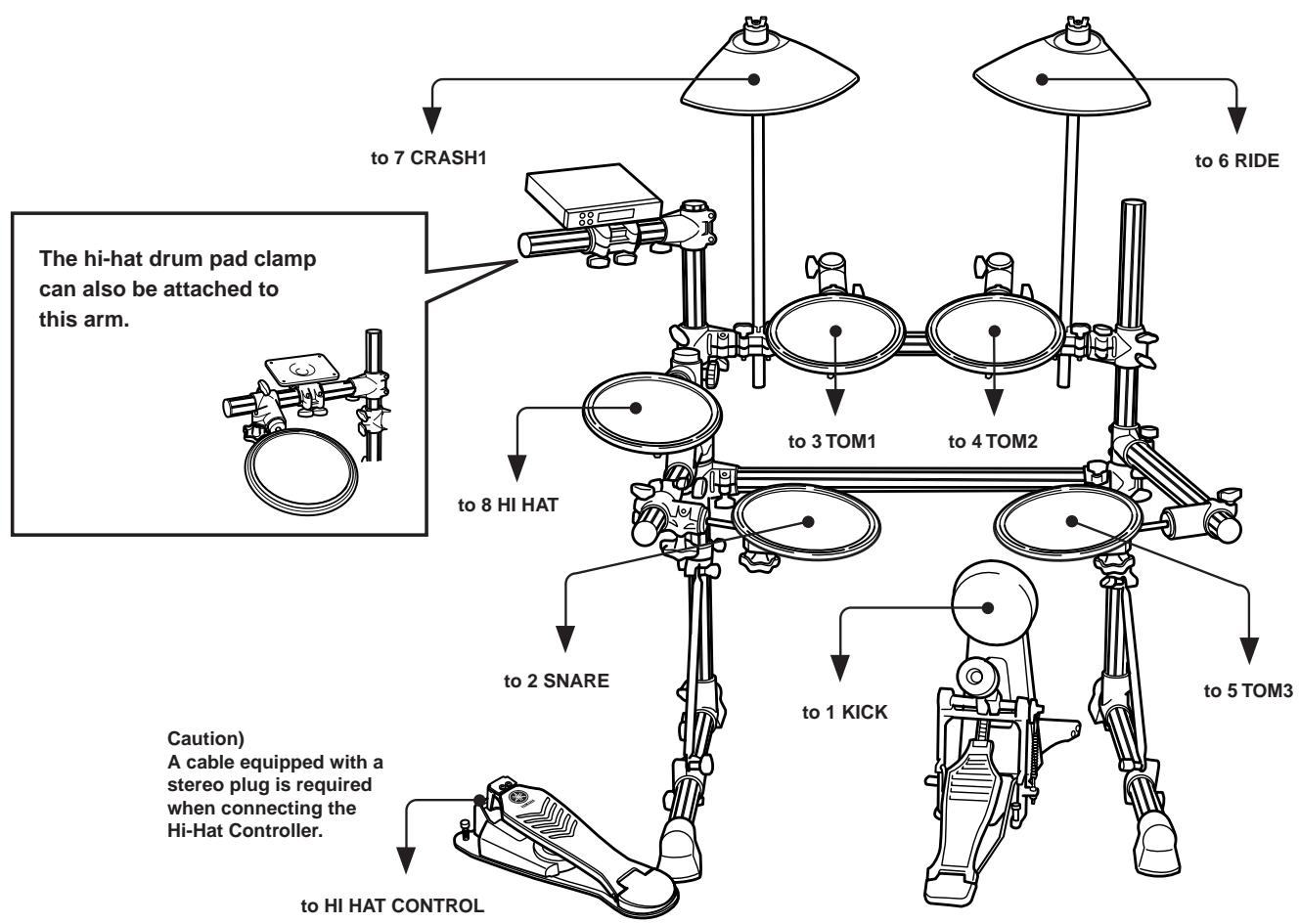
Standard set
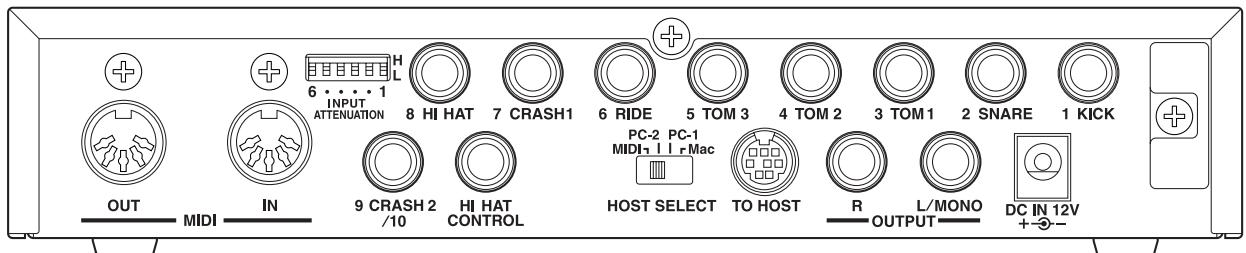

The DTXPRESS III's Trigger Settings will need to be changed according to the type of drum set you are using (Standard Set/Special Set/Acoustic Drums/etc.). Refer to the "Select Trigger Setup" section described on the next page on how to select the appropriate setup.
Special set
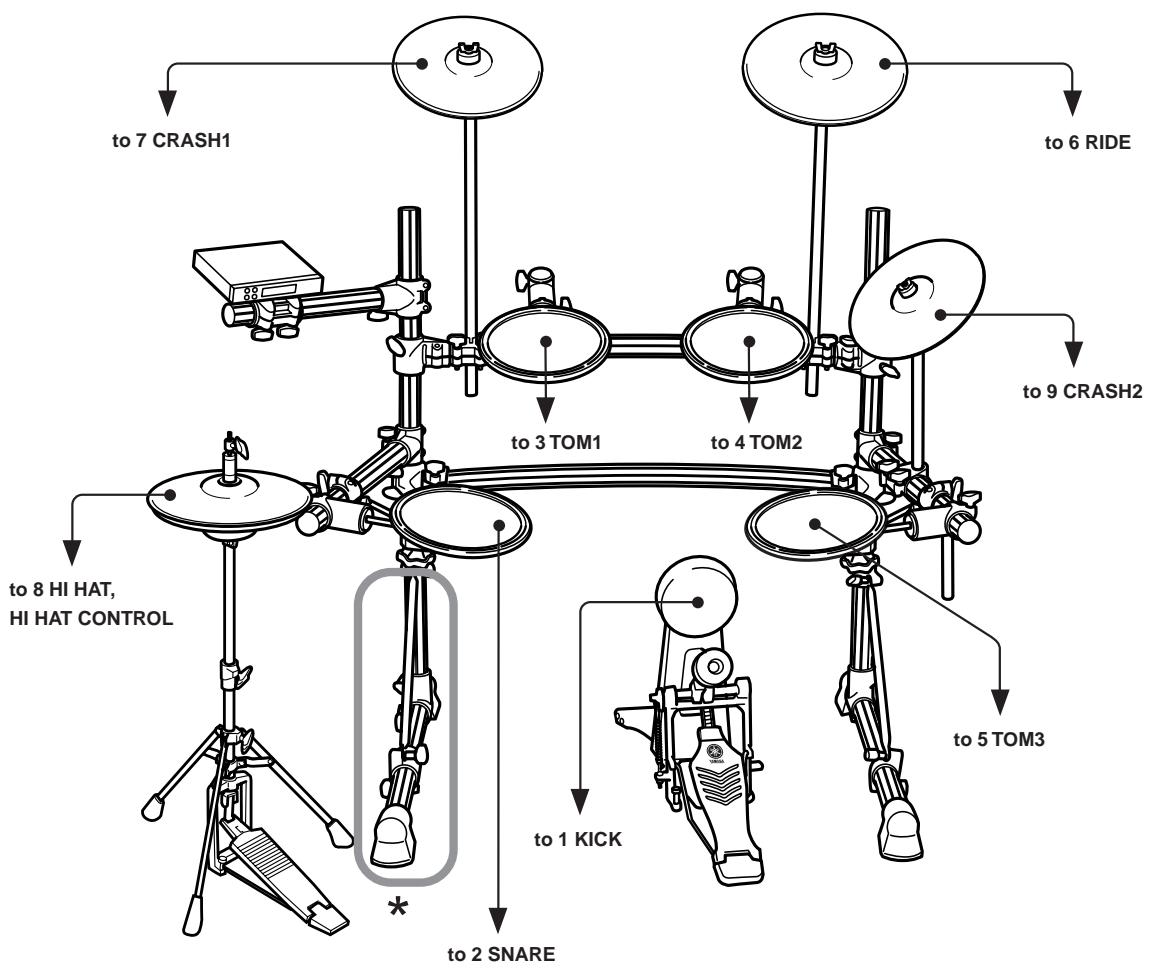
- When a double foot pedal setup is used, we recommend slightly rotating the leg on the left side of the rack to allow more space for the foot pedal. (Make sure you loosen the bolts before rotating the leg. Not doing so can damage the rack.)
■ Select Trigger Setup
This setting lets you select the Trigger Setup that is best matched to the particular drum set you are using.
If you switch the type of drum set you are using with the DTXPRESS III, make sure you use the procedure below to select an appropriate setup.
1. Press the [TRIG] button to display the Trigger Setup display.
![YAMAHA DTXPRESSI3 - Press the [TRIG] button to display the Trigger Setup display. - 1](/content/2019/11/114582/images/905e41ef8060d15a1b1e03e7d6eae414fde3d9c0ee49cd84ed50fde14eb76cd2.jpg)
TRIG
TRIG
1 STD Med 1
2. Use the [VALUE-]/[VALUE+] buttons to select the trigger setup that best matches the drum set you are using.
![YAMAHA DTXPRESSI3 - Use the [VALUE-]/[VALUE+] buttons to select the trigger setup that best matches the drum set you are using. - 1](/content/2019/11/114582/images/0f0516f146ad370812300b47f6d01e61b9515c8730ff73ec4cbc6df22e3b6c1b.jpg)
TRIG 1 STD Med 1
Trigger Setup
Trigger Setup List
1 STD Med (for Standard Drum Set) Normal setting
2 STD Dye (for Standard Drum Set) Wide dynamic range. This setting is well suited for reproducing expressive subtleties over a wide dynamic range. Excessive vibration however, may result in crosstalk (sound being produced by other pads).
3 STD EASY (for Standard Drum Set)
Controlled dynamic range delivers stable trigger detection. This setting is well suited for producing a smoother, more uniform sound with less expression.
4 SP Med (for Special Drum Set) Normal setting
5 SP Dya (for Special Drum Set) Wide dynamic range. This setting is well suited for reproducing expressive subtleties over a wide dynamic range. Excessive vibration however, may result in crosstalk (sound being produced by other pads).
6 SP Easy (for Special Drum Set)
Controlled dynamic range delivers stable trigger detection.
This setting is well suited for producing a smoother, more uniform sound with less expression.
7 DT10/20 (for DT10/20) Use DT10/20 drum trigger systems applied to acoustic drums.
8 UserTrig—11 UserTrig (for User)
Lets the user create custom trigger setups. () Settings are made using the [Trigger Setup Edit Mode] (Reference Guide : P. 11))
Some Advice on Connections
- Trigger Input Jacks from 1 KICK to 8 HI HAT are stereo input type jacks.
Pads equipped with trigger switches like the TP65S, PCY65S, PCY130S, etc. can be connected to these jacks. - 3-zone pads like the TP65S, PCY150S, etc. can be connected to Trigger Input Jacks 2 SNARE, 6 RIDE, and 7 CRASH1.
- The DTXPRESS III's input jack parameters are preset with settings suitable for pads that correspond to the input's label (KICK, SNARE, etc.). If any other type of pad is going to be connected to an input jack, that jack's parameters (sensitivity, etc.) should be changed to settings that suit the pad.
- Sensitivity is set in the Trigger Setup Edit mode's [1-1. Pad Type] (Reference Guide: P. 12).
- The input sensitivity switches (INPUT ATTENUATION) are sensitivity switches that correspond to Trigger Input Jacks 1 KICK-6 RIDE.
The switch's L position corresponds to a low sensitivity for pads like TP, KP, PCY, BP, etc. The H position corresponds to a high sensitivity proper for use with the DT20 Drum Trigger, etc.
- The HH series Hi-Hat Controller can be used as a kick pedal (assign settings in section [1-1. Pad Type] (Reference Guide : P. 12)).
- In addition to the 1 KICK jack, the 9 CRASH2/10 jack can be used to connect a second bass drum pedal to create a double-bass drum set.
- The 9 CRASH2/10 jacks correspond to a 2-trigger input that uses a stereo jack for L (9) and R (10).
You can use an conversion cable plug (stereo plug monaural plug x2) to input two separate trigger signals.
When a stereo cable is used to connect the KP65 Kick Pad, you can use the KP65's Input Jack as the input for the DTXPRESS III's Trigger Input Jack 10 (assign settings in section [2-3. Input Exchange] (Reference Guide : P. 15).
Setting up with Acoustic Drums
With the optional Yamaha DT20, etc. Drum Triggers attached to a set of acoustic drums, it is possible to connect acoustic drums to the DTXPRESS III.
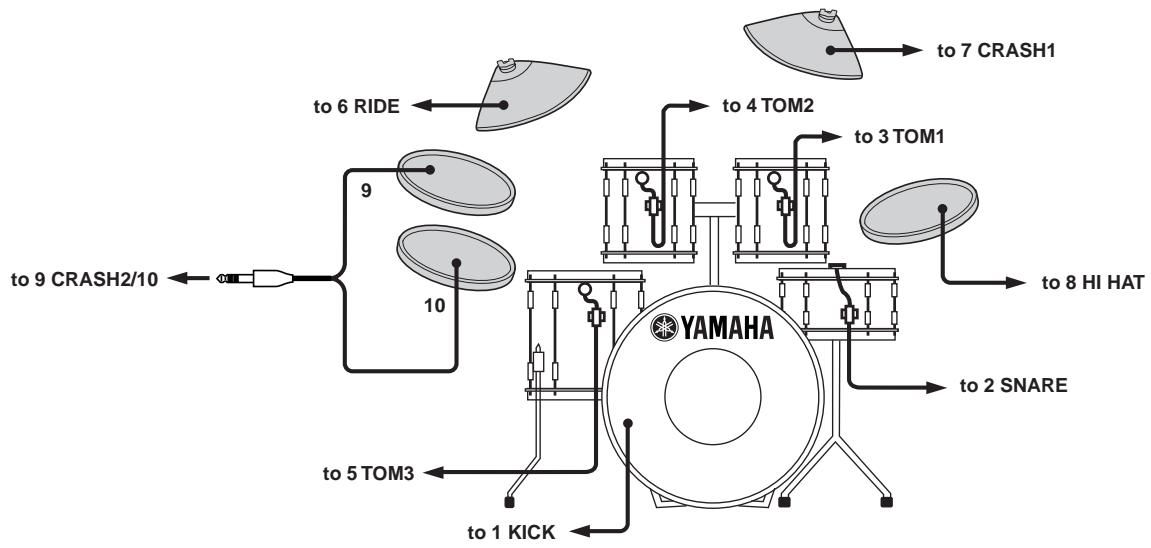
A setup example using both acoustic drums and drum pads.
Referring to the illustration shown below, connect the output cable from each pad and drum trigger to each Trigger Input Jack located on the rear panel of the DTXPRESS III.
- When using the drum triggers, appoint suitable settings in the Trigger Setup Edit mode's [1-1. Pad Type]. (Reference Guide : P. 12)
■ Attach the Drum Trigger
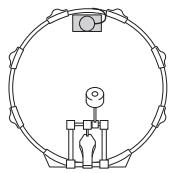
Use the following procedure to attach the drum trigger sensors to your acoustic drums.
- Attach to the Bass Drum
Mount the drum trigger sensor on the batterhead of the bass drum close to the edge of the rim.
- Make sure the sensor does not come in contact with the rim.
- Attach to the Snare Drum
Mount the drum trigger sensor on the batterhead of the snare drum close to the edge of the rim across player.
- Make sure the sensor does not come in contact with the rim.
- Attach to the Toms
Mount the drum trigger sensor on the shell close to the edge of the rim.
- Make sure the sensor does not come in contact with the rim.
- Place the trigger in a position where other instruments (drum or percussion) will not influence it.
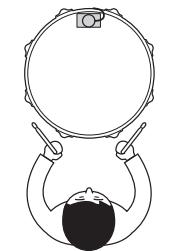
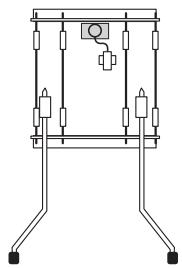
Removing the Drum Triggers
When changing the batterhead, carefully remove the drum trigger sensors with a knife, etc. before loosening the head.
- Be careful not to pull the cord when removing the trigger.
Taking Care of the Drum Triggers
- Make sure the surface of the batterhead or shell where the trigger is to be mounted is free from dirt and grime. Clean the surface with alcohol, etc. before attaching.
- To prevent broken trigger cords caused by the vibration of the drum rim, secure the sensors and cords in place with tape.
- Irregular vibration and sustained resonance on the batterhead or shell may cause double-triggering. This can be prevented by applying a mute to the batterhead and controlling excessive vibration. We recommend the use of the Yamaha Ring Mute.
- Once you have removed drum triggers and want to mount them again, be sure completely remove the old tape and apply new tape. Using used tape may cause problems such as poor sensitivity, double-triggering, etc.
- Connecting a Mixer or Audio Equipment
Connecting the OUTPUT L/MONO and R jacks on the rear of the DTXPRESS III to a mixer or audio equipment allows for audio reproduction through external speakers or the recording of your performance.
- Using speakers with built-in amplifiers.
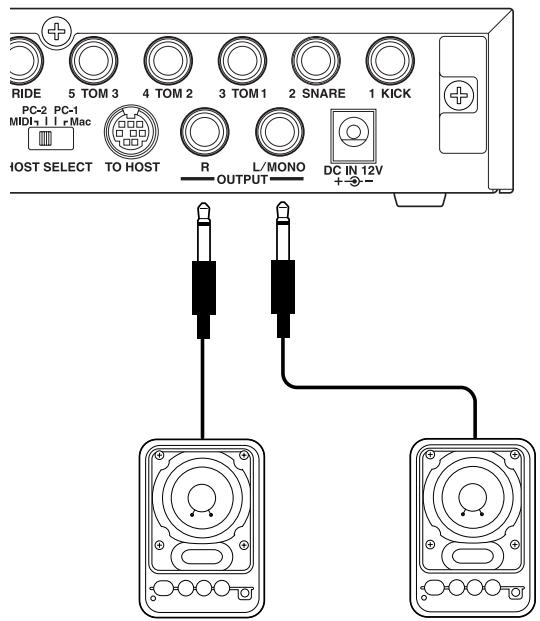
- Recording your performance with the DTXPRESS III to a cassette tape deck.
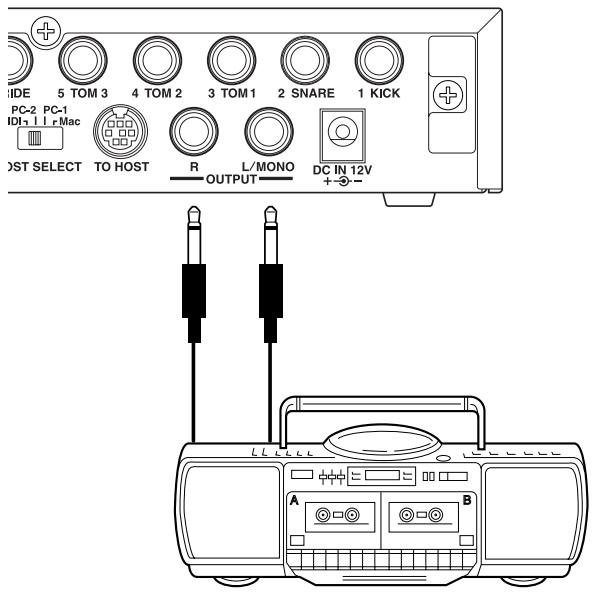
- The OUTPUT jack is a standard monaural type phone jack. Please use a cable equipped with a plug that matches device.
- When connecting to a monaural input device, please use the OUTPUT L/MONO jack on the DTXPRESS III.
Connecting a MIDI Device
Data in the DTXPRESS III can be stored (Bulk Dump) to a Yamaha MIDI Data Filer MDF3, etc. or other MIDI device.
Also, an external sequencer can be used to drive the DTXPRESS III's Tone Generator.
Furthermore, the use of MIDI functions allows for a wide range of possibilities with the DTXPRESS III.
Refer to the [Using MIDI] section (P. 27) on how to use MIDI functions.
Transmit MIDI Data
Use a MIDI cable to connect the MIDI OUT jack on the DTXPRESS III with the MIDI IN jack on the external MIDI device.
Set the HOST SELECT switch to the "MIDI" position.
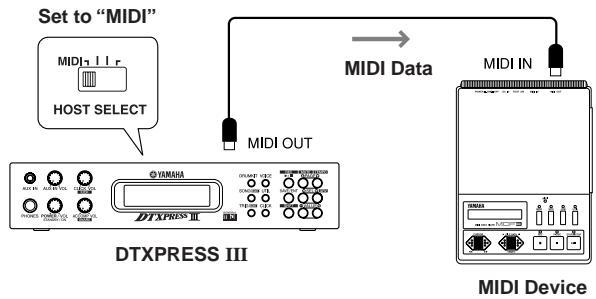
- Receive MIDI Data
Use a MIDI cable to connect the MIDI IN jack on the DTXPRESS III with the MIDI OUT jack on the external MIDI device. Set the HOST SELECT switch to the "MIDI" position.
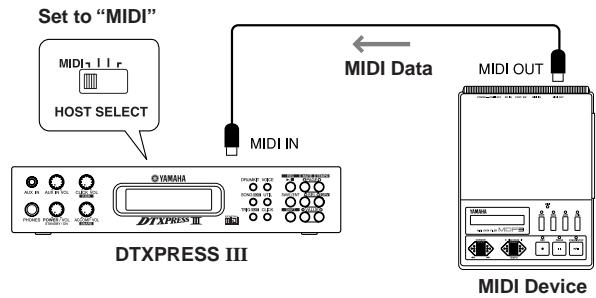
Always use a standard MIDI cable when connecting devices. Also, use a MIDI cable that is more than 15m in length. Using a longer cable may result in irregular operation and other problems.
Connecting a Computer
The DTXPRESS III is equipped with a built-in MIDI interface that allows the DTXPRESS III to be connected directly to a computer's serial board via the DTXPRESS III's TO HOST jack. Sequencer software installed in the computer can be used to drive the keyboard voices of the DTXPRESS III and sequence data created in the DTXPRESS III can be edited in the computer.
Refer to the [Connecting a Computer] section (P. 28) for more information.
- Connecting a CD Player, etc. (AUX IN jack)
The audio output from a CD player or cassette deck connected to the AUX IN jack (stereo mini) on the front panel can be mixed with the sound of the DTXPRESS III and transmitted via the output jacks on the rear panel.
This function is convenient when you want to play along with a favorite song or enjoy performing with your friends.
The volume of the external signal is adjusted with the AUX IN VOL knob.
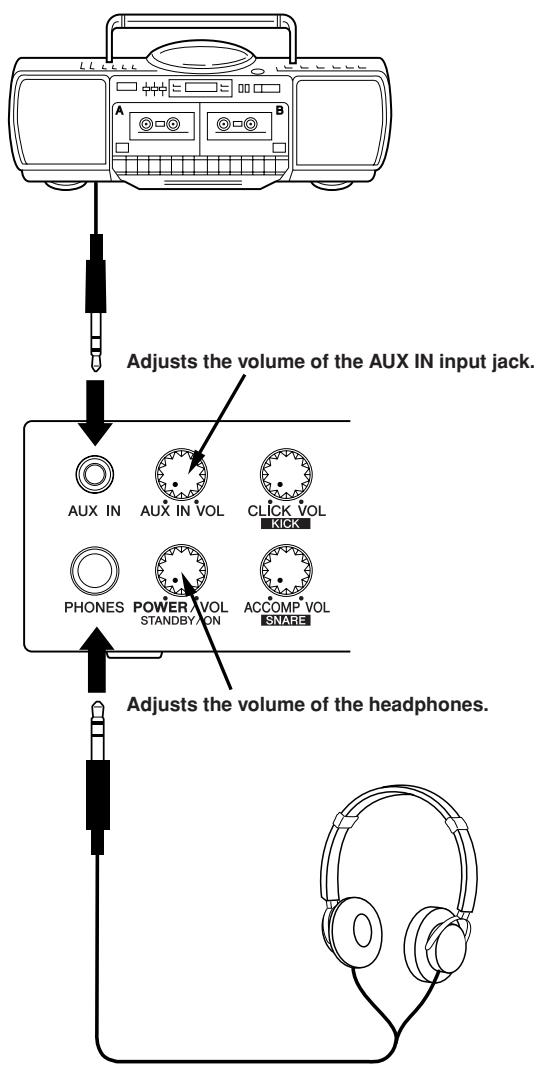
Connecting a Pair of Headphones (PHONES jack)
When you want to listen to the DTXPRESS III with a pair of headphones, connect the headphones to the PHONES jack (stereo standard) on the front panel.
The headphone volume is adjusted with the POWER/VOL knob.
When using the headphones, do not damage your hearing. Adjust the volume to a comfortable level.
Connecting the Power Supply
A special power source adaptor supplies power to the DTXPRESS III.
Make sure the power is switched OFF and connect the power adaptor to the DC IN jack on the rear panel.
To prevent the cord from becoming unplugged, wrap the cord around the cord hook and secure.
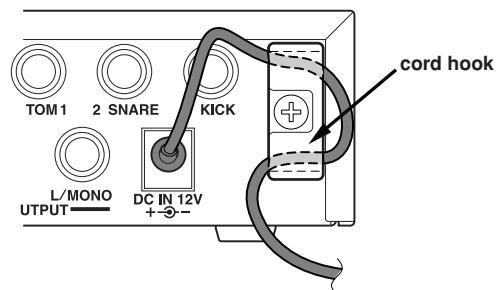

Use ONLY a Yamaha PA-3C AC Power Adaptor (or other adaptor specifically recommended by Yamaha). The use of other adaptors may result in irreparable damage to both the adaptor and the instrument.
Also, when the DTXPRESS III is not to be used for a long period of time, please unplug the power adaptor.
Before switching the power ON.
- To protect the speakers, headphones and the DTXPRESS III from damage, fully rotate the POWER/VOL knob to the left (minimum volume) before switching the power ON.
- Make sure the power is switched OFF on all external devices connected to the DTXPRESS III. After the DTXPRESS III's power is switched ON, switch the other device's power ON.
The DTXPRESS III Quick Guide (Basic Functions List)
Listen to the Selected Song
- Press the [SONG] button to open this display,
- Make sure the song number in the display is flashing.
- Use the [VALUE-] / [VALUE+] buttons to select the song.
- Press the [/] button to start playback!
Change the Song's Tempo
- Hold the [SHIFT] button and press the [PAGE▼] button to open this display,
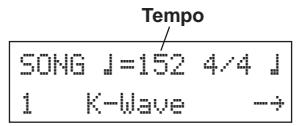
- Make sure the tempo value in the display is flashing.
- Use the [VALUE - ] / [VALUE + ] buttons to set the tempo.
Set the Metronome
- Hold the [SHIFT] button and press the [PAGE▼] button to open this display,
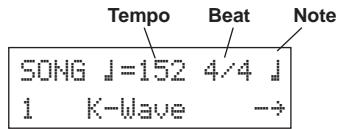
- Use the [SEL] [/SEL] buttons to flash the parameter you want to set.
- Use the [VALUE-]/[VALUE+] buttons to set the value.
Change the Pad's Sensitivity
- Hold the [SHIFT] button and press the [TRIG] button, then press the [PAGE▼] buttons to open this display,
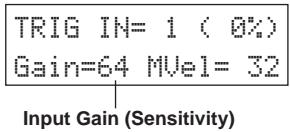
- Hit the pad that you want to edit (that pad will be selected).
- Use the [SEL] [/SEL] and [VALUE-] [/VALUE+] buttons to edit.
Change the Output Sound Quality
- Press the [UTIL] button to open this display,
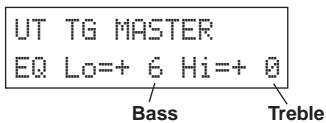
- Use the [SEL] [/SEL] buttons to select either "L" (bass) or "Hi" (treble),
- Use the [SEL] [/SEL] and [VALUE-] [/VALUE+] buttons to edit.
Select a Drum Kit
- Press the [DRUMKIT] button to open this display,
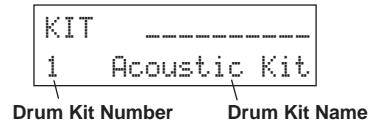
- Make sure the drum kit number in the display is flashing.
- Use the [VALUE-]/[VALUE+] buttons to select a drum kit.
Change the Voice Volume For Each Pad
- Press the [VOICE] button, then press the [PAGE▼] button to open this display,
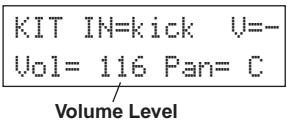
- Hit the pad whose volume you want to change (that pad will be selected),
- Use the [SEL]/[SEL] and [VALUE-]/[VALUE+] buttons to edit.
Change the Pad's Voice
- Press the [VOICE] button to open this display,
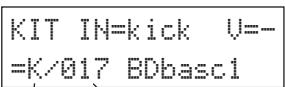
Voice Category Voice Number
- Hit the pad whose voice you want to change (that pad will be selected),
- Use the [SEL] [/SEL] and [VALUE-]/[VALUE+] buttons to select the voice category and voice number.
Change the Reverb for the Drum Voice
- After selecting the drum kit you want to add reverb to, press the [VOICE] button, use the [PAGE▲]/[PAGE▼] buttons to open this display.

- Use the [SEL] [/SEL] and [VALUE-]/[VALUE+] buttons to edit the reverb send level.
Save the Edited Settings
- Press either the [VOICE] or, hold the [SHIFT] button and press the [TRIG] button to enter their respective edit mode displays to edit settings.
- Press the [SAVE/ENT] button,
- Use the [VALUE - ] / [VALUE + ] buttons to set the save address.
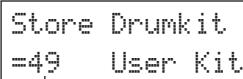
Save Address
- Press the [SAVE/ENT] button, after the confirmation display appears, press the [SAVE/ENT] button again.
Now that you have the DTXPRESS III properly connected, let's make some music!
1. Switch the power ON
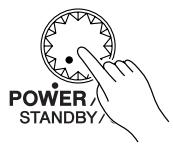
After confirming that each of the devices, pads, external devices, etc. are all properly connected, push the POWER/VOL knob on the front panel to switch the power ON.
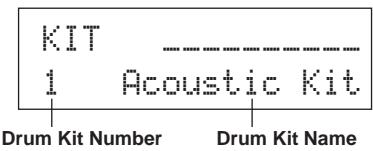
The DTXPRESS III is ready to operate when the display, shown below, for selecting the drum kit appears.
* The previously selected drum kit will be displayed.

To avoid damage to your speakers, first switch the DTXPRESS III's power ON then switch on Audio Devices and the Mixer or Amplifier.
2. Hit a pad
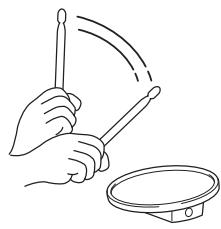
While hitting a pad, rotate the POWER/VOL knob little by little to the right until a comfortable volume level is reached. The volume level is increased as the knob is rotated to the right and decreased as it is rotated to the left.

3. Change the Drum Kit
Try out the voices for each of the kits.
Drum kit numbers 1-48 consist of 48 types of preset drum kits that have been specially programmed. [Preset Drum Kit List] (Reference Guide : P. 44)
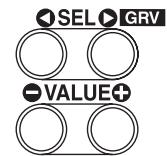
Use the [VALUE-]/[VALUE+] buttons to select the drum kit.
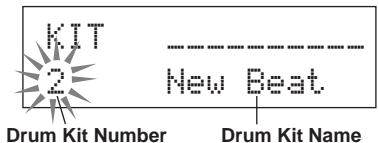
Try out the different drum kits and select one drum kit you like.
- Some drum kits have Pad Songs and Drum Loop Voices that will start when the corresponding pad is hit.
4. Change the instrument volume for each pad.
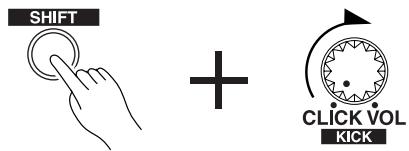
- Hold the [SHIFT] button and rotate the CLICK VOL knob to adjust the volume of the Bass Drum.
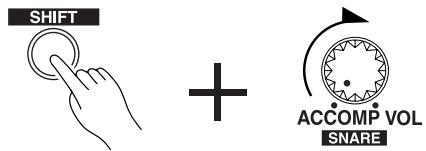
- Hold the [SHIFT] button and rotate the ACCOMP. VOL knob to adjust the volume of the Snare Drum.
-
The Bass Drum and Snare Drum volume settings, described above, will reset when the power is switched off.
-
Press the [VOICE] button, then press the [PAGE▼] button to enter the volume setting display for the currently selected pad (Input Source).
VOICE
HINT
$$ \begin{array}{l} \text {K I T I n n a r e U = -} \ \text {V o l = 1 1 6 P a n = C} \end{array} $$
Volume
Hit the pad you want to adjust the volume of and use the [VALUE-]/[VALUE+] buttons to adjust the volume.
- The same display can be used to adjust the pan (the position of the voice within the stereo field) for each pad. (Reference Guide : P. 18)
According to the setting in the Utility mode's [1-4. Volume Mode] (Reference Guide : P. 29), the volume of the cymbal, drums and other instruments can be adjusted using the knobs shown above.
5. Change the sound quality heard through the monitor.
Press the [UTIL] button, the sound quality setting display for the audio signal that is transmitted to the OUTPUT jacks and PHONES jack will be displayed.
UTIL
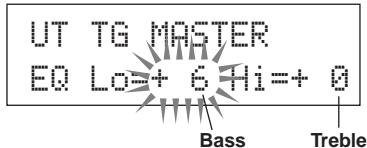
Press the [SEL] [/SEL] buttons to move the flashing cursor to the Lo or Hi position, then use the [VALUE-] [/VALUE+] buttons to adjust the sound quality.
Play the DTXPRESS III along with the metronome.
Try out the Groove Check Function to check your rhythmic accuracy.
1. Turn On the Metronome
Press the [CLICK] button to start the metronome.
The lamp in the [CLICK] button will light every beat of each measure.
Press the [CLICK] button again to stop the metronome.
The click voice volume is adjusted with the CLICK VOL knob.
CLICK

CLICK VOL KICK
1-1. Set Metronome Tempo
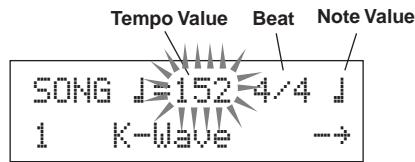
Hold the [SHIFT] button and press the [PAGE▼] button, the tempo setting display will appear.
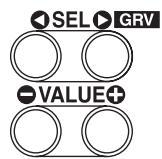
Use the [SEL ]/[SEL] buttons to move the flashing cursor to the tempo value, then use the [VALUE-]/[VALUE+] buttons to set the desired tempo.
The Tempo setting range is = 30 - 300
1-2. Set the Metronome Beat
In the setting display shown above, press the [SEL] button to move the flashing cursor to the beat value, then use the [VALUE - ] / [VALUE + ] buttons to set the desired beat.
The Beat setting range is 1/4-8/4, 1/8-16/8, 1/16-16/16.
1-3. Set the Metronome Note Value
In the setting display shown above press the [SEL▶] button to move the flashing cursor to the note value, then use the [VALUE-]/[VALUE+] buttons to set the click tempo (finer quantization).
1-4. Set the Click Voice and Other Settings
The metronome produces three different click voices.
"hi" will sound at the top of the measure, "mid" will sound on every quarter note and "lo" will sound on the beats of finer quantization.
Each of the click voices can be set to any voice (drum instrument voices) and pitch you like.
In the next section [Play with the Song] we will explain how to change the voices in detail.
Refer to the Utility mode's [4. CLK (Click) Group] (Reference Guide : P. 34) section for more information.
2. Use the Groove Check Function
As you play the pads, the DTXPRESS III's Groove Check function will check your rhythmic accuracy and display the results.
Your timing is compared to the click of the metronome and the accuracy is displayed.
2-1. Set the Metronome
Before you use the Groove Check Function, you will have to select the tempo, beat and finer quantization that matches the type of rhythm you want to practice.
2-2. Display the Groove Check Function
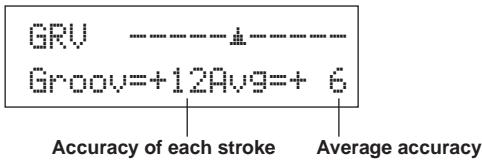
Hold the [SHIFT] button and press the [SEL▶] button to display the Groove Check Function shown below.
2-3. Hit a Pad in Tempo with the Metronome
Press the [CLICK] button to start the metronome, then hit the snare drum pad.
- The number that is displayed next to "Groov" on the left side of the display indicates the accuracy of each stroke on the pad.
A “-” (minus) value is displayed when your timing is later than that of the click voice (just timing) and a “+” (plus) value is displayed when your timing is earlier than that of the click voice. - The number that is displayed next to “Hvg=” on the right side of the display indicates the overall accuracy or average of the values that are displayed next to “Groov=”. The Groove Function can be used to check your accuracy on the entire drum set or on an entire song.
The Groove Check Function can be used not only on the snare drum, but on any of the DTXPRESS III's pads. Also, you can change the metronome's pattern to a sixteenth or triplet note feel. Try practicing with some of the other settings.
- Hold the [SHIFT] button and press the [SEL▶] button twice to reset the data.
The DTXPRESS III has a total of 95 preset songs that are good for rhythm practice. Try and play along with a song.
1. Select a Song
Select one of the DTXPRESS III's songs and listen to it. Song numbers 1-95 are preset songs.
[Preset Song List] (Reference Guide : P. 51)
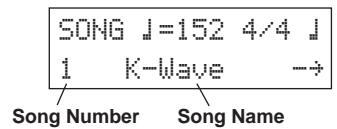
Press the [SONG] button to display the Song select display.
SONG EDIT
SONG = 1524 / 4
1 K-wave
Use the [SEL] [SEL] buttons to move the flashing cursor to the song number, then use the [VALUE-]/[VALUE+] buttons to select the song.

SEL GRV
- VALUE+
Song Number
Song Name
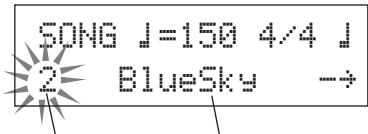
* When a different song is selected, the drum kit changes to one that matches the song.
2. Listen to the Song
When the [/] button is pressed, the song will start playback from the beginning.
The [SONG] lamp in the button will blink on the first beat of each measure.

The song will stop when it reaches the end.
You can stop the song during playback by pressing the [▶/■] button.
- Some songs repeat.
HINT Before song playback, you can have the metronome give a two-measure count. () Utility Mode [5-2].
Count Switch] Reference Guide : P. 36)
3. Mute a Drum Part
Try playing along with the song.
Hold the [SHIFT] button and press the [PAGE▲] button, then press the [▶/
] button to playback the song. A drum part in the song will be muted (does not produce the part) (Rhythm Mute Function).
You will play the drum part.
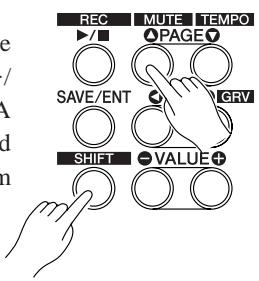
While setting the Rhythm Mute, a "F" will be displayed at the end of the song name.

Indicates the Rhythm Mute
To cancel the Rhythm Mute, hold the [SHIFT] button and press the [PAGE▲] button again.
HINT The mute function can be used during song playback.
4. Adjust the Song Volume
The song volume is adjusted with the ACCOMP VOL knob. Use both the ACCOMP VOL knob and the POWER/VOL knob (overall volume of song and pads) to adjust the balance between the song and your drum part.
5. Change the Song's Tempo
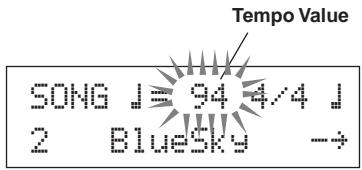
Hold the [SHIFT] button and press the [PAGE▼] button to display the Tempo Setting display.
Make sure the Tempo value in the display is flashing, then use the [VALUE-] / [VALUE+] buttons to set the desired tempo ( = 30 - 300) .
- VALUE+
6. Play Along with the Click Voice
With the drum part muted, it may be a little difficult to keep time. In this case, use the metronome along with the song. Using the click voice as a reference will make it easier to play along with the song.
Press the [CLICK] button to start the metronome. It will be in tempo with the song. Press the [CLICK] button again to stop the metronome.
The Click Voice's volume can be adjusted using the CLICK VOL knob.
CLICK
CLICK VOL KICK
HINT The metronome (click voice) can be set to start/stop when the song starts/stops. ( [4-5. Click Mode] Reference Guide : P. 35)
7. Change the Click Voice
When the click voice resembles voices that are found in the song it might be hard to hear. In this case it is a good idea to change the click voice.
Press the [UTIL] button four times (not too quickly) until the display shown below appears.
UT CLK VOICESET =Metronom
Sound set name used for click sound
Use the [VALUE - ] / [VALUE + ] buttons to select the sound set that you want to use for the click sound.
Press the [SOUND] button to return to the original display (song select display).
HINT
When you select "User Voice" as the click sound, you can select the three individual sounds used for the click sound (voice), and set volume, tuning, etc. () Utility Mode [4. CLK (Click) Group] P.34)
8. Change the Drum Kit
When you want to use a different drum kit with a particular song, press the [DRUMKIT] button to enter the Drum Kit select display, then select the drum kit you want to use.
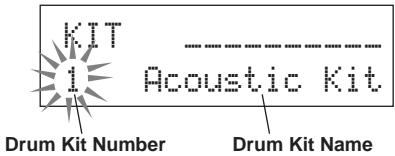
9. Change the Song but Not the Drum Kit
Normally, when the song is switched the drum kit will be automatically switched to the kit that is set in the song. However, if the Rhythm Mute Function ([SHIFT] + [PAGE▲]) is used, the drum kit will not change when the song is switched.
- Also, in the Utility mode's [3-2. Channel 10 Program Change/Receive Channel Event] (Reference Guide : P. 32) set the Channel 10 Program Change to not receive program changes and then only the song will change.
10. Mute Individual Drums
You can mute individual drums like the [Bass Drum], [Snare Drum], [Cymbal], [Other Drum Instruments].
This function is convenient when you want to practice individual drum parts.
Press the [UTIL] button, then press the [PAGE▼] button to enter this display.
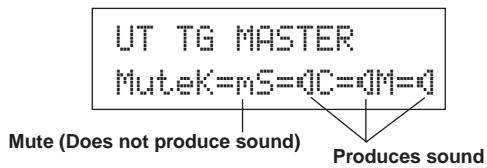
Use the [SEL]按钮 to select the drum instrument (K: Bass Drum, S: Snare Drum, C: Cymbal, M: others) you want to mute, then press the [VALUE+] button to change the speaker icon (M) to the mute icon (M).
To cancel the Mute Function, press the [VALUE-] button to return to the speaker icon (!).
Next, let's try recording your performance to the DTXPRESS III's sequencer.
With song data you record you can switch drum kits, change the tempo and playback in the same way as preset songs.
■ Recording System
- Recording can be done in any of the user songs (No. 96-127) that supplied for recording. You cannot record to preset songs (No. 1-95).
- User songs contain 2 tracks that can be recorded to. Recording can be done one track at a time.
- The song records (memory) data that precisely relates to when and how each pad was hit, and stores that information. This is called sequence data. MIDI data from the MIDI IN/TO HOST jacks can be recorded simultaneously.
- Sequence data can be freely used to change the tempo, select the voice or drum kit during playback.
Reference Guide: P. 25 [2. Program Change, Bank Select]
- Before recording, set the number of measures for the song you want to record. Recording is done in real-time. When the end of the assigned measure is reached, the record function can be set to act in one of two ways. (1) The song will automatically stop (Replace) and recording will be complete. (2) The song will repeat from its beginning and further data can be added to the previously recorded data (Overwrite).
OK, Let's Start Recording
1. Select the Song You Want To Record
Press the [SONG] button to display the Song select display, select a User Song number (No. 96-127).
- User songs that already contain data in both tracks cannot be recorded to.
- If a song is not selected when you start to record, the lowest numbered empty user song will automatically be selected to record. In the same manner, an empty user song will be selected if a preset song has been selected for recording.
2. Set the Recording Conditions
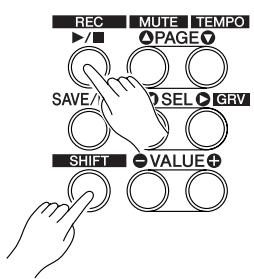
Hold the [SHIFT] button and press the [/] button, the following Recording Conditions setting display will appear.
Use the [SEL] [SEL] buttons to select the parameter you want to set, then use the [VALUE-]/[VALUE+] buttons to set each of the following recording conditions.
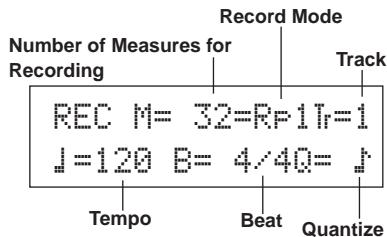
2-1. Set the Number of Measures to be Recorded.
Determine the number of measures you want to record and set.
- When there is data in the other track, the number of measures in that track will determine the length of the song.
2-2. Select the Record Mode
Select the method for recording from the following record modes.
Overwrite (Our): The record operation will be in a repeat mode. When the song reaches the end of the last measure, it will automatically start again from the beginning and new data will be added to the track's previous data.
Replace ( 1) : When the song reaches the end of the assigned measure or the [▶/■] button is pressed, recording will stop (will not repeat).
2-3. Set the Track For Recording
Select either track 1 or 2 for recording.
2-4. Set the Metronome's Tempo and Beat
Set the tempo and beat that will be used by the Metronome when recording.
2-5. Set the Quantize Function
The Quantize function is used to align the timing of your performance with that of the nearest specified beat. The accuracy of quantization is assigned with a note value. The quantize function can be used when recording.
- If this function is set to "r", the quantize function will not operate.
- You can use the Quantize function after recording is complete. (Reference Guide : P. 26)
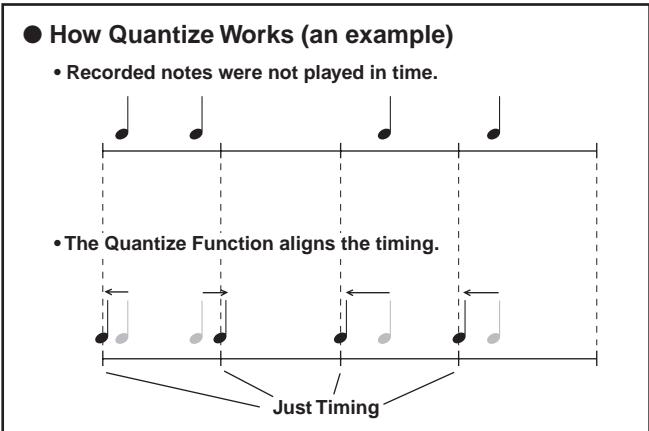
3. Start Recording
Press the [/] button, after a two-measure count recording will start. Record while listening to the metronome's click voice.
-
When the track assigned for recording contains data and the [▶■] button is pressed, the error message “Data not Empty” will appear and the recording operation will not be carried out.
-
When the Record Mode is set to Replace ("RF1").
The following display will appear while recording (only displayed, cannot be changed).
The measure number currently being recorded.
REC M=18=Rf1Ir=1 Now Recording.
When the end of the assigned measure number is reached, recording will automatically stop, and the display will return to the Song select display.
-
You can also stop recording by pressing the [▶■] button.
-
When the Record Mode is set to Overwrite ("JvF").
The following display will appear while recording (only displayed, cannot be changed).
The measure number currently being recorded.
REC M=18=0vrIr=1 UNDO Press ENT
The song being recorded will continuously repeat until the [▶/■] button is pressed.
When the song reaches the end of the last measure, it will automatically start again from the beginning and new data will be added to the track's previous data.
When the record mode is set to Overwrite ("OvR"), press the [SAVE/ENT] button while recording to "undo" (do again) the record operation. The data previously recorded from the beginning of the song, up until the [SAVE/ENT] button was pressed, will revert to the data originally present.
- How the "Undo" Works (an example)
Data recorded the first time.
Data recorded the second time.
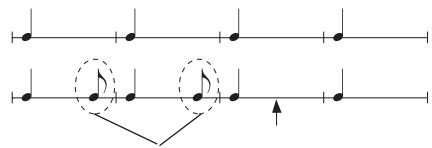
Pressing the [SAVE/ENT] button here, only the data recorded the second time will be erased.
Press the [> ] button to stop recording, the display will return to the Song select display.

If the power is cut off during recording, all user song data may be lost. Please use caution.
4. Listen to the Song
Press the [▶/■] button, playback of the song you just recorded will start from its beginning. You can also change the drum kit and playback the song with a different kit.
Reference Guide: P. 25 [2. Program Change, Bank Select]
5. Redo the Recording
To record again, use the following procedure to clear previously recorded data in the track, then try recording again.
- To clear song data (both tracks 1 and 2).
Hold the [SHIFT] button and press the [SONG] button to enter the Song Edit mode. Then press the [PAGE▼] button 7 times to enter the Clear Song display.
SONG Clear Song Are you sure ?
Press the [SAVE/ENT] button, all of the data in the currently selected song will be cleared.
-
To cancel the "Clear Song" operation, press the [VALUE-] button.
-
To clear data from one track.
Hold the [SHIFT] button and press the [SONG] button to enter the Song Edit mode. Then press the [PAGE▼] button 5 times to enter the Clear Track display.
SONG Clear Track
Track=1
Use the [VALUE-]/[VALUE+] buttons to set the number of the track you want to clear, then press the [SAVE/ENT] button, "Are you sure ?" will appear in the display. Press the [SAVE/ENT] button again, all of the data in the currently assigned track of the selected song will be cleared.
- To cancel the "Clear Song" operation, press the [VALUE-] button.
6. Record One More Track
In the same manner, one more track can be used to record. However, the number of measures cannot be changed.
7. Give the Song a Name
On the display, "no name" will appear for the song name.
Change the name to an original name.
Hold the [SHIFT] button and press the [SONG] button to enter the Song Edit mode. Then press the [PAGE▼] button 8 times to enter the Song Name setting display.
SONG SngName=the name
Use the [SEL] [SEL] buttons to move the flashing cursor to the character you want to change, then use the [VALUE-]/[VALUE+] buttons to select the desired character.
The available characters to choose from are listed below. (in order)
Space !"#$&'()*,-,0123456789:;<=>?a ABCDEFGHIJKLMNOPQRSTUVWXYZ[¥]^ _ abcdefghijklmnoparsstuvwxyz(1)++
A maximum of 8 characters can be used for the song name.
If the power is switched off, the completed song will be stored.
You can assign voices you like to each of the pads, and set the tuning (pitch), voice, decay, reverb, etc. to create your own original drum kit.
1. Select the Drum Voice
First, select a drum voice for the kit you want to create. Let's try assigning a snare drum voice.
It doesn't matter what drum kit you select (the drum kit that is created will be saved to a user drum kit (No. 49-80)).
1-1. Select a Snare Drum for the Input Source.
Press the [VOICE] button and the display for selecting the Drum Voice will appear.
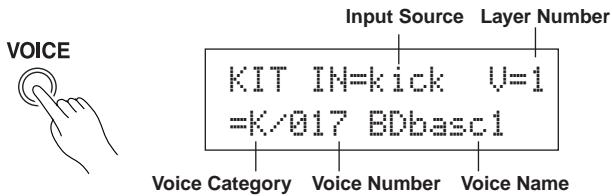
Use the [SEL]按钮 to move the flashing cursor to the input source position, then use the [VALUE-]/[VALUE+] buttons to select "snare". This means that the snare pad input that is connected to trigger input jack 2 SNARE is selected. The value " I,J = I " indicates that the layer number=1. Two voices can be delivered (2 layer) with one input source (trigger input). In this case, you will have to assign which voice will be used here.
1-2. Select the Drum Voice Category.
Next, decide the drum voice category.
Drum voice categories are divided into 13 categories each indicated with an alphabetic character. ([1-1. Voice] Reference Guide: P. 18)
For this example, let's select "s: Electric Snare".
Use the [SEL] [SEL] buttons to move the flashing cursor to the voice category position, then use the [VALUE-]/[VALUE+] buttons to select “=”.
A “*” mark will appear between “KIT” and “IN”. This is to let you know that data in the currently selected drum kit has changed.
1-3. Select the Drum Voice.
Next, let's select a drum voice.
Press the [SEL] button to move the flashing cursor to the Voice Number position, then use the [VALUE-]/[VALUE+] buttons to assign the drum voice. For this example, let's select "s/014 Dance01".
KIT IN=snare U=1
=s/014 Dance01
With this, we have assigned a drum voice for the kit you want to create.
Now, let's try to edit this drum voice in several ways and create your own original snare drum voice.
2. Try Changing the Volume
Let's change the volume of the drum voice that is delivered when the pad is hit. Adjust the volume balance between the other pads. Press the [PAGE▼] button and the following display will appear.
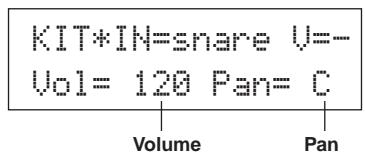
Use the [SEL] [SEL] buttons to move the flashing cursor to the volume level position, then use the [VALUE-]/[VALUE+] buttons to set the volume level.
- "U=-" appears when the drum voice is not a 2 layer voice.
HINT Press the [VOICE] button to monitor the voice just as if the pad were hit.
3. Try Changing the Pan
Using the same display, you can change the pan setting for the drum voice.
According to this setting you can move the position of the currently selected drum voice within the stereo field as follows: “L64” (left side) – “C” (Center) – “R63” (right side).
Press the [SEL] button to move the flashing cursor to the pan level position, then use the [VALUE-]/[VALUE+] buttons to set the pan value.
4. Try Changing the Tuning (Pitch)
Let's try and change the tuning (pitch) of the drum voice.
Press the [PAGE▼] button and the following display will appear.
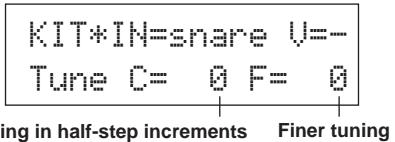
Use the [SEL]按钮 to move the flashing cursor to the "C" or "F" position, then use the [VALUE-]/[VALUE+] buttons to set the pitch of the voice.
Tuning for “ = ” is in increments of a half-step, tuning for “ = ” is in steps of approximately 1.17 cents.
5. Try Changing the Decay (the length of time it takes for the voice to fade)
Let's try and change the voice's decay (the length of time it takes for the voice to fade).
Press the [PAGE▼] button twice and the following display will appear.
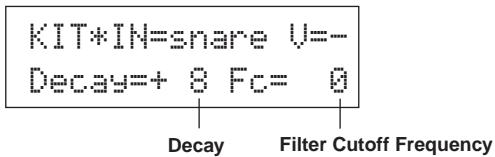
Use the [SEL]//[SEL] buttons to move the flashing cursor to the decay value position, then use the [VALUE-]/[VALUE+] buttons to set the amount of decay.
A + (plus) value will produce a faster decay.
6. Try Changing the Character of the Voice (Filter Setting).
Using the same display you can set the Filter Cutoff Frequency. Try to change the character of the voice (the brightness of the voice).
Press the [SEL] button to move the flashing cursor to the "Fcc=” position, then use the [VALUE-]/[VALUE+] buttons to set the value.
A + (plus) value will produce a brighter sound.
7. Try Adjusting the Volume Balance of the 2 Layer Voice.
If the selected drum voice is made with 2 layers (1 drum voice made with 2 voice waves), the volume balance can be adjusted between the 2 waves.
Press the [PAGE▲] button and the following display will appear.
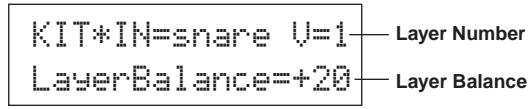
Use the [SEL] [/SEL] and [VALUE-]/[VALUE+] buttons to select the layer number.
- If the assigned voice is not made of 2 layers this setting is not valid.
Press the [SEL] button to move the flashing cursor to the layer balance position, then use the [VALUE-]/[VALUE+] buttons to set the layer balance value.
8. Adjust the Amount of Reverb.
Let's try and adjust the amount of reverb effect that is applied to the voice.
Use the [PAGE▲]/[PAGE▼] buttons to select the display shown below.

Use the [SEL /[SEL] buttons to move the flashing cursor to the reverb send level position, then use the [VALUE-]/[VALUE+] buttons to set the value.
Large values will increase the amount of reverb applied to the voice, "B" will produce no reverb.
- This setting is the reverb level for each input source. The overall reverb level for the drum kit is set in [5-2. Drum Reverb Send] (Reference Guide : P. 24)
9. Adjust the Balance Between Layer 1 and 2.
If you have used a 2 layer voice in the voice you just created, adjust the balance between the voices by adjusting the volume of each voice.
- You can select the conversion curve for 2 voices. → Drum Kit Edit Mode [2-1. Cross Fade] (Reference Guide : P. 20)
10. Save the Voice You Have Created
Let's save the drum voice you created to the DTXPRESS III's memory. Drum kit numbers "49" - "80" (these are called user drum kits) are used for saving individual drum kits.
Press the [SAVE/ENT] button, the following display will appear.
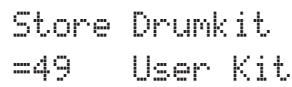
Use the [VALUE-]/[VALUE+] buttons to set the drum kit number ("49" - "80") for saving your drum kit to.
Press the [SAVE/ENT] button, "Are you sure?" will appear on the display asking for confirmation.
- To cancel the save operation, press the [VALUE-] button.
Press the [SAVE/ENT] button again, the save operation will be carried out, then "Complete!" will appear. After "Complete!" appears, the display will return to the Drum Voice select display.
11. Give Your Drum Kit a Name
The completed drum kit will still have the original drum kit's name.
Press the [VOICE] button to enter the Drum Kit Voice Edit mode, then press the [PAGE▼] button to display the Drum Kit Name setting display shown below. With the same procedure you used when you made a Song, give your drum kit an original name. (P. 23)

Now the drum kit with the original snare drum you created is complete.
Use the same procedure to create drum voices for the other pads (input source) and create a complete drum kit that is all your own.
HINT
The DTXPRESS III also has keyboard voices that comply with the GM System Level 1. So, not only drum voices, but piano, guitar, bass, strings, brass, reeds, effect, etc. can be delivered when the pad is struck.
To use keyboard voices with the pads first, change the pad's MIDI channel to any channel other than "1" (Reference Guide: P. 19 [1-7. Channel, Gate Time]), then select the MIDI note number of the voice you want to use in (Reference Guide: P. 19 [1-6. Note Number])
- If the [2-5. Key Off Enable] (Reference Guide : P. 21) is set to "disable", some voices may sound continuously. In this case, press the [SHIFT] + [VOICE] buttons to stop voices sounding.
There is much more to the DTXPRESS III than what we have covered so far. With a full understanding of these functions you can get the most out of the DTXPRESS III.
Factory Set
The internal settings of the DTXPRESS III will be returned to their factory preset condition.
Utility Mode [2-5. Factory Set] (Reference Guide : P. 31)

If the factory set operation is carried out, data for the User Drum Kit, User Trigger Setups and User Songs will be lost.
Functions related to connections and input source (pads)
- Drum kits can be selected by hitting a pad. For example, with an optional Yamaha Bar Pad BP80 connected to the trigger input jack 9 CRASH2/10, you can hit the left bar pad to decrease the value of the drum kit number by 1. Likewise, hitting the right bar will increase the value of the drum kit number by 1.
When the function described above is used in any drum kit.
Reference Guide: P. 14 [2-2. Increment/Decrement]
When the function described above is used in a specified drum kit.
Reference Guide: P. 21 [2-6. Function] - A hi-hat controller connected to the trigger input jack 1 KICK can be used as a KICK pedal.
Reference Guide : P. 12 [1-1. Pad Type] - Several methods are available for adjusting the sensitivity of pads and drum triggers.
To automatically set suitable settings for pads and drum triggers connected to the DTXPRESS III.
Reference Guide : P. 12 [1-1. Pad Type]
To greatly modify the sensitivity.
Change the INPUT ATTENUATION switch on the rear panel. (P. 10)
For minor adjustments to the sensitivity.
Reference Guide : P. 12 [1-2. Gain, Minimum Velocity]
-
Set the sensitivity of the hi-hat controller connected to the HI HAT CONTROL jack.
Reference Guide: P. 24 [5-3. Hi-hat Sensitivity] -
Set the point at which the hi-hat controller "closes" the hi-hat and the amount of time it takes to detect a foot splash.
Reference Guide: P. 14 [2-1. Hi-Hat Offset]
- Eliminate cross-talk (mixed input signals between the jacks).
Reference Guide: P. 13 [1-4. Self Rejection/Rejection]
Reference Guide: P. 13 [1-5. Specified Rejection]
-
Eliminate double-triggers (2 sounds played at the same time).
Reference Guide: P. 13 [1-4. Self Rejection/Rejection] -
Set the velocity curve that determines the relationship between the strength that the pad is hit and the volume that is produced.
Reference Guide : P. 13 [1-3. Velocity Curve]
- Switch the signals between trigger input jacks 1 and 9 CRASH2/10.
Reference Guide : P. 15 [2-3. Input Exchange] - Copy trigger setup data from one trigger input jack's setup to another
Reference Guide : P. 14 [1-6. Trigger Setup Copy] - Temporarily prohibit reception of trigger signals from all pads connected to the DTXPRESS III.
Reference Guide : P. 30 [2-2. Trigger Bypass]
Switch the trigger bypass function (above) ON/OFF from a pad.
Reference Guide: P. 21 [2-6. Function]
Set the Reverb
The DTXPRESS III is equipped with a digital reverb section.
- Set the reverb type and reverb time for each drum kit.
Reference Guide : P. 22 [3-1. Reverb Type, Time] - The following three methods can be used to set the amount of reverb.
Adjust the reverb level for the voice delivered by the pad of each input source.
Reference Guide : P. 20 [2-2 Reverb Send]
Adjust the reverb send level for the entire drum kit.
Reference Guide: P. 24 [5-2. Drum Reverb Send]
Adjust the DTXPRESS III's overall reverb send level.
Reference Guide: P. 22 [3-2. Reverb Master Return]
Adjust the amount of reverb for each drum kit in the user drum map.
Reference Guide : P. 38 [6-6. Reverb Send]
- Bypass the reverb circuit (no reverb).
Reference Guide : P. 29 [1-5. Reverb Bypass]
Settings related to the Drum Voice
- Set the cross fade between voice layers 1 and 2.
Reference Guide : P. 20 [2-1. Cross Fade] - Set the rim voice to simultaneously trigger the pad voice when stereo pads are used.
Reference Guide : P. 22 [2-8. Rim to Pad] - Set the alternate group and key assign mode for voices that are delivered simultaneously.
Reference Guide : P. 20 [2-3. Alternate Group, Key Assign Mode] - Set the key ON/OFF that is transmitted when the pad is hit.
Reference Guide: P. 21 [2-4. Hold Mode] -
Set whether to recognize or not key off messages.
Reference Guide : P. 21 [2-5. Key Off Enable] -
Set the volume of the entire drum kit.
Reference Guide : P. 24 [5-1. Volume] - Create an original drum kit.
Reference Guide : P. 37 [6. MAP (Drum Map Group)]
Settings Related to the Tone Generator
- The following settings will have an effect over the entire tone generator.
Equalizer (adjust the tone quality), Tuning, Volume, Reverb Bypass.
Reference Guide : P. 29 [1. TG (Tone Generator) Group]
Settings Related to the Song
-
Automatically switch the main song when the drum kit is switched.
Reference Guide : P. 24 [5-4. Song Select] -
Control the simultaneous playback (start/stop) of up to 3 songs by hitting the pad.
Reference Guide : P. 21 [2-7. Pad Song] -
Edit the following parameters in song sequencer data;
Tempo, RepeatPlayback, Program Change, Bank Select, Volume, Pan, Song Copy, Quantize, Clear Track, Merge Track, ClearSong andSongName
Reference Guide : P. 25 [Song Edit Mode] - Playback the song at the set tempo, even when the song is switched.
Reference Guide : P. 36 [5-4. Use Tempo]
Other Functions
-
Along with triggering voices the pads can be used for a variety of control functions.
Pad song playback/stop, metronome's click voice ON/OFF, switch drum kits, trigger bypass ON/OFF and playback/stop of the main song.
Reference Guide: P. 21 [2-6. Function] -
Assign pads (trigger input source) in the Trigger Setup Edit mode and Drum Kit Voice Edit mode simply by hitting the pad.
Reference Guide: P. 30 [2-1. Learn Mode] - Adjust the volume of the cymbal, drum and other instruments using the ACCOMP. VOL. knob and CLICK VOL. knob.
Reference Guide : P. 30 [2-3. Volume Mode] - Display the page that was previously used in the Trigger Setup Edit mode and Drum Kit Voice Edit mode.
Reference Guide : P. 30 [2-4. Jump to Recent Page]
Using MIDI
The DTXPRESS III is equipped with MIDI IN/OUT jacks and a TO HOST jack. These jacks are used to exchange data between an external MIDI device/computer and the DTXPRESS III. The MIDI data format is used.
About MIDI
MIDI (Musical Instrument Digital Interface) is a world standard that provides a means to connect instruments and computers and allow them to transmit and receive performance and other data. This standard allows computers and instruments of different makers and types to communicate.
Using MIDI the DTXPRESS III can perform the following operations. Refer to the [Connecting a MIDI Device] section (P. 14) for more information on connecting external MIDI devices.
- Bulk Dump/Bulk In
Data for each of the settings in the DTXPRESS III can be transmitted to an external MIDI device or computer (Bulk Dump). When connected to the DTXPRESS III, a device equipped with a "save" function, such as the Yamaha MDF3, etc., can be used to backup your data and create a library with.
Also, the data saved in an external device can be transmitted back to the DTXPRESS III (Bulk In).
- SynchronizedPlayback with External MIDI Devices
When two MIDI devices that use tempo information such as a sequencer, etc. are connected, one device must play along with the other (sync) using tempo information (clock) transmitted by the master device.
Playback of an external sequencer's data can be synchronized with the DTXPRESS III's song and metronome click. Also, playback of the DTXPRESS III's song can be synchronized to an external sequencer.
Transmit and Receive MIDI Data
- The DTXPRESS III's tone generator can be driven by MIDI song data (sequence data) transmitted from an external MIDI device. This song data can be recorded along with your performance on the DTXPRESS III.
- The DTXPRESS III's drum kits can be switched and song playback can be controlled from an external MIDI device.
- Hi-hat controller information can be transmitted via MIDI.
A variety of other MIDI information can also be transmitted and received.
Refer to the [Drum Kit Voice Edit Mode] (P. 16), [Utility Mode] (P. 28), [MIDI Data Format], (P. 52) etc. in the "Reference Guide" for more information.
Connecting a Computer
The following two methods are available for connecting the DTXPRESS III to a computer.
1. Directly connect the computer's serial port to the DTXPRESS III's TO HOST jack.
The method used for connect and transferring signals between a computer and the DTXPRESS III is basically the same, no matter what type of computer is used.
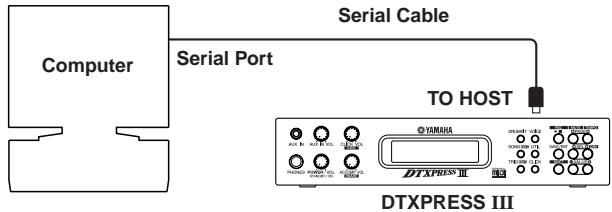
Use a cable to connect the devices and set the HOST SELECT SWITCH according to the type of computer serial port and clock used. Carefully read the instructions on the right side of this page and select an appropriate cable for the type of computer you are using.
HINT
The input signal from the TO HOST jack will be transmitted to the DTXPRESS III's tone generator and sequencer, and simultaneously transmitted to the DTXPRESS III's MIDI OUT jack. At this time, only message for the port number that is set in the Utility mode's [3-10. Host Thru Port] (Reference Guide : P. 34) will be sent to the MIDI OUT jack. The signal from the tone generator and sequencer is merged with the signal from the MIDI IN jack and output to the TO HOST jack.
2. Connect the DTXPRESS III's MIDI IN jack to the computer through a MIDI interface.
- If you are using a computer equipped with a MIDI interface, connect the MIDI OUT jack on the computer to the MIDI IN jack on the DTXPRESS III. Set the HOST SELECT switch to the "MIDI" position.
- If you are using a Macintosh series computer with an external MIDI interface, connect the MIDI interface to the computers RS-422 jack (modem or printer port), connect the MIDI OUT jack on the interface to the MIDI IN jack on the DTXPRESS III. Set the HOST SELECT switch to the "MIDI" position.
- When the HOST SELECT switch is set to the "MIDI" position, the transmission and reception via the TO HOST jack is ignored.
If you are using a computer equipped with a USB port, you can connect the DTXPRESS III to your computer via a USB-MIDI interface such as the YAMAHA UX16/96/256, etc.
Windows Users
Before you can exchange data between the DTXPRESS III and your computer using the DTXPRESS III's TO HOST jack and your computer's serial port connections, you will need a suitable MIDI driver (Yamaha CBX Driver (For Windows)) installed in your computer. You can download the Yamaha CBX Driver from the XG library at the Yamaha website given below.
http://www.yamaha-xg.com/
Computer Connecting Cables
Mac
Apple Macintosh Peripheral cable (M0197).
Maximum length 2 meters.
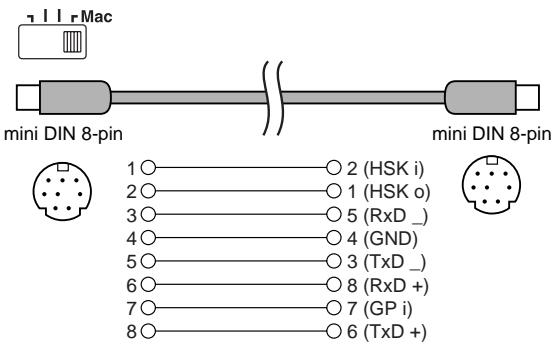
PC-1
8-pin MINI DIN to D-SUB 25-pin cable.
If your PC-1 type computer has a 9-pin serial port, use the PC-2 type cable. Maximum length 1.8 meters.
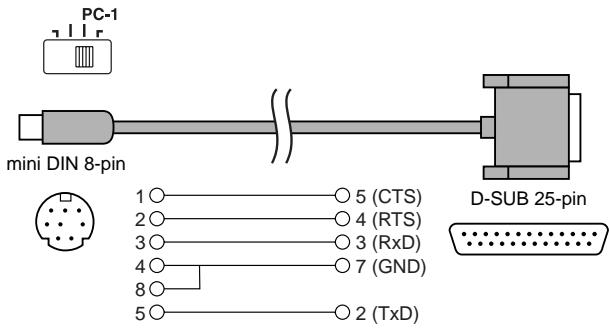
PC-2
8-pin MINI DIN to D-SUB 9-pin cable.
Maximum length 1.8 meters.
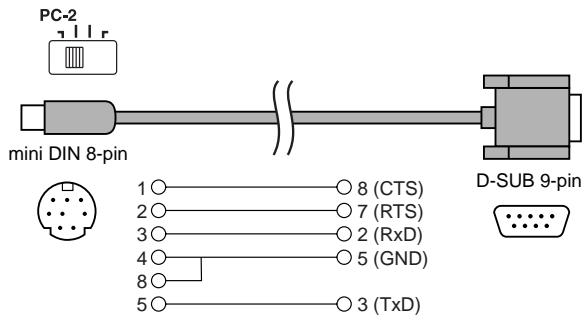
| Tone Generator | 16 bit AWM2 |
| Maximum polyphony | 32 |
| Voices | 990 drum, percussion voices and effects |
| 128 keyboard voices (GM system level 1) | |
| Drum kits | 48 Preset |
| 32 User memory locations | |
| Trigger setups | 7 Preset |
| 4 User memory locations | |
| Sequencer tracks | 2 (TR1, TR2) |
| Song control | |
| Main song | Start/Stop, note chase |
| Pad song | 3 songs can be played at the same time, Trigger Control |
| Other Sequencer Functions | MIDI sync play, Quantize (while recording, in Song Edit job mode), Mute (rhythm mute, drum instrument mute), Groove Check |
| Song | 95 Preset |
| 32 User memory locations | |
| Record modes | Real-time |
| Controls | |
| LED buttons | 6 (DRUMKIT, SONG, TRIG, VOICE, UTIL, CLICK) |
| Buttons | 9 (START/STOP, SAVE/ENTER, SHIFT, PAGE▲/▼, SELECT ▲/▶, VALUE-/+ |
| Knobs | MASTER VOLUME/POWER SW (push), ACCOMP. VOLUME, AUX VOLUME, CLICK VOLUME |
| Display | 16 x 2 LCD display (w/Back light) |
| Connections | |
| Front Panel | Aux input (stereo mini jack) |
| Head phone (stereo phone jack) | |
| Rear Panel | MIDI input/output |
| Foot controller (stereo phone jack) | |
| HOST SELECT SW | |
| TO HOST (mini DIN jack) | |
| Output L/MONO (mono phone jack) | |
| Output R (mono phone jack) | |
| Trigger Inputs 1-8 (stereo phone jack→L: trigger input, R: rim switch) | |
| Trigger Input 9/10 (stereo phone jack→L, R: trigger input) | |
| Trigger attenuation switch 1-6 (DIP SW) | |
| Power supply | DC 12V/AC adaptor |
| Power Requirement | 4.8 Watt |
| Dimensions (W x H x D) | 220 x 240 x 44 mm (8-11/16" x 9-3/16" x 1-5/16") |
| Weight | 1.6 kg (3 lbs 8 oz) |
| Accessories | Owner's Manual (Basic, Reference) |
| PA-3C AC power adaptor (included or optional depending on local) |
- Specifications and descriptions in this owner's manual are for information purposes only.
Yamaha Corp. reserves the right to change or modify products or specifications at any time without prior notice. Since specifications, equipment or options may not be the same in every locale, please check with your Yamaha dealer.
An Error Message will appear when incorrect settings or operation are detected, or abnormal operation occurs. Check the Error Message below and make the appropriate corrections.
ERROR Data Initialized
WARNING Battery Low
ERROR
MIDI Buffer full
ERROR
HOST is OffLine
ERROR Check Sun Error
ERROR Illegal Data
CAN'T EDIT
PRESET SONG
ERROR SEQ is Running
ERROR Data not Empty
ERROR Memory Full
This message appears just after the power is switched on and the device can not correctly read the data. The cause of the problem may be that the backup RAM data has been damaged or the backup battery power is low. Contact the nearest Yamaha Service Center or the dealer where you purchased the device.
The internal memory backup battery power is too low. User data may be deleted. Contact the nearest Yamaha Service Center or the dealer where you purchased the device.
Too much MIDI data is being received at one time and the device could not manage the data. Reduce the amount of data being sent at one time and try again.
The computer connected to the device is either turned off or not correctly connected. Check cable connections and the power and try again.
The check sum for the data received is incorrect. Check the check sum of the data being transmitted.
An error occurred while data was being received. There may be abnormalities in the data being sent. Check the data being transmitted.
This message is displayed when you try to edit preset song. Preset song cannot be edited.
The operation can't be performed while the sequencer is running. Stop the sequencer and try again.
This message appears if you try to record to a track containing data. Select an empty track and try recording again.
You have exceeded the memory capacity of the user song. Delete unwanted songs to make more memory available and try recording again. At this time, use the bulk dump function to move any songs you wish to keep to an external MIDI device.
The DTXPRESS III does not produce sound, and does not recognize trigger inputs.
- Is the pad or trigger sensor properly connected to the DTXPRESS III's trigger input jack? ( P. 10)
- Is the volume knob on the front panel turned down? ( P.8)
- Is the input level displayed when the pad is hit? (→ Reference Guide : P. 12 [1-2. Gain, Minimum Velocity])
- Is the gain set too low? ( Reference Guide: P. 12 [1-2. Gain, Minimum Velocity])
- Is the Utility mode's [2-2. Trigger Bypass] bypass switch set to "ON"? ( Reference Guide : P. 30)
- Is the Drum Kit Voice Edit mode's [1-2. Volume, Pan] ( Reference Guide : P. 18) or [5-1. Volume] ( Reference Guide : P. 24) volume set to "0"?
- Check the local control setting in the Utility mode. When the local control is set to "off" the DTXPRESS III will not produce sound when the pads are hit. ( Reference Guide : P. 33 [3-6. Device Number, Local Control])
- Is the cable you are using OK?
The external tone generator does not produce sound.
- Is the MIDI cable (connector) properly connected? ( P. 14)
- Are the MIDI note number values proper? ( Reference Guide: P. 19 [1-7. Channel, Gate Time])
- Is the Utility mode's [2-2. Trigger Bypass] bypass switch set to "ON"? ( Reference Guide: P. 30)
A voice other than the set voice is produced.
- Is the transmitting MIDI channel set to a channel that is not used for the drum voice (ch=10)? ( Reference Guide : P. 19 [1-7. Channel, Gate Time])
- Is the Voice=2 parameter set for a 2 layer voice? ( Reference Guide : P. 18 [1-1. Voice])
Produces sound but the sensitivity is too low (volume is low).
- Is the gain set too low? ( Reference Guide: P. 12 [1-2. Gain, Minimum Velocity])
- Pads with output or sensitivity control volumes should be adjusted (increased).
- Is the minimum velocity set too low? (→ Reference Guide : P. 12 [1-2. Gain, Minimum Velocity])
- Is a proper velocity curve being used? (→ Reference Guide : P. 13 [1-3. Velocity Curve])
- Is the volume of the voice you want to use too low? ( Reference Guide: P. 18 [1-2. Volume, Pan])
Is the drum head getting old? - Change the INPUT ATTENUATION setting on the rear panel. ( P.9)
The trigger sound is not stable (for acoustic drums).
- Check the "Produces sound but the sensitivity is too low (volume is low)." list above.
- Is the proper pad type set? Select a larger pad type setting (DT snare DT hi tom DT lo tom DT kick 1 DT kick 2) ( Reference Guide: P. 12 [1-1. Pad Type])
Is the DT20 properly attached with sticky tape? (Is there any old sticky tape remaining on the head?) ( P.13) - Is the cable securely connected to the DT20 jack?
Double-triggers (when 2 sounds are played at the same time) are produced.
- Are you using a sensor made by a manufacturer other than Yamaha? If the signal is too large, double-triggers may be produced.
- Is the head causing irregular vibrations? It may be necessary to mute the head.
- Is the sensor attached close to the center of the head? Move the sensor closer to the rim (above the bearing). ( P.13)
Is the sensor in contact with anything else? -
Pads with output or sensitivity control volumes should be adjusted (lowered).
-
Try increasing the rejection parameter. However, a setting a value that is too high may cause the sound to be muted when another drum is hit at the same time. ( Reference Guide : P. 13 [1-4. Self-Rejection, Rejection])
- Use the self-rejection. ( Reference Guide: P. 13 [1-4. Self-Rejection, Rejection])
- Change the INPUT ATTENUATION setting on the rear panel. ( P. 9)
Cross-talk (mixed signals from different inputs) is produced.
- Try placing the sensors (DT20, etc.) away from nearby drums.
- Is the gain set too high? ( Reference Guide: P. 12 [1-2. Gain, Minimum Velocity]).
- Try increasing the rejection parameter. However, a setting a value that is too high may cause the sound to be muted when another drum is hit at the same time. ( Reference Guide : P. 13 [1-4. Self-Rejection, Rejection])
- If cross-talk is produced with a specific trigger input, try using specific rejection. ( Reference Guide: P. 13 [1-5. Specific Rejection])
Sounds are cut when you play continuously.
- The maximum polyphony of 32 voices might be exceeded. In the Drum Kit Voice Edit mode's [2-3. Alternate Group, Key Assign Mode] ( Reference Guide : P. 20) set the "Key" value to "semi" or "mono".
When 2 pads (drums) are played only 1 sound is heard.
- Raise the gain setting of the pad (drum) that is not producing sound. ( Reference Guide: P. 12 [1-2. Gain, Minimum Velocity])
- Lower the rejection setting of the pad that is not producing sound. ( Reference Guide : P. 13 [1-4. Self-Rejection, Rejection])
- Are both pads assigned to the same group in the Drum Kit Voice Edit mode's [2-3. Alternate Group, Key Assign Mode] display ( Reference Guide: P. 20)?
The sound is always loud.
- Is the minimum velocities minimum value set too high? (→ Reference Guide : P. 12 [1-2. Gain, Minimum Velocity])
- Are you using a proper velocity curve? ( Reference Guide: P. 13 [1-3. Velocity Curve])
- Are you using a sensor made by a manufacturer other than Yamaha? Depending upon the manufacturer output levels might be too large.
- Change the INPUT ATTENUATION setting on the rear panel. ( P. 9)
The DTXPRESS III does not receive any switch or trigger signals.
- If you can access the Utility mode, do a factory reset. The DTXPRESS III will reset to its factory settings. (→ Reference Guide : P. 31 [2-5. Factory Set])
- Turn the [POWER SW] OFF then ON while holding the [PAGE▲] and [PAGE▼] buttons. The DTXPRESS III will reset to its factory settings.
The sound will not stop.
- Some voices have very long release times when the [2-5. Key Off Enable] ( Reference Guide : P. 21) "key off" parameter is set to "disable". To temporarily stop the sound, hold the [SHIFT] button and press the [VOICE] button.
The Closed Hi-Hat voice is not produced.
- Is the proper pad type selected? If the RHH130 is used as a hi-hat controller, the pad type must be set to "RHH". ( Reference Guide : P. 12 [1-1. Pad Type])
The kick pedal does not produce sound.
- Is the proper pad type selected? If the pad type is set to "HH Contrlter" only voices that can be played with a hi-hat controller are produced. ( Reference Guide: P. 12 [1-1. Pad Type])
Basic
Reference
9/10 jack 9, 10
20
[ ] 21 29
21 29
A
ACCOMPANIMENT VOLUME 8,18,20
Acoustic Drums 13
Alternate Group 20, 38
AUX IN 8,15
B
Backup Battery 4
Bank Select 23, 25
Battery Low 4
Beat 6
C
CLICK 8,19,20,21
Click Mode 35
Click Note Number 35
Click Out Select 35
Click Tuning 35
Click Voice 34
Click Voice Set 34
CLICK VOL (Volume) 8, 19, 21 35
Computer 14,28
Cord Hook 9,15
Count 36
Cross Fade 20
Cross Talk 32 13
Cursor 5
Cutoff Frequency 24 19,38
D
DC IN 12V. 9
Decay 24 19,38
Double Trigger 31 13
Drum Kit
Change (Select) a Drum Kit 18, 21 6
Create an Original Drum Kit 24 55
Drum Kit Data 4
Drum Kit Name 25 24
Drum Kit Play Mode 6
Drum Kit Voice Copy 23
Drum Kit Voice Edit Mode 16
Preset Drum Kit 44
GM Keyboard Voice List 44
Groove Check 19 7
H
Headphone 8,15,18
Hi-Hat
Hi-Hat Controller 9,10 34
Hi-Hat Offset 14
Hi-Hat Sensitivity 24
HI-HAT CONTROLLER Jack 9
Hold Mode 21
HOST SELECT Switch 9,28
Host Thru Port 34
1
INPUT ATTENUATION 9
Input Sensitivity 9, 10 12
Input Source 24
K
Key Assign Mode 20,38
Key Off Enable 21, 39
L
Layer Balance 19, 38
Learn Mode 30
Local Control 33
M
Map Copy 39
Merge Track 27
Metronome 19,20,21 7
MIDI 14,27 5,31,52
BulkDump 27 31,32
Bulk In 27
Channel Event 32
Connections 14
Device Number 33
Dump Interval 34
MIDI Control 36
MIDI Channel 19
MIDI Data Format 52
MIDI Device 14
MIDI Implementation Chart 54
MIDI IN/OUT Jack 9 5
MIDI Merge 33
MIDI Mode 33
MIDI Note Number 19
Basic
Reference
Program Change 23, 25, 32
Program Change Table 33
System Exclusive Message 32
Minimum Velocity 12
Mute
Drum Part (Rhythm Mute) 20
Mute Drum Voice 29
Mute Individual Drums 21

OUTPUT Jack 9,14

Pad 10 12
Page 5,30
Pan 24 18, 23, 26, 37
PHONES Jack 8,15
Power 8,9,15,18
POWER/VOL 8,18,20

Quantize 22 10, 26

Recording 14,22 10
Rejection 13
RepeatPlayback 25
Replace 22, 23 10
Reverb 22
Reverb Bypass 29
Reverb Master Return 22
Reverb Send 20, 24, 38
Reverb Type, Time 22
Rim to Pad 22

Save Refer to Store
Self-Rejection 13
Sequencer 22 8,36
Serial Cable 28
Serial Port 28
Setup 23
Song 8,10
Change Tempo 20 8, 24
Change Volume 8
Erase Data (Clear Song, Clear Track) 23 27
Listen to a Song 20 8,9
Mute the Drum Part 20
Pad Song 8,9,21
Preset Song 20 6,7,51
RepeatPlayback 6,8,25
Recording 22 10
Select a Song 20 6,7,8
Song Copy 26
Song Edit Mode 25
Song Name 23 27
Song Select 24
Basic
Reference
User Song 22
Sound Quality 18
Specific Rejection 13
Store
Drum Kit Voice 16
Trigger Setup 11
Synchronized Playback 27
Sync Mode 36

Tempo 6,24,25
TO HOST Jack 9,28 5
Tone Generator 5, 29
Track 22 10
Trigger Bypass 30
Trigger Input Jack 9,10
Trigger Setup
Save a Trigger Setup 11
Select a Trigger Setup 6
Trigger Setup Copy 14
Trigger Setup Data 4
Trigger Setup Edit Mode 11
Trigger Setup List 51, 55
Trigger Setup Name 15
Tuning 24 18, 29, 37

Undo 23
Use Tempo 36
Utility Mode 28

Velocity Curve 13
Voice 18,37
Change Decay 24 19
Change Reverb Level 25 20, 24
Change Pan 24 18
Change Tuning (Pitch) 24 18
Change Voice Brightness 25 19
Change Volume 18, 24 18
Change Volume Balance 25 19
Save (Store) 25 16
Volume
Accompaniment Volume 8, 18, 20
Bass Drum Volume 18 30
Click Volume 8,18,20
Cymbal Volume 30
Drum Kit volume 24
Drum Voice Volume 18
Master Volume 8, 18, 20
MIDI Transmit Volume 23
Other Drum Instrument Volume 30
Snare Drum Volume 18 30
Song Volume 20
TG (Tone Generator) Volume 29, 37
User Song Volume 26
Volume Mode 30
DRUMTRIGGERMODULE
DTXPRESS III
Mode d'emploi
Bouton Drum Kit (DRUMKIT)
REC M=18=Rf1Ir=1 Now Recording.
ERROR Data Initialized
ERROR
MIDI Buffer full
ERROR
HOST is OffLine
CAN'T EDIT
PRESET SONG
ERROR SEQ is Running
Reproduction repeteee 6,8,25
Self-rejection (Coupure des double-declenchements) 13
Volume principal 8, 18, 20
VOLUME DE L'ACCOMPAGNEMENT 8,18,20
DRUMTRIGGERMODULE
DTXPRESS III
Bedienungsanleitung
Basishandbuch
VORSICHTSMASSNAHMEN
ERROR Data Initialized
WARNING Battery Low
ERROR
MIDI Buffer full
ERROR
HOST is OffLine
ERROR Check Sum Error
ERROR Illegal Data
CAN'T EDIT
PRESET SONG
ERROR SEQ is Running
ERROR Data not Empty
ERROR Memory Full
Pad 10 12
Page 5,30
Panorama 24 18, 23, 26, 37
PHONES (Buchse) 8, 15
POWER/VOL 8,18,20
Pufferbatterie 4

Rejection 13
Replace 22, 23 10
Reverb 22
Bypass 29
Reverb Master Return 22
Reverb Send 20, 24, 38
Reverb Type, Time 22
Rim to Pad 22
Rückgangig 23
