SPM4000 - Media player Sveon - Free user manual and instructions
Find the device manual for free SPM4000 Sveon in PDF.


| Product Type | Media Player |
| Brand | Sveon |
| Model | SPM4000 |
| Dimensions | 120 x 80 x 20 mm |
| Weight | 200 g |
| Power Supply | USB 5V DC |
| Video Output | HDMI 1.4, AV Composite |
| Audio Output | Stereo RCA, HDMI |
| Supported Video Formats | MP4, AVI, MKV, MOV, WMV, FLV |
| Supported Audio Formats | MP3, WMA, AAC, FLAC, OGG |
| Supported Image Formats | JPEG, PNG, BMP, GIF |
| Storage Media | USB drive, SD/MMC card |
| Max USB Drive Capacity | 64 GB |
| Max SD Card Capacity | 32 GB |
| Remote Control | Included |
| Languages | English, Spanish, French, German |
| Compliance | CE, RoHS |
| Cleaning | Wipe with a soft, dry cloth |
Frequently Asked Questions - SPM4000 Sveon
User questions about SPM4000 Sveon
0 question about this device. Answer the ones you know or ask your own.
Ask a new question about this device
Download the instructions for your Media player in PDF format for free! Find your manual SPM4000 - Sveon and take your electronic device back in hand. On this page are published all the documents necessary for the use of your device. SPM4000 by Sveon.
USER MANUAL SPM4000 Sveon
SPM4000
SPremiere series
Full HD 1080p media player with LAN,WIFI optional & Internet Services
natural_image
Simple line drawing of a rectangular object with an arrow indicating rotation, no text or symbols present.- Instalar pilas
natural_image
Diagram of a car interior with rollers and a directional arrow indicating movement (no text or symbols)- Cerrar la tapa
natural_image
Simple line drawing of a rectangular object with a curved arrow indicating rotation (no text or symbols)TV
1.1 Safety Instructions
-
Features
-
System requirements
-
Content
-
Hardware
-
Remote Control
6.1 Installation of batteries
-
PC Connection
-
TV Connection
8.1 AV Connection
8.2 HDMI Connection
- First time usage
9.1 Hard disk formatting
9.2 Main screen
- Basic Operations
10.1 Video Playback
10.2 Photo Playback
10.3 Music Playback
10.4 Favourites
10.5 Applications
10.6 Setup
-
Frequently Asked Questions
-
Problem solving
-
Important Information
1. Welcome
Thank you for choosing SPM4000, the high definition multimedia player with Android™ OS which will allow you to play multimedia files up to 1080p from its internal hard disk, its USB Host ports or its card reader. Besides, thanks to its operation system Android™ 2.2 and to its network connections you will be able to surf the web, check your mail, access the social networks and other services as Youtube™, Picassa™, etc.
Through this user manual we'll show you how to connect and use this device properly to get its maximum performance.
1.1 Safety Instructions
Safety
• The cables must be placed correctly, in a place where they can not be damaged.
- Do not expose the device to the rain.
- Do not connect the unit in damp.
- Do not put objects with water near the device.
- Do not place naked flame sources, such as candles near the SPM4000.
- Do not disassemble the product.
- Do not let children push anything through the vents.
- The power adapter will be hot while using the unit. 30-40° or less is normal temperature.
Ventilation
- Do not cover the unit.
- Do not place the device over irregular surfaces.
- Do not expose the unit to cold or sunlight.
- Leave 10cm between the device and another devices.
- Do not place anything on top of the unit.
2. Features
- Movie and video files playback. The device supports the most common video formats: MKV (H.264 Profile@4.0/5.0), VCD, SVCD, KVCD, MPEG-4, RM/RMVB, ISO, TS/M2TS/TP/TRP, DAT
- Audio files playback. Supported formats: MP3, WMA, AAC, WAV, OGG, DOLBY DIGITAL (AC3), DTS
- Picture files playback: JPEG, BMP, PNG, GIF
- Subtitles supported: SRT, SUB, SSA, SMI, UTF-8 (multiple languages supported)
- PC Connection: USB 3.0 (compatible USB2.0)
- Two 2.0 USB Host ports to connect external storage devices and play its files directly on TV, without the needing to copy the files previously in the inner hard disk.
- SD/MMC card reader (also supports SDHC).
- Digital audio outputs: Optical and Coaxial, to connect your SPM4000 to a multichannel 5.1 speaker system and enjoy the real surround sound.
-Dolby Digital (AC3) y DTS inner decoder. Thanks to this decoder, SPM4000 can play video files with Dolby Digital (AC3) or DTS audio tracks through the HDMI cable. - HDMI connection. SPM4000 includes high definition HDMI output (v1.3), which carries digital audio and video signal through only one cable with a great quality.
- NTFS and FAT32 file system supported in the multimedia playback.
- Hard disk supported: SATA, SATAII. Maximum capacity supported. Up to 2TB.
3. System Requirements
-Laptop or PC with an USB 2.0 available port (it also supports USB 1.1).
-Windows XP/VISTA/W7
4. Content
- SPM4000 Multimedia Player
- 12V/2,5A power adapter
- USB 2.0 cable
- HDMI cable
- AV cable
- Remote control
- Batteries for remote control (x2)
- Quick User Guide
- User Manual (inside CDROM)
5. Hardware
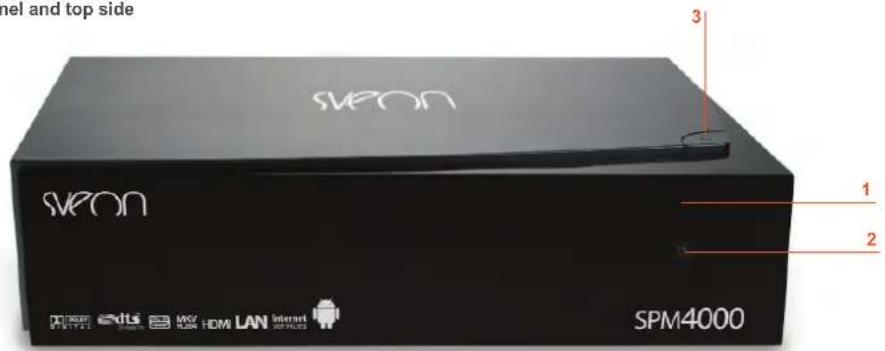
Front panel and top side
- Welcome
2.1 Safety instructions - Features
- System Requirements
- Content
- Hardware
- Remote control
6.1 Batteries installation - PC Connection
B. TV Connections
8.1 AV Connection
8.2 HDMI Connection - First time usage
9.1 Hard disk formatting
g.2 Main screen - Basic operations
10.1 Video playback
10.2 Photo playback - (Favourites
10.5 Applications
10.6 Setup - Frequently Asked Questions
- Problem solving
-
Important information
-
Standby LED. This LED lights in red when it is in Standby status; the LED lights in blue when the unit is turned on.
- Infrared receiver.
- POWER. Press to turn the unit on/off.
Rear panel
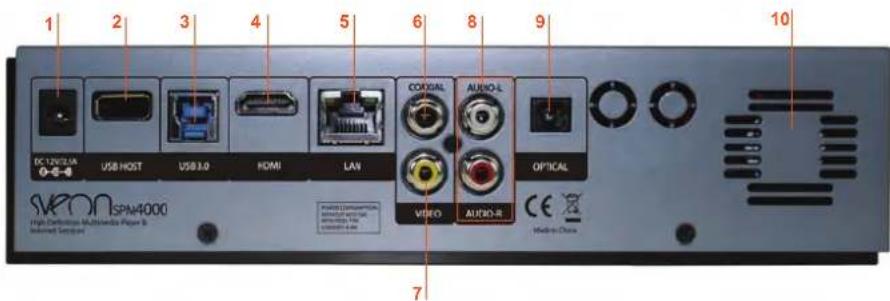
- Power Input 12v
- 2.0 USB Host port
- 3.0 USB port for PC connection.
- HDMI output.
- LAN connector.
- Digital Coaxial audio output.
- Composite video output.
- Stereo audio output.
- Digital Optical audio output.
- Fan.
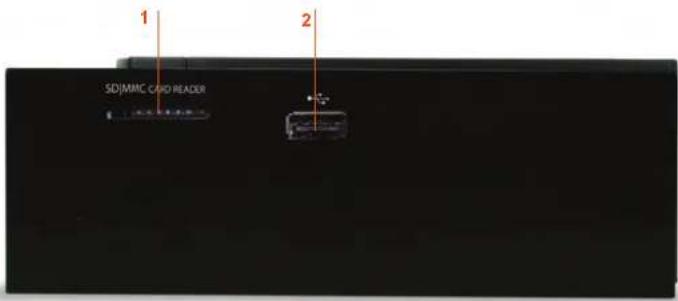
Side panel
- SD/MMC card reader.
- 2.0 USB Host port for external storage devices like external hard disks, pen drives, etc.
6. Remote control
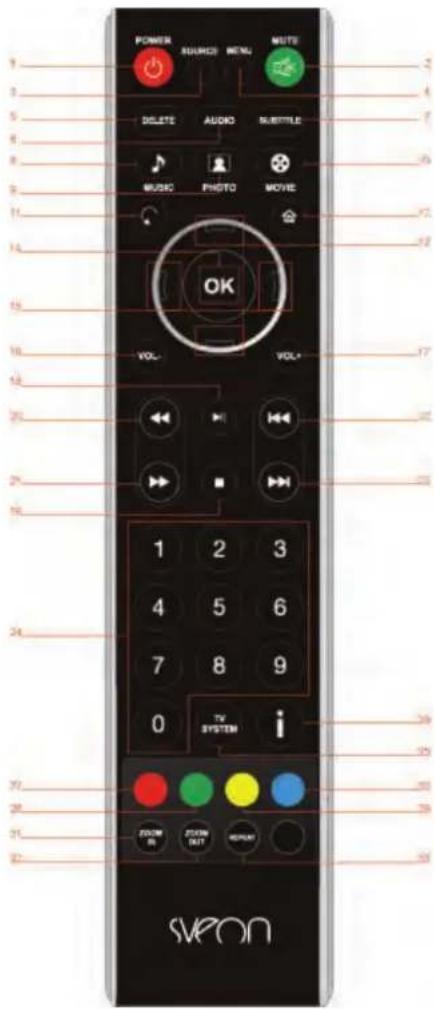
- POWER: Press to turn the device on/off. When the device is turned off by pressing this button, it is in Standby mode. Although in this mode the power consume is very low, you should disconnect the device from the power outlet to turn it completely off.
- MUTE: Enables/disables audio signal.
- SOURCE: Selects the file source. Press to choose between the internal hard disk, external storage devices connected to SPM4000, or SD/MMC memory cards.
- MENU: When using the Internet browser, press to show the menu.
- DELETE: When using the Internet browser, press to erase.
- AUDIO: Press to choose between the different audio tracks in a file (subject to channel availability)
- SUBTITLE: Enables or disables the subtitles (subject to subtitles availability)
- MUSIC: Press to enter Music menu.
- PHOTO: Press to enter Photo menu.
- MOVIE: Press to enter Movie menu
- RETURN: Press to return to previous menu.
- HOME: Press to go directly to main menu.
- UP/DOWN: Use these buttons to move the highlight up and down in the firmware screens.
- OK: Confirms a selection done in the menu.
- LEFT/RIGHT: Use these arrow buttons to move the highlight left and right in the firmware screens
- VOL+: Increases the volume
- VOL-: Decreases the volume.
- PLAY/PAUSE: Press to pause or to play a file.
- STOP: Press to stop a playback.
- FB: Press for fast backward. Press several times to choose between the different available speeds: x2, x4, x8, x16, x32, x64.
- FF: Press for fast forward. Press several times to choose between the different available speeds: x2, x4, x8, x16, x32, x64.
- PREV: Press to go to the previous track.
- NEXT: Press to go to the next track.
- 0-9: Numeric pad.
SPM4000 User Guide
Index
- Welcome
± ± Safety instructions - Features
- System Requirements
- Content
- Hardware
- Remote control
6.1 Batteries installation - PC Connection
B. TV Connections
8.1 AV Connection
8.2 HDMI Connection - First time usage
9.1 Hard disk formatting
g.2 Main screen - Basic operations
10.1 Video playback
10.2 Photo playback
20.3 Music playback
10.4 Favourites
20.5 Applications
10.6 Setup - Frequently Asked Questions
- Problem solving
- Important information
-
TV SYSTEM: Press to change video output.
-
INFO: Press to display information about the current file.
-
RED BUTTON: No function.
-
GREEN BUTTON: No function.
-
YELLOW BUTTON: Opens the browser window.
-
BLUE BUTTON: No function.
-
ZOOM IN: Press during a video o pictures playback to enlarge the image.
-
ZOOM OUT: Press during a video o pictures playback to take the image to original size.
-
REPEAT: Press to chose between different repeat options: Once, Every, Random.
Note: Some options like subtitles or audio tracks are subject to file availability.
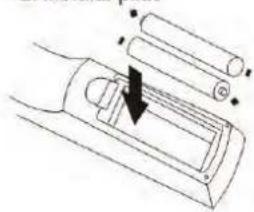
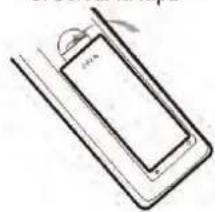
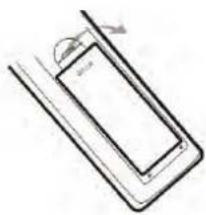
6.1 Batteries installation
- Remove the lid, install the batteries in the correct position and close the lid.
• In the following picture you can find the correct way to install the batteries.
natural_image
Simple line drawing of a rectangular object with an arrow indicating rotation, no text or symbols present.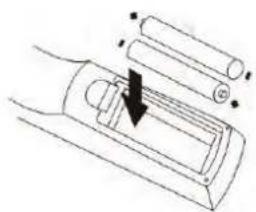
natural_image
Diagram of a mechanical component with a downward arrow indicating force or direction (no text or symbols)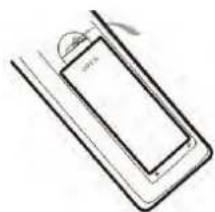
natural_image
Simple line drawing of a rectangular object with a curved arrow and label '2019' (no text or symbols on the object itself)- Point the remote control to the front panel of the device
- The remote control has a coverage of up to 5 meters between the remote and the infrared receiver, in a maximum of 60^ degrees.
7. PC connection
Connect the device to your PC or laptop to copy the files you want to play in the inner hard disk of the multimedia player. To complete this connection, take the USB cable provided and connect it between the SPM4000 and your computer or laptop. Then, connect the power adaptor to the power outlet. The computer will recognize directly the player: go to "My Computer" and double click on SPM4000, which should appear as an external unit.
Now you are able to copy all the files you want to play in the inner hard disk of SPM4000. Nevertheless, please read carefully these instructions:
- Do not disconnect the player from the power outlet or from the USB connection if you are copying or reading files from/to its hard disk.
- If your computer doesn't recognize automatically the device, please do not disconnect the player and wait during around 20 seconds; it is possible the computer is running more applications simultaneously and it could delay the recognition process.
SPM4000 User Guide
Index
- Welcome
2.1 Safety instructions
-
Features
-
System Requirements
-
Content
-
Hardware
-
Remote control
6.1 Batteries installation
- PC Connection
B. TV Connections
8.1 AV Connection
8.2 HDMI Connection
- First time usage
9.1 Hard disk formatting
g.2 Main screen
- Basic operations
10.1 Video playback
10.2 Photo playback
20.3 Music playback
10.4 Favountes
20.5 Applications
10.6 Setup
-
Frequently Asked Questions
-
Problem solving
-
Important information
8. TV Connection
The unit includes a lot of output connections, including AV analog video output and HDMI digital output. Select the correct output depending on your TV screen, keeping on mind that each output offers a different resolution. If you want to enjoy high definition quality with up to 1080p of resolution, you must select HDMI output.
8.1 AV Connection
Make the connections according to the following picture. Then, connect the power adaptor to the power outlet, select the AV input in your TV screen and wait during the system loading process.
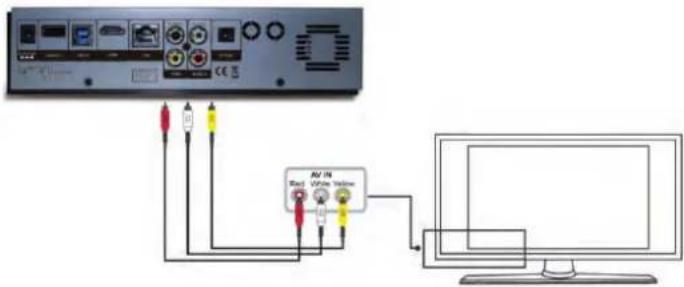
TV
If you want to enjoy the real surround sound, use the digital Coaxial or the digital Optical audio output to connect the device to a speaker system (cables not included)
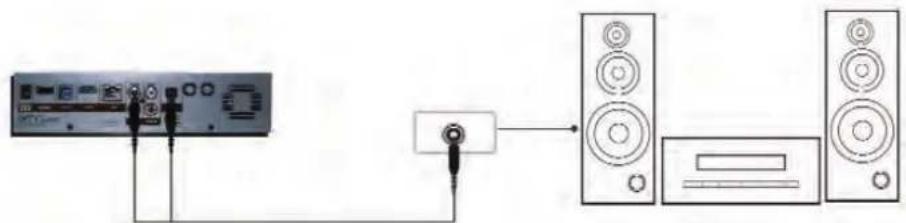
flowchart
graph LR
    A["Audio Input"] --> B["Sound Output"]
    B --> C["Speaker Equipment"]
    C --> D["Output"]
8.2 HDMI Connection
Make the connections according to the following picture. The HDMI output includes audio and video digital signal in the same cable, making easier the connection process. Then, connect the power adaptor to the power outlet, select the HDMI input in your TV screen and wait during the system loading process.
If you want to enjoy the real surround sound, use the digital Coaxial audio output or the digital Optical audio output to connect the device to a speaker system (cables not included)
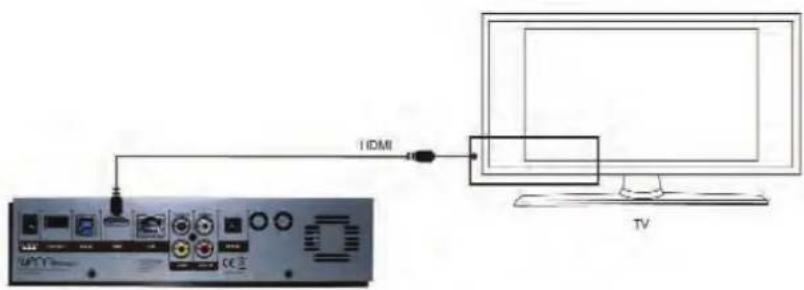
SPM4000 User Guide
Index
- Welcome
2.1 Safety instructions
-
Features
-
System Requirements
-
Content
-
Hardware
-
Remote control
6.1 Batteries installation
- PC Connection
B. TV Connections
8.1 AV Connection
8.2 HDMI Connection
- First time usage
9.1 Hard disk formatting
g.2 Main screen
- Basic operations
10.1 Video playback
10.2 Photo playback
20.3 Music playback
10.4 Favourites
20.5 Applications
10.6 Setup
-
Frequently Asked Questions
-
Problem solving
-
Important information
9. First time usage
Please read carefully the following before using SPM4000 for first time:
- Install the remote control batteries (provided with the unit)
- Connect the device to your TV screen (read the section 8 of the user guide)
- Connect the power adaptor to the power outlet and also to the unit
Note: Please pay special attention to the choosing of output resolution. SPM4000 supports up to 1080p of resolution, but your TV screen may not be compliant. If you choose a 1080p of output resolution in the device and your TV screen doesn't support it, the screen will not display any image. In that case, wait some seconds until the unit goes back to original resolution; if the TV still doesn't display pictures, connect the device through AV output and select the correct output resolution (1080i if your screen is not Full HD).
9.1 Hard disk formatting
The inner hard disk installed on your SPM4000 is formatted by default. If you want to format again we strongly recommend to format the hard disk in NTFS format to allow the playback of big-size files.
9.2 Main Menu screen
This is the first menu which is displayed when the device is connected and turned on:
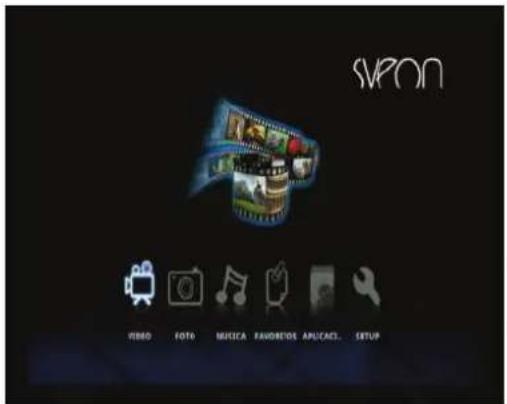
Video: Direct access to the available video files.
Photo: Direct access to the available picture files.
Music: Direct access to the available music files.
Bookmarks: Direct access to web browser favourites.
Application: Direct access to applications menu.
Setting: Direct access to setup menu.
10. Basic Operations
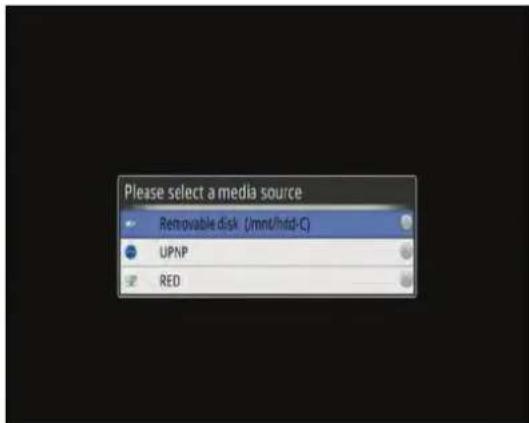
Each time you turn SPM4000 on, when entering Video, Photo or Music option in main menu, the device will ask you from which storage unit you want to get the files for playingback: internal hard disc, external mass storage device, device connected to network (when there is network connection available) or memory card (SD/MMC) Press "Source" key from remote control to change the file source at any time.
10.1 Video playback
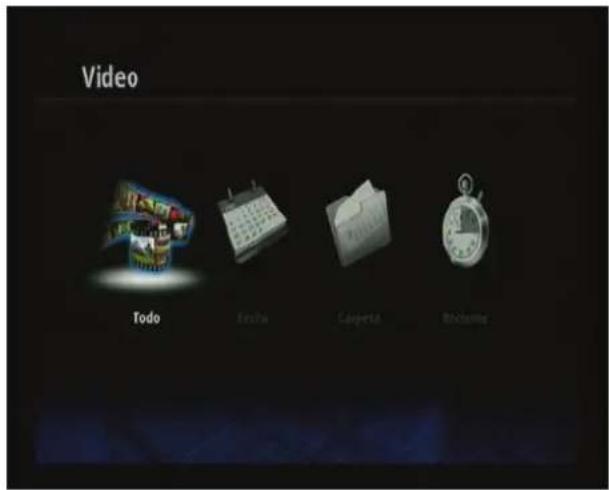
Select "Video" option in the Main Menu and then select the way in which you want the files to be shown: "All"; "Date", "Folder", "Recent"). Press "OK" button from remote control.
If the "Resume" option is enabled, you can resume a video playback in the same point in which you left it the last time you watched it.
Press "Audio" button to chose between the different audio tracks of the file (if the video file includes them). In addition,
SPM4000 User Guide
Index
- Welcome
2.1 Safety instructions
-
Features
-
System Requirements
-
Content
-
Hardware
-
Remote control
6.1 Batteries installation
- PC Connection
B. TV Connections
8.1 AV Connection
8.2 HDMI Connection
- First time usage
9.1 Hard disk formatting
g.2 Main screen
- Basic operations
10.1 Video playback
10.2 Photo playback
20.3 Music playback
10.4 Favourites
10.5 Applications
10.6 Setup
-
Frequently Asked Questions
-
Problem solving
-
Important information
you can press the button "Subtitle" to enable/choose/disable the subtitle options. The subtitle availability is subject to file
Press "Zoom In" button to enlarge the video file size. Use the arrow button to move the displayed picture and press several times to choose between the different sizes. Press "Zoom Out" to disable the "Zoom In" function.
10.2 Photo playback
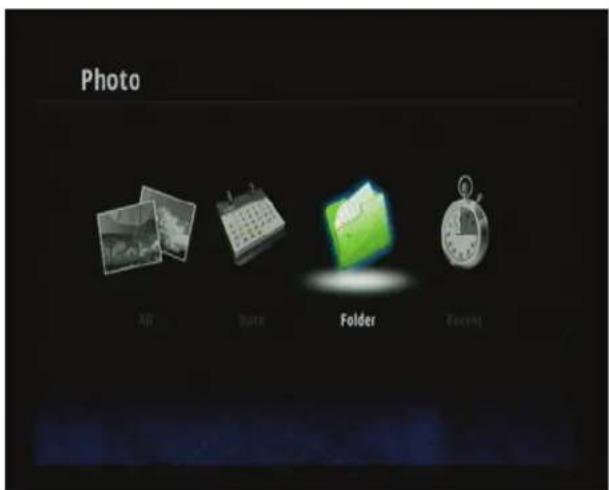
Select "Photo" option in the Main Menu and then select the way in which you want the files to be shown: "All"; "Date", "Folder", "Recent"). Press "OK" button from remote control. Select the photo yo want to watch and press "OK" button from remote control.
You can use right and left arrow buttons to rotate the pictures.
10.3 Music playback
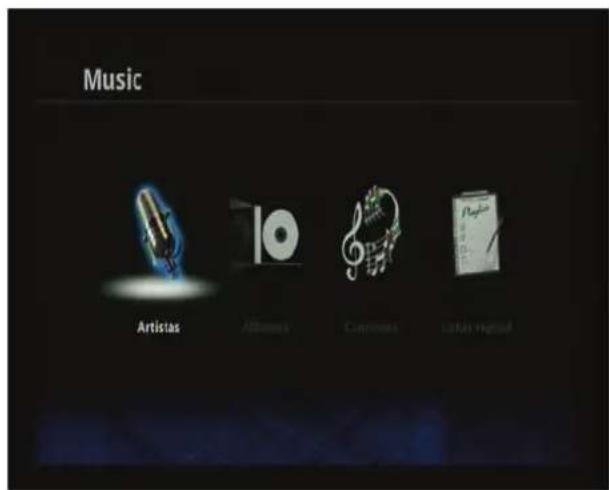
Select "Music" option in the Main Menu and then select the way in which you want the files to be shown; "Artist"; "Albums", "Songs", "Playlist"). Press "OK" button from remote control. Select the music file yo want to listen and press "OK" button from remote control.
SPM4000 User Guide
Index
- Welcome
2.1 Safety instructions
-
Features
-
System Requirements
-
Content
-
Hardware
-
Remote control
6.1 Batteries installation
- PC Connection
B. TV Connections
8.1 AV Connection
8.2 HDMI Connection
- First time usage
9.1 Hard disk formatting
g.2 Main screen
- Basic operations
10.1 Video playback
10.2 Photo playback
20.3 Music playback
10.4 Favountes
20.5 Applications
10.6 Setup
-
Frequently Asked Questions
-
Problem solving
-
Important information
10.4 Bookmarks
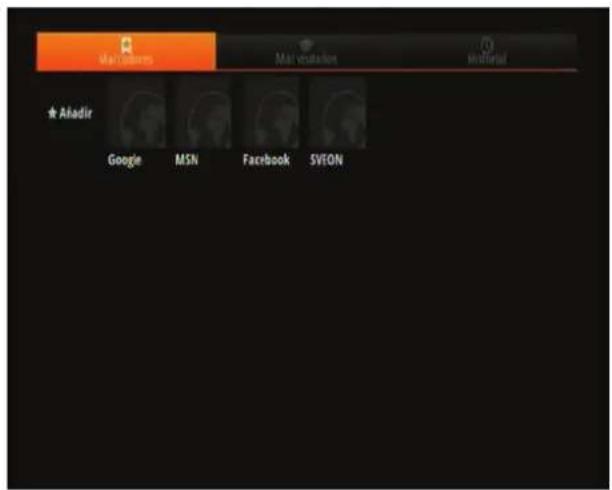
Select "Bookmarks" option to access to your favourite web addresses that you have previously selected (to access to these websites you must have Internet connection through LAN or WiFi with SNT1012 adapter from Sveon)
10.5 Application
Select "Application" option to access to application and program menu installed in SPM4000. In this menu you will find the following options:
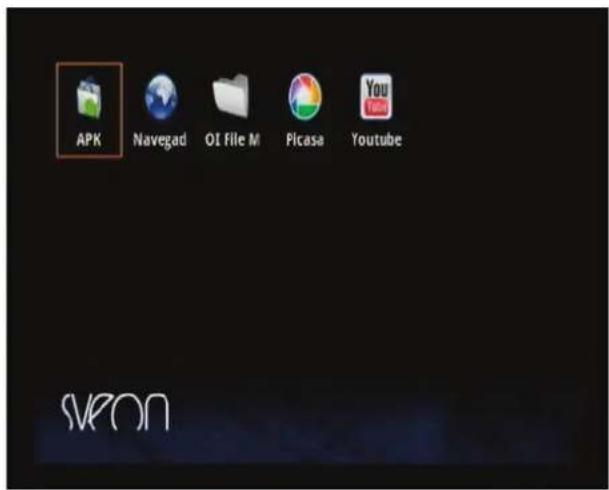
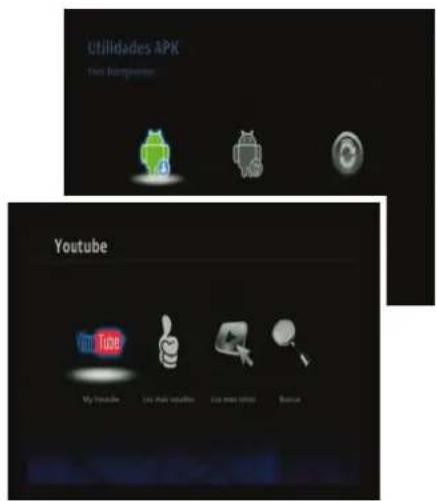
APK: In this menu you will be able to install and desinstall applications and also to reboot the unit with default factory options.
Web browser: Press here to open web browser.
Ol File Manager: Press here to open file manager.
Picassa™: Picture management application for Picassa™ website.
Youtube™: Video watching and sharing application for Youtube™ website.
Sveon only will give support to the applications that are installed in the unit by default and the ones available in Sveon website.
Sveon is not responsible of the applications and contents offered by third parties neither it is of its correct operation or of applications that, because wrongly used or containing virus, can damage the normal player functionality; if this may happen the warranty would be null and void.
SPM4000 User Guide
Index
- Welcome
1.1 Safety instructions
-
Features
-
System Requirements
-
Content
-
Hardware
-
Remote control
6.1 Batteries installation
- PC Connection
B. TV Connections
8.14V
8.2 HDMI Connection
- First time usage
9.1 Hard disk formatting
g.2 Main screen
- Basic operations
10.1 Video playback
10.2 Photo playback
20.3 Music playback
10.4 Favountes
20.5 Applications
10.6 Setup
-
Frequently Asked Questions
-
Problem solving
-
Important information
10.6 Setting
Select "Setting" option from main menu to setup the SPM4000 preferences. You will see a list of preferences which you can modify just pressing "OK" button in remote control. Once you have modified the preference you want press "Return" button from remote control to go back to preferences list.
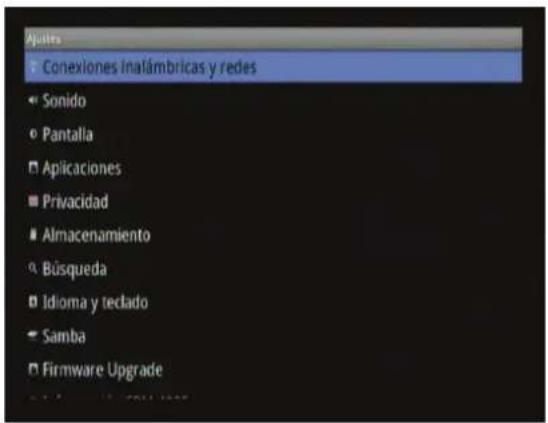
In the preference list you will find the following options:
Network Controls
WiFi: Active or deactive the WiFi network option. To connect to a WiFi network you should connect SNT1012 WiFi adapter from Sveon to your SPM4000. Select and enter the network password.
WiFi settings: Once WiFi connection is already working (and SNT1012 adapter is connected) select the WiFi network you want to connect and enter the security password (security password can be WEP, WPA or WPA2.)
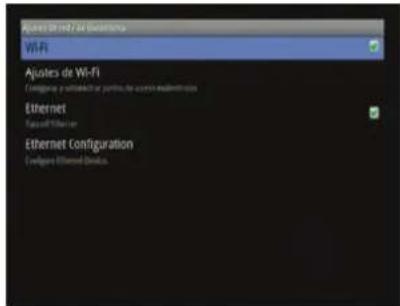
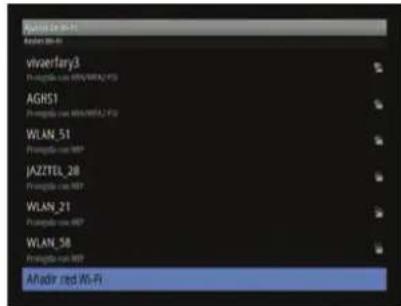
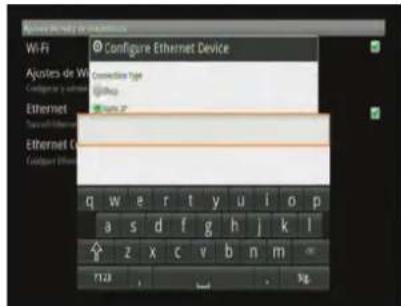
Ethernet: Active or deactive the Ethernet LAN network connection (cable).
Ethernet Configuration: Select the way of connection to Ethernet network: Automatic-DHCP (data is provided by the router automatically) or Static IP (data is entered by user)
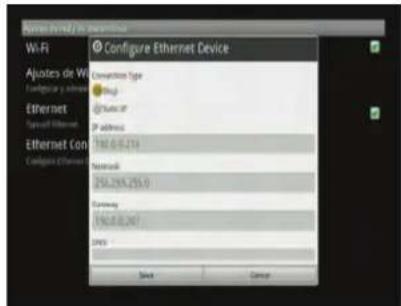
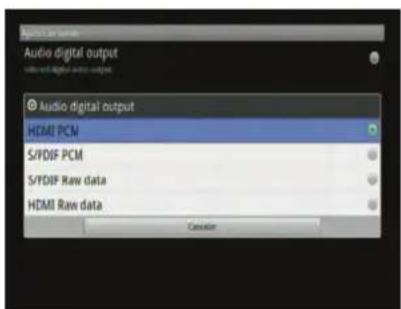
Sound
Select the audio output you want to have by default depending on the unit using the internal decoder or using an external decoder of a 5.1 speaker system: HDMI PCM, S/PDIF PCM, S/PDIF RAW, HDMI RAW.
SPM4000 User Guide
Index
- Welcome
2.1 Safety instructions
-
Features
-
System Requirements
-
Content
-
Hardware
-
Remote control
6.1 Batteries installation
- PC Connection
B. TV Connections
8.1 AV Connection
8.2 HDMI Connection
- First time usage
9.1 Hard disk formatting
g.2 Main screen
- Basic operations
10.1 Video playback
10.2 Photo playback
20.3 Music playback
10.4 Favountes
20.5 Applications
10.6 Setup
-
Frequently Asked Questions
-
Problem solving
-
Important information
Display
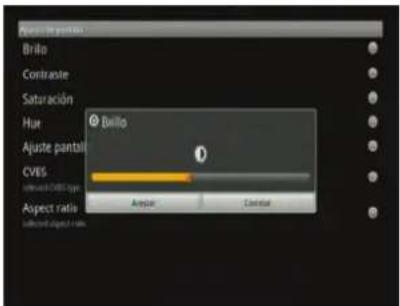
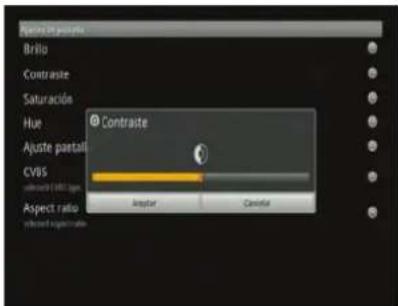
Brightness: Adjust the brightness level of the image pressing left and right buttons in remote control Contrast: Adjust the contrast level of the image pressing left and right buttons in remote control.
HUE: Adjust the hue level of the image pressing left and right buttons in remote control. Over Scan Adjust: Adjust the size of the screen pressing left and right buttons in remote control.
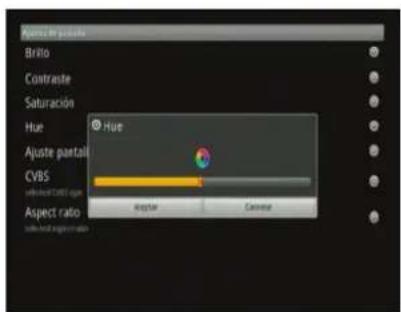
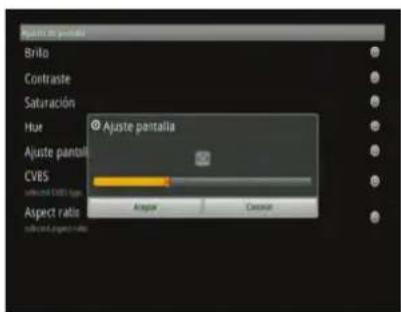
Resolution: Select the default video output resolution you want to have on your SPM4000.
Aspect Ratio: Select the video output you want to have by default: Pan Scan 4:3, Letter Box 4:3, Wide Screen 16:9, Full Screen (normal).
Applications
Unknown sources: It allows the installation of not certified applications. Manage Application: Management of the applications already installed and those who are running. Development: Development options for applications when it is connected through USB (programming mode)
Default Settings
Restore by default : Erase all data and configurations done by end user and restore the values by default.
Storage
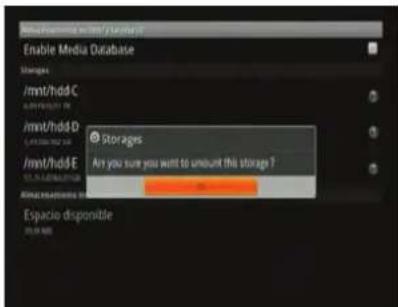
Storages: From this option you can disconnect safely the USB external mass storage devices connected to SPM4000. Select the unit you want to disconnect, press "OK" button in remote control and confirm the disconnection of the device pressing "Ok" button again.
Available space: Here you can see the free space available to install applications in the unit.
Search
Google search: You can choose if you want Google to show suggestions when typing a search text. Also you will be able to select the search element that is set for Bookmarks, Browse records and application names.
Language and keyboard
Select language: Select the language in which you want to show the SPM4000 menus.
Latin input (Android keyboard): Setup the options for the virtual keyboard.
User Dictionary: Edit or erase the words added to the dictionary.
SPM4000 User Guide
Index
- Welcome
2.5 Safety Instructions
-
Features
-
System Requirements
-
Content
c. Hardware
-
Remote control
-
Remote control
-
PC Connection
-
T/C Connection
B. TV CONNECTIONS
8.1 AV Connection
B.2 HDMI Connection
- First time usage
9.1 Hard disk formatting
9.2 Main screen
- Basic operations
10.1 Video playback
20.2 Photo playback
20.1 Music playback
10.4 Favourites
10.5 Applications
10.6 Servo
-
Frequently Asked Questions
-
Problem solving
-
Important information
Samba
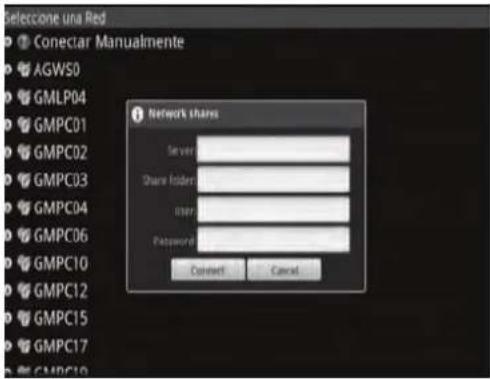
To use the network so you can play in streaming from other devices, connect the LAN cable from your modem/router to the RJ-45 connector of your SPM4000.
If you have the DHCP activated in your modem/router, it will give an IP automatically to connect the network.
If you want to setup the configuration yourself, select "Connect manually" and fill in the information according to the network server configuration.
Firmware Upgrade
SPM4000 allows to update the firmware, which will allow you to have always the latest improvements updates for your unit. Firmware update files are available in Sveon web www.sveon.com or asking for them to the Technical Department through the e-mail soporte@sveon.com
To update the firmware please follow these steps:
- Copy the update file to a USB memory pen drive.
- Connect the USB memory pen drive to one of the USB Host ports of the unit.
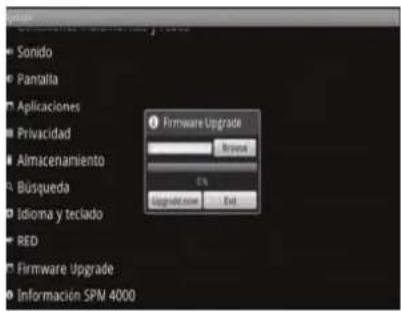
- In the Main Menu, select the option "Setup"> "Firmware Upgrade" >"Browse"
- The system will look for the file automatically and will show you on the screen.
- Select the file and click on "OK" button in the remote control.
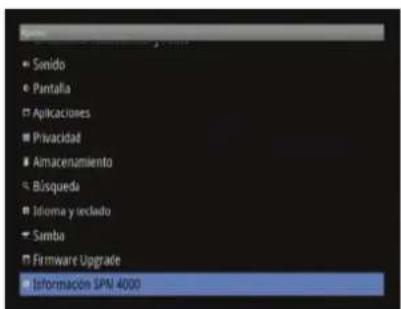
Android Version: It shows the Android™ operation system version under which the unit is working.
Kernel Version: Compilation version of the unit.
Ethernet MAC address: Network card MAC address.
Build number: It shows the firmware version of SPM4000.
2.1 Safety instructions
-
Features
-
System Requirements
-
Content
-
Hardware
-
Remote control
6.1 Batteries installation
- PC Connection
B. TV Connections
8.14V
8.2 HDMI Connection
- First time usage
9.1 Hard disk formatting
g.2 Main screen
- Basic operations
10.1 Video playback
10.2 Photo playback
20.3 Music playback
10.4 Favountes
20.5 Applications
10.6 Setup
-
Frequently Asked Questions
-
Problem solving
-
Important information
11. Frequently asked questions
Yes. We recommend to format in NTFS.
The remote control does not work..
Check that batteries are correctly placed and that they are not discharged.
I do not receive signal on TV.
Check that selected video output on SPM4000 matches with the video output connection to TV. Press "TV System" button on remote control until image is showed on TV.
I can not see any IP on network section.
Check that LAN cable is correctly connected or, if you are using WiFi, that the SNT1012 adapter is connected. Also check that your router can give automatic IP, or, in its case, if the router has manual IP configuration.
I can not see any shared file in the network.
Check if the folder on PC is shared and that PC is connected to network.
I can not connect to my router through the WLAN.
Check that your SSID (WiFi network name) is correct and activated.
Check that the WiFi signal is strong enough to connect to network correctly.
12. Problem solving
CE Declaration of Conformity
Sveon declares that his product SPM4000 is in compliance with the essential requirements and other relevant provisions of Directive 1999/5/EC
Warning message

This symbol on the product or its batteries or its packaging means that this product and any batteries it contains must not be disposed of with your household waste.
Instead, it is your responsibility to hand this over to an applicable collection point for the recycling of batteries and electrical and electronic equipment. This separate collection and recycling will help to conserve natural resources and prevent potential negative consequences for human health and the environment due to the possible presence of hazardous substances in batteries and electrical and electronic equipment, which could be caused by inappropriate disposal.
For more information about where to drop off your batteries and electronic waste, please contact your local city/municipality office, your household waste disposal service or the shopw where you purchased the product.
SPM4000 User Guide
Index
- Welcome
2.1 Safety instructions
-
Features
-
System Requirements
-
Content
-
Hardware
-
Remote control
6.1 Batteries installation
- PC Connection
B. TV Connections
8.1 AV Connection
8.2 HDMI Connection
- First time usage
9.1 Hard disk formatting
9.2 Main screen
- Basic operations
10.1 Video playback
10.2 Photo playback
20.3 Music playback
20.4 Favourites
10.5 Applications
10.6 Setup
-
Frequently Asked Questions
-
Problem solving
-
Important information