SPM1000 - Media player Sveon - Free user manual and instructions
Find the device manual for free SPM1000 Sveon in PDF.


| Brand | Sveon |
| Model | SPM1000 |
| Product Type | Multimedia Player with DVB-T Tuner |
| Video Playback Formats | MPG 1/2/4, XVID, VOB, DAT, VCD, MPEG, AVI |
| Audio Playback Formats | MP3, WMA, WAV, AAC |
| Picture Formats | JPG |
| Subtitle Formats | SRT, SUB |
| DVB-T Tuner | Yes, with Teletext, EPG and Recording (requires internal FAT32 hard disk) |
| Recording Function | Direct REC button and scheduled recording via TIMER/EPG |
| USB Host Port | Yes, for external storage devices (USB sticks, hard drives) |
| Card Reader | MMC and SD cards |
| Video Outputs | HDMI (up to 1080i), Composite AV (CVBS) |
| Audio Outputs | Analog stereo (L/R), Optical (S/PDIF), Coaxial (S/PDIF) |
| Supported File Systems | FAT32, NTFS (playback only; recording requires FAT32) |
| Power Supply | 12V DC, 3A (adapter included) |
| Remote Control | Included with full function buttons and batteries |
| Accessories | Power adapter, USB 2.0 cable, HDMI cable, AV cable, Coaxial cable, Remote control, Batteries, Quick Installation Guide, CD with driver and digital user guide |
| Dimensions | Approximately 200 x 150 x 40 mm (estimated) |
| Weight | Approximately 350 g (estimated) |
Frequently Asked Questions - SPM1000 Sveon
User questions about SPM1000 Sveon
0 question about this device. Answer the ones you know or ask your own.
Ask a new question about this device
Download the instructions for your Media player in PDF format for free! Find your manual SPM1000 - Sveon and take your electronic device back in hand. On this page are published all the documents necessary for the use of your device. SPM1000 by Sveon.
USER MANUAL SPM1000 Sveon
natural_image
Black rectangular device with 'SPM1000' branding and a remote control with colorful capsules (no visible text beyond branding)SPM1000
SPremiere series
HDMI (1080) media player with DVB-T Tuner & Recording function
natural_image
Black Siemens BOPM1000 electronic device with labeled ports and buttons (no readable text beyond branding)Panel lateral
TV
- Welcome
- Features
- System Requirements
- Content
- Hardware
- Remote Control
- TV Connections
7.1 AV Connection
7.2 HDMI Connection
- Playback from external storage devices
8.1 USB external storage device
8.2 Direct playback from memory cards
- First time usage
9.1 Main Menu
9.1.1 DVB-T
9.1.2 Movie
9.1.3 Music
9.1.4 Pictures
9.1.5 Files
9.1.6 Slide Show
- Setup Menu
- Basic operations
- Firmware upgrading
- FAQs
1. Welcome
Thanks for choosing SPM1000, a multimedia player from Sveon with DVB-T tuner with which you will be able not only to play your multimedia files but also watch and record DVB-T channels. Thanks to its USB Host port and its card reader you can play files from external storage devices (USB external devices or memory cards* MMS and SD). The device is very easy to use and connect to enjoy your files and your favourite DVB-T programs easily.
Through this user guide we will show you how to connect and use the device to get the best performance. * Video files playback from memory cards is subject to the bitrate of the file.
2. Features
- Video and movie files playback. Formats supported: MPG 1/2/4, XVID, VOB, DAT, VCD, MPEG, AVI.
- Audio files playback: MP3, WMA, WAV, AAC.
- JPG picture files supported.
- Subtitles supported: SRT, SUB.
- DVB-T Tuner to enjoy your favourite Digital Television channels with functions like Teletext or EPG and recording functions (Schedule recording).
- Integrated USB Host port to connect and external USB storage device.
- Memory card reader compliant with Multimedia Cards (MMC) and Secure Digital cards (SD). Play and share your photos directly from your digital camera to your TV without download the files using a PC.
- Optical and Coaxial multichannel audio outputs. Connect your SPM1000 to a speaker system through an Optical cable or through the provided coaxial cable to enjoy the experience of digital surround sound.
- HDMI video and audio output which supports up to 1080i of resolution.
- Audio and video analog composite output (AV).
- FAT32 and NTFS file systems supported in multimedia files playback.
- Advanced and intuitive management software which will make easier the navigation between files and functions like Zoom, Slide show playback or subtitles.

HOMIoutput

Multimedia

DVB: Tourier

CarcReader

USBHost

Audience

MP3Supported

XVidSupported
3. System Requirements
- PC or laptop with an available USB 2.0 port (1.1 compliant).
-Windows Me/2000/XP/VISTA/W7
4. Content
- Multimedia player
- 12V/3A power adaptor
- USB 2.0 cable
- HDMI cable
- AV cable
- Coaxial cable
- Remote control
- Batteries for remote control (x2)
- Quick Installation Guide
- Digital User Guide (included in the CD ROM)
- CD Driver
5. Hardware
Front panel
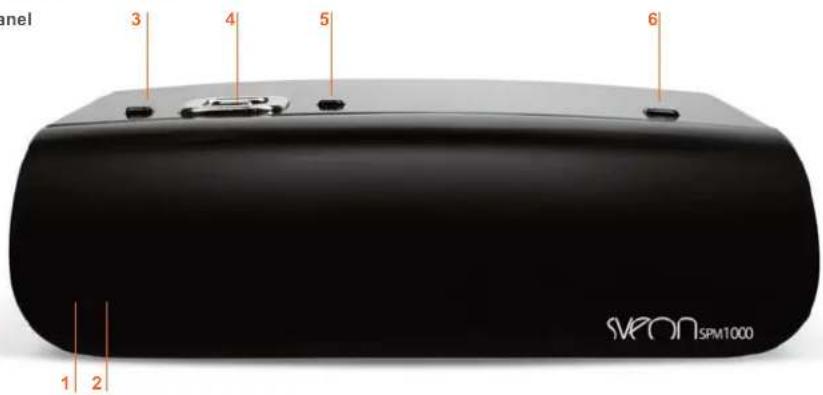
- POWER/STANDBY LED: This LED lights in blue when the unit is powered on. This LED lights in red when the device is powered off (standby mode) from the remote control or from the Power button located in the device. When the unit is in "Standby" mode its power consumption is minimum; if you want to turn the device off completely, press the power switch located in the rear panel of the device.
- INFRARED RECEIVER
- PLAY: Press to play the selected file.
- ARROW BUTTONS AND OK:
OK: Press to confirm
◀ Press to move the highlight to the left.
▶ Press to move the highlight to the right.
▲ Press to move the highlight up or to increase the volume.
Press to move the highlight down or to decrease the volume.
- STOP: Press to stop a playback.
- POWER: Press to turn the device on (when the unit is in Standby mode).
SPM1000 User Guide
Index
-
Welcome
-
Features
-
System Requirements
-
Content
-
Hardware
-
Remote Control
-
TV Connections
7.1 AV Connection
7.2 HDMI Connection
- Playback from external storage devices
8.1 USB external storage device
8.2 Direct playback from memory cards
- First time usage
9.1 Main Menu
9.1.1 DVB-T
9.2.2 Movie
9.1.3 Music
9.1.4 Pictures
9.1.5 Files
9.1.6 Slide Show
10. Setup Menu
11. Basic operations
12. Firmware upgrading
13. FAQs

Rear panel
- Fan
- ANTENNA IN. RF input antenna (TV signal).
- VIDEO. Analog video output.
- L/R. Analog audio output.
- COAXIAL. Coaxial audio output.
- OPTICAL. Optical audio output..
- HDMI. HDMI output.
- USB. USB Connection
- ON/OFF. Power switch.
- DC IN. Power connection.
natural_image
Black BPM1000 device with labeled ports and buttons, no visible text or symbols beyond branding and numbersSide panel
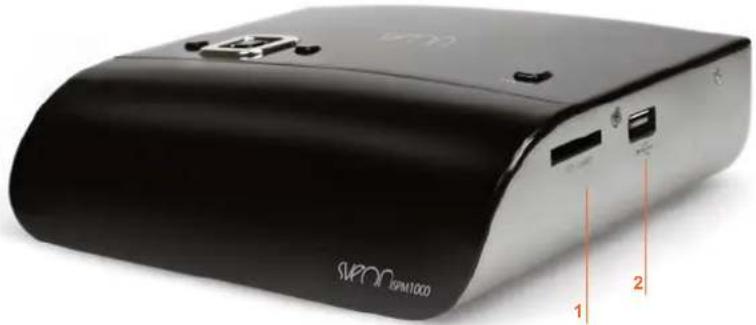
- CARD READER
- USB HOST PORT
6. Remote control
Important. SPM1000 functions can be managed using its remote control or from the keys located in the device. Nevertheless, there are functions which only can be managed from the remote control.
- POWER: Press to turn the unit on/off (Standby).
- SETUP: Press to enter in Setup menu.
- DTV: Press to go to DVB-T options.
- HDMI/AV: Press to change the signal output between AV (576i) and HDMI (720p and 1080i).
- DISK: Press to change between the different external storage devices. You can also press this button to go to point in the timeline of a video file playback.
- REC: Press to record directly the channel you are currently watching.
-EPG: Press this button to obtain EPG information (Electronic Program Guide) about the current channel and add it to the recording list. This information can only be displayed in channels with EPG available..
- TTX: Press to display Teletext information (if the channel includes this function).
- Numer buttons from 0 to 9.
- MOVIE: Press to go to Movie menu. SPM1000 will display all the video files saved in the device without show the folder where they are saved.
- MUSIC: Press to go to Music menu. SPM1000 will display all the music files saved in the device without show the folder where they are saved.
- PHOTO: Press to go to Pictures menu. SPM1000 will display all the picture files saved in the device without show the folder where they are saved.
- VOL+; Press to increase the volume.
- VOL- : Press to decrease the volume.
- ◀ : Press to move the highlight to the left.
- ▶: Press to move the highlight to the right.
- ▲: Press to move the highlight up. In TDT mode, press to go to the previous channel.
- ▼: Press to move the highlight down. In TDT mode, press to go to the next channel.
- ENTER: Press to confirm or play a file.
- EXIT: Press to exit from files menu and go to Main Menu.
- HOME: Press to go to Main Menu.
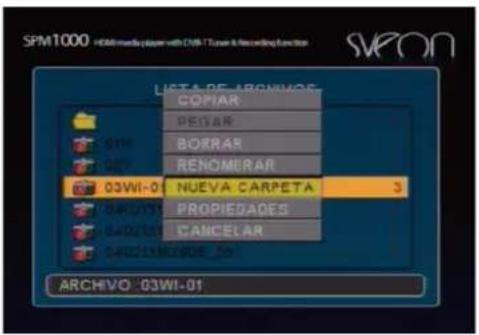
- EDIT: Press this button over a file to copy, paste, delete, rename, create a folder, go to properties information and cancel. This function is only available in "File" mode and under FAT32 partition.
- COPY: Press this button to copy all the information saved in the external USB storage device or saved in the memory card to the inner hard disk of the device. This option doesn't allow you to select the files you want to copy: all the files would be copied.
- REPEAT: Press to repeat the current file or all the files.
- PLAY/ PAUSE ▶ / II : Press to play a file. Press again to pause the playback and press again to stop the playback.
- STOP: Press to stop the playback.
- REV◀: Press to fast backward during a playback (2x, 4x, 8x, 16x).
- F.F ▶: Press to fast forward during a playback (2x, 4x, 8x, 16x).
SPM1000 User Guide
Index
-
Welcome
-
Features
-
System Requirements
-
Content
-
Hardware
6. Remote Control
- TV Connections
7.1 AV Connection
7.2 HDMI Connection
8. Playback from external storage devices
8.1 USB external storage device
8.2 Direct playback from memory cards
9. First time usage
9.1 Main Menu
9.1.1 DVB-T
9.2.2 Movie
9.1.3 Music
9.1.4 Pictures
9.1.5 Files
9.1.6 Slide Show
10. Setup Menu
11. Basic operations
12. Firmware upgrading
13. FAQs

- PG.UP: Press to run the previous file.
- PG.DN: Press to run the next file.
- AUDIO: Press to change between the available audio channels.
- SUB-T: Press to change between the different subtitles options or disable subtitle function (when the file includes subtitles).
- FAV: In DVB-T mode, this button allows you to change between the channels included in the favourite channel list. When you are playing picture files in Slide Show mode you can press this button to change the transition mode between pictures.
- INFO: Press to display information about the current file or about the current DVB-T channel.
- MUTE : Press to disable audio signal. Press again to enable it again
- DVD: Press to enable the navigation menus in your DVD files (VOB, DAT).
- TIMER: Press to access to the recording menu to add, delete or edit recording programs.
- T-R: Press once to show the television channel list; press twice to show the radio station list.
The device integrates different audio and video outputs: composite analog video and audio output (AV) and HDMI digital audio and video output. Select the audio and video output you prefer accordingly to your needings and please note each video output supports a different resolution. If you want to enjoy 1080i video quality signal connect the device through its HDMI output.
7.1 AV Connection
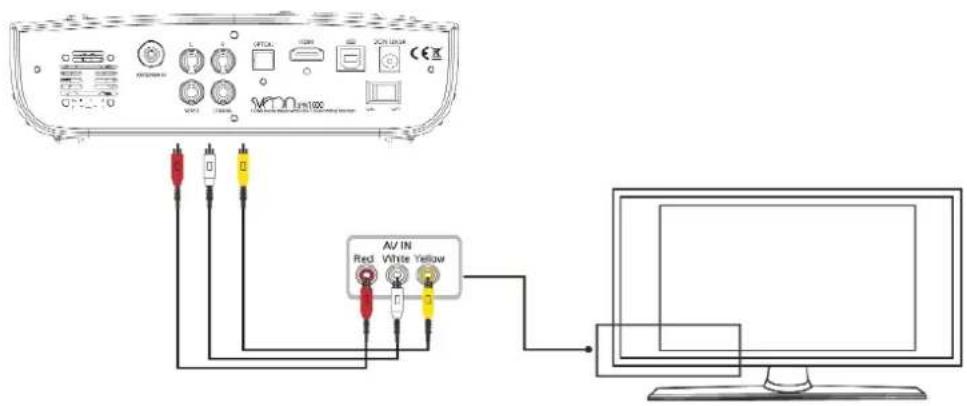
Please follow this picture to connect the device to your TV through AV connection. Then, connect the power adaptor to the power outlet, select AV input in your TV system and wait during the files loading process.
TV
SPM1000 User Guide
Index
-
Welcome
-
Features
-
System Requirements
-
Content
-
Hardware
-
Remote Control
-
TV Connections
7.1 AV Connection
7.2 HDMI Connection
- Playback from external storage devices
8.1 USB external storage device
8.2 Direct playback from memory cards
- First time usage
9.1 Main Menu
g.1.1 DVB-T
9.2.2 Movie
9.1.3 Music
9.1.4 Pictures
9.1.5 Files
9.1.6 Slide Show
-
Setup Menu
-
Basic operations
-
Firmware upgrading
-
FAQs
If you want to enjoy the multichannel audio signal, use the Coaxial or Digital audio outputs to connect the device to a 5.1 speaker system. Coaxial cable is provided with the unit.
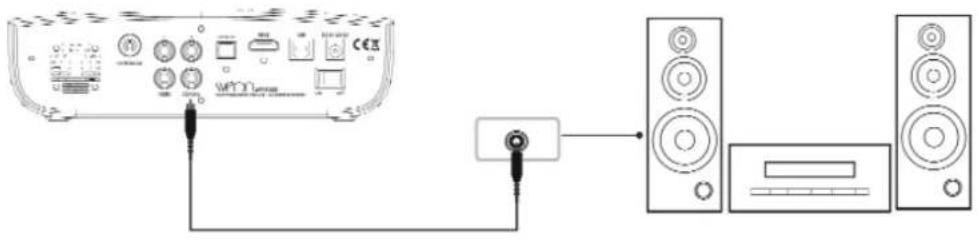
7.2 HDMI Connection
Please follow the steps shown in the picture. HDMI output includes audio and video signal through the same cable. Before connecting HDMI cable between your TV and the device, connect the power adaptor to the power outlet, select the HDMI input in your TV system and wait during the files loading process.
If you want to enjoy the multichannel audio signal, use the Coaxial or Digital audio outputs to connect the device to a 5.1 speaker system. Coaxial cable is provided with the unit.

8. Direct playing from external storage devices
SPM1000 includes an inner hard disk to storage and play multimedia files. Besides, the device allows you to play files from any USB external storage device or memory cards thanks to its USB Host port and to its integrated card reader. Please follow these steps:
8.1 Direct playing from USB storage devices
Please follow these steps to enjoy this function:
- Connect an external USB device to the USB Host port of the unit (memory stick, USB hard disk, etc). Depending on the features of the external USB device it may need extra power supply; in this case, please connect the power adaptor of the external device to the power outlet.
- Turn the external device on and wait while the SPM1000 scans its content. This process could take some seconds. Go to the Main Menu and choose: Movie, Music, Photo or File menu depending of the type of file you want to play and press "Enter" button of your remote control.
- Choose the storage device where are saved the files you want to play between: USB Host port, card reader or inner hard disk. If the USB storage device has more than one partition, please choose the partition where are saved the files you want to play. Depending on the option you choose (Movie, Music, Picture or Files), the unit will display all the video, music, picture files or all the files saved in the selected storage device. If you want to explore all the files saved in the device choose "File" option.
- Please make sure you are not playing files from the external USB storage device before disconnecting it.
8.2 Direct playing from card reader
SPM1000 allows you to play files directly from memory cards* to your TV without the needing to download them previously using a computer. The device supports Secure Digital (SD) and Multimedia Cards (MMC) formats.
- Insert your memory card in the card reader slot of the device.
- Wait while SPM1000 scans its content. This process could take some seconds.
- Go to Main Menu and choose between: Movie, Music, Photo, File depending on the type of file you want to play and press "Enter" button of the remote control.
- Choose the storage device: select memory card option. If you have selected "Movie" option in the Main Menu, the devie will display all the video files saved in the memory card. Select "File" option to display all the files saved in the memory card.
- Please make sure you are not playing files from the memory card, go to Main Menu and then disconnect the card from its slot.
SPM1000 User Guide
Index
- Welcome
- Features
- System Requirements
- Content
- Hardware
- Remote Control
- TV Connections
7.1 AV Connection
7.2 HDMI Connection
- Playback from external storage devi-
ces
8.1 USB external storage device
8.2 Direct playback from memory cards
- First time usage
9.2 Main Menu
9.1.1DV8-T
9.1.2 Movie
9.2.3 Music
9.1.4 Pictures
9.1.5 Files
9.2.6 Slide Show
- Setup Menu
- Basic operations
- Firmware upgrading
- FAQs
9. First time usage
Before using SPM1000 please:
- Install the provided batteries in the remote control.
- Connect the device to your TV depending on the selected output (please read carefully the section 7 of this user guide).
- Connect the antenna cable to the RF connector in the unit.
- Connect the power adaptor to the power outlet.
9.1 Main Menu
When you turn the device on appears the Main Menu screen where you can choose between the following options: "DVB-T", "Movie", "Music", "Pictures", "Files" or "Slide Show". If you want to enter to Setup options please press "Setup" button of the remote control. Select the type of file you want to play (Movie, Photo or Music) and then select the storage unit where are saved the files you want to play: you can choose between the inner hard disk, a memory card inserted in the card reader slot of the device or an USB external storage device connected through the USB Host port.

Main Menu includes the following options:
- Movie: Select to access to the video files saved in the inner hard disk or in an external storage device. The files are shown without sort and without maintain the folders structure.
- Music: Select to access to the music files saved in the inner hard disk or in an external storage device. The files are shown without sort and without maintain the folders structure.
- Pictures: Select to access to the picture files saved in the inner hard disk or in an external storage device. The files are shown without sort and without maintain the folders structure.
- Slideshow: Select to play all the picture files saved in the device (inner hard disk or external storage devices) in Slide Show mode. During this function, the device plays music files saved in the selected storage device in random mode.
- Files: This option allows you to explore all the files saved in the device (inner hard disk or external storage device) maintaining the folders structure.
Important
- Do not cover the unit, even when you are not using it.
- Do not use the device in surfaces like a sofa, bed or similar because these kind of surfaces don't allow the correct airflow of the device.
- Put the device in a place with good airflow.
- Power adaptor gets hot during its usage around 40° 50° .
9.1.1 DVB-T
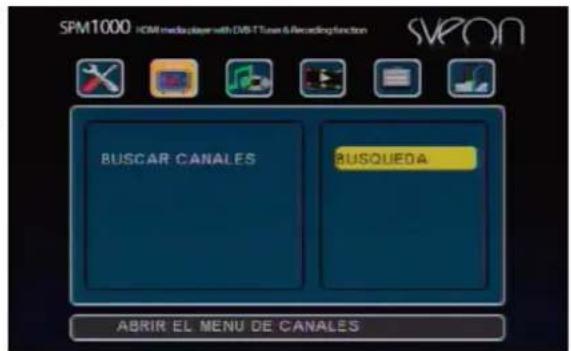
Select "DVB-T" option in the Main Menu and press "Enter" of the remote control; you can also press the button "DVB-T" of the remote control. Please note first time you use the device you have to scan the available DVB-T TV channels and radio stations. Follow these steps:
- Wait during some seconds. The TV screen will show the following message: "No signal".
-
Press "Setup" button of the remote control and go to "DVB-T" option. Select "Channel Scan" and a window will appear to do the channel scan process.
-
Select your country and press "Enter" button.
-
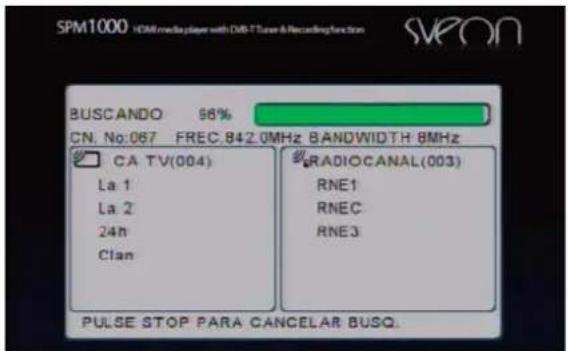
You can scan the DVB-T channels in an automatically mode or in a manual mode. If you want to scan the channels in an automatically way select "Auto Scan" and the device will start to scan the available channels using the frequency of range by default. Press "Stop" if you want to stop the channel scan. DVB-T TV channels found will appear in the left of the screen and DVB-T radio stations found will appear in the right of the screen.

SPM1000 User Guide
Index
- Welcome
- Features
- System Requirements
- Content
- Hardware
- Remote Control
- TV Connections
7.1 AV Connection
7.2 HDMI Connection
- Playback from external storage devices
8.1 USB external storage device
8.2 Direct playback from memory cards
9. First time usage
9.1 Main Menu
9.1.1 DVB-T
9.2.2 Movie
9.1.3 Music
9.1.4 Pictures
9.1.5 Files
9.1.6 Slide Show
10. Setup Menu
11. Basic operations
12. Firmware upgrading
13. FAQs
- If you want to scan the channels by entering the range of frequency select "Manual Scan" and enter the values; Start frequency, Finish frequency, frequency bandwidth. Select "OK" and press "Enter" button of the remote control. Wait until the device finishes the scan process. You can press "Stop" button when you want to stop the process.
When the channel has been scanned you can start to watch your favourite TV programs. Press the button ▲ of your remote control to go to the next channel and press the button ▼ to go to the previous channel.

DVB-T Functions
T/R
Press the button "T/R" to change between TV channels and radio stations. When you press this button while you are watching a TV program, the device displays a list of available TV channels; press again "T/R" button to change this list to a list of available radio stations. Use the arrow buttons up and down to choose the channels and press "Enter" button to select the TV channel or the radio station you want to watch/hear.

The available TV channel list displays also a thumbnail of the program in the right of the screen. When list shows the available radio stations, the device shows information about it. You can find different options in the bottom of the window:
Exit: Select this option and press "Enter" button to exit this menu.
EPG: Select this option and press "Enter" button to access to EPG channel information (Electronic Program Guide).
INFO: Select this option and press "Enter" button to access to information about the current channel.

FAV: Select this option and press "Enter" button to add a channel to your channel Favourite list. When a channel is added to the Favourite channel list its channel number turns into red colour. If you want to delete a TV channel from the favourite channel list, select it and press "FAV" button again (the number of this channel turns in blue to indicate it is not inside the Favourite list).

ANTER: Select this option and press "Enter" button to change the position of the channel inside the list.
SPM1000 User Guide
Index
- Welcome
- Features
- System Requirements
- Content
- Hardware
- Remote Control
- TV Connections
7.1 AV Connection
7.2 HDMI Connection
- Playback from external storage devices
8.1 USB external storage device
8.2 Direct playback from memory cards
- First time usage
9.2 Main Menu
9.2.1 DVB-T
9.2.2 Movie
9.1.3 Music
9.1.4 Pictures
9.1.5 Files
9.1.65lide Show
10. Setup Menu
11. Basic operations
12. Firmware upgrading
13. FAQs
INFO
While you are watching a TV channel or hearing a radio station, press this button of the remote control to get the following information:
- Channel name
- Current program name and its length (begining time and end time)
- Next program name and its length (begining time and end time)
- Current date and time
- Audio track (if the file has more than one audio track)
- Quality and coverage of received signal

Press again "INFO" button to exit.
SUB-T
Press this button if you want to enable subtitle function (this function is only available if the channel includes subtitles). Press again to disable.
TTX
Press this button to enable Teletext function (this function is only available if the channel includes Teletext information). Use the arrow buttons up ▲ and down ▼ to change the Teletext page or use the numeric keypad to enter the number of the page which you want to access. Press "TTX" button again to disable Teletext and go to the TV channel.

Press "Audio" button of the remote control to change between the different audio channels offered by the TV channel (this option is only available when the TV channel includes this service).
FAV
Press this button to access to the Favourite selected channels. Each time you press this button the device will change between the Favourite channels selected in "T/R" menu.
EPG
Press this button to go to Electronic Program Guide information offered by the channel. The content of this guide depends on the selected channel (if a channel hasn't this information, the device can not provide it). In the bottom of the EPG window appears the days of the week. Use the arrow buttons ◀ and ▶ to select the day which you want to see the TV program and press "Enter" button to check it. If you want to access to the information about a program, use the arrow buttons up ▲ and down ▼ to select it from the list and press "Enter" button. Press "Enter" again to go the program list. Select "Exit" and press "Enter" button to exit the EPG function.
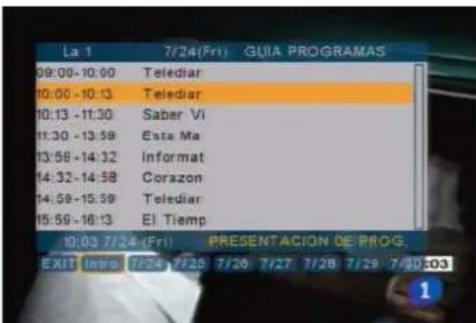

To make recordings please note the device must has an inner hard disk installed with at least one partition under FAT32 file system. The unit doesn't record in external storage devices neither under NTFS file system. If you start to record and you haven't a FAT32 partition, the unit will display an error message.
REC
If you want to record a TV channel while you are watching it, press "REC" button of the remote control. Wait during some seconds while the record mode is being enabled. A red point symbol will appear in the right top corner of the screen to indicate the program is being recorded. Press "REC" button again to stop the recording.
Note: If you go to the Main Menu while you are recording a TV channel please note the recording mode will be disabled.

natural_image
Woman standing beside a refrigerator with a umbrella, surrounded by fresh vegetables and fruits (no visible text or symbols)SPM1000 User Guide
Index
- Welcome
- Features
- System Requirements
- Content
- Hardware
- Remote Control
- TV Connections
7.1 AV Connection
7.2 HDMI Connection
- Playback from external storage devices
8.1 USB external storage device
8.2 Direct playback from memory cards - First time usage
9.2 Main Menu
9.2.1 DVB-T
9.2.2 Movie
9.1.3 Music
9.1.4 Pictures
9.1.5 Files
9.1.6 Slide Show
- Setup Menu
- Basic operations
- Firmware upgrading
- FAQs
TIMER
The recordings can be programmed by pressing "Timer" button of the remote control. If you want to add a new recording task select "Edit" option and press "Enter" button.

When the menu of recording tasks is open, you can check the free space available to save your recordings and the recording time you have. Select the channel you want to save, the day when you want to start the recording, the start time of recording and its lenght. Then press "Enter" button and the unit will ask you if you want to add this recording task to the recording tasks list; select "Yes" or "Not" to confirm.

Press "Timer" to display all the recording tasks.

If you want to delete a recording task, select it and press "Delete"; if you want to modify a recording task select it and press "Enter" button.
Select "Exit" option and press "Enter" button to exit this menu.
EPG RECORDING
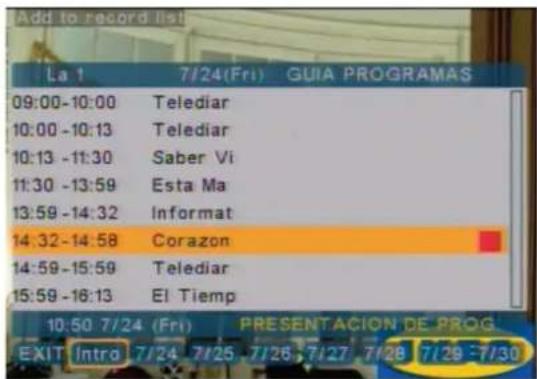
You can also program a recording through EPG menu. Press "EPG" button of the remote control and select the TV channel you want to record. Then, press "REC" button of the remote control and a red square symbol will appear in the right bottom corner of the screen which indicates the program has been added to the recording tasks list. You can check if this task is already added by pressing "Timer" button.
SPM1000 User Guide
Index
- Welcome
- Features
- System Requirements
- Content
- Hardware
- Remote Control
- TV Connections
7.1 AV Connection
7.2 HDMI Connection
- Playback from external storage devices
8.1 USB external storage device
8.2 Direct playback from memory cards
- First time usage
9.1 Main Menu
9.2.1 DVB-T
9.2.2 Movie
9.1.3 Music
9.1.4 Pictures
9.1.5 Files
9.1.6 Slide Show
10. Setup Menu
11. Basic operations
12. Firmware upgrading
13. FAQs
9.1.2 Movies
- Select "Movie" option in the Main Menu and press "Enter" button.
- Select the storage device where are saved the files you want to play and press "Enter" button.
- Use the arrow buttons up and down to select the file you want to play and press "Play/Pause" button or "Enter" button of the remote control.
- Press "Play/Pause" button of the remote control to pause the playback. Press this button again to resume the playback.
- Press "Stop" button to stop the playback.
- Press "Audio" button to choose between the different availalbe audio channels.

- Press "Sub-T" button to enable and/or choose between the different available subtitle options; press it also to disable this option. Please note you have to save the subtitles file in the same folder where are saved the video files which the subtitles belongs to, using the same filename.
- The device allows you to play DVD files maintaining the original navigation menus. Select the folder where are saved the folders "Video_TS" and "Audio_TS" and press "DVD" button of the remote control.
9.1.3 Music
- Select "Music" option in the Main Menu and press "Enter" button of the remote control.
- Select the storage device where are saved the files you want to play and press "Enter" button.
- Use the arrow buttons up and down to select the file you want to play and press "Play/Pause" button or "Enter" button of the remote control.
- Press "Play/Pause" button to pause the playback and press this button again to resume it.
- Press "Stop" button to stop the playback.

9.1.4 Pictures
- Select "Pictures" in the Main Menu and press "Enter" button of the remote control.
Select the storage device where are saved the files you want to play and press "Enter". - Use the arrow buttons up and down to select the file you want to play and press "Play/Pause" or "Enter" button of the remote control.
- When the device plays the picture files they are displayed in "Slide Show" mode. Select the file you want to use to start the Slide Show mode and press "FAV" button of the remote control if you want to change the transition mode between pictures. Go to "Setup" menu and select "Transition Time" option to change the time between pictures (5, 10 or 15 seconds). If you want to play a music file during the Slide Show function, copy the music file you want to play in the same folder where are saved the pictures and it will be played automatically. Play the button "Play/Pause" to pause the pictures playback in a picture. Press "FAV" button to choose "Non" option to disable Slide Show function.
- You can also preview the picture files in thumbnail mode: go to "Setup" menu, select "Thumbnail" function and enable it (ENC). Press PK PG.UP and PG.DN→ buttons of the remote control to go to the previous or to the next page; please note you have to wait during some seconds during the file loading.

SPM1000 User Guide
Index
- Welcome
- Features
- System Requirements
- Content
- Hardware
- Remote Control
- TV Connections
7.1 AV Connection
7.2 HDMI Connection
- Playback from external storage devices
8.1 USB external storage device
8.2 Direct playback from memory cards - First time usage
9.2 Main Menu
g.1.1 DVB-T
9.1.2 Movie
9.1.3 Music
9.1.4 Pictures
9.1.5 Files
9.1.6 Slide Show
- Setup Menu
- Basic operations
- Firmware upgrading
- FAQs
9.1.5 Files
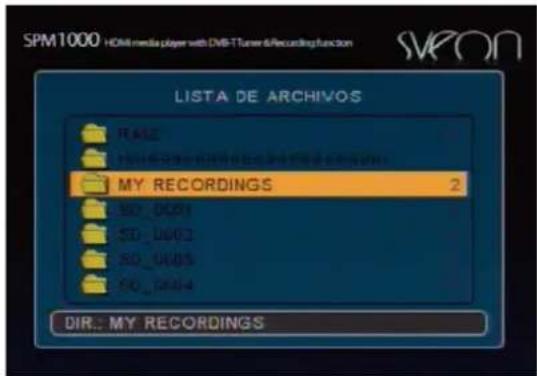
Select this option and press "Enter" button of the remote control to explore the files saved in the selected storage unit. This option maintains the order of the files and also the folders structure. Select "File" option and then select the storage device where are saved the files you want to play. Press "Enter" button to confirm.
Press "Enter" to access to the folders. If you want to exit a folder select the open folder icon (ROOT) and press "Enter" button. If you want to change the storage device, press "Disk" or "Exit" button of the remote control and select another storage device. Press "Home" butto go to the Main Menu.
9.1.6 Slide Show
- Select "Slideshow" option in the Main Menu and press "Enter" button of the remote control.
- Select the storage unit where are saved the files you want to play and press "Enter" button.
- Press "Play/Pause" button of the remote control if you want to pause the Slide Show pictures playback and press this button again if you want to resume this option.
- This mode doesn't allow you to rotate the pictures. If you press the arrow buttons ◀ and ▶ or ◀ and ▶ you will be able to go to the next or to the previous picture.
- Press "Stop" button to exit Slide Show mode.
- Press "Home" button to go to the Main Menu.
10. Setup Menu
Press "Setup" button of the remote control to access to the Setup Menu. You will find the following options:
General Menu
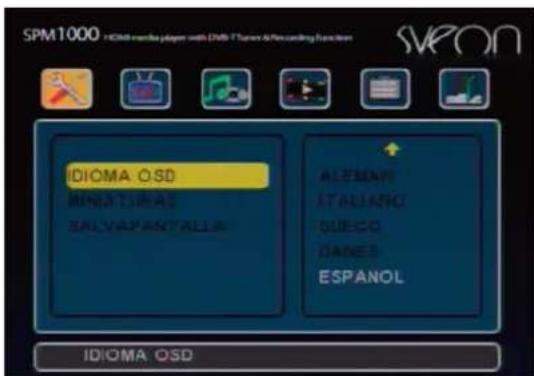
- OSD language: Choose the OSD language by default between: Spanish, English, French, German, Italian, Swedish and Danish.
- Thumbnail: If you want to display a preview of the pictures in thumbnail mode in "Pictures" menu, you have to enable this option ("ENC"); choose "APA" if you want to disable the option.
- Screensaver: Choose between "ENC" (enabled) or "APA" (disabled).
DVB-T Menu
- Channel scan: Select this option to scan the DVB-T TV available channels.
Audio Setup
- Downmix: The device can only play in stereo mode.
- Audio output: Choose between Analog, SPDIF/RAW or SPDIF/PCM. Please make sure the audio output matches with the audio connections made in your unit.
TV Mode Setup
- TV Type: Select between MULTISISTEMA, NTSC or PAL
- Video output: Choose between: CVBS, 720p and 1080i (only when the unit is connected through HDMI)
Preferences Menu
- By default: Select "Restore" and press "Enter" to restore the default values. When you select this option all the changed made in the setup of the device will be erased.
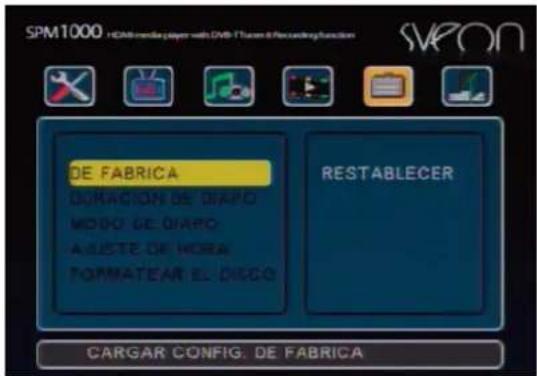
- Slide time: Choose the default transition time between pictures in Slide Show mode between: 5, 10 and 15 seconds.
- Slide Mode: Choose the default transition mode between pictures in Slide Show mode.
- Time settings: Update the date and time in the device. Select "Save" option to save all the changes or select "Exit" to exit without save the changes.
- Hard disk formatting: Select the option "Format" to format the hard disk of the device. Select the storage device you want to format and the device will format it in FAT32 file system. Please note if you format your device, all the files saved will be erased.
If you want to exit Setup menu press again "Setup" button of the remote control.
11. Basic operations
Repeat: Press "Repeat" button of the remote control to enable the files repeat mode. Choose between the following options:
File: Play the file once.
Folder: Play all the files saved in the current folder once.
Disk: Play all the files saved in the device.
Repeat file: Repeat the current file.
Repeat folder: Repeat all the files saved in the folder.
Repeat Disk: Repeat all the file saved in the device.
Preview: Play 10 seconds of each file saved in the disk.
Mute: Press "Mute" button of the remote control to disable the audio signal. Press again to enable it again.
Play files: Use the arrow buttons to select the file you want to play and press "Enter".
Rename files: Use the arrow buttons to select the file you want to rename and press "Edit" button. Select "Rename" option and a virtual keyboard will appear. Use the arrow buttons to select the characters and press "Enter" button to confirm the new name. Press "FAV" button of the remote control if you want to amend the last character. Once you have written the new name press "Stop" to exit and save the new name or "Exit" to cancel and maintain the old file name.


Delete files: Use the arrow buttons to select the file you want to delete and press "Edit" button of the remote control. Select "Delete" option and the device will ask you if you want to delete the file. Select "Yes" if you want to delete the file or "No" if you want to cancel this operation. Important: Once you have deleted the file you can not restore it.

SPM1000 User Guide
Index
- Welcome
- Features
- System Requirements
- Content
- Hardware
- Remote Control
- TV Connections
7.1 AV Connection
7.2 HDMI Connection
- Playback from external storage devices
8.1 USB external storage device
8.2 Direct playback from memory cards
- First time usage
9.1 Main Menu
9.1.1 DVB-T
9.2.2 Movie
9.1.3 Music
9.1.4 Pictures
9.1.5 Files
9.1.6 Slide Show
- Setup Menu
11. Basic operations
- Firmware upgrading
- FAQs
Create a folder: Press "Edit" button of the remote control and select "New folder"; a virtual keyboard will appear. Use the arrow buttons and "Enter" button to select the name for the new folder. Press "FAV" button of the remote control if you want to amend the last character. Once you have written the new name, press "Stop" button to exit and save the new folder name or press "Exit" to cancel and exit without save the new folder name.
Change output resolution: Press "HDMI/AV" button several times until choose the signal output (576i, 720p or 1080i).
Copy
This function allows you to copy files between the different storage devices or between different folder in the same unit if these storage units are formatted under FAT32 file system. Follow these steps:
- Go to "Files" option in Main Menu. Copy and Paste options are not available in the rest of Main Menu options.
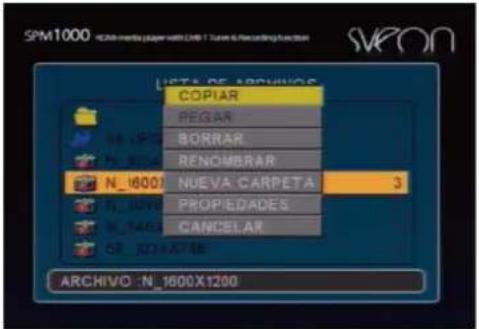
- Select the file you want to copy, press "Edit" button of the remote control and use the arrow buttons to select "Copy" option.
- Go to the folder where you want to save the file, press "Edit" button of the remote control and use the arrow buttons to select "Paste" option. Wait until the process finishes.
- If you want to copy the file in other storage device, select "Copy" function and press "Disk" button to select the storage unit where you want to save the file. Press "Edit" and choose "Copy" option to complete this process.
Direct Copy
Direct Copy function allows you to copy all the files saved in your memory card or external USB storage device to the inner hard disk of the device. This function is only available under FAT32 file system and it doesn't allow you to select files: all the files will be copied.
- Go to "Files" option in the Main Menu. Direct Copy function is only available in "Files" option.
- Press "Copy" button of the remote control. The file copy process will start and the device will create a new folder for these copied files.
- You can stop this process by pressing "Stop" button.
12. Firmware update
SPM1000 allows you to update its firmware to enjoy improvements and new functions for your device. The firmware upgradings are available in the Sveon official website; you can also ask for them to our Technical Support Department: email: soporte@sveon.com | Tlf. +34 902 402 503
Follow these steps to upgrade the firmware of your device:
- Copy the upgrading file in the inner hard disk of the device, in a memory card or in an external USB device.
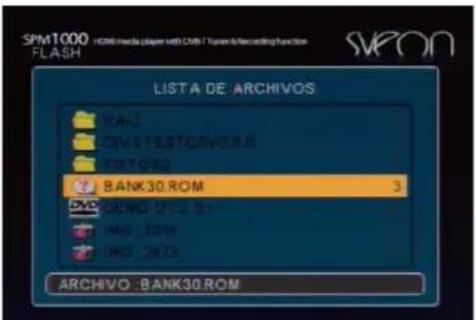
2 Connect the external storage device to the unit and turn it on. - Access to "File" option in Main Menu and look for the upgrade file. Use the arrow buttons to select it and press "Enter" button of the remote control. Wait during the upgardin gprocess.
- During this process please do not press any key of the remote control. Besides, it is very important the unit is not powered off because it may damage seriously the device.

SPM1000 User Guide
Index
- Welcome
- Features
- System Requirements
- Content
- Hardware
- Remote Control
- TV Connections
7.1 AV Connection
7.2 HDMI Connection
- Playback from external storage devices
8.1 USB external storage device
8.2 Direct playback from memory cards - First time usage
9.2 Main Menu
9.1.1 DVB-T
9.2.2 Movie
9.1.3 Music
9.1.4 Pictures
9.1.5 Files
9.1.6 Slide Show
-
Setup Menu
-
Basic operations
12. Firmware upgrading
-
FAQs
-
When the process finishes the unit will be restarted automatically. If it doesn't, please turn it off and turn it on again.
- Delete the upgrading file or disconnect the external storage device.
For further information please contact with our Technical Support Department.
13. FAQs
The remote control doesn't work
Please check if you have properly installed the batteries in the remote control.
Audio signal is disabled
Check if the "Mute" option is enabled or not. If it is enabled, please disable it. Go to "Setup" menu and check the if the selected audio output matches with the connections of the device. If you are watching a file with different audio tracks please check if you have selected the correct audio track by pressing "Audio" button of the remote control until select the correct audio track.
There is not TV singal
Check if the TV and your device are powered on. Check if the connections are properly done between the device and your TV. Check if the selected video output matches with the connections made between the device and the TV. Press "HDMI/AV" button to change between the different video outputs.
I can not access to the external USB storage devices
Check if the USB device is properly connected. If you are using an USB stick, please check if it is locked. If you are using an external USB hard disk, please check if it receives power supply enough. If the device hasn't power supply enough please connect its power adaptor to the power outlet. Check if the external storage device is formatted in FAT16/32 or NTFS.
I can not access to the memory card inserted in the slot of the device
Check if the memory card is properly connected and if it is locked. Take the card and insert it again in the slot of the device. Check if the format of the memory card is supported by the device (SD or MMC). Please check the memory card in another card reader to know if it works.
I can not scan any DVB-T channel
Make sure the antenna cable is properly connected. Make sure the RF antenna is ready to receive DVB-T signal. Make sure you have selected the correct country in the DVB-T menu.
SPM1000 User Guide
Index
- Welcome
- Features
- System Requirements
- Content
- Hardware
- Remote Control
-
TV Connections
7.1 AV Connection
7.2 HDMI Connection
8.1 USB external storage device -
Playback from external storage devices
8.2 Direct playback from memory cards
- First time usage
9.1 Main Menu
9.1.1 DVB-T
9.2.2 Move
9.1.3 Music
9.1.4 Pictures
9.1.5 Files
9.1.6 Slide Show
-
Setup Menu
-
Basic operations
-
Firmware upgrading
13. FAQs

- SPM1000
- Panel lateral
- Welcome
- Features
- System Requirements
- Content
- Hardware
- SPM1000 User Guide
- Index
- Rear panel
- Side panel
- Remote control
- AV Connection
- HDMI Connection
- Direct playing from external storage devices
- Direct playing from USB storage devices
- Direct playing from card reader
- ces
- First time usage
- Main Menu
- Important
- DVB-T
- DVB-T Functions
- T/R
- INFO
- SUB-T
- TTX
- FAV
- EPG
- REC
- TIMER
- EPG RECORDING
- Movies
- Music
- Pictures
- Files
- Slide Show
- Setup Menu
- General Menu
- DVB-T Menu
- Audio Setup
- TV Mode Setup
- Preferences Menu
- Basic operations
- Copy
- Direct Copy
- Firmware update
- Firmware upgrading
- FAQs
- The remote control doesn't work
- Audio signal is disabled
- There is not TV singal
- I can not access to the external USB storage devices
- I can not access to the memory card inserted in the slot of the device
- I can not scan any DVB-T channel
Brand : Sveon
Model : SPM1000
Category : Media player