Vanquish ICER P 5118 - Mp3 player Pentagram - Free user manual and instructions
Find the device manual for free Vanquish ICER P 5118 Pentagram in PDF.


| Product Type | Portable MP3 Player |
| Brand | Pentagram |
| Model | Vanquish ICER P 5118 |
| Storage Capacity | 8 GB (estimated) |
| Display | 1.8-inch color LCD |
| Audio Formats | MP3, WMA, WAV, FLAC (estimated) |
| Battery Type | Rechargeable Lithium-ion |
| Battery Life | Up to 20 hours (estimated) |
| Charging | USB 2.0 |
| Connectivity | USB 2.0, 3.5mm headphone jack |
| Dimensions (approx) | 4.3 x 1.8 x 0.5 inches (110 x 45 x 13 mm) |
| Weight (approx) | 2.1 oz (60 g) |
| Main Functions | Music playback, FM radio, voice recording |
| Care & Cleaning | Wipe with soft dry cloth; avoid liquids |
| Safety | Keep away from moisture; do not disassemble |
| Spare Parts & Reparability | Battery replaceable by authorized service |
| General Information | Supports microSD card up to 32 GB |
Frequently Asked Questions - Vanquish ICER P 5118 Pentagram
User questions about Vanquish ICER P 5118 Pentagram
0 question about this device. Answer the ones you know or ask your own.
Ask a new question about this device
Download the instructions for your Mp3 player in PDF format for free! Find your manual Vanquish ICER P 5118 - Pentagram and take your electronic device back in hand. On this page are published all the documents necessary for the use of your device. Vanquish ICER P 5118 by Pentagram.
USER MANUAL Vanquish ICER P 5118 Pentagram
NOTE! Any information and technical data are subject to change without prior notification and/or indication in this manual.
Copyright © 2008 PENTAGRAM
All rights reserved; copying and reproduction is strictly forbidden.

Copyright © 2008 PENTAGRAM
The latest versions of the manual, software and applications are available at www.pentagram.eu
Vanquish ICER (P 5118)

natural_image
Abstract geometric pattern with interlocking triangles (no text or symbols)EN - 2
Introduction
Thank you for purchasing PENTAGRAM Vanquish ICER. This player is an advanced type of a portable digital multimedia player. It perfectly combines high quality digital audio (MP3, WMA, APE, FLAC, WAV), direct video playback with no need to transcode (AVI – DivX, Xvid, MPEG4, RM, RMVB, FLV, 3GP, ASF, WMV), voice recorder, FM radio, FM recorder, photo album (JPG, BMP, GIF, PNG), Flash animations viewer (SWF), eBook TXT reading and playing games. Player also supports multitasking (you can read eBook while listening to music) and has built-in microSD/SDHC card slot.
System Requirements
• PC with available USB port;
- Operating system: Windows Me / 2000 / XP / Vista.
Box Content
• PENTAGRAM Vanquish ICER (P 5118)
- Stereo earphones
- USB cable
• Instruction Manual
• Power adapter
- Velvet carrying pouch
- Soft wipe cloth
Getting started
Safety precautions
- Please avoid placing the player directly in the sunshine or dusty, humid places or in extremely low or high temperatures (i.e. car with closed windows in summer);
- Please avoid dropping or impact upon player;
- Don't let liquid or objects into player;
• Don't use chemicals, such as gasoline or other diluents, upon player's surface; - Clean player only with soft cloth;
- Before cleaning, disconnect player from computer or other power source;
- When start using the unit, please fully charge and discharge the battery for about 2 - 3 times to ensure maximum battery life and power capacity;
- Please do not disassemble any part of the unit, any unauthorized disassembling will cause termination of PENTAGRAM official warranty;
• Please don't use wet hands to plug/unplug or contact player to prevent electric shock or damage; - Please don't unplug player while data is being transferred to/from the computer, otherwise the data may be lost;
- Please don't judder, otherwise player may be damaged;
- Files or data stored in player cannot completely avoid being destroyed or lost due to improper use or other reasons. Please backup files and data when necessary;
Battery charging
When you start using the unit, please fully charge and discharge the battery about 2 - 3 times to ensure maximum battery life and power capacity.
In the top right corner of the display (in most modes), a battery charge indicator is visible. If the indicator is filled – the battery is fully charged, if it's empty – battery is almost discharged and must be charged as soon as possible. When connected to AC power adapter the player will automatically start charging and will display a large battery indicator on the screen. When the battery is being charged you can normally use the player. Just press any directional button to go to Main Menu. During the charging process the indicator in upper right changes its appearance to battery with “+” inside.
To charge the battery:
- connect the player to computer's USB port, or
- connect the player to a power outlet via attached power adapter, or
- connect the player to a car lighter socket via car USB charger (not included).
Connecting to computer
The player has a USB 2.0 High Speed interface, and is recognized by operating system as a standard USB mass storage device (second device recognized by system corresponds to microSD card reader). Player supports following operating systems: Windows Me / 2000 / XP Vista. After connecting to the PC (several seconds later), the player will display icon of USB connection (file management available). To use player when battery is charging from PCs USB port, use Safely Remove Hardware feature of operating system. Doing this during data transfer may lead to data corruption or data loss.
Usage
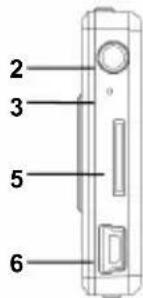
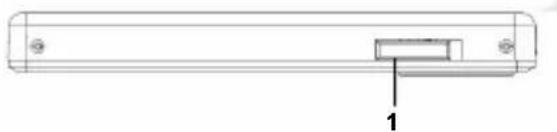
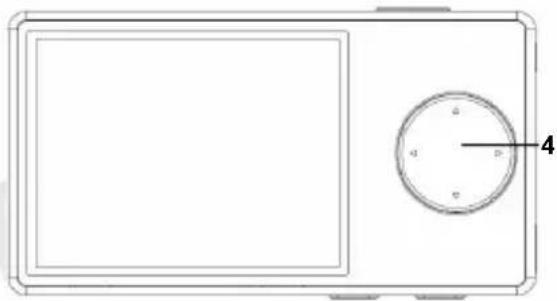
Player's appearance
- Power switch
- Earphone socket
- Microphone
- Directional buttons ▲▶▼◀
- microSD/SDHC card slot
- USB port
- M button
- PLAY button
natural_image
Technical line drawing of a rectangular electronic component with a labeled component (no text or symbols present)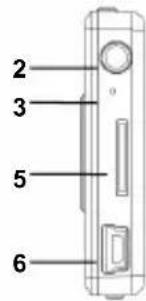
natural_image
Simple line drawing of a rectangular device with a circular button and a numbered label '4' (no text or symbols on the device itself)
Turning the player on
To turn the player on, you must move the power switch to ON position and, if display is not lit, hold PLAY button for 3 seconds. To turn the player off either hold PLAY button for 3 seconds or move the power switch to OFF position.
Buttons
All buttons have their main functions available at all times and functions which depend on current selected mode. In Settings menu user can select Screen orientation of buttons and display: for the right-handed or left-handed.
General
Power switch – Power on/off the player
PLAY (hold) – Turn on/off the player
M (hold) – Return to main menu.
Menus / file lists:
▼ / ▲ – Select menu/list item.
▶ / M / PLAY – Confirm selection.
◀ – Return to previous menu / parent folder.
◀ (in main menu during music playback) – return to Music mode.
Buttons lock
To lock player's buttons, please press M and PLAY buttons at the same time. When the key lock is active, a padlock icon appears in the upper right corner of the display.
To unlock player's buttons, move press M and PLAY buttons at the same time.
Navigation
Main Menu
Use ▼ and ▲ buttons to navigate through the main menu and press ▶ or M or PLAY to confirm selection.
Music Menu
Select Music in main menu to access Music menu in which you can choose playback criteria and other options: All songs – Play list of all music files in player's memory and inserted memory card. Files will be played in the same order as shown on this list. This order can be changed in Files sorted by menu.
All folders—Select folder and file to play. Playback will stop when last file from selected folder ends. MUSIC is the default folder for music files – press ◀ button to access parent folder.
Play Mode – Select order and repeat mode of play list playback:
- Repeat all songs – Play all files on the play list repeating them indefinitely.
- Play all songs once – Play all files on the play list in order one time.
- Shuffle all songs—Play all files on the play list in random order one time.
- Repeat one song – play one file repeating it indefinitely.
- Play one song once – Play one file one time.
EQ Selection – Select equalizer mode: Normal, Jazz, Pop, Rock, Classic, Vocal, Treble, Bass.
Background music – Select On, if you want to listen music in background (will be turned off in some modes).
Files sorted by – Select sorting criteria for All songs play list:
- File name – Files on play list are sorted by file name.
• Title – Files on play list are sorted by Title field in ID3 tags.
• Artist – Files on play list are sorted by Artist field in ID3 tags.
- Album – Files on play list are sorted by Album field in ID3 tags.
Vanquish ICER (P 5118)
- Disabled – Files on play list are sorted by folders in which they are located.
Update Music Library – In some cases, after uploading or deleting files and also after inserting memory card you should use this function to refresh audio files list. To update file list select this option, using ▼/▲ select OK and press M or PLAY. This operation may take some time so please be patient.
Buttons function in music playback screen are:
PLAY – Pause / resume playback.
◀ / ▶ – Previous / next audio file. Hold to rewind / fast forward current file.
▼ / ▲ – Volume control.
M – Return to file selection.
Lyrics Display
The player supports lyrics files In LRC format. Copy lyrics file to the folder with the corresponding music file and ensure that both filenames are identical (i.e. "vanquish.mp3" and "vanquish.lrc"). The lyrics will be displayed automatically when music file is being played. All songs which have a corresponding lyrics file, will be marked with a small LRC icon on All songs list.
Video Menu
This mode is used for playing video files. Supported file formats are AVI (max. resolution 624x352), RM / RMVB (max. resolution 624x352), FLV, 3GP, ASF and WMV. Note that large files will take longer to load than small ones. Select Video in main menu to access Video menu in which you can choose playback criteria and other options:
Video – Select folder and file to play. VIDEO is the default folder for video files – press ◀ button to access parent folder. If Resume playing option is On and selected video file was previously watched you can resume playback from last time by answering OK to Resume playing? question.
Show video duration – Select On to display current and total video times during playback or select Off to hide them. Resume playing – Select On if you want to be able to resume playback from last time for previously watched video file.
Vanquish ICER (P 5118)
Display mode – Select the screening format of a video file: Normal (play the video with no changes), Fit to screen (automatically re-size the video to fit top and bottom edge of the display), Full screen (watch as widescreen).
Buttons function in video file playback screen are:
PLAY – Pause / resume playback.
◀ / ▶ – Previous / next video file.
▼ / ▲ – Volume control.
M – Return to file selection.
Games Menu
Select Games in main menu to access Games menu in which you can choose one of three games to play:
Snake
In menu buttons
▼ / ▲ – Previous / next menu item.
M - Confirm selection.
M (hold) – Return to Games menu.
In game buttons
◀ / ▲ / ▶ / ▼ – Snake steering.
PLAY – Pause / resume game.
M (hold) – Return to Games menu.
Tetris
Descriptions of directional buttons (◀▲▶▼) in this game are based on how you see them when playing.
In menu buttons
▼ / ▲ – Previous / next menu item.
M - Confirm selection.
PLAY or M (hold) – Return to Games menu.
In game buttons
◀ / ▶ – Block steering.
▲ – Rotate block.
▼ – Drop block down.
PLAY – Pause / resume game.
M (hold) – Return to Games menu.
Block breaker
Descriptions of directional buttons (◀▲▶▼) in this game are based on how you see them when playing.
In menu buttons
◀ / ▶ – Select Sound at start, Change World in Choose Gate.
▼ / ▲ – Previous / next menu item.
M - Confirm selection.
PLAY or M (hold) – Return to Games menu.
In game buttons
◀/▶ – Paddle steering.
PLAY – Pause / resume game.
M - Launch ball.
M (hold) – Return to Games menu.
Graphics Menu
Select Graphics in main menu to access submenu in which you can choose Flash Animations mode or Photos mode.
Flash Animations
In this mode you can view SWF Flash animations. Note that not all SWF files are compatible with player.
Use ▼ / ▲ to select animation file you want to view and confirm selection by pressing ▶ or M or PLAY button or press ◀ to change folder.
Buttons function in animation playback screen are:
PLAY – Pause / resume playback.
◀ / ▶ – Previous / next animation file.
▼ / ▲ – Volume control.
M – Return to file selection.
Photos Mode
In this mode you can browse photos (JPG, BMP, GIF, PNG). Photo files must be placed in default PICTURE folder or its subfolders. All supported graphic files will be displayed as thumbnails. Use ◀ / ▲ / ▶ / ▼ to select photo file you want to view and confirm selection by pressing M. Press M on subfolder you want to browse or PLAY to return to parent folder or Graphics menu.
Buttons function in photo view screen are:
M – Picture submenu.
◀ / ▶ – Previous / next file.
▼ – Rotate current photo.
PLAY – return to file photo browser.
Photos submenu
Set as Music desktop – Set current photo as a background picture for Music playback screen.
Set as FM Radio desktop – Set current photo as a background picture for FM Radio screen.
Set as Recorder desktop – Set current photo as a background picture for Recording screen.
Set as eBook desktop – Set current photo as a background picture for eBook viewing screen.
Set as Main Menu desktop – Set current photo as a background picture for Main menu and its submenus.
Slideshow time – Select time after which next image will be displayed when Slide Show is enabled.
Start Slideshow / Close Slideshow – Begin / end slide show.
FM Radio Menu
Select Radio in main menu to access Radio menu in which you can set up and listen to the radio.
In this mode the earphones are used as antenna and they should be connected before the station tuning.
Listen to FM Radio – Select this option, to listen to the radio. During first run player will perform band scan.
Radio presets – List of saved radio stations from internal or external list (depends on option selected in Choose FM playlist). Press M, to listen or delete selected station.
Search for stations – Select Manaul search or Auto search, to perform scan and save all available presets. Stations are saved after whole band is scanned, which means that this scan must be performed and finished at least once.
Background music – Select On, if you want to listen to radio in background (will be turned off in some modes). This option must be set to On for FM recording.
Vanquish ICER (P 5118)
Presets list – Select which radio stations list you want to use. Internal list is saved during Update FM Playlist. External list is located in FM.ini file in root folder of player's memory. This file can be created in notepad or similar application and can be edited to suit your needs; i.e. If you want stations 88.00 88.10 88.60 and 89.80 to be on this list, the FM.ini file should look like this:
CH01=088000
CH02=088100
CH03=088600
CH04=089800
When using external list stored in FM.ini file you can add names of radio stations. If you do so, the names of radio stations will be displayed when listening to radio. In this case the FM.ini should look like this:
CH01=088000,MUSIC RADIO
CH02=088100, BBC
CH03=088600, NEWS
CH04=089800, VOA
Adjust signal - Select High, Middle or Low.
Stereo Switch – Select Yes to use stereo mode or No to use mono mode.
FM Region – Select region in which player will be used.
Buttons function in main screen:
◀ / ▶ – previous / next saved station.
▼ / ▲ – Volume control.
PLAY – Enable / disable fine tuning. When enabled, use ◀ / ▶ buttons to change frequency by 0.1MHz.
M – return to Radio menu.
Recorder Menu
Select Recorder in main menu to access Recorder menu in which you can change recording settings, record voice via a built-in microphone or from FM and listen to previously saved recordings. Recorded files are named VOCxxxx.mp3 for voice record and FMVOCxxxx.mp3 for FM record.
Start recording – Enter voice recording mode.
Play recording – Enter recorded files playback mode. This mode uses Play Mode and EQ Select settings from Music menu.
Record current Radio station – Enter FM recording mode. Radio must be active in background.
Record quality – Select quality of recorded files: Low, Middle or High.
Buttons functions in recording modes are:
PLAY – Start recording.
PLAY / ◀ / M (hold) – While recording – stop recording, save file and return to Recorder menu.
Buttons functions in playback mode are:
PLAY – Pause / resume playback.
◀ / ▶ – Previous / next audio file. Hold to rewind / fast forward current file.
▼ / ▲ – Volume control.
M – Return to file selection.
eBook Menu
Select eBook in main menu to access eBook menu in which you can read TXT files.
Buttons function in file view screen are:
M - E-Book submenu.
▼ / ▲ – Scroll text up / down one line.
◀ / ▶ – Scroll text up / down one page.
PLAY – Return to file selection screen.
eBook submenu
Scrolling speed – Select speed of smooth text scrolling. To disable this function press M.
Bookmarks – Bookmarks management:
- Set x Bookmark – Save bookmark for current page in selected position.
- Go to x Bookmark – Jump to bookmark saved on x position.
Auto page-turning – Select time after which next page will be displayed. To disable this function enter eBook submenu.
Explorer Menu
This mode is a file browser. Select a file and press M to display menu for this file. If file is supported by player you can select to open this file in appropriate mode or delete it. If file is not supported you can only delete file.
Settings Menu
System Set menu is used to configure various player functions.
System information – Displays information about player.
Desktops – Select one of predefined visual themes.
Display
- Brightness – Select display brightness.
- Fonts colour – Change Main Menu font colour.
- System desktops – Change background images to default.
eBook font size – select Large or Small font for eBook
Lighting time – Select idle time after which backlight will be turned off.
Auto power off – Select idle time after which player will be turned off.
Language – Select player interface language.
Screen orientation – Select orientation of display and buttons for the right- or left-handed.
Default setting – Restore player's settings to factory defaults.
Firmware upgrade
NOTE:
- The firmware upgrade is meant to improve and optimize the performance of the player. The normal work of the player will not be affected even if the firmware isn't upgraded. The wrong operation of upgrading firmware would cause the device not to work normally!
- Before firmware upgrade we recommend you to backup the files stored inside the player's memory. Files may be erased during the upgrade procedure. PENTAGRAM Europe cannot be held responsible for any data loss.
• Make sure that you use only the genuine PENTAGRAM firmware for upgrading this player. You can download the latest firmware from www.pentagram.eu/support - Do not turn off player while the firmware upgrade procedure is in progress. This may cause a critical malfunction.
- Make sure that battery is charged before upgrade process.
Follow this steps to upgrade player's firmware:
- Download latest Firmware from www.pentagram.eu/support
- Connect the player to PC.
- Go to the disk of the player.
- Decompress the Firmware archive file.
- Copy all firmware files to root directory of the player.
- Disconnect the player from PC.
- Turn off player.
- Hold ▶ button, and turn player on.
-
Release ▶ button and wait until Firmware is updated.
-
Player's firmware will be upgraded and player will be restarted after the process.
Vanquish ICER (P 5118)
Same Firmware version message means that the current and new firmware versions are the same. Upgrade file is broken message means incorrect or corrupted firmware file.
Troubleshooting
If you experience any of the following difficulties in using player, use the following guide for help. Should any problem persist, please visit www.pentagram.eu/support and eventually contact PENTAGRAM Customer Service.
| Symptoms Possible cause | Solution | |
| Fail to power on | Low battery Charge the battery | |
| Power off shortly after power on | ||
| No sound output | The volume is set to 0 Turn up the volume | |
| Earphones not connected properly Connect earphone correctly | ||
| Buttons doesn’t work Player | is stuck Restart player. | |
| Fail to connect with the computer | USB cable isn’t connected correctly | Connect USB cable correctly |
| Fail to copy files | Your system doesn’t meet player’s requirements | Upgrade your system to meet the requirements |
| Can’t recording | Low battery Charge battery | |
| Space insufficient Delete some files | ||
Specification
* specification may be changed without prior notice
| Function Description | ||
| Chipset | Ingenic JZ4740 | |
| Dimensions 86 x 46 x 9,5 mm (W x H x D) | ||
| Weight | ~ 54g | |
| Display TFT LCD 2,4" 320x240 (QVGA) | ||
| Power supply built-in Li-Poly | ||
| Working time Music: ~10h (power saving) Video: ~6h (power saving) | ||
| Radio FM | Frequency:China, Europe, U.S.AJapan | 87MHz – 108MHz76MHz – 90MHz |
| Preset stations 30 | ||
| Supported files | Music MP3, WMA, APE, FLAC, WAV | |
| Video AVI, RM, RMVB, FLV, ASF, 3GP, WMV | ||
| Text | TXT | |
| Photo JPG, BMP, GIF, PNG, SWF Flash animations | ||
| Sound enhancements Equalizer (8 predefined modes) | ||
| Max. output power 15mW in left and right | ||
| SNR | 95dB | |
| Frequency 20Hz ~ 20kHz | ||
| Distortion | < 0,1% | |
| Working temperature | 5°C~40°C | |
| Data transfer | PC with available USB port | |
| Operating system | Windows Me / 2000 / XP / Vista | |

Instrukcja obsługi
VANQUISH ICER

PENTAGRAM
THE PERFECT SIMPLICITY
natural_image
Abstract geometric pattern with interlocking triangles (no text or symbols)PL - 2
Wprowadzenie
natural_image
Technical line drawing of a rectangular electronic component with a labeled component (no text or symbols present)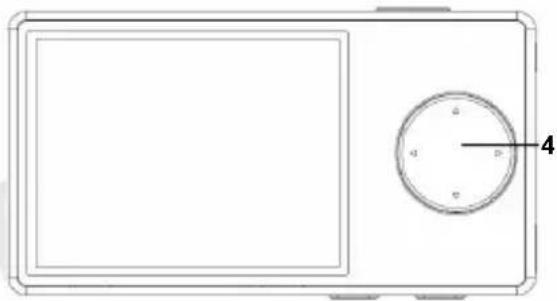
natural_image
Simple line drawing of a rectangular device with a circular button and a numbered label '4' (no text or symbols on the device itself)