Eon FROST P 5121 - Mp3 player Pentagram - Free user manual and instructions
Find the device manual for free Eon FROST P 5121 Pentagram in PDF.


| Product Type | MP3 Player |
| Brand | Pentagram |
| Model | Eon FROST P 5121 |
| Dimensions | 4.2 x 2.1 x 0.5 inches |
| Weight | 1.2 oz (34 g) |
| Power Source | Built-in rechargeable lithium-ion battery |
| Battery Life | Up to 12 hours audio playback |
| Internal Memory | 8 GB |
| Expandable Storage | microSD card slot (up to 32 GB) |
| Display | 1.8-inch color LCD screen |
| Audio Formats | MP3, WMA, WAV |
| FM Radio | Yes, with presets |
| Voice Recording | Yes, built-in microphone |
| Connectivity | USB 2.0 |
| Headphone Jack | 3.5 mm |
| Equalizer Presets | Rock, Pop, Jazz, Classical, Normal |
| Playlist Support | Yes (M3U format) |
| Included Accessories | Earphones, USB cable, User Manual |
| Safety Precautions | Keep away from water and extreme temperatures. Avoid dropping. |
| Maintenance | Clean with a soft, dry cloth. Do not use solvents. |
| Spare Parts & Repairability | Battery not user-replaceable. USB cable replaceable. No other user-serviceable parts. |
| General Information | Personal audio entertainment device with playback, radio, and recording functions. |
Frequently Asked Questions - Eon FROST P 5121 Pentagram
User questions about Eon FROST P 5121 Pentagram
0 question about this device. Answer the ones you know or ask your own.
Ask a new question about this device
Download the instructions for your Mp3 player in PDF format for free! Find your manual Eon FROST P 5121 - Pentagram and take your electronic device back in hand. On this page are published all the documents necessary for the use of your device. Eon FROST P 5121 by Pentagram.
USER MANUAL Eon FROST P 5121 Pentagram
PENTAGRAM Eon FROST [P 5121]
Instrukcja obsługi
PL
Instruction Manual
EN

natural_image
Abstract geometric pattern with yellow triangles inside a square frame (no text or symbols)PENTAGRAM THE PERFECT SIMPLICITY
Instrukcja obsługi
PL
PL
PENTAGRAM Eon FROST [P 5121]
TRYB DYK TAFON....19
TRYB GRY....20
TRYB EKSPLORATOR....21
TRYB USTAWIENIA....22
IKONA JASNOŚĆ....22
IKONA MOTYW....22
ROZWIAZYWANIE PROBLEMÓW....23
Ważne informacje
Środki ostrożności
natural_image
Symbol of a trash bin crossed out by two crossed lines, with no text or labels present.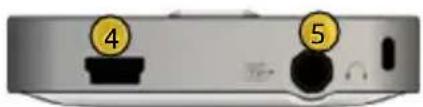
PENTAGRAM Eon FROST [P 5121]
Navigacja

Tryb Film
PL
Przyciski
natural_image
Colorful abstract spheres with floating bubbles on a white background (no text or symbols)
PENTAGRAM Eon FROST [P 5121]
Menu trybu Radio
PENTAGRAM Eon FROST [P 5121]
Tryb Eksplorator
Tryb Ustawienia
natural_image
Abstract geometric pattern with yellow triangles inside a square frame (no text or symbols)PENTAGRAM THE PERFECT SIMPLICITY
Instruction Manual
EN
EN
PENTAGRAM Eon FROST [P 5121]
The latest versions of manual, drivers and applications are available on www.pentagram.eu .
PENTAGRAM Eon FROST [P 5121]
EN
Table of contents
IMPORTANT INFORMATION......4
SAFETY PRECAUTIONS......4
INFORMATION CONCERNING WASTE ELECTRONIC EQUIPMENT....4
INTRODUCTION....5
PACKAGE CONTENTS....5
BATTERY CHARGING....6
CONNECTING TO COMPUTER....6
MEMORY CARD....7
FIRMWARE UPGRADE....7
OPERATING THE DEVICE....8
DEVICE OVERVIEW....8
BUTTONS....8
NAVIGATION....10
MOVIE MODE....11
MUSIC MODE....13
EBOOK MODE....15
PHOTO MODE....16
FM RADIO MODE....17
RECORDER MODE....19
GAMES MODE....20
EXPLORER MODE....21
SETTINGS MODE....22
BRIGHTNESS ICON....22
THEME ICON....22
TROUBLESHOOTING....23
Important information
Safety precautions
• Do not use or store the device in dusty places, where the humidity is high or in extreme temperatures.
- Do not allow moisture or other objects inside the device;
• Do not operate the device with wet hands to avoid the risk of device damage or electric shock.
- Do not clean the device with chemicals, such as benzine or detergents - always clean the device with a soft, dry cloth.
- Disconnect the device from the computer and any other power source prior to cleaning.
- Do not modify or fix the device yourself in any way, it will violate the guarantee.
- Do not drop or shake the device.
- Do not disconnect the device from the computer during data transfer to prevent permanent data loss.
- Files and data stored on player's memory are, like any other files, susceptible to corruption and loss. Make backup copies if necessary.
EN
Information concerning waste electronic equipment
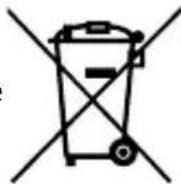
The markings on the device and in the attached documentation indicate that it cannot be disposed of along with unsegregated general black bag waste when withdrawn from use. The device must be recycled or processed in another way to recover reusable materials and neutralize hazardous components.
The users should contact recycling/recovery authorities to determine how the device is to be disposed of in an environment-friendly manner.

NOTE: All information and technical data is subject to change without previous notice and/or indication in this manual.
Copyright ©2011 PENTAGRAM
All rights reserved; copying and reproduction is strictly forbidden.
Introduction
Thank you for purchasing PENTAGRAM Eon FROST [P 5121]. This player is an advanced type of a portable digital multimedia player. It can play various types of music files and videos including subtitles. Additional key features include TV-Out, voice recording, FM radio, FM recording, photo album, games and eBook TXT files reader. Its is also equipped in a built-in microSD/SDHC card reader.
Package contents
- PENTAGRAM Eon FROST [P 5121]
- Earphones
- USB cable
- Instruction Manual
- Power USB charger
- Car USB charger
- Velvet carrying pouch
- Soft wipe cloth
- TV Out Cable
If any of the package contents are missing, please contact your vendor.
PENTAGRAM Eon FROST [P 5121]
Battery charging
When you start using the player, please fully charge and discharge the battery few times to ensure maximum battery life and power capacity.
In the top right corner of the display (in most modes), a battery charge indicator is visible. If the indicator is filled - the battery is fully charged, if it's empty - battery is almost discharged and must be charged as soon as possible. During the charging process, from source other than computer, the indicator changes its appearance or full screen animation is displayed (to exit this animation press any button).
To charge the battery:
- connect the player to computer's USB port, or
- connect the player to a power outlet via power USB charger, or
- connect the player to a car lighter socket via car USB charger
NOTE: Use only USB chargers supplied with the device. Using other chargers may cause device damage, which warranty will not covers.
Connecting to computer
EN
The player has a USB 2.0 High Speed interface, and is compatible with USB mass storage device class. This means that the player is compatible with every operating system with included unified drivers for this class, for example: Windows Me/2000 and newer, Linux 2.4 and newer, Mac OS 9 and newer. Considering transfer speed it's recommended to use operating system with full support for USB 2.0 standard, for example: Windows XP SP1 and newer, Linux 2.6 and newer, Mac OS 10.3 and newer. After connecting player to the computer, it will be automatically detected, installed and ready to use after few seconds.
Before unplugging player physically from the computer, it's recommended to use USB safe removal function of the operating system.
Memory card
Insert the memory card into the device in such a way so that when looking at the screen, the card label is visible. When looking at the back casing of the device, the card connectors are visible. Press the card into the slot till quiet click is heard, which means that card is in it's place.
To remove the card from the device, press the card (till quiet click can be heard) so that it gently slides out, and then pull it out. Prior to removing the card, make sure that it is not used by the player and that no files are being transferred from/to the card.
NOTE: Removing the card when it is in use can cause data loss or corruption.
Firmware upgrade
NOTE:
- The firmware upgrade is meant to improve and optimize the performance of the player. In most cases, firmware upgrade is not necessary for proper player operation. Incorrectly performed firmware upgrade can cause the device not to work properly! The firmware upgrade software for this player is not meant for other PENTAGRAM players.
It's recommended to backup all data stored in player's memory prior to firmware upgrade. In some cases files may be erased during the upgrade procedure. PENTAGRAM Europe cannot be held responsible for any data loss.
• Make sure that you use only the genuine PENTAGRAM firmware dedicated for your player model for upgrading. You can download the latest firmware from www.pentagram.eu website. - Do not disconnect the player from your computer while the firmware upgrade procedure is in progress. This may cause a critical malfunction.
• Make sure that battery is charged before upgrade process.
Newest firmware for the player, along with upgrade instructions and necessary application (if applicable), is available for download at www.pentagram.eu/support web site.
PENTAGRAM Eon FROST [P 5121]
Operating the device
Device overview
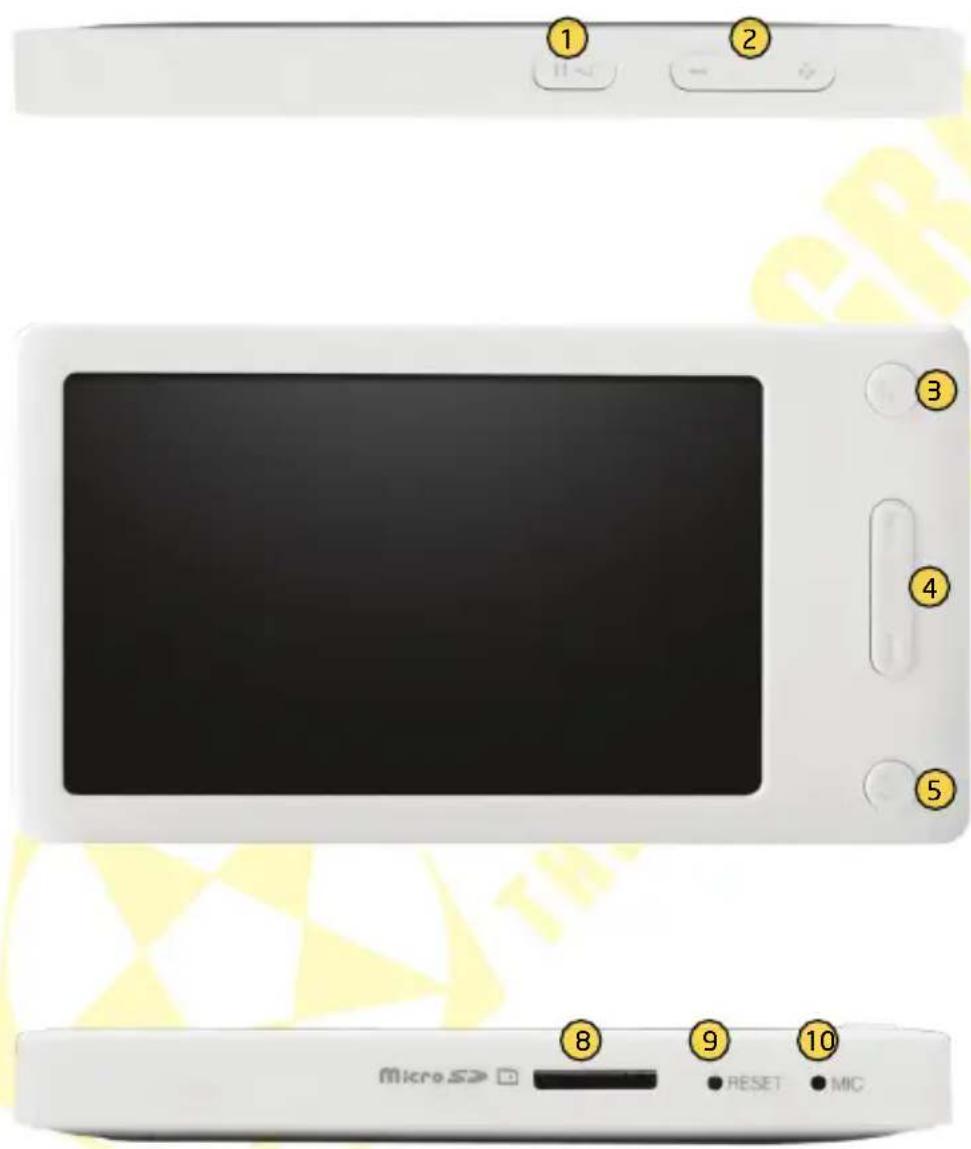
1 button
② - and + buttons
3 M button
4 ! and " buttons
⑤ - button
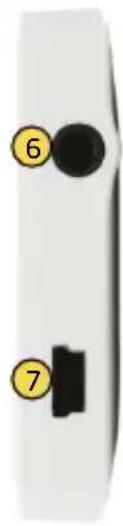
6 Earphone socket / TV Out
7 miniUSB socket
⑧ microSD card slot
9 RESET button
10 Microphone
EN
Buttons
Used in this manual term press relates to press and immediate release of the button. Term hold relates to press and release the button after about 2-3 seconds.
General
(hold) - turning player on or off.
- and + - decreasing or increasing (respectively) volume.
RESET - emergency reboot of the device.
- (hold) - return to main menu.
- (press in main menu) - main menu fold and unfold.
Menus and file lists
! and " - select menu or file list item.
M - selection confirmation.
- (press) - return to parent menu or directory.
8
PENTAGRAM Eon FROST [P 5121]
natural_image
Close-up of a white electronic device with two circular buttons labeled 6 and 7, no visible text or symbols beyond labelsEN
PENTAGRAM Eon FROST [P 5121]
Navigation
After powering the device on, main menu will be displayed, which allows navigation through different work modes. By default, main menu is folded and only visible icons are Movie [Film], Music [Muzyka] and eBook [eBook]. To show or hide rest of the icons press - button. Buttons ! and " can be used to select main menu item and M button confirms selection.
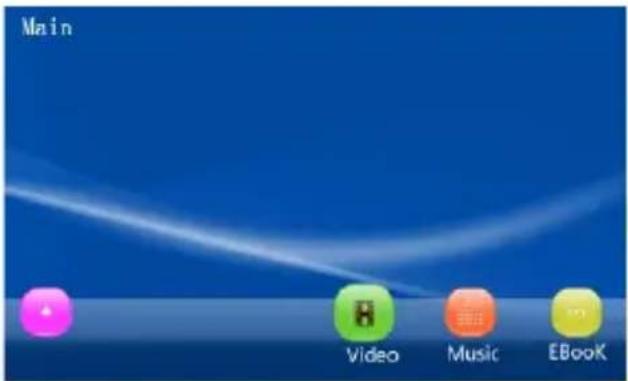
folded menu
unfolded menu
EN
Player supports multilingual user interface. If main menu of the player is displayed in Polish, perform following steps to change interface language to English:
- In main menu select Ustawienia option.
- In Ustawienia menu select Język option.
- In Jezyk menu select English option.
Movie mode
After selecting icon of this mode in device's main menu, explorer menu will be displayed, allowing selection of video file to be played. Selecting the file will bring up main Movie mode screen. If selected file was previously played, player will allow you to resume it from last known position.
Main screen
1 Name of played file
② Volume level
3 Playback status
4 File playback progress bar
5 Current playback time
6 Current file / total files
7 Current file length
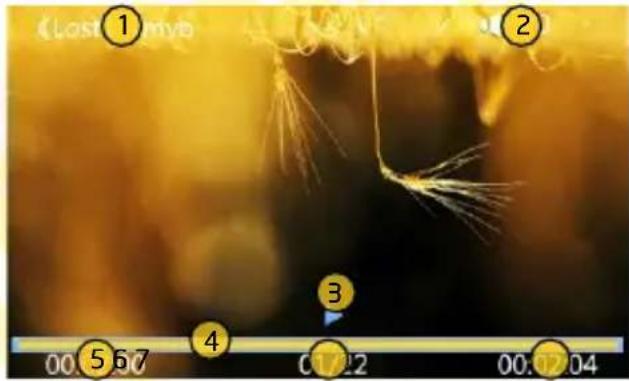
After few seconds of playback, player will enter full-screen mode. Press any button, to leave full-screen. Button related function will be performed, so use of volume control buttons + and - is recommended.
EN
Buttons
- start, pause or resume playback.
! and " (press) - jump to previous or next (respectively) file.
! and " (hold) - rewind or fast forward (respectively) currently played file.
M - show Movie mode menu.
PENTAGRAM Eon FROST [P 5121]
Movie mode menu
Play mode - allows to change of video files playback and repeat mode:
- Play once – plays selected file without repeat.
- Repeat one – repeats selected file.
- Repeat all - repeats all files from current directory.
- Order – plays all files from current directory without repeat.
- Random - plays all files from current directory in random order.
Image ratio - allows to scale of played video files:
• 4:3 - scaling to 4:3 ratio.
• 16:9 - scaling to 16:9 ratio.
• Original- using original file ratio.
Information - displays information about currently played file. Image sharpness - allows to enable or disable video enhancement:
• Very sharp - large image sharpening.
- Sharp - small image sharpening.
- Normal - no change.
- Soft - small image blur.
• Very soft - large image blur.
Subtitle - allows to enable or disable subtitles display.
Subtitle list – allows to select subtitles (only built-in subtitles for certain formats).
EN
Subtitles display
Player supports displaying of the subtitles along with played video file. This function is supported for video files containing built-in subtitles or video files without built-in subtitles via external subtitles file. Only .srt format is supported and subtitles file must have the same filename as video file, e.g. pentagram.aviand pentagram.srt. If video file has both internal and external subtitles, only external ones will be used.
Music mode
After selecting icon of this mode in device's main menu, explorer menu will be displayed, allowing selection of audio file to be played. Selecting the file will bring up main Music mode screen.
File explorer and media library
In Music mode, file explorer and media library allows selection of file and playback criteria. Selecting file from directory or category will play all files from selected directory or category, starting with selected file. E.G. selecting file from Genre > Rock category will play all files, which ID3 tag field Genre is set to Rock.
Media Library - media library indexes all files on player internal memory, increasing performance of the Music mode. Media library allows selection of the playback criteria basing on selected ID3 tag and its value.
Media Library Update - after every connection of the player to the computer or copying files to player internal memory, media library update is required.
Last played - opens main Music mode screen resuming previously played file. After device's power cycle this option may be not available.
Now playing - opens main Music mode screen without changing currently played file or playback criteria. Internal memory / External memory - Allows selection of the file to play from directory on player internal memory or on memory card (respectively).
Main screen
① Volume level
② Battery indicator
3 Current file ID3 tags (artist, album, track name)
4 Spectrum analyzer or lyrics display field
5 Selected play mode
6 Playback status
7 Selected equalizer mode
8 File playback progress bar
9 Current playback time
10 Current file / total files
11 Current file length
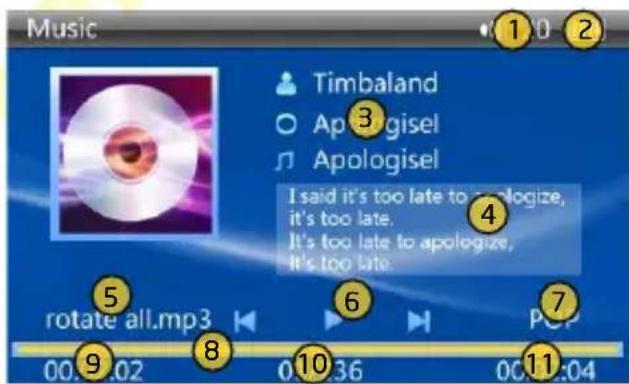
EN
PENTAGRAM Eon FROST [P 5121]
Buttons
- start, pause or resume playback.
! and " (press) - jump to previous or next (respectively) file.
! and " (hold) - rewind or fast forward (respectively) currently played file.
M - show Music mode menu.
Music mode menu
EQ - allows to select one of equalizer presets: Natural, Pop, Classic, Jazz, Rock, Soft or DBB (Dynamic Bass Boost). Play mode - allows to change audio files playback and repeat mode:
- Play once – plays selected file without repeat.
- Repeat one - repeats selected file.
- Repeat all - repeats all files from current directory/category.
- Order – plays all files from current directory/category without repeat.
- Shuffle – plays all files from current directory/category in random order.
Information - displays information about currently played file.
Lyric color - allows to change background and text colors for lyrics display field.
Set rating – allows to set "rating" for current file. Rating is used as one of the playback criteria in media library.
EN
Lyrics display
Player supports displaying of the lyrics along with played audio file. Only .lrc format is supported and lyrics file must have the same filename as audio file, e.g. pentagram.mp3 and pentagram.lrc.
eBook mode
After selecting icon of this mode in device's main menu, explorer menu will be displayed, allowing selection of text file to be displayed. Selecting the file will bring up main eBook mode screen. If selected file was previously opened, player will allow you to resume it from last known position.
Main screen
① Auto scrolling status
② Current position in file (progress bar)
3 Current position in file (percentage)
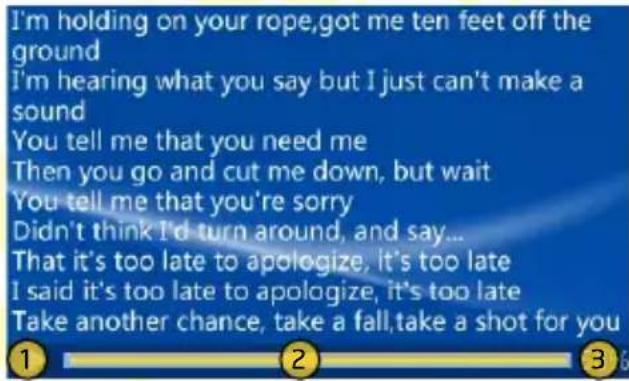
Buttons
- start or stop auto scrolling (if it's not disabled in mode menu). When auto scrolling is enabled, other buttons are disabled.
! and " (press) - previous or next (respectively) page.
! and " (hold) - rewind or fast forward (respectively) currently opened file.
M - show eBook mode menu.
eBook mode menu
Auto-scroll - allows to change page display time in auto scrolling or to completely disable auto scrolling.
Screen - allows to change text orientation.
Add bookm. - allows to save current position as bookmark.
Open bookm. - allows to load bookmark with previously saved position.
Font size - allows to select font size for eBook mode.
Font color - allows to select font color for eBook mode.
Animation – allows to enable or disable page change animation.
PENTAGRAM Eon FROST [P 5121]
Photo mode
After selecting icon of this mode in device's main menu, explorer menu will be displayed, allowing selection of image file to be displayed. Selecting the file will bring up main Photo mode screen.
Buttons
Without zoom in/out
- start or stop slide show (if it's not disabled in mode menu). When slide show is enabled, other buttons are disabled.
! and " (press) - jump to previous or next (respectively) file.
! and " (hold) - fast browse of previous or next (respectively) files.
M - show Photo mode menu.
With zoom in/out
! and " - displayed file vertical scrolling.
- and + - displayed file horizontal scrolling.
-- exit zoom in/out.
EN
Photo mode menu
Slide show - allows to change file display time in slide show or to completely disable slide show.
Effect - allows to disable or select file change effect.
Order - allows to select change file order in slide show.
Information - displays information about currently opened file.
Zoom - allows to enable zoom in or zoom out of the current file.
Rotate - allows to rotate currently opened file.
Set wallpaper – sets opened file as a background of the current color theme.
FM Radio mode
After selecting icon of this mode in device's main menu, mode selection menu will be displayed. Selecting the mode will bring up main FM Radio mode screen. Before using radio, make sure that earphones are properly connected, as they also work as radio antenna.
Mode selection menu
FM radio can work in four modes divided into two groups:
- FM receive group - modes in this group are used for searching radio stations:
- Fine tuning – allows manual station searching.
- Auto search - allows automatic station searching and saving radio stations. Previously saved stations will be deleted.
- Saved channels group - modes in this group are used mainly for radio station listening. Choosing this mode allows selection of previously saved radio station.
- Channel – allows to listening to previously saved stations.
- Scan Mode - allows quick scanning of stations with strong signal.
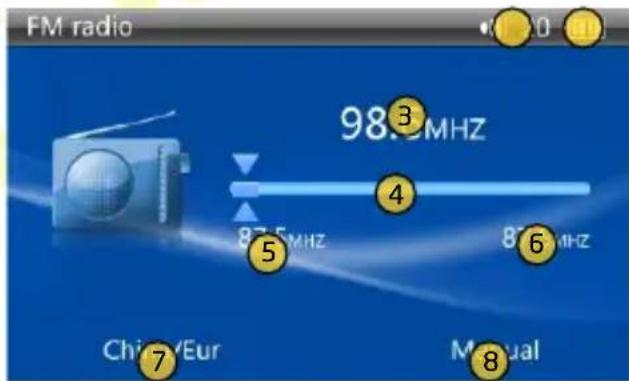
Main screen
1 1 Volume level
② Battery indicator
③ Current frequency
4 Graphical representation of band and frequency
5 Beginning of the band (frequency)
6 Ending of the band (frequency)
7 Selected radio region or saved station ID
8 Radio work mode
EN
Buttons
! and " (Fine tuning) - changing current frequency by 0,1MHz.
! and " (Channel) - selecting previous or next (respectively) saved station.
! and " (Manual search) - scanning for previous or next (respectively) station with strong signal.
M - show FM Radio mode menu.
PENTAGRAM Eon FROST [P 5121]
FM Radio mode menu
Fine tuning (FM receive group) - enable Fine tuning mode, allowing manual station search.
Auto search (FM receive group) - enable Auto search mode, allowing manual station search.
Mode (Saved channels group) - selection of Channel mode, allowing station changing or Manual search mode, allowing scanning for radio stations with strong signal.
Stereo (Saved channels group) - allows to enable or disable stereo reception.
Save channel - allows to save current frequency on station list.
Delete channel – allows to delete selected position from station list.
Recorder mode
After selecting icon of this mode in device's main menu, Recorder mode selection menu will be displayed.
Mode selection menu
- Recording – selecting this option will bring up main Recorder mode screen.
- Playback - selecting this option will allow to select previously saved recording in the Music mode.
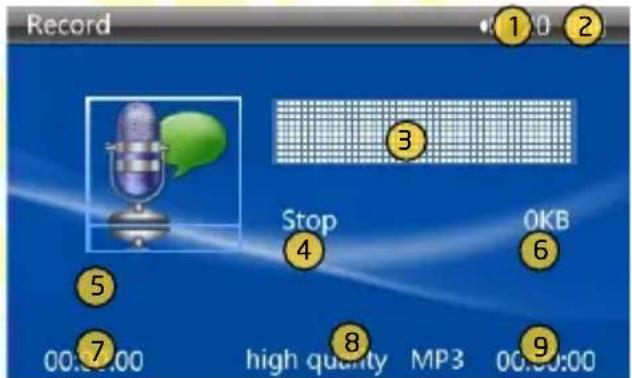
Main screen
① Volume level
② Battery indicator
3 Current volume level of the recording
4 Recording state
5 Name of the currently recording file
6 Current size of the currently recording file
7 Duration of the currently recording file
8 Quality and format of recorded files
9 Remaining recording time for selected quality
EN
Buttons
- start, pause or resume recording.
- (recording in progress) - stop the recording.
- (recording stopped) - save and exit to mode selection menu.
M (recording stopped) - change of the record quality.
PENTAGRAM Eon FROST [P 5121]
Games mode
After selecting icon of this mode in device's main menu, game selection menu will be displayed. Selecting the game will bring up its main menu.
Gomoku game (Chess game)
Gomoku is game similar to European Tic-tac-toe game, in which Go game stones and similar board are used. To win in Gomoku player must place five stones in straight line (vertical, horizontal, diagonal). Device allows two player game or one player with computer game with three difficulty levels.
In-game buttons
!, ", - and + - selecting field for stone placement. M - placing the stone at selected field.
Mosaic game (Pic block)
Mosaicis puzzle game in which neighboring pieces are moved into empty slot so that image is completed. Player allows selecting one of five images and one of six difficulty levels (pieces number).
In-game buttons
!, ", - and + - image pieces moving.
Explorer mode
After selecting icon of this mode in device's main menu, file explorer menu will be displayed, allowing selection of supported file to be opened in corresponding mode. Other operations on files and directories are also possible.
After selecting file or folder with M button, menu for this item will appear:
Open (directory) - opens selected directory.
Open (file) - opens selected file in corresponding mode. Icon I is shown for not supported files.
Delete - deletes selected file or directory.
Copy - copies selected file or directory.
Paste - pastes copied file or directory to selected directory.
PENTAGRAM Eon FROST [P 5121]
Settings mode
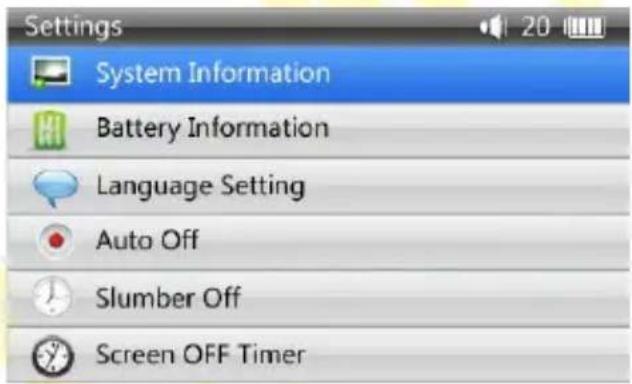
After selecting icon of this mode in device's main menu, settings menu will be displayed. This menu allows to
preview and change of various player settings.
System information - displays information about device, software and memory.
Power - displays information about charging and battery status.
Language - allows to change menu language.
Power off time (idle) - allows to set idle time (user and player), after which device will be automatically turned off.
Power off time (unconditional) - allows to set time, after which device will be automatically turned off.
Display off time - allows to set user idle time, after which device's display will be automatically turned off.
Buttons sounds - allows to enable or disable button sounds.
Brightness - allows to select one of five brightness levels of the device's display.
Audio/video output - allows to configure and enable of the TV-Out:
- Device type - allows to select device used for display:
• Monitor - device's display.
• TV - receiver connected to device's TV-Out.
- TV Format - allows to select image format used by receiver connected to device's TV-Out: NTSC (mainly Japan and United States) or PAL (most of the world).
Default settings - allows to restore player settings to default (factory) values.
EN
Brightness icon
After selecting this item in device's main menu, device's display brightness will be changed. Five brightness levels are available to choose from.
Theme icon
After selecting this item in device's main menu, color theme will be changed. Three themes are available to choose from.
Troubleshooting
If you experience any of the following difficulties in using player, use the following guide for help. Should any problem persist, please visit www.pentagram.eu and eventually contact PENTAGRAM Customer Service.
| Symptoms Possible cause Suggested solution | ||
| Fails to turn on | Low battery Charge battery | |
| Turns off shortly after switched on | ||
| No sound | The volume set at 0 Turn up the volume | |
| Earphones not connected properly Connect the earphones correctly | ||
| Buttons doesn’t work The player is stuck | Press RESET button to perform emergency reboot of the device | |
| Fail to connect with the computer | USB Cable isn’t connected correctly Connect USB Cable correctly | |
| Fail to copy files | Not enough free space Delete some files | |
| System doesn’t meet the requirements | Upgrade your system to meet requirements | |
| Flash memory error Format player’s memory and try again | ||
EN

natural_image
Abstract geometric pattern with yellow triangles inside a square frame (no text or symbols)PENTAGRAM THE PERFECT SIMPLICITY

natural_image
Abstract geometric pattern with yellow triangles inside a square frame (no text or symbols)PENTAGRAM THE PERFECT SIMPLICITY

natural_image
Abstract geometric pattern with yellow triangles inside a square frame (no text or symbols)PENTAGRAM THE PERFECT SIMPLICITY