
TRAVELMATE 5742ZG - Laptop ACER - Free user manual and instructions
Find the device manual for free TRAVELMATE 5742ZG ACER in PDF.
 FR
FR
 BG
BG
 CS
CS
 DA
DA
 DE
DE
 EL
EL
 EN
EN
 ES
ES
 ET
ET
 FI
FI
 HU
HU
 ID
ID
 IT
IT
 JA
JA
 KO
KO
 LT
LT
 LV
LV
 NL
NL
 NO
NO
 PL
PL
 PT
PT
 RO
RO
 RU
RU
 SK
SK
 SL
SL
 SV
SV
 TR
TR
 ZH
ZH
| Product type | Laptop |
| Brand | Acer |
| Model | TravelMate 5742ZG |
| Display | 16:9 LCD screen (depending on model) |
| Battery | Rechargeable lithium-ion |
| Power supply | AC adapter 100-240 V AC |
| Network connectivity | Ethernet RJ-45, V.92 56 Kbps modem |
| USB ports | USB 2.0 |
| IEEE 1394 port | Yes (depending on model) |
| HDMI port | Yes (depending on model) |
| ExpressCard slot | ExpressCard/54 or /34 |
| Optical drive | DVD drive (depending on model) |
| Audio | 32-bit HD audio, built-in speakers, Acer PureZone (depending on model) |
| Touchpad | Touchpad with left and right buttons (fingerprint reader depending on model) |
| Security | Kensington lock slot, BIOS passwords, Acer Bio-Protection fingerprint reader (depending on model) |
| Operating system | Windows (pre-installed) |
| Recovery tools | Acer eRecovery Management, disk-to-disk recovery |
| Warranty | International Travelers Warranty (ITW) |
| Maintenance | Soft, slightly damp cloth, no liquids |
Frequently Asked Questions - TRAVELMATE 5742ZG ACER
User questions about TRAVELMATE 5742ZG ACER
0 question about this device. Answer the ones you know or ask your own.
Ask a new question about this device
Download the instructions for your Laptop in PDF format for free! Find your manual TRAVELMATE 5742ZG - ACER and take your electronic device back in hand. On this page are published all the documents necessary for the use of your device. TRAVELMATE 5742ZG by ACER.
USER MANUAL TRAVELMATE 5742ZG ACER
TravelMate Series Notebook PC
Model number: ____
Serial number: ____
Date of purchase: ____
Place of purchase: ____
Information for your safety and comfort
Safety instructions
Read these instructions carefully. Keep this document for future reference. Follow all warnings and instructions marked on the product.
Turning the product off before cleaning
Unplug this product from the wall outlet before cleaning. Do not use liquid cleaners or aerosol cleaners. Use a damp cloth for cleaning.
CAUTION for plug as disconnecting device
Observe the following guidelines when connecting and disconnecting power to the power supply unit:
Install the power supply unit before connecting the power cord to the AC power outlet.
Unplug the power cord before removing the power supply unit from the computer.
If the system has multiple sources of power, disconnect power from the system by unplugging all power cords from the power supplies.
CAUTION for Accessibility
Be sure that the power outlet you plug the power cord into is easily accessible and located as close to the equipment operator as possible. When you need to disconnect power to the equipment, be sure to unplug the power cord from the electrical outlet.
CAUTION for bundled dummy cards (only for certain models)
Your computer shipped with plastic dummies installed in the card slots.
Dummies protect unused slots from dust, metal objects or other particles. Save the dummies for use when no cards are in the slots.
CAUTION for Listening
To protect your hearing, follow these instructions.
- Increase the volume gradually until you can hear clearly and comfortably.
- Do not increase the volume level after your ears have adjusted.
- Do not listen to music at high volumes for extended periods.
- Do not increase the volume to block out noisy surroundings.
• Decrease the volume if you can't hear people speaking near you.
Warnings
• Do not use this product near water.
- Do not place this product on an unstable cart, stand or table. If the product falls, it could be seriously damaged.
- Slots and openings are provided for ventilation to ensure reliable operation of the product and to protect it from overheating. These openings must not be blocked or covered. The openings should never be blocked by placing the product on a bed, sofa, rug or other similar surface. This product should never be placed near or over a radiator or heat register, or in a built-in installation unless proper ventilation is provided.
- Never push objects of any kind into this product through cabinet slots as they may touch dangerous voltage points or short-out parts that could result in a fire or electric shock. Never spill liquid of any kind onto or into the product.
- To avoid damage of internal components and to prevent battery leakage, do not place the product on a vibrating surface.
- Never use it under sporting, exercising, or any vibrating environment which will probably cause unexpected short current or damage rotor devices, HDD, Optical drive, and even exposure risk from lithium battery pack.
- The bottom surface, areas around ventilation openings and AC adapter may get hot. To avoid injury, ensure they do not come in contact with your skin or body.
- Your device and its enhancements may contain small parts. Keep them out of the reach of small children.
Using electrical power
- This product should be operated from the type of power indicated on the marking label. If you are not sure of the type of power available, consult your dealer or local power company.
- Do not allow anything to rest on the power cord. Do not locate this product where people will walk on the cord.
- If an extension cord is used with this product, make sure that the total ampere rating of the equipment plugged into the extension cord does not exceed the extension cord ampere rating. Also, make sure that the total rating of all products plugged into the wall outlet does not exceed the fuse rating.
- Do not overload a power outlet, strip or receptacle by plugging in too many devices. The overall system load must not exceed 80% of the branch circuit rating. If power strips are used, the load should not exceed 80% of the power strip's input rating.
- This product's AC adapter is equipped with a three-wire grounded plug. The plug only fits in a grounded power outlet. Make sure the power outlet is properly grounded before inserting the AC adapter plug. Do not insert the plug into a non-grounded power outlet. Contact your electrician for details.

Warning! The grounding pin is a safety feature. Using a power outlet that is not properly grounded may result in electric shock and/or injury.

Note: The grounding pin also provides good protection from unexpected noise produced by other nearby electrical devices that may interfere with the performance of this product.
- The system can be powered using a wide range of voltages; 100 to 120 or 220 to 240 V AC. The power cord included with the system meets the requirements for use in the country/region where the system was purchased. Power cords for use in other countries/regions must meet the requirements for that country/region. For more information on power cord requirements, contact an authorized reseller or service provider.
Product servicing
Do not attempt to service this product yourself, as opening or removing covers may expose you to dangerous voltage points or other risks. Refer all servicing to qualified service personnel.
Unplug this product from the wall outlet and refer servicing to qualified service personnel when:
• the power cord or plug is damaged, cut or frayed
• liquid was spilled into the product
• the product was exposed to rain or water
• the product has been dropped or the case has been damaged
- the product exhibits a distinct change in performance, indicating a need for service
- the product does not operate normally after following the operating instructions

Note: Adjust only those controls that are covered by the operating instructions, since improper adjustment of other controls may result in damage and will often require extensive work by a qualified technician to restore the product to normal condition.
Guidelines for safe battery usage
This notebook uses a Lithium-ion battery. Do not use it in a humid, wet or corrosive environment. Do not put, store or leave your product in or near a heat source, in a high temperature location, in strong direct sunlight, in a microwave oven or in a pressurized container, and do not expose it to temperatures over 60^ C ( 140^ F). Failure to follow these guidelines may cause the battery to leak acid, become hot, explode or ignite and cause injury and/or damage. Do not pierce, open or disassemble the battery. If the battery leaks and you come into contact with the leaked fluids, rinse thoroughly with water and seek medical attention immediately. For safety reasons, and to prolong the lifetime of the battery, charging will not occur at temperatures below 0^ C ( 32^ F) or above 40^ C ( 104^ F).
The full performance of a new battery is achieved only after two or three complete charge and discharge cycles. The battery can be charged and discharged hundreds of times, but it will eventually wear out. When the operation time becomes noticeably shorter than normal, buy a new battery. Use only the approved batteries, and recharge your battery only with the approved chargers designated for this device.
Use the battery only for its intended purpose. Never use any charger or battery that is damaged. Do not short-circuit the battery. Accidental short-circuiting can occur when a metallic object such as a coin, clip or pen causes direct connection of the positive (+) and negative (-) terminals of the battery. (These look like metal strips on the battery.) This might happen, for example, when you carry a spare battery in your pocket or purse. Short-circuiting the terminals may damage the battery or the connecting object.
The capacity and lifetime of the battery will be reduced if the battery is left in hot or cold places, such as in a closed car in summer or winter. Always try to keep the battery between 15^ C and 25^ C ( 59^ F and 77^ F). A device with a hot or cold battery may not work temporarily, even when the battery is fully charged. Battery performance is especially limited in temperatures well below freezing.
Do not dispose of batteries in a fire as they may explode. Batteries may also explode if damaged. Dispose of batteries according to local regulations. Please recycle when possible. Do not dispose as household waste.
Wireless devices may be susceptible to interference from the battery, which could affect performance.
Replacing the battery pack
The notebook uses lithium batteries. Replace the battery with the same type as that which came bundled with your product. Use of another battery may present a risk of fire or explosion.

Warning! Batteries may explode if not handled properly. Do not disassemble or dispose of them in fire. Keep them away from children. Follow local regulations when disposing of used batteries.
Caution for Optical Drive Device (only for certain models)
CAUTION: This appliance contains a laser system and is classified as a "CLASS 1 LASER PRODUCT." In case of any trouble with this device, please contact your nearest AUTHORIZED service station. To prevent direct exposure to the laser beam, do not try to open the enclosure.
CLASS 1 LASER PRODUCT
CAUTION: INVISIBLE LASER RADIATION WHEN OPEN. AVOID EXPOSURE TO BEAM.
APPAREIL A LASER DE CLASSE 1 PRODUIT
LASERATTENTION: RADIATION DU FAISCEAU LASER INVISIBLE EN CAS D'OUVERTURE.EVITTER TOUTE EXPOSITION AUX RAYONS.
LUOKAN 1 LASERLAITE LASER KLASSE 1
Telephone line safety
- Disconnect all telephone lines from the equipment when not in use and/or before servicing.
- To avoid the remote risk of electric shock from lightning, do not connect the telephone line to this equipment during lightning or thunderstorms.

Warning! For safety reasons, do not use non-compliant parts when adding or changing components. Consult your reseller for purchase options.
Operating environment

Warning! For safety reasons, turn off all wireless or radio transmitting devices when using your laptop under the following conditions. These devices may include, but are not limited to: wireless lan (WLAN), Bluetooth and/or 3G.
Remember to follow any special regulations in force in any area, and always switch off your device when its use is prohibited or when it may cause interference or danger. Use the device only in its normal operating positions. This device meets RF exposure guidelines when used normally, and it and its antenna are positioned at least 1.5 centimeters (5/8 inches) away from your body (refer to the figure below). It should not contain metal and you should position the device the above-stated distance from your body. To successfully transmit data files or messages, this device requires a good quality connection to the network. In some cases, transmission of data files or messages may be delayed until such a connection is available. Ensure that the above separation distance instructions are followed until the transmission is completed. Parts of the device are magnetic. Metallic materials may be attracted to the device, and persons with hearing aids should not hold the device to the ear with the hearing aid. Do not place credit cards or other magnetic storage media near the device, because information stored on them may be erased.
Medical devices
Operation of any radio transmitting equipment, including wireless phones, may interfere with the functionality of inadequately protected medical devices. Consult a physician or the manufacturer of the medical device to determine if they are adequately shielded from external RF energy or if you have any questions. Switch off your device in health care facilities when any regulations posted in these areas instruct you to do so. Hospitals or health care facilities may be using equipment that could be sensitive to external RF transmissions.
Pacemakers. Pacemaker manufacturers recommend that a minimum separation of 15.3 centimeters (6 inches) be maintained between wireless devices and a pacemaker to avoid potential interference with the pacemaker. These recommendations are consistent with the independent research by and recommendations of Wireless Technology Research. Persons with pacemakers should do the following:
• Always keep the device more than 15.3 centimeters (6 inches) from the pacemaker
- Not carry the device near your pacemaker when the device is switched o. If you suspect interference, switch off your device, and move it.
Hearing aids. Some digital wireless devices may interfere with some hearing aids. If interference occurs, consult your service provider.
Vehicles
RF signals may affect improperly installed or inadequately shielded electronic systems in motor vehicles such as electronic fuel injection systems, electronic antiskid (antilock) braking systems, electronic speed control systems, and air bag systems. For more information, check with the manufacturer, or its representative, of your vehicle or any equipment that has been added. Only qualified personnel should service the device, or install the device in a vehicle. Faulty installation or service may be dangerous and may invalidate any warranty that may apply to the device. Check regularly that all wireless equipment in your vehicle is mounted and operating properly. Do not store or carry flammable liquids, gases, or explosive materials in the same compartment as the device, its parts, or enhancements. For vehicles equipped with an air bag, remember that air bags inflate with great force. Do not place objects, including installed or portable wireless equipment in the area over the air bag or in the air bag deployment area. If in-vehicle wireless equipment is improperly installed, and the air bag inflates, serious injury could result. Using your device while flying in aircraft is prohibited. Switch off your device before boarding an aircraft. The use of wireless teledevices in an aircraft may be dangerous to the operation of the aircraft, disrupt the wireless telephone network, and may be illegal.
Potentially explosive environments
Switch off your device when in any area with a potentially explosive atmosphere and obey all signs and instructions. Potentially explosive atmospheres include areas where you would normally be advised to turn off your vehicle engine. Sparks in such areas could cause an explosion or fire resulting in bodily injury or even death. Switch off the device at refueling points such as near gas pumps at service stations. Observe restrictions on the use of radio equipment in fuel depots, storage, and distribution areas; chemical plants; or where blasting operations are in progress. Areas with a potentially explosive atmosphere are often, but not always, clearly marked. They include below deck on boats, chemical transfer or storage facilities, vehicles using liquefied petroleum gas (such as propane or butane), and areas where the air contains chemicals or particles such as grain, dust or metal powders. Do not switch the notebook on when wireless phone use is prohibited or when it may cause interference or danger.
Emergency calls
Warning: You cannot make emergency calls through this device. To make an emergency call you shall dial out through your mobile phone or other telephone call system.
Disposal instructions
Do not throw this electronic device into the trash when discarding. To minimize pollution and ensure utmost protection of the global environment, please recycle. For more information on the Waste from Electrical and Electronics Equipment (WEEE) regulations, visit http://www.acer-group.com/public/Sustainability/sustainability01.htm.

Mercury advisory
For bulb-inside projectors or electronic products containing an non-LED-backlit-LCD/CRT monito or display: Lamp(s) inside this product contain mercury and must be recycled or disposed of according to local, state or federal laws. For more information, contact the Electronic Industries Alliance at www.eiae.org. For lamp-specific disposal information, check www.lamprecycle.org.

ENERGY STAR

Acer's ENERGY STAR qualified products save your money by reducing energy cost and protecting the environment without sacrificing features or performance. Acer is proud to offer our customers products with the ENERGY STAR mark.
What is ENERGY STAR?
Products that are ENERGY STAR qualified use less energy and prevent greenhouse gas emissions by meeting strict energy efficiency guidelines set by the U.S. Environmental Protection Agency. Acer is committed to offer products and services worldwide that help customers save money, conserve energy and improve the quality of our environment. The more energy we can save through higher energy efficiency, the more we reduce greenhouse gases and the risks of climate change. More information refers to http://www.energystar.gov or http://www.energystar.gov/powermanagement.
Acer ENERGY STAR qualified products: (only for certain models)
• Produce less heat and reduce cooling loads, and warmer climates.
- Automatically go into "display sleep" and "computer sleep" mode after 10 and 30 minute of inactivity respectively.
- Wake the computer from sleep mode by pushing keyboard or moving mouse.
• Computers will save more than 80% energy at "sleep" mode.
ENERGY STAR and the ENERGY STAR mark are registered U.S. marks
Tips and information for comfortable use
Computer users may complain of eyestrain and headaches after prolonged use. Users are also at risk of physical injury after long hours of working in front of a computer. Long work periods, bad posture, poor work habits, stress, inadequate working conditions, personal health and other factors greatly increase the risk of physical injury.
Incorrect computer usage may lead to carpal tunnel syndrome, tendonitis, tenosynovitis or other musculoskeletal disorders. The following symptoms may appear in the hands, wrists, arms, shoulders, neck or back:
- numbness, or a burning or tingling sensation
• aching, soreness or tenderness
• pain, swelling or throbbing
• stiffness or tightness
• coldness or weakness
If you have these symptoms, or any other recurring or persistent discomfort and/or pain related to computer use, consult a physician immediately and inform your company's health and safety department.
The following section provides tips for more comfortable computer use.
Finding your comfort zone
Find your comfort zone by adjusting the viewing angle of the monitor, using a footrest, or raising your sitting height to achieve maximum comfort. Observe the following tips:
• refrain from staying too long in one fixed posture
• avoid slouching forward and/or leaning backward
- stand up and walk around regularly to remove the strain on your leg muscles
• take short rests to relax your neck and shoulders
• avoid tensing your muscles or shrugging your shoulders
• install the external display, keyboard and mouse properly and within comfortable reach
- if you view your monitor more than your documents, place the display at the center of your desk to minimize neck strain
Taking care of your vision
Long viewing hours, wearing incorrect glasses or contact lenses, glare, excessive room lighting, poorly focused screens, very small typefaces and low-contrast displays could stress your eyes. The following sections provide suggestions on how to reduce eyestrain.
Eyes
• Rest your eyes frequently.
- Give your eyes regular breaks by looking away from the monitor and focusing on a distant point.
- Blink frequently to keep your eyes from drying out.
xii
Display
- Keep your display clean.
- Keep your head at a higher level than the top edge of the display so your eyes point downward when looking at the middle of the display.
- Adjust the display brightness and/or contrast to a comfortable level for enhanced text readability and graphics clarity.
-
Eliminate glare and reflections by:
-
placing your display in such a way that the side faces the window or any light source
- minimizing room light by using drapes, shades or blinds
• using a task light
• changing the display's viewing angle
• using a glare-reduction filter - using a display visor, such as a piece of cardboard extended from the display's top front edge
- Avoid adjusting your display to an awkward viewing angle.
- Avoid looking at bright light sources, such as open windows, for extended periods of time.
Developing good work habits
Develop the following work habits to make your computer use more relaxing and productive:
• Take short breaks regularly and often.
• Perform some stretching exercises.
- Breathe fresh air as often as possible.
• Exercise regularly and maintain a healthy body.

Warning! We do not recommend using the computer on a couch or bed. If this is unavoidable, work for only short periods, take breaks regularly, and do some stretching exercises.

Note: For more information, please refer to "Regulations and safety notices" on page 36.
First things first
We would like to thank you for making an Acer notebook your choice for meeting your mobile computing needs.
Your guides
To help you use your Acer notebook, we have designed a set of guides:
First off, the Just for Starters...poster helps you get started with setting up your computer.
The printed TravelMate Series Generic User Guide contains useful information applying to all models in the TravelMate product series. It covers basic topics such as Acer eRecovery Management, using the keyboard, Audio, etc. Please understand that due to its nature, the Generic User Guide as well as the AcerSystem User Guide mentioned below will occasionally refer to functions or features which are only contained in certain models of the series, but not necessarily in the model you purchased. Such instances are marked in the text with language such as "only for certain models".
The printed Quick Guide introduces you to the basic features and functions of your new computer. For more on how your computer can help you to be more productive, please refer to the AcerSystem User Guide. This guide contains detailed information on such subjects as system utilities, data recovery, expansion options and troubleshooting. In addition it contains warranty information and the general regulations and safety notices for your notebook. It is available in Portable Document Format (PDF) and comes preloaded on your notebook. Follow these steps to access it:
1 Click on

Start, All Programs, AcerSystem.
2 Click on AcerSystem User Guide.

Note: Viewing the file requires Adobe Reader. If Adobe Reader is not installed on your computer, clicking on AcerSystem User Guide will run the Adobe Reader setup program first. Follow the instructions on the screen to complete the installation. For instructions on how to use Adobe Reader, access the Help and Support menu.
Basic care and tips for using your computer
Turning your computer on and off
To turn on the computer, simply press and release the power button below the LCD screen beside the easy-launch buttons. Please refre to "Quick Guide" for the location of the power button.
xiv
To turn the power off, do any of the following:
- Use the Windows shutdown command Click on Start then click on Shut Down.
• Use the power button
You can also put the computer in sleep mode by pressing the sleep hotkey

Note: If you cannot power off the computer normally, press and hold the power button for more than four seconds to shut down the computer. If you turn off the computer and want to turn it on again, wait at least two seconds before powering up.
Taking care of your computer
Your computer will serve you well if you take care of it.
- Do not expose the computer to direct sunlight. Do not place it near sources of heat, such as a radiator.
- Do not expose the computer to temperatures below 0 °C (32 °F) or above 50 °C (122 °F).
• Do not subject the computer to magnetic fields. - Do not expose the computer to rain or moisture.
- Do not spill water or any liquid on the computer.
- Do not subject the computer to heavy shock or vibration.
• Do not expose the computer to dust or dirt.
• Never place objects on top of the computer.
• Do not slam the computer display when you close it.
• Never place the computer on uneven surfaces.
Taking care of your AC adapter
Here are some ways to take care of your AC adapter:
- Do not connect the adapter to any other device.
- Do not step on the power cord or place heavy objects on top of it. Carefully route the power cord and any cables away from foot traffic.
- When unplugging the power cord, do not pull on the cord itself but pull on the plug.
- The total ampere ratings of the equipment plugged in should not exceed the ampere rating of the cord if you are using an extension cord. Also, the total current rating of all equipment plugged into a single wall outlet should not exceed the fuse rating.
Taking care of your battery pack
Here are some ways to take care of your battery pack:
- Use only batteries of the same kind as replacements. Turn the power off before removing or replacing batteries.
- Do not tamper with batteries. Keep them away from children.
- Dispose of used batteries according to local regulations. Recycle if possible.
Cleaning and servicing
When cleaning the computer, follow these steps:
1 Turn off the computer and remove the battery pack.
2 Disconnect the AC adapter.
3 Use a soft, moist cloth. Do not use liquid or aerosol cleaners.
If either of the following occurs:
• the computer has been dropped or the body has been damaged;
• the computer does not operate normally
Please refer to "Frequently asked questions" on page 31.
Information for your safety and comfort iii
Safety instructions iii
Caution for Optical Drive Device
(only for certain models) vii
Operating environment viii
Medical devices viii
Vehicles ix
Potentially explosive environments ix
Emergency calls ix
Disposal instructions x
Mercury advisory x
ENERGY STAR x
Tips and information for comfortable use xi
First things first xiii
Your guides xiii
Basic care and tips for using your computer xiii
Turning your computer on and off xiii
Taking care of your computer xiv
Taking care of your AC adapter xiv
Taking care of your battery pack xv
Cleaning and servicing xv
Touchpad 1
Touchpad basics (with fingerprint reader) 1
Touchpad basics (with two-click buttons) 2
Using the keyboard 3
Lock keys and embedded numeric keypad* 3
Windows keys 4
Audio 5
Acer PureZone (only for certain models) 5
Video 5
16:9 display (only for certain models) 5
Using the system utilities 6
Acer Bio-Protection (only for certain models) 6
Acer Backup Manager 7
Power management 8
Acer eRecovery Management 9
Burn backup discs 10
Restore 11
Restore Windows from backup discs 12
Battery pack 14
Battery pack characteristics 14
Maximizing the battery's life 14
Installing and removing the battery pack 15
Charging the battery 16
Checking the battery level 16
Optimising battery life 16
Battery-low warning 17
Taking your notebook PC with you 18
Disconnecting from the desktop 18
Moving around 18
Preparing the computer 18
What to bring to meetings 19
Taking the computer home 19
Preparing the computer 19
What to take with you 19
Special considerations 20
Setting up a home office 20
Traveling with the computer 20
Preparing the computer 20
What to take with you 20
Special considerations 21
Traveling internationally with the computer 21
Preparing the computer 21
What to bring with you 21
Special considerations 21
Securing your computer 22
Using a computer security lock 22
Using passwords 22
Entering passwords 23
Setting passwords 23
Expanding through options 24
Connectivity options 24
Fax/data modem (only for certain models) 24
Built-in network feature 25
Universal Serial Bus (USB) 25
IEEE 1394 port (only for certain models) 26
High-Definition Multimedia Interface
(only for certain models) 26
ExpressCard (only for certain models) 27
Installing memory 28
BIOS utility 29
Boot sequence 29
Enable disk-to-disk recovery 29
Password 29
Using software 30
Playing DVD movies 30
Frequently asked questions 31
Requesting service 34
International Travelers Warranty (ITW) 34
Before you call 34
Troubleshooting 35
Troubleshooting tips 35
Error messages 35
Regulations and safety notices 36
FCC statement 36
Modem notices (only for certain models) 37
LCD pixel statement 39
Radio device regulatory notice 39
General 39
The FCC RF safety requirement 40
Canada — Low-power license-exempt radio
communication devices (RSS-210) 41
Exposure of humans to RF fields (RSS-102) 41
LCD panel ergonomic specifications 41
Touchpad
The built-in touchpad is a pointing device that senses movement on its surface. This means the cursor responds as you move your finger across the surface of the touchpad. The central location on the palmrest provides optimum comfort and support.
Touchpad basics (with fingerprint reader)
The following items show you how to use the touchpad with Acer Bio-Protection fingerprint reader.
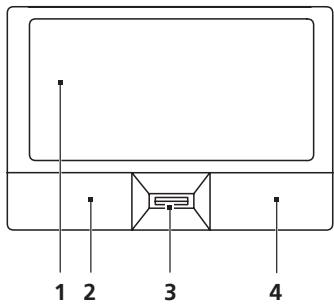
- Move your finger across the touchpad (1) to move the cursor.
- Press the left (2) and right (4) buttons located beneath the touchpad to perform selection and execution functions. These two buttons are similar to the left and right buttons on a mouse. Tapping on the touchpad is the same as clicking the left button.
| Function | Left button (2) | Right button (4) | Main touchpad (1) | Center button (3) |
| Execute | Quickly click twice. | Tap twice (at the same speed as double-clicking a mouse button). | ||
| Select | Click once. | Tap once. | ||
| Drag | Click and hold, then use finger on the touchpad to drag the cursor. | Tap twice (at the same speed as double-clicking a mouse button); rest your finger on the touchpad on the second tap and drag the cursor. | ||
| Access context menu | Click once. |
Touchpad basics (with two-click buttons)
The following items show you how to use the touchpad with two-click buttons.
- Move your finger across the touchpad to move the cursor.
- Press the left and right buttons located beneath the touchpad to perform selection and execution functions. These two buttons are similar to the left and right buttons on a mouse. Tapping on the touchpad is the same as clicking the left button.
| Function | Left button | Right button | Main touchpad |
| Execute | Quickly click twice. | Tap twice (at the same speed as double-clicking a mouse button). | |
| Select | Click once. | Tap once. | |
| Drag | Click and hold, then use finger on the touchpad to drag the cursor. | Tap twice (at the same speed as double-clicking a mouse button); rest your finger on the touchpad on the second tap and drag the cursor. | |
| Access context menu | Click once. |

Note: Illustrations for reference only. The exact configuration of your PC depends on the model purchased.

Note: When using the touchpad, keep it — and your fingers — dry and clean. The touchpad is sensitive to finger movement; hence, the lighter the touch, the better the response. Tapping harder will not increase the touchpad's responsiveness.

Note: By default, vertical and horizontal scrolling is enabled on your touchpad. It can be disabled under Mouse settings in Windows Control Panel.
Using the keyboard
The keyboard has full-sized keys and an embedded numeric keypad*, separate cursor, lock, Windows, function and special keys.
Lock keys and embedded numeric keypad\*
The keyboard has three lock keys which you can toggle on and off.
| Lock key | Description |
| Caps Lock | When Caps Lock is on, all alphabetic characters typed are in uppercase. |
| Num Lock+* | When Num Lock is on, the embedded keypad is in numeric mode. The keys function as a calculator (complete with the arithmetic operators +, -, *, and /). Use this mode when you need to do a lot of numeric data entry. A better solution would be to connect an external keypad. |
| Scroll Lock+ | When Scroll Lock is on, the screen moves one line up or down when you press the up or down arrow keys respectively. Scroll Lock does not work with some applications. |
The embedded numeric keypad functions like a desktop numeric keypad. It is indicated by small characters located on the upper right corner of the keycaps. To simplify the keyboard legend, cursor-control key symbols are not printed on the keys.
| Desired access | Num Lock on | Num Lock off |
| Number keys on embedded keypad | Type numbers in a normal manner. | |
| Cursor-control keys on embedded keypad | Holdwhile using cursor-control keys. | Holdwhile using cursor-control keys. |
| Main keyboard keys | Holdwhile typing letters on embedded keypad. | Type the letters in a normal manner. |
* only for certain models
Windows keys
The keyboard has two keys that perform Windows-specific functions.
| Key | Description | |
| Windows key | Pressed alone, this key has the same effect as clicking on the Windows Start button; it launches the Start menu. It can also be used with other keys to provide a variety of functions:<@>: Open or close the Start menu:<@>+: Display the desktop:<@>+: Open Windows Explore:<@>+: Search for a file or folder:<@>+: Cycle through Sidebar gadgets:<@>+: Lock your computer (if you are connected to a network domain), or switch users (if you're not connected to a network domain)<@>+: Minimizes all windows<@>+: Open the Run dialog box<@>+: Cycle through programs on the taskbar<@>+: Open Ease of Access Center<@>+: Open Windows Mobility Center<@>+: Display the System Properties dialog box<@>+: Restore minimized windows to the desktop<@>+: Cycle through programs on the taskbar by using Windows Flip 3-D<@>+: Bring all gadgets to the front and select Windows Sidebar<CTRL>+: Search for computers (if you are on a network)<CTRL>+: Use the arrow keys to cycle through programs on the taskbar by using Windows Flip 3-D ■■■■■■■■■■■■■■■■■■■■■■■■■■■■■■■■■■■■■■■■■■■■■■■■■■■■■■■■■■■■■■■■■■■■■■■■■■■■■■■■■■■■■■■■■■■■■■■■■■■■■-Note: Depending on your edition of Windows, some shortcuts may not function as described. ■■■■■■■■■■■■■■■■■■■■■■■■■■■■■■■■■■■■■■■■■■■■■■■■■■■■■■■■■■■■■■■■■■■■■■■■■■■■■■■■■■■■■■■■■■■■■■■■■■■■■-Note: Depending on your edition of Windows, some shortcuts may not function as described. | |
| [0Y3H] | Application key | This key has the same effect as clicking the right mouse button; it opens the application's context menu. |
Audio
The computer also comes with 32-bit High Definition (HD) Audio and speaker(s).
Acer PureZone (only for certain models)
The system provides you whole new enthusiastic audio experience including Acer PureZone with built-in stereo microphones featuring beam forming and echo cancellation technologies. Acer PureZone technology supports Acoustic Echo Cancellation, Beam Forming and Noise Suppression for pure sound recording. To set up your microphone, run the Acer HD Audio Manager by double-clicking the Acer HD Audio Manager icon in the system tray of your Windows system. The Acer HD Audio Manager dialog box will pop up. Click the Microphone tab, and then click the Microphone Effects tab. Select Beam Forming and Acoustic Echo Canellation to set the microphone effect.

Note: Disable the beam forming to get the multi-sound source input.
Video
16:9 display (only for certain models)
16:9 display delivers Full HD movies at home like never before. Sky-high color saturation guarantees an authentic HD viewing experience. 16:9 quality means true home theater visuals have finally arrived for notebook entertainment enthusiasts.
Using the system utilities
Acer Bio-Protection (only for certain models)
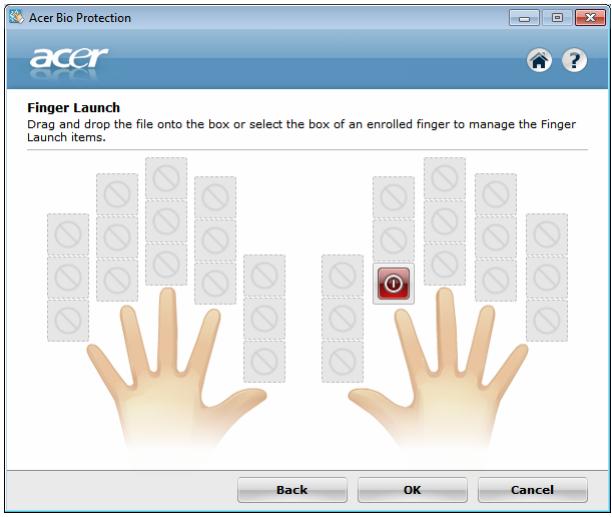
Acer Bio-Protection Fingerprint Solution is a multi-purpose fingerprint software package integrated with the Microsoft Windows operating system. Utilizing the uniqueness of one's fingerprint, Acer Bio-Protection Fingerprint Solution incorporates protection against unauthorized access to your computer with centralized password management via Password Bank; and fast application/website launching and login with Acer FingerLaunch.
With Acer Bio-Protection Fingerprint Solution, you can now enjoy an extra layer of protection for your personal computer, as well as the convenience of accessing your daily tasks with a simple swipe of your finger!
For more information, refer to the Acer Bio-Protection help files.
Acer Backup Manager

Note: This feature is only available on certain models.
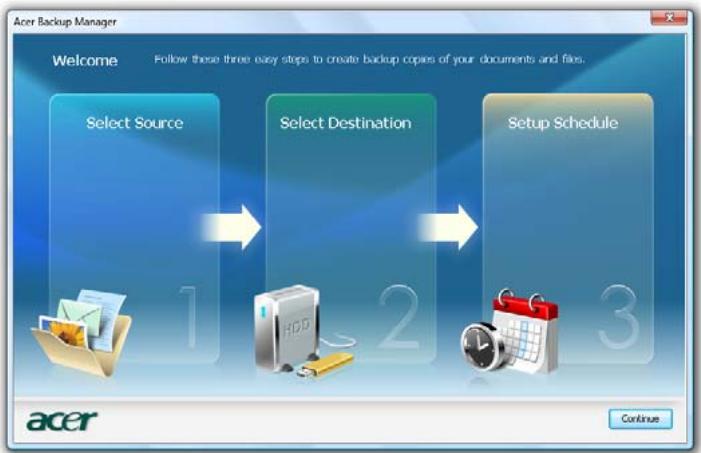
Acer Backup Manager is a simple three-step process that allows you to create backup copies of your entire system or selected files and folders according to a schedule or as you need to.
To start Acer Backup Manager, press the Acer Backup Manager key above the keyboard. Alternatively, you can go to Start > All Programs > Acer Backup Manager > Acer Backup Manager. This will open the Welcome screen; from this screen you will be taken through the three steps to setup scheduled back ups. Click Continue to proceed to the following screen. Click the + button and follow the onscreen instructions:
1 Select the content you want to back up. The less content you select, the quicker the process will be, but it will increase your risks of losing data.
2 Select where you want the backup copies to be stored. You will need to select an external drive or your D: drive; Acer Backup Manager cannot store a backup on the source drive.
3 Select how often you want Acer Backup Manager to create back ups.
Once you have finished these three steps, backups will be created according to the schedule. You can also create backups manually by pressing the Acer Backup Manager key.
If you wish to change your settings at any time, run Acer Backup Manager from the Start menu and go through the steps outlined above.
flowchart
graph LR
    A["Select Source"] --> B["Select Destination"]
    B --> C["Setup Schedule"]
Power management
This computer has a built-in power management unit that monitors system activity. System activity refers to any activity involving one or more of the following devices: keyboard, mouse, hard disk, peripherals connected to the computer, and video memory. If no activity is detected for a period of time (called an inactivity timeout), the computer stops some or all of these devices in order to conserve energy.
This computer employs a power management scheme that supports the advanced configuration and power interface (ACPI), which allows for maximum power conservation and maximum performance at the same time. Windows handles all power-saving chores for your computer.
Acer eRecovery Management
Acer eRecovery Management is a tool to quickly restore the system. You can back up/restore the factory default image, and reinstall applications and drivers.

Note: All of the following content is for general reference only. Actual product specifications may vary.
Acer eRecovery Management consists of the following functions:
1 Backup:
• Create Factory Default Disc
• Create Drivers and Applications Disc
2 Restore:
• Completely Restore System to Factory Defaults
- Restore Operating System and Retain User Data
• Reinstall Drivers or Applications
This chapter will guide you through each process.

Note: This feature is only available on certain models. For systems that do not have a built-in optical disc burner, plug in an external optical disc burner before entering Acer eRecovery Management for optical disc-related tasks.
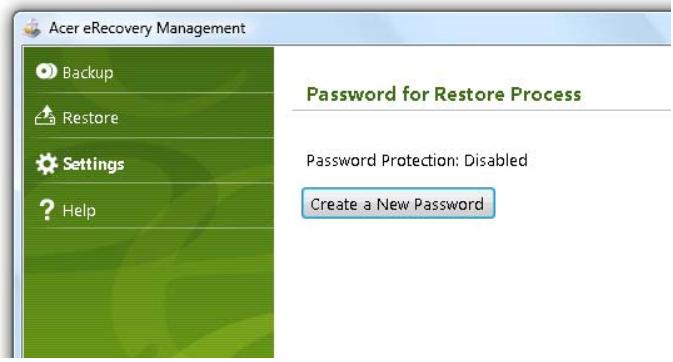
To use the password protection feature of Acer eRecovery Management, you must first set the password. The password is set by launching Acer eRecovery Management and clicking Settings.
Burn backup discs
From the Backup page of Acer eRecovery Management, you can burn the factory default image or back up drivers and applications.
1 Click on Start > All Programs > Acer > Acer eRecovery Management.
2 Acer eRecovery Management opens to the Backup page.
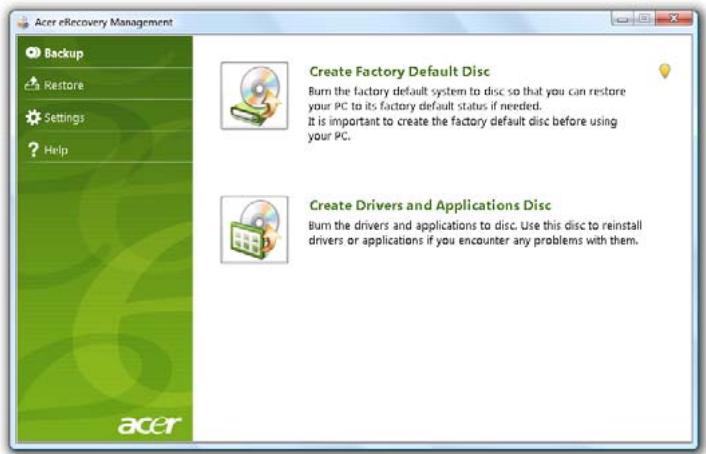
3 Select the type of backup (factory default or drivers and applications) you would like to burn to disc.
4 Follow the instructions on screen to complete the process.

Note: Create a factory default image when you want to burn a bootable disc that contains your computer's entire operating system as it was delivered to you from the factory. If you wish to have a disc that will allow you to browse the contents and install selected drivers and applications, create a drivers and application backup instead — this disc will not be bootable.
Restore
The restore feature allows you to restore or recover the system from a factory default image or from previously created CD and DVD backups. You can also reinstall applications and drivers for your Acer system.
1 Click on Start, All Programs, Acer, Acer eRecovery Management.
2 Switch to the Restore page by clicking Restore.
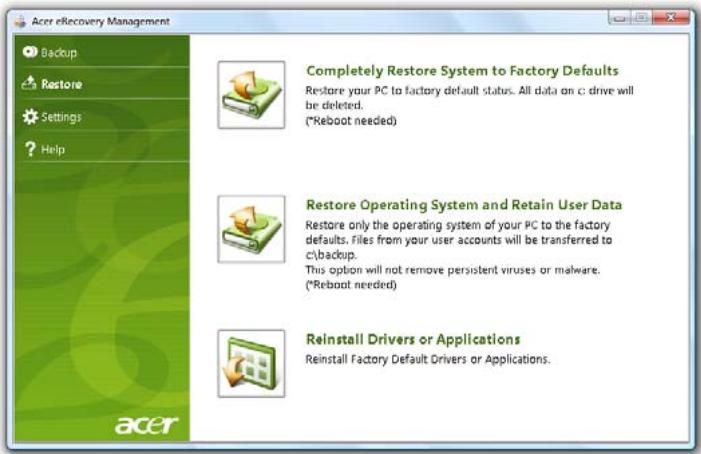
3 You can choose to restore the system from a factory default image or reinstall applications and drivers.
4 Follow the instructions on screen to complete the process.
3 You can choose to restore the system from a factory default image or reinstall applications and drivers.
4 Follow the instructions on screen to complete the process.
Restore Windows from backup discs

Note: This feature is only available on certain models.
To restore Windows from your previously burned backup discs, you will need to insert the first backup disc and enable the F12 Boot Menu via the BIOS Setup Utility.
1 Turn on your computer and insert the first system recovery disc into the optical disc drive. Restart your computer.
2 During startup when the Acer logo shows, press the F2 key to enter BIOS Setup, where you can set system parameters.
3 Use the left and right arrow keys to select the Main submenu.
4 Use the up and down arrow keys to select F12 Boot Menu
5 Use the F5 or F6 key to change F12 Boot Menu to Enabled.
6 Press the ESC key to enter the Exit submenu, press the ENTER key to Exit Saving Changes. Press the ENTER key again to select Yes. The system will reboot.
7 After rebooting, when the Acer logo shows, press the F12 key to open the Boot Menu. Here you can select which device to boot from.
8 Use the arrow keys to select the IDE1*, then press the ENTER key. Windows will be installed from the recovery disc.
9 Insert the second recovery disc when prompted, then follow the onscreen prompts to complete the restore.
10 Remove the recovery disc from the optical drive once the restore is complete. Do this before rebooting your computer.
If you prefer to set the boot priority for long-term use, you should select the Boot submenu.
1 Turn on your computer and insert the first system recovery disc into the optical disc drive. Restart your computer.
2 During startup when the Acer logo shows, press the F2 key to enter BIOS Setup, where you can set system parameters.
3 Use the left and right arrow keys to select the Boot submenu.
4 Use the up and down arrow keys to select the IDE1* device.
5 Use the F6 key to move the IDE1* device to the highest boot priority, or use the F5 key to move other devices to a lower boot priority. Ensure that the IDE1* device is the highest priority.
6 Press the ESC key to enter the Exit submenu, press the ENTER key to Exit Saving Changes. Press the ENTER key again to select Yes. The system will reboot.
7 When you reboot, Windows will be installed from the recovery disc.
8 Insert the second recovery disc when prompted, then follow the onscreen prompts to complete the restore.
9 Remove the recovery disc from the optical drive once the restore is complete. Do this before rebooting your computer.
Battery pack
The computer uses a battery pack that gives you long use between charges.
Battery pack characteristics
The battery pack has the following characteristics:
• Employs current battery technology standards.
• Delivers a battery-low warning.
The battery is recharged whenever you connect the computer to the AC adapter. Your computer supports charge-in-use, enabling you to recharge the battery while you continue to operate the computer. However, recharging with the computer turned off results in a significantly faster charge time.
The battery will come in handy when you travel or during a power failure. It is advisable to have an extra fully charged battery pack available as backup. Contact your dealer for details on ordering a spare battery pack.
Maximizing the battery's life
Like all other batteries, your computer's battery will degrade over time. This means that the battery's performance will diminish with time and use. To maximize your battery's life, you are advised to adhere to the recommendations set out below.
Conditioning a new battery pack
Before you use a battery pack for the first time, there is a "conditioning" process that you should follow:
1 Insert the new battery without turning the computer on.
2 Connect the AC adapter and fully charge the battery.
3 Disconnect the AC adapter.
4 Turn on the computer and operate using battery power.
5 Fully deplete the battery until the battery-low warning appears.
6 Reconnect the AC adapter and fully charge the battery again.
Follow these steps again until the battery has been charged and discharged three times.
Use this conditioning process for all new batteries, or if a battery hasn't been used for a long time. If the computer is to be stored for more than two weeks, you are advised to remove the battery pack from the unit.

Warning: Do not expose battery packs to temperatures below 0^ C ( 32^ F) or above 45^ C ( 113^ F). Extreme temperatures may adversely affect the battery pack.
By following the battery conditioning process you condition your battery to accept the maximum possible charge. Failure to follow this procedure will prevent you from obtaining the maximum battery charge, and will also shorten the effective lifespan of the battery.
In addition, the useful lifespan of the battery is adversely affected by the following usage patterns:
- Using the computer on constant AC power with the battery inserted. If you want to use constant AC power, you are advised to remove the battery pack after it is fully charged.
- Not discharging and recharging the battery to its extremes, as described above.
- Frequent use; the more you use the battery, the faster it will reach the end of its effective life. A standard computer battery has a life span of about 300 charges.
Installing and removing the battery pack

Important! Before removing the battery from the unit, connect the AC adapter if you want to continue using your computer. Otherwise, turn off the computer first.
To install a battery pack:
1 Align the battery with the open battery bay; make sure that the end with the contacts will enter first, and that the top surface of the battery is facing up.
2 Slide the battery into the battery bay and gently push until the battery locks in place.
To remove a battery pack:
1 Slide the battery release latch to release the battery.
2 Pull the battery from the battery bay.
Charging the battery
To charge the battery, first make sure that it is correctly installed in the battery bay. Plug the AC adapter into the computer, and connect to a mains power outlet. You can continue to operate your computer on AC power while your battery is charging. However, charging the battery with the computer turned off results in a significantly faster charge time.

Note: You are advised to charge the battery before retiring for the day. Charging the battery overnight before traveling enables you to start the next day with a fully charged battery.
Checking the battery level
The Windows power meter indicates the current battery level. Rest the cursor over the battery/power icon on the taskbar to see the battery's present charge level.
Optimising battery life
Optimizing battery life helps you get the most out of battery operation, prolonging the charge/recharge cycle and improving recharging efficiency. You are advised to follow the suggestions set out below:
• Purchase an extra battery pack.
- Use AC power whenever possible, reserving battery for on-the-go use.
- Eject a PC Card if it is not being used, as it will continue to draw power (for selected model).
- Store the battery pack in a cool, dry place. The recommended temperature is 10^ C ( 50^ F) to 30^ C ( 86^ F). Higher temperatures cause the battery to self-discharge faster.
• Excessive recharging decreases the battery life.
- Look after your AC adapter and battery.
Battery-low warning
When using battery power pay attention to the Windows power meter.

Warning: Connect the AC adapter as soon as possible after the battery-low warning appears. Data will be lost if the battery to become fully depleted and the computer shuts down.
When the battery-low warning appears, the recommended course of action depends on your situation:
| Situation | Recommended Action |
| The AC adapter and a power outlet are available. | 1. Plug the AC adapter into the computer, and then connect to the mains power supply.2. Save all necessary files.3. Resume work.Turn off the computer if you want to recharge the battery rapidly. |
| An extra fully charged battery pack is available. | 1. Save all necessary files.2. Close all applications.3. Shut down the operating system to turn off the computer.4. Replace the battery pack.5. Turn on the computer and resume work. |
| The AC adapter or a power outlet is unavailable. You have no spare battery pack. | 1. Save all necessary files.2. Close all applications.3. Shut down the operating system to turn off the computer. |
Taking your notebook PC with you
This section gives you tips and hints to consider when moving around or traveling with your computer.
Disconnecting from the desktop
Follow these steps to disconnect your computer from external accessories:
1 Save any open files.
2 Remove any media, floppy disks or compact disks from the drive(s).
3 Shut down the computer.
4 Close the display cover.
5 Disconnect the cord from the AC adapter.
6 Disconnect the keyboard, pointing device, printer, external monitor and other external devices.
7 Disconnect the Kensington lock if you are using one to secure the computer.
Moving around
When you are just moving within short distances, for example, from your office desk to a meeting room.
Preparing the computer
Before moving the computer, close and latch the display cover to place it in Sleep mode. You can now safely take the computer anywhere you go within the building. To bring the computer out of Sleep mode, open the display; then press and release the power button.
If you are taking the computer to a client's office or a different building, you may choose to shut down the computer:
Click on Start then click on Shut Down.
Or:
You can put the computer in Sleep mode by pressing
When you are ready to use the computer again, unlatch and open the display; then press and release the power button.

Note: If the Sleep indicator is off, the computer has entered Hibernation mode and is turned off. If the power indicator is off but the Sleep indicator is on, the computer has entered Sleep mode. In both cases, press and release the power button to turn the computer back on. Note that the computer may enter Hibernation mode after being in Sleep mode for a period of time.
What to bring to meetings
If your meeting is relatively short, you probably do not need to bring anything with you other than your computer. If your meeting will be longer, or if your battery is not fully charged, you may want to bring the AC adapter with you to plug in your computer in the meeting room.
If the meeting room does not have an electrical outlet, reduce the drain on the battery by putting the computer in Sleep mode. Press
Taking the computer home
When you are moving from your office to your home or vice versa.
Preparing the computer
After disconnecting the computer from your desktop, follow these steps to prepare the computer for the trip home:
- Check that you have removed all media and compact disks from the drive(s). Failure to remove the media can damage the drive head.
- Pack the computer in a protective case that can prevent the computer from sliding around and cushion it if it should fall.

Caution: Avoid packing items next to the top cover of the computer. Pressure against the top cover can damage the screen.
What to take with you
Unless you have some items at home, take the following items with you:
• AC adapter and power cord
• The printed Quick Guide
Special considerations
Follow these guidelines to protect your computer while traveling to and from work:
- Minimize the effects of temperature changes by keeping the computer with you.
- If you need to stop for an extended period of time and cannot carry the computer with you, leave the computer in the trunk of the car to avoid exposing the computer to excessive heat.
- Changes in temperature and humidity can cause condensation. Allow the computer to return to room temperature, and inspect the screen for condensation before turning on the computer. If the temperature change is greater than 10 °C (18 °F), allow the computer to come to room temperature slowly. If possible, leave the computer for 30 minutes in an environment with a temperature between outside and room temperature.
Setting up a home office
If you frequently work on your computer at home, you may want to purchase a second AC adapter for use at home. With a second AC adapter, you can avoid carrying the extra weight to and from home.
If you use your computer at home for significant periods of time, you might also want to add an external keyboard, monitor or mouse.
Traveling with the computer
When you are moving within a larger distance, for instance, from your office building to a client's office building or traveling locally.
Preparing the computer
Prepare the computer as if you were taking it home. Make sure that the battery in the computer is charged. Airport security may require you to turn on your computer when carrying it into the gate area.
What to take with you
Take the following items with you:
- AC adapter
- Spare, fully-charged battery pack(s)
• Additional printer driver files if you plan to use another printer
Special considerations
In addition to the guidelines for taking the computer home, follow these guidelines to protect your computer while traveling:
• Always take the computer as carry-on luggage.
- If possible, have the computer inspected by hand. Airport security X-ray machines are safe, but do not put the computer through a metal detector.
- Avoid exposing floppy disks to hand-held metal detectors.
Traveling internationally with the computer
When you are moving from country to country.
Preparing the computer
Prepare the computer as you would normally prepare it for traveling.
What to bring with you
Bring the following items with you:
- AC adapter
- Power cords that are appropriate for the country to which you are traveling
- Spare, fully-charged battery packs
• Additional printer driver files if you plan to use another printer
• Proof of purchase, in case you need to show it to customs officials
• International Travelers Warranty passport
Special considerations
Follow the same special considerations as when traveling with the computer. In addition, these tips are useful when traveling internationally:
- When traveling in another country, check that the local AC voltage and the AC adapter power cord specifications are compatible. If not, purchase a power cord that is compatible with the local AC voltage. Do not use converter kits sold for appliances to power the computer.
- If you are using the modem, check if the modem and connector is compatible with the telecommunications system of the country you are traveling in.
Securing your computer
Your computer is a valuable investment that you need to take care of. Learn how to protect and take care of your computer.
Security features include hardware and software locks — a security notch and passwords.
Using a computer security lock
The notebook comes with a Kensington-compatible security slot for a security lock.
Wrap a computer security lock cable around an immovable object such as a table or handle of a locked drawer. Insert the lock into the notch and turn the key to secure the lock. Some keyless models are also available.
Using passwords
Passwords protect your computer from unauthorized access. Setting these passwords creates several different levels of protection for your computer and data:
- Supervisor Password prevents unauthorized entry into the BIOS utility. Once set, you must enter this password to gain access to the BIOS utility. See "BIOS utility" on page 29.
- User Password secures your computer against unauthorized use. Combine the use of this password with password checkpoints on boot-up and resume from Hibernation for maximum security.
- Password on Boot secures your computer against unauthorized use. Combine the use of this password with password checkpoints on boot-up and resume from Hibernation for maximum security.

Important! Do not forget your Supervisor Password! If you forget your password, please get in touch with your dealer or an authorized service center.
Entering passwords
When a password is set, a password prompt appears in the center of the display screen.
- When the Supervisor Password is set, a prompt appears when you press
to enter the BIOS utility at boot-up. - Type the Supervisor Password and press
to access the BIOS utility. If you enter the password incorrectly, a warning message appears. Try again and press . - When the User Password is set and the password on boot parameter is enabled, a prompt appears at boot-up.
- Type the User Password and press
to use the computer. If you enter the password incorrectly, a warning message appears. Try again and press .

Important! You have three chances to enter a password. If you fail to enter the password correctly after three tries, the system halts. Press and hold the power button for four seconds to shut down the computer. Then turn on the computer again, and try again.
Setting passwords
You can set passwords using the BIOS utility.
Expanding through options
Your notebook PC offers you a complete mobile computing experience.
Connectivity options
Ports allow you to connect peripheral devices to your computer as you would with a desktop PC. For instructions on how to connect different external devices to the computer, read the following section.
Fax/data modem (only for certain models)
Your computer has a built-in V.92 56 Kbps fax/data modem. (only for certain models)

Warning! This modem port is not compatible with digital phone lines. Plugging this modem into a digital phone line will damage the modem.
To use the fax/data modem port, connect a phone cable from the modem port to a telephone jack.
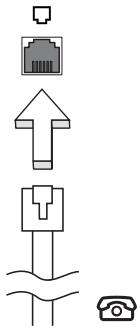

Warning! Please make sure that the cable you use is appropriate for the country in which you are working.
Built-in network feature
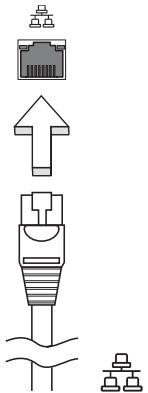
The built-in network feature allows you to connect your computer to an Ethernet-based network.
To use the network feature, connect an Ethernet cable from the Ethernet (RJ-45) port on the chassis of the computer to a network jack or hub on your network.
Universal Serial Bus (USB)
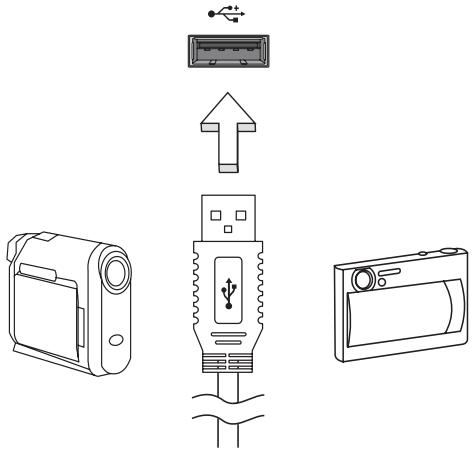
The USB 2.0 port is a high-speed serial bus which allows you to connect USB peripherals without taking up precious system resources.
IEEE 1394 port (only for certain models)
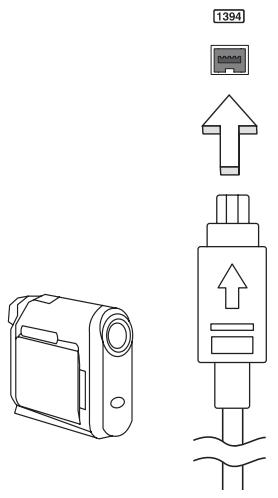
The computer's IEEE 1394 port allows you to connect to an IEEE 1394-compatible device like a video camera or digital camera. See your video or digital camera's documentation for details.
High-Definition Multimedia Interface (only for certain models)
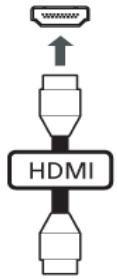
HDMI (High-Definition Multimedia Interface) is an industry-supported, uncompressed, all-digital audio/video interface. HDMI provides an interface between any compatible digital audio/video source, such as a set-top box, DVD player, and A/V receiver and a compatible digital audio and/or video monitor, such as a digital television (DTV), over a single cable.
Use the HDMI port on your computer to connect with high-end audio and video equipment. Single cable implementation allows tidy setup and fast connection.
flowchart
graph TD
    A["Input Signal"] --> B["Device"]
    B --> C["HDMI"]
    C --> D["Output Signal"]
ExpressCard (only for certain models)
The ExpressCard is the newest version of the PC Card. It is a smaller and faster interface that further enhances the usability and expandability of your computer.
ExpressCards support a vast number of expansion options, including flash memory card adapters, TV-tuners, Bluetooth connectivity and IEEE 1394B adapters. ExpressCards support USB 2.0 and PCI Express applications.

Important! There are two types, ExpressCard/54 and ExpressCard/34 (54mm and 34mm), each with different functions. Not all ExpressCard slots will support both types. Please refer to your card's manual for details on how to install and use the card, and its functions.
Inserting an ExpressCard
Insert the card into the slot and push gently until it clicks into position.
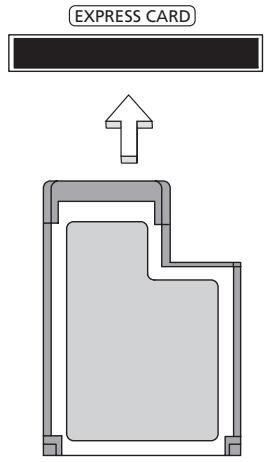
Ejecting an ExpressCard
Before ejecting an ExpressCard:
1 Exit the application using the card.
2 Left-click on the remove hardware icon on the taskbar and stop the card operation.
3 Push the card gently into the slot and release to pop out the card. Then pull the card free from the slot.
Installing memory
Follow these steps to install memory:
1 Turn off the computer, unplug the AC adapter (if connected) and remove the battery pack. Then turn the computer over to access its base.
2 Remove the screws from the memory cover; then lift up and remove the memory cover.
3 (a) Insert the memory module diagonally into the slot, then (b) gently press it down until it clicks into place.
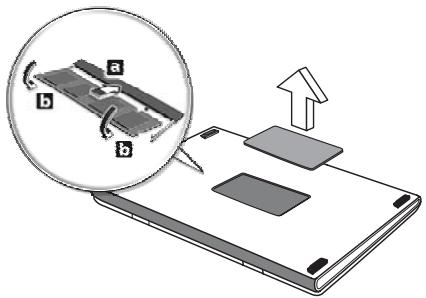
4 Replace the memory cover and secure it with the screw.
5 Reinstall the battery pack, and reconnect the AC adapter.
6 Turn on the computer.
The computer automatically detects and reconfigures the total memory size. Please consult a qualified technician or contact your local Acer dealer.
BIOS utility
The BIOS utility is a hardware configuration program built into your computer's BIOS.
Your computer is already properly configured and optimized, and you do not need to run this utility. However, if you encounter configuration problems, you may need to run it.
To activate the BIOS utility, press
Boot sequence
To set the boot sequence in the BIOS utility, activate the BIOS utility, then select Boot from the categories listed at the top of the screen.
Enable disk-to-disk recovery
To enable disk-to-disk recovery (hard disk recovery), activate the BIOS utility, then select Main from the categories listed at the top of the screen. Find D2D Recovery at the bottom of the screen and use the
Password
To set a password on boot, activate the BIOS utility, then select Security from the categories listed at the top of the screen. Find Password on boot: and use the
Using software
Playing DVD movies

Note: This feature is only available on certain models.
When the DVD drive module is installed in the optical drive bay, you can play DVD movies on your computer.
1 Eject the DVD disk.

Important! When you launch the DVD player for the first time, the program asks you to enter the region code. DVD disks are divided into 6 regions. Once your DVD drive is set to a region code, it will play DVD disks of that region only. You can set the region code a maximum of five times (including the first time), after which the last region code set will remain permanent. Recovering your hard disk does not reset the number of times the region code has been set. Refer to the table below for DVD movie region code information.
2 The DVD movie will automatically play after a few seconds.
| Region code | Country or region |
| 1 | USA, Canada |
| 2 | Europe, Middle East, South Africa, Japan |
| 3 | Southeast Asia, Taiwan, South Korea |
| 4 | Latin America, Australia, New Zealand |
| 5 | Former USSR, parts of Africa, India |
| 6 | People's Republic of China |

Note: To change the region code, insert a DVD movie of a different region into the DVD drive. Please refer to the online help for more information.
Frequently asked questions
The following is a list of possible situations that may arise during the use of your computer. Easy solutions are provided for each one.
I turned on the power, but the computer does not start or boot up.
Look at the power indicator:
- If it is not lit, no power is being supplied to the computer. Check the following:
- If you are using on the battery, it may be low and unable to power the computer. Connect the AC adapter to recharge the battery pack.
- Make sure that the AC adapter is properly plugged into the computer and to the power outlet.
• If it is lit, check the following:
- Is a non-bootable (non-system) disk in the external USB floppy drive? Remove or replace it with a system disk and press to restart the system.
Nothing appears on the screen.
The computer's power management system automatically blanks the screen to save power. Press any key to turn the display back on.
If pressing a key does not turn the display back on, three things might be the cause:
- The brightness level might be too low. Press
+ <▷> (increase) to adjust the brightness level. - The display device might be set to an external monitor. Press the display toggle hotkey
+ to toggle the display back to the computer. - If the Sleep indicator is lit, the computer is in Sleep mode. Press and release the power button to resume.
No audio is heard from the computer.
Check the following:
- The volume may be muted. In Windows, look at the volume control (speaker) icon on the taskbar. If it is crossed-out, click on the icon and deselect the Mute all option.
- The volume level may be too low. In Windows, look at the volume control icon on the taskbar. You can also use the volume control buttons to adjust the volume.
- If headphones, earphones or external speakers are connected to the line-out port on the computer, the internal speakers automatically turn off.
I want to eject the optical drive tray without turning on the power.
There is a mechanical eject hole on the optical drive. Simply insert the tip of a pen or paperclip into the hole and push to eject the tray.
The keyboard does not respond.
Try attaching an external keyboard to a USB port on the computer. If it works, contact your dealer or an authorized service center as the internal keyboard cable may be loose.
The printer does not work.
Check the following:
- Make sure that the printer is connected to a power outlet and that it is turned on.
- Make sure that the printer cable is connected securely to the computer's parallel port or a USB port and the corresponding port on the printer.
I want to restore my computer to its original settings without recovery CDs.

Note: If your system is the multilingual version, the operating system and language you choose when you first turn on the system will be the only option for future recovery operations.
This recovery process helps you restore the C: drive with the original software content that is installed when you purchase your notebook. Follow the steps below to rebuild your C: drive. (Your C: drive will be reformatted and all data will be erased.) It is important to back up all data files before using this option.
Before performing a restore operation, please check the BIOS settings.
1 Check to see if Acer disk-to-disk recovery is enabled or not.
2 Make sure the D2D Recovery setting in Main is Enabled.
3 Exit the BIOS utility and save changes. The system will reboot.

Note: To activate the BIOS utility, press
To start the recovery process:
1 Restart the system.
2 While the Acer logo is showing, press
3 Refer to the onscreen instructions to perform system recovery.

Important! This feature occupies 15 GB in a hidden partition on your hard disk
Requesting service
International Travelers Warranty (ITW)
Your computer is backed by an International Travelers Warranty (ITW) that gives you security and peace of mind when traveling. Our worldwide network of service centers are there to give you a helping hand.
An ITW passport comes with your computer. This passport contains all you need to know about the ITW program. A list of available, authorized service centers is in this handy booklet. Read this passport thoroughly.
Always have your ITW passport on hand, especially when you travel, to receive the benefits from our support centers. Place your proof-of-purchase in the flap located inside the front cover of the ITW passport.
If the country you are traveling in does not have an Acer-authorized ITW service site, you can still get in contact with our offices worldwide. Please consult http://global.acer.com.
Before you call
Please have the following information available when you call Acer for online service, and please be at your computer when you call. With your support, we can reduce the amount of time a call takes and help solve your problems efficiently. If there are error messages or beeps reported by your computer, write them down as they appear on the screen (or the number and sequence in the case of beeps).
You are required to provide the following information:
Name: ____
Address: ____
Telephone number: ____
Machine and model type: ____
Serial number: ____
Date of purchase: ____
Troubleshooting
This chapter shows you how to deal with common system problems.
Read it before calling a technician if a problem occurs. Solutions to more serious problems require opening up the computer. Do not attempt to open the computer yourself; contact your dealer or authorized service center for assistance.
Troubleshooting tips
This notebook PC incorporates an advanced design that delivers onscreen error message reports to help you solve problems.
If the system reports an error message or an error symptom occurs, see "Error messages" below. If the problem cannot be resolved, contact your dealer. See "Requesting service" on page 34.
Error messages
If you receive an error message, note the message and take the corrective action. The following table lists the error messages in alphabetical order together with the recommended course of action.
| Error messages | Corrective action |
| CMOS battery bad | Contact your dealer or an authorized service center. |
| CMOS checksum error | Contact your dealer or an authorized service center. |
| Disk boot failure | Insert a system (bootable) disk into the floppy drive (A:), then pressto reboot. |
| Equipment configuration error | Press(during POST) to enter the BIOS utility, then pressExitin the BIOS utility to reboot. |
| Hard disk 0 error | Contact your dealer or an authorized service center. |
| Hard disk 0 extended type error | Contact your dealer or an authorized service center. |
| I/O parity error | Contact your dealer or an authorized service center. |
| Keyboard error or no keyboard connected | Contact your dealer or an authorized service center. |
| Keyboard interface error | Contact your dealer or an authorized service center. |
| Memory size mismatch | Press(during POST) to enter the BIOS utility, then pressExitin the BIOS utility to reboot. |
If you still encounter problems after going through the corrective measures, please contact your dealer or an authorized service center for assistance. Some problems may be solved using the BIOS utility.
Regulations and safety notices
FCC statement
This device has been tested and found to comply with the limits for a Class B digital device pursuant to Part 15 of the FCC rules. These limits are designed to provide reasonable protection against harmful interference in a residential installation. This device generates, uses, and can radiate radio frequency energy and, if not installed and used in accordance with the instructions, may cause harmful interference to radio communications.
However, there is no guarantee that interference will not occur in a particular installation. If this device does cause harmful interference to radio or television reception, which can be determined by turning the device off and on, the user is encouraged to try to correct the interference by one or more of the following measures:
• Reorient or relocate the receiving antenna.
- Increase the separation between the device and receiver.
- Connect the device into an outlet on a circuit different from that to which the receiver is connected.
- Consult the dealer or an experienced radio/television technician for help.
Notice: Shielded cables
All connections to other computing devices must be made using shielded cables to maintain compliance with FCC regulations.
Notice: Peripheral devices
Only peripherals (input/output devices, terminals, printers, etc.) certified to comply with the Class B limits may be attached to this equipment. Operation with non-certified peripherals is likely to result in interference to radio and TV reception.
Caution
Changes or modifications not expressly approved by the manufacturer could void the user's authority, which is granted by the Federal Communications Commission, to operate this computer.
Notice: Canadian users
This Class B digital apparatus complies with Canadian ICES-003.
Compliant with Russian regulatory certification

ME61
Modem notices (only for certain models)
Notice for USA
This equipment complies with Part 68 of the FCC rules. Located on the modem is a label that contains, among other information, the FCC Registration Number and Ringer Equivalence Number (REN) for this equipment. Upon request, you must provide this information to your telephone company.
If your telephone equipment causes harm to the telephone network, the telephone company may discontinue your service temporarily. If possible, they will notify you in advance. But, if advance notice is not practical, you will be notified as soon as possible. You will also be informed of your right to file a complaint with the FCC.
Your telephone company may make changes in its facilities, equipment, operations, or procedures that could affect the proper functioning of your equipment. If they do, you will be notified in advance to give you an opportunity to maintain uninterrupted telephone service.
If this equipment should fail to operate properly, disconnect the equipment from the phone line to determine if it is causing the problem. If the problem is with the equipment, discontinue use and contact your dealer or vendor.

Caution: To reduce the risk of fire, use only No. 26 AWG or larger UL Listed or CSA Certified Telecommunication Line Cord.
TBR 21
This equipment has been approved [Council Decision 98/482/EC - "TBR 21"] for single terminal connection to the Public Switched Telephone Network (PSTN). However, due to differences between the individual PSTNs provided in different countries, the approval does not, of itself, give an unconditional assurance of successful operation on every PSTN termination point. In the event of problems, you should contact your equipment supplier in the first instance. For more information about applicable countries, please refer to "Regulations and safety notices" on page 36
Notice for Australia
For safety reasons, only connect headsets with a telecommunications compliance label. This includes customer equipment previously labelled permitted or certified.
Notice for New Zealand
1 The grant of a Telepermit for any item of terminal equipment indicates only that Telecom has accepted that the item complies with minimum conditions for connection to its network. It indicates no endorsement of the product by Telecom, nor does it provide any sort of warranty. Above all, it provides no assurance that any item will work correctly in all respects with another item of Telepermitted equipment of a different make or model, nor does it imply that any product is compatible with all of Telecom's network services.
2 This equipment is not capable, under all operating conditions, of correct operation at the higher speeds for which it is designed. Telecom will accept no responsibility should difficulties arise in such circumstances.
3 Some parameters required for compliance with Telecom's Telepermit requirements are dependent on the equipment (PC) associated with this device. The associated equipment shall be set to operate within the following limits for compliance with Telecom's Specifications:
a There shall be no more than 10 call attempts to the same number within any 30 minute period for any single manual call initiation, and
b The equipment shall go on-hook for a period of not less than 30 seconds between the end of one attempt and the beginning of the next call attempt.
4 Some parameters required for compliance with Telecom's Telepermit requirements are dependent on the equipment (PC) associated with this device. In order to operate within the limits for compliance with Telecom's specifications, the associated equipment shall be set to ensure that automatic calls to different numbers are spaced such that there is not less than 5 seconds between the end of one call attempt and the beginning of another.
5 This equipment shall not be set up to make automatic calls to Telecom's 111 Emergency Service.
6 This device is equipped with pulse dialing while the Telecom standard is DTMF tone dialing. There is no guarantee that Telecom lines will always continue to support pulse dialing.
7 Use of pulse dialing, when this equipment is connected to the same line as other equipment, may give rise to bell tinkle or noise and may also cause a false answer condition. Should such problems occur, the user should NOT contact the telecom Fault Service.
8 This equipment may not provide for the effective hand-over of a call to another device connected to the same line.
9 Under power failure conditions this appliance may not operate. Please ensure that a separate telephone, not dependent on local power, is available for emergency use.
LCD pixel statement
The LCD unit is produced with high-precision manufacturing techniques. Nevertheless, some pixels may occasionally misfire or appear as black or red dots. This has no effect on the recorded image and does not constitute a malfunction.
Radio device regulatory notice

Note: Below regulatory information is for models with wireless LAN and / or Bluetooth only.
General
This product complies with the radio frequency and safety standards of any country or region in which it has been approved for wireless use. Depending on configurations, this product may or may not contain wireless radio devices (such as wireless LAN and/or Bluetooth modules). Below information is for products with such devices.
Declaration of Conformity for EU countries
Hereby, Acer, declares that this notebook PC series is in compliance with the essential requirements and other relevant provisions of Directive 1999/5/EC.
List of applicable countries
EU member states as of July 2009 are: Belgium, Denmark, Germany, Greece, Spain, France, Ireland, Italy, Luxembourg, the Netherlands, Austria, Portugal, Finland, Sweden, United Kingdom, Estonia, Latvia, Lithuania, Poland, Hungary, Czech Republic, Slovak Republic, Slovenia, Cyprus, Malta, Bulgaria and Romania. Usage allowed in the countries of European Union, as well as Norway, Switzerland, Iceland and Liechtenstein. This device must be used in strict accordance with the regulations and constraints in the country of use. For further information, please contact local office in the country of use. Please see http://ec.europa.eu/enterprise/rtte/implem.htm for the latest country list.
The FCC RF safety requirement
The radiated output power of the wireless LAN Mini PCI Card and Bluetooth card is far below the FCC radio frequency exposure limits. Nevertheless, the notebook PC series shall be used in such a manner that the potential for human contact during normal operation is minimized as follows:
1 Users are requested to follow the RF safety instructions on wireless option devices that are included in the user's manual of each RF option device.

Caution: To comply with FCC RF exposure compliance requirements, a separation distance of at least 20 cm (8 inches) must be maintained between the antenna for the integrated wireless LAN Mini PCI Card built in to the screen section and all persons.
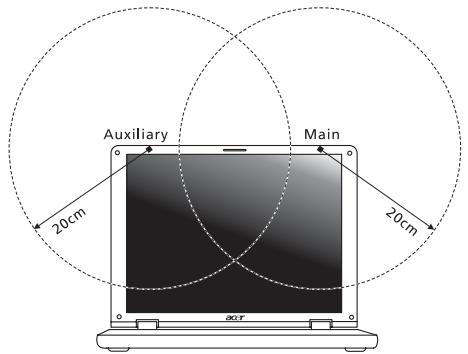

Note: The wireless Mini PCI adapter implements a transmission diversity function. The function does not emit radio frequencies simultaneously from both antennas. One of the antennas is selected automatically or manually (by users) to ensure good quality radiocommunication.
2 This device is restricted to indoor use due to its operation in the 5.15 to 5.25 GHz frequency range. FCC requires this product to be used indoors for the frequency range 5.15 to 5.25 GHz to reduce the potential for harmful interference to co-channel Mobile Satellite systems.
3 High power radar are allocated as primary users of the 5.25 to 5.35 GHz and 5.65 to 5.85 GHz bands. These radar stations can cause interference with and/or damage this device.
4 An improper installation or unauthorized use may cause harmful interference to radio communications. Also any tampering of the internal antenna will void the FCC certification and your warranty.
Canada — Low-power license-exempt radio communication devices (RSS-210)
Exposure of humans to RF fields (RSS-102)
The notebook PC series employs low gain integral antennas that do not emit RF field in excess of Health Canada limits for the general population; consult Safety Code 6, obtainable from Health Canada's website at www.hc-sc.gc.ca/rpb.
LCD panel ergonomic specifications
| Design viewing distance | 500 mm |
| Design inclination angle | 0.0^ |
| Design azimuth angle | 90.0^ |
| Viewing direction range class | Class IV |
| Screen tilt angle | 85.0^ |
| Design screen illuminance | Illuminance level: [250 + (250)] lx where = 85^ Color: Source D65 |
| Reflection class of LCD panel(positive and negative polarity) | Ordinary LCD: Class IProtective LCD: Class III |
| Image polarity | Both |
| Reference white:Pre-setting of luminance and color temperature @ 6500K (tested under BM7) | Ynu'nv'n |
| Pixel fault class | Class II |
Gamme TravelMate
Acer Backup Manager 7
Acer eRecovery Management
9
LCD panel ergonomic specifications 42
Touchpad
Acer Backup Manager

flowchart
graph LR
    A["Select Source"] --> B["Select Destination"]
    B --> C["Setup Schedule"]
Acer eRecovery Management

Universal Serial Bus (USB)
This Class B digital apparatus complies with Canadian ICES-003.

LCD panel ergonomic specifications
| Design viewing distance | 500 mm |
| Design inclination angle | 0.0° |
| Design azimuth angle | 90.0° |
| Viewing direction range class | Class IV |
| Screen tilt angle | 85.0° |
| Design screen illuminance | Illuminance level:[250 + (250cosα)] lx where α = 85°Color: Source D65 |
| Reflection class of LCD panel(positive and negative polarity) | Ordinary LCD: Class IProtective LCD: Class III |
| Image polarity | Both |
| Reference white:Pre-setting of luminance and color temperature @ 6500K (tested under BM7) | Ynu'nv'n |
| Pixel fault class | Class II |
TravelMate Serie
CLASS 1 LASER PRODUCT
ACHTUNG: INVISIBLE LASER RADIATION WHEN OPEN. AVOID EXPOSURE TO BEAM.
APPAREIL A LASER DE CLASSE 1 PRODUIT
LASERATTENTION: RADIATION DU FAISCEAU LASER INVISIBLE EN CAS D'OUVERTURE. EVITTER TOUTE EXPOSITION AUX RAYONS.
LUOKAN 1 LASERLAITE LASER KLASSE 1
Acer Backup Manager 7
Energieverwaltung 8
Acer eRecovery Management 9
HDMI (High-Definition Multimedia Interface)
(disk-to-disk recovery) 31
Kennwort 31
(International Travelers Warranty; ITW) 36
Vor einem Anruf 36
Problemlösung 37
Tipps zur Problembehebung 37
Fehlermeldungen 37
LCD panel ergonomic specifications 42
Touchpad
Acer Backup Manager

flowchart
graph LR
    A["Select Source"] --> B["Select Destination"]
    B --> C["Setup Schedule"]
Energieverwaltung
Acer eRecovery Management


LCD panel ergonomic specifications
| Design viewing distance | 500 mm |
| Design inclination angle | 0.0^ |
| Design azimuth angle | 90.0^ |
| Viewing direction range class | Class IV |
| Screen tilt angle | 85.0^ |
| Design screen illuminance | Illuminance level: [250 + (250)] lx where = 85^ Color: Source D65 |
| Reflection class of LCD panel(positive and negative polarity) | Ordinary LCD: Class IProtective LCD: Class III |
| Image polarity | Both |
| Reference white:Pre-setting of luminance and color temperature @ 6500K (tested under BM7) | Ynu'nv'n |
| Pixel fault class | Class II |
Serie TravelMate
PC Notebook Serie TravelMate
Acer Backup Manager 7
Acer eRecovery Management 9
High-Definition Multimedia Interface
ITW (International Traveler's Warranty) 34
LCD panel ergonomic specifications 39
Touchpad
Acer Backup Manager

flowchart
graph LR
    A["Select Source"] --> B["Select Destination"]
    B --> C["Setup Schedule"]
Acer eRecovery Management

Universal Serial Bus (USB)
ITW (International Traveler's Warranty)

LCD panel ergonomic specifications
| Design viewing distance | 500 mm |
| Design inclination angle | 0.0° |
| Design azimuth angle | 90.0° |
| Viewing direction range class | Class IV |
| Screen tilt angle | 85.0° |
| Design screen illuminance | Illuminance level:[250 + (250cosα)] lx where α = 85°Color: Source D65 |
| Reflection class of LCD panel(positive and negative polarity) | Ordinary LCD: Class IProtective LCD: Class III |
| Image polarity | Both |
| Reference white:Pre-setting of luminance and color temperature @ 6500K (tested under BM7) | Ynu'nv'n |
| Pixel fault class | Class II |
Serie TravelMate
CLASS 1 LASER PRODUCT
PRECAUCIÓN: INVISIBLE LASER RADIATION WHEN OPEN. AVOID EXPOSURE TO BEAM.
APPAREIL A LASER DE CLASSE 1 PRODUIT
LASERATTENTION: RADIATION DU FAISCEAU LASER INVISIBLE EN CAS D'OUVERTURE.EVITTER TOUTE EXPOSITION AUX RAYONS.
LUOKAN 1 LASERLAITE LASER KLASSE 1
Acer Backup Manager 7
Acer eRecovery Management
(International Travelers Warranty; ITW) 35
Antes de llamar 35
LCD panel ergonomic specifications 41
Panel táctil
Acer Backup Manager

flowchart
graph LR
    A["Select Source"] --> B["Select Destination"]
    B --> C["Setup Schedule"]
Acer eRecovery Management

Universal Serial Bus (USB)

LCD panel ergonomic specifications
| Design viewing distance | 500 mm |
| Design inclination angle | 0.0^ |
| Design azimuth angle | 90.0^ |
| Viewing direction range class | Class IV |
| Screen tilt angle | 85.0^ |
| Design screen illuminance | Illuminance level: [250 + (250)] lx where = 85^ Color: Source D65 |
| Reflection class of LCD panel(positive and negative polarity) | Ordinary LCD: Class IProtective LCD: Class III |
| Image polarity | Both |
| Reference white:Pre-setting of luminance and color temperature @ 6500K (tested under BM7) | Ynu'nv'n |
| Pixel fault class | Class II |
Série TravelMate
CLASS 1 LASER PRODUCT
CAUTION: INVISIBLE LASER RADIATION WHEN OPEN. AVOID EXPOSURE TO BEAM.
APPAREIL A LASER DE CLASSE 1 PRODUIT
LASERATTENTION: RADIATION DU FAISCEAU LASER INVISIBLE EN CAS D'OUVERTURE.EVITTER TOUTE EXPOSITION AUX RAYONS.
LUOKAN 1 LASERLAITE LASER KLASSE 1
Acer Backup Manager 7
Gestão de energia 8
Acer eRecovery Management 9
High-Definition Multimedia Interface
(apenas para determinados modelos) 28
(International Travelers Warranty; ITW) 36
Antes de telefonar 36
LCD panel ergonomic specifications 41
Acer Backup Manager

flowchart
graph LR
    A["Select Source"] --> B["Select Destination"]
    B --> C["Setup Schedule"]
Gestão de energia
Acer eRecovery Management

Universal Serial Bus (USB)

LCD panel ergonomic specifications
| Design viewing distance | 500 mm |
| Design inclination angle | 0.0^ |
| Design azimuth angle | 90.0^ |
| Viewing direction range class | Class IV |
| Screen tilt angle | 85.0^ |
| Design screen illuminance | Illuminance level: [250 + (250)] lx where = 85^ Color: Source D65 |
| Reflection class of LCD panel(positive and negative polarity) | Ordinary LCD: Class IProtective LCD: Class III |
| Image polarity | Both |
| Reference white:Pre-setting of luminance and color temperature @ 6500K (tested under BM7) | Ynu'nv'n |
| Pixel fault class | Class II |
TravelMate Serie
TravelMate Serie Notebook PC
Modelnummer: ____
Serienummer: ____
Aankoopdatum: ____
LASERPRODUCT KLASSE 1
VOORZICHTIG: ONZICHTBARE LASERSTRALING INDIEN GEOPEND. VOORKOM BLOOTSTELLING AAN STRAAL.
APPAREIL A LASER DE CLASSE 1 PRODUIT
LASERATTENTION: RADIATION DU FAISCEAU LASER INVISIBLE EN CAS
D'OUVERTURE. EVITTER TOUTE EXPOSITION AUX RAYONS.
LUOKAN 1 LASERLAITE LASER KLASSE 1
Acer Backup Manager 7
Energiebeheer 8
Acer eRecovery Management 9
Backup-disk branden 10
Herstellen 11
High-Definition Multimedia Interface
ITW (International Travelers Warranty) 34
Voordat u belt 34
Problemen oplossen 35
LCD panel ergonomic specifications 39
Touchpad
Acer Backup Manager

flowchart
graph LR
    A["Select Source"] --> B["Select Destination"]
    B --> C["Setup Schedule"]
Energiebeheer
Acer eRecovery Management
Backup-disk branden

ITW (International Travelers Warranty)

LCD panel ergonomic specifications
| Design viewing distance | 500 mm |
| Design inclination angle | 0.0^ |
| Design azimuth angle | 90.0^ |
| Viewing direction range class | Class IV |
| Screen tilt angle | 85.0^ |
| Design screen illuminance | Illuminance level: [250 + (250)] lx where = 85^ Color: Source D65 |
| Reflection class of LCD panel(positive and negative polarity) | Ordinary LCD: Class IProtective LCD: Class III |
| Image polarity | Both |
| Reference white:Pre-setting of luminance and color temperature @ 6500K (tested under BM7) | Ynu'nv'n |
| Pixel fault class | Class II |
TravelMate Series
TravelMate Series Notebook-PC
Modellnummer: ____
Serienummer: ____
Innkjøpsdato: ____
Innkjøpssted: ____
KLASSE 1 LASERPRODUKT
FORSIKTIG: USYNLIG LASERSTRÅLING I ÅPEN TILSTAND. UNNGÅ STRÅLEN.
APPAREIL A LASER DE CLASSE 1 PRODUIT
LASERATTENTION: RADIATION DU FAISCEAU LASER INVISIBLE EN CAS D'OUVERTURE. EVITTER TOUTE EXPOSITION AUX RAYONS.
LUOKAN 1 LASERLAITE LASER KLASSE 1
Acer Backup Manager 7
Strømstyring 8
Acer eRecovery Management 9
Lag sikkerhetskopidisk 10
Gjenoppretting 11
Sikkerhetskopiere Windows fra sikkerhetskopier 12
Batteri 14
International Travelers Warranty (ITW) 33
Før du ringer 33
LCD panel ergonomic specifications 38
Berøringsplate (Touchpad)
Acer Backup Manager

flowchart
graph LR
    A["Select Source"] --> B["Select Destination"]
    B --> C["Setup Schedule"]
Strømstyring
Acer eRecovery Management
Lag sikkerhetskopidisk

Universal Serial Bus (USB)
IEEE 1394-port (bare for visse modeller)
Datamaskinens IEEE 1394-port lar deg koble til en IEEE 1394-enhet, f.eks. et video- eller digitalkamera. Se dokumentasjonen til video- eller digitalkameraet hvis du vil ha detaljer.
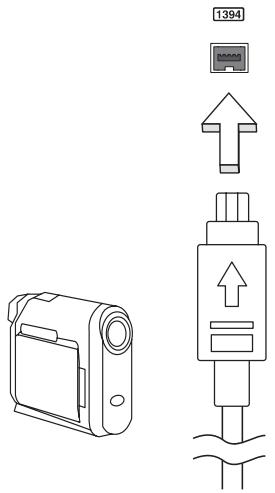
International Travelers Warranty (ITW)

LCD panel ergonomic specifications
| Design viewing distance | 500 mm |
| Design inclination angle | 0.0° |
| Design azimuth angle | 90.0° |
| Viewing direction range class | Class IV |
| Screen tilt angle | 85.0° |
| Design screen illuminance | Illuminance level: [250 + (250)] lx where = 85^ Color: Source D65 |
| Reflection class of LCD panel(positive and negative polarity) | Ordinary LCD: Class IProtective LCD: Class III |
| Image polarity | Both |
| Reference white:Pre-setting of luminance and color temperature @ 6500K (tested under BM7) | Ynu'nv'n |
| Pixel fault class | Class II |
TravelMate Seriens
CLASS 1 LASER PRODUCT
CAUTION: INVISIBLE LASER RADIATION WHEN OPEN. AVOID EXPOSURE TO BEAM.
APPAREIL A LASER DE CLASSE 1 PRODUIT
LASERATTENTION: RADIATION DU FAISCEAU LASER INVISIBLE EN CAS D'OUVERTURE. EVITTER TOUTE EXPOSITION AUX RAYONS.
LUOKAN 1 LASERLAITE LASER KLASSE 1
Acer Backup Manager 7
Strømstyring 8
Acer eRecovery Management 9
High-Definition Multimedia Interface
International Travelers Warranty (ITW) 34
Inden du ringer 34
LCD panel ergonomic specifications 39
Pegefelt
Acer Backup Manager

flowchart
graph LR
    A["Select Source"] --> B["Select Destination"]
    B --> C["Setup Schedule"]
Strømstyring
Acer eRecovery Management

Universal Serial Bus (USB)
International Travelers Warranty (ITW)

LCD panel ergonomic specifications
| Design viewing distance | 500 mm |
| Design inclination angle | 0.0^ |
| Design azimuth angle | 90.0^ |
| Viewing direction range class | Class IV |
| Screen tilt angle | 85.0^ |
| Design screen illuminance | Illuminance level: [250 + (250)] lx where = 85^ Color: Source D65 |
| Reflection class of LCD panel(positive and negative polarity) | Ordinary LCD: Class IProtective LCD: Class III |
| Image polarity | Both |
| Reference white:Pre-setting of luminance and color temperature @ 6500K (tested under BM7) | Ynu'nv'n |
| Pixel fault class | Class II |
TravelMate-serien
KLASS 1 LASERPRODUKT
VARNING: OSYNLIG LASERSTRÅLNING NÄR DENNA DEL ÄR ÖPPEN. UNDVIK ATT UTSÄTTA DIG FÖR STRÅLEN.
APPAREIL A LASER DE CLASSE 1 PRODUIT
LASERATTENTION: RADIATION DU FAISCEAU LASER INVISIBLE EN CAS
D'OUVERTURE. EVITTER TOUTE EXPOSITION AUX RAYONS.
LUOKAN 1 LASERLAITE LASER KLASSE 1
Acer Backup Manager 7
Acer eRecovery Management 9
(International Travelers Warranty; ITW) 33
Innan du ringer 33
Felsöka datorn 34
Felsökningstips 34
Felmeddelanden 34
LCD panel ergonomic specifications 38
Pekplatta
Acer Backup Manager

flowchart
graph LR
    A["Select Source"] --> B["Select Destination"]
    B --> C["Setup Schedule"]
Strömsparfunktioner
Acer eRecovery Management

IEEE 1394-port (endast för vissa modeller)
Aktivera disk-to-disk recovery

LCD panel ergonomic specifications
| Design viewing distance | 500 mm |
| Design inclination angle | 0.0° |
| Design azimuth angle | 90.0° |
| Viewing direction range class | Class IV |
| Screen tilt angle | 85.0° |
| Design screen illuminance | Illuminance level: [250 + (250)] lx where = 85^ Color: Source D65 |
| Reflection class of LCD panel(positive and negative polarity) | Ordinary LCD: Class IProtective LCD: Class III |
| Image polarity | Both |
| Reference white:Pre-setting of luminance and color temperature @ 6500K (tested under BM7) | Ynu'nv'n |
| Pixel fault class | Class II |
TravelMate -sarja
Peruskäyttäjän opas
Acer Backup Manager 7
Virranhallinta 8
Acer eRecovery Management 9
Polta varmistuslevy 10
Palauta 11
High-Definition Multimedia Interface
(vain tietyille malleille) 26
ExpressCard (vain tietyille malleille) 27
"International Travelers Warranty" (ITW) 33
LCD panel ergonomic specifications 38
Kosketusalusta
Acer Backup Manager

flowchart
graph LR
    A["Select Source"] --> B["Select Destination"]
    B --> C["Setup Schedule"]
Virranhallinta
Acer eRecovery Management
Polta varmistuslevy

USB-väylä

LCD panel ergonomic specifications
| Design viewing distance | 500 mm |
| Design inclination angle | 0.0^ |
| Design azimuth angle | 90.0^ |
| Viewing direction range class | Class IV |
| Screen tilt angle | 85.0^ |
| Design screen illuminance | Illuminance level: [250 + (250)] lx where = 85^ Color: Source D65 |
| Reflection class of LCD panel(positive and negative polarity) | Ordinary LCD: Class IProtective LCD: Class III |
| Image polarity | Both |
| Reference white:Pre-setting of luminance and color temperature @ 6500K (tested under BM7) | Ynu'nv'n |
| Pixel fault class | Class II |
Серия TravelMate
CLASS 1 LASER PRODUCT
CAUTION: INVISIBLE LASER RADIATION WHEN OPEN. AVOID EXPOSURE TO BEAM.
APPAREIL A LASER DE CLASSE 1 PRODUIT
LASERATTENTION: RADIATION DU FAISCEAU LASER INVISIBLE EN CAS D'OUVERTURE. EVITTER TOUTE EXPOSITION AUX RAYONS.
LUOKAN 1 LASERLAITE LASER KLASSE 1
Acer Backup Manager 7
Управление питанием
8
Acer eRecovery Management
9
High-Definition Multimedia Interface
LCD panel ergonomic specifications 40
Сенсорная панель
Acer Backup Manager

flowchart
graph LR
    A["Select Source"] --> B["Select Destination"]
    B --> C["Setup Schedule"]
Управление питанием
Acer eRecovery Management


LCD panel ergonomic specifications
| Design viewing distance | 500 mm |
| Design inclination angle | 0.0° |
| Design azimuth angle | 90.0° |
| Viewing direction range class | Class IV |
| Screen tilt angle | 85.0° |
| Design screen illuminance | Illuminance level: [250 + (250)] lx where = 85^ Color: Source D65 |
| Reflection class of LCD panel(positive and negative polarity) | Ordinary LCD: Class IProtective LCD: Class III |
| Image polarity | Both |
| Reference white:Pre-setting of luminance and color temperature @ 6500K (tested under BM7) | Ynu'nv'n |
| Pixel fault class | Class II |
Komputer serii TravelMate
http://www.acer-group.com/public/Sustainability/sustainability01.htm.
Acer Backup Manager 7
Acer eRecovery Management 9
High-Definition Multimedia Interface
(disk-to-disk recovery) 30
Hasło 30
(International Travelers Warranty; ITW) 35
LCD panel ergonomic specifications 41
Touchpad
Acer Backup Manager

flowchart
graph LR
    A["Select Source"] --> B["Select Destination"]
    B --> C["Setup Schedule"]
Zarządzanie energią
Acer eRecovery Management


LCD panel ergonomic specifications
| Design viewing distance | 500 mm |
| Design inclination angle | 0.0° |
| Design azimuth angle | 90.0° |
| Viewing direction range class | Class IV |
| Screen tilt angle | 85.0° |
| Design screen illuminance | Illuminance level:[250 + (250cosα)] lx where α = 85°Color: Source D65 |
| Reflection class of LCD panel(positive and negative polarity) | Ordinary LCD: Class IProtective LCD: Class III |
| Image polarity | Both |
| Reference white:Pre-setting of luminance and color temperature @ 6500K (tested under BM7) | Ynu'nv'n |
| Pixel fault class | Class II |
TravelMate sorozat
CLASS 1 LASER PRODUCT
CAUTION: INVISIBLE LASER RADIATION WHEN OPEN. AVOID EXPOSURE TO BEAM.
APPAREIL A LASER DE CLASSE 1 PRODUIT
LASERATTENTION: RADIATION DU FAISCEAU LASER INVISIBLE EN CAS
D'OUVERTURE. EVITTER TOUTE EXPOSITION AUX RAYONS.
LUOKAN 1 LASERLAITE LASER KLASSE 1
Acer Backup Manager 7
Acer eRecovery Management 9
(International Travelers Warranty; ITW) 35
Mielött telefonálna 35
Hibaelhárítás 36
LCD panel ergonomic specifications 41
Érintőpad
Acer Backup Manager

flowchart
graph LR
    A["Select Source"] --> B["Select Destination"]
    B --> C["Setup Schedule"]
Energiagazdálkodás
Acer eRecovery Management
Mentési lemez írása
Universal Serial Bus (USB)

LCD panel ergonomic specifications
| Design viewing distance | 500 mm |
| Design inclination angle | 0.0° |
| Design azimuth angle | 90.0° |
| Viewing direction range class | Class IV |
| Screen tilt angle | 85.0° |
| Design screen illuminance | Illuminance level:[250 + (250cosα)] lx where α = 85°Color: Source D65 |
| Reflection class of LCD panel(positive and negative polarity) | Ordinary LCD: Class IProtective LCD: Class III |
| Image polarity | Both |
| Reference white:Pre-setting of luminance and color temperature @ 6500K (tested under BM7) | Ynu'nv'n |
| Pixel fault class | Class II |
Řada TravelMate
Acer Backup Manager 7
Rízení spotřeby 8
Acer eRecovery Management 9
High-Definition Multimedia Interface
(International Travelers Warranty; ITW) 33
Než zavoláte 33
LCD panel ergonomic specifications 38
Zařízení touchpad
Acer Backup Manager

flowchart
graph LR
    A["Select Source"] --> B["Select Destination"]
    B --> C["Setup Schedule"]
Řízení spotřeby
Acer eRecovery Management


LCD panel ergonomic specifications
| Design viewing distance | 500 mm |
| Design inclination angle | 0.0° |
| Design azimuth angle | 90.0° |
| Viewing direction range class | Class IV |
| Screen tilt angle | 85.0° |
| Design screen illuminance | Illuminance level: [250 + (250)] lx where = 85^ Color: Source D65 |
| Reflection class of LCD panel(positive and negative polarity) | Ordinary LCD: Class IProtective LCD: Class III |
| Image polarity | Both |
| Reference white:Pre-setting of luminance and color temperature @ 6500K (tested under BM7) | Ynu'nv'n |
| Pixel fault class | Class II |
Séria TravelMate
Acer Backup Manager 7
Správa napájania 8
Acer eRecovery Management 9
High-Definition Multimedia Interface
(len pre určité modely) 26
ExpressCard (len pre určité modely) 27
LCD panel ergonomic specifications 38
Dotyková plocha
Acer Backup Manager

flowchart
graph LR
    A["Select Source"] --> B["Select Destination"]
    B --> C["Setup Schedule"]
Správa napájania
Acer eRecovery Management

Port IEEE 1394 (len pre určité modely)
4 Vrát'te spät' kryt pamäte a zaistite ho skrutkou.
5 Dajte batériu na svoje miesto a znova pripojte AC adaptér.
6 Zapnite počítač.

LCD panel ergonomic specifications
| Design viewing distance | 500 mm |
| Design inclination angle | 0.0^ |
| Design azimuth angle | 90.0^ |
| Viewing direction range class | Class IV |
| Screen tilt angle | 85.0^ |
| Design screen illuminance | Illuminance level: [250 + (250)] lx where = 85^ Color: Source D65 |
| Reflection class of LCD panel(positive and negative polarity) | Ordinary LCD: Class IProtective LCD: Class III |
| Image polarity | Both |
| Reference white:Pre-setting of luminance and color temperature @ 6500K (tested under BM7) | Ynu'nv'n |
| Pixel fault class | Class II |
Serija TravelMate
Acer Backup Manager 7
Upravljanje z napajanjem 8
Acer eRecovery Management 9
International Travelers Warranty (ITW)
(Mednarodna potovalna garancija) 33
Preden pokličete 33
LCD panel ergonomic specifications 40
Sledilna plošča
Acer Backup Manager

flowchart
graph LR
    A["Select Source"] --> B["Select Destination"]
    B --> C["Setup Schedule"]
Upravljanje z napajanjem
Acer eRecovery Management

Opozorilo! Prepričajte se, da je kabel, ki ga uporabljate primeren za državo v kateri delate.
4 Namestite pokrov in ga pritrdite z vijaki.
5 Namestite baterijo in priključite AC adapter.
6 Vključite računalnik.

LCD panel ergonomic specifications
| Design viewing distance | 500 mm |
| Design inclination angle | 0.0° |
| Design azimuth angle | 90.0° |
| Viewing direction range class | Class IV |
| Screen tilt angle | 85.0° |
| Design screen illuminance | Illuminance level:[250 + (250cosα)] lx where α = 85°Color: Source D65 |
| Reflection class of LCD panel(positive and negative polarity) | Ordinary LCD: Class IProtective LCD: Class III |
| Image polarity | Both |
| Reference white:Pre-setting of luminance and color temperature @ 6500K (tested under BM7) | Ynu'nv'n |
| Pixel fault class | Class II |
TravelMate serija
Acer Backup Manager 7
Acer eRecovery Management 9
Snimanje diskova sa sigurnosnom kopijom 10
Povrat 11
Povrat Windows s diskova sa sigurnosnom kopijom 12
Baterijski komplet 14
Karakteristike baterijskog kompleta 14
LCD panel ergonomic specifications 41
Dodirna ploča
Acer Backup Manager

Napomena: Ova mogućnost dostupna je samo na određenim modelima.
Acer Backup Manager jednostavan je proces od tri koraka koji Vam omogućava stvaranje sigurnosnih kopija Vašeg čitavog sustava ili datoteka i mapa odabranih prema rasporedu ili vlastitom nahođenju.
Za pokretanje Acer Backup Manager pritisnite Acer Backup Manager tipku iznad tipkovnice. Isto možete napraviti ako idete na Start > All Programs > Acer Backup Manager > Acer Backup Manager. To će otvoriti prozor dobrodošlice; s tog prozora biti ćete provedeni kroz tri koraka za postavljanje rasporeda izrade sigurnosnih kopija. Pritisnite Nastavi za nastavak na sljedeći prozor. Pritisnite + tipku i pratite upute na zaslonu:
1 Odaberite sadržaj za koji želite načiniti sigurnosnu kopiju. Što manje sadržaja odaberete, to će proces biti brži, ali će povećati rizik gubitka podataka.
2 Odaberite gdje želite pohraniti sigurnosne kopije. Trebat ćete odabrati vanjski disk ili Vaš D: disk; Acer Backup Manager ne može pohraniti sigurnosnu kopiju na izvorni disk.
3 Odaberite koliko često želite da Acer Backup Manager stvara sigurnosne kopije.
flowchart
graph LR
    A["Select Source"] --> B["Select Destination"]
    B --> C["Setup Schedule"]
Acer eRecovery Management
Acer eRecovery Management je alat za brzi povrat sustava. Takoder možete izraditi sigurnosnu kopiju/povrat standardnog tvornickog imidža i ponovno instalirati aplikacije i upravljacke programe.

Snimanje diskova sa sigurnosnom kopijom
Sa stranice Backup (Sigurnosna kopija) u Acer eRecovery Management moguće je snimiti tvornički standardni imidž ili načiniti sigurnosnu kopiju pogonskih programa i aplikacija.
1 Kliknite na Start, All Programs, Acer, Acer eRecovery Management.
2 Acer eRecovery Management se otvara na stranici Backup (Sigurnosna kopija).
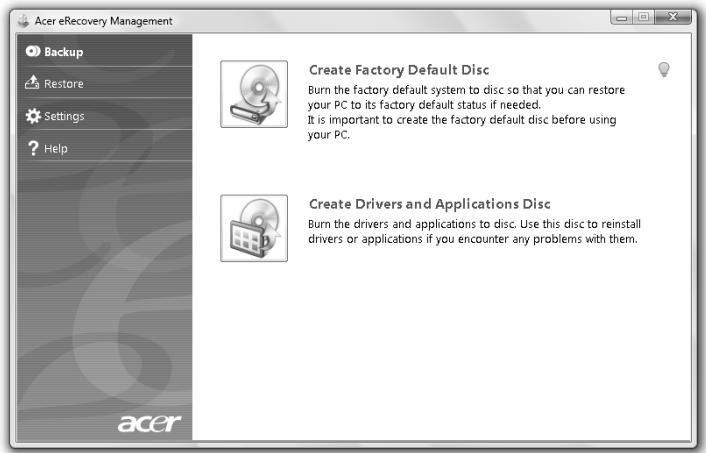
3 Odaberite vrstu sigurnosne kopije (standardna tvornička, pogonski programi ili aplikacije) koju želite snimiti na disk.
4 Slijedite upute na zaslonu da biste završili postupak.


Upozorenje! Molimo, osigurajte da je kabel koji koristite odgovarajući za državu u kojoj radite.
Univerzalna serijska sabirnica (USB)
USB 2.0 priključak je serijska sabirnica velike brzine koja omogućuje povezivanja USB perifernih uređaja bez zauzimanja dragocjenih resursa sustava.
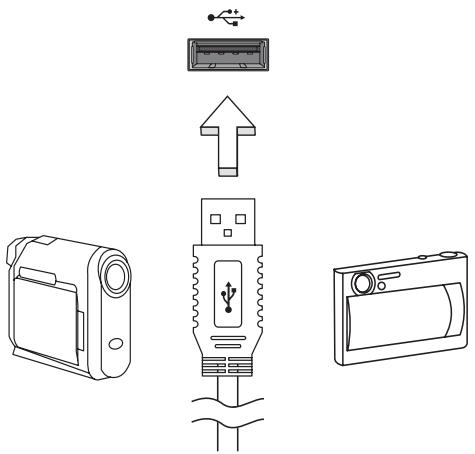
IEEE 1394 priključnica (samo za određene modele)
4 Vratite poklopac memorije i osigurajte ga vijcima.
5 Ponovno ugradite baterijski komplet i ponovno spojite AC adapter.
6 Uključite računalo.
Računalo automatski otkriva i ponovno konfigurira ukupnu veličinu memorije. Molimo, obratite se kvalificiranom tehničaru ili vašem zastupniku robne marke Acer.
BIOS uslužni program
International Travelers jamstvo (ITW)
Vaše računalo je pod International Travelers jamstvom (ITW) koje vam daje sigurnost i spokoj kada putujete. Naša mreža servisnih centara diljem svijeta je tu da vam pruži pomoć.

Napomena: Bežični Mini PCI adapter primjenjuje funkciju višestrukog odašiljanja. Ova funkcija ne emitira radiofrekvencije istovremeno iz obje antene. Jedna od antena je automatski ili ručno (od strane korisnika) odabrana kako bi se osigurala dobra kvaliteta radiokomunikacije.
2 Ovaj uređaj je ograničen na upotrebu u zatvorenom prostoru zbog njegovog rada u frekvencijskom rasponu od 5,15 do 5,25 GHz. FCC zathijeva da ovaj proizvod bude korišten u zatvorenom prostoru zbog frekvencijskog opsega od 5,15 do 5,25 GHz da bi se smanjile potencijalne štetne interferencije za mobilne satelitske sustave koji rade na istom kanalu.
3 Radarima visoke snage je dodijeljeno da budu osnovni korisnici pojasa od 5,25 do 5,35 GHz i od 5,65 do 5,85 GHz. Ove radarske stanice mogu izazvati interferenciju i/ili oštetiti ovaj uređaj.
LCD panel ergonomic specifications
| Design viewing distance | 500 mm |
| Design inclination angle | 0.0^ |
| Design azimuth angle | 90.0^ |
| Viewing direction range class | Class IV |
| Screen tilt angle | 85.0^ |
| Design screen illuminance | Illuminance level: [250 + (250)] lx where = 85^ Color: Source D65 |
| Reflection class of LCD panel(positive and negative polarity) | Ordinary LCD: Class IProtective LCD: Class III |
| Image polarity | Both |
| Reference white:Pre-setting of luminance and color temperature @ 6500K (tested under BM7) | Ynu'nv'n |
| Pixel fault class | Class II |
Seria TravelMate
Ghidul general de utilizare
Computer portabil seria TravelMate
http://www.acer-group.com/public/Sustainability/sustainability01.htm.

Acer Backup Manager 7
Acer eRecovery Management 9
LCD panel ergonomic specifications 41
Zona de atingere
Acer Backup Manager

flowchart
graph LR
    A["Select Source"] --> B["Select Destination"]
    B --> C["Setup Schedule"]
Acer eRecovery Management

Universal Serial Bus (USB)

LCD panel ergonomic specifications
| Design viewing distance | 500 mm |
| Design inclination angle | 0.0^ |
| Design azimuth angle | 90.0^ |
| Viewing direction range class | Class IV |
| Screen tilt angle | 85.0^ |
| Design screen illuminance | Illuminance level: [250 + (250)] lx where = 85^ Color: Source D65 |
| Reflection class of LCD panel(positive and negative polarity) | Ordinary LCD: Class IProtective LCD: Class III |
| Image polarity | Both |
| Reference white:Pre-setting of luminance and color temperature @ 6500K (tested under BM7) | Ynu'nv'n |
| Pixel fault class | Class II |
TravelMate Серия
Acer Backup Manager 7
Acer eRecovery Management
9
LCD panel ergonomic specifications 43
Тъчпад
Acer Backup Manager

flowchart
graph LR
    A["Select Source"] --> B["Select Destination"]
    B --> C["Setup Schedule"]
Acer eRecovery Management

Universal Serial Bus (USB)

LCD panel ergonomic specifications
| Design viewing distance | 500 mm |
| Design inclination angle | 0.0^ |
| Design azimuth angle | 90.0^ |
| Viewing direction range class | Class IV |
| Screen tilt angle | 85.0^ |
| Design screen illuminance | Illuminance level: [250 + (250)] lx where = 85^ Color: Source D65 |
| Reflection class of LCD panel(positive and negative polarity) | Ordinary LCD: Class IProtective LCD: Class III |
| Image polarity | Both |
| Reference white:Pre-setting of luminance and color temperature @ 6500K (tested under BM7) | Ynu'nv'n |
| Pixel fault class | Class II |
TravelMate seeria
Üldkasutusjuhend
Acer Backup Manager 7
Energiahaldus 8
Acer eRecovery Management 9
Varuketaste körvetamine 10
Taastamine 11
Windows taastamine varundusketastelt 12
Aku 14
Aku omadused 14
Aku eluea pikendamine 14
Aku paigaldamine ja eemaldamine 15
Aku laadimine 16
LCD panel ergonomic specifications 40
Puuteplaat
Acer Backup Manager

flowchart
graph LR
    A["Select Source"] --> B["Select Destination"]
    B --> C["Setup Schedule"]
Energiahaldus
Acer eRecovery Management

Universal Serial Bus (USB)

LCD panel ergonomic specifications
| Design viewing distance | 500 mm |
| Design inclination angle | 0.0° |
| Design azimuth angle | 90.0° |
| Viewing direction range class | Class IV |
| Screen tilt angle | 85.0° |
| Design screen illuminance | Illuminance level:[250 + (250cosα)] lx where α = 85°Color: Source D65 |
| Reflection class of LCD panel(positive and negative polarity) | Ordinary LCD: Class IProtective LCD: Class III |
| Image polarity | Both |
| Reference white:Pre-setting of luminance and color temperature @ 6500K (tested under BM7) | Ynu'nv'n |
| Pixel fault class | Class II |
TravelMate sērija
1. KLASES LÃZERA PRODUKTS
BRĪDINĀJUMS ATVEROT RODAS NEREDZAMA LĀZERA RADIĀCIJA. IZVAIRIETIES NO PAKŁAUŠANAS IEDARBĪBAI.
APPAREIL A LASER DE CLASSE 1 PRODUIT
LASERATTENTION: RADIATION DU FAISCEAU LASER INVISIBLE EN CAS D'OUVERTURE. EVITTER TOUTE EXPOSITION AUX RAYONS.
LUOKAN 1 LASERLAITE LASER KLASSE 1
Acer Backup Manager 7
Acer eRecovery Management 9
LCD panel ergonomic specifications 39
Skārienpanelis
Acer Backup Manager

flowchart
graph LR
    A["Select Source"] --> B["Select Destination"]
    B --> C["Setup Schedule"]
Acer eRecovery Management

IEEE 1394 ports (tikai noteiktiem modeliem)

LCD panel ergonomic specifications
| Design viewing distance | 500 mm |
| Design inclination angle | 0.0° |
| Design azimuth angle | 90.0° |
| Viewing direction range class | Class IV |
| Screen tilt angle | 85.0° |
| Design screen illuminance | Illuminance level:[250 + (250cosα)] lx where α = 85°Color: Source D65 |
| Reflection class of LCD panel(positive and negative polarity) | Ordinary LCD: Class IProtective LCD: Class III |
| Image polarity | Both |
| Reference white:Pre-setting of luminance and color temperature @ 6500K (tested under BM7) | Ynu'nv'n |
| Pixel fault class | Class II |
TravelMate seriju
Bendroji naudojimosi instrukcija
TravelMate seriju nešiojamasis kompiuteris
Modelio numeris: ____
Acer Backup Manager 7
Acer eRecovery Management 9
International Travelers Warranty (ITW) garantija 33
Prieš skambinant 33
LCD panel ergonomic specifications 40
Acer Backup Manager

flowchart
graph LR
    A["Select Source"] --> B["Select Destination"]
    B --> C["Setup Schedule"]
Energijos valdymas
Acer eRecovery Management

Universali nuoseklioji magistralè (USB)
International Travelers Warranty (ITW) garantija

LCD panel ergonomic specifications
| Design viewing distance | 500 mm |
| Design inclination angle | 0.0° |
| Design azimuth angle | 90.0° |
| Viewing direction range class | Class IV |
| Screen tilt angle | 85.0° |
| Design screen illuminance | Illuminance level:[250 + (250cosα)] lx where α = 85°Color: Source D65 |
| Reflection class of LCD panel(positive and negative polarity) | Ordinary LCD: Class IProtective LCD: Class III |
| Image polarity | Both |
| Reference white:Pre-setting of luminance and color temperature @ 6500K (tested under BM7) | Ynu'nv'n |
| Pixel fault class | Class II |
Σειρά TravelMate
Acer Backup Manager 7
Acer eRecovery Management 9
LCD panel ergonomic specifications 41
Επιφάνεια Αφής
Acer Backup Manager

Acer eRecovery Management

Universal Serial Bus (USB)

LCD panel ergonomic specifications
| Design viewing distance | 500 mm |
| Design inclination angle | 0.0° |
| Design azimuth angle | 90.0° |
| Viewing direction range class | Class IV |
| Screen tilt angle | 85.0° |
| Design screen illuminance | Illuminance level:[250 + (250cosα)] lx where α = 85°Color: Source D65 |
| Reflection class of LCD panel(positive and negative polarity) | Ordinary LCD: Class IProtective LCD: Class III |
| Image polarity | Both |
| Reference white:Pre-setting of luminance and color temperature @ 6500K (tested under BM7) | Ynu'nv'n |
| Pixel fault class | Class II |
TravelMate Serisi
Acer Backup Manager 7
Güç yönetimi 8
Acer eRecovery Management 9
Exposure of humans to RF fields (RSS-102) 38
LCD panel ergonomic specifications 38
Dokunmatik yüzey
Acer Backup Manager

flowchart
graph LR
    A["Select Source"] --> B["Select Destination"]
    B --> C["Setup Schedule"]
Güç yönetimi
Acer eRecovery Management


Exposure of humans to RF fields (RSS-102)
The notebook PC series employs low gain integral antennas that do not emit RF field in excess of Health Canada limits for the general population; consult Safety Code 6, obtainable from Health Canada's website at www.hc-sc.gc.ca/rpb.
LCD panel ergonomic specifications
| Design viewing distance | 500 mm |
| Design inclination angle | 0.0° |
| Design azimuth angle | 90.0° |
| Viewing direction range class | Class IV |
| Screen tilt angle | 85.0° |
| Design screen illuminance | Illuminance level:[250 + (250cosα)] lx where α = 85°Color: Source D65 |
| Reflection class of LCD panel(positive and negative polarity) | Ordinary LCD: Class IProtective LCD: Class III |
| Image polarity | Both |
| Reference white:Pre-setting of luminance and color temperature @ 6500K (tested under BM7) | Ynu'nv'n |
| Pixel fault class | Class II |
TravelMate シリーズ
汎用ユーザーガイド
CLASS 1 LASER PRODUCT
CAUTION: INVISIBLE LASER RADIATION WHEN OPEN. AVOID EXPOSURE TO BEAM.
APPAREIL A LASER DE CLASSE 1 PRODUIT
LASERATTENTION: RADIATION DU FAISCEAU LASER INVISIBLE EN CAS D'OUVERTURE. EVITTER TOUTE EXPOSITION AUX RAYONS.
LUOKAN 1 LASERLAITE LASER KLASSE 1
Acer Backup Manager 7
パワーマネージメント 8
Acer eRecovery Management 9
バックアップディスクの書き込み 10
復元 11
(International Travelers Warranty; ITW) 32
インターネットサポート 32
カスタマーサービスセンター 32
トラブル対策 33
トラブル対策のヒント 33
エラーメッセージ 33
規制と安全通知 34
FCC 規定 34
LCD panel ergonomic specifications 38
タッチパッド
Acer Backup Manager

flowchart
graph LR
    A["Select Source"] --> B["Select Destination"]
    B --> C["Setup Schedule"]
パワーマネージメント
Acer eRecovery Management

USB
(International Travelers Warranty; ITW)
Federal Communications Commission
各規格への準拠

LCD panel ergonomic specifications
| Design viewing distance | 500 mm |
| Design inclination angle | 0.0° |
| Design azimuth angle | 90.0° |
| Viewing direction range class | Class IV |
| Screen tilt angle | 85.0° |
| Design screen illuminance | Illuminance level: [250 + (250)] lx where = 85^ Color: Source D65 |
| Reflection class of LCD panel(positive and negative polarity) | Ordinary LCD: Class IProtective or Acer CrystalBrite ^TM LCD:Class III |
| Image polarity | Both |
| Reference white:Pre-setting of luminance and color temperature @ 6500K(tested under BM7) | Ynu'nv'n |
| Pixel fault class | Class II |
TravelMate 시리즈
일반 사용 설명서
Acer eRecovery Management
백업 디스크 굽기
Restore(복구)
백업 디스크에서 Windows 복구
배터리 팩
배터리 팩 특성
배터리 수명 연장
배터리 팩 설치 및 제거
배터리 충전
배터리 수준 확인
iii
iii
vii
vii
viii
viii
ix
ix
ix
ix
X
X
xiii
xiii
xiv
xiv
xiv
XV
XV
XV
1
1
2
3
3
4
5
5
5
5
6
6
7
8
9
10
11
12
14
14
14
15
15
16
배터리 수명 최적화 16
배터리 부족 경고 17
노트북 PC 휴대 18
데스크톱에서 분리 18
주변에서 이동 18
컴퓨터 준비 18
회의실에 갈 때 19
가정과 사무실 간 이동 19
컴퓨터 준비 19
함께 가져갈 부속물 19
특별한 고려 사항 20
가정에서 컴퓨터 사용 준비 20
컴퓨터를 휴대한 국내 출장 20
컴퓨터 준비 20
함께 가져갈 부속물 20
특별한 고려 사항 21
컴퓨터를 휴대한 외국 출장 21
컴퓨터 준비 21
함께 가져갈 부속물 21
특별한 고려 사항 21
컴퓨터 보안 22
컴퓨터 보호용 잠금 장치 사용 22
암호 사용 22
암호 입력 23
암호 설정 23
옵션 확장 24
연결 옵션 24
ITW (International Travelers Warranty) 34
전화하기 전에 34
문제 해결 35
문제 해결 정보 35
오류 메시지 35
규정 및 안전 고지 사항 36
FCC 고지 사항 36
LCD panel ergonomic specifications 41
터치패드
Acer Backup Manager

flowchart
graph LR
    A["Select Source"] --> B["Select Destination"]
    B --> C["Setup Schedule"]
전원 관리
Acer eRecovery Management
백업 디스크 굽기

범용 직렬 버스 (USB)
ITW (International Travelers Warranty)

LCD panel ergonomic specifications
| Design viewing distance | 500 mm |
| Design inclination angle | 0.0° |
| Design azimuth angle | 90.0° |
| Viewing direction range class | Class IV |
| Screen tilt angle | 85.0° |
| Design screen illuminance | Illuminance level:[250 + (250cosα)] lx where α = 85°Color: Source D65 |
| Reflection class of LCD panel(positive and negative polarity) | Ordinary LCD: Class IProtective LCD: Class III |
| Image polarity | Both |
| Reference white:Pre-setting of luminance and color temperature @ 6500K (tested under BM7) | Ynu'nv'n |
| Pixel fault class | Class II |
TravelMate 系列
一般使用指南
TravelMate 系列筆記型電腦
產品型號:____
產品序號:____
購買日期:____
購買地點:____
安全與舒適性的相關資訊
重要安全指示
CLASS 1 LASER PRODUCT
CAUTION: INVISIBLE LASER RADIATION WHEN OPEN. AVOID EXPOSURE TO BEAM.
APPAREIL A LASER DE CLASSE 1 PRODUIT
LASERATTENTION: RADIATION DU FAISCEAU LASER INVISIBLE EN CAS D'OUVERTURE.EVITTER TOUTE EXPOSITION AUX RAYONS.
LUOKAN 1 LASERLAITE LASER KLASSE 1
Acer Backup Manager 7
電源選項
8
Acer eRecovery Management
燒錄備份光碟 10
還原 11
從備份磁碟還原 Windows 12
電池組
電池組特性 14
強化電池使用壽命 14
安裝和移除電池組 15
電池充電 16
檢查電池電量 16
最佳化電池使用壽命 16
低電量警告 17
移動您的筆記型電腦 18
移除與其他裝置的連接 18
移動電腦 18
前置作業 18
帶著電腦參加會議 19
帶著電腦回家 19
前置作業 19
攜帶物品 19
特殊考量事項 19
設置家庭辦公室 20
帶著電腦出差 20
前置作業 20
攜帶物品 20
特殊考量事項 20
帶著電腦到國外出差 20
前置作業 20
攜帶物品 21
特殊考量事項 21
保護您的電腦 22
使用電腦安全鎖 22
使用密碼 22
輸入密碼 23
設定密碼 23
透過選購品擴充 24
連線用選購項目 24
(International Travelers Warranty; ITW) 33
在您撥電話之前 33
故障排除 34
疑難排解提示 34
錯誤訊息 34
規範和安全注意事項 35
FCC 聲明 35
數據機(僅適用於特定機型) 35
LCD 像素宣告 36
無線設備管控注意事項 36
一般 36
FCC 無線電頻率安全要求 36
LCD panel ergonomic specifications 38
觸控板
Acer Backup Manager

注意:此功能僅適用於特定機型。
flowchart
graph LR
    A["Select Source"] --> B["Select Destination"]
    B --> C["Setup Schedule"]
電源選項
Acer eRecovery Management
燒錄備份光碟

通用序列匯流排 (USB)

LCD panel ergonomic specifications
| Design viewing distance | 500 mm |
| Design inclination angle | 0.0^ |
| Design azimuth angle | 90.0^ |
| Viewing direction range class | Class IV |
| Screen tilt angle | 85.0^ |
| Design screen illuminance | Illuminance level: [250 + (250)] lx where = 85^ Color: Source D65 |
| Reflection class of LCD panel(positive and negative polarity) | Ordinary LCD: Class IProtective LCD: Class III |
| Image polarity | Both |
| Reference white:Pre-setting of luminance and color temperature @ 6500K (tested under BM7) | Ynu'nv'n |
| Pixel fault class | Class II |
TravelMate 系列
普通用户指南
TravelMate 系列笔记本电脑
产品型号:____
产品序号:____
购买日期:____
购买地点:____
有关安全和舒适性的信息
重要安全须知
CLASS 1 LASER PRODUCT
CAUTION: INVISIBLE LASER RADIATION WHEN OPEN. AVOID EXPOSURE TO BEAM.
APPAREIL A LASER DE CLASSE 1 PRODUIT
LASERATTENTION: RADIATION DU FAISCEAU LASER INVISIBLE EN CAS
D'OUVERTURE. EVITTER TOUTE EXPOSITION AUX RAYONS.
LUOKAN 1 LASERLAITE LASER KLASSE 1
Acer Backup Manager 7
电源管理 8
Acer eRecovery Management 9
刻录备份光盘 10
恢复 11
从备份光盘恢复 Windows 12
电池组 13
电池组特点 13
最大限度延长电池的寿命 13
安装和卸下电池组 14
给电池充电 15
检查电池电量 15
优化电池寿命 15
电量不足警告 16
随身携带笔记本电脑 17
断开笔记本电脑与桌面设备的连接 17
携带笔记本电脑 17
准备作业 17
出席会议需携带的物品 18
携带电脑回家 18
准备作业 18
携带物品 18
特别注意事项 18
布置您的家庭办公室 19
携带笔记本电脑旅行 19
准备作业 19
携带物品 19
特别注意事项 19
携带笔记本电脑进行国际旅行 19
准备作业 19
携带物品 20
特别注意事项 20
保护您的电脑 21
使用电脑安全锁 21
使用密码 21
输入密码 22
设置密码 22
使用选项扩展性能 23
连接选项 23
(International Travelers Warranty; ITW) 32
致电之前 32
疑难解答 33
疑难解答提示 33
错误信息 33
规则及安全注意事项 34
FCC 声明 34
调制解调器声明(仅限部分型号) 34
LCD 象素声明 35
无线设备规则公告 35
总则 35
FCC RF 安全要求 35
LCD panel ergonomic specifications 37
触摸板
Acer Backup Manager

注:仅部分型号具备此功能。
flowchart
graph LR
    A["Select Source"] --> B["Select Destination"]
    B --> C["Setup Schedule"]
电源管理
Acer eRecovery Management
刻录备份光盘

通用串行总线 (USB)
LCD panel ergonomic specifications
| Design viewing distance | 500 mm |
| Design inclination angle | 0.0^ |
| Design azimuth angle | 90.0^ |
| Viewing direction range class | Class IV |
| Screen tilt angle | 85.0^ |
| Design screen illuminance | Illuminance level: [250 + (250)] lx where = 85^ Color: Source D65 |
| Reflection class of LCD panel(positive and negative polarity) | Ordinary LCD: Class IProtective LCD: Class III |
| Image polarity | Both |
| Reference white:Pre-setting of luminance and color temperature @ 6500K (tested under BM7) | Ynu'nv'n |
| Pixel fault class | Class II |
Seri TravelMate
PC Notebook Seri TravelMate
Nomor model: ____
Nomor seri: ____
Tanggal pembelian: ____
Alamat pembelian: ____
Acer Backup Manager 7
Manajemen daya 8
Acer eRecovery Management 9
Bakar cakram cadangan 10
Kembalikan 11
ITW (International Travelers Warranty) 34
Exposure of humans to RF fields (RSS-102) 41
LCD panel ergonomic specifications 42
Panel sentuh
Acer Backup Manager

flowchart
graph LR
    A["Select Source"] --> B["Select Destination"]
    B --> C["Setup Schedule"]
Manajemen daya
Acer eRecovery Management
Bakar cakram cadangan
1 Klik Start, All Programs, Acer, Acer eRecovery Management.
2 Acer eRecovery Management membuka halaman Cadangan.
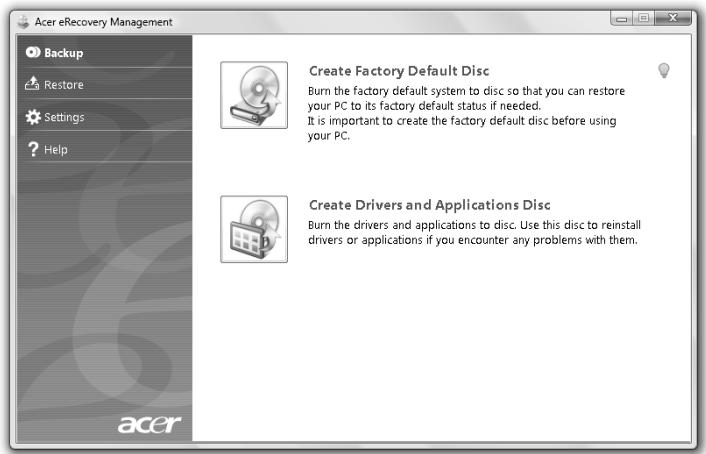

USB (Universal Serial Bus)
Port IEEE 1394 (hanya untuk model-model tertentu)
ITW (International Travelers Warranty)

Exposure of humans to RF fields (RSS-102)
The notebook PC series employs low gain integral antennas that do not emit RF field in excess of Health Canada limits for the general population; consult Safety Code 6, obtainable from Health Canada's website at www.hc-sc.gc.ca/rpb.
LCD panel ergonomic specifications
| Design viewing distance | 500 mm |
| Design inclination angle | 0.0° |
| Design azimuth angle | 90.0° |
| Viewing direction range class | Class IV |
| Screen tilt angle | 85.0° |
| Design screen illuminance | Illuminance level:[250 + (250cosα)] lx where α = 85°Color: Source D65 |
| Reflection class of LCD panel(positive and negative polarity) | Ordinary LCD: Class IProtective LCD: Class III |
| Image polarity | Both |
| Reference white:Pre-setting of luminance and color temperature @ 6500K (tested under BM7) | Ynu'nv'n |
| Pixel fault class | Class II |
TravelMate ซีริส์
คุ่มือผู้ใช้หวไป
CLASS 1 LASER PRODUCT
CAUTION: INVISIBLE LASER RADIATION WHEN OPEN. AVOID EXPOSURE TO BEAM.
APPAREIL A LASER DE CLASSE 1 PRODUIT
LASERATTENTION: RADIATION DU FAISCEAU LASER INVISIBLE EN CAS D'OUVERTURE. EVITTER TOUTE EXPOSITION AUX RAYONS.
LUOKAN 1 LASERLAITE LASER KLASSE 1
Acer Backup Manager 7
Acer eRecovery Management 9
Acer Backup Manager

flowchart
graph LR
    A["Select Source"] --> B["Select Destination"]
    B --> C["Setup Schedule"]
Acer eRecovery Management
เปิร์นติสก์แป็ดอัพ

Universal Serial Bus (USB)
forecasts should be done in the
forecasts support to apply:

LCD panel ergonomic specifications
| Design viewing distance | 500 mm |
| Design inclination angle | 0.0° |
| Design azimuth angle | 90.0° |
| Viewing direction range class | Class IV |
| Screen tilt angle | 85.0° |
| Design screen illuminance | Illuminance level:[250 + (250cosα)] lx where α = 85°Color: Source D65 |
| Reflection class of LCD panel(positive and negative polarity) | Ordinary LCD: Class IProtective LCD: Class III |
| Image polarity | Both |
| Reference white:Pre-setting of luminance and color temperature @ 6500K (tested under BM7) | Ynu'nv'n |
| Pixel fault class | Class II |
- Information for your safety and comfort
- Safety instructions
- Turning the product off before cleaning
- CAUTION for plug as disconnecting device
- CAUTION for Accessibility
- CAUTION for bundled dummy cards (only for certain models)
- CAUTION for Listening
- Warnings
- Using electrical power
- Product servicing
- Guidelines for safe battery usage
- Replacing the battery pack
- Caution for Optical Drive Device (only for certain models)
- Telephone line safety
- Operating environment
- Medical devices
- Vehicles
- Potentially explosive environments
- Emergency calls
- Disposal instructions
- Mercury advisory
- ENERGY STAR
- Tips and information for comfortable use
- Finding your comfort zone
- Taking care of your vision
- Eyes
- xii
- Display
- Developing good work habits
- First things first
- Your guides
- Basic care and tips for using your computer
- Turning your computer on and off
- xiv
- Taking care of your computer
- Taking care of your AC adapter
- Taking care of your battery pack
- Cleaning and servicing
- Information for your safety and comfort iii
- First things first xiii
- Touchpad 1
- Using the keyboard 3
- Audio 5
- Video 5
- Using the system utilities 6
- Power management 8
- Acer eRecovery Management 9
- Battery pack 14
- Taking your notebook PC with you 18
- Securing your computer 22
- Expanding through options 24
- Frequently asked questions 31
- Troubleshooting 35
- Regulations and safety notices 36
- Touchpad
- Touchpad basics (with fingerprint reader)
- Touchpad basics (with two-click buttons)
- Using the keyboard
- Lock keys and embedded numeric keypad\*
- Windows keys
- Audio
- Acer PureZone (only for certain models)
- Video
- 16:9 display (only for certain models)
- Using the system utilities
- Acer Bio-Protection (only for certain models)
- Acer Backup Manager
- Power management
- Acer eRecovery Management
- Backup:
- Restore:
- Burn backup discs
- Restore
- Restore Windows from backup discs
- Battery pack
- Battery pack characteristics
- Maximizing the battery's life
- Conditioning a new battery pack
- Installing and removing the battery pack
- To install a battery pack:
- Charging the battery
- Checking the battery level
- Optimising battery life
- Battery-low warning
- Taking your notebook PC with you
- Disconnecting from the desktop
- Moving around
- Preparing the computer
- What to bring to meetings
- Taking the computer home
- What to take with you
- Special considerations
- Setting up a home office
- Traveling with the computer
- Traveling internationally with the computer
- What to bring with you
- Securing your computer
- Using a computer security lock
- Using passwords
- Entering passwords
- Setting passwords
- Expanding through options
- Connectivity options
- Fax/data modem (only for certain models)
- Built-in network feature
- Universal Serial Bus (USB)
- IEEE 1394 port (only for certain models)
- High-Definition Multimedia Interface (only for certain models)
- ExpressCard (only for certain models)
- Inserting an ExpressCard
- Ejecting an ExpressCard
- Installing memory
- BIOS utility
- Boot sequence
- Enable disk-to-disk recovery
- Password
- Using software
- Playing DVD movies
- Eject the DVD disk.
- The DVD movie will automatically play after a few seconds.
- Frequently asked questions
- Nothing appears on the screen.
- No audio is heard from the computer.
- Requesting service
- International Travelers Warranty (ITW)
- Before you call
- Troubleshooting
- Troubleshooting tips
- Error messages
- Regulations and safety notices
- FCC statement
- Notice: Shielded cables
- Notice: Peripheral devices
- Caution
- Notice: Canadian users
- Compliant with Russian regulatory certification
- Modem notices (only for certain models)
- Notice for USA
- TBR 21
- Notice for Australia
- Notice for New Zealand
- LCD pixel statement
- Radio device regulatory notice
- General
- Declaration of Conformity for EU countries
- List of applicable countries
- The FCC RF safety requirement
- Canada — Low-power license-exempt radio communication devices (RSS-210)
- Exposure of humans to RF fields (RSS-102)
- Gamme TravelMate
- TravelMate Serie
- CLASS 1 LASER PRODUCT
- Energieverwaltung 8
- Problemlösung 37
- Energieverwaltung
- Serie TravelMate
- ITW (International Traveler's Warranty)
- Panel táctil
- Série TravelMate
- Gestão de energia 8
- Gestão de energia
- Energiebeheer 8
- Problemen oplossen 35
- Energiebeheer
- Backup-disk branden
- ITW (International Travelers Warranty)
- TravelMate Series
- Strømstyring 8
- Batteri 14
- Berøringsplate (Touchpad)
- Strømstyring
- Lag sikkerhetskopidisk
- IEEE 1394-port (bare for visse modeller)
- TravelMate Seriens
- Pegefelt
- TravelMate-serien
- Felsöka datorn 34
- Pekplatta
- Strömsparfunktioner
- IEEE 1394-port (endast för vissa modeller)
- Aktivera disk-to-disk recovery
- TravelMate -sarja
- Virranhallinta 8
- Kosketusalusta
- Virranhallinta
- Polta varmistuslevy
- USB-väylä
- Серия TravelMate
- Управление питанием
- Сенсорная панель
- Komputer serii TravelMate
- Zarządzanie energią
- TravelMate sorozat
- Hibaelhárítás 36
- Érintőpad
- Energiagazdálkodás
- Mentési lemez írása
- Řada TravelMate
- Rízení spotřeby 8
- Zařízení touchpad
- Řízení spotřeby
- Séria TravelMate
- Správa napájania 8
- Dotyková plocha
- Správa napájania
- Port IEEE 1394 (len pre určité modely)
- Serija TravelMate
- Upravljanje z napajanjem 8
- Sledilna plošča
- Upravljanje z napajanjem
- TravelMate serija
- Baterijski komplet 14
- Dodirna ploča
- Snimanje diskova sa sigurnosnom kopijom
- Univerzalna serijska sabirnica (USB)
- IEEE 1394 priključnica (samo za određene modele)
- BIOS uslužni program
- International Travelers jamstvo (ITW)
- Seria TravelMate
- Zona de atingere
- TravelMate Серия
- Тъчпад
- TravelMate seeria
- Energiahaldus 8
- Aku 14
- Puuteplaat
- Energiahaldus
- TravelMate sērija
- KLASES LÃZERA PRODUKTS
- Skārienpanelis
- IEEE 1394 ports (tikai noteiktiem modeliem)
- TravelMate seriju
- Energijos valdymas
- Universali nuoseklioji magistralè (USB)
- International Travelers Warranty (ITW) garantija
- Σειρά TravelMate
- Επιφάνεια Αφής
- TravelMate Serisi
- Güç yönetimi 8
- Dokunmatik yüzey
- Güç yönetimi
- TravelMate シリーズ
- パワーマネージメント 8
- トラブル対策 33
- 規制と安全通知 34
- タッチパッド
- パワーマネージメント
- USB
- (International Travelers Warranty; ITW)
- TravelMate 시리즈
- 배터리 팩
- iii
- xiii
- 1
- 3
- 5
- 6
- 8
- 9
- 14
- 노트북 PC 휴대 18
- 컴퓨터 보안 22
- 옵션 확장 24
- 문제 해결 35
- 규정 및 안전 고지 사항 36
- 터치패드
- 전원 관리
- 백업 디스크 굽기
- 범용 직렬 버스 (USB)
- TravelMate 系列
- 安全與舒適性的相關資訊
- 重要安全指示
- 電源選項
- 電池組
- 移動您的筆記型電腦 18
- 保護您的電腦 22
- 透過選購品擴充 24
- 故障排除 34
- 規範和安全注意事項 35
- 觸控板
- 燒錄備份光碟
- 通用序列匯流排 (USB)
- 有关安全和舒适性的信息
- 重要安全须知
- 电源管理 8
- 电池组 13
- 随身携带笔记本电脑 17
- 保护您的电脑 21
- 使用选项扩展性能 23
- 疑难解答 33
- 规则及安全注意事项 34
- 触摸板
- 电源管理
- 刻录备份光盘
- 通用串行总线 (USB)
- Seri TravelMate
- Manajemen daya 8
- Panel sentuh
- Manajemen daya
- Bakar cakram cadangan
- USB (Universal Serial Bus)
- Port IEEE 1394 (hanya untuk model-model tertentu)
- TravelMate ซีริส์
- เปิร์นติสก์แป็ดอัพ
- forecasts should be done in the
- forecasts support to apply:
Brand : ACER
Model : TRAVELMATE 5742ZG
Category : Laptop