USER MANUAL PHASER 3450 XEROX
CnpaBoHOro pyKOBODCTBa
Copyright © 2004, Xerox Corporation. All Rights Reserved. Unpublished rights reserved under the copyright laws of the United States. Contents of this publication may not be reproduced in any form without permission of Xerox Corporation.
Copyright protection claimed includes all forms of matters of copyrightable materials and information now allowed by statutory or judicial law or hereinafter granted, including without limitation, material generated from the software programs which are displayed on the screen such as styles, templates, icons, screen displays, looks, etc.
XEROX®, The Document Company®, the stylized X®, CentreWare®, infoSMART®, Made For Each Other®, and PhaserSMART® are registered trademarks of Xerox Corporation. Phaser™, PhaserPort™, and PhaserTools™ are trademarks of Xerox Corporation.
Adobe Reader, Illustrator, PageMaker, Photoshop, PostScript, ATM, Adobe Garamond, Birch, Carta, Mythos, Quake, and Tekton are registered trademarks and Adobe Jenson™, Adobe Brilliant Screens™ technology, and IntelliSelect™ are trademarks of Adobe Systems Incorporated or its subsidiaries which may be registered in certain jurisdictions.
Apple®, LaserWriter®, LocalTalk®, Macintosh®, Mac® OS, AppleTalk®, TrueType2®, Apple Chancery®, Chicago®, Geneva®, Monaco®, and New York® are registered trademarks, and QuickDraw™ is a trademark of Apple Computer Incorporated.
MarigoldTM and OxfordTM are trademarks of AlphaOmega Typography.
Avery ^TM is a trademark of Avery Dennison Corporation.
PCL® and HP-GL® are registered trademarks of Hewlett-Packard Corporation.
Hoefler Text was designed by the Hoefler Type Foundry.
ITC Avant Guard Gothic®, ITC Bookman®, ITC Lubalin Graph®, ITC Mona Lisa®, ITC Symbol®, ITC Zapf Chancery®, and ITC Zapf Dingbats® are registered trademarks of International Typeface Corporation.
Bernhard Modern™, Clarendon™, Coronet™, Helvetica™, New Century Schoolbook™, Optima™, Palatino™, Stempel Garamond™, Times™, and Univers™ are trademarks of Linotype-Hell AG and/or its subsidiaries.
Windows® and Windows NT® are registered trademarks of Microsoft Corporation.
Wingdings™ in TrueType® format is a product of Microsoft Corporation. WingDings is a trademark of Microsoft Corporation and TrueType is a registered trademark of Apple Computer, Inc.
Albertus™, Arial™, Gill Sans™, Joanna™, and Times New Roman™ are trademarks of Monotype Corporation.
Antique Olive® is a registered trademark of M. Olive.
Eurostile ^TM is a trademark of Nebiolo.
Novell®, NetWare®, NDPS®, NDS®, and Novell Directory Services® are registered trademarks, and IPX™ and Novell Distributed Print Services™ are trademarks of Novell, Incorporated.
Sun® and Sun Microsystems® are registered trademarks of Sun Microsystems, Incorporated. SPARC® is a registered trademark of SPARC International, Incorporated. SPARCstation™ is a trademark of SPARC International, Incorporated, licensed exclusively to Sun Microsystems, Incorporated.
UNIX® is a registered trademark in the US and other countries, licensed exclusively through X/Open Company Limited.
As an ENERGY STAR® partner, Xerox Corporation has determined that this product meets the ENERGY STAR guidelines for energy efficiency. The ENERGY STAR name and logo are registered U.S. marks.

This product uses code for SHA-1 written by John Halleck, which is being used with his permission.
This product includes an implementation of LZW licensed under U.S. Patent 4,558,302.
Other marks are trademarks or registered trademarks of the companies with which they are associated.
Contents
3450-058
For instructions on how to unpack and set up your printer, see the Setup Guide that shipped with your printer. Basic information about using your printer and clearing jams can be found on the Quick Reference Guide. The Quick Reference Guide and Setup Guide can also be found on the Software and Documentation CD-ROM and at www.xerox.com/office/3450support.
Features
Printer Tour. 1
Printer Features 1
Available Configurations 1
Front View. 2
Rear View 2
Printer Options and Supplies. 2
Front Panel Layout 3
Error and Warning Messages 3
Menu Map 3
Print Icon. 4
Information Pages 4
Printer Drivers. 4
Available Printer Drivers 4
Printer Driver Features 5
Remote Control Panel. 5
- Installing the Remote Control Panel 6
Changing Settings with the Remote Control Panel. 6
Managing Your Printer 6
Printer's IP Address 6
CentreWare Internet Services (IS) 7
Status Monitor. 7
Printer Settings 7
Tray Settings 7
Changing Front Panel Language Display 8
Fonts 8
Resident PostScript Fonts 8
Resident PCL6 Fonts. 8
Registering Your Printer. 8
Printing
Supported Papers 9
Basic Printing 10
Changing Paper Type and Size at the Front Panel 10
Factors Affecting Printer Performance 11
Adjusting Printing Options 11
Setting Printing Options 11
Using the Manual Feed Mode. 13
2-Sided Printing 15
Automatic 2-Sided Printing. 15
Manual 2-Sided Printing 16
Transparencies 17
Guidelines 17
Printing Transparencies from Tray 1 (MPT). 17
Printing Transparencies from Trays 2 or 3 18
Envelopes 19
Guidelines 19
Preparing to Print 19
Printing Envelopes 20
Labels 21
Guidelines 21
Printing Labels 21
Custom Size Paper 22
Loading Custom Size Paper in Tray 1 (MPT). 22
Advanced Options. 23
Printing Multiple Pages to a Single Sheet (N-Up) 23
Scaling. 24
Printing Booklets. 25
Printing Posters 25
Printing Negative and Mirror Images 25
Cover Pages. 26
Supplies and Recycling. 27
Supplies 27
Configuration Page 27
Recycling. 27
Connections and Networks
Choosing a Connection 28
Network Connection 28
Direct Connection 28
Standalone (Cable or DSL) Network Connection. 28
Setting an IP Address 28
Automatically Setting the Printer's IP Address 29
Manually Setting the Printer's IP Address 29
USB Connection 29
Windows 98 and Me 29
Parallel Connection. 30
Installing the Printer Driver 30
Windows 98 or Later and Windows 2000 or Later. 30
Macintosh, Novell, and UNIX 30
Troubleshooting
Print Quality Problems 31
Cleaning the Outside of the Printer 31
Front Panel Messages 31
LED Descriptions 32
Errors andWarnings 32
Moving and Repacking the Printer 33
Precautions for Moving the Printer 33
Moving the Printer Within the Office 33
Preparing the Printer for Shipment 34
Additional Resources 34
Support 34
InfoSMART Knowledge Base 34
Web Links 34
Appendices
A-User Safety. 35
Electrical Safety 35
Laser Safety. 36
Maintenance Safety 36
Operational Safety. 36
Printing Safety Guidelines 37
Symbols Marked on the Product 38
B-Warranty. 38
C-Printer Specifications (English Only) 38
Physical Specifications 38
Environmental Specifications 38
Electrical Specifications 39
Performance Specifications. 39
Controller Specifications. 39
D-Regulatory (English Only). 40
United States 40
Canada. 40
European Union. 41
E-Material Safety Data Sheet (English Only) 42
F-Product Recycling and Disposal (English Only) 46
Features
Printer Tour
Printer Features
The Phaser 3450 Laser Printer embodies many features to meet your printing needs:
Great performance and superior print quality
Letter: 25 pages per minute (ppm) with 600 dpi full speed resolution
A4: 24 ppm with 600 dpi full speed resolution
Up to 160 Mbytes RAM memory
Flexible paper handling
Optional 500-Sheet Feeder (including tray)
Duplex printing with 3450D and 3450DN configurations to automatically print on both sides
Wide variety of productivity features
Easy to replace print cartridge
CentreWare IS provides an embedded web server to help manage, configure, and troubleshoot the printer from your computer
Status Monitor provides on-screen notification and guidance if the printer needs help
Available Configurations
The Phaser 3450 Laser Printer is available in three configurations:
| Features | Printer Configuration |
| 3450B | 3450D | 3450DN |
| Maximum Print Speed Monochrome | 25 | 25 | 25 |
| Memory (Standard)
Up to 160 Mbytes Optional | 32 Mbytes | 32 Mbytes | 32 Mbytes |
| PostScript and PCL Fonts | Yes | Yes | Yes |
| Automatic 2-Sided Printing | No | Yes | Yes |
| Default Resolutions (dpi) | 600x600 dpi | 600x600 dpi | 600x600 dpi |
| 500-Sheet Feeder | Optional | Optional | Optional |
| Network Interface | Optional | Optional | Standard |
Front View
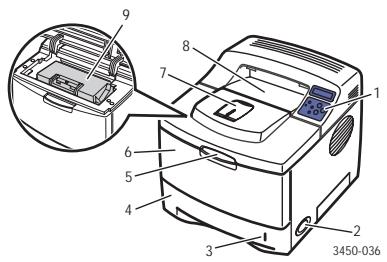
- Front Panel
- On/Off Switch
- Paper Gauge
- Tray 2
- Tray 1 (MPT) Release
- Tray 1 (MPT)
- Paper Output Support
- Output Tray
- Print Cartridge
Rear View
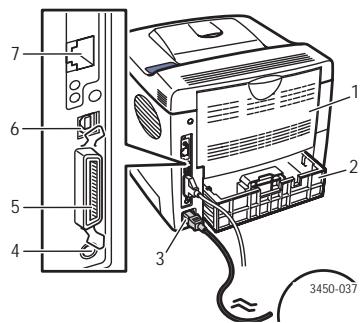
- Rear Door
- Legal Paper Adjustment
- Power cord receptacle
- Optional Tray 3 Cable Connector
- IEEE 1284 Parallel Port
- USB Port
- Network Port (optional)
Printer Options and Supplies
The following printer options and supplies are available for Phaser 3450 printers:
Options and Supplies
| Item | Part Number |
| 32 Mbytes additional RAM memory | 097S03132 |
| 64 Mbytes additional RAM memory | 097S03133 |
| 128 Mbytes additional RAM memory | 097S03136 |
| 8 Mbytes Flash memory | 097S03134 |
| Network Interface Card (NIC) | 097S03130 |
| 500-Sheet Feeder (includes tray) | 097S03131 |
| Standard-Capacity Print Cartridge (5,000 pages @ 5% area coverage) | 106R00687 |
| High-Capacity Print Cartridge (10,000 pages @ 5% area coverage) | 106R00688 |
Front Panel Layout
The front panel on your printer has three components:
Multi-colored Light Emitting Diode (LED) light
Alphanumeric display
Six button cluster.
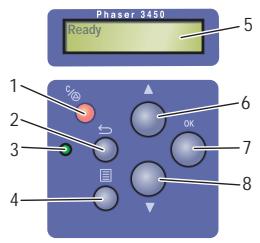
3450-038
- Cancel button
- Return button
- On-line/Data/Error LED
- Menu button
- Status/Error Messages and Menus
- Up Arrow button
- OK button
- Down Arrow button
The Alphanumeric Display displays status messages and front panel menus.
Error and Warning Messages
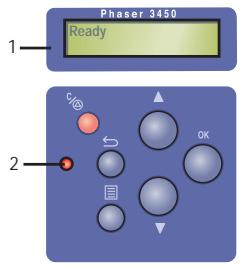
When there is a problem with the printer, the front panel LED (2) blinks red for an error and yellow for a warning. An error or warning message is displayed in the Alphanumeric Display (1).
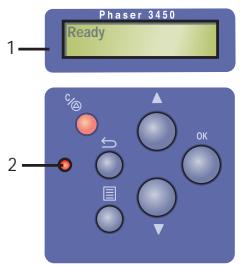
3450-045
The "Menu Map" is a visual representation of the front panel settings and information pages. To print the "Menu Map":
- At the printer's front panel, press the Menu button, then press the OK button.
- Press the OK button to print the Menu Map.
Print Icon

There are a number of information pages accessible through the front panel. When the print icon appears before a title in the Menu Map:
- Select that title at the front panel.
- Press the OK button to print the page.
Information Pages
Your printer comes with a set of information pages that helps you solve printing problems and obtain the best results from your printer. Access these pages from the printer's front panel.
To print information pages:
- At the printer's front panel, press the Menu button, then press the OK button.
- Select Info Pages, then press the OK button.
- Select the appropriate information page, then press the OK button to print.
Note
Print the "Menu Map" to see other information pages available for printing.
Printer Drivers
Printer drivers enable your computer and printer to communicate and provide access to your printer features. Xerox makes driver installation easy with its Walk-Up Technology. For more information about printer drivers, see the video at www.xerox.com/office/drivers.
Available Printer Drivers
Xerox provides drivers for a variety of page description languages and operating systems. The following drivers are available:
| Driver | Source | Description |
| PCL6 Driver | CD-ROM and Web | The Printer Command Language driver can be used for applications requiring PCL. (Default driver) |
| Windows PostScript Driver | CD-ROM and Web | The PostScript driver is recommended to take full advantage of PostScript. Available for Windows 2000, Windows XP, and Windows Server 2003. |
| Macintosh OS Driver | CD-ROM and Web | This driver enables printing from a Macintosh OS 9.x or higher. |
| Xerox Walk-Up Printing Driver (Windows) | Web only | This driver enables printing from a PC to any Xerox PostScript-enabled printer. This is especially helpful for mobile professionals who travel to multiple locations and need to print to different printers. |
| UNIX Driver (Linux, Solaris) | Web only | This driver enables printing from a UNIX operating system. |
Printer Driver Features
The following chart displays the Xerox driver features that are available with specific operating systems.
| Feature | Windows 2000, Windows XP, Windows Server 2003 | Windows 98 Windows Me | Mac OS 9 | Mac OS X |
| Print-Quality Modes | Both | Both | PostScript | PostScript |
| 2-Sided Printing | Both | Both | PostScript | PostScript |
| N-Up | Both | PCL6 | PostScript | PostScript |
| Booklet | Both | PCL6 | — | — |
| Poster Printing | PCL6 | PCL6 | — | — |
| Fit to Page | Both | Both | PostScript | PostScript |
| Mirrored Output | PostScript | PostScript | PostScript | — |
| Negative Output | PostScript | PostScript | PostScript | — |
| Scaling | Both | Both | PostScript | PostScript |
| Watermarks | PCL6 | PCL6 | — | — |
| Cover Page | PCL6 | PCL6 | PostScript | — |
Remote Control Panel
The Remote Control Panel is a Windows utility that enables you to:
Set printer-specific settings in the printer
Download fonts and macros to your printer
The Remote Control Panel can be used for all Windows operating systems with a nonnetworked printer when connected with either the parallel interface or USB interface.
Installing the Remote Control Panel
The Remote Control Panel utility can be installed from the Software and Documentation CD-ROM or at www.xerox.com/office/3450support.
Changing Settings with the Remote Control Panel
To change settings using the Remote Control Panel:
- Click Start, select Programs, select Xerox Phaser 3450 Utility, then click Remote Control Panel.
- Make changes to the Remote Control Panel settings on the Printing, Config, Job, Test PCL, Flash Font and Macro, and PS 3 tabs.
Note
For information about the settings on these tabs, access the online help by clicking the Help button.
- Send the settings to the printer by clicking the Send button.
Note
Settings selected in the printer driver override settings selected in the Remote Control Panel.
Managing Your Printer
There are a number of resources available to help you get the best quality prints from your printer.
Printer's IP Address
You need your printer's IP address to change printer settings through CentreWare IS. Follow these steps to identify your printer's IP address:
- At the printer's front panel, press the Menu button, select Information, then press the OK button.
- Select Printer Ident, then press the OK button.
- Select IP Address, then press the OK button.
CentreWare Internet Services (IS)
CentreWare IS a printer management tool that helps users and administrators accomplish many tasks. It is available on all networked printers. With CentreWare IS you can:
Access remote diagnostics and troubleshooting information for printer problems.
Monitor printer and supply status.
Link to software updates and Technical Support.
CentreWare IS uses TCP/IP (your printer's IP address) to communicate directly with an embedded web server on the printer. CentreWare IS runs on any TCP/IP enabled computer with a web browser.
Launching CentreWare IS
To launch CentreWare IS:
- Launch your web browser.
- Enter your printer's IP address in the browser's Address field (http://xxx.xxx.xxx.xxx).
- For detailed information about CentreWare IS software, click HELP on the upper right of the CentreWare IS screen.
Status Monitor
Status Monitor, installed with your printer driver and available only with Windows on a network enabled printer, automatically checks the printer status and sends instant notification to your computer if the printer needs attention.
Whenever the printer is unable to print your document, the printer automatically sends an on-screen message that provides helpful text and illustrations showing how to fix the printer.
Printer Settings
Tray Settings
Tray Sequence
You can specify the sequence the printer uses to select trays containing the correct paper type and size for a print job. When a tray runs out of the correct paper during printing, the printer selects the next tray in the sequence containing the correct paper type and size to continue printing the job.
Changing Front Panel Language Display
To change the language used for the text on the front panel, CentreWare IS, and some information pages:
- At the printer's front panel, press the Menu button, select Printer Setup, then press the OK button.
- Select General Setup, then press the OK button.
- Select FP Language, then press the OK button.
- Select the desired language, then press the OK button.
Fonts
Your printer uses the following types of fonts:
Resident fonts
- Fonts downloaded into printer memory
- Fonts downloaded with your print job from the application
- Fonts downloaded into printer optional flash
Resident PostScript Fonts
Printer-resident fonts are always available for printing. All printers are shipped with PostScript resident Roman fonts. Print a sample of the resident PostScript fonts at the front panel.
Resident PCL6 Fonts
For PCL printing, the printer includes many typefaces, including Courier, Times, and Univers types faces in medium, bold, italic medium, and italic bold. Print a sample of resident PCL6 fonts at the front panel.
Registering Your Printer
Registering your printer is quick and easy. You can register your printer using one of the following methods:
Registration card that came with your printer
Online form at www.xerox.com/office/support
Registering your printer provides you with updates and news about your printer.
Printing
Supported Papers
Follow the guidelines in these tables to ensure the best print quality and avoid printer jams.
Note
Xerox highly recommends that you print transparencies and other specialty media from Tray 1 (MPT) for best results.
Supported Papers, Transparency, and Other Specialty Media
| Paper Type/Size | Tray 1 (MPT) Weight: 60–163 g/m2(16–43 lb.)Tray 2 and 3 Weight: 60–105 g/m2(16–28 lb.)Duplex Weight: 75–90 g/m2(20–24 lb.)Dimensions | Tray 1 (MPT)Tray 2Tray 3 |
| Tray 1 (MPT) | Tray 2 | Tray 3 | 2-Sided Printing |
| Letter | 8.5 x 11 in. | ● | ● | ● | ● |
| Legal | 8.5 x 14 in. | ● | ● | ● | ● |
| US Folio | 8.5 x 13 in. | ● | ● | ● | ● |
| A4 | 210 x 297 mm | ● | ● | ● | ● |
| B5-JIS | 182 x 257 mm | ● | ● | ● | |
| ISO-B5 | 176 x 250 mm | ● | ● | ● | |
| A5 | 148 x 210 mm | ● | ● | ● | |
| Executive | 7.25 x 10.5 in. | ● | ● | ● | |
| Statement | 5.5 x 8.5 in. | ● | | | |
| US Postcard | 3.5 x 5.5 in. | ● | | | |
| Index Card | 3 x 5 in. | ● | | | |
| A6 Postcard | 105 x 148 mm | ● | | | |
| Envelopes | | | | | |
| Monarch | 3.88 x 7.5 in. | ● | | | |
| #10 Commercial | 4.13 x 9.5 in. | ● | | | |
| C5 | 162 x 229 mm | ● | | | |
| C6 | 114 x 162 mm | ● | | | |
| DL | 110 x 220 mm | ● | | | |
| Transparencies | | | | | |
| Letter | 8.5 x 11 in. | ● | ● | ● | |
| A4 | 210 x 297 mm | ● | ● | ● | |
| Labels | | | | | |
| Letter | 8.5 x 11 in. | ● | | | |
| A4 | 210 x 297 mm | ● | | | |
| Tray 1 (MPT) Weight: 60–163 g/m2(16–43 lb.) | | | |
| Tray 2 and 3 Weight: 60–105 g/m2(16–28 lb.) | | | |
| Duplex Weight: 75–90 g/m2(20–24 lb.) | | | |
| Paper Type/Size | Dimensions | Tray 1 (MPT) | Tray 2 | Tray 3 |
| Custom | Width = 76.2 ~ 215.9 mm (3 ~ 8.5 in.); | ● | | |
| Length = 127 ~ 355.6 mm (5 ~ 14 in.) | | | |
Basic Printing
For information about how to load paper in Tray 1 (MPT), Tray 2, or Tray 3, see the Quick Reference Guide that came with your printer. The Quick Reference Guide can also be found on the Software and Documentation CD-ROM that came with your printer, or at www.xerox.com/office/3450support.
Note
A minimum clearance of 32mm (12.6 in.) must be maintained at the rear of the printer. See the Setup Guide that came with your printer for minimum clearances.
Changing Paper Type and Size at the Front Panel
If you have changed the paper size, at the printer's front panel:
- Press the Menu button, select Printer Setup, then press the OK button.
- Select Paper Handling, then press the OK button.
- Select Tray [1, 2, or 3] Size, then press the OK button.
- Scroll to the paper size loaded, then press the OK button.
- Press the Cancel button to return to the main menu.
If you have changed the paper type at the printer's front panel:
- Press the Menu button, select Printer Setup, then press the OK button.
- Select Paper Handling, then press the OK button.
- Select Tray [1, 2, or 3] Type, then press the OK button.
- Scroll to the paper type loaded, then press the OK button.
- Press the Cancel button to return to the main menu.
Many factors affect a print job. They include the print speed (stated in number of pages per minute), the media used, download time, and printer processing time.
The computer download time and printer processing time are affected by several factors including:
Printer memory
Connection type (network or USB)
Network operating system
Printer configuration
File size and type of graphics
Computer speed
Note
Additional printer memory (RAM) may improve overall printer functions, but will not increase the pages per minute (ppm) ability of the printer.
Adjusting Printing Options
Setting Printing Options
Many printing options are available with the Xerox printer driver.
Selecting Printing Preferences in Windows
Printer preferences control all of your jobs, unless you overwrite them specifically for your job. For example, if you want to use automatic 2-sided printing for most jobs, set this option in printer settings.
- Click Start, select Settings, then click Printers.
- In the Printers folder, right-click the icon for your printer.
- From the popup menu, select Printer Preferences or Properties.
- Make selections from the driver tabs. See the "PCL Printer Driver Options for Windows Operating Systems" table or "PostScript Printer Driver Options for Windows Operating Systems" table for specific printing options.
- Click the OK button to save your selections.
Selecting Properties for an Individual Job
If you want to use special settings for a particular job, change the driver settings before sending the job to the printer. For example, if you want to use the 1200 dpi Quality mode for a particular graphic, select this setting in the driver before printing that job.
- With the desired document or graphic open in your application, access the Print dialog box.
- Select the Phaser 3450 printer and click the Properties button to open the printer driver.
- Make selections from the driver tabs. See the following table for specific printing options.
- Click the OK button to save your selections.
- Print the job.
PCL6 Printer Driver Options for Windows Operating Systems
| Operating System | Driver Tab | Printing Options |
| Windows 2000, Windows XP, or Windows Server 2003 | Layout tab | ■ Orientation
■ 2-Sided Printing
■ Multiple Pages Per Sheet (N-Up)
■ Reduce/Enlarge |
| Paper tab | ■ Paper Size
■ Custom Size
■ Paper Type
■ Paper Source
■ Cover Page |
| Image Options tab | ■ Print Quality
■ Print All Text Black
■ TrueType Options |
| Output Options tab | ■ Print Order
■ Use Printer Fonts |
| Watermark tab | ■ Watermarks |
| Troubleshooting tab | ■ Print Information Pages
■ Web Links |
PostScript Printer Driver Options for Windows Operating Systems
| Operating System | PostScript Driver Tab | Printing Options |
| Windows 2000, Windows XP, or Windows Server 2003 | Layout tab | ■ Orientation
■ 2-Sided Printing
■ Page Order
■ Pages Per Sheet
■ Booklet |
| Paper/Quality tab | ■ Tray Selection |
| Advanced Options Dialog Box | ■ Paper Size
■ Scaling
■ Mirrored Output
■ Negative Output
■ Fit to Page
■ Paper Type
■ Print Quality |
| Troubleshooting tab | ■ Web Links
■ Printer Information Pages |
Note
For more information about printing options and other selections, click the Help button on the printer driver tab to view the online help.
Using the Manual Feed Mode
Follow these steps to print a manual print job from Tray 1 (MPT):
- At your computer, select Print, select Properties, select Paper, select Paper Source, select Manual, then click OK to send the job to the printer.
- Open Tray 1 (MPT) by pushing the handle down and out.
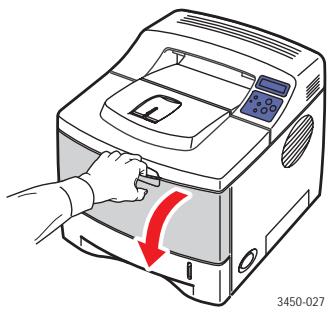
- Slide the extender toward you until it locks into place.
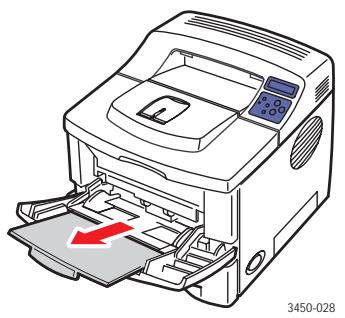
- Adjust the paper guides to match the size of the paper, transparency, or other specialty media.
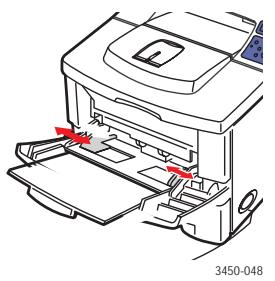
- When prompted at the front panel, insert enough sheets of the paper, transparency, or other specialty media for your print job into the tray. Place the side to be printed faceup with the top of the page entering the printer first.
- If necessary, press the guides inward to match the size of the paper.
- Press the OK button.
Tray 1 (MPT) detects the paper and prints the page.
2-Sided Printing
Automatic 2-Sided Printing
Guidelines
- Printer must be a 3450D or 3450DN configuration to perform automatic 2-sided printing.
Use only letter, legal, A4, US Folio, or custom paper with dimensions and weights listed for automatic 2-sided printing in "Supported Papers" on page 1-9.
Use paper with a weight range between 75 - 90g / m^2 (20-24 lb.)
Binding Preferences
Use the printer driver to select Portrait or Landscape orientation for the images on the page. When you print 2-sided jobs, select the binding preference which determines how the pages turn.
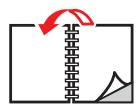
Portrait Flip on Long Edge

Portrait Flip on Short Edge
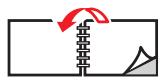
Landscape Flip on Short Edge

Landscape Flip on Long Edge
Printing 2-sided Jobs
To print on both sides of the sheet in a supported driver:
Windows 2000, Windows XP, and Windows Server 2003 PostScript driver:
- Insert paper into the tray. For information see the Quick Reference Guide that came with your printer. The Quick Reference Guide can also be found on the Software and Documentation CD-ROM that came with your printer, or at www.xerox.com/office/3450support.
- In the printer driver, under Print on Both Sides (Duplex), select Flip on Long Edge or Flip on Short Edge.
- Click OK to accept the printer driver settings, then click OK to print.
Windows 2000, Windows XP, or Windows Server 2003 PCL6 driver:
-
Insert paper into the tray. For information see the Quick Reference Guide that came with your printer. The Quick Reference Guide can also be found on the Software and Documentation CD-ROM that came with your printer, or at www.xerox.com/office/3450support.
-
In the printer driver, under 2-Sided Printing, select None, Long Edge, or Short Edge.
Mac OS 9.x PostScript driver:
- Insert paper into the tray. For information about how to load paper, see the Quick Reference Guide.
- Go to Orientation in Page Setup and select Portrait, Landscape, or Rotated Landscape.
- Click OK to save your settings.
- In the printer driver:
a. Click Options.
b. In the Print Options dialog box, click the pull-down menu for Double-sided Printing then select Printer's Default, None, Long Edge, or Short Edge.
- Click OK to accept the Print Options settings, the click Print to print your job.
Mac OS X or Higher PostScript driver:
- Insert paper into tray. For information about how to load paper, see the Quick Reference Guide.
- Go to Orientation in Page Setup and select Portrait, Landscape, or Rotated Landscape.
- Click OK to save your settings.
- In the printer driver:
a. Click on the left pull-down menu and select Duplex.
b. Check the Print on Both Sides checkbox, then select Long Edge or Short Edge Binding option.
- Click Print to print your job.
Manual 2-Sided Printing
Manual 2-sided printing is supported for paper with dimensions and weights listed in "Supported Papers" on page 1-9. Print manual 2-sided jobs from Tray 1 (MPT).
- Load paper into Tray 1 (MPT).
- At your computer, select odd numbered pages to print. Set the paper type and size according to the steps listed in "Changing Paper Type and Size at the Front Panel" on page 1-10.
- Remove the pages from the output tray and place the printed side facedown in Tray 1 (MPT) with the top of the page entering the printer first.
- At your computer, select even numbered pages to print. Set the paper type and size according to the steps listed in "Changing Paper Type and Size at the Front Panel" on page 1-10.
Transparencies
Transparencies can be printed from any tray; however, Tray 1 (MPT) is recommended.
Guidelines
Place no more than 50 transparencies at one time in Tray 1 (MPT), Tray 2, or Try 3.
- Handle transparencies by the edges using both hands to avoid fingerprints and creases which can cause poor print quality.
Use transparencies intended for monochrome laser printers.
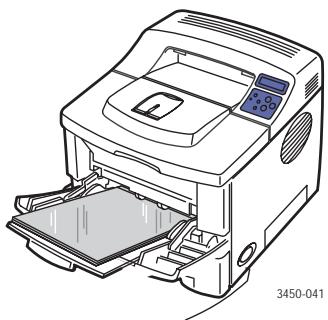
Printing Transparency from Tray 1 (MPT)
- Fan the transparencies to release sheets that may stick together.
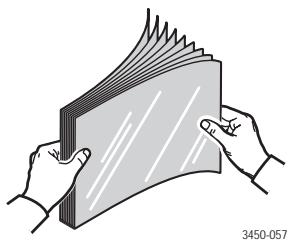
- Insert the transparencies into Tray 1 (MPT). For information about how to load paper in Tray 1 (MPT), see the Quick Reference Guide that came with your printer. The Quick Reference Guide can also be found on the Software and Documentation CD-ROM that came with your printer, or at www.xerox.com/office/3450support.
- At the printer's front panel:
a. Press the Menu button, select Printer Setup, then press the OK button.
b. Select Paper Handling, then press the OK button.
c. Select Tray 1 Size, then press the OK button.
d. Select Letter or A4, then press the OK button.
e. Press the Cancel button to return to the main menu.
- At the printer's front panel:
a. Press the Menu button, select Printer Setup, then press the OK button.
b. Select Paper Handling, then press the OK button.
c. Select Tray 1 Type, then press the OK button.
d. Select Transparency, then press the OK button.
e. Press the Cancel button to return to the main menu.
- In the printer driver, select Tray 1 (MPT) as the paper source.
Printing Transparency from Trays 2 or 3
Note
Do not print paper-backed transparencies from Tray 3. Xerox highly recommends that you print transparencies and other specialty media from Tray 1 (MPT) for best results.
- Remove all paper from the tray.
- Fan the transparencies to release sheets that may stick together.
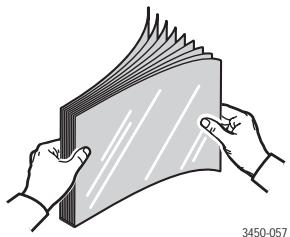
- Insert the transparencies into the tray. For information about how to load paper in Trays 2 or 3, see the Quick Reference Guide that came with your printer. The Quick Reference Guide can also be found on the Software and Documentation CD-ROM that came with your printer, or at www.xerox.com/office/3450support.
- At the printer's front panel:
a. Press the Menu button, select Printer Setup, then press the OK button.
b. Select Paper Handling, then press the OK button.
c. Select [Tray 2 Type or Tray 3 Type], then press the OK button.
d. Select Transparency, then press the OK button.
e. Press the Cancel button to return to the main menu.
- In the printer driver, select Tray 2 or Tray 3 as the paper source.
Envelopes
Guidelines
Buying and Storing Envelopes
Use only paper envelopes specified in "Supported Papers" on page 1-9. Successful envelope printing is highly dependent on the quality and construction of the envelopes. Use envelopes made specifically for laser printers.
It is recommended that you maintain constant temperatures and relative humidity.
- Store unused envelopes in their packaging to avoid the effects of moisture and dryness which can affect print quality and cause wrinkling. Excessive moisture can cause the envelopes to seal before or during printing.
Avoid padded envelopes; purchase envelopes that lie flat on a surface.
You may remove air "bubbles" from the envelopes before loading by setting a heavy book on top of the envelopes.
Preparing to Print
Follow these guidelines to prevent wrinkling problems:
Use only Tray 1 (MPT) to print envelopes.
- Print only on the front of the envelope.
Perform these steps when using an application that includes a tool for creating an envelope document:
Select faceup.
Select the feed method with the image centered.
Clear Clockwise Rotation
- Load a maximum of 10 envelopes at a time. This printer is not designed to handle high-capacity production envelope printing.
Caution
Never use envelopes with windows or metal clasps; they can damage the printer. Damage caused by using unsupported envelopes is not covered under the Xerox warranty, service agreement, or Total Satisfaction Guarantee.
Printing Envelopes
Note
Some wrinkling or embossing may occur when printing envelopes.
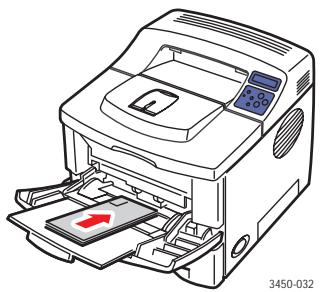
- Insert the envelopes faceup with the top of the envelope to the left as you view the front of the tray. Adjust the guides to match the size of the envelopes. Maximum capacity is 10 envelopes.
- At the printer's front panel:
a. Press the Menu button, select Printer Setup, then press the OK button.
b. Select Paper Handling, then press the OK button.
c. Select Tray 1 Size, then press the OK button.
d. Select envelope size, then press the OK button.
e. Press the Cancel button to return to the main menu.
- At the printer's front panel:
a. Press the Menu button, select Printer Setup, then press the OK button.
b. Select Paper Handling, then press the OK button.
c. Select Tray 1 Type, then press the OK button.
d. Select Envelope, then press the OK button.
e. Press the Cancel button to return to the main menu.
- In the printer driver, select Tray 1 (MPT) as the paper source.
- Print a test envelope from your application to confirm that the orientation of your envelope is correct.
For information, see the Quick Reference Guide that came with your printer. The Quick Reference Guide can also be found on the Software and Documentation CD-ROM that came with your printer, or at www.xerox.com/office/3450support.
Labels
Labels can be printed only from Tray 1 (MPT). The maximum number of sheets that can be loaded in Tray 1 (MPT) is 25.
Guidelines
Use only labels recommended for laser printers.
Do not use vinyl labels.
Verify that the labels' adhesive material can tolerate fusing temperature of 200^ (392^) for 0.1 second.
- Do not use any sheets where labels are missing; it may damage printer components.
- Store unused labels flat in their original packaging. Leave the labels inside the original packaging until ready to use. Return any unused labels to the original packaging and reseal it for protection.
- Do not store labels in extremely dry or humid conditions or extremely hot or cold conditions. Storing them in extreme conditions may cause print quality problems or cause them to jam in the printer.
- Rotate stock frequently. Long periods of storage in extreme conditions can cause the labels to curl and jam the printer.
- Print only on one side of the sheet of labels.
Printing Labels
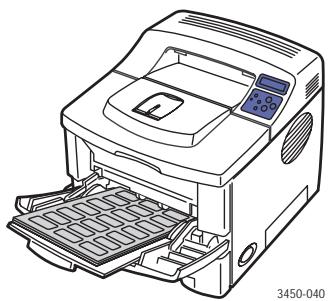
If your application has a setting for labels, use it as a template.
- Insert the labels into Tray 1 (MPT). Place the labels faceup with the top of the sheet entering the printer first. Adjust the guides to match the size of the labels.
- At the printer's front panel:
a. Press the Menu button, select Printer Setup, then press the OK button.
b. Select Paper Handling, then press the OK button.
c. Select Tray 1 Size, then press the OK button.
d. Select Letter or A4, then press the OK button.
e. Press the Cancel button to return to the main menu.
- At the printer's front panel:
a. Press the Menu button, select Printer Setup, then press the OK button.
b. Select Paper Handling, then press the OK button.
c. Select Tray 1 Type, then press the OK button.
d. Select Labels, then press the OK button.
e. Press the Cancel button to return to the main menu.
- In the printer driver, select Tray 1 (MPT) as the paper source.
Custom Size Paper
Print custom size paper or specialty media in Tray 1 (MPT).
You can print on custom size paper within these dimensions:
1-sided
Width = 76.2 215.9 mm (3-8.5 in.)
Length = 127 355.6 mm (5-14 in.)
Manual 2-sided
Width = 76.2 215.9 mm (3-8.5 in.)
Length = 127 355.6 mm (5-14 in.)
Loading Custom Size Paper in Tray 1 (MPT)
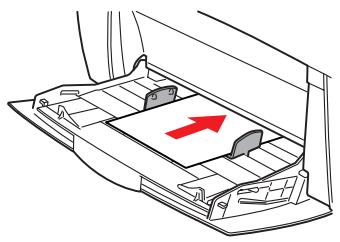
- Insert the custom size paper into Tray 1 (MPT). Adjust the guides to match the size of the paper. Place the side to be printed faceup with the top of the page entering the printer first.
3450-052
- At the printer's front panel:
a. Press the Menu button, then select Printer Setup.
b. Select Paper Handling, then press the OK button.
c. Select Tray 1 Size, then press the OK button.
d. Select Custom, then press the OK button.
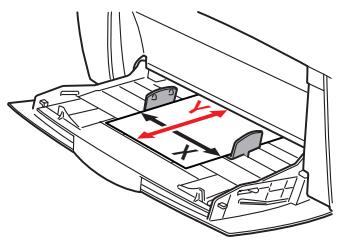
e. Select Custom X, then press the OK button.
3450-055
f. Press the Down Arrow or Up Arrow buttons to set the paper size, then press the OK button.
g. Select Custom Y, then press the OK button.
h. Press the Down Arrow or Up Arrow buttons to set the paper size, then press the OK button.
i. Press the Cancel button to return to the main menu.
- In the printer driver, select Tray 1 (MPT) as the paper source.
Advanced Options
Printing Multiple Pages to a Single Sheet (N-Up)
When printing a multiple-page document, you can print more than one page on a single sheet of paper. Print one, two, four, six, nine, or 16 pages per sheet.
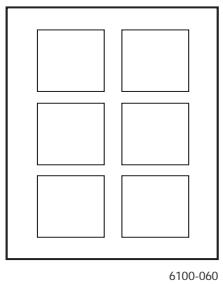
To print multiple pages on a single sheet of paper in a supported driver:
Windows 2000, or Windows XP, or Windows Server 2003 PostScript driver:
On the Layout tab, select Pages Per Sheet from the drop-down list, then click the OK button to save your choice.
Windows 2000, Windows XP, or Windows Server 2003 PCL6 driver:
On the Layout tab, select Multiple Pages per Side, select Pages per Side from the dropdown list, then click the OK button to save your choices.
Mac OS 9.x PostScript driver:
In Page Setup, click the pull-down menu for Layout and select the number of pages per sheet.
Mac OS X or Higher PostScript driver:
In the printer driver, click on the left pull-down menu and select Layout. Click the Pages per Sheet pull-down menu and select the number of pages per sheet. Click the Border pull-down menu and select the type of border desired for each page on the sheet.
Scaling
You can reduce or enlarge your page images when they are printed by selecting a scaling value. The default is 100 percent. To select scaling in a supported driver:
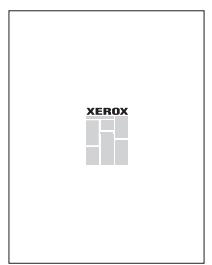
50%
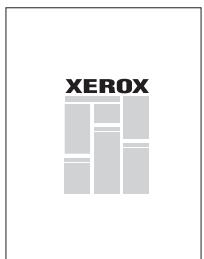
100%
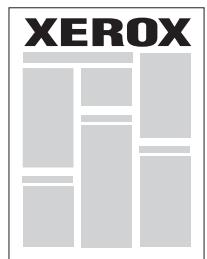
200%
Windows 2000, Windows XP, or Windows Server 2003 PostScript driver:
On the Layout tab, click the Advanced button, select Scaling, select a percentage between 1 and 1000 for your print job, then click the OK button to save your choices.
Windows 2000, Windows XP, or Windows Server 2003 PCL6 driver:
Fit to Page:
On the Layout tab, click the More Layout Options button, select Fit to Page, then set the size of the Target Page from the drop-down list, then click the OK button to save your choices.
Reduce/Enlarge:
On the Layout tab, click the More Layout Options button, select Reduce/Enlarge, then specify a percentage between 25 and 400 for your print job, then click the OK button to save your choices.
Mac OS 9.x PostScript Driver:
In Page Setup, select Enlarge/Reduce, then specify a percentage for your print job.
Printing Booklets
With two-sided printing, you can print a document in the form of a small book. Create booklets for any paper size that is supported for 2-sided (duplex) printing. For more information on paper types, weights, and sizes, see "Supported Papers" on page 1-9.
Note
Your printer must be a 3450D or 3450DN configuration to perform automatic 2-sided printing.
To print booklets in a supported driver:
Windows 2000, or Windows XP, or Windows Server 2003 PostScript driver:
On the Layout tab, select Portrait or Landscape, select Flip on Long Edge or Flip on Short Edge, select Front to Back or Back to Front, then click the OK button to save your choices.
Windows 2000, Windows XP, or Windows Server 2003 PCL6 driver:
On the Layout tab, click the More Layout Options button, select Booklet Printing, then click the OK button to save your choice.
Printing Posters
Poster printing allows you to print large, multiple-sheet versions of your page.
To print posters in a supported driver:
Windows 2000, Windows XP, or Windows Server 2003 PCL6 driver:
On the Layout tab, click the More Layout Options button, select Poster, set the Page Layout and Overlap values, then click the OK button to save your choices.
Printing Negative and Mirror Images
You can print pages as a negative image (reverses the light and dark areas in your printed image) or mirror image (flips images horizontally on pages when printed).
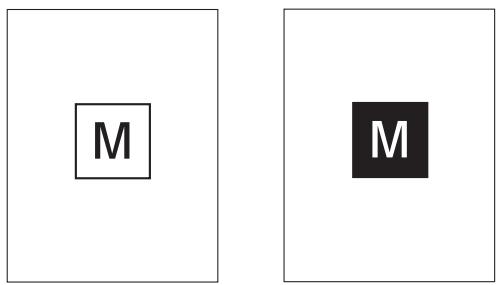
Negative Image
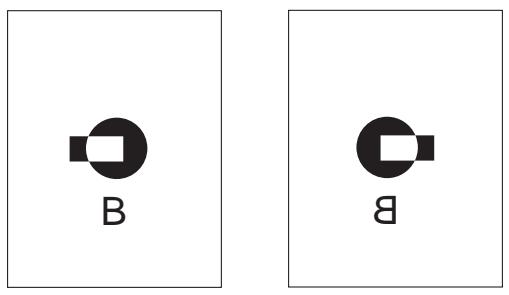
Mirror Image
To print negative images or mirror images in a supported driver:
Windows 2000, Windows XP, or Windows Server 2003 PostScript driver:
On the Layout tab, click the Advanced button, select Document Options, select PostScript Options, select Yes or No for Mirrored Output or Negative Output, then click the OK button to save your choice.
Mac OS 9.x PostScript driver:
In Page Setup, click Options.
In the PSPrinter Options dialog box, under Visual Effects, select Flip Horizontal, Flip Vertical, or Invert Image.
Cover Pages
A cover page is the first page of a document. The printer enables you to choose a different paper source for the cover page than for the body of a document. For instance, use your company letterhead or colored paper for the first page of a document or report.
Guidelines
Use any paper tray, within the weight ranges listed in "Supported Papers" on page 1-9, as the source for printing cover pages.
- Verify that the cover page is the same size as the paper used for the rest of your document. If you specify a different size in the driver than the tray you select as a cover pages source, your cover prints on the same paper as the rest of your document.
Printing Cover Pages
To print cover pages in a supported driver:
Windows 98, Windows 2000, Windows XP, or Windows Server 2003 PCL6 driver:
On the Paper tab, under Cover Page, select Tray 1 (MPT), Tray 2, or Tray 3 from the drop-down list, then click the OK button to save your choice.
Mac OS 9.x PostScript driver:
- Click Options.
In the Print Options dialog box, under Cover Page, select None, Before, or After Document, then click the OK button to save your choice.
Under Paper Source, select First from:, then click the pull-down menu and select the paper source for the cover page. Select Remaining from:, then click the pull-down menu and select the paper source for the remaining pages.
Supplies and Recycling
Supplies
The printer's front panel displays status messages and warnings as the print cartridge nears its replacement time. When the front panel prompts that toner is low or needs to be replaced, verify that you have replacements on hand.
To order supplies, go to www.xerox.com/office/3450supplies.
Configuration Page
The "Configuration Page" shows the status of the remaining toner in the print cartridge. To print the "Configuration Page":
- At the front panel, press the Menu button, select Information, then press the OK button.
- Select Info Pages, then press the OK button.
- Select Config Page, then press the OK button to print the page.
Recycling
For information on Xerox supplies recycling programs, go to www.xerox.com/office/recycle.
Connections and Networks
Choosing a Connection
Network Connection
Use an Ethernet connection with two twisted-pair (Category 5/RJ-45) cables and an Ethernet hub. Connect the computer to the hub with one cable, then connect the printer to the hub with the second cable. Connect to any port on the hub except the uplink port. TCP/IP and EtherTalk are the most common protocols used with Ethernet cables. To print using TCP/IP, each computer and printer requires a unique IP address. See "Setting an IP Address."
Note
Connecting your printer to a network requires the optional Network Interface Card (NIC). Network connection is standard on the 3450DN configuration.
Direct Connection
Connect your printer directly to a computer using the USB cable provided or an IEEE 1284 parallel cable. For more information see the Setup Guide that came with your printer. You can also view it on the Software and Documentation CD-ROM or on the web at www.xerox.com/office/3450support.
Standalone (Cable or DSL) Network Connection
For details on setting up a Cable or DSL connection for your printer, see the infoSMART Knowledge Base at www.xerox.com/office/infoSMART, Document # 33188, entitled Basic TCP/IP Tutorial and Home Networking Guidelines.
Setting an IP Address
If your computer is on a large network, contact your network administrator for the appropriate TCP/IP addresses and additional configuration information.
If you are creating your own small Local Area Network or connecting the printer directly to your computer over Ethernet, follow the procedure for automatically setting the printer's IP address.
The printer and computer(s) must have unique IP addresses. It is important that the addresses are similar, but not the same. For example, your printer can have the address 192.168.1.2 while your computer has the address 192.168.1.3. Another device can have the address 192.168.1.4.
For more details, see the infoSMART Knowledge Base at www.xerox.com/office/infoSMART, Document # 18545.
Automatically Setting the Printer's IP Address
Use the automatic installer on the Software and Documentation CD-ROM to detect and/or assign an IP address to your printer. For further instructions, insert the Software and Documentation CD-ROM into your computer's CD-ROM, launch the installer, then follow the prompts for installation.
Note
For the automatic installer to succeed, the printer must be connected to a TCP/IP network.
Manually Setting the Printer's IP Address
- At the printer's front panel, press the Menu button, select Connection, then press the OK button.
- Select Network Setup, then press the OK button.
- Select TCP/IP Setup, then press the OK button.
- Select BootP/DHCP, select Off, press the OK button, then press the Back button.
- Select IP Address, then enter each of the four groups of numbers in your printer's IP Address, pressing the OK button after each group.
- Select Network Mask, then enter each of the four groups of numbers in your printer's Network Mask, pressing the OK button after each group.
- Select Gateway, then enter each of the four groups of numbers in your printer's Gateway, pressing the OK button after each group.
- Press the Back button four (4) times to return to Ready.
- Reboot your printer by cycling on the power.
USB Connection
The USB connection requires a standard USB cable. This cable is included with your printer. Verify that you are using the correct USB cable for your connection.
Windows 98 and Me
Connect the USB cable to the PC and follow the Add New Hardware Wizard to create the USB port. Follow the Add Printer Wizard to install the printer driver from the Software and Documentation CD-ROM. For more details see the infoSMART Knowledge Base at www.xerox.com/office/infoSMART, and review the applicable document:
Windows 98: Document # 18215
Windows 2000: Document # 22701
Windows XP: Document # 53543.
Parallel Connection
Use an IEEE 1284 parallel printer cable—maximum length 3 meters (10 feet)—to connect your computer's and printer's parallel ports. The parallel cable is not included with your printer and must be purchased separately. Install the printer driver from the Software and Documentation CD-ROM. Select the appropriate LPT parallel port.
Installing the Printer Driver
To download the latest printer drivers, go to www.xerox.com/office/3450support.
Windows 98 or Later and Windows 2000 or Later
Install the printer driver from the Software and Documentation CD-ROM. The Software and Documentation CD-ROM automatically installs and identifies the printer during the installation process. For more details, see the infoSMART Knowledge Base at www.xerox.com/office/infoSMART, and review the applicable document:
Windows 98: Document # 9840
Windows 2000, XP, Server 2003: Document # 36894
Windows NT: Document # 11338
Macintosh, Novell, and UNIX
For installation or troubleshooting assistance with Macintosh, Novell or UNIX environments please go to www.xerox.com/office/infoSMART, and review the applicable document:
USB: Document # .33225
Parallel: Document # 48535
Note
You can load the PostScript driver for the Mac OS 9 and OS X or higher from the Software and Documentation CD-ROM.
Troubleshooting
Your printer is designed to produce consistently high-quality prints. If you observe print-quality problems, use the information on these pages to troubleshoot the problem.
For detailed, online support information, go to www.xerox.com/office/infoSMART.
Print Quality Problems
If you experience problems with print quality, go to www.xerox.com/office/3450support.
Cleaning the Outside of the Printer
You can clean the outside of the printer with a soft, damp, cloth. You can use a cloth moistened with a mild neutral detergent to remove stains; do not spray detergent directly onto the printer.
Warning
To prevent electric shock, turn the printer off and unplug the power cord from the electrical outlet before cleaning the printer.
Do not use a vacuum cleaner to clean the printer. Do not lubricate the printer with oil.
Front Panel Messages
Your printer's front panel provides you with information and troubleshooting help.
3450-045
- Alphanumeric display
- On-line/Data/Error LED
The front panel is divided into two sections. The upper section (1) displays printer menu and error messages; the lower section (2) controls the front panel.
Some of the LED descriptions and error messages that appear in the front panel are listed below.
LED Descriptions
The LED indicates the different functioning states of the printer:
| LED Behavior | Description |
| Green Blinking | ■ Warming up
■ Power Saver mode
■ Displaying menus
■ Canceling a job
■ Waiting for more data
■ Processing data
■ Printing pages |
| Steady Green | Ready to print |
| Blinking Yellow | Warning exists but printing can proceed |
| Blinking Red | Error exists that prevents further printing without user attention |
| LED is off | ■ Power is off
■ Intermittently during the startup sequence |
Errors andWarnings
The printer displays error or warning messages in the front panel display.
Hardware or software failures that may require service support are presented as errors. When the printer's front panel displays an error message, the LED blinks red. An error message replaces the status lines.
When an error occurs, Status Monitor, available only with Windows on a network enabled printer, displays an instant notification on your computer screen that the printer needs attention.
Moving and Repacking the Printer
Warning
Follow these guidelines to avoid injuring yourself or damaging the printer.
For safety information, go to "Appendices A—User Safety" in this guide.
Follow these guidelines to move the printer within the office or to prepare the printer for shipment.
Precautions for Moving the Printer
Caution
Remove the print cartridge prior to moving the printer. Failure to do so can result in damage to the printer.
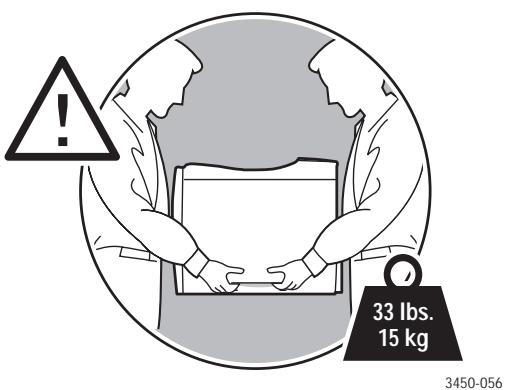
Use one or two people to lift the printer.
Always turn off the printer using the power switch and unplug all cables and cords.
Disconnect and remove the optional 500-Sheet Feeder if present.
Always lift the printer from the designated lift points.
- Do not place any food or liquids on the printer.
Failure to repackage the printer properly for shipment can result in damage to the printer not covered by the warranty, service agreement, or Total Satisfaction Guarantee.
Damage to the printer caused by improper moving is not covered by the Xerox warranty, service agreement, or Total Satisfaction Guarantee.
Moving the Printer Within the Office
The printer can be safely moved from one location within an office to another as long as it travels in an upright position, gently over smooth surfaces. Any jarring movement, such as pushing the printer over a raised door threshold or across a parking lot, can damage the printer.
Caution
Remove the print cartridge prior to moving the printer. Failure to do so can result in damage to the printer.
Preparing the Printer for Shipment
To transport the printer by vehicle, the printer must be repackaged in the original packaging or a repackaging kit.
If you do not have the original packaging, order the repackaging kit from www.xerox.com/office/3450supplies. Instructions for repackaging the printer are provided in the repackaging kit. If you are unable to repackage the printer, contact your local Xerox service representative.
Additional Resources
Support
There is additional help available at www.xerox.com/office/support. You can access infoSMART Knowledge Base and Technical Support via email, driver downloads, and much more.
A set of Xerox links is installed in your web browser's Favorites folder when you install the printer drivers on your computer. The Troubleshooting tab in your Windows printer driver also includes useful links.
InfoSMART Knowledge Base
This is the same troubleshooting knowledge base used by Xerox Customer Support. infoSMART Knowledge Base provides solutions for printer issues such as error codes, print quality, media jams, software installation, networking, and more. Go to www.xerox.com/office/infoSMART.
Web Links
Xerox provides many resources to help you learn more about your Xerox printer. Use these web sites to obtain information about your printer.
| Resource | Link |
| To link to product and supplies information, download printer drivers, view documents, and access support information: | www.xerox.com/office |
| To access the troubleshooting knowledge base used by Xerox Customer Support staff: | www.xerox.com/office/infoSMART |
| To view technical support information: | www.xerox.com/office/3450support |
| To order Xerox supplies: | www.xerox.com/office/3450supplies |
| To find your local sales and support center: | www.xerox.com/office/contacts |
Appendices
A-User Safety
Your printer and the recommended supplies have been designed and tested to meet strict safety requirements. Attention to the following information will ensure the continued safe operation of your printer.
Electrical Safety
Use the power cord supplied with your printer.
Plug the power cord directly into a properly grounded electrical outlet. If you do not know if an outlet is grounded, ask an electrician to check the outlet.
- Do not use a ground adapter plug to connect the printer to an electrical outlet that does not have a ground connection terminal.
- Do not use an extension cord or power strip.
Warning
Avoid the potential of electrical shock by ensuring that the printer is properly grounded. Electrical products may be hazardous if misused.
Do not place the printer in an area where people might step on the power cord.
Do not place objects on the power cord.
- Do not block the ventilation openings. These openings are provided to prevent overheating of the printer.
Do not drop paper clips or staples into the printer.
Warning
Do not push objects into slots or openings on the printer. Making contact with a voltage point or shorting out a part could result in fire or electrical shock.
If you notice unusual noises or odors:
- Turn off the printer immediately
- Disconnect the power cord from the electrical outlet
- Call an authorized service representative to correct the problem.
The power cord is attached to the printer as a plug-in device at the back of the printer. If it is necessary to disconnect all electrical power from the printer, disconnect the power cord from the electrical outlet.
Do not remove the covers or guards that are fastened with screws unless you are installing optional equipment and are specifically instructed to do so. Power should be OFF when performing these installations. Except for user-installable options, there are no parts that you can maintain or service behind these covers.
Note
Leave the printer on for optimum performance; it does not pose a safety hazard.
The following are hazards to your safety:
The power cord is damaged or frayed.
Liquid is spilled into the printer.
The printer is exposed to water.
If any of these conditions occur:
- Turn off the printer immediately.
- Disconnect the power cord from the electrical outlet.
- Call an authorized service representative.
Laser Safety
With specific regard to lasers, this printer complies with laser product performance standards set by governmental, national, and international agencies and is certified as a Class 1 Laser Product. The printer does not emit hazardous light because the beam is totally enclosed during all modes of customer operation and maintenance.
Maintenance Safety
- Do not attempt any maintenance procedure that is not specifically described in the documentation supplied with your printer.
- Do not use aerosol cleaners. The use of supplies that are not approved may cause poor performance and could create a hazardous condition.
- Do not burn any of the supplies (such as a toner cartridge, fuser, or transfer roller). For information on Xerox supplies recycling programs, go to www.xerox.com/office/recycle.
Operational Safety
Your printer and supplies were designed and tested to meet strict safety requirements. These include safety agency examination, approval, and compliance with established environmental standards.
Your attention to the following safety guidelines helps to ensure the continued, safe operation of your printer.
Printer Supplies
Use the supplies specifically designed for your printer. The use of unsuitable materials may cause poor performance and a possible safety hazard.
- Follow all warnings and instructions marked on, or supplied with, the printer, options and supplies.
Printer Location
- Place the printer in a dust-free area where the temperature range is 50 degrees F to 86 degrees F (10 degrees C to 30 degrees C) and the relative humidity range of 20 percent to 80 percent.
- Place the printer in an area where there is adequate space for ventilation, operation, and servicing. The recommended minimal spacing is 32cm (12.6 in.) behind and 10cm (4 in.) on each side of the printer.
- Do not block or cover the slots and openings on the printer. The printer may overheat without adequate ventilation.
For altitudes under 2,050 meters (6,726), use the Low Altitude setting. For altitudes over 2,050 meters (6,726), use the High Altitude setting.
Do not place the printer near a heat source.
Do not place the printer in direct sunlight.
- Do not place the printer in line with the cold air flow from an air conditioning system.
- Place the printer on a level, solid surface with adequate strength for the weight of the printer. The base printer weight without any packaging materials is approximately 15kg (33.1 lbs.).
Moving the Printer
Refer to "Moving and Repacking the Printer" on page 1-33.
Printing Safety Guidelines
Wait 10-15 seconds between turning the printer off and on.
- Keep hands, hair, neckties, etc., away from the exit and feed rollers.
- Do not remove the paper source tray that you selected in either the printer driver or front panel.
Do not open the doors.
Do not move the printer.
Symbols Marked on the Product
Hot surface on or in the printer. Use caution to avoid personal injury.
Use caution (or draws attention to a particular component).

B-Warranty
For warranty information regarding your Xerox Phaser 3450 Laser Printer, see the Warranty booklet in the World Kit that came with your printer, or go to www.xerox.com/office/3450warranty.
C-Printer Specifications
Physical Specifications
Weight: 15kg (33.1 lbs.)
Environmental Specifications
Temperature
Storage (in original packaging): -20^ to 40^ / -4^ to 104^
Operating: 10^ to 32^ / 50^ to 89^
Relative Humidity
Storage (in original packaging): 10% to 90%
Operating: 20% to 80%
Electrical Specifications
Available in two models:
110-127 VAC, 50 / 60Hz
220-240 VAC, 50/60 Hz
ENERGY STAR qualified printer
Resolution
300x300dpi
600x600dpi
1200 dpi Image Quality
Print Speed
Up to 25 pages per minute (ppm)
Controller Specifications
266 MHz processor
Memory
32 Mbytes standard on all printers
Page Description Languages (PDL)
PCL6
PostScript
Resident Fonts
PostScript Type 1
PCL6
Interfaces
USB
IEEE 1284 parallel
Ethernet 10BaseT and 100BaseTx
D-Regulatory
United States
The equipment described in this manual generates and uses radio frequency energy. If it is not installed properly in strict accordance with Xerox's instructions, it may cause interference with radio and television reception or may not function properly due to interference from another device. However, there is no guarantee that interference will not occur in a particular installation. If this equipment does cause harmful interference to radio or television reception, which can be determined by turning the equipment off and on, the user is encouraged to try to correct the interference by one or more of the following measures:
Reorient or relocate the receiver (device being interfered with).
Increase the separation between the printer and the receiver.
- Connect the printer into an outlet on a circuit different from that which the receiver is connected.
- Route the interface cables on the printer away from the receiver
Consult the dealer, Xerox service, or an experienced radio/television technician for help.
Changes or modifications not expressly approved by Xerox can affect the emission and immunity compliance and could void the user's authority to operate this product. To ensure compliance, use shielded interface cables. A shielded parallel cable can be purchased directly from Xerox at www.xerox.com/office.
Xerox has tested this product to internationally accepted electromagnetic emission and immunity standards. These standards are designed to mitigate interference caused or received by this product in a normal office environment. This product is also suitable for use in a residential environment based on the levels tested.
In the United States this product complies with the requirements of an unintentional radiator in part 15 of the FCC rules. Operation is subject to the following two conditions: (1) this device may not cause harmful interference; (2) this device must accept any interference received, including interference that may cause undesired operation.
Canada
This digital apparatus does not exceed the Class B limits for radio noise emissions from digital apparatus set out in the Radio Interference Regulations of the Canadian Department of Communications, ICES-003.
Xerox Corporation declares, under our sole responsibility, that the printer to which this declaration relates is in conformity with the following standards and other normative documents:
Following the provisions of the Low Voltage Directive 73/23/EEC and its amendments:
| EN 60950 (IEC 60950) | "Safety of Information Technology Equipment including Electrical Business Equipment" |
| Following the provisions of the Electromagnetic Compatibility Directive 89/336/EEC and its amendments: |
| EN 55022:1998(CISPR 22) | "Limits and Methods of measurement of radio interference characteristics of Information Technology Equipment." Class B. |
| EN 61000-3-2:1995+A1:1998+A2:1998.(IEC61000-3-2) | "Part 3: Limits - Section 2: Limits for harmonic current emissions (equipment input current less than or equal to 16A per phase)." |
| EN 61000-3-3:1995(IEC61000-3-3) | "Part 3: Limits - Section 3: Limitation of voltage fluctuations and flicker in low-voltage supply systems for equipment with rated current less than or equal to 16A." |
| EN 55024:1998(CISPR 24) | "Information technology equipment - Immunity characteristics - Limits and methods of measurement." |
| CISPR 24 Immunity Phenomena | Basic Standard | Test Specification |
| Electrostatic Discharge | IEC 61000-4-2:1995 | 6 kV Contact, 10 kV Air |
| Radio-Frequency Electromagnetic Field (radiated) | IEC 61000-4-3:1995 | 80-1000 MHz, 3V/m, 80% AM @ 1 KHz |
| Fast Burst Transients | IEC 61000-4-4:1995 | 5/50 Tr/Th ns, 5kHz Rep. Freq 0.5 kV Signal Lines 1 kV AC Mains |
| Line Surge | IEC 61000-4-5:1995 | Combination wave 2.0 kV Common mode 2.0 kV Differential mode |
| Radio-Frequency Electromagnetic Field (Conducted) | IEC 61000-4-6:1996 | 0.15 - 80 MHz, 3 V, 80% AM @ 1 kHz |
| Line voltage dips | IEC 61000-4-11:1994 | >95% dip for 1⁄2 cycle @ 50 Hz 30% dip for 25 cycles @ 50 Hz |
| Line voltage drop-out | IEC 61000-4-11:1994 | >95% dropout for 250 cycles @ 50 Hz |
This product, if used properly in accordance with the user's instructions, is neither dangerous for the consumer nor for the environment.
A signed copy of the Declaration of Conformity for this product can be obtained from Xerox.
E-Material Safety Data Sheet
Section I—Product Identification
Product NamesPart Numbers
Phaser® 3450 Black Toner Cartridges
Standard Capacity106R00687
High Capacity 106R00688
Product Use: XEROX Phaser ® 3450 Laser printers
SECTION 2 - INFORMATION ON INGREDIENTS
Ingredients (% by weight)CAS number
Polyester resin (>81%) 186397-54-6
Carbon Black (<8%)1333-86-4
Iron oxide (< 4%) 1309-38-2
Wax (<3%)9010-79-1
Amorphous silica (<2%)68909-20-6
Charge control resin (< 2%) 51121-85-8
SECTION 3 - HAZARDS IDENTIFICATION
ROUTES OF EXPOSURE: Toner powders are encased in a cartridge. Minimal exposure through inhalation or skin contact is expected when used as intended.
POTENTIAL HEALTH EFFECTS: Health effects from this product are expected to be negligible, when product is used as intended. See Section 11, Toxicology Information.
Immediate Effects:
Inhalation: Minimal irritation to respiratory tract, as for any non-toxic dust
Skin: Not expected to cause skin irritation
Eye: Not expected to cause eye irritation
Ingestion: Not an expected route of exposure
Chronic Effects: None known
SIGNS AND SYMPTOMS OF EXPOSURE: Minor irritation to respiratory tract.
MEDICAL CONDITIONS AGGRAVATED BY EXPOSURE: None known.
SECTION 4 - FIRST AID MEASURES
INHALATION: Remove person to fresh air. Seek medical attention if symptoms occur.
EYES: If particles get into eye, flush thoroughly with water. Seek medical attention if symptoms occur.
SKIN: Wash thoroughly with soap and water. Seek medical attention if symptoms occur.
INGESTION: Dilute stomach contents with several glasses of water. Seek medical attention if symptoms occur.
SECTION 5 - FIRE FIGHTING MEASURES
FLASH POINT: Not applicable
FIRE & EXPLOSION HAZARDS: Toner is a combustible powder. Like most organic powders, it can form explosive mixtures when dispersed in air.
EXTINGUISHING MEDIA: Water, dry chemical, carbon dioxide, or foam.
FIRE FIGHTING INSTRUCTIONS: Avoid inhalation of smoke. As for any fire, wear protective clothing and self-contained breathing apparatus.
SECTION 6 - ACCIDENTAL RELEASE MEASURES
SPILL OR LEAK: Sweep up or vacuum spilled materials and carefully transfer into sealable waste container. Sweep slowly to minimize generation of dust during clean up. If a vacuum is used, the motor must be rated as dust tight. A conductive hose bonded to the machine should be used to reduce static buildup. Clean up residue if necessary with soap and cold water. Wash or dry clean garments after removing loose toner.
SECTION 7 - HANDLING AND STORAGE
HANDLING: No special precautions, when used as intended.
STORAGE: Avoid high temperatures.
SECTION 8 - EXPOSURE CONTROL - PERSONAL PROTECTION
No special personal protection indicated, when used as intended in Xerox Phaser O laser printers.
THRESHOLD LIMIT VALUE (TLV): 10mg / m3 (total dust)
PERMISSIBLE EXPOSURE LIMIT (PEL): 15mg / m3 (total dust); 5mg / m3 (respirable dust)
SHORT TERM EXPOSURE LIMIT (STEL): None established
CEILING LIMIT: None established
XEROX EXPOSURE LIMIT (XEL): 2.5mg / m3 (total dust); 0.4mg / m3 (respirable dust)
SECTION 9 - PHYSICAL AND CHEMICAL PROPERTIES
APPEARANCE/ODOR: Black powder/faint odor
BOILING POINT: Not applicable
SOLUBILITY IN WATER: Insoluble
EVAPORATION RATE: Not applicable
VAPOR DENSITY (Air = 1) : Not applicable
VOLATILE: Not applicable
SOFTENING RANGE: Not available
MELTING POINT: Not available
SPECIFIC GRAVITY (Water = 1): Approximately 1.2
VAPOR PRESSURE (mmHg) : Not applicable
pH: Not applicable
SECTION 10 - STABILITY AND REACTIVITY
STABILITY: Stable.
INCOMPATIBILITY WITH OTHER MATERIALS: Strong oxidizers
HAZARDOUS POLYMERIZATION: Will not occur
HAZARDOUS DECOMPOSITION PRODUCTS: During a fire, toxic gases may be generated by thermal decomposition or combustion. Avoid breathing smoke.
This material has been evaluated by Xerox Corporation. The toxicity data noted below is based on test results of similar toners.
Oral LD50: >5g / kg (rats), practically non-toxic
Dermal LD50: >5g / kg (rabbits), practically non-toxic
Inhalation LC50: >2mg / l (rats; 4 hour exposure), practically non-toxic
Eye Irritation: Not an irritant
Skin sensitization: Not a sensitizer
Skin irritation: Not an irritant
Human Patch: Non-irritating, non-sensitizing
Mutagenicity: No mutagenicity detected in Ames assay
Carcinogens: None present
Additional Information: The results obtained from a Xerox sponsored Chronic Toner Inhalation Study demonstrated no lung changes in rats for the lowest (1 mg/m3) exposure level (ie., the level most relevant to potential human exposure). A very slight degree of fibrosis was noted in 25% of the animals at the middle (4 mg/m3) exposure level, while a slight degree of fibrosis was noted in all the animals at the highest (16 mg/m3) exposure level. The findings are attributed to "lung overloading", a generic response to excessive amounts of any dust retained in the lungs for a prolonged period. This study was conducted using a special test toner to comply with EPA testing protocol. The test toner was ten times more respirable than commercially available Xerox toner and would not be functionally suitable for Xerox equipment.
Aquatic LC50: >1000mg / l (fathead minnows); non-toxic
SECTION 13 - DISPOSAL CONSIDERATIONS
This material is not a RCRA hazardous waste as specified in 40 CFR 261. State and local waste disposal requirements, however, may be more restrictive. Dispose in accordance with all federal, state, and local regulations. Incinerate only in a closed container.
DOT: Not regulated.
TSCA: All components of these toners have been manufactured in compliance with TSCA.
RCRA: TCLP metals below hazardous waste levels set by EPA.
CANADIAN WHMIS: These toners are not regulated as controlled products under the Workplace Hazardous Material Information System (WHMIS).
NFPA 704: Health-0, Fire-1, Reactivity-0
Original preparation date: 6/13/03
Xerox Corporation
Office Group
Environmental, Health & Safety
P.O.Box 1000
Mail Stop 7063-512
Wilsonville, Oregon 97070
Safety Information: 503-685-4093
Health Emergency: 585-422-2177
Transportation Emergency (Chemtrec): 800-424-9300
F-Product Recycling and Disposal
Xerox operates a worldwide equipment takeback and reuse/recycle program. Contact your Xerox sales representative (1-800-ASK-XEROX) to determine whether this Xerox product is part of the program. For more information about Xerox environmental programs, visit www.xerox.com/environment.html.
If your product is not part of the Xerox program and you are managing its disposal, please note that the product may contain lead and other materials whose disposal may be regulated due to environmental considerations. For recycling and disposal information, contact your local authorities. In the United States, you may also refer to the Electronic Industries Alliance at www.eiae.org.
Index
Numerics
2-sided printing, 15 automatic, 15 binding preference booklets, 25 manual, 16
A
advanced options
printing booklets, 25
printing mirror images, 25
printing multiple pages to a single sheet (N-up), 23
printing negative images, 25
printing posters, 25
reduce/enlarge, 24
scaling, 24
appendices
material safety data sheet, 42
printer specifications, 38
product recycling and disposal, 46
regulatory, 40
user safety, 35
warranty, 38
automatic 2-sided printing
printing booklets, 25
B
binding preferences, 15
booklet printing, 25
C
cable connection, 28
CentreWare IS, 6, 7 launching, 7 printer language, 8 printer management tool, 7 cleaning the printer, 31
configuration page toner status, 27
configurations, 1
connections cable or DSL, 28 direct with USB or parallel cable, 28 network, 28 parallel, 30 USB, 29
cover pages, 26
custom size paper, 22 loading Tray 1 (MPT), 22
D
direct connection, 28
driver
features, 5
installation, 4
installing, 30
select paper orientation, 15
DSL connection, 28
E
electrical safety, 35
envelopes buying and storing, 19 guidelines, 19 printing,20
error messages, 32
extension cord, 35
F
fonts
PCL6, 8
PostScript, 8
front panel
changing paper type and size, 10
error and warning messages, 32
LED descriptions, 32
Menu Map, 3
messages, 31
print icon, 4
printer language, 8
status messages, 32
G
groundadapterplug,35
ground connection terminal, 35
H
hardware failures, 32
1
information pages, 3, 4
primer language, 8
infoSMART Knowledge Base, 34
IP address, 6
settingautomatically,29
settingmanually,29
L
labels
guidelines, 21
printing, 21
laser safety, 36
LED descriptions, 32
lifting the printer, 33
M
maintenance safety, 36
Menu Map, 3
messages
front panel, 31
status, 27, 32
warning, 27, 32
mirror images, 25
moving the printer, 33
shipping, 34
within the office, 33
multiple-page document, 23
N
negative images, 25
network connection, 28
networked printers, 7
N-Up (printing multiple pages on a single sheet), 23
0
operational safety, 36
options, 2
P
paper
custom sizes, 22
parallel connection, 30
PCL6 printing, 8
performance specifications
prinert speed, 39
resolution, 39
poster printing, 25
print cartridge
ordering, 27
printicon,4
primer
cleaning the outside, 31
configurations, 1
damage and warranty, 33
electrical safety, 35
failure to repackage properly, 33
features, 1
help, 13
language, 8
lifting, 33
location, 37
moving, 33
moving within the office, 33
preferences, 11
preparing for shipment, 33
registering, 8
safety, 35
safety requirements, 35
specifications, 38
supplies, 37
unusual noises or odors, 35
ventilation, 37
primer driver
features, 5
installation, 4
installing, 30
primer specifications
controller specifications, 39
environmental, 38
performance, 39
physical, 38
printing
booklets, 25
cover pages, 26
custom size paper from Tray 1 (MPT), 22
envelopes, 20
labels, 21
manual 2-sided, 16
manual feed mode, 13
mirror images, 25
negative images, 25
options, 13
posters, 25
safety guidelines, 37
several pages on a single sheet of paper, 23
supported papers, 9
transparencies, 17
printing options, 12
individual jobs, 11
PCL6 print driver, 12
PostScript driver, 13
setting, 11
Windows, 11
print-quality problems, 31
product symbols, 38
R
recycling, 27
reduce/enlarge, 24
registering your printer, 8
remote control panel, 5
changing settings, 6
installing, 6
resources, 34
CentreWareIS,6,7
infoSMART Knowledge Base, 34
local sales and support, 34
web links, 34
S
safety
altitude, 37
electrical safety, 35
hazards, 36
laser, 36
maintenance, 36
operational, 36
printing, 37
requirements, 35
scaling, 24
serviceagreement,33
software failures, 32
status messages, 27
Status Monitor, 7
supplies, 2, 27, 37
supported papers, 9
T
TCP/IP, 7
toner
low, 27
status messages, 27
Total Satisfaction Guarantee, 33
transparencies
guidelines, 17
printing from Tray 1 (MPT), 17
printing from Tray 2 or 3, 18
Tray 1 (MPT)
manual 2-sided printing, 16
manual feed mode, 13
printing custom size paper, 22
printing transparencies, 17
tray sequence, 7
troubleshooting
cleaning the printer, 31
error and warning messages, 32
front panel messages, 31
infoSMART Knowledge Base, 34
LED descriptions, 32
moving and repacking the printer, 33
preparing the printer for shipment, 34
print quality problems, 31
Status Monitor, 7
typefaces, 8
U
USB connection, 29
user safety, 35
W
Walk-Up technology, 4
warning messages, 3, 27, 32
warranty, 38
Windows
printing options, 11
X
Xerox warranty, 33