
PHASER 140 - Laser printer XEROX - Free user manual and instructions
Find the device manual for free PHASER 140 XEROX in PDF.


| Product type | Monochrome laser printer |
| Brand | Xerox |
| Model | Phaser 140 |
| Dimensions (L x W x H) | Approximately 400 x 400 x 250 mm |
| Weight | Approximately 10 kg |
| Power supply | 220-240 V, 50/60 Hz |
| Power consumption | Average 300 W printing, 10 W standby |
| Print resolution | 600 x 600 dpi |
| Print speed | Up to 12 pages per minute |
| Paper capacity | 250-sheet input tray |
| Media types | Plain paper, envelopes, transparencies, labels |
| Connectivity | Parallel port and network port (optional) |
| Memory | 8 MB RAM |
| Toner cartridge | Black cartridge, yield approximately 5000 pages |
| Monthly duty cycle | Up to 20,000 pages |
| Main functions | Monochrome printing, network management via PrinterMap software |
| Maintenance and cleaning | Clean the exterior with a dry cloth, replace toner if exhausted |
| Safety | Do not expose to moisture, unplug before servicing |
| Spare parts and repairability | Toner cartridge available, repair by authorized technician |
| General information | User manual available in PDF format |
Frequently Asked Questions - PHASER 140 XEROX
User questions about PHASER 140 XEROX
0 question about this device. Answer the ones you know or ask your own.
Ask a new question about this device
Download the instructions for your Laser printer in PDF format for free! Find your manual PHASER 140 - XEROX and take your electronic device back in hand. On this page are published all the documents necessary for the use of your device. PHASER 140 by XEROX.
USER MANUAL PHASER 140 XEROX
Enterprise Printer Platform
Version 1.3
User Guide for Windows NT and Windows 95/98
| Xerox Corporation | Xerox Canada, Limited |
| 701 South Aviation Blvd. | 5650 Yonge Street |
| El Segundo, CA | North York, Ontario |
| 90245 | Canada |
| USA | M2M 4G7 |
| Americas Customer Operations | Xerox Limited |
| 800 Long Ridge Road | Parkway |
| Stamford, CT | Marlow |
| 06904-1600 | Buckinghamshire |
| USA | SL7 1YL |
| United Kingdom |
Copyright 1998 Xerox Corporation. All Rights Reserved.
Copyright protection claimed includes all forms of matters of copyrightable materials and information now allowed by statutory or judicial law or hereinafter granted, including without limitation, material generated from the software programs which are displayed on the screen such as styles, templates, icons, screen displays, looks, etc.
XEROX, The Document Company, the stylized X, and CentreWare DP, are trademarks of Xerox Corporation or its subsidiaries.
Lexmark and MarkVision are trademarks of Lexmark International, Inc. HP and JetAdmin are trademarks of Hewlett-Packard Company. Microsoft, Microsoft Windows, Windows NT, Windows 95/98, MS, and MS-DOS are trademarks of Microsoft Corporation. Novell, NetWare, and Client 32 are trademarks of Novell Inc. All other product names are trademarks/tradenames of their respective owners.
Notice
Specifications described in this publication are subject to change without notice. Use of some features may be limited by your hardware or software configuration. Contact your dealer, Xerox, or Xerox Limited for details.
Contents
List of Figures
List of Tables ix
Preface
Chapter Overview xi
Who should Use this Guide xi
Conventions Guide xi
Mouse Conventions. xii
Related Reading xii
Workstation Requirements xii
Hardware xii
Software xii
Memory Requirements xii
Projecting Hard Disk Requirements xii
Projecting Discover Time xiii
Projecting Network Traffic. xiii
Conclusion. XV
Chapter 1 Overview 1
How it all Works 3
PrinterMap Components 4
Chapter 2 Getting Started 6
PrinterMap Installation 7
Loading PrinterMap Files 7
PrinterMap Re-Installation 9
PrinterMap Uninstall 9
Running PrinterMap for the First Time 10
Configuring PrinterMap. 12
Configuration Window Panels 13
Discover. 13
Alarms 13
Alarm. 14
Status. 16
Application Paths 16
Reporting 18
PrinterMap Shutdown 20
Chapter 3 Discover Process
1 Overview 22
Discover Configuration 22
IP. 23
IPX 24
Community Strings 25
Operation 27
Advanced Configuration Issues 30
Supported Vendors and Printer Models 30
Chapter 4 User Interface 3
4 Topology Overview 35
Menu Bar Items. 36
File. 36
Topology 36
Group 39
Report 41
Tools 42
Help 43
43
Topology Viewing Areas 44
Viewing Printer Information 46
Printer Groups 47
Printer Icons. 47
Contents
Printer Status 48
Printer Properties Window 49
Adding and Deleting Managed Printers 51
Adding Printers to PrinterMap. 51
Deleting Printers from PrinterMap 51
Right-Click Menus 51
Printer Icon Right-Click Menu 51
Topology Right-Click Menu 54
Additional Functionality 55
Adding Printers to Groups through Drag and Drop 55
Selecting Multiple Printers. 56
Chapter 5 Status and Reporting
6
Service Overview 57
Memory Requirements 57
Stopping and Re-starting Polling Tasks 57
Status Function 59
Overview 59
Operation 59
Icon Colors 60
Reporting Function 60
Reporting Service. 61
Disabling Reporting. 61
Enabling Reporting 63
Generating Reports 63
Standard Reports 64
Reporting Data Custodial Procedures 69
Chapter 6 Alarms
2
Alarm Detection 73
Alarm Configuration 73
Viewing Alarms. 73
Chapter 7 Troubleshooting
7
Log Files and Debug Functionality 78
Discover Problems 80
Discover Error message is returned immediately and no printers are discovered. 80
Incomplete Discover 80
Contents
Discover doesn't complete. 81
Status / Alarm Problems 81
Icons Not Changing Color According to Status: 81
Alarms Not Being Received in Alarm Log Window 81
Alarm Reads "Invalid Alarm Value from Printer" 81
No Pop-ups or Application Launches Occurring 81
Reporting Problems 82
Standard Reporting Reports 82
Error Messages 82
PrinterMap Discover Error Messages 90
PrinterMap Reporting Service Messages 99
PrinterMap Alarm Log Messages 107
PrinterMap Status Service Messages 109
List of Figures
Figure 1 PrinterMap Components 4
Figure 2 Welcome to PrinterMap window. 10
Figure 3 Discovery Required window 11
Figure 4 PrinterMap Configuration window 13
Figure 5 Alarm Configuration window 14
Figure 6 Alarm Notification Pop-up window. 15
Figure 7 Status Configuration window 16
Figure 8 Application Configuration window. 17
Figure 9 Reporting Configuration window. 18
Figure 10 Select Report Attributes window 19
Figure 11 Discover Configuration window. 22
Figure 12 Router Discover Configuration window 24
Figure 13 Community Strings window 26
Figure 14 Community Strings Update dialog. 26
Figure 15 Available Disk Space window 27
Figure 16 Not Enough Disk Space Notification window 28
Figure 17 Discover Progress window. 29
Figure 18 Discover Complete dialog 29
Figure 19 PrinterMap Topology window 35
Figure 20 Add Printer window 37
Figure 21 Update Printer Information window 38
Figure 22 Create Group window 39
Figure 23 Delete Group Confirmation dialog 40
Figure 24 Add Printer(s) to Group window. 40
Figure 25 Remove Printer Confirmation dialog 41
Figure 26 Printer Icon Components 48
Figure 27 Printer Properties window. 49
Figure 28 Edit Serial Number window 50
Figure 29 Printer Icon Right-click Menu 51
Figure 30 Generate Report sub-menu. 52
Figure 31 Add Printer(s) to Group dialog 54
Figure 32 Remove Printer dialog. 54
Figure 33 Topology Right-Click menu 55
Figure 34 Group Right-Click menu 55
Figure 35 Service Control window. 58
Figure 36 Reporting Configuration window 62
Figure 37 Verify Disabling Reporting Option window 62
Figure 38 Reporting Parameters window 65
Figure 39 Example Group Standard Report window 66
Figure 40 Report Attributes window. 67
Contents
Figure 41 Impending Loss of Information window 70
Figure 42 Upcoming Loss of Information - Details window. 70
Figure 43 Individual Printer Alarms window 73
Figure 44 Alarm Log window 75
Figure 45 Alarm log - Acknowledge window 76
List of Tables
Table 1 Document Typographic Conventions. xi
Table 2 Additional Disk Space Required with Reporting Enabled......xiii
Table 3 Default SNMP Time-out Values. 33
Table 4 Toolbar Icons. 43
Table 5 Attribute List 44
Table 6 Predefined Groups 46
Table 7 Printer Icons 47
Table 8 Printer Status to Icon Color Mapping. 48
Table 9 Printer Status to Icon Color Mapping. 60
Table 10 Alarm Condition to Status Color Mapping. 74
Table 11 Processes Eligible for Debug 78
Table 12 Debug Parameter Values. 78
Preface
This user guide details the installation, configuration, administration, and operation of Xerox PrinterMap.
Working knowledge of your network environment, infrastructure, and the operating system of the client workstation (Windows95 or NT) is assumed.
Chapter Overview
Chapter 1 Overview - Benefits and components of PrinterMap.
Chapter 2 Getting Started - Prerequisites for installation as well as installation procedures.
Chapter 3 Discover Process - PrinterMap's Discover process is discussed in detail.
Chapter 4 User Interface - The functionality accessed via PrinterMap's main menu.
Chapter 5 Status and Reporting - PrinterMap's Status and Reporting functionality are discussed in detail.
Chapter 6 Alarms - PrinterMap's alarm capabilities as well as alarm summary and alarm log windows are discussed.
Chapter 7 Troubleshooting - What to do when something unexpected occurs
Who should Use this Guide
This guide is designed as a tool for the following personnel:
- System Administrators
Network Technical Support Personnel
Conventions Guide
The following table explains the typographic conventions used in this guide.
Table 1 Document Typographic Conventions
| Typeface | Description | Example |
| AaBbCc123 | Indicates text you must enter as a command at a workstation prompt. | Type exit at the DOS prompt to close the window. |
| AAbbCC123 | Indicates a specific key or keys you must press to perform an action. | Press ENTER to execute the following command. |
| AaBbCc123 | Indicates a direct reference to an item appearing in a window. Also indicates the title of a guide. | Double-click the Reset menu item to... |
| AaBbCc123 | Indicates the name of a file or directory in the workstation environment. | This member is in the Site dataset. |
| AaBbCc123 | Indicates emphasis. | You must run a discover before using PrinterMap. |
Mouse Conventions
This guide assumes that you are familiar with a two button mouse. The left button is used to select an item and perform drag and drop functions, and the right button displays menus.
- Click (Double-Click) indicates you press and rapidly release the left mouse button (twice for Double-Click).
- Press indicates you must keep the button pressed until the desired action is achieved.
Related Reading
To gain a broader understanding of topics covered in this guide, the user should be familiar with material relating to the following printer management applications.
- Xerox CentreWare DP
- HP JetAdmin
- Lexmark MarkVision
- Tektronix PhaserShare
- Olivetti
Workstation Requirements
Hardware
- Pentium or higher processor
- 9 Mb of Hard Disk for program files
- 32 Mb of RAM
Software
- Windows NT 3.51 or 4.0, or Windows 95/98
- TCP/IP or IPX network configuration
- NetWare IntranetWare/Client 32 required for IPX Discover of devices
Memory Requirements
The main PrinterMap executable (the Topology window) occupies approximately 4Mb of RAM.
The Status and Reporting services occupy approximately 2.5MB of RAM each.
Projecting Hard Disk Requirements
The following is a scenario designed to provide a view of PrinterMap process and device requirements.
Reporting Option Disabled
If the reporting option is disabled, the disk space requirements are 9Mb for programs and log files.
Reporting Option Enabled
Each managed printer requires a static amount of reporting and status information. Allow for an additional 412Kb per managed printer to support reporting data. This covers a rolling two-year span of data. Please note that this space is allocated for each printer when it is discovered.
Given these requirements, managing 100 printers would require an additional 41.2Mb of disk space over and above the 9Mb required for PrinterMap programs and log files. Below is a table showing the additional disk space required for managing 10, 100 and 1000 printers if the reporting option is enabled.
Table 2 Additional Disk Space Required with Reporting Enabled
| Number of Printers to Manage | Additional Disk Space |
| 10 Printers | 4.12Mb |
| 100 Printers | 41.2Mb |
| 1000 Printers | 412Mb |
Projecting Discover Time
The following is an example of Discover process time.
The System Administrator chooses to discover network printers through a local range of IP addresses. This range contains 35 entries, of which 6 are printers. Discover takes approximately 3.0 seconds per entry or 105.0 seconds total.
Projecting Network Traffic
In this scenario, the Discover time is affected by total number of entries in the range of IP addresses and the number of devices being determined as printers. A greater number of IP address entries increase the discover time even for the same amount of printers.
The following is a collection of data illustrating the amount of network activity you can expect when using PrinterMap. To demonstrate expectations of traffic, an example has been used of a standard network of 100 printers.
Assumptions
Average SNMP request packet size: 200 bytes
Average SNMP response packet size: 200 bytes
Example
Class C Network (254 addressable nodes)
254 Network devices
100 Network printers which support Host Resources MIB (SNMP)
40 are Xerox printers
20 are Lexmark printers
20 are HP printers
20 are other printers
All devices support default SNMP community string of "public" for read-only queries.
The 100 printers have an average of 3 toner cartridges and 3 paper trays per printer.
Status poll interval has been set to 1 hour.
Custom report poll interval of 1 hour.
No standard report polling configured.
Initial Discover Estimates
Step 1 Poll: Is this a printer?
254 SNMP queries for hrDeviceType MIB value
154 additional queries for SysObjID to determine devices are not printers.
Step 2 Poll: Who makes this printer?
100 SNMP queries for SysObjID MIB value (for printer's SysObjID)
Step 3 Poll: What is the MAC address for this printer?
100 SNMP queries for ifPhysAddress MIB value (MAC address)
Final Poll: What else can we find out about this printer?
40 SNMP queries of the Xerox printers for xcmiHrDevInfoSerialNumber MIB value (Serial Number)
100 SNMP queries for hrDeviceStatus MIB value (Device Status)
100 SNMP queries for sysName MIB value (System Name)
100 SNMP queries for sysDescription MIB value (Model)
| 100 SNMP queries for prtMarkerCounterUnit MIB value (Impression Count Units) | |
| 100 SNMP queries for prtMarkerLifeCount MIB value (Lifetime Impression Count) | |
| 400 SNMP queries for prtMarkerSuppliesSupplyUnit MIB value (Toner level units) | |
| 400 SNMP queries for prtMarkerSuppliesMaxCapacity MIB value (Toner level max) | |
| 400 SNMP queries for prtMarkerSuppliesLevel MIB value (Current supply/toner level) | |
| 400 SNMP queries for prtInputCapacityUnit MIB value (Paper level units) | |
| 400 SNMP queries for prtInputMaxCapacity MIB value (Paper level max) | |
| 400 SNMP queries for prtInputCurrentLevel MIB value (Current paper level) | |
| Discover traffic totals: 3,548 queries X 400 bytes = 1,419,200 bytes (1.4mb) | |
| On-going Status Service Estimates | 100 SNMP queries for hrDeviceStatus MIB value (Device Status) (per hour) |
| 100 SNMP queries for prtMarkerLifeCount MIB value (Lifetime Impression Count) (per hour) | |
| 400 SNMP queries for prtMarkerSuppliesLevel MIB value (Current supply/toner level) (per hour) | |
| 400 SNMP queries for prtInputCurrentLevel MIB value (Current paper level) | |
| 100 SNMP queries for hrPrinterDetectedErrorState MIB value (Alarm condition code) (per hour) | |
| Traffic subtotal: 1,100 queries/hr X 400 bytes/query = 440 kb/hr | |
| On-going Reporting Service Estimates | 100 SNMP queries for prtMarkerLifeCount MIB value (Lifetime Impression Count) |
| 400 SNMP queries for prtMarkerSuppliesLevel MIB value (Current toner level) | |
| Conclusion | |
| Traffic subtotal: 500 queries/hr X 400 bytes/query = 200 kb/hr |
Based on this scenario, if you were to support 100 printers with 1 hour status and reporting intervals you can expect approximately 640kb of traffic per hour on your network from PrinterMap. This traffic can be more than offset by proactively fixing parameters before several users send multiple jobs to non-functioning printers.
Note: This traffic does not reflect a constant impact on bandwidth. These queries occur in bursts.
Chapter 1 Overview
Xerox PrinterMap is an administrative and management software platform providing access to a heterogeneous printer environment at the enterprise level. PrinterMap delivers expanded capacity for network personnel by giving the operator a graphical topology, and granting easy access to status and report information for every SNMP-enabled enterprise network printer.
PrinterMap provides:
| Single View Topology | • Single focal point for managing SNMP/MIB printers in local and remote networks • Clear, graphical printer and printer status representation • Viewing by printer attribute, model, or other administrator-defined groups |
| Alert-driven Architecture for Proactive Management | • Polling for up-to-date supply, status, and maintenance information at selectable intervals • User-defined alarms (i.e., low paper or toner) |
| Report Generation Based on Preset Polling Intervals | ·Frequency specification of printer report data polling - daily, weekly, monthly, quarterly, or yearly ·Easy, accurate bill-back to the appropriate printer ·Configurable report content: name, vendor/model, IP/IPX address, MAC address, status, impressions or toner over a specified period ·Generated reports exported to common spreadsheet applications such as Microsoft Excel or Lotus 1-2-3 |
| Printer Management Application Launch | ·Launch Hewlett-Packard's JetAdmin, Lexmark's MarkVision, Tektronix PhaserShare, and Xerox' CentreWare DP ·Launch printer embedded web servers ·Reconfigure specific printers |
| Printer Support | ·Single tool for the network administrator to view the SNMP based printer fleet ·Single point focus for managing SNMP based Xerox, HP, Lexmark, Tektronix, Olivetti and generic network printers ·Network administrators are proactive in managing enterprise printer environment ·Tracking printers, allowing load dispersal or specialized preventative maintenance schedules |
How it all Works
PrinterMap displays a managed printer topology represented by icons. The icons provide real-time status and reporting information for each printer.
Through a process called Discover, PrinterMap populates its database with printer information from SNMP enabled printers and then associates each printer with an icon in the Topology window. By grouping managed printers, custom topologies are created based on parent topology. Third party applications are configured for launch against selected printers through the PrinterMap Topology window.
PrinterMap utilizes two configurable background tasks (Status and Reporting services) that maintain PrinterMap's printer and reporting databases with up-to-date information. Once PrinterMap is installed, these processes run in the background, gathering printer information, whether the PrinterMap Topology window is active or inactive.
Both processes display on the Windows 95/98 system tray and, if double-clicked, launches the PrinterMap Service Control window. The Status and Reporting services are stopped and restarted from the Service Control window. On Windows NT, the Status and Reporting Services are controlled as any other NT service through the Services option on the Control Panel.
PrinterMap provides an interface for configuring automated responses to detected printer alarms. Detected alarms may be logged, triggered by a notification Pop-up window or launched by another application.
Reporting data is used to generate printer reports. Generated reports are printed or exported to comma-delimited format files for later import into third party database or spreadsheet software packages.
PrinterMap Components
This section provides an overview of the PrinterMap components.
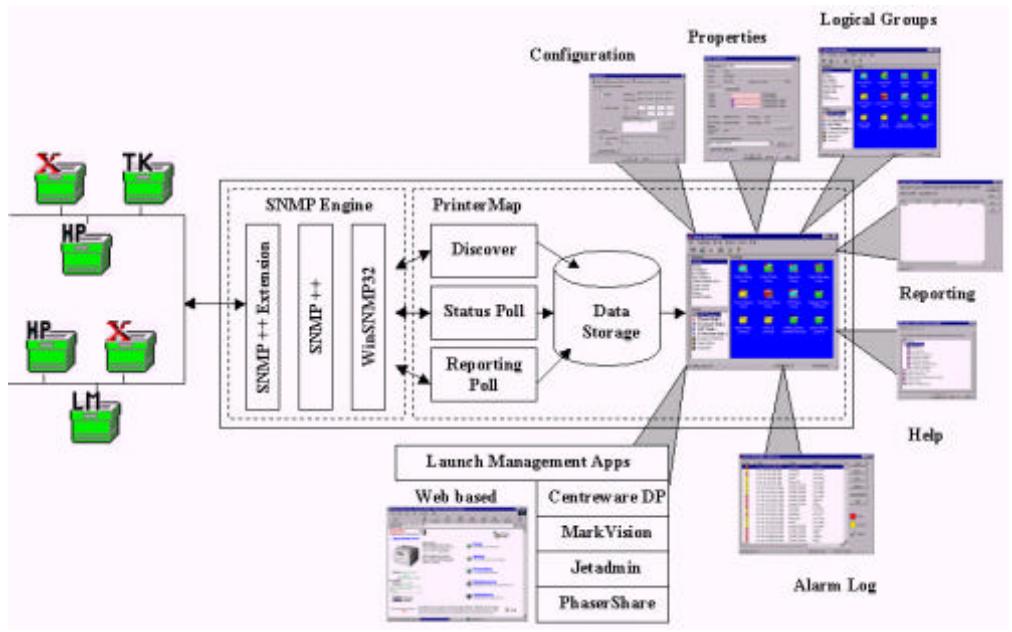
Figure 1 PrinterMap Components
| Topology | The Topology component refers to PrinterMap's main graphical user interface window where most PrinterMap functionality is accessed. It is the main PrinterMap window portion where printer icons and printer status are displayed. |
| SNMP Engine | PrinterMap's SNMP engine services SNMP requests generated by the Report, Status and Discover processes. |
| Discover | PrinterMap Discover finds the SNMP enabled network printers within the configured discover scope and builds a printer information database. This database is used by PrinterMap for displaying printers and printer status in the main topology window. |
| Report | PrinterMap's Report function configures how often printer report data is collected. It polls printers for report data at the configured intervals, and provides an interface for generating Standard and Custom reports for individual printers or printer groups. |
| Alarm | The Alarm function defines automated responses to detected printer alarm conditions and provides detected alarm viewing. |
| Application Paths | The Applications Paths function provides a mechanism for configuring paths to vendor specific management application. It insures the ability to automatically associate a management application with a managed printer based on the printer's |
vendor and attributes. There is an interface to launch any managed printer management application.
Status
PrinterMap's Status function allows configuration of how often printer status and alarm information is collected. It also polls printers for status and alarm information at the configured interval, carries out automated alarm responses, and triggers PrinterMap Topology status refreshes.
Chapter 2 Getting Started
This chapter covers the following topics:
- Installing PrinterMap
Starting PrinterMap - Configuring PrinterMap
- Running the PrinterMap discover process for the first time
- Shutting down PrinterMap.
PrinterMap Installation
This section provides information for installing PrinterMap. Instructions are given for:
- Loading PrinterMap files
Reinstalling PrinterMap
Uninstalling PrinterMap
NOTE: Installation on a Windows NT machine requires administrator authority
Loading PrinterMap Files
The PrinterMap Windows (95, NT) software is available on the Xerox DocuPrint Services CD-ROM which contains the PrinterMap installation file PRINTMAP.EXE.
Running the Installation Program
Follow the steps below to run PrinterMap's installation program:
- Place the Xerox DocuPrint Services CD in the CD-ROM drive.
- Select Run from the Start menu then enter the following when prompted for executing the program (Windows 95/98 and NT v4.0): [Drive]:\install\printmap\english\setup.exe (where [Drive] is the drive letter associated with the CD-ROM drive).
NOTE: Windows NT 3.51 users use the Windows File Manager to locate the PRINTMAP.EXE file from the CD ROM drive.
- A Pop-up window is displayed indicating that PrinterMap setup is preparing the InstallShield wizard to guide the user through the installation process. This window displays a percentage complete bar indicating process progress. A welcome screen is displayed when the process is complete. During the installation process, select Back at any time to go to the previous screen.
- The welcome screen gives opportunity to continue or quit the installation. To continue with installation, select Next. To halt the process, select Cancel. After continuing with the installation, PrinterMap displays the PrinterMap software license agreement.
- The PrinterMap software license agreement screen instructs the user to read the license agreement. License agreement terms are accepted by selecting Yes or the installation is discontinued by selecting No. License agreement acceptance is necessary to continue PrinterMap installation.
- A screen is displayed containing important information related to printer discovery on Novell Netware networks. The message indicates that Client32 / IntranetWare software is required by PrinterMap to find printers via IPX. Also mentioned are recommended locations to acquire Client32 / IntranetWare software. Select Next to continue installation or Cancel to exit the installation.
- The installation search process searches the hard drive for existing PrinterMap installations. If an existing installation is detected, an information popup is displayed indicating the default install directory is set to the existing
PrinterMap installation directory. If the default install directory is accepted, the installation program overwrites the existing PrinterMap installation and removes any obsolete files. However, printer and reporting data as well as configuration information is preserved. If the default install directory is modified, the existing PrinterMap installation remains on disk, but menu items and registry information are replaced by the new installation. Select OK to continue.
- The Select Destination Location screen is displayed. If no previous PrinterMap installation is found the default installation directory is set to [Drive]:\Program Files\Xerox\PrinterMap. Select Browse to alter the installation destination directory. After choosing a destination directory select Next to continue installing. Select Cancel to terminate the installation.
- The Copying Program Files window is displayed (along with several meters) indicating installation program progress copying PrinterMap files. During this time the Xerox PrinterMap program group is created and populated with:
- PrinterMap
- PrinterMap Reporting
- PrinterMap Services
- PrinterMap Status
- PrinterMap Readme
Uninstall PrinterMap
Under Windows NT, the Status and Reporting services are registered as NT services and therefore do not appear in the Xerox PrinterMap program group.
- The Setup Complete screen is displayed. At this point PrinterMap installation is complete. By default the "View Readme file now" and "Launch PrinterMap now" boxes are checked. To prevent displaying the Readme file, uncheck the "View Readme file now" box. To prevent automatic PrinterMap launch, uncheck the "Launch PrinterMap now" box. Select the Finish button to complete setup program. The PrinterMap Status and Reporting services are started automatically.
Directory Structure
The PrinterMap installation program creates the following: (assuming the default C:\Program Files\Xerox\Printermap installation path).
C:\Program Files\Xerox\PrinterMap
PrinterMap initialization files
C:\Program Files\Xerox\PrinterMap\Group
PrinterMap default and user-created group files
C:\Program Files\Xerox\PrinterMap\Log
PrinterMap error log files
C:\Program Files\Xerox\PrinterMap\Data
PrinterMap printer information files and reporting data files
C:\Program Files\Xerox\PrinterMap\Help
PrinterMap help files
C:\Program Files\Xerox\PrinterMap\Icons
PrinterMap Xerox model specific icons
C:\Program Files\Xerox\PrinterMap \Reports
PrinterMap user-generated reports (default directory)
C:[Windows System Directory]\pmapdeinstall.exe
PrinterMap uninstall utility
PrinterMap Re-Installation
In some circumstances (corrupt executables or accidental program files deletion), a PrinterMap reinstall may be necessary. Reinstalling PrinterMap does not affect any existing printer, group or report information. Refer to "Running the Installation Program" in Chapter 2 for more information on installing PrinterMap. Remember to terminate all PrinterMap processes including the Status and Reporting services. Refer to "PrinterMap Shutdown" in Chapter 2 for more information on shutting down PrinterMap.
PrinterMap Uninstall
To uninstall PrinterMap:
- Stop all PrinterMap processes. Refer to "PrinterMap Shutdown" in Chapter 2 for more information on shutting down PrinterMap.
- On a Windows 95/98 or NT 4.0 machine, from the Start menu, select Programs > Xerox PrinterMap > Uninstall PrinterMap. The uninstall program may also be launched by selecting Add/Remove Programs from the Control Panel and choosing Xerox PrinterMap. On an NT 3.51 machine, double-click the PrinterMap uninstall icon located in the PrinterMap program group.
- The uninstall program asks to verify intention before completely removing the Xerox PrinterMap product from the machine. The PrinterMap uninstall window indicates the application was removed. Either now or at a later time, reboot the computer to remove the uninstall utility. Select Finish to end the process.
Running PrinterMap for the First Time
Before PrinterMap can manage network printers, PrinterMap configuration and discovery processes must occur. PrinterMap is designed to assist in this process when it is first started. This section describes how PrinterMap assists in this process and where to look for additional information. By default, the install program starts the PrinterMap user interface (Topology window). Selecting PrinterMap from the Xerox PrinterMap program group is another way to get started.
Welcome Screen
The first time the PrinterMap Topology window is started a welcome screen is displayed.
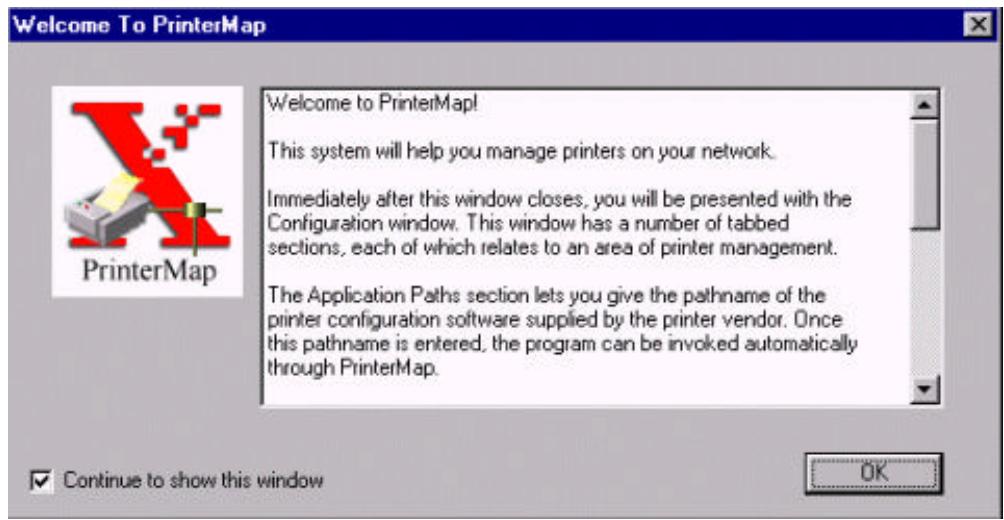
Figure 2 Welcome to PrinterMap window
The welcome screen is displayed every time PrinterMap is started until discover parameters are configured or the "Continue to show this window" box is unchecked. Select the OK button to continue. The PrinterMap Configuration window is displayed.
PrinterMap Configuration Window
At minimum, PrinterMap requires the user to define discover parameters. The discover parameters specify how PrinterMap discovers network printers. After closing the Welcome screen, PrinterMap displays the PrinterMap configuration window. By default, the Discover panel is shown. PrinterMap automatically fills in as many parameters on the Discover panel as possible. IP parameters that PrinterMap supplies include the machine's IP address, subnet mask and default gateway. PrinterMap also fills in the machine's Novell preferred server, if applicable. Refer to "Discover Configuration" in Chapter 3 for more information on configuring PrinterMap's discover process.
Other PrinterMap configuration parameters may be specified at this time. Only discover configuration is required. Refer to "Configuring PrinterMap" for more information on configuring PrinterMap.
Discovery Required Window
Select the OK button or Apply and Cancel buttons to apply any configuration modifications and exit the PrinterMap Configuration window.
Following configuration, PrinterMap displays the Discovery Required window. Running the Discover process is a prerequisite to managing network printers.
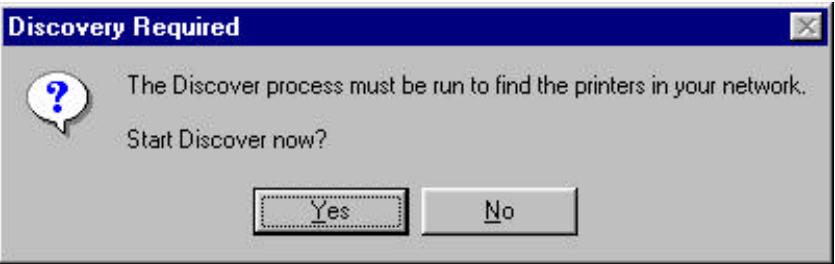
Figure 3 Discovery Required window
Selecting the Yes button automatically starts the PrinterMap Discover process and allows PrinterMap to find and begin managing the network printers.
Refer to "Operation" in Chapter 3 for more information on running the PrinterMap discover process.
Configuring PrinterMap
PrinterMap can set a variety of parameters to customize its behavior. Additionally, several parameters, such as those related to discovery, must be set before performing certain functions. PrinterMap's Configuration window provides an intuitive interface for setting these parameters.
To access the PrinterMap Configuration window, select File > Configuration from the main menu. To switch from one configuration panel to the next, select the tabs located at the top of the window (Discover, Alarms, Reports, etc.). By default, the Discover panel is displayed when the Configuration window comes up.
NOTE: After PrinterMap is installed for the first time a Welcome screen is displayed. Next the Configuration window appears allowing PrinterMap configuration for particular user needs. Minimally, the Discover panel needs configuring. The Discover process does not run nor is it able to discover network printers without user configuration.
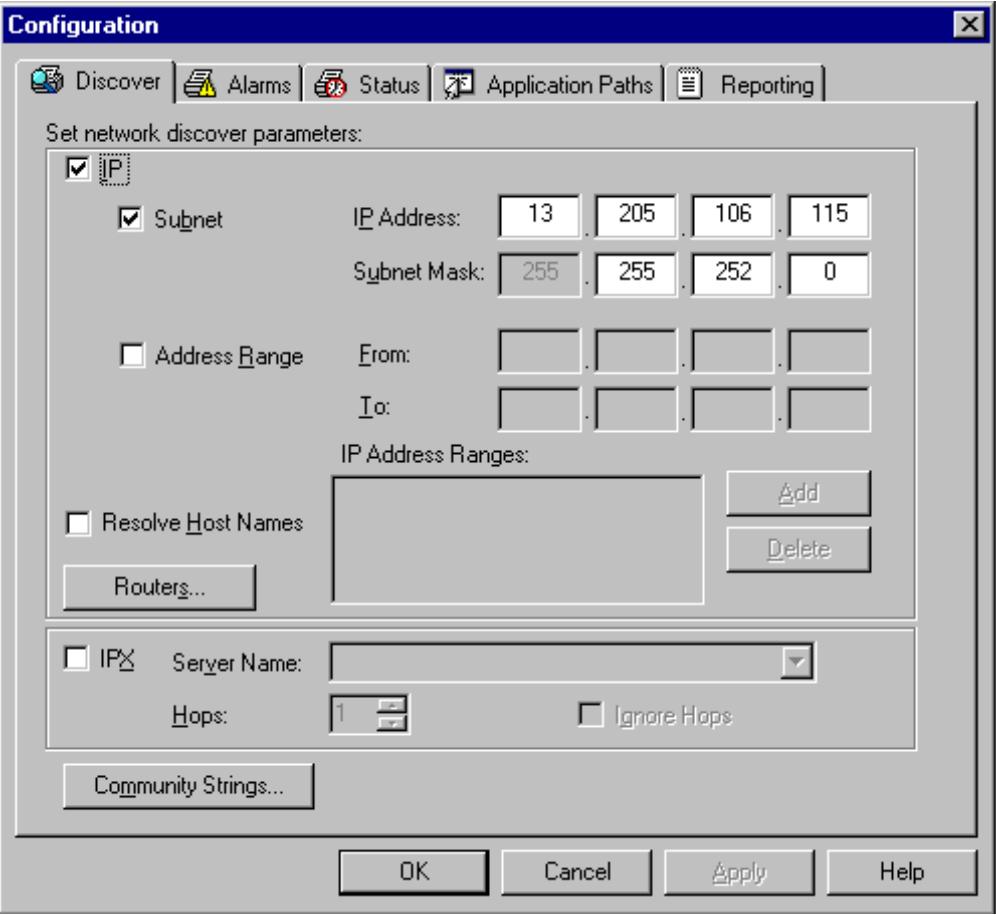
Figure 4 PrinterMap Configuration window
Configuration Window Panels
This section contains Configuration window panel descriptions.
Discover
The Discover Configuration window provides an interface for customizing PrinterMap's discover process. Refer to "Discover Configuration" in Chapter 3 for information on configuring PrinterMap's discover process.
Alarms
The Alarms Configuration window allows PrinterMap customizing for handling detected printer alarms. PrinterMap can be configured to log the alarm. It can also launch a Pop-up window notification, or launch an executable. More than one action can be configured for a single alarm.
PrinterMap only takes the configured action(s) if it detects a change in printer conditions. For example, if a printer is low on paper for consecutive status polls PrinterMap only logs the first low paper detection. There are two exceptions to this rule. One is when the PrinterMap graphical user interface (topology) is restarted. The other is when the Status Service is restarted. In both cases all detected alarm conditions take the configured action(s). This ensures that important printer events are not missed.
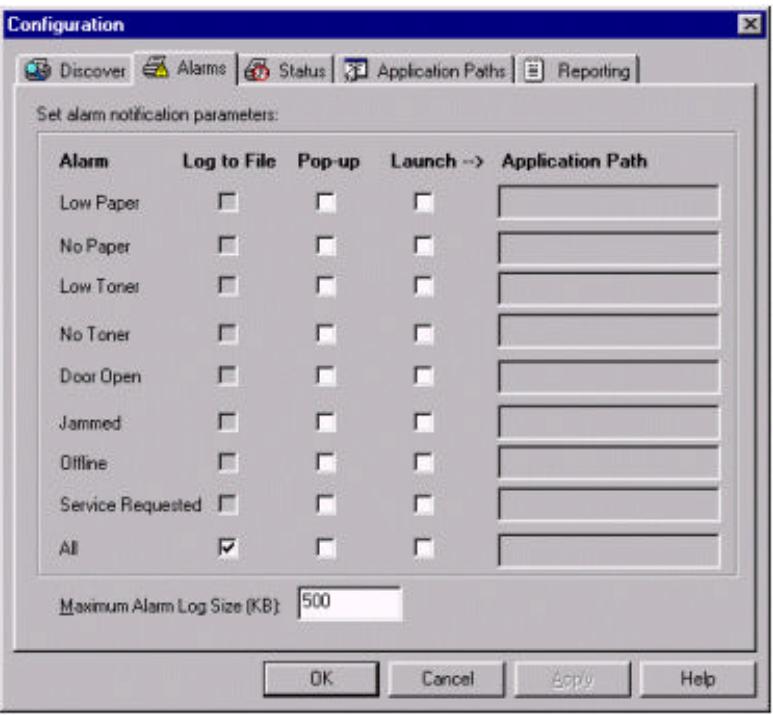
Figure 5 Alarm Configuration window
The Alarm Configuration window's Alarm column lists each alarm condition detected by PrinterMap. Select one to three automation actions on an individual alarm basis by checking the desired action next to the alarm condition. Automated action indication is applied to all alarm conditions by selecting the desired action next to the All item (last entry in the Alarm column).
PrinterMap detects the following printer alarm conditions:
Low Paper
Alarm
| • No Paper • Low Toner • No Toner • Door Open • Jammed • Offline • Service Requested | |
| Log to File | Checking this box for alarms causes PrinterMap to log the alarm occurrence to a file located in [Drive]:\Install Directory\log\alarm.log. This alarm history may be viewed by selecting Tools > Display Alarm Log > from the main menu. |
| Pop-up | Checking this box for alarms causes PrinterMap to display an alarm notification Pop-up window when the specified condition occurs. |
| PrinterMap Message Fri Jun 19 12:50:24 1998 info231 Low Paper OK | |
| Figure 6 Alarm Notification Pop-up window The alarm notification Pop-up window describes when an alarm occurred, which printer issued the alarm and the alarm type. Select the OK button to close this window. | |
| NOTE: When configuring PrinterMap be certain to generate alarm pop-up notifications. Each Pop-up window uses system windowing resources and requires user interaction for dismissal. Selecting pop-up notifications for all detected alarms is not advisable unless only a few printers are managed. | |
| Launch | Checking this box allows an alarm response configuration for an application launch. Right-clicking in the blank text box summons a browse window. In the Application Path text box, fill the path and executable (including parameters) for any application needing alarm response. When any alarms are enabled for Log to File, the maximum alarm log size is enabled for editing. |
Status
The Status Intervals Configuration window allows customizing of the interval that PrinterMap polls printers for status.
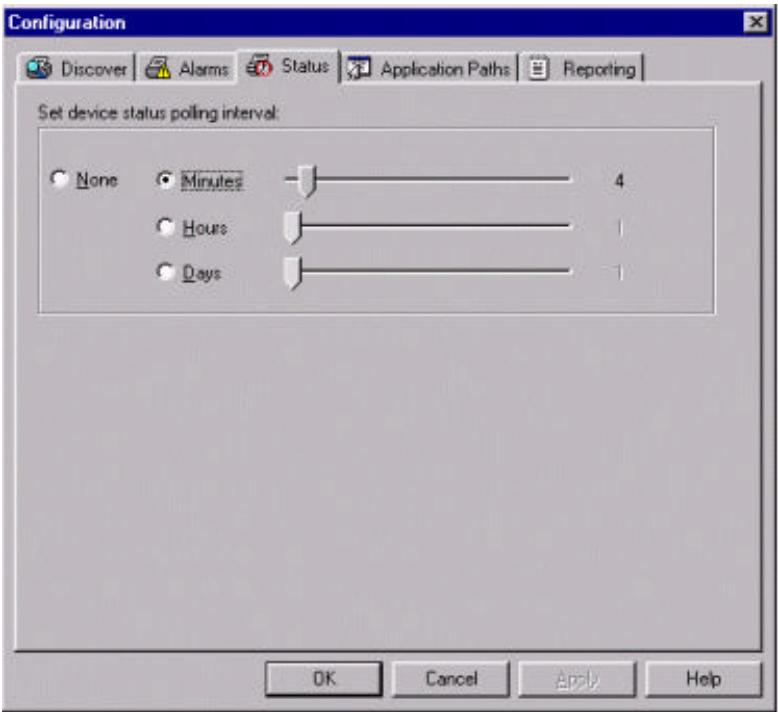
Figure 7 Status Configuration window
Check the corresponding box and slide the bar to adjust the polling interval for Minutes (1 - 59), Hours (1 - 23), Days (1-31), or None. If none is selected, the topology icon colors and attribute values cannot represent current printer state.
Changing status polling frequency in the Configuration window Status panel assures change takes place immediately. Any change triggers a new status poll, and the new polling interval becomes active.
Application Paths
The Application Paths Configuration window allows configuration of default printer management software for PrinterMap. If any listed software resides on the host machine, PrinterMap checks the corresponding box and provides a path for the executable. If PrinterMap cannot find the software (if, for example, the software is installed in a directory other than the default), browse the machine to manually locate the executable.
Each time the Configuration window is accessed PrinterMap searches the system's hard drive for the following applications:
Xerox CentreWare DP
- Hewlett-Packard JetAdmin
- Lexmark MarkVision
Tektronix PhaserShare
If any specified management applications are found, PrinterMap automatically fills the corresponding edit field on the Application Paths Configuration window. PrinterMap only searches for these applications in a default installation location. If the application is installed in a directory other than default, the Browse button manually locates and fills in the path to the executable.
If no path is specified for a specific vendor, the Printer Management Application field of the Properties window is not filled for discovered printers from that vendor. As such, the Launch Application option normally available off the right-click menu for a printer is not available, nor is it available from the main menu Tools Pulldown.
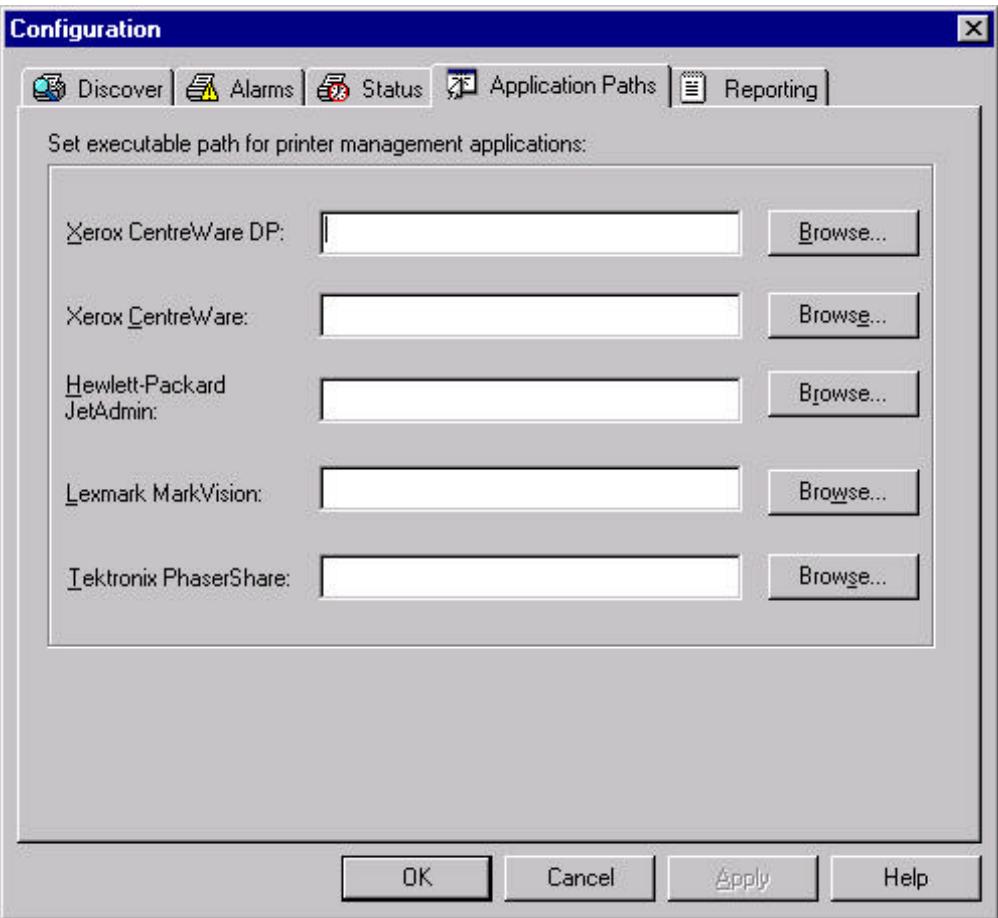
Figure 8 Application Configuration window
Reporting
The Reporting Configuration window allows customizing of how often printers are queried for reporting information and what information is included when generating printer reports. PrinterMap's reporting function may also be disabled.
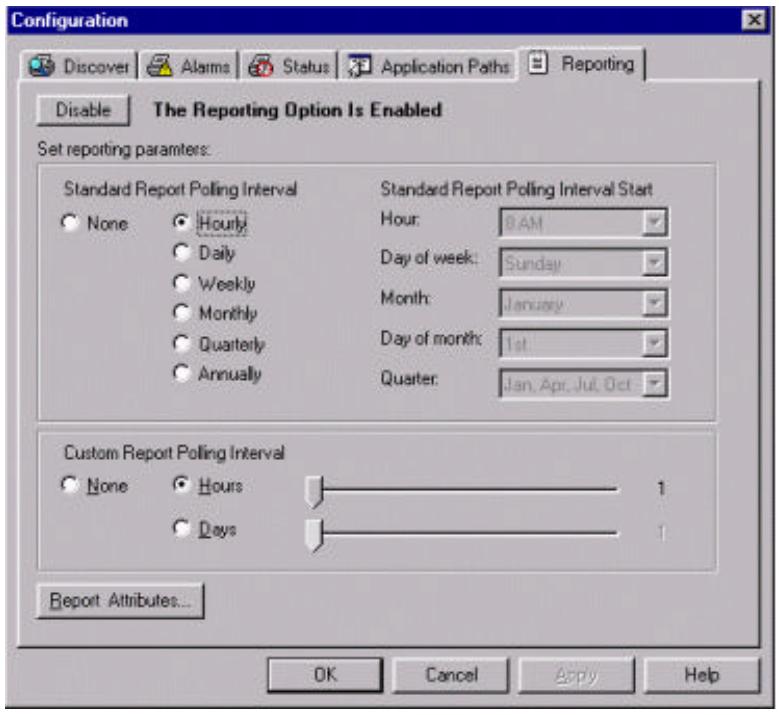
Figure 9 Reporting Configuration window
Disabling Reporting
A disable button is located at the very top of the Reporting Configuration window. This allows the user to enable or disable PrinterMap's Reporting functionality. If the intention is to use PrinterMap only as a status manager for printers, or PrinterMaps's significant disk space requirements for reporting cannot be met, this function may be disabled. Doing do deletes all existing reporting data.
A Disable button is located at the top of the Reporting Configuration window. This allows enabling or disabling of PrinterMap's Reporting functionality. The disable function may be deleted if PrinterMap is used solely as a status manager for printers or if it cannot meet PrinterMap's significant disk space requirements for reporting. Deleting the disable function deletes all existing reporting data.
Standard Report Polling
Beneath the Disable button is the Standard Report Polling section of the Reporting Configuration window. This section is used to specify how often data is collected. It also specifies when data collection starts for generating standard reports. The selected Standard Report Polling Interval determines how much control exists to specify the Standard Report Polling Interval Start values. For example, if Hourly is checked, the status poll begins gathering data at the top of every hour. Start values need not be specified. If Weekly is selected the Hour and Day of Week Start values must be specified.
Custom Report Polling
Below the Standard Report Polling section is the Custom Report Polling section of the Reporting Configuration Window. This is used to specify how often data is collected for generating custom reports. Using slide levels, the poll can be configured for hours (1 - 23) or days (1 - 31).
NOTE: Selecting None for the Standard or Custom Report Polling Interval affects the available data for generating custom and standard reports. If No Standard Report is selected and the custom report polling interval is set to every 12 hours, then every report generated between each 12 hour poll is taking data from only one poll. For example, if the polling period is set to poll at 12:00 a.m. and 12:00 p.m., all reports generated between 12:00 a.m. and 12:00 p.m. relies on the 12:00 a.m. poll for information. If a report is generated for 1:00 a.m. to 3:00 a.m. and then from 4:00 a.m. to 11:00 a.m. both reports generate based on the 12:00 a.m. data. The same holds true for switching back to standard reports. Until the polling period for the standard reports catches up, any standard reports are generated with the custom reports polling data.
Report Attributes
The Report Attributes button accesses the Select Report Attributes window. This is where the content of a Printer report may be modified. Name and Lifetime Impression Count are standard on every report. Information shown in the window below may also be included.
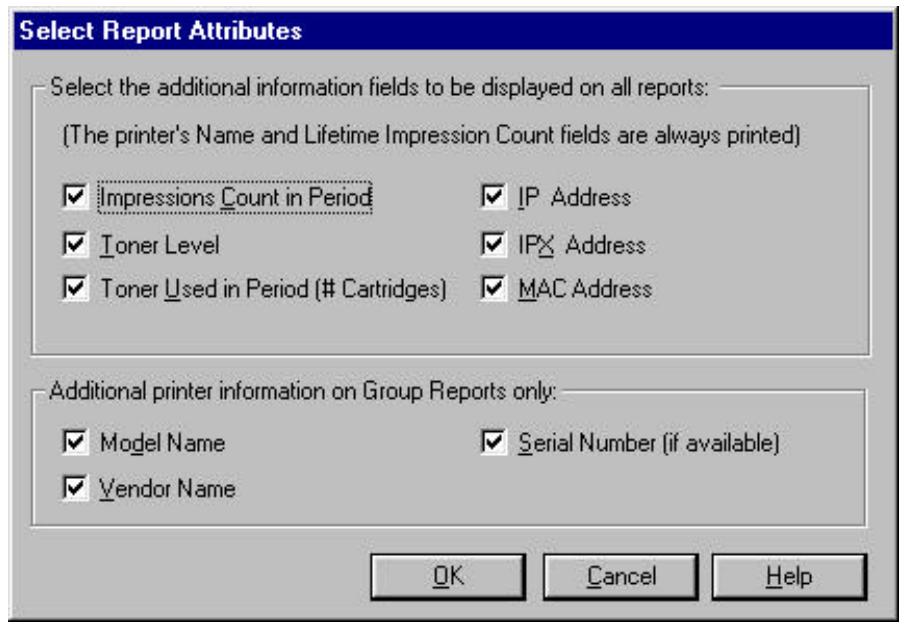
Figure 10 Select Report Attributes window
Refer to "Generating Reports" in Chapter 5 for details on PrinterMap report attributes.
Make selections, then select the OK button to accept and close the window.
After all Reporting parameters are specified, select OK to apply the settings and close the window. Select Apply to apply the settings and continue displaying the window. Select Cancel to nullify settings and close the Reporting Configuration window.
PrinterMap Shutdown
| To terminate PrinterMap Topology and the Status and Reporting services, follow the instructions below. | |
| First exit PrinterMap Topology by selecting Exit from the File pull-down. Next terminate the background service tasks by following the instructions below for the appropriate operating system. | |
| Windows95/98 | 1. Locate the PrinterMap Status and/or PrinterMap Reporting icon in the Windows 95/98 service tray. An icon appears if the particular service is currently active.2. Right-click the icon for the PrinterMap service being terminated and select the Stop Status Service or Stop Reporting Service menu item, whichever is appropriate. Repeat this step for each active service. |
| Windows NT4.0 | 1. From the Start menu, select Settings > Control Panel2. From the Control Panel, double-click the Services icon to access NT's background services window.3. Scroll and locate the PrinterMap Status and PrinterMap Reporting services4. Highlight each process in turn and select the Stop button for each. |
| Windows NT3.51 | 1. Double-click the Control Panel icon located on the desktop.2. From the Control Panel, double-click the Services icon to access NT's Background Services window.3. Scroll and locate the PrinterMap Status and the PrinterMap Reporting services.4. Highlight each process in turn and select the Stop button for each. |
Chapter 3 Discover Process
This chapter describes PrinterMap's discover process in detail. The discover process collects information from the SNMP enabled network printer's on the user's network. This chapter covers configuring the discover process and the discover process operation.
Overview
During a discover, PrinterMap issues SNMP queries to network printers as defined by the discover configuration panel. When a supported network printer is encountered, PrinterMap gathers configuration and status information via SNMP, adding it to the topology map with an appropriate icon. Depending on the support level of the discovered printer, PrinterMap associates the printer with an icon indicating its status, vendor and model type.
Discover Configuration
NOTE: PrinterMap is only capable of discovering SNMP enabled printers.
To initiate a discover, from the Topology menu, select Discover. To modify the scope of the discovery that PrinterMap is to perform, the discover parameters may be edited by accessing the Configuration window Discover panel.
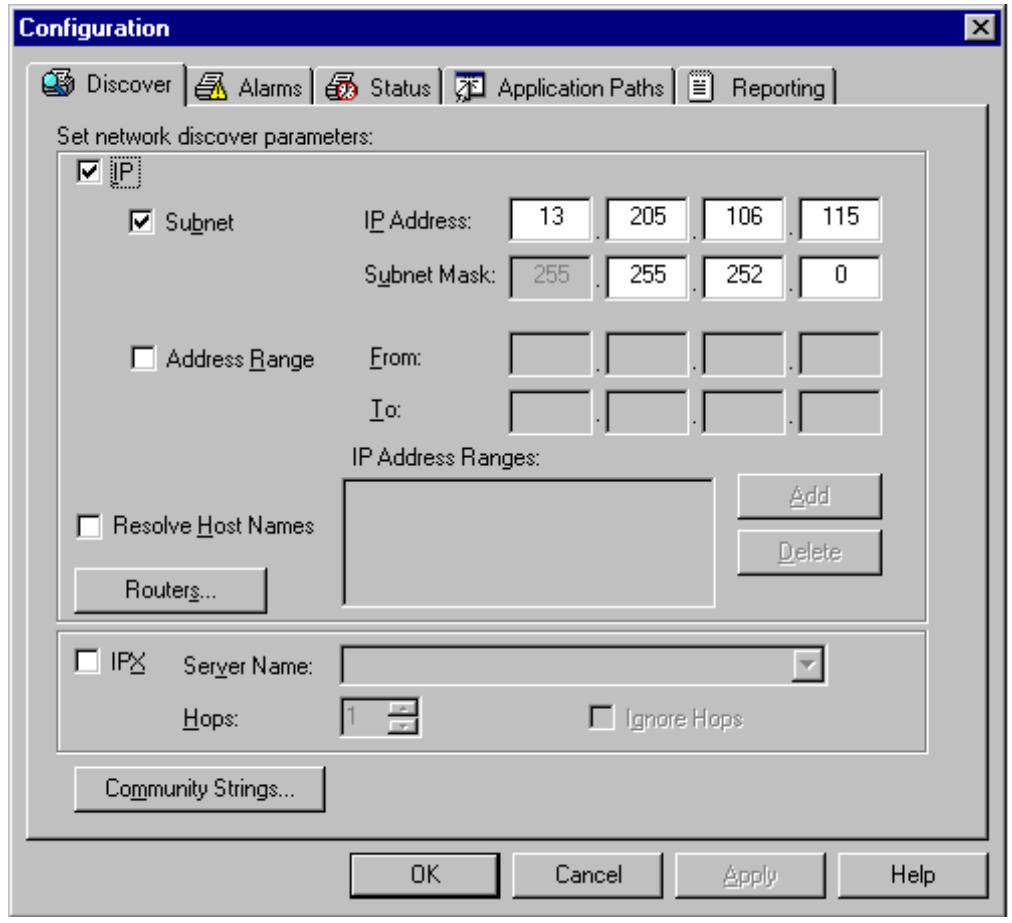
Figure 11 Discover Configuration window
The following section discusses various discover parameters that may be set through the Discover Configuration window. The Discover Configuration window is divided into three portions. IP, IPX, and Community String.
IP
To discover network printers via IP, check the IP box located at the top left corner of the Discover Configuration window. The user may now configure up to four different methods by which PrinterMap can discover printers via IP. Subnet and IP address range discover are configured under the main Discover Configuration window and default gateway and secondary router discover are configured on the Routers window accessible by clicking on the Routers button.
Subnet
To perform an IP subnet discovery, check this box. In most cases PrinterMap automatically fills-in the IP address and subnet mask of the local machine. The user may use these values or fill-in new IP address and subnet mask information in order to discover the printers on a remote subnet. Using the IP address and subnet mask values, the discover process systematically checks all IP addresses within the specified subnet. For example, if there is a class C network and the local machine's IP address is 12.13.12.67 with a subnet mask of 255.255.255.0 then PrinterMap queries every IP address between 12.13.12.1 and 12.13.12.254.
IP Address Range Discover
To perform an IP address range discover, check this box. Multiple IP address ranges can be specified. The discover process queries all the IP addresses within each specified range. After entering a new IP address range click the Add button. Address ranges can be edited in-place by clicking the desired range twice. To remove a range, highlight the range and click the Delete button.
Resolve Host Names
To have PrinterMap resolve IP addresses of discovered printers to their host name equivalent, check this box. In environments where IP host names are relied on more than the MIB II system name value, this box should be checked. After the discover process, PrinterMap resolves each discovered printer's IP address into its equivalent host name value.
Routers
Choosing the Routers button retrieves another IP discover configuration window with further choices for discovery via network routers.
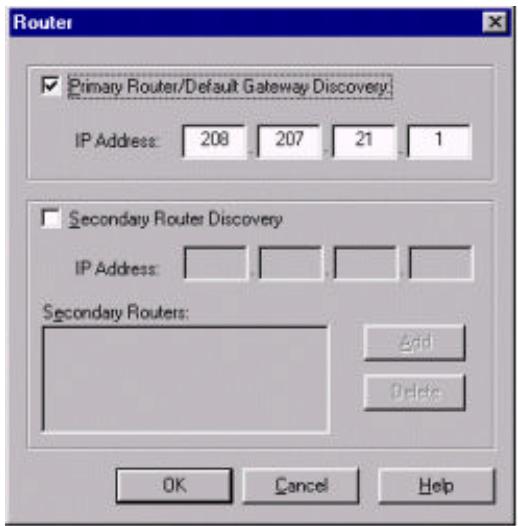
Figure 12 Router Discover Configuration window
Primary
Router/Default Gateway
Discovery
Secondary RouterDiscover
To perform a default gateway discovery, check this box. In most cases PrinterMap automatically fills-in the local machine's default gateway IP address. The discover process walks the ARP (Address Resolution Protocol) cache of the gateway and identify those IP addresses belonging to SNMP enabled printers.
To perform a secondary router discovery, check this box. IP addresses of multiple secondary routers may be specified. The discover process walks the ARP (Address Resolution Protocol) cache of each router and identifies those IP addresses belonging to SNMP enabled printers.
NOTE: Gateways/Routers can be configured to maintain a static or dynamic arp cache. If set to dynamic, this arp cache is regularly flushed of information and allowed to re-build. In some networks, this arp cache purge occurs every few seconds. To use the arp cache to discover networked printers, ensure that the target router is configured with a reasonable amount of time between cache purges. This provides PrinterMap access to a cache with a larger sampling of IP addresses. Thus, discovery of the majority of printers on the network is more likely.
IPX
To discover network printers via IPX, check the IPX box and fill the Server Name input area with the NetWare preferred server name.
Preferred Server
In most cases PrinterMap retrieves the local machine's preferred server name and auto-populates the Server Name field. During discovery, PrinterMap identifies all NetWare printer objects on that server, confirms them to be network printers supported by PrinterMap, and adds them to the PrinterMap topology. The user may define additional NetWare server names, however PrinterMap only discovers
Hops
the NetWare server displayed in the Server Name input area (i.e. the current server). PrinterMap stores up to twenty NetWare server names.
Also in this section is a numeric field labeled Hops. Each NetWare server defined to PrinterMap has a corresponding Hops value. The Hops value serves as a filter for discovering printers accessible via IPX. When the discover process identifies a potential network printer through the currently defined NetWare server, it generates a RIP request for that printer's network number. The RIP response indicates the number of network hops (or interfaces) away that network is. PrinterMap then compares the Hops value associated with the NetWare server and if the printer's network number is farther away than the Hops value the printer is not discovered. The minimum hop count is 1 and the maximum is 15. By default the Hops value is set to the maximum value of 15. In this instance all network printers "known" by the NetWare server are discovered. In contrast, if the user sets the Hops value to 1 only network printers on the local network are discovered.
If the Ignore Hops check box is selected, the Hops value is ignored. All network printers "known" by the currently configured NetWare server are discovered regardless of the network where the printers reside.
For example, if you only want to discover printers in your building and your building's router is four hops away, then set the Hops value to four. If however, you only want to discover printers on your floor (or your local area network), set the Hops value to one.
NOTE: IntranetWare/Client32 must be installed and running for PrinterMap to perform an IPX discover. Without IntranetWare/Client32 PrinterMap is unable to communicate with NetWare servers.
Community Strings
Within SNMP, community strings provide a form of security. If an SNMP agent receives an SNMP query without a valid community string, it rejects the request. The default read community string for SNMP devices is 'public'. By default, PrinterMap uses 'public' for all SNMP requests. PrinterMap is capable of discovering and monitoring printers on the network which are configured with community strings other than the default. These non-default community strings are entered through the Community String window.
Choosing the Community String button at the bottom of the discover configuration window accesses the Community Strings window.
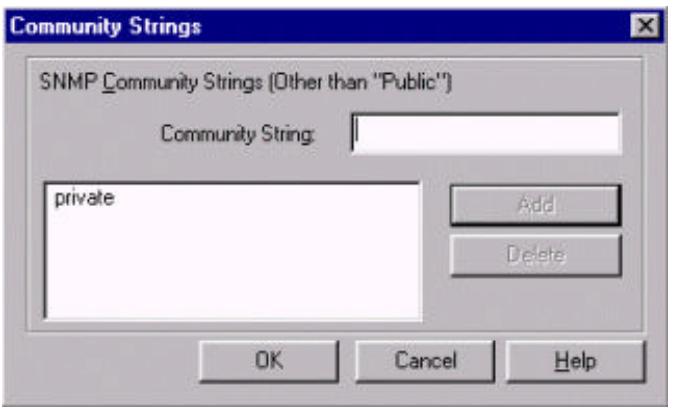
Figure 13 Community Strings window
Each additional community string defined may increase the amount of time it takes to run the discover process. Community strings may be added to PrinterMap to be used in subsequent discoveries by entering the value in the Community String edit field and clicking Add. Existing community strings can be edited in-place by clicking twice on the string. Community strings may be deleted by highlighting the target community string and clicking Delete.
It is strongly recommended that the PrinterMap Discover process be re-run following any modifications made through the Community Strings window. Valid community strings are required by the Status and Reporting services in order to communicate and retrieve information from managed printers. The discover process updates the community string stored for each managed printer as well as discover any new printers as a result of community string additions. After changes have been made and applied to the community strings, PrinterMap displays the following confirmation dialog requesting that it be allowed to automatically start the discover process.
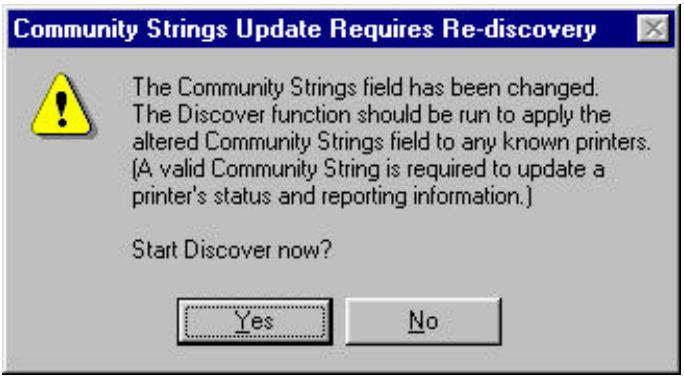
Figure 14 Community Strings Update dialog
Selecting the Yes button initiates the discover process, updating the community strings of all managed printers and discovering any new printers. Selecting the No button closes the confirmation dialog and the discover process is not run.
Operation
If the PrinterMap reporting feature is enabled, PrinterMap displays the Available Disk Space window at the beginning of the discover process. This window indicates how many printers can be discovered given the amount of disk space available. This window also indicates the total number of printers currently managed by PrinterMap and the amount of disk space consumed by the reporting data files.
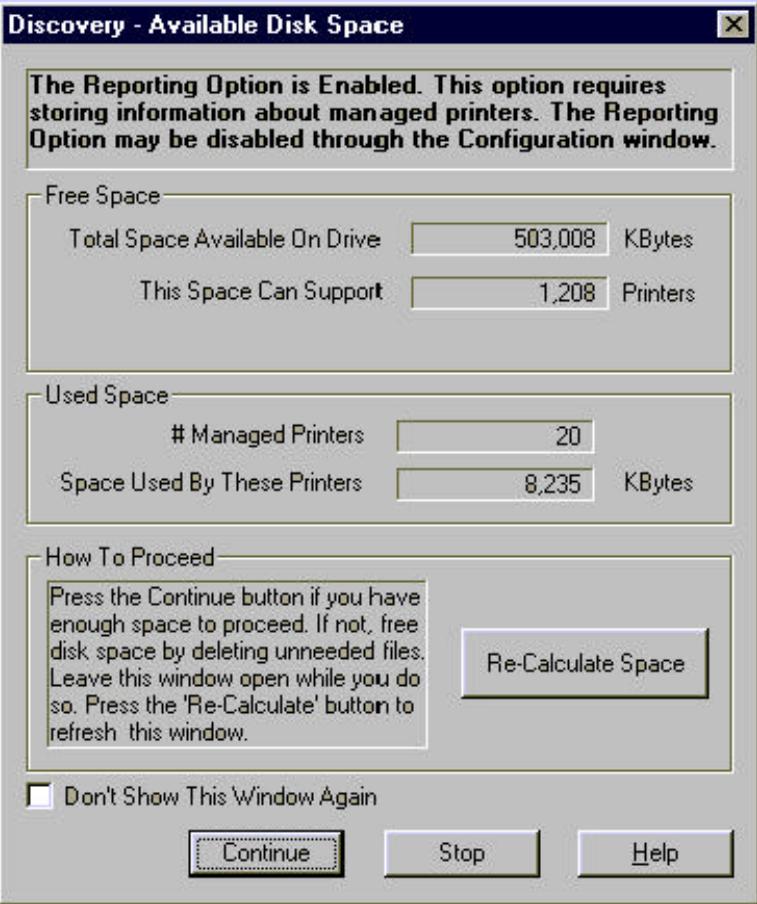
Figure 15 Available Disk Space window
If the drive where PrinterMap is installed runs out of disk space during the discover process, the Not Enough Disk Space window is displayed. This gives a detailed explanation of and assistance in remedying the problem.
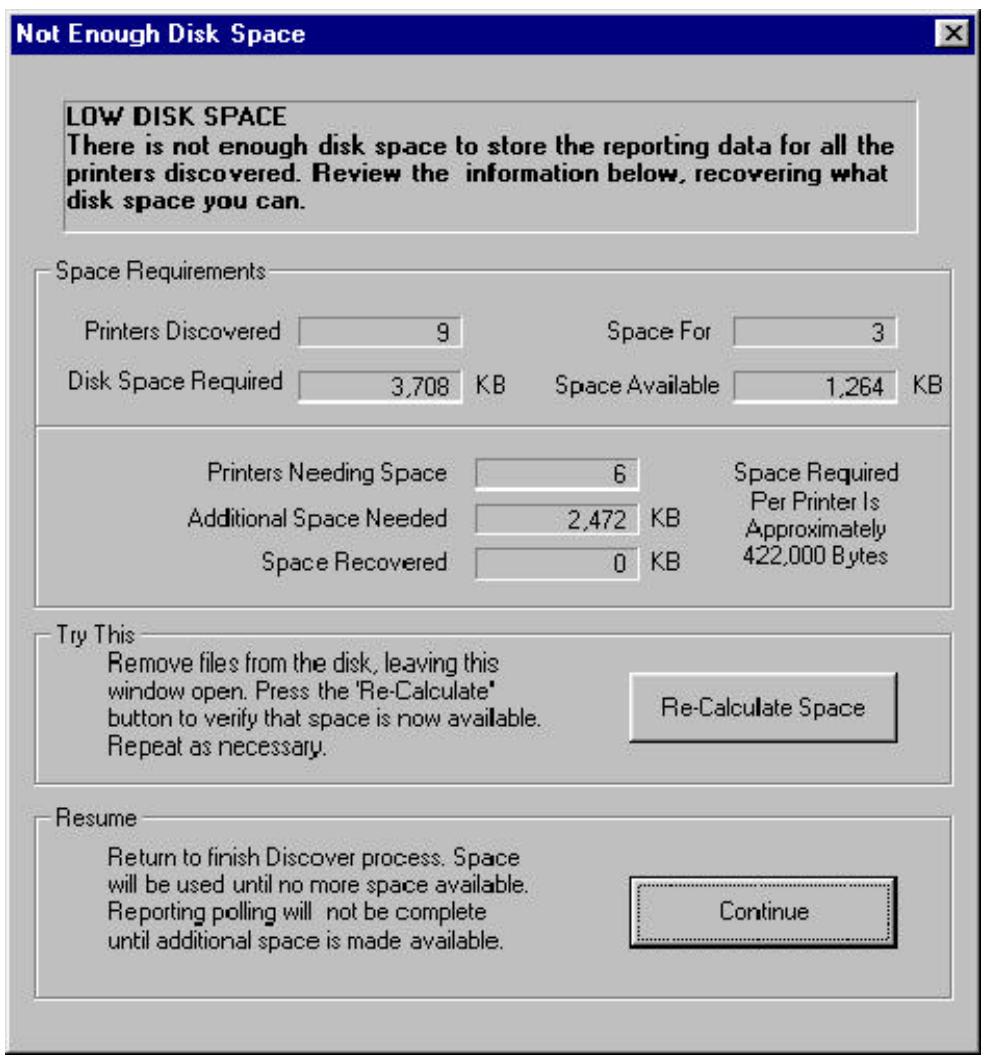
Figure 16 Not Enough Disk Space Notification window
During the discover process, PrinterMap displays an activity meter as well as the current state of the discover, such as the IP address range it is currently querying. The discover process may be cancelled at any time.
The application window can be minimized for the duration of the discovery process by selecting the minimize button on the progress window.
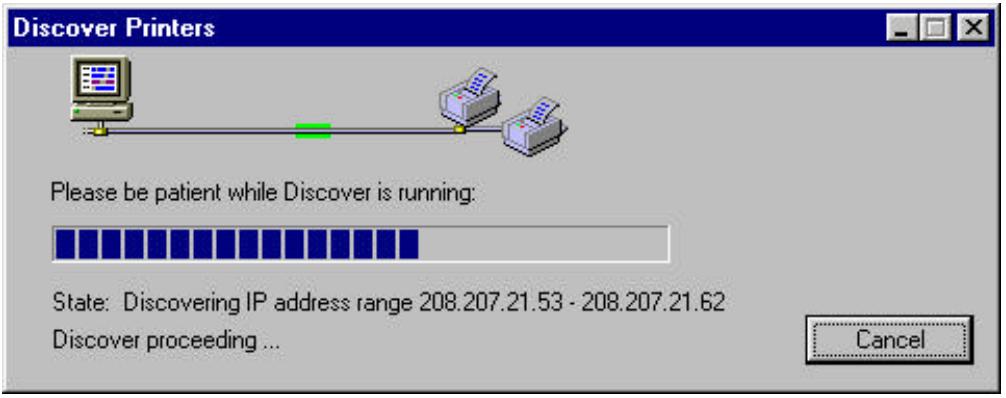
Figure 17 Discover Progress window
Once the discover process is completed, PrinterMap indicates how many new printers are discovered and a total of all printers currently managed. If errors occur during the discover process, PrinterMap reports the errors and also records them in the PrinterMap log file (pmap.log).
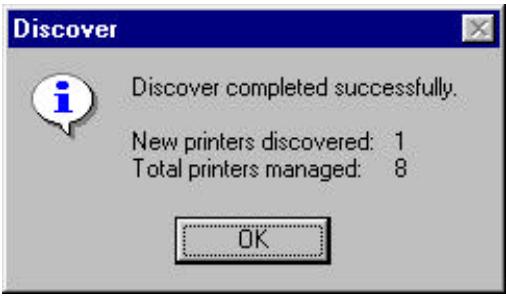
Figure 18 Discover Complete dialog
Objects are added to the topology map with a color-coded icon based on information retrieved during the discover process. If a printer becomes inaccessible (possibly due to reboot or network outage) or is experiencing an alarm condition, the icon representing that object changes colors. This occurs at the time of the next status poll to reflect the change in status. If PrinterMap is unable to determine the status of a network printer, the printer is added to the topology as a blue (unknown status) icon.
NOTE: Any printer with two network interfaces (network cards) is discovered and mapped to the topology twice. After the initial building of a printer topology map, a discovery may be periodically performed to insure the topology includes any printers added to the network. Discovered printers no longer a part of the existing network may be removed from PrinterMap topology by deleting the printer icon. New printers may be added to PrinterMap topology via the Add Printer menu option or by initiating a new discover with the proper discover configuration parameters.
Advanced Configuration Issues
This section provides a look at advanced details of the PrinterMap discover process. These topics include PrinterMap vendor and model support as well as configuring PrinterMap SNMP timeout values.
Supported Vendors and Printer Models
When the discover process finds a device on the network it determines is a printer, it attempts associating that printer with one of the supported printer manufacturers (Xerox, HP, Lexmark, etc.). If the discover process makes this association the printer is represented in the PrinterMap Topology window with a vendor-specific icon. Otherwise the printer is represented with the Generic printer icon. In the case of Xerox manufactured printers, PrinterMap attempts associating a particular printer with a model-specific icon. If a model-specific icon is not defined for a particular printer's model, the printer is represented with the Xerox-Generic printer icon.
PrinterMap is shipped with a pre-defined set of supported printer manufacturers or vendors. The set of supported vendors cannot be extended by the user. Future PrinterMap versions will support an ever increasing number of printer vendors. PrinterMap is shipped with a default set of printer models associated with each supported vendor. These vendor and model associations are defined in PrinterMap's Mib.ini file. Xerox printer model to icon associations are defined in PrinterMap's Pmap.ini file. The content of both of these files is loaded during PrinterMap initialization and are located in the PrinterMap install directory ([Drive]:[Install Directory]).
Mib.ini File
PrinterMap's Mib.ini file contains entries mapping each supported vendor to one or more supported models (identified by the model's MIB II System Object Identifier). The Mib.ini file is found in the [Drive]:[Install Directory]\ directory. An excerpt from a sample Mib.ini file follows. The excerpt is for the supported vendor Xerox.
[xerox]
number=5
// 4512
valid1=1.3.6.1.4.1.253.8.62.1.2.1.1.1:0
// 4517
valid2=1.3.6.1.4.1.253.8.62.1.2.2.1.1:0
// DocuPrint C55
valid3=1.3.6.1.4.1.253.8.62.1.2.3.1.1:1
// Docuprint N24
valid4=1.3.6.1.4.1.253.8.62.1.3.2.2.1:1
// DocuPrint N32
valid5=1.3.6.1.4.1.253.8.62.1.3.2.1.1:1
Format
Each vendor section within the Mib.ini file follows the format shown in the sample text above. In this case the Xerox vendor has 5 valid MIB II System Object Identifiers (SysObjIDs) associated with it. Concatenated to the SysObjID is an integer value delimited by a colon (':'). Valid values for this integer value are 0, 1 or 2. This integer value is used to indicate whether or not the printer with the specified SysObjID has a built in HTTP server. A value of 0 indicates that the printer does NOT have an HTTP server, a value of 1 indicates that it does have an HTTP server, and a value of 2 indicates PrinterMap is to determine whether the printer has a built in HTTP server.
NOTE: The Mib.ini file may contain comment lines shown in the previous sample. The first two characters of comment lines should be two forward slashes (“/”) for consistency.
Editing the Mib.ini File
The Mib.ini file may be modified with any text editor. Be careful not to damage the file structure or modify any default entries because PrinterMap may not function properly afterwards. To edit the Mib.ini file the user needs the vendor of the printer being added, the printer's System Object Identifier, and whether the printer has a built in HTTP server. The printer's System Object Identifier may be determined using any MIB browser to view the printer's MIB II System values.
Using a text editor, find the vendor portion of the Mib.ini file to be modified. Next, update the number= entry under the vendor block identifier field with the total number of System Object Identifiers for this vendor following the modifications. Next append the new System Object Identifiers to the end of the vendor block by adding new validN= entries for each new SysObjID:HTTP_flag combination. Save and exit the file after modifying.
Updating PrinterMap After Mib.ini File Changes
NOTE: The PrinterMap Topology window must be exited and restarted to register the new Mib.ini entries.
Following changes to the Mib.ini file, the discover process may be run to find any new printers on the network which match the new Mib.ini file entries. However, Generic printers already discovered by PrinterMap prior to the Mib.ini file changes are unaffected. PrinterMap's Update process may be used to convert any Generic printers now identified in the Mib.ini file to the appropriate vendor printer.
Refer to "Update" in Chapter 4 for more information on PrinterMap's Update process.
Pmap.ini File
The [xerox_models] section of PrinterMap's Pmap.ini file contains entries which map Xerox printer models to model-specific icon files. PrinterMap Topology uses these entries to determine the icons to display for supported Xerox printers. If a Xerox printer is discovered but contains no entry in the Pmap.ini file associating it
with a particular icon file set, the Xerox-Generic icon is displayed. Models are mapped to icons based on the MIB II System Object Identifier. The Pmap.ini file is found in the [Drive]:[Install Directory]\ directory. The [xerox_models] section of a sample Pmap.ini file follows.
Format
[xerox_models]
count = 5 //4512
model1 1.3.6.1.4.1.253.8.62.1.2.1.1.xer_4512_normal.ico:xer_4512_green.ic o:x er_4512_blue.ico:xer_4512_yell.ico:xer_4512_red.ico
//4517
model2 1.3.6.1.4.1.253.8.62.1.2.2.1.1:xer_4517_normal.ico:xer_4517_green.ic o:x er_4517_blue.ico:xer_4517_yell.ico:xer_4517_red.ico
//DocuPrint C55
model3 1.3.6.1.4.1.253.8.62.1.2.3.1.1:xer_c55_normal.ico:xer_c55_green.ico: xer_c55_blue.ico:xer_c55_yell.ico:xer_c55_red.ico
//DocuPrint N24
model4 1.3.6.1.4.1.253.8.62.1.3.2.2.1:xer_n24_normal.ico:xer_n24_green.ico: xer_n24-blue.ico:xer_n24_yell.ico:xer_n24_red.ico
//DocuPrint N32
model5 1.3.6.1.4.1.253.8.62.1.3.2.1.1:xer_n32_normal.ico:xer_n32_green.ico: xer_n32_blue.ico:xer_n32_yell.ico:xer_n32_red.ico
The sample shows a [xerox_models] section with 5 model to icon definitions. Each model statement consists of a valid MIB II System Object Identifier (SysObjID) concatenated with 5 icon file names of type 'ico'. The SysObjID and file names are delimited by colors (':'). For best results each icon file should contain an icon easily associated with the Xerox mode being represented. Each icon file should contain icons of the following sizes: 32 × 32 and 43 × 43 pixels. Each icon file must represent one of the status conditions reportable by PrinterMap. The file names must be in the following order:
- Gray (Normal) Icon (This icon is not currently used by PrinterMap but is still required).
- Green (Running) Icon
- Blue (Unknown) Icon
- Yellow (Warning) Icon
- Red (Down) Icon
Editing the Pmap.ini File
NOTE: The Pmap.ini file may contain comment lines shown in the previous sample. The first two characters of comment lines should have two forward slashes (“//”) for consistency.
The Pmap.ini file may be modified with any text editor. Be careful not to damage the file structure or modify any default entries because PrinterMap may not function properly afterwards. To edit the Pmap.ini file the user needs the System Object Identifier of the Xerox printer model being added and the name of the 5 icon files being used by PrinterMap to display the various printer status conditions. The new Xerox model's icon files must be placed in the [Drive]:[Install Directory]\Icons directory. During initialization PrinterMap looks in the...\Icons directory for the icon files specified in each model statement. If PrinterMap is unable to load one or more icons for a particular Xerox model, the corresponding Xerox-Generic icon(s) is substituted.
Using a text editor, find the [xerox_models] section of the Pmap.ini file. Next, update the number= entry under the [xerox_models] section header with the total number of model statements after the Pmap.ini file is edited. Next append the new model statements to [xerox_models] section by adding new modelN= entries for each new Xerox model being supported. Save and exit the file after modifying.
SNMPTimeouts
NOTE: The PrinterMap Topology window must be exited and restarted to register the new Pmap.ini entries.
If the discover process does not receive a response from a printer within a specified amount of time, a time-out occurs for that printer. Time-out values are defined in the [Drive]:[Install Directory]\Pmap.ini file. If the default time-out values shown in the table below are not long enough (possibly due to attempting printer discovery across multiple routers) use any text to edit the pmap.ini file and increase time-out values.
Table 3 Default SNMP Time-out Values
| Pmap.ini Variable Name | Setting (in hundredths of a second) |
| snmp_get_local_time-out | 40 |
| snmp_get_remote_time-out | 100 |
| snmp_set_time-out | 200 |
Chapter 4 User Interface
This chapter covers PrinterMap's user interface. The PrinterMap Topology window provides a graphical representation of the user's network printers and access to a variety of useful information for managing those printers. This chapter takes a detailed look at the PrinterMap Topology window.
Topology Overview
The PrinterMap Topology window makes up the vast majority of PrinterMap's user interface. The PrinterMap Topology window is started by selecting PrinterMap from the Xerox PrinterMap program group.
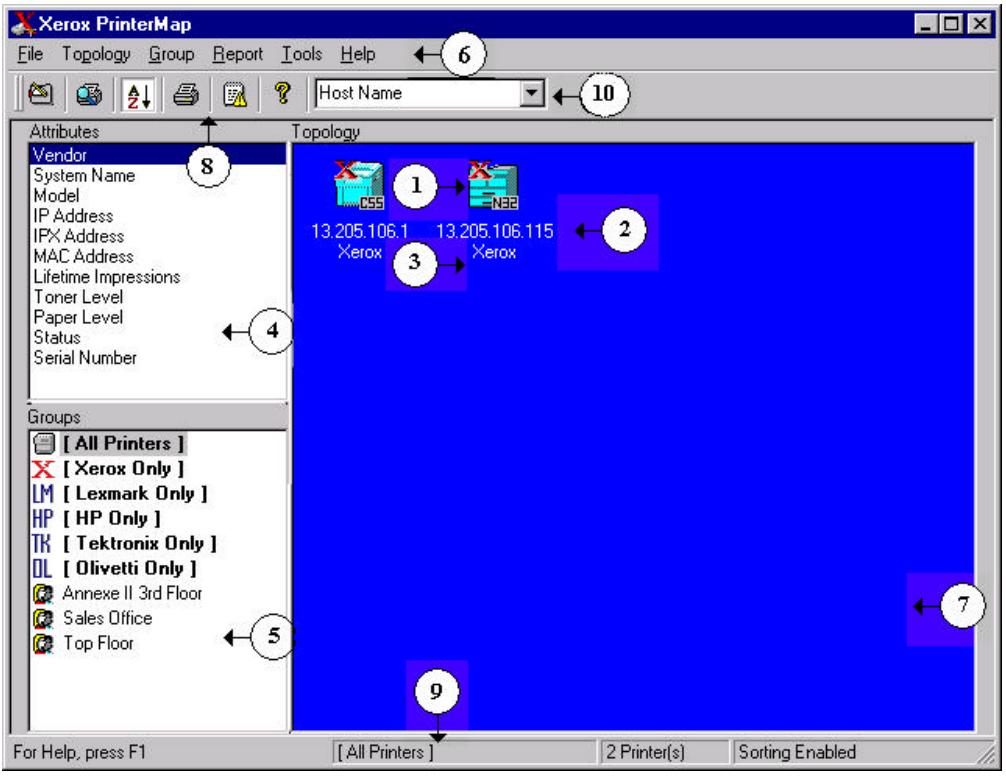
Figure 19 PrinterMap Topology window
PrinterMap Topology window components:
- Printer Icon - Represents a network printer discovered by PrinterMap.
- Printer Display Name - The printer's display name appears beneath the printer icon. PrinterMap uses the MIB II sysName (system Name) value as the printer's display name. This can be changed so a printer's IP host name is used. Please refer to item 10 of this list (Default Display Name) for more information on changing the default display name setting. PrinterMap substitutes Netware Pserver name or IP address for the name of any printer whose default value is unavailable. Names may be truncated, depending on screen resolution and string length.
- Attributes Value - The value of the selected printer attribute is displayed beneath the printer's name. Attribute values may be truncated based on screen resolution and string length.
- Attributes - Lists available printer attributes. When selected, the attribute value for each printer is displayed beneath each printer's name. When a new
attribute is selected, the topology area is repainted, displaying new printer attribute values. Printer icons are sorted based on the selected attribute.
- Groups - Lists all pre-defined and user-defined printer groups. When a new group is selected, the topology area is repainted, displaying all printers in the selected group.
- Main Menu - Provides access to the majority of PrinterMap functionality. Refer to "Menu Bar Items" in Chapter 4 for a detailed look at the Topology window's main menu.
- Topology - Displays icons representing managed printers in the main PrinterMap window. The topology area contains useful printer information such as name, status, vendor, and attribute values.
- Toolbar - Accesses key PrinterMap functionality such as the Configuration window and Discover process.
- Status bar - Contains help information, the name of the selected group and the number of printer's contained in the selected group.
- Default Display Name - Displays the selected default printer display name. The default display name selection controls which value PrinterMap displays for the name of a managed printer. The possible values for default display names are System Name and Host Name. System name refers to the MIB II system name of the printer. Host name refers to the IP host name of the printer (typically administered via DNS).
Menu Bar Items
| This section describes each main menu bar item on PrinterMap's Topology window. | |
| File | |
| Configuration | Selecting this menu item accesses the Configuration window. The following PrinterMap processes can be customized: Discovering, Reporting, handling Alarms, paths to Application executables, and Status polling interval. |
| Refer to “Configuring PrinterMap” in Chapter 2 for more details. | |
| Exit | Exits the program. No discover information is lost. |
| Topology | |
| Discover | Selecting this menu item causes PrinterMap to discover all network printers within the currently defined network discover parameters. |
| To initiate a new discover, select Topology > Discover. This initiates discovery of new network printers added since the last discover process. Printers already discovered and managed by PrinterMap are unaffected. The Discover process does NOT rediscover or refresh information for already discovered printers. |
Refer to "Adding and Deleting Managed Printers" in Chapter 4 for more details.
Order Icons
PrinterMap supports two different sorting modes for printer icons in the Topology. The default behavior is sorting the printers based on the current selected attribute. Selecting this menu freezes the sort order on the current selected attribute. Selecting another attribute when the sort order is frozen updates the attribute information for printers in the Topology, but does NOT re-sort printers. When a check is found beside this menu item, icon sorting is enabled.
Add Printer
This menu option provides the ability to add (or discover) a single printer to the Topology if its IP address or IPX address is known. Selecting this menu item accesses the Add Printer window.
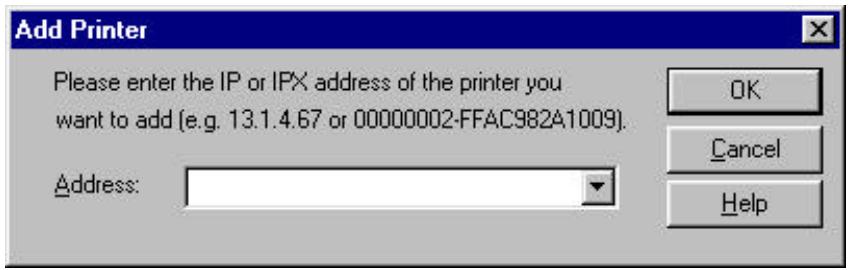
Figure 20 Add Printer window
To add a printer, select Topology > Add Printer from the main menu and enter the printer's IP or IPX address in the Add Printer text box. After selecting the OK button, PrinterMap attempts discovering the printer at the specified address by issuing SNMP queries. If the printer is a responding printer, it is discovered and added to the PrinterMap topology.
This window retains the last addresses entered.
Update
Selecting this menu choice accesses the Update Printer Information window. Three different PrinterMap updates types can be initiated from the Updated Printer information window: update printer configuration, update generic printers and update host names. The update process is useful following a PrinterMap upgrade installation or after one or more managed printers have additional paper trays configured. The update process converts any Generic printers added to the Mib.ini to the appropriate vendor type.
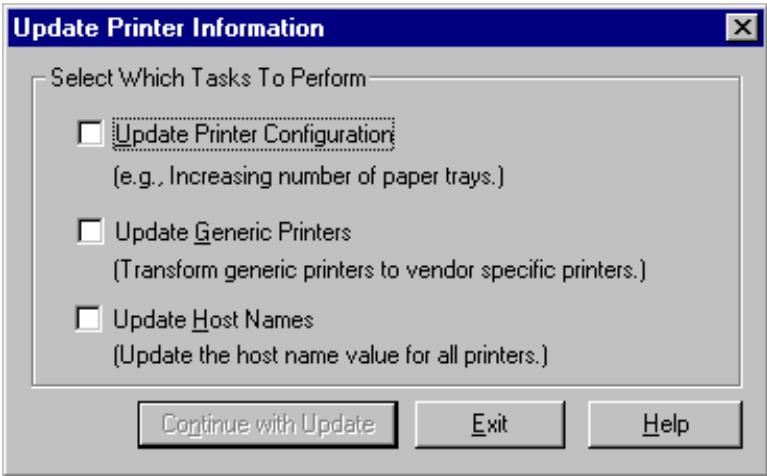
Figure 21 Update Printer Information window
Update Printer Configuration
Checking this box and continuing with the update causes PrinterMap to update configuration information for all managed printers.
An example is media input source information (i.e. paper tray information). The number of paper trays a printer has is determined at the time the printer is discovered. From that point PrinterMap only maintains current paper levels for those trays. In the future, if an additional tray is configured for the printer, PrinterMap is not aware of the new tray and does not gather or display any related information. Using the update printer mechanism provides the ability to update this tray configuration information for all discovered printers.
Another use of this functionality is updating printer information following a PrinterMap upgrade installation. For example, PrinterMap v1.0 only maintained information on the first five media input sources (paper trays). PrinterMap v1.1 maintains up to ten media input sources. Running the update process with the Update Printer Configuration box checked causes PrinterMap to find any additional paper trays not found by the previous version.
Update Generic Printers
Checking this box and continuing with the update causes PrinterMap to compare all printers currently identified as Generic (i.e. not associated with any supported vendors) with the vendor system object id information maintained in the mib.ini file. If a printer's system object id is found under one supported vendor in the Mib.ini file the printer is converted from Generic to the appropriate vendor type. The topology icon which represents the printer within PrinterMap is updated accordingly.
For example, it would be useful to run this update after manually adding support for a new printer model. Another appropriate instance for running this update is
following a PrinterMap upgrade installation. During a PrinterMap upgrade installation the Mib.ini file is modified. All the newly supported printer system object id's for each supported vendors is added. Generic printers discovered by the previous PrinterMap version may have a corresponding mib.ini entry following the upgrade install. Running the update process with the Update Generic Printers box checked converts any PrinterMap supported printers to the appropriate vendor type.
Refer to "Supported Vendors and Printer Models" in Chapter 3 for more information about adding support for new printer models and modifying the Mib.ini file.
Selecting Continue With Update initiates those updates. Selecting Exit cancels the operation and closes the window.
Update Host Names
Selecting this box and continuing with the update causes PrinterMap to update the host name value stored for each printer. In an environment where one or more Domain Name Servers (DNS) are used for IP address to host name resolution, run this type of update following any changes to the DNS configuration.
Selecting Continue With Update initiates updates. Selecting Exit cancels the operation and closes the window.
Create Group
Group
PrinterMap has several pre-defined groups based on the supported vendor list (i.e., Xerox, HP, Lexmark, etc...) and the All Printers group. PrinterMap also supports creating user-defined groups. User-defined groups can be created by selecting printers from any existing group and selecting this menu item. The Create Group window prompts for the new group name.
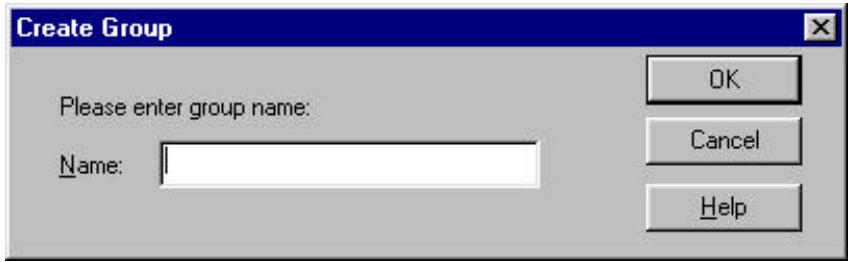
Figure 22 Create Group window
When creating a user-defined group only alphanumeric characters may be used. The maximum length for user-defined group names is 64 characters. This menu option is grayed out if printers are not selected from the Topology.
Delete Group
Any user-defined group can be deleted from the Topology by selecting this menu item.
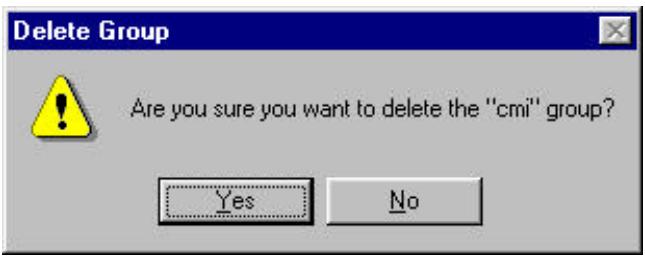
Figure 23 Delete Group Confirmation dialog
To delete a group, highlight the target group in the Group list box, select the Delete Group menu item and select the Yes button on the confirmation dialog.
NOTE: Only user-defined groups may be deleted. Pre-defined groups (All Printer, Xerox Only, etc...) cannot be deleted. This menu item is grayed out when the focus if the printers cannot be added to a user defined group.
Add Printer[s] to Group
To copy the selected printer to an existing group highlight the printer or printers then select this menu item which prompts the user for group selection.
![XEROX PHASER 140 - Add Printer[s] to Group - 1](/content/2020/05/11033/images/d45e7dee4dbdf5574fb5005fd58c2b6cbd369e7c095f50f558c4fa5844eee9b5.jpg)
Figure 24 Add Printer(s) to Group window
This window lists all user-defined groups where highlighted printers may be added. Choosing the desired group and selecting the OK button adds highlighted printers to that group. This menu item is grayed out if there are no user-defined groups where printers can be added.
Remove Printer[s] from Group
A printer may be removed from a user-defined group by highlighting the desired printer(s) and selecting Group > Remove Printer(s) from Group or by right-clicking the highlighted icon and selecting the Remove Printer(s) from the Group menu item. When doing so the Remove Printer Confirmation dialog is displayed. This gives the option for removing the printer icon from the group or cancelling the operation.
![XEROX PHASER 140 - Remove Printer[s] from Group - 1](/content/2020/05/11033/images/942718912d57bddc367b72225251249f637178d70400466c77bd395077601480.jpg)
Figure 25 Remove Printer Confirmation dialog
Highlighting a printer in the PrinterMap maintained All Printers group and selecting the Remove Printer(s) from Group menu item accesses a modified Remove Printer Confirmation dialog. This modified dialog explains how removing a printer from the All Printers group completely removes the printer from PrinterMap. The printer is removed from all groups where it is a member and any reporting data stored for this printer is deleted. Do not remove a printer from the All Printers group unless intending to remove it completely from PrinterMap.
Printers may not be removed from any pre-defined vendor groups. The Remove Printer(s) from Group menu item is grayed out if Topology is currently focused on one pre-defined vendor groups.
Select All
This menu item allows the user to highlight all currently displayed printers.
Generate Standard Report
Report
This menu item has two sub-menu items, Selected Printer and Selected Group. Selecting either sub-menu item accesses the Reporting Parameters window. Specify the desired From and To period criteria. Select the Show Report button on the Reporting Parameters window to generate a standard report for the selected printer or group.
Refer to "Generating Reports" in Chapter 5 for more details.
Generate Custom Report
This menu item has two sub-menu items, Selected Printer and Selected Group. Selecting either sub-menu item accesses the Reporting Parameters window. Specify the desired From and To period criteria. Select the Show Report button on the Reporting Parameters window to generate a custom report for the selected printer or group.
"Generating Reports" in Chapter 5 for more details.
| Display Alarm Log | Select this menu item to display the Alarm Log window. This gives a managed printer alarm history for all alarms detected by PrinterMap. The Alarm Log window features columns displaying information on any alarms received, including color-coded Status, Date, Printer name, a brief Textual alarm explanation, and an optional acknowledgment Comment. |
| Refer to “Alarm Log Window” in Chapter 6 for more details. | |
| Launch Management Application | The Launch Management Application menu has a sub-menu item for each vendor supported (Xerox, HP, etc.) printer management applications. Supported vendors and their default management application products is listed as follows. These are only the defaults. The default management application for each vendor may be configured for any desired executable through the Application Paths Configuration window. |
| Xerox CentreWare DP CentreWare DP is the default printer management application for Xerox printers. | |
| HP JetAdmin JetAdmin is the default printer management application for HP printers. | |
| Lexmark MarkVision MarkVision is the default printer management application for Lexmark printers. | |
| Tektronix PhaserShare PhaserShare is the default printer management application for Tektronix printers. |
NOTE: If any application edit fields from the Application Paths Configuration window are left blank, the corresponding sub-menu item for the Launch Management Application menu is grayed out (disabled).
Refer to "Application Paths" in Chapter 1 for more information on configuring an executable path for vendor management applications.
Help
Contents
Select this menu item to display help files for PrinterMap in standard Microsoft Windows format.
About
Select this menu item to display PrinterMap's About window.
Toolbar
PrinterMap functionality can be accessed via the Toolbar located directly under the main menu.
Table 4 Toolbar Icons
Change Configuration - Selecting this button summons the Configuration window.

Discover - Selecting this button initiates a new discover.

Enable/Disable icon sorting - Selecting this button allows enabled (depressed - default) or disabled (not depressed) icon sorting based on the attribute selected from the attributes list.

Add printer manually - Selecting this button allows manual printer addition to the All group.

Alarm log - Selecting this button displays the Alarm Log.

Help Topics - Selecting this button summons PrinterMap on-line help.
Topology Viewing Areas
Topology
The Topology is a map of discovered network printers represented as icons. Printer specific actions are launched from the PrinterMap Topology window. The status, vendor and in some cases printer model are ascertained from the Topology window.
| NOTE: | The topology layout depends on which attribute is selected from the Attributes list and whether icon sorting is enabled or disabled. In general, when icon sorting is enabled, icons are arranged in order from highest to lowest value. For example, the Status attribute displays icons from Red > Yellow > Green > Blue (highest severity to lowest). The Vendor and Model attributes are sorted alphabetically. Paper, Toner, and Lifetime Impressions are displayed in order from the printer with the most to the printer with the least. To view one or more printer attributes when sorting is enabled, highlight the printer(s) by selecting them before changing attributes. This provides a visual cue about the new topological printer location. |
Attributes
The Attributes list box allows printer attribute selection which is displayed beneath all printer icons in the topology area. The available printer attributes are listed and described in the following table.
Table 5 Attribute List
| Attributes | Description |
| • Vendor | Printer manufacturer. |
| • Host Name or System Name | Host Name or System Name IP host name or MIB II system name (depending on the currently selected default display name). |
| • Model | Printer model |
| • IP Address | IP address assigned to networked printer. An example might be: 123.123.123.123. |
| • IPX Address | IPX address assigned to networked printer. An example might be 12345678-0000aa550ad5. |
| • MAC Address | MAC address for network interface used by the printer. This address is included as part of the printer's IPX address. An example might be 0000aa550ad5. |
| • Lifetime Impressions | Number of printer generated impressions. |
- Toner Level
Toner amount toner remaining in printer's toner repositories (cartridges). Each toner level value is delimited by a comma. Toner levels are displayed as the toner percentage remaining in each toner cartridge, if the printer supports this technology. Different printers support this technology to varying degrees. PrinterMap displays as much information as the printer provides. Therefore, toner levels are displayed as "some", indicating the printer knows that the toner cartridge is not empty, or "—", indicating the printer doesn't know how much toner is remaining. For example, a printer having three toner cartridges may have a toner level string displayed as "21%, 76%, 54%" or "some, some, some" depending on information available from the printer.
- Paper Level
If the Toner Level attribute is selected, printers are displayed in descending order according to toner percentage. For printers with multiple cartridges, an average toner percentage is determined. Values of “-” and “some” are given a percentage of 0% and 1% .
Paper amount remaining in printer's input sources (paper trays). Each paper level value is delimited by a comma. Paper levels are displayed as a percentage of paper remaining in each paper tray, provided that the printer supports this technology. Different printers support this technology to varying degrees. PrinterMap displays as much information as the printer provides. Therefore, paper levels may be displayed as "some", indicating the printer knows that the paper tray is not empty, or "—", indicating the printer does not know how much paper is remaining. For example, a printer that has three paper trays have a paper level string displayed as "21%, 76%, 54%" or "some, some, some" depending on information available by the printer.
NOTE: If Paper Level attribute is selected, printers are displayed in descending order according to paper percentage. For printers with multiple paper sources, an average is determined. Values of “-” and “some” are given a percentage of 0% and 1% .
Status
Printer's status since the most recent PrinterMap status poll. Status values include Running, Warning, Down, and Unknown.
Serial Number
Printer's serial number. PrinterMap only supports this attribute for Xerox printers. A value of "N/A" is displayed for non Xerox printers or Xerox printers which do not support this attribute.
PrinterMap is dependent on correct MIB printer implementation for retrieving and displaying printer attribute values. Values retrieved from printers with incomplete or incorrect MIB implementation provide little user value.
NOTE: Attribute values are truncated to 25 characters for display under printer icons. NT 4.0 machines further truncate attribute values displayed beneath printer icons. Placing the cursor over the icon causes the operating system to display more truncated information. Use the Printer Properties window to view all attributes for each printer.
Groups
The Groups listing area contains all predefined and user-defined printer groups. To display printers belonging to a particular group, select the desired group from the list.
When PrinterMap is first installed the Groups list box contains predefined groups. Following is a table displaying predefined groups with a description of printer types in the groups.
Table 6 Predefined Groups
| Predefined Groups | |
| Group | Description |
| All Printers | Contains all managed printers |
| Xerox Only | Contains all Xerox managed printers |
| HP Only | Contains all Hewlett-Packard managed printers |
| Olivetti Only | Contains all Olivetti managed printers |
| Lexmark Only | Contains all Lexmark managed printers |
| Tektronix Only | Contains all Tektronix managed printers |
Refer to "Printer Groups" in Chapter 4 for more information on printer groups.
Viewing Printer Information
Printer Groups
Discovered printers are placed into predefined PrinterMap groups based on their manufacturer. The vendor groups allow easy viewing of all Xerox, HP, Lexmark Tektronix or Olivetti printers. PrinterMap also supports user-defined groups.
User-defined groups simplify management by collecting printers into logical groups. For example, creating a group named "3rd Floor" allows all printer additions from the 3rd floor into that group.
Refer to "Group" in Chapter 4 for more information on PrinterMap groups.
Printer Icons
PrinterMap's topology uses the following icons to represent discovered network printers based on manufacturer and model.
Table 7 Printer Icons
Xerox Printers - Printers manufactured by Xerox are represented by a model specific icon image if PrinterMap has an icon for that model. If not, a generic Xerox icon is used. The DocuPrint N32 icon is shown here as an example of a model specific icon.
Hewlett-Packard Printers - Printers manufactured by HP are represented by this icon.
Lexmark Printers - Printers manufactured by Lexmark are represented by this icon.

Tektronix Printers - Printers manufactured by Textronix are represented by this icon.

Olivetti Printers - Printers manufactured by Olivetti are represented by this icon.
Generic Printers - Printers manufactured by companies other than Xerox, HP, Olivetti and Tektronix are represented by this icon.
Each printer's name is displayed directly beneath the corresponding icon image. The attribute value of the currently selected printer (IP/IPX Address, Status, etc.) is displayed below the printer's name.
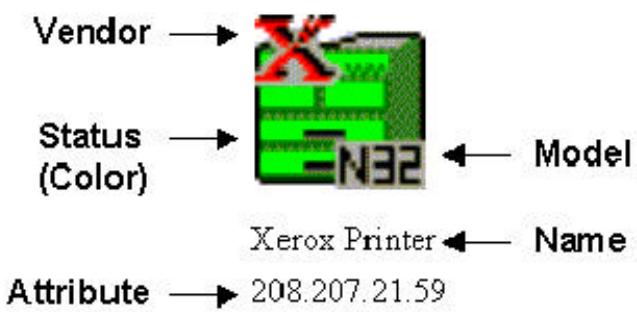
Figure 26 Printer Icon Components
Printer Status
In PrinterMap topology, each printer is represented by an icon. The icon background color indicates the printer status. PrinterMap topology can be a patchwork including Red, Yellow, Green, and Blue icons, based on individual printer status. Below is a table showing printer status to icon color mapping utilized by PrinterMap.
Table 8 Printer Status to Icon Color Mapping
| Printer Status Color Scheme | |
| Printer Status | Icon Color |
| Running (Up) | Green |
| Warning | Yellow |
| Down (Critical) | Red |
| Unknown | Blue |
Printer status is typically determined by presence or absence of alarm conditions. Low paper, no paper, low toner, no toner, door open, jammed and service requested are all printer alarm examples detected by PrinterMap. A printer can have multiple alarm conditions set at any given time. In the event of several alarm conditions the printer icon's color reflects the most severe condition. For example, if a printer is low on paper (a warning condition) and is also out of toner (a critical condition) the printer icon's color is set to Red. If the printer is low on both paper and toner the printer icon's color is set to Yellow since both alarms have a severity of warning.
Refer to "Viewing Alarms" in Chapter 6 for more details on the alarm conditions and severities detected by PrinterMap.
Based on the status polling interval configured in the Status Configuration window, PrinterMap's Status Service periodically updates the status of each printer. If PrinterMap detects a managed printer status change, the change is reflected with a printer icon color change.
Refer to "Check Status" in Chapter 4 for information on updating printer status independent of the Status Service.
Printer Properties Window
The Printer Properties window lists static and dynamic printer information and allows the user to specify and launch other management applications. The Printer Properties window is accessed by double-clicking on a particular printer or by selecting the Show Properties menu item on the printer icon's right-click menu.
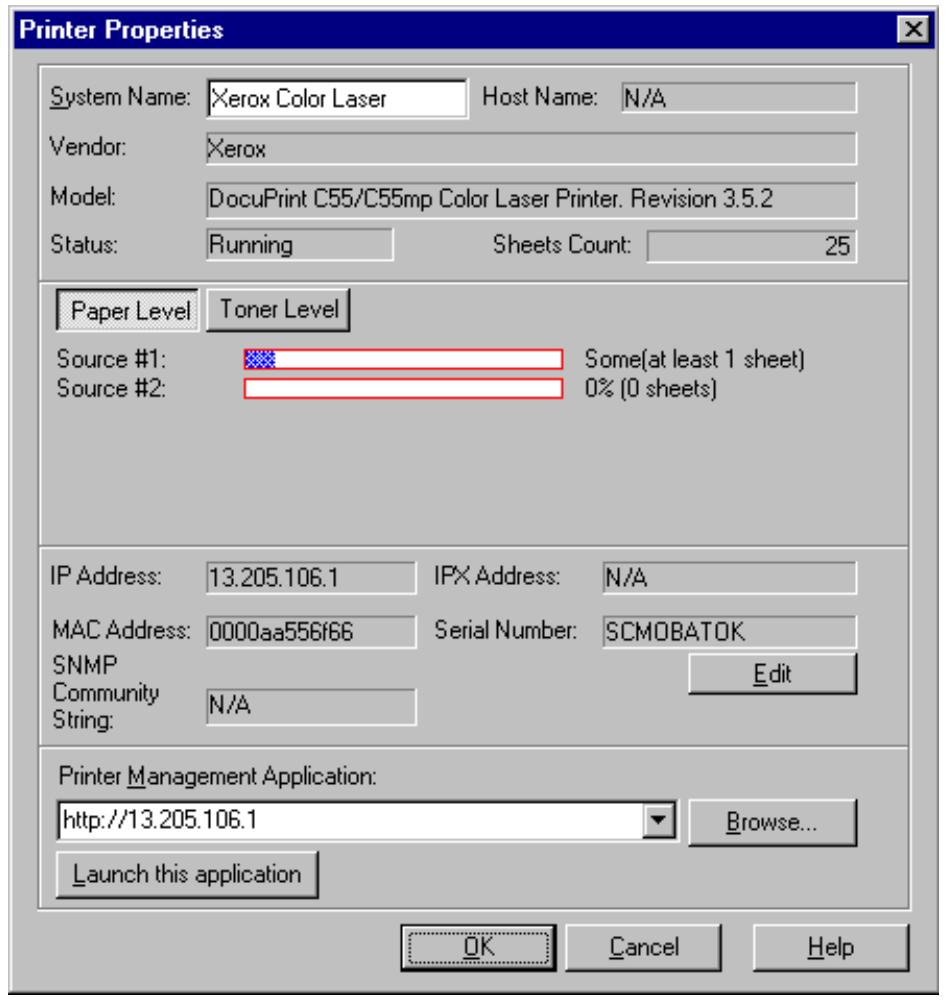
Figure 27 Printer Properties window
The first section of the Properties window lists the System Name, Host Name, Vendor, Model, Impressions Count and Status. A printer's system name can be modified in this section.
From the second window section, a printer's paper and toner level information is accessible. The Paper Level and Toner Level buttons display this information in bar chart, percentage and unit count formats (when available). Whenever possible,
paper and toner descriptions and units are retrieved and displayed from the printer. If this information is unavailable the paper and toner description defaults to "Source N" and units defaults to "units".
The third portion of the Properties window lists the IP Address, IPX Address, MAC Address, Serial Number, and Community String used by the printer. Note that underneath the Serial Number value is an Edit button which brings up the Edit Serial Number window.
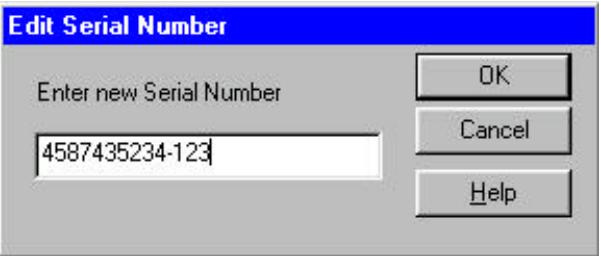
Figure 28 Edit Serial Number window
The existing serial number for the selected printer is displayed in the serial number edit box. Enter the new serial number in the edit box and select OK to save the change. PrinterMap sends a SNMP request to the printer with the new serial number. Note that the serial changed in this manner cannot be canceled by canceling the Properties window. Select Cancel to dismiss the window without making any changes.
NOTE: Serial numbers and serial number manipulation are available only for Xerox manufactured printers. The bottom window section allows configuration for up to three management application paths. Only the active application can be launched (i.e., the application visible in the Printer Management Application edit field). PrinterMap attempts automatically filling in one or more application paths when the printer is discovered. Typically these paths are the vendor specific printer management application or the HTTP address of the printer's internal web server. A Browse button is provided for executable and Launch locations. This Application button initiates the application. Any application may be entered, including parameters, not exceeding 256 characters.
Refer to "Launch Application" in Chapter 4 for more information on launching configured management applications.
Adding and Deleting Managed Printers
Adding Printers to PrinterMap
PrinterMap provides the ability to manually add (discover) individual printers. Newly discovered printers are automatically added to the "All Printer" group.
Refer to "Add Printer" in Chapter 4 for more information on adding Printers to PrinterMap.
Deleting Printers from PrinterMap
PrinterMap provides the ability to remove printers from PrinterMap. Printers are removed from user-defined groups or removed entirely from the PrinterMap application by deletion from the All Printers group.
If a printer is removed from the All Printers group, it is removed from all printer groups and all the printer's associated data (attribute information and reporting data files) are deleted. Generate reports before deleting a printer from PrinterMap to save valuable historical data.
Refer to “Remove Printer[s] from Group” in Chapter 4 for more information on deleting printers from PrinterMap
Right-Click Menus
Printer Icon Right-Click Menu
To access the icon right-click menu select a printer icon then click the right mouse button. The following menu is displayed.
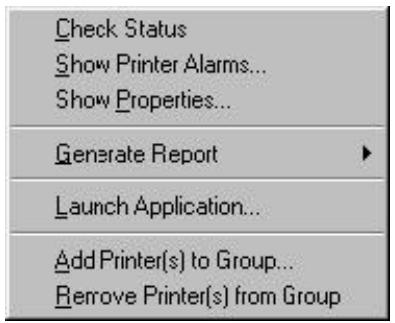
Figure 29 Printer Icon Right-click Menu
Another option is highlighting several printers on the topology and accessing the right-click menu. In a multi-printer selection, only Add Printer[s] to Group and Remove Printer[s] from Group can be selected from the menu.
Check Status
Selecting the menu item for a highlighted printer causes PrinterMap to initiate an immediate status check for that printer. PrinterMap updates selected printer status regardless of the status polling interval defined in the Status Configuration panel.
NOTE: If the currently selected printer attribute is Status and the printer status changes (as a status poll result) the selected printer icon is repositioned in the topology area.
Show Printer Alarms
Selecting this menu item displays the alarms for the selected printer. This popup window displays a printers' detected alarms from the most recent PrinterMap status poll.
Refer to "Viewing Alarms" in Chapter 6 for more information on viewing printer alarms.
Show Properties
Selecting this menu item displays the Printer Properties window for the selected printer.
Refer to "Printer Properties Window" in Chapter 4 for more information on the Printer Properties window.
Generate Report
Selecting this menu option produces a standard or custom report for the selected printer.
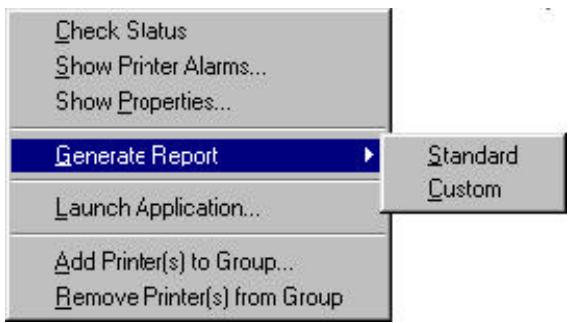
Figure 30 Generate Report sub-menu
Standard
Selecting this menu option produces a standard report for the selected printer. This option is only available if the Standard Report Polling Interval is configured on the Reporting Configuration panel.
Refer to "Generating Reports" in Chapter 5 for more information on generating reports.
Custom
Selecting this menu option produces a custom report for the selected printer.
Launch Application
Refer to "Generating Reports" in Chapter 5 for more information on generating reports.
Selecting this menu option launches the active management application of the selected printer. Applications are configured and assigned to individual printers via the Printer Properties window. Up to three management application paths can be defined via the Printer Properties window. However, only the active management application is launched (i.e., the application that appears in the Printer Management Application field of the Printer Properties window).
When a printer is discovered PrinterMap attempts filling in one or more application paths depending on the printer's manufacturer (vendor) and capabilities. The discover process first determines whether the printer has a built in HTTP server. If it does, PrinterMap sets the active management application path to "HTTP://
If the selected printer lacks an application path specified in its Properties window the Launch Application menu item is grayed out.
Add Printer[s] to Group
NOTE: If the active application is a vendor specific management application (such as HP's JetAdmin), once the application comes up it may be necessary to re-select the target printer. Whenever possible PrinterMap launches the management application with focus on the selected printer. PrinterMap can launch CentreWare DP with focus on the selected printer if PrinterMap knows the printer's IPX address. If not, select CentreWare's IP option and find the printer.
Selecting this menu option adds the current selected printer or printers to an existing group.
The selected printer is copied to an existing group by highlighting the printer or printers and selecting this menu item which prompts for a group name.
![XEROX PHASER 140 - Add Printer[s] to Group - 1](/content/2020/05/11033/images/341153b5dabcf72f22c96e6ad9ce449f70c4cea099142a9b572ceb69d7c9e546.jpg)
Figure 31 Add Printer(s) to Group dialog
Assign highlighted printers to a group using the list box in this window.
Remove Printer[s] from Group
The Remove Printer(s) from Group menu item is used for removing printers from a particular group. Using this menu option with one or more printers in a user-defined group ONLY removes the printer from that group. Printer reporting and attribute information is NOT affected when removing a printer from a user-defined group. In addition, the printer remains a member of the All Printer group as well as any other pre-defined groups it belongs to. If however a printer is removed from the All Printer group, the printer is removed from all printer groups where it is a member and all its associated data (attribute information and reporting data files) is deleted. Generate reports before deleting a printer from PrinterMap to save valuable historical data.
![XEROX PHASER 140 - Remove Printer[s] from Group - 1](/content/2020/05/11033/images/561423c570d10741ba440e00fbafd6ce841bdac6c9dfad4739d690a5e994994d.jpg)
Figure 32 Remove Printer dialog
To remove one or more printers from a group:
- Select the group to be modified.
- Select printers for removal and right-click one highlighted printer icon. (The Delete key brings up the Remove Printer dialog).
- Select Remove Printer(s) from the Group menu item.
- Select Yes in the confirmation Pop-up window.
Topology Right-Click Menu
To access the Topology Right-Click menu, place the cursor in the topology area and click on the right mouse button.
Select All
OrderIcons
Printer Name
Figure 33 Topology Right-Click menu
Select All Printers
Selecting this menu option highlights all icons on the currently displayed group topology.
Order Icons
Selecting this menu option enables or disables icon sorting based on attributes. A check beside this menu item indicates sorting is enabled.
Printer Name
Selecting this menu option brings up the default printer name selection sub-menu. The user may select either Host Name or System Name as the source for the PrinterMap default printer name. The default selection is System Name.
Groups Listing Right- Click Menu
Highlighting any group in the group listing area and right-clicking that group accesses its Group Right-Click menu.
Delete Group
Create Group
Rename
Select All
Delete Group
Figure 34 Group Right-Click menu
Create Group
Selecting this menu option deletes the selected group.
Rename
Selecting this menu option creates a new group containing the selected printers
Select All
Selecting this menu option allows the user to edit the group name in place.
Selecting this menu option highlights all icons displayed on the current group topology.
Additional Functionality
Adding Printers to Groups through Drag and Drop
Several methods are available for copying/adding printers to user-defined groups. Managed printers may be copied to user-defined groups through PrinterMap's drag and drop capability. Simply highlight one or more printers, leaving the left mouse button depressed, then drag the icon to the target group located in the Groups list box.
Refer to "Add Printer[s] to Group" in Chapter 4 for information on copying/adding printers using the menu bar. Refer to "Add Printer[s] to Group" in Chapter 4 for information on copying/adding printers using the printer icon right-click menu.
Selecting Multiple Printers
Multiple printer icons must be selected to initiate various actions such as creating new groups, deleting multiple printers, moving printers between groups, etc. The topology area supports the windows extended selection mode.
Multiple printers are selected in any of the following ways:
- Holding down the Ctrl key, left-click on several printers, one at a time, until all desired printers are selected.
- Holding down the Shift key, left click on a printer then left click on another printer. All rectangular shaped printers in between are selected.
- Placing the mouse pointer in the topology map background, hold down the left mouse button and drag the pointer across the map background, forming a group selection box around the target icons.
- Selecting the Select All item under the main menu Group.
Chapter 5 Status and Reporting
This chapter provides information on the status and reporting functions of PrinterMap.
Service Overview
The Status and Reporting Service tasks run behind the scenes and periodically query printers via SNMP for current status and reporting information. Following a reboot the Status and Report polling services starts automatically. Printer information collected is stored in data files. These files are accessed by the PrinterMap Topology window and report generation processes. The Status and Report service polling intervals are configured through the Status and Reporting Configuration windows.
Refer to "Configuring PrinterMap" in Chapter 2 for more information on configuring the Status and Reporting services.
Memory Requirements
The Status and Reporting Service occupy approximately 2.5MB of RAM each.
Stopping and Re-starting Polling Tasks
The Status and Reporting services must be active to collect status and reporting data from managed printers. If, for example, if the Status polling process is terminated, PrinterMap Topology no longer reflects the current status of managed printers. To terminate or re-start either background task, follow instructions below for the appropriate operating system.
Windows 95
- Double-click the PrinterMap Status icon or the PrinterMap Reporting icon located in the Windows 95/98 service tray to access the PrinterMap Service
Control window. The Service Control window is also accessible by selecting the Service Control Manager menu item from the Status and Reporting service icon right-click menu. The Status and Reporting service icons only appear in the service tray if they are currently active. If neither service is currently running, select PrinterMap Services from the Start > Programs > Xerox PrinterMap menu to access the Service Control window.
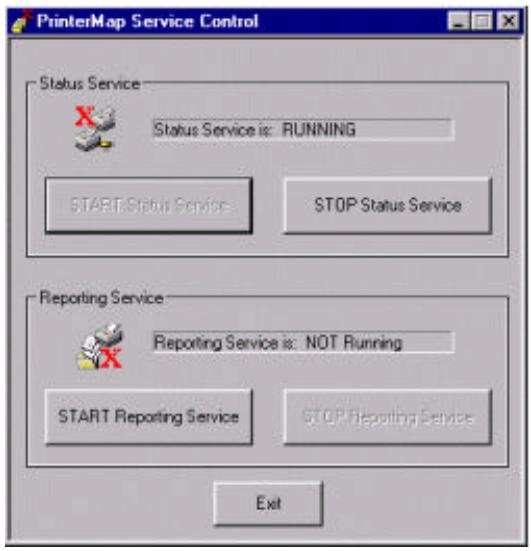
Figure 35 Service Control window
- Select the STOP Status Service or STOP Reporting Service button to terminate service. Select the START Status Service or START Reporting Service button to restart service.
- Select the Exit button to close the Service Control window.
The following steps terminate the Status and Reporting services on Windows 95/98.
- Right-click on the PrinterMap Status or PrinterMap Reporting icon located in the Windows 95/98 service tray. Only active PrinterMap services appear in the service tray.
- Select Stop Status Service or Stop Reporting Service from the right-click menu to terminate the Status or Reporting services.
Windows NT 4.0
- From the Start menu, select Settings > Control Panel
- From the Control Panel, double-click the Services icon which accesses the NT Services window.
- Scroll and locate the PrinterMap Status and PrinterMap Reporting services
- Highlight each process and select the Stop button to terminate service or the Start button to re-start service.
Windows NT 3.51
- Double-click the Control Panel icon located on the desktop.
- From the Control Panel, double-click the Services icon which accesses NT's Background Services window.
- Scroll and locate the PrinterMap Status and the PrinterMap Reporting services.
- Highlight each process and select the Stop button to terminate service or the Start button to re-start service.
Status Function
The status function consists of a Status Service responsible for polling managed printers for status and alarm information, the means to configure the polling rate of the Status Service, and a mechanism for updating the PrinterMap user interface with this information.
Overview
PrinterMap's status polling service (Status Service) periodically queries all network managed printers. Each printer provides information on paper levels, toner levels, lifetime impressions, status, and alarm conditions. This information is viewed in the main Topology printer window. The Status Service detects and records printer alarms, and takes action on alarms as defined in the Configuration window Alarm panel.
Refer to "Alarms" in Cahpter 6 for alarm information and configuring action(s) taken by PrinterMap when specific alarm conditions are detected.
Refer to "Status" in Chapter 2 for more information about configuring the status polling service.
Operation
The status polling service launches automatically following installation and whenever the machine comes up. The polling frequency is determined by settings on the Status panel of the Configuration window. By default PrinterMap is configured to start a poll every four minutes.
If necessary, manually disable the status polling. PrinterMap runs if the status polling process is not active. Printer information displayed in the main Topology printer window is no longer current.
Refer to "Service Overview" in Chapter 5 for details on stopping and re-starting the Status Service.
Under Windows 95/98, the status service icon appears in the system tray when the status service is running. There is no immediate visual cue under Windows NT.
The status polling process runs as an NT Service. It can be found by viewing Services from the Control Panel.
To check printer status before the next scheduled poll, highlight the target printer and right-click the mouse, accessing the printer right-click menu. Select Check Status from the menu and PrinterMap performs an immediate status check for the target printer. PrinterMap updates printer's status and if necessary logs any alarms.
NOTE: PrinterMap services write printer information to the hard drive during polling operations. Norton Speed Disk and other disk defragmenting tools may have difficulty operating during hard drive updates. If this occurs, temporarily stop the Reporting and Status services until defragmenting is completed.
Icon Colors
In the Topology window, each printer is represented by an icon. The icon color indicates the status of the printer. The PrinterMap topology can be a patchwork of Red, Yellow, Green, and Blue, depending on the status of individual printers.
If the status of a printer changes from one polling period to the next, the screen icon color changes to reflect the new status. The colors used are listed in the table below:
Table 9 Printer Status to Icon Color Mapping
| Printer Status | Icon Color |
| Running (Up) | Green |
| Warning | Yellow |
| Down (Critical) | Red |
| Unknown | Blue |
Refer to "Check Status" in Chapter 3 for information on updating the status of a printer independent of the Status Service.
Reporting Function
The reporting function of PrinterMap consists of a Reporting Service responsible for polling managed printers for reporting data, the means to configure the polling rates for the Reporting Service, and a mechanism for allowing users to generate reports from collected data.
Reporting Service
The PrinterMap report polling service (Reporting Service) periodically queries all managed printers on the network. Each printer provides information toner levels and lifetime impression count. This information is written to data files and used to generate reports.
NOTE: PrinterMap services write printer information to the hard drive during polling operations. Norton Speed Disk and other disk defragmenting tools may have difficulty operating during hard drive updates. If this occurs, temporarily stop the Reporting and Status services until defragmenting is completed.
Disabling Reporting
The reporting function of PrinterMap can be disabled from the reporting configuration window. When installing PrinterMap and disabling the Reporting Option, it is best done before running the Discover process for the first time. Discover allocates significant space for each managed printer to support the Reporting Option. By disabling the Reporting Option prior to running the Discover process, space allocation is bypassed.
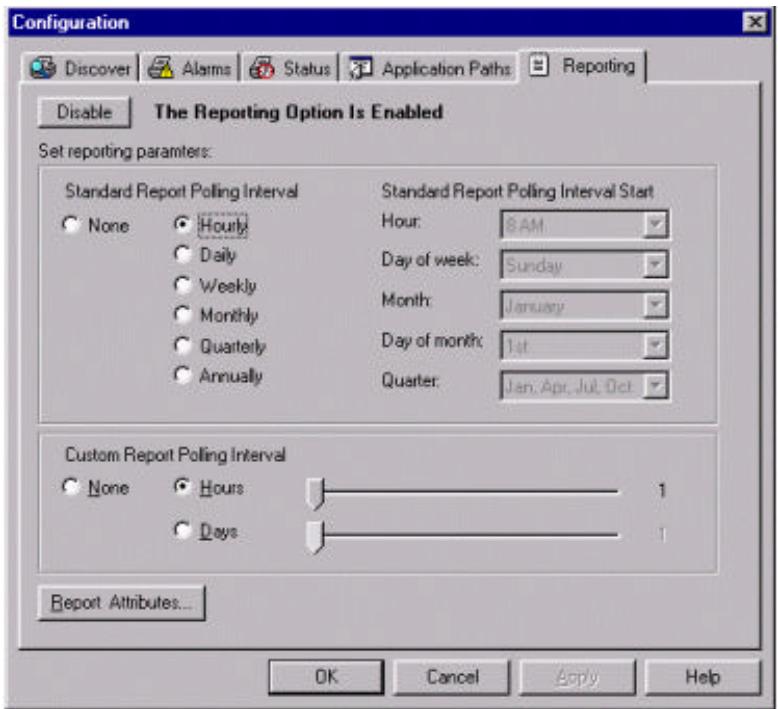
Figure 36 Reporting Configuration window
Selecting the Disable button located at the top of this window accesses the Verify Disabling Reporting window.
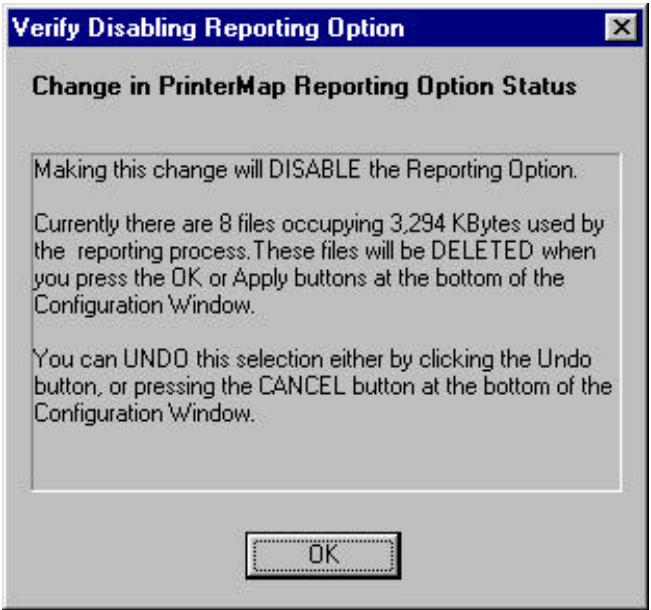
Figure 37 Verify Disabling Reporting Option window
This window informs about the consequences of disabling the reporting function. After confirmation, PrinterMap no longer collects reporting data for managed printers. PrinterMap also deletes all reporting data. Until the reporting function is
re-enabled, all reporting features and functions are not selectable (grayed out) on PrinterMap menus and windows. The Verify Disabling Reporting window provides an exact summary of these details and instructions for stopping the disabling process.
After selecting the OK button to confirm the intention to disable reporting, the Reporting Configuration window displays " (Pending)" beside the Disable button (which now reads Undo). This is the last chance to stop the disabling process and preserve historical reporting data and functionality. Once the OK or Apply button is selected, the reporting process and function is disabled.
If the Reporting service is active when the request for disabling the Reporting Option is processed, the service is stopped immediately. (Under Windows NT, the reporting service is removed from the list of available services.) A user message appears confirming the Reporting service is terminated.
The user is informed about how many reporting data files are deleted.
Enabling Reporting
PrinterMap is installed with the reporting feature enabled. Re-enable the Reporting Option only if it was previously disabled.
The Reporting Option can be enabled at any time. However, please refer to "Projecting Hard Disk Requirements" on page ix of the Preface prior to re-enabling the Reporting Option.
The Reporting Option is enabled from the Reporting panel of the Configuration window:
When the Enable button is selected, an informational window appears giving details on the disk space requirements for the Reporting Option.
Once this window is accepted, the request to enable the Reporting Option enters a Pending state. It remains pending until the OK or Apply button is selected. Then reporting data files are created and reporting selections throughout PrinterMap are enabled (they no longer appear grayed-out). Under Windows 95/98, the reporting service starts automatically. Under Windows NT, the reporting service is automatically installs and starts as a service.
Generating Reports
Single and Printer Group reporting can be accessed from Report > Generate [Custom or Standard] Report > [Selected Printer or Selected Group].
All reports filter out empty data arrays. For example, if generating a report from January 1^st to June 1^st 1998 and PrinterMap is not installed until March 1^st the report does not contain entries for January and February.
| NOTE: Reports generated for a long time period or for a large group of printers with high granularity may require a significant amount of time to generate. For example, generating a Standard Report (with the standard report polling interval set to every hour) for an entire year on one or more printers is time consuming. The resulting report contains an entry for every hour of every day for an entire year. | |
| PrinterMap retains reporting information for the present year and the past year on a rolling two year basis. The reference point for this data preserving method is January 1stnot PrinterMap's installation date. Refer to “Reporting Data Custodial Procedures” in Chapter 5 for more details. | |
| The four PrinterMap user-generated report types are described in detail in the following sections: | |
| Standard Reports | • Standard Single Printer Report • Standard Group Printer Report |
| Standard Reports are reports that use Standard Report Polling Interval configuration values entered by the user in the Reporting Configuration window. Standard reports only contain printer data entries for data collected on the currently configured standard polling interval. If standard report polling is configured to poll hourly then a standard report contains an entry for every hour within the report generation time parameters defined by the user (provided the reporting data printer file has data stored for each hour). If standard report polling is configured to poll monthly, a standard report contains a single entry for each month within the report generation time parameters defined by the user. | |
| Custom Reports | • Custom Single Printer Report • Custom Group Printer Report |
| Custom Reports are reports that use the Custom Report Polling Interval configuration values entered by the user in the Reporting Configuration window. They allow entry of special values and parameters for one particular report or reports period outside the standard report cycle. It is important to note that Custom reports contain printer data entries for every hour available in the printer's reporting data file. If the custom report polling interval is configured to poll every six hours but the standard report polling interval is configured to poll hourly, then a custom report contains hourly data entries not data entries for every sixth hour. | |
| When selecting Standard or Custom reports, specify reporting parameters on a window similar to the one shown. Select a printer or group for generating a report and the type of generated report. Respond to prompting by specifying the From and To time period for the generated report. |
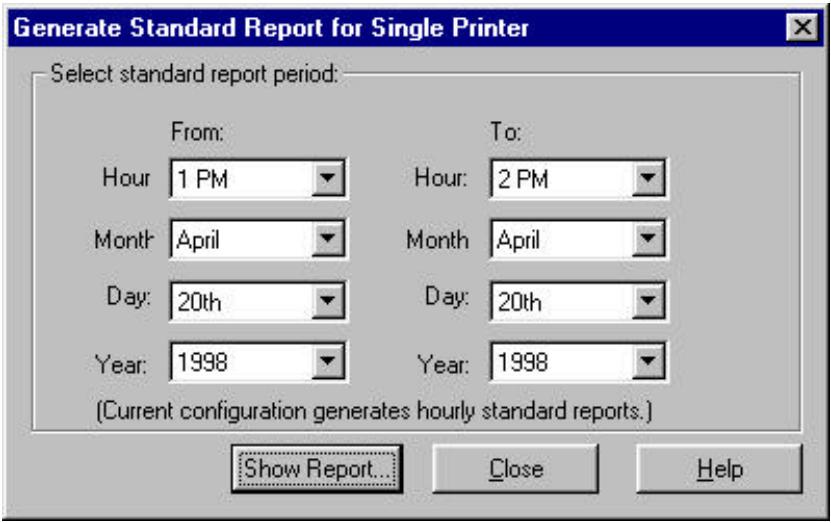
Figure 38 Reporting Parameters window
In the case of Standard Reports, specific From and To criteria may be set by PrinterMap based on the Standard Report Polling Interval configuration values. For example if standard report polling is configured to poll on a weekly basis, PrinterMap sets Day and Hour parameters for the Reporting Parameters window. The user is not able to modify these settings. Once the From and To parameters are set, selecting the Show Report button initiates the report generation process.
Generated Report Window
At the completion of the report generation process a Report window is displayed. The report window title indicates the type of report generated (standard versus custom). The report heading contains information related to the generated report time period (From and To values of the Reporting Parameters window). The report heading for single printer reports also contains the printer's name, model, and serial number (if applicable). Below is an example of a user generated standard report for the All Printers pre-defined group.
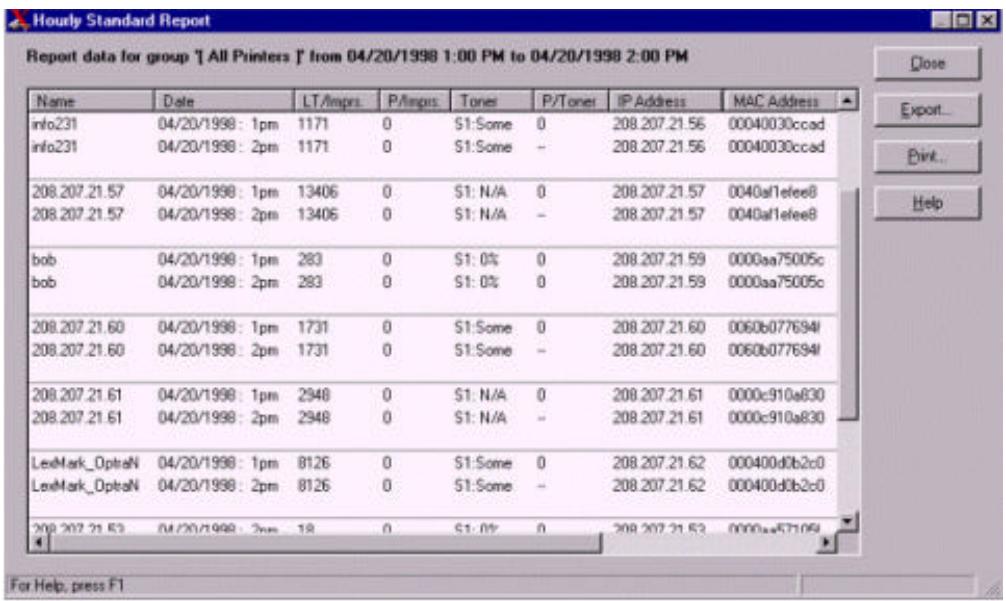
Figure 39 Example Group Standard Report window
When closing a report window that contains a large amount of report data, PrinterMap may require significant time to clean up and dismiss the window.
Exporting Reports
Generated reports may be exported to a file in comma-delimited format by selecting the Export button on the Report window. The default save location for these files is [Drive]:\Install Directory]\Reports. By default reports are saved to SINGLEREP CSV and GROUPREP CSV for single printer and group reports. The resulting comma-delimited file may be imported into popular database and spreadsheet packages. When importing a PrinterMap report file to a third party package, identify the report as having comma-delimited fields.
NOTE: Microsoft Excel may remove leading zeros from the serial number field while importing PrinterMap generated reports. IPX address and MAC address fields are not affected.
Printing Reports
Generated reports may be printed to any accessible local or network printer. By default, reports are printed in landscape format.
The type of information contained in generated reports is highly configurable. The Report Attributes Content window is a sub-window of the Reporting Configuration window. A generated report can be modified in this window. Name and Lifetime Impressions are standard on every report. Additional information may be included as shown in the window below.
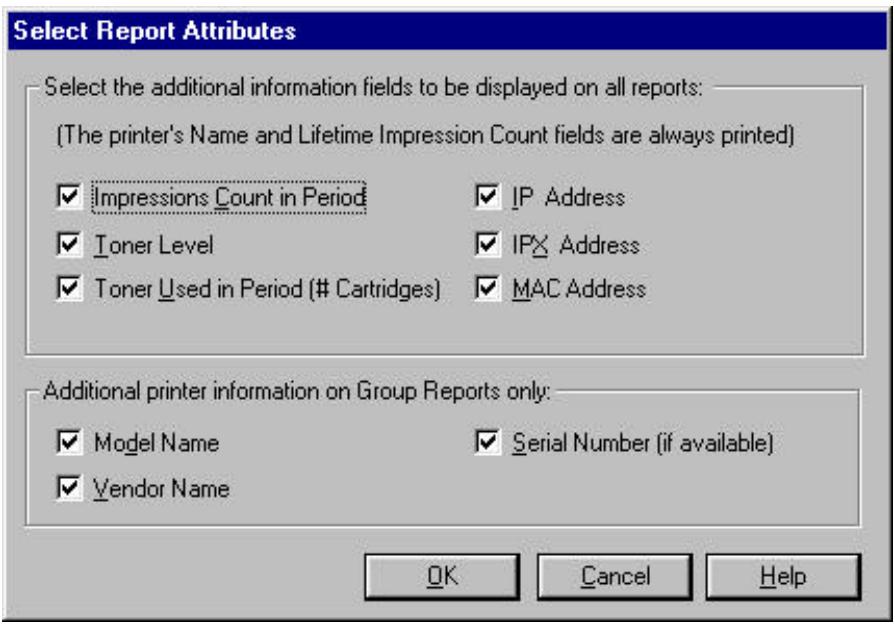
Figure 40 Report Attributes window
After making selections, select the OK button to accept and close the window.
Following is a brief description of each attribute which may be selected from the Reports Attributes window.
Period Impressions
This attribute displays the number of printer impressions created from one report entry to the next. A report's first Period Impression for a printer is always zero.
Toner Level
This attribute displays the toner percentage remaining in each toner cartridge. A printer may not provide enough information for PrinterMap to display a toner percentage. Toner level values are then expressed as some, if any toner is detected, or --, if the printer is unable to determine toner levels. If the printer does not provide any toner information the toner levels are displayed as N/A (Not Available).
Period Toner
This attribute displays how many times toner level increased (i.e., new toner cartridge is added) from one report entry to the next.
IP Address
This attribute displays the printer's IP address.
IPX Address
This attribute displays the printer's IPX address.
MAC Address
This attribute displays the printer's MAC address.
Model
This attribute displays the model number of the printer and is only optional for group reports.
Vendor Name
This attribute displays the name of the printer's manufacturer and is only optional for group reports.
Serial Number
This attribute displays the Serial Number assigned to the selected printer. This is only applicable to Xerox printers and is only optional for group reports.
A brief description of attributes that appear on all printed reports follows.
Name
This attribute assigns a name to the printer. The printer name is taken from an assigned name retrieved from the printer during the PrinterMap discover process. If the name is not available, PrinterMap uses the printer's IP or IPX address as its name. A printer's name can be modified through the printer's Printer Properties window.
Date
This attribute displays date and time data is collected (i.e., when the report poll occurred).
Lifetime Impressions
This attribute displays the total impression count created by the printer over the course if its life.
Reporting Data Custodial Procedures
PrinterMap stores up to two years of reporting data in individual printer files in the [Drive]:[Install Directory]\Data\Accinfo directory. At the end of the second year, PrinterMap removes all data from the first year and proceeds to store Third year reporting data is stored in place of first year data. After the third year, PrinterMap removes all data from the second year in preparation for storing the fourth year's data.
NOTE: PrinterMap stores reporting data based on a calendar year. Regardless of the PrinterMap installation date, December 31^st is considered the end of a year's reporting data. If PrinterMap is installed in November of 1998, in January of 2000 the reporting data for all of 1998 is removed.
The data is cleared during the first poll after midnight of January 1^st . The exact date and time of the poll depends on the Standard and Custom polling interval parameters specified in the Reporting Configuration window.
In preparation for data loss, 28 days before December 31^st , PrinterMap gives warning of the impending data loss using the warning shown below.
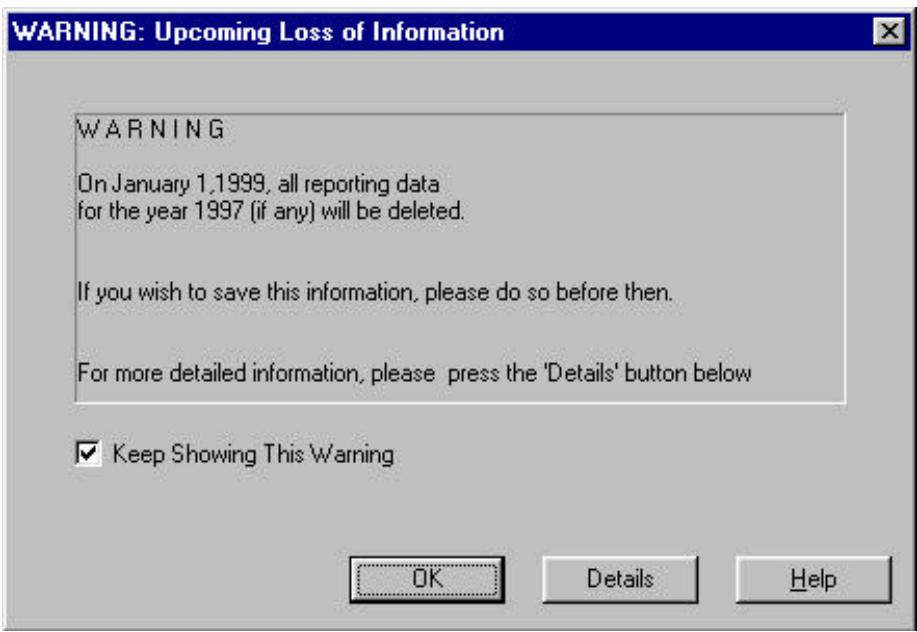
Figure 41 Impending Loss of Information window
After acknowledging this window, it reappears every seven days leading up to December 31^st unless the Keep Showing This Warning box is unselected.
The Details button accesses a window providing details about the impending data deletion. For this window, current polling selections are used to predict exactly when data is deleted. Changing the polling settings may also change the date and time.
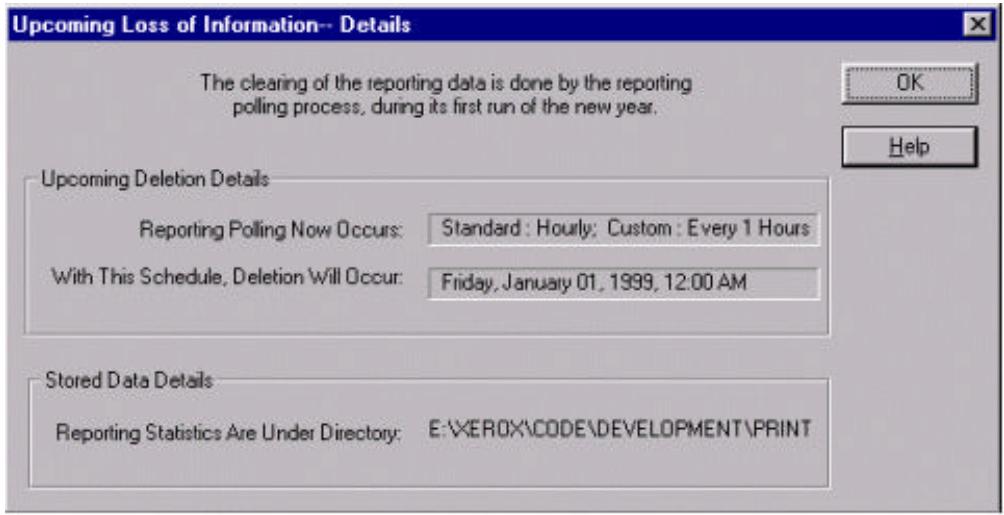
Figure 42 Upcoming Loss of Information - Details window
Chapter 6 Alarms
This chapter provides information on how PrinterMap detects printer alarms, the conditions that constitute a printer alarm, how to view alarms for a particular printer or the alarm log, and how to configure automatic responses to alarms. Detecting printer status and corresponding alarms is paramount to a proactive versus reactive approach to printer management and is at the core of PrinterMap functionality.
Alarm Detection
The PrinterMap Status Service periodically queries printers for current status and alarm information. The polling interval of the Status Service is configured through the Status panel of the Configuration window. When a printer reports an alarm condition the alarm information is recorded. Automated actions are launched when configured through the Configuration window Alarms panel. By default, all alarms are written to the PrinterMap alarm log.
Alarm Configuration
Once an alarm is detected, PrinterMap can log the alarm, launch a pop-up notification window, or launch an executable. The action taken by PrinterMap depends on the settings of the Configuration window Alarms panel. By default, PrinterMap logs all detected printer alarms to the alarm history log.
Refer to "Alarms" in Chapter 2 for more details.
Viewing Alarms
Individual Printer Alarms Window
Printer alarms detected by PrinterMap may be viewed in two different ways. An individual printer's most recent alarm conditions or the history of all alarms logged by PrinterMap can be viewed.
Alarms for an individual printer are viewed by selecting the Show Printer Alarms menu item from the icon right-click menu. This accesses the Individual Printer Alarms window. The window title contains the selected printer's name for easy identification. This window displays alarms for an individual printer as detected by the most recent status poll. The information contained in this window includes Date, Printer name, and a brief textual explanation for each alarm.
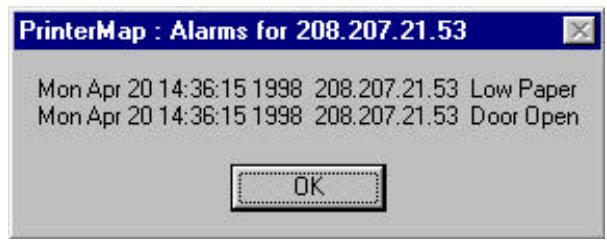
Figure 43 Individual Printer Alarms window
Alarm Log Window
The Alarm Log window features-sortable columns displaying the following information:
Status (severity of the alarm condition)
- Date and Time the alarm is detected
- Printer Name
- Alarm description
- Comment (used for acknowledgment)
The comment field remains blank until the alarm is acknowledged. The Alarm Log displays a color coded status box for each alarm condition. The table below shows severity and resulting status color for each alarm condition detected by PrinterMap.
Table 10 Alarm Condition to Status Color Mapping
| Alarm Condition | Severity | Status Color |
| Low Paper | Warning | Yellow |
| Low Toner | Warning | Yellow |
| Service Requested | Warning | Yellow |
| No Paper | Critical | Red |
| No Toner | Critical | Red |
| Door Open | Critical | Red |
| Jammed | Critical | Red |
| Offline | Critical | Red |
| Unknown | Critical | Red |
If PrinterMap is unable to determine the cause of an alarm condition, "Invalid Alarm Type" is displayed.
NOTE: A printer's status on the topology and related alarms in the log file may not show the same severity color indicator (critical/red vs. warning/yellow). The values that determine overall status indications and specific alarm indications are provided to PrinterMap by each printer from two different notifications. PrinterMap is dependent on the printer notification implementation for severity indicators accuracy. For example, this occurs on the Xerox 4517 printer, where "No Paper" in the envelope feeder results in status indication of warning/yellow displayed on the topology map. The logged alarms are critical/red due to an open door. This is the alarm that an empty envelope feeder creates on the Xerox 4517.
To display the alarm history log, select Tools > Display Alarm Log from the main menu.
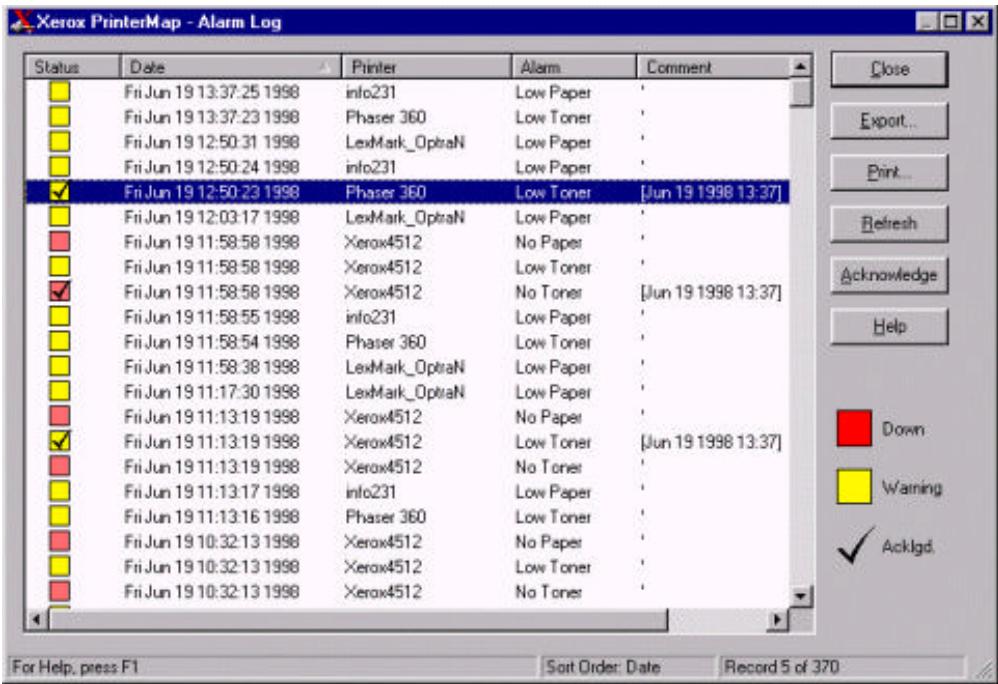
Figure 44 Alarm Log window
Alarm Log Buttons
Close
Closes the Alarm Log window. Changes made to the alarm entries are saved.
Export
Saves the alarm log data into a comma-delimited file (.csv). Default save directory for these files is [Drive]:[Install Directory]]reports.
Prints contents of the alarm log. The default printing orientation is Landscape. All entries are printed.
Refresh
Refreshes alarm log data displayed in the window. Changes made to the alarm entries during this session are saved before new entries are read in. This operation cannot be cancelled.
Acknowledgment
Provides ability for keeping track of any follow-up action initiated to rectify an alarm condition. Selecting this button accesses the following window.
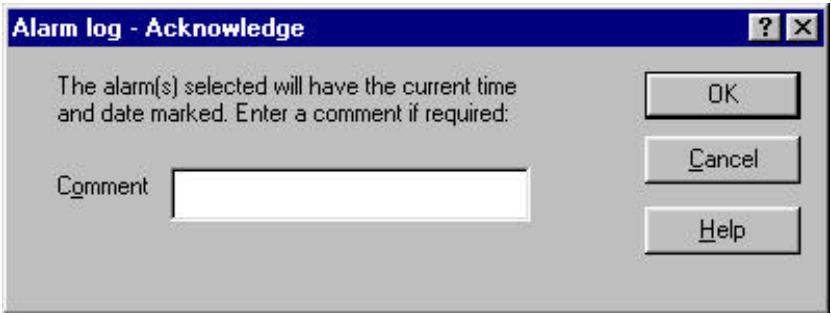
Figure 45 Alarm log - Acknowledge window
This window prompts for a brief comment related to the resolution or acknowledgment of the selected alarm. All comments are displayed in the Comment column accompanied by a time stamp. Adding text is not required. In this case only the date and time stamp is displayed under the Comment heading. Selecting multiple alarm records and the Acknowledge button assigns a single comment to multiple alarms.
A check mark appears in the severity indicator box of all acknowledged alarms.
Select OK to complete operation or Cancel to abort.
Help
This button accesses the contextual help file for the Alarm Log window.
Chapter 7 Troubleshooting
Consult this chapter for basic troubleshooting suggestions when experiencing operational problems with PrinterMap.
This chapter explores troubleshooting techniques for the following areas.
- Log Files and Debug Functionality
Discover
Status and Alarm
Reporting
Error Messages
Log Files and Debug Functionality
When PrinterMap encounters a problem, a pop-up message appears referring the user to the pmap.log. which contains general application status messages. Several process-specific logs can be generated by activating PrinterMap's debugging facility, for which several debug levels are available. The application initialization file, [Drive]:[nstall Directory]\pmap.ini contains debug parameter settings and can be edited using any standard ASCII file editor.
Debugging is available for the following processes:
Table 11 Processes Eligible for Debug
| Parameter | Process | Log Files |
| Topology | Main PrinterMap application | pmap.log, topology.log* |
| Discover | Discover process | pmap.log, discover.log* |
| Status | Status polling process | pmap.log, status.log* |
| Reporting | Report polling process | pmap.log, reporting.log* |
- Generated only when debug level is > 0 . See valid values in the following table.
The following are valid debug settings for any of the above processes:
Table 12 Debug Parameter Values
| Parameter Value | Information Type |
| 0 | Debugging Off (status messages -initialization and process termination messages- only in pmap.log |
| 10 | Tracing (entrance to and return from functions) |
| 20 | Internals (Tracing + any function input parameter values the developer anticipated being significant) |
| 30 | Details (Tracing +Internals + any variables or conditions the developer anticipated being significant) |
| 40 | Looping (Tracing + Internals + Details + monitoring entrance to and exit from all looping sections of code) |
| 50 | Verify (Tracing + Internals +Details + Looping +error conditions not warranting a message being logged to the pmap.log file) |
A debug setting of 10 or higher initiates the *_DBG.log files. If debug is 0 for all processes, the only log maintained is pmap.log containing general status messages.
Each log message is prefixed by the date/time of occurrence and name of the generated process.
Maximum log file size can also be specified in the "[logfile]" parameter of the [Drive]:[Install Directory]\pmap.ini file. Default, measured in kilobytes, is 100. Each time PrinterMap is activated, it checks the pmap.log file for size and proceeds trimming the file by 20% , The oldest historical data is trimmed first.
NOTE: When debugging is activated the process must be RE-STARTED to affect the change. For example, if running Windows NT and increasing the debug level for the PrinterMap Status process, go to the Services window of the control panel. Stop and re-start PrinterMap Status service.
Discover Problems
Discover Error message is returned immediately and no printers are discovered
This normally occurs if the Discover process does not initialize properly, possibly due to an invalid setting on a Discover configuration option. A pop-up window containing a discover error message is displayed. Check the log file, [Drive]:[Install Directory]\discover.log. If the cause of the error is not apparent, increase the debug level for the discover process and re-run Discover. Most likely one of the following caused the problem:
- Invalid discover parameter or missing initialization file, pmap.ini
No discover type specified in discover configuration
Incorrect router address or local IP submask - IPX Discover specified but local machine is not configured for IPX (NetW are client).
Incomplete Discover
If any printers are not discovered, check the following:
Refer to [Drive]:[Install Directory]\pmap.log and increase the level of debug for the discover process if necessary. When discover is re-attempted, the log file [Drive]:[Install Directory] ]discover.log contains more information. If a particular printer is not discovered, try the following:
If the printer is on an IP network
- Verify that a response is received from a ping.
- Try manually adding through the Topology > Add Printer menu item.
- If the router Discover configuration option is in use (local or secondary), check contents of the arp cache via a MIB browser.
- If the printer is not listed as a MIB object value, Telnet to the router and issue a broadcast ping to update the router cache.
- Ensure the correct Community String discover configuration option is set. ("Public" is used by default).
- Increase the SNMP timeout values (snmp_get_local_time-out and snmp_get_remote_time-out) in the pmap.ini file.
If the printer is on an IPX network
- Ensure IPX discover configuration option is selected and that the IPX server name is correct.
- See if it can it be manually added through the Topology > Add Printer menu item.
- Ensure the correct Community String discover configuration option is set. ("Public" is used by default).
- Increase the SNMP time-out values (snmp_get_local_timeout and snmp_get_remote_timeout) in the pmap.ini file.
Discover doesn't complete.
The time required for the discover process varies with configuration options and number of printers to discover. For example, if selecting local IP Discover, allow time for polling the entire set of IP addresses within the subnet mask (even if they don't actually exist). To decrease length of time required by the Discover process, use the IP Address Range Discover configuration option. Multiple IP address ranges can be specified to minimize the amount of required polling.
Status / Alarm Problems
Icons Not Changing Color According to Status:
- On Windows NT platforms, access the Services window from the Control Panel and verify that PrinterMap Status service has a status of "Started". If not, start it.
- On Windows 95/98, verify that the PrinterMap Status icon appears in the system tray. If not, start the Status service by selecting the PrinterMap Status menu option under Start > Programs > Xerox PrinterMap. The Status service can also be started from the Service Control window.
- Right-click on the printer's icon and select Check Status. This immediately updates printer status if a change is recognized. If the icon changes color, check the Status panel of the Configuration window to ensure the poll rate is set to a frequency matching expectations for printer status information update. If the icon does not change color, follow instructions given earlier in this chapter concerning incomplete Discover.
Alarms Not Being Received in Alarm Log Window
- Verify that the PrinterMap Status process is running as described in step one above.
- Check the Alarms Configuration panel to ensure the "Log to File" option is selected for the alarm in question. The file [Drive]:[Install Directory]\alarmss.log contains these messages.
- If lost communication with the printer is suspected (the printer is discovered initially but expected alarms are not received) follow instructions given earlier in this chapter concerning incomplete Discover. Alarms are not received from a printer whose present status is "Unknown".
Alarm Reads "Invalid Alarm Value from Printer"
The information being returned by the printer is not consistent with expectations. These issues must be addressed by the printer manufacturer.
No Pop-ups or Application Launches Occurring
Go to the Service Manager and verify that "Allow service to interact with desktop" is selected for PrinterMap Status.
NOTE: These actions only occur when the printer's error condition first changes to prevent flooding with popup windows. Pop-up alarm notification only occurs once per new alarm condition. If the condition persists into the next status poll, there is no pop-up notification.
Reporting Problems
On Windows NT platforms, access the Services window from the Control Panel and verify that PrinterMap Reporting service has a status of "Started". If not, start it.
On Windows 95/98, verify that the PrinterMap Reporting icon appears in the system tray. If not, start the Reporting service by selecting the PrinterMap Reporting menu option under Start > Programs > Xerox PrinterMap. The Reporting Service can also be started from the Service Control window.
Standard Reporting Reports
Unable to Open File error
XPC010: Unable to open file: [Drive]:[Install Directory]\data\accinfo\nnnnnnnnnnnn.zzz where nnnnnnnnnnnn represents a physical address and zzz represents a 3-letter vendor code. This occurs when starting the PrinterMap Reporting process and reporting data is not collected for that printer. Click OK to acknowledge this warning.
Month/Day/Year/ Hour option(s) are not selectable
Check Reports Configuration panel to ensure data is collected for the type of report generated. For example, if poll rate is set to "Daily" it is not possible to generate an "Hourly" report with existing data.
Error Messages
The following is a list of PrinterMap error messages logged to [Drive]:[Install Directory]\pmap.log. This list recommends actions and lists system action that is taken by PrinterMap.
Common PrinterMap Error Messages
XPC000
Text
$process initialization successful.
Variables
$process - a PrinterMap executable
Description
The process successfully completed all initialization.
System Action
None.
| XPC001 | Text function 1 failed callingfunction 2. |
| Variables $function1 - Error detecting function $function 2 - Failing function | |
| Description Function 1 detected that function 2 did not successfully complete. | |
| System Action Function dependent | |
| User Action Note accompanying error messages for the failure cause. | |
| XPC002 | Text function 1 failed callingfunction 2, rc = $value |
| Variables $function1 - Error detecting function $function 2 - Failing function $value - Return code from failing function | |
| Description Function 1 detected that function 2 did not successfully complete. An error code (integer value) is returned. | |
| System Action Function dependent | |
| User Action Note accompanying error messages for the failure cause. | |
| XPC003 | Text function 1 failed callingfunction 2, rc = $value |
| Variables $function 1 - Error detecting function $function 2 - Failing function $value - Return code from failing function | |
| Description Function 1 detected that function 2 did not successfully complete. An error code (hex value) is returned. | |
| System Action Function dependent | |
| User Action Note accompanying error messages for the failure cause. | |
| XPC004 | Text function 1 failed callingfunction 2, reason = $reason |
| Variables $function 1 - Error detecting function $function 2 - Failing function $reason - Failure cause | |
| Description Function 1 detected that function 2 did not successfully complete. A string containing the reason for the failure is returned. | |
| System Action Function dependent | |
| User Action Note accompanying error messages for the failure. | |
| XPC005 | Text function 1 failed with return code:value |
| Variables $function 1 - Failing function $value - Return code from failing function | |
| Description Function 1 failed and an error code is returned. | |
| System Action Function dependent | |
| User Action Note accompanying error messages for the failure cause. | |
| XPC006 | Text function 1 failed, reason =reason |
| Variables $function 1 - Failing function $reason - Failure cause | |
| Description Function1 failed and a string containing the reason for the failure is returned. | |
| System Action Function dependent | |
| User Action Note accompanying error messages for the failure cause. | |
| XPC009 | Text $case: Invalid case or condition reached. |
| Variables |
$case - Unexpected condition
Description
An unexpected condition of $case occurred.
System Action
Function dependent
User Action
Note how to reproduce this condition.
XPC010
Text
Unable to open file: $filename
Variables
$filename - Filename
Description
PrinterMap is unable to open specified file.
System Action
Function dependent
User Action
Check to be sure the directory exists.
Check to see if the file exists, if it is supposed to.
Check permissions on the file.
XPC011
Text
Unable to open group file: $filename
Variables
$filename - Group filename
Description
PrinterMap is unable to open the specified group file.
System Action
Function dependent
User Action
Check to be sure the [Drive]:[Install Directory]\group directory exists.
Check to see if the specified group file exists.
Check permissions on the file.
XPC012
Text
Unable to open log file: $filename
| Variables $filename - Log filename | |
| Description PrinterMap is unable to open the specified log file. | |
| System Action Function dependent | |
| User Action Check to be sure the [Drive]:\[Install Directory\]\(\log\) directory exists. Check to see if the specified log file exists. Check permissions on the file. | |
| XPC013 | Text Unable to find/process MIB.ini file. |
| Variables None | |
| Description PrinterMap is unable to open and read the mib.ini file. | |
| System Action In most cases the PrinterMap process detecting this condition is terminated. | |
| User Action Check to be sure the [Drive]:\[Install Directory\]\(\mib\).ini file exists. Check permissions on the file. | |
| XPC014 | Text Unable to retrieve maximum file size value, defaulting to $number KB. |
| Variables $number - Number in KB | |
| Description PrinterMap is unable to determine maximum size for a file based on the pmap.ini file. It uses $number instead. | |
| System Action The file is trimmed based on the default value $number, since the value from the pmap.ini file cannot be accessed. | |
| User Action Check to be sure the [Drive]:\[Install Directory\]\(\pmap\).ini file exists. Check the size variable in the logfile section. | |
Check permissions on the file.
XPC015
Text
Unable to determine/assign proper debug level.
Variables
None
Description
PrinterMap is unable to determine desired debug level.
System Action
Debug is not activated for the module.
User Action
Check to be sure the [Drive]:[Install Directory]\pmap.ini file exists.
Check that variables in the debug section are topology, discover,
accounting,
and status.
XPC016
Text
Unable to retrieve pmap.ini value for app: section and key:key.
Variables
(section - Section heading in pmap.ini file )\(section
$key - Name for a value within the section
Description
PrinterMap is unable to find the key value in the specified section.
System Action
In most cases, a default value can be used.
XPC017
User Action
Check to be sure the [Drive]:[Install Directory]\pmap.ini file exists.
Verify that the specified section andkey exist.
Text
Verify that pmap.ini file path path is correct and keykey is present.
Variables
\$path - Expected location of pmap.ini file.
$key - Name for a key value.
Description
PrinterMap cannot find the key value in pmap.ini file
System Action
In most cases, a default value can be used.
| XPC018 | User Action Check to be sure the [Drive]:\[Install Directory\]pmap.ini file exists.Verify that the specified $key exists. |
| Text Unable to create printer information files. | |
| Variables None | |
| Description PrinterMap cannot create a printer information file. | |
| System Action In most cases, the PrinterMap process detecting this condition terminates. | |
| User Action Check to be sure the [Drive]:\[Install Directory\]data\prinfo directory exists. | |
| XPC019 | Text $function: Printer information files are currently locked. |
| Variables $function - Function trying to write to printer information file | |
| Description PrinterMap cannot write to a printer information file, because another function locked the file. | |
| System Action Updated information is not written to the file. | |
| User Action Exit PrinterMap and PrinterMap Status and restart them. | |
| XPC023 | Text PrinterMap internal error. |
| Variables None | |
| Description PrinterMap encountered an unrecoverable failure. | |
| System Action PrinterMap terminates. | |
| User Action Review the PrinterMap log for information related to the failure cause. | |
| XPC024 | Text Memory allocation error. |
| Variables None | |
| Description The product cannot allocate the memory necessary to perform some function. | |
| System Action Function dependent | |
| User Action Close other active applications. | |
| XPC025 | Text $process not started; error creating initialization semaphore. |
| Variables $process - Name of PrinterMap process encountering the error. | |
| Description Specified process encountered an error during initialization creating a named semaphore. | |
| System Action Specified process terminates. | |
| User Action Review the PrinterMap log for information related to the failure cause. | |
| XPC026 | Text $process already running; second instance not started. |
| Variables $process - Name of PrinterMap process encountering the error. | |
| Description An instance of the specified process is already running and multiple instances are not supported. | |
| System Action Duplicate instance of specified process terminates. | |
| User Action None. | |
| XPC027 | Text Running Process process;ErrorReason |
| Variables $process - Name of PrinterMap process encountering the error $ErrorReason - System-returned error message | |
| Description Tried to start the process called process, but the attempt failed. The reason for the failure is found in theErrorReason. | |
| System Action Error message is provided to invoking process. | |
| User Action Review information in $ErrorReason. Verify all programs are correctly installed. | |
| PrinterMap Discover Error Messages | |
| XPD000 | Text Discover process successfully completed. |
| Variables None | |
| Description PrinterMap discover process successfully completed. | |
| System Action None | |
| User Action None | |
| XPD001 | Text License key retrieval failed, only Xerox printers are discovered. |
| Variables None | |
| Description Because the Discover process cannot retrieve a valid license key, only Xerox network printers are discovered. | |
| System Action Non-Xerox printers are passed over by the PrinterMap discover process. | |
| User Action Verify the appropriate license file can be found in the PrinterMap install directory. Contact PrinterMap support if missing or is corrupted. | |
| XPD004 | Text Cannot retrieve SNMP time-out values, uses defaults. |
| Variables |
None
Description
Discover process cannot retrieve valid SNMP time-out values from PrinterMap ini file ([Drive]:[Install Directory]\pmap.ini). Either the pmap.ini file cannot be found or the SNMP time-out entries are corrupt or missing. The following are the SNMP time-out entries as they should appear in the [discover] section of the pmap.ini file (shown with default shipped values in hundredths of a second):
snmp_get_local_timeout=40
snmp_get_remote_timeout=100
snmp_set_timeout=200
System Action
Default SNMP time-out values are used for all PrinterMap generated SNMP queries. Default values are:
snmp_get_local_timeout default value is 400ms.
snmp_get_remote_timeout default value is 1000ms.
snmp_set_timeout default value is 20s.
User Action
Verify the pmap.ini file exists and that the entries mentioned above are present.
XPD005
Text
Local machine not configured for IP protocol support.
Variables
None
Description
The discover process detected that PrinterMap is configured to do an IP network Discover. The local machine is not configured for IP protocol support. The discover process cannot continue.
System Action
Discover process terminates.
User Action
Verify the PrinterMap discover process is configured correctly and/or the local machine is properly configured for the IP protocol before attempting another PrinterMap discover.
XPD006
Text
Local machine not configured for IPX/SPX protocol support.
Variables
None
| XPD007 | Description The discover process detects PrinterMap is configured to do an IPX network Discover. The local machine is not configured for IPX/SPX protocol support. The discover process cannot continue. |
| System Action Discover process terminates. | |
| User Action Verify the PrinterMap discover process is configured correctly and/or the local machine is properly configured for the IPX protocol before attempting another PrinterMap discover. | |
| Text No discover takes place. Check PrinterMap and local machine configuration. | |
| Variables None | |
| Description The discover process is initiated but not properly configured. The discover process cannot continue. | |
| System Action Discover process terminates. | |
| User Action Verify the PrinterMap discover process is configured correctly and/or the local machine is properly configured for the desired discover type. This message is generated if neither IP nor IPX are selected on the PrinterMap discover configuration panel. | |
| XPD008 | Text No printers discovered for local subnet, ip: ip_address, mask:mask |
| Variables $ip_address - Local machine's IP address $mask - Local machine's subnet mask | |
| Description PrinterMap is configured to discover the specified local subnet but no printers are discovered. This is strictly an informational message. The discover process does not detect any errors. | |
| System Action None | |
| User Action Verify the specified local subnet does have SNMP capable network printers which should have been discovered. Use the "ping" command from a DOS prompt to | |
| XPD009 | Text No printers discovered for default gateway, ip: $ip_address |
| Variables $ip_address - IP address of local machine's default gateway | |
| Description PrinterMap is configured to discover the specified default gateway, however, no printers were discovered. This is strictly an informational message, the discover process does not detect any errors. | |
| System Action None | |
| User Action Verify the specified default gateway does have SNMP capable network printers which should have been discovered. Use the "ping" command from a DOS prompt to verify the printer(s) is/are responding. Verify that the default SNMP time-out values specified in the user's guide are adequate. | |
| NOTE: Routers may be configured to only maintain IP addresses in their ARP cache for a very short time. This can adversely affect the PrinterMap discover process which uses SNMP queries to retrieve the ARP cache of the router. The result can be that no printers are found via this discover method. | |
| XPD010 | Text No printers discovered for router, ip: $ip_address |
| Variables $ip_address - IP address of secondary router | |
| Description PrinterMap is configured to discover the specified router, however, no printers were discovered. This is strictly an informational message, the discover process did not detect any errors. | |
| System Action None | |
| User Action Verify that the specified router does have SNMP capable network printers which should have been discovered. Use the "ping" command from a DOS prompt to verify the printer(s) is/are responding. Verify the default SNMP time-out values specified in the user's guide are adequate. | |
| NOTE: Routers may be configured to only maintain IP addresses in their ARP cache for a very short time. This can adversely affect the PrinterMap discover process which uses SNMP queries to retrieve the ARP cache of the router. The result can be that no printers are found via this discover method. | |
| XPD011 | Text No printers discovered for IP range, ip_address1 -ip_address2 Variables $ip_address1 - The FROM address of the IP address range $ip_address2 - The TO address of the IP address range Description PrinterMap is configured to discover the specified IP address range, however, no printers were discovered. This is strictly an informational message, the discover process did not detect any errors. System Action None User Action Verify the specified IP address range does have SNMP capable network printers which should have been discovered. Use the "ping" command from a DOS prompt to verify the printer(s) is/are responding. Verify that the default SNMP time-out values specified in the user's guide are adequate. |
| XPD012 | Text No printers discovered for IPX preferred server $name Variables $name - Configured IPX preferred server name Description PrinterMap is configured to discover the specified IPX preferred server, however, no printers were discovered. This is strictly an informational message, the discover process did not detect any errors. System Action None User Action Verify that the specified IPX preferred server is configured properly and has SNMP capable network printers as clients. Verify that the default SNMP time-out values specified in the user's guide are adequate. |
XPD015
Text
Unable to initialize Netware API, return code: $value
Variables
$value - Hex return code from Netware API initialization call.
Description
Discover process is unable to initialize the Novell NetWare API needed to perform an IPX discover.
System Action
Discover process terminates.
User Action
The most common cause for this error message is that NetWare Client32 software is not installed on the local machine. Client32 software is required for the NetWare API initialization call to successfully complete. Verify that Client32 is installed and operational.
XPD016
Text
NetWare Client32 software must be installed in order to perform IPX discover.
Variables
None
Description
Discover process is unable to initialize the Novell NetWare API which is necessary to perform an IPX discover.
System Action
Discover process terminates.
User Action
The most common cause for this error message is that NetWare Client32 software is not installed on the local machine. Client32 software is required for the NetWare API initialization call to complete successfully. Please verify that Client32 is installed and operational.
XPD017
Text
Unable to retrieve Netware preferred server name, return code: $value
Variables
$value - Hex return code from Netware call to retrieve NetWare preferred server name.
Description
Discover process is unable to retrieve the local machine's NetWare preferred server.
System Action
| Discover process terminates. | |
| User ActionVerify that Novell's Client32 software is installed and operational. | |
| XPD018 | TextUnable to connect to Netware preferred server, return code: value |
| Variablesvalue - Hex return code from Netware call to connect to the specified NetWare preferred server name. | |
| DescriptionDiscover process is unable to connect to the configured NetWare preferred server. | |
| System ActionDiscover process terminates. | |
| User ActionVerify the correct preferred server name is configured on the PrinterMap discover configuration panel and that Novell's Client32 software is installed and operational. | |
| XPD019 | TextUnable to terminate Netware API, return code: value |
| Variablesvalue - Hex return code from Netware API termination call. | |
| DescriptionDiscover process is unable to terminate the NetWare API properly. | |
| System ActionDiscover process terminates. | |
| User ActionVerify the correct preferred server name is configured on the PrinterMap discover configuration panel and that Novell's Client32 software is installed and operational. | |
| XPD020 | TextVerify network connectivity to specified NetWare server. |
| VariablesNone. | |
| Description | |
| PrinterMap discover process is unable to connect to the specified NetWare. (Accompanies XPD018) | |
| System Action Discover process terminates. | |
| User Action Verify the specified NetWare server is up and operational and the local machine has network connectivity to the server. | |
| XPD022 | Text Invalid IP address format encountered, address: $ip_address |
| Variables $ip_address - Invalid IP address. | |
| Description Discover process encountered an invalid IP address. | |
| System Action Discover process terminates. | |
| User Action Correct invalid IP address by replacing it with an IP address of the proper format. For example, 208.207.96.4. | |
| XPD023 | Text IP address format must be xxx.xxx.xxx.xxx. |
| Variables None | |
| Description Informational message indicating the proper format for an IP address. | |
| System Action None | |
| User Action Correct invalid IP address by replacing it with an IP address of the proper format as specified here. For example, 208.207.96.4. | |
| XPD024 | Text Invalid IP address octet values, address: $ip_address |
| Variables ip_address - IP address with invalid octet value. | |
| Description | |
| XPD025 | Discover process encountered an invalid IP address. An octet of the specified IP address is out of range. |
| System Action | |
| Discover process terminates. | |
| User Action | |
| Correct invalid IP address by replacing it with an IP address of the proper format as specified here. For example, 208.207.96.4. | |
| Text | |
| Individual IP address octets must be in the range 0-255. | |
| Variables | |
| None | |
| Description | |
| Informational message which indicates the proper range for an IP address octet. | |
| System Action | |
| None | |
| User Action | |
| Correct invalid IP address by replacing it with an IP address of the proper format as specified here. For example, 208.207.96.4. | |
| XPD026 | Text |
| Unable to retrieve subnet mask for routerip_address | |
| Variables | |
| ip_address - IP address of router | |
| Description | |
| Discover process is unable to retrieve the subnet mask for the specified router. | |
| System Action | |
| Discover process terminates. | |
| User Action | |
| Verify that the specified router is operational and retry the discover. | |
| XPD027 | Text |
| Unable to convert router address (ip_address) to hex. | |
| Variables | |
| $ip_address - IP address of router | |
| Description | |
| Discover process is unable to convert the specified router IP address to hex. | |
| System Action | |
| XPD040 | Text Unable to retrieve MAC address for printer at address: %sVariables |
| Description System Action User Action | |
| XPR001 | PrinterMap Reporting Service Messages |
| Text Reporting poll cycle takes longer than configured polling interval. | |
| Variables None | |
| XPR002 | Description The Reporting service determined the required time to poll all managed printers for reporting data is longer than the currently configured report polling interval. This results in missing reporting data and incomplete PrinterMap reports. |
| System Action. Next report poll starts when the current one is complete. | |
| User Action Decrease number of printers managed by PrinterMap thereby decreasing the time required to poll all printers, or increase the interval between report polls by reconfiguring PrinterMap. | |
| Text Remove printers from PrinterMap or increase the interval between report polls. | |
| Variables None | |
| Description Informational message which accompanies XPR001 and provides suggestions for responding to the error condition of the report polling cycle taking longer than the configured polling interval. | |
| System Action None | |
| User Action | |
| Decrease the number of printers managed by PrinterMap which decreases the amount of time required to poll all printers, or increase the interval between report polls by reconfiguring PrinterMap. | |
| XPR003 | Text PrinterMap Reporting service terminating due to error condition. |
| Variables None | |
| Description The Reporting service encountered an error condition. It cannot recover and is exiting. Reporting printer data is not collected until service is restarted. | |
| System Action Reporting service terminates. | |
| User Action Review the PrinterMap message log ([Drive]:\[Install Directory]\pmap.log) for accompanying error messages indicating the cause of error and takes corrective action. | |
| XPR004 | Text PrinterMap Reporting service terminating due to user request. |
| Variables None | |
| Description The Reporting service is terminating due to a user initiated action. Reporting printer data is not collected until service is restarted. | |
| System Action Reporting service terminates. | |
| User Action Restart the Reporting service to begin collection of printer reporting data. | |
| XPR005 | Text Cannot run Reporting Polling; the Reporting Function is disabled. |
| Variables None. | |
| Description An attempt is made to execute the Reporting Polling program (PMReport.exe) while the PrinterMap Reporting Option is disabled. This option is set in the Configuration window. | |
| System Action Reporting Polling does not execute. | |
| XPR006 | Text Unable to install process -ErrorReason. |
| Variables $process - Name of PrinterMap process encountering the error. | |
| Description Attempted to install the service process, but attempt failed. The failure reason is found inErrorReason. | |
| System Action Attempt to install service is terminated. | |
| User Action Review information in $ErrorReason. Verify that all PrinterMap programs are correctly installed. | |
| XPR007 | Text $process installed. |
| Variables $process - Name of PrinterMap process. | |
| Description Service installation $process is successful. | |
| System Action None. | |
| User Action None. | |
| XPR008 | Text CreateService failed - $ErrorReason. |
| Variables $ErrorReason - System-returned error message. | |
| Description Attempted to install a service failed. The failure reason is found in $ErrorReason. | |
| System Action Attempt to install service is terminated. | |
| User Action Review information in $ErrorReason. | |
| XPR009 | Text OpenSCManager failed - $ErrorReason. |
| Variables $ErrorReason - System-returned error message. | |
| Description Attempt to install a service failed: the system is unable to establish a connection to the Services Control Manager. The failure reason is found in $ErrorReason. | |
| System Action Attempt to install service is terminated. | |
| User Action Review information in $ErrorReason. Additional technical assistance is required. | |
| XPR010 | Text Stopping $process. |
| Variables $process - Name of PrinterMap service process. | |
| Description Attempting to stop the service $process. | |
| System Action Continues attempts to stop service. Publishes follow-up message XPR011 or XPR012. | |
| User Action None. | |
| XPR011 | Text $process stopped. |
| Variables $process - Name of PrinterMap service process. | |
| Description The service $process is stopped. | |
| System Action Continue with other processing in context of the stop service request. | |
| User Action None. | |
| XPR012 | Text $process failed to stop. |
| Variables $process - Name of PrinterMap service process. | |
| Description Repeated attempts to stop the service $process failed. | |
| System Action Continue with other processing in the context of the stop service request. | |
| User Action Review pmap.log to see the context of the failure. | |
| XPR013 | Text $process removed. |
| Variables $process - Name of PrinterMap service process. | |
| Description The service $process is removed from the list of services controlled by the Service Control Manager. | |
| System Action None. | |
| User Action This normally occurs in context of disabling the Reporting Option. | |
| XPR014 | Text DeleteService failed - $ErrorReason. |
| Variables $ErrorReason - Systemreturned error message | |
| Description Attempt to remove a service from the Service Control Manager failed. The failure reason is found in $ErrorReason. | |
| System Action Attempt to remove service is terminated. | |
| User Action Review information in $ErroReason. | |
| XPR015 | Text OpenService failed - $ErrorReason. |
| Variables $ErrorReason - Systemreturned error message | |
| Description Attempt to remove a service from the Service Control Manager failed. The failure reason is found in $ErrorReason. | |
| System Action Attempt to remove service is terminated. | |
| User Action Review information in $ErrorReason. | |
| XPR510 | Text Creation of Reporting Data Files Failed: INVALID_handle_VALUE returned. |
| Variables None | |
| Description The user requested the Reporting Option be enabled. PrinterMap is unable to correctly locate the directory where printer information is stored. | |
| System Action The reporting option is enabled, but no reporting files are pre-created. | |
| User Action Verify all PrinterMap directories exist as installed. | |
| XPR511 | Text Stopping creation of Reporting data files after limit of $number files processed. Attempting to process more than this limit. |
| Variables $number is the number of files expected being processed | |
| Description The user requested that the Reporting Option be enabled. As PrinterMap is creating the reporting data files, it is about to exceed the number it expected necessary. It indicates that some outside activity in the directories is in use. | |
| System Action No further reporting data files are created. The reporting option is enabled. | |
| User Action None. Additional reporting files are created if needed during polling process. | |
| XPR512 | Text Unable to create reporting data file '$filename'. |
| Variables filename is the name of a reporting data file. | |
| Description | |
| Enabling the Reporting Option is requested. It is unable to write information into the indicated file. The most likely cause is the disk is full or write-protected. | |
| System ActionProcessing continues. The reporting option is enabled. | |
| User ActionVerify the space available on the target drive. | |
| XPR513 | Textnumber Reporting Data Files Have Been Created. |
| VariablesI number is the number of files created. | |
| DescriptionEnabling of the Reporting Option is requested and accomplished. The number of created reporting data files is provided. | |
| System ActionNone. | |
| User ActionNone. | |
| XPR514 | TextThe Reporting Option is Enabled. |
| VariablesNone | |
| DescriptionEnabling of the Reporting Option is requested and accomplished. | |
| System ActionPrinterMap automatically starts the reporting service. | |
| User ActionNone. | |
| XPR515 | TextThe Reporting Option is Disabled. |
| VariablesNone | |
| Description.Disabling of the Reporting Option is requested and accomplished. | |
| System Action. | |
| PrinterMap automatically stops the reporting service and (under Windows NT) removes the service from the Service Control Manager. | |
| User Action. | |
| None. | |
| XPR516 | Text |
| Deletion of Reporting data Files Failed: INVALID_handle_VALUE returned. | |
| Variables | |
| None | |
| Description | |
| The user requested the Reporting Option be disabled. PrinterMap is unable to correctly locate the directory where printer information is stored. | |
| System Action | |
| The reporting option is disabled, but existing reporting data files are not deleted. | |
| User Action | |
| Verify all PrinterMap directories exist as installed. | |
| XPR517 | Text |
| Stopping deletion of Reporting data files after limit ofnumber files processed. Attempting to process more than this limit. | |
| Variables | |
| number is the number of files expected to be processed. | |
| Description | |
| The user requested that the Reporting Option be disabled. As PrinterMap is deleting the reporting data files, it is about to exceed the expected necessary number. It indicates some outside activity in the directories in use. | |
| System Action | |
| Reporting data files are deleted. The reporting option is disabled. | |
| User Action | |
| None. | |
| XPR518 | Text |
| Unable to delete reporting data file "filename". | |
| Variables | |
| $filename is the name of a reporting data file. | |
| Description | |
| Disabling of the Reporting Options requested. It is unable to delete the indicated file. The most likely cause is an outside process already deleted the file or moved it to another location. | |
| System Action Processing continues. The reporting option is disabled. | |
| User Action None. | |
| XPR519 | Text %d Reporting Data Files Have Been Deleted. |
| Variables $number is the number of files deleted. | |
| Description Disabling of the Reporting Options requested. This request automatically deletes any existing reporting data files. This message confirms the number of files deleted. | |
| System Action None. | |
| User Action None. | |
| PrinterMap Alarm Log Messages | |
| XPA001 | Text Old version of alarm.log file found. Proceeding to convert. |
| Variables None. | |
| Description Alarm log file format not compatible with current PrinterMap version. | |
| System Action PrinterMap attempts converting the file format. | |
| User Action None. | |
| XPA002 | Text Unable to get exclusive access to the $path file. Changes not saved. |
| Variables $path - Path of alarm.log file used by PrinterMap. | |
| Description PrinterMap is unable to get exclusive access to the alarm.log file. | |
| System Action Any changes made through the alarm log view are not saved. | |
| XPA003 | Text Unable to resume the $path file. |
| Variables $path - Path of temporary alarm.log file used by PrinterMap. | |
| Description PrinterMap attempts the conversion process described in XPA001 by writing out the contents of the old alarm.log file in the new format to a temporary file named newalarm.log in the same directory. PrinterMap removes the old file and renames newalarm.log to alarm.log. The rename action failed. | |
| System Action PrinterMap is unable to read the contents of the alarm.log file. | |
| User Action Rename the temporary newalarm.log to alarm.log. | |
| XPA004 | Text Unable to remove the $path file for re-writing. |
| Variables $path - Path of alarm.log file used by PrinterMap. | |
| Description The conversion process described in XPA003 tries deleting the old alarm.log file. This action failed. | |
| System Action PrinterMap is unable to read the contents of the alarm.log file. | |
| User Action Check if the temporary file newalarm.log exists. If so, delete the temporary alarm.log file and rename the newalarm.log file as alarm.log. | |
| XPA005 | Text The $path file is corrupted. |
| Variables $path - Path of alarm.log file used by PrinterMap. | |
| Description The format of some or all of the entries in the alarm.log file are not in a format compatible with the current version or previous versions of PrinterMap. | |
| XPA006 | System Action PrinterMap attempts ignoring the corrupted entries. |
| User Action Open the alarm.log file in a text editor and check if there are any invalid entries/characters in the file. The corrupted entries are deleted when any changes are saved to the file through the alarm log viewer | |
| Text The $path file is corrupted. N entries are not readable. | |
| Variables $path - Path of alarm.log file used by PrinterMap | |
| N entries - Number of corrupted entries in the alarm.log file. | |
| Description Alarm log file format is not compatible with current PrinterMap version. | |
| System Action PrinterMap attempts converting the file format. | |
| User Action None. | |
| PrinterMap Status Service Messages | |
| XPS001 | Text Status poll cycle takes longer than configured polling interval. |
| Variables None | |
| Description The time completing a status poll is longer than the configured interval. | |
| System Action Next status poll starts when current one completes. | |
| User Action Decrease number of printers managed by PrinterMap thereby decreasing the time required to poll all printers, or increase the interval between status polls by reconfiguring PrinterMap. | |
| XPS002 | Text PrinterMap Status service is terminating due to an error condition. |
| Variables None | |
| Description The Status service exited due to an unrecoverable error. | |
| System Action Status service terminates. | |
| User Action Review PrinterMap message log ([Drive]:\Install Directory]\pmap.log) for accompanying error messages indicating the cause of the error and take corrective action. | |
| XPS003 | Text PrinterMap Status service terminating due to user request. |
| Variables None | |
| Description The Status service is terminating due to a user initiated action. Printer status and data is not maintained dynamically until service is restarted. | |
| System Action Status service terminates. | |
| User Action Restart the Status service when it is desirable to begin monitoring printer status and data dynamically. | |
| XPS004 | Text PrinterMap Status exiting - poll_interval is set to None. |
| Variables None | |
| Description The status poll process exited due to user request for No polling. | |
| System Action Terminate status poll process. | |
| User Action When status polling is again desired, set the polling interval via the Status configuration panel and restart the Status service. | |
| XPS005 | Text Unable to install process -ErrorReason. |
| Variables $process - Name of PrinterMap process encountering error. | |
| Description Attempted to install the service process, but attempt failed. The reason for the failure is found inErrorReason. | |
| System Action | |
| XPS006 | Text $process installed. |
| Variables $process - Name of PrinterMap process. | |
| Description Service $process installation attempt is successful. | |
| System Action None. | |
| User Action None. | |
| XPS007 | Text CreateService failed - $ErrorReason. |
| Variables $ErrorReason - System-returned error message. | |
| Description Attempt to install a service failed. The reason for the failure is found in $ErrorReason. | |
| System Action Attempt to install service is terminated. | |
| User Action Review information in $ErrorReason. | |
| XPS008 | Text OpenSCManager failed - $ErrorReason. |
| Variables $ErrorReason - System-returned error message. | |
| Description Attempt to install a service failed: the system is unable to establish a connection to the Services Control Manager. The reason for failure is found in $ErrorReason. | |
| System Action Attempt to install service is terminated. | |
| User Action | |
| XPS009 | Review information in ErrorReason. Additional technical assistance may be required. |
| Text | |
| Stoppingprocess. | |
| Variables | |
| process - Name of PrinterMap service process. | |
| Description | |
| Attempting to stop the serviceprocess. | |
| System Action | |
| Continues trying to stop service. Publishes follow-up message XPS010 or XPS011. | |
| User Action | |
| None. | |
| XPS010 | Text |
| process stopped. | |
| Variables | |
| process - Name of PrinterMap service process. | |
| Description | |
| The service process is stopped. | |
| System Action | |
| Continue with other processing in the context of the stop service request. | |
| User Action | |
| None. | |
| XPS011 | Text |
| process failed to stop. | |
| Variables | |
| process - Name of PrinterMap service process. | |
| Description | |
| Repeated attempts stopping the serviceprocess failed. | |
| System Action | |
| Continue with the other processing in the context of the stop service request. | |
| User Action | |
| review pmap.log to see the context of the failure. | |
| XPS012 | Text |
| $process removed. | |
| Variables $process - Name of PrinterMap service process. | |
| Description The service $process is removed from the list of services controlled by the Service Control Manager. | |
| System Action None. | |
| User Action This normally occurs within the context of disabling the Reporting Option. | |
| XPS013 | Text DeleteService failed - $ErrorReason. |
| Variables $ErrorReason - Systemreturned error message. | |
| Description Attempt to remove a service from the Service Control Manager failed. The reason for the failure is found in $ErrorReason. | |
| System Action Attempt to remove service is terminated. | |
| User Action Review information in $ErrorReason. | |
| XPS014 | Text OpenService failed - $ErrorReason. |
| Variables $ErrorReason - Systemreturned error message. | |
| Description Attempt to remove a service from the Service Control Manager failed. The reason for the failure is found in $ErrorReason. | |
| System Action Attempt to remove service is terminated. | |
| User Action Review information in $ErrorReason. | |
- Notice
- Contents
- Preface
- Chapter 1 Overview 1
- Chapter 2 Getting Started 6
- Chapter 3 Discover Process
- Chapter 4 User Interface 3
- Chapter 5 Status and Reporting
- 6
- Chapter 6 Alarms
- 2
- Chapter 7 Troubleshooting
- 7
- List of Figures
- List of Tables
- Chapter Overview
- Who should Use this Guide
- Conventions Guide
- Mouse Conventions
- Related Reading
- Workstation Requirements
- Hardware
- Software
- Memory Requirements
- Projecting Hard Disk Requirements
- Reporting Option Enabled
- Projecting Discover Time
- Projecting Network Traffic
- Assumptions
- Example
- Initial Discover Estimates
- Chapter 1 Overview
- How it all Works
- PrinterMap Components
- Status
- Chapter 2 Getting Started
- PrinterMap Installation
- Loading PrinterMap Files
- Running the Installation Program
- Directory Structure
- C:\Program Files\Xerox\PrinterMap
- C:\Program Files\Xerox\PrinterMap\Group
- C:\Program Files\Xerox\PrinterMap\Log
- C:\Program Files\Xerox\PrinterMap\Data
- C:\Program Files\Xerox\PrinterMap\Help
- C:\Program Files\Xerox\PrinterMap\Icons
- C:\Program Files\Xerox\PrinterMap \Reports
- C:[Windows System Directory]\pmapdeinstall.exe
- PrinterMap Re-Installation
- PrinterMap Uninstall
- Running PrinterMap for the First Time
- Welcome Screen
- PrinterMap Configuration Window
- Discovery Required Window
- Configuring PrinterMap
- Configuration Window Panels
- Discover
- Alarms
- Application Paths
- Reporting
- Disabling Reporting
- Standard Report Polling
- Custom Report Polling
- Report Attributes
- PrinterMap Shutdown
- Overview
- Discover Configuration
- IP
- Subnet
- IP Address Range Discover
- Resolve Host Names
- Routers
- IPX
- Hops
- Community Strings
- Operation
- Advanced Configuration Issues
- Supported Vendors and Printer Models
- Mib.ini File
- Format
- Editing the Mib.ini File
- Updating PrinterMap After Mib.ini File Changes
- Pmap.ini File
- Editing the Pmap.ini File
- SNMPTimeouts
- Chapter 4 User Interface
- Topology Overview
- Menu Bar Items
- Order Icons
- Add Printer
- Update
- Update Printer Configuration
- Update Generic Printers
- Update Host Names
- Create Group
- Group
- Delete Group
- Add Printer[s] to Group
- Remove Printer[s] from Group
- Select All
- Generate Standard Report
- Report
- Generate Custom Report
- Help
- About
- Toolbar
- Topology Viewing Areas
- Topology
- Attributes
- Groups
- Viewing Printer Information
- Printer Groups
- Printer Icons
- Table 7 Printer Icons
- Printer Status
- Printer Properties Window
- Adding and Deleting Managed Printers
- Adding Printers to PrinterMap
- Deleting Printers from PrinterMap
- Right-Click Menus
- Printer Icon Right-Click Menu
- Check Status
- Show Printer Alarms
- Show Properties
- Generate Report
- Standard
- Custom
- Launch Application
- Topology Right-Click Menu
- Figure 33 Topology Right-Click menu
- Figure 34 Group Right-Click menu
- Additional Functionality
- Adding Printers to Groups through Drag and Drop
- Selecting Multiple Printers
- Service Overview
- Stopping and Re-starting Polling Tasks
- Windows 95
- Windows NT 3.51
- Status Function
- Icon Colors
- Reporting Function
- Reporting Service
- Enabling Reporting
- Generating Reports
- Exporting Reports
- Printing Reports
- Period Impressions
- Toner Level
- Period Toner
- IP Address
- IPX Address
- MAC Address
- Model
- Vendor Name
- Serial Number
- Name
- Date
- Lifetime Impressions
- Reporting Data Custodial Procedures
- Alarm Detection
- Alarm Configuration
- Viewing Alarms
- Individual Printer Alarms Window
- Alarm Log Window
- Alarm Log Buttons
- Close
- Export
- Refresh
- Acknowledgment
- Log Files and Debug Functionality
- Discover Problems
- Discover Error message is returned immediately and no printers are discovered
- Incomplete Discover
- Discover doesn't complete.
- Status / Alarm Problems
- Icons Not Changing Color According to Status:
- Alarms Not Being Received in Alarm Log Window
- Alarm Reads "Invalid Alarm Value from Printer"
- No Pop-ups or Application Launches Occurring
- Reporting Problems
- Standard Reporting Reports
- Error Messages
- Description
- System Action
- User Action
- XPC010
- Text
- Variables
- XPC011
- XPC012
- XPC015
- XPC016
- XPC017
- XPD005
- XPD006
- XPD015
- XPD016
- XPD017
Brand : XEROX
Model : PHASER 140
Category : Laser printer