
VERSALINK B600V_DN - Laser printer XEROX - Free user manual and instructions
Find the device manual for free VERSALINK B600V_DN XEROX in PDF.


| Product type | Multifunction laser printer |
| Brand | Xerox |
| Model | VersaLink B600V_DN |
| Main functions | Print, copy, scan, fax (optional) |
| Estimated print speed | Up to 60 ppm (estimated) |
| Estimated print resolution | Up to 1200 x 1200 dpi (estimated) |
| Supported paper sizes | A4, Letter, Legal (estimated) |
| Connectivity | Ethernet 10/100/1000, Wi-Fi (optional), USB 2.0, NFC, AirPrint, Google Cloud Print, Mopria |
| Touchscreen | Yes, color touch control panel |
| Integrated security | Authentication, SSL/TLS encryption, certificates, IPsec, 802.1X, IP address filtering |
| Estimated power supply | 100-240 V AC, 50/60 Hz (estimated) |
| Estimated power consumption | Average: ~500 W (estimated) |
| Estimated dimensions (W x D x H) | 500 x 400 x 400 mm (estimated) |
| Estimated weight | ~20 kg (estimated) |
| Maintenance and cleaning | Color calibration, color alignment, roller cleaning, software updates |
| Spare parts and repairability | Toner, imaging unit, maintenance kit (estimated) |
Frequently Asked Questions - VERSALINK B600V_DN XEROX
User questions about VERSALINK B600V_DN XEROX
0 question about this device. Answer the ones you know or ask your own.
Ask a new question about this device
Download the instructions for your Laser printer in PDF format for free! Find your manual VERSALINK B600V_DN - XEROX and take your electronic device back in hand. On this page are published all the documents necessary for the use of your device. VERSALINK B600V_DN by XEROX.
USER MANUAL VERSALINK B600V_DN XEROX
Xerox® VersaLink® Series
Multifunction and Single Function
Printers
System Administrator Guide
© 2019 Xerox Corporation. All rights reserved. Xerox®, Xerox and Design®, VersaLink™, and Xerox Extensible Interface Platform® are trademarks of Xerox Corporation in the United States and/or other countries.
Adobe®, Adobe PDF logo, Reader®, Adobe® Type Manager®, ATM™, Flash®, Macromedia®, Photoshop®, and PostScript® are trademarks or registered trademarks of Adobe Systems, Inc.
Apple®, Bonjour®, EtherTalk™, TrueType®, iPad®, iPhone®, iPod®, iPod touch®, AirPrint® and the AirPrint Logo®, Mac®, Mac OS®, and Macintosh® are trademarks or registered trademarks of Apple Inc. in the U.S. and other countries.
Google Cloud Print™ web printing service, Gmail™ webmail service, and Android™ mobile technology platform are trademarks of Google, Inc.
HP-GL®, HP-UX®, and PCL® are registered trademarks of Hewlett-Packard Corporation in the United States and/or other countries.
Microsoft®Windows Vista®,OneNote®,Windows®,and Windows Server®are registered trademarks of Microsoft Corporation in the United States and other countries.
Novell®, NetWare®, NDDS®, IPX™, and Novell Distributed Print Services™ are trademarks or registered trademarks of Novell, Inc. in the United States and other countries.
SGI® and IRIX® are registered trademarks of Silicon Graphics International Corp. or its subsidiaries in the United States and/or other countries.
McAfee®, ePolicy Orchestrator®, and McAfee ePO™ are trademarks or registered trademarks of McAfee, Inc. in the United States and other countries.
UNIX® is a trademark in the United States and other countries, licensed exclusively through X/ Open Company Limited.
Table of Contents
1 Introduction 11
Overview 12
Configuring the Printer. 13
More Information 14
2 Initial Setup 15
Physically Connecting the Printer 16
Using the Installation Wizard 17
Configuration Report 18
Printing the Configuration Report. 18
Downloading the Configuration Report from the Embedded Web Server 18
Remote Control Panel 19
Accessing Administration and Configuration Settings 20
Accessing the Control Panel as a System Administrator 20
Accessing the Embedded Web Server as a System Administrator 20
Changing the System Administrator Password 21
Initial Setup at the Control Panel 22
Setting the Measurement Units 22
Setting the Date and Time 22
Setting the Sounds at the Control Panel 22
Installing a Software Feature at the Control Panel 23
Initial Setup in the Embedded Web Server 24
Assigning a Name and Location to the Printer 24
Displaying the IPv4 Address on the Home Screen 24
Restricting Access to the Printer 24
Selecting Apps to Appear on the Control Panel 26
Setting the Date and Time 26
Setting the Sounds Using the Embedded Web Server 27
Supplies Plan Activation Code 27
Configuring Ethernet Options 28
Configuring USB Settings 28
Connecting the Printer to Wireless Networks 29
Connecting to a Wireless Network from the Control Panel 29
Connecting to a Wireless Network Using the Embedded Web Server 30
Setting Up the Printer for Wireless LAN WPA Enterprise Encryption 32
Connecting to Wi-Fi Direct 32
Disabling Wireless Networking from the Control Panel 33
Assigning a Network Address 33
3 Network Connectivity 35
Connecting to a Wireless Network 36
Configuring Wi-Fi from the Embedded Web Server 36
Connecting to a Wi-Fi Network at the Control Panel 37
Configuring the Primary Network at the Control Panel 38
Configuring the Primary Network From the Embedded Web Server 39
Configuring Wi-Fi Using a Direct Connection to the Printer 39
Disabling Wireless Networking 40
Wi-Fi Direct 41
USB 43
NFC 44
AirPrint 45
Enabling AirPrint 45
Configuring AirPrint for IPP Authentication 45
Importing a Security Certificate for AirPrint 46
Configuring AirPrint for Software Updates 46
Checking Printer Supplies in AirPrint 46
Google Cloud Print 47
Mopria. 48
Multicast DNS (Bonjour) 49
FTP 50
SFTP 51
HTTP 52
Configuring HTTP Settings in the Embedded Web Server 52
Wi-Fi Direct. 53
Enabling HTTPS at the Control Panel 54
Enabling HTTPS Using the Embedded Web Server 54
IP 55
Configuring IP Settings at the Control Panel 55
Configuring IP Settings in the Embedded Web Server 56
IPP 60
LDAP 61
Adding LDAP Server Information 61
Confirming LDAP User Mappings 62
Configuring LDAP Authentication 62
LDAP Custom Filters 63
Configuring LDAP to Access Address Book Information 64
LPD 65
Raw TCP/IP Printing 66
Configuring Raw TCP/IP Settings 66
S/MIME 67
SMTP 68
SMB. 70
SNMP 71
Configuring SNMPv1/v2c 71
Configuring SNMPv3. 72
SNTP 74
SOAP 75
WSD 76
Enabling WSD. 76
4 Security 77
Setting Access Rights 78
Authentication 78
Authorization 78
Personalization 78
Configuring Authentication Settings 80
Setting the Login Method 80
Setting Parameters for Login,Logout, and Password. 84
Configuring Authorization Settings 87
Roles and Levels of Access. 87
Adding a New Device User Role 87
Creating a Custom Printing User Role 88
Copying an Existing Device User Role 88
Copying an Existing Printing User Role 89
Editing a Device User Role 90
Editing a Printing User Role 90
Adding Members to a Role 90
Removing Members from a Role. 90
Deleting a Device User Role 91
Deleting a Printing User Role 91
Editing Guest Access 91
Configuring LDAP Permissions Groups 91
Enabling Firmware Verification 92
Configuring Feature Enablement 93
Enabling a Software Option 94
Security Certificates 95
Certificates for the Embedded Web Server 95
Installing Certificates 97
Selecting a Certificate 97
Importing a Certificate 98
Creating and Installing a Xerox Device Certificate 98
Creating a Certificate Signing Request 99
Deleting a Certificate 99
Enabling Automatic Self-Signed Certificates 100
Enabling Certificate Path Validation 100
Configuring Settings for Certificate Revocation 100
Configuring the Printer for Smart Cards 100
Managing Disk Drives 101
Managing Disk Overwrite 101
Managing Network Security Settings 102
FIPS 140-2. 102
802.1X 10²
IPsec. 103
Managing Settings for SSL/TLS 103
Managing Port Settings 104
Configuring Filters for IP Addresses 105
Configuring Filters for Domains 105
Network Logs 105
Setting System Timedouts 107
USB Port Security 108
Enabling or Disabling USB Ports 108
5 Printing 109
Setting System Defaults and Policies for Printing 110
Optimizing the First Page 110
Setting the Default Print Paper Size 110
Optimizing Color Printing 110
Configuring Color Adjustments Manually 111
Optimizing the Printing of Graphic Files 111
General Printer Settings 112
Changing the Tray Settings. 112
Configuring Policies for Print Jobs 113
Setting Paper Size Preferences 113
Enabling an Automatic Startup Page 114
Configuring Settings for Custom Paper 114
Configuring Settings for Memory and Print Job Types. 114
Enabling the Policy for Paper Size Substitution 115
Configuring a Bypass Tray Confirmation 115
Specifying Behavior After an Error 115
Managing Banner Pages 116
UNIX, Linux, and AS/400 Printing 117
Xerox Printer Manager 117
AS/400 118
Configuring Defaults for Printer Reports 119
6 Copying 121
Setting System Defaults and Policies for Copying 122
Configuring Auto Detection for Legal Size Originals 122
Confirming the Position of Document Guides 122
Setting a Default Image Gradation Mode 123
Resolving the Original Size Detection Error 123
Modifying the Default Settings for the Copy App 124
Setting Defaults for Paper Management 124
Setting Defaults for Image Quality 124
Setting Defaults for Image Placement 125
Setting Defaults for Annotations 125
Configuring General Settings and Policies for the Copy App 126
Setting Policies for Paper Management 126
Setting Policies for Image Management 126
Setting Policies for Annotations 127
Configuring Presets for Original Page Sizes 128
7 Scanning 129
Scanning Setup Overview 130
Setting System Defaults and Policies for Scanning 131
Setting Up Scanning to an FTP Server 132
Setting Up Scanning to an SFTP Server 133
Setting Up Scanning to an Email Address 134
Configuring the Email App 135
Setting Up Scanning to an Email Address That Uses a Third-Party Provider 136
Configuring the Scan To App 138
Enabling WSD Scan Services 139
Scanning to USB 140
Scanning to My Folder on the Printer 141
Configuring Scan To Desktop 142
Setting Up Scanning to a Shared Windows Folder Using SMB 143
Obtaining the IP Address and Host Name of your Windows Computer 144
Disabling the Sharing Wizard on Your Windows Computer 144
8 Faxing. 145
Fax Overview. 146
Enabling the Fax or Server Fax Apps 147
Fax 148
Setting System Defaults and Policies for Faxing 148
Modifying the Default Settings in the Fax App 148
Creating Predefined Comments for a Fax Cover Sheet 149
Configuring General Settings and Policies 149
Configuring Fax Over IP 153
Printing Fax Reports 154
Configuring Presets for Original Page Sizes 155
Editing the Address Book 155
Configuring Basic Fax Line Settings 158
Server Fax 160
Configuring a Server Fax Filing Repository 160
Configuring a Fax Repository Using FTP or SFTP 160
Configuring a Fax Repository Using SMB 161
Configuring a Fax Repository Using SMTP 162
Configuring Server Fax Defaults and Settings 163
9 Accounting 165
Xerox® Standard Accounting 166
Enabling Xerox Standard Accounting 166
Creating a User Account 167
Editing the Account Settings for Individual Users 167
Changing a User Password 168
Deleting an Account 168
Generating and Downloading a Xerox Standard Accounting Report 168
Resetting Usage Limits 169
Creating a General Account 169
Network Accounting 170
Accounting Using an Auxiliary Device 172
10 Administrator Tools 173
Monitoring Alerts and Status 174
Alert Notification 174
Fault History 175
Energy Saving Settings 177
Configuring Power Saver Using the Embedded Web Server 177
Entry Screen Defaults 178
Remote Services and Billing Information 179
Remote Services. 179
View Usage and Billing Information 179
Billing Impression Mode 181
Cloning 182
Creating a Clone File. 182
Installing a Clone File 182
Xerox Device Manager Cloning Feature 182
Address Books. 183
Device Address Book 183
Network Address Book 183
Font Management Utility 184
Network Logs 185
Downloading a Log File. 185
Customer Support 186
Xerox Online Support 186
Resetting and Restarting the Printer 187
Restarting the Printer at the Control Panel 187
Updating the Printer Software 188
Checking the Software Version 188
Enabling Upgrades 188
Installing and Configuring Software Updates Using the Embedded Web Server 188
Installing and Configuring Software Updates from the Control Panel 189
Installing Software after a Software Update Notification 189
Installing Software Manually 190
Resetting the Printer Settings 191
Restarting the Printer at the Control Panel 191
Adjusting Color, Image, and Text Detection Settings 192
Configuring the Color Calibration at the Control Panel 192
Performing an Automatic Color Registration at the Control Panel 192
Configuring the Scan Color Consistency at the Control Panel 193
Configuring the Image Position at the Control Panel 193
11 Customization and Expansion 197
Xerox Extensible Interface Platform 198
Configuring Extensible Services 198
Configuring Proxy Settings 198
Setting Up a File Repository 199
Configuring Template Pool Repository Settings 199
Displaying or Hiding Apps on the Printer Control Panel 201
Enabling the Plug-in Feature 202
Table of Contents
1
Introduction
This chapter contains:
• Overview. 12
- Configuring the Printer 13
More Information 14
Introduction
Overview
This guide is designed for a system administrator with network administrator rights who understands networking concepts and has experience creating and managing network user accounts.
Use this guide to help you install, configure, and manage your printer on a network.

Note:
Network features are not available when the printer is connected using USB.
- Embedded fax features are not available for all printer models.
Configuring the Printer
- Ensure that your printer is connected to power, to your network, and to the fax line, as needed.
- Confirm that your printer is recognized on your network. By default, the printer is assigned an IP address automatically from a DHCP server over a TCP/IP network. If you have another type of network, or want to assign a static IP address, refer to IP.

Note: Xerox recommends using DHCP reservations to assign IP addresses to your printers. DHCP reservations provide the most consistent IP addresses and the ability to connect with the Host Name.
- Complete the installation wizards. These wizards help you configure basic printer settings such as your location, time zone, and date and time preferences.
- To view the current printer configuration, print a Configuration Report.
a. To print a Configuration Report, on the printer control panel, touch Device→About→Information Pages→Configuration Report.
b. Review the report and locate the printer IPv4 address.
- To access the Embedded Web Server for the printer:
a. From your computer or network-connected device, open a Web browser.
b. In the Web browser address field, enter the IP address for your printer.
- In the Embedded Web Server, create a host name for the printer. For details, refer to Configuring DNS Settings.

Note: To allow users to connect to the printer and print, provide users with the IP address or host name.
- To send billing meter and diagnostic information to Xerox, in the Embedded Web Server, configure remote services. For details, refer to Remote Services and Billing Information.
- As needed, in the Embedded Web Server, configure the following printer settings.
a. Configure Authentication. For details, refer to Configuring Authentication Settings.
b. Configure Security. For details, refer to Security.
c. Configure the services that you want to appear on the printer control panel. For details, refer to Selecting Apps to Appear on the Control Panel.
d. Configure features for Copy, Print, Scan, and Fax. For details, refer to Copying, Printing, Scanning, and Faxing.
e. Configure Accounting. For details, refer to Accounting.
More Information
You can obtain more information about your printer from these sources:
| Resource | Location |
| Installation Guide | Packaged with the printer. |
| Other documentation for your printer | Go to www.xerox.com/office/docs, then select your specific printer model. |
| Recommended Media List | United States: www.xerox.com/rmlna Europe: www.xerox.com/rmleu |
| Technical support information for your printer, including online technical support, Online Support Assistant, and print driver downloads. | Go to www.xerox.com/office/support, then select your specific printer model. |
| Information about menus or error messages | View the Status region of the control panel touch screen. |
| Information Pages | To print from the control panel, touch Device→Information Pages or Device→Support→Support Pages. To print from the Embedded Web Server, click Home→Information Pages. |
| Embedded Web Server documentation | In the Embedded Web Server, click Help. |
| Order supplies for your printer | Go to www.xerox.com/office/supplies, then select your specific printer model. |
| A resource for tools and information, including interactive tutorials, printing templates, helpful tips, and customized features to meet your individual needs. | www.xerox.com/office/businessresourcecenter |
| Local sales and Technical Customer Support | www.xerox.com/office/worldcontacts |
| Local sales and customer support | |
| Printer registration | www.xerox.com/office/register |
| Xerox® Direct online store | www.direct.xerox.com |
| Third party and open source software | To locate third party and open source software disclosure notices and the terms and conditions, go to www.xerox.com/office/support, then select your specific printer model. |
2
Initial Setup
This chapter contains:
- Physically Connecting the Printer 16
Using the Installation Wizard 17 - Configuration Report 18
Remote Control Panel 19 - Accessing Administration and Configuration Settings 20
- Initial Setup at the Control Panel 22
- Initial Setup in the Embedded Web Server 24
- Connecting the Printer to Wireless Networks 29
Physically Connecting the Printer
- Connect the power cord to the printer, then plug the cord into an electrical outlet.
- Connect one end of a Category 5 or better Ethernet cable to the Ethernet port on the back of the printer. Connect the other end of the cable to a correctly-configured network port.
- If your printer has fax installed, connect it to a correctly-configured telephone line.
- If your printer has fax installed and is intended to send or receive faxes, connect it to a telephone that is configured for fax.
- Power on the printer.
Using the Installation Wizard
The Installation wizard starts the first time you power on the printer. The wizard prompts you with a series of questions to help you configure basic printer settings.
The wizard helps you configure the following settings:
Language
Network Connection
- Ethernet
Wi-Fi
Proxy Server
- Date and Time
Measurements
- LDAP
- Set Up Apps
- SMTP
Fax Number
Fax Line
Security Settings
- Software Update
Security Options
Device Management

Note: Device Management prompts the installer to set a new password for the Administrator account. The installer has the option to change the password or to skip the password change.
For software versions earlier than PL6 (XX.5X.XX), the default administrator password is 1111. For software versions PL6 (XX.5X.XX) or later, the default administrator password is the device serial number. You can obtain the serial number from the back of the printer, from the configuration report, or from the home page of the Embedded Web Server.

Note: Upgrading to PL6 (XX.5X.XX) does not change the administrator password. If you reset the device to factory defaults, the administrator password changes to the device serial number for versions PL6 (XX.5X.XX) or later of the software.
For Device Management, if the installer selects to skip the password change, the default administrator password continues to be the device serial number. The password is case-sensitive. You can use features available to a Guest user only. If you do not change the password, you cannot perform administrative actions. You are prompted to change the password at the next login at the device control panel or in the Embedded Web Server.
When the installation wizard appears, follow the onscreen instructions.

Note: If your clone file contains an administrator password, the password in the clone file replaces the default administrator password.
Configuration Report
The Configuration Report provides product information including installed options, network settings, port setup, tray information, and more.
Printing the Configuration Report
- At the printer control panel, press the Home button.
- Touch Device About Information Pages.
- Touch Configuration Report.
- To return to the Home screen, press the Home button.
Downloading the Configuration Report from the Embedded Web Server
From the Embedded Web Server, you can download and save a copy of the Configuration Report to your computer hard drive. You can use Configuration Reports from multiple printers to compare software versions, configurations, and compliance information.
To download a copy of the Configuration Report from the Embedded Web Server:
- At your computer, open a Web browser. In the address field, type the IP address of the printer, then press Enter or Return.
Note: The Configuration Report contains the IP address for the printer. For details, refer to Printing the Configuration Report.
- To download the Configuration Report, scroll to the bottom of the page. In the Quick Links section, click Download Configuration Report.
Note: If this feature does not appear, log in as a system administrator.
The document is saved automatically as an XML file in the default download location on your computer hard drive. To open the Configuration Report, use an XML viewer.
Remote Control Panel
The Remote Control Panel allows you to access the control panel of the printer from a Web browser. By default, for closed systems, only system administrators can enable the Remote Control Panel feature. For open systems with software versions earlier than PL6 (XX.5X.XX), all users can enable and access the Remote Control Panel feature. For software versions PL6 (XX.5X.XX) or later, the open system option is not available.

Note:
- To use the Remote Control Panel, ensure that HTTPS is enabled on the device. For details, refer to Enabling HTTPS Using the Embedded Web Server.
- After the Remote Control Panel is enabled by a system administrator, all users can access the feature.
- If the device is being used by a local user when a remote user request is sent, the local user is required to accept the remote user request at the device.
- Only one Remote Control Panel session can be active at a time.
- If a system administrator sends a remote user request, the system administrator can override the local user.
- System administrators have the ability to override and stop an existing general user remote session.
To configure the Remote Control Panel feature to allow user access, use the Permissions option.
- In the Embedded Web Server, log in as administrator, then click Home.
- In the Quick Links area, click Remote Control Panel.
- To enable the Remote Control Panel, touch the Enable toggle button, then click Close.
- To configure user access to the Remote Control Panel, click Permissions Roles Device User Roles, then select the following:
a. For the user role for which you want to configure permissions, click Edit.
b. For Device Website Permissions, click Custom Permissions.
c. Click Setup.
d. Click Remote Control.
e. For Access Remote Control, click Allow.
f. Click OK.
g. Click Close, then click OK.
- To return to the Home screen, click the Home button.
Accessing Administration and Configuration Settings
The control panel consists of a touch screen and buttons you press to control the functions available on the printer.
The Embedded Web Server is the administration and configuration software installed on the printer. It allows you to configure and administer the printer from a Web browser.
- To access the administration and configuration settings at the control panel, log in as administrator, then touch the Device button.
- To access the administration and configuration settings in the Embedded Web Server, open a Web browser, then in the address field, type the IP address of the printer. On the Home screen, click Log In, then log in as administrator.
Accessing the Control Panel as a System Administrator
For software versions earlier than PL6 (XX.5X.XX), the default administrator password is 1111. For software versions PL6 (XX.5X.XX) or later, the default administrator password is the device serial number. You can obtain the serial number from the back of the printer, from the configuration report, or from the home page of the Embedded Web Server. The password is case-sensitive.

Note: Upgrading to PL6 (XX.5X.XX) does not change the administrator password. If you reset the device to factory defaults, the administrator password changes to the device serial number for versions PL6 (XX.5X.XX) or later of the software.
- At the printer control panel, press the Log In button.
- Touch or type admin.
- Type the administrator password, then touch OK.
Accessing the Embedded Web Server as a System Administrator
Before you begin:
- Ensure that your printer is connected to a network.
- Use the Configuration Report to locate your printer IP address. For details, refer to Configuration Report.
To log in to the Embedded Web Server as the administrator:
- At your computer, open a Web browser.
- In the address field, type the IP address of the printer, then press Enter or Return.
- In the top right area of the page, click Log In.
-
For User Accounts, click or type admin.
-
For Password, type the administrator password. For software versions earlier than PL6 (XX.5X.XX), the default administrator password is 1111. For software versions PL6 (XX.5X.XX) or later, the default administrator password is the device serial number. You can obtain the serial number from the back of the printer, from the configuration report, or from the home page of the Embedded Web Server. The password is case-sensitive.

Note: Upgrading to PL6 (XX.5X.XX) does not change the administrator password. If you reset the device to factory defaults, the administrator password changes to the device serial number for versions PL6 (XX.5X.XX) or later of the software.
- Click Log In.
Changing the System Administrator Password
The user name for the administrator account is admin. For software versions earlier than PL6 (XX.5X. XX), the default administrator password is 1111. For software versions PL6 (XX.5X.XX) or later, the default administrator password is the device serial number. You can obtain the serial number from the back of the printer, from the configuration report, or from the home page of the Embedded Web Server. The password is case-sensitive.

Note:
- Upgrading to PL6 (XX.5X.XX) does not change the administrator password. If you reset the device to factory defaults, the administrator password changes to the device serial number for versions PL6 (XX.5X.XX) or later of the software.
- If you change the administrator password, ensure that you store the password in a secure location.
- For software versions earlier than PL6 (XX.5X.XX), if you change the administrator password to return the device to an open system, reset the device to factory defaults. Any settings that you configured are lost when you reset the device to factory defaults. For details refer to Resetting the Printer Settings.
- For software versions PL6 (XX.5X.XX) or later, the open system option is not available.
To change the administrator password:
- In the Embedded Web Server, log in as administrator, then click Permissions.
- For User Accounts, click admin.
- Click Change Password.
- Type the old password. All passwords are case-sensitive.
- Type the new password, then retype the password to verify it.
- Click OK.
Initial Setup at the Control Panel
You can configure selected settings at the control panel, outside of the Installation Wizard.
Setting the Measurement Units
- At the printer control panel, press the Home button, then touch the Device button.
- Touch General Measurements Units, then select to show dimensions in metric or imperial units.
- Touch Paper Size Preference, then select to show dimensions in metric or imperial units.
- Touch OK.
Setting the Date and Time
- At the printer control panel, press the Home button, then touch the Device button.
- Touch General—Date & Time.
- To allow an SNMP service to set the time automatically, enable the Set Automatically toggle button.
- Touch Time Server (SNTP), then type the IP Address or host name of your SNMP server, then touch OK.
- To set the time zone, touch Time Zone, then touch your region.
- To adjust daylight saving time automatically, enable the Daylight Saving Time toggle button.
- To set the format for dates, touch Date Format, then touch a date format.
- To use a 24-hour time format, enable the Use 24 hr clock toggle button.
- Touch OK.

Note: The date and time are set in the Embedded Web Server. To modify these settings, in the Embedded Web Server, select System Date & Time.
- For the new settings to take effect, restart your printer.
Setting the Sounds at the Control Panel
You can configure the device to play sounds to alert users to various device conditions or events. You can set the volume for each sound independently of each other.
- At the printer control panel, press the Home button, then touch Device.
- Touch General Sounds.
- To enable sounds, touch the Enable Sounds toggle button.
22 Xerox® VersaLink® Series Multifunction and Single Function Printers System Administrator Guide
-
To adjust the sound volume for an event, touch an event, then move the appropriate volume slider control, as needed.
-
Touch: A sound plays when a user interacts with the control panel touch screen.
- Job Completion: A sound plays when a print job, copy job, or receive-fax job completes.
- Log In: A sound plays when a user swipes an authentication card.
- Error/Fault: A sound plays when the device issues an alert or when the device requires user attention.
- Power: A sound plays when the device is powering down.
- Mobile Device Connected: A sound plays when a connection to a mobile device is detected.
- Fax Processing Tones: A sound plays when a fax is sending or receiving.
-
Fax Ring Tones: The fax line ring tones are audible when the device receives an incoming fax call.
-
Touch OK.
Installing a Software Feature at the Control Panel
Before you begin, ensure that the required feature kit is installed.
- At the printer control panel, press the Home button, then touch the Device button.
- Touch General Feature Installation.
- Touch Enter Feature Installation Key, then type the key.
- Touch OK.
Initial Setup in the Embedded Web Server
Assigning a Name and Location to the Printer
The Device Details page displays the printer model information and product code or serial number. On the Device Details page, you can assign a name and location to the printer. Asset tags let you enter unique identifiers for inventory management.
- In the Embedded Web Server, log in as administrator, then click Home.
- In the top right part of the window, click Details.
- For Device Name, type a name for the printer.
- For Xerox® Asset Tag and Customer Asset Tag, type unique identifiers as needed.
- For Location, type the location of the printer.
- To enter a geographical location for the printer, in the Latitude and Longitude fields, enter the geographic latitude and longitude coordinates in decimal form. For example, use coordinates such as 45.325026, -122.766831 for a location.
- In the System Administrator area, type contact information for your administrator, including name, email, phone number, and location.
- Click OK.
Displaying the IPv4 Address on the Home Screen
You can set the IPv4 address on the device Home screen.
- In the Embedded Web Server, log in as administrator, then click Home.
- In the top-right part of the window, click Details.
- In the Network area, click Display Network on Home.
- Click Display IPv4 Address.
- Click OK.
The IPv4 address appears on the device Home screen.
Restricting Access to the Printer
To restrict access to the printer, you can configure the Printing User Roles. You can edit an existing role or create a custom Printing User Role.

Note: To edit or create a Printing User Role, the printer requires that you change the administrator password from its default value. For details, refer to Changing the System Administrator Password.
To create a custom Printing User Role, refer to Creating a Custom Printing User Role.
To edit an existing Printing User Role:
- In the Embedded Web Server, log in as administrator, then click Permissions.
-
Click Roles Printing User Roles.
24 Xerox® VersaLink® Series Multifunction and Single Function Printers System Administrator Guide -
For the role that you want to edit, in the Printing User Roles area, click Edit.
- In the Printing Permissions area, select the restrictions that you want to apply, then click OK.
With Custom Permissions, you can configure the printer to restrict the types of print jobs allowed. You can select the applications that can send jobs to the printer. You can set which paper trays are accessible and set the times of day that the printer is available.
To enable Custom Permissions:
- In the Embedded Web Server, log in as administrator, then click Permissions.
- Click Roles Printing User Roles.
- For the role that you want to edit, in the Printing User Roles area, click Edit.
- In the Printing Permissions area, select Custom Permissions.
- More options appear.
To restrict the time of day for printing:
- In the Print Time Permissions area, click Setup.
- For Black & White Printing Time and Color Printing Time, select the time restrictions.
- Click OK.
To restrict job types and paper usage:
- To restrict a job type, in the Allowed Job Types area, click the toggle button for the job type.
- To restrict printing to 2-sided only, in the 1-Sided Output area, select 2-Sided Only.
- To restrict printing from a paper tray, in the Allowed Paper Trays area, click the toggle button for the paper tray.
To select applications that can access the printer:
- In the Application Permissions area, click Setup.
- To restrict access to the printer for any of the applications listed, click that application.
- Select the restrictions for the application, then click Close.
- Click OK.
Selecting Apps to Appear on the Control Panel
Apps are services that are available on your printer. Some apps must be enabled and configured before they can be accessed on the control panel touch screen. A standard service is a service that comes standard with the printer. An extensible service is an optional, third-party service installed on the printer.

Note:
- When you make an app visible, the app becomes part of the default view on the control panel.
- If you use personalization to create a custom view, your personalized view takes precedence over the default view.
To specify the apps that appear on the control panel:
- In the Embedded Web Server, log in as administrator, then click Apps.
- Click the required app.
- Click Show.
To select the default screen that appears when users first access the control panel:
- In the Embedded Web Server, click Apps→Preferences.
- In the Walkup Screen area, click the menu, then select the default screen that you want to appear when users first access the control panel.
Setting the Date and Time
- In the Embedded Web Server, log in as administrator, then click System.
- Click Date &Time.
- For Date Format, select a format for the date.
- In the Date field, click the calendar, then select a date.
- For Time, select 12-Hour Clock or 24-Hour Clock.
- In the Time field, type the correct time.
-
To set the time zone, click Time Zone, then select the following:
-
Click Region, then select an appropriate region.
- Select a time zone.
-
Click OK.
-
To enable daylight saving time, enable the Daylight Savings Time toggle button.
-
To allow an SNMP service to set the time automatically, for SNMP Settings, click Edit. If an SNMP server is detected, the Time Server Address and Time Synchronization Interval are set automatically. To change or enter SNMP settings manually:
-
For Time Server Synchronization, enable the toggle button.
- For Time Server Address, for the SNMP server, type the IP address or host name.
-
For Time Synchronization Interval, type the number of hours at which the printer synchronizes with the SNMP server.
-
Click OK.
-
Click OK.

Note: For the new settings to take effect, restart your printer.
Setting the Sounds Using the Embedded Web Server
You can configure the device to play sounds to alert users to various device conditions or events. You can set the volume for each sound independently of each other.
- In the Embedded Web Server, log in as administrator, then click System.
- Click Sounds.
- To enable sounds, select Enable Sounds.
-
To adjust the sound volume for an event, select an event, then move the appropriate volume slider control, as needed.
-
Touch: A sound plays when a user interacts with the control panel touch screen.
- Job Completion: A sound plays when a print job, copy job, or receive-fax job completes.
- Log In: A sound plays when a user swipes an authentication card.
- Error/Fault: A sound plays when the device issues an alert or when the device requires user attention.
- Power: A sound plays when the device is powering down.
- Mobile Device Connected: A sound plays when a connection to a mobile device is detected.
- Fax Processing Tones: A sound plays when a fax is sending or receiving.
-
Fax Ring Tones: The fax line ring tones are audible when the device receives an incoming fax call.
-
To confirm the volume setting, click OK.
- Click OK.
Supplies Plan Activation Code
Your Xerox® equipment supplier offers supplies and service plans such as PagePack® and eClick®.
PagePack® and eClick® are cost-per-page-based programs that include all service and supplies for your printer in one contract. If you have enrolled in a supplies program, you must activate the supplies plan at regular intervals. To enable your printer for your purchased plan, contact your Xerox® equipment supplier to get a Supplies Activation Code.
To enter your Supplies Activation Code:
- In the Embedded Web Server, log in as administrator.
- For Supplies, click Details.
- For Options, click Supplies Plan.
- Click Supplies Plan Activation.
- Type the code, then click Apply.
- Click Close.
For more information about Xerox® supplies and service plans, contact your Xerox representative.
Configuring Ethernet Options
The Ethernet interface on the printer automatically detects the speed of your network. Any autosensing devices connected to the network, such as a hub, do not always detect the correct speed. Refer to the Configuration Report to ensure that the printer detects the correct network speed.
- In the Embedded Web Server, log in as administrator, then click Connectivity.
- For Connections, click Ethernet.
- For Rated Speed, click the Down arrow, then select a connection speed.

Note: For the new settings to take effect, restart your printer.
Configuring USB Settings
- In the Embedded Web Server, log in as administrator, then click Connectivity.
- In the Connections area, click USB.
-
Enable a port.
-
To enable USB communication on all USB ports, click the Enable toggle button.
- To enable the target USB port on the back of the printer, click the USB Port toggle button.

Note: To use the target USB port on the back of the printer, click both the Enable toggle button and the USB Port toggle button.
- To enable Printer Job Language, click the PJL toggle button.
- Click Print Mode, then select a mode.
- For Auto Job Timeout, type the amount of time in seconds that the printer waits inactive before canceling the print job.
- Click Adobe Communication Protocol, then select a protocol.
- To enable PostScript® Wait Timeout (RAW Mode), click the toggle button.
- Click OK.
Connecting the Printer to Wireless Networks
To connect the printer to a wireless network that does not include a WPS-compliant router, ensure that you set up and configure the printer manually. Before you start, obtain the router setup and configuration information, such as name and passcode.

Note:
- Wireless networking is available only on printers that have the optional Wireless Network Adapter installed.
- To access and use the Embedded Web Server on a wireless network, connect the printer to a wired Ethernet network, then configure the printer to use a wireless network.
Connecting to a Wireless Network from the Control Panel
To enable Wi-Fi:
- At the printer control panel, press the Home button.
- Touch Device Connectivity Wi-Fi.
-
If Wi-Fi is Off, turn it on.
-
To toggle Wi-Fi from Off to On, touch the Wi-Fi toggle button.
To activate your Wi-Fi setting changes, press the Home button. -
At the prompt, touch Restart Now.
After the printer restarts, touch Device Connectivity Wi-Fi. -
To connect to a network:
a. Touch the name of the network, enter the password for the selected network, then touch OK.
b. If the desired network does not appear, touch Manual Setup, then configure the wireless network settings.
- For Enter the Network Name (SSID), type the name (SSID) of your network, then press OK.
- Touch Security, then select the security method that your wireless network uses.
- Touch Enter Password, then enter the password for your wireless network.
-
Touch OK.
-
To activate your Wi-Fi setting changes, press the Home button.
- At the prompt, touch Restart Now.
- After the printer restarts, wait two minutes, then to get the network information that includes the IP address, print a Configuration Report. For details, refer to Printing the Configuration Report.
Connecting to a Wireless Network Using the Embedded Web Server
To enable Wi-Fi:
- Connect the printer to a wired Ethernet network.
- At your computer, open a Web browser. In the address field, type the IP address of the printer, then press Enter or Return.
- In the Embedded Web Server, log in as administrator, then click Connectivity.
- For Connections, click Wi-Fi.
- To enable Wi-Fi, for Wi-Fi, select the toggle button.
- Click Wi-Fi Band, then select an option.
- For SSID, type the network SSID name.
- Click Network Type, then select Infrastructure or Ad hoc.

Note: The Infrastructure network type provides the greatest selection of security options. Ad hoc provides only WEP encryption in most networks.
To configure the TCP/IP common settings:
- In the TCP/IP Settings area, click Common.
- For Host Name, type the DNS host name of the printer.
- Click Primary Network, then select Wi-Fi.
- Click IP Mode, then select an option.
- To prioritize IPv6 over IPv4, for IPv6 Priority over IPv4 at Domain Name Resolution, select the toggle button.
- Click OK.
To configure the TCP/IP IP settings:
-
Click IPv4:
-
For Mode, select an option.
If you select Static for Mode, for IP Address, Subnet Mask, and Gateway Address, type the IP addresses.
- If you select DHCP with Auto IP or DCHP for Mode, the Release current IP when the Device is powered off option is available. To use this feature, select the toggle button.
-
Click OK.
-
Click IPv6:
-
Click Purpose, then select an option.
- To allow a manual address for IPv6, for Manual Address, select the toggle button.
- If you enabled Manual Address, for Manual Address and Gateway Address, type the IP addresses.
- Click OK.
To configure the TCP/IP DNS settings:
30
Xerox® VersaLink® Series Multifunction and Single Function Printers System Administrator Guide
- Click DNS.
- For Domain Name, type the name of the domain for the printer.
- For Connection Timeout, type the number of seconds that the printer waits to receive a response from the DNS server.
- To enable DHCP to assign the IP address, in the IPv4 DNS Servers area, for Use DHCP to Assign Address, select the toggle button.
- If you did not enable DHCP, type the IP addresses for the primary and alternate servers.
- To enable DHCPv6-lite to assign the IP address, in the IPv6 DNS Servers area, for Use DHCPv6-lite to Assign Address, select the toggle button.
- If you did not enable DHCPv6-lite, type the IP addresses for the primary and alternate servers.
- To generate a domain search list automatically, in the DNS Search Domains area, for Generate Domain Search List Automatically, select the toggle button.
- If you did not enable DHCP, type the IP addresses for the primary and alternate servers.
- Click OK.
To configure the security settings:
- In the Security Settings area, click Encryption, then select the appropriate security option. For the mode of encryption that you selected, configure the security settings.
-
For WEP:
-
To set a transmit key to active, click Transmit Key, then select an option.
-
For each Transmit Key, type values into the corresponding fields.
-
For WPA2 Personal and Mixed Mode Personal, in the Passcode and Retype Passcode fields, type the network passcode.
-
For WPA2 Enterprise and Mixed Mode Enterprise:
-
Click Authentication Method, then select an option.
- If your system uses root certificates, click Root Certificate, then select an option.
-
Type values for EAP Identity, Login Name, and Password.
-
Click OK.
To finish the Wi-Fi setup:
- To activate your changes, at the prompt, click Restart Now.
- Disconnect the Ethernet cable from the printer.
- After the printer restarts, wait 2 minutes, then print a Configuration Report.

Note: The Configuration Report contains the IP address for the printer. For details, refer to Printing the Configuration Report.
If the printer does not successfully connect with the wireless network, check your network information and repeat this procedure.
Setting Up the Printer for Wireless LAN WPA Enterprise Encryption
WPA-Enterprise Encryption is supported only when Infrastructure is selected as the Network Type in the Wi-Fi settings section.

Note:
- To manage digital certificates, enable HTTPS communication.
-
WPA-Enterprise settings are unique for each network. For details on your settings, contact your network administrator.
-
In the Embedded Web Server, log in as administrator, then click Connectivity.
- In the Connections area, click Wi-Fi.
- For SSID, type the SSID.
- Click Network Type, then select an option.
- In the TCP/IP area, verify the settings.
- In the Security Settings area, click Encryption. Select an option, then enter the details as required.
- Click OK.
Connecting to Wi-Fi Direct
You can connect to your printer from a Wi-Fi mobile device, such as a tablet, computer, or smart phone, using Wi-Fi Direct. Wi-Fi Direct is disabled by default.

Note: Wireless networking is available only on printers with the optional Wireless Network Adapter installed.
- In the Embedded Web Server, log in as a system administrator, then click Connectivity.
- In the Connections area, click Wi-Fi Direct.
- To enable Wi-Fi Direct, click the Enable toggle button.
- Click Group Role, then select an option. Options include Group Owner and Auto.
Setting Group Owner as Group Role
- Click Group Role, then select Group Owner.
- In the DHCP Server area, for IP Address, type the IP address.
- If you are not using the default values for subnet mask, for Subnet Mask, type the subnet mask value.
- To specify the amount of time that the printer retains the IP address, for IP Address Lease Time, type a value in minutes.
- In the Group Owner area, for SSID, type a name to appear in a list of available wireless networks and devices.
32 Xerox® VersaLink® Series Multifunction and Single Function Printers System Administrator Guide
- For Passcode, type the network passcode.
- Click OK.
Setting Auto as Group Role
- Click Group Role, then select Auto.
- For Device Name, type a name to appear in a list of available wireless networks and devices.
- In the DHCP Server area, for IP Address, type the IP address.
- If you are not using the default values for subnet mask, for Subnet Mask, type the subnet mask value.
- To specify the amount of time that the printer retains the IP address, for IP Address Lease Time, type a value in minutes.
- Click OK.
Disabling Wireless Networking from the Control Panel
You can disable the wireless network from the printer control panel.

Note: Wireless networking is available only on printers with the optional Wireless Network Adapter installed.
To disable wireless networking from the Control Panel:
- At the printer control panel, press the Home button.
- Log in as administrator. For details, refer to Accessing the Control Panel as a System Administrator.
- To open the Wi-Fi menu, touch Device Connectivity Wi-Fi.
- To toggle Wi-Fi from On to Off, touch the Wi-Fi toggle button.
- Touch OK.
- Press the Home button.
- For the setting to take effect, at the prompt, touch Restart Now.
Assigning a Network Address
The printer automatically acquires a network address from a DHCP server by default. To assign a static IP address, configure DNS server settings, or configure other TCP/IP settings, see IP.
Assigning the IP Address Manually
You can assign a static IP address to your printer from the printer control panel. After an IP address is assigned, you can change it in the Embedded Web Server.
To assign a static IP address to the printer, ensure that you have the following information:
Initial Setup
- An IP address that is configured properly for your network
The Network Mask address - The default Router/Gateway address
If you are on a network managed by a network administrator, contact your network administrator to obtain the network information.
For a home network using routers or other devices to connect the printer to the network, refer to the device instructions on assigning network addresses. The router or device documentation can give you a range of acceptable address numbers you can use. It is important that the addresses be similar to the IP addresses used by other printers and computers on the network, but not the same. Only the last digit must be different. For example, your printer can have the IPv4 address 192.168.1.2 while your computer has the IP address 192.168.1.3. Another device can have the IP address 192.168.1.4.
The router can assign the static IP address of the printer to another computer that obtains its IP address dynamically. To avoid having the IP address reassigned, provide the printer an address at the higher end of the range allowed by the device. For example, if your computer has IP address 192.168.1.2, and your device allows IP addresses to 192.168.1.255, select an address between 192.168.1.200 and 192.168.1.254. If your computer has an IP address of 192.168.1.100 or higher, select an address between 192.168.1.2 and 192.168.1.50.

Note: It is recommended when setting a static IP address, that at the same time, you set a DHCP reservation. For details, refer to your router documentation.
In IPv6 network configurations, the IPv6 address is assigned automatically.
For reference:
Online Support Assistant at: www.xerox.com/office/support, then select your specific printer model.
3
Network Connectivity
This chapter contains:
- Connecting to a Wireless Network 36
Wi-Fi Direct 41 - USB 43
NFC 44
AirPrint 45
Google Cloud Print 47
Mopria 48 - Multicast DNS (Bonjour) 49
FTP 50
SFTP 51 - HTTP 52
IP 55 - IPP. 60
- LDAP 61
LPD 65 - Raw TCP/IP Printing 66
S/MIME 67 - SMTP 68
SMB 70
SNMP 71
SNTP 74 - SOAP 75
WSD 76
Connecting to a Wireless Network

Note:
- If the printer is connected to your wired network, you can configure wireless settings in the Embedded Web Server.
- Before you begin, purchase and install the Xerox® Wireless Network Adapter. For information on installing the Wireless Network Adapter, refer to the User Guide for your printer model.
To verify the wireless status and locate the wireless IP address, print a Configuration Report. For details, refer to Printing the Configuration Report. Examine the Connectivity Physical Connections, Connectivity Protocols, and TCP/IPv4 sections of the report.

Note:
- The printer uses separate IP settings for wired and wireless connections. For more information, refer to IP.
- When you switch from a wired connection to a wireless connection, the IP address of the printer changes. The connection to the Embedded Web Server through your Web browser closes. To reconnect to the Embedded Web Server, in your Web browser address field, type the new IP address or host name of your printer.
Configuring Wi-Fi from the Embedded Web Server
- Connect the printer to a wired network.
- In the Embedded Web Server, log in as administrator, then click Connectivity.
- In the Connections area, click Wi-Fi.

Note: Wi-Fi is available after you install the Xerox® Wireless Network Adapter.
- To enable Wi-Fi, click the Enable toggle button.
- Click Wi-Fi Band, then select an option.
- For SSID, type the SSID for the network to which you want to connect.
- Click Network Type, then select Infrastructure or Ad hoc, as needed.
- In the TCP/IP Settings area, configure the settings for IPv4, IPv6, and DNS.

Note: The printer uses separate IP settings for wired and wireless network connections. For details, refer to IP.
- In the Security Settings area, click Encryption, then select a mode of encryption.
- For the selected mode of encryption, configure the security settings.
For WEP:
- To activate a transmit key, click Transmit Key.
-
For each Transmit Key that you select, type values into the corresponding fields.
-
For both WPA2 Personal and Mixed Mode Personal, type the network passcode in the Passcode field and the Retype Passcode field.
-
For both WPA2 Enterprise and Mixed Mode Enterprise:
-
Click Authentication Method, then select the authentication method for your wireless network.
-
For Root Certificate, upload a Root Certificate.
Type values for EAP Identity, Login Name, and Password. -
Click OK.
-
For the new settings to take effect, restart the printer.
- Disconnect the printer from the wired network.
Connecting to a Wi-Fi Network at the Control Panel
To connect to a Wi-Fi network at the control panel:
- At the printer control panel, press the Home button.
- Log in as administrator. For details, refer to Accessing the Control Panel as a System Administrator.
- Touch Device Connectivity Wi-Fi.
- To enable the Wi-Fi connection feature, touch the enable toggle button.
- To connect automatically to an existing Wi-Fi network:
a. In the list of available Wi-Fi networks, touch the required network.

Note: If the required Wi-Fi network is not listed, or if the required network uses WPS, configure the connection manually. For details, refer to step 6.
b. If needed, to log in to the network, type the password.
c. To select a Wi-Fi frequency band, touch Wi-Fi Band, then select an option.

Note: The Wi-Fi frequency band is set to AUTO by default.
d. Touch OK.
- To connect manually to a Wi-Fi network:
a. Touch Manual Setup.
b. In the first field, type a name for the Wi-Fi network, then touch Enter.
c. Touch Network Type, then select an option.
d. Touch Security, then select an option.
e. Touch Wi-Fi Protected Setup (WPS), then select an option.

Note: For a WPS setup with a Push Button Connection (PBC), select PBC.
f. Touch OK.
Configuring the Primary Network at the Control Panel
You can set the primary network connection type at the device control panel.

Note:
- A Primary Network setup is required only if the optional Wi-Fi network connection kit is installed and enabled.
- By default, without a Wi-Fi network connection, the primary network is set to Ethernet. When the kit is installed and enabled, the device acquires two network connections. One network connection is primary, and the other network connection is secondary.
-
The following features are available only over the primary network connection:
-
IPsec
- SMTP
- SNTP
WSD scan - Scan to SFTP, Scan to SMB, Scan to Email
- LDAP
UPnP discovery -
ThinPrint
EIP Web Service -
If you remove the Wi-Fi network connection module, the primary network connection is set to Ethernet.
To configure the Primary Network at the control panel:
- At the printer control panel, press the Home button.
- Log in as administrator. For details, refer to Accessing the Control Panel as a System Administrator.
- Touch Device Connectivity Primary Network.
- Select the appropriate network connection type for the device.
- To apply the changes and restart the device, at the prompt, touch Restart Now.
Configuring the Primary Network From the Embedded Web Server
You can set the primary network connection type in the Embedded Web Server.

Note:
- A Primary Network setup in the Embedded Web Server is possible only if the optional Wi-Fi connection kit is installed and enabled.
- By default, without a Wi-Fi connection, the primary network is set to Ethernet. When the kit is installed and enabled, the device acquires two network connections. One network connection is primary, and the other network connection is secondary.
-
The following features are available only over the primary network connection:
-
IPsec
- SMTP
- SNTP
WSD scan - Scan to SFTP, Scan to SMB, Scan to Email
- LDAP
UPnP discovery -
ThinPrint
EIP Web Service -
If you remove the Wi-Fi connection module, the primary network connection is set to Ethernet.
-
In the Embedded Web Server, log in as a system administrator, then click Connectivity.
- In the Connections area, click Ethernet.
- In the Common area, click Edit.
- Click Primary Network, then select the appropriate network connection type for the device.
- Click OK.
- To activate your changes, at the prompt, click Restart Now.
Configuring Wi-Fi Using a Direct Connection to the Printer
To configure the settings for a wireless network, connect your computer directly to the printer using an Ethernet cable, rather than through a wired network connection.
- Ensure that the printer is not connected to a wired Ethernet network.
- Restart the printer.
-
Generate a Configuration Report. For details, refer to Printing the Configuration Report. Note the self-assigned IP address of the printer in the 169.254.x.x range.
-
Use an Ethernet cable and connect a computer directly to the printer.

Note:
-
Ensure that wireless connectivity is disabled on your computer.
Depending on your computer hardware, use a crossover cable or adapter. -
Verify the IP address of the computer. Ensure that the computer obtains a private IP address, in the 169.254.x.x range, and is therefore on the same subnet as the printer.
- On the computer, access the Embedded Web Server. Log in as administrator, then configure the wireless settings. For details, refer to Connecting to a Wireless Network.
- For the new settings to take effect, restart the printer.
- Disconnect the Ethernet cable between the printer and the computer.
Disabling Wireless Networking
Disabling Wireless Networking from the Control Panel
You can disable the wireless network from the printer control panel.

Note: Wireless networking is available only on printers with the optional Wireless Network Adapter installed.
To disable wireless networking from the Control Panel:
- At the printer control panel, press the Home button.
- Log in as administrator. For details, refer to Accessing the Control Panel as a System Administrator.
- To open the Wi-Fi menu, touch Device Connectivity Wi-Fi.
- To toggle Wi-Fi from On to Off, touch the Wi-Fi toggle button.
- Touch OK.
- Press the Home button.
- For the setting to take effect, at the prompt, touch Restart Now.
Disabling Wireless Networking From the Embedded Web Server

Note: Wireless networking is available only on printers with the optional Wireless Network Adapter installed.
- In the Embedded Web Server, log in as administrator, then click Connectivity.
- In the Connections area, click Wi-Fi.
- Click the Enable toggle button.
- Click OK.
- To activate your changes, at the prompt, click Restart Now.
40
Xerox® VersaLink® Series Multifunction and Single Function Printers System Administrator Guide
Wi-Fi Direct
A Wi-Fi Direct network connection enables devices to connect with each other without requiring a wireless access point. You can connect to your printer from a Wi-Fi mobile device such as a tablet, computer, or smart phone.
A Wi-Fi Direct connection does not require manual configuration.

Note:
- Wireless networking is available only on printers that have the optional Wireless Network Adapter installed.
- The Wi-Fi Direct connection is disabled by default.
To configure Wi-Fi Direct from the Embedded Web Server:
- In the Embedded Web Server, log in as administrator, then click Connectivity.
- For Connections, click Wi-Fi Direct.
- To enable Wi-Fi Direct, click the Enable toggle button.
-
Click Group Role, then select an option from the menu.
-
To set the printer to configure the Group Role automatically:
-
Select Auto.
-
For Device Name, type a name for the printer.
-
To set the printer as Group Owner for a Wi-Fi Direct group, similar to a wireless access point:
-
Select Group Owner.
-
In the Group Owner area, type the information for SSID and Passcode.
-
For DHCP Server:
-
Type the IP Address and Subnet Mask.
-
For IP Address Lease Time, type the number of minutes.
-
Click OK.
To configure Wi-Fi Direct at the control panel:
- At the printer control panel, press the Home button.
- Log in as administrator.
- Touch Device Connectivity Wi-Fi Direct.
- For Wi-Fi Direct, touch the enable toggle button.
- Touch Setup.
- Touch Group Role, then select an option.
- If needed, touch SSID Suffix, then type a suffix.
- If you selected Group Owner as the Group Role, in the Passcode field, enter an eight-character passcode.
- Touch OK.
Network Connectivity

Note: For the new settings to take effect, restart your printer.
USB
The printer provides multiple USB ports. The exact number varies, depending on the printer model. All models have the following two USB ports:
One host port on the front of the printer
One target port on the back of the printer
In the Embedded Web Server, the USB configuration window provides two toggle buttons for enabling USB:
- Enable: This toggle button enables and disables all the USB ports at the same time.
- USB Port: This toggle button enables and disables only the target port on the back of the printer.
To configure USB:
- In the Embedded Web Server, log in as administrator, then click Connectivity.
- In the Connections area, click USB.
-
Enable a port.
-
To enable USB communication on all USB ports, click the Enable toggle button.
- To enable the target USB port on the back of the printer, click the USB Port toggle button.

Note: To use the target USB port on the back of the printer, click both the Enable toggle button and the USB Port toggle button.
- To enable Printer Job Language, click the PJL toggle button.
- Click Print Mode, then select a mode.
- For Auto Job Timeout, type the amount of time in seconds that the printer waits inactive before canceling the print job.
- Click Adobe Communication Protocol, then select a protocol.
- To enable PostScript® Wait Timeout (RAW Mode), click the toggle button.
- Click OK.

Note: For the new settings to take effect, restart your printer.
NFC
Near field communication (NFC) is a technology that enables devices to communicate when they are within 10 centimeters of each other.
You can use NFC to obtain the network interface to establish a TCP/IP connection between your device and the printer.

Note:
- Currently, Xerox® VersaLink® printers only support NFC with Android-based devices.
- To print wirelessly after you enable NFC, install the Xerox Print Services plug-in on your Android device. The plug-in is available from the Google Play store.
- For NFC to function properly, first enable NFC, then enable Plug-in Features.
To enable NFC:
- In the Embedded Web Server, log in as a system administrator, then click Connectivity.
- In the Connections area, click NFC.
- To enable NFC, enable the toggle button.
- Click OK.
To configure the device to use plug-ins:
- Click System Plug-in Settings.
- For Plug-in Feature, enable the toggle button.
- Click Close.

Note: For the new settings to take effect, restart your printer.
AirPrint
AirPrint is a software feature that allows you to print from wired or wireless Apple iOS-based mobile devices and Mac OS-based devices without the need to install a print driver. AirPrint-enabled printers allow you to print or fax directly from a Mac, an iPhone, iPad, or iPod touch.

Note:
AirPrint and all of required protocols are enabled by default.
- Not all iOS applications support printing using AirPrint.
- Wireless devices must join the same wireless network as the printer. A system administrator can connect the printer by its wired network interface.
- The device that submits the AirPrint job must be on the same subnet as the printer. To allow devices to print from different subnets, configure your network to pass multicast DNS traffic across subnets.
- AirPrint-enabled printers work with all models of iPad, iPhone (3GS or later), and iPod touch (3rd generation or later), running the latest version of iOS.
- The Mac OS device must be Mac OS 10.7 or later.
Enabling AirPrint
- In the Embedded Web Server, log in as administrator, then click Connectivity.
- In the Mobile Printing area, click AirPrint.
- To enable AirPrint, for Enable, click the toggle button.
- To enable access to the USB port, for USB Connection, click the toggle button.
-
In the Bonjour area:
-
For Printer Name, type the name of the printer as you want it to appear on the LAN, Wi-Fi, and Wi-Fi Direct networks.
- For Location, type the physical location of the printer.
-
For Latitude and Longitude, type the geographical coordinates of the printer.
-
Click OK.
Configuring AirPrint for IPP Authentication
- In the Embedded Web Server, log in as administrator, then click Connectivity.
- In the Mobile Printing area, click AirPrint.
- Ensure that the Enable toggle button is selected.
-
In the IPP Authentication area:
-
To enable Basic Authentication, click the toggle button.
-
For User Name, Password, and Retype Password, type the login credentials for the printer.
-
Click OK.
Importing a Security Certificate for AirPrint
- In the Embedded Web Server, log in as administrator, then click Connectivity.
- In the Mobile Printing area, click AirPrint. Ensure that the Enable toggle button is selected.
- For Security Certificates area, click Edit.
- Click Device Certificates, then select a category of certificates.
- Select one or more certificates to import, then click Import. The Import Certificate window appears.
a. Click Select, then navigate to the certificate that you want to import. Click Open.
b. For Password and Retype Password, type the password for the new certificate.
c. Click Import.
d. In the lower part of the Security Certificates window, click to select a certificate from the list. If you want to select all the certificates in the list, click Select/Clear All.
e. Click Close.
f. Click OK.

Note: The Import function is accessible only if HTTPS SSL is enabled. For details, refer to HTTP.
Configuring AirPrint for Software Updates
- In the Embedded Web Server, log in as administrator, then click Connectivity.
- For Mobile Printing, click AirPrint.
- To enable AirPrint, for Enable, click the toggle button.
- For Software Update, click Edit and Check Now.

Note: The Edit and Check Now button takes you to the Software Update feature in the Embedded Web Server. For details, refer to Updating the Printer Software.
Checking Printer Supplies in AirPrint
- In the Embedded Web Server, log in as administrator, then click Connectivity.
- In the Mobile Printing area, click AirPrint.
- To enable AirPrint, for Enable, click the toggle button.
- In the Supplies area, click Check Status.

Note: The Check Status button takes you to the Supplies page in the Embedded Web Server. For details, refer to Configuring Low Supply Warning
Google Cloud Print
Google Cloud Print allows you to print documents that are stored in the cloud without using a print driver.
Before you begin:
- Set up a Google email account.
- Configure the printer to use IPv4.
- Configure Proxy Server settings as needed.
To register a printer in Google Cloud Print:
- In the Embedded Web Server, log in as administrator, then click Connectivity.
- In the Mobile Printing area, click Google Cloud Print.
- To enable Google Cloud Print, click the Enable toggle button.
- Click OK.
- Restart the printer, then wait two minutes for the printer to connect.
- Refresh your Web browser, then in the Mobile Printing area, click Google Cloud Print.
- Click Printer Registration.
- Click Register.
- In the printer registration page, type the URL provided, or use your mobile phone to scan the barcode. Then click OK.
- Click OK.
- To access the Google Cloud Print feature, in your Google account, click Manage Your Printer.

Note:
- Once the printer is registered, the word Registered appears in the printer status.
- The default printer name appears in this format: Model name (MAC address).
Mopria
Mopria™ is a software feature that enables users to print from mobile devices without requiring a print driver. You can use Mopria™ to print from your mobile device to Mopria™-enabled printers.

Note: To enable printing, install the Mopria™ app or plug-in available from the appropriate app store.
To configure MopriaTM:
- In the Embedded Web Server, log in as administrator, then click Connectivity.
- In the Mobile Printing area, click Mopria™.
- Click On or Off, as needed.
- Click OK.

Note: Mopria™ cannot be disabled when both the IPP port and Bonjour ports are enabled.
Multicast DNS (Bonjour)
When you enable Multicast DNS (Bonjour) on the printer, the printer responds to mDNS calls. Any computer that runs the Apple Macintosh OS Bonjour technology can discover the printer on a network if on the same subnet.
To configure mDNS (Bonjour):
- In the Embedded Web Server, log in as administrator, then click Connectivity.
- In the Protocols area, click Bonjour.
- To enable Bonjour, for Port, click the toggle button.
- For LAN, Wi-Fi, and Wi-Fi Direct, configure the fields that are appropriate to your installation.
- In the LAN area, for Wide-Area Bonjour, click the toggle button to enable.
- For all the types of networks:
To specify a host server for the printer, for Host Name, type the name of the host server.
- For Printer Name, type a name for the printer up to 63 characters long. If you leave the field blank, then multicast DNS determines the name.
- Click OK.
FTP
File Transport Protocol (FTP) is a standard network protocol used to pass and manipulate files over a TCP/IP network. Several services running on your printer, including Network Scanning, Saved Jobs Backup, and Software upgrade can use FTP as a filing service.
To configure FTP settings:
- In the Embedded Web Server, log in as administrator, then click Connectivity.
- In the Protocols area, click FTP.
- To enable FTP, for FTP Client Port, enable the toggle button.
-
To select a transfer mode, click Transfer Mode, then select an option.
-
Passive Mode: This option transfers data over a random port specified by the FTP server from a connection made from the printer.
-
Active Mode: This option transfers data over a fixed, known port from a connection made from the server.
-
Click OK.
SFTP
Secure File Transport Protocol (SFTP) is a standard network protocol used to pass and manipulate files over a TCP/IP network. SFTP works with Secure Socket Shell (SSH) to ensure that data is encrypted and transferred securely.
To configure SFTP settings:
- In the Embedded Web Server, log in as administrator, then click Connectivity.
- In the Protocols area, click SFTP.
- To enable or disable SFTP, click the SFTP Client Port toggle button.
- Click OK.
HTTP
Hypertext Transfer Protocol (HTTP) is a request-response standard protocol between clients and servers. Clients that make HTTP requests are called User Agents (UAs). Servers that respond to these requests for resources, such as HTML pages, are called Origin Servers. There can be any number of intermediaries, such as tunnels, proxies, or gateways between User Agents and Origin Servers.

Note: For more information about SSL/TLS settings, refer to Managing Settings for SSL/TLS.
Configuring HTTP Settings in the Embedded Web Server
- In the Embedded Web Server, log in as administrator, then click Connectivity.
- In the Protocols area, click HTTP.
- To change the HTTP port number, for Port Number, type a value in the field. The default is 80.
- To enable HTTPS (SSL) communication, for Enable HTTPS, select the toggle button.

Note: Some features require HTTPS. When HTTPS is disabled, the features that require HTTPS do not appear.
- To change the HTTPS port number, for HTTPS Port Number, type a value in the field. The default is 443.
- For Maximum Connections, type a value in the field. The range is 1-8 connections.
- For Connection Timeout, type a value in the field. The range is 1-255 seconds.
- For Device Certificate, click Device Certificate, then select a value.
-
To enable CSRF Protection, select the toggle button.
-
To enable a proxy server, for Proxy Server, select the toggle button.
If you enabled a proxy server, in the Proxy Server area, click Setup, then select an option:
- To have the printer locate the proxy server using WAPD, select Automatic.
- To use the configured default proxy settings script, select Configuration Script, then type the URL for the script.
-
To enter an IP address for the proxy server, select Manual, then configure the following settings:
-
For Type, select the address type.
- For IP Address and Port, type the IP address and port number.
- To specify a password, for Password Required, select the toggle button.
- If you enabled a password, type the login information into the Login Name, Password, and Retype Password fields.
- To specify IP addresses that do not go to the proxy server, for Exception List, type the IP address or range of addresses.
11. Click OK.
52 Xerox® VersaLink® Series Multifunction and Single Function Printers System Administrator Guide
Wi-Fi Direct
A Wi-Fi Direct network connection enables devices to connect with each other without requiring a wireless access point. You can connect to your printer from a Wi-Fi mobile device such as a tablet, computer, or smart phone.
A Wi-Fi Direct connection does not require manual configuration.

Note:
- Wireless networking is available only on printers that have the optional Wireless Network Adapter installed.
- The Wi-Fi Direct connection is disabled by default.
To configure Wi-Fi Direct from the Embedded Web Server:
- In the Embedded Web Server, log in as administrator, then click Connectivity.
- For Connections, click Wi-Fi Direct.
- To enable Wi-Fi Direct, click the Enable toggle button.
-
Click Group Role, then select an option from the menu.
-
To set the printer to configure the Group Role automatically:
-
Select Auto.
-
For Device Name, type a name for the printer.
-
To set the printer as Group Owner for a Wi-Fi Direct group, similar to a wireless access point:
-
Select Group Owner.
In the Group Owner area, type the information for SSID and Passcode. -
For DHCP Server:
-
Type the IP Address and Subnet Mask.
-
For IP Address Lease Time, type the number of minutes.
-
Click OK.
To configure Wi-Fi Direct at the control panel:
- At the printer control panel, press the Home button.
- Log in as administrator.
- Touch Device Connectivity Wi-Fi Direct.
- For Wi-Fi Direct, touch the enable toggle button.
- Touch Setup.
- Touch Group Role, then select an option.
- If needed, touch SSID Suffix, then type a suffix.
- If you selected Group Owner as the Group Role, in the Passcode field, enter an eight-character passcode.
- Touch OK.

Note: For the new settings to take effect, restart your printer.
Enabling HTTPS at the Control Panel
- At the printer control panel, log in as administrator, then press the Home button.
- Touch Device Connectivity.
- Touch HTTPS.
- Touch Enabled.

Note: When Secure HTTP is enabled, all pages in the Embedded Web Server contain https:// in the URL for the webpage.
Enabling HTTPS Using the Embedded Web Server
- At your computer, open a Web browser. In the address field, type the IP address of the printer, then press Enter or Return.
- In the Embedded Web Server, log in as a system administrator. For details, refer to Accessing the Embedded Web Server as a System Administrator.
- Click Connectivity HTTP.
- To enable HTTPS, click the HTTPS (SSL) toggle button.

Note: A check mark on the toggle button indicates that the setting is enabled.
- Click OK.
- To activate your changes, at the prompt, click Restart Now.
IP
Internet Protocol (IP) is a protocol within the Internet Protocol Suite that manages the transmission of messages from computer to computer.
Configuring IP Settings at the Control Panel
Assigning the IP Address Manually
You can use the printer control panel to assign a static IP address to your printer. After you assign an IP address, you can change it in the Embedded Web Server.
To assign a static IP address to the printer, ensure that you have the following information:
- An IP address that is configured properly for your network
The Network Mask address - The default router or gateway address
If your printer is on a network managed by a network administrator, contact your network administrator to obtain the network information.
For a home network using routers or other devices to connect the printer to the network, refer to the device instructions on assigning network addresses. The router or device documentation can give you a range of acceptable address numbers you can use. It is important that the addresses are similar, but not the same as, the IP addresses used by other printers and computers on the network. Only the last digit of the IP address must be different. For example, your printer can have the IPv4 address 192.168.1.2 while your computer has the IP address 192.168.1.3. Another device can have the IP address 192.168.1.4.
The router can assign the static IP address of the printer to another computer that obtains its IP address dynamically. To avoid having the IP address reassigned, provide the printer an address at the higher end of the range allowed by the device. For example, if your computer has the IP address 192.168.1.2, and your device allows IP addresses to 192.168.1.255, select an address between 192.168.1.200 and 192.168.1.254. If your computer has an IP address of 192.168.1.100 or higher, select an address between 192.168.1.2 and 192.168.1.50.

Note:
- When you set a static IP address, Xerox recommends that you set a DHCP reservation at the same time. For details, refer to your router documentation.
- In IPv6 network configurations, the IPv6 address is assigned automatically.
Configuring the Network Address Manually at the Control Panel
- At the printer control panel, log in as administrator, then press the Home button.
- Touch Device Connectivity Ethernet IPv4.
- For Enable IPv4, select the toggle button.
-
Touch Mode, then touch Static.
-
When prompted with an acknowledgement message about the printer restarting, touch Continue.

Note: The printer restarts later in the procedure.
- One at a time, touch the fields for IPv4 Address, IP Gateway Address, and Network Mask Address, then type the IP addresses into the fields. After each address, touch Enter.
- Touch Restart.
The printer restarts.
Configuring IP Settings in the Embedded Web Server
If your printer has a valid network address, you can configure TCP/IP settings in the Embedded Web Server. For details, refer to Assigning a Network Address.
Selecting Between IPv4 and IPv6 Protocols
You can configure the printer to communicate with networks that use IPv4, IPv6, or both.
- In the Embedded Web Server, log in as administrator, then click Connectivity.
- In the Connections area, click Ethernet.
- In the Common area, click Edit.
- For Host Name, type the name to appear for the printer.
- Click IP Mode, then select an option.

Note: The Dual Stack setting allows the router to assign IPv4 and IPv6 IP addresses, as needed.
- When in Dual Stack mode, you can give priority to the IPv6 address for resources. For IPv6 Priority over IPv4 at Domain Name Resolution, enable the toggle button.
- Click OK.
Configuring IPv4 Settings
- In the Embedded Web Server, log in as administrator, then click Connectivity.
- In the Connections area, click Ethernet.
- In the IPv4 area, click Edit.
-
For Mode, select an option:
-
DHCP with Auto IP: This option allows the printer to assign an IP address when a DHCP server is not on the network or is not responding. The printer sends a request for an IP address to a DHCP server. If the printer does not receive a response, then the printer automatically assigns an IP address.
- Static: This option disables dynamic addressing and allows you to type a static IP address. Type an IP Address, Subnet Mask, and Gateway Address.
-
BOOTP: This option permits the printer to obtain an IP address from a BOOTP server that is not configured to accept DHCP requests.
-
DHCP: This option permits the printer to obtain an IP address from a DHCP server or from a BOOTP server that is configured to accept DHCP requests. The printer requests that the server register the IP address and hostname of the printer with the DNS server.
- To release the DCHP address when the printer is powered off, for Release current IP when the Device is powered off, select the toggle button.
- Click OK.

Note:
- For the new settings to take effect, restart the printer.
- Changing the IP address disconnects the Embedded Web Server.
- To reconnect to the Embedded Web Server, in the address field of the Web browser, type the new IP address of the printer.
Configuring IPv6 Settings
IPv6 hosts can configure themselves automatically when connected to a routed IPv6 network using the Internet Control Message Protocol Version 6 (ICMPv6). ICMPv6 performs error reporting for IP along with other diagnostic functions. When first connected to a network, a host sends a link-local multicast router solicitation request for configuration parameters. If suitably configured, routers respond to this request with a router advertisement packet containing network-layer configuration parameters.
- In the Embedded Web Server, log in as administrator, then click Connectivity.
- In the Connections area, click Ethernet.
- In the IPv6 area, click Edit.
- To select how DHCP operates for IPv6, click Purpose, then select an option.
- If you have enabled Manual Address, type values for Manual Address and Gateway Address.
- Click OK.

Note: For the new settings to take effect, restart the printer. Changing the IP address disconnects the Embedded Web Server.
- To reconnect to the Embedded Web Server, in the address field of the Web browser, type the new IP address of the printer.
Configuring DNS Settings
Domain Name System (DNS) is a system that maps host names to IP addresses.
- In the Embedded Web Server, log in as administrator, then click Connectivity.
- In the Connections area, click Ethernet.
- In the DNS area, click Edit.
- For Domain Name, type a unique name for your printer. If the host name registers to the DNS server successfully, the host name appears as a Verified Host Name. The default host name is XRxxxx, where xxx is the MAC address of the printer.

Note: If no host name appears on the network, the host name did not register to the DNS server successfully. Configure your DHCP server to perform updates on behalf of the DHCP clients.
-
For Connection Timeout, type the amount of time to wait before the connection times out.
-
For IPv4 DNS Servers, to let DHCP assign address, for Use DHCP to Assign Address, enable the toggle button. If you do not use DHCP, enter the following information:
-
For Primary Server, type the IP address for the primary DNS server.
- For Alternate Server 1, type the IP address for the first alternate DNS server.
-
For Alternate Server 2, type the IP address for the second alternate DNS server.
-
For IPv4 DNS Servers, to let DHCP assign the address, for Use DHCPv6-lite to Assign Address, enable the toggle button. If you do not use DHCP, enter the following information:
-
For Primary Server, type the IP address for the primary DNS server.
- For Alternate Server 1, type the IP address for the first alternate DNS server.
-
For Alternate Server 2, type the IP address for the second alternate DNS server.
-
For DNS Search Domains, select Generate Search Domain List Automatically. Alternatively, you can define up to three DNS Search domains.
-
For Primary Domain, type the IP address for the primary DNS server.
- For Alternate Domain 1, type the IP address for the first alternate DNS server.
-
For Alternate Domain 2, type the IP address for the second alternate DNS server.
-
Click OK.
Configuring DNS Settings
Domain Name System (DNS) is a system that maps host names to IP addresses.
- In the Embedded Web Server, log in as administrator, then click Connectivity.
- In the Connections area, click Ethernet.
- In the DNS area, click Edit.
- For Domain Name, type a unique name for your printer. If the host name registers to the DNS server successfully, the host name appears as a Verified Host Name. The default host name is XRxxxx, where xxx is the MAC address of the printer.

Note: If no host name appears on the network, the host name did not register to the DNS server successfully. Configure your DHCP server to perform updates on behalf of the DHCP clients.
- For Connection Timeout, type the amount of time to wait before the connection times out.
-
For IPv4 DNS Servers, to have DHCP assign address, for Use DHCP to Assign Address, enable the toggle button. If you do not use DHCP, enter the following information:
-
For Primary Server, type the IP address for the primary DNS server.
- For Alternate Server 1, type the IP address for the first alternate DNS server.
-
For Alternate Server 2, type the IP address for the second alternate DNS server.
-
For IPv6 DNS Servers, to have DHCP assign the address, for Use DHCPv6-lite to Assign Address, enable the toggle button. If you do not use DHCP, enter the following information:
-
For Primary Server, type the IP address for the primary DNS server.
- For Alternate Server 1, type the IP address for the first alternate DNS server.
-
For Alternate Server 2, type the IP address for the second alternate DNS server.
-
For DNS Search Domains, select Generate Search Domain List Automatically. Alternatively, you can define up to three DNS Search domains.
-
For Primary Domain, type the IP address for the primary DNS server.
- For Alternate Domain 1, type the IP address for the first alternate DNS server.
-
For Alternate Domain 2, type the IP address for the second alternate DNS server.
-
Click OK.
Configuring 802.1X Settings
- In the Embedded Web Server, log in as administrator, then click Connectivity.
- In the Connections area, click Ethernet.
- In the 802.1X area, click Setup.
- For Enable 802.1X, click the toggle button.
- Click Authentication Method, then select an option.
- For Certificate Verification, click the toggle button.
- For the login credentials, type values for User Name (Device Name), Password, and Retype Password.
- Click OK.
IPP
Internet Printing Protocol (IPP) is a standard network protocol that allows you to print and manage jobs remotely. When IPP is configured, IPP authentication allows users to authenticate their identities using IPP through HTTP authentication methods. An IPP client can pass user credentials to the printer to use for authentication.
To configure IPP:
- In the Embedded Web Server, log in as administrator, then click Connectivity.
- For Protocols, click IPP.
- For Port, enable the toggle button.
- For PJI, enable the toggle button.
- For print mode, click Print Mode, then select an option. The default value is Auto.
- For Alternate Port (IPP), enable the toggle button.
- If you enabled Alternate Port (IPP), for Alternate Port Number (IPP), type a port number in the field, or use the default port number of 80.
- For Alternate Port (IPPS), enable the toggle button.
- If you enabled Alternate Port (IPPS), for Alternate Port Number (IPPS), type a port number in the field, or use the default port number of 443.
- For TBCP Filter, enable the toggle button.
- For Password Required, enable the toggle button.
- For Connection Timeout, enable the toggle button.
- If you enabled Connection Timeout, for Timeout, type the number of seconds in the field.
- Click OK.

Note: For the new settings to take effect, restart your printer.
LDAP
Lightweight Directory Access Protocol (LDAP) is a protocol used to process queries and updates to an LDAP information directory, on an external server. LDAP can also be used for network authentication and authorization. LDAP directories are optimized heavily for read performance. Use this page to define how the printer retrieves user information from an LDAP directory.
Adding LDAP Server Information
The LDAP Server page displays the current LDAP servers configured for your printer. You can configure a maximum of nine LDAP servers for your printer.
Configuring LDAP Server Basic Information
- In the Embedded Web Server, log in as administrator, then click Connectivity.
- In the Protocols area, click LDAP.
- Click LDAP Servers/Directory Services.
-
In the Server Information area:
-
For IP Address/Host Name : Port, type an IP address or host name for the LDAP server and, if needed, a port number.
- For Backup IP Address/Host Name : Port, type an IP address or host name for the backup LDAP server and, if needed, a port number.
- Click LDAP Server, then select a server type.
For more settings, continue with Configuring LDAP Server Additional Information.
Configuring LDAP Server Additional Information
- In the Embedded Web Server, log in as administrator, then click Connectivity.
- In the Protocols area, click LDAP.
- Click LDAP Servers/Directorry Services.
In the Advanced Settings area:
- For Search Directory Root, in Base DN format, type the root path of the search directory.

Note: For details on Base DN, refer to the RFC 2849 - LDAP Data Interchange Format Technical Specification on the Internet Engineering Task Force website.
-
To specify the login credentials to access the LDAP directory, click Login Credentials for Database Search, then select an option.
-
Logged-in User: This option instructs the printer to log in to the LDAP server with the credentials of the user that is logged in to the device.
-
Predefined: This option instructs the printer to use specific credentials when the printer accesses the LDAP server. If you select Predefined, for Login Name and Password, type the credentials.
-
For Login, Password, and Retype Password, type the login credentials for the LDAP server.
-
For Maximum Number of Search Results, type a number. The default is 50.
-
To define a timeout, click Search Timeout, then select an option:
-
Use LDAP Server Timeout: This option uses the current settings for the LDAP server.
- Specify Timeout: This option sets a specific duration before the LDAP search times out.

Note: If you experience trouble retrieving results from your LDAP server, use the Specify Timeout option.
- If you selected Specify Timeout, for Timeout, type the number of seconds that the printer waits before it stops the LDAP search.
- To include more LDAP servers in your searches, for LDAP Referrals, select the toggle button.
- If you enabled LDAP Referrals, for Maximum Number of LDAP Referral Hops, type the maximum number of hops.
- Click OK.
Confirming LDAP User Mappings
LDAP servers display various results, depending on how they implement mappings. You can map LDAP fields to fields on your printer, and edit current map settings for fine-tuned server search results.
- In the Embedded Web Server, log in as administrator, then click Connectivity.
- In the Protocols area, click LDAP.
- Click LDAP User Mappings.
- In the Search area, for User Name, type a user name, then click Search.
- For Search Conditions, click the menu for each field, then remap the field as needed. The schema on the LDAP server defines the headings.
- Click OK.

Note: If the user mapping is incorrect, an LDAP search in the Embedded Web Server can work properly, but authentication at the printer still fails.
Configuring LDAP Authentication
- In the Embedded Web Server, log in as administrator, then click Connectivity.
- In the Protocols area, click LDAP.
- Click LDAP Authentication.
- Click Authentication Method, then select an option.
- To specify a user name as a search parameter, for Common Name, type the user name for the authorized user.
- To specify a login name as a search parameter, for Login User Name, type the login name for the authorized user.
- To add a text string to a user name, for Use Added Text String, click the toggle button.
- If you enabled Use Added Text String, for Added Text String, type the text string to add for authentication.
- Click OK.
62 Xerox® VersaLink® Series Multifunction and Single Function Printers System Administrator Guide
Type the LDAP search string or filter where LDAP represents the string provided for the query. The filter defines a series of conditions that the LDAP search must fulfill to return the desired information. For example, to ensure that only a person is returned rather than equipment or conference rooms, type (objectClass=user) (sAMAccountName=LDAP).
LDAP Custom Filters
You can edit custom filters so that text strings typed at the control panel are changed to match the format that the LDAP server requires.
There are three types of filters that you can customize:
- User ID Query Filter: This option allows you to customize the standard filter that the printer uses when searching for the name of the logged-in user. For example, when remote authorization is configured, and a user logs in at the control panel, the printer searches the authorization server using this filter. The standard filter looks in the field mapped as the Login Name field. If you are using an ADS LDAP server, this field is typically sAMAccountName. If you want a search for a specific person to return an exact match, do not use wildcard characters.
- Email Address Book Filter: This option allows you to customize the standard filter when a user performs a search in the Network Address Book.
- Fax Address Book Filter: This option allows you to customize the standard filter when a user performs a search in the Fax Address Book.
Configuring LDAP Custom Filters
- In the Embedded Web Server, log in as administrator, then click Connectivity.
- In the Protocols area, click LDAP.
- Click Custom Filters.
- For User ID Query Filter, type the LDAP search string or filter where LDAP represents the string provided for the query. The filter defines a series of conditions that the LDAP search must fulfill to return the needed information. For example, to ensure that only a user name is returned, rather than equipment names or conference room names, type (objectClass=user) (sAMAccountName=LDAP).
- To add a custom filter for email address returns, for Email Address Book Filter, click the toggle button.
- Type the LDAP search string or filter as needed, where LDAP represents the string provided for the query. The filter defines a series of conditions that the LDAP search must fulfill to return the needed information. For example, to find users only, type (ObjectClass=Person) & (cn=LDAP*).
- To add a custom filter for fax address returns, for Fax Address Book Filter, click the toggle button.
- Type the LDAP search string or filter as needed, where LDAP represents the string provided for the query. The filter defines a series of conditions that the LDAP search must fulfill to return the needed information. For example, to find users only, type (ObjectClass=Person) & (cn=LDAP*).
- Click OK.
Configuring LDAP to Access Address Book Information
You can configure the printer to allow the logged-in user to access address book information that is stored on an LDAP server. The logged-in user can access address book contact information based on the permissions set for the user on the LDAP server.
- In the Embedded Web Server, log in as administrator.
- Check the date and time on the printer. For details, refer to Setting the Date and Time.
Note: Ensure that the date and time on the printer is within 5 minutes of the date and time on the authenticating server. Xerox recommends that you assign the printer to the same time server that the LDAP server uses. For configuration details, refer to SNTP.
- Configure LDAP. To configure the LDAP Server, click Connectivity LDAP LDAP Servers/ Directory Services. For details, refer to Adding LDAP Server Information.
- Configure authentication to use the Network login method for LDAP or Kerberos, depending on your server. For details, refer to Setting the Network Login Method.
Note: If you do not know your server type, contact your network administrator.
- Set Guest Access to No Access. This setting requires that all users log in to access printer functions. For details, refer to Editing Guest Access.
LPD
The Line Printer Daemon (LPD) protocol provides printer spooling and network print server functionality for UNIX-based systems, such as HP-UX, Linux, and Macintosh®. Windows® uses LPD for LPR print protocol.
- In the Embedded Web Server, log in as administrator, then click Connectivity.
- In the Protocols area, click LPD.
- For Port, enable the toggle button.
- For Port Number, type a value.
- For PJI, enable the toggle button.
- Click Print Mode, then select an option.
- For TBCP Filter, enable the toggle button.
- For Timeout, type the number of seconds that the printer waits when a job is interrupted and data stops arriving.
- For Maximum Number of Sessions, type the maximum number of simultaneous jobs that the printer can accept.
- Click Parameter Text String Encoding, then select an option.
- To use TCP-MSS, enable the toggle button, then for IPv4 Subnet 1, IPv4 Subnet 2, and IPv4 Subnet 3, type the IP addresses and port numbers.
- Click OK.
Raw TCP/IP Printing
Raw TCP/IP is used to open a TCP socket-level connection over Port 9100, and stream a print-ready file to the printer input buffer. It then closes the connection either after sensing an End Of Job character in the PDL or after expiration of a preset timeout value. Port 9100 does not require an LPR request from the computer or the use of an LPD running on the printer. Raw TCP/IP printing is selected in Windows as the Standard TCP/IP port.

Note: Enable TCP/IP before enabling Raw TCP/IP printing.
Configuring Raw TCP/IP Settings
- In the Embedded Web Server, log in as administrator, then click Connectivity.
- In the Protocols area, click Port 9100.
- For Port, enable toggle button.
- For Port Number, ensure that the Port is set to 9100.
- For PJI, enable the toggle button.
- Click Print Mode, then select an option.
- For Timeout, type the number of seconds.
- For TBCP Filter, enable the toggle button.
- To use TCP-MSS, enable the toggle button, then for IPv4 Subnet 1, IPv4 Subnet 2, and IPv4 Subnet 3, type the IP addresses and ports.
- Click OK.
S/MIME
Secure/Multipurpose Internet Mail Extensions (S/MIME) is a standard for public key encryption and signing of MIME data.
To configure S/MIME:
- In the Embedded Web Server, log in as administrator, then click Connectivity S/MIME.
- For Enable, click the toggle button.
-
In the S/MIME Setting area:
-
Click Message Digest Algorithm, then select an option.
-
Click Message Encryption Algorithm, then select an option.
-
In the Email area, to hide recipient addresses, for Send to Each Address but Hide Recipients Addresses, click the enable toggle button.
-
Click OK.
SMTP
Simple Mail Transfer Protocol (SMTP) is an Internet standard used to transmit email across IP networks. Your printer uses SMTP to transmit scanned images, Internet fax jobs, and alerts through email.
To configure SMTP Server settings:
- In the Embedded Web Server, log in as administrator, then click Connectivity.
- In the Protocols area, click SMTP.
- For Email Submission, click the toggle button.
- To have the printer send email alerts, for Email Notification, click the toggle button.
- For Device Email, type the email address assigned to the printer.
-
In the SMTP Server area:
-
Click Server Address.
-
Enter the name of the SMTP server in one of the following ways:
-
In the Server Address field, type the name of the SMTP server.
-
To search for the server, click Select Server from List, click Search, select an SMTP server, then click OK.
-
For Outgoing SMTP Port Number, type the port number of the server that sends email. The default port number is 25.
-
In the Connection Security area, select a security protocol. If no protocol is used by your SMTP server, select Off.

Note:
- If you do not know the encryption method that your server supports, select STARTTLS (If available). If you select STARTTLS (If available), the printer attempts to use STARTTLS. If your server does not support STARTTLS, SMTP communication is not encrypted.
-
If your email server requires encryption but does not offer a STARTTLS command to the printer, the email process fails.
-
In the Outgoing SMTP Authentication area:
-
To enable SMTP authentication, click SMTP Authentication, then from the menu, select SMTP AUTH.
- If you enabled SMTP authentication, then for SMTP AUTH User Name, SMTP AUTH Password, and Retype Password, type the login credentials.
-
If you enabled SMTP authentication, click Validation Type, then select an option.
-
On Device: The printer uses the values for SMTP AUTH User Name and SMTP AUTH Password to submit to the SMTP server.
-
On Network: The printer uses the network login credentials for the user to send an email to the SMTP server.
-
If you selected On Network, click If Unsuccessful, then select an option.
-
Cancel Sending: This option cancels the email submission.
-
Retry on Device: This option makes a second attempt to send the email using the On Device authentication.
-
Click OK.
SMB
Server Message Block (SMB) is a client server, request-response protocol that provides shared access to files, printers, ports, and miscellaneous communications between nodes on a network.

Note: For details on how to set up scanning to a shared folder, refer to Scanning Setup Overview.
To configure SMB:
- In the Embedded Web Server, log in as administrator, then click Connectivity.
- In the Protocols area, click SMB.
- For Port, enable the toggle button.
- If needed, for WINS Server Address Acquisition by DHCP, enable the toggle button.
-
If you did not enable WINS Server Address Acquisition by DHCP:
-
For Primary WINS Server Address, type the IP address for your primary WINS server.
- For Secondary WINS Server Address, type the IP address for your secondary WINS server.

Note: If DHCP is configured, WINS IP addresses are overridden.
- Click OK.
SNMP
Simple Network Management Protocol (SNMP) is a set of network protocols designed to allow you to manage and monitor devices on your network.
You can use the SNMP configuration pages in the Embedded Web Server to:
- Enable or disable Authentication Failure Generic Traps.
- Enable SNMPv3 to create an encrypted channel for secure printer management.
- Assign privacy, authentication protocols, and keys to Administrative and key user accounts.
- Assign read and write access to User accounts.
- Limit SNMP access to the printer using hosts.
Configuring SNMPv1/v2c
SNMP version 1 (SNMPv1) is the initial implementation of the SNMP protocol. SNMPv1 operates over protocols such as User Datagram Protocol (UDP), IP, and Novell Internet Packet Exchange (IPX).
SNMPv2c includes improvements in performance, confidentiality, and manager-to-manager communications over SNMPv1, however it uses the simple-community based security scheme of SNMPv1.
SNMPv1/v2c uses the following community names:
- Community Name Read Only: The Community Name Read Only returns the password for the SNMP GET requests to the printer. Applications that obtain information from the printer using SNMP, such as the Embedded Web Server, use this password. The default value is public.
- Community Name Read/Write: The Community Name Read/Write returns the password for the SNMP SET requests to the printer. Applications that set information on the printer using SNMP use this password. The default value is private.
- Default TRAP Community Name: The Default TRAP Community Name specifies the default community name for all traps that the printer generates. Individual Trap Community Names that are specified for each trap destination address can override the community name. Ensure that you make each Trap Community Name unique. The default value is SNMP_trap.

Note: Changes made to the community names for this printer require corresponding changes to GET or SET community name applications using SNMP.
To configure SNMPv1/v2c:
- In the Embedded Web Server, log in as administrator, then click Connectivity.
- In the Protocols area, click SNMP.
- For Port, click the toggle button.
- For Send Authentication Error Traps, click the toggle button.
- Click SNMPv1/v2.
- If needed, for Community Name Read Only, type an SNMP GET name.
- If needed, for Community Name Read/Write, type an SNMP SET name.
- If needed, for Default Trap Community Name, type an SNMP trap name.
-
In the System Administrator Login ID area, type the login ID for the administrator.
-
You can set Trap Destinations for LAN1 and Wi-Fi. For Trap Destination:
-
Click an available field.
- Select the address type. Options include IPv4, IPv6, or Host Name.
- For IP Address/Host Name and Port, type the IP address or the network host name for the Trap Destination, then type the port number.
- For Trap Community Name, type a name.
- For Traps to Be Received, select the traps that the SNMP manager receives. For each item, enable the toggle button.
-
Click OK.
-
Click OK.
Configuring SNMPv3
SNMPv3 is the current standard version of SNMP defined by the Internet Engineering Task Force (IETF). SNMPv3 provides three important security features:
- Message integrity to ensure that tampering with a packet does not occur during transit
Authentication to verify that the message is from a valid source - Encryption of packets to prevent unauthorized access

Note:
- Ensure that HTTPS SSL communication is enabled. For details, refer to Configuring HTTP Settings in the Embedded Web Server.
To use SNMPv3 in FIPS Mode, enable FIPS 140-2. For details, refer to FIPS 140-2.
Editing SNMPv3 Properties

Note:
- To change the settings for SNMPv3, first enable HTTPS (SSL) communication. For details, refer to Enabling HTTPS at the Control Panel.
-
To use SNMPv3 in FIPS mode, first enable FIPS 140-2. For details, refer to FIPS 140-2.
-
In the Embedded Web Server, log in as administrator, then click Connectivity.
- In the Protocols area, click SNMP.
- For Port, select the toggle button.
- Click SNMPv3.
- For Enable (Read), select the toggle button.
- To enable write access, for Write, select the toggle button.
- To enable the system administrator account, for System Administrator Account, select the toggle button.
72 Xerox® VersaLink® Series Multifunction and Single Function Printers System Administrator Guide

Note: When using SNMPv3 in FIPS mode, Message Digest Algorithm is set to SHA-1 and Message Encryption Algorithm is set to AES-128 automatically. To change these options, first disable FIPS mode. For details, refer to FIPS 140-2.
a. For Message Digest Algorithm, select MD5 or SHA-1.
b. Type the authentication password, then retype the password.
c. For Message Encryption Algorithm, select DES or AES-128.
d. Type the encryption password, then retype the password.
- To enable the print drivers account, for Print Drivers Account, select the toggle button.

Note: When using SNMPv3 in FIPS mode, the Message Digest Algorithm and Message Encryption Algorithm options are set automatically. To change these options, first disable FIPS mode. For details, refer to FIPS 140-2.
-
To configure trap destinations, click any available trap destination field, then configure as needed.
-
For Type, click IPv4, IPv6, or Host Name.
- For IP Address: Port or Host Name: Port, type the IP address or host name.
- Click User Name, then select an option.
- For Traps to Be Received, to enable specific traps, for each trap, select the toggle button.
-
Click OK.
-
Click OK.
SNTP
Simple Network Time Protocol (SNTP) synchronizes the internal clocks of computers over a network connection.
To configure SNTP:
- In the Embedded Web Server, log in as administrator, then click Connectivity.
- In the Protocols area, click SNTP.
- For Time Server Synchronization, click the toggle button to enable.
- Click OK.
- For Time Server Address, type the IP address or host name for the time server.
- For Time Synchronization Interval, type the synchronization interval in hours.
- Click OK.

Note: For the new settings to take effect, restart your printer.
SOAP
SOAP is an open-standard, platform-independent, XML-based messaging protocol that allows computers and networks using different operating systems to exchange information.
To enable SOAP:
- In the Embedded Web Server, log in as administrator, then click Connectivity SOAP.
- For Port, click the enable toggle button.
- Click OK.
WSD
Web Services for Devices (WSD) is technology from Microsoft that provides a standard method for discovering and using network connected devices. It is supported in Windows Vista, Windows Server 2008, and newer operating systems. WSD is one of several supported communication protocols.

Note: To use WSD Scan services, ensure that your computer is set up to receive scans using WSD Scan services.
Enabling WSD
- In the Embedded Web Server, log in as administrator, then click Connectivity.
- In the Protocols area, click WSD (Web Services on Devices).
- To enable WSD for scanning services, for WSD Scan, enable the toggle button.
- To enable WSD for printing services, for WSD Print, enable the toggle button.
- For Port Number, type a port number or TCP/IP socket number.
- For PJI, enable the toggle button.
- Click Print Mode, then select an option.
- Click TBCP Filter, then select Enabled or Disabled.
- For Data Reception Timeout, type the amount of time to wait before the data receiving connection times out. The default is 30 seconds.
- For Notification Delivery Timeout, type the amount of time to wait before the delivery notification connection times out. The default is 8 seconds.
- For Maximum IP Packet TTL, type a value for the maximum number of hops.
- To load balance the number of subscribers, for Maximum Number of Subscribers, type a number. The default is 50.
- Click OK.
Security
This chapter contains:
- Setting Access Rights 78
- Configuring Authentication Settings 80
- Configuring Authorization Settings 87
Enabling Firmware Verification 92 - Configuring Feature Enablement 93
Enabling a Software Option 94
Security Certificates 95 - Managing Disk Drives 101
- Managing Network Security Settings. 102
- Setting System Timedouts 107
- USB Port Security 108
For reference:
www.xerox.com/security
Setting Access Rights
Authentication
Authentication is the process of confirming your identity. When the system administrator enables authentication, the printer compares the information that you provide to another source of information, such as an LDAP directory. The information can be a user name and password, or the information stored on a magnetic, proximity, or smart card. If the information is valid, you are considered an authenticated user. Personalization allows the printer to retrieve user information to customize features.
Authorization
Authorization is the function of specifying the features that users are allowed to access, and the process of approving or disapproving access. You can configure the printer to allow users to access the printer, but restrict access to certain features, tools, and apps. For example, you can allow users to access copying but restrict access to scanning. You can also control access to features at specific times of the day. For example, you can restrict a group of users from printing during peak business hours.
There are two types of authorization:
- Local Authorization verifies user information on the printer to approve access.
Network Authorization verifies user information stored externally in a network database, such as an LDAP directory, to approve access.
Personalization
Personalization is the process of customizing services for a specific user. The printer searches an LDAP directory for the home directory and email address of a user when using Scan to Home, or Email Scanning features.
Configuring Permissions for Personal Favorites
- In the Embedded Web Server, log in as administrator, then click Permissions Roles Device User Roles.

Note: Before you can edit or create a Device User Role, the printer requires that you change the administrator password from its default value. If you have already changed the administrator password, you do not need to change it again. For details, refer to Changing the System Administrator Password.
- For the user role for which you want to configure permissions, click Edit.
- For Control Panel Permissions, select Custom Permissions.
- Click Setup.
The Custom Permissions Setup page opens.
- Click Address Book.
- For Access Address Book, select Allow.
- Click OK.
Xerox® VersaLink® Series Multifunction and Single Function Printers System Administrator Guide
- On the Custom Permissions Setup page, click Personalization.
-
For Customize Features Within Apps, click Allow.
-
Click OK.
- Click Close.
- Click OK.
Configuring Authentication Settings
Setting the Login Method
Login methods provide different levels of authentication and allow different ways to access the printer. You can choose from the following login methods:
- Simple: For the Simple level, users type their user name or select it from a list at the control panel or in the Embedded Web Server. The printer uses no other levels of authentication. If you do not need secure access to the printer, use this method.
- Local: For the Local level, to prove their identity, users type their user name and password at the control panel or in the Embedded Web Server. The printer compares the user credentials to the information the user database stored in the printer. If you have a limited number of users, or do not have access to an authentication server, use this authentication method.
Network: For the Network level, to prove their identity, users type their user name and password at the control panel or in the Embedded Web Server. The printer compares the user credentials to the information stored on an authentication server.
Note: The printer can use one of the following authentication server types: Kerberos (Windows ADS), SMB (Windows ADS), or LDAP.
- Convenience: For the Convenience level, users swipe a pre-programmed identification card at the control panel. To use this method, purchase and install a USB card reader and use an authentication server that supports the Xerox ® Convenience Authentication API.
- Smart Card: For the Smart Card level, users insert a pre-programmed identification card in a card reader at the control panel. Users also type their user name and password. To use this method, purchase and install a Smart Card reader system.
Note: When you open the Login Method page, the page indicates the current login method by a check mark and an Edit button. Any unselected methods display a Select button. To edit the current method, click Edit. To select a different method, click Select.
Setting the Simple Login Method
- In the Embedded Web Server, log in as administrator, then click Permissions Login/Logout Settings.
- For Simple, click Select.
- Select the method for users to identify themselves.
- Click OK.
- If a confirmation message appears that prompts you to restart the printer, click Change.
Setting the Local Login Method
- In the Embedded Web Server, log in as administrator, then click Permissions Login/Logout Settings.
- For Local, click Select.
- Select the method for users to identify themselves.
Xerox® VersaLink® Series Multifunction and Single Function Printers System Administrator Guide
- Click OK.
- If a confirmation message appears that prompts you to restart the printer, click Change.
User Database
The user database stores user credential information. The printer uses this information for local authentication and authorization, and for Xerox® Standard Accounting. When you configure local authentication, the printer checks the credentials that a user provides against the information in the user database. When you configure local authorization, the printer checks the user database to determine which features the user is allowed to access.

Note: User names and passwords stored in the user database are not transmitted over the network.
Adding User Information to the User Database
To add user information to the user database, refer to Creating a User Account and Editing the Account Settings for Individual Users.
Setting the Network Login Method
- In the Embedded Web Server, log in as administrator, then click Permissions Login/Logout Settings.
- For Network, click Select.
- Select an authentication protocol, then click Next.
-
Configure the authentication protocol, then click Done.
-
For details on configuring the Kerberos (Windows ADS) protocol, refer to Configuring Authentication Server Settings for Kerberos.
- For details on configuring the SMB (Windows ADS) protocol, refer to Configuring Authentication Server Settings for SMB.
-
For details on configuring the LDAP protocol, refer to Configuring Authentication Server Settings for LDAP.
-
If a confirmation message appears that prompts you to restart the printer, click Change.
Configuring Authentication Server Settings for Kerberos
- On the Network Login window, select Kerberos (Windows ADS), then click Next.
- In the Default Server area, for Realm, type the domain or realm for your authentication server.
- In the Default Server area, for Server Address, type the IP address and port number for your authentication server.
- For each alternate server, as needed, type the domain or realm and the server address.
- To remove an alternate server from the list, click the Trash icon.
- When you have entered information for all servers, click Done.
Configuring Authentication Server Settings for SMB
- On the Network Login window, select SMB (Windows ADS), then click Next.
- In the Default Server area, for Domain, type the domain for your authentication server.
Security
- In the Default Server area, for Server Address, type the IP address for your authentication server.
- For each alternate server, as needed, type the domain and server address.
- To remove an alternate server from the list, click the Trash icon.
- When you have entered information for all servers, click Done.
Configuring Authentication Server Settings for LDAP
The printer uses the primary LDAP server for authentication, authorization, and personalization. The primary LDAP server is the server that appears at the top of the LDAP server list on the LDAP Server page in the Embedded Web Server. If you already have configured LDAP server settings, the printer uses this server automatically when you select LDAP as the network authentication or authorization method. The printer only uses alternate LDAP servers for authorization and personalization when primary LDAP server communication fails.
For details on configuring the authentication servers settings for LDAP, refer to Adding LDAP Server Information.
Setting the Convenience Login Method
For Convenience Authentication, the card uses either a magnetic strip or an RFID. A convenience authentication card is different from a Smart Card, which uses an embedded chip. Smart Card use typically requires login and password credentials.
To set the Convenience login method:
- In the Embedded Web Server, log in as administrator, then click Permissions Login/Logout Settings.
- For Convenience, click Select.

Note: The Convenience login method requires that HTTP SSL-TLS is set to On. For details, refer to Configuring HTTP Settings in the Embedded Web Server.
- In the Server area, type the IP address and path for the server.
- To allow users to log in without a card, in the Alternate Login area, select Yes.
- In the Accounting Codes area, select a source for the accounting code.

Note: The Accounting Codes area appears only if you have enabled Accounting.
- To configure a local login method, in the Device Website Login Method area:
a. If Local is not currently selected, click Select.
b. When Local is selected, click Edit.
c. Select a method for users to identify themselves, then click OK.
- If you are prompted to restart the printer, click Restart Later.
- To configure a network login method, in the Device Website Login Method area:
a. If Network is not currently selected, for Network, click Select.
b. Select and configure an authentication protocol.
- For details on configuring the Kerberos (Windows ADS) protocol, refer to Configuring Authentication Server Settings for Kerberos.
- For details on configuring the SMB (Windows ADS) protocol, refer to Configuring Authentication Server Settings for SMB.
- For details on configuring the LDAP protocol, refer to Configuring Authentication Server Settings for LDAP.
Installing a USB Card Reader Plug-in
The Convenience login method uses a USB card reader. To use the USB card reader, ensure that you install the cardreader_sig.jar plug-in. To obtain the plug-in, follow these steps:
- Open a Web browser and navigate to www.xerox.com/support.
- In the search field, type the name of your printer model.
- In the search results, click the printer name.
- Click Drivers & Downloads.
- In the Utilities & Applications area, click USB Card Reader Plug-In.
- Follow the instructions to download the file CardreaderPlugin_with_signature.zip.
The CardreaderPlugin_with_signature.zip file contains the cardreader_sig.jar file and instructions for how to install the plug-in. To install the cardreader_sig.jar file, follow the instructions.
Setting the Smart Card Login Method
For Smart Card authentication, the card uses an embedded chip and typically requires login and password credentials. A Smart Card is different from a convenience authentication card, which uses a magnetic strip or RFID. Convenience authentication card use typically does not require a login.

Note: You cannot use Xerox® Standard Accounting with Smart Card authentication.
Configuring Smart Card Server Authentication
- In the Embedded Web Server, click Permissions Login/Logout Settings.
- In the Login Method area, for Smart Card, click Select.
Adding a Domain Controller
-
To add a domain controller, in the Domain Controller area:
-
Click Add or the Plus icon (+).
- For Type, select the desired protocol.
- For Address or Host Name, type the IP address or host name for the domain controller.
- For Domain, type the domain name for the domain controller.
-
Click OK.
-
To validate the certificate returned by the domain controller, in the Validate area, click the Enable toggle button.
Setting a Timeout and Synchronizing with a Time Server
- To set a timeout for the Smart Card reader, in the Options area, locate Timeout.
- For Timeout, type the number of seconds that the printer waits for a response from the domain controller.
- To synchronize the Smart Card reader with a time server:
In the Options area, click SNTP.
- For Time Server Synchronization, click the Enable toggle button.
- For Time Server Address, type the IP address for the time server.
- For Time Synchronization Interval, type the number of hours when the Smart Card reader synchronizes with the server.
- Click OK.
Configuring a Login Method
-
To configure a local login method, in the Device Website Login Method area:
-
If Local is not currently selected, click Select.
- When Local is selected, click Edit.
-
Select a method for users to identify themselves, then click OK.
-
If you are prompted to restart the printer, click Restart Later.
-
To configure a network login method, in the Device Website Login Method area:
-
If Network is not currently selected, for Network, click Select.
-
Select and configure an authentication protocol.
-
For details on configuring the Kerberos (Windows ADS) protocol, refer to Configuring Authentication Server Settings for Kerberos.
- For details on configuring the SMB (Windows ADS) protocol, refer to Configuring Authentication Server Settings for SMB.
- For details on configuring the LDAP protocol, refer to Configuring Authentication Server Settings for LDAP.
Completing the Smart Card Configuration
- When finished, click OK.
- If prompted to restart the printer, click Restart Now.
Setting Parameters for Login,Logout, and Password
Setting Login Parameters
You can adjust the settings for user logins from the printer control panel, including:
-
Login name case-sensitivity
Number of failed login attempts that are allowed -
If the login name appears on the user interface
To select login parameters:
- In the Embedded Web Server, log in as administrator, then click Permissions Login/Logout Settings.
- In the Advanced Settings area, click Edit.
- To require a case-sensitive login name, in the Input Settings area, click Case Sensitive User Name, then select Case Sensitive.
-
To set a limit on the number of failed login attempts for users:
-
In the Authentication Settings area, click Log Failed Login Attempts.
- To enable tracking of failed login attempts, for Log Failed Login Attempts, click the Enable toggle button.
- If you enabled Log Failed Login Attempts, for Failed Login Attempt Limit, type a number.
-
Click OK.
-
To set a limit on the number of failed login attempts for system administrators:
-
In the Authentication Settings area, click Limit Failed Login Attempts of System Administrators.
- To enable tracking of failed login attempts, for Limit Login Attempts of System Administrators, click the Enable toggle button.
- If you enabled Limit Login Attempts of System Administrators, for Failed Login Attempt Limit, type a number.
-
Click OK.
-
To set the visibility of a user name when logging in, click DisplayUserName, then select an option.
- Click OK.
SettingLogout Parameters
You can set the parameters for user account backups on the printer. You can set an immediate log out, or you can set the printer to display a confirmation message before logging out users.
To select a logout parameter:
- In the Embedded Web Server, log in as administrator, then click Permissions Login/Logout Settings.
- In theLogout Confirmation area, select an option.
Configuring Password Rules
- In the Embedded Web Server, log in as administrator, then click Permissions Password Rules.
- For Minimum Length, type the minimum number of characters allowed for passwords to access the printer.
- For Maximum Length, type the maximum number of characters allowed for passwords to access the printer.
Security
- To specify if a password can contain a user name, click Password Contains User Name, then select an option.
- To specify if passwords require numbers or non-alphanumeric characters, click Password Complexity, then select an option.
- Click OK.
Configuring Authorization Settings
Roles and Levels of Access
The printer recognizes two levels of access.
Guest Access: This access level applies to anyone using the printer without authentication, such as in a login or authenticated network access.
- User Accounts: This access level applies to anyone who has a login account with the printer. The login account can be on the printer, or through a network server connected to the printer.
User Accounts are divided further into Roles. Roles assign privileges to perform tasks with the device. By default, the device defines two roles.
- Basic User: This role can be configured to have full privileges or a subset of privileges.
- System Administrator: This Role has full privileges.
You can edit the privileges assigned to the Basic User Role and create Roles with custom privileges.

Note: Users can belong to only one role.
The device provides two types of Roles.
Device User Role: This role type defines the general functionality that is available to a user, such as copy, scan, and configuration functions.
- Printing User Role: This role type defines the printing functionality that is available to a user. You can specify times of day that printing is allowed, restrict color printing, or restrict which applications have access to the printer.

Note: More roles are available, depending on the printer settings for Authentication.
Adding a New Device User Role
- In the Embedded Web Server, log in as administrator, then click Permissions Roles Device User Roles.
- For Device User Roles, click the Plus icon (+).
- To create a role, select Add New Role.
- For Role Name, type a name for the new Role.
- For What makes this role unique?, type a short description of the new Role.
- In the Control Panel Permissions area, select the level of functionality that you want to assign to the Role.
-
If you clicked Custom Permissions:
-
Click Setup.
- For each application that you want to edit, click the application, select the needed access, then click OK.
- When finished, click Close.
Security
- In the Device Website Permissions area, select the level of functionality that you want to assign to the Role.
-
If you clicked Custom Permissions:
-
Click Setup.
- For each function that you want to edit, click the function, select the needed access, then click OK.
-
When finished, click Close.
-
Click OK.
Creating a Custom Printing User Role
- In the Embedded Web Server, log in as administrator, then click Permissions Roles Printing User Roles.
- For Printing User Roles, click the Plus icon (+).
- To create a role, select Create New Role.
- For Role Name, type a name for the new Role.
- For What makes this role unique?, type a short description of the new Role.
- In the Printing Permissions area, select the level of functionality that you want to assign to the Role.
-
If you clicked Custom Permissions:
-
In the Print Time Permissions area, click Setup. Select the appropriate options, then click OK.
- In the Allowed Job Types area, click the toggle buttons to disable any job types that you want to restrict.
In the 1-sided Output area, select an option. - In the Allowed Paper Trays area, to select an option, click the toggle button.
- In the Application Permissions area, click Setup.
-
For each application that you want to edit, click the application, select the needed access, then click OK. When finished, click Close.
-
Click OK.
Copying an Existing Device User Role
- In the Embedded Web Server, log in as administrator, then click Permissions Roles Device User Roles.
- For Device User Roles, click the Plus icon (+).
- Click Add New Role from Existing.
- Click the menu, then select the role that you want to copy.
- To add members to the role, click Yes.
-
Click OK.
-
If you clicked Yes to add members:
-
Select the members that you want to add.
-
Click Done.
-
For Role Name, type a name for the new Role.
-
For What makes this role unique?, type a short description of the new Role.
-
In the Control Panel Permissions area, select the level of functionality that you want to assign to the Role.
-
If you clicked Custom Permissions:
-
Click Setup.
- For each application that you want to edit, click the application, select the needed access, then click OK.
-
When finished, click Close.
-
In the Device Website Permissions area, select the level of functionality that you want to assign to the Role.
-
If you clicked Custom Permissions:
-
Click Setup.
- For each function that you want to edit, click the function, select the needed access, then click OK.
-
When finished, click Close.
-
Click OK.
Copying an Existing Printing User Role
- In the Embedded Web Server, log in as administrator, then click Permissions→Roles→Printing User Roles.
- For Printing User Roles, click the Plus icon (+).
- Click Add New Role from Existing.
- Click the menu, then select the role that you want to copy.
- To add members to the role, click Yes.
-
If you clicked Yes to add members:
-
Select the members that you want to add.
-
Click Done.
-
For Role Name, type a name for the new Role.
- For What makes this role unique?, type a short description of the new Role.
-
In the Printing Permissions area, select the level of functionality that you want to assign to the Role.
-
If you clicked Custom Permissions:
-
In the Print Time Permissions area, click Setup. Select the appropriate options, then click OK.
- In the Allowed Job Types area, click the toggle buttons to disable any job types that you want to restrict.
In the 1-sided Output area, select an option. - In the Allowed Paper Trays area, to select an option, click the toggle button.
- In the Application Permissions area, click Setup.
-
For each application that you want to edit, click the application, select the needed access, then click OK. When finished, click Close.
-
Click OK.
Editing a Device User Role
- In the Embedded Web Server, log in as administrator, then click Permissions Roles Device User Roles.
- For the Role that you want to edit, click Edit.
- Edit the settings as needed, then click OK.
Editing a Printing User Role
- In the Embedded Web Server, log in as administrator, then click Permissions→Roles→Printing User Roles.
- For the Role that you want to edit, click Edit.
- Edit the settings as needed, then click OK.
Adding Members to a Role
- In the Embedded Web Server, log in as administrator, then click Permissions.
- In the User Accounts area, click the user to add to the Role.
- To add the user to a Device User Role, in the Roles area, click Device User Role.
- Select the Role where you want to add the user, then click OK.
- To add the user to a Printing User Role, in the Roles area, click Printing User Role.
- Select the Role where you want to add the user, then click OK.
Removing Members from a Role
To remove a member from a Role, use the steps for adding a member to a Role, then move the user to a different role. For details, refer to Adding Members to a Role.
Deleting a Device User Role

Note: You cannot delete the Basic User Role and System Administrator Role.
- In the Embedded Web Server, log in as administrator, then click Permissions Roles Device User Roles.
- For the Role that you want to delete, click Edit.
- Click Delete.
- At the confirmation prompt, click Delete.
Deleting a Printing User Role

Note: You cannot delete the Basic Printing User Role.
- In the Embedded Web Server, log in as administrator, then click Permissions Roles Printing User Roles.
- For the Role that you want to delete, click Edit.
- Click Delete.
- At the confirmation prompt, click Delete.
Editing Guest Access
- In the Embedded Web Server, log in as administrator, then click Permissions→Roles.
- For Guest Access, click Edit.
-
To edit the Device User Role functions:
-
Click Device User Role
-
Configure the settings as needed, then click OK.
-
To edit the Printing User Role functions:
-
Click Printing User Role.
- Configure the settings as needed, then click OK.
Configuring LDAP Permissions Groups
- In the Embedded Web Server, log in as administrator, then click Permissions Roles Setup LDAP Permissions Groups.
- Select New LDAP Server, then click OK.
For details on settings for LDAP, refer to Adding LDAP Server Information.
Security
Enabling Firmware Verification
Firmware verification ensures that the Xerox device firmware is certified for your printer.
To enable firmware verification:
- In the Embedded Web Server, log in as administrator, then click System→Security.
- In the Security area, click Firmware Verification.
- Select On, then click OK.
Configuring Feature Enablement
You can use Feature Enablement to enable new features installed on your printer. To configure Feature Enablement:
- In the Embedded Web Server, log in as administrator, then click System→Security.
- In the Security area, click Feature Enablement.
- For Unique Function Code, enter the function code.
- Click OK.
Security
Enabling a Software Option
You can use the Software Option feature to enable optional, purchased software features on your device.
To enable a Software Option:
- In the Embedded Web Server, log in as administrator, then click System→Security.

Note: The Software Option feature is visible only when HTTPS is enabled. For details, refer to Configuring HTTP Settings in the Embedded Web Server.
- In the Security area, click Software Option.
- For Software Option, type the authorization key that was provided with your purchased software kit.
- Click OK.
Security Certificates
A digital certificate is a file that contains data used to verify the identity of the client or server in an encrypted network transaction. A certificate contains a public key used to create and verify digital signatures. To prove identity to another device, a device presents a certificate trusted by the other device. The device can present a certificate signed by a trusted third party and a digital signature proving that the device owns the certificate.
A digital certificate includes the following data:
Information about the owner of the certificate
The certificate serial number and expiration date
The name and digital signature of the certificate authority (CA) that issued the certificate
A public key
- A purpose defining how the certificate and public key can be used
There are four categories of certificates:
- A Device Certificate is a certificate for which the printer has a private key. The purpose specified in the certificate allows it to be used to prove the identity of the printer.
- A Trusted Root CA Certificate is a certificate with authority to sign other certificates. These certificates usually are self-signed certificates that come from another device or service that you want to trust.
- An Intermediate CA Certificate is a certificate that links a certificate to a Trusted Root CA Certificate in certain network environments.
- Other Certificates are certificates that are installed on the printer for solution-specific uses.
You can import Certificate Revocation Lists (CRL) directly into the printer. For details on how to use remote Certificate Revocation Lists automatically, refer to Configuring Settings for Certificate Revocation.

Note: When a ConnectKey® App includes a security certificate, the certificate installs onto the printer with the ConnectKey® App.
Certificates for the Embedded Web Server
Your device includes a self-signed HTTPS certificate. The device generates the certificate automatically during device installation. The certificate is used to encrypt communications between your computer and the Xerox device.

Note:
- The Embedded Web Server page for your Xerox device can display an error message that the security certificate is not trusted. This configuration does not lessen the security of the communications between your computer and the Xerox device.
- To eliminate the connection warning in your Web browser, you can replace the self-signed certificate with a signed certificate from a Certificate Authority. For information on obtaining a certificate from a Certificate Authority, contact your Internet Service Provider.
Obtaining a Device Server Certificate from a Certificate Authority
- In the Embedded Web Server, log in as administrator. For details, refer to Accessing the Embedded Web Server as a System Administrator.
- Click System Security.
- In the Certificates area, click Security Certificates.
- Click Create, then select Create Certificate Signing Request (CSR).
- In each of the fields, enter values that are correct for your implementation.
Note: For information on the correct values for your implementation, refer to https://tools. ietf.org/html/rfc2511.
- To save the details and generate the CSR file, click Create.
- To download the CSR file, click Download. Save the downloaded file to a selected location.
Note: The CSR file is named default.pem.
- To obtain the Device Server certificate file for your device, locate the file named default.pem, then exchange it with your Certificate Authority.
Note: For information on exchanging the CSR default.pem file for a Device Server certificate, contact your local Certificate Authority. - Save the certificate file in a local folder on your computer hard drive.
Installing and Selecting a Device Server Certificate Using the Embedded Web Server
Before installing a Device Server Certificate, ensure that the certificate is in the correct format. Supported certificate encodings and typical file extensions include:
- Distinguished Encoding Rules (DER): .cer, .crt, .der
- PKCS#7:.p7b
Note: For information on obtaining a Device Server Certificate in the correct format, contact your Certificate Authority.
To install and select a Device Server Certificate for a Xerox device using the Embedded Web Server:
- In the Embedded Web Server, log in as administrator. For details, refer to Accessing the Embedded Web Server as a System Administrator.
- Click System Security.
- In the Certificates area, click Security Certificates.
- Click Import.
- In the Import Certificates window, click Select.
- Navigate to the certificate file, select the file, then click Open.
- Type the password for the certificate, then retype the password.
- To install the certificate, click Import.
96 Xerox® VersaLink® Series Multifunction and Single Function Printers System Administrator Guide
-
To select the certificate as the Device Server Certificate for the Xerox device, in the Network Security area, click SSL/TLS Settings Device Certificate — Server. Select the appropriate certificate.
-
To save the changes, click OK.
Installing Certificates
To ensure that the printer can communicate with other devices over a secure trusted connection, both devices must have specific certificates installed.
For protocols such as HTTPS, the printer is the server, and must prove its identity to the client Web browser. For protocols such as 802.1X, the printer is the client, and must prove its identity to the authentication server, typically a RADIUS server.
For features that use these protocols, perform the following tasks:
- Install a device certificate on the printer.

Note: When the printer uses HTTPS, a Xerox® Device Certificate is created and installed on the printer automatically.
- Install a copy of the CA certificate that was used to sign the device certificate of the printer on the other device.
Protocols such as LDAP and IPsec require both devices to prove their identity to each other.
For features that use these protocols, perform the tasks listed under one of the following options:
To install certificates, option 1:
Install a device certificate on the printer.
- Install a copy of the CA certificate that was used to sign the device certificate of the printer on the other device.
- Install a copy of the CA certificate that was used to sign the certificate of the other device on the printer.
To install certificates, option 2:
If the other device is using a self-signed certificate, install a copy of the trusted certificate of the other device on the printer.
Selecting a Certificate
- In the Embedded Web Server, log in as administrator, then click System Security.
- In the Certificates area, click Security Certificates.
- Click Device Certificates, then select a category of certificates.
- In the lower part of the Security Certificates window, click to select a certificate from the list. If you want to select all the certificates in the list, click Select/Clear All.
- Click Close.
Importing a Certificate
You can install the certificates for the root certificate authority and any intermediate certificate authorities for your company. You can install the self-signed certificates from any other devices on your network.
Supported certificate encodings and typical file extensions include:
Distinguished Encoding Rules (.cer, .crt, .der)
- Privacy Enhanced Mode/Base64 (.pem)
PKCS#7 (.p7b)
PKCS#12 (.pfx, .p12)
Note: The Import function is accessible only if HTTPS SSL is enabled. For details, refer to HTTP.
To install a root certificate:
- In the Embedded Web Server, click Properties Security.
- Click Certificates.
- Click Security Certificates.
- Click the Root/Intermediate Trusted Certificates tab.
- Click Install Certificate.
- Click Browse or Choose File, then navigate to a signed certificate file.
- Click Open or Choose.
- Click Next.
-
To help identify the certificate in the future, type a Friendly Name.
-
Click Next.
The digital certificate appears in the list of Installed certificates.
Creating and Installing a Xerox Device Certificate
If you do not have a server functioning as a certificate authority, install a Xerox® Device Certificate on the printer. When you create a Xerox® Device Certificate, the printer generates a certificate, signs it, and creates a public key used in SSL encryption. After you install a Xerox® Device Certificate on the printer, install the Device Root Certificate Authority in any device that communicates with the printer. Examples of other devices include client Web browsers for HTTPS or a RADIUS authentication server for 802.1X.
When the Device Root Certificate Authority is installed:
- Users can access the printer using the Embedded Web Server
- Certificate warning messages do not appear
Note: Creating a Xerox® Device Certificate is less secure than creating a certificate signed by a trusted certificate authority.
- In the Embedded Web Server, log in as administration, then click System Security.
- In the Certificates area, click Security Certificates.
98 Xerox® VersaLink® Series Multifunction and Single Function Printers System Administrator Guide
- Click Create.
- Click Create Self-Signed Certificate.
- Click Hash Algorithm, then select an option.
- Click Public Key Length, then select an option.
- For Issuer, type the host name for the printer.
- For Validity Period, type the number of days that the new certificate is valid.
- Click Close.
Creating a Certificate Signing Request
- In the Embedded Web Server, log in as administrator, then click System→Security.
- In the Certificates area, click Security Certificates.
- Click Create.
- Click Create Certificate Signing Request (CSR).
- Click Hash Algorithm, then select an option.
- Click Public Key Length, then select an option.
- For 2-Letter Country Code, type the 2-letter ISO code for the location of the organization.
- For State/Province Name, type the full name, not the abbreviation, for the state or province.
- For Locality Name, type the city or town.
- For Organization Name, type the legal incorporated name of the company, including any suffixes such as Inc., Ltd., or Corp.
- For Organizational Unit, type the department name within the company.
- Click Create.
- Click Close.
Deleting a Certificate
- In the Embedded Web Server, log in as administrator, then click System→Security.
- In the Certificates area, click Security Certificates.
- In the lower part of the Security Certificates window, click to select a certificate from the list. If you want to select all certificates in the list, click Select/Clear All.
- Click Delete.
- Click Close.
Enabling Automatic Self-Signed Certificates
When no Device Certificate is available, this feature creates a self-signed certificate, automatically.
- In the Embedded Web Server, log in as administrator, then click System→Security.
- In the Certificates area, click Automatic Self-Signed Certificate Creation.
- Select On, then click OK.
Enabling Certificate Path Validation
- In the Embedded Web Server, log in as administrator, then click System→Security.
- In the Certificates area, click Certificate Path Validation.
- Select On, then click OK.
Configuring Settings for Certificate Revocation
- In the Embedded Web Server, log in as administrator, then click System→Security.
- In the Certificates area, click Certificate Revocation Settings.
- Click Level of Certificate Verification, then select an option.
- Click Certificate Revocation Check, then select an option.
-
If using OCSP to obtain status of revocations:
-
To specify a URL for the query, click Send Query to Responder With, then select an option.
-
For Communication Timeout, type the number of seconds that the printer waits for a response to the query.
-
If using CRL to obtain status of revocations:
-
To enable automatic retrieval of CRL, for Auto Retrieval of CRL, click the Enable toggle button.
-
For Communication Timeout, type the number of seconds that the printer waits for a response to the query.
-
Click OK.
Configuring the Printer for Smart Cards
- In the Embedded Web Server, log in as administrator, then click System→Security.
- In the Certificates area, click Smart Card.
- Select On - PKI Only, then click OK.
- In the Certificates area, click Smart Card Certificate Verification.
- Select On, then click OK.
For more information about configuring a Common Access Card system on your device, refer to the Xerox® VersaLink® Common Access Card System Configuration Guide. Go to www.support.xerox.com, enter your printer name, then click Documentation. Select and download the documentation required.
Managing Disk Drives
Managing Disk Overwrite
For printers that have a hard drive installed, Disk Overwrite removes all remnants of any print, copy, and fax jobs from the image disk. You can configure Disk Overwrite to occur after all print, copy, and fax jobs finish. You can schedule a Disk Overwrite to occur at a recurring time, or you can start a Disk Overwrite manually.

Note:
- The Disk Overwrite operation can take an hour or more to complete, depending on the size of the drive and the number of files.
- When the job starts, it cannot be canceled.
- The first time you that you run Disk Overwrite, the button is labeled Edit. After the first use, the button is labeled Edit and Overwrite Now.
To enable Disk Overwrite:
- In the Embedded Web Server, click System Security.
- In the Disk Overwrite area, click Edit and Overwrite Now.
- In the Common area, for Data Overwrite After Job Completion, click the Enable toggle button.
- To select when a report prints, click Print Report, then select an option.
- Click OK.
To schedule a Disk Overwrite:
- In the Embedded Web Server, click System Security.
- In the Disk Overwrite area, click Edit and Overwrite Now.
- For Schedule Overwrite, to enable the feature, click the Enable toggle button.
- At the confirmation message, click Enable.
- Configure the frequency, day, and time for the Disk Overwrite.
- Click OK.
To start a Disk Overwrite manually:
- In the Embedded Web Server, click System Security.
- In the Disk Overwrite area, click Edit and Overwrite Now.
- In the Manual Overwrite area, click Overwrite Now.
- At the confirmation message, click Overwrite Now.
- Click OK.
Managing Network Security Settings
FIPS 140-2
FIPS 140-2 is a security standard for validating cryptographic solutions for hardware, software, and firmware solutions.
If FIPS 140-2 encryption is required, all computers, servers, browser software, security certificates, and applications must comply with the standard or operate in FIPS-compliant mode. Transmitted and stored data must be encrypted as specified in United States Federal Information Processing Standard (FIPS) 140-2 (Level 1). You can enable the printer to check that the current configuration ensures the specified encryption.
Enabling FIPS 140 mode can prevent the printer from communicating with network devices that communicate using protocols that do not use FIPS-compliant encryption algorithms. To allow non-FIPS compliant protocols or features when FIPS 140 mode is enabled, acknowledge the notification of non-compliance during the validation process.
To enable FIPS 140-2:
- In the Embedded Web Server, log in as administrator, then click System→Security.
- In the Network Security area, click FIPS 140-2.
- Select On, then click OK.
802.1X
802.1X is an Institute for Electrical and Electronics Engineers (IEEE) standard that defines a method for port-based network access control or authentication. In an 802.1X secured network, a central authority, typically a RADIUS server, authenticates the printer before it accesses the secure network.
To configure 802.1X:
- In the Embedded Web Server, log in as administrator, then click Connectivity.
- In the Connections area, click Ethernet.
- In the 802.1X area, click Setup.
- For Enable 802.1X, click the toggle button.
- Click Authentication Method, then select an option.
- For Certificate Verification, click the toggle button.
- For the login credentials, type values for User Name (Device Name), Password, and Retype Password.
- Click OK.
IPsec
Internet Protocol Security (IPsec) is a group of protocols used to secure Internet Protocol (IP) communications by authenticating and encrypting each IP data packet. It allows you to control IP communication by creating protocol groups, policies, and actions.
To configure IPsec:
- In the Embedded Web Server, log in as administrator, then click Connectivity IPsec.
- To enable IPsec, click the Enable toggle button.
-
To select a method of authentication, click IKE Authentication Method, then select an option.
-
If you selected Digital Signature, click Device Certificate, then select an option.
-
If you selected Preshared Key, for Preshared Key and Retype Preshared Key, type the key.
-
For IKE SA Lifetime, type the number of minutes that the printer waits before it terminates the security association.

Note: The value for IKE SA Lifetime must be greater than or equal to the value for IPsec SA.
- For IPsec SA Lifetime, type the number of seconds that the printer waits before terminating the security association.

Note: The value for IPsec SA must be less than or equal to the value for IKE SA Lifetime.
- To select a Diffie-Hellman group, click DH Group, then select an option.
- To enable Perfect Forward Secrecy, for PFS, click the enable toggle button.
- To specify an IPv4 address for the IPsec endpoint, for Specify Destination IPv4 Address, type the IPv4 address.
- To specify an IPv6 address for the IPsec endpoint, for Specify Destination IPv6 Address, type the IPv6 address.
- To allow communication with devices that do not use IPsec, click Communicate with Non-IPsec Devices, then select Enabled.
- Click OK.
Managing Settings for SSL/TLS
Enabling HTTPS at the Control Panel
- At the printer control panel, log in as administrator, then press the Home button.
- Touch Device Connectivity.
- Touch HTTPS.
- Touch Enabled.

Note: When Secure HTTP is enabled, all pages in the Embedded Web Server contain https:// in the URL for the webpage.
Enabling HTTPS in the Embedded Web Server
- In the Embedded Web Server, log in as administrator, then click Connectivity HTTP.
- To enable HTTPS, in the HTTPS (SSL) area, click the enable toggle button.
- If needed, edit the settings for HTTPS Port Number, Maximum Connections, and Connection Timeout.
- To change the device certificate, click Device Certificate, then select an option.
- Click OK.
Configuring Settings for SSL/TLS
- In the Embedded Web Server, log in as administrator, then click System→Security.
- In the Network Security area, click SSL/TLS Settings.
- Select at least one SSL/TLS protocol.
- To specify a device certificate for the server, click Device Certificate - Server, then select a certificate.
- To enable SSL/TLS communication with HTTP, for HTTP – SSL/TLS Communication, click the Enable toggle button.
- If needed, for HTTP - SSL/TLS Port Number, type a port number.
- To enable SSL/TLS communication with LDAP, for LDAP – SSL/TLS Communication, click the Enable toggle button.
- To enable SSL/TLS communication with SMTP, click SMTP - SSL/TLS Communication, then select an option.
- To specify a device certificate for the client, click Device Certificate - Client, then select a certificate.
-
To verify certificates on a remote server, for Verify Remote Server Certificate, click the Enable toggle button.
-
Click OK.
Managing Port Settings
- In the Embedded Web Server, log in as administrator, then click System→Security.
- In the Network Security area, click Port Settings.
-
To add port settings for a LAN, in the LAN area:
-
Click Add.
- For Port Number, type the port number.
- Click Port Type, then select an option.
- Click Protocol, then select an option.
-
Click OK.
-
To add port settings for a Wi-Fi, in the Wi-Fi area:
-
Click Add.
- For Port Number, type the port number.
- Click Port Type, then select an option.
- Click Protocol, then select an option.
-
Click OK.
-
Click Close.
Configuring Filters for IP Addresses
- In the Embedded Web Server, log in as administrator, then click System Security.
- In the Network Security area, click IP Address Filtering.
- For IPv4 (LAN), IPv4 (Wi-Fi), IPv6 (LAN), IPv6 (Wi-Fi), to enable a protocol, click the toggle button.
- To configure filtering for each protocol selected, for Allowed IP Address/Subnet Mask, click Add.
- For Enter IP Address, type the IP address to filter.
- For Enter IP Mask, type the number for the mask.
- Click OK.
- When finished, click OK.
Configuring Filters for Domains
You can specify up to 50 domains to allow or block.
To configure domain filtering:
- In the Embedded Web Server, log in as administrator, then click System→Security.
- In the Network Security area, click Domain Filtering.
-
To allow specific domains, click Allow Specific Domains.
-
Enter up to 50 domains to allow.
-
To delete domains from the list, click the Trash icon.
-
To block specific domains, click Block Specific Domains.
-
Enter up to 50 domains to block.
-
To delete domains from the list, click the Trash icon.
-
To disable domain filtering, select Off.
- When finished, click OK.
Network Logs
Log files are text files of recent printer activity that are created and stored in the printer. Log files are used to monitor network activity or troubleshoot network problems. A Xerox customer support representative can interpret the encrypted format log files.
Downloading a Log File
- In the Embedded Web Server, click System Logs.
-
Click Audit Log.
-
Click the Enable toggle button.
- In the Export Audit Log area, click Export. This action generates an audit log file and downloads it to your computer.
-
Click OK.
-
Click Device Log.
-
In the Download Device Log area, read the text, then click Accept. This action generates a device log file and downloads it to your computer.
- When the Device Log window returns, click OK.
Setting System timeouts
- In the Embedded Web Server, log in as administrator, then click System→Timeouts.
- In the Reset Device Control Panel area, for System Timeout, type the number of seconds that the printer remains idle before the control panel goes into Standby mode.
- In the Reset Device Website area, for Device Website Timeout, type the number of minutes that the printer remains idle before the Embedded Web Server goes into Standby mode.
- Click OK.
USB Port Security
You can prevent unauthorized access to the printer through USB ports by disabling the ports.
Enabling or Disabling USB Ports
- In the Embedded Web Server, log in as administrator, then click Connectivity USB.
- To enable or disable a USB port, for USB Port, click the toggle button.
- Click OK.
Note: Disabling a USB port also disables a USB card reader connected to the port.
5
Printing
This chapter contains:
- Setting System Defaults and Policies for Printing 110
- General Printer Settings 112
UNIX, Linux, and AS/400 Printing 117 - Configuring Defaults for Printer Reports 119
Setting System Defaults and Policies for Printing

Note: This document describes a superset of all features available on the Xerox® VersaLink® Series platform of printers. Not all features described in this document are available on all printers.
Optimizing the First Page
If a printer is optimized for color, then receives a black-and-white print job, the printer switches to the black toner. In the same way, if a printer is optimized for black and white, then receives a color print job, the printer switches to color toners. Anytime a printer switches from its optimized setting, the printer requires extra time to print the first page. You can select which mode is optimized by default on your printer.
To set the default optimization:
- In the Embedded Web Server, log in as administrator, then click System→Defaults and Policies.
- In the Common area, click First Page Printing Optimization.
- Select an option, then click OK.
Setting the Default Print Paper Size
The Default Print Paper Size setting specifies the paper size if any of the following circumstances occur:
- The print job specifies a paper tray that either does not exist or that has failed.
- The print job specifies a paper size that is unknown or that is not supported.
- The print job does not specify any paper size.
You can specify the default paper size for Letter or A4.
To configure the default paper size:
- In the Embedded Web Server, log in as administrator, then click System→Defaults and Policies.
- In the Common area, click Default Print Paper Size.
- Select an option, then click OK.
Optimizing Color Printing
Color printers can use the color toner for black-and-white print jobs and color print jobs. You can optimize the printer for the most efficient use of toner supplies.
The Color Printing Optimization setting provides the following options.
Color: This setting uses color toners for all jobs. If you print many jobs in black and white, this setting is less efficient for toner consumption.
Economy: This setting switches between color and black and white for each page of a print job. This setting conserves the color toners.
- Black & White: This setting optimizes for black-and-white jobs. If all your print jobs are black and white, use this setting.
To optimize color printing:
- In the Embedded Web Server, log in as administrator, then click System→Defaults and Policies
- In the Common area, click Color Printing Optimization.
- Select an option, then click OK.
Configuring Color Adjustments Manually
The printer allows you to adjust the CMYK proportions manually in the output. For highlight, midtone, and shadow, you can increase or decrease each color by up to six increments.
To perform color adjustments:
- In the Embedded Web Server, log in as administrator, then click System→Defaults and Policies.
- In the Common area, click Manual Color Adjustment.
- For Highlight, Midtone, and Shadow, adjust the colors as needed.
- After you have set all the colors, click OK.
Optimizing the Printing of Graphic Files
For some graphic files, such as .jpg, .png, and .tif, the printer directly interprets the files. For these file types, you can optimize the printer for either fine detail or for gradation of image shading. The Direct Printing Quality Optimization setting provides the following options.
- Thin Lines: This setting optimizes the fine details in the image file but makes the gradation of shading less smooth.
- Image Shading: This setting optimizes the gradation of shading in the image file but makes the fine lines less distinct.
To select an optimization for directly interpreted images:
- In the Embedded Web Server, log in as administrator, then click System→Defaults and Policies.
- In the Printer Settings area, click Direct Printing Quality Optimization.
- Select an option, then click OK.
General Printer Settings
Changing the Tray Settings
The tray settings determine how the printer manages the paper trays.
-
Tray Mode: This option determines if users are prompted to confirm or modify paper settings when they insert a paper tray into the printer. There are three modes: Fully Adjustable, Dedicated, and Bypass.
-
In Fully Adjustable mode, users can change the paper settings at the control panel each time they insert a paper tray into the printer, or insert paper into the Bypass Tray.
- In Dedicated mode, only a system administrator can use the Embedded Web Server or control panel to change the settings for paper features. When a printer tray is set to Dedicated mode, users cannot change the tray settings.
-
In Bypass mode, the printer prompts users to confirm or modify paper settings when paper is loaded into the Bypass Tray. If the Bypass Tray contains paper, Bypass mode sets the Bypass Tray as the default tray for all print jobs without a specified tray.
-
Auto Select: This option designates a tray as available for all jobs that use the type of paper in the tray, and for print jobs that do not specify a tray.
- Priority: This option sets a hierarchy for the paper trays. When more than one tray has Auto Select enabled and contains paper that matches the job, the printer uses the highest priority tray. When the Priority 1 tray is empty, the printer uses the Priority 2 tray, and so on, until all trays are empty or refilled.
To change the tray settings from the printer control panel:
- At the printer control panel, log in as administrator, then press the Home button.
- Touch Device Paper Trays.
- Select a tray.
- To set the level of restriction on the paper tray, touch Tray Mode and select an option.
- If you selected Dedicated for Tray Mode, configure the paper size, type, and color.
- To allow the printer to select which paper tray to use, for Auto Select, enable the toggle button.
- To select a priority level for this paper tray, for Priority, to increment priority, touch the Plus icon (+) or to decrement the priority, touch the Minus icon (-).
- Touch OK.
To change the tray settings from the Embedded Web Server:
- In the Embedded Web Server, log in as administrator, then click Home.
- In the Trays area, click a tray icon.
- To set the level of restriction on the paper tray, click Tray Mode, then select an option.
- If you selected Dedicated for Tray Mode, configure the paper size, type, and color.
- To allow the printer to select which paper tray to use, for Auto Select, click the Enable toggle button.
112 Xerox® VersaLink® Series Multifunction and Single Function Printers System Administrator Guide
- To select a priority level for the paper tray, click Priority, then select an option.
- Click OK.
Configuring Policies for Print Jobs
The printer provides the following policies for print jobs:
- Print Around: This policy manages jobs that cannot start because the needed paper is not available. When Print Around is off, the printer blocks all print jobs until the resource is available. When Print Around is on, a print job is held for resources, and other jobs that do not need the same resource are allowed to print.
- Conceal Job Names: This policy allows you to block the names of jobs from appearing in job listings.
- Stored Print Jobs: This policy allows you to set a minimum length of for passcodes that are assigned to stored jobs, and to delete stored jobs after a specified period.
To configure general polices for print jobs:
- In the Embedded Web Server, log in as the system administrator, then click Jobs→Policies.
-
In the Print Around area:
-
To enable Print Around, click the Enable toggle button.
- To delete held jobs, select Delete Held Jobs After, then click On.
-
Specify the amount of time that the printer holds a job for attention before it deletes the job from the queue.
-
To show or hide job names, in the Conceal Job Names area, select an option.
-
In the Stored Print Job Settings area:
-
To set a minimum length for passcodes assigned to stored jobs, for Minimum Number of Passcode Digits, type a number.
- To delete Secure, Personal, and Sample Set stored jobs after a specified period, click Delete Stored Jobs After, then select an option.
-
Configure the time period that the printer waits before it deletes the stored jobs.
-
Click OK.
Setting Paper Size Preferences
- In the Embedded Web Server, log in as administrator, then click System→Measurements.
- Click Units, then select Inches or Millimeters.
- Click Paper Size Preference, then select Inch or Metric.
- Click OK.
Enabling an Automatic Startup Page
By default, the printer prints a Startup page every time the printer is powered on or restarts. To change the setting:
- In the Embedded Web Server, log in as administrator, then click System Defaults and Policies.
- In the Common area, click Startup Page.
- Select an option, then click OK.
- Click Close.
Configuring Settings for Custom Paper
You can configure the printer for specific types of paper.
- Adjust Paper Type: This setting allows you to map the media type list with the IOT media type. For example, you can designate a different type of paper as Plain. This setting allows the printer to compensate for different weights and properties of the media.
- Custom Paper Names: This setting allows you to designate names to custom media types.
To map the media type list:
- In the Embedded Web Server, log in as administrator, then click System Defaults and Policies.
- In the Paper Supply area, click Adjust Paper Type.
- To change the paper designation, click a paper type, then select an option.
- When finished, click OK.
To assign names to custom media:
- In the Embedded Web Server, log in as administrator, then click System→Defaults and Policies.
- In the Paper Supply area, click Custom Paper Names.
- Type the names that you want to appear in the Adjust Paper Type window.
- When finished, click OK.
Configuring Settings for Memory and Print Job Types
- In the Embedded Web Server, log in as administrator, then click System→Defaults and Policies.
-
If your printer has PostScript® enabled, to set the size for PostScript® memory, in the Printer Settings area:
-
Click Memory Settings.
Type a value for the memory size. -
Click OK.
-
To limit the types of jobs to personal, secure, or saved, in the Printer Settings area:
-
Click Allowed Print Job Types.
- Select an option, then click OK.
114 Xerox® VersaLink® Series Multifunction and Single Function Printers System Administrator Guide
Enabling the Policy for Paper Size Substitution
You can configure the printer to substitute paper sizes, or you can configure the printer to prompt users to load paper in the tray.
- In the Embedded Web Server, log in as administrator, then click System.
- Click Defaults and Policies.
- In the Printer Settings area, click Specified Paper is Unavailable, then select an option.
- Click OK.
Configuring a Bypass Tray Confirmation
You can configure the printer to hold a job until the user confirms the paper size in the bypass tray. When this setting is on, and a user submits a job that uses the bypass tray, an indicator flashes on the control panel. At the control panel, the user confirms that the correct paper is loaded in the bypass tray to print the job.
To configure a bypass tray confirmation:
- In the Embedded Web Server, log in as administrator, then click System→Defaults and Policies.
- In the Printer Settings area, click Bypass Tray Paper Type and Size Confirmation.
- Select On, then click OK.
- Click Close.
Specifying Behavior After an Error
- In the Embedded Web Server, log in as administrator, then click System.
- Click Defaults and Policies.
-
In the Printer Settings area:
-
Click Resume Print After Error and select an option.
-
To restart printing automatically, select Auto Resume.
-
To restart manually, select Manual Resume.
-
Click When Paper Jam Occurs, then select an option.
-
To resume printing, select Resume Print After Jam Clearance.
-
To delete the print job, select Cancel Printing.
-
Click Close.
Managing Banner Pages
You can configure the printer to print a banner page with each print job. The banner page contains information identifying the user and job name. You can set this option in the print driver and in the Embedded Web Server.

Note: Enable Banner page printing in the print driver and at the control panel or the Embedded Web Server, otherwise a banner page does not print.
To manage Banner pages:
- In the Embedded Web Server, log in as administrator, then click System.
- Click Defaults & Policies.
- In the Printer Settings area, click Print Banner Pages.
- Click Printer Banner Pages, then select an option.
- If your printer is equipped with multiple paper trays, click Paper Tray, then select a tray to supply the banner pages.
- To enable the print driver to override the setting for banner pages, for Allow Print Driver to Override, enable the toggle button.
- To enable the printer to detect when the client provides a banner page, for Detect Client Banner Pages, enable the toggle button.
- Click OK.
UNIX, Linux, and AS/400 Printing
UNIX-based printing uses LPD/LPR port 515 or lp to port 9100 to provide printer spooling and network print server functionality. Xerox® printers can communicate using either protocol.
Xerox® Printer Manager
Xerox® Printer Manager is an application that allows you to manage and print to multiple printers in UNIX and Linux environments.
Xerox® Printer Manager allows you to:
- Configure and check the status of network connected printers.
- Set up a printer on your network as well as monitor the operation of the printer once installed.
- Perform maintenance checks and view supplies status at any time.
- Provide a common look and feel across the many different suppliers of UNIX and Linux operating systems.
Installing Xerox® Printer Manager
Before you begin:
Ensure that you have root or superuser privileges to install Xerox® Printer Manager.
- Download the appropriate package for your operating system. To locate drivers for your printer, go to www.xerox.com/office/drivers. The available files are:
Xeroxv5Pkg-AIXpowerpc-x.xx.xxxx.xxxx.rpm for the IBM PowerPC family.
Xeroxv5Pkg-HPUXia64-x.xx.xxx.xxxx depot.gz to support HP Itanium workstations.
Xeroxv5Pkg-Linuxi686-x.xx.xxx.xxx.x rpm to support RPM-based 32-bit Linux environments.
Xeroxv5Pkg-Linuxi686-x.xx.xxx.xxx.xxx deb to support Debian-based 32-bit Linux environments.
Xeroxv5Pkg-Linuxx86_64-x.xx.xxxx.xxxx.rpm to support RPM-based 64-bit Linux environments.
- Xeroxv5Pkg-Linuxx86_64-x.xx.xxxx.xxxx deb to support Debian-based 64-bit Linux environments.
Xeroxv5Pkg-SunOSi386-x.xx.xxx.xxxx pkg.gz for Sun Solaris x86 systems.
Xeroxv5Pkg-SunOSparc-x.xx.xxx.xxxx pkg.gz for Sun Solaris SPARC systems.
-
To install the custom driver, log in as root then type the following command:
-
AIX: rpm -U Xeroxv5Pkg-AIXpowerpc-x.xx.xxx.xxx.xxx RPM
- HPUX: swinstall -s Xeroxv5Pkg-HPUXia64-x.xx.xxx.xxx.xxx depot.gz *
Linux (RPM based): rpm -U Xeroxv5Pkg-Linuxi686-x.xx.xxxx.xxxx.rpm
Linux (Debian based): dpkg -i Xeroxv5Pkg-Linuxi686-x.xx.xxx.xxx.xxx deb - Solaris (x86 based): pkgadd -d Xeroxv5PKG-SunOSi386-x.xx.xxxx.xxxx pkg
Solaris (SPARC based): pkgadd -d Xeroxv5Pkg-SunOSsparc-x.xx.xxx.xxx.xx.pkg
The installation creates a Xerox directory in /opt/Xerox/prtsys.
Printing
Launching Xerox® Printer Manager
To launch Xerox® Printer Manager from a terminal window prompt as root, type xeroxprtmgr, then press Enter or Return.
AS/400
Xerox provides Work Station Customization Object (WSCO) files to support AS/400 or Iseries, V5R2 or later systems. The WSCO file provides printer-specific PCL codes. The host print transform uses these codes to select the correct tray, 2-sided printing option, font size and type, and orientation. The XTOOLSxxxx library provides a source WSCO for each supported Xerox® printer. You only download and install the library once.

Note: The host print transform only works on AFPDS and SCS files. Convert IPDS formatted printer files to AFPDS files to use the WSCO for printing.
Installing the WSCO and Setting up Print Queues
For detailed instructions on installing the library and setting up print queues, refer to the installation instructions that are included with the library.
Configuring Defaults for Printer Reports
- In the Embedded Web Server, log in as administrator, then click System→Defaults and Policies.
-
In the Report Settings area:
-
To configure the printer to use a specific tray for report printing, click Report Output Tray. Select an option, then click OK.
-
To configure the printer to print a job deletion report when a job is deleted, click Job Deletion Report. Select On, then click OK.
-
Click Close.
Copying
This chapter contains:
- Setting System Defaults and Policies for Copying 122
- Modifying the Default Settings for the Copy App 124
- Configuring General Settings and Policies for the Copy App 126
- Configuring Presets for Original Page Sizes 128
Setting System Defaults and Policies for Copying

Note: This document describes a superset of all features available on the Xerox® VersaLink® Series platform of printers. Not all features described in this document are available on all printers.
- To select which mode your device is optimized for when it receives a color print job or black and white job, refer to Optimizing the First Page.
- To configure how the device manages circumstances when there is a paper-size mismatch, refer to Setting the Default Print Paper Size.
To configure how the printer uses color toner for print jobs, refer to Optimizing Color Printing. - To adjust highlights, midtones, and shadows for your print jobs, refer to Configuring Color Adjustments Manually.
Configuring Auto Detection for Legal Size Originals
You can configure the printer to detect a Legal-size original document. You can select between two page lengths for Legal-size documents.
To configure automatic detection of Legal-size original documents:
- In the Embedded Web Server, log in as administrator, then click System→Defaults and Policies.
- In the Common area, click Legal Original Size Auto Detection.
- To enable detection, click the Enable toggle button.
- Click Legal Original Size Option, then select an option.
- Click OK.
Confirming the Position of Document Guides
Document Guides Position Confirmation provides a confirmation message when you change the position of the paper guides to Letter width. If enabled, when you change the guides to Letter, then start a scan, copy, or fax job, a confirmation message appears on the printer control panel. When you change the paper-width guides to A4 or other settings, a confirmation message does not appear.
To enable the Document Guides Position Confirmation:
- In the Embedded Web Server, log in as administrator, then click System→Defaults and Policies.
- In the Common area, click Document Guides Position Confirmation.
- Select On.
- Click OK.
Setting a Default Image Gradation Mode
The printer provides two methods of optimizing gradient shades in images. The Photo Image Pseudo Gradation Mode setting provides the following options.
- Error Diffusion: This option is a method of halftoning used to smooth the gradients in an image. Use this method for images that are printed.
- Dither: This option is a method of randomizing pixels to smooth the gradients in an image. Use this method for images that are displayed on a screen.
To select a method of optimizing gradients in images:
- In the Embedded Web Server, log in as administrator, then click System→Defaults and Policies.
- In the Common area, click Photo Image Pseudo Gradation Mode.
- Click All Except Copy Job, then select an option.
- Click OK.
Resolving the Original Size Detection Error
For Copy, Fax, and Scan functions, the Resolve Original Size Detection Error setting allows you to set the default size for an original document. This setting provides the following options.
- Prompt to Enter Size: This option displays a prompt at the printer control panel to enter the size of the original document for the current job.
- Use Default Scan Size: This option uses the default original document size for the current job.

Note: You specify the default original size in this same configuration window.
To configure a response to Resolve Original Size Detection Error:
- In the Embedded Web Server, log in as administrator, then click System→Defaults and Policies.
- In the Common area, click Resolve Original Size Detection Error.
- Click Copy, Fax, or Scan, then select an option.
- In the Default Scan Size area, select an option.
- Click OK.
Modifying the Default Settings for the Copy App
Setting Defaults for Paper Management
- In the Embedded Web Server, log in as administrator, then click Apps→Copy.
- To change the default setting for size of original documents, in the Defaults area, click Original Size. Enter the new setting for default original size, then click OK.
Note: You can edit the sizes for the presets. For details, refer to Configuring Presets for Original Page Sizes.
- To change the default orientation of portrait or landscape original documents, in the Defaults area, click Original Orientation. Select an option, then click OK.
- For color devices, to change the default print color, in the Defaults area, click Output Color. Select an option, then click OK.
- To change the default behavior for 2-sided copying, in the Defaults area, click 2-Sided Copying. Select an option, then click OK.
- To change the default paper tray, in the Defaults area, click Paper Supply. Select an option, then click OK.
- To specify the printer output as collated or uncollated, in the Defaults area, click Output. Select an option, then click OK.
- To print a sample of a copy job for inspection before beginning the job, in the Defaults area, click Sample Copy. Select On, then click OK.
- To specify a paper tray for cover paper for a print job, in the Defaults area, click Covers Tray. Select an option, then click OK.
Note: The Covers Tray setting is only available on printers that have a hard drive installed.
- To specify a paper tray for cover paper for booklets, in the Defaults area, click Booklet Covers Tray. Select an option, then click OK.
Note: The Booklet Covers Tray setting is available only on printers that have a hard drive installed.
Setting Defaults for Image Quality
- In the Embedded Web Server, log in as administrator, then click Apps→Copy.
- To change the default for basic image quality, in the Defaults area, click Original Type. Select an option, then click OK.
Note: The setting Original Type Presets provides more adjustments to the Original Type setting. For details, refer to Setting Policies for Image Management.
- To change the default level to lighten or darken an image, in the Defaults area, click Lighten/ Darken. Select an option, then click OK.
- To change the default level to sharpen or soften the contours of images, in the Defaults area, click Sharpness. Select an option, then click OK.
124 Xerox® VersaLink® Series Multifunction and Single Function Printers System Administrator Guide
- For color devices, to change the default level for vividness of color, in the Defaults area, click Saturation. Select an option, then click OK.
- For color devices, to change the default settings for background suppression and contrast, in the Defaults area, click Image Enhancement. Select the needed options, then click OK.
- For black and white devices, to change the default settings for background suppression, in the Defaults area, click Background Suppression. Select the needed options, then click OK.

Note: The Image Enhancement and Background Suppression settings only allow you to turn background suppression on or off. To specify the settings for background suppression, refer to Setting Policies for Image Management.
8. For color devices, to change the default balance of CMYK colors individually, in the Defaults area, click Color Balance. Select the needed options, then click OK.
Setting Defaults for Image Placement
- In the Embedded Web Server, log in as administrator, then click Apps→Copy.
- To set a default reduction or enlargement of images, in the Defaults area, click Reduce/Enlarge. Select an option, then click OK.
- To set the margins around the page edges where printing is not allowed, in the Defaults area, click Edge Erase. Type values for the required margins, then click OK.
- To set a margin on the binding edge of the page where printing is not allowed, in the Defaults area, click Binding Edge Erase. Type a value for the required margin, then click OK.
- To specify multiple images to print per sheet by default, in the Defaults area, click Page Layout. Select an option, then click OK.
- To specify that images appear in a certain place on a page, in the Defaults area, click Image Shift. Select an option, then click OK.
Setting Defaults for Annotations
If your printer has a disk drive installed, the printer can insert annotations on the output pages. You can embed text, such as comments, date stamps, and watermarks. You can enable or disable annotations and specify the location on pages. The settings in General Settings and Policies provide more refined control on the placement of annotations.
- In the Embedded Web Server, log in as administrator, then click Apps→Copy.
- To specify the font size and color for annotations, in the Defaults area, click Annotations - Format & Style. Select the desired options, then click OK.
- To insert a comment on the copy output, in the Defaults area, click Annotations - Comment. Configure the desired options, then click OK.
- To insert page numbers on the copy output, in the Defaults area, click Annotations – Page Numbers. Configure the desired options, then click OK.
- To insert a date stamp on the copy output, in the Defaults area, click Annotations - Date Stamp. Configure the desired options, then click OK.
- To insert a Bates stamp on the copy output, in the Defaults area, click Bates Stamp. Configure the desired options, then click OK.
Configuring General Settings and Policies for the Copy App
Setting Policies for Paper Management
- In the Embedded Web Server, log in as administrator, then click Apps→Copy.
- To define the policy to use when a job overflows the memory in the printer, in the General Settings and Policies area, click Memory Full Policy. Select an option, then click OK.
- To specify a default paper tray to use when the auto tray is not available, in the General Settings and Policies area, click Default Tray When Auto Tray Select Unavailable. Select an option, then click OK.
- To specify the behavior to occur when original documents are of different sizes, in the General Settings and Policies area, click Mixed Size Originals – 2nd Side Copy Options. Select an option, then click OK.
- To specify a maximum number of copies allowed, in the General Settings and Policies area, click Maximum Copy Quantity. Type a number for the maximum number of copies, then click OK.
Setting Policies for Image Management
- In the Embedded Web Server, log in as administrator, then click Apps→Copy.
- To make precise adjustments on the size of the image, in the General Settings and Policies area, click Fine Scale Adjustment. Type numbers for Length and Width, then click OK.
- For color devices, to enhance the automatic detection of color in original documents, in the General Settings and Policies area, click Auto Color Detect Threshold Value Adjustment. Select an option, then click OK.
- To select between higher speed and higher quality for photo images, in the General Settings and Policies area, click Photo Image Processing. Select an option, then click OK.
- To adjust the details for background suppression, in the General Settings and Policies area, click Background Suppression. Select the desired options, then click OK.

Note: To turn background suppression on or off, use the Image Enhancement setting or the Background Suppression setting in the Defaults area. For details, refer to Setting Defaults for Image Quality.
- To make fine adjustments in basic image quality, in the General Settings and Policies area, click Original Type Presets. Select the desired options, then click OK.

Note: The settings in Original Type Presets provide more adjustments to the Original Type setting in the Defaults area.
Setting Policies for Annotations
If your printer has a disk drive installed, the printer can insert annotations on the output pages. You can embed text, such as comments, date stamps, and watermarks. You can enable or disable annotations and specify the location on pages. The settings in General Settings and Policies provide more refined control on the placement of annotations.
- In the Embedded Web Server, log in as administrator, then click Apps Copy.
- To allow editing and repositioning of comments on the output pages, in the General Settings and Policies area, click Annotations – Comments. Select the desired options, then click OK.
- To fine-tune the position of page numbers on the output, in the General Settings and Policies area, click Annotations - Page Numbers. Select the desired options, then click OK.
- To fine-tune the position of a date stamp on the output, in the General Settings and Policies area, click Annotations – Date Stamp. Select the desired options, then click OK.
- To allow editing and repositioning of a Bates stamp on the output, in the General Settings and Policies area, click Annotations - Bates Stamp. Select the desired options, then click OK.
Configuring Presets for Original Page Sizes
You can define up to 14 presets for the size of original pages.
To configure the preset sizes for original pages:
- In the Embedded Web Server, log in as administrator, then click Apps Copy.
- In the Presets area, click a preset size.
- Select a unit of measure.
- Select a page dimension.
- Click OK.
7
Scanning
This chapter contains:
- Scanning Setup Overview 130
- Setting System Defaults and Policies for Scanning 131
- Setting Up Scanning to an FTP Server 132
- Setting Up Scanning to an SFTP Server 133
- Setting Up Scanning to an Email Address 134
- Configuring the Email App 135
- Setting Up Scanning to an Email Address That Uses a Third-Party Provider 136
- Configuring the Scan To App 138
Enabling WSD Scan Services 139 - Scanning to USB 140
- Scanning to My Folder on the Printer 141
- Configuring Scan To Desktop 142
- Setting Up Scanning to a Shared Windows Folder Using SMB 143
Scanning Setup Overview
If the printer is connected to a network, the printer is enabled for scanning. Before you can scan, do the following:
- If you are scanning to a shared folder on your computer, share the folder, then set the correct permissions. In the Embedded Web Server, add a Network (SMB) destination to your Address Book entry.
- If you are scanning to an FTP server, in the Embedded Web Server, add the FTP server to your Address Book entry.
- If you are scanning to an SFTP server, in the Embedded Web Server, add the SFTP server to your Address Book entry.
If you are scanning to an email address, in the Embedded Web Server, configure the email server.
Setting System Defaults and Policies for Scanning

Note: This document describes a superset of all features available on the Xerox® VersaLink® Series platform of printers. Not all features described in this document are available on all printers.
- To configure the printer to detect a Legal-size original document, then select options for paper lengths, refer to Configuring Auto Detection for Legal Size Originals.
- To configure the device to display a confirmation message on the control panel when you change the paper guide width to Letter size, refer to Confirming the Position of Document Guides.
- To set the default mode for optimizing gradient shades in images, refer to Setting a Default Image Gradation Mode.
- To configure how the device resolves the original size of a document detected, refer to Resolving the Original Size Detection Error.
Setting Up Scanning to an FTP Server
Before you set up scanning to an FTP Server, ensure that the server has the proper software installed and configured.
- In the Embedded Web Server, log in as administrator, then click Address Book.
- To associate the FTP server with a contact, click a contact name.
-
For FTP, click the Plus icon (+), then enter the following information:
-
Nickname: Enter the name that you want to appear in the Address Book.
- Type: Select the network connection type.
- IP Address/Host Name: Port: Enter the IP address or host name of your FTP server, then enter the default port number. In the next field, enter the default port number for FTP. Use the default port number 21, or select a number from the range provided.
- Document Path: Enter the path of the folder on the FTP server. For example, to save the scanned files to a folder named colorscans inside the scans folder, type scans/ colorscans.
- Login Name: Enter a user name corresponding to a user account on the FTP server.
- Password: Enter the password corresponding to the user account on the FTP server.
- Retype Password: Enter your login password again.

Note: After you complete the process, scanning to the FTP server is enabled.
Setting Up Scanning to an SFTP Server
Before you set up scanning to an SFTP Server, ensure that the server has the proper software installed and configured.
- In the Embedded Web Server, log in as administrator. For details, refer to Accessing the Embedded Web Server as a System Administrator.
- Click Address Book.
- To associate the SFTP server with a contact, click a contact name.
-
For SFTP, click the Plus icon (+), then enter the following information:
-
Nickname: Enter the name that you want to appear in the Address Book.
- Type: Select the network connection type.
- IP Address/Host Name: Port: Enter the IP address or host name of your SFTP server, then enter the default port number. In the next field, enter the default port number for SFTP. Use the default port number 22, or select a number from the range provided.
- Document Path: Enter the path of the folder on the SFTP server. For example, to save the scanned files to a folder named colorsca n s inside the scans folder, type scans/ colorsca n s.
- Login Name: Enter a user name corresponding to a user account on the SFTP server.
- Password: Enter the password corresponding to the user account on the SFTP server.
- Retype Password: Enter your login password again.

Note: After you complete the process, scanning to the SFTP server is enabled.
- Click OK.
Setting Up Scanning to an Email Address
Before you can scan to an email address, configure the printer to communicate with your SMTP email server.
To configure the SMTP server settings:
- In the Embedded Web Server, log in as administrator, then click Apps.
- In the Installed Apps area, click Email.
- In the SMTP area, click Setup.
- To enable Email Submission, enable the toggle button.
-
Enter or select the following information.
-
In the Device Email area, type an email address to appear in the From field of emails from the printer.
- In the SMTP Server area, click Server Address, then type the IP address or DNS name of the SMTP server.
If you do not know the IP Address or DNS Name of the SMTP server, click Select Server from List.

Note: This feature requires that specific configurations are made to your network. For details, contact your network administrator.
- For Outgoing SMTP Port Number, type the default port number required for the SMTP server, or select a number from the range provided. Common default port numbers for SMTP include 25, 465, and 587.

Note: Ensure that the authentication type is compatible with your SMTP server.
- Click OK.
Configuring the Email App
The Email App allows you to scan images and attach the images to emails.
To configure the Email App:
- In the Embedded Web Server, log in as administrator. For details, refer to Accessing the Embedded Web Server as a System Administrator.
- Click Apps.
- In the Installed Apps area, click Email.
- For Display on Device, click Show.
-
Configure the settings for the following areas, as needed:
-
Defaults
- General Settings and Policies
- Scan To Apps General Settings
- Presets

Note: To configure default settings within the Email App, use one of the following methods:
- At the printer, use the device control panel.
-
From the Embedded Web Server home screen, in the Quick Links area, access the Remote Control Panel feature. For instructions on using the Remote Control Panel feature, see the User Guide for your printer model.
-
When finished, close the configuration window.
The configuration settings are saved automatically.
Setting Up Scanning to an Email Address That Uses a Third-Party Provider
You can use the Email App to set up a scanning to a recipient that uses a third-party SMTP email service provider.
Before you begin:
- Configure the printer to communicate with your SMTP email server.
-
Obtain the following:
-
An existing email account, either through a local server or other service provider.
- Connection information for the email service provider.
- The password for the email account.
Security information for the email service provider. - The IP address of the printer.

Note: To obtain the printer IP address, print a Configuration Report. For details, refer to Printing the Configuration Report.

Note: Ensure that the primary network is configured for the network type for your device. For details, refer to Configuring the Primary Network at the Control Panel.
To configure scanning to an email recipient that uses a third-party provider:
- In the Embedded Web Server, log in as administrator. For details, refer to Accessing the Embedded Web Server as a System Administrator.
- Click Connectivity→SMTP.
- Ensure that the Email Submission feature is set to enabled.
- To enable or disable email alerts, click Email Alerts.

Note: By default, email alerts are enabled.
- For Device Email, enter the email address assigned to the printer.
-
In the SMTP Server area, click Server Address, then do one of the following:
-
To enter a server address manually, in the Server Address field, type the name of the SMTP server, then click OK.
- To search for an SMTP server, click Select Server from , then click Search. Select the required server, then click OK.

Note: To use the search feature, configure your DNS server with the proper mail exchange records.
- In the Outgoing SMTP Port Number field, type the port number of the server that sends email.

Note: The default port number is 25.
- In the Connection Security area, select the appropriate security protocol. If no security protocol is used, select Off.

Note: If you do not know the security protocol supported by your server, select STARTTLS (if available). This option prompts the device to attempt to use STARTTLS. If your server does not support STARTTLS, SMTP communication is not encrypted.
- If your email server requires encryption but does not offer a STARTTLS command to the printer, perform the following steps:
a. In the Outgoing SMTP Authentication area, click SMTP Authentication, then select SMTP AUTH.
b. In the SMTP AUTH User Name field, enter the user name or email address for the server.
c. Type the password for the email address, then retype the password.
- To save the settings, click OK.
Configuring the Scan To App
The Scan To app allows you to associate scan destinations with address book contacts.
To configure the Scan To app:
- In the Embedded Web Server, log in as administrator, then click Apps.
- In the Installed Apps area, click Scan To.
- For Display on Device, click Show.
-
Configure the settings as needed for the following areas:
-
Defaults
- General Settings and Policies
- Scan To Apps General Settings
-
Presets
-
When finished, close the configuration window.
Enabling WSD Scan Services
Web Services for Devices (WSD) is technology from Microsoft that provides a standard method for discovering and using network connected devices. It is supported in Windows Vista, Windows Server 2008, and newer operating systems. WSD is one of several supported communication protocols.

Note: To use WSD Scan services, ensure that your computer is set up to receive scans using WSD Scan services.
To enable WSD scan services:
- In the Embedded Web Server, log in as administrator, then click Connectivity.
- In the Protocols area, click WSD (Web Services on Devices).
- To enable WSD scan services, click the WSD Scan toggle button.
- Click OK.
- At the prompt, click Restart Now.
Scanning to USB
You can insert a USB Flash Drive into the printer, scan a document, and store the scanned file on the USB drive.

Note: The USB port does not support scanning directly to a PC.
Before you begin, enable USB ports. For details, refer to USB.
To enable scanning to USB:
- In the Embedded Web Server, log in as administrator, then click Apps.
- In the Installed Apps area, click USB.
- For Display on Device, click Show.
- To enable Scan To USB, enable the Scan To toggle button.
-
Configure the settings as needed for the following categories:
-
Defaults
- General Settings and Policies
- Scan To Apps General Settings
-
Presets
-
For the new settings to take effect, restart your printer.
Scanning to My Folder on the Printer
You can use the My Folder feature to scan a job and store a print job in a folder on the printer. To access your folder, log in with your user credentials. If network authentication is enabled on the printer, log in with your network credentials as well.
For instructions on using this feature, see the User Guide for your printer model.
To use the My Folder app, ensure that LDAP is enabled and functioning properly. For details, refer to LDAP.
After you have set up LDAP, set the login method to one of the following options:
Network
- Convenience
Smart Card
For information on how to set the login method, refer to Setting the Login Method.
To configure scanning to My Folder:
- In the Embedded Web Server, log in as administrator, then click Apps.
- Click My Folder.
- For Display on Device, click Show.
- To enable scanning to My Folder, enable the My Folder toggle button.
-
Configure the settings as needed for the following categories:
-
Login/Logout Settings
- Defaults
- General Settings and Policies
- Scan To Apps General Settings
-
Presets
-
When you are finished, close the configuration window.
Configuring Scan To Desktop
The Scan To Desktop feature allows you to scan documents at the printer and send them to your computer. Scan to Desktop uses Web Services on Devices (WSD). WSD services include a group of Web services that allow devices to discover the printer and to print and transfer files remotely. Use WSD to access scanned images at your computer.
Before you configure Scan To Desktop, configure Web Services on Devices (WSD).
To enable Scan to Desktop:
- In the Embedded Web Server, log in as administrator, then click Apps.
- In the Installed Apps area, click Scan to Desktop.
- For Display on Device, click Show.
- For Web Services on Devices (WSD), click Settings.
- To enable WSD Scan, click the toggle button.
- Edit other default settings as needed.
- Click OK.

Note: The PJL settings, Print Mode settings, and TBCP Filter settings only pertain to WSD Print. The remaining settings apply to both WSD Print and WSD Scan.
Setting Up Scanning to a Shared Windows Folder Using SMB
You can use the Scan To App to scan to a folder on your Windows PC using the Address Book.
Before you begin:
- From a configuration report, obtain the IP address of the printer. For details, refer to Printing the Configuration Report.
- Ensure that HTTPS is enabled. For details, refer to Enabling HTTPS Using the Embedded Web Server.
- Ensure that the primary network is configured for the network type for your device. For details, refer to Configuring the Primary Network at the Control Panel.
- Locate and record the IP address and host name of your PC. For details, refer to Obtaining the IP Address and Host Name of your Windows Computer.
- On your PC, disable the Sharing Wizard. For details, refer to Disabling the Sharing Wizard on Your Windows Computer.
- On your PC, set up a shared folder as a repository for your scanned images.
To configure scanning to a folder on your desktop using the Address Book:
- In the Embedded Web Server, click Address Book→Add Contact.
- Type the first name and last name of the new contact.
- If necessary, type the company name of the new contact.
-
For Network (SMB), click the Plus icon (+), then enter the following information:
-
Nickname: Enter the name that you want to appear in the Address Book.
- Type: Select the network connection type.

Note: It is recommended that you select Host Name as the connection type. If the IP address changes, a connection to the server is maintained typically through the host name.
-
IP Address/Host Name: Port: Based on the network type selected, in the first field, enter the IP address or host name of your PC. In the second field, enter the default port number.
-
In the Share field, enter the name of the shared folder to use as the repository for your scanned images.
- In the Login Name field, enter your PC user name.
- In the Password field, type your PC password, then retype the password.

Note: The user name and password required in steps 6 and 7 are the same credentials that are used to log in to the PC where the designated shared folder resides.
- To save the SMB information, click OK.
- To add the contact to the Address Book and close the Add Contact window, click OK.
Obtaining the IP Address and Host Name of your Windows Computer
- At your computer, open a command prompt:
a. From the desktop, to open the Run dialog, on your keyboard, press and hold the Windows key, then press R.
b. In the text field, type cmd, then press Enter or Return.
The command prompt screen appears.
- In the command prompt screen, type ipconfig, then press Enter or Return. Locate and record the IPv4 address of your Windows computer.
- In the command prompt screen, type hostname, then press Enter or Return. Locate and record the host name of your Windows computer.
Disabling the Sharing Wizard on Your Windows Computer
- At your computer, access the File Explorer Options screen:
a. From the desktop, to open the Run dialog, on your keyboard, press and hold the Windows key, then press R.
b. In the text field, type control folders, then press Enter or Return.
The File Explorer Options screen appears.
- Click the View tab.
- In the Advanced Settings area, clear the check box for User Sharing Wizard (Recommended).
- Click Apply, then click OK.
Faxing
This chapter contains:
Fax Overview 146
Enabling the Fax or Server Fax Apps 147
Fax. 148
Server Fax 160
The Fax app scans a document then transmits it to a fax machine using a dedicated phone line. To use the Fax app, ensure that your printer has access to a functioning phone line with an assigned telephone number.
Fax Overview
You can send a fax in one of three ways:
- Fax, or embedded fax, scans the document and sends it directly to a fax machine.
- Server Fax scans the document and sends it to a fax server, which transmits the document to a fax machine.
LAN Fax sends the current print job as a fax. For details, refer to the print driver software.

Note: Not all options listed are supported on all printers. Some options apply only to a specific printer model, configuration, operating system, or print driver type.
Enabling the Fax or Server Fax Apps
Only one fax app at a time is active on the device: the Fax App or the Server Fax App. If fax hardware is installed on your device, to enable the Fax App or the Server Fax App, use the Fax Policies feature.

Note: The Server Fax App does not require fax hardware installed on the device.
To configure the fax apps and fax hardware:
- In the Embedded Web Server, log in as administrator, then click System.
- Click Fax Policies, then select an option:
To enable the Fax App, in the Fax App Enablement area, select Fax or Fax / Fax Over IP App.
- To enable the Server Fax App, in the Fax App Enablement area, select Server Fax App.
- If the Server Fax App is enabled, to disable the fax hardware, in the Fax Hardware Enablement area, select Disable.
-
Click OK.
-
If prompted to restart the printer, click Restart Now.
Fax
When you send a fax from the printer control panel, the document is scanned and transmitted to a fax machine using a dedicated telephone line. To use the Embedded Fax feature, ensure that your printer has access to a functioning telephone line with a telephone number assigned to it.

Note: Not all options listed are supported on all printers. Some options apply only to a specific printer model, configuration, operating system, or print driver type.
Setting System Defaults and Policies for Faxing

Note: This document describes a superset of all features available on the Xerox® VersaLink® Series platform of printers. Not all features described in this document are available on all printers.
- To configure how the device manages circumstances when there is a paper-size mismatch, refer to Setting the Default Print Paper Size.
- To configure the printer to detect a Legal-size original document, then select options for paper lengths, refer to Configuring Auto Detection for Legal Size Originals.
- To configure the device to display a confirmation message on the control panel when you change the paper guide width to Letter size, refer to Confirming the Position of Document Guides.
- To set the default mode for optimizing gradient shades in images, refer to Setting a Default Image Gradation Mode.
- To configure how the device resolves the original size of a document detected, refer to Resolving the Original Size Detection Error.
Modifying the Default Settings in the Fax App
Modifying the Default Fax Settings at the Control Panel
To modify the default Fax Settings at the control panel:
- At the printer control panel, press the Home button.
- Touch Fax.
- Touch the options that you want to change.
- Scroll to the bottom of the screen, then touch Save.
- To save your changes as new defaults, touch Save Defaults.
- Touch Save.
Modifying the Default Fax Settings in the Embedded Web Server
To modify the default Fax Settings in the Embedded Web Server:
- In the Embedded Web Server, log in as administrator, then click Apps Fax.
-
To enable a preview image to appear on the control panel, in the Defaults area, click Preview. Select On, then click OK.
-
To define quality adjustments to the scanned image:
To optimize the image quality, click Original Type. Select an option, then click OK.
- To lighten or darken the image, click Lighten/Darken. Select a range, then click OK.
To adjust the contrast of the image, click Sharpness. Select a range, then click OK.
- To adjust the resolution of the image, click Resolution. Select a level, then click OK.
-
To specify the default size of the original documents, click Original Size.
-
To set the printer to detect the size of the original document and automatically adjust the settings, click Auto Detect, then click OK.
- To set the printer to use the default scan size, click Use Default Size, then click OK.
- To set the printer to detect multiple original documents that are different sizes, click Mixed Size Originals, then click OK.
- To specify a fixed image size, click Presets, select a size, then click OK.

Note:
- Not all options for Original Size appear on all printers.
- For details on setting the default scan size, refer to Resolving the Original Size Detection Error.
-
You can edit the sizes of the preset. For details, refer to Configuring Presets for Original Page Sizes.
-
To remove blank pages from the fax, click Remove Blank Pages. Select On, then click OK.
- To change the default rate of data transmission, click Starting Rate. Select an option, then click OK.
- To include the transmission header text with each fax, click Transmission Header Text. Select On, then click OK.

Note: The Force Addition of Header Text setting overrides the setting for Transmission Header Text. For more details about the Force Addition of Header setting, refer to Configuring Settings for Fax Send in the Embedded Web Server.
Creating Predefined Comments for a Fax Cover Sheet
The Fax app provides an optional cover sheet for faxes. You can populate a cover sheet with predefined comments. The Fax app supports up to 50 predefined comments.
To define the content of the predefined comments:
- At the printer control panel, log in as administrator, then touch Home.
- Touch Device Apps Fax Cover Sheet Comments.
- To select a comment, touch a numbered line.
- Type the text for the comment, then touch OK.
Configuring General Settings and Policies
Configuring the Fax Settings at the Control Panel
- At the printer control panel, press the Home button.
-
Touch Device Apps Fax.
-
To configure Secure Receive:
-
Touch Secure Fax Receive.
- To toggle Secure Fax Receive from Off to On, touch the Secure Fax Receive toggle button.
-
Enter a 4-digit passcode, then touch OK.
-
To set incoming call handling, select one of the following:
-
To set the printer to receive all incoming calls as faxes, touch Receive Mode→Immediately Auto Answer Fax, then touch OK.
-
To answer calls manually, touch Receive Mode Manually Answer Fax, then touch OK.
-
To configure how taxes are forwarded:
-
Touch Fax Forwarding—Fax Forwarding.
- Select Receive Only, Send Only, or Send & Receive.
- Touch Add Email, then use the touch screen keypad to enter an email address, or select a contact from the AddressBook.
- To add a subject line, touch Subject, enter your subject line text, then touch OK.
-
To add a filename for attachments, touch Attachment, then enter a file name.
-
To change the file format for attachments, touch the current format extension, then select a new format.

Note: The default file format is .pdf.
- To save the settings, touch OK.
Configuring Settings for Fax Send in the Embedded Web Server
- In the Embedded Web Server, log in as administrator, then click Apps Fax.
- To display a list of recipients for confirmation on the control panel, in the General Settings and Policies area, click Show Recipient Confirmation List at Send. Select an option, then click OK.
- To override any local settings and force the fax header text to appear on an outgoing fax, click Force Addition of Header Text. Select On, then click OK.

Note: The Force Addition of Header Text setting overrides the default setting Transmission Header Text.
- To include the sender fax number on outgoing faxes, click Notify of Sender Fax Number. Select On, then click OK.
- To send multiple faxes as a batch, click Batch Send. Select On, then click OK.
Configuring Settings for Fax Receive in the Embedded Web Server
- In the Embedded Web Server, log in as administrator, then click Apps Fax.
- To configure how the printer answers fax calls, in the General Settings and Policies area, click Fax Receive Mode.
-
Select an option.
-
To configure the printer to answer calls automatically, select Auto Answer Fax.
-
To configure the printer to wait for manual intervention, select Manually Answer Fax.
-
Click OK.
-
To filter incoming fax calls, click Incoming Fax Filtering.
-
To block incoming callers that are not listed in the fax address book, for Block Excluded Fax Numbers and Addresses, click the toggle button.
- To block incoming callers that do not contain a phone number, for Block Unknown Connections, click the toggle button.
- To create a list of blocked callers, in the Excluded Numbers and Addresses area, type the phone number to be blocked.
-
Click OK.
-
To enable secure fax, click Secure Fax Receive.
-
To enable, click the Enable toggle button.
-
For Passcode, type a passcode.
-
To view the header text in received faxes, click Received Fax Header Text. Select On, then click OK.
Configuring Settings for Fax Dialing in the Embedded Web Server
- In the Embedded Web Server, log in as administrator, then click Apps Fax.
- To specify a prefix for an outgoing phone number, in the General Settings and Policies area, click Prefix Dial Number. Type the prefix number, then click OK.
- If an outgoing phone connection does not connect, to define the behavior for radial attempts, click Redial Settings.
For Redial Attempts, type the maximum number of times to attempt a redial.
- For Redial Interval, type the number of minutes between attempts.
- Click OK
- For batch dialing with multiple faxes, to define the time interval between calls, click Transmission Interval. Type the number of seconds to wait between the end of one call and the beginning of the next call, then click OK.
Configuring Settings for Fax Paper Output in the Embedded Web Server
- In the Embedded Web Server, log in as administrator, then click Apps Fax.
- For printers with multiple paper trays, to set rules for switching between trays, in the General Settings and Policies area, click Auto Tray Switching. Select an option, then click OK.
- To set the printer to reduce oversized pages to fit on the paper in the printer, click Auto Reduce on Receipt. Select On, then click OK.
- To specify which paper tray to use for faxes, click Fax Receive Tray. Select a tray, then click OK.
- To configure the printer to print two fax pages per sheet, click 2 Pages per Sheet on Receipt. Select On, then click OK.
Faxing
- To enable 2-Sided printing, click 2-Sided Printing. Select On, then click OK.
- To adjust the page border on received faxes, click Page Border Size. Type a value for the page border, then click OK. The Page Border Size option defines the threshold when the printer either decreases the image size of an incoming fax by the specified amount or it splits the image onto two pages. This capability is useful when an incoming fax has a larger page size than the paper in the tray.

Note: Before you configure the Page Border Size setting, ensure that the Auto Reduce on Receipt feature is enabled.
Configuring Settings for Fax Performance in the Embedded Web Server
- In the Embedded Web Server, log in as administrator, then click Apps Fax.
- To enable error correction, in the General Settings and Policies area, click Error Correction Mode (ECM). Click Enabled, then click OK.
- To enable faster performance when available, click Super G3. Click Enabled, then click OK.
- To configure how the fax app behaves if a job fills the available printer memory, click Memory Full Policy. Select an option, then click OK.
- To specify the maximum number of stored pages, click Maximum Number of Stored Pages. Type a value, then click OK.
Enabling Use of a Native Fax App in the Embedded Web Server
Many computers have their own fax applications provided by the operating system. To enable the native fax application on your computer to function with the printer:
- In the Embedded Web Server, log in as administrator, then click Apps Fax.
- In the General Settings and Policies area, click Direct Fax.
- Click Allow, then click OK.

Note: Direct Fax is Fax over IP, directly from one IP to another IP. Direct Fax does not use SIP.
Enabling the Remove Blank Pages Option
The printer control panel displays a list of Fax options. One of the Fax options is Remove Blank Pages. You can configure the control panel to show or hide the Remove Blank Pages option.
To allow the Remove Blank Pages option to appear on the control panel:
- In the Embedded Web Server, log in as administrator, then click Apps Fax.
- In the General Settings and Policies area, click Display Remove Blank Pages.
- Click On, then click OK.
Configuring Fax Over IP
Some printer models allow for fax over IP (FoIP) using Session Initiation Protocol (SIP) and T.38. SIP is a communication protocol used for voice and video calls. T.38 is a recommendation from the International Telecommunication Union (ITU) for use of fax over IP networks.
Enabling SIP Settings
For printers equipped with fax over IP, to enable SIP:
- In the Embedded Web Server, log in as administrator, then click Apps Fax.
- In the SIP Settings area, click SIP.
- For Enable SIP Port, click the enable toggle button.
- If needed, type a new port number.
- For Device SIP Address, type the SIP address for the printer.
- Click SIP Transport Protocol, then select an option.
- To enable or disable the SIP server, click SIP Server, then select an option.
- Click OK.
To register the VoIP gateways:
- In the Embedded Web Server, log in as administrator, then click Apps Fax.
- In the SIP Settings area, click SIP.
- Ensure that the Enable SIP Port toggle button is enabled.
- In the VoIP Gateways area, click Edit.
- Click the first available gateway.
- For ID Number, type an ID number for the gateway.
- For Address, type the IP address for the gateway.
- Click OK.
- If you use multiple VoIP gateways, for each gateway, repeat the steps to register the gateway.
- When finished, click Close.
- Click OK.
To configure domain filtering:
- In the Embedded Web Server, log in as administrator, then click Apps Fax.
- In the SIP Settings area, click SIP.
- Ensure that the Enable SIP Port toggle button is enabled.
- In the Domain Filtering area, click Edit.
-
To allow specific domains, click Allow Specific Domains.
-
Enter up to 50 domains to allow.
-
To delete domains from the list, click the Trash icon.
-
To block specific domains, click Block Specific Domains.
Faxing
- Enter up to 50 domains to block.
-
To delete domains from the list, click the Trash icon.
-
To disable domain filtering, select Off.
- When finished, click OK.

Note: For domain filtering, you can either allow domains or block domains. The configuration window does not let you list both domains to allow and domains to block at the same time.
- Ensure that all SIP settings are completed.
- Click OK.
Configuring T.38 Settings
- In the Embedded Web Server, log in as administrator, then click Apps Fax.
- In the SIP Settings area, click T.38.
- Click T.38 Transport Protocol, then select an option.
- If needed, for UDPTL Listening Port Number, type a new port number.
- If needed, for TCP Listening Port Number, type a new port number.
- If needed, for RTP Listening Port Number, type a new port number.
- Click OK.
Printing Fax Reports
Configuring Reports
The Embedded Web Server allows you to configure three types of reports:
- Activity Report: This report provides a summary of faxes sent and received. You can generate this report from the printer control panel. By default, this report prints automatically after 100 fax transmissions and receptions. You can also generate this report manually.
- Confirmation Report: This report acknowledges the transmission of a fax sent to a single recipient. The Fax app generates this report automatically.
- Broadcast Report: This report acknowledges the transmission of a fax sent to multiple recipients. The Fax app generates this report automatically.
To configure these reports:
- In the Embedded Web Server, log in as administrator, then click Apps Fax.
- In the General Settings and Policies area, click Activity Report.
To enable activity reports, click Print Activity Report, then select On.
- Configure the remaining settings as needed.
- Click OK.
- In the General Settings and Policies area, click Confirmation Report.
To enable confirmation reports, select the desired condition.
- Click OK.
- In the General Settings and Policies area, click Broadcast Report.
To enable confirmation reports, select the desired condition.
- Click OK.
Printing a Fax Activity Report
- At the printer control panel, press the Home button.
- Touch Device Apps Fax.
- Touch Activity Report.
- To return to the Home screen, press the Home button.
Configuring Presets for Original Page Sizes
You can define up to 14 presets for the size of original pages that appear on the control panel for users to select. To configure the preset sizes for original pages:
- In the Embedded Web Server, log in as administrator, then click Apps Fax.
- In the Presets area, click a preset.
- Select a unit of measure.
- Select a page dimension.
- Click OK.
Editing the Address Book
Adding or Editing Fax Contacts in the Address Book in the Embedded Web Server
To add contacts:
- At your computer, open a Web browser. In the address field, type the IP address of the printer, then press Enter or Return.
- In the Embedded Web Server, click Address Book.
- Click Add Contact.
- To enter a name, click the First Name, Last Name, or Company field, then enter the details.
- To add an email address, in the Email field, enter an email address.
- To add a fax number, for Fax, click the Plus icon (+), then enter a number.
- To save the contact, click OK.
To edit contacts:
Faxing
- At your computer, open a Web browser. In the address field, type the IP address of the printer, then press Enter or Return.
- In the Embedded Web Server, click Address Book.
- From the Address Book, select a contact.
-
To edit contact information, perform the following steps.
-
Click the contact name or contact information, then edit as needed.
-
To clear contact information, for the specific contact information, click the Trash icon.
To save the changes, click OK. -
To remove the selected contact from the Address Book, click Delete. At the prompt, click Delete.
Adding or Editing Groups in the Address Book at the Control Panel
To add groups:
- At the printer control panel, press the Home button, then touch Address Book.
- Touch the Plus icon (+), then select Add Group.
- Select the group type, enter a name for the group, then touch Enter.
- To add group members, touch Add Member.
- To add a contact name, from the Favorites or Contacts menu, select a contact.
- To add more group members, touch Add Member, then select a contact.
- To save the group, touch OK.
- To return to the Home screen, press the Home button.
To edit groups:
- At the printer control panel, press the Home button.
- Touch Address Book.
- From the address book, select a group, then touch Edit.
- To add group members, touch Add Member.
- To add a contact, from the Favorites or Contacts menu, select a contact.
- To add more group members, touch Add Member and select a contact.
- To remove group members, for each contact, touch the Trash icon. At the prompt, touch Delete.
- To save the changes, touch OK.
- To return to the Home screen, press the Home button.
Adding or Editing Groups in the Address Book in the Embedded Web Server
To add groups:
- At your computer, open a Web browser. In the address field, type the IP address of the printer, then press Enter or Return.
- In the Embedded Web Server, click Address Book.
- Click Add Group.
- For Enter Group Name, enter a name for the group.
- From the menu, select the group type.
- To add group members, for Members, click the Plus icon (+).
- To add contacts to the group, in the Add Members window, for each contact, select the check box. When you are finished, click OK.
- To save the group, click OK.
To edit groups:
- At your computer, open a Web browser. In the address field, type the IP address of the printer, then press Enter or Return.
- In the Embedded Web Server, click Address Book.
- Within the address book, select a group.
-
To add group members:
-
For Members, click the Plus icon (+).
-
In the Add Members window, click the check box for each desired member.
To save the changes, click OK. -
To remove group members:
-
For the desired member, click the Trash icon.
- At the prompt, click Delete.
-
Repeat the previous two steps for each member.
To save the changes, click OK. -
To remove the selected group from the Address Book, click Delete. At the prompt, click Delete.
Managing Favorites
To manage Favorites at the Control Panel:
- At the printer control panel, press the Home button, then touch Address Book.
- Select a contact, then touch Edit.
- To make the contact a Global Favorite, for the contact name, touch the Star icon.
Faxing
-
To mark a contact as a Favorite for email, fax, or a scan-to destination:
-
For each desired feature, touch the Star icon.
To save changes, touch OK. -
To clear a contact marked as a Favorite:
To remove the contact as a Global Favorite, for the contact name, touch the Star icon.
- To remove the contact from the Favorite list for a selected feature, for the selected feature, touch the Star icon.
To save changes, touch OK.
- To return to the Home screen, press the Home button.
To manage Favorites in the Embedded Web Server:
- In the Embedded Web Server, click Address Book.
- Select a contact.
- To make the contact a Global Favorite, click the Global Favorite Star icon.
- To mark a contact as a Favorite for email, fax, or a scan-to destination, for each feature, click the Star icon.
- To remove a contact marked as a Favorite, for Global Favorite or the selected feature, touch the Star icon. The contact is removed from the Global Favorite list, or the Favorite list for the selected feature.
- To save changes, click OK.
Configuring Basic Fax Line Settings

Note: To set the fax country value, use the printer control panel.
To configure Fax Line Settings at the Control Panel:
- At the printer control panel, press the Home button.
- Touch Device Apps Fax.
- Touch Fax Line.
- Touch Fax Number, enter the fax line number, then touch OK.
- Touch Country, then select your country from the list.
-
To select a dialing type for outgoing faxes, touch Dialing Mode, then select an option.
-
Tone: This option sets tone dialing as the dialing method.
- Pulse 10 pps: This option sets 10 pulse-per-second dialing pulses as the dialing method.
-
Pulse 20 pps: This option sets 20 pulse-per-second dialing pulses as the dialing method.
-
Touch Line Type, then select PSTN or PBX.
- Touch Fax Name, enter a name, such as your company name, then touch OK.
- To save the setting, touch OK.
- To return to the Home screen, press the Home button.
To configure Fax Settings in the Embedded Web Server:
-
In the Embedded Web Server, log in as administrator, then click Apps Fax.
-
To configure the basic fax line settings, in the Fax Line area, click Edit.
-
For Fax Number, type the fax phone number.
-
To select a dialing type for outgoing faxes, click Dialing Mode, then select an option.
-
Tone: This option sets tone dialing as the dialing method.
- Pulse 10 pps: This option sets 10 pulse-per-second dialing pulses as the dialing method.
-
Pulse 20 pps: This option sets 20 pulse-per-second dialing pulses as the dialing method.
-
Click Line Type, then select PSTN or PBX.
-
Click Fax Name, then type a name for the printer fax.
-
Click OK.
Server Fax
Server fax allows you to send a fax over a network to a fax server. The fax server sends the fax to a fax machine over a phone line.
Before you can send a server fax, configure a fax filing repository or filing location. The fax server retrieves the documents from the filing location, then transmits the files over the telephone network. You can print a confirmation report.
Configuring a Server Fax Filing Repository
Before you can send a server fax, configure fax repository settings. When configured, the printer transfers faxed images to the repository. The fax server sends the fax to the destination over a phone line.
You can set up a repository that uses one of the following protocols:
- FTP
SFTP
SMB
SMTP
Configuring a Fax Repository Using FTP or SFTP
Before you begin:
- Ensure that FTP or SFTP services are running on the server or computer where images faxed by the printer are stored. Note the IP address or host name.
- Create a user account and password for the printer. When you use the server fax feature, the printer logs in using the account, transfers the file to the server or computer, then logs out. Note the user account and password.
- In the FTP or SFTP root directly, create a directory to use as a fax repository. Note the directory path.
To configure a fax repository using FTP or SFTP:
- In the Embedded Web Server, log in as administrator, then click Apps.
- In the Installed Apps area, click Server Fax.
- For Display on Device, click Show.
- For Server and Protocol, click Edit. From the list, select FTP or SFTP.
-
To enable FTP or SFTP, for Client Port, click the toggle button.
-
To select a transfer mode for FTP, click Transfer Mode, then select an option.
-
Passive Mode: This option transfers data over a random port specified by the FTP server from a connection made from the printer.
-
Active Mode: This option transfers data over a fixed, known port from a connection made from the server.
-
Click OK.
-
To configure the FTP or SFTP Fax Server settings, click Setup, then enter the following information:
-
IP Address: Port: Enter the IP address of your fax server, then enter the port number.
- Document Path: Enter the directory path of the folder, beginning at the root of FTP or SFTP services. For example, //directoryname/foldername.
- Login Name: Enter a user name corresponding to a user account login name on the server.
- Password: Enter the password corresponding to a user account password on the server.
-
Retype Password: Enter the login password again.
-
Click OK.
Configuring a Fax Repository Using SMB
Before you begin:
- Create a shared folder for a fax repository. Note the share name of the folder and the computer name or server name.
- Create a user account and password for the printer with full access rights to the fax repository. Note the user account and password.
To configure a fax repository using SMB:
- In the Embedded Web Server, log in as administrator, then click Apps.
- In the Installed Apps area, click Server Fax.
- For Display on Device, click Show.
- For Server and Protocol, click Edit. From the list, select SMB.
- To enable SMB, for Port, click the toggle button.
- If needed, for WINS Server Address Acquisition by DHCP, click the toggle button.
-
If you did not enable WINS Server Address Acquisition by DHCP:
-
For Primary WINS Server Address, type the IP address for your primary WINS server.
- For Secondary WINS Server Address, type the IP address for your secondary WINS server.

Note: If DHCP is configured, WINS IP addresses are overridden.
- Click OK.
-
To configure the SMB Fax Server settings, click Setup, then enter the following information:
-
IP Address: Port: Enter the IP address of your fax server, then enter the port number.
- Share: Enter the share name.
- Document Path: Enter the directory path of the folder, starting at the root of the shared folder. For example, if you have a folder named serverfax in the shared folder, type \serverfax.
- Login Name: Enter a user name corresponding to a user account login name on the server.
-
Password: Enter the password corresponding to the user account password on the server.
-
Retype Password: Enter the login password again.
-
Click OK.
Configuring a Fax Repository Using SMTP
- In the Embedded Web Server, log in as administrator, then click Apps.
- In the Installed Apps area, click Server Fax.
- For Display on Device, click Show.
- For Server and Protocol, click Edit. From the list, select SMTP.
- To enable the printer to submit emails, for Email Submission, click the toggle button.
- To enable the printer to send email alerts, for Email Notification, click the toggle button.
- For Device Email, type the email address assigned to the printer.
- In the SMTP Server area:
a. Click Server Address.
b. Enter the name of the SMTP server in one of the following ways:
- In the Server Address field, type the name of the SMTP server.
- To search for the server, click Select Server from List, click Search, select an SMTP server, then click OK.
c. For Outgoing SMTP Port Number, type the port number of the server that sends email. The default port number is 25.
- In the Connection Security area, select a security protocol. If no protocol is used by your SMTP server, select Off.

Note:
- If you do not know the encryption method that your server supports, select STARTTLS (If available). If you select STARTTLS (If available), the printer attempts to use STARTTLS. If your server does not support STARTTLS, SMTP communication is not encrypted.
-
If your email server requires encryption but does not offer a STARTTLS command to the printer, the email process fails.
-
In the Outgoing SMTP Authentication area:
a. To enable SMTP authentication, click SMTP Authentication. From the menu, select SMTP AUTH.
b. Type the login credentials for SMTP AUTH User Name, SMTP AUTH Password, and Retype Password.
c. Click Login Credentials For Email Submission, then select an option.
- Predefined: To submit to the SMTP server, the printer uses the values for SMTP AUTH User Name and SMTP AUTH Password.
-
Logged-In User: To send an email to the SMTP server, the printer uses the network login credentials.
-
If you selected Logged-In User, click When Authentication Fails, then select an option.
-
Cancel Sending: This option cancels the email submission.
- Confirm that the email is a predefined Credit card.
- Confirm that the email is a predefined Credit card.
- Confirm that the email is a predefined Credit card.
-
Confirm that the email is a predefined Credit card.
-
Click OK.
- To configure the SMTP Fax Server settings, click Setup.
- In the Domain Name field, enter the domain name of your SMTP fax server.
- For identification purposes, to preprocess the word Fax to the email address, click Email Address Format, then select Prepend "Fax=".
- Click OK.
- If prompted to restart the printer, click Restart Now.
Configuring Server Fax Defaults and Settings
A Server Fax allows you to send a fax over a network to a fax server. The fax server sends the fax to a fax machine over a phone line.
To configure the Server Fax App general settings and default settings:
- In the Embedded Web Server, log in as administrator, then click Apps.
- In the Installed Apps area, click Server Fax.
- For Display on Device, click Show.
-
Configure the settings as needed for the following areas:
-
Defaults
- General Settings and Policies
- Scan To Apps General Settings
-
Presets
-
When you are finished, close the configuration window.
Faxing
9
Accounting
This chapter contains:
Xerox® Standard Accounting 166
Network Accounting 170
- Accounting Using an Auxiliary Device 172
Xerox® Standard Accounting
Xerox® Standard Accounting tracks the numbers of copy, print, scan, and fax jobs for each user. You can set limits to restrict the total number of jobs by type that a user can produce. You can generate reports listing usage data for individual users and groups.
When Xerox® Standard Accounting is enabled, users must log in to the printer before they can access services. Before they can print documents from their computer to the printer, they must provide their account details in the print driver.

Note:
- If the login method is set to Smart Card, you cannot enable Xerox® Standard Accounting.
- If Xerox® Standard Accounting is enabled, you cannot enable other accounting modes.
- Install device drivers, then enable accounting in those drivers for all user computers.
You can create a maximum of:
9999 unique Xerox® Standard Accounting user IDs with HDD installed, or 1000 user IDs with SDCard/eMMC installed
500 General Accounts
All user IDs must be assigned to one or more general accounts. Xerox® Standard Accounting settings and account data are stored in the printer. Xerox recommends that you use the Cloning feature to back up settings. If Xerox® Standard Accounting settings are lost or deleted, you can restore them using the cloning backup file. For details, refer to Cloning.
Enabling Xerox Standard Accounting
- In the Embedded Web Server, log in as administrator, then click Permissions Accounting Method.

Note: If you previously set up an accounting method, click Permissions Accounting Accounting Method.
- In the Accounting Method area, for Xerox® Standard Accounting, click Select.
-
In the What to Track window, select a tracking option.
-
Track All: This option records all scan, copy, and print activity.
- Only Track Color Copies and Prints: This option records the number of color copies or prints only.
-
Custom Tracking: This option allows you to customize the functions to record. Select Setup and choose the functions to track, then click OK.
-
To block login information from displaying on the screen, for Mask Input, click Enable. Click OK.
- When prompted to restart the printer, click Change.
- After the printer restarts, log in as an administrator.
Creating a User Account
- In the Embedded Web Server, log in as administrator, then click Permissions.
- For User Accounts, click Add.
- For User Name, type the user name.
- If the Login/Logout setting is configured to require user passwords, type the password for the user account, then retype the password.
- Click Add.
Editing the Account Settings for Individual Users
You can configure the following parameters for an individual user:
- Set the type of user for the device. You can select a basic user or an administrator.
- Set the type of user for printing. You can select a basic user or a custom role.
- Reset any personal changes to the home screen on the printer control panel.
- Link the printer to a PC user name to receive status messages.
- Set and reset limits on jobs sent to the printer.
- Designate a From email address for the Scan to Email app.
To edit the account settings for a user:
- In the Embedded Web Server, log in as administrator, then click Permissions.
-
In the User Accounts area, click a user name.
-
In the Roles area:
-
To select between a basic user and an administrator, click Device User Role, select an option, then click OK.
-
To select the role for printing, click Printing User Role, select an option, then click OK.
-
To reset any personal changes to the home screen on the printer control panel, in the Personalizations area:
a. Click Reset.
b. When prompted to confirm, click Reset.
- To link the user account to a personal computer for status messages, in the PC User Names area:
a. Click Link Account.
b. For PC User Name, type the user name to identify the computer for the user, then click OK.
- To set limits on the printer functions for the user, in the Accounting area:
a. Click Edit.
b. For each area, type the limits that you want to enforce. The maximum allowable value is 16,000,000.
- To reset all the limits to their original values, for Limits, click Reset All.
- To reset to zero the number of units used for an individual category, click the circular arrow icon.
Accounting
-
When finished, click OK.
-
To designate an email address for the From line in the Scan to Email app, in the Email "From" Address area:
a. Click Edit.
b. In the Email Address field, type an email address, then click OK.
Changing a User Password
- In the Embedded Web Server, log in as administrator, then click Permissions.
- Click the user name that you want to change.
- Click Change Password, then type in the new password.
- Retype the new password.
- Click OK.
Deleting an Account
- In the Embedded Web Server, log in as administrator, then click Permissions.
- Click the user name that you want to delete.
- Click Delete User.
- At the confirmation prompt, click Delete.
Generating and Downloading a Xerox Standard Accounting Report
The usage report lists the number of impressions recorded for each user and each account. You can download a usage report as a .csv file.
- In the Embedded Web Server, log in as administrator, then click Permissions Accounting Accounting Methods.
- Click Report.
- On the Download Report window, to include user names select the checkbox.
- Click Download.
The document is saved automatically as a .csv file in the default download location on your computer hard drive.
- Click Cancel.
Resetting Usage Limits
When users reach their maximum usage limit, they cannot use that feature until the administrator resets their limit. You can use the Reset option to reset all the usage data to zero.
- In the Embedded Web Server, log in as administrator, then click Permissions Accounting Accounting Methods.
- Click Reset.
- To reset all usage data to zero, click Reset Usage Data. To confirm, click Reset.
Creating a General Account
General accounts define functions for groups of users. You can set limits on printer usage for an entire group. When a user belongs to a group, printer supplies usage is credited toward the group limits, not to the limits set for the individual user.
To create a general account:
- In the Embedded Web Server, log in as administrator, then click Permissions Accounting General Accounts.
- In the General Accounts area, click the Plus icon (+).
- For Name, type a name for the group.
- For ID, type another string to identify the group.

Note: After you create the general account, you can edit the Name string, but not the ID string. To change the ID string, delete the General Account, then recreate it.
- Click Add.
To add or remove a user in a general account:
- In the Embedded Web Server, log in as administrator, then click Permissions.
- In the User Accounts area, click a user name.
- In the Accounting area, click Edit.
- In the General Accounts area, click the Enable toggle button to select or clear a general account.
- Click OK.
Network Accounting
To enable accounting through a network server:
- In the Embedded Web Server, log in as administrator, then click Permissions Accounting Method.

Note: If you previously set up an accounting method, click Permissions Accounting Accounting Method.
- In the Accounting Method area, for Network, click Select.
To specify a network server to monitor the accounting:
-
In the Limits area, click Setup.
-
In the Limits Server area:
-
For Server URL, type a URL for the network server that manages accounting.
-
For Timeout, type the number of seconds that the printer waits idle before it disconnects from the server.
-
In the What to Limit area:
-
To select functions to monitor, click the Enable toggle buttons.
-
If you selected Prints as a function to monitor, in the Job Limit Communication Error Handling section, select an action to perform in response to an error.
-
Click OK.
You can configure aspects of the login screen on the control panel. To configure this information:
- In the Tracking Information area, click Edit.
-
To display information for a user, in the User ID area:
-
For Default Label, type the label that appears above the login field on the control panel.
- For Default Value, type the default login string that appears in the login field on the control panel.
- To require users to log in to the printer to retrieve usage information, for Ask Users, click the Enable toggle button.
-
To prevent login information from appearing on the control panel, for Mask Input, click the Enable toggle button.
-
To display information for a General Account, in the Account ID area:
-
For Default Label, type the label that appears above the login field on the control panel.
- For Default Value, type the default login string that appears in the login field on the control panel.
- To require users to log in to the printer to retrieve usage information, for Ask Users, click the Enable toggle button.
-
To prevent login information from appearing on the control panel, for Mask Input, click the Enable toggle button.
-
In the When to Prompt area, click each type of service, then select an option.
- Click OK.
170
To require a login to retrieve accounting information:
- In the Information Verification area, for Enable, click the toggle button.
- Click Verify All Jobs Including Network Print and Direct Fax Jobs, then select an option.
- If you select On with Exceptions, click Exceptions.
- For Exceptions, select the required exceptions, then click OK.
- Click OK.
Accounting Using an Auxiliary Device

Note: If the login method is set to Simple or Local, you cannot configure the printer to perform accounting functions with an auxiliary device.
To set up accounting with an auxiliary device:
- In the Embedded Web Server, log in as administrator, then click Permissions Accounting Method.

Note: If you previously set up an accounting method, click Permissions Accounting Accounting Method.
- In the Accounting Method area, for Auxiliary Device, click Select.
- In the Device Type area, select a device to use for payment.
- In the What To Track area, click the toggle buttons to select the activities to track.
-
In the Options area:
-
To configure the screen that is visible when users log in, click Blocking Screens. Configure as needed, then click OK.
- To establish a time limit when the printer remains idle, for Time Out, click the Enable toggle button.
-
If you enabled a timeout, type the number of seconds that the printer waits for user activity before it goes into standby mode.
-
Click OK.
10
Administrator Tools
This chapter contains:
Monitoring Alerts and Status 174
Energy Saving Settings 177
- Entry Screen Defaults 178
Remote Services and Billing Information 179
- Billing Impression Mode 181
- Cloning 182
Address Books 183
- Font Management Utility 184
Network Logs 185
- Customer Support 186
- Resetting and Restarting the Printer 187
- Updating the Printer Software 188
- Adjusting Color, Image, and Text Detection Settings 192
Monitoring Alerts and Status
The Home page displays printer information including printer name, location, and a list of any current notifications. You can view alert information, such as the status code and description of the issue.
To view alerts:
- In the Embedded Web Server, click Home.
- View the Notifications.
Alert Notification
There are several ways to set the printer to send out notifications when alerts occur. Possible alert types include low supply status, paper supply status, and paper jams.
Email Alerts
You can define an address to receive email notifications when selected status alerts occur on the printer.
- In the Embedded Web Server, log in as administrator, then click Home.
- For Notifications, click Settings.
- In the Email Notifications area, select the printer status events that trigger email notifications.
- For Who should be notified, type an email address for the recipient of the alerts.

Note: You can enter up to five email addresses for recipients.
- Click OK.
Configuring Low Supply Warning
You can set the printer to send an email alert when supplies reach a low level.
- In the Embedded Web Server, log in as administrator, then click Home.
-
For Supplies, click Details.
-
To reorder supplies, in the Reorder Information area, click the link to open a webpage.
-
To change the link for ordering supplies, click Edit. Enter a new URL, then click OK.
-
To view the status of the supplies in your printer, in the Supplies area, click any of the supplies listed. When finished, click Close.
-
In the Options area, click Alerts Setup:
-
Ensure that the Enable Alerts toggle button is enabled.
- To select the alerts that you want to receive, in the Enable Alerts area, click the toggle buttons.
- Click Toner Level, then select the level when you want to receive an alert.
- Click OK.
174 Xerox® VersaLink® Series Multifunction and Single Function Printers System Administrator Guide
- In the Options area, click Email Alerts.
In the Email Alerts area, type an email address to receive alerts.
To specify another person to receive alerts, type another address in the second field.

Note: You can enter up to five email addresses for recipients.
- In the Toner Alerts and Other Supply Alerts areas, to select the events for notification, click the toggle buttons.
- In the Other Supply Alerts area, to select the events for notification, click the toggle buttons.
- Click OK.
Software Upgrade Notification
You can define an address to receive email notifications when a software update is available for the printer.
- In the Embedded Web Server, log in as administrator, then click System.
- Click Software Update.
- In the Email Notifications area, click Setup.
- Type up to three email addresses to receive email notification for software updates.
- Click OK.
Configuring Remote Services Notification
You can set the printer to send an email alert when a Remote Services upload has occurred.
- In the Embedded Web Server, log in as administrator, then click System.
- Click Remote Services Upload.
- Click Settings.
- In the Email Notifications area, select the events for notification.
- For Whom to notify?, type up to five email addresses to receive alerts.
- To test the communication, click Test Connection.
- Click OK.
Fault History
Use Fault History to view the log of recent printing faults. Faults are recorded in the log whenever the printer fails to print a job due to an error like a paper jam. The fault list appears with a code that identifies the type of fault and the date and time the fault occurred.
Viewing Fault History
- In the Embedded Web Server, log in as administrator, then click Home.
- For Notifications, click Settings.
Administrator Tools
- To view a list of recent printer errors, click Fault History.
- Click Close.
Energy Saving Settings
Configuring Power Saver Using the Embedded Web Server
You can set the time the printer spends idle in ready mode before it automatically transitions to a lower power level.
To configure Power Saver Timedouts:
- In the Embedded Web Server, click System.
- Click Power Saver.
- To set the delay before the printer enters Low-Power mode, for Low Power Timeout, enter the number of minutes.
- To set the delay before the printer enters Sleep mode, for Sleep Timeout, enter the number of minutes.

Note: Set the timeouts so that the sum of both is within 60 minutes.
- Click Auto Power Off, then select an option.
- Click OK.
Entry Screen Defaults
Use this page to set the default screen that appears on the control panel touch screen when you press the Home button.
- In the Embedded Web Server, click Apps→Preferences.
- In the Walkup Screen area, click the menu, then select the default screen that you want to appear when users first access the control panel.
Remote Services and Billing Information
Remote Services
Remote Services is a suite of features that simplify printer ownership and administration. It provides free services to enable administration of metered billing and supplies replenishment plans for printers on a network.
To enable Remote Services:
- In the Embedded Web Server, log in as administrator, then click System.
- Click Remote Services Upload.
- To enable Remote Services Upload, click Enable.
- To send billing and supplies information from the printer, click Upload Now.
- To allow the printer to request data from Xerox, click Download Data.
- Click Settings.
-
To synchronize the printer with the Xerox ® Remote Services datacenter, in the Schedule Upload area, type the time of day to upload the billing and supplies information. Use 24-hour format.
-
To configure email notifications for remote services, in the Email Notifications area:
-
Select the events when you want to receive notification.
-
Type up to five email addresses to receive the notifications.
-
Click OK.
To disable Remote Services:
- In the Embedded Web Server, click System.
- Click Remote Services Upload.
- In the Remote Services Upload area, click Disable.
- For Who is disabling?, select the desired option.
- For Why are you disabling Remote Services Upload?, type the reason.
- Click Disable.
View Usage and Billing Information
Usage Counters
The Usage Counters page displays the total number of pages printed or generated by the printer. You can see usage amounts for impressions made, sheets, images used, and images printed, copied, and faxed.
- In the Embedded Web Server, click Home.
- For Billing/Usage, click Details.
- Click Usage Counters.
- When finished viewing the information, click Close.
Billing Information
The Billing/Usage page displays current readings for printer counters that are used for billing. You can view the number of impressions made in color or black and white, and the total number of impressions. The impression counts shown are used for billing.
Note: Not all options listed are supported on all printers. Some options apply only to a specific printer model, configuration, operating system, or print driver type.
- In the Embedded Web Server, click Home.
- For Billing/Usage, click Details.
- Click Billing Meters.
- When finished viewing the information, click Close.
Billing Impression Mode
The Billing Impression Mode defines how the printer tracks impressions made on large-size paper, such as A3 or tabloid size paper.
There are two modes:
A3 Impressions counts all impressions equally.
- A4 Impressions counts large impressions as their A4 equivalent.
A Xerox representative sets the Billing Impression Mode for your printer.
To change the Billing Impression Mode:
- In the Embedded Web Server, click Home.
- For Billing/Usage, click Details.
- Click Impression Mode.

Note: A personal identification number (PIN) is required to change the billing impression mode. To obtain a PIN, contact your Xerox representative and provide the sequence and serial number information that appears on the Impression Mode page.
- For PIN, type the number that you obtained from your Xerox representative.
- Click Apply.
- Click Close.
Cloning
Cloning allows you to save your current printer configuration and app settings to a file to use as a backup and restore file for your printer. You can also use a clone file to copy your printer settings to other printers.

Note: Disable FIPS 140-2 mode before you install a clone file. For details, refer to FIPS 140-2.
To determine the software version:
- In the Embedded Web Server, click System.
- Click Software Update.
- In the Software Update area, view the Current Version.
Creating a Clone File
- In the Embedded Web Server, click Home.
- In the Quick Links area, click Cloning.
- Click Create.
- In the Create Clone File area, select the apps and features that you want to include in the clone file.

Note: To include Personal Favorites in the exported clone file, include Address Book, Authentication, Authorization, Accounting, and Personalization among the selected features.
- Click Create.
- Save the downloaded file to a selected location.
- Click Close.
Installing a Clone File
- In the Embedded Web Server, click Home.
- In the Quick Links area, click Cloning.
- Click Install.
- Click Select.
- Navigate to the location of the clone file, select it, then click Open.
- Click Install.
- Click OK.
Xerox® Device Manager Cloning Feature
These printers support the Xerox® Device Manager cloning feature. The cloning feature allows delivery of a clone file to the device with credentials for authentication. For more information on how to use the cloning feature, refer to Xerox® Device Manager documentation.
Address Books
An address book is a list of individual contacts, each associated with an email address, fax number, or scan destination. You can configure the printer to use a Network Address Book or the Device Address Book for email or Internet fax. For email, you can configure the printer to use a Network Address Book or the Device Address Book. The Network Address Book looks up addresses from an LDAP directory. If you do not have an LDAP server, you can use the Device Address Book. If you configure both address books, users are presented with a choice to use either address book at the control panel.
Device Address Book
The Device Address Book is an address book that is stored on the device locally. You can configure the printer to use the Device Address Book instead of a Network Address Book. You can add contacts manually, import directly from emails that are sent to or from the device, or import them from a .csv file.
Configuring Security Settings for the Device Address Book
You can allow users to edit the Device Address Book, or restrict editing to system administrators only.
- In the Embedded Web Server, log in as administrator, then click Permissions.
- Click Roles Device User Roles.
- In the Device User Roles area, for Basic User, click Edit.
-
In the Control Panel Permissions area:
-
Select Custom Permissions, then click Setup.
- Click Address Book.
- Select the permissions that you want to grant for the control panel, then click OK.
-
Click Close.
-
In the Device Website Permissions area:
-
Select Custom Permissions, then click Setup.
- Click Address Book.
- Select the permissions that you want to grant for the printer website, then click OK.
-
Click Close.
-
Click OK.
Network Address Book
The Network Address Book looks up addresses from an LDAP directory. If you do not have an LDAP server, you can use the Device Address Book. For information, refer to Device Address Book.
Font Management Utility
The Xerox® Font Management Utility is software that allows you to manage fonts for one or more printers on your network. You can use the font management utility to download your company-branded fonts or Unicode fonts to support multiple languages on your printer. You can add, delete, or export fonts. You can select the printers that you want to appear in the utility printer list.

Note:
- Not all options listed are supported on all printers. Some options apply only to a specific printer model, configuration, operating system, or print driver type.
- You can load PCL soft fonts without a hard drive. PCL soft fonts remain in the printer memory until you restart the printer.
- You can load PostScript fonts only if your printer has a hard drive.
To download the Xerox® Font Management Utility:
- Open a Web browser and go to www.xerox.com/support.
- For Search by Product, type the product name, then click Drivers & Downloads.
- In the Utilities & Applications area, click Font Management Utility.
Network Logs
Log files are text files of recent printer activity that are created and stored in the printer. Log files are used to monitor network activity or troubleshoot network problems. A Xerox customer support representative can interpret the encrypted format log files.
Downloading a Log File
-
In the Embedded Web Server, click System Logs.
-
Click Audit Log.
-
Click the Enable toggle button.
- In the Export Audit Log area, click Export. This action generates an audit log file and downloads it to your computer.
-
Click OK.
-
Click Device Log.
-
In the Download Device Log area, read the text, then click Accept. This action generates a device log file and downloads it to your computer.
- When the Device Log window returns, click OK.
Customer Support
The support page in the Embedded Web Server displays contact information for customer service.
To add your own custom information:
- In the Embedded Web Server, click Home.
- In the Quick Links area, click Support.
- In the Support Information area, for Customer Support, click Edit.
- Update the fields with your information, then click OK.
Xerox Online Support

Note: If your network uses a proxy server, configure the Proxy Server settings of the printer to ensure that the printer can connect to the Internet.
To enable Xerox Online Support:
- In the Embedded Web Server, click Home.
- In the Quick Links area, click Support.
- In the Options area, click Online Support.
Resetting and Restarting the Printer
Restarting the Printer at the Control Panel
- Ensure that the printer is in the ready state.
- Press and release the Power button.
- Touch Restart.
- On the confirmation screen, touch Restart.
Updating the Printer Software

Note:
- Software installation begins several minutes after you submit the software to the printer.
- When installation begins, the Embedded Web Server is disabled.
- You can monitor the installation progress from the printer control panel.
- When the installation completes, the printer restarts and prints a Software Upgrade Report.
Checking the Software Version
You can update your printer when Xerox releases a new version of printer software or firmware. Before you download and install new software, determine the current software version installed on your printer.
To determine the firmware version from the Embedded Web Server:
- In the Embedded Web Server, click System.
- Click Software Update.
- In the Software Update area, view the Current Version.
To determine the firmware version at the printer control panel:
- At the printer control panel, press the Home button.
- Touch Device Software Update.
- For Current Version, view the version number.
Enabling Upgrades
- In the Embedded Web Server, click System.
- Click Software Update.
- In the Software Update area, click Enable.
Installing and Configuring Software Updates Using the Embedded Web Server
You can use the Embedded Web Server to check for software updates manually, or configure the device to check for updates automatically. You can set the frequency of the checks and configure email address notifications.
- In the Embedded Web Server, log in as administrator, then click System.
- Click Software Update.
-
In the Software Update area, to enable software updates, click Enable.
-
In the Software Update area, click Check Now.
-
If there are no updates, click Close.
-
If there are updates available, click Install Software.
-
In the Check Automatically area, for When should the Device check for updates?, click the menu, then select an option.
- In the Email Notifications area, for Whom to notify if an update is available?, click Setup, then enter an email address. Click OK.

Note: You can enter up to three email recipients.
- In the Update with File Specified area, to install software now, select a file location, then click Install Now.
Installing and Configuring Software Updates from the Control Panel
You can use the printer control panel to check for software updates manually, or configure the device to check for updates automatically. You can set the frequency of the checks. If a software update is available, a notification appears on the control panel.
- At the printer control panel, press the Home button.
- Log in as administrator.
- Touch Device Software Update.
- To configure the device to check for software updates automatically, touch Check Automatically, then select an option.
When a software update is detected, a notification appears on the device. The notification includes an option to install the software update.
-
To check for software updates now, touch Check Now.
-
If no updates are available, touch Close.
- If updates are available, touch the software that you want to install, then touch Install Now.
Installing Software after a Software Update Notification
When the device is set up to check for software updates automatically, if an update is found, a notification message appears. The software update can be installed from the notification screen.
To install the software after a Software Update Notification:
- At the printer control panel, press the Home button.
-
Log in as administrator.
-
Touch the Software Update Available notification banner, then do one of the following:
-
If the Install Now option is displayed:
-
Touch Install Now.
- To confirm the installation, touch Continue.
-
To agree to the software license agreement, touch Agree.
-
If only the Clear Notification option is displayed:
-
Touch Clear Notification.
- Touch Device→Software Update.
- Touch Update Now.
- Touch Install Now.
- To confirm the installation, touch Continue.
-
To agree to the software license agreement, touch Agree.
-
The installation begins, and a status percentage appears.
Do not power off the device. When the installation is complete, the device restarts, and a confirmation report prints.
Installing Software Manually
This method explains the steps for installing software that you have downloaded from the Xerox website.
- At the device control panel, print the Configuration Report.

Note: For details on how to print the Configuration Report, refer to Printing the Configuration Report.
- At your computer, download the software to install.
a. Open a Web browser, then in the address field, type www.xerox.com/support.
b. In the search field, type the model name of the printer, then click Drivers & Downloads.
c. Click the software that you want to install, then follow the instructions to download the software to your computer.
- To access the Embedded Web Server for the printer, open a Web browser, then type the IP address for your device.
- Log in as administrator, then click System Software Update.
- In the Update with File Specified area, click Select.
- Navigate to the location where you downloaded the file, then select the file.
- Click Install Now.
Resetting the Printer Settings

Caution: When you reset the printer to factory defaults, this erases all settings and returns the printer to the original factory state. All jobs, presets, apps, and device settings are reset. When the reset completes, the printer restarts, then the Install Wizard starts to guide you through the setup process.
- At the printer control panel, log in as administrator, then press the Home button.
- Touch Device Resets.
- To reset the settings for 802.1X and IPsec, touch Reset 802.1X and IPsec.
- At the confirmation message, touch Reset.
- To delete all the downloaded fonts, forms, and macros from the printer memory storage, touch Reset Fonts, Forms, and Macros.
- At the confirmation message, touch Reset.
- To reset the printer to factory defaults, touch Reset to Factory Defaults.
- At the confirmation message, touch Reset.
Restarting the Printer at the Control Panel
Using the Software Resets feature to restart the printer is faster and wastes fewer consumables than powering the printer on and off. Restarting the printer can take up to five minutes during which time the Embedded Web Server is not available.
- Ensure that the printer is in the ready state.
- Press and release the Power button.
- Touch Restart.
- On the confirmation screen, touch Restart.
Adjusting Color, Image, and Text Detection Settings
Configuring the Color Calibration at the Control Panel
Use Color Calibration to adjust colors that appear incorrect, or for composite grays that look neutral.
To perform a Color Calibration:
- At the printer control panel, log in as administrator.
- Press the Home button.
- Touch Device Support Color Calibration.
-
To select a screen to use for your calibration, touch Screen Type, then select an option.
-
To optimize color tones for copy jobs, touch Copy Job.
To optimize color tones for Standard print-quality print jobs, touch Print Job 1.
To optimize color tones for Enhanced print-quality print jobs, touch Print Job 2. -
To select a target job type for your calibration, touch Target, then select the type of output that you want calibrated.
To optimize color for copy jobs, print jobs, or both, select the appropriate option.
- To reset the printer to factory defaults, touch None.
- To select the source paper tray, touch Paper Supply, then touch the desired tray.
- To begin the color calibration, touch Start. Follow the onscreen instructions.
- When finished, touch Close.
- To exit the menu, touch the Back arrow.
- To return to the Home screen, press the Home button.
Performing an Automatic Color Registration at the Control Panel
Color registration ensures that all the color sources align correctly on the page.
A color registration adjustment occurs every time a new toner cartridge is installed. You can run this adjustment at other times as needed.
To perform a color registration adjustment automatically:
- At the printer control panel, press the Home button.
- Touch Device Support Color Registration - Automatic.
- Touch Start.
-
At the prompt for successful completion, touch Close.
-
To exit the menu, touch X.
- To return to the Home screen, press the Home button.
To perform a manual color registration adjustment:
- At the printer control panel, press the Home button.
- Touch Device Support Color Registration - Manual.
- To print a sample page, touch Print Sample. Examine the sample page.
- Enter any adjustments into the control panel, then touch Adjust.
Print another sample page to verify the adjustments.
- Make additional adjustments until the pages print as needed.
- To exit the menu, touch X.
- To return to the Home screen, press the Home button.
Configuring the Scan Color Consistency at the Control Panel
Use the Scan Color Consistency procedure to adjust scanned colors that appear incorrect, or for composite grays that look neutral. This procedure prints a Calibration Chart that you load into the automatic document feeder. The printer scans that page and uses the scanned values to complete the adjustments.
To perform the Scan Color Consistency procedure:
- At the printer control panel, press the Home button.
- Touch Device Support Scan Color Consistency.
-
To select the desired procedure, touch Calibration Type, then select a procedure.
-
To perform the Scan Color Consistency procedure, touch Print Calibration Chart. Follow the onscreen instructions.
- To restore the color scan settings to the previous settings, touch Restore Previous Settings. Follow the onscreen instructions.
-
To reset the color scan settings to factory-default values, touch Reset to Factory Defaults. Follow the onscreen instructions.
-
When finished, touch Close.
- To exit the menu, touch the Back arrow.
- When finished, to return to the Home screen, press the Home button.
Configuring the Image Position at the Control Panel
You can use Adjust Paper Registration to adjust the placement of the printed image on the page. The adjustment allows you to place the top, bottom, left, and right margins exactly where you want. You can specify the image position on both the front and back sides of the paper, for each installed paper tray.
Verifying the Image Position
- At the printer control panel, press the Home button.
- Log in as administrator.
- Touch Device Support Image Position.
-
Select the source paper tray for the registration print.
-
Touch Paper Supply.
-
Touch the desired tray.
-
If your printer has automatic 2-Sided printing, select the sides that you want to optimize.
-
To select a sample registration page for adjusting Side 1, touch Adjusted Side, then touch Side 1.
-
To select a sample registration page for adjusting both sides, touch Adjusted Side, then touch Side 2.
-
Specify the consecutive number of sample pages to print.
-
Touch Print Settings.
-
To increase or decrease the number of sample pages, for Quantity, touch the Plus icon (+) or the Minus icon (-), then touch OK.
-
To print the sample pages, touch Print Sample.
- When printing is completed, touch Close.
- On the sample pages, for Side 1, use a ruler to measure the distance of the printed image from the top, bottom, left, and right edges.
Note: For identification, a single dot is printed on Side 1, and two dots are printed on Side 2.
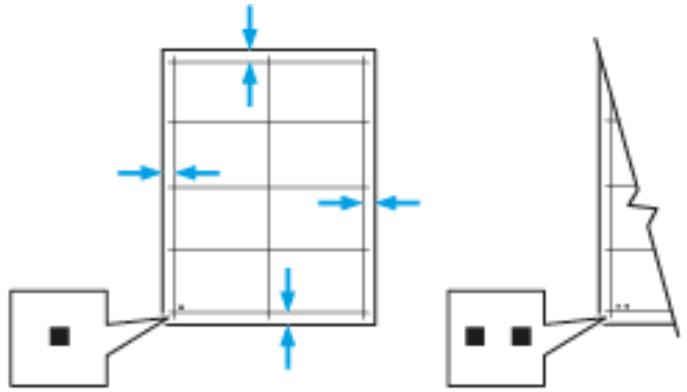
- For Side 2, measure the distance of the printed image from the top, bottom, left, and right edges.
- If the image is centered, no adjustment is required. If not centered, adjust the paper registration. For details, refer to Performing an Image Position Adjustment.
Performing an Image Position Adjustment
- At the printer control panel, press the Home button.
- Log in as administrator.
194 Xerox® VersaLink® Series Multifunction and Single Function Printers System Administrator Guide
- Touch Device Support Image Position.
- To adjust registration, select the source paper tray.
a. Touch Paper Supply.
b. Touch the required tray.
-
Using the chart printed in Verifying Paper Registration, select the side for registration.
-
For adjusting Side 1, touch Adjusted Side, then touch Side 1.
-
For adjusting Side 2, touch Adjusted Side, then touch Side 2.
-
To adjust the registration, touch Lead/Side Registration.
-
To adjust the side-to-side registration, for Side Registration, touch the Plus icon (+) or the Minus icon (-).
- To adjust the top-to-bottom registration, for Lead Registration, touch the Plus icon (+) or the Minus icon (-).
For reference, position the chart so that Side-1 or Side-2 dots are at the bottom of the page.
For Lead Registration, a positive value shifts the image down the page.
.
For Side Registration, a positive value shifts the image to the left.
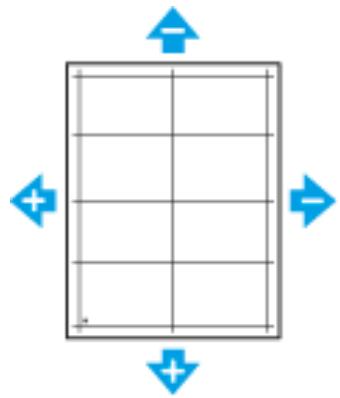
- To save your settings, touch OK.
- As needed, repeat steps 4 through 6 to enter more values.
- Print another sample page, then repeat the process until you complete the registration corrections.
- To return to the Home screen, press the Home button.
11
Customization and Expansion
This chapter contains:
Xerox Extensible Interface Platform 198
- Displaying or Hiding Apps on the Printer Control Panel 201
- Enabling the Plug-in Feature 202
Xerox Extensible Interface Platform®
The Xerox Extensible Interface Platform® allows independent software vendors and partners to develop personalized and customized document management solutions. These solutions can be integrated and accessed directly from the printer control panel. These solutions can leverage existing printer infrastructure and databases. Examples of applications include ScanFlow Store, Scan to PC Desktop, Equitrac Office, and others. For more information on Xerox Extensible Interface Platform® applications for your printer, contact your Xerox representative or refer to www.office.xerox.com/eip/enus.html on the Xerox website.

Note:
- The printer contains a third-party font package, Liberation fonts. For details and license, refer to https://fedorahosted.org/liberation-fonts/. These fonts are licensed under GNU General Public License. This font is used only with the Xerox Extensible Interface Platform® Second-Generation browser. For details, contact your Xerox representative.
- When a ConnectKey App includes a security certificate, the certificate installs onto the printer with the ConnectKey App. You can manage security certificates in the Embedded Web Server. For details, refer to Selecting a Certificate.
Configuring Extensible Services
- In the Embedded Web Server, log in as administrator.
- Click Apps.
- Click EIP Settings.
- Ensure that the EIP Browser toggle button is selected.
- To enable installation of ConnectKey Apps on the printer, for Allow ConnectKey App Install, select the toggle button.
- To enable installation of unencrypted ConnectKey Apps on the printer, for Allow Unencrypted ConnectKey App Install, select the toggle button.
- To enable verification of server certificates, for Verify Server Certificates, select the toggle button.
-
To set the soft keypad policy, for Soft Keypad Policy, select an option.
-
To show the soft keypad within ConnectKey Apps, select Show based on individual App setting.
-
To hide the soft keypad within all ConnectKey Apps, select Hide within all Apps.
-
If your Xerox EIP application requires a user password, to enable export of passwords, for Export Password to EIP Apps, select the toggle button.
- To enable your Xerox EIP application to start using remote scanning, for Start Job Using Remote Program, select the toggle button.
- To enable EIP Web Services, click EIP Web Services. For the services needed, select the toggle buttons, then click OK.
Configuring Proxy Settings
- In the Embedded Web Server, log in as administrator, then click Apps.
- Click EIP Settings.
198 Xerox® VersaLink® Series Multifunction and Single Function Printers System Administrator Guide
-
To enable a proxy server, in the Extensible Interface Platform area, click the Use Device Proxy Server toggle button.
-
Click the Proxy Server link.
-
To enable a proxy server, click the Proxy Server toggle button.
-
If your printer has both Wi-Fi and Ethernet enabled, in the Proxy Server area, click Proxy Setup, then select an option.
-
To configure a single proxy server for both Wi-Fi and Ethernet, click Common Proxy.
- To configure separate proxy servers for Wi-Fi and Ethernet, click Different Proxies.

Note: If your printer does not have both Wi-Fi and Ethernet enabled, the Proxy Setup setting does not appear.
-
Click Setup, then select the method for configuring the proxy server.
-
To use automatic settings for the proxy server, click Automatic.
- To use a configured default proxy settings script, click Configuration Script, then type the URL to acquire the script.
-
To enter settings manually, click Manual Address, then enter the configuration details for the proxy server.
-
If needed, in the HTTP window, edit other configuration settings.
- Click OK.
Setting Up a File Repository
A template contains scan settings and at least one destination for the scanned image files. You can associate a scan template with your service or use the default template.
To configure File Repositories:
- In the Embedded Web Server, log in as administrator, then click Apps.
- Click EIP Settings.
- In the Scan Template Settings area, click File Repositories.
- In the File Repository area, click an item in the list.
If there are no repositories in the list:
- Click the Plus icon (+), then select a protocol.
- Enter the configuration information.
- Click OK.
Configuring Template Pool Repository Settings
If you use a scanning management application, such as SMARTsend or ScanFlowStore, provide information about the server that hosts the templates on this page.
- In the Embedded Web Server, click Apps.
- Click EIP Settings.
- In the Scan Template Settings area, select Other Settings.
- In the Template Pool area, click Edit.
Customization and Expansion
- Click Server Type, then select the protocol for the server where the Template Pool is located.
- Enter the configuration information, then click OK.
- To enable automatic refresh of templates, enable the Automatic Refresh toggle button.
- For Daily Refresh Time, type the time that templates update.
- To update the template list immediately, click Refresh Template List Now.
- Click Print Confirmation Sheet, then select the conditions for when you want a confirmation sheet to print.
- To include user names in the job log, enable the User Name in the Job Log toggle button.
Displaying or Hiding Apps on the Printer Control Panel
To show or hide apps on the printer control panel:
- In the Embedded Web Server, click Apps.
- In the Installed Apps area, click the required app.
- Click Show/Hide.
Enabling the Plug-in Feature
To install and configure USB Card Readers on your device, activate the Plug-in Feature.
- In the Embedded Web Server, log in as administrator, then click System.
- Click Plug-in Settings.
- To enable the Plug-in Feature, click the Plug-in Feature toggle button.
- Click Close.
- To activate your changes, at the prompt, click Restart Now.
For more information about configuring a Common Access Card system on your Xerox device, refer to the Xerox® VersaLink® Common Access Card System Configuration Guide. Go to www.support.xerox.com, enter your printer name, then click Documentation. Select and download the documentation required.
- Xerox® VersaLink® Series
- Multifunction and Single Function
- Printers
- System Administrator Guide
- Table of Contents
- Introduction 11
- Initial Setup 15
- Network Connectivity 35
- Printing 109
- Copying 121
- Scanning 129
- Faxing. 145
- Accounting 165
- Administrator Tools 173
- Customization and Expansion 197
- 1
- Introduction
- This chapter contains:
- Overview
- Note:
- Configuring the Printer
- More Information
- 2
- Initial Setup
- Physically Connecting the Printer
- Using the Installation Wizard
- Configuration Report
- Printing the Configuration Report
- Downloading the Configuration Report from the Embedded Web Server
- Remote Control Panel
- Accessing Administration and Configuration Settings
- Accessing the Control Panel as a System Administrator
- Accessing the Embedded Web Server as a System Administrator
- Changing the System Administrator Password
- Initial Setup at the Control Panel
- Setting the Measurement Units
- Setting the Date and Time
- Setting the Sounds at the Control Panel
- Installing a Software Feature at the Control Panel
- Initial Setup in the Embedded Web Server
- Assigning a Name and Location to the Printer
- Displaying the IPv4 Address on the Home Screen
- Restricting Access to the Printer
- Selecting Apps to Appear on the Control Panel
- Setting the Sounds Using the Embedded Web Server
- Supplies Plan Activation Code
- Configuring Ethernet Options
- Configuring USB Settings
- Connecting the Printer to Wireless Networks
- Connecting to a Wireless Network from the Control Panel
- Connecting to a Wireless Network Using the Embedded Web Server
- Setting Up the Printer for Wireless LAN WPA Enterprise Encryption
- Connecting to Wi-Fi Direct
- Setting Group Owner as Group Role
- Setting Auto as Group Role
- Disabling Wireless Networking from the Control Panel
- Assigning a Network Address
- Assigning the IP Address Manually
- 3
- Network Connectivity
- Connecting to a Wireless Network
- Configuring Wi-Fi from the Embedded Web Server
- Connecting to a Wi-Fi Network at the Control Panel
- Configuring the Primary Network at the Control Panel
- Configuring the Primary Network From the Embedded Web Server
- Configuring Wi-Fi Using a Direct Connection to the Printer
- Disabling Wireless Networking
- Disabling Wireless Networking From the Embedded Web Server
- Wi-Fi Direct
- USB
- NFC
- AirPrint
- Enabling AirPrint
- Configuring AirPrint for IPP Authentication
- Importing a Security Certificate for AirPrint
- Configuring AirPrint for Software Updates
- Checking Printer Supplies in AirPrint
- Google Cloud Print
- Mopria
- Multicast DNS (Bonjour)
- FTP
- SFTP
- HTTP
- Configuring HTTP Settings in the Embedded Web Server
- Click OK.
- Enabling HTTPS at the Control Panel
- Enabling HTTPS Using the Embedded Web Server
- IP
- Configuring IP Settings at the Control Panel
- Configuring the Network Address Manually at the Control Panel
- Configuring IP Settings in the Embedded Web Server
- Selecting Between IPv4 and IPv6 Protocols
- Configuring IPv4 Settings
- Configuring IPv6 Settings
- Configuring DNS Settings
- Configuring 802.1X Settings
- IPP
- LDAP
- Adding LDAP Server Information
- Configuring LDAP Server Basic Information
- Configuring LDAP Server Additional Information
- Confirming LDAP User Mappings
- Configuring LDAP Authentication
- LDAP Custom Filters
- Configuring LDAP Custom Filters
- Configuring LDAP to Access Address Book Information
- LPD
- Raw TCP/IP Printing
- Configuring Raw TCP/IP Settings
- S/MIME
- SMTP
- SMB
- SNMP
- Configuring SNMPv1/v2c
- Configuring SNMPv3
- Editing SNMPv3 Properties
- SNTP
- SOAP
- WSD
- Enabling WSD
- Security
- Setting Access Rights
- Authentication
- Authorization
- Personalization
- Configuring Permissions for Personal Favorites
- Configuring Authentication Settings
- Setting the Login Method
- Setting the Simple Login Method
- Setting the Local Login Method
- User Database
- Adding User Information to the User Database
- Setting the Network Login Method
- Configuring Authentication Server Settings for Kerberos
- Configuring Authentication Server Settings for SMB
- Configuring Authentication Server Settings for LDAP
- Setting the Convenience Login Method
- Installing a USB Card Reader Plug-in
- Setting the Smart Card Login Method
- Configuring Smart Card Server Authentication
- Adding a Domain Controller
- Setting a Timeout and Synchronizing with a Time Server
- Configuring a Login Method
- Completing the Smart Card Configuration
- Setting Parameters for Login,Logout, and Password
- Setting Login Parameters
- SettingLogout Parameters
- Configuring Password Rules
- Configuring Authorization Settings
- Roles and Levels of Access
- Adding a New Device User Role
- Creating a Custom Printing User Role
- Copying an Existing Device User Role
- Copying an Existing Printing User Role
- Editing a Device User Role
- Editing a Printing User Role
- Adding Members to a Role
- Removing Members from a Role
- Deleting a Device User Role
- Deleting a Printing User Role
- Editing Guest Access
- Configuring LDAP Permissions Groups
- Enabling Firmware Verification
- Configuring Feature Enablement
- Enabling a Software Option
- Security Certificates
- Certificates for the Embedded Web Server
- Obtaining a Device Server Certificate from a Certificate Authority
- Installing and Selecting a Device Server Certificate Using the Embedded Web Server
- Installing Certificates
- Selecting a Certificate
- Importing a Certificate
- Creating and Installing a Xerox Device Certificate
- Creating a Certificate Signing Request
- Deleting a Certificate
- Enabling Automatic Self-Signed Certificates
- Enabling Certificate Path Validation
- Configuring Settings for Certificate Revocation
- Configuring the Printer for Smart Cards
- Managing Disk Drives
- Managing Disk Overwrite
- To enable Disk Overwrite:
- To schedule a Disk Overwrite:
- To start a Disk Overwrite manually:
- Managing Network Security Settings
- FIPS 140-2
- 802.1X
- IPsec
- Managing Settings for SSL/TLS
- Enabling HTTPS in the Embedded Web Server
- Configuring Settings for SSL/TLS
- Managing Port Settings
- Configuring Filters for IP Addresses
- Configuring Filters for Domains
- Network Logs
- Downloading a Log File
- Setting System timeouts
- USB Port Security
- Enabling or Disabling USB Ports
- 5
- Printing
- Setting System Defaults and Policies for Printing
- Optimizing the First Page
- Setting the Default Print Paper Size
- Optimizing Color Printing
- Configuring Color Adjustments Manually
- Optimizing the Printing of Graphic Files
- General Printer Settings
- Changing the Tray Settings
- Configuring Policies for Print Jobs
- Setting Paper Size Preferences
- Enabling an Automatic Startup Page
- Configuring Settings for Custom Paper
- Configuring Settings for Memory and Print Job Types
- Enabling the Policy for Paper Size Substitution
- Configuring a Bypass Tray Confirmation
- Specifying Behavior After an Error
- Managing Banner Pages
- UNIX, Linux, and AS/400 Printing
- Xerox® Printer Manager
- Installing Xerox® Printer Manager
- Launching Xerox® Printer Manager
- AS/400
- Installing the WSCO and Setting up Print Queues
- Configuring Defaults for Printer Reports
- Copying
- Setting System Defaults and Policies for Copying
- Configuring Auto Detection for Legal Size Originals
- Confirming the Position of Document Guides
- Setting a Default Image Gradation Mode
- Resolving the Original Size Detection Error
- Modifying the Default Settings for the Copy App
- Setting Defaults for Paper Management
- Setting Defaults for Image Quality
- Setting Defaults for Image Placement
- Setting Defaults for Annotations
- Configuring General Settings and Policies for the Copy App
- Setting Policies for Paper Management
- Setting Policies for Image Management
- Setting Policies for Annotations
- Configuring Presets for Original Page Sizes
- 7
- Scanning
- Scanning Setup Overview
- Setting System Defaults and Policies for Scanning
- Setting Up Scanning to an FTP Server
- Setting Up Scanning to an SFTP Server
- Setting Up Scanning to an Email Address
- Configuring the Email App
- Setting Up Scanning to an Email Address That Uses a Third-Party Provider
- Configuring the Scan To App
- Enabling WSD Scan Services
- Scanning to USB
- Scanning to My Folder on the Printer
- Configuring Scan To Desktop
- Setting Up Scanning to a Shared Windows Folder Using SMB
- Obtaining the IP Address and Host Name of your Windows Computer
- Disabling the Sharing Wizard on Your Windows Computer
- Faxing
- Fax Overview
- Enabling the Fax or Server Fax Apps
- Fax
- Setting System Defaults and Policies for Faxing
- Modifying the Default Settings in the Fax App
- Modifying the Default Fax Settings at the Control Panel
- Modifying the Default Fax Settings in the Embedded Web Server
- Creating Predefined Comments for a Fax Cover Sheet
- Configuring General Settings and Policies
- Configuring the Fax Settings at the Control Panel
- Configuring Settings for Fax Send in the Embedded Web Server
- Configuring Settings for Fax Receive in the Embedded Web Server
- Configuring Settings for Fax Dialing in the Embedded Web Server
- Configuring Settings for Fax Paper Output in the Embedded Web Server
- Configuring Settings for Fax Performance in the Embedded Web Server
- Enabling Use of a Native Fax App in the Embedded Web Server
- Enabling the Remove Blank Pages Option
- Configuring Fax Over IP
- Enabling SIP Settings
- Configuring T.38 Settings
- Printing Fax Reports
- Configuring Reports
- Printing a Fax Activity Report
- Editing the Address Book
- Adding or Editing Fax Contacts in the Address Book in the Embedded Web Server
- Adding or Editing Groups in the Address Book at the Control Panel
- To add groups:
- To edit groups:
- Adding or Editing Groups in the Address Book in the Embedded Web Server
- Managing Favorites
- Configuring Basic Fax Line Settings
- Server Fax
- Configuring a Server Fax Filing Repository
- Configuring a Fax Repository Using FTP or SFTP
- Before you begin:
- Configuring a Fax Repository Using SMB
- Configuring a Fax Repository Using SMTP
- Configuring Server Fax Defaults and Settings
- 9
- Accounting
- Xerox® Standard Accounting
- Enabling Xerox Standard Accounting
- Creating a User Account
- Editing the Account Settings for Individual Users
- Changing a User Password
- Deleting an Account
- Generating and Downloading a Xerox Standard Accounting Report
- Resetting Usage Limits
- Creating a General Account
- Network Accounting
- Accounting Using an Auxiliary Device
- 10
- Administrator Tools
- Monitoring Alerts and Status
- Alert Notification
- Email Alerts
- Configuring Low Supply Warning
- Software Upgrade Notification
- Configuring Remote Services Notification
- Fault History
- Viewing Fault History
- Energy Saving Settings
- Configuring Power Saver Using the Embedded Web Server
- Entry Screen Defaults
- Remote Services and Billing Information
- Remote Services
- View Usage and Billing Information
- Usage Counters
- Billing Information
- Billing Impression Mode
- Cloning
- Creating a Clone File
- Installing a Clone File
- Xerox® Device Manager Cloning Feature
- Address Books
- Device Address Book
- Configuring Security Settings for the Device Address Book
- Network Address Book
- Font Management Utility
- Customer Support
- Xerox Online Support
- Resetting and Restarting the Printer
- Restarting the Printer at the Control Panel
- Updating the Printer Software
- Checking the Software Version
- Enabling Upgrades
- Installing and Configuring Software Updates Using the Embedded Web Server
- Installing and Configuring Software Updates from the Control Panel
- Installing Software after a Software Update Notification
- Installing Software Manually
- Resetting the Printer Settings
- Adjusting Color, Image, and Text Detection Settings
- Configuring the Color Calibration at the Control Panel
- Performing an Automatic Color Registration at the Control Panel
- Configuring the Scan Color Consistency at the Control Panel
- Configuring the Image Position at the Control Panel
- Verifying the Image Position
- Performing an Image Position Adjustment
- 11
- Customization and Expansion
- Xerox Extensible Interface Platform®
- Configuring Extensible Services
- Configuring Proxy Settings
- Setting Up a File Repository
- Configuring Template Pool Repository Settings
- Displaying or Hiding Apps on the Printer Control Panel
- Enabling the Plug-in Feature
Brand : XEROX
Model : VERSALINK B600V_DN
Category : Laser printer