VSC-VGA-TV - Audio/video converter Black Box - Free user manual and instructions
Find the device manual for free VSC-VGA-TV Black Box in PDF.


| Product Type | Audio/Video Converter (VGA to TV) |
| Model | VSC-VGA-TV |
| Brand | Black Box |
| Input Interface | VGA (15-pin D-sub) |
| Output Interface | Composite Video (RCA) + Stereo Audio (RCA) |
| Maximum Resolution | 1920x1080 (input) / 480i (output) |
| Power Supply | 5V DC via USB or included adapter |
| Power Consumption | 2.5W |
| Dimensions (W x D x H) | 2.8 x 1.0 x 0.6 inches (71 x 25 x 15 mm) |
| Weight | 1.2 oz (34 g) |
| Supported Video Formats | NTSC, PAL |
| Supported Audio | Stereo L/R (via 3.5mm jack to RCA cable) |
| Housing Material | Plastic |
| Operating Temperature | 32°F to 104°F (0°C to 40°C) |
| Storage Temperature | -4°F to 140°F (-20°C to 60°C) |
| Included Accessories | USB power cable, RCA cable, user manual |
| Maintenance | Wipe with dry cloth; avoid liquids |
| Safety | Use only supplied power adapter; keep away from moisture |
| Spare Parts | Available via Black Box support; standard cables replaceable |
| Repairability | Not user-serviceable; contact support for repairs |
| Warranty | 1 year limited |
| General Information | Converts VGA signals from computers to composite video for TVs or projectors |
Frequently Asked Questions - VSC-VGA-TV Black Box
User questions about VSC-VGA-TV Black Box
0 question about this device. Answer the ones you know or ask your own.
Ask a new question about this device
Download the instructions for your Audio/video converter in PDF format for free! Find your manual VSC-VGA-TV - Black Box and take your electronic device back in hand. On this page are published all the documents necessary for the use of your device. VSC-VGA-TV by Black Box.
USER MANUAL VSC-VGA-TV Black Box
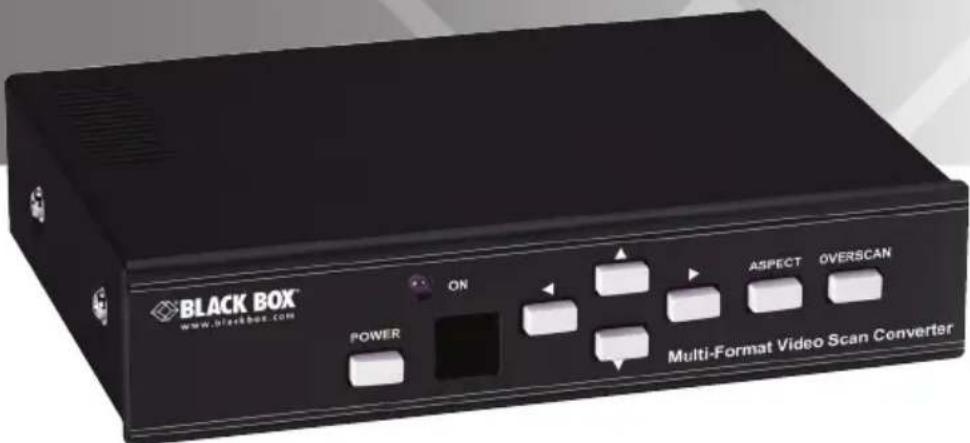
Multi-Format Video Scan Converter
Converts PC and HDTV to interlaced NTSC/PAL and Component output.
FEDERAL COMMUNICATIONS COMMISSION AND INDUSTRY CANADA RADIO FREQUENCY INTERFERENCE STATEMENTS
This equipment generates, uses, and can radiate radio-frequency energy, and if not installed and used properly, that is, in strict accordance with the manufacturer's instructions, may cause interference to radio communication. It has been tested and found to comply with the limits for a Class A computing device in accordance with the specifications in Subpart J of Part 15 of FCC rules, which are designed to provide reasonable protection against such interference when the equipment is operated in a commercial environment. Operation of this equipment in a residential area is likely to cause interference, in which case the user at his own expense will be required to take whatever measures may be necessary to correct the interference.
Changes or modifications not expressly approved by the party responsible for compliance could void the user's authority to operate the equipment.
This digital apparatus does not exceed the Class A limits for radio noise emission from digital apparatus set out in the Radio Interference Regulation of Industry Canada.
Electrical Safety Statement
Trademarks Used in this Manual
Black Box and the Double Diamond logo are registered trademarks of BB Technologies, Inc.
Any other trademarks mentioned in this manual are acknowledged to be the property of the trademark owners.
Table of Contents
- Specifications....7
- Overview....8
2.1 Introduction 8
2.2 Features 8
2.3 What's Included 8
2.4 Hardware Description 9
2.4.1 Front Panel....9
2.4.2 Back Panel 10
- Remote Control Functions ...... 12
- RS-232 Software Operation....15
4.1 Software Installation 15
4.2 Main Panel 15
- Connection and Installation 21
1. Specifications
Output System: NTSC or PAL interlaced video, YCbCr Component
Resolution: PC: VGA @ 60 Hz up to 140 Hz refresh rate,
SVGA @ 60 Hz up to 120 Hz refresh rate,
XGA @ 60 Hz up to 85 Hz refresh rate,
SXGA @ 60 Hz refresh rate,
UXGA @ 60 Hz refresh rate;
HDTV: 480i & 480p @ 60 Hz,
576i & 576p @ 50 Hz,
720p @ 50 & 60 Hz,
1080i @48, 50 & 60 Hz
User Controls: (7) front-panel buttons: Power, Left arrow, Right arrow,
Down arrow, Up arrow, Aspect, Overscan;
(1) Back-panel switch: Power On/Off
Connectors: Input: (1) HD15, (3) RCA (YPbPr or YCbCr), (1) DB9 RS-232;
Output: (1) RCA, (1) 4-pin mini DIN, (3) RCA (YCbCr), (1) HD15, (3) RCA
(YPbPr/YCbCr)
Indicators: LEDs: (1) Standby/On
Power: 5-VDC, 2-A, center positive
Size: 2"H x 6.1"W x 8"D (5 x 15.5 x 20.4 cm)
Weight: 2.2 lb. (1 kg)
2. Overview
2.1 Introduction
The VSC-VGA-TV is a high-performance, Multi-Format Video Scan Converter. It converts not only PC but also HDTV images to interlaced NTSC/PAL and component output. Use it for videoconferencing, home theaters, business presentations, lecturing rooms, or viewing PC/HDTV images on TV.
2.2 Features
- Back-panel switch selects PC or HDTV input, NTSL or PAL, and Component output.
- Supports high-resolution PC input up to UXGA (1600 x 1200 @ 60 Hz) and HDTV input up to 1080i @ 60 Hz.
- Select output video format between Composite/S-video, and Component (YCbCr).
- Supports a high-input refresh rate up to 140 Hz (VGA).
- Loops through PC and HDTV input signals via additional HD15 and 3 RCA connectors.
- Provides adjustable image scaling: Pan, Position, and Zoom.
- Advanced 2D flicker filter ensures a flicker-free picture.
- Aspect adjustment for wide-screen HDTV source.
- Adjustable contrast, brightness, color, and sharpness.
- Provides overscan, freeze, test pattern, and magnifier.
- Adjust and control via an RS-232 interface.
- Has remote control and OSD operation display.
2.3 What's Included
Your package should include the following items. If anything is missing or damaged, contact Black Box Technical Support at 724-746-5500 or info@blackbox.com.
- Multi-Format Video Scan Converter
• (1) 3-ft. (0.9-m) Composite video cable
• (1) 3-ft. (0.9-m) S-video cable
• (1) 3-ft. (0.9-m) Component video cable
• (1) 3-ft. (0.9-m) VGA cable
• RS-232 Control Software
• (1) IR remote control (includes batteries)
• (1) power supply
- This user's manual
2.4 Hardware Description
2.4.1 Front Panel
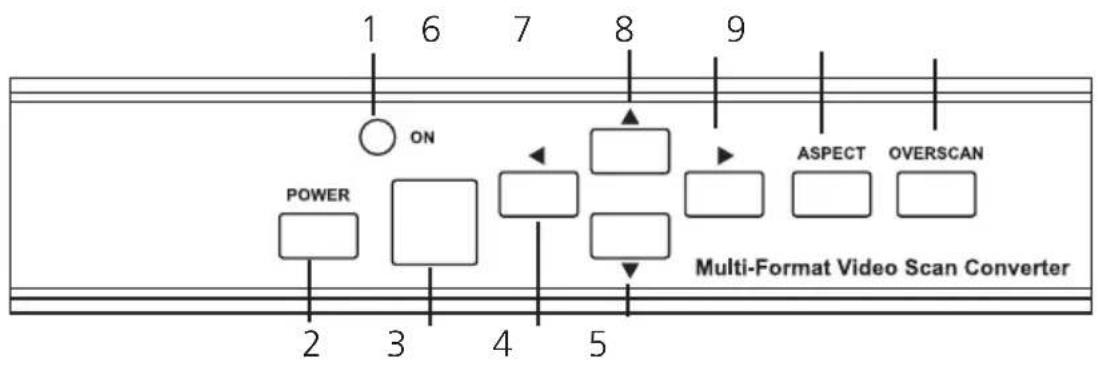
Figure 2-1 shows the front panel of the converter. Table 2-1 describes its components.
flowchart
graph TD
    A["POWER"] --> B["ON"]
    B --> C["Multi-Format Video Scan Converter"]
    C --> D["ASPECT"]
    C --> E["OVERSCAN"]
Figure 2-1. Front panel.
Table 2-1. Front panel components.
Number Component Description
1 Standby/On indicator This indicator lights red when it is in standby mode. It lights green when it is in ON mode.
2 Power button Push this button to turn power on or to standby.
3 Remote control sensor Senses signal from the remote control.
4 Left arrow button Push the button to adjust the picture leftward under Position, Pan, or Zoom mode.
5 Down arrow button Push the button to adjust the picture downward under Position, Pan, or Zoom mode.
Table 2-1 (Continued). Front panel components.
Number Component Description
6 Up arrow button Push the button to adjust the picture
upward under Position, Pan, or Zoom mode.
7 Right arrow button Push the button to adjust the picture
rightward under Position, Pan, or Zoom mode.
8 Aspect button Push the button to select the screen
aspect: Full, Pan and Scan, or Letterbox.
9 Overscan button Push the button to overscan/underscan
the picture.
2.4.2 Back Panel
Figure 2-2 shows the back panel of the converter. Table 2-2 describes its components.
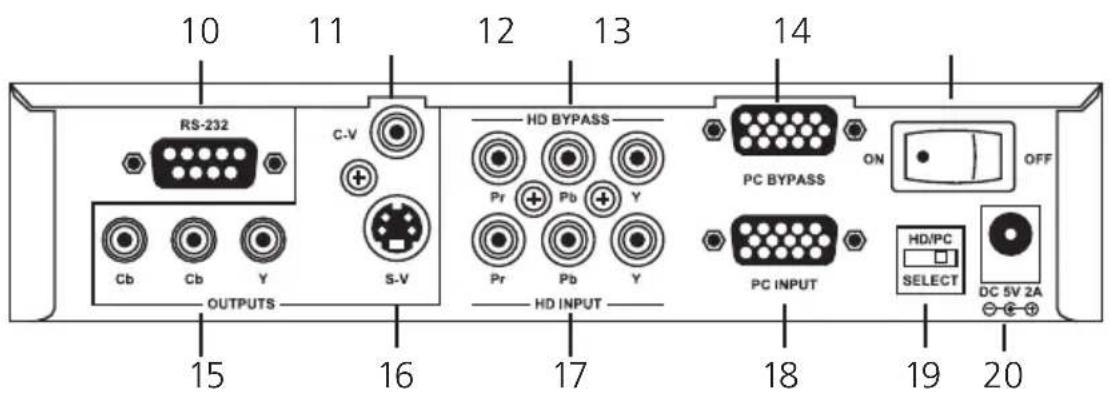
Figure 2-2. Back panel.
Table 2-2. Back panel components.
Number Component Description
| 10 | DB9 connector | RS-232 |
| 11 | RCA connector | Composite video output |
| 12 | (3) RCA connectors | HDTV (YPbPr) loop-through output |
| 13 | HD15 connector | PC loop-through output |
| 14 | Rocker switch | Selects power ON/OFF |
Table 2-2 (continued). Back panel components.
Number Component Description
15 (3) RCA connectors YCbCr Component output connector
16 4-pin mini DIN connector S-Video output
17 (3) RCA connectors HDTV (YPbPr) input
18 HD15 connector PC input
19 Slide switch Selects input source resolution type
20 Barrel 5-VDC, 2-A power supply
NOTE: You can select output video format between Composite/S-Video and Component (YCbCr). Press the output key on the IR remote to select the output format.
3. Remote Control Functions
Figure 3-1 shows the remote control. Table 3-1 describes its components.
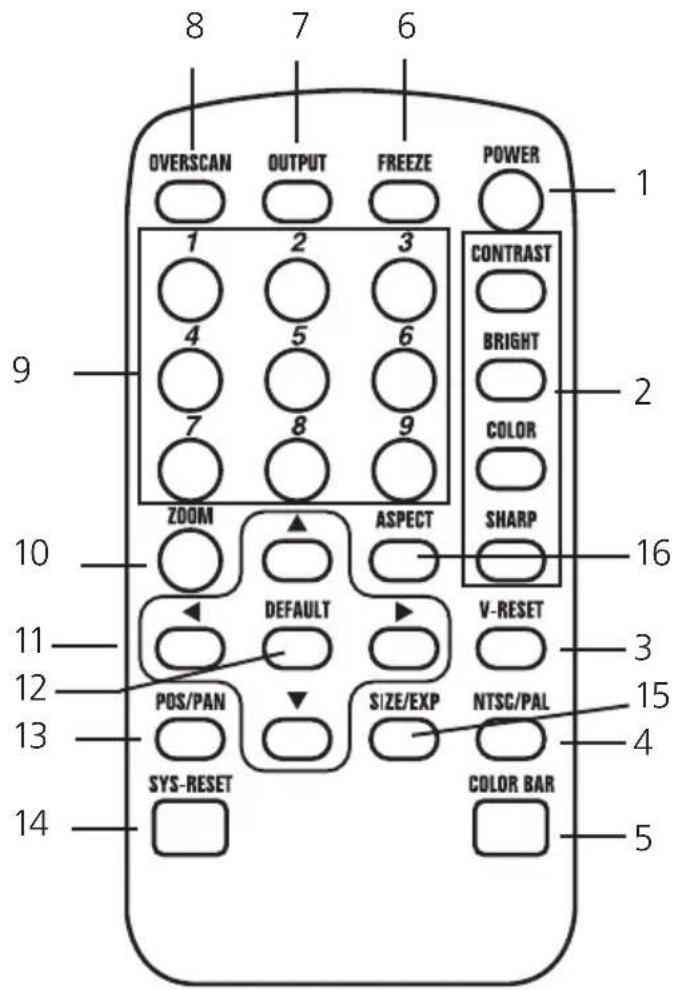
Figure 3-1. Remote Control.
Table 3-1. Remote Control Components.
Number Component Description
1 Power Turn remote control ON/OFF
2 Video setting adjustments Adjust picture contrast, brightness, color, and sharpness
3 V-Reset button Press the button to reset the picture adjustment to factory default value
4 NTSC/PAL Press the button to select NTSC or PAL as video output
Table 3-1 (Continued). Remote Control Components.
Number Component Description
| 5 | Color bar pattern ON/OFF | Press the button to show color bar pattern on the screen. Press again to close the color bar. |
| 6 | Image freeze ON/OFF | Press the button to freeze an image.Press again to un-freeze the image. |
| 7 | Output format | Press the button to select the desired output format |
| 8 | Under/overscan | Press the button to choose an underscan image or an overscan image. |
| 9 | 9-blocks selection (Zoom) | Under zoom mode, press one of the buttons to select its corresponding sub-area, which is 19 of the full screen |
| 10 | Zoom ON/OFF | Press the button to zoom in a picture.Press again to zoom out. |
| 11 | Horizontal/vertical adjust arrows | Adjust the size or position of an image when it is under Zoom, Position/Pan, or Size/EXP mode. |
| 12 | Default | Press the button to revert the following parameters to factory preset value:Zoom, Position, Size, Picture Adjust |
| 13 | Pos/Pan | When a picture is in underscan mode, press the button to adjust the position.When a picture is in overscan mode, press the button to adjust the pan. |
| 14 | System Reset | Press the button to revert all system parameters back to factory preset value.The system parameters default settings are: Overscan, NTSC output, full aspect, video settings reset, position/pan/size/expand reset |
Table 3-1 (Continued). Remote Control Components.
Number Component Description
15 Size/Exp When a picture is in underscan mode,
press the button to do size adjustment. When a picture is in overscan mode, press the button to do expand adjustment.
16 Aspect Press the button to switch between full,
pan & scan, or letterbox.
4. RS-232 Software Operation
System requirements: PC OS: Windows 98/Me/2000/XP/7
4.1 Software Installation
- Place the installation CD in the CD-ROM drive.
- Run setup.exe on the installation CD.
- OS might need to update some files.
Restart the PC. After the PC is ready, run setup. exe again.
- Click taskbar menu (START)->(Programs)->(Scan Converter) to run software.
4.2 Main Panel
Figure 4-1 shows the main panel screen and lists its components.
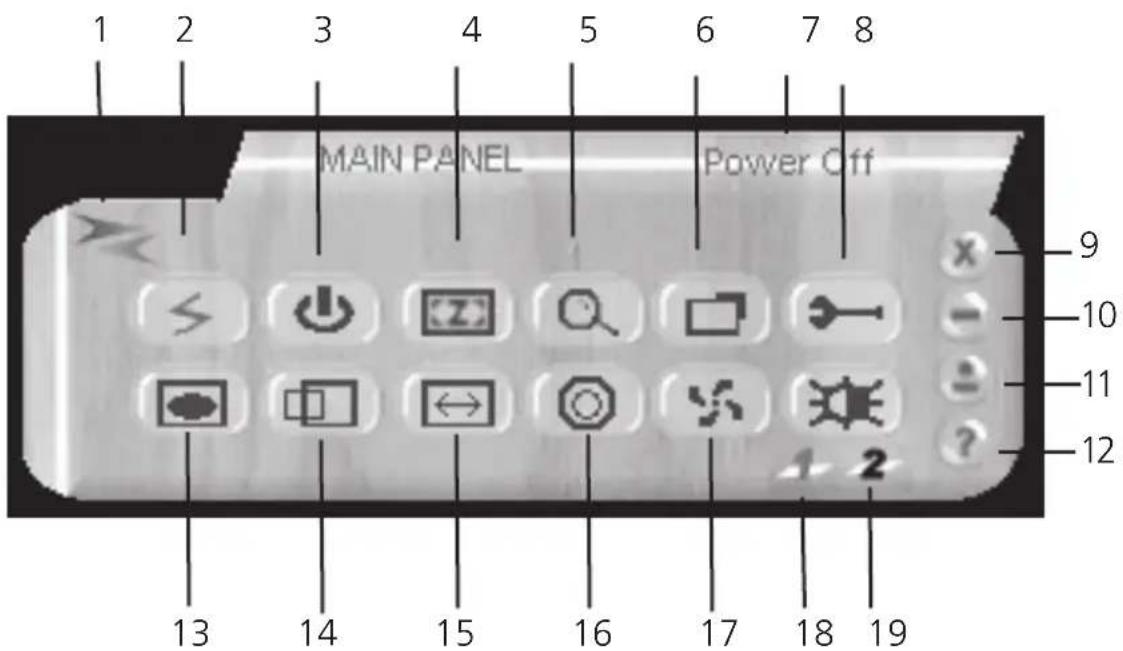
| No. | Component | No. | Component | No. | Component |
| 1 | Connection status | 8 | Option | 14 | Pan/Position |
| 2 | Power | 9 | Close | 15 | Expand/Size |
| 3 | System reset | 10 | Minimize | 16 | Output format |
| 4 | Zoom | 11 | System tray | 17 | Screen frame |
| 5 | Magnifier | 12 | About | 18 | Video settings |
| 6 | Under/overscan | 13 | Aspect | 19 | RS-232 COM port |
| 7 | Prompt |
Figure 4-1. Main panel screen.
- Connection Status: Gray icon means the Multi-Format Video Scan Converter is disconnected. Colored icon means the VSC-VGA-TV unit is connected.
- Power: Power on/off.
- System reset: Reset VSC-VGA-TV settings to the default value.
- Zoom: Turn zoom on.
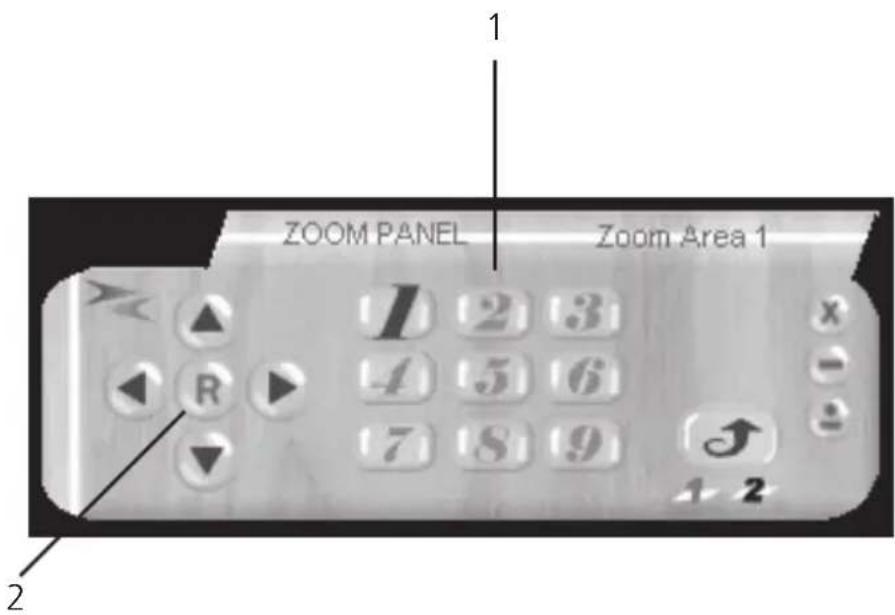
Number Component
1 Zoom area: Zoom area selection: 1–9
2 Reset: Reset to zoom area 1
Figure 4-2. Zoom area on the screen.
- Magnifier: Turn the magnifier on. Only for PC-INPUT.
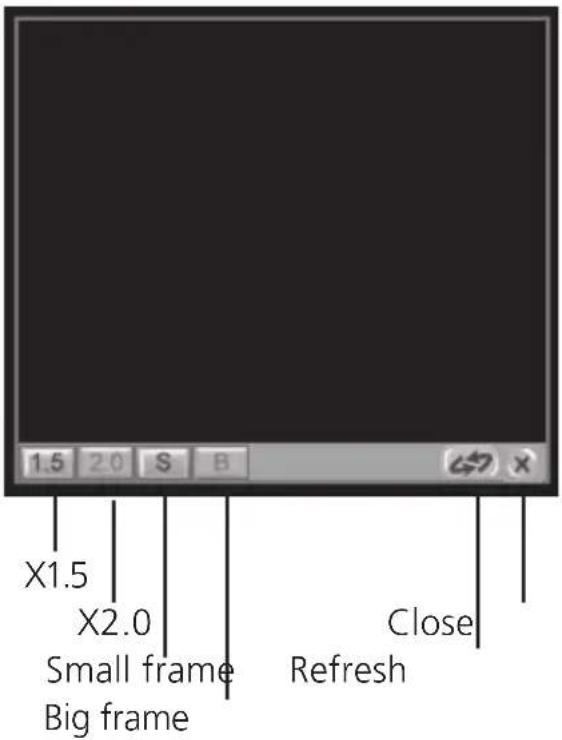
Figure 4-3. Magnifier screen.
-
Under/overscan: TV overscan adjustments are "pan" and "expand"; underscan adjustments are "position" and "size."
-
Prompt: Operation message.
-
Option: TV system options, including panel skin, test pattern, and window on top.
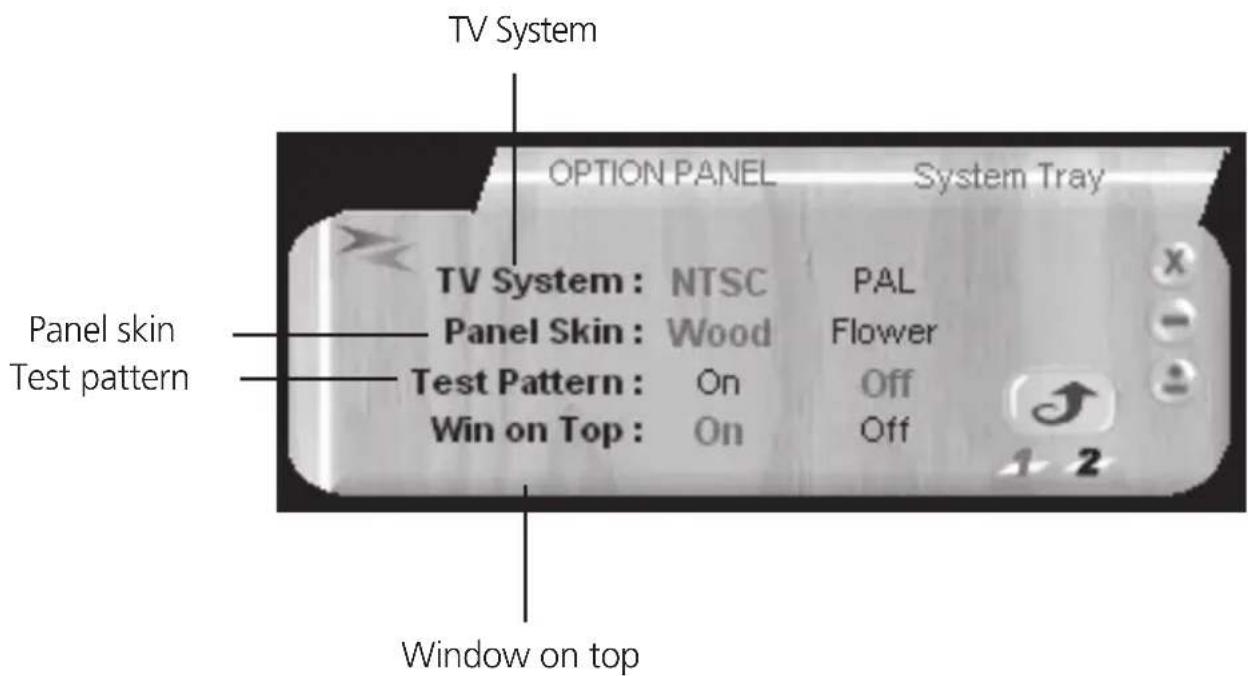
Figure 4-4. TV system options.
-
Close: Terminate application software.
-
Minimize: Shrink the application software to the window taskbar.
-
System tray: Shrink the application software to the system tray. Click the icon and return to the normal window.
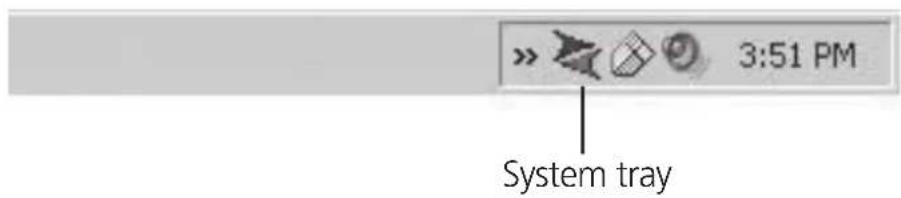
Figure 4-5. System tray.
- About: Display the software version.
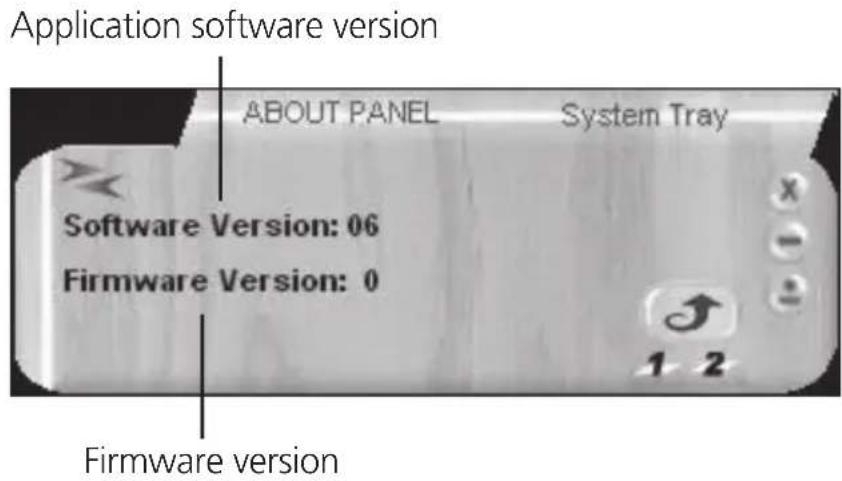
Figure 4-6. Software version: application software version; Firmware version: Multi-Format Video Scan Converter firmware version.
- Aspect: Select the screen aspect: Full>Pan & Scan>Letterbox.
14/15. Pan/Position and Size/Expand adjustments.
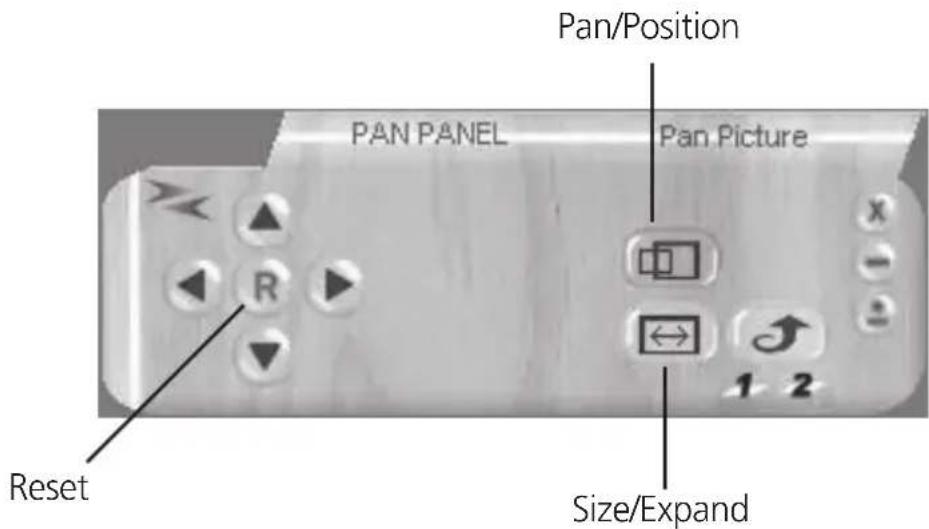
Pan/Position Adjustments: Position for underscan. Pan adjustment for overscan. Size/Expand adjustments: Size for underscan. Expand for overscan. Reset: Reset settings to default values.
Figure 4-7. Adjustments screen.
-
Output format: Select output format for C-V/S-V, or YCbCr.
-
Screen freeze: Still screen.
-
Video settings: Brightness/Contrast/Color/Sharpness adjustments.
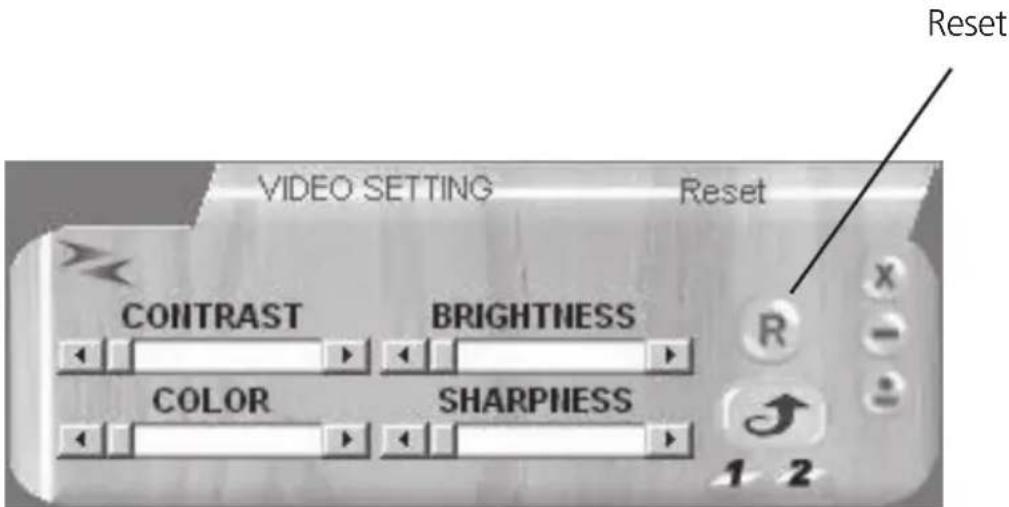
Figure 4-8. Reset: Reset settings to default values.
- RS-232 Communication Port: COM1: or COM2:.
5. Connection and Installation
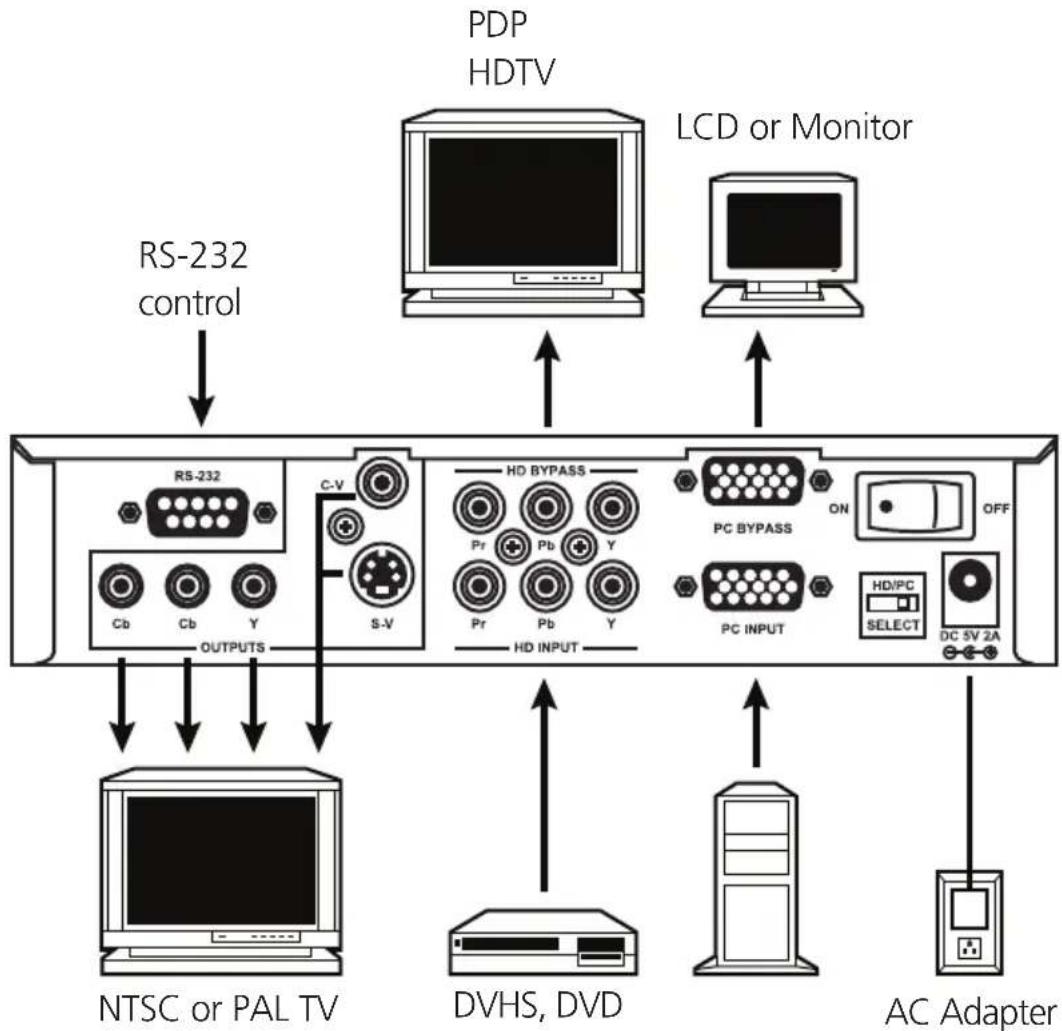
flowchart
graph TD
    A["RS-232 control"] --> B["RD System"]
    C["PDP HDTV"] --> D["LCD or Monitor"]
    E["NTSC or PAL TV"] --> F["DC Adapter"]
    G["DVHS, DVD"] --> F
    B --> H["HD BYPASS"]
    B --> I["PC BYPASS"]
    B --> J["PC INPUT"]
    B --> K["HD/PC SELECT"]
    B --> L["ON OFF"]
    style A fill:#f9f,stroke:#333
    style C fill:#ccf,stroke:#333
    style E fill:#cfc,stroke:#333
    style G fill:#fcc,stroke:#333
    style F fill:#ffc,stroke:#333
    style B fill:#cff,stroke:#333
    style D fill:#ffc,stroke:#333
    style I fill:#ffc,stroke:#333
    style J fill:#ffc,stroke:#333
    style K fill:#ffc,stroke:#333
    style L fill:#ffc,stroke:#333
Figure 5-1. Typical application.
Table 5-1 shows the connection between the Multi-Format VideoScan Converter and remote controller with RS-232 modem cable.
Table 5-1. Modem cable pin definitions.
VSC-VGA-TV Remote Controller
Pin Definition Pin Definition
| 1 | NC | 1 | NC |
| 2 | TxD | 2 | RxD |
| 3 | RxD | 3 | TxD |
| 4 | NC | 4 | NC |
| 5 | GND | 5 | GND |
| 6 | NC | 6 | NC |
| 7 | NC | 7 | NC |
| 8 | NC | 8 | NC |
9 NC
• RS-232 transmission format:
Baud rate: 9600 bps
Data bits: 8 bits
Parity: None
Stop bit: 1 bit
- RS-232 transmission Command/Response codes:
- Command/Response codes are the combination of 6 bytes.
- Every command's transmission, scan converter responses the equal codes.
- Only PWR??? , VER??? codes are available while unit is on Power-Off status.
- Some functions need time to process.
Wait until you receive the for "RDY???" code, then you can input the next command.
Table 5-2. Code descriptions.
Code Ready State Comment Description
| PWR000 | RDY005 POWER power off | ||
| PWR001 | power on | ||
| PWR999 | inquire status | ||
| NPO000 | N/P output NTSC output | ||
| NPO001 | PAL output | ||
| NPO999 | inquire status | ||
| FRZ000 | FREEZE | freeze image off | |
| FRZ001 | freeze image on | ||
| FRZ999 | inquire status | ||
| SCN000 | SCAN | underscan | |
| SCN001 | overscan | ||
| SCN999 | inquire status | ||
| ZOM000 | RDY006 | ZOOM | zoom off |
| ZOM001 | RDY006 zoom on | ||
| ZOM999 | inquire status | ||
| MVU000 | Move UP | move UP button release | |
| MVU001 | move UP button press | ||
| MVD000 | Move DOWN move DOWN button release | ||
| MVD001 | move DOWN button press | ||
| MVL000 | Move LEFT move LEFT button release | ||
| MVL001 | move LEFT button press | ||
| MVR000 | Move RIGHT | move RIGHT button release | |
| MVR001 | move RIGHT button press | ||
| SZU000 | Size UP release | shorter height image button | |
| SZU001 | shorter height image button press | ||
| SZD000 | Size DOWN release | higher height image button | |
| SZD001 | higher height image button press | ||
| SZL000 | Size LEFT narrower width image button release | ||
| SZL001 | narrower width image button release | ||
| SZR000 | Size RIGHT wider width image button release | ||
| SZL001 | wider width image button release | ||
| RST000 | RDY000 RESET system reset | ||
| RST001 | reset image position | ||
| RST002 | reset image size | ||
| RST003 | RDY003 | reset video settings | |
| PAT000 | RDY007 | PATTERN test pattern off | |
| PAT001 | RDY007 | test pattern on | |
| PAT999 | inquire status | ||
| FMT000 | Output Format | CV/SV | |
| FMT001 | YsUV | ||
| FMT999 | inquire status | ||
| ARA001-ARA009 | Zoom AREA zoom area 1-area 9 | ||
| ARA999 | inquire status | ||
| ASP000 | ASPECT | aspect is full screen | |
| ASP001 | aspect is pan&scan | ||
| ASP002 | aspect is letterbox | ||
| ASP999 | inquire status | ||
| CON001-CON063 | CONTRAST | range = 0-63 | |
| CON999 | inquire status | ||
| BRI000-BRI255 | BRIGHTNESS | range = 0-255 | |
| BRI999 | inquire status | ||
| SAT000-SAT063 | SATURATION | range = 0-63 | |
| inquire status | |||
| FLK000-FLK021 | FLICKER | range = 0-21 | |
| FLK999 | inquire status | ||
| VER??? | VERSION | unit firmware version response | |
| VER999 | inquire unit firmware version | ||
Black Box Tech Support: FREE! Live. 24/7.
Tech support the way it should be.

natural_image
Black-and-white portrait of a smiling woman wearing a headset (no text or symbols visible)Great tech support is just 20 seconds away at 724-746-5500 or blackbox.com.

BLACK BOX®
NETWORK SERVICES
About Black Box
Black Box Network Services is your source for more than 118,000 networking and infrastructure products. You'll find everything from cabinets and racks and power and surge protection products to media converters and Ethernet switches all supported by free, live 24/7 Tech support available in 20 seconds or less.
© Copyright 2010. All rights reserved.