PT65H - Electronics Allsee - Free user manual and instructions
Find the device manual for free PT65H Allsee in PDF.


User questions about PT65H Allsee
0 question about this device. Answer the ones you know or ask your own.
Ask a new question about this device
Download the instructions for your Electronics in PDF format for free! Find your manual PT65H - Allsee and take your electronic device back in hand. On this page are published all the documents necessary for the use of your device. PT65H by Allsee.
USER MANUAL PT65H Allsee
text_image
15:45 Jun 15, 2020 Monday Whiteboard File Manager VIP Multi Screen Browser More Apps1. Wallpaper
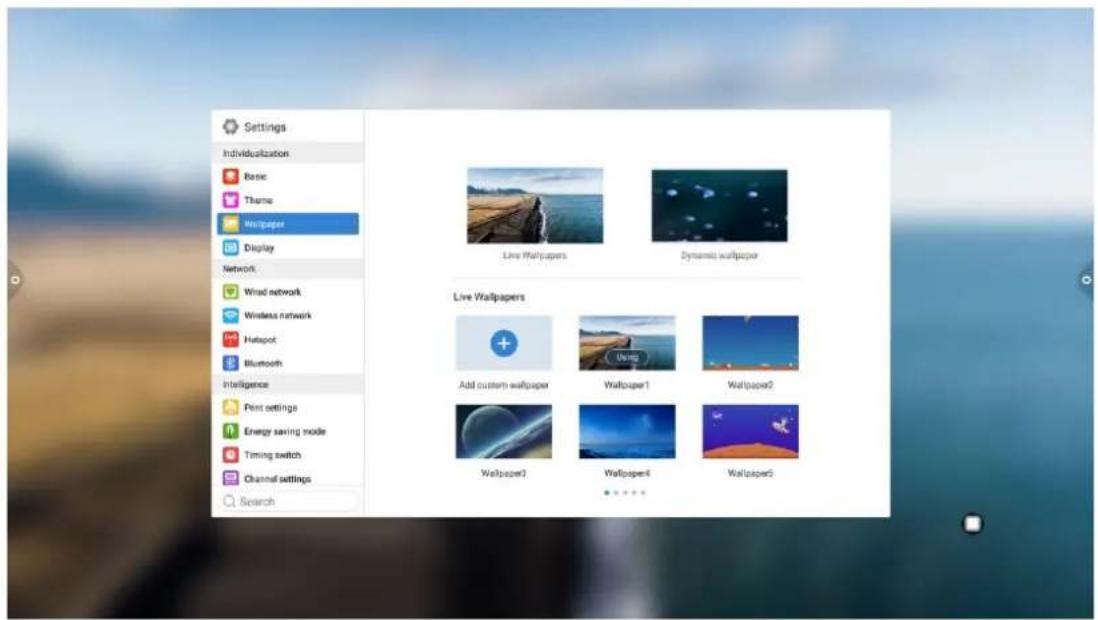
Wallpaper has dynamic and static wallpaper or can be added by custom. Custom added wallpaper will be stored in static wallpaper and can be deleted by long press.
text_image
Settings Individualization Basic Theme Wallpaper Display Network Wind network Wireless network Hotspot Bluetooth Intelligence Print settings Energy saving mode Timing switch Channel settings Search Live Wallpapers Dynamic wallpaper Live Wallpapers Add custom wallpaper Wallpaper1 Wallpaper2 Wallpaper3 Wallpaper4 Wallpaper52. Display
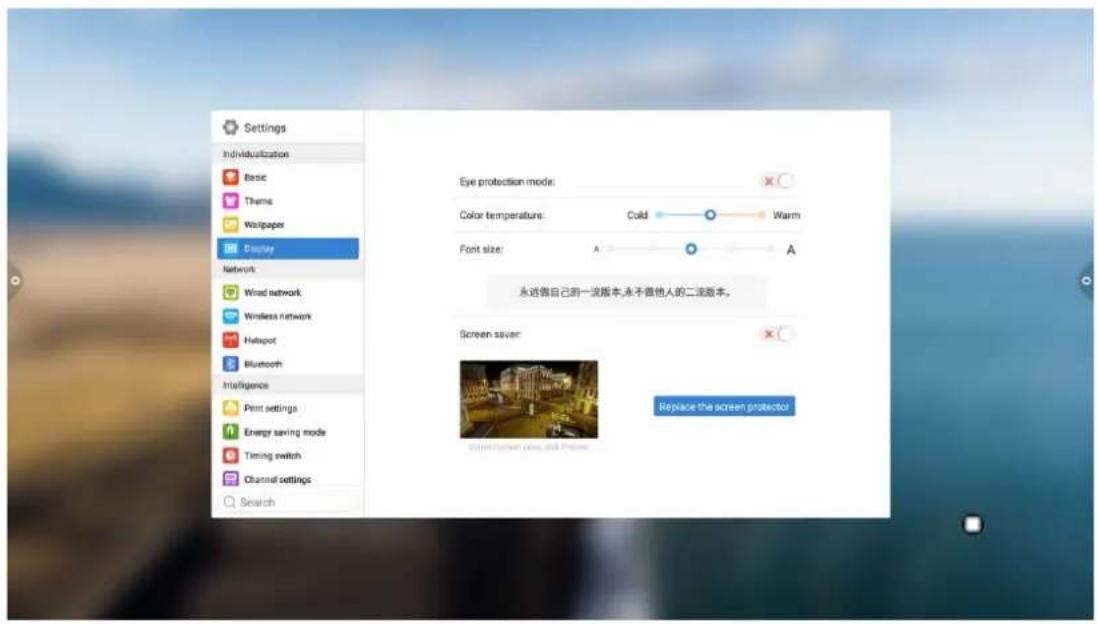
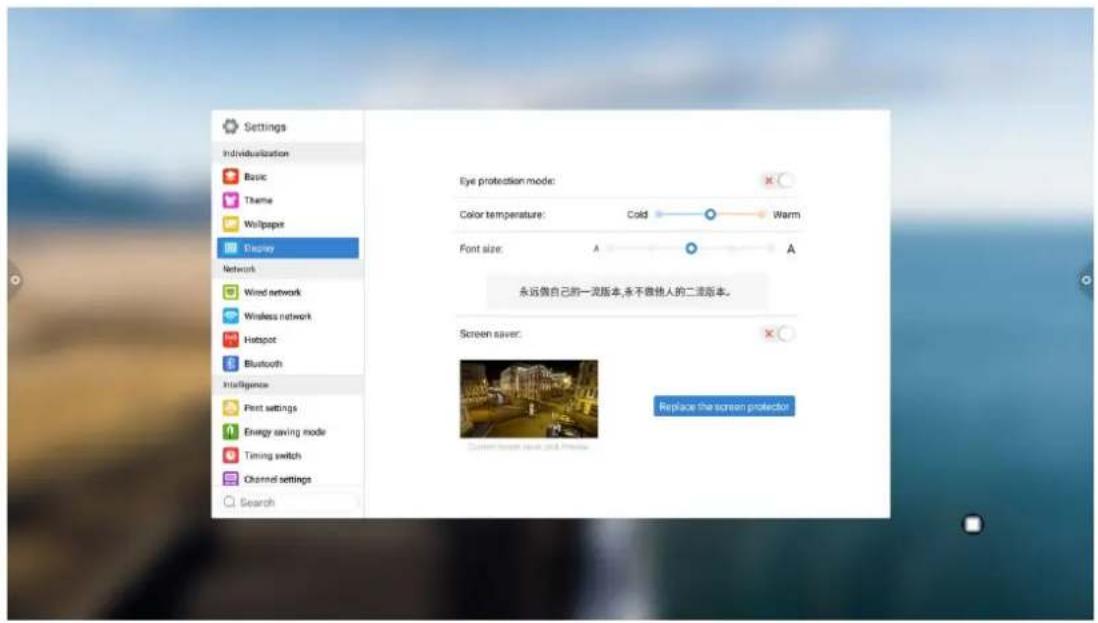
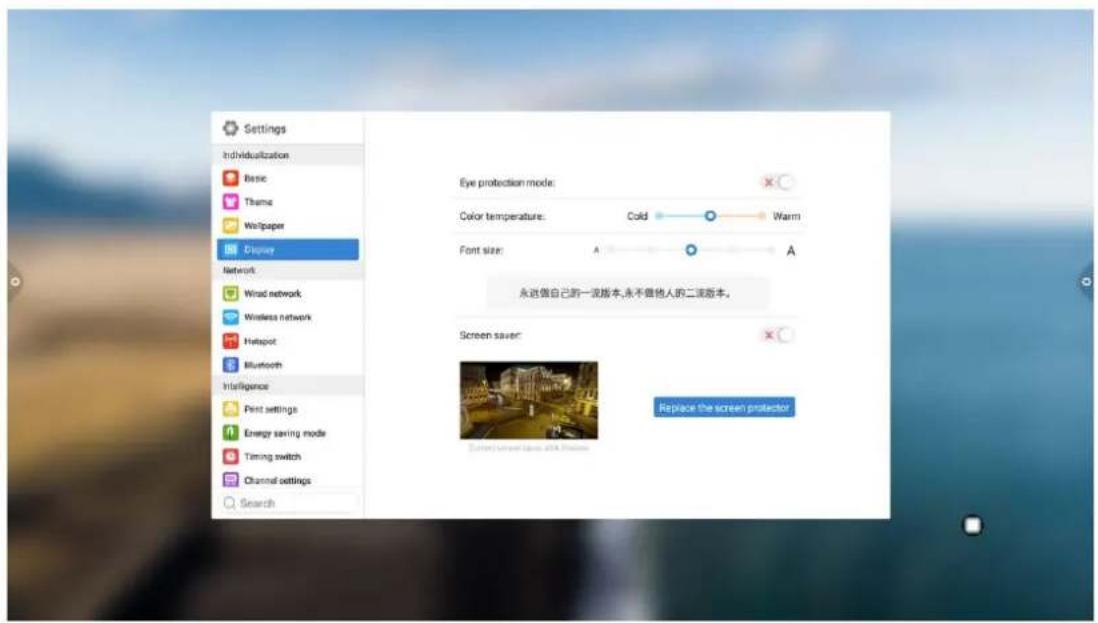
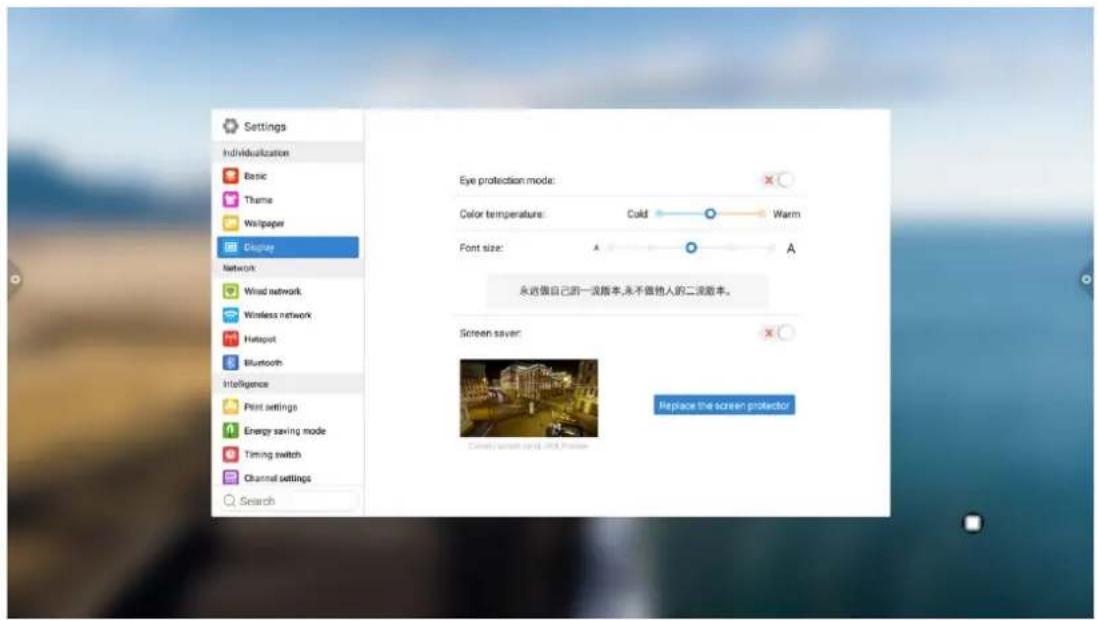
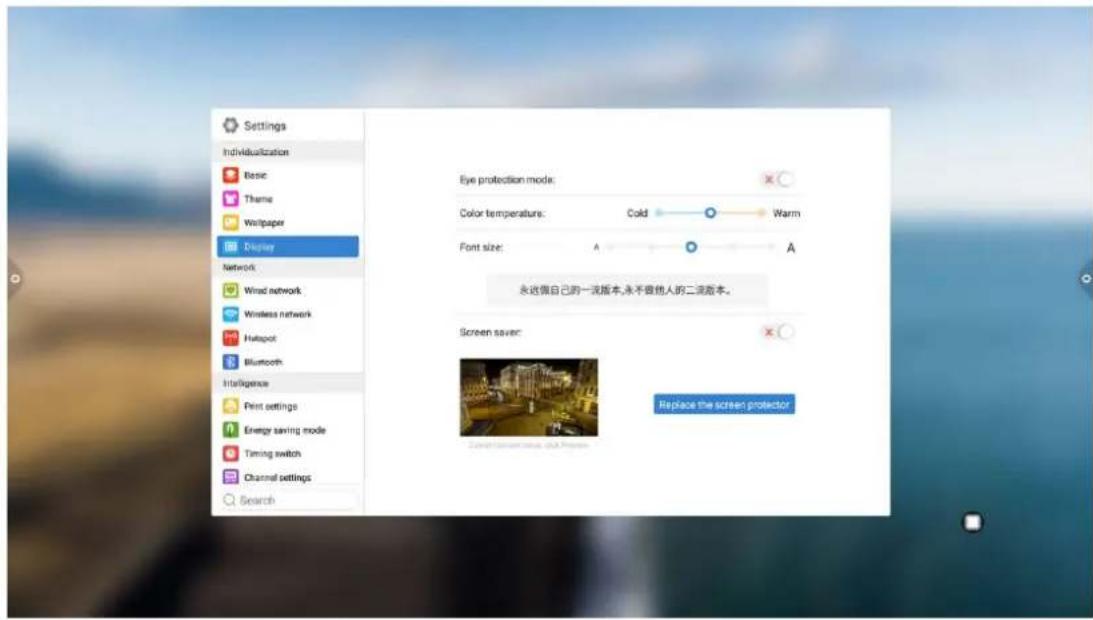
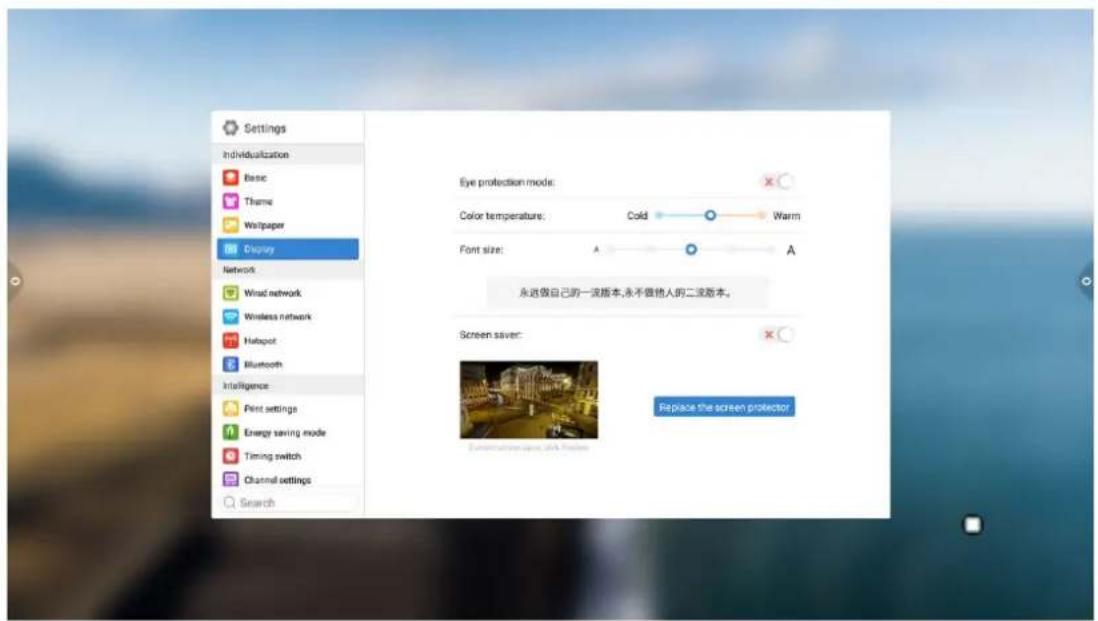
Eye protection function: the current brightness decreases when turned on.
Color temperature adjustment: adjust color temperature.
Font size: adjust the page font size.
Screen saver: When turned on, enter screen saver mode after sleep.
Change screen saver: Click to change screen saver animation, users can add or delete static screen saver and dynamic screen saver by themselves.

text_image
Settings Individualization Basic Theme Wallpaper Display Network Wired network Wireless network Hotspot Bluetooth Intelligence Print settings Energy saving mode Timing switch Channel settings Search Eye protection mode: Color temperature: Cold Warm Font size: A A 永远做自己的一流版本,永不做他人的二流版本。 Screen saver: Replace the screen protector1.5.2 Network
Under the network interface, users can set wired network, wireless network, wireless hotspot and Bluetooth and so on.
text_image
Settings Individualization Basic Theme Wallpaper Display Network Wind network Wireless network Hotspot Bluetooth Intelligence Print settings Energy saving mode Timing switch Channel settings Search Eye protection mode: Color temperatures: Cold Warm Font size: A A 永远做自己的一波版本,永不做他人的二波版本。 Screen saver: Replace the screen protector1. Wired network
Under the cable network interface, users can view the MAC address, IP address and other information. The automatic access to the IP address is opened by default, and the parameters such as the IP address and the subnet mask can be manually modified after the automatic acquisition is closed.

text_image
Settings Individualization Basic Theme Wallpaper Course Network Wind network Wireless network Hotspot Bluetooth Intelligence Print settings Energy saving mode Timing switch Channel settings Search Eye protection mode: Color temperature: Cold Warm Font size: A A 永远做自己的一流版本,永不曾给人的二流版本。 Screen saver: Replace the screen protector2. Wireless network
Turn on the wireless network switch button, which automatically gets the display of the available wireless network.

text_image
Settings Individualization Basic Theme Wallpaper Disney Network Wind network Wireless network Hotspot Bluetooth Havigence Print settings Energy saving mode Timing switch Channel settings Search Eye protection mode: Color temperature: Cold Warm Font size: A A 永远做自己的一流版本,永不做他人的二流版本。 Screen saver: Replace the screen protector3. 2.4 and 5G Hot spot
Under the 2.4 and 5G hot spot settings interface, users can change the hot name, security, password and other parameters.
Notice: 2.4G and 5G hot spot, 2.4G hot spot and wireless network can neither be opened at the same time.
text_image
Settings Individualization Basic Theme Woltpaper Display Network Wind network Wireless network Hotspot Bluetooth Intelligence Print settings Energy saving mode Timing switch Channel settings Search Eye protection mode: Color temperature: Cold Warm Font size: A A 永远做自己的一波版本,永不是他人的二波版本。 Screen saver: Replace the screen protector4. Bluetooth
(1) When the integrated machine supports Bluetooth function, Bluetooth pairing can be implemented here to achieve Bluetooth transmission function.
(2) When the integrated machine does not support the Bluetooth function, the Bluetooth function switch will be grayed out and unavailable.
text_image
Settings Individualization Basic Theme Wppapie Display Network Wired network Wireless network Hotspot Bluetooth Intelligence Print settings Energy saving mode Timing switch Channel settings Search Eye protection mode: Color temperature: Cold Warm Font size: A A 永远做自己的一定版本,条不做他人的二进版本。 Screen saver: Replace the screen protector1.5.3 Intelligence
Under the intelligent settings interface, users can change the intelligent lock password.

text_image
Settings Individualization Basic Theme Wallpaper Display Network Wind network Wireless network Hotspot Bluetooth Intelligence Print settings Energy saving mode Timing switch Channel settings Search Eye protection mode: Color temperature: Cold Warm Font size: A A 永远做自己的一流版本,永不做给人的二流版本。 Screen saver: Replace the screen protectorStandby mode, time switch machine and power button function could be set.
text_image
Settings Individualization Basic Theme Wallpaper Display Network Wind network Wireless network Hotspot Bluetooth Intelligence Print settings Energy saving mode Timing switch Channel settings Search Eye protection mode: Color temperature: Cold Warm Font size: A A 永远做自己的一流版本,永不做情人的二流版本。 Screen save: Replace the screen protector Cancel consensus, did you prefer- Print settings

text_image
Settings Individualization Basic Theme Wolpaper Display Network Wind network Wireless network Hotspot Bluetooth Intelligence Font settings Energy saving mode Timing switch Channel settings Search Eye protection mode: Color temperature: Cold Warm Font size: A A 永远做自己的一项版本,永不做他人的二项版本。 Screen saver: Replace the screen protector- saving mode: Set the sleep time of the machine. After setting the sleep mode, it will be in the screen-hold state or screen saver state. The screen saver can be customized.
text_image
Settings Individualization Basic Theme Wallpaper Display Network Wind network Wireless network Hotspot Bluetooth Intelligence Print settings Energy saving mode Timing switch Channel settings Search Eye protection mode: Color temperature: Cold Warm Font size: A A 永远做自己的一流版本,永不做给人的二流版本。 Screen saver: Replace the screen protectorAfter changing the screen saver, you can customize the screen saver (the picture is a static screen saver, the video is a dynamic screen saver), and you can delete it by clicking the delete icon

- Timed power on/off: After setting the power-on time and power-off time, the system will automatically power on or power off when the set time is up.

text_image
Settings Individualization Basic Theme Wallpaper Display Network Wind network Wireless network Hotspot Bluetooth Intelligence Print settings Energy saving mode Timing switch Channel settings Search Eye protection mode: Color temperatures: Cold Warm Font size: A A 永远做自己的一流版本,永不做给人的二流版本。 Screen saver: Replace the screen protector- Channel settings

text_image
Settings Individualization Basic Theme Wolpaper Display Network Wind network Wireless network Hotspot Bluetooth Intelligence Font settings Energy saving mode Timing switch Channel settings Search Eye protection mode: Color temperature: Cold Warm Font size: A A 永远做自己的一项版本,永不做他人的二项版本。 Screen saver: Replace the screen protectorClick to set the boot channel or click to custom channel name
text_image
Settings Individualization Basic Theme Wallpaper Display Network Wind network Wireless network Hotspot Bluetooth Intelligence Print settings Energy saving mode Timing switch Channel settings Search Eye protection mode: Color temperature: Cold Warm Font size: A A 永远做自己的一波版本,永不倚他人的二波版本。 Screen saver: Replace the screen protector- Security settings: USB lock, screen lock, application lock and touch lock can be turned on or off. You can also set the corresponding unlock password, the initial password is 2580.
text_image
Settings Individualization Basic Theme Woltpaper Display Network Wind network Wireless network Hotspot Bluetooth Intelligence Print settings Energy saving mode Timing switch Channel settings Search Eye protection mode: Color temperature: Cold Warm Font size: A A 永远做自己的一波版本,永不做他人的二波版本。 Screen saver: Replace the screen protectorClick Change Password to change the corresponding password.
- More functions: You can set the power button, floating menu, sidebar, photosensitive, centralized control, temperature monitoring, five-finger extinguish screen, three-finger extinguish screen and other functions.
text_image
Settings Individualization Basic Theme Wallpaper Disgrise Network Wind network Wireless network Hotspot Bluetooth Intelligence Print settings Energy saving mode Timing switch Channel settings Search Eye protection mode: Color temperatures: Cold Warm Font size: A A 永远做自己的一流版本,永不做他人的二流版本。 Screen saver: Replace the screen protector1.5.4 System
The system setting options are mainly for system input method, language display setting, system update and upgrade, etc., as well as system version information and built-in storage usage.

- Language and input method: Click to set the language (Chinese,
Chinese Traditional, English, Arabic, Spanish, French, Italian,
Japanese, Portuguese, Russian and other 9 languages), and you can
also set the input method.
text_image
Settings Individualization Basic Theme Wallpaper Display Network Wind network Wireless network Hotspot Bluetooth Intelligence Print settings Energy saving mode Timing switch Channel settings Search Eye protection mode: Color temperature: Cold Warm Font size: A A 永远做自己的一流版本,永不做他人的二流版本。 Screen saver: Replace the screen protector
text_image
Settings Individualization Basic Theme Whitpaper Display Network Wind network Wireless network Hotspot Bluetooth Intelligence Print settings Energy saving mode Timing switch Channel settings Search Eye protection mode: Color temperature: Cold Warm Font size: A A 永远做自己的一流版本,永不做给人的二流版本。 Screen saver: Replace the screen protector- Time and date: Turn on the automatic time setting. If the network connection is successful, the current network time will be automatically synchronized. When the automatic time setting is off, you can manually set the date and time.

text_image
Settings Individualization Basic Theme Wallpaper Display Network Wind network Wireless network Hotspot Bluetooth Intelligence Print settings Energy saving mode Timing switch Channel settings Search Eye protection mode; Color temperatures: Cold Warm Font size: A A 永远做自己的一流版本,永不做他人的二流版本。 Screen saver: Replace the screen protectorClick to change the time.

text_image
Settings Individualization Basic Theme Woltpaper Display Network Wind network Wireless network Hotspot Bluetooth Intelligence Print settings Energy saving mode Timing switch Channel settings Search Eye protection mode: Color temperature: Cold Warm Font size: A A 永远做自己的一波版本,永不做他人的二波版本。 Screen saver: Replace the screen protectorClick to change the time zone.

text_image
Settings Individualization Basic Theme Woltpaper Display Network Wind network Wireless network Hotspot Bluetooth Havigence Print settings Energy saving mode Timing switch Channel settings Search Eye protection mode: Color temperature: Cold Warm Font size: A A 永远做自己的一波版本,永不做他人的二波版本。 Screen saver: Replace the screen protector- Image function: This function can only be applied to the channel, mainly used to adjust the image quality of the channel and the ratio of the channel picture.
text_image
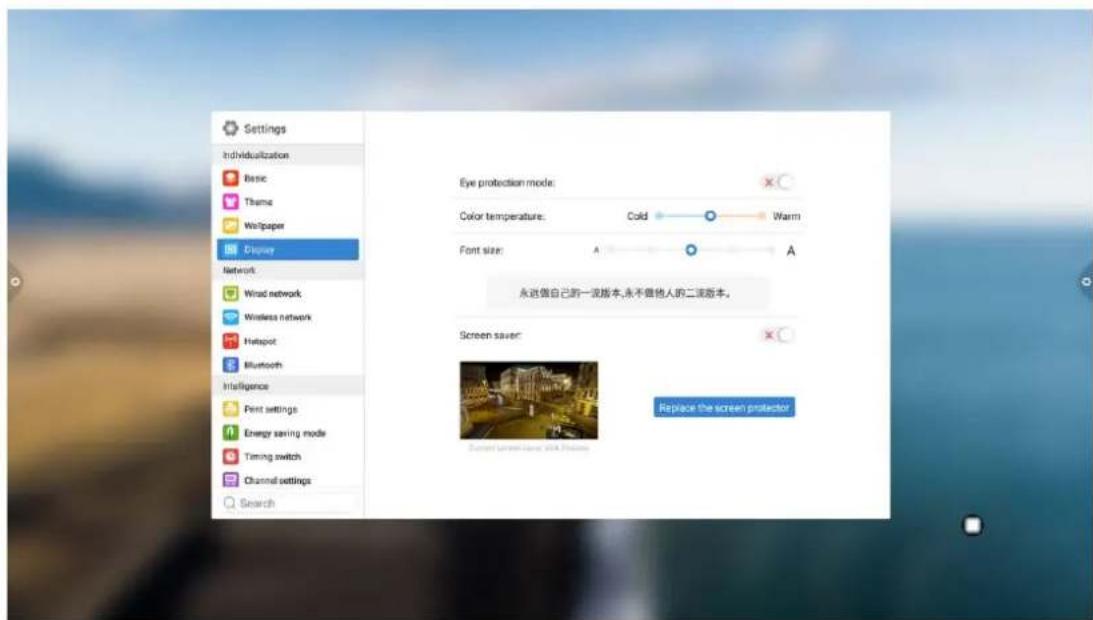
Settings Individualization Basic Theme Woltpaper Display Network Wind network Wireless network Hotspot Bluetooth Intelligence Print settings Energy saving mode Timing switch Channel settings Search Eye protection mode: Color temperature: Cold Warm Font size: A A 永远做自己的一淡版本,永不做他人的二淡版本。 Screen saver: Replace the screen protector- Sound: adjust sound and set sound mode, output device
text_image
Settings Individualization Basic Theme Wallpaper Display Network Wind network Wireless network Hotspot Bluetooth Intelligence Font settings Energy saving mode Timing switch Channel settings Search Eye protection mode: Color temperature: Cold Warm Font size: A A 永远做自己的一流版本,永不做他人的二流版本。 Screen saver: Replace the screen protectorSound mode: standard, news, music, theater, sports, user voice output device: speaker, coaxial, Bluetooth, USB mode Analog microphone: Analog microphone switch
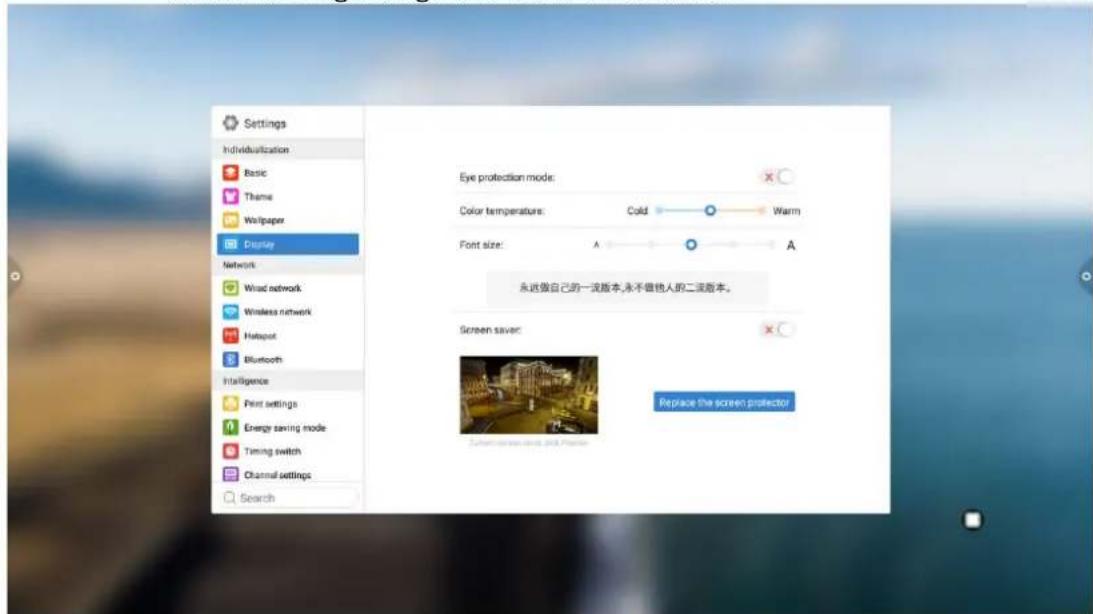
- System information: you can view the system version information and built-in storage usage and other information
text_image
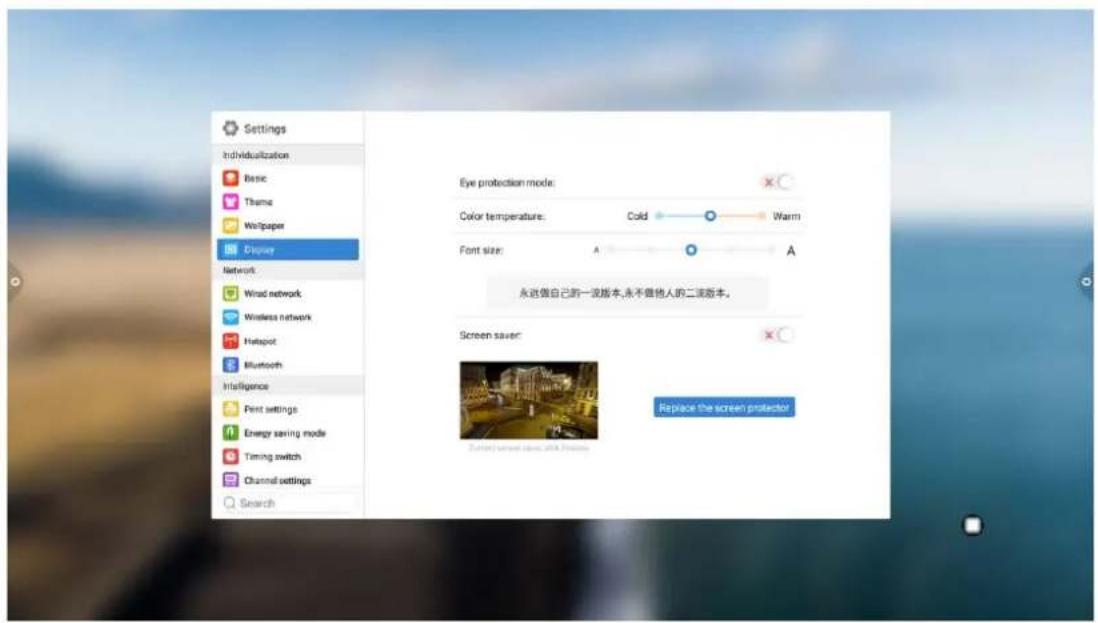
Settings Individualization Basic Theme Wall/paper Display Network Wind network Wireless network Hotspot Bluetooth Intelligence Print settings Energy saving mode Timing switch Channel settings Search Eye protection mode: Color temperatures: Cold Warm Font size: A A 永远做自己的一流版本,永不做他人的二流版本。 Screen saver: Replace the screen protector- System update: divided into local upgrade and online upgrade
(1) Restore factory settings: click Reset to restore the factory settings
(2) Local upgrade: Copy the firmware to the root directory of the U disk, insert the U disk into the multimedia USB interface of the all-in-one, and select local upgrade and update.
(3) Online upgrade: Check whether a new version of firmware is released through the network to download and update.
text_image
Settings Individualization Basic Theme Woltpaper Display Network Wind network Wireless network Hotspot Bluetooth Intelligence Print settings Energy saving mode Timing switch Channel settings Search Eye protection mode: Color temperature: Cold Warm Font size: A A 永远做自己的一波版本,永不做他人的二波版本。 Screen saver: Replace the screen protectorII The software description
2.1 Electronic Whiteboard
2.1.1 Interface display
Click the conference whiteboard icon on the main interface to launch the conference whiteboard software.

text_image
Standard mode 10:35 Menu OR Switch Fun Clipper Be Undo Tools Select Must Clear Switch Add Prev Pages Next-
The conference whiteboard default pencil tool is selected and can be written directly.
-
Support single-point mode and multi-point mode, multi-point supports up to 20 points.
- Single-point mode support roaming and zooming functions of two points and above.
- Support single-stroke mode and double-stroke mode. Double-stroke mode is pen writing style.
2.1.2 More menus
- Click 📄 on the (More Menu icon) in the lower left corner of the interface to pop up and display the subordinate content menu;

text_image
StandardMode 10:35 Menu Edit Switch Plan Graper Big Undo Radio Select Multi Clear Switch Add Prev Pages Next- Operating instructions for the content menu icon function
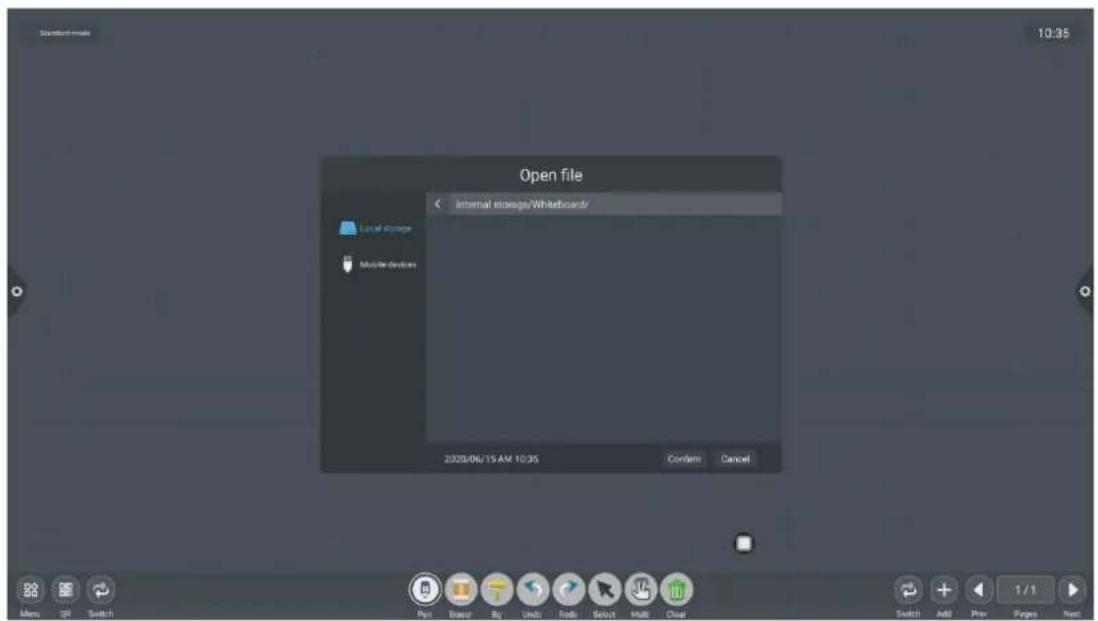
(1) Open the file: Click the icon to open the file saved in the whiteboard file directory (the default path directory is built-in storage/whiteboard), click the file to open directly, and perform the functions such as editing and saving again.
text_image
Standard mode 10:35 Open file Internal storage/Whiteboard/ Local storage Mobile devices 2020/06/15 AM 10:35 Confirm Cancel Menu OFF Switch Play Browse Buy Undo Radio Select Multi Clear Switch Add Play Pages Next(2) Save the file: Click the icon to save the currently written content.
The default time is saved and saved. The user can customize the naming and save. The user can customize the built-in storage or U disk to save the whiteboard file.

text_image
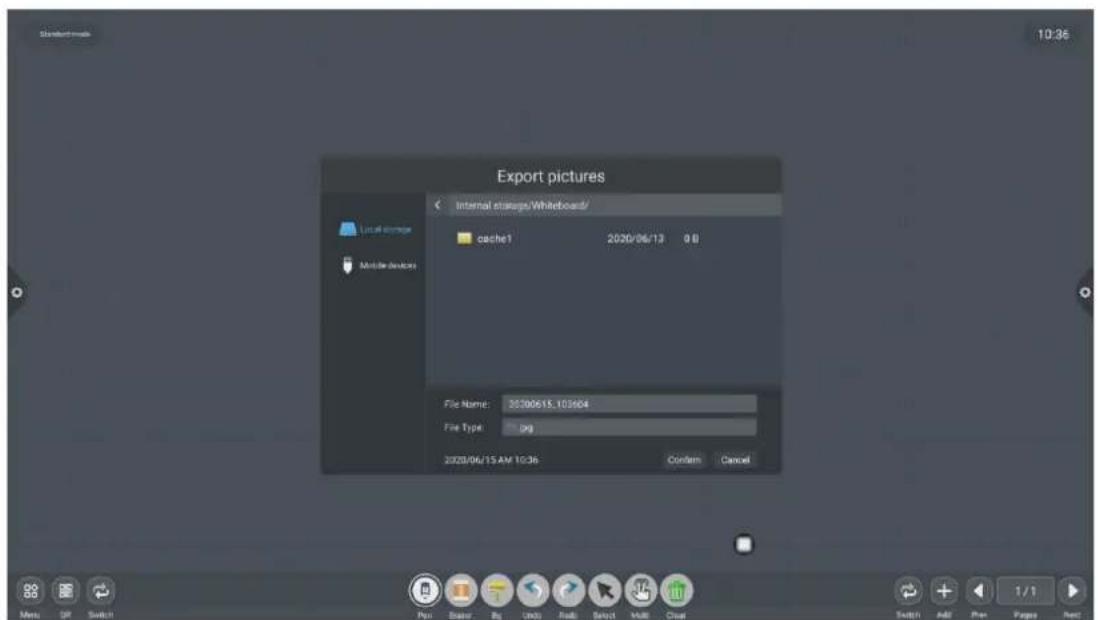
Standard mode 10:35 Open file Internal storage/Whiteboard/ Local storage Mobile devices 2028/06/15 AM 10:35 Confirm Cancel(3) Export: Click to export the content written on the whiteboard in picture format *.jpg. The storage location of the exported pictures can be selected from built-in storage or U disk.

text_image
Export pictures Internal storage/Whiteboard/ Local storage Mobile devices 06/12 0 B Sweep AWAT THE DOCUMENT* File File Type: 0.jpg 2020/06/15 AM 10:36 Confirm Cancel Menu Edit Switch Pan Filter Big Studio Tools Select Multi Clear Switch Add Print Pages Next(4) Insert: Click → to open the picture file of the local storage or U disk. The user can insert the picture on the whiteboard by selecting the picture and can mark and write the picture.
text_image
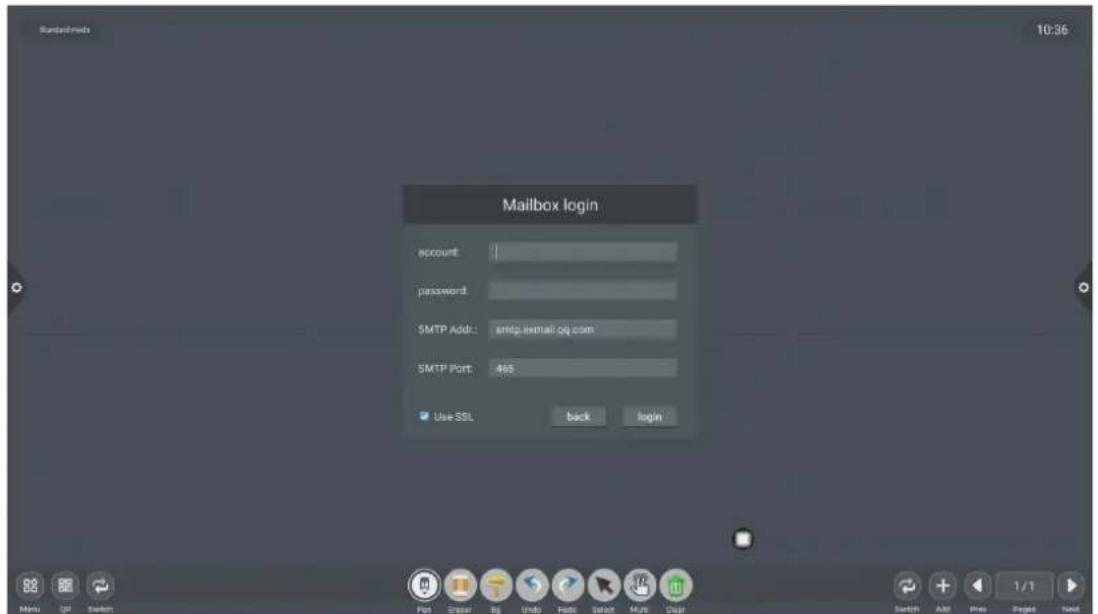
Export pictures Internal stages/Whiteboard/ cache1 2020/06/13 9.8 File Name: 35300615.103604 File Type: jpg 2020/06/15 AM 10:36 Confirm Cancel Menu Edit Switch Pop Player By Unid Tools Select Multi Clear Switch Add Plan Pages Next(5) Email: ClickWhen using the email sending function for the first time, you need to set the email sender's mailbox related information on the email login interface, as shown in the figure:
a. Use Tencent's corporate mailbox, enter your account number and password, and
text_image
Mailbox login account: password: SMTP Addr: smtp.email.qq.com SMTP Port: 465 Use SSL back login 10:36 Menu Edit Big Undo Fable Reset Multi Displ Switch Add Prev Pages Nextclick Login
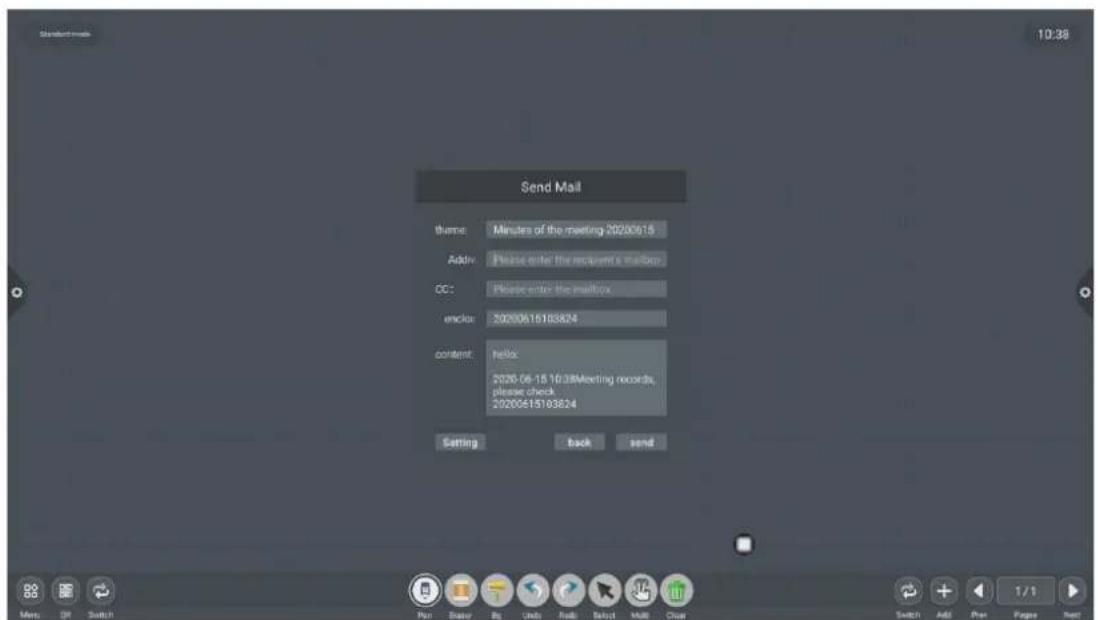
b. After successful login, the user enters the email address of the recipient and clicks send to record the content on the whiteboard to
Click the setting in the recipient email of PDF format file to modify and replace the current account;
text_image
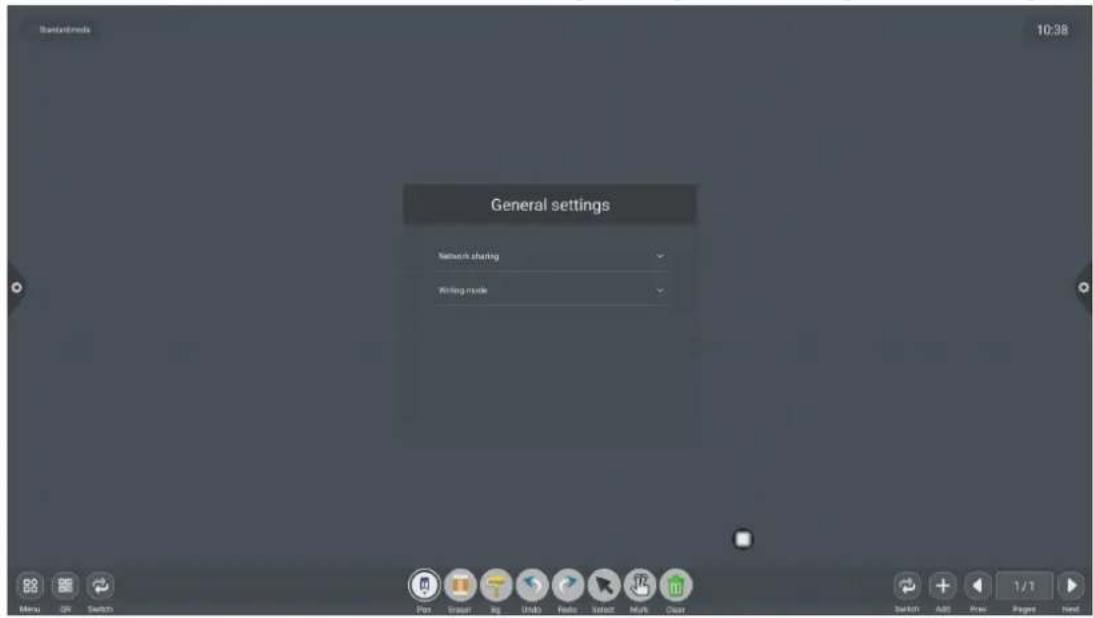
Send Mail theme: Minutes of the meeting-20200915 Addiv: Please enter the recipient's mailbox CC: Please enter the mailbox enckio: 20200615103824 content: Hello 2020-06-15 10:38Meeting records, please check 20200615103824 Setting Back send Menu Off Switch Pan Basic By Chid Roll Select Mate Clear Switch Add Pan Pages Next 10:38(6) Click

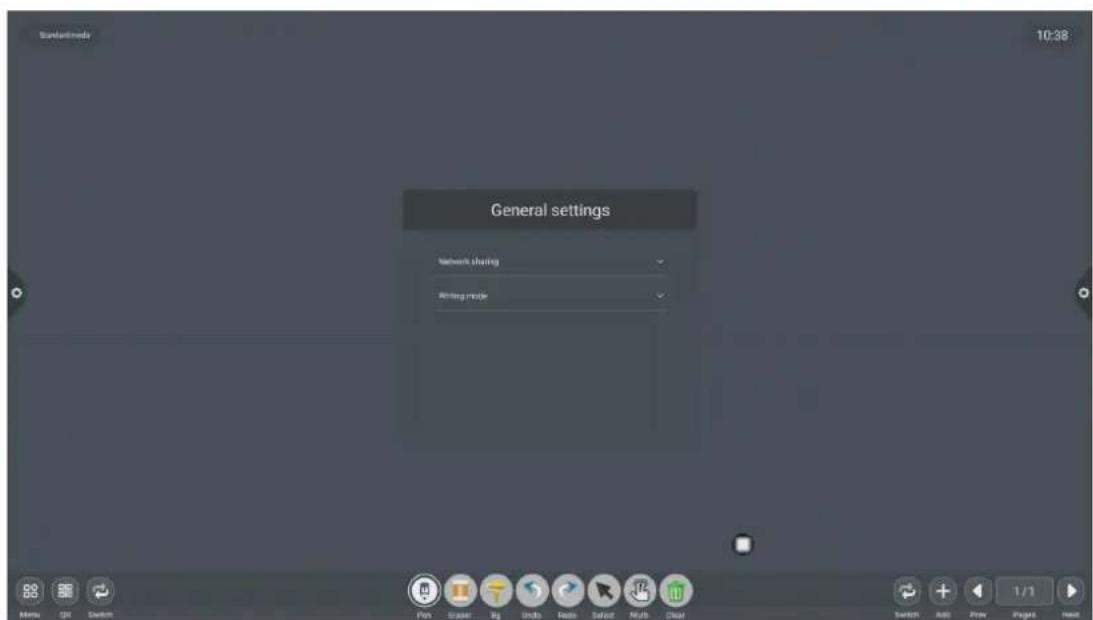
to Enter network sharing settings and writing mode settings.
text_image
Standardems 10:38 General settings Network sharing Writing mode Menu OK Switch Pan Graph bg Audio Fallo Select Mark Clear Switch Add Free Page NextThe network sharing settings are divided into network sharing and local sharing functions.
text_image
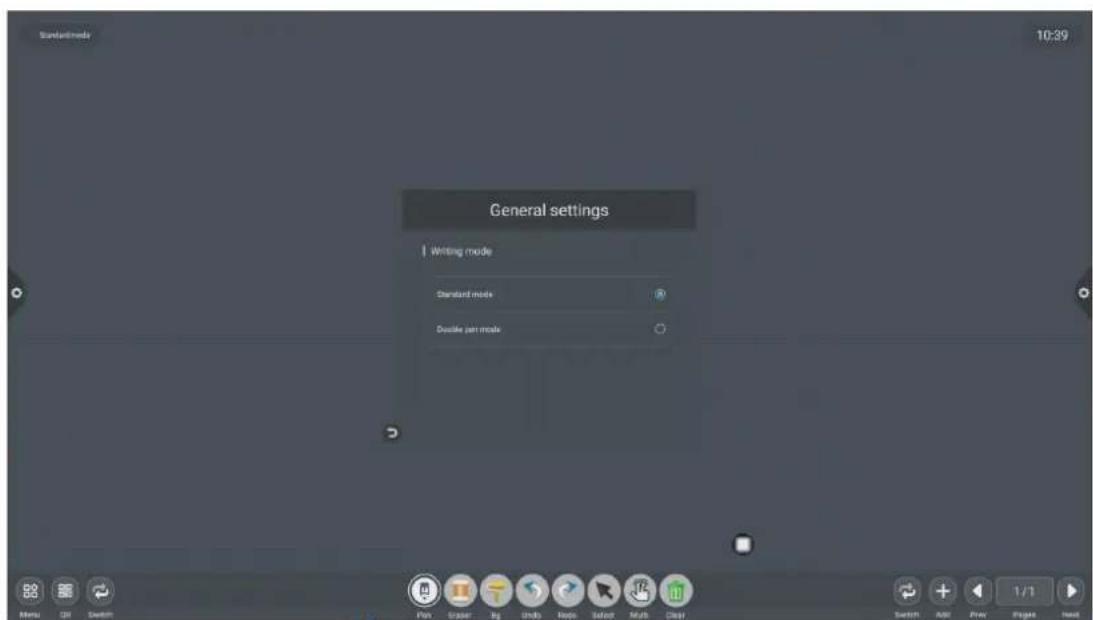
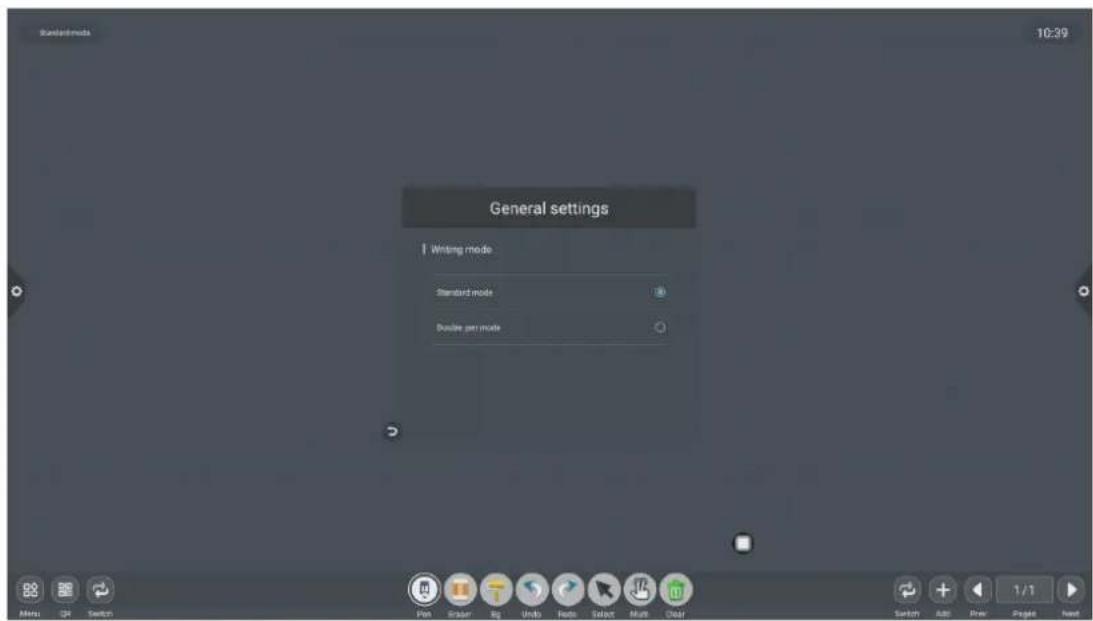
Sundarimedia 10:38 General settings Network sharing Setting mode Menu Edit View Tools HelpWriting mode is divided into standard mode (single pen mode) and double pen mode.

text_image
Standard mode 10:39 General settings Writing mode Standard mode Double per mode(7) About: Click i, to check version information.
text_image
Standard mode 10:39 General settings Writing mode Standard mode Double per mode(8) Exit: Click

. When there is content in the
whiteboard, a prompt pops up when exiting the whiteboard: The whiteboard is not saved. Do you want to save the whiteboard before exiting the whiteboard? Perform function operation according to whether or not; if there is no content on the whiteboard, click Exit Whiteboard to exit directly.

text_image
Standard mode 10:39 General settings Writing mode Standard mode Double per mode2.1.3 Scan code sharing:
Click the icon, when the network is connected, you can generate a QR code window, and scan the current meeting record with the WeChat sweep function; if
prompted, return to the home page and click to enter the system. Set the network connection, and re-scan the code after the connection is successful.
text_image
Standard mode 10:39 General settings Writing mode Standard mode Double per mode Menu SH Switch Plan Render Sup Undo Help Select Mult Clear Switch Add Prev Pages Next
text_image
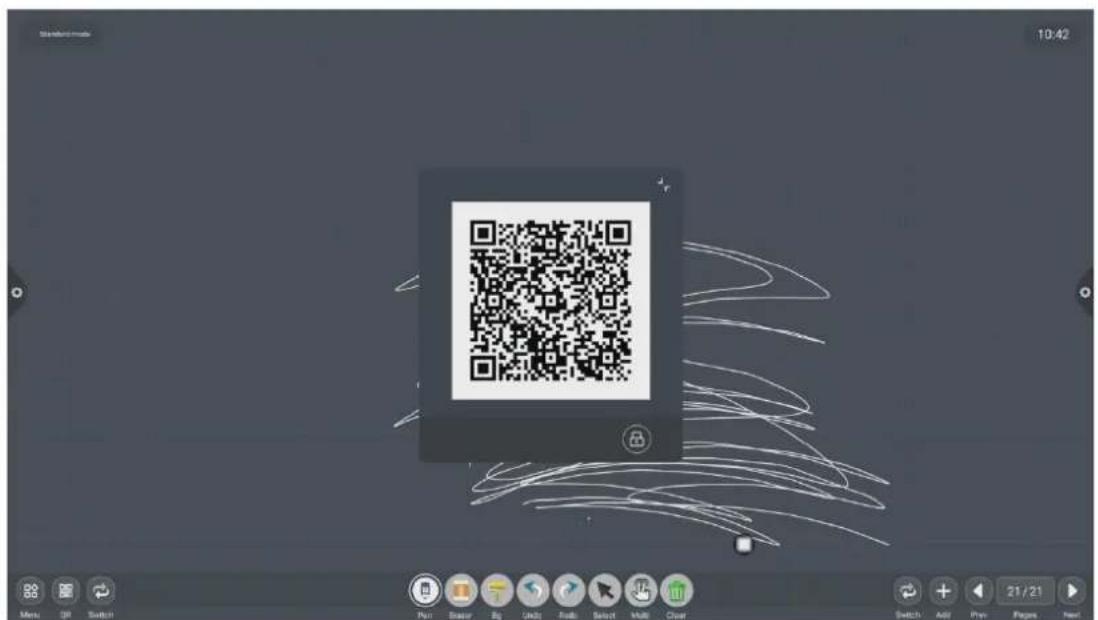
QR code generation 10:42 Mem OK Switch Pay Save Eq Webb Roll Select Help Clear Switch Add Prev Pages NextAfter the QR code is generated, the following figure is displayed. Click the lock icon to start the QR code lock mode, and the password is displayed next to it. After scanning the QR code, you must enter the password to view the file.
text_image
Standard mode 10:42 Menu Edit Switch Pop Stop Copy Print Roll Select Multi Clear Switch Add Prev Pages Next2.1.4 Common Function Menu
1. Brush tool
(1) Click the icon to bring up the brush tool menu.
(2) Modify the thickness and color of the handwriting:
Click the dot icon above to modify the thickness of the brush trace, click the color box to select the brush color, click the custom icon to expand the palette, and customize the brush color.

text_image
Standardems 10:42 RGB/764 Menu Edit View Switch Pan Screen Big Undo Trade Select Mult Clear Switch Add Free Pages Next- Eraser
(1) Click wipe: Click the icon to perform a fine erase operation on the written content;
(2) Circle rub: Click the icon to erase the handwriting in the area inside the erase circle to perform the erase operation;

text_image
Sundarlmode 10:42 4m7x4 Menu Ctrl Switch Pan Screen Bg Undo Help Select Multi Clear Switch Add Cher Playbox Next- Change the background
(1) Click , Change the background color of the whiteboard
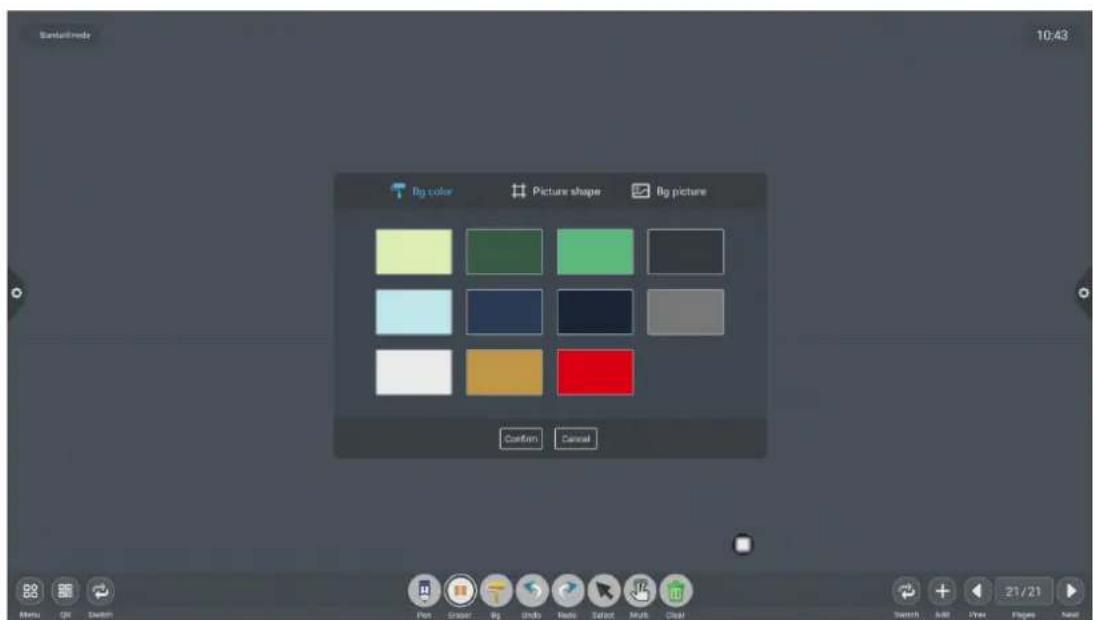
text_image
Santelimedy 10:43 Big color Picture shape Big picture Confirm Cancel(2) Picture shape

text_image
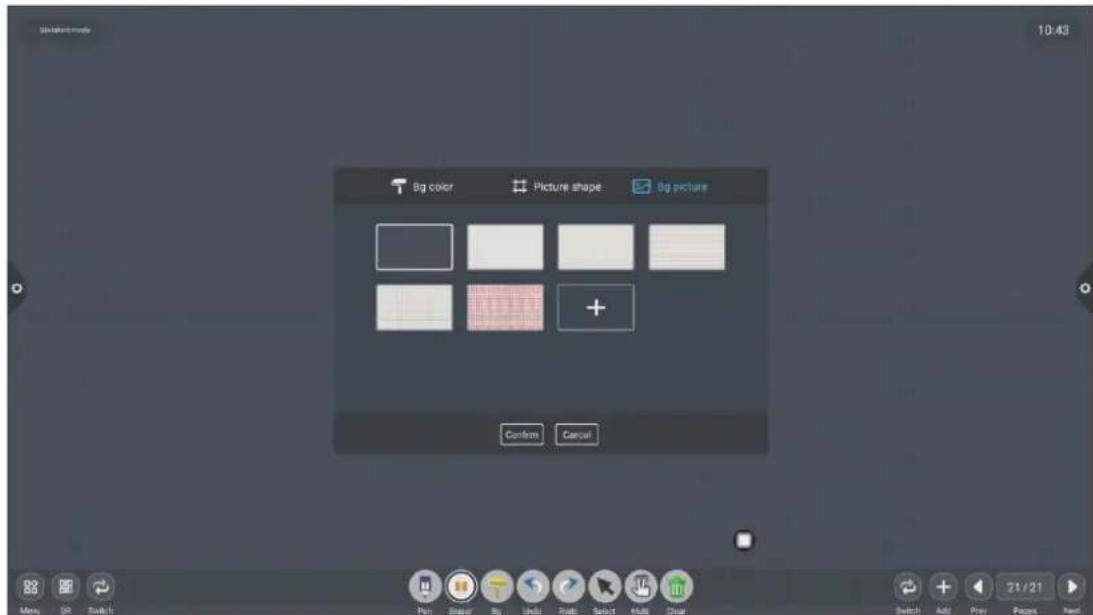
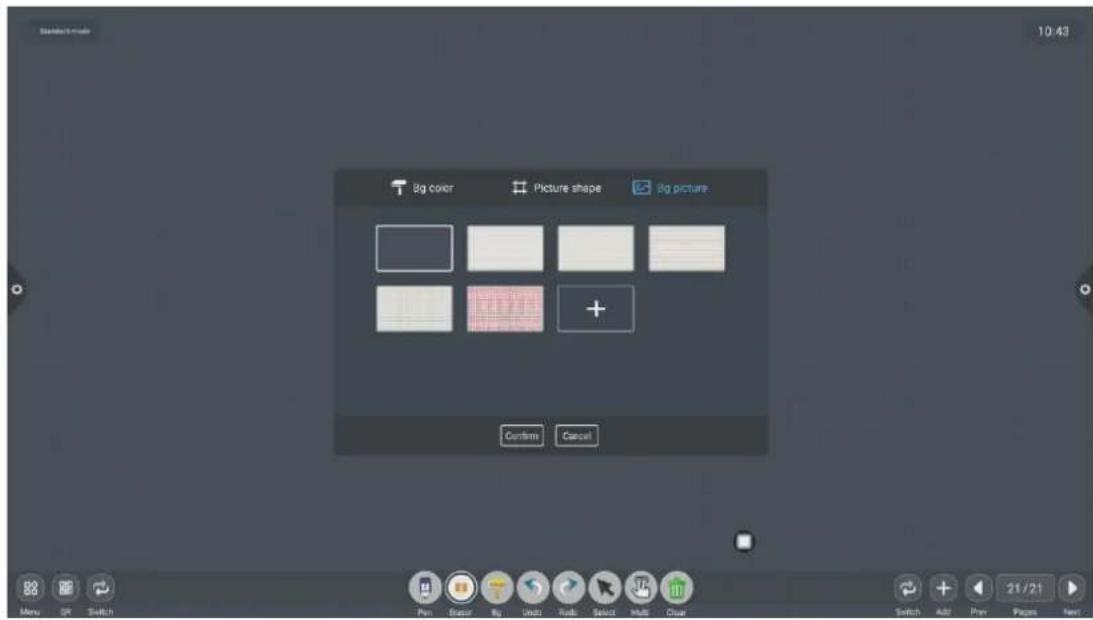
Standard mode 10:43 Big color Picture shape Big picture Confirm Cancel(3) Background picture
4. Cancellation and recovery
(1) Cancellation: Click

the icon to cancel the previous operation, and support
up to 50 steps at a time;
(2) Recovery: Click

the icon to re-execute the operation that has been revoked,
and support up to 50 steps at a time.
5. Select function
Click

to select the selection function, the interface switches from the writing mode to the selection mode, and the handwriting and shape in the interface can be drawn, and then the functions of moving, deleting, copying and pasting can be
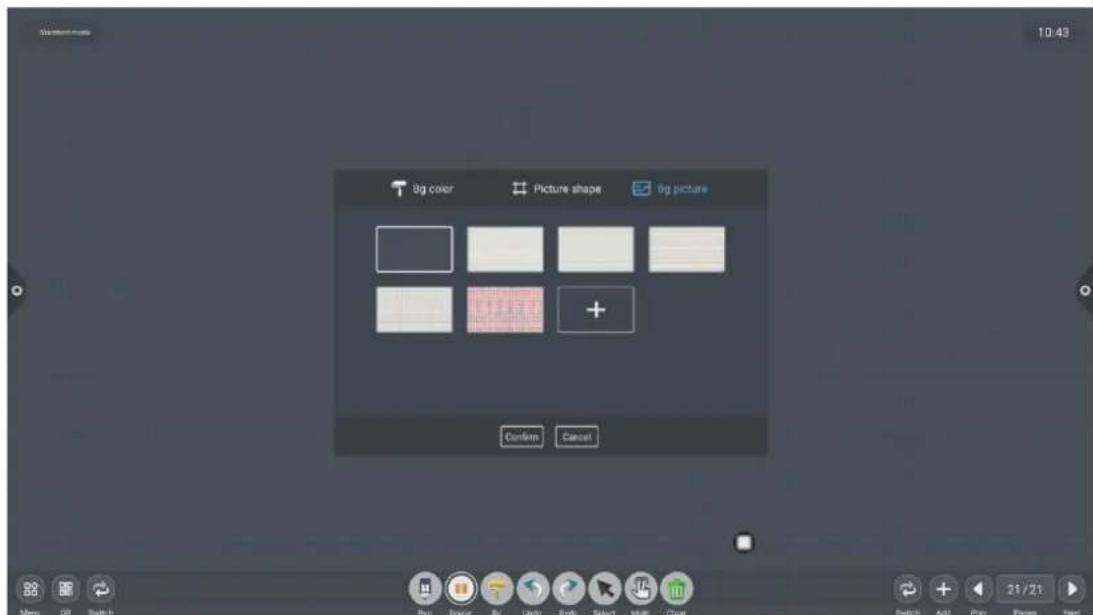
text_image
Standard Shape 10:43 Big color Picture shape Big picture Confirm Cancelrealized, and the inserted picture to move, delete, copy and paste, rotate and zoom.
text_image
3D default mode 10:43 Big color Picture shape Big picture Confers Cancel Menu Off Switch Pan Beaver Big Undo Anti Select Multi Dual Switch Add Prev Pages Next- Slide clear screen function
Click the icon to bring up the slider 滑动清屏 and manually drag the icon to the right to clear the current screen writing.
text_image
Standard.mab 10:43 Big color Picture shape Big picture: Confins Cancel Menu OK Switch Pan Sensor Big Uniso Rolls Select Multi Clear Switch Add Pan Pages Next- Left and right switching function
Click the icon to switch between the left and right positions of function icon including more function icons, code scanning, switching function icons, and up and down page function icons, page number preview function icons, page addition function icons.
- Page preview
(1) Open the page preview popup window: Click 8/8 to display the current page

text_image
Student mode 4 10:44 5 6 7 9 Menu Off Switch Pin Batch Audio Audio Select Multi Clear Switch Add Print Pages Helpas selected:
(2) Add page: Click + the icon to add the page;
(3) Delete page: In the open page preview window, click the delete button in
the upper right corner of the page thumbnail to delete the page or click 📄 at the bottom of the page preview window to delete all pages. Click 📄 to enter all page display
mode.

text_image
All pages 1 2 3 4 5 6 7 8 Menu OR Switch Pan Break Big Undo Pull Select Multi Clear Switch Add Prev Pages Next(4) Turning page function: Click the left and right page turning buttons and icons to achieve the page turning effect, or in the page preview window, the preview page exceeds the limited preview range, slide up and down to quickly find the page, click to select, and realize the page turning function.
2.2 Document management
2.2.1 Interface introduction
- Click the file manager icon 📄, Open the file management application, and the external SD card and USB external storage device are displayed on the left side of the file browser.

text_image
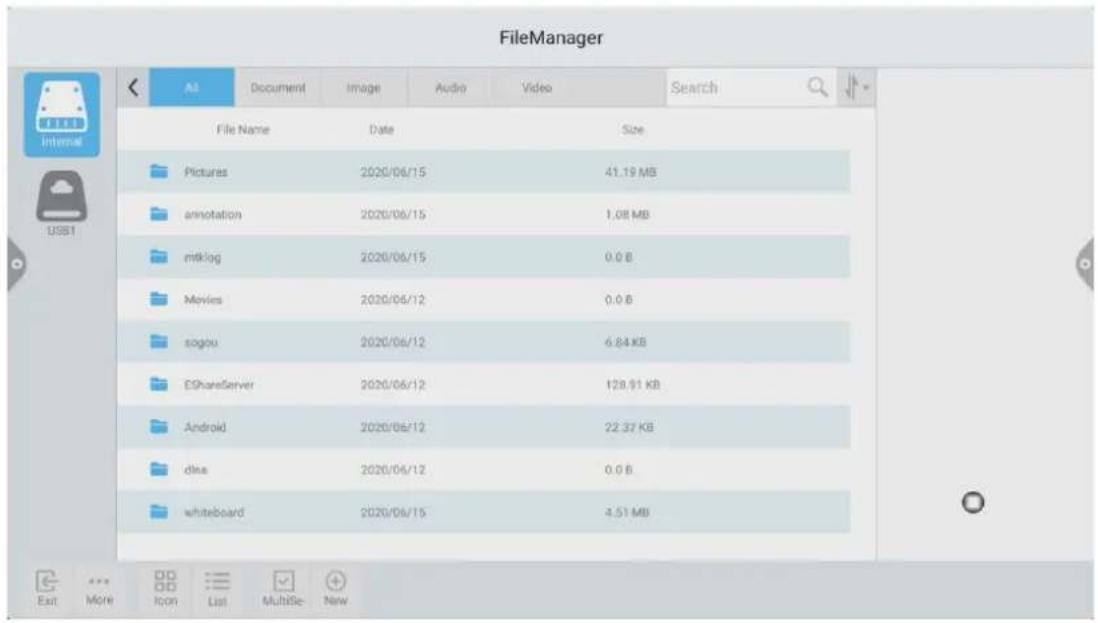
FileManager All Document Image Audio Video Search File Name Date Size Pictures 2020/06/15 41.19 MB annotation 2020/06/15 1.08 MB miklog 2020/06/15 0.0 B Movies 2020/06/12 0.0 B sogoku 2020/06/12 6.84 KB EShareServer 2020/06/12 128.91 KB Android 2020/06/12 22.37 KB dina 2020/06/12 0.0 B whiteboard 2020/06/15 4.51 MB Exit More Icon List MultiSe New2.2.2 Classification display
- When user click "Documents", the main contents are: Word, EXCEL, PDF, TXT files.

text_image
FileManager All Document Image Audio Video Search File Name Date Size 2020/06/15103824.pdf 2020/06/15 150.63 KB activity.txt 2020/06/15 3.42 KB activity._mini.txt 2020/06/15 3.42 KB EShareServer.txt 2020/06/15 132.8 KB UpdateLog.txt 2020/06/15 22.32 KB Succeed Exit More Icon List MultiSe- New- When user click "Picture", the image format file is displayed.
text_image
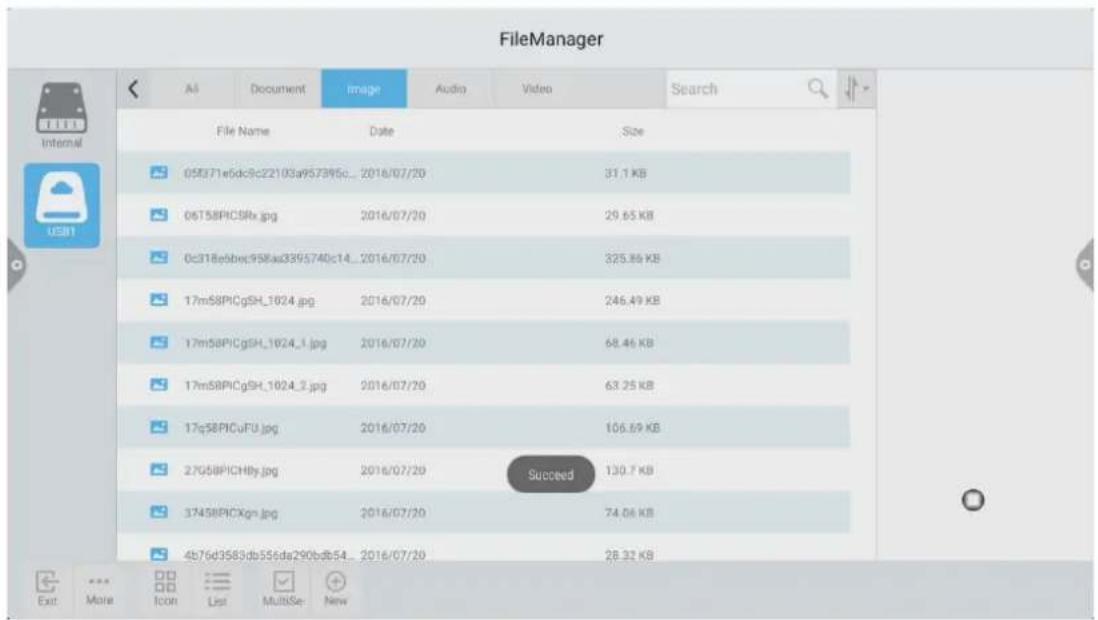
FileManager File Name Date Size 05371e6dc9c22103a957396c_2016/07/20 31.1 KB 06758PIC5Rx.jpg 2016/07/20 29.65 KB 0c318ebbec958ad3395740c14_2016/07/20 325.85 KB 17m58PICgSH_1024.jpg 2016/07/20 246.49 KB 17m58PICgSH_1024_1.jpg 2016/07/20 68.46 KB 17m58PICgSH_1024_2.jpg 2016/07/20 63.25 KB 17q58PICuFU.jpg 2016/07/20 106.69 KB 27G58PICHby.jpg 2016/07/20 Succeed 130.7 KB 37458PICXgn.jpg 2016/07/20 74.06 KB 4b76d3583db556da290db54_2016/07/20 28.32 KB Exit More Icon List MultSe- New- when user click "Audio", the audio format file is displayed.

text_image
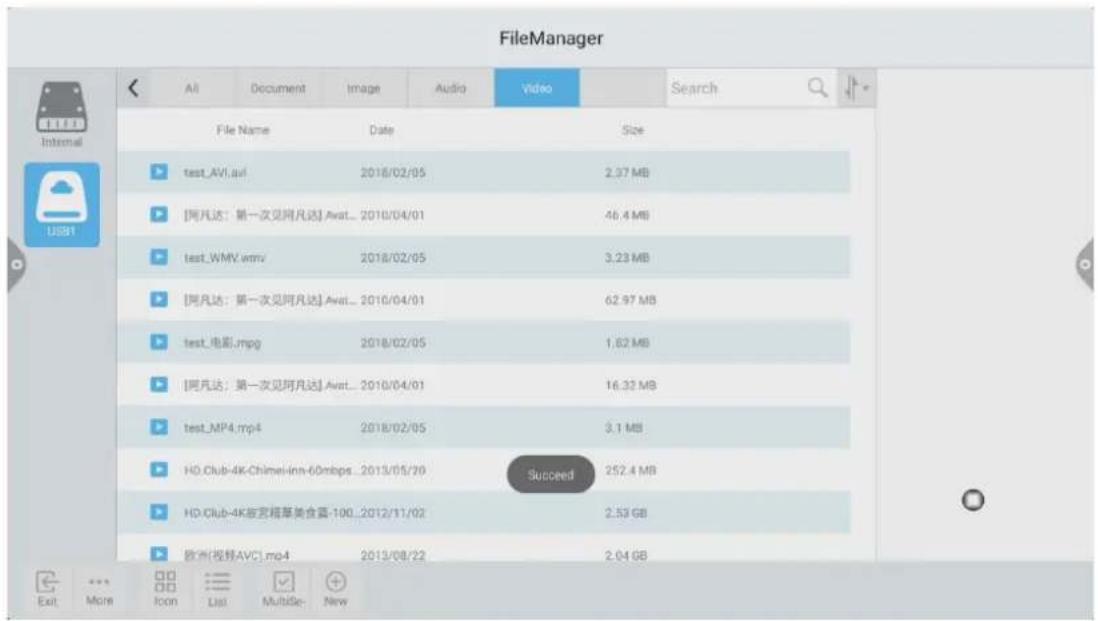
FileManager All Document Image Audio Video Search File Name Date Size 一幻狗.mp3 2013/06/13 2.95 MB 一生都是好兄弟(DJ版)_max_2019/06/06 5.18 MB 伤痕.mp3 2013/06/13 13.95 MB 外籍的澎湖词.mp3 2013/06/13 9.16 MB 彩虹.mp3 2013/06/13 9.84 MB 我思堂.mp3 2013/06/13 3.83 MB 掌声唤起来.mp3 2013/06/13 12.65 MB 放生.mp3 2013/06/13 11.08 MB 新套马杆.mp3 2013/06/13 6.15 MB 格式工厂《剑客不能说》.mp3 2015/05/18 7.99 MB Exit More Icon List MultiSe- New- When user click "Video", the video format file is displayed.
text_image
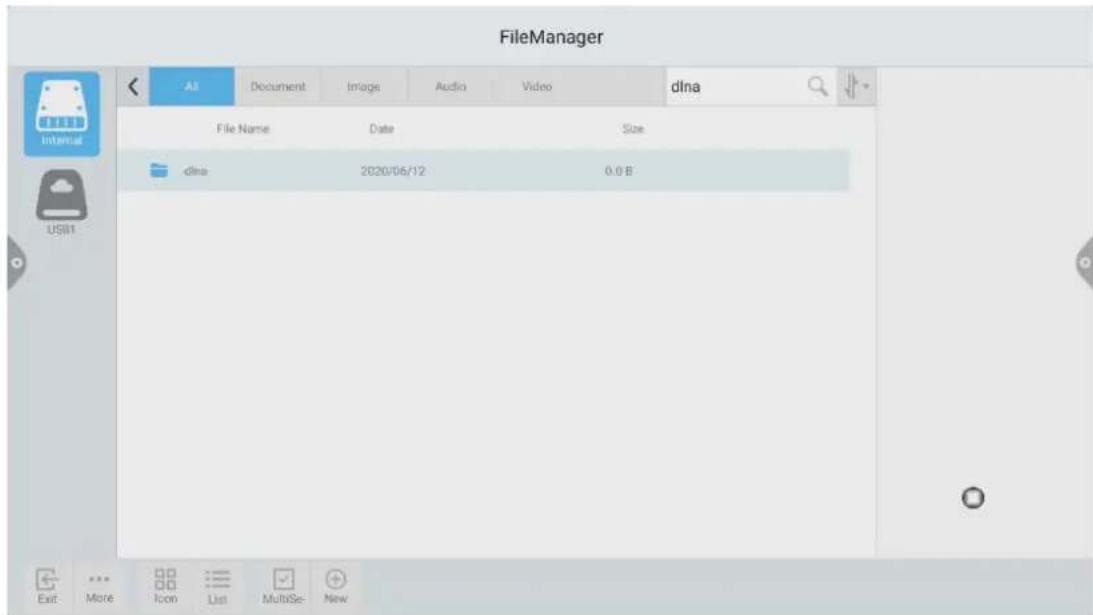
FileManager All Document Image Audio Video Search File Name Date Size test_AV1.avi 2018/02/05 2.37 MB [阿凡达:第一次见阿凡达] Avat... 2010/04/01 46.4 MB test_WMV.avi 2018/02/05 3.23 MB [阿凡达:第一次见阿凡达] Avat... 2010/04/01 62.97 MB test_电影.mpg 2018/02/05 1.62 MB [阿凡达:第一次见阿凡达] Avat... 2010/04/01 16.32 MB test_MP4.mp4 2018/02/05 3.1 MB HO.Club-4K-Chimel-inn-60mbps...2013/05/20 Succeed 252.4 MB HO.Club-4K故宫箱草美食露-100...2012/11/02 2.53 GB 欧洲(视野AVC).mp4 2013/08/22 2.04 GB Exit More Icon List Multiple- New- Searching feature: In the search bar, enter the name of the file that the user needs to find. After clicking Search, the file to be found will be displayed in the main content window, as shown in the figure.
text_image
FileManager All Document Image Audio Video dlna File Name Date Size dlna 2020/06/12 0.0 B Exit More Icon List MultiSe New- Sort
Click icon, The sorting list will pop up. The sorting method has four sorting methods: size, name, type, and time. Users can sort and sort files according to their needs.

text_image
FileManager All Document Image Audio Video Search File Name Date Size Pictures 2020/06/15 42.14 MB annotation 2020/06/15 1.08 MB miklog 2020/06/15 0.0 B Movies 2020/06/12 0.0 B sogou 2020/06/12 6.84 KB EShareServer 2020/06/12 132.8 KB Android 2020/06/12 22.32 KB dina 2020/06/12 0.0 B whiteboard 2020/06/15 4.51 MB Sort By Size Sort By Name Sort By Type Sort By Time Exit More Icon List MultiSe- New2.2.3 Extended menu
Click 更多 icon, there are functions such as display settings, favorites, and version information.

text_image
FileManager All Document Image Audio Video Search File Name Date Size Pictures 2020/06/15 41.19 MB annotation 2020/06/15 1.08 MB mtklog 2020/06/15 0.0 B Movies 2020/06/12 0.0 B sogou 2020/06/12 6.84 KB EShareServer 2020/06/12 128.91 KB Android 2020/06/12 22.32 KB disa 2020/06/12 0.0 B whiteboard 2020/06/15 4.51 MB Exit More Icon List Multise- New1. Display settings
User can set the file manager's font display and background color display.

text_image
FileManager All Document Image Audio Video Search File Name Date Size Pictures 2020/06/15 41.19 MB annotation 2020/06/15 1.08 MB mtklog 2020/06/15 0.0 B Movies 2020/06/12 0.0 B sogou 2020/06/12 6.84 KB EShareServer 2020/06/12 128.91 KB Android 2020/06/12 22.32 KB dina 2020/06/12 0.0 B whiteboard 2020/06/15 4.51 MB Exit More Icon List MultiSe- New2. Language selection
Language can choose Chinese simplified, English. When the system language is switched, the language of the file browser will also be switched with the system without manual switching.
text_image
FileManager A1 Document Image Audio Video Search File Name Date Size Pictures 2020/06/15 41.19 MB annotation 2020/06/15 1.08 MB mtklog 2020/06/15 0.0 B Movies 2020/06/12 0.0 B sogou 2020/06/12 6.84 KB EShareServer 2020/06/12 128.91 KB Android 2020/06/12 22.37 KB disa 2020/06/12 0.0 B whiteboard 2020/06/15 4.51 MB Exit More Icon List Multise New3. Favorites
(1) File collection: Select the files you want to collect and click on the collection.
(2) Viewing files: When viewing a file or folder in a favorite, user need double-click to receive the file or folder.
(3) Remove the favorite file: Click to select the file or folder to be removed, and then click to remove the favorite to remove.
(4) Exit the favorites: Click outside the Favorites interface to exit.

text_image
FileManager File Name: Dole Size Favorites Remove Favorites Pictures: 2020/06/15 42.45 MB servicios inflog Mobiles vogers E:\Devanskyer Android dll whlsbund 2020/06/15 47.51 MB4. About
User can view the file browser version information.
2.2.4 Display method
1. Icon display
The icon display can be divided into a large icon display and a small icon display.

text_image
FileManager All Document Image Audio Video Search Pictures annotation mtklog Movies sogou EShareServer Android dina whiteboard Exit More Icon List MultiSe New2. List display
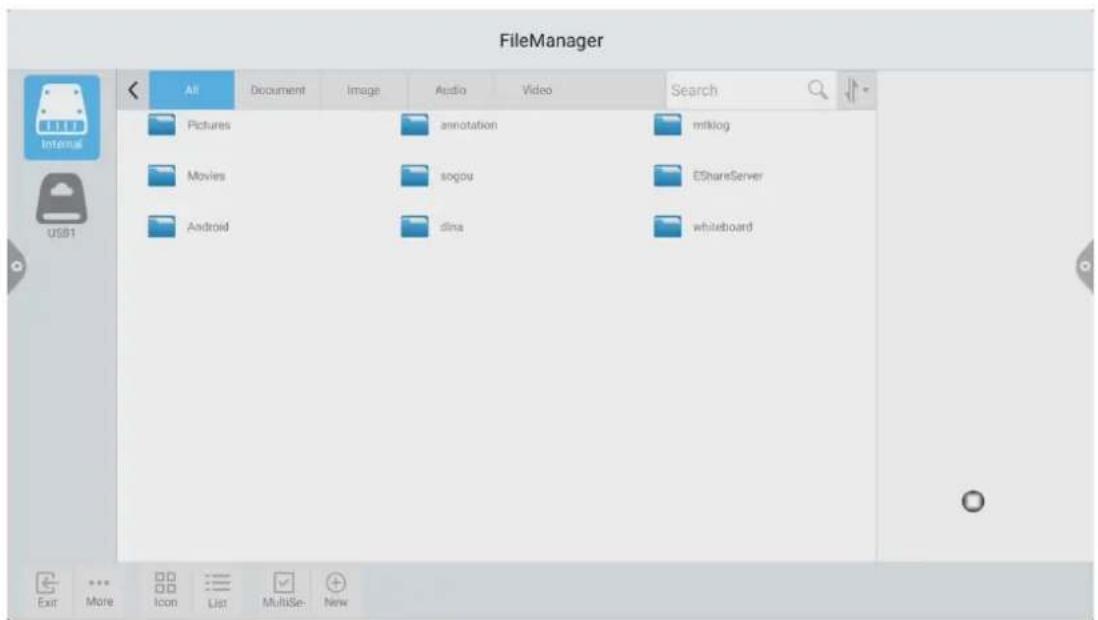
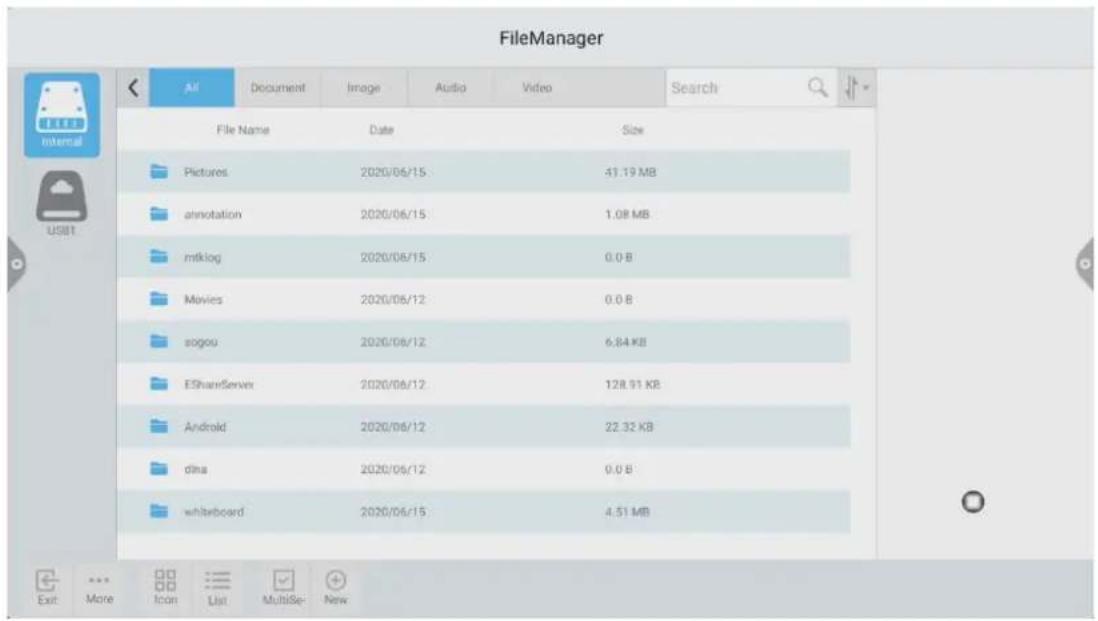
text_image
FileManager All Document Image Audio Video Search Pictures annotation mtllog Movies sogou EShareServer Android dina whiteboard Exit More Icon List MultiSe- New2.2.5 Toolbar
1. Multiple selection
Click MultiSe- icon, Multiple folders can be selected at the same time.
1. Extension tool
When you enter the selected state, the extension toolbar will pop up, which copies, cuts, deletes, renames, compresses, encrypts, and collects functions.
text_image
FileManager All Document Image Audio Video Search File Name Date Size Pictures 2020/06/15 41.19 MB annotation 2020/06/15 1.08 MB mtklog 2020/06/15 0.0 B Movies 2020/06/12 0.0 B sogou 2020/06/12 6.84 KB EShareServer 2020/06/12 128.91 KB Android 2020/06/12 22.32 KB dina 2020/06/12 0.0 B whiteboard 2020/06/15 4.51 MB Exit More Icon List MultiSe- New(1) File encryption
a. Open password protection: long press to select the file or folder to be protected, click encryption, enter the password to confirm. After the file is encrypted, you cannot delete, copy, cut, rename, etc. the file.
b. Unprotect the password: long press to select the protected file or folder, click decrypt, enter the password to unlock the password of the file or folder.
2.3 Welcome template
2.3.1 Interface description
Click on the welcome template app Hi , enter to the app main page. The main interface is divided into a theme bar and a preview display bar.

text_image
Select Meeting Theme WELCOME Welcome template Company Government Medical Education Advertising Traffic Car Manufacture Clothing Building Tobacco Custom Signature WELCOME Welcome template Welcome Page 1 Welcome Page 2 Welcome Page 3 Welcome Page 4 Welcome Page 5 Welcome Page 6 Welcome Page 10 Welcome Page 11 Welcome Page 12 Welcome Page 13 Welcome Page 14 Welcome Page 15The topic column is divided into three modules: welcome module, industry theme, and signature picture. Users can customize the theme, edit the theme, etc. under the Welcome Module, Industry Theme module. Signed images can only be deleted.
2.3.2 Functional application
Open the theme image in the preview display bar.
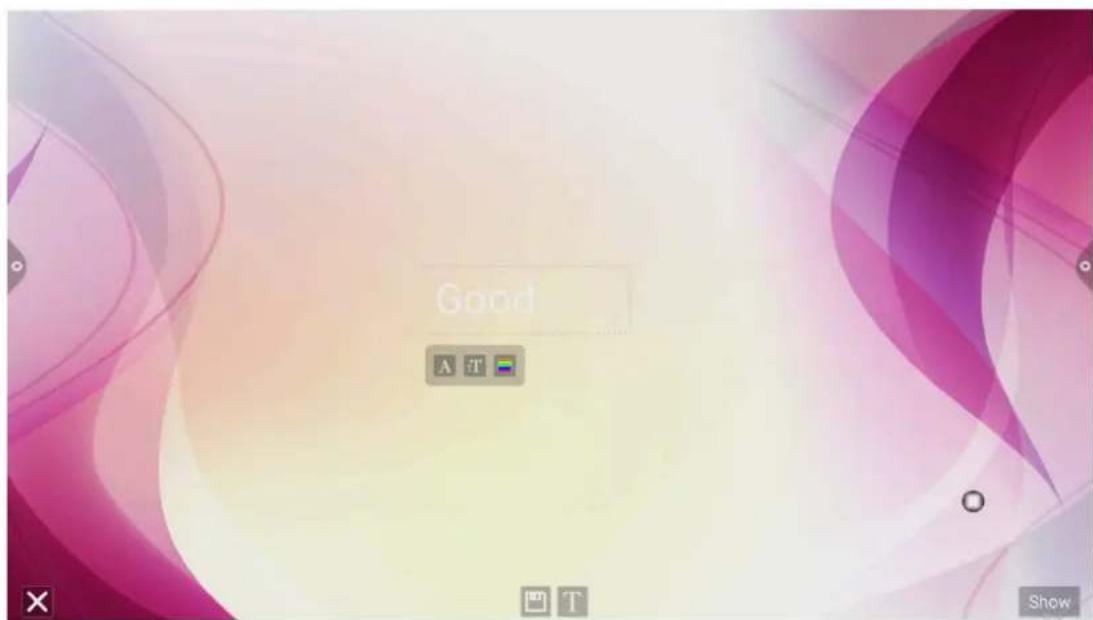
text_image
Good A T Show1.Text Editor:
(1) Click

icon to enter text editing status, when in text editing state, user
can enter text by touching the keyboard, Click select the font, size and color of the text.

the function icon to
(2) Press and hold the edit box at the top of the theme screen to pop up the Edit menu. Use the Edit menu to select, cut, copy, delete, etc. the contents of the edit box.
(3) Save: Click under the theme.

icon to save, save as the theme image and it will appear
2.Signature mode
If you select Show, you will enter the signature state. You can manually touch the written content in the signature state, as shown in the figure.
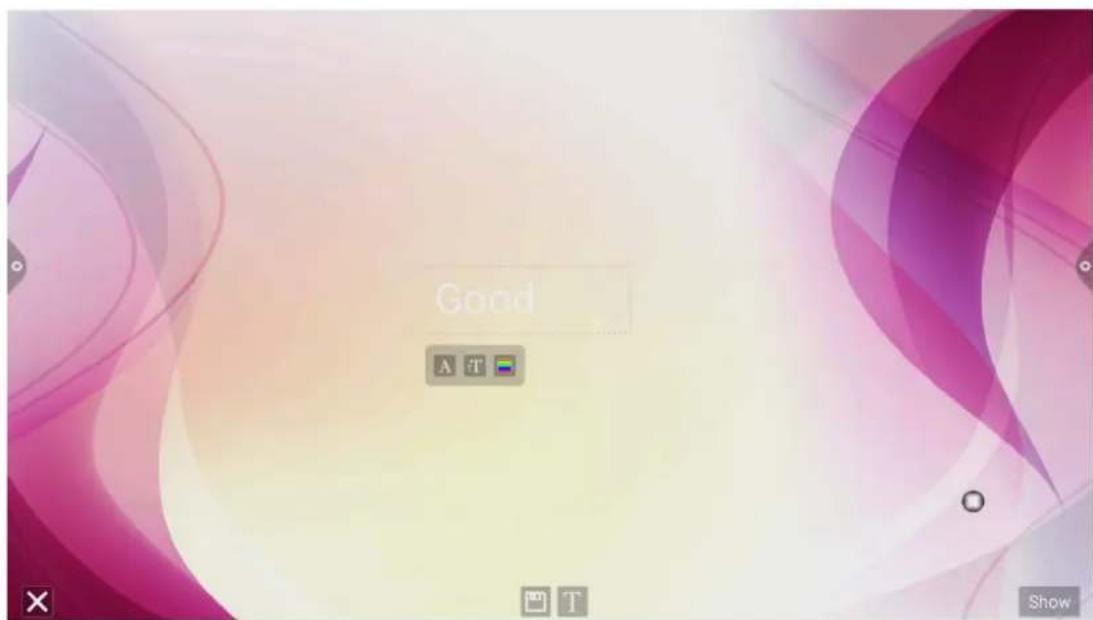
text_image
Good A T Show(1)Write: Click icon to choose the thickness of the line and the color of the line

text_image
Good! A T Show(2) Erase: a. Click icon to clear the edited content in the signature state;
b. Click icon to bring up the eraser function.
(3) QR code sharing: Click

icon to save theme interface signature image, If the network is be connected, user can use the mobile phone to scan the QR code to view and download the saved theme image.

text_image
Good A T Show2.4 Multi-screen interactive
2.4.1 Application note
The main function of this application is to wirelessly transmit the content of mobile phones, tablets or computers to the conference all-in-one machine, and truly realize the wireless screen transmission function of the projection device and the projected device (note: mobile phones, tablets or computers need to be On the same local area network as the conference tablet).
2.4.2 Operating instructions

- Click
(multi-screen interactive) icon to open the multi-screen
interactive interface, and the application display interface is as shown.
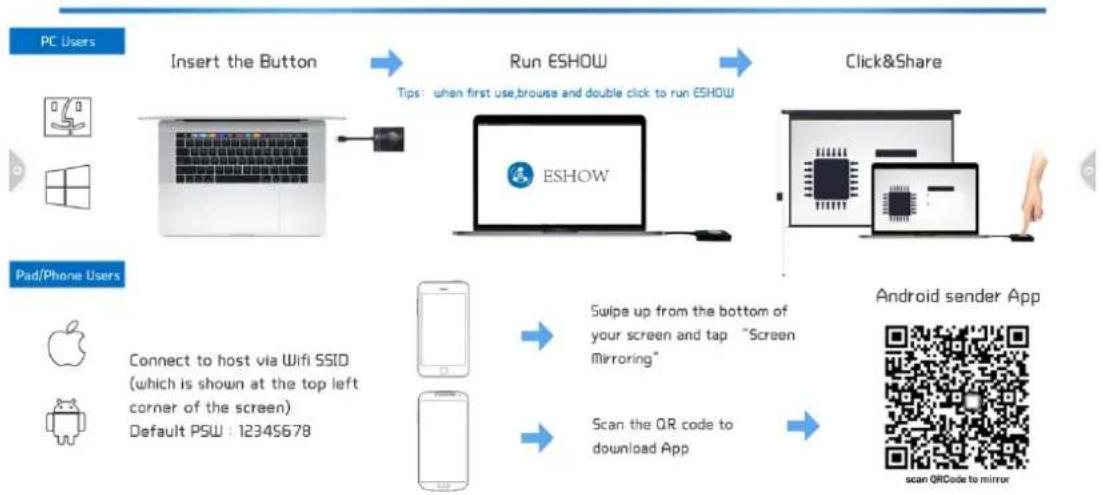
IOS system does not need to install the client
DevName : RECV_026B3D
HotSpot : Dazzle-2327
Password: Dazzle123456

flowchart
graph TD
    A["PC Users"] --> B["Insert the Button"]
    B --> C["Run ESHOW"]
    C --> D["Click&Share"]
    D --> E["Android sender App"]
    F["Pad/Phone Users"] --> G["Connect to host via Wifi SSID\n(which is shown at the top left\ncorner of the screen)\nDefault PSW : 12345678"]
    G --> H["Mobile Device"]
    H --> I["Scan the QR code to download App"]
    I --> J["Android sender App\nscan QRCode to mirror"]
    C --> K["Tips: when first use,browse and double click to run ESHOW"]
    K --> C
    G --> L["Swipe up from the bottom of your screen and tap "Screen Mirroring""]
2. Function activation
This feature is available for a fee.
3. Operating description
A. Android mobile phone connection network, scan the multi-screen interactive interface QR code to download and install E-share application software (Apple mobile phone does not need to download);
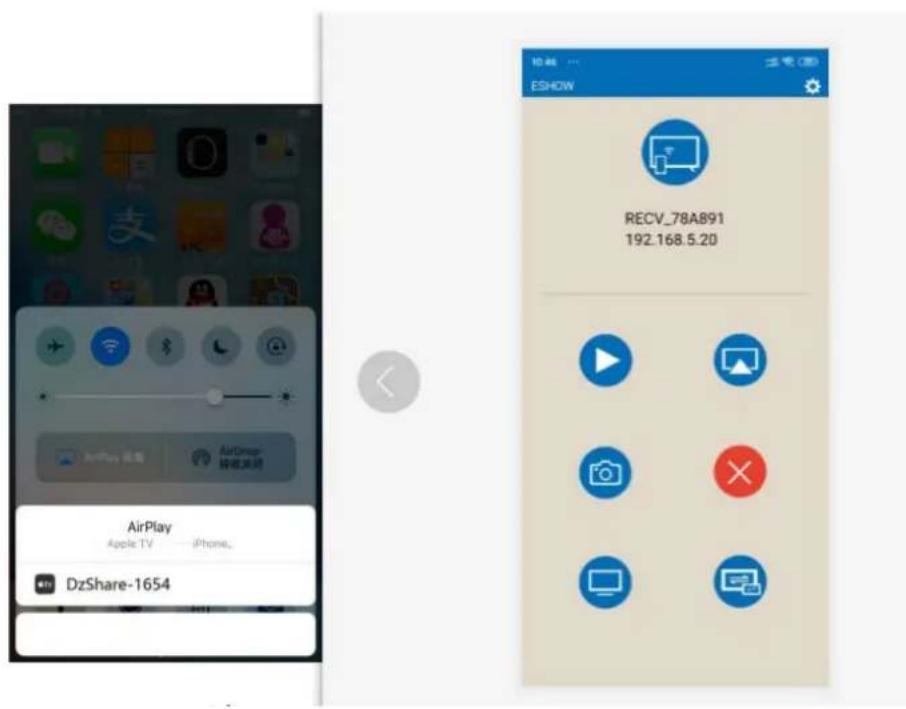
B. The mobile phone needs to use the same network as the all-in-one. The Android mobile phone can open the E-share to cast the screen, and the Apple mobile phone can open the Air Play connection device to cast the screen.
IOS
Android
text_image
ESHOW RECV_78A891 192.168.5.20 AirPlay Apple TV — iPhone. DzShare-16542.4.3 Special instructions for multi-screen interactive interface
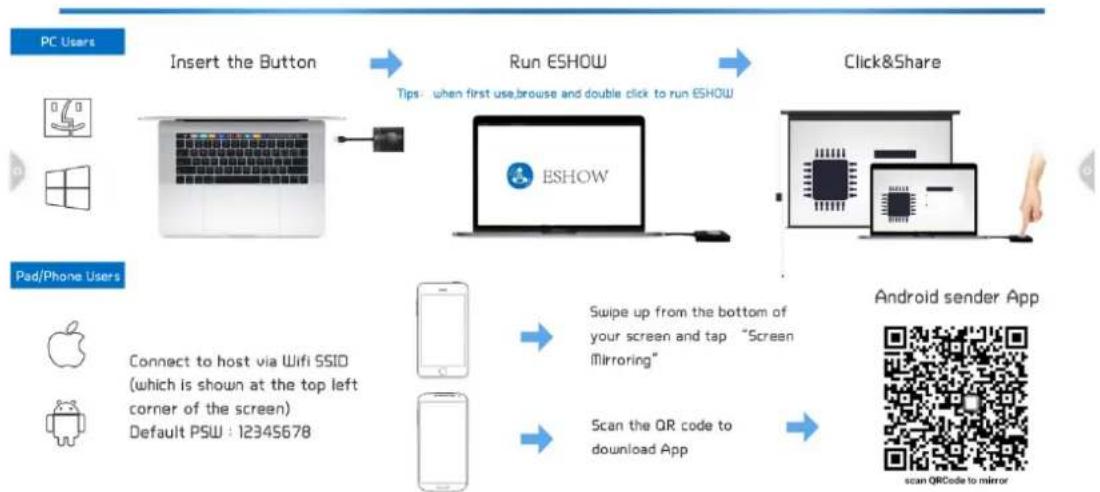
DevName : RECV_026B3D HotSpot : Dazzle-2327 Password: Dazzle123456
flowchart
graph TD
A["PC Users"] --> B["Insert the Button"]
B --> C["Run ESHOW"]
C --> D["Click&Share"]
D --> E["Android sender App"]
F["Pad/Phone Users"] --> G["Connect to host via Wifi SSID (which is shown at the top left corner of the screen)<br>Default PSW : 12345678"]
G --> H["Mobile Phone Icon"]
H --> I["Scan the QR code to download App"]
I --> J["Android sender App"]
K["Tips: when first use, browse and double click to run ESHOW"] --> C
L["Swipe up from the bottom of your screen and tap "Screen Mirroring""] --> I
M["scan QR code to mirror"] --> J
A. Device name
Click

icon, user can modify the machine name

text_image
DeyName : RECV_026B3D HotSpot : Dazzle-2327 Password: Dazzle123456 PC Users Insert the Button Pad/Phone Users Connect to host via Wi-Fi SSIO (which is shown at the top left corner of the screen) Default PSW : 12345678 Settings Device Name: RECV_026B3D Multiple Views: 1 2 4 PIN Code: Enable Tv Mirror: Automatic full screen: Airplay : Activated Service Status: Running Version: V2.6.1 (c3v268) Mac: ec:9c:32:35:9c:8a Click&Share Bottom of "Screen" Android sender App scan ORCode to mirrorIn this interface, you can modify the device name and set the connection password. The connection password only works on Android phones. When the password is turned on, when an Android phone connects to the conference tablet, it needs to enter the connection password to connect to the screen.
Multi-split screen: set the number of split screens
Screen display screen display device name switch: the device name is displayed on the screen display when it is turned on
Airplay visible switch: Airplay visible when turned on.
2.5 More applications
2.5.1 APK application
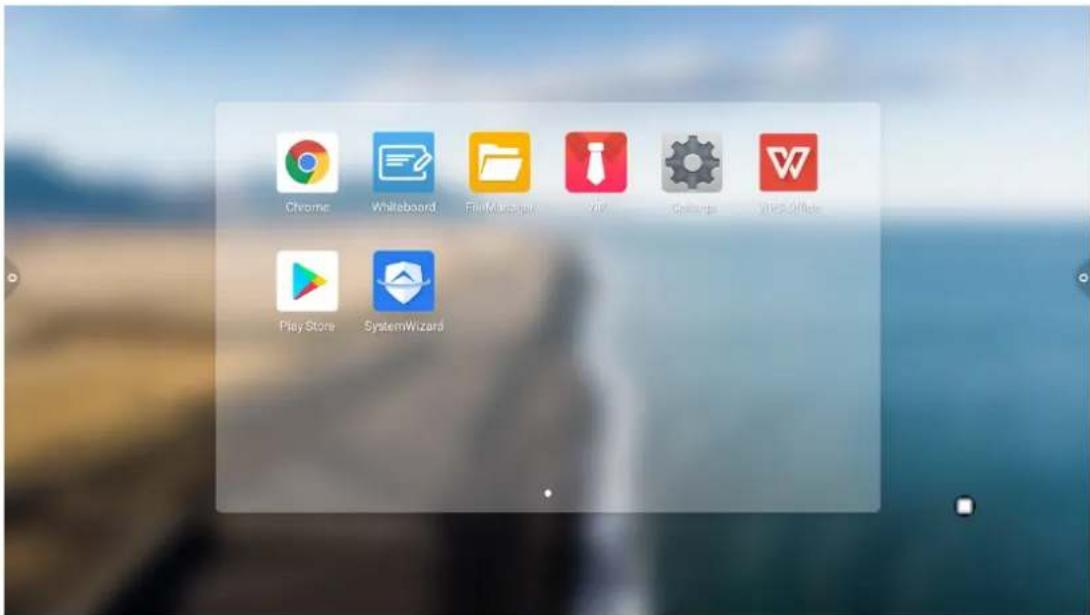
Click the More Apps icon to enter the More Application interface of the conference system. Users can view or open the APK application installed by themselves in this interface, as shown in the figure.
text_image
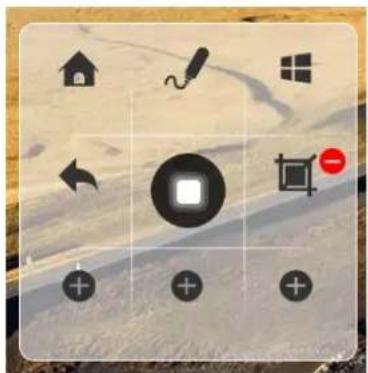
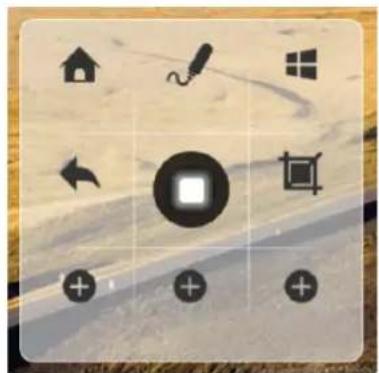
Chrome Whiteboard File Manager VIP Settings Vias Office Play Store SystemWizard- Floating menu, the icon floating on the desktop can be moved freely and displayed in any interface. Click Open to quickly launch the application inside the menu, or you can customize to add other apps to the floating menu bar.
- Add: Click + the icon and select the app you want to add in the pop-up menu bar.
- Delete: Long press the app icon you want to delete to enter the editable state, click 🤘 to delete the app's shortcut icon.
natural_image
Grid of black icons on a textured beige background, including houses, a pencil, and directional arrows (no text or symbols)