
MEX-BT4150U - CD Player SONY - Free user manual and instructions
Find the device manual for free MEX-BT4150U SONY in PDF.


| Product Type | Car CD Receiver / Stereo |
| Model | Sony MEX-BT4150U |
| Chassis Size | 1-DIN (approx. 178 x 50 x 160 mm) |
| Weight | Approx. 1.2 kg |
| Power Supply | 12V DC (negative ground) |
| Maximum Power Output | 4 × 50 W |
| Bluetooth | Built-in (HFP, A2DP, AVRCP), supports hands-free calling and audio streaming |
| USB Port | Front USB 2.0 for music playback (MP3/WMA) |
| AUX Input | 3.5 mm front auxiliary input |
| Radio Tuner | FM/AM with RDS (Radio Data System), 18 FM + 12 AM presets |
| CD Playback | CD, CD-R, CD-RW compatible; supports MP3/WMA files on CD |
| Display | Multi-line dot matrix with 13-segment fluorescent display |
| Equalizer | 7-band graphic equalizer (EQ7) with preset and custom settings |
| Detachable Front Panel | Yes, for anti-theft security |
| Steering Wheel Remote Control | Compatible (requires adapter) |
| Audio Formats Supported | MP3, WMA, CD-DA |
| Power Antenna Output | Yes (controls motorized antenna) |
| Dimensions (W x H x D) | Approx. 178 × 50 × 160 mm (main unit) |
| Package Contents | Unit, mounting sleeve, trim ring, wiring harness, microphone, remote commander (RM-X211), manual |
| Maintenance | Clean with soft, dry cloth; avoid solvents |
| Spare Parts & Repairability | Contact Sony authorized service center; user-replaceable fuse |
Frequently Asked Questions - MEX-BT4150U SONY
User questions about MEX-BT4150U SONY
0 question about this device. Answer the ones you know or ask your own.
Ask a new question about this device
Download the instructions for your CD Player in PDF format for free! Find your manual MEX-BT4150U - SONY and take your electronic device back in hand. On this page are published all the documents necessary for the use of your device. MEX-BT4150U by SONY.
USER MANUAL MEX-BT4150U SONY
Bluetooth® Audio System
Operating Instructions GB
To cancel the demonstration (DEMO) display, see page 6.
Made for


Bluetooth®
Be sure to install this unit in the dashboard of the car for safety. For installation and connections, see the supplied installation/connections manual.
Laser Diode Properties
- Emission Duration: Continuous
- Laser Output: Less than 53.3 W (This output is the value measurement at a distance of 200mm from the objective lens surface on the Optical Pick-up Block with 7mm aperture.)
The Bluetooth word mark and logos are owned by the Bluetooth SIG, Inc. and any use of such marks by Sony Corporation is under license. Other trademarks and trade names are those of their respective owners.
ZAPPIN and Quick-BrowZer are trademarks of Sony Corporation.
Windows Media is either a registered trademark or trademark of Microsoft Corporation in the United States and/or other countries.
This product is protected by certain intellectual property rights of Microsoft Corporation. Use or distribution of such technology outside of this product is prohibited without a license from Microsoft or an authorized Microsoft subsidiary.
iPhone, iPod, iPod classic, iPod nano, and iPod touch are trademarks of Apple Inc., registered in the U.S. and other countries. App Store is a service mark of Apple Inc.
MPEG Layer-3 audio coding technology and patents licensed from Fraunhofer IIS and Thomson.
Android is a trademark of Google Inc. Use of this trademark is subject to Google Permissions.
Note on the lithium battery
Do not expose the battery to excessive heat such as direct sunlight, fire or the like.
Warning if your car's ignition has no ACC position
Be sure to set the Auto Off function (page 31). The unit will shut off completely and automatically in the set time after the unit is turned off, which prevents battery drain. If you do not set the Auto Off function, press and hold SOURCE/OFF until the display disappears each time you turn the ignition off.
Table of contents
Getting Started 5
Notes on Bluetooth function 5
Canceling the DEMO mode....6
Setting the clock 6
Detaching the front panel....6
Location of controls 7
Main unit....7
RM-X231 Remote commander 9
Radio 10
Storing and receiving stations....10
RDS....10
CD....11
Playing a disc....11
USB devices....12
Playing back a USB device....12
iPod....13
Playing back iPod....13
Operating an iPod directly — Passenger control....14
App Remote via USB (iPhone)....14
Two-way Music Control with iPhone....14
Searching and playing tracks 15
Playing tracks in various modes....15
Searching a track by name — Quick-BrowZer™ 16
Searching a track by listening to track passages — ZAPPIN™....17
Changing the illumination .....17
Changing the color of display and buttons — Dynamic Color Illuminator .....17
Advanced color setting 18
Connecting Bluetooth devices .....19
Bluetooth operations....19
Pairing 20
Connection 21
Handsfree calling 23
Music streaming....26
Initializing Bluetooth Settings 27
App Remote via Bluetooth wireless technology (Android phone) .....27
Two-way Music Control with Android phone 28
Sound Settings and Setup Menu 28
Enjoying sophisticated sound functions — Advanced Sound Engine ..... 28
Adjusting setup items ....31
Using optional equipment 34
Auxiliary audio equipment....34
Additional Information....34
Precautions 34
Maintenance 37
Specifications 37
Troubleshooting....38
Getting Started
Notes on Bluetooth function
Caution
IN NO EVENT SHALL SONY BE LIABLE FOR ANY INCIDENTAL, INDIRECT OR CONSEQUENTIAL DAMAGES OR OTHER DAMAGES INCLUDING, WITHOUT LIMITATION, LOSS OF PROFITS, LOSS OF REVENUE, LOSS OF DATA, LOSS OF USE OF THE PRODUCT OR ANY ASSOCIATED EQUIPMENT, DOWNTIME, AND PURCHASER'S TIME RELATED TO OR ARISING OUT OF THE USE OF THIS PRODUCT, ITS HARDWARE AND/OR ITS SOFTWARE.
IMPORTANT NOTICE!
Safe and efficient use
Changes or modifications to this unit not expressly approved by Sony may void the user's authority to operate the equipment. Please check for exceptions, due to national requirement or limitations, in usage of Bluetooth equipment before using this product.
Driving
Check the laws and regulations on the use of cellular phones and handsfree equipment in the areas where you drive.
Always give full attention to driving and pull off the road and park before making or answering a call if driving conditions so require.
Connecting to other devices
When connecting to any other device, please read its user guide for detailed safety instructions.
Radio frequency exposure
RF signals may affect improperly installed or inadequately shielded electronic systems in cars, such as electronic fuel injection systems, electronic antiskid (antilock) braking systems, electronic speed control systems or air bag systems. For installation or service of this device, please consult with the manufacturer or its representative of your car. Faulty installation or service may be dangerous and may invalidate any warranty that may apply to this device.
Consult with the manufacturer of your car to ensure that the use of your cellular phone in the car will not affect its electronic system. Check regularly that all wireless device equipment in your car is mounted and operating properly.
Emergency calls
This Bluetooth car handsfree and the electronic device connected to the handsfree operate using radio signals, cellular, and landline networks as well as user-programmed function, which cannot guarantee connection under all conditions.
Therefore do not rely solely upon any electronic device for essential communications (such as medical emergencies).
Remember, in order to make or receive calls, the handsfree and the electronic device connected to the handsfree must be switched on in a service area with adequate cellular signal strength.
Emergency calls may not be possible on all cellular phone networks or when certain network services and/or phone features are in use.
Check with your local service provider.
Canceling the DEMO mode
You can cancel the demonstration display which appears while this unit is turned off.
1 Press MENU, rotate the control dial until "DISPLAY" appears, then press it.
2 Rotate the control dial until "DEMO" appears, then press it.
3 Rotate the control dial to select "DEMO-OFF," then press it.
The setting is complete.
4 Press (BACK) to return to the previous display.
The display returns to normal reception/play mode.
Setting the clock
The clock uses a 12-hour digital indication.
1 Press Ⓜ MENU, rotate the control dial until "GENERAL" appears, then press it.
2 Rotate the control dial until "CLOCK-ADJ" appears, then press it.
The hour indication flashes.
3 Rotate the control dial to set the hour and minute.
To move the digital indication, press SEEK +/-.
4 After setting the minute, press MENU.
The setup is complete and the clock starts.
To display the clock, press DSPL.
Detaching the front panel
You can detach the front panel of this unit to prevent theft.
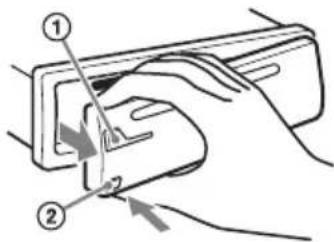
1 Press and hold SOURCE/OFF ①. The unit is turned off.
2 Press the front panel release button ②, then remove the panel by pulling it towards you.
Caution alarm
If you turn the ignition switch to the OFF position without detaching the front panel, the caution alarm will sound for a few seconds. The alarm will only sound if the built-in amplifier is used.
Note
Do not subject the front panel to heat/high temperature or moisture. Avoid leaving it in a parked car or on a dashboard/rear tray.
Attaching the front panel
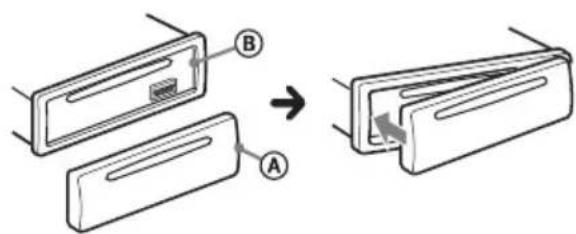
Engage part Ⓐ of the front panel with part Ⓑ of the unit, as illustrated, and push the left side into position until it clicks.
Location of controls
Main unit
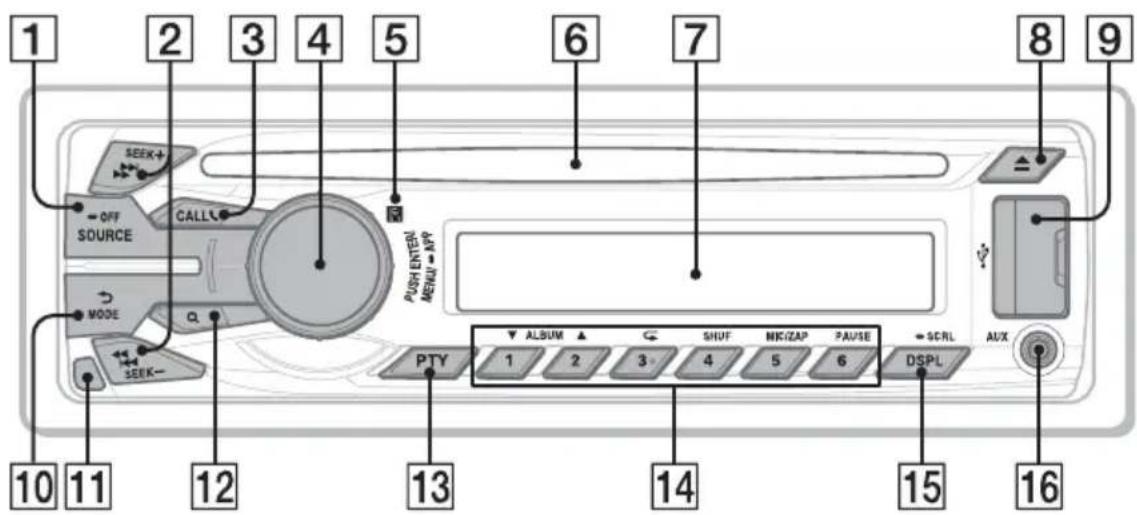
This section contains instructions on the location of controls and basic operations.
1 SOURCE/OFF button\*
Press to turn on the power; select the source (Radio/CD/USB/AUX/
Bluetooth audio/Bluetooth phone).
Press repeatedly to change to another source.
Press and hold for 1 second to turn off the power.
Press and hold for more than 2 seconds to turn off the power and the display disappears.
2 SEEK +/- buttons
Radio:
To tune in stations automatically (press); find a station manually (press and hold).
CD/USB:
To skip a track (press); skip tracks continuously (press, then press again within about 2 seconds and hold); reverse/fast-forward a track (press and hold).
Bluetooth Audio ^*2 :
To skip a track (press); reverse/fast-forward a track (press and hold).
App Remote ^*3 :
To skip a track (press).
3 CALL button page 20
To enter the call menu (press); switch the Bluetooth signal (press and hold more than 2 seconds); receive/end a call (press).
4 Control dial/ENTER/MENU/APP button page 14, 28, 31
Rotate to adjust volume.
Press to enter setup mode.
Press to receive/end a call.
Press and hold for more than 2 seconds to establish App Remote.
After pressing SOURCE/OFF, rotate then press to change the source.
5 Receptor for the remote commander
6 Disc slot
Insert the disc (label side up), playback starts.
7 Display window
8 ▲ (Eject) button
To eject the disc.
9 USB port page 12, 13, 14
10 ←(BACK)/MODE button page 10, 14, 24
Press to return to the previous display; select the radio band (FM/MW/SW).
Press and hold to enter/cancel the passenger control (iPod).
Press to activate/deactivate the appropriate device (this unit/cellular phone) (Bluetooth phone).
11 Front panel release button page 6
12 Q(BROWSE) button page 16
To enter the Quick-BrowZer ^™ mode (CD/USB).
13 PTY (Program Type) button page 10
To select PTY in RDS.
14 Number buttons
Radio:
To receive stored stations (press); store stations (press and hold).
CD/USB:
①/②: ALBUM ▼/▲ (during MP3/
WMA/AAC playback)
To skip an album (press); skip albums continuously (press and hold).
③: (Repeat)* 4 page 15
④: SHUF page 15
⑤: ZAP page 17
⑥: PAUSE
To pause playback. Press again to resume playback.
Bluetooth Audio ^*2 :
①/②: ALBUM ▼/▲
③: (Repeat)* 4 page 26
④: SHUF page 26
⑥: PAUSE
To pause playback. Press again to resume playback.
Bluetooth phone: page 24, 25
To call a stored phone number (press); to store a phone number as a preset (press and hold) (in the call menu).
⑤: MIC (during a call) page 24
To set the MIC gain (press); to select Echo Canceler/Noise Canceler mode (press and hold).
App Remote ^*3 :
⑥: PAUSE
To pause playback. Press again to resume playback.
15 DSPL (Display)/SCRL (Scroll) button page 10, 11, 12, 13, 22, 26
To change display items (press); scroll a display item (press and hold).
16 AUX input jack page 34
*1 If App Remote is established with iPhone/Android™ phone, the application name appears on the display when selecting the source.
*2 When a Bluetooth audio device (supports AVRCP of Bluetooth technology) is connected. Depending on the device, certain operations may not be available.
*3 When App Remote is established with iPhone/Android phone. Depending on the application, certain operations may not be available.
*4 This button has a tactile dot.
Note
If the unit is turned off and the display disappears, the unit cannot be operated with the remote commander unless SOURCE/OFF on the unit is pressed, or a disc is inserted to activate the unit first.
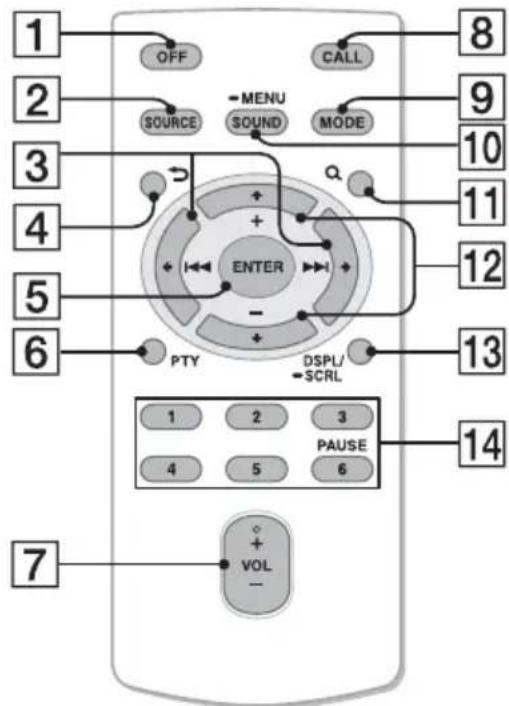
RM-X231 Remote commander
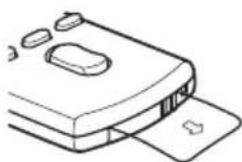
Remove the insulation film before use.
natural_image
Diagram of a device with a scroll wheel and a card slot, no text or symbols present1 OFF button
To turn off the power; stop the source; reject a call.
2 SOURCE button*
Press to turn on the power.
Press repeatedly to change to another source (Radio/CD/USB/AUX/
Bluetooth audio/Bluetooth phone).
3 ← (I◄◄) / → (►►I) buttons
To control Radio/CD/USB/Bluetooth audio/App Remote, the same as SEEK +/- on the unit.
Setup items can be operated by ←→.
After pressing SOURCE, press to change the source.
4 (BACK) button
To return to the previous display.
5 ENTER button
To apply a setting; receive a call; end a call.
6 PTY (Program Type) button
7 VOL (Volume) +2t- button
8 CALL button
To enter the call menu.
To receive/end a call.
9 MODE button
Press to select the radio band (FM/MW/SW).
Press and hold to enter/cancel the passenger control (iPod).
Press to activate/deactivate the appropriate device (this unit/cellular phone) (Bluetooth phone).
10 SOUND/MENU button
To enter the SOUND menu directly (press); to enter setup mode (press and hold).
11 Q(BROWSE) button
12 ↑ (+)/↓ (-) buttons
To control CD/USB/Bluetooth audio device, the same as ①/② (ALBUM ▼/▲) on the unit.
Setup items can be operated by .
13 DSPL (Display)/SCRL (Scroll) button
14 Number buttons
To receive stored stations (press); store stations (press and hold).
To call a stored phone number (press); to store a phone number as a preset (press and hold) (in the call menu) (Bluetooth phone).
To pause playback (press ⑥).
*1 If App Remote is established with iPhone/Android phone, the application name appears on the display when selecting the source.
*2 This button has a tactile dot.
Radio
Storing and receiving stations
Caution
When tuning in stations while driving, use Best Tuning Memory (BTM) to prevent an accident.
Storing automatically — BTM
1 Press SOURCE/OFF repeatedly until "TUNER" appears.
To change the band, press MODE repeatedly. You can select from FM1, FM2, FM3, MW, SW1 or SW2.
2 Press Ⓜ MENU, rotate the control dial until “GENERAL” appears, then press it.
3 Rotate the control dial until "BTM" appears, then press it.
The unit stores stations in order of frequency on the number buttons.
Tip
You can also press SOURCE/OFF, rotate the control dial to select "TUNER," then press it to select the source.
Storing manually
1 While receiving the station that you want to store, press and hold a number button (① to ⑥) until “MEM” appears.
Receiving the stored stations
1 Select the band, then press a number button (① to ⑥).
Tuning automatically
1 Select the band, then press SEEK +/- to search for the station.
Scanning stops when the unit receives a station. Repeat this procedure until the desired station is received.
Tip
If you know the frequency of the station you want to listen to, press and hold SEEK +/- to locate the approximate frequency, then press SEEK +/- repeatedly to fine adjust to the desired frequency (manual tuning).
RDS
FM stations with Radio Data System (RDS) service send inaudible digital information along with the regular radio program signal.
Notes
- Depending on the country/region, not all RDS functions may be available.
- RDS will not work if the signal strength is too weak, or if the station you are tuned to is not transmitting RDS data.
Changing display items
Press DSPL.
Selecting PTY (Program Types)
Use PTY to display or search for a desired program type.
1 Press PTY during FM reception.
The current program type name appears if the station is transmitting PTY data.
2 Rotate the control dial until the desired program type appears, then press it.
The unit starts to search for a station broadcasting the selected program type.
Type of programs
NEWS (News), AFFAIRS (Current Affairs), INFO (Information), SPORT (Sports), EDUCATE (Education), DRAMA (Drama), CULTURE (Culture), SCIENCE (Science), VARIED (Varied), POP M (Pop Music), ROCK M (Rock Music), EASY M (M.O.R. Music), LIGHT M (Light classical), CLASSICS (Serious classical), OTHER M (Other Music), WEATHER (Weather), FINANCE (Finance), CHILDREN (Children's program), SOCIAL A (Social Affairs), RELIGION (Religion), PHONE IN (Phone In), TRAVEL (Travel), LEISURE (Leisure), JAZZ (Jazz Music), COUNTRY (Country Music), NATION M (National Music), OLDIES (Oldies Music), FOLK M (Folk Music), DOCUMENT (Documentary)
Note
You may receive a different radio program from the one you select.
Setting CT (Clock Time)
The CT data from the RDS transmission sets the clock.
1 Set "CT-ON" in setup (page 31).
Note
The CT function may not work properly even though an RDS station is being received.
CD
Playing a disc
This unit can play CD-DA (also containing CD TEXT) and CD-R/CD-RW (MP3/WMA/AAC files (page 35)).
1 Insert the disc (label side up).
Playback starts automatically.
To eject the disc, press ▲.
Notes
- When ejecting/inserting a disc, keep any USB devices disconnected to avoid damage to the disc.
- Corresponding codec is MP3 (.mp3), WMA (.wma) and AAC (.m4a).
Changing display items
Press DSPL.
Displayed items may differ depending on the disc type, recording format and settings.
USB devices
- MSC (Mass Storage Class)-type USB devices (such as a USB flash drive, digital media player, Android phone) compliant with the USB standard can be used. Depending on the digital media player or Android phone, setting the USB connection mode to MSC is required.
- Backup of data to a USB device is recommended.
Notes
- Connect the USB device after starting the engine.
Depending on the USB device, malfunction or damage may occur if it is connected before starting the engine. - Corresponding codec is MP3 (.mp3), WMA (.wma), AAC (.m4a) and AAC (.mp4).
- For details on the compatibility of your USB device, visit the support site (page 43).
Playing back a USB device
1 Open the USB cover, then connect the USB device to the USB port.
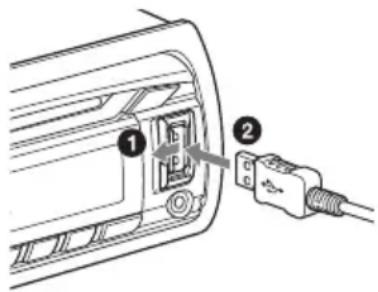
Playback starts.
If a USB device is already connected, to start playback, press SOURCE/OFF repeatedly until "USB" appears.
To stop playback, press and hold SOURCE/OFF for 1 second.
To remove the USB device, stop the USB playback, then remove the USB device.
Notes
- Do not use USB devices so large or heavy that they may fall down due to vibration, or cause a loose connection.
- Do not detach the front panel during playback of the USB device, otherwise USB data may be damaged.
Changing display items
Press DSPL.
Displayed items may differ depending on the USB device, recording format and settings.
Notes
- The maximum number of tracks is 10,000.
- It may take time for playback to begin, depending on the amount of recorded data.
- During playback or fast-forward/reverse of a VBR (Variable Bit Rate) MP3/WMA/AAC file, elapsed playing time may not display accurately.
- Playback of the following MP3/WMA/AAC files is not supported.
- lossless compression files
- copyright - protected files
- DRM (Digital Rights Management) files
- Multi-channel audio files
iPod
In these Operating Instructions, “iPod” is used as a general reference for the iPod functions on the iPod and iPhone, unless otherwise specified by the text or illustrations.
For details on the compatibility of your iPod, see “About iPod” (page 35) or visit the support site (page 43).
Playing back iPod
Before connecting the iPod, turn down the volume of the unit.
1 Open the USB cover, then connect the iPod to the USB port with a USB connection cable for iPod (not supplied)*.
* RC-100IP USB connection cable for iPod is recommended.
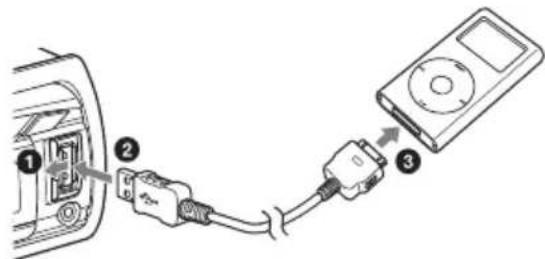
The tracks on the iPod start playing automatically from the point last played.
If an iPod is already connected, to start playback, press SOURCE/OFF repeatedly until "USB" appears. ("IPD" appears in the display when iPod is recognized.)
To stop playback, press and hold SOURCE/OFF for 1 second.
To remove the iPod, stop the iPod playback, then remove the iPod.
Caution for iPhone
When you connect iPhone via USB, phone call volume is controlled by iPhone, not the unit. Do not inadvertently increase the volume on the unit during a call, as sudden loud sound may result when the call ends.
Note
Do not detach the front panel during playback of the iPod, otherwise data may be damaged.
Tip
The iPod is recharged while the unit is turned on.
Resuming mode
When the iPod is connected to the unit, playback starts in the mode set by the iPod. In this mode, the following buttons do not function.
- ③
- ④ (SHUF)
Changing display items
Press DSPL.
Note
Some letters stored in iPod may not be displayed correctly.
Skipping albums, podcasts, genres, playlists and artists
To Do this
| Skip | Press 1/2 (ALBUM ▼/▲) [press once for each skip] |
| Skip continuously | Press and hold 1/2 (ALBUM ▼/▲) [hold to desired point] |
Operating an iPod directly — Passenger control
You can operate an iPod directly even when it is connected to the unit.
1 During playback, press and hold MODE.
“MODE IPOD” appears and you will be able to operate the iPod directly.
To exit the passenger control, press and hold ⓂMODE.
“MODE AUDIO” will appear and direct operation of the iPod will not be possible.
Note
The volume can be adjusted only by the unit.
App Remote via USB (iPhone)
Downloading the "App Remote"
application from App Store ^SM is required for iPhone.
If the application is downloaded to iPhone and connected to the unit, the following features are available:
- Operate the unit to launch and control compatible applications on iPhone.
- Operate iPhone with simple finger gestures to control the source of the unit.
- Display detailed source information (song title, artist name, album art, etc.) on iPhone.
Available operations differ depending on the application. For details on available applications, visit the support site (page 43).
Notes
- For your safety, follow your local traffic laws and regulations, and do not operate the application while driving.
- The “App Remote” application via USB is only available for iPhones with iOS 5 installed.
Two-way Music Control with iPhone
1 Open the USB cover, then connect iPhone to the USB port with a USB connection cable for iPhone (not supplied) ^* .
* RC-100IP USB connection cable for iPhone is recommended.
2 Start up the "App Remote" application.
3 Press and hold MENU (APP) on the unit for more than 2 seconds.
Connection to iPhone starts. When connection is established, the name of the application on iPhone appears when selecting a source, and some playback operations for the application become available. (Available operations differ depending on the application.) Likewise, some playback operations of the unit can be controlled by iPhone. For details on the operations on iPhone, see the help of the application.
Tip
You can also press MENU, rotate the control dial to select "APP REM," then press it to establish the connection. And then press SOURCE/OFF to select the source.
To terminate connection Press and hold ⓂMENU.
Searching and playing tracks
Playing tracks in various modes
You can listen to tracks repeatedly (repeat play) or in random order (shuffle play). Available play modes differ depending on the selected sound source.
1 During playback, press ③ (⊂) or ④ (SHUF) repeatedly until the desired play mode appears.
Playback in selected play mode may take time to start.
Repeat play
| Select To play | |
| TRACK track repeatedly. | |
| ALBUM album repeatedly. | |
| PODCAST*1 | podcast repeatedly. |
| ARTIST*1 | artist repeatedly. |
| PLAYLIST*1 | playlist repeatedly. |
| GENRE*1 | genre repeatedly. |
| OFF track in normal order(Normal play). | |
Shuffle play
| Select To play | |
| SHUF ALBUM | album in random order. |
| SHUF DISC*2 | disc in random order. |
| SHUF PODCAST*1 | podcast in random order. |
| SHUF ARTIST*1 | artist in random order. |
| SHUF PLAYLIST*1 | playlist in random order. |
| SHUF GENRE*1 | genre in random order. |
| SHUF DEVICE*3 | device in random order. |
| SHUF OFF track in normal order(Normal play). | |
*1 iPod only
*2 CD only
*3 USB and iPod only
Searching a track by name — Quick-BrowZer™
You can search for a track in a CD or USB device easily by category.
1 Press Q (BROWSE)*.
The unit enters the Quick-BrowZer mode, and the list of search categories appears.
When the track list appears, press
→ (BACK) repeatedly until the desired search category appears.
* During USB playback, press (BROWSE) for more than 2 seconds to directly return to the beginning of the category list.
2 Rotate the control dial to select the desired search category, then press it to confirm.
3 Repeat step 2 until the desired track is selected.
Playback starts.
To exit the Quick-BrowZer mode, press
Q (BROWSE).
Notes
- When entering the Quick-BrowZer mode, the repeat/shuffle setting is canceled.
- “ lights up when there is an upper layer, and “ lights up when there is a lower layer.
Searching by skip items — Jump mode
When many items are in a category, you can search for a desired item quickly.
1 Press SEEK + in Quick-BrowZer mode.
The item name will appear.
2 Rotate the control dial to select the item near the one desired.
The list is skipped in steps of 10% of the total number of items in the list.
3 Press MENU (ENTER).
The display returns to the Quick-BrowZer mode and the selected item appears.
4 Rotate the control dial to select the desired item and press it.
Playback starts if the selected item is a track.
To cancel Jump mode, press (BACK) or SEEK -
Searching by alphabetical order — Alphabet search
When an iPod is connected to the unit, you can search for a desired item alphabetically.
1 Press SEEK + in Quick-BrowZer mode.

- Bluetooth® Audio System
- Laser Diode Properties
- Note on the lithium battery
- Warning if your car's ignition has no ACC position
- Table of contents
- Getting Started 5
- Location of controls 7
- Radio 10
- CD....11
- USB devices....12
- iPod....13
- App Remote via USB (iPhone)....14
- Searching and playing tracks 15
- Changing the illumination .....17
- Connecting Bluetooth devices .....19
- App Remote via Bluetooth wireless technology (Android phone) .....27
- Getting Started
- Notes on Bluetooth function
- Caution
- IMPORTANT NOTICE!
- Safe and efficient use
- Driving
- Connecting to other devices
- Radio frequency exposure
- Emergency calls
- Canceling the DEMO mode
- Setting the clock
- Detaching the front panel
- Caution alarm
- Note
- Attaching the front panel
- Location of controls
- Main unit
- SOURCE/OFF button\*
- SEEK +/- buttons
- Radio:
- CD/USB:
- Bluetooth Audio *2 :
- CALL button page 20
- Control dial/ENTER/MENU/APP button page 14, 28, 31
- Receptor for the remote commander
- Disc slot
- Display window
- ▲ (Eject) button
- USB port page 12, 13, 14
- Bluetooth phone: page 24, 25
- App Remote *3 :
- ⑥: PAUSE
- RM-X231 Remote commander
- Radio
- Storing and receiving stations
- Storing automatically — BTM
- Tip
- Storing manually
- Receiving the stored stations
- Tuning automatically
- RDS
- Notes
- Selecting PTY (Program Types)
- Rotate the control dial until the desired program type appears, then press it.
- Type of programs
- Setting CT (Clock Time)
- CD
- Playing a disc
- Insert the disc (label side up).
- Changing display items
- USB devices
- Playing back a USB device
- Open the USB cover, then connect the USB device to the USB port.
- iPod
- Playing back iPod
- Caution for iPhone
- Resuming mode
- Skipping albums, podcasts, genres, playlists and artists
- Operating an iPod directly — Passenger control
- During playback, press and hold MODE.
- App Remote via USB (iPhone)
- Two-way Music Control with iPhone
- Press and hold MENU (APP) on the unit for more than 2 seconds.
- Searching and playing tracks
- Playing tracks in various modes
- During playback, press ③ (⊂) or ④ (SHUF) repeatedly until the desired play mode appears.
- Searching a track by name — Quick-BrowZer™
- Searching by skip items — Jump mode
- Searching by alphabetical order — Alphabet search
Brand : SONY
Model : MEX-BT4150U
Category : CD Player