CDX-GT255 - CD Player SONY - Free user manual and instructions
Find the device manual for free CDX-GT255 SONY in PDF.


User questions about CDX-GT255 SONY
0 question about this device. Answer the ones you know or ask your own.
Ask a new question about this device
Download the instructions for your CD Player in PDF format for free! Find your manual CDX-GT255 - SONY and take your electronic device back in hand. On this page are published all the documents necessary for the use of your device. CDX-GT255 by SONY.
USER MANUAL CDX-GT255 SONY
FM/MW/SW Compact Disc Player
Operating Instructions
GB
To cancel the demonstration (DEMO) display, see page 9.


CDX-GT255
Welcome !
Thank you for purchasing this Sony Compact Disc Player. You can enjoy your drive with the following functions.
- CD playback
You can play CD-DA (also containing CD TEXT*), CD-R/CD-RW (MP3/WMA files also containing Multi Session (page 11)) and ATRAC CD (ATRAC3 and ATRAC3plus format (page 11)).
| Type of discs Label on the disc | ||
| CD-DA |  |  |
| MP3WMAATRAC CD |  |  |
 |  | |
- Radio reception
- You can store up to 6 stations per band (FM1, FM2, FM3, MW, SW1 and SW2).
- BTM (Best Tuning Memory): the unit selects strong signal stations and stores them.
- Sound adjustment
- EQ3: You can select an equalizer curve for 7 music types.
• Auxiliary equipment connection
- An AUX input jack on the front of the unit allows connection of a portable audio device.
* A CD TEXT disc is a CD-DA that includes information such as disc, artist and track name.
For installation and connections, see the supplied installation/connections manual.
CLASS 1 LASER PRODUCT
This label is located on the bottom of the chassis.
Warning if your car's ignition has no ACC position
After turning the ignition off, be sure to press and hold OFF on the unit until the display disappears.
Otherwise, the display does not turn off and this causes battery drain.
SonicStage and its logo are trademarks of Sony Corporation.
ATRAC, ATRAC3, ATRAC3plus and their logos are trademarks of Sony Corporation.

Microsoft, Windows Media, and the Windows logo are trademarks or registered trademarks of Microsoft
Corporation in the United States and/or other countries.
Table of Contents
Getting Started
Resetting the unit. 4
Setting the clock 4
Detaching the front panel 4
Attaching the front panel 5
Location of controls and basic operations
Main unit 6
Card remote commander RM-X151 ..... 6
CD
Display items 8
Repeat and shuffle play 8
Radio
Storing and receiving stations ..... 8
Storing automatically — BTM ..... 8
Storing manually 8
Receiving the stored stations 8
Tuning automatically 8
Other functions
Changing the sound settings 9
Adjusting the sound characteristics — BAL/FAD/SUB 9
Customizing the equalizer curve — EQ3 9
Adjusting setup items — SET 9
Using optional equipment.... 10
Auxiliary audio equipment 10
Additional Information
Precautions 10
Notes on discs 10
About MP3/WMA files ..... 11
About ATRAC CD 11
Maintenance 12
Removing the unit. 12
Specifications 13
Troubleshooting 14
Error displays/Messages 15
Getting Started
Resetting the unit
Before operating the unit for the first time, or after replacing the car battery or changing the connections, you must reset the unit.
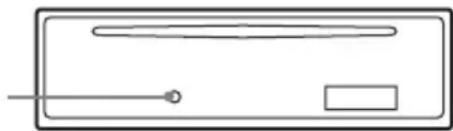
Detach the front panel and press the RESET button with a pointed object, such as a ballpoint pen.
RESET button
natural_image
Simple line drawing of a rectangular box with a horizontal bar and a small circle inside, no text or symbols present.Note
Pressing the RESET button will erase the clock setting and some stored contents.
Setting the clock
The clock uses a 12-hour digital indication.
1 Press and hold the select button.
The setup display appears.
2 Press the select button repeatedly until "CLOCK-ADJ" appears.
3 Press DSPL.
The hour indication flashes.
4 Rotate the volume control dial to set the hour and minute.
To move the digital indication, press DSPL.
5 Press the select button.
The setup is complete and the clock starts.
To display the clock, press DSPL. Press
DSPL again to return to the previous display.
With the card remote commander
In step 4, to set the hour and minute, press or .
Detaching the front panel
You can detach the front panel of this unit to prevent theft.
Caution alarm
If you turn the ignition switch to the OFF position without detaching the front panel, the caution alarm will sound for a few seconds. The alarm will only sound if the built-in amplifier is used.
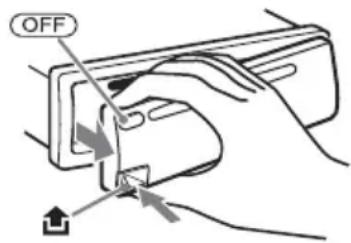
1 Press OFF.
The unit is turned off.
2 Press , then pull it off towards you.
text_image
OFFNotes
- Do not drop or put excessive pressure on the front panel and display window.
- Do not subject the front panel to heat/high temperature or moisture. Avoid leaving it in a parked car or on a dashboard/rear tray.
Attaching the front panel
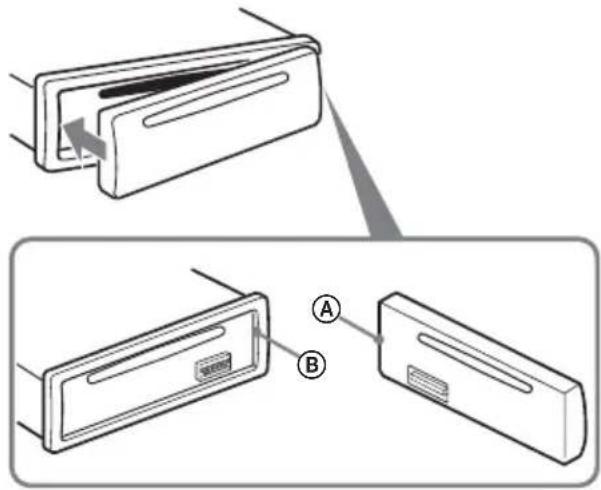
Engage part Ⓐ of the front panel with part Ⓑ of the unit, as illustrated, and push the left side into position until it clicks.
text_image
Diagram showing two views of a device with labeled parts A and B, illustrating a folding or disassembly process.Note
Do not put anything on the inner surface of the front panel.
Location of controls and basic operations
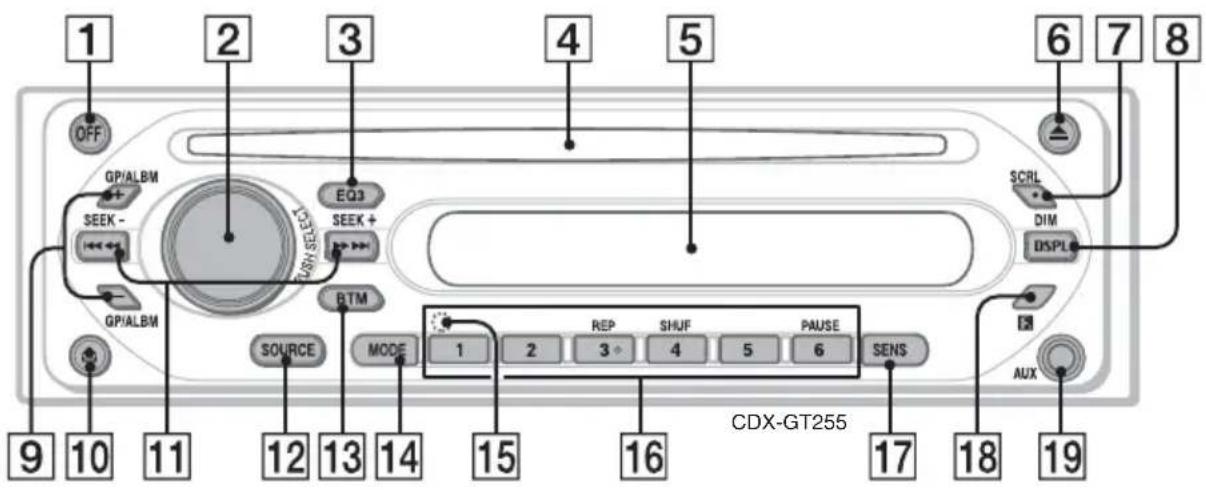
Main unit
text_image
1 OFF 2 GP/ALBM SEEK - 3 EQ3 SEEK + 4 5 6 7 8 SCRL DIM DSPL GP/ALBM BTM SOURCE MODE 1 2 3 4 5 6 SERNS 9 10 11 12 13 14 15 16 17 18 19 CDX-GT255Card remote commander
RM-X151
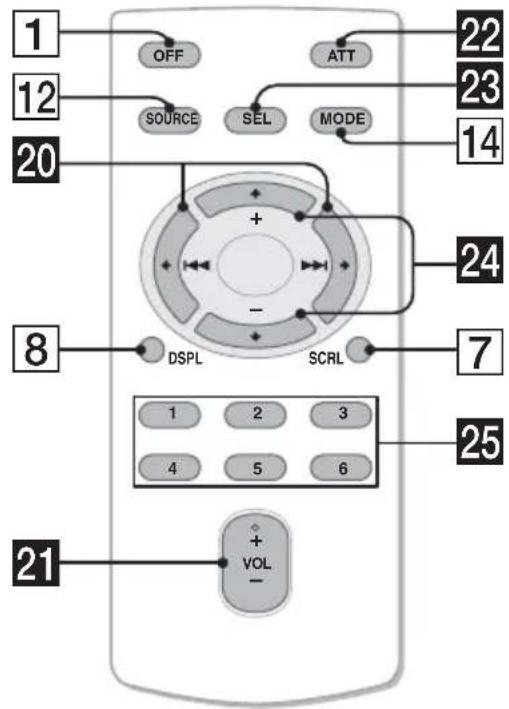
text_image
1 OFF ATT 22 12 SOURCE SEL MODE 23 14 20 + - 24 8 DSPL SCRL 7 1 2 3 4 5 6 25 21 + VOL -Refer to the pages listed for details. The corresponding buttons on the card remote commander control the same functions as those on the unit.
1 OFF button
To power off; stop the source.
2Volume control dial/select button 9
To adjust volume (rotate); select setup items (press and rotate).
3 EQ3 (equalizer) button 9
To select an equalizer type (XPLOD, VOCAL, CLUB, JAZZ, NEW AGE, ROCK, CUSTOM or OFF).
4 Disc slot
To insert the disc (label side up), playback starts.
5 Display window
6▲ (eject) button
To eject the disc.
7 SCRL (scroll) button 8
To scroll the display item.
8 DSPL (display)/DIM (dimmer) button 4, 8
To change display items (press); change the display brightness (press and hold).
9 GP* 1/ALBM*2 -/+ buttons
To skip groups/albums (press); skip groups/albums continuously (press and hold).
10 (front panel release) button 4
11SEEK -/+ buttons
CD:
To skip tracks (press); skip tracks continuously (press, then press again within about 1 second and hold); reverse/fast-forward a track (press and hold).
Radio:
To tune in stations automatically (press); find a station manually (press and hold).
12 SOURCE button
To power on; change the source (Radio/CD/AUX).
13 BTM button 8
To start the BTM function (press and hold).
14 MODE button 8
To select the radio band (FM/MW/SW).
15 RESET button (located behind the front panel) 4
16 Number buttons
CD:
③: REP 8
④: SHUF 8
⑥: PAUSE
To pause playback. To cancel, press again.
Radio:
To receive stored stations (press); store stations (press and hold).
17 SENS button
To improve weak reception: LOCAL/MONO.
18 Receptor for the card remote commander
19 AUX input jack 10
To connect a portable audio device.
The following buttons on the card remote commander have also different buttons/functions from the unit.
20 ← (I◄◄) / → (►►I) buttons
To control CD/Radio, the same as -/+ on the unit.
21 VOL (volume) +/- button
To adjust volume.
22 ATT (attenuate) button
To attenuate the sound. To cancel, press again.
23 SEL (select) button
To select items.
24 ↑ (+)/↓ (-) buttons
To control CD, the same as /ALBM -/+ on the unit.
25 Number buttons
To receive stored stations (press); store sations (press and hold).
*1 When an ATRAC CD is played.
*2 When an MP3/WMA is played.
Note
If the unit is turned off and the display disappears, it cannot be operated with the card remote commander unless SOURCE on the unit is pressed, or a disc is inserted to activate the unit first.
Tip
For details on how to replace the battery, see "Replacing the lithium battery of the card remote commander" on page 12.
Display items
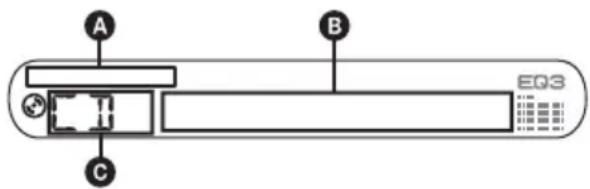
text_image
A B EQ3 CAMP3/ATRAC CD/WMA indication
BTrack number/Elapsed playing time, Disc/ artist name, Album/group number*1, Album/ group name, Track name, Text information*2, Clock
©Source
*1 Album/group number is displayed only when the album/group is changed.
*2 When playing an MP3, ID3 tag is displayed, when playing ATRAC CD, text information written by SonicStage, etc., is displayed, and when playing WMA, WMA tag is displayed.
To change display items B, press DSPL; scroll display items B, press SCRL or set "A.SCRL-ON" (page 9).
Tip
Displayed items will differ, depending on the disc type, recorded format and settings. For details on MP3/WMA, see page 11; ATRAC CD, see page 11.
Repeat and shuffle play
1 During playback, press ③ (REP) or ④ (SHUF) repeatedly until the desired setting appears.
Select To play
| REP-TRACK track repeatedly. | |
| REP-ALBM^*1 | album repeatedly. |
| REP-GP^*2 | group repeatedly. |
| SHUF-ALBM^*1 | album in random order. |
| SHUF-GP^*2 | group in random order. |
| SHUF-DISC disc in random order. | |
*1 When an MP3/WMA is played.
*2 When an ATRAC CD is played.
To return to normal play mode, select “REP-OFF” or “SHUF-OFF.”
Radio
Storing and receiving stations
Caution
When tuning in stations while driving, use Best Tuning Memory (BTM) to prevent an accident.
Storing automatically — BTM
1 Press SOURCE repeatedly until "TUNER" appears.
To change the band, press MODE repeatedly. You can select from FM1, FM2, FM3, MW, SW1 or SW2.
2 Press and hold BTM until "BTM" flashes.
The unit stores stations in order of frequency on the number buttons.
A beep sounds when the setting is stored.
Storing manually
1 While receiving the station that you want to store, press and hold a number button (① to ⑥) until "MEM" appears.
The number button indication appears in the display.
Note
If you try to store another station on the same number button, the previously stored station will be replaced.
Receiving the stored stations
1 Select the band, then press a number button (① to ⑥).
Tuning automatically
1 Select the band, then press SEEK -/+ to search for the station.
Scanning stops when the unit receives a station. Repeat this procedure until the desired station is received.
Tip
If you know the frequency of the station you want to listen to, press and hold (SEEK) -/+ to locate the approximate frequency, then press (SEEK) -/+ repeatedly to fine adjust to the desired frequency (manual tuning).
Other functions
Changing the sound settings
Adjusting the sound characteristics — BAL/FAD/SUB
You can adjust the balance, fader, and subwoofer volume.
1 Press the select button repeatedly until "BAL," "FAD" or "SUB" appears.
The item changes as follows:
$$ \begin{array}{l} \mathsf {L O W} ^ { 1} \rightarrow \mathsf {M I D} ^ { 1} \rightarrow \mathsf {H I} ^ { 1} \rightarrow \ \mathbf {B A L} (\text { left - right }) \rightarrow \mathbf {F A D} (\text { front - rear }) \rightarrow \ \mathbf {S U B} (\text { subwoofer volume }) ^ { 2} \rightarrow \mathbf {A U X} ^ {* 3} \ \end{array} $$
*1 When EQ3 is activated (page 9).
*2 When the audio output is set to "SUB" (page 9).
"ATT" is displayed at the lowest setting, and can be adjusted up to 20 steps.
*3 When AUX source is activated (page 10).
2 Rotate the volume control dial to adjust the selected item.
After 3 seconds, the setting is complete and the display returns to normal play/reception mode.
With the card remote commander
In step 2, to adjust the selected item, press ←, ↑, → or ↓.
Customizing the equalizer curve — EQ3
“CUSTOM” of EQ3 allows you to make your own equalizer settings.
1 Select a source, then press EQ3 repeatedly to select "CUSTOM."
2 Press the select button repeatedly until "LOW," "MID" or "HI" appears.
3 Rotate the volume control dial to adjust the selected item.
The volume level is adjustable in 1 dB steps, from -10 dB to +10 dB.

text_image
LOW + 6dB EQ3Repeat steps 2 and 3 to adjust the equalizer curve.
To restore the factory-set equalizer curve, press and hold the select button before the setting is complete.
After 3 seconds, the setting is complete and the display returns to normal play/reception mode.
Tip
Other equalizer types are also adjustable.
With the card remote commander
In step 3, to adjust the selected item, press ←, ↑, → or ↓.
Adjusting setup items — SET
1 Press and hold the select button.
The setup display appears.
2 Press the select button repeatedly until the desired item appears.
3 Rotate the volume control dial to select the setting (example "ON" or "OFF").
4 Press and hold the select button.
The setup is complete and the display returns to normal play/reception mode.
Note
Displayed items will differ, depending on the source and setting.
With the card remote commander
In step 3, to select the setting, press ← or →.
The following items can be set (follow the page reference for details):
“●” indicates the default settings.
CLOCK-ADJ (Clock Adjust) (page 4)
BEEP
To set "BEEP-ON" (●) or "BEEP-OFF."
AUX-A*1 (AUX Audio)
To turn the AUX source display "AUX-A-ON"
(●) or “AUX-A-OFF” (page 10).
SUB/REAR\*1
To switch the audio output.
- “SUB-OUT” (●): to output to a subwoofer.
- “REAR-OUT”: to output to a power amplifier.
DIM (Dimmer)
To change the brightness of the display.
- “DIM-ON”: to dim the display.
- “DIM-OFF” (●): to deactivate the dimmer.
DEMO ^*1 (Demonstration)
To set "DEMO-ON" (●) or "DEMO-OFF."
A.SCRL (Auto Scroll)
To scroll long displayed item automatically when the disc/group/track/album is changed.
- “A.SCRL-ON”: to scroll.
- “A.SCRL-OFF” (●): to not scroll.
LPF*2 (Low Pass Filter)
To select the subwoofer cut-off frequency: “LPF OFF” (●), “LPF125Hz” or “LPF 78Hz.”
*1 When the unit is turned off.
*2 When the audio output is set to "SUB."
Using optional equipment
Auxiliary audio equipment
By connecting an optional portable audio device to the AUX input jack (stereo mini jack) on the unit and then simply selecting the source, you can listen on your car speakers. The volume level is adjustable for any difference between the unit and the portable audio device. Follow the procedure below:
Connecting the portable audio device
1 Turn off the portable audio device.
2 Turn down the volume on the unit.
3 Connect to the unit.
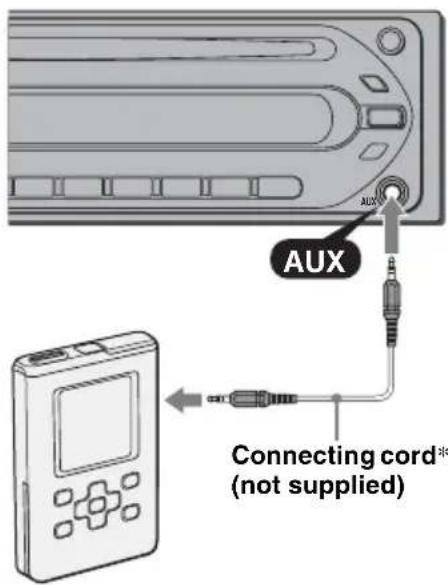
text_image
AUX Connecting cord* (not supplied)* Be sure to use a straight type plug.
Adjusting the volume level
Be sure to adjust the volume for each connected audio device before playback.
1 Turn down the volume on the unit.
2 Press SOURCE repeatedly until "AUX FRONT IN" appears.
3 Start playback of the portable audio device at a moderate volume.
4 Set your usual listening volume on the unit.
5 Press the select button repeatedly until "AUX" appears, and rotate the volume control dial to adjust the input level (±6 dB).
Additional Information
Precautions
- If your car has been parked in direct sunlight, allow the unit to cool off before operating it.
- Power aerial will extend automatically while the unit is operating.
Moisture condensation
On a rainy day or in a very damp area, moisture condensation may occur inside the lenses and display of the unit. Should this occur, the unit will not operate properly. In such a case, remove the disc and wait for about an hour until the moisture has evaporated.
To maintain high sound quality
Be careful not to splash juice or other soft drinks onto the unit or discs.
Notes on discs
- To keep a disc clean, do not touch its surface. Handle the disc by its edge.
- Keep your discs in their cases or disc magazines when not in use.
- Do not subject discs to heat/high temperature. Avoid leaving them in a parked car or on a dashboard/rear tray.
- Do not attach labels, or use discs with sticky ink/residue. Such discs may stop spinning when used, causing a malfunction, or may ruin the disc.
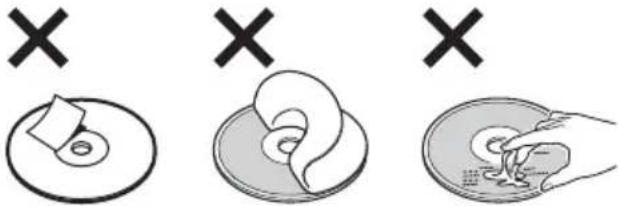
text_image
Diagram showing three stages of a medical procedure: cross-sectional view, internal organ, and endoscopic view with X marks indicating failure.- Do not use any discs with labels or stickers attached.
The following malfunctions may result from using such discs: - Inability to eject a disc (due to a label or sticker peeling off and jamming the eject mechanism).
- Inability to read audio data correctly (e.g., playback skipping, or no playback) due to heat shrinking of a sticker or label causing a disc to warp.
• Discs with non-standard shapes (e.g., heart, square, star) cannot be played on this unit. Attempting to do so may damage the unit. Do not use such discs. - You cannot play 8 cm CDs.
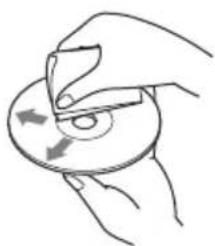
- Before playing, clean the discs with a commercially available cleaning cloth. Wipe each disc from the centre out. Do not use solvents such as benzine, thinner, commercially available cleaners, or antistatic spray intended for analogue discs.
natural_image
Hand holding a CD or DVD disc with arrows indicating rotation (no text or symbols)Notes on CD-R/CD-RW discs
- Some CD-Rs/CD-RWs (depending on the equipment used for its recording or the condition of the disc) may not play on this unit.
- You cannot play a CD-R/a CD-RW that is not finalized.
Music discs encoded with copyright protection technologies
This product is designed to play back discs that conform to the Compact Disc (CD) standard. Recently, various music discs encoded with copyright protection technologies are marketed by some record companies. Please be aware that among those discs, there are some that do not conform to the CD standard and may not be playable by this product.
Note on DualDiscs
A DualDisc is a two sided disc product which mates DVD recorded material on one side with digital audio material on the other side. However, since the audio material side does not conform to the Compact Disc (CD) standard, playback on this product is not guaranteed.
About MP3/WMA files
MP3, which stands for MPEG-1 Audio Layer-3, is a music file compression format standard. It compresses audio CD data to approximately 1/10 of its original size.
WMA, which stands for Windows Media Audio, is another music file compression format standard. It compresses audio CD data to approximately 1/22* of its original size.
* only for 64 kbps
- The unit is compatible with the ISO 9660 level 1/level 2 format, Joliet/Romeo in the expansion format, and Multi Session.
- The maximum number of:
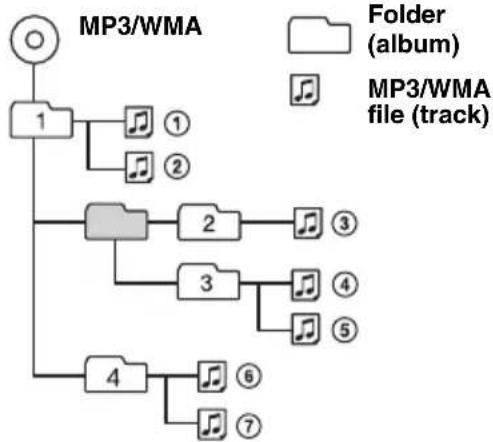
- folders (albums): 150 (including root and empty folders).
- MP3/WMA files (tracks) and folders contained in a disc: 300 (if a folder/file names contain many characters, this number may become less than 300).
- displayable characters for a folder/file name is 32 (Joliet), or 64 (Romeo).
- ID3 tag versions 1.0, 1.1, 2.2, 2.3 and 2.4 apply to MP3 only. ID tag is 15/30 characters (1.0 and 1.1), or 63/126 characters (2.2, 2.3 and 2.4). WMA tag is 63 characters.
Playback order of MP3/WMA files
flowchart
graph TD
    A["○"] --> B["1"]
    B --> C["①"]
    B --> D["②"]
    B --> E["③"]
    B --> F["④"]
    B --> G["⑤"]
    B --> H["⑥"]
    B --> I["⑦"]
    C --> J["②"]
    D --> K["③"]
    E --> L["④"]
    F --> M["⑤"]
    G --> N["⑥"]
    H --> O["⑦"]
    I --> P["⑧"]
Notes
- When naming an MP3/WMA file, be sure to add the file extension “.mp3” / “.wma” to the file name.
- During playback of a VBR (variable bit rate) MP3/WMA file or fast-forward/reverse, elapsed playing time may not display accurately.
- When the disc is recorded in Multi Session, only the first track of the first session format is recognized and played (any other format is skipped). The priority of the format is CD-DA, ATRAC CD and MP3/WMA.
- When the first track is a CD-DA, only CD-DA of the first session is played.
- When the first track is not a CD-DA, an ATRAC CD or MP3/WMA session is played. If the disc has no data in any of these formats, "NO MUSIC" is displayed.
Notes on MP3
- Be sure to finalize the disc before using on the unit.
- If you play a high-bit-rate MP3, such as 320 kbps, sound may be intermittent.
Notes on WMA
- Files made with lossless compression are not playable.
- Files protected by copyright are not playable.
About ATRAC CD
ATRAC3plus format
ATRAC3, which stands for Adaptive Transform Acoustic Coding3, is audio compression technology. It compresses audio CD data to approximately 1/10 of its original size. ATRAC3plus, which is an extended format of ATRAC3, compresses the audio CD data to approximately 1/20 of its original size. The unit accepts both ATRAC3 and ATRAC3plus format.
ATRAC CD
ATRAC CD is recorded audio CD data which is compressed to ATRAC3 or ATRAC3plus format using authorized software, such as SonicStage 2.0 or later, or SonicStage Simple Burner.
• The maximum number of:
– folders (groups): 255
- files (tracks): 999

• The characters for a folder/file name and text information written by SonicStage are displayed.
For details on ATRAC CD, see the SonicStage or SonicStage Simple Burner manual.
Note
Be sure to create the ATRAC CD using authorized software, such as SonicStage 2.0 or later, or SonicStage Simple Burner 1.0 or 1.1.
If you have any questions or problems concerning your unit that are not covered in this manual, consult your nearest Sony dealer.
Maintenance
Replacing the lithium battery of the card remote commander
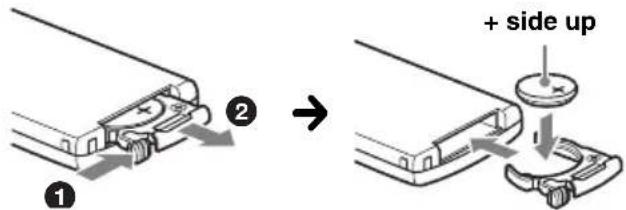
Under normal conditions, the battery will last approximately 1 year. (The service life may be shorter, depending on the conditions of use.) When the battery becomes weak, the range of the card remote commander becomes shorter. Replace the battery with a new CR2025 lithium battery. Use of any other battery may present a risk of fire or explosion.
text_image
① ② → + side upNotes on the lithium battery
- Keep the lithium battery out of the reach of children. Should the battery be swallowed, immediately consult a doctor.
- Wipe the battery with a dry cloth to assure a good contact.
- Be sure to observe the correct polarity when installing the battery.
- Do not hold the battery with metallic tweezers, otherwise a short-circuit may occur.
WARNING
Battery may explode if mistreated. Do not recharge, disassemble, or dispose of in fire.
Fuse replacement
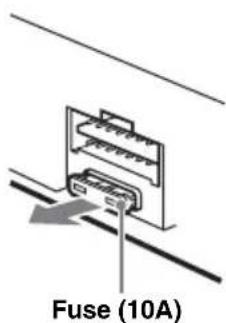
When replacing the fuse, be sure to use one matching the amperage rating stated on the original fuse. If the fuse blows, check the power connection and replace the fuse. If the fuse blows again after replacement, there may be an internal malfunction. In such a case, consult your nearest Sony dealer.
text_image
Fuse (10A)Cleaning the connectors
The unit may not function properly if the connectors between the unit and the front panel are not clean. In order to prevent this, detach the front panel (page 4) and clean the connectors with a cotton swab dipped in alcohol. Do not apply too much force. Otherwise, the connectors may be damaged.
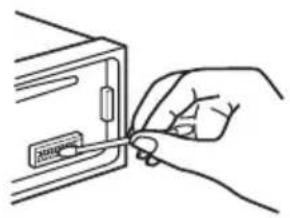
natural_image
Line drawing of a hand inserting a card into a folder (no text or symbols)Main unit
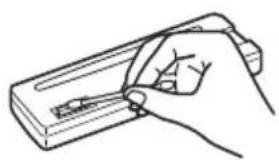
natural_image
Line drawing of a hand holding a pen or ruler over a rectangular object (no text or symbols)Back of the front panel
Notes
- For safety, turn off the ignition before cleaning the connectors, and remove the key from the ignition switch.
- Never touch the connectors directly with your fingers or with any metal device.
Removing the unit
1 Remove the protection collar.
① Detach the front panel (page 4).
② Engage the release keys together with the protection collar.
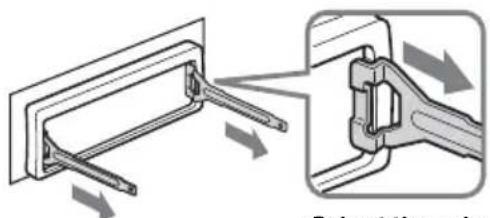
text_image
Diagram illustrating the process of turning a tool with directional arrows indicating motion or forceOrient the release keys as shown.
③ Pull out the release keys to remove the protection collar.
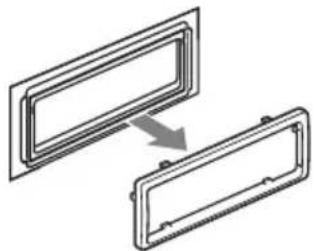
natural_image
Diagram showing two rectangular metal components with a directional arrow indicating transformation (no text or symbols)2 Remove the unit.
①Insert both release keys simultaneously until they click.
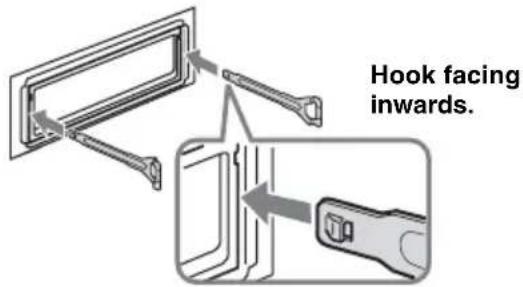
text_image
Hook facing inwards.② Pull the release keys to unseat the unit.
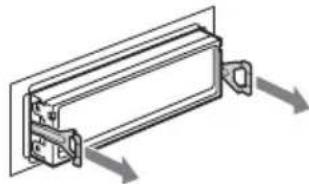
natural_image
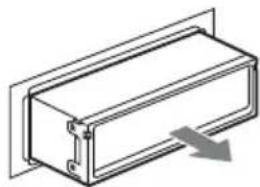
Pure technical line drawing of a mechanical component with no text or symbols③Slide the unit out of the mounting.
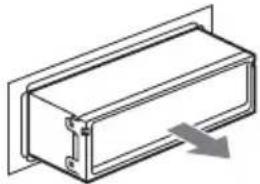
natural_image
Technical line drawing of a rectangular mechanical component with a downward arrow indicating force or motion (no text or symbols)Specifications
CD Player section
Signal-to-noise ratio: 120 dB
Frequency response: 10 - 20,000 Hz
Wow and flutter: Below measurable limit
Tuner section
FM
Tuning range: 87.5 - 108.0 MHz
Aerial terminal: External aerial connector
Intermediate frequency: 10.7 MHz/450 kHz
Usable sensitivity: 9 dBf
Selectivity: 75 dB at 400 kHz
Signal-to-noise ratio: 67 dB (stereo), 69 dB (mono)
Harmonic distortion at 1 kHz: 0.5 % (stereo), 0.3 % (mono)
Separation: 35 dB at 1 kHz
Frequency response: 30 - 15,000 Hz
MW/SW
Tuning range:
MW: 531 - 1,602 kHz
SW1: 2,940 - 7,735 kHz
SW2: 9,500 - 18,135 kHz
(except for 10,140 - 11,575 kHz)
Aerial terminal: External aerial connector
Intermediate frequency: 10.7 MHz/450 kHz
Sensitivity: 30 μV
Power amplifier section
Outputs: Speaker outputs (sure seal connectors)
Speaker impedance: 4 - 8 ohms
Maximum power output: 52 W × 4 (at 4 ohms)
General
Outputs:
Audio outputs terminal (sub/rear switchable)
Power aerial relay control terminal
Power amplifier control terminal
Inputs:
Aerial input terminal
Low: ±10 dB at 60 Hz (XPLOD)
Mid: ±10 dB at 1 kHz (XPLOD)
High: ±10 dB at 10 kHz (XPLOD)
Power requirements: 12 V DC car battery (negative earth)
Dimensions: Approx. 178 × 50 × 179 mm (w/h/d)
Mounting dimensions: Approx. 182 × 53 × 161 mm (w/h/d)
Mass: Approx. 1.2 kg
Supplied accessories:
Card remote commander: RM-X151
Parts for installation and connections (1 set)
US and foreign patents licensed from Dolby Laboratories.
MPEG Layer-3 audio coding technology and patents licensed from Fraunhofer IIS and Thomson.
Design and specifications are subject to change without notice.

- Lead-free solder is used for soldering certain parts. (more than 80 %)
- Halogenated flame retardants are not used in the certain printed wiring boards.
- Halogenated flame retardants are not used in cabinets.
• VOC (Volatile Organic Compound)-free vegetable oil based ink is used for printing the carton. - Packaging cushions do not use polystyrene foam.
Troubleshooting
The following checklist will help you remedy problems you may encounter with your unit.
Before going through the checklist below, check the connection and operating procedures.
General
No power is being supplied to the unit.
- Check the connection. If everything is in order, check the fuse.
- If the unit is turned off and the display disappears, it cannot be operated with the remote commander. →Turn on the unit.
The power aerial does not extend.
The power aerial does not have a relay box.
No sound.
• The volume is too low.
• The ATT function is activated.
- The position of the fader control “FAD” is not set for a 2-speaker system.
No beep sound.
• The beep sound is cancelled (page 9).
- An optional power amplifier is connected and you are not using the built-in amplifier.
The contents of the memory have been erased.
- The RESET button has been pressed.
→Store again into the memory. - The power connecting lead or battery has been disconnected.
- The power connecting lead is not connected properly.
Stored stations and correct time are erased. The fuse has blown.
Makes noise when the position of the ignition key is switched.
The leads are not matched correctly with the car's accessory power connector.
The display disappears from/does not appear in the display window.
- The dimmer is set "DIM-ON" (page 9).
- The display disappears if you press and hold OFF.
→Press and hold OFF on the unit until the display appears.
• The connectors are dirty (page 12).
CD playback
The disc cannot be loaded.
- Another disc is already loaded.
- The disc has been forcibly inserted upside down or in the wrong way.
The disc does not playback.
• Defective or dirty disc.
- The CD-Rs/CD-RWs are not for audio use (page 11).
MP3/WMA files cannot be played back.
The disc is incompatible with the MP3/WMA format and version (page 11).
MP3/WMA files take longer to play back than others.
The following discs take a longer time to start playback.
- a disc recorded with a complicated tree structure.
- a disc recorded in Multi Session.
- a disc to which data can be added.
The ATRAC CD cannot play.
- The disc is not created by authorized software, such as SonicStage or SonicStage Simple Burner.
- Tracks that are not included in the group cannot be played.
The display items do not scroll.
- For discs with very many characters, those may not scroll.
- “A.SCRL” is set to “OFF”.
→ Set “A.SCRL-ON” (page 9) or press SCRL.
The sound skips.
• Installation is not correct.
→Install the unit at an angle of less than 45^ in a sturdy part of the car.
- Defective or dirty disc.
The operation buttons do not function. The disc will not eject.
Press the RESET button (page 4).
Radio reception
The stations cannot be received.
The sound is hampered by noises.
- Connect a power aerial control lead (blue) or accessory power supply lead (red) to the power supply lead of a car's aerial booster (only when your car has built-in FM/MW/SW aerial in the rear/side glass).
- Check the connection of the car aerial.
• The auto aerial will not go up.
→Check the connection of the power aerial control lead. - Check the frequency.
Preset tuning is not possible.
- Store the correct frequency in the memory.
• The broadcast signal is too weak.
Automatic tuning is not possible.
- Setting of the local seek mode is not correct.
→Tuning stops too frequently: Press (SENS) until “LOCAL-ON” appears.
→Tuning does not stop at a station: Press (SENS) repeatedly until “MONO-ON” or “MONO-OFF” (FM), or “LOCAL-OFF” (MW/SW) appears.
• The broadcast signal is too weak.
→Perform manual tuning.
During FM reception, the "ST" indication flashes.
- Tune in the frequency accurately.
- The broadcast signal is too weak.
→Press (SENS) to set the monaural reception mode to “MONO-ON.”
An FM programme broadcast in stereo is heard in monaural.
The unit is in monaural reception mode.
→Press (SENS) until “MONO-OFF” appears.
Error displays/Messages
ERROR
- The disc is dirty or inserted upside down.
→Clean or insert the disc correctly. - A blank disc has been inserted.
- The disc cannot play because of some problem.
→Insert another disc.
FAILURE
The connection of speaker/amplifier is incorrect.
→See the supplied installation/connections manual to check the connection.
L.SEEK +/-
The local seek mode is on during automatic tuning.
NO ID3
ID3 tag information is not written in the MP3 file.
NO INFO
Text information is not written in the ATRAC3/ATRAC3plus or WMA file.
NO MUSIC
The disc is not a music file.
→Insert a music CD.
NO NAME
A track/album/group name is not written in the track.
OFFSET
There may be an internal malfunction.
→Check the connection. If the error indication remains on in the display, consult your nearest Sony dealer.
READ
The unit is reading all track and group information on the disc.
→Wait until reading is complete and playback starts automatically. Depending on the disc structure, it may take more than a minute.
RESET
The unit cannot be operated because of some problem.
→Press the RESET button (page 4).


During reverse or fast-forward, you have reached the beginning or the end of the disc and you cannot go any further.

The character cannot be displayed with the unit.
If these solutions do not help improve the situation, consult your nearest Sony dealer.
If you take the unit to be repaired because of CD playback trouble, bring the disc that was used at the time the problem began.
natural_image
Technical line drawing of a mechanical component with directional arrows indicating motion (no text or symbols)③ جهاز التركيب.
natural_image
Technical line drawing of a rectangular mechanical component with a downward arrow indicating compression or force (no text or symbols)المواصفات
قسم مشغل أسطوانةCD
natural_image
Line drawing of a hand holding a pen, poised to write on a rectangular object (no text or symbols present)natural_image
Line drawing of a hand inserting a card into a folder (no text or symbols)الجهاز الرئيسي
ملاحظات
natural_image
Diagram showing mechanical assembly with two components and directional arrows indicating motion (no text or symbols)text_image
Technical diagram showing a mechanical component with an arrow and numbered label '2'1
natural_image
Hand holding a CD or DVD disc with a knife, showing disc and pad (no text or symbols)، قم بتنظيف
text_image
Diagram showing two views of a device with labeled parts A and B, illustrating a folding or disassembly process.ملاحظة
FM/MW/SW Compact Disc Player
AR
تعيمات التشفيل