CRQ02 - Battery charger Scosche - Free user manual and instructions
Find the device manual for free CRQ02 Scosche in PDF.


User questions about CRQ02 Scosche
0 question about this device. Answer the ones you know or ask your own.
Ask a new question about this device
Download the instructions for your Battery charger in PDF format for free! Find your manual CRQ02 - Scosche and take your electronic device back in hand. On this page are published all the documents necessary for the use of your device. CRQ02 by Scosche.
USER MANUAL CRQ02 Scosche
2014-Up Jeep Grand Cherokee
Qi Center Console Direct Fit Bezel
PARTS INCLUDED
- (1) Direct Fit Bezel w/ MQUSM
- (1) Vehicle Specific T-harness
- (2) MAGICPLATE™
- (2) MAGICPLATE™ Applicator
- (6) Double-sided Adhesive

natural_image
Line drawing of a simple wooden table with a circular vent and side supports (no text or symbols)READ INSTRUCTIONS COMPLETELY BEFORE INSTALLING THIS MOUNT KIT.
WARNING: Do not use the magnetic mount with any hard-drive based devices such as: iPod classic, iPod Video and Zune MP3 players. Use caution whenever removing or handling plastic parts of any vehicle. Unnecessary force or pressure can cause pieces to crack or break. Please use a plastic card to remove the metal plates. Remove adhesive residue with a non-abrasive cleaner.
CAUTION: This magnetic device is not a toy. The small magnets are harmful if swallowed. Keep away from children.
PRELIMINARY INTRODUCTION
Wirelessly charge your Qi-enabled smartphone without the need to plug your device into a car charger or USB cable. Quickly charge your device at 5W or 10W charging. The high powered neodymium magnets are 100% safe and will not damage your device. The CRQ02 works with Qi-enabled smartphones from these manufacturers: Apple, Samsung, Google, Microsoft, LG, HTC, Motorola. Also works with Qi-enabled cases, receivers, and battery covers.
CAUTION: Disconnect your vehicles negative battery terminal before the installation to help prevent electrical damage. We recommend the use of a volt/ ohm meter over a test light to check wiring. A test or grounded wire probe can cause damage to the vehicle's computer and/or diagnostic system. Avoid all factory airbag wiring - airbags can accidentally deploy causing serious injury or death. NOTE: See your vehicle's instructions for any special tools your installation might require.
IMPORTANT! DO NOT RETURN PRODUCT TO THE RETAILER. If you need assistance or replacement parts contact us at: 1-800-363-4490 X1 | www.scosche.com/contact. Our office hours are: Mon-Fri: 8AM-5:30PM (PST) and Sat: 8AM-2PM (PST)
LIABILITY DISCLAIMER
This instruction booklet is based on carefully documented data and research of automobile disassembly, wire harness and information pertaining to the installation of this kit. Scosche Industries, Inc. cannot be held responsible for discrepancies/ inconsistencies that may occur due to the automobile manufacturing changes or options, or damages that may occur in the automobile during the installation of components while using this booklet.
MAGICPLATE™ MOUNTING OPTION 1
NOTE: For mounting directly to device, use the large single plate with template guide as shown in the instructions below.
1
Remove the white paper backing from both plates

text_image
king platesREMOVING THE PLATE
Use a thin plastic card to carefully lift the plate's adhesive surface from the mounting surface. Slowly lift up and remove the plate. Do not use any heat or liquids to remove the plate, due to risk of damaging your phone. Contact Scosche Customer Service for any additional assistance at 800.363.4490 Ext. 1 or customerservice@scosche.com
2
Line up the corresponding arrows on the Template Guide to the to the bottom of your phone.

text_image
e to the to our phone3
When positioned, press plates firmly to affix and remove template.
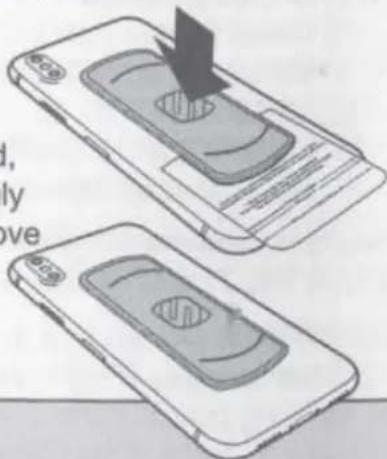
text_image
Diagram showing two views of a smartphone with a device being inserted, accompanied by partial Chinese text.MAGICPLATE™ MOUNTING OPTION 2
NOTE: For mounting directly to CASE, use the (2) small plates with the integrated template guide as shown below.
1
Remove the white paper backing from both plates
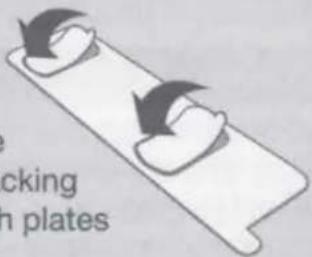
text_image
locking n plates2
Line up the corresponding arrows on the Template Guide to the to the bottom of your phone.

text_image
to the to3
When positioned, press plates firmly to affix

text_image
oned, plates to affix3
When positioned, press plates firmly to affix

natural_image
Two smartphone screens showing a device being placed on top, with an arrow indicating the process (no text or symbols present)REMOVING THE PLATE
Use a thin plastic card to carefully lift the plate's adhesive surface from the mounting surface. Slowly lift up and remove the plate. Do not use any heat or liquids to remove the plate, due to risk of damaging your phone. Contact Scosche Customer Service for any additional assistance at 800.363.4490 Ext. 1 or customerservice@scosche.com
MAGICPLATE™ MOUNTING OPTION 3 (Continued)
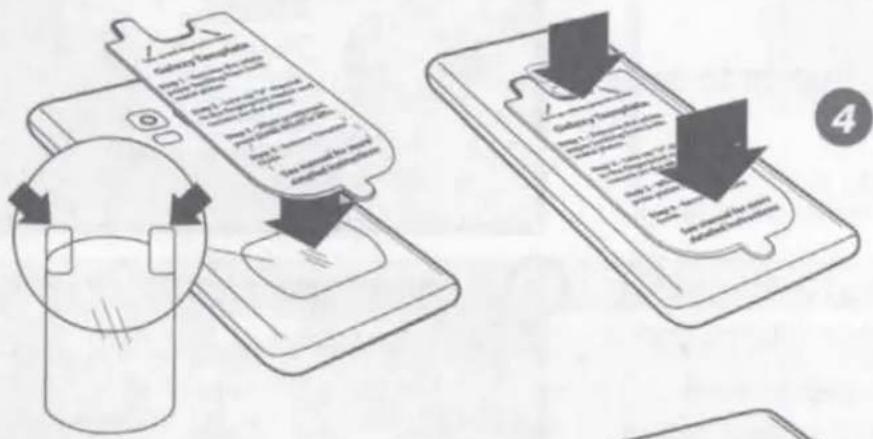
NOTE: For mounting directly* to Galaxy S9/S9+, use the (2) small plates with the integrated template guide for Galaxy as shown. *For mounting directly to device only. Do not mount to case.

Remove the white paper backing from both plates
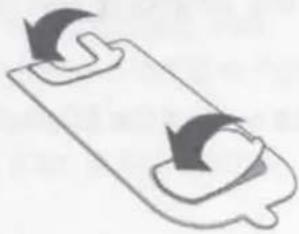
natural_image
Simple line drawing of a clipboard with two curved arrows indicating rotation (no text or symbols)
Line up "U" channel to the fingerprint reader and camera on the phone.
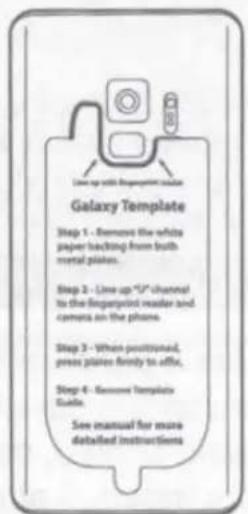
text_image
Line up with fingerprint reader Galaxy Template Step 1 - Remove the white paper touching from built metal plates. Step 2 - Line up "5" channel to the fingerprint reader and camera on the phone. Step 3 - When positioned, press plates firmly to affine. Step 4 - Remove Template Reader. See manual for more detailed instructions
Remove the backing from the protective film as shown on the removal tabs (A), and place between the device and the lower plate (B). The protective film must be used when applying MAGICPLATE™ directly to the back of device.
text_image
Galaxy Transaktion Step 1: Download the app Step 2: Download the app Step 3: Download the app Step 4: Download the app Step 5: Download the app Step 6: Download the app Step 7: Download the app Step 8: Download the app Step 9: Download the app Step 10: Download the app Step 11: Download the app Step 12: Download the app Step 13: Download the app Step 14: Download the app Step 15: Download the app Step 16: Download the app Step 17: Download the app Step 18: Download the app Step 19: Download the app Step 20: Download the app Step 21: Download the app Step 22: Download the app Step 23: Download the app Step 24: Download the app Step 25: Download the app Step 26: Download the app Step 27: Download the app Step 28: Download the app Step 29: Download the app Step 30: Download the app Step 31: Download the app Step 32: Download the app Step 33: Download the app Step 34: Download the app Step 35: Download the app Step 36: Download the app Step 37: Download the app Step 38: Download the app Step 39: Download the app Step 40: Download the appWhen positioned, press plates firmly to affix.

Remove template guide.

text_image
Galaxy Template Page 1: Microsoft Word Microsoft Word Galaxy Template Page 2: Microsoft Word Page 3: Microsoft Word the rate guide.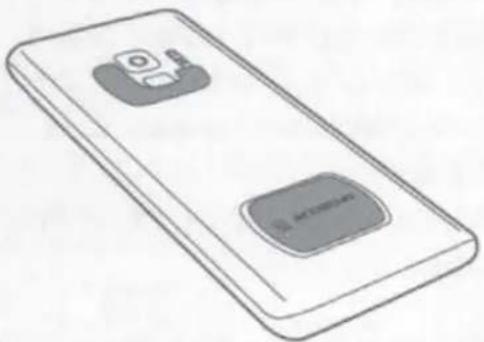
natural_image
Illustration of a smartphone with two buttons labeled 'An Open' and 'Open Button' (no text or symbols on the device itself)REMOVING THE PLATE
Use a thin plastic card to carefully lift the plate's adhesive surface from the mounting surface. Slowly lift up and remove the plate.
Do not use any heat or liquids to remove the plate, due to risk of damaging your phone. Contact Scosche Customer Service for any additional assistance at 800.363.4490 Ext. 1 or customerservice@scosche.com
Modification Required: Please read complete instructions before
proceeding. Location modification required for this installation, proceed with caution. If you are unsure or feel that the installation is to difficult, we recommend you seek professional installation. Note that additional installation fees may apply and vary by location. Scosche is not responsible or liable for any additional fees or modification done by the installer.
Caution! Before beginning the disassembly make sure of the following:
• Negative battery terminal is disconnected.
- Parking brake is ON.
• Gear shifter is set to a lower gear.
Accessing 12V Power
VEHICLE DISASSEMBLY
- Use a panel removal tool to unclip the panel surrounding the radio screen, see corresponding illustration 1 at right.
Note: Open bottom pocket to ease removal of the bezel.
- Remove the following in the order listed below; also, see illustration 2.
A. Using a panel removal tool, unclip the top trim cover piece at the top of the shifters button.
B. Second, remove the exposed (T-30) screw.
C. Third, lift and remove the shifter handle
- Open the center arm rest, then use a panel removal tool to unclip and remove the center console. Once the panel is unclipped, unplug and set aside for later re-installation

natural_image
Interior view of a car dashboard with steering wheel and control panel (no visible text or symbols)
text_image
② A B C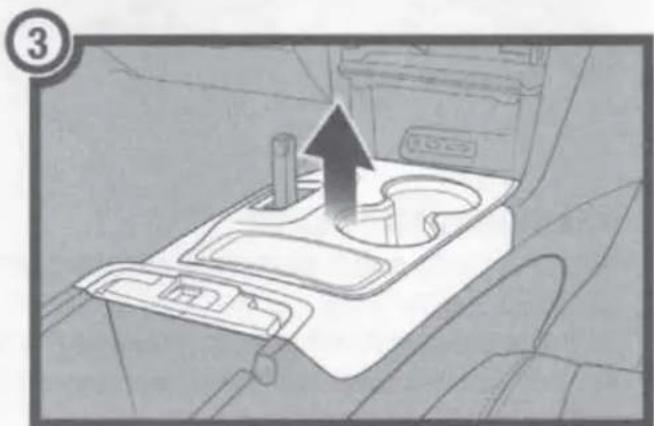
natural_image
Interior view of a car intake tray with a directional arrow indicating movement (no text or symbols)- Remove the (2) 7mm screws above the pocket, and the (2) 7mm screws located below the pocket, see arrows in illustration 4 on the right.
Note: Remove four screws total.

natural_image
Interior view of a car air intake console with directional arrows indicating movement (no text or symbols)- Remove and disconnect the pocket from location.
Note: Back-side of pocket illustrated on right.

text_image
12Volt, USB, & Aux ConnectionsTESTING QI MODULE (MQUSM)
Testing Connection Before proceeding to the preparation/installation please test the modules functionality by connecting the provided vehicle specific t-harness (diagram below). Once the module is connected, place the Qi-enabled device on the module and refer to the LED Status chart below for specifics. For technical assistance with the installation please call or visit us on the web at: 1-800-363-4490 x1 | www.scosche.com/contact
Note: The module can also be tested by connecting it to a USB to type-c connection power source (not included).
IMPORTANT! Foreign Object Detection Please follow the MAGICPLATE™ mounting instruction on pages 2 or 3 for best charging results. Note that blocking the charging coil with anything metallic object may cause the module to not work as designed.
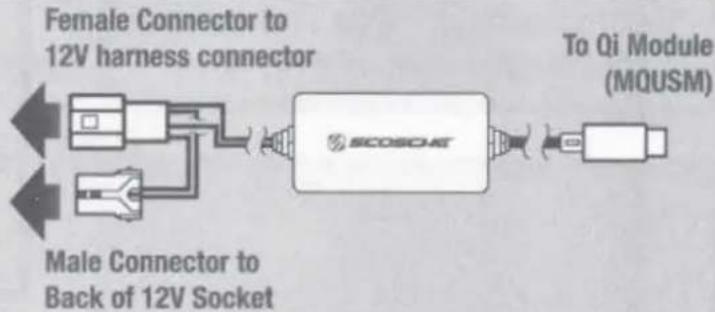
flowchart
graph LR
    A["Female Connector to 12V harness connector"] --> B["SCOSOAT"]
    C["Male Connector to Back of 12V Socket"] --> B
    B --> D["To Qi Module (MQUSM)"]
LED Charging Status: The LED indicator on the side of the mount illuminates the charging status of the device. When powered ON, the indicator blinks in the following order: BLUE, GREEN, BLUE.
Standby = Green
Charging = Blue
natural_image
Pure geometric lines forming a cross-like pattern without any text, numbers, or symbolsPREPARATION
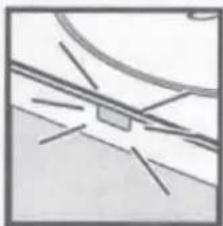
- Remove and retain the (4) screws securing the USB/Aux module on the pocket removed during step 5 of disassembly.
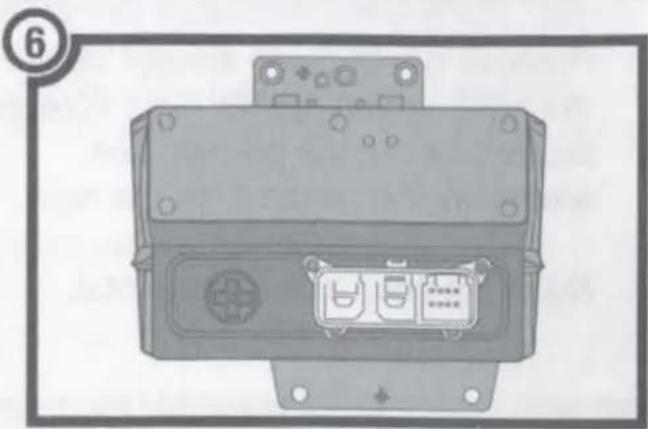
natural_image
Top-down view of a mechanical electronic device housing with internal components (no visible text or symbols)- Carefully make a hole large enough to pass the type-c connector through the bottom of the extruded plastic on the back of the pocket, see illustration 7 on the right.
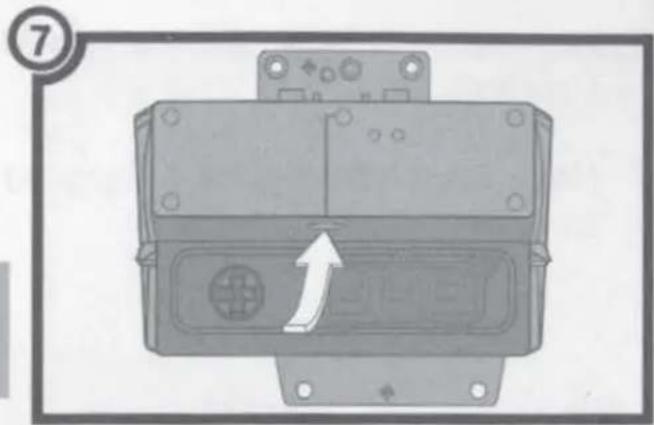
natural_image
Mechanical component with a directional arrow indicating motion or force (no text or symbols present)CAUTION! DO NOT attempt to drill a hole while the pocket is still mounted to the vehicle.
Tip: First, for best results, place the CRQ02 into pocket. Second, using a contrasting chalk or marker estimate and mark the hole location according to the bezels designated routing location. Third, once the location is determined remove the CRQ02 bezel from the pocket and create the hole.
- Reassemble the USB/Aux module to the back of the pocket. Illustration 8 on right shown with estimated type-c routing hole location.
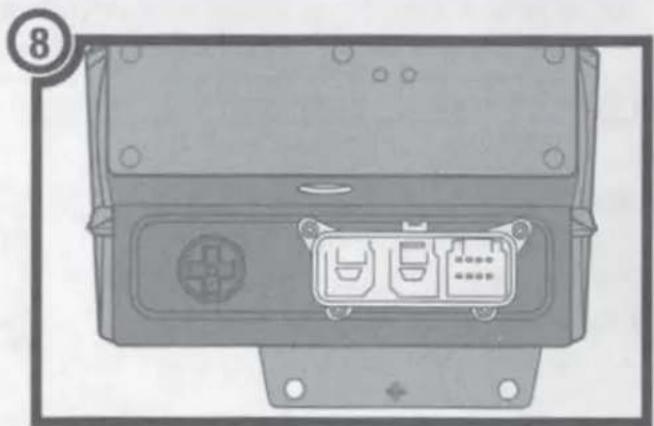
natural_image
Top-down view of a vehicle electronic panel with two internal components (no visible text or symbols)
If you have any questions or need technical assistance with the installation, or the most current application please call or visit us on the web at:
(800) 363-4490 x1 | www.scosche.com/contact
VEHICLE ASSEMBLY
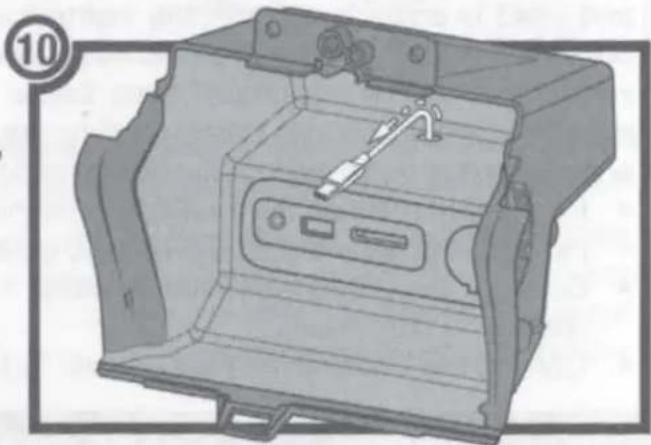
- Connect the provided power t-harness according to the diagram displayed under the Test Connection at the bottom of page 5 or see illustration on the right. Connect the female and male 12V power connectors first then route the type-c connector to the designated slot created during the preparation steps on page 6.
- Once the female and male power connections have been established, route the type-c connector through the hole created during the preparation steps (hole under the OEM pocket).
- Follow steps in the order listed below (reference illustration 11):
A. Connect the Type-c USB power to the Qi module.
B. Place the Qi module into the CRQ02 bezel).
C. Place the CRQ02 panel assembly into the designated pocket.
Notes:
- Hide any excess wiring under the panels before reassembling.
-
Use the provided two-sided adhesives to secure the panel/module from moving.
-
Lastly, reassemble everything in reverse order, then place your Qi enabled device onto the CRQ02 assembly to charge your device. Refer to LED Charging Status for charging details (page 5).

flowchart
graph LR
    A["Female Connector to 12V harness connector"] --> B["SCDSCAT"]
    C["Male Connector to Back of 12V Socket"] --> B
    B --> D["To Qi Module (MQUSM)"]
natural_image
Technical illustration of a mechanical device housing with internal components and mounting holes (no text or symbols)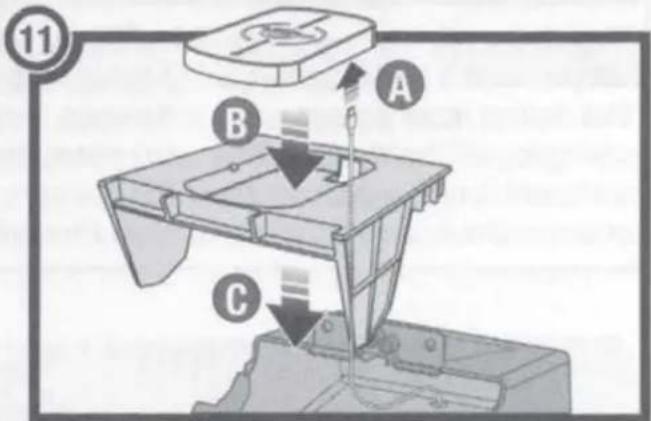
text_image
11 A B C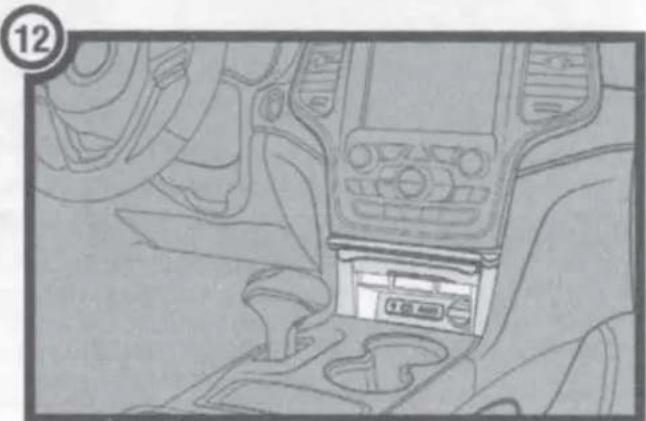
natural_image
Interior view of a car gear shift lever and dashboard (no visible text or symbols)FCC STATEMENT
This equipment has been tested and found to comply with the limits for a WPC device, pursuant to Part 18 of the FCC Rules. These limits are designed to provide reasonable protection against harmful interference in a residential installation.
CAUTION: Changes or modifications not expressly approved by the party responsible for compliance could void the user's authority to operate the product.
NOTE: This equipment has been tested and found to comply with the limits for a wireless power charger, pursuant to Part 18 of the FCC Rules. These limits are designed to provide reasonable protection against harmful interference in a residential installation. This equipment generated, uses and can radiate radio frequency energy and, if not installed and used in accordance with the instructions, may cause harmful interference to radio communications. However there is no guarantee that interference will occur in a particular installation. If this equipment does cause harmful interference to radio or television reception, which can be determined by turning the equipment off and on, the user in encouraged to try to correct the interference by one or more of the following measures:
• Reorient or relocate the receiving antenna.
- Increase the separation between the equipment and receiver.
- Connect the equipment into an outlet on a circuit different from that to which the receiver is connected.
- Consult the dealer or an experienced radio/TV technician for help.
FCC STATEMENT
This device complies with industry Canada License-exempt RSS standard(s). Operation is subject to the following two conditions: (1) this device may not cause interference, and (2) this device must accept any interference, including interference that may cause undesired operation of the device. This equipment complies with IC RSS-102 radiation exposure limits set forth for an uncontrolled environment. This transmitter must not be co-located or operated in conjunction with any other antenna or transmitter.
For complete warranty details or questions visit us online at www.scosche.com or contact us at: www.scosche.com/contact customerservice@scosche.com 1(800) 363 4490 ext.1