
SCHC55EP - Loudspeaker PANASONIC - Free user manual and instructions
Find the device manual for free SCHC55EP PANASONIC in PDF.



| Product type | Compact stereo system (compact stereo) |
| Brand | Panasonic |
| Model | SC-HC55 (SC-HC55EP) |
| Dimensions (with stand) | 480 mm (W) x 194 mm (H) x 84 mm (D) |
| Dimensions (without stand) | 480 mm (W) x 194 mm (H) x 69 mm (D) |
| Weight | Approx. 2.4 kg |
| Power supply | AC 220-240 V, 50 Hz |
| Power consumption | 28 W (operation), approx. 0.2 W (standby) |
| Amplification | 20 W per channel (6 Ω, 1 kHz, 10% THD) in stereo mode, total power 40 W |
| Speakers | 2-way, 2 speakers with passive radiator: 6.5 cm woofer (cone), 1.5 cm tweeter (piezo), 8 cm passive radiator x 2 per channel, impedance 6 Ω |
| Disc player | CD, CD-R/RW (CD-DA, MP3) |
| Radio | FM (87.50 - 108.00 MHz) and AM (522 - 1629 kHz / 520 - 1630 kHz), 30 FM presets, 15 AM |
| Bluetooth | V2.1 + EDR, class 2 (2.5 mW), profiles A2DP, AVRCP, HFP, range 10 m |
| USB port | USB 2.0 full speed, MP3 playback, FAT12/16/32 file systems, max current 500 mA |
| Auxiliary inputs | 3.5 mm stereo jack (EXT-IN AUX), 3.5 mm headphone jack |
| iPod/iPhone dock | Yes, with dock adapter (not supplied), charges device |
| Main features | Sleep timer, play timer, clock, preset equalizer (Heavy, Soft, Clear, Vocal, Flat), D.Bass, surround sound, flap open/close sensor, Bluetooth hands-free mode |
| Supplied accessories | Remote control, indoor FM antenna, AM loop antenna, power cord, remote control battery, wall mounting kit (brackets, safety supports, screws, rear pads) |
| Maintenance and cleaning | Clean with a soft, dry cloth; for stubborn dirt, use a well-wrung damp cloth. Do not use alcohol, thinner or benzine. Clean the CD lens regularly with a blower. |
| Safety | Class 1/1M laser product; do not expose to rain or humidity; do not block ventilation slots; wall installation by a qualified professional; screw load capacity: 33 kg min. |
| Repairability / Spare parts | For repair, contact an authorized Panasonic service center. Spare parts are not listed in the manual; consult an authorized dealer. |
Frequently Asked Questions - SCHC55EP PANASONIC
User questions about SCHC55EP PANASONIC
0 question about this device. Answer the ones you know or ask your own.
Ask a new question about this device
Download the instructions for your Loudspeaker in PDF format for free! Find your manual SCHC55EP - PANASONIC and take your electronic device back in hand. On this page are published all the documents necessary for the use of your device. SCHC55EP by PANASONIC.
USER MANUAL SCHC55EP PANASONIC
natural_image
Illustration of a modern flat-screen TV with a remote control unit beside it (no text or symbols visible)Panasonic®
Operating Instructions
Instrukcja obsługi
Návod k obsluze
Thank you for purchasing this product.
For optimum performance and safety, please read these instructions carefully.
Please keep this manual for future reference.
Included Installation Instructions ( 2, 6)
The installation should never be done by any other than a qualified installation specialist.
Before commencing work, carefully read these installation instructions and the operating instructions to ensure that installation is performed correctly.
(Please keep these instructions. You may need them when maintaining or moving this unit.)
Drogi Kliencie
- To reduce the risk of fire, electric shock or product damage,
- Do not expose this unit to rain, moisture, dripping or splashing.
- Do not place objects filled with liquids, such as vases, on this unit.
– Use only the recommended accessories. - Do not remove covers.
- Do not repair this unit by yourself. Refer servicing to qualified service personnel.
- Do not let metal objects fall inside this unit.
- Do not place heavy items on this unit.
AC mains lead
- To reduce the risk of fire, electric shock or product damage,
- Ensure that the power supply voltage corresponds to the voltage printed on this unit.
– Insert the mains plug fully into the socket outlet. - Do not pull, bend, or place heavy items on the lead.
- Do not handle the plug with wet hands.
– Hold onto the mains plug body when disconnecting the plug. - Do not use a damaged mains plug or socket outlet.
- Install this unit so that the AC mains lead can be unplugged from the socket outlet immediately if any problem occurs.
CAUTION
Unit
- This unit utilizes a laser. Use of controls or adjustments or performance of procedures other than those specified herein may result in hazardous radiation exposure.
- Do not place sources of naked flames, such as lighted candles, on this unit.
- This unit may receive radio interference caused by mobile telephones during use. If such interference occurs, please increase separation between this unit and the mobile telephone.
- This unit is intended for use in moderate climates.
Placement
- Place this unit on an even surface.
- To reduce the risk of fire, electric shock or product damage,
- Do not install or place this unit in a bookcase, built-in cabinet or in another confined space. Ensure this unit is well ventilated.
- Do not obstruct this unit's ventilation openings with newspapers, tablecloths, curtains, and similar items.
- Do not expose this unit to direct sunlight, high temperatures, high humidity, and excessive vibration.
Batteries
- Danger of explosion if battery is incorrectly replaced. Replace only with the type recommended by the manufacturer.
- Mishandling of batteries can cause electrolyte leakage and may cause a fire.
- Do not heat or expose to flame.
- Do not leave the battery(ies) in a car exposed to direct sunlight for a long period of time with doors and windows closed.
- Do not take apart or short circuit.
- Do not recharge alkaline or manganese batteries.
- Do not use batteries if the covering has been peeled off.
- Remove batteries if you do not intend to use the remote control for a long period of time. Store in a cool, dark place.
- When disposing the batteries, please contact your local authorities or dealer and ask for the correct method of disposal.
NORSK
ADVARSEL
Produkt
“Made for iPod” and “Made for iPhone” mean that an electronic accessory has been designed to connect specifically to iPod, or iPhone, respectively, and has been certified by the developer to meet Apple performance standards.
Apple is not responsible for the operation of this device or its compliance with safety and regulatory standards.
Please note that the use of this accessory with iPod, or iPhone may affect wireless performance.
iPhone, iPod, iPod classic, iPod nano, and iPod touch are trademarks of Apple Inc., registered in the U.S. and other countries.
The Bluetooth ^® word mark and logos are owned by Bluetooth SIG, Inc. and any use of such marks by Panasonic Corporation is under license. Other trademarks and trade names are those of their respective owners.
MPEG Layer-3 audio coding technology licensed from Fraunhofer IIS and Thomson.
Product Identification Marking is located on bottom of the unit.
HC55
Safety information for customers in the EU
CE1177
Declaration of Conformity (DoC)
Hereby, “Panasonic Corporation” declares that this product is in compliance with the essential requirements and other relevant provisions of Directive 1999/5/EC.
Customers can download a copy of the original DoC to our R&TTE products from our DoC server:
http://www.doc.panasonic.de
Contact to Authorised Representative: Panasonic Marketing Europe GmbH, Panasonic Testing Centre, Winsbergring 15, 22525 Hamburg, Germany
This product is intended to be used in the following countries.
AT, BE, BG, CH, CY, CZ, DE, DK, EE, ES, FI, FR, GR, HU, IS, IT, LT, LU, LV, MT, NL, NO, PL, PT, RO, SE, SI, SK
This product is intended for general consumer. (Category 3)
About descriptions in these operating instructions
- Operations in these instructions are described using remote control, but you can do the operations with the main unit if the controls are the same. Your unit may not look exactly as illustrated.
- These operating instructions are applicable to models SC-HC55 and SC-HC35. Unless otherwise indicated, illustrations in these operating instructions are of SC-HC55.
HC55 :indicates features applicable to SC-HC55 only.
HC35 : indicates features applicable to SC-HC35 only.
- Pages to be referred to are indicated as “⇒ ○○”.
• CD :indicates CD-DA (except MP3).
MP3 :indicates MP3 files.
Information for Users on Collection and Disposal of Old Equipment and used Batteries
These symbols on the products, packaging, and/or accompanying documents mean that used electrical and electronic products and batteries should not be mixed with general household waste.

For proper treatment, recovery and recycling of old products and used batteries, please take them to applicable collection points, in accordance with your national legislation and the Directives 2002/96/EC and 2006/66/EC. By disposing of these products and batteries correctly, you will help to save valuable resources and prevent any potential negative effects on human health and the environment which could otherwise arise from inappropriate waste handling.
For more information about collection and recycling of old products and batteries, please contact your local municipality, your waste disposal service or the point of sale where you purchased the items.
Penalties may be applicable for incorrect disposal of this waste, in accordance with national legislation.
For business users in the European Union If you wish to discard electrical and electronic equipment, please contact your dealer or supplier for further information.
[Information on Disposal in other Countries outside the European Union]
These symbols are only valid in the European Union. If you wish to discard these items, please contact your local authorities or dealer and ask for the correct method of disposal.
![PANASONIC SCHC55EP - [Information on Disposal in other Countries outside the European Union] - 1](/content/2019/11/105232/images/e2098d6485a8b046e0ce1d3fd67330b83206574f506957d47b0dc5bef8a3d258.jpg)
Note for the battery symbol (bottom two symbol examples):
This symbol might be used in combination with a chemical symbol. In this case it complies with the requirement set by the Directive for the chemical involved.
Accessories
Check the supplied accessories before using this unit.
1 Remote control
(HC55 N2QAYB000643)
(HC35 N2QAYB000641)
□ 1 AM loop antenna
1 AC mains lead
☐ 1 Battery for remote control
□ 1 FM indoor antenna
Wall mounting accessories
2 Safety holders E
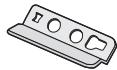
☐ 2 Safety holder screws © (Black)
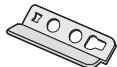
□ 2 Wall mount brackets
□ 1 Safety holder D

☐ 1 Safety holder screw Ⓑ (Silver)
□ 2 Rear pads

- Product numbers correct as of January 2011. These may be subject to change.
- Do not use AC mains lead with other equipment.
Unit and media care
Pull out the AC mains lead from the outlet before maintenance.
■ Clean this unit with a soft, dry cloth
- When dirt is heavy, wring the cloth moistened in water tightly to wipe the dirt, and then wipe it with a dried cloth.
- When cleaning the speaker covers, use a fine cloth. Do not use tissues or other materials (towels, etc.) that can fall apart. Small grains may get stuck inside the speaker cover.
- Never use alcohol, paint thinner or benzine to clean this unit.
- Before using chemically treated cloth, carefully read the instructions that came with the cloth.
■ Maintenance of the lens
- Clean the lens regularly to prevent malfunctions. Use a blower to remove dust and a cotton swab if it is extremely dirty.
- You cannot use a CD type lens cleaner.
- Do not leave the sliding door open for prolonged periods of time. This will cause the lens to get dirty.
- Be careful not to touch the lens with your fingers.
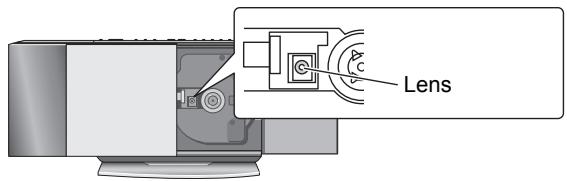
Table of contents
Safety precautions....2
Accessories....4
Unit and media care....4
Connections ....5
Attaching the unit to a wall (optional)....6
Control reference guide ....8
Opening/Closing the sliding door 9
Disc operations....9
Radio operations....11
Sound adjustment....12
Timer 12
Listening to audio from iPod or iPhone....12
HC55 Using a Bluetooth® compatible device ....13
Listening to audio from a USB device ....16
Others 16
Troubleshooting....17
Specifications....19
■ The remote control information
Insert so the poles (+ and −) match those in the remote control.
Place this side in before the other side.
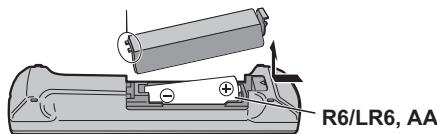
- Use alkaline or manganese batteries.
■ Clean discs
DO
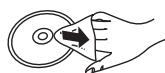
DO NOT
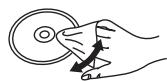
Wipe with a damp cloth and then wipe dry.
■ Disc handling precautions
- Handle discs by the edges to avoid inadvertent scratches or fingerprints on the disc.
- Do not attach labels or stickers to discs.
- Do not use record cleaning sprays, benzine, thinner, static electricity prevention liquids or any other solvent.
- Do not use the following discs:
– Discs with exposed adhesive from removed stickers or labels (rented discs etc.).
— Discs that are badly warped or cracked.
– Irregularly shaped discs, such as heart shapes.
Connections
■ Notes on speakers
- These speakers do not have magnetic shielding. Do not place them near a television, personal computer or other devices easily influenced by magnetism.
Back View
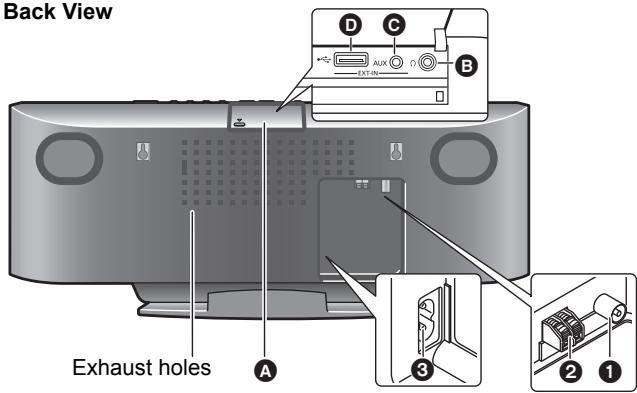
Basic Connections
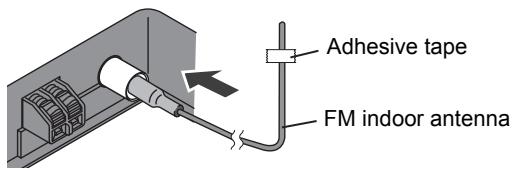
① Connect the FM indoor antenna.
- Tape the antenna to a wall or column, in a position with the least amount of interference.
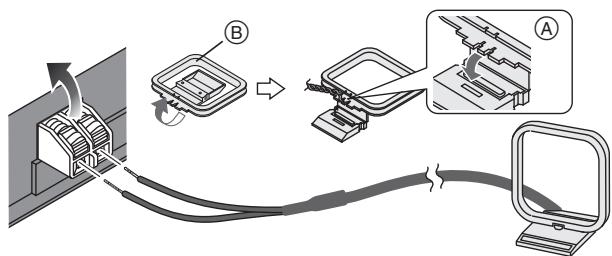
② Connect the AM loop antenna.
- Keep the loop antenna cord away from other wires and cords.
ⒶStand the antenna up on its base until it clicks.
⑧AM loop antenna
flowchart
graph TD
    A["Device with cable routing"] --> B["Switch B"]
    B --> C["Switch A"]
    C --> D["Computer with cable routing"]
③ Connect the AC mains lead.
Connect the AC mains lead after all other connections are complete.
Turn the unit on after a few seconds.
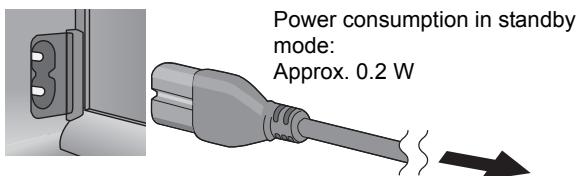
To household mains socket
Additional Connections
Open the EXT-IN AUX/Headphone/USB cover to connect headphones, USB devices or external music devices (e.g. MP3 player).
Push the projecting part to open the cover A. Top View
EXT-IN AUX
Headphone/USB cover Projecting part

■ Connect the headphones (not supplied)
Reduce the volume level and connect the headphones.
Plug type: ∅3.5 mm stereo B
Ω

- Listening at full volume for long periods may damage the user's ears.
- To prevent hearing damage, avoid listening for prolonged periods of time. Excessive sound pressure from earphones and headphones can cause hearing loss.
■ Connect an external music device (for AUX mode)
① Plug the audio cable (not supplied) into the EXT-IN AUX jack Ⓐ.
Plug type: ∅3.5 mm stereo
② Press [EXT-IN, RADIO] repeatedly to select “AUX” and start playback on the connected device.
AUX

You can select the sound input level of the external device.
HC55 ① Press [SOUND] repeatedly to select "INPUT LEVEL".
② Press [◀, ▶] to select “HIGH” or “NORMAL”.
HC35 Press [INPUT LEVEL] repeatedly to select "HIGH" or "NORMAL".
- Switch the equalizer off or turn the volume of the external device down to reduce the input signal. High level of input signal will distort the sound.
- For details, refer to the instruction manual of the other equipment.
- Cables and devices are not supplied.
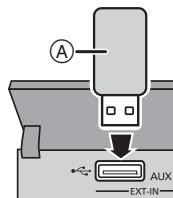
■ Connect the USB device (not supplied)
① Reduce the volume level and plug the USB device Ⓐ into the USB terminal Ⓓ.
② Press [EXT-IN, RADIO] repeatedly to select “USB” and start playback. ( 16)
Attaching the unit to a wall (optional)
Installation accessories
■ Supplied accessories
• 1 Safety holder screw Ⓑ (Silver)
- 2 Safety holder screws © (Black)
- 1 Safety holder Ⓓ (⇒ 4)
- 2 Safety holders Ⓔ (⇔ 4)
- 2 Wall mount brackets
- 2 Rear pads
■ Commercially available accessories (not supplied)
- 4 Wall bracket fixing screws ⓕ
- 1 Safety holder fixing screw Ⓖ
- Keep the wall mount brackets out of reach of children to prevent swallowing.
- Keep the rear pads out of reach of children to prevent swallowing.
- Keep the screws out of reach of children to prevent swallowing.
- Keep the safety holder out of reach of children to prevent swallowing.

- Use screws with a nominal diameter of 4 mm, which are suitable to the material of the wall (e.g., wood, steel, concrete, etc.)
Safety precautions
WARNING!
- Only a qualified building contractor shall install or uninstall this unit.
– Improper installation may cause the unit to fall, resulting in injury. - To prevent injury, the unit must be securely attached to the wall in accordance with the installation instructions.
- Do not install the unit where it cannot support the load.
- If the mounting parts are not strong enough, this may cause the unit to fall, resulting in injury.
- Do not use installation methods other than instructed.
– This may cause the unit to fall and be damaged, resulting in injury. - Do not install the unit at locations other than vertical walls.
- This may cause the unit to fall and be damaged, resulting in injury.
- Take the safety factor for mounting strength into account.
- Insufficient strength will cause the unit to fall, resulting in injury.
- The wall on which the unit is to be attached to should be capable of supporting 33 kg per screw.
- Insufficient strength of the walls will cause the unit to fall in the long run.
- Do not disassemble or modify the wall-mounting hanger.
- This will cause the unit to fall and be damaged, resulting in injury.
CAUTIONS!
- Do not install this unit at humid or dusty locations, or locations where airborne grease or steam may come into contact with the unit, or under an air conditioner where water may drip onto the unit.
- This may have negative impact on the unit, resulting in fire or electric shock.
- Secure enough space of more than 30 cm above the main unit and more than 10 cm on the left and right sides respectively. Keep space between the wall and rear of the unit clear of obstructions.
- Blocking the exhaust holes on the main unit may result in fire.
- Use the designated components for installation.
- Otherwise, the main unit may fall and be damaged, resulting in injury.
- Prevent the mounting screws or AC mains lead from coming into contact with metal parts inside the wall during installation.
– Failure to do so may cause electric shock. - When removing the main unit, remove the wall mounting screws as well.
- Otherwise the wall mounting screws may hit a person and lead to injury.
- Install the unit at a height where the USB port and operation buttons can be seen for safe operation.
- Operating at improper position may cause the unit to fall and be damaged, resulting in injury.
■ Notes on installation
- Before installation, read the “Safety precautions” and “Wall mount instructions” for correct installation.
- For optimal performance and to prevent potential problems, do not install this unit:
– at locations other than vertical walls. - near a sprinkler or a sensor.
– near high-voltage lines or power sources. - near heating device.
– at locations where the unit is subject to vibration or impact. - near sources of magnetism, heat, vapour, airborne grease, etc.
- at locations where there may be water droplets (e.g. under an air conditioner).
- Do not install this unit under ceiling lights (e.g. spotlight, halogen light, etc.).
- Failure to do so may bend the cabinet or lead to damage caused by high heat.
- Use a proper installation method that suits the structure and material of the wall.
- Use a soft blanket or cloth to prevent damage to the product or floor during installation.
- When tightening screws, make sure the screws are not loosely-tightened or overtightened.
- Secure a safe surrounding area and pay attention to safety during installation.
- Panasonic is not liable for incidental or consequential damages resulting from improper installation or operation.
Wall mount instructions
Before installation, turn the unit off and disconnect the AC mains lead from the household mains socket.
1 Detach the stand from the unit.
① Unscrew the fixing screw Ⓐ (4 pieces) at the bottom of the unit.
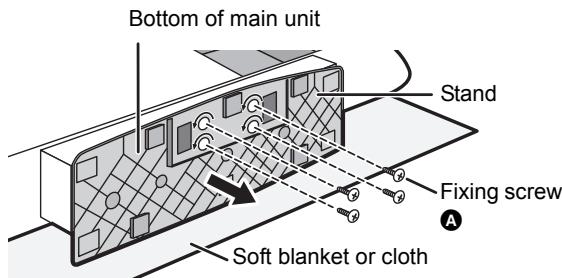
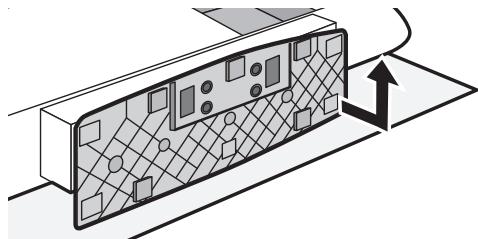
② Gently pull the bottom of the stand and slide the stand off the unit.
- Keep the removed screws and stand in a safe place.
natural_image
Diagram of a device with grid pattern and directional arrow, no readable text or symbols2 Measure and mark the position of the wall mount brackets (Both sides).
- Use figures below to identify the screwing positions.
The position to attach the wall mount brackets
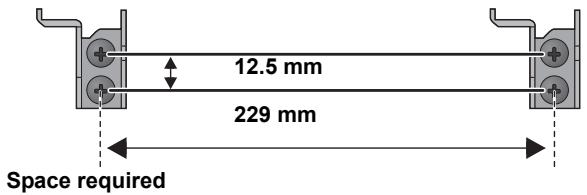
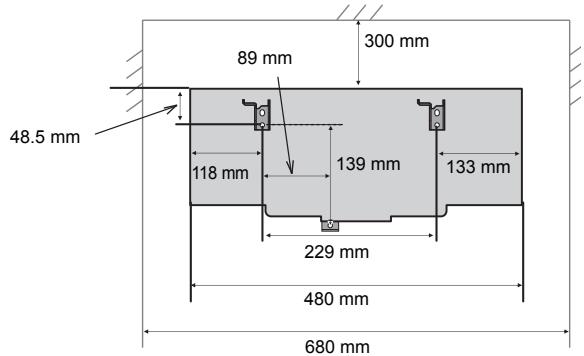
3 Attach the wall mount bracket to the wall with 2 screws F. (Both sides)
- Use a spirit level to ensure both wall mount brackets are level.
- Use a screw which is strong enough to support the weight of at least 33 kg.
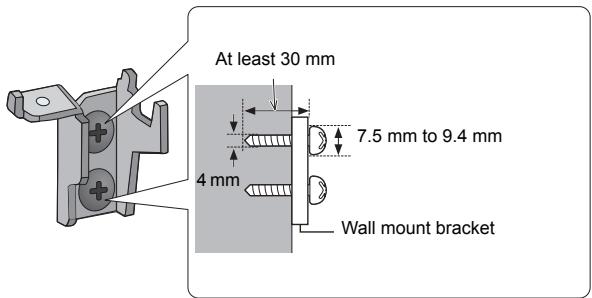
4 Fix the safety holder D onto the unit with the safety holder screw B.
- Before attaching, stick the rear pads (supplied) to Ⓐ.
- Screw tightening torque: 50 N·cm to 70 N·cm.
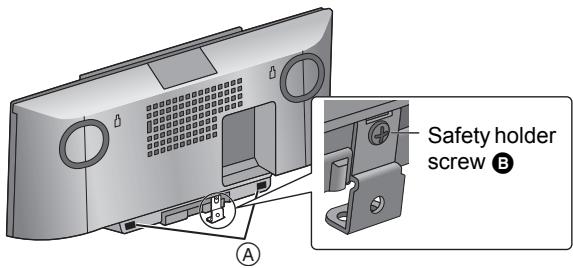
5 Hang the unit on the wall.
Hook the unit securely onto the wall mount brackets.
- Connect the FM/AM antenna and the AC mains lead to the unit before hanging the unit onto the wall. ( 5)
- After hanging the unit, release your hand carefully to confirm the unit sits securely on the wall.
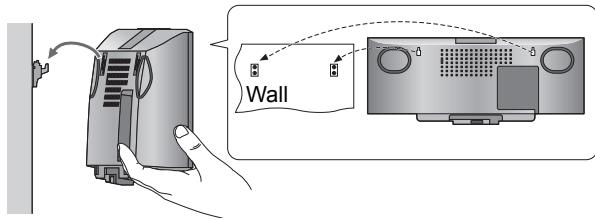
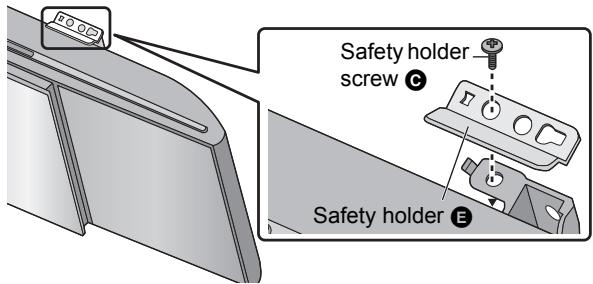
6 Fix the safety holders Ⓔ onto the wall mount brackets with the safety holder screws Ⓗ (Both sides).
- Screw tightening torque: 80 N•cm to 120 N•cm.
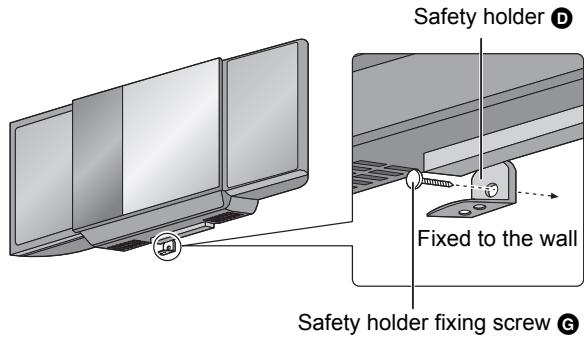
7 Drive the safety holder fixing screw Ⓖ to secure the safety holder Ⓓ onto the wall.
- Refer to step 3 for requirements before screwing.
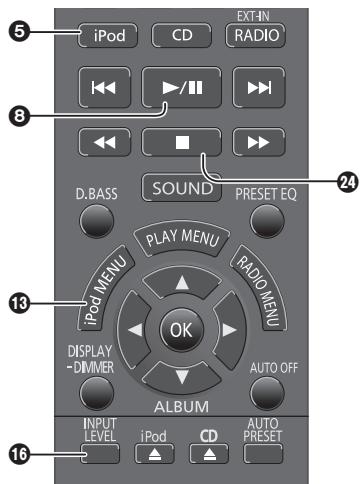
Control reference guide
Remote control
HC55
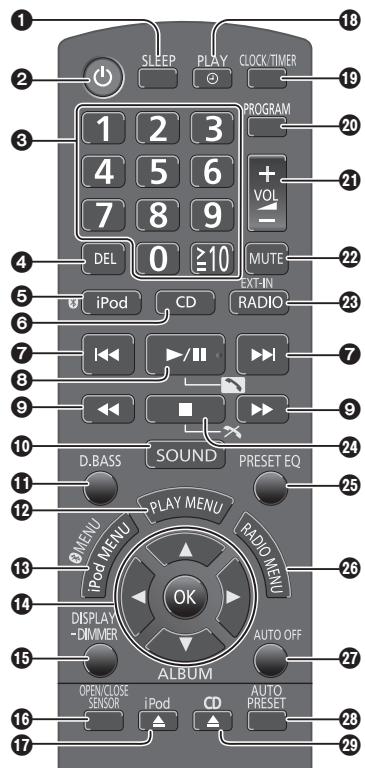
HC35
Main unit
Buttons such as ② function the same as the remote control.
They can be used interchangeably.
Top view
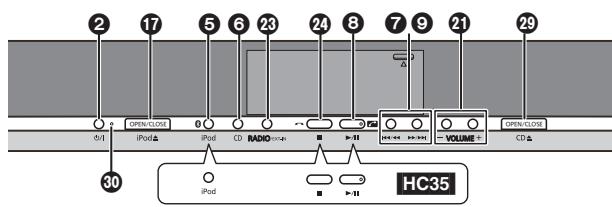
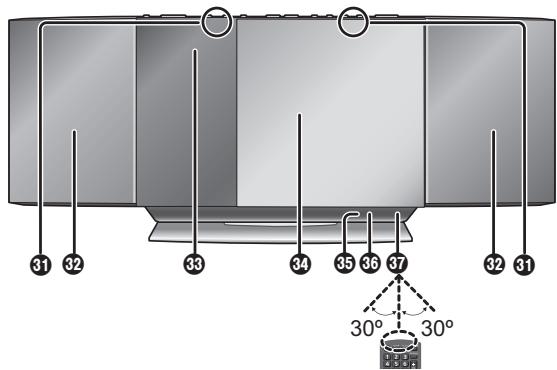
Front view
① [SLEEP] ( 12)
2 Standby/on switch [☐], [☐/I] (⇒ 9, 10, 16)
Press to switch the unit from on to standby mode or vice versa. In standby mode, the unit is still consuming a small amount of power.
③ Numeric buttons
[1-9, 0, ≥10] (⇒ 10, 11, 16)
To select a 2-digit number
e.g. 16: [≥10] → [1] → [6]
To select a 3-digit number
e.g. 226: [≥10] → [≥10]
→ [2] → [2] → [6]
④ [DEL] (⇒ 10)
⑤ HC55 [※, iPod] (⇒ 13, 14)
HC35 [iPod] ( 13)
⑥ [CD] (⇒ 10)
⑦ [|◀◀], [▶▶] (⇒ 10, 11, 13, 14, 16)
⑧ [▶/■] (⇒ 10, 13, 14, 16)
HC55 [ ] (⇒ 15)
⑨ [◀◀], [▶▶] (⇒ 10, 11, 13)
⑩ [SOUND] (⇒ 5, 9, 12, 14)
⑪ [D.BASS] (⇒ 12)
⑫ [PLAY MENU] (⇒ 10)
13 [iPod MENU] ( 13)
HC55 [※ MENU] (⇒ 15)
14 [▲, ▼, ◀, ▶], [OK] (⇒ 5, 10, 11, 12, 13, 15, 16)
⑮ [DISPLAY] (⇒ 10, 14)
[-DIMMER]
Press and hold to dim the display panel. Press and hold again to cancel.
16 HC55 [OPEN/CLOSE SENSOR] ( 9)
HC35 [INPUT LEVEL]
(⇒ 5)
⑰ [iPod ▲] (⇒ 9)
[iPod ▲, OPEN/CLOSE]
HC55 Sensor activity indicator*
18 [PLAY, ⓐ] (⇒ 12)
⑲ [CLOCK/TIMER] (⇒ 12)
20 [PROGRAM] (⇒ 10, 11)
②1 [+, VOL ,-]
[- VOLUME +] (⇒ 15)
Adjusts sound volume.
22 [MUTE] ( 15)
Mutes the sound. Press again to cancel. "MUTE" is also cancelled when the volume is adjusted or the unit is turned off.
23 [EXT-IN, RADIO]
[RADIO/EXT-IN] ( 11,
16)
24 [■] (⇒ 10, 13, 14, 16)
HC55 [×] (⇒ 15)
25 [PRESET EQ] (⇒ 12)
26 [RADIO MENU] (⇒ 11)
27 [AUTO OFF]
This function allows you to turn the unit off (except in radio mode) after the unit is left unused for about 30 minutes. When the function is turned on, the "A.OFF" indicator light.
28 [AUTO PRESET] (⇒ 11)
29 [CD ≧] (⇒ 9)
[CD ▲, OPEN/CLOSE]
HC55 Sensor activity indicator*
30 Standby indicator
31 HC55 Open/Close sensor ( 9)
32 Speaker
33 Display
34 Sliding door
35 HC55 Microphone
(⇒ 15)
36 HC55 Bluetooth® indicator (⇒ 14)
37 Remote control signal sensor
Distance:
Within approx. 7 m directly in front.
* The sensor activity indicator will light when the Open/Close sensor is turned on.
One of the indicators will flash while the sliding door is opening or closing.
Opening/Closing the sliding door
Preparation
Press [⏻] to turn the unit on.
Opening the sliding door
For disc operations:
Ⓐ While the sliding door is closed, press [CD ▲] to open the sliding door.
For iPod/iPhone operations:
⑧ While the sliding door is closed, press [iPod ▲] to open the sliding door.
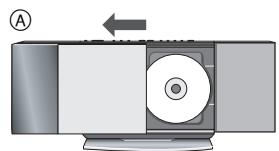
natural_image
Diagram of a CD or DVD device with an arrow indicating direction (no text or symbols present)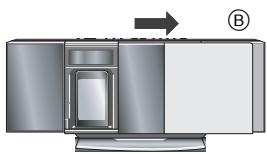
natural_image
Diagram of a device with an arrow pointing to a component, labeled with circled number B (no text or symbols on the device itself)■ Closing the sliding door
Press [CD ▲] or [iPod ▲] again.
- Keep fingers away from the sliding door when it is closing to avoid possible minor injuries.

- Damage may occur if the sliding door is forced closed.
- Be careful of CD hitting the sliding door while being removed.
- The sliding door will not close if the docking switch lever is not returned to the original position.
HC55 Open/Close sensor
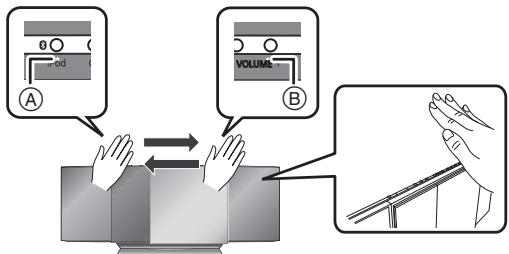
With this function the sliding door can be opened without pressing a button. The sliding door will open or close by moving the palm of your hand over the sensors on the top of the unit.
For disc operations:
Place the palm of your hand over sensor Ⓑ and then move it over sensor Ⓐ.
- To close the sliding door, place the palm of your hand over sensor Ⓐ and then move it over sensor Ⓑ.
For iPod/iPhone operations:
Place the palm of your hand over sensor Ⓐ and then move it over sensor Ⓑ.
- To close the sliding door, place the palm of your hand over sensor Ⓑ and then move it over sensor Ⓐ.
■ To change the setting of the open/close sensor
The sensitivity of the sensor can be changed to increase or decrease the activating area of the open/close sensor.
Press [OPEN/CLOSE SENSOR] repeatedly to select "MODE 1", "MODE 2", "MODE 3" or "OFF SENSOR".
Select the mode that allows correct operation.
- Factory preset: "MODE 2"
- To turn the open/close sensor off, select "OFF SENSOR".
■ To change the sound effect settings of the open/close sensor
① Press [SOUND] repeatedly to select "BUZZER".
② Press [◀] or [▶] to select the following setting.
LOW: Set the sound effect level to low.
MID: Set the sound effect level to medium.
HIGH: Set the sound effect level to high.
OFF: Turn the sound effect off.

- A red light is lit from the position of the sensor. This is normal.
- The open/close sensor might be unintentionally activated if an object, hand, part of your arm, pets or children move over the top of the unit.
- If the open/close sensor does not react, move the palm of your hand closer to the top of the unit and change the speed that you move your hand.
- If the open/close sensor does not work, try changing the sensor's setting. If it still does not work, open/close the sliding door using the buttons on the unit or the remote control.
- When the sensor setting is changed to "MODE 1", move your hand closer (approx. 3 cm) over the unit.
- The disc operation side of the sliding door will not open during CD playback or pause.
Disc operations
Inserting a disc
1 Press [💡] to turn the unit on.
2 Open the sliding door. ( left)
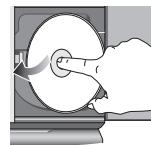
3 With the label of the disc facing towards you, tilt the disc into the disc tray under the sliding door.
4 Place the disc onto the spindle in the centre and then push the disc down until it clicks into place.
- Make sure that the unit does not fall when inserting the disc.
5 Close the sliding door. ( left)
■ Removing a disc
① Open the sliding door.
② Hold the centre and the top right of the disc and pull the top right of the disc to unlock it from the spindle.
③ Tilt the disc so as not to touch the sliding door or the lens and remove the disc.
Basic play
1 Press [⏻] to turn the unit on.
2 Insert the disc to be played ( 9).
3 Press [CD].
4 Press [▶/■] to start play.
| Stop | Press [■]. |
| Pause | Press [►/■]. Press again to resume play. |
| Skip | Press [◄◄] or [►►] to skip track.Press [▲,▼] to skip album. (MP3) |
| Search CD | Press and hold [◄◄] or [►►]. |
| Direct access play(Play starts from the track you selected.) | CD: Press the numeric buttons to select the track.MP3:1 Press [▲,▼] to select the album.2 Press [►►] once and then the numeric buttons to select the track.This function does not work during random play or program play. |
| View contents information | Press [DISPLAY] repeatedly during play or pause.The current track's information, etc. is displayed.Maximum number of displayable characters: approximately 30This unit supports ver. 1.0, 1.1 and 2.3 ID3 tags.Text data that is not supported will not be displayed or shown differently. |
Repeat play
After performing steps 1-3 in "Basic play"
1 Press [PLAY MENU] repeatedly to select "REPEAT".
2 Press [◀, ▶] to select "ON REPEAT" and press [OK].
3 Press [▶/■] to start play.
- To stop repeat play, select "OFF REPEAT" in step 2.
Play mode function
After performing steps 1-3 in "Basic play"
1 Press [PLAY MENU] repeatedly to select "PLAY MODE".
2 Press [◀, ▶] to select the following mode and press [OK].
| 1-TRACK1TR: | Plays one selected track on the disc. |
| 1-ALBUM1ALBUM:MP3 | Plays one selected album on the disc.● Press [▲, ▼] to select the album. |
| RANDOMRND: | Plays a disc randomly. |
| 1-ALBUMRANDOM1ALBUM RND:MP3 | Plays all tracks in one selected album randomly.● Press [▲, ▼] to select the album. |
3 Press [▶/■] to start play.
![PANASONIC SCHC55EP - Press [▶/■] to start play. - 1](/content/2019/11/105232/images/32dbaa0947ea08ac8e116dca71ad57c1b50c4429164ef8e3b4d55827d4a1e790.jpg)
- During random play, you cannot skip to the previous track.
- The current play mode is cleared when you open the sliding door.
- To repeat program play or selected play mode, select "ON REPEAT" in PLAY MENU.
Program play
Enables you to program up to 24 tracks.
After performing steps 1-3 in "Basic play"
1 Press [PROGRAM] during the stop mode.
2 CD:
Press the numeric buttons to select the track.
- To program more tracks, continue by pressing the numeric buttons.
MP3:
① Press [▲, ▼] to select the album.
② Press [▶▶] once and then the numeric buttons to select the track.
③ Press [OK].
To program more tracks, repeat steps ① - ③.
3 Press [▶/■] to start play.
| Cancel programme mode | Press [PROGRAM] in the stop mode to clear “PGM” indicator from the display. |
| Check programme contents | Press [|◀◀] or [▶▶] when “PGM” is displayed in the stop mode. |
| Delete last programmed track | Press [DEL] in the stop mode. |
| Clear all programmed tracks | 1 Press [■] in the stop mode.2 Press [■] again while blinking “CLR ALL”. |

- The program memory is cleared when you open the sliding door.
Notes on CD-R/CD-RW
- This unit can play CD-R and CD-RW recorded with CD-DA or MP3.
- Use an audio recording disc for CD-DA and finalize* it when you finish recording.
A process performed after recording that enables CD-R or CD-RW players to play audio CD-R and CD-RW. - The unit may not be able to play some discs due to the condition of the recording.
- Do not use irregularly shaped CDs.
- Do not attach extra labels and stickers.
- Do not use CDs with labels and stickers that are coming off or with excessive adhesive under the labels and stickers.
- Do not attach scratch-proof covers or any other kind of accessories.
- Do not write anything on the CDs.
- Do not clean CDs with liquids (Wipe with a soft and dried cloth).
Creating MP3 files playable on this unit
- Maximum number of tracks and albums: 999 tracks and 254 albums (Excluding Root folder).
- Compatible compression rate: Between 64 kbps and 320 kbps (stereo). 128 kbps (stereo) is recommended.
- Disc formats: ISO9660 level 1 and level 2 (except for extended formats).
- The time for reading TOC depends on the number of the tracks, folders or folder structures.
Limitations on MP3
- This unit is compatible with multi-sessions and it takes more time to start playing.
- This unit cannot play files recorded using packet write.
- If the disc includes both MP3 and normal audio data (CD-DA), the unit plays the type recorded in the inner part of the disc. If the disc includes both MP3 and other types of audio data (e.g. WMA or WAV), the unit plays only the MP3.
- Depending on how you create the MP3 files, they may not play in the order you numbered them or may not play at all.
Radio operations
Manual tuning
1 Press [EXT-IN, RADIO] repeatedly to select "FM" or "AM".
2 Press [◀◀] or [▶▶] to select the frequency of the required station.
- "ST" is displayed when a stereo FM broadcast is being received.
- To tune automatically, press and hold [◀◀] or [▶▶] until the frequency starts changing rapidly.
— To cancel auto tuning, press [◀◀] or [▶▶] once again.
—Auto tuning may not function when there is excessive interference.
■ To improve FM sound quality
① Press [RADIO MENU] to select “FM MODE” while receiving FM broadcasts.
② Press [◀, ▶] to select “MONO” and then press [OK].
- Select "STEREO" in Step ② to return to stereo broadcasts.
- “MONO” is canceled if the frequency is changed.
■ To improve AM sound quality
① Press [RADIO MENU] to select "B.PROOF" while receiving AM broadcasts.
② Press [◀, ▶] to select the beat proof setting (“BP 1” or “BP 2”) and press [OK].
- This setting is reset to "BP 1" when changes are made (e.g. frequency is changed).
Memory preset
You can preset up to 30 FM channels and 15 AM channels.
Preparation
Press [EXT-IN, RADIO] repeatedly to select "FM" or "AM".
■ Automatic presetting
① Press [OK] to switch between the “LOWEST” and “CURRENT” frequency.
② Press [AUTO PRESET].
“PGM” starts to flash and the tuner starts to preset all the stations it can receive into the channels in ascending order.
■ Manual presetting
① Press [◀◀] or [▶▶] to tune to the required station.
② Press [PROGRAM].
③ While "PGM" is flashing, press the numeric buttons to select a channel.
- The station occupying a channel is erased if another station is preset in that channel.
- To preset more stations, repeat steps ① - ③.
■ Selecting a preset station
Press [◀◀] or [▶▶] to select the channel.
- Alternatively, press the numeric buttons to select the channel.
AM frequency step
This unit is factory-set to AM 9 kHz, but you can change it to receive broadcasts allocated in AM 10 kHz steps.
To change the step
① Press [EXT-IN, RADIO] to select "AM".
② Press and hold [RADIO/EXT-IN] on the main unit. After a few seconds the display changes to display current minimum frequency.
③ Continue to hold down [RADIO/EXT-IN] on the main unit. When the minimum frequency changes, release the button.
- To return to the original step, repeat steps ① - ③.
- After the setting is changed, any previously preset frequency will be cleared.
RDS broadcasting
The unit can display the text data transmitted by the radio data system (RDS) available in some areas.
When "FM" is selected
Press [DISPLAY] to display the text data.
Each time you press the button:
PS: Program service
PTY: Program type
(Frequency display)
![PANASONIC SCHC55EP - Press [DISPLAY] to display the text data. - 1](/content/2019/11/105232/images/fbf9d8d98b3ca7059ea645cedaf14f6295462e70904c170739f6242b2a1fa3cc.jpg)
- RDS displays may not be available if reception is poor.
Sound adjustment
The following sound effects can be added to the audio output.
| Preset EQ | Press [PRESET EQ] repeatedly to select “HEAVY”, “SOFT”, “CLEAR”, “VOCAL” or “FLAT”. |
| Bass or Treble | 1 Press [SOUND] repeatedly to select “BASS” or “TREBLE”.2 Press [◀, ▶] to adjust the level (-4 to +4). |
| Surround Sound | 1 Press [SOUND] repeatedly to select “SURROUND”.2 Press [◀, ▶] to select “ON SURROUND”.● To cancel surround sound, select “OFF SURROUND” in step 2.● If interference in FM stereo reception increases, cancel the surround sound effect. |
| D.Bass | Press [D.BASS] during play to select “ON D.BASS” or “OFF D.BASS”. |
- You may experience a reduction in sound quality when these effects are used with some sources. If this occurs, turn the sound effects off.
Timer
Setting the clock
This is a 24-hour clock.
1 Press [CLOCK/TIMER] to select "CLOCK".
2 Within 10 seconds, press [▲, ▼] to set the time.
3 Press [OK].

- To display the clock, press [CLOCK/TIMER].
- Reset the clock regularly to maintain accuracy.
Play timer
You can set the timer to come on at a certain time to wake you up. This unit offers 3 optional play timers.
Preparation
- Turn the unit on and set the clock ( above).
- Prepare the music source (disc, radio, iPod/iPhone, USB or AUX) and set the volume.
1 Press [CLOCK/TIMER] repeatedly to select “ play 1 ”, “ play 2 ” or “ play 3 ”.
2 Within 10 seconds, press [▲, ▼] to set the starting time.
3 Press [OK].
4 Set the finishing time by repeating steps 2 and 3.
■ To activate the timer
5 Press [PLAY, Ⓑ] repeatedly to set the desired play timer on.
6 Press [⏻] to turn the unit off.
| Check the settings(When the unit is on or in standby mode) | Press [CLOCK/TIMER] twice.(The setting is displayed.) |
| Cancel | Press [PLAY, ⭕] twice to clear the timer indicator from the display. |

- The timer will start at the preset time, with the volume increasing gradually to the preset level.
Sleep timer
The sleep timer can turn the unit off after a set time.
1 Press [SLEEP] to turn the sleep function on or off.
$$ 3 0 \mathrm{MIN} \rightarrow 6 0 \mathrm{MIN} \rightarrow 9 0 \mathrm{MIN} \rightarrow 1 2 0 \mathrm{MIN} $$
$$ \uparrow \quad \text { OFF (Cancel) } \leftarrow $$
2 Press [SLEEP] once to check the remaining time.
- The play timer and sleep timer can be used together. The sleep timer always has the priority. Be sure not to overlap the timer settings.
- When “AUTO OFF” is “ON” and the unit is left unused for about 30 minutes, the unit will shut down even if the play time or sleep time has not expired.
Listening to audio from iPod or iPhone
Inserting/Removing an iPod/iPhone
■ Inserting an iPod/iPhone
1 Open the sliding door. ( 9)
2 Insert the suitable dock adapter (not supplied) for the iPod/iPhone.
- Insert the side of the iPod/iPhone dock adapter with the clips facing towards you first and then push the opposite side until it clicks into place.
Ⓐ Clips
B Dock adapter
© iPod/iPhone docking switch lever
(D) Connector
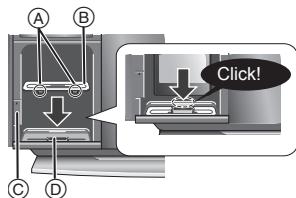
3 Press [▲] to unlock the iPod/iPhone dock and then pull the docking switch lever to tilt the iPod/iPhone dock.
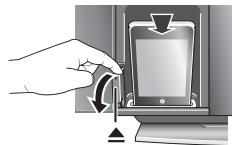
natural_image
Illustration of a hand pressing down on a device with directional arrows indicating motion (no text or symbols)4 Connect the iPod/iPhone (not supplied) firmly.
- Be sure to remove the iPod/iPhone from its case.
5 Push the docking switch lever back until it clicks into place.
6 Close the sliding door. ( 9)
■ Removing an iPod/iPhone
① Repeat step 1 and 3 ( above).
② To remove, simply pull the iPod/iPhone straight out.
③ Repeat step 5 and 6 ( above).
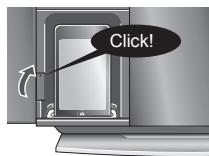

- If the iPod/iPhone dock is not tilted when connecting or disconnecting the iPod/iPhone, it may cause damage to the connector.
- Be sure to use a dock adapter that is compatible with your iPod/iPhone. To purchase a dock adapter, consult your iPod/iPhone dealer.
- Reduce the volume of the main unit to minimum before connecting or disconnecting the iPod/iPhone.
iPod/iPhone operations
Preparation
Press [iPod] (HC55: [®, iPod]) repeatedly to select "IPOD".
| Play | Press [▶/■]. |
| Pause | Press [▶/■] or [■]. Press again to resume play. |
| Skip track | Press [◀◀] or [▶▶]. |
| Search the current track | Press and hold [◀◀] or [▶▶]. |
| Display iPod/iPhone menu/return to previous menu | Press [iPod MENU] in the play mode. (Remote control only) |
| Select contents from iPod/iPhone menu | Press [▲, ▼] and then [OK]. (Remote control only) |
- The operations may vary or not work depending on the iPod/iPhone models.
■ Compatible iPod/iPhone (as of January 2011)
- Update your iPod/iPhone with the latest software before using this unit.
- Compatibility depends on the software version of your iPod/iPhone.
| Name | Memory size |
| iPod touch 4th generation | 8 GB, 32 GB, 64 GB |
| iPod nano 6th generation | 8 GB, 16 GB |
| iPod touch 3rd generation | 32 GB, 64 GB |
| iPod nano 5th generation (video camera) | 8 GB, 16 GB |
| iPod touch 2nd generation | 8 GB, 16 GB, 32 GB |
| iPod classic | 120 GB, 160 GB (2009) |
| iPod nano 4th generation (video) | 8 GB, 16 GB |
| iPod classic | 160 GB (2007) |
| iPod touch 1st generation | 8 GB, 16 GB, 32 GB |
| iPod nano 3rd generation (video) | 4 GB, 8 GB |
| iPod classic | 80 GB |
| iPod nano 2nd generation (aluminum) | 2 GB, 4 GB, 8 GB |
| iPod 5th generation (video) | 60 GB, 80 GB |
| iPod 5th generation (video) | 30 GB |
| iPod nano 1st generation | 1 GB, 2 GB, 4 GB |
| iPhone 4 | 16 GB, 32 GB |
| iPhone 3GS | 8 GB, 16 GB, 32 GB |
| iPhone 3G | 8 GB, 16 GB |
| iPhone | 4 GB, 8 GB, 16 GB |
- Depending on the model, it may be necessary to remove the iPod/iPhone and select the album, artist, etc. on the iPod/iPhone.
Notes on iPhone:
- All phone features can only be controlled by the iPhone's touch screen.
- The unit does not display incoming calls or the phone status.
- The ringtone of incoming call can be heard from the iPhone's speaker. When the unit is in iPod/iPhone mode, the ringtone can also be heard from the unit's speakers.
- Connecting or disconnecting the iPhone from the unit will not cancel a call.
- There is no Apple Inc. specification that will guarantee the iPhone responses above. iPhone responses may vary on new iPhone models or iPhone new software updates.
■ Charging the iPod/iPhone
- When iPod/iPhone is being charged in standby mode, "IPOD CHARGING" is shown on the main unit's display.
- Check iPod/iPhone to see if the battery is fully charged. If you are not using iPod/iPhone for an extended period of time after recharging has completed, disconnect it from the main unit as the battery will be depleted naturally. (Once fully recharged, additional recharging will not occur.)
HC55
Listening to the Internet Radio
This unit can output internet radio if “vTuner for Panasonic” is installed on your iPhone/iPod touch.
- Visit the below website for the following information about "vTuner for Panasonic":
http://radio.vtuner.com/panasonic/en/ (Compatible iPhone/iPod touch models and software versions, purchasing, installation and operation details.)
Preparation
Install "vTuner for Panasonic" to your iPhone/iPod touch.
1 Insert the iPhone/iPod touch to this unit.
2 Press [®, iPod] repeatedly to select “INTERNET RADIO”.
"vTuner for Panasonic" starts.
HC55 Using a Bluetooth® compatible device
About using Bluetooth®
What is Bluetooth®?
Bluetooth® technology allows you to make a wireless connection with another electronic device.
■ Frequency band used
This unit uses the 2.4 GHz frequency band, however other devices may use this frequency as well. To avoid interference with other wireless devices, please follow the cautions listed below.
■ Certification of this device
This unit conforms to frequency restrictions and has received certification based on frequency laws, so a wireless permit is not necessary.
However, the following action is punishable by law in some countries:
- Taking apart/modifying the unit.
■ Usage restrictions
- Wireless transmission and/or usage with all Bluetooth® equipped devices is not guaranteed.
- Compatible mobile phones capable of wireless transmission include and comply to standards set by the Bluetooth SIG, Inc. However, if the mobile phone is optimized to meet standard specifications, some functions may work. Even so, depending on the specifications and settings of the mobile phone, a connection may not be established, nor are the methods of operation, display, or operation guaranteed.
- This unit supports Bluetooth® security features, however depending on the operating environment and/or settings, this security may not be sufficient. Use caution when transmitting data wirelessly.
- Please be aware that Panasonic accepts no responsibility for data and/or information that may be compromised during a wireless transmission.
■ Range of use
Use this device within an unobstructed 10 m range. The range of usage or perimeter may be shortened depending on any obstructions, devices causing interference, other people in the room, or the construction of the building. Please note that the range mentioned above is not guaranteed.
■ Effects from other devices
- It is possible that this unit may not operate correctly or you may experience other effects of instability such as “broken up” audio, etc. when other devices are placed within close proximity. Therefore, in order to prevent signal interference, we recommend separating this unit from the following devices during use:
Microwave oven/Wireless LAN/Electronic devices/Audio & Video devices/Office Assistant machines & devices/Digital cordless phones/Fax machines, etc.
- If you live in close proximity to a broadcasting studio and the signal is too strong, the unit may not operate correctly.
- When using a notebook PC with a wireless LAN transmitter, do not use this unit and the wireless LAN at the same time.
- If you are still experiencing noise even outside of the 5 m range of a wireless LAN device, turn the power to the wireless LAN device off.
■ Intended usage limitations
This unit is intended for normal, general use. This unit is not developed or manufactured with the intention of use in “high safety”* or hazardous occupations. Do not use this unit in these kinds of environments or occupations.
※ The following examples require extreme caution, and can directly result in loss of life, or extreme bodily harm.
e.g.) Nuclear Engineering, and control of a nuclear reaction/automated control of aircraft/air traffic control management/controlling movement of heavy freight systems/control of life support or extension systems/control of weapons systems and/or missile launch systems, etc.
Bluetooth® pairing
Preparation
Pair the Bluetooth ^® device with this unit to create an audio connection.
1 Press [®, iPod] repeatedly to select "BLUETOOTH".
When using it for the first time, it enters pairing mode automatically.
2 While this unit is in pairing mode, access the Bluetooth® menu of the Bluetooth® device and execute a Bluetooth® search to find this unit (SC-HC55).
- Please refer to the Bluetooth® device user manual for further instruction on how to connect a Bluetooth® device.
- If prompted for the passkey, enter "0000".
3 If pairing is successful, the paired device's name will be displayed for 2 seconds. The Bluetooth® indicator lights up. The unit is now ready to be used with the Bluetooth® device.

- Make sure the Bluetooth® device supports A2DP (Advance Audio Distribution Profile).
- This unit supports the A2DP reception which is copyright-protected by SCMS-T method.
- A2DP enables you to stream stereo sound from an audio source (mobile phone, PC or laptop) to this unit via Bluetooth®.
- Depending on the specification or setting of mobile phones, connection may not be established, or operation and display may vary.
- You can register up to 6 devices into this unit. Disconnect the current Bluetooth® device and refer to "To register more devices" (⇒ 15).
- If you register more than the maximum device number, the oldest device in connection history will be overwritten.
- If a registered device is re-registered, it will be overwritten.
Basic play
Pair the Bluetooth ^® device with this unit to create an audio connection.
1 Press [®, iPod] repeatedly to select "BLUETOOTH".
2 On the Bluetooth® device:
Select this unit (SC-HC55) on the Bluetooth® setup screen to make the connection.
3 On the Bluetooth® device: Start playback of a music source.
- If the device is connected, the music will be heard on this unit.
- The Bluetooth® indicator lights when there is a connection.
- Please refer to the Bluetooth® device user manual if required.
4 You can also make the following controls with the remote control.
| Play | Press [▶/■] to start play. |
| Stop | Press [■]. |
| Pause | Press [▶/■]. Press again to resume play. |
| Skip track | Press [◀◀] or [▶▶]. |
| Display information | Press [DISPLAY] repeatedly. |

- To utilise these functions, the Bluetooth® device must support AVRCP (Audio Video Remote Control Profile).
- This unit cannot transmit data to a Bluetooth® device.
- When playing iPod/iPhone by Bluetooth® with the main unit, intermittent sound may be experienced if you leave the iPod/iPhone Bluetooth® menu screen active or when making Bluetooth® registration and connection. If this occurs, please exit the iPod/iPhone Bluetooth® menu screen.
- When playing music by iPod/iPhone via Bluetooth® connection and the iPod/iPhone is connected into this unit iPod/iPhone dock, the audio will not be re-produced while “BLUETOOTH” is selected. Select “IPOD” to continue enjoying the music.
Input level
You can select the sound input level of the Bluetooth ^® device.
1 Press [®, iPod] repeatedly to select "BLUETOOTH".
2 Press [SOUND] repeatedly to select "INPUT LEVEL".
3 Press [◀, ▶] to select “0”, “+1” or “+2”.
- Select "0" if the sound is distorted.
Display function
Press [DISPLAY] repeatedly to view the information of the current connected device.
BLUETOOTH → Connected device name ↑ Connected profiles ←
Hands-Free Profile (HFP)
This unit works as a Bluetooth® hands-free for your mobile phones.
| To answer a call(“IN CALL” blinks) | Press [↘]. “CALLING” starts blinking on the display (Talk into the unit’s microphone).Press [↘] again to transfer the call to the mobile phones (“TRANSFER” blinks. You may now converse using the mobile phone). |
| To cancel a call | Press [✕]. |
| To adjust the sound volume | Press [+, VOL ,–] (Adjustable from “TEL VOL 1” to “TEL VOL 10”). |
| To mute the microphone | Press [MUTE]. Press again to cancel.(During “MIC MUTE”, the caller is not able to hear your voice). |

- This unit does not work with Headset Profile (HSP).
- When the mobile phone is too close to the microphone of this unit, noise may occur. Always keep the mobile phone away from the microphone of this unit when making a call.
- The audio from a disc will be paused while calling in hands-free mode.
Disconnecting a Bluetooth® device
1 Press [®, iPod] repeatedly to select "BLUETOOTH".
2 Press [®MENU] to display "DISCONNECT?" and then press [OK].
A confirmation message is displayed.
3 Press [◀, ▶] to select "YES" and then press [OK].

- The connection can also be stopped when you disable Bluetooth® transmission on the connected Bluetooth® device.
Advanced functions
Preparation
Press [✗, iPod] repeatedly to select "BLUETOOTH".
- These functions are unavailable if a device is connected. Disconnect the Bluetooth® devices to display these functions.
■ To register more devices
1 Press [®MENU] repeatedly to select "NEW DEV." and then press [OK].
- The unit enters pairing mode and "PAIRING" starts blinking on the display.
2 While this unit is in pairing mode, access the Bluetooth® menu of the Bluetooth® device and execute a Bluetooth® search to find this unit (SC-HC55).
- If prompted for the passkey, enter "0000".
■ To select communication quality
1 Press [®MENU] repeatedly to select "LINK MODE".
2 Press [◀, ▶] to select the following modes and then press [OK].
MODE 1: Connection with emphasis on communication stability
MODE 2: Connection with high bit rate for good audio quality (Communication might easily be disconnected in this mode, select "MODE 1" if this occurs).
■ To select Auto Link mode
1 Press [®MENU] repeatedly to select "AUTO LINK".
2 Press [◀, ▶] to select the following modes and then press [OK].
ON: This unit will automatically select "BLUETOOTH" when a Bluetooth® device is connected. OFF

- When "LINKING" is displayed, pressing [ *MENU] is invalid.
- Auto Link works only if your device supports A2DP.
- The communication quality settings also depend on the settings on the connected device. If the communication quality of the connected device is set for stable communication, the quality of the audio will remain low even if this unit is set to "MODE 2".
Listening to audio from a USB device
Compatible devices
Devices which are defined as USB mass storage class:
USB devices that support bulk only transfer USB devices that support USB 2.0 full speed
Notes on USB
- Supported format: Files with extension “.mp3” or “.MP3”
- CBI (Control/Bulk/Interrupt) is not supported.
- FAT12, FAT16 and FAT32 file systems are supported.
- Depending on the sector size, some files may not work.
- This unit can access up to 254 albums (excluding Root folder) and 2500 tracks.
- The maximum number of tracks in a folder is 999 tracks.
- Only one memory card will be selected when connecting a multiport USB card reader, typically the first memory card inserted.
- Disconnect the USB card reader from the unit when you remove the memory card. Failure to do so may cause malfunction to the device.
- When you connect the digital audio player to the USB port, it charges all the time when the unit is on.
USB operations
The USB connectivity enables you to connect and play MP3 tracks from a USB device.
Preparation:
- Before connecting any USB device to this unit, be sure to back up the data.
- It is not recommended to use a USB extension cable. The device connected via the cable will not be recognized by this unit.
1 Plug the USB device into the unit. ( 5)
2 Press [EXT-IN, RADIO] repeatedly to select "USB".
3 Press [▶/■] to start play.
| Stop | Press [■].• The position is memorized while “RESUME” is displayed.Press [▶/■] to resume play.Press [■] again to clear the position. |
| Pause | Press [▶/■].• Press [▶/■] again to restart play. |
| Skip | Press [|◀◀] or [▶▶]. (Track)Press [▲, ▼]. (Album) |
| Direct access play(Play starts withthe track youselect.) | 1 Press [▲, ▼] to select the album.2 Press [▶▶] once and then thenumeric buttons to select the track. |
- Before removing the USB device, select a source other than "USB".

- Removing the USB device while it is selected can damage the data stored in the device.
For other operating functions, they are similar as those described in “Disc operations”.
Others
Changing the main unit and remote control mode
Other Panasonic audio/video equipment may start functioning when you operate the unit using the supplied remote control. You can operate this unit in another mode by setting the remote control operating mode to "REMOTE 2".
The main unit and remote control must be set to the same mode.
1 Press [EXT-IN, RADIO] to select "AUX".
2 Press and hold [RADIO/EXT-IN] on the main unit and [2] on the remote control until the main unit's display shows "REMOTE 2".
3 Press and hold [OK] and [2] on the remote control for at least 4 seconds.
To change the mode back to "REMOTE 1", repeat the steps above by replacing [2] with [1].
Memory reset (Initialization)
When the following situations occur, reset the memory:
- There is no response when buttons are pressed.
- You want to clear and reset the memory contents.
1 Disconnect the AC mains lead. (Wait for at least 3 minutes before proceeding to step 2.)
2 While pressing and holding down [⏻/l] on the main unit, reconnect the AC mains lead.
“----” appears on the display.
3 Release [⏻/l].
All the settings are returned to the factory preset. You will need to reset the memory items.
Troubleshooting
Before requesting service, make the following checks. If you are in doubt about some of the check points, or if the solutions indicated in the following guide do not solve the problem, consult your dealer for instructions.
Common problems
Incorrect display or play will not start.
- You have not inserted the disc properly. Insert it correctly.
- The disc is scratched or dirty (Tracks skipped).
- There is moisture on the lens. Wait for about an hour and then try again.
MP3 cannot be read.
- You may not be able to play MP3 if you have copied a multi-session disc that has no data between sessions.
- When creating a multi-session disc, it is necessary to close the session.
- The amount of data on the disc is too small. Set the amount of data to above 5 MB.
Noise is heard or no sound.
- While playing MP3, noise may occur if the recording is poor.
- Keep this unit away from mobile phones if the interference is apparent.
- Turn the volume up.
- Switch the unit off, check and correct the connection and then switch the unit on. Causes include straining of the speakers through excessive volume or power and using the unit in a hot environment.
Humming heard during play.
- An AC mains lead or fluorescent light is near the cords. Keep other appliances and cords away from this unit's cables.
A beat sound or noise is heard while receiving radio broadcast.
- Switch the television or other audio player off or separate it from the unit.
- Switch the portable audio player off if connected to the EXT-IN AUX port.
A low hum or noise is heard during AM broadcast.
- Keep the antenna away from other cables and cords.
- Keep the AM antenna away from the unit.
The picture on the television near the unit disappears or stripes appear on the screen.
- The location and orientation of the antenna are incorrect.
- The television antenna wire is too close to the unit. Separate the antenna wire of the television from the unit.
No response when remote control buttons are pressed.
- Check that the battery is inserted correctly ( 4).
HC55 Open/close sensor
The sliding door does not open (or malfunctions).
- Is the unit turned on?
- Is the open/close sensor turned off? (⇒ 9)
- During CD playback or pause, the CD operation side of the sliding door will not open.
- The open/close sensor may not react to dark objects.
- Depending on the lighting, the open/close sensor may malfunction.
In this case, try moving the unit to a different place. (Do not place this unit under strong lighting, e.g., direct sunlight or fluorescent lights, etc.) - When the open/close sensor is on, the sliding door may open/close while operating the buttons on the top of the unit. In this case, use the remote control.
The open/close button lights are flashing.
- If there is an object close to both open/close sensors, both open/close button lights will flash and the open/close sensor will not function.
In this case try the below: - Changing the sensor setting to "MODE 1". (⇒ 9)
- Move the unit away from the object, or vice versa. (It will take a few seconds for the unit to check if the clearance is sufficient.)
The open/close sensor sound effect cannot be heard when the sliding door opens/closes.
- This is normal while listening to the radio, during playback, etc. or when linked to a Bluetooth® device.
iPod/iPhone operations
iPod/iPhone does not turn on.
Cannot operate with [iPod MENU] button.
- Verify that the iPod/iPhone battery is not depleted before connecting it to the unit.
- Before inserting the iPod/iPhone into the dock, turn both the unit and the iPod/iPhone off. Turn the power on and select the appropriate source.
No sound is heard from the speakers.
- The iPod/iPhone is not inserted correctly into the dock. Turn the iPod/iPhone off and remove it from the dock connector. Reinsert it and turn it on again.
- Make sure that the iPod/iPhone is actually playing something.
- Adjust the volume.
Distorted sound or the sound level is too low.
- Make sure the equalizer function of the iPod/iPhone is turned off.
iPod/iPhone cannot be controlled by the remote control or main unit.
- Make sure the iPod/iPhone is inserted properly into the dock.
- Check the dock connection and make sure that iPod/iPhone is selected as the source of music ( 12).
iPod/iPhone does not charge.
- Check all connections (⇒ 5, 12).
HC55 Bluetooth® operations
The name of the connected device is shown as “\*”.
- Character that cannot be displayed will be replaced by “*”.
- An unknown device name is detected and displayed as "*****".
Noise is heard or broken sound.
- The Bluetooth® communication distance has exceeded 10 m. Bring the device closer to the unit.
- There are obstructions between the device and the unit. Remove or avoid the obstacles.
- Select "MODE 1" to improve connection quality ( 15).
- Interference from mobile phones.
USB operations
No response when [▶/■] is pressed.
- Disconnect the USB device and then reconnect it. Alternatively, turn the unit off and on again.
The USB drive or its contents cannot be read.
- The USB drive format or its contents is/are not compatible with the unit ( 16).
- The USB host function of this product may not work with some USB devices.
- USB devices with storage capacity of more than 8 GB may not work in some instances.
Slow operation of the USB flash drive.
- Large file size or high memory USB flash drive takes longer time to read.
The elapsed time displayed is different from the actual play time.
- Copy the data to another USB device or backup the data and reformat the USB device.
Displayed messages
The following messages or service numbers appear on the unit's display when something unusual is detected during startup and use.
“--:--”
- You plugged the AC mains lead in for the first time or there was a power failure recently. Set the time ( 12).
"ADJUST CLOCK"
- Clock is not set. Adjust the clock accordingly.
"ADJUST TIMER"
- Play timer is not set. Adjust the play timer accordingly.
"PGM FULL"
- The number of programmed tracks is limited to 24. No further tracks can be programmed.
"NO PLAY"
- A CD-ROM disc that is not in CD-DA or MP3 format is inserted. It cannot be played.
- Check the content. Only MP3 format files can be played.
- If there are more than 255 albums or folders (audio and non-audio), some of the MP3 files in these albums may not be read and played. Transfer these music albums to another USB. Alternatively, reformat the USB device and save these music albums prior to saving the other non-audio folders.
"ERROR"
- Incorrect operation is performed. Read the instructions and try again.
“F61” or “F76”
- There is a power supply problem. Consult the dealer.
- Disconnect the USB device. Turn the unit off and on again.
"AUTO OFF"
- The unit has been left unused for about 30 minutes and will shut down in a minute. Press any button to cancel it.
"ILLEGAL OPEN"
- Sliding door is not in correct position. Turn the unit off and on again.
"NODEVICE"
- The iPod/iPhone device is not inserted correctly. Read the instructions and try again ( 12).
- The USB device is not inserted. Check the connection.
"REMOTE 1"
- The main unit is in "REMOTE 1" mode. Switch the remote control to "REMOTE 1" mode ( 16).
"REMOTE 2"
- The main unit is in "REMOTE 2" mode. Switch the remote control to "REMOTE 2" mode ( 16).
HC55 "F70"
- There is a Bluetooth® module problem. Disconnect the AC mains lead and consult your dealer.
"NO DISC"
- Insert the disc to be played ( 9).
"NOT SUPPORTED"
- You have inserted an iPod/iPhone that cannot be played ( 12).
HC55 "START ERROR"
- Check the iPhone/iPod touch. Visit the below website for more information: http://radio.vtuner.com/panasonic/en/
"UNLOCKED"
- The iPod/iPhone docking switch lever is not locked in position. Make sure that the iPod/iPhone docking switch lever is properly pushed back into place ( 12).
HC55 "CANNOT SET"
- Select an audio source other than "BLUETOOTH" or "INTERNET RADIO".
AMPLIFIER SECTION
RMS Output Power Stereo mode
Front Ch (both ch driven)
20 W per channel (6 Ω),
1 kHz, 10 % THD
Total RMS Stereo mode power
40 W
TUNER SECTION
Preset Memory
FM 30 stations
AM 15 stations
Frequency Modulation (FM)
Frequency range
87.50 MHz to 108.00 MHz
(50 kHz step)
75 Ω (unbalanced)
Antenna terminals
Amplitude Modulation (AM)
Frequency range
522 kHz to 1629 kHz
(9 kHz step)
520 kHz to 1630 kHz
(10 kHz step)
DISC SECTION
Disc played [8 cm or 12 cm]
CD, CD-R/RW
(CD-DA, MP3 ^* )
Pick up
Wavelength
790 nm
Laser power
CLASS 1, CLASS 1M
[NORSK]
Bølgelengde
Laserstyrke
790 nm
Klasse 1, Klasse 1M
2 way, 2 speaker system
(Passive Radiator)
Speaker unit(s)
Woofer
6.5 cm Cone type×1 per
channel
Tweeter
1.5 cm Piezo type×1 per
channel
Passive Radiator
8 cm×2 per channel
Impedance
6 Ω
HC35
Type
1 way, 1 speaker system
(Passive Radiator)
Speaker unit(s)
Full range
6.5 cm Cone type×1 per
channel
Passive Radiator
8 cm ×2 per channel
Impedance
6 Ω
HC55 BLUETOOTH SECTION
Bluetooth® system specification
Wireless equipment
classification
Supported profiles
Frequency band
Driving distance
V2.1 + EDR
Class 2 (2.5 mW)
A2DP, AVRCP, HFP
2402 MHz to 2480 MHz
(Adaptive Frequency
Hopping)
10 m Line of Sight
(iPhone 4, at height 1 m, in
"MODE 1")
TERMINAL SECTION
Phone jack
Terminal
AUX (Rear)
Terminal
USB Port
USB Standard
Media file format support
USB device file system
USB port power
Stereo, ∅3.5 mm jack
Stereo, ∅3.5 mm jack
USB 2.0 full speed
MP3 (*.mp3)
FAT12, FAT16, FAT32
Max 500 mA
GENERAL
Power consumption
28 W
Power consumption in standby mode
[Non-Text]
Approx. 0.2 W
Power supply
AC 220 V to 240 V, 50 Hz
Dimensions (W×H×D)
With stand
480 mm×194 mm×84 mm
Without stand
480 mm×194 mm×69 mm
Mass
Operating temperature range
Operating humidity range
Approx. 2.4 kg
0^ to +40^
35 % to 80 % RH
(no condensation)

- Specifications are subject to change without notice. Mass and dimensions are approximate.
- Total harmonic distortion is measured by a digital spectrum analyzer.
| CAUTION— | VISIBLE AND INVISIBLE LASER RADATION WHEN OPEN < AND INTERLOCKS DEFECTED>, DO NOT STAIR INTO BEAM. | FDA 21 CFR / Class 1 |
| CAUTION— | CLASS 1M VISIBLE AND INVISIBLE LASER RADATION WHEN OPEN AND INTERLOCKS DEFECTED, DO NOT VIEW UMB WITH OPTICAL INSTRUMENTS, E:00865-1-42 Class 1M | |
| ATTENTION— | RAYONNEMENT LASER VISIBLE ET INVISIBLE, CLASSE 1M, EN CAS D'OUVERTURE ET LORSQUE LA SECURITE EST NEUTRALIGESE, NE PAS REGARDER DIRECTEMENT À LAIDE D'INGSTRUMENTS D'OPTIQUE. | |
| VARNING— | Klass 1M SYNGL OCH OSYNILIGERASERTRALING NAR DENNA DEL AR ÖPPNAD OCH SPAREN AR URKOPPLAD, BETRATCA EL STRAIEN DIREKT GONY OPTIKST INSTRUMENT. | |
| FORGSTIG | SYNULG OCH OSYNILIGERASERTRALING KLASSE 1M, NAR LAGET ER ABENT OF SKYKEHEDIS ABRYDERERE ER LIDE A FUNCTION, UNOGA AT SE LIGE PA MED OPTIKE ISPRINMENTER. | |
| VARO— | AVAATESSA JA SUJOLAIHUTUS CHITTETAESSA OLET ALTTINA LUOKAN 1M NAKVIYAA JA NAKYMATONTA LERSARETAVILA, ALKA KATO OPTISELLA LAITTEELLA SUORAAN SATEESSEN. | |
| VORSICHT | SICHTBARE LASERTRASHLUNG KLASSE 1M, WENN ABDECKUNGE GEFFNET UND SICHERHEHTSVERIEGSELLGEN UBERBUCKT, NICHT DIREKT MT OPTISCHEN INSTRUMENTEN BETRACHEN. | |
| PRECAUQUÓN— | RAIDACON LASER VISIBLE E INVISIBLE CLASE 1M AL STAR ABERTO Y CON LOS INTERRUPTORES DE BLOQUED DESHABILADOS. NO MBE DIRECTAMENTE CON INSTRUMENTOS OPTICOS. | |
| 注意— | 打开时及缺失失效时有可见及不可见激光辐射。避免光束照射。 | ROLXS1034 |
flowchart
graph TD
    A["Device with cable routing"] --> B["Component B"]
    B --> C["Computer with cable routing"]
    style A fill:#f9f,stroke:#333
    style B fill:#ccf,stroke:#333
    style C fill:#cfc,stroke:#333
natural_image
Diagram of a mechanical or architectural component with grid patterns and an upward arrow, no visible text or symbols24 [■] (⇒ 28, 31, 32, 34)
HC55 [×] (⇒ 33)
25 [PRESET EQ] (⇒ 30)
natural_image
Diagram of a CD or DVD device with an arrow indicating direction (no text or symbols present)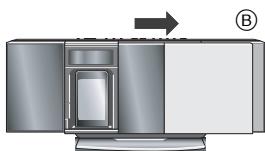
natural_image
Diagram of a device with an arrow indicating direction, no visible text or symbols30MIN → 60MIN → 90MIN → 120MIN
OFF (Anuluj)
natural_image
Illustration of a hand pressing down on a device with directional arrows (no text or symbols)| CAUTION— | VISIBLE AND INVISIBLE LASER RADIZATION WHEN OPEN < AND INTERLOCKS DEFEATED >, DO NOT STARE INTO BEAM. | POU 21 CPR / Class (a) |
| CAUTION— | CLASS: IM ISIBLE AND INVISIBLE LASER RADIMATION WHEN OPEN AND INTERLOCKS DEFEATED >, DO NOT VIEW DIRECTLY WITH OPTICAL INSTRUMENTS. | BEORGAN 1-42/Class 1M |
| ATTENTION— | RAVONNEMENT LASER VISIBLE AT ISIBLE, CLASSE 1M, EN CAS D'OUVERTURE ET LORSQUE LA SECURITE EST NEUTRALIGEE, NE PAS REGARDIER DIRECTOMÉ À LAIDE D'INSTRUMENTS D'OPTIQUE. | |
| VARNING— | Klass 1M SYNUG OCH OSYNUG IASERSTRÄLING NAR DENNA DEL AR ÖPPNAD och SPÄRENN ÄR URKOPPLAD, BRETAKA IL STRÅLEN DRGEN OPTISKY INSTRUMENT. | |
| FORSIGTIG | SYNULG OCH OSYNUGI SÄLRÄGING KLASSE 1M, NAR LAGET ER ABENT & SKIKERHEDS AFBRYDERE ER LIDE AF FUNKTION, UNDGA AT SE LIGA PED OPTIKE INSTRUMENTER. | |
| VARO— | AWATAESSA JA SUJDALIKITUS OHITTETAESSA OLET ALTTIMA LUKOAN NAKAYVA JA NAKYMATONTA GASERATIVA, ALA KATOIS OPTISELLA LAITTEELA SUORAAN SATEESEN. | |
| VORSICHT | SICHTBARE LASERSTRÄHLING KLASSE 1M, WENN ABECKUNG GEÖFFNET UND SICHERHEITSVERBEGELUNGEN UBERBRÜCKT, NICHT DIREKT MY OPTISTEN INSTRUMENTEN BETRACHEN. | |
| PRECAUÇIÓN | RADIACKON LASER VISIBLE INVISIBLE CLASE 1M AL ESTAR ABERTO Y CON LOS INTERRUPTORES DE BLOQUEO DESHABILITADOS NO MIRE DIRECTAMENTE CON INSTRUMENTOS OPTICOS. | |
| 注意— | 打打时及缺失除时另有可见及不可见激光辐射。避免光束照射。 | RQLXS10344 |
(Uvnitř přehrávače)
Made for
iPod iPhone
natural_image
Diagram of a mechanical or architectural component with grid patterns and an upward arrow, no visible text or symbols⑩ [SOUND] ( 41, 45, 48, 50)
⑪ [D.BASS] (⇒ 48)
natural_image
Two views of a CD or DVD device showing front and side views (no text or symbols)30MIN → 60MIN → 90MIN → 120MIN
OFF (Zrušení)
natural_image
Illustration of a hand pressing down on a device with directional arrows indicating motion (no text or symbols)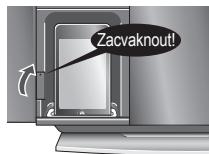

The image contains a simple line drawing of an open book. There is no text or placeholder content to extract.
| CAUTION— | VISIBLE AND INVISIBLE LASER RADATION WHEN OPEN < AND INTERLOCKS DEFEATED>, DO NOT STARE INTO BREAM, IDA 21 CFR / Class I [A] |
| CAUTION— | CLASS IM IS BELED AND INVISIBLE LASER RADATION WHEN OPEN AND INTERLOCKS DEFEATED, DO NOT VIEW DIRECTLY WITH OPTICAL INSTRUMENTS, EGB0852-1-A42 / Class 1M |
| ATTENTION— | RAYONNEMENT LASER VISIBLE ET INVISIBLE, CLASSE 1M, EN CAS D'OUVERTURE ET LORSQUE LA SECURITE ET PRENEURALISE, NE PS REGARDER DIRECTEMENT À LAIDE D'INSTRUMENTS D'OPTIQUE. |
| VARNING— | Klass IM SYNUG OCH OSYNIUG ASLERSTRÄUNG NÄR DENNA DEL ÄR ÖPPNAD OCH SPÄRENN ÄR UHOPPLAD, BETBRACTA EL STRÄLEN DINNET GENOPTIET INSTRUMENT, |
| FORGSTIG | SYNULG OG OSYNIUG ASLERSTRÄUNG KLASSE 1M, NÄR LAGET ER ABENT & SKIKERHEDS AFBYDERERE UDE AF FUNCTION, UNDGA AT SE LIGE PÅ MED OPTIKE ISTEMENTER, |
| VARO— | AWATAESSA JA SUJDAUKIKITUS OTHTTAESSA OLET ALTIWA LUOKAN I MAKNYVA JA NAYMATONTA LASERSTRÄTLKA, ALA KATSO OPTISELLA LAITEETTLA SUORAAN SATESEN, |
| VORSICHT | SICHTBARE LASERSTRÄHLING KLASSE 1M, WENN ABECKUNG GEÖFFNET EN SICHERHEITSVERBEGELUNGEN UBERBUCKT, NICHT DIRECT MT OPTISCHEN INSTRUMENTEN BETRACHEN, |
| PRECAUCTION | RADAMON LASER VISIBLE E INVISIBLE CLASE 1M AL ESTAR ARBORO Y CON LOS INTERRUPTORES DE BLOQUEO DESHABILIDADOS NO MIRE DIRECTAMENTE CON INSTRUMENTOS OPTICLOS. |
| 注意— | 打打时及缺失失败时可可见及不可见激光辐射。避免光束照射。RQLXS1004 |
(Внутри аппарата)
Made for
iPod iPhone
natural_image
Diagram of a battery holder with an open circuit board and a cylindrical component inserted (no text or symbols)R6/LR6, AA
flowchart
graph TD
    A["Device with cable routing"] --> B["Switch B"]
    B --> C["Switch A"]
    C --> D["Computer with cable routing"]
natural_image
Diagram of a building interior with grid patterns and directional arrow (no text or symbols)natural_image
Diagram of a CD or DVD device with an arrow indicating direction (no text or symbols present)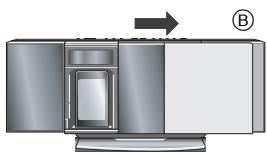
natural_image
Diagram of a device with an arrow indicating direction, no visible text or symbolsnatural_image
Illustration of a hand pressing down on a digital device with arrows indicating motion (no text or symbols)| CAUTION – | VISIBLE AND INVISIBLE LASER RADATION WHEN OPEN < AND INTERLOCKS DEFEATED >, DO NOT STARE INVEGETABLE |
| CAUTION – | CLASS 1M: VISIBLE AND INVISIBLE LASER RADATION WHEN OPEN AND INTERLOCKS DEFEATED; DO NOT STARE INVEGETABLE ELECTRICAL INSTRUMENTS, ECRISORS (A) 2 Class 1M |
| ATTENTION – | RAVIMENTATION LASER MOBILE ET INVISIBLE, CLASSE 1M. EN CAS D'OUVERTURE ET TORSQUE LA SECURITE EST NEUTRALIEESE, NE PAS REGARDIER DIRECTEMENT À LIADE D'INSTRUMENTS D'OPTIQUE |
| VARNING – | Klaus 1M: SYNLOG OCH OSYNLIG ASLERSTRALING NAR DENNA DEL AR ÖPPNAD OCH SPÄRENN ÄR UKOPPELAD, BERAKTA EL STRÅREN DRGEN OPTISKTE INSTRUMENT |
| FORSITIG – | SYNLIG OCH OSYNLIG ASLERSTRALING KLASSE 1M, NAR LAGET ER ABENT OGSKERHEDS AFRYDERERE DER LEAF FUNKTION, UNDGA AT LEAG PA MED OPTIKE INSTRUMENTER |
| VAROI – | WANTAESSA JA SUDALJUKITHLE OHITTETAESSA OLET ALTTIMA LUKONAN NA NKAYVAJA VA NAKYMATONTA LASERSGATEVKA, ALA KATSO OPTISELLA LAITTEELLA SUORAAN SATESSEEN |
| VORSICHT – | SICHTBARE LASERSTRALHING KLASSE I, WENN VEBECKING GEÖFFNET UNID SICHERHEETSVERREGELUNGEN UBERBRÜCKT, NICHT DIRECTY MIT OPTISTHEN INSTRUMENTEN BERACHeten. |
| PRECAUÓN – | RADIACKON LASER MOBILE & INVISIBLE CLASE 1M AL ESTAR ABERTO Y CON LOS INTERRUPTORES DE BLOQUEO DESHABILITADOS NO MIRE DIRECTAMENTE CON INSTRUMENTOS OPTIKOS. |
| 注意 - | 打打时及缺失处理时可见及不可见激光辐射。避免光束照射。 |
(Усередені виробу)
Made for
iPod iPhone
natural_image
Diagram of a battery holder with an open lid and a cylindrical component inserted, showing no text or symbols.R6/LR6, AA
flowchart
graph TD
    A["Device with cable routing"] --> B["Switch B"]
    B --> C["Switch A"]
    C --> D["Computer with cable routing"]
natural_image
Diagram of a building interior with grid patterns and directional arrow (no text or symbols)natural_image
Two diagrams showing a CD or DVD device before and after assembly, with no visible text or symbols.natural_image
Illustration of a hand pressing down on a device with a downward arrow and triangle symbol (no text or labels)Pursuant to at the directive 2004/108/EC, article 9(2)
Panasonic Testing Centre
Panasonic Marketing Europe GmbH
Winsbergring 15, 22525 Hamburg, Germany

Bluetooth®
Pb

- Panasonic®
- Included Installation Instructions ( 2, 6)
- Drogi Kliencie
- AC mains lead
- CAUTION
- Unit
- Placement
- Batteries
- NORSK
- ADVARSEL
- Produkt
- HC55
- Safety information for customers in the EU
- CE1177
- Declaration of Conformity (DoC)
- About descriptions in these operating instructions
- Information for Users on Collection and Disposal of Old Equipment and used Batteries
- [Information on Disposal in other Countries outside the European Union]
- Note for the battery symbol (bottom two symbol examples):
- Accessories
- Wall mounting accessories
- Unit and media care
- ■ Clean this unit with a soft, dry cloth
- ■ Maintenance of the lens
- Table of contents
- ■ The remote control information
- ■ Clean discs
- ■ Disc handling precautions
- Connections
- ■ Notes on speakers
- Basic Connections
- ① Connect the FM indoor antenna.
- ② Connect the AM loop antenna.
- ③ Connect the AC mains lead.
- Additional Connections
- ■ Connect the headphones (not supplied)
- ■ Connect an external music device (for AUX mode)
- ■ Connect the USB device (not supplied)
- Attaching the unit to a wall (optional)
- Installation accessories
- ■ Supplied accessories
- ■ Commercially available accessories (not supplied)
- Safety precautions
- WARNING!
- CAUTIONS!
- ■ Notes on installation
- Wall mount instructions
- Detach the stand from the unit.
- Measure and mark the position of the wall mount brackets (Both sides).
- Attach the wall mount bracket to the wall with 2 screws F. (Both sides)
- Fix the safety holder D onto the unit with the safety holder screw B.
- Hang the unit on the wall.
- Fix the safety holders Ⓔ onto the wall mount brackets with the safety holder screws Ⓗ (Both sides).
- Drive the safety holder fixing screw Ⓖ to secure the safety holder Ⓓ onto the wall.
- Control reference guide
- Remote control
- Main unit
- Opening/Closing the sliding door
- Opening the sliding door
- For disc operations:
- ■ Closing the sliding door
- HC55 Open/Close sensor
- For iPod/iPhone operations:
- ■ To change the setting of the open/close sensor
- ■ To change the sound effect settings of the open/close sensor
- Disc operations
- Inserting a disc
- ■ Removing a disc
- Basic play
- Repeat play
- Play mode function
- Press [▶/■] to start play.
- Program play
- MP3:
- Notes on CD-R/CD-RW
- Creating MP3 files playable on this unit
- Limitations on MP3
- Radio operations
- Manual tuning
- ■ To improve FM sound quality
- ■ To improve AM sound quality
- Memory preset
- Preparation
- ■ Automatic presetting
- ■ Manual presetting
- ■ Selecting a preset station
- AM frequency step
- RDS broadcasting
- Press [DISPLAY] to display the text data.
- Sound adjustment
- Timer
- Setting the clock
- Play timer
- Sleep timer
- Listening to audio from iPod or iPhone
- Inserting/Removing an iPod/iPhone
- iPod/iPhone operations
- ■ Compatible iPod/iPhone (as of January 2011)
- Notes on iPhone:
- ■ Charging the iPod/iPhone
- Listening to the Internet Radio
- HC55 Using a Bluetooth® compatible device
- About using Bluetooth®
- ■ Frequency band used
- ■ Certification of this device
- ■ Usage restrictions
- ■ Range of use
- ■ Effects from other devices
- ■ Intended usage limitations
- Bluetooth® pairing
- Input level
- Display function
- Hands-Free Profile (HFP)
- Disconnecting a Bluetooth® device
- Advanced functions
- ■ To register more devices
- ■ To select communication quality
- ■ To select Auto Link mode
- Listening to audio from a USB device
- Compatible devices
- Notes on USB
- USB operations
- Preparation:
- Others
- Changing the main unit and remote control mode
- Memory reset (Initialization)
- Troubleshooting
- Common problems
- Incorrect display or play will not start.
- MP3 cannot be read.
- Noise is heard or no sound.
- Humming heard during play.
- A beat sound or noise is heard while receiving radio broadcast.
- A low hum or noise is heard during AM broadcast.
- The picture on the television near the unit disappears or stripes appear on the screen.
- No response when remote control buttons are pressed.
- The sliding door does not open (or malfunctions).
- The open/close button lights are flashing.
- The open/close sensor sound effect cannot be heard when the sliding door opens/closes.
- iPod/iPhone does not turn on.
- Cannot operate with [iPod MENU] button.
- No sound is heard from the speakers.
- Distorted sound or the sound level is too low.
- iPod/iPhone cannot be controlled by the remote control or main unit.
- iPod/iPhone does not charge.
- HC55 Bluetooth® operations
- The name of the connected device is shown as “\*”.
- Noise is heard or broken sound.
- No response when [▶/■] is pressed.
- The USB drive or its contents cannot be read.
- Slow operation of the USB flash drive.
- The elapsed time displayed is different from the actual play time.
- Displayed messages
- The following messages or service numbers appear on the unit's display when something unusual is detected during startup and use.
- "ADJUST CLOCK"
- "ADJUST TIMER"
- "PGM FULL"
- "NO PLAY"
- "ERROR"
- “F61” or “F76”
- "AUTO OFF"
- "ILLEGAL OPEN"
- "NODEVICE"
- "REMOTE 1"
- "REMOTE 2"
- HC55 "F70"
- "NO DISC"
- "NOT SUPPORTED"
- HC55 "START ERROR"
- "UNLOCKED"
- HC55 "CANNOT SET"
- AMPLIFIER SECTION
- RMS Output Power Stereo mode
- TUNER SECTION
- Frequency Modulation (FM)
- Amplitude Modulation (AM)
- DISC SECTION
- Disc played [8 cm or 12 cm]
- Pick up
- Speaker unit(s)
- HC55 BLUETOOTH SECTION
- Bluetooth® system specification
- Wireless equipment
- Supported profiles
- TERMINAL SECTION
- Phone jack
- AUX (Rear)
- USB Port
- GENERAL
- Power consumption
- Power consumption in standby mode
- Dimensions (W×H×D)
- Mass
- Operating temperature range
- Operating humidity range
- The image contains a simple line drawing of an open book. There is no text or placeholder content to extract.
Brand : PANASONIC
Model : SCHC55EP
Category : Loudspeaker