C2E - Security Camera FOSCAM - Free user manual and instructions
Find the device manual for free C2E FOSCAM in PDF.


| Product Type | Indoor/Outdoor PTZ Security Camera |
| Model | C2E |
| Dimensions | 100 x 100 x 120 mm (3.94 x 3.94 x 4.72 in) |
| Weight | 250 g (0.55 lb) |
| Power Supply | DC 5V 2A via Micro USB |
| Video Resolution | 1920 x 1080 (Full HD) |
| Field of View | Horizontal: 90°, Vertical: 50° |
| Night Vision | IR LEDs up to 10 meters |
| Pan/Tilt Range | Pan: 350°, Tilt: 100° |
| Audio | Built-in microphone and speaker (two-way) |
| Motion Detection | Yes, with push notifications |
| Connectivity | Wi-Fi 802.11 b/g/n (2.4 GHz) |
| Storage | MicroSD card up to 128 GB, Cloud storage |
| Weatherproof Rating | IP65 (outdoor use) |
| Operating Temperature | -20°C to 50°C (-4°F to 122°F) |
| Mounting | Wall or ceiling mountable (bracket included) |
| Alarm Output | Yes, audio alarm and email snapshot |
| Mobile App | Foscam App for iOS and Android |
| Smart Home Integration | Compatible with Amazon Alexa and Google Assistant |
| Maintenance | Clean lens with soft dry cloth; keep away from rain |
| Safety | Use only provided adapter; do not disassemble |
| Certifications | CE, FCC, RoHS |
Frequently Asked Questions - C2E FOSCAM
User questions about C2E FOSCAM
0 question about this device. Answer the ones you know or ask your own.
Ask a new question about this device
Download the instructions for your Security Camera in PDF format for free! Find your manual C2E - FOSCAM and take your electronic device back in hand. On this page are published all the documents necessary for the use of your device. C2E by FOSCAM.
USER MANUAL C2E FOSCAM
Indoor HD IP Security Camera

Model CZE
In view this quote in other languages/jac. Exonal, Françan, Deutsch, Nederland, and for detailed manuals, Inels, etc., please visit: foscam.com/downloads.
VI.
Setting Up Your Foscam Security Camera
A. Getting Started
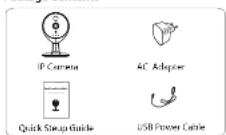
Package Contents
Security Tips
- Please change the password of your camera regularly, using a combination of numbers, letters and special characters. - We recommend that you regularly update your camera to the latest available software and firmware versions to help ensure the best experience for your camera.
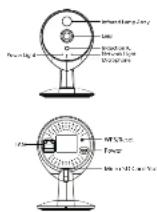
B. Physical Description
Warning:
The Ground Truth image displays a single, solid horizontal line. According to Rule 2 (UNDERSCORE & LINE RULES), this is a stylistic or background line, not a placeholder underscore. Therefore, the OCR result must ignore it and output nothing or only meaningful text. The provided OCR content is "____", which consists of four underscores. This is an incorrect interpretation of the line as a placeholder, violating the rule that stylistic lines must be ignored. The OCR has hallucinated placeholder underscores where none should exist in the GT. Hence, the OCR result is inconsistent with the Ground Truth.
C. Setting Up Your Camera: Wired Connection via Foscam App (Recommended)
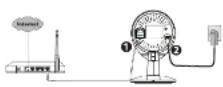
Notes We highly recommend that you first begin the setup process by connecting your remote in your internal router with an internal cable. After setup is successful, you first appear to bring the cable and begin to your wireless network for WIS accessibility.
Minimum Requirements: To help ensure a smoother wider experience on Internetphone, it's recommended that your administrator has the following: - iOS version 8.1 or higher. - Android: 4.1 or higher, using a device with a Graphics Processing Unit (SPL) function.
Camera Setup Steps
- Connect the camera to your Internet router using an Ethernet
cable. 1. Connect the power adapter to the camera, and met for a few nements until the camera die is put that the "Wind corrected in succeeded."
- From your smartphone, search for "Foxcam" via the App
Store on Google Play Store. Download, install and upon the App to begin confirmation.
- Under "Foxcam" select "Tag to add a corrama" and then select "Camera", after that scan the QR code, which is located at the bottom of your corrama (see instructions here).

Top : before

3. In the task at this level, the number of you can be
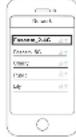
- On the "Choose Setup Method" screen, confirm that "Wired" is
selected upper left corner) and tap "Ready for Wired
"Connections." Wait a few moments for a message confirming that the set-up process has been completed (see illustrations below).

Confirm "Winds" and then tap. That is the Wind Connection.

Camera used successfully
D. Connecting Your Camera Over WiFi
Once you've added your camera successfully using the wind connection method above, tap your live camera feed from the "My Camera" screen → tap the gear in the upper-right → tap "Network" → tap the WIFI network you wish to connect to and enter your WiFi news?
Note: You'll need to connect to the 2.4GHz network if your wireless converter is dual-band - most newer models have 2.4GHz and 5GHz channels (see Illustration below).
E. Other Ways to Access Your Camera
Foscam Cloud Service

You can create the camera via the Fiream Cloud website:
www.msfscam.com
Some of the benefits of viewing your camera in the cloud
- IT's simple and convenient to remote access and manage all
year Miroxunly camena
- Enjoy the latest features first through Foxcam Cloud including
cloud storage, video sharing, and more.
- Getting started a lot. - If you have already registered an
account through Foscam App, you can directly use your login credentials for Foscam Cloud.
F. Hardware Installation
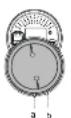
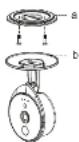
- Holate the hue of the camera until prints and it are aligned,
this class for the mounting pile in be removed.
- I trial the mounting pile on a wall or railing with supplied
(2) 10.000
- Align points and h to insert the camera base to the mounting
plate. Pulate so that prints a and b are no longer aligned; this letter has the camera securely to the base.
G. Important Notice
Camera Username & Password
The camera username & password are used to access and manage your camera. Having a strong password can improve the security of your camera significantly.
If you have forgotten either of them, please press and hold the "Reset" button on the camera while it's powered on to restore it to factory default settings. After hearing the voice prompt, release the button. The camera will automatically reboot and the default settings will be restored. The default username / password will then become admin / ib and, respectively.
After ordering to the factory default settings, please delete the
camera from Foscam App, and then add it again
■ Foscam Cloud Service Account
Username & Password
Your Foscam Cloud service account and password may be used to access both Fosam App and the Foscam Cloud service website. Therefore, you may replace the account accounts & password on either one.
Storage Media
Your camera supports chat, NVR [Network Video Recorder], and Micro SD card (only supports FAT-32 format) storage formats. If you wish to record and playback request amounts of video, we recommend using a Foxcam NVR device as well.
■ Firmware Upgrades
You can upgrade the firmware of your camera with Foscam App by using the new "one-key-On line Upgrade" feature (Open Foscam App, select "Settings" > "Firmware Upgrade").
You can download the latest version to upgrade your current from our official website by https://www.fre.com.cn (Select "Supert" > "Download Center" > "Timestamp Downloads").
Safety Tips
- Please ensure that the proper power supply is used before using
the camera
- Please install the camera and bracket securely using the screws
provided.
- To avoid the risk of fire or electric shock, please keep your camera in a cool drinker.
in a soft, crypta
- Please keep the camera out of reach of small children - Choose your default part to a more space to help
- Change for the plan
- Check the lines of your Escam cameras frequently Escam
- Embedding logs for your Tozah camels in free Monday. Estain Camers have embedded logs reminding you which IP addresses are accessing the camera.
FOSCAM
CE FC
DE Certificate Website
http://www.bocam.com/company/ce-efinite.html
Exporter and Importer Information Opened to Public:
http://www.foscam.com/szcompang/upsen-information.html
www.foscam.com
Questions? For any issues that occur during the setup process, please write to support@ofscam.com we're here to help
As a result of product updates and other reasons, this guide cannot be able to update in time, resulting in inconsistency with the official website information, which allows the official website to www.foccaust.info information understand.