CD-3090 USB - Car stereo GoldMaster - Free user manual and instructions
Find the device manual for free CD-3090 USB GoldMaster in PDF.


| Product Type | Car Stereo |
| Brand | GoldMaster |
| Model | CD-3090 USB |
| Form Factor | 1 DIN |
| Dimensions (W x H x D) | 178 mm x 50 mm x 100 mm |
| Weight | Approximately 1 kg |
| Power Supply | 12V DC (negative ground) |
| Maximum Power Output | 4 x 50 Watts |
| RMS Power Output | 4 x 20 Watts |
| FM Tuner Frequency Range | 87.5 - 108 MHz |
| AM Tuner Frequency Range | 530 - 1710 kHz |
| Disc Playback | CD, CD-R, CD-RW |
| USB Playback | MP3, WMA, WAV files via USB flash drive |
| AUX Input | 3.5 mm front auxiliary input |
| Display | LCD with white backlight |
| Equalizer Presets | Rock, Pop, Classic, Flat, Jazz |
| Remote Control | Included IR remote |
| Antenna Connection | Standard motorized antenna or ISO connector |
| Fuse Rating | 10A (replaceable) |
| Cleaning | Use a soft, dry cloth; avoid solvents |
| Safety | Disconnect negative battery terminal before installation; use correct fuse |
| Reparability | Fuse accessible and replaceable; internal components not user-serviceable |
Frequently Asked Questions - CD-3090 USB GoldMaster
User questions about CD-3090 USB GoldMaster
0 question about this device. Answer the ones you know or ask your own.
Ask a new question about this device
Download the instructions for your Car stereo in PDF format for free! Find your manual CD-3090 USB - GoldMaster and take your electronic device back in hand. On this page are published all the documents necessary for the use of your device. CD-3090 USB by GoldMaster.
USER MANUAL CD-3090 USB GoldMaster
www.goldmaster.com.tr
GÜVENLİK BİLGİSİ
RADYO KULLANIMI RDS (R
FM/AM Bandi
Web: www.goldmaster.com.tr
E-mail: info@goldmaster.com.tr
SAFETY INFORMATION
Thank you for purchasing this product. Please read through these operating instructions so you will know how to operate your model properly. After you have finished reading the instructions, keep this manual in a safe place for future reference.
PRECAUTIONS
- Use only in a 12-volt DC negative-ground electrical system.
- Disconnect the vehicle's negative battery terminal while mounting and connecting the unit.
- When replacing the fuse, be sure to use one with an identical amperage rating. Using a fuse with a higher amperage rating may cause serious damage to the unit.
- DO NOT attempt to disassemble the unit. Laser beams from the optical pickup are dangerous to the eyes.
- Make sure that pins or other foreign objects do not get inside the unit; they may cause malfunctions, or create safety hazards such as electrical shock or laser beam exposure.
- If you have parked the car for a long time in hot or cold weather, wait until the temperature in the car becomes normals before operating the unit.
- Keep the volume at a level at which you can hear outside warning sounds (horns sirens, etc.).
CD NOTES
- Playing a defective or dusty CD can cause dropouts in sound.
• Hold CDs as illustrated.
• Do not touch the unlabeled side. - Do not attach any seal, label or data
protection sheet to either side of a disc. - Do not expose a CD to direct sunlight or excessive heat.
- Wipe a dirty CD from the center outward with a cleaning cloth.
Never use solvents such as benzine or alcohol. - This unit cannot play 3-inch (8cm) CDs. Never insert a 3-inch CD contained in the adapter or an irregularly shaped CD. The unit may not be able to eject it, resulting in a malfunction.
Before Operation
Do not raise the volume level too much, as this will block outside sounds, making driving dangerous. Stop the car before performing any complicated operation.
CAUTION
• DO NOT open covers and do not repair yourself. Consult the dealer or an experienced technician for help.
CONTENTS
Safety Information 2
Panel Controls 3
Remote Controls....4
General Operation 5
CD Player Operation 6
Tuner Operation 7
RDS(Radio Data System)....7-8
USB/SD/MMC Operation 8
Playing MP3/WMA Files 9-10
Menu Function 10-11
Electrical Connections 12
Installation Guide 13
Anti-Theft System 13
Troubleshooting 14
Specifications 15
Panel Controls
Power On/Off : Press ☑ to turn on/off the unit.
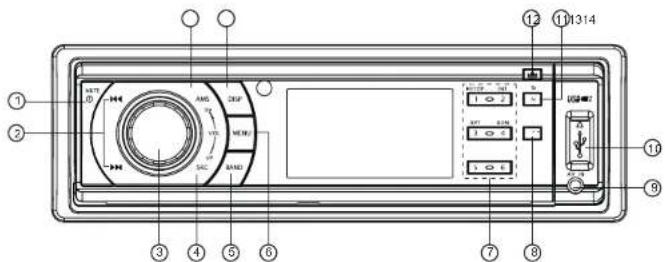
-
- Power on
- Mute
- Press more than 2 seconds to power off.
-
- Radio tune
- Track skip/seek
-
- Press to pop out/push back the knob.
- Rotate the knob to adjust volume level
- Radio
- Disc play (when disc inserted)
- USB (when USB inserted)
- Card (when SD/MMC inserted)
- AUX-in
-
- Band switch:
FM1->FM2->FM3->MW1->MW2
-
- Press to select VOL/BAS/TRE/BAL/FAD,
rotate the knob to adjust level.
- Hold it to system menu.
-
- Track playback
Button 1: - Play/Pause function.
- Long press if you want to start
playback from the beginning of
thefrsttrackofvourdisc.
Button 2: - Intro play (10 sec)
Button 3: - Track repeat play
Button 4: - Track random play
Button 5: - MP3 track -10 down
Hold it to previous folder.
Button 6: - MP3 track +10 up
Hold it to next folder.
- Radio preset
Press 1-6 to listen to a preset station.
Hold 1-6 to store station.
-
- Program type
-
- AUX-in jack
-
- USB connector
-
- Press to turn RDS AF on/off,
- Long press to turn RDS TA on/off.
-
- Panel release
-
- Display switch
-
- AMS: Radio preset scan
Radio auto preset
-SEARCH:MP3track/fle/character
search.
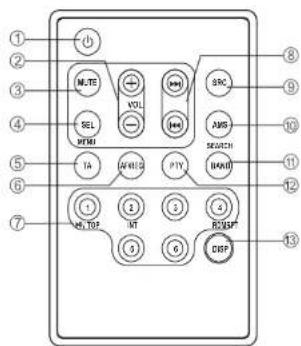
REMOTE CONTROLS
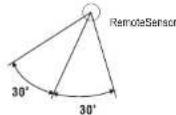
Operating range
Point the remote control unit to the remote sensor when you operate with it. The remote control can operate within a distance of 3\~5m.
-
- Power on/off
-
- Volume
-
- Mute
-
- Press to select VOL/BAS/TRE/BAL/FAD, use volume button to adjust level.
-
Press and hold it to enter Menu mode.
-
-Trafficannouncementsidentification
-
- Alternative frequency
-
REG on/off (long press)
-
- Disc Playback
Button 1: - Play/Pause
- Top play (press more than 2 sec)
Button 2: - Intro play (10 sec)
Button 3: - Track repeat play
Button 4: - Track random play
Button 5: - MP3 folder down
MP3 track -10 down (long press)
Button 6: - MP3 folder up
MP3 track +10 up (long press)
- Radio Preset
Press to listen to a preset station.
Press and hold to store station.
-
- Radio tune/Track seek
-
- Radio/Disc (when disc is in)/USB (when USB is connected)/Card(SD/MMC card inserted)/Aux-in
-
- AMS: Radio preset scan/Radio auto preset -SEARCH:MP3track/fle/charactersearch
-
- Band switch: FM1, FM2, FM3, AM1, AM2
-
- Program type
-
- Display switch
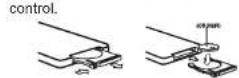
Replacing the lithium battery of remote control unit.
When the range of the operation of the card remote control becomes short or no functions while operating. Replace the battery with a new lithium battery. Make sure the battery Polarity replacement is correct.
-
Pull out the battery holder while pressing the slopper.
-
Insert the button-type battery with the stamped(+) mark facing upward. Insert the battery holder into the remote
WARNING:
- Store the battery in place where children cannot reach. If a child accidentally swallowed the battery, consult a doctor immediately.
- Do not recharge, short, disassemble or heat the battery or dispose it in a fire. Doing this may cause the battery to give offheat, crackorstartafre.
- Do not leave the battery with other metallic materials or poke the battery with tweezers or similar tools.
- When throwing away or saving the battery, wrap it in tape and insulate.
GENERAL OPERATION
Power On/Off Button
Press the POWER button to turn the unit on when the vehicle ignition switch is on. Press and hold the button to turn the unit off.
Adjust Volume level
Rotate the VOL/MENU control to adjust volume level. Rotate it clockwise to increase and anticlockwise to decrease the volume.
Audio Mute
Press the MUTE button to mute the volume from the system. "MUTE" will appear on the display panel and the volume will be muted. Press the MUTE button again, or rotate or press the VOL/MENU control to return the volume level to the setting in use before the Mute function was activated.
Audio Controls
To adjust the bass, treble, balance and fader, press the VOL/MENU control until the appropriate audio control appears on the displaypanel. Within five seconds, rotate the VOL/MENU control to adjust the audio settings for the selected function.
Mode Button (SRC)
Press the SRC button to change between Radio, DISC (when disc is in), USB (when USB is connected), Card(when SD/MMC card is in) or AUX play.
Auxiliary Input
To access an auxiliary device:
-
C onnect the portable audio player to the AUX interface on the front panel.
-
Press the SRC button to select Aux-In mode.
Press SRC again to cancel Aux-In mode and go to the next mode.
Display Selector (DISP)
This unit can display either the clock time or radio frequency/CD player functions. Ordinarily, the radio frequency or CD player track indication is displayed, but the unit will display the time when the DISP button is pressed. The time will display for approximately 5 seconds then return to the radio or CD player function display.
Setting the Clock
The correct time of day can be set by pressing and holding the DISP button.
To set the clock, perform the following steps: 1. Tum the vehicle ignition and radio on.
-
Press the DISP button to view the clock.
-
With the clock visible on the display, press and hold the DISP button until the time displayfaşheş.
-
Within 5 seconds, rotate the VOL/MENU control counter clockwise to adjust the minutes to the desired setting. To change the hour, rotate the VOL/MENU control clockwise to adjust the hour to the desired time.
CD PLAYER OPERATION
Inserting a Disc
With the label surface facing up, fully insert a compact disc into the disc slot until the mechanism engages and pulls the disc in. Play will automatically begin from the first track on the disc.
NOTE: The unit is designed for play of standard 5" (12 cm.) compact discs only. Do not attempt to use 3" (8 cm.) CD singles in this unit, either with or without an adaptor, as damage to the player and/or the disc may occur.
Disc Eject Button
Press the eject button to stop disc play and eject the disc. The unit will revert to radio operation. Discs may be ejected with the vehicle ignition switch on or off. If an ejected disc is not removed from the disc slot within 10 seconds of being ejected, the disc will be re-inserted automatically.
NOTE: To prevent a disc from accidentally being damaged, always remove the disc from the unit when disc play is finished.
CD Play/Pause Selector
Press the 1 >/|| button to freeze disc playback. Press 1 >/|| again to resume disc playback.
Seek Up/Next Track
Press the next track >>| button during disc play to select the beginning of the next track.
Seek Down/Previous Track
Press the previous track |<< button during disc play to select the beginning of the current track. Press twice to select the beginning of the previous track.
Cue/Review Functions
High-speed audible search to any section of the disc can be made by the Cue and Review functions. Press and hold the next track >>| button to advance rapidly in the forward direction or the previous track |<< button to advance rapidly in the backward direction.
Intro Play Selector
During disc play, press the 2/INT button to select "INTON" and play the first 10 seconds of each track. Press 2/INT again to select "INT FOLD" and play the first 10 seconds of each track in the current folder. When a desired track is reached, press the 2/INT button to select "INT OFF" and play the current track.
Track Repeat Play Select
During disc play, press the 3/RPT button to select "RPT ON" and repeatedly play the selected track. Press 3/RPT again to select "RPT FOLD" and repeatedly play all tracks in the current folder. Repeat play will continue until 3/RPT is pressed to select "RPT OFF".
Random Play Select
During disc play, press the 4/RDM button to select "RDM ON" and play all tracks on the discnrandom, shuffledorder.Pres\$4/RDM again to select "RDM FOLD" and randomly play all songs in the current folder. In Random Play mode, you can press the tune/track buttons to select tracks in a random order instead of the normal progression. Press 4/RDM again to select "RDM OFF" and cancel Random Play mode.
TUNER OPERATION
Band
During radio play, press the BAND button to choose between three FM, two MW bands. The indication "MW", "FM" appears on the display panel according to your selection.
Up Tuning
Press the seek up >>| button to tune stations upward step-by-step. The current frequency will be shown in digital format on the display panel.
Press and hold the seek >>| button to the next available station.
Down Tuning
Press the seek down |<< button to tune stations downward step-by-step.
Press and hold the seek down |<< button to the previous available station.
Auto Store
Press the AMS button to scan preset stations 1-6. Hold it to automatically select six strong stations and store them in the current band. The new stations replace stations already stored in that band.
To restore the original preset stations, press both DISP and 3 buttons on the panel more than 2 seconds, the unit will load the factory radio settings and power off.
RDS (RADIO DATA SYSTEM)
RDS service availability varies with areas. Please understand if RDS service is not available in you area, the following service is not available.
RDS Basics
AF (Alternative Frequency): When the radio signal strength is poor, enabling the AF function will allow the unit to automatically search another station with the same PI (ProgramIdentification)@thecurrentstation but with stronger signal strength.
PS (Program Service name): The name of station will be displayed instead of frequency.
AF Mode: Press AF button to switch AF mode on and off.
AF on: AF function is activated.
AF off: AF function is disabled. Remark: AF indicator on LCD will flash until RDS information is received. If RDS service is not available in your area, turn off the AF mode.
REG Mode : Press AF for more than 2 seconds to switch REG mode on and off. REG on: AF function will implement the regional code (of the PI) and only stations in the current region can be tuned automatically. REG off: AF function will ignore the regional code(of the PI) and stations in the other regions can also be tuned automatically.
CT Service (Clock Time)
When receiving an RDS station, the CT (Clock Time) service automatically adjusts the time.
Traffic Announcements
Some RDS FM stations periodically provide traffic information.
TP(TrafficProgramIdentification)
Broadcastingoftrafficinformation.
TA(TrafficAnnouncementsIdentification)
Radioannouncementsontraffcconditions.
TA Mode : Press TA to turn on/off the TA function. When TA mode is turned on, the TA indicator will blink. Whentraffic announcement is received, the TA indicator will display. The unit will temporarily switch to the tuner mode (regardless of the current mode) and begin broadcasting the announcement at TA volume level. After the traffic announcement is over, it will return to the previous mode and volume level. When TA is turned on, SEEK, SCAN, AMS function can only be received or saved when traffic program identification (TP) code is received.
EON (Enhanced Other Networks)
When EON data is received, the EON indicator lights and the TA and AF functions are enhanced.
RDS (RADIO DATA SYSTEM
TA: Traffic information can be received from the current station or stations in other network. AF: The frequency list of preset RDS stations is updated by EON data. EON enables the radio to make fuller use of RDS information. It constantly updates the AF list of preset stations, including the one that currently tuned into. If you preset a station around the area at your home, you will later be able to receive the same station at an alternative frequency, or any other station serving the same program, EON also keeps track of locally available TP stations for quick reception.
PTY Reception (Program Type)
RDS FM stations provide a program type identificationsignal.
Example: news, rock, info, sport, etc.
PTY Type Preset
Press PTY button once to enter the MUSIC type or press "PTY" twice to enter the SPEECH type. Then use function ①-⑥ to select the desired program type. The selected PTY type is shown and searching starts if no other function is selected for 2 seconds. If there is no corresponding program type, NO PTY is shown and the unit will return to normal mode.
USB/SD/MMC MP3 PLAYBACK
- Loading SD/MMC Card
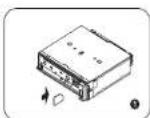
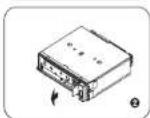
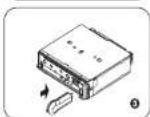
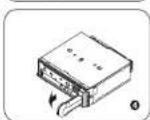
Open the panel, insert the SD/MMC card into the slot, with the front side at left.
The unit will play the music automatically.
- Take out SD/MMC Card
Press SRC button and switch to non CARD mode, open the panel, slight press SD/MMC card, take out the card when it was popped out.
- Loading USB equipment
Open the cap, insert the USB into the connector and the unit play the music in the USB storer automatically.
- Take out USB equipment
Press the SRC button and switch to non USB-DRIV mode, then take off the USB storer, close the cap.
USB/SD/MMC Notes
USBfunctions(fashmemorytype)MP3musicplay
-
SD/MMC card support.
-
USBflashmemory2in1(SD/MMC)support.
-
Fat 12/fat 16/fat 32 is possible.
-
File name : 32 byte/dir name : 32 byte/tag name : 32 byte
-
Tag (ID3 tag ver 2.0)
- title/artist/album : 32 byte support.
-
Multi card reader not support.
-
U SB 1.1 support, USB 2.0 support (It can not support USB 2.0 speed. Just, get the same speed with USB 1.1).
Not all kinds of USB devices are compatible with the unit.
PLAYING MP3/WMA FILES
Display Information
During playback, ID3 tag information display scrolling on the screen: FOLDER, FILE, ALBUM, TITLE, ARTIST and Track Number/Elapsed Time.
Folder Up/Down
Press the 5/DN button to go to the previous folder. Press the 6/UP button to go to the next folder.
Direct Song/File Access
- Press the AMS button once and press the knob to enable direct track searching.
- R otate the VOL/MENU control to select a digit.
- P ress the VOL/MENU control to confirm entryandthetenşdigitalwillfaşh.
- R otate the VOL/MENU control to select digit.
- Repeat above steps to enter the hundreds and thousands digit, if necessary. NOTE: The unit will only allow the selection of digits that correspond with thenumberofflesonthemediayouare searching.
- Once the track number appears on the screen, long press the VOL/MENU control to play these selected song/fle.
Searching Folders/Files
- Press the AMS button twice and press the knobtoaccesstheflesearchoption.
- R otate the VOL/MENU control to select the desired directory/song.
- Press the VOL/MENU control to view the fleşinsidelheselecteddirectory.
- R otate the VOL/MENU control to select the song/file. Long press the VOL/MENU controltoplaytheselectedsong/fle.
Searching by Name (CHAR-SCH)
- Press the AMS button three times and press the knob to access the character search option.
- R otate the VOL/MENU control to select the characters A-Z, _, -, + , and 0-9 for the first character.
- Press the VOL/MENU control to confirm entry of the character and move to the next position.
- R repeat for up to eight characters.
- P ress and hold the VOL/MENU control for 2 seconds to begin the search.
- If a directory is found, rotate the VOL/MENU control to select these song/fle in this directory/folder.
- Press and hold the VOL/MENU control for 2 seconds to play the selected song/file. "NO MATCH" appears if there is no file beginning with the search string entered.
MP3 Overview
- MP3 is short for MPEG Audio Layer 3 and refers to an audio compression technology standard.
- ThisproductallowsplaybackofMP3fles on CD-R or CD-RW discs.
- TheuntcanreadMP3fleswritteninthe format compliant with ISO 9660. However it does not support the MP3 data written by the method of packet write.
- TheunitcannotreadanMP3fle thathas afleextensionotherthan".mp3".
- If you play a non-MP3 file that has the ".mp3" extension, you may hear some noise.
- In this manual, we refer to what are called "MP3file" and "folder" in PC terminology as "Track" and "Album", respectively.
• Maximum number of directory level is 8, including the root directory. Maximum numberofflesandfoldersperdiscis256. - The unit may not play tracks in the order of track numbers.
- The unit plays only the audio tracks if a disc contains both audio tracks and MP3 fles.
PLAYING MP3/WMA FILES
- When playing a disc of 8kbps or VBR*, the elapsed playing time in the display window will not be correct and also the intro play may not function properly.
*VBR: Variable Bit Rate.
Note on creating your own CD-Rs or CD-RWs containing MP3 fles
• To enjoy high quality sound, we recommend converting to MP3 files with a sampling frequency of 44.1 kHz and a fixebitrate of 128kbps.
- DO NOT store more than 256 MP3 files per disc.
- For ISO 9660-compliant format, the maximum allowable depth of nested folders is 8, including the root directory(folder).
- When CD-R disc is used, playback is possible only for discs which have been finalized.
- Make sure that when MP3 CD-R is burned that it is formatted as a data disc and NOT as an audio disc.
- You should not write non-MP3 files or unneededfoldersalongwithMP3fileson
the CD-R otherwise it takes a long time until the unit starts toplayMP3fles.
- With some CD-R media, data may not be properly written depending on their manufacturing quality. In this case, data may not be reproduced correctly. High quality CD-R disc is recommended.
- Up to 16 characters are displayed for the name of an Album or a Track. ID3 TAG version 1.x is required.
- Note that the unit may not play tracks in the order that you wrote them to the disc.
Menu Function
Press VOL knob more than 2 seconds to enter menu mode, then each press changes the mode as follows:
TA mode -> MASK mode -> TA VOL mode -> RETUNE mode -> DSP mode -> ESP mode -> MULT mode -> LOUD ON/OFF mode
-> BEEP ON/OFF -> SEEK1/2 mode(only in tuner mode) -> ST/MO mode(only in tuner mode) -> LOCAL/DX mode(only in tuner mode) -> VOL mode -> 12/24 HOUR mode
TA mode
Rotate the knob to choose TA ALARM or TA SEEKmode. IftheTA(traffic announcements) is turned on and there is no traffic program identification code received in the specified time, no TA/TP will display and either TA ALARM or TA SEEK will be activated. TA ALARM mode: Alarm is turned on. TA SEEK mode: TA SEEK is automatically activated.
MASK mode
Rotate the knob to choose MASK DPI or MASK ALL mode.
In some cases, the AF function may be influenced by some interference, examples are signals with strong
feld butwithouttheRDSdata.Forthisreason, the unit has two options to avoid the above interference. MASK DPI mode :
Menu Function
| Only AF which has different program identification is maskedMASK ALL mode:The AF which has different program identification and NO RDS signal with high feld strength masked. | MULT modeMULT OFF: Mixed CD, one session CD.MULT ON: Mixed, extra, multi session CD. | VOL modeRotate the knob to choose volume last/adjust mode.VOL LAST: The turn-on volume level is the volume of latest power off.VOL ADJUST: Press the knob to enter A-VOL mode, rotate to set the turn-on volume level. |
| LOUD ON/OFFRotate the knob to choose loudness on or off. | ||
| TA VOL modeRotate the knob to adjust TA volume level. | WOOF ON/OFFRotate the knob to choose subwoofer on or off. | 12/24 HOUR modeRotate the knob to choose time format: 12 or 24 HOUR. |
| RETUNE modeRotate the knob to choose RETUNE-S or RETUNE-L.RETUNE-S or RETUNE-L is time length selection of TA SEEK retune interval.RETUNE-S: Short, TA SEEK retune interval is 45 seconds.RETUNE-L: Long, TA SEEK retune interval is 180 seconds.Remark: RETUNE mode functions for TA during TA SEEK mode only. | BEEP ON/OFF modeRotate the knob to choose button beep sound on or off.SEEK 1/2 modeRotate the knob to choose radio seek mode 1 or 2.SEEK 1: Searching station will stop when the next station is received.SEEK 2: Searching station will stop whenor>>Button is released and next station is received. | |
| DSP modeRotate the knob to choose DSP sound effect:POP -> FLAT -> CLASSIC -> ROCK -> OFF | STEREO/MONO modeRotate the knob to choose FM stereo or mono. | |
| EPS modeESP 12s: Selected as CD-ESP time 12 seconds, MP3-ESP time >100 seconds.ESP 45s: Selected as CD-ESP time 45 seconds, MP3-ESP time >100 seconds. | LOCAL/DX modeRotate the knob to choose tuner sensitivity local or distant. |
ELECTRICAL CONNECTIONS
Wiring Diagram
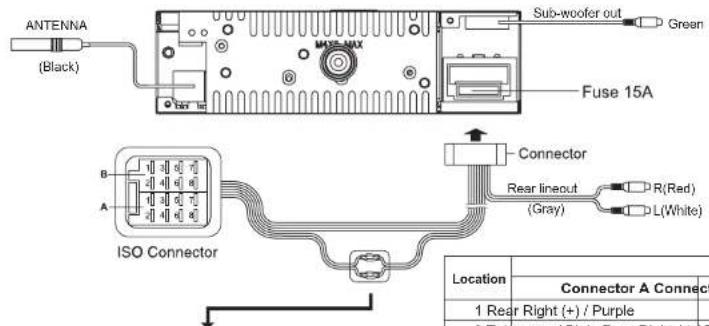
For some VW/Audi or Opel(Vauxhall) car models, you may need to modify wiring of the supplied power cord as illustrated, or else the memory of the unit may be lost after you power off. Contact your authorized car dealer before installing this unit.
Original wiring
| Yellow | Yellow |
| Red | Red |
Modified wiring
| Yellow | Yellow |
| Red | Red |
| Location | Function | |
| Connector A Connector B | ||
| 1 Rear Right (+) / Purple | ||
| 2 Tele-mute / Pink Rear Right (-) / Purple with Black Stripe | ||
| 3 Front Right (+) / Gray | ||
| 4 Battery 12V(+)/ Yellow Front Right (-) / Gray with Black Stripe | ||
| 5 | ANT/AMP control / Blue with white stripe | Front Left(+) / White |
| 6 Front Left(-) / White with Black Stripe | ||
| 7 ACC+ / Red Rear Left (+) / Green | ||
| 8 Ground / Black Rear Left (-) / Green with Black Stripe | ||
INSTALLATION GUIDE
Installation Opening
This unit can be installed in any dashboard having an opening as shown below. The dashboard should be 4.75mm - 5.56mm thick in order to be able to support the unit.
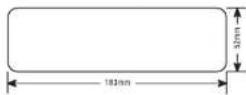
Iftheopeningistoosmall,carefullycutorfie as necessary until the sleeve easily slides into the opening. Do not force the sleeve into the opening or cause it to bend or bow. Check for sufficientspacebehindthedashboardforthe unit chassis.
Reset
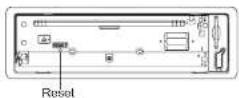
Press the RESET button with a pointed object to reset the unit to the original status. Note: Press the RESET button will erase the clock setting.
Install the unit
Important:
Remove the two screws on the top of the unit before installation.
Otherwise, the player will not work.
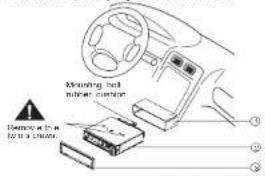
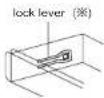
- Inset mounting collar into theck lever dashboard, and bend the mounting tabs out with a screwdriver.
Make sure that lock lever is fushwiththe mountingcollar (not projecting outward).
-
Secure the rear of the unit. After fixing mounting bolt and power connector, fxtherear of the unit to the car, body by rubber cushion.
-
Insert trim plate.
EN-13
ANTI-THEFT SYSTEM
This unit is equipped with a detachable panel. Removing this panel makes the radio totally inoperable.
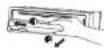
Remove the detachable panel
- Switch off the power of the unit.
- Press buttonofip down the panel.
- Hold the right part of the panel. Press to the left side, then take off the panel.
- Place the panel into the case and take it with you when you leave the car.
Install the panel
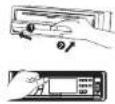
- Hold the panel and ensure the panel faces downward, and set left side of the panel in the panel bracket, then set the right part.
- Press the top of panel until it locks.
Remove the unit
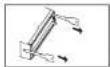
- Remove the panel and the trim plate.
- Insert both T-Keys into hole on the front of the set until they lock.
- Pull out the unit.
TROUBLESHOOTING
The following checklist can help you solve some problems which you may encounter when using the unit. Before consulting it, check the connections and follow the instructions in the user manual. Do not use the unit in abnormal condition, for example without sound, or with smoke or foul smell can cause freorelectrics shock, immediately stopping and call the store where you purchased it.
| Problem Possible cause Solution | ||
| General | ||
| The unit will not switch on. | Car ignition is not on.Cable is not properly connected.Fuse is burnt. | Turn your car key in the ignition.Check cable connection.Replace fuse with a new fuse of the same capacity. |
| No sound | Volume is set at minimum or the mute function is on. | Check the volume or switch the mute function off. |
| The unit or screen does not work normally. | The unit system is unstable. Press the RESET | button. |
| DISC mode | ||
| The appliance will not play discs. | The disc is inserted incorrectly.The disc is dirty or damaged. | Disc must be inserted with the label side facing up. Clean the disc and check for damage. Try another disc. |
| Sound skips due to vibration. | Mountingangleisover30°.Mounting is unstable. | Adjustmountingangletoles 12 than30°.Mount the unit securely with the supplied parts. |
| TUNER mode | ||
| Unable to receive stations. The antenna is not connected properly. Connect the antenna properly. | ||
| Poor quality reception of radio station. | The antenna is not fully extended or it is broken. | Fully extend the antenna and if broken, replace it with a new one. |
| Preset stations are lost. The battery cable is not properly connected. | Connect the permanent live on the unit to the permanent live on the vehicle. | |
| USB/SD/MMC mode | ||
| Unable to insert USB device or SD/MMC card. | The memory card or USB device has been inserted the wrong way round. | Insert it the other way around. |
| The USB device or SD/MMC card cannot be read. | NTFS format is not supported. | Checkthatthefle system 12 inFATorFAT32format.Due to different formats, some models of storage devices or MP3 players may not be read. |
SPECIFICATION
| General | |
| Power supply: | 12V DC (11V-16V) |
| Test voltage 14.4V, negative ground | |
| Maximum power output: 45Wx4 channels | |
| Continuous power output: 20Wx4 channels (4 Ω,10% T.H.D.) | |
| Suitable speaker impedance: 4-8 ohm | |
| Pre-Amp output voltage: | 2.0V (CD play mode: 1KHz, 0 dB, 10 KΩ·load) |
| Fuse: | 15A |
| Dimensions(WxHxD): 178x50x156mm | |
| Weight: 1.64kg | |
| Aux-in: ≥ 300mV | |
| SUBOUT 2V | |
| FM Stereo Radio | |
| Frequency range: | 87.5-108.0 MHz (Europe) |
| 87.5-107.9MHz (America) | |
| Usable sensitivity: | 8 dBμ |
| Quieting sensitivity(S/N=50dB): | 12 dBμ |
| Frequency response: 30Hz-15kHz | |
| Stereo separation: 30dB (1kHz) | |
| Image response ratio: | 50dB |
| IF response ratio: | 70dB |
| Signal/noise ratio: | 55dB |
| MW(AM) Radio | |
| Frequency range: | 522-1620 K Hz(Europe) |
| 530-1710 K Hz (America) | |
| Usable sensitivity(S/N=20dB): | 30 dBμ |
| Disc Player | |
| System: | Disc digital audio system |
| Frequency response: 20Hz-20kHz | |
| Signal/noise ratio: | >80 dB |
| Total harmonic distortion: | Less than 0.20% (1kHz) |
| Wowandfutter: | Below measurable limits |
| Channel separation: | >55 dB |
| Components | |
| Mounting collar | 1 |
| Machine screws M5x6mm | 4 |
| Mounting bolt (50mm) | 1 |
| Removable face plate case | 1 |
| Trim plate | 1 |
| T-key | 2 |
| Operating instructions | 1 |
| Rubber cushion | 1 |
Note: Specifications and the designare subject to change without notice due to improvements in technology.