
Aqua i5 - Smartphone INTEX - Free user manual and instructions
Find the device manual for free Aqua i5 INTEX in PDF.


| Product Type | Smartphone |
| Brand | Intex |
| Model | Aqua i5 |
| Display Size | 5.0 inches |
| Resolution | 480 x 854 pixels (FWVGA) |
| Processor | 1.3 GHz Quad-Core |
| RAM | 1 GB |
| Internal Storage | 8 GB, expandable via microSD up to 32 GB |
| Operating System | Android 4.4 KitKat |
| Rear Camera | 8 MP with LED flash |
| Front Camera | 2 MP |
| Battery | 2000 mAh Li-ion (removable) |
| Dimensions | 143 x 71.5 x 9.6 mm |
| Weight | 150 g |
| Network | 3G (HSDPA 21 Mbps), 2G (GSM) |
| SIM | Dual SIM (Mini-SIM) |
| Connectivity | Wi-Fi 802.11 b/g/n, Bluetooth 4.0, GPS, microUSB 2.0 |
| Sensors | Accelerometer, proximity, ambient light |
| Cleaning and Maintenance | Wipe with dry cloth; avoid liquids |
| Safety | Avoid exposure to extreme heat or cold; use only original charger |
| Spare Parts and Repairability | Battery, screen, charging port replaceable by service center |
| General Information | Smartphone for basic to moderate usage; supports 3G internet |
Frequently Asked Questions - Aqua i5 INTEX
User questions about Aqua i5 INTEX
0 question about this device. Answer the ones you know or ask your own.
Ask a new question about this device
Download the instructions for your Smartphone in PDF format for free! Find your manual Aqua i5 - INTEX and take your electronic device back in hand. On this page are published all the documents necessary for the use of your device. Aqua i5 by INTEX.
USER MANUAL Aqua i5 INTEX
Dear INTEX customer,
Congratulations on becoming a proud owner of INTEX product. You have now joined the fraternity of millions of satisfied INTEX customers spread across the globe.
Intex Technologies is one of the fastest growing IT Hardware, Mobile Phones and Electronics Company. A well-established brand, INTEX has kept pace with the technology needs of millions of IT hardware & electronics consumers and has been serving them with more than 300 user friendly, high quality, state-of-the-art yet simple products/solutions. The products have been in the market since 1996 and conform to global standards.
Brand INTEX covers a wide range of computer peripherals and accessories such as Computer Multimedia speakers, Cabinets, Keyboards, Mouse, UPS, Add-on cards, Webcams, Headphones, Laptop bags, etc. As a part of its diversification strategy, Intex also offers an Interesting range of PCs, TFT-LCD Monitors, Consumer Electronics (DVD Players), Home UPS & Mobile Phones.
Every INTEX product goes through a rigorous process of sample evaluation and approval before commercial launch. Customers look upon the brand as a value-for-money & feature-rich offering, supported by efficient after sales service.
We look forward to your patronage.
It would be our pleasure to receive feedback and suggestions you may have for Improvements in the product(s) you are using.
Intex Technologies (I) Ltd
infog@intextechnologies.com
www.intextechnologies.com
Helpline No. 1800-103-8822 (India)
Inletx Way Gulf LLC
service@intexuan.com
www.inbexuae.com
Toll Free No. 800-468-39823 (Dubai)
Tel: 00971 04 3931991
SAFETY TIPS
- Use of wireless hands-free system (headphone,
headset) with a low power Bluetooth emitter.
- Make sure the cell phone has a low SAR. The highest SAR value for this mobile phone is < 1.6W/kg , in accordance with the requirements of the ICNIRP, which recommended the limit for exposure to radio waves is 1.6 watts/kilogram (W/kg) averaged over 1 gram of tissue. For more information, please visit (website) to query
- Keep your calls short or send a text message (SMS) (instead. This advice applies especially to children, adolescents and pregnant women.
- Use cell phone when the signal quality is good. - People having active medical implants should preferably keep the cell phone at least 15 cm away from the implant.
Contents
I. WARNING 7
1 SAFETY INFORMATION 7
1.1 TRAFFIC SAFETY FIRST 7
1.2 TURN OFF IN HOSPITAL 7
1.3 TURN OFF IN AIRPLANE 7
1.4 TURN OFF WHEN REFUELING 7
1.5 TURN OFF NEAR BLASTING SITES 8
2 CAUTIONS ON MOBILE PHONE USE 8
2.1 INTERFERENCE 8
2.2REASONABLE USE 8
2.3 QUALIFIED INVENTION SERVICE 8
2.4 WATER-RESISTANCE 8
2.5 EMERGENCY CALLS
3 PRECAUTIONS FOR USE OF BATTERY 9
4 CAUTIONS FOR CHILDREN 9
II. KEYS AND PARTS 10
III. START TO USE 11
1 INSERT SIM CARD 11
2 INSERT MEMORY CARD 12
3 CHARGE THE BATTERY 12
IV. BASIC FUNCTIONS 13
1 LOCK AND UNLOCK THE SCREEN 13
2 MAKE IT YOURS 14
3 ADD WIDGETS AND MORE ICONS TO HOME SCREEN 15
4 ENTER LAUNCHER 17
5 MAKE A CALL 19
6 CALL LOG 20
7 REJECT A CALL BY SMS 21
8. ADD A CONTACT 22
9. SEND AND RECEIVE MESSAGE(S) 23
10. BROWSER THE WEB 24
11. ENJOY MUSIC 25
12. DOWNLOAD APPLICATIONS FROM ANDROID MARKET 26
13. MANAGE APPLICATIONS 27
14. INTEX ZONE 28
15. APPLICATIONS & UTILITIES 29
VI. TECHNICAL INFORMATION 29
I. Warning
Please read the concise rules. The breach of the rules may result in danger or violation of law.
1 Safety information
1.1 Traffic safety first
Please use the mobile phone carefully when you drive a car. Park your car at roadside and then use the mobile phone if the driving condition is bad.
1.2 Turn off in hospital
Please abide by relevant provisions or regulations. Please turn off your mobile phone near medical equipment.
1.3 Turn off in airplane
Wireless equipment has disturbance to the airplane, so the use of the mobile phone in airplane is dangerous and illegal.
1.4 Turn off when refueling
Please don't use the mobile phone in gas station or near fuels or chemicals.
1.5 Turn off near blasting sites
Don't use the mobile phone in blasting sites. Please observe relevant restrictions and carry out rules or regulations.
2 Cautions on mobile phone use
2.1 Interference
All phones may be interfered, which
affect phone calls. 2.2 Reasonable use
Use only in the normal position. Do not touch the antenna area unnecessarily. 2.3 Qualified maintenance service
Only qualified personnel may install or
repair this product. 2.4 Water-resistance
Your device is not water resistant.
Keep it dry. 2.5 Emergency calls
Ensure the phone is switched on and in service. Enter the emergency number and press the Dial icon.
3 Precautions for use of battery
3.1 Do not dispose of batteries near or in a fire to avoid dangers.
3.2 Do not dispose of batteries in the garbage. Dispose of batteries to
assigned battery recycling center.
4 Cautions for children
Keep your device out the reach of children in case of accidental injury caused by incorrect use of the device as toys.
II. Keys and parts
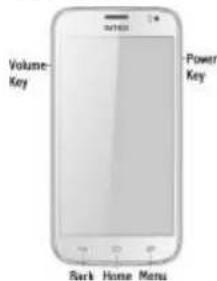
Home key
Press Home key at a non-standby
screen to go back to standby screen
Volume key
Press Volume key to change the volume. > Menu Key
Press Menu key to enter wallpaper, manage apps, system settings menu
➢ Back Key
Press Back key to go back to previous menu.
➢ Power Key
Short press on the Power key shall lock the screen and a long press on the Power key shall switch on/off the device.
III. Start to use 1
Inseri SIM card
The phone is a Dual SIM mobile phone allowing you to use the facility of two networks. To insert SIM card(s);
- Switch off the mobile phone and remove the rear cover and battery.
-
Insert the SIM card correctly in the card slot(s) (See figure below)
-
Finally insert the battery and replace the rear cover of the mobile phone.
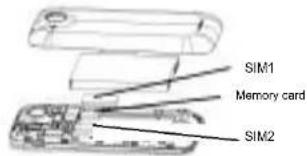
Note: SIM2 support Micro SIM which is a new kind of SIM for you. You can get
it from operator or ask for changing a Micro SIM in a mobile shop.
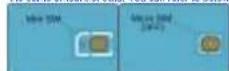
Micro SIM is the third version, or "third farm factor" (3FF) of the SIM standard and holds
the same amount of data. You can refer to below picture to see the difference.
2 Insert Memory card
-
Power off the mobile phone and remove the rear cover and battery.
-
Insert the Micro SD card into the slot.
-
Finally insert the battery and the rear cover of the mobile phone.
Note: Use only compatible memory cards for use with this device. Incompatible memory
cards may damage the card or the device and prompt the data stored in the card.
- Observe the battery
During charging, the battery indicator on the phone is a thunder icon. If the device is
switched off during charging, there will still be a charging indication on the screen that
show the phone is being charged. If the device is overused when the battery is low, the
charging icon might take some time to appear.
When the battery indicator on the screen says Battery is full', thunder icon will disappear,
which means the completion of charging. If the phone is switched off during charge screen will display 'Battery is full'. It generally takes 4 hours to charge the battery.
During charging, the battery. the device and the charger will get hot. This is normal. Unplug the charger from the AC electrical outlet and disconnect the wiring between the phone and the charger after charging.
Cautions: Charge the phone in a well ventilated place in which the temperature is between -10°C to +55°C. Use the charger provided by the manufacturer only. The use of unconfirmed charger may lead to dangers and violate the manufacturer's warranty clause. If the temperature is too high or too low during charging, the device will automatically send a warning and stop charging to avoid damage to the battery or any danger.
IV. Basic functions
1 Lock and unlock the screen
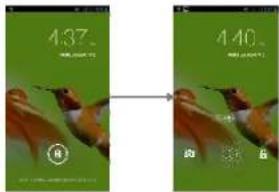
Press power button to enter Sleep mode and meanwhile the screen will be locked; press power button again to wake up and then drag to any direction for unlock.
2 Make it yours
1. Home screen: It is your starting point to access all the features on your phone. It displays application icons, widgets, shortcuts, and other features. Long press home screen to modify Wallpaper.
2. Notification Bar: At the top of the screen, the Status Bar displays the time, status, and notifications. If there is a new message, missed call or something in the notification bar, you can drag it down to open notification panel and click the desired one to have a view. When you finished, you can close it by dragging the panel up or pressing "Back".

3 Add Widgets and more icons to Home Screen
Long press Home screen, and then you can Modify Wallpaper: or enter Launcher and long press and hold an application till the screen vibrates, and then release your finger hold
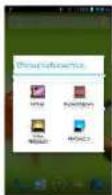
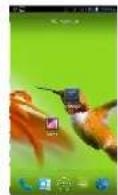
Long press and hold the widget or icon you want to move. Once the phone vibrates, don't release your hold on the icon. Drag the widget or icon to a new location on the screen Press and hold on an icon till the phone vibrates, and drag the widgets or icon to the trash to remove.
4 Enter Launcher
4.1 Open and Switch Applications
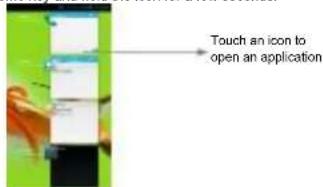
At idel screen touch inter launcher
The Launcher holds icons for all of the applications on your phone, including any application that you downloaded from Android Market or other sources.
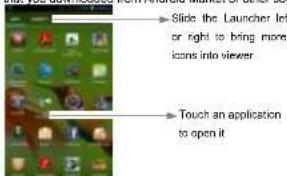
Press Home icon or Back icon to close the Launcher.
4.2 Switch to Recently Used Application
Press home key and hold the icon for a few seconds.
5 Make a call
Choose and enter a complete phone number to make a call. Your phone supports smart search.
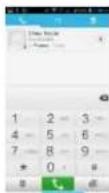
Touch to view call log, touch to enter phonetook
6 Call log
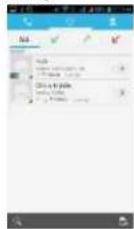
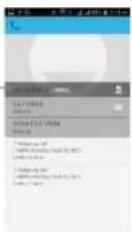
Press Contact
icon to call
directly
Press this point enter menu, you can call, video call, view contact etc.
7 Reject a call by SMS
While there is an incoming call, and you are inconvenient to accept the call, therefore you can send a message for rejecting the call.
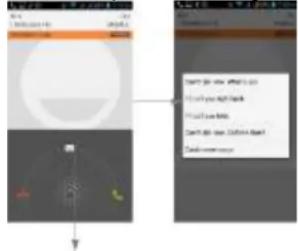
Drag this icon for select and send SMS
- Add a contact
Touch to enter contact
Touch to add new contact
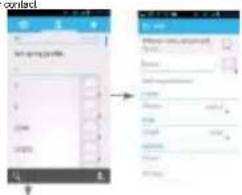
Click here for a contact and press menu key to enter menu view, edit, delete contact, print contact, share contact, associate sim card.
- Send and Receive message(s)
Touch enter messaging, touch compose new message.
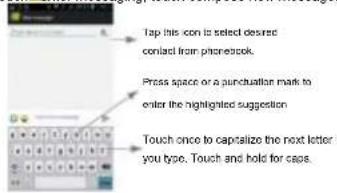
When you are composing a new text message, you can select text for cutting or copying. The selected text is highlighted in blue.
Tap to add "Altach" including Pictures, Videos, Audios, etc to send MMS.
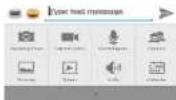
When a new message comes, you can read by dragging notification panel and click the message, or entering Message to read it directly. Long press one of the all message thread, you
can delete thread". 10. Browser the Web
- Set up Internet/Data connection
Enter Settings > More..., scroll down to find out Mobile network, and then enter "Access Points Names, choose the desired WAP account.
2.Switch on Data connection or WiFi
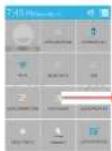
- Touch it to switch on or off Data connection
To browse the web, you need to switch on Data connection. If there is WiFi around, you can switch on WiFi to use it browse the web.
- Enjoy music
When you copy music to your SD card, the Music player searches the card for music fi les and builds a catalog of your music, based on information about each fi le that is stored in the fi le itself.
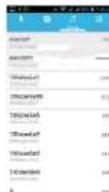
Touch a tab to view your library in one of four ways
-
Download applications from android market
-
Add Google account
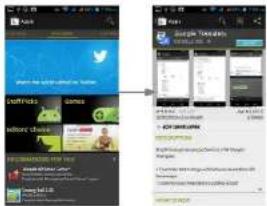
- Enter play store (Android Market) and download apps
- Manage Applications
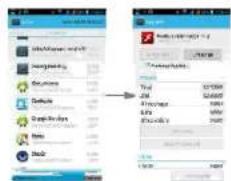
Enter Setting > App.
As you install downloaded Apps, you need to switch on Unknown
sources" in application settings. Select one app, you can uninstall, clear data, move to phone/sd card.
- Intex Zone
14.1 Auto call record
When the function is on, it will auto call record during the cell.
15. APPLICATIONS & UTILITIES
For your entertainment purpose, your device is provided with several interesting games, applications and utilities, such as AaTak, Gmail, Intexzone, Latitude, Local, Maps, Playstore, RacingMoto, Saavn, Talk, WhatsApp and YouTube. Please ensure that you have GPRS setting in your device to access the applications. Contact your operator for GPRS settings. Tips: With connection to Wi-Fi network, this application can run normally, to
VI. Technical Information
Model: AQUA I-5
Size Length: 144.1mm × Width: 73.5mm × Depth: 8.8mm
Battery: 2000mAh
Networks: GSM 900/1800/850/1900 MHz, WCDMA 2100MHz
SAR Value:
GSM300 MHz: 0.899 W/kg; GSM1800MHz: 0.581 W/kg;
GSM050 MHz: 0.794 W/kg; GSM1900MHz: 0.018 W/kg;
WCDMA 2100MHz: 0.743 W/kg
Weight: 155.0±5 gram (with battery)
Battery Type: Li-polymer Battery
Model BR 1464G
Nominal voltage: 3.7v
Max. Voltage: 4.2v
Capacity rating: 2000mAh
Operation Temperature: -10°C \~+55 °C
The operation time of the battery depends on conditions such as
• Transmitting power level
• Signal (distance between the phone and the base station)
• Network parameters defined by the operator
• Phone use (WAP, games, SMS)
- Charging procedure
used Exclusions:
Subject to the exclusions contained below:
-
Damage due to the Improper use.
-
User does not follow the
manual. Explanation:
The company has the final right of the explanation for this
document. Software upgrades will not be announced.
All pictures are for reference only in the instruction book; please refer to the actual
phone.
Disclimer
© Intex. All rights reserved
Features and specifications are subject to change without prior notice. Certain mobile
phone features may not be activated by your service provider, and for their network
setting may limit the feature's functionality. Services and some features such as GPRS, email may be dependent on the network SIM card, as well as on the compatibility of the devices used and content formats supported and may require network/service subscription solutions. Data transfers specios are network dependent. Always contact your service provider for details or help. Talk and standby time is quoted in digital mode and are approximate; battery performance and the signal reception depend on network configuration, signal strength, type of SIM card, operating temperature, features selected as well as voice, data and other application usage pattern. The phones supports Bluetooth, A2DP, in order for Bluetooth services to communicate with one another, they must utilize the same Bluetooth Profile. To determine the profiles supported by other Interp devices, visit www.intextchnologies.com, for other devices, contact their respective manufacturers. Always demand for original Intex mobile phones to protect against buying wireless and/or used, refurbished or tampered phones. The warranty is applicable only for Intex phones; the company is not responsible for any loss or theft. Always use Intex original Enhancements (including batteries) for safety. The use of any other type may invalidate and approval or warranty applying to the mobile phone and may be dangerous. The phone is designed to operate using Li-ion batteries approved by the phone manufactures. Using non-approved batteries with the phone may result in poor performance and damage to the phone or its enhancements. The display and products visualization here are illustrative purposes only; Display color of the phone
may differ from that shown on the manual. All features, functionality and other product specifications are based on the latest available information and are correct at the time of printing; however such product specifications are subject to change without notice. Copyrights are reserved. In mix is the trademark of INTEX TECHNOLOGIES (INDA) LTD. which is registered. The unauthorized copying of copyrighted material is not legalized. It is trivial to the provisions of the copyright laws of India and other countries.
INFORMATION UNDER E-WASTE (MANAGEMENT AND HANDLING) RULES, 2011 For disposal of e-waste, please call our helpline no. or visit our website. E-waste Helpline no. 1800-103-8822
http://intextechnologies.com/window_self/Waste%20Disposal.html
a) Always drop your used electronic products, batteries, and packaging materials after the end of their life in nearest collection point or collection center
b) Separate the packaging material according to responsible waste disposal options and sorting for recycling.
c) The battery can easily be removed from the product
for recycling. 2. Don't disposal of equipment
a) Never dump E-waste in garbage bins or municipal solid waste stream.
b) Do not dispose of your product as unsorted municipal waste.
c) Do not throw used batteries into household waste.
d) Do not dispose damaged or leaking Lithium Ion (Li-Ion) battery with normal household waste.

- Information on the consequences of improper handling, accidental breakage damage and improper recycling of the end of life product.
a) If batteries are not properly disposed of, it can cause harm to human health or the environment.
human health or the environment. (b) Playing of heat/dess or devices on or in heating devices, auto as microwave ovens.
b) Facting of services of services of a in-housing service, such as microfinance orders, always, or provisions and innovations distributed of buildings must lead to expansion.
c) If the battery terminals are in contact with metal objects, it may cause a fire.
Brand : INTEX
Model : Aqua i5
Category : Smartphone