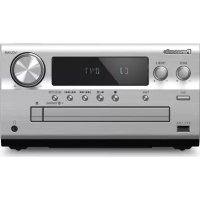
SL-DZ1200 - Hi-Fi System PANASONIC - Free user manual and instructions
Find the device manual for free SL-DZ1200 PANASONIC in PDF.


| Product Type | Direct Drive Digital Turntable (Direct Drive Digital Turntable) |
| Brand | Panasonic (Technics) |
| Model | SL-DZ1200 |
| Category | Hi-Fi System |
| Compatible playback formats | Audio CD, CD-R/RW (CD-DA, MP3), SD card (SD Audio) |
| Supported MP3 bitrate | 32 to 192 kbps (recommended 128 kbps) |
| Sampling frequencies | 48 kHz, 44.1 kHz, 32 kHz |
| Audio channels | 2 (stereo) |
| Frequency response | 4 Hz - 20 kHz |
| Line output voltage | 2 Vrms (0 dB) |
| Outputs | Analog (RCA), coaxial digital (RCA), headphone (6.35 mm jack) |
| Headphone output power | 20 mW max. at 32 ohms (adjustable) |
| Power supply | 120 V AC, 60 Hz |
| Power consumption | 20 W |
| Dimensions (W x H x D) | 320 x 111 x 330 mm |
| Weight | 5.8 kg |
| Included accessories | Power cord, stereo cable, turntable mat |
| Maintenance | Clean with a soft, dry cloth. Do not use alcohol, thinner, or benzene. |
| Safety | Do not expose to rain or moisture. Class 3B laser - do not open, refer servicing to qualified personnel. |
| Main functions | Digital turntable with platter, cue and sample pads (1-4), loop, vinyl simulation (8 types), dynamic effects (8 types), tempo control (pitch) with adjustable range (±8% to ±50%), pitch lock, reverse playback, instant change, free wheel mode, data save/load via SD card, adjustable tilt display with adjustable contrast. |
| Spare parts and repairability | Parts available from the manufacturer. All repairs must be carried out by a qualified technician. |
| General information | Tempo adjustment range ±8%, ±16%, ±33%, ±50% (limited to ±16% for MP3/SD Audio). Memory for 50 discs/cards. Sample pads with 32 seconds total recording time. |
Frequently Asked Questions - SL-DZ1200 PANASONIC
User questions about SL-DZ1200 PANASONIC
0 question about this device. Answer the ones you know or ask your own.
Ask a new question about this device
Download the instructions for your Hi-Fi System in PDF format for free! Find your manual SL-DZ1200 - PANASONIC and take your electronic device back in hand. On this page are published all the documents necessary for the use of your device. SL-DZ1200 by PANASONIC.
USER MANUAL SL-DZ1200 PANASONIC
Operating Instructions
Direct Drive Digital Turntable
Model No. SL-DZ1200
COMPACT DISC DIGITAL AUDIO

Before connecting, operating or adjusting this product, please read these instructions completely. Please keep this manual for future reference.
Thank you for purchasing this product.
For optimum performance and safety, please read these instructions carefully.
Table of contents
Before use
Parts and supplied accessories 2
Product service 2
Listening caution 3
IMPORTANT SAFETY INSTRUCTIONS 4
Main features 5
Component part names 6
Platter setup 7
Setup 7
Connections 8
Connecting with the DJ mixer 8
Connecting the control terminals for relay play 9
Connecting with the stereo amplifier (Not using the DJ mixer) 9
Connecting to equipment with digital input terminals. 9
Basic operations
Inserting-removing a disc or SD Memory Card 10
Display indicator 11
Playing a CD or SD Memory Card (basic play) 12
Basic function settings 14
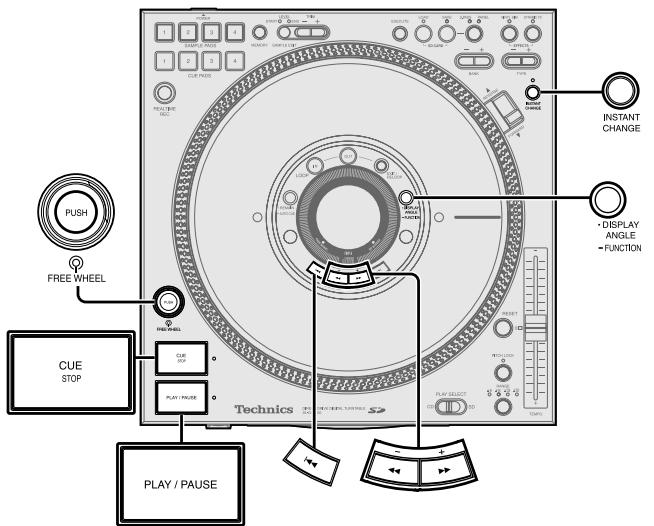
Selecting TURNTABLE mode or CD PLAYER mode 14
Instant play (INSTANT CHANGE) 14
Using the FREE WHEEL mode 14
Adjusting the platter brake 14
Adjusting the auto cue level 14
Advanced operations
Platter operations 15
Changing play with your hand 15
Basic play for DJs 15
Changing tempo and direction of play 16
Changing tempo 16
Locking the pitch 16
Reverse play (Reversing the platter) 16
Playing from memory 17
Setting the auto cue point 17
Setting the cue point at any point 17
Play from the stored point 17
Storing to the CUE PADS and playing 18
Store desired points to memory and play (loop play) 18
Recording to the SAMPLE PADS and playing 19
Erasing cue pad, sample pad, loop play data 19
Changing the sound 20
Changing sound to simulate analog 20
Change sound with combined performance 20
Editing the SAMPLE PADS 20
Other functions
Saving to a SD Memory Card, Recalling 21
Saving to a SD Memory Card 21
Formatting the SD Memory Card 22
Recalling (loading) data saved on a SD Memory Card 22
Regarding MP3 albums and SD audio 22
Using with other equipment 23
Start play using the mixer's fader 23
Using two units for relay play 23
Using the amplifier and other equipment 23
Linking different tracks 24
Unit's initialize memory function 24
Initializing this unit's memory 24
Reference
Glossary 24
Handling SD Memory Cards 25
Concerning CDs 25
Q&A (Frequently asked questions) 26
Troubleshooting guide 26
Error messages 27
Maintenance 27
Specifications 27
Warranty (U.S.A.) Back cover
Parts and supplied accessories
Please check and identify the parts and supplied accessories.
Use numbers indicated in parentheses when asking for replacements parts.
In U.S.A. to order accessories, refer to "Accessory Purchases" on back cover.
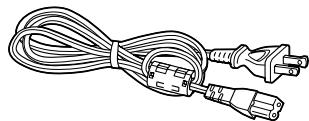
□ AC power supply cord (REZ1619) 1
Note
The included AC power supply cord is for use with this unit only. Do not use it with other equipment.
Do not use an AC power supply cord from any other type of equipment with this unit.
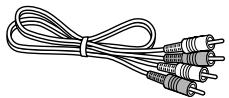
Stereo connection cable (SFDHBD2N01) 1
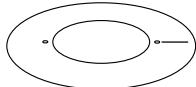
Slip surface (RGK1704-S2) 1
Product service
- Damage requiring service—The unit should be serviced by qualified service personnel if:
(a) The AC power supply cord or AC adaptor has been damaged; or
(b) Objects or liquids have gotten into the unit; or
(c) The unit has been exposed to rain; or
(d) The unit does not operate normally or exhibits a marked change in performance; or
(e) The unit has been dropped or the cabinet damaged.
- Servicing—Do not attempt to service the unit beyond that described in these operating instructions. Refer all other servicing to authorized servicing personnel.
- Replacement parts—When parts need replacing ensure the servicer uses parts specified by the manufacturer or parts that have the same characteristics as the original parts. Unauthorized substitutes may result in fire, electric shock, or other hazards.
- Safety check—After repairs or service, ask the servicer to perform safety checks to confirm that the unit is in proper working condition.
Product information
For product information or assistance with product operation: In the U.S.A., refer to "Customer Services Directory" on back cover. In Canada, contact the Panasonic Canada Inc. Customer Care Centre at 905-624-5505, or visit the website (www.panasonic.ca), or an authorized Servicentre closest to you.
User memo:
DATE OF PURCHASE
DEALER NAME
DEALER ADDRESS
TELEPHONE NUMBER
The model number and serial number of this product can be found on either the back or the bottom of the unit.
Please note them in the space provided below and keep for future reference.
MODEL NUMBER SL-DZ1200
SERIAL NUMBER
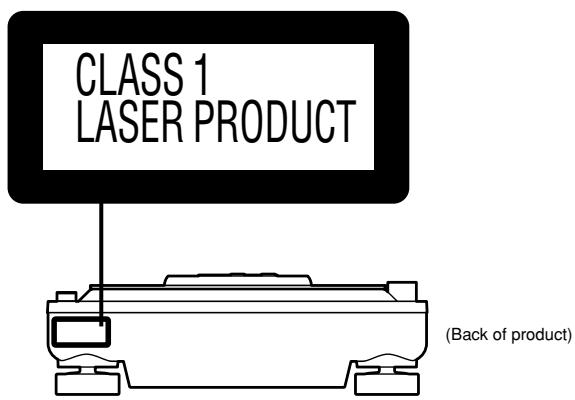
| CAUTION | CLASS 3B INVISIBLE LASER RADIATION WHEN OPEN, AVOID EXPOSURE TO BEAM. (IEC 60825-1+VA2) |
| VERNING | KCLASS 3B OSYNLIG LASERSTRALNING NAR DENNA DEL AR OPNNAD. UNDVIK EXPONERING FOR STRÄLEN. |
| ADVARSE | KLASSE 3B USYNLIG LASERSTRALING VED ÅNBING. UNDGÅ UDS/ETTALSE FOR STRÄLING. |
| ADVARSE | KLASSE 3B USYNLIG LASERSTRALING NAR DEKSEL ÅPNES, UNNGA EKSPONERING FOR STRÄLEN. |
| VARO | AVATTAESSA OLET NAKYMATONTA ALTTINA LUOKAN 3B LASERSATELLYLE, VOR ALSTUMISTA SATELLLE. |
| VORSIGHT | UNSICHTBARE LASERSTRAHLUNG KLASSE 3B, WENN ABOECKING GEÖFNETN. NICT FROM STRAHL. AUSSETZEN. |
| ATTENTION | RANOVEMENT LASER INVISIBLE CLASSE 3B EN CAS DU VIOBERTURE EXPOSION DANGEREUSE AU FASCEAU. ROLS0311 |
(Inside of product)
CAUTION!
THIS PRODUCT UTILIZES A LASER. USE OF CONTROLS OR ADJUSTMENTS OR PERFORMANCE OF PROCEDURES OTHER THAN THOSE SPECIFIED HEREIN MAY RESULT IN HAZARDOUS RADIATION EXPOSURE. DO NOT OPEN COVERS AND DO NOT REPAIR YOURSELF. REFER SERVICING TO QUALIFIED PERSONNEL.
WARNING:
TO REDUCE THE RISK OF FIRE, ELECTRIC SHOCK OR PRODUCT DAMAGE, DO NOT EXPOSE THIS APPARATUS TO RAIN, MOISTURE, DRIPPING OR SPLASHING AND THAT NO OBJECTS FILLED WITH LIQUIDS, SUCH AS VASES, SHALL BE PLACED ON THE APPARATUS.
CAUTION!
DO NOT INSTALL OR PLACE THIS UNIT IN A BOOKCASE, BUILT-IN CABINET OR IN ANOTHER CONFINED SPACE. ENSURE THE UNIT IS WELL VENTILATED. TO PREVENT RISK OF ELECTRIC SHOCK OR FIRE HAZARD DUE TO OVERHEATING, ENSURE THAT CURTAINS AND ANY OTHER MATERIALS DO NOT OBSTRUCT THE VENTILATION VENTS.
Marking sign is located on bottom of the unit.
Listening caution


Selecting fine audio equipment such as the unit you've just purchased is only the start of your musical enjoyment. Now it's time to consider how you can maximize the fun and excitement your equipment offers. This manufacturer and the Electronic Industries Association's Consumer Electronics Group want you to get the most out of your equipment by playing it at a safe level. One that lets the sound come through loud and clear without annoying blaring or distortion—and, most importantly, without affecting your sensitive hearing.
We recommend you to avoid prolonged exposure to excessive noise.
Sound can be deceiving. Over time your hearing "comfort level" adapts to higher volumes of sound. So what sounds "normal" can actually be loud and harmful to your hearing.
Guard against this by setting your equipment at a safe level BEFORE your hearing adapts.
To establish a safe level:
- Start your volume control at a low setting.
- Slowly increase the sound until you can hear it comfortably and clearly, and without distortion.
Once you have established a comfortable sound level:
- Set the dial and leave it there.
Taking a minute to do this now will help to prevent hearing damage or loss in the future. After all, we want you listening for a lifetime.
The following mark and symbols are located on bottom of the unit.
CAUTION
RISK OF ELECTRIC SHOCK DO NOT OPEN

CAUTION: TO REDUCE THE RISK OF ELECTRIC SHOCK,DO NOT REMOVE SCREWS. NO USER-SERVICEABLE PARTS INSIDE. REFER SERVICING TO QUALIFIED SERVICE PERSONNEL.
The lightning flash with arrowhead symbol, within an equilateral triangle, is intended to alert the user to the presence of uninsulated "dangerous voltage" within the product's enclosure that may be of sufficient magnitude to constitute a risk of electric shock to persons.

The exclamation point within an equilateral triangle is intended to alert the user to the presence of important operating and maintenance (servicing) instructions in the literature accompanying the appliance.
Read these operating instructions carefully before using the unit. Follow the safety instructions on the unit and the applicable safety instructions listed below. Keep these operating instructions handy for future reference.
1) Read these instructions.
2) Keep these instructions.
3) Heed all warnings.
4) Follow all instructions.
5) Do not use this apparatus near water.
6) Clean only with dry cloth.
7) Do not block any ventilation openings. Install in accordance with the manufacturer's instructions.
8) Do not install near any heat sources such as radiators, heat registers, stoves, or other apparatus (including amplifiers) that produce heat.
9) Do not defeat the safety purpose of the polarized or grounding-type plug. A polarized plug has two blades with one wider than the other. A grounding-type plug has two blades and a third grounding prong. The wide blade or the third prong are provided for your safety. If the provided plug does not fit into your outlet, consult an electrician for replacement of the obsolete outlet.
10) Protect the power cord from being walked on or pinched particularly at plugs, convenience receptacles, and the point where they exit from the apparatus.
11) Only use attachments/accessories specified by the manufacturer.
12) Use only with the cart, stand, tripod, bracket, or table specified by the manufacturer, or sold with the apparatus. When a cart is used, use caution when moving the cart/apparatus combination to avoid injury from tip-over.
13) Unplug this apparatus during lightning storms or when unused for long periods of time.
14) Refer all servicing to qualified service personnel. Servicing is required when the apparatus has been damaged in any way, such as power-supply cord or plug is damaged, liquid has been spilled or objects have fallen into the apparatus, the apparatus has been exposed to rain or moisture, does not operate normally, or has been dropped.
THE FOLLOWING APPLIES ONLY IN THE U.S.A.
CAUTION:
This equipment has been tested and found to comply with the limits for a Class B digital device, pursuant to Part 15 of the FCC Rules.
These limits are designed to provide reasonable protection against harmful interference in a residential installation. This equipment generates, uses and can radiate radio frequency energy and, if not installed and used in accordance with the instructions, may cause harmful interference to radio communications. However, there is no guarantee that interference will not occur in a particular installation. If this equipment does cause harmful interference to radio or television reception, which can be determined by turning the equipment off and on, the user is encouraged to try to correct the interference by one or more of the following measures:
- Reorient or relocate the receiving antenna.
- Increase the separation between the equipment and receiver.
- Connect the equipment into an outlet on a circuit different from that to which the receiver is connected.
- Consult the dealer or an experienced radio/TV technician for help.
Any unauthorized changes or modifications to this equipment would void the user's authority to operate this device.
This device complies with Part 15 of the FCC Rules. Operation is subject to the following two conditions: (1) This device may not cause harmful interference, and (2) this device must accept any interference received, including interference that may cause undesired operation.
This direct drive digital turntable is designed for DJs to play digital media (CDs and SD audio) giving an analog-like feeling. Having the feeling of an analog turntable, this unit delivers digitally robust functions and performance realizing a new style of play.
Control panel
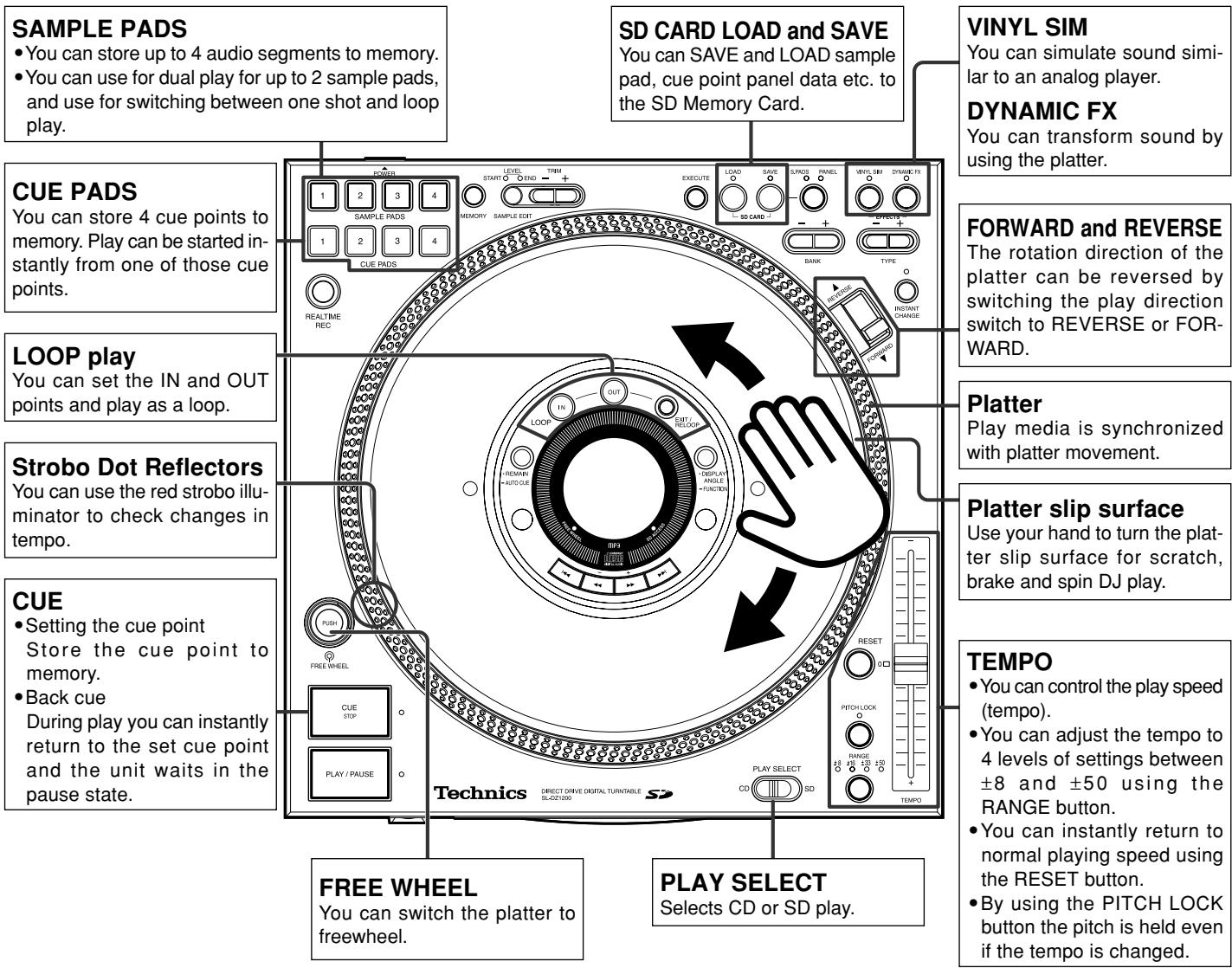
Front panel
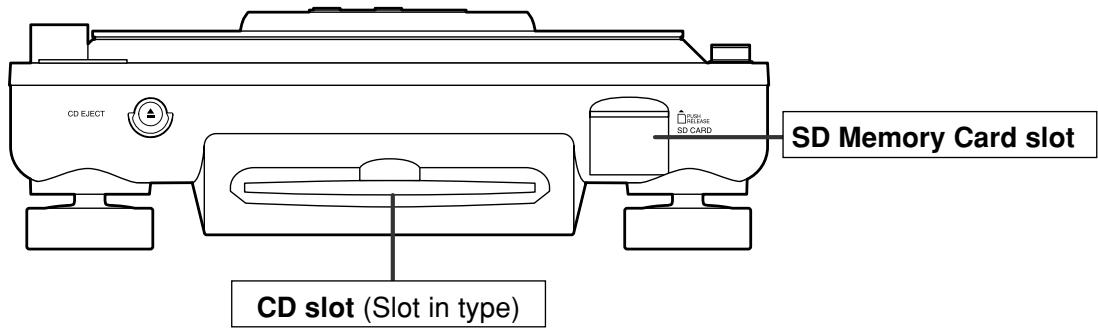
Rear panel
The unshaded numbers ①etc, correspond to the numbered illustrations. The shaded numbers 19 etc, are reference pages.
Control panel
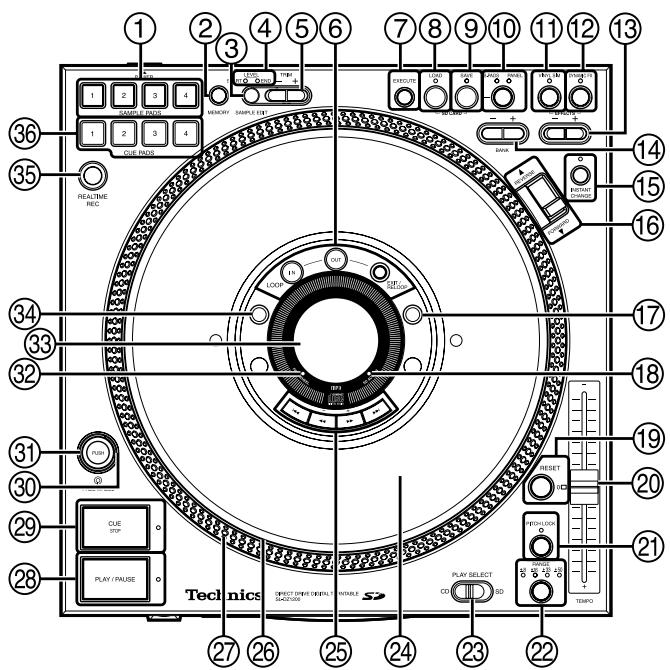
① Sampling data record, play, and erase button, lamp (1-4 SAMPLE PADS) 19, 20
② Sample pad play mode, edit memory button (MEMORY) 19
③ Play mode and edit item select button (SAMPLE EDIT) 19,20
④ Start point (START) lamp, end point (END) lamp, level (LEVEL) lamp
⑤Modify data button (- + TRIM) 20
⑥ Loop play button (LOOP) Start of loop play point setting, erase button, lamp (IN) End of loop play point setting, erase button, lamp (OUT) Play or cancel loop play button (EXIT/RELOOP)
⑦Execute button (EXECUTE) 21
⑧ Load SD Memory Card data button, lamp (LOAD) 22
Save SD Memory Card data button, lamp (SAVE) 21
⑩SD Memory Card save mode select button, lamp (S.PADS, PANEL) 21
① Analog player simulation button, lamp (VINYL SIM) 20
② Special effects button, lamp (DYNAMIC FX) .... 20
③ Simulation, effect type select button (- + TYPE) .... 20
④ Cue bank, file number select button (- + BANK) 17,21
15Instant play select button, lamp (INSTANT CHANGE) 14
16 Play direction switch (REVERSE, FORWARD)...... 16
⑦Display angle setting, function setting button (*DISPLAY ANGLE -FUNCTION) 11, 14
SD Memory Card access indicator (SD ACCESS) 10
19 Normal tempo button, lamp (RESET) 16
20 Tempo, pitch control slider (TEMPO) 16
② Fixed pitch play button, lamp (PITCH LOCK) ...... 16
22Tempo variation range button, lamp (RANGE) .... 16
② Media play select switch (PLAY SELECT) 13
② Platter slip surface 15
25 Track skip, search, setting buttons (1 ,, +,) 13,14
26 Platter 7
⑦ Strobo dot reflectors 16
28 Play pause button, lamp (PLAY/PAUSE) 13
29 Cue setting, load and stop button, lamp (CUE STOP) 14,17
Strobo illuminator 16
③ Platter free wheel setting button (PUSH) 14
② Platter free wheel indicator (FREE WHEEL) 14
③Display 11
^34 Remaining time display, auto cue setting button (· REMAIN-AUTO CUE) 11,12
35 Cue point, pad memory button (REALTIME REC) 17,18,19
36 Cue memory, play and erase button, lamp (1-4 CUE PADS) 18
Front panel
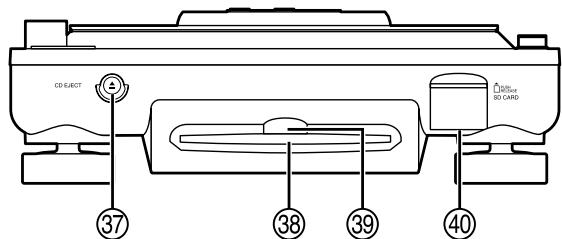
③CD eject button (▲ CD EJECT) 10
CD slot 10
39 Power lamp 10
SD Memory Card slot (SD CARD) 19
Rear panel
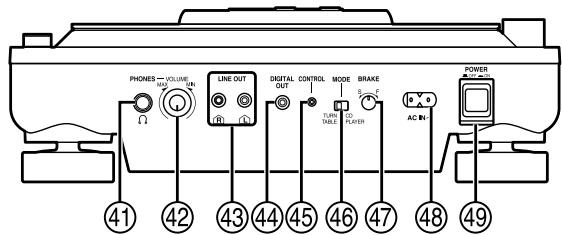
④ Headphone terminal (PHONES) 8
42 Headphone volume control knob (VOLUME) 12
Output terminal (LINE OUT) 8
4 Digital output terminal (DIGITAL OUT) 9
④ Digital turntable control terminal (CONTROL)...... 8
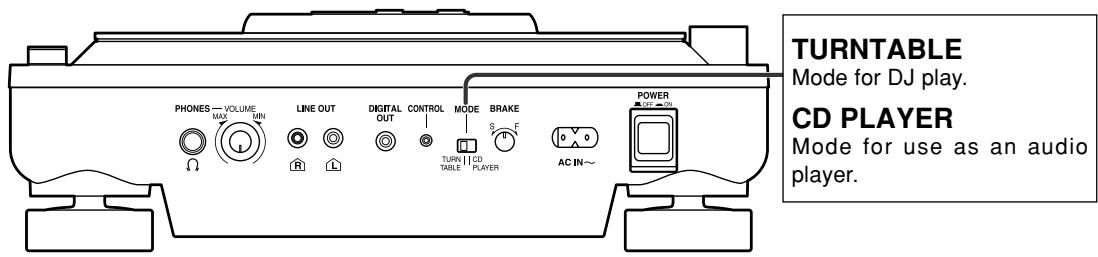
46Turntable, CD player select switch (MODE) 13
④ Platter brake control (BRAKE) 14
48 AC input terminal (AC IN ). 8
49 Power button (POWER OFF ON) 10
The stoppers are used to lock the platter, protecting the unit from shock during shipping.
1. Remove the 3 platter lock stoppers from the platter
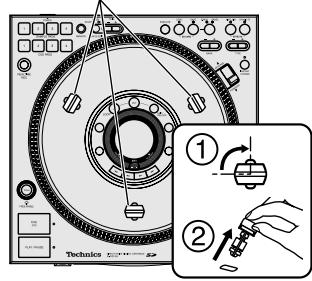
Platter lock stoppers
①Turn the platter lock stoppers approximately 90^
② Pull the platter lock stoppers out
Pull out the platter lock stoppers once they are aligned with the release hole.
2. Attach the slip surface (included)
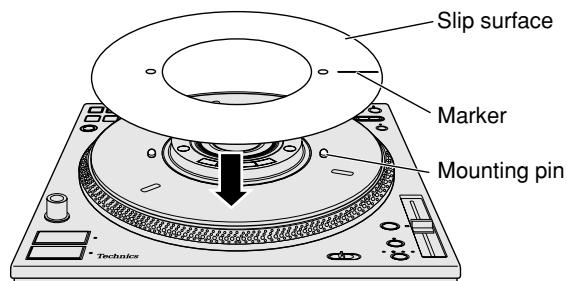
- With the marker on the slip surface facing up, attach onto the 2 mounting pins.
Store the 3 platter lock stoppers in a safe place after removal.
Adjusting the platter brake
You can adjust the platter brake speed using the BRAKE control on the rear of the unit. After connecting, adjust to the desired brake speed.
( page 14)
When transporting the unit
Make sure to re-attach the 3 platter lock stoppers.
1. Remove the slip surface
- Pack in a way to avoid bending the slip surface.
2. Insert the 3 platter lock stoppers
- Align the platter holes with the chassis holes inside at the same position used to remove the stoppers above in step 1.
- Insert the platter lock stoppers into the holes -Move the platter to fully insert the stoppers
- Turn the platter lock stoppers approximately 90^ to lock
Place the unit on a flat and stable surface that is not subject to vibrations or movement.
Note
- Do not place this unit on top of amplifiers emitting hot air or place near spot lights and use for any long duration. This may affect the unit or disc causing problems.
- Create space around this unit in order to assist heat release.
- Place the unit away from televisions and tuners to avoid interference. Interference will affect picture and sound quality.
- Placing the unit near speakers may result in undesired sound in an environment that requires elevated volume. In this case move the unit further away from the speaker(s) or turn the volume down.
- Place stereo connection cables, AC power supply cord and panel in a location that will not be affected by movement or vibration during play.
Undesirable sounds may result if there are movements or vibrations affecting the unit with exception of the legs.
Adjusting the height of the main unit
After placing the unit in the desired location for use, adjust the insulator so the main unit is flat and secure.
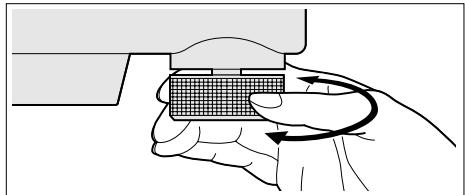
Changing the display angle
Change display angle corresponding to position of the main unit.
(→ page 11)
Connecting with the DJ mixer
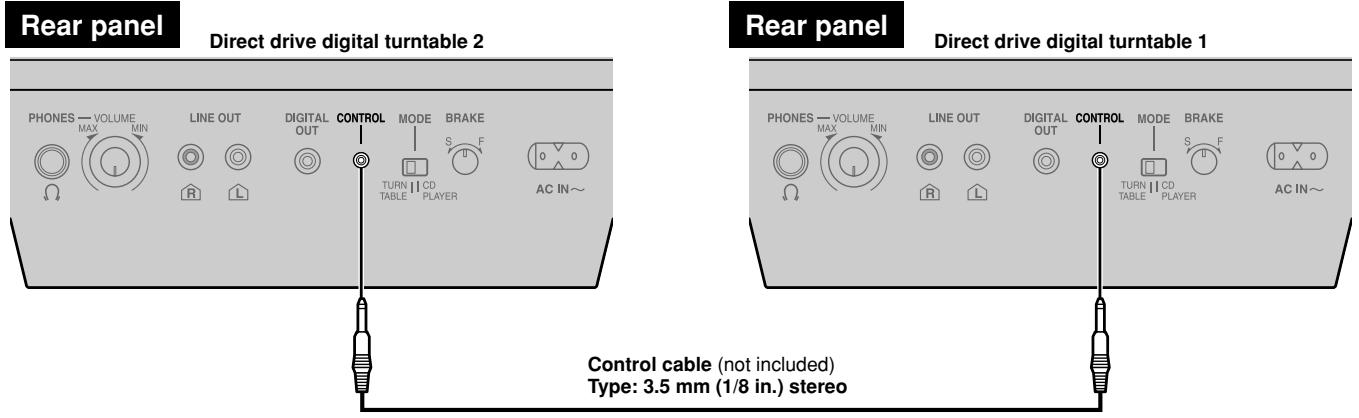
This example indicates a connection with the SH-MZ1200 DJ mixer (not included) and two digital turntables. Use the stereo connection cable (supplied accessories) and control cable (not included) to connect the main unit with the DJ mixer. Turn off all power when connecting component equipment.
Connect the AC power supply cord after all other connections have been connected.

Connection to the SL-DZ1200 rear panel CONTROL terminal Only the direct drive digital turntable or the separately sold DJ Mixer can be operated.
Connecting to control terminals of other manufacturer's products may result in incorrect operation or other equipment problems.
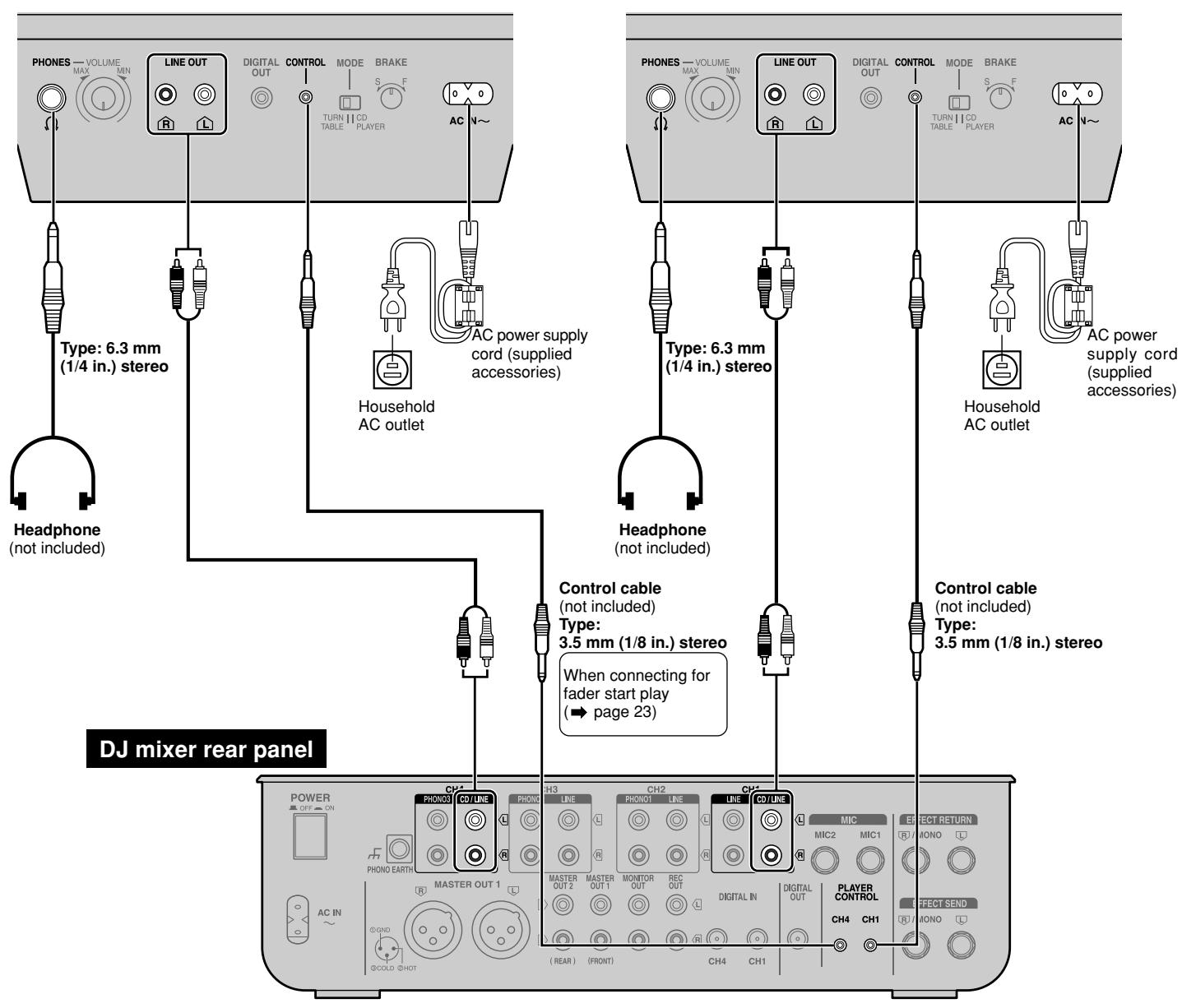
Rear panel
Direct drive digital turntable 2 Connects to DJ mixer CH4.
Rear panel
Direct drive digital turntable 1 Connects to DJ mixer CH1.
Connecting with other mixers
Do not connect with the PHONO terminal. Connecting will result in excessive sound being generated and may result in serious damage to your equipment.
Connect the main unit's LINE OUT terminal with the mixers LINE input terminal or AUX input terminal.
Listening with the headphones
- When connecting the headphones, reduce the volume using the phones VOLUME control.
- Avoid listening for prolonged periods of time to prevent hearing damage.
Connecting the control terminals for relay play
Use the control terminals of the two units to connect for relay play. (→ page 23)
Connecting with the stereo amplifier (Not using the DJ mixer)
Do not connect with the PHONO terminal. Connecting will result in excessive sound being generated and may result in serious damage to your equipment.
Connect with the amplifier's CD or AUX input terminal.
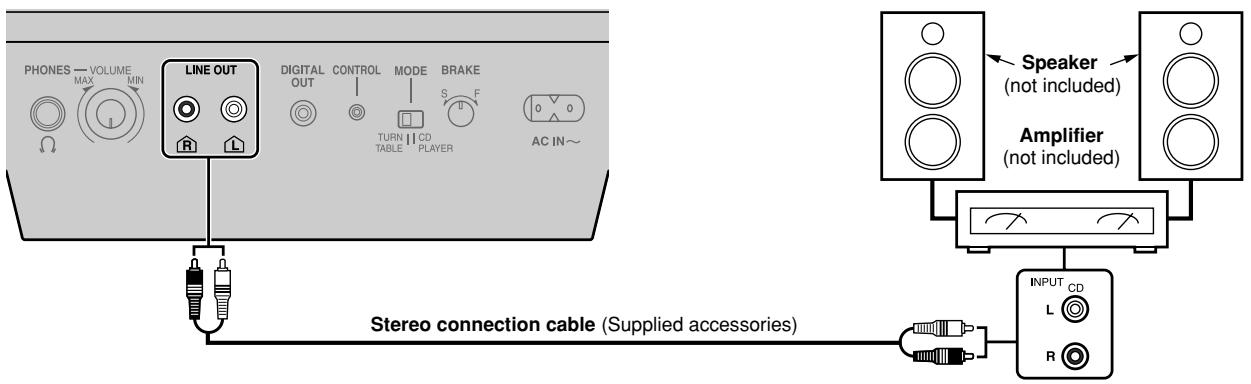
Rear panel
Connecting to equipment with digital input terminals
Connect to the digital input terminal on the DJ mixer or amplifier with digital input terminals using the connection cables (not included).
- SD Audio cannot be output from this unit's digital out terminals.
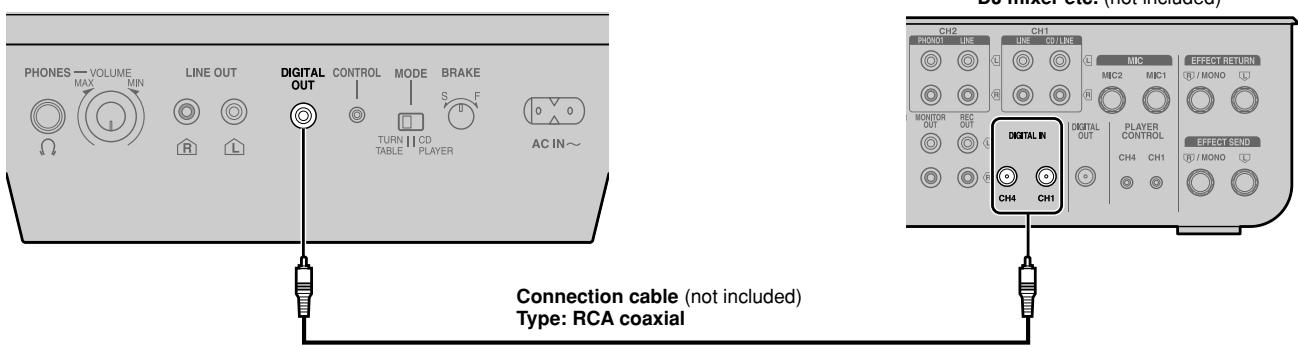
Rear panel
Rear panel
Front panel
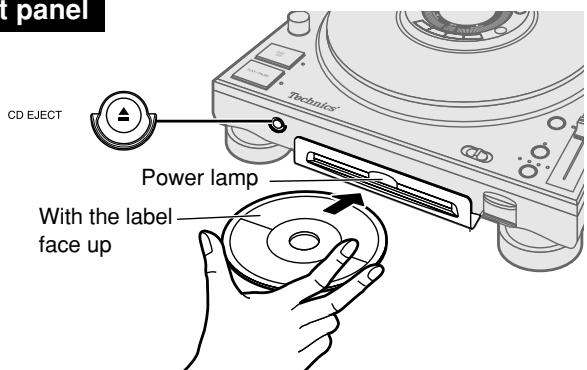
Inserting a disc
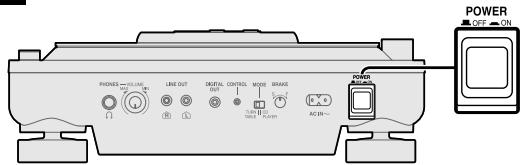
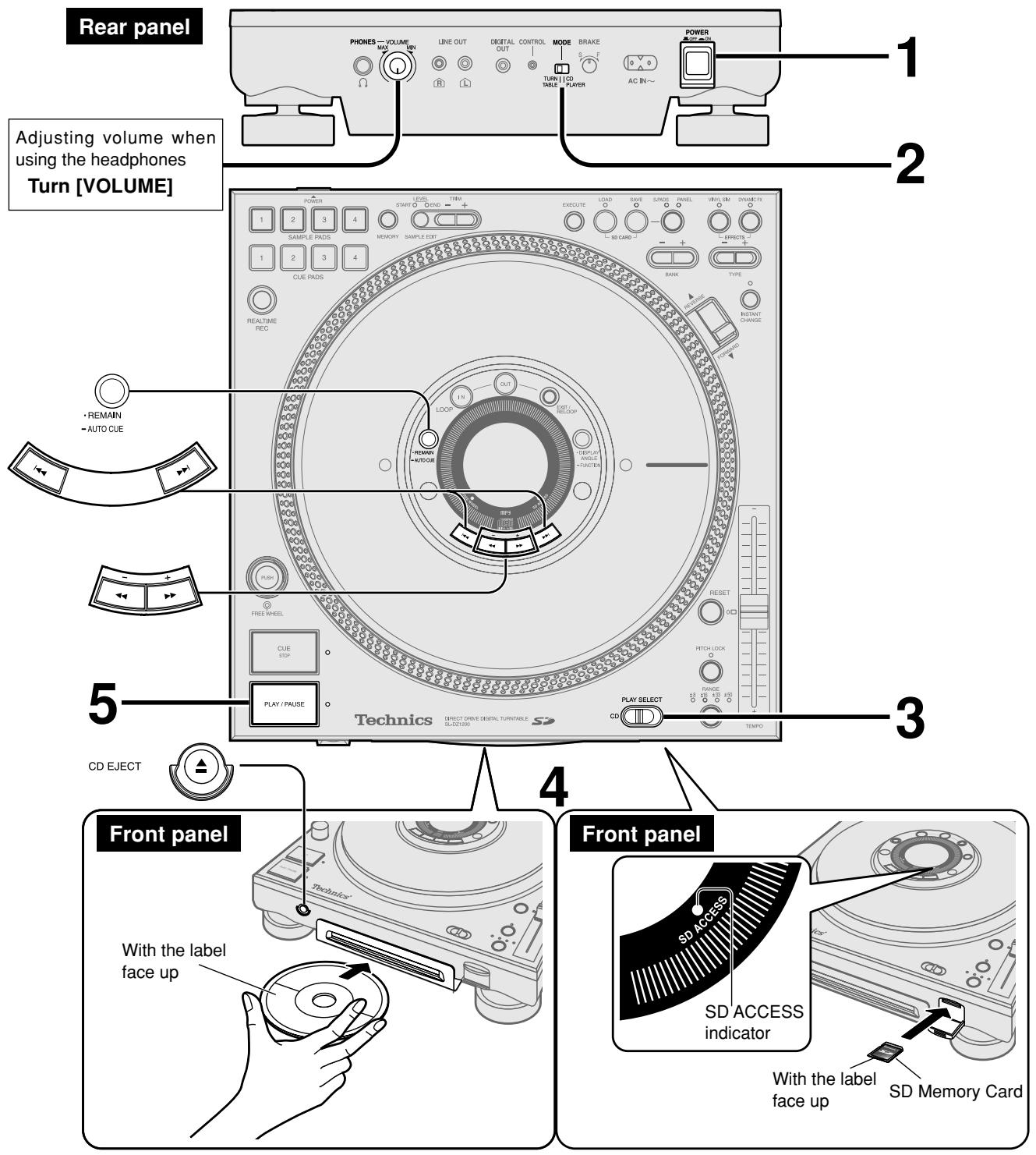
1. Press [POWER OFF ON] on the rear of unit
The unit power is on. The display comes on and the power lamp lights.
2. Insert a disc
- Insert the disc flat and parallel into the CD slot, with the label up. The unit will automatically load the disc.
- You cannot use an 8 cm disc.
Note
-Do not insert a disc when the power is off.
- Do not insert 2 or more discs.
- Do not try to insert the disc using unnecessary force that may bend the disc. When the unit is loading or ejecting a disc, do not apply opposing force to the disc. Not following the above steps may result in damage to the disc or unit.
Removing a disc
While stopped or while paused
1. Press [▲ CD EJECT]
- Press the button and the disc will come out.
- If you press while playing in TURNTABLE mode, a message appears in the display and play continues. Make sure to press after pausing play.
- If you do not remove the disc within approximately 10 seconds the unit will automatically re-load the disc.
To remove
2. Press again
- Remove as indicated in the illustration without touching the playing surface.
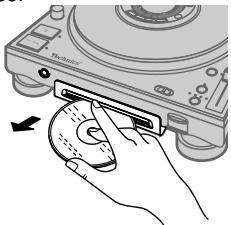
Forced disc eject
You can forcefully eject a disc when the disc does not eject even after pressing [CD EJECT].
- Press [POWER OFF ON] to turn the power off
- Press [POWER OFF ON] again holding down [CD EJECT] to turn the power on, and then release [CD EJECT] after "DZ1200" appears in the display
Front panel
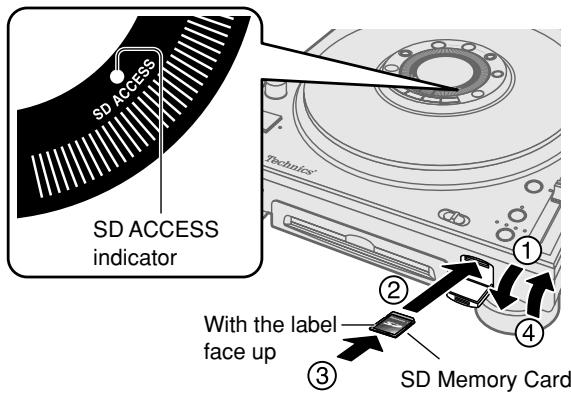
Inserting a SD Memory Card
- Open the SD Memory Card slot lid
- With the label on the card facing up and the notched edge facing the unit, insert the card
- Insert until the card locks into place
- Close the lid
Removing a SD Memory Card
After confirming the SD ACCESS indicator is not flashing, open the lid and press on the center of the SD Memory Card to release the lock and pull the ejected card out carefully, then close the lid.
- The SD ACCESS indicator flashes when the SD Memory Card is being accessed. Do not turn off the power or try to open the lid and remove the card while the indicator is flashing. (Doing so may result in a loss of saved data.)
Note
- Make sure to always close the SD card slot lid. If you try using when the lid is open, "NO SD CARD" or "SD LID OPEN" will appear in the display and operation will not be possible.
| Playable media | Reference Page | |
| CD | COMPACT DIGITAL AUDIO | 25 |
| CD-DA audio that is finalized on a CD-R or CD-RW | 12, 22 | |
| MP3 files (WMA is not supported) | ||
| SD Memory Card (SD audio) | Secure AAC | 22 |
| Secure MP3 (WMA is not supported) | ||
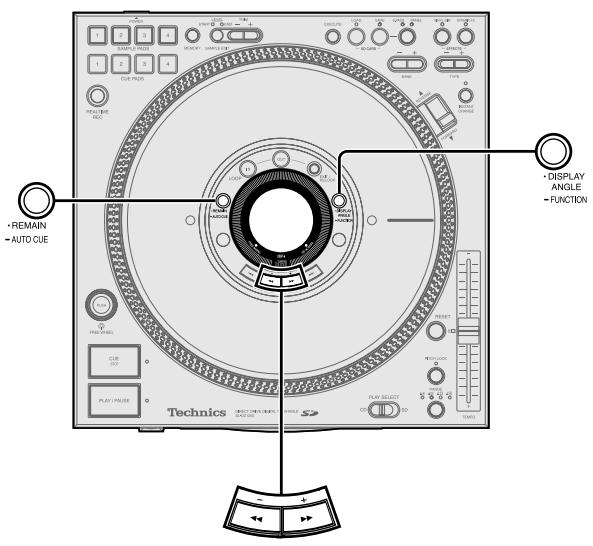
Displaying the remaining time
While playing a CD, SD Memory Card Press [REMAIN -AUTO CUE]
- "REMAIN" appears and the remaining play time of the track is displayed.
- Pressing again will return the time display to its original state.
- When you are playing a MP3 file from a CD-R or CD-RW the remaining play time will not be displayed if you press [●REMAIN -AUTO CUE].
- When there is less than 30 seconds of time remaining, you are notified by the flashing time display. With a MP3 file from a CD-R or CD-RW, the time display flashes if there is less than 7 seconds of time remaining. However, depending on the operation, the flashing indicator in the display may not appear.
Changing the display angle
You can rotate the display angle corresponding to the way the unit is setup.
Press [-DISPLAY ANGLE -FUNCTION] to select the display angle
- The angle of the display rotates 90 degrees clockwise each time the button is pressed.
- The setting remains in memory even when the power is turned off.
Adjusting the display contrast
1. Press and hold [DISPLAY ANGLE -FUNCTION] for about 2 or more seconds until the display changes
- "CONTRAST" is selected in the display.
2. Press [- ] , [+ ] to adjust the display contrast
- Press [- ] , [+ ] to change the display to the desired contrast (adjustable range: 1-100).
- If no buttons are pressed for more than 5 seconds, the time display returns to its original state.
- The setting remains in memory even when the power is turned off.
![PANASONIC SL-DZ1200 - Press [- ] , [+ ] to adjust the display contrast - 1](/content/2019/08/104411/images/855769572dcd487c1fb974662fbc06eac7049bf712187e0a4bbdcfee2ee66a01.jpg)
Displayed when using CD, SD audio
![PANASONIC SL-DZ1200 - Press [- ] , [+ ] to adjust the display contrast - 2](/content/2019/08/104411/images/e6605606ba416835f38243879209a77add1b929d07fd2d13d81d3e8b8d9a6da6.jpg)
Displayed when using MP3 files on CD-R and CD-RW
(1) Selected play media indicator
CD : Indicates CD is selected
SD : Indicates SD is selected
② Track number indicator
When using CD, SD Audio: Total number of tracks and the track being played is displayed When using CD-R, CD-RW MP3 files:
Total number of tracks and the track being played within the album is displayed
③ Current track position indicator
④ Change in tempo rate indicator
⑤ Auto Cue indicator
AUTO CUE : Indicates Auto Cue is on
(6) Cue bank indicator
⑦ REALTIME REC indicator
REC : Indicates the sample pad is in REALTIME REC operation
⑧ Beats per minute (BPM) indicator
Number of beats per minute, indicating track speed
Depending on the music, the BPM may not be detectable, or may take time to be displayed.
⑨ Play time (Minutes, seconds, frames), remaining time (CD, SD audio) indicator
Remaining time (REMAIN) indicator
Displayed only for CD, SD audio
① MP3 album number indicator
Indicated when using MP3 files
CD-MP3 (CD-R, CD-RW MP3 file) indicator
Auto Cue function (TURNABLE mode only)
When one of the media has been set, or when a track has been skipped, or when advancing to the next song while playing, the auto cue point automatically sets and pauses at the point just before audio begins, skipping the null sound area at the beginning of the track. Auto Cue is set to off as default.

Turning on Auto Cue
Press [REMAIN -AUTO CUE] for more than 2 seconds
- The display indicator changes from "AUTO CUE" to "RUTO CUE
Each time you press and hold the button:
AUTO CUE (Auto Cue is on) AUTO CUE (Auto Cue is off).
- The segment without sound that is skipped is a maximum of 15 seconds from the beginning of the track.
- The on or off setting remains in memory even when the power is turned off. Additionally, the setting stored to memory for each CD or SD Memory Card is restored once the set media is re-inserted.
Playing CD-R and CD-RW discs
This unit can play CD-DA formatted CD-R and CD-RW discs. CD-DA formatted discs must be finalized* at the final point of recording using a CD designed for music recording. CD-R and CD-RW discs containing MP3 files can also be played. However, play may not be possible on some discs depending on the state of recording.
※ Finalizing makes audio recordings compatible for play on equipment that supports play of CD-R and CD-RW discs that are designed for music recording.
1 Press [POWER OFF ON]
- The unit display will come on once the power is turned on.
2 Switch [MODE] to TURNTABLE
- Functions are limited when using the CD PLAYER mode.
(→ page 14)
3 Switch [PLAY SELECT] to select the media to be used
- When there is no media inserted, "NO DISC" or "NO SD CARD" appears in the display.
- You can control platter movement and adjust tempo once the media is inserted.
4 Insert a disc or SD Memory Card (→ page 10)
- Make sure to close the SD card slot lid as it will not work if left open.
- It takes several seconds for the disc to be loaded.
- When Auto Cue is on, the unit switches to standby at the first track's auto cue point. The CUE lamp flashes when the settings are being read and after reading is finished it changes to a stationary light.
When Auto Cue is off, the unit switches to standby at the beginning of the first track.
- The PLAY/PAUSE lamp begins flashing.
5 Press [PLAY/PAUSE]
When Auto Cue is on
- The platter begins rotating and synchronized with the platter, the first track begins playing.
- The PLAY/PAUSE lamp and the CUE lamp light.
- Once play of the first track has ended, play is paused at the second track's auto cue point. The platter stops at this point.
When Auto Cue is off
- The platter begins rotating, synchronized with the platter, the first track begins playing and the PLAY/PAUSE lamp lights.
- Play continues again from the first track once the last track is reached. (All track repeat)
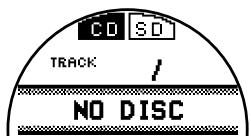
When no disc is inserted
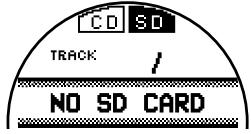
When no SD Memory Card is inserted
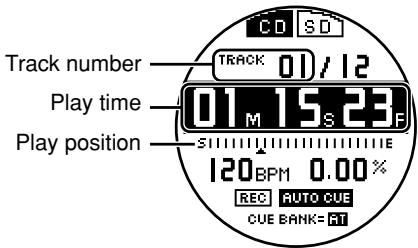
During CD play
Pausing
Press [PLAY/PAUSE] (to restart, press once more)
- PLAY/PAUSE lamp flashes and the platter stops.
Skipping forward or backward
Press [←], [▶]
- Skips each time the button is pressed or while being pressed.
- When Auto cue is on, the unit skips to the auto cue point just before where the selected track's audio begins.
Searching forward or backward
During play or while paused
Press and hold [- , [+ ]
- Hold the button to search.
- You cannot search beyond a track with MP3 files on CD-R, CD-RW.
- Sounds heard when searching become cut with MP3 files and SD Audio.
Regarding display indicators when the inserted media is not recognized
Re-insert correctly.
NO CD AUDIO TRACK: The CD type is not supported. (→ page 25), or was inserted upside down.
NO SD AUDIO TRACK: The SD Memory Card is unrecognizable because of damage or an error, or there is no track data.
Selecting MP3 albums, selecting SD audio tracks
Select the SD audio track stored on the SD Memory Card or the MP3 album on the CD-R, CD-RW. (→ page 22, Regarding MP3 albums and SD audio)
1. Switch [PLAY SELECT] to select the media to be used
2. Press [1 1] [1 1] to select the track
- The album number of the CD-R, CD-RW MP3 album appears in the display.
- The memorized track name etc. that is selected appears in the display when played. (Up to 32 alphanumeric characters.)
- When using SD audio on a SD Memory Card, a track only from the default playlist can be selected or played.
Removing the CD
While paused
Press [CD EJECT]
- The eject indicator appears in the display and the disc is ejected.
- When you press during play, the CD does not eject, a message appears in the display and play continues.
Removing the SD Memory Card ( page 10)
- Remove after play has ended.
- The SD ACCESS indicator flashes when the SD Memory Card is being accessed. Do not turn off the power or try to open the lid and remove the card from the SD Memory Card slot while the indicator is flashing. (Doing so may result in a loss of saved data.)
Selecting TURNTABLE mode or CD PLAYER mode
You can select to use the unit as a turntable, or as a CD player.
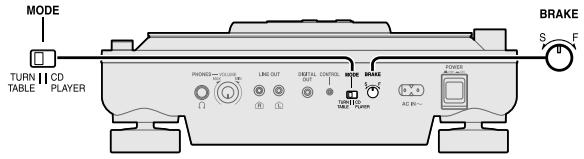
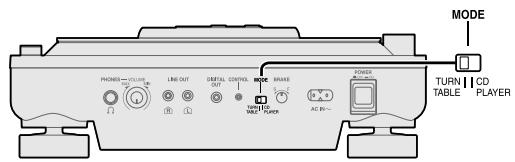
On the rear panel, switch [MODE] to either TURNTABLE or CD PLAYER
TURNTABLE : A mode for DJ play, all functions are useable.
- Panel data (→ page 19) set on this unit is memorized on this unit.
- When using CD-R, CD-RW MP3 files, the total number of tracks and total album number are not displayed. Confirm by switching to the CD PLAYER mode.
CD PLAYER:
The mode best suited for play as an audio player.
You can use DJ play functions excluding the following limited functions.
Limited functions
- Panel data cannot be automatically stored or read.
- The platter does not rotate. The platter slip surface cannot be operated.
The auto cue and cue bank functions do not work. - The instant change function does not work.
Automatic settings immediately after switching modes
- The RESET lamp comes on and returns to normal play speed.
- DJ play functions like dynamic effect and so on are automatically switched off.
Basic play operation ( page 12-13) changes
- In step 2, switch to the CD PLAYER side.
- In step 5, press [PLAY/PAUSE] and play of the first track begins, and once the end of track is reached the PLAY/PAUSE lamp goes out and play stops.
Display indicator when stopped
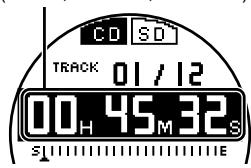
When using CD, SD Audio:
Total play time is displayed.
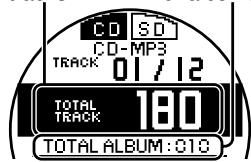
When using CD-R, CD-RW MP3 files: The total number of tracks and total number of albums are displayed.
To start play Press [PLAY/PAUSE].
- To stop play Press [CUE STOP].
- To eject the CD
During play, you can also press the CD eject button to eject the disc.
Total play time (Hours, Minutes, Seconds)
Total number Total number of tracks of albums
Instant play (INSTANT CHANGE)
When in the TURNTABLE mode and Instant Change is off, the sound when starting and pausing is synchronized with the starting and stopping of the platter. When Instant Change is on, just like pressing [PLAY/ PAUSE] on a normal CD player, play is paused or starts instantly. This is a feature specific to digital turntables.
Press [INSTANT CHANGE]
-
The INSTANT CHANGE lamp lights.
-
Pressing [INSTANT CHANGE] again will cancel the setting.
- The Instant Change on or off setting for each CD or SD Memory Card is stored to memory, and the setting is restored once the set media is re-inserted.
Using the FREE WHEEL mode
While in TURNTABLE mode Press [PUSH]
- The platter drive motor stops. When playing, the platter comes to a gradual stop, and the sound playing is synchronized to the platters movement.
- The strobo illuminator light goes out, and the FREE WHEEL indicator flashes in the display.
- You can press [PUSH] again to release.
- Turning the power off will erase the settings.
![PANASONIC SL-DZ1200 - While in TURNTABLE mode Press [PUSH] - 1](/content/2019/08/104411/images/23223a7565c6d3dcce370db1b990f73a43792910924719c73a9c63e786e4028e.jpg)
FREE WHEEL indicator
Adjusting the platter brake
While in TURNTABLE mode, you can adjust the brake speed for the platter to come to a stop by pressing [PLAY/PAUSE] during play.
On the rear panel, turn [BRAKE]
S (Slow) direction : Slow stop
F (Fast) direction : Fast stop
Adjusting the auto cue level
When the Auto Cue function is on (→ page 12), depending on the track, the auto cue point may not be set at the point just before where the audio begins. In this situation you can adjust the auto cue level.
1. Press and hold [DISPLAY ANGLE -FUNCTION] for more than 2 seconds until the display changes
2. Press [↓] and from the display select "AUTO CUE LEVEL"
- "LEVEL -60 dB" appears in the display (initial settings example).
3. Press [- ] , [+ ] and select the level:
- Select from -36 dB, -42dB, -48 dB, -54 dB, -60 dB, -66 dB, -72 dB, -78 dB
- Sound that is lower than the set level is skipped as null sound.
4. Press [DISPLAY ANGLE -FUNCTION]
- The selection is automatically set if you do not press [DISPLAY ANGLE -FUNCTION] within 5 seconds.
- The set auto cue level for each CD or SD Memory Card is stored to memory, and the setting is restored once the set media is re-inserted.
![PANASONIC SL-DZ1200 - Press [DISPLAY ANGLE -FUNCTION] - 1](/content/2019/08/104411/images/b01d6c8fc04b724ebaadd63f30c0b30995e055b0bcf2a964a7a59e94e787e6a1.jpg)
![PANASONIC SL-DZ1200 - Press [DISPLAY ANGLE -FUNCTION] - 2](/content/2019/08/104411/images/9a62106d7b6124dfc6f57592ddc99009c18d3d943298333a176bd7708d6f0a71.jpg)
Before use
- Switch [PLAY SELECT] to select the media to be used
- Turn [MODE] on the rear panel to TURNTABLE
- Insert the SD Memory Card or CD to be used
Changing play with your hand
Play on this unit is synchronized with the platter when Instant Change is off. You can change the tempo using the platter slip surface.
Instant play
When Instant Change is off
- While the platter slip surface is stopped, press [PLAY/ PAUSE]
- Spin the platter slip surface when you want to start play
When Instant Change is on
Press [PLAY/PAUSE]
- For several seconds after the start of play the INSTANT CHANGE lamp flashes and the tempo or audio play cannot be changed even by operating the platter slip surface.
-You can also use the cue pad for instant play ( page 18)
Instant stop
When Instant Change is off
During play, hold and stop the platter slip surface, then press [PLAY/PAUSE]
When Instant Change is on
During play, press [PLAY/PAUSE]
Use your hand to vary the platter slip surface rotation speed
During play use your hand on the platter slip surface to increase or decrease tempo.
- Increasing or decreasing the rotation speed of the platter slip surface changes the tempo.
- The time display flashes and play sound does not change if the platter slip surface is operated immediately after the disc is loaded, or immediately after auto cueing.
-
Sound may not be output if you turn the platter slip surface immediately after pressing [▶], [▶▶] to skip a track.
-
You cannot use the platter slip surface to move from the 1st track back to the last track.
- When using CD-R, CD-RW MP3 files you cannot use the platter slip surface to move backward to the previous track.
- You can also use [TEMPO] to change the tempo. (→ page 16)
Basic play for DJs
Using the platter slip surface, you can improvise play with the platter slip surface speed and direction of play using your hand.
Braking
Stop the platter slip surface with your hand during play
- The audio being played will stop corresponding to the speed of the platter slip surface.
- Once you release the platter slip surface after you have stopped play, the audio will begin to play corresponding to the speed of the platter slip surface.
Spinning
Forcefully spin the platter slip surface faster than the platter slip surface speed during play
-
Play is controlled by the platter slip surface rotation speed.
-
If you spin the platter slip surface too fast, the sound and the time display will not keep pace.
Scratch playing
- Press and stop the platter slip surface during play
- Play stops.
- Turn the platter slip surface in the direction and speed you want to play
-
Play corresponds to the direction and speed of the platter slip surface.
-
Release your hand from the platter slip surface
-
Play returns to its original state.
-
When pitch lock (→ page 16) is on, the pitch does not change even if you move the platter slip surface with your hand.
Note
- In order to begin play from any state on this unit right away, the CD is always rotating. Because of this there may be some noise that occurs due to rotation, however this is not a malfunction.
- Switching [PLAY SELECT] during play or while paused, instantly stops play, a "PLEASE WAIT!" message appears in the display, and the unit returns to the beginning of the CD or SD Memory Card.
- The time display flashes and [PLAY/PAUSE] does not function immediately after the media is loaded, or immediately after skipping, searching or auto cueing.
Before use
- Switch [PLAY SELECT] to select the media to be used
- Turn [MODE] on the rear panel to TURNTABLE
- Insert the SD Memory Card or CD to be used
Changing tempo
You can change the tempo and pitch of the media being played.
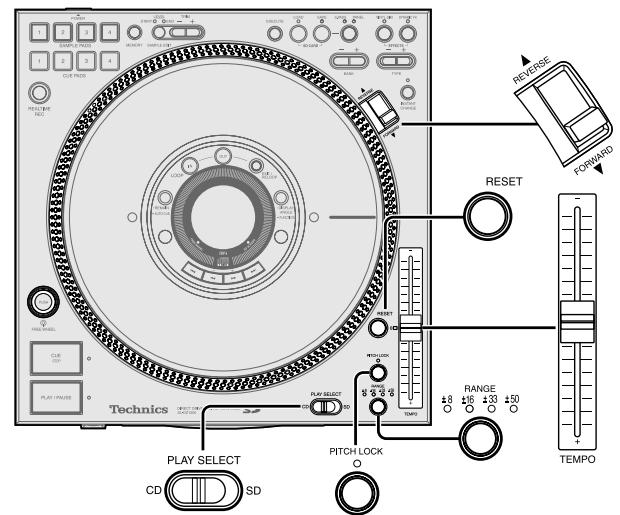
1 When the RESET lamp is lit Press [RESET] and the RESET lamp goes out
![PANASONIC SL-DZ1200 - When the RESET lamp is lit Press [RESET] and the RESET lamp goes out - 1](/content/2019/08/104411/images/7dcab48d50ecbd7df36ff92d5a856bb01f9897f0f19df7ba66536142eff95378.jpg)
2 Press [RANGE] to select the tempo variation range
Each time the button is pressed: ±8%→±16%→±33%→±50%
- When playing CD-R, CD-RW MP3 files or SD audio, only the ± 8% , ± 16% range can be selected.
- The larger the range number, the larger the change in tempo when using [TEMPO].
- The selected tempo variation range lamp lights.
3 During play, use [TEMPO] to make adjustments
- Use the scale on the panel for making approximate adjustments.
- The pitch will change with the tempo.
- When the power is turned off the range returns to ± 8% .
Tempo reset
Press [RESET]
- The RESET lamp lights and play instantly returns to normal play when playing.
- Tempo reset automatically turns off when the power is turned off.
Checking tempo
The change in tempo rate appears in the display.
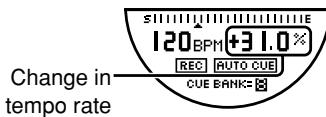
- You can check the relative change in tempo when the strobo light reflects on the three rows of strobo dots on the peripheral edge of the platter when rotating.
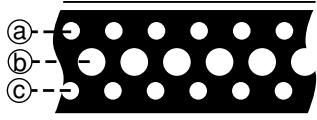
Strobo dots
@ When the dots appear to be stationary, the tempo setting has changed about +3.5% .
⑥ When the dots appear to be stationary, the tempo is at normal setting.
C When the dots appear to be stationary, the tempo setting has changed about -3.5% .
Note
The strobo dot illuminator is a synchronized and precise frequency quartz illuminator (Red LED). Be sure to use this red LED as the basis when checking tempo.
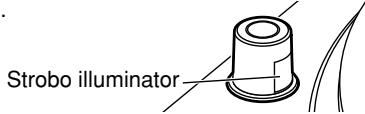
Locking the pitch
You can change the tempo without affecting the pitch.
Press [PITCH LOCK]
The PITCH LOCK lamp lights.
Sound quality will change due to digital processing.
- Making a big adjustment to the rate of change in tempo may cause the occurrence of digital noise.
- By rotating the platter slip surface with the pitch lock set to on, you can play using the platter slip surface without changing the original pitch.
- Pitch lock automatically turns off when the power is turned off.
Reverse play (Reversing the platter)
You can reverse play a track.
Set the play direction switch to REVERSE side
- The platter spins in reverse, and reverse play starts.
- Reverse play is synchronized with the platter, therefore it may take time for it to come up to the normal rated speed. Use Instant Change to make quicker changes.
-
The direction you increase or decrease tempo with your hand on the platter slip surface is also reversed.
-
You cannot reverse play from the 1st track back to the last track.
- You cannot perform reverse play beyond a track with MP3 files on CD-R and CD-RW.
- When using reverse play, the start of play for cue pad play or loop play that is longer than 15 seconds may be delayed (→ page 18).
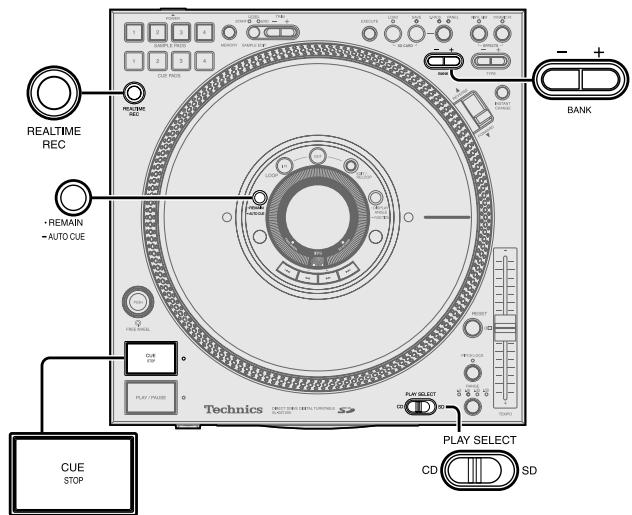
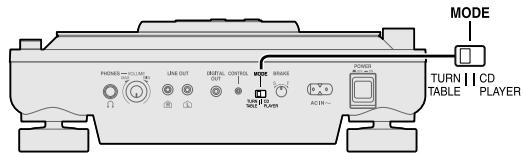
Before use
- Switch [PLAY SELECT] to select the media to be used
- Turn [MODE] on the rear panel to TURNTABLE
- Insert the SD Memory Card or CD to be used
Setting the auto cue point
You can automatically set the auto cue point and pause just before the beginning of the audio you want to play.
1 When Auto Cue is off
Press [·REMAIN -AUTO CUE] for more than 2 seconds until “AUTO CUE” appears in the display
2 Perform track skip or play to move to the beginning of the track you want to set
- The unit pauses just before the beginning of the track's audio, the CUE lamp lights and the auto cue point is set.
"31" is displayed in the cue bank display.
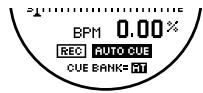
- After returning to the set point, the play point is moved in synchronization with the platter slip surface. When you reverse the platter slip surface with your hand and when the platter slip surface has moved back to the previous track because of the brake setting, pressing [PLAY/PAUSE] to begin play stops play again at the auto cue point.
- The CUE lamp flashes several seconds immediately after setting and platter slip surface operation may not be possible.
- Setting again erases previous auto cue points.
Storing the auto cue point to cue bank memory
1. Set the auto cue point ( indicated above)
- "F11" appears in the cue bank indicator display.
2. Perform step 1, 2, 4 in the Setting the cue point at any point section ( right side of page)
- The selected cue bank number reverses display and is stored in memory.
- If you do not select the cue bank, a "CUE BANK ERROR" message appears in the display. Select the cue bank and re-set.
Setting the cue point at any point
You can set a cue point at any point of a track and easily recall any desired cue point.
You can save up to 10 cue points from one CD or one SD Memory Card to cue bank memory.
1. Press [- + BANK] to select the cue bank
- Once a point has been stored to a cue bank (1-10), the cue bank number indicator in the display reverses display.
![PANASONIC SL-DZ1200 - Press [- + BANK] to select the cue bank - 1](/content/2019/08/104411/images/a72831b12290f5cb28b7ee8fc2e953365e2c86ce71c8e505462ec344b3b4bb83.jpg)
(e.g.) cue point is stored in memory
2. During play or while paused, press [REALTIME REC]
- All the SAMPLE PADS, CUE PADS 1-4 pad lamps and the CUE lamp flash.
- Press [REALTIME REC] again to cancel.
3. Turn the platter slip surface to position play to start just before the beginning of audio
- If the cue point is set at an audible point, the point immediately following becomes the cue point.
- Make certain the platter slip surface is completely stopped.
4. Press [CUE STOP]
- The CUE lamp lights, the selected cue bank number reverses display and is stored in memory.
- When the reverse displayed cue bank number is selected, it is overwritten.
5. Repeat the above steps to store additional cue points
- The cue bank for each CD or SD Memory Card is stored to memory, and the setting is restored once the set media is re-inserted.
Play from the stored point
Before use:
- When using the auto cue point
When "F11" does not appear in the cue bank number display
Set the auto cue point ( left side of page)
- When using the cue point
Press [- + ] and select the desired cue bank
- Select the cue bank of the number indicator that has reversed in the display.
- You cannot select "R1" by pressing [- + BANK] .
Returning to the auto cue point, cue point (Back cue)
When Instant Change is off
During play or while paused, stop the platter slip surface and press [CUE STOP]
- The unit returns to the set point, the PLAY/PAUSE lamp flashes and play pauses.
- You cannot operate the platter slip surface for several seconds immediately after back cueing.
- During play, pressing [CUE STOP] without stopping the platter slip surface, will move the play point in synchronization with the platter slip surface after having returned to the set point.
When Instant Change is on
During play or while paused, press [CUE STOP]
- During play, without stopping the platter slip surface the unit returns to the set point.
- Immediately following platter slip surface operation the INSTANT CHANGE lamp flashes and after several seconds sound is output.
![PANASONIC SL-DZ1200 - During play or while paused, press [CUE STOP] - 1](/content/2019/08/104411/images/1a545d60852b66ad82136f804388cf33cd1687769f379a5fec552b690b11acc3.jpg)
Before use
- Switch [PLAY SELECT] to select the media to be used
- Turn [MODE] on the rear panel to TURNTABLE
- Insert the SD Memory Card or CD to be used
Play from the stored point
Play after back cueing
After performing back cue, press [PLAY/PAUSE]
- Play begins from the set point.
Correcting the cue point
1. Perform back cue
- Perform steps 2-4 in the Setting the cue point at any point section again. ( page 17)
- A new cue point is stored to memory.
Storing to the CUE PADS and playing
You can store cue points to CUE PADS and immediately replay one of those points by inserting the media and simply pressing the appropriate pad.
Storing to the CUE PADS in real-time
1. During play or while paused, press [REALTIME REC]
- All SAMPLE PADS, CUE PADS 1-4 pad lamps and CUE lamp flash.
- Press [REALTIME REC] again to cancel.
2. At the desired point, press one of the [CUE PADS 1-4]
- The play point selected is stored in memory. The previously stored data is erased if it exists.
-
The selected pad lamp lights.
-
The CUE PADS data for each CD or SD Memory Card is stored to memory, and the setting is restored once the set media is re-inserted.
Playing from the CUE PADS
Press one of the lit [CUE PADS 1-4]
- Even if you are playing, play immediately begins from the point stored to the CUE PADS. When paused in the TURNTABLE mode, the platter begins to turn and play.
- During play of the CUE PADS, if you press the same pad again, play will repeat from the beginning of the memorized point.
- During play of the CUE PADS, if you press a different pad, play will switch to the selected pad.
Stopping cue pad play
Press [PLAY/PAUSE]
- The PLAY/PAUSE lamp flashes and play pauses.
Store desired points to memory and play (loop play)
During media play you can set any 2 desired points to loop play.
Creating a loop
1. During play, press LOOP [IN] at the desired point
- LOOP IN lamp lights.
- Press LOOP [IN] again to set again.
- After pressing LOOP [IN] you can cancel settings by pressing [EXIT/RELOOP].
To set in real time
Press LOOP [IN] to set the desired point
To set manually
- Stop the platter slip surface at the desired point
- Press LOOP [IN]
To set using the cue point transferred from memory
- Select the cue bank and back cue
- Press LOOP [IN]
2. During play press LOOP [OUT]
Repeat step 1 above to set.
-
The LOOP OUT and IN lamp flashes, and play begins looping between the loop in point and the loop out point.
-
Turn off Auto Cue before setting or playing a loop beyond a track.
- When setting the loop setting again, perform the above steps after canceling loop play by pressing [EXIT/RELOOP].
- You can also control the platter slip surface and make tempo adjustments etc. during loop play.
- During loop play, looping is released when you have exceeded the loop range using the skip or search button.
- The loop points for each CD or SD Memory Card are stored to memory, and the settings are restored once the set media is re-inserted.
Loop release (Cancel)
During loop play, press [EXIT/RELOOP]
- Play continues without returning to loop play even when the loop out point is reached.
- The LOOP IN, OUT lamps change to stationary lights.
Re-loop (Returns to a loop)
After releasing a loop, press [EXIT/RELOOP] during play
- Returns to the loop in point previously set and begins loop play again.
When using CD-R, CD-RW MP3 files
- When you reverse play while using cue point, cue pad or re-loop, reverse play is not effective beyond the set starting point.
Note
Storing panel data to this unit (TURNTABLE mode only)
-
The unit stores following panel data for each CD or SD Memory Card. It can store data for up to 50 CDs or SD Memory Cards.
-
Auto Cue on, off and auto cue level
-
Cue bank
-
Instant change
-
Loop in, Loop out
-
Cue pad 1-4
Dynamic effect
-
Vinyl simulator
-
If the unit's memory exceeds 50 CDs or SD Memory Cards worth of data items, a message indicating replacement appears in the display and data items will be overwritten and replaced in the order of the oldest used first.
- You can save this panel data for each CD or SD Memory Card to a SD Memory Card. (→ page 21, Saving to a SD Memory Card)
- In CD player mode, panel data cannot be automatically stored or read.
Automatic read when media inserted (TURNTABLE mode only)
- When media with recorded data is inserted into the unit, the settings are automatically read.
While the unit is reading the media, each of the lamps for the cue pad 1 to 4, CUE, LOOP IN, and OUT flash rapidly, and are set in order. Pushing the cue pad, or the CUE or loop play buttons while the lamp is flashing rapidly will give that pad or button priority to be set, and then played. The start of play may be delayed.
When reading has completed, the lamps stop flashing, and remains lit.
MP3 files on CD-R and CD-RW, or SD audio take more time to read than CD audio. Use only once the lamp has stopped flashing and remains lit after pressing the cue pad, or the CUE or loop play buttons.
- The lamps may flash rapidly while the media is being read even when carrying out other operations.
- Removing the media, or switching [PLAY SELECT] erases the settings, however re-inserting the media restores the settings.
Recording to the SAMPLE PADS and playing
You can record audio to the sample pads for replay.
You can record up to a maximum total of 32 seconds using SAMPLE PADS 1-4.
Recording to the SAMPLE PADS in real-time
1. Press [REALTIME REC] while media is being played
- All SAMPLE PADS, CUE PADS 1-4 pad lamps and CUE lamp flash.
- Press [REALTIME REC] again to cancel.
2. Press one of the [SAMPLE PADS 1-4] and recording starts
- The selected SAMPLE PADS lamp flashes.
REC indicator changes to REC in the display. - Previous pad data is erased at the start of recording if it exists.
- Recording automatically ends when the pads total recording time reaches 32 seconds.
3. At the end point press the same sample pad again
- The SAMPLE PADS lamp changes to a stationary light and recording ends.
-
REC indicator reverts back to REC in the display.
-
You can also control the platter slip surface and adjust the tempo during recording.
- You can also edit sample pad data. (→ page 20)
- Recorded sample pad data is erased when the power is turned off. To avoid losing data you can save to the SD Memory Card. (→ page 21, Saving to a SD Memory Card)
Playing from the SAMPLE PADS
Press one of the lit [SAMPLE PADS 1-4]
- The lamp of the pad you pressed begins to flash and play begins.
- During play, if you press one of the lit sample pads, dual play begins and mixed sound is output. You can perform dual play using up to 2 sample pads.
-
Once the end of the play is reached the SAMPLE PADS lamp changes to a stationary light. Play ends if you press the pad again during play.
-
When playing only the sample pad, the platter slip surface does not rotate even in the TURNTABLE mode.
- When playing media, you can mix sound by also playing the sample pad. Sound may become distorted depending on the audio level. You can adjust the sample pad level. (→ page 20, Editing the SAMPLE PADS)
Select play mode and play
1. Press [SAMPLE EDIT] and select "PLAY MODE SELECT"
- Play mode selection is not possible when nothing has been recorded to the sample pad.
Each time you press the button:
$$ \begin{array}{c}\text {S T A R T} \rightarrow \text {E N D} \rightarrow \text {L E V E L}\\text {P L A Y M O D E S E L E C T} \rightarrow \text {O K}?\end{array} $$
START : (Edit the data starting point)
END : (Edit the data ending point)
LEVEL : (Edit the volume level)
PLAY MODE SELECT : Selects the play mode
EDIT WRITING OK? : (Select to store to memory or not)
2. Press one of the recorded sample pads
- The selected sample pad flashes and play begins.
3. Press [- ] , [+] to select the play mode
- The play mode indicated in the display changes each time you press the button.
ONE SHOT & REPLAY ONE SHOT & STOP LOOP
ONE SHOT & REPLAY :
Plays from the start and ends once the end of play is reached.
During play, press again and play begins from the start.
ONE SHOT & STOP :
Plays from the start and ends once the end of play is reached.
During play, press again and play stops.
LOOP
Plays from the start, and after reaching the end of play, play continues from the beginning again. Press again and play stops.
- Repeat steps 2-3 above to set other pads.
4. Press [MEMORY]
- "COMPLETED" appears in the display and the play mode is saved on the main unit.
- The sample pad lamp light comes back on.
5. Press the same sample pad to play
-
Play starts with the selected play mode.
-
If you don't want to store to the main unit's memory, press [SAMPLE EDIT] and select "EDIT WRITING OK?" and press [+ ] to select "NO" from the display.
Erasing cue pad, sample pad, loop play data
1. Until "DATA ERASE OK?" appears, press one of the lit pads or buttons (longer than 2 sec.) cue pads 1-4, sample pads 1-4, LOOP [IN] or [OUT].
2. Press [- ] and select "YES" from the display
- During play, audio play stops.
- "COMPLETED" appears in the display and the data of the button you selected is erased.
- The selected button lamp goes out.
- Pressing [+ ] to select "NO" cancels the operation and returns to the original display.
![PANASONIC SL-DZ1200 - Press [- ] and select "YES" from the display - 1](/content/2019/08/104411/images/4677e9171ba35bad13985aa894ecdaac0735ac7f53d2dc76f595b5b28425f904.jpg)
Before use
- Switch [PLAY SELECT] to select the media to be used
- Turn [MODE] on the rear panel to TURNTABLE
- Insert the SD Memory Card or CD to be used
Changing sound to simulate analog
You can change CD or SD Memory Card audio to simulate an analog turntable.
1 Press [VINYL SIM]
- The VINYL SIM lamp lights.
- During play, the sound changes to the type that has been set.
2 To select the type
Press [- + TYPE] to select the type
- Analog simulation type: TYPE 1 to TYPE 8
1 SL1200: Like using a SL1200 analog turntable
2 MAKE UP: Like using a cartridge that emphasizes high and low range sounds
3 WIDE RANGE: Like using a cartridge with wide range characteristics
4 VIVID: Like using a cartridge with vivid characteristics
5 LOW RANGE: Only low range sound is output producing a muffled sound
6 HIGH RANGE: Only high range sound is output producing a crisp sound
7 OLD RADIO: Like listening to an old radio
8 TELEPHONE: Like speaking on an analog telephone
- If no buttons are pressed for more than 5 seconds, the display returns to its original state.
- This feature simulates the fine acoustic characteristics of an analog turntable's cartridge. Depending on the external equipment connected, the difference between analog simulation types may be difficult to notice.
- You can use together with DYNAMIC FX.
- Press [VINYL SIM] again to cancel.
- The set type for each CD or SD Memory Card is stored to memory, and the setting is restored once the set media is re-inserted.
Change sound with combined performance
You can change the sound when using the platter slip surface.
1 Press [DYNAMIC FX]
- The DYNAMIC FX lamp lights.
- During play, the sound changes to the type that has been set.
2
To select the type
Press [- + TYPE] to select the type
- Special effect types: TYPE 1 to TYPE 8
1 ONE WAY: Generates sound only when the platter slip surface is operated in the forward direction.
2 TT DIST: Distorts the sound. The depth of the distortion can be changed using the platter slip surface.
3 TT WAH: Introduces a Wah Wah effect.
4 AIR HAMMER: Changes the sound intermittently
5 TT PAN: Changes the sound image from left or right by use of the platter slip surface.
6 AUTO PAN: Automatically rolls the sound image from left or right and back.
7 CRUSH RING: Distorts the sound. The speed of distortion can be changed by using the platter slip surface.
8 RING STORM: Sound simulates ringing of the wind.
- If no buttons are pressed for more than 5 seconds, the display returns to its original state.
- Effects are different in the CD PLAYER mode, and there are also some effect types that are not output unless the platter slip surface is being rotated.
- You can use together with VINYL SIM.
- Press [DYNAMIC FX] again to cancel.
- The set type for each CD or SD Memory Card is stored to memory, and the setting is restored once the set media is re-inserted.
Editing the SAMPLE PADS
You can edit the start point or end point and volume of data recorded to SAMPLE PADS.
1 Press [SAMPLE EDIT] and select the item to be edited
Each time you press the button:
$$ \begin{array}{c}\text {S T A R T} \rightarrow \text {E N D} \xrightarrow {\text {L E V E L}}\\uparrow\end{array}\text {P L A Y M O D E S E L E C T} \xrightarrow {\text {E D I T W R I T I N G}} \text {O K}? $$
START:Beginning of data segment (START lamp indicator lights)
END : Ending of data segment (END lamp indicator lights)
LEVEL : Volume (START and END lamp indicators light)
PLAY MODE SELECT : (When selecting the play mode)
EDIT WRITING OK? : (Select to store to memory or not)
2 Press one of the recorded [SAMPLE PADS 1-4]
- The selected sample pad plays and the sample pad lamp flashes.
3 Press [- + TRIM] to change the data
- Time or level appears in the display.
- Smallest unit of adjustment
START, END : 1 frame (1 sec. per 75 frames)
LEVEL : 1 dB (-24dB to + 24 dB) - Pressing selected sample pads while editing confirms changes.
Sound may be distorted if the LEVEL is too high. - If data is trimmed and stored, you cannot restore to the original length.
4 Modifying other data
Perform steps 1-3 indicated above.
5 Storing to memory
Press [MEMORY]
- “COMPLETED” appears in the display and all sample pad data is stored.
- The selected sample pad lamp lights and the lamp of the edit item goes out.
Not storing to memory
Press [SAMPLE EDIT] to select "EDIT WRITING OK?",
And press [+ ] to select "NO" from the display
- The lamp of the selected sample pad changes to a stationary light, and the original data is returned.
- Pressing [- ] to select "YES" from the display will store to memory.
![PANASONIC SL-DZ1200 - And press [+ ] to select "NO" from the display - 1](/content/2019/08/104411/images/71e86cc54e41183518479c9c3c7a795fa5629609895f66de5150630c0ac57b5f.jpg)
Before use
- Switch [PLAY SELECT] to select the media to be used
- Insert the SD Memory Card or CD to be used
Saving to a SD Memory Card
You can save sample pad 1-4. You can also save panel data for each CD or SD Memory Card from this unit to a SD Memory Card.
1 Insert a SD Memory Card (→ page 10)
- You will not be able to save to the SD Memory Card if the write lock switch is set to LOCK on the SD Memory Card. Release the lock and re-insert.
2 Save the data
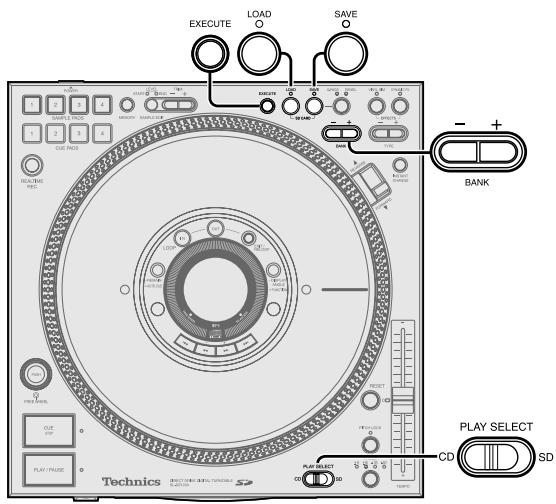
1. Press SD CARD [SAVE]
- The SAVE lamp lights. "SD SAVE" screen appears in the display.
2. Press [S.PADS, PANEL] to select the mode
Each time you press the button:
S.PADS PANEL
S.PADS: Sample pad 1-4 data (S.PADS lamp lights)
PANEL : Can only select in TURNTABLE mode Panel data such as cue pad data etc. (PANEL lamp lights)
3. The PANEL mode file name is automatically assigned by the unit.
When only using S.PADS mode
Press [- + BANK] to select the file
- Press and hold [- + BANK] to load in high speed.
- Display of the selected file is reversed. (File example) 001ABCDE, 002FGHIJ...
- You can give a name to a file.
(→ right side of page, Giving a name to the sample pad file)
- Press [SAVE] again to cancel.
4. Press [EXECUTE] to begin
- If "REPLACE OK?" appears in the display (→ bottom of page)
- Saving of data begins, "NOW SD SAVING" appears in the display. Saving sample pad data to a SD Memory Card may take up to 50 seconds.
- The SAVE lamp goes out once saving has finished and "COMPLETED" appears in the display.
When "REPLACE OK?" appears in the display while saving
The selected sample pad file already has data.
To overwrite, select "YES" by pressing [- ] from the display.
To not save, select "NO" by pressing [+ ] from the display.
Note
- You can only save panel data when you have inserted the CD or SD Memory Card for which that data has been stored.
- Pressing [SAVE] during play displays a warning message and play continues.
-
The panel data file name is automatically assigned by this unit. Automatic loading on this unit ( page 22) may not work if you use a computer to change the panel data file name saved on a SD Memory Card.
-
If you save the panel data for the same media previously set to a SD Memory Card, the previously saved data is overwritten. If you save CD panel data and don't want to overwrite, you can use a new SD Memory card to save.
Sample pad file names
(Example) 001ABCDE
First 3 digits: Can be numbers between 001-999 (Un-changeable)
(The maximum number of files is 999 files.)
Last 5 digits: File name (Changeable)
- File names will become blank if there is no data in the file.
- Files without names will be saved as “_” (underbars).
Giving a name to the sample pad file
You can give a name to the sample pad file when saving to the SD Memory Card.
After selecting the file in step 3 on the left, Save the data
1. Press [+ ] to select "NAME" from the display
- The "NAMING" screen appears in the display.
2. Press [i], [▶] and select the character to change
- The selected characters (only last 5 digits) become reverse displayed.
3. Press [- ] , [+ ] to select the input characters
- Press and hold [- ] , [+] for high speed search.
- Characters that can be input
ABCDEFGHJKLMNOPQRS TUVWXYZ0123456789
- Press [SAVE] again to cancel.
4. Repeat steps 2-3 to give the file a name (only last 5 digits)
5. Press [EXECUTE] to save
Deleting sample pad files
You can delete sample pad files saved on a SD Memory Card.
After selecting the file in step 3 on the left, Save the data
1. Press [- ] to select "DEL" from the display
- "SD DELETE" screen appears in the display.
2. Press [EXECUTE] to perform deletion
- Files with no data cannot be deleted. Trying to delete them will result in a "FILE SELECT ERROR" message being displayed.
Deleting panel data saved on a SD Memory Card
If the SD Memory Card has become full and you can no longer save panel data, you can delete the panel data on the SD Memory Card corresponding to the inserted media.
After selecting "PANEL" in step 2 on the left, Save the data
Press [- ] to select "DEL" from the display
- The panel data on the SD Memory Card is deleted.
- If the panel data corresponding to the currently inserted media does not exist on the SD Memory Card, "DEL" is not displayed and the panel data cannot be deleted.
Data saved to a SD Memory Card
S.PADS mode (1 Bank: MAX. 5.4 MB)
MB means one million bytes.
Maximum of 32 seconds data from SAMPLE PADS 1-4
PANEL mode
-
Auto Cue on, off and auto cue level
-
Cue bank -Instant change
- Loop in, Loop out -Cue pad 1-4
- Dynamic effect - Vinyl simulator
Formatting the SD Memory Card
All data is erased and the SD Memory Card is formatted. Useable capacity will be less. Useable capacity may differ from that indicated on the media.
Use only when you want to erase all files or when there is data on the card that cannot be read.
1 Insert the SD Memory Card (→ page 10)
2 Hold down SD CARD [SAVE] for more than 5 seconds until "FORMAT OK?" appears in the display
- Press [SAVE] again to cancel.
3 Press [EXECUTE] to proceed
- "COMPLETED" will appear on the display. All data is erased and the card is formatted.
- If "FORMAT ERROR" appears in the display, this SD Memory Card cannot be formatted.
Recalling (loading) data saved on a SD Memory Card
Loading sample pad data
You can recall sample pad 1-4 data saved on a SD Memory Card.
1 Insert the SD Memory Card containing saved data (→ page 10)
2 Load the file
-
Press SD CARD [LOAD]
-
The LOAD lamp lights. "SD LOAD" screen appears in the display.
-
The S.PADS lamp lights.
-
Press [- + BANK] to select the file
-
Press and hold [- + BANK] to load in high speed.
- Display of the selected file is reversed. (File example) 001ABCDE, 002FGHIJ...
-
Press [LOAD] again to cancel.
-
Press [EXECUTE]
-
The media begins to load, "NOW SD LOADING" appears in the display. Loading may take up to 25 seconds.
-
The LOAD lamp goes out once loading has finished and "COMPLETED" appears in the display.
-
Pressing [LOAD] during play, displays a warning message and play continues.
- Previous sample pad data is erased from memory on this unit once loaded.
Panel data automatic loading (TURNTABLE mode only)
The unit automatically loads panel data for each CD or SD Memory Card to its memory from the SD Memory Card.
- Switch [PLAY SELECT] to select the media to be used and turn the MODE switch on the rear panel to TURNSIDE side
-
Insert the SD Memory Card containing saved panel data
-
If the media corresponding to the saved panel data is a CD, insert the CD
-
If the same media data exists on the SD Memory Card and in the unit's memory, the SD Memory Card takes precedence and the unit's memory is overwritten.
If you do not want to replace data in the unit's memory, save to a SD Memory Card in advance.
Regarding MP3 albums and SD audio
Selection and play order of tracks within an MP3 album
- For MP3 tracks on CD-R and CD-RW, play proceeds folder by folder in the sequence of folder number order.
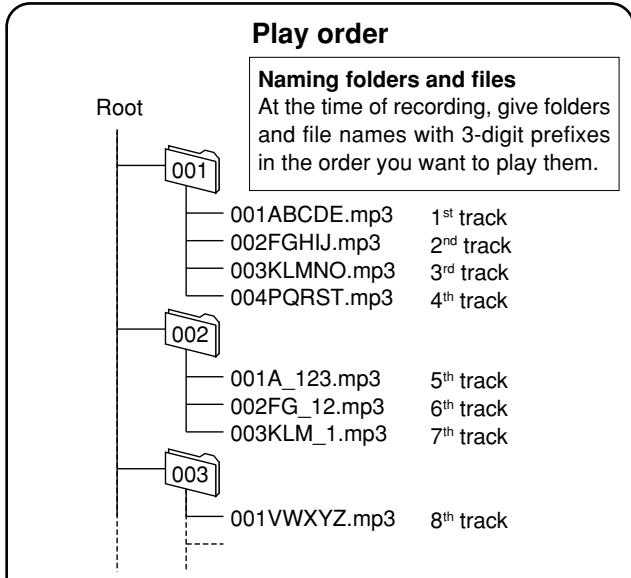
Folders can be created within folders, however the play may not proceed in the correct order.
- Only MP3 files are playable when there are files other than MP3 files on the CD-R, CD-RW containing the MP3 files. However, when there is normal audio data (CD-DA) and MP3 files mixed on the same disc, only audio data can be played. Folders that do not contain MP3 files are skipped.
Creating MP3 files for play on this unit
The format used for CD-R, CD-RW is ISO9660 level 1, or level 2.
- When creating on a computer etc, give folders and files names using numeric and alphabetic characters.
- Read the operating instruction manual if using MP3 file creation software on your computer. Depending on the type of recording, some MP3 files may not be playable.
- Only ID3 tag track titles are displayable on this unit. V1, V1.1 (Up to 32 alphanumeric characters.)
- This unit is compatible with multi-sessions. When there are many sessions, it may take some time for play to begin, therefore we recommend reducing the number of sessions to a minimum.
- You cannot play a file that was recorded with packet write.
- This unit is not compatible with HighMAT™.
Creating SD audio for play on this unit
Record tracks to a SD Memory Card using only the "SD JUKEBOX" application for recording SD audio for your PC, and a USB reader-writer (all sold separately).
- This unit is not compatible with the WMA format.
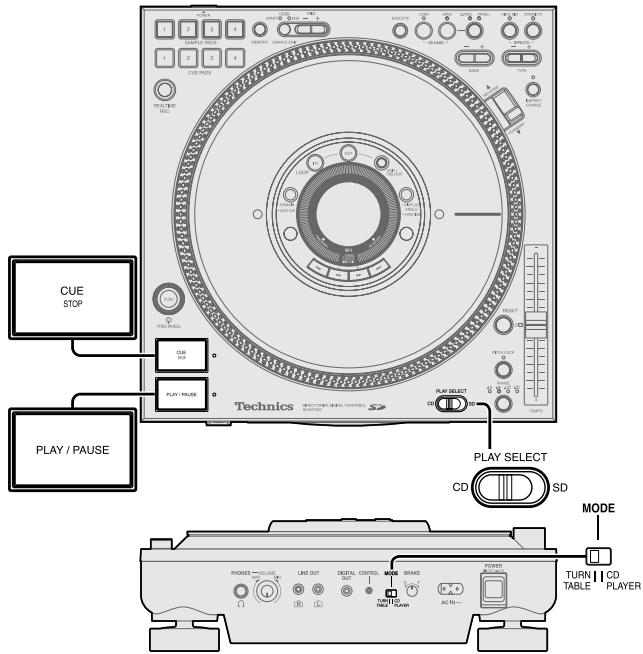
Before use
- Switch [PLAY SELECT] to select the media to be used
- Turn [MODE] on the rear panel to TURNTABLE
- Insert the SD Memory Card or CD to be used
Start play using the mixer's fader
You can instantly start play from the auto cue point or cue point on this unit using the mixer's fader by connecting this unit to the control terminal of a DJ mixer using a control cable connection. (→ page 8)
Before use :
- Adjust buttons and control knobs of CH1 and CH4 on the DJ mixer so mixed sound is output from the master output.
- Turn the DJ mixer's FADER START CH1 and CH4 to on.
- On unit 1 or 2, set the auto cue point or set the cue point and select the cue bank.
Starting with the channel fader
(e.g.) When the fader operation switch on the DJ mixer is set to NORMAL
- On the DJ Mixer, change the C.FADER ASSIGN A switch to other than 1 and change the C.FADER ASSIGN B switch to other than 4
- Push the CH1, CH4 channel fader all the way to the bottom
-
During play or while paused on unit 1 or 2, press [CUE STOP] (Back cue)
-
Returns to the set point and pauses.
- When you want to start play, push the CH1 or CH4 channel fader up
-
At the same time, play begins from the set point on unit 1 or 2.
-
After you return the channel fader to its original position, unit back cues, and pauses after returning to the set point.
Starting with the cross fader
(e.g.) When the cross fader operation switch on the DJ mixer is set to NORMAL and to start play on CH1
- On the DJ Mixer, change the C.FADER ASSIGN A switch to 1 and change the C.FADER ASSIGN B switch to 4
- Push the cross fader all the way toward CH4 (B)
- During play or while paused on unit 1, press [CUE STOP] (Back cue)
- When you want to start play, push the cross fader in the opposite direction indicated in step 2, towards CH1 (A)
-
At the same time, play begins from the set point on unit 1.
-
You can alternate play by back cueing unit 2 connected to CH4.
Push the cross fader all the way toward CH4
Play CH4
CH1 Back cue
Push the cross fader all the way toward CH1
Play CH1
CH4 Back cue
Using two units for relay play
You can relay play by connecting the control terminals of the two units.
() page 9
Before use:
- Turn Auto Cue on for both units, set the auto cue point for the track to be played and back cue.
Press [PLAY/PAUSE] on the unit to be played first
- Once track play finishes on the unit being played, play automatically begins from the unit on standby.
-
The unit that was played first pauses and cues at the next track's auto cue point.
-
You can automatically alternate play between both units by repeating this method.
- You can listen to many different tracks by changing the media and selecting the track of the unit in the standby position.
- Set the cue point, select the cue bank and back cue on the standby unit to begin relay play from the desired point of the desired track.
Note
- During play, if power on one of the units is cut or turned off, play may begin on the other standby unit.
- You cannot use fader start and relay play at the same time.
Using the amplifier and other equipment
Connect with the matching input terminals on the equipment (not included). ( page 9)
- When using this unit's DIGITAL OUT terminal, SD Audio is not output.
1 Put the equipment on standby
2 Press [PLAY/PAUSE] to play
- Audio played from the connected equipment is output.
![PANASONIC SL-DZ1200 - Press [PLAY/PAUSE] to play - 1](/content/2019/08/104411/images/7b3c19a3b57efac82242b864b51f43b4588eb68fd5d20c19b837536c98cdd7a1.jpg)
Before use
- Switch [PLAY SELECT] to select the media to be used
- Turn [MODE] on the rear panel to TURNTABLE
- Insert the SD Memory Card or CD to be used
Linking different tracks
(e.g.) Using the DJ Mixer, link track A that is currently being played with track B that will be played next.
Before use:
- Connect main unit 1 (track A) with DJ mixer CH1 and main unit 2 (track B) with CH4. ( page 8)
- Adjust buttons and control knobs of CH1 and CH4 on the DJ mixer so mixed sound is output from the master output.
(Refer to the DJ mixer's operating instructions.)
- Push the cross fader to the CH1 side to play track A.
(Only track A audio is output from the master output (speaker).)
1 Cue track B using the DJ mixer monitor (headphone)
(Refer to the DJ mixer's operating instructions.)
- Search for the track's cue point (first beat) and set the cue point.
2 Match with track A being played on the speaker, on unit 2 (track B) Press [PLAY/PAUSE] to play track B
- Track A is only output on the speaker, track B is output from the monitor headphones.
3 Adjust [TEMPO] on unit 2 (track B) and match the BPM (beats per minute) on track A and track B by listening
- Use [TEMPO] on unit 2 (track B) to adjust track B's BPM value to approximately match the BPM value of track A indicated in the display.
![PANASONIC SL-DZ1200 - Adjust [TEMPO] on unit 2 (track B) and match the BPM (beats per minute) on track A and track B by listening - 1](/content/2019/08/104411/images/65d240c931bb8c0b5905127a59bb685987e30e026140f2fb4e35d0fdd80642ff.jpg)
4 On unit 2 (track B), Stop the platter slip surface and press [CUE STOP] to return to the cue point
5 Match with track A again, on unit 2 (track B) Press [PLAY/PAUSE] and play track B
6 Checking the audio through the monitor (headphones), gradually slide the mixer's cross fader towards the CH4 side
- Track B audio is mixed with track A audio from the speaker and output.
- When the cross fader has been completely moved to the CH4 side, the transition from track A to track B is complete.
Unit's initialize memory function
Initializing this unit's memory
You can re-initialize all memory content on this unit, restoring it to factory settings.
Re-initializing will erase the following memory.
- Cue bank, cue pad, loop play
- Vinyl simulator, dynamic effect settings
- Auto Cue on, off settings and auto cue level settings
- Instant change settings
50 CDs or SD Memory Cards worth of data items of the above indicated media data. - Display angle, display contrast settings
When the power is off While holding down [SAMPLE PADS 1] and [SAMPLE PADS 4], press [POWER OFF ON] to turn the power on, and release [SAMPLE PADS 1] and [SAMPLE PADS 4] after "INITIALIZED" appears in the display
- All memory content is re-initialized.
- The display returns to its original state and you can begin operating.
Glossary
-SD Audio
An audio standard for SD Memory Cards. An encryption technology is used in order to protect copyrights and the legal rights of the consumer as well as help develop a healthy music culture. There are restrictions upon the copying of data etc. Use an application like SD-Jukebox etc. for creating data.
- Cue
Used to begin play. On this unit the cue point is used to store the beginning of a track or an arbitrary point of a track to memory and then to instantly begin play from this point.
- Platter slip surface
The rotatable surface on an analog turntable which you place a record. Although this unit is a digital turntable, play functionality is the same as when operating a platter slip surface on an analog turntable.
- MP3 album
When creating multiple MP3 files on a computer and writing to a CD-ROM, you can organize the files using folders. These folders are called albums on this unit. When you want to play tracks in sequential order on this unit, use numbers like 001 and 002 etc. for naming the albums. (→ Page 22)
AAC
A compression standard that makes recording and play of high quality audio possible including MPEG2 (an international standard). Used in SD Audio and broadcast satellite digital signals.
MP3
MP3 is the abbreviated form of the international standard MPEG1/ Audio Layer3. MP3 allows you to achieve approximately ten to one compression rates with bit rates of 128 kbps. MP3 is used widely with SD Audio, CDs, and computers.
Sampling frequency
The number of samples taken approximately each second when an audio signal is digitally converted and stored in memory. The higher the value the wider the frequency range can be used for digital conversion thus providing near original audio quality reproduction, however the resulting size of the audio data does become quite large.
Bit rate
A value that indicates the audio signal compression rate. Indicates the number of bits sampled approximately each second, the larger the bit value the more information is contained resulting in better audio quality, however the size of the audio data does become quite large.
Handling SD Memory Cards
When handling SD Memory Cards
Avoid the following:
- Altering or disassembling the SD Memory Card
- Striking, bending, dropping, or getting water on the SD Memory Card
- Touching the metal connectors with your fingers or with metal objects
Peeling off attached labels - Attaching new labels or stickers
Storage
- Always put the SD Memory Card back in its case.
- Do not store in potentially high temperature locations such as within cars, or in areas open to direct sunlight.
- Do not place in locations subject to high humidity or dust.
- Do not place in areas subject to caustic gases.
Protecting important data
- Set the write protect switch to the LOCK position. Release the lock when storing new data.
- If there is a space for writing a note on the SD Memory Card, use a felt pen
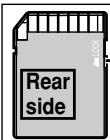
Write Protect Switch
(oil based) for writing. Do not use a pencil or ball point pen. Loss of data may result if the SD Memory Card is damaged.
- Do not remove the AC power supply cord while the unit power is on (When the units display is on) or loss of data may result.
- Do not remove the SD Memory Card from the unit during play. Loss of data may result.
Concerning CDs
With this system, you can only play CDs having this mark.
- Do not use irregularly shaped CDs. (May result in damage to your equipment.)
- Use discs that display the logo mark indicated above, or conform to the Compact disc digital audio standard. The disc may not play properly if you are using a non-standard conforming disc.
- For CDs with greater than 80 minutes total play time, the portion beyond 80 minutes cannot be played on this unit.
- Depending on the CD, there may be apparent noise or the total number of tracks may not be read properly. In either case, try re-inserting the CD.
- Recorded music CDs that are partially or fully translucent may not be usable with this unit.
- Do not use CDs that are dirty.
Handling precautions
- If you are taking the CD from a cold to a warm environment, moisture may form on the CD. Wipe this off with a soft, dry, lint-free cloth before using the CD.
- Do not write on the label side with a ball-point pen or other writing instrument.
- Do not use record cleaning sprays, benzine, thinner, static electricity prevention liquids or any other solvent.
- Do not attach labels or stickers to CDs. (Do not use CDs with exposed adhesive from tape or left over peeled off stickers.)
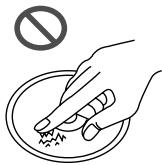
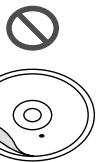
- Do not use scratch-proof protectors etc.
- Do not use CDs printed with label printers available on the market.
How to hold CDs
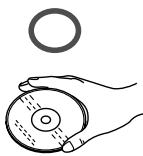
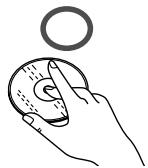
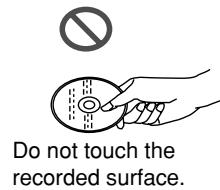
How to clean CDs
The recorded surface
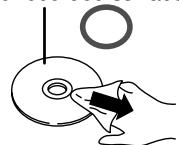
Wipe from inside outward.
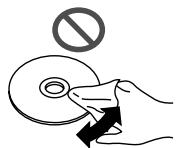
Storage precautions
Be sure to store CDs in their cases to protect them from dust, scratches, and warping.
Do not place or store CDs in the following places
- Locations exposed to direct sunlight
- Humid or dusty locations
- Locations directly exposed to a heat vent or heating appliance
-
In the glove compartment or on the rear deck of an automobile
-
SD logo is a trademark.

- MPEG Layer-3 audio decoding technology licensed from Fraunhofer IIS and Thomson multimedia.
| Question | Answer | Reference page | |
| Connecting Other Devices | How do I connect an analog player? | An analog player cannot be connected directly. It must be con- nected through a DJ mixer. | 8 |
| How do I connect speakers? | Speakers cannot be connected directly. Speakers must be connected through DJ Mixer or amplifier. | 9 | |
| How do I record through an optical digital con- nection? | There is no optical digital output terminal on the unit. A con- nection cable can be used to connect to the DIGITAL OUT terminal on the unit. | 9 | |
| Can I use a multimedia card (MMC) or a memory stick? | No. Use a SD Memory Card only. | 10, 12-13 | |
| CD | Can I play DVD-Video or a CD video? | No. | 25 |
| Can I play CD-R and CD-RW which contains MP3 data? | Yes. However, play may not be possible on some discs de- pending on the state of recording. Some functions are not operational. | 12 | |
Troubleshooting guide
Before requesting service, make the below checks. If you are in doubt about some of the check points, or if the remedies indicated in the chart do not solve the problem,
refer to the "Customer Services Directory" on back cover if you reside in the U.S.A., or refer to the "Product information" on page 2 if you reside in Canada.
| Problem | Cause | Solution | Reference Page | |
| General | Left and right audio is reversed. | Are the left and right stereo cables reversed? | Connect the stereo cables properly, left to left, right to right. | 8 - 9 |
| A “Humming” sound is heard during play. | Are connection cables too close to the AC power supply cord or a fluorescent light? | Move the unit away from the other electrical equipment. | — | |
| No sound comes out of one speaker. | Is the stereo connection cable not connected? | Connect the stereo connection cable properly. | 8 - 9 | |
| Sound is distorted and or noise is being emitted. | Are the output cables properly connected? | Connect with the DJ mixer's LINE input terminals. Do not connect to the PHONO terminal. | 8 - 9 | |
| There is interference to TV or FM reception. | Is the unit is causing the TV or FM interference? | Turn the unit power off or distance the unit from the TV or FM tuner. | — | |
| CD | “NO CD AUDIO TRACK” appears on the display when a CD is inserted. | Is the CD is inserted upside down? | Insert the CD with the label-side facing up. | 10 |
| Are you using a non-standard CD? | Replace with a standard conforming CD. | 25 | ||
| Is the CD dirty? | Wipe the CD clean with a soft cloth. | |||
| The unit does not play when the Play button is pushed. | Has the unit been suddenly moved from a cold to a warm or hot location, resulting in an abrupt change in temperature? | Moisture may form on the lens. Wait about an hour and try playing again. | — | |
| There is noise or certain points on the disc cannot be played properly. | Is the CD dirty? | Wipe the CD clean with a soft cloth. | 25 | |
| CD does not eject after pressing the CD EJECT button. | When in the TURNTABLE mode you cannot eject the disc during play. | Eject the disc after stopping or pausing. If forced disc ejection does not work, contact your nearest dealer. | 10 | |
| SD audio | “NO SD AUDIO TRACK” appears on the display when a SD Memory Card is inserted. | Is the music file you inserted not SD audio? | Record tracks using the SD audio recording application for the PC (sold separately). | 22 |
| Operation | The platter does not rotate. | Are you using the FREE WHEEL mode? | Press the PUSH button to release. | 14 |
| Is the CD PLAYER mode selected? | Switch the MODE switch on the rear panel to the TURNTABLE side. | 14 | ||
| Back cue does not work when the CUE button is pressed during play. | Is the cue point set? | Set the cue point. | 17 | |
| Loop play does not work when the LOOP OUT button is pressed. | Is the loop in point (start point) set? | Set the loop in point and loop out point to create the loop. | 18 | |
| The last panel data set on this unit is replaced when you insert the corresponding media. | Have you inserted a SD Memory Card that already has the panel data for the corresponding media? In this case the SD Memory Card takes precedence and the panel data stored to the unit's memory is replaced with the setting on the SD Memory Card. | When updating the unit's memory etc., and when panel data is necessary, save to the SD Memory Card in advance. | 22 | |
- Sometimes the BPM value and the CD memory value differ. This is because the method for measuring the BPM value is different, and it is not due to a defective or malfunctioning unit.
| Message | Description | Action |
| CAN NOT EJECT | Cannot eject the CD. | Pause the unit and eject the CD. |
| CUE BANK ERROR | After setting the auto cue point, you tried to set the cue setting without selecting the cue bank. | Select the cue bank first. |
| DATA ERROR | There is a problem with the data. | Use a SD Memory Card that was recorded properly. |
| FAILED | A save, load or format error occurred and the operation did not complete. | Try saving or loading again. Or try saving to a new SD Memory Card. |
| FILE SELECT ERROR | The wrong file was selected. | Select the correct file. |
| FORMAT ERROR | You cannot format this SD Memory Card. | Use a new SD Memory Card. |
| NO CD AUDIO TRACK | The inserted disc is unrecognizable. The disc has been inserted upside down. | Re-insert the CD properly. |
| NO DATA | You tried to save to a SD Memory Card, but there is no sample pad data. | |
| NO DISC | CD is not inserted. | Re-insert the CD properly. |
| NO PANEL MODE | You cannot save panel data when using the CD PLAYER mode. | Save using the TURNTABLE mode. |
| NO REMAIN | You cannot display the current remaining time with MP3 files. | |
| NO SD AUDIO TRACK | There are no audio tracks on this SD Memory Card. The inserted SD Memory Card is unrecognizable because of damage or an error. | Use a SD Memory Card that was recorded properly. |
| NO SD CARD | SD Memory Card is not inserted. | Re-insert the SD Memory Card properly. |
| REPLACED OLD PANEL DATA | The oldest used media panel data was replaced. You cannot store more than 50 CDs or SD Memory Cards worth of data items. | Save it to a SD Memory Card or initialize the unit's memory. |
| SD CARD FULL | You cannot save any more data to the SD Memory Card. | Use a new SD Memory Card. |
| SD CARD PROTECTED | The SD Memory Card is write protected. | Release the SD Memory Card write-protect switch. |
| SD LID OPEN | The lid of the SD Memory Card slot is open. | Make sure to close the lid. |
| TRACK ERROR | You cannot play this track. This track data cannot be read. | Select another track or replace with properly recorded media. |
Maintenance
To clean this unit, wipe with a soft, dry cloth.
- Never use alcohol, paint thinner, or benzine to clean this unit.
- Before using chemically treated cloth, read the instructions that came with the cloth carefully.
Specifications
- Playable media
CD (12 cm) (5^)
SD Memory Card
CD-Audio (CD-DA)
CD-R/CD-RW (CD-DA, MP3)
-CD-MP3 play format
Compatible compression rate
Compatible sampling rate
between 32 kbps and 192 kbps
(Recommended: 128 kbps)
48 kHz/44.1 kHz/32 kHz
-SD Audio play format
Audio extension format
Compatible sampling rate
MPEG2-AAC/MP3
48 kHz/44.1 kHz/32 kHz
Audio
No. of channels
Frequency response
Output voltage
Output terminal
2 (stereo)
4 Hz-20 kHz
Coaxial digital output
Pin jack
- Headphone
Output level
20 mW max. 32 Ω (adjustable)
- Pickup
Wave length
790 nm
Laser Power
No hazardous radiation is emitted
General
Power supply
AC 120 V, 60 Hz
Power consumption
20W
Dimensions (W× H× D)
320 × 111 × 330 ~mm
Mass
(12^39 / 64^ × 4^3 / 8^ × 13^ )
5.8 kg
(12.8 lb.)
Note
Specifications are subject to change without notice.
Mass and dimensions are approximate.
※ Specifications are the values when playing CD audio in the CD
PLAYER mode with tempo reset.
Panasonic/Technics DJ Products Limited Warranty
Limited Warranty Coverage
If your product does not work properly because of a defect in materials or workmanship, Panasonic Consumer Electronics Company or Panasonic Sales Company (collectively referred to as "the warrantor") will, for the length of the period indicated on the chart below, which starts with the date of original purchase ("warranty period"), at its option either (a) repair your product with new or refurbished parts, or (b) replace it with a new or a refurbished product. The decision to repair or replace will be made by the warrantor.
| Product | Parts | Labor | Service |
| DJ Turntables (analog), DJ Mixers, DJ Direct Drive Digital Turntables | One (1) Year | One (1) Year | Carry-In or Mail-In |
| Accessories: (Repaired or exchanged) DJ Headphones, Cartridges, Microphones | Ninety (90) Days | Ninety (90) Days (when applicable) | Carry In or Mail In |
| Accessories: (Exchanged) SD Memory Cards, Platter Mats, Adaptors, Cables | Ninety (90) Days | Not Applicable (in exchange for defective item) | Carry In or Mail In |
During the "Labor" warranty period there will be no charge for labor. During the "Parts" warranty period, there will be no charge for parts. You must carry-in or mail-in your product or arrange for in-home service, as applicable, during the warranty period. If nonrechargeable batteries are included, they are not warranted. This warranty only applies to products purchased and serviced in the United States or Puerto Rico. This warranty is extended only to the original purchaser of a new product which was not sold "as is". A purchase receipt or other proof of the original purchase date is required for warranty service.
Carry-In, Mail-in or In-Home Service
For Carry-In, Mail-in or In-Home Service (as applicable) in the United States call 1-800-211-PANA(7262) or visit Panasonic Web Site: http://www.panasonic.com
For assistance in Puerto Rico call Panasonic Sales Company (787)-750-4300 or fax (787)-768-2910.
In-Home service, if applicable, requires clear, complete and easy access to the product by the authorized servicer and does not include removal or re-installation of an installed product. It is possible that certain in-home repairs will not be completed in-home, but will require that the product, or parts of the product, be removed for shop diagnosis and/or repair and then returned.
Limited Warranty Limits And Exclusions
This warranty ONLY COVERS failures due to defects in materials or workmanship, and DOES NOT COVER normal wear and tear or cosmetic damage. The warranty ALSO DOES NOT COVER damages which occurred in shipment, or failures which are caused by products not supplied by the warrantor, or failures which result from accidents, misuse, abuse, neglect, mishandling, misapplication, alteration, faulty installation, set-up adjustments, misadjustment of consumer controls, improper maintenance, power line surge, lightning damage, modification, rental use of the product, service by anyone other than a Factory ServiCenter or other Authorized Servicer, or damage that is attributable to acts of God.
THERE ARE NO EXPRESS WARRANTYES EXCEPT AS LISTED UNDER "LIMITED WARRANTY COVERAGE". THE WARRANTYOR IS NOT LIABLE FOR INCIDENTAL OR CONSEQUENTIAL DAMAGES RESULTING FROM THE USE OF THIS PRODUCT, OR ARISING OUT OF ANY BREACH OF THIS WARRANTY, INCLUDING WITHOUT LIMITATION, LOSS OF GOODWILL, PROFITS OR REVENUE, LOSS OF USE OF THIS PRODUCT OR ANY ASSOCIATED EQUIPMENT, COST OF SUBSTITUTE EQUIPMENT, DOWNTIME COSTS, OR CLAIMS OF ANY PARTY DEALING WITH BUYER FOR SUCH DAMAGES. (As examples, this excludes damages for lost time, cost of having someone remove or re-install an installed unit if applicable, travel to and from the servicer, loss of media, data or other memory content. The items listed are not exclusive, but are for illustration only.) ALL EXPRESS AND IMPLIED WARRANTYIS, INCLUDING THE WARRANTY OF MERCHANTABILITY, ARE LIMITED TO THE PERIOD OF THE LIMITED WARRANTY.
Some states do not allow the exclusion or limitation of incidental or consequential damages, or limitations on how long an implied warranty lasts, so the exclusions may not apply to you.
This warranty gives you specific legal rights and you may also have others rights which vary from state to state. If a problem with this product develops during or after the warranty period, you may contact your dealer or ServiCenter. If the problem is not handled to your satisfaction, then write to the warrantor's Consumer Affairs Department at the addresses listed for the warrantor.
PARTS AND SERVICE (INCLUDING COST OF AN IN-HOME SERVICE CALL IF APPLICABLE) WHICH ARE NOT COVERED BY THIS LIMITED WARRANTY ARE YOUR RESPONSIBILITY.
(ONLY FOR U.S.A.)
Customer Services Directory
Obtain Product Information and Operating Assistance; locate your nearest Dealer or Servicenter; purchase Parts and Accessories; or make Customer Service and Literature requests by visiting our Web Site at:
http://www.panasonic.com/support
or, contact us via the web at:
http://www.panasonic.com/contactinfo
You may also contact us directly at:
1-800-211-PANA (7262),
Monday-Friday 9 am-9 pm; Saturday-Sunday 10 am-7 pm, EST.
For hearing or speech impaired TTY users, TTY: 1-877-833-8855
Accessory Purchases
Purchase Parts, Accessories and Instruction Books online for all Panasonic Products by visiting our Web Site at:
http://www.pasc.panasonic.com
or, send your request by E-mail to:
npcparts@panasonic.com
You may also contact us directly at:
1-800-332-5368 (Phone) 1-800-237-9080 (Fax Only) (Monday - Friday 9 am to 8 pm, EST.)
Panasonic Services Company
20421 84th Avenue South, Kent, WA 98032
(We Accept Visa, MasterCard, Discover Card, American Express, and Personal Checks)
For hearing or speech impaired TTY users, TTY: 1-866-605-1277
Service in Puerto Rico
Matsushita Electric of Puerto Rico, Inc. Panasonic Sales Company
Factory Servicenter:
Ave. 65 de Ingeniería, Km. 9.5, San Gabriel Industrial Park, Carolina, Puerto Rico 00985
Phone (787)750-4300, Fax (787)768-2910