USER MANUAL FS-4200DN KYOCERA
FS-2100D/FS-2100DN FS-4100DN/FS-4200DN/FS-4300DN
Copyright © 1998-2006 OpenSSL Project. All rights reserved.
Redistribution and use in source and binary forms, with or without modification, are permitted provided that the following conditions are met:
1 Redistributions of source code must retain the above copyright notice, this list of conditions and the following disclaimer.
2 Redistributions in binary form must reproduce the above copyright notice, this list of conditions and the following disclaimer in the documentation and/or other materials provided with the distribution.
3 All advertising materials mentioning features or use of this software must display the following acknowledgment: "This product includes software developed by the OpensSL Project for use in the OpensSL Toolkit. (http:// www.openssl.org/)
4 The names "OpenSSL Toolkit" and "OpenSSL Project" must not be used to endorse or promote products derived from this software without prior written permission. For written permission, please contact openssl-core@openssl.org.
5 Products derived from this software may not be called "OpenSSL" nor may "OpenSSL" appear in their names without prior written permission of the OpenSSL Project.
6 Redistributions of any form whatsoever must retain the following acknowledgment: "This product includes software developed by the OpenssL Project for use in the OpenssL Toolkit (http://www.openss1.org/)
THIS SOFTWARE IS PROVIDED BY THE OpenssL Project "AS IS" AND ANY EXPRESSED OR IMplied WARRANTIES, INCLUDING, BUT NOT LIMITED TO, THE IMPLIED WARRANTY OF MERCHANTABILITY AND FITNESS FOR A PARTICULAR PURPOSE ARE DISCLAIMED. IN NO EVENT SHALL THE OpenssL PROJECT OR ITS CONTRIBUTORS BE LIABLE FOR ANY DIRECT, INDIRECT, INCIDENTAL, SPECIAL, EXEMPLARY, OR CONSEQUENTIAL DAMAGES (INCLUDING, BUT NOT LIMITED TO, PROCEDURE OF SUBSTITUTE GOODS OR SERVICES; LOSS OF USE, DATA, OR PROFITS; OR BUSINESS INTERRUIPTION) HOWEVER CAUSED AND ON ANY THEORY OF LIABILITY, WHETHER IN CONTRACT, STRICT LIABILITY, OR TORT (INCLUDING NEGLIGENCE OR OTHERWISE) ARISING IN ANY WAY OUT OF THE USE OF THIS SOFTWARE, EVEN IF ADVISED OF THE POSSIBILITY OF SUCH DAMAGE.
Original SSLeay License
Copyright © 1995-1998 Eric Young (eay@cryptsoft.com) All rights reserved.
This package is an SSL implementation written by Eric Young (eay@cryptsoft.com). The implementation was written so as to conform with Netscapes SSL.
This library is free for commercial and non-commercial use as long as the following conditions are ahead to. The following conditions apply to all code found in this distribution, be it the RC4, RSA, Ihash, DES, etc., code; not just the SSL code. The SSL documentation included with this distribution is covered by the same copyright terms except that the holder is Tim Hudson (tjh@cryptsoft.com).
Copyright remains Eric Young's, and as such any Copyright notices in the code are not to be removed.
If this package is used in a product, Eric Young should be given attribution as the author of the parts of the library used.
This can be in the form of a textual message at program startup or in documentation (online or textual) provided with the package.
Redistribution and use in source and binary forms, with or without modification, are permitted provided that the following conditions are met:
1 Redistributions of source code must retain the copyright notice, this list of conditions and the following disclaimer.
2 Redistributions in binary form must reproduce the above copyright notice, this list of conditions and the following disclaimer in the documentation and/or other materials provided with the distribution.
3 All advertising materials mentioning features or use of this software must display the following acknowledgement: "This product includes cryptographic software written by Eric Young (eay@cryptsoft.com)"
The word 'cryptographic' can be left out if the routines from the library being used are not cryptographic related :-).
4 If you include any Windows specific code (or a derivative thereof) from the apps directory (application code) you must include an acknowledgement:
"This product includes software written by Tim Hudson (tjh@cryptsoft.com)"
THIS SOFTWARE IS PROVIDED BY ERIC YOUNG "AS IS" AND ANY EXPRESS OR IMPLIED WARRANTY, INCLUDING, BUT NOT LIMITED TO, THE IMPLIED WARRANTYES OF MERCHANTABILITY AND FITNESS FOR A PARTICULAR PURPOSE ARE DISCLAIMED. IN NO EVENT SHALL THE AUTHOR OR COLLECTORS BE LIABLE FOR ANY DIRECT, INDIRECT, INCIDENTAL, SPECIAL, EXEMPLARY, OR CONSEQUENTIAL DAMAGES (INCLUDING, BUT NOT LIMITED TO, PROCEDURE OF SUBSTITUTE GOODSOR SERVICES; LOSS OF USE, DATA, OR PROFITS; OR BUSINESS INTERRUPTION) HOWEVER CAUSED AND ON ANY THEORY OF LIABILITY, WHETHER IN CONTRACT, STRICT LIABILITY, OR TORT (INCLUDING NEGLIGENCE OR OTHERWISE) ASING IN ANY WAY OUT OF THE USE OF THIS SOFTWARE, EVEN IF ADVISED OF THE POSSIBILITY OF SUCH DAMAGE.
The licence and distribution terms for any publicly available version or derivative of this code cannot be changed. i.e. this code cannot simply be copied and put under another distribution licence [including the GNU Public Licence.]
Monotype Imaging License Agreement
1 Software shall mean the digitally encoded, machine readable, scalable outline data as encoded in a special format as well as the UFST Software.
2 You agree to accept a non-exclusive license to use the Software to reproduce and display weights, styles and versions of letters, numerals, characters and symbols (Typefaces) solely for your own customary business or personal purposes at the address stated on the registration card you return to Monotype Imaging. Under the terms of this License Agreement, you have the right to use the Fonts on up to three printers. If you need to have access to the fonts on more than three printers, you need to acquire a multi-user license agreement which can be obtained from Monotype Imaging. Monotype Imaging retains all rights, title and interest to the Software and Typefaces and no rights are granted to you other than a License to use the Software on the terms expressly set forth in this Agreement.
3 To protect proprietary rights of Monotype Imaging, you agree to maintain the Software and other proprietary information concerning the Typefaces in strict confidence and to establish reasonable procedures regulating access to and use of the Software and Typefaces.
4 You agree not to duplicate or copy the Software or Typefaces, except that you may make one backup copy. You agree that any such copy shall contain the same proprietary notices as those appearing on the original.
5 This License shall continue until the last use of the Software and Typefaces, unless sooner terminated. This License may be terminated by Monotype Imaging if you fail to comply with the terms of this License and such failure is not remedied within thirty (30) days after notice from Monotype Imaging. When this License expires or is terminated, you shall either return to Monotype Imaging or destroy all copies of the Software and Typefaces and documentation as requested.
6 You agree that you will not modify, alter, disassemble, decrypt, reverse engineer or decompile the Software.
7 Monotype Imaging warrants that for ninety (90) days after delivery, the Software will perform in accordance with Monotype Imaging-published specifications, and the diskette will be free from defects in material and workmanship. Monotype Imaging does not warrant that the Software is free from all bugs, errors and omissions.
The parties agree that all other warranties, expressed or implied, including warranties of fitness for a particular purpose and merchantability, are excluded.
8 Your exclusive remedy and the sole liability of Monotype Imaging in connection with the Software and Typefaces is repair or replacement of defective parts, upon their return to Monotype Imaging.
In no event will Monotype Imaging be liable for lost profits, lost data, or any other incidental or consequential damages, or any damages caused by abuse or misapplication of the Software and Typefaces.
9 Massachusetts U.S.A. law governs this Agreement.
10 You shall not sublicense, sell, lease, or otherwise transfer the Software and/or Typefaces without the prior written consent of Monotype Imaging.
11 Use, duplication or disclosure by the Government is subject to restrictions as set forth in the Rights in Technical Data and Computer Software clause at FAR 252-227-7013, subdivision (b)(3)(ii) or subparagraph (c)(1)(ii), as appropriate. Further use, duplication or disclosure is subject to restrictions applicable to restricted rights software as set forth in FAR 52.227-19 (c)(2).
12 You acknowledge that you have read this Agreement, understand it, and agree to be bound by its terms and conditions. Neither party shall be bound by any statement or representation not contained in this Agreement. No change in this Agreement is effective unless written and signed by properly authorized representatives of each party. By opening this diskette package, you agree to accept the terms and conditions of this Agreement.
This equipment has been tested and found to comply with the limits for a Class B digital device, pursuant to Part 15 of the FCC Rules. These limits are designed to provide reasonable protection against harmful interference in a residential installation. This equipment generates, uses and can radiate radio frequency energy and, if not installed and used in accordance with the instructions, may cause harmful interference to radio communications. However, there is no guarantee that interference will not occur in a particular installation. If this equipment does cause harmful interference to radio or television reception, which can be determined by turning the equipment off and on, the user is encouraged to try to correct the interference by one or more of the following measures:
- Reorient or relocate the receiving antenna.
- Increase the separation between the equipment and receiver.
- Connect the equipment into an outlet on a circuit different from that to which the receiver is connected.
- Consult the dealer or an experienced radio/TV technician for help.
- The use of a non-shielded interface cable with the referenced device is prohibited.
CAUTION — The changes or modifications not expressly approved by the party responsible for compliance could void the user's authority to operate the equipment.
This device complies with Part 15 of FCC Rules.
Operation is subject to the following two conditions; (1) this device may not cause interference, and (2) this device must accept any interference, including interference that may cause undesired operation of the device.
- The above warning is valid only in the United States of America.
Canadian Department of Communications Compliance Statement
This Class B digital apparatus complies with Canadian ICES-003.
Energy Star (ENERGY STAR®)

Envelop. Monarch (#2)
Envelope #10 (#2)
Envelope DL (#3)
Envelope C5
Executive
Letter
Legal
A4
B5
A5
A6 (#1)
B6 (#3)
Envelope #9 (#2)
Envelope #6 (#2)
ISO B5
Perso
Oufuku Hagaki (#3)
Oficio II
216x340mm
16K
Statement
Folio
Youkei 2 (#2)
Youkei 4 (#2)
Magasin (FS-2100D, FS-2100DN) :
Magasin (FS-4100DN, FS-4200DN, FS-4300DN):
Magasin (FS-2100D, FS-2100DN) :
Magasin (FS-4100DN, FS-4200DN, FS-4300DN) :
Envelop. Monarch
Envelope #10
Envelope DL
Envelope C5
Executive
Letter
A4
B5
A5
A6
B6
Envelope #9
Envelope #6
ISO B5
Perso
Hagaki
Oufuku Hagaki
16K
Statement
Youkei 2
Youkei 4
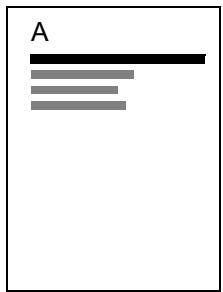
Orientation Portrait
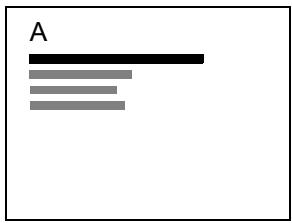
Orientation Paysage
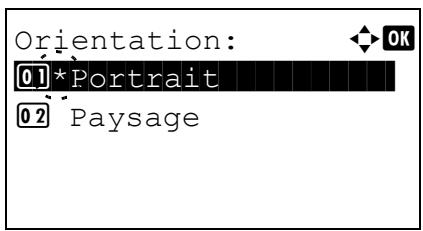
TCP/IP (Activer/désactiver TCP/IP)
TCP/IP (Activer/désactiver TCP/IP)
AppleTalk (Paramètres AppleTalk)
MM/JJ/AAAA
JJ/MM/AAAA
AAAA/MM/JJ
DATA SECURITY (Data Security Kit(E))
- ID Card (Card Authentication Kit(B))
UG-33 (ThinPrint)

Data Security Kit (E)
Card Authentication Kit (B)
DHCP (Dynamic Host Configuration Protocol)
NetBEUI (NetBIOS Extended User Interface)
SSD (Solid State Drive)
Impression recto versus 4-42
Macintosh 2-10
Windows 2-7
Imprimer 4-17
Retirer 4-24
Priorite bac MF 4-41
This machine has passed all quality controls and final inspection

KYOCERA Document Solutions Europe B.V.
KYOCERA Document Solutions (U.K.) Limited
8 Beacontree Plaza,
Gillette Way Reading, Berkshire RG2 0BS
United Kingdom
Phone: +44-118-931-1500
Fax: +44-118-931-1108

KYOCERA Document Solutions Italia S.p.A.
Via Verdi, 89/91 20063 Cernusco s/N.(MI),
Italy
Phone: +39-02-921791
Fax: +39-02-92179-600

KYOCERA Document Solutions Belgium N.V.
Sint-Martinusweg 199-201 1930 Zaventem,
Belgium
Phone: +32-2-7209270
Fax: +32-2-7208748

KYOCERA Document Solutions France S.A.S.
Phone: +33-1-69852600
Fax: +33-1-69853409

KYOCERA Document Solutions Espana, S.A.
South Africa (Pty) Ltd.
49 Kyalami Boulevard,
Kyalami Business Park 1685 Midrand, South Africa
Phone: +27-11-540-2600
Fax: +27-11-466-3050

KYOCERA Document Solutions Russia LLC
Botanichesky pereulok 5, Moscow, 129090,
Russia
Phone: +7(495)741-0004
Fax: +7(495)741-0018

KYOCERA Document Solutions Middle East
Dubai Internet City, Bldg. 17,
Office 157 P.O. Box 500817, Dubai,
United Arab Emirates
Phone: +971-04-433-0412

KYOCERA Document Solutions Inc.
2-28, 1-chome, Tamatsukuri, Chuo-ku
Osaka 540-8585, Japan
Phone: +81-6-6764-3555
http://www.kyocerdocumentssolutions.com