EB-VS3 - Mobile Phone PANASONIC - Free user manual and instructions
Find the device manual for free EB-VS3 PANASONIC in PDF.


| Product Type | Mobile Phone |
| Brand | Panasonic |
| Model | EB-VS3 |
| Category | Clamshell / Flip Phone |
| Dimensions | 102 x 47 x 16.7 mm |
| Weight | 80 g |
| Battery Type | Li-Ion 720 mAh |
| Talk Time | Up to 4 hours |
| Standby Time | Up to 180 hours |
| Display | 2.2 inch TFT, 176 x 220 pixels |
| Camera | 1.3 Megapixel (CMOS) |
| Internal Memory | 32 MB |
| Expandable Memory | miniSD card (up to 2 GB) |
| Network | GSM 900 / 1800 / 1900 |
| Connectivity | Bluetooth 1.2, USB 1.1 |
| Messaging | SMS, MMS, Email |
| Ringtone | Polyphonic (64 channels), MP3 |
| Java | MIDP 2.0 |
| Additional Features | Voice memo, calculator, alarm clock, calendar, world clock |
| Maintenance | Clean with soft dry cloth; avoid moisture and extreme temperatures; do not use abrasive cleaners. |
| Safety | Use only approved chargers and batteries; keep away from water; do not disassemble; follow local regulations for disposal. |
| Spare Parts & Repairability | Contact Panasonic authorized service center for repairs; user replaceable battery and SIM card. |
| General Information | Manufacturer: Panasonic; user manual included; designed in Japan. |
Frequently Asked Questions - EB-VS3 PANASONIC
User questions about EB-VS3 PANASONIC
0 question about this device. Answer the ones you know or ask your own.
Ask a new question about this device
Download the instructions for your Mobile Phone in PDF format for free! Find your manual EB-VS3 - PANASONIC and take your electronic device back in hand. On this page are published all the documents necessary for the use of your device. EB-VS3 by PANASONIC.
USER MANUAL EB-VS3 PANASONIC
Operating Instructions
VS3
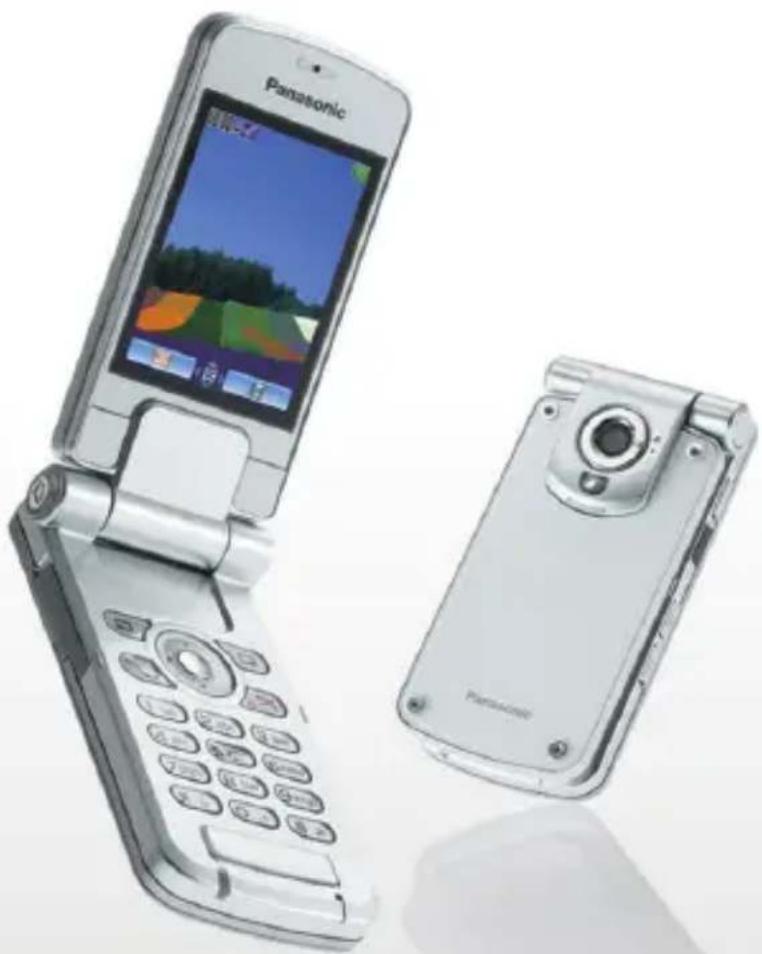
natural_image
Two Panasonic flip-circles, one open and one closed, displayed against a plain background (no text or symbols visible on the devices themselves)EB-VS3 Mobile Phone
GSM
Before operating this handset, please read these instructions completely. Charge battery before operation.
vs3 Operating Instructions
Contents
Contents...... i
Introduction ...... 1
Safety considerations...... 1
Care and maintenance...... 7
SAR....9
About this manual 11
About Your Phone...... 14
Phone overview...... 14
Key functions...... 16
Display 19
DRM....21
Indicator/Illumination Light ... 22
Getting Started ...... 23
Installing the SIM card and the battery 23
Charging the battery...... 25
Opening/closing the phone ... 27
Switching the phone on/off... 27
Menu Navigation...... 28
Main menu structure 28
Displaying the menu...... 29
Navigating the applications .. 30
Basic Operations...... 31
Making calls 31
Answering calls 33
Silent mode 35
Voicemail.... 35
In-call operations ......36
Multiple calls operations .....38
Text entry......40
Contacts......45
Contacts menu structure.....45
Viewing the Contacts list.....46
Making a call from Contacts ..47
Adding contacts ....48
Editing a Contacts card......50
Call log....51
Speed dial....52
Groups......53
Advanced....53
Service numbers......56
Messages ....57
Messages menu structure ....57
Creating a new message .....58
Receiving messages......63
Inbox....64
Archive......68
Web mail....69
Chat 70
Voicemail 70
Messages settings......71
Memory status ....73
Camera 74
Camera menu structure......74
Picture....75
Video....81
Contents
Browser 85
Browser menu structure .....85
Setting up your Browser .....85
Viewing the contents .....86
Settings menu structure......93
Phone settings....94
Display settings ......100
Sounds & alerts ......102
Call settings ......104
Connectivity......108
Security......115
Tools...... 118
Tools menu structure......118
SIM Tool Kit ......119
Alarms 119
Sound recorder....121
Calculator 122
Calendar 123
Browsing Calendar .....123
Creating Calendar events...125
Managing Calendar events .127
My Media 129
My Media menu structure ...129
Pictures....130
Sounds ....134
Videos......137
Games....138
Text templates....139
Memory status ....140
Games.... 141
Games menu structure..... 141
Games.... 142
Download games 144
Settings 145
Information 145
Appendix 146
Accessories...... 146
Changing the X-Changeable Cover ^TM 149
Troubleshooting 150
Glossary of terms 153
Specifications 154
Licensing.... 156
EU Warranty...... 160
Declaration of Conformity.... 165
Index 166
Thank you for purchasing this Panasonic digital cellular phone. This phone is designed to operate on GSM networks – GSM900, GSM1800 and GSM1900. It also supports GPRS for packet data connections. Please ensure the battery is fully charged before use. We, Panasonic Mobile Communications Development of Europe Ltd., declare that the EB-VS3 conforms with the essential and other relevant requirements of the directive 1999/5/EC. A declaration of conformity to this effect can be found at http://panasonic.co.jp/pmc/products/en/support/index.html
Safety considerations
The following information should be read and understood as it provides details, which will enable you to operate your phone in a manner which is both safe to you and your environment, and conforms to legal requirements regarding the use of cellular phones.
Power

This equipment should only be charged with approved charging equipment to ensure optimum performance and avoid damage to your phone. Other usage will invalidate any approval given to this apparatus and may be dangerous. Ensure the voltage rating of the Travel charger is compatible with the area of use when travelling abroad. A Travel charger (EB-CA001xx*) is supplied with the Main Kit.
Note* xx identifies the charger region, e.g. CN, EU, UK, AU, US.
Battery

Use of another battery pack than that recommended by the manufacturer may result in a safety hazard.
If you use a feature which keeps the key backlight on continuously for a long time, such as a game or browser, battery life will become extremely short. To maintain longer battery life, set the Key backlight to off. (See “Key backlight” on page 97.)
Do not use this phone without the battery cover attached.
Disposing of the Battery

Do not incinerate or dispose of the battery as ordinary rubbish. The battery must be disposed of in accordance with local regulations and may be recycled.
Aircraft

Switch off your cellular phone when in an aircraft. Ensure that the settings of the alarm functions will not contravene regulations whereby it may automatically power on when in an aircraft or medical facility etc. The use of cellular phones in an aircraft may be dangerous to the operation of the aircraft, disrupt the cellular network and may be illegal. Failure to observe this instruction may lead to the suspension or denial of cellular phone services to the offender, or legal action or both.
Do Not Use

It is advised not to use the equipment at a refuelling point. Users are reminded to observe restrictions on the use of radio equipment in fuel depots, chemical plants or where
blasting operations are in progress. Never expose the battery to extreme temperatures (in excess of 60^ C).
Driving

It is imperative that the driver exercises proper control of the vehicle at all times. Do not hold a phone while you are driving; find a safe place to stop first. Do not speak into a handsfree microphone if it will take your mind off the road. Always acquaint yourself thoroughly with restrictions concerning the use of cellular phones within the area where you are driving and observe them at all times.
Electronic Devices

Care must be taken when using the phone in close proximity to personal medical devices, such as pacemakers and hearing aids.
Heating Equipment

When your handset, the accompanying battery or charging accessories are wet, do not put those in any type of heating equipment, such as a microwave oven, a high pressure container, or a drier or similar. It may cause the battery, handset and/or charging equipment to leak, heat up, expand, explode and/or catch fire. Moreover, the product or accessories may emit smoke and their electrical circuits may become damaged and cause the products to malfunction. Panasonic is not responsible for any and all damages, whether direct or indirect, howsoever caused by any misuse.
Backup Copies & Security

It is recommended that you create a copy or backup, as appropriate, of any important information and data which you store in your phone's memory. In order to avoid accidental loss of data, please follow all instructions relating to the care and maintenance of your phone and its battery.
Your phone has the capability of storing and communicating personal information. It is recommended that you take care to ensure that any personal or financial information is stored separately from your phone. You should use security features, such as the SIM lock to protect information held in your phone. Panasonic accepts no liability for any and all losses howsoever arising from any loss of data, including but not limited to direct and indirect losses (to include, but not limited to consequential loss, anticipated savings, loss of revenue).
Downloading

Your phone has the capability of downloading and storing information and data from external sources. It is your responsibility to ensure that in doing this you are not infringing any copyright laws or other applicable legislation.
Panasonic accepts no liability for any and all losses howsoever arising from any loss of data or any such infringement of copyright or intellectual property rights, including but not limited to direct and indirect losses (to include, but not limited to consequential loss, anticipated savings, loss or revenues).
Efficient Use

For most efficient use, hold the phone as you would any normal phone. To avoid deterioration of signal quality or antenna performance, do not touch or “cup” the antenna area while the phone is switched on. Unauthorised modifications or attachments may damage the phone and violate applicable regulations. The use of an unapproved modification or attachment may result in the invalidation of your guarantee – this does not affect your statutory rights.
Camera

You are advised to take appropriate care over the use of the internal camera. It is your responsibility to ensure that you have permission to take photographs of people and
objects and that you do not infringe any personal or third party rights when using the camera. You must comply with any applicable international or national law or other special restrictions governing camera use in specific applications and environments. This includes not using the camera in places where the use of photographic and video equipment may be prohibited. Panasonic accepts no liability for any and all losses howsoever arising from any infringement of copyright or intellectual property rights, including but not limited to direct and indirect losses. Do not leave the camera facing direct sunlight, as this may impair its performance.
Other important information
The colour liquid crystal display (LCD) uses high-precision production technology, and in certain circumstances pixels may appear brighter or darker. This is due to characteristics of the LCD and is not a manufacturing defect.
This phone is designed, manufactured and tested to ensure that it complies with the specifications covering RF exposure guidelines applicable at the time of manufacture, in accordance with EU, USA FCC and Australian ACA regulations.
This phone should only be used with Panasonic approved accessories to ensure optimum performance and avoid damage to your phone. Panasonic is not responsible for damage caused by using non-Panasonic approved accessories.
This phone must be used in compliance with any applicable international or national law or any special restrictions governing its use in specified applications and environments. This includes but is not limited to use in hospitals, aircraft, whilst driving and any other restricted uses.
Some of the contents described in this manual are subject to change without notice.
Information on Disposal for Users of Waste Electrical & Electronic Equipment (private households)

This symbol on the products and/or accompanying documents means that used electrical and electronic products should not be mixed with general household waste.
For proper treatment, recovery and recycling, please take these products to designated collection points, where they will be accepted on a free of charge basis. Alternatively, in some countries you may be able to return your products to your local retailer upon the purchase of an equivalent new product.
Disposing of this product correctly will help to save valuable resources and prevent any potential negative effects on human health and the environment which could otherwise arise from inappropriate waste handling. Please contact your local authority for further details of your nearest designated collection point.
Penalties may be applicable for incorrect disposal of this waste, in accordance with national legislation.
For business users in the European Union
If you wish to discard electrical and electronic equipment, please contact your dealer or supplier for further information.
Information on Disposal in other Countries outside the European Union
This symbol is only valid in the European Union.
If you wish to discard this product, please contact your local authorities or dealer and ask for the correct method of disposal.
Care and maintenance
Pressing any of the keys may produce a loud tone. Avoid holding the phone close to the ear while pressing the keys.
Extreme temperatures may have a temporary effect on the operation of your phone. This is normal and does not indicate a fault. The display quality may deteriorate if the phone is used in environments over 40^ C for a long time.

Do not modify or disassemble the equipment. There are no user serviceable parts inside.

Do not subject the equipment to excessive vibration or shocks. Do not drop the battery.

Avoid contact with liquids or moisture. If the equipment becomes wet, immediately remove the battery and charger. Keep the phone dry.

Do not leave the equipment in direct sunlight or a humid, dusty or hot area. Never throw a battery into a fire. It may explode.

Keep metallic items that may accidentally touch the terminals away from the equipment/battery.
Batteries can cause property damage, injury, or burns if terminals are touched with a conductive material (i.e. metal jewellery, keys, etc.).
Always charge the battery in a well ventilated area, not in direct sunlight, between +5°C and +35°C. It is not possible to recharge the battery if it is outside this temperature range.
When connecting the phone to an external source, read the operating instructions of the equipment for the correct connection and safety precautions. Ensure the phone is compatible with the product it is being connected to.

When disposing of any packing materials or old equipment, check with your local authorities for information on recycling.
SAR
THIS MODEL MEETS INTERNATIONAL GUIDELINES FOR EXPOSURE TO RADIO WAVES and the requirements of the EU Directive 1999/5/EC.
Your mobile device is a radio transmitter and receiver. It is designed not to exceed the limits for exposure to radio waves recommended by international guidelines. These guidelines were developed by the independent scientific organization ICNIRP and include safety margins designed to assure the protection of all persons, regardless of age and health. These guidelines also form the basis of international regulations and standards on RF Exposure.
The guidelines use a unit of measurement known as the Specific Absorption Rate, or SAR. The SAR limit for mobile devices is 2 W/kg and the highest SAR value for this device when tested at the ear, for compliance against the standard, was 0.862 W/kg. As mobile devices offer a range of functions, they can be used in other positions, such as on the body as described in the user guide. For body worn operation, this phone has been tested and meets the RF exposure guidelines when used with a Panasonic accessory designated for this product or when used with an accessory that contains no metal and that positions the handset a minimum of 1.5cm from the body. In this case, the highest tested SAR value is 0.477 W/kg.
As SAR is measured utilizing the devices highest transmitting power the actual SAR of this device while operating is typically below that indicated above. This is due to automatic changes to the power level of the device to ensure it only uses the minimum level required to communicate with the network.
Introduction
The World Health Organization has stated that present scientific information does not indicate the need for any special precautions for the use of mobile devices. They note that if you want to reduce your exposure then you can do so by limiting the length of calls or using a 'hands-free' device to keep the mobile phone away from the head and body.
Additional Information can be found on the websites:
World Health Organization (http://www.who.int/emf)
ICNIRP (http://www.icnirp.org)
Panasonic (http://panasonic.co.jp/pmc/products/en/support/index.html)
About this manual
Symbols used in this manual
The following symbols are used in this manual to represent the limited availability of the function or service.

= Depending on your SIM card.

= Depending on network availability.

= Depending on your network operator. The service may only be available on a subscription basis.
Graphics
The graphic elements in this manual are for illustrative purposes and may differ from the actual phone and/or graphic elements displayed on the phone. Panasonic reserves the right to change the information in this manual without prior notice.
Keys
Keys in this manual may differ from the actual keys on your phone. Refer to page 16 for the icons that represent the keys in this manual.
How to read this manual
This function is SIM card dependent. For other symbols, refer to page 11.
Fixed dial

When Fixed dial is enabled, only the phone numbers stored in SIM Contacts can be dialled. Any manually dialled phone numbers must match the phone numbers in SIM Contacts.
To store, edit or delete phone numbers in SIM Contacts, you need to enter your PIN2 code.

Main menu > Settings > Security > Fixed dial
- Select Enable or Disable
- Enter the PIN2 code (4-8 digits) → [●]/[□] (Ok)

Menu navigation
Before following the steps, you need to enter Main menu, then move through the sub menus, described next to the ➕ icon. “>” means “scroll through the menu and select”.
In the example:
From Main menu, press Navigation key (up/down/left/right) to scroll to Settings and press Navigation key (centre). Press Navigation key (up/down) to scroll to Security and press Navigation key (centre) or Left Soft key (Select) ^1 . Press Navigation key (up/down) to scroll to Fixed dial and press Navigation key (centre) or Left Soft key (Select) ^1 . You can also select Fixed dial by pressing [3].
Now you can continue onto the step 1:
-
Press Navigation key (up/down) to scroll to Enable or Disable, then press Navigation key (centre) or Left Soft key (Select) ^*1
-
Enter the PIN2 code (4-8 digits), then press Navigation key (centre) or Left Soft key (Ok) ^*1
*1 The word is shown in the lower left hand corner of the display, indicating a command that the key gives to the phone when you press it.
Note: There are several ways to select items from menu lists. See “Menu selection method” on page 30.
Phone overview
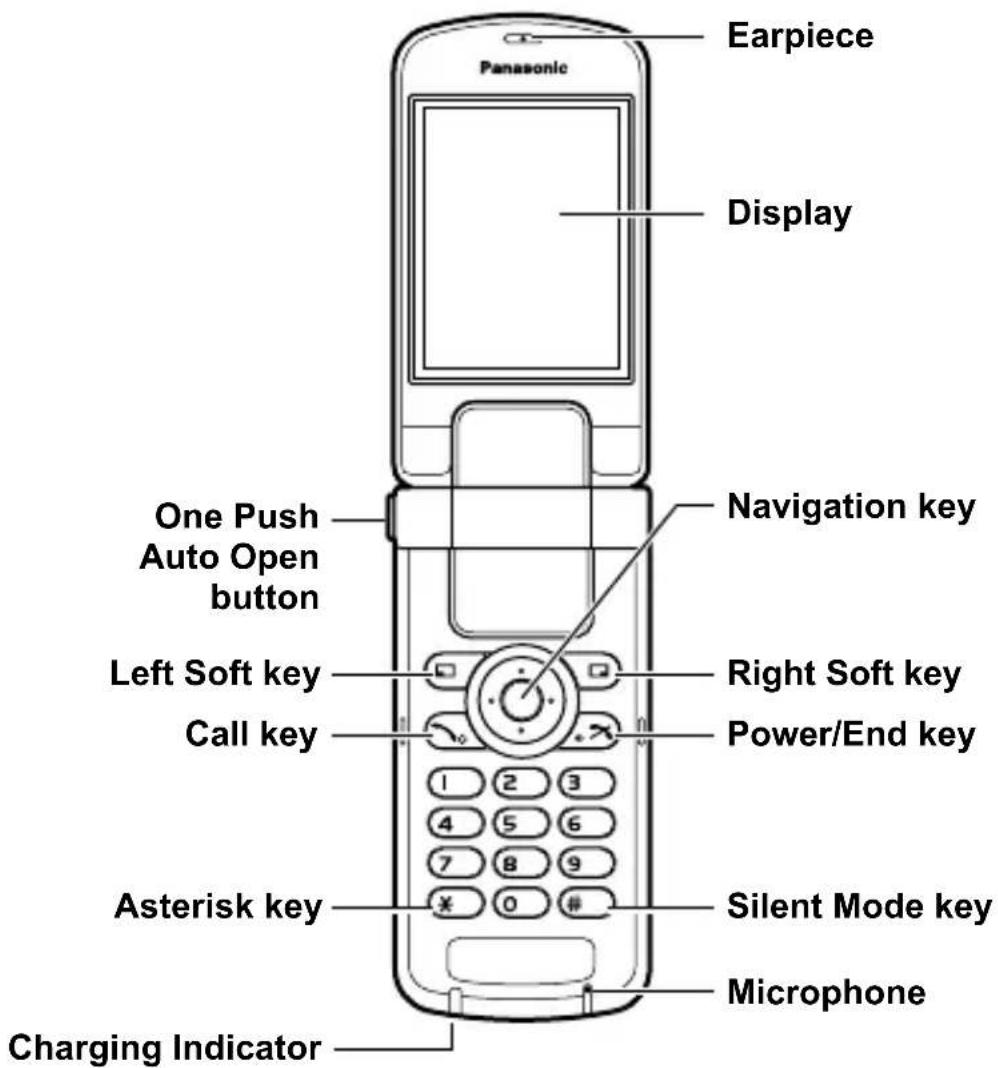
text_image
Panasonic Earpiece Display One Push Auto Open button Navigation key Left Soft key Call key Right Soft key Power/End key Asterisk key Silent Mode key Microphone Charging Indicator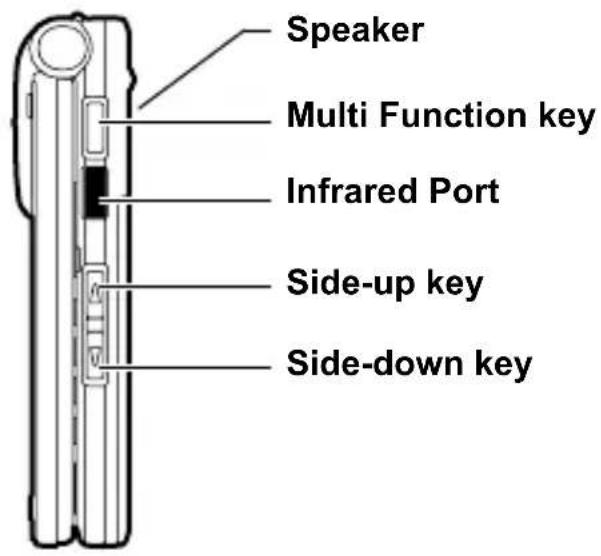
text_image
Speaker Multi Function key Infrared Port Side-up key Side-down key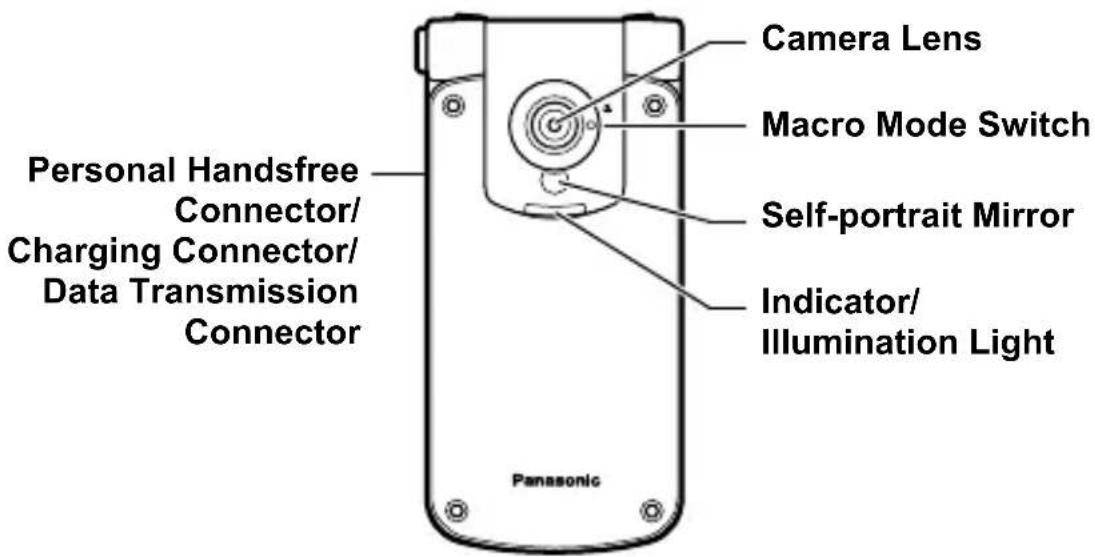
text_image
Camera Lens Macro Mode Switch Personal Handsfree Connector/ Charging Connector/ Data Transmission Connector Self-portrait Mirror Indicator/ Illumination Light PanasonicKey functions
| Key name Function | Key icon*1 | |
| Navigation key | Press outside edges to scroll up [▲], down [▼], left [◀] or right [▶] to move through menus and text. Press centre [◎] to select option, perform Alert mute, or take a picture or record a video clip in Camera mode. |  |
| Left Soft key | Perform the functions indicated by the text shown in the lower left-hand corner of the display. |  |
| Right Soft key | Perform the functions indicated by the text shown in the lower right-hand corner of the display. |  |
| Call key | Make or answer a call. |  |
| Power/End key | Press and hold to switch the phone on/off. End or reject a call. Return to standby mode. |  |
| Numeric keys | Enter numbers and characters. Press and hold [2]-[9] for Speed dialling. Press and hold [0] to enter the international prefix (+). |  |
| Asterisk key | Enter “✗”. In text entry mode, press to change the letter case, or press and hold to change the input method. |  |
| Silent Mode key | Enter “#”. Press and hold to switch the Silent mode on/off. While entering a phone number, press and hold to enter a pause (p). |  |
| Side-up key*2 | Scroll page up. Increase volume or zoom level. Perform Alert mute. |  |
| Side-down key*2 | Scroll page down. Decrease volume or zoom level. Perform Alert mute. |  |
| Key name Function | Key icon*1 |
| Multi Function key*2 | Take a picture or record a video clip in Camera mode. Perform Alert mute. |
*1 The key icons given in the table represent the actual keys on the phone.
*2 Located on the right side of the phone.
Quick keys
You can easily access features instead of navigating through the menus.
| Key Function | ||
| In standby mode | ||
| Short press | [◎] Open | Main menu/Keyguard off |
| [□] Open | Messages menu | |
| [□] Open | Browser | |
| [▲]/[▼]/[◀]/[▶] | Open the shortcut menu | |
| [↘] Open | Call log | |
| [□]/[▽] | Increase/decrease the volume | |
| Long press | [◎] Keyguard on | |
| [1] Dial your voice mailbox | ||
| [2]-[9] | Speed dial | |
| [#] Silent mode on/off | ||
| [□] Switch to Picture mode | ||
About Your Phone
| Key Function | ||
| During a call | ||
| Short press | [▲]/[▶]/[△] | Increase the volume |
| [▼]/[◀]/[▽] | Decrease the volume | |
| [□] Start/stop sound recording | ||
| [↘] | Switch between hold and unhold on one call or switch between one active and one held call | |
| In Menu list | ||
| Short press | [1]-[9] | Select Menu 1-9 |
| [※] Select | Menu ✱ | |
| [0] Select | Menu 0 | |
| [#] Select | Menu # | |
Display
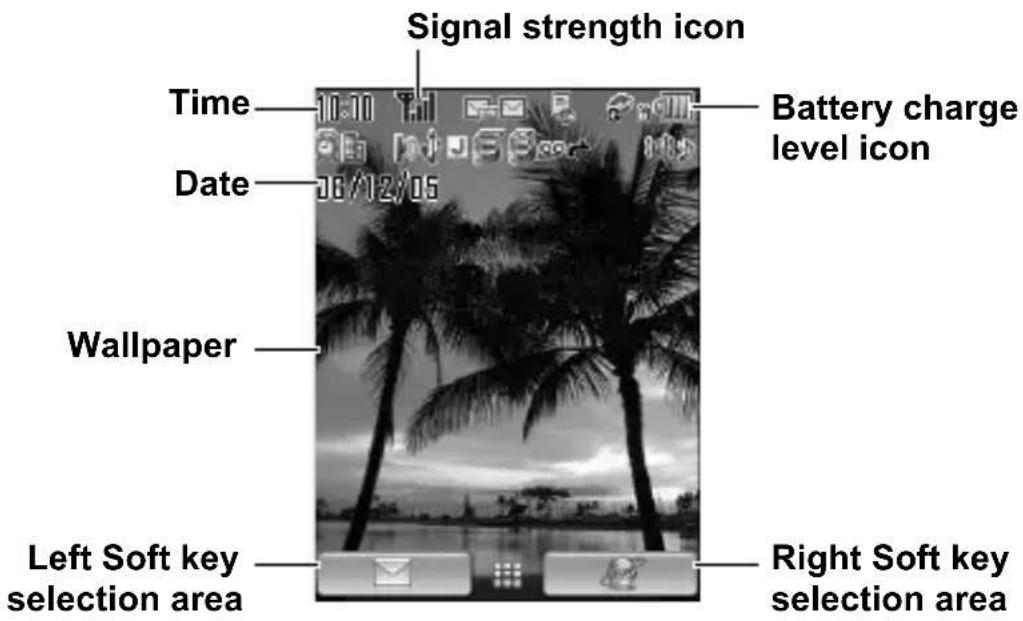
Standby display
text_image
Signal strength icon Time Date Battery charge level icon Wallpaper Left Soft key selection area Right Soft key selection areaNote: The current operator name is shown on standby display. You can change the position of the operator name. See "Operator name" on page 101.
Status icons
The status icons are displayed or animated according to the currently activated functions.
| Icon Meaning | |||
 | Signal strength; the more bars visible, the stronger the signal | ||
 | In roaming area | ||
| [W4Y0] | Battery charge level | ||
 |  | [DT30] | [BX4D] |
 | GPRS is available | ||
| [0047] | Silent profile is active | ||
 | Meeting profile is active | ||
 | Outdoor profile is active | ||
| [6W3T] | Car profile is active | ||
 | SMS message storage area is full | ||
 | MMS message storage area is full | ||
| [08AW] | Java^TM application is suspended | ||
| [36Y1] | Unread SMS message | ||
 | Unread MMS message | ||
 | Unread WAP Push message | ||
| [6222] | Call diverts is on | ||
 | Infrared is active | ||
| USB connection is available | |||
| New voicemail received | |||
| All tones are off | |||
| Vibration alert is on | |||
| Alarm is set | |||
| Non-secure CSD connection | |||
| Secure CSD connection | |||
| Non-secure GPRS connection | |||
| Secure GPRS connection | |||
| Keyguard is on | |||
DRM
Your phone has DRM (Digital Right Management) that is used to control actions such as sending downloaded ringtones, graphics and sound clips to other people. Files downloaded and indicated by the icon ( ) can be used with restriction enforced by suppliers. The restriction includes use of such files for a limited period of time only or specified number of times.
To check the status of your rights, e.g. expiration date or number of the time it can be used, see Details setting on page 131, 135 and 142. For further information, contact your service provider.
Indicator/Illumination Light
The Indicator/Illumination Light flashes or beams when the events in the table below occur.
To specify the illumination colours for the events, see “Illuminations” on page 96.
| Events Description | |
| When you are receiving a call/ missed calls | Flash or beam in the selected colour.To set a different illumination colour for respective contacts, see “Storing a contact in your phone” on page 48. |
| When you receive an SMS/MMS message | |
| When you receive a WAP Push message | Flash or beam in the selected colour.When you are having a conversation |
| When the flip is closed | |
| When the battery is charging | Beam in the specified colour. |
| When data is being transferred | |
| Schedule notification Beam in the spec | specified colour. See “Creating Calendar events” on page 125 or “Setting the alarm” on page 119. |
| Alarm |
Note: If the Indicator/Illumination Light is set to on for battery charging and the phone is switched on, the Indicator/Illumination Light illuminates during charging. If the phone is switched off, the Indicator/Illumination Light will not illuminate.
Getting Started
Installing the SIM card and the battery
The SIM (Subscriber Identity Module) card and the battery must be installed before using your phone.
Before handling the SIM card and the battery, ensure that the phone is switched off and the charger is disconnected from the phone.
Inserting/removing the SIM card
See "Inserting/removing the battery" on page 24 to remove the battery cover and the battery.
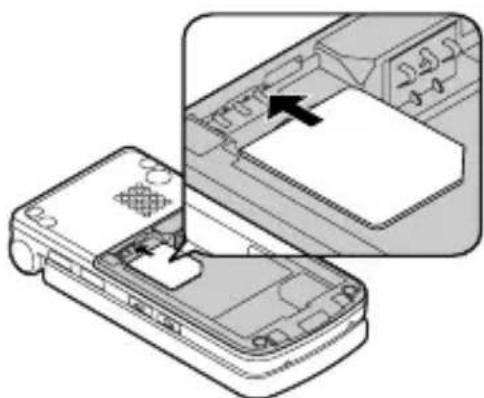
Inserting the SIM card
Position the SIM card as shown, with gold contacts facing down and the notched corner turned to the right. Carefully slide the SIM card into the SIM card pocket until fully inserted.
natural_image
Diagram of a mobile phone casing showing internal components and an open panel (no text or symbols)Removing the SIM card
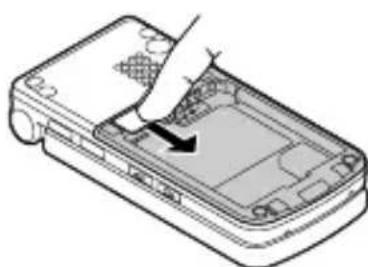
Place a finger on the bottom edge of the SIM card and gently slide it out.
natural_image
Line drawing of a hand inserting a component into a device casing (no text or symbols)Inserting/removing the battery
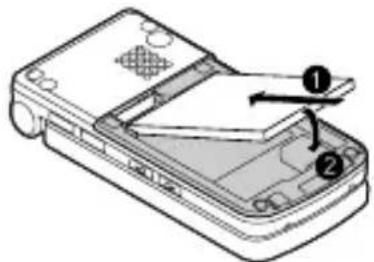
Inserting the battery
- Insert the small tabs at the top of the battery into the notch at the top of the battery compartment. Ensure the 3 gold contacts align with the 3 gold pins in the phone.
- Replace the cover on the phone. Make sure the cover clicks into place.
Removing the battery
- Place your finger on the small tab at the top of the cover. Slide the cover slightly toward the bottom of the phone, then lift the cover off the phone.
- Place your finger on the tab at the base of the battery. Lift the battery off the compartment.
text_image
Diagram of a mobile phone showing labeled parts with numbered annotations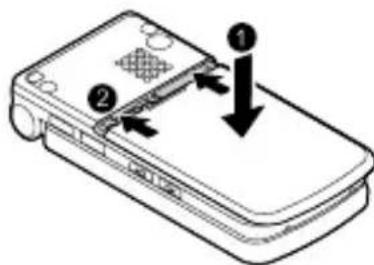
text_image
Diagram of a mobile phone with labeled parts and directional arrows indicating movement or change.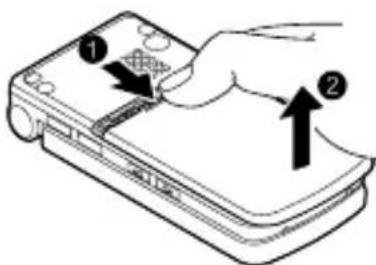
text_image
Diagram showing a hand pressing down on a device with labeled parts and directional arrows indicating movement or force.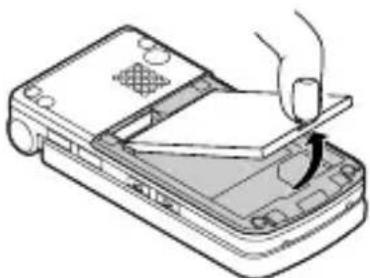
natural_image
Illustration of a hand inserting a card into a mobile phone casing (no text or symbols visible)Charging the battery
Your phone can be charged either when it is switched on or off. You can use your phone even while it is charging.
Ensure that the battery is inserted into the phone before charging.
- Open and hold the connector cover.
Connect the charger to Charging Connector, then connect the charger to the mains power supply.
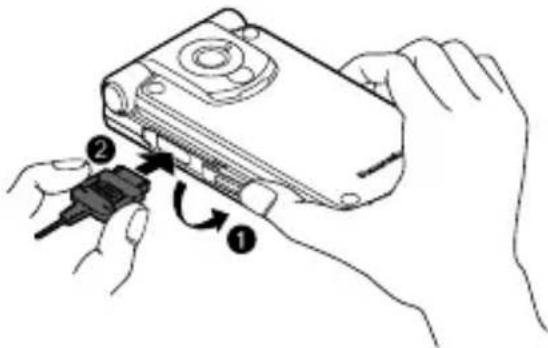
text_image
Diagram showing hands connecting a device to a plug, labeled with components ① and ②, indicating a switch or connection.- When charging is complete, disconnect the charger from the outlet before removing the plug from the phone. Then hold the connector cover and press and hold the release buttons on both sides of the connector's end and pull gently to disconnect the charger from the phone.
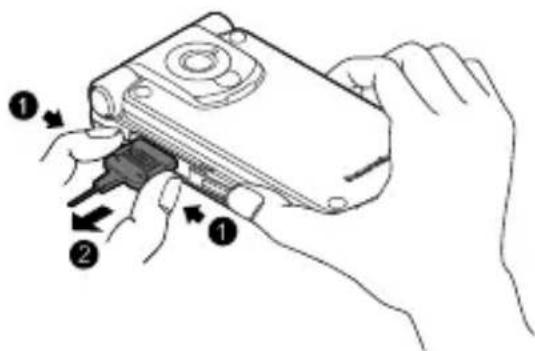
text_image
Diagram showing hands operating a device with labeled parts 1 and 2, indicating a mechanical or electrical component.After you have removed the Charging Connector, replace the connector cover over the socket.
Note: DO NOT force the connector as this may damage the phone and/or the charger.
If the battery has been deeply discharged, it may take several minutes before the Battery charge level indicator is displayed.
Getting Started
| Battery charge level indicator | ||||
| While charging Charging | complete | |||
 |  |  |  |  |
Charging Indicator goes out when charging is completed.
Low battery warning
When the battery power is low, a “Battery low” message is displayed and a warning tone sounds. The phone automatically switches off after the tone. Fully recharge the battery. If you receive the low battery warning during a conversation, charge your phone to continue with the conversation.
Opening/closing the phone
You can open your phone by pressing One Push Auto Open button.
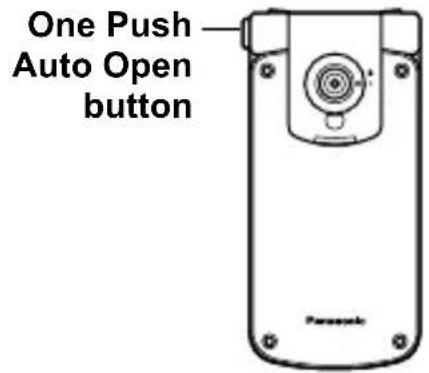
text_image
One Push Auto Open buttonFlip setting
When Active flip setting is set to On (see page 106), you can answer a call by opening the phone and end a call by closing the phone.
When One push SMS setting is set to On (see page 71), new SMS messages can be displayed by opening the flip.
Switching the phone on/off
- Press and hold [ ×] for several seconds to switch the phone on
A greeting may be displayed and the phone enters standby mode.
- Press and hold [_0] for several seconds to switch the phone off
Note: If your SIM card is PIN protected, your PIN code will be requested. Enter the PIN code and [●]/[□] (Ok). See "Security" on page 115.
DO NOT switch off the phone while resetting/downloading/deleting a file or running/terminating a Java ^TM application.
Menu Navigation
Main menu structure

Games
Games 142
Download ^*1 144
Settings .....145
Information .....145
My Media
Pictures ...... 130
Sounds 134
Videos...... 137
Games...... 138
Text templates ..... 139
Memory status..... 140

Calendar .....123

Camera
Picture.... 75
Video....81

Messages
Create new 58
Inbox.... 64
Archive 68
Web mail ^*1 69
Chat ^*1 70
Voicemail 70
Messages settings... 71
Memory status ..... 73

Browser
PANASONIC BOX ...85

Tools
SIM tool kit ^*2 ..... 119
Alarms.... 119
Sound recorder .....121
Calculator......122

Contacts
Contacts list...... 46
Add contact...... 48
Call log 51
Speed Dial list...... 52
View groups...... 53
Advanced 53
Service numbers*1*2 56

Settings
Phone settings ..... 94
Display settings..... 100
Sounds & alerts..... 102
Calls.... 104
Connectivity .....108
Security...... 115
*1

*2

Displaying the menu
The menu system allows you to access functions which do not have their own dedicated buttons on the keypad.
In standby mode:
- [○]
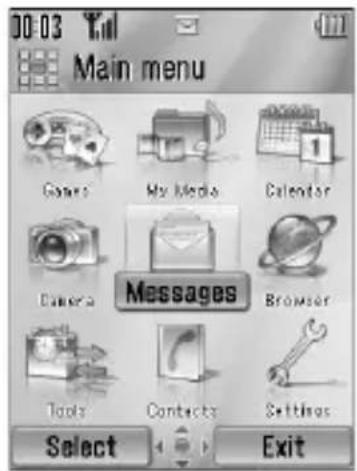
Main menu appears with 9 menu options. (See "Main menu structure" on page 28.)
- [▲/▼/◄/►] to scroll to the required menu → [◎]/[□] (Select)
To go back to Main menu:
- [☐] (Back) repeatedly until Main menu screen appears
text_image
00:03 Yell Main menu Games My Media Calendar Camera Messages Browser Tools Contacts Settings Select ExitShortcut: To jump to and open one of the 9 application items, simply press the Numeric key corresponding to the required item's location. The numbering system is:
| 1 | 2 | 3 |
| 4 | 5 | 6 |
| 7 | 8 | 9 |
Navigating the applications
Current settings
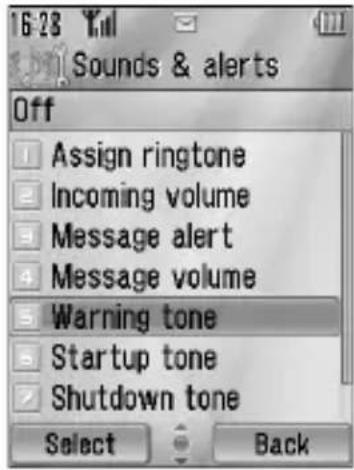
When you highlight an item in the menu list, the current setting of the item is displayed in the bar just above the menu list.
In the case shown to the right, the current setting of Warning tone is "Off".
text_image
16-28 Yll Sounds & alerts Off Assign ringtone Incoming volume Message alert Message volume Warning tone Startup tone Shutdown tone Select BackMenu selection method
There are several ways to select items: by using Navigation key or Left Soft key, or by entering the required number, ✕ or # given to the item.
To select Warning tone in the display shown above:
• [▲/▼] to scroll to Warning tone → [◎]
• [▲/▼] to scroll to Warning tone → [☐] (Select)
- Press the menu number [5]
Keys corresponding to the menu numbers
• [1]-[9]: Menu 1-9
• [ *]: Menu *
• [ 0]: Menu 0
• [ #]: Menu #
Note: Direct access keys to the menus with no menu numbers/symbols are not available.
Note: There are several ways to select items from menu lists. See “Menu selection method” on page 30.
Making calls
To make a call, your phone must be within the range of a network with adequate signal strength.
Standard dialling
In standby mode:
- Enter the area code and phone number → [↘]/[◎]
- When the other party answers, talk into Microphone
- [☐] / [☐] (End) to hang up The duration of the call is displayed.
Note: To erase a digit: [☐] (Clear)
To increase the earpiece volume: [▲]/[▶]/[□]
To decrease the earpiece volume: [▼]/[◀]/[□]
If Active flip is set to On (see page 106), you can answer a call by opening the phone and end a call by closing the phone.
Auto redial
Your phone will automatically redial the number up to 10 times under certain conditions, such as no answer, destination number is busy, network busy, or some connection errors.
When your call is rejected:
- “Auto redial?” → [●]/[□] (Yes) to start Auto redial
- To stop Auto redial while redialling, [_×]/[ ] (Cancel)
Contacts dialling
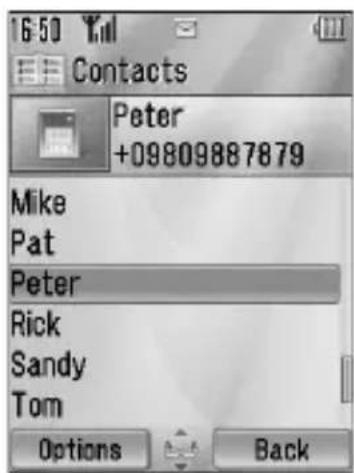
You can make calls using the numbers in Contacts.

Main menu > Contacts > Contacts list
- [▲/▼] to scroll to the required contact OR Enter letters to find a contact beginning with the specific letters
- [↘]
- If the card has several phone numbers stored, [▲/▼] to scroll to the required number → [●]/[□] (Call)
text_image
Contacts Peter +09809887879 Mike Pat Peter Rick Sandy Tom Options BackRecent call dialling
You can make calls using the numbers in Call log.
In standby mode:
- [ ↘ ]
- [◀/▶] to switch to Dialled numbers, Answered calls or Missed calls screen
- [▲/▼] to scroll to the required number → [↘]
International dialling
The international prefix (+) and the destination country/region code should be entered, followed by the area code and phone number.
- Press and hold 0 until “+” is displayed
- Enter the country/region code
- Enter the area code and phone number → [ ]
Note: Many countries/regions include an initial "0" in the area code. This should, in most cases, be omitted when dialling international numbers. For further help, contact your service provider.
Emergency call
To make an emergency call, your phone must be within the range of a network.
When SIM card is inserted:
- Enter the local emergency number → [↘]/[◎]
Note: Most countries support the international emergency number 112. If you find the number does not work on your phone, contact your service provider.
When SIM card is not inserted: 1. [☐] (Options) → Select SOS

Answering calls
When there is an incoming call, the phone rings and/or vibrates (depending on your phone setting). (See “Sounds & alerts” on page 102.)
When the phone is ringing and/or vibrating:
- [↘]/[□] (Accept)
Note: If Any key answer is set to On (see page 105), you can answer a call by pressing any key except [○×], [●], [□] (Cancel), [□], [▲] and [▼].
If Active flip is set to On (see page 106), you can answer a call by opening the phone and end a call by closing the phone.
Rejecting calls
When the phone is ringing and/or vibrating:
- [①] / [□] (Cancel)
Missed call notification
If you cannot answer a call, Missed call notification appears on the standby screen.
To view the Missed call list:
- [●]/[□] (View)
- To call back, [/] to scroll to the required log [↘]
Alert mute
You can turn the ringing tone and/or vibration off before answering a call.
When the phone is ringing and/or vibrating:
- When the phone is closed: [☐]/[▲]/[▼]
When the phone is open: [◎]
- [↘] to answer the call
Answering a second call
When on an active call, you may receive another call.
To enable this service, Call waiting must be active. (See “Call waiting” on page 105.)
If you hear an alert tone during a call:
- [↘]/[□] (Accept)
The first call is placed on hold.
- [↘] to switch between the two calls if required
To reject another call:
- [☐] (End)
To end the active call and answer the incoming call:
- [_0 ×] to end the active call
- [ ] to answer the call
Auto answer
When you use the optional Personal Handsfree earpiece, you can answer a call automatically. To enable this service, Auto answer must be on. (See “Auto answer” on page 106.)
Silent mode
To use your phone in a quiet situation, you can activate the Silent mode. You can personalise the Silent mode setting. (See “Profiles” on page 94.)
In standby mode:
- Press and hold [#] to activate/deactivate the Silent mode
Voicemail
Voicemail is a network service which allows callers, who could not reach you, to leave voice messages. You may need to subscribe to this service through your service provider. For further details, see "Voicemail" on page 70.
Retrieving stored voice messages
When a new voice message is stored, an alert sounds and ( ) appears on the display and you receive an SMS notification.
- Press and hold [1] to call your voice mailbox
If the number is not valid, contact your service provider. - Follow the recorded instructions
- [①] when finished
In-call operations
In-call options (while connected to an active call)
When on a call, the following options are available.
- [☐] (Options) → Select the required option
| Hold call/Resume Put or resume a call on hold. | |
| From contacts Access | the Contacts list. |
| Create SMS Create a new SMS message. | |
| Inbox (SMS) Access Inbox (SMS). | |
| Calendar Access Calendar. | |
| Speaker mode/Handheld mode | Switch to Speaker or Handheld talking mode. |
| Record | Record the conversation. The sound clip is saved to My Media. |
Hold
You can put a call on hold.
During a call:
- [↘] to switch between Hold call and Resume OR [☐] (Options) → Select Hold call or Resume
Handsfree talking
You can have a conversation without holding the phone to your ear.
Swapping between Speaker and Handheld mode
- [☐] (Options) → Select Speaker mode or Handheld mode
Volume control
You can adjust the volume of the phone earpiece, speaker or headset if attached.
To increase the volume:
- [▲]/[▶]/[□]
To decrease the volume:
- [▼]/[◀]/[□]
DTMF
DTMF (Dual Tone Multi Frequency) can be sent during a conversation. These are often used to access voicemail, paging and computerised home banking. For example, you may need to enter a number to remotely access voicemail messages. A phone number may be stored in the Contacts card together with a DTMF sequence, allowing the number to be dialled upon recall and the DTMF sequence to be sent automatically.
To send DTMF during a call:
- Enter digits 0-[9], [✗] or [#]
Pause dial
Using pauses allows you to send DTMF automatically.
- Enter the phone number
- Press and hold [#] until a "p" is displayed
-
Enter the DTMF digits after the pause, e.g. enter the number to access voicemail messages
-
[↘]/[◎]
When the call is connected, the DTMF sequence is sent after 3 seconds.
Making a second call

You can make another call while on a call.
During a call:
-
Enter the second phone number or select a phone number from the Contacts list
To access Contacts list, see "In-call operations" on page 36. -
[ ]
The first call is put on hold.
- [↘] to switch between the two calls if required
Multiple calls operations
In-call options (while on multiple calls)
When on more than one call, the following options are available.
- [☐] (Options) → Select the required option
| Swap Switch between one active and one held call. | |
| Merge | Enable multi-party conversation when two calls are connected (one active, one on hold). See “Conference” on page 39. |
| From contacts Access the Contacts list. | |
| Create SMS Create a new SMS message. | |
| Inbox (SMS) Access Inbox (SMS). | |
| Calendar Access Calendar. | |
| Speaker mode/ Handheld mode | Switch to Speaker or Handheld talking mode. |
| Record | Record the conversation. The sound clip is saved to My Media. |
Conference

You can have a conversation with up to 5 different parties at the same time.
During a call (one active call and one call on hold):
- [☐] (Options) → Select Merge
The 2 calls are joined into a Conference call.
To add new participants:
-
Call the next person or answer an incoming call
-
[☐] (Options) → Select Merge
To end the Conference call:
- [①]
To split the caller from the Conference call and talk privately:
During a Conference call:
-
[☐] (Options) → Select Conference call
-
[▲/▼] to scroll to the required caller you wish to talk to
-
[☐] (Options) → Select Split
The remaining callers can continue with the Conference call.
- To end the private call and rejoin the Conference call, [☐] (Options) → Select Merge
Text entry
Input method
Your phone provides three text input methods to enter characters.
| T9® | A predictive text entry system. You can enter a word with fewer key presses. |
| Multi-tap | A traditional way to type in a letter. Press a key several times until the required letter appears. |
| Numeric | You can enter numbers (0-9), ✕, # and +. |
An icon on the upper left of the screen shows the current input method and letter case.
| Input method Icon Letter case | ||
| T9® | T9↑Automatic | |
| T9↑Upper case | ||
| T9 Lower case | ||
| Multi-tap | Abc Automatic | |
| ABC Upper case | ||
| abc Lower case | ||
| Numeric 123 - | ||
Changing the input method
Press and hold [✗] to cycle through the input methods as follows.
T9 (T9↑) → Multi-tap (Abc) → Numeric (123)
Changing the letter case
Press [✗] repeatedly until the icon for the required letter case mode appears.
Auto capital change
When the letter case is set to Automatic (T9↑ and Abc), the first character is entered as upper case and subsequent letters as lower case.
When one of the following characters [. (Period) ! ? ] is entered, the next character is entered as upper case.
T9 ^® text input method
The T9 ^® text input method enables you to enter text faster and easier. You only need to press a key once for any letter you require on that key. The program searches its built-in dictionary to predict the word that most closely matches your key presses.
- In text entry screen, press a key once for any letter you require on that key
- Continue pressing other keys until the end of a word is reached
- Select the required word
OR
If the required word is not in the dictionary, “?” is displayed after the word.
[□] (Spell) → Enter the correct word → [●]/[□] (Add)
The word is added to the internal dictionary automatically.
For example, to enter "Hello!", press keys as follows.
| Key | [4] | [3] | [5] | [5] | [6] | [1] | [▼] × 4 |
| Display I He | Hel | Hell Hello | Hello. | Hello! |
My dictionary
Words that you enter are added to the internal dictionary automatically so that they are suggested next time. You can also add new words to the dictionary manually.
To add words to My dictionary:
- In text entry screen, [☐] (Options) → Select My dictionary
- Enter a word → [◎]/[□] (Add)
Editing text
Inserting/deleting text
Move the cursor by pressing [▲/▼/◄/►] to the position you want to insert or delete a letter. Press [☐] (Clear) to delete a character. Press and hold [☐] (Clear) to delete all the characters.
Copying/cutting/pasting text
- [☐] (Options) → Select Copy or Cut
- [▲/▼/◄/►] to move to the text you wish to copy or cut
- [◎]/[□] (Start) → [▲/▼/◀/▶] to highlight the text → [◎]/[□] (Stop)
- [▲/▼/◄/►] to move to a new required location
- [☐] (Options) → Select Paste
Options
When entering text, the following options may be available by pressing [☐] (Options).
| Use contacts*1 | Access Contacts menu to use Contacts data. |
| Copy/Cut/Paste See “Copying/cutting/pasting text” on page 43. | |
| Add symbol | Show the Symbol list from which you can select any symbol available on your phone. |
| Input method Select the input method. | |
| T9 on/off*1 | Turn On or Off the predictive dictionary. |
| Input language*1 | Select a language you wish to write in. |
| My dictionary | Add words to the internal dictionary. |
| Exit Exit the text edit mode. | |
*1 Depends on each application.
The following table shows characters available on your phone.
The characters vary depending on the Input language setting (see page 43).
| Key | Input method (Input language: English) | ||
| T9®(T9↑, T9↑ or T9) | Multi-tap (Abc, ABC or abc) | Numeric (123) | |
| [0] Space | 0 | ||
| (Press and hold) + | |||
| [1].,-?!'@:;/1 | .,?1!"-:;@/*()#+_=[]{'i¿&%\^~|<>€¢£¥¤§`(Space)←(Linefeed) | 1 | |
| [2] A B C 2 (a b c 2) | A B C 2 Γ Á Ä Å Å Å Æ Ç(a b c 2 α β γ á ä å æ à â ã) | 2 | |
| [3] D E F 3 (d e f 3) | D E F 3 Δ É Ê(d e f 3 δ ε ζ é è ê) | 3 | |
| [4] G H I 4 (g h i 4) | G H I 4 Θ í (g h i 4 η θ ι i í) | 4 | |
| [5] J K L 5 (j k l 5) | J K L 5 Λ (j k l 5 κ λ μ) | 5 | |
| [6] M N O 6 (m n o 6) | M N O 6 Ξ Ñ Ō Ō Ō Ō Ō Ō(m n o 6 v ξ ó ó ñ ō Ō Ō Ō Ō) | 6 | |
| [7] P Q R S 7 (p q r s 7) | P Q R S 7 Π Σ(p q r s 7 π ρ σ σ β) | 7 | |
| [8] T U V 8 (t u v 8) | T U V 8 Φ Ú Ú Ü(t u v 8 τυ φ ú ü ü) | 8 | |
| [9] W X Y Z 9 (w x y z 9) | W X Y Z 9 Ψ Ω (w x y z 9 χ ψ ω) | 9 | |
| [*] | Letter case change * | ||
| (Press and hold) Input method change | |||
| [#] | .,?!"-:;@/*()#+_=[]'i¿&%\^~|<>€¢ £ ¥¤ §`(Space)←(Linefeed) | # | |
| (Press and hold) Linefeed | |||
Shortcut: To enter numbers while in T9 or Multi-tap method, press and hold the required numeric key 0-[9].
Contacts menu structure
Contacts list 46
Add contact 48
Phone.... 48
SIM....50
Call log.... 51
Dialled numbers 51
Answered calls 51
Missed calls.... 51
Speed Dial list 52
View groups 53
Advanced 53
Synchronisation ....53
My number....54
Display by 55
Memory status ....55
Copy all from SIM ....55
Copy all to SIM 55
Delete all....56
Service numbers*1......56
*1

Note: There are several ways to select items from menu lists. See “Menu selection method” on page 30.
Viewing the Contacts list
You can search for a phone number in the Contacts list. All the numbers stored in the phone and SIM card are displayed.
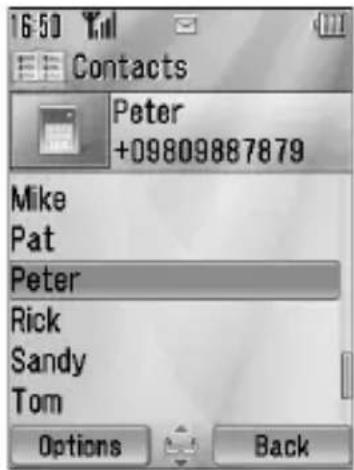
Searching for a contact

Main menu > Contacts > Contacts list
-
[▲/▼] to scroll to the required contact OR Enter letters to find a contact beginning with the specific letters
-
To view the Contacts card, [◎]
text_image
Contacts Peter +09809887879 Mike Pat Peter Rick Sandy Tom Options BackOptions
In the Contacts list, the following options are available by pressing [☐] (Options).
| View View the selected | Contacts card. |
| Call Call the selected contact. | |
| Create message | Create an SMS or MMS, and send it to the selected contact. See “Creating a new message” on page 58. |
| Edit | Edit the selected contact. See “Editing a Contacts card” on page 50. |
| Search Search a contact by entering characters. | |
| Add contact | Add a new contact. See “Adding contacts” on page 48. |
| Delete Delete the selected contact. | |
| Speed dial | Assign the selected contact to a Speed dial. See “Assigning speed dial keys” on page 52. |
| Copy to phone/SIM | Copy the selected contact to the phone or the SIM card. |
| Send via infrared | Send the selected contact to another device via infrared. See “Infrared” on page 108. |
Making a call from Contacts
Main menu > Contacts > Contacts list
- [▲/▼] to scroll to the required contact OR
Enter letters to find a contact beginning with the specific letters
-
[↘]
-
If the card has several phone numbers stored, [▲/▼] to scroll to the required number → [●]/[□] (Call)
Adding contacts
Storing a contact in your phone
In the phone, you can store detailed information for each contact. The entries are retained even if you damage your SIM card.

Main menu > Contacts > Add contact > Phone
- [▲/▼] to scroll to the required field → [◎]
- Enter information → [●] To enter characters, see "Text entry" on page 40.
- When entries are completed, [☐] (Save)
 | First name*1 | Enter the first name. |
 | Last name*1 | Enter the last name. |
| Mobile number*1 | Enter the phone numbers. | |
| Home number*1 | ||
| Work number*1 | ||
| Mobile email*1 | Enter the e-mail addresses. | |
| Personal email*1 | ||
| Work email*1 | ||
| Birthday Enter the contact's birthday. | ||
| Postal address | Enter Additional info, No./street, Postal code, City, State and Country. | |
| Note Enter notes. | ||
 | Ringtone | Select the required ringtone fromor My Media. To download a ringtone, select Download^*2 . |
 | Message alert | Select the required Message alert fromor My Media. To download a Message alert, select Download^*2 . |
 | Illuminations | Selector the required illumination colour. |
 | Picture Select therequired picture. | |
 | Group Select therequired group. | |
*1 The contact entry can be saved when at least one of the items is filled.
*2

Note: If a picture in My Media is attached to a Contacts card, it appears on the screen when the contact calls you. When the picture is set to be attached to a Contacts card, the phone saves the picture resized for the Contacts card if the picture is larger than the display size.
For downloading information, visit http://box.panasonic.com/

Contacts
Storing a contact in your SIM card
You can store some information for each contact in your SIM card.

Main menu > Contacts > Add contact > SIM
- [▲/▼] to scroll to the required field → [◎]
- Enter information → [◎]

Name Enter the name.

Tel number Enter the phone number.


(Save)
Note: The length of name and number, and the total amount of data are SIM dependent.
Storing a contact from Call log
See "Saving a phone number from Call log" on page 51.
Editing a Contacts card

Main menu > Contacts > Contacts list
- Highlight the required Contacts card (See "Searching for a contact" on page 46.)
- [☐] (Options) → Select Edit
- Edit the required entry → [☐] (Save)
Call log
Recently dialled phone numbers, answered calls and missed calls are stored in Call log. The numbers in the Call log list can be used to call, send a message or add to Contacts.
Viewing/Dialling from Call log
Main menu > Contacts > Call log
- [◀/▶] to move to Dialled numbers, Answered calls or Missed calls
- [▲/▼] to scroll to the required log → [◎]
- [◎] to call
Shortcut: You can directly view the Dialled numbers list by pressing [ ] in standby mode.
Saving a phone number from Call log
Main menu > Contacts > Call log
- [◀/▶] to move to Dialled numbers, Answered calls or Missed calls
- [▲/▼] to scroll to the required phone number
- [☐] (Options) → Select Add to contacts
- Select New or Add
- If New is selected: Enter other information If Add is selected: Highlight the required contact → [☐] (Select) → If there is no empty field, “Would you like to replace?” → [☐]/[☐] (Yes) → Select the number you want to replace in Phone Contacts
- [☐] (Save)
Options
In each Call log list, the following options are available by pressing [☐] (Options).
| Call Call the selected number. | |
| Create message | Create an SMS or MMS message to the selected number. |
| Add to contacts | Store the selected number to Contacts. See “Saving a phone number from Call log” on page 51. |
| Delete Delete the selected number. | |
| Delete all Delete all the logs in the list. | |
Speed dial
You can quickly dial phone numbers by pressing keys 2-9.
Assigning speed dial keys
Main menu > Contacts > Speed Dial list
- [▲/▼] to scroll to the required key → [◎]
- Enter phone number → [◎]
To assign a speed dial key to a contact:
Main menu > Contacts > Speed Dial list
- [▲/▼] to scroll to the required key → [□] (LookUp)
- Highlight the required contact → [☐] (Select)
- If the card has several phone numbers stored, [▲/▼] to scroll to the required number → [●]/[□] (Select)
Using the speed dial keys
In standby mode:
- Press and hold a speed dial key ([2]-[9]) → [☐] (Call)
Groups
You can categorise the Contacts list stored in your phone into 20 groups.
Viewing group members
Main menu > Contacts > View groups
- Select the required group
The contacts in the selected group are displayed.
Renaming a group
Main menu > Contacts > View groups
-
[▲/▼] to scroll to the required group → [□] (Rename)
-
Enter a new group name → [◎]
Advanced
Synchronisation
You can synchronise your Contacts list with your network server. You can just send changes or send all your records to the network server. For further details, see “Synchronisation” on page 110.
To send only changes to the network server:
Main menu > Contacts > Advanced > Synchronisation > Modified contacts
The phone confirms completion.
To send all your records to the network server:
Main menu > Contacts > Advanced > Synchronisation > All contacts
The phone confirms completion.
My number
You can store your own numbers in the phone and SIM card.
Storing numbers in Mobile profile
Main menu > Contacts > Advanced > My number > Mobile profile
-
[●]/[□] (Create)
-
Repeat steps 1-3 in "Storing a contact in your phone" on page 48
Storing numbers in SIM profile
Main menu > Contacts > Advanced > My number > SIM profile
-
When the profile is empty: [●]/[□] (Create) When the profile has the stored number(s): [□] (Options) → Select Create
-
Repeat steps 1-3 in "Storing a contact in your SIM card" on page 50
Options
When viewing My number, the following options are available by pressing [☐] (Options).
| Edit Edit the profile. | |
| Create*1 | Create a new profile. |
| Delete Delete the profile. | |
| Send via infrared Send | the profile via infrared. |
*1 Available only for SIM profile.
Displaying the Contacts list sorted by last name/first name
You can choose to sort the Contacts list by contact's last name or first name.
Main menu > Contacts > Advanced > Display by
1. Select First name or Last name
Memory status
You can see the amount of memory available in the Contacts list.
Main menu > Contacts > Advanced > Memory status
Note: The amount of memory for SIM storage depends on your SIM card. To decrease the amount of phone memory used, delete unwanted data or store data on your PC (see "USB" on page 114).
Copying contacts
You can copy all the contacts from SIM card to phone, or from phone to SIM card.
Copying all the contacts from SIM card to phone
Main menu > Contacts > Advanced > Copy all from SIM
- "Copy?" → [◎]/[□] (Yes)
Copying all the contacts from phone to SIM card
Main menu > Contacts > Advanced > Copy all to SIM
- “Only Name and Number fields can be copied. Continue?” → [◎]/[□] (Yes)
Deleting Phone Contacts
You can delete all the contacts stored in your phone.

Main menu > Contacts > Advanced > Delete all
- "Delete all contacts in phone?" → [☐] (Yes)
- "Are you Sure?" → [☐] (Yes)
Service numbers

If your SIM card includes SDN (Service Dialling Number), you can call a service number by selecting from the list.
SDN enables you to access special services provided by your network operator, such as customer support, emergency services, etc.

Main menu > Contacts > Service numbers
- [▲/▼] to scroll to the required item → [◎]/[□] (Call)
Messages menu structure
Create new.... 58
SMS message.... 59
MMS message 62
Inbox 64
SMS 65
MMS....66
Archive...... 68
SMS 68
MMS....68
Web mail ^*1 69
Chat ^*1 70
Voicemail....70
Call Voicemail 70
Set mailbox number......70
Messages settings .....71
SMS....71
MMS 72
Memory status ....73
SMS....73
MMS 73

Note: There are several ways to select items from menu lists. See "Menu selection method" on page 30.
Creating a new message
Messaging types
| SMS | Short Message Service allows you to send and receive short text messages on any network that has roaming agreement. (Dependent on the recipient's phone parameters.) With the Illumination feature, you can express special feelings in a message. |
| MMS | Multimedia Messaging Service allows you to send messages containing text, pictures, sound and video clips from your phone to other MMS-enabled phones or e-mail addresses. The recipient can play it as a slide show. |
Note: The message centre number for SMS should be preprogrammed on the SIM card. Changing this number (see Message centre setting on page 71) may cause failure of a text message.
Your phone may have already been set with an MMS profile when purchased. To change the settings of the profile, see Advanced setting on page 72.
Sending or editing of a forward locked picture/sound clip/video clip indicated by the icon ( ) is restricted.
Creating an SMS message
Main menu > Messages > Create new > SMS message
- Create text message → [◎]
See "Text entry" on page 40 for entering text.
- To enter recipient's phone number directly: Enter number
To select recipient's phone number from Contacts: [●] →
Highlight the required contact → [☐] (Select) → If the card has several phone numbers stored, [▲/▼] to scroll to the required number → [●]/[☐] (Select)
- [●] to send the message
Creating an Illumination message with emoticons
With the Illumination feature, you can express special feelings in a message. The Indicator/Illumination Light responds to the pictographs in an Illumination message and light in combinations of colours and light patterns when you receive and view an Illumination message.
Main menu > Messages > Create new > SMS message
-
Create text message
-
[☐] (Options) → Select Templates
-
Select Illumination templates
-
Select the required emoticon
See "Emoticon list" on page 60.
To preview the Illumination of the messages you create:
[☐] (Options) → Select Preview illumination
Note: Only recipients who have an Illumination message capable phone can view messages with Illumination.
Emoticon list
| Emoticon | Indicator Colour | Light Pattern |
| :-) | Colour 3 | A |
| :-D ( ^\_ ) | ||
| >:-< | B | |
| :* | Colour 6 | |
| :-P C ( | ||
| :'( | Colour 1 | B (;_;;) |
| :-( | A | |
| :-/ | Colour 5 | |
| :-S | B | |
| :-[ | C | |
| :-> | Colour 2 | A |
| 8-) | B | |
| =::-) | Colour 4 | |
| :-0 | ||
| :() | C | |
| :-I | Colour 7 | |
| I-( | A | |
| ;-) | Colour 8 | C |
| Emoticon | Indicator Colour | Light Pattern |
| ^o^/ | Colour 3 | A |
| (>o<)/ | B:-|| (> -<#) | |
| ^3^ | Colour 60 | - ) A ( o^ - ^o )A |
| *~o~*) | ||
| Colour 1 | B | |
| (T_T) | A | |
| (?_?) | Colour 5 | |
| (> _<) | B | |
| (-_-; | C | |
| ( ^w^ ) | Colour 2 | A |
| ^&^ | B | |
| (@_@) | Colour 4 | |
| ( *o^ ) | ||
| p( ^-^ )p | A | |
| (-_-) | Colour 7 | C |
| (__)Zzz | A | |
| ( ^_~ ") | Colour 8 | C |
- Pattern A: [Firefly] flickers slowly for about 2 seconds.
- Pattern B: [Flash] flickers fast for about 1 second.
- Pattern C: [Beam] lights for about 1 second (2 seconds in Colour 8).
Options
When creating a text message, the following options are available by pressing [☐] (Options).
| Send Send the text as an SMS message. | |
| Send to many Send the text to more than one recipients. | |
| Preview illumination Preview illumination message. | |
| Templates | Select Illumination templates to create an illumination message or User templates to use the stored text templates. |
| Count message | The long message may be divided into several messages. You can check the concatenated message number. |
| Save Save the message in Unsent folder. | |
| Use contacts Access Contacts menu to use Contacts data. | |
| Copy/Cut/Paste Copy, cut or paste the text. | |
| Add symbol | Show the Symbol list from which you can select any symbol available on your phone. |
| Input method Select the input method. | |
| T9 on/off | Turn On or Off the predictive dictionary. |
| Input language Select a language you wish to write in. | |
| My dictionary Add words to the internal dictionary. | |
| Exit Exit the text edit mode. | |
Creating an MMS message
Main menu > Messages > Create new > MMS message
-
Select Add picture, Add text, Add sound or Add video
-
If Add text is selected: Create text message → [◎]
See "Text entry" on page 40 for entering text.
If Add picture/Add sound/Add video is selected: Select the required item stored to My Media → [☐] (Select)
You can also download new files, take new pictures, record new sound or video clips for the MMS message.
-
To add more than one picture, text, sound or video clip, [▲/▼] to scroll to Slides → [◎] → [◎]/[□] (Yes)
-
Repeat steps 1-3 if required
To send the message:
-
[☐] (Options) → Select Send
-
[▲/▼] to scroll to Add subject → [◎]
-
Enter subject → [◎]
-
[▲/▼] to scroll to Add recipient → [◎]
-
Select From contacts, Enter number or Enter email address
-
If From contacts is selected: Highlight the required contact → [☐] (Select) → If the card has several numbers stored, [▲/▼] to scroll to the required number → [●]/[☐] (Select)
If Enter number/Enter email address is selected: Enter number/email address → [●]
- [▲/▼] to scroll to Send → [◎]
Note: When you select Add video and record a new video clip in step 2, the recording time is fixed to For MMS sending.
You cannot attach a video clip together with a picture file or sound clip to one slide.
For downloading information, visit http://box.panasonic.com/
Slide options
When Slides is highlighted, the following options are available by pressing [☐] (Options).
| Add new Add a new slide. | |
| Send | Send the MMS message after entering subject and recipient number or address. |
| Slide duration Specify | duration of the slide. |
| Remove slide Remove | the slide from the MMS message. |
| Preview slide Preview | the MMS message as a slide. |
Receiving messages
Receiving SMS messages
When you receive a new SMS message, the message icon ( ) is displayed along with a tone, illumination, and/or vibration. The SMS notification also appears on the standby screen.
Reading SMS messages
When an SMS notification is displayed on the standby screen:
- [◎]/[□] (View)
If there is more than one notification, [▲/▼] to scroll to New SMS before step 1.
If there is one SMS message, the message is automatically displayed.
-
If there is more than one SMS message, [▲/▼] to scroll to the required message header in SMS Inbox → [◎]
-
When the message is displayed, [●] to show the message details (sender's number, date, message centre's number) if required
Receiving MMS messages
When you receive a new MMS message, the message icon ( ) is displayed along with a tone, illumination, and/or vibration. The received MMS messages are stored in Inbox.
Reading MMS messages
To read the received MMS messages, see "Inbox" on page 64.
Note: If you do not want to receive MMS messages automatically, select Never in Auto download setting (see page 72). In this case, you will receive a message notification first, and then you will need to receive messages manually.
Inbox
Inbox stores received SMS and MMS messages.

Main menu > Messages > Inbox
Numbers in brackets show the number of unread messages and the total number of messages in each inbox.
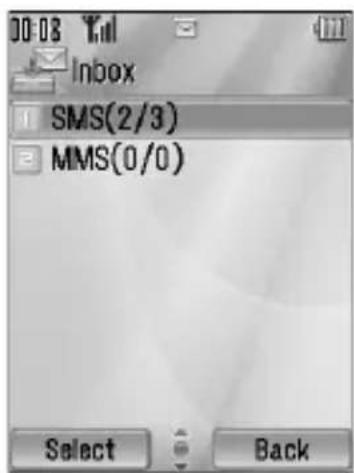
text_image
00:08 Inbox SMS(2/3) MMS(0/0) Select BackSMS Inbox
SMS message icons

Unread message Read message
Reading SMS messages
Main menu > Messages > Inbox > SMS
-
[▲/▼] to scroll to the required message header → [◎]
-
[●] to show the message details (sender's number, date, message centre's number) if required
Options
When viewing the list of messages or the selected message, the following options are available by pressing [☐] (Options).
| Reply | Create reply message in SMS or MMS. |
| Forward Forward the selected message. | |
| Call Call the sender's number. | |
| Add to contacts Store the sender's number to Contacts. | |
| Use detail*1 | Use phone number, e-mail or web address in the selected message to call, create message, add to Contacts, etc. |
| Delete Delete the selected message. | |
| Delete all*2 | Delete all the SMS messages. |
| View illumination*1 | Check the illumination of the message. |
*1 Available only when viewing the selected message.
*2 Available only when viewing the list of messages.
MMS Inbox
MMS message icons


Unread message MMS notification
Read message
Reading MMS messages
Main menu > Messages > Inbox > MMS
- [▲/▼] to scroll to the required message header → [◎]
Options in the message list
When viewing the list of messages, the following options are available by pressing [☐] (Options).
| Reply | Create reply message by SMS or MMS. |
| Reply to all Create reply message to all recipients. | |
| Forward Forward the selected message. | |
| Call Call the sender's number. | |
| Add to contacts | Store the sender's number or e-mail address to Contacts. |
| Delete Delete the selected message. | |
| Delete all Delete all the MMS messages and notifications. | |
| Protect/Unprotect Protect or unprotect the selected message. | |
| Details Show details for the selected message. | |
Note: Sending or editing of a forward locked file indicated by the icon ( ) is restricted.
Options while viewing messages
When viewing the message, the following options are available by pressing [☐] (Options).
| Reply | Create a reply message by SMS or MMS. |
| Reply to all Create a reply message to all the recipients. | |
| Play again Play the selected message. | |
| Message font size*1 | Select the required font size. |
| Save picture Save the attached picture to My Media. | |
| Save sound Save the attached sound clip to My Media. | |
| Save video Save the attached video clip to My Media. | |
| Use detail | Use the phone number, e-mail or web address in the selected message to call, create message, add to Contacts, etc. |
| Attached files Show the attached files. | |
*1

Options for notification
When the notification is highlighted, the following options are available by pressing [☐] (Options).
| Receive Receive new messages. | |
| Forward Forward the message. | |
| Reject | Delete the notification from the message list and the message from the server. |
| Call Call the sender's number. | |
| Delete all Delete all the | MMS messages and notifications. |
| Protect/Unprotect Protect or unprotect the message. | |
| Details Show details for the selected message. | |
Archive
Archive stores SMS and MMS messages that are sent or waiting to be sent.
| SMS | Sent Store sent SMS messages. | |
| Unsent | Store undelivered and unfinished SMS messages. | |
| MMS | Sent Store sent MMS messages. | |
| Outbox Store undelivered MMS messages. | ||
| Drafts Store unfinished MMS messages. | ||
Viewing messages
Main menu > Messages > Archive > SMS or MMS
- Select the required folder
- [▲/▼] to scroll to the required message → [◎]
Options for SMS
In Sent and Unsent folders, the following options are available by pressing [☐] (Options).
| Send Send the selected message. | |
| Call Call the sender's number. | |
| Use detail*1 | Use phone number, e-mail or web address in the selected message to call, create message, add to Contacts, etc. |
| Delete Delete the selected message. | |
| Delete all*2 | Delete all the SMS messages in the folder. |
| View illumination*1 | Check the illumination of the message. |
*1 Available only when viewing the selected message.
*2 Available only when viewing the list of messages.
Options for MMS
In Sent, Outbox and Drafts folders, the following options are available by pressing [☐] (Options).
| Edit Edit the selected message. | |
| Forward*1 | Forward the selected message. |
| Send*2 | Send the selected message. |
| Delete Delete the selected message. | |
| Delete all Delete all the messages in the folder. | |
| Protect/Unprotect Protect or unprotect the selected message. | |
| Details Show details for the selected message. | |
*1 Available only in Sent folder.
*2 Available only in Outbox and Drafts folder.
Web mail

Web mail is an innovative service that lets you stay up-to-date with all of your messages. You need to subscribe to this service. For further information, contact your service provider.
Connecting to internet mail
Main menu > Messages > Web mail
Your phone is connected to the Internet via a WAP connection to retrieve e-mail messages.
- Follow the screen contents
Chat

Chat lets you enjoy the fun of instant messaging wherever you are. It's the fun way to chat on-line. For further information, contact your service provider.

Main menu > Messages > Chat
- Follow the screen contents
Voicemail
Voicemail is a network service which allows callers, who could not reach you, to leave voice messages. You may need to subscribe to this service. For further information, contact your service provider.
Retrieving stored voice messages
When a new voice message is stored, an alert sounds and ( ) appears on the display, and you receive an SMS notification. When an SMS notification is displayed on standby screen:
- [◎]/[□] (Call)
- Follow the recorded instructions
OR

Main menu > Messages > Voicemail > Call Voicemail
- Follow the recorded instructions
Shortcut: You can also press and hold [1] in standby mode to call your voice mailbox.
Changing the voice mailbox number

Main menu > Messages > Voicemail > Set mailbox number
- Enter new voice mailbox number → [◎]/[□] (Ok)
Messages settings
SMS settings
Main menu > Messages > Messages settings > SMS
1. Select the required setting
| Message lights | Decide whether or not you want the Indicator/ Illumination Light to illuminate when receiving an illumination message. |
| Message lights view | Decide whether or not you want the Indicator/ Illumination Light to illuminate when viewing an illumination message. |
| Message centre Edit the | message centre number. |
| Message type Select the | required message type. |
| Validity period | Set a time period for the message centre to attempt message delivery. Select 1 hour, 12 hours, 1 day, 1 week, 1 month, 3 months or Maximum. |
| Delivery report | Select On to receive delivery reports. |
| Store sent SMS | Select On to store sent messages to the Sent folder. |
| Message font size*1 | Select the required font size. |
| Bearer type Select the | data bearer type. |
| One push SMS | Select On to display new SMS messages by opening the flip. |
MMS settings
Main menu > Messages > Messages settings > MMS
1. Select the required setting
| Reports | Select Request read (check if the other party has read the message), Send read (inform the other party that you have read the message when asked), Request delivery (check if the other party has received the message) or Send delivery (inform the other party that you have received the message when asked). |
| Priority | Select Low, Normal or High for the message priority level. |
| Validity period | Set a time period for the message centre to attempt message delivery. Select 1 day, 7 days or Maximum. |
| Auto download | Select Always on (messages are retrieved automatically after receiving message notifications), On when home (messages are retrieved automatically in your service area) or Never (messages are retrieved manually). |
| Player mode | Select Auto (display MMS slides, or playback video/sound clips automatically) or Manual (display MMS slides, or playback video/sound clips manually). |
| Message font size*1 | Select the required font size. |
| Advanced | If required, edit the information on Message server, WAP profiles, Fetch on server*1 and Anonymous reject*1. Select Information to view MMS software information. |
Memory status
You can see the amount of memory available for storing messages.
Main menu > Messages > Memory status > SMS or MMS
Note: To decrease the amount of phone memory used, delete unwanted data or store data on your PC (see "USB" on page 114).
Camera menu structure
Picture....75
Video 81
Note: There are several ways to select items from menu lists. See "Menu selection method" on page 30.
Picture
You can take a picture with the built-in camera, and send them via MMS or infrared, or use them as wallpaper. You can also attach a picture to a contact stored in your phone.
Picture preview screen
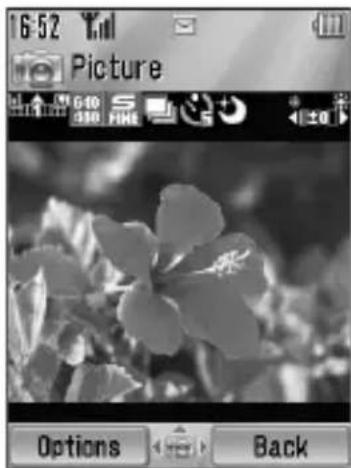
natural_image
Black-and-white photo of a flower with visible petals and leaves, displayed within a mobile phone interface (no text or symbols on the flower itself)Icons on picture preview screen
 | Zoom level (1-25) |
 | Picture size (Extra large/Large/Medium/ Small/Main display) |
 | Image quality (Super fine/Fine/Normal) |
 | Multi shot mode |
 | Self timer (5 or 10 seconds delay) |
 | Night mode |
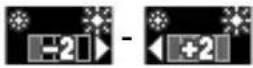 | Brightness level (-2, -1, 0, +1, +2) |
Taking a picture

Main menu > Camera > Picture
-
The display acts as a viewfinder. Move the phone around to frame your subject
-
[●]/[□] to capture the image
Operations after taking a picture
To save the image to My Media: [☐] (Save)
To return to the preview screen without storing the image: [☐] (Delete)
To send the captured image via MMS: [◎] → See “Creating an MMS message” on page 62
Taking a self-portrait
You can take your self-portrait using Self-portrait Mirror.

Main menu > Camera > Picture
-
Close the flip. Look at yourself in Self-portrait Mirror
-
[☐] on the side of the phone
-
Open the flip. The image appears on the display. For further operation, see "Operations after taking a picture" on page 76
Shortcut: To directly open the picture preview screen, press and hold [☐] in standby mode.
Caution: To avoid impairing camera performance, DO NOT leave the phone with the camera facing direct sunlight.
Note: To send a picture via infrared or use as wallpaper, save the image once, and then go to My Media. (See "Pictures" on page 130.)
If the camera is left in certain conditions including the preview screen and capture screen for 3 minutes, the phone automatically exits Picture mode. If left in the preview screen, but with the options menu displayed, the phone remains in this state.
If certain situations such as receiving calls occur during camera operation, the phone exits Camera mode. If a captured image is on the screen, it is saved to My Media.
Zoom
[▲]/[□] to zoom in one level
[▼]/[▼] to zoom out one level
You can also press and hold the keys to quickly reach the required zoom level.
Note: Zoom function may not be available when the picture size is set to Extra large 1280x1024.
Adjusting the brightness level
The picture brightness indicator shows the current brightness level.
[▶] to increase the brightness level
[◀] to decrease the brightness level
Taking close-up pictures
You can take sharp pictures from a close distance by using Macro Mode. (Macro focus range: 10 cm)
Turn the Macro Mode switch anticlockwise to (before taking close-up pictures.
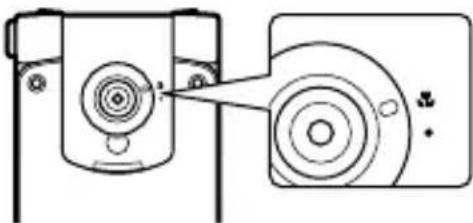
natural_image
Technical line drawing of a camera with two lenses and a side view (no text or symbols)Viewing pictures
Pictures taken with the built-in camera are saved to My Media. To view the saved pictures, see “Viewing pictures” on page 130.
Picture settings
In the preview screen, the following options are available by pressing [☐] (Options).
| Picture size | Select the required size from Extra large 1280x1024, Large 640x480, Medium 320x240, Small 160x120 or Main display 240x320. |
| Image quality | Select the required quality from Super fine, Fine or Normal. |
| Night mode | Select On to take a picture in low light conditions. |
| Multi shot mode | 15 continuous shots is available. See “Continuous shooting” on page 80. |
| Effect | Select the required colour from Normal, Sepia, Monochrome or Negative. |
| Self timer | Select the amount of time delay you require for shooting from Off, 5 seconds or 10 seconds. |
| Shutter sound | Select the required sound from Pattern 1-5. |
| Switch to video Switch | from Picture mode to Video mode. |
| Available space | Show the number of files which can be saved in the current picture size and image quality. You can see the number of files which can be saved in other image qualities by pressing [☐] (Quality), and in other picture sizes by pressing [▲/▼]. |
| Set to default Reset the current picture settings to default. | |
| Help Show direct key operation in the preview screen. | |
Direct key operation
You can change the picture settings by pressing one of the numeric keys which correspond to the functions as follows. Some functions are depicted by the icon. See “Icons on picture preview screen” on page 75.
[1]: Switch to video
[2]: Picture size
[3]: Image quality
[4]: Multi shot mode
[5]: Self timer
[6]: Night mode
Adding a picture to Contacts card
If a picture is attached to a Contact card, it appears on the screen when the contact calls you.
To attach a picture to a contact, save the image once, and then go to Contacts. See “Adding contacts” on page 48.
Continuous shooting
In Multi shot mode, you can capture a succession of 15 images with just one press. When you set Multi shot mode on, the picture size is fixed to Medium 320x240 and Night mode off.
Main menu > Camera > Picture
- [☐] (Options) → Select Multi shot mode
- Select On
- [●]/[□] to shoot
The captured images are displayed as thumbnails.
Note: You cannot take pictures in Multi shot mode when the phone is closed. Once you close the phone, Multi shot mode is switched off.
To view the captured images:
[▲/▼/◄/►] to scroll to the required thumbnail → [◎]
You can view the next image by pressing [▶] or [▼], and the previous image by pressing [◀] or [▲].
To save a captured image:
- When the required thumbnail is highlighted or the required image is displayed on the screen, [☐] (Options) → Select Save this one only
The picture is stored to My Media.
To save all the captured images:
- In thumbnail screen or when one of the images is displayed on the screen, [☐] (Options) → Select Save all pictures OR
When one of the images is displayed on the screen, [●]
All the pictures are stored to My Media.
Note: All the captured images are also saved by pressing [☐] on thumbnail screen or when one of the images is displayed on the screen.
Video
You can record video clips with the built-in camera, and send them via MMS or infrared.
Video preview screen
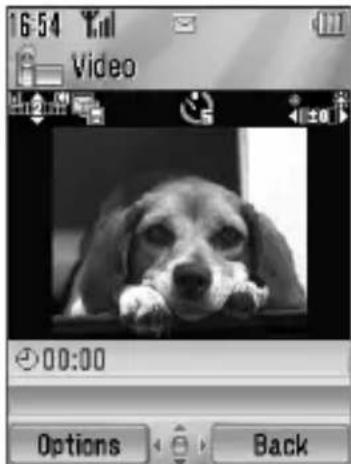
text_image
16:54 Yill Video 00:00 Options BackIcons on video preview screen
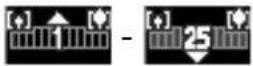 | Zoom level (1-25) |
 | Recording time(Extended video/For MMS sending) |
 | Self timer (5 or 10 seconds delay) |
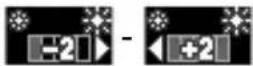 | Brightness level (-2, -1, 0, +1, +2) |
Recording a video clip

Main menu > Camera > Video
- Main display acts as a viewfinder. Move the phone around to frame your subject
- [●]/[□] to start recording
- Video recorder records until reaching the clip size limit or until you press [●]/[□]/[□] (Stop)
- Select the required action
| Playback Playback the | recorded video clip. |
| Save to My Media Save | the recorded video clip to My Media. |
| Send as MMS | Attach the recorded video clip to an MMS message. See “Creating an MMS message” on page 62. |
Caution: To avoid impairing camera performance, DO NOT leave the phone with the camera facing direct sunlight.
Note: To send a video clip via infrared, save the video clip once, and then go to My Media. (See "Videos" on page 137.)
If the video is left in the preview screen or a recorded video clip is displayed for 3 minutes, the phone automatically exits Video mode. If left in preview screen, but with the options menu displayed, the phone remains in this state.
If certain situations such as receiving calls occur during camera operation, the phone exits Camera mode. The recording ends automatically, and the already recorded video clip is saved to My Media.
Zoom
[▲]/[□] to zoom in one level
[▼]/[▼] to zoom out one level
You can also press and hold the keys to quickly reach the required zoom level.
Note: You cannot change the zoom level while recording.
Adjusting the brightness level
The video clip brightness indicator shows the current brightness level.
[▶] to increase the brightness level
[◀] to decrease the brightness level
Note: You cannot change the brightness level while recording.
Playing video clips
Recorded video clips are saved to My Media. To play the saved video clips, see "Playing video clips" on page 137.
Video settings
In the preview screen, the following options are available by pressing [☐] (Options).
| Recording time | Select the video recording time from Extended video or For MMS sending. |
| Effect | Select the required colour from Normal, Sepia, Monochrome or Negative. |
| Self timer | Select the amount of time delay you require for recording from Off, 5 seconds or 10 seconds. |
| Switch to picture Switch | from Video mode to Picture mode. |
| Available space | Show the number of files which can be saved in the current recording time. You can see the number of files which can be saved in other recording time by pressing [☐] (RecTime). |
| Help Show direct key operation in the preview screen. | |
Direct key operation
You can change the video settings by pressing one of the numeric keys which correspond to the functions as follows. Some functions are depicted by the icon. See “Icons on video preview screen” on page 81.
[1]: Switch to picture
[2]: Recording time
[5]: Self timer
Browser menu structure
PANASONIC BOX
Note: There are several ways to select items from menu lists. See “Menu selection method” on page 30.
Setting up your Browser
Your phone's WAP (Wireless Application Protocol) browser allows you to access services supported by the network such as news, weather reports, sports, etc.
Before Internet services can be accessed, you need to subscribe to your service provider to enable the relevant configuration information. (Your service provider may have already completed the connection settings. To configure the WAP profile settings, see "WAP profiles" on page 91.)
Note: Modifying the preinstalled settings without accurate knowledge may cause a failure in connection.
Viewing the contents
Opening Browser
Main menu > Browser
The off-line menu is displayed. You will not be connected until you choose a menu.
- [▲/▼] to scroll to the required menu → [◎]
The phone is connected to the web site.
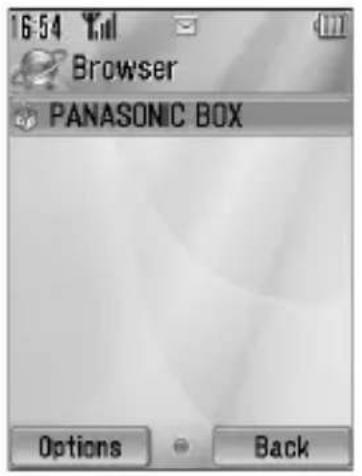
text_image
16:54 Browser PANASONIC BOX Options BackShortcut: You can directly access Browser by pressing [☐] (💡) in standby mode.
Online status icons


Non-secure CSD connection
Secure CSD connection


Non-secure GPRS connection
Secure GPRS connection
Closing Browser
- [☐] (Options) → Select Exit browser
Browser options
While Browser is on-line or off-line, the following options are available.
Main menu > Browser [Off-line]
OR
Main menu > Browser > Required menu [On-line]
- [☐] (Options) → Select the required option
| Select Select the required item. | |
| Bookmarks Go to the bookmark list. | |
| Enter address Go to URL entry. | |
| Save media*1*2 | The image in contents is saved to My Media. |
| Set as bookmark*1 | The displayed URL is saved to the bookmark list. |
| Service Inbox Open Service Inbox. | |
| Reload page*1 | Reload this page. |
| Advanced | Go to homepage, clear the cache, view or send the current URL, or view the current WAP information. |
| Settings | Edit WAP profiles/Push access settings or view the security information. |
| Exit browser*1 | Terminate the browser. |
*1 Available only when the web page is displayed.
*2 Available only when the web page has the image, melody or video contents.
Bookmarks
Once you bookmark your favourite page or a frequently accessed page, you can jump to the page quickly. You can also categorise the bookmarked pages into 10 folders and rename each folder.
While off-line or on-line:
- [☐] (Options) → Select Bookmarks
- [▲/▼] to scroll to the required bookmark folder → [◎]
- [▲/▼] to scroll to the required bookmark
- To load the URL: [◎]
To select the required option: [☐] (Options)
| Go to page Jump to the web page. | |
| Add bookmark Add to the bookmark list. | |
| Edit Edit the selected bookmark name and URL. | |
| Move to Move the selected bookmark to another folder. | |
| Delete Delete the selected bookmark. | |
| Send bookmark | Send the bookmarked URL via SMS or MMS. |
| Delete all in folder Delete all the bookmarks in the folder. | |
Renaming a bookmark folder
[▲/▼] to scroll to the required bookmark folder → [☐] (Options) → Select Rename → Enter a new folder name → [◎]
Deleting all bookmarks
In the bookmark list:
[☐] (Options) → Select Delete all → [☐] (Yes)
All the saved bookmarks are deleted, and the folder names return to the default.
Enter address
You can directly go to the required web page by entering the URL. While off-line or on-line:
-
[☐] (Options) → Select Enter address
-
Enter URL → [◎]
Save media
Images, melodies or videos on the web page can be saved to My Media.
When the web page is displayed:
-
[☐] (Options) → Select Save media
-
[●]/[□] (Select) to save
Note: Panasonic is not responsible for the performance of downloaded contents or possible corruption of phone software.
Set as bookmark
You can save the URLs of your favourite pages in Bookmarks. When the web page is displayed:
-
[☐] (Options) → Select Set as bookmark
-
Enter title → [◎]
-
[▲/▼] to scroll to the required folder → [●]/[□] (Save)
Service Inbox
View WAP Push message and go to URL.
While off-line or on-line:
- [☐] (Options) → Select Service Inbox
- To load the URL: [◎]
To select the required option: [☐] (Options)
| Go to page Jump to the web page. | |
| View message*1 | View the message. |
| Delete Delete the message. | |
*1 Available only when text and URL are delivered from your service provider.
Reload page
Current page can be reloaded.
When the web page is displayed:
- [☐] (Options) → Select Reload page
Advanced
While off-line or on-line:
- [☐] (Options) → Select Advanced
- Select the required option
| Home Jump to the set-up | homepage. |
| Clear cache Delete the | contents stored in the cache. |
| View current URL*1 | View the URL of the current page. |
| Send current URL*1 | Send the URL of the current page via SMS or MMS. |
| WAP information View | WAP browser information. |
*1 Available only when the web page is displayed.
Settings
WAP profiles
If no settings are present, contact your service provider.
You can check or edit the current WAP profile settings, or add new WAP profile settings.
Main menu > Browser [Off-line]
- [☐] (Options) → Select Settings
- Select WAP profiles
- [▲/▼] to scroll to the required profile
- [☐] (Options) → Select Activate, Edit or Delete
- If Edit is selected, you can edit the following information: Profile name, Homepage, Proxy IP, Proxy port, Use proxy and Data connections
Note: You need to configure GPRS or CSD before configuring the WAP profile settings. See "Data connections" on page 114.
Push access
Set up Push access to receive WAP messages.
While off-line or on-line:
- [☐] (Options) → Select Settings
- Select Push access
- Select Service indication, Service loading or Other messages
- Select On or Off
Security
View security information.
While off-line or on-line:
-
[☐] (Options) → Select Settings
-
Select Security
-
Select the required item
| Certificates | Select Certificate 1-20. |
| Current certificate*1 | View the current certificate. |
| Session info*1 | View session information. |
*1 Available only while secure connection.
Settings menu structure
Phone settings 94
Profiles 94
Language 95
Time and date 95
Illuminations 96
Key settings.... 97
Master reset 99
Display settings ...... 100
Wallpaper 100
Main menu icons 100
Themes 101
Brightness 101
Backlight time.... 101
Operator name 101
Sounds & alerts ...... 102
Assign ringtone 102
Incoming volume 102
Message alert...... 102
Message volume 102
Warning tone 103
Startup tone.... 103
Shutdown tone 103
Vibration alert 103
Calls....104
Call diverts....104
Call waiting 105
Any key answer 105
Active flip 106
Auto answer.... 106
Send my number 106
Call duration 106
Service charge*1*2....107
Connectivity......108
Infrared 108
Synchronisation ^*2 110
Cell Broadcast 112
GSM network.... 113
Data connections.... 114
Security 115
PIN entry.... 115
Change PIN2.... 116
Fixed dial 116
Call barring 116
*1

*2

Note: There are several ways to select items from menu lists. See "Menu selection method" on page 30.
Phone settings
Profiles
You can switch among different profiles in your phone, each with a distinct combination of alert method, ringtone, etc. Profiles are set up for use in the following environments:
| Normal For everyday settings. |
| Silent For formal occasions. |
| Meeting For meetings. |
| Outdoor For noisy environments. |
| Car For driving occasions. |
Activating a profile
Main menu > Settings > Phone settings > Profiles
- [▲/▼] to scroll to the required profile
- [○]
OR
[□] (Options) → Select Activate
Setting a profile
You can personalise the individual settings within a profile. For further details about the individual settings, see “Sounds & alerts” on page 102.
Main menu > Settings > Phone settings > Profiles
- [▲/▼] to scroll to the required profile
- [☐] (Options) → Select Edit
- Select the required setting
- Select the required item
Language
You can change the language used for display messages and/or text entry. Automatic uses the language dictated by the country/region code of the SIM card.
Main menu > Settings > Phone settings > Language > Display language or Input language
- Select Automatic or the required language
Time and date
You can set your Home clock and Away clock.
Home clock
You can set the current time and date on your phone.
Main menu > Settings > Phone settings > Time and date > Home clock
- Select the required setting
| Set date & time | Enter the time → [▼] → Enter the date |
| Home area Select your | home area. |
| Summer time | Select On to activate the summer time mode. |
Away clock
You can set Away clock to display the time in the area you choose.
Main menu > Settings > Phone settings > Time and date > Away clock
- Select the required setting
| Set time zone Select the required area. | |
| Summer time | Select On to activate the summer time mode. |
Choosing clock
You can choose either Home clock or Away clock to be displayed on your phone.
Main menu > Settings > Phone settings > Time and date > Select clock > Home clock or Away clock
Display format
You can select the required display format for the date and time.
Main menu > Settings > Phone settings > Time and date > Display format > Time or Date
- To set Time format: Select 24 hour or 12 hour
To set Date format: Select the required format (DD=date, MM=month, YY=year)
Illuminations
The Indicator/Illumination Light flashes or beams when you receive calls/messages, have a conversation, the flip is closed, the battery is charging or data is transferred.
Main menu > Settings > Phone settings > Illuminations
- Select the required event
| Incoming | Select the required colour or Off. |
| Message | |
| In conversation | |
| Flip close | |
| Charging | Select On or Off. |
| Data transfer |
Note: You can check the Flip close illumination by pressing [▲ / ▼] while the phone is in standby mode with the flip closed.
Key settings
Key tone
You can change the key tone.
Main menu > Settings > Phone settings > Key settings > Key tone
- Select the required tone
Key volume
You can change the key tone volume.
Main menu > Settings > Phone settings > Key settings > Key volume
- [▲/▼/◄/►] to scroll to the required volume → [◎]/[□] (Select)
Key backlight
If you set the key backlight to off, you can maintain longer battery life.
Main menu > Settings > Phone settings > Key settings > Key backlight
- Select On or Off
Keyguard
Keyguard prevents any keys from being accidentally pressed e.g. when the phone is being carried. When Keyguard is enabled, the Keyguard icon ( ) appears on the display. When a call is received, Keyguard is temporarily disabled and you can answer the call.
To enable Keyguard:
Main menu > Settings > Phone settings > Key settings > Keyguard
- “Would you like to lock keypad?” → [●]/[□] (Yes) OR
In standby mode:
-
Press and hold [●]
-
"Would you like to lock keypad?" → [●]/[□] (Yes)
Note: Emergency calls can still be made with the Keyguard enabled but there is no indication that you are dialling the number.
To disable Keyguard:
When ( ) appears on the display:
- [●] → "Would you like to unlock?" → [●]/[□] (Yes)
Shortcut keys
Navigation key [▲/▼/◄/►] can be used as a Shortcut key. It is possible to assign a specific menu to Navigation key so that you can access the menu directly from standby mode.
Main menu > Settings > Phone settings > Key settings > Shortcut keys
-
Select Navigation up, Navigation right, Navigation down or Navigation left
-
Select the required menu
Master reset
You can reset your phone to the factory settings, except for the settings for Language, Time and date, and Calendar. User data such as contacts, messages, call logs and data stored in My Media remains on the phone.
Password is required for master reset. The factory set password is 0000.
Resetting
Main menu > Settings > Phone settings > Master reset > Reset settings
-
"Would you like to reset all phone settings?" → [◎]/[□] (Yes)
-
Enter the password → [◎]/[□] (Ok)
Changing the password
Main menu > Settings > Phone settings > Master reset > Password setting
-
Enter the current password → [◎]/[□] (Ok)
-
Enter a new password → [◎]/[□] (Ok)
-
Enter the new password again → [◎]/[□] (Ok)
Display settings
Wallpaper
You can change the wallpaper on the standby screen.
Main menu > Settings > Display settings > Wallpaper
- Select My Media or Download*1
- [▲/▼/◄/►] to scroll to the required wallpaper
- To set: [☐] (Select)
To view and set: [◎] → [◎]/[□] (Select)
Main menu icons
You can change menu icons or the background on Main menu screen.
Changing icons
To change menu icons:
Main menu > Settings > Display settings > Main menu icons
- [▲/▼/◄/►] to scroll to the required menu icon → [◎]
- Select My Media or Download*1
- [▲/▼/◄/►] to scroll to the required image
- To set: [☐] (Select)
To view and set: [◎] → [◎]/[□] (Select)
To change the background:
Main menu > Settings > Display settings > Main menu icons
- [☐] (Options) → Select Attach full image
- Repeat steps 2-4 in "To change menu icons:" on page 100
*1

Note: For downloading information, visit http://box.panasonic.com/
Setting back to default
Main menu > Settings > Display settings > Main menu icons
- [☐] (Options) → Select Set to default
- "Would you like to set default?" → [●]/[□] (Yes)
Themes
You can change the colour theme of the display.
Main menu > Settings > Display settings > Themes
- Select the required colour theme
Brightness
You can adjust the brightness of the display.
Main menu > Settings > Display settings > Brightness
- [▲/▼] to adjust the brightness level → [●]/[□] (Select)
Backlight time
You can set the length of time the display is illuminated by the backlight.
Main menu > Settings > Display settings > Backlight time
- Select 10 seconds, 30 seconds or 60 seconds
Operator name
You can change the position of your operator name on the standby screen.
→ Main menu > Settings > Display settings > Operator name
- Select Default, Upper left or Lower left
Sounds & alerts
Ringtone/Message alert
You can change the tone and/or the volume of the ringtone for incoming calls and the Message alert for incoming messages.
Changing the ringtone/Message alert
Main menu > Settings > Sounds & alerts > Assign ringtone or Message alert
- Select My Media or Download*1
- [▲/▼] to scroll to the required tone
- [●] to listen to the tone → [□] (Cancel) to stop the tone and return to the previous screen
- [☐] (Select)
*1

Note: For downloading information, visit http://box.panasonic.com/
Changing the ringtone/Message alert volume
Main menu > Settings > Sounds & alerts > Incoming volume or Message volume
- [▲/▼/◄/►] to adjust the volume (Volume 0-4, Step tone) → [◎]/[□] (Select)
Warning tone
The Warning tone informs you of low battery.
Main menu > Settings > Sounds & alerts > Warning tone
- Select On or Off
Startup tone/Shutdown tone
The Startup tone sounds after switching on the phone, while the Shutdown tone sounds after switching off the phone.
Main menu > Settings > Sounds & alerts > Startup tone or Shutdown tone
- Select On or Off
Vibration alert
The phone does not ring but vibrates to inform you of incoming calls and messages if you switch on vibration alert.
Main menu > Settings > Sounds & alerts > Vibration alert
- Select On or Off
Call settings
Call diverts

Voice, fax and data calls can be diverted to different numbers in different situations. For example, you can divert calls to your voice mailbox when you are out of reach.
Voice calls can be diverted in the following situations:
| All calls Divert all incoming voice calls. | |
| When busy | Divert incoming voice calls when a call is in progress. |
| When no reply Divert incoming voice calls if call is not answered. | |
| When unreachable | Divert incoming voice calls when phone is not in a coverage area. |
Main menu > Settings > Calls > Call diverts
- Select Divert voice, Divert all fax or Divert all data (If Divert all fax or Divert all data is selected, go to step 3.)
- Select the divert situation
- Select Direct input or From contacts
- If Direct input is selected: Enter the phone number to divert to [●]
If From contacts is selected: Highlight the required contact → [☐] (Select) → If the card has several phone numbers stored, [▲/▼] to scroll to the required number → [◎]/[☐] (Select)
When the setting is enabled, the divert icon (☐) is displayed on the standby screen.
To cancel each setting/check each status:
Main menu > Settings > Calls > Call diverts
- Select Divert voice [▲/▼] to scroll to the required divert situation
OR
[▲/▼] to scroll to Divert all fax or Divert all data
- [☐] (Options) → Select Off or Status
To cancel all the settings/check all the statuses:
Main menu > Settings > Calls > Call diverts
- Select Cancel all or Status all
Call waiting

If Call waiting is switched on, another call can be received while on a call and multiple calls can be made.
Main menu > Settings > Calls > Call waiting
The current status is displayed.
To accept the current status:
- [○]
To change the setting:
- [☐] (Options) → Select Activate or Deactivate
The current status is displayed.
- [●] to accept the current status
Any key answer
Calls can be answered by pressing any key except [☐×], [●], [☐□] (Cancel), [□], [▲] and [▼].
When Any key answer is off, calls can only be answered by pressing
[↘] or [□] (Accept).
Main menu > Settings > Calls > Any key answer
- Select On or Off
Active flip
You can answer a call by opening the phone and end a call by closing the phone.
When Active flip is off, you need to press the appropriate key to answer or end the call. When you are using a headset, you can continue your conversation even while the phone is closed.
Main menu > Settings > Calls > Active flip
- Select On or Off
Auto answer
When you use the optional Personal Handsfree earpiece, you can answer a call automatically.
Main menu > Settings > Calls > Auto answer
- Select On or Off
Send my number

You can choose whether or not to show your name and/or number to another phone. You can comply with your network's own setting if you select Network set.
Main menu > Settings > Calls > Send my number
- Select Network set, On or Off
Call duration
You can check the duration of incoming or outgoing calls.
Main menu > Settings > Calls > Call duration
- Select Incoming or Outgoing
- To reset the counter, [◎]/[□] (Reset)
- "Reset?" → [◎]/[□] (Yes)
Service charge

Cost left
You can check the remaining call units available if Max cost is set.
Main menu > Settings > Calls > Service charge > Cost left
Call meter
You can check the total costs of calls made.
Main menu > Settings > Calls > Service charge > Call meter
To reset the counter:
- [●]/[□] (Reset) → "Reset total cost?" → [●]/[□] (Yes)
- Enter the PIN2 code → [◎]/[□] (Ok)
Price/unit
You can set your personal rate of the cost that the service provider charges for one unit of call time.
Main menu > Settings > Calls > Service charge > Price/unit
- [●]/[□] (Edit) → Enter the PIN2 code → [●]/[□] (Ok)
- Enter the currency → [◎]
- Enter the value → [◎]/[□] (Ok)
To enter a decimal point: [#]
Max cost
You can set the maximum cost of calls allowed.
Main menu > Settings > Calls > Service charge > Max cost
- [●] → Enter the PIN2 code → [●]/[□] (Ok)
- Enter the credit limit → [◎]/[□] (Ok)
To disable the Max cost:
In step 1, [☐] (Options) → Select Disable → [◎]/[☐] (Yes) → Enter the PIN 2 code → [◎]/[☐] (Ok)
Connectivity
Infrared
You can transfer data between your phone and other infrared enabled devices using an infrared wavelength connection.
You can send Contacts card, calendar events, and pictures/sound clips/video clips stored in My Media.
Note: Some downloaded files may be protected under copyright laws. These files should not be sent.
Preparing for infrared connection
Place your phone and the other device within the effective range of 20 cm.
- Verify there are no obstructions between the two devices. Nearby activated infrared devices may cause interference.
- Ensure that the infrared ports of the devices point at each other.
- On the receiving device, activate the Infrared port.
- If the other device is a computer, you need to set up infrared connection on the computer. (Example: For Windows XP, Start > Control Panel > Printers and Other Hardware > Wireless Link > Infrared tab > All others to send files to your computer using infrared communications)
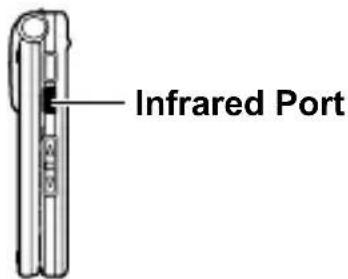
text_image
Infrared PortSending data via infrared
Prepare for infrared connection as described in "Preparing for infrared connection".
- Select the item you wish to send
- [☐] (Options) → Select Send via infrared
The phone automatically begins infrared connection.
A confirmation message is displayed when complete.
Receiving data via infrared
Prepare for infrared connection as described in "Preparing for infrared connection" on page 108.
To activate infrared:
You need to activate the infrared function before receiving data. When infrared is set to on, the infrared icon (appears on the display. If infrared is unused for 10 minutes or the phone is once switched off, it is automatically set to off and (disappears.
Main menu > Settings > Connectivity > Infrared
- Select On
To receive data via infrared:
When (is displayed, sender can begin transfer of data.
- When transfer is started, "Would you like to receive data?" → [●]/[□] (Yes) to receive the data
- When transfer is complete, "Data received" → Return to standby screen → Received file name is displayed → [●]/[□] (Save) to save the data
The received data is stored in respective menus or files.
Synchronisation

You can synchronise your Contacts list with your network server. You may need to do this if you store your Contacts list on the network server, and you want them all to be the same. You can just send changes or send all your records to the network server. This function uses SyncML/OMA Standard technology.
Before you can synchronise your Contacts list, you need to set up a server profile and select a WAP profile.
Creating/editing a server profile
You can create up to 2 server profiles.
Main menu > Settings > Connectivity > Synchronisation
- [☐] (Options) → Select Sync. settings
- [▲/▼] to scroll to the required profile
- [☐] (Options) → Select Edit
- Select the required setting → [◎]
- Enter information → [◎]
- [☐] (Save)
| Profile name Enter the | profile name. |
| Server name Enter the | web address of the server. |
| Server database Enter | the database name of the server. |
| Server user ID Enter your user name for the server. | |
| Server password Enter | the password. |
Selecting a server profile
Main menu > Settings > Connectivity > Synchronisation
- Repeat steps 1 and 2 in “Creating/editing a server profile” on page 110
- [☐] (Options) → Select Set
Selecting a WAP profile
Main menu > Settings > Connectivity > Synchronisation
-
[☐] (Options) → Select WAP profiles
-
Select the required profile
Synchronising
To send only changes to the network server:
Main menu > Settings > Connectivity > Synchronisation > Modified contacts
The phone confirms completion.
To send all your records to the network server:
Main menu > Settings > Connectivity > Synchronisation > All contacts
The phone confirms completion.
Note: If you are synchronising your Contacts list for the first time, or you need to make a large number of changes, then the synchronisation may take several minutes or more.
You cannot synchronise the following fields: Birthday, Postal address, Ringtone, Message alert, Illumination, Picture and Group. There may be other fields that cannot be synchronised depending on the server.
Server or database authentication
While synchronising, you may be asked for server or database authentication. Enter the correct information and retry the synchronisation connection.
In authentication screen:
-
[▲/▼] to scroll to the required setting → [◎]
-
Enter the correct information → [◎]
-
To retry the synchronisation connection, [☐] (Options) → Select Ok
Cell Broadcast
You can receive messages on specified topics, such as weather information and traffic news, regularly from your service provider. You can specify the “topic(s)” of information and the language in which you wish to receive the information.
Activating Cell Broadcast
Main menu > Settings > Connectivity > Cell Broadcast > On/Off
- Select On or Off
Reading a received message
Main menu > Settings > Connectivity > Cell Broadcast > Read messages
- [▲/▼] to scroll to the required message → [◎]
Topics and languages
You can add, edit and delete topics and languages.
Main menu > Settings > Connectivity > Cell Broadcast > Options > Topic or Language
- [▲/▼] to scroll to the required topic or language
- [☐] (Options) → Select Add, Edit or Delete
GSM network
Selecting a network manually
You can manually select a network that is available in your current location.
Main menu > Settings > Connectivity > GSM network > New search
- Select the required network
Network list
The network list is used when the Search mode is set to Automatic. The order in the list indicates the search priority. You can edit the list as required.
Main menu > Settings > Connectivity > GSM network > Select network
- [▲/▼] to scroll to the required network
- [☐] (Options) → Select Add, Insert, Edit or Delete
Add stores a new network at the end of the list, while Insert stores a new network above the selected network.
Search mode
You can set your phone to automatically or manually search for the other networks when roaming. When Automatic is selected, the phone automatically selects a new network in order to maintain optimum network availability. When Manual is selected, available networks are shown on the standby screen.
Main menu > Settings > Connectivity > GSM network > Search mode
- Select Automatic or Manual
Note: National regulations may not permit roaming in your home region.
Data connections
GPRS settings and CSD settings are stored in the Data connections menu.
Data can be sent/received using GPRS or CSD technology.
Editing GPRS/CSD settings
Main menu > Settings > Connectivity > Data connections
-
[▲/▼] to scroll to the required setting you want to edit or
to add new setting → [◎] -
If
is selected, select GPRS or CSD -
Edit the required field → [☐] (Save)
Deleting GPRS/CSD settings
Main menu > Settings > Connectivity > Data connections
-
[▲/▼] to scroll to the required setting you want to delete
-
[☐] (Options) → Select Delete
-
[◎]/[□] (Yes)
Note: If your service provider has protected some of your settings, you may not be able to modify them.
USB
You can backup data stored on your phone to a PC using the optional USB Cable. Install the Handset Manager software from the CD-ROM before using the USB Cable. For further information, visit http://panasonic.co.jp/pmc/products/en/support/index.html
Security
PIN code
The PIN protects your SIM card against unauthorised use. If you enable the PIN, you will be prompted to enter the PIN code every time the phone is switched on.
The PIN2 controls security for certain service provider services such as Fixed dial and Service charge.
Note: If PIN is entered incorrectly 3 times the phone will be locked, and you will need to enter the PUK code. If PIN2 is entered incorrectly 3 times SIM card will be locked, and you will need to enter PUK2 code. If the PUK code is entered incorrectly 10 times, the phone will cease to operate permanently. All information stored in the SIM card will be lost and the SIM card will need to be replaced. Contact your service provider for further information.
Enabling/Disabling PIN entry
Main menu > Settings > Security > PIN entry > Enable/disable
-
Select Enable or Disable
-
Enter the PIN code (4-8 digits) → [●]/[□] (Ok)
Changing PIN
You can change the PIN when PIN entry is set to Enable.
Main menu > Settings > Security > PIN entry > Change PIN
- Enter the current code → [●]/[□] (Ok)
- Enter the new code → [◎]/[□] (Ok)
- Enter the new code again → [●]/[□] (Ok)
Changing PIN2

Main menu > Settings > Security > Change PIN2
- Enter the current code → [●]/[□] (Ok)
- Enter the new code → [◎]/[□] (Ok)
- Enter the new code again → [●]/[□] (Ok)
Fixed dial

When Fixed dial is enabled, only the phone numbers stored in SIM Contacts can be dialled. Any manually dialled phone numbers must match the phone numbers in SIM Contacts.
To store, edit or delete phone numbers in SIM Contacts, you need to enter your PIN2 code.
Main menu > Settings > Security > Fixed dial
- Select Enable or Disable
- Enter the PIN2 code (4-8 digits) → [●]/[□] (Ok)
Call barring
Call barring restricts certain calls, using a password supplied by your service provider.
The following Call bar settings are available:
| Bar outgoing calls All outgoing calls are barred. | |
| Bar foreign calls International outgoing calls are barred. | |
| Bar foreign calls except Home | International outgoing calls except to your home country are barred. |
| Bar incoming calls All incoming calls are barred. | |
| Bar incoming if abroad | Roaming is barred if abroad. |
Call barring setting
Main menu > Settings > Security > Call barring
- Select the required setting
- Enter the password → [◎]/[□] (Ok)
To cancel setting/check status:
Main menu > Settings > Security > Call barring
- [▲/▼] to scroll to the required setting
- [☐] (Options) → Select Off or Status
- If Off is selected, enter the password → [●]/[□] (Ok)
To cancel all the settings/check all the statuses:
Main menu > Settings > Security > Call barring
- Select Cancel all or Status all
- If Cancel all is selected, enter the password → [●]/[□] (Ok)
Changing the password
Main menu > Settings > Security > Call barring > Password
- Enter the current password → [●]/[□] (Ok)
- Enter a new password → [◎]/[□] (Ok)
- Enter the new password again → [●]/[□] (Ok)
Tools menu structure
SIM Tool Kit ^*1 ..... 119
Alarms.... 119
Sound recorder .... 121
Calculator 122
*1

Note: There are several ways to select items from menu lists. See "Menu selection method" on page 30.
SIM Tool Kit

The SIM Tool Kit allows the applications existing on the SIM card to interact and operate with your phone. These applications, stored in the SIM memory, are Value Added Services. Your service provider can configure your SIM card with the applications that can be seen on your phone as additional menu items.
For further information, contact your service provider.
Alarms
You can set up to 5 different alarms.
Setting the alarm
Main menu > Tools > Alarms
- [▲/▼] to scroll to the required setting → [◎]
- [▲/▼] to scroll to the required field → [◎]
- Enter information → [◎]
- [☐] (Save) to store the entry
The alarm icon ( 🔥 ) appears on the standby screen.
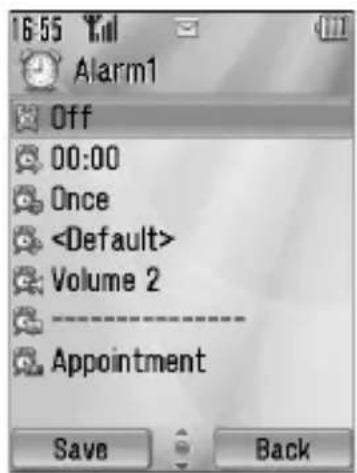
text_image
16:55 Alarm1 Off 00:00 Once | Turn on/off | Select On or Off. |
 | Time Enter the time. | |
 | Repeat type | Select Once, Everyday or Weekly for alarm repeat type. |
 | Alarm tone | Select alarm tone fromor My Media. To download an alarm tone, select Download*1. |
 | Alarm volume | Adjust alarm volume (Volume 0-4 or Step tone). |
 | Stored pictures | Select the required picture. The picture appears on the screen when the alarm sounds. |
 | Illumination | Select the required illumination pattern or Off. |
*1

Note: The alarm sounds at the time you set even if the phone is off.
For downloading information, visit http://box.panasonic.com/
Turning the alarm on/off

Main menu > Tools > Alarms
- [▲/▼] to scroll to the required setting
- [☐] (Options) → Select Turn on or Turn off
Stopping the alarm
When the alarm sounds, you can activate the snooze function to repeat the alarm 5 times at 5 minute intervals.
- Press any key except [ × ] "Stop snooze?"
- To stop the snooze function: [●]/[□] (Turn off)
To activate the snooze function: [☐] (Snooze)
Shortcut: Stopping the alarm by pressing [○×] activates the snooze function and returns to standby mode.
Sound recorder
You can record sounds, your voice or phone conversation. The recorded sound clips (except for the phone conversation) can be attached to MMS messages.
Recording new sound clips
Main menu > Tools > Sound recorder
- [●]/[□] (Start) to start recording
The max. recording time is 3 minutes.
-
[●]/[□] (Stop) to stop recording
-
[●] to play back if required
[▲/▼] to adjust the volume
- [☐] (Options) → Select Save
The sound clip is saved to My Media.
If you select Send as MMS, you can access MMS menu.
Note: When you save the recorded sound clip and receive storage full message, press [●]/[□] (Yes) to save the recorded sound clip by deleting unwanted files in My Media.
Calculator
You can use the 4-function calculator (addition, subtraction, multiplication and division) to make simple arithmetic operations.
Main menu > Tools > Calculator
- Enter a number
To enter a decimal point: [☐]
To enter a negative sign: [#]
To erase digits: [☐] (Clear)
-
[▲/▼/◄/►] to select the arithmetic operation ([▲] to multiply, [►] to add, [▼] to divide, [◄] to subtract)
-
Enter a number
-
[◎] (=) to calculate
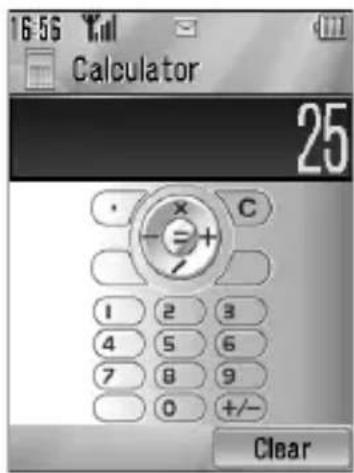
text_image
16:56 Y.m Calculator 25 • X C - = + / 1 2 3 4 5 6 7 8 9 0 +/- ClearNote: There are several ways to select items from menu lists. See “Menu selection method” on page 30.
Browsing Calendar
You can view the calendar by month, by week or by day.
Browsing operation
Main menu > Calendar
To move around the calendar: [▲/▼/◄/►]
To change the view format (Monthly view/Weekly view): see View format in "Options"
To view the details of the selected day (Daily view): [●]
Options
From Monthly view or Weekly view, the following options are available by pressing [☐] (Options).
| New entry See “Creating Calendar events” on page 125. | |
| View format | Change calendar view format, Monthly or Weekly. |
| Go to date Go to specified date. | |
| Send via infrared | Send calendar events via infrared. See “Infrared” on page 108. |
| Delete See “Deleting multiple events” on page 127. | |
| Lunar calendar detail*1 | Check Chinese Lunar calendar dates and festivals when viewing the western calendar. |
| Memory status Show used memory for calendar. | |
| Settings See “Calendar settings” on page 128. | |
*1 Available only when Display language setting is set to Chinese language. (See “Language” on page 95.)
Calendar view
To change the calendar view format, see “Browsing operation” on page 123.
Monthly view
| Current date Red frame | |
| Selected date | Coloured - Also displayed in the upper left of the calendar |
| Week number of selected date | Displayed in the upper right of the calendar |
| Scheduled note | Coloured - Also displayed in the schedule list with category icon, start time and note (up to 3 events) |
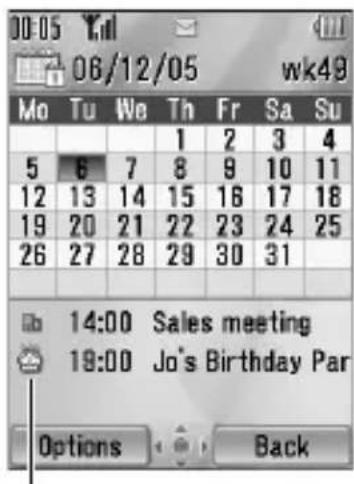
text_image
00:05 Yll 06/12/05 wk49 Mo Tu We Th Fr Sa Su 5 6 7 8 9 10 11 12 13 14 15 16 17 18 19 20 21 22 23 24 25 26 27 28 29 30 31 14:00 Sales meeting 19:00 Jo's Birthday Par Options BackSchedule list
Weekly view
| Current date Red line under week | |
| Current week number | Displayed in the upper right of the calendar |
| Selected date | The day of the week is coloured- Also displayed in the upper left of the calendar |
| Scheduled note | The scheduled time zone is coloured |
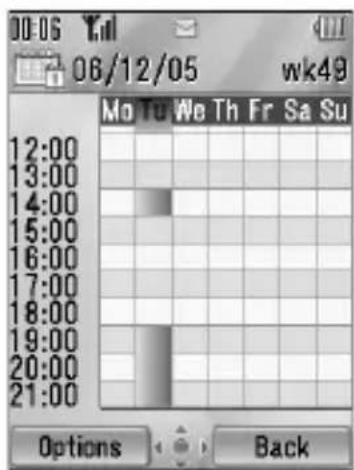
text_image
06/06 Y.m 06/12/05 wk49 Mo Tu We Th Fr Sa Su 12:00 13:00 14:00 15:00 16:00 17:00 18:00 19:00 20:00 21:00 Options BackDaily view
| Current date Displayed in the upper left | |
| Current week number | Displayed in the upper right |
| Scheduled note | Displayed with category icon, start time and note |
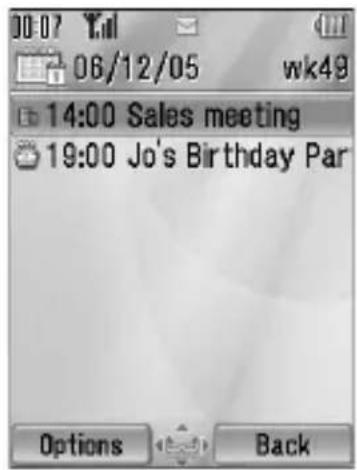
text_image
00:07 Y.m 06/12/05 wk49 14:00 Sales meeting 19:00 Jo's Birthday Par Options BackCreating Calendar events
Main menu > Calendar
- Select the day of the event you wish to store
- [☐] (Options) → Select New entry
- [▲/▼] to scroll to the required field → [◎]
- Enter information → [●] To enter characters, see "Text entry" on page 40.
- [☐] (Save) to store the event
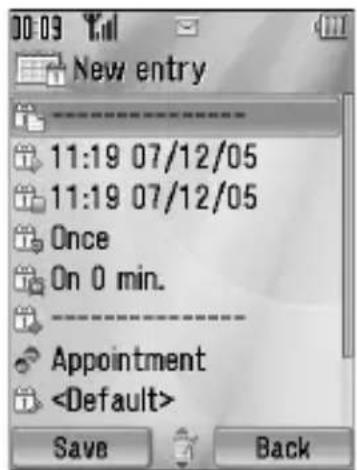
text_image
00:03 Y.m New entry 11:19 07/12/05 11:19 07/12/05 Once On 0 min. Appointment | Note Enter note (subject). | |
 | Start date/time | Enter the start time → [▼] → Enter the start date (Present time/date is already entered.) |
 | End date/time | Enter the end time → [▼] → Enter the end date (Present time/date is already entered.) |

Calendar
 | Repeat type Select an event repeat cycle. | |
 | Reminder | Set the reminder to sound at the start time (0 min.) or certain minutes ahead of the start time.Select Off, 0 min., or 5, 10, 15, 30, 60, 90 min. ahead.When the reminder tone sounds, press [☐](View) to check the schedule or press [☐](Stop) to return to standby mode. |
 | Location Enter location. | |
| [H7SZ] | Category Select category. | |
 | Calendar tone | Select a reminder tone fromorMy Media. To download a tone, select Download*1. |
 | Calendar volume | Adjust the reminder volume (Volume 0-4 or Step tone). |
 | Illumination | Select a reminder illumination pattern or Off. |
*1

Note: The reminder sounds at the scheduled time even if the phone is off.
The calendar highlights only the start days of scheduled events if the events are scheduled for over days.
For downloading information, visit http://box.panasonic.com/
Managing Calendar events
Editing events
Main menu > Calendar
- From Daily view, [▲/▼] to scroll to the required event
- [☐] (Options) → Select Edit
- Edit the required field → [☐] (Save) to overwrite
Deleting events
Deleting an event
Main menu > Calendar
- From Daily view, [▲/▼] to scroll to the required event
- [☐] (Options) → Select Delete
- [◎]/[□] (Yes)
Deleting multiple events
To delete the events of the selected day or the past events:
Main menu > Calendar
- From Monthly view or Weekly view, [▲/▼/◄/►] to scroll to the required date
- [☐] (Options) → Select Delete
- Select Day or Past
- [◎]/[□] (Yes)
To delete all events:
Main menu > Calendar
- From Monthly view or Weekly view, [☐] (Options) → Select Delete
- Select All
- [☐] (Yes)
Calendar settings
Selecting the starting day of the week
Main menu > Calendar
- [☐] (Options) → Select Settings
- Select Week starts on
- Select the required day of the week
Setting holidays
You can set holidays to be indicated in red.
Main menu > Calendar
- [☐] (Options) → Select Settings
- Select Holiday set
- [▲/▼] to scroll to the required day of the week → [◎]
Repeat this step to select other days of the week.
- [☐] (Ok)
Chinese Lunar calendar
You can check Chinese Lunar calendar dates and festivals when still viewing western calendar. To display Chinese Lunar calendar, you need to select Chinese language in Display language setting (see page 95).
Switching on/off Chinese Lunar calendar
Main menu > Calendar
- [☐] (Options) → Select Settings
- Select Lunar calender
- Select On or Off
Viewing Chinese Lunar calendar detail
Main menu > Calendar
- [▲/▼/◄/►] to scroll to the day you wish to view the detail
- [☐] (Options) → Select Lunar calendar detail
My Media menu structure
Pictures...... 130
Stored pictures 130
Download ^*1 134
Take new picture 134
Sounds...... 134
Stored sounds 134
Download ^*1 136
Record new sound 136
Videos 137
Stored videos 137
Download ^*1 138
Record new video 138
Games ....138
Stored applications .....138
Download ^*1 139
Text templates ......139
Memory status .....140
*1

Note: There are several ways to select items from menu lists. See "Menu selection method" on page 30.
Pictures
Pictures taken by Camera, images downloaded from a WAP site and received via infrared are stored in the Pictures folder.
Note: To use a file downloaded or indicated by the icon (☐), you may need to purchase the rights. For further information, contact your service provider.
Viewing pictures
Main menu > My Media > Pictures > Stored pictures
- [▲/▼/◄/►] to scroll to the required thumbnail → [◎]
You can view the actual size of the selected picture by pressing [●] if the picture is larger than the display. To continue onto step 2, press[□] (Back). - [▶]/[▼] to view the next picture or [◀]/[▲] to view the previous picture
Note: The file size of highlighted picture is displayed under the picture title, together with the date and time the image was stored. A picture of less than 1 kB is displayed as 1 kB.
Managing files
To make a new folder:
- In the Stored pictures folder, [☐] (Options) → Select Manage files
- Select New folder
- Enter folder name → [◎]
To move the selected picture to another folder:
- When the required thumbnail is highlighted, [☐] (Options) → Select Manage files
- Select Move to folder
- Select the required folder
Options
When viewing the picture list, the following options are available by pressing [☐] (Options).
| Send as MMS | Attach the selected picture to an MMS message. See “Creating an MMS message” on page 62. |
| Use as | Use the selected picture as Wallpaper or Contacts picture. See “Using pictures” on page 132. |
| Delete Delete the selected picture or folder. | |
| Delete all | Delete all the pictures in the folder or all the folders. |
| Activate Purchase your rights to view the selected picture. | |
| Rename Rename the selected picture or folder. | |
| Send via infrared | Send the selected picture via infrared. See “Infrared” on page 108. |
| Resize Resize the selected picture. | |
| Edit | Edit the selected picture. See “Editing pictures” on page 132. |
| Change view | Change the picture list to List view or Grid view. |
| Manage files | Make a new folder or move the selected picture to another folder. See “Managing files” on page 130. |
| Details Show details of the selected picture. | |
Note: Sending or editing of a forward locked picture indicated by the icon (→) is restricted.
Using pictures
You can use the stored pictures as wallpapers or Contacts pictures.
Main menu > My Media > Pictures > Stored pictures
- [▲/▼] to scroll to the required picture
- [☐] (Options) → Select Use as
- Select Wallpaper or Contacts picture (If Contacts picture is selected, go to the next step.)
- Highlight the required contact → [☐] (Select)
- [☐] (Save)
Editing pictures
Adding frame
You can add a frame to your picture.
Main menu > My Media > Pictures > Stored pictures
-
When the required thumbnail is highlighted or the required picture is displayed on the screen, [☐] (Options) → Select Edit
-
Select Add frame
-
Select the required frame The picture with the selected frame is displayed. You can change the frame by pressing [◀/▶].
-
[◎]/[□] (Save)
-
Enter the file name → [◎]
Note: Adding a frame is available only when the size of the picture to be edited is Medium 320x240, Small 160x120 or Main display 240x320.
Trimming
You can trim your pictures.
Main menu > My Media > Pictures > Stored pictures
-
When the required thumbnail is highlighted or the required picture is displayed on the screen, [☐] (Options) → Select Edit
-
Select Trimming
-
Select the required trimming size
-
If Free size is selected: [▲/▼/◀/▶] to determine the starting point → [◎]/[□] (Start) → [▲/▼/◀/▶] to determine the ending point → [◎]/[□] (Ok) If a size other than Free size is selected: [▲/▼/◀/▶] to move the trimming box → [◎]/[□] (Start)
-
[◎]/[□] (Save)
-
Enter the file name → [◎]
Clearing shadow
You can make dark pictures clearer.
Main menu > My Media > Pictures > Stored pictures
-
When the required thumbnail is highlighted or the required picture is displayed on the screen, [☐] (Options) → Select Edit
-
Select Clear shadow
-
[◎]/[□] (Save)
-
Enter the file name → [◎]
Downloading picture files

Main menu > My Media > Pictures > Download The download site is displayed.
Note: Panasonic is not responsible for the performance of downloaded contents or possible corruption of phone software. For downloading information, visit http://box.panasonic.com/
Taking a new picture
Main menu > My Media > Pictures > Take new picture The phone switches to Picture mode. See “Taking a picture” on page 76.
Sounds
Sound clips recorded by Sound recorder, downloaded from a WAP site and received via infrared are stored in the Sounds folder.
Note: To use a file downloaded or indicated by the icon (≡), you may need to purchase the rights. For further information, contact your service provider.
Playing sound clips
Main menu > My Media > Sounds > Stored sounds
-
[▲/▼] to scroll to the required sound file → [◎] [▲/▼] to adjust the volume.
-
To stop: [●] To restart: [□] (Restart)
Note: The file size of highlighted sound is displayed at the top of the list, together with the date and time the sound file was stored. A sound file of less than 1 kB is displayed as 1 kB.
Managing files
You can make new folders or move the selected sound files to another folder. See “Managing files” on page 130.
Options
In the sound list, the following options are available by pressing [☐] (Options).
| Send as MMS | Attach the selected sound clip to an MMS message. See “Creating an MMS message” on page 62. |
| Use as | Use the selected sound clip as Ringtone,Message alert or Contacts ringtone. See “Using sound clips” on page 136. |
| Play in sequence | Select Looped or Random to play all the sound clips in the selected folder in a loop or at random. |
| Delete Delete the selected sound file or folder. | |
| Delete all | Delete all the sound files in the folder or all the folders. |
| Activate | Purchase your rights to play the selected sound file. |
| Rename Rename the selected sound file or folder. | |
| Send via infrared | Send the selected sound file via infrared. See “Infrared” on page 108. |
| Manage files | Make a new folder or move the selected sound file to another folder. See “Managing files” on page 130. |
| Details Show details of the selected sound file. | |
Note: Sending or editing of a forward locked sound indicated by the icon (→) is restricted.
Using sound clips
You can use the stored sound clips as ringtones, Message alerts or Contacts ringtones.
Main menu > My Media > Sounds > Stored sounds
- [▲/▼] to scroll to the required sound clip
- [☐] (Options) → Select Use as
- Select Ringtone, Message alert or Contacts ringtone (If Contacts ringtone is selected, go to the next step.)
- Highlight the required contact → [☐] (Select)
- Select Ringtone () or Message alert ()
- [☐] (Save)

Downloading sound clips
Main menu > My Media > Sounds > Download
The download site is displayed.
Note: Panasonic is not responsible for the performance of downloaded contents or possible corruption of phone software.
For downloading information, visit http://box.panasonic.com/
Recording new sound clips
Main menu > My Media > Sounds > Record new sound The phone switches to the Sound recorder mode. See “Sound recorder” on page 121.
Videos
Video clips recorded by Video recorder, downloaded from a WAP site and received via infrared are stored in the Videos folder.
Note: To use a file downloaded or indicated by the icon ( ) you may need to purchase the rights. For further information, contact your service provider.
Playing video clips
Main menu > My Media > Videos > Stored videos
-
[▲/▼] to scroll to the required video file → [◎] [▲/▼] to adjust the volume.
-
To stop: [●]
To restart: [☐] (Restart)
Note: The file size of highlighted video is displayed at the top of the list, together with the date and time the video file was stored. A video file of less than 1 kB is displayed as 1 kB.
Managing files
You can make new folders or move the selected video files to another folder. See "Managing files" on page 130.
Options
In the video list, the same options in the Sounds folder are available. See “Options” on page 135. Note that Use as option is not available for video files.
Downloading video clips

Main menu > My Media > Videos > Download The download site is displayed.
Note: Panasonic is not responsible for the performance of downloaded contents or possible corruption of phone software. For downloading information, visit http://box.panasonic.com/
Recording a new video
Main menu > My Media > Videos > Record new video
The phone switches to Video mode. See “Recording a video clip” on page 82.
Games
Preloaded games and downloaded games are stored in the Games folder.
Note: To use a file downloaded or indicated by the icon (≡), you may need to purchase the rights. For further information, contact your service provider.
Playing games
Main menu > My Media > Games > Stored applications
- [▲/▼] to scroll to the required game → [◎] For further details, see “Games” on page 142.
Downloading games

Main menu > My Media > Games > Download
For further details, see "Download games" on page 144.
Note: Panasonic is not responsible for the performance of downloaded contents or possible corruption of phone software.
For downloading information, visit http://box.panasonic.com/
Text templates
You can use templates stored in the phone when creating a text message. You can also save frequently used text as templates.
Editing Text templates
Main menu > My Media > Text templates
-
[▲/▼] to scroll to the required template → [◎]
-
Edit the template → [◎]
Options
In the text templates list, the following options are available by pressing [☐] (Options).
| New Create a new template. | |
| Create message | Create an SMS or MMS message using the selected template. |
| Edit Edit the selected template. | |
| Delete Delete the selected template. | |
| Delete all Delete all the templates. | |
| Details Show details of the selected template file. | |
Memory status
You can see how much data is stored in the individual folders in My Media.
Main menu > My Media > Memory status
Note: To decrease the amount of phone memory used, delete unwanted data or store data on your PC (see "USB" on page 114).
Games menu structure
Games.... 142
Download*1 144
Settings...... 145
Sound volume 145
Backlight.... 145
Vibration 145
Reset.... 145
WAP profiles.... 145
Information 145
*1

Note: There are several ways to select items from menu lists. See "Menu selection method" on page 30.
Games
Selecting games
Your phone has preinstalled Java ^TM applications. The downloaded Java ^TM applications are also listed here.
Main menu > Games > Games
- [▲/▼] to scroll to the required application
- [☐] (Options) → Select the required option
| Run | Run the selected Java^TM application. |
| Permission | Select Network access, Messaging or Auto invocation, then select Always allowed, Ask first time, Ask every time or Not allowed. |
| Details | Show the application name, version, vendor, storage size, etc. |
| Delete | Delete the selected Java^TM application (except for the preinstalled applications). |
| Activate | Purchase your rights to run the selected Java^TM application. |
Note: Your phone supports J2ME ^TM Java ^TM applications. Other types of Java ^TM applications cannot be installed.
SONIC THE HEDGEHOG
This is a mobile version of the high speed action classic, “Sonic the Hedgehog”, which originally debuted in 1991 on the Mega Drive (SEGA Genesis).
Save the animals from the evil scientific genius, Dr. Eggman, and stop him from taking over the world!
Your objective is to get Sonic to the end of the game in one piece!
The game has 6 Zones, and each Zone is divided into 3 Acts. In Act 3, Dr. Eggman will arrive in his contraption. Beat him to clear the Zone.
Main menu > Games > Games > SONIC THE HEDGEHOG
Key operation:
| Move/Dash right | Press [▶] or press [6] key. |
| Move/Dash left | Press [◀] or press [4] key. |
| Jump | Press [▲] or press [2] key. |
| Look Up | Press [◎] or press [5] key. |
| Crouch | Press [▼] or press [8] key. |
| Spin | Press [▼] or press [8] key (during dash). |
Soccer
This game is a 3D soccer game. Play and win exhibition game with selected country.
Main menu > Games > Games > Soccer
Key operation:
| Move/Dribble Press Navigation key. | |
| Shoot Press [#] key. | |
| Pass | Press [◎] or press [5] key with a ball. |
| Slide tackle | Press [◎] or press [5] key without a ball. |
Suspending/Terminating the game
- [①]
- Select Suspend or Terminate
When you select Suspend, Java ^TM icon (J) appears on the standby screen.
To resume the game:

Main menu > Games > Games
- Select Resume
The Java ^TM application starts running.
Note: You can also suspend the Java ^TM application by closing the flip.
Download games

You can download games to your phone from WAP sites. For customer support of downloaded contents, visit the respective supplier's web sites.

Main menu > Games > Download
- Select the required Java ^TM application
When the downloading is over, "Would you like to run application?" appears.
- To run the Java ^TM application: [●]/[□] (Ok)
To exit: [☐] / [☐] (Cancel)
Note: Panasonic is not responsible for the performance of downloaded contents or possible corruption of phone software.
For downloading information, visit http://box.panasonic.com/
Settings
Main menu > Games > Settings
- Select the required setting
| Sound volume | Adjust the sound volume of Java^TM applications. |
| Backlight | Switch the backlight on inApplication preferenceorSystem preference, or switchOff. |
| Vibration | Switch the vibration function for Java^TM applicationsOnorOff. |
| Reset | Delete all the downloaded Java^TM applications, reset records of preloaded Java^TM application and initialise Java^TM settings. |
| WAP profiles Select the required profile setting. | |
Information
You can view copyright information about the software used on the phone.
Main menu > Games > Information
Accessories
The following accessories are available for your Panasonic phone.
Note: Availability depends on your country/region.
Battery (EB-BS001)
Double your talk time by having a spare battery.

Travel Charger
Carry this wherever you go, so you can always recharge your battery.
(EB-CA001 AU) (EB-CA001 EU)
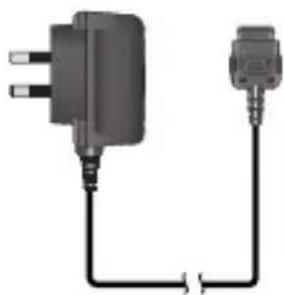
natural_image
Pure electrical circuit lines without any symbols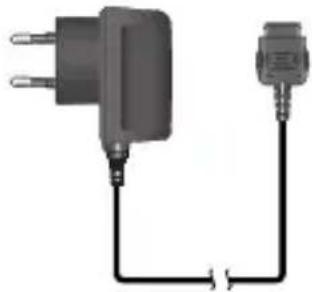
natural_image
Pure electrical circuit lines without any symbols(EB-CA001 UK) (EB-CA001 US)
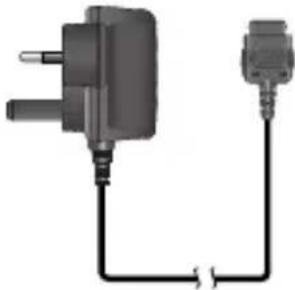
natural_image
Pure electrical circuit lines without any symbols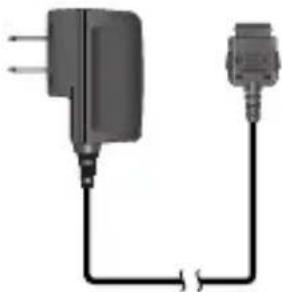
natural_image
Pure electrical circuit lines without any symbolsPersonal Handsfree (Mono) (EB-EMX800)
Plug into your phone and talk without holding the phone to your ear.

natural_image
Pure electrical circuit lines without any symbolsPersonal Handsfree (Stereo) (EB-EM001)
Talk/listen to the music and move while keeping your hands free, by using a Personal Handsfree. Put the ear pieces in your ears and the adaptor in the side of the phone.
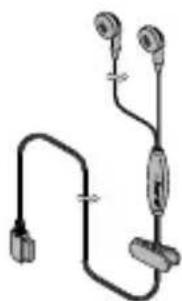
natural_image
Pure electrical circuit lines without any symbolsIn-Car Charger (EB-CD001)
Recharge the battery using your vehicle's cigarette lighter socket.
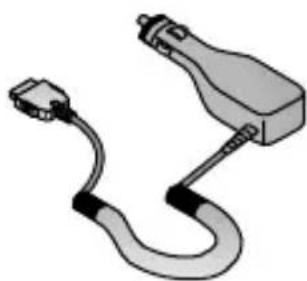
natural_image
Illustration of a USB cable connector with a terminal connector (no text or symbols)Car Holder (EB-KA001)
This can be mounted in your vehicle to store your phone.
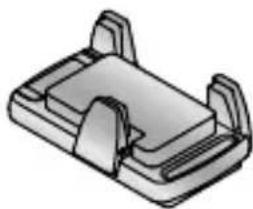
natural_image
3D illustration of a mechanical component with mounting flanges and a central housing (no text or symbols)USB Cable (EB-US002)
Use this to connect your phone to a PC to transfer data between them. Use in conjunction with the software provided on the CD-ROM.
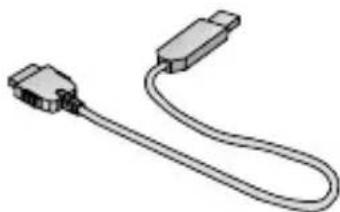
natural_image
Illustration of a USB cable with two connectors (no text or symbols)Branch Cable (EB-CBX800)
This cable branches the connection to a USB Cable, Personal Handsfree and Travel Charger so that you can transfer data OR talk on handsfree while charging.

natural_image
Isometric illustration of a mechanical or electrical component with a curved pipe or rod extending from its end (no text or symbols visible)Changing the X-Changeable Cover™
Before changing the cover, always switch off the power and disconnect the phone from the charger or any other device. For your safety, follow these procedures when removing or attaching the cover.
Removing the cover
Loosen and remove the 4 screws with the screw driver included in this package and then gently remove the cover.
Attaching the cover
Place the cover right in the hollow in the phone and align the bottom edge of the cover with that of the hollow. Tighten the 4 screws firmly.
Ensure that there is no dust caught between the cover and the hollow.
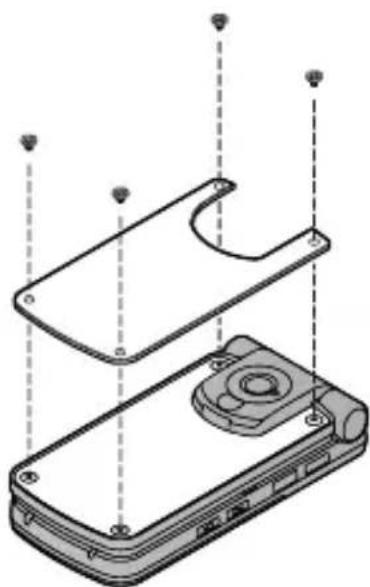
natural_image
Technical line drawing of a mobile phone casing with internal components and mounting holes (no text or symbols)Note: Do not use the phone without the cover attached.
Do not force the cover when removing or replacing. Before tightening the screws, ensure the cover is located correctly. Do not force or over tighten the screws.
Use only covers designed for this model.
Troubleshooting
Problems
Should any problem persist, contact your dealer.
| Problem Cause | use Remedy | |
| Phone will not switch on. | Check that the battery is fully charged and correctly connected to the phone. | |
| Extremely short battery life for a new battery. | The network you are using and the condition of the battery can affect battery life. | |
| Short battery life for an old battery. | The battery has worn out. | Replace with a new fully charged battery. |
| The battery charge level indicator does not appear and the phone cannot be switched on when charging. | The battery is not attached to the phone or the battery has been deeply discharged. | Leave the phone charging the battery for a few minutes before the battery charge level indicator appears and attempt to switch the phone on. |
| Battery fails to charge. | The battery is not attached to the phone. | Ensure the battery is fitted to the phone prior to commencing charging. |
| The battery was connected to the phone after the charger was connected. | ||
| Problem Cause Remedy | ||
| Battery fails to charge. | The battery temperature exceeds the charging temperature range (too hot or too cold). | Use the battery at room temperature. |
| Display looks faded. | The Brightness level is low. | Check the Brightness setting (see page 101). |
| Calls cannot be made. | Keyguard is on. Disable keyguard. | |
| Outgoing calls are barred. | Disable outgoing call barring or barred dialling. | |
| Fixed dialling is switched on so that only the numbers stored in Contacts can be dialled. | Switch off the Fixed dialling. | |
| The phone is not registered with a network. | Move to a coverage area and operate your phone after it has registered with a network. | |
| Calls cannot be received. | The phone is not switched on. | Switch the phone on. |
| Incoming calls are barred. | Disable incoming call barring. | |
| The phone is not registered with a network. | Move to a coverage area and operate your phone after it has registered with a network. | |
| Emergency calls cannot be made. | You are not in a GSM coverage area. | Check that the antenna symbol (T) is displayed - move to a coverage area and operate your phone when the antenna symbol is displayed. |
Error messages
These are some of the most important error messages which may be displayed:
| Location area not allowed! | Roaming in the selected area is not allowed. |
| Network not allowed! | Roaming with the selected network is not allowed. |
| Security failure! | The network has detected an authentication failure because your SIM card is not registered with that network - contact your service provider. |
| SIM blocked | The SIM card is blocked because the PIN unblocking key (PUK) has been entered incorrectly 10 times - contact your service provider. |
| Restarting SIM.Please wait | The phone has detected a problem with the SIM card - switch the phone off and then back on; if the message is still displayed - contact your service provider. |
| Invalid SIM | The SIM card has failed one or more of the SIM personalisation checks - contact your service provider. |
| Function unavailable | The selected feature is either not supported by the SIM card or is not available with the current subscription - contact your service provider. |
| PIN2 invalidated | The PIN2 is blocked permanently because the wrong PUK2 has been entered 10 times, services controlled by PIN2 cannot be used - contact your service provider. |
| Message rejected.Storage full orMessage rejected.SIM full | A message has been received but the message store is full - to receive messages, delete some of the currently stored messages. |
| Phone number too long! (Max: xx) | The edited or newly created contact number is too long for the SIM card. |
| Memory low!Message may not be stored | The message area is full. Your messages cannot be stored until some of the currently stored messages are deleted. |
| Verification failure | On changing the PIN/PIN2, verification of the new code is incorrect - retry changing the PIN/PIN2 with correct verification. |
Glossary of terms
| CSD | Circuit Switched Data. A communication method used to transmit data over telephone connections. |
| DTMF | Dual Tone Multi-Frequency allows you to communicate with computerised phone systems, voice mailboxes, etc. |
| GPRS | General Packet Radio Service. A GSM transmission technique that transmits and receives data in packets rather than setting up a continuous channel. |
| GSM | Global System for Mobile communications. The name given to the advanced digital technology that your phone uses. |
| Infrared | A type of wireless connection that allows data to be transmitted directly to another device. |
| Java^TM | A programming language developed by Sun Microsystems. Programs written in Java do not rely on an operating system. |
| Network Operator | The organisation responsible for operating a GSM network. |
| PIN / PIN2 | Personal Identification Number. PIN is used for SIM card security. PIN2 is used for the control of Fixed dialling and Call charges metering. Supplied by your service provider. If the PIN or PIN2 is entered incorrectly several times (basically 3 times), the PIN or PIN2 will be blocked. |
Appendix
| PUK / PUK2 | PIN or PIN2 Unblocking Key. Used to unblock the PIN or PIN2 code. Supplied by your service provider. If the PUK or PUK2 is entered incorrectly 10 times, the PUK or PUK2 will be blocked. |
| Roaming | The ability to use your phone on networks other than your home network. |
| Service provider | The organisation responsible for providing access to the GSM/GPRS network. |
| SIM | Subscriber Identity Module. A small smart-card which stores unique subscriber and user entered information such as Contacts entries and short messages. Supplied by your service provider. |
| URL | Uniform Resource Locator. The URL is an alphanumeric address that points to homepages and other Internet locations. |
| WAP | Wireless Application Protocol. The communication standard which enables you to download resources from the Internet to your phone. |
Specifications
| Bands supported | GSM 900 Class 4GSM 1800 Class 1GSM 1900 Class 1 |
| Standby time*1 | 150-370 hours |
| Talk time*1 | 2-6 hours |
| Charging time*2 | Up to 150 minutes |
| Temperature range | Charging: +5°C - +35°CStorage: -20°C - +60°C |
| Weight 102 g (including battery) | |
| Dimensions(excluding protrusions) | Height: 96 mmWidth: 46 mmDepth: 17.6 mm |
| Volume 79 cc | |
| Battery 830 mAh Li-ion | |
| Antenna Internal | |
| SIM type 1.8 V/3 V | |
| Memory storage | MMS: 2 MBUser data (excluding MMS) and preinstalled applications: 30 MB |
| Display | QVGA 240 x 320 pixels TFT LCD: Approx. 16 million colours (JPEG and camera/video image*3)Brightness: Approx. 300 cd/m2 |
| Camera 1.3 M pixels CMOS | |
| Connectivity | Infrared: SIR (slow infrared)USB: v2.0 |
*1 Talk and Standby times will be dependant upon network conditions, SIM card, backlight usage, battery condition/charging management and the use of applications such as camera and games where available.
*2 Charging time depends on usage and battery condition.
*3 65k colours for other image formats
© 2005 Panasonic Mobile Communications Co., Ltd. All rights reserved.
Information in this document is subject to change without notice. No part of these instructions may be reproduced or transmitted in any form or by any means without obtaining written permission from Panasonic Mobile Communications Co., Ltd.
CP8 Patent
C€0168

Java and all Java-based trademarks and logos are trademarks or registered trademarks of Sun Microsystems, Inc. in the U.S. and other countries.

T9 ^® Text Input is licensed under one or more of the following: U.S. Pat. Nos. 5,187,480, 5,818,437, 5,945,928, 5,953,541, 6,011,554, 6,286,064, 6,307,548, 6,307,549, and 6,636,162, 6,646,573; Australian Pat. Nos. 727539, 746674, and
747901; Canadian Pat. Nos. 1,331,057, 2,302,595, and 2,227,904; Japan Pat. No. 3532780, 3492981; United Kingdom Pat. No. 2238414B; Hong Kong Standard Pat. No. HK1010924; Republic of Singapore Pat. No. 51383, 66959, and 71979; European Pat. Nos. 0 842 463 (96927260.8), 1 010 057 (98903671.0), 1 018 069 (98950708.2); Republic of Korea Pat. Nos. KR201211B1 and KR226206B1. People's Republic of China Pat. Application Nos. 98802801.8, 98809472.X and 96196739.0; Mexico Pat. No. 208141; Russian Federation Pat. No. 2206118; and additional patents are pending worldwide.
Copyright © 2003 by Bitstream, Inc. All Rights Reserved. Bitstream Vera is a trademark of Bitstream, Inc. For further information, please refer to: http://www.w3.org/2003/08/sera/COPYRIGHT.TXT
Powered by Mascot Capsule®/Micro3D Edition™ Mascot Capsule® is a registered trademark of HI Corporation© 2005 HI Corporation. All Rights Reserved.

JBlend ^TM
Aplix, microJBlend and JBlend, and all Aplx-or JBlend-related trademarks and logos are trademarks or registered trademarks of Aplx Corporation in the U.S., Japan and other countries.
This product is licensed under the MPEG-4 patent portfolio license for the personal and non-commercial use of a consumer to (i) encode video in compliance with the MPEG-4 Visual Standard (“MPEG-4 Video”) and/or (ii) decode MPEG-4 Video that was encoded by a consumer engaged in a personal and non-commercial activity and/or was obtained from a licensed video provider. No license is granted or implied for any other use. Additional information may be obtained from MPEG LA,LLC.
MPEG Layer-3 audio coding technology licensed from Fraunhofer IIS and Thomson.
SONIC THE HEDGEHOG™
© SEGA Corporation
SEGA, the SEGA logo and SONIC THE HEDGEHOG are either registered trademarks or trademarks of SEGA Corporation.
END-USER SOFTWARE LICENSE AGREEMENT
By use of this Panasonic cellular phone, including any embedded software features or programs ("Embedded Software"), you agree to the terms and conditions of this End-User Software License Agreement ("EULA").
- END-USER RIGHTS: You are granted a limited end-user right to use the Embedded Software only as part of and together with this Panasonic cellular phone. You agree to use the Embedded Software in a manner that complies with all applicable laws, including laws related to copyright and other intellectual property rights. All other uses are prohibited.
- LIMITATIONS ON END-USER RIGHTS:
(a) You may not reproduce, copy, or transfer the Embedded Software to any other device;
(b) You may not create derivative works of any type based on the Embedded Software (unless and except as expressly permitted as part of a feature application);
(c) You may not reverse engineer, reverse compile, disassemble, or otherwise attempt to discover the source code of the Embedded Software;
(d) You may not transfer this Panasonic cellular phone other than to a transferee end-user who undertakes to observe the same obligations as those set out in this EULA;
(e) You may not remove any proprietary notices, such as copyright, trademark, or otherwise, from the Embedded Software.
-
INTELLECTUAL PROPERTY RIGHTS: The Embedded Software is protected by copyright, trademark, patent and/or other intellectual property rights and is owned by Panasonic Mobile Communications Co., Ltd. ("PMC") and/or is under license from PMC's licensors.
-
TERMINATION: Your right to use the Embedded Software may be terminated for failure to comply with any of the terms of this EULA.
-
LIMITATION OF LIABILITY/DISCLAIMER OF WARRANTIES: TO THE MAXIMUM EXTENT PERMITTED BY APPLICABLE LAW, IN NO EVENT SHALL PMC, ITS AFFILIATES, AND THEIR LICENSORS BE LIABLE FOR INCIDENTAL, INDIRECT, SPECIAL OR CONSEQUENTIAL DAMAGES OR ANY DAMAGES WHATSOEVER RESULTING FROM LOSS OF USE, DATA OR PROFITS, ARISING OUT OF OR IN CONNECTION WITH THE USE OR PERFORMANCE OF THE EMBEDDED SOFTWARE. EXCEPT AS EXPRESSLY STATED IN THE RELEVANT WARRANTY CARD, PMC, ITS AFFILIATES, AND THEIR LICENSORS DISCLAIM ALL WARRANTIES, EXPRESS AND IMPLIED, INCLUDING, WITHOUT LIMITATION, THE IMPLIED WARRANTIES OF MERCHANTABILITY AND FITNESS FOR A PARTICULAR PURPOSE. THE REMEDIES PROVIDED TO THE END-USER IN THE RELEVANT WARRANTY CARD ARE EXCLUSIVE.
-
ADDITIONAL THIRD PARTY TERMS: The Embedded Software may contain third party software subject to separate third party license terms and conditions set forth in the user manual or associated product documentation and/or displayed on the LCD of this Panasonic cellular phone. You acknowledge and agree that such third party software is governed by the third party license terms, as applicable, and that such terms are solely between you and the applicable licensor.
-
EXPORT REGULATIONS/RESTRICTED RIGHTS: The Embedded Software is subject to U.S. export control laws, including the U.S. Export Administration Act and its associated regulations, and may be subject to export or import regulations in other countries. You agree to comply strictly with all such regulations. You confirm that with respect to the Embedded Software, you will not export or re-export it, directly or indirectly, to any countries that are subject to U.S. export restrictions. Use, duplication or disclosure by the U.S. government is subject to the restrictions as set forth in the Rights in Technical Data and Computer Software Clauses in DFARS 252.227-7013(c)(1)(ii) and FAR 52.227-19(c)(2) as applicable.
EU/EEA - Wide guarantee is applicable in the EU/EEA and Switzerland.
Panasonic GSM European Service Guarantee Conditions Dear Customer,
Thank you for buying this Panasonic digital cellular telephone. The Panasonic GSM European Service Guarantee only applies while travelling in countries other than where the product was purchased. Your local guarantee is applicable in all other cases. If your Panasonic GSM telephone requires service while abroad, please contact the local service company shown on this document.
The Guarantee
The applicable period of the European wide guarantee for GSM is generally 12 months for the main body and 3 months for the rechargeable battery. With respect to a product used in a country other than a country of purchase, notwithstanding what is stated in the conditions below, the customer will benefit, in that country of use, from these guarantee periods of, respectively, 12 and 3 months, if these conditions are more favourable to him than the local guarantee conditions applicable in such country of use.
Conditions of Guarantee
When requesting guarantee service the purchaser should present the warranty card together with proof of purchase, to an authorised service centre.
The guarantee covers breakdowns due to manufacturing or design faults; it does not apply to other events such as accidental damage, however caused, wear and tear, negligence, adjustment, modification or repair not authorised by us.
Your sole and exclusive remedy under this guarantee against us is the repair, or at our option the replacement, of the product, or any defective part or parts. No other remedy, including, but not limited to, incidental or consequential damage or loss of whatsoever nature shall be available to the purchaser.
This is in addition to and does not in any way affect any statutory or other rights of consumer purchasers. This guarantee applies in countries shown on this document at the authorised service centres detailed for that country.
Austria
Fa. Frisch
Lokalbahnweg 12
A-4060 Leonding
Tel. +43 (0)732 676 961
Germany
In Germany, you can also take advantage of our pick-up service if you need to have your Panasonic equipment repaired. You will find details under Service, Repair Services, on our Internet homepage at www.panasonic.de Hotline: +49 (0)180 501 5142 (12 cents/min.) Mon. to Fri. 8am - 8pm and Sat. Midday - 5pm
T-Mobile equipment specialists:
Panasonic Service Center
N. Schaaf
Vodafone equipment specialists:
Panasonic Service Center
B&W Service GmbH
Kieler Straße 41
24768 Rendsburg
Tel.: +49 (0) 4331 / 14 11-0
o2 or e-plus equipment specialists:
Panasonic Service Center
Service Centres in Ireland
Tel. +353 1 2898333
United Kingdom
Service Centres in England
Tel. +44 8705 159159
EU/EEA - Wide Guarantee: Conditions applicable in any country other than the country of original purchase.
When the purchaser finds the appliance to be defective, he should promptly contact the proper sales company or national distributor in the EU/EEA country where this guarantee is claimed, as indicated in the "Product Service Guide" or the nearest authorised dealer together with this guarantee and proof of date of purchase. The purchaser will then be informed whether:
(i) the sales company or national distributor will handle the repair service; or
(ii) the sales company or national distributor will arrange for trans-shipment of the appliance to the EU/EEA country where the appliance was originally marketed; or
(iii) the purchaser may himself send the appliance to the sales company or national distributor in the EU/EEA country where the appliance was originally marketed.
If the appliance is a product model which is normally supplied by the sales company or national distributor in the country where it is used by the purchaser, then the appliance, together with this guarantee card and proof of date of purchase, should be returned at the purchaser's risk and expense to such sales company or distributor, which will handle the repair service. In some countries, the affiliated sales company or national distributor will designate dealers or certain service centres to execute the repairs involved.
If the appliance is a product model which is not normally supplied in the country where used, or if the appliance's internal or external product characteristics are different from those of the equivalent model in the country where used, the sales company or national distributor may be able to have the guarantee repair service executed by obtaining spare parts from the country where the appliance was originally marketed, or it may be necessary to have the guarantee repair service
executed the sales company or national distributor in the country where the appliance was originally marketed.
In either case, the purchaser must furnish this guarantee card and proof of date of purchase. Any necessary transportation, both of the appliance and of any spare parts, will be at the purchaser's risk and expense, and there may be a consequent delay in the repair service.
Where the consumer sends the appliance for repair to the sales company or national distributor in the country of use of the appliance, the service will be provided on the same local terms and conditions (including the period of guarantee coverage) as prevail for the same model appliance in the country of use, and not the country of initial sale in the EU/EEA. Where the consumer sends the appliance for repair to the sales company or national distributor in the EU/EEA country where the appliance was originally marketed, the repair service will be provided on the local terms and conditions prevailing in the country of initial sale in the EU/EEA.
Some product models require adjustment or adaptation for proper performance and safe use in different EU/EEA countries, in accordance with local voltage requirements and safety or other technical standards imposed or recommended by applicable regulations. For certain product models, the cost of such adjustment or adaptation may be substantial and it may be difficult to satisfy local voltage requirements and safety or other technical standards. It is strongly recommended that the purchaser investigates these local technical and safety factors before using the appliance in another EU/EEA country.
This guarantee shall not cover the cost of any adjustments or adaptations to meet local voltage requirements and safety or other technical standards. The sales company or national distributor may be in a position to make the necessary adjustments or adaptations to certain product models at the cost of the purchaser. However, for technical reasons it is not possible to adjust or adapt all product models to comply with local voltage requirements and safety or other technical
standards. Moreover, where adaptations or adjustments are carried out the performance of the appliance may be affected. If in the opinion of the sales company or national distributor in the country where the appliance is used the purchaser has the necessary adjustments or adaptations to local voltage requirements and technical or safety standards properly made, any subsequent guarantee repair service will be provided as above indicated, provided the purchaser discloses the nature of the adjustment or adaptation if relevant to the repair. (It is recommended that the purchaser should not send adapted or adjusted equipment for repair to the sales company or national distributor in the country where the appliance was originally marketed if the repair relates in any way to the adaptation or adjustment.)
This guarantee shall only be valid in territories subject to the laws of the European Union and the EEA.
Please keep this guarantee with your receipt.
Declaration of Conformity
The declaration of conformity for product EB-VS3 can be obtained from the Panasonic website at http://panasonic.co.jp/pmc/products/en/support/index.html
A
Active flip 106
Alarms 119
Alert mute 34
Answering calls 33
Any key answer 105
Archive 68
Auto answer 106
Auto redial 31
B
Backlight time 101
Battery
Charging 25
Inserting 24
Removing 24
Bookmarks 88
Brightness 101
Browser 85
Browser options
Advanced 91
Bookmarks 88
Enter address 89
Reload page 90
Save media 89
Service Inbox 90
Set as bookmark 89
Settings 91
C
Calculator 122
Calendar 123
Call
Answering 33
Duration 106
Hold 36
Making 31
Settings 104
Call barring 116
Call diverts 104
Call log 51
Call waiting 105
Camera 74
Cell Broadcast 112
Chat 70
Clock 95
Conference 39
Connectivity settings ......108
Contacts 45
Continuous shooting 80
Creating a message
MMS 62
SMS 59
D
Display
Settings 100
Standby display ....19
Download
Games 139, 144
Picture files 134
Sound clips 136
Video clips 138
Drafts folder 68
DTMF 37
E
Emergency call 33
Emoticon list 60
Error messages ......152
F
Fixed dial 116
G
Games 142
Games folder 138
GSM network 113
H
Handsfree talking 36
Hold 36
How to read this manual ..... 12
|
Icons 20
Main menu icons 100
Status icons 20
Illumination message 59
Illuminations 96
Inbox 64
In-call operations 36
Indicator/Illumination Light 22
Infrared 108
Input method 40
International dialling 32
K
Key
Backlight 97
Functions 16
Keyguard 98
Quick keys 17
Settings 97
Shortcut 99
Tone 97
Volume 97
L
Language
Cell Broadcast 112
Display 95
Input 61,95
M
Main menu
icons 100
Structure 28
Making calls 31
Master reset 99
Memory status
Contacts 55
My Media 140
SMS/MMS 73
Menu
Displaying the menu 29
Menu selection method 30
Message alert 102
Messages settings 71
Missed call notification 34
MMS 58
Multi shot mode 80
Multiple calls operations 38
My dictionary 42
My number 54
0
Operator name 101
Outbox folder 68
P
Phone
Opening/closing 27
Overview 14
Settings 94
Switching on/off 27
Picture 75
Pictures folder 130
PIN/PIN2 code 115
Problems 150
Profiles 94
Q
Quick keys 17
R
Recent call dialling 32
Recording a video clip 82
Ringtone 102
S
Security settings 115
Self-portrait 76
Send my number 106
Sent folder 68
Service charge 107
Index
Service numbers 56
Shortcut keys 99
Shutdown tone 103
Silent mode 35
SIM card
Inserting 23
Removing 23
SIM Tool Kit 119
SMS 58
Sound recorder 121
Sounds & alerts settings ...... 102
Sounds folder 134
Speed dial 52
Standby display 19
Startup tone 103
Status icons 20
Symbols used in this manual ..... 11
Synchronisation 53, 110
T
T9 ^® 42
Taking a picture 76
Text entry 40
Text templates 139
Themes 101
Time and date 95
U
Unsent folder 68
USB 114
V
Vibration alert 103
Video, record 82
Videos folder 137
Voicemail 70
Volume control 37
W
Wallpaper 100
Warning tone 103
Web mail 69
X
X-Changeable Cover ^TM ..... 149