
EMP-S3 - Projector EPSON - Free user manual and instructions
Find the device manual for free EMP-S3 EPSON in PDF.



| Product type | Video projector |
| Brand | EPSON |
| Model | EMP-S3 |
| Display technology | 3LCD |
| Native resolution | SVGA (800 x 600 pixels) |
| Brightness | 1600 ANSI lumens |
| Contrast ratio | 500:1 |
| Maximum screen size | 300 inches (610 x 460 cm) |
| Projection distance | 87 cm to 1212 cm (depending on zoom) |
| Lamp type | UHE 170W |
| Lamp life | 2000 hours (normal mode) |
| Power supply | AC 100-240V, 50/60 Hz |
| Power consumption | 260 W (projection mode) |
| Dimensions (W x D x H) | 327 x 232 x 83 mm |
| Weight | 2.7 kg |
| Keystone correction | Vertical ±30° (20° in 16:9 mode) |
| Zoom | Manual 1:1.35 |
| Focus | Manual |
| Special features | Direct Power ON, Source Search, quick power off |
| Video inputs | Composite, S-Video, Component (Y Cb/Pb Cr/Pr), VGA (computer) |
| Audio output | Headphone jack (mini-jack) |
| Noise level | 35 dB (economy mode) |
| Maintenance | Cleaning air filter, lamp replacement |
| Spare parts | Replacement lamp (ELPLP20), air filter (ELPAF17) |
| Safety | Do not use vertically, avoid blocking air intakes |
Frequently Asked Questions - EMP-S3 EPSON
User questions about EMP-S3 EPSON
0 question about this device. Answer the ones you know or ask your own.
Ask a new question about this device
Download the instructions for your Projector in PDF format for free! Find your manual EMP-S3 - EPSON and take your electronic device back in hand. On this page are published all the documents necessary for the use of your device. EMP-S3 by EPSON.
USER MANUAL EMP-S3 EPSON
■ Turning on and Projecting
■ Connecting to Visual Equipment
● Problems/Indicator summary
See the illustration on the right to choose the best position for your projected image. The values are only a guide.

• After making keystone correction, the projected image will be smaller.
- You can project a better quality of image when zoom is set to the maximum.
* Distance from the center of the lens to the base of the screen.
Units: cm (in.)
| 30” | 4 to -2 (1.7 to -0.9) |
| 40” | 6 to -3 (2.3 to -1.1) |
| 50” | 7 to -4 (2.8 to -1.4) |
| 60” | 9 to -4 (3.4 to -1.7) |
| 80” | 12 to -6 (4.5 to -2.3) |
| 100” | 14 to -7 (5.7 to -2.9) |
| 200” | 29 to -15 (11.3 to -5.7) |
| 300” | 43 to -22 (17.0 to -8.6) |
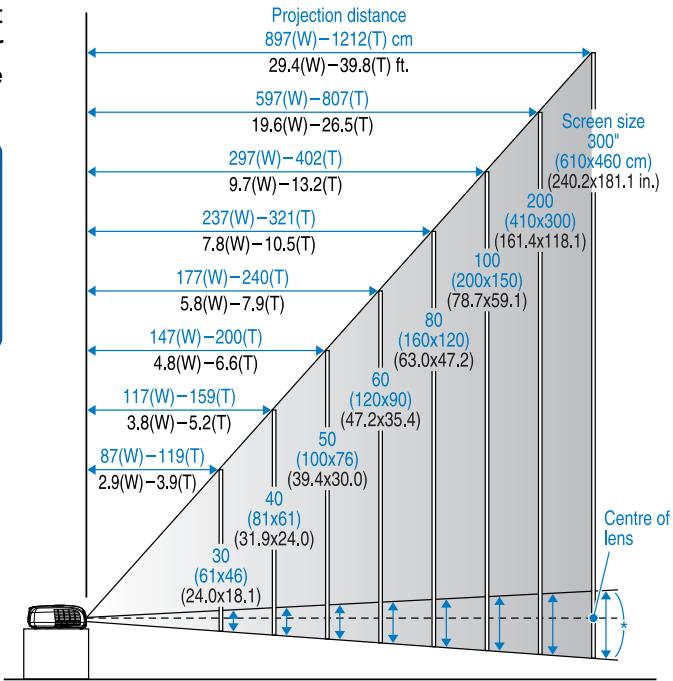
W: Maximum Zoom T: Minimum Zoom
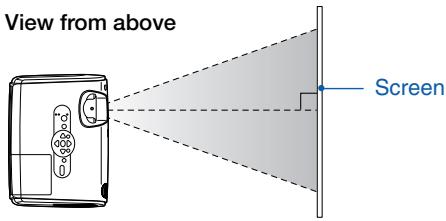
Setup this projector parallel to the screen.

Do not stand this projector upright. This may damage your projector.
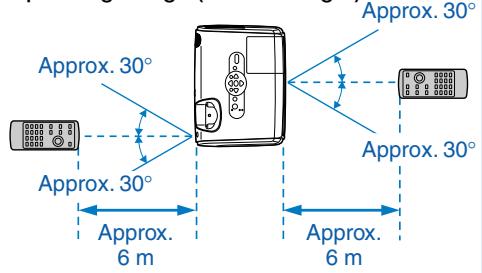
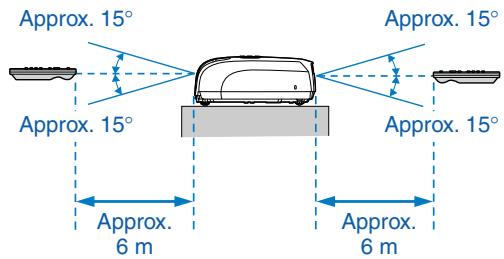
Using the remote control
Insert the batteries provided. 📋 User's Guide "Replacing the batteries"
Operating Range (Left and Right)
Operating Range (Up and Down)
2
Connecting to Visual Equipment

- Turn off connected equipment. Damage may result if you try to connect when the power is on.
- Do not try to force a cable connector to fit a port with a different shape. This may damage your projector.

- When the source has an unusual connection, use the cable provided with the source or commercially available cables.
- If you use a 2RCA (L/R) stereo min-jack audio cable, make sure it is labelled "No resistance".
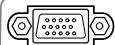
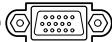
Connecting to a Computer
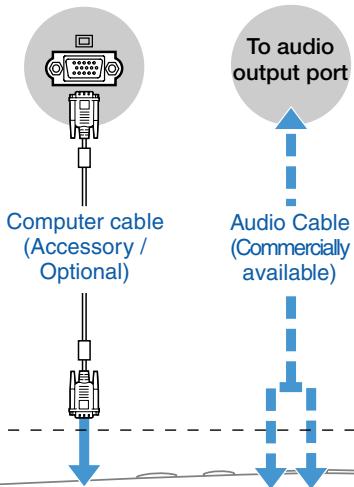
![graph TD A["Monitor Out"] --> B["Computer/Component Video"] B --> C["S-Video"] C --> D["Video"] D --> E["L-Audio-R"] F["Component video cable (optional)"] --> G["Component out"] H["S-Video cable (Commercially available)"] --> I["S-Video out"] J["A/V Cable (Commercially available)"] --> K["Video out"…](/content/2019/08/103646/images/c3e383992b9eeaaa807fa7400d1da64bdf77841de0fd2891aeecf5c5e5b85edc.jpg)
Connecting to a Video Source
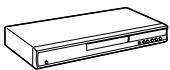

DVD players, VHS players, satellite tuners, RGB converters, video distribution
machines, and so on. * The port names may vary depending on the equipment.
3
Turning on and Projecting

TIP
- When using the "Direct Power ON" feature, the power turns on when the power cable is connected.
- When using above an altitude of about 1500 m, set the "Fan Speed" to "High".
User's Guide "Extended Menu"
Beep
Control Panel
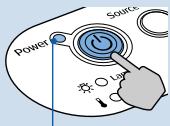
Power Indicator
Remote Control
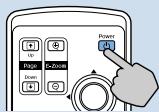
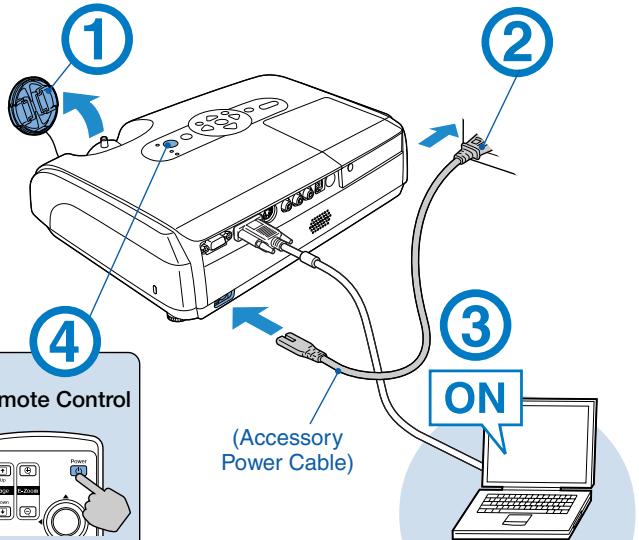
* For video equipment, press "play" to start playback.
Reading the Indicators

Lit

Flashing
Orange
Standby

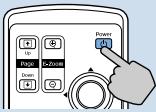
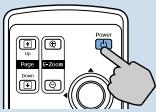
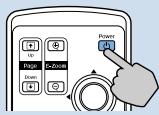
Press ⏻ to start projecting.
In this mode, you can unplug the power cable.
Green
Warming up

Wait for a short time (about 30 seconds).
In this mode pressing ⏻ has no effect.
Green
Projecting

Do not unplug the power cable.
No image is projected
For notebooks and computers with liquid
crystal displays
Change the computer's output source. Hold down the Fn key and press the appropriate Fo key (the one usually labelled □/□). After changing the setting, wait a few seconds for projection to start.
Computer's "User's Guide"
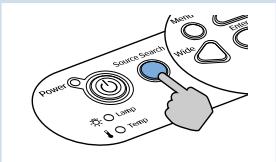
* If the image is not projected, press Source Search
For video equipment
Start playback then
press Source Search
| Examples | |
| NEC | |
| Panasonic | |
| SOTEC | |
| HP | |
| TOSHIBA | |
| IBM | |
| SONY | |
| DELL | |
| FUJITSU | |
| Macintosh | Set mirror setting or display detection. |
●Adjusting Position and Focus ●
(Setting up for the first time or after moving)
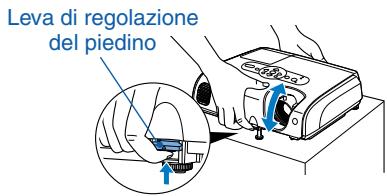
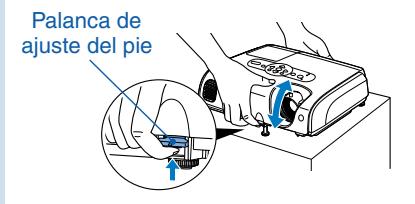
■ Raising the Projection Position (Adjusting the front foot)
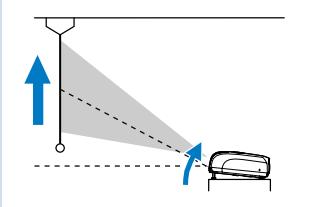
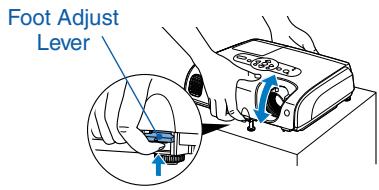

When moving the projector, make sure the front foot is retracted.
▶ Correcting Keystone Distortion
You can adjust the vertical tilt to a maximum of about 30° * ( 20° when projecting a component video image with a ratio of 16:9).
![graph LR A["Wide Top"] --> B["Normal"] B --> C["Wide Base"]](/content/2019/08/103646/images/d705fa5ec67327ba6ec6d8d5f21235a8d536ad0868dee7e442f45fba00cea1e4.jpg)
* The greater the angle of tilt, the harder the image is to focus. Setup the projector at a lower angle of tilt.
You can adjust the front foot to raise the projection angle up to a maximum of 10° .

- You can also make keystone corrections from the configuration menu.
User's Guide "Settings Menu"
- Hold down △ and press ∇ for more than one second to reset the correction value to the default setting.
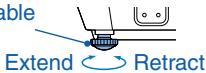
- Adjust the horizontal tilt by turning the left rear foot.
Rear Adjustable
Foot
■ Adjusting Focus
![graph LR A["User Group"] <--> B["User Group"] C["Computer Mouse"] -->|Rotation| D["Computer Mouse"]](/content/2019/08/103646/images/657c6c466c8cffa969cc5010df639aa6e03fed3f8ca47bce802dc34c7aedda57.jpg)

After keystone correction and sharpness adjustments, the image may be unfocused.
■ Adjusting Projection Size
Enlarge
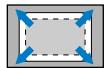
Reduce
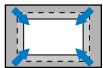
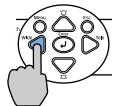
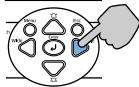
If keystone correction or zoom adjustments are performed, the "Image Shift" adjustment screen is displayed. ⚙️ User's Guide "Adjusting the Projection Position (Image Shift)"
● Turning the Projector off ●
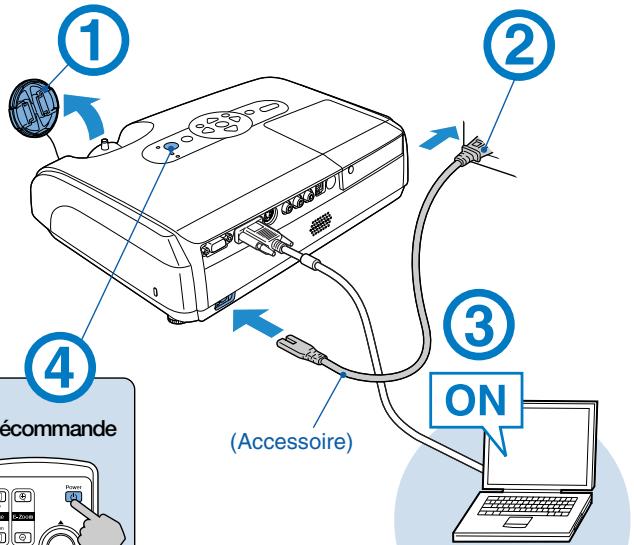
① Turn off all connected equipment.
② Press ⏻ twice on the remote control or control panel.
③ After the confirmation buzzer beeps twice, unplug the power cable.
Electricity is consumed if only the projector's power is turned off.
④ Attach the lens cover.
1
Installation
Computer/
S-Video
_Video
L-Audio-R
.Monitor.Out
Component Video


Voyant Power
Télécommande
![graph LR A["Haut large"] --> B["Normal"] B --> C["Bas large"]](/content/2019/08/103646/images/66d6367f3ed2017e3ee3c3db35a52bd00e8f9072add9f1fab9b800ed951bc8df.jpg)
Poweranzeige
Fernbedienung
![graph LR A["User icon"] <--> B["User icon"] C["Computer mouse with rotation arrow"] --> D["Computer mouse"]](/content/2019/08/103646/images/d0eeaadbf406105ef285a8e71a2ca4a10be76741961d500dfd6c1ed18e1cdd6b.jpg)


Computer/Componer
S-Video
_Video
L-Audio-R
Monitor.Out


Component Out
Spia Power
Lettura delle spie

Accesa

Lampeggiante
Arancione Standby

2

| RedRedRed | Problem | Unplug the projector and contact your dealer.* |
| RedORed | Fan/Sensor problem | |
| RedORed | Overheating Unplug this projector and wait for 5 minutes. | Check the following.*the projector is not too close to the wall.the air filters are not blocked. |
| RedOOrange | High-speed cooling |
| General Lamp Problem Remove the lamp and check if it is broken. If it is not broken, reinsert it.*If it is broken, contact your dealer. | |
| Lamp replacement notificationChange the lamp. If you continue to use the lamp, it may explode. |
* If the problem is not corrected after checking the points above, unplug the projector and contact your dealer.
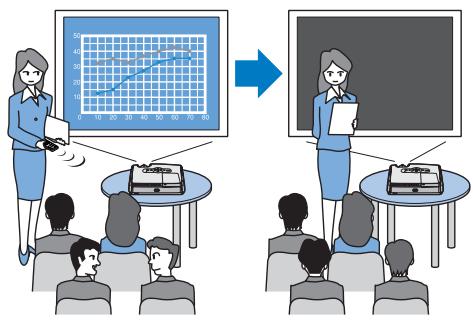
A/V Mute
Pointer
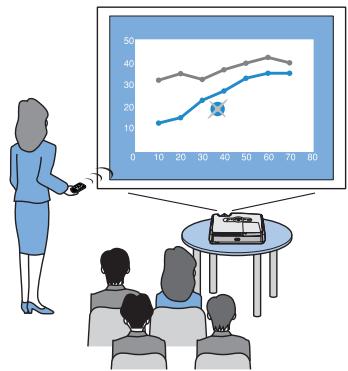
Image Shift
![graph TD A["Computer monitor with charts and bar graphs"] --> B["Computer monitor displaying charts and bars"] C["Device with antenna"] --> D["Device with antenna"]](/content/2019/08/103646/images/695f594e0c5565a5c4bb86a132bae4d2b23212bc2bee404580164ddf6fd20bf9.jpg)


- USING THE REMOTE CONTROL
- 2
- CONNECTING TO VISUAL EQUIPMENT
- 3
- TURNING ON AND PROJECTING
- BEEP
- READING THE INDICATORS
- ORANGE
- STANDBY
- GREEN
- WARMING UP
- PROJECTING
- NO IMAGE IS PROJECTED
- FOR NOTEBOOKS AND COMPUTERS WITH LIQUID
- CRYSTAL DISPLAYS
- FOR VIDEO EQUIPMENT
- START PLAYBACK THEN
- ●ADJUSTING POSITION AND FOCUS ●
- (SETTING UP FOR THE FIRST TIME OR AFTER MOVING)
- RAISING THE PROJECTION POSITION (ADJUSTING THE FRONT FOOT)
- CORRECTING KEYSTONE DISTORTION
- ADJUSTING FOCUS
- ADJUSTING PROJECTION SIZE
- ● TURNING THE PROJECTOR OFF ●
- 1
- INSTALLATION
- LETTURA DELLE SPIE
- ARANCIONE STANDBY
Brand : EPSON
Model : EMP-S3
Category : Projector