Omnia M701BK - E-reader Icarus - Free user manual and instructions
Find the device manual for free Omnia M701BK Icarus in PDF.


| Product Type | E-reader |
| Brand | Icarus |
| Model | Omnia M701BK |
| Display Size | 7 inches |
| Display Technology | E Ink Carta |
| Resolution | 1024 x 768 pixels (approx.) |
| Front Light | Yes, adjustable warm/cool |
| Touchscreen | Yes, capacitive |
| Storage Capacity | 8 GB internal (expandable via microSD) |
| Supported Formats | PDF, EPUB, MOBI, TXT, HTML, RTF, FB2 |
| Connectivity | Wi-Fi 802.11 b/g/n, USB-C |
| Power Source | Rechargeable lithium polymer battery, 1500 mAh |
| Battery Life | Up to 4 weeks (based on 30 min/day reading) |
| Dimensions | Approx. 170 x 120 x 8 mm |
| Weight | Approx. 200 g |
| Operating System | Android (customized) |
| Main Functions | Read e-books, adjust font size, dictionary, notes, bookmark, library management, built-in store access |
| Care and Cleaning | Wipe with soft dry cloth; avoid liquids; keep away from extreme temperatures |
| Safety | Do not disassemble; use only provided charger; avoid prolonged screen exposure to direct sunlight |
| Spare Parts and Repairability | Contact Icarus support or authorized service centers for battery or screen replacement |
| General Information | Model year: 2021; Color: Black; Language support: multiple |
Frequently Asked Questions - Omnia M701BK Icarus
User questions about Omnia M701BK Icarus
0 question about this device. Answer the ones you know or ask your own.
Ask a new question about this device
Download the instructions for your E-reader in PDF format for free! Find your manual Omnia M701BK - Icarus and take your electronic device back in hand. On this page are published all the documents necessary for the use of your device. Omnia M701BK by Icarus.
USER MANUAL Omnia M701BK Icarus
text_image
Library 2019: League of London Admiral House A: Worldwide Travel of London Bus & Go Touring A Table of The International Country Pictures Astronomy of the Suburban Town Main Parks Astronomy of the New York- Main Parks Astronomy of the New York- Main Parks Astronomy of the New York- Main Parks Astronomy of the New York- Main Parks Newark NewarkICARUS Omnia (G2) (M701BK)
User Manual
Table of contents
Disclaimer 5
Introduction 5
Inside the box
Parts and controls
Turning on/and off
Charging
Inserting a memory card
The Home menu
Importing and transferring content 12
Importing content
Importing DRM content
Authorization
Transferring DRM ebooks
Reading books 15
Opening books
Book page interface
Turning a page
Adjusting font size
Zooming in/out
Using the Option menu while reading
Adding bookmarks
Deleting bookmarks
Opening bookmarks in the Home menu
Opening bookmarks in the current book
Go to page
Auto flip
Book information
Screen rotation
Display settings
Add to favorites
Playing music 22
Music player
Playing video 24
Using the Option menu during video playback
Viewing pictures 26
Zooming in/out
Slideshow
Thumbnail view
File explorer 27
Copy-paste files
Deleting files
Settings 28
Time and date
Standby
Format memory
About product
Power management
Restore factory defaults
Language
Screen rotation
Manual
Troubleshooting 30
Precaution and maintenance 31
Technical specifications 33
Disclaimer
All the information, design and specifications contained in this manual were correct at the time of publication. However, as the product is under development and upgrading, the final device may have a slightly difference in appearance or modified functionality than presented in this manual.
Introduction
The ICARUS Omnia is an ebook reader with full color display screen. It supports many ebook formats, including content encrypted with Adobe DRM. The Omnia is more than an e-reader though! You can also use it to listen to music, view your pictures or watch movies.
Inside the box
- ICARUS Omnia M701BK LCD e-reader
- USB cable
- Quick start guide
Parts and Controls
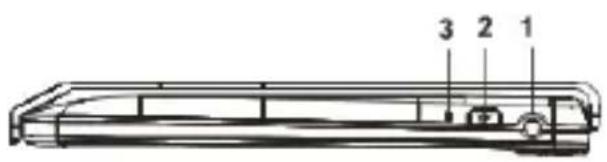
text_image
3 2 1
text_image
4 5 6 7 8 9 10
text_image
11 12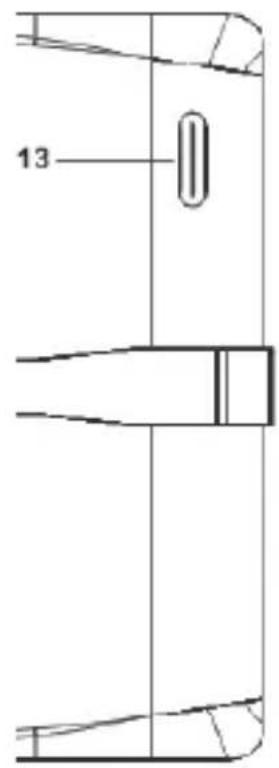
text_image
131 Headphone jack – to insert head/earphones
2 Power button - press and hold for 3 second to turn on/off, press and hold 6 seconds to reset
3 LED indicator – shows charging status
4 Menu button – to open the pop-up menu
5 Zoom button – press to adjust font size or to zoom in/out
6 Play/pause button – to start/pause playback
7 Back buttons – to go back one menu / step
8 Previous page button – to go the previous page
9 Joystick / navigation keys – to navigate the menus
10 Next page button – to go to the next page
11 Micro USB port – to connect to a computer/charger
12 Micro SD card slot – insert micro SD memory cards here for additional storage space
13 Speaker – do not block this area during music playing
Turning on and off
Press and hold the [Power] button for 3 seconds to turn on the Omnia.
- It may take a few moments for the Omnia to turn on and loading the content.
- If the Omnia does not turn on, charging is required.
- To turn off the Omnia, press and hold [Power] button for 3 seconds.
Charging
You need to charge the the Omnia prior to using it for the first time or when battery power is low.
- Charge the Omnia using the USB cable by connecting it to a computer or the optional ICARUS AC USB charger.
- Please turn the Omnia to standby mode to shorten the charging process.
- It will take about 6 hours to fully charger the Omnia in standby mode (LCD off)
- When the Omnia is charging, it will enter into standby mode after remains idle for 60 s. Press the [Power] button to wake up the Omnia.
- The battery status is displayed at the bottom left corner.
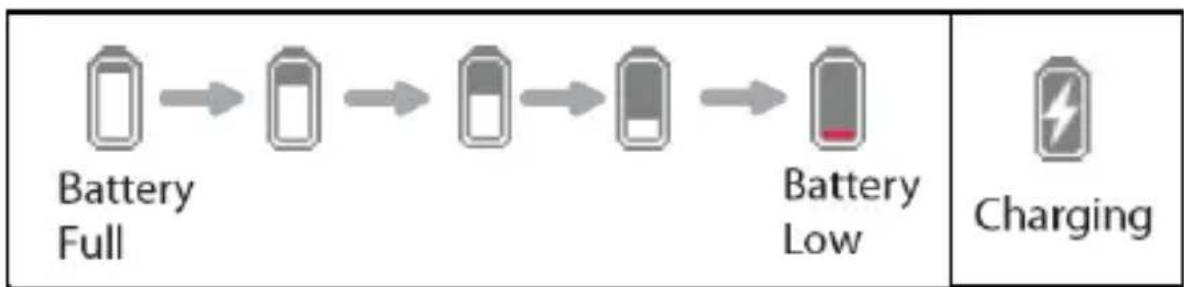
flowchart
graph LR
    A["Battery Full"] --> B["Battery Low"]
    B --> C["Battery Low"]
    C --> D["Battery Low"]
    D --> E["Battery Low"]
    E --> F["Battery Low"]
    F --> G["Battery Low"]
    G --> H["Battery Low"]
    H --> I["Battery Low"]
    I --> J["Battery Low"]
    J --> K["Battery Low"]
    K --> L["Battery Low"]
    L --> M["Battery Low"]
    M --> N["Battery Low"]
    N --> O["Battery Low"]
    O --> P["Battery Low"]
    P --> Q["Battery Low"]
    Q --> R["Battery Low"]
    R --> S["Battery Low"]
    S --> T["Battery Low"]
    T --> U["Battery Low"]
    U --> V["Battery Low"]
    V --> W["Battery Low"]
    W --> X["Battery Low"]
    X --> Y["Battery Low"]
    Y --> Z["Battery Low"]
    Z --> AA["Battery Low"]
    AA --> AB["Battery Low"]
    AB --> AC["Battery Low"]
    AC --> AD["Battery Low"]
    AD --> AE["Battery Low"]
    AE --> AF["Battery Low"]
    AF --> AG["Battery Low"]
    AG --> AH["Battery Low"]
    AH --> AI["Battery Low"]
    AI --> AJ["Battery Low"]
    AJ --> AK["Battery Low"]
    AK --> AL["Battery Low"]
    AL --> AM["Battery Low"]
    AM --> AN["Battery Low"]
    AN --> AO["Battery Low"]
    AO --> AP["Battery Low"]
    AP --> AQ["Battery Low"]
    AQ --> AR["Battery Low"]
    AR --> AS["Battery Low"]
    AS --> AT["Battery Low"]
    AT --> AU["Battery Low"]
    AU --> AV["Battery Low"]
    AV --> AW["Battery Low"]
    AW --> AX["Battery Low"]
    AX --> AY["Battery Low"]
    AY --> AZ["Battery Low"]
    AZ --> BA["Battery Low"]
    BA --> BB["Battery Low"]
    BB --> BC["Battery Low"]
    BC --> BD["Battery Low"]
    BD --> BE["Battery Low"]
    BE --> BF["Battery Low"]
    BF --> BG["Battery Low"]
    BG --> BH["Battery Low"]
    BH --> BI["Battery Low"]
    BI --> BJ["Battery Low"]
    BJ --> BK["Battery Low"]
    BK --> BL["Battery Low"]
    BL --> BM["Battery Low"]
    BM --> BN["Battery Low"]
    BN --> BO["Battery Low"]
    BO --> BP["Battery Low"]
    BP --> BQ["Battery Low"]
    BQ --> BR["Battery Low"]
    BR --> BS["Battery Low"]
    BS --> BT["Battery Low"]
    BT --> BU["Battery Low"]
    BU --> BV["Battery Low"]
    BV --> BW["Battery Low"]
    BW --> BX["Battery Low"]
    BX --> BY["Battery Low"]
    BY --> BZ["Battery Low"]
    BZ --> CA["Charging"]
Inserting a Memory Card
The Omnia supports Micro SD cards in both FAT and NTFS file system. NTFS is needed to copy file with size larger than 4GB.
To insert a Memory card:
- Check that the micro SD card is in the correct position with the contact pin facing upwards as illustrated below. You may damage the card and the Omnia if the micro SD card is not inserted in correct position.

natural_image
Line drawing of a smartphone rear panel with a scroll wheel and a small button, no text or symbols present- Push the micro SD card into the card slot until it clicks.
- To remove the SD card, push the micro SD card once again until it clicks.
- When a micro SD card is inserted in or ejected from the Omnia, it may take few seconds for the Omnia to update the content.
- Please avoid inserting or ejecting an SD card when other operations are running as this may cause the system to hang.
- Do Not remove the card if the content inside the card is being played. This will halt the operation of the Omnia and cause the Omnia to restart.
- If the system is not responding, press and hold the
Limitations of the NTFS file system:
- Books in the card are not recognized by ADE when connected to PC.
- Direct copying of files from the internal memory to the memory card is not supported.
The Home menu
When the Omnia is turned on, you will enter into the Home Menu.
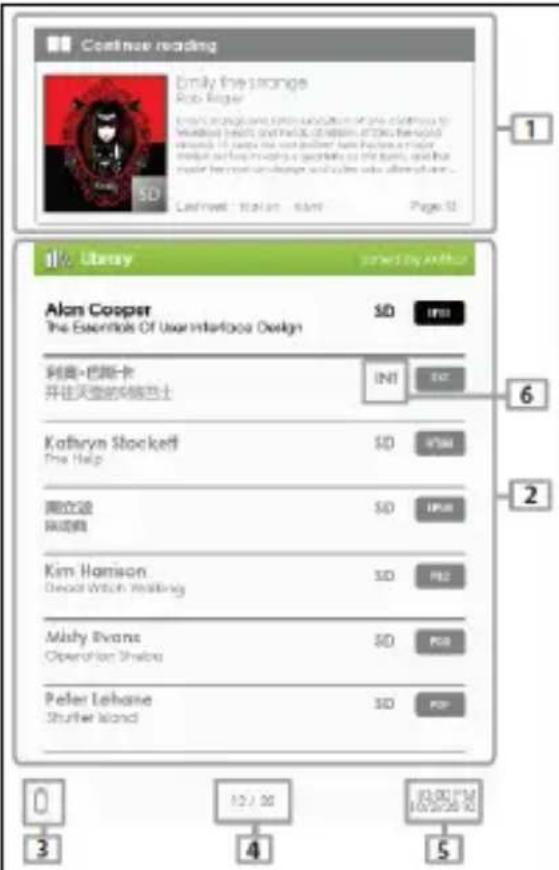
text_image
Continue reading Emily the strange Bob Roger Entry: https://www.10.12/2023 You are you looking at your computer to beefed by us and find out of our own through it to help me better have you more make up and have to go out on the bank, and that you have not yet done what you're always... Last week: 10 am start: Page 52 1 11/2023 Literay powered by author Alan Cooper The Essentials Of User Interface Design SD init 阿莫·巴斯卡 开往天皇的阿姆西士 INIT EX Kathryn Shackett The Help SD #AM 熊立波 SD #AM 陈晓霞 SD IPAN Kim Harrison Deport Wilson Valleying SD PAG Mishy Evans Operation Shelva SD PAG Peter Lehane Shutler Island SD PAG 0 12 / 30 10/07/26 10 3 4 51. Continue Reading
-displays the page of the last read book. Press
2. Library
-displays the list of books available. Move the cursor to desired book and press
3. Battery Indicator
-displays battery status during operation
4. Page Number
-displays current page number and total available pages.
5. Time & Date
-display current time and date, you can set this from the [Settings]
6. File Directory
- indicates the location where the file is stored. SD – SD card, INT – internal memory
Press the directional key to move cursor to desired item. Selected item will be highlighted in dark.
Press
To exit from Option menu, move cursor to and press
Alternatively, press the
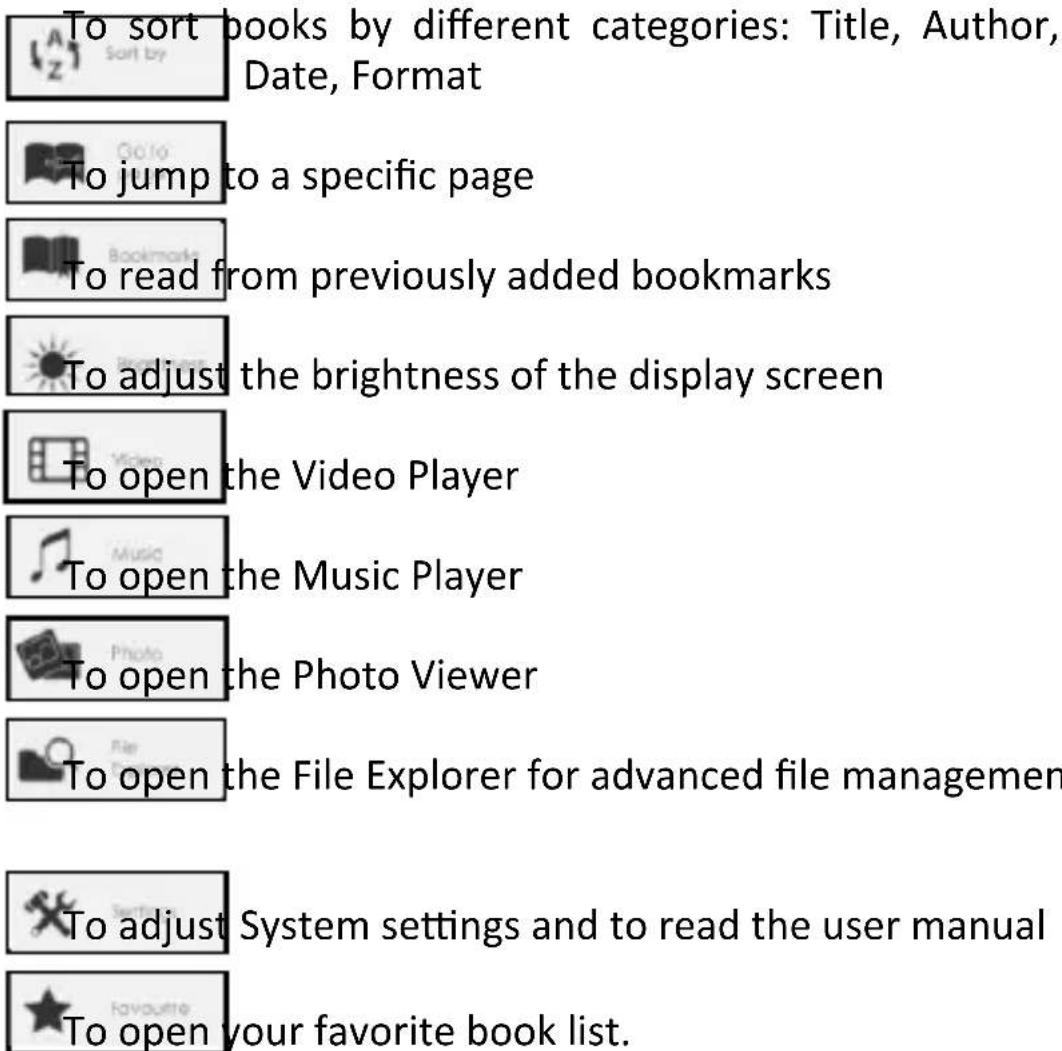
The other options available in the Option menu are:
text_image
To sort books by different categories: Title, Author, Date, Format To jump to a specific page To read from previously added bookmarks To adjust the brightness of the display screen To open the Video Player To open the Music Player To open the Photo Viewer To open the File Explorer for advanced file managemen To adjust System settings and to read the user manual To open your favorite book list.Importing and transferring content
Importing Content
- The Omnia supports the USB Mass Storage Device function.
- To import contents (ebooks, video, audio, photo etc) into the Omnia, connect the Omnia to PC via the supplied USB cable.
- Upon successful connection to PC, the Omnia will enter USB mode and all operation will be halted.
- Go to [My Computer], double click on the Omnia's disk to open.
- Perform normal file management operation like other USB device.
Importing DRM Content
The Omnia supports Adobe DRM contents. Adobe Digital Editions (ADE) is required.
Installing Adobe Digital Editions (ADE)
- ADE is a free program by Adobe that is necessary for transferring DRM protected content from your computer to an e-reader
- You can download the installer from http://www.adobe.com/products/digitaleditions/#fp.
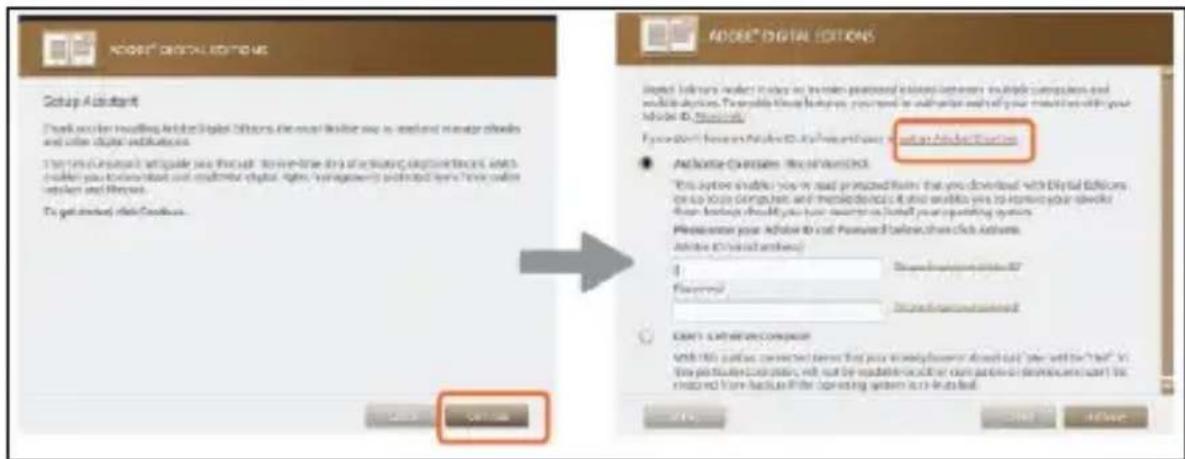
- For first time user, you will need to get a free adobe ID from adobe website. Click on the [get an Adobe ID online] link as illustrated:
text_image
Adder® DIGITAL EDITIONS Setup Assistant Thank you to making Adder Digital Editions, then call to a file or email address to the website or email address. To check your instructions, please visit the site at the starting point of the system. For your instructions, you must access your website or email address to your website or email address. To get installed data sources... Adder® DIGITAL EDITIONS Import following: 10x100x10x10x10x10x10x10x10x10x10x10x10x10x10x10x10x10x10x10x10x10x10x10x10x10x10x10x10x10x10x10x10x10x10x1 Adder® Digital Editions This option enables you to read personalized versions that you download with Digital Editions on the platform. It is available in the following: You have to access your website or email address to your website or email address. Please enter your website or email address before clicking the following: Adder (Edit Author) D:\Users\Microsoft\Microsoft\Microsoft\Microsoft\Microsoft\Microsoft\Microsoft\Microsoft\Microsoft\Microsoft\Microsoft\Microsoft\Microsoft\Microsoft\Microsoft\Microsoft\Microsoft\Microsoft\Microsoft\Microsoft\Microsoft\Microsoft\Microsoft\Microsoft\Microsoft\Microsoft\Microsoft\Microsoft\Microsoft\Microsoft\Microsoft\Microsoft\Microsoft\Microsoft\Microsoft\Microsoft\Microsoft\Microsoft\Microsoft\Microsoft\Microsoft\Microsoft\Microsoft\Microsoft\Microsoft\Microsoft\Microsoft\Microsoft\Microsoft\Microsoft\ Microsoft Excel Server Adder (Edit Author) D:\Users\Microsoft\Microsoft\Microsoft\Microsoft\Microsoft\Microsoft\Microsoft\Microsoft\Microsoft\Microsoft\Microsoft\Microsoft\Microsoft\Microsoft\Microsoft\Microsoft\Microsoft\Microsoft\Microsoft\Microsoft\Microsoft\Microsoft\Microsoft\Microsoft\Microsoft\Microsoft\Microsoft\Microsoft\Microsoft\Microsoft\Microsoft\Microsoft\Microsoft\Microsoft\Microsoft\Microsoft\Microsoft\Microsoft\Microsoft\Microsoft\Microsoft\Microsoft\Microsoft\Microsoft\Microsoft\nAdder (Edit Author) Adder (Edit Author) D:\Users\Microsoft\Microsoft\Microsoft\Microsoft\Microsoft\Microsoft\Microsoft\Microsoft\Microsoft\Microsoft\Microsoft\Microsoft\Microsoft\Microsoft\Microsoft\Microsoft\Microsoft\Microsoft\Microsoft\Microsoft\Microsoft\Microsoft\Microsoft\Microsoft\Microsoft\Microsoft\Microsoft\ Microsoft Excel Server Adder (Edit Author) Adder (Edit Author) Adder (Edit Author)- Enter your email address and complete the online form as per instructed.
Authorization
- Upon registration, return to the ADE window. Enter the username and password to activate your Adobe account.
- After activation, connect the Omnia to PC. ADE will detect the Omnia and you are prompted to authorize device.
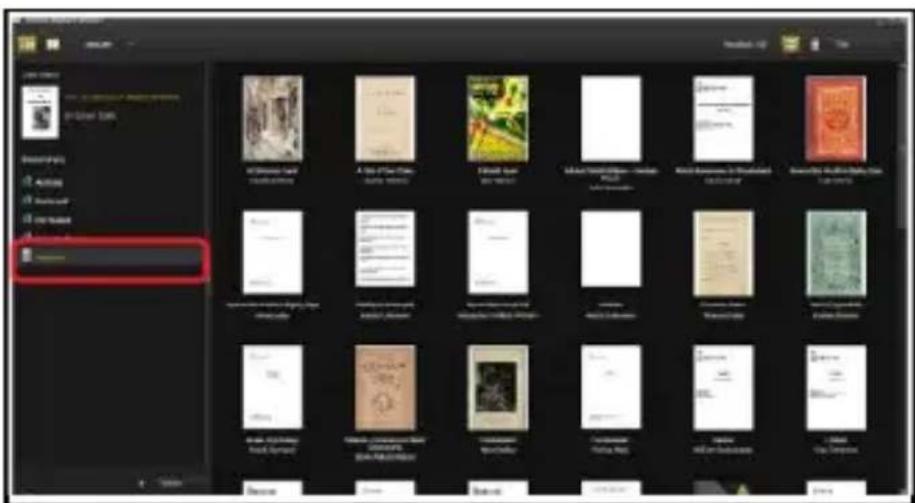
- After authorization, you will be able to find the Omnia recognized in ADE as below. Contents inside the Omnia will be displayed on the right hand windows.
text_image
New York Times 10:30 AM New York Times 10:30 AM 10:30 AM 10:30 AM 10:30 AM 10:30 AM 10:30 AM 10:30 AM 10:30 AM 10:30 AM 10:30 AM 10:30 AM 10:30 AM 10:30 AM 10:30 AM 10:30 AM Selection Live Balance Help- You can now start downloading or buying ebooks from online Ebook stores supporting Adobe DRM.
- Purchased or downloaded ebooks will be stored in [My Digital Editions] in [My Documents].
Transferring DRM ebooks
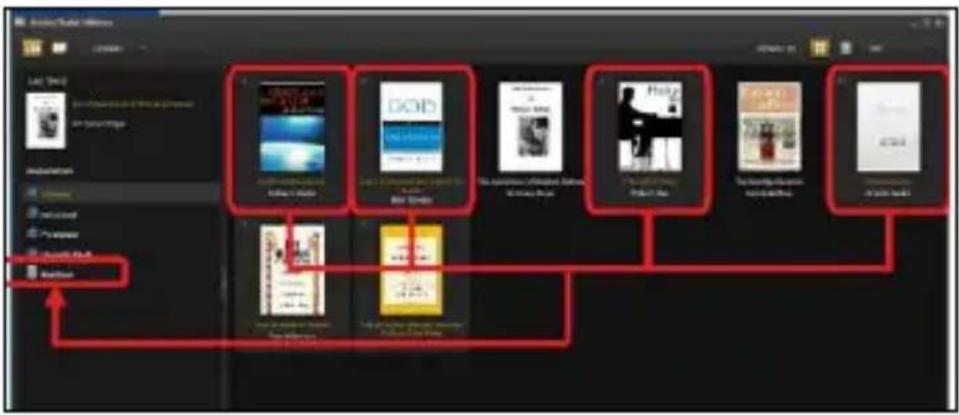
- From ADE menu, click on [All Items] on the left hand column
- Items in [My Digital Editions] will be listed down in right window.
- Select the desired item(s) to be transferred,
+ to select multiple files. - Drag and drop the selected item(s) into the Omnia's Drive located on the last row of the left side column as illustrated below.
text_image
Audio/Video Utilities Last Book Add: 100% Add: 100% Add: 100% Add: 100% Add: 100% Add: 100% Add: 100% Add: 100% Add: 100% Add: 100% Add: 100% Add: 100% Add: 100% Add: 100% Add: 100% Add: Add: 100% Add: 100% Add: 100% Add: 100% Add: 100% Add: 100% Add: 100% Add: 100% Add: 100% Add: 100% Add: 100% Add: 100% Add: 100% Add: 100% Add Add Add Add Add Add Add Add Add Add Add Add Add Add Add Add Add Add Add Add Add Add Add Add Add Add Add Add Add Add Add Add Add Add Add Add Add Add Add Add Add Add Add Add Add Add Add Add Add Add AddNotes on using Adobe Digital Editions (ADE)
Each ADE ID supports only 6 devices, this includes the master device (the Omnia) and the slave device (SD card).
When the Omnia is restored to default settings, ALL DRM activation record and data (including DRM books purchased) will be erased from the Omnia. You are required to authorize the device with your ADE ID again.
When the number of authorized device has exceeded the allowable amount, you will come across the following error message:

text_image
ADOBE® DIGITAL EDITIONS Activate Digital Editions Error E_ACT_TOO_MANY_ACTIVATIONS http://aekreactivate.adobe.com/adegs/Activate-4018765639 E_ACT_TOO_MANY_ACTIVATIONSTo request for extension and reset of your ADE ID, go to http://www.adobe.com/support/digitaleditions/ → [Submit a web case]. You are required to key in your ADE ID info.
Reading books
Opening Books
• Books transferred to Omnia will be listed in Home Menu.
- Omnia supports ebooks in epub, pdf, and txt format.
- Use the
Book Page Interface
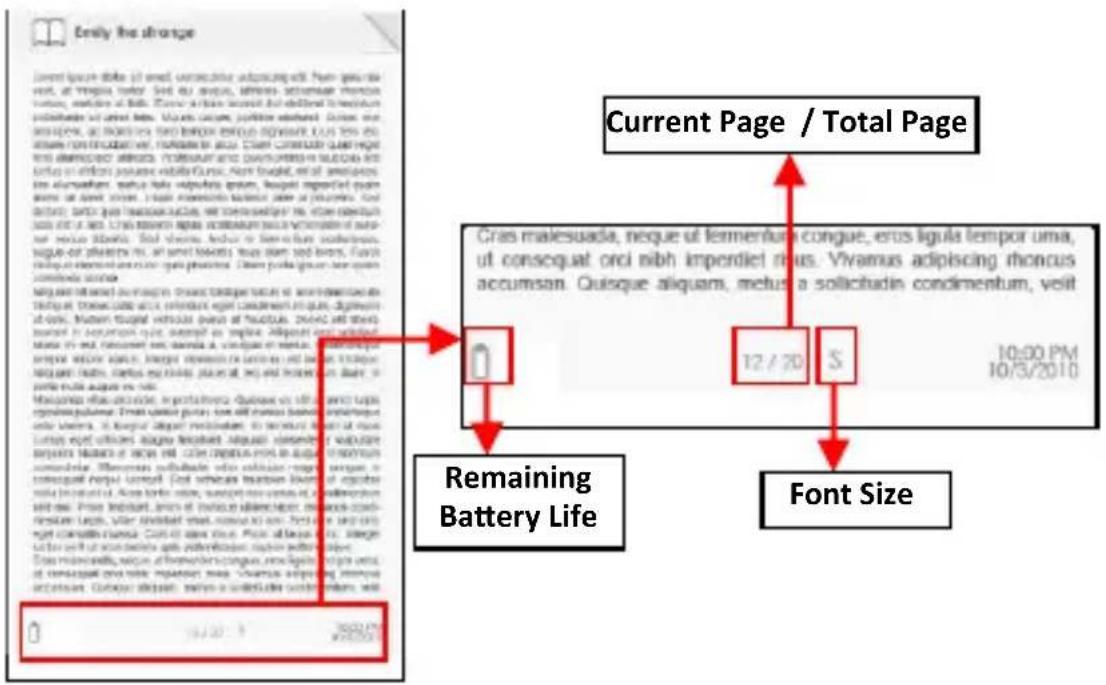
While reading a book, press the
Adjusting Font Size
- While reading, press the
menu.
- There a 5 font sizes available:
Small, Medium, Large, XLarge, XXLarge.
- Move the cursor to the desired font size then press
- It may take some time for the fonts to be resized.

text_image
Find the change Live space counts in each category with a height ratio. The size of the angle models at mm. Range is the categorical or set of objects. The size of the angle model is 100% (or 100% of the objects). The size of the angle model is 100% (or 100% of the objects). The size of the angle model is 100% (or 100% of the objects). The size of the angle model is 100% (or 100% of the objects). The size of the angle model is 100% (or 100% of the objects). The size of the angle model is 100% (or 100% of the objects). The size of the angle model is 100% or more. For example, if the angle model is 100%, there are no data points for the angle model. The angle model is 100%. For example, if the angle model is 100%, there are no data points for the angle model. The angle model is 100%. For example, if the angle model is 100%, there are no data points for the angle model. The angle model is 100%. For example, if the angle model is 100%, there are no data points for the angle model. The angle model is 100%. For example, i.e., where one point has a value greater than one, then another has a value greater than one, then three has a value greater than one, then four has a value greater than one, then five has a value greater than one, then six has a value greater than one, then seven has a value greater than one, then eight has a value greater than one, then nine has a value greater than one, then ten has a value greater than one, then ten months have a value greater than one, then ten months have a value greater than one, then ten months have a value greater than one, then ten months have a value greater than one, then ten months have a value greater than one, then ten months have a value greater than one, then ten months have a value greater than one, then ten months have a value greater than one, then ten months have a value greater than one, then ten months have a value greater than one, then ten months has a value greater than one, then ten months have a value greater than one, then ten months have a value greater than one, then ten months have a value greater than one, then ten months have a value greater than one, then ten months have a value greater than one, then ten months have a value greater than one, then ten months have a value greater than one, then ten months have a value greater than one, then ten months have a value greater than one, then ten days have a value greater than one, then two days have a value greater than one, then three days have a value greater than one, then four days have a value greater than one, then five days have a value greater than one, then six days have a value greater than one, then seven days have a value greater than one, then eight days have a value greater than one, then nine days have a value greater than one, then ten days have a value greater than one, then ten days have a value greater than one, then ten days have a value greater than one, then ten days have a value greater than one, then ten days have a value greater than one, then ten days have a value greater than one, then ten days have a value greater than one, then ten days have a value greater than one, then ten days have a value greater than one, then ten days have a value greater than one, then nine days have a value greater than one, then ten days have a value greater than one, then ten days have a value greater than one, then ten days have a value greater than one, then ten days have a value greater than one, then ten days have a value greater than one, then ten days have a value greater than one, then ten days have a value greater than one, then ten days have a value greater than one, then nine days have a value greater than one, then nine days have a value greater than one, then nine days have a value greater than one, then nine days have a value greater than one, then nine days have a value greater than one, then nine days have a value greater than one, then nine days have a value greater than one, then nine days have a value greater than one, then nine days have a value greater than one, then nine days have a value greater than one, then ten days have a value greater than one, then nine days have a value greater than one, then nine days have a value greater than one, then nine days have a value greater than one, then nine days have a value greater than one, then nine days have a value greater than one, then nine days have a value greater than one, then nine days have a value greater than one, then nine days have a value greater than one, then ten days have a value greater than one, then ten days have a value greater than one, then nine days have a value greater than one, then nine days have a value greater than one, then nine days have a value greater than one, then nine days have a value greater than one, then nine days have a value greater than one, then nine days have a value greater than one, then nine days have a value greater than one, then ten days have a value greater than one, then nine days have a value greater than one, then ten days have a value greater than one, then nine days have a value greater than one, then nine days have a value greater than one, then nine days have a value greater than one, then nine days have a value greater than one, then nine days have a value greater than one, then nine days have a value greater than one, then nine days have a value greater than one, then ten days have a value greater than one, then ten days have a value greater than one, then ten days have a value greater than one, then nine days have a value greater than one, then nine days have a value greater than one, then nine days have a value greater than one, then nine days have a value greater than one, then nine days have a value greater than one, then nine days have a value greater than one, then ten days have a value greater than one, then nine days have a value greater than one, then nine days have a value greater than one, then ten days have a value greater than one, then nine days have a value greater than one, then nine days have a value greater than one, then nine days have a value greater than one, then nine days have a value greater than one, then nine days have a value greater than one, then nine days have a value greater than one, then ten days have a value greater than one, then nine days have a value greater than one, then ten days have a value greater than one, then ten days has an additional additional additional additional additional additional additional additional additional additional additional additional additional additional additional additional additional additional additional additional additional additional additional additional additional additional additional additional additional additional additional additional additional additional additional additional additional additional additional additional additional additional additional additional additional additional additional additional additional additional additional additional additional additional additional additional additional additional additional additional additional additional additional additional additional additional additional additional additional additional additional additional additional additional additional additional additional additional additional additional additional additional additional additional additional additional additional additional additional additional additional additional additional additional additional additional add-on add-on add-on add-on add-on add-on add-on add-on add-on add-on add-on add-on add-on add-on add-on add-on add-on add-on add-on add-on add-on add-on add-on add-on add-on add-on add-on add-on add-on add-on add-on add-on add-on add-on add-on add-on add-on add-on add-on add-on add-on add-on add-on add-on add-on add-on add-on add-on add-on add-on add on add-on add-on add-on add-on add-on add-on add-on add-on add-on add-on add-on add-on add-on add-on add-on add-on add-on add-on add-on add-on add-on add-on add-on add-on add-on add-on add-on add-on add-on add-on add-on add-on add-on add-on add-on add-on add-on add-on add-on add-on add-on add-on add-on add-on add-on add-on add-on add-on add-on add On Add-on Add-on Add-on Add-on Add-on Add-on Add-on Add-on Add-on Add-on Add-on Add-on Add-on Add-on Add-on Add-on Add-on Add-on Add-on Add-on Add-on Add-on Add-on Add-on Add-on Add-on Add-on Add-on Add-on Add-on Add-on Add-on Add-on Add-on Add-on Add-on Add on Add on Add on Add on Add on Add on Add on Add on Add on Add on Add on Add on Add on Add on Add on Add on Add on Add on Add on Add on Add on Add on Add on Add on Add on Add on Add on Add on Add on Add on Add on Add on Add on Add on Add on Add on Add on Add on Add on Add on Add on Add on Add on Add on Add on Add on Add on Add on Add on Add on Add On Add On Add On Add On Add On Add On Add On Add On Add On Add On Add On Add On Add On Add On Add On Add On Add On Add On Add On Add On Add On Add On Add On Add On Add On Add On Add On Add On Add On Add On Add On Add On Add On Add On Add On Add On Add On Add On Add On Add On Add On Add On +Add On +Add On +Add On +Add On +Add On +Add On +Add On +Add On +Add On +Add On +Add On +Add On +Add On +Add On +Add On +Add On +Add On +Add On +Add On +Add On +Add On +Add On +Add On +Add On +Add On +Add On +Add On +Add On +Add On +Add On +Add On +Add On +Add On +AddOn +Add On +Add On +Add On +Add On +Add On +Add On +Add On +Add On +Add On +Add On +Add On +Add On +Add On +Add On +Add On +Add On +Add On +Add On +Add On +Add On +Add On +Add On +Add On +Add On +Add On +Add On +Add On +Add On +Add On +Add On +Add On +Add On +Add OnZooming In/Out
- You will need to use zooming function to enlarge images available in the ebook (epud & pdf file)
- From the size menu, select [Enlarge]
• The Zoom menu will appear.

text_image
Search Search Search Search- Move the cursor to the desired zoom level and press
- In zoom mode, use
• Page turning is disabled in zoom mode.
- Press
Using the Option Menu while Reading
While reading, press the