
E1051BK - E-reader Icarus - Free user manual and instructions
Find the device manual for free E1051BK Icarus in PDF.


| Product Type | E-reader |
| Brand | Icarus |
| Model | E1051BK |
| Display | 6-inch E Ink display, 800x600 pixels |
| Storage | 8 GB internal memory |
| Dimensions | 162 x 119 x 9 mm |
| Weight | 195 g |
| Power Source | Rechargeable lithium polymer battery, 1500 mAh |
| Charging | Micro USB port, 5V 1A |
| Main Functions | Read eBooks (PDF, EPUB, MOBI, TXT, FB2), adjust font size, bookmark, dictionary, music playback |
| Connectivity | Wi-Fi 802.11 b/g/n, USB 2.0 |
| Supported Formats | PDF, EPUB, MOBI, TXT, FB2, HTML, RTF, JPEG, BMP, PNG, MP3 |
| Care and Cleaning | Wipe with a soft lint-free cloth. Do not use abrasive cleaners. |
| Safety | Do not expose to water or high temperatures. Use only approved charger. |
| Spare Parts and Repairability | Battery and screen are replaceable by authorized service centers. |
| General Information | E-reader with paper-like reading experience. Adjustable backlight. |
Frequently Asked Questions - E1051BK Icarus
User questions about E1051BK Icarus
0 question about this device. Answer the ones you know or ask your own.
Ask a new question about this device
Download the instructions for your E-reader in PDF format for free! Find your manual E1051BK - Icarus and take your electronic device back in hand. On this page are published all the documents necessary for the use of your device. E1051BK by Icarus.
USER MANUAL E1051BK Icarus
eXceL (E1051BK)
User manual
1. Unpacking
Thank you for purchasing the new eXceL e-reader. This is the most advanced 9.7"e-reader in the world. Its crisp E-Ink screen shows text and images brilliantly and can be read everywhere, even in direct sunlight. And without the strain an LCD screen from a tablet can cause, you can read for hours on end. You can make annotations and sketches which can be saved and exported so you can access them on any device. Wi-Fi enables you to download content even without a computer and thanks to Android 4.0 you can download a multitude of applications. From Dropbox to comic readers, to newspaper apps. The possibilities are endless!
Included in the Box :
- eXceL e-reader
- Stylus Pen
- USB Cable
- Quick Start Guide
- Warranty Sheet
Optional Accessories ( Purchased separately )
These accessories can be purchased via selected retailers or via our website www.icarusreader.com
- USB wall charger ACD0052-EU
- Protective Cover (C007 series)
2. Safety precautions
Please read the Safety Guide carefully before you start to use the device. Contact your ICARUS retailer if you have any technical problem; or you can contact us via http://support.icarusreader.com

Screen protection
The device is equipped with an E-ink screen, which is very fragile. Please have do not expose the device to shocks, squeezing or pressure against the screen. Do not drop the device. If the screen breaks, stop using it and contact the professional or other qualified staff to replace the screen for you. Please don't dismantle the device without our permission;

Standard accessories
Only the supplied accessories and official ICARUS accessories that meet our safety rules can be used with this device. We will not be responsible for any damage caused by third party accessories;

Stay away from liquids
The device is not waterproof. Don't expose the device to humid environment or use it in the rain. Please keep it away from any corrosive liquids;

Don't dismantle the device
Please don't dismantle the device in case of any damage;

Operating environment
The operating environment of the device is 0°C-50°C ;
For safe and efficient use of the product, please follow the instructions in this guide.
Do not leave the product in direct sunlight for long periods and do not use in extreme high or low temperature environments. This can cause damage to the product and may damage electronic components and/or the battery.
Always place the product on a stable surface. Violently shaking or dropping the product will cause damage to the product and its electronic components.
Do not press on the screen or put heavy weights on it.
Do not expose your product to magnetic fields.
Please use only original ICARUS ^TM accessories, do not use third party components or third party accessories.
Do not attempt to repair or take the product apart. This will void your warranty. Only qualified personnel from ICARUS or an authorized ICARUS maintenance centre can repair the product.
Do not use the rechargeable battery if it is damaged in any way. If the battery leaks liquid, please clean the eXceL and replace the battery.
If liquid has leaked from the battery and comes in contact with human skin, please carefully rinse and consult a doctor.
Please properly dispose of old and waste batteries.
Do not use chemical solvent to clean the surface of the product. Please use a soft cloth to wipe off the dust from the surface of the screen of cover.
Product disposal instructions
Product that include the WEEE [The Waste of Electrical and Electronic Equipment] symbol, should not be placed in the normal household rubbish, but should be disposed by using the appropriate WEEE disposal facility. These facilities may be advised to you by your local council or the retailer from which the product was purchased.
Operating temperature is 0^ C to 50^ C | Storage temperature is -20°C to 70°C
The latest downloads and product news is available at our website:
www.icarusreader.com
3. Product Views
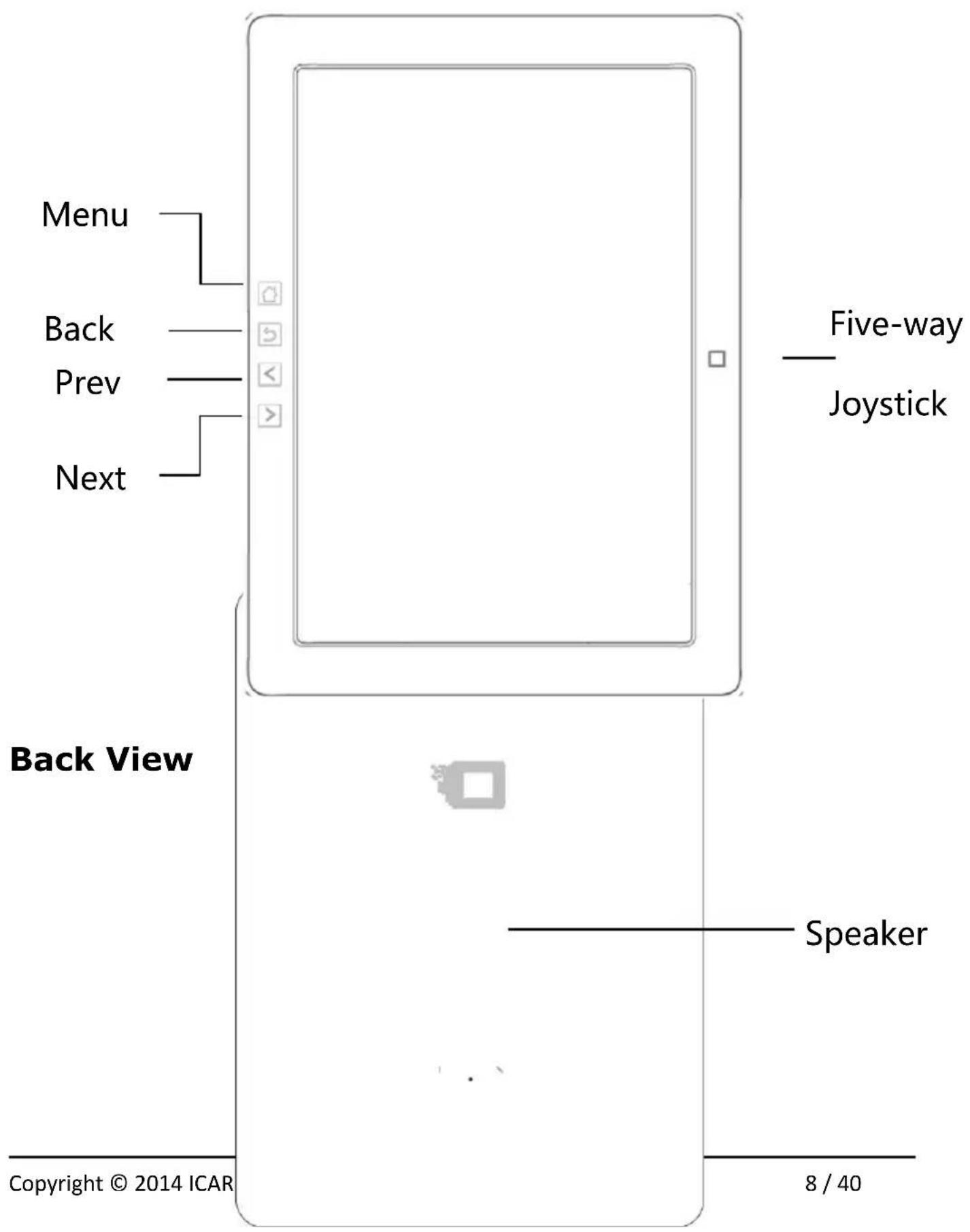
Front View
Bottom View

Button Function
| Power/ Standby Button | Press and hold the power button to turn on the device (3-4sec)Press the power button and hold for 2 seconds to turn off the device. Or select "Power off" in the menu to turn off the device.Press the power button and release quickly to enter sleep mod and press shortly to wake up the devicePress the power button for 8-10 seconds to reset your device, then press it quickly to restart. |
| Menu Button | Press the menu button to pop up the menu. |
| Back Button | Exit the current app;Exit the current view or dialog;Go back to previous directory |
| Next Button | Turn to the next page when reading or viewing files; |
| Prev Button | Turn to the previous page when reading or viewing files; |
| Five-way Joystick | Move the joystick to navigate through the menus on-screenWhile reading PDF or Epub files, users can move the joystick leftward or rightward to turn pages or move upward or downward to increase/decrease the font size.While browsing a webpage, users can move the joystick leftward or rightward to go back to the previous webpage or go to the next webpage.Press the joystick select an icon, open a document or confirm your option. |
| Volume control button | Press Vol+ to turn up the volumePress Vol- to turn down the volume |
| Audio Jack | Diameter of the audio jack is 3.5mm |
| SD Card Slot | • Insert an SD card to read the content on SD card. We recommend memory cards of the brand Kingston. These are also available in our web shop. |
| USB Slot | • Connect the device with a computer to transfer data or recharge. |
5. Introduction to the user interface
5.1 Main Interface
The main interface contains the "Status Bar", the "Now Reading" area, "Recently Added items" and icons for launching the main applications.

It enables fast page turns, no screen flashing and less ghosting in the background. When A2 mode is on, reading articles with images, graphics, texts mixed are not suggested because of blur image would occur.
When A2 is on

When A2 is off

Now Reading
The information of recently read books is displayed in this section, including book cover, book title, author, page number, last read time, reading progress etcetera;
Tap the book cover or book title to open a book. The page last read will automatically be openedy.
Recently Read/Recently Added
Recently Added:

Attack on Zone

Black Sea

The Blood Diaries
1/3

Wolf & Forest
Either the n The Strawberry Dec chronologically. Slide th
Users can switch between
setting in system-user How Black The Strawberry
Lecture Notes R.I.P.S. "Recently Added" or "
preferences—homepage Lecture Notes R.I.P.S.
last read will be listed hererev/next button to turn pages.
Recently read" by changing the
options".
Application Area
This section displays the main applications: these include Library, Storage, Apps, Setting, Browser.


Library
All books supported by the device will be displayed here, including books stored in local storage and on an optional SD card.
Users can choose whether or not to include files stored in the internal storage or on the SC card in "Setting-System-User Preference" to display all books supported by the device.


Storage
It displays all files both from local storage and SD card. Users can manage all files to manage books, apps and other files.


Apps
This opens the Apps overview, containing all apps installed on the device. Users can also manage or uninstall the apps.


Settings
This opens the setting interface, where all of the eXceL's settings can be managed.


Browser
When Wi-Fi is on, you can browse the web, download files and more.
5.2 Notification Interface
Tap on the battery icon in the statusbar to open Notification panel; Press the Back button or tap the Home icon to exit.
The Notification panel contains: Wi-Fi setting, date, volume control etcetera.
5.3 Reading Interface
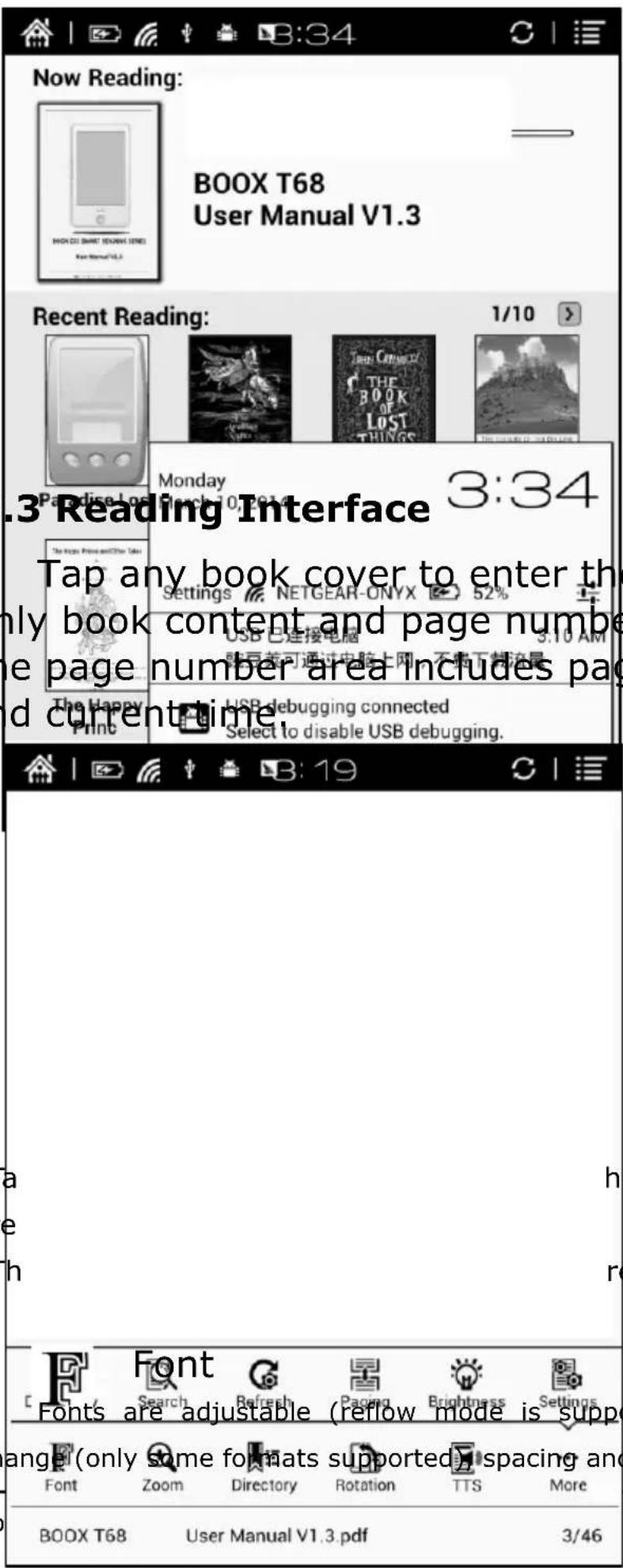
Tap any book cover to enter the reading interface. Only book content and page number are displayed here. The page number area includes page number, prev/next and current time.
Ta re Th
he menu button to pop up the
reen rotation, TTS and more


Zoom
User can zoom in/out of the page freely; Other zoom shortcuts are available: To width, To page, Crop, Selection to zoom; Reflow mode is not supported when zooming.

Notes
TOC (Table Of Contents), Bookmarks, Annotations can be checked here;

Rotation
Users can select the direction of the screen display;

TTS
TTS is only available for some documents and not in all languages.

Dictionary
eXceL supports dictionaries in StarDict format. You can download dictionaries from our website www.icarusreader.com To install a dictionary, copy it to a folder named dictionary on a SD memory card.
In order to look-up a word in the dictionary longpress a word until it is highlighted. In the pop-up screen that is opened, select Dictionary. If the word is found in the dictionary, its explanation or meaning will be displayed.

Search
In order to search a word inside the book, enter the search term and press the Enter icon. The words found will be highlighted. If more than one instance of the word is found, you can press the arrows on screen to go the next or previous instance.

Refresh
Users can select to refresh the screen at given intervals, including Always, every 3/5/7/9 pages or never. Refreshing every page will lead to best results, but will lead to slower page turns.

Setting
This will open the settings for the screen display. This includes settings for the task bar, scribble bar and more.
5.4 Browser Interface
When Wi-Fi is turned on, please tap the Browser icon on the desktop or choose Browser in the Apps section to start browsing online;

While browsing, tap the text box to pop up the virtual keyboard;
Press the space key to switch between English and Chinese mode. More input methods can be installed by users and switched through the input method option on the keyboard;
5.5 Library
The library can only display books in formats supported by the device; The books will be displayed by thumbnail view chronologically; There is no files browsing mode;
Users can change the display mode using the icon on top right corner( including thumbnail, listing mode, and detailed list) and users also can search books by title;
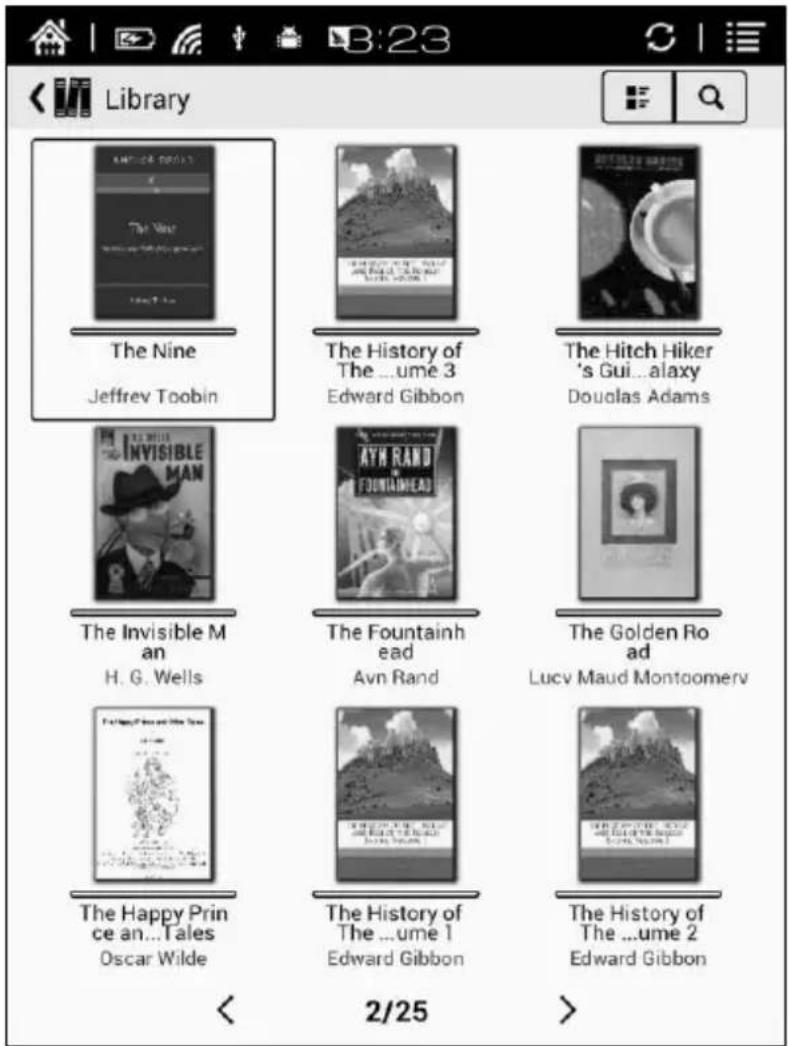
Tap the menu key on the top right to pop up the library menu which contains amongst others options for sorting, properties, filtering, renaming, deleting, history, note etc;

Sort by
Users can sort the book by names, types, sizes, created time;

Filter
The books in the library can be filtered in reading mode, including all, unread, now reading, read, label etc;

History
Here you can find all kinds of data on the ebooks that have been read.
| First reading time | 2014-02-27 08:04:09 | |
| Last reading time | 2014-02-27 08:04:10 | |
| Page:1/1 | Total:1s | Estimate:1s |
| Factory Girls(前六章).mobi | ||
| First reading time | 2014-02-27 08:04:01 | |
| Last reading time | 2014-02-27 08:04:01 | |
| Page:1/1 | Total:0s | Estimate:0s |
| Fantastic Mr. Fox.mobi | ||
| First reading time | 2014-02-27 08:03:56 | |
| Last reading time | 2014-02-27 08:03:58 | |
| Page:1/57 | Total:1s | Estimate:57s |
| Five Weeks in a Balloon.mobi | ||
| First reading time | 2014-02-27 08:03:51 | |
| Last reading time | 2014-02-27 08:03:51 | |
| Page:1/1 | Total:0s | Estimate:0s |
| Developing Android Applications with Adobe AIR.mobi | ||
| First reading time | 2014-02-27 08:03:43 | |
| Last reading time | 2014-02-27 08:03:43 | |
| Page:1/1 | Total:0s | Estimate:0s |
All Notes
In this section all notes are listed in an overview.

5.6 Storage
Storage displays all files from both local storage and optional SD cards.
Files will be displayed in alphabetical order by default. The listing mode can bechanged as well.

5.7 Apps
This section displays all installed apps in alphabetical order. The listing mode can be changed to alphabetical order, based on installation time or by last time opened.
By long-pressing an app, a pop-up is opened in which the app can be managed.

5.8 Settings
The settings menu allows you to set all important characteristics of the device. From system settings to language selection, Wi-Fi settings and more.
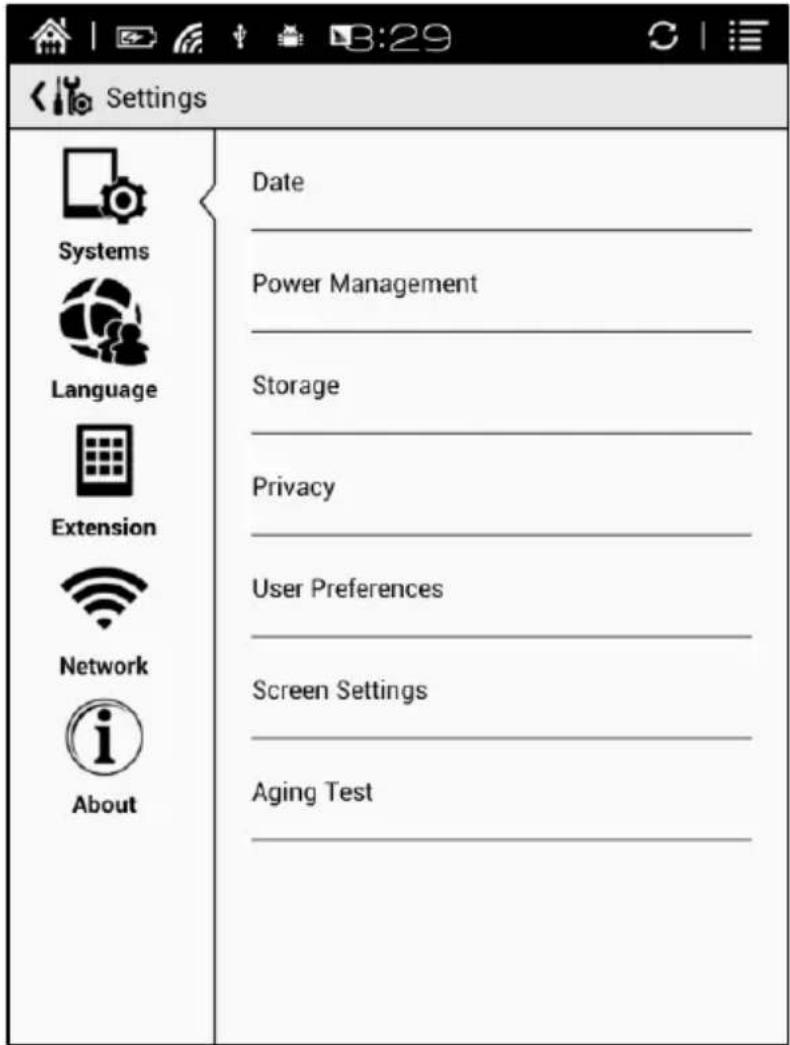
The settings menu is accessible via the main menu (icon in the bottom of the screen) or via the notification panel.
5.8.1 System
Here you can set date, display options, storage settings, privacy settingsn and startup options for the device;
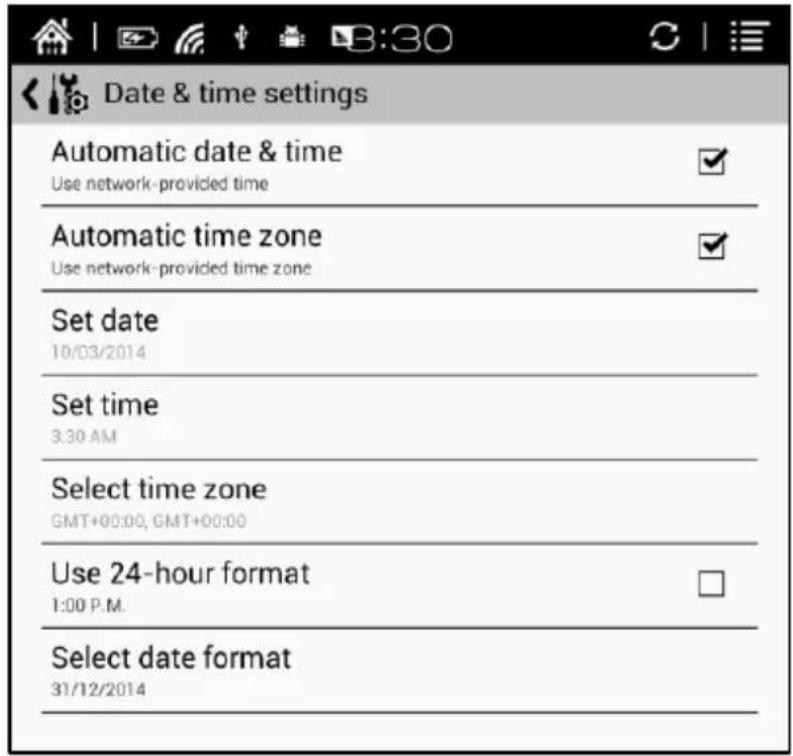
Date
You can select automatic or manual setting to set the time and date. Auto setting will set the time automatically based on the time provided by the Wi-Fi network. In manual mode you need to provide date, time zone and time yourself.
You can select 12-hour time or 24-hour time and date display the way you like it;
Power management
The time at which the device automatically goes into sleep mode can be set here. It is 3 minutes by default;

Also the time until automatic shutdown can be set here and the time until Wi-Fi is turned off after a period of inactivity.
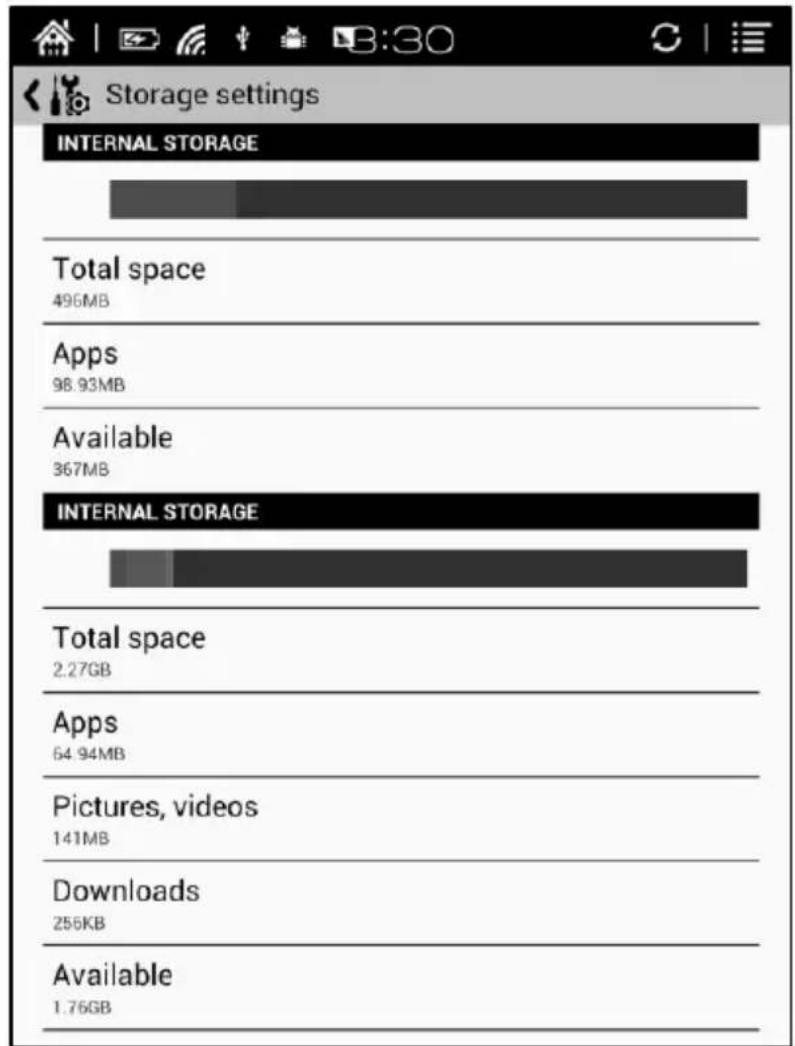
Storage
This shows the total storage of the device, including the usage of local storage, SD card, built-in flash memory storage etc;
Privacy
This section contains settings for data backup, data recovery and the option to reset the factory settings.
Factory resetting will erase all user data. Please back up all user data before performing a factory reset.

User preference
The following settings can be changed here:
- Whether or not the last book read should be opened at start-up or not
- Whether the e-reader should automatically scan for metadata when new books are added
- Where the e-reader should scan for books (internal memory, SD card or both)
- Homepage preferences (whether to show recently read books or recently
added books on the homescreen)

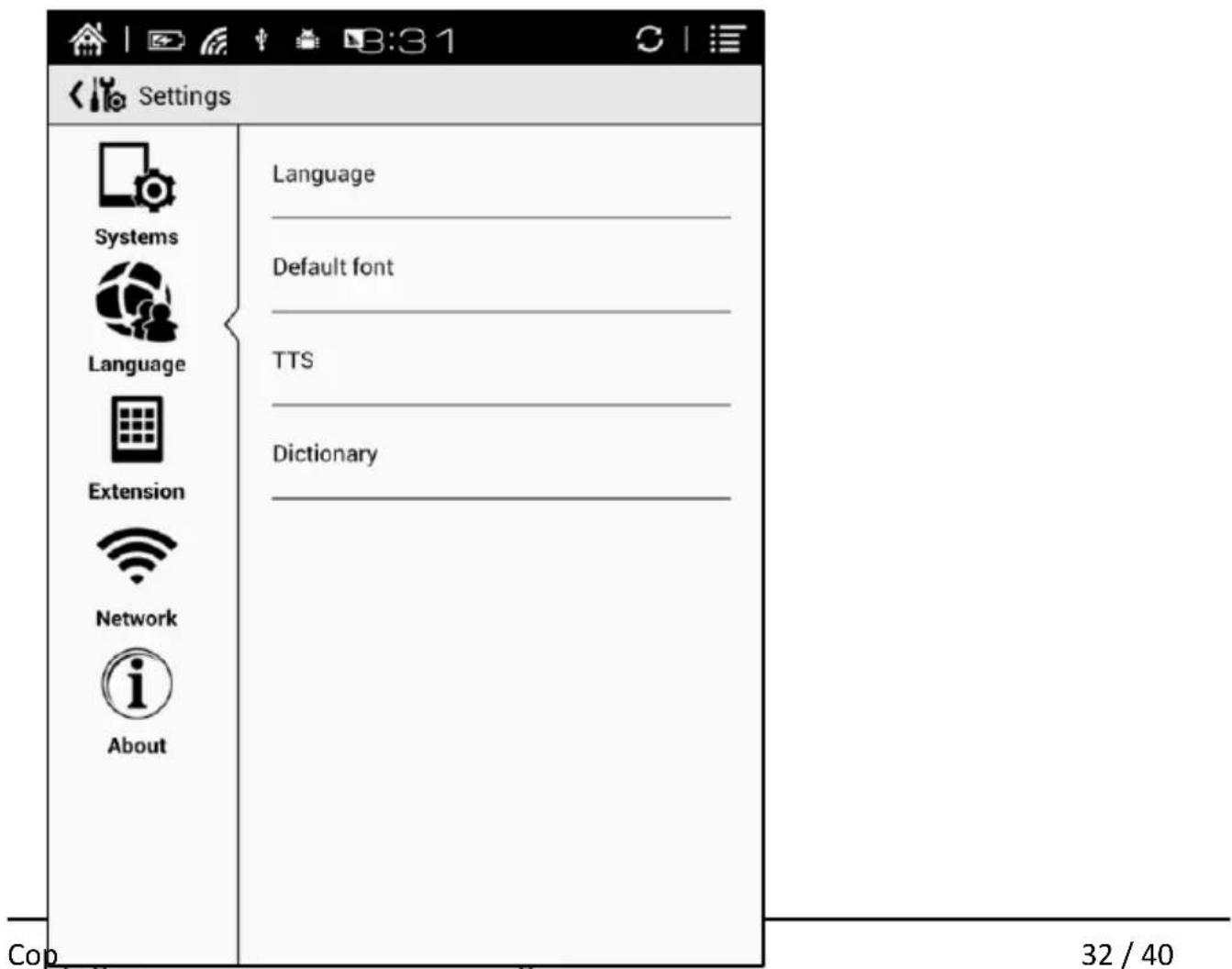
5.8.2 Language
Here you can adjust the system language, TTS, and dictionary settings.
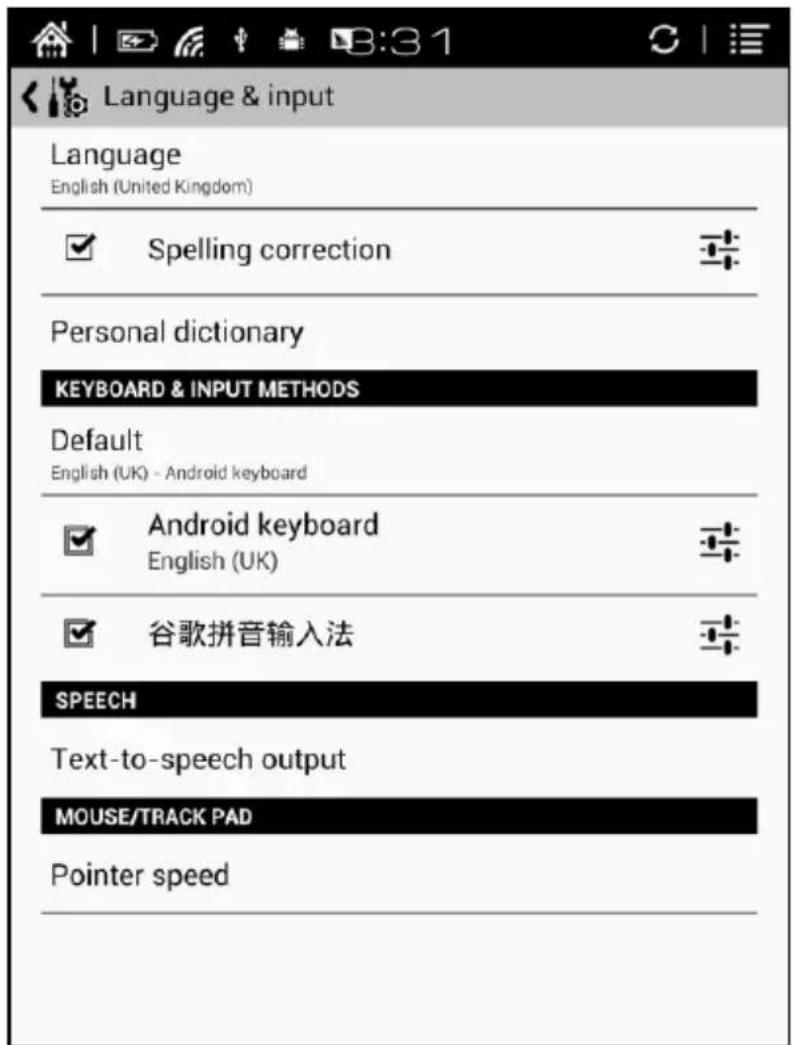
Language Settings
Here you can set the language and keyboard.
Default front
The system font can be set here, but the reading font can be only set inside a book
| Font | |
| AndroidClock-Large | ○ |
| Droid Arabic Naskh | ○ |
| Droid Sans Armenian | ○ |
| Droid Sans Ethiopic | ○ |
| Droid Sans Fallback | ○ |
| Droid Sans Georgian | ○ |
| Droid Sans Hebrew | ○ |
| Droid Sans Mono | ○ |
| Droid Sans Thai | ○ |
| Droid Serif | ○ |
| Lohit Bengali | ○ |
| Lohit Devanagari | ○ |
| Lohit Tamil | ○ |
TTS Setting
Here you can set the reading voice, speed and language for TTS (text-to-speech).
Also it is possible to install third-party apps.


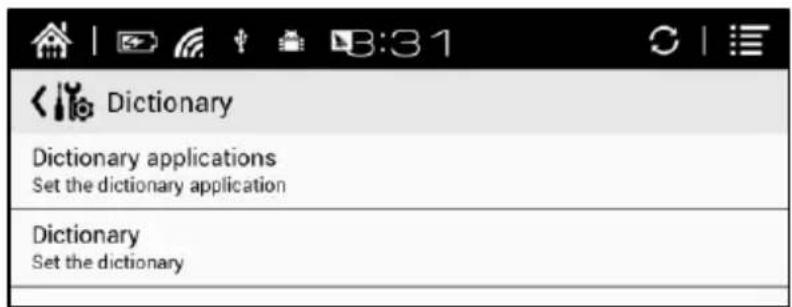
Dictionary
Here the dictionary apps can be set and dictionaries can be selected;
5.8.3 Extension
This section contains application and DRM (digital rights management) settings.
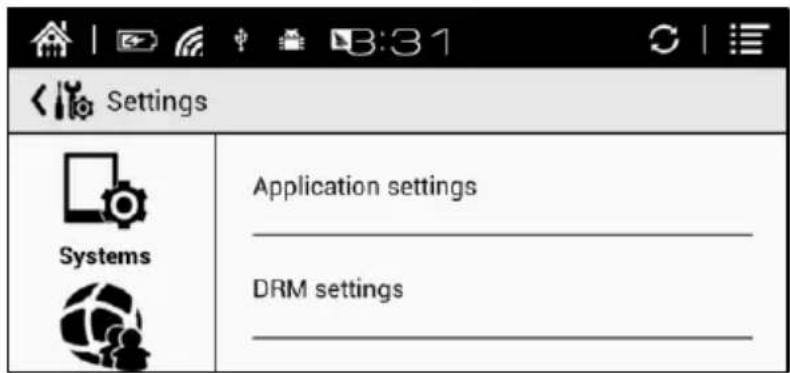
In DRM settings, you can enter the Adobe ID (in order to authorize the device for opening DRM-protected content.
If you feel the touchscreen of the device is not responsive enough, you can select Calibration, which will open the calibration wizard. By touching 5 points on the screen with the stylus, the screen will be recalibrated.
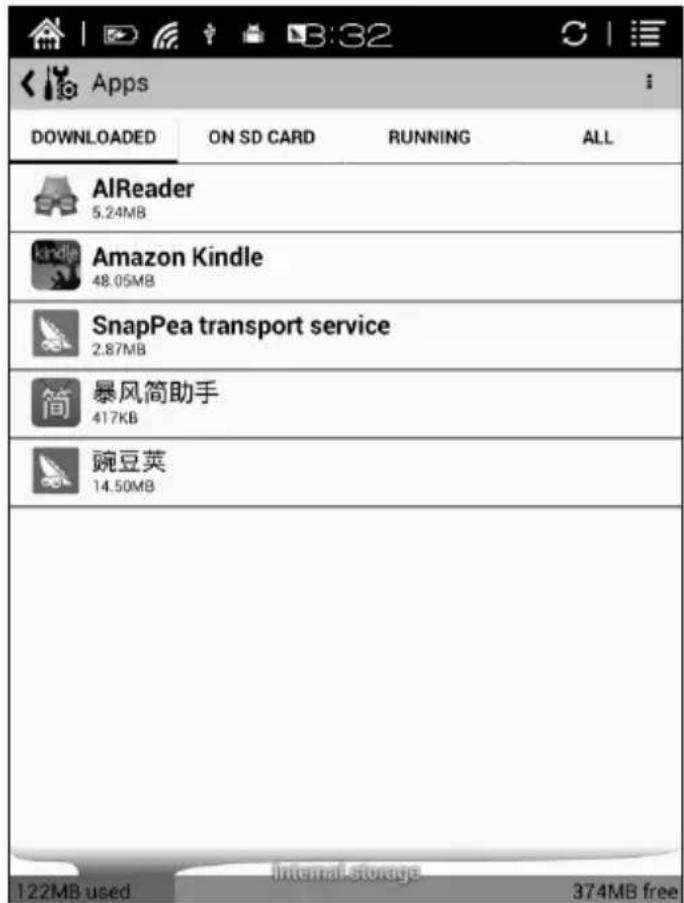
Manage Apps
All apps Downloaded, on the SD card, running are displayed here. After tapping an app you can stop, unload, delete, or transfer it.
5.8.4 Networks
In this section, Wi-Fi connections can be established. After Wi-Fi is connected, you can browse the web, download books, run apps and more.

Mark the checkbox for Wi-Fi and press Wireless to search for available networks. Wi-Fi settings will be saved, so you only need to enter a Wi-Fi password once.
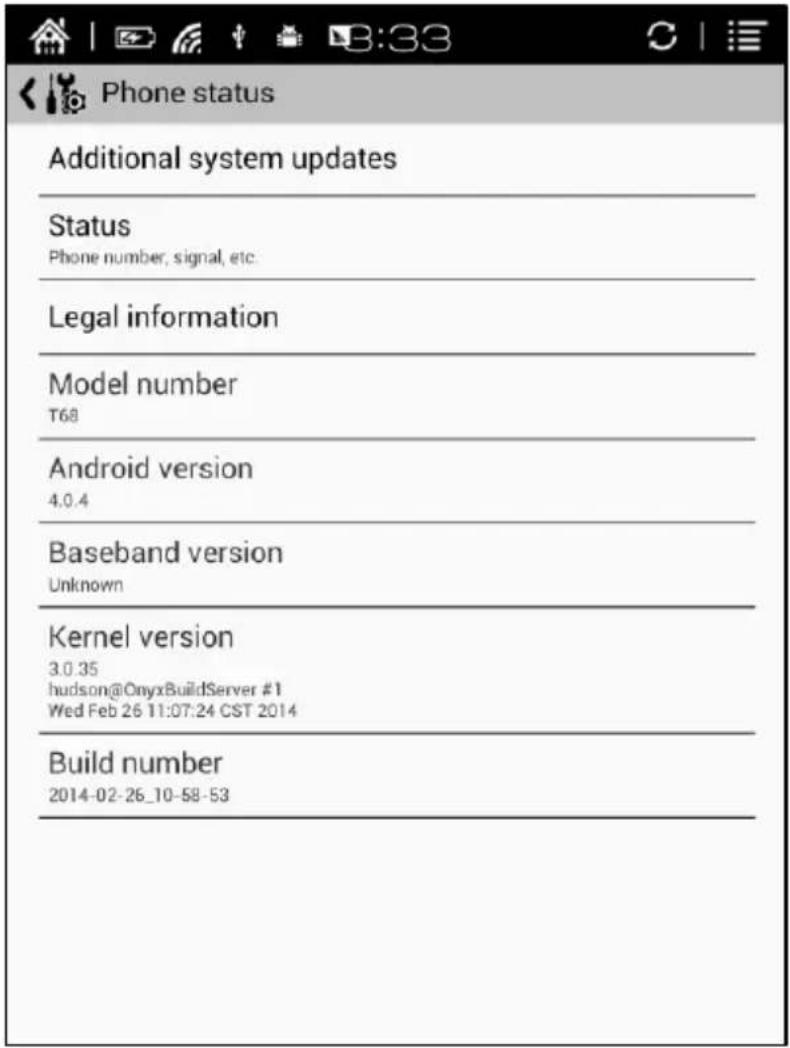
5.8.5 About
All information about the devices is listed here, including system update, legal info, model, firmware version etc;
6. Disclaimer
Software Updates
You can update the software by follow steps:
- Download the latest updates package from the ICARUS website: www.icarusreader.com
- Read and follow the instructions in the Installation Instructions that is inside the update package.
Disclaimer
We make every effort to ensure that the information and procedures in this user manual are accurate and complete. No liability can and will be accepted for any errors or omissions. ICARUS Reader reserves the right to make any changes without further notice to any products herein.

- eXceL (E1051BK)
- User manual
- Unpacking
- Included in the Box :
- Optional Accessories ( Purchased separately )
- Safety precautions
- Screen protection
- Standard accessories
- Stay away from liquids
- Don't dismantle the device
- Operating environment
- Product disposal instructions
- Product Views
- Front View
- Introduction to the user interface
- Main Interface
- Now Reading
- Recently Read/Recently Added
- Application Area
- Library
- Storage
- Apps
- Settings
- Browser
- Notification Interface
- Reading Interface
- Zoom
- Notes
- Rotation
- TTS
- Dictionary
- Search
- Refresh
- Setting
- Browser Interface
- Library
- Sort by
- Filter
- History
- All Notes
- Storage
- Apps
- Settings
- System
- Date
- Power management
- Privacy
- User preference
- Language
- Language Settings
- Default front
- TTS Setting
- Extension
- Manage Apps
- Networks
- About
- Disclaimer
- Software Updates
- Disclaimer
Brand : Icarus
Model : E1051BK
Category : E-reader