Go E600BK - E-reader Icarus - Free user manual and instructions
Find the device manual for free Go E600BK Icarus in PDF.


| Product Type | E-reader |
| Brand | Icarus |
| Model | Go E600BK |
| Display | 6-inch E Ink Carta touchscreen, 800x600 pixels |
| Storage | 4 GB internal (expandable via microSD) |
| Memory | 512 MB RAM |
| Battery | 1500 mAh rechargeable lithium-polymer |
| Battery Life | Up to 4 weeks (average reading) |
| Charging | USB-C (5V, 1A) |
| Connectivity | Wi-Fi 802.11 b/g/n, Micro USB |
| Supported Formats | PDF, EPUB, MOBI, TXT, HTML, RTF, FB2, DJVU, CBZ, CBR, BMP, JPEG, PNG, GIF |
| Operating System | Linux-based |
| Dimensions | 160 x 120 x 9 mm (6.3 x 4.7 x 0.35 in) |
| Weight | 180 g (6.3 oz) |
| Lighting | Built-in front light with adjustable brightness |
| Languages | Multi-language support (English, French, German, Spanish, etc.) |
| Accessories Included | USB-C cable, quick start guide |
| Housing Material | Plastic with textured back |
| Buttons | Power button, page turn buttons (optional via touch) |
| Safety | CE, FCC, RoHS certified |
| Spare Parts and Repairability | Battery and screen replaceable by authorized service |
| Maintenance | Clean screen with soft, dry cloth; avoid liquids |
Frequently Asked Questions - Go E600BK Icarus
User questions about Go E600BK Icarus
0 question about this device. Answer the ones you know or ask your own.
Ask a new question about this device
Download the instructions for your E-reader in PDF format for free! Find your manual Go E600BK - Icarus and take your electronic device back in hand. On this page are published all the documents necessary for the use of your device. Go E600BK by Icarus.
USER MANUAL Go E600BK Icarus
I C A RUS Reader Go (E600B K)
User Manual
Copyright © 2010 ICARUS
Table of Contents
- Introduction
- Parts and controls
- Using your ICARUS Reader Go
- Precautions and maintenance
- Troubleshooting
- Technical specifications
1. Introduction
Thank you for purchasing this ICARUS Reader Go. This section provides an overview of the ICARUS Reader Go and highlights a few basic features so you can start reading as quickly as possible. You navigate the Go using the directional keys, Mode, Play, Zoom, Return, Next Page, and Previous Page buttons.
The Go uses a high-resolution display technology called electronic paper. It works using ink just like books and newspaper, but it displays the ink particles electronically. The page flash you see when you turn the page is part of the ink placement process.
The electronic paper display is reflective, which means unlike most displays, you can read it clearly even in bright sunlight. Also, electronic paper is much more power saving than traditional LCD screens used in computers, as it does not require power to hold the ink in place.
2. Parts and controls
- Power on/off button
- Enter button
- Directional up/volume+ button
- Directional down/volume-button
- Directional left button
- Directional right button
- Music button
- Options menu button
- Back/cancel button
- Zoom button
- Previous page button
- Next page button
- LED charging/loading indicator
- Direct access buttons
- Reset button
- Headphone jack
- Micro USB jack

- Micro SD card slot
3. Using your ICARUS Reader Go
Turning On
- Press and hold the [Power] button for 2 seconds to turn
- It may take a few moments for the reader to turn on and load the content.
- If the reader does not turn on, you will need to charge it first
Turning Off
- Press and hold the Power Button for 2 seconds to turn off.
Charging
- You need to the reader prior to using it for the first time or when battery power is low.
- You can charge by connecting the reader to a computer or USB power adapter via the supplied USB cable.
- It will take about 4 hours to fully charge the reader using power adapter rating 5V, 1.5A.
- During charging, the LED indicator turns Red. When fully charged, the LED turns blue.
• The charging status is shown as below:

Battery low

Charging

Fully charged
Inserting a SD card
- The ICARUS Reader Go only supports micro SD cards.
- To view content inside the card, insert the card into the Micro SD card slot.
- Make sure the card is inserted in the correct direction or you will damage the card and the device.
Importing Content
- The Reader will be recognized as a USB Mass Storage Device when connected to a computer.
- To import contents (ebooks, video, audio, photo etc) into the reader, connect the reader to a computer via the supplied USB cable.
- Upon successful connection to PC, the reader will enter USB mode and all operation will be halted.
- Go to [My Computer], double click on the reader's disk to open.
- Perform normal file management operation like other USB device.
The Home Menu
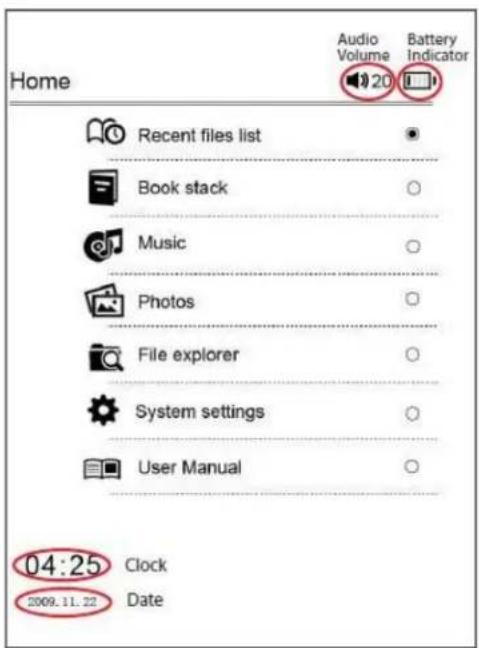
The Home menu is loaded when the reader boots up and looks as the following image:
- Recent file list
displays books that have been read recently
• Books displays ebooks stored on the reader and SD card
• Music opens the music player
• Photo displays photos stored on the device - File explorer Displays all files/folders on the device
- System settings here the reader can be configured
- User manual This opens the user manual
Reading Books
Selecting Books
- Select "Books" icon from the main menu and press [Enter].
- Use the directional key to move the cursor to the desired books from the list and press [Enter] to open the book.
- Alternatively, click on the Direct Access Button to open the corresponding books.
- The ICARUS Reader Go supports the following ebook formats: txt, epud, pdf, pdb, fb2, html.
Turn to next page
- When reading, press Next Page key to turn to next page
- Alternatively. Press the Right key to turn to next page.
Turn to previous page
- When reading, press button Previous Page Key
Zooming in or out
- Press [Zoom] button to change font size of ebook.
Viewing Orientation
The ICARUS Reader Go is equipped with an accelerometer (G sensor). Simply rotate the device as illustrated below to change viewing orientation from portrait to landscape mode.

natural_image
Three technical line drawings of electronic devices with no visible text or symbolsThe Options Menu
While reading a book, press the Option button to enter the Option Menu. The Option Menu contains the following:
Option item: Function:
Page Jump To jump to a specific page
Add Bookmark To bookmark pages of a book (up to 8 bookmarks per book)
Open Bookmarks Displays the bookmark list allowing you to open a specific bookmark
Delete Bookmark To delete a specific bookmark on the current book
Display Mode Enter display mode allowing you to display the file name, time and page information either at the top or the bottom of the page
Browse Mode You can set this to auto browse or manual browse mode.
Jump to Page
- On a page, press [Option] button and select Page Jump and the On-Screen keypad will appear on the left hand side as below:
| Mr Phleas Fogg lived, in 1872, at No. 1 Burlington Gardens, the house in which Gl 1814. He was one of the most noticeable re Reform Club, though he seemed also attracting attention; an engtmatical per- who whom little was known, except that he w man of the world. People said that he rest - at least that his head was Byronic; bearded, tranquil Byron, who might live on years without growing old. Certainly an Englishman, it was more do Phleas Fogg was a Lendener. He was to Change, nor at the Bank, nor in the cou- the "City"; no ships ever came into Lon which he was the owner; he had no publie he had never been entered at any of the either at the Temple, or Lincoln's Inn. Or had his voice ever resounded in the Cour- or in the Exchequer, or the Queen's Ecolesiales Courts. He certainly manufacturer; nor was he a merchant of farmer. His namnda resting on his kn _0 |
- Press the Numeric buttons to key in page number and press [Enter] to go the desired page
• To delete entries, press Backspace button
• Alternatively, press the numeric buttons directly on book page to enter page number and press Enter to go the desired page.
Bookmark k :
Adding a Bookmark :
- While reading a book, press [Option] button and the Bookmark menu will appear.
- Select "Add Bookmark" on the menu to add a bookmark on the current reading page.
Opening a Bookmark :
- On the book page screen, press [Option] button and the Option menu will appear.
- Select “Bookmarks” from the menu. Press [Up/Down] to select the desired bookmarks and press [Enter] to read the bookmark.
Deleting a Bookmark:
- On the book page screen, press [Option] key and the Bookmark Menu will appear.
- Select “Delete Bookmark” from the menu, selects the bookmark that you want to delete and press [Enter] to confirm.
Press the [Return] key to return to the page you were reading.
Note : Only 8 bookmarks are allowed in the each book
M usic
- In the main menu, select "Music" and press [Enter] to confirm.
- Songs stored in both SD card and internal memory are displayed in the song list. Select the desired music file and press "Confirm" to start.
- The reader supports MP3, AAC, WMA, OGG, FLAC, WAV music formats.
Reading Books with background music
In the music menu, select the desired songs and start playing.
While music is playing, do not stop music play back and press Return key to exit to Home Menu. From Home Menu, enter into the book list or reading history to start reading which background music playback.
Note:
Reading .pdf documents consume high processor and memory resources, background music playing is therefore disabled.
Music Controls:
To Adjust Volume: Press "Volume +/-" button to adjust the volume.
To Play/Pause song: Press "Play/Pause" button to play or pause the music.
To Fast Forward: Press and hold the [Right] key
To Fast Backward: Press and hold the [Left] Key
To Play Next Song: Press and release the [Right] key
To Play Previous Song: Press and release the [Left] key
Viewing Photos
Select “Picture” from main menu and press [Enter]. Select a photo and press “Confirm” button to explore. It’s support JPG, BMP file format picture.
In photo list, press [Option] button to enter Option Menu.
In Option Menu, items available are:
-
Search: to search for a specific file by entering key words
-
Sort Items: to sort items by date, title or file type.
Exploring files
Select “File List” from main menu, press [Enter] button to enter. All the files and folders stored in the device and SD card will be listed. Select folder or file to open.
System Settings
Select "System Settings" and press [Enter] button to enter the settings function. Here you can:
- Change the language of the user interface
- Set the time
- Use the calendar
- Set screen refresh mode (full or partial refresh)
- Erase activation records Select this to erase adobe activation record. Adobe DRM books will not be readable after activation record is erased. You are required to activate the device via ADE again.
- Set auto shutdown settings Press [Up/Down] button to select auto shut down time: 3mins, 5mins, 10mins, 15mins, and 20mins. Select “Disable” to disable auto shut down and THE ICARUS GO will remain power on all the time until it is manually power off by pressing the [Power] button.
- Restore factory settings
• View system information
Connecting to a computer
Use the supplied USB cable to plug into the ICARUS Reader Go, and connect the other end to acomputer. A "USB Connected" window will pop out upon successful connection to computer. Computer will detect both the built in memory and SD card on the reader as a removable disk.
Managing Files
You will be able to access built in memory and SD card (if SD card is plugged in) from “My Computer” after the device is connected to a computer. You can move, copy or delete the existing files or folders from computer. At this moment the device is under key lock mode. The reader will resume normal operation automatically after disconnecting from the computer.
4. Precautions and maintenance
The battery
- Charge the battery only in temperature that ranges from 0 to 35 degree Celsius.
- Do not charge the device if the battery is found damaged or leaking.
Operating your device
- Never subject the device to extremes of light, temperature, moisture or vibration.
- Never wrap the device in anything when it is being used or charged. Heat may built up in the device while charging or if it used for an extended period of time.
- Do not use or store the device in a location subject to:
A. Extreme high temperature, such as in a sun-heated car
B. Direct sunlight
C. High humidity or places with corrosive substances
D. Sub-zero condition, especially during winter
Using headphones
- Listening to audio at high volume for extended periods of time can cause hearing damage. To avoid damage to your hearing, keep the volume at moderate level.
- Do not use headphones while driving, cycling or operating any motorized motors. It can also be potentially dangerous to play at a high volume while walking, especially at pedestrian crossings.
Cleaning your device
- If the reader gets wet, turn it off immediately. Wait the reader to dry completely before turning it on again.
- Clean the screen with a soft cloth; be careful not to wipe it with anything abrasive. When carrying your reader in a bag, cover it properly to prevent scratches or other damages to the device.
- If the device needs service, please consult the authorized dealer through the contact information provided on www.icarusreader.com Faulty service may void the warranty.
Working with SD cards
- After inserted a micro SD card, if the reader gives no response, please take itout and insert again.
- Do not remove the SD card or turn off the reader during data writing or reading to prevent damage to data and the reader.
- Make sure the SD card is unlocked before writing or deleting data in the SD card.
- Backup your files and data before formatting the SD card. Please format the SD card in the FAT file system.
5. Troubleshooting
In this section you find what to do in case of errors. For any other issues please refer to the
Support section at www.icarusreader.com
The reader does not respond or cannot be turned on
- Reset by pressing the Reset button with a small pin or clip.
- Battery has been fully depleted. Please charge the reader via USB.
Battery Life seems short
- The operating temperature is below 5^ . this is due to the characteristics of battery and not a malfunction
- The battery is not used for prolonged period. Please recharge the battery again
- The battery is not fully charged. Please charged the reader for 4 hours.
- The battery needs to be replaced. Please consult the authorized dealer for service.
It takes long time for the display to appear
- This is due to the characteristic of the display panel, especially in low temperature environment, and not a malfunction.
A Book cannot be read
- Check if the book format is supported by the ICARUS Reader Go.
The device cannot be operated during USB connection
- The reader cannot be operated while it is connected to a computer. This is not a malfunction.
- Disconnect the reader from the computer to resume operation.
- To use the reader while charging, click on the [Safely Remove Hardware] icon located on the left lower corner of your computer to disconnect data connection with computer. After the reader is safely removed that way, the computer will only charge the reader and you can now resume normal operation.
6. Technical specifications
Display
6 inch E-Ink Display, 800x600 pixels
Storage memory
Built in memory: 2GB
supports SD/SDHC/MMC up to 16GB (FAT format)
Media File Format supported
Ebook: txt, pdb, pdf, epub, fb2, html, Audio: mp3, wma, wav, ogg, flac, Photo: jpg, bmp
Battery life
6000 pages (approx: 20 hours)
Charging Power
DC 5.3V, 1.0A
Minimum system requirement
Windows 2K, ME, XP, Vista, Win 7, Mac OS 10x
Physical properties
Dimension: 172.5 x 120.6 x 9 mm (approx)
Weight: 169.2g (approx)
**Design and specifications are subject to changes without prior notice

I C A RUS Reader Go (E600B K)
Benutzerhandbuch
Copyright © 2010 ICARUS
Inhalt
3. Gebrauch
E inschalten
natural_image
Three technical line drawings of electronic devices with no visible text or symbolsDas Optionen-Menü
| Mr Phleas Fogg hved, in 1872, at No. 1 Burlington Gardens, the house in which St 1814. He was one of the most noticeable Reform Club, though he seemed able attracting attention; an engymatical person whom little was known, except that he was man of the world. People said that he rest - at least that his head was Byronic, bearded, tranquil Byron, who might live years without growing old. Certainly an Englishman, it was more do Phleas Fogg was a Lendenier. He was Change, nor at the Bank, nor in the cou the "City"; no ships ever came into Lord which he was the owner; he had no publ he had never been entered at any of the either at the Temple, or Lincoln's inn, or had his voice ever resounded in the Cour or in the Exchequer, or the Queen's Ecological Court. He certainly manufacturer; nor was he a merchant of farmer. His namnds resting on his kn _0 | * 1 abc 2 def 3 ghi 4 joi 5 mino 6 pegs 7 tvw 8 wxyz 9 _0 |
I C A RUS Reader Go (E600B K)
Gebruiksaanwijzing
Inhoudsopgave
natural_image
Three technical line drawings of electronic devices with no visible text or symbolsHet optiemenu
| Mr Phleas Fogg lived, in 1872, at No. 1 Burlington Gardens, the house in which Bl 1814. He was one of the most noticeable Reform Club, though he seemed able attracting attention; an engmatical person whom little was known, except that he was man of the world. People said that he rest -at least that his head was Byronic, beanted, tranquil Byron, who might live years without growing old. | * 1 |
| abc 2 | |
| div 3 | |
| ghi 4 | |
| jul 5 | |
| Certainly an Englishman, it was more do Phleas Fogg was a Londoner. He was a Change, nor at the Bank, nor in the cou the "City": no ships ever came into Lon which he was the owner; he had no public he had never been entered at any of the either at the Temple, or Lincoln's inn, or had his voice ever mssounded in the Cour or in the Exchequer, or the Queen's Ecklesiastical Courts. He certainly manufacturer; nor was he a merchant of farmer. His namnds resting on its kin - 0 | |

- I C A RUS Reader Go (E600B K)
- User Manual
- Table of Contents
- Introduction
- Parts and controls
- Using your ICARUS Reader Go
- Turning On
- Turning Off
- Charging
- Inserting a SD card
- Importing Content
- The Home Menu
- Reading Books
- Selecting Books
- Turn to next page
- Turn to previous page
- Zooming in or out
- Viewing Orientation
- The Options Menu
- Jump to Page
- Bookmark k :
- Adding a Bookmark :
- Opening a Bookmark :
- Deleting a Bookmark:
- M usic
- Music Controls:
- Viewing Photos
- Exploring files
- System Settings
- Connecting to a computer
- Managing Files
- Precautions and maintenance
- The battery
- Operating your device
- Using headphones
- Cleaning your device
- Working with SD cards
- Troubleshooting
- Battery Life seems short
- Technical specifications
- Benutzerhandbuch
- Inhalt
- Gebrauch
- E inschalten
- Das Optionen-Menü
- Inhoudsopgave
- Het optiemenu
Brand : Icarus
Model : Go E600BK
Category : E-reader