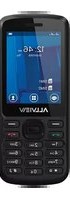
M9 Join - Smartphone Allview - Free user manual and instructions
Find the device manual for free M9 Join Allview in PDF.


| Product Type | Smartphone |
| Brand | Allview |
| Model | M9 Join |
| Dimensions (H x W x D) | 150 x 72 x 8.5 mm |
| Weight | 160 g |
| Battery Capacity | 2800 mAh |
| Power Input | 5V/1A via micro USB |
| Processor | Quad-core 1.3 GHz |
| RAM | 2 GB |
| Internal Storage | 16 GB |
| Expandable Storage | microSD up to 32 GB |
| Display Size | 5.5 inches |
| Display Resolution | 1280 x 720 pixels |
| Main Camera | 13 MP with flash |
| Front Camera | 5 MP |
| Operating System | Android 7.0 Nougat |
| Connectivity | Wi-Fi, Bluetooth 4.0, GPS, 4G LTE |
| Sensors | Accelerometer, Proximity, Light |
| Cleaning | Wipe with soft dry cloth |
| Safety | Avoid contact with water; use original charger |
| Spare Parts | Battery, screen, charging port, back cover |
| Repair Information | Contact authorized service center |
Frequently Asked Questions - M9 Join Allview
User questions about M9 Join Allview
0 question about this device. Answer the ones you know or ask your own.
Ask a new question about this device
Download the instructions for your Smartphone in PDF format for free! Find your manual M9 Join - Allview and take your electronic device back in hand. On this page are published all the documents necessary for the use of your device. M9 Join by Allview.
USER MANUAL M9 Join Allview
Read these simple guidelines. Not following them may be dangerous or illegal.
SWITCH OFF IN HOSPITALS
Follow any restrictions. Switch the device off near medical equipment. Do not use the device where blasting is in progress.
Please keep this cell phone away from children, as they could mistake it for a toy, and hurt themselves with it.
Don't try to modify the phone except by the professional. Warning!
Only use the authorized spare parts, otherwise it may damage the phone and the warranty will not work.
And it may be dangerous.
SWITCH OFF WHEN REFUELING
Don't use the phone at a refueling point. Don't use near fuel or chemicals.
2 En
SIM CARD AND T-FLASH CARD ARE PORTABLE
Pay attention to these small things to avoid children eating them.
Notice: The T-Flash Card can be used as a Memory Disk, the USB cable is necessary.
BATTERY
Please do not destroy or damage the battery, it can be dangerous and cause fire. Please do not throw battery in fire, it will be dangerous When battery cannot be used, put it in the special container.
Do not open the Battery.
If the battery or the charger is broken or old, please stop using them.
USE QUALITY EQUIPMENT
Use our authorized equipment or it will cause dangers
ROAD SAFETY COMES FIRST
Give full attention while driving; Pull off the road or park before using your phone if driving conditions so require.
INTERFERENCE
All wireless devices may be susceptible to cause interference, which could affect performance.
SWITCH OFF IN AIRCRAFT
Wireless devices can cause interference in aircraft. It's not only dangerous but also illegal to use mobile phone in an aircraft.
3 En
Warning: We take no responsibility for situations where the phone is used other than as provided in the manual.
Our company reserves the right to make changes in the content of the manual without making this public.
These changes will be posted on the company website to the product it amends.
The contents of this manual may be different from that in the product. In this last case will be considered.
GETTING STARTED
Battery Install Notice
Before you install or change battery, please ensure you already turn off the phone.
Install or change SIM card Notice
- Before you change SIM card, please make sure you already turn off the phone and dispose battery.
- Insert the SIM card and make the golden contact area face down and the nick face out.
Charge the battery
- Before charging the battery, please make sure that the battery is installed properly in the phone.
-
Connect the charger lead to the phone socket, and then connect the charger to the AC socket.
-
If the phone is off when it's charging, charging indicator is displayed on the screen. If the phone is on when it's charging, user can use it while charging. When the battery is fully charged, the charging indicator on the screen is full and stops twinkling. While using the handset for the first time, please completely discharge and then completely charge the battery. Repeat the process for three times to achieve the full performance of the battery.
- Long period unused or some other reasons may cause low battery pressure, so at the beginning of charging the screen is black and it may take a while before the charging indicator appears.
Warning: When charging, in order to avoid serious damage to phone circuitry, do not remove or dispose the battery.
CALLS
Key Explanation
Lock Keypad: Press * then select "Lock" Unlock Keypad: Left Side then press *
* Key # Key:
Functions vary in different situations or function menus:
- In inputting status, “*” for symbols.
- In inputting status, “#” to switch inputting methods.
- In standby mode, hold “#” to switch the phone in silent mode.
5 En
- In standby and dial mode, press and hold “*”, you can input +, P and W.
- In standby mode, input “+” for an international call; in dial status, input “P” for calling number with extension phone.
Main Menu Explanation
When you press Menu key, you will enter main menu. Press up, down, left and right keys to select different functions.
Make a Call
Making a call by dialing numbers:
-
In standby mode, enter the phone number. If you want to change the numbers, press left and right direction key to move the cursor and press
to delete a number. Press and hold to delete all characters. -
Press the call key to call the number. Making a call using the Phonebook:
You can enter the phonebook list from functional menu, choose or input the needed letter (phonetic) to search. Choose the number; press the call key to dial out.
Call the Dialled calls, Received calls, Missed calls:
- In standby mode, press the call key to view the call log list.
- Choose a number and press the call key to dial.
Making a call using the menu:
6 En
- In standby mode, enter the menu, choose Call logs;
- Choose from missed calls, dialled calls, and received calls.
- Choose the needed number and press the call key to make a call.
Answer an Incoming Call
Press the Call key to answer an incoming call.
Call Options
Offer numerous in call functions (some of these functions need a subscription with the service provider). During the call, press->Option and choose between the following options :
Hold: Pause the call.
End single call: End the present call.
New call: To make a new call.
Phonebook: Same as phonebook list in the function menu.
Call history: Same as call history in the function menu.
Messaging: To explore the Messaging Menu.
Sound recorder: Record the sound.
Mute: Enable the mic of phone not work.
7 En
INPUT METHOD
Overview
Your phone offers input methods as followings: Smart abc, es, ro. Keypad Definition
The definition of keypad is as follow:
Left key: Enter and OK
Right key: Back and Cancel
Navigate Keys: Cursor move or choose word.
# Key: Switch input methods and a sign will be display in left side.
2-9 key: Input the letter on the keys when input.
* Key: Input punctuation
FUNCTION LIST
Contacts
You can save the contacts in the mobile phone and SIM card; it depends on the SIM card memory capacity. When you select a contact, you can do the following operations:
View: To view the contact
Send text message: Send text message to the current number.
Send multimedia message: Send multimedia message to the current number.
Call: To Call the current number.
Edit: To edit the current contact.
8 En
Delete: To delete the current contact.
Copy: To copy the contact from phone to SIM card /phone or from SIM card to SIM card /phone or copy to file.
Add to Blacklist: Add the current number to the blacklist.
Add to Whitelist: Add the current number to the white list.
Phonebook settings: To set the Phonebook.
Calls
In this function menu, you can check the All calls, Dialled calls, Received calls, Missed calls, and You can perform the following operations:
View: To check the call history.
Send text message: Send SMS to the Dialled calls, Received calls or Missed calls.
Call: To call the Dialled calls, Received calls or Missed calls.
Save to Phonebook: You can add the number to the phonebook or replace existing contacts.
Add to Blacklist: Add the number of the Dialled calls, Received calls or Missed calls to the Blacklist.
Edit before call: Edit the number before you call Delete: Delete the current call history.
Delete all: Delete all the call history.
Mark several: You can mark several call history.
Advanced: Including two options: Call timers/Call cost/GPRS.
9 En
Files
Press left key option to enter functional menu, the following options are available:
- Open: See the files in the different folders of your phone
- Format: To format the folder.
- Details: To view the Memory status of the Memory card.
Camera
The built-in camera allows you to take photos and adjust the camera settings. The options menu contains the following choices:
- Switch to: Switch phone to video recorder.
- Photos: See all the photos.
- Camera Settings: Select to open many advantage setting items.
- Image settings: Select to change the size and the quality of the image
- Storage: Select the place where the photos will be stored.
Media
- Viewing images
- Recording videos
- Play video
10 En
- Playback audio files
- Register sounds
Images
The options for image viewer are as follows:
• View: To view a photo.
- Use as: This photo can be used as wallpaper.
- Rename: To rename the selected image or photo.
- Delete: To delete the selected photo.
- Sort by: To sort photos by the desired method.
- Image information: You can view the image information.
- Send: Transform the photos by different ways, such as multimedia message or via Bluetooth.
Recorder
You can record sound/voice on your phone. Just select sound recorder, go to options and press "New record". Select Stop to save it. Select pause to 'pause' the recording and 'continue' to resume the recording.
11 En
FM Radio
- Channel list: List out all the current channels. You can enter channel list, edit it and display the searched channel list.
- Manual input : Input the desired broadcasting channel manually
- Auto Search: Search and create the channel's list automatically.
SMS
Your phone supports various messaging services. You can create, send, receive, edit and organize text messages.
Messages contain the following folders:
- Write Message: On selecting Write Message, you can input the contents of the message using different input methods.
- Conversations: All the received and sent messages stored in conversations.
- Drafts: You can save a message you edit in the drafts.
- Templates: Templates stores 10 preloaded/pre-written text messages for ready usage.
- Delete messages: Delete all the unwanted messages.
- Message Settings: Message settings store all the different settings responsible for sending and receiving messages.
Browser
The following options are available in the Browser menu:
- Homepage
- Bookmarks
- Search or input URL
- Last web address
- Recent pages
- Stored pages
- Settings
Opera Mini
The following options are available in the Opera Mini menu:
- Enter Address: Start a connection to the selected URL set.
- Start page
- Bookmarks: Access or edit a bookmark.
- Tools: forward, history, settings, help.
Bluetooth
The following options are available in the Bluetooth menu:
- Power: On/Off
13 En
-
Visibility: On/Off
-
My device: Inquiry new device or display paired devices and take the options.
-
Search audio device: Search for audio devices.
-
My name :You can change the name of the Bluetooth.
-
Advanced : Configure the settings of Bluetooth, For example, Audio path, sharing permission etc.
Calendar
You can use the calendar to keep track of important meetings. After entering the calendar function menu you can select year, month and date using direction keys. On a selected date you can select to view:
View :To view and set the schedule of a day.
- Jump to date: To input the date to enter the calendar, then move the cursor to the specified date.
- Go to today: Go to check today.
- Go to weekly view: Go to view the calendar events in weekly style.
- Start of week: You can select from Sunday or Monday.
Alarm
The Alarm can be set to ring at a specific time on several days. There are five different default alarms. You can set these alarms to alarm you at different time in specific day(s) of a week.
To set an alarm:
-
Press edit to enter alarm settings menu.
-
Select edit option using up and down direction keys
○ ON/OFF: Select alarm on or off using left and right direction key
○ Alarm time: Input alarm time
- Repeat Setting: Press navigation keys to select alarm types which consists of one time, everyday and custom.
○ Alarm tone: You can select the alarm tone.
- Alert Type: To select between Ring only/Vib and ring, Vib only.
Settings
Under settings, the phone gives you the option to change the settings for various features of the phone. The following list is available in Settings:
Dual SIM switch
Dual SIM settings: choose which SIM to be active (Dual SIM, SIM1, SIM2)
Phone Settings
You have following options listed under phone setup:
Time and date: Let you set the Time and date on the phone.
Schedule power on/off: Let you set the phones powering on/off.
Language: To select language for the phone.
Shortcut keys manager
Display: Under Display setup, you can set wallpaper, dual clock, auto lock etc.
Auto update time
Flight mode
Misc. settings: LCD backlight settings.
Call Settings
Include SIM1 call settings, SIM2 call settings and advanced settings.
Network Settings
Network setup gives the user the ability to select a desired network and addition of a new network to the network list. The network setup gives you the follow options:
SIM1/2 network settings:
- Network Selection: new search, select network, selection mode – automatic/manual
- Preferences: Will list down all the network IDs (depending on the SIM card used)
GPRS transfer preferences: data or call.
Security Settings
Under Security Setup, you can change the security settings of SIM1 or SIM2.
SIM1/2 Security Settings:
- PIN Lock: PIN Lock protects illegal usage of the SIM card.
○ Change PIN: You can change the PIN password.
○ Change PIN2: You can change the PIN2 password
Phone security: Enables you to lock/unlock your phone with a password.
Privacy lock: You can select a password to lock the phone.
Connectivity
Choose the phone's data connection SIM and account.
Restore Settings
Selecting this option will ask you to enter the password to restore the phone to factory settings. The default password is '0000'.
Sound effects
Enhance the phone's audio settings.
WARNINGS AND NOTES
Operational Warnings
IMPORTANT INFORMATION ON SAFE AND EFFICIENT OPERATION. Read this information before using your phone. For the safe and efficient operation of your phone, observe these guidelines:
Potentially explosive at atmospheres: Turn off your phone when you are in any areas with a potentially explosive atmosphere, such as fueling areas (gas or petrol stations, below deck on boats), storage facilities for fuel or chemicals, blasting areas and areas near electrical blasting caps, and areas where there are chemicals or particles (Such as metal powders, grains, and dust) in the air.
Interference to medical and personal Electronic Devices: Most but not all electronic equipment is shielded from RF signals and certain electronic equipment may not be shielded against the RF signals from your phone.
Audio Safety: This phone is capable of producing loud noises which may damage your hearing. When using the speaker phone feature, it is recommended that you place your phone at a safe distance from your ear.
Other Media Devices, hospitals: If you use any other personal medical device, consult the manufacture of your device to determine if it is adequately shielded from external RF energy. Your physician may be able to assist you in obtaining this information. Turn your phone OFF in health care facilities when any regulations posted in these areas instruct you to do so. Hospitals or health care facilities may be using equipment that could be sensitive to external RF energy.
Product statement on handling and use: You alone are responsible for how you use your phone and any consequences of its use.
You must always switch off your phone wherever the use of a phone is prohibited. Use of your phone is subject to safety measures designed to protect users and their environment.
Always treat your phone and its accessories with care and keep it in a clean and dust-free place Do not expose your phone or its accessories to open flames or lit tobacco products.
Do not expose your phone or its accessories to liquid, moisture, or high humidity. Do not drop, throw, or try to bend your phone or its accessories
Do not use harsh chemicals, cleaning solvents, or aerosols to clean the device or its accessories.
Do not attempt to disassemble your phone or its accessories; only authorized personnel must do so.
Do not expose your phone or its accessories to extreme temperatures, minimum 32 and maximum 113 F degrees (0 to 45°C).
Battery: Your phone includes an internal lithium-ion or lithium-polymer battery. Please note that use of certain data applications can result in heavy battery use and may require frequent battery charging. Any disposal of the phone or battery must comply with laws and regulations pertaining to lithium-ion or lithiumion polymer batteries.
Faulty and damaged products: Do not attempt to disassemble the phone or its accessory. Only qualified personnel must service or repair the phone or its accessory. If your phone or its accessory has For more product details visit www.allviewmobile.com. Do not cover the antenna with your hand or other objects Failure to comply resulting in connectivity issues and rapid discharge of the battery. All applications provided by third parties and installed in this device, may be modified and/or stopped at any moment. Visual Fan Ltd will not be responsible in any way for modifications of the services or content of these applications. Any request or question regarding third party applications may be addressed to owners of these applications.
DECLARATION OF CONFORMITY
No 1389
We, S.C. Visual Fan S.R.L, with the social headquarters in Brasov, 61st Brazilor Street, post code 500313 Romania, registered at the Register of Commerce Brasov under nr. J08/818/2002, CUI RO14724950, as importer, ensure, guarantee and declare on own responsibility according to Art. 4 HG nr.1.022/2002 regarding the products and services regime, which could put in danger the life and health, security and labour protection, that the ALLVIEW product M9 Join does not put in danger the life, safety of labour, does cause adverse environmental impacts and is according to:
-The 2011/65/UE Directive regarding the usage restrictions of some dangerous substances in the electronic and electrical equipments.
-The Directive regarding the radio and telecommunications equipments R&TTE 1999/5/CEE (HG 88/2003)
-The Directive regarding the assurance of low voltage equipment users 73/32/CEE, modified by the 93/68/CEE (HG457/2003) Directive.
-The Directive regarding the electromagnetic compatibility 89/336/CEE, modified by the 92/31/CEE si 93/68/CEE (HG982/2007); RoHS Directive: EN50581:2012
20 En
-The safety requirements of the European Directive 2001/95/EC and of the EN 60065:2002/A12:2011 si EN 609501:2006/ A1:2010 /A11:2009/A12:2011 standards, regarding the decibel level limit of the commercialized devices. The product had been evaluated according to the following standards: -Health: EN 50360:2001, EN 50361; EN 62209-1 : 2006
-Safety: EN 60950-1:2001+A11:2004; EMC EN 301 489-01 V1.6.1 (09-2005) EN 301 489-07 V1.3.1 (11-2005); EN 301 489-17 V1.2.1 (08-2002)
-Radio spectrum: EN 301 511 V9.0.2 (03-2003);EN 300 328 V1.7.1 (10-2006) The conformity assessment procedure was done according to the 1999/5/CEE Directive (of the Annex II of HG nr. 88/2003) the documentation being at S.C. Visual Fan S.R.L., Brasov, 61st Brazilor Street, post code 500313, Romania at it will be put at disposal on demand. The products conformity assessment procedure was fulfilled with the participation of the following institutions: Bay Area Compliance Laboratories. The product has the CE mark applied. The conformity declaration is available at www.allviewmobile.com.
CE 1313
SAR 0,726 W/kg
Brasov
14.10.2015
Director
Cotuna Gheorghe

21 En
Interruptor Dual SIM
Shortcut keys manager
- SWITCH OFF IN HOSPITALS
- SWITCH OFF WHEN REFUELING
- SIM CARD AND T-FLASH CARD ARE PORTABLE
- BATTERY
- USE QUALITY EQUIPMENT
- ROAD SAFETY COMES FIRST
- INTERFERENCE
- SWITCH OFF IN AIRCRAFT
- GETTING STARTED
- Battery Install Notice
- Install or change SIM card Notice
- Charge the battery
- CALLS
- Key Explanation
- En
- Main Menu Explanation
- Make a Call
- Answer an Incoming Call
- Call Options
- INPUT METHOD
- Overview
- FUNCTION LIST
- Contacts
- Files
- Camera
- Media
- Images
- Recorder
- FM Radio
- SMS
- Browser
- Opera Mini
- Bluetooth
- Calendar
- Alarm
- Settings
- Dual SIM switch
- Phone Settings
- Auto update time
- Flight mode
- Call Settings
- Network Settings
- SIM1/2 network settings:
- Security Settings
- SIM1/2 Security Settings:
- Connectivity
- Restore Settings
- Sound effects
- WARNINGS AND NOTES
- Operational Warnings
- DECLARATION OF CONFORMITY
- No 1389
- Interruptor Dual SIM
Brand : Allview
Model : M9 Join
Category : Smartphone