
Qualcore 9010 - Tablet Overmax - Free user manual and instructions
Find the device manual for free Qualcore 9010 Overmax in PDF.


| Product Type | Tablet |
| Brand | Overmax |
| Model | Qualcore 9010 |
| Operating System | Android |
| Display Size | 7 inches |
| Processor | Quad-core 1.3 GHz |
| RAM | 1 GB |
| Internal Storage | 16 GB |
| Expandable Storage | microSD (up to 32 GB) |
| Rear Camera | 2 MP |
| Front Camera | 0.3 MP |
| Wi-Fi | 802.11 b/g/n |
| Bluetooth | Bluetooth 4.0 |
| Battery Capacity | 3000 mAh |
| Charging Port | microUSB |
| Headphone Jack | 3.5 mm |
| Microphone | Built-in |
| Speaker | Built-in |
| Power Button | Side |
| Volume Keys | Side |
| Dimensions | 190 x 110 x 9 mm |
| Weight | 320 g |
| Maintenance | Clean with a soft dry cloth; avoid liquids. |
| Safety | Do not expose to extreme temperatures; use original charger. |
| Spare Parts | Contact Overmax service center. |
Frequently Asked Questions - Qualcore 9010 Overmax
User questions about Qualcore 9010 Overmax
0 question about this device. Answer the ones you know or ask your own.
Ask a new question about this device
Download the instructions for your Tablet in PDF format for free! Find your manual Qualcore 9010 - Overmax and take your electronic device back in hand. On this page are published all the documents necessary for the use of your device. Qualcore 9010 by Overmax.
USER MANUAL Qualcore 9010 Overmax
To switch on the phone, press and hold the power button for several seconds.
At the first start of the phone, the assistant will carry through the basic settings configuration.
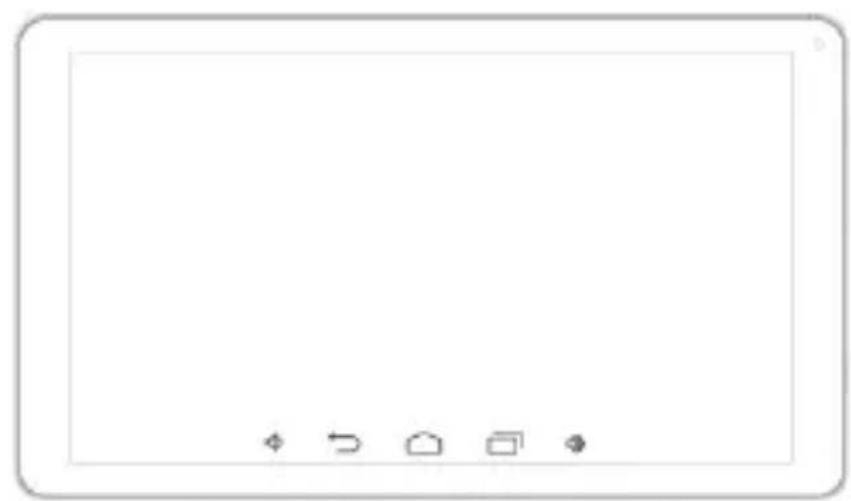
Keys Explained
natural_image
Blank tablet device interface with control buttons at bottom (no text or symbols on screen)Back
Home
Menu
Front
camera
Power /
Lock
Charging
interface
microUSB
Volume adjustment -
Volume adjustment+
Back camera Headphone jack
microSD
Reset Microphone
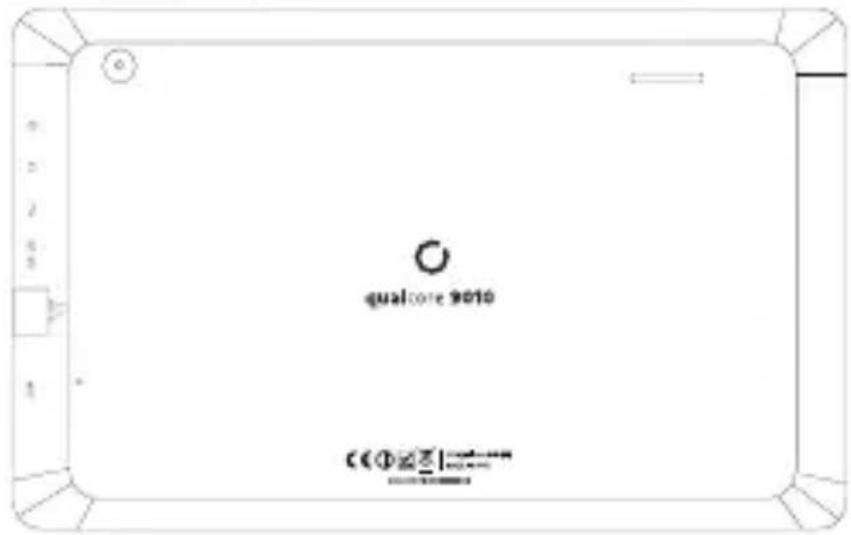
Speaker
Menu
Press to get the options for the current screen.
Home Press to return to the Home Screen from any application or screen. Hold to see recently used applications.
Back
Press to go to the previous screen.
Power Press to switch your phone to Sleep mode. Press to wake up your tablet. Hold to turn on Airplane mode, or to power off.
Charging the Battery
When you first get your new phone you'll need to charge the battery.
- Connect the adapter to the charger jack. Ensure that the adapter is inserted with the correct orientation. Do not force the connector into the charger jack.
- Connect the charger to a standard AC wall outlet.
- Disconnect the charger when the battery is fully charged.
Waking Up Your Phone
Press Power Key to activate your screen display.
Tap the

icon, drag to the right
Turning On Wi-Fi
Wi-Fi provides wireless Internet access over distances of up to about 300 feet.
- Press Home key > tap Ⓞ> Settings.
- Click OFF next to the Wi-Fi menu to turn it on, click ☐ you can turn off the Wi-Fi function.
Connecting to a Wi-Fi Network
- Press Home key > tap Ⓞ > Settings > Wi-Fi.
When the Wi-Fi is on, the Wi-Fi access points, or “hotspots”, that your phone has detected are displayed with their names and security settings.
- Tap an access point to connect to it.
NOTE: If security features are implemented, you'll need to enter a password.
Bluetooth
Bluetooth is a short-range wireless communication technology. Phones or other devices with Bluetooth capabilities can exchange information wirelessly within a distance of about 10 meters. The Bluetooth devices must be paired before the communication is performed.
-
Press Home Key > tap ⏻> Settings.
-
Click off next to the Bluetooth menu to turn it on,
When Bluetooth is on, the ⚙️ icon will appear in the status bar.
- Tap Bluetooth. Your phone will show all visible Bluetooth devices in range.
- Tap the device you want to pair with and operate according to the message prompt.
When both devices to be paired accept the connection, the pairing is completed.
TIPS: Tap your device name to make your phone discoverable if other devices try to pair with your phone.
Taking Pictures with Your Camera
Your phone has camera function. Open it by pressing Home Key >
tap > Camera.
Tap to take a picture. To view it, just tap the picture in the right corner of the screen.
Information
More information about the use of the device and the system can be found at: www.overmax.eu
Witaj!
natural_image
Blank tablet screen with four small icons at the bottom (no text or symbols)Przednia
Kamera
Zasilanie /
Blokowanie
Port
Ładowania
micro USB
Powrót
Home
Menu
natural_image
Blank tablet screen with four small icons at the bottom (no text or symbols)Predná kamera
Napájenie / Zámok
Rozhranie nabíjania microUSB
Spät'
Domov
Menu
Nastavenie hlasitosti -
Nastavenie hlasitosti +
Zadná kamer
natural_image
Blank tablet screen with four small icons at the bottom (no text or symbols)Camera frontala
Pornire / Blocare
Interfata de incarcare microUSB
Inapoi
Acasa
Meniu
Ajustare volum +
Ajustare volum +
Camera spate
Casti jack
microSD
Reset Microfon
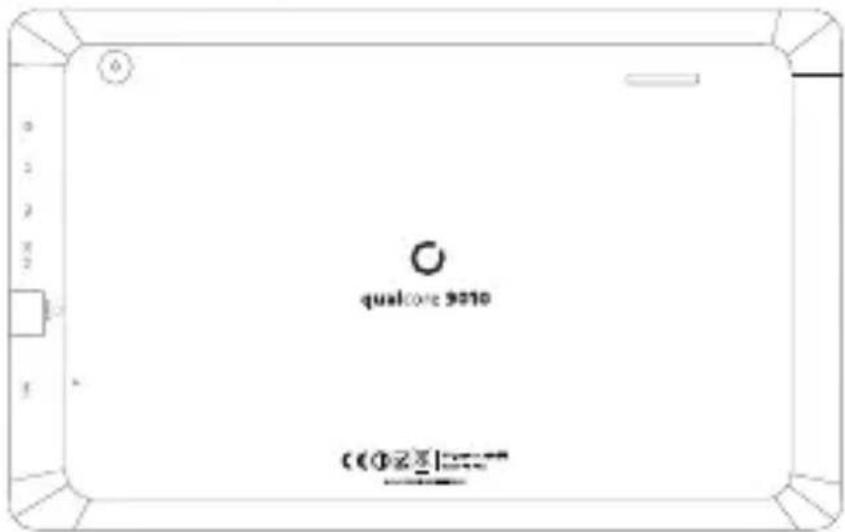
Difuzor
- Tap an access point to connect to it.
natural_image
Blank tablet screen with four small icons at the bottom (no text or symbols)Vissza
Home
Menü
natural_image
Blank tablet screen with four small icons at the bottom (no text or symbols)Eestvaade
Kaamera
Toide /
Lukustamine
Laadimise
liides
MicroUSB
Tagasi
Kodu
Menüü
Brand : Overmax
Model : Qualcore 9010
Category : Tablet