MODE D'EMPLOI GR-DVX8 JVC
CAMÉSCOPE NUMÉRIQUE
GR-DVX10
GR-DVX9
Veuillez visiter notre page d'accueil sur le World Wide Web et répondre à notre enquête consommateurs (en anglais uniquement) :
http://www.jvc-victor.co.jsp/english/index-e.html
Mini DV PAL

NUMÉRIQUE
APPAREIL PHOTO
MODE D'EMPLOI
| CONTENTS |
| AUTOMATIC DEMONSTRATION 5 |
| GETTING STARTED 6 - 15 |
| RECORDING 16 - 39 |
| Basic Recording For Video 16 |
| Basic Recording For Digital Still Camera (D.S.C.) 19 |
| Basic Recording For Video And D.S.C. 20 |
| Advanced Features For Video And D.S.C. 22 |
| PLAYBACK 40 - 55 |
| Basic Playback For Video 40 |
| Advanced Features For Video 41 |
| Basic Playback For D.S.C. 45 |
| Advanced Features For D.S.C. 48 |
| CONNECTIONS 56 - 59 |
| Basic Connections 56 |
| Advanced Connections 58 |
| DUBBING 60 - 65 |
| Dubbing To A VCR 60 |
| Dubbing From A VCR 61 |
| Dubbing To A Video Unit
Equipped With A DV Connector 62 |
| Dubbing From A Video Unit
Equipped With A DV Connector 63 |
| Dubbing Images Stored In A
MultiMediaCard To A Tape 64 |
| Dubbing Images Recorded
On A Tape To A MultiMediaCard 65 |
| USING THE REMOTE |
| CONTROL UNIT 66 - 77 |
| Slow-Motion Playback, Frame-By-Frame
Playback and Playback Zoom 68 |
| Playback Special Effects 69 |
| Random Assemble Editing 70 |
| For More Accurate Editing 74 |
| Audio Dubbing 76 |
| Audio Dubbing Using Digital Sound Effects 77 |
| USER MAINTENANCE 78 |
| TROUBLESHOOTING 79 - 84 |
| INDEX 85 - 92 |
| Docking Station 85 |
| Controls, Connectors And Indicators 86 |
| Indications 88 |
| CAUTIONS 93 - 95 |
| TERMS 96 - 97 |
| SPECIFICATIONS 98 - 99 |
Cher client,
Merci d'avoir acheté ce caméscope numérique. Avant utilisation, veuillez lire les informations de sécurité et les précautions contenues dans les pages suivantes pour garantir une utilisation sûre de ce produit.
Utilisation de ce mode d'emploi
- Toutes les sections et sous-sections principales sont répertoriées dans la table des matières sur la page de couverture.
- Des notes apparaissent après la plupart des sous-sections. Assurez-vous de les lire également.
- Les fonctions et opérations de base et avancées sont séparées pour une référence plus facile.
Il est recommandé de . . .
..... se référer à l'index (pages 85 à 92) et de se familiariser avec l'emplacement des boutons, etc. avant utilisation.
... lire attentivement les consignes de sécurité. Elles contiennent des informations extrêmement importantes concernant l'utilisation sûre de ce produit.
Il est recommandé de lire attentivement les mises en garde des pages 93 à 95 avant utilisation.
CONSIGNES DE SÉCURITÉ
IMPORTANT (pour les propriétaires au Royaume-Uni)
Connexion à l'alimentation secteur au Royaume-Uni. NE COUPEZ PAS la fiche secteur de cet appareil. Si la fiche fournie n'est pas adaptée aux prises de courant de votre domicile ou si le câble est trop court pour atteindre une prise, procurez-vous une rallonge appropriée et approuvée ou consultez votre revendeur.
ASSUREZ-VOUS de remplacer le fusible uniquement par un fusible identique de type approuvé, comme à l'origine, et de remettre le couvercle du fusible.
Si néanmoins la fiche secteur est coupée, assurez-vous de retirer le fusible et de jeter immédiatement la fiche, afin d'éviter tout risque de choc électrique dû à une connexion accidentelle à l'alimentation secteur.
Si ce produit n'est pas fourni avec une fiche secteur, suivez les instructions ci-dessous :
NE FAITES AUCUNE connexion à la borne la plus grande marquée E ou verte.
Les fils du cordon d'alimentation sont colorés conformément au code suivant :
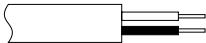
Bleu vers N (Neutre) ou Noir ; Marron vers L (Phase) ou Rouge
Si ces couleurs ne correspondent pas aux identifications des bornes de votre fiche, connectez comme suit :
Fil bleu à la borne marquée N (Neutre) ou colorée en noir.
Fil marron sur la borne repérée L (Live) ou de couleur rouge.
En cas de doute, consultez un électricien qualifié.
AVERTISSEMENT :
POUR ÉVITER TOUT RISQUE D'INCENDIE OU DE CHOC ÉLECTRIQUE, N'EXPOSEZ PAS CET APPAREIL À LA PLUIE OU À L'HUMIDITÉ.
PRÉCAUTIONS :
- Pour éviter tout choc électrique, n'ouvrez pas le boîtier. Aucune pièce réparable par l'utilisateur à l'intérieur. Confiez toute réparation à un personnel qualifié.
- Lorsque vous n'utilisez pas l'adaptateur secteur/chargeur pendant une longue période, il est recommandé de débrancher le cordon d'alimentation de la prise secteur.
REMARQUES :
- La plaque signalétique (plaque du numéro de série) et les consignes de sécurité se trouvent en dessous et/ou à l'arrière de l'unité principale.
- La plaque signalétique (plaque du numéro de série) de l'adaptateur secteur/chargeur se trouve en dessous.
- La plaque signalétique (plaque du numéro de série) de la station d'accueil se trouve en dessous.
Ce caméscope est conçu pour être utilisé avec des signaux de télévision couleur de type PAL. Il ne peut pas être utilisé pour la lecture avec un téléviseur d'une norme différente. Cependant, l'enregistrement en direct et la lecture sur l'écran LCD/le viseur sont possibles partout. Utilisez les batteries BN-V507U/V514U et, pour les recharger, l'adaptateur secteur/chargeur multi-tension fourni. (Un adaptateur de conversion approprié peut être nécessaire pour s'adapter aux différentes conceptions de prises secteur dans différents pays.)
Lorsque l'équipement est installé dans une armoire ou sur une étagère, assurez-vous qu'il dispose d'un espace suffisant sur tous les côtés pour permettre la ventilation (10 cm ou plus sur les deux côtés, en haut et à l'arrière).
Ne bloquez pas les trous de ventilation.
(Si les trous de ventilation sont bloqués par un journal, un tissu, etc., la chaleur peut ne pas pouvoir s'échapper.)
Aucune source de flamme nue, telle que des bougies allumées, ne doit être placée sur l'appareil.
Lors de la mise au rebut des batteries, il faut tenir compte des problèmes environnementaux et respecter strictement les règles ou lois locales régissant l'élimination de ces batteries.
L'appareil ne doit pas être exposé à des égouttements ou des éclaboussures.
N'utilisez pas cet équipement dans une salle de bain ou dans des endroits où il y a de l'eau.
Ne placez pas non plus de récipients remplis d'eau ou de liquides (tels que cosmétiques, médicaments, vases à fleurs, plantes en pot, tasses, etc.) sur cet appareil.
Si de l'eau ou un liquide pénètre dans cet équipement, cela peut provoquer un incendie ou un choc électrique.
Ne dirigez pas l'objectif ou le viseur directement vers le soleil. Cela peut provoquer des lésions oculaires, ainsi que des dysfonctionnements des circuits internes. Il y a également un risque d'incendie ou de choc électrique.
ATTENTION !
Les notes suivantes concernent d'éventuels dommages physiques au caméscope et à l'utilisateur.
Lors du transport, assurez-vous de toujours fixer et utiliser la bandoulière fournie. Porter ou tenir le caméscope par le viseur et/ou l'écran LCD peut entraîner la chute de l'appareil ou un dysfonctionnement.
Faites attention à ne pas vous coincer le doigt dans le couvercle du logement de la cassette. Ne laissez pas les enfants utiliser le caméscope, car ils sont particulièrement sujets à ce type de blessure.
N'utilisez pas de trépied sur des surfaces instables ou inégales. Il pourrait basculer, causant des dommages graves au caméscope.
ATTENTION !
Il n'est pas recommandé de fixer le caméscope à la station d'accueil avec des câbles (audio/vidéo, S-Vidéo, montage, DC, etc.) connectés, puis de le laisser sur le téléviseur, car trébucher sur les câbles fera tomber le caméscope, entraînant des dommages.
Mini

PAL
Ce caméscope est conçu exclusivement pour les cassettes vidéo numériques et les cartes MultiMediaCard. Seules les cassettes portant la mention "MultiMediaCard" et les cartes mémoire portant la mention "MultiMediaCard" peuvent être utilisées avec cet appareil.
Avant d'enregistrer une scène importante . . .
...... assurez-vous de n'utiliser que des cassettes portant la marque Mini DV MiND ...... assurez-vous de n'utiliser que des cartes mémoire portant la marque MultiMediaCard. .... rappelez-vous que ce caméscope n'est pas compatible avec d'autres formats vidéo numériques. ..... rappelez-vous que ce caméscope est destiné uniquement à un usage privé. Toute utilisation commerciale sans autorisation appropriée est interdite. (Même si vous enregistrez un événement tel qu'un spectacle, une représentation ou une exposition pour votre plaisir personnel, il est fortement recommandé d'obtenir une autorisation au préalable.)
QUELQUES CONSEILS POUR UNE UTILISATION SÛRE DE L'ÉQUIPEMENT
Cet équipement a été conçu et fabriqué pour répondre aux normes de sécurité internationales, mais comme tout équipement électrique, des précautions doivent être prises pour obtenir les meilleurs résultats et assurer la sécurité.
À FAIRE : Lisez le mode d'emploi avant d'utiliser l'équipement.
À FAIRE : Assurez-vous que toutes les connexions électriques (y compris la prise secteur, les rallonges et les interconnexions entre les appareils) sont correctement effectuées et conformes aux instructions du fabricant. Éteignez et débranchez la prise secteur lors de l'établissement ou de la modification des connexions.
À FAIRE : Consultez votre revendeur en cas de doute sur l'installation, le fonctionnement ou la sécurité de votre équipement.
À FAIRE : Soyez prudent avec les panneaux ou portes en verre de l'équipement.
À NE PAS FAIRE : Continuez à utiliser l'équipement si vous avez un doute sur son fonctionnement normal, ou s'il est endommagé de quelque manière que ce soit — éteignez-le, débranchez la prise secteur et consultez votre revendeur.
À NE PAS FAIRE : Retirez un capot fixe car cela peut exposer à des tensions dangereuses.
À NE PAS FAIRE : Laissez l'équipement allumé sans surveillance, sauf s'il est spécifiquement indiqué qu'il est conçu pour un fonctionnement sans surveillance ou qu'il dispose d'un mode veille. Éteignez-le à l'aide de l'interrupteur de l'équipement et assurez-vous que votre famille sait comment le faire. Des dispositions spéciales peuvent être nécessaires pour les personnes infirmes ou handicapées.
À NE PAS FAIRE : Utilisez un équipement tel que des baladeurs ou des radios de manière à vous distraire des exigences de sécurité routière. Il est illégal de regarder la télévision en conduisant.
N'écoutez pas de casque à volume élevé, car une telle utilisation peut endommager définitivement votre audition.
N'obstruez pas la ventilation de l'équipement, par exemple avec des rideaux ou des tissus d'ameublement. La surchauffe causera des dommages et réduira la durée de vie de l'équipement.
N'utilisez pas de supports de fortune et ne fixez JAMAIS les pieds avec des vis à bois — pour garantir une sécurité totale, installez toujours le support ou les pieds approuvés par le fabricant avec les fixations fournies conformément aux instructions.
N'exposez pas l'équipement électrique à la pluie ou à l'humidité.
SURTOUT
NE laissez JAMAIS personne, en particulier les enfants, insérer quoi que ce soit dans les trous, fentes ou toute autre ouverture du boîtier - cela pourrait entraîner un choc électrique mortel ; ne devinez JAMAIS et ne prenez pas de risques avec un équipement électrique de quelque nature que ce soit - il vaut mieux être prudent que désolé !
- Station d'accueil CU-V502E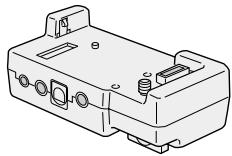
- Adaptateur secteur/chargeur AA-V51EG ou AA-V51EK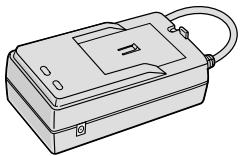
Batterie BN-V507U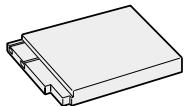
Télécommande RM-V716U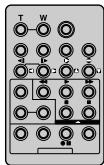
- Cordon CC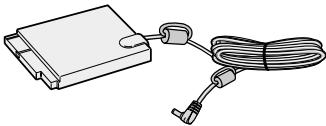
- Pile AAA (R03) x 2 (pour la télécommande)
- Filtre en ferrite x 2 (pour câble S-Vidéo en option et câble Audio/Vidéo (fiche RCA - fiche RCA))
- Carte MultiMedia (8 Mo) (déjà insérée dans le caméscope)

CD-ROM
Le CD-ROM contient les 11 logiciels suivants :
MultiMediaNavigator - JLIP Video Capture - JLIP Video Producer - Picture Navigator (pour Windows®) - Picture Navigator (pour Macintosh®) - CardNavigator Video Player JVC Video Decoder
- Adaptateur de câble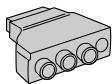
- Chiffon de nettoyage
Câble audio/vidéo (mini-prise Ø3,5 vers prise RCA)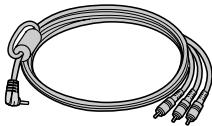
- Câble de montage (une fiche possède 3 anneaux autour de la broche, l'autre en possède 1.)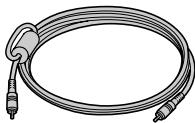
- Câble JLIP (les deux fiches possèdent 3 anneaux autour de la broche.)
Câble de connexion PC
Comment fixer les filtres anti-interférences
Fixez les filtres anti-interférences fournis sur un câble S-Vidéo ou un câble audio/vidéo (prise RCA - prise RCA) en option. Les filtres anti-interférences réduisent les interférences.
1 Butée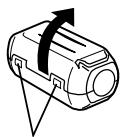
Déverrouillez les butées aux deux extrémités du filtre anti-interférences.
2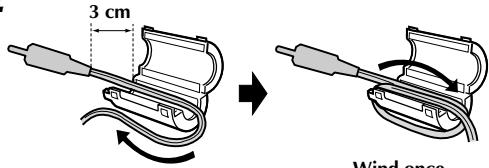
Faites passer le câble à travers le filtre anti-interférences, en laissant environ 3 cm de câble entre la fiche du câble et le filtre. Enroulez le câble autour de l'extérieur du filtre comme indiqué sur l'illustration.
- Enroulez le câble de manière à ce qu'il ne soit pas lâche.
REMARQUE :
Veillez à ne pas endommager le câble.
3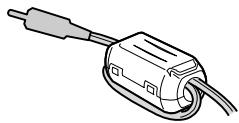
Fermez le filtre anti-parasites jusqu'à ce qu'il s'enclenche.
- Lors du branchement des câbles, fixez l'extrémité avec le filtre anti-parasites au caméscope.
DÉMONSTRATION AUTOMATIQUE
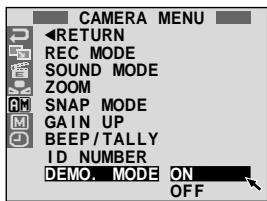
La démonstration automatique a lieu lorsque « MODE DÉMO » est réglé sur « ON » (réglage d'usine).
Disponible lorsque l'interrupteur d'alimentation est réglé sur « CAMERA » et qu'aucune cassette n'est insérée dans le caméscope. Toute opération effectuée pendant la démonstration interrompt temporairement celle-ci. Si aucune opération n'est effectuée pendant plus d'une minute après cela, la démonstration reprend. - « MODE DÉMO » reste sur « ON » même si le caméscope est éteint. - Pour annuler la démonstration automatique, réglez l'interrupteur de fonctionnement sur « M » et l'interrupteur d'alimentation sur « CAMERA » tout en maintenant enfoncé le bouton de verrouillage situé sur l'interrupteur, puis appuyez deux fois sur la molette MENU pendant que la démonstration est en cours. Cela vous amène directement au menu de réglage du mode démo (vous n'aurez donc pas à passer par l'écran de menu). Tournez la molette MENU pour sélectionner « OFF » et appuyez dessus. L'écran normal apparaît.
Molette MENU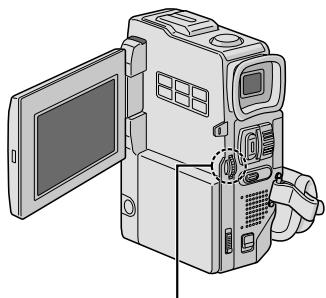
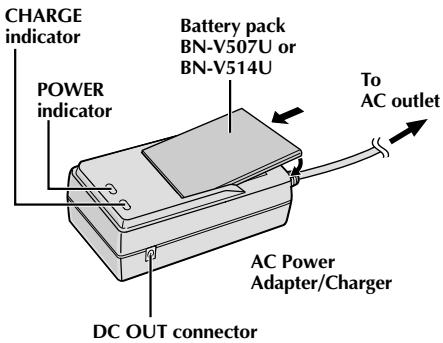
| Battery pack | Charging time |
| BN-V507U | approx. 1 hr. 30 min. |
| BN-V514U (optional) | approx. 3 hrs. |
Alimentation
Le système d'alimentation à double source de ce caméscope vous permet de choisir la source d'alimentation la plus appropriée. N'utilisez pas les adaptateurs secteur fournis avec d'autres équipements.
CHARGE DE LA BATTERIE
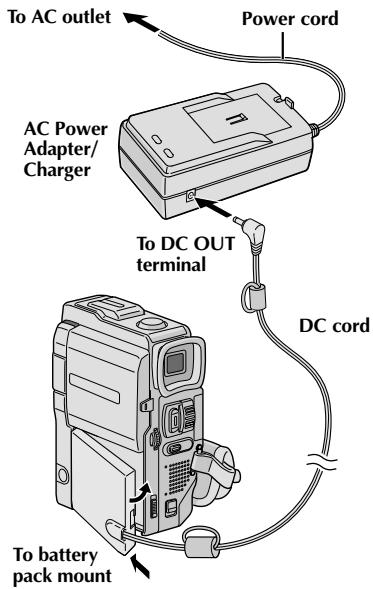
1 Assurez-vous de débrancher le cordon CC du caméscope de l'adaptateur secteur/chargeur. Branchez le cordon d'alimentation de l'adaptateur secteur/chargeur sur une prise secteur. Le témoin d'alimentation s'allume. 2 Fixez la batterie en alignant le repère avec les repères correspondants sur l'adaptateur secteur/chargeur. Le témoin de charge commence à clignoter pour indiquer que la charge a commencé. 3 Lorsque le témoin de charge cesse de clignoter mais reste allumé, la charge est terminée. Retirez la batterie. N'oubliez pas de débrancher le cordon d'alimentation de l'adaptateur secteur/chargeur de la prise secteur.
REMARQUES :
- Effectuez la charge à une température comprise entre 10 °C et 35 °C. La plage de température idéale pour la charge est de 20 °C à 25 °C. Si l'environnement est trop froid, la charge peut être incomplète.
- Les durées de charge indiquées ci-dessus concernent un bloc-piles complètement déchargé.
- La durée de charge varie en fonction de la température ambiante et de l'état du bloc-piles.
- Pour éviter les interférences avec la réception, n'utilisez pas l'adaptateur secteur/chargeur près d'un poste de radio.
- Si vous connectez le cordon CC du caméscope à l'adaptateur pendant la charge de la batterie, l'alimentation est fournie au caméscope et la charge s'arrête.
- Étant donné que l'adaptateur secteur/chargeur traite l'électricité en interne, il devient chaud pendant l'utilisation. Assurez-vous de l'utiliser uniquement dans des endroits bien ventilés.
- Lors de la première charge du bloc-piles ou après une longue période de stockage, le témoin CHARGE peut ne pas s'allumer. Dans ce cas, retirez le bloc-piles de l'adaptateur secteur/chargeur, puis réessayez de charger.
- Si la durée de fonctionnement de la batterie reste extrêmement courte même après une charge complète, la batterie est usée et doit être remplacée. Veuillez en acheter une nouvelle.
Le lithium-ion est vulnérable aux températures plus froides.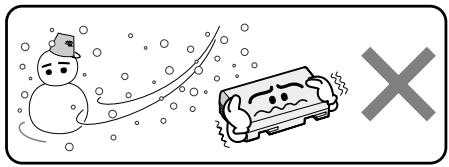
À propos des batteries
DANGER ! Ne tentez pas de démonter les batteries, ni de les exposer à une flamme ou à une chaleur excessive, car cela pourrait provoquer un incendie ou une explosion.
AVERTISSEMENT ! Ne laissez pas la batterie ou ses bornes entrer en contact avec des métaux, car cela peut entraîner un court-circuit et éventuellement déclencher un incendie.
Les avantages des batteries lithium-ion
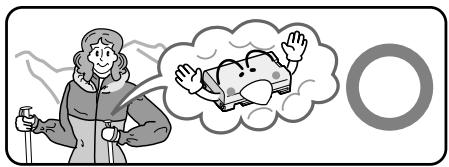
Les blocs-piles lithium-ion sont petits mais ont une grande capacité de puissance. Cependant, lorsqu'ils sont exposés à des températures froides (en dessous de 10 °C), leur durée d'utilisation devient plus courte et ils peuvent cesser de fonctionner. Si cela se produit, placez le bloc-piles dans votre poche ou dans un autre endroit chaud et protégé pendant un court moment, puis réinstallez-le sur le caméscope. Tant que le bloc-piles lui-même n'est pas froid, cela ne devrait pas affecter les performances.
(Si vous utilisez une bouillotte, assurez-vous que le bloc-piles n'entre pas en contact direct avec elle.)
ATTENTION :
Avant de débrancher la source d'alimentation, assurez-vous que le caméscope est éteint. Sinon, cela peut entraîner un dysfonctionnement du caméscope.
Le VU-V856KIT est un ensemble composé de la batterie BN-V856U et du chargeur/adaptateur secteur AA-V80EG ou AA-V80EK. Lisez les manuels d'instructions du VU-V856KIT avant utilisation.
Il est impossible de charger la batterie BN-V856U avec le chargeur/adaptateur secteur fourni. Utilisez le chargeur/adaptateur secteur AA-V80EG ou AA-V80EK en option.
UTILISATION DE LA BATTERIE
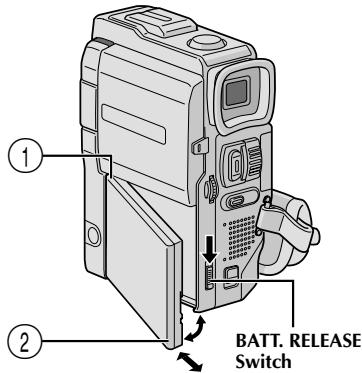
1 Insérez l'extrémité du connecteur ① de la batterie dans le logement de la batterie, puis poussez fermement l'extrémité ② de la batterie dans le sens de la flèche jusqu'à ce qu'elle s'enclenche, comme illustré.
- Si la batterie est fixée dans une mauvaise position, un dysfonctionnement peut se produire.
Pour retirer la batterie...
... tout en faisant glisser BATT. RELEASE vers le bas, détachez-la.
Durée d'enregistrement approximative
| Battery pack | LCD monitor on/ Viewfinder off | LCD monitor off/ Viewfinder on |
| ① | ② | ① | ② |
| BN-V507U | 45 min. | 50 min. | 55 min. | 1 hr. |
| BN-V514U (optional) | 1 hr. 35 min. | 1 hr. 45 min. | 1 hr. 55 min. | 2 hrs. 5 min. |
| BN-V856U (optional) | 6 hrs. 40 min. | 7 hrs. | 8 hrs. | 8 hrs. 30 min. |
① Lors de l'utilisation du GR-DVX10 ② Lors de l'utilisation du GR-DVX9
REMARQUES :
- La durée d'enregistrement est considérablement réduite dans les conditions suivantes :
- Le mode zoom ou veille d'enregistrement est activé à plusieurs reprises.
- L'écran LCD est utilisé à plusieurs reprises.
- Le mode lecture est engagé de manière répétée.
- Avant une utilisation prolongée, il est recommandé de préparer suffisamment de batteries pour couvrir 3 fois la durée de prise de vue prévue.
UTILISATION DE L'ALIMENTATION SECTEUR
Utilisez l'adaptateur secteur/chargeur (connectez-le comme indiqué sur l'illustration).
REMARQUES :
L'adaptateur secteur/chargeur fourni est doté d'une sélection automatique de tension dans la plage de 110 V à 240 V. Pour d'autres remarques, voir p. 6.
Réglage de la poignée

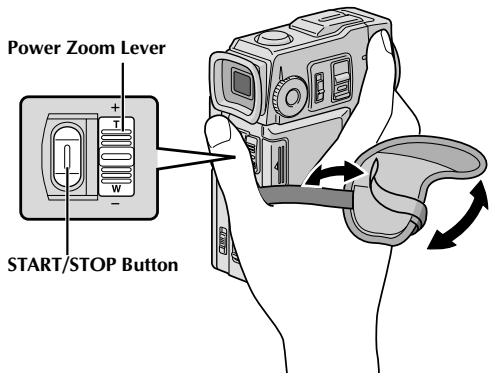
Séparez la bande Velcro.

Passez votre main droite dans la boucle et saisissez la poignée.

Ajustez de sorte que votre pouce et vos doigts puissent facilement actionner le bouton START/STOP et la commande de zoom motorisé. Refermez la bande Velcro.
Réglage du viseur

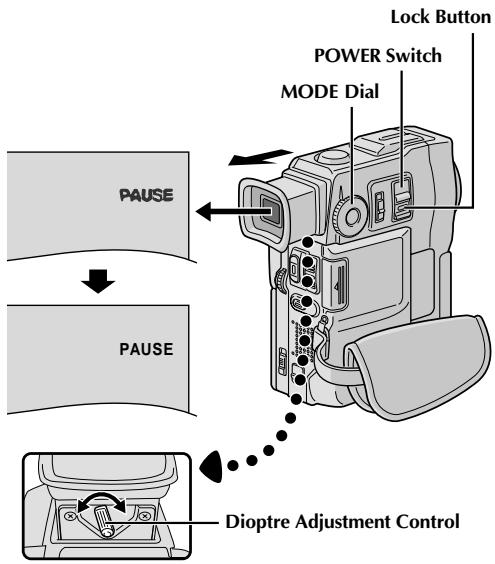
Mettez l'interrupteur POWER sur "CAMERA" tout en appuyant sur le bouton de verrouillage situé sur l'interrupteur et réglez la molette MODE sur n'importe quelle position.

Tirez complètement le viseur.

Tournez la commande de correction dioptrique jusqu'à ce que les indications dans le viseur soient nettement mises au point.
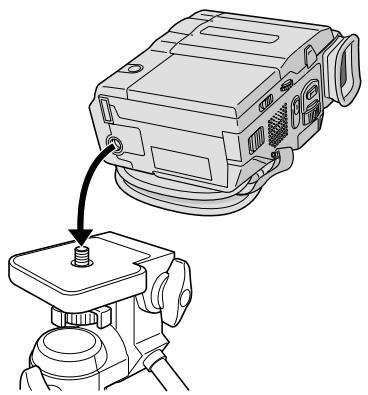
Montage sur trépied

Alignez la vis du trépied avec la prise de montage de la caméra. Puis serrez la vis.
ATTENTION :
Lors de l'utilisation d'un trépied, assurez-vous d'ouvrir et de déployer complètement ses pieds pour stabiliser le caméscope. Pour éviter tout dommage à l'appareil dû à une chute, n'utilisez pas un trépied de petite taille.

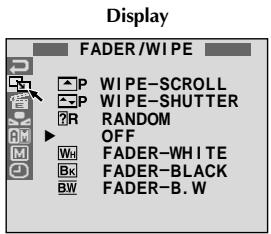
MENU AFFICHAGE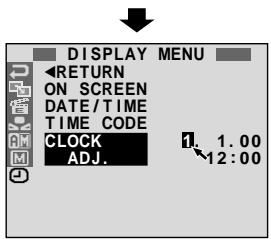
Réglages Date/Heure
La date et l'heure sont enregistrées sur la cassette en permanence, mais leur affichage peut être activé ou désactivé pendant la lecture (p. 41).
1. Réglez le commutateur de fonctionnement sur "M" et le commutateur d'alimentation sur "CAMERA" tout en appuyant sur le bouton de verrouillage situé sur le commutateur, puis ouvrez complètement l'écran LCD ou sortez complètement le viseur. Le témoin d'alimentation s'allume et le caméscope est mis sous tension. Appuyez sur la molette MENU. L'écran de menu apparaît. 3. Tournez la molette MENU pour sélectionner "O". Appuyez dessus et "MENU AFFICHAGE" apparaît. 4. Tournez la molette MENU pour sélectionner "RÉGL. HORLOGE". Appuyez dessus et "jour" est surligné. Tournez la molette MENU pour saisir le jour. Appuyez dessus. Répétez pour saisir le mois, l'année, l'heure et les minutes. Tournez la molette MENU pour sélectionner "RETOUR", puis appuyez deux fois. L'écran de menu se ferme.
Batterie au lithium rechargeable de l'horloge interne
Pour stocker la date/l'heure en mémoire, la batterie au lithium rechargeable de l'horloge est intégrée au caméscope. Lorsque le caméscope est connecté à une prise secteur à l'aide de l'adaptateur secteur/chargeur, ou lorsque la batterie fixée au caméscope continue de fournir de l'énergie, la batterie au lithium rechargeable de l'horloge est toujours chargée. Cependant, si le caméscope n'est pas utilisé pendant environ 3 mois, la batterie au lithium de l'horloge se déchargera et la date/l'heure stockée en mémoire sera perdue. Lorsque cela se produit, connectez d'abord le caméscope à une prise secteur à l'aide de l'adaptateur secteur/chargeur pendant plus de 24 heures pour charger la batterie au lithium rechargeable de l'horloge. Ensuite, effectuez le réglage de la date/l'heure avant d'utiliser le caméscope. Notez que le caméscope peut être utilisé sans régler la date/l'heure.
REMARQUE :
Même si vous sélectionnez "RÉGL. HORLOGE", si le paramètre n'est pas surligné, l'horloge interne du caméscope continue de fonctionner. Une fois que vous déplacez la barre de surbrillance sur le premier paramètre de date/heure (jour), l'horloge s'arrête. Lorsque vous avez terminé de régler les minutes et que vous appuyez sur la molette MENU, la date et l'heure commencent à fonctionner à partir de la date et de l'heure que vous venez de régler.
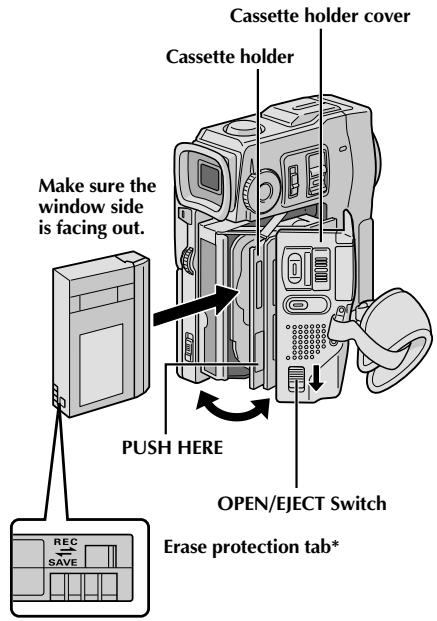
* Pour protéger les enregistrements précieux...
... faites glisser la languette de protection contre l'effacement à l'arrière de la cassette dans le sens "SAVE". Cela empêche la cassette d'être réenregistrée. Pour enregistrer sur cette cassette, faites glisser la languette vers "REC" avant de la charger.
Chargement/Déchargement d'une cassette
Le caméscope doit être sous tension pour charger ou éjecter une cassette.
1 Faites glisser vers le bas et maintenez enfoncé OPEN/EJECT dans le sens de la flèche, puis tirez le couvercle du logement de cassette jusqu'à ce qu'il se verrouille. Le logement de cassette s'ouvre automatiquement.
- Ne touchez pas aux composants internes.
2 Insérez ou retirez une cassette et appuyez sur "PUSH HERE" pour fermer le logement de cassette.
- Une fois le logement de cassette fermé, il s'enfonce automatiquement. Attendez qu'il soit complètement enfoncé avant de fermer le couvercle du logement de cassette.
- Lorsque la charge de la batterie est faible, il se peut que vous ne puissiez pas fermer le couvercle du logement de cassette. N'appliquez pas de force. Remplacez la batterie par une batterie complètement chargée avant de continuer.
3 Fermez fermement le couvercle du logement de cassette jusqu'à ce qu'il s'enclenche.
Durée d'enregistrement approximative
| Tape | Recording mode |
| SP | LP |
| 30 min. | 30 min. | 45 min. |
| 60 min. | 60 min. | 90 min. |
| 80 min. | 80 min. | 120 min. |
REMARQUES :
- Il faut quelques secondes pour que le logement de cassette s'ouvre. N'appliquez pas de force.
- Si après quelques secondes le logement de cassette ne s'ouvre pas, fermez le couvercle du logement de cassette et réessayez. Si le logement de cassette ne s'ouvre toujours pas, éteignez puis rallumez le caméscope.
- Si la cassette ne se charge pas correctement, ouvrez complètement le couvercle du logement de cassette et retirez la cassette. Quelques minutes plus tard, réinsérez-la.
- Lorsque le caméscope est soudainement déplacé d'un endroit froid à un environnement chaud, attendez un court instant avant d'ouvrir le couvercle du logement de cassette.
- Fermer le couvercle du logement de cassette avant que le logement de cassette ne sorte peut endommager le caméscope.
- Même lorsque le caméscope est éteint, une cassette peut être chargée ou déchargée. Cependant, après la fermeture du logement de cassette avec le caméscope éteint, il se peut qu'il ne s'enfonce pas. Il est recommandé d'allumer l'appareil avant de charger ou de décharger.
- Lors de la reprise de l'enregistrement, une fois que vous ouvrez le couvercle du logement de cassette, une partie vierge sera enregistrée sur la cassette ou une scène précédemment enregistrée sera effacée (enregistrée par-dessus), que le logement de cassette soit sorti ou non. Voir la page 21 pour des informations sur l'enregistrement à partir du milieu d'une cassette.
Réglage du mode d'enregistrement
Réglez le mode d'enregistrement sur bande selon vos préférences.
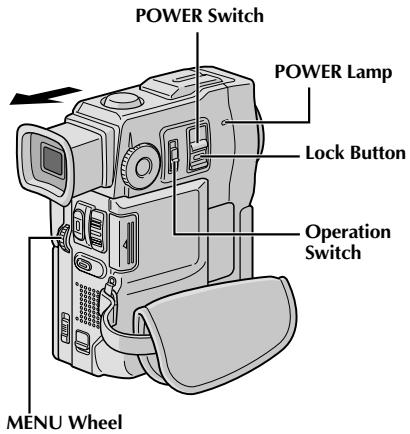
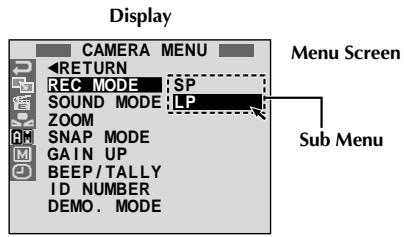
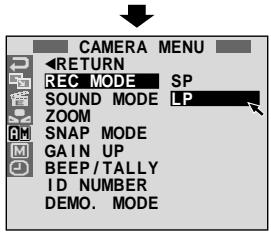
1. Réglez le commutateur de fonctionnement sur « M » et le commutateur POWER sur « CAMERA » tout en maintenant enfoncé le bouton de verrouillage situé sur le commutateur, puis ouvrez complètement l'écran LCD ou sortez complètement le viseur. Le témoin POWER s'allume et le caméscope est mis sous tension. Appuyez sur la molette MENU. L'écran de menu apparaît. 3. Tournez la molette MENU pour sélectionner « A » et appuyez dessus. « CAMERA MENU » apparaît. 4. Tournez la molette MENU pour sélectionner « REC MODE » et appuyez dessus. Le sous-menu apparaît. Sélectionnez « SP » ou « LP » en tournant la molette MENU et appuyez dessus. Tournez la molette MENU pour sélectionner « RETURN », puis appuyez deux fois. L'écran de menu se ferme.
- L'incrustation audio (p. 76) est impossible sur une bande enregistrée en mode LP.
- Le mode « LP » (Longue durée) est plus économique, offrant 1,5 fois la durée d'enregistrement.
REMARQUES :
- Si le mode d'enregistrement est commuté pendant l'enregistrement, l'image de lecture sera floue au point de commutation. Il est recommandé de lire sur ce caméscope les bandes enregistrées en mode LP avec ce caméscope.
- Lors de la lecture d'une bande enregistrée sur un autre caméscope, des blocs de bruit peuvent apparaître ou il peut y avoir des pauses momentanées dans le son.
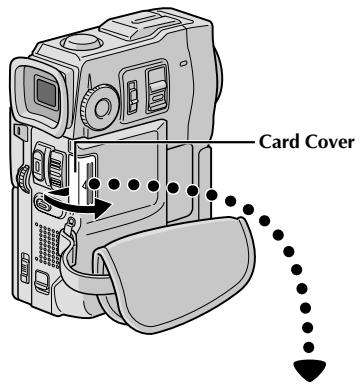
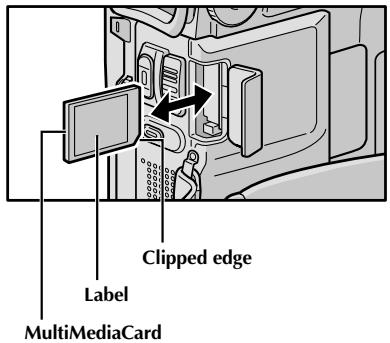
La carte MultiMediaCard fournie est déjà insérée dans le caméscope à la réception.
1. Assurez-vous que le caméscope est hors tension. Ouvrez le couvercle du logement de carte. 2. Insérez la carte MultiMediaCard bord coupé en premier.
- Ne touchez pas la borne au dos de l'étiquette.
Pour fermer le couvercle du logement de carte, poussez-le jusqu'à ce que vous entendiez un clic.
REMARQUES :
- Assurez-vous d'utiliser uniquement des cartes MultiMediaCard portant la mention « MultiMediaCard ».
- Certaines marques de cartes MultiMedia ne sont pas compatibles avec ce caméscope. Avant d'acheter une carte MultiMedia, consultez son fabricant ou son revendeur.
... à l'étape 3, poussez la carte MultiMedia, qui sort alors automatiquement du caméscope. Tirez-la et fermez le couvercle du logement de la carte.
ATTENTION :
N'insérez pas/ne retirez pas la carte MultiMedia lorsque le caméscope est allumé, car cela pourrait corrompre la carte MultiMedia ou empêcher le caméscope de reconnaître si la carte est installée ou non.
Réglage du mode de qualité/taille d'image
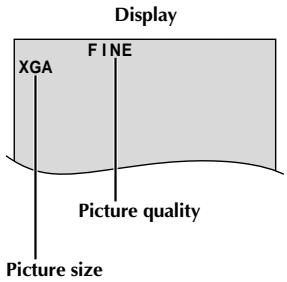
La qualité et la taille de l'image peuvent être sélectionnées pour correspondre au mieux à vos besoins. Quatre modes différents sont disponibles : XGA (1024 x 768 pixels) FINE, XGA STD, VGA (640 x 480 pixels) FINE et VGA STD, classés par ordre de qualité.
1
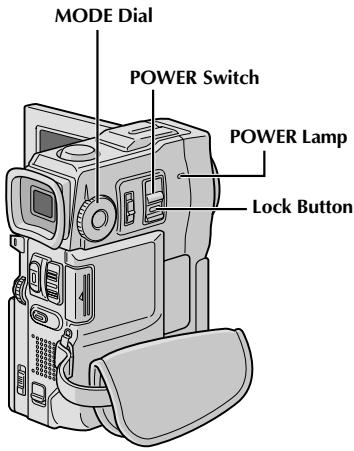
Réglez l'interrupteur POWER sur "CAMERA" tout en appuyant sur le bouton de verrouillage situé sur l'interrupteur, puis réglez la molette MODE sur "DSC", puis ouvrez complètement l'écran LCD. Le témoin POWER s'allume et le caméscope est allumé.
2
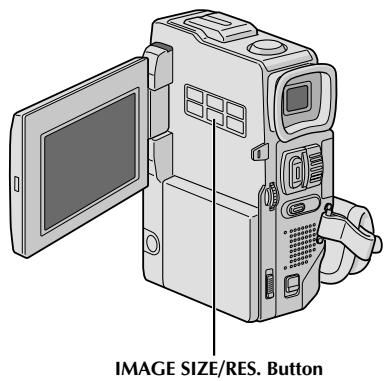
Appuyez sur IMAGE SIZE/RES. jusqu'à ce que le mode souhaité apparaisse.
Nombre approximatif d'images stockables
| Picture Quality/Size Mode | MultiMediaCard |
| 4 MB (optional) | 8 MB (provided, with Sound Effects pre-stored) | 8 MB (optional) |
| XGA FINE | 12 | 21 | 24 |
| XGA STD | 36 | 64 | 75 |
| VGA FINE | 26 | 46 | 54 |
| VGA STD | 76 | 133 | 155 |
REMARQUES :
- Le nombre d'images stockables dépend du mode de qualité/taille d'image sélectionné ainsi que de la composition des sujets dans les images.
- Lorsque la molette MODE est réglée sur "DUAL", seule la qualité d'image peut être réglée.
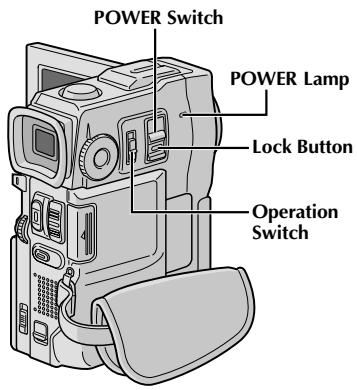
Pour allumer le caméscope, réglez le commutateur POWER sur un mode de fonctionnement autre que « OFF » tout en maintenant enfoncé le bouton de verrouillage situé sur le commutateur.
Lorsque le commutateur POWER est réglé sur « MEMORY », le type de fichier (IMAGE, E-MAIL CLIP ou SOUND) est affiché. Lorsqu'il est réglé sur « CAMERA » ou « PLAY/PC », aucune indication n'est affichée.

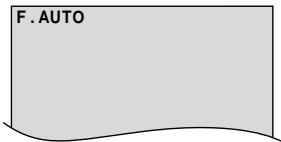
Lorsque le commutateur de fonctionnement est réglé sur « A », « F. AUTO » apparaît. Lorsqu'il est réglé sur « M », aucune indication n'est affichée.
Mode de fonctionnement
Choisissez le mode de fonctionnement approprié selon vos préférences à l'aide du commutateur POWER, du commutateur de fonctionnement et de la molette MODE.
| POWER Switch Position |
| CAMERA:
Allows you to record on a tape or in the MultiMediaCard. |
| OFF:
Allows you to switch off the camcorder. |
| PLAY/PC:
Allows you to play back a recording on the tape or to transfer a still image recorded on the tape or in the MultiMediaCard to a computer. |
| MEMORY:
Allows you to display an image stored in the MultiMediaCard. |
| Operation Switch Position |
| M (Manual):
Allows you to set various recording functions using the Menus. If you want more creative capabilities than Full Auto recording, try this mode. |
| A (Full Auto):
Allows you to record using NO special effects or manual adjustments. Suitable for standard recording. |
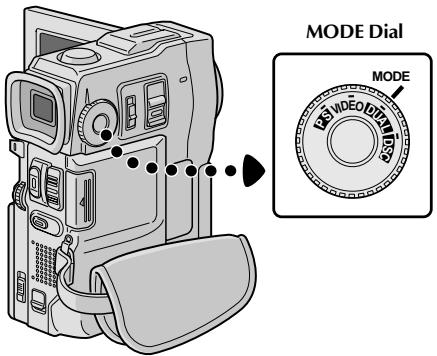
Les indications suivantes apparaissent dans le coin supérieur gauche, selon la position de la molette MODE.
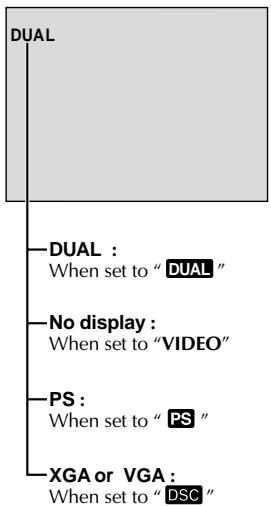
| MODE Dial Position | Function |
| DUAL | • Allows you to record video on a tape and store still images in a MultiMediaCard simultaneously (║ pg. 24).
• File size of still images: 640 x 480 pixels
• Video quality is the same as in the VIDEO mode. |
| VIDEO | • Allows you to record video and still images on a tape. Approx. 6 seconds of a still image is inserted between video recordings (║ pg. 18).
• Zoom magnification over 10X is available (║ pg. 20, 27). |
| PS (Progressive mode) | • Allows you to record moving images (successive jitter-free still images) with superior quality on a tape (║ pg. 22). The still images can also be processed on a PC or printed out.
• Zoom magnification over 10X is available (║ pg. 20, 27).
•Playback of images recorded in this mode is not smooth. |
| DSC | • Allows you to record still images in a MultiMediaCard (║ pg. 13, 19).
• File size: 1024 x 768 pixels (XGA), 640 x 480 pixels (VGA) |
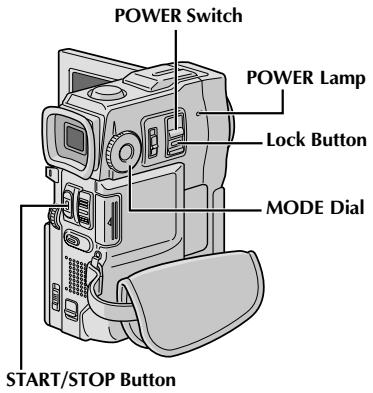
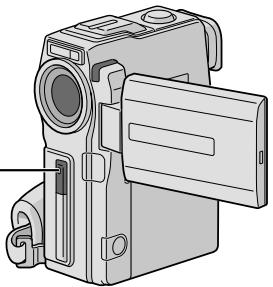
Voyant témoin (s'allume pendant l'enregistrement)
REMARQUE :
Vous devez déjà avoir effectué les procédures énumérées ci-dessous. Si ce n'est pas le cas, faites-le avant de continuer.
Alimentation (13 p. 6) - Réglage de la poignée (F p. 8) - Réglage du viseur (13 p. 8) - Chargement d'une cassette (15 p. 10) - Réglage du mode d'enregistrement (p. 11)
1 Réglez la molette MODE sur « VIDEO » et réglez le commutateur POWER sur « CAMERA » tout en maintenant enfoncé le bouton de verrouillage situé sur le commutateur.
Prise de vue avec le viseur : assurez-vous que l'écran LCD est fermé et verrouillé. Sortez complètement le viseur.
- Veillez à sortir le viseur jusqu'à ce que vous entendiez un clic, sinon il risque d'être repoussé pendant l'utilisation.
Prise de vue avec l'écran LCD : assurez-vous que le viseur est repoussé. Ouvrez complètement l'écran LCD.
- Le voyant POWER s'allume et le caméscope passe en mode veille d'enregistrement. « PAUSE » est affiché.
Appuyez sur START/STOP. « REC » s'affiche pendant l'enregistrement.
Pour arrêter l'enregistrement...
... appuyez sur START/STOP. Le caméscope revient en mode veille d'enregistrement.
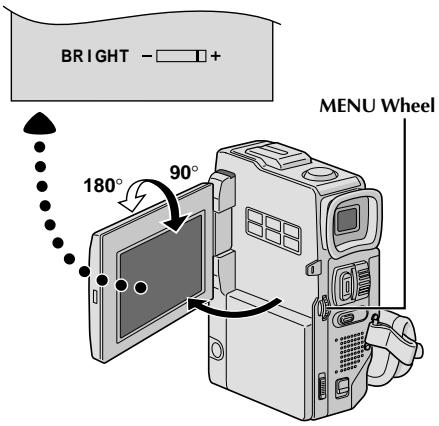
Pour régler la luminosité de l'écran...
... tournez la molette MENU jusqu'à ce que l'indicateur de luminosité sur l'écran se déplace et que la luminosité appropriée soit atteinte.
- Il est également possible de régler la luminosité du viseur.
REMARQUES :
- Lorsque vous utilisez l'écran LCD en extérieur en plein soleil, l'écran LCD peut être difficile à voir. Si cela se produit, utilisez le viseur à la place.
- L'image n'apparaîtra pas simultanément dans l'écran LCD et le viseur.
- Le logement de cassette ne peut pas être ouvert à moins qu'une source d'alimentation ne soit connectée.
- Il peut y avoir un délai après l'ouverture du couvercle du logement de cassette avant que le logement de cassette ne s'ouvre. N'utilisez pas la force.
- Une fois le logement de cassette fermé, il recule automatiquement. Attendez qu'il recule complètement avant de fermer le couvercle du logement de cassette.
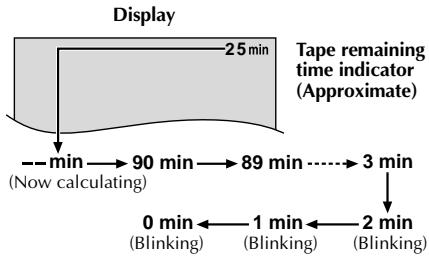
- Le temps nécessaire pour calculer et afficher la longueur de bande restante, ainsi que la précision du calcul, peuvent varier selon le type de bande utilisé.
- « FIN DE BANDE » apparaît lorsque la bande atteint sa fin, et l'alimentation se coupe automatiquement si cette condition persiste pendant 5 minutes. « FIN DE BANDE » apparaît également lorsqu'une cassette en fin de bande est chargée.
- Si le mode veille d'enregistrement se poursuit pendant 5 minutes, l'alimentation du caméscope se coupe automatiquement. Pour rallumer le caméscope, repoussez et retirez le viseur ou fermez et rouvrez l'écran LCD.
- Lorsqu'une portion vierge est laissée entre les scènes enregistrées sur la bande, le code temporel est interrompu et des erreurs peuvent survenir lors du montage de la bande. Pour éviter cela, reportez-vous à "Enregistrement à partir du milieu d'une bande" (13 p. 21).
- Pendant l'enregistrement, le son n'est pas émis par le haut-parleur. Pour entendre le son, connectez un casque en option à la prise casque. Le volume sonore est au niveau auquel il a été réglé pendant la lecture (13 p. 40). Pour éteindre le voyant témoin pendant l'enregistrement, voir p. 26, 27. Pour supprimer les indications de l'écran du caméscope pendant l'enregistrement, voir p. 26, 29.
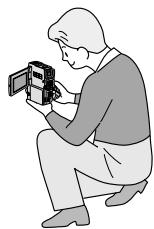
Auto-enregistrement
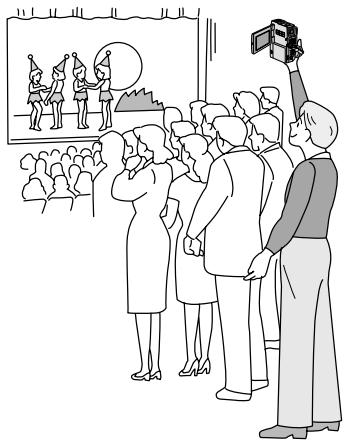
PRISE DE VUE JOURNALISTIQUE
Dans certaines situations, différents angles de prise de vue peuvent donner des résultats plus spectaculaires. Tenez le caméscope dans la position souhaitée et inclinez l'écran LCD dans la direction la plus pratique. Il peut pivoter de 270° (90° vers le bas, 180° vers le haut).
AUTO-ENREGISTREMENT
Vous pouvez vous filmer tout en visualisant votre propre image sur l'écran LCD. Ouvrez l'écran LCD et inclinez-le vers le haut de 180° pour qu'il soit face à vous, puis dirigez l'objectif vers vous et commencez l'enregistrement.
Molette MENU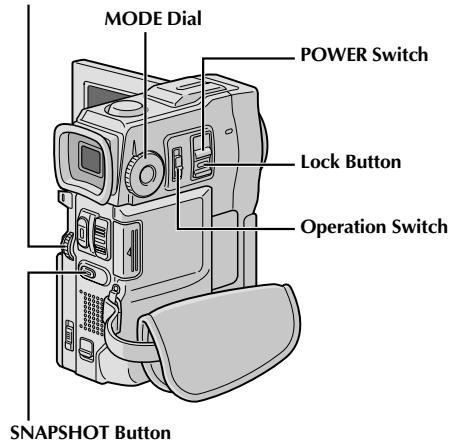
Afficher l'écran du menu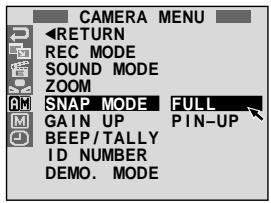
Mode instantané PLEIN CADRE sans cadre*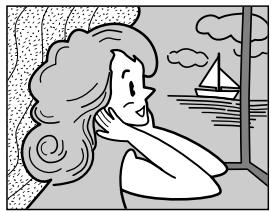
PIN-UP Mode Pin-Up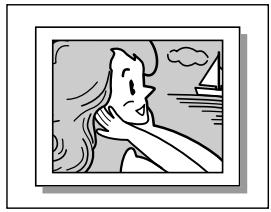
- Il y a un effet sonore de fermeture d'obturateur.
Lorsque la molette MODE est réglée sur "PS", l'enregistrement d'instantanés est effectué avec une qualité supérieure (43 p. 22).
Instantané (pour enregistrement vidéo)
Cette fonction vous permet d'enregistrer des images fixes qui ressemblent à des photographies sur une bande.
SÉLECTION DU MODE SNAPSHOT
1 Réglez l'interrupteur POWER sur "CAMERA" tout en maintenant enfoncé le bouton de verrouillage situé sur l'interrupteur, et la molette MODE sur "VIDEO" ou "PS", puis réglez l'interrupteur de fonctionnement sur "M". Sortez complètement le viseur ou ouvrez complètement l'écran LCD. Appuyez sur la molette MENU. L'écran de menu apparaît. 3 Tournez la molette MENU pour sélectionner "图". Appuyez dessus et "CAMERA MENU" apparaît. 4 Tournez la molette MENU pour sélectionner "SNAP MODE", puis appuyez dessus. 5 Tournez la molette MENU pour sélectionner le mode Snapshot souhaité, puis appuyez dessus. Tournez la molette MENU pour sélectionner "RETURN" et appuyez deux fois dessus. L'écran de menu se ferme.
ENREGISTREMENT SNAPSHOT
1 Appuyez sur SNAPSHOT.
Si vous appuyez pendant l'attente d'enregistrement...
... "PHOTO" apparaît et une image fixe sera enregistrée pendant environ 6 secondes, puis le caméscope revient en mode d'attente d'enregistrement.
Si vous appuyez pendant l'enregistrement...
... "PHOTO" apparaît et une image fixe sera enregistrée pendant environ 6 secondes, puis l'enregistrement normal reprend.
Pour utiliser le flash, voir p. 30.
Mode d'entraînement du moteur
Maintenir SNAPSHOT enfoncé produit un effet similaire à la photographie en série. (Intervalle entre les images fixes : environ 1 seconde)
REMARQUES :
Pour supprimer le son de l'obturateur, voir "BEEP/TALLY" à la p. 27. - Si l'enregistrement Snapshot n'est pas possible, "PHOTO" clignote lorsque SNAPSHOT est enfoncé. - Si le programme AE avec effets spéciaux (FF p. 36) est activé, certains modes du programme AE avec effets spéciaux sont désactivés pendant l'enregistrement Snapshot. Dans ce cas, l'icône clignote. - Si SNAPSHOT est enfoncé lorsque "DIS" est réglé sur "ON" (13 p. 28), le stabilisateur sera désactivé. - Pour dupliquer des images enregistrées sur une cassette vers une carte MultiMedia, voir p. 65. Pour réduire l'effet d'yeux rouges dans les yeux du sujet lorsque le flash se déclenche, voir p. 30. - Pendant la lecture également, tous les modes snapshot sont disponibles lorsque "OOP" est réglé sur "OFF" dans l'écran de menu (C) p. 41). - Lorsqu'un casque est connecté au connecteur casque, le son de l'obturateur n'est pas entendu depuis le haut-parleur, mais il est enregistré sur la cassette.
Molette MENU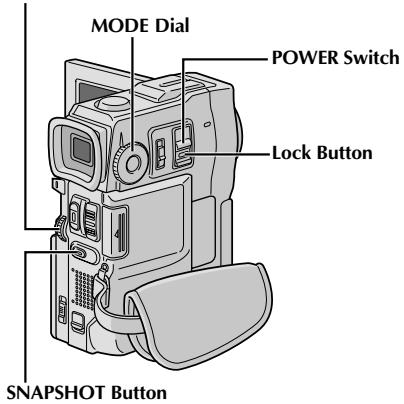
Nombre total de prises de vue
Affiche le nombre total approximatif de photos pouvant être stockées, y compris celles déjà prises. Le nombre augmente ou diminue en fonction des photos stockées, du mode Qualité/Taille d'image, de la molette MODE
réglage, etc.
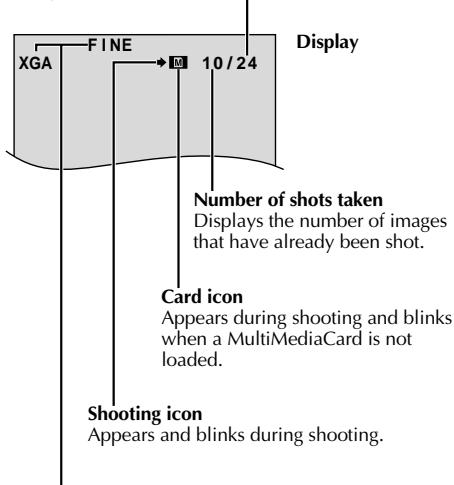
Mode Qualité/Taille d'image
Affiche le mode Qualité/Taille d'image de l'image stockée. Il existe 4 modes disponibles : XGA FINE, XGA STD, VGA FINE, VGA STD (par ordre de qualité) (p. 13).
Mode FULL Snapshot sans cadre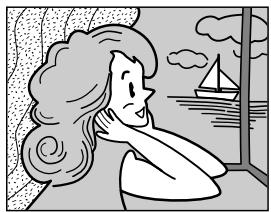
Il y a l'effet sonore de la fermeture de l'obturateur.
Prise de vue de base (Snapshot)
Vous pouvez utiliser votre caméscope comme appareil photo numérique pour prendre des photos.
REMARQUE :
Vous devez déjà avoir effectué les procédures listées ci-dessous. Si ce n'est pas le cas, faites-le avant de continuer.
Alimentation (p. 6) - Réglage de la poignée (15 p. 8) Réglage du viseur (p. 8) - Chargement d'une carte MultiMedia (https://p. 12) - Réglage du mode Qualité/Taille d'image (13 p. 13)
1 Réglez la molette MODE sur "DSC" et l'interrupteur POWER sur "CAMERA" tout en appuyant sur le bouton de verrouillage situé sur l'interrupteur. Ouvrez complètement l'écran LCD ou sortez complètement le viseur.
2 Appuyez à mi-course sur SNAPSHOT. L'écran devient une image fixe, qui est capturée dans la mémoire du caméscope. Cependant, elle n'est pas enregistrée tant que SNAPSHOT n'est pas enfoncé à fond.
- À ce moment, si vous relâchez SNAPSHOT, l'enregistrement de la photo sera annulé.
Appuyez à fond sur SNAPSHOT.
L'image est enregistrée dans la carte MultiMediaCard.
- Les images fixes sont enregistrées en mode instantané sans cadre. Pour utiliser le flash, voir page 30.
Pour supprimer des images fixes indésirables...
... lorsque des images fixes indésirables sont stockées dans la carte MultiMediaCard ou que sa mémoire est pleine, reportez-vous à "Suppression de fichiers" (page 49) et supprimez les images fixes indésirables.
Pour supprimer le son de l'obturateur...
... lorsque vous ne voulez pas entendre le son de l'obturateur, réglez BEEP/TALLY sur "OFF" sur l'écran de menu (pages 26, 27). Le son n'est plus émis par le haut-parleur.
REMARQUES :
- Même si "DIS" est réglé sur "ON" (page 28), le stabilisateur sera désactivé.
- Si l'enregistrement d'instantané n'est pas possible, "PHOTO" clignote lorsque SNAPSHOT est enfoncé.
- Si le programme AE avec effets spéciaux (page 36) est activé, certains modes de programme AE avec effets spéciaux sont désactivés pendant l'enregistrement d'instantané. Dans ce cas, l'icône clignote.
- Si la prise de vue n'est pas effectuée pendant environ 5 minutes lorsque l'interrupteur POWER est réglé sur "CAMERA" et que l'alimentation est fournie par la batterie, le caméscope s'éteint automatiquement pour économiser l'énergie. Pour reprendre la prise de vue, fermez l'écran LCD et rouvrez-le. Lorsque vous utilisez le viseur, repoussez-le et retirez-le à nouveau.
- Le mode d'entraînement moteur (page 18) est désactivé lorsque la molette MODE est réglée sur "DSS".
- Pour réduire l'effet d'yeux rouges dans les yeux du sujet lorsque le flash se déclenche, voir page 30.
- Lorsqu'un casque est connecté au connecteur casque, le son de l'obturateur n'est pas émis par le haut-parleur.
- Les images fixes prises sont conformes à la norme DCF (Design rule for Camera File systems). Elles ne sont pas compatibles avec les appareils non conformes à la norme DCF.
- En mode XGA, les images prises avec un capteur CCD à balayage progressif de 680 000 pixels (zone effective : 630 000 pixels, 962 × 654 pixels) sont converties et stockées dans la taille de fichier du mode XGA (1024 × 768 pixels).
FONCTION : Zoom
BUT :
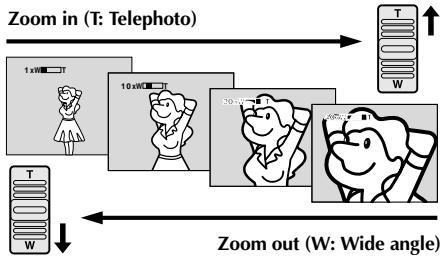
Pour produire l'effet de zoom avant/arrière, ou un changement instantané du grossissement de l'image.
OPÉRATION :
Zoom avant
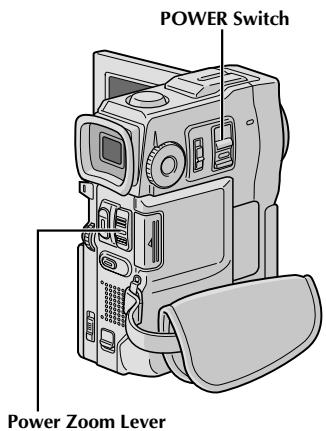
Faites glisser la commande de zoom motorisé vers « T ».
Zoom arrière
Faites glisser la commande de zoom motorisé vers « W ».
Plus vous faites glisser la commande de zoom motorisé, plus l'action de zoom est rapide.
REMARQUES :
- La mise au point peut devenir instable pendant le zoom. Dans ce cas, réglez le zoom en mode veille d'enregistrement, verrouillez la mise au point en utilisant la mise au point manuelle (Fig. 25), puis effectuez un zoom avant ou arrière en mode enregistrement.
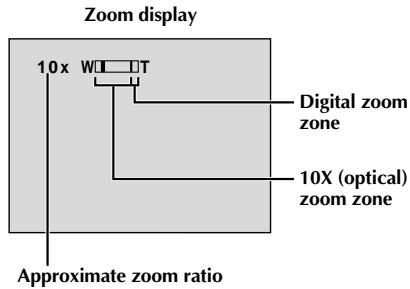
- Le zoom est possible jusqu'à un maximum de 200X, ou il peut être commuté à un grossissement de 10X en utilisant le zoom optique (F p. 27).
- Un grossissement de zoom supérieur à 10X est effectué par traitement d'image numérique, et est donc appelé zoom numérique.
- Pendant le zoom numérique, la qualité de l'image peut se dégrader.
- Le zoom numérique ne peut pas être utilisé dans les cas suivants :
- Lorsque le traitement d'image numérique, tel que Picture Wipe/Dissolve (p. 34, 35) ou Video Echo (p. 36), est activé.
- Lorsque la molette MODE est réglée sur « DUAL » ou « DSC ».
- La prise de vue en mode macro (à environ 5 cm du sujet) est possible lorsque le levier de zoom est poussé à fond sur « W ». Voir aussi « TELE MACRO » dans le menu à l'écran, page 28.
REMARQUE : Enregistrement à partir du milieu d'une cassette
Code temporel
Pendant l'enregistrement, un code temporel est enregistré sur la cassette. Ce code permet de confirmer l'emplacement de la scène enregistrée sur la cassette lors de la lecture.
Si l'enregistrement commence à partir d'une portion vierge, le code temporel commence à compter à partir de « 00:00:00 »
(minute:seconde:image). Si l'enregistrement commence à la fin d'une scène précédemment enregistrée, le code temporel continue à partir du dernier numéro de code temporel.
Pour effectuer un montage aléatoire (p. 70 - 75), le code temporel est nécessaire. Si pendant l'enregistrement une portion vierge est laissée au milieu de la cassette, le code temporel est interrompu. Lorsque l'enregistrement reprend, le code temporel recommence à compter à partir de « 00:00:00 ». Cela signifie que le caméscope peut enregistrer les mêmes codes temporels que ceux existant dans une scène précédemment enregistrée. Pour éviter cela, effectuez « Enregistrement à partir du milieu d'une cassette » ci-dessous dans les cas suivants ;
- Lorsque vous filmez à nouveau après avoir lu une cassette enregistrée.
- Lorsque l'alimentation est coupée pendant la prise de vue.
- Lorsqu'une cassette est retirée puis réinsérée pendant la prise de vue.
- Lors de la prise de vue avec une cassette partiellement enregistrée.
- Lors de la prise de vue sur une portion vierge située au milieu de la cassette.
- Lors de la prise de vue après avoir filmé une scène puis ouvert/fermé le couvercle du logement de la cassette.
Affichage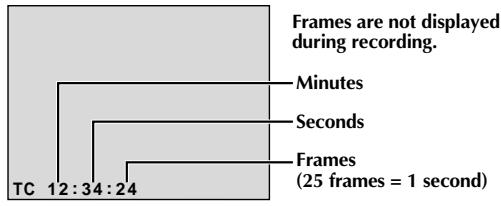
Enregistrement à partir du milieu d'une cassette
- Lisez une cassette ou utilisez la recherche de blanc (L3 p. 43) pour trouver l'endroit où vous souhaitez commencer l'enregistrement, puis activez le mode lecture sur image fixe (L3 p. 40).
- Réglez le commutateur POWER sur "CAMERA" tout en appuyant sur le bouton de verrouillage situé sur le commutateur, puis commencez l'enregistrement.
REMARQUES :
Le code temporel ne peut pas être réinitialisé. - Pendant l'avance rapide et le rembobinage, l'indication du code temporel ne défile pas en douceur. - Le code temporel n'est affiché que lorsque "TIME CODE" est réglé sur "ON" (13 p. 29, 41).
Lorsqu'une portion vierge est enregistrée sur une cassette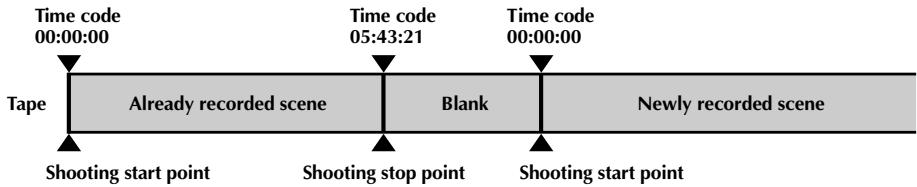
Enregistrement correct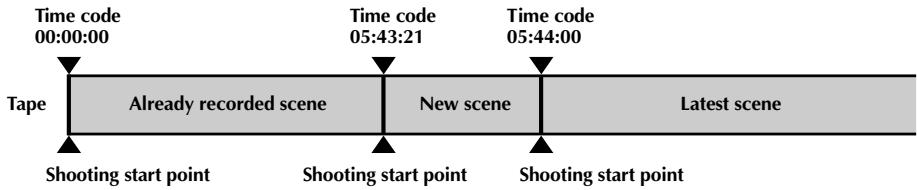
Bouton START/STOP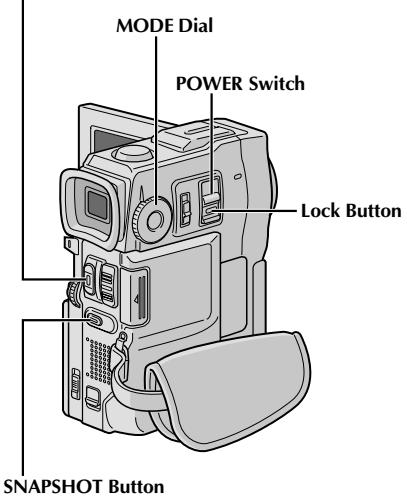
Enregistrement en mode progressif
Ce mode permet d'enregistrer des images animées (images fixes successives sans tremblement) sur une cassette. Les images peuvent ensuite être lues sans tremblement, avec une qualité supérieure. Des images fixes haute résolution peuvent également être traitées sur un ordinateur personnel ou imprimées (p. 59).
1 Réglez la molette MODE sur « PS », puis placez l'interrupteur POWER sur « CAMERA » tout en maintenant enfoncé le bouton de verrouillage situé sur l'interrupteur. Sortez complètement le viseur ou ouvrez complètement l'écran LCD. 2 Pour démarrer l'enregistrement en mode progressif, appuyez sur START/STOP.
Pour terminer l'enregistrement en mode progressif...
... appuyez sur START/STOP. Le caméscope passe en mode veille d'enregistrement.
REMARQUES :
- Lors de la lecture d'une image enregistrée en mode progressif, l'image peut ne pas sembler naturelle.
- Lorsque la molette MODE est réglée sur « PS », les fonctions Picture Wipe/Dissolve (13 p. 34) et certains effets spéciaux du programme AE (15 p. 36) ne peuvent pas être utilisés.
- Si SNAPSHOT est enfoncé en mode PS, un instantané sera enregistré avec une qualité supérieure à celle du mode VIDEO. (13 p. 18).
Description du capteur CCD à balayage progressif
Le balayage progressif est une méthode spéciale de capture d'image qui, contrairement au balayage entrelacé conventionnel, est capable de capter toutes les lignes d'informations d'image en un seul balayage. Étant donné que le capteur CCD à balayage progressif est capable de produire 50 images complètes* par seconde — soit le double des systèmes conventionnels — il peut fournir une image de haute qualité même lorsque son signal de sortie est converti dans un format pouvant être visualisé sur un écran de télévision.
- Une image d'écran de télévision PAL est composée de 25 images par seconde. 1 image est constituée de 2 trames.
1 image
1. Prise de vue normale d'images animées
Enregistre 25 trames impaires et 25 trames paires, soit un total de 50 par seconde. Comme il y a un décalage temporel entre une trame impaire et une trame paire, lorsqu'elles sont combinées pour former 1 image, la partie de l'image qui est en mouvement apparaît avec un tremblement. Cependant, lors de la lecture normale, l'image animée semble fluide et naturelle.
2. Prise de vue d'images animées en mode progressif (enregistrement en mode progressif 13 p. 22)
Le balayage A est enregistré, divisé en une trame impaire et une trame paire, puis le balayage B est sauté. Les balayages C et D sont traités de la même manière que les balayages A et B, comme illustré ci-dessous, enregistrant ainsi 25 images par seconde.
Comme chaque trame impaire et paire enregistrée provient du même balayage, il n'y a pas de décalage temporel entre elles, et lorsqu'elles sont combinées en une image et qu'une image fixe est affichée sur un téléviseur ou un moniteur PC, l'image ne semble pas saccadée. Cependant, lors de la lecture de séquences animées, l'image peut sembler peu naturelle.

Double prise de vue
Permet d'enregistrer des images sur une cassette et de stocker simultanément des images fixes dans une carte MultiMedia. En d'autres termes, il est possible de stocker des images fixes dans la carte MultiMedia sans interrompre l'enregistrement vidéo sur la cassette.
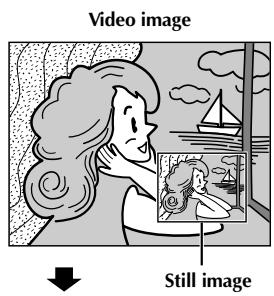
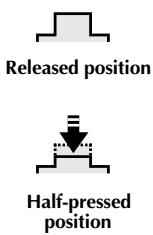
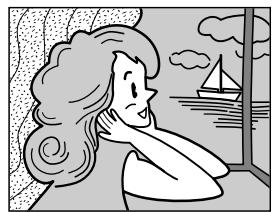
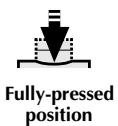
1 Réglez l'interrupteur POWER sur "CAMERA" tout en appuyant sur le bouton de verrouillage situé sur l'interrupteur, et le cadran MODE sur "DUAL". Sortez complètement le viseur ou ouvrez complètement l'écran LCD. 2 Pendant l'enregistrement sur cassette, appuyez à mi-course sur SNAPSHOT. Une image fixe s'affiche dans le coin inférieur droit de l'écran où l'image vidéo en cours d'enregistrement est affichée. - À ce moment, si vous relâchez SNAPSHOT, l'enregistrement de l'instantané sera annulé. Appuyez à fond sur SNAPSHOT. L'image fixe affichée est stockée dans la carte MultiMedia.
REMARQUES :
- Si SNAPSHOT est enfoncé en mode veille d'enregistrement, seule une image fixe est stockée dans la carte MultiMedia. L'enregistrement vidéo n'a pas lieu.
- Si SNAPSHOT est enfoncé lorsque "DIS" est réglé sur "ON" (13 p. 28), le stabilisateur sera désactivé.
- Le stabilisateur est moins efficace en mode DUAL que dans les autres modes. Le flash est désactivé pendant l'enregistrement vidéo.
- Les images fixes sont stockées dans la carte MultiMedia au format VGA (13 p. 15).
- Lorsque le cadran MODE est réglé sur "DUAL", tous les effets de fondu/enchaînement et certains programmes AE avec effets spéciaux ne peuvent pas être utilisés (13 p. 34 - 36).

FONCTION : Mise au point automatique
BUT :
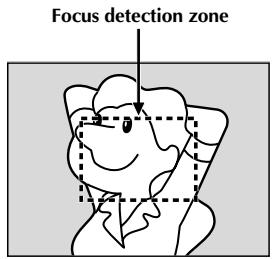
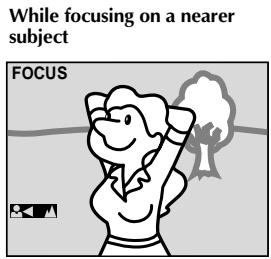
Le système de mise au point automatique pleine portée du caméscope offre une capacité de prise de vue continue de la proximité (jusqu'à environ 5 cm du sujet) à l'infini.
Cependant, une mise au point correcte peut ne pas être obtenue dans les situations énumérées ci-dessous (dans ces cas, utilisez la mise au point manuelle) :
- Lorsque deux sujets se chevauchent dans la même scène.
- Lorsque l'éclairage est faible.*
- Lorsque le sujet n'a pas de contraste (différence de luminosité et d'obscurité), comme un mur uni d'une seule couleur, ou un ciel bleu clair.*
- Lorsqu'un objet sombre est à peine visible dans le viseur.*
- Lorsque la scène contient des motifs minuscules ou des motifs identiques qui se répètent régulièrement.
- Lorsque la scène est affectée par des rayons de soleil ou la lumière réfléchie par la surface d'un plan d'eau.
- Lors de la prise de vue d'une scène avec un arrière-plan à fort contraste.
- Les avertissements de faible contraste suivants clignotent : ▲, △, ▶ et ▼
REMARQUES :
- Si l'objectif est maculé ou flou, une mise au point précise est impossible. Gardez l'objectif propre, en l'essuyant avec un chiffon doux s'il se salit. En cas de condensation, essuyez-le avec un chiffon doux ou attendez qu'il sèche naturellement.
- Lors de la prise de vue d'un sujet proche de l'objectif, dézoomez d'abord (13 p. 20). Si vous zoomez en mode autofocus, le caméscope peut dézoomer automatiquement en fonction de la distance entre le caméscope et le sujet. Cela ne se produira pas lorsque "TELE MACRO" (13 p. 28) est activé.
FONCTION : Mise au point manuelle
BUT :
Pour obtenir une mise au point correcte.
OPÉRATION :
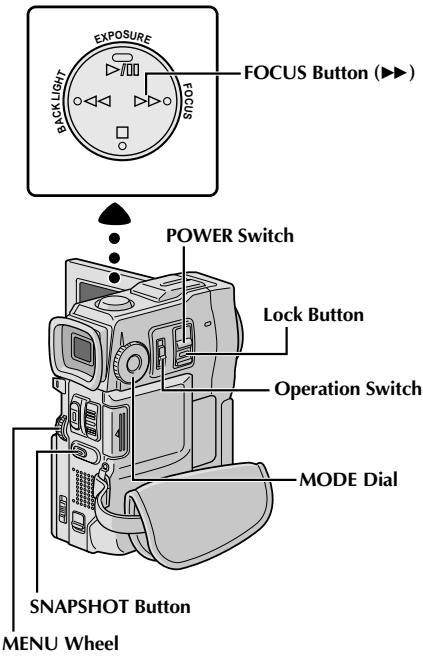
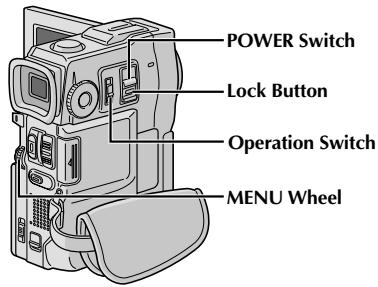
1) Si vous utilisez le viseur, vous devez avoir déjà effectué les réglages nécessaires du viseur (p. 8). 2) Réglez le commutateur de fonctionnement sur « M » et le commutateur POWER sur « CAMERA » tout en appuyant sur le bouton de verrouillage situé sur le commutateur, puis appuyez sur FOCUS (▶). L'indicateur de mise au point manuelle apparaît. 3) Pour faire la mise au point sur un sujet plus éloigné, tournez la molette MENU vers « + ». « ▶ » apparaît et clignote. Pour faire la mise au point sur un sujet plus proche, tournez la molette MENU vers « − ». « ▲ » apparaît et clignote. 4) Appuyez sur la molette MENU. Le réglage de la mise au point est terminé.
Pour revenir à la mise au point automatique, appuyez deux fois sur FOCUS (▶) ou réglez le commutateur de fonctionnement sur « A ».
Si vous appuyez une fois sur FOCUS (▶), le caméscope entre à nouveau en mode de réglage de la mise au point.
REMARQUES :
- Veillez à faire la mise au point sur l'objectif en position téléobjectif maximale lorsque vous utilisez le mode de mise au point manuelle. Si vous faites la mise au point sur un sujet en position grand-angle, vous ne pourrez pas obtenir une image nette lors d'un zoom avant, car la profondeur de champ est réduite aux longues focales.
- Lorsque le niveau de mise au point ne peut plus être ajusté davantage ou plus près, « ▲ » ou « ■ » clignote.
Afficher l'écran du menu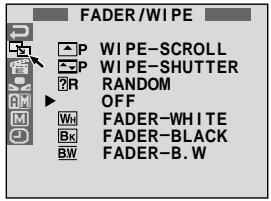
Écran normal
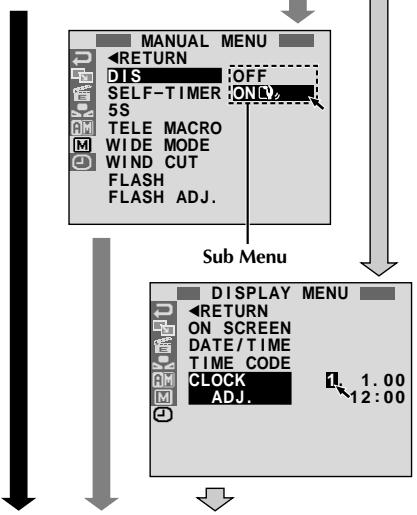
Ce caméscope est équipé d'un système de menu à l'écran facile à utiliser qui simplifie de nombreux réglages plus détaillés du caméscope (p. 27 - 29).
1 Réglez le commutateur de fonctionnement sur « M » et le commutateur POWER
sur « CAMERA » tout en appuyant sur le bouton de verrouillage situé sur le commutateur, puis sortez complètement le viseur ou ouvrez complètement l'écran LCD.
Appuyez sur la molette MENU. L'écran du menu apparaît.
3 Tournez la molette MENU pour sélectionner l'icône de fonction souhaitée, puis appuyez dessus. Le menu de la fonction sélectionnée apparaît.
Le réglage du menu de fonction dépend de la fonction.
Si vous avez sélectionné "G", "W" ou "Z" ...
... voir page 27.
Si vous avez sélectionné "A", "C" ou "D" ...
... passez à l'étape 5.
5 Tournez la molette MENU pour sélectionner la fonction souhaitée et appuyez dessus. Le sous-menu apparaît.
Ensuite, tournez la molette MENU pour sélectionner le paramètre et appuyez dessus. La sélection est terminée.
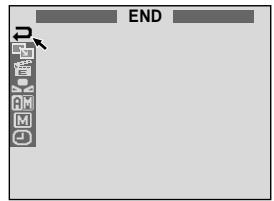
6 Tournez la molette MENU pour sélectionner "RETOUR" et appuyez deux fois dessus. L'écran du menu se ferme.
- L'icône représente "FIN".
Explications de l'écran du menu
| FADER/WIPE | Refer to "Fade/Wipe Effects" (pg. 34, 35). |
| P.AE/EFFECT | Refer to "Programme AE With Special Effects" (pg. 36). |
| W.BALANCE | Refer to "White Balance Adjustment" and "Manual White Balance Operation" (pg. 39). |
| REC MODE | Allows you to set the recording mode (SP or LP) depending on your preference (pg. 11). |
| SOUND MODE | 12 BIT | Enables video recording of stereo sound on four separate channels, and is recommended for use when performing audio dubbing. (Equivalent to the 32 kHz mode of previous models) |
| 16 BIT | Enables video recording of stereo sound on two separate channels. (Equivalent to the 48 kHz mode of previous models) |
| ZOOM | 10X | When set to "10X" while using digital zoom, the zoom magnification will reset to 10X since digital zoom will be disengaged. |
| 40X | Allows you to use the Digital Zoom. By digitally processing and magnifying images, zooming is possible from 10X (the optical zoom limit), to a maximum of 40X digital magnification. |
| 200X | Allows you to use the Digital Zoom. By digitally processing and magnifying images, zooming is possible from 10X (the optical zoom limit), to a maximum of 200X digital magnification. |
| SNAP MODE | FULL | Refer to "Snapshot (For Video Recording)" (pg. 18). |
| PIN-UP |
| GAIN UP | OFF | Allows you to shoot dark scenes with no picture brightness adjustment. |
| AGC | The overall appearance may be grainy, but the image is bright. |
| AUTO A# | The shutter speed is automatically adjusted (1/25 — 1/200 sec.). Shooting a subject in low or poor lighting at 1/25 sec. shutter speed provides a brighter image than in the AGC mode, but the subject's movements are not smooth or natural. The overall appearance may be grainy. When shooting a subject in low lighting in this mode, "A#" is displayed. |
| BEEP/TALLY | ON: MEL. | The tally lamp comes on to signal the start of recording. Instead of a beep, a melody sounds when any operation is performed. It also activates the shutter sound effect (pg. 18, 19). |
| ON:BEEP | The tally lamp comes on to signal the start of recording. The beep sounds when the power is turned on or off, and at the beginning and end of recording. Also to activate the shutter sound effect (pg. 18, 19). |
| OFF | The tally lamp remains off at all times. Even though not heard while shooting, shutter sound is recorded on the tape. |
| ID NUMBER | This number is necessary when connecting the camcorder to a device such as a computer using the J terminal (JLIP). The numbers range from 01 to 99. Factory setting is 06. |
Préréglage d'usine
REMARQUE :
Les réglages du "MENU CAMÉRA" sont effectifs lorsque le commutateur de fonctionnement est réglé sur "A" et "M".
Explications de l'écran du menu (suite)
| CAMERA MENU | DEMO.
MODE | ON | Demonstrates certain functions such as Programme AE with special effects, etc., and can be used to confirm how these functions operate. When “DEMO. MODE” is set to “ON” and the Menu Screen is closed, demonstration starts. Performing any operation during the demonstration stops the demonstration temporarily. If no operation is performed for more than 1 minute after that, the demonstration will resume.
NOTES:
·If a tape is in the camcorder, the demonstration cannot be turned on.
·“DEMO. MODE” remains “ON” even if the camcorder power is turned off.
·If “DEMO. MODE” remains “ON”, some functions will not be available. After viewing demo, set to “OFF”. |
| OFF | Automatic demonstration will not take place. |
| DIS | OFF | To compensate for unstable images caused by camera-shake, particularly at high magnification.
NOTES:
·Accurate stabilisation may not be possible if hand shake is excessive, or under the following conditions:
·When shooting subjects with vertical or horizontal stripes.
·When shooting dark or dim subjects.
·When shooting subjects with excessive backlighting.
·When shooting scenes with movement in various directions.
·When shooting scenes with low-contrast backgrounds.
·Switch off this mode when recording with the camcorder on a tripod.
·The “ON,” indicator blinks or goes out if the Stabiliser cannot be used. |
| ON |
| SELF-TIMER | Refer to “Self-Timer” (║ pg. 32). |
| 5S | OFF | Refer to “5-Second Recording” (║ pg. 33). |
| 5S |
| ANIM. | Allows you to record a few frames only. By using an inanimate object and changing its position between shots, you can record the subject as though it is moving (║ pg. 33). |
| TELE-MACRO | OFF | Usually the distance to a subject where the lens is in focus depends on the zoom magnification. Unless there is a distance more than 1m to the subject, the lens is out of focus at the maximum telephoto setting. When set to “ON”, you can shoot a subject as large as possible at a distance of approx. 60 cm.
·Depending on the zoom position, the lens may go out of focus. |
| ON |
| WIDE-MODE | OFF | Records with no change in the screen ratio. For playback on a TV with a normal screen ratio. |
| CINEMA | Inserts black bands at the top and bottom of the screen. During playback on wide-screen TVs, the black bands at the top and bottom of the screen are cut and the screen ratio becomes 16:9. □ appears. When using this mode, refer to your wide-screen TV's instruction manual. During playback/recording on 4:3 TVs/LCD monitor/viewfinder, black bands are inserted at the top and bottom of the screen and the image appears like a letterboxed 16:9 movie.
·“CINEMA” mode is effective only when the MODE Dial is set to “VIDEO” or “PS”. |
| SQUEEZE | For playback on TVs with an aspect ratio of 16:9. Naturally expands the image to fit the screen without distortion. ▼ appears. When using this mode, refer to your wide-screen TV's instruction manual. During playback/recording on 4:3 TVs/LCD monitor/viewfinder, the image is elongated vertically.
·“SQUEEZE” mode is effective only when the MODE Dial is set to “VIDEO” or “PS”. |
| PS-WIDE | “SW” appears. The zoom range is extended beyond the maximum optical zoom wide angle range. This mode's wide angle setting is equivalent to using a 0.7X wide conversion lens. Zooming is possible from 0.7X to 10X. This mode is suitable for shooting in a small room.
·“PS-WIDE” mode is effective only when the MODE Dial is set to “PS”. |
| G MANUAL MENU | WIND CUT | OFF | Disengages the function which cuts down on noise created by wind. |
| ON | Helps cut down on noise created by wind. " " appears. The quality of the sound will change. This is normal. |
| FLASH | Refer to "Snapshot Flash" (☐ pg. 30). |
| FLASH ADJ. | Refer to "Flash Brightness Adjustment" (☐ pg. 31). |
| DISPLAY MENU | ON SCREEN | LCD | Keeps the camcorder's display (except the date, time and time code) from appearing on the connected TV screen. |
| LCD/TV | Makes the camcorder's display appear on screen when the camcorder is connected to a TV. |
| SIMPLE | Keeps the indications (except the tape running indicator, warnings, date, time, time code, etc.) from appearing in the camcorder. Also keeps the camcorder's display (except the date, time and time code) from appearing on the connected TV screen. |
| DATE/ TIME | AUTO | Displays the date/time for approx. 5 seconds in the following cases:
·When the POWER Switch is set from "OFF" to "CAMERA" or "PLAY/PC".
·When playback starts. The camcorder displays the date/time when scenes are recorded.
·When the date is changed during playback. |
| OFF | The date/time does not appear. |
| ON | The date/time is always displayed. |
| TIME CODE | OFF | Time code is not displayed. |
| ON | Time code is displayed on the camcorder and on the connected TV. Frame numbers are not displayed during recording. |
| CLOCK ADJ. | Allows you to set the current date and time (☐ pg. 9). |
Préréglage d'usine
REMARQUES :
- Les réglages du "MENU MANUEL" ne sont effectifs que lorsque le commutateur de fonctionnement est réglé sur "M".
- Les fonctions du "MENU AFFICHAGE" réglées lorsque le commutateur d'alimentation est sur "CAMERA" s'appliquent également lorsque le commutateur d'alimentation est sur "LECTURE/PC" (13 p. 41). "RÉGL. HORLOGE" n'apparaît que lorsque le commutateur d'alimentation est sur "CAMERA".
- Les réglages du "MENU AFFICHAGE" sont effectifs même lorsque le commutateur de fonctionnement est réglé sur "A".
- Le réglage "AFFICHAGE" peut également être modifié en appuyant sur la touche AFFICHAGE de la télécommande (fournie) (3) p. 57, 60, 71).
Molette du menu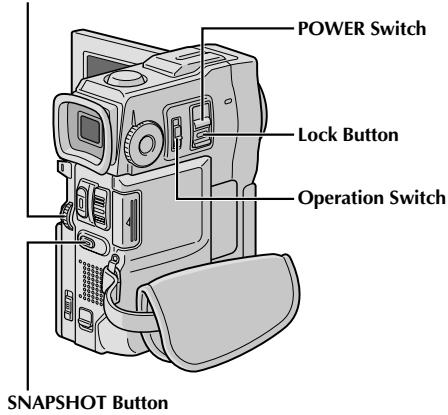
Écran du menu d'affichage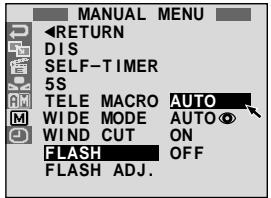
Flash pour photo
Le flash peut être utilisé lors de la prise d'une photo en mode Attente d'enregistrement (p. 18, 19).
- En mode Tout automatique, le flash se déclenche automatiquement s'il fait sombre ( apparaît).
- En mode Manuel, vous pouvez sélectionner le réglage "FLASH" comme suit :
AUTO : Se déclenche automatiquement s'il fait sombre ( apparaît).
AUTO : Se déclenche automatiquement s'il fait sombre ( apparaît) et réduit l'effet d'yeux rouges sur les yeux du sujet.
ON : Se déclenche toujours.
OFF : Ne se déclenche pas.
Effectuez la procédure ci-dessous.
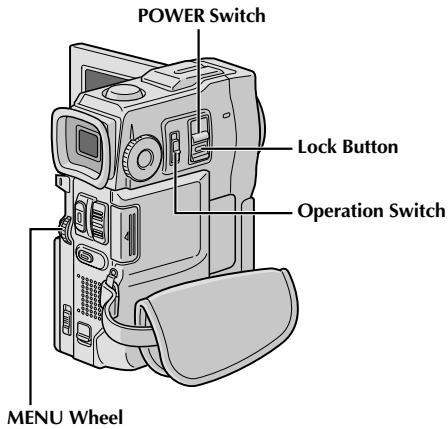
1 Réglez le commutateur de fonctionnement sur « M » et réglez le commutateur POWER sur « CAMERA » tout en appuyant sur le bouton de verrouillage situé sur le commutateur, puis sortez le viseur ou ouvrez complètement l'écran LCD. Appuyez sur la molette MENU. L'écran de menu apparaît. 3 Tournez la molette MENU pour sélectionner « 图 », puis appuyez dessus. « MANUAL MENU » apparaît. 4 Tournez la molette MENU pour sélectionner « FLASH », puis appuyez dessus. Le sous-menu apparaît. 5 Tournez la molette MENU pour sélectionner « AUTO », « AUTO ON », « ON » ou « OFF », puis appuyez dessus. Tournez la molette MENU pour sélectionner « RETURN ». Appuyez deux fois pour fermer l'écran de menu.
Si « AUTO ① » est sélectionné...
... le témoin de réduction des yeux rouges s'allume. Appuyez sur SNAPSHOT. Le flash se déclenche deux fois. Le premier flash sert à réduire la réflexion rouge de l'œil humain et le second flash sert à l'enregistrement réel.
REMARQUES :
- Ne déclenchez pas le flash sur une personne à courte distance.
- Le flash ne se déclenche pas lorsque le flash est réglé sur « OFF » dans l'écran de menu, et également lorsque la puissance restante de la batterie est faible. De plus, le flash ne se déclenche pas lorsqu'il est réglé sur « AUTO » dans l'écran de menu avec GAIN UP réglé sur « OFF » (13 p. 27) et avec Programme AE avec effets spéciaux réglé sur « TWILIGHT » (14 p. 36).
- Lors de la prise de plusieurs instantanés en succession (mode d'entraînement du moteur), le flash ne se déclenche que pendant le premier.
- Bien que les images prises avec un flash aient tendance à paraître plus blanches qu'elles ne le sont réellement, pour compenser cela, le caméscope assombrit automatiquement l'image lors de l'utilisation du flash. Lors de la prise de vue d'un sujet à une distance où la lumière du flash ne peut pas atteindre (plus d'environ 2m), abaissez le flash pour éviter que l'image ne devienne trop sombre ou trop teintée.
- La teinte des couleurs change en fonction des conditions d'éclairage de l'arrière-plan, comme sous des lampes fluorescentes ou halogènes.
- Pour modifier la luminosité du flash, « Réglage de la luminosité du flash » (13 p. 31).
- Pendant le chargement du flash, clignote et le flash ne se déclenchera pas. Bien que du bruit puisse apparaître, ce n'est pas un dysfonctionnement et il n'est pas enregistré. Le chargement du flash peut prendre jusqu'à 10 secondes.
Afficher l'écran de menu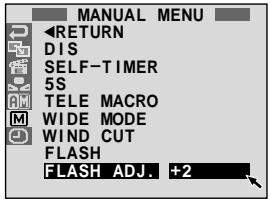
Réglage de la luminosité du flash
Lorsqu'un instantané (p. 18, 19) est pris dans l'obscurité, le caméscope déclenche le flash (p. 30) et règle la luminosité automatiquement. Vous pouvez également régler manuellement la luminosité du flash. Lorsque vous constatez que les instantanés que vous avez pris semblent trop clairs ou trop sombres, réglez-les manuellement.
1
Réglez le commutateur de fonctionnement sur « M » et le commutateur POWER sur « CAMERA » tout en appuyant sur le bouton de verrouillage situé sur le commutateur, puis sortez le viseur ou ouvrez complètement l'écran LCD.
2
Appuyez sur la molette MENU. L'écran de menu apparaît.
3
Tournez la molette MENU pour sélectionner « 回 », puis appuyez dessus. « MANUAL MENU » apparaît.
4
Tournez la molette MENU pour sélectionner « FLASH ADJ. », puis appuyez dessus. Le paramètre apparaît.
5
Pour intensifier le flash, tournez la molette MENU vers « + ». Pour affaiblir le flash, tournez-la vers « - ». Plage de réglage : -3 à +3.
6
Appuyez sur la molette MENU. Tournez-la pour sélectionner « RETURN » et appuyez deux fois pour fermer l'écran de menu.
REMARQUE :
Lorsque vous changez de sujet ou de lieu de prise de vue, remettez-le à ±0 comme décrit à l'étape 5 et prenez une photo pour vérifier la luminosité du flash. Après cela, ajustez à la luminosité souhaitée.
Bouton START/STOP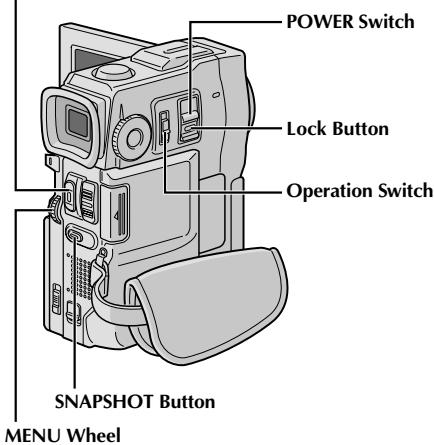
Affichage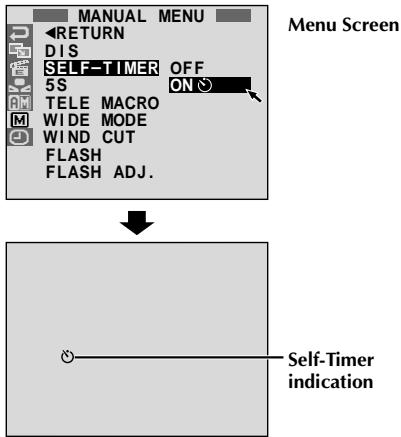
Minuterie automatique
Une fois le caméscope réglé, l'opérateur peut faire partie de la scène de manière plus naturelle, ajoutant la touche finale à une image mémorable.
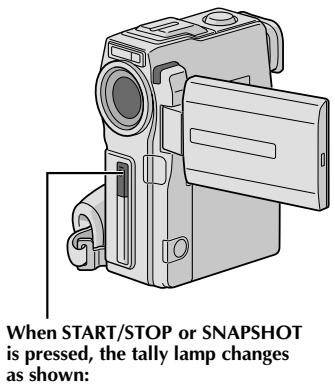
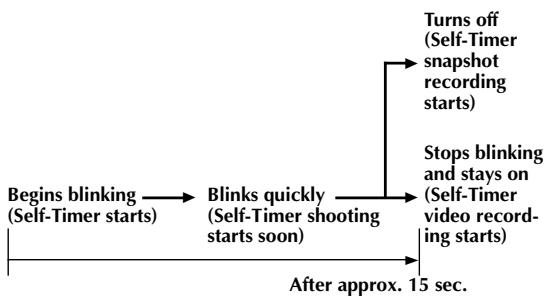
1 Réglez le commutateur de fonctionnement sur "M" et le commutateur d'alimentation sur "CAMERA" tout en appuyant sur le bouton de verrouillage situé sur le commutateur, puis sortez le viseur ou ouvrez complètement l'écran LCD. - Vous pouvez incliner l'écran LCD vers le haut à 180° pour qu'il soit face à vous et vous voir pendant l'auto-enregistrement avec le viseur poussé en arrière. Appuyez sur la molette MENU. L'écran de menu apparaît. 2 Tournez la molette MENU pour sélectionner "回", puis appuyez dessus. 4 Tournez la molette MENU pour sélectionner "SELF-TIMER", puis appuyez dessus. Le sous-menu apparaît. Tournez la molette MENU pour sélectionner "ON", puis appuyez dessus. La sélection est terminée. Tournez la molette MENU pour sélectionner "RETURN", puis appuyez deux fois pour fermer l'écran de menu. 5 Pour activer la minuterie automatique pour l'enregistrement vidéo, appuyez sur START/STOP. Après 15 secondes, un bip retentit et l'enregistrement vidéo commence. Pour arrêter l'enregistrement avec minuterie, appuyez à nouveau sur START/STOP. Le caméscope revient en mode veille d'enregistrement.
OU
Appuyez sur SNAPSHOT. Après 15 secondes, un bip retentit et l'enregistrement de photo commence. Ensuite, le caméscope revient en mode veille d'enregistrement.
6 Pour terminer l'enregistrement avec minuterie, sélectionnez "OFF" à l'étape 4 ou réglez le commutateur d'alimentation sur "OFF" ou réglez le commutateur de fonctionnement sur "A".
REMARQUE :
Si "BEEP/TALLY" est réglé sur "OFF" (13 p. 27), le bip ne retentit pas et le témoin lumineux ne s'allume pas.
Bouton START/STOP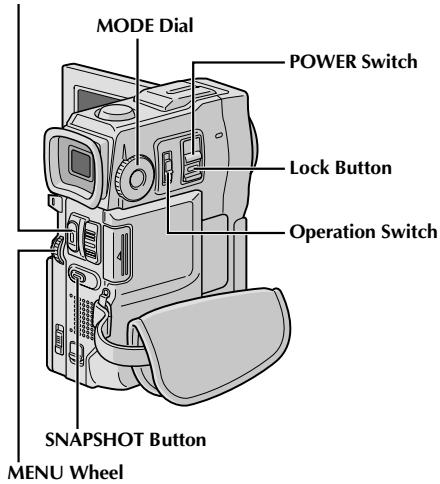
Afficher l'écran de menu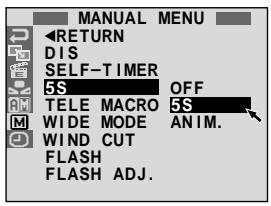
Enregistrement de 5 secondes
Enregistrez des vacances ou un événement important en clips de 5 secondes pour garder l'action en mouvement. Cette fonction n'est disponible que pour l'enregistrement vidéo.
1 Réglez le commutateur d'alimentation sur "CAMERA" tout en appuyant sur le bouton de verrouillage situé sur le commutateur et réglez la molette MODE sur "VIDEO", "PS" ou "DUAL", puis réglez le commutateur de fonctionnement sur "M". Sortez complètement le viseur ou ouvrez complètement l'écran LCD. Appuyez sur la molette MENU. L'écran de menu apparaît. 3 Tournez la molette MENU pour sélectionner "M", puis appuyez dessus. "MANUAL MENU" apparaît. 4 Tournez la molette MENU pour sélectionner "5S", puis appuyez dessus. Le sous-menu apparaît. 5 Tournez la molette MENU pour sélectionner "5S", puis appuyez dessus. "5S MODE" apparaît. 6 Appuyez sur START/STOP. Le témoin lumineux s'allume et un bip retentit pour indiquer le début de l'enregistrement, et après 5 secondes, le caméscope passe en mode veille d'enregistrement.
- Même si vous appuyez à nouveau sur START/STOP dans les 5 secondes après le début de l'enregistrement, le mode veille d'enregistrement n'est pas activé.
Pour quitter le mode 5S, sélectionnez "OFF" à l'étape 5.
Pour prendre une photo en mode d'enregistrement 5 secondes... au lieu d'appuyer sur START/STOP à l'étape 6, sélectionnez le mode Snapshot souhaité dans le menu, puis appuyez sur SNAPSHOT. Le caméscope enregistre une image fixe de 5 secondes (3 p. 18). Lorsque "5S" est réglé sur "ANIM." (3 p. 28), cette fonction n'est pas disponible.
REMARQUE :
Lorsque "5S" est réglé sur "ANIM." dans le menu, le mode d'enregistrement 5 secondes n'est pas disponible. Seul un enregistrement d'animation de quelques images est effectué à la place (13 p. 28).
Effets de fondu/fondu enchaîné
Ces effets vous permettent de réaliser des transitions de scène de niveau professionnel. Utilisez-les pour agrémenter la transition d'une scène à l'autre. Vous pouvez également varier les transitions de scène en scène.
IMPORTANT :
Certains effets de fondu/fondu enchaîné ne peuvent pas être utilisés avec certains modes de Programme AE avec effets spéciaux (13 p. 36). Si un effet de fondu/fondu enchaîné inutilisable est sélectionné, son indicateur clignote ou s'éteint.
Bouton START/STOP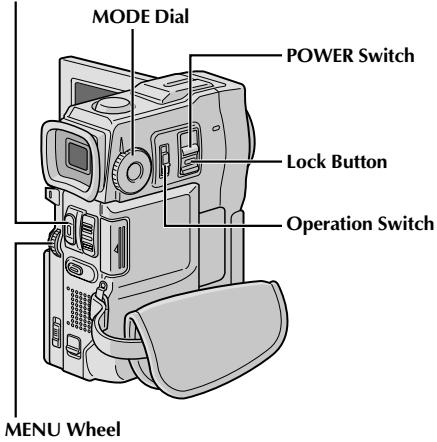
Pour désactiver l'effet sélectionné... sélectionnez "OFF" à l'étape 4.
REMARQUES :
- Vous pouvez prolonger la durée d'un fondu ou d'un fondu enchaîné en maintenant enfoncé START/STOP.
- Si l'alimentation est coupée après l'enregistrement d'une scène, le point mémorisé est effacé, ce qui désactive la combinaison Picture Wipe/Dissolve. Dans ce cas, l'indicateur Picture Wipe/Dissolve clignote. Notez également que l'alimentation se coupe automatiquement si 5 minutes s'écoulent en mode veille d'enregistrement.
- Picture Wipe/Dissolve ne peut pas être utilisé lorsque la molette MODE est réglée sur "PS".
- Tous les effets de fondu/fondu enchaîné ne peuvent pas être utilisés lorsque la molette MODE est réglée sur "DUAL". Le son à la fin de la dernière scène enregistrée n'est pas stocké.
SÉLECTION FONDU/FONDU ENCHAÎNÉ (WH, Bk, BW, □, □, W, □, et R)
Le fondu ou l'effet de balayage fonctionne lorsque l'enregistrement vidéo démarre ou lorsque vous arrêtez l'enregistrement.
1 Réglez le commutateur POWER sur « CAMERA » tout en maintenant enfoncé le bouton de verrouillage situé sur le commutateur et la molette MODE sur « VIDEO » ou « PS », puis réglez le commutateur de fonctionnement sur « M ». Sortez complètement le viseur ou ouvrez complètement l'écran LCD. Appuyez sur la molette MENU. L'écran de menu apparaît. Tournez la molette MENU pour sélectionner « G », puis appuyez dessus. 4 Tournez la molette MENU pour sélectionner la fonction souhaitée, puis appuyez dessus. La sélection est terminée.
- Le menu FADER/WIPE disparaît et l'effet est réservé. L'indicateur représentant l'effet sélectionné apparaît. Appuyez sur START/STOP pour activer le fondu d'entrée/sortie ou le balayage d'entrée/sortie.
SÉLECTION DE L'EFFET DE TRANSITION IMAGE (P, P, P, P, P, P et P)
L'effet de transition image fonctionne lorsque l'enregistrement vidéo démarre.
1 Suivez les étapes 1 à 4 ci-dessus. Activez le mode d'attente d'enregistrement.
Si vous sélectionnez l'effet de transition image pendant l'enregistrement...
... appuyez sur START/STOP lorsque la scène est terminée. Le point où la scène s'est terminée est mémorisé.
Si vous sélectionnez l'effet de transition image en mode d'attente d'enregistrement... ... appuyez sur START/STOP pour démarrer l'enregistrement et appuyez à nouveau lorsque la scène est terminée. Le point où la scène s'est terminée est mémorisé.
Si vous sélectionnez l'effet de transition image en mode d'attente d'enregistrement après avoir effectué un effet de transition image...
... le point où la scène s'est terminée est déjà mémorisé.
3 Si vous commencez à enregistrer une nouvelle scène dans les 5 minutes suivant la fin de l'enregistrement précédent (sans avoir éteint le caméscope), la scène précédente est effacée, révélant la nouvelle scène.
Menu Fondu et Balayage
| Menu | Effect |
| WH FADER — WHITE | Fade in or out with a white screen. |
| BK FADER — BLACK | Fade in or out with a black screen. |
| BW FADER — B.W | Fade in to a colour screen from a black and white screen, or fade out from colour to black and white. |
| WIPE — CORNER | Wipe in on a black screen from the upper right to the lower left corner, or wipe out from lower left to upper right, leaving a black screen. |
| WIPE — WINDOW | The scene starts in the centre of a black screen and wipes in toward the corners, or comes in from the corners, gradually wiping out to the centre. |
| WIPE — SLIDE | Wipe in from right to left, or wipe out from left to right. |
| WIPE — DOOR | Wipe in as the two halves of a black screen open to the left and right, revealing the scene, or wipe out and the black screen reappears from left and right to cover the scene. |
| WIPE — SCROLL | The scene wipes in from the bottom to the top of a black screen, or wipes out from top to bottom, leaving a black screen. |
| WIPE — SHUTTER | Wipe in from the centre of a black screen toward the top and bottom, or wipe out from the top and bottom toward the centre leaving a black screen. |
| DISSOLVE | The new scene gradually appears as the old one gradually disappears. |
| WIPE — CORNER | The new scene wipes in over the previous one from the upper right corner to the lower left corner. |
| WIPE — WINDOW | The next scene gradually wipes in from the centre of the screen toward the corners, covering the previous scene. |
| WIPE — SLIDE | The next scene gradually wipes in over the previous one from right to left. |
| WIPE — DOOR | The previous scene wipes out from the centre to the right and left, like a door being pushed open to reveal the next scene. |
| WIPE — SCROLL | The new scene wipes in over the last one from the bottom of the screen to the top. |
| WIPE — SHUTTER | The new scene wipes in over the previous one from the centre toward the top and bottom of the screen. |
| RANDOM | When this function is activated, the camcorder randomly selects the effect used in scene transition (from BW, WH, BK, □, □, □, □, □, □, □, □, □, and □). The Picture Wipe/Dissolve function is not available. |
IMPORTANT :
Certains modes du Programme AE avec effets spéciaux ne peuvent pas être utilisés avec certains effets de fondu/balayage (13 p. 35). Si un mode inutilisable est sélectionné, son indicateur clignote ou s'éteint.
Molette MENU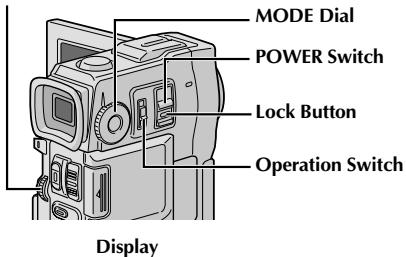
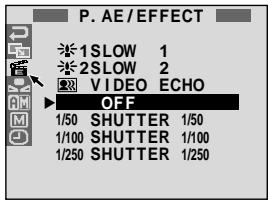
Écran du menu
Programme AE avec effets spéciaux
1
Réglez le commutateur de fonctionnement sur « M », puis réglez le commutateur d'alimentation sur « CAMERA » tout en maintenant enfoncé le bouton de verrouillage situé sur le commutateur. Sortez complètement le viseur ou ouvrez complètement l'écran LCD.
2
Appuyez sur la molette MENU. L'écran du menu apparaît.
3
Tournez la molette MENU pour sélectionner « 置 », puis appuyez dessus.
4
Tournez la molette MENU pour sélectionner le mode souhaité, puis appuyez dessus. La sélection est terminée.
- Le menu P.AE/EFFECT disparaît et le mode sélectionné est activé. L'indicateur du mode sélectionné apparaît.
Pour désactiver le mode sélectionné...
...sélectionnez « OFF » à l'étape 4.
REMARQUE :
Le programme AE avec effets spéciaux peut être modifié pendant l'enregistrement ou en mode veille d'enregistrement.

CRÉPUSCULE
Rend les scènes du soir plus naturelles. La balance des blancs (F) p. 39) est initialement réglée sur, mais peut être modifiée selon vos préférences. Lorsque le mode Crépuscule est sélectionné, le caméscope ajuste automatiquement la mise au point d'environ 10 m à l'infini. À moins de 10 m, réglez la mise au point manuellement. Le flash ne se déclenche pas dans ce mode.

SÉPIA*1
Les scènes enregistrées ont une teinte brunâtre, comme les vieilles photos. Combinez ce mode avec le mode Cinéma pour un look classique.
MONOCHROME N&B*1
Comme les films classiques en noir et blanc, vos images sont tournées en N&B. Utilisé avec le mode Cinéma, il renforce l'effet "film classique".

FILM CLASSIQUE*2
Donne aux scènes enregistrées un effet stroboscopique.

STROBOSCOPE*2
Votre enregistrement ressemble à une série de photos consécutives.

ÉCHO VIDÉO*3
Ajoute un "fantôme" au sujet, donnant à votre enregistrement une sensation "fantastique". Le zoom au-delà de 10x n'est pas disponible.
LENT (Obturateur lent)*4
Éclaire les sujets ou zones sombres encore plus que sous un bon éclairage naturel. Utilisez "LENT" uniquement dans les zones sombres.
La fonction Slow Shutter augmente la sensibilité à la lumière pour permettre de filmer dans des environnements sombres.
La fonction Slow Shutter augmente davantage la sensibilité à la lumière pour permettre de filmer dans des environnements encore plus sombres.
REMARQUES :
- Lors de l'utilisation de « SLOW », l'image prend un effet stroboscopique.
- Si l'indicateur de mise au point manuelle clignote lors de l'utilisation de « SLOW », réglez la mise au point manuellement et utilisez un trépied.
OBTURATEUR (Vitesse d'obturation variable)
1/50 - La vitesse d'obturation est fixée à 1/50e de seconde. Les bandes noires qui apparaissent habituellement lors de la prise de vue d'un écran de télévision deviennent plus étroites.
1/100 – La vitesse d'obturation est fixée à 1/100e de seconde. Le scintillement qui se produit lors de la prise de vue sous une lumière fluorescente ou une lampe à vapeur de mercure est réduit. 1/250 – Ce réglage permet de capturer des images en mouvement rapide image par image, pour une lecture au ralenti nette et stable. Plus la vitesse d'obturation est élevée, plus l'image devient sombre. Utilisez la fonction d'obturation dans de bonnes conditions d'éclairage.
1 Non disponible lorsque la molette MODE est réglée sur « DUAL ». 2 Disponible uniquement lorsque la molette MODE est réglée sur « VIDEO » ou « PS ». 3 Disponible uniquement lorsque la molette MODE est réglée sur « VIDEO » ou « DSC » (VGA STD/VGA FINE uniquement). 4 Disponible uniquement lorsque la molette MODE est réglée sur « VIDEO », « PS » ou « DSC ».
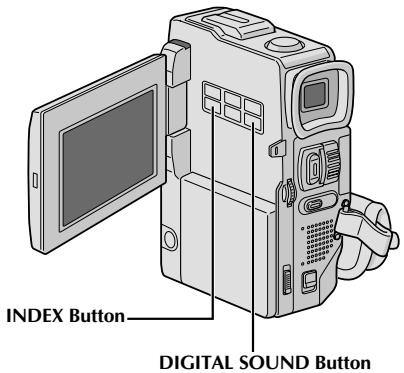
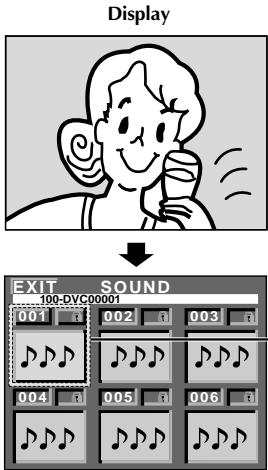
Vous pouvez télécharger des données sonores disponibles sur notre site Web (voir l'URL ci-dessous) et les transférer de votre PC vers la carte MultiMediaCard pour créer davantage d'effets sonores.
http://www.jvc-victor.co.jp/english/download/d-sound/index.html
- Utilisez l'adaptateur pour carte PC CU-V50U ou l'adaptateur pour disquette CU-VFM40U pour transférer des données sonores d'un PC vers la carte MultiMediaCard.
- Les données sonores doivent être copiées dans le dossier DCSD¥100JVCGR de la carte MultiMediaCard.
- Les noms de fichiers doivent être en séquence numérique à partir de DVC00001.mp3. Si vous utilisez la carte MultiMediaCard fournie, les noms de fichiers doivent commencer à DVC00013.mp3, car 12 effets sonores sont pré-enregistrés sous les noms DVC00001.mp3 à DVC00012.mp3.
Effets sonores numériques
12 effets sonores (EXPLOSION, SIRÈNE, RIRES, VOITURE DE COURSE, SONNETTE DE PORTE, BUZZER, FANFARE, APPLAUDISSEMENTS, ENCOURAGEMENTS, BOING, CRI et HUÉES) pré-enregistrés sur la carte MultiMediaCard fournie peuvent être ajoutés sur une bande.
SÉLECTION DU MODE D'EFFET SONORE
1 Chargez la carte MultiMediaCard fournie (p. 12) et une cassette (p. 10). 2 Réglez l'interrupteur POWER sur "CAMERA" tout en appuyant sur le bouton de verrouillage situé sur l'interrupteur, puis réglez la molette MODE sur "FS", "VIDEO" ou "DUAL". Ouvrez complètement l'écran LCD ou sortez complètement le viseur. Appuyez sur INDEX. L'écran d'index des sons apparaît. 4 Tournez la molette MENU pour sélectionner l'effet sonore souhaité.
- Appuyez sur DIGITAL SOUND pour lancer la lecture de l'effet sonore actuellement sélectionné afin de le vérifier sans l'enregistrer sur la bande. Appuyez à nouveau sur DIGITAL SOUND pour arrêter la lecture de l'effet sonore.
Appuyez sur la molette MENU. La sélection est terminée.
ENREGISTREMENT D'EFFET SONORE
6 Appuyez sur DIGITAL SOUND pendant l'enregistrement. L'indication de l'effet sonore sélectionné avec un symbole "" clignote et l'effet sonore est enregistré sur la bande.
- L'effet sonore ne peut pas être entendu depuis le haut-parleur pendant l'enregistrement. Utilisez un casque pour entendre l'effet sonore.
Pour annuler l'enregistrement de l'effet sonore en cours...
... appuyez à nouveau sur DIGITAL SOUND. Le caméscope arrête d'enregistrer l'effet sonore et l'indication de l'effet sonore disparaît.
REMARQUES :
Les effets sonores peuvent également être utilisés pour l'incrustation audio (13 p. 77). - Les effets sonores créés sur un PC peuvent être transférés sur une carte MultiMediaCard en les copiant dans le dossier des sons de la carte avec le nom de fichier spécifié. Pour plus de détails, reportez-vous au manuel d'instructions du logiciel fourni.
Contrôle de l'exposition
Un réglage manuel de l'exposition est recommandé dans les situations suivantes :
- Lors de prises de vue en contre-jour ou lorsque l'arrière-plan est trop lumineux.
- Lors de prises de vue sur un fond naturel réfléchissant, comme à la plage ou en ski.
- Lorsque l'arrière-plan est trop sombre ou que le sujet est clair.
1 Réglez le commutateur de fonctionnement sur « M » et le commutateur d'alimentation sur « CAMERA » tout en maintenant enfoncé le bouton de verrouillage situé sur le commutateur, puis sortez complètement le viseur ou ouvrez complètement l'écran LCD. Appuyez sur EXPOSURE. « EXP. » et l'indicateur de contrôle de l'exposition apparaissent. 3 Tournez la molette MENU vers « + » pour éclaircir l'image, ou vers « − » pour l'assombrir. (maximum ±6) 4 Appuyez sur la molette MENU. Le réglage de l'exposition est terminé. « EXP. » disparaît.
Pour revenir au contrôle automatique de l'exposition...
... appuyez sur EXPOSURE ou réglez le commutateur de fonctionnement sur « A ».
Pour éclaircir rapidement le sujet...
... appuyez sur BACKLIGHT. 2 s'affiche et le sujet est éclairci. Si vous appuyez à nouveau, 2 disparaît et la luminosité revient au niveau précédent. - Une exposition de +3 a le même effet que le bouton BACKLIGHT. - L'utilisation de BACKLIGHT peut rendre la lumière autour du sujet trop vive et le sujet blanc. - La compensation du contre-jour est également disponible lorsque le commutateur de fonctionnement est réglé sur « A ».
Verrouillage de l'iris
Utilisez cette fonction dans les situations suivantes :
- Lors de la prise de vue d'un sujet en mouvement.
- Lorsque la distance au sujet change (donc sa taille dans l'écran LCD ou le viseur change), par exemple lorsque le sujet s'éloigne.
- Lors de prises de vue sur un fond naturel réfléchissant, comme à la plage ou en ski.
- Lors de la prise de vue d'objets sous un projecteur.
- Lors du zoom.
Lorsque le sujet est proche, maintenez l'iris verrouillé. Même si le sujet s'éloigne, l'image ne s'assombrira ni ne s'éclaircira.
Avant les étapes suivantes, effectuez les étapes 1 et 2 de « Contrôle de l'exposition ».
Réglez le zoom pour que le sujet remplisse l'écran LCD ou le viseur, puis appuyez sur la molette MENU et maintenez-la enfoncée pendant plus de 2 secondes. L'indicateur de contrôle de l'exposition et « L » apparaissent. Appuyez sur la molette MENU. « L » devient « L » et l'iris est verrouillé. « EXP. » disparaît.
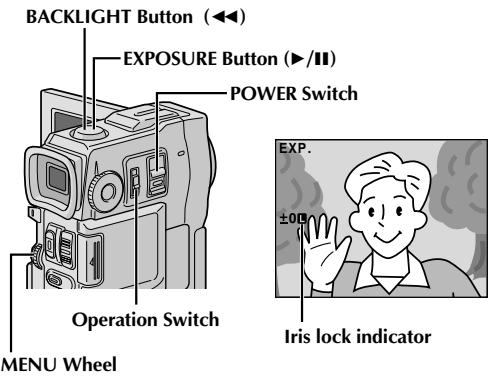
Pour revenir au contrôle automatique de l'iris...
... appuyez sur EXPOSURE pour que l'indicateur de contrôle de l'exposition et « B » disparaissent. Ou réglez le commutateur de fonctionnement sur « A ».
Pour verrouiller le contrôle de l'exposition et l'iris...
... après l'étape 2, réglez l'exposition en tournant la molette MENU. Puis verrouillez l'iris à l'étape 3. Pour un verrouillage automatique, appuyez à nouveau sur EXPOSURE à l'étape 2. L'iris devient automatique après environ 2 secondes.
Iris
Comme la pupille de l'œil humain, il se contracte dans les environnements bien éclairés pour empêcher trop de lumière d'entrer, et se dilate dans les environnements sombres pour laisser entrer plus de lumière.
Réglage de la balance des blancs
Terme qui fait référence à la justesse de la reproduction des couleurs sous différents éclairages. Si la balance des blancs est correcte, toutes les autres couleurs seront reproduites avec précision.
La balance des blancs est généralement réglée automatiquement. Cependant, les opérateurs de caméscope plus avancés contrôlent cette fonction manuellement pour obtenir une reproduction des couleurs/teintes plus professionnelle.
1 Réglez le commutateur de fonctionnement sur « M » et le commutateur POWER sur « CAMERA » tout en appuyant sur le bouton de verrouillage situé sur le commutateur, puis sortez complètement le viseur ou ouvrez complètement l'écran LCD. Appuyez sur la molette MENU. L'écran de menu apparaît. 3 Tournez la molette MENU pour sélectionner « », puis appuyez dessus. Le menu « W.BALANCE » apparaît. 4 Tournez la molette MENU pour sélectionner « MANUAL », puis appuyez dessus. L'écran de menu disparaît et « W.BAL » et le mode actuellement sélectionné s'affichent. Tournez-la pour sélectionner le mode souhaité.
« MAN. » - La balance des blancs est réglée manuellement. « » - En extérieur par temps ensoleillé. « - » - En extérieur par temps nuageux. « - » - Une lampe vidéo ou un type d'éclairage similaire est utilisé.
Appuyez sur la molette MENU. La sélection est terminée.
Pour revenir à la balance des blancs automatique...
... sélectionnez « AUTO » à l'étape 4. Ou réglez le commutateur de fonctionnement sur « A ».
REMARQUE :
La balance des blancs ne peut pas être utilisée lorsque le mode Sépia ou Monochrome (p. 36) est activé.
Fonctionnement de la balance des blancs manuelle
Effectuez la balance des blancs manuelle lorsque vous filmez sous différents types d'éclairage.
1 Suivez les étapes 1 à 4 du réglage de la balance des blancs et sélectionnez « MAN. » 2 Tenez une feuille de papier blanc devant le sujet. Ajustez le zoom ou positionnez-vous de manière à ce que le papier blanc remplisse l'écran. Appuyez sur la molette MENU jusqu'à ce que commence à clignoter.
Lorsque le réglage est terminé, cesse de clignoter.
4 Appuyez sur la molette MENU. Seul l'indicateur de balance des blancs manuelle est affiché.
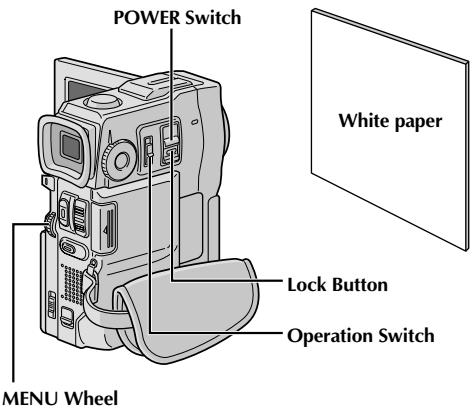
Pour modifier la teinte lors de l'enregistrement...
... à l'étape 2, remplacez le papier blanc par du papier de couleur. La balance des blancs est ajustée en fonction de la couleur, ce qui modifie la teinte. Papier rouge = vert plus profond ; papier bleu = orange ; papier jaune = violet plus profond.
REMARQUES :
- À l'étape 2, il peut être difficile de faire la mise au point sur le papier blanc. Dans ce cas, réglez la mise au point manuellement (13 p. 25).
- Un sujet peut être filmé sous différents types de conditions d'éclairage intérieur (lumière naturelle, fluorescente, bougie, etc.). La température de couleur étant différente selon la source de lumière, la teinte du sujet différera selon les réglages de balance des blancs. Utilisez cette fonction pour un résultat plus naturel.
- Une fois que vous avez réglé manuellement la balance des blancs, le réglage est conservé même si l'appareil est éteint ou si la batterie est retirée.
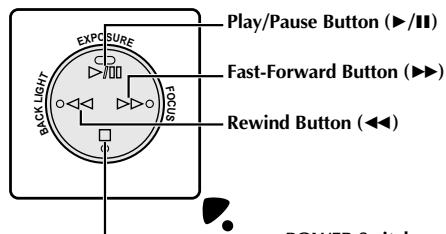
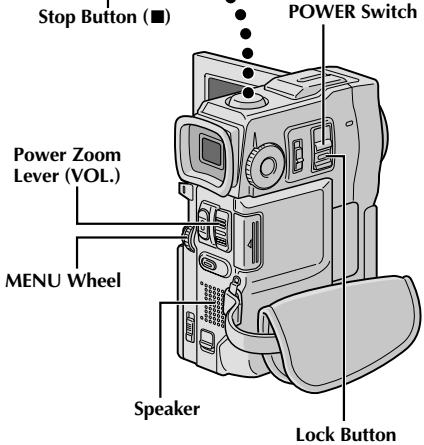
1 Chargez une cassette (p. 10).
2 Réglez l'interrupteur POWER sur « PLAY/PC » tout en appuyant sur le bouton de verrouillage situé sur l'interrupteur. Pour démarrer la lecture, appuyez sur /II.
- Pour arrêter la lecture, appuyez sur ■.
- Appuyez sur pour rembobiner, ou sur pour avancer rapidement la cassette en mode Arrêt.
Pour régler le volume du haut-parleur...
.... faites glisser la commande de zoom motorisé (VOL.) vers « + » pour augmenter le volume, ou vers - pour le diminuer.
REMARQUES :
- Si le mode Arrêt se poursuit pendant 5 minutes lorsque l'alimentation est fournie par une batterie, le caméscope s'éteint automatiquement. Pour le rallumer, réglez l'interrupteur POWER sur « OFF », puis sur « PLAY/PC ».
- L'image de lecture peut être visualisée sur l'écran LCD, dans le viseur ou sur un téléviseur connecté (p. 56).
- Vous pouvez également visualiser l'image de lecture sur l'écran LCD en le retournant et en le plaçant contre le boîtier de la caméra.
- Indications sur l'écran LCD/le viseur :
- Lorsque l'alimentation est fournie par une batterie : l'indicateur de puissance restante de la batterie « » s'affiche. Lorsque l'alimentation est fournie via le cordon CC : « » ne s'affiche pas.
- En mode Stop, aucune indication n'est affichée.
- Lorsqu'un câble est connecté au connecteur AV OUT, le son n'est pas émis par le haut-parleur.
Lecture sur image fixe : Pause pendant la lecture.
1) Appuyez sur /II pendant la lecture. 2) Pour reprendre la lecture normale, appuyez à nouveau sur /II. - Si la lecture sur image fixe se poursuit pendant plus de 3 minutes environ, le mode Stop du caméscope s'active automatiquement. Après 5 minutes en mode Stop, l'alimentation du caméscope se coupe automatiquement. - Lorsque vous appuyez sur /II, l'image peut ne pas se figer immédiatement pendant que le caméscope stabilise l'image fixe.
Recherche navette : Permet une recherche à grande vitesse dans les deux sens.
1) Appuyez sur pour la recherche avant ou sur pour la recherche arrière pendant la lecture. 2) Pour reprendre la lecture normale, appuyez sur /II. - Pendant la lecture, maintenez enfoncé ou . La recherche se poursuit tant que vous maintenez le bouton enfoncé. Dès que vous le relâchez, la lecture normale reprend. - Un léger effet de mosaïque apparaît à l'écran pendant la recherche navette. Ce n'est pas un dysfonctionnement.
Lecture image par image : Permet une recherche image par image.
1) Activez la lecture sur image fixe. 2) Tournez la molette MENU vers "+" pour la lecture image par image avant, ou vers "-" pour la lecture image par image arrière pendant la lecture sur image fixe. Pour reprendre la lecture normale, appuyez sur /II. - Vous pouvez également utiliser la télécommande fournie pour la lecture image par image (C) p. 68).
Lecture au ralenti, zoom de lecture et effets spéciaux de lecture
Disponible uniquement avec la télécommande (fournie) ( p. 68, 69).
Bouton START/STOP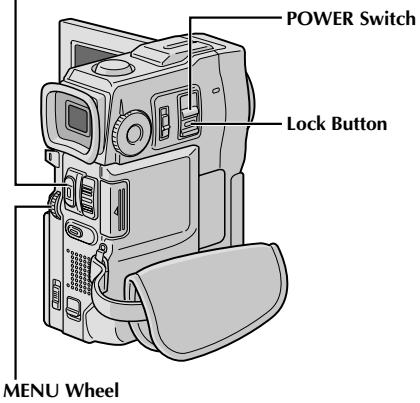
Affichage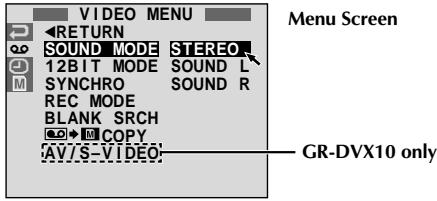
* Chaque réglage est lié au "MENU AFFICHAGE", qui apparaît lorsque le commutateur de fonctionnement est réglé sur "M" (13 p. 29). Les paramètres sont les mêmes que ceux décrits à la p. 29.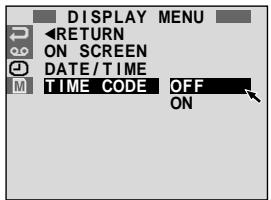
NOTES :
- Il est également possible de modifier les réglages à l'écran en appuyant sur DISPLAY sur la télécommande (fournie).
- "REC MODE" peut être réglé lorsque le commutateur de fonctionnement est sur "M" (F p. 11, 27).
- Si "ON SCREEN" est réglé sur "SIMPLE", cela empêche l'affichage du caméscope (sauf la date, l'heure et le code temporel) d'apparaître sur le téléviseur connecté. Cela fait également disparaître le mode de lecture du son et la vitesse de la bande sur le caméscope.
La procédure suivante s'applique à tous les réglages sauf Synchro Comp (13 p. 74, 75).
1. Réglez le commutateur POWER sur "PLAY/PC" tout en maintenant enfoncé le bouton de verrouillage situé sur le commutateur. 2. Appuyez sur la molette MENU. L'écran de menu apparaît. 3. Tournez la molette MENU pour sélectionner l'icône de fonction souhaitée, puis appuyez dessus. Le menu de la fonction sélectionnée apparaît. 4. Tournez la molette MENU pour sélectionner la fonction souhaitée, puis appuyez dessus pour afficher le sous-menu. 5. Tournez la molette MENU pour sélectionner le paramètre souhaité et appuyez dessus. La sélection est terminée. Tournez la molette MENU pour sélectionner "RETURN" et appuyez deux fois pour fermer l'écran de menu.
| VIDEO MENU | SOUND MODE | pg. 42. |
| 12BIT MODE | pg. 42. |
| SYNCHRO | pg. 75. |
| REC MODE | Allows you to set the video recording mode (SP or LP) depending on your preference (pg. 11). It is recommended you use "REC MODE" in the "VIDEO MENU" when using this camcorder as a recorder during digital dubbing (GR-DVX10 only pg. 61, 63). |
| BLANK SRCH | Helps find a blank portion of tape when you want to record from the middle of a tape (pg. 43). |
| COPY | ON: Enables dubbing of images recorded on a tape to a MultiMediaCard (pg. 65). OFF: Enables snapshots to be taken during video playback. |
| AV/S-VIDEO (GR-DVX10 only) | IN: Enables audio/video signal input from the AV and S-VIDEO connectors (pg. 61). OUT: Enables audio/video signal output to a TV, VCR, etc. via the AV and S-VIDEO connectors (pg. 56, 60). |
| DISPLAY MENU | ON SCREEN* | Makes the camcorder's indications appear/disappear from the connected TV screen. |
| DATE/TIME* | Makes the date/time appear/disappear on the camcorder. |
| TIME CODE* | Makes the time code appear/disappear on the camcorder. |
Son de lecture
Pendant la lecture, le caméscope détecte le mode sonore dans lequel l'enregistrement a été effectué et lit le son. Sélectionnez le type de son à associer à votre image de lecture. Selon les explications d'accès au menu à la p. 41, sélectionnez "SOUND MODE" ou "12BIT MODE" dans l'écran de menu et réglez-le sur le paramètre souhaité.
| SOUND MODE | STEREO | Sound is output on both “L” and “R” channels in stereo. |
| SOUND L | Sound from the “L” channel is output in stereo. |
| SOUND R | Sound from the “R” channel is output in stereo. |
| 12BIT MODE | SOUND 1 | Original sound is output on both “L” and “R” channels in stereo. |
| SOUND 2 | Dubbed sound is output on both “L” and “R” channels in stereo. |
| MIX | Original and dubbed sounds are combined and output in stereo on both “L” and “R” channels in stereo. |
Préréglage d'usine
NOTES :
- Le réglage "SOUND MODE" est disponible pour le son 12 bits et 16 bits. (Dans les fonctions des modèles précédents, "12 bits" est appelé "32 kHz" et "16 bits" est appelé "48 kHz".)
- Le caméscope ne peut pas détecter le mode sonore dans lequel l'enregistrement a été effectué pendant l'avance rapide ou le rembobinage. Pendant la lecture, le mode sonore est affiché dans le coin supérieur gauche.
Affichage
Réglage ON SCREEN :
Pour la lecture du son, la vitesse de la bande et le défilement de la bande.
Réglage DATE/HEURE :
Pour la date et l'heure.
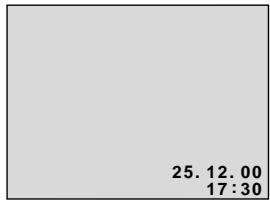
Réglage TIME CODE :
Pour le code temporel.
*25 images = 1 seconde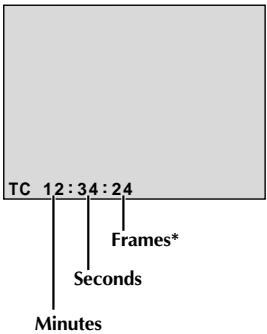
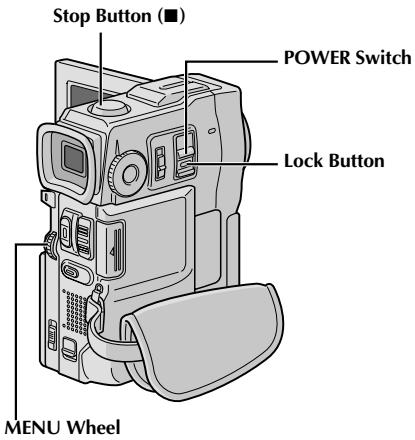
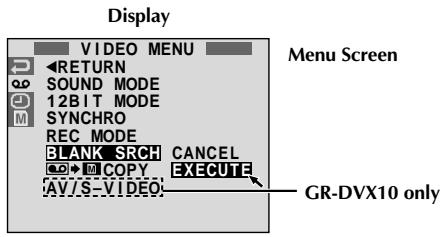

Recherche de blanc
Vous aide à trouver où commencer l'enregistrement au milieu d'une cassette pour éviter une interruption du code temporel (p. 21).
1 Chargez une cassette (FF p. 10) et réglez l'interrupteur POWER sur "PLAY/PC" tout en maintenant enfoncé le bouton de verrouillage situé sur l'interrupteur. Appuyez sur la molette MENU. L'écran de menu apparaît. 3 Tournez la molette MENU pour sélectionner "CO", puis appuyez dessus. "VIDEO MENU" apparaît. 4 Tournez la molette MENU pour sélectionner "BLANK SRCH", puis appuyez dessus. Le sous-menu apparaît. Tournez la molette MENU pour sélectionner "EXECUTE", puis appuyez dessus.
- "BLANK SEARCH" clignote et le caméscope démarre automatiquement une recherche en marche arrière ou avant, puis s'arrête à environ 3 secondes de bande avant le début de la portion vierge détectée.
Pour annuler la recherche de blanc en cours...
... appuyez sur ■.
REMARQUES :
- À l'étape 5, si la position actuelle se trouve sur une portion vierge, le caméscope recherche en marche arrière ; si elle se trouve sur une portion enregistrée, il recherche en marche avant.
- La recherche de blanc ne fonctionne pas si "HEAD CLEANING REQUIRED. USE CLEANING CASSETTE" est apparu avec la cassette.
- Si le début ou la fin de la bande est atteint pendant la recherche de blanc, le caméscope s'arrête automatiquement.
- Une portion vierge plus courte que 5 secondes de bande ne peut pas être détectée.
- La portion vierge détectée peut se situer entre des scènes enregistrées. Avant de commencer l'enregistrement, assurez-vous qu'il n'y a pas de scène enregistrée après la portion vierge.
Bouton START/STOP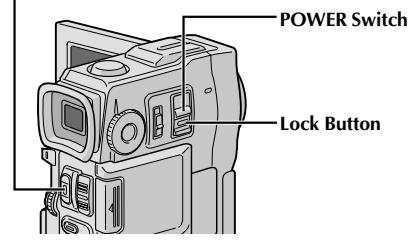
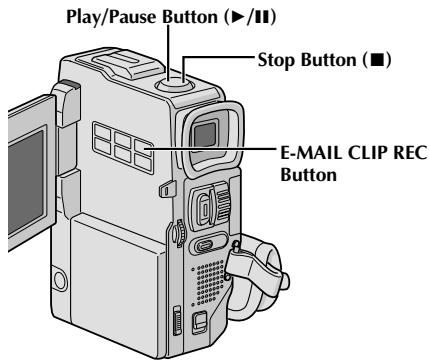
Affichage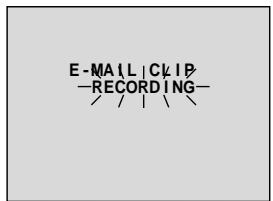

Après environ 20 secondes ou lorsque START/STOP est enfoncé
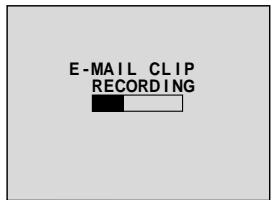

Le stockage est terminé
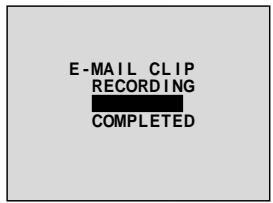
Écran de lecture
Enregistrement de clips e-mail
Vous pouvez créer des clips vidéo à partir de séquences vidéo enregistrées et les stocker dans une carte MultiMediaCard sous forme de fichiers pouvant être envoyés facilement par e-mail.
1
Chargez une carte MultiMediaCard (page 12) et une cassette (page 10). Réglez l'interrupteur POWER sur "PLAY/PC" tout en maintenant enfoncé le bouton de verrouillage situé sur l'interrupteur.
2
Appuyez sur / pour démarrer la lecture vidéo.
3
Appuyez sur E-MAIL CLIP REC. « E-MAIL CLIP STAND-BY » apparaît et le caméscope passe en mode veille d'enregistrement de clip e-mail.
4
Appuyez sur START/STOP. « E-MAIL CLIP RECORDING » apparaît.
- Le caméscope arrête automatiquement l'enregistrement de clip e-mail après environ 20 secondes, puis commence à stocker les données vidéo enregistrées dans la carte MultiMediaCard, ce qui prend environ 100 secondes supplémentaires. « COMPLETED » apparaît lorsque c'est terminé.
Pour annuler l'enregistrement de clip e-mail...
... après l'étape 3, appuyez à nouveau sur E-MAIL CLIP REC ou appuyez sur pour arrêter la lecture vidéo.
... le clip vidéo sélectionné dans l'écran d'index E-CLIP (13 p. 47, Lecture d'index) peut être visualisé sur l'écran LCD ou dans le viseur ; les clips vidéo ne peuvent pas être affichés sur un téléviseur connecté.
REMARQUES :
- La lecture ne peut pas être effectuée pendant l'enregistrement de clip e-mail.
- Si vous appuyez sur START/STOP pendant l'enregistrement de clip e-mail, seule la partie enregistrée avant d'appuyer sur START/STOP sera stockée dans la carte MultiMediaCard.
- De plus, si la fin de la bande est atteinte pendant l'enregistrement de clip e-mail, cette partie sera automatiquement stockée dans la carte MultiMediaCard.
- Si la fin de la bande est atteinte à l'étape 3, le mode veille d'enregistrement de clip e-mail sera automatiquement annulé. Reportez-vous au manuel d'instructions du logiciel fourni, CardNavigator, Video Player et JVC Video Decoder.
- Du bruit vidéo peut apparaître lors de la visualisation des clips vidéo sur l'écran LCD ou dans le viseur, mais ce bruit n'est pas présent dans les clips vidéo réels stockés dans la carte MultiMediaCard.
[Pour une lecture normale]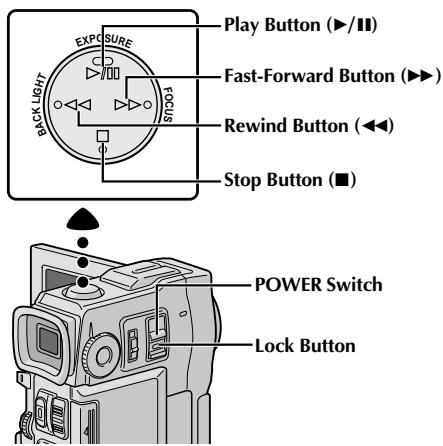
Pour afficher l'image suivante [en lecture automatique]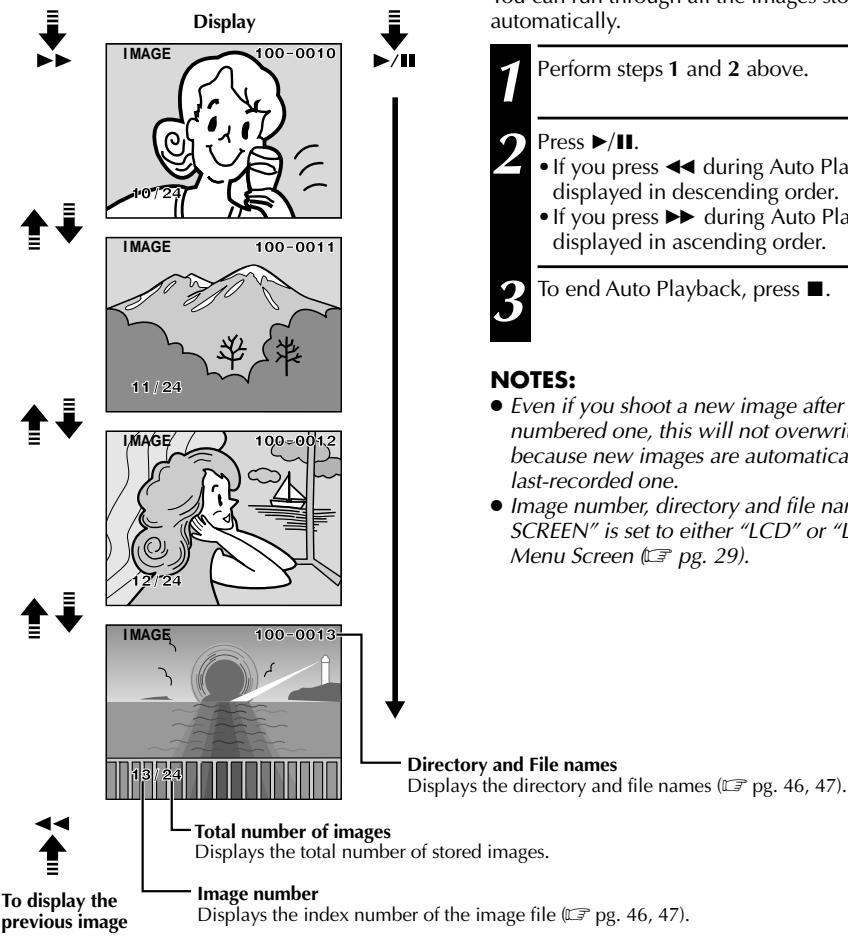
Lecture normale
Les images prises avec le caméscope sont automatiquement numérotées, puis stockées dans l'ordre numérique sur la carte MultiMedia. Vous pouvez visualiser les images stockées, une à la fois, un peu comme en feuilletant un album photo.
1 Chargez une carte MultiMedia (p. 12). 2 Réglez le commutateur POWER sur "MEMORY" tout en maintenant enfoncé le bouton de verrouillage situé sur le commutateur. Ouvrez complètement l'écran LCD ou sortez complètement le viseur. Une image stockée s'affiche. Appuyez sur pour afficher l'image suivante. Appuyez sur pour afficher l'image précédente.
Lecture automatique
Vous pouvez parcourir automatiquement toutes les images stockées en mémoire.
1 Effectuez les étapes 1 et 2 ci-dessus.
Appuyez sur ▶/II.
Si vous appuyez sur ◀ pendant la lecture automatique, les images sont affichées dans l'ordre décroissant. - Si vous appuyez sur ▶ pendant la lecture automatique, les images sont affichées dans l'ordre croissant.
Pour arrêter la lecture automatique, appuyez sur ■.
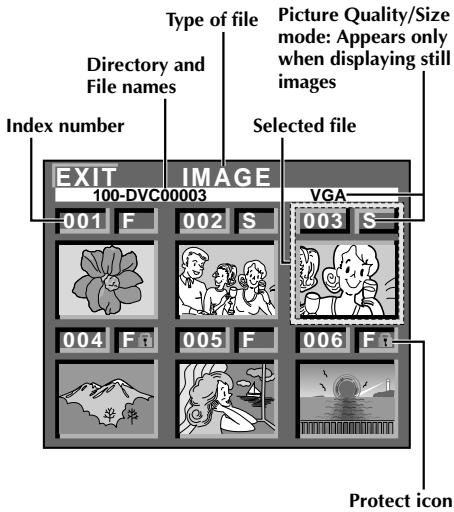
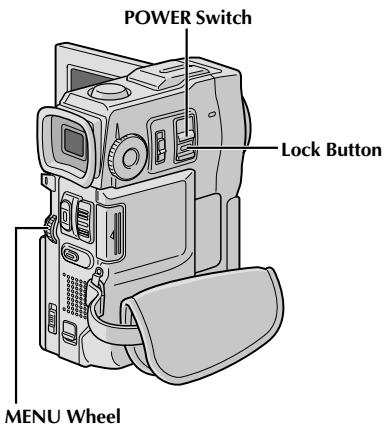
Écran d'index
Les fichiers que vous avez stockés peuvent être affichés avec leurs informations d'index. Pratique pour vérifier les fichiers stockés au préalable, l'écran d'index affiche également le mode de qualité/taille d'image, les noms de répertoire et de fichier, ainsi que les fichiers protégés contre une effacement accidentel.
100-DVC00003 : Noms de répertoire et de fichier
Indique que le fichier sélectionné se trouve dans un répertoire appelé "100" et que son nom de fichier est "DVC00003".
Chaque fois qu'une prise de vue a lieu, un nom de fichier est créé en utilisant un nombre supérieur d'une unité au plus grand nombre des noms de fichiers en cours d'utilisation. Si le nom de fichier atteint DVC09999, un nouveau répertoire sera créé et le nom de fichier recommencera à partir de DVC00001.
Sur l'écran de lecture (p. 45), le répertoire et seulement les quatre derniers chiffres du nom de fichier sont affichés.
001 : Numéro d'index
Les numéros d'index sont attribués à partir de 001. Par exemple, lorsque 10 fichiers sont stockés (numéros d'index : 001 à 010), si trois fichiers portant les numéros d'index 002, 004 et 006 sont supprimés de la mémoire, les fichiers restants sont automatiquement déplacés vers le haut pour combler les lacunes de la séquence numérique. Par conséquent, le nombre de fichiers restants est de 7 et les nouveaux numéros d'index vont de 001 à 007.
F/S/XGA/VGA : Mode qualité/taille d'image
Affiche le mode qualité/taille d'image de l'image stockée. Il existe 4 modes disponibles : XGA FINE, XGA STD, VGA FINE et VGA STD (par ordre de qualité) (13).
: Icône de protection
Lorsqu'un fichier est protégé contre son effacement accidentel, une marque de cadenas apparaît à côté du numéro d'index et ce fichier ne peut pas être supprimé.
Fichier sélectionné
Un fichier est encadré en vert lorsqu'il est sélectionné. Tournez la molette MENU pour déplacer le cadre vert sur le fichier souhaité.
Bouton INDEX
Afficher l'écran de lecture
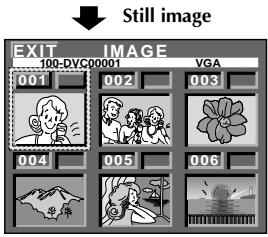
Clip vidéo
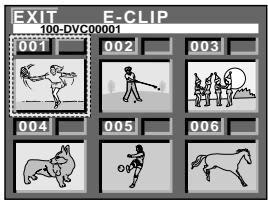
Effet sonore
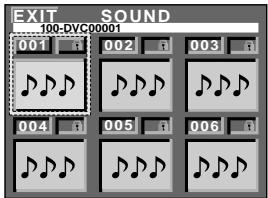
Lecture par index
Vous pouvez visualiser ou écouter les fichiers (images fixes, clips vidéo ou effets sonores) stockés en mémoire six à la fois. Utilisez ce mode lorsque vous recherchez un fichier que vous souhaitez voir ou entendre.
1 Effectuez les étapes 1 et 2 de la section « Lecture normale » à la page 45. Pour accéder à l'écran d'index, appuyez une fois sur INDEX.
Si vous appuyez deux fois sur INDEX...
l'écran d'index pour l'enregistrement de clips e-mail (page 44) apparaît, si un clip vidéo a été stocké. (S'il n'y a pas de clip vidéo, cette étape sera ignorée.)
Si vous appuyez trois fois sur INDEX...
l'écran d'index pour l'effet sonore numérique (page 37) apparaît. (S'il n'y a pas d'effet sonore, l'affichage revient à l'écran d'index des images fixes.)
3 Tournez la molette MENU pour déplacer le cadre vert sur le fichier souhaité et appuyez dessus. Le fichier sélectionné dans l'écran d'index est affiché ou lu.
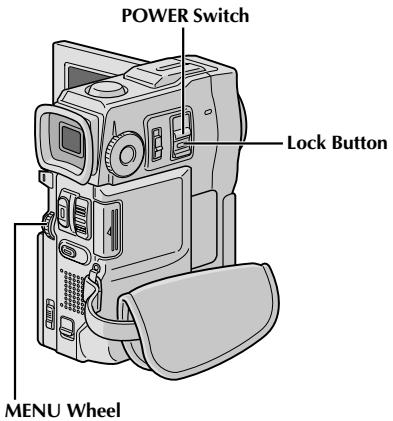
Affichage de l'écran de menu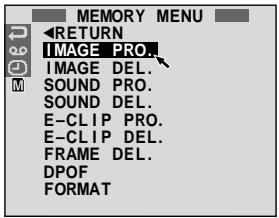
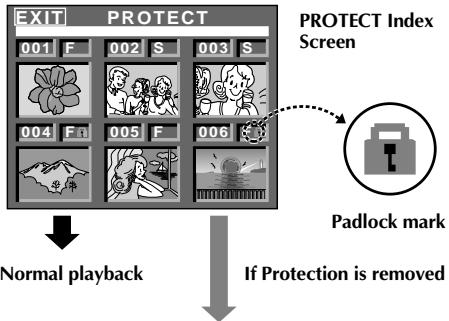
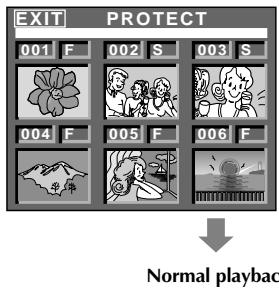
Protection des fichiers
Le mode Protection permet d'éviter l'effacement accidentel de fichiers. Lorsqu'un symbole de cadenas est affiché à côté du numéro d'index, ce fichier ne peut pas être supprimé.
1 Réglez l'interrupteur POWER sur « MEMORY » tout en maintenant enfoncé le bouton de verrouillage situé sur l'interrupteur. Ouvrez complètement l'écran LCD ou sortez complètement le viseur. Un fichier stocké est affiché. 2 Appuyez sur la molette MENU. L'écran de menu apparaît. Tournez-la pour sélectionner « M » et appuyez dessus. Le menu « MEMORY MENU » apparaît. 3 En tournant la molette MENU... ... sélectionnez « IMAGE PRO. » pour accéder à l'écran d'index PROTECT. ... sélectionnez « E-CLIP PRO. » pour accéder à l'écran d'index PROTECT pour les clips e-mail. ... sélectionnez « SOUND PRO. » pour accéder à l'écran d'index PROTECT pour les effets sonores. Puis appuyez sur la molette MENU.
POUR PROTÉGER UN FICHIER
Avant de procéder, effectuez les étapes 1 à 3 ci-dessus.
4 Tournez la molette MENU pour déplacer le cadre vert sur le fichier souhaité et appuyez dessus. Un symbole de cadenas « O » apparaît sur le fichier sélectionné. Répétez cette procédure pour tous les fichiers que vous ne souhaitez pas supprimer par accident. 5 Tournez la molette MENU vers le haut pour sélectionner « EXIT » et appuyez dessus. L'écran de lecture normale apparaît.
REMARQUE :
Lorsque la mémoire est initialisée ou corrompue, même les fichiers protégés sont supprimés. Si vous ne voulez pas perdre de fichiers importants, transférez-les sur un PC et enregistrez-les.
POUR RETIRER LA PROTECTION
Avant d'effectuer les opérations suivantes, exécutez les étapes 1 à 3 ci-dessus.
4 Tournez la molette MENU pour déplacer le cadre vert sur le fichier souhaité et appuyez dessus. Le symbole de cadenas "窗口" situé au-dessus du fichier disparaît et le fichier n'est plus protégé. Répétez cette procédure pour tous les fichiers dont vous souhaitez retirer la protection. 5 Tournez la molette MENU vers le haut pour sélectionner "EXIT" et appuyez dessus. L'écran de lecture normal apparaît.
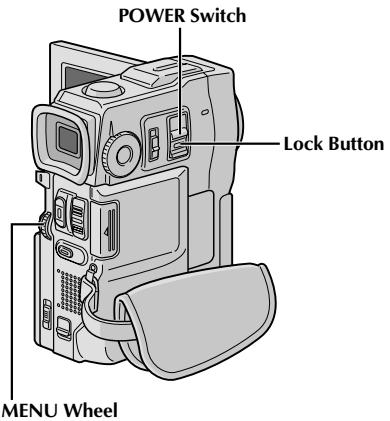
Afficher l'écran d'index de suppression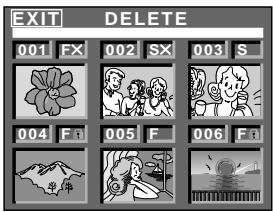
Écran de confirmation de suppression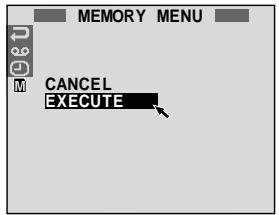
ATTENTION :
Ne retirez pas la MultiMediaCard et n'effectuez aucune autre opération (comme éteindre le caméscope) pendant la suppression. Assurez-vous également d'utiliser l'adaptateur secteur/chargeur fourni, car la MultiMediaCard peut être corrompue si la batterie s'épuise pendant la suppression. Si la MultiMediaCard est corrompue, initialisez-la. (13 p. 50)
Suppression de fichiers
Les fichiers précédemment stockés peuvent être supprimés un par un ou tous à la fois.
1 Réglez le commutateur POWER sur " EMORY " tout en appuyant sur le bouton de verrouillage situé sur le commutateur. Ouvrez complètement l'écran LCD ou sortez complètement le viseur. Un fichier stocké s'affiche. 2 Appuyez sur la molette MENU. L'écran de menu apparaît. Tournez-la pour sélectionner "M" et appuyez dessus. "MEMORY MENU" apparaît. 3 En tournant la molette MENU... ... sélectionnez "IMAGE DEL." pour supprimer des images. ... sélectionnez "E-CLIP DEL." pour supprimer des fichiers d'enregistrement E-clip. ... sélectionnez "SOUND DEL." pour supprimer des effets sonores. Puis appuyez sur la molette MENU. Le sous-menu apparaît.
POUR SÉLECTIONNER UN FICHIER EN PARCOURANT LES FICHIERS STOCKÉS EN MÉMOIRE
Avant d'effectuer les opérations suivantes, exécutez les étapes 1 à 3 ci-dessus.
4 Tournez la molette MENU pour sélectionner "SELECT" et appuyez dessus. L'écran d'index de suppression apparaît. 5 Tournez la molette MENU pour déplacer le cadre vert sur le fichier souhaité à supprimer et appuyez dessus. Un "X" apparaît au-dessus du fichier sélectionné. Répétez cette procédure pour tous les fichiers que vous souhaitez supprimer. Pour désélectionner un fichier, appuyez à nouveau sur la molette MENU. Le "X" disparaît. 6 Tournez la molette MENU vers le haut pour sélectionner "EXIT" et appuyez dessus. L'écran de confirmation de suppression apparaît. 7 Tournez la molette MENU pour sélectionner "EXECUTE" et appuyez dessus. Les fichiers sélectionnés sont supprimés et l'écran de lecture normal apparaît. Pour annuler la suppression, tournez la molette MENU pour sélectionner "CANCEL" et appuyez dessus.
POUR SUPPRIMER TOUS LES FICHIERS
Avant d'effectuer les opérations suivantes, exécutez les étapes 1 à 3 ci-dessus.
4 Tournez la molette MENU pour sélectionner "TOUS" puis appuyez dessus. L'écran de confirmation de suppression apparaît. 5 Tournez la molette MENU pour sélectionner "EXÉCUTER" puis appuyez dessus. Tous les fichiers sont supprimés. Pour annuler la suppression, tournez la molette MENU pour sélectionner "ANNULER" puis appuyez dessus.
REMARQUES :
- Les fichiers protégés (13 p. 48) ne peuvent pas être supprimés avec l'opération ci-dessus. Pour les supprimer, retirez d'abord la protection.
- Une fois les fichiers supprimés, ils ne peuvent pas être restaurés. Vérifiez les fichiers avant de les supprimer.
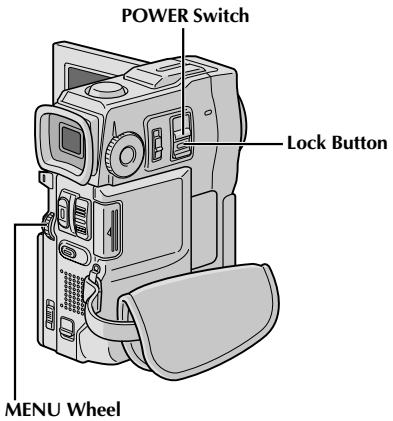
Affichage
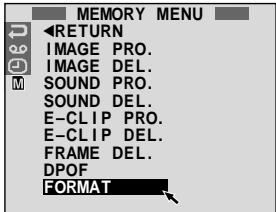

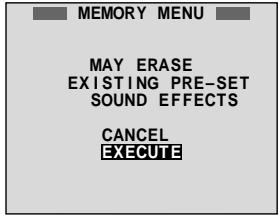
Écran de confirmation
Vous pouvez initialiser une carte MultiMediaCard à tout moment. Après l'initialisation, toutes les images et données stockées dans la carte MultiMediaCard, y compris celles qui ont été protégées, sont effacées.
1 Réglez l'interrupteur POWER sur "MEMORY" tout en appuyant sur le bouton de verrouillage situé sur l'interrupteur. Ouvrez complètement l'écran LCD ou sortez complètement le viseur. Appuyez sur la molette MENU. L'écran du menu apparaît. 3 Tournez la molette MENU pour sélectionner "M" puis appuyez dessus. "MENU MÉMOIRE" apparaît. 4 Tournez la molette MENU pour sélectionner "FORMATER" puis appuyez dessus. L'écran de confirmation apparaît. 5 Tournez la molette MENU pour sélectionner "EXÉCUTER" puis appuyez dessus. La carte MultiMediaCard est initialisée. Lorsque l'initialisation est terminée, "AUCUNE DONNÉE STOCKÉE" apparaît. - Pour annuler l'initialisation, tournez la molette MENU pour sélectionner "ANNULER" puis appuyez dessus.
ATTENTION :
N'effectuez aucune autre opération (comme éteindre le caméscope) pendant l'initialisation. Assurez-vous également d'utiliser l'adaptateur secteur/chargeur fourni, car la carte MultiMediaCard peut être corrompue si la batterie s'épuise pendant l'initialisation. Si la carte MultiMediaCard est corrompue, initialisez-la.
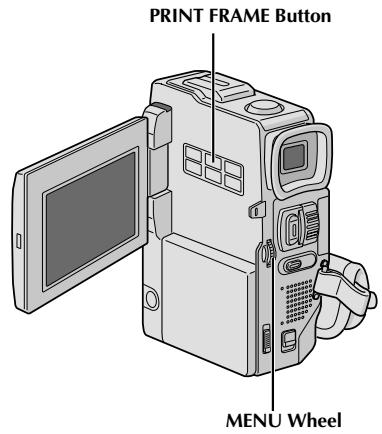
Écran d'index des images à imprimer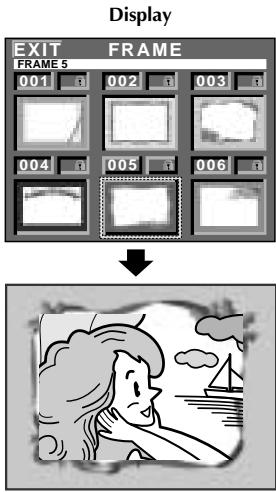
Superposition d'une image à imprimer
Une sélection d'images à imprimer est stockée dans le caméscope. Une image peut être superposée sur une image fixe.
1. Lisez une image stockée dans la carte MultiMediaCard. Appuyez sur PRINT FRAME. L'écran d'index des impressions apparaît. 3. Tournez la molette MENU pour déplacer le cadre vert sur l'impression souhaitée et appuyez dessus. La sélection est terminée. L'impression sélectionnée est superposée à l'image fixe.
Pour faire disparaître l'impression... appuyez sur PRINT FRAME.
REMARQUES :
- Une impression créée sur un PC peut être transférée sur une carte MultiMediaCard à l'aide du logiciel fourni. Les impressions transférées sont affichées à partir du numéro d'index 007 et peuvent être utilisées avec les impressions en mémoire dans le caméscope. Pour plus de détails sur la création/le transfert d'impressions, reportez-vous aux instructions du logiciel.
- Selon les images lues, le contour de l'impression peut devenir granuleux ou flou.
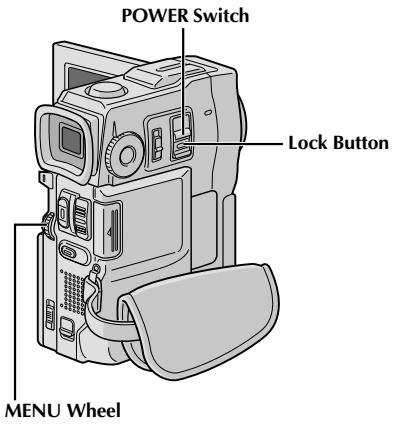
Écran d'index de suppression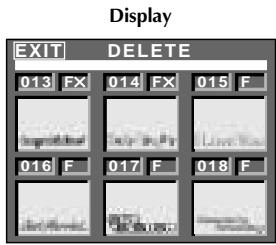
Écran de confirmation de suppression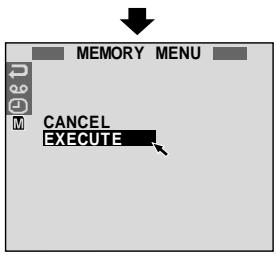
ATTENTION :
Ne retirez pas la carte MultiMediaCard et n'effectuez aucune autre opération (comme éteindre le caméscope) pendant la suppression. Assurez-vous également d'utiliser l'adaptateur secteur/chargeur fourni, car la carte MultiMediaCard peut être corrompue si la batterie s'épuise pendant la suppression. Si la carte MultiMediaCard est corrompue, initialisez-la. (13 p. 50)
Suppression d'impressions
Une impression créée sur un PC peut être transférée sur une carte MultiMediaCard à l'aide du logiciel fourni. Les impressions transférées sur une carte MultiMediaCard peuvent être supprimées lorsqu'elles ne sont plus nécessaires.
Il existe deux façons de supprimer les impressions créées précédemment : en parcourant les impressions individuellement ou en les supprimant toutes à la fois.
POUR SÉLECTIONNER UNE IMPRESSION EN PARCOURANT LES IMPRESSIONS STOCKÉES EN MÉMOIRE
1. Réglez le commutateur POWER sur "MEMORY" tout en maintenant enfoncé le bouton de verrouillage situé sur le commutateur. Appuyez sur la molette MENU. L'écran de menu apparaît. 3. Tournez la molette MENU pour sélectionner "M" et appuyez dessus. "MEMORY MENU" apparaît. 4. Tournez la molette MENU pour sélectionner "FRAME DEL." et appuyez dessus. Le sous-menu apparaît. Tournez la molette MENU pour sélectionner "SELECT" et appuyez dessus. L'écran d'index de suppression apparaît. 6. Tournez la molette MENU pour déplacer le cadre vert sur l'impression que vous souhaitez supprimer et appuyez dessus. Un "X" apparaît au-dessus de l'impression sélectionnée.
Répétez cette procédure pour toutes les impressions que vous souhaitez supprimer.
Pour désélectionner une image à imprimer, appuyez à nouveau sur la molette MENU. Le « X » disparaît.
7 Tournez la molette MENU vers le haut pour sélectionner « EXIT » et appuyez dessus. L'écran de confirmation de suppression apparaît. 8 Tournez la molette MENU pour sélectionner « EXECUTE » et appuyez dessus. Les images à imprimer sélectionnées sont supprimées et l'écran de lecture normal apparaît.
- Pour annuler la suppression, tournez la molette MENU pour sélectionner « CANCEL » et appuyez dessus.
REMARQUES :
- Si les images à imprimer créées sur un PC n'ont pas été transférées sur une carte MultiMediaCard, il n'est pas possible de les supprimer à l'aide de ces étapes.
- Les images à imprimer dans la mémoire du caméscope ne peuvent pas être supprimées.
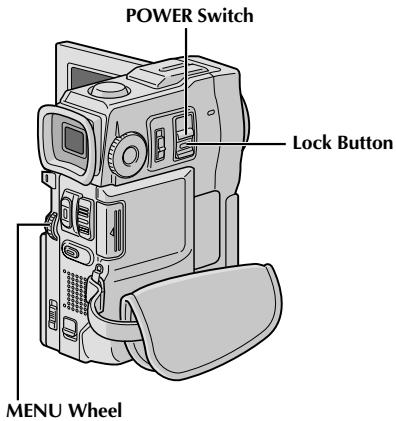
POUR SUPPRIMER TOUTES LES IMAGES À IMPRIMER
1 Effectuez les étapes 1 à 4 de la page 52. 2 Tournez la molette MENU pour sélectionner « ALL » et appuyez dessus. L'écran de confirmation de suppression apparaît. 3 Tournez la molette MENU pour sélectionner « EXECUTE » et appuyez dessus. Toutes les images à imprimer sont supprimées.
- Pour annuler la suppression, tournez la molette MENU pour sélectionner « CANCEL » et appuyez dessus.
Affichage
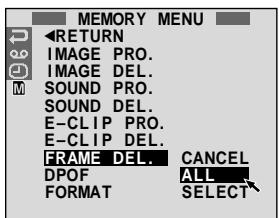
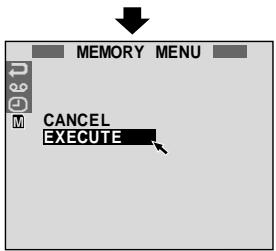
Suppression
Confirmation
Écran
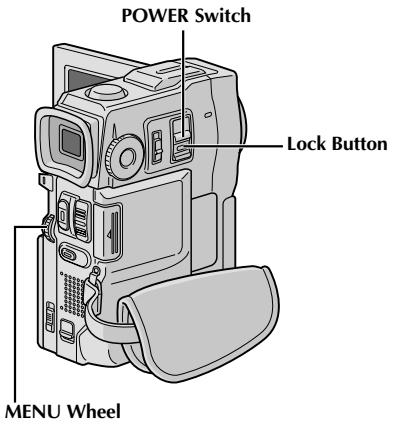
Afficher l'écran de menu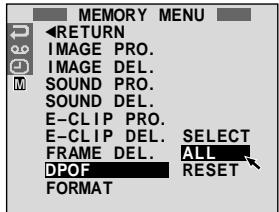
Écran de confirmation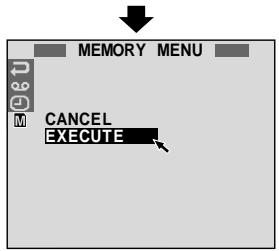
Ce caméscope est compatible avec la norme DPOF (Digital Print Order Format) afin de prendre en charge les futurs systèmes tels que l'impression automatique, qui enregistre des informations sur les images fixes que vous souhaitez imprimer (comme le nombre de tirages à effectuer). Il existe 2 réglages d'informations d'impression disponibles : « Imprimer toutes les images fixes (un tirage pour chacune) » expliqué ci-dessous et « Imprimer en sélectionnant les images fixes et le nombre de tirages » (13, p. 55).
POUR IMPRIMER TOUTES LES IMAGES FIXES (UN TIRAGE POUR CHACUNE)
1 Réglez le commutateur POWER sur « MEMORY » tout en maintenant enfoncé le bouton de verrouillage situé sur le commutateur. Ouvrez complètement l'écran LCD ou sortez complètement le viseur. Appuyez sur la molette MENU. L'écran de menu apparaît. 3 Tournez la molette MENU pour sélectionner « M » et appuyez dessus. « MENU MEMORY » apparaît. 4 Tournez la molette MENU pour sélectionner « DPOF » et appuyez dessus. Le sous-menu apparaît. 5 Tournez la molette MENU pour sélectionner « ALL » et appuyez dessus. La sélection est terminée. L'écran de confirmation apparaît. Tournez la molette MENU pour sélectionner « EXECUTE » et appuyez dessus. L'écran de lecture normal apparaît.
- Pour annuler la sélection, tournez la molette MENU pour sélectionner « CANCEL » et appuyez dessus.
Pour réinitialiser le réglage...
... sélectionnez « RESET » à l'étape 5. Le réglage est réinitialisé à 0 pour toutes les images fixes.
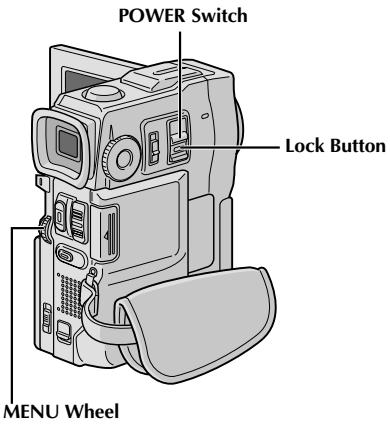
Afficher l'écran DPOF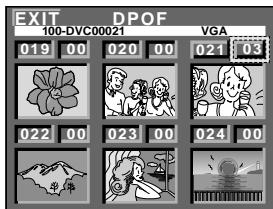
Écran de confirmation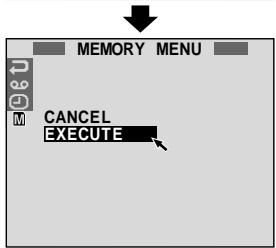
POUR IMPRIMER EN SÉLECTIONNANT LES IMAGES FIXES ET LE NOMBRE DE TIRAGES
1 Effectuez les étapes 1 à 4 de la page 54. 2 Tournez la molette MENU pour désélectionner « SELECT » et appuyez dessus. La sélection est terminée. L'écran DPOF apparaît. 3 Tournez la molette MENU pour déplacer le cadre vert sur l'image que vous souhaitez imprimer et appuyez dessus. 4 Sélectionnez le nombre de tirages en tournant la molette MENU vers « + » pour augmenter le nombre, ou vers « - » pour le diminuer, puis appuyez dessus. Répétez les étapes 3 et 4 pour le nombre de tirages souhaité. Le nombre de tirages peut être réglé jusqu'à 15. Pour corriger le nombre de tirages, sélectionnez à nouveau l'image et modifiez le nombre. 5 Tournez la molette MENU vers le haut pour sélectionner « EXIT » et appuyez dessus. La sélection est terminée. L'écran de confirmation apparaît. 6 Tournez la molette MENU pour sélectionner « EXECUTE » et appuyez dessus. L'écran de lecture normal apparaît. Pour annuler la sélection, tournez la molette MENU pour sélectionner « CANCEL » et appuyez dessus.
Pour réinitialiser le nombre de tirages...
... sélectionnez « RESET » à l'étape 5 de la page 54. Le nombre de tirages est réinitialisé à 0 pour toutes les images fixes.
ATTENTION :
Lors de l'exécution de ce qui précède, ne débranchez jamais l'alimentation, car cela pourrait corrompre la mémoire. Par sécurité, tous les boutons, y compris l'interrupteur POWER, sont désactivés à l'étape 5.
REMARQUES :
- Si vous chargez une carte MultiMedia déjà configurée comme indiqué ci-dessus dans une imprimante compatible DPOF, elle imprimera automatiquement les images fixes sélectionnées.
- Pour imprimer des images enregistrées sur une cassette, dupliquez-les d'abord sur une carte MultiMedia (13 p. 65).
Voici quelques types de connexions de base. Lors des connexions, reportez-vous également aux manuels d'instructions de votre magnétoscope et de votre téléviseur.
A. Connexion à un téléviseur ou un magnétoscope équipé d'une prise SCART compatible uniquement avec le signal vidéo standard
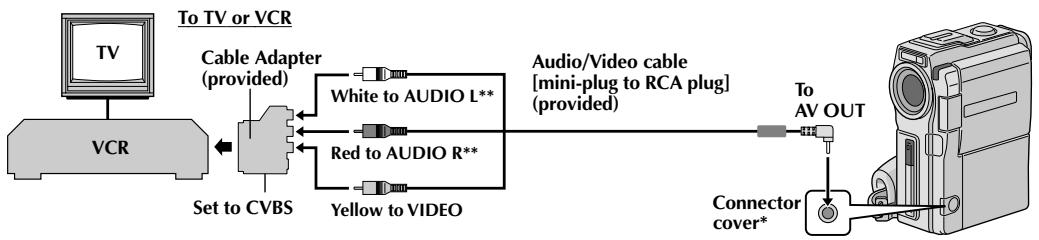
- Lors du branchement des câbles, ouvrez ce couvercle. **Le câble audio n'est pas nécessaire pour regarder des images fixes avec l'interrupteur POWER réglé sur « MEMORY PLAY ».
B. Connexion à un téléviseur ou un magnétoscope équipé d'une prise SCART compatible avec le signal Y/C
Fixation de la station d'accueil
Alignez la tige de guidage et la vis de la station d'accueil avec le trou de la tige et la prise de montage pour trépied du caméscope. Serrez la vis. - Pour retirer le caméscope, desserrez la vis et détachez-le.
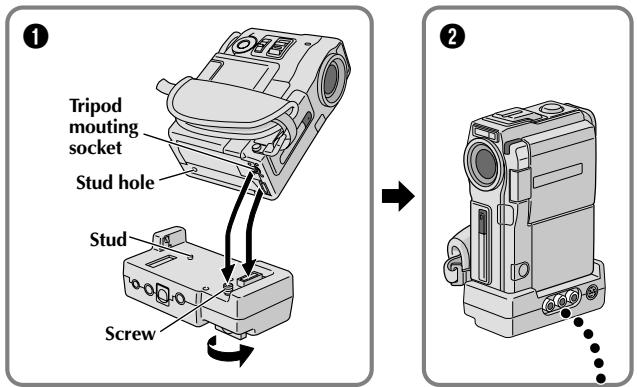
Connectez lorsque le câble S-Vidéo n'est pas utilisé. *Le câble audio n'est pas nécessaire pour regarder des images fixes avec l'interrupteur POWER réglé sur « MEMORY PLAY ».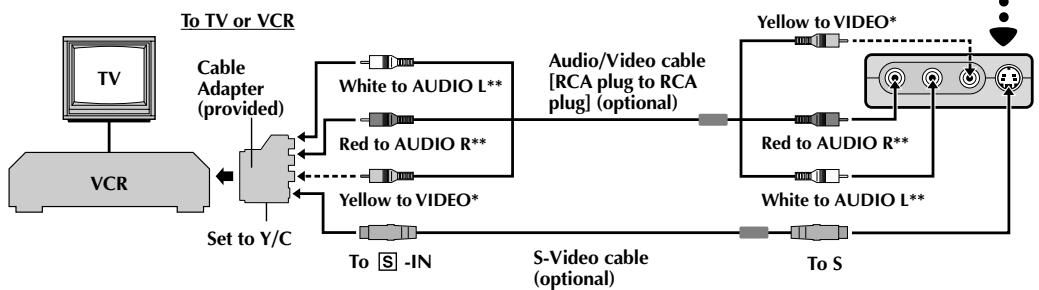
- Le câble audio n'est pas nécessaire pour regarder des images fixes avec l'interrupteur POWER réglé sur « MEMORY PLAY ».
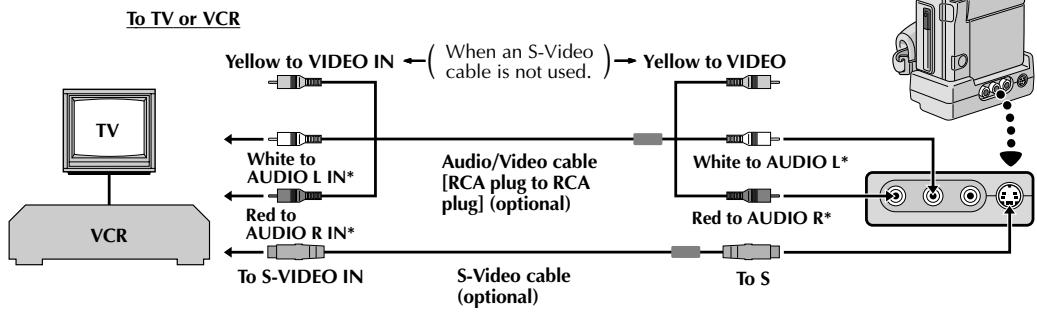
| 1 | Make sure all units are turned off. |
| 2 | Connect the camcorder to a TV or VCR as shown in the illustration (电视、pg. 56, 57). If using a VCR... go to step 3. If not... go to step 4. |
| 3 | Connect the VCR output to the TV input, referring to your VCR's instruction manual. |
| 4 | Turn on the camcorder, the VCR and the TV. |
| 5 | Set the VCR to its AUX input mode, and set the TV to its VIDEO mode. |
Pour choisir si les affichages suivants apparaissent sur le téléviseur connecté...
- Date/Heure
... réglez « DATE/TIME » sur « AUTO », « ON » ou « OFF » dans l'écran de menu (41).
- Time Code
.... régler "TIME CODE" sur "ON" ou "OFF" dans le menu (page 41).
- Affichage du mode son, de la vitesse de bande et du défilement pour la lecture vidéo, ou noms de répertoires/fichiers et numéro d'image/nombre total d'images pour la lecture D.S.C. .... régler "ON SCREEN" sur "LCD" ou "SIMPLE" dans le menu (page 41). Ou, appuyer sur DISPLAY de la télécommande.
REMARQUES :
- Il est recommandé d'utiliser l'adaptateur secteur/chargeur comme source d'alimentation plutôt que la batterie (page 7).
- Lors du branchement des câbles, assurez-vous de connecter les extrémités avec un filtre à noyau au caméscope. Le filtre à noyau réduit les interférences.
- Pour surveiller l'image et le son du caméscope sans insérer de cassette ou de carte MultiMedia, placez l'interrupteur POWER du caméscope sur "CAMERA", puis réglez votre téléviseur sur le mode d'entrée approprié. Assurez-vous de régler le volume du téléviseur au minimum pour éviter un son soudain lorsque le caméscope est allumé.
- Si vous avez un téléviseur ou des haut-parleurs non blindés, ne placez pas les haut-parleurs à côté du téléviseur car des interférences se produiraient dans l'image de lecture du caméscope.
- Tant que le câble audio/vidéo est connecté à la prise AV OUT, le son ne sort pas du haut-parleur.
- Réglez le commutateur de sélection de sortie vidéo de l'adaptateur de câble selon les besoins :
Y/C : lors de la connexion à un téléviseur ou un magnétoscope qui accepte les signaux Y/C et utilise un câble S-Vidéo.
CVBS : lors de la connexion à un téléviseur ou un magnétoscope qui n'accepte pas les signaux Y/C et utilise un câble audio/vidéo.
PC avec carte de capture équipée d'un connecteur DV
PC
PC
* Utilisez le câble DV fourni avec la carte de capture.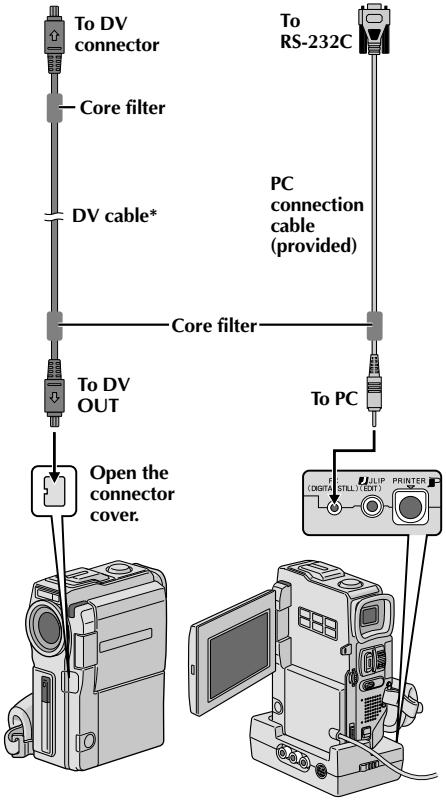
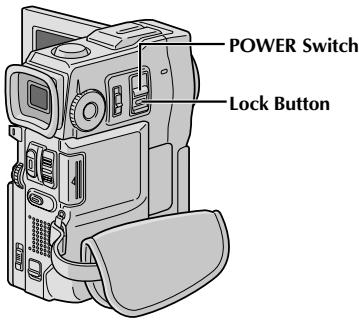
Connexion à un ordinateur personnel
Ce caméscope peut transférer des images fixes vers un PC à l'aide du logiciel fourni lorsqu'il est connecté comme indiqué sur l'illustration. Il est également possible de transférer des images fixes vers un PC avec une carte de capture équipée d'un connecteur DV installée.
1 Assurez-vous que le caméscope et le PC sont éteints. 2 Connectez le caméscope ou la station d'accueil à votre PC à l'aide du câble approprié comme indiqué sur l'illustration. - Pour fixer le caméscope à la station d'accueil, reportez-vous à "Fixation de la station d'accueil" à la page 56. 3 Mettez l'interrupteur POWER du caméscope sur "PLAY/PC" tout en appuyant sur le bouton de verrouillage situé sur l'interrupteur, puis allumez le PC.
REMARQUES :
- Il est recommandé d'utiliser l'adaptateur secteur/chargeur comme source d'alimentation plutôt que la batterie (13, page 7).
- Ne connectez jamais simultanément le câble de connexion PC et le câble DV au caméscope. Connectez uniquement le câble que vous souhaitez utiliser au caméscope. Les informations de date/heure ne peuvent pas être capturées sur le PC. Reportez-vous aux manuels d'instructions du logiciel fourni.
- Reportez-vous également au manuel d'instructions du fabricant de la carte de capture équipée d'un connecteur DV.
PC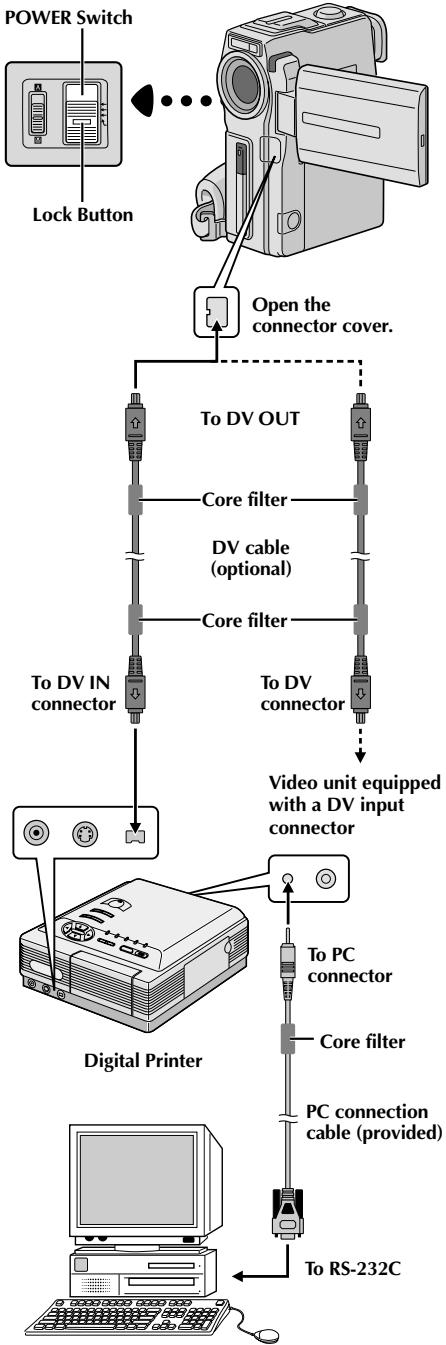
Connexion à un appareil vidéo équipé d'un connecteur DV
La connexion à l'imprimante numérique GV-DT3 (en option) permet d'imprimer des images ou de les transférer sur un PC. Il est également possible de copier des scènes enregistrées du caméscope vers un autre appareil vidéo équipé d'un connecteur DV. Cette fonction est appelée Digital Dubbing (CP, page 62), qui offre pratiquement aucune détérioration de l'image ou du son.
1 Assurez-vous que tous les appareils sont éteints. 2 Effectuez les connexions à l'appareil auquel vous souhaitez vous connecter à l'aide d'un câble DV, comme indiqué sur l'illustration. 3 Si nécessaire, connectez le câble de connexion PC (fourni) au connecteur PC de l'imprimante et au connecteur RS-232C du PC. 4 Mettez l'interrupteur POWER du caméscope sur "PLAY/PC" tout en appuyant sur le bouton de verrouillage situé sur l'interrupteur, puis allumez les autres appareils.
REMARQUES :
- Il est recommandé d'utiliser l'adaptateur secteur/chargeur comme source d'alimentation plutôt que la batterie (13, page 7).
- Pour le Digital Dubbing, ce caméscope ne peut être connecté qu'à un seul appareil à la fois. Le GR-DVX10 peut être utilisé à la fois comme lecteur et comme enregistreur. Le GR-DVX9 ne peut être utilisé que comme lecteur (F, pages 62, 63).
- Si une lecture fixe, une lecture au ralenti, une avance rapide ou un retour rapide est tenté avec le caméscope connecté à un appareil vidéo via le connecteur DV, l'image prendra un effet similaire à un motif de mosaïque coloré ou deviendra noire.
- Reportez-vous également aux manuels d'instructions des appareils connectés.
- Lors de l'utilisation d'un câble DV, assurez-vous d'utiliser le câble DV optionnel JVC VC-VDV204U.
* Connectez lorsque le câble S-Video n'est pas utilisé.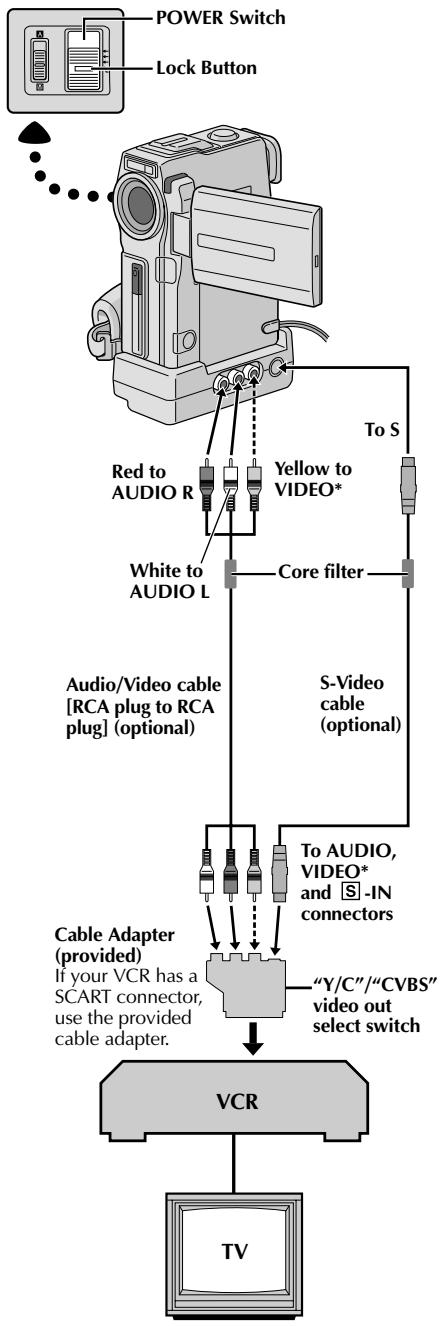
Copie vers un magnétoscope
[Pour utiliser ce caméscope comme lecteur]
1. Suivez l'illustration pour connecter le caméscope et le magnétoscope. Reportez-vous également aux pages 56 et 57. 2. Réglez l'interrupteur POWER du caméscope sur "PLAY/PC" tout en appuyant sur le bouton de verrouillage situé sur l'interrupteur, allumez le magnétoscope et insérez les cassettes appropriées dans le caméscope et le magnétoscope. 3. [Pour les propriétaires du GR-DVX10 uniquement] Réglez "AV/S-VIDEO" sur "OUT" dans le menu (page 41). Activez les modes AUX et Pause-Enregistrement du magnétoscope. 5. Activez le mode Lecture du caméscope pour trouver un point juste avant le point de montage. Une fois atteint, appuyez sur sur le caméscope. 6. Appuyez sur sur le caméscope et activez le mode Enregistrement du magnétoscope. Activez le mode Pause-Enregistrement du magnétoscope et appuyez sur le caméscope. Répétez les étapes 5 à 7 pour des montages supplémentaires, puis arrêtez le magnétoscope et le caméscope une fois terminé.
REMARQUES :
- Lors du branchement des câbles, assurez-vous de connecter les extrémités avec un filtre à noyau au caméscope. Le filtre à noyau réduit les interférences.
- Vous pouvez utiliser le connecteur AV OUT du caméscope pour la connexion.
- Vous pouvez utiliser le zoom de lecture (page 68) ou les effets spéciaux de lecture (page 69) à l'étape 5.
- Avant de commencer la copie, assurez-vous que les indications n'apparaissent pas sur le téléviseur connecté. Si elles apparaissent, elles seront enregistrées sur la nouvelle cassette.
- Réglez le commutateur de sélection de sortie vidéo de l'adaptateur de câble selon vos besoins : Y/C : lors de la connexion à un téléviseur ou un magnétoscope qui accepte les signaux Y/C et utilise un câble S-Video.
CVBS : lors de la connexion à un téléviseur ou un magnétoscope qui n'accepte pas les signaux Y/C et utilise un câble audio/vidéo.
Pour choisir si les affichages suivants apparaissent ou non sur le téléviseur connecté . . .
- Date/Heure
……réglez "DATE/TIME" sur "AUTO", "ON" ou "OFF" dans le menu (page 41).
- Time Code
....réglez "TIME CODE" sur "ON" ou "OFF" dans le menu (figure 41).
- Affichage du mode de lecture, de la vitesse de bande et de l'état de défilement .... réglez "ON SCREEN" sur "LCD" ou "SIMPLE" dans le menu (4) p. 41). Ou appuyez sur DISPLAY sur la télécommande.
* Connectez lorsque vous n'utilisez pas de câble S-Vidéo.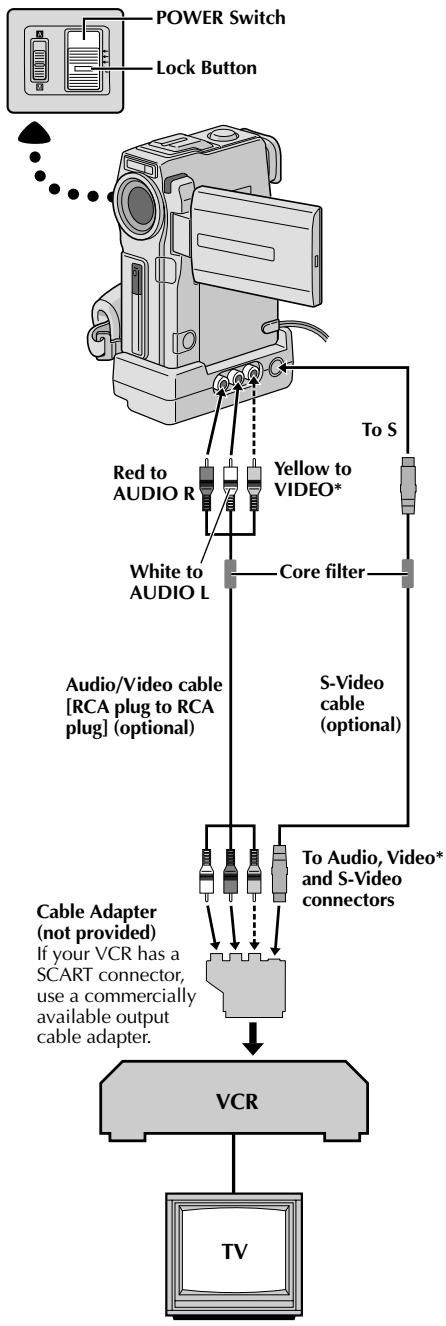
Copie depuis un magnétoscope
[Pour utiliser ce caméscope comme enregistreur : uniquement pour les propriétaires de GR-DVX10]
1 Assurez-vous que tous les appareils sont éteints, puis connectez le caméscope et le magnétoscope comme indiqué sur l'illustration. Reportez-vous également aux pages 56 et 57. 2 Réglez "SOUND MODE" sur "12 BIT" ou "16 BIT" et "REC MODE" sur "SP" ou "LP" dans le menu selon votre préférence (13 p. 11, 26, 27). 3 Réglez l'interrupteur POWER du caméscope sur "PLAY/PC" tout en appuyant sur le bouton de verrouillage situé sur l'interrupteur. Allumez le magnétoscope et insérez les cassettes appropriées dans le caméscope et le magnétoscope. 4 Réglez "AV/S-VIDEO" sur "IN" dans le menu pour activer le mode d'entrée analogique (p. 41). 5 Appuyez sur START/STOP sur le caméscope pour activer le mode Pause-Enregistrement. "AV. IN" apparaît à l'écran. 6 Activez le mode Lecture du magnétoscope, puis activez le mode Lecture sur image fixe lorsque vous avez trouvé un point juste avant le point de montage. 7 Appuyez sur START/STOP sur le caméscope pour activer le mode Enregistrement. "AV_IN" apparaît à l'écran. Activez le mode Lecture du magnétoscope. 8 Pour arrêter la copie, appuyez sur START/STOP sur le caméscope pour que "AV. IN" réapparaisse, puis activez le mode Stop du magnétoscope. 0 Répétez les étapes 6 à 8 pour des montages supplémentaires. 10 Réglez "AV/S-VIDEO" de nouveau sur "OUT" dans le menu pour désactiver le mode d'entrée analogique (p. 41).
REMARQUES :
- Lors du branchement des câbles, assurez-vous de connecter les extrémités avec un filtre à noyau au caméscope. Le filtre à noyau réduit les interférences.
- Pour utiliser un adaptateur de câble de sortie (disponible dans le commerce), reportez-vous à ses instructions.
- Il est recommandé d'utiliser l'adaptateur secteur/chargeur comme source d'alimentation plutôt que la batterie (13 p. 7).
- Les signaux analogiques peuvent être convertis en signaux numériques avec cette procédure.
- Il est également possible de copier depuis un autre caméscope.
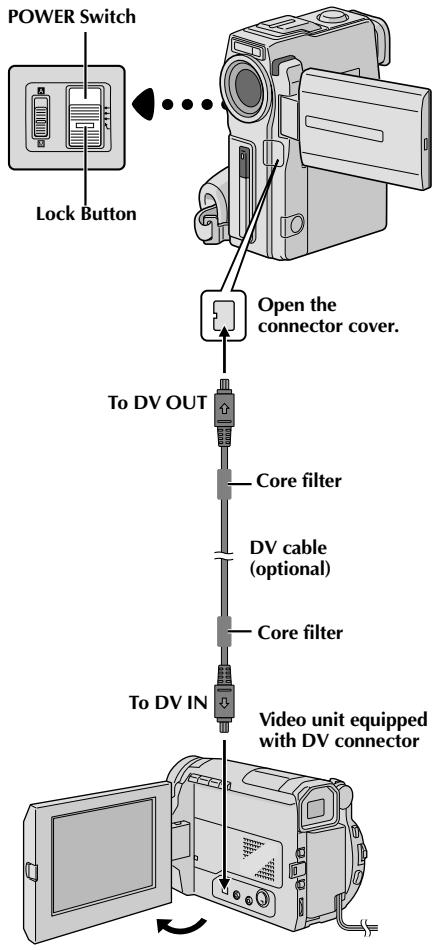
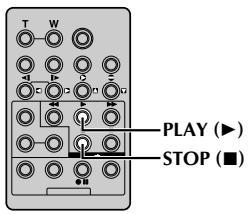
Copie vers un appareil vidéo équipé d'un connecteur DV (copie numérique)
Il est également possible de copier des scènes enregistrées du caméscope vers un autre appareil vidéo équipé d'un connecteur DV. Comme un signal numérique est envoyé, il y a peu ou pas de détérioration de l'image ou du son.
[Pour utiliser ce caméscope comme lecteur]
1 Assurez-vous que le caméscope est hors tension. 2 Connectez le caméscope à votre appareil vidéo équipé d'un connecteur DV à l'aide d'un câble DV comme indiqué sur l'illustration. 3 Réglez l'interrupteur POWER du caméscope sur "PLAY/PC" tout en appuyant sur le bouton de verrouillage situé sur l'interrupteur. Appuyez sur pour lire la cassette source. 4 Tout en regardant la lecture sur le moniteur, engagez le mode d'enregistrement de l'appareil vidéo équipé d'un connecteur DV à partir de l'endroit de la cassette source où vous souhaitez commencer l'enregistrement.
REMARQUES :
- Il est recommandé d'utiliser l'adaptateur secteur/chargeur comme source d'alimentation plutôt que la batterie (E p. 7).
- Si la télécommande est utilisée lorsque le lecteur et l'enregistreur sont tous deux des appareils vidéo JVC, les deux appareils effectueront la même opération. Pour éviter cela, appuyez sur les boutons des deux appareils.
- Pour la copie numérique, ce caméscope ne peut être connecté qu'à un seul appareil à la fois.
- Si une partie vierge ou une image perturbée est lue sur le lecteur pendant la copie, la copie peut s'arrêter afin qu'une image inhabituelle ne soit pas copiée.
- Même si le câble DV est connecté correctement, il se peut que l'image n'apparaisse pas à l'étape 3. Si cela se produit, éteignez l'appareil et refaites les connexions.
- Si "Zoom de lecture" (║ p. 68), "Effets spéciaux de lecture" (║ p. 69) ou "Instantané" est tenté pendant la lecture, seule l'image de lecture originale enregistrée sur la cassette est émise depuis le connecteur DV OUT.
- Lors de l'utilisation d'un câble DV, assurez-vous d'utiliser le câble DV optionnel JVC VC-VDV204U.
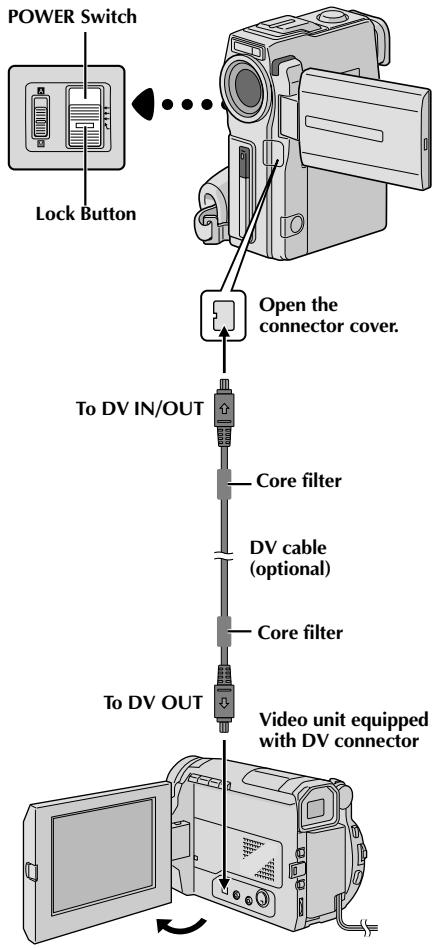
Copie depuis un appareil vidéo équipé d'un connecteur DV (Copie numérique)
[Pour utiliser ce caméscope comme enregistreur : uniquement pour les propriétaires de GR-DVX10]
REMARQUE :
Avant les étapes suivantes, assurez-vous que "AV/S-VIDEO" est réglé sur "OUT" dans le menu à l'écran (13 p. 41).
1 Assurez-vous que tous les appareils sont éteints. Connectez le caméscope à un appareil vidéo équipé d'un connecteur de sortie DV à l'aide d'un câble DV comme indiqué sur l'illustration. 2 Réglez "REC MODE" sur "SP" ou "LP" dans le menu à l'écran selon votre préférence (p. 11). 3 Réglez l'interrupteur POWER de ce caméscope sur "PLAY/PC" tout en appuyant sur le bouton de verrouillage situé sur l'interrupteur. Allumez l'appareil vidéo et insérez les cassettes appropriées dans le caméscope et l'appareil vidéo. 4 Appuyez sur START/STOP sur le caméscope pour activer le mode Pause-Enregistrement. "DV.IN" apparaît à l'écran. 5 Engagez le mode Lecture de l'appareil vidéo, puis engagez le mode Lecture sur image fixe lorsque vous avez trouvé un endroit juste avant le point de montage. 6 Appuyez sur START/STOP sur le caméscope pour activer le mode Enregistrement. "DV.IN" apparaît à l'écran. Engagez le mode Lecture de l'appareil vidéo. 7 Pour arrêter la copie, appuyez sur START/STOP sur le caméscope pour que "DV.IN" réapparaisse, puis engagez le mode Arrêt de l'appareil vidéo. Répétez les étapes 5 à 7 pour des montages supplémentaires.
REMARQUES :
- Il est recommandé d'utiliser l'adaptateur secteur/chargeur comme source d'alimentation au lieu de la batterie (13 p. 7).
- Si la télécommande est utilisée lorsque le caméscope et l'enregistreur sont tous deux des appareils vidéo JVC, les deux appareils exécuteront la même opération. Pour éviter cela, appuyez sur les boutons des deux appareils.
- Pour la copie numérique, ce caméscope ne peut être connecté qu'à un seul appareil à la fois.
- Si une partie vierge ou une image perturbée est lue sur le lecteur pendant la copie, la copie peut s'arrêter afin qu'une image inhabituelle ne soit pas copiée.
- Même si le câble DV est connecté correctement, il arrive que l'image n'apparaisse pas à l'étape 5. Si cela se produit, éteignez l'appareil et refaites les connexions.
- Lors de l'utilisation d'un câble DV, assurez-vous d'utiliser le câble DV optionnel JVC VC-VDV204U.
- La copie numérique s'effectue dans le mode sonore enregistré sur la bande originale, quel que soit le réglage actuel du "MODE SONORE" (F p. 27).
- Pendant la copie numérique, aucun signal n'est émis par les connecteurs vidéo ou audio.
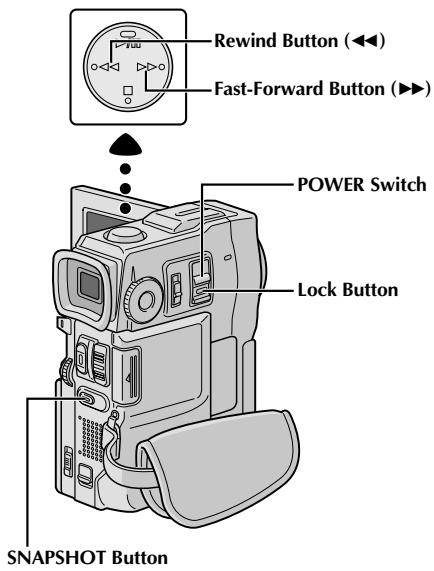
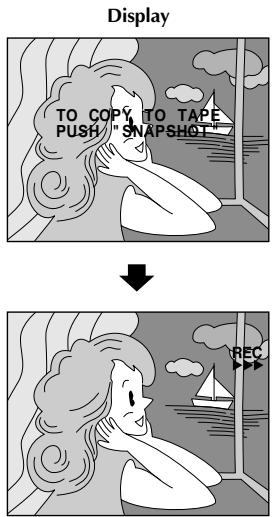
Les images peuvent être copiées d'une carte MultiMedia vers une bande.
1 Chargez une carte MultiMedia (p. 12) et une cassette (p. 10). 2 Réglez l'interrupteur POWER sur "PLAY/PC" tout en appuyant sur le bouton de verrouillage situé sur l'interrupteur. Ouvrez complètement l'écran LCD ou sortez complètement le viseur. 3 Pour localiser le point où vous souhaitez copier une image fixe, lisez la bande. Arrêtez la lecture au point souhaité. 4 Réglez l'interrupteur POWER sur "MEMORY" tout en appuyant sur le bouton de verrouillage situé sur l'interrupteur. Pour sélectionner une image fixe à copier, effectuez la lecture par index (p. 47), la lecture automatique (p. 45) ou appuyez sur ou pour sélectionner l'image souhaitée. 5 Pour activer le mode d'attente de copie, appuyez sur SNAPSHOT. Le message "TO COPY TO TAPE PUSH \"SNAPSHOT\"" apparaît. 6 Pendant que le message est affiché, appuyez à nouveau sur SNAPSHOT. L'image fixe sélectionnée est enregistrée sur la bande pendant environ 6 secondes. L'indicateur REC disparaît lorsque la copie est terminée.
REMARQUES :
- Si SNAPSHOT est enfoncé à l'étape 5 alors que la languette de protection contre l'effacement de la bande est réglée sur "SAVE", le message "COPYING Failed" s'affiche.
- L'image XGA est copiée sur la bande à 720 × 480 pixels.
- Vous pouvez superposer un cadre d'impression sur l'image fixe sélectionnée à copier (13 p. 51) et la copier sur une bande. Après l'étape 4, superposez un cadre d'impression sur l'image fixe et passez à l'étape 5.
Bouton SNAPSHOT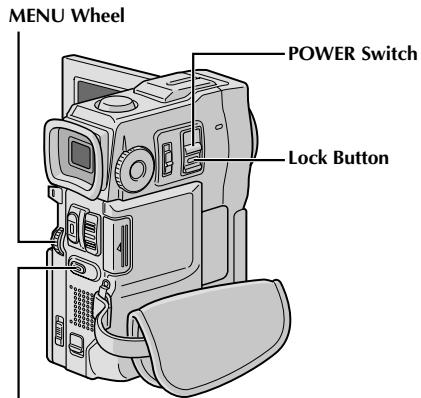
GR-DVX10 uniquement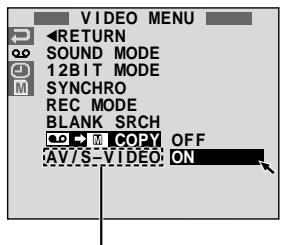
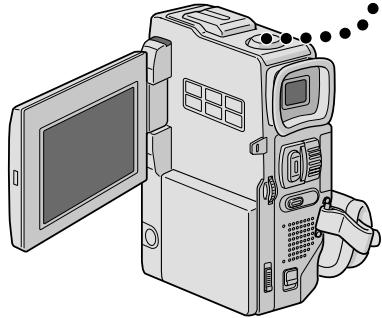
Affichage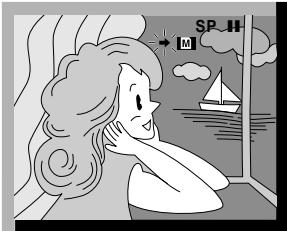
Les images peuvent être copiées d'une cassette vers une carte MultiMediaCard.
1 Chargez une carte MultiMediaCard (p. 12) et une cassette (p. 10). 2 Réglez l'interrupteur POWER sur "PLAY/PC" tout en maintenant enfoncé le bouton de verrouillage situé sur l'interrupteur. Ouvrez complètement l'écran LCD ou sortez complètement le viseur. Appuyez sur la molette MENU. L'écran de menu apparaît. Tournez-la pour sélectionner "o" et appuyez dessus. "VIDEO MENU" apparaît. 4 Tournez la molette MENU pour sélectionner "→ M COPY" et appuyez dessus. Le sous-menu apparaît. Tournez-la pour sélectionner "ON" et appuyez dessus. La sélection est terminée. Tournez la molette MENU pour sélectionner "RETURN" et appuyez deux fois dessus. L'écran de lecture normale reprend. 6 Pour sélectionner une image vidéo à copier, démarrez la lecture en appuyant sur ▶/II. Au moment où vous trouvez l'image que vous souhaitez copier, appuyez à nouveau pour passer en lecture sur image fixe. Pour démarrer la copie, appuyez sur SNAPSHOT. L'image sélectionnée est stockée dans la carte MultiMediaCard. ● "▶" clignote pendant la copie.
REMARQUES :
- Si SNAPSHOT est enfoncé à l'étape 7 alors qu'aucune carte MultiMediaCard n'est chargée, le message "COPYING Failed" s'affiche.
- Si une image enregistrée sur la cassette en mode WIDE (p. 28) est copiée sur une carte MultiMediaCard, le signal d'identification du mode WIDE n'est pas copié avec elle.
- Pour utiliser les effets spéciaux de lecture avec une image vidéo que vous souhaitez copier, effectuez jusqu'à l'étape 7 en utilisant la télécommande fournie (p. 69). Les images sont copiées au format de fichier VGA.
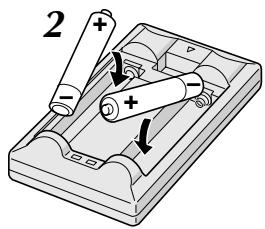
La télécommande multifonction peut faire fonctionner ce caméscope à distance ainsi que les opérations de base (lecture, arrêt, pause, avance rapide et retour arrière) de votre magnétoscope. Elle permet également des fonctions de lecture supplémentaires.
Installation des piles
La télécommande utilise deux piles de taille "AAA (R03)". Voir "Précautions générales concernant les piles" (p. 93).
1
Retirez le couvercle du compartiment à piles en poussant vers le haut sur l'onglet, comme illustré.
2
Insérez deux piles de taille "AAA (R03)" dans le bon sens.
3
Remettez le couvercle du compartiment à piles.
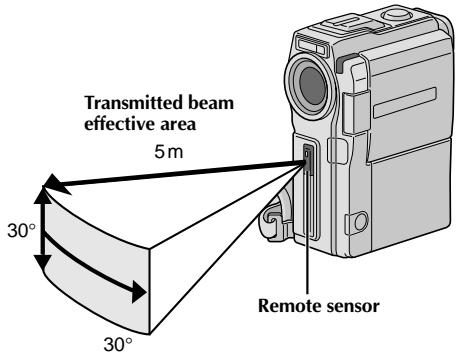
Lors de l'utilisation de la télécommande, assurez-vous de la pointer vers le capteur de télécommande. L'illustration montre la zone approximative du faisceau transmis efficace pour une utilisation en intérieur.
Le faisceau transmis peut ne pas être efficace ou peut provoquer un fonctionnement incorrect en extérieur ou lorsque le capteur de télécommande est directement exposé à la lumière du soleil ou à un éclairage puissant.
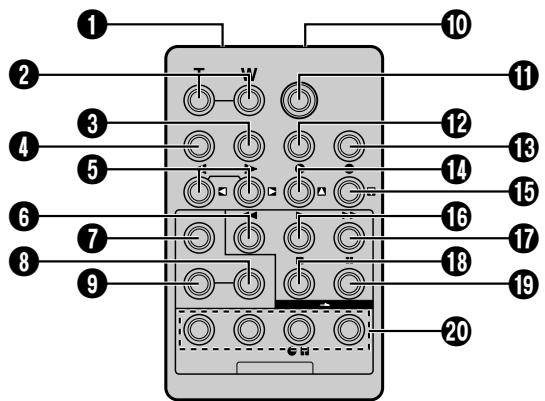
| Buttons | Functions |
| With the camcorder's POWER Switch set to the camera position ("CAMERA"). | With the camcorder's POWER Switch set to "PLAY/PG" or "MPEG4". |
| 1 Infrared beam transmitting window | Transmits the beam signal. |
| 2 Zoom (T/W) Buttons | Zoom in/out (3 pg. 20) | Zoom in/out (3 pg. 68) |
| 3 DISPLAY Button | — | 3 pg. 71 |
| 4 SHIFT Button | — | 3 pg. 68, 70 |
| 5 SLOW Rewind/Forward Buttons Left/Right Buttons | — | 3 pg. 68
3 pg. 68 |
| 6 REW Button | — | • Rewind/Reverse Shuttle Search on a tape (3 pg. 40)
• Displays previous image in a MultiMediaCard (3 pg. 45) |
| 7 FADE/WIPE Button | — | 3 pg. 72 |
| 8 EFFECT ON/OFF Button | — | 3 pg. 69 |
| 9 EFFECT Button | — | 3 pg. 69 |
| 10 PAUSE IN Connector | — | 3 pg. 71 |
| 11 START/STOP Button | Functions the same as START/STOP on the camcorder. |
| 12 MBR SET Button | — | 3 pg. 70 |
| 13 SNAPSHOT Button | Functions the same as SNAPSHOT on the camcorder. |
| 14 Up Button INSERT Button* | — | 3 pg. 68 |
| 15 Down Button A. DUB Button | — | 3 pg. 68
3 pg. 76 |
| 16 PLAY Button | — | • Starts playback of a tape (3 pg. 40)
• Starts AutoPlayback of a MultiMediaCard (3 pg. 45) |
| 17 FF Button | — | • Forward/Forward Shuttle Search on a tape (3 pg. 40)
• Displays next image in a MultiMediaCard (3 pg. 45) |
| 18 STOP Button | — | • Stops the tape (3 pg. 40)
• Stops Auto Playback (3 pg. 45) |
| 19 PAUSE Button | — | Pauses the tape (3 pg. 68) |
| 20 R.A.EDIT Buttons | — | 3 pg. 70–75 |
- Cette fonction n'est pas disponible avec ce caméscope.
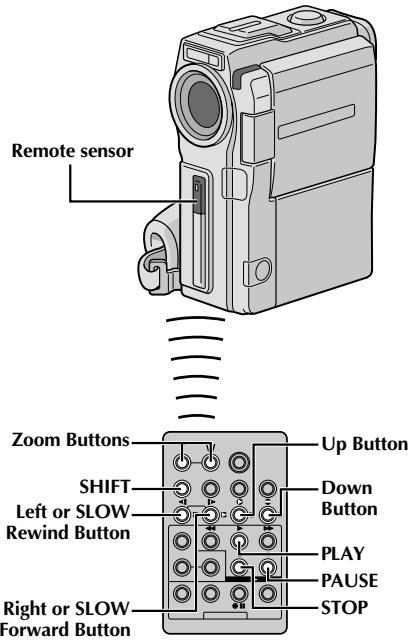
Lecture normale : appuyez sur T


Pour déplacer l'image, appuyez sur (Droite) tout en maintenant la touche SHIFT enfoncée.
FONCTION : Lecture au ralenti
BUT :
Permettre une recherche à vitesse lente dans les deux sens pendant la lecture vidéo.
OPÉRATION :
1) Pour passer de la lecture normale à la lecture au ralenti, appuyez sur SLOW (ou pendant plus de 2 secondes. Après environ 1 minute en rembobinage lent ou environ 2 minutes en avance lente, la lecture normale reprend.
Pour arrêter la lecture au ralenti, appuyez sur LECTURE (▶).
REMARQUES :
- Vous pouvez également passer en lecture au ralenti à partir de la lecture sur image fixe en appuyant sur RALENTI pendant plus de 2 secondes environ.
- Pendant la lecture au ralenti, en raison du traitement numérique de l'image, l'image peut présenter un effet de mosaïque.
- Après avoir appuyé sur RALENTI (ou ▶) et maintenu la pression, l'image fixe peut s'afficher pendant quelques secondes, suivie d'un écran bleu pendant quelques secondes. Ce n'est pas un dysfonctionnement.
- Il peut y avoir un léger écart entre le point de départ de la lecture au ralenti que vous avez choisi et le point de départ réel de la lecture au ralenti.
- Pendant la lecture au ralenti, il y aura des perturbations dans la vidéo et l'image peut sembler instable, en particulier avec des images fixes. Ce n'est pas un dysfonctionnement.
- Pendant la lecture au ralenti, appuyez sur PAUSE (II) pour mettre la lecture en pause.
FONCTION : Lecture image par image
BUT :
Permettre une recherche image par image pendant la lecture vidéo.
OPÉRATION :
1) Pour passer de la lecture normale à la lecture image par image, appuyez plusieurs fois sur RALENTI (\blacksquare) pour avancer ou sur RALENTI (\triangleleft) pour reculer. Chaque pression lit une image.
REMARQUE :
Vous pouvez également passer en lecture image par image à partir de la lecture sur image fixe en appuyant plusieurs fois sur RALENTI (ou).
FONCTION : Zoom de lecture
BUT :
Agrandir l'image enregistrée jusqu'à 10 fois à tout moment pendant la lecture.
OPÉRATION :
1) Appuyez sur LECTURE (▶) pour trouver la scène qui vous intéresse. 2) Appuyez sur les boutons de zoom (T/W) de la télécommande. Assurez-vous que la télécommande est pointée vers le capteur de télécommande du caméscope. Appuyer sur T effectue un zoom avant. 3) Vous pouvez déplacer l'image à l'écran pour trouver une partie particulière de l'image. Tout en maintenant la touche MAJ enfoncée, appuyez sur (Gauche), (Droite), (Haut) et (Bas). Pour terminer le zoom, maintenez enfoncé W jusqu'à ce que l'agrandissement revienne à la normale. Ou appuyez sur STOP (■) puis sur LECTURE (▶).
REMARQUES :
- Le zoom peut également être utilisé pendant la lecture au ralenti et en pause.
- En raison du traitement numérique de l'image, la qualité de l'image peut être altérée.
- Le zoom de lecture ne peut pas être utilisé sur les images enregistrées avec la molette MODE réglée sur « PS ».
EFFET DE LECTURE
ARRÊT
1 FILM CLASSIQUE 2 MONOCHROME N&B 3 SÉPIA 4 STROBOSCOPE 5 ÉCHO VIDÉO
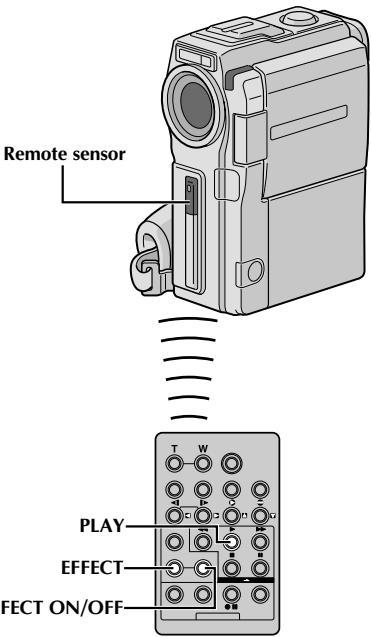
FONCTION : Effets spéciaux de lecture
BUT :
Pour vous permettre d'ajouter des effets créatifs à l'image de lecture vidéo.
FONCTIONNEMENT :
1) Pour démarrer la lecture, appuyez sur LECTURE (▶). 2) Pointez la télécommande vers le capteur de télécommande du caméscope et appuyez sur EFFET. Le menu SÉLECTION EFFET DE LECTURE apparaît. 3) Déplacez la barre de surbrillance sur l'effet souhaité en appuyant sur EFFET. La fonction sélectionnée est activée et après 2 secondes, le menu disparaît. Pour désactiver l'effet sélectionné, appuyez sur EFFET ON/OFF sur la télécommande. Appuyer à nouveau réactive l'effet sélectionné. Pour changer l'effet sélectionné, répétez à partir de l'étape 2 ci-dessus.
REMARQUE :
Les effets utilisables en lecture sont Film classique, Monochrome, Sépia, Stroboscope et Écho vidéo. Les effets fonctionnent en lecture de la même manière qu'en enregistrement. Reportez-vous à la page 36 pour plus d'informations.
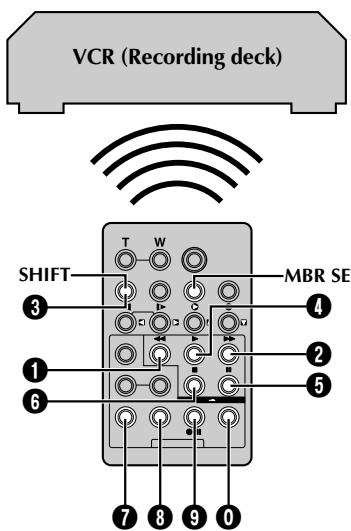
LISTE DES CODES MAGNÉTOSCOPE
| VCR BRAND NAME | BUTTONS (A) (B) |
| AKAI | 6 2 3 4 7 7 |
| BLAUPUNKT | 1 3 |
| FERGUSON | 9 7 9 8 3 2 |
| GRUNDIG | 1 1 3 4 |
| HITACHI | 6 6 6 3 |
| JVC A | 9 1 9 6 3 |
| B | 9 6 9 3 |
| C | 9 3 |
| MITSUBISHI | 6 7 6 8 |
| NEC | 3 7 3 8 |
| PANASONIC | 1 3 1 7 1 9 1 1 8 |
| VCR BRAND NAME | BUTTONS (A) (B) |
| PHILIPS | 1 9 9 6 1 1 9 1 9 1 9 6 1 2 3 3 7 2 |
| SANYO | 3 6 3 5 |
| SELECO, REX | 9 1 9 6 |
| SHARP | 1 5 1 0 |
| SONY | 6 5 6 0 9 9 3 1 |
| THOMSON, TELEFUNKEN, SABA, NORDMENDE | 9 1 9 6 9 7 3 2 |
| TOSHIBA | 6 9 6 1 |
Montage aléatoire [R.A.Edit]
Créez facilement des vidéos montées en utilisant votre caméscope comme source. Vous pouvez sélectionner jusqu'à 8 « plans » pour un montage automatique, dans l'ordre de votre choix. R.A.Edit est plus facile à réaliser lorsque le MBR (télécommande multi-marques) est réglé pour fonctionner avec votre marque de magnétoscope (voir LISTE DES CODES MAGNÉTOSCOPE), mais peut également être effectué en commandant le magnétoscope manuellement.
Avant l'opération, assurez-vous que les piles sont installées dans la télécommande (13 p. 66).
RÉGLER LE CODE TÉLÉCOMMANDE/MAGNÉTOSCOPE
1 Coupez l'alimentation du magnétoscope et pointez la télécommande vers le capteur infrarouge du magnétoscope. Ensuite, en vous référant à la LISTE DES CODES MAGNÉTOSCOPE, maintenez enfoncé MBR SET, puis appuyez sur le bouton (A) puis (B). Le code est automatiquement défini dès que vous relâchez MBR SET, et le magnétoscope s'allume. 2 Assurez-vous que le magnétoscope est allumé. Ensuite, tout en maintenant SHIFT, appuyez sur le bouton de la télécommande pour la fonction souhaitée. Les fonctions que la télécommande peut contrôler sont LECTURE, ARRÊT, PAUSE, AV, RB et ENR MAGNÉTO VEILLE (vous n'avez pas besoin d'appuyer sur SHIFT pour celle-ci).
Vous êtes maintenant prêt à essayer le montage aléatoire.
IMPORTANT
Bien que le MBR soit compatible avec les magnétoscopes JVC et ceux de nombreux autres fabricants, il peut ne pas fonctionner avec le vôtre ou offrir des fonctions limitées.
REMARQUES :
- Si le magnétoscope ne s'allume pas à l'étape 1, essayez un autre code de la liste des codes magnétoscope.
- Certaines marques de magnétoscopes ne s'allument pas automatiquement. Dans ce cas, allumez l'appareil manuellement et passez à l'étape 2.
- Si la télécommande ne parvient pas à contrôler le magnétoscope, utilisez les commandes du magnétoscope.
- Lorsque les piles de la télécommande sont épuisées, la marque de magnétoscope que vous avez réglée sera effacée. Dans ce cas, remplacez les piles usagées par des neuves pour réinitialiser la marque du magnétoscope.
* Connectez lorsque le câble S-Vidéo n'est pas utilisé.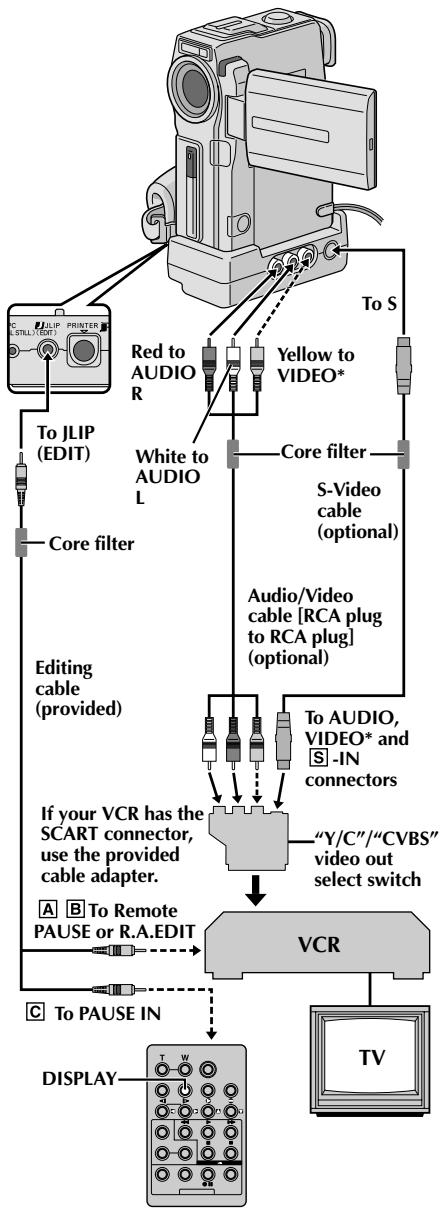
ATTENTION POUR LE CÂBLE DE MONTAGE
- Veillez à ne pas le confondre avec le câble JLIP (F p. 4).
- Assurez-vous de connecter l'extrémité avec le filtre à noyau au caméscope.
FAIRE LES CONNEXIONS
Reportez-vous également aux pages 56 et 57.
1 Un magnétoscope JVC équipé d'un connecteur de pause à distance . . .
... connectez le câble de montage au connecteur Remote PAUSE.
Un magnétoscope JVC non équipé d'un connecteur de pause à distance mais équipé d'un connecteur R.A. EDIT . . .
... connectez le câble de montage au connecteur R.A.EDIT.
C Un magnétoscope autre que ceux ci-dessus . . .
... branchez le câble de montage sur la prise PAUSE IN de la télécommande.
2 Insérez une cassette enregistrée dans le caméscope et réglez l'interrupteur POWER sur "PLAY/PC" tout en appuyant sur le bouton de verrouillage situé sur l'interrupteur. 3 Allumez le magnétoscope, insérez une cassette enregistrable et activez le mode AUX (reportez-vous aux instructions du magnétoscope).
REMARQUES :
- Avant le montage aléatoire, assurez-vous que les indications n'apparaissent pas sur le moniteur TV. Si elles apparaissent, elles seront enregistrées sur la nouvelle cassette. Pour choisir si les affichages suivants apparaissent sur le téléviseur connecté...
- Date/Heure ... réglez "DATE/TIME" sur "AUTO", "ON" ou "OFF" dans le menu (page 41). Code temporel ... réglez "TIME CODE" sur "ON" ou "OFF" dans le menu (page 41).
- Affichages du mode de lecture, de la vitesse de bande et du défilement
... réglez "ON SCREEN" sur "LCD" ou "SIMPLE" dans le menu (page 41). Ou appuyez sur DISPLAY sur la télécommande.
- Pour les propriétaires de GR-DVX10 : assurez-vous de régler "AV/S-VIDEO" sur "OUT" dans le menu (page 41).
- Lors du branchement des câbles, assurez-vous de connecter les extrémités avec un filtre à noyau au caméscope. Le filtre à noyau réduit les interférences.
- Réglez le sélecteur de sortie vidéo de l'adaptateur de câble selon vos besoins :
Y/C : lors de la connexion à un téléviseur ou un magnétoscope qui accepte les signaux Y/C et utilise un câble S-Vidéo.
CVBS : lors de la connexion à un téléviseur ou un magnétoscope qui n'accepte pas les signaux Y/C et utilise un câble audio/vidéo.
- Lors du montage sur un magnétoscope équipé d'une prise DV, un câble DV en option peut être connecté à la place d'un câble S-Vidéo et d'un câble audio/vidéo.
- Vous pouvez utiliser la prise AV OUT du caméscope pour la connexion.
Programme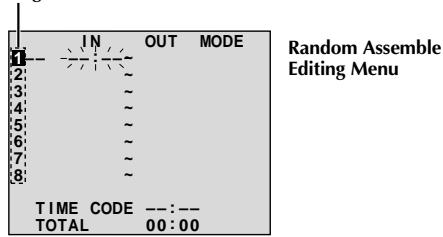
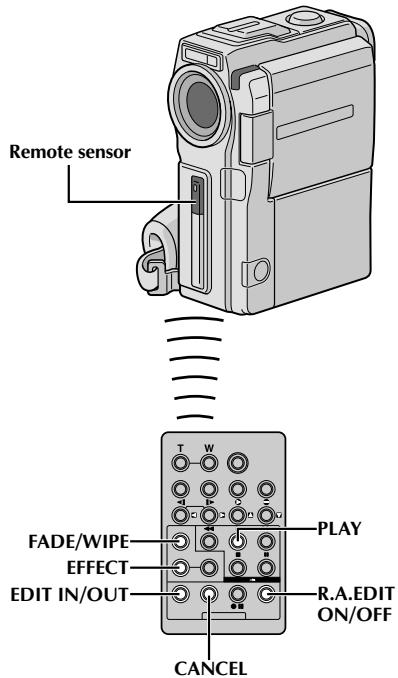
SÉLECTION DES SCÈNES
4 Pointez la télécommande vers le capteur de télécommande du caméscope. Appuyez sur LECTURE (►) puis sur R.A.EDIT ON/OFF sur la télécommande. Le menu de montage aléatoire apparaît. 5 Si vous utilisez un fondu ou une transition au début de la scène, appuyez sur FADE/WIPE sur la télécommande.
- Faites défiler les effets en appuyant à plusieurs reprises, et arrêtez-vous lorsque celui que vous souhaitez est affiché.
- Vous ne pouvez pas utiliser un volet ou un fondu enchaîné au début du programme 1.
6 Au début de la scène, appuyez sur EDIT IN/OUT sur la télécommande. La position de début de montage apparaît dans le menu de montage aléatoire. 7 À la fin de la scène, appuyez sur EDIT IN/OUT. La position de fin de montage apparaît dans le menu de montage aléatoire. 8 Si vous utilisez un fondu ou une transition à la fin de la scène, appuyez sur FADE/WIPE.
- Faites défiler les effets en appuyant à plusieurs reprises, et arrêtez-vous lorsque celui que vous souhaitez est affiché.
- Si vous sélectionnez un effet de fondu ou de transition pour un point de fin de montage, l'effet est automatiquement appliqué au point de début de montage suivant.
- Vous ne pouvez pas utiliser un volet ou un fondu enchaîné à la fin de la dernière scène.
- Lorsque vous utilisez des effets de fondu ou de transition, ce temps est inclus dans le temps total (cela ne s'applique pas au volet ou au fondu enchaîné).
9 Si vous utilisez des effets spéciaux de lecture, appuyez sur EFFECT, page 69.
10 Répétez les étapes 6 à 9 pour enregistrer des scènes supplémentaires.
Pour modifier des points précédemment enregistrés, appuyez sur CANCEL sur la télécommande. Les points enregistrés disparaissent, un à la fois, à partir du point le plus récemment enregistré. - Si vous n'utilisez pas de fondu ou de transition, ni de programme AE avec effets spéciaux, répétez uniquement les étapes 6 et 7.
REMARQUES :
- Lors du choix d'une scène, réglez les points de début et de fin de montage de manière à ce qu'il y ait une différence relativement grande entre eux.
- Si le temps de recherche d'un point de début dépasse 5 minutes, le mode d'attente d'enregistrement du magnétoscope sera annulé et le montage n'aura pas lieu.
- S'il y a des portions vides avant ou après les points d'entrée et de sortie de montage, un écran bleu peut être inclus dans la version montée.
- Comme les codes temporels n'enregistrent le temps qu'à la seconde près, la durée totale des codes temporels peut ne pas correspondre exactement à la durée totale du programme.
- La mise hors tension du caméscope efface tous les points d'entrée et de sortie de montage enregistrés.
- Si vous sélectionnez le mode Sépia ou Monotone dans le programme AE avec effets spéciaux, vous ne pouvez pas utiliser la fonction Fondu ou le fondu noir et blanc. Dans ce cas, l'indicateur Fondu ou Noir et blanc commence à clignoter. Une fois le point d'entrée suivant enregistré, l'effet est désactivé. Pour combiner ces effets, utilisez Sépia ou Monotone pendant l'enregistrement, puis utilisez le Fondu ou le fondu noir et blanc pendant le montage par assemblage aléatoire.
- Il n'est pas possible d'utiliser les effets de fondu/volet et le programme AE avec effets spéciaux pendant le montage par assemblage aléatoire à l'aide d'un câble DV.
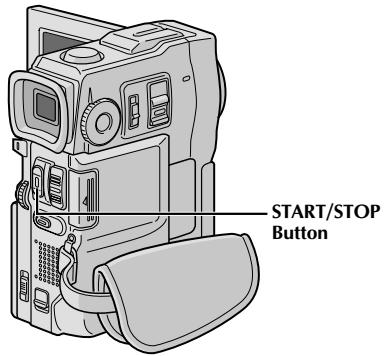
Menu de montage par assemblage aléatoire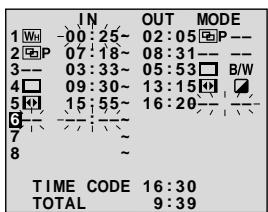
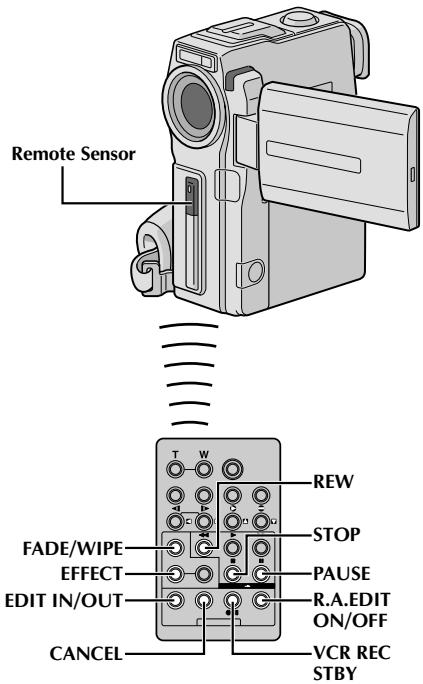
MONTAGE AUTOMATIQUE VERS LE MAGNÉTOSCOPE
11. Rembobinez la cassette dans le caméscope jusqu'au début de la scène à monter et appuyez sur PAUSE (II). 12. Pointez la télécommande vers le capteur de télécommande du magnétoscope et appuyez sur VCR REC STBY (●II), ou engagez manuellement le mode Enregistrement-Pause du magnétoscope. 13. Appuyez sur START/STOP sur le caméscope. Le montage se déroule comme programmé, jusqu'à la fin de la dernière scène enregistrée.
- Appuyer sur START/STOP sur la télécommande ne démarre pas le montage.
- Lorsque la copie est terminée, le caméscope passe en mode Pause et le magnétoscope passe en mode Enregistrement-Pause.
- Si vous n'enregistrez pas de point de sortie, la bande sera copiée automatiquement jusqu'à la fin.
- Si vous manipulez le caméscope pendant le montage automatique, le magnétoscope passera en mode Enregistrement-Pause et le montage automatique s'arrêtera.
14. Engagez les modes Stop du caméscope et du magnétoscope.
Pour faire disparaître l'affichage du compteur R.A Edit, appuyez sur R.A EDIT ON/OFF sur la télécommande.
REMARQUES :
- Appuyer sur R.A.EDIT ON/OFF sur la télécommande efface tous les réglages enregistrés lors du montage par assemblage aléatoire.
- Lorsque le câble de montage est connecté à la prise Pause In de la télécommande pendant la copie, assurez-vous que la télécommande est pointée vers le capteur du magnétoscope et que le chemin entre les deux est dégagé.
- Le montage par assemblage aléatoire peut ne pas fonctionner correctement lors de l'utilisation d'une cassette contenant plusieurs codes temporels dupliqués (13 p. 21).
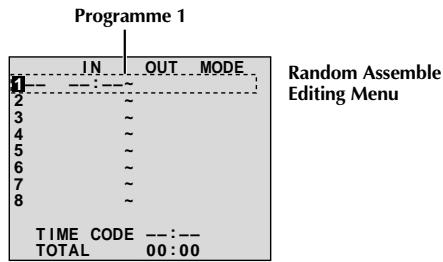
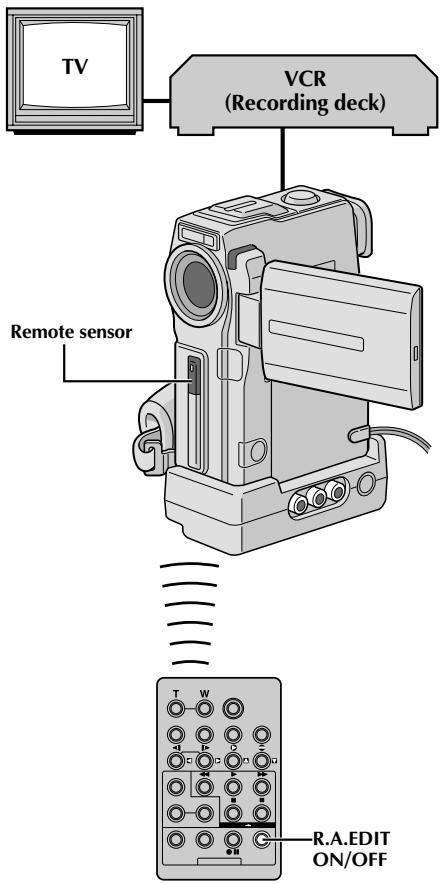
Pour un montage plus précis
Certains magnétoscopes passent du mode Pause-Enregistrement au mode Enregistrement plus rapidement que d'autres. Même si vous commencez le montage pour le caméscope et le magnétoscope exactement en même temps, vous pouvez perdre des scènes souhaitées ou enregistrer des scènes non souhaitées. Pour une cassette montée proprement, confirmez et ajustez le timing du caméscope par rapport à votre magnétoscope.
DIAGNOSTIC DU TIMING MAGNÉTOSCOPE/CAMÉSCOPE
1 Lisez la cassette dans le caméscope, puis pointez la télécommande vers le capteur du caméscope et appuyez sur R.A.EDIT ON/OFF. Le menu de montage par assemblage aléatoire apparaît. 2 Effectuez un montage par assemblage aléatoire sur le programme 1 uniquement. Pour vérifier le timing du magnétoscope et du caméscope, sélectionnez le début d'une transition de scène comme point d'entrée. 3 Lisez la scène copiée. Si des images de la scène précédant la transition choisie comme point d'entrée ont été enregistrées, cela signifie que votre magnétoscope passe trop rapidement du mode Pause-Enregistrement au mode Enregistrement. - Si la scène que vous essayez de copier commence en cours, le magnétoscope met du temps à démarrer l'enregistrement.
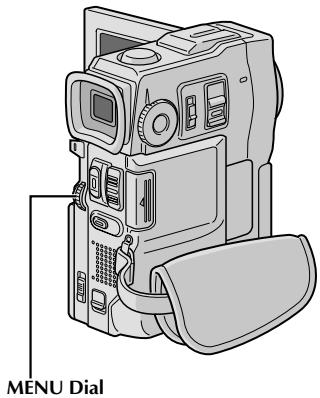
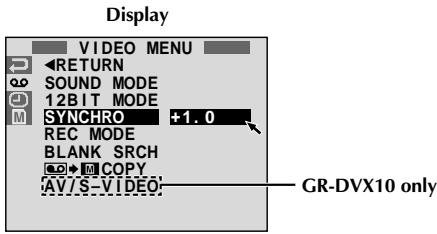
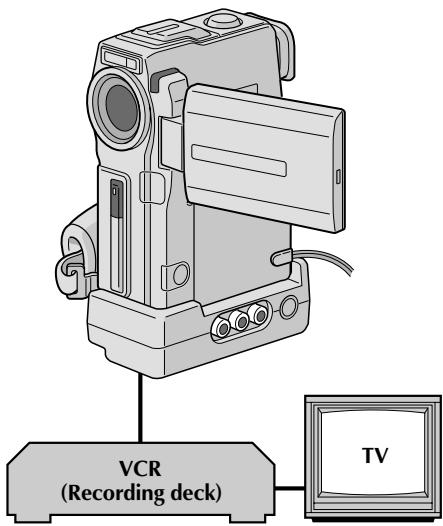
RÉGLAGE DU TIMING MAGNÉTOSCOPE/CAMÉSCOPE
4 Pointez la télécommande vers le capteur du caméscope et appuyez sur R.A.EDIT ON/OFF pour faire disparaître le menu de montage par assemblage aléatoire, puis appuyez sur la molette MENU. L'écran de menu apparaît. Tournez la molette MENU pour sélectionner "0" et appuyez dessus. "VIDEO MENU" apparaît. Ensuite, tournez-la vers "SYNCHRO" et appuyez dessus. La valeur de "SYNCHRO" est mise en surbrillance. 6 En fonction des diagnostics effectués (p. 74), vous pouvez maintenant avancer le timing d'enregistrement du magnétoscope en tournant la molette MENU vers "+". Vous pouvez également retarder le timing d'enregistrement du magnétoscope en tournant la molette MENU vers "-". La plage de réglage est de -1,3 à +1,3 secondes, par incréments de 0,1 seconde. Appuyez sur la molette MENU pour terminer le réglage. 7 Tournez la molette MENU pour sélectionner "RETURN" et appuyez deux fois. Effectuez maintenant le montage par assemblage aléatoire en commençant par l'étape 4 de la page 72.
REMARQUES :
- Avant d'effectuer le montage par assemblage aléatoire réel, faites quelques essais de montage par assemblage aléatoire pour vérifier si la valeur saisie est appropriée ou non, et effectuez les ajustements en conséquence.
- Selon l'enregistreur, il peut y avoir des situations où la différence de timing ne peut pas être entièrement corrigée.
Afficher Audio Dub Standby mo
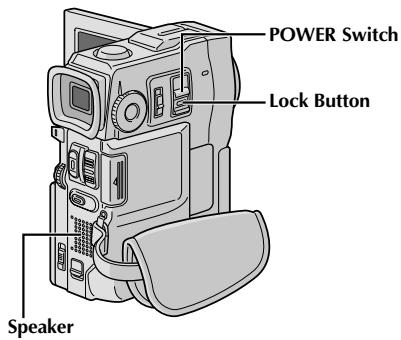
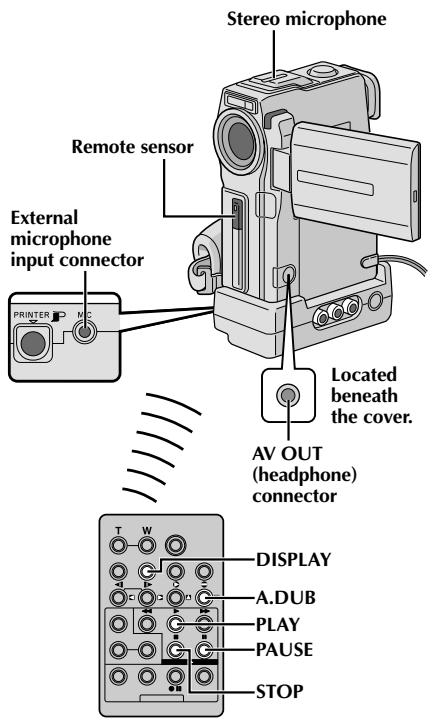
Doublage audio
La piste audio ne peut être personnalisée que lorsqu'elle est enregistrée en mode 12 bits (F p. 27).
NOTES :
- Le doublage audio n'est pas possible sur une cassette enregistrée en audio 16 bits, sur une cassette enregistrée en mode LP ou sur une partie vierge d'une cassette. Pour effectuer un doublage audio en regardant la télévision, effectuez les connexions (13 p. 56).
1. Lisez la cassette pour localiser le point où le montage commencera, puis appuyez sur PAUSE (II). Tout en maintenant A.DUB (●) sur la télécommande, appuyez sur PAUSE (II). « II » apparaît. Appuyez sur PLAY (▷), puis commencez à « commenter ». Parlez dans le microphone.
- Pour mettre en pause le doublage, appuyez sur PAUSE (II).
4. Pour terminer le doublage audio, appuyez sur PAUSE (II), puis sur STOP (I).
Pour entendre le son doublé pendant la lecture...
... réglez « MODE 12 BITS » sur « SON 2 » ou « MIX » dans l'écran de menu (p. 41, 42).
NOTES :
- Le doublage audio est également possible à l'aide d'un microphone en option connecté au connecteur MIC de la station d'accueil. Le son n'est pas émis par le haut-parleur pendant le doublage audio. Pour entendre le son, connectez un casque en option au connecteur AV OUT.
- Lorsqu'un microphone en option est connecté, le microphone intégré est désactivé.
- Lors du montage sur une cassette enregistrée en 12 bits, les anciennes et nouvelles pistes sonores sont enregistrées séparément.
- Si vous doublez sur une partie vierge de la cassette, le son peut être perturbé. Assurez-vous de ne modifier que les zones enregistrées.
- En cas de larsen ou de sifflement pendant la lecture TV, éloignez le microphone du caméscope du téléviseur ou baissez le volume du téléviseur.
- Si vous passez de 12 bits à 16 bits en cours d'enregistrement puis utilisez la cassette pour un doublage audio, le doublage n'est pas effectif à partir du point où l'enregistrement 16 bits a commencé.
- Pendant le doublage audio, lorsque la cassette atteint des scènes enregistrées en mode LP, des scènes enregistrées en audio 16 bits ou une partie vierge, le doublage audio s'arrête (p. 91).
- Pour les propriétaires de GR-DVX10 : pour effectuer un doublage audio avec un magnétoscope connecté à la prise AV du caméscope, réglez d'abord « AV/S-VIDEO » sur « IN » dans le menu (F) (p. 41). Vous pouvez entendre le son du magnétoscope à l'aide d'un casque en option.
Affichage
Mode veille de doublage audio
Molette MENU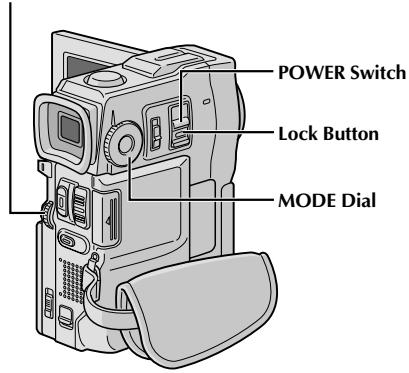
Bouton DIGITAL SOUND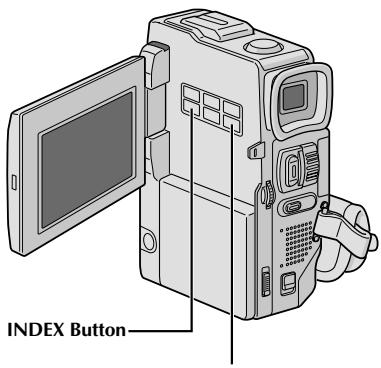
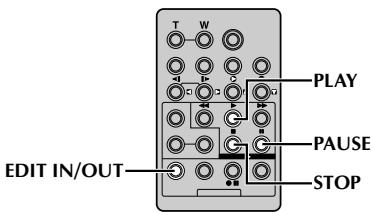
Doublage audio avec effets sonores numériques
1 Chargez la MultiMediaCard fournie (p. 12) et effectuez les étapes 1 et 2 de la page 76.
Appuyez sur EDIT IN/OUT pour que « P P P' » apparaisse.
- Pour sélectionner l'effet sonore, appuyez sur INDEX pour afficher l'écran d'index SOUND (p. 47), puis utilisez la molette MENU pour sélectionner l'effet sonore souhaité.
- Si aucun effet sonore numérique n'est affiché, l'entrée du microphone sera enregistrée sur la bande.
Appuyez sur PLAY (►) pour commencer le doublage audio.
4 Appuyez sur DIGITAL SOUND à l'endroit où vous souhaitez utiliser l'effet sonore.
- L'effet sonore affiché clignote pendant qu'il est enregistré.
- Pour arrêter l'enregistrement de l'effet sonore en cours de route, appuyez à nouveau sur DIGITAL SOUND.
Appuyez sur STOP (■) pour terminer le doublage audio.
NOTES :
L'effet sonore doublé est enregistré sur SOUND 2 (13 p. 42). - Si vous appuyez sur PAUSE (II) pour mettre en pause le doublage à l'étape 4, l'indication de l'effet sonore sélectionné reste affichée. - Si vous appuyez sur STOP (■) pour terminer le doublage audio à l'étape 5, l'effet sonore sélectionné continue d'être entendu depuis le casque connecté (en option) ; appuyez sur DIGITAL SOUND pour arrêter l'effet sonore.
Après utilisation
1 Éteignez le caméscope. 2 Faites glisser vers le bas et maintenez OPEN/EJECT dans le sens de la flèche, puis tirez le couvercle du logement de cassette pour l'ouvrir jusqu'à ce qu'il s'enclenche. Le logement de cassette s'ouvre automatiquement. Retirez la cassette. Appuyez sur "PUSH HERE" pour fermer le logement de cassette.
- Une fois le logement de cassette fermé, il se rétracte automatiquement. Attendez qu'il se rétracte complètement avant de fermer le couvercle du logement de cassette.
4 Ouvrez le couvercle de la carte, puis appuyez sur EJECT. La carte MultiMediaCard est éjectée du caméscope. Retirez la carte MultiMediaCard. 5 Fermez le couvercle de la carte. 6 Faites glisser vers le bas BATT. RELEASE ① et retirez la batterie ② ③.
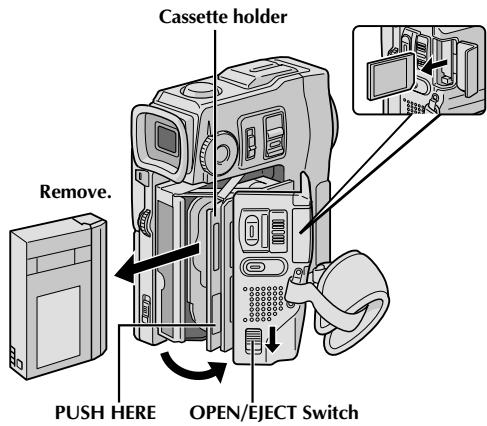
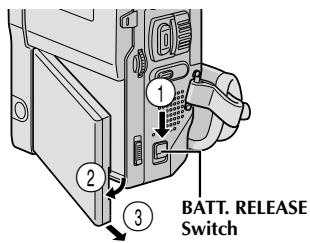
Nettoyage du caméscope
1 Pour nettoyer l'extérieur, essuyez doucement avec un chiffon doux. Imbibez le chiffon de savon doux dilué et essorez-le bien pour enlever les saletés tenaces. Essuyez ensuite avec un chiffon sec. 2 Ouvrez l'écran LCD. Essuyez doucement avec un chiffon doux. Veillez à ne pas endommager l'écran. Fermez l'écran LCD. 3 Pour nettoyer l'objectif, soufflez dessus avec une soufflette, puis essuyez doucement avec du papier de nettoyage pour objectif. Tirez le viseur complètement. 5 Ouvrez le volet de nettoyage du viseur dans le sens de la flèche 1. Insérez une soufflette ou un chiffon doux dans l'espace sur le côté du viseur et nettoyez l'intérieur du viseur avec 2. 6 Fermez le volet jusqu'à ce qu'il s'enclenche et repoussez le viseur.
NOTES :
- Évitez d'utiliser des agents de nettoyage puissants tels que la benzine ou l'alcool.
- Le nettoyage ne doit être effectué qu'après avoir retiré la batterie ou déconnecté les autres sources d'alimentation.
- De la moisissure peut se former si l'objectif est laissé sale.
- Lors de l'utilisation d'un nettoyant ou d'un chiffon traité chimiquement, reportez-vous aux précautions de chaque produit.
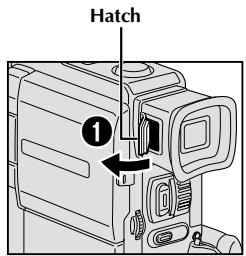
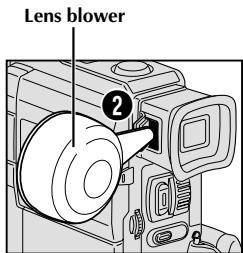
Si, après avoir suivi les étapes du tableau ci-dessous, le problème persiste, veuillez consulter votre revendeur JVC le plus proche.
Le caméscope est un appareil contrôlé par microprocesseur. Le bruit externe et les interférences (provenant d'un téléviseur, d'une radio, etc.) peuvent l'empêcher de fonctionner correctement. Dans ce cas, débranchez d'abord son alimentation (batterie, adaptateur secteur/chargeur, etc.) et attendez quelques minutes ; puis rebranchez-le et procédez comme d'habitude depuis le début.
| SYMPTOM | POSSIBLE CAUSES | CORRECTIVE ACTION |
| 1. No power is supplied. | 1. • The power is not connected properly.
• The battery is dead.
• The LCD monitor is not open fully or the viewfinder is not pulled out when recording. | 1. • Connect the AC Power Adapter/Charger securely (║ pg. 7).
• Replace the dead battery with a fully charged one (║ pg. 6, 7).
• Open the LCD monitor fully or pull out the viewfinder. |
| 2. “SET DATE/TIME!” appears. | 2. • The built-in clock's rechargeable lithium battery is discharged.
• The previously set date/time is erased. | 2. • Connect the camcorder to an AC outlet using the AC Power Adapter/Charger for over 24 hours to charge the clock's lithium battery (║ pg. 9). |
| 3. Recording cannot be performed. | 3. • The tape's erase protection tab is set to “SAVE”.
• The POWER Switch is set to “PLAY/PC”, “MEMORY” or “OFF”.
• “TAPE END” appears.
• The cassette holder cover is open. | 3. • Set the tape's erase protection tab to “REC” (║ pg. 10).
• Set the POWER Switch to “CAMERA” (║ pg. 14).
• Replace with new cassette (║ pg. 10).
• Close the cassette holder cover. |
| 4. There is no picture. | 4. • The camcorder is not getting power, or some other malfunction exists. | 4. • Turn the camcorder's power off and on again (║ pg. 16). |
| 5. Some functions are not available using the MENU wheel. | 5. • The Operation Switch is set to “A”. | 5. • Set the Operation Switch to “M” (║ pg. 14). |
| 6. The focus does not adjust automatically. | 6. • Focus is set to the Manual mode.
• The recording was done in a dark place, or the contrast was low.
• The lens is dirty or covered with condensation. | 6. • Set Focus to the Auto mode (║ pg. 25).
• Clean the lens and check the focus again (║ pg. 78). |
| 7. The cassette will not load properly. | 7. • The cassette is in the wrong position.
• The battery's charge is low. | 7. • Set it in the right position (║ pg. 10).
• Install a fully charged battery (║ pg. 6, 7). |
| 8. The MultiMediaCard will not load properly. | 8. • The MultiMediaCard is in the wrong position. | 8. • Set it in the right position (║ pg. 12). |
| 9. In the 5-Second mode, recording ends before 5 seconds have elapsed. | 9. • The 5-Second mode is set to “ANIM.” in the Menu Screen. | 9. • Select “5S” in the Menu Screen (║ pg. 33). |
| 10. Snapshot mode cannot be used. | 10. • The Squeeze mode is selected. | 10. • Disengage the Squeeze mode (║ pg. 28). |
| 11. The colour of Snapshot looks strange. | 11. ·The light source or the subject does not include white. Or there are various different light sources behind the subject.
·The Sepia or Monotone mode is activated. | 11. ·Set “FLASH” to “ON” in the Menu Screen. Or find a white subject and compose your shot so that it also appears in the frame (Ø pg. 18, 19, 30).
·Turn off Sepia and Monotone (Ø pg. 36). |
| 12. Although Snapshot is attempted, flash does not take place. | 12. ·The subject is too bright with the flash set to “AUTO” or “AUTO”.
·If blinks, the flash is being charged.
·The camcorder is in the Record mode.
·In the Menu Screen, “GAIN UP” is set to “OFF” or “P.AE/EFFECT” is set to “TWILIGHT”. | 12. ·Set “FLASH” to “ON” in the Menu Screen (Ø pg. 30).
·It can take up to 10 seconds to charge the flash.
·Set the camcorder in the Record-Standby mode (Ø pg. 30).
·Set “GAIN UP” to “AUTO” or “AGC” (Ø pg. 27) or disengage the “TWILIGHT” mode (Ø pg. 36). |
| 13. Although a Snapshot is taken with the flash, Red-Eye Reduction does not take place. | 13. ·The subject does not look straight toward the flash.
·The subject does not look at the first flash, which is an important part of Red-Eye Reduction.
·The camcorder is too far from the subject.
·“FLASH” is not set to “AUTO” in the Menu Screen. | 13. ·The subject should look straight toward the flash, especially the first flash. If the subject does not see the first flash, it will be difficult for Red-Eye Reduction to take place (Ø pg. 30).
·The flash is effective for subjects at a distance of approx. 0.7 m to 2 m from the camcorder (Ø pg. 30).
·Set “FLASH” to “AUTO” in the Menu Screen to display the Red-Eye Reduction indicator (Ø pg. 30). |
| 14. The image taken using Snapshot is too dark. | 14. ·“FLASH” is set to “OFF” in the Menu Screen.
·The flash emission window is covered by fingers, etc..
·The flash brightness is set to produce a darker image (adjustment value: -3).
·The camcorder is too far from the subject.
·Shooting was performed under backlit conditions. | 14. ·Set “FLASH” to any position except “OFF” in the Menu Screen (Ø pg. 30).
·Do not cover the flash emission window.
·Adjust the flash brightness to a larger value (Ø pg. 31).
·The flash is effective for subjects at a distance of approx. 0.7 m to 2 m (Ø pg. 30).
·Press the BACKLIGHT Button (Ø pg. 38). |
| 15. The image taken using Snapshot is too bright. | 15. ·“FLASH” is set to “ON” in the Menu Screen. | 15. ·Set “FLASH” to any parameter other than “ON” in the Menu Screen (Ø pg. 30). |
| 16. Digital Zoom does not work. | 16. ·10X optical zoom is selected.
·The MODE Dial is set to “DUAL” or “DSC”.
·“P.AE/EFFECT” is set to “VIDEO ECHO” in the Menu Screen.
·“WIDE MODE” is set to “PS-WIDE” in the Menu Screen.
·Picture Wipe or Dissolve are being used in a scene transition. | 16. ·Set “ZOOM” to “40X” or “200X” in the Menu Screen (Ø pg. 27).
·Set the MODE Dial to “PS” or “VIDEO” (Ø pg. 15, 20).
·Disengage the “VIDEO ECHO” mode (Ø pg. 20, 36).
·Disengage the “PS-WIDE” mode (Ø pg. 28).
·Wait until the Picture Wipe or Dissolve effects are completed (Ø pg. 20, 34). |
| 17. Programme AE with special effects and Fade/Wipe Effects do not work. | 17. • The Operation Switch is set to “A”. | 17. • Set the Operation Switch to “M” (Lpg. 34, 36). |
| 18. The Black & White Fader does not work. | 18. • The Sepia or Monotone mode is activated. | 18. • Turn off Sepia and Monotone (Lpg. 34, 36). |
| 19. The Dissolve function does not work. | 19. • The Sepia, Monotone or Slow Shutter mode of Programme AE with special effects is activated.
•“WIDE MODE” is set to “SQUEEZE” or “PS-WIDE” in the Menu Screen.
•The previously selected mode of Programme AE with special effects was changed after the last selected scene for editing was registered. | 19. • Turn off Sepia, Monotone or Slow Shutter before adding Dissolve to a scene transition (Lpg. 34, 36).
•Set “WIDE MODE” to “CINEMA” or “OFF” mode (Lpg. 28).
•Make sure you have selected the mode of Programme AE with special effects you want before starting editing (Lpg. 34, 36). |
| 20. The Picture Wipe and Dissolve functions do not work. | 20. • The last selected editing scene is ending.
•At the end of the last selected scene for editing, the POWER Switch was set to “OFF”.
•The power is off. | 20. • Select Picture Wipe or Dissolve before beginning recording. The effects are then automatically activated (Lpg. 34).
•Do not turn off the camcorder's power after setting Edit-In and Edit-Out points, as they will all be erased (Lpg. 34).
•The camcorder automatically shuts off after 5 minutes have elapsed in the Record-Standby mode. Make sure you continue operations within 5 minutes after engaging Record-Standby mode (Lpg. 34). |
| 21. The picture wipe function does not work. | 21. • The Slow Shutter mode is activated.
•“WIDE MODE” is not set to “OFF”. | 21. • Disengage the Slow Shutter mode or set “WIDE MODE” to “OFF” before preparing to use the Picture Wipe (Lpg. 28, 34, 36). |
| 22. Scene transition does not go as expected. | 22. • When using “Picture Wipe/Dissolve” (Lpg. 34), there is a delay of a fraction of a second between the previous record stop-point and the Dissolve start-point. This is normal, but this slight delay becomes especially noticeable when shooting fast-moving subject or during rapid panning. | 22. —— |
| 23. The Video Echo mode does not work. | 23. • The Picture Wipe or Dissolve functions are in use.
•“WIDE MODE” is set to “SQUEEZE” or “PS-WIDE” in the Menu Screen.
•A Fade-In or Fade-Out is in progress. | 23. • Set “WIDE MODE” to “CINEMA” or “OFF” mode (Lpg. 28).
•Do not try to use the Video Echo mode during a Fade-In or Fade-Out (Lpg. 34, 36). |
| 24. Even when Slow Shutter is not selected, the image looks like it is activated. | 24. • When shooting in the dark, the unit becomes highly sensitive to light and the image takes on an effect similar to Slow Shutter. | 24. • If you want the lighting to look more natural, set GAIN UP to “AGC” or “OFF” in the Menu Screen (⓷ pg. 27). |
| 25. There is no strobe when the Classic Film or Strobe mode is activated. | 25. • The Picture Wipe or Dissolve function is in use. | 25. • Do not try to use the Classic Film or Strobe mode during a scene transition (⓷ pg. 34, 36). |
| 26. White Balance cannot be activated. | 26. • The Sepia or Monotone mode is activated. | 26. • Turn off Sepia or Monotone before setting White Balance (⓷ pg. 36, 39). |
| 27. When shooting a subject illuminated by bright light, vertical lines appear. | 27. • This is a result of exceedingly high contrast, and is not a malfunction. | 27. —— |
| 28. When the screen is under direct sunlight during shooting, the screen becomes red or black for an instant. | 28. • This is not a malfunction. | 28. —— |
| 29. During recording, the date/time does not appear. | 29. • “DATE/TIME” is set to “OFF” in the Menu Screen.
• Self-Recording is performed. | 29. • Set “DATE/TIME” to “ON” in the Menu Screen (⓷ pg. 29).
• During Self-Recording, the date/time does not appear (⓷ pg. 17). |
| 30. Files stored in the MultiMediaCard cannot be deleted. | 30. • Files stored in the MultiMediaCard are protected. | 30. • Remove protection from the files stored in the MultiMediaCard and delete them (⓷ pg. 48, 49). |
| 31. The indicators and messages do not appear. | 31. • “ON SCREEN” is set to “SIMPLE” or “TIME CODE” is set to “OFF” in the Menu Screen. | 31. • Set “ON SCREEN” to “LCD” or “LCD/TV” and set “TIME CODE” to “ON” in the Menu Screen (⓷ pg. 29, 41). |
| 32. Images on the LCD monitor appear dark or whitish. | 32. • In places subject to low temperature, images become dark due to the characteristics of the LCD monitor. When this happens, the displayed colours differ from those that are actually recorded. This is not a defect of the camcorder.
• When the LCD monitor's fluorescent light reaches the end of its service life, images on the LCD monitor become dark. Consult your nearest JVC dealer. | 32. • Adjust the brightness and angle of the LCD monitor (⓷ pg. 16, 17). |
| 33. The rear of the LCD monitor is hot. | 33. • The light used to illuminate the LCD monitor causes it to become hot. | 33. • Close the LCD monitor to turn it off or set the POWER Switch to “OFF”, and let the unit cool down. |
| 34. The indicators and the image colour on the LCD monitor are not clear. | 34. • This may occur when the surface or the edge of the LCD monitor is pressed. | 34. —— |
| 35. The LCD monitor or viewfinder indications blink. | 35. • Certain Fade/Wipe effects, certain modes of Programme AE with special effects, “DIS” and other functions that cannot be used together are selected at the same time. | 35. • Re-read the sections covering Fade/Wipe effects, Programme AE with special effects and “DIS” (CP pg. 28, 34 – 36). |
| 36. Coloured bright spots appear all over the LCD monitor or the viewfinder. | 36. • The LCD monitor and the viewfinder are made with high-precision technology. However, black spots or bright spots of light (red, green or blue) may appear constantly on the LCD monitor or the viewfinder. These spots are not recorded on the tape. This is not due to any defect of the unit. (Effective dots: more than 99.99 %) | 36. |
| 37. During recording, sound cannot be heard. | 37. • The optional headphones are not connected to the headphones connector. • The sound volume of the headphones connector was not adjusted appropriately. The sound volume at this point is the same as the level it was adjusted to during playback. | 37. • Connect the optional headphones to the headphone connector (CP pg. 86, 87). • Adjust the sound volume during playback (CP pg. 40). |
| 38. Play, Rewind and Fast-Forward functions do not work. | 38. • The POWER Switch is not set to “PLAY/PC”. | 38. • Set the POWER Switch to “PLAY/PC” (CP pg. 40). |
| 39. A MultiMediaCard cannot be played back. | 39. • The POWER Switch is set to “CAMERA” or “PLAY/PC”. | 39. • Set the POWER Switch to “CAMERA” (CP pg. 45). |
| 40. The tape is moving, but there is no picture. | 40. • Your TV has AV input terminals, but is not set to its VIDEO mode. • The cassette holder cover is open. | 40. • Set the TV to the mode or channel appropriate for video playback (CP pg. 56, 57). • Close the cassette holder cover (CP pg. 10). |
| 41. The LCD monitor image is distorted. | 41. • During playback of the unrecorded portion, High-speed Search and still playback, LCD monitor indications appear distorted. This is not a defect. | 41. |
| 42. Images on the LCD monitor are jittery. | 42. • The speaker volume is too great. | 42. • Turn the speaker volume down (CP pg. 40). |
| 43. For GR-DVX10 owners: There is no playback picture on the connected TV. | 43. • Since the analogue input mode is engaged, the camcorder is in the Record-Standby mode. | 43. • Set “AV/S-VIDEO” to “OUT” in the Menu Screen (CP pg. 41). |
| 44. Blocks of noise appear during playback, or there is no playback picture and the screen becomes blue. | 44. | 44. • Clean the video heads with an optional cleaning cassette (CP pg. 94). |
| 45. The LCD monitor, the viewfinder and the lens have become dirty (ex. fingerprints). | 45. | 45. • Wipe them gently with soft cloth. Wiping strongly can cause damage (║ pg. 78). |
| 46. An unusual mark appears. | 46. | 46. • Check the section of the manual that explains LCD monitor/viewfinder indications (║ pg. 88 - 92). |
| 47. An error indication (E01 - E06) appears. | 47. • A malfunction of some kind has occurred. In this case the camcorder's functions become unusable. | 47. • Remove the power supply (battery pack, etc.) and wait a few minutes for the indication to clear. When it does, you can resume using the camcorder. If the indication remains even though you repeat the above two or three times, please consult your nearest JVC dealer. |
| 48. The charger indicator on the AC Power Adapter/Charger does not light. | 48. • The temperature of the battery is extremely high/low. Charging is difficult in places subject to extremely high/low temperatures. | 48. • To protect the battery, it is recommended to charge it in places with a temperature of 10°C to 35°C (║ pg. 93). |
| 49. Picture does not appear on the LCD monitor. | 49. • The viewfinder is pulled out. The LCD monitor's brightness setting is too dark. | 49. • Push the viewfinder back in. Adjust the brightness of the LCD monitor (║ pg. 16). If the monitor is tilted upward 180 degrees, open the monitor fully (║ pg. 16). |
| 50. When the image is printed from the printer, a black bar appears at the bottom of the screen. | 50. • This is not a malfunction. | 50. • By recording with “DIS” activated (║ pg. 28) this can be avoided. |
| 51. When the camcorder is connected via the DV connector, the camcorder does not operate. | 51. • The DV cable was plugged/unplugged with power turned on. | 51. • Turn the camcorder's power off and on again, then operate it. |
| 52. During transport, the lens cover opens. | 52. | 52. • Do not subject the camcorder to shock or excessive vibration during transport. Turn the camcorder on and off. The lens cover closes. |
| 53. The MultiMediaCard cannot be removed from the camcorder. | 53. | 53. • Push in the MultiMediaCard a few more times (║ pg. 12). |
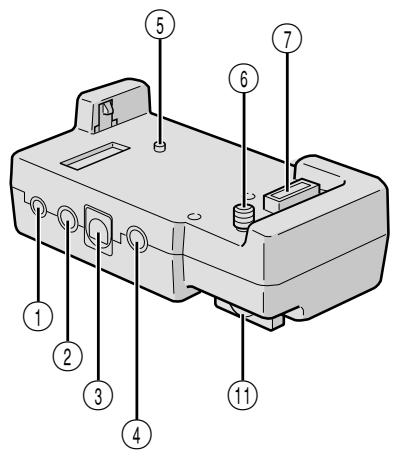
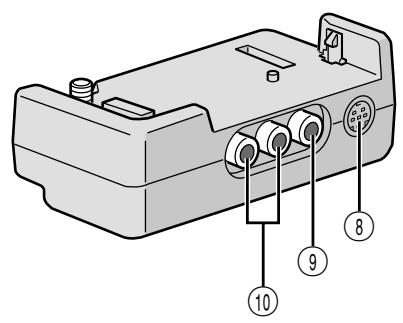
① PC Connecteur [DIGITAL STILL] ............ p. 58 ② Borne/Connecteur de montage [JLIP (Joint Level Interface Protocol) (EDIT)] 13 p. 71
- Connectez un caméscope ou un magnétoscope compatible JLIP pour le contrôler depuis l'ordinateur à l'aide du logiciel fourni.
REMARQUE :
Assurez-vous que le caméscope est allumé lors de la connexion du caméscope à un PC via le connecteur JLIP de la station d'accueil. Si le caméscope est éteint (parce que l'interrupteur POWER est sur "OFF" ou en raison de l'arrêt automatique*, etc.) pendant l'utilisation du logiciel JLIP, il sera impossible de contrôler les appareils connectés depuis l'ordinateur. Dans ce cas, essayez d'abord de rallumer le caméscope, ou débranchez le câble de connexion JLIP du connecteur JLIP de la station d'accueil. Ensuite, initialisez ou relancez le logiciel.
* Arrêt automatique :
Si 5 minutes s'écoulent en mode veille d'enregistrement ou en mode pause, le caméscope s'éteint automatiquement pour économiser l'énergie. Connectez le câble de montage lors du montage aléatoire assemblé. 70-75
③ Connecteur PRINTER Connectez à l'imprimante en option équipée d'un connecteur PRINT DATA. Reportez-vous à la feuille d'instructions séparée "POUR LES PROPRIÉTAIRES D'UNE IMPRIMANTE EN OPTION". ④ Connecteur d'entrée microphone stéréo externe [MIC] p. 76 ⑤ Goujon p. 56 Vis. p. 56 ⑦ Connecteur multiple La station d'accueil peut être connectée à ce caméscope via ce connecteur. Ne le touchez jamais avec la main et ne le frappez pas avec un objet dur ; si les broches sont endommagées, les connecteurs deviendront inutilisables en raison d'un défaut de contact. Connecteur d'entrée/sortie S-Vidéo (GR-DVX10) Connecteur de sortie S-Vidéo (GR-DVX9) [S] p. 56, 71 ⑨ Connecteur d'entrée/sortie vidéo (GR-DVX10) Connecteur de sortie vidéo (GR-DVX9) [VIDEO] p. 56, 71 ⑩ Connecteurs d'entrée/sortie audio (GR-DVX10) Connecteurs de sortie audio (GR-DVX9) [AUDIO L/R] p. 56, 71 Vis moletée. p. 56 Pour fixer le caméscope, serrez dans le sens des aiguilles d'une montre.
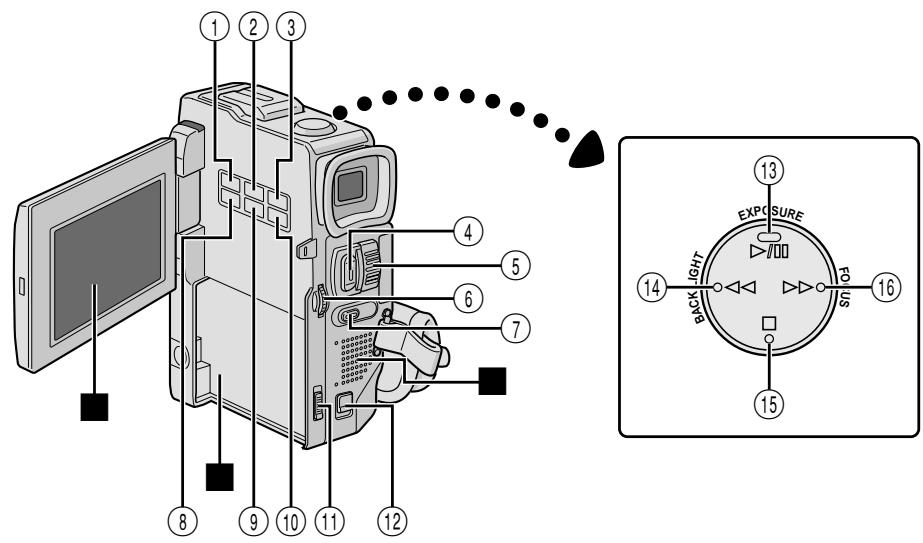
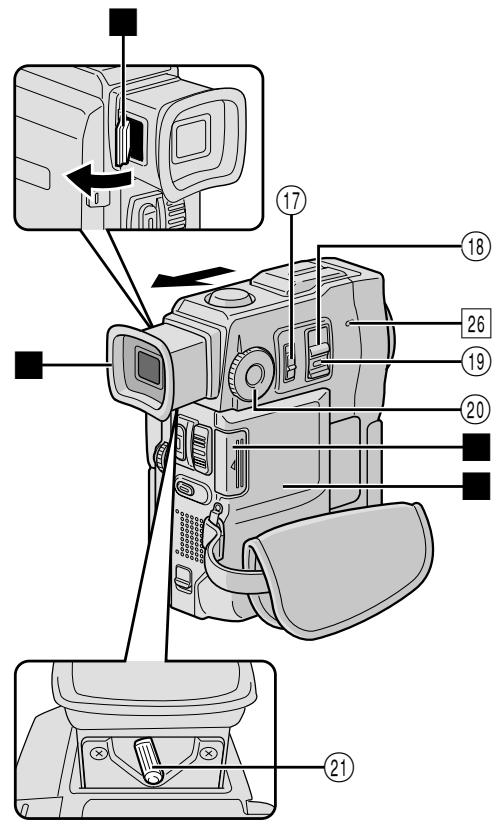
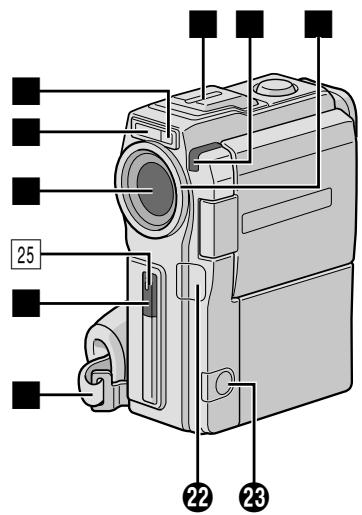
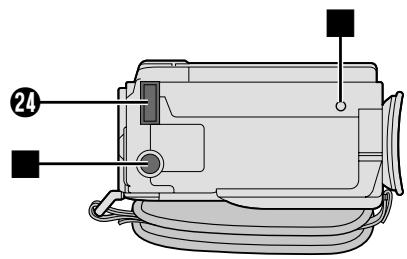
Commandes
① Bouton PRINT Permet d'imprimer à l'aide de l'imprimante en option équipée d'un connecteur PRINT DATA. Reportez-vous à la feuille d'instructions séparée "POUR LES PROPRIÉTAIRES D'UNE IMPRIMANTE EN OPTION". ② Bouton PRINT FRAME p. 51 ③ Bouton E-MAIL CLIP REC ... p. 44 ④ Bouton START/STOP. 16 ⑤ • Levier de zoom motorisé [T/W] ............ p. 20 - Commande de volume du haut-parleur/écouteurs [VOL.] p. 40 ⑥ • Molette MENU [+, -, ▷] p. 26 Commande de luminosité de l'écran LCD [+, -] p. 16 ⑦ Bouton Snapshot [SNAPSHOT] p. 18, 19, 22, 24, 65 ⑧ Bouton INDEX. p. 37, 46, 47 ⑨ Bouton IMAGE SIZE/RES. ... p. 13 ⑩ Bouton DIGITAL SOUND p. 37, 77 ⑪ Interrupteur de déverrouillage de la batterie [BATT.RELEASE] p. 7 ⑫ Interrupteur OPEN/EJECT. p. 10 ⑬ • Bouton Lecture/Pause [▶■] Bouton EXPOSURE p. 38 ⑭ • Bouton Retour [◀◀] Bouton BACKLIGHT p. 38 ⑮ Bouton Stop ⑯ • Bouton Avance rapide [▶▶] Bouton FOCUS 25 ⑰ Interrupteur de fonctionnement [A] ⑱ Interrupteur POWER [CAMERA], [PLAY/PC], [MEMORY/PLAY], [OFF] ... [p. 14] ⑲ Bouton de verrouillage ⑳ Molette MODE [PS, VIDEO, DUAL, DSC] . p. 15 ㉑ Réglage dioptrique.
Connecteurs
Les connecteurs 2 à 2 sont situés sous un couvercle.
Connecteur vidéo numérique
[DVI IN/OUT : GR-DVX10,
DV OUT : GR-DVX9]
(i.link*) p. 58, 59, 62, 63
- i.Link fait référence à la spécification industrielle IEEE1394-1995 et à ses extensions. Le logo est utilisé pour les produits conformes à la norme i.Link.
Connecteur de sortie audio/vidéo
[AVOUT] p. 56
Connecteur pour casque [Ω] ... p. 76
Lorsqu'il est fixé à la station d'accueil, cette partie est connectée.
Voyants
[25] Voyant témoin. p. 16 26 Voyant POWER 13 p. 16
Autres pièces
Écran LCD. p. 16, 17 Support de batterie p. 7 Haut-parleur p. 40 Capteur de caméra
Écran LCD, p. 16, 17 ; support de batterie, p. 7 ; haut-parleur, p. 40 ; capteur de caméra.
Veillez à ne pas couvrir cette zone, un capteur
nécessaire à la prise de vue y est intégré.
Microphone stéréo 13 p. 76 ■ Capteur de flash
Veillez à ne pas couvrir cette zone, car elle contient un capteur requis par le flash.
Flash 3 p. 30 Objectif Protecteur d'objectif
Lors de l'utilisation d'un filtre d'objectif en option (disponible dans le commerce), vous devez d'abord retirer le cache de l'objectif.
Capteur de télécommande. p. 66 Dragonne. p. 8 Viseur. p. 8 Trappe de nettoyage du viseur 13 p. 78 Couvercle du logement de carte mémoire. p. 12 Couvercle du logement de cassette 13 p. 10 ■ Embase de trépied. p. 8 Trou de fixation. p. 56
Indications sur l'écran LCD/viseur pendant l'enregistrement vidéo uniquement
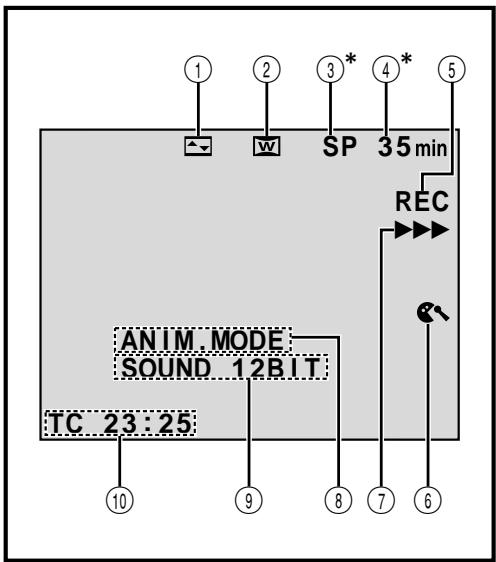
① Affiche l'effet de fondu/volet sélectionné.
(1 p. 34, 35)
② Apparaît en mode Squeeze, Cinema ou PS
Wide.
(13 p. 28)
③ ^ 水 Affiche le mode d'enregistrement (SP ou LP).
(p. 11)
④ Affiche le temps de bande restant.
(1 p. 16)
⑤ « REC » apparaît pendant l'enregistrement.
- « PAUSE » apparaît en mode d'attente d'enregistrement.
(13 p. 16)
⑥ Apparaît lorsque le mode de coupe du vent est activé pour
réduire le bruit causé par le vent. (p. 29)
⑦ Apparaît pendant que la bande défile.
(13 p. 16)
⑧ MODE 5S/MODE ANIM. : Affiche le mode d'enregistrement 5 secondes ou le mode d'enregistrement d'animation.
(p. 28, 33)
⑨ Affiche le mode sonore pendant environ 5 secondes
après la mise sous tension du caméscope. (p. 27)
⑩ Affiche le code temporel.
(p. 21, 29)
- Le réglage "ON SCREEN" sur "SIMPLE" dans le menu écran masque les indications marquées d'un * à l'écran (13 p. 29, 41).
Indications sur l'écran LCD / le viseur pendant l'enregistrement D.S.C. uniquement
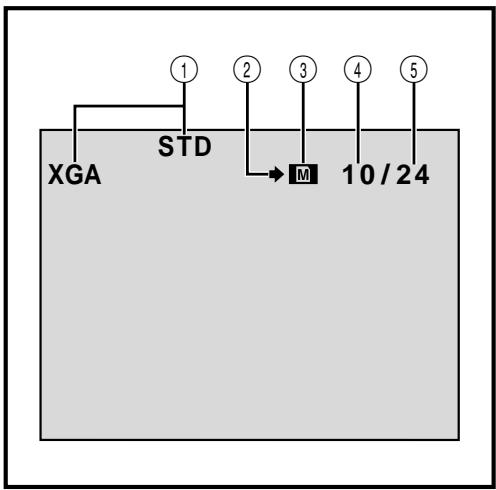
① Affiche le mode qualité/taille de l'image stockée. Il existe 4 modes : XGA FINE, XGA STD, VGA FINE et VGA STD (par ordre de qualité). (F p. 13)
② Apparaît et clignote pendant la prise de vue. (p. 19)
③ Apparaît pendant la prise de vue.
- Clignote lorsqu'une carte MultiMedia n'est pas chargée.
(13 p. 19)
④ Affiche le nombre d'images déjà prises. (13 p. 19)
⑤ Affiche le nombre total de prises de vue pouvant être stockées, y compris celles déjà prises.
(13 p. 19)
Ces indications apparaissent également en mode DUAL.
Indications sur l'écran LCD / le viseur pendant l'enregistrement vidéo et D.S.C.
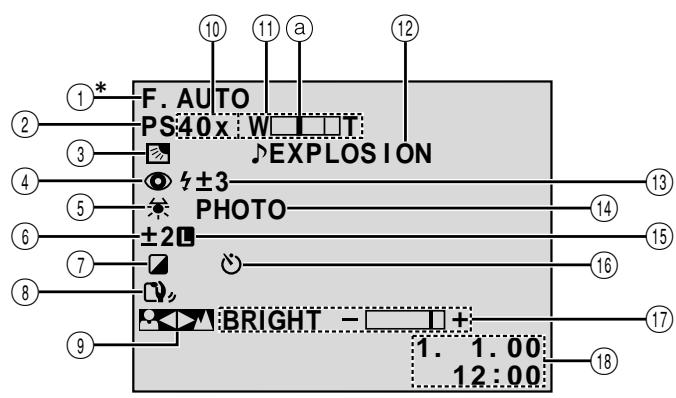
① Apparaît lorsque le commutateur de fonctionnement est réglé sur "A". (p. 14) ② Affiche la position du mode de prise de vue. (F p. 15) ③ Apparaît lorsque la compensation de contre-jour est utilisée. (p. 38) ④ Apparaît lorsque "FLASH" est réglé sur "AUTO" dans le menu écran. (p. 30) ⑤ Apparaît lorsque la balance des blancs est ajustée. (p. 39) ⑥ Apparaît lorsque l'exposition est ajustée. (F p. 38) ⑦ Affiche le programme AE sélectionné avec effets spéciaux. (p. 36) ⑧ Apparaît lorsque le stabilisateur d'image numérique ("DIS") est activé. (p. 28) ⑨ Apparaît lorsque la mise au point est ajustée manuellement. (F p. 25)
● Taux de zoom approximatif : apparaît pendant le zoom. (p. 20) ⑩ Apparaît lorsque "GAIN UP" est réglé sur "AUTO" et que la vitesse d'obturation est ajustée automatiquement. (p. 27) ⑪ Apparaît pendant le zoom. ⑧ Indicateur de niveau de zoom (p. 20) ⑫ Affiche l'effet sonore numérique sélectionné. (p. 37) ⑬ Apparaît lorsque le flash est prêt. Un nombre apparaît à côté de l'indication après avoir ajusté la luminosité du flash. (13 p. 30, 31) ⑭ Apparaît lors de la prise d'un instantané. (15 p. 18, 19) ⑮ Apparaît lorsque l'iris est verrouillé. (p. 38) ⑯ Apparaît pendant l'enregistrement avec retardateur. (p. 32) ⑰ Affiche la luminosité de l'écran LCD ou du viseur. (13 p. 16) ⑱ Affiche la date/l'heure. (p. 9)
Indications sur l'écran LCD / le viseur pendant la lecture vidéo
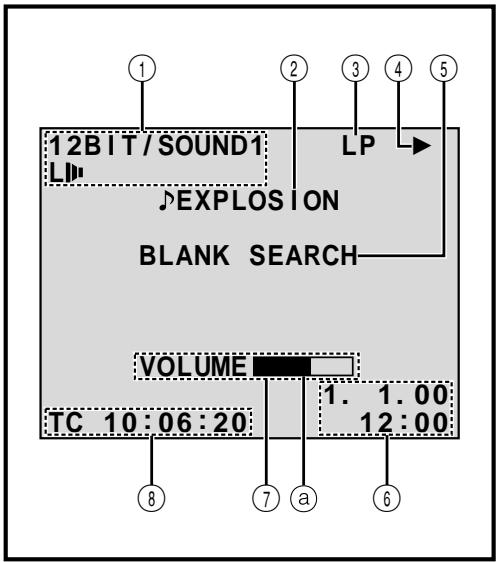
① Displays the sound mode. (13 pg. 41, 42) ② Displays the selected Digital Sound Effect. (13 pg. 37) ③ Displays the tape speed. (pg. 11) ④ Appears while a tape is running.
▶ : Lecture : Avance rapide/Recherche navette : Retour/Recherche navette : Pause : Ralenti avant : Ralenti arrière : Doublage audio Pause doublage audio
⑤ Displays the Blank Search mode. (pg. 43) ⑥ Displays the date/time. (13 pg. 41, 42) ⑦ BRIGHT : Displays the brightness of the LCD monitor or the viewfinder. (F pg. 16)
VOLUME : Displays the speaker or headphone volume. (pg. 40)
The level indicator moves.
⑧ Displays the time code. (15 pg. 41, 42)
Indications sur l'écran LCD/viseur pendant la lecture D.S.C.
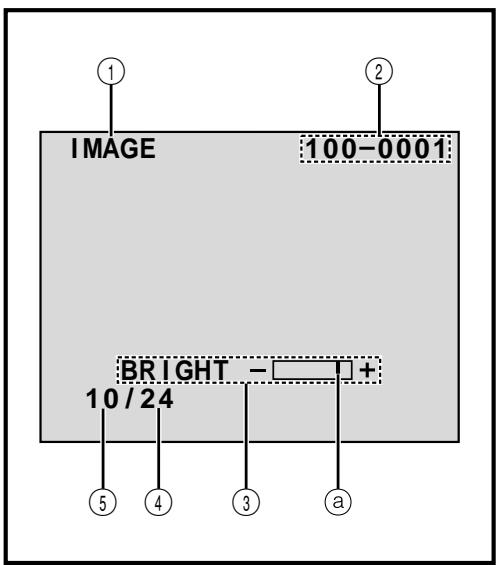
① Displays the type of file (IMAGE/E-MAIL CLIP/ SOUND). ② Displays the directory and file names. (F pg. 45) ③ Displays the brightness of the LCD monitor or the viewfinder. (13 pg. 16)
The level indicator moves.
④ Displays the total number of stored files. (F pg. 45) ⑤ Displays the index number of the file. (F pg. 45)
Indications d'avertissement
| Indications | Function |
| Displays the battery remaining power.Remaining power level: high——→→→ |
| Remaining power level: exhausted |
| As the battery power comes close to nil, the battery indicator →blinks.When the battery power is exhausted, power turns off automatically. |
| Appears when no tape is loaded. (Fpg. 10) |
| CHECK TAPE'S ERASE PROTECTION SWITCH | Appears when the erase protection tab is set to “SAVE” while the POWER Switch is set to “CAMERA”. (Fpg. 10) |
| HEAD CLEANING REQUIRED USE CLEANING CASSETTE | Appears if dirt is detected on the heads during recording. Use an optional cleaning cassette. (Fpg. 94) |
| CONDENSATION OPERATION PAUSED PLEASE WAIT | Appears if condensation occurs. When this indication is displayed, wait more than 1 hour until condensation disappears. |
| TAPE! | Appears if a tape is not loaded when START/STOP is pressed while the POWER Switch is set to “CAMERA” and the MODE Dial is set to “VIDEO”, “PS” or “DUAL”. |
| TAPE END | Appears when the tape ends during recording or playback. (Fpg. 17) |
| DIFFERENT FORMATTED TAPE | Appears if a tape in another format is loaded. |
| SET DATE/TIME! | Appears when the date/time is not set. (Fpg. 9)Appears when the built-in clock (lithium) battery is discharged and the previously set date/time is erased. (Fpg. 9) |
| A. DUB ERROR! | Appears if Audio Dubbing is attempted on a blank portion of a tape. (Fpg. 76) |
| A. DUB ERROR!<CANNOT DUB ON A LP RECORDED TAPE><CANNOT DUB ON A 16BIT RECORDING><CHECK TAPE'S ERASE PROTECTION SWITCH> | Appears if Audio Dubbing is attempted on a tape recorded in the LP mode. (Fpg. 76)Appears if Audio Dubbing is attempted on a tape recorded in 16-bit audio. (Fpg. 76)Appears if A. DUB (=) on the remote control is pressed when the erase protection tab is set to “SAVE”. (Fpg. 76) |
| MEMORY IS FULL | Appears when the MultiMediaCard's memory is full and shooting is not possible. |
| COPYING Failed | • Appears if dubbing of copyguarded signals is attempted while this camcorder is being used as a recorder (GR-DVX10 only).
• Appears in the following cases when dubbing from a tape to a MultiMediaCard (as digital stills or video clips):
- when no MultiMediaCard is loaded.
- when the MultiMediaCard's memory is full.
- when the MultiMediaCard is not formatted.
• Appears in the following cases when dubbing still images or sound effects stored in the MultiMediaCard's memory to a tape:
- when condensation occurs.
- when no tape is loaded.
- when the erase protection tab is set to “SAVE”.
- when a tape in another format is loaded.
- when the tape ends. (CP pg. 64) |
| MEMORY CARD! | Appears if a MultiMediaCard is not loaded when SNAPSHOT is pressed while the POWER Switch is set to “CAMERA” and the MODE Dial is set to “DSC” or “DUAL”。 |
| PLEASE FORMAT | Appears when there is a problem with a MultiMediaCard and its memory is corrupt, or it has not been initialised. Initialise the MultiMediaCard. (CP pg. 50) |
| NO STORED DATA | Appears when the POWER Switch is set to “MEMORY” and there are no files stored in the MultiMediaCard. |
| NO SOUND DATA | Appears if there are no sound files stored in the MultiMediaCard when DIGITAL SOUND is pressed. |
| NO STORED IMAGE | Appears when the POWER switch is set to “MEMORY” and all image files are deleted. |
| NO E-CLIP DATA | Appears when the POWER switch is set to “MEMORY” and all E-clip recording files are deleted. |
| UNSUPPORTED DATA | Appears when a file in a format other than MP3 is selected. |
| E01-E06 UNIT IN SAFEGUARD MODE REMOVE AND REATTACH BATTERY | The error indications (E01-E06) show what type of malfunction has occurred. When an error indication appears, the camcorder turns off automatically. Remove the power supply (battery, etc.) and wait a few minutes for the indication to clear. When it does, you can resume using the camcorder. If the indication remains, consult your nearest JVC dealer. |
Précautions générales concernant les piles
Si la télécommande ne fonctionne pas alors qu'elle est utilisée correctement, les piles sont usées. Remplacez-les par des piles neuves.
Utilisez uniquement les piles suivantes : AAA (R03) x 2. Veuillez noter les règles suivantes concernant l'utilisation des piles. En cas de mauvaise utilisation, les piles peuvent fuir ou exploser.
- Lors du remplacement des piles, reportez-vous à la page 66.
- N'utilisez pas de piles de taille différente de celles spécifiées.
- Assurez-vous d'installer les piles dans le bon sens.
- N'utilisez pas de piles rechargeables.
- N'exposez pas les piles à une chaleur excessive, car elles peuvent fuir ou exploser.
- Ne jetez pas les piles au feu.
- Retirez les piles de l'appareil s'il doit être stocké pendant une période prolongée pour éviter les fuites de piles qui peuvent provoquer des dysfonctionnements.
Blocs de piles
Le bloc de piles fourni est une batterie lithium-ion. Avant d'utiliser le bloc de piles fourni ou un bloc de piles en option, assurez-vous de lire les précautions suivantes :
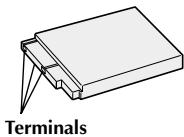
1. Pour éviter les dangers . . .
...ne pas brûler. ...ne pas court-circuiter les bornes. ...ne pas modifier ou démonter. ...ne pas exposer la batterie à des températures dépassant 60°C, car cela peut provoquer une surchauffe, une explosion ou un incendie. ....n'utiliser que des chargeurs spécifiés.
2. Pour éviter les dommages et prolonger la durée de vie . . .
...ne pas soumettre à des chocs inutiles. .... charger dans un environnement où les températures sont dans les tolérances indiquées dans le tableau ci-dessous. Il s'agit d'une batterie à réaction chimique - des températures plus froides entravent la réaction chimique, tandis que des températures plus chaudes peuvent empêcher une charge complète. ... stocker dans un endroit frais et sec. Une exposition prolongée à des températures élevées augmentera la décharge naturelle et raccourcira la durée de vie. .... charger complètement puis décharger complètement la batterie tous les 6 mois lors du stockage du bloc de piles sur une longue période. ...retirer du chargeur ou de l'appareil alimenté lorsqu'il n'est pas utilisé, car certaines machines utilisent du courant même lorsqu'elles sont éteintes.
REMARQUES :
Il est normal que le bloc de piles soit chaud après la charge ou après utilisation.
Spécifications de plage de température
Chargement : 10 °C à 35 °C
Fonctionnement : 0 °C à 40 °C
Stockage : -10 °C à 30 °C
- Le temps de recharge est basé sur une température ambiante de 20 °C.
- Plus la température est basse, plus la recharge prend du temps.
Cassettes
Pour utiliser et ranger correctement vos cassettes, veuillez lire les précautions suivantes :
- Pendant l'utilisation ...
... assurez-vous que la cassette porte la marque Mini DV. ... sachez que l'enregistrement sur des cassettes préenregistrées efface automatiquement les signaux vidéo et audio précédemment enregistrés. ... assurez-vous que la cassette est positionnée correctement lors de l'insertion. ... ne chargez et ne déchargez pas la cassette à plusieurs reprises sans laisser la bande défiler du tout. Cela détend la bande et peut entraîner des dommages. ... n'ouvrez pas le volet avant de la cassette. Cela expose la bande aux empreintes digitales et à la poussière.
- Rangez les cassettes ...
... loin des radiateurs ou autres sources de chaleur. ... à l'abri de la lumière directe du soleil. ... là où elles ne seront pas soumises à des chocs ou vibrations inutiles. ... là où elles ne seront pas exposées à des champs magnétiques puissants (tels que ceux générés par les moteurs, transformateurs ou aimants). ... verticalement, dans leurs boîtiers d'origine.
Pour utiliser et ranger correctement vos cartes MultiMedia, veuillez lire les précautions suivantes :
- Pendant l'utilisation ...
... assurez-vous que la carte MultiMedia porte la marque MultiMediaCard. ... assurez-vous que la carte MultiMedia est positionnée correctement lors de l'insertion.
- Pendant que la carte MultiMediaCard est en cours d'accès (pendant l'enregistrement, la lecture, la suppression, l'initialisation, etc.) ...
... ne retirez jamais la carte MultiMediaCard et n'éteignez jamais le caméscope.
- Rangez les cartes MultiMediaCard . . .
... loin des radiateurs ou autres sources de chaleur. .... à l'abri de la lumière directe du soleil. .... là où elles ne seront pas soumises à des chocs ou vibrations inutiles. .... là où elles ne seront pas exposées à des champs magnétiques puissants (comme ceux générés par les moteurs, transformateurs ou aimants).
Écran LCD
- Pour éviter d'endommager l'écran LCD, NE PAS . . .
... appuyer fortement dessus ou lui appliquer des chocs. ... placer le caméscope avec l'écran LCD vers le bas.
- Pour prolonger la durée de vie . . .
.... éviter de le frotter avec un chiffon grossier.
- Soyez conscient des phénomènes suivants lors de l'utilisation de l'écran LCD.
Ce ne sont pas des dysfonctionnements :
- Pendant l'utilisation du caméscope, la surface autour de l'écran LCD et/ou l'arrière de l'écran LCD peuvent chauffer.
- Si vous laissez l'appareil allumé pendant une longue période, la surface autour de l'écran LCD devient chaude.
Unité principale
- Pour des raisons de sécurité, NE PAS ...
.... ouvrez le châssis du caméscope. ...démontez ou modifiez l'appareil. .... court-circuitez les bornes du bloc-batterie. Tenez-le éloigné des objets métalliques lorsqu'il n'est pas utilisé. ...laissez des inflammables, de l'eau ou des objets métalliques pénétrer dans l'appareil. ...retirez le bloc-batterie ou débranchez l'alimentation alors que l'appareil est sous tension. ...laissez le bloc-batterie attaché lorsque le caméscope n'est pas utilisé.
- Évitez d'utiliser l'appareil . . .
.... dans des endroits soumis à une humidité ou une poussière excessives. ...dans des endroits soumis à la suie ou à la vapeur, comme près d'une cuisinière. .... dans des endroits soumis à des chocs ou des vibrations excessifs. .....près d'un téléviseur. ...près d'appareils générant de forts champs magnétiques ou électriques (haut-parleurs, antennes de radiodiffusion, etc.). ....dans des endroits soumis à des températures extrêmement élevées (plus de 40°C) ou extrêmement basses (moins de 0°C).
- NE LAISSEZ PAS l'appareil . . .
...dans des endroits où la température dépasse 50°C ...dans des endroits où l'humidité est extrêmement basse (moins de 35 %) ou extrêmement élevée (plus de 80 %). .... en plein soleil. ...dans une voiture fermée en été. ...près d'un radiateur.
4. Pour protéger l'appareil, NE PAS . . .
....le laisser se mouiller. ...le faire tomber ou le heurter contre des objets durs. ...le soumettre à des chocs ou à des vibrations excessives pendant le transport. ...garder l'objectif dirigé vers des objets extrêmement brillants pendant de longues périodes. ...exposer l'objectif à la lumière directe du soleil. ...le porter en tenant l'écran LCD ou le viseur. ...le balancer excessivement lorsqu'on utilise la dragonne ou la poignée. ...balancer excessivement la housse souple lorsque le caméscope est à l'intérieur.
5. Des têtes sales peuvent provoquer les problèmes suivants :

- Pas d'image pendant la lecture.
- Des blocs de bruit apparaissent pendant la lecture.
- Pendant l'enregistrement, l'indicateur d'avertissement de blocage des têtes « × » apparaît.
Dans de tels cas, utilisez une cassette de nettoyage en option. Insérez-la et lancez la lecture. Si la cassette est utilisée plus d'une fois consécutivement, cela peut endommager les têtes vidéo. Après environ 20 secondes de lecture, le caméscope s'arrête automatiquement. Consultez également les instructions de la cassette de nettoyage.
Si, après avoir utilisé la cassette de nettoyage, les problèmes persistent, consultez votre revendeur JVC le plus proche.
Les pièces mécaniques mobiles utilisées pour déplacer les têtes vidéo et la bande vidéo ont tendance à se salir et à s'user avec le temps. Afin de maintenir une image claire à tout moment, des contrôles périodiques sont recommandés après environ 1 000 heures d'utilisation. Pour les contrôles périodiques, veuillez consulter votre revendeur JVC le plus proche.
Comment manipuler un CD-ROM
- Veillez à ne pas salir ou rayer la surface du miroir (celle opposée à la surface imprimée). N'écrivez rien et n'apposez pas d'autocollant sur l'une ou l'autre des faces. Si le CD-ROM est sale, essuyez-le délicatement avec un chiffon doux, du centre vers l'extérieur, en effectuant un mouvement circulaire.
- N'utilisez pas de nettoyants pour disques conventionnels ni de spray de nettoyage.
- Ne pliez pas le CD-ROM et ne touchez pas sa surface miroir.
- Ne rangez pas votre CD-ROM dans un environnement poussiéreux, chaud ou humide. Tenez-le à l'écart de la lumière directe du soleil.
À propos de la condensation d'humidité . . .
- Vous avez pu observer que verser un liquide froid dans un verre provoque la formation de gouttelettes d'eau sur la surface extérieure du verre. Ce même phénomène se produit sur le tambour de têtes d'un caméscope lorsqu'il est déplacé d'un endroit frais vers un endroit chaud, après avoir chauffé une pièce froide, dans des conditions extrêmement humides ou dans un endroit directement soumis à l'air froid d'un climatiseur.
- L'humidité sur le tambour de têtes peut causer des dommages graves à la bande vidéo et entraîner des dommages internes au caméscope lui-même.
Dysfonctionnement grave
En cas de dysfonctionnement, cessez immédiatement d'utiliser l'appareil et consultez votre revendeur JVC local.
Le caméscope est un appareil contrôlé par micro-ordinateur. Le bruit et les interférences externes (provenant d'un téléviseur, d'une radio, etc.) peuvent l'empêcher de fonctionner correctement. Dans ce cas, débranchez d'abord son bloc d'alimentation (batterie, adaptateur secteur/chargeur, etc.), attendez quelques minutes, puis rebranchez-le et procédez comme d'habitude depuis le début.
A
Adaptateur secteur/chargeur p. 6, 7
Entrée analogique 13 p. 41, 61
Animation 13 p. 33
Doublage audio 17 p. 76
Auto Date, p. 29
Auto Focus, p. 25
Auto Playback, p. 45
Auto Shut Off, p. 17, 19, 40
B
Backlight Compensation, p. 38
Battery Low, p. 91
Battery Pack, p. 6, 7, 93
Beep/Tally, p. 27
Blank Search, p. 43
Brighten the LCD Monitor, p. 16
Built-in Clock's Lithium Battery, p. 9
C
Channels (Left/Right), p. 42
Charge the Battery Pack, p. 6
Cinéma 1 p. 28
Classic Film 3 p. 36
Nettoyage du caméscope p. 78
Connexions p. 7, 56-63, 71
D
Assombrir l'écran LCD 16
Affichage date/heure p. 29, 41, 42
Réglages date/heure 13 p. 9
Suppression de fichiers p. 49
Mode démonstration p. 5, 28
Effet sonore numérique p. 37
Zoom numérique 13 p. 20, 27
DIS (stabilisateur d'image numérique) 13 p. 28
Réglage dioptrique 13 p. 8
DPOF (format de commande d'impression numérique) ... p. 54
Double prise de vue 24
Doublage. p. 60-65
E
Enregistrement par e-mail. p. 44
Protection contre l'effacement. p. 10
Contrôle de l'exposition 13 p. 38
F
Fondu d'ouverture/fermeture. p. 34, 35
Avance rapide de la bande. p. 40
Mode d'enregistrement 5 secondes. 13 p. 33
Flash 3 p. 30, 31
Lecture image par image. p. 40, 68
G
Gain Up p. 27
Réglage de la poignée 13 p. 8
Icônes 13 p. 27-29
Lecture de l'index p. 47
Écran d'index p. 46
Initialiser une carte MultiMedia p. 50
Iris p. 38
Verrouillage de l'iris 13 p. 38
J
Prise de vue journalistique p. 17
L
Moniteur LCD / Viseur
Indications 13 p. 88-92
Charger une cassette p. 10
M
Mise au point manuelle p. 25
Écran du menu, MENU CAMÉRA. p. 27
Écran du menu, MENU AFFICHAGE p. 29, 41
Écran du menu, MENU MANUEL... p. 28, 29
Écran du menu, MENU MÉMOIRE p. 48
Écran du menu, MENU VIDÉO 13 p. 41
Position de la molette de mode. 13 p. 15
Monotone 13 p. 36
Mode d'entraînement du moteur. 13 p. 18
MultiMediaCard. p. 12, 94
0
Position du commutateur de fonctionnement 14
P
Mode qualité/taille d'image 13 p. 13
Fondu/volet d'image. 13 p. 34, 35
Effets spéciaux de lecture p. 69
Zoom de lecture, p. 68
Position de l'interrupteur POWER, p. 14
Suppression de la trame d'impression, p. 52, 53
Imprimante, p. 59
Programme AE avec effets spéciaux, p. 36
Mode progressif, p. 22, 23
Progressive Wide, p. 28
Protection des fichiers, p. 48
Accessoires fournis, p. 4
R
Montage aléatoire, p. 70-75
Veille d'enregistrement, p. 16
Mode d'enregistrement, p. 11
Réduction des yeux rouges, p. 30
Télécommande, p. 66
Rembobiner la bande, p. 40
Enregistrement automatique, p. 17
Minuterie automatique, p. 32
Sépia, p. 36
Réglage du code de télécommande/magnétoscope, p. 70
Mode de prise de vue, DUAL, p. 15
Mode de prise de vue, DSC, p. 15
Recherche par navette, p. 40
Vitesse d'obturation, p. 36
Lecture au ralenti, p. 68
Obturateur lent, p. 36
Photo instantanée, p. 18, 19, 24
Mode photo instantanée, p. 18, 19
Mode son, p. 27, 41, 42
Volume du haut-parleur, p. 40
Spécifications, p. 98, 99
Squeeze, p. 28
Lecture sur image fixe, p. 40
Stroboscope, p. 36
Superposition d'un cadre d'impression, p. 51
Télé macro, p. 28
Code temporel, p. 21, 29, 41, 42
Montage sur trépied, p. 8
Crépuscule, p. 36
Décharger une cassette, p. 10
Écho vidéo, p. 36
Balance des blancs, p. 39
Mode large, p. 28
Coupe-vent, p. 29
Fondu d'ouverture/fermeture, p. 34, 35
Zooming 13 p. 20
Caméscope
Généralités
| Power supply | : DC 6.3 V--- (Using AC Power Adapter/Charger)
DC 7.2 V--- (Using battery pack) |
| Power consumption | |
| LCD monitor off, viewfinder on | |
| GR-DVX10 | : Approx. 4.9 W |
| GR-DVX9 | : Approx. 4.6 W |
| LCD monitor on, viewfinder off | |
| GR-DVX10 | : Approx. 5.8 W |
| GR-DVX9 | : Approx. 5.5 W |
| Dimensions (W x H x D) | : 51 mm x 125 mm x 97 mm
(with the LCD monitor closed and the viewfinder pushed back in) |
| Weight | : Approx. 515 g (without cassette, MultiMediaCard and battery)
Approx. 590 g (incl. cassette, MultiMediaCard and battery) |
| Operating temperature | : 0°C to 40°C |
| Operating humidity | : 35% to 80% |
| Storage temperature | : -20°C to 50°C |
| Pickup | : 1/4" CCD (Progressive Scan) |
| Lens | : F 1.8, f = 3.8 mm to 38 mm, 10:1 power zoom lens |
| Filter diameter | :ø27 mm |
| LCD monitor | : 2.5" diagonally measured, LCD panel/TFT active matrix system |
| Viewfinder | : Electronic viewfinder with 0.44" colour LCD |
| Speaker | : Monaural |
| For Digital Video Camera |
| Format | : DV format (SD mode) |
| Signal format | : PAL standard |
| Recording/Playback format | : Video: Digital component recording
: Audio: PCM digital recording, 32 kHz 4-channel (12-bit),
48 kHz 2-channel (16-bit) |
| Cassette | : Mini DV cassette |
| Tape speed | : SP: 18.8 mm/s
LP: 12.5 mm/s |
| Maximum recording time
(using 80 min. cassette) | : SP: 80 min.
LP: 120 min. |
| For Digital Still Camera |
| Storage media | : MultiMediaCard |
| Compression system | : JPEG (compatible) |
| File size | : 2 modes (XGA: 1024 x 768 pixels/VGA: 640 x 480 pixels) |
| Picture quality | : 2 modes (FINE/STANDARD) |
| Approximate number of storable images
(with the provided MultiMediaCard [8 MB], with Sound Effects pre-stored) |
| FINE | : 46 (VGA), 21 (XGA) |
| STANDARD | : 133 (VGA), 64 (XGA) |
| (with an optional MultiMediaCard [4 MB]) |
| FINE | : 26 (VGA), 12 (XGA) |
| STANDARD | : 76 (VGA), 36 (XGA) |
| (with an optional MultiMediaCard [8 MB]) |
| FINE | : 54 (VGA), 24 (XGA) |
| STANDARD | : 155 (VGA), 75 (XGA) |
Connecteurs
| Video output | : 1 V (p-p), 75 Ω, analogue |
| Audio output | : 300 mV (rms), 1 kΩ, analogue, stereo |
| DV | |
| Input/output (GR-DVX10 only) | : 4-pin, IEEE 1394 compliant |
| Output (GR-DVX9 only) | : 4-pin, IEEE 1394 compliant |
| Headphone output | : Ø3.5 mm, stereo |
Adaptateur secteur/chargeur AA-V51EG ou AA-V51EK
| Power requirement | : AC 110 V to 240 V~, 50 Hz/60 Hz |
| Power consumption | : 23 W |
| Output | |
| Charge | : DC 7.2 V---, 0.77 A |
| VTR | : DC 6.3 V---, 1.8 A |
| Dimensions (W x H x D) | : 68 mm x 45 mm x 110 mm |
| Weight | |
| AA-V51EG | : Approx. 255 g |
| AA-V51EK | : Approx. 330 g |
Station d'accueil CU-V502E
Généralités
| Dimensions (W x H x D) | : 55 mm x 36 mm x 107 mm |
| Weight | : Approx. 89.9 g |
Connecteurs
| S |
| Output | : Y : 1 V (p-p), 75 Ω, analogue
C : 0.29 V (p-p), 75 Ω, analogue |
| Input (GR-DVX10 only) | : Y : 0.8 V (p-p) - 1.2 V (p-p), 75 Ω, analogue
C : 0.2 V (p-p) - 0.4 V (p-p), 75 Ω, analogue |
| VIDEO |
| Video output | : 1 V (p-p), 75 Ω, analogue |
| Video input (GR-DVX10 only) | : 0.8 V (p-p) - 1.2 V (p-p), 75 Ω, analogue |
| AUDIO |
| Audio output | : 300 mV (rms), 1 kΩ, analogue, stereo |
| Audio input (GR-DVX10 only) | : 300 mV (rms), 50 kΩ, analogue, stereo |
| JLIP (EDIT) | : Ø3.5 mm, 4-pole, mini-head jack (compatible) |
| PC (DIGITAL STILL) | : Ø2.5 mm, 3-pole |
| External microphone input | : 506 μV (rms), high impedance unbalanced |
| PRINTER | : For an optional video printer equipped with connector |
Les spécifications indiquées correspondent au mode SP, sauf indication contraire. E. & O.E. Conception et spécifications sujettes à modification sans préavis.
JVC
VICTOR COMPANY OF JAPAN, LIMITED