
XPRESS-ON FUN SHELL - Accessoires de téléphone NOKIA - Notice d'utilisation et mode d'emploi gratuit
Retrouvez gratuitement la notice de l'appareil XPRESS-ON FUN SHELL NOKIA au format PDF.


| Type de produit | Coque de personnalisation avec LEDs et capteur de mouvement |
| Marque | Nokia |
| Modèle | Xpress-on Fun Shell (CC-140D) |
| Catégorie | Accessoires de téléphone |
| Compatibilité | Nokia 3220 |
| Dimensions (approximatives) | 105 x 45 x 20 mm |
| Poids (approximatif) | 50 g |
| Alimentation | Via la batterie du téléphone |
| Matériaux | Plastique |
| Affichage dans l'air | LEDs intégrées dans la coque arrière pour afficher des messages texte ou images jusqu'à 15 caractères |
| Jeux de mouvement | AirExpress (avion) et SwampRacer (hydroglisseur) – contrôle par inclinaison |
| Capteur | Accéléromètre intégré pour détecter les mouvements |
| Application incluse | Wave message (création et affichage de messages lumineux) |
| Installation | Retirer la coque d'origine, insérer le connecteur fourni, puis installer les coques avant et arrière Fun Shell |
| Alimentation LED | Batterie du téléphone (peut réduire l'autonomie) |
| Entretien et nettoyage | Chiffon doux, sec et propre. Ne pas utiliser de produits chimiques agressifs, solvants ou détergents puissants. |
| Sécurité | Ne pas exposer à l'humidité ; ne pas tenter d'ouvrir ni de réparer soi-même ; utiliser uniquement un personnel qualifié. |
| Pièces détachées et réparabilité | Coques avant et arrière, connecteur. Réparation par centre agréé uniquement. |
| Informations générales | Fabriqué par Nokia ; déclaration de conformité disponible sur le site Nokia. Copyright © 2004 Nokia. |
FOIRE AUX QUESTIONS - XPRESS-ON FUN SHELL NOKIA
Questions des utilisateurs sur XPRESS-ON FUN SHELL NOKIA
0 question sur cet appareil. Repondez a celles que vous connaissez ou posez la votre.
Poser une nouvelle question sur cet appareil
Téléchargez la notice de votre Accessoires de téléphone au format PDF gratuitement ! Retrouvez votre notice XPRESS-ON FUN SHELL - NOKIA et reprennez votre appareil électronique en main. Sur cette page sont publiés tous les documents nécessaires à l'utilisation de votre appareil XPRESS-ON FUN SHELL de la marque NOKIA.
MODE D'EMPLOI XPRESS-ON FUN SHELL NOKIA
User guide for Nokia Xpress-on™ Fun shell (for Nokia 3220 phone)
9233896
Issue 2
DECLARATION OF CONFORMITY
We, NOKIA CORPORATION, declare under our sole responsibility that the product CC-140D
is in conformity with the provisions of the following Council Directive: 1999/5/EC.
A copy of the Declaration of Conformity can be found at
http://www.nokia.com/phones/declaration_of_conformity/.

Copyright © 2004 Nokia. All rights reserved.
Reproduction, transfer, distribution or storage of part or all of the contents in this document in any form without the prior written permission of Nokia is prohibited.
Nokia, Nokia Connecting People and Xpress-on are trademarks of Nokia Corporation. Other product and company names mentioned herein may be trademarks or tradenames of their respective owners.

Java is a trademark of Sun Microsystems, Inc.
The information contained in this user guide was written for the Nokia Xpress-on Fun shell product. Nokia operates a policy of ongoing development. Nokia reserves the right to make changes to any of the products described in this document without prior notice.
UNDER NO CIRCUMSTANCES SHALL NOKIA BE RESPONSIBLE FOR ANY LOSS OF DATA OR INCOME OR ANY SPECIAL, INCIDENTAL, CONSEQUENTIAL OR INDIRECT DAMAGES HOWSOEVER CAUSED.
THE CONTENTS OF THIS DOCUMENT ARE PROVIDED "AS IS". EXCEPT AS REQUIRED BY APPLICABLE LAW, NO WARRANTIES OF ANY KIND, EITHER EXPRESS OR IMPLIED, INCLUDING, BUT NOT LIMITED TO, THE IMPLIED WARRANTIES OF MERCHANTABILITY AND FITNESS FOR A PARTICULAR PURPOSE, ARE MADE IN RELATION TO THE ACCURACY, RELIABILITY OR CONTENTS OF THIS DOCUMENT. NOKIA RESERVES THE RIGHT TO REVISE THIS DOCUMENT OR WITHDRAW IT AT ANY TIME WITHOUT PRIOR NOTICE.
The availability of particular products may vary by region. Please check with the Nokia dealer nearest to you.
Contents
FOR YOUR SAFETY 4
- Overview......5
- Installation....6
- Using the Wave message application 8
Selecting a language for the application 8
Creating a wave message containing text....9
Creating a wave message containing an image....9
Showing a wave message in the air....11
Showing a previously created wave message in the air....11
Viewing instructions about using the application....11
Changing the application settings 12
- Playing the motion games....13
Game settings....13
AirExpress 14
SwampRacer 14
Care and maintenance 15
Read these simple guidelines. Not following them may be dangerous or illegal. Read the complete user guide for further information.

QUALIFIED SERVICE
Only qualified personnel may repair this device.

WATER-RESISTANCE
Your device is not water-resistant. Keep it dry.
1. Overview
The Nokia Xpress-on™ Fun shell allows you to make a statement, with or without sound, by waving your Nokia 3220 phone in the air. The shell also includes two motion games that you can play by tilting and moving the phone.
The shell comes with a connector that must be plugged into the phone before the shell can be used. The connector can be found under the shell in the sales package.
This user guide describes how to install the front and back part of the Nokia Xpress-on Fun shell and how to use the Wave message application and the motion games.
Read this user guide carefully before using the Nokia Xpress-on Fun shell. In addition to this user guide, read the user guide of your Nokia 3220 phone, which provides important safety and maintenance information. Check www.nokia.com/support or your local Nokia Web site for additional information related to your Nokia product.
When the Nokia Xpress-on Fun shell is installed on the Nokia 3220 phone, it may not be possible to use the phone with some enhancements.
The Nokia Xpress-on Fun shell takes its power from the phone battery. Note that using the shell may drain the phone battery faster.
2. Installation

Note: Before removing the cover, always switch off the power from your phone and disconnect the charger and any other device. Avoid touching electronic components while changing the covers. Always store and use the device with the covers attached.
For general instructions on changing the back and front cover of your Nokia 3220 phone, see the user guide that came with it.
To install the Nokia Xpress-on Fun shell and its connector:
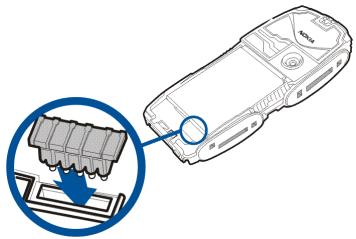
- Remove the original back cover of your Nokia 3220 phone. Remove the rubber part from the slot shown in the picture. Insert the connector supplied with the shell into the slot. Do not use any tools for removing the rubber part or inserting the connector. Once the connector is correctly in place, do not remove it.
- Install the front cover of the Nokia Xpress-on Fun shell.
- Install the back cover of the Nokia Xpress-on Fun shell.
- Switch on the phone.
- Set the date and time correctly on your phone.
The shell automatically installs the Cover browser application in the Collection submenu of the Applications menu in your phone.
- To install the Wave message application and the two motion games, select Cover browser in the Collection submenu, and select the applications that you want to install. The Wave message application is added to the Collection submenu and the games to the Games submenu. The installation takes several minutes.
If you do not install all three applications, you can install the remaining ones later using the Cover browser application.
Always make sure that you have the date and time set correctly in the phone.
If the phone displays a message that the shell is not attached when you try to launch the Wave message application or either motion game, remove and re-attach the back cover, and try again.
Your device and its enhancements may contain small parts. Keep them out of reach of small children.
3. Using the Wave message application
You can create light messages with the Wave message application. To start the application, press Menu in standby mode, select Applications, Collection, and Select application, scroll to Wave message, and press Open or 📊.
■ Selecting a language for the application
When you start the Wave message application for the first time, the application selects the language that is currently used in the phone if this language is included in the application.
If the phone language is not included in the application, the application asks whether you want to try to download the language using the GPRS (general packet radio service) or HSCSD (high speed circuit switched data) network service. Press Yes to download the language or No to use English in the application.
To use the GPRS or HSCSD network service, define the browser settings in the Services menu of your Nokia 3220 phone for a mobile Internet connection. For more information, see the user guide of your phone.
For the availability of the GPRS or HSCSD service, related fees, and appropriate settings, contact your network operator or service provider.

The actual invoice for calls and services from your service provider may vary, depending on network features, rounding off for billing, taxes and so forth.
■ Creating a wave message containing text
Start the Wave message application and select Create message. Key in a message of up to 15 characters. To insert a smiley, press Options and select Insert smiley.
To show the message in the air, press Display. See also Showing a wave message in the air on page 11. To save the message for later use, press Options and select Save.
You can set the phone to play a sound when you wave the phone in the air: select Settings in the main menu of the Wave message application, and select Sound list.
■ Creating a wave message containing an image
Start the Wave message application and select Create image. Draw an image.
When the image is complete, press Options, and select Display to show it in the air.
While drawing, you can do the following:
- To move the cursor, use the scroll keys. Alternatively, press 2 to move up, 4 to move left, 6 to move right, or 8 to move down.
- If the entire image does not fit in the editing screen, you can select the area to be edited by moving the red-bordered selection frame to the right or left in the smaller screen.
- To select the drawing mode, press Options, and select Change mode and then Draw (to draw a line) or Normal (to draw a single dot). Alternatively, press 1 while drawing. The drawing mode indicator is shown above the editing screen at the left side of the display.
When Normal is selected, you can draw a dot or change the color of the current dot by pressing 5. Normal is the default drawing mode.
When Draw is selected, you can press 5 to lift the pen (to move the cursor) or to put it down (to continue drawing).
- To activate the eraser, press Options, and select Change mode and Erase.
Alternatively, press 3 while drawing. While using the eraser, you can lift it (to move the cursor) or put it down by pressing 5. - To fill a closed area, press Options, and select Change mode and Fill.
Alternatively, press 7 while drawing. Move the cursor to the desired area and press 5 to fill it. - To insert another image into the current one, press Options and select Insert image. Select the folder where the desired image is located (Archive or
Templates), scroll to the image, and press Insert. Move the inserted image where you want to add it, press Options, and select OK. To remove the inserted image, press Options and select Undo. - To add text to the image, press Options and select Insert text. Key in the text and press Insert. Move the text where you want to add it, press Options, and select OK. To remove the text, press Options and select Undo.
- To save the image in the Archive folder, press Options and select Save.
- To clear the screen without saving the image, press Options and select Clear screen.
■ Showing a wave message in the air
To show the message, turn the back side of the phone towards the person to whom you want to show it, and wave the phone in the air evenly. The LEDs in the back cover paint the message in the air. The LEDs work best in the dark or with a dark background behind you, and the optimal viewing distance is from 1 to 6 metres.
If the message does not appear in the air, try to wave the phone faster from one side to another. To discover the optimal waving speed and position, you can practice waving your phone, for example, in front of a mirror.
■ Showing a previously created wave message in the air
Start the Wave message application, and select the folder (Archive or Templates) where the wave message is saved. Scroll to the desired message, and press Display in the Templates folder, or press Options and select Display in the Archive folder. If you want to edit or delete a message saved in the Archive folder, press Options, and select Edit or Delete.
■ Viewing instructions about using the application
Start the Wave message application, and select Instructions and the desired topic.
■ Changing the application settings
Start the Wave message application, and select Settings. You can select the sound that is played while you show a message in the air (Sound list), adjust the sound volume, or switch the sound on or off.
You can also try to download the same language for the application as the one that is currently selected for your phone (Language). The Language setting is available only if the language was not selected automatically or if you did not download the language when you started the Wave message application for the first time. For more information, see Selecting a language for the application on page 8.
4. Playing the motion games
The Nokia Xpress-on Fun shell includes two motion games, AirExpress and SwampRacer, which you can control by tilting the phone forward, backward, left, or right. These operations are based on an acceleration sensor built into the shell.
To launch either of these games, press Menu in standby mode, and select Applications, Games, and Select game. Select AirExpress or SwampRacer, and press Open or 📄.
For details on playing the game, select Instructions in the main menu of each game.
For general information about using Java ™ applications, see the user guide of the Nokia 3220 phone.
■ Game settings
Each game has its own settings that allow you to customize the game according to your needs. You can calibrate the acceleration sensor, set the control sensitivity, and select the control type (for SwampRacer only). To access the settings, go to the game-specific settings menu and select the desired option.
To calibrate the sensor, hold your phone for one second in the position where you normally want to keep the phone while playing.
The control sensitivity setting allows you to define how much you need to tilt the phone to steer the airboat or airplane. You can also change the sensitivity while playing by pressing one of the keys 1 to 5.
The control type setting allows you to define how the vehicle behaves when you steer it in the SwampRacer game.
To set the sounds, lights, and shakes for the games, press Menu in standby mode, and select Applications, Games, App. settings, and the desired option.
AirExpress
AirExpress lets you fly freely around an exotic archipelago. Watch out for whales and erupting volcanoes as you pop balloons in racing mode or deliver various packages in delivery mode.
You can steer the plane by tilting the phone. For more information, select Instructions in the AirExpress game.
SwampRacer
SwampRacer is a high-octane airboat racing game, set in the boggy swamps.
You can steer the airboat by tilting the phone. For more information, select Instructions in the SwampRacer game.
Care and maintenance
Your device is a product of superior design and craftsmanship and should be treated with care. The suggestions below will help you protect your warranty coverage.
- Keep the device dry. Precipitation, humidity and all types of liquids or moisture can contain minerals that will corrode electronic circuits.
- Do not use or store the device in dusty, dirty areas. Its moving parts and electronic components can be damaged.
- Do not store the device in hot areas. High temperatures can shorten the life of electronic devices, damage batteries, and warp or melt certain plastics.
- Do not store the device in cold areas. When the device returns to its normal temperature, moisture can form inside the device and damage electronic circuit boards.
- Do not attempt to open the device other than as instructed in this guide.
- Do not drop, knock, or shake the device. Rough handling can break internal circuit boards and fine mechanics.
- Do not use harsh chemicals, cleaning solvents, or strong detergents to clean the device.
- Do not paint the device. Paint can clog the moving parts and prevent proper operation.
- Use a soft, clean, dry cloth to clean any light sensors lenses.
If the device is not working properly, take it to your nearest authorized service facility for service.
- USER GUIDE FOR NOKIA XPRESS-ON™ FUN SHELL (FOR NOKIA 3220 PHONE)
- DECLARATION OF CONFORMITY
- CONTENTS
- FOR YOUR SAFETY 4
- OVERVIEW
- INSTALLATION
- USING THE WAVE MESSAGE APPLICATION
- SELECTING A LANGUAGE FOR THE APPLICATION
- CREATING A WAVE MESSAGE CONTAINING TEXT
- CREATING A WAVE MESSAGE CONTAINING AN IMAGE
- SHOWING A WAVE MESSAGE IN THE AIR
- SHOWING A PREVIOUSLY CREATED WAVE MESSAGE IN THE AIR
- VIEWING INSTRUCTIONS ABOUT USING THE APPLICATION
- CHANGING THE APPLICATION SETTINGS
- PLAYING THE MOTION GAMES
- GAME SETTINGS
- AIREXPRESS
- SWAMPRACER
- CARE AND MAINTENANCE
Marque : NOKIA
Modèle : XPRESS-ON FUN SHELL
Catégorie : Accessoires de téléphone