
FO-2600 - Télécopieur SHARP - Notice d'utilisation et mode d'emploi gratuit
Retrouvez gratuitement la notice de l'appareil FO-2600 SHARP au format PDF.
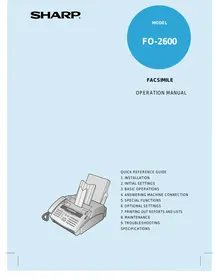


| Marque | SHARP |
| Modèle | FO-2600 |
| Type de produit | Télécopieur laser |
| Compatibilité | ITU-T (CCITT) G3 |
| Résolution (horizontal) | 8 lignes/mm |
| Résolution verticale | Standard : 3.85 lignes/mm, Fin / Demi-teinte : 7.7 lignes/mm, Super fin : 15.4 lignes/mm |
| Niveaux de gris | 32 |
| Vitesse de modem | 9600 bps avec repli automatique |
| Mémoire | 512 Ko (environ 39 pages), extensible 1 Mo |
| Chargeur automatique | 20 feuilles max. |
| Format papier | A4 |
| Capacité bac papier | 100 feuilles (60 à 90 g/m²) |
| Largeur numérisation efficace | 210 mm max. |
| Largeur impression efficace | 202 mm |
| Fonctions | Envoi, réception (auto/manuel/répondeur), copie simple/multiple/triée, numérotation rapide, recherche, mémoire, diffusion, transmission confidentielle, relais, minuterie, anti-junk fax |
| Numérotation automatique | 20 touches rapides, 30 numéros abrégés |
| Alimentation | 230 V CA, 50 Hz |
| Consommation (veille) | 7 W |
| Consommation (max) | 680 W |
| Dimensions (L x P x H) | 360 x 412 x 169 mm |
| Poids | Environ 7,2 kg |
| Température de fonctionnement | 10 à 30 °C |
| Nettoyage | Nettoyer la vitre de lecture, les rouleaux et le tambour avec un chiffon doux. Ne pas utiliser de benzène ou diluant. |
| Sécurité | Mise à la terre obligatoire, fusible 13A, protège contre les surtensions recommandé |
| Batterie de sauvegarde | Lithium, environ 5 ans (hors tension) |
| Pièces détachées | Cartouche d'imagerie FO-26DC, cartouche de tambour FO-26DR |
FOIRE AUX QUESTIONS - FO-2600 SHARP
Questions des utilisateurs sur FO-2600 SHARP
0 question sur cet appareil. Repondez a celles que vous connaissez ou posez la votre.
Poser une nouvelle question sur cet appareil
Téléchargez la notice de votre Télécopieur au format PDF gratuitement ! Retrouvez votre notice FO-2600 - SHARP et reprennez votre appareil électronique en main. Sur cette page sont publiés tous les documents nécessaires à l'utilisation de votre appareil FO-2600 de la marque SHARP.
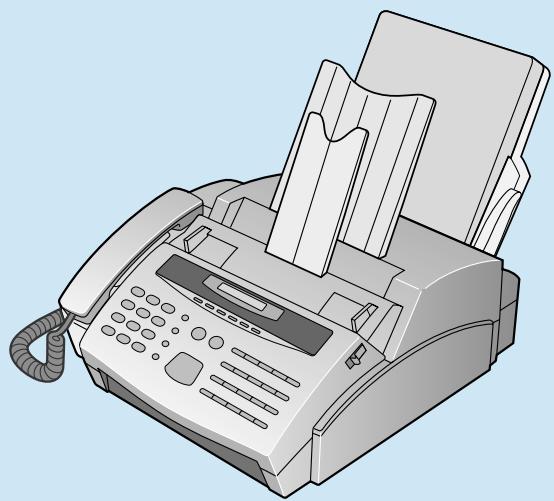
MODE D'EMPLOI FO-2600 SHARP
TÉLÉCOPIEUR
MANUEL D'UTILISATION
GUIDE DE RÉFÉRENCE RAPIDE
- INSTALLATION
- RÉGLAGES INITIAUX
- OPÉRATIONS DE BASE
- CONNEXION DU RÉPONDEUR
- FONCTIONS SPÉCIALES
- RÉGLAGES OPTIONNELS
- IMPRESSION DE RAPPORTS ET DE LISTES
- ENTRETIEN
- DÉPANNAGE ET SPÉCIFICATIONS
INSTRUCTIONS DE CÂBLAGE DE LA PRISE SECTEUR
Cet équipement est muni d'une prise secteur moulée avec un porte-fusible amovible. En aucun cas, la prise ne doit être utilisée sans le porte-fusible en place.
Dans le cas peu probable où la prise de courant de votre domicile ne serait pas compatible avec la prise fournie, coupez la prise secteur et installez un type approprié en respectant le code de câblage ci-dessous.
DANGER : le fusible de la fiche coupée doit être retiré et la fiche doit être éliminée en toute sécurité. En aucun cas la fiche coupée ne doit être insérée dans une prise de courant, car un choc électrique grave pourrait se produire.
Si vous n'êtes pas sûr de la marche à suivre, demandez l'aide d'un électricien qualifié.
IMPORTANT
Les fils de ce cordon d'alimentation sont colorés conformément au code suivant :
| GREEN-AND-YELLOW: | Earth |
| BLUE: | Neutral |
| BROWN: | Live |
Comme les couleurs des fils du cordon d'alimentation de cet appareil peuvent ne pas correspondre aux marques colorées identifiant les bornes de votre fiche, procédez comme suit :
Le fil coloré en VERT-ET-JAUNE doit être connecté à la borne de la fiche marquée par la lettre E, ou par le symbole de terre de sécurité ±, ou colorée en vert ou en vert-et-jaune.
Le fil coloré en BLEU doit être connecté à la borne marquée de la lettre N ou colorée en noir.
Le fil coloré en MARRON doit être connecté à la borne marquée de la lettre L ou colorée en rouge.
Cet appareil doit être protégé par un fusible de 13 A dans la fiche secteur ou le tableau de distribution.
AVERTISSEMENT : CET APPAREIL DOIT ÊTRE RELIÉ À LA TERRE
| This equipment complies with the requirements of Directives 89/336/EEC and 73/23/EEC as amended by 93/68/EEC. |
| Dieses Gerät entspricht den Anforderungen der EG-Richtlinien 89/336/EWG und 73/23/EWG mit Änderung 93/68/EWG. |
| Ce matériel répond aux exigences contenues dans les directives 89/336/CEE et 73/23/CEE modifiées par la directive 93/68/CEE. |
| Dit apparaat voldoet aan de eisen van de richtlijnen 89/336/EEG en 73/23/EEG, gewijzigd door 93/68/EEG. |
| Dette udstyr overholder kravene i direktiv nr. 89/336/EEC og 73/23/EEC med tillæg nr. 93/68/EEC. |
| Quest’ apparecchio è conforme ai requisiti delle direttive 89/336/EEC e 73/23/EEC, come emendata dalla direttiva 93/68/EEC. |
| Η εγκατάσταση αυτή ανταποκρίνεται στις απαιτήσεις των οδηγιών της Ευρωπαϊκής Ενωσης 89/336/EOK και 73/23/EOK, όπως οι κανονισμοί αυτοί συμπληρώθηκαν από την οδηγία 93/68/EOK. |
| Este equipamento obedece às exigências das directivas 89/336/CEE e 73/23/CEE, na sua versão corrigida pela directiva 93/68/CEE. |
| Este aparato satisface las exigencias de las Directivas 89/336/CEE y 73/23/CEE, modificadas por medio de la 93/68/CEE. |
| Denna utrustning uppfyller kraven enligt riktlinjerna 89/336/EEC och 73/23/EEC så som kompletteras av 93/68/EEC. |
| Dette produktet oppfyller betingelsene i direktivene 89/336/EEC og 73/23/EEC i endringen 93/68/EEC. |
| Tämä laite täyttää direktiivien 89/336/EEC ja 73/23/EEC vaatimukset, joita on muutettu direktiivillä 93/68/EEC. |
| 89/336/EEC : EMC directive 73/23/EEC : Low voltade directive 93/68/EEC : CE Mark regulation |
Remarque : les étapes facultatives sont encadrées en pointillés :
Transmission de documents
| Normal Dialling | Loaddocument → 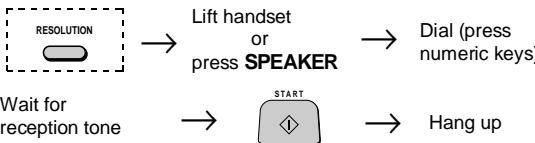 → → |
| Direct KeypadDialling | Loaddocument →  |
| Rapid Key Dialling | Loaddocument → 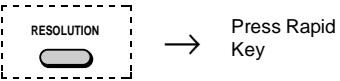 |
| Speed Dialling | Loaddocument → RESO  → → |
| Redialling | Loaddocument → RESO  → → |
Passer des appels vocaux
| Normal Dialling | Lift handsetorpressSPEAKER |  |
| Rapid Key Dialling | PressSPEAKER |  |
| Speed Dialling | Lift handsetorpressSPEAKER | [SPEED  |
| Redialling | Lift handset |  |
Liste des guides de fonctions
Pour imprimer un guide de toutes les fonctions accessibles en appuyant sur la touche FONCTION, appuyez sur la touche FONCTION puis sur la touche DÉPART.
À PROPOS DU SERVICE RÉSIDENTIEL MERCURY![graph TD A["132 or Residential PIN Service"] --> B["Residential 132 Service"] A --> C["Residential PIN Code Service"] B --> D["Access code 132 is pre-programmed in the Mercury key (Rapid key 01) at the factory"] B --> E["Simply prefix all numbers manually or automatically dialled with this key. The…](/content/2025/01/79050/images/9fcb359a89f6a457cb001c2909359a7a766206f69886d2b525ff966eeffddf06.jpg)
Pour passer du service résidentiel à code PIN Mercury au service résidentiel 132, effacez la touche Mercury (touche rapide 01) et reprogrammez-la avec le code d'accès 132. La machine reconnaîtra automatiquement les chiffres 132 et les acceptera sans nécessiter de pause supplémentaire ni de code PIN Mercury.
Merci d'avoir acheté le FO-2600 ! En plus de vous offrir la facilité et la commodité de l'impression sur papier ordinaire, le FO-2600 dispose d'une variété de fonctions spéciales conçues pour étendre la portée et la puissance de vos communications.
Ce manuel vous donne des instructions faciles à suivre pour installer et utiliser votre nouveau télécopieur. La table des matières vous indique où se trouvent les instructions pour chaque fonction. Bien que vous n'ayez pas besoin de lire chaque section en détail au début, nous vous recommandons de les parcourir brièvement.
Si vous avez des questions ou des problèmes qui ne peuvent être résolus par la lecture de ce manuel, veuillez contacter votre revendeur Sharp.
◆ Les touches, interrupteurs et étiquettes sur la machine sont indiqués en gras. ◆ Les messages apparaissant à l'écran sont indiqués en MAJUSCULES.
- Votre télécopieur et le réseau téléphonique
Votre télécopieur Sharp FO-2600 est agréé pour le raccordement au réseau téléphonique public commuté (RTPC), ainsi que pour le raccordement via un autocommutateur privé (PBX), et peut être utilisé avec la signalisation par coupure de boucle (LD) ou par fréquences vocales (DTMF).
Votre télécopieur ne convient pas comme poste supplémentaire à certaines cabines téléphoniques ni pour une utilisation sur des lignes en service partagé.
REN
Le numéro d'équivalence de sonnerie (REN) de votre télécopieur est de 1.
Le nombre total d'appareils pouvant être connectés à une ligne exclusive est déterminé en additionnant les valeurs REN de chaque appareil. Le total ne doit pas dépasser 4,0. Un téléphone fourni par BT est supposé avoir un REN de 1, sauf indication contraire.
Un fonctionnement satisfaisant de la sonnerie ne peut être garanti dans les installations composées de types d'appareils mixtes, même si la valeur REN ne dépasse pas 4.
Services d'urgence
Les services d'urgence (999) peuvent être appelés depuis cet appareil. Veuillez afficher sur le téléphone le numéro requis pour accéder à ce service, ainsi que le numéro du téléphone, à l'aide de l'étiquette fournie.
Connexion à un autocommutateur privé (PBX)
Votre télécopieur est agréé pour le raccordement au réseau téléphonique public commuté (RTPC) via des systèmes PBX compatibles. Consultez votre fournisseur pour obtenir une liste des systèmes PBX compatibles. Il ne peut être garanti que ce télécopieur fonctionnera correctement dans toutes les conditions possibles de connexion à des systèmes PBX compatibles.
Ce télécopieur a été agréé pour l'utilisation des fonctions suivantes :
Téléphone simple
Numérotation par tonalités (DTMF)
Numérotation par impulsions (décrochage de boucle)
Numérotation en mémoire
Haut-parleur (contrôle de progression d'appel)
Numérotation en mode décroché
Réponse automatique
Numérotation automatique
Raccrochage automatique
Recomposition du dernier numéro
Coupure temporaire ou rappel de terre
Branchement en série de téléphones supplémentaires
Tout autre usage invalidera l'homologation du télécopieur si, de ce fait, il cesse de se conformer aux normes sur la base desquelles l'homologation a été accordée.
Connexion en série
En cas de connexion via un appareil en série, des difficultés peuvent parfois survenir lors d'appels vers le réseau téléphonique public commuté (RTPC) et pour les deux parties pendant les conversations téléphoniques. Si des difficultés sont rencontrées, contactez d'abord le fournisseur ou le mainteneur de l'appareil en série.
Bien que le fonctionnement puisse être possible au départ, des changements ou la modernisation du réseau survenant dans le cours normal des événements peuvent entraîner la connexion du télécopieur à un service réseau avec lequel il n'a pas été conçu pour être compatible.
La défaillance du télécopieur / de l'appareil en série dans ces circonstances peut ne pas être la faute de l'opérateur du réseau.
La chute de tension introduite par votre télécopieur entre le RTPC et l'appareil associé à un courant de 40 mA continu est de 2 volts ; par conséquent, aucun équipement supplémentaire en série ne peut être connecté.
GUIDE DE RÉFÉRENCE RAPIDE
1 INSTALLATION
DÉBALLAGE 1-1 INSTALLATION DES CARTUCHES D'IMPRIMANTE 1-2 ASSEMBLAGE ET CONNEXIONS 1-6 CHARGEMENT DU PAPIER D'IMPRESSION 1-10
2 RÉGLAGES INITIAUX
APERÇU DU PANNEAU DE COMMANDE 2-1 SAISIE DE VOTRE NOM ET NUMÉRO DE FAX 2-2 SAISIE DES LETTRES POUR LES NOMS 2-3 RÉGLAGE DE LA DATE ET DE L'HEURE 2-5 SÉLECTION DU MODE DE RÉCEPTION 2-6 MÉMORISATION DES NUMÉROS POUR LA NUMÉROTATION AUTOMATIQUE 2-7 UTILISATION DE LA FONCTION MERCURE 2-11
3 OPÉRATIONS DE BASE
ENVOI DE DOCUMENTS 3-1 RÉCEPTION DE DOCUMENTS 3-11 RÉALISATION DE COPIES 3-14 APPELS TÉLÉPHONIQUES 3-16
4 CONNEXION DU RÉPONDEUR
UTILISATION DE LA CONNEXION 4-1 RÉGLAGES OPTIONNELS DU MODE A.M. 4-5
5 FONCTIONS SPÉCIALES
MÉMOIRE 5-1 RÉSERVATION DE TRANSMISSION 5-3 DIFFUSION 5-4 TRANSMISSION CONFIDENTIELLE 5-6 POLLING 5-7 DEMANDE DE RELAIS 5-10 OPÉRATIONS MINUTERIE 5-13 SAISIE ET UTILISATION DES PROGRAMMES 5-16 ANTI-PUB FAX 5-22
6 RÉGLAGES OPTIONNELS
7 IMPRESSION DES RAPPORTS ET LISTES
8 ENTRETIEN
9 DÉPANNAGE
PROBLÈMES ET SOLUTIONS 9-1 MESSAGES ET SIGNAUX 9-3 DÉBLOCAGE DES BOURRAGES PAPIER 9-5
SPÉCIFICATIONS
Remarques
Sortez soigneusement le télécopieur de son carton et retirez tout le matériel d'emballage. Assurez-vous de disposer de tous les articles énumérés ci-dessous. Si certains manquent, contactez votre revendeur.
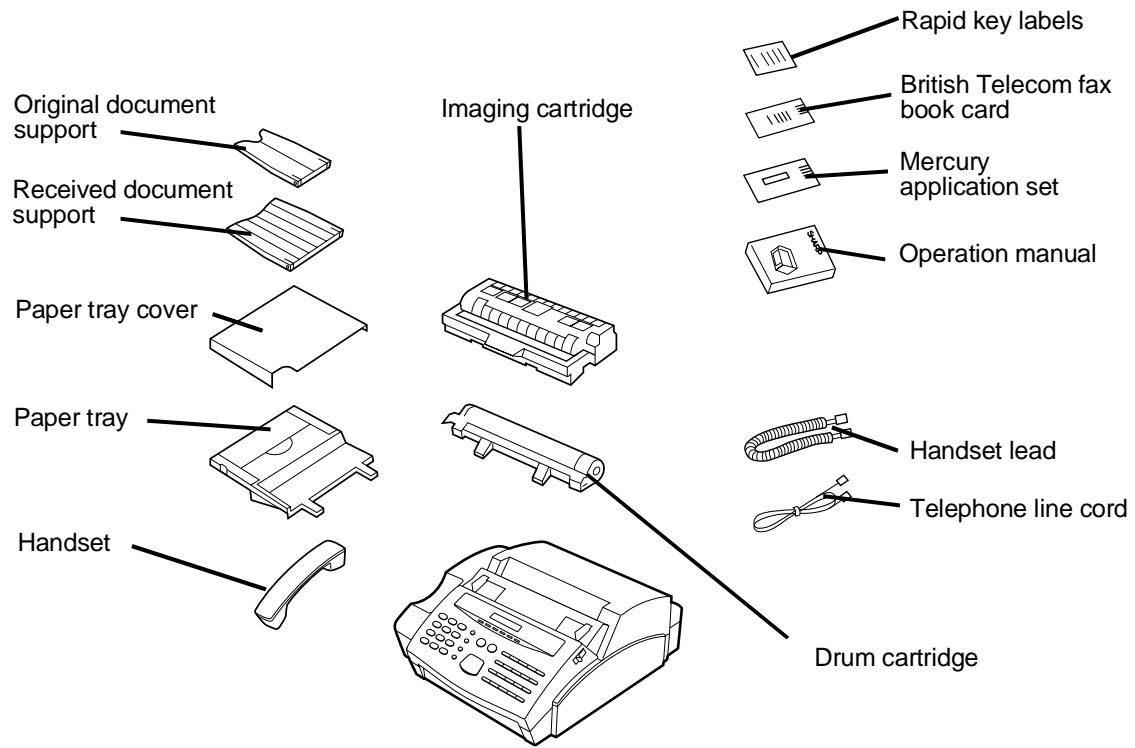
Précautions avant l'installation
◆ Le télécopieur doit être installé sur une surface plane. ◆ Tenez le télécopieur à l'écart des climatiseurs, des radiateurs, de la lumière directe du soleil et de la poussière. - Assurez un accès facile à l'avant, à l'arrière et aux côtés du télécopieur. En particulier, gardez la zone devant le télécopieur dégagée, sinon le document original peut se coincer en sortant après la numérisation. - Tenez les liquides à l'écart du télécopieur. Les liquides renversés sur le télécopieur peuvent endommager les circuits internes. Si le télécopieur est déplacé d'un endroit froid à un endroit chaud, il est possible que de la condensation se forme sur la vitre de lecture, empêchant une numérisation correcte des documents pour la transmission. Pour éliminer la condensation, allumez l'appareil et attendez environ 2 heures avant de l'utiliser.
INSTALLATION DES CARTOUCHES D'IMPRIMANTE
L'imprimante laser de votre télécopieur crée du texte et des images imprimés en appliquant du toner sur la page à l'aide d'un tambour photoconducteur. Suivez les étapes ci-dessous pour installer ou remplacer la cartouche d'imagerie (qui contient le toner) et la cartouche de tambour.
1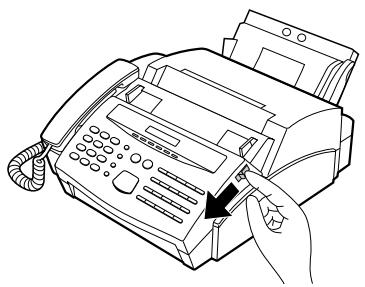
Tirez la languette de déverrouillage située sur le côté droit du panneau de commande vers l'avant, puis ouvrez le panneau de commande.
2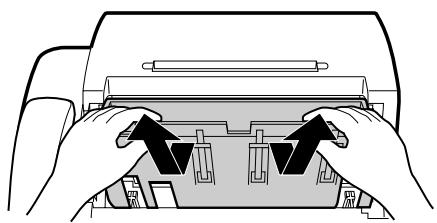
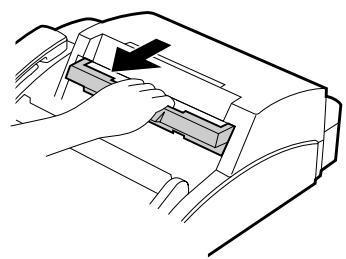
Saisissez le haut du guide de sortie des documents et tirez-le pour le faire pivoter vers vous. Soulevez le guide verticalement et sortez-le du compartiment d'impression.
- Si vous installez les cartouches pour la première fois, passez à l'étape 5.
3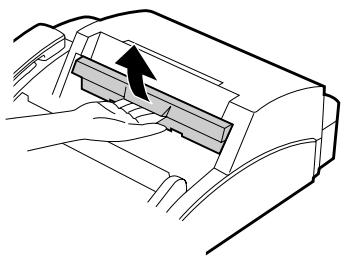
Si vous remplacez les cartouches, saisissez la poignée de la cartouche d'imagerie (marquée "PUSH") et tirez-la vers l'extérieur. Reprenez la poignée et sortez la cartouche d'imagerie du compartiment.
- Attention ! L'unité de fusion (l'unité noire avec des nervures s'étendant sur le bas du compartiment) devient très chaude pendant l'impression. Veillez à ne pas la toucher.
- Si vous ne remplacez que la cartouche de tambour, placez la cartouche d'imagerie sur une feuille de papier sur une surface horizontale. Assurez-vous que la cartouche repose à plat.
- Si vous ne remplacez que la cartouche d'imagerie, passez à l'étape 8.
4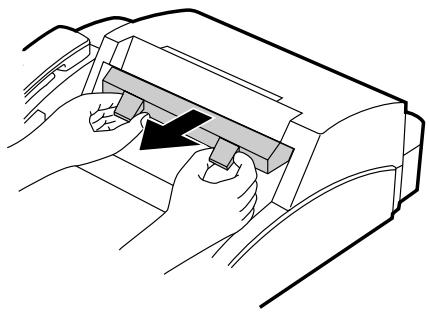
Saisissez les deux poignées de la section bleue de la cartouche de tambour et sortez-la du compartiment.
5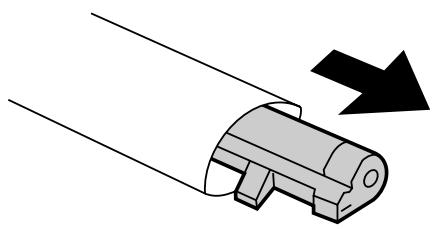
Dépliez l'extrémité du sac de la cartouche de tambour et retirez la nouvelle cartouche de tambour.
- N'utilisez pas d'objet tranchant pour couper le sac.
- Ne retirez pas encore la feuille de papier protecteur noir.
Saisissez les deux poignées situées sur la section bleue du tambour d'impression et insérez-le dans le compartiment. Assurez-vous qu'il s'emboîte correctement sur le rouleau au fond du compartiment.
- Si vous avez retiré un tambour d'impression usagé, placez-le dans le sac vide prévu à cet effet, scellez le sac et jetez-le conformément aux réglementations locales en vigueur.
Saisissez l'extrémité saillante du papier protecteur et tirez-le hors du tambour.
- Veillez à ne laisser aucun morceau de papier déchiré dans le compartiment d'impression.
- Si vous ne remplacez pas le tambour d'impression, passez à l'étape 10.
Retirez le tambour d'impression de son sac et secouez-le 4 ou 5 fois dans un mouvement horizontal.
- Cela garantit une répartition homogène du toner à l'intérieur du tambour.
Retirez le capot blanc.
- Retirez le capot blanc et tirez sur la bande de caoutchouc noire fixée à ce capot.
Saisissez la poignée du tambour d'impression de manière à ce que les marquages estampillés soient orientés vers le haut, puis insérez le tambour dans le compartiment d'impression.
Placez votre pouce au centre de la poignée, à l'endroit marqué « PUSH », et poussez légèrement la poignée vers le haut et vers l'intérieur afin que la cartouche s'emboîte correctement.
- Si vous avez retiré une cartouche d'imagerie usagée, placez-la dans le sac vide de cartouche d'imagerie, scellez le sac et jetez-le conformément aux réglementations locales en vigueur dans votre région.
Tenez le guide de document reçu verticalement et insérez-le dans son compartiment de sorte que les languettes de chaque côté du guide s'engagent dans les fentes situées sur les côtés du compartiment.
Assurez-vous que le guide de document reçu est positionné de manière à ce que le bras situé sur le côté gauche du guide s'insère dans le trou. Placez vos pouces des deux côtés du guide, à l'endroit marqué « PUSH », et poussez le guide vers l'avant jusqu'à ce qu'il s'emboîte correctement.
Fermez le panneau de commande.
Remplacement des cartouches
Votre télécopieur utilise les cartouches d'imagerie et de tambour suivantes. Vous pouvez vous les procurer auprès de votre revendeur ou détaillant.
CARTOUCHE D'IMAGERIE FO-26DC
CARTOUCHE DE TAMBOUR FO-26DR
La cartouche d'imagerie peut imprimer environ 2000 pages si du papier de format A4 est utilisé et que 4 % de chaque page est couvert d'encre. Lorsque la cartouche est presque vide (environ 250 pages peuvent encore être imprimées), le voyant sur le panneau de commande commence à clignoter. Lorsque la cartouche est vide, le voyant s'allume en continu et TONER EMPTY s'affiche à l'écran. Remplacez la cartouche comme décrit ci-dessus.
Pour garantir une qualité d'impression optimale, nous vous recommandons de remplacer la cartouche de tambour après l'impression de 20 000 pages. Vous pouvez vérifier le nombre total de pages imprimées à l'écran en appuyant sur la touche FONCTION puis sur la touche « # ».
Combiné
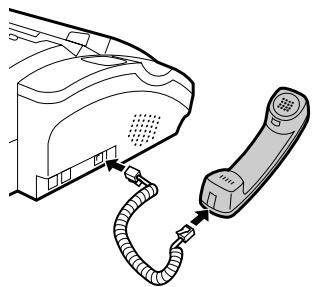
Branchez le cordon du combiné sur le combiné et le télécopieur comme indiqué.
- Les extrémités du cordon du combiné sont identiques, elles peuvent donc se brancher sur l'une ou l'autre prise.
Placez le combiné sur son support.
Utilisez le combiné pour passer des appels téléphoniques ordinaires, ou pour transmettre et recevoir des documents manuellement.
Cordon d'alimentation
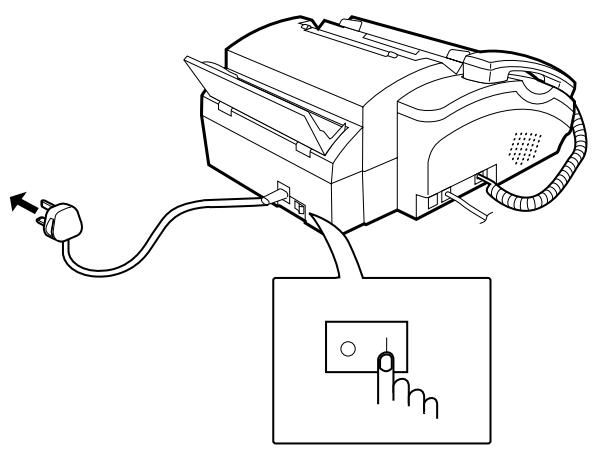
Branchez le cordon d'alimentation sur une prise secteur de 230 V, 50 Hz, avec mise à la terre (3 broches).
- Important : chaque fois que vous débranchez le cordon d'alimentation, déconnectez d'abord le télécopieur du réseau téléphonique.
- Attention : la prise secteur doit être installée à proximité de l'équipement et être facilement accessible.
Appuyez sur l'interrupteur d'alimentation pour mettre l'appareil sous tension.
Cordon de ligne téléphonique
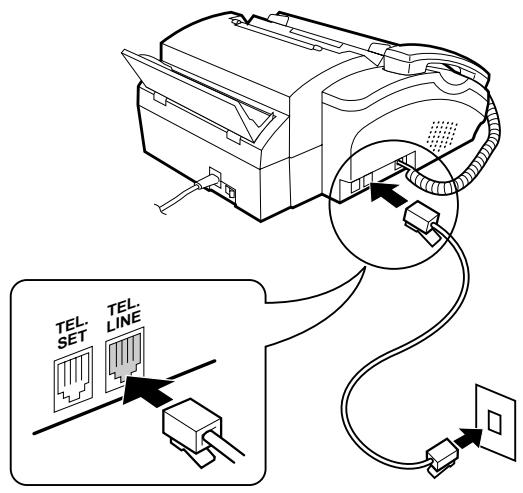
Branchez une extrémité du cordon de ligne téléphonique sur la prise du télécopieur marquée « TEL. LINE ». Branchez l'autre extrémité sur une prise téléphonique murale standard.
- Assurez-vous de brancher le cordon de ligne sur la prise TEL. LINE du télécopieur. Ne le branchez pas sur la prise TEL. SET.
- Remarque : la connexion au réseau téléphonique ne doit pas être câblée en dur.
Commentaires :
- Votre télécopieur est réglé pour la numérotation par tonalités. Si votre ligne n'accepte que les impulsions, vous devez le régler pour la numérotation par impulsions en modifiant le réglage d'option 19. Cette procédure est décrite au chapitre 6, « Réglages facultatifs ».
- Une nouvelle prise téléphonique doit être installée à proximité de la machine. Si vous n'en avez pas, contactez votre fournisseur de services téléphoniques local.
- Votre télécopieur ne peut pas être utilisé sur un système à clé sans l'adaptation nécessaire du système. Veuillez consulter les installateurs du système si cela est requis.
- Si vous avez l'intention d'utiliser un modem fax d'ordinateur sur la même ligne téléphonique, vous devez régler l'option 12 sur NON afin d'éviter les erreurs de transmission et de réception. Cette procédure est décrite au chapitre 6, « Réglages facultatifs ».
- Si vous connectez le télécopieur à un autocommutateur (PBX), vous devrez peut-être régler le télécopieur sur le mode de rappel approprié pour le PBX. Cela se fait via le réglage d'option 21, comme décrit au chapitre 6.
- Si votre région connaît une fréquence élevée d'éclairs ou de surtensions, nous vous recommandons d'installer des parasurtenseurs pour les lignes électriques et téléphoniques. Vous pouvez acheter des parasurtenseurs auprès de votre revendeur ou dans la plupart des magasins spécialisés en téléphonie.
- Le télécopieur ne sonnera pas en réponse aux appels entrants en l'absence d'alimentation secteur. Pour cette raison, il est recommandé de ne pas laisser le télécopieur comme seul appareil téléphonique connecté à la ligne dans cet état, afin d'éviter la perte d'appels vocaux.
- Votre télécopieur peut toujours passer des appels téléphoniques sortants lorsque l'alimentation est coupée, mais la méthode de numérotation sera alors par défaut à impulsions. La touche ✗ peut être utilisée pour passer en mode de numérotation par tonalités.
Réglages du volume
Réglez le volume du haut-parleur pour la numérotation en mode décroché comme suit :
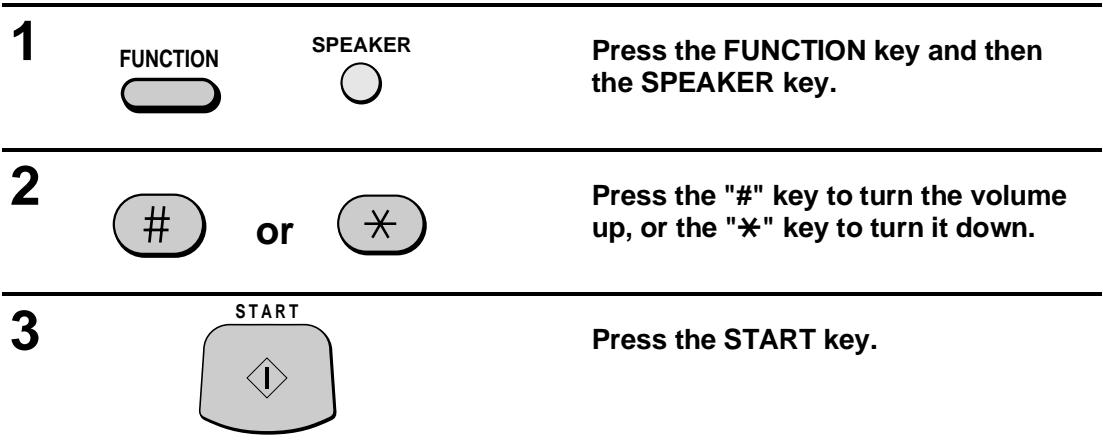
Pour régler le volume de la sonnerie, réinitialisez le réglage d'option 22 comme décrit au chapitre 6, « Réglages facultatifs ».
Bacs
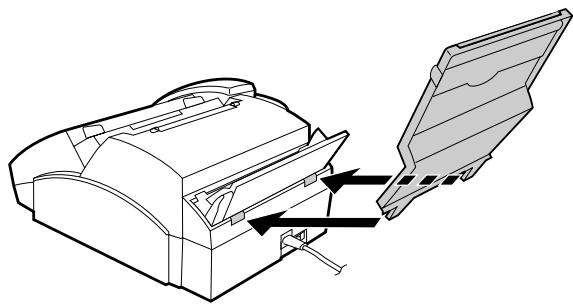
Fixez le bac à papier en insérant les languettes dans les trous à l'arrière du télécopieur.
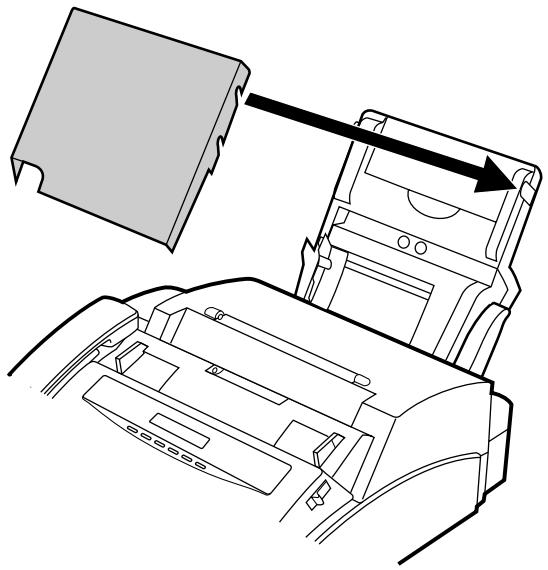
Placez le couvercle du papier sur le bac à papier de sorte que les encoches de chaque côté du couvercle s'emboîtent sur les loquets de chaque côté du bac.
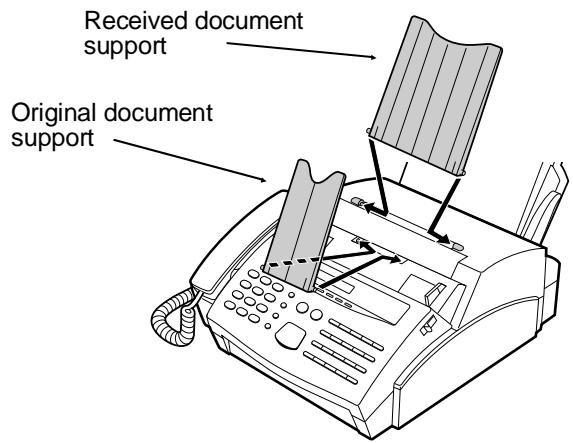
Fixez le support de document original et le support de document reçu sur le dessus du télécopieur comme indiqué.
Autres appareils
Si vous le souhaitez, vous pouvez connecter un répondeur ou un téléphone supplémentaire à votre télécopieur.
- La connexion d'un répondeur à votre télécopieur vous permet de recevoir des messages vocaux et des télécopies sur la même ligne lorsque vous êtes absent. Pour plus de détails sur l'utilisation de cette fonction, reportez-vous au chapitre 4.
- Vous pouvez connecter un téléphone supplémentaire à votre télécopieur pour passer et recevoir des appels comme avec tout autre poste téléphonique de votre ligne. Pour plus de détails sur la réception de télécopies à partir d'un téléphone supplémentaire, reportez-vous à la section « Réception de documents » du chapitre 3.
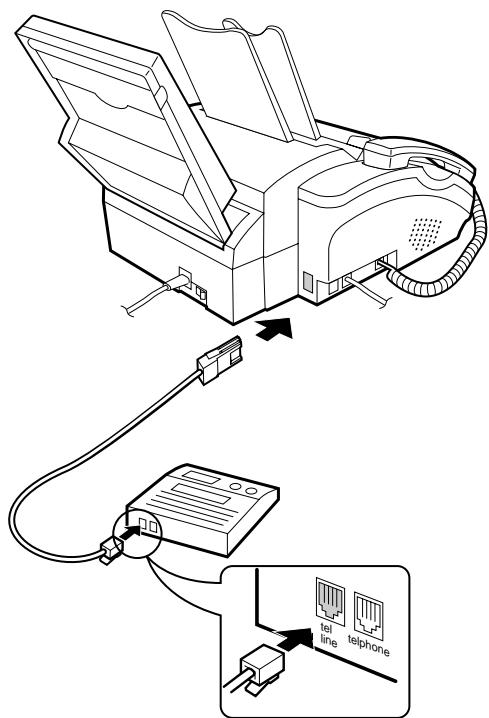
Important : Si vous connectez un répondeur, assurez-vous que l'autre extrémité de la ligne est insérée dans la prise de ligne téléphonique du répondeur, et non dans sa prise téléphonique.
Retirez le cache recouvrant la prise marquée « EXT. TEL. » sur le télécopieur.
Insérez la fiche modulaire de la ligne du téléphone supplémentaire ou du répondeur dans la prise de type britannique marquée « EXT. TEL. » comme indiqué.
- Important : Si le téléphone supplémentaire ou le répondeur n'est pas connecté à la prise de téléphone supplémentaire du télécopieur comme indiqué, l'installation ne fonctionnera pas correctement.
- Eire : Retirez le cache recouvrant la prise marquée « TEL. SET » sur le télécopieur. Insérez la fiche du téléphone supplémentaire ou de la ligne du répondeur directement dans la prise « TEL. SET ».
Remarques :
- Le statut de sécurité de cette prise est TNV et elle est prévue pour la connexion d'équipements téléphoniques agréés uniquement. Pour garantir la conformité de sécurité, ne connectez aucun autre équipement à cette prise.
- Plusieurs téléphones supplémentaires peuvent être connectés sur la même ligne que le télécopieur, à condition qu'ils soient connectés comme indiqué ci-dessus et que la valeur REN totale ne dépasse pas 4. Si vous connectez le télécopieur à une installation téléphonique existante avec plusieurs téléphones, le câblage peut nécessiter des modifications. Contactez votre fournisseur de téléphone pour obtenir de l'aide.
CHARGEMENT DU PAPIER D'IMPRESSION
Le bac à papier contient le papier sur lequel les documents reçus et les copies sont imprimés. Jusqu'à 100 feuilles de papier A4 de 60 à 90 g/m² peuvent être chargées dans le bac.
Attention !
- N'utilisez pas de papier déjà imprimé sur une face par une imprimante laser ou un photocopieur. Cela pourrait endommager le rouleau de l'unité de fusion, entraînant une mauvaise qualité d'impression et des bourrages papier fréquents.
Remarque : Le papier ordinaire a une face « imprimable » qui doit être utilisée pour obtenir la meilleure qualité d'impression. Cette face n'est pas visible à l'œil nu, alors vérifiez l'étiquette sur l'emballage avant de retirer le papier. La face imprimable sera indiquée par une flèche, un symbole ou un texte. Chargez le papier dans le bac, face imprimable vers le haut, comme décrit ci-dessous.
1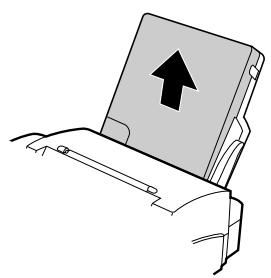
Retirez le couvercle du bac à papier.
2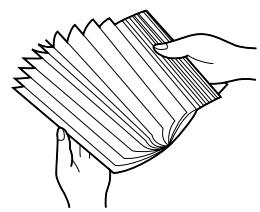
Éventez le papier, puis tapez la tranche sur une surface plane pour égaliser la pile.
3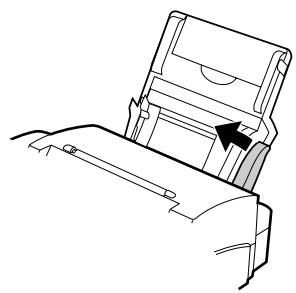
Tirez le levier sur le côté droit du bac à papier (marqué « PULL ») vers vous.
4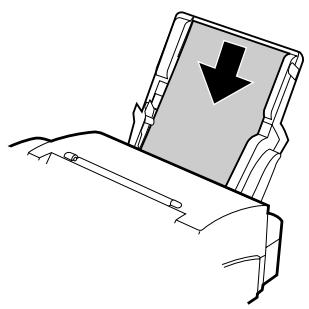
Insérez le papier dans le bac, face imprimable vers le haut.
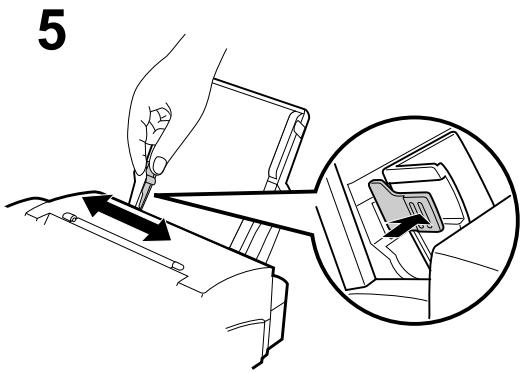
Assurez-vous que le bord droit du papier est aligné contre le guide-papier droit, puis déplacez le guide-papier gauche jusqu'à ce qu'il s'ajuste à la position marquée « A4 ».
- Pour déplacer le guide, pincez le levier contre le guide.
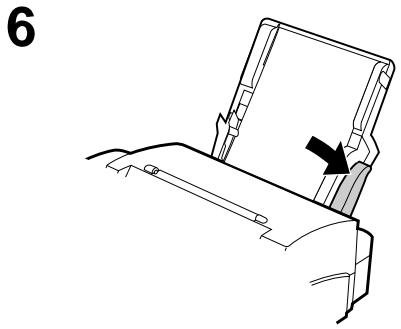
Poussez le levier sur le côté droit du bac à papier vers le bas pour fixer le papier.
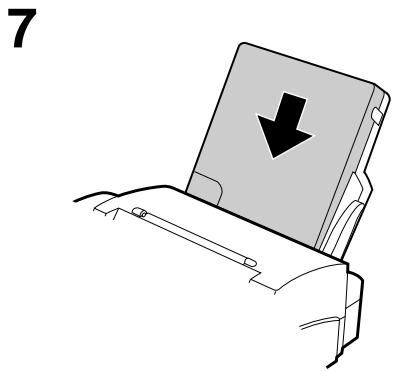
Replacez le couvercle du bac à papier.
- Lorsque vous ajoutez du papier dans le bac, vous devez d'abord retirer tout papier restant, le combiner en une seule pile avec le nouveau papier, puis placer la pile dans le bac. Si vous ne retirez pas le papier restant et placez simplement le nouveau papier par-dessus, des bourrages multiples peuvent se produire.
Notes
APERÇU DU PANNEAU DE COMMANDE
Avant de pouvoir utiliser votre télécopieur, certains réglages doivent être effectués à l'aide des touches du panneau de commande. Prenez d'abord le temps de vous familiariser avec le panneau de commande, puis effectuez les réglages comme décrit dans les pages suivantes.
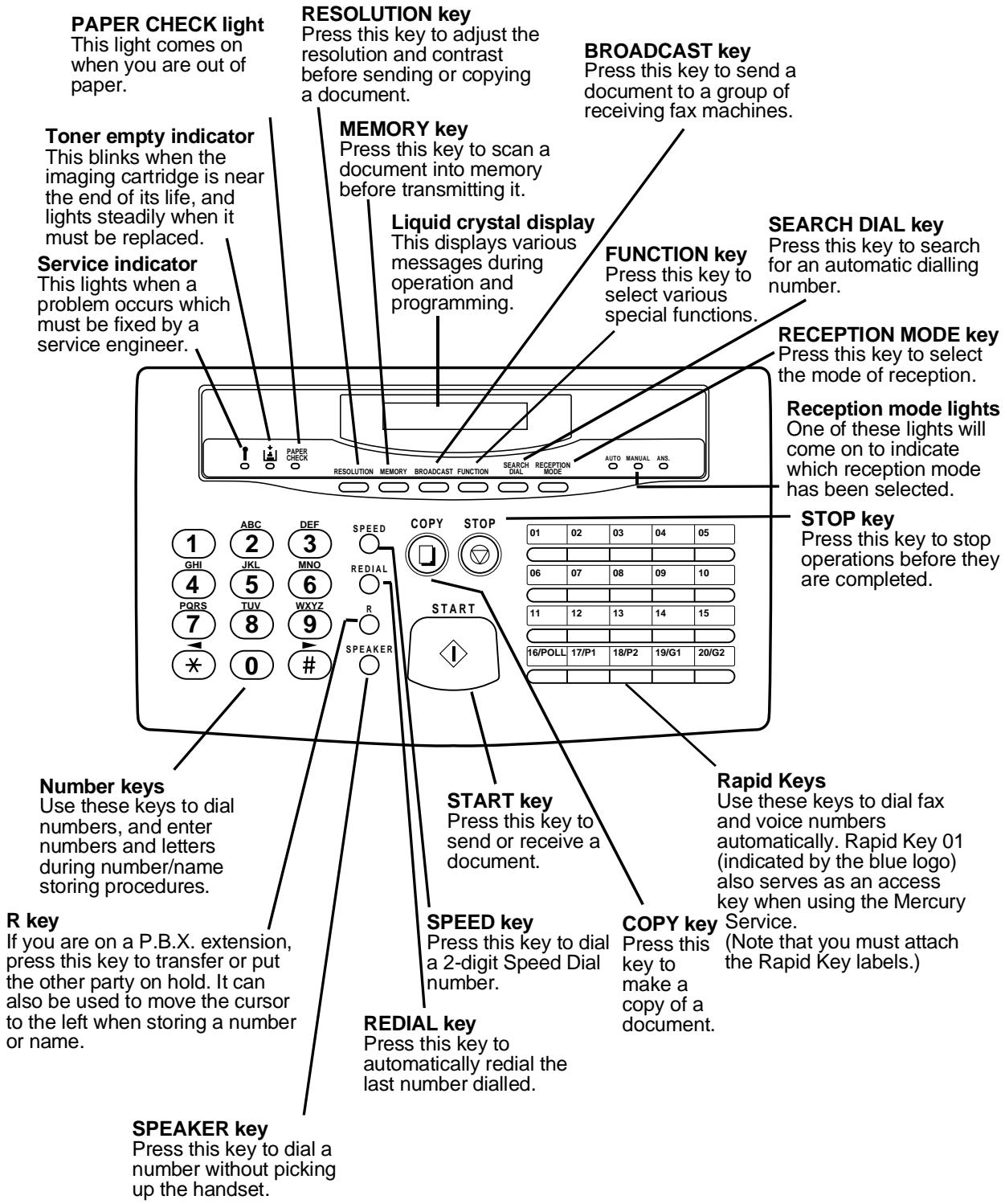
SAISIE DE VOTRE NOM ET DE VOTRE NUMÉRO DE TÉLÉCOPIEUR
Pour que votre nom et votre numéro de télécopieur/téléphone (appelés « nom de l'expéditeur » et « numéro de l'expéditeur ») soient imprimés en haut de chaque page que vous transmettez, programmez-les en appuyant sur les touches du panneau comme indiqué ci-dessous.
- Si vous entrez un chiffre ou une lettre incorrect, appuyez sur la touche R pour ramener le curseur sur l'erreur, puis entrez le chiffre ou la lettre correct. (Pour déplacer le curseur vers l'avant, appuyez sur la touche HAUT-PARLEUR.)
| Step | Press these keys: | Comments |
| 1 |   | "ENTRY MODE" will appear in the display. |
| 2 |  | "OWN NUMBER SET" will appear in the display. |
| 3 |  | |
| 4 | 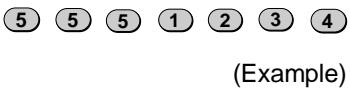 | Enter your fax number (max. of 20 digits) by pressing the numeric keys. (To insert a space between digits, press the "#" key. To insert a "+", press the "*" key.) |
| 5 |  | |
| 6 | 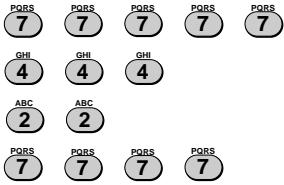 SPEAKER SPEAKER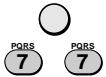 (Example: "SHARP") (Example: "SHARP") | Enter your name by pressing the appropriate numeric keys as shown on the following page. Press each key repeatedly until the desired letter appears in the display. (Max. of 24 characters.) |
| 7 |  | |
| 8 |  | Exit. |
Remarque : Pour confirmer que vous avez correctement saisi votre nom et votre numéro, imprimez la liste des codes d'accès (voir le chapitre 7). Cette liste montre également un exemple de ce qui sera imprimé en haut de chaque page transmise (« EN-TÊTE »).
SAISIE DES LETTRES POUR LES NOMS
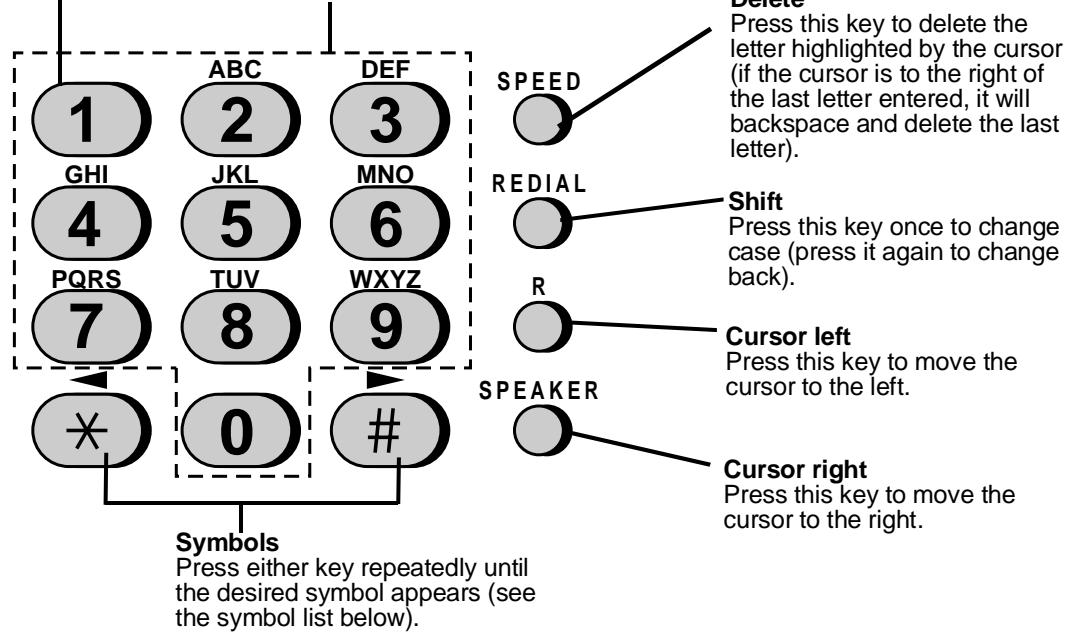
Les noms sont programmés en appuyant sur les touches numériques. Vous remarquerez que des lettres sont marquées au-dessus de chacune des touches numériques « 2 » à « 9 ». Pour saisir une lettre (ou un chiffre), appuyez sur la touche appropriée une ou plusieurs fois jusqu'à ce que la lettre apparaisse à l'écran (le chiffre apparaîtra en premier, suivi des lettres dans l'ordre indiqué au-dessus de la touche). Les touches utilisées pour saisir des lettres et pour éditer sont indiquées ci-dessous.
Espace
Appuyez deux fois sur cette touche pour insérer un espace.
Lettres et chiffres
Pour saisir une lettre ou un chiffre, appuyez plusieurs fois sur la touche appropriée jusqu'à ce que le chiffre/la lettre souhaité apparaisse à l'écran (le chiffre apparaît en premier, puis les lettres dans l'ordre indiqué au-dessus de la touche).
Remarques :
- Pour saisir deux lettres successives qui nécessitent l'utilisation de la même touche, appuyez une fois sur la touche HAUT-PARLEUR après avoir saisi la première lettre, puis saisissez la seconde lettre.
- Pour remplacer une lettre par une autre, placez le curseur sur cette lettre et saisissez la lettre souhaitée. La nouvelle lettre remplacera simplement l'ancienne.
Liste des symboles
Pour saisir un symbole de la liste ci-dessous, appuyez plusieurs fois sur la touche "#" ou "*" jusqu'à ce que le symbole souhaité apparaisse.
| # → ← * |
| . / ! " # $ % & ' ( ) * + , - : ; <= > ? @ [ ¥ ] ^ _ ` { | } → ← |
Exemple
Voici un exemple de saisie du nom "ABC Co. #1".
◆ Le curseur à l'écran est indiqué ci-dessous par un rectangle :
| Step | Press these keys: | Display |
| 1 | 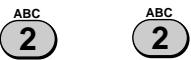 |  |
| 2 |  |  |
| 3 | [8STX] | [34YS] |
| 4 |  |  |
| 5 |  |  |
| 6 |  |  |
| 7 |  |  |
| 8 |  |  |
| 9 |  |  |
| 10 |  |  |
| 11 |  |  |
| 12 |  |  |
| 13 |  |
RÉGLAGE DE LA DATE ET DE L'HEURE
La date et l'heure apparaissent à l'écran, dans les rapports, sont imprimées en haut de chaque page transmise et sont utilisées pour les opérations de minuterie. Réglez la date et l'heure en appuyant sur les touches du panneau de commande comme indiqué ci-dessous.
Pour corriger une erreur, appuyez sur la touche SPEED pour ramener le curseur sur l'erreur, puis saisissez le chiffre correct. ◆ Le jour de la semaine est réglé en saisissant un code. Les codes sont les suivants :
| Day | SUN | MON | TUE | WED | THU | FRI | SAT |
| Code | 0 | 1 | 2 | 3 | 4 | 5 | 6 |
| Step | Press these keys: | Comments |
| 1 |   | ENTRY MODE will appear in the display. |
| 2 |  | DATE & TIME SET will appear in the display. |
| 3 |  | |
| 4 |  (Example) (Example) | Enter the day of the month (2 digits: "01" to "31"). |
| 5 |  (Example: January) (Example: January) | Enter the month (2 digits: "01" for January, "02" for February, "12" for December, etc.). |
| 6 | 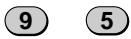 (Example: 1995) (Example: 1995) | Enter the last two digits of the year. |
| 7 | 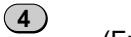 (Example: Thursday) (Example: Thursday) | Enter the day of the week by entering the appropriate code number (see above table). |
| 8 |  (Example) (Example) | Enter the hour (2 digits: "00" to "23"). |
| 9 | 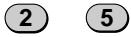 (Example) (Example) | Enter the minute (2 digits: "00" to "59"). |
| 10 |  | The clock will now start. |
| 11 |  | Exit. |
SÉLECTION DU MODE DE RÉCEPTION
Votre télécopieur dispose de trois modes pour recevoir les appels et les télécopies entrants :
Mode MANUEL : C'est le mode le plus pratique pour recevoir des appels téléphoniques. Vous pouvez également recevoir des télécopies ; cependant, tous les appels doivent d'abord être répondu en décrochant le combiné du télécopieur ou un téléphone supplémentaire connecté à la même ligne.
Mode AUTO : Sélectionnez ce mode lorsque vous souhaitez uniquement recevoir des télécopies sur votre ligne. Le télécopieur répondra automatiquement à tous les appels et recevra les télécopies entrantes. La bascule automatique télécopie/téléphone, une fonction spéciale pour recevoir à la fois les télécopies et les appels vocaux, fonctionne également dans ce mode.
Mode ANS. : Sélectionnez ce mode lorsqu'un répondeur est connecté au télécopieur et que vous souhaitez que le répondeur réponde à tous les appels. Cela vous permet de recevoir à la fois des messages vocaux et des télécopies pendant votre absence.
Réglage du mode de réception
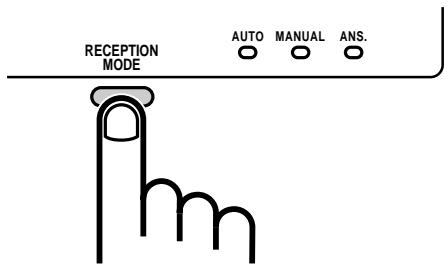
Appuyez sur la touche MODE DE RÉCEPTION jusqu'à ce que le voyant sous le mode souhaité s'allume.
Pour plus d'informations sur la réception de télécopies en mode AUTO et en mode MANUEL, voir « Réception de documents » au chapitre 3. Pour plus d'informations sur l'utilisation du mode ANS., voir le chapitre 4.
MÉMORISATION DES NUMÉROS POUR LA NUMÉROTATION AUTOMATIQUE
La numérotation automatique est un moyen rapide et pratique de composer un numéro, soit en appuyant sur une touche rapide (numérotation par touche rapide), soit en appuyant sur la touche NUMÉRO et en saisissant un numéro à 2 chiffres (numérotation abrégée). Elle peut être utilisée pour les transmissions de télécopies et les appels vocaux.
Pour utiliser la numérotation automatique, vous devez d'abord mémoriser le numéro complet dans votre télécopieur. La façon de le mémoriser dépend de si vous souhaitez l'utiliser pour la numérotation par touche rapide ou la numérotation abrégée :
♦ Numérotation par touche rapide : Vous attribuez un numéro de télécopie complet à une touche rapide. Vous pouvez également mémoriser un nom, un numéro vocal (composé comme décrit dans « Passer des appels téléphoniques » au chapitre 3) et un numéro de télécopie de secours qui est composé automatiquement si le premier numéro de télécopie est occupé. 20 touches rapides sont disponibles.
◆ Numérotation abrégée : Vous attribuez un numéro de télécopie ou vocal complet à un numéro abrégé à 2 chiffres. Vous pouvez également mémoriser un nom. 30 numéros abrégés sont disponibles. (Les numéros abrégés sont indépendants des touches rapides.)
Numérotation en chaîne pour les numéros longs ou accès indirect aux opérateurs de réseau alternatifs
Le nombre maximal de chiffres pouvant être saisis lors de la mémorisation d'un numéro de téléphone ou de télécopie est de 20. Si vous devez mémoriser un numéro de plus de 20 chiffres ou souhaitez programmer un numéro d'accès ou un code PIN d'un opérateur de réseau alternatif, utilisez la numérotation en chaîne.
La numérotation en chaîne vous permet de combiner deux ou plusieurs numéros de numérotation automatique, ou d'utiliser un numéro de numérotation automatique suivi de chiffres supplémentaires saisis manuellement à l'aide des touches numériques, pour composer un seul numéro. En plus d'être pratique pour mémoriser des numéros longs, elle vous permet de mémoriser le code d'accès ou le code PIN d'un opérateur de réseau comme numéro de numérotation automatique.
Par exemple, pour mémoriser un numéro de 36 chiffres pour la numérotation automatique, vous devez le diviser en deux parties :
- Mémorisez les 20 premiers chiffres dans un numéro abrégé (par exemple « 01 ») en utilisant la procédure de mémorisation de la page suivante, et appuyez sur « 1 » à l'étape 11 de cette procédure pour le spécifier comme numéro de numérotation en chaîne (lors de la composition, cela indique à la machine d'attendre le reste du numéro de téléphone lorsque vous utilisez le numéro abrégé « 01 »).
- Mémorisez les 16 chiffres restants dans un numéro abrégé distinct (par exemple « 02 »), et cette fois appuyez sur « 2 » à l'étape 11 de la procédure de mémorisation pour spécifier qu'il ne s'agit pas d'un numéro de chaîne (cela indique à la machine que la partie finale du numéro a été composée).
De cette manière, vous spécifiez toutes les parties du numéro, sauf la dernière, comme des numéros de numérotation en chaîne.
- Le nombre maximal de chiffres pouvant être composés en une seule fois par numérotation en chaîne est de 50.
Mémorisation des numéros
Remarques :
- Pour saisir des lettres pour les noms ou corriger une erreur, voir "Saisie des lettres pour les noms" dans ce chapitre.
- Vous devrez peut-être ajouter une pause entre certains chiffres pour laisser le temps à la connexion de s'établir. Par exemple, si vous êtes sur un système téléphonique PBX qui nécessite la composition d'un numéro d'accès (comme "9") pour obtenir une ligne extérieure, vous devrez peut-être insérer une pause entre le numéro d'accès et le numéro du télécopieur destinataire.
- Les pauses sont saisies en appuyant sur la touche REDIAL, et plusieurs peuvent être saisies à la suite si nécessaire. La première pause insérée donne un délai d'environ 4 secondes, et les pauses suivantes donnent des délais de 0,9 seconde chacune. La durée totale des pauses insérées pour un numéro de télécopie ou de voix ne peut pas dépasser 11 secondes.
- La touche rapide 01 a été configurée en usine pour être utilisée comme touche Mercury. Si vous n'utilisez pas le service Mercury et souhaitez utiliser la touche rapide 01 pour la numérotation rapide, effacez la touche rapide 01 comme décrit dans "Effacement des numéros" plus loin dans cette section, et réinitialisez le réglage d'option 23 comme décrit au chapitre 6.
- Pour confirmer que les numéros de numérotation automatique ont été mémorisés correctement, imprimez la liste téléphonique. La procédure pour ce faire est décrite au chapitre 7, "Impression des rapports et listes".
| Step | Press these keys: | Comments |
| 1 |   | ENTRY MODE will appear in the display. |
| 2 |  | FAX/TEL # MODE will appear in the display. |
| 3 |  | Select SET. |
| 4 |  (Example) (Example) | To store a Rapid Key number, press a Rapid Key.To store a Speed Dial number, press two numeric keys ("01" to "30"). |
| 5 | [3ZZK] [K7T6]  [2DX7] [2DX7]  [HY4Z] [HY4Z]  (Example) (Example) | Enter the fax number (max. of 20 digits including pauses) using the numeric keys. |
| 6 |  | If you are storing a Speed Dial number, go to Step 9 after pressing START. |
| 7 |    [0545] [0545]  [23Ø7] [23Ø7]  (Example) (Example) | Enter a full voice number (max. of 20 digits).If you don't want to enter a voice number, skip this step. |
| 8 |  | |
| 9 | (Example) ABC DEF GHI ...WXYZ Enter the name of the location or party by pressing numeric keys as described in "Entering Letters for Names" in this chapter (max. of 20 characters). If you don't want to enter a name, skip this step. | |
| 10 |  | |
| 11 |  | Press "1" if you want to specify the number as a Chain Dialling number (see the beginning of this section). Otherwise, press "2" or "START". If you pressed "1" or are storing a Speed Dial number, go to Step 14. |
| 12 |  (Example) (Example) | Enter a full back-up fax number. If you don't want to enter a back-up number, go to Step 14. |
| 13 |  | |
| 14 |  | Return to Step 4 to store another number, or press STOP to exit. If the number is a Rapid Key number, you can write the name on the label above the appropriate Rapid Key. |
Effacement des numéros
| Step | Press these keys: | Comments |
| 1 |  | ENTRY MODE will appear in the display. |
| 2 |  | FAX/TEL. # MODE will appear in the display. |
| 3 |  | Select CLEAR. |
| 4 |  (Example) (Example) | To clear a Rapid Key number, press the appropriate Rapid Key.To clear a Speed Dial number, enter the 2-digit number with the numeric keys. |
| 5 |  | |
| 6 | Step 4 or  | Return to Step 4 to clear another number, or press STOP to exit. |
Modifications
Pour apporter des modifications à un numéro déjà mémorisé, répétez la procédure de mémorisation. Sélectionnez le numéro de code pour lequel vous souhaitez apporter des modifications à l'étape 4, puis modifiez le numéro et/ou le nom lorsqu'ils apparaissent à l'écran (étapes 5 et 7, respectivement).
Les numéros et les lettres sont modifiés comme décrit dans "Saisie des lettres pour les noms" dans ce chapitre.
◆ Une batterie au lithium conserve les numéros de numérotation automatique en mémoire.
Votre télécopieur utilise une pile au lithium pour conserver en mémoire les numéros de composition automatique et d'autres données programmées lorsque l'appareil est éteint.
La consommation de la pile se fait principalement lorsque l'appareil est éteint. Si l'appareil reste éteint en continu, la durée de vie de la pile est d'environ 5 ans.
Si la pile est défectueuse, faites-la remplacer par votre revendeur ou votre technicien de maintenance. N'essayez pas de la remplacer vous-même.
Mémorisation des numéros dans les touches de groupe
Les touches de groupe vous permettent de composer un groupe de numéros de télécopie en appuyant simplement une fois sur la touche de groupe appropriée. Elles sont pratiques pour la fonction de diffusion, qui permet de transmettre un document à un groupe de télécopieurs.
Les touches rapides 19/G1 et 20/G2 peuvent être programmées comme touches de groupe. Pour programmer ou effacer une touche de groupe, suivez les étapes ci-dessous. Notez qu'une touche ne peut pas être programmée à la fois comme touche rapide et comme touche de groupe.
◆ Jusqu'à 49 numéros de télécopie peuvent être mémorisés dans une touche de groupe. Seules les touches rapides et les numéros de composition abrégée peuvent être mémorisés dans une touche de groupe. Aucun numéro complet ne peut être mémorisé. Une touche de groupe ne peut pas être effacée si elle est utilisée dans une opération de diffusion programmée. Effacez d'abord l'opération programmée comme décrit dans "Saisie et utilisation des programmes" au chapitre 5, puis effacez la touche. Si vous devez vérifier dans quel programme la touche est utilisée, imprimez la liste des programmes et des groupes comme décrit au chapitre 7.
| Step | Press these keys: | Comments |
| 1 |   | PROGRAM/GROUP will appear in the display. |
| 2 |  | GROUP ENTRY MODE will appear in the display. |
| 3 |  or or  | Press "1" (SET) to program a Group Key, or "2" (CLEAR) to clear a Group Key. |
| 4 |  or or  | Press a Group Key ("19/G1" or "20/G2") to select it. If you are clearing the key, go to Step 6. |
| 5 |   (Example) (Example) | Enter fax numbers using one or both of the following methods:• Press one or more Rapid Keys.• Enter one or more Speed Dial numbers with the numeric keys. |
| 6 |  | |
| 7 | Step 4 or  | Return to Step 4 to program/clear another Group Key, or press STOP to exit. |
Le service résidentiel Mercury
Remarque : Le service Mercury est uniquement disponible au Royaume-Uni.
Le service résidentiel Mercury est un service téléphonique très compétitif pour les utilisateurs résidentiels et les petites entreprises.
La plupart des appels longue distance et internationaux au Royaume-Uni sont moins chers avec Mercury, surtout en période économique. Pour les clients qui effectuent un grand nombre d'appels longue distance et internationaux pendant la journée, des économies supplémentaires sont possibles en adhérant au programme Mercury Frequent Caller.
Les appels Mercury sont arrondis à la seconde et facturés au dixième de penny le plus proche. Vous recevrez également des factures détaillées. Le service clientèle Mercury est disponible 24 heures sur 24 pour offrir le plus haut niveau de service client.
Il existe deux façons d'accéder à Mercury : le service résidentiel 132 et le service résidentiel à code PIN. Vous pouvez déterminer la meilleure méthode pour vous en appelant le service clientèle Mercury au numéro gratuit 0500-500 194 (24 heures). La plupart des foyers et des entreprises peuvent désormais accéder au réseau Mercury via leur ligne BT existante. Le service clientèle Mercury pourra vérifier si Mercury est disponible dans votre région.
Tous les frais et tarifs de Mercury sont les mêmes pour les deux méthodes d'accès à Mercury - la seule différence réside dans la façon de vous connecter au réseau Mercury.
Pour les clients du service résidentiel 132
Une fois que vous êtes devenu client du service Mercury Residential 132, il vous suffit de composer le 132 avant un appel longue distance ou international pour l'acheminer sur le réseau Mercury.
La touche Mercury de votre télécopieur (touche rapide 01) contient déjà les chiffres "132" préprogrammés, aucune programmation supplémentaire n'est donc nécessaire.
Pour vérifier que vous avez accès au service Mercury Residential, décrochez le combiné, attendez la tonalité, appuyez sur la touche Mercury et composez le 132. Cet appel est gratuit. Vous devriez être connecté à un message enregistré vous souhaitant la bienvenue sur le réseau Mercury. En cas de difficulté, contactez le service clientèle Mercury (signalement de pannes) au numéro gratuit 0500-500 193 (24 heures sur 24).
Pour envoyer vos appels longue distance et internationaux ainsi que vos télécopies via Mercury, appuyez sur la touche Mercury avant l'indicatif et le numéro de téléphone de votre correspondant.
Si le service Residential 132 n'est pas encore disponible dans votre région, vous pouvez demander à utiliser le service Mercury Residential PIN Code.
Pour les clients du service Residential PIN Code
Après avoir demandé le service Mercury Residential PIN Code, vous recevrez votre code PIN Mercury en deux parties distinctes.
Le code PIN, semblable à un code PIN bancaire, vous identifie en tant que client Mercury. Pour des raisons de cohérence avec les messages affichés sur l'écran de l'appareil, ce manuel désignera le code PIN Mercury sous le nom de "code d'identification".
Pour accéder au service Mercury Residential PIN Code, vous devez d'abord composer le code d'accès "131", attendre la tonalité aiguë de Mercury, puis saisir votre code d'identification. Ensuite, composez le numéro de votre correspondant.
Codes de centre de coûts
Les codes de centre de coûts sont sélectionnables sur votre bon de commande Mercury. En saisissant un code (à 2 ou 3 chiffres) avant chaque appel Mercury, les entreprises peuvent imputer les appels à différents projets, ou les particuliers peuvent savoir qui est responsable de chaque appel. Si vous avez demandé cette option, pour passer un appel via Mercury, vous devez appuyer sur la touche Mercury, saisir votre code de centre de coûts, puis composer le numéro de téléphone ou de télécopie de votre correspondant.
Veuillez noter que les codes de centre de coûts ne sont pas actuellement disponibles avec le service Residential 132.
Programmation de la touche Mercury pour le service Residential PIN Code
Le code d'accès, une pause et votre code d'identification peuvent tous être programmés dans la touche Mercury (touche rapide 01). Cela vous permettra d'accéder au réseau Mercury en appuyant simplement sur la touche Mercury.
Pour programmer la touche Mercury, le réglage d'option 23 doit être défini sur "1" (OUI). Il a été réglé sur "1" en usine, mais si vous devez vérifier le réglage ou le réinitialiser, consultez le chapitre 6, "Réglages facultatifs".
Une pause doit être saisie entre le code d'accès et votre code d'identification pour laisser le temps à la connexion au réseau Mercury. Pour ce faire, saisissez un code numérique correspondant à la durée de la pause, comme indiqué dans le tableau ci-dessous. Si vous êtes connecté à un central à tonalité, une pause de 4 secondes devrait suffire. Cependant, si la programmation de la touche Mercury échoue ou si vous êtes connecté à un central à impulsions, essayez des pauses plus longues jusqu'à ce que la programmation réussisse.
| Code | 01 | 02 | 03 | 04 | 05 | 06 | 07 | 08 | 09 | 10 |
| Pause (seconds) | 4.0 | 4.9 | 5.8 | 6.7 | 7.6 | 8.5 | 9.4 | 10.3 | 11.2 | 12.1 |
Reprogrammez la touche Mercury en appuyant sur les touches du panneau comme indiqué ci-dessous.
Important :
- Il n'est nécessaire de suivre la procédure de programmation ci-dessous que pour l'accès via le service de code PIN résidentiel. Pour le service résidentiel 132, aucune programmation n'est requise car les chiffres d'accès sont stockés dans la touche Mercury en usine.
- Pour reprogrammer la touche Mercury, vous devez d'abord l'effacer en suivant la procédure décrite pour effacer les numéros dans "Mémorisation des numéros pour numérotation automatique" dans ce chapitre.
| Step | Press these keys: | Comments |
| 1 |  | ENTRY MODE will appear in the display. |
| 2 |  | FAX/TEL.# MODE will appear in the display. |
| 3 |  | Select SET. |
| 4 |  | Press Rapid Key 01 (the Mercury Key). |
| 5 |  | Enter the access code. |
| 6 |  (Example) (Example) | Enter a code number for a pause (see the table on the previous page). |
| 7 |  (Example) (Example) | Enter your I.D. code (max. of 10 digits). |
| 8 |  | |
| 9 |  | Exit. For easy identification, the blue Mercury logo is located above the Mercury Key. |
Pour vérifier que le code d'identification Mercury a été reprogrammé correctement, décrochez le combiné ou appuyez sur la touche HAUT-PARLEUR, attendez la tonalité, puis appuyez sur la touche Mercury (suivie d'un code de centre de coût à 2 ou 3 chiffres si applicable), et composez le 1500. Cet appel est gratuit. Pendant la connexion, vous entendrez une tonalité aiguë. C'est la tonalité Mercury. Vous devriez ensuite être connecté à un message enregistré vous souhaitant la bienvenue sur le réseau Mercury.
Si vous rencontrez des difficultés, veuillez contacter le service clientèle Mercury au FreeCall 0500 500 193 (24 heures).
Remarque : Pour des raisons de sécurité, votre code d'identification ne peut pas être listé ou affiché une fois qu'il a été saisi. Cependant, il peut être effacé et reprogrammé si nécessaire.
Effacement ou modification de la touche Mercury
Pour effacer la touche Mercury ou modifier le code programmé, suivez la procédure d'effacement des numéros décrite dans "Mémorisation des numéros pour numérotation automatique" dans ce chapitre, puis répétez la procédure de programmation de la page précédente si nécessaire.
Si, pour une raison quelconque, vous devez retourner votre télécopieur pour réparation, pour des raisons de sécurité, vous devez effacer le code PIN, s'il a été programmé, de la touche Mercury.
Numéros de touche rapide et de numérotation abrégée pour l'utilisation de Mercury
Une fois la touche Mercury programmée de manière appropriée pour le service 132 ou le service PIN résidentiel, vous pouvez l'utiliser pour inclure le code d'accès Mercury lors de la mémorisation des numéros de fax et de voix pour la touche rapide et la numérotation abrégée. Cela vous évitera d'avoir à appuyer sur la touche Mercury à chaque fois que vous composez des numéros par touche rapide ou numérotation abrégée.
Appuyez simplement sur la touche Mercury avant de saisir le numéro de fax ou de voix souhaité lors de la procédure de mémorisation des numéros décrite dans "Mémorisation des numéros pour numérotation automatique" dans ce chapitre. (Appuyez sur la touche Mercury avant l'étape 5 de la procédure.)
Composition des numéros sur le réseau Mercury
Pour composer des numéros sur le réseau Mercury, vous pouvez utiliser l'une des méthodes de numérotation décrites dans « Envoi de documents » au chapitre 3 pour les transmissions de télécopie, et l'une des méthodes décrites dans « Appels téléphoniques » au chapitre 3 pour les appels vocaux.
Appuyez simplement sur la touche Mercury avant de saisir le numéro :
Numérotation normale : Appuyez sur la touche Mercury, saisissez un code de centre de coûts (si applicable), puis composez le numéro de l'autre partie. - Numérotation directe au clavier : Appuyez sur la touche Mercury, saisissez un code de centre de coûts (si applicable), puis composez le numéro de l'autre partie. ♦ Numérotation par touche rapide : Appuyez sur la touche Mercury puis sur la touche rapide appropriée. ◆ Numérotation abrégée : Appuyez sur la touche Mercury, puis sur la touche SPEED et saisissez le numéro abrégé.
Remarque : Pour la numérotation par touche rapide et la numérotation abrégée, n'appuyez pas sur la touche Mercury si elle a déjà été programmée dans le numéro de numérotation automatique comme décrit dans la section ci-dessus.
Remarques
Documents transmissibles
Votre télécopieur peut transmettre la plupart des documents de bureau standard. Les directives spécifiques sont les suivantes :
Taille et poids
La taille et le poids des documents que vous pouvez charger dans le chargeur de documents dépendent du fait que vous chargiez une feuille à la fois ou plusieurs feuilles à la fois.
Une feuille à la fois :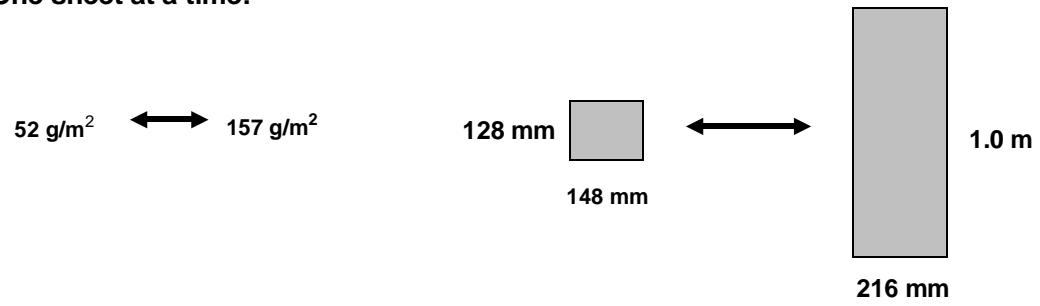
Plusieurs feuilles à la fois :
Remarque : La zone du document qui est scannée par le télécopieur est légèrement plus petite que la taille réelle du document. Toute lettre ou tout graphique en dehors de cette zone ne peut pas être transmis. Largeur de numérisation : 210 mm Longueur de numérisation : La longueur de la feuille moins 4 mm à partir des bords supérieur et inférieur.
Autres restrictions
- Les documents écrits à l'encre jaune, jaune verdâtre ou bleu clair ne peuvent pas être transmis, car le scanner ne reconnaît pas ces couleurs. ◆ L'encre, la colle et le fluide correcteur sur les documents doivent être secs avant la transmission.
- Tous les trombones, agrafes et épingles doivent être retirés des documents avant la transmission. S'ils ne sont pas retirés, ils peuvent endommager le télécopieur.
- Les documents qui sont rapiécés, collés, déchirés, plus petits que la taille minimale, à dos carbone ou qui tachent facilement doivent être photocopiés, et la copie utilisée pour la transmission.
Chargement du document
Jusqu'à 20 pages peuvent être placées dans le chargeur à la fois. Les pages seront automatiquement introduites dans le télécopieur en commençant par la page du bas.
Selon le type d'original, il peut être nécessaire d'introduire d'abord la première feuille dans le chargeur, puis de placer les pages restantes dans le chargeur. Si vous devez envoyer ou copier plus de 20 pages, placez les pages supplémentaires doucement et avec précaution dans le chargeur juste avant que la dernière page ne soit numérisée. N'essayez pas de les forcer, car cela pourrait provoquer une double alimentation ou un bourrage. Si votre document se compose de plusieurs pages grandes ou épaisses qui doivent être chargées une à la fois, insérez chaque page dans le chargeur pendant que la page précédente est en cours de numérisation. Insérez doucement pour éviter une double alimentation.
1
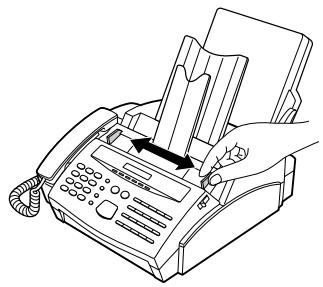
Ajustez les guides du document à la largeur de votre document.
2
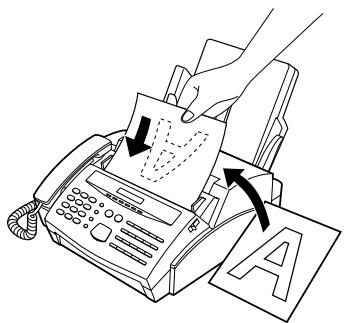
Placez le document face vers le bas et poussez-le doucement dans le chargeur de documents. Le bord supérieur du document doit entrer en premier dans le télécopieur.
- Le chargeur entraînera le bord avant du document dans le télécopieur. SEND/COPY READY apparaîtra sur l'écran.
3
Vous pouvez maintenant soit effectuer les réglages de résolution et/ou de contraste comme décrit dans la section suivante, soit composer le numéro de l'autre partie comme décrit dans la section "Numérotation et transmission".
Important :
- Si vous devez retirer le document du chargeur avant la transmission ou la copie, ouvrez d'abord le panneau de commande en tirant vers l'avant la poignée de déverrouillage située sur le côté droit du télécopieur, puis retirez le document. Si vous essayez de tirer le document sans ouvrir le panneau de commande, vous risquez d'endommager le mécanisme du chargeur.
Réglages de transmission optionnels
Si vous le souhaitez, vous pouvez effectuer plusieurs réglages de transmission avant de composer le numéro et de transmettre le document.
Remarque : pour effectuer les réglages, le document doit d'abord être chargé dans le chargeur.
Résolution
Votre télécopieur dispose de 4 réglages de résolution :
| STANDARD: | Use STANDARD for ordinary documents. This setting gives you the fastest and most economical transmission. |
| FINE: | Use FINE for improved reproduction, especially with documents containing small letters or fine drawings. |
| SUPER FINE: | Use SUPER FINE when you need the highest quality of reproduction. |
| HALF TONE: | Use HALF TONE for photographs and illustrations. The original will be reproduced in 32 shades of grey. |
Si vous n'effectuez aucun réglage, le télécopieur enverra automatiquement le document en STANDARD.
Pour transmettre avec une résolution FINE ou SUPER FINE, le télécopieur récepteur doit également disposer de cette résolution. Si ce n'est pas le cas, le meilleur réglage disponible suivant sera utilisé. ◆ La résolution par défaut (celle utilisée si vous n'effectuez aucun réglage de résolution) peut être modifiée en FINE en changeant le réglage d'option 1. Voir le chapitre 6, « Réglages optionnels ».
Contraste
Le contraste est normalement réglé sur AUTO, ce qui signifie que le télécopieur contrôle automatiquement le contraste, mais pour les documents pâles, vous pouvez passer le réglage sur DARK.
Réglage de la résolution et du contraste
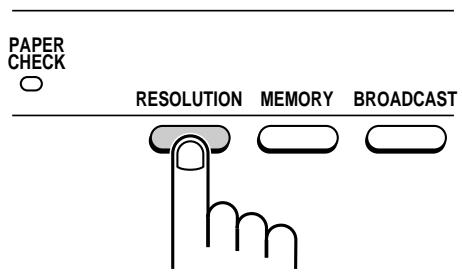
Appuyez sur la touche RESOLUTION une ou plusieurs fois jusqu'à ce que les réglages de résolution et de contraste souhaités apparaissent à l'écran.
- La première fois que vous parcourez la liste des réglages de résolution, le réglage de contraste AUTO apparaîtra à côté de chaque réglage de résolution. La deuxième fois que vous parcourez la liste, le réglage de contraste DARK apparaîtra.
Page de garde
Vous pouvez faire générer une page de garde par votre télécopieur et l'envoyer comme dernière page de la transmission. La page de garde comprend la date et l'heure, le nom et le numéro de l'expéditeur, ainsi que le nom et le numéro du destinataire si un numéro de numérotation automatique est utilisé. Le nombre total de pages envoyées est indiqué en bas.
- Votre nom et votre numéro doivent être programmés pour qu'ils apparaissent sur la page de garde. (Voir « Saisie de votre nom et de votre numéro de télécopieur » au chapitre 2.) ◆ La page de garde ne peut pas être sélectionnée lorsque vous utilisez la fonction de demande de relais.
Pour inclure une page de garde avec une seule transmission, appuyez sur les touches du panneau comme indiqué ci-dessous. Dans ce cas, vous pouvez également sélectionner un message qui apparaîtra en haut de la page de garde. Si vous souhaitez que le télécopieur envoie automatiquement une page de garde avec chaque transmission, réglez le réglage d'option 13 sur OUI comme décrit au chapitre 6, « Réglages optionnels » (aucun message ne peut être sélectionné dans ce cas).
| Step | Press these keys: | Comments |
| 1 | COVER SHEET MODE will appear in the display. | |
| 2 | 1 or 2 | Press "1" to turn the cover sheet function on, or "2" to turn it off. |
| 3 | 2 (Example) | If you pressed "1" in the previous step, select a message by entering a number from "2" to "5" as shown below, or enter "1" if you don't want to include a message."1": NO MESSAGE"2": URGENT"3": IMPORTANT"4": CONFIDENTIAL"5": PLS. DISTRIBUTE |
Exemple
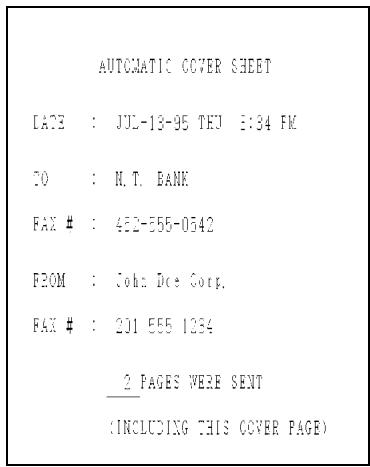
Numérotation par lots (compteur de pages)
Ce paramètre permet de modifier la numérotation des pages du document transmis, passant d'une numérotation simple ("P.1", "P.2", etc.) à une numérotation par lots, ce qui signifie qu'une barre oblique et le nombre total de pages envoyées sont ajoutés après chaque numéro de page (par exemple, "P. 1/5", "P.2/5", etc.). Cela permet au destinataire de vérifier s'il manque des pages.
Si vous envoyez une page de garde, ne l'incluez pas dans le nombre total de pages. Votre télécopieur ajustera automatiquement le nombre pour inclure la page de garde. - Si vous devez annuler une saisie de numérotation par lots, retirez le document du chargeur ou appuyez sur la touche STOP. Si le nombre de pages réellement transmises ne correspond pas au nombre de lots saisi, l'alarme retentira et PAGE COUNT ERROR s'affichera à l'écran. "PAGE E" apparaîtra également dans la colonne "NOTE" du rapport de transaction s'il est configuré pour être imprimé.
| Step | Press these keys: | Comments |
| 1 | PAGE COUNTER SET will appear in the display. | |
| 2 | 1 0 (Example) | Enter the total number of pages (2 digits - "01" to "99") by pressing the numeric keys. |
Remarque : La numérotation par lots est automatiquement activée lorsque des documents sont envoyés depuis la mémoire, c'est-à-dire en transmission mémoire ou en diffusion.
Numérotation et transmission
Une fois le document chargé et les paramètres de transmission souhaités définis, vous êtes prêt à composer le numéro du télécopieur récepteur et à transmettre le document. Il existe plusieurs méthodes de numérotation, et vous pouvez choisir celle qui correspond le mieux à vos besoins.
Numérotation normale
Avec la numérotation normale, vous décrochez le combiné (ou appuyez sur la touche HAUT-PARLEUR) et composez le numéro comme pour un appel téléphonique. Si le récepteur est configuré pour recevoir des télécopies manuellement (c'est-à-dire que le destinataire répond d'abord à votre appel vocalement, puis appuie sur sa touche DÉPART pour commencer la réception), vous pouvez lui parler avant d'envoyer la télécopie.
| 1 | 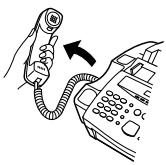 or or  | Pick up the handset or press the SPEAKER key. Listen for the dial tone. | |
| 2 | 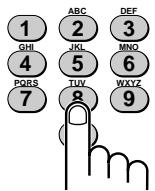 | Dial the number of the receiving machine by pressing the number keys. | |
| 3 | 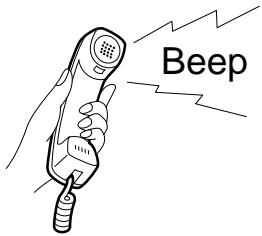 | Wait for the connection. Depending on the setting of the receiving machine, you will either hear a facsimile reception tone or the other person will answer.If the other party answers, ask them to press their Start key (if you pressed the SPEAKER key, pick up the handset to speak with them). This causes the receiving machine to issue a reception tone. | |
| 4 | 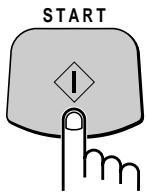 | When you hear the reception tone, press the START key. Replace the handset if you used it.When transmission is completed, the fax will beep. | |
4
Numérotation directe au clavier
Si vous n'avez pas besoin de parler à l'autre partie avant d'envoyer la télécopie, vous pouvez simplement composer le numéro ; il n'est pas nécessaire de décrocher le combiné ou d'appuyer sur la touche HAUT-PARLEUR.
◆ La numérotation directe au clavier est une forme de numérotation automatique. Par conséquent, si vous devez insérer une pause entre les chiffres du numéro, appuyez sur la touche BIS. (Pour plus d'informations sur les pauses, voir "Mémorisation des numéros pour la numérotation automatique" au chapitre 2.)
1
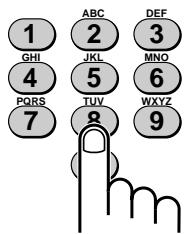
Composez le numéro du récepteur en appuyant sur les touches numériques.
2
Vérifiez l'affichage. Si le numéro du destinataire affiché est correct, appuyez sur la touche DÉPART.
- S'il n'est pas correct, appuyez sur la touche ARRÊT pour effacer un chiffre à la fois, puis saisissez à nouveau le ou les chiffres corrects.
Numérotation par touche rapide
Si le numéro que vous voulez composer a été mémorisé comme numéro de touche rapide (voir "Mémorisation des numéros pour la numérotation automatique" au chapitre 2), vous pouvez le composer en appuyant sur la touche rapide correspondante.
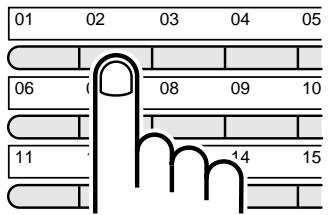
Appuyez sur la touche rapide appropriée.
- Le nom du destinataire apparaît à l'écran. Si aucun nom n'a été mémorisé, le numéro de fax apparaît. (Si le nom ou le numéro est incorrect, appuyez sur la touche ARRÊT.)
- Le document sera transmis automatiquement une fois la connexion établie.
Numérotation abrégée
Si le numéro que vous voulez composer a été mémorisé comme numéro de numérotation abrégée, vous pouvez le composer en appuyant sur la touche ABRÉGÉ puis en saisissant le numéro à deux chiffres (voir "Mémorisation des numéros pour la numérotation automatique" au chapitre 2).
1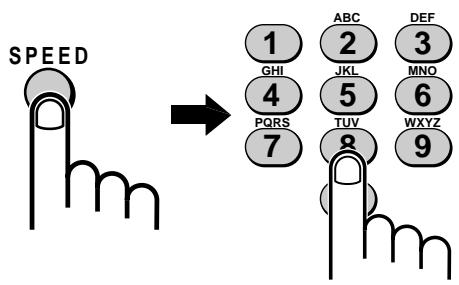
Appuyez sur la touche ABRÉGÉ puis saisissez les deux chiffres du numéro abrégé en appuyant sur les touches numériques.
- Pour saisir les numéros 1 à 9, entrez d'abord 0 puis le numéro.
2
Vérifiez l'affichage. Si le nom ou le numéro affiché est correct, appuyez sur la touche DÉPART. (Sinon, appuyez sur la touche ARRÊT puis répétez l'étape 1.)
Numérotation en chaîne
Un numéro de numérotation automatique configuré pour la numérotation en chaîne (voir "Mémorisation des numéros pour la numérotation automatique" au chapitre 2) peut être combiné avec un autre numéro de numérotation automatique ou avec des chiffres saisis manuellement à l'aide des touches numériques pour composer un numéro de téléphone pouvant contenir jusqu'à 50 chiffres. Voici quelques exemples de la manière de procéder :
◆ Appuyez sur les touches d'appel rapide appropriées dans l'ordre correct. Par exemple, appuyez sur la touche d'appel rapide 01, puis sur la touche d'appel rapide 02. ◆ Saisissez les numéros de numérotation abrégée dans l'ordre correct. Par exemple, appuyez sur la touche NUMÉRO ABRÉGÉ et "22", puis sur la touche NUMÉRO ABRÉGÉ et "23". Appuyez sur la touche DÉPART après le dernier numéro pour lancer la transmission. - Appuyez sur une touche d'appel rapide, puis saisissez manuellement un numéro en appuyant sur les touches numériques appropriées. Appuyez sur la touche DÉPART après la dernière touche numérique pour lancer la transmission. (Utilisez cette méthode, par exemple, lorsque vous avez mémorisé un code d'accès à distance dans une touche d'appel rapide et que vous souhaitez le composer en combinaison avec un numéro qui n'a pas été mémorisé comme numéro de numérotation automatique.)
Utilisation de la touche RECHERCHE NUMÉRO
Si vous ne vous souvenez pas de la touche d'appel rapide ou du numéro de numérotation abrégée dans lequel vous avez mémorisé un numéro de fax particulier, vous pouvez rechercher le numéro en suivant les étapes ci-dessous. Une fois que vous avez trouvé le numéro, vous pouvez le composer et transmettre le document chargé en appuyant simplement sur la touche DÉPART.
| 1 | SEARCH DIAL | Press the SEARCH DIAL key. | |
| 2 |  |  (Example: "B") (Example: "B") | Enter the first letter of the stored name by pressing the appropriate number key (the key which corresponds to the required letter) one or more times until the letter appears in the display. If the name begins with a special character or number, press "1".If you don't remember the first letter, go to Step 3 (you will scroll through the list from the beginning).If a name wasn't stored for the number, press "0". This will cause numbers, not names, to appear when you scroll.To access voice numbers stored in Rapid Keys which have no name, press "0" twice (note that Speed Dial numbers will also appear). |
| 3 |  | or  | Press the "#" key or the "*" key to scroll through the names (numbers if you pressed "0"). Stop when the desired name appears in the display.If no names have been stored that begin with the entered letter, you will scroll from the next name, in alphabetical order, in the list. If no names/numbers have been stored at all, NO DATA will appear. |
3
4
Appuyez sur la touche DÉPART. Le document sera transmis automatiquement une fois la connexion établie.
Remarque : La touche RECHERCHE NUMÉRO peut être utilisée pour accéder au premier numéro d'une séquence de numérotation en chaîne, mais pas aux numéros suivants.
Recomposition
Recomposition automatique
Si vous utilisez la numérotation automatique (y compris la numérotation directe au clavier) et que la ligne est occupée, votre télécopieur recomposera automatiquement le numéro. Jusqu'à 2 tentatives de recomposition seront effectuées à intervalles de 5 minutes.
◆ Pour arrêter la recomposition automatique, appuyez sur la touche ARRÊT. Si vous le souhaitez, vous pouvez modifier le nombre de fois où le télécopieur recompose (de 1 à 4) avec le réglage d'option 6, et l'intervalle entre les recompositions (de 1 à 5 minutes) avec le réglage d'option 7.
Utilisation de la touche RECOMPOSITION
Vous pouvez appuyer sur la touche RECOMPOSITION pour recomposer le dernier numéro composé. Pour envoyer un document, procédez à partir de l'étape 3 de la numérotation normale. Notez que le haut-parleur sera automatiquement activé, vous n'avez donc pas besoin de décrocher le combiné immédiatement.
Utilisation du mode AUTO
Lorsque le mode de réception est réglé sur AUTO (appuyez sur la touche MODE DE RÉCEPTION jusqu'à ce que le voyant AUTO s'allume), votre télécopieur répond automatiquement à tous les appels après 1 sonnerie et reçoit les documents entrants.
- Vous pouvez modifier le nombre de sonneries après lesquelles le télécopieur répond aux appels entrants en modifiant le réglage d'option 2 (voir « Réglages optionnels » au chapitre 6). Vous pouvez sélectionner un nombre de « 1 » à « 5 » (« 1 » à « 3 » sonneries en Irlande). Si vous décrochez le combiné avant que votre télécopieur ne réponde, vous pouvez parler à l'autre partie et/ou recevoir un document comme décrit ci-dessous dans « Utilisation du mode MANUEL ».
Remarque : Les documents envoyés à votre télécopieur en résolution Superfine sont imprimés en résolution Fine.
Utilisation du mode MANUEL
Lorsque le mode de réception est réglé sur MANUEL (appuyez sur la touche MODE DE RÉCEPTION jusqu'à ce que le voyant MANUEL s'allume), vous devez répondre à tous les appels (y compris les transmissions de télécopie) à l'aide du combiné du télécopieur ou d'un téléphone supplémentaire connecté à la même ligne.
Réception de télécopies sur le FO-2600
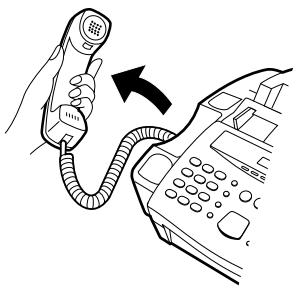
Lorsque votre télécopieur sonne, décrochez le combiné.
- Si vous entendez une tonalité de télécopie, attendez que RÉCEPTION s'affiche, puis raccrochez le combiné.
- Si l'autre partie vous parle d'abord puis souhaite envoyer une télécopie, appuyez sur la touche DÉPART après avoir parlé. Raccrochez le combiné.
Remarque : Si vous avez réglé le réglage d'option 12 sur « OFF » et que vous entendez une tonalité de télécopie lorsque vous décrochez le combiné, vous devez appuyer sur la touche DÉPART pour commencer la réception.
Remarque : En tant que fonction de secours du mode de réception manuel, vous pouvez régler le télécopieur pour qu'il reçoive automatiquement les documents après un nombre de sonneries de « 1 » à « 5 » (« 1 » à « 3 » en Irlande). Cela est utile si vous êtes parfois incapable de répondre personnellement à un appel entrant. Le réglage s'effectue avec le réglage d'option 3. Voir « Réglages optionnels » au chapitre 6.
Sortie des documents reçus
Remarque : La sortie des documents reçus a une capacité maximale de 100 feuilles. Pour éviter que la sortie ne soit obstruée, ce qui peut provoquer des bourrages papier, assurez-vous de retirer fréquemment les documents reçus et les copies. Ne laissez pas un grand nombre de documents s'accumuler dans la sortie.
Réception de télécopies sur un téléphone supplémentaire
Si vous entendez une tonalité de télécopie lorsque vous répondez à un téléphone supplémentaire, attendez que votre télécopieur réponde (le téléphone supplémentaire sera alors muet), puis raccrochez. Votre télécopieur recevra automatiquement le document.
Remarque : Si votre télécopieur ne répond pas dans les 5 secondes, le bruit sur la ligne peut l'empêcher de détecter la tonalité de télécopie. Dans ce cas, activez manuellement la réception de télécopie comme décrit au paragraphe suivant.
Si l'autre partie vous parle d'abord puis souhaite envoyer un document, appuyez sur "5", "*" et "*" si vous êtes sur un téléphone à tonalité ou un téléphone à impulsions capable d'émettre des signaux à tonalité. Si votre téléphone ne peut pas émettre de signaux à tonalité, raccrochez le combiné du poste supplémentaire (la ligne téléphonique restera ouverte tant que l'appelant est en ligne), allez au télécopieur, décrochez le combiné et appuyez sur la touche START.
Remarque : Votre télécopieur n'acceptera pas le signal de début de réception ("5", "*" et "*") si un document est chargé dans son chargeur.
Commentaires :
- Si vous avez réglé l'option 12 sur "OFF" et que vous entendez une tonalité de télécopie lorsque vous répondez au téléphone supplémentaire, vous devez appuyer sur "5", "*" et "*" si vous êtes sur un téléphone à tonalité, ou vous rendre au télécopieur, décrocher le combiné et appuyer sur la touche START si vous êtes sur un téléphone à impulsions.
- Le code utilisé pour activer la réception de télécopie à partir d'un téléphone supplémentaire à tonalité ("5", "*" et "*") peut être modifié si vous le souhaitez. Voir le réglage d'option 10 ("Numéro de télécommande Tél/Fax") au chapitre 6, "Réglages optionnels".
- Si vous n'avez pas l'intention d'utiliser le code d'activation de la réception de télécopie, vous pouvez désactiver la détection du code en réinitialisant le réglage d'option 11. Cela garantira que le télécopieur ne tentera jamais par erreur de commencer la réception s'il détecte un signal similaire à "5", "*" et "*" pendant que vous parlez sur un téléphone supplémentaire.
Basculement automatique télécopie/téléphone
Il s'agit d'une fonction spéciale du mode de réception AUTO qui est pratique pour recevoir à la fois des télécopies et des appels vocaux. Lorsqu'elle est activée, votre télécopieur détecte si un appel entrant est un appel vocal (y compris les transmissions de télécopie composées manuellement) ou une télécopie composée automatiquement. S'il s'agit d'un appel vocal, le télécopieur émettra une sonnerie spéciale pour vous alerter afin que vous répondiez. S'il s'agit d'une transmission de télécopie composée automatiquement, la réception commencera automatiquement.
Commentaires :
- La bascule automatique télécopie/téléphone est normalement utilisée en mode de réception AUTO. Cependant, elle peut également être utilisée en mode de réception MANUEL (téléphone) si le réglage d'option 3 est défini sur OUI.
- Lorsque cette fonction est activée, l'appareil peut ne pas être connecté aux lignes répertoriées dans les annuaires téléphoniques publiés par les opérateurs de réseaux publics. La publication du numéro de cet appareil doit être accompagnée d'une mention de cette fonction.
Activation de la bascule automatique télécopie/téléphone
La bascule automatique télécopie/téléphone est activée en réglant l'option 8 sur "OUI". La procédure pour ce faire est décrite au chapitre 6, "Réglages d'option".
◆ Assurez-vous que le mode de réception est réglé sur AUTO.
Fonctionnement de la fonction
Lorsqu'un appel arrive, votre télécopieur répond après le nombre de sonneries défini dans le réglage d'option 2. Après avoir répondu, le télécopieur surveille la ligne pendant environ 5 secondes pour détecter l'envoi d'une tonalité de télécopie.
Si votre télécopieur détecte une tonalité de télécopie (ce qui signifie que l'appel est une télécopie composée automatiquement), il commence automatiquement la réception du document entrant. Si votre télécopieur ne détecte pas de tonalité de télécopie (ce qui signifie que l'appel est un appel vocal ou une télécopie composée manuellement), il émet une sonnerie spéciale (appelée pseudo-sonnerie) pendant 15 secondes pour vous alerter. Si vous ne répondez pas dans ce délai, votre télécopieur envoie une tonalité de télécopie à l'autre appareil pour permettre à l'appelant d'envoyer une télécopie manuellement s'il le souhaite.
Remarques :
- Seul le télécopieur vous alerte des appels vocaux ou des télécopies composées manuellement par une pseudo-sonnerie. Un téléphone supplémentaire connecté à la même ligne ne sonnera pas après l'établissement de la connexion.
- La durée de la pseudo-sonnerie peut être réglée avec le réglage d'option 9. Voir le chapitre 6, « Réglages facultatifs ».
- Le volume de la pseudo-sonnerie est contrôlé en appuyant sur la touche FONCTION puis sur la touche HAUT-PARLEUR, suivie des touches « # » ou « * ». Assurez-vous que le volume du haut-parleur est suffisamment élevé pour entendre la pseudo-sonnerie.
Faire des copies
Votre télécopieur peut également être utilisé pour faire des copies. Des copies simples et multiples (jusqu'à 99 par original) peuvent être réalisées, ce qui permet à votre télécopieur de servir également de photocopieur de bureau.
◆ La résolution par défaut pour la copie est FINE.
Copies simples
Suivez ces étapes lorsque vous souhaitez faire une seule copie de chaque original dans le chargeur. La copie simple est particulièrement pratique pour faire des copies d'essai de documents à transmettre afin de vérifier si la résolution ou le contraste doit être ajusté.
1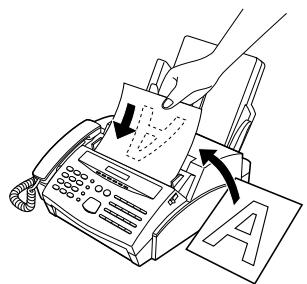
Chargez le(s) document(s) face vers le bas.
- Si vous le souhaitez, ajustez la résolution et/ou le contraste avec la touche RÉSOLUTION.
2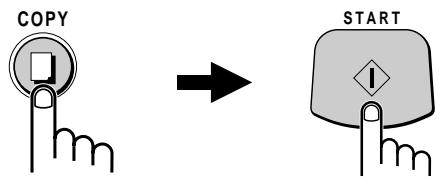
Appuyez sur la touche COPIE, puis sur la touche DÉPART.
Copies multiples
Suivez ces étapes lorsque vous souhaitez effectuer plusieurs copies d'un ou de plusieurs originaux. Vous pouvez effectuer jusqu'à 99 copies par original.
Si vous effectuez plusieurs copies de plus d'un original, vous pouvez choisir de trier les copies (COPIE TRIÉE) ou de ne pas les trier (COPIE MULTIPLE). L'exemple suivant montre comment chaque mode fonctionne lorsque 3 copies de chacun des 3 originaux sont effectuées.
![graph TD A["Sort COPY"] --> B["Originals"] B --> C["MULTI COPY"] subgraph Sorting A1["A"] --> A2["B"] --> A3["C"] A4["A"] --> A5["B"] --> A6["C"] A7["A"] --> A8["B"] --> A9["C"] A10["A"] --> A11["B"] --> A12["C"] A13["A"] --> A14["B"] --> A15["C"] A16["A"] --> A17["B"] --> A18["C"] A19["A"] --> A20[…](/content/2025/01/79050/images/9c0bf230a4c62e44a252920bb5c5fe222f01df58b231d7d9196db8c89b952fb1.jpg)
1
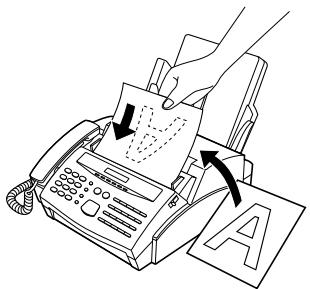
Chargez le ou les documents face vers le bas.
- Si vous le souhaitez, réglez la résolution et/ou le contraste à l'aide de la touche RÉSOLUTION.
2

Appuyez sur la touche COPIE.
3
1 ou 2
Appuyez sur « 1 » pour sélectionner COPIE MULTIPLE, ou sur « 2 » pour sélectionner COPIE TRIÉE.
4
1 2
(Exemple)
Saisissez le nombre de copies souhaité à l'aide des touches numériques.
- Si le nombre de copies souhaité est compris entre 1 et 9, appuyez d'abord sur "0".
5
Appuyez sur la touche START.
Remarque : si vous placez un grand nombre d'originaux dans le chargeur, la mémoire peut se remplir avant que tous aient pu être numérisés (MEMORY FULL s'affichera à l'écran). Si cela se produit, appuyez sur la touche START pour copier les originaux déjà numérisés, puis répétez la procédure de copie multiple pour les originaux restants, y compris celui qui était en cours de numérisation lorsque la mémoire est devenue pleine.
Votre télécopieur peut être utilisé comme un téléphone ordinaire pour passer et recevoir des appels vocaux.
◆ Pour recevoir un appel téléphonique, l'appareil doit être sous tension.
1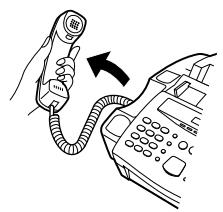
ou
HAUT-PARLEUR
Décrochez le combiné ou appuyez sur la touche HAUT-PARLEUR. Écoutez la tonalité.
- Pour utiliser la numérotation rapide, vous devez appuyer sur la touche HAUT-PARLEUR.
2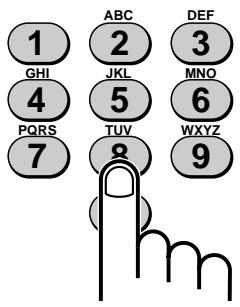
Composez le numéro en utilisant l'une des méthodes suivantes :
- Numérotation normale : composez le numéro de téléphone complet à l'aide des touches numériques.
- Numérotation par touche rapide : appuyez sur la touche rapide appropriée. (Le numéro vocal sera composé.)
- Numérotation abrégée : appuyez sur la touche ABRÉGÉ, puis saisissez le numéro abrégé à 2 chiffres à l'aide des touches numériques.
3
Parlez avec votre correspondant lorsqu'il répond.
- Si vous avez appuyé sur la touche HAUT-PARLEUR, décrochez le combiné.
Utilisation de la touche RECHERCHE
Vous pouvez utiliser la touche RECHERCHE pour rechercher un numéro de touche rapide ou un numéro abrégé. Recherchez d'abord le numéro comme décrit dans "Utilisation de la touche RECHERCHE" dans "Envoi de documents" de ce chapitre, puis décrochez le combiné ou appuyez sur la touche HAUT-PARLEUR. Le numéro sera composé automatiquement après cela (n'appuyez pas sur la touche DÉPART).
Recomposition
Le dernier numéro appelé peut être recomposé en appuyant sur la touche RECOMPOSITION (il n'est pas nécessaire de décrocher le combiné ou d'appuyer sur la touche HAUT-PARLEUR). Lorsque votre correspondant répond, décrochez le combiné.
Émission de signaux de tonalité
Si vous êtes sur une ligne à impulsions, vous pouvez utiliser la touche "*" pour émettre temporairement des signaux de tonalité lorsque vous appuyez sur les touches numériques. Cela vous permet d'utiliser certains services téléphoniques qui nécessitent la saisie de signaux de tonalité.
Lorsque vous devez saisir un ou plusieurs signaux de tonalité, appuyez sur la touche "*" puis sur les touches numériques appropriées.
Pour revenir au mode impulsions, raccrochez simplement (le mode de numérotation revient automatiquement au réglage de l'option 19 lorsque vous raccrochez).
Opérations PBX et services réseau
Si votre télécopieur est connecté à un PBX, vous pouvez l'utiliser pour effectuer les opérations suivantes :
Appels de consultation : Pendant un appel, vous pouvez mettre l'autre partie en attente, passer un autre appel à un tiers, puis revenir à votre correspondant initial. ◆ Transfert d'appels : Vous pouvez transférer un appel vers un autre numéro sur le même PBX sans l'aide d'un opérateur.
Remarque : L'appareil est également entièrement compatible avec les services réseau de British Telecom et peut être utilisé avec toute fonction nécessitant une commande de rappel.
Remarque : Pour effectuer les opérations PBX ci-dessus, le réglage d'option 21 doit être défini sur le mode de rappel approprié pour votre PBX (voir chapitre 6, « Réglages optionnels »). Consultez le manuel de votre PBX ou votre fournisseur pour connaître le mode de rappel correct. Si vous utilisez les services réseau de British Telecom, le réglage d'option 21 doit être défini sur rappel par coupure (réglage d'usine initial).
Appels de consultation
1
Pendant la conversation téléphonique, appuyez sur la touche R. Cela met l'autre partie en attente.
2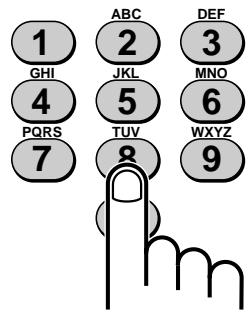
Lorsque vous entendez la tonalité, composez le numéro du tiers pour l'appel de consultation.
3
Lorsque vous avez terminé l'appel de consultation, vous êtes automatiquement ramené à l'appelant d'origine dès que le tiers raccroche.
Transfert d'appels
1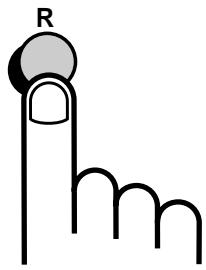
Pendant la conversation téléphonique, appuyez sur la touche R. Cela met l'autre partie en attente.
2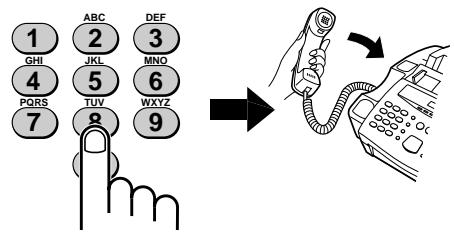
Lorsque vous entendez la tonalité, composez le numéro vers lequel vous souhaitez transférer l'appel. Lorsque l'autre partie répond, raccrochez et l'appel sera transféré.
- Si l'autre partie ne répond pas, appuyez à nouveau sur la touche R pour revenir à l'appelant d'origine.
Si vous avez branché un répondeur à votre télécopieur comme décrit dans « Assemblage et connexions » au chapitre 1, vous pouvez recevoir à la fois des messages vocaux et des télécopies sur la même ligne pendant votre absence. Pour utiliser cette connexion, modifiez d'abord le message d'accueil de votre répondeur, puis réglez le mode de réception de votre télécopieur sur ANS. lorsque vous sortez.
Modification du message d'accueil
Le message d'accueil (OGM) de votre répondeur doit être modifié pour informer les appelants qui souhaitent envoyer une télécopie d'appuyer sur leur touche Départ. Par exemple, votre message pourrait être le suivant :
« Bonjour. Vous avez joint la société ABC. Personne n'est disponible pour prendre votre appel pour le moment. Veuillez laisser un message après le bip sonore ou appuyer sur la touche Départ de votre télécopieur pour envoyer une télécopie. Merci d'avoir appelé. »
Remarques :
- Il est conseillé de garder le message d'une durée inférieure à 10 secondes. S'il est trop long, vous pourriez avoir des difficultés à recevoir les télécopies envoyées par numérotation automatique.
- Vos appelants peuvent même laisser un message vocal et envoyer une télécopie au cours du même appel. Modifiez votre message d'accueil pour expliquer qu'ils peuvent d'abord laisser un message vocal, puis appuyer sur leur touche Départ pour envoyer une télécopie.
Lorsque vous sortez
1
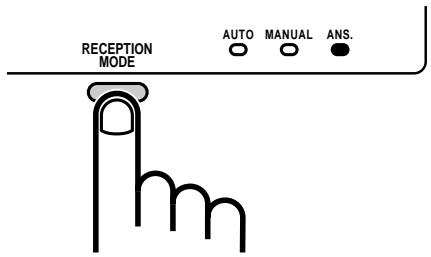
Réglez le mode de réception de votre télécopieur sur ANS. en appuyant sur la touche MODE DE RÉCEPTION.
2
Réglez votre répondeur sur réponse automatique.
- Idéalement, il devrait être réglé pour répondre après deux sonneries au maximum.
Remarque : Si votre répondeur dispose d'une fonction d'interrogation à distance, assurez-vous que le code utilisé pour activer l'interrogation à distance est différent de celui utilisé pour activer la réception de fax avec un téléphone supplémentaire (voir « Réception de documents » au chapitre 3). S'ils sont identiques, la saisie du code depuis un téléphone externe pour récupérer les messages activera le fax.
Fonctionnement du mode répondeur
Pendant votre absence, tous vos appels entrants seront pris par votre répondeur qui diffusera son message d'accueil. Pendant ce temps, votre fax surveillera la ligne en silence. S'il détecte une transmission de fax, il prendra la ligne et commencera la réception.
- Si la connexion est de mauvaise qualité ou s'il y a du bruit sur la ligne, le répondeur et/ou le fax peuvent ne pas répondre correctement.
- Le compteur d'appels de votre répondeur peut indiquer que des messages vocaux ont été reçus, alors que seuls des fax ont été reçus.
Remarque : Pour empêcher le fax de prendre la ligne et de commencer la réception si vous appelez depuis un téléphone externe ou répondez sur un poste supplémentaire, appuyez sur trois touches quelconques (autres que le code d'activation de réception de fax, « 5 », « ✗ » et « ✗ ») sur le clavier du téléphone. Cette opération n'est possible qu'avec un téléphone à tonalité.
Si cela ne fonctionne pas
Si la connexion ne fonctionne pas correctement, vérifiez d'abord les points suivants :
Le répondeur est-il correctement connecté au fax ? Une extrémité de la ligne du répondeur doit être insérée dans la prise « EXT. TEL. » du fax (« TEL. SET » en Irlande), et l'autre extrémité dans la prise téléphonique du répondeur. ◆ Le mode de réception est-il réglé sur ANS ?
Si les réglages et connexions ci-dessus sont corrects et que la connexion ne fonctionne toujours pas correctement, il est probable que la synchronisation entre le répondeur et le fax ne soit pas bonne. Certains problèmes de synchronisation courants et leurs solutions sont décrits ci-dessous.
De plus, lisez la section suivante, « Comment les transmissions de fax sont détectées », pour mieux comprendre comment le fax fonctionne lorsqu'un répondeur est connecté. Cela vous aidera à déterminer la marche à suivre.
◆ Les appelants qui souhaitent laisser un message vocal sont-ils interrompus par le fax avant de pouvoir le faire ?
Le fax est configuré pour prendre la ligne et commencer la réception s'il détecte une durée de silence spécifiée (appelée « Temps de détection de silence »). Si votre message d'accueil contient une pause ou si l'appelant fait une pause en laissant un message, et que la pause est plus longue que la durée spécifiée, le fax interrompra.
Il est préférable de raccourcir ou d'éliminer ces pauses, mais si nécessaire, vous pouvez également essayer d'allonger le réglage du temps de détection de silence. Cette procédure est décrite dans « Réglages optionnels du mode A.M. » à la fin de ce chapitre.
- Les appelants qui souhaitent envoyer un fax manuellement ont-ils des difficultés après la diffusion du message d'accueil de votre répondeur ?
Si c'est le cas, le répondeur peut couper la ligne (raccrocher) avant que votre télécopieur n'ait la chance de prendre la ligne et de commencer la réception. Vous pouvez faire en sorte que votre télécopieur s'active plus tôt en raccourcissant le réglage du temps de détection du silence. Cette procédure est décrite dans « Réglages du mode A.M. en option » à la fin de ce chapitre.
◆ Avez-vous des difficultés à recevoir des documents envoyés par numérotation automatique ?
Assurez-vous que le message d'accueil de votre répondeur dure moins de 10 secondes et que votre répondeur est réglé pour répondre après 2 à 4 sonneries. L'insertion d'une courte pause au début du message d'accueil de votre répondeur peut également aider, car cela donne à votre télécopieur la chance d'entendre et de détecter clairement la tonalité d'« appel » de télécopie que le télécopieur émetteur envoie en cas de numérotation automatique.
Comment les transmissions de télécopie sont détectées :
Votre télécopieur détecte les transmissions de télécopie de deux manières lorsqu'un répondeur est connecté, selon que le document est envoyé automatiquement ou manuellement :
Numérotation automatique :
Si le document est envoyé à l'aide d'une forme de numérotation automatique, telle que la numérotation rapide ou la numérotation abrégée, le télécopieur émetteur enverra une « tonalité d'appel » à intervalles de 3 secondes pendant une période d'environ 30 à 40 secondes après la numérotation. Lorsque votre télécopieur détecte cette tonalité, il déconnecte le répondeur, envoie une « tonalité de réception » en réponse et commence à recevoir la transmission.
Si le télécopieur émetteur ne reçoit pas de tonalité de réception de votre télécopieur dans les 30 à 40 secondes suivant la numérotation, il raccroche généralement et recompose automatiquement quelques minutes plus tard.
Étant donné que votre télécopieur peut ne pas être en mesure de détecter la tonalité d'appel du télécopieur émetteur avant la fin du message d'accueil, il est important que le répondeur réponde à l'appel dans les 4 sonneries et que le message d'accueil ne dure pas trop longtemps. Sinon, votre télécopieur pourrait ne pas être en mesure d'établir une communication avec le télécopieur émetteur avant que ce dernier ne raccroche.
Numérotation manuelle :
Si le document est envoyé par numérotation normale (manuelle), le télécopieur émetteur n'envoie pas de tonalité d'appel. Au lieu de cela, la personne qui envoie la télécopie attend normalement d'entendre une tonalité de réception, puis appuie sur sa touche de démarrage. Dans le cas d'une connexion avec répondeur, elle entendra votre message d'accueil au lieu d'une tonalité de réception, puis appuiera sur sa touche de démarrage.
Cependant, cela ne signale pas une transmission de télécopie à votre télécopieur. Au lieu de cela, il doit utiliser une fonction appelée « temps de détection du silence » pour détecter la transmission. Cette fonction amène votre télécopieur à déconnecter le répondeur et à commencer la réception s'il détecte une certaine durée de silence.
Votre télécopieur est réglé pour commencer automatiquement la réception de télécopies s'il détecte un silence de 4 secondes. Lorsque la personne qui envoie la télécopie appuie sur sa touche de démarrage, la ligne devient silencieuse et le télécopieur émetteur attend une tonalité de réception de votre télécopieur. Votre télécopieur déconnectera donc le répondeur 4 secondes après l'appui sur la touche et enverra une tonalité de réception pour indiquer à l'autre télécopieur de commencer la transmission.
Si votre répondeur a un temps de déconnexion rapide et déconnecte la ligne avant que 4 secondes ne se soient écoulées, la réception de télécopies ne sera pas possible. Dans ce cas, vous devez raccourcir le réglage du temps de détection de silence comme décrit à la page suivante. En revanche, si le réglage du temps de détection de silence est trop court, votre télécopieur peut interrompre les appelants vocaux s'ils font une pause pendant leur message ou s'il y a une période de silence dans votre message sortant.
MÉMOIRE
Votre télécopieur dispose d'une mémoire qui peut être utilisée pour stocker à la fois les documents entrants et sortants.
- Environ 28 pages de contenu moyen (selon la carte de test ITU-T n° 1 en résolution standard) peuvent être conservées en mémoire si elles sont toutes à transmettre, ou 32 pages si elles sont toutes reçues (39 pages reçues si le réglage d'option 20, mode de correction d'erreurs, est réglé sur NON). Moins peut être conservé si des documents ont été numérisés en résolution fine ou en demi-teintes. Si vous avez besoin de plus de mémoire, une option d'extension de 1 Mo est disponible auprès de votre revendeur ou détaillant, qui augmentera la capacité à 92 pages de transmission ou 92 pages reçues (99 pages reçues si le mode de correction d'erreurs est réglé sur NON).
Envoi de documents depuis la mémoire
Avec cette fonction, le document original est numérisé immédiatement, stocké en mémoire, puis transmis une fois la connexion avec le télécopieur destinataire établie. C'est pratique pour transmettre vers des endroits où la ligne est souvent occupée, car cela vous évite d'attendre pour récupérer le document original et libère le chargeur pour d'autres opérations.
♦ Une seule transmission en mémoire peut être définie à la fois. - La quantité de mémoire actuellement occupée apparaît en pourcentage sur l'écran pendant la numérisation du document.
1
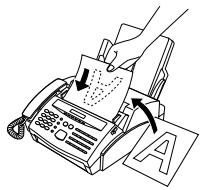
Chargez le(s) document(s).
- Réglez la résolution et/ou le contraste si nécessaire.
2

Appuyez sur la touche MÉMOIRE.
3
![graph LR A["SPEED"] --> B["0"] B --> C["1"] style A fill:#fff,stroke:#000 style B fill:#fff,stroke:#000 style C fill:#fff,stroke:#000 note bottom of C (Example)](/content/2025/01/79050/images/95f20d113961211fb20aa22b248e3a0d8b12c8ae1d58247aaf1da85587c0eec1.jpg)
Entrez le numéro du télécopieur destinataire en utilisant l'une des méthodes suivantes :
- Appuyez sur une touche rapide.
- Appuyez sur la touche NUMÉRO ABRÉGÉ et saisissez un numéro de numérotation abrégée.
- Composez un numéro de téléphone complet en appuyant sur les touches numériques.
4
Appuyez sur la touche DÉPART si vous avez saisi un numéro abrégé ou un numéro complet.
- Le document est d'abord numérisé et stocké en mémoire. L'autre appareil est ensuite appelé (la composition est répétée automatiquement si nécessaire). Lorsque la connexion est établie, la transmission commence. Ensuite, le document est effacé de la mémoire et votre télécopieur revient en mode veille.
Si la mémoire est pleine...
Si la mémoire est pleine pendant la numérisation du document, MÉMOIRE PLEINE s'affiche à l'écran.
- Appuyez sur la touche DÉPART si vous souhaitez transmettre les pages qui ont été stockées jusqu'à ce point en mémoire. Les pages restantes seront éjectées du chargeur. Après la transmission, la mémoire sera effacée et vous pourrez transmettre les pages restantes. Vous devrez également transmettre la page qui était en cours de numérisation lorsque la mémoire s'est remplie. ◆ Appuyez sur la touche ARRÊT si vous souhaitez annuler toute la transmission.
Réception de substitution en mémoire
Il s'agit d'une fonction de secours qui est activée automatiquement si votre télécopieur manque de papier, si la cartouche d'imagerie doit être remplacée ou si le papier est coincé.
Lorsque vous avez reçu un document en mémoire, RÉCEPTION EN MÉMOIRE s'affiche à l'écran, en alternance avec VÉRIFIER PAPIER, REMPLACER TONER ou BOURRAGE PAPIER. Lorsque vous ajoutez du papier, remplacez la cartouche d'imagerie ou dégagez le bourrage, les documents stockés sont automatiquement imprimés.
Attention !
- Lorsque des documents sont stockés en mémoire, ne coupez pas l'alimentation. Cela effacerait tout le contenu.
- Si des documents reçus en mémoire sont perdus en raison d'une panne de courant ou d'une autre interruption de l'alimentation électrique, un « RAPPORT D'EFFACEMENT » sera imprimé lorsque l'alimentation sera rétablie. Il donne des informations sur les réceptions perdues, y compris les numéros de télécopieur des appareils émetteurs s'ils sont disponibles.
RÉSERVATION DE TRANSMISSION
Lorsque votre télécopieur est occupé à recevoir un document ou à transmettre un document depuis la mémoire, vous pouvez « réserver » une transmission en chargeant le document et en saisissant le numéro de télécopieur. Une fois l'opération en cours terminée, votre télécopieur composera automatiquement le numéro et transmettra le document, ce qui vous évite d'attendre.
1
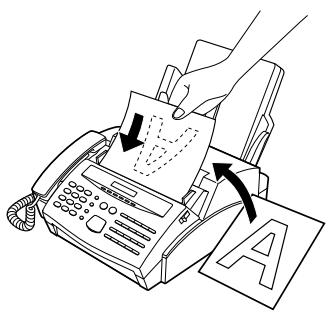
Chargez le ou les documents.
- RÉSERVE PRÊTE apparaît à l'écran.
- Réglez la résolution et/ou le contraste si nécessaire.
2
![graph LR A["SPEED"] --> B["0"] B --> C["1"]](/content/2025/01/79050/images/4e84bf31016aa78bde4fc8bdbfa18b5db7661003cde62d6c85080d0d7c2afd51.jpg)
Saisissez le numéro du télécopieur destinataire en utilisant l'une des méthodes suivantes :
- Appuyez sur une touche de numérotation rapide.
- Appuyez sur la touche NUMÉRO et saisissez un numéro de numérotation abrégée.
- Saisissez un numéro complet à l'aide des touches numériques.
3
Appuyez sur la touche DÉPART si vous avez saisi un numéro abrégé ou un numéro complet.
- Le numéro sera composé une fois l'opération en cours terminée, et la transmission commencera dès que la connexion sera établie.
Remarque : Si le document est retiré du chargeur après avoir défini une réservation de transmission, la réservation sera annulée.
DIFFUSION
Cette fonction vous permet d'envoyer le même document à 50 destinations différentes en une seule opération. Vous introduisez le document dans la machine une seule fois et il est stocké en mémoire. Ensuite, les numéros que vous avez saisis sont composés automatiquement en séquence, et le document est transmis à chaque destination.
Pour saisir les numéros de fax des machines réceptrices, vous devez utiliser les touches rapides, les numéros de numérotation abrégée ou les touches de groupe ; aucun numéro complet ne peut être saisi.
| 1 | 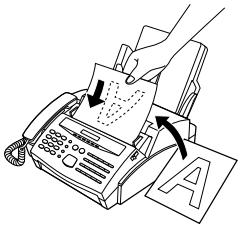 | Load the document(s). |
| 2 |  | Press the BROADCAST key. |
| 3 |  (Example) (Example) | Dial the receiving units using one or more of the following methods:Press one or more Rapid Keys.Enter Speed Dial numbers with the numeric keys.Press one or more Group Keys. |
| 4 |  | Press the START key.Set the resolution and/or contrast if desired. |
| 5 |  | Press the START key. Transmission will begin.A Transaction Report is automatically printed out after Broadcasting is completed. Check the "Note" column of the report to see if any of the locations are marked "Busy" or have a communication error code. If so, send the document to those locations again. |
Diffusion à l'aide d'une touche de groupe
Si les télécopieurs vers lesquels vous souhaitez diffuser ont tous été programmés dans une seule touche de groupe, vous pouvez effectuer l'opération de diffusion en utilisant la procédure simplifiée suivante :
1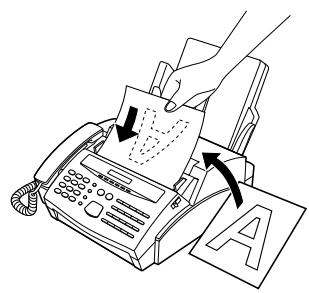
Chargez le ou les documents.
- Effectuez les réglages de transmission souhaités (résolution, contraste, etc.).
2
Appuyez sur la touche de groupe appropriée. La transmission commencera.
(Exemple)
TRANSMISSION CONFIDENTIELLE
La fonction Confidentiel est utilisée pour envoyer des documents de manière confidentielle. Lorsque la machine réceptrice reçoit le document, elle le stocke en mémoire au lieu de l'imprimer immédiatement. L'impression ne sera effectuée que lorsque le destinataire aura saisi le bon code d'accès.
◆ La transmission confidentielle n'est possible que si la machine réceptrice est un modèle Sharp doté d'une capacité de réception confidentielle. ◆ La réception confidentielle n'est pas possible avec le FO-2600.
| 1 |  | Load the document(s).Make any desired transmission settings (resolution, contrast, etc.). |
| 2 | 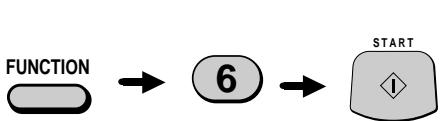 | Press the FUNCTION key, "6", and the "START" key.CONF. TX MODE will appear in the display. |
| 3 |  (Example) (Example) | If the receiving machine has multiple mailboxes, enter the appropriate 2-digit mailbox number with the numeric keys (if not, skip this step). |
| 4 |  | Press the START key. |
| 5 |  (Example) (Example) | Dial the receiving unit using one of the following methods:Press a Rapid Key.Press the SPEED key and enter a Speed Dial number. Press the START key.Enter a full telephone number with the numeric keys, and press the START key.Transmission will take place once the connection is made. |
INTERROGATION
La fonction de télécopie par interrogation vous permet de demander à un autre télécopieur de vous envoyer un document. En d'autres termes, c'est le télécopieur récepteur, et non le télécopieur émetteur, qui déclenche la transmission. Vous pouvez utiliser votre télécopieur pour interroger d'autres appareils et être interrogé par eux.
Réglage de la touche d'interrogation
Pour utiliser la fonction d'interrogation, vous devez d'abord configurer la touche rapide 16/POLL comme touche d'interrogation. Pour ce faire, appuyez sur les touches du panneau comme indiqué ci-dessous.
La touche d'interrogation ne peut pas être utilisée à la fois pour la numérotation rapide et pour l'interrogation. Si elle a déjà été programmée pour la numérotation rapide, vous devez d'abord l'effacer comme décrit dans "Mémorisation des numéros pour la numérotation automatique" au chapitre 2.
| Step | Press these keys: | Comments |
| 1 |   | ENTRY MODE will appear in the display. |
| 2 |   | POLLING FUNCTION will appear in the display. |
| 3 |  | Press "1" to turn the polling function on, or "2" to turn it off. |
| 4 |  | |
| 5 |  | Exit. |
Interroger d'autres télécopieurs
1
(Exemple)
Composez le numéro du télécopieur que vous souhaitez interroger en utilisant l'une des méthodes suivantes :
- Décrochez le combiné (ou appuyez sur la touche HAUT-PARLEUR) et composez le numéro complet. Attendez la tonalité de réponse du télécopieur.
- Appuyez sur la touche RAPIDE et entrez un numéro de numérotation rapide à 2 chiffres.
- Entrez le numéro complet à l'aide des touches numériques.
2
Appuyez sur la touche rapide 16/POLL.
- Si vous avez utilisé le combiné, raccrochez-le lorsque INTERROGATION apparaît à l'écran. La réception commencera.
Être interrogé (veille d'interrogation)
Pour permettre à un autre télécopieur d'interroger votre télécopieur, réglez simplement le mode de réception sur AUTO et chargez le ou les documents à envoyer.
La transmission aura lieu lorsque l'autre télécopieur appellera votre télécopieur et activera l'interrogation. La réception automatique est possible pendant que votre télécopieur est en attente d'interrogation.
Sécurité d'interrogation
La sécurité d'interrogation vous permet d'empêcher toute interrogation non autorisée de votre télécopieur. Lorsque cette fonction est activée, l'interrogation n'aura lieu que si le numéro de télécopieur de l'appareil qui interroge a été saisi dans la liste des numéros autorisés de votre télécopieur (appelés « numéros de code d'accès »). Le numéro du télécopieur qui interroge doit également être correctement programmé dans celui-ci.
Activation et désactivation de la sécurité d'interrogation
| Step | Press these keys: | Comments |
| 1 |   | ENTRY MODE will appear in the display. |
| 2 |    | SECURITY SELECT will appear in the display. |
| 3 |  | Press "1" to turn polling security on, or "2" to turn it off. |
| 4 |  | |
| 5 |  | Exit. |
Mémorisation et effacement des numéros de télécopieur pour l'autorisation d'interrogation
Vous pouvez mémoriser jusqu'à 10 numéros de télécopieur dans la liste des numéros autorisés de votre télécopieur.
| Step | Press these keys: | Comments |
| 1 |   | ENTRY MODE will appear in the display. |
| 2 |  | PASSCODE # MODE will appear in the display. |
| 3 |  | Press "1" to set a number, or "2" to clear a number. |
| 4 |  (Example) (Example) | Storing: Enter a 2-digit number (from 01 to 10). This number identifies the fax number you will enter in the next step.Clearing: Enter the 2-digit number which identifies the fax number you want to clear, and go to Step 6. |
| 5 |  (Example) (Example) | Enter the fax number (max. 20 digits). |
| 6 |  | |
| 7 | Step 4 or  | Return to Step 4 to enter another number, or press STOP to exit. |
DEMANDE DE RELAIS
La demande de relais vous permet d'envoyer un document à un autre télécopieur et de faire diffuser ce document par ce télécopieur à un certain nombre d'autres télécopieurs. Cette fonction est utile lorsque le télécopieur relais est plus proche des télécopieurs destinataires que votre télécopieur, car elle réduit les coûts de ligne téléphonique.
Important :
- La demande de relais ne peut être utilisée que si le télécopieur relais intermédiaire est un appareil Sharp doté de la fonction de diffusion par relais (notez que votre télécopieur ne peut pas servir de relais).
Mémorisation d'un groupe de relais
Pour faire une demande de relais, vous devez d'abord saisir le groupe de relais. Celui-ci se compose du numéro de télécopieur du relais intermédiaire et des numéros de télécopieur des machines réceptrices finales. Un seul groupe peut être saisi, et ce groupe restera en mémoire jusqu'à ce qu'il soit effacé.
Seul un numéro de touche rapide ou un numéro de numérotation abrégée peut être saisi pour spécifier le relais ; un numéro complet ne peut pas être saisi. - Les numéros de télécopieur des machines réceptrices finales peuvent être saisis comme numéros de touche rapide, numéros de numérotation abrégée et/ou numéros de groupe s'ils ont été mémorisés comme tels dans le relais (pas dans votre télécopieur). Vérifiez auprès de l'opérateur du relais ces numéros. - Le nombre total de machines réceptrices finales pouvant être saisies varie selon le modèle utilisé comme relais intermédiaire. Vérifiez auprès de l'opérateur du relais combien de machines réceptrices peuvent être saisies. Un maximum de 400 emplacements sont disponibles en mémoire pour stocker les numéros des machines réceptrices finales. Le nombre d'emplacements occupés par chaque numéro dépend du type de numéro :
Numéro de touche rapide : 4 emplacements
Numéro de composition abrégée : 2 espaces
Numéro de clé de groupe : 4 espaces (pour un groupe)
Numéro complet : nombre de chiffres dans le numéro (par exemple, un maximum de 13 numéros complets peut être saisi, avec un maximum de 30 chiffres par numéro).
| Step | Press these keys: | Comments |
| 1 |   | RELAY FUNCTION will appear in the display. |
| 2 |   | SET RELAY GROUP will appear in the display. |
| 3 |  | |
| 4 |   (Example) (Example) | Enter the fax number of the relay machine by pressing a Rapid Key or entering a 2-digit Speed Dial number with the numeric keys. |
| 5 |  | |
| 6 |   (Example) (Example) | Enter the relay machine's Rapid Key numbers of the end receiving machines by pressing numeric keys (not Rapid Keys). (Skip this step if you don't want to enter Rapid Key numbers.) |
| 7 |  | |
| 8 |   (Example) (Example) | Enter the relay machine's Speed Dial numbers of the end receiving machines by pressing numeric keys. (Skip this step if you don't want to enter Speed Dial numbers.) |
| 9 |  | |
| 10 |   (Example) (Example) | Enter numbers of Group Keys for end machines by pressing numeric keys. (Skip this step if you don't want to enter Group Key numbers.) |
| 11 |  | |
| 12 | [04D7]       (Example) (Example) | Enter a full fax number (skip this step if you don't want to enter full numbers). Include the area code (e.g. "201") if the number is outside of the calling area of the relay unit. |
| 13 |  | |
| 14 |  | Press START and go back to Step 12 if you want to enter another full number. |
Pour effacer le groupe de diffusion
| Step | Press these keys: | Comments |
| 1 |   | RELAY FUNCTION will appear in the display. |
| 2 |  | CLEAR RELAY GRP will appear in the display. |
| 3 |  | |
| 4 |  | Exit. |
Effectuer une demande de relais
Important :
- Pour effectuer une demande de relais, votre numéro de fax doit être inscrit dans la liste des codes d'accès au relais de la machine de télécopie relais par l'opérateur de cette télécopie. (Votre numéro doit également être correctement saisi dans votre télécopieur, comme décrit dans « Saisie de votre nom et de votre numéro de fax » au chapitre 2.)
1
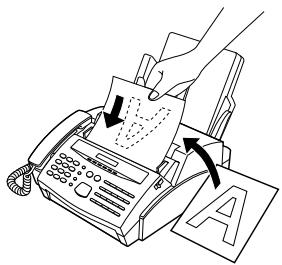
Chargez le document.
- Réglez la résolution et/ou le contraste si nécessaire.
2

Appuyez sur la touche FONCTION, la touche « 5 » et la touche « # ».
3
Appuyez sur la touche DÉPART.
La fonction de temporisation vous permet de programmer une opération d'envoi ou de télécopie à distance pour qu'elle soit exécutée automatiquement à une heure que vous spécifiez. Jusqu'à deux opérations d'envoi (une depuis le chargeur et une depuis la mémoire) et une opération de télécopie à distance peuvent être programmées à tout moment, et les heures d'exécution peuvent être spécifiées jusqu'à une semaine à l'avance.
Vous pouvez utiliser cette fonction, par exemple, pour profiter des tarifs téléphoniques réduits en dehors des heures de pointe sans avoir à être présent lorsque l'opération est effectuée.
Pour une transmission différée, vous pouvez soit numériser le document en mémoire lors de la programmation de la transmission, soit laisser le document dans le chargeur avant l'heure de transmission. La numérisation du document en mémoire est pratique car vous n'avez pas à vous soucier des mélanges de documents ou d'oublier de charger le document. Si une transmission depuis le chargeur est programmée, un « T » en surbrillance apparaîtra à droite de l'écran. ◆ Les codes numériques sont utilisés pour spécifier les jours de la semaine. Reportez-vous au tableau ci-dessous lors des réglages d'heure incluant un jour spécifié :
| Day | SUN | MON | TUE | WED | THU | FRI | SAT |
| Code | 0 | 1 | 2 | 3 | 4 | 5 | 6 |
Remarque : Seules les transmissions normales et les opérations de sondage peuvent être programmées à l'aide de la procédure décrite ci-dessous. Si vous souhaitez programmer une diffusion, une transmission confidentielle ou une demande de relais à une heure spécifiée, programmez l'opération dans une touche de programme et incluez un réglage de minuterie. Ceci est décrit dans « Saisie et utilisation des programmes » dans ce chapitre.
- Seul un numéro abrégé/rapide peut être saisi pour une transmission différée, un numéro composé directement ne peut pas être saisi.
- Une opération différée est automatiquement effacée de la mémoire après son exécution.
- Pour inclure une page de garde avec une transmission différée, suivez la procédure du chapitre 3 avant d'effectuer le réglage comme ci-dessous.
Réglage d'une opération différée
| Step | Press these keys: | Comments |
| 1 |   | TIMER MODE will appear in the display. |
| 2 |  | Select SET. |
| 3 |  or or  | Press "#" to set a transmission operation (SEND MODE), or "*" to set a polling operation (POLLING MODE). |
| 4 |  | |
| 5 | 1   (Example) (Example) | Enter the time of the operation (2 digits for the hour and 2 digits for the minute). |
| 6 |  (Example) (Example) | Enter the code for the day of the operation (skip this step if the operation will be performed within the next 24 hours). |
| 7 |  | |
| 8 |  (Example) (Example) | Enter the fax number of the other machine using one of the following methods:Press a Rapid Key.Enter a Speed Dial number with the numeric keys. |
| 9 |  | |
| 10 | RESOLUTION | If this is a transmission operation, adjust the resolution and/or contrast if desired. (Otherwise, skip this step.) |
| 11 |  | |
| 12 |  | Transmission operation: If you want to send the document from memory, load it now and press MEMORY. Otherwise, press START and load the document any time before the set transmission time. If a non-memory timer transmission has already been set (START: END OF SET will appear), you must load the document now and press START to send it from memory.Polling operation: Press START. |
Pour annuler une opération
Si vous devez annuler une opération après l'avoir programmée, suivez les étapes ci-dessous.
Si l'opération est une transmission, vous aurez besoin de connaître le numéro qui lui est attribué. Si vous ne vous souvenez pas du numéro (il apparaît à l'écran lors de la programmation), imprimez la liste des différés. Voir le chapitre 7, « Impression de rapports et de listes ».
| Step | Press these keys: | Comments |
| 1 |   | TIMER MODE will appear in the display. |
| 2 |  | Select CLEAR. |
| 3 |  (Example) (Example) | Enter the 1-digit timer number assigned to the operation. |
| 4 |  | |
| 5 |   | Exit. |
SAISIE ET UTILISATION DES PROGRAMMES
Si vous effectuez fréquemment la même opération avec le même correspondant, vous pouvez programmer toutes les étapes de l'opération dans une touche de programme. Cela vous permet d'effectuer l'opération en appuyant simplement sur cette touche.
◆ Les touches rapides 17/P1 et 18/P2 peuvent être utilisées comme touches de programme. Cependant, une touche ne peut pas être utilisée si elle est déjà utilisée pour la numérotation rapide. Seules les touches rapides, les numéros abrégés et les touches de groupe peuvent être utilisés pour saisir les numéros de fax des appareils récepteurs dans les touches de programme. Les numéros complets ne peuvent pas être saisis. Vous pouvez également inclure un réglage de minuterie dans le programme pour que l'opération soit effectuée automatiquement à une heure choisie. ◆ Pour effacer une erreur, appuyez sur la touche STOP.
Procédure initiale
Pour programmer une opération, effectuez d'abord la procédure de base suivante. Après l'avoir terminée, reportez-vous à la procédure de l'opération spécifique que vous souhaitez programmer.
Les numéros de code sont utilisés pour définir les jours de la semaine. Reportez-vous au tableau ci-dessous lors des réglages d'heure qui incluent un jour spécifié :
| Day | SUN | MON | TUE | WED | THU | FRI | SAT |
| Code | 0 | 1 | 2 | 3 | 4 | 5 | 6 |
| Step | Press these keys: | Comments |
| 1 | PROGRAM/GROUP will appear in the display. | |
| 2 | PRG. ENTRY MODE will appear in the display. | |
| 3 | Select SET. | |
| 4 | Select a Program Key by pressing the appropriate Rapid Key. | |
| 5 | Enter a name for the program (max. of 20 letters). (See "Entering Letters for Names" in Chapter 2.)Skip this step if you don't want to enter a name. | |
| 6 |  | |
| 7 |  (Example) (Example) | Enter the hour (2 digits: "00" to "23"). If you don't want to make a timer setting, go to Step 10. |
| 8 |  (Example) (Example) | Enter the minute (2 digits - "00" to "59"). |
| 9 |  (Example) (Example) | Enter the day of the week by entering the appropriate code number (see previous table). (Skip this step if the operation will be done within 24 hours of pressing the Program Key.) |
| 10 |  | |
| 11 |    | Press the "#" key or "*" key until the desired operation appears in the display.The operations will appear in the following order:• Transmission• Polling• Confidential transmission• Broadcasting• Relay Request |
| 12 |  | Continue with the specific procedure for your operation (see the following pages). |
Transmission
(Suite de la "Procédure initiale".)
| 13 |  (Example) (Example) | Enter the fax number of the other machine using one of the following methods:• Press a Rapid Key.• Enter a Speed Dial number with the numeric keys. |
| 14 |  | |
| 15 | RESOLUTION  | Adjust the resolution and contrast if desired (otherwise skip this step). |
| 16 |  | |
| 17 |  [cast] [cast] [cast] [cast]  | If you want the document to be sent from memory, press MEMORY.If you want the document to be sent from the feeder, press START. |
| 18 |  | Exit. |
Interrogation
(Suite de la "Procédure initiale".)
| 13 |  | |  (Example) (Example) | Enter the fax number of the other machine using one of the following methods:Press a Rapid Key.Enter a Speed Dial number with the numeric keys. |
| 14 |  | |
| 15 | STOP | Exit. |
Transmission confidentielle
(Suite de la "Procédure initiale".)
| 13 |  (Example) (Example) | Enter the mailbox number (2 digits). (Skip this step if the receiving machine does not have mailboxes.) |
| 14 |  | |
| 15 |  (Example) (Example) | Enter the fax number of the other machine using one of the following methods:Press a Rapid Key.Enter a Speed Dial number with the numeric keys. |
| 16 |  | |
| 17 | RESOLUTION  | Adjust the resolution and contrast if desired (otherwise skip this step). |
| 18 |  | |
| 19 | START  | If you want the document to be sent from memory, press MEMORY.If you want the document to be sent from the feeder, press START. |
| 20 |  | Exit. |
Diffusion
(Suite de la "Procédure initiale".)
| 13 |  (Example) (Example) | Enter the numbers of the receiving fax machines using one or more of the following methods:Press one or more Rapid Keys.Enter one or more Speed Dial numbers.Press one or more Group Keys. |
| 14 |  | |
| 15 | RESOLUTION | Adjust the resolution and contrast if desired (otherwise skip this step). |
| 16 |   | |
| 17 | STOP | Exit. |
Demande de relais
(Suite de la "Procédure initiale".)
| 13 | RESOLUTION | Adjust the resolution and contrast if desired (otherwise skip this step). |
| 14 |  | |
| 15 |  or or  | If you want the document to be sent from memory, press MEMORY.If you want the document to be sent from the feeder, press START. |
| 16 |  | Exit. |
Remarque : Un groupe de relais doit d'abord être saisi, voir "Demande de relais" dans la section précédente.
Effacement d'une touche de programme
Pour effacer une touche de programme, suivez ces étapes :
| Step | Press these keys: | Comments |
| 1 |   | PROGRAM/GROUP will appear in the display. |
| 2 |  | PRG. ENTRY MODE will appear in the display. |
| 3 |  | Select CLEAR. |
| 4 |  (Example) (Example) | Press the Program Key you want to clear. |
| 5 |  | |
| 6 |  | Exit. |
Utilisation d'une touche de programme
Une opération programmée s'effectue comme suit :
1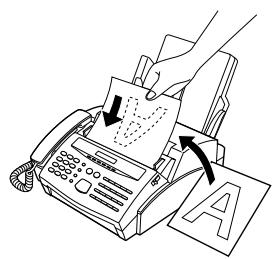
Charger le document.
2
Appuyer sur la touche de programme appropriée.
(Exemple)
Remarque : Un maximum de 2 opérations de minuterie peut être défini à la fois, y compris les opérations de minuterie définies en appuyant sur une touche de programme et les opérations définies comme décrit dans "Opérations de minuterie" dans ce chapitre.
Pour annuler une opération programmée
Si une touche de programme a été enfoncée pour une opération de minuterie et que vous devez annuler l'opération avant qu'elle ne soit exécutée, suivez ces étapes :
1
Appuyer sur la touche de programme.
(Exemple)
2
Appuyer sur la touche START.
ANTI JUNK FAX
La fonction Anti Junk Fax vous permet d'éviter de gaspiller du papier fax en empêchant la réception de télécopies provenant de parties spécifiées.
Pour utiliser cette fonction, activez-la d'abord comme indiqué ci-dessous, puis saisissez les numéros de fax desquels vous ne souhaitez pas recevoir de télécopies, comme indiqué à la page suivante.
Activation et désactivation de la fonction Anti Junk Fax
| Step | Press these keys: | Comments |
| 1 |   | ANTI JUNK FAX will appear in the display. |
| 2 |  | ANTI JUNK SELECT will appear in the display. |
| 3 |  [468] [468]  | Press "1" to turn Anti Junk Fax on, or "2" to turn it off. |
| 4 |  | Exit. |
Mémorisation et suppression des numéros de fax indésirables
Remarques :
- Jusqu'à 10 numéros de fax peuvent être enregistrés dans la liste Anti Junk Fax.
- Pour supprimer un numéro de fax de la liste Anti Junk Fax, vous devez connaître le numéro à 2 chiffres qui l'identifie. Si vous avez oublié ce numéro, imprimez la liste des numéros Anti Junk Fax comme décrit au chapitre 7.
| Step | Press these keys: | Comments |
| 1 |   | ANTI JUNK FAX will appear in the display. |
| 2 |  | JUNK FAX # MODE will appear in the display. |
| 3 |  or or  | Press "1" to store a fax number in the Anti Junk Fax List, or "2" to clear a fax number from the list. |
| 4 |   (Example) (Example) | Storing: Enter a number from "01" to "10". This number identifies the fax number you will store in the next step.Clearing: Enter the number which identifies the fax number you want to clear, and go to Step 6. |
| 5 | [603X] [07TW] [4DSY]   [AD40] [D60D](Example) [AD40] [D60D](Example) | Enter the fax number (max. of 20 digits). |
| 6 |  | |
| 7 |    [A6KW] [A6KW] | Return to Step 4 to enter (or clear) another number, or press STOP to exit. |
Notes
Une variété de réglages optionnels sont disponibles pour affiner votre télécopieur afin de mieux répondre à vos besoins. Les réglages s'effectuent en appuyant sur les touches du panneau, et chaque réglage est décrit dans la liste ci-dessous.
Accès aux réglages
| Step | Press these keys: | Comments |
| 1 |   | OPTION SETTING will appear in the display. |
| 2 |  or or  | Move through the list of settings by pressing "#" to move forward, or "* " to move backward. The settings will appear in the order listed below. |
| 3 |  (Example) (Example) | When the desired setting appears in the display, change it appropriately as described below. |
| 4 |  | Exit. |
Réglages
Réglage 1 : PRIORITÉ À LA RÉSOLUTION FINE
Ce réglage définit la résolution par défaut (la résolution utilisée si un réglage n'est pas effectué avec la touche RÉSOLUTION) pour la transmission de documents. Appuyez sur "1" (OUI) pour la régler sur FINE, ou sur "2" (NON) pour la régler sur STANDARD.
- Réglage d'usine : "2"
- Réglage d'usine : "2"
Réglage 2 : NOMBRE DE SONNERIES RÉCEPTION AUTOMATIQUE
Ce réglage détermine le nombre de sonneries que votre télécopieur laisse retentir avant de répondre à un appel entrant en mode de réception automatique. Saisissez un nombre de "1" à "5" ("1" à "3" en Irlande).
- Réglage d'usine : "1"
Réglage 3 : NOMBRE DE SONNERIES RÉCEPTION MANUELLE
Ce réglage permet à votre télécopieur de répondre automatiquement à un appel après un certain nombre de sonneries lorsqu'il est en mode de réception manuelle. Vous pouvez saisir un nombre de "0" à "5" (en Irlande, saisissez un nombre de "0" à "3"). (Saisissez "0" si vous ne souhaitez pas que votre télécopieur réponde automatiquement).
- Réglage d'usine : "0"
Réglage 4 : LISTE AUTOMATIQUE DU RAPPORT D'ACTIVITÉ
Appuyez sur "1" (OUI) pour que votre télécopieur imprime automatiquement un rapport d'activité toutes les 30 opérations. (La liste peut toujours être imprimée manuellement si nécessaire.) Appuyez sur "2" (NON) pour désactiver l'impression automatique.
- Réglage d'usine : "2"
Réglage 5 : SÉLECTION D'IMPRESSION DU RAPPORT DE TRANSACTION
Ce réglage détermine les conditions d'impression des rapports de transaction. Saisissez un nombre de "1" à "5" comme suit :
"1" (TOUJOURS IMPRIMER) : Imprimer après chaque émission, réception ou erreur.
"2" (ERR/MINUTERIE/MÉMOIRE) : Imprimer uniquement après une erreur, une opération de minuterie ou une opération de mémoire.
"3" (ÉMISSION UNIQUEMENT) : Imprimer uniquement après une émission.
"4" (NE JAMAIS IMPRIMER) : Ne jamais imprimer.
"5" (ERREUR UNIQUEMENT) : Imprimer uniquement après une erreur.
- Réglage d'usine : "3"
Réglage 6 : NOMBRE DE RAPPELS
Ce réglage définit le nombre maximal de fois que votre télécopieur recomposera automatiquement le numéro si la ligne est occupée. Saisissez un nombre de "1" à "4". (En Irlande, saisissez un nombre de "1" à "3").
- Réglage d'usine : "2"
Réglage 7 : INTERVALLE DE RAPPEL
Ce réglage définit le temps d'attente de votre télécopieur entre les recompositions automatiques lorsque la ligne est occupée. Appuyez sur "1" pour 1 minute, "2" pour 2 minutes, etc., jusqu'à un maximum de 15 minutes.
- Réglage d'usine : "5"
Réglage 8 : BASCULEMENT AUTOMATIQUE TÉLÉCOPIEUR/TÉLÉPHONE
Appuyez sur "1" (OUI) pour que votre télécopieur détecte si les appels entrants sont des appels vocaux ou des transmissions de télécopie en mode de réception automatique. Appuyez sur "2" (NON) pour désactiver cette fonction.
- Réglage d'usine : "2"
Réglage 9 : DURÉE DE SONNERIE SIMULÉE
Ce réglage définit la durée de la sonnerie simulée lorsque la fonction de basculement automatique télécopieur/téléphone est activée. Saisissez un nombre de "1" à "4" comme indiqué ci-dessous (en Irlande, seules les durées de 15 ou 30 secondes peuvent être sélectionnées).
"1" (15 SEC.) : 15 secondes
"2" (30 SEC.) : 30 secondes
"3" (60 SEC.) : 60 secondes
"4" (120 SEC.) : 120 secondes
- Réglage d'usine : "1"
Réglage 10 : NUMÉRO DE TÉLÉCOPIE À DISTANCE (CODE DE TRANSFERT)
Ce réglage définit le numéro à un chiffre pour activer la réception de télécopies depuis un téléphone supplémentaire. Saisissez un chiffre de "0" à "9".
- Réglage d'usine : "5" (c'est-à-dire que la télécopie est activée par "5 *").
Réglage 11 : SÉLECTION DE RÉCEPTION À DISTANCE
Ce réglage active ou désactive la détection du code pour activer la réception de télécopies depuis un téléphone supplémentaire. Appuyez sur "1" pour activer la détection, ou sur "2" pour la désactiver.
- Réglage d'usine : "1"
Réglage 12 : RÉCEPTION DU SIGNAL DE TÉLÉCOPIE
Votre télécopieur est réglé pour commencer automatiquement la réception si vous entendez une tonalité de télécopie aiguë après avoir répondu à un appel. Si vous utilisez un modem de télécopie informatique sur la même ligne, vous devez désactiver ce réglage afin d'empêcher votre télécopieur de tenter par erreur de recevoir des documents envoyés par le modem de télécopie informatique. Appuyez sur "2" pour désactiver le réglage, ou sur "1" pour l'activer.
- Réglage d'usine : "1"
Réglage 13 : PAGE DE GARDE AUTOMATIQUE
Appuyez sur "1" (OUI) pour que le télécopieur génère automatiquement une page de garde et l'envoie comme dernière page de chaque transmission. Appuyez sur "2" (NON) pour désactiver la fonction.
- Réglage d'usine : "2"
Réglage 14 : RÉDUCTION COPIE
Ce réglage détermine le taux de réduction des copies avant impression afin d'éviter que les données sur les bords ne soient coupées. Saisissez un nombre de "1" à "3" comme suit :
"1 (AUTO)" : Réduction automatique en fonction de la taille de l'original et du papier d'impression.
"2 (100 %)" : Aucune réduction.
"3 (95 %)" : Réduction des originaux de format A4 à la taille du papier d'impression.
- Réglage d'usine : "2"
Réglage 15 : RÉDUCTION RÉCEPTION
Ce réglage détermine le taux de réduction des documents reçus avant impression afin d'éviter que les données sur les bords ne soient coupées. Saisissez un nombre de "1" à "3" comme suit :
"1 (AUTO)" : Réduction automatique en fonction de la taille de l'original et du papier d'impression.
"2 (100 %)" : Aucune réduction.
"3 (92 %)" : Réduction des originaux de format A4 à la taille du papier d'impression.
- Réglage d'usine : "1"
Réglage 16 : COUPURE COPIE
Appuyez sur "1" (CONTINUER) pour que les documents plus longs que le papier d'impression soient imprimés sur une deuxième page lors de la copie. Appuyez sur "2" (COUPER) pour que la partie dépassant cette longueur ne soit pas imprimée.
- Réglage d'usine : "2"
Réglage 17 : DURÉE DU BIP
Ce réglage détermine la durée du bip qui signale la fin de la transmission, de la réception ou de la copie. Appuyez sur « 1 » pour 3 secondes, « 2 » pour 1 seconde, ou « 3 » pour aucun bip.
- Réglage d'usine : « 1 »
Réglage 18 : IMPRESSION DU PIED DE PAGE
Appuyez sur « 1 » (OUI) pour que le numéro de fax de l'appareil émetteur (s'il est fourni) ainsi que la date et l'heure de réception soient imprimés en bas de chaque page reçue (en plus des informations similaires imprimées en haut de chaque page). Appuyez sur « 2 » (NON) pour ne pas imprimer de pied de page.
- Réglage d'usine : « 1 »
Réglage 19 : MODE DE NUMÉROTATION
Ce réglage détermine le mode de numérotation. Appuyez sur « 1 » si vous êtes sur une ligne à tonalité, ou sur « 2 » si vous êtes sur une ligne à impulsions.
- Réglage d'usine : « 1 »
Réglage 20 : MODE DE CORRECTION D'ERREURS (ECM)
Appuyez sur « 1 » (OUI) pour que les distorsions d'une transmission dues au bruit sur la ligne téléphonique soient corrigées avant l'impression à la réception. Cela n'est efficace que si l'autre appareil dispose également de l'ECM. Appuyez sur « 2 » (NON) pour désactiver cette fonction.
- Réglage d'usine : « 1 »
Réglage 21 : RAPPEL PBX
Ce réglage détermine le mode de rappel utilisé pour transférer des appels sur un PBX ou pour utiliser les services réseau BT. Reportez-vous au manuel de votre PBX ou consultez votre fournisseur pour connaître le réglage correct si le réglage d'usine ne convient pas. Entrez « 1 » pour un rappel à la terre, « 2 » pour un rappel à coupure, ou « 3 » pour aucune opération.
- Réglage d'usine : « 2 »
Réglage 22 : VOLUME DE LA SONNERIE
Ce réglage détermine le volume de la sonnerie. Appuyez sur "1" pour faible, "2" pour moyen, ou "3" pour fort.
- Réglage d'usine : "2"
Réglage 23 : FONCTION MERCURE
Ce réglage permet de sélectionner le service résidentiel Mercure (Royaume-Uni uniquement). Appuyez sur "1" (OUI) pour activer la fonction, ou "2" (NON) pour la désactiver.
- Réglage d'usine : "1"
Vous pouvez imprimer une variété de listes montrant les réglages et les informations saisies dans le télécopieur. Vous pouvez également faire imprimer automatiquement un rapport sur les transactions après leur exécution. Chaque liste et le rapport sont décrits ci-dessous.
Impression d'une liste
| Step | Press these keys: | Comments |
| 1 |   | LISTING MODE will appear in the display. |
| 2 |  or or  | Move through the lists by pressing "#" or "*". Stop when the desired list appears in the display. |
| 3 |  | Print out the list. |
Rapport d'activité
Ce rapport affiche des informations sur les 30 opérations les plus récentes. Le rapport est divisé en deux parties : le RAPPORT D'ACTIVITÉ DES ÉMISSIONS, qui montre les informations sur les émissions, et le RAPPORT D'ACTIVITÉ DES RÉCEPTIONS, qui montre les informations sur les réceptions.
- Si le réglage d'option 4 est défini sur "1", un rapport sera automatiquement imprimé dès que les informations sur 30 opérations auront été accumulées. (Un rapport peut toujours être imprimé manuellement à tout moment.) Toutes les informations sont effacées après l'impression d'un rapport. Si l'impression automatique est désactivée et que l'impression manuelle n'a pas été effectuée pour 30 opérations, les informations sur l'opération la plus ancienne seront écrasées à chaque nouvelle opération.
Explication des en-têtes
ÉMETTEUR/RÉCEPTEUR Le nom ou le numéro de télécopieur de l'autre machine impliquée dans la transaction. Si cette machine n'a pas de fonction d'identification, le mode de communication apparaîtra (par exemple, "G3").
DÉBUT L'heure à laquelle l'émission/réception a commencé.
TEMPS ÉM/RÉ Temps total pris pour l'émission/réception.
PAGES : Nombre de pages transmises/reçues.
TYPE CONF. TX : Une opération confidentielle a été effectuée.
RELAY TX : Une opération de relais a été effectuée.
(T) : Une opération de minuterie a été effectuée.
(M) : La mémoire a été utilisée.
NOTE
OK : Transmission/réception normale.
P.FAIL : Une panne de courant s'est produite.
JAM : Un problème de papier d'impression ou de document s'est produit.
BUSY : La ligne était occupée.
COM.E-0 à COM.E-7 : Une erreur de ligne téléphonique a empêché la transaction. Les explications des numéros d'erreur sont données dans les tableaux suivants, mais elles sont principalement destinées aux ingénieurs de maintenance. En général, vous voudrez simplement réessayer la transaction. Si nécessaire, vérifiez avec l'autre partie que son appareil fonctionne correctement.
CANCEL : La transmission a été annulée car la touche STOP a été enfoncée, aucun document n'était dans le chargeur, ou l'autre machine a demandé une transmission utilisant une fonction que votre télécopieur ne possède pas.
CANCEL 3 : La transmission confidentielle a été annulée car le récepteur n'a pas de fonction confidentielle, un code confidentiel n'y est pas programmé, sa mémoire est pleine, ou ce n'est pas un modèle Sharp.
CANCEL 4 : La transmission confidentielle a été annulée car un numéro de boîte aux lettres incorrect a été saisi pour un télécopieur avec boîtes aux lettres confidentielles.
CANCEL 5 : Une demande de relais n'a pas abouti car la machine à laquelle la demande a été faite n'a pas de fonction de relais, ce n'est pas un modèle Sharp, ou sa mémoire était pleine.
ANNULATION 6 - Une demande de relais n'a pas abouti car le numéro de fax de votre machine n'a pas été saisi dans la liste des numéros autorisés de la machine de relais, un numéro de numérotation automatique non enregistré dans la machine de relais a été spécifié, ou votre numéro de fax n'a pas été saisi dans votre machine comme décrit au chapitre 2.
Erreurs de transmission
| E-0 | Able to recognise handshake signal, but it has errors. |
| E-1 | Cannot recognise the handshake signal from the receiver side. |
| E-2 | Line disconnected during transmission. |
| E-3 | Line disconnected after modem speed fall-back. |
| E-4 | Line disconnected during multi-page transmission. |
| E-6 | Cannot recognize the handshake signal for next page at receiver side. |
| E-7 | No response from receiver side or "disconnect signal" is received at transmitter side. |
| E-8 | Error was not corrected after the predetermined number of retries because of an error in a part of a page. |
| E-11 | Error occurred after or whilst reception by the remote (receiving) machine was revealed to be impossible. |
| E-12 | Error occurred just after fall-back. |
| E-13 | Error occurred after a response to a retransmission end command was received. |
Erreurs de réception
| E-0 | Able to recognise handshake signal, but it has errors. |
| E-1 | Line disconnected during reception. |
| E-2 | Cannot recognise the handshake signal from the transmitter side. |
| E-3 | Cannot recognise the last handshake signal from the transmitter side. |
| E-4 | Cannot recognise the handshake signal for next page from the transmitter side in the case of mode change. |
| E-5 | Cannot recognise the handshake signal for next page from transmitter side. |
| E-7 | No response from transmitter or "disconnect signal" is received at receiver side. |
| E-8 | Error occurred upon completion of reception of all pages. |
| E-9 | Error occurred when mode was changed or transmission/reception switching was performed. |
| E-10 | Error occurred during partial page or physical page reception. |
| E-11 | Error occurred after or during inquiry from the remote (transmitting) machine as to whether reception was possible or not. |
| E-12 | Error occurred during or just after fallback. |
| E-13 | Error occurred after retransmission end command was received. |
| E-14 | Error occurred after voice communication command was received. |
Liste des temporisations
Cette liste affiche les opérations de temporisation actuellement définies.
| TIMER LIST | JUL-11-95 TUE 2:29 PM | ||||
| FOR: John Doe Corp. | 201 555 1234 | ||||
| NO. | SET TIME | TYPE | RESOLUTION | REMOTE STATION ID | |
| 1 | 11:15 AM MON | SEND | (T) | STANDARD | SOI |
| 2 | 5:45 PM TUE | SEND | (TM) | STANDARD | ROI |
Liste des groupes de téléphone et de relais
Cette liste affiche les numéros de fax et de voix enregistrés pour la numérotation automatique, ainsi que les numéros du groupe de relais.
| TELEPHONE LIST | P. 01JUL-11-95 TUE 2:11 PM | |||
| FOR: John Doe Corp. | 201 555 1234 | |||
| RAPID / SPEED # | NAME | TELEPHONE # | CHAIN DIAL | |
| R01 | N.T. BANK | FAX | 452-555-0542 | |
| TEL | 521-652-7512 | |||
| FAX | 452-555-9852 | |||
| R02 | ACCESS # | FAX | SET | |
| TEL | 154236 | |||
| R17 | ABC Corp. | PROGRAM #1 STORED | ||
| R18 | PROGRAM #2 STORED | |||
| R19 | GROUP #1 STORED | |||
| S01 | N.Y. SALES | FAX | 452-254-1546 | |
| S02 | JACK SMITH | FAX | 125-663-8462 | |
Liste des codes d'accès
Cette liste affiche les numéros de fax autorisés à vous interroger, ainsi que le statut d'interrogation et de sécurité, votre nom et votre numéro tels qu'ils sont saisis dans votre fax, et un exemple de l'en-tête imprimé en haut de chaque page que vous transmettez. Le réglage actuel des deux sélections de mode de répondeur apparaît également.
| PASSOOS LIST | JUL-11-95 TTE 2:12 PM | ||
| FOR: Note Tax Corp. | 261 555 1234 | ||
| POLLING FUNCTION | POLLING OFF | ||
| POLLING MODE | SECURITY ON | ||
| PASSOONE # | 71 | ||
| 72 | |||
| 73 | |||
| 74 | |||
| 75 | |||
| 76 | |||
| 77 | |||
| 78 | |||
| 79 | |||
| 80 | |||
| 81 | |||
| SENDER'S NAME | John Doe Corp. | ||
| SENDER'S NUMBER | 201 555 1234 | ||
| SEEIEK PRINT | |||
| FIL-CLIP-SEP TUE 2:12 PM John Doe Corp. | PASS NO. 231 555 1234 | S. L | |
| AKSBEING MACHINES | |||
| SOCKET DETECT, TIME | 045RL | ||
| SELECT AUTO RECEIY | RC | ||
Liste des réglages optionnels
Cette liste affiche l'état actuel des réglages optionnels.
| OPTIONAL SETTING LIST | ||
| FCR: John Doe Corp. 201 555 1234 | JUL-11-95 CUE 2:14 PM | |
| SW NO. | ITEM | SETTING |
| 1 | PAPER SIZE SELECT | LEGAL |
| 2 | FINE PRIORITY | NO |
| 3 | NUMBER OF RINGS | IRING |
| 4 | NUMBER OF MAN.ANS | NO |
| 5 | AUTO LISTING | NO |
| 6 | TRANSACTION PRINT SELECT | ALWAYS PRINTS |
| 7 | RECALL TIMES | 2TIMES |
| 8 | RECALL INTERVAL | 5MINUTES |
| 9 | AUTO CHANGEOVER | NO |
| 10 | PSEUDO RING DUR. | 15SEC. |
| 11 | TEL/FAX REMOVE # | (0)* |
| 12 | REMOTE RECEPTION SELECT | YES |
| 13 | FAX SIGNAL RECEIVE | YES |
| 14 | TALK SELECT | NO |
| 15 | AUTOMATIC COVER SHEET | NO |
| 16 | COPY REDUCE | 100% |
| 17 | RECEIVE REDUCE | AUTO |
| 18 | COPY CUT-OFF MODE | YES |
| 19 | BEEP LENGTH | 3SEC. |
| 20 | FOOTER PRINT | NO |
| 21 | DIAL MODE | TUNE |
| 22 | DISTINCTIVE BING | OFF SETTING |
Liste des programmes et des groupes
La partie supérieure de cette liste affiche les programmes qui ont été saisis. La partie inférieure affiche les numéros de fax enregistrés dans chaque touche de groupe.
| PROGRAM & GROUP LIST | P.01 | |||
| 14-NOV-95 TUE 18:35 | ||||
| FOR: John Doe Corp. | 201 555 1234 | |||
| PROGRAM 1 | NAME | ABC Corp. | ||
| RESERVED TIME | 10:05 | |||
| TYPE | SEND (T) | |||
| REMOTE STATION ID | SOI | |||
| PROGRAM 2 | KAME | M.V. SALES | ||
| RESERVED TIME | 20:15 | |||
| TYPE | POLLING (TM) | |||
| REMOTE STATION ID | SCI | |||
| GROUP 1 | REMOTE STATION ID | RCC, R33, SOI | ||
Liste des numéros de fax indésirables
Cette liste affiche les numéros de fax pour lesquels la réception n'est pas autorisée.
| ANTI JUNK FAX NUMBER LIST | 14-NOV-95 TUE 18:42 | ||
| FOR: John Doe Corp. | 201 555 1234 | ||
| ANTI JUNK FAX # CHECK : ON | |||
| STCRED LOCATION | JUNK FAX # | ||
| 01 | 756856321 | ||
| 02 | 0546325789 | ||
| 03 | 7412584532 | ||
| 04 | 7809652142 | ||
| 05 | 8512369547 | ||
| 06 | |||
| 07 | |||
| 08 | |||
| 09 | |||
| 10 | |||
Rapport de transaction
Ce rapport est imprimé automatiquement après une opération pour vous permettre de vérifier le résultat. Le télécopieur est réglé en usine pour imprimer le rapport après chaque transmission, mais vous pouvez modifier ce réglage pour qu'il soit imprimé dans diverses autres conditions. Pour cela, modifiez le réglage d'option 5 comme décrit au chapitre 6.
Le rapport de transaction affiche les mêmes informations que le rapport d'activité. Voir « Rapport d'activité » dans ce chapitre pour une explication des en-têtes. ◆ Le rapport ne peut pas être imprimé manuellement.
Vitre de lecture et rouleaux
Nettoyez fréquemment la vitre de lecture et les rouleaux pour garantir la qualité des images transmises et des copies. Ouvrez le panneau d'opération (tirez sur le loquet du panneau situé sur le côté droit du télécopieur) et nettoyez les pièces comme indiqué ci-dessous.
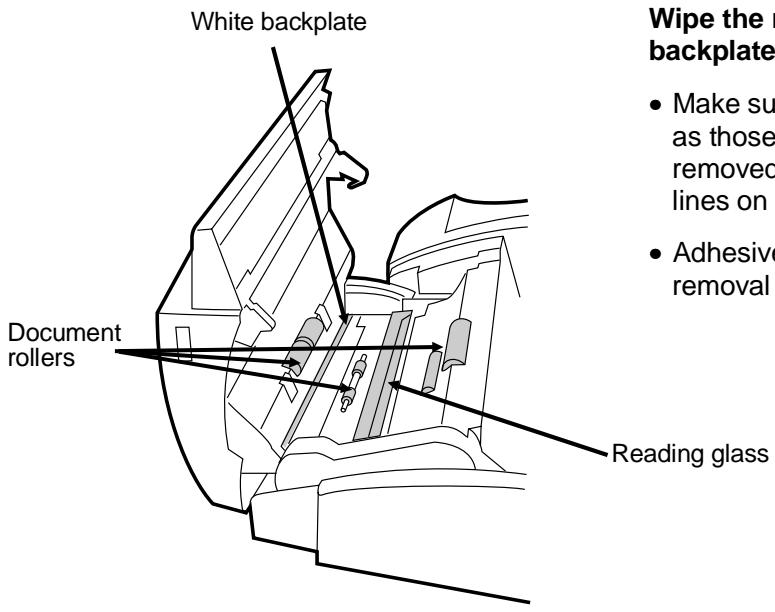
Essuyez la vitre de lecture, la plaque arrière blanche et les rouleaux avec un chiffon doux.
- Assurez-vous que toute saleté et toute tache (comme celles de liquide correcteur) sont éliminées, car elles provoquent des lignes verticales sur les images transmises et les copies.
- Le ruban adhésif cellophane est utile pour éliminer les débris des rouleaux d'alimentation.
Le boîtier
Essuyez les pièces externes et la surface de la machine avec un chiffon sec.
Attention !
- N'utilisez pas de benzène ni de diluant. Ces solvants peuvent endommager ou décolorer la machine.
Nettoyage de la cartouche de tambour
Si certains caractères manquent sur la page imprimée, la surface du tambour dans la cartouche de tambour peut nécessiter un nettoyage. Suivez les étapes ci-dessous pour nettoyer le tambour.
1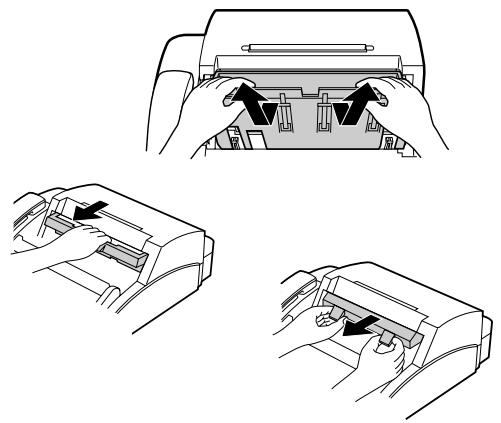
Retirez tous les documents du bac de sortie des documents reçus. Ouvrez le panneau de commande, puis retirez le guide de documents reçus, la cartouche d'imagerie et la cartouche de tambour. (Pour des instructions détaillées, reportez-vous aux étapes 1 à 4 de la section « Installation des cartouches d'imprimante » du chapitre 1.)
- Attention ! L'unité de fusion (l'unité noire avec des nervures s'étendant sur le fond du compartiment) devient très chaude pendant l'impression. Veillez à ne pas la toucher.
2
Placez délicatement le tambour sur une surface propre, dégagée et plane.
- Ne touchez pas le tambour vert dans la cartouche de tambour et n'exposez pas le tambour à la lumière directe. Cela endommagerait la surface du tambour.
3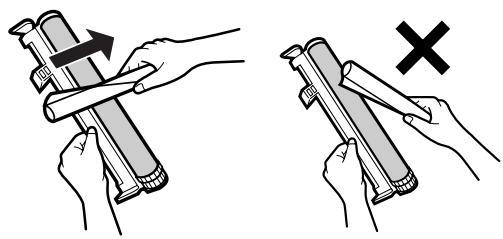
Prenez une feuille de papier propre et roulez-la fermement en tube. Tapotez doucement la surface du tambour avec le tube pour enlever les particules de toner qui pourraient y adhérer.
- Attention ! Ne touchez pas la surface du tambour avec les bords du papier roulé et n'essuyez pas le tambour avec le papier. Cela endommagerait le tambour.
4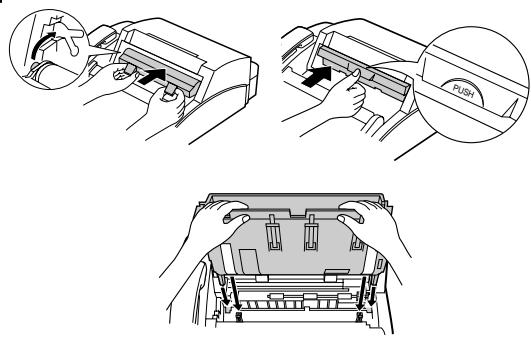
Replacez la cartouche de tambour, la cartouche d'imagerie et le guide de documents reçus. Fermez le panneau de commande. (Pour des instructions détaillées, reportez-vous à l'étape 6 et aux étapes 10 à 14 de la section « Installation des cartouches d'imprimante » du chapitre 1.)
PROBLÈMES ET SOLUTIONS
| Problem | Check and remedy |
| Nothing appears in the display. | Make sure the power cord is properly plugged into a power outlet.Make sure the power switch has been switched to the correct position.Connect another electrical appliance to the outlet to confirm that it is live. |
| The fax does not respond when you press any of its keys. | If a beep sound is not made when you press the keys, turn off the power and then turn it back on several seconds later. |
| Automatic document feeding does not work for transmission or copying. | Check the size and weight of the document (see "Transmittable documents" in Chapter 3). |
| Dialling cannot be performed. | Make sure that the telephone line is properly connected to both the wall socket and the "TEL. LINE" socket.Make sure that the fax is set to the correct dialling mode for your telephone line. See Option Setting 19 in Chapter 6. |
| Nothing is printed at the receiving end. | Make sure that the document for transmission is placed face down in the feeder.Make sure that the printing paper is properly loaded in the receiving machine. |
| The power is on, but no transmission takes place. | Make sure that the receiving machine has printing paper.If the receiving machine is in manual mode with no attendant, reception will not be possible.If the receiving machine is not a Sharp model, make sure it is G3 compatible.Check the display for error messages.Pick up the handset and check for a dial tone. Call the receiving machine by nomal (manual) dialling, and confirm its response. |
| A distorted image is received at the other end. | Noise on the telephone line may cause distortion. Try sending the document again. (Only when error correction (Option Setting 20) is turned off.)Make a copy of the document on your fax. If the copy is also distorted, your fax may have a problem. If the problem persists, call for service. |
| The printing paper does not come out. | · The printing paper may be jammed. See "Clearing Jammed Printing Paper" in this chapter.· Make sure that the printing paper is properly loaded in your machine. |
| The printing paper comes out blank when you try to receive a document. | · Make sure that the document is loaded properly in the feeder of the transmitting machine. Make a copy to confirm the printing ability of your machine. |
| The received document is faint. | · Ask the other party to send higher contrast documents. If the contrast is still too low, your fax may have a problem. Make a copy to check it.· The imaging cartridge may need replacement. |
| Received images are distorted. | · Noise on the telephone line may cause distortion. Have the other party try sending the document again. (only when error correction (Option Setting 20) is turned off.)· Make a copy of another document on your fax. If the copy is also distorted, your fax may have a problem. If the problem persists, call for service.· The photoconductor drum may be damaged. Try a new drum cartridge. |
| No confidential transmission or relay broadcast occurs. | · Check the message in the display. See the next section, "Display Messages". |
Messages à l'écran
| CONF REFUSED | A confidential transmission has been denied because you entered an incorrect mailbox number for a machine with mailboxes. |
| DOC. COVER OPEN | The operation panel is open. Close it. |
| COVER OPEN | The printer cover (or received document guide) has been removed or is open. Replace or close it. |
| DOCUMENT JAM | The original document is jammed. See the following section, "Clearing Paper Jams". |
| FAX RX IN MEMORY | A fax has been received in memory because the imaging cartridge needs replacement, the fax machine has run out of printing paper, or the paper is jammed. The fax will be printed out automatically once the problem is fixed. |
| FUNCTION MODE | The FUNCTION key has been pressed. |
| LINE ERROR | Transmission or reception was not successful. Press STOP to clear the message, and then try again. |
| MEMORY FULL | The memory is full. See "Memory" in Chapter 5. |
| MEMORY PRINTING | The fax is preparing or printing out a document from memory. |
| NO CONF. FUNC | Confidential transmission was cancelled because the receiving machine does not have a confidential function, a confidential passcode is not programmed in it, its memory is full, or it is not a Sharp model. |
| CHECK PAPER | You are out of printing paper. |
| NO RELAY FUNC | A relay request has been denied because the other machine does not have a relay broadcast function, its memory is full, or it is not a Sharp machine. |
| PAPER JAM | The printing paper is jammed. See the following section, "Clearing Paper Jams". |
| ONHOOK DIAL MODE | The SPEAKER key has been pressed and the fax is waiting for you to dial. |
| RELAY REFUSED | A relay request has been denied because your fax number has not been entered in the relay machine's list of permitted numbers, an automatic dialling number not stored in the relay machine was specified, or your fax number has not been entered in your machine. |
| RESERVE READY | The machine is ready to reserve a transmission (see "Transmission reservation" in Chapter 5). |
| REPLACE TONER | The imaging cartridge needs replacement, or has not been installed. |
| SIZE ERROR | The size of the paper loaded in the paper tray is not A4. Replace the paper with A4-size paper. |
Signaux sonores
| Continuous tone | 3 seconds | Indicates the end of transmission, reception, or copying. |
| Intermittent tone (3 bleeps) | 5 seconds(1 second on, 1 second off) | Indicates incomplete transmission, reception, or copying. |
| Rapid intermittent tone | 0.5 seconds on, 0.5 seconds off | Indicates that the printer cover is open. |
| Rapid intermittent tone | 35 seconds(0.7 seconds on, 0.3 seconds off) | Indicates that the handset is off hook. |
Dégagement d'un document coincé
Si un document ne s'alimente pas correctement lors de la transmission ou de la copie, ou si le message DOCUMENT JAM s'affiche, essayez d'abord d'appuyer sur la touche START. Si le document ne sort pas, ouvrez le panneau de commande (tirez le loquet sur le côté droit du télécopieur vers l'avant) et retirez-le délicatement.
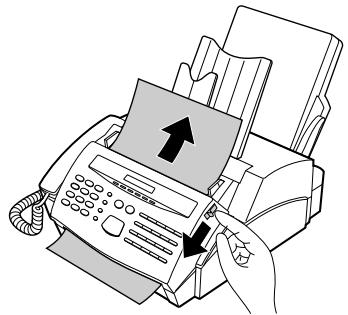
Dégager le papier coincé lors de l'impression
1
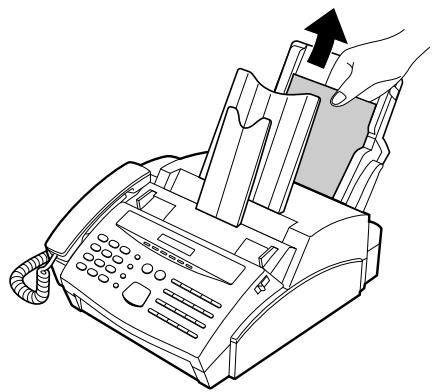
Si la majeure partie de la page coincée dépasse à l'arrière du télécopieur, essayez de la retirer.
- Si la page coincée sort, effacez le message « BOURRAGE PAPIER » sur l'écran en réinitialisant la pile de papier d'impression (tirez le levier marqué « PULL » sur le bac à papier vers vous, sortez la pile de papier, remettez-la en place, puis repoussez le levier vers le bas).
- Si vous ne parvenez pas à dégager le bourrage de cette manière, poursuivez avec les étapes suivantes.
2
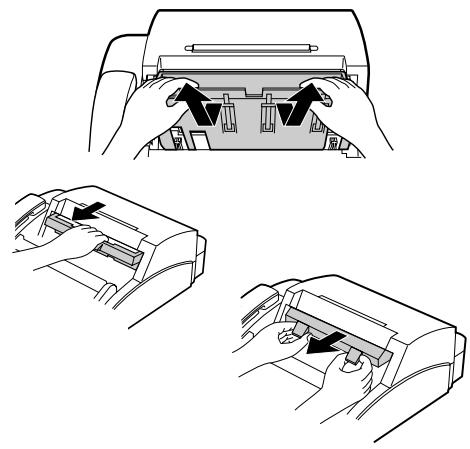
Retirez tous les documents de la sortie des documents reçus. Ouvrez le panneau de commande, puis retirez le guide de réception des documents, la cartouche d'imagerie et la cartouche de tambour. (Pour des instructions détaillées, reportez-vous aux étapes 1 à 4 de la section « Installation des cartouches d'impression » du chapitre 1.)
- Attention ! L'unité de fusion (l'unité noire avec des nervures s'étendant sur le bas du compartiment) devient très chaude pendant l'impression. Veillez à ne pas la toucher.
3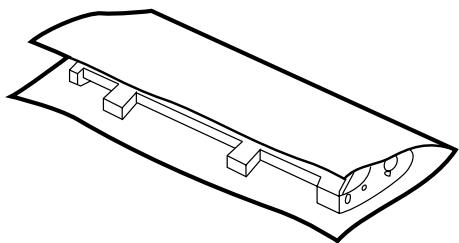
Enveloppez la cartouche de tambour dans une grande feuille de papier comme indiqué à gauche afin de protéger la section de tambour verte de la lumière, puis déposez-la délicatement sur une surface plane.
- Ne touchez pas le tambour vert de la cartouche de tambour. Cela endommagerait la surface du tambour.
- N'exposez pas le tambour à la lumière directe. Cela endommagerait le tambour.
4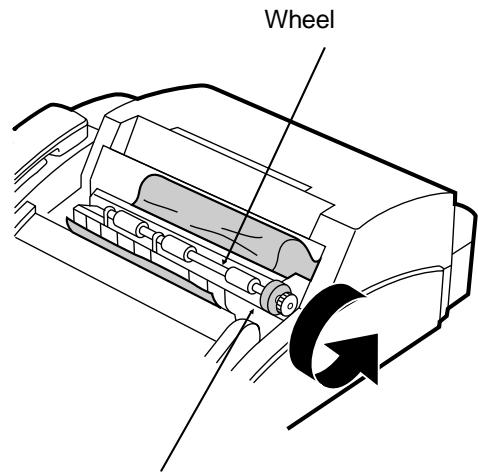
Unité de fusion
Si le bord avant du papier est entré dans l'unité de fusion, tournez la molette située en haut, à droite de l'unité de fusion, dans le sens de la flèche jusqu'à ce que le bord avant du papier soit libéré de l'unité.
- Attention ! Ne retirez pas le papier de l'unité de fusion avec les mains. Cela pourrait provoquer des traces de toner sur les pages suivantes.
- Important : Ne tournez pas la molette dans le sens opposé à celui de la flèche. Notez également que la molette ne tournera pas si le tambour n'a pas été retiré.
5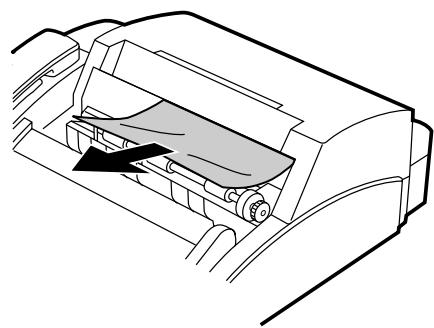
Saisissez le bord avant du papier et tirez-le doucement hors du compartiment.
6
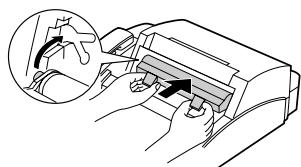
Replacez le tambour, la cartouche d'imagerie et le guide de documents reçus. Fermez le panneau de commande. (Pour des instructions détaillées, voir l'étape 6 et les étapes 10 à 14 dans "Installation des cartouches d'impression" au chapitre 1.)
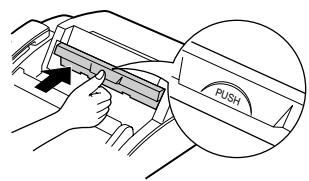
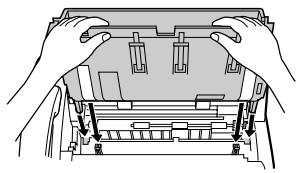
Remarques
| Applicable telephone line: | Public switched telephone network / PBX |
| Compatibility: | ITU-T (CCITT) G3 mode |
| Configuration: | Half-duplex, desktop transceiver |
| Memory size*: | 512 KB (approx. 39 average pages with ECM function off)1 MB add-on available as option |
| Compression scheme: | Modified Huffman and Sharp special mode |
| Scanning method: | Flat-bed, solid-state CCD |
| Resolution: | Horizontal:8 lines/mmVertical:Standard — 3.85 lines/mmFine /Halftone— 7.7 lines/mmSuper fine — 15.4 lines/mm |
| Display: | 7 x 5 dots, 1 line by 16-digit display |
| Reception modes: | Auto/Manual/Answering machine |
| Modem speed: | 9600 bps with automatic fallback to 7200, 4800, or 2400 bps |
| Transmission time*: | Approx. 13 seconds (Sharp special mode) |
| Effective recording width: | 202 mm (average) |
| Paper capacity: | 100 sheets |
| Input document size: | Automatic feeding:Width — 148 to 216 mmLength — 128 to 356 mmManual feeding:Width — 148 to 216 mmLength — 128 to 1000 mm |
| Effective scanning width: | 210 mm max. |
| Automatic document feeder: | 20 sheets max. |
| Halftone (grey scale): | 32 levels |
| Contrast control: | Automatic/Dark selectable |
| Copy function: | Single/Multi-copy/Sort-copy (99 copies/page) |
| Timer communication: | Max. 3 communications |
| Power requirements: | 230 V AC, 50 Hz |
| Operating temperature: | 10 - 30°C |
| Power consumption: | Stand-by: 7 WMaximum: 680 W |
| Dimensions: | Width: 360 mmDepth: 412 mmHeight: 169 mm(Without attachments) |
| Weight: | Approx. 7.2 kg |
* Basé sur la mire d'essai ITU-T n° 1 à la résolution standard en mode spécial Sharp, hors temps des signaux de protocole (c'est-à-dire uniquement le temps de phase C ITU-T).
Dans le cadre de notre politique d'amélioration continue, SHARP se réserve le droit de modifier les conceptions et les spécifications pour améliorer ses produits sans préavis. Les chiffres de performance indiqués sont des valeurs nominales des unités de production. Il peut y avoir des écarts par rapport à ces valeurs sur des unités individuelles.
A
Rapport d'activité 6-2, 7-1
Connexion du répondeur Réception de fax en cas de panne du répondeur ..... 4-6 Connexion ..... 1-9 Problèmes ..... 4-3 Temps de détection de silence ..... 4-5 Désactivation de la réception de fax à distance ..... 4-2 Activation du fax à distance par tonalité ..... 4-6
Anti fax indésirables . . . . . . . . . . . . 5-22 - 5-23 Signaux sonores . . . . . . . . . . . 9-4 Mode de réception AUTO . . . . . . . . . 2-6, 3-11 Numérotation automatique, mémorisation des numéros . . . . . . . . . 2-8 Basculement automatique fax/téléphone . . . . . . . . . 3-13, 6-2
B
Numérotation par lots ..... 3-5 Durée du bip ..... 6-4 Diffusion ..... 5-4 - 5-5 Touche Diffusion ..... 2-1, 5-4
C
Composition de numéros en chaîne : 2-7, 3-8 Nettoyage : 8-1 Transmission confidentielle : 5-6 Connexions : 1-6 - 1-7 Contraste : 3-3 Copies : 3-14 - 3-15 Touche copie : 2-1, 3-14 Réduction de copie : 6-3 Rognage de copie : 6-4 Page de garde : 3-4, 6-3
D
Date, réglage : 2-5 Numérotation En chaîne : 2-7, 3-8 Directe au clavier : 3-7 Normale : 3-6 Touche rapide : 3-7 Recherche : 3-9, 3-16 Rapide : 3-8 Mode de numérotation : 6-4 Numérotation directe au clavier : 3-7 Messages affichés : 9-3 - 9-4 Chargeur de documents : 3-2 Guides de documents : 3-2 Restrictions de documents : 3-1 Rouleaux de documents : 8-1 Formats de documents : 3-1 Longueur et largeur lisibles du document : 3-1 Cartouche de tambour : 1-5
E
Prise électrique : 1-6 Codes d'erreur : 7-2 Mode de correction d'erreur : 6-4 Téléphone supplémentaire, connexion : 1-9 Téléphone supplémentaire, utilisation : 3-12
F
Réception de signal de fax : 3-11, 6-3 Priorité de résolution fine : 6-1 Liste de guide de fonctions : Quick-i Touche fonction : 2-1 Impression de pied de page : 6-4
G
Touches de groupe : 2-11, 5-5
H
Demi-teintes : 3-3 Combiné : 1-6 Nettoyage du boîtier : 8-1
I
Cartouche d'imagerie : 1-4, 1-5
J
Bourrages, élimination 9-5
L
Lettres, saisie ..... 2-3 - 2-4 Affichage à cristaux liquides ..... 2-1 Chargement du document ..... 3-2
M
Mode de réception manuelle 2-6, 3-11 Mémoire Transmission 5-1 - 5-2 Réception 5-2 Touche Mémoire 2-1, 5-1 Fonction Mercure 2-12, 6-4
N
Numérotation normale ..... 3-6 Nombre de sonneries en mode réponse automatique ..... 6-1 Touches numériques ..... 2-1 Services réseau ..... 3-14
O
Liste des réglages optionnels 7-3
P
Papier, chargement ..... 1-10 - 1-11
Papier, réglage du format ..... 1-11
Voyant PAPIER ..... 2-1
Bourrages papier, élimination 9-5
Bac à papier 1-8, 1-10 - 1-11
Liste des codes 7-3
Pauses dans les numéros de numérotation automatique ..... 2-8
Opérations PBX 3-17,6-4
Sondage 5-7 - 5-9
Touche de sondage, réglage 5-7
Cordon d'alimentation 1-6
Liste des programmes et des groupes 7-4
Programmes . . . . . . . . . . . . . . . . . . 5-16 - 5-21
Durée de la sonnerie factice 3-13,6-2
Q
Temps de détection du silence 4-5
R
Numérotation rapide par touche 3-7
Touches rapides 2-1
Lentille de lecture, nettoyage 8-1
Intervalle de rappel 6-2
Heures de rappel 6-2
Mode de réception 2-1, 2-6
Réglage 2-6
Mode ANS ..... 2-6, 4-1
Mode AUTO ..... 2-6, 3-11
Mode MANUEL ..... 2-6, 3-11
Touche de mode de réception 2-1, 2-6
Réduction à la réception 6-3
Touche de recomposition 2-1, 3-10, 3-16
Recomposition 3-10, 3-16
Demande de relais ..... 5-10 - 5-12
Désactivation du télécopieur distant 4-2
Numéro de réception à distance ..... 3-12, 6-3
Résolution 3-3
Touche de résolution 2-1, 3-3
Volume de sonnerie 1-7
Rouleaux, nettoyage 8-1
S
Touche Recherche/Composition 2-1, 3-9, 3-16
Recherche/Composition 3-9
Nom et numéro de l'expéditeur, saisie ..... 2-2
Indicateur de service ..... 2-1
Touche Haut-parleur 1-7, 2-1, 3-6, 3-16
Volume du haut-parleur 1-7
Touche de numérotation abrégée ..... 2-1, 3-6, 3-16
Numérotation abrégée 3-6
Touche Départ 2-1
Touche Arrêt 2-1
Mémorisation des numéros pour la numérotation automatique ..... 2-8
T
Téléphone, utilisation comme 3-16
Cordon téléphonique 1-6
Numéro distant TEL/FAX 6-3
Prise TEL. LINE 1-6, 1-9
Prise TEL. SET 1-6, 1-9
Liste des groupes de téléphones et de relais ..... 7-3
Heure, réglage 2-5
Opérations de la minuterie ..... 5-13 - 5-15
Liste des minuteries 7-3
Indicateur de toner vide 2-1
Rapport de transaction 7-4
Sélection d'impression du rapport de transaction ..... 6-2
Réservation de transmission ..... 5-3
Dépannage 9-1-9-7
Notes
SHARP®
SHARP ELECTRONICS (U.K.) LTD.
Sharp House, Thorp Road, Newton Heath, Manchester, M40 5BE
SHARP CORPORATION
IMPRIMÉ AU JAPON
(TINSE3545SCZZ)
- TÉLÉCOPIEUR
- MANUEL D'UTILISATION
- GUIDE DE RÉFÉRENCE RAPIDE
- INSTRUCTIONS DE CÂBLAGE DE LA PRISE SECTEUR
- IMPORTANT
- AVERTISSEMENT : CET APPAREIL DOIT ÊTRE RELIÉ À LA TERRE
- LISTE DES GUIDES DE FONCTIONS
- VOTRE TÉLÉCOPIEUR ET LE RÉSEAU TÉLÉPHONIQUE
- REN
- SERVICES D'URGENCE
- CONNEXION À UN AUTOCOMMUTATEUR PRIVÉ (PBX)
- CONNEXION EN SÉRIE
- INSTALLATION
- RÉGLAGES INITIAUX
- OPÉRATIONS DE BASE
- CONNEXION DU RÉPONDEUR
- FONCTIONS SPÉCIALES
- RÉGLAGES OPTIONNELS
- IMPRESSION DES RAPPORTS ET LISTES
- ENTRETIEN
- DÉPANNAGE
- SPÉCIFICATIONS
- PRÉCAUTIONS AVANT L'INSTALLATION
- INSTALLATION DES CARTOUCHES D'IMPRIMANTE
- REMPLACEMENT DES CARTOUCHES
- CARTOUCHE D'IMAGERIE FO-26DC
- CARTOUCHE DE TAMBOUR FO-26DR
- COMBINÉ
- CORDON D'ALIMENTATION
- CORDON DE LIGNE TÉLÉPHONIQUE
- COMMENTAIRES
- RÉGLAGES DU VOLUME
- BACS
- AUTRES APPAREILS
- REMARQUES
- CHARGEMENT DU PAPIER D'IMPRESSION
- ATTENTION
- APERÇU DU PANNEAU DE COMMANDE
- SAISIE DE VOTRE NOM ET DE VOTRE NUMÉRO DE TÉLÉCOPIEUR
- SAISIE DES LETTRES POUR LES NOMS
- ESPACE
- LETTRES ET CHIFFRES
- LISTE DES SYMBOLES
- EXEMPLE
- RÉGLAGE DE LA DATE ET DE L'HEURE
- SÉLECTION DU MODE DE RÉCEPTION
- RÉGLAGE DU MODE DE RÉCEPTION
- MÉMORISATION DES NUMÉROS POUR LA NUMÉROTATION AUTOMATIQUE
- NUMÉROTATION EN CHAÎNE POUR LES NUMÉROS LONGS OU ACCÈS INDIRECT AUX OPÉRATEURS DE RÉSEAU ALTERNATIFS
- MÉMORISATION DES NUMÉROS
- MODIFICATIONS
- ◆ UNE BATTERIE AU LITHIUM CONSERVE LES NUMÉROS DE NUMÉROTATION AUTOMATIQUE EN MÉMOIRE
- MÉMORISATION DES NUMÉROS DANS LES TOUCHES DE GROUPE
- LE SERVICE RÉSIDENTIEL MERCURY
- POUR LES CLIENTS DU SERVICE RÉSIDENTIEL
- POUR LES CLIENTS DU SERVICE RESIDENTIAL PIN CODE
- CODES DE CENTRE DE COÛTS
- PROGRAMMATION DE LA TOUCHE MERCURY POUR LE SERVICE RESIDENTIAL PIN CODE
- EFFACEMENT OU MODIFICATION DE LA TOUCHE MERCURY
- NUMÉROS DE TOUCHE RAPIDE ET DE NUMÉROTATION ABRÉGÉE POUR L'UTILISATION DE MERCURY
- COMPOSITION DES NUMÉROS SUR LE RÉSEAU MERCURY
- DOCUMENTS TRANSMISSIBLES
- TAILLE ET POIDS
- AUTRES RESTRICTIONS
- CHARGEMENT DU DOCUMENT
- RÉGLAGES DE TRANSMISSION OPTIONNELS
- RÉSOLUTION
- CONTRASTE
- RÉGLAGE DE LA RÉSOLUTION ET DU CONTRASTE
- APPUYEZ SUR LA TOUCHE RESOLUTION UNE OU PLUSIEURS FOIS JUSQU'À CE QUE LES RÉGLAGES DE RÉSOLUTION ET DE CONTRASTE SOUHAITÉS APPARAISSENT À L'ÉCRAN
- PAGE DE GARDE
- NUMÉROTATION PAR LOTS (COMPTEUR DE PAGES)
- NUMÉROTATION ET TRANSMISSION
- NUMÉROTATION NORMALE
- NUMÉROTATION DIRECTE AU CLAVIER
- NUMÉROTATION PAR TOUCHE RAPIDE
- APPUYEZ SUR LA TOUCHE RAPIDE APPROPRIÉE
- NUMÉROTATION ABRÉGÉE
- NUMÉROTATION EN CHAÎNE
- UTILISATION DE LA TOUCHE RECHERCHE NUMÉRO
- RECOMPOSITION
- RECOMPOSITION AUTOMATIQUE
- UTILISATION DE LA TOUCHE RECOMPOSITION
- UTILISATION DU MODE AUTO
- UTILISATION DU MODE MANUEL
- RÉCEPTION DE TÉLÉCOPIES SUR LE FO
- LORSQUE VOTRE TÉLÉCOPIEUR SONNE, DÉCROCHEZ LE COMBINÉ
- SORTIE DES DOCUMENTS REÇUS
- RÉCEPTION DE TÉLÉCOPIES SUR UN TÉLÉPHONE SUPPLÉMENTAIRE
- BASCULEMENT AUTOMATIQUE TÉLÉCOPIE/TÉLÉPHONE
- ACTIVATION DE LA BASCULE AUTOMATIQUE TÉLÉCOPIE/TÉLÉPHONE
- FONCTIONNEMENT DE LA FONCTION
- FAIRE DES COPIES
- COPIES SIMPLES
- COPIES MULTIPLES
- UTILISATION DE LA TOUCHE RECHERCHE
- ÉMISSION DE SIGNAUX DE TONALITÉ
- OPÉRATIONS PBX ET SERVICES RÉSEAU
- APPELS DE CONSULTATION
- TRANSFERT D'APPELS
- MODIFICATION DU MESSAGE D'ACCUEIL
- LORSQUE VOUS SORTEZ
- RÉGLEZ VOTRE RÉPONDEUR SUR RÉPONSE AUTOMATIQUE
- FONCTIONNEMENT DU MODE RÉPONDEUR
- SI CELA NE FONCTIONNE PAS
- COMMENT LES TRANSMISSIONS DE TÉLÉCOPIE SONT DÉTECTÉES
- NUMÉROTATION AUTOMATIQUE
- NUMÉROTATION MANUELLE
- MÉMOIRE
- ENVOI DE DOCUMENTS DEPUIS LA MÉMOIRE
- APPUYEZ SUR LA TOUCHE DÉPART SI VOUS AVEZ SAISI UN NUMÉRO ABRÉGÉ OU UN NUMÉRO COMPLET
- SI LA MÉMOIRE EST PLEINE
- RÉCEPTION DE SUBSTITUTION EN MÉMOIRE
- RÉSERVATION DE TRANSMISSION
- CHARGEZ LE OU LES DOCUMENTS
- SAISISSEZ LE NUMÉRO DU TÉLÉCOPIEUR DESTINATAIRE EN UTILISANT L'UNE DES MÉTHODES SUIVANTES
- DIFFUSION
- DIFFUSION À L'AIDE D'UNE TOUCHE DE GROUPE
- TRANSMISSION CONFIDENTIELLE
- INTERROGATION
- RÉGLAGE DE LA TOUCHE D'INTERROGATION
- INTERROGER D'AUTRES TÉLÉCOPIEURS
- APPUYEZ SUR LA TOUCHE RAPIDE 16/POLL
- ÊTRE INTERROGÉ (VEILLE D'INTERROGATION)
- SÉCURITÉ D'INTERROGATION
- MÉMORISATION ET EFFACEMENT DES NUMÉROS DE TÉLÉCOPIEUR POUR L'AUTORISATION D'INTERROGATION
- DEMANDE DE RELAIS
- MÉMORISATION D'UN GROUPE DE RELAIS
- EFFECTUER UNE DEMANDE DE RELAIS
- POUR ANNULER UNE OPÉRATION
- SAISIE ET UTILISATION DES PROGRAMMES
- PROCÉDURE INITIALE
- TRANSMISSION
- EFFACEMENT D'UNE TOUCHE DE PROGRAMME
- UTILISATION D'UNE TOUCHE DE PROGRAMME
- POUR ANNULER UNE OPÉRATION PROGRAMMÉE
- ANTI JUNK FAX
- MÉMORISATION ET SUPPRESSION DES NUMÉROS DE FAX INDÉSIRABLES
- RÉGLAGES
- RÉGLAGE 4 : LISTE AUTOMATIQUE DU RAPPORT D'ACTIVITÉ
- RÉGLAGE 5 : SÉLECTION D'IMPRESSION DU RAPPORT DE TRANSACTION
- RÉGLAGE 6 : NOMBRE DE RAPPELS
- RÉGLAGE 7 : INTERVALLE DE RAPPEL
- RÉGLAGE 8 : BASCULEMENT AUTOMATIQUE TÉLÉCOPIEUR/TÉLÉPHONE
- RÉGLAGE 9 : DURÉE DE SONNERIE SIMULÉE
- RÉGLAGE 10 : NUMÉRO DE TÉLÉCOPIE À DISTANCE (CODE DE TRANSFERT)
- RÉGLAGE 11 : SÉLECTION DE RÉCEPTION À DISTANCE
- RÉGLAGE 12 : RÉCEPTION DU SIGNAL DE TÉLÉCOPIE
- RÉGLAGE 13 : PAGE DE GARDE AUTOMATIQUE
- RÉGLAGE 14 : RÉDUCTION COPIE
- RÉGLAGE 15 : RÉDUCTION RÉCEPTION
- RÉGLAGE 16 : COUPURE COPIE
- RÉGLAGE 17 : DURÉE DU BIP
- RÉGLAGE 18 : IMPRESSION DU PIED DE PAGE
- RÉGLAGE 19 : MODE DE NUMÉROTATION
- RÉGLAGE 20 : MODE DE CORRECTION D'ERREURS (ECM)
- RÉGLAGE 21 : RAPPEL PBX
- RÉGLAGE 22 : VOLUME DE LA SONNERIE
- RÉGLAGE 23 : FONCTION MERCURE
- RAPPORT D'ACTIVITÉ
- EXPLICATION DES EN-TÊTES
- NOTE
- LISTE DES TEMPORISATIONS
- LISTE DES GROUPES DE TÉLÉPHONE ET DE RELAIS
- LISTE DES CODES D'ACCÈS
- LISTE DES RÉGLAGES OPTIONNELS
- LISTE DES PROGRAMMES ET DES GROUPES
- LISTE DES NUMÉROS DE FAX INDÉSIRABLES
- RAPPORT DE TRANSACTION
- VITRE DE LECTURE ET ROULEAUX
- LE BOÎTIER
- NETTOYAGE DE LA CARTOUCHE DE TAMBOUR
- PROBLÈMES ET SOLUTIONS
- DÉGAGEMENT D'UN DOCUMENT COINCÉ
- DÉGAGER LE PAPIER COINCÉ LORS DE L'IMPRESSION
- A
- B
- C
- D
- E
- F
- G
- H
- I
- J
- L
- M
- N
- O
- P
- Q
- R
- S
- T
- SHARP®
Marque : SHARP
Modèle : FO-2600
Catégorie : Télécopieur