
FO-2600 - Fax machine SHARP - Free user manual and instructions
Find the device manual for free FO-2600 SHARP in PDF.


| Brand | SHARP |
| Model | FO-2600 |
| Product type | Laser fax machine |
| Compatibility | ITU-T (CCITT) G3 |
| Resolution (horizontal) | 8 lines/mm |
| Vertical resolution | Standard: 3.85 lines/mm, Fine/Halftone: 7.7 lines/mm, Super fine: 15.4 lines/mm |
| Gray levels | 32 |
| Modem speed | 9600 bps with automatic fallback |
| Memory | 512 KB (approx. 39 pages), expandable 1 MB |
| Automatic feeder | 20 sheets max. |
| Paper size | A4 |
| Paper tray capacity | 100 sheets (60 to 90 g/m²) |
| Effective scanning width | 210 mm max. |
| Effective printing width | 202 mm |
| Functions | Send, receive (auto/manual/answering machine), simple/multiple/sorted copy, speed dial, search, memory, broadcast, confidential transmission, relay, timer, anti-junk fax |
| Automatic dialing | 20 one-touch keys, 30 abbreviated numbers |
| Power supply | 230 V AC, 50 Hz |
| Power consumption (standby) | 7 W |
| Power consumption (max) | 680 W |
| Dimensions (W x D x H) | 360 x 412 x 169 mm |
| Weight | Approx. 7.2 kg |
| Operating temperature | 10 to 30 °C |
| Cleaning | Clean the scanning glass, rollers, and drum with a soft cloth. Do not use benzene or thinner. |
| Safety | Grounding mandatory, 13A fuse, surge protector recommended |
| Backup battery | Lithium, approx. 5 years (without power) |
| Replacement parts | Imaging cartridge FO-26DC, drum cartridge FO-26DR |
Frequently Asked Questions - FO-2600 SHARP
User questions about FO-2600 SHARP
0 question about this device. Answer the ones you know or ask your own.
Ask a new question about this device
Download the instructions for your Fax machine in PDF format for free! Find your manual FO-2600 - SHARP and take your electronic device back in hand. On this page are published all the documents necessary for the use of your device. FO-2600 by SHARP.
USER MANUAL FO-2600 SHARP
QUICK REFERENCE GUIDE
- INSTALLATION
- INITIAL SETTINGS
- BASIC OPERATIONS
- ANSWERING MACHINE CONNECTION
- SPECIAL FUNCTIONS
- OPTIONAL SETTINGS
- PRINTING OUT REPORTS AND LISTS
- MAINTENANCE
- TROUBLESHOOTING SPECIFICATIONS
MAINS PLUG WIRING INSTRUCTIONS
This equipment is fitted with a moulded type mains plug which incorporates a detachable fuse cover. Under no circumstances should the plug be used without the fuse cover fitted.
In the unlikely event that the socket outlet in your home is not compatible with the plug supplied, cut off the mains plug and fit an appropriate type, observing the wiring code below.
DANGER: The fuse from the cut-off plug should be removed and the plug should be disposed of in a safe manner. Under no circumstances should the cut-off plug be inserted into a socket outlet, as a serious electric shock may occur.
If you are not sure how to do this, get help from a qualified electrician.
IMPORTANT
The wires in this mains lead are colored in accordance with the following code:
| GREEN-AND-YELLOW: | Earth |
| BLUE: | Neutral |
| BROWN: | Live |
As the colors of the wires in the mains lead of this apparatus may not correspond with the colored markings identifying the terminals in your plug, proceed as follows:
The wire which is colored GREEN-AND-YELLOW must be connected to the terminal in the plug which is marked by the letter E, or by the safety earth symbol, or colored green or green-and-yellow.
The wire which is colored BLUE must be connected to the terminal which is marked with the letter N or colored black.
The wire which is colored BROWN must be connected to the terminal which is marked with the letter L or colored red.
This apparatus must be protected by a 13A fuse in the mains plug or distribution board.
WARNING: THIS APPARATUS MUST BE EARTHED
| This equipment complies with the requirements of Directives 89/336/EEC and 73/23/EEC as amended by 93/68/EEC. |
| Dieses Gerät entspricht den Anforderungen der EG-Richtlinien 89/336/EWG und 73/23/EWG mit Änderung 93/68/EWG. |
| Ce matériel répond aux exigences contenues dans les directives 89/336/CEE et 73/23/CEE modifiées par la directive 93/68/CEE. |
| Dit apparaat voldoet aan de eisen van de richtlijnen 89/336/EEG en 73/23/EEG, gewijzigd door 93/68/EEG. |
| Dette udstyr overholder kravene i direktiv nr. 89/336/EEC og 73/23/EEC med tillæg nr. 93/68/EEC. |
| Quest’ apparecchio è conforme ai requisiti delle direttive 89/336/EEC e 73/23/EEC, come emendata dalla direttiva 93/68/EEC. |
| Η εγκατάσταση αυτή ανταποκρίνεται στις απαιτήσεις των οδηγιών της Ευρωπαϊκής Ενωσης 89/336/EOK και 73/23/EOK, όπως οι κανονισμοί αυτοί συμπληρώθηκαν από την οδηγία 93/68/EOK. |
| Este equipamento obedece às exigências das directivas 89/336/CEE e 73/23/CEE, na sua versão corrigida pela directiva 93/68/CEE. |
| Este aparato satisface las exigencias de las Directivas 89/336/CEE y 73/23/CEE, modificadas por medio de la 93/68/CEE. |
| Denna utrustning uppfyller kraven enligt riktlinjerna 89/336/EEC och 73/23/EEC så som kompletteras av 93/68/EEC. |
| Dette produktet oppfyller betingelsene i direktivene 89/336/EEC og 73/23/EEC i endringen 93/68/EEC. |
| Tämä laite täyttää direktiivien 89/336/EEC ja 73/23/EEC vaatimukset, joita on muutettu direktiivillä 93/68/EEC. |
| 89/336/EEC : EMC directive 73/23/EEC : Low voltade directive 93/68/EEC : CE Mark regulation |
Note: Steps which are optional are enclosed in a dotted frame:
Transmitting documents
| Normal Dialling | Loaddocument → 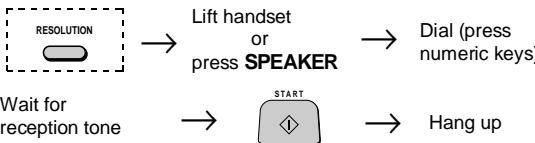 → → |
| Direct KeypadDialling | Loaddocument →  |
| Rapid Key Dialling | Loaddocument → 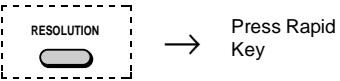 |
| Speed Dialling | Loaddocument → RESO  → → |
| Redialling | Loaddocument → RESO  → → |
Making voice calls
| Normal Dialling | Lift handsetorpressSPEAKER |  |
| Rapid Key Dialling | PressSPEAKER |  |
| Speed Dialling | Lift handsetorpressSPEAKER | [SPEED  |
| Redialling | Lift handset |  |
Function Guidance List
To print out a guide to all of the functions which are accessed by pressing the FUNCTION key, press the FUNCTION key and then the START key.
ABOUT THE MERCURY RESIDENTIAL SERVICE![graph TD A["132 or Residential PIN Service"] --> B["Residential 132 Service"] A --> C["Residential PIN Code Service"] B --> D["Access code 132 is pre-programmed in the Mercury key (Rapid key 01) at the factory"] B --> E["Simply prefix all numbers manually or automatically dialled with this key. The…](/content/2025/01/79050/images/9fcb359a89f6a457cb001c2909359a7a766206f69886d2b525ff966eeffddf06.jpg)
To change from the Residential PIN Code Service to the Residential 132 Service, clear the Mercury key (Rapid key 01) and reprogram it with the access code 132. The machine will automatically recognize the digits 132 and accept them without requiring a further pause or Mercury PIN.
Thank you for purchasing the FO-2600! In addition to providing you with the ease and convenience of plain-paper printing, the FO-2600 features a variety of special functions designed to increase the range and power of your communications.
This manual gives you easy-to-follow instructions for installing and using your new fax. The Table of Contents will show you where instructions for using each feature are located. While you may not need to read every section in detail at first, we recommend that you at least look over them briefly.
If you have any questions or problems which cannot be solved by reading this manual, please contact your Sharp dealer.
◆ Keys, switches, and labels on the machine are indicated in BOLD print. ◆ Messages appearing in the display are indicated in CAPITAL LETTERS.
- Your fax machine and the telephone system
Your Sharp FO-2600 Facsimile Transceiver is approved for connection to the Public Switched Telephone Network (PSTN). It is also approved for connection via a Private Branch Exchange (PBX), and can be used with either Loop Disconnect (LD) or Dual Tone Multi-Frequency (DTMF) signalling.
Your facsimile machine is not suitable as an extension to some payphones or for use on shared service lines.
REN
The Ringer Equivalence Number (REN) of your fax machine is 1.
The total number of instruments that can be connected to an exclusive line is determined by adding the REN values of each instrument. The total should not exceed 4.0. A telephone provided by BT is assumed to have a REN of 1 unless otherwise marked.
Satisfactory ringer operation cannot be guaranteed in installations consisting of mixed apparatus types, even if the REN value does not exceed 4.
Emergency services
Emergency services (999) can be called from this apparatus. Please display on the telephone the number required to access that service, together with the number of the telephone, using the label provided.
◆ Private branch exchange (PBX) connection
Your facsimile machine is approved for connection to the Public Telephone Network (PSTN) via compatible PBX systems. Consult your supplier for a list of suitable PBX systems. It cannot be guaranteed that this facsimile machine will operate correctly under all possible conditions of connection to compatible PBX systems.
This facsimile machine has been approved for use of the following facilities:
Simple telephone
Tone dialling (DTMF)
Loop disconnect (Pulse dialling)
Memory dialling
Loudspeaking (Call Progress Monitor)
On-hook dialling
Automatic answering
Automatic dialling
Automatic clearing
Last number redial
Time break or Earth recall
Series connection of extension telephone(s)
Any other usage will invalidate the approval of the facsimile if as a result it then ceases to comply with the standards against which approval was granted.
Series connection
When connected via series apparatus, difficulties may occasionally be experienced when making calls to the PSTN and by both parties during telephone conversations. If difficulties are experienced, contact the supplier or maintainer of the series apparatus in the first instance.
While operation may be possible initially, changes to or modernisation of the network taking place in the normal course of events may result in the facsimile equipment being connected to a network service with which it was not designed to be compatible.
Failure of the facsimile / series apparatus to work under these circumstances may not be the fault of the network operator.
The voltage drop introduced by your facsimile between the PSTN and the associated apparatus at a current of 40mA d.c. is 2 volts, therefore no additional series equipment may be connected.
QUICK REFERENCE GUIDE
1 INSTALLATION
UNPACKING 1-1 INSTALLING THE PRINTER CARTRIDGES 1-2 ASSEMBLY AND CONNECTIONS 1-6 LOADING PRINTING PAPER 1-10
2 INITIAL SETTINGS
A LOOK AT THE OPERATION PANEL 2-1 ENTERING YOUR NAME AND FAX NUMBER 2-2 ENTERING LETTERS FOR NAMES 2-3 SETTING THE DATE AND TIME 2-5 SELECTING THE RECEPTION MODE 2-6 STORING NUMBERS FOR AUTOMATIC DIALLING 2-7 USING THE MERCURY FUNCTION 2-11
3 BASIC OPERATIONS
SENDING DOCUMENTS 3-1 RECEIVING DOCUMENTS 3-11 MAKING COPIES 3-14 MAKING TELEPHONE CALLS 3-16
4 ANSWERING MACHINE CONNECTION
USING THE CONNECTION 4-1 OPTIONAL A.M. MODE SETTINGS 4-5
5 SPECIAL FUNCTIONS
MEMORY 5-1 TRANSMISSION RESERVATION 5-3 BROADCASTING 5-4 CONFIDENTIAL TRANSMISSION 5-6 POLLING 5-7 RELAY REQUEST 5-10 TIMER OPERATIONS 5-13 ENTERING AND USING PROGRAMS 5-16 ANTI JUNK FAX 5-22
6 OPTIONAL SETTINGS
7 PRINTING OUT REPORTS AND LISTS
8 MAINTENANCE
9 TROUBLESHOOTING
PROBLEMS AND SOLUTIONS 9-1 MESSAGES AND SIGNALS 9-3 CLEARING PAPER JAMS 9-5
SPECIFICATIONS
Notes
Take the fax machine out of the box carefully, and remove all packing material. Make sure you have all the items listed below. If any are missing, contact your dealer.
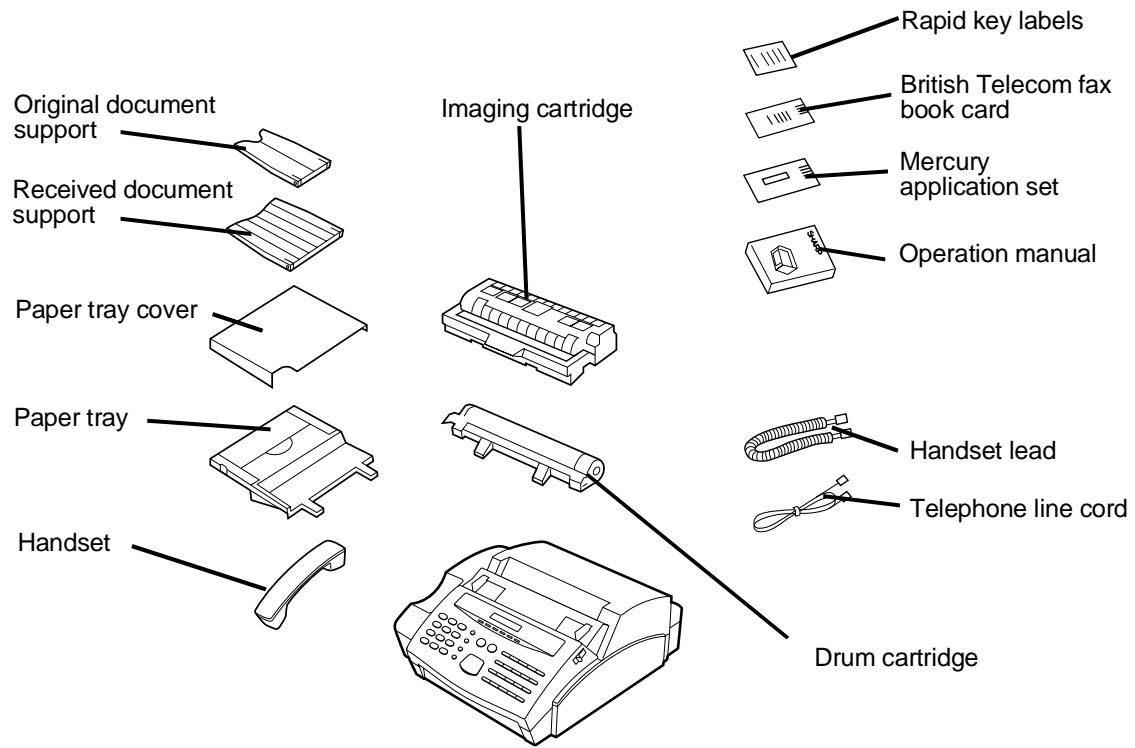
Precautions before setting up
◆ The fax must be installed on a level surface. ◆ Keep the fax away from air conditioners, heaters, direct sunlight, and dust. - Provide easy access to the front, back, and sides of the fax. In particular, keep the area in front of the fax clear, or the original document may jam as it comes out after scanning. - Keep liquids away from the fax. Liquids spilled on the fax can damage the internal circuitry. If the fax is moved from a cold to a warm place, it is possible that condensation may form on the reading glass, preventing proper scanning of documents for transmission. To remove the condensation, turn on the power and wait approximately 2 hours before using the fax.
INSTALLING THE PRINTER CARTRIDGES
The laser printer in your fax creates printed text and images by applying toner to the page with a photoconductive drum. Follow the steps below to install or replace the imaging cartridge (which contains the toner) and the drum cartridge.
1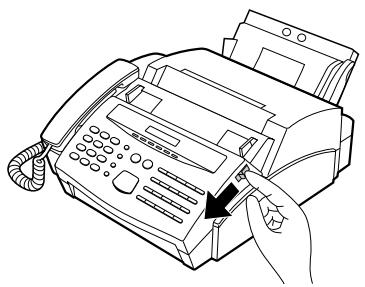
Pull the release on the right side of the operation panel forward, and open the operation panel.
2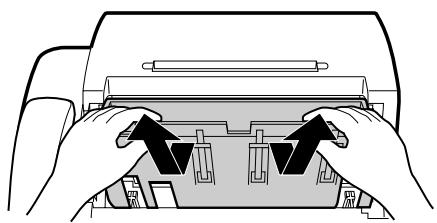
Grasp the top of the received document guide and pull it so that it rotates toward you. Lift the guide straight up and out of the printing compartment.
- If you are installing the cartridges for the first time, go to Step 5.
3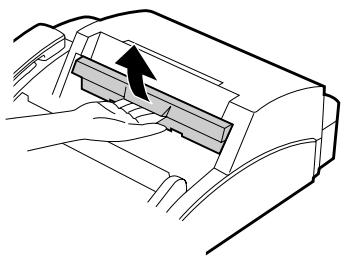
If you are replacing the cartridges, grasp the finger hold on the imaging cartridge handle (marked "PUSH") and pull the handle out. Rehold the handle, and pull the imaging cartridge out of the compartment.
- Caution! The fusing unit (the black unit with ribs extending across the bottom of the compartment) becomes very hot during printing. Be careful not to touch it.
- If you are only replacing the drum cartridge, place the imaging cartridge on a piece of paper on a horizontal surface. Make sure that the cartridge lies flat.
- If you are only replacing the imaging cartridge, go to Step 8.
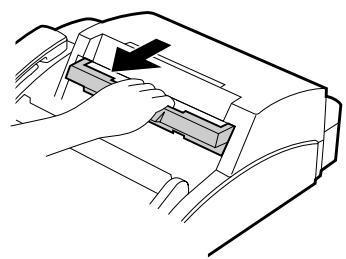
4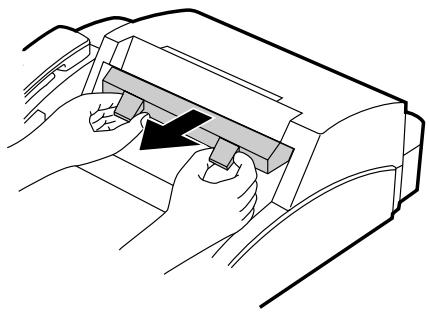
Grasp the two finger holds on the blue section of the drum cartridge, and pull it out of the compartment.
5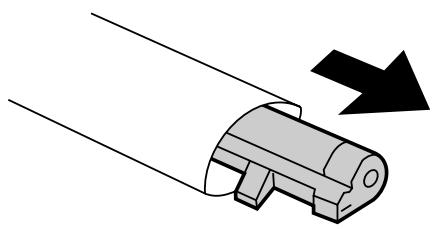
Unfold the end of the drum cartridge bag, and remove the new drum cartridge.
- Do not use a sharp object to cut the bag.
- Do not remove the sheet of black protective paper yet.
6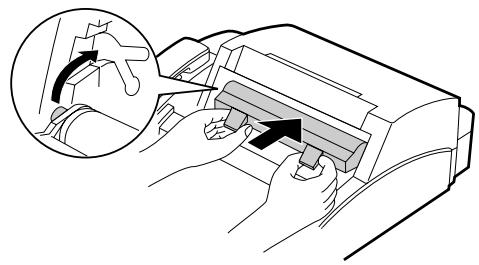
Grasp the two finger holds on the blue section of the drum cartridge, and insert it into the compartment. Make sure it fits into place on top of the roller in the bottom of the compartment.
- If you have removed a used drum cartridge, place it in the empty drum cartridge bag, seal the bag, and dispose of it in a way that conforms to any local regulations that may exist in your area.
7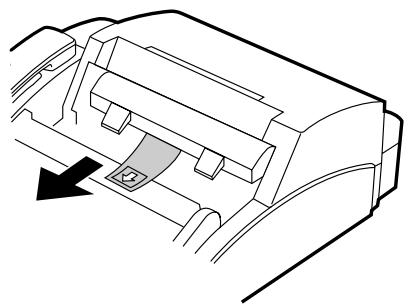
Grasp the protruding end of the protective paper, and pull the paper out of the cartridge.
- Be sure not to leave any pieces of torn paper in the printing compartment.
- If you are not replacing the imaging cartridge, go to Step 10.
8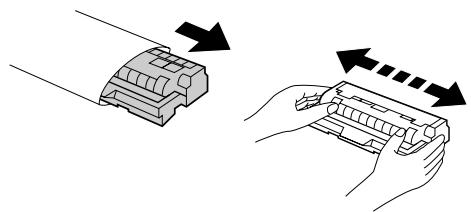
Remove the imaging cartridge from its bag, and shake it 4 or 5 times in a horizontal direction.
- This ensures that the toner is well distributed inside the cartridge.
9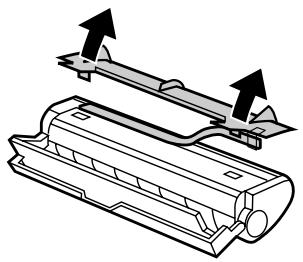
Remove the white cover.
- Remove the white cover and pull out the black rubber strip which is attached to the white cover.
10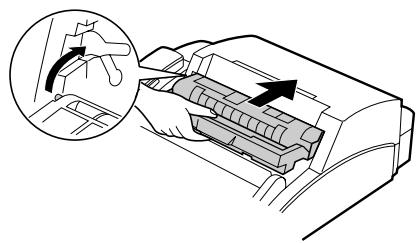
Grasp the handle of the imaging cartridge so that the stamped markings are facing upwards, and insert the cartridge into the printing compartment.
11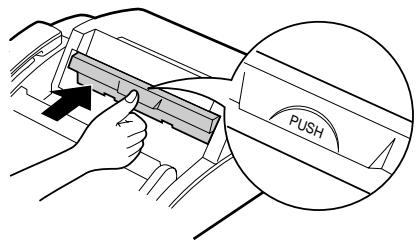
Place your thumb on the centre of the handle where it is marked "PUSH", and push the handle slightly up and in so that the cartridge fits into place.
- If you have removed a used imaging cartridge, place it in the empty imaging cartridge bag, seal the bag, and dispose of it in a way that conforms to any local regulations that may exist in your area.
Hold the received document guide vertically, and insert it into its compartment so that the tabs on each side of the guide go into the slots on the sides of the compartment.
Make sure that the received document guide is positioned so that the arm on the left side of the guide will go into the hole. Place your thumbs on both sides of the guide where it is marked "PUSH", and push the guide forward until it fits into place.
Close the operation panel.
Replacing the cartridges
Your fax uses the following imaging cartridge and drum cartridge. These can be obtained from your dealer or retailer.
FO-26DC IMAGING CARTRIDGE
FO-26DR DRUM CARTRIDGE
The imaging cartridge is capable of printing approximately 2000 pages if A4 size paper is used and 4% of each page is covered with toner. When the cartridge nears empty (about 250 pages can still be printed), the indicator on the operation panel will begin to blink. When the cartridge is empty, the indicator will light steadily and TONER EMPTY will appear in the display. Replace the cartridge as described above.
To assure printing quality, we recommend that you replace the drum cartridge after 20,000 pages have been printed. You can check the total number of pages printed in the display by pressing the FUNCTION key and then the "#" key.
Handset
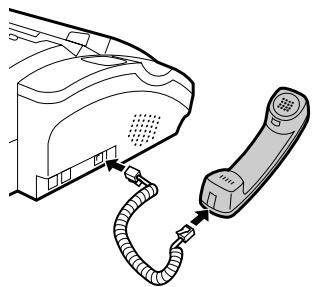
Connect the handset lead to the handset and the fax as shown.
- The ends of the handset lead are identical, so they will go into either socket.
Place the handset on the handset rest.
Use the handset to make ordinary phone calls, or to transmit and receive documents manually.
Power lead
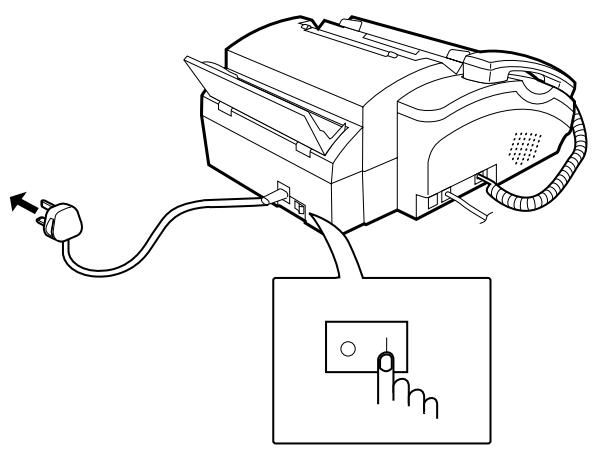
Plug the power lead into a 230 V, 50 Hz, grounded (3-prong) AC outlet.
- Important: Whenever you unplug the power lead, disconnect the fax machine from the telephone network first.
- Caution: The mains outlet (socket-outlet) shall be installed near the equipment and shall be easily accessible.
Press the power switch to turn on the power.
Telephone line cord
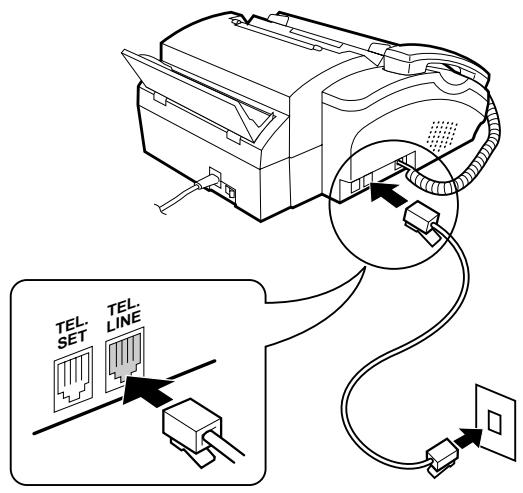
Plug one end of the telephone line cord into the socket on the fax marked "TEL. LINE". Plug the other end into a standard telephone wall socket.
- Be sure to plug the line cord into the TEL. LINE socket on the fax. Do not plug it into the TEL. SET socket.
- Note: Connection to the telephone network must not be hard wired.
Comments:
- Your fax is set for tone dialling. If you are on a pulse only dial line, you must reset it for pulse dialling by changing Option Setting 19. This procedure is described in Chapter 6, "Optional Settings".
- A new plan telephone socket must be located near the machine. If you don't have one, contact your local telephone supplier.
- Your fax cannot be used on a key system without the necessary adaptation of the system. Please consult the installers of the system if this is required.
- If you intend to use a computer fax modem on the same phone line, you must reset Option Setting 12 to NO in order to prevent transmission and reception errors. This procedure is described in Chapter 6, "Optional Settings".
- If you are connecting the fax to a PBX, you may need to reset the fax to the appropriate recall mode for the PBX. This is done by Option Setting 21 as described in Chapter 6.
- If your area experiences a high incidence of lightning or power surges, we recommend that you install surge protectors for the power and telephone lines. Surge protectors can be purchased from your dealer or at most telephone specialty stores.
- The facsimile will not ring in response to incoming calls in the absence of mains power to the machine. For this reason it is recommended that the fax is not left as the only telephone instrument connected to the line when in this state to avoid the loss of voice calls.
- Your fax is still capable of making outgoing telephone calls when the power is switched OFF, however, the dialling method will default to pulse in this condition. The ✗ key may be used to switch to tone dial mode.
Volume settings
Adjust the volume of the speaker for on-hook dialling as follows:
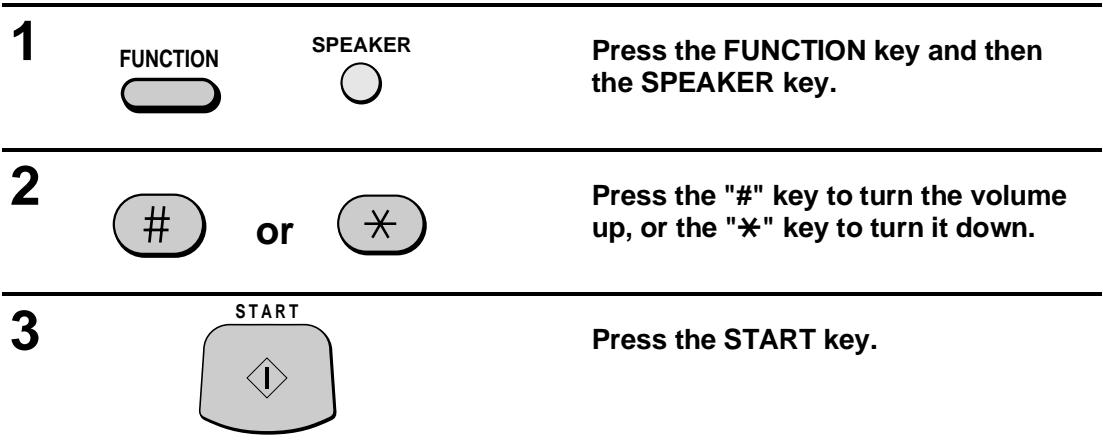
To adjust the volume of the ringer, reset Option Setting 22 as described in Chapter 6, "Optional Settings".
Trays
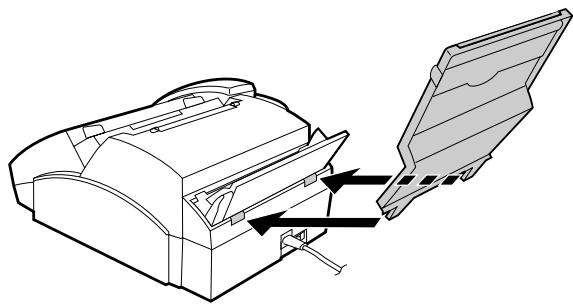
Attach the paper tray by inserting the tabs into the holes at the rear of the fax.
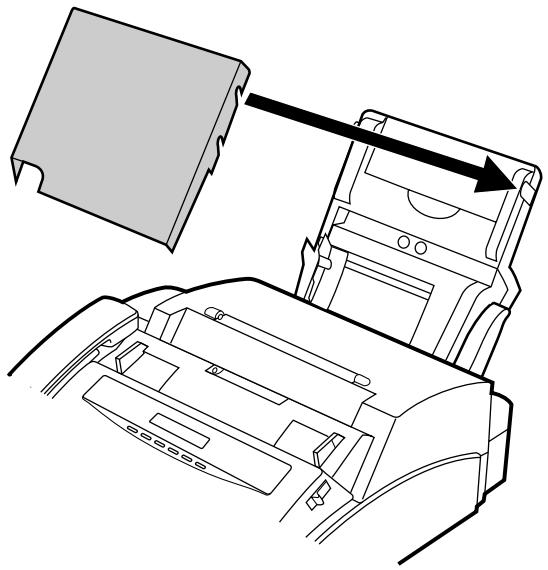
Place the paper cover on the paper tray so that the notches on each side of the cover fit onto the catches on each side of the tray.
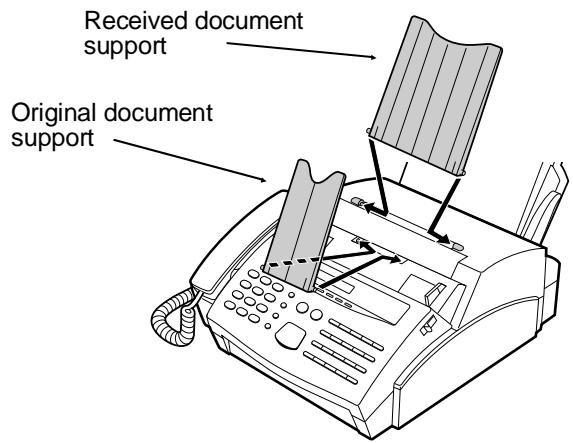
Attach the original document support and the received document support to the top of the fax as shown.
Other devices
If desired, you can connect either an answering machine or an extension telephone to your fax.
- Connecting an answering machine to the fax will allow you to receive both voice and fax messages on the same line while you are out. For details on using this feature, see Chapter 4.
- You can connect an extension phone to the fax to make and receive calls like any other extension phone on your line. For details on receiving faxes from an extension phone, see "Receiving Documents" in Chapter 3.
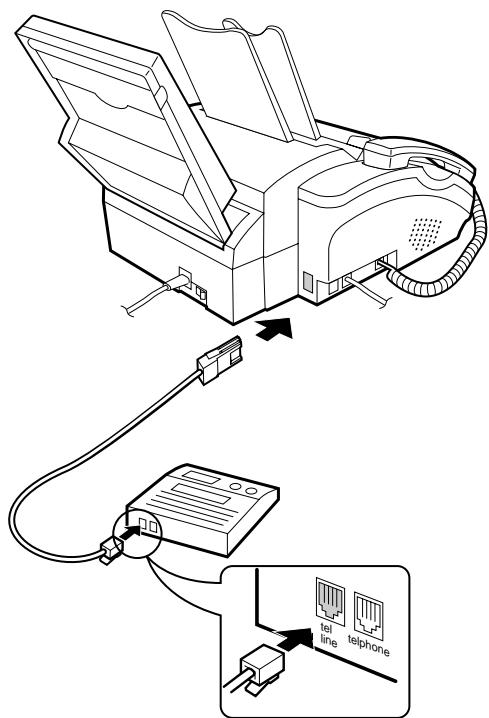
Important: If you are connecting an answering machine, make sure the other end of the line is inserted into the answering machine's telephone line socket, not its telephone socket.
Remove the seal covering the socket marked "EXT. TEL." on the fax.
Insert the modular plug of the extension phone or answering machine line into the U.K. style socket marked "EXT. TEL." as shown.
- Important: If the extension telephone or answering machine is not connected to the extension telephone socket on the fax as shown, the set-up will not operate properly.
- Eire: Remove the seal covering the socket marked "TEL. SET" on the fax. Insert the plug of the extension telephone or the answering machine line directly into the "TEL.SET" socket.
Comments:
- The safety status of this socket is TNV, and is provided for the connection of approved telephone equipment only. To ensure continued safety compliance, do not connect any other equipment to this socket.
- More than one extension telephone may be connected to the same line as the fax, provided they are connected as shown above and the total REN value does not exceed 4. If you are connecting the fax into an existing multi-telephone installation, the wiring may need some alteration. Contact your telephone supplier for assistance.
LOADING PRINTING PAPER
The paper tray holds the paper on which received documents and copies are printed. Up to 100 sheets of A4 size paper from 60 to 90 g/m² can be loaded in the tray.
Caution!
- Do not use paper which has already been printed on one side by a laser printer or copier. This may damage the roller in the fusing unit, causing poor printing quality and frequent paper jams.
Note: Plain paper has a "print" side which should be used to obtain the best print quality. The print side is not visible to the naked eye, so check the label on the end of the package before removing the paper. The print side will be indicated by an arrow, symbol, or wording. Load the paper in the tray print side up as described below.
1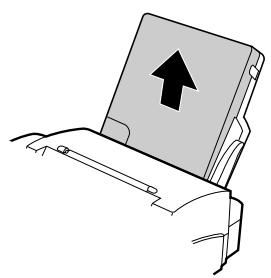
Remove the paper tray cover.
2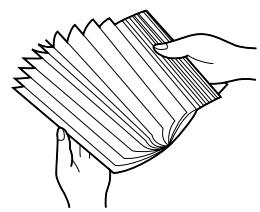
Fan the paper, and then tap the edge against a flat surface to even the stack.
3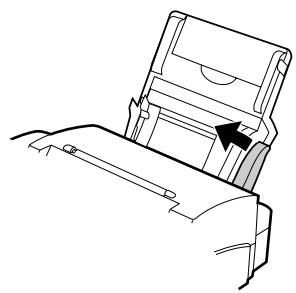
Pull the lever on the right side of the paper tray (marked "PULL") toward you.
4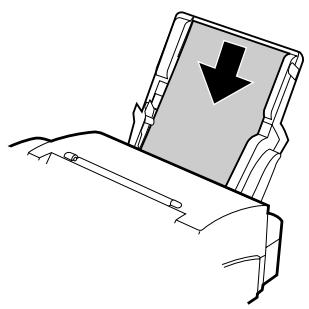
Insert the paper into the tray, print side up.
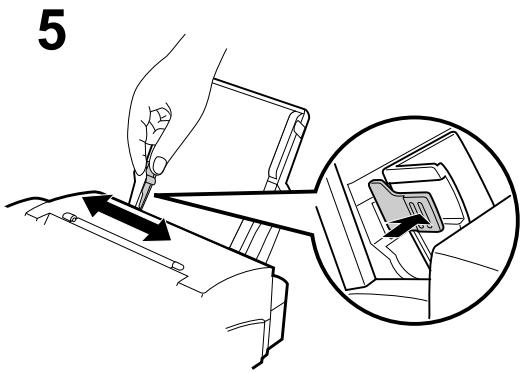
Make sure that the right edge of the paper is aligned against the right paper guide, and then move the left paper guide until it fits into the position marked "A4".
- To move the guide, pinch the lever against the guide.
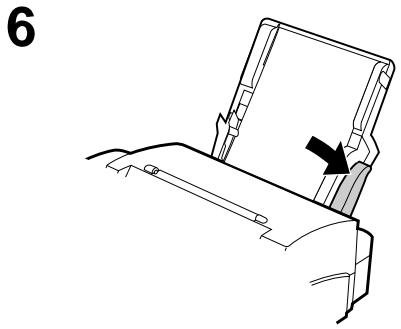
Push the lever on the right side of the paper tray down to set the paper.
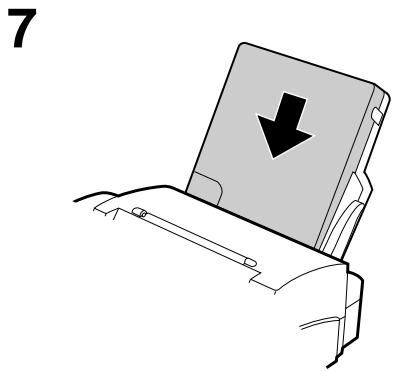
Replace the paper tray cover.
- When adding paper to the paper tray, you must first take out any remaining paper, combine it into one stack with the new paper, and then put the stack in the tray. If you do not remove the remaining paper and simply place new paper on top of it, double feeding may result.
Notes
Before you can begin using your fax, there are some settings which must be made using the keys on the operation panel. First take a moment to familiarize yourself with the operation panel, and then make the settings as described on the following pages.
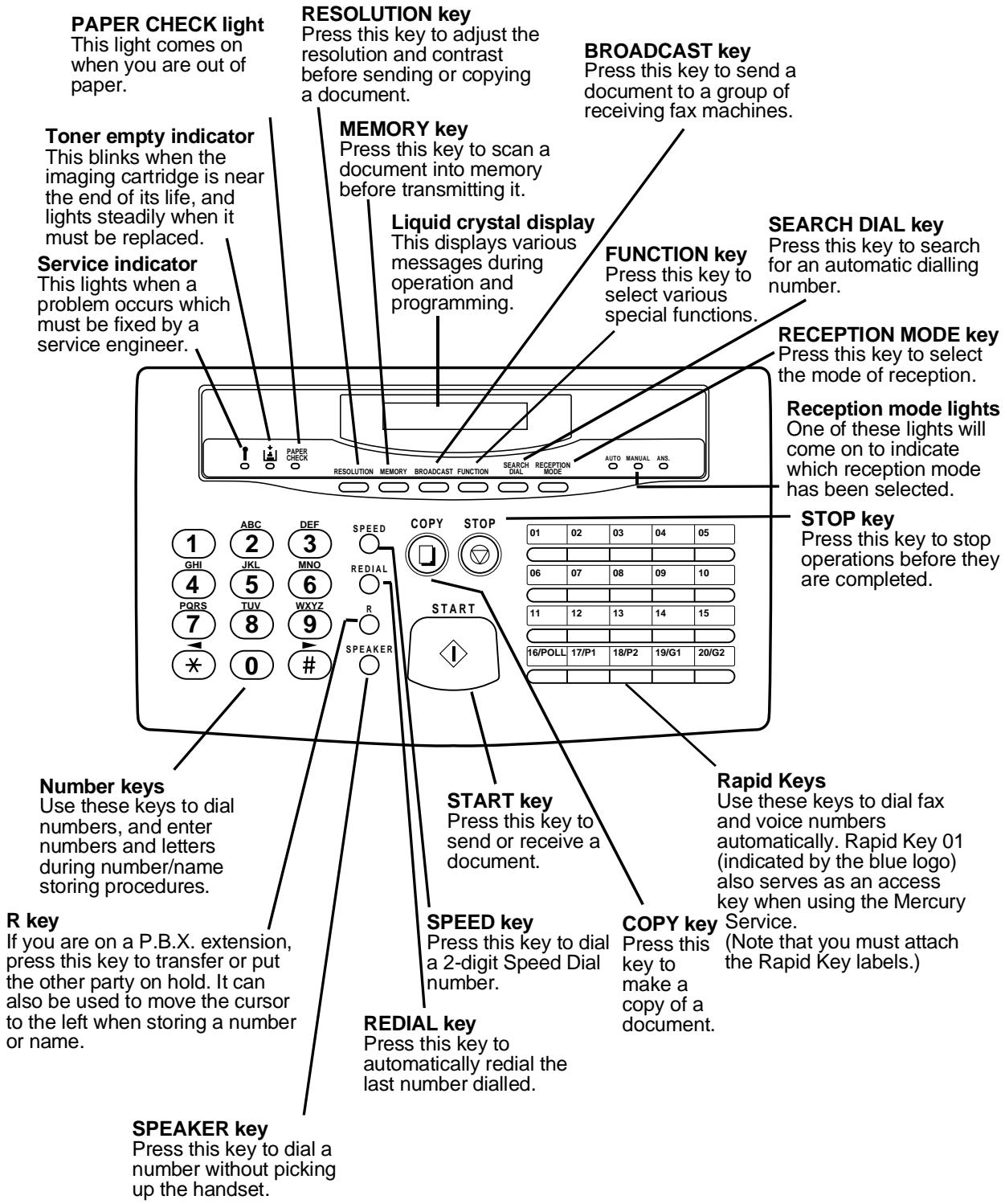
ENTERING YOUR NAME AND FAX NUMBER
To have your name and fax/telephone number (called the "Sender's name" and "Sender's number") printed at the top of every page you transmit, program them by pressing the panel keys as shown below.
- If you enter an incorrect number or letter, press the R key to move the cursor back to the mistake, then enter the correct number or letter. (To move the cursor forward, press the SPEAKER key.)
| Step | Press these keys: | Comments |
| 1 |   | "ENTRY MODE" will appear in the display. |
| 2 |  | "OWN NUMBER SET" will appear in the display. |
| 3 |  | |
| 4 | 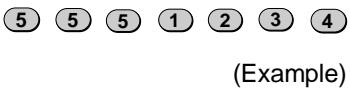 | Enter your fax number (max. of 20 digits) by pressing the numeric keys. (To insert a space between digits, press the "#" key. To insert a "+", press the "*" key.) |
| 5 |  | |
| 6 | 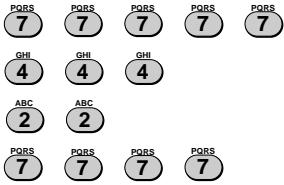 SPEAKER SPEAKER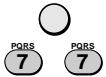 (Example: "SHARP") (Example: "SHARP") | Enter your name by pressing the appropriate numeric keys as shown on the following page. Press each key repeatedly until the desired letter appears in the display. (Max. of 24 characters.) |
| 7 |  | |
| 8 |  | Exit. |
Note: To confirm that you have correctly entered your name and number, print out the Passcode List (see Chapter 7). This list also shows a sample of what will be printed at the top of every page you transmit ("HEADER PRINT").
ENTERING LETTERS FOR NAMES
Names are programmed by pressing the number keys. You will notice that letters are marked above each of the number keys "2" through "9". To enter a letter (or number), press the appropriate key one or more times until the letter appears in the display (the number will appear first, followed by the letters in the order marked above the key). The keys used for entering letters and editing are shown below.
Space
Press this key twice to enter a space.
Letters and numbers
To enter a letter or number, press the appropriate key repeatedly until the desired number/letter appears in the display (the number appears first, then the letters in the order shown above the key).
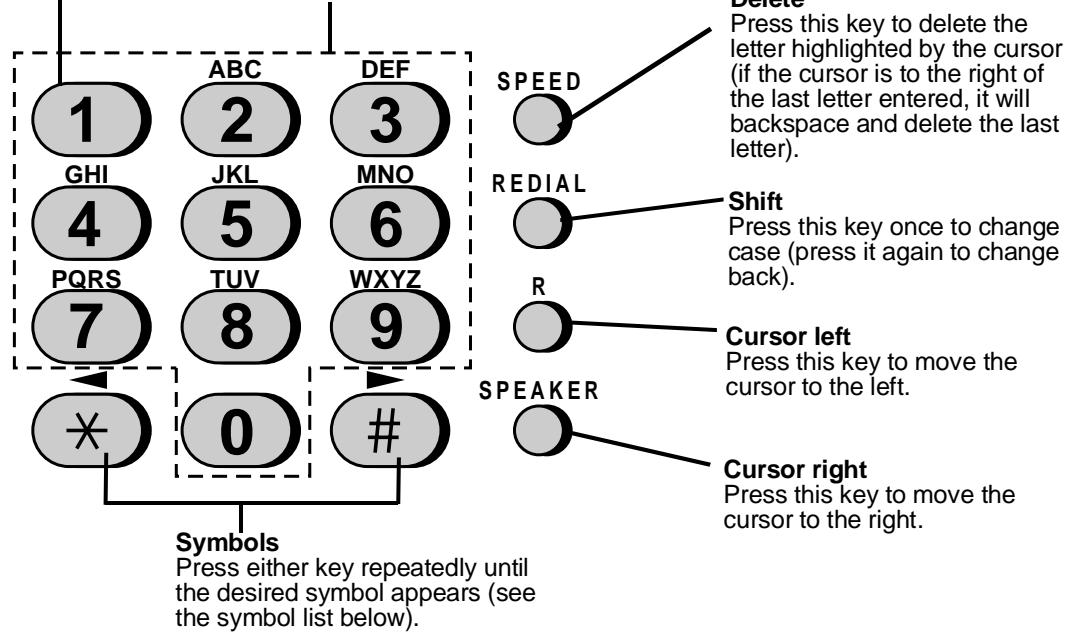
Comments:
- To enter two letters in succession which require using the same key, press the SPEAKER key once after entering the first letter, then enter the second letter.
- To change one individual letter to another, move the cursor to that letter and enter the desired letter. The new letter will simply replace the old one.
Symbol list
To enter a symbol from the list below, press the "#" key or the "*" key repeatedly until the desired symbol appears.
| # → ← * |
| . / ! " # $ % & ' ( ) * + , - : ; <= > ? @ [ ¥ ] ^ _ ` { | } → ← |
Example
The following is an example of entering the name "ABC Co. #1".
◆ The cursor in the display is indicated below by a rectangle:
| Step | Press these keys: | Display |
| 1 | 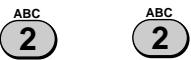 |  |
| 2 |  |  |
| 3 | [8STX] | [34YS] |
| 4 |  |  |
| 5 |  |  |
| 6 |  |  |
| 7 |  |  |
| 8 |  |  |
| 9 |  |  |
| 10 |  |  |
| 11 |  |  |
| 12 |  |  |
| 13 |  |
SETTING THE DATE AND TIME
The date and time appear in the display, in reports, are printed at the top of each page you transmit, and are used for timer operations. Set the date and time by pressing the keys on the operation panel as shown below.
To correct a mistake, press the SPEED key to move the cursor back to the mistake, and then enter the correct number. ◆ The day of the week is set by entering a code number. Code numbers are as follows:
| Day | SUN | MON | TUE | WED | THU | FRI | SAT |
| Code | 0 | 1 | 2 | 3 | 4 | 5 | 6 |
| Step | Press these keys: | Comments |
| 1 |   | ENTRY MODE will appear in the display. |
| 2 |  | DATE & TIME SET will appear in the display. |
| 3 |  | |
| 4 | 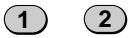 (Example) (Example) | Enter the day of the month (2 digits: "01" to "31"). |
| 5 |  (Example: January) (Example: January) | Enter the month (2 digits: "01" for January, "02" for February, "12" for December, etc.). |
| 6 | 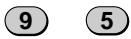 (Example: 1995) (Example: 1995) | Enter the last two digits of the year. |
| 7 |  (Example: Thursday) (Example: Thursday) | Enter the day of the week by entering the appropriate code number (see above table). |
| 8 |  (Example) (Example) | Enter the hour (2 digits: "00" to "23"). |
| 9 |  (Example) (Example) | Enter the minute (2 digits: "00" to "59"). |
| 10 |  | The clock will now start. |
| 11 |  | Exit. |
SELECTING THE RECEPTION MODE
Your fax has three modes for receiving incoming calls and faxes:
MANUAL mode: This is the most convenient mode for receiving phone calls. You can also receive faxes; however, all calls must first be answered by picking up the fax's handset or an extension phone connected to the same line.
AUTO mode: Select this mode when you only want to receive faxes on your line. The fax machine will automatically answer all calls and receive incoming faxes. Automatic Fax/Phone Changeover, a special function for receiving both faxes and voice calls, also operates in this mode.
ANS. mode: Select this mode when an answering machine is connected to the fax and you want the answering machine to answer all calls. This allows you to receive both voice messages and faxes while you are out.
Setting the reception mode
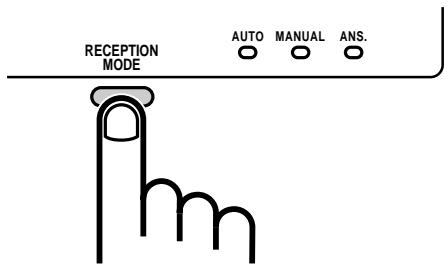
Press the RECEPTION MODE key until the light under the desired mode comes on.
For more information on receiving faxes in AUTO mode and MANUAL mode, see "Receiving Documents" in Chapter 3. For more information on using ANS. mode, see Chapter 4.
STORING NUMBERS FOR AUTOMATIC DIALLING
Automatic dialling is a quick and convenient way of dialling which is performed by either pressing a Rapid Key (Rapid Key Dialling), or pressing the SPEED key and entering a 2-digit number (Speed Dialling). It can be used for both fax transmissions and voice calls.
To use Automatic Dialling, you must first store the full number in your fax. The way you store it depends on whether you want to use it for Rapid Key Dialling or Speed Dialling:
Rapid Key Dialling: You assign a full fax number to a Rapid Key. You can also store a name, a voice number (dialled as described in "Making telephone calls" in Chapter 3), and a back-up fax number which is automatically dialled if the first fax number is busy. 20 Rapid Keys are available.
Speed Dialling: You assign a full fax or voice number to a 2-digit Speed Dial number. You can also store a name. 30 Speed Dial numbers are available. (Speed Dial numbers are independent of Rapid Keys.)
Chain Dialling for long numbers or indirect access to alternative network operators
The maximum number of digits which may be entered when storing a telephone or fax number is 20. If you need to store a number which is longer than 20 digits or wish to program an access number or PIN of an alternative network operator, use Chain Dialling.
Chain Dialling allows you to combine two or more automatic dialling numbers, or use an automatic dialling number followed by additional digits entered manually with the numeric keys, to dial a single number. In addition to being convenient for storing long numbers, it allows you to store a network operator's access code or PIN as an automatic dialling number.
For example, to store a 36-digit number for automatic dialling, you would need to break it into two parts:
- Store the first 20 digits into one Speed Dial number ("01", for example) using the storing procedure on the following page, and press "1" in Step 11 of that procedure to specify it as a Chain Dialling number (when dialling, this tells the machine to wait for the remainder of the telephone number when you use the Speed Dial number "01").
- Store the remaining 16 digits into a separate Speed Dial number ("02", for example), and this time press "2" in Step 11 of the storing procedure to specify that it is not a Chain Dial number (this tells the machine that the final part of the number has been dialled).
In this way, you specify all parts of the number except the last as Chain Dial numbers.
- The maximum number of digits which can be dialled at one time by Chain Dialling is 50.
Storing numbers
Comments:
- To enter letters for names or correct a mistake, see "Entering letters for names" in this chapter.
- You may need to add a pause between certain digits to allow time for connection. For example, if you are on a PBX telephone system that requires an access number to be dialled (such as "9") to access an outside line, you may need to enter a pause between the access number and the number of the receiving fax machine.
- Pauses are entered by pressing the REDIAL key, and several can be entered in a row if necessary. The first pause entered gives a time delay of about 4 seconds, and subsequent pauses give delays of 0.9 seconds each. The total duration of pauses entered for any one fax or voice number cannot exceed 11 seconds.
- Rapid key 01 has been set at the factory for use as the Mercury key. If you are not using the Mercury Service and want to use Rapid Key 01 for Rapid Key dialling, clear Rapid key 01 as described in "Clearing numbers" which follows in this section, and reset Option Setting 23 as described in Chapter 6.
- To confirm that Automatic Dialling numbers have been stored correctly, print out the Telephone List. The procedure for doing this is described in Chapter 7, "Printing out Reports and Lists".
| Step | Press these keys: | Comments |
| 1 |   | ENTRY MODE will appear in the display. |
| 2 |  | FAX/TEL # MODE will appear in the display. |
| 3 |  | Select SET. |
| 4 |  (Example) (Example) | To store a Rapid Key number, press a Rapid Key.To store a Speed Dial number, press two numeric keys ("01" to "30"). |
| 5 | [3ZZK] [K7T6]  [2DX7] [2DX7]  [HY4Z] [HY4Z]  (Example) (Example) | Enter the fax number (max. of 20 digits including pauses) using the numeric keys. |
| 6 |  | If you are storing a Speed Dial number, go to Step 9 after pressing START. |
| 7 |    [0545] [0545]  [23Ø7] [23Ø7]  (Example) (Example) | Enter a full voice number (max. of 20 digits).If you don't want to enter a voice number, skip this step. |
| 8 |  | |
| 9 | (Example) ABC DEF GHI ...WXYZ Enter the name of the location or party by pressing numeric keys as described in "Entering Letters for Names" in this chapter (max. of 20 characters). If you don't want to enter a name, skip this step. | |
| 10 |  | |
| 11 |  | Press "1" if you want to specify the number as a Chain Dialling number (see the beginning of this section). Otherwise, press "2" or "START". If you pressed "1" or are storing a Speed Dial number, go to Step 14. |
| 12 |  (Example) (Example) | Enter a full back-up fax number. If you don't want to enter a back-up number, go to Step 14. |
| 13 |  | |
| 14 |  | Return to Step 4 to store another number, or press STOP to exit. If the number is a Rapid Key number, you can write the name on the label above the appropriate Rapid Key. |
Clearing numbers
| Step | Press these keys: | Comments |
| 1 |  | ENTRY MODE will appear in the display. |
| 2 |  | FAX/TEL. # MODE will appear in the display. |
| 3 |  | Select CLEAR. |
| 4 |  (Example) (Example) | To clear a Rapid Key number, press the appropriate Rapid Key.To clear a Speed Dial number, enter the 2-digit number with the numeric keys. |
| 5 |  | |
| 6 | Step 4 or  | Return to Step 4 to clear another number, or press STOP to exit. |
Making changes
To make changes in a number previously stored, repeat the storing procedure. Select the code number for which you want to make changes in Step 4, and then change the number and/or name when they appear in the display (Steps 5 and 7, respectively).
Numbers and letters are changed as described in "Entering letters for names" in this chapter.
◆ A lithium battery keeps automatic dialling numbers in memory
Your fax uses a lithium battery to keep automatic dialling numbers and other programmed data in memory when the power is turned off.
Battery power is consumed primarily when the power is turned off. With the power kept continuously off, the life of the battery is about 5 years.
If the battery fails, have your dealer or service agent replace it. Do not try to replace it yourself.
Storing Numbers in Group Keys
Group Keys allow you to dial a group of fax numbers by simply pressing the appropriate Group Key once. They are convenient for the Broadcasting function, which is used to transmit a document to a group of fax machines.
Rapid Keys 19/G1 and 20/G2 can be programmed as Group Keys. To program or clear a Group Key, follow the steps below. Note that one key cannot be simultaneously programmed as both a Rapid Key and a Group Key.
◆ Up to 49 fax numbers can be stored in one Group Key. Only Rapid Keys and Speed Dial numbers can be stored in a Group Key. No full numbers can be stored. A Group Key cannot be cleared if it is being used in a programmed Broadcasting operation. First clear the programmed operation as described in "Entering and Using Programs" in Chapter 5, then clear the key. If you need to check which program the key is used in, print out the Program and Group List as described in Chapter 7.
| Step | Press these keys: | Comments |
| 1 |   | PROGRAM/GROUP will appear in the display. |
| 2 |  | GROUP ENTRY MODE will appear in the display. |
| 3 |  or or  | Press "1" (SET) to program a Group Key, or "2" (CLEAR) to clear a Group Key. |
| 4 |  or or  | Press a Group Key ("19/G1" or "20/G2") to select it. If you are clearing the key, go to Step 6. |
| 5 | 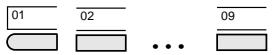  (Example) (Example) | Enter fax numbers using one or both of the following methods:• Press one or more Rapid Keys.• Enter one or more Speed Dial numbers with the numeric keys. |
| 6 |  | |
| 7 | Step 4 or  | Return to Step 4 to program/clear another Group Key, or press STOP to exit. |
The Mercury Residential Service
Note: The Mercury Service is only available in the U.K.
Mercury's Residential Service is a highly competitive telephone service for the residential and small business user.
Most UK long distance and international calls are cheaper over Mercury, especially in the Economy period. For customers who make a large number of long distance and international calls during the daytime, extra savings are available by joining the Mercury Frequent Caller Programme.
Mercury calls are rounded to the second, and charged to the nearest tenth of a penny. You will also receive fully itemised bills. Mercury Customer Services are available 24 hours a day to provide the highest level of customer service.
There are two ways to access Mercury, the Residential 132 Service and the Residential PIN Code Service. You can find out the best method for you by calling Mercury Customer Services on FreeCall 0500-500 194 (24 hours). Most homes and businesses are now able to access the Mercury network via their existing BT line. Mercury Customer Services will be able to check whether Mercury is available in your area.
All Mercury's charges and tariffs are the same for both methods of accessing Mercury—the only difference is how you connect to the Mercury network.
For Residential 132 Service customers
Once you have become a Mercury Residential 132 customer, you simply dial 132 before a long distance or international call to send it over the Mercury network.
The Mercury Key on your fax machine (Rapid Key 01) comes with the digits "132" pre-stored in it, so no further programming is necessary.
To check that you have access to the Mercury Residential Service, pick up the handset, wait for the dial tone, press the Mercury Key, and dial 132. This call is free of charge. You should be connected to a recorded message welcoming you to the Mercury network. If you have any difficulties, please contact Mercury Customer Services (Fault Reporting) on FreeCall 0500-500 193 (24 hours).
To send your long distance and international calls and faxes over Mercury, press the Mercury Key before the STD code and telephone number of the party you are calling.
If the Residential 132 Service is not yet available in your area, you may apply to use the Mercury Residential PIN Code Service.
For Residential PIN Code Service customers
After you apply for Mercury's Residential PIN Code Service, you will receive a Mercury PIN Code in two separate parts.
The PIN Code, which is similar to a bank PIN number, identifies you as a Mercury customer. For consistency with messages shown on the machine display, this manual will refer to the Mercury PIN Code as the "I.D. Code".
To access Mercury's Residential PIN Code Service, you must first dial the access code "131", wait until you hear the high-pitched Mercury tone, and then enter your I.D. Code. After this, dial the number of the party you want to call.
Cost Centre Codes
Cost centre codes are selectable on your Mercury order form. By keying in a code number (either 2 or 3 digits) before each Mercury call, businesses can allocate calls to different jobs, or residential users can see who is responsible for each call. If you have requested this option, then to make a call via Mercury you must press the Mercury Key, enter your chosen cost centre code, and then dial the telephone or fax number of the party you want to call.
Please note that Cost Centre Codes are not currently available with the Residential 132 Service.
Programming the Mercury Key for the Residential PIN Code Service
The access code, a pause, and your I.D. code can all be programmed into the Mercury Key (Rapid Key 01). This will allow you to access the Mercury network by simply pressing the Mercury Key.
To program the Mercury Key, Option Setting 23 must be set to "1" (YES). It has been set to "1" at the factory, but if you need to check the setting or reset it, see Chapter 6, "Optional Settings".
A pause must be entered between the access code and your I.D. code to allow time for connection to the Mercury network. This is done by entering a code number corresponding to the length of the pause as shown in the table below. If you are connected to a Tone exchange, a pause of 4 seconds should be sufficient. However, if programming the Mercury Key proves unsuccessful or if you are connected to a Pulse exchange, try longer pauses until programming proves successful.
| Code | 01 | 02 | 03 | 04 | 05 | 06 | 07 | 08 | 09 | 10 |
| Pause (seconds) | 4.0 | 4.9 | 5.8 | 6.7 | 7.6 | 8.5 | 9.4 | 10.3 | 11.2 | 12.1 |
Reprogram the Mercury Key by pressing the panel keys as shown below.
Important:
- It is only necessary to follow the programming procedure below for access via the Residential PIN Code Service. For the Residential 132 Service no programming is required as the access digits are stored in the Mercury Key from the factory.
- To reprogram the Mercury key, you must first clear it following the procedure described for clearing numbers in "Storing Numbers for Automatic Dialling" in this chapter.
| Step | Press these keys: | Comments |
| 1 |  | ENTRY MODE will appear in the display. |
| 2 |  | FAX/TEL.# MODE will appear in the display. |
| 3 |  | Select SET. |
| 4 |  | Press Rapid Key 01 (the Mercury Key). |
| 5 |  | Enter the access code. |
| 6 |  (Example) (Example) | Enter a code number for a pause (see the table on the previous page). |
| 7 |  (Example) (Example) | Enter your I.D. code (max. of 10 digits). |
| 8 |  | |
| 9 |  | Exit. For easy identification, the blue Mercury logo is located above the Mercury Key. |
To check that the Mercury I.D. code has been reprogrammed correctly, pick up the handset or press the SPEAKER key, wait for the dialling tone, and press the Mercury Key (followed by a 2 or 3 digit cost centre code if applicable), and dial 1500. This call is free of charge. During connection you will hear a high pitched tone. This is the Mercury dial tone. You should then be connected to a recorded message welcoming you to the Mercury network.
If you have any difficulties, please contact Mercury Customer Services on FreeCall 0500 500 193 (24 hours).
Note: For security reasons, your I.D. code cannot be listed or displayed once it has been entered. However, it can be cleared and re-programmed if desired.
Clearing or changing the Mercury Key
To clear the Mercury Key or change the code programmed into it, follow the procedure for clearing numbers described in "Storing Numbers for Automatic Dialling" in this chapter, and then repeat the programming procedure on the preceding page if necessary.
If for any reason you have to return your fax machine for repair, for security reasons, you should clear the PIN Code, if programmed, from the Mercury Key.
Rapid Key and Speed Dial numbers for Mercury use
Once the Mercury key has been programmed appropriately for either the 132 or Residential PIN Service, you can use it to include the Mercury access code when storing fax and voice numbers for Rapid Key and Speed Dialling. This will save you the trouble of pressing the Mercury Key each time you dial numbers by Rapid Key or Speed Dialling.
Simply press the Mercury Key before entering the desired fax or voice number when performing the procedure for storing numbers described in "Storing Numbers for Automatic Dialling" in this chapter. (Press the Mercury Key before Step 5 in the procedure.)
Dialling numbers on the Mercury network
To dial numbers on the Mercury network, you can use any of the methods of dialling described in "Sending Documents" in Chapter 3 for fax transmissions, and any of the methods described in "Making Telephone Calls" in Chapter 3 for voice calls.
Simply press the Mercury Key before entering the number:
Normal Dialling: Press the Mercury Key, enter a cost centre code (if applicable), and then dial the number of the other party. - Direct Keypad Dialling: Press the Mercury Key, enter a cost centre code (if applicable), and then dial the number of the other party. - Rapid Key Dialling: Press the Mercury Key and then the appropriate Rapid Key. - Speed Dialling: Press the Mercury Key, then press the SPEED key and enter the Speed Dial number.
Note: For Rapid Key and Speed Dialling, do not press the Mercury Key if it has already been programmed into the automatic dialling number as described in the above section.
Notes
Transmittable documents
Your fax can transmit most standard office documents. Specific guidelines are as follows:
Size and weight
The size and weight of documents which you can load in the document feeder depend on whether you load one sheet at a time or several sheets at once.
One sheet at a time: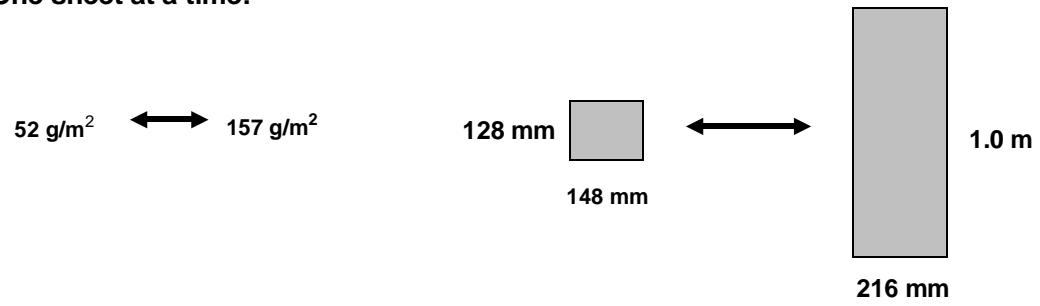
Several sheets at once:
Note: The area of the document which is scanned by the fax is slightly smaller than the actual document size. Any letters or graphics outside this area cannot be transmitted. Scanning width: 210 mm. Scanning length: The length of the sheet minus 4mm from both the top and bottom edges.
Other restrictions
- Documents written in yellow, greenish yellow, or light blue ink cannot be transmitted, as the scanner does not recognise these colours. Ink, glue, and correcting fluid on documents must be dry before they are transmitted.
- All clips, staples, and pins must be removed from documents before transmission. If these are not removed, they may damage the fax.
- Documents which are patched, taped, torn, smaller than the minimum size, carbon backed, or easily smudged should be photocopied, and the copy used for transmission.
Loading the document
Up to 20 pages can be placed in the feeder at one time. The pages will be automatically fed into the fax starting from the page on the bottom.
It may be necessary, depending on the type of original, to feed the first sheet into the feeder initially and then to place the remaining pages into the feeder. If you need to send or copy more than 20 pages, place the additional pages gently and carefully in the feeder just before the last page is scanned. Do not try to force them in, as this may cause double-feeding or jamming. If your document consists of several large or thick pages which must be loaded one at a time, insert each page into the feeder as the previous page is being scanned. Insert gently to prevent double-feeding.
1
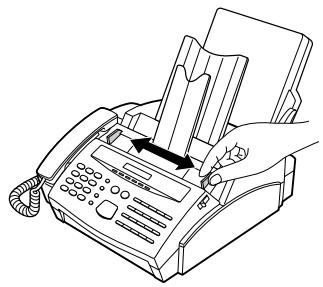
Adjust the document guides to the width of your document.
2
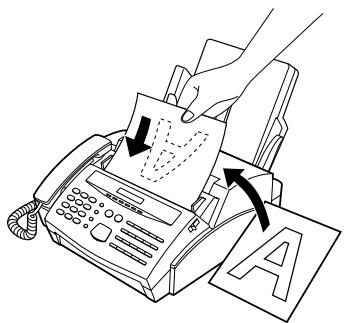
Place the document face down and push it gently into the document feeder. The top edge of the document should enter the fax first.
- The feeder will draw the leading edge of the document into the fax. SEND/COPY READY will appear in the display.
3
You can now either make resolution and/or contrast settings as described in the following section, or dial the other party as described in the section, "Dialling and transmission".
Important:
- If you need to remove the document from the feeder before transmission or copying, first open the operation panel by pulling the panel release on the right side of the fax forward, and then remove the document. If you try to pull the document out without opening the operation panel, you may damage the feeder mechanism.
Optional transmission settings
If desired, there are several transmission settings which you can make before dialling and transmitting the document.
Note: To make the settings, the document must first be loaded in the feeder.
Resolution
Your fax has 4 resolution settings:
| STANDARD: | Use STANDARD for ordinary documents. This setting gives you the fastest and most economical transmission. |
| FINE: | Use FINE for improved reproduction, especially with documents containing small letters or fine drawings. |
| SUPER FINE: | Use SUPER FINE when you need the highest quality of reproduction. |
| HALF TONE: | Use HALF TONE for photographs and illustrations. The original will be reproduced in 32 shades of grey. |
If you do not make a setting, the fax will automatically send the document in STANDARD.
In order to transmit with FINE or SUPER FINE resolution, the receiving fax machine must also have that resolution. If it doesn't, the next best available setting will be used. ◆ The default resolution (the resolution the fax uses if you do not make a resolution setting) can be changed to FINE by changing Option Setting 1. See Chapter 6, "Optional Settings".
Contrast
The contrast is normally set to AUTO, which means that the fax automatically controls the contrast, but for faint documents you can change the setting to DARK.
Setting the resolution and contrast
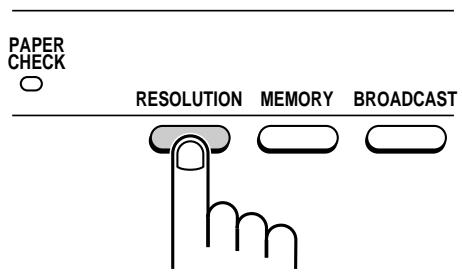
Press the RESOLUTION key one or more times until the desired resolution and contrast settings appear in the display.
- The first time you move through the list of resolution settings, the contrast setting AUTO will appear next to each resolution setting. The second time you move through the list, the contrast setting DARK will appear.
Cover Sheet
You can have your fax generate a cover sheet and send it as the last page of the transmission. The cover sheet includes the date and time, the sender's name and number, and the receiver's name and number if an automatic dialling number is used. The total number of pages sent is indicated on the bottom.
- Your name and number must be programmed in order for them to appear on the cover sheet. (See "Entering Your Name and Fax Number" in Chapter 2.) ◆ Cover Sheet cannot be selected when you use the Relay Request Function.
To include a cover sheet with only a single transmission, press the panel keys as shown below. In this case, you can also select a message which will appear at the top of the cover sheet. If you want the fax to automatically send a cover sheet with every transmission, set Option Setting 13 to YES as described in Chapter 6, "Optional Settings" (no message can be selected in this case).
| Step | Press these keys: | Comments |
| 1 | COVER SHEET MODE will appear in the display. | |
| 2 | 1 or 2 | Press "1" to turn the cover sheet function on, or "2" to turn it off. |
| 3 | 2 (Example) | If you pressed "1" in the previous step, select a message by entering a number from "2" to "5" as shown below, or enter "1" if you don't want to include a message."1": NO MESSAGE"2": URGENT"3": IMPORTANT"4": CONFIDENTIAL"5": PLS. DISTRIBUTE |
Example
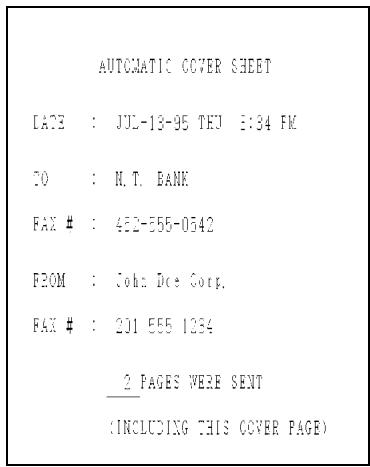
Batch Page Numbering (Page Counter)
This setting is used to change the page numbering of the transmitted document from simple numbering ("P.1", "P.2", etc.) to batch numbering, which means that a slash and the total number of pages being sent is added after each page number (for example, "P. 1/5", "P.2/5", etc.). This allows the receiver to check for any missing pages.
If you are sending a cover sheet, do not include the cover sheet in the total number of pages. Your fax will adjust the number to include the cover sheet automatically. - If you need to cancel a batch number entry, remove the document from the feeder or press the STOP key. If the number of pages actually transmitted does not coincide with the batch number entered, the alarm will sound and PAGE COUNT ERROR will appear in the display. "PAGE E" will also appear in the "NOTE" column of the Transaction Report if it has been set to print out.
| Step | Press these keys: | Comments |
| 1 | PAGE COUNTER SET will appear in the display. | |
| 2 | 1 0 (Example) | Enter the total number of pages (2 digits - "01" to "99") by pressing the numeric keys. |
Note: Batch page numbering is automatically evoked whenever documents are sent from memory, i.e., Memory transmission or Broadcasting.
Dialling and transmission
Once you have loaded the document and made any desired transmission settings, you are ready to dial the number of the receiving fax machine and transmit the document. There are several ways of dialling, and you can select the one which best suits your needs.
Normal Dialling
With Normal Dialling, you pick up the handset (or press the SPEAKER key) and dial as you would to make a telephone call. If the receiving machine is set to receive faxes manually (this means that the receiving party first answers your call vocally, and then presses their Start key to begin fax reception), you can talk with them before sending the fax.
| 1 | 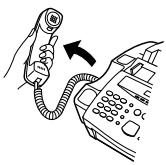 or or  | Pick up the handset or press the SPEAKER key. Listen for the dial tone. | |
| 2 | 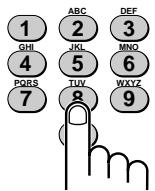 | Dial the number of the receiving machine by pressing the number keys. | |
| 3 | 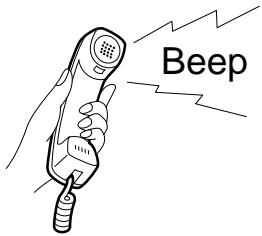 | Wait for the connection. Depending on the setting of the receiving machine, you will either hear a facsimile reception tone or the other person will answer.If the other party answers, ask them to press their Start key (if you pressed the SPEAKER key, pick up the handset to speak with them). This causes the receiving machine to issue a reception tone. | |
| 4 |  | When you hear the reception tone, press the START key. Replace the handset if you used it.When transmission is completed, the fax will beep. | |
Direct Keypad Dialling
If you do not need to talk with the other party before sending the fax, you can just dial; it isn't necessary to pick up the handset or press the SPEAKER key.
◆ Direct Keypad Dialling is a form of automatic dialling, so if you need to insert a pause between any digits of the number, press the REDIAL key. (For more information on pauses, see "Storing Numbers for Automatic Dialling" in Chapter 2.)
1
Enter the number of the receiving machine by pressing the number keys.
2
Check the display. If the number of the receiving machine shown is correct, press the START key.
- If it is not correct, press the STOP key to backspace and clear one digit at a time, and then re-enter the correct digit(s).
Rapid Key Dialling
If the number you want to dial has been stored as a Rapid Key number (see "Storing Numbers for Automatic Dialling" in Chapter 2), you can dial it by pressing the appropriate Rapid Key.
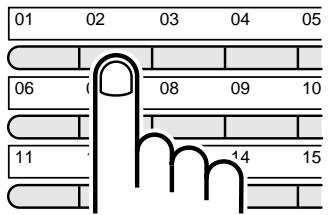
Press the appropriate Rapid Key.
- The name of the receiving party will appear in the display. If no name was stored, the fax number will appear. (If the name or number is incorrect, press the STOP key.)
- The document will be automatically transmitted once the connection is made.
Speed Dialling
If the number you want to dial has been stored as a Speed Dial number, you can dial it by pressing the SPEED key and then entering the 2-digit number (see "Storing Numbers for Automatic Dialling" in Chapter 2).
1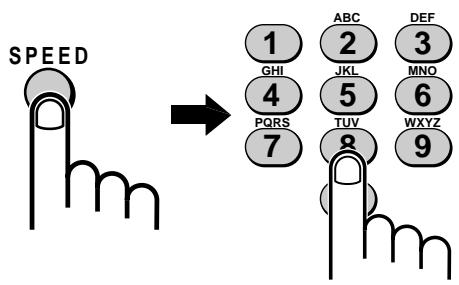
Press the SPEED key and then enter the two digits of the Speed Dial number by pressing the number keys.
- To enter numbers 1 through 9, first enter 0 and then the number.
2
Check the display. If the name or number shown is correct, press the START key. (If not, press the STOP key and then repeat Step 1.)
Chain Dialling
An automatic dialling number set for Chain Dialling (see "Storing Numbers for Automatic Dialling" in Chapter 2) can be combined with another automatic dialling number or digits entered manually with the numeric keys to dial one phone number up to 50 digits long. The following are some examples of how this can be done:
Press appropriate Rapid Keys in the proper order. For example, press Rapid Key 01, then Rapid Key 02. Enter Speed Dial numbers in the proper order. For example, press the SPEED key and "22", then the SPEED key and "23". Press the START key after the final number to begin transmission. - Press a Rapid Key and then manually enter a number by pressing appropriate numeric keys. Press the START key after the final numeric key to begin transmission. (Use this method, for example, when you have stored a long distance access code into a Rapid Key, and want to dial this in combination with a number which hasn't been stored as an automatic dialling number.)
Using the SEARCH DIAL key
If you don't remember the Rapid Key or Speed Dial number in which you have stored a particular fax number, you can search for the number by following the steps below. Once you have found the number, you can dial it and transmit the loaded document by simply pressing the START key.
| 1 | SEARCH DIAL | Press the SEARCH DIAL key. | |
| 2 |  |  (Example: "B") (Example: "B") | Enter the first letter of the stored name by pressing the appropriate number key (the key which corresponds to the required letter) one or more times until the letter appears in the display. If the name begins with a special character or number, press "1".If you don't remember the first letter, go to Step 3 (you will scroll through the list from the beginning).If a name wasn't stored for the number, press "0". This will cause numbers, not names, to appear when you scroll.To access voice numbers stored in Rapid Keys which have no name, press "0" twice (note that Speed Dial numbers will also appear). |
| 3 |  | or  | Press the "#" key or the "*" key to scroll through the names (numbers if you pressed "0"). Stop when the desired name appears in the display.If no names have been stored that begin with the entered letter, you will scroll from the next name, in alphabetical order, in the list. If no names/numbers have been stored at all, NO DATA will appear. |
3
4
Press the START key. The document will be automatically transmitted once the connection is made.
Note: The SEARCH DIAL key can be used to access the first number in a Chain Dialling sequence, but not subsequent numbers.
Redialling
Automatic redialling
If you use automatic dialling (including Direct Keypad Dialling) and the line is busy, your fax will automatically redial the number. Up to 2 redialling attempts will be made at intervals of 5 minutes.
To stop automatic redialling, press the STOP key. If desired, you can change the number of times the fax redials to any number from 1 to 4 with Option Setting 6, and the interval at which redialling is done to any number of minutes from 1 to 5 with Option Setting 7.
Using the REDIAL key
You can press the REDIAL key to redial the last number dialled. To send a document, proceed from Step 3 of Normal Dialling. Note that the speaker will be automatically activated, so you do not need to pick up the handset immediately.
Using AUTO mode
When the reception mode is set to AUTO (press the RECEPTION MODE key until the AUTO light comes on), your fax automatically answers all calls on 1 ring and receives incoming documents.
- You can change the number of rings after which the fax answers incoming calls by changing Option Setting 2 (see "Optional settings" in Chapter 6). Any number from "1" to "5" can be selected ("1" to "3" rings in Eire). If you pick up the handset before your fax answers, you can talk to the other party and/or receive a document as described below in "Using MANUAL mode".
Note: Documents sent to your fax in Superfine resolution are printed in Fine resolution.
Using MANUAL mode
When the reception mode is set to MANUAL (press the RECEPTION MODE key until the MANUAL light comes on), you must answer all calls (including fax transmissions) using the fax's handset or an extension phone connected to the same line.
Receiving faxes on the FO-2600
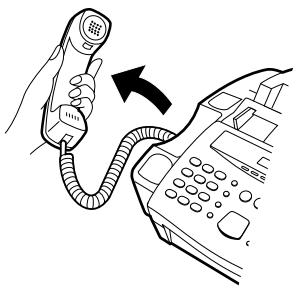
When your fax rings, pick up the handset.
- If you hear a fax tone, wait until RECEIVING appears in the display, and then replace the handset.
- If the other party first talks to you and then wants to send a fax, press the START key after speaking. Replace the handset.
Note: If you have set Option Setting 12 to "OFF" and you hear a fax tone when you pick up the handset, you must press the START key to begin reception.
Note: As a back-up feature of manual reception mode, you can set the fax to automatically receive documents on any number of rings from "1" to "5" ("1" to 3" in Eire). This is useful if you are occasionally unable to respond to an incoming call personally. The setting is made with Option Setting 3. See "Optional Settings" in Chapter 6.
Received document outlet
Note: The Received Document Outlet has a maximum capacity of 100 sheets. To prevent the outlet from becoming obstructed, which will in turn cause paper jams, be sure to frequently remove received documents and copies. Do not allow a large number of documents to accumulate in the outlet.
Receiving faxes on an extension phone
If you hear a fax tone when you answer an extension phone, wait until your fax answers (the extension phone will go dead), and then hang up. Your fax will automatically receive the document.
Note: If your fax does not respond within 5 seconds, noise on the line may be preventing it from detecting the fax tone. In this case, manually activate fax reception as described in the following paragraph.
If the other party first talks to you and then wants to send a document, press "5", "*", and "*" if you are on a tone dial phone or a pulse dial phone capable of sending tone signals. If your phone cannot send tone signals, hang up the extension handset (the telephone line will remain open whilst the caller is off-hook), walk over to the fax, pick up the handset, and press the START key.
Note: Your fax will not accept the signal to begin reception ("5", "*", and "*") if a document is loaded in its feeder.
Comments:
- If you have set Option Setting 12 to "OFF" and hear a fax tone when you answer the extension phone, you must press "5", "*", and "*" if you are on a tone dial phone, or walk over to the fax, pick up the handset, and press the START key if you are on a pulse dial phone.
- The code used to activate fax reception from a tone dial extension phone ("5", "*", and "*") can be changed if desired. See Option Setting 10 ("Tel/Fax Remote Number") in Chapter 6, "Optional Settings".
- If you do not intend to use the code for activating fax reception, you can turn detection of the code off by resetting Option Setting 11. This will ensure that the fax never mistakenly attempts to begin reception if it detects a signal similar to "5", "*", and "*" while you are talking on an extension phone.
Automatic Fax/Phone Changeover
This is a special function in AUTO reception mode which is convenient for receiving both faxes and voice calls. When it is turned on, your fax will detect whether an incoming call is a voice call (including manually dialled fax transmissions), or an automatically dialled fax. If it is a voice call, the fax will make a special ringing sound to alert you to answer. If it is an automatically dialled fax transmission, reception will begin automatically.
Comments:
- Automatic Fax/Phone Changeover is normally used in AUTO reception mode. However, it can also be used in MANUAL (telephone) reception mode if Option Setting 3 is set to YES.
- When this function is enabled, the machine may not be connected to lines listed in telephone directories issued by public network operators. Publication of the number of this machine should be accompanied with advice of the function.
Turning Automatic Fax/Phone Changeover on
Automatic Fax/Phone Changeover is turned on by setting Option Setting 8 to "YES". The procedure for doing this is described in Chapter 6, "Option Settings".
◆ Make sure the reception mode is set to AUTO.
How the function operates
When a call comes in, your fax will answer it after the number of rings set with Option Setting 2. After answering, the fax monitors the line for about 5 seconds to see if a fax tone is being sent.
If your fax detects a fax tone (this means that the call is an automatically dialled fax), it will automatically begin reception of the incoming document. If your fax doesn't detect a fax tone (this means that the call is a voice call or manually dialled fax), it will make a special ringing sound (called pseudo ringing) for 15 seconds to alert you to answer. If you don't answer within this time, your fax will send a fax tone to the other machine to allow the calling party to send a fax manually if they desire.
Comments:
- Only the fax will alert you to voice calls or manually dialled faxes by pseudo ringing. An extension phone connected to the same line will not ring after the connection has been made.
- The duration of pseudo ringing can be adjusted with Option Setting 9. See Chapter 6, "Optional Settings".
- The volume of the pseudo ringer is controlled by pressing the FUNCTION key and then the SPEAKER key, followed by the "#" or "*" keys. Make sure the speaker volume is turned up sufficiently to hear the pseudo ringer.
MAKING COPIES
Your fax can also be used to make copies. Single and multiple copies (up to 99 per original) can be made, enabling your fax to double as an office copier.
◆ The default resolution for copying is FINE.
Single copies
Follow these steps when you only want to make one copy of each original in the feeder. Single copying is particularly convenient for making sample copies of documents to be transmitted to see if the resolution or contrast needs adjustment.
1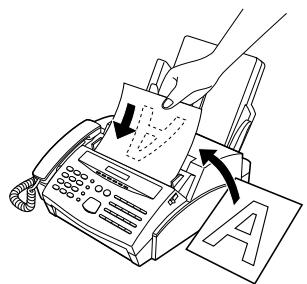
Load the document(s) face down.
- If desired, adjust the resolution and/or contrast with the RESOLUTION key.
2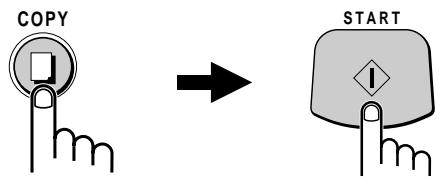
Press the COPY key, and then the START key.
Multiple copies
Follow these steps when you want to make multiple copies of one or more originals. Up to 99 copies per original can be made.
If you are making multiple copies of more than one original, you can choose whether to have the copies sorted (SORT COPY) or not sorted (MULTI COPY). The following example shows how each mode works when 3 copies each of 3 originals are made.
![graph TD A["Sort COPY"] --> B["Originals"] B --> C["MULTI COPY"] subgraph Sorting A1["A"] --> A2["B"] --> A3["C"] A4["A"] --> A5["B"] --> A6["C"] A7["A"] --> A8["B"] --> A9["C"] A10["A"] --> A11["B"] --> A12["C"] A13["A"] --> A14["B"] --> A15["C"] A16["A"] --> A17["B"] --> A18["C"] A19["A"] --> A20[…](/content/2025/01/79050/images/9c0bf230a4c62e44a252920bb5c5fe222f01df58b231d7d9196db8c89b952fb1.jpg)
1
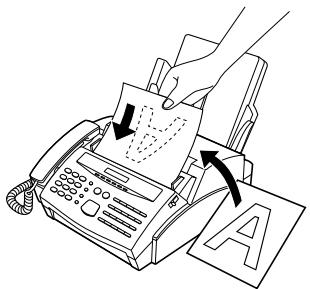
Load the document(s) face down.
- If desired, adjust the resolution and/or contrast with the RESOLUTION key.
2

Press the COPY key.
3
1 or 2
Press "1" to select MULTI COPY, or "2" to select SORT COPY.
4
1 2
(Example)
Enter the desired number of copies with the numeric keys.
- If the desired number of copies is from 1 to 9, enter "0" first.
5
Press the START key.
Note: If you place a large number of originals in the feeder, the memory may become full before all of them can be scanned (MEMORY FULL will appear in the display). If this happens, press the START key to copy the originals which have been scanned, and then repeat the multiple copy procedure for the remaining originals, including the original which was being scanned when the memory became full.
Your fax can be used like a regular telephone to make and receive voice calls.
◆ To receive a phone call, the power must be on.
1
or
SPEAKER
Pick up the handset or press the SPEAKER key. Listen for the dial tone.
- To use Rapid Key Dialling, you must press the SPEAKER key.
2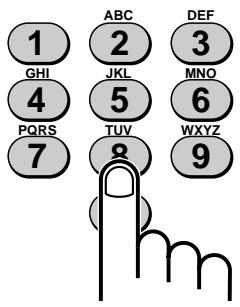
Dial the number using one of the following methods:
- Normal Dialling: Enter the full telephone number with the numeric keys.
- Rapid Key Dialling: Press the appropriate Rapid Key. (The voice number will be dialled.)
- Speed Dialling: Press the SPEED key, and enter the 2-digit Speed Dial number with the numeric keys.
3
Speak with the other party when they answer.
- If you pressed the SPEAKER key, pick up the handset.
Using the SEARCH key
You can use the SEARCH key to search for a Rapid Key or Speed Dial number. First search for the number as described in "Using the SEARCH key" in "Sending Documents" in this chapter, and then pick up the handset or press the SPEAKER key. The number will be dialled automatically after you do so (do not press the START key).
Redial
The last number called can be redialed by pressing the REDIAL key (it is not necessary to pick up the handset or press the SPEAKER key). When the other party answers, pick up the handset.
Issuing tone signals
If you are on a pulse dial line, you can use the "*" key to temporarily issue tone signals when you press the numeric keys. This allows you to use certain telephone services which require entering tone signals.
When you need to enter one or more tone signals, press the "*" key and then press the appropriate numeric keys.
To change back to pulse mode, simply hang up (the dialling mode automatically changes back to the setting of Option Setting 19 when you hang up).
PBX operations and Network Services
If your fax is connected to a PBX, you can use it to perform the following operations:
Making enquiry calls: During a call, you can put the other party on hold, make a further call to a third party, and then go back to your original caller. ◆ Transferring calls: You can transfer a call to another number on the same PBX without operator assistance.
Note: The machine is also fully compatible with British Telecom Network Services and can be used in conjunction with any facility that requires a recall command.
Note: To perform the above PBX operations, Option Setting 21 must be set to the appropriate recall mode for your PBX (see Chapter 6, "Optional Settings"). Check your PBX manual or consult your supplier for the correct recall mode. If you are using British Telecom Network Services, Option Setting 21 must be set to time-break recall. (This is the initial factory setting).
Making enquiry calls
1
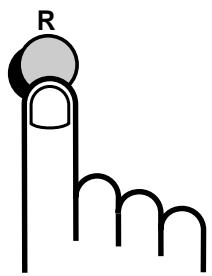
During the telephone conversation, press the R key. This puts the other party on hold.
2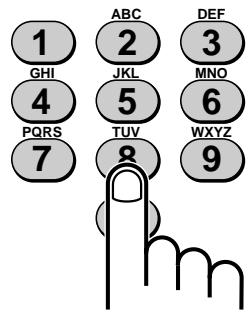
When you hear the dial tone, dial the number of the third party for the enquiry call.
3
When you have finished the enquiry call, you will be automatically returned to the original caller as soon as the third party hangs up.
Transferring calls
1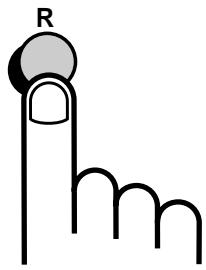
During the telephone conversation, press the R key. This puts the other party on hold.
2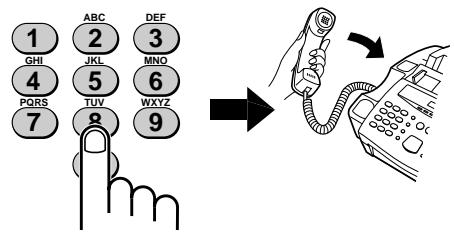
When you hear the dial tone, dial the number to which you want to transfer the call. When the other party answers, hang up, and the call will be transferred.
- If the other party does not answer, press the R key again to return to the original caller.
If you have connected an answering machine to your fax as described in "Assembly and Connections" in Chapter 1, you can receive both voice messages and fax transmissions on the same line while you are out. To use this connection, first change the outgoing message of your answering machine, and then set the reception mode of your fax to ANS. when you go out.
Changing the outgoing message
The outgoing message (OGM) of your answering machine should be changed to inform callers who want to send a fax to press their Start key. For example, your message might go as follows:
"Hello. You've reached the ABC company. No one is available to take your call right now. Please leave a message after the beep or press your facsimile Start key to send a fax. Thank you for calling."
Comments:
- It is advisable to keep the length of the message under 10 seconds. If it is too long, you may have difficulty receiving faxes sent by automatic dialling.
- Your callers can even leave a voice message and send a fax message on the same call. Modify your outgoing message to explain that they can first leave a voice message, and then press their Start key to send a fax.
When you go out
1
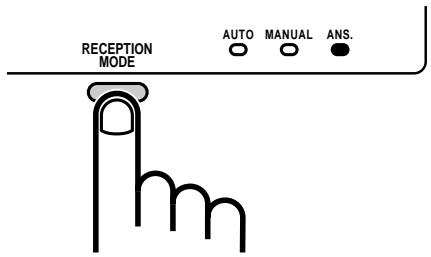
Set the reception mode of your fax to ANS. by pressing the RECEPTION MODE key.
2
Set your answering machine to auto answer.
- Ideally it should be set to answer on no more than two rings.
Note: If your answering machine has a remote retrieval function, make sure the code used to activate remote retrieval is different from the code used to activate fax reception with an extension telephone (see "Receiving Documents" in Chapter 3). If they are the same, entering the code from an outside telephone to retrieve messages will cause the fax machine to be activated.
How the answering machine mode operates
While you are out, all of your incoming calls will be answered by your answering machine and its outgoing message will play. During this time, your fax will quietly monitor the line. If your fax detects a fax transmission, it will take over the line and begin reception.
- If the connection is not good or there is noise on the line, the answering machine and/or fax machine may not respond properly.
- The call counter on your answering machine may indicate that voice messages were received, when only fax messages were received.
Note: To prevent the fax from taking over the line and beginning reception if you call in from an external phone or answer on an extension phone, press any three keys (other than the code to activate fax reception, "5", "✗", and "✗") on the dial pad of the phone. This can only be performed from a phone capable of tone dialling.
If it doesn't work
If the connection doesn't operate properly, first check the following:
Is the answering machine connected properly to the fax? One end of the answering machine line should be inserted in the "EXT. TEL." socket on the fax ("TEL. SET" in Ireland), and the other end in the answering machine's telephone line socket. ◆ Is the reception mode set to ANS.?
If the above settings and connections are correct and the connection still doesn't operate properly, the timing with which the answering machine and the fax operate are probably not well synchronized. Some common synchronization problems and their solutions are described below.
In addition, read the following section, "How fax transmissions are detected", to gain a better understanding of how the fax operates when an answering machine is connected. This will help you determine what course of action to take.
◆ Are callers who want to leave a voice message being interrupted by the fax before they can do so?
The fax is set to take over the line and begin reception if it detects a specified duration of silence (called "Quiet Detect Time"). If your outgoing message contains a pause or the caller pauses while leaving a message, and the pause is longer than the specified duration, the fax will interrupt.
It is best to shorten or eliminate such pauses, but if necessary you can also try lengthening the Quiet Detect Time setting. This procedure is described in "Optional A.M. Mode Settings" at the end of this chapter.
- Are callers who want to send a fax manually having trouble doing so after your answering machine’s outgoing message plays?
If so, the answering machine may be disconnecting the line (hanging up) before your fax has a chance to take over the line and begin reception. You can make your fax activate sooner by shortening the Quiet Detect Time setting. This procedure is described in "Optional A.M. Mode Settings" at the end of this chapter.
◆ Are you having trouble receiving documents sent by automatic dialling?
Make sure that your answering machine's outgoing message is less than 10 seconds long, and that your answering machine is set to answer on between 2 and 4 rings. Inserting a short pause at the beginning of your answering machine's outgoing message might also help, as this gives your fax a chance to clearly hear and detect the fax "calling" tone which the transmitting fax sends in the case of automatic dialling.
How fax transmissions are detected:
Your fax detects fax transmissions in two ways when an answering machine is connected, depending on whether the document is being sent automatically or manually:
Automatic dialling:
If the document is sent using a form of automatic dialling, such as Rapid Key or Speed Dialling, the transmitting fax machine will send a "calling tone" at 3-second intervals for a period of about 30 to 40 seconds after dialling. When your fax detects this tone, it will disconnect the answering machine, send a "reception tone" in response, and begin receiving the transmission.
If the transmitting fax does not receive a reception tone from your fax within 30 to 40 seconds after dialling, it will usually hang up and automatically redial several minutes later.
Since your fax may not be able to detect the transmitting fax's calling tone until after the outgoing message ends, it is important that the answering machine answers the call within 4 rings and the outgoing message does not last too long. Otherwise, your fax may not be able to establish communication with the transmitting fax before the latter hangs up.
Manual dialling:
If the document is being sent by normal (manual) dialling, the transmitting fax machine does not send a calling tone. Instead, the person faxing normally waits until they hear a reception tone and then presses their Start key. In the case of an answering machine connection, they will hear your outgoing message instead of a reception tone, and then press their Start key.
However, this does not signal a fax transmission to your fax. Instead, it must use a function called "Quiet Detect Time" to detect the transmission. This function causes your fax to disconnect the answering machine and begin reception if it detects a certain duration of silence.
Your fax is set to automatically begin fax reception if it detects a duration of silence of 4 seconds. When the person faxing presses their Start key, the line will go quiet, and the transmitting fax machine will wait for a reception tone from your fax. Your fax will therefore disconnect the answering machine 4 seconds after the key is pressed, and send a reception tone to tell the other fax machine to begin transmission.
If your answering machine has a fast disconnect time and disconnects the line before 4 seconds elapses, fax reception will not be possible. In this case, you must shorten the Quiet Detect Time setting as described on the following page. On the other hand, if the Quiet Detect Time setting is too short, your fax may interrupt voice callers if they pause during their message or if there is a period of silence in your outgoing message.
MEMORY
Your fax has a memory which can be used to store both incoming and outgoing documents.
- Approximately 28 pages of average content (based on ITU-T Test Chart #1 at standard resolution) can be held in memory if they are all to be transmitted, or 32 pages if they are all received (39 received pages if Option Setting 20, Error Correction Mode, is set to NO). Less can be held if any were scanned using fine or halftone resolution. If you need more memory, a 1 MB add-on option is available from your dealer or retailer which will increase the capacity to 92 transmission pages or 92 received pages (99 received pages if Error Correction Mode is set to NO).
Sending documents from memory
With this function, the original document is scanned immediately, stored in memory, and then transmitted once the connection to the receiving machine is made. This is convenient when transmitting to places where the line is often busy, as it saves you from waiting to collect the original document and frees the feeder for other operations.
Only one memory transmission can be set at a time. The amount of memory currently occupied appears as a percentage in the display while the document is being scanned.
1
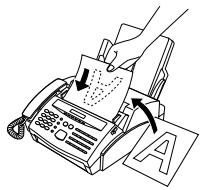
Load the document(s).
Set the resolution and/or contrast if desired.
2
Press the MEMORY key.
3
![graph LR A["SPEED"] --> B["0"] B --> C["1"] style A fill:#fff,stroke:#000 style B fill:#fff,stroke:#000 style C fill:#fff,stroke:#000 note bottom of C (Example)](/content/2025/01/79050/images/95f20d113961211fb20aa22b248e3a0d8b12c8ae1d58247aaf1da85587c0eec1.jpg)
Enter the number of the receiving machine using one of the following methods:
- Press a Rapid Key.
- Press the SPEED key and enter a Speed Dial number.
- Enter a full telephone number by pressing the number keys.
4
Press the START key if you entered a Speed Dial number or a full number.
- The document is first scanned and stored in memory. The other machine is then dialled (redialling will be performed automatically if necessary). When the connection is made, transmission begins. Afterwards, the document is cleared from memory and your fax returns to standby mode.
If the memory becomes full...
If the memory becomes full while the document is being scanned, MEMORY FULL will appear in the display.
- Press the START key if you want to transmit the pages which have been stored up to that point in memory. The remaining pages will be ejected from the feeder. After transmission, the memory will be cleared and you can transmit the remaining pages. You will also need to transmit the page which was being scanned when the memory filled up. ◆ Press the STOP key if you want to cancel the entire transmission.
Substitute reception into memory
This is a back-up function which is automatically activated if your fax runs out of paper, the imaging cartridge needs replacement, or the paper jams.
When you have received a document in memory, FAX RX IN MEMORY will appear in the display, alternating with CHECK PAPER, REPLACE TONER, or PAPER JAM. When you add paper, replace the imaging cartridge, or clear the jam, the stored documents will automatically be printed out.
Caution!
- When documents are stored in memory, do not turn the power off. This will erase all of the contents.
- If documents received in memory are lost due to a power failure or other interruption of the power supply, a "CLEAR REPORT" will be printed out when the power is restored. This gives information about the receptions lost, including the fax numbers of the transmitting machines if they are available.
TRANSMISSION RESERVATION
When your fax is busy receiving a document or transmitting a document from memory, you can "reserve" a transmission by loading the document and entering the fax number. Once the current operation is completed, your fax will automatically dial the number and transmit the document, saving you from having to wait.
1
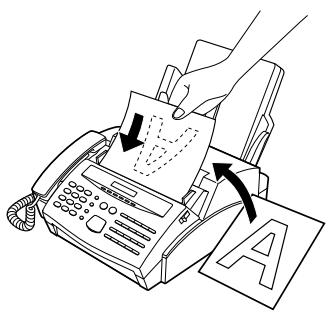
Load the document(s).
- RESERVE READY will appear in the display.
- Set the resolution and/or contrast if desired.
2
![graph LR A["SPEED"] --> B["0"] B --> C["1"]](/content/2025/01/79050/images/4e84bf31016aa78bde4fc8bdbfa18b5db7661003cde62d6c85080d0d7c2afd51.jpg)
Enter the number of the receiving machine using one of the following methods:
- Press a Rapid Key.
- Press the SPEED key and enter a Speed Dial number.
- Enter a full number with the numeric keys.
3
Press the START key if you entered a Speed Dial number or a full number.
- The number will be dialled once the current operation is completed, and transmission will begin once the connection is made.
Note: If the document is removed from the feeder after a transmission reservation is set, the reservation will be cancelled.
BROADCASTING
This function allows you to send the same document to as many as 50 different locations with just one operation. You feed the document through the machine once and it is stored in memory. After this, the numbers you have entered are automatically dialled in succession, and the document transmitted to each location.
To enter the fax numbers of the receiving machines, you must use Rapid Keys, Speed Dial numbers, or Group Keys; no full numbers can be entered.
| 1 |  | Load the document(s). |
| 2 |  | Press the BROADCAST key. |
| 3 |  (Example) (Example) | Dial the receiving units using one or more of the following methods:Press one or more Rapid Keys.Enter Speed Dial numbers with the numeric keys.Press one or more Group Keys. |
| 4 |  | Press the START key.Set the resolution and/or contrast if desired. |
| 5 |  | Press the START key. Transmission will begin.A Transaction Report is automatically printed out after Broadcasting is completed. Check the "Note" column of the report to see if any of the locations are marked "Busy" or have a communication error code. If so, send the document to those locations again. |
Broadcasting using a Group Key
If the fax machines to which you want to broadcast have all been programmed into one Group Key, you can perform the broadcasting operation using the following simplified procedure:
1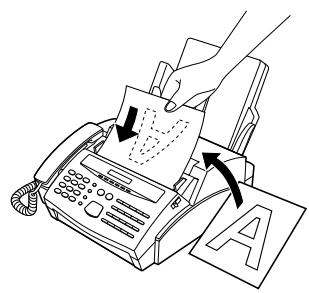
Load the document(s).
- Make any desired transmission settings (resolution, contrast, etc.).
2
Press the appropriate Group Key. Transmission will begin.
(Example)
CONFIDENTIAL TRANSMISSION
The Confidential function is used to send documents confidentially. When the receiving machine receives the document, it stores it in memory instead of immediately printing it out. Print-out will not be performed until the receiving party enters the correct passcode.
◆ Confidential transmission is only possible when the receiving machine is a Sharp model with confidential reception capability. ◆ Confidential reception is not possible with the FO-2600.
| 1 | 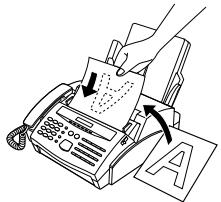 | Load the document(s).Make any desired transmission settings (resolution, contrast, etc.). |
| 2 |  | Press the FUNCTION key, "6", and the "START" key.CONF. TX MODE will appear in the display. |
| 3 |  (Example) (Example) | If the receiving machine has multiple mailboxes, enter the appropriate 2-digit mailbox number with the numeric keys (if not, skip this step). |
| 4 |  | Press the START key. |
| 5 |  (Example) (Example) | Dial the receiving unit using one of the following methods:Press a Rapid Key.Press the SPEED key and enter a Speed Dial number. Press the START key.Enter a full telephone number with the numeric keys, and press the START key.Transmission will take place once the connection is made. |
POLLING
Polling allows you to request another fax machine to send a document to your fax machine. In other words, the receiving fax machine, not the transmitting fax machine, activates the transmission. You can use your fax to both poll and be polled by others.
Setting the polling key
To use the polling function, you must first set Rapid Key 16/POLL for use as a polling key. This is done by pressing the panel keys as shown below.
The polling key cannot be used for both Rapid Key Dialling and Polling. If it has already been programmed for Rapid Key Dialling, you must clear it first as described in "Storing Numbers for Automatic Dialling" in Chapter 2.
| Step | Press these keys: | Comments |
| 1 |   | ENTRY MODE will appear in the display. |
| 2 |   | POLLING FUNCTION will appear in the display. |
| 3 |  | Press "1" to turn the polling function on, or "2" to turn it off. |
| 4 |  | |
| 5 |  | Exit. |
Polling others
1
(Example)
Dial the fax machine you want to poll using one of the following methods:
- Pick up the handset (or press the SPEAKER key) and dial the full number. Wait for the fax answerback tone.
- Press the SPEED key and enter a 2-digit Speed Dial number.
- Enter the full number using the numeric keys.
2
Press Rapid Key 16/POLL.
- If you used the handset, replace it when POLLING appears in the display. Reception will begin.
Being polled (Polling Standby)
To let another fax machine poll your fax, simply set the reception mode to AUTO, and load the document(s) to be sent.
Transmission will take place when the other fax machine calls your fax and activates polling. Automatic reception is possible whilst your fax is on polling standby.
Polling Security
Polling Security allows you to prevent unauthorized polling of your fax. When this function is turned on, polling will only take place when the fax number of the polling fax machine has been entered in your fax's list of permitted fax numbers (called "passcode numbers"). The number of the polling fax must also be correctly programmed into itself.
Turning Polling Security on and off
| Step | Press these keys: | Comments |
| 1 |   | ENTRY MODE will appear in the display. |
| 2 |    | SECURITY SELECT will appear in the display. |
| 3 |  | Press "1" to turn polling security on, or "2" to turn it off. |
| 4 |  | |
| 5 |  | Exit. |
Storing and clearing fax numbers for polling permission
You can store up to 10 fax numbers in your fax's list of permitted numbers.
| Step | Press these keys: | Comments |
| 1 |   | ENTRY MODE will appear in the display. |
| 2 |  | PASSCODE # MODE will appear in the display. |
| 3 |  | Press "1" to set a number, or "2" to clear a number. |
| 4 |  (Example) (Example) | Storing: Enter a 2-digit number (from 01 to 10). This number identifies the fax number you will enter in the next step.Clearing: Enter the 2-digit number which identifies the fax number you want to clear, and go to Step 6. |
| 5 |  (Example) (Example) | Enter the fax number (max. 20 digits). |
| 6 |  | |
| 7 | Step 4 or  | Return to Step 4 to enter another number, or press STOP to exit. |
RELAY REQUEST
Relay Request allows you to send a document to another fax machine and have that fax broadcast the document to a number of other fax machines. This function is useful when the relay fax machine is closer to the end fax machines than your fax, as it reduces telephone line costs.
Important:
- Relay Request can only be used if the intermediate relay machine is a Sharp machine having the Relay Broadcast function (note that your fax cannot act as a relay machine).
Storing a relay group
To make a relay request, you must first enter the relay group. This consists of the fax number of the intermediate relay machine and the fax numbers of the end receiving machines. Only one group can be entered, and this group will remain in memory until cleared.
Only a Rapid Key number or a Speed Dial number can be entered to specify the relay machine; a full number cannot be entered. - Fax numbers of the end receiving machines can be entered as Rapid Key numbers, Speed Dial numbers, and/or Group Key numbers if they have been stored as such in the relay machine (not in your fax machine). Check with the operator of the relay machine for these numbers. - The total number of end receiving machines which can be entered varies with the model used as the intermediate relay machine. Check with the operator of the relay machine to find out how many receiving machines can be entered. A maximum of 400 spaces are available in memory for storing the numbers of end receiving machines. The number of spaces occupied by each number depends on what kind of number it is:
Rapid Key number: 4 spaces
Speed Dial number: 2 spaces
Group Key number: 4 spaces (for one group)
Full number: Number of digits in number (e.g., a maximum of 13 full numbers can be entered, with a maximum of 30 digits per number).
| Step | Press these keys: | Comments |
| 1 |   | RELAY FUNCTION will appear in the display. |
| 2 |   | SET RELAY GROUP will appear in the display. |
| 3 |  | |
| 4 |   (Example) (Example) | Enter the fax number of the relay machine by pressing a Rapid Key or entering a 2-digit Speed Dial number with the numeric keys. |
| 5 |  | |
| 6 |   (Example) (Example) | Enter the relay machine's Rapid Key numbers of the end receiving machines by pressing numeric keys (not Rapid Keys). (Skip this step if you don't want to enter Rapid Key numbers.) |
| 7 |  | |
| 8 |   (Example) (Example) | Enter the relay machine's Speed Dial numbers of the end receiving machines by pressing numeric keys. (Skip this step if you don't want to enter Speed Dial numbers.) |
| 9 |  | |
| 10 |   (Example) (Example) | Enter numbers of Group Keys for end machines by pressing numeric keys. (Skip this step if you don't want to enter Group Key numbers.) |
| 11 |  | |
| 12 | [04D7]       (Example) (Example) | Enter a full fax number (skip this step if you don't want to enter full numbers). Include the area code (e.g. "201") if the number is outside of the calling area of the relay unit. |
| 13 |  | |
| 14 |  | Press START and go back to Step 12 if you want to enter another full number. |
To clear the relay group
| Step | Press these keys: | Comments |
| 1 |   | RELAY FUNCTION will appear in the display. |
| 2 |  | CLEAR RELAY GRP will appear in the display. |
| 3 |  | |
| 4 |  | Exit. |
Making a relay request
Important:
- To make a relay request, your fax number must be entered into the Relay Passcode List of the relay fax machine by the operator of that fax. (Your number must also be correctly entered in your fax as described in "Entering Your Name and Fax Number" in Chapter 2.)
1
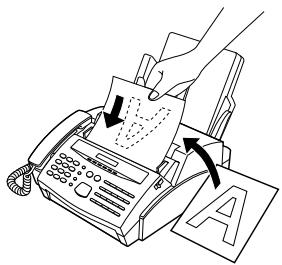
Load the document.
- Set the resolution and/or contrast if desired.
2

Press the FUNCTION key, the "5" key, and the "#" key.
3
Press the START key.
The timer function allows you to set a transmission or polling operation to be performed automatically at a time you specify. Up to two transmission operations (one from the feeder and one from memory) and one polling operation can be set at any one time, and the times they will be performed can be specified up to a week in advance.
You can use this function, for example, to take advantage of off-peak telephone rates without having to be there when the operation is performed.
For a timer transmission, you can either scan the document into memory when you set the transmission, or leave the document in the feeder before the transmission time. Scanning the document into memory is convenient because you don't have to worry about document mix-ups or forgetting to load the document. If a transmission from the feeder is set, a highlighted "T" will appear at the right of the display. ◆ Code numbers are used to specify days of the week. Refer to the table below when making time settings which include a specified day:
| Day | SUN | MON | TUE | WED | THU | FRI | SAT |
| Code | 0 | 1 | 2 | 3 | 4 | 5 | 6 |
Note: Only regular transmissions and polling operations can be set using the procedure described below. If you want to set a broadcast, confidential, or relay request operation to be performed at a specified time, program the operation into a Program Key and include a timer setting. This is described in "Entering and Using Programs" in this chapter.
- Only a rapid/speed number can be entered for a timer transmission, a direct dialled number cannot be entered.
- A timer operation is automatically cleared from memory after it is completed.
- To include a cover sheet with a timer transmission, follow the procedure in Chapter 3 before making the setting as below.
Setting a timer operation
| Step | Press these keys: | Comments |
| 1 |   | TIMER MODE will appear in the display. |
| 2 |  | Select SET. |
| 3 |  or or  | Press "#" to set a transmission operation (SEND MODE), or "*" to set a polling operation (POLLING MODE). |
| 4 |  | |
| 5 | 1   (Example) (Example) | Enter the time of the operation (2 digits for the hour and 2 digits for the minute). |
| 6 |  (Example) (Example) | Enter the code for the day of the operation (skip this step if the operation will be performed within the next 24 hours). |
| 7 |  | |
| 8 |  (Example) (Example) | Enter the fax number of the other machine using one of the following methods:Press a Rapid Key.Enter a Speed Dial number with the numeric keys. |
| 9 |  | |
| 10 | RESOLUTION | If this is a transmission operation, adjust the resolution and/or contrast if desired. (Otherwise, skip this step.) |
| 11 |  | |
| 12 |  | Transmission operation: If you want to send the document from memory, load it now and press MEMORY. Otherwise, press START and load the document any time before the set transmission time. If a non-memory timer transmission has already been set (START: END OF SET will appear), you must load the document now and press START to send it from memory.Polling operation: Press START. |
To cancel an operation
If you need to cancel an operation after it has been set, follow the steps below.
If the operation is a transmission operation, you will need to know the number assigned to it. If you don't remember the number (it appears in the display when you set the operation), print out the Timer List. See Chapter 7, "Printing Out Reports and Lists".
| Step | Press these keys: | Comments |
| 1 |   | TIMER MODE will appear in the display. |
| 2 |  | Select CLEAR. |
| 3 |  (Example) (Example) | Enter the 1-digit timer number assigned to the operation. |
| 4 |  | |
| 5 |   | Exit. |
ENTERING AND USING PROGRAMS
If you frequently perform the same operation involving the same party, you can program all the steps of the operation into one Program Key. This allows you to perform the operation by simply pressing that key.
◆ Rapid Keys 17/P1 and 18/P2 can be used as Program Keys. However, a key cannot be used if it is already being used for Rapid Key Dialling. Only Rapid Keys, Speed Dial numbers, and Group Keys can be used to enter fax numbers of receiving machines in Program Keys. Full numbers cannot be entered. You can also include a timer setting in the program to have the operation performed automatically at a selected time. ◆ To clear a mistake, press the STOP key.
Initial procedure
To program an operation, first perform the following basic procedure. After you have completed it, refer to the procedure for the specific operation you want to program.
- Code numbers are used to set days of the week. Refer to the table below when making time settings which include a specified day:
| Day | SUN | MON | TUE | WED | THU | FRI | SAT |
| Code | 0 | 1 | 2 | 3 | 4 | 5 | 6 |
| Step | Press these keys: | Comments |
| 1 | PROGRAM/GROUP will appear in the display. | |
| 2 | PRG. ENTRY MODE will appear in the display. | |
| 3 | Select SET. | |
| 4 | Select a Program Key by pressing the appropriate Rapid Key. | |
| 5 | Enter a name for the program (max. of 20 letters). (See "Entering Letters for Names" in Chapter 2.)Skip this step if you don't want to enter a name. | |
| 6 |  | |
| 7 |  (Example) (Example) | Enter the hour (2 digits: "00" to "23"). If you don't want to make a timer setting, go to Step 10. |
| 8 |  (Example) (Example) | Enter the minute (2 digits - "00" to "59"). |
| 9 |  (Example) (Example) | Enter the day of the week by entering the appropriate code number (see previous table). (Skip this step if the operation will be done within 24 hours of pressing the Program Key.) |
| 10 |  | |
| 11 |    | Press the "#" key or "*" key until the desired operation appears in the display.The operations will appear in the following order:• Transmission• Polling• Confidential transmission• Broadcasting• Relay Request |
| 12 |  | Continue with the specific procedure for your operation (see the following pages). |
Transmission
(Continued from "Initial procedure".)
| 13 |  (Example) (Example) | Enter the fax number of the other machine using one of the following methods:• Press a Rapid Key.• Enter a Speed Dial number with the numeric keys. |
| 14 |  | |
| 15 | RESOLUTION  | Adjust the resolution and contrast if desired (otherwise skip this step). |
| 16 |  | |
| 17 |  [cast] [cast] [cast] [cast]  | If you want the document to be sent from memory, press MEMORY.If you want the document to be sent from the feeder, press START. |
| 18 |  | Exit. |
Polling
(Continued from "Initial procedure".)
| 13 |  | |  (Example) (Example) | Enter the fax number of the other machine using one of the following methods:Press a Rapid Key.Enter a Speed Dial number with the numeric keys. |
| 14 |  | |
| 15 | STOP | Exit. |
Confidential transmission
(Continued from "Initial procedure".)
| 13 |  (Example) (Example) | Enter the mailbox number (2 digits). (Skip this step if the receiving machine does not have mailboxes.) |
| 14 |  | |
| 15 |  (Example) (Example) | Enter the fax number of the other machine using one of the following methods:Press a Rapid Key.Enter a Speed Dial number with the numeric keys. |
| 16 |  | |
| 17 | RESOLUTION  | Adjust the resolution and contrast if desired (otherwise skip this step). |
| 18 |  | |
| 19 | START  | If you want the document to be sent from memory, press MEMORY.If you want the document to be sent from the feeder, press START. |
| 20 |  | Exit. |
Broadcasting
(Continued from "Initial procedure".)
| 13 |  (Example) (Example) | Enter the numbers of the receiving fax machines using one or more of the following methods:Press one or more Rapid Keys.Enter one or more Speed Dial numbers.Press one or more Group Keys. |
| 14 |  | |
| 15 | RESOLUTION | Adjust the resolution and contrast if desired (otherwise skip this step). |
| 16 |   | |
| 17 | STOP | Exit. |
Relay Request
(Continued from "Initial procedure".)
| 13 | RESOLUTION | Adjust the resolution and contrast if desired (otherwise skip this step). |
| 14 |  | |
| 15 |  or or  | If you want the document to be sent from memory, press MEMORY.If you want the document to be sent from the feeder, press START. |
| 16 |  | Exit. |
Note: A relay group must first be entered. See "Relay Request" in the previous section.
Clearing a Program Key
To clear a Program key, follow these steps:
| Step | Press these keys: | Comments |
| 1 |   | PROGRAM/GROUP will appear in the display. |
| 2 |  | PRG. ENTRY MODE will appear in the display. |
| 3 |  | Select CLEAR. |
| 4 |  (Example) (Example) | Press the Program Key you want to clear. |
| 5 |  | |
| 6 |  | Exit. |
Using a Program Key
A programmed operation is performed as follows:
Load the document.
Press the appropriate Program Key.
(Example)
Note: A maximum of 2 timer operations can be set at any one time, including both timer operations set by pressing a Program Key and operations set as described in "Timer Operations" in this chapter.
To cancel a program operation
If a Program Key has been pressed for a timer operation and you need to cancel the operation before it is performed, follow these steps:
1
Press the Program Key.
(Example)
2
Press the START key.
ANTI JUNK FAX
The Anti Junk Fax function lets you avoid wasting fax paper by preventing reception of faxes from specified parties.
To use this function, first turn it on as shown below, and then enter the fax numbers from which you do not want to receive faxes as shown on the following page.
Turning Anti Junk Fax on and off
| Step | Press these keys: | Comments |
| 1 |   | ANTI JUNK FAX will appear in the display. |
| 2 |  | ANTI JUNK SELECT will appear in the display. |
| 3 |  [468] [468]  | Press "1" to turn Anti Junk Fax on, or "2" to turn it off. |
| 4 |  | Exit. |
Storing and clearing junk fax numbers
Comments:
- Up to 10 fax numbers can be entered in the Anti Junk Fax List.
- To clear a fax number from the Anti Junk Fax List, you need to know the 2-digit number which identifies it. If you have forgotten this number, print out the Anti Junk Fax Number List as described in Chapter 7.
| Step | Press these keys: | Comments |
| 1 |   | ANTI JUNK FAX will appear in the display. |
| 2 |  | JUNK FAX # MODE will appear in the display. |
| 3 |  or or  | Press "1" to store a fax number in the Anti Junk Fax List, or "2" to clear a fax number from the list. |
| 4 |   (Example) (Example) | Storing: Enter a number from "01" to "10". This number identifies the fax number you will store in the next step.Clearing: Enter the number which identifies the fax number you want to clear, and go to Step 6. |
| 5 | [603X] [07TW] [4DSY]   [AD40] [D60D](Example) [AD40] [D60D](Example) | Enter the fax number (max. of 20 digits). |
| 6 |  | |
| 7 |    [A6KW] [A6KW] | Return to Step 4 to enter (or clear) another number, or press STOP to exit. |
Notes
A variety of optional settings are available which you can use to fine-tune your fax to better suit your needs. The settings are made by pressing the panel keys, and each setting is described in the list below.
Accessing the settings
| Step | Press these keys: | Comments |
| 1 |   | OPTION SETTING will appear in the display. |
| 2 |  or or  | Move through the list of settings by pressing "#" to move forward, or "* " to move backward. The settings will appear in the order listed below. |
| 3 |  (Example) (Example) | When the desired setting appears in the display, change it appropriately as described below. |
| 4 |  | Exit. |
Settings
Setting 1: FINE RESOLUTION PRIORITY
This sets the default resolution (the resolution used if a setting is not made with the RESOLUTION key) for transmitting documents. Press "1" (YES) to set it to FINE, or "2" (NO) to set it to STANDARD.
RESOLUTION key) for transmitting documents. Press "1" (YES) to set it to FINE, or "2" (NO) to set it to STANDARD.
- Factory setting: "2"
Setting 2: NUMBER OF RINGS AUTO RECEPTION
This sets the number of rings your fax allows before answering an incoming call in AUTO reception mode. Enter any number from "1" to "5" ("1" to "3" in Eire).
- Factory setting: "1"
Setting 3: NUMBER OF RINGS MANUAL RECEPTION
This sets your fax to automatically answer a call after a certain number of rings when it is in manual reception mode. Any number from "0" to "5" can be entered. (In Eire, enter any number from "0" to "3"). (Enter "0" if you don't want your fax to answer automatically).
- Factory setting: "0"
Setting 4: ACTIVITY REPORT AUTO LISTING
Press "1" (YES) to have your fax automatically print out an Activity Report once every 30 operations. (The list can still be printed out manually when desired.) Press "2" (NO) to turn automatic print-out off.
- Factory setting: "2"
Setting 5: TRANSACTION REPORT PRINT SELECT
This sets the condition for printing out Transaction Reports. Enter a number from "1" to "5" as follows:
"1" (ALWAYS PRINTS): Print out after each transmission, reception, or error.
"2" (ERR/TIMER/MEM.): Print out only after an error, a timer operation, or a memory operation.
"3" (SEND ONLY): Print out only after a transmission.
"4" (NEVER PRINT): Never print out.
"5" (ERROR ONLY): Print out only after an error occurs.
- Factory setting: "3"
Setting 6: RECALL TIMES
This sets the maximum number of times your fax will automatically redial if the line is busy. Enter any number from "1" to "4". (In Eire, enter any number from "1" to "3").
- Factory setting: "2"
Setting 7: RECALL INTERVAL
This sets the amount of time your fax will wait between automatic redials when the line is busy. Press "1" for 1 minute, "2" for 2 minutes, etc., up to a maximum of 15 minutes.
- Factory setting: "5"
Setting 8: AUTO FAX/PHONE CHANGEOVER
Press "1" (YES) to have your fax detect whether incoming calls are voice calls or fax transmissions in automatic reception mode. Press "2" (NO) to turn the function off.
- Factory setting: "2"
Setting 9: PSEUDO RINGING DURATION
This sets the duration of pseudo ringing when Automatic Fax/Phone Changeover is turned on. Enter a number from "1" to "4" as shown below (in Eire, only 15 or 30 seconds can be selected).
"1" (15 SEC.): 15 seconds
"2" (30 SEC.): 30 seconds
"3" (60 SEC.): 60 seconds
"4" (120 SEC.): 120 seconds
- Factory setting: "1"
Setting 10: TEL/FAX REMOTE NUMBER (TRANSFER CODE)
This sets the 1-digit number for activating fax reception from an extension phone. Enter any number from "0" to "9".
- Factory setting: "5" (i.e., fax is activated by "5 *").
Setting 11: REMOTE RECEPTION SELECT
This turns detection of the code for activating fax reception from an extension phone on or off. Press "1" to turn detection on, or "2" to turn detection off.
- Factory setting: "1"
Setting 12: FAX SIGNAL RECEIVE
Your fax is set to automatically begin reception if you hear a high-pitched fax tone after answering a call. If you use a computer fax modem on the same line, you must turn this setting off in order to prevent your fax from mistakenly attempting to receive documents sent from the computer fax modem. Press "2" to turn the setting off, or "1" to turn it on.
- Factory setting: "1"
Setting 13: AUTO COVER SHEET
Press "1" (YES) to have the fax automatically generate a cover sheet and send it as the last page of each transmission. Press "2" (NO) to turn the function off.
- Factory setting: "2"
Setting 14: COPY REDUCE
This sets the amount by which copies are reduced before printing to ensure that data on the edges is not cut off. Enter a number from "1" to "3" as follows:
"1 (AUTO)": Automatic reduction depending on the size of the original and the printing paper.
"2 (100 %)": No reduction.
"3 (95 %)": Reduction of A4 size originals to the printing paper size.
- Factory setting: "2"
Setting 15: RECEIVE REDUCE
This sets the amount by which received documents are reduced before printing to ensure that data on the edges is not cut off. Enter a number from "1" to "3" as follows:
"1 (AUTO)": Automatic reduction depending on the size of the original and the printing paper.
"2 (100 %)": No reduction.
"3 (92 %)": Reduction of A4 size originals to the printing paper size.
- Factory setting: "1"
Setting 16: COPY CUT-OFF
Press "1" (CONTINUE) to have documents longer than the printing paper be continued on a second page when copied. Press "2" (CUT-OFF) to have the part outside that length not printed.
- Factory setting: "2"
Setting 17: BEEP LENGTH
This sets the duration of the beep which signals the end of transmission, reception, or copying. Press "1" for 3 seconds, "2" for 1 second, or "3" for no beep.
- Factory setting: "1"
Setting 18: FOOTER PRINT
Press "1" (YES) to have the transmitting machine's fax number (if provided) together with the date and time of reception printed at the bottom of each page you receive (this is in addition to similar information printed at the top of each page). Press "2" (NO) for no footer printing.
- Factory setting: "1"
Setting 19: DIAL MODE
This sets the mode of dialling. Press "1" if you are on a tone dial line, or "2" if you are on a pulse dial line.
- Factory setting: "1"
Setting 20: ERROR CORRECTION MODE (ECM)
Press "1" (YES) to have any distortions in a transmission due to noise on the telephone line be corrected before print-out at the receiving end. This is only effective when the other machine has ECM as well. Press "2" (NO) to turn the function off.
- Factory setting: "1"
Setting 21: PBX RECALL
This sets the recall mode used for transferring calls on a PBX or utilising BT Network services. Refer to your PBX manual or consult your supplier for the correct setting if the factory setting is inappropriate. Enter "1" for earth recall, "2" for time break recall, or "3" for no operation.
- Factory setting: "2"
Setting 22: RINGING VOLUME
This sets the volume of the ringer. Press "1" for low, "2" for middle, or "3" for high.
- Factory setting: "2"
Setting 23: MERCURY FUNCTION
This is used to select the Mercury Residential Service (U.K only). Press "1" (YES) to enable the function, or "2" (NO) to disable it.
- Factory setting: "1"
You can print out a variety of lists showing settings and information entered in the fax. You can also have the fax automatically print out a report on transactions after they are made. Each list and the report is described below.
Printing out a list
| Step | Press these keys: | Comments |
| 1 |   | LISTING MODE will appear in the display. |
| 2 |  or or  | Move through the lists by pressing "#" or "*". Stop when the desired list appears in the display. |
| 3 |  | Print out the list. |
Activity Report
This report shows information on up to 30 of the operations most recently performed. The report is divided into two parts: the TRANSMISSIONS ACTIVITY REPORT, which shows information on transmissions, and the RECEPTIONS ACTIVITY REPORT, which shows information on receptions.
- If Option Setting 4 is set to "1", a report will be automatically printed out whenever information on 30 operations has accumulated. (A report can still be printed out manually at any time.) All information is erased after a report is printed out. If automatic print-out is disabled and print-out has not been performed manually for 30 operations, the information on the oldest operation will be overwritten each time a new operation is performed.
Explanation of headings
SENDER/RECEIVER The name or fax number of the other machine involved in the transaction. If that machine does not have an ID function, the communication mode will appear (for example, "G3").
START The time at which transmission/reception started.
TX/RX TIME Total time taken for transmission/reception.
PAGES Number of pages transmitted/received.
TYPE CONF. TX - A confidential operation was performed.
RELAY TX - A relay operation was performed.
(T) - A timer operation was performed.
(M) - The memory was used.
NOTE
OK - Transmission/reception was normal.
P.FAIL - A power failure occurred.
JAM - A problem with the printing paper or document occurred.
BUSY - The line was busy.
COM.E-0 to COM.E-7 - A telephone line error prevented the transaction. Explanations of the error numbers are given in the following tables, however, these are primarily for use by service engineers. In general, you will want to simply try the transaction again. If necessary, check with the other party to make sure their machine is functioning properly.
CANCEL - Transmission was cancelled because the STOP key was pressed, no document was in the feeder, or the other machine requested transmission using a function which your fax does not have.
CANCEL 3 - Confidential transmission was cancelled because the receiving machine does not have a confidential function, a confidential passcode is not programmed in it, its memory is full, or it is not a Sharp model.
CANCEL 4 - Confidential transmission was cancelled because an incorrect mailbox number was entered for a fax machine with confidential mailboxes.
CANCEL 5 - A relay request was not successful because the machine to which the request was made has no relay function, it is not a Sharp model, or its memory was full.
CANCEL 6 - A relay request was not successful because your machine's fax number has not been entered into the relay machine's list of permitted numbers, an automatic dialling number not stored in the relay machine was specified, or your fax number has not been entered in your machine as described in Chapter 2.
Transmission errors
| E-0 | Able to recognise handshake signal, but it has errors. |
| E-1 | Cannot recognise the handshake signal from the receiver side. |
| E-2 | Line disconnected during transmission. |
| E-3 | Line disconnected after modem speed fall-back. |
| E-4 | Line disconnected during multi-page transmission. |
| E-6 | Cannot recognize the handshake signal for next page at receiver side. |
| E-7 | No response from receiver side or "disconnect signal" is received at transmitter side. |
| E-8 | Error was not corrected after the predetermined number of retries because of an error in a part of a page. |
| E-11 | Error occurred after or whilst reception by the remote (receiving) machine was revealed to be impossible. |
| E-12 | Error occurred just after fall-back. |
| E-13 | Error occurred after a response to a retransmission end command was received. |
Reception errors
| E-0 | Able to recognise handshake signal, but it has errors. |
| E-1 | Line disconnected during reception. |
| E-2 | Cannot recognise the handshake signal from the transmitter side. |
| E-3 | Cannot recognise the last handshake signal from the transmitter side. |
| E-4 | Cannot recognise the handshake signal for next page from the transmitter side in the case of mode change. |
| E-5 | Cannot recognise the handshake signal for next page from transmitter side. |
| E-7 | No response from transmitter or "disconnect signal" is received at receiver side. |
| E-8 | Error occurred upon completion of reception of all pages. |
| E-9 | Error occurred when mode was changed or transmission/reception switching was performed. |
| E-10 | Error occurred during partial page or physical page reception. |
| E-11 | Error occurred after or during inquiry from the remote (transmitting) machine as to whether reception was possible or not. |
| E-12 | Error occurred during or just after fallback. |
| E-13 | Error occurred after retransmission end command was received. |
| E-14 | Error occurred after voice communication command was received. |
Timer List
This list shows the timer operations which are currently set.
| TIMER LIST | JUL-11-95 TUE 2:29 PM | ||||
| FOR: John Doe Corp. | 201 555 1234 | ||||
| NO. | SET TIME | TYPE | RESOLUTION | REMOTE STATION ID | |
| 1 | 11:15 AM MON | SEND | (T) | STANDARD | SOI |
| 2 | 5:45 PM TUE | SEND | (TM) | STANDARD | ROI |
Telephone and Relay Group List
This list shows the fax and voice numbers which have been stored for Automatic Dialling, and the numbers in the relay group.
| TELEPHONE LIST | P. 01JUL-11-95 TUE 2:11 PM | |||
| FOR: John Doe Corp. | 201 555 1234 | |||
| RAPID / SPEED # | NAME | TELEPHONE # | CHAIN DIAL | |
| R01 | N.T. BANK | FAX | 452-555-0542 | |
| TEL | 521-652-7512 | |||
| FAX | 452-555-9852 | |||
| R02 | ACCESS # | FAX | SET | |
| TEL | 154236 | |||
| R17 | ABC Corp. | PROGRAM #1 STORED | ||
| R18 | PROGRAM #2 STORED | |||
| R19 | GROUP #1 STORED | |||
| S01 | N.Y. SALES | FAX | 452-254-1546 | |
| S02 | JACK SMITH | FAX | 125-663-8462 | |
Passcode List
This list shows the fax numbers which have permission to poll you, as well as the polling and security status, your name and number as entered into your fax, and a sample of the header print which appears at the top of every page you transmit. The current setting of the two answering machine mode selections also appear.
| PASSOOS LIST | JUL-11-95 TTE 2:12 PM | ||
| FOR: Note Tax Corp. | 261 555 1234 | ||
| POLLING FUNCTION | POLLING OFF | ||
| POLLING MODE | SECURITY ON | ||
| PASSOONE # | 71 | ||
| 72 | |||
| 73 | |||
| 74 | |||
| 75 | |||
| 76 | |||
| 77 | |||
| 78 | |||
| 79 | |||
| 80 | |||
| 81 | |||
| SENDER'S NAME | John Doe Corp. | ||
| SENDER'S NUMBER | 201 555 1234 | ||
| SEEIEK PRINT | |||
| FIL-CLIP-SEP TUE 2:12 PM John Doe Corp. | PASS NO. 231 555 1234 | S. L | |
| AKSBEING MACHINES | |||
| SOCKET DETECT, TIME | 045RL | ||
| SELECT AUTO RECEIY | RC | ||
Optional Setting List
This list shows the current status of the optional settings.
| OPTIONAL SETTING LIST | ||
| FCR: John Doe Corp. 201 555 1234 | JUL-11-95 CUE 2:14 PM | |
| SW NO. | ITEM | SETTING |
| 1 | PAPER SIZE SELECT | LEGAL |
| 2 | FINE PRIORITY | NO |
| 3 | NUMBER OF RINGS | IRING |
| 4 | NUMBER OF MAN.ANS | NO |
| 5 | AUTO LISTING | NO |
| 6 | TRANSACTION PRINT SELECT | ALWAYS PRINTS |
| 7 | RECALL TIMES | 2TIMES |
| 8 | RECALL INTERVAL | 5MINUTES |
| 9 | AUTO CHANGEOVER | NO |
| 10 | PSEUDO RING DUR. | 15SEC. |
| 11 | TEL/FAX REMOVE # | (0)* |
| 12 | REMOTE RECEPTION SELECT | YES |
| 13 | FAX SIGNAL RECEIVE | YES |
| 14 | TALK SELECT | NO |
| 15 | AUTOMATIC COVER SHEET | NO |
| 16 | COPY REDUCE | 100% |
| 17 | RECEIVE REDUCE | AUTO |
| 18 | COPY CUT-OFF MODE | YES |
| 19 | BEEP LENGTH | 3SEC. |
| 20 | FOOTER PRINT | NO |
| 21 | DIAL MODE | TUNE |
| 22 | DISTINCTIVE BING | OFF SETTING |
Program and Group List
The top part of this list shows the programs which have been entered. The bottom part shows the fax numbers which have been stored in each Group Key.
| PROGRAM & GROUP LIST | P.01 | |||
| 14-NOV-95 TUE 18:35 | ||||
| FOR: John Doe Corp. | 201 555 1234 | |||
| PROGRAM 1 | NAME | ABC Corp. | ||
| RESERVED TIME | 10:05 | |||
| TYPE | SEND (T) | |||
| REMOTE STATION ID | SOI | |||
| PROGRAM 2 | KAME | M.V. SALES | ||
| RESERVED TIME | 20:15 | |||
| TYPE | POLLING (TM) | |||
| REMOTE STATION ID | SCI | |||
| GROUP 1 | REMOTE STATION ID | RCC, R33, SOI | ||
Anti Junk Fax Number List
This list shows the fax numbers from which reception is not allowed.
| ANTI JUNK FAX NUMBER LIST | 14-NOV-95 TUE 18:42 | ||
| FOR: John Doe Corp. | 201 555 1234 | ||
| ANTI JUNK FAX # CHECK : ON | |||
| STCRED LOCATION | JUNK FAX # | ||
| 01 | 756856321 | ||
| 02 | 0546325789 | ||
| 03 | 7412584532 | ||
| 04 | 7809652142 | ||
| 05 | 8512369547 | ||
| 06 | |||
| 07 | |||
| 08 | |||
| 09 | |||
| 10 | |||
Transaction Report
This report is printed out automatically after an operation is completed to allow you to check the result. The fax is set at the factory to print out the report after every transmission, but you can change the setting to have it printed out under a variety of other conditions. This is done by changing Option Setting 5 as described in Chapter 6.
The Transaction Report shows the same information as the Activity Report. See "Activity Report" in this chapter for an explanation of the headings. ◆ The report cannot be printed out manually.
Reading glass and rollers
Clean the reading glass and rollers frequently to ensure the quality of transmitted images and copies. Open the operation panel (pull the panel release on the right side of the fax forward), and clean the parts as shown below.
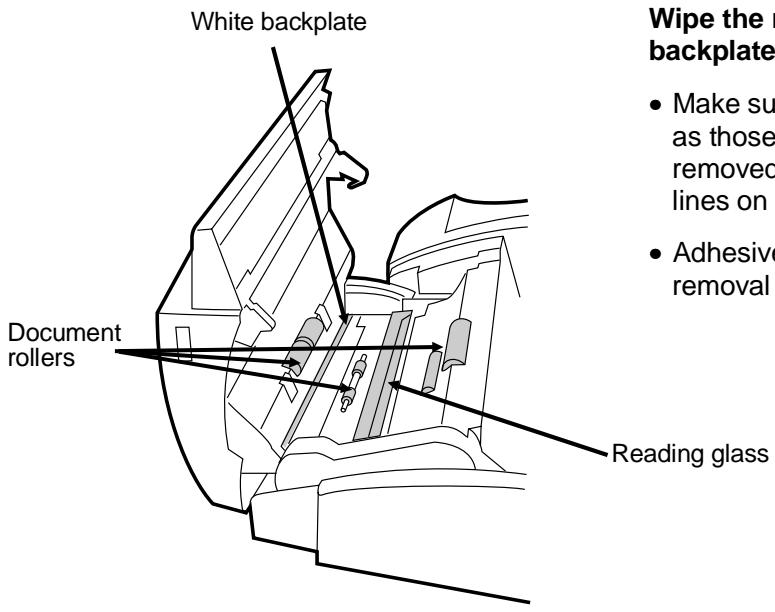
Wipe the reading glass, white backplate, and rollers with a soft cloth.
- Make sure that all dirt and stains (such as those of correcting fluid) are removed, as these will cause vertical lines on transmitted images and copies.
- Adhesive cellophane tape is useful for removal of debris from the feed rollers.
The housing
Wipe the external parts and surface of the machine with a dry cloth.
Caution!
- Do not use benzene or thinner. These solvents may damage or discolour the machine.
Cleaning the drum cartridge
If some of the characters are missing from the printed page, the surface of the drum in the drum cartridge may need cleaning. Follow the steps below to clean the drum.
1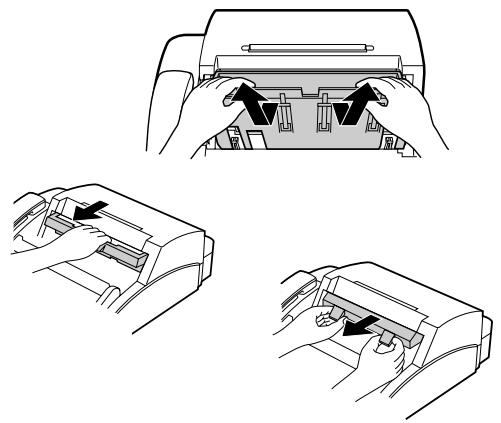
Remove any documents from the received document outlet. Open the operation panel, and remove the received document guide, the imaging cartridge, and the drum cartridge. (For detailed instructions, see Steps 1 to 4 in "Installing the Printer Cartridges" in Chapter 1.)
- Caution! The fusing unit (the black unit with ribs extending across the bottom of the compartment) becomes very hot during printing. Be careful not to touch it.
2
Place the drum gently on a clean, uncluttered, and level surface.
- Do not touch the green drum in the drum cartridge, and do not expose the drum to direct light. Doing so will damage the surface of the drum.
3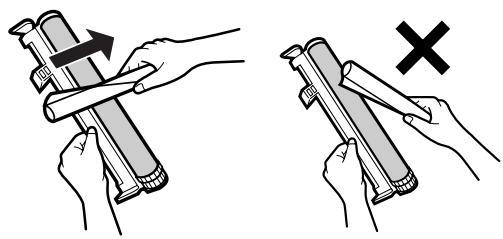
Take a sheet of clean paper and roll it tightly into a tube. Gently tap the surface of the drum with the tube to pick up any particles of toner which may be sticking to the drum.
- Caution! Do not touch the drum surface with the edges of the rolled up paper or wipe the drum with the paper. This will damage the drum.
4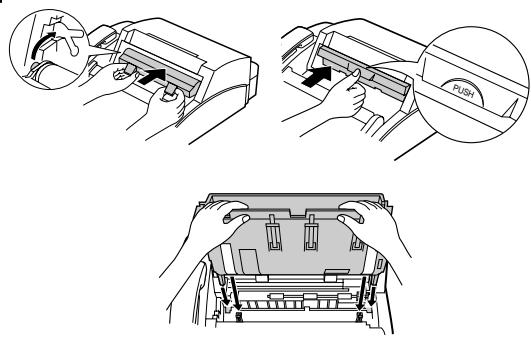
Replace the drum cartridge, imaging cartridge, and received document guide. Close the operation panel. (For detailed instructions, see Step 6 and Steps 10 to 14 in "Installing the Printer Cartridges" in Chapter 1.)
PROBLEMS AND SOLUTIONS
| Problem | Check and remedy |
| Nothing appears in the display. | Make sure the power cord is properly plugged into a power outlet.Make sure the power switch has been switched to the correct position.Connect another electrical appliance to the outlet to confirm that it is live. |
| The fax does not respond when you press any of its keys. | If a beep sound is not made when you press the keys, turn off the power and then turn it back on several seconds later. |
| Automatic document feeding does not work for transmission or copying. | Check the size and weight of the document (see "Transmittable documents" in Chapter 3). |
| Dialling cannot be performed. | Make sure that the telephone line is properly connected to both the wall socket and the "TEL. LINE" socket.Make sure that the fax is set to the correct dialling mode for your telephone line. See Option Setting 19 in Chapter 6. |
| Nothing is printed at the receiving end. | Make sure that the document for transmission is placed face down in the feeder.Make sure that the printing paper is properly loaded in the receiving machine. |
| The power is on, but no transmission takes place. | Make sure that the receiving machine has printing paper.If the receiving machine is in manual mode with no attendant, reception will not be possible.If the receiving machine is not a Sharp model, make sure it is G3 compatible.Check the display for error messages.Pick up the handset and check for a dial tone. Call the receiving machine by nomal (manual) dialling, and confirm its response. |
| A distorted image is received at the other end. | Noise on the telephone line may cause distortion. Try sending the document again. (Only when error correction (Option Setting 20) is turned off.)Make a copy of the document on your fax. If the copy is also distorted, your fax may have a problem. If the problem persists, call for service. |
| The printing paper does not come out. | · The printing paper may be jammed. See "Clearing Jammed Printing Paper" in this chapter.· Make sure that the printing paper is properly loaded in your machine. |
| The printing paper comes out blank when you try to receive a document. | · Make sure that the document is loaded properly in the feeder of the transmitting machine. Make a copy to confirm the printing ability of your machine. |
| The received document is faint. | · Ask the other party to send higher contrast documents. If the contrast is still too low, your fax may have a problem. Make a copy to check it.· The imaging cartridge may need replacement. |
| Received images are distorted. | · Noise on the telephone line may cause distortion. Have the other party try sending the document again. (only when error correction (Option Setting 20) is turned off.)· Make a copy of another document on your fax. If the copy is also distorted, your fax may have a problem. If the problem persists, call for service.· The photoconductor drum may be damaged. Try a new drum cartridge. |
| No confidential transmission or relay broadcast occurs. | · Check the message in the display. See the next section, "Display Messages". |
Display messages
| CONF REFUSED | A confidential transmission has been denied because you entered an incorrect mailbox number for a machine with mailboxes. |
| DOC. COVER OPEN | The operation panel is open. Close it. |
| COVER OPEN | The printer cover (or received document guide) has been removed or is open. Replace or close it. |
| DOCUMENT JAM | The original document is jammed. See the following section, "Clearing Paper Jams". |
| FAX RX IN MEMORY | A fax has been received in memory because the imaging cartridge needs replacement, the fax machine has run out of printing paper, or the paper is jammed. The fax will be printed out automatically once the problem is fixed. |
| FUNCTION MODE | The FUNCTION key has been pressed. |
| LINE ERROR | Transmission or reception was not successful. Press STOP to clear the message, and then try again. |
| MEMORY FULL | The memory is full. See "Memory" in Chapter 5. |
| MEMORY PRINTING | The fax is preparing or printing out a document from memory. |
| NO CONF. FUNC | Confidential transmission was cancelled because the receiving machine does not have a confidential function, a confidential passcode is not programmed in it, its memory is full, or it is not a Sharp model. |
| CHECK PAPER | You are out of printing paper. |
| NO RELAY FUNC | A relay request has been denied because the other machine does not have a relay broadcast function, its memory is full, or it is not a Sharp machine. |
| PAPER JAM | The printing paper is jammed. See the following section, "Clearing Paper Jams". |
| ONHOOK DIAL MODE | The SPEAKER key has been pressed and the fax is waiting for you to dial. |
| RELAY REFUSED | A relay request has been denied because your fax number has not been entered in the relay machine's list of permitted numbers, an automatic dialling number not stored in the relay machine was specified, or your fax number has not been entered in your machine. |
| RESERVE READY | The machine is ready to reserve a transmission (see "Transmission reservation" in Chapter 5). |
| REPLACE TONER | The imaging cartridge needs replacement, or has not been installed. |
| SIZE ERROR | The size of the paper loaded in the paper tray is not A4. Replace the paper with A4-size paper. |
Audible signals
| Continuous tone | 3 seconds | Indicates the end of transmission, reception, or copying. |
| Intermittent tone (3 bleeps) | 5 seconds(1 second on, 1 second off) | Indicates incomplete transmission, reception, or copying. |
| Rapid intermittent tone | 0.5 seconds on, 0.5 seconds off | Indicates that the printer cover is open. |
| Rapid intermittent tone | 35 seconds(0.7 seconds on, 0.3 seconds off) | Indicates that the handset is off hook. |
Clearing a jammed document
If a document doesn't feed properly during transmission or copying, or DOCUMENT JAM appears in the display, first try pressing the START key. If the document doesn't feed out, open the operation panel (pull the release on the right side of the fax forward) and pull it out gently.
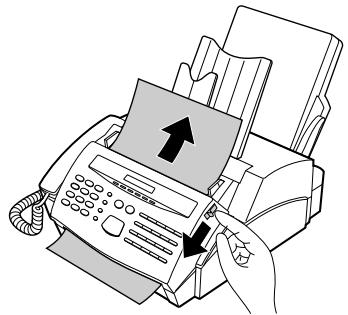
Clearing jammed printing paper
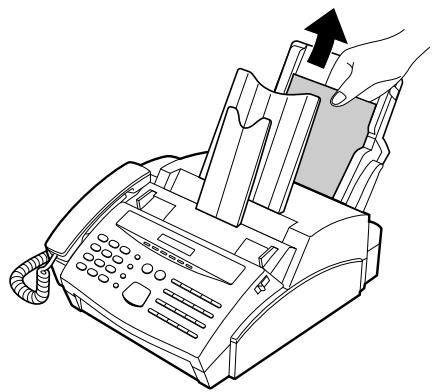
If most of the jammed page is protruding from the back of the fax, try pulling it out.
- If the jammed page comes out, clear the "PAPER JAM" message in the display by resetting the stack of printing paper (pull the lever marked "PULL" on the paper tray toward you, take out the stack of paper, put it back in, and push the lever back down).
- If you are unable to clear the paper jam in this way, continue with the following steps.
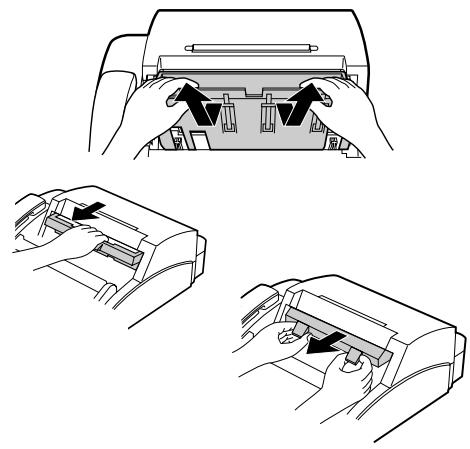
Remove any documents from the received document outlet. Open the operation panel, and remove the received document guide, the imaging cartridge, and the drum cartridge. (For detailed instructions, see Steps 1 to 4 in "Installing the Printer Cartridges" in Chapter 1.)
- Caution! The fusing unit (the black unit with ribs extending across the bottom of the compartment) becomes very hot during printing. Be careful not to touch it.
Wrap the drum cartridge in a large sheet of paper as shown at left so that the green drum section is shielded from light, and place it gently on a level surface.
- Do not touch the green drum in the drum cartridge. This will damage the surface of the drum.
- Do not expose the drum to direct light. This will damage the drum.
Fusing unit
If the leading edge of the paper has entered the fusing unit, turn the wheel on the top, right side of the fusing unit in the direction of the arrow until the leading edge of the paper is released from the unit.
- Caution! Do not pull the paper out of the fusing unit with your hands. This may cause toner smudges on succeeding pages.
- Important: Do not turn the wheel in the direction opposite that of the arrow. Also, note that the wheel will not turn if the drum cartridge has not been removed.
5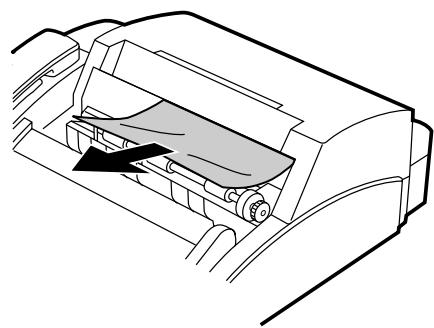
Grasp the leading edge of the paper, and pull it gently out of the compartment.
6
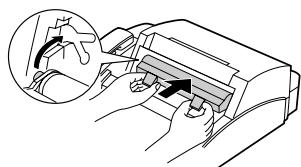
Replace the drum cartridge, imaging cartridge, and received document guide. Close the operation panel. (For detailed instructions, see Step 6 and Steps 10 to 14 in "Installing the Printer Cartridges" in Chapter 1.)
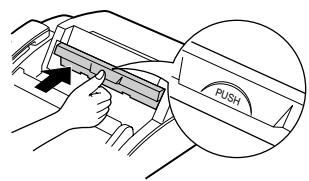
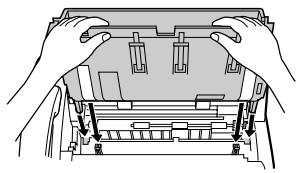
Notes
| Applicable telephone line: | Public switched telephone network / PBX |
| Compatibility: | ITU-T (CCITT) G3 mode |
| Configuration: | Half-duplex, desktop transceiver |
| Memory size*: | 512 KB (approx. 39 average pages with ECM function off)1 MB add-on available as option |
| Compression scheme: | Modified Huffman and Sharp special mode |
| Scanning method: | Flat-bed, solid-state CCD |
| Resolution: | Horizontal:8 lines/mmVertical:Standard — 3.85 lines/mmFine /Halftone— 7.7 lines/mmSuper fine — 15.4 lines/mm |
| Display: | 7 x 5 dots, 1 line by 16-digit display |
| Reception modes: | Auto/Manual/Answering machine |
| Modem speed: | 9600 bps with automatic fallback to 7200, 4800, or 2400 bps |
| Transmission time*: | Approx. 13 seconds (Sharp special mode) |
| Effective recording width: | 202 mm (average) |
| Paper capacity: | 100 sheets |
| Input document size: | Automatic feeding:Width — 148 to 216 mmLength — 128 to 356 mmManual feeding:Width — 148 to 216 mmLength — 128 to 1000 mm |
| Effective scanning width: | 210 mm max. |
| Automatic document feeder: | 20 sheets max. |
| Halftone (grey scale): | 32 levels |
| Contrast control: | Automatic/Dark selectable |
| Copy function: | Single/Multi-copy/Sort-copy (99 copies/page) |
| Timer communication: | Max. 3 communications |
| Power requirements: | 230 V AC, 50 Hz |
| Operating temperature: | 10 - 30°C |
| Power consumption: | Stand-by: 7 WMaximum: 680 W |
| Dimensions: | Width: 360 mmDepth: 412 mmHeight: 169 mm(Without attachments) |
| Weight: | Approx. 7.2 kg |
* Based on ITU-T Test Chart #1 at standard resolution in Sharp special mode, excluding time for protocol signals (i.e., ITU-T phase C time only).
As a part of our policy of continuous improvement, SHARP reserves the right to make design and specification changes for product improvement without prior notice. The performance specification figures indicated are nominal values of production units. There may be some deviations from these values in individual units.
A
Activity Report 6-2,7-1
Answering machine connection Fax Reception When A.M. Fails ..... 4-6 Connecting ..... 1-9 Problems ..... 4-3 Quiet Detect Time ..... 4-5 Remote Fax disable ..... 4-2 Remote-tone fax activation ..... 4-6
Anti Junk Fax . . . . . . . . . . . . 5-22 - 5-23 Audible signals . . . . . . . . . . . 9-4 AUTO reception mode . . . . . . . . 2-6, 3-11 Automatic Dialling, storing numbers . . . . 2-8 Automatic Fax/Phone Changeover . . 3-13, 6-2
B
Batch page numbering ..... 3-5 Beep length ..... 6-4 Broadcasting ..... 5-4 - 5-5 Broadcast Key ..... 2-1, 5-4
C
Chain Dialling . 2-7, 3-8 Cleaning . 8-1 Confidential transmission . 5-6 Connections . 1-6 - 1-7 Contrast . 3-3 Copies . 3-14 - 3-15 Copy key . 2-1, 3-14 Copy Reduce . 6-3 Copy Cut-off . 6-4 Cover sheet . 3-4,6-3
D
Date, setting 2-5 Dialling Chain 2-7, 3-8 Direct Keypad 3-7 Normal 3-6 Rapid Key 3-7 Search 3-9, 3-16 Speed 3-8 Dialling mode 6-4 Direct Keypad Dialling 3-7 Display messages 9-3 - 9-4 Document feeder 3-2 Document guides 3-2 Document restrictions 3-1 Document rollers 8-1 Document sizes 3-1 Document, readable length and width 3-1 Drum cartridge 1-5
E
Electrical outlet ..... 1-6 Error codes ..... 7-2 Error correction Mode ..... 6-4 Extension telephone, connecting ..... 1-9 Extension telephone, using ..... 3-12
F
Fax signal receive 3-11,6-3 Fine Resolution Priority 6-1 Function Guidance List Quick-i Function key 2-1 Footer Print 6-4
G
Group Keys 2-11, 5-5
H
Halftone....3-3 Handset....1-6 Housing, cleaning....8-1
I
Imaging cartridge 1-4,1-5
J
Jams, clearing 9-5
L
Letters, entering ..... 2-3 - 2-4 Liquid crystal display ..... 2-1 Loading the document ..... 3-2
M
MANUAL reception mode 2-6, 3-11 Memory Transmission 5-1 - 5-2 Reception 5-2 Memory Key 2-1, 5-1 Mercury function 2-12, 6-4
N
Normal Dialling ..... 3-6 Number of Rings in Auto Answer Mode ..... 6-1 Numeric keys ..... 2-1 Network services ..... 3-14
O
Optional Setting List 7-3
P
Paper, loading ..... 1-10 - 1-11
Paper, setting the size ..... 1-11
PAPER CHECK light ..... 2-1
Paper jams, clearing 9-5
Paper tray 1-8, 1-10 - 1-11
Passcode List 7-3
Pauses in automatic Dialling numbers ..... 2-8
PBX operations 3-17,6-4
Polling 5-7 - 5-9
Polling key, setting 5-7
Power cord 1-6
Program and Group List 7-4
Programs . . . . . . . . . . . . . . . . . . 5-16 - 5-21
Pseudo ring duration 3-13,6-2
Q
Quiet detect time 4-5
R
Rapid Key Dialling 3-7
Rapid Keys 2-1
Reading glass, cleaning 8-1
Recall Interval 6-2
Recall Times 6-2
Reception mode 2-1, 2-6
Setting 2-6
ANS mode ..... 2-6, 4-1
AUTO mode ..... 2-6, 3-11
MANUAL mode ..... 2-6, 3-11
Reception mode key 2-1, 2-6
Receive reduce 6-3
Redial key 2-1, 3-10, 3-16
Redialling 3-10, 3-16
Relay Request ..... 5-10 - 5-12
Remote Fax machine disable 4-2
Remote Reception Number ..... 3-12, 6-3
Resolution 3-3
Resolution key 2-1, 3-3
Ringing volume 1-7
Rollers, cleaning 8-1
S
Search Dial key 2-1, 3-9, 3-16
Search Dialling 3-9
Sender's name and number, entering ..... 2-2
Service indicator ..... 2-1
Speaker key 1-7,2-1,3-6,3-16
Speaker volume 1-7
Speed Dial key ..... 2-1, 3-6, 3-16
Speed Dialling 3-6
Start key 2-1
Stop key 2-1
Storing numbers for automatic Dialling ..... 2-8
T
Telephone, using 3-16
Telephone line cord 1-6
TEL/FAX Remote number 6-3
TEL. LINE jack 1-6, 1-9
TEL. SET jack 1-6, 1-9
Telephone and Relay Group List ..... 7-3
Time, setting 2-5
Timer operations ..... 5-13 - 5-15
Timer List 7-3
Toner empty indicator 2-1
Transaction Report 7-4
Transaction Report Print Select ..... 6-2
Transmission reservation ..... 5-3
Troubleshooting 9-1-9-7
Notes
SHARP®
SHARP ELECTRONICS (U.K.) LTD.
Sharp House, Thorp Road, Newton Heath, Manchester, M40 5BE
SHARP CORPORATION
PRINTED IN JAPAN
(TINSE3545SCZZ)
- QUICK REFERENCE GUIDE
- MAINS PLUG WIRING INSTRUCTIONS
- IMPORTANT
- WARNING: THIS APPARATUS MUST BE EARTHED
- FUNCTION GUIDANCE LIST
- YOUR FAX MACHINE AND THE TELEPHONE SYSTEM
- REN
- EMERGENCY SERVICES
- ◆ PRIVATE BRANCH EXCHANGE (PBX) CONNECTION
- SERIES CONNECTION
- INSTALLATION
- INITIAL SETTINGS
- BASIC OPERATIONS
- ANSWERING MACHINE CONNECTION
- SPECIAL FUNCTIONS
- OPTIONAL SETTINGS
- PRINTING OUT REPORTS AND LISTS
- MAINTENANCE
- TROUBLESHOOTING
- SPECIFICATIONS
- PRECAUTIONS BEFORE SETTING UP
- INSTALLING THE PRINTER CARTRIDGES
- REPLACING THE CARTRIDGES
- FO-26DC IMAGING CARTRIDGE
- FO-26DR DRUM CARTRIDGE
- HANDSET
- POWER LEAD
- TELEPHONE LINE CORD
- COMMENTS
- VOLUME SETTINGS
- TRAYS
- OTHER DEVICES
- LOADING PRINTING PAPER
- CAUTION
- ENTERING YOUR NAME AND FAX NUMBER
- ENTERING LETTERS FOR NAMES
- SPACE
- LETTERS AND NUMBERS
- SYMBOL LIST
- EXAMPLE
- SETTING THE DATE AND TIME
- SELECTING THE RECEPTION MODE
- SETTING THE RECEPTION MODE
- STORING NUMBERS FOR AUTOMATIC DIALLING
- CHAIN DIALLING FOR LONG NUMBERS OR INDIRECT ACCESS TO ALTERNATIVE NETWORK OPERATORS
- STORING NUMBERS
- MAKING CHANGES
- ◆ A LITHIUM BATTERY KEEPS AUTOMATIC DIALLING NUMBERS IN MEMORY
- STORING NUMBERS IN GROUP KEYS
- THE MERCURY RESIDENTIAL SERVICE
- FOR RESIDENTIAL 132 SERVICE CUSTOMERS
- FOR RESIDENTIAL PIN CODE SERVICE CUSTOMERS
- COST CENTRE CODES
- PROGRAMMING THE MERCURY KEY FOR THE RESIDENTIAL PIN CODE SERVICE
- CLEARING OR CHANGING THE MERCURY KEY
- RAPID KEY AND SPEED DIAL NUMBERS FOR MERCURY USE
- DIALLING NUMBERS ON THE MERCURY NETWORK
- TRANSMITTABLE DOCUMENTS
- SIZE AND WEIGHT
- OTHER RESTRICTIONS
- LOADING THE DOCUMENT
- OPTIONAL TRANSMISSION SETTINGS
- RESOLUTION
- CONTRAST
- SETTING THE RESOLUTION AND CONTRAST
- PRESS THE RESOLUTION KEY ONE OR MORE TIMES UNTIL THE DESIRED RESOLUTION AND CONTRAST SETTINGS APPEAR IN THE DISPLAY
- COVER SHEET
- BATCH PAGE NUMBERING (PAGE COUNTER)
- DIALLING AND TRANSMISSION
- NORMAL DIALLING
- DIRECT KEYPAD DIALLING
- RAPID KEY DIALLING
- PRESS THE APPROPRIATE RAPID KEY
- SPEED DIALLING
- CHAIN DIALLING
- USING THE SEARCH DIAL KEY
- REDIALLING
- AUTOMATIC REDIALLING
- USING THE REDIAL KEY
- USING AUTO MODE
- USING MANUAL MODE
- RECEIVING FAXES ON THE FO
- WHEN YOUR FAX RINGS, PICK UP THE HANDSET
- RECEIVED DOCUMENT OUTLET
- RECEIVING FAXES ON AN EXTENSION PHONE
- AUTOMATIC FAX/PHONE CHANGEOVER
- TURNING AUTOMATIC FAX/PHONE CHANGEOVER ON
- HOW THE FUNCTION OPERATES
- MAKING COPIES
- SINGLE COPIES
- MULTIPLE COPIES
- USING THE SEARCH KEY
- REDIAL
- ISSUING TONE SIGNALS
- PBX OPERATIONS AND NETWORK SERVICES
- MAKING ENQUIRY CALLS
- TRANSFERRING CALLS
- CHANGING THE OUTGOING MESSAGE
- WHEN YOU GO OUT
- SET YOUR ANSWERING MACHINE TO AUTO ANSWER
- HOW THE ANSWERING MACHINE MODE OPERATES
- IF IT DOESN'T WORK
- HOW FAX TRANSMISSIONS ARE DETECTED
- AUTOMATIC DIALLING
- MANUAL DIALLING
- MEMORY
- SENDING DOCUMENTS FROM MEMORY
- PRESS THE START KEY IF YOU ENTERED A SPEED DIAL NUMBER OR A FULL NUMBER
- IF THE MEMORY BECOMES FULL
- SUBSTITUTE RECEPTION INTO MEMORY
- TRANSMISSION RESERVATION
- LOAD THE DOCUMENT(S)
- ENTER THE NUMBER OF THE RECEIVING MACHINE USING ONE OF THE FOLLOWING METHODS
- BROADCASTING
- BROADCASTING USING A GROUP KEY
- CONFIDENTIAL TRANSMISSION
- POLLING
- SETTING THE POLLING KEY
- POLLING OTHERS
- PRESS RAPID KEY 16/POLL
- BEING POLLED (POLLING STANDBY)
- POLLING SECURITY
- STORING AND CLEARING FAX NUMBERS FOR POLLING PERMISSION
- RELAY REQUEST
- STORING A RELAY GROUP
- MAKING A RELAY REQUEST
- TO CANCEL AN OPERATION
- ENTERING AND USING PROGRAMS
- INITIAL PROCEDURE
- TRANSMISSION
- CLEARING A PROGRAM KEY
- USING A PROGRAM KEY
- TO CANCEL A PROGRAM OPERATION
- ANTI JUNK FAX
- STORING AND CLEARING JUNK FAX NUMBERS
- SETTINGS
- SETTING 4: ACTIVITY REPORT AUTO LISTING
- SETTING 5: TRANSACTION REPORT PRINT SELECT
- SETTING 6: RECALL TIMES
- SETTING 7: RECALL INTERVAL
- SETTING 8: AUTO FAX/PHONE CHANGEOVER
- SETTING 9: PSEUDO RINGING DURATION
- SETTING 10: TEL/FAX REMOTE NUMBER (TRANSFER CODE)
- SETTING 11: REMOTE RECEPTION SELECT
- SETTING 12: FAX SIGNAL RECEIVE
- SETTING 13: AUTO COVER SHEET
- SETTING 14: COPY REDUCE
- SETTING 15: RECEIVE REDUCE
- SETTING 16: COPY CUT-OFF
- SETTING 17: BEEP LENGTH
- SETTING 18: FOOTER PRINT
- SETTING 19: DIAL MODE
- SETTING 20: ERROR CORRECTION MODE (ECM)
- SETTING 21: PBX RECALL
- SETTING 22: RINGING VOLUME
- SETTING 23: MERCURY FUNCTION
- ACTIVITY REPORT
- EXPLANATION OF HEADINGS
- NOTE
- TIMER LIST
- TELEPHONE AND RELAY GROUP LIST
- PASSCODE LIST
- OPTIONAL SETTING LIST
- PROGRAM AND GROUP LIST
- ANTI JUNK FAX NUMBER LIST
- TRANSACTION REPORT
- READING GLASS AND ROLLERS
- THE HOUSING
- CLEANING THE DRUM CARTRIDGE
- PROBLEMS AND SOLUTIONS
- CLEARING A JAMMED DOCUMENT
- CLEARING JAMMED PRINTING PAPER
- A
- B
- C
- D
- E
- F
- G
- H
- I
- J
- L
- M
- N
- O
- P
- Q
- R
- S
- T
- SHARP®
Brand : SHARP
Model : FO-2600
Category : Fax machine