
FO-4470 - Fax machine SHARP - Free user manual and instructions
Find the device manual for free FO-4470 SHARP in PDF.


| Product type | Fax machine |
| Brand | SHARP |
| Model | FO-4470 |
| Printing technology | Thermal paper |
| Document feeder capacity | Up to 50 sheets |
| Dialing functions | Normal, speed, accelerated, direct keypad dialing, broadcasting |
| Number memory | Up to 75 numbers for speed dial and rapid keys |
| Available settings | Resolution, contrast |
| Broadcasting function | Yes (send to multiple recipients) |
| Power supply | 220-240 V, 50/60 Hz |
| Power consumption | Standby: approx. 10 W; operation: approx. 150 W |
| Cleaning and maintenance | Clean the exterior with a soft, dry cloth; do not use solvents |
| Safety | Unplug before cleaning; do not insert metal objects |
| Parts and repairability | Consult an authorized SHARP technician |
| General information | User manual available in French; 148 pages |
Frequently Asked Questions - FO-4470 SHARP
User questions about FO-4470 SHARP
0 question about this device. Answer the ones you know or ask your own.
Ask a new question about this device
Download the instructions for your Fax machine in PDF format for free! Find your manual FO-4470 - SHARP and take your electronic device back in hand. On this page are published all the documents necessary for the use of your device. FO-4470 by SHARP.
USER MANUAL FO-4470 SHARP
FACSIMILE
OPERATION MANUAL
- Installation
- Sending Documents
- Receiving Documents
- Making Copies
- Special Functions
- Optional Settings
- Printing Lists and Reports
- Maintenance
- Troubleshooting
U.S.A.
WARNING - FCC Regulations state that any unauthorized changes or modifications to this equipment not expressly approved by the manufacturer could void the user's authority to operate this equipment.
Note: This equipment has been tested and found to comply with the limits for a Class B digital device, pursuant to Part 15 of the FCC Rules. These limits are designed to provide reasonable protection against harmful interference in a residential installation. This equipment generates, uses and can radiate radio frequency energy and, if not installed and used in accordance with the instructions, may cause harmful interference to radio communications. However, there is no guarantee that interference will not occur in a particular installation. If this equipment does cause harmful interference to radio or television reception, which can be determined by turning the equipment off and on, the user is encouraged to try to correct the interference by one or more of the following measures:
- Reorient or relocate the receiving antenna.
- Increase the separation between the equipment and the receiver.
- Connect the equipment into an outlet on a circuit different from that to which the receiver is connected.
- Consult the dealer or an experienced radio/TV technician for help.
ABOUT THE TELEPHONE CONSUMER PROTECTION ACT OF 1991
"The Telephone Consumer Protection Act of 1991 makes it unlawful for any person to use a computer or other electronic device to send any message via a telephone facsimile machine unless such message clearly contains in a margin at the top or bottom of each transmitted page or on the first page of the transmission the following information:
(1) The date and time of transmission.
(2) Identification of either the business, business entity or individual sending the message.
(3) Telephone number of either the sending machine, business, business entity or individual.
In order to program this information into your facsimile machine, please refer to the appropriate instructions in the operation manual."

As an ENERGY STAR ® partner, SHARP has determined that this product meets the ENERGY STAR ® guidelines for energy efficiency.
Canada
This product meets the applicable Industry Canada technical specifications
The Ringer Equivalence Number is an indication of the maximum number of devices allowed to be connected to a telephone interface. The termination on an interface may consist of any combination of devices subject only to the requirement that the sum of the RENs of all the devices does not exceed five.
Introduction
Welcome, and thank you for choosing a Sharp facsimile machine. The features and specifications of your new Sharp fax machine are shown below.
| Automatic dialing | Conventional Auto Dialing:Rapid Key Dialing: 59 numbersSpeed Dialing: 75 numbersPersonal Auto Dial Books: 10 books(59 Rapid Keys, 16 Speed Dial numbers per book) |
| Memory size* | 8 MB (approx. 500 pages)Optional memory: FO-8MK (8 MB; approx. 500 pages) |
| Modem speed | 33,600 bps (max.) with automatic fallback to lower speeds. |
| Transmission time* | Approx. 2 seconds |
| Toner cartridge yield** (continuous printing, 4% page coverage, letter paper) | Initial starter cartridge (included with fax machine): Approx. 3000 pagesReplacement cartridge FO-44ND/FO-50ND: Approx. 6000 pages |
| Drum cartridge yield** (continuous printing, 4% page coverage, letter paper) | Initial starter cartridge (included with fax machine): 20,000 pages (ave.)Replacement cartridge (FO-47DR): 20,000 pages (ave.) |
| Resolution | Horizontal: 203 pels/inch (8 pels/mm)Vertical:Standard: 98 lines/inch (3.85 lines/mm)Fine /Halftone:196 lines/inch (7.7 lines/mm)Super fine: 391 lines/inch (15.4 lines/mm) |
| Automatic document feeder | Letter paper (20 lb): Max. 50 pagesLegal paper: Max. 20 pages(Note: 11" x 17" paper must be loaded one page at a time.) |
*Based on Sharp Standard Chart at standard resolution, excluding time for protocol signals (i.e., ITU-T phase C time only).
**The yields may vary depending on coverage and operating conditions.
| Paper capacity | 250 sheets (20 lb)(500-sheet cassette available as option) |
| Compression scheme | MMR, MR, MH, Sharp (H2), JBIG |
| Halftone (grayscale) | 64 levels |
| Applicable telephone line | Public switched telephone network |
| Compatibility | ITU-T (CCITT) G3 mode, Super G3 mode |
| Printing resolution | Horizontal: 406 lines/inch (16 lines/mm)Vertical: 391 lines/inch (15.4 lines/mm) |
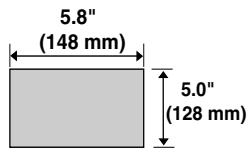
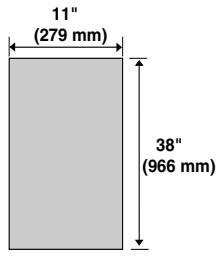
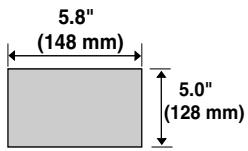
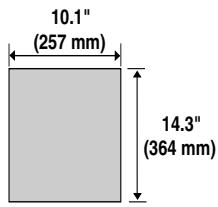
| Input document size | Automatic feeding:Width: 5.8 to 10.1" (148 to 257 mm)Length: 5.0 to 14.3" (128 to 364 mm)Manual feeding:Width: 5.8 to 11.0" (148 to 279 mm)Length: 5.0 to 38.0" (128 to 966 mm) |
| Effective Scanning width | 8.2" (208 mm) max. |
| Effective Printing width | 8.0" (203 mm) max. |
| Reception modes | Auto/Manual |
| Instascan speed | 1.3 sec/page (letter paper; scan time only, excludes document feeding time) |
| Full Dual Access | Yes |
| Copy function | Single/Multi/Sort (99 copies/page) |
| Power requirements | 120 V AC, 60 Hz |
| Operating temperature | 50 - 86°F (10 - 30°C) |
| Humidity | 20 to 85% RH |
| Power consumption | Standby: 9 WMaximum: 760 W |
| Dimensions | Width: 21.5" (546 mm)Depth: 16.2" (412 mm)Height: 13.6" (346 mm)(Not including paper tray or attachments) |
Weight
Approx. 31.3 lbs. (14.2 kg)
(Not including supplies, paper tray or attachments)
As a part of our policy of continuous improvement, SHARP reserves the right to make design and specification changes for product improvement without prior notice. The performance specification figures indicated are nominal values of production units.
There may be some deviations from these values in individual units.
Important safety information
Be sure to save these instructions!
When using your facsimile equipment, basic safety precautions should always be followed to reduce the risk of fire, electric shock and injury to persons, including the following:
- CAUTION: To reduce the risk of fire, use only No. 26 AWG or larger telecommunication line cord.
- Do not disassemble this machine or attempt any procedures not described in this manual. Refer all servicing to qualified service personnel.
- This machine must only be connected to a 120 V, 60 Hz, grounded (3-prong) outlet. Connecting it to any other kind of outlet will damage the machine and invalidate the warranty.
- Do not install or use the machine near water, or when you are wet. For example, do not use the machine near a bath tub, wash bowl, kitchen sink or laundry tub, in a wet basement, or near a swimming pool. Take care not to spill any liquids on the machine.
- Use only the power cord provided with the facsimile machine. Do not use an AC extension cord.
- Unplug the machine from the telephone jack and then the power outlet and consult a qualified service representative if any of the following situations occur:
- Liquid has been spilled into the machine or the machine has been exposed to rain or water.
- The machine produces odors, smoke, or unusual noises.
- The power cord is frayed or damaged.
- The machine has been dropped or the housing damaged.
- Do not allow anything to rest on the power cord, and do not install the machine where people may walk on the power cord.
- Never insert objects of any kind into slots or openings on the machine. This could create a risk of fire or electric shock. If an object falls into the machine that you cannot safely remove, unplug the machine and consult a qualified service representative.
- Do not place this machine on an unstable cart, stand or table. The machine could be seriously damaged if it falls.
- Avoid using a telephone (other than a cordless type) during an electrical storm. There may be a remote risk of electric shock from lightning.
- Do not use a telephone to report a gas leak in the vicinity of the leak.
- The power outlet must be installed near the equipment and must be easily accessible.
Important:
- This facsimile machine is not designed for use on a line which has call waiting, call forwarding, or certain other special services offered by your telephone company. If you attempt to use the fax machine in conjunction with any of these services, you may experience errors during transmission and reception of facsimile messages.
- This machine is not compatible with digital telephone systems.
Table of Contents
Introduction 1
Important safety information....3
Table of Contents 5
A Look at the Operation Panel 7
1. Installation 12
Unpacking Checklist....12
Connections 13
Installing the Print Cartridges 17
Loading Printing Paper....21
Entering Your Name and Fax Number 24
Setting the Date and Time 26
Administrator Password 28
Volume Adjustment 31
2. Sending Documents 33
Transmittable Documents. 33
Loading the Document 35
Adjusting the Resolution and Contrast....36
Sending a Fax by Normal Dialing....38
Programming Auto-Dial Numbers....39
Sending a Fax by Automatic Dialing. 44
Creating and Using Personal Books....53
Cover Sheet 58
Batch Page Numbering 60
3. Receiving Documents 61
Using AUTO Reception Mode 61
Using MANUAL Reception Mode 62
Substitute Reception to Memory 63
4. Making Copies 64
5. Special Functions 66
Broadcasting....66
Confidential Operations 70
Polling 74
Timer Operations 78
Batch Transmission 84
Entering and Using Programs....86
Duplex Scanning for Two-sided Documents....95
Print Hold 96
Department Control....100
Blocking Reception of Unwanted Faxes....102
Telephone Billing 103
Distinctive Ring....105
6. Optional Settings 107
7. Printing Lists and Reports 116
8. Maintenance 122
Cleaning the Scanning Glass and Rollers .....122
The Housing 122
Replacing the Verification Stamp 123
9. Troubleshooting 124
Problems and Solutions .... 124
Messages and Signals 128
Clearing Paper Jams 131
FCC Regulatory Information 134
QUICK REFERENCE GUIDE 138
A Look at the Operation Panel
Upper panel
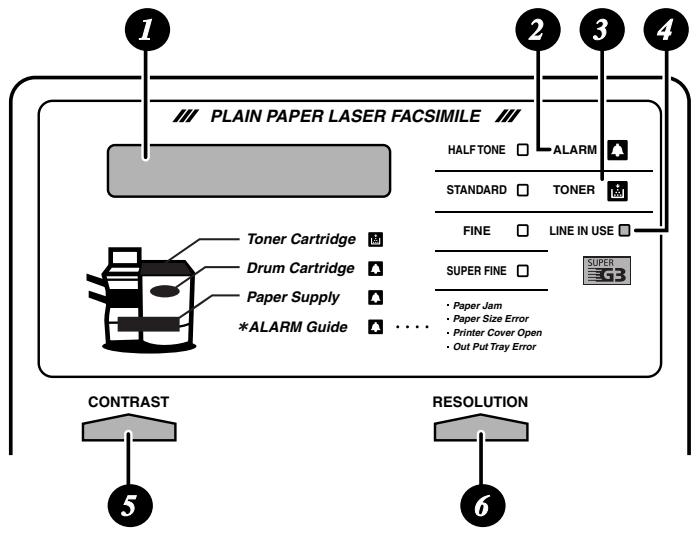
1 Display
This displays messages and prompts to help you operate the machine.
2 ALARM indicator
This blinks when one of the paper sources is empty, or the drum cartridge is near or at the end of its life. This lights steadily when all paper sources are empty, the print compartment cover is open, or a paper jam has occurred. A message will appear in the display to indicate the problem.
TONER indicator
This blinks when the toner cartridge nears empty, and lights steadily when the toner cartridge needs replacement.
LINE IN USE light
This lights when the fax machine is using the telephone line.
5 CONTRAST key
Press this key to adjust the contrast before sending or copying a document.
6 RESOLUTION key
Press this key to adjust the resolution before sending or copying a document. An indicator will light next to the selected setting (HALFTONE, STANDARD, FINE or SUPER FINE).
Middle panel (Rapid Key pad)
![7 01 02 03 04 05 06 07 08 09 10 Q / ! W / " E / # R / $ T / % Y / & U / ' I / ( O / ) P / = 11 12 13 14 15 16 17 18 19 20 SYMBOL A / I S D F G / { H / } J / [ K / ] L / + 21 22 23 24 25 26 27 28 29 30 Caps Lock Z / < X / > C V B N / * M / ? @ .com 31 32 33 34 35 36 37 38 39 SHIFT ~ / ^ // \ ; : Spac…](/content/2024/12/79073/images/6bd32af2778fce514ec9506b786d673931a9cfa57c8113a67e59f63a02934141.jpg)
7 Rapid Dial Keys
Press one of these keys to dial a fax number automatically. (Note that you must attach the Rapid Key labels.) When navigating through the display menu, a Rapid Key can also be pressed in place of the numeric keys to enter a two-digit number (for example, you can press Rapid Key 01 to enter the number “01”).
8 SYMBOL key
When entering a name, press this key to enter the symbol on a letter key (the character to the right of the slash). Press the key again to turn off symbol entry mode.
PAGE COUNTER key
Press this key to include a slash and the total number of pages after each page number on the pages of a transmitted document.
10 CONFIDENTIAL key
Press this key to send or print out a confidential document.
11 TIMER key
Press this key to set up an operation to be performed automatically at a later time.
12 COVER SHEET key
Press this key to include a cover sheet when sending a fax.
13 LIFE key
Press this key, followed by ①, to check the total number of pages printed by the fax machine.
14 MEM. STATUS key
Press this key to check the status of fax transmission jobs, copy jobs, and fax receptions. This key can also be used to cancel a job.
15 REPORT key
Press this key before sending a fax to have a transaction report printed out after the transmission is finished.
16 DOCUMENT key
Press this key to transmit a document directly from the feeder without reading it into memory.
17 PRINT HOLD key
This key is used to set up and use the Print Hold function, which holds received faxes in memory instead of printing them as they are received. To print the faxes, the programmed Print Hold code must be entered.
Lower panel
![graph TD A["18"] --> B["JOB STATUS"] C["19"] --> D["DUPLEX SCAN"] E["20"] --> F["PRIORITY"] G["21"] --> H["BROADCAST"] I["22"] --> J["PERSONAL BOOK"] K["23"] --> L["UP"] M["24"] --> N["COPY/HELP"] O["25"] --> P["STOP"] Q["26"] --> R["DOWN"] S["27"] --> T["28"] U["28"] --> V["29"] W["30"] --> X["31"]…](/content/2024/12/79073/images/6cca7e0d94cbfb795c5b90bb363a42b61043c72ca909945ae04e61e834b07a1a.jpg)
18 JOB STATUS key
Two types of information appear in the display: prompts related to operations you are performing, and information about how the fax machine is using the telephone line (transmitting, receiving, etc.). Press this key to change between the two types of information.
19 DUPLEX SCAN key
Press this key to transmit or copy a two-sided document.
20 PRIORITY key
Press this key when you need to transmit a document ahead of other documents waiting in memory for transmission.
21 BROADCAST key
Press this key to send a fax to a group of receiving fax machines.
22 PERSONAL BOOK
Press this key to use or store an auto-dial number in a personal book. If the book has a passcode, enter the passcode; otherwise, select the book with

23 SPEED DIAL key
Press this key to dial a Speed Dial number.
24 MENU key
Press this key to select special functions and settings.
25 UP and DOWN arrow keys
Volume setting: Press these keys to change the speaker volume when the SPEAKER key has been pressed, or the ringer volume at any other time.
26 COPY/HELP key
When a document is in the feeder, press this key to make a copy of a document. At any other time, press this key to print out the Help List, a quick reference guide to the operation of your fax machine.
27 Dial keypad (numeric keys)
Use these keys to dial and program fax numbers.
28 REDIAL key
Press this key to automatically redial the last number dialed.
29 SPEAKER key
Press this key when transmitting a document by Normal Dialing to listen to the line and verify the response of the receiving fax machine.
30 START/ENTER key
Press this key to begin fax transmission when using Speed Dialing, Direct Keypad Dialing, or Normal Dialing. This key is also used to select settings and complete entries when storing names and numbers.
31 Left and right arrow keys
Auto-dial numbers: Press these keys to search for an auto-dial number when sending a fax.
MENU key settings: Press these keys after pressing the MENU key to scroll through the MENU key settings.
32 STOP key
Press this key to cancel an operation before it is completed.
1. Installation
Unpacking Checklist
Before setting up, make sure you have all of the following items. If any are missing, contact your dealer.
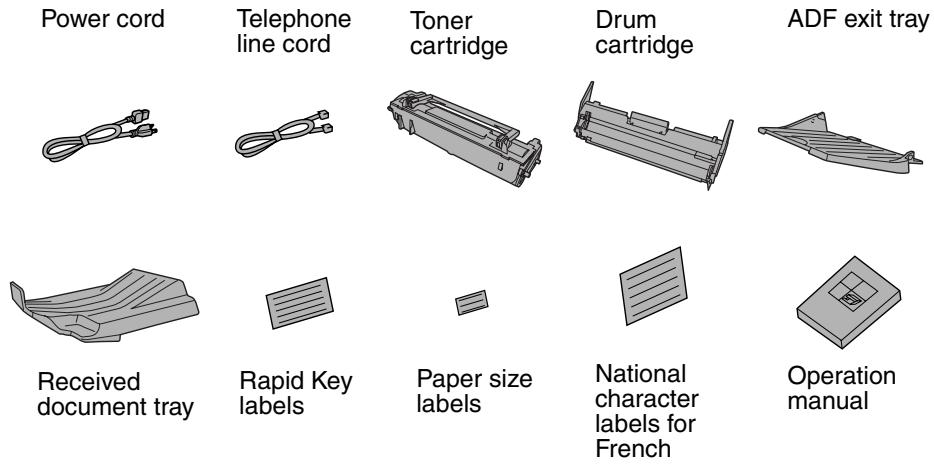
Points to keep in mind when setting up
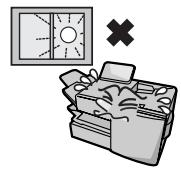
Do not place the machine in direct sunlight.
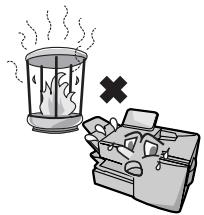
Do not place the machine near heaters or air conditioners.
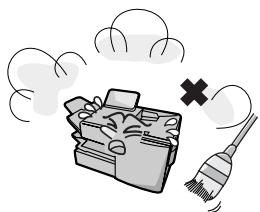
Keep dust away from the machine.
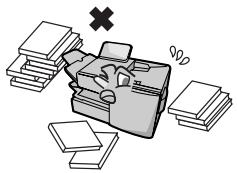
Keep the area around the machine clear.
About condensation
If the machine is moved from a cold to a warm place, it is possible that condensation may form on the scanning glass, preventing proper scanning of documents for transmission. To remove the condensation, turn on the power and wait approximately two hours before using the machine.
Connections
Connecting the power cord
Connect the female end of the power cord to the fax machine as shown. Insert the male end into a 120 V, 60 Hz, grounded (3-prong) AC outlet.
Important!
The fax machine requires its own dedicated power outlet. The power outlet must not be shared with any other devices. In particular, do not use an extension cord to connect multiple devices to the outlet.
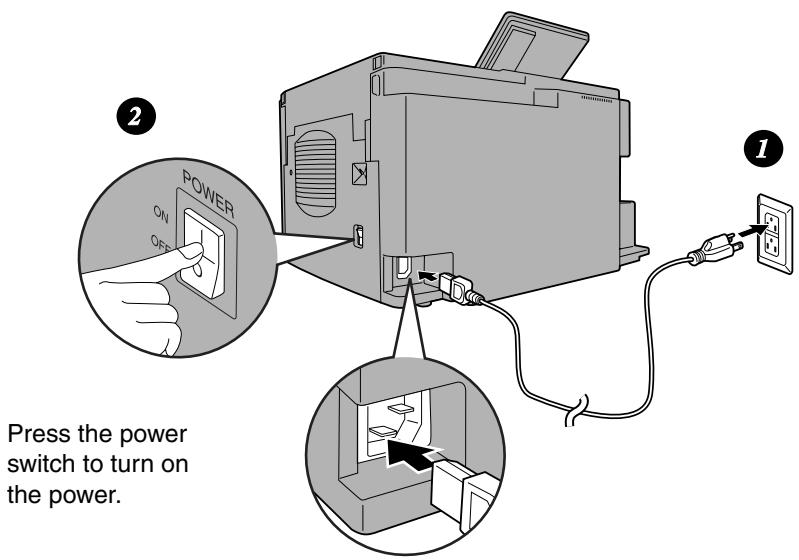
Press the power switch to turn on the power.
Note: If your area experiences a high incidence of lightning or power surges, we recommend that you install surge protectors for the power and telephone lines. Surge protectors can be purchased at most telephone specialty stores.
Connecting the telephone line cord
Insert one end of the line cord into the jack on the back of the machine marked TEL. LINE. Insert the other end into a standard (RJ11C) single-line wall telephone jack.
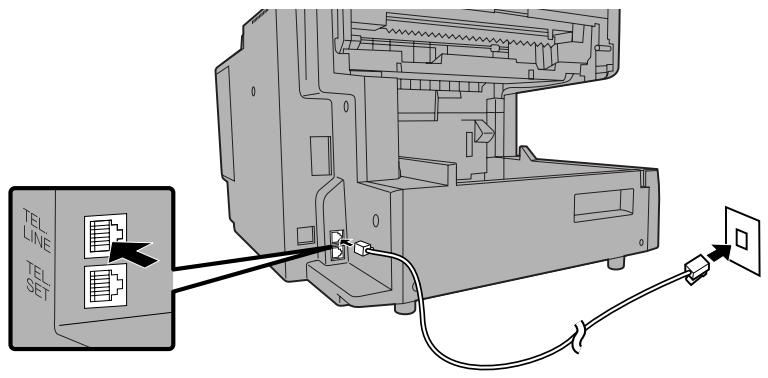
Note: The fax machine is set for touch-tone dialing. If you are on a pulse dial (rotary) line, you must set the fax machine for pulse dialing by changing Option Setting 22. See page 112.
Connecting a telephone (optional)
If desired, you can connect a telephone to the TEL. SET jack on the back of the machine.
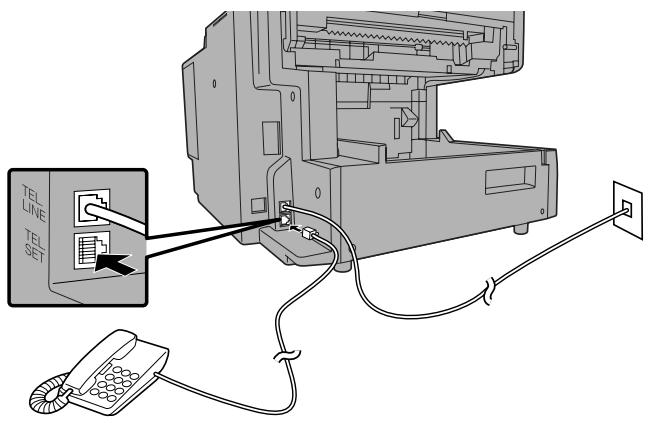
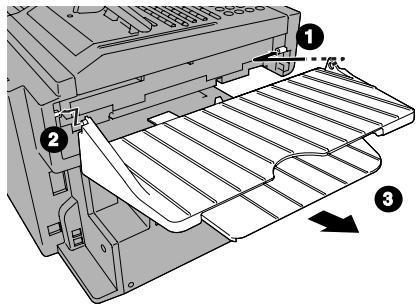
Attaching the ADF exit tray
Insert the protrusion on the right side of the machine into the hole in the right side of the ADF exit tray ①, then bend the tray slightly and insert so that the protrusion on the left side of the machine goes into the hole on the left side of the ADF exit tray ②. Pull out the tray extension ③.
Attaching the received document tray
Slide the received document tray into the machine as shown. When it stops, lift the end slightly and push in so that the tray locks into place.
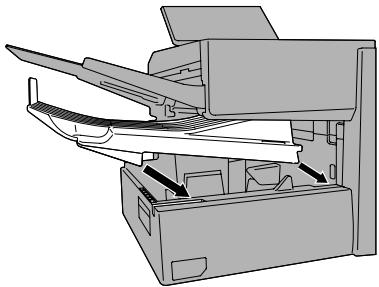
Important!
The received document tray must be attached for the fax machine to operate properly.
Attaching the national character labels
If French will be used for the display language (see LANGUAGE SELECT on page 115) attach the national character labels for French as shown below. During procedures that require the entry of text, the keys below the labels can be pressed to enter the corresponding characters.
![graph TD A["Data Flow"] --> B["Component 1"] B --> C["Data Flow"] C --> D["Component 2"] D --> E["Output Arrow"] style A fill:#f9f,stroke:#333 style E fill:#bbf,stroke:#333](/content/2024/12/79073/images/b522f4e46e372e3b1177edf3aae56b3078339262b3a692ad5f244e42a37572ed.jpg)
Flip up the Rapid Key overlay
Verification Stamp option
Note: This feature is available as an option. Consult your dealer if you wish to use this feature.
When transmitting a document, you can have the fax machine stamp each document page as it is scanned. After scanning, you can check to see if all documents have been stamped to verify that no double feeds occurred. (A double feed occurs when two pages are fed through the scanner at once, which means that one of the pages is not scanned.)
To use this function, have your dealer install the Verification Stamp option, and then set Option Setting 29 to ON as explained on page 114.
Installing the Print Cartridges
Follow the steps below to install or replace the toner and drum cartridges.
The initial starter toner cartridge included with the fax machine can print approximately 3000 letter-size pages (4% coverage of each page; continuous printing).
◆ The replacement toner cartridge (FO-44ND/FO-50ND) can print approximately 6000 letter-size pages.
- The drum cartridge (FO-47DR) can print approximately 20,000 letter-size pages.
1 Press the cover release to open the print compartment cover.
- Caution!
The fusing unit inside the print compartment becomes very hot during operation. Be careful not to touch the inside of the compartment.
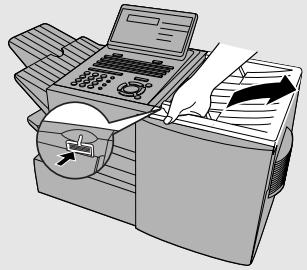
2 If you are replacing the toner cartridge, remove the old cartridge and dispose of it according to local regulations.
Go directly to Step 5 if you are only replacing the toner cartridge and not the drum cartridge.
- If you are replacing the drum cartridge but not the toner cartridge, remove the toner cartridge and place it on a sheet of paper.
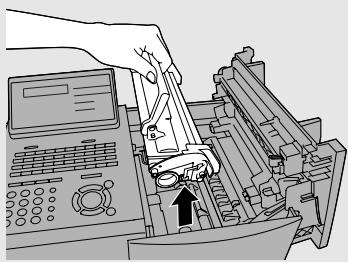
To make the cartridge more compact for disposal, press the buttons on the ends of the handle and fold the handle down.
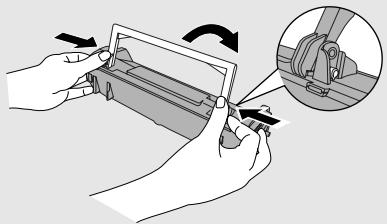
3 If you are replacing the drum cartridge, remove the old cartridge and dispose of it according to local regulations.
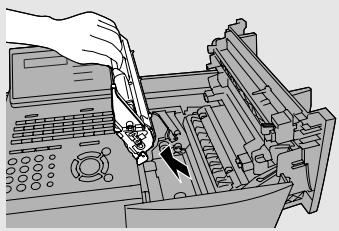
4 Remove the new drum cartridge from its packaging. Insert the drum cartridge into the print compartment.
- Caution! Excessive exposure to light will damage the drum cartridge. Install the cartridge promptly after removing it from its packaging.
- Make sure the drum cartridge is inserted in as far as it will go.
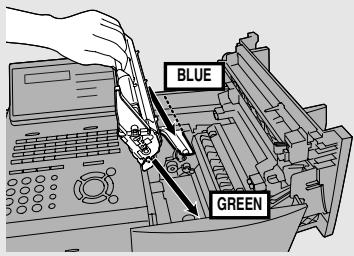
5 If you are installing a new toner cartridge, remove the new toner cartridge from its packaging. Remove the tape from the cartridge and then open the cartridge handle so that it stands straight up.
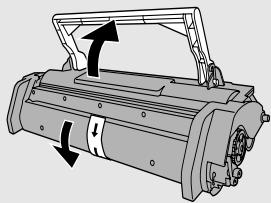
6 Shake as indicated by the arrows to distribute the toner evenly within the cartridge.
- If the toner is still lumpy after shaking, the gears in the cartridge may make a noticeable sound when the print compartment cover is closed after installing the cartridge. This is normal and does not indicate a problem.
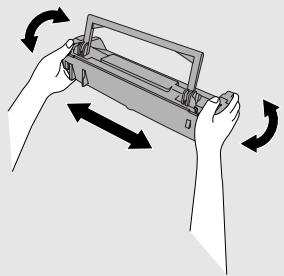
7 Hold the toner cartridge by the handle and insert it into the print compartment.
- Make sure the toner cartridge clicks into place.
- The handle can be left standing up.
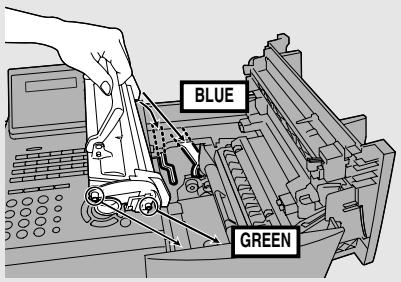
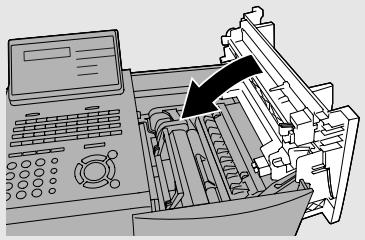
8 Close the print compartment cover.
9 Reset the drum counter by pressing LIFE (flip up the Rapid Key overlay), ③, and START/ENTER.
- Note: The toner counter automatically resets each time you replace the toner cartridge. There is normally no need to reset the toner counter manually. Should you find it necessary to manually reset the toner counter,
press LIFE (flip up the Rapid Key overlay), ②, and START/ENTER.
Note: The print compartment cover may become noticeably warm if a large number of pages are successively printed. This is normal and does not indicate a problem in the machine.
When to replace the toner cartridge
When the toner cartridge nears empty (about 100 pages can still be printed), the toner cartridge indicator on the operation panel will blink. When the toner cartridge is empty, the toner cartridge indicator will light steadily and REPLACE TONER will appear in the display. Printing will no longer be possible. Use the following replacement toner cartridge:
Sharp FO-44ND or FO-50ND toner cartridge
Hint:
When the toner cartridge nears empty, try taking it out of the machine and shaking it. This may increase the number of pages that can be printed before the toner runs out.
When to replace the drum cartridge
When the drum cartridge nears the end of its life, the ALARM indicator on the operation panel will blink and DRUM LIFE REACHED will appear in the display (this message first appears approximately 1000 pages before the drum needs replacement). Use the following replacement drum cartridge:
Sharp FO-47DR drum cartridge
Loading Printing Paper
You can load up to 250 sheets of letter or legal paper (max. 20 lbs.) in the paper tray.
A paper cassette is available as an option. Up to 500 sheets of letter or legal paper can be loaded in the paper cassette. To have the cassette installed, consult your dealer.
Important: Do not use the back side of paper that has already been printed on.
Note: If you need to add paper to the tray or cassette while paper still remains, remove the remaining paper and combine it into a single stack with the new paper.
Loading paper in the paper tray
1 Remove the received document tray.
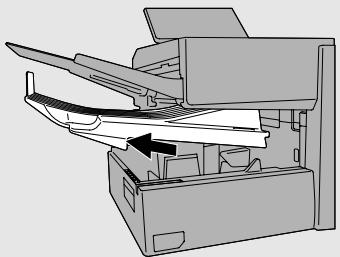
2 Insert a stack of paper into the tray, print side up.
- Important! The stack of paper must not be higher than the red line on the paper tray.
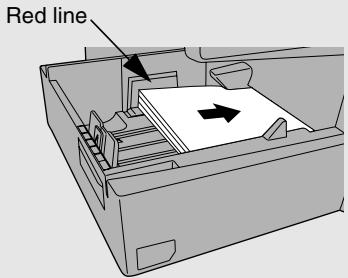
3 Squeeze the paper guide and move it to match the length of the paper you are loading.
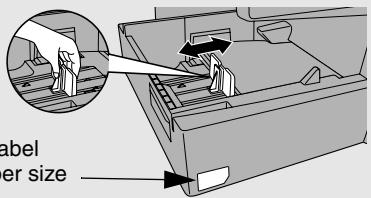
Attach a letter or legal label here to indicate the paper size
4 Replace the received document tray.
- The received document tray must be attached for the fax machine to operate properly.
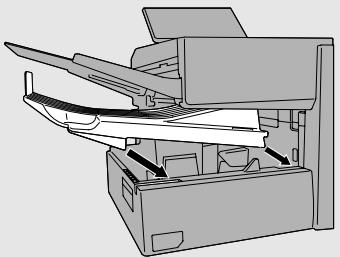
Loading paper in the paper cassette (if installed)
Note: To use A4 paper in the paper cassette, you must have a service technician adjust the cassette.
1 Grasp the hand-hold on the cassette and pull the cassette out until it stops.
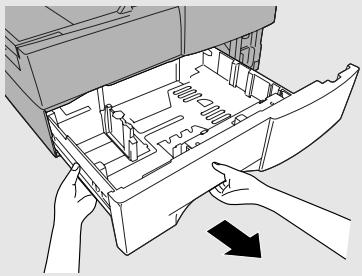
2 Push the pressure plate down until it locks into position.
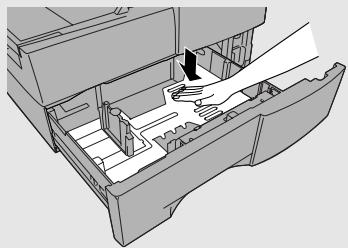
3 Squeeze the paper guide and pull up to move it to the appropriate holes for the length of the paper. Push the guide down into the holes.
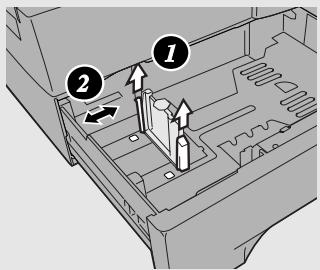
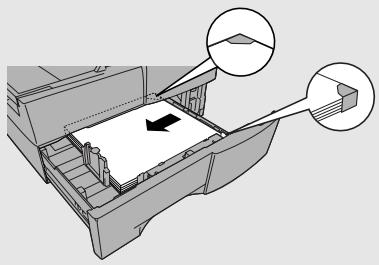
4 Place a stack of paper in the cassette, print side up.
- Make sure the stack of paper is not higher than the two tabs on the paper guide and the two metal tabs. If it is, remove some of the paper.
- If you find it difficult to load the paper, remove the cassette from the machine. (Pull the cassette out as far as it will go, grasp the left side of the cassette with your left hand, and then lift it up and out with both hands.)
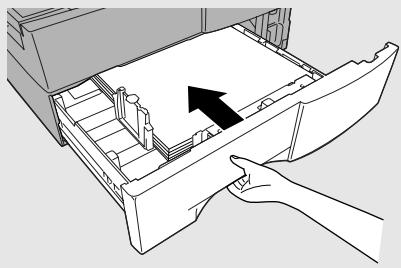
5 Push the cassette back into the machine, making sure it clicks into place.
Entering Your Name and Fax Number
Before you can begin using the fax machine, you must program your name and fax number. Once you program this information, it will appear automatically at the top of each fax page you send.
Important!
FCC regulations require that your name, telephone/fax number, and the date and time appear on each fax message you send. Enter your name and fax number here and set the date and time as explained in the following section to have the fax machine include this information automatically at the top of your fax messages.
1
Press
MENU
and
③.
Display:
3: ENTRY MODE
ENTER #(01-08, ◀, ▶)
2
Press
0
and
③.
03:OWN PASSCODE SET
ENTER FAX #
3
Enter your fax number (max. of 20 digits) by pressing the numeric keys.
- To insert a space between digits, press #.
- To clear a mistake, press STOP
4
Press
START/ENTER
ENTER SENDER'S NAME
5 Flip the Rapid Key overlay down (if it is up), and enter your name by pressing the appropriate letter keys as shown below. (Max. of 24 characters.)
Example: SHARP = Caps Lock S H / } A / I R / \$ P /=
![01 02 03 04 05 06 07 08 09 10 Q / ! W / " E / # R / $ T / % Y / & U / ' I / { O / ) P / = 11 12 13 14 15 16 17 18 19 20 SYMBOL A / | S D F G / { H / } J / [ K / ] L / + 21 22 23 24 25 26 27 28 29 30 Caps Lock Z / < X / > C V B N / * M / ? @ .com 31 32 33 34 35 36 37 38 39 SHIFT ^ / ^ / \ ; : Space _…](/content/2024/12/79073/images/edcb948fee9aca777f83eaa483e72f9035156e4b66bb34cf7d7580b3c2f94341.jpg)
- To enter a space, press Space.
- To change case, press Caps Lock.
- To clear a mistake, press DEL.
- To enter a number as part of a name, press the appropriate numeric key. To enter the symbol on a letter key (the character to the right of the slash), press SYMBOL (“SYM” will appear in the display) and then the letter key (press SYMBOL again to turn off symbol entry mode).
- To move the cursor, press 🏠 or ▶. To switch between letter insertion and letter replacement mode when the cursor is in the middle of a sequence of letters, press MENU.
6 Press START/ENTER.
04: DATE &TIME SET PRESS START KEY
7 Press STOP twice to return to the date and time display.
Setting the Date and Time
The date and time appear in the display, in reports, and at the top of each page you transmit. Set the date and time by pressing the keys on the operation panel as shown below.
1
Press
MENU
and
③.
Display:
3: ENTRY MODE
ENTER #(01-08, ◀, ▶)
2
Press
0
and
4.
04:DATE&TIME SET
DATE 06-08-2006
(The currently set date will appear to the right of “DATE”)
3
Enter a two-digit number for the month (“01” for January, “02” for February, “12” for December, etc.).
Example: March 0 3
- To correct a mistake, press 🖼️ to move the cursor back to the mistake and then enter the correct number.
4
Enter a two-digit number for the day ("01" to "31").
Example: The 5th 0 5
5
Enter the year (four digits).
Example: 2006 ② ① ① ⑥
6
Enter a two-digit number for the hour (“01” to “12”) and a two-digit number for the minute (“00” to “59”).
Example: 9:25 0 9 2 5
7 Press ⓧ to select A.M. or Ⓥ to select P.M.
8 Press START/ENTER to start the clock.
9 Press STOP twice to return to the date and time display.
Daylight Saving Time
If desired, you can set the clock to move forward and backward automatically at the beginning and end of Daylight Saving Time.
1 Press MENU and ③.
Display:
3: ENTRY MODE ENTER #(01-08, ◀, ►)
2 Press ① and ⑤.
05:DAY LIGHT SAVING
1=YES, 2=NO
3 Press ① to turn on the Daylight Saving Time function, or ② to turn it off.
4 Press STOP twice to return to the date and time display.
Administrator Password
The administrator of the machine can set a password to protect the settings that are accessed with the MENU key. When the password is set and protection is enabled, the display will prompt you to enter the administrator password each time you press MENU to configure a MENU setting.
Setting an administrator password
1 Press the following sequence of keys:

Display:
ADMIN PASSWORD ENTER #(1-2, ◀, ►)
- This is a hidden operation, and therefore error beeps may sound and the display may not respond normally when you press several of the above keys. Disregard the error beeps and display while pressing the keys.
- If password protection (page 29) is already enabled, a password entry screen will appear after you press MENU. Continue to press the above keys without entering the password.
2 Press ① to set the password.
1:ADMIN PASSWORD SET ENTER OLD PASSWORD
3 Press the numeric keys and/or the letter keys to enter the old (currently set) password.
- If you are setting the password for the first time, enter "Sharp" (this is the initial factory-set password).
- Each character/digit that you enter will be displayed as “*”.
4 When you have finished entering the
current password, press START/ENTER.
ENTER NEW PASSWORD [ ]
- If you entered the wrong password, WRONG PASSWORD will appear. Re-enter the correct password. If you enter the wrong password 3 times in a row, you will return to the date and time display.
5 Enter the new password.
- The characters #, &, <, > cannot be used in the password.
6 Press START/ENTER.
PASSWORD PROTECT 1=YES, 2=NO
7 Press ① if you wish to enable protection (require entry of the password) now. Press ② if you do not wish to enable protection yet (you can enable protection later using the procedure below).
- The machine will print out the password for your records. Take care not to forget the password or lose the print-out. In the event that you forget the password and have kept no record, contact your dealer.
Changing the Password Protect setting
Follow the steps below if you need to change the Password Protect setting (enable or disable password protection).
1 Press the following sequence of keys:

Display:
ADMIN PASSWORD ENTER #(1-2, ◀, ►)
- This is a hidden operation, and therefore error beeps may sound and the display may not respond normally when you press several of the above keys. Disregard the error beeps and display while pressing the keys.
- If password protection is enabled, a password entry screen will appear after you press MENU. Continue to press the above keys without entering the password.
2 Press ② to select PASSWORD PROTECT.
2: PASSWORD PROTECT 1=YES, 2=NO
3 Press ① to enable protection, or ② to disable protection.
ENTER PASSWORD [ ]
4 Press the numeric keys and/or the letter keys to enter the current password.
5 When you have finished entering the password, press START/ENTER.
When password protection is enabled
When password protection enabled, you will be prompted to enter the
password each time you press MENU to configure a MENU setting. Enter
the password with the numeric and/or letter keys as appropriate, press START/ENTER, and then continue as usual.
Volume Adjustment
You can adjust the volume of the speaker and ringer using ▲ and ▼.
Speaker
1 Press SPEAKER.
2 Press ▲ or ▼ to select the desired volume level.
Display:
![graph TD A["SPEAKER VOLUME HIGH"] --> B["SPEAKER VOLUME MIDDLE"] B --> C["SPEAKER VOLUME LOW"]](/content/2024/12/79073/images/47f8b9ebbb278da0e87b309c0d4aeaf5e0ce5861ac36220bb878a3a663dfb6df.jpg)
3 Press SPEAKER to turn off the speaker.
Ringer
1 Press the ▲ or ▼ to select the desired volume level. (Make sure

has not been pressed.)
- The ringer will ring once at the selected level, and then the date and time will reappear in the display.
Display:
![graph TD A["RINGER VOLUME HIGH"] --> B["RINGER VOLUME MIDDLE"] B --> C["RINGER VOLUME LOW"] C --> D["RINGER VOLUME OFF OK? (PRESS START)"]](/content/2024/12/79073/images/5d1efaec6c11465e0e7beb90fd635c01d01850a251a5688697f4c6ed05f97fd3.jpg)
2 If you selected "RINGER VOLUME OFF: OK?" to turn off the ringer, press START/ENTER to confirm your selection.
2. Sending Documents
Transmittable Documents
Size and weight
The size and weight of documents that you can load in the document feeder depend on whether you load one page at a time or several pages at once.
Loading one page at a time:
Minimum size
Maximum size
Minimum weight
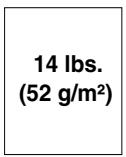
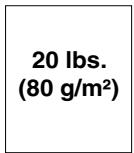
Maximum weight
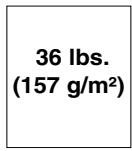
Loading multiple pages at once (letter-size: max. 50 pages, legal-size: max. 20 pages):
Minimum size
Maximum size
Minimum weight
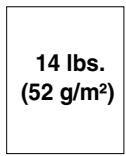
Maximum weight
Note: 11" x 17" paper must be loaded one page at a time.
Maximum scanning area
The area of the document that the fax machine can scan is slightly smaller than the actual document size. Any letters or graphics outside this area will not be scanned.
Maximum scanning width:
8.2 inches (208 mm)
Maximum scanning length:
The length of the document minus 0.16 inches (4 mm) from the top and bottom of the document.
Other restrictions
◆ The scanner cannot recognize yellow, greenish yellow, or light blue ink.
♦ Ink, glue, and correcting fluid on documents must be dry before they pass through the document feeder.
All clips, staples, and pins must be removed from documents before loading in the feeder. If these are not removed, they may damage the machine.
◆ Documents which are patched, taped, torn, smaller than the minimum size, carbon backed, easily smudged, or have a slick, coated surface should be photocopied, and the copy loaded in the feeder.
Loading the Document
Up to 50 letter-sized pages (20 legal-sized pages) can be placed in the feeder at one time. The pages will automatically feed into the machine starting from the bottom page.
If you need to send or copy more than 50 pages, place the additional pages gently and carefully in the feeder just before the last page is scanned. Do not try to force them in, as this may cause double-feeding or jamming.
If your document consists of several large or thick pages which must be loaded one at a time, insert each page into the feeder as the previous page is being scanned. Insert gently to prevent double-feeding.
If there are folds on the document, smooth out the folds before loading the document. Unsmoothed folds may prevent correct scanning.
When scanning a very long document, gently hold the sides of the document while it feeds into the scanner to prevent skewing.
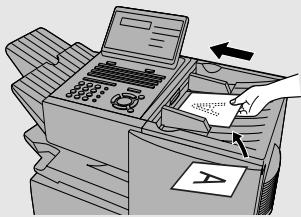
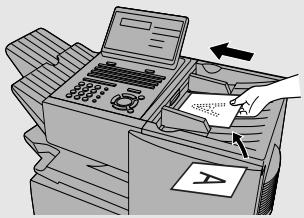
1 Adjust the document guides to the width of your document.
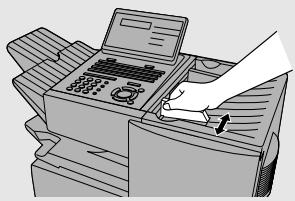
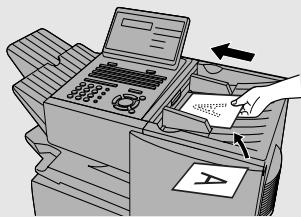
2 Place the document face down and push it gently into the document feeder. The top edge of the document should enter the machine first.
- The feeder will draw the leading edge of the document into the machine. SEND READY will appear in the display.
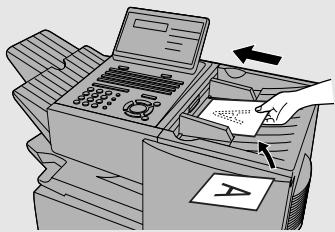
Note: When inserting a large number of pages in the feeder, slant the front end of the stack so that the bottom pages enter first.

3 Adjust the resolution and/or contrast settings (if desired) and then dial the receiving machine as explained in the following sections.
Adjusting the Resolution and Contrast
If desired, you can adjust the resolution and contrast before sending a document.
Resolution
The fax machine has four resolution settings:
| STANDARD | Use STANDARD for ordinary documents. This setting gives you the fastest and most economical transmission. |
| FINE | Use FINE for documents containing small letters or fine drawings. |
| SUPER FINE | Use SUPER FINE for documents containing very small letters or very fine drawings. |
| HALF TONE | Use HALF TONE for photographs and illustrations. The original will be reproduced in 64 shades of gray. |
The default resolution setting is STANDARD. If you don't adjust the resolution before sending a document, the fax machine will automatically use STANDARD resolution.
In order to transmit in FINE or SUPER FINE resolution, the receiving fax machine must also have that resolution. If it doesn't, the next best available setting will be used.
The resolution settings are only effective for transmitting and copying a document. They are not effective for receiving a document.
To adjust the resolution setting, press RESOLUTION one or more times until the indicator light next to the desired setting comes on.
![graph LR A["RESOLUTION"] --> B["HALF TONE □"] A --> C["STANDARD □"] C --> D["FINE □"] C --> E["SUPER FINE □"]](/content/2024/12/79073/images/9b185351476fbd472278e0c0cb71e9533406ac94424b62840dfc1b3252eb0770.jpg)
Contrast
The fax machine has three contrast settings:
AUTO Use AUTO for normal documents.
DARK Use DARK for faint documents.
LIGHT Use LIGHT for documents with a dark background.
The default setting is AUTO.
To adjust the contrast, press CONTRAST until the desired setting appears in the display.
![graph TD A["CONTRAST"] --> B["(AUTO) M:00% SEND READY"] B --> C["(DARK) M:00% SEND READY"] C --> D["(LIGHT) M:00% SEND READY"] D --> A](/content/2024/12/79073/images/55587f1204d6e016da10177956f1f3677a2060466b4b7a01106f8a4c324370d6.jpg)
Sending a Fax by Normal Dialing
With Normal Dialing, you press SPEAKER and then dial by pressing the numeric keys.
Normal Dialing allows you to listen to the line through the speaker to make sure the other fax machine is responding. (Note that the speaker is not a speakerphone; it cannot be used for talking.)
If you have connected an extension telephone to the fax machine, you can also pick up the extension phone and dial using the extension phone (do not press SPEAKER on the fax machine). If a person answers, you will be able to speak to them through the phone before sending a fax.
Note: If you press SPEAKER to dial, you will not be able to speak using an extension phone connected to the fax machine in the event that a person answers.
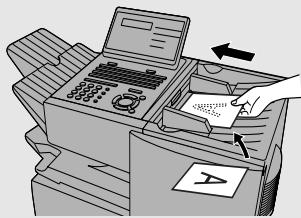
1 Load the document(s). (Note: If desired, you can load the document after dialing in Step 3, below.)
- SEND READY will appear in the display.
- Press RESOLUTION and/or CONTRAST to set the resolution and contrast if needed.
2 Press SPEAKER or pick up an extension phone connected to the fax machine. Listen for the dial tone.
3 If you pressed SPEAKER, dial the number of the receiving machine by pressing the numeric keys on the fax machine.
If you are using an extension phone, dial using the keypad on the extension phone.
- If Option Setting 26 (TEL. BILLING CODE, page 113) has been set to ON and BILLING CODE DIAL has been set to AFTER, press REDIAL after dialing.
4 Wait for the connection. When you hear a fax tone, press START/ENTER on the fax machine.
- If a person answers and you are using an extension phone, ask them to press their Start key. When you hear the fax tone, press START/ENTER on your fax machine.
Using the REDIAL key
You can press REDIAL to redial the last number dialed. To send a document, press START/ENTER when you hear the fax tone after the connection is established.
Note that the speaker is automatically activated when you press REDIAL.
Programming Auto-Dial Numbers
You can dial a fax number by simply pressing a Rapid Key, or by pressing
SPEED DIAL and entering an abbreviated Speed Dial number.
To use a Rapid Key or Speed Dial number, you must first program the full fax number in the Rapid Key or Speed Dial number. It is usually convenient to program your most frequently dialed numbers in Rapid Keys.
◆ Up to 59 Rapid Keys can be programmed for shared use.
◆ Up to 75 Speed Dial numbers can be programmed for shared use.
You can also create personal books for auto-dial numbers. Up to 59 Rapid Keys and 16 Speed Dial numbers can be stored in each personal book. For information on creating and using personal books, see page 53.
1 Press MENU and ③.
Display:
3:ENTRY MODE ENTER #(01-08, ◀, ►)
2 Press ① and ①.
01: DESTINATION 1=SET, 2=CLEAR
3 Press ① to select SET.
1: DESTINATION SET ENTER RAPID OR SPEED
4 To program a Rapid Key number, press the Rapid Key that you wish to use. (To select Rapid Keys 40 through 59, flip up the Rapid Key overlay.)
To program a Speed Dial number, press SPEED DIAL and then enter the number from "1" to "75" that you wish to use. (If you enter less than two digits, press START/ENTER to complete the entry.)
5 Enter the fax number by pressing the numeric keys (max. of 60 digits including pauses).
- To clear a mistake, press DEL.
- If a pause is required between any of the digits to access a special service or an outside line, press REDIAL (two seconds per pause). The pause will appear as a hyphen. Several pauses can be entered in a row.
6 Press START/ENTER.
7 Enter the name of the party by pressing the letter entry keys (max. of 20 characters). (Make sure the Rapid Key overlay is flipped down.)
Example: SHARP = Caps Lock S H / } A / | R / \$ P /=
- If you don't want to enter a name, go directly to Step 8.
![01 02 03 04 05 06 07 08 09 10 Q / ! W / " E / # R / $ T / % Y / & U / ' I / { O / } P / = 11 12 13 14 15 16 17 18 19 20 SYMBOL A / | S D F G / { H / } J / [ K / ] L / + 21 22 23 24 25 26 27 28 29 30 Caps Lock Z / < X / > C V B N / * M / ? @ .com 31 32 33 34 35 36 37 38 39 SHIFT ^/ ^ // \ ; : Space _…](/content/2024/12/79073/images/804d80194c2ceed4ea087a6416906527aa8ee8451a7d32b4dbff5ba96b150706.jpg)
- To enter a space, press Space.
- To change case, press Caps Lock
- To clear a mistake, press DEL.
- To enter a number as part of a name, press the appropriate numeric key. To enter the symbol on a letter key (the character to the right of the slash), press SYMBOL (“SYM” will appear in the display) and then the letter key (press SYMBOL again to turn off symbol entry mode).
- To move the cursor, press ◀ or ▶. To switch between letter insertion and letter replacement mode when the cursor is in the middle of a sequence of letters, press MENU.
8
Press

CHAIN DIAL 1=SET, 2=CANCEL
9
Press ① if the number programmed is an area code or access code to be used for Chain Dialing (see Chain Dialing at the end of this
procedure). Press ② (or START/ENTER) if the number is a regular fax number.
10
Return to Step 4 to program another number, or press STOP repeatedly to return to the date and time display.
- If you programmed a Rapid Key number, you can write the name of the party on the label above the Rapid Key.
Chain Dialing for area and access codes
You can also program an area code or access code in a Rapid Key or Speed Dial number using the above programming procedure. In Step 9, press ① to set the number as a Chain Dialing number.
After you dial an area code or access code using a Rapid Key or Speed Dial number set for Chain Dialing, the fax machine will wait for you to dial the remainder of the number (you can dial the remainder of the number by pressing a Rapid Key, by pressing the Speed Dial key and entering a Speed Dial number, or by pressing numeric keys). Note that the remainder of the number should not be set as a Chain Dial number if programmed in a Rapid Key or Speed Dial number.
The maximum number of digits that can be dialed at one time by Chain Dialing is 60.
Editing auto-dial numbers
To make changes in a number previously stored, repeat the programming procedure. Select the Rapid Key or Speed Dial number for which you want to make changes in Step 4, and then change the number(s) and/or name(s) when they appear in the display (Steps 5 and 7).
Clearing auto-dial numbers
Note: You cannot clear a number if it is used in a program or timer operation, or if it is included in a Group Key. First clear the number from the operation or group, then perform the following clearing procedure. To check where the number is used, print out the Program/Group List or the Timer List as explained on page 116.
1 Press MENU and ③.
Display:
3: ENTRY MODE
ENTER #(01-08, ◀, ▶)
2 Press ① and ①.
01: DESTINATION
1=SET, 2=CLEAR
3 Press ② to select CLEAR.
2: DESTINATION CLEAR
ENTER RAPID OR SPEED
4 To clear a Rapid Key, press the Rapid Key.
To clear a Speed Dial number, press SPEED DIAL and then enter the number with the numeric keys. (If you enter less than two digits, press START/ENTER to complete the entry.)
5 Press START/ENTER.
6 Return to Step 4 to clear another number, or press STOP repeatedly to return to the date and time display.
Sending a Fax by Automatic Dialing
Dual Access
The fax machine features full dual access, which means that you can load a document and dial by automatic dialing even when the fax machine is occupied with another job. After you dial, your document will be immediately scanned into memory and then transmitted once all previously stored jobs have been completed.
If more than one document has been scanned into memory for transmission, the documents (jobs) will be transmitted in the order in which they were scanned. If you have an urgent transmission and do not want to wait until
previously stored jobs are completed, you can press PRIORITY after loading your document. Your document will be transmitted immediately after the current job is finished.
If you don't want the document to be transmitted from memory, you can press
DOCUMENT M/?
M/? after loading the document. Your machine will call the receiving fax machine immediately after the current job is finished (ahead of any previously stored jobs in memory), and the document will be scanned as soon as the connection is established.
◆ Approximately 500 pages of average content can be held in memory. Less pages can be held if any were scanned using fine or halftone resolution.
◆ The amount of memory currently occupied appears as a percentage ("M:00%") in the display.
Rapid Key Dialing
If the number you want to dial has been programmed in a Rapid Key, you can dial it by pressing the Rapid Key.
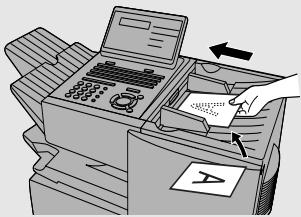
1 Load the document(s).
SEND READY will appear in the display.
- Press RESOLUTION and/or CONTRAST to set the resolution and contrast if needed.
- To send the document ahead of other documents waiting for transmission,
press PRIORITY . - To send the document directly from the feeder (not through memory), press
DOCUMENT M/? . (Flip up the Rapid Key overlay if it is down.)
2 Press the appropriate Rapid Key.
- The name of the receiving party will appear in the display. If no name was stored, the fax number will appear. (If the name or number is incorrect,
press STOP .) - The document will be automatically transmitted once the connection is established.
Speed Dialing
If the number you want to dial has been programmed in a Speed Dial number, you can dial it by pressing SPEED DIAL and then entering the Speed Dial number.
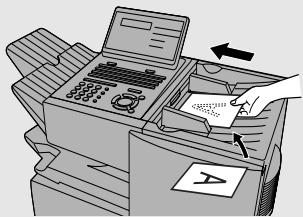
1 Load the document(s).
SEND READY will appear in the display.
- Press RESOLUTION and/or CONTRAST to set the resolution and contrast if needed.
- To send the document ahead of other documents waiting for transmission, press PRIORITY.
- To send the document directly from the feeder (not through memory), press DOCUMENT M/? . (Flip up the Rapid Key overlay if it is down.)
2 Press ○ and then enter the Speed Dial number by pressing the numeric keys.
- If you enter less than 2 digits for the Speed Dial number, press START/ENTER to complete the entry.
3 Check the display. If the name or number shown is correct, press START/ENTER.
(If not, press STOP and then repeat Step 2.)
Direct Keypad Dialing
You can also enter a full number with the number keys and then press to begin dialing.
1 Load the document(s). (Note: If desired, you can load the document after dialing in Step 2, below.)
SEND READY will appear in the display.
- Press RESOLUTION and/or CONTRAST to set the resolution and contrast if needed.
- To send the document ahead of other documents waiting for transmission, press PRIORITY.
- To send the document directly from the feeder (not through memory), press DOCUMENT M/? . (Flip up the Rapid Key overlay if it is down.)
2 Enter the number of the receiving machine by pressing the numeric keys.
- If a pause is required between any of the digits to access a special service or an outside line, press REDIAL (two seconds per pause). The pause will appear as a hyphen. Several pauses can be entered in a row.
3 Check the display. If the number of the receiving machine shown is correct, press START/ENTER .
- If it is not correct, press STOP to backspace and clear one digit at a time, and then re-enter the correct digit(s).
Searching for an auto-dial number
If you don't remember the Rapid Key or Speed Dial number in which you have programmed a particular fax number, you can search for the number by following the steps below. Once you have found the number, you can dial it
and transmit the loaded document by simply pressing START/ENTER
You can also use this procedure to search for Group Keys and Program Keys (the name you programmed for the Group or Program key will appear). This can be done at any point in a transmission or polling procedure where you need to press a Group Key or a Program Key.
1 Load the document(s).
SEND READY will appear in the display.
- Press RESOLUTION and/or CONTRAST to set the resolution and contrast if needed.
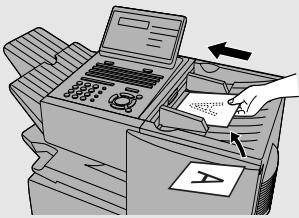
2 Press ▶A to search from the
beginning of the alphabet, or z to search from the end.
Display:
SEARCH DIAL
3 Enter the first character of the stored name by pressing the appropriate letter entry key.
- If you don't remember the first letter, go to Step 4 (you will scroll through the list from the beginning).
4 Press ◀ or ▶ to scroll through the names. Stop when the desired name appears in the display.
- If no numbers have been stored under the entered letter, NOT FOUND will appear.
5 Press START/ENTER. The document will be automatically transmitted once the connection is established.
Chain Dialing
An auto-dial number set for Chain Dialing can be combined with another auto-dial number or digits entered manually with the numeric keys to dial one phone number up to 60 digits long. The following are some examples of how this can be done:
◆ Press appropriate Rapid Keys in the proper order. For example, press Rapid Key 01 (set for Chain Dialing), then Rapid Key 02 (not set for Chain Dialing).
◆ Press a Rapid Key (set for Chain Dialing) and then manually enter a number by pressing appropriate numeric keys. Press START/ENTER after the final numeric key to begin transmission.
If the memory becomes full...
If the memory becomes full while a document is being scanned, MEMORY FULL will appear in the display. If Option Setting 23 (Quick On-line) is set to ON, scanning will automatically resume when memory becomes free again as pages are transmitted. (Note: Quick On-Line is initially set to ON at the factory. To change the setting, see page 113.)
If Quick On-Line is set to OFF the transmission will be canceled and
MEMORY FULL ERROR will appear in the display. Press STOP to clear the message. Try the transmission again later when memory is free.
Checking the status of the current job
The display normally shows the date and time and prompts related to operations you are performing. To check and see what number the fax machine is currently calling or transmitting to, or what number the fax machine is currently receiving a document from (if this information is available), press
JOB STATUS . Information on the current job will appear in the display. To switch
back to the date and time display, press JOB STATUS again.
To cancel a fax transmission or reception
To cancel a fax transmission or reception that is currently in progress, press
JOB STATUS so that the status of the transmission or reception appears in the
display, and then press STOP
Checking and canceling stored transmission jobs
To display information on jobs that are waiting in memory for transmission, follow the steps below. You can also cancel a transmission job with this procedure.
1 Press MEM.STATUS (flip up the Rapid Key overlay) and then ②.
Display:
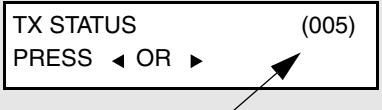
The number of stored transmission jobs appears here
2 Press or to scroll through the list of transmission jobs. The name (or number) of each receiving party will appear in the display, together with the 3-digit memory number assigned to the transmission.
To cancel a transmission, press DEL and then START/ENTER while the transmission appears in the display.
3 When you have finished checking the list, press STOP twice to return to the date and time display.
Note: To print out a list of the documents waiting in memory for transmission, press MEM.STATUS and then 5.
Canceling a memory transmission by number
If you know the memory number assigned to a memory transmission, you can cancel it with the following procedure. (If you don't know the memory number, use the preceding procedure.)
1
Press MEM.STATUS (flip up the Rapid Key overlay) and then ④.
Display:
4: MESSAGE CLEAR ENTER MESSAGE #
2 Enter the 3-digit memory number assigned to the transmission you wish to cancel.
3
Press START/ENTER
Automatic redialing
If you use automatic dialing (including Direct Keypad Dialing) and the line is busy, the fax machine will automatically redial the number. The fax machine is set at the factory to make 2 redialing attempts at intervals of 5 minutes.
To cancel automatic redialing, press JOB STATUS to show the job status in the display (make sure that RECALL MODE appears on the top line of the display and the number of the receiving party appears on the bottom line to the right), and then press STOP .
If desired, you can change the number of redial attempts with Option Setting 6, and the interval at which redialing takes place with Option Setting 7 (see page 109).
◆ Under certain conditions (for example if a person answers the call on a telephone), automatic redialing may stop before the set number of redialing attempts are made.
Memory Retransmission
If a line error occurs during any type of memory transmission, your fax will automatically redial the number and attempt to complete the transmission. Retransmission will begin from the page which was being transmitted when the error occurred.
The fax machine has been set at the factory to make 10 attempts at retransmission, with each attempt made immediately after the previous attempt. If desired, you can change the number of attempts by changing Option Setting 17, and have the fax wait a selected number of minutes between each attempt by changing Option Setting 18 (see page 111).
◆ The numbering of pages retransmitted will begin from "1" again.
If an error or power failure occurs during transmission of a cover sheet, retransmission will not take place.
◆ To cancel retransmission, press JOB STATUS to show the job status in the display (make sure that RETRY MODE appears on the top line of the display and the number of the receiving party appears on the bottom line to the right), and then press STOP.
Creating and Using Personal Books
Up to 10 personal books can be created that allow individuals to program Rapid Key and Speed Dial numbers for their own personal use.
◆ Up to 59 Rapid Key numbers and 16 Speed Dial numbers can be programmed in each personal book.
If desired, you can program a 4-digit passcode for a personal book. When this is done, the passcode must be entered to use or edit the book.
You can open a personal book by pressing PERSONAL BOOK and then entering the book's 4-digit passcode if it has a passcode, or by selecting the book with
or ▶ and pressing START/ENTER. After opening the book, simply follow the desired procedure for programming or using a Rapid Key or Speed Dial number as explained elsewhere in this manual.
Creating a personal directory book
To create a new personal directory book, follow the steps below:
1 Press MENU, and ③.
Display:
3: ENTRY MODE
ENTER #(01-08, ◀, ►)
2 Press ① and ⑧.
08: BOOK ENTRY MODE 1=SET, 2=CLEAR
3 Press ① to select SET.
1:BOOK SET MODE ENTER # (01 - 10)
4 Enter a 2-digit number from 01 to 10.
- This number will identify the personal directory book.
5 Enter a name for the personal directory book by pressing the letter entry keys. (Make sure the Rapid Key overlay is down.)
Example: SHARP = Caps Lock S H / } A / I R / \$ P /=
- For more information on entering letters, see Step 5 on page 25.
![01 02 03 04 05 06 07 08 09 10 Q / ! W / " E / # R / $ T / % Y / & U / ' I / ( O / ) P / = 11 12 13 14 15 16 17 18 19 20 SYMBOL A / | S D F G / { H / } J / [ K / ] L / + 21 22 23 24 25 26 27 28 29 30 Caps Lock Z / < X / > C V B N / * M / ? @ .com 31 32 33 34 35 36 37 38 39 SHIFT ^ / ^ // \ ; : Space…](/content/2024/12/79073/images/74d262696fed7efcb8f352509c3da121a7e2c261b856895d9dcf03aae715b638.jpg)
6 Press START/ENTER.
ENTER PASSCODE OR START TO SKIP
7 Enter a four-digit passcode for the personal directory book (this can be any four-digit number you like). If you do not wish to use a passcode,
USE NAME AS FAX HDR 1=YES, 2=NO
press START/ENTER to skip this step.
8 Press ① if you wish to use the book name in the header of faxes sent using the book.
Press ② to use the sender's name entered on page 24.
9 Return to Step 4 to create another book, or press STOP repeatedly to return to the date and time display.
Using a personal book
To program or use a Rapid Key or Speed Dial number in a personal book, you must first open the book. Follow these steps:
1 Press

Display:
SELECT PERSONAL BOOK BY ▶ KEY OR PASSCODE
2 Enter the 4-digit passcode of your book.
If the book doesn't have a passcode, press or until the name of the book appears in the display and then
press

The display briefly shows the following and then reverts to the date and time:
** PERSONAL BOOK ** SUSAN

The name of your book appears on the bottom line.
3 When your book is open, all of the Rapid Keys on the operation panel automatically convert to keys for use in your book. Speed Dial numbers 1 through 16 are also available for use in your book.
You can perform the following operations in a book:
◆ Program any Rapid Key, or a Speed Dial number from 1 to 16, as explained on page 39.
◆ Use a Rapid Key to fax a document as explained on page 45.
◆ Use a Speed Dial number to fax a document as explained on page 46.
◆ Program a Group Key in your book using Rapid Key and Speed Dial numbers from your book (see page 68).
◆ Broadcast a fax to multiple destinations using Rapid Keys, Speed Dial numbers, or a Group Key in your book (see page 66).
◆ Set up a Program Key in your book (see page 86). (Note: Only Rapid Keys and Speed Dial numbers from your book can be used.)
♦ Poll one or more fax machines using Rapid Keys and Speed Dial numbers from your book (see page 74).
- Set up a timer operation using a Rapid Key or Speed Dial number from your book (see page 78).
◆ Print out the Destination List, Program/Group List, or Timer List (see page 116). When printed from your book, these lists will show the corresponding information in your book.
◆ Press REDIAL to redial the last number dialed from your book.
Closing a book
A book will automatically close when the operation performed from the book is completed. If you need to close a book before performing an operation, press

The display shows:
CANCEL BOOK?
1=YES, 2=NO
Press ① to confirm that you want to close the book. Note that a book will also close automatically after one minute if no operation is performed.
Canceling an operation performed from a book
To cancel an operation that was set up from a book, you must first open the book (as explained on page 55) and then cancel the operation.
For example, if you need to cancel a fax transmission that was performed from a book, open your book and then cancel the operation as explained on page 50 or 51. Note that the job status of the fax can be checked without opening your book.
To clear a Rapid Key or Speed Dial number in a book, open the book and then clear the key or number.
Clearing a book
Note: Before you can clear a personal book, you must clear all Rapid Keys, Speed Dial numbers, Group Keys, and Program Keys that are in the book. If a transmission or timer operation is pending that uses a number in a book, the book cannot be cleared until the operation is completed or canceled.
1 Press MENU, and ③.
Display:
3:ENTRY MODE ENTER #(01-08, ◀, ►)
2 Press ① and ⑧.
08: BOOK ENTRY MODE 1=SET, 2=CLEAR
3 Press ② to select CLEAR.
2: BOOK CLEAR MODE ENTER # (01 - 10)
4 Enter the 2-digit number of the book you wish to clear.
5 If the book has a passcode, enter the passcode.
6 Press START/ENTER.
7 Press STOP repeatedly to return to the date and time display.
Cover Sheet
You can have the fax machine generate a cover sheet and send it as the last page of your fax transmission. The cover sheet includes the date and time, the receiver's name and number if a Rapid Key or Speed Dial number is used, the sender's name and number, and the total number of pages.
- Your name and number must be programmed in order for them to appear on the cover sheet (see page 24).
To have the recipient's name appear, you must dial using a Rapid Key or Speed Dial number with the name programmed.
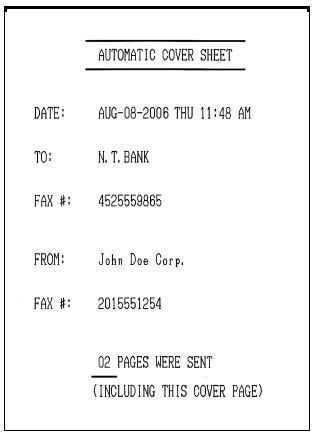
(Example)
1 Load the document(s).
- SEND READY will appear in the display.
- Press RESOLUTION and/or CONTRAST to set the resolution and contrast if needed.
2 Press COVER SHEET . (Flip up the Rapid Key overlay if it is down.)
- The display will briefly show COVER SHEET MODE ENTERED and then revert to SEND READY.
- To cancel the cover sheet selection, press STOP
3 Dial the receiving party and transmit the fax.
If desired, you can set your fax to automatically send a cover sheet with every
transmission (you do not have to press

each time). This is
accomplished by setting Option Setting 10 (Auto Cover Sheet) to YES as explained on page 110.
Batch Page Numbering
You can change the page numbering of the transmitted document from simple numbering ("P.01", "P.02", etc.) to batch numbering, which means that a slash and the total number of pages being sent are added after each page number (for example, "P. 01/05", "P.02/05", etc.). This allows the receiver to check for missing pages.
1 Load the document(s).
- SEND READY will appear in the display.
- Press RESOLUTION and/or CONTRAST to set the resolution and contrast if needed.
2 Press PAGE COUNTER Caps Lock . (Flip up the Rapid Key overlay if it is down.)
Display:
ENTER # OF PAGE(S)
ENTER # (01-99)
3 Enter the total number of pages ("01" to "99") by pressing the numeric keys.
Example: 5 pages 0 5
- If you are sending a cover sheet, do not include it in the total number of pages (the number will be adjusted automatically).
4 Dial the receiving machine and transmit the document.
◆ If you need to cancel a batch number entry, remove the document from the
feeder or press

If the number of pages actually transmitted does not coincide with the batch number entered, the alarm will sound and PAGE COUNT ERROR will appear in the display. PAGE E. will also appear in the NOTE column of the Transaction Report if printed.
3. Receiving Documents
The fax machine has two modes for receiving calls:
AUTO mode:
Select this mode when you only want to receive faxes on the line connected to the fax machine. The fax machine will answer all calls automatically and receive incoming faxes.
MANUAL mode:
Select this mode when you have an extension phone connected to the same line as the fax machine and you want to receive both faxes and voice calls. All calls, including faxes, must be answered by picking up the extension phone.
Setting the reception mode
The reception mode is initially set to AUTO. To change the reception mode, follow these steps:
1
Press

and

1: RECEIVE MODE 1=AUTO, 2=MANUAL
2
Press ① to select AUTO, or ② to select MANUAL.
Using AUTO Reception Mode
In AUTO reception mode, the fax machine automatically answers all calls on one ring and receives incoming faxes.
You can change the number of rings on which the machine answers calls by changing Option Setting 2 (see page 108).
If you pick up an extension phone before the fax machine answers, you can talk to the other party and/or receive a fax as explained in the following section, Using MANUAL Reception Mode.
Using MANUAL Reception Mode
1 When the fax machine rings, answer the call on an extension phone connected to the same line.
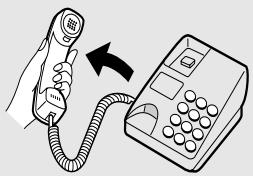
2 If you hear a fax tone, press START/ENTER on the fax machine.
- If the other party first speaks with you, press START/ENTER after speaking. (Press your START key before the sender presses their Start key.)
- If there is a document in the feeder, remove the document before pressing START/ENTER (otherwise the document will be transmitted).
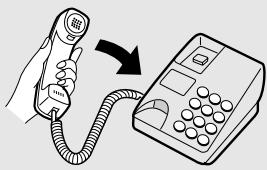
3 When RECEIVING appears in the display, hang up.
Substitute Reception to Memory
In situations where printing is not possible, such as when the fax machine runs out of paper or toner, or a paper jam occurs, incoming faxes will be received to memory.
When you have received a fax to memory, FAX RCVD IN MEMORY will appear in the display, alternating with NO PAPER, REPLACE TONER, or PAPER JAM. When you add paper, replace the toner cartridge, or clear the jam, the stored faxes will automatically print out.
You can display information on faxes received to memory by following these steps:
1
Press

(flip up the Rapid Key
overlay) and

Display:
RX STATUS
PRESS

(003)

The number of received faxes appears here
2
Press


to scroll through the list of received faxes. The name (or sender) of each document will successively appear in the
3
When you have finished checking the list, press the date and time display.

twice to return to
4. Making Copies
Your fax machine can also be used to make copies. Single and multiple copies (up to 99 per original) can be made, enabling the fax machine to double as an office copier.
You can perform all steps of a copy job even when the fax machine is busy printing other copy jobs, or when it is printing a received fax after the line has been disconnected. Your copy job will be automatically stored in memory and then printed when all previous printing jobs are completed.
◆ The default resolution for copying is FINE. If desired, you can change the default resolution to SUPER FINE by changing Option Setting 30 (see page 114).
1 Load the document.
- SEND READY will appear in the display.
- Press RESOLUTION and/or CONTRAST to set the resolution and contrast if needed.
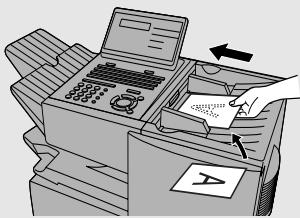
2 Press COPY/HELP.
- If you are only making a single copy of the original (or of each original), press

. Copying will begin.
Display:
COPY MODE ENTER #(01-99) 01
3 Enter the desired number of copies per original with the numeric keys.
- If the desired number of copies is from 1 to 9, enter "0" first.
MULTI/SORT COPY MODE 1=MULTI, 2=SORT
4 Press ① (MULTI) if you do not want the copies sorted, or ② (SORT) if you want the copies sorted.
- Copying will begin.
Example of three copies each of three originals
![graph TD A["Originals"] --> B{Sorted (SORT COPY)} B --> C1["A"] B --> C2["B"] B --> C3["C"] B --> C4["A"] B --> C5["B"] B --> C6["C"] B --> C7["A"] B --> C8["B"] B --> C9["C"] B --> C10["A"] B --> C11["B"] B --> C12["C"] B --> C13["A"] B --> C14["B"] B --> C15["C"] B --> C16["A"] B --> C17["B"] B --…](/content/2024/12/79073/images/b22f81527c82d10581785669948f97783fd954d9eca329ad2b223c3314e218d8.jpg)
Checking and canceling copy jobs in memory
You can display the status of copy jobs in memory by following the steps below. You can also cancel a copy job with this procedure.
1 Press MEM.STATUS (flip up the Rapid Key overlay) and then ①.
Display:
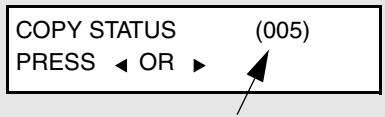
The number of stored copy jobs appears here
2 Press ▶ or ▶ to scroll through the list of copy jobs. The time the original was scanned into memory will appear in the display, together with the 3-digit memory number assigned to the job. To cancel a copy job, press DEL and then START/ENTER while the copy job appears in the display.
3 When you have finished checking the list, press STOP twice to return to the date and time display.
5. Special Functions
Broadcasting
The Broadcasting function allows you to send the same fax to as many as 154 destinations in a single operation. First load the document, then enter the numbers of the receiving machines. The document will be automatically transmitted to each destination.
1 Load the document (s).
- SEND READY will appear in the display.
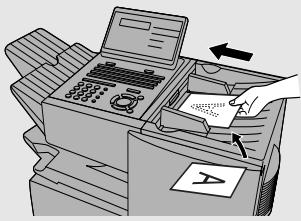
2 Press BROADCAST.
Display:
BROADCAST MODE ENTER STATION #
3 Dial the receiving machines using one or more of the following methods:
- Press one or more Rapid Keys.
- Enter one or more Speed Dial numbers, pressing SPEED DIAL before each number. (If you enter less than 2 digits for a number, press START/ENTER to complete the entry.)
- Enter one or more full fax numbers with the numeric keys (max. 60 digits per full number), pressing START/ENTER after each full number. (Maximum of 20 full numbers; less if a large number of programs, timer operations, and/or group keys have been stored.)
- Press one or more Group Keys. (See Storing numbers in Group Keys on page 68.)
Note: If you need to delete a number, press ◀ or ▶ until the destination appears in the display and then press STOP ☑.
4 Press START/ENTER.
BROADCAST MODE SELECT THE MODE
5 If desired, press RESOLUTION and/or CONTRAST to set the resolution and contrast.
6 Press START/ENTER twice. Transmission will begin.
- A Transaction Report is automatically printed out after Broadcasting is completed. Check the "Note" column of the report to see if any of the locations are marked "Busy" or have a communication error code. If so, send the document to those locations again.
Broadcasting using a Group Key
If the fax machines to which you want to broadcast have all been programmed into one Group Key (see Storing numbers in Group Keys which follows), you can perform the broadcasting operation using the following simplified procedure:
1 Load the document(s).
- SEND READY will appear in the display.
- Press RESOLUTION and/or CONTRAST to set the resolution and contrast if needed.
2 Press the appropriate Group Key. Transmission will begin.
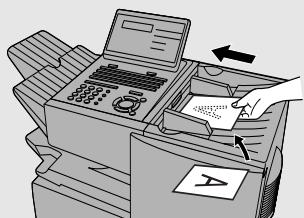
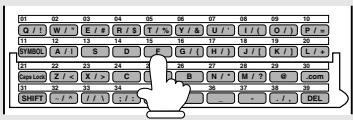
Storing numbers in Group Keys
Group Keys allow you to dial a group of fax numbers by simply pressing the appropriate Group Key once. To store a group of numbers in a Group Key, follow the steps below.
◆ Any Rapid Key that is not already programmed as a Rapid Key or a Program Key can be used as a Group Key.
◆ Up to 133 numbers can be stored in one Group Key.
Only Rapid Key and Speed Dial numbers (excluding numbers set for Chain Dialing) can be stored in a Group Key. Full numbers cannot be stored.
1 Press MENU, ⑤ and then ②.
Display:
2:GROUP ENTRY MODE 1=SET, 2=CLEAR
2 Press ① to program a Group Key.
1:GROUP SET PRESS GROUP KEY
(Press ② to clear a Group Key.)
3 Press any Rapid Key not already programmed to select it as a Group Key.
(If you are clearing a Group Key, press it and go to Step 5.)
![01 02 03 04 05 06 07 08 09 10 G / I / W / ^ / E / # / R / S / T / % / Y / & / U / - / I / ( O / ) / P / = 11 12 13 14 15 16 17 18 19 20 SYMBOL A / I / S D F G / ( H / ) J / ( K / ]) L / + 21 22 23 24 25 26 27 28 29 30 Caps Lock Z / < / X / > C @ .com 21 22 23 24 25 B N / ^ / M / @ .com SHIFT -/.^/ /…](/content/2024/12/79073/images/48258e2171bd8ec325c22e781f8194ae3f8adf726856e1f60c9492b4fc107bd4.jpg)
ENTER GROUP NAME
4 Enter a name for the Group Key by pressing the letter entry keys (see Step 5 on page 25). (Maximum of 20 characters.) If you don't want to enter a name, go directly to Step 5.
5 Press START/ENTER.
STATION # = ENTER STATION #
6 Enter fax numbers using one or both of the following methods:
- Press one or more Rapid Keys.
- Enter one or more Speed Dial numbers with the numeric keys, pressing SPEED DIAL before each number (if you enter less than 2 digits for a number, press START/ ENTER to complete the entry).
Note: If you need to delete a number, press ▶ or ▶ until the destination appears in the display and then press STOP ⑦.
7 Press START/ENTER.
8 Return to Step 3 to program another Group Key, or press repeatedly until you return to the date and time display.

Editing a group
If necessary, you can add numbers to or delete numbers from a group by repeating the programming procedure for the Group Key. Press ① for SET in Step 2 and select the Group Key in Step 3. Add or delete numbers in Step 6. To add a number, press a Rapid Key or enter a Speed Dial number. To delete a number, move the cursor to the number with ▶ or ▶ and then press STOP .
Confidential Operations
The Confidential function can be used to transmit and receive confidential documents.
Confidential transmission
When you send a document using the Confidential function, the receiving machine holds it in memory instead of immediately printing it out. When the receiving party enters the correct passcode, the document is printed out.
◆ Confidential transmission is only possible when the receiving machine is a Sharp model with confidential reception capability.
To use this function, your name and fax number (OWN PASSCODE) must be entered in your fax machine as explained on page 24.
- Some fax machines have multiple mailboxes for receiving confidential faxes. If you are sending to a machine with multiple confidential mailboxes, contact the receiving party in advance for the appropriate mailbox number.
1 Load the document (s).
- SEND READY will appear in the display.
- Press RESOLUTION and/or CONTRACT to set the resolution and contrast if needed.
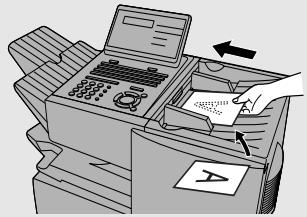
2 Press CONFIDENTIAL Z/< (flip up the Rapid Key overlay if it is down) and then ①.
Display:
1:CONF. TX ENTER BOX # OR START
3 If the receiving machine has multiple confidential mailboxes, enter the appropriate mailbox number with the numeric keys (this step is required for machines with multiple mailboxes).
If the receiving machine doesn't have multiple mailboxes, go directly to Step 4.
4 Press START/ENTER
5 Dial the receiving machine using one of the following methods:
- Press a Rapid Key.
- Press SPEED DIAL and enter a Speed Dial number (if you enter less than 2 digits, press START/ENTER to complete the entry). Check the name or number that appears, and then press START/ENTER.
- Enter a full telephone number with the numeric keys, and press START/ENTER.
Transmission will take place once the connection is established.
Confidential reception
When another fax machine sends you a document by confidential transmission, your fax machine holds it in memory instead of immediately printing it out. The document cannot be printed out until you enter the correct passcode.
Your fax has 10 "mailboxes" in which confidential documents can be received. Each mailbox has its own passcode, allowing up to 10 different people or groups to each receive their own confidential documents. The mailboxes are identified by 2-digit numbers.
Programming the confidential passcode
To receive a confidential document, you must first program a 2-digit mailbox number and a 4-digit passcode.
Note: Be sure to inform the transmitting party of your 2-digit mailbox number in advance. The transmitting party will need this number to send you confidential faxes.
1
Press CONFIDENTIAL Z/< (flip up the Rapid Key overlay if it is down) and then ③.
Display:
3:CONF. CODE SET ENTER BOX # (00-99)
2 Enter a 2-digit number (from "00" to "99") by pressing the numeric keys. This number identifies the mailbox.
3 Enter a 4-digit passcode for the mailbox with the numeric keys.
4 Press START/ENTER.
5 Enter a name for the mailbox (max. of 20 characters) by pressing the letter entry keys (make sure the Rapid Key overlay is down).
Example: SHARP = Caps Lock S H / } A / I R / \$ P /=
- For more information on entering letters, see Step 5 on page 25.
![01 02 03 04 05 06 07 08 09 10 Q / ! W / " E / # R / $ T / % Y / & U / ' I / { O / ) P / = 11 12 13 14 15 16 17 18 19 20 SYMBOL A / | S D F G / { H / } J / { K / ] L / + 21 22 23 24 25 26 27 28 29 30 Caps Lock Z / < X / > C V B N / * M / ? @ .com 31 32 33 34 35 36 37 38 39 SHIFT ^ / ^ / / \ ; : Space…](/content/2024/12/79073/images/bffed3b459eae3fe08c664676527b5e74a6dc270192e19b2989f5d6ed546071e.jpg)
6 Press START/ENTER.
Note: After entering the passcode, the fax machine will print it out for your records. If you forget the passcode and have kept no record, contact your Sharp dealer.
Clearing a passcode
1
Press CONFIDENTIAL Z/< (flip up the Rapid Key overlay if it is down) and then ④.
Display:
4:CONF.CODE CLEAR ENTER BOX # (00-99)
2 Enter the 2-digit number that identifies the mailbox you want to clear.
3 Enter the 4-digit passcode of the mailbox with the numeric keys.
4 Press START/ENTER
Printing out received documents
When you have received a confidential document, RCVD CONF. FAX will appear in the display. Print out the Confidential Reception List as explained on page 116 to see which mailbox has received the document, and then follow the steps below to print out the document.
1
Press CONFIDENTIAL Z/< (flip up the Rapid Key overlay if it is down) and ②.
Display:
2:CONF. DATA PRINT ENTER BOX # (00-99)
2 Enter your mailbox number.
3 Enter your confidential passcode.
4 Press START/ENTER
- Printing will begin. After printing, the document will be erased from memory.
Polling
Polling allows you to call another fax machine and have it send a document to your machine without operator assistance. In other words, the receiving fax machine, not the transmitting fax machine, initiates the transmission. You can use your fax machine to both poll and be polled by others.
Polling others
To poll another fax machine, follow the steps below.
If desired, you can dial more than one fax number to receive documents consecutively from a group of fax machines (this is called "Serial Polling"; a maximum of 154 fax machines can be polled in one operation).
1
Press
MENU

and then ⑥.
Display:
6: SERIAL POLL. MODE ENTER STATION #
2 Dial the number(s) of the fax machine(s) you want to poll using one (or more) of the following methods:
- Press one or more Rapid Keys.
- Enter one or more Speed Dial numbers, pressing ○ before each number. (If you enter less than 2 digits, press START/ ENTER to complete the entry.)
- Press one or more Group Keys.
- Enter one or more full fax numbers with the numeric keys, pressing after each full number.
Note: If you need to delete a number, press ▶ or ▶ until the destination appears in the display and then press STOP 7.
3
Press

. Reception will begin.
Serial Polling using a Group Key
If the fax machines you want to poll have all been programmed into one Group Key, you can poll them by simply pressing that Group Key. (The procedure for programming Group Keys is explained on page 68.)
◆ Make sure no documents are in the feeder before you press the Group Key.
Being polled (Memory polling)
To let another fax machine poll your fax machine, you must first store the document(s) in memory using the following procedure. Transmission will take place when the other fax machine calls your fax machine and activates polling. You can choose whether to allow polling only once, or an unlimited number of times. In the latter case, your fax machine can be used as an electronic "bulletin board".
Multiple documents can be stored for memory polling. To add a document to others already stored, simply repeating the storing procedure (note that if Department Control is activated, documents cannot be added by a department other than that which stored the first document). When polling is initiated, the polling machine will receive all documents stored.
If you allow polling only once, the document(s) will be automatically cleared from memory after polling. If you allow polling an unlimited number of times, the document will remain in memory until you clear it as explained in the following section, Clearing a document.
1 Load the document.
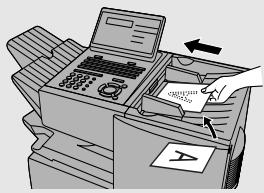
2 Set the reception mode to AUTO (press MENU, ① and ①).
3 Press MENU and then ⑦.
Display:
7: MEMORY POLL MODE
ENTER #(1-2, ◀, ▶)
4 Press ① to select SET.
- If another document has already been stored, press ① to select APPEND, and go to Step 6.
1: MEMORY POLL SET 1=1 TIME, 2=REPEAT
5 Press ① to allow polling only once, or ② to allow polling an unlimited number of times.
6 Press RESOLUTION and/or CONTRAST to adjust the resolution and contrast if desired, and then press START/ENTER.
7 Press START/ENTER.
- The document will be scanned into memory, and your fax will go on polling standby.
Clearing a document
To clear a memory poll document from memory, follow the steps below:
1 Press MENU and then ⑦.
Display:
7: MEMORY POLL MODE ENTER #(1-2, ◀, ▶)
2 Press ② to select CLEAR.
2: MEMORY POLL CLEAR PRESS START TO CLEAR
3 Press START/ENTER to clear the documents.
Polling Security
Polling Security allows you to prevent unauthorized polling of your machine. When this function is activated, polling will only take place when the fax number of the polling fax machine has been stored in your machine's list of permitted fax numbers (called "passcode numbers"). The polling machine must also have its fax number programmed in itself, as explained in Entering Your Name and Fax Number in Chapter 1.
Turning Polling Security on and off
Polling Security is turned on or off with Option Setting 8 as explained on page 109.
Storing and clearing fax numbers for polling permission
You can store up to 10 fax numbers in your machine's list of permitted numbers.
1 Press MENU, ③, ①, ②.
02:PASSCODE # MODE 1=SET, 2=CLEAR
2 Press ① to set a number. (Press ② to clear a number.)
1: PASSCODE SETTING ENTER # (01-10)
3 Storing: Enter a 2-digit number (from 01 to 10). This number identifies the fax number you will enter in the next step. Clearing: Enter the 2-digit number which identifies the fax number you want to clear, and go to Step 5.
4 Enter the fax number (max. 20 digits) by pressing the numeric keys.
5 Press START/ENTER.
6 Return to Step 3 to enter (or clear) another number, or press repeatedly to return to the date and time display.

Timer Operations
The Timer function allows you to store a job to be performed automatically at a specified time. Up to 59 timer jobs can be stored at any one time, and the time of each can be specified up to a week in advance.
You can use this function to take advantage of lower off-peak rates without having to be there when the operation is performed.
Note: DOCUMENT M/? cannot be used for a timer transmission.
Initial procedure
To store a timer job, first perform the following procedure. After you have completed this procedure, go to the procedure for the specific job you want to store (see the following pages).
1 Press TIMER X/> . (Flip up the Rapid Key overlay if it is down.)
Display:
TIMER MODE 1=SET, 2=CLEAR
2 Press ① to select SET.
3 Enter a number as follows to select the desired operation (or scroll to the desired operation with ◀ or ▶ and press START/ENTER).
① Transmission (SEND MODE)
② Confidential transmission
③ Polling
④ Serial Polling
⑤ Broadcasting
4 Enter a two-digit number for the hour (“01” to “12”) and a two-digit number for the minute (“00” to “59”).
5 Press ⓧ to select A.M. or Ⓞ to select P.M.
6 Enter a number as follows to select the day of the operation (skip this step if the operation will be performed within the next 24 hours):
0 Sunday
① Monday
② Tuesday
③ Wednesday
④ Thursday
5 Friday
⑥ Saturday
7 Press START/ENTER and go to the specific procedure for your operation (see the following pages).
Transmission
(Continued from Initial procedure.)
8 Dial the receiving machine using one of the following methods:
- Press a Rapid Key.
- Press SPEED DIAL and enter a Speed Dial number (if you enter less than 2 digits, press START/ENTER to complete the entry).
- Enter a full fax number with the numeric keys.
9 Press START/ENTER.
10
Press

and/or

to adjust the resolution and contrast if
desired, and then press

11
Load the document and then press

- The document will be scanned into memory.
Confidential transmission
(Continued from Initial procedure.)
8
Enter the mailbox number (2 digits). (Go directly to Step 9 if the receiving machine does not have mailboxes.)
9

10
Dial the receiving machine using one of the following methods:
- Press a Rapid Key.
- Press SPEED DIAL and enter a Speed Dial number (if you enter less than 2 digits, press START/ENTER to complete the entry).
- Enter a full fax number with the numeric keys.
11

12

and/or

to adjust the resolution and contrast if
desired, and then press

13
Load the document and then press

- The document will be scanned into memory.
Polling
(Continued from Initial procedure.)
8
Dial the machine to be polled using one of the following methods:
- Press a Rapid Key.
- Press SPEED DIAL and enter a Speed Dial number (if you enter less than 2 digits, press START/ENTER to complete the entry).
- Enter a full fax number with the numeric keys.
9
Press

Serial Polling
(Continued from Initial procedure.)
8
Dial the machines to be polled using one or more of the following methods:
- Press one or more Rapid Keys.
- Enter one or more Speed Dial numbers, pressing SPEED DIAL before each number. (If you enter less than 2 digits for a Speed Dial number, press
to complete the entry.)

- Enter one or more full fax numbers with the numeric keys, pressing after each full number.

- Press one or more Group Keys.
Note: If you need to delete a number, press ▶ or ▶ until the destination appears in the display and then press STOP ⑦.
9
Press

Broadcasting
(Continued from Initial procedure.)
8
Dial the receiving machines using one or more of the following methods:
- Press one or more Rapid Keys.
- Enter one or more Speed Dial numbers, pressing ○ before each number. (If you enter less than 2 digits for a Speed Dial number, press

to complete the entry.)
- Enter one or more full fax numbers with the numeric keys, pressing after each full number.

- Press one or more Group Keys.
Note: If you need to delete a number, press ▶ or ▶ until the destination appears in the display and then press STOP ☑.
9 Press START/ENTER.
10 Press RESOLUTION and/or CONTRAST to adjust the resolution and contrast if desired, and then press START/ENTER.
11 Load the document and then press START/ENTER.
- The document will be scanned into memory.
Canceling a timer operation
If you need to cancel a timer operation before it is performed, follow the steps below.
You will need to know the number assigned to the operation in order to cancel it. If you don't remember the number (it appears in the display when you set the operation), print out the Timer List. (See page 116.)
1 Press TIMER (flip up the Rapid Key overlay if it is down) and then ②.
Display:
2:TIMER COMM. CLEAR ENTER #(01-59)
2 Enter the 2-digit number assigned to the operation.
3 Press START/ENTER.
4 Press STOP repeatedly until you return to the date and time display.
Batch Transmission
Batch transmission allows you to store multiple fax jobs in memory for automatic transmission to one destination at a set time. If you often send faxes to a particular destination, this function helps reduce telephone costs by allowing you to conveniently send multiple faxes on one connection.
Note: If the telephone billing function is turned on, the batch transmission function cannot be used.
Programming a Batch Key
To perform a batch transmission, you must first program the number of the receiving machine and the time of transmission into a Batch Key. Any Rapid Key which has not already been programmed can be used as a Batch Key.
If you specify a day-of-the-week in your program, the transmission will be performed every week on that day. If you do not specify a day-of-the-week, the transmission will be performed every day.
To program a Batch Key, follow the procedure for entering programs explained in Entering and Using Programs on page 86. In Step 10 of the initial procedure, select “Batch transmission”.
Clearing a Batch Key
To clear a Batch Key, follow the procedure on page 93.
Storing documents for transmission
Follow the steps below to store a document under a Batch Key for transmission. When you store the document, it is given a message number to distinguish it from other jobs stored in the same batch.
If no jobs have been stored under a Batch Key when the time for transmission arrives, transmission will not take place.
1 Load the document (s).
- SEND READY will appear in the display.
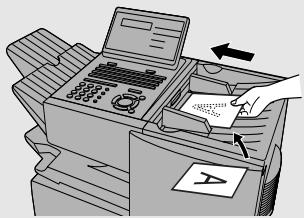
2 Press the appropriate Batch Key.
- After scanning, the message number assigned to your document will appear in the display.
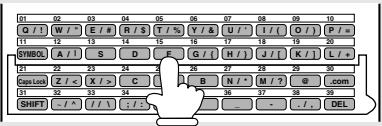
3 Press STOP.
- The document will be transmitted at the designated time along with any other jobs stored under the same key. After transmission, all jobs in the batch will be cleared from memory.
Canceling a document stored for batch transmission
If necessary, you can cancel a document stored for a batch transmission before transmission takes place. To do so, you will need to know the message number assigned to the document.
- If you don't remember the message number, print out the Batch Transmission List (see page 116).
1 Press the Batch Key in which the document you want to clear has been stored.
- Make sure no documents are in the feeder.
2 Enter the 3-digit message number assigned to the document.
3 Press START/ENTER.
Entering and Using Programs
If you frequently perform the same operation involving the same party, you can program all the steps of the operation into one Program Key. This allows you to perform the operation by simply pressing that key.
◆ Any Rapid Key which is not already programmed as a Rapid Key or a Group Key can be used as a Program Key.
- You can include a timer setting in the program to have the operation performed automatically at a selected time.
◆ To clear a mistake in the procedures that follow, press STOP.
Initial procedure
To program a Program Key, first perform the following procedure. After you have completed this procedure, go to the procedure for the specific operation you want to program (see the following pages).
1 Press MENU, ⑤ and ①.
Display:
1:PROGRAM ENTRY MODE 1=SET, 2=CLEAR
2 Press ① to select SET.
1:PROGRAM SET PRESS PROGRAM KEY
3 Select a Program Key by pressing any Rapid Key that has not yet been programmed.
![01 02 03 04 05 06 07 08 09 10 G / ( W / * ) E / # ( R / $ ) T / % ( Y / & ) U / - / ( O / ) P / = 11 12 13 14 15 16 17 18 19 20 SYMBOL [ A / ] S D E F G / ( H / J / K / L / + ) 21 22 23 24 25 26 27 28 29 30 Cass Lock [ Z / < ] X / > C [ B ] N / * [ M / ? ] @ .com 31 32 33 34 35 36 37 38 39 SHIFT [ -…](/content/2024/12/79073/images/51210b424a8fc74d80d44844ea1489248d94fb99c6015a25c280aa22078f95fd.jpg)
4 Enter a name for the program by pressing the letter entry keys (see Step 5 on page 25). (Maximum of 20 characters.) If you don't want to enter a name, go directly to Step 5.
5 Press START/ENTER.
6 If you want to include a timer setting, enter a two-digit number for the hour ("01" to "12") and a two-digit number for the minute ("00" to "59"). (If not, go directly to Step 9.)
7 Press ⓧ to select A.M. or Ⓞ to select P.M.
8 Enter a number as follows to select the day of the operation (skip this step if the operation will be performed within the next 24 hours):
0 Sunday
① Monday
② Tuesday
③ Wednesday
④ Thursday
5 Friday
⑥ Saturday
9 Press START/ENTER.
10 Enter a number as follows to select the desired operation (or scroll to the desired operation with ◀ or ▶ and press START/ENTER).
① Transmission (SEND MODE)
② Confidential transmission
③ Polling
④ Serial Polling
⑤ Broadcasting
⑥ Batch transmission (only possible if a timer setting was made)
⑥ Memory Polling (only possible if a timer setting was not made)
11 Go to the specific procedure for your operation (see the following pages).
Transmission
(Continued from Initial procedure.)
12 Dial the receiving machine using one of the following methods:
- Press a Rapid Key.
- Press SPEED DIAL and enter a Speed Dial number (if you enter less than 2 digits, press START/ENTER to complete the entry).
- Enter a full fax number with the numeric keys.
13 Press START/ENTER.
14 Press RESOLUTION and/or CONTRAST to adjust the resolution and contrast if desired, and then press START/ENTER.
15 If you want the document to be sent through memory, press START/ENTER. If you want the document to be sent directly from the feeder, press DOCUMENT M/? . (This is not possible if you included a timer setting.)
16 Press STOP repeatedly until you return to the date and time display.
Confidential transmission
(Continued from Initial procedure.)
12 Enter the mailbox number (2 digits). (Go directly to Step 13 if the receiving machine does not have mailboxes.)
13 Press START/ENTER.
14 Dial the receiving machine using one of the following methods:
- Press a Rapid Key.
- Press SPEED DIAL and enter a Speed Dial number (if you enter less than 2 digits, press START/ENTER to complete the entry).
- Enter a full fax number with the numeric keys.
15 Press START/ENTER.
16 Press RESOLUTION and/or CONTRAST to adjust the resolution and contrast if desired, and then press START/ENTER.
17 If you want the document to be sent through memory, press START/ENTER. If you want the document to be sent directly from the feeder, press DOCUMENT M/? . (This is not possible if you included a timer setting.)
18 Press STOP repeatedly until you return to the date and time display.
Polling
(Continued from Initial procedure.)
12 Dial the machine to be polled using one of the following methods:
- Press a Rapid Key.
- Press SPEED DIAL and enter a Speed Dial number (if you enter less than 2 digits, press START/ENTER to complete the entry).
- Enter a full fax number with the numeric keys.
13 Press START/ENTER.
14 Press STOP repeatedly until you return to the date and time display.
Serial Polling
(Continued from Initial procedure.)
12 Dial the machines to be polled using one or more of the following methods:
- Press one or more Rapid Keys.
- Enter one or more Speed Dial numbers, pressing ○ before each number. (If you enter less than 2 digits for a Speed Dial number, press
to complete the entry.) - Enter one or more full fax numbers with the numeric keys, pressing after each full number.
- Press one or more Group Keys.


Note: If you need to delete a number, press ▶ or ▶ until the destination appears in the display and then press STOP.
13 Press START/ENTER.
14 Press STOP repeatedly until you return to the date and time display.
Broadcasting
(Continued from Initial procedure.)
12 Dial the receiving machines using one or more of the following methods:
- Press one or more Rapid Keys.
- Enter one or more Speed Dial numbers, pressing SPEED DIAL before each number. (If you enter less than 2 digits for a Speed Dial number, press
to complete the entry.)

- Enter one or more full fax numbers with the numeric keys, pressing after each full number.
- Press one or more Group Keys.

Note: If you need to delete a number, press ▶ or ▶ until the destination appears in the display and then press STOP 7.
13 Press START/ENTER.
14

RESOLUTION

and/or
CONTRAST

to adjust the resolution and contrast if
desired, and then press

15
Press

16
Press

repeatedly until you return to the date and time display.
Batch transmission
(Continued from Initial procedure.)
12
Dial the receiving machine using one of the following methods:
- Press a Rapid Key.
- Press SPEED DIAL and enter a Speed Dial number (if you enter less than 2 digits, press START/ENTER to complete the entry).
- Enter a full fax number with the numeric keys.
13
Press

14
Press

and/or

to adjust the resolution and contrast if
desired, and then press

15
Press

16
Press

repeatedly to return to the date and time display.
Being Polled (Memory polling)
(Continued from Initial procedure.)
12 Press ① to allow polling only once, or ② to allow polling an unlimited number of times.
13 Press START/ENTER.
14 Press RESOLUTION and/or CONTRAST to adjust the resolution and contrast if desired, and then press START/ENTER.
15 Press START/ENTER.
16 Press STOP repeatedly until you return to the date and time display.
Clearing a Program Key
To clear a Program Key, follow these steps:
1 Press MENU, ⑤ and ①.
Display:
1:PROGRAM ENTRY MODE 1=SET, 2=CLEAR
2 Press ② to select CLEAR.
2:PROGRAM CLEAR PRESS PROGRAM KEY
3 Press the Program Key you want to clear.
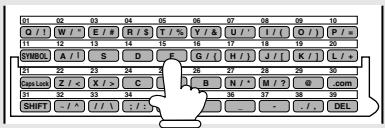
4 Press START/ENTER.
5 Press STOP repeatedly until you return to the date and time display.
Using a Program Key
Follow the steps below to perform a programmed operation.
1 If this is a transmission operation or memory polling operation, load the document.
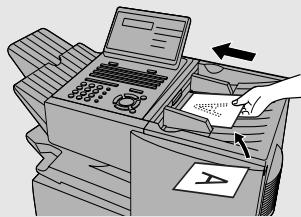
2 Press the appropriate Program Key.
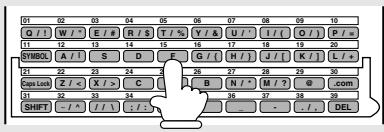
Canceling a programmed timer operation
If a Program Key has been pressed for a timer operation and you need to cancel the operation before it is performed, follow the steps below.
Note: This procedure will not work for a document stored for a batch transmission. To cancel a batch transmission operation, see Canceling a document stored for batch transmission on page 85.
1 Press the Program Key.
2 Press START/ENTER.
Duplex Scanning for Two-sided Documents
To transmit or copy documents which have printing or graphics on both sides of the page or pages, use Duplex Scanning. With this function, you simply feed the document (all pages) through the machine once, turn the stack of pages over, and feed it through again.
The machine will automatically sort the pages into the correct order (front of 1st page, back of 1st page, front of 2nd page, back of 2nd page, etc.).
◆ Duplex Scanning can be used for copying (single copies and sorted multiple copies only) and any type of transmission from memory.
Note that any blank sides must be included when scanning the pages (if the number of pages is not equal each time the machine scans the stack, an error will result). The blank sides will not, however, be printed out.
1 Load the document (s).
- Make sure the page(s) are front face down, with the first page on the bottom.
- SEND READY will appear in the display.
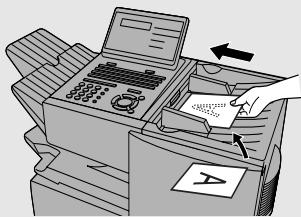
2 Press DUPLEX SCAN and then START/ENTER
3 Perform all steps of the desired copy or memory transmission.
4 When all pages of the document have been scanned, turn the stack over (do not change the page order) and load it again.
5 Press START/ENTER.
Print Hold
The Print Hold function is used to hold received faxes in memory instead of printing them as they are received. To print the faxes, the programmed Print Hold code must be entered.
To use the Print Hold function, program a Print Hold code as explained below and then activate the Print Hold function as explained on the following page.
Programming the Print Hold code
Follow the steps below to program a Print Hold code.
1
Press
PRINT HOLD
@
Display:
PRINT HOLD
ENTER #(1-4, ◀, ▶)
2
Press
②.
2:PRT. HOLD CODE SET
ENTER PASSCODE #
3
Press the numeric keys to enter the desired Print Hold code (any 4-digit number).
4
Press
START/ ENTER
- The machine will print out the Print Hold code for your records.
- In the event that you forget the code and have kept no record, contact your Sharp dealer.
Activating the Print Hold function
Once you have programmed a Print Hold code, follow the steps below to activate the Print Hold function.
◆ A Print Hold code must be programmed before the Print Hold function can be activated.
1 Press PRINT HOLD @.
Display:
PRINT HOLD
ENTER #(1-4, ◀, ►)
2 Press ④.
4: ACTIVATE PRT. HOLD
1=YES, 2=NO
3 Press ① to select YES.
Printing received faxes
When the Print Hold function is activated, RCVD PRINT HOLD FAX will appear in the display when a fax has been received to memory. Follow the steps below to print the fax (or faxes).
1 Press PRINT HOLD @.
Display:
PRINT HOLD
ENTER #(1-4, ◀, ►)
2 Press ①.
1:HOLD DATA PRINT
ENTER PASSCODE #
3 Press the numeric keys to enter the Print Hold code.
4 Press START/ENTER.
- The received fax will print out.
Turning off the Print Hold function
In the event that you need to turn off the Print Hold function, follow the steps below.
The Print Hold function cannot be turned off if a received fax is being held in memory by the Print Hold function. First print the fax and then turn off Print Hold.
1
Press
PRINT HOLD
@
Display:
PRINT HOLD
ENTER #(1-4, ◀, ▶)
2
Press
4.
4: ACTIVATE PRT. HOLD
1=YES, 2=NO
3
Press
2
to select NO.
PRT. HOLD CODE=
ENTER PASSCODE #
4
Press the numeric keys to enter the Print Hold code.
5
Press
START/ENTER
Clearing the Print Hold code
Follow the steps below if you need to clear the Print Hold code.
Note: To clear the Print Hold code, the Print Hold function must first be turned off as explained on the previous page.
1 Press PRINT HOLD @.
Display:
PRINT HOLD
ENTER #(1-4, ◀, ►)
2 Press ③.
3:PRT. HOLD CODE CLR ENTER PASSCODE #
3 Press the numeric keys to enter the Print Hold code.
4 Press START/ENTER.
Department Control
Department Control is used to restrict use of the machine to authorized users. When it is activated, a department code must be entered before an operation can be performed.
◆ Department Control can only be activated by your Sharp dealer. If you wish to use this function, contact your dealer.
◆ Department Control allows you to track the number of pages transmitted as well as the transmission time for each authorized department or person. See Department Usage List on page 119.
Programming Department Codes
Up to 99 different Department Codes can be programmed to allow access to the fax machine. Transmitted pages and transmission time will be kept track of separately for each code. After you enter a code, inform the appropriate group or individual.
A name must be assigned to each code. Only the name, not the code, will appear on the Department Usage List.
- Be sure to keep a record of each code and name. If you misplace the record, contact your dealer.
1
Press

and

Display:
3: ENTRY MODE
ENTER #(01-08, ◀, ▶)
2
Press

and

07:DEPT. CODE MODE
1=SET, 2=CLEAR
3
Press

to program a Department Code, or ② to clear a Department
4
Programming: Enter a 2-digit number from “01” to “99” with the numeric keys. This number identifies the Department Code that you will enter in the next step.
Clearing: Enter the 2-digit number that identifies the Department Code you want to clear.
Note: It is not possible to clear the Department Code that you currently used to access the machine. It is also not possible clear a Department Code if only one code is programmed.
5 Programming: Enter a Department Code (4 digits or the number of digits set by Option Setting 27 as explained on page 114).
Clearing: Enter the Department Code that you wish to clear, and go to Step 8.
6 Press START/ENTER.
7 Press the letter entry keys to enter a name for the Department Code.
8 Press START/ENTER.
9 Return to Step 4 to program (or clear) another Department Code, or press STOP repeatedly to return to the date and time display.
Accessing the machine
When Department Control is activated, you must enter your Department Code before using the machine.
◆ If you do not begin the operation within one minute after entering the code, the machine will return to controlled access mode.
Note: You do not need to enter a Department Code to receive faxes manually (by picking up an extension phone connected to the same line and pressing START/ENTER on the fax machine).
Blocking Reception of Unwanted Faxes
The Anti Junk Fax function allows you to block reception of faxes from parties that you specify. This saves paper by not printing out unwanted "junk" faxes.
To use this function, first turn it on by setting Option Setting 20 (Anti-Junk Fax) to ON as explained on page 112, and then enter the fax numbers from which you do not want to receive faxes as explained below.
◆ Up to 50 numbers can be entered in the Anti Junk Number List.
To clear a number from the Anti Junk Number List, you need to know the 2-digit number that identifies it. If you have forgotten this number, print out the Anti Junk Number List as explained on page 116.
1
Press


Display:
06:STORE JUNK FAX # 1=SET, 2=CLEAR
2
Press ① to enter a number in the Anti Junk Number List. (Press ② to clear a number from the list.)
1:JUNK FAX # SET ENTER # (01-50)
3
Entering: Enter a 2-digit number from “01” to “50” with the numeric keys. This number identifies the fax number that you will enter in the next step.
Clearing: Enter the 2-digit number that identifies the fax number you want to clear, and go to Step 5.
4
Enter the fax number.
5
Press

6
Return to Step 3 to enter (or clear) another fax number, or press repeatedly to return to the date and time display.

Telephone Billing
If you are on a PBX, you can have the fax machine send a code to the PBX that identifies the sender for billing purposes each time a fax is sent.
Telephone billing is possible in two ways: using Department Control and by direct billing code entry.
Using Department Control
If you are using the Department Control function, you can use Department Codes for telephone billing. In this case, the fax machine will automatically send the Department Code that a department member enters to access the fax machine to the PBX. The PBX can then use the Department Code to bill the call to that department.
To use Department Control for telephone billing, program a Department Code for each group that will use the fax machine (see Department Control on page 100), and then have your dealer activate Department Control. After this, set Option Setting 26 (Telephone Billing Code) to ON as explained on page 113.
Direct billing code entry
If you don't want to use Department Control for telephone billing, you can have users enter an assigned billing code (any number up 9 digits long) each time they use the fax machine. The fax machine will automatically send this code to the PBX for billing purposes. To use this function, have your dealer activate the function and then set Option Setting 26 (Telephone Billing Code) to ON as explained on page 113.
Note: The billing code should be assigned by your PBX administrator. Billing codes are not programmed into the fax machine.
Users should enter their billing code as follows when performing an operation on the fax machine. The code need only be entered when calling outside of the PBX.
1 Load the document (s).
- If you are using Normal Dialing, press SPEAKER or pick up an extension phone connected to the same line.
- SEND READY will appear in the display.
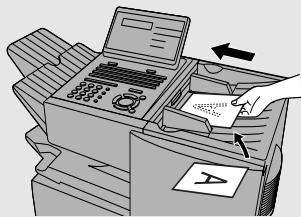
2 Enter your number to access an outside line (max. of 3 digits).
3 Flip down the Rapid Key overlay and press Space, enter the billing code (max. of 9 digits), and then press Space again.
- Note: The code will appear as asterisks in the display and will not appear in the Activity List or Transaction Report.
4 Press RESOLUTION and/or CONTRAST to adjust the resolution and contrast if desired.
5 Dial the other party by the desired method and transmit the document.
Distinctive Ring
Important:
To use distinctive ring, you must subscribe to a distinctive ring service from your local phone company.
- Your fax machine may not be compatible with some distinctive ring services.
Distinctive ring is a service offered by some local telephone companies whereby they assign an additional second number to your regular single line. The second number rings differently from your normal number.
If you subscribe to a distinctive ring service, you can set the fax machine to automatically answer when your second number is called. This allows you to use the second number as an exclusive fax number.
To have your fax automatically answer when your second number is called, follow the steps below:
1 Press MENU, and ④.
Display:
4:OPTIONAL SETTING ENTER #(01-34, ◀, ►)
2 Press ② and ⑧.
28: DISTINCTIVE RING ENTER # (1-5) (5)
3 Press a number from ① to ③ to select the ring pattern below that matches your second number's ring pattern. Or, press ④ to have your fax automatically answer your normal telephone number. Press ⑤ to turn off the distinctive ring function.
In the U.S.A.:
① RING PATTERN 1 Two short rings
② RING PATTERN 2 One short, one long, and one short ring
③ RING PATTERN 3 Two short rings and one long ring
④ STANDARD RING Your standard (normal) ring pattern
⑤ OFF SETTING Turn distinctive ring off
In Canada:
① RING PATTERN 1 Two short rings
② RING PATTERN 2 One short, one long, and one short ring
③ RING PATTERN 3 Two short rings and one long ring
④ RING PATTERN 4 Three very short rings
⑤ RING PATTERN 5 Two very short rings
⑥ STANDARD RING Your standard (normal) ring pattern
⑦ OFF SETTING Turn distinctive ring off
4 Press STOP repeatedly to return to the date and time display.
6. Optional Settings
The optional settings allow you to customize the fax machine to better suit your needs.
An initial setting has been made for each optional setting at the factory. To change a setting, follow the steps below to access it, and then change the setting as explained in the list that follows.
1
Press

and ④.
Display:
4:OPTIONAL SETTING
Press the numeric keys to enter the 2-digit number (“01” to “34”) of the optional setting that you wish to change.
Example: Optional Setting 01

Example: Option Setting 01 selected
01: DEFAULT FAX RES.
ENTER # (1-3) (1)
OR
Press

to scroll through the
optional settings. When the desired
optional setting appears, press

3
Enter a selection for the optional setting by pressing the numeric keys. See the list that follows for an explanation of each of the optional settings.
4
After entering a selection, the subsequent optional setting will appear in the display. To return to the date and time display, press STOP twice.

Optional Settings
Setting 01: DEFAULT FAX RESOLUTION
This option sets the default resolution (the resolution used if a setting is not selected with RESOLUTION) for transmitting documents. Press ① for STANDARD, ② for FINE, or ③ for SUPER-FINE.
◆ Initial setting: 1
Setting 02: NUMBER OF RINGS AUTO RECEPTION
This sets the number of rings the fax machine waits before answering an incoming call in AUTO receive mode. Enter a number from 0 to 9 (if 0 is entered, the fax machine will answer without ringing).
◆ Initial setting: 1
Setting 03: NUMBER OF RINGS MANUAL RECEPTION
You can also have the fax machine automatically answer a call after a certain number of rings in MANUAL reception mode. To turn on this function, enter the desired number of rings (any number from ① to ⑨). To turn off the function, enter ⑩.
◆ Initial setting: 0 (off)
Setting 04: AUTO LISTING
Press ① (YES) to have the fax machine automatically print an Activity Report once every 30 send/receive operations. (The report can still be printed on demand at any time.) Press ② (NO) to turn the function off.
◆ Initial setting: 2
Setting 05: TRANSACTION REPORT PRINT SELECTION
This sets the condition for printing out a Transaction Report. Enter a number from ① to ⑤ as follows:
① (ERROR/TIMER MEMORY):
A report will be printed after an error, timer operation, or memory operation
② (SEND ONLY)
A report will be printed only after a transmission
③ (ALWAYS PRINTS)
A report will be printed after each transmission, reception, or error
④ (NEVER PRINTS)
A report will never be printed.
⑤ (ERROR ONLY)
A report will be printed only after an error occurs
◆ Initial setting: 5
Setting 06: RECALL TIMES
This sets the maximum number of times your fax will automatically redial if the line is busy. Enter any number from ① ② to ① ④.
◆ Initial setting: 02
Setting 07: RECALL INTERVAL
This sets the amount of time your fax will wait between automatic redials when the line is busy. Enter ① for 1 minute, ② for 2 minutes, etc., up to a maximum of 15 minutes.
◆ Initial setting: 05
Setting 08: SECURITY SELECTION
Press ① (ON) to turn polling security on, or ② (OFF) to turn it off.
◆ Initial setting: 1
Setting 09: ERROR CORRECTION MODE (ECM)
Press ① (YES) to have any distortions in a transmission due to noise on the telephone line corrected before print-out at the receiving end. This is only effective when the other machine has ECM as well. Press ② (NO) to turn the function off.
Note: If the transmission or reception is taking place in Super G3 mode, ECM will operate regardless of the ECM setting.
◆ Initial setting: 1
Setting 10: AUTO COVER SHEET
Press ① (YES) to have the fax automatically generate a cover sheet and send it as the last page of each transmission. Press ② (NO) to turn the function off.
◆ Initial setting: 2
Note: In North America, Setting 11 is not used.
Setting 12: COPY SCANNING
This setting is used to reduce copies slightly before printing to ensure that data on the edges are not cut off. Press ① (AUTO) for automatic reduction, or ② (100%) for no reduction.
◆ Initial setting: 2
Setting 13: COPY CUT-OFF
This setting determines how the fax machine will copy documents that are longer than the printing paper. Press ① (CONTINUE) to have the remainder of the document printed on a second page, or ② (CUT-OFF) to cut off (not print) the remainder.
◆ Initial setting: 2
Setting 14: RECEIVE REDUCE
This setting is used to reduce received documents slightly before printing to ensure that data on the edges are not cut off. Press ① (AUTO) for automatic reduction, or ② (100%) for no reduction.
◆ Initial setting: 1
Setting 15: IMAGE MEMORY PRINT
Press ① (YES) to include a copy of the first page of the transmitted document on the Transaction Report. Press ② (NO) to turn the function off. This setting is only effective when transmitting from memory.
◆ Initial setting: 1
Setting 16: CASSETTE SELECTION
Press ① (AUTO SELECTION) if you want the fax machine to automatically select the printing paper source (tray or cassette) according to the size of each page received or copied. (If a document consists of multiple pages of different sizes, each page will be printed on the paper that best matches its size.)
Press ② (AUTO SELECTION 2) if you want the fax machine to automatically select the printing paper source (tray or cassette) according to the size of the first page of the document received or copied. (If the document consists of multiple pages of different sizes, all pages will be printed on the same size of paper based on the size of the first page.)
Press ③ (MANUAL SELECTION) if you want to set a fixed order of priority for the paper sources. When the 1ST PRIORITY setting appears, press ① to have paper always drawn from the tray regardless of the size of the received or copied document, or ② to have paper always drawn from the cassette. When the 2ND PRIORITY setting appears, press ① to have paper drawn from the other source in the event that the “1st priority” source runs out of paper, or ② (NONE) to have the incoming fax received to memory.
Note: This setting will only appear if your dealer has installed the paper cassette option and Option Setting 31 (Seperate Mode) is turned off.
♦ Initial setting: 1
Setting 17: RETRANSMISSION TIMES
This sets the number of times the fax will reattempt a memory transmission which has been interrupted by a line error or power failure. Enter any 2-digit number from 0 1 to 1 4, or enter 0 0 to turn off the function.
◆ Initial setting: 10
Setting 18: RETRANSMISSION INTERVAL
You can select the number of minutes the fax waits between each memory retransmission attempt. Enter 0 1 for 1 minute, 0 2 for 2 minutes, etc., up to a maximum of 15 minutes. If you do not want the fax to wait between attempts, enter 0 0.
◆ Initial setting: 02
Setting 19: POWER SAVE MODE
To conserve power, you can have the laser printer heater in your fax machine turn off when not in use. When this is done, the heater will turn on automatically when you receive a document (there will be a slight delay before printing while the heater warms up) and turn off when printing is completed.
Press ① to turn on Power Save mode, or ② to turn it off.
◆ Initial setting: 1
Setting 20: ANTI-JUNK FAX
Press ① to block reception from fax numbers entered in the Anti Junk Fax List. Press ② to allow reception from all numbers.
◆ Initial setting: 2
Setting 21: ALARM VOLUME
This sets the volume of the beep sound that alerts you to error conditions and informs you that operations have been completed. Press ① for HIGH, ② for LOW, or ③ for OFF.
◆ Initial setting: 2
Setting 22: DIAL MODE
This sets the dial mode. Press ① if you are on a touch-tone line, or ② if you are on a pulse dial (rotary) line.
◆ Initial setting: 1
Setting 23: QUICK ON-LINE
When you transmit a multi-page document, this setting determines whether the fax machine will dial the receiving party and begin transmitting while scanning is still in progress, or wait until all pages have been scanned before dialing. Press ① to have the fax machine dial and begin transmission while scanning is still in progress, or ② to have the fax machine wait until all pages have been scanned.
◆ Initial setting: 1
Setting 24: MULTI TTI
If you are using Department Control, you can press ① to have the department name (the name associated with the department code entered by an operator to access the fax) appear at the top of each transmitted document. This will appear in place of the name entered in Entering Your
Name and Fax Number in Chapter 1. Press ② to turn Multi TTI off (the sender's name entered in Chapter 1 will appear).
◆ Initial setting: 2
Setting 25: BEEP LENGTH
This sets the duration of the beep that signals the end of transmission, reception, or copying. Press ① for 3 seconds, ② for 1 second, or ③ for no beep.
◆ Initial setting: 1
Setting 26: TELEPHONE BILLING CODE
This setting allows you to use Department Codes or direct billing codes for telephone billing on a PBX. (Your dealer must first activate Department Control or direct billing code entry.) Press ① to turn telephone billing on, or ② to turn it off.
◆ Initial setting: 2
If you pressed ①, the BILLING CODE DIAL selection will subsequently appear. Press ① if your PBX must receive the billing code before dialing a telephone number, or ② if it must receive the billing code after dialing a telephone number. (Refer to your PBX manual or consult your PBX administrator for this information.)
Note: If you select AFTER for the BILLING CODE DIAL selection, you must press

after dialing if you use

Setting 27: DEPARTMENT CODE DIGITS
Use this setting if you are using Telephone Billing and need to change the number of digits of Department Codes to accord with your PBX's telephone billing system. Enter any number from ③ to ⑨.
◆ Initial setting: 4
Setting 28: DISTINCTIVE RING
This sets the ring pattern to which your fax will answer if you subscribe to a distinctive ring service. Enter a number from ① to ⑤ (① to ⑦ in Canada) to select a pattern. See page 105 for more details.
◆ Initial setting: 5
Setting 29: VERIFICATION STAMP
Press ① if you want the fax machine to stamp each original document page as it is scanned. After scanning, you can check to see if all pages have been stamped to verify that no double feeds occurred. Press ② to turn the function off.
Note: To use this function, your dealer must install the Verification Stamp option.
◆ Initial setting: 2
Setting 30: COPY RESOLUTION
Use this setting to select the default copying resolution (the resolution used for copying if a setting is not made with RESOLUTION). Press ① for STANDARD, ② for FINE, or ③ for SUPER-FINE.
◆ Initial setting: 2
Setting 31: SEPARATE MODE
If desired, you can have the fax draw a sheet of paper from one of the paper sources after each fax reception. By loading colored (or large) paper in that source, each colored sheet drawn will act as a separator that makes it easy to distinguish where one multi-page document ends and another begins. A Transaction Report printed after a reception will also be printed from that paper source to act as a separator sheet. To turn on this function, press ①
and then select the paper source for the separator paper by pressing ① for the paper tray or ② for the paper cassette. After turning on the function, be sure to load appropriate paper in the selected paper source. To turn off
Separate mode, press ②. (Note that the function will turn off automatically if the selected paper source runs out of paper.)
Note: This setting is only available if your dealer has installed the paper cassette option.
◆ Initial setting: 2
Note: If you turn off the Separate Mode setting, Option Setting 16 will subsequently appear in the display to allow you make an appropriate setting for cassette selection. If you don't make a selection, 1:AUTO SELECTION will be automatically selected.
Note: Settings 32 and 33 are not used.
Setting 34: LANGUAGE SELECT
This setting is used to select the language that appears in the display. Press
① to select English or ② to select French.
◆ Initial setting: 1
Note: Settings 35 through 38 are not used.
7. Printing Lists and Reports
You can print lists showing settings and information entered in the fax machine. You can also print out reports on recent activity and individual operations after they are completed. The lists and reports are described on the following pages.
To print a list, follow the steps below.
1 Press MENU, and ②.
Display:
2:LISTING MODE
ENTER #(01-11, ◀, ▶)
2 Press the numeric keys to enter the 2-digit number (“01” to “11”) of the list you want to print.
Example: Activity Report 0 1
OR
Press or to scroll through the lists. When the desired list appears, press START/ENTER .
- If you selected the Destination List (03): You can select the order in which the destinations (the fax numbers programmed for automatic dialing) appear. Press ① (NUMBER) to have the destinations appear in the order of the Rapid Key and Speed Dial numbers. Press ② (ALPHABET) to have the destinations appear in alphabetical order (any destinations that do not have a name programmed will appear at the end of the list). After selecting the order, press START/ENTER to print the list.
Activity Report (List 01)
This report shows information on your most recently performed send and receive operations (a combined maximum of 30 operations can appear). The report is divided into two parts: the SEND REPORT, which shows information on transmissions, and the RECEIVE REPORT, which shows information on receptions.
If Option Setting 4 (Auto Listing) is set to YES, a report will be automatically printed out whenever information on 30 operations has accumulated. (A report can still be printed on demand at any time.)
All information is erased after a report is printed out. If automatic print-out is turned off and the report is not printed manually for 30 operations, the information on the oldest operation will be overwritten each time a new operation is performed.
| SEND REPORT | P.01 | ||||||||
| MAY-25-2006 TUE 05:16 PM | |||||||||
| FOR: John Doe Corp. | 201 555 1234 | ||||||||
| # | DATE | START | RECEIVER | TX TIME | PAGES | TYPE | NOTE | M# | DP |
| 01 | MAY-21 | 06:23 PM AL | **' **" | 0 | FAX TX | P. FAIL | 001 | ||
| TOTAL: | 0" | 0 | |||||||
| GRAND TOTAL TIME: | OS PAGES: | 0 | |||||||
Explanation of headings
SENDER/RECEIVER The name or fax number of the other machine involved in the transaction.
START The time at which transmission/reception started.
TX/RX TIME Total time taken for transmission/reception.
PAGES Number of pages transmitted/received.
TYPE CONF. TX - A confidential operation was performed.
(T) - A timer operation was performed.
(D) - The document was sent directly from the feeder, not from memory.
NOTE
(One of the following notes will appear under NOTE in the report to indicate whether the transaction was successful, and if not, the reason for the failure.)
OK - Transmission/reception was successful.
P.FAIL - A power failure prevented the transaction.
JAM - The printing paper or document jammed, preventing the transaction.
BUSY - The fax was not sent because the line was busy.
COM.E-0 to COM.E-31 - A telephone line error prevented the transaction. See Line Error in Problems and Solutions in Chapter 9.
CANCEL - The transaction was cancelled because the STOP key was pressed, no document was in the feeder, or the other machine requested transmission using a function which your fax machine does not have.
CANCEL 3 - (Used for confidential transmission only) A confidential transmission was cancelled because the receiving machine does not have a confidential function, a confidential passcode is not programmed in the receiving machine, its memory is full, or it is not a Sharp model.
CANCEL 4 - (Used for confidential transmission only) A confidential transmission was cancelled because an incorrect mailbox number was entered for a fax machine with confidential mailboxes, or the other machine's memory is full.
Timer List (List 02)
This list shows the timer operations that are currently set.
Destination List (List 03)
This list shows the fax numbers that have been programmed for automatic dialing.
Passcode List (List 04)
This list shows your settings for polling security, your name and fax number as programmed in the fax machine, and a sample of the header printed at the top of every page you fax (HEADER PRINT).
Optional Setting List (List 05)
This list shows the current status of the option settings.
Program and Group List (List 06)
The top part of this list shows the programs that have been entered. The bottom part shows the fax numbers that have been programmed into Group Keys.
Batch Transmission List (List 07)
The Batch Transmission List shows the documents that are currently stored for batch transmission.
Department Usage List (List 08)
This list shows total transmission time and pages transmitted (including polling time and pages polled) for each department during the period indicated on the list. The information is only available if Department Control has been activated.
◆ Each time you print out the report, the data is cleared and a new period begins.
Confidential Reception List (List 09)
This list shows which mailboxes have received confidential documents and the total number of pages received. Print this list out whenever RCVD CONF.FAX appears in the display.
Anti Junk Number List (List 10)
This list shows the fax numbers from which reception is not allowed.
Personal Book List (List 11)
This list shows the personal books that have been created.
Transaction Report
This report is printed out automatically after an operation is completed to allow you to check the result. The fax machine is set at the factory to print out the report only when an error occurs. If desired, you can change the setting to have it printed out under a variety of other conditions. See Option Setting 5 (Print Selection) in Chapter 6.
◆ If you wish to have the Transaction Report printed after a particular fax
transmission, press REPORT (flip up the Rapid Key overlay if it is down) before performing the steps of the transmission. (To cancel printing of the Transaction Report, press STOP.)
The same headings appear in the Transaction Report as in the Activity Report. See Activity Report in this chapter for an explanation of the headings.
The first page of the document will also appear below the report if the document was sent from memory. If confidentiality is required, you can prevent printing of the first page of the document by setting Option Setting 15 (Image Memory Print) to NO.
Printing the Scan/Print Counter List
The machine keeps counts of the number of pages scanned for fax transmission and copying, and the number of received fax pages, copies, and list pages printed. To print out a list showing these counts, follow the steps below.
1 Press the following sequence of keys:

Display:
SCAN/PRINT COUNTER
ENTER #(1-2, ◀, ►)
- This is a hidden operation, and therefore error beeps may sound and the display may not respond normally when you press several of the above keys. Disregard the error beeps and display while pressing the keys.
- If password protection (page 28) is enabled, a password entry screen will appear after you press MENU. Continue to press the above keys without entering the password.
2 Press ① print the list.
Clearing the scan/print counts
To clear all counts that appear in the Scan/Print Counter List, follow the steps below.
1 Press the following sequence of keys:
Display:

SCAN/PRINT COUNTER ENTER #(1-2, ◀, ▶)
- This is a hidden operation, and therefore error beeps may sound and the display may not respond normally when you press several of the above keys. Disregard the error beeps and display while pressing the keys.
- If password protection (page 28) is enabled, a password entry screen will appear after you press MENU. Continue to press the above keys without entering the password.
2 Press ②.
2: SCN/PRNT CNT CLEAR OK? (PRESS START KEY)
3 Press START/ENTER to clear the counts.
- A list of the current counts will be printed and then the counts will be cleared.
8. Maintenance
Cleaning the Scanning Glass and Rollers
Clean the reading glass and rollers frequently to ensure the quality of your transmitted images and copies.
1 Open the operation panel.
- Squeeze the release marked PANEL RELEASE and pull up.
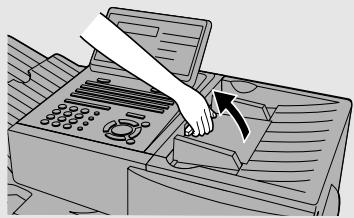
2 Wipe the scanning glass, white backplate, and rollers with a soft cloth.
- Make sure that all dirt and stains (such as correcting fluid) are removed, as dirt will cause vertical lines on transmitted images and copies. (If necessary, wipe with denatured alcohol.)
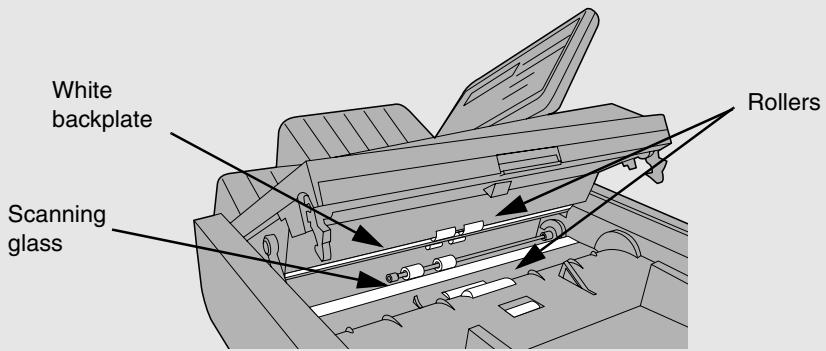
The Housing
Wipe the external parts and surface of the machine with a dry cloth.
Caution!
Do not use benzene or thinner. These solvents may damage or discolor the machine.
Replacing the Verification Stamp
If you are using the Verification Stamp function, you will need to replace the ink cartridge in the stamp unit when it runs out of ink (when the stamped mark on original documents becomes faint). A new ink cartridge can be obtained from your dealer.
1 Remove the ADF exit tray.
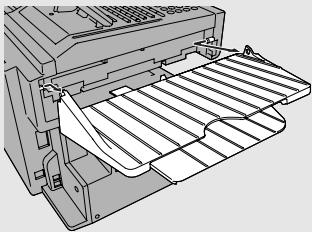
2 Press down on the protruding tab of the green ink cartridge and pull the cartridge out with your fingers.
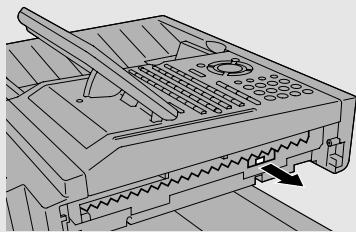
3 Insert the new ink cartridge into the machine (make sure that the tab is facing out).
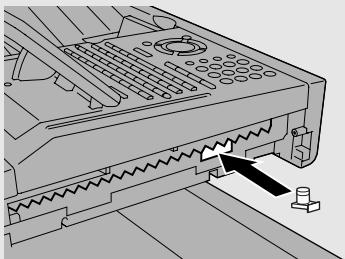
4 Replace the ADF exit tray.
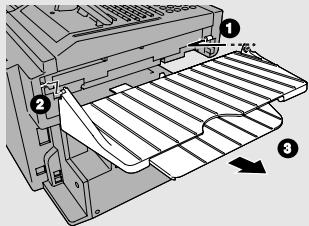
9. Troubleshooting
Problems and Solutions
Line error
| Problem | Solution |
| LINE ERROR appears in the display, and/or a transaction report is printed out with COM. E- and a number from 0 to 31 in the NOTE column. | Try the transaction again. If the error persists, check the following:Check the hookup. The cord from the TEL. LINE jack to the wall jack should be no longer than six feet.Make sure there are no modem devices sharing the same telephone line.Check with the other party to make sure their fax machine is functioning properly.Have your telephone line checked for line noise.Try connecting the fax machine to a different telephone line.If the problem still occurs, your fax machine may need service. |
Dialing and transmission problems
| Problem | Solution |
| Dialing is not possible. | Make sure the power cord is properly plugged into a power outlet.Make sure that the telephone line is properly connected to both the TEL. LINE jack and the wall jack.Make sure that the fax machine is set to the correct dialing mode for your telephone line. See Option Setting 22 in Chapter 6. |
| The power is on, but no transmission takes place. | Make sure that the receiving machine has paper.Make sure that the telephone line cord is plugged into the TEL. LINE jack, and not the TEL. SET jack.If the receiving machine is in manual mode with no attendant, reception will not be possible.If the receiving machine is not a Sharp model, make sure it is G3 compatible.Check the display for error messages.Press the SPEAKER key and check for a dial tone. |
| Nothing is printed at the receiving end. | Make sure that the document for transmission is placed face down in the feeder. |
| A distorted image is received at the other end. | If ECM mode (Option Setting 9) is turned off, noise on the telephone line may cause distortion. Try sending the document again.Make a copy of the document on your fax machine. If the copy is also distorted, your fax machine may need service. |
Reception and copying problems
| Problem | Solution |
| The fax machine doesn’t receive documents automatically. | Make sure that the reception mode is set to AUTO. If you subscribe to a distinctive ring service, make sure that the Distinctive Ring function is set to the correct ring pattern. If you do not subscribe to a distinctive ring service, make sure that Distinctive Ring is set to OFF SETTING. (See Distinctive Ring in Chapter 5.) |
| The received document is faint. | Ask the other party to send higher contrast documents. If the contrast is still too low, your fax machine may need service. Make a copy or print a report to check your machine’s printing ability.The toner cartridge may need replacement. |
| The printed image appears dirty and/or the paper jams frequently. | Have a service technician clean the print compartment. |
| The power is on, but no reception takes place. | Make sure that the wall jack is connected to the TEL. LINE jack, and not the TEL. SET jack. |
| Received images are distorted. | If ECM mode (Option Setting 9) is turned off, noise on the telephone line may cause distortion. Have the other party try sending the document again.If the other machine has ECM mode, make sure this feature is turned on in both fax machines (see Option Setting 9).Make a copy or print a report on your fax machine. If the copy or report is also distorted, your fax machine may need service.The drum cartridge may be damaged. Try a new drum cartridge.The fusing unit and transfer roller may need to be replaced during the life of the machine if print quality begins to deteriorate. This must be done by a service technician. |
| The quality of copies is poor and/or black lines appear. | Any dirt or material on the scanning glass will cause lines to appear on copies and transmitted faxes. Clean the scanning glass as explained in Chapter 8. |
| Dots appear at regular intervals on received documents and copies. | The drum cartridge may be damaged. Replace the drum cartridge. |
| The printing paper comes out blank when you try to receive a document. | Make sure that the document is loaded properly in the feeder of the transmitting machine. Make a copy or print a report to confirm the printing ability of your machine. |
General problems
| Problem | Solution |
| Nothing appears in the display. | Make sure the power cord is properly plugged into a power outlet and the power switch is turned on.Connect another electrical appliance to the outlet to see if it has power. |
| The machine does not respond when you press any of its keys. | If a beep sound is not made when you press the keys, turn off the power switch and then turn it on again several seconds later. |
| Automatic document feeding does not work for transmission or copying. | Check the size and weight of the document (see Transmittable Documents in Chapter 2). |
| No reception occurs when polling is attempted. | Make sure you have not run out of paper.Make sure the transmitting machine is in automatic reception mode.If the transmitting machine has polling security, make sure that your fax number has been entered both in your machine and in the transmitting machine. |
Messages and Signals
Display messages
| CHECK CASSETTE | This indicates that the cassette is not installed properly. |
| CONF. REFUSED | A confidential transmission has been denied because you entered an incorrect mailbox number for a machine with mailboxes. |
| CONF. RX ERROR | Confidential reception was cancelled because the mailbox number specified by the transmitting machine is not programmed in your fax machine. |
| CHECK COVER OR DRUM | The print compartment cover is open or the drum cartridge has not been installed. Close the cover or install the drum cartridge. |
| DRUM LIFE REACHED | The drum cartridge must be replaced soon (this message appears when approximately 1000 pages can still be printed). |
| FAX RCVD IN MEMORY | A fax has been received in memory because the toner cartridge needs replacement, you have run out of printing paper, or the paper is jammed. The fax will automatically print out when the problem is fixed. |
| LINE ERROR | Transmission or reception was not successful. Press STOP to clear the message and then try again. If the error persists, see Line Error in Problems and Solutions in this chapter. |
| MEMORY FULL ERROR | An internal memory error occurred. You may need to resend one or more pages of the document being transmitted when the error occurred. |
| MEMORY FULL ERROR PRESS STOP KEY | The memory is full and the transmission has been canceled (this message appears when Option Setting 23, Quick On-line, is set to NO). Press the STOP key to clear the message . |
| MENU MODE | The MENU key has been pressed. |
| NO CONF. FUNCTION | Confidential transmission was cancelled because the receiving machine does not have a confidential function, a confidential passcode is not programmed in it, its memory is full, or it is not a Sharp model. |
| NO PAPER | This message will be followed by one of the paper sources in parentheses, and informs you that the paper source is out of paper. If no paper source is indicated, both paper sources are out of paper. |
| ONHOOK DIAL MODE | The SPEAKER key has been pressed and the fax machine is waiting for you to dial. |
| OUTPUT TRAY OFF | The received document tray is not attached.Attach it as explained in Connections in Chapter 1 (the tray must be attached for the fax machine to operate properly.) |
| PAPER JAM | The printing paper is jammed. See the following section, Clearing Paper Jams. |
| RCVD CONF. FAX | A confidential fax has been received in memory.Print the fax as explained in Confidential Operations in Chapter 5. |
| REMOVE ORIGINAL(S) | The original document is jammed. See the following section, Clearing Paper Jams. |
| SIZE ERROR | This message will be followed by one of the paper sources in parentheses, and informs you that the paper loaded in that source is not all the same size. |
| REPLACE TONER | The toner cartridge must be replaced. |
| WAITING | The memory has become full and scanning has stopped during scanning of a multi-page document. Scanning will automatically resume when sufficient memory becomes free (for example, after several pages are transmitted). |
Audible signals
| Continuous tone | 3 seconds | Indicates the end of transmission, reception, or copying. |
| Intermittent tone (3 beeps) | 5 seconds (1 second on, 1 second off) | Indicates incomplete transmission, reception, or copying. |
| Rapid intermittent tone | 35 seconds (0.7 seconds on, 0.3 seconds off) | Indicates that an extension phone connected to the fax is off hook. |
Clearing Paper Jams
Clearing a jammed document
If the original document doesn't feed properly during transmission or copying, or REMOVE ORIGINAL(S) appears in the display, first try pressing START/ENTER. If the document doesn't feed out, open the operation panel and remove it.
Important:
Do not try to remove a document without opening the operation panel. This may damage the feeder mechanism.
1 Open the operation panel.
- Squeeze the release marked PANEL RELEASE and pull up.
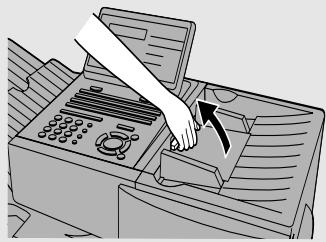
2 Remove the document.
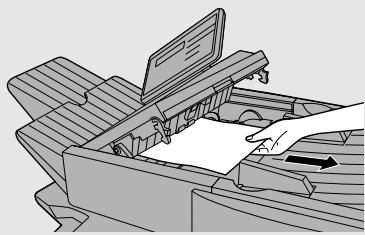
3 Close the operation panel, making sure it clicks into place.
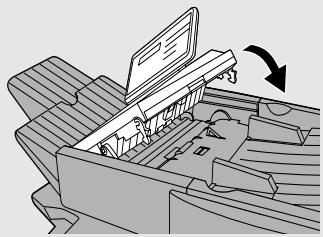
Clearing jammed printing paper
If the printing paper jams, PAPER JAM will appear in the display. Follow the steps below to clear the jam.
1 Press the green release and open the print compartment cover.
- Caution!
The fusing unit inside the print compartment becomes very hot during operation. Be careful not to touch the inside of the compartment.
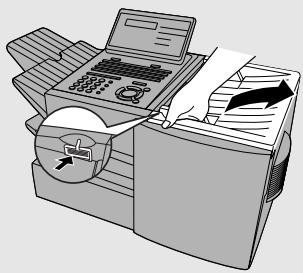
2 Remove the toner cartridge and place it on a sheet of paper.
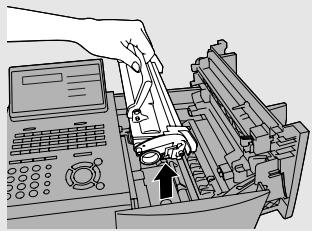
3 Remove the drum cartridge.
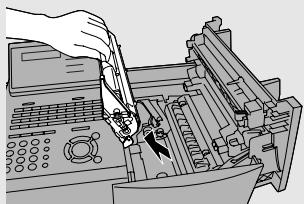
4 Remove the jammed paper.
- Make sure no torn pieces of paper remain in the print compartment and rollers.
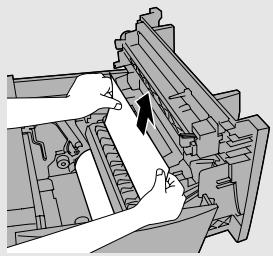
OR
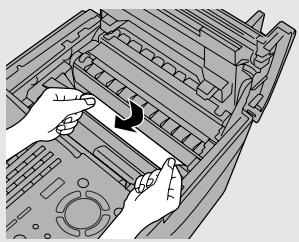
5 Replace the drum cartridge.
- Make sure the drum cartridge is inserted in as far as it will go.
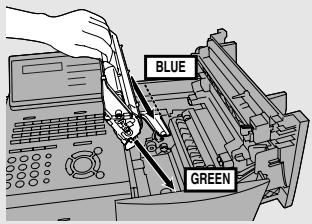
6 Replace the toner cartridge and then close the print compartment cover.
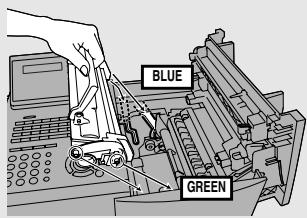
7 If you have a paper cassette and the display still indicates that paper is jammed, pull out the cassette and remove the jammed paper.
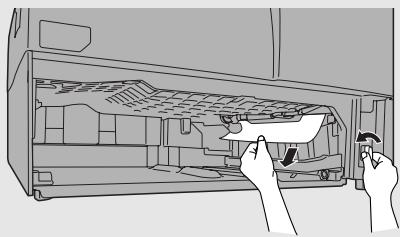
8 Replace the paper cassette.
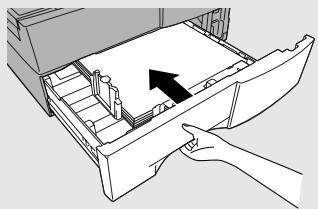
FCC Regulatory Information
This equipment complies with Part 68 of the FCC rules and the requirements adopted by the ACTA. On the rear of this equipment is a label that contains, among other information, a product identifier in the format US:AAAEQ##TXXXXX. If requested, this number must be provided to the telephone company.
A plug and jack used to connect this equipment to the premises wiring and telephone network must comply with the applicable FCC Part 68 rules and requirements adopted by the ACTA. A compliant telephone cord and modular plug is provided with this product. It is designed to be connected to a compatible modular jack that is also compliant. See installation instructions for details. This equipment connects to the telephone network through a standard USOC RJ-11C network interface jack.
The REN is used to determine the number of devices that may be connected to a telephone line. Excessive RENs on a telephone line may result in the devices not ringing in response to an incoming call. In most but not all areas, the sum of RENs should not exceed five (5.0). To be certain of the number of devices that may be connected to a line, as determined by the total RENs, contact the local telephone company. For products approved after July 23, 2001, the REN for this product is part of the product identifier that has the format US:AAAEQ##TXXXX. The digits represented by ## are the REN without a decimal point (e.g., 03 is a REN of 0.3). For earlier products, the REN is separately shown on the label.
If this equipment causes harm to the telephone network, the telephone company will notify you in advance that temporary discontinuance of service may be required. But if advance notice isn't practical, the telephone company will notify the customer as soon as possible. Also, you will be advised of your right to file a complaint with the FCC if you believe it is necessary.
The telephone company may make changes in its facilities, equipment, operations or procedures that could affect the operation of the equipment. If this happens the telephone company will provide advance notice in order for you to make necessary modifications to maintain uninterrupted service.
If trouble is experienced with this equipment, or for repair or warranty information, please contact your authorized Sharp dealer. If the equipment is causing harm to the telephone network, the telephone company may request that you disconnect the equipment until the problem is resolved.
This equipment may not be used on coin service provided by the telephone company. Connection to party line service is subject to state tariffs. Contact the state public utility commission, public service commission or corporation commission for information.
If your home has specially wired alarm equipment connected to the telephone line, ensure that the installation of this equipment does not disable your alarm equipment. If you have questions about what will disable alarm equipment, consult your telephone company or a qualified installer.
When programming and/or making test calls to emergency numbers:
◆ Remain on the line and briefly explain to the dispatcher the reason for the call.
◆ Perform such activities in the off-peak hours, such as early morning or late evening.
SHARP
Date Revised : July. 22, 2002
Date Issued : May. 28, 1998
MATERIAL SAFETY DATA SHEET (1/3)
MSDS No. B-1020
Section 1. Product and Company Identification
Product Name: Toner Cartridge of FO-44ND/FO-50ND/DUNT-455BSCZZ
Supplier Identification: Sharp Corporation
22-22 Nagaike-cho, Abeno-ku, Osaka, Japan
Local suppliers are listed below. Please contact the nearest supplier for additional information.
| (Country) | (Name and Telephone Number) |
| U.S.A. | Sharp Electronics CorporationTelephone number for information: 1-800-237-4277Emergency telephone number : 1-800-255-3924 |
| Canada | Sharp Electronics of Canada Ltd.Telephone number for information: 905-890-2100Emergency telephone number : 1-800-255-3924 |
Section 2. Ingredients
| Ingredients | Cas No. | Proportion | OSHA Z-Tables | ACGIH TLV | IARC | DFG-MAK(GER) | Other Limits |
| Polyester resin(Trade secret No. 361615 -5042-P in New Jersey) | |||||||
| Carbon black | 1333-86-4 | 1 - 5% | 3.5 mg/m3 | 3.5 mg/m3 | 2B | III 3B | TWA(Austl) : 3 mg/m3 |
| Polyolefin wax | 9003-07-0 | 1 - 5% | — | — | — | — | — |
| Organic pigment(Trade secret No. 361615 -5025-P in New Jersey) | |||||||
Section 3. Hazardous Identification
Most Important Hazards and Effects of the Products
For Human Health: This toner is not classified as a human carcinogen. No symptoms expected with intended use.
For the Environment: No data are available on the adverse effects of this product on the environment.
For others: None
Specific hazards: Dust explosion (like most finely divided organic powders)
Section 4. First-Aid Measures
Symptoms of Overexposure: No symptoms expected with intended use.
Routes of Entry: Eye contact, inhalation, ingestion
Information
Inhalation: If symptoms are experienced, remove source of contamination or move victim to fresh air and obtain medical advice.
Skin Contact: Flush with gently flowing water (preferably lukewarm) and soap for 15 minutes or until particle is removed. If irritation does occur, obtain medical advice.
Eye Contact: Do not allow victim to rub eye(s). Flush with gently flowing water (preferably lukewarm) for 15 minutes or until particle is removed. Have victim look right and left, and, then up and down. If irritation does occur, obtain medical attention. DO NOT attempt to manually remove anything stuck to the eye(s).
Ingestion: If irritation or discomfort occurs, obtain medical attention immediately.
Note to Physician: None
Section 5. Fire-Fighting Measures
| Suitable Extinguishing Media: | CO2, water spray, foam and dry chemical |
| Extinguishing Media to Avoid: | Full water jet |
| Special Firefighting Procedures: | None |
| Fire and Explosion Hazards: | If dispersed in air, toner, like most finely divided organic powders, may form an explosive mixture. |
| Protection of Firefighters: | Use self-contained breathing apparatus (SCBA). |
Section 6. Accidental Release Measure
Personal Precautions: None
Environmental Precautions: None
Methods for Cleaning Up: Wipe off with paper or cloth. DO NOT use vacuum cleaner when a large amount is released. It, like most finely divided organic powders, may create a dust explosion.
Section 7. Handling and Storage
Handling
Technical Measures: None
Precautions: None
Safe Handling Advice: Try not to disperse the particles.
Storage
Technical Measures: None
Storage Conditions: Keep container closed. Store in a cool and dry place. Keep out of reach of children.
Incompatible Products: None
SHARP
Date Revised : July. 22, 2002
Date Issued : May. 28, 1998
MATERIAL SAFETY DATA SHEET (2/3)
MSDS No. B-1020
Section 8. Exposure Control/Personal Protection
| Engineering MeasuresVentilation: None required with intended use.Control Parameters(As total dust)OSHA-PEL(USA): 15mg/m3 ACGIH-TLV(USA): 10mg/m3 DFG-MAK(GER): 6mg/m3 Worksafe-TWA(Austl.): 10mg/m3 Personal Protective EquipmentPersonal Protective EquipmentNone required when used as intended in Sharp equipment. For use other than normal customer-operating procedures(such as in bulk toner processing facilities), goggles and respirators may be required.Hygiene Measures: Wash hands after handling. |
Section 9. Physical and Chemical Properties
| AppearancePhysical State: Solid | Form: Powder | Color: Black | |
| Odor: | Faint odor | Explosion Properties: | No data available |
| Particle Size(μm): | 5 - 15 | Density(g/cm -2 ): | 1.2 (bulk density: 0.5) |
| Boiling Point: | Not applicable | Solubility in water: | Negligible |
| Melting Point(°C): | No data available | Oxidizing Properties: | No data available |
| Softening Point(°C): | 120 - 130 * | Ignition Temperature(°C): | 450 * |
| Flash Point: | Not applicable | Vapor Pressure: | Not applicable |
| pH: | Not applicable | ||
| Partition Coefficient, n-Octanol/Water: | Not applicable |
Section 10. Stability and Reactivity
| Stability: Stable [X] Unstable [.] |
| Hazardous Reactions: Dust explosion, like most finely divided organic powders. |
| Conditions to avoid: Electric discharge, throwing into fire. |
| Materials to Avoid: Oxidizing materials. |
| Hazardous Decomposition Products: CO, CO2 |
Section 11. Toxicological Information
| Health Effects from Exposure: No symptoms expected with intended use. | |
| Toxicological Data | |
| Acute Toxicity: | |
| Inhalation, LC50(mg/l): >0.74 (Rats,4hour exposure) * | (This was the highest attainable concentration.) |
| Ingestion(oral), LD50(mg/kg): >5000 (Rats) * | |
| Dermal, LD50(mg/kg): >2000 (Rats) * | |
| Eye irritation: Non irritant (Rabbits) * | |
| Skin irritation: Non irritant (Rabbits) * | |
| Skin sensitizer: No data available | |
| Mutagenicity: Negative * (AMES test) | |
| (*= Based on data for other Products with similar ingredients) | |
| Local Effects: see Chronic Toxicity or Long term Toxicity | |
| Chronic Toxicity or Long Term Toxicity: Prolonged inhalation of excessive dust may cause lung damage. | |
| It is attributed to "lung overloading", a generic response to excessive amounts of any dust retained in the lungs for a prolonged interval. Use of this product, as intended, does not result in inhalation of excessive dust. | |
| In a study in rats by chronic inhalation exposure to a typical toner, a mild to moderate degree of lung fibrosis was observed in 92% of rats in the high concentration( 16mg/m3 ) exposure group, and a minimal to mild degree of fibrosis was noted in 22% of the animals in the middle( 4mg/m3 ) exposure group. But no pulmonary change was reported in the lowest( 1mg/m3 ) exposure group, the most relevant level to potential human exposures. | |
Carcinogenicity
IARC Monographs: Not listed
NTP(USA): Not listed
OSHA Regulated(USA): Not listed
In 1996 the IARC reevaluated carbon black as a Group 2B carcinogen (possible human carcinogen). This valuation is given to Carbon Black for which there is inadequate human evidence, but sufficient animal evidence. The latter is based upon the development of lung tumors in rats receiving chronic inhalation exposures to free carbon black at levels that induce particle overload of the lung.
Studies performed in animal models other than rats have not demonstrated an association between carbon black and lung tumors. Moreover, a two-year cancer bioassay using a typical toner preparation containing carbon black demonstrated no association between toner exposure and tumor development in rats.
SHARP
Date Revised : July. 22, 2002
Date Issued : May. 28, 1998
MATERIAL SAFETY DATA SHEET (3/3)
MSDS No. B-1020
Section 12. Ecological Information
No data are available on the adverse effects of this material on the environment.
Section 13. Disposal Consideration
Appropriate Methods of Disposal
Preparation(community provisions): Waste may be disposed or incinerated under conditions which meet all federal, state and local environmental regulations.
Contaminated Packaging: Waste may be disposed or incinerated under conditions which meet all federal, state and local environmental regulations.
Precautions: Do not throw the toner cartridge or toner into a n open flame. The hot toner may scatter and cause burns or other damage.
Section 14. Transport Information
Special Precautions: None
Information on Code and Classifications According to International Regulations
UN Classification: None
Section 15. Regulatory Information
US Information
Information on the label: Not required
TSCA(Toxic Substances Control Act):
All chemical substances in this product comply with all applicable rules or order under TSCA.
SARA(Superfund Amendments and Reauthorization Act) Title III
302 Extreme Hazardous Substance: None
311/312 Hazard Categories: None
313 Reportable Ingredients: None
California Proposition 65:
This product contains no chemical substances subject to California Proposition 65.
EU Information
Information on the label (88/379/EEC) and 67/548/EEC):
Symbol & Indication : Not required
R-phrase : Not required
S-phrase: Not required
76/769/EEC:
All chemical substances in this product comply with all applicable rules or order under 76/769/EEC.
Section 16. Other Information
NFPA Hazard Rating: The National Fire Protection Agency(USA): Health: 1 Flammability: 1 Reactivity: 0
HMIS Rating: The National Paint and Coating Association(USA): Health: 1 Flammability: 1 Reactivity: 0
Recommended Uses: Toner for Electrophotographic Equipment
Restrictions: This information relates only to the specific material designated as supplied by the manufacturer. This information is supplied to us by the manufacturer and Sharp offers no warranties as to its accuracy and accepts no responsibilities for any typographical errors which may appear on these sheets. It is the responsibility of the user to determine the suitability of this product for each particular use.
Literature References:
ANSI Z400.1-1993
ISO 11014-1
Commission Directive 91/155/EEC
The Material Safety Data sheet: A Practical Guide to First Aid: Canadian Centre for Occupational Health and Safety's publication HMIS IMPLEMENTATION MANUAL: National Paint & Coatings association
IARC(1996): IARC monographs on the Evaluation of the Carcinogenic Risk of Chemicals to Humans, Vol.
65, Printing Process and Printing Inks, Carbon Black and Some Nitro Compounds, Lyon, pp.149-261
H.Muhle, B.Bellmann, O.Creutzenberg, C.Dasenbrock, H.Ernst, R.Kilpper, J.C.MacKenzie, P.Morrow,
U.Mohr, S.Takenaka, and R.Mermelstein(1991) Pulmonary Response to Toner upon Chronic Inhalation
Exposure in Rats. Fundamental and Applied Toxicology 17, pp.280-299.
Rivision Record:
July / 22/2002
Addition : Product Name FO-44ND / FO-50ND
SENDING FAXES
Place the document (up to 50 letter-size pages) face down in the document feeder.
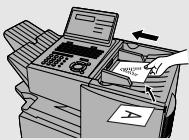
(Note: For Normal Dialing and Direct Keypad Dialing, you can also load the document after dialing the number.)
Press
or

if needed.
Normal Dialing

- Lift extension phone or press
- Dial the fax number (if using an extension phone, dial on the extension phone keypad).
- Wait for the reception tone (if a person answers, ask them to press their Start key).
- Press START/ENTER
Rapid Key Dialing
Press the desired Rapid Key.
Speed Dialing
-
Press SPEED DIAL and enter the desired Speed Dial number (press START/ENTER if you entered a 1-digit number).
-
Press START/ENTER
Direct Keypad Dialing
- Dial the fax number.
- Press START/ENTER
BROADCASTING
- Load the document and press BROADCAST
- Dial destination numbers: Press a Rapid Key.
Press a Group Key.
Press SPEED DIAL and enter a Speed Dial
number (press START/ENTER to complete entry if only one digit is entered).
Enter a full number and press START/ENTER.
- When finished, press START/ENTER
- Press RESOLUTION or CONTRAST if needed.
- Press START/ENTER
STORING AUTO DIAL NUMBERS
- Press MENU, ③, ⑩, ⑪.
- Press ① to store a number. (Press ② to clear a number.)
- To store a Rapid Key number, press the desired Rapid Key.
To store a Speed Dial number, press SPEED DIAL and enter a number from 1 to 75 (press
START/ENTER if you entered a 1-digit number).
(If clearing a number, select it as explained above and then perform Steps 7 and 9.)
- Enter the full fax number.
- Press START/ENTER
- Enter a name by pressing the letter keys.
- Press START/ENTER
- Press ① if this is a Chain Dial number. Press ② if this is a regular number.
- Press STOP repeatedly to exit.
ENVÍO DE FAXES
Administrator password, 28
Alarm volume, 112
Anti Junk Fax, 102, 112
Anti Junk Number List, 119
Audible signals, 130
Auto Cover Sheet, 110
Auto reception mode, 61
Auto-dial numbers, programming, 39
B
Batch page numbering, 60
Batch transmission, 84-85
Batch Transmission List, 119
Beep length, 113
Broadcasting, 66-67
C
Canceling a fax, 50, 51
Cassette Selection, 111
Chain Dialing, 42, 49
Confidential operations, 70-73
Confidential Reception List, 119
Contrast, 37
Copies, making, 64
Copy Cut-off, 110
Copy resolution, 114
Copying Scanning, 110
Cover Sheet, 58
Auto Cover Sheet, 110
D
Date, setting, 26
Daylight Saving Time, 27
Department Code Digits, 114
Department Control, 100-101
Department Usage List, 119
Destination List, 118
Dial mode, 112
Dialing
Chain, 42, 49
Direct Keypad, 47
Normal, 38
Rapid Key, 45
Speed, 46
Direct Keypad Dialing, 47
Distinctive ring, 105
Document feeder, 35
Document guides, 35
Document restrictions, 34
Document sizes, 33
Document, maximum scanning area, 34
Drum cartridge
Installing and replacing, 17-20
Duplex Scanning, 95
E
Error Correction Mode (ECM), 110
F
Fine Resolution Priority, 108
G
Group Keys, 68-69
H
Halftone setting, 36
Housing, cleaning, 122
|
Image Memory Print, 111
J
Jams, clearing, 131-133
Job status, checking, 50
L
Language, selecting, 115
Index
Letters, entering, 25
Line error, 124
Loading the document, 35
M
Manual reception mode, 61, 62
Memory
Checking documents in, 50, 63
Sending faxes from, 44
Substitute reception to, 63
Memory retransmission, 52
Multi TTI, 113
N
Normal Dialing, 38
Number of rings in AUTO reception, 108
Number of rings in manual reception, 108
0
Optional Setting List, 119
P
Page numbering, batch, 60
Paper jams, clearing, 131-133
Paper, loading, 21
Passcode List, 118
Password Protect setting, 29
Pauses in automatic dialing, 40
Personal Book List, 119
Personal books, 53-57
Polling, 74-77
Security Selection, 109
Power Save mode, 112
Print Hold, 96
Program and Group List, 119
Programs, 86-94
Q
Quick On-line, 113
R
Rapid Key Dialing, 45
Recall Interval, 109
Recall Times, 109
Receive Reduce, 110
Reception mode
Auto, 61
Manual, 61, 62
Setting, 61
Redialing, 39, 52
Resolution, 36
Retransmission interval, 112
Retransmission times, 111
Ringer volume, 32
S
Scan/Print Counter List, 121
Scan/print counts, clearing, 121
Scanning glass, cleaning, 122
Search Dial, 48
Separate Mode, 115
Speaker volume, 31
Speed Dialing, 46
T
TEL. LINE jack, 14
TEL. SET jack, 14
Telephone billing, 103
Telephone Billing Code, 113
Telephone line cord, 14
Telephone, connecting, 14
Time, setting, 26
Timer, 78
Timer List, 118
Toner cartridge
Installing and replacing, 17-20
Toner cartridge indicator, 20
Transaction Report, 120
Print Selection, 109
V
Verification Stamp, 16, 114
Replacing, 123
| >100% of the total. |
| >100% of the total. |
NOTICE
BE SURE TO ASK YOUR AUTHORIZED SHARP DEALER ABOUT THE WARRANTY THAT YOUR SELLING DEALER EXTENDS TO YOU. In order to assure you, the end-user, of warranty protection, Sharp extends a limited warranty to each of its authorized dealers and, in turn, requires each of its authorized dealers to extend its own warranty to you on terms that are no less favorable than those given to the dealer by Sharp. You should be aware, however, that Sharp does not itself extend any warranties, either express or implied, directly to you, the end-user, and no one is authorized to make any representations or warranties on behalf of Sharp. Specifically, SHARP DOES NOT EXTEND TO YOU, THE END-USER, ANY EXPRESS WARRANTY OR ANY IMPLIED WARRANTY OF MERCHANTABILITY, FITNESS FOR USE OR FITNESS FOR ANY PARTICULAR PURPOSE IN CONNECTION WITH THE HARDWARE, SOFTWARE OR FIRMWARE EMBODIED IN, OR USED IN CONJUNCTION WITH THIS PRODUCT. Sharp is not responsible for any damages or loss, either direct, incidental or consequential, which you, the end-user, may experience as a result of your purchase or use of the hardware, software or firmware embodied in or used in conjunction with this Product. Your sole remedy, in the event that you encounter any difficulties with the Product, is against the authorized dealer from which you purchased the Product. In the event that this authorized dealer does not honor its warranty commitments, please contact the Vice President, Sharp Electronics Corporation, Sharp Plaza, Mahwah, NJ 07430-1163 or Sharp Electronics of Canada Ltd., 335 Britannia Road East, Mississauga, Ontario L4Z 1W9, so that Sharp can try to help assure complete satisfaction of all the warranty rights to which you are entitled from the authorized dealer.
SHARP®
SHARP ELECTRONICS CORPORATION
Sharp Plaza, Mahwah, New Jersey 07430-1163
1-800-BE-SHARP
http://www.sharpusa.com
SHARP ELECTRONICS OF CANADA LTD.
335 Britannia Road East, Mississauga, Ontario L4Z 1W9
http://www.sharp.ca
SHARP CORPORATION
FOR YOUR RECORDS
Please record the model number and serial number below, for easy reference, in case of loss or theft. These numbers are located on the rear side of the unit. Space is also provided for other relevant information.
Model Number FO-4470
Serial Number
Date of Purchase
Place of Purchase ____
PRINTED IN THAILAND
(TINSE4516XHTZ)
- FACSIMILE
- U.S.A
- ABOUT THE TELEPHONE CONSUMER PROTECTION ACT OF
- CANADA
- THIS PRODUCT MEETS THE APPLICABLE INDUSTRY CANADA TECHNICAL SPECIFICATIONS
- INTRODUCTION
- WEIGHT
- IMPORTANT SAFETY INFORMATION
- IMPORTANT
- TABLE OF CONTENTS
- A LOOK AT THE OPERATION PANEL
- INSTALLATION
- SENDING DOCUMENTS
- RECEIVING DOCUMENTS
- MAKING COPIES
- SPECIAL FUNCTIONS
- OPTIONAL SETTINGS
- PRINTING LISTS AND REPORTS
- MAINTENANCE
- TROUBLESHOOTING
- QUICK REFERENCE GUIDE
- DISPLAY
- ALARM INDICATOR
- TONER INDICATOR
- LINE IN USE LIGHT
- CONTRAST KEY
- RESOLUTION KEY
- RAPID DIAL KEYS
- SYMBOL KEY
- PAGE COUNTER KEY
- CONFIDENTIAL KEY
- TIMER KEY
- COVER SHEET KEY
- LIFE KEY
- MEM. STATUS KEY
- REPORT KEY
- DOCUMENT KEY
- PRINT HOLD KEY
- LOWER PANEL
- JOB STATUS KEY
- DUPLEX SCAN KEY
- PRIORITY KEY
- BROADCAST KEY
- PERSONAL BOOK
- SPEED DIAL KEY
- MENU KEY
- UP AND DOWN ARROW KEYS
- COPY/HELP KEY
- DIAL KEYPAD (NUMERIC KEYS)
- REDIAL KEY
- SPEAKER KEY
- START/ENTER KEY
- LEFT AND RIGHT ARROW KEYS
- STOP KEY
- UNPACKING CHECKLIST
- POINTS TO KEEP IN MIND WHEN SETTING UP
- ABOUT CONDENSATION
- CONNECTIONS
- CONNECTING THE POWER CORD
- CONNECTING THE TELEPHONE LINE CORD
- CONNECTING A TELEPHONE (OPTIONAL)
- ATTACHING THE ADF EXIT TRAY
- ATTACHING THE RECEIVED DOCUMENT TRAY
- ATTACHING THE NATIONAL CHARACTER LABELS
- VERIFICATION STAMP OPTION
- INSTALLING THE PRINT CARTRIDGES
- PRESS THE COVER RELEASE TO OPEN THE PRINT COMPARTMENT COVER
- CAUTION
- IF YOU ARE REPLACING THE TONER CARTRIDGE, REMOVE THE OLD CARTRIDGE AND DISPOSE OF IT ACCORDING TO LOCAL REGULATIONS
- HOLD THE TONER CARTRIDGE BY THE HANDLE AND INSERT IT INTO THE PRINT COMPARTMENT
- CLOSE THE PRINT COMPARTMENT COVER
- RESET THE DRUM COUNTER BY PRESSING LIFE (FLIP UP THE RAPID KEY OVERLAY), ③, AND START/ENTER
- WHEN TO REPLACE THE TONER CARTRIDGE
- SHARP FO-44ND OR FO-50ND TONER CARTRIDGE
- HINT
- WHEN TO REPLACE THE DRUM CARTRIDGE
- LOADING PRINTING PAPER
- LOADING PAPER IN THE PAPER TRAY
- REPLACE THE RECEIVED DOCUMENT TRAY
- LOADING PAPER IN THE PAPER CASSETTE (IF INSTALLED)
- GRASP THE HAND-HOLD ON THE CASSETTE AND PULL THE CASSETTE OUT UNTIL IT STOPS
- PUSH THE PRESSURE PLATE DOWN UNTIL IT LOCKS INTO POSITION
- ENTERING YOUR NAME AND FAX NUMBER
- FLIP THE RAPID KEY OVERLAY DOWN (IF IT IS UP), AND ENTER YOUR NAME BY PRESSING THE APPROPRIATE LETTER KEYS AS SHOWN BELOW. (MAX. OF 24 CHARACTERS.)
- SETTING THE DATE AND TIME
- DAYLIGHT SAVING TIME
- ADMINISTRATOR PASSWORD
- SETTING AN ADMINISTRATOR PASSWORD
- PRESS THE FOLLOWING SEQUENCE OF KEYS
- PRESS ① TO SET THE PASSWORD
- PRESS THE NUMERIC KEYS AND/OR THE LETTER KEYS TO ENTER THE OLD (CURRENTLY SET) PASSWORD
- WHEN YOU HAVE FINISHED ENTERING THE
- ENTER THE NEW PASSWORD
- PRESS ① IF YOU WISH TO ENABLE PROTECTION (REQUIRE ENTRY OF THE PASSWORD) NOW. PRESS ② IF YOU DO NOT WISH TO ENABLE PROTECTION YET (YOU CAN ENABLE PROTECTION LATER USING THE PROCEDURE BELOW)
- CHANGING THE PASSWORD PROTECT SETTING
- WHEN PASSWORD PROTECTION IS ENABLED
- VOLUME ADJUSTMENT
- SPEAKER
- RINGER
- PRESS THE ▲ OR ▼ TO SELECT THE DESIRED VOLUME LEVEL. (MAKE SURE
- IF YOU SELECTED "RINGER VOLUME OFF: OK?" TO TURN OFF THE RINGER, PRESS START/ENTER TO CONFIRM YOUR SELECTION
- TRANSMITTABLE DOCUMENTS
- SIZE AND WEIGHT
- LOADING ONE PAGE AT A TIME
- LOADING MULTIPLE PAGES AT ONCE (LETTER-SIZE: MAX. 50 PAGES, LEGAL-SIZE: MAX. 20 PAGES)
- MAXIMUM SCANNING AREA
- OTHER RESTRICTIONS
- LOADING THE DOCUMENT
- ADJUST THE DOCUMENT GUIDES TO THE WIDTH OF YOUR DOCUMENT
- PLACE THE DOCUMENT FACE DOWN AND PUSH IT GENTLY INTO THE DOCUMENT FEEDER. THE TOP EDGE OF THE DOCUMENT SHOULD ENTER THE MACHINE FIRST
- ADJUST THE RESOLUTION AND/OR CONTRAST SETTINGS (IF DESIRED) AND THEN DIAL THE RECEIVING MACHINE AS EXPLAINED IN THE FOLLOWING SECTIONS
- ADJUSTING THE RESOLUTION AND CONTRAST
- RESOLUTION
- CONTRAST
- SENDING A FAX BY NORMAL DIALING
- LOAD THE DOCUMENT(S). (NOTE: IF DESIRED, YOU CAN LOAD THE DOCUMENT AFTER DIALING IN STEP 3, BELOW.)
- PRESS SPEAKER OR PICK UP AN EXTENSION PHONE CONNECTED TO THE FAX MACHINE. LISTEN FOR THE DIAL TONE
- IF YOU PRESSED SPEAKER, DIAL THE NUMBER OF THE RECEIVING MACHINE BY PRESSING THE NUMERIC KEYS ON THE FAX MACHINE
- WAIT FOR THE CONNECTION. WHEN YOU HEAR A FAX TONE, PRESS START/ENTER ON THE FAX MACHINE
- USING THE REDIAL KEY
- PROGRAMMING AUTO-DIAL NUMBERS
- CHAIN DIALING FOR AREA AND ACCESS CODES
- EDITING AUTO-DIAL NUMBERS
- CLEARING AUTO-DIAL NUMBERS
- SENDING A FAX BY AUTOMATIC DIALING
- DUAL ACCESS
- RAPID KEY DIALING
- LOAD THE DOCUMENT(S)
- SEND READY WILL APPEAR IN THE DISPLAY
- PRESS THE APPROPRIATE RAPID KEY
- SPEED DIALING
- PRESS ○ AND THEN ENTER THE SPEED DIAL NUMBER BY PRESSING THE NUMERIC KEYS
- CHECK THE DISPLAY. IF THE NAME OR NUMBER SHOWN IS CORRECT, PRESS START/ENTER
- DIRECT KEYPAD DIALING
- LOAD THE DOCUMENT(S). (NOTE: IF DESIRED, YOU CAN LOAD THE DOCUMENT AFTER DIALING IN STEP 2, BELOW.)
- ENTER THE NUMBER OF THE RECEIVING MACHINE BY PRESSING THE NUMERIC KEYS
- CHECK THE DISPLAY. IF THE NUMBER OF THE RECEIVING MACHINE SHOWN IS CORRECT, PRESS START/ENTER
- SEARCHING FOR AN AUTO-DIAL NUMBER
- PRESS ▶A TO SEARCH FROM THE
- ENTER THE FIRST CHARACTER OF THE STORED NAME BY PRESSING THE APPROPRIATE LETTER ENTRY KEY
- PRESS ◀ OR ▶ TO SCROLL THROUGH THE NAMES. STOP WHEN THE DESIRED NAME APPEARS IN THE DISPLAY
- PRESS START/ENTER. THE DOCUMENT WILL BE AUTOMATICALLY TRANSMITTED ONCE THE CONNECTION IS ESTABLISHED
- CHAIN DIALING
- IF THE MEMORY BECOMES FULL
- CHECKING THE STATUS OF THE CURRENT JOB
- TO CANCEL A FAX TRANSMISSION OR RECEPTION
- CHECKING AND CANCELING STORED TRANSMISSION JOBS
- CANCELING A MEMORY TRANSMISSION BY NUMBER
- AUTOMATIC REDIALING
- MEMORY RETRANSMISSION
- CREATING AND USING PERSONAL BOOKS
- CREATING A PERSONAL DIRECTORY BOOK
- USING A PERSONAL BOOK
- PRESS
- ENTER THE 4-DIGIT PASSCODE OF YOUR BOOK
- WHEN YOUR BOOK IS OPEN, ALL OF THE RAPID KEYS ON THE OPERATION PANEL AUTOMATICALLY CONVERT TO KEYS FOR USE IN YOUR BOOK. SPEED DIAL NUMBERS 1 THROUGH 16 ARE ALSO AVAILABLE FOR USE IN YOUR BOOK
- CLOSING A BOOK
- CANCELING AN OPERATION PERFORMED FROM A BOOK
- CLEARING A BOOK
- COVER SHEET
- PRESS COVER SHEET . (FLIP UP THE RAPID KEY OVERLAY IF IT IS DOWN.)
- DIAL THE RECEIVING PARTY AND TRANSMIT THE FAX
- BATCH PAGE NUMBERING
- PRESS PAGE COUNTER CAPS LOCK . (FLIP UP THE RAPID KEY OVERLAY IF IT IS DOWN.)
- ENTER THE TOTAL NUMBER OF PAGES ("01" TO "99") BY PRESSING THE NUMERIC KEYS
- DIAL THE RECEIVING MACHINE AND TRANSMIT THE DOCUMENT
- AUTO MODE
- MANUAL MODE
- SETTING THE RECEPTION MODE
- USING AUTO RECEPTION MODE
- USING MANUAL RECEPTION MODE
- SUBSTITUTE RECEPTION TO MEMORY
- LOAD THE DOCUMENT
- PRESS COPY/HELP
- ENTER THE DESIRED NUMBER OF COPIES PER ORIGINAL WITH THE NUMERIC KEYS
- CHECKING AND CANCELING COPY JOBS IN MEMORY
- BROADCASTING
- LOAD THE DOCUMENT (S)
- PRESS BROADCAST
- DIAL THE RECEIVING MACHINES USING ONE OR MORE OF THE FOLLOWING METHODS
- BROADCASTING USING A GROUP KEY
- STORING NUMBERS IN GROUP KEYS
- ENTER FAX NUMBERS USING ONE OR BOTH OF THE FOLLOWING METHODS
- PRESS START/ENTER
- RETURN TO STEP 3 TO PROGRAM ANOTHER GROUP KEY, OR PRESS REPEATEDLY UNTIL YOU RETURN TO THE DATE AND TIME DISPLAY
- EDITING A GROUP
- CONFIDENTIAL OPERATIONS
- CONFIDENTIAL TRANSMISSION
- PRESS CONFIDENTIAL Z/< (FLIP UP THE RAPID KEY OVERLAY IF IT IS DOWN) AND THEN ①
- CONFIDENTIAL RECEPTION
- PROGRAMMING THE CONFIDENTIAL PASSCODE
- CLEARING A PASSCODE
- PRINTING OUT RECEIVED DOCUMENTS
- POLLING
- POLLING OTHERS
- DIAL THE NUMBER(S) OF THE FAX MACHINE(S) YOU WANT TO POLL USING ONE (OR MORE) OF THE FOLLOWING METHODS
- SERIAL POLLING USING A GROUP KEY
- BEING POLLED (MEMORY POLLING)
- SET THE RECEPTION MODE TO AUTO (PRESS MENU, ① AND ①)
- PRESS MENU AND THEN ⑦
- PRESS ① TO SELECT SET
- PRESS ① TO ALLOW POLLING ONLY ONCE, OR ② TO ALLOW POLLING AN UNLIMITED NUMBER OF TIMES
- PRESS RESOLUTION AND/OR CONTRAST TO ADJUST THE RESOLUTION AND CONTRAST IF DESIRED, AND THEN PRESS START/ENTER
- CLEARING A DOCUMENT
- PRESS ② TO SELECT CLEAR
- PRESS START/ENTER TO CLEAR THE DOCUMENTS
- POLLING SECURITY
- TURNING POLLING SECURITY ON AND OFF
- STORING AND CLEARING FAX NUMBERS FOR POLLING PERMISSION
- TIMER OPERATIONS
- INITIAL PROCEDURE
- TRANSMISSION
- SERIAL POLLING
- CANCELING A TIMER OPERATION
- BATCH TRANSMISSION
- PROGRAMMING A BATCH KEY
- CLEARING A BATCH KEY
- STORING DOCUMENTS FOR TRANSMISSION
- PRESS THE APPROPRIATE BATCH KEY
- PRESS STOP
- CANCELING A DOCUMENT STORED FOR BATCH TRANSMISSION
- PRESS THE BATCH KEY IN WHICH THE DOCUMENT YOU WANT TO CLEAR HAS BEEN STORED
- ENTER THE 3-DIGIT MESSAGE NUMBER ASSIGNED TO THE DOCUMENT
- ENTERING AND USING PROGRAMS
- DIAL THE MACHINE TO BE POLLED USING ONE OF THE FOLLOWING METHODS
- PRESS STOP REPEATEDLY UNTIL YOU RETURN TO THE DATE AND TIME DISPLAY
- DIAL THE MACHINES TO BE POLLED USING ONE OR MORE OF THE FOLLOWING METHODS
- CLEARING A PROGRAM KEY
- USING A PROGRAM KEY
- CANCELING A PROGRAMMED TIMER OPERATION
- DUPLEX SCANNING FOR TWO-SIDED DOCUMENTS
- PRESS DUPLEX SCAN AND THEN START/ENTER
- PERFORM ALL STEPS OF THE DESIRED COPY OR MEMORY TRANSMISSION
- WHEN ALL PAGES OF THE DOCUMENT HAVE BEEN SCANNED, TURN THE STACK OVER (DO NOT CHANGE THE PAGE ORDER) AND LOAD IT AGAIN
- PRINT HOLD
- PROGRAMMING THE PRINT HOLD CODE
- ACTIVATING THE PRINT HOLD FUNCTION
- PRINTING RECEIVED FAXES
- TURNING OFF THE PRINT HOLD FUNCTION
- CLEARING THE PRINT HOLD CODE
- DEPARTMENT CONTROL
- PROGRAMMING DEPARTMENT CODES
- ACCESSING THE MACHINE
- BLOCKING RECEPTION OF UNWANTED FAXES
- TELEPHONE BILLING
- USING DEPARTMENT CONTROL
- DIRECT BILLING CODE ENTRY
- ENTER YOUR NUMBER TO ACCESS AN OUTSIDE LINE (MAX. OF 3 DIGITS)
- FLIP DOWN THE RAPID KEY OVERLAY AND PRESS SPACE, ENTER THE BILLING CODE (MAX. OF 9 DIGITS), AND THEN PRESS SPACE AGAIN
- PRESS RESOLUTION AND/OR CONTRAST TO ADJUST THE RESOLUTION AND CONTRAST IF DESIRED
- DIAL THE OTHER PARTY BY THE DESIRED METHOD AND TRANSMIT THE DOCUMENT
- DISTINCTIVE RING
- IN CANADA
- SETTING 01: DEFAULT FAX RESOLUTION
- SETTING 02: NUMBER OF RINGS AUTO RECEPTION
- SETTING 03: NUMBER OF RINGS MANUAL RECEPTION
- SETTING 04: AUTO LISTING
- SETTING 05: TRANSACTION REPORT PRINT SELECTION
- SETTING 06: RECALL TIMES
- SETTING 07: RECALL INTERVAL
- SETTING 08: SECURITY SELECTION
- SETTING 09: ERROR CORRECTION MODE (ECM)
- SETTING 10: AUTO COVER SHEET
- SETTING 12: COPY SCANNING
- SETTING 13: COPY CUT-OFF
- SETTING 14: RECEIVE REDUCE
- SETTING 15: IMAGE MEMORY PRINT
- SETTING 16: CASSETTE SELECTION
- SETTING 17: RETRANSMISSION TIMES
- SETTING 18: RETRANSMISSION INTERVAL
- SETTING 19: POWER SAVE MODE
- SETTING 20: ANTI-JUNK FAX
- SETTING 21: ALARM VOLUME
- SETTING 22: DIAL MODE
- SETTING 23: QUICK ON-LINE
- SETTING 24: MULTI TTI
- SETTING 25: BEEP LENGTH
- SETTING 26: TELEPHONE BILLING CODE
- SETTING 27: DEPARTMENT CODE DIGITS
- SETTING 28: DISTINCTIVE RING
- SETTING 29: VERIFICATION STAMP
- SETTING 30: COPY RESOLUTION
- SETTING 31: SEPARATE MODE
- SETTING 34: LANGUAGE SELECT
- ACTIVITY REPORT (LIST 01)
- EXPLANATION OF HEADINGS
- NOTE
- TIMER LIST (LIST 02)
- DESTINATION LIST (LIST 03)
- PASSCODE LIST (LIST 04)
- OPTIONAL SETTING LIST (LIST 05)
- PROGRAM AND GROUP LIST (LIST 06)
- BATCH TRANSMISSION LIST (LIST 07)
- DEPARTMENT USAGE LIST (LIST 08)
- CONFIDENTIAL RECEPTION LIST (LIST 09)
- ANTI JUNK NUMBER LIST (LIST 10)
- PERSONAL BOOK LIST (LIST 11)
- TRANSACTION REPORT
- PRINTING THE SCAN/PRINT COUNTER LIST
- PRESS ① PRINT THE LIST
- CLEARING THE SCAN/PRINT COUNTS
- PRESS ②
- PRESS START/ENTER TO CLEAR THE COUNTS
- CLEANING THE SCANNING GLASS AND ROLLERS
- OPEN THE OPERATION PANEL
- WIPE THE SCANNING GLASS, WHITE BACKPLATE, AND ROLLERS WITH A SOFT CLOTH
- THE HOUSING
- REPLACING THE VERIFICATION STAMP
- PROBLEMS AND SOLUTIONS
- MESSAGES AND SIGNALS
- CLEARING PAPER JAMS
- CLEARING A JAMMED DOCUMENT
- REMOVE THE DOCUMENT
- CLOSE THE OPERATION PANEL, MAKING SURE IT CLICKS INTO PLACE
- CLEARING JAMMED PRINTING PAPER
- PRESS THE GREEN RELEASE AND OPEN THE PRINT COMPARTMENT COVER
- REMOVE THE TONER CARTRIDGE AND PLACE IT ON A SHEET OF PAPER
- REMOVE THE DRUM CARTRIDGE
- REMOVE THE JAMMED PAPER
- REPLACE THE DRUM CARTRIDGE
- REPLACE THE TONER CARTRIDGE AND THEN CLOSE THE PRINT COMPARTMENT COVER
- IF YOU HAVE A PAPER CASSETTE AND THE DISPLAY STILL INDICATES THAT PAPER IS JAMMED, PULL OUT THE CASSETTE AND REMOVE THE JAMMED PAPER
- REPLACE THE PAPER CASSETTE
- FCC REGULATORY INFORMATION
- SHARP
- MATERIAL SAFETY DATA SHEET (1/3)
- SECTION 1. PRODUCT AND COMPANY IDENTIFICATION
- SECTION 3. HAZARDOUS IDENTIFICATION
- SECTION 4. FIRST-AID MEASURES
- SECTION 6. ACCIDENTAL RELEASE MEASURE
- SECTION 7. HANDLING AND STORAGE
- MATERIAL SAFETY DATA SHEET (2/3)
- MATERIAL SAFETY DATA SHEET (3/3)
- SECTION 12. ECOLOGICAL INFORMATION
- SECTION 13. DISPOSAL CONSIDERATION
- SECTION 14. TRANSPORT INFORMATION
- SECTION 15. REGULATORY INFORMATION
- SECTION 16. OTHER INFORMATION
- SENDING FAXES
- NORMAL DIALING
- STORING AUTO DIAL NUMBERS
- ENVÍO DE FAXES
- B
- C
- D
- E
- F
- G
- H
- J
- L
- INDEX
- M
- N
- P
- Q
- R
- S
- T
- V
- NOTICE
- SHARP®
- SHARP ELECTRONICS CORPORATION
- SHARP ELECTRONICS OF CANADA LTD
- SHARP CORPORATION
- FOR YOUR RECORDS
Brand : SHARP
Model : FO-4470
Category : Fax machine