
Digilux 1 - Appareil photo LEICA - Notice d'utilisation et mode d'emploi gratuit
Retrouvez gratuitement la notice de l'appareil Digilux 1 LEICA au format PDF.
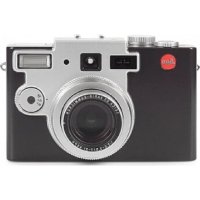

| Type de produit | Appareil photo numérique compact |
| Marque | Leica |
| Modèle | Digilux 1 |
| Résolution maximale | 2240 x 1680 pixels (3,9 millions effectifs) |
| Objectif | Leica DC Vario-Summicron 7-21 mm f/2-2.5 ASPH. (équivalent 33-100 mm en 24x36) |
| Zoom optique | 3x |
| Zoom numérique | 2x (total 6x) |
| Viseur | Viseur optique réel avec correction dioptrique -2,8 à +0,8 dpt |
| Écran LCD | 2,5 pouces TFT couleur, 200 000 pixels |
| Support de stockage | Carte SD / MultiMediaCard |
| Formats d'image | JPEG, TIFF, QuickTime Motion JPEG (vidéo) |
| Capteur | CCD 1/1,76 pouce, 4 millions de pixels |
| Sensibilité ISO | Auto, 100, 200, 400 |
| Vitesse d'obturation | 8 s à 1/1000 s (selon mode) |
| Modes d'exposition | Auto, Programme P, Priorité ouverture A, Priorité vitesse T, Manuel M, Vidéo |
| Mesure de lumière | Matricielle, pondérée centrale, spot |
| Flash intégré | Guide 10, portée 0,3-4,5 m (grand-angle) / 0,3-3,5 m (téléobjectif) |
| Alimentation | Batterie lithium-ion 7,2 V 1400 mAh |
| Dimensions (L x H x P) | 127 x 83,3 x 67,4 mm |
| Poids | Environ 385 g (sans batterie) / 460 g (avec batterie) |
| Entretien et nettoyage | Nettoyer avec un chiffon doux et sec. Ne pas utiliser de solvants. |
| Sécurité | Ne pas exposer à l'eau ou à l'humidité. Utiliser uniquement les accessoires recommandés. |
| Pièces détachées et réparabilité | Batterie, chargeur, câble USB, câble AV, dragonne, pare-soleil d'écran, CD-ROM. Réparation en centre agréé. |
| Informations générales | Notice disponible en français. Garantie constructeur. |
FOIRE AUX QUESTIONS - Digilux 1 LEICA
Questions des utilisateurs sur Digilux 1 LEICA
0 question sur cet appareil. Repondez a celles que vous connaissez ou posez la votre.
Poser une nouvelle question sur cet appareil
Téléchargez la notice de votre Appareil photo au format PDF gratuitement ! Retrouvez votre notice Digilux 1 - LEICA et reprennez votre appareil électronique en main. Sur cette page sont publiés tous les documents nécessaires à l'utilisation de votre appareil Digilux 1 de la marque LEICA.
MODE D'EMPLOI Digilux 1 LEICA

LEICA DIGILUX 1
Notice / Instructions
Illustrations sur les pages de garde avant et arrière

LEICA DIGILUX 1
Instructions
Illustrations sur les pages de garde avant et arrière
Avertissement
Utilisez exclusivement les accessoires recommandés pour éviter tout dysfonctionnement, court-circuit ou choc électrique. N'exposez pas l'appareil à l'humidité ou à la pluie. Ne tentez pas de retirer des parties du boîtier (couvercle) ; les réparations spécialisées ne peuvent être effectuées que dans des centres de service agréés.
Remarque
Certains composants de cet appareil contiennent de faibles quantités de mercure ou de plomb. L'élimination de ces composants peut être soumise à des réglementations spéciales de protection de l'environnement dans votre pays.
Pour des informations sur l'élimination ou le recyclage appropriés, veuillez contacter les autorités compétentes ou un bureau des fournisseurs et fabricants de produits électroniques. (http://www.eiae.org)
Veuillez vous assurer de respecter les lois sur le droit d'auteur. La copie de supports préenregistrés tels que cassettes, CD ou autres documents publiés ou diffusés à des fins autres que l'usage personnel peut enfreindre les lois sur le droit d'auteur. Certains documents peuvent même être soumis à des restrictions de copie pour usage privé.
Le logo SD est une marque déposée. Les autres noms, noms de sociétés ou de produits mentionnés dans ce manuel sont des marques commerciales ou des marques déposées des sociétés concernées.
Contenu de la livraison
Avant d'utiliser votre LEICA DIGILUX 1 pour la première fois, veuillez vérifier que les accessoires fournis sont complets.
A. Carte mémoire SD de 64 Mo B. Batterie C. Bloc secteur/chargeur avec cordon secteur D. Câble de connexion USB E. Câble A/V F. Dragonne de transport G. Dragonne de poignet H. Bouchon d'objectif avec cordon d'attache I. Capuchon de viseur LCD J. 2 CD-ROM
Sommaire
Nomenclature
102 Boîtier de l'appareil photo
104 Affichages dans le champ de données LCD
105 Affichages sur le moniteur LCD
108 Éléments de menu
Guide rapide
113 Réglages prédéfinis
113 Prise de photos/vidéos
113 Visualisation des images
Guide détaillé
Préparation
114 Fixation de la dragonne de transport
114 Fixation de la dragonne de poignet
115 Mise en place du capot du moniteur
115 Ouverture du capot du moniteur
115 Fermeture du capot du moniteur
115 Mise en place/retrait du cache-objectif
116 Insertion et retrait de la batterie
116 Chargement de la batterie
117 Fonctionnement sur secteur
118 Insertion et retrait de la carte mémoire
Les réglages/commandes les plus importants
119 Mise sous/hors tension de l'appareil photo
119 Viseur optique
119 Réglage dioptrique
119 Repères
120 Affichages LED
120 Commutation des affichages du moniteur
120 Les affichages en mode enregistrement
121 Les affichages en mode visualisation
122 Sélection des éléments de menu
123 Réglage de la date et de l'heure
124 Sélecteur enregistrement/visualisation
124 Molette de réglage du mode d'exposition
125 Déclencheur
Mode enregistrement
126 Utilisation du zoom optique
126 Utilisation du zoom numérique
127 Utilisation du mode AUTO
128 Enregistrements vidéo
129 Utilisation de la visualisation automatique d'une seule image AUTO REVIEW
129 Vérification de la dernière photo REVIEW
130 Suppression de la photo pendant la visualisation
131 Prendre des photos avec le flash intégré
132 Prendre des photos avec le retardateur
Fonctions supplémentaires, mode d'enregistrement
134 Prises de vue en série
134 Photos avec son
135 Prendre des photos en mode programme automatique P
136 Prendre des photos en mode priorité vitesse T
136 Prendre des photos en mode priorité ouverture A
137 Prendre des photos avec réglages manuels de la vitesse d'obturation et de l'exposition M
138 Sélection de la méthode de mesure de l'exposition
139 Mémorisation de la mesure
139 Compensation d'exposition
140 Prendre des photos en mode bracketing automatique de l'exposition
141 Utilisation du mode de mesure spot autofocus
142 Utilisation de la fonction macro
143 Utilisation de la mise au point manuelle
144 Prise de photos en mode de bracketing de mise au point automatique
145 Prise de photos avec flash synchronisé en fin d'exposition
146 Compensation d'exposition au flash
147 Utilisation d'un flash supplémentaire
148 Réglage de la résolution
148 Réglage du taux de compression
150 Réglage de la balance des blancs
151 Réglage de la sensibilité ISO
152 Réglage des propriétés de l'image (contraste, netteté, saturation des couleurs)
153 Utilisation d'accessoires d'objectif
Mode de visualisation
155 Visualisation de photos individuelles
155 Visualisation de photos individuelles avec son
156 Visualisation simultanée de jusqu'à neuf photos
157 Zooming and trimming while reviewing single pictures
157 Enlarging the picture and selecting the trimming
158 Review of video recordings
159 Deleting pictures
161 Formatting the memory card
162 Protecting pictures
165 Print order (DPOF) settings on the memory card
Further functions, Review mode
170 Adding sound to existing pictures (Audio Dubbing)
171 Reducing the resolution after recording
173 Changing the trimming after recording
176 Creating new folder numbers
176 Automatic review of a series of pictures
SLIDE SHOW
178 Setting the LCD monitor brightness
178 Réglage des tonalités de confirmation
179 Réglage de l'extinction automatique
180 Lecture sur un téléviseur
181 Transfert de données vers un ordinateur
182 Format Epson PIM (Print Image Matching)
Divers
183 Rangement de l'appareil photo
183 Instructions d'entretien et de maintenance
183 Instructions générales d'entretien
184 Instructions de maintenance
184 Pour l'appareil photo
184 Pour la batterie
185 Pour les cartes mémoire
185 Rangement
185 Structure des données sur la carte mémoire
186 Messages d'avertissement
187 Dysfonctionnements et dépannage
188 Données techniques
Désignation des pièces
Boîtier de l'appareil photo
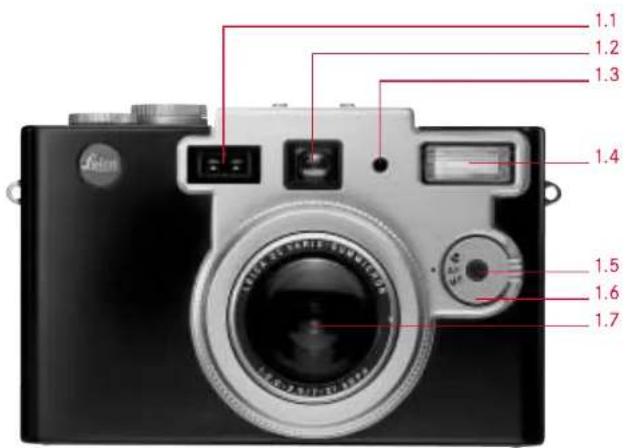
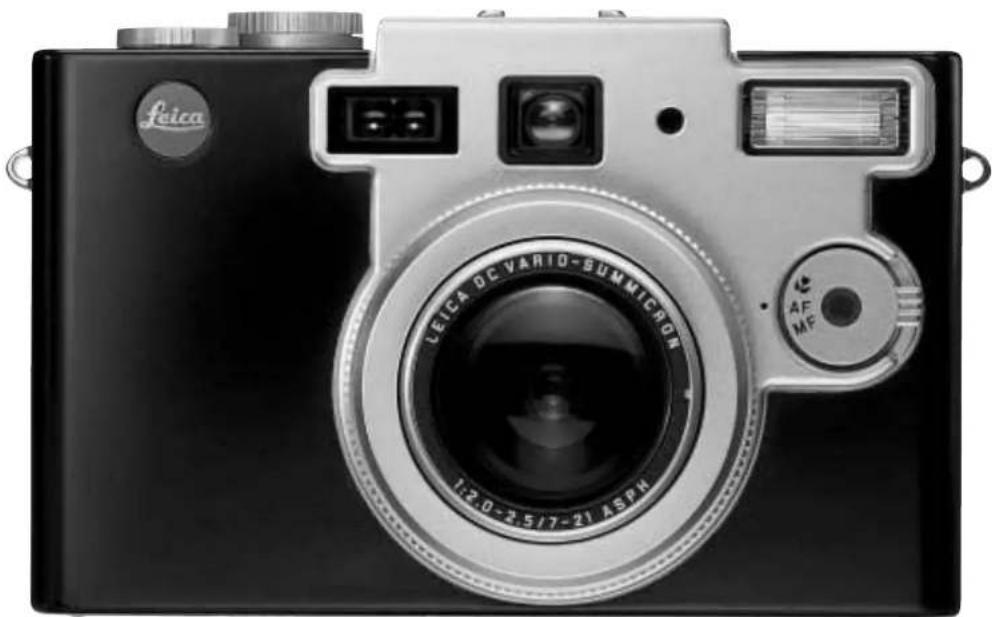
Vue de face
1.1 Fenêtres du capteur autofocus 1.2 Fenêtre du viseur optique 1.3 Cellule de mesure de l'exposition au flash 1.4 Réflecteur du flash 1.5 LED du retardateur 1.6 Sélecteur de mode de mise au point MF/AF/ 1.7 Objectif LEICA DC VARIO SUMMICRON 7-21 mm f/1:2-2.5 ASPH.
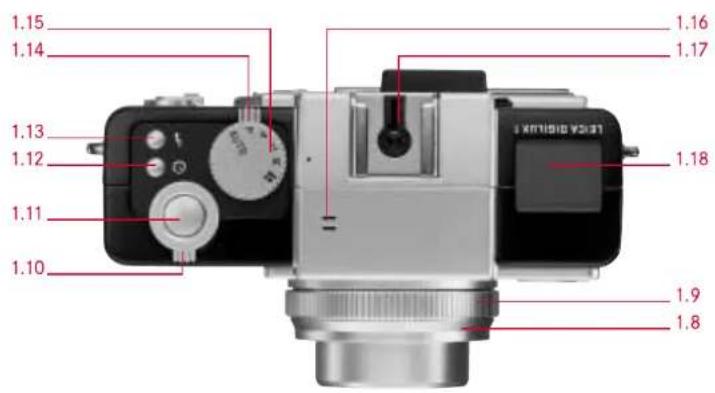
Vue de dessus
1.8 Bague avant amovible 1.9 Bague de mise au point manuelle 1.10 Levier de zoom 1.11 Déclencheur 1.12 Bouton du retardateur 1.13 Bouton du mode flash ↓ 1.16 Microphone 1.17 Griffe porte-flash 1.18 Écran de données LCD
1.14 Sélecteur d'enregistrement/lecture ▶/□/□
1.15 Molette de mode d'exposition AUTO/P/A/T/M/
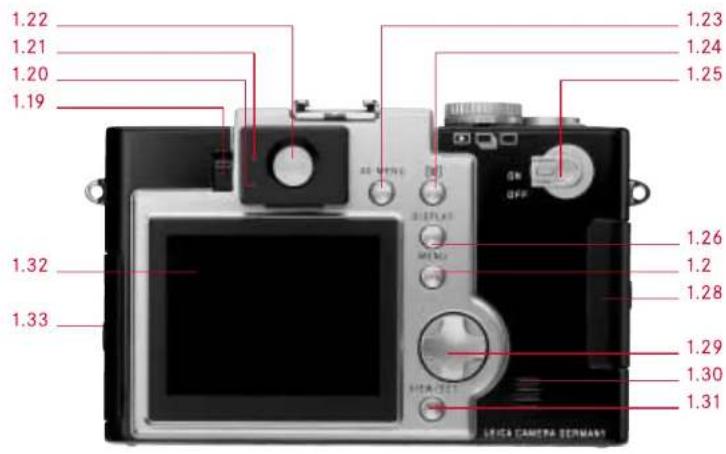
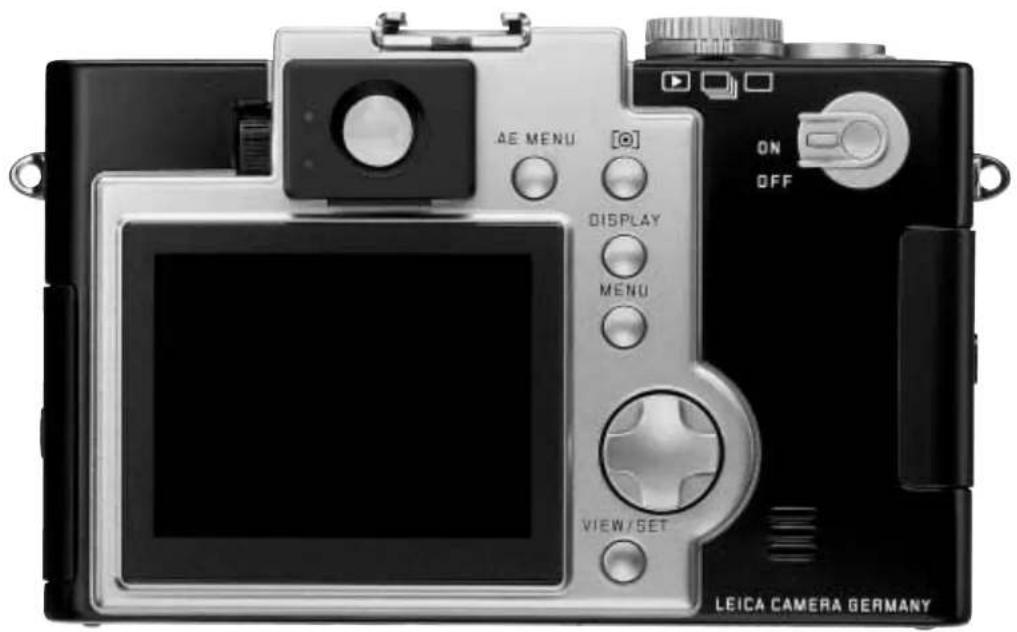
Vue arrière
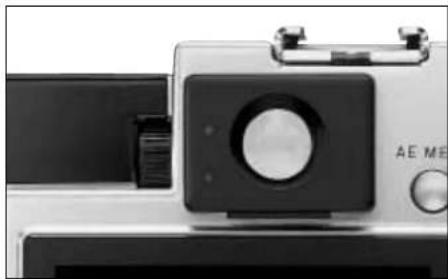
1.19 Molette de correction dioptrique 1.20 LED rouge 1.21 LED verte
1.22 Œilleton du viseur 1.23 Bouton de compensation d'exposition, bracketing d'exposition automatique, bracketing de mise au point automatique et compensation d'exposition au flash AE MENU 1.24 Bouton de sélection de la méthode de mesure d'exposition [◎] 1.25 Interrupteur principal ON/OFF 1.26 Bouton de sélection d'affichage du moniteur DISPLAY 1.27 Bouton d'activation/désactivation du système de menu MENU 1.28 Volet du logement de carte mémoire 1.29 Pavé directionnel 1.30 Haut-parleur 1.31 Bouton de visualisation et de confirmation des réglages VIEW/SET 1.32 Écran LCD 1.33 Volet de la prise de connexion
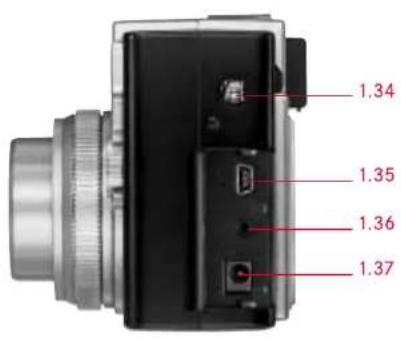
Vue de gauche
1.34 Œillet pour dragonne 1.35 Prise USB (5 pôles, pour connexion à un ordinateur) 1.36 Prise A/V OUT (pour connexion à un téléviseur) 1.37 Prise DC IN (pour alimentation externe)
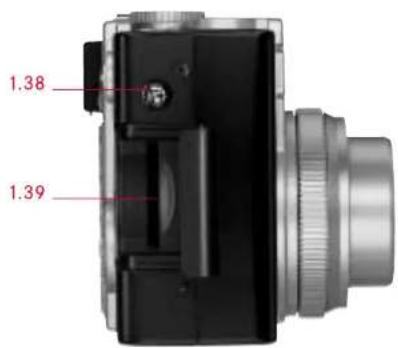
Vue de droite
1.38 Œillet pour dragonne 1.39 Emplacement pour carte mémoire
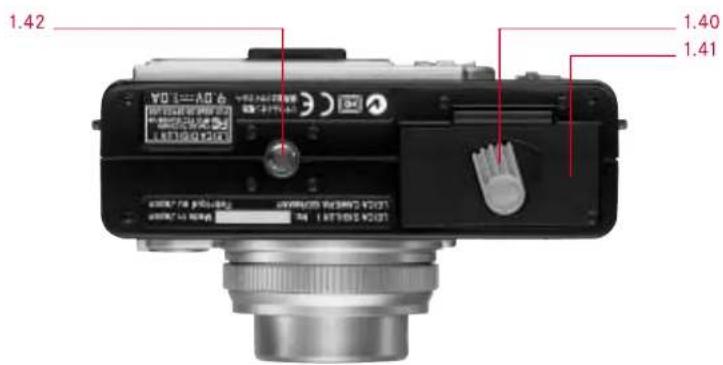
Vue de dessous
1.40 Levier de verrouillage du volet du compartiment à batterie 1.41 Volet du compartiment à batterie 1.42 Filetage pour trépied
![2.1 2.17 2.15 AUTO SLOW MF[•]AF ISO 800 WB + TIFF 8888 F 2.16 2.14 2.13 2.12 2.10 2.11 2.4 2.2 2.3 2.5 2.6 2.7 2.8 2.9](/content/2026/03/533267/images/6dcc005cca2fe5079604ccec7d752d83cbd444d7f2d6d85e61bf068c9a87c1c3.jpg)
Affichages dans le champ de données LCD
Les fonctions affichées correspondent à celles de l'écran LCD.
2.1 Mode flash
a. AUTO 4 Déclenchement automatique du flash b. AUTO ☑ Déclenchement automatique du flash avec pré-flash c. ↓ Déclenchement manuel du flash d. ⏻ Déclenchement manuel du flash avec pré-flash e. AUTO SLOW ① Déclenchement automatique du flash avec pré-flash et vitesses d'obturation plus lentes (selon le réglage, avec synchronisation au début ou à la fin de l'exposition)
f. Ⓓ Désactivation manuelle du flash
2.2 Enregistrement sonore
2.3 État de la batterie (n'apparaît pas lors de l'utilisation de l'appareil avec le chargeur secteur)
2.4 Mise au point manuelle
2.5 Autofocus ponctuel
2.6 Réglage de la méthode de mesure de l'exposition
2.7 Nombre d'images restantes / durée d'enregistrement restante
2.8 Réglage de la compensation d'exposition
2.9 Réglage de la balance des blancs (n'apparaît pas en mode AUTO)
2.10 Mode de bracketing automatique de la mise au point
2.11 Mode de bracketing automatique de l'exposition
2.12 Résolution / LECTURE : indication du mode de visualisation
2.13 Réglage du taux de compression des données d'image 2.14 Réglage de la sensibilité ISO 2.15 Réglage de la compensation du flash 2.16 Réglage du retardateur (2 ou 10 secondes) 2.17 Réglage du mode macro
![3.4 3.29 3.3 3.2 3.30 3.1 3.31 3.14/27/28 2.13 3.16/15 3.24 3.23 3.22 3.13 3.5 3.11 3.6 3.7 3.8 3.9 3.10 3.12 3.26 3.17 3.25 3.19 +0.25 [A] F2.4 1/60 14:47 18.MAR.2002](/content/2026/03/533267/images/ffabca3ce8a4421e49afa199fac2aa59d5727b57053f25f84ad4e0946e1f050c.jpg)
Affichages sur l'écran LCD en modes d'enregistrement
3.1 Mode d'exposition
a. AUTO : entièrement automatique b. P : mode d'exposition automatique programmé c. A : mode priorité à l'ouverture d. T : mode priorité à la vitesse e. M : réglage manuel de la vitesse d'obturation et de l'exposition f. 🎨 : enregistrement vidéo
3.2 Mode flash
a. Aucun affichage : activation automatique du flash b. Ⓞ : activation automatique du flash avec pré-éclair c. 1 : activation manuelle du flash d. Activation manuelle du flash avec pré-éclair e. Activation automatique du flash avec pré-éclair, vitesses d'obturation plus lentes et synchronisation au début de l'exposition f. ⑨2e : activation automatique du flash avec pré-éclair, vitesses d'obturation plus lentes et synchronisation à la fin de l'exposition (n'apparaît que si cette fonction est réglée) g. Désactivation manuelle du flash
3.3 Utilisation d'une lentille additionnelle (téléobjectif, macro ou grand-angle) (la fonction doit également être réglée avec l'adaptateur numérique lors de l'utilisation de longues-vues Leica) 3.4 Mode de mise au point a. Aucun affichage : autofocus b. ▼ : réglage macro c. MF : réglage manuel 3.5 Autofocus ponctuel 3.6 Enregistrement sonore 3.7 Résolution a. 2240 : 2240×1680 b. 1600 : 1600×1200 c. 1120 : 1120×840 d. 640 : 640×480 3.8 Taux de compression des données d'image a. ■ : Fine (taux de compression faible) b. Standard : taux de compression normal c. TIFF : sans compression 3.9 Niveau de charge de la batterie a. capacité suffisante b. capacité en baisse c. capacité insuffisante d. - remplacement ou recharge nécessaire 3.10 Nombre d'images restantes / durée d'enregistrement restante (pour les enregistrements vidéo)
3.11 Sensibilité ISO
a. Aucun affichage : AUTO (réglage automatique) b. ISO 100 c. ISO 200 d. ISO 400
3.12 ✦ Signal d'enregistrement sur carte mémoire (clignotant)
3.13 Balance des blancs
a. Aucun affichage : réglage automatique b. ⚙ Lumière du jour c. Conditions nuageuses d. Éclairage halogène e. Éclairage par tube fluorescent f. Éclairage par flash électronique g. Réglage manuel
3.14 Position du zoom (avec plage de zoom numérique si activée)
3.15 Mode retardateur
a. 2 Délai de 2 secondes b. Délai de 10 secondes
3.16 Signal de mesure spot activée 3.17 Repère pour le champ du télémètre spot 3.18 Repère pour le champ du télémètre (normal) 3.19 Balance lumineuse pour réglage manuel de l'exposition 3.20 Vitesse d'obturation 3.21 Valeur d'ouverture 3.22 Symbole de la méthode de mesure d'exposition
3.23 Signal de correction d'exposition activée, y compris la valeur de correction 3.24 Signal de mode bracketing automatique d'exposition activé 3.25 Date et heure 3.26 Signal de réglage de l'infini 3.27 ● Signal de mise au point terminée 3.28 [●] Aide à la mise au point pour réglage manuel 3.29 Signal de mode bracketing automatique de mise au point activé 3.30 Fonctions du flash
a. Signal de correction d'exposition du flash activée, y compris la valeur de correction b. Signal de flash externe installé et allumé
ba. avec contrôle automatique de l'appareil photo
PRESET
bb. avec contrôle manuel de l'appareil photo
MANUAL
3.31 Signal de fonction de prise de vue en série activée
![3.34 3.33 3.32 3.35 3.36 3.37 3.38 9/16 100-0563 3.39 3.40 [•]F3.0 1/60 ISO100 N1G 10:59 18. MAR. 2002 3.41 3.42](/content/2026/03/533267/images/d8d0a7cd81a041dce1a5d26f16634ba2c9cd753ec110e28e8ff7a94a181ed2f1.jpg)
Affichages dans le moniteur LCD En mode de revue
3.32 ▶ Signal de mode de revue activé 3.33 Signal pour photo avec ordre d'impression DPOF 3.34 Signal pour photo protégée 3.35 [♪] Signal pour photo avec enregistrement sonore 3.36 Numéro de photo / nombre total de photos 3.37 Résolution (voir 2.7) 3.38 Taux de compression des données d'image (voir 2.8) 3.39 Niveau de charge de la batterie (voir 2.9) 3.40 Dossier / numéro de dossier 3.41 Données de photo (uniquement si activé)
a. Méthode de mesure d'exposition b. Exposition c. Vitesse d'obturation d. Réglage de sensibilité ISO e. Mode flash f. Réglage de balance des blancs
3.42 Date et heure de la photo affichée
Éléments du menu
Pour les modes d'enregistrement
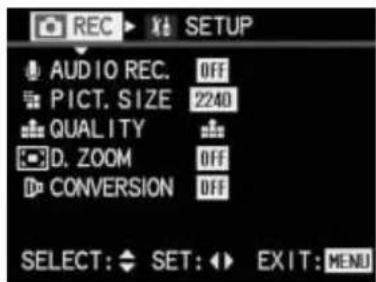
En mode AUTO
4.4 AUDIO REC. Enregistrement sonore 4.5 PICT. SIZE Résolution 4.6 QUALITY Taux de compression 4.7 D.ZOOM Zoom numérique 4.10 CONVERSION Accessoires optiques
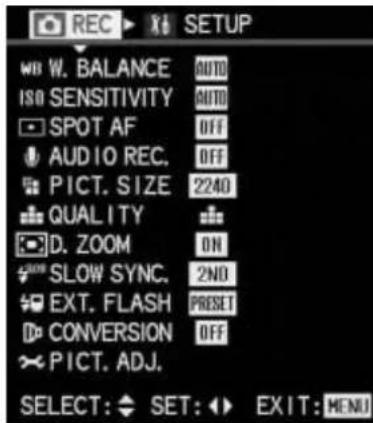
En modes P, A, T, M
4.1 WB W. BALANCE Balance des blancs 4.2 ISO SENSITIVITY Sensibilité ISO 4.3 SPOT AF Autofocus ponctuel 4.4 AUDIO REC. Enregistrement sonore 4.5 PICT. SIZE Résolution 4.6 QUALITY Taux de compression 4.7 D.ZOOM Zoom numérique 4.8 SLOW SYNC. Flash avec vitesses d'obturation lentes 4.9 锂 EXT. FLASH Flash utilisant un flash externe supplémentaire 4.10 CONVERSION Accessoires optiques 4.11 PICT. ADJ. Propriétés de l'image
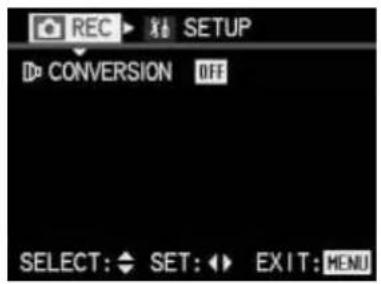
En mode 🎨 (vidéo)
4.10 CONVERSION Accessoires optiques
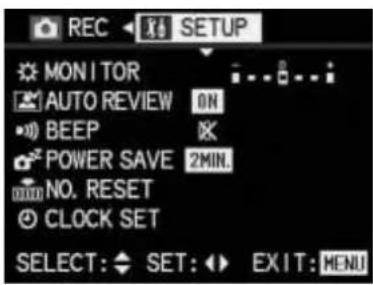
Pour les réglages de base en mode d'enregistrement
4.12 ✿ MONITOR Luminosité du moniteur 4.13 AUTO REVIEW Revue automatique des
photos individuelles
4.14 BEEP Confirmation acoustique
tons
4.15 POWER SAVE Arrêt automatique 4.16 📄 NO. RESET Changer le numéro de photo 4.17 ⏻ CLOCK SET Date et heure
Éléments de menu
Pour le mode de visualisation
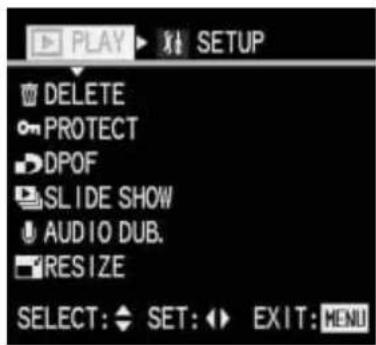
Pour le mode de visualisation
4.18 DELETE Supprimer
4.19 on PROTECT Protéger
4.20 DPOF Paramètres d'ordre d'impression
4.21 DIAPORAMA Visualisation automatique de toutes les photos
4.22 🚗 AUDIO DUB. Ajout d'un enregistrement sonore
4.23 RESIZE Réduction de la résolution après l'enregistrement
4.24 ✗ TRIMMING Modification du recadrage
4.25. FORMAT Formatage de la carte mémoire
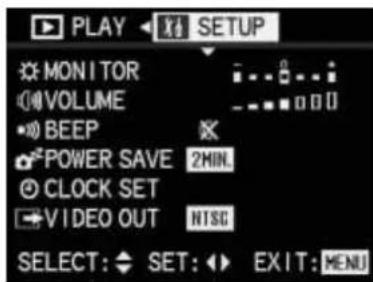
Pour les paramètres de base en mode de visualisation
4.11 ✅ MONITOR Luminosité du moniteur
4.26 VOLUME Volume of sound playback
4.14 ■) BEEP Acoustic acknowledge tones
4.15 POWER SAVE Automatic switch off
4.16 ④ CLOCK SET Date and time
4.27 ➞ VIDEO OUT TV standard
Guide rapide
Vous aurez besoin des éléments suivants :
_ Caméra _ Batterie (B) _ Carte mémoire (A) _ Bloc secteur/chargeur avec cordon secteur (C)
Préconfigurations
- Réglez l'interrupteur principal (1.25) sur OFF.
- Insérez la batterie (B) dans la caméra (voir p. 116).
- Branchez le bloc secteur/chargeur (C) pour charger la batterie (voir p. 116).
- Insérez la carte mémoire (A) (voir p. 118).
- Tournez l'interrupteur principal sur ON.
- Réglez la date et l'heure (voir p. 123).
- Réglez la valeur de dioptrie correcte pour votre œil sur le viseur (1.19/1.22) (voir p. 119).
Prise de photos/vidéos
- Réglez la molette de mode d'exposition (1.15) et le sélecteur d'enregistrement/lecture (1.14) sur les modes souhaités (voir p. 124).
- Réglez le sélecteur de mode de mise au point (1.6) sur le mode souhaité (voir p. 141).
- Appuyez sur le déclencheur (1.11) jusqu'au premier point de pression pour activer la mise au point (voir p. 127).
- Appuyez à fond sur le déclencheur pour prendre la photo.
Visualisation des images
- Réglez le sélecteur d'enregistrement/lecture sur ▶ (voir p. 155). Appuyez sur la gauche ou la droite du pavé directionnel (1.29) pour visualiser les images souhaitées.
Guide détaillé
Préparation
Fixation de la courroie de transport
Ouvrez les anneaux triangulaires de la courroie de transport (par exemple avec une pièce de monnaie) jusqu'à ce qu'ils puissent être clipsés sur les deux œillets (1.34/1.38) situés sur le côté du boîtier de l'appareil.
Fixation de la dragonne
En alternative à la courroie de transport, vous pouvez utiliser la dragonne fournie.
- Pour ce faire, passez la boucle courte dans l'un des œillets, puis
- tirez l'autre extrémité à travers la boucle.
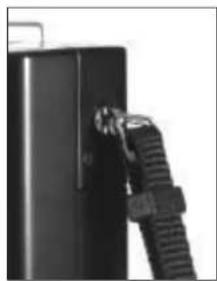
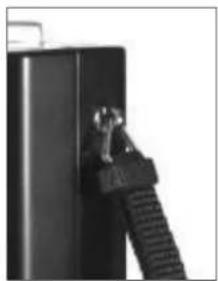
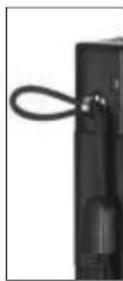
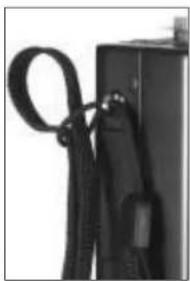
Installation du capot de moniteur
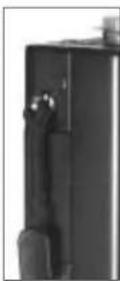
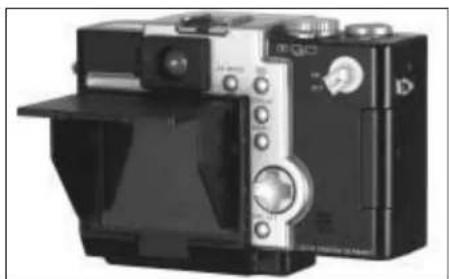
Lorsque vous utilisez la caméra à l'extérieur en plein soleil, en particulier avec le soleil derrière vous, il peut être difficile de voir l'écran du moniteur. Le capot de moniteur fixé au moniteur (I, dans la livraison) permet normalement de voir l'image beaucoup plus facilement, même dans les conditions mentionnées ci-dessus.
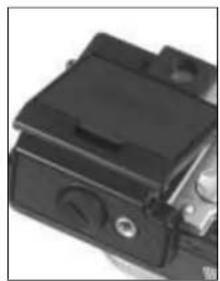
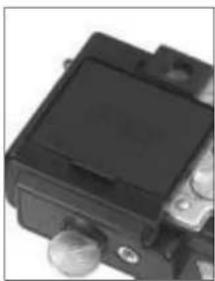
Fixation du capot de moniteur
- Pliez le grand rabat à partir de la petite section inférieure à 90°.
- Glissez le clip sur le bord supérieur du cadre du rabat sous la section correspondante orientée vers le bas de la fenêtre du viseur (1.22).
- Serrez la vis dans la section inférieure du rabat (par exemple avec une pièce de monnaie) pour le fixer au filetage du trépied de la caméra (1.42).
Ouverture du capot de moniteur
- Soulevez le clip sur le bord inférieur du couvercle du capot de moniteur contre la résistance et
- pliez le couvercle vers le haut à 90°. Les deux rabats latéraux à ressort s'ouvrent automatiquement vers la gauche et la droite.
Fermeture du capot de moniteur
- Appuyez les deux rabats latéraux vers l'intérieur sur la surface du moniteur.
- En maintenant les volets en place, appuyez sur le capot vers le bas jusqu'à ce que vous entendiez et sentiez qu'il s'enclenche.
Remarques :
Le capot du moniteur fermé protège l'écran LCD des dommages causés par des facteurs externes dans une
mesure limitée. Il peut - et doit donc - rester fixé en permanence.
Comme il possède son propre pas de vis pour trépied, l'appareil photo peut être placé sur un trépied même avec le capot du moniteur fixé.
Cependant, il doit être (temporairement) retiré pour enlever la batterie.
Mise en place/retrait du cache-objectif
Le cache-objectif (H) doit toujours être fixé lorsque vous n'utilisez pas l'appareil photo, afin de protéger la lentille avant. Deux clips à l'arrière du cache le maintiennent en place dans le filetage de la bague avant de l'objectif. Pour le fixer ou le retirer, ils sont pressés vers l'intérieur à l'aide des deux boutons sur le bord du cache.
Pour éviter toute perte, le cache peut être attaché à la courroie de transport avec un cordon.
- Pour ce faire, enfilez l'extrémité dénouée du cordon à travers l'ouverture du cache et
- tirez l'autre extrémité du cordon à travers la boucle résultante.
- Enfilez l'extrémité libre du cordon à travers l'un des anneaux porte-clés et
- puis tirez le cache à travers cette boucle.
Si vous n'utilisez pas la courroie de transport, le cache peut être attaché à l'un des œillets de courroie (1.34/1.38) plutôt qu'à l'anneau porte-clés.
Remarque :
Retirez le capuchon d'objectif lors de la mise en marche de l'appareil dans l'un des modes d'enregistrement. Sinon, un message d'erreur apparaît (voir p. 119).
Insertion et retrait de la batterie
Le LEICA DIGILUX 1 est alimenté par une batterie lithium-ion puissante et à charge rapide. Ce type de batterie doit être utilisé exclusivement dans l'appareil, et la batterie ne doit être chargée qu'avec l'équipement fourni à cet effet.
- Réglez l'interrupteur principal (1.25) sur OFF.
- Ouvrez le volet du compartiment à batterie (1.41) en tournant le levier de verrouillage (1.40) vers la droite. Le volet à ressort s'ouvre alors automatiquement.
- Insérez la batterie dans le compartiment avec ses contacts orientés vers l'avant. Appuyez-la dans le compartiment jusqu'à ce que le loquet de verrouillage gris clair à ressort se déplace sur la batterie pour la maintenir en place.
- Fermez le volet du compartiment à batterie en tournant le levier de verrouillage vers la gauche.
Pour retirer la batterie, suivez ces instructions dans l'ordre inverse. Le loquet de verrouillage gris clair à ressort dans le compartiment à batterie doit être poussé sur le côté pour déverrouiller la batterie.
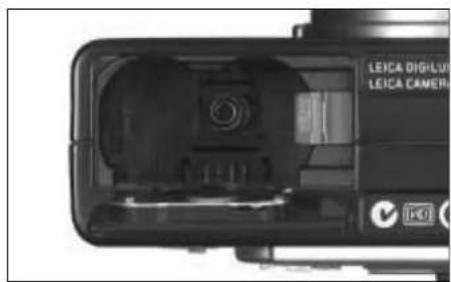
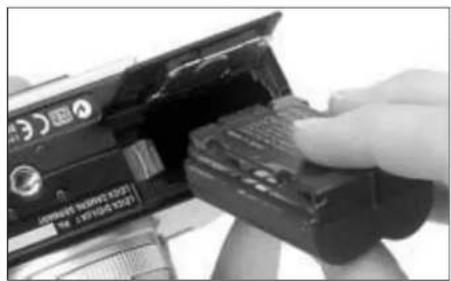
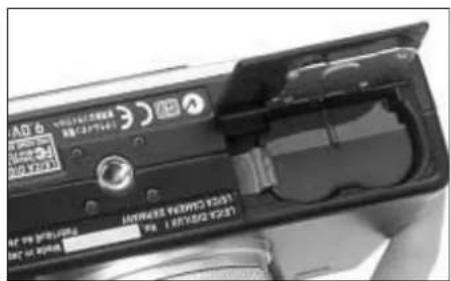
Remarques :
Retirez la batterie si vous n'utilisez pas l'appareil pendant une longue période. Pour ce faire, éteignez d'abord l'appareil avec l'interrupteur principal. Chaque fois que la batterie est insérée, la date et l'heure doivent être réinitialisées, sauf si elle a été retirée depuis moins de 5 minutes (voir p. 123).
La batterie fournie est conçue pour être utilisée exclusivement avec cet appareil. Ne l'utilisez pas dans un autre équipement.
Chargement de la batterie
- Réglez l'interrupteur principal (1.25) sur OFF.
- Insérez la batterie.
- Ouvrez le volet (1.33) des prises de connexion. Tout d'abord, déplacez légèrement le volet vers l'arrière (dans le sens de la flèche) pour le déverrouiller. Le volet à ressort s'ouvre alors automatiquement.
- Branchez d'abord la fiche du bloc secteur/chargeur (C) dans la prise la plus basse (1.37), marquée "DC-IN", puis insérez la petite fiche du cordon d'alimentation dans le bloc secteur/chargeur et enfin branchez le bloc dans la prise secteur.
La LED verte (1.21) se met alors à clignoter pour indiquer que la charge est en cours. Lorsque la charge est terminée, la LED reste d'abord allumée en continu, avant de finalement s'éteindre.
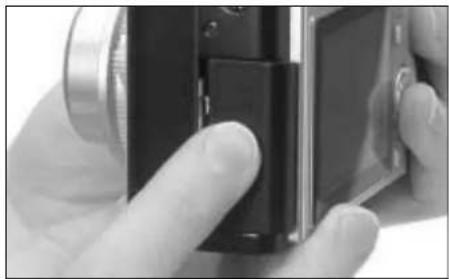
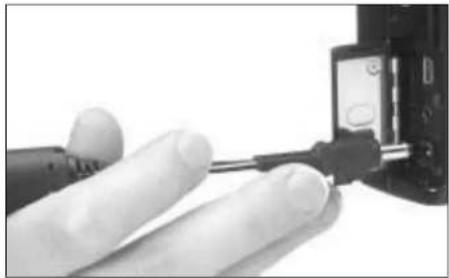
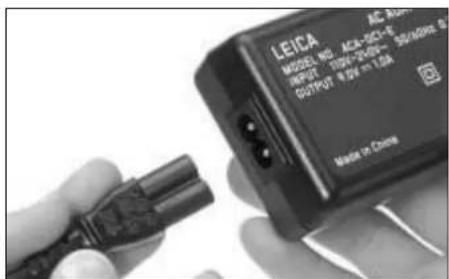
Lorsque la charge est terminée - après environ 2 heures - le bloc secteur/chargeur doit être débranché de la prise secteur puis de l'appareil photo, dans cet ordre. Cependant, il n'y a aucun risque de surcharge.
Avec la carte mémoire SD de 64 Mo fournie, les durées d'enregistrement/nombres de photos suivants sont alors disponibles :
avec moniteur allumé
environ 120 min / 240 photos
avec moniteur éteint
environ 180 min / 360 photos
- Refermez le volet en appuyant dessus et en le faisant glisser vers l'avant jusqu'à ce qu'il s'enclenche.
Affichages du niveau de charge
Le niveau de charge de la batterie est affiché dans le champ de données LCD (1.18) et sur le moniteur LCD (1.32) (mais pas lorsque le bloc secteur/chargeur est connecté). Capacité suffisante
Capacité en baisse
Capacité insuffisante
Remplacement ou recharge nécessaire
Remarques :
Les batteries lithium-ion, comme celle utilisée dans le LEICA DIGILUX 1, ne développent aucun "effet mémoire". Elles peuvent donc être chargées à tout moment, quel que soit le niveau de charge actuel. Si la batterie n'est que partiellement déchargée au début de la charge,
il faut proportionnellement moins de temps pour la charger complètement.
Ne chargez la batterie que si sa température et la température ambiante sont comprises entre 10 et 35 °C.
Si le voyant LED vert clignote plus rapidement qu'à environ
2 Hz (2 fois par seconde) après le début de la charge, cela indique une erreur de charge.
Dans ce cas, débranchez le bloc secteur/chargeur de la prise secteur et de l'appareil, puis retirez la batterie. Il ne suffit pas d'éteindre puis de rallumer l'appareil avec l'interrupteur principal.
Assurez-vous que les conditions de température ci-dessus sont respectées, puis redémarrez le processus de charge. Si le problème persiste, contactez votre revendeur, le bureau Leica de votre pays ou Leica Camera AG.
Fonctionnement sur secteur
Vous pouvez également faire fonctionner l'appareil sur secteur à l'aide du bloc secteur/chargeur, afin de ne pas être limité par la capacité de la batterie. Connectez-le comme décrit dans la section "Chargement de la batterie".
Remarque :
Lorsque l'appareil fonctionne sur secteur, il chauffe - c'est tout à fait normal et ne constitue pas un dysfonctionnement.
Insertion et retrait de la carte mémoire
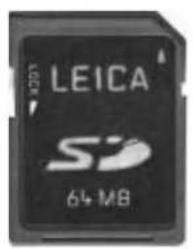
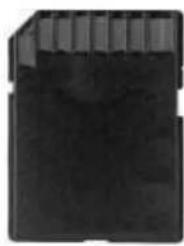
Le LEICA DIGILUX 1 enregistre les données d'image sur une carte SD (Secure Digital) extrêmement compacte. Des cartes MultiMedia peuvent également être utilisées. Les cartes mémoire SD et les cartes MultiMedia sont des supports de stockage externes amovibles, petits et légers. Les cartes mémoire SD, en particulier celles de grande capacité, permettent de prendre et de visualiser les photos beaucoup plus rapidement. Elles sont dotées d'un interrupteur de protection en écriture qui permet de verrouiller la carte contre tout enregistrement ou suppression accidentelle de données. Cet interrupteur se présente sous la forme d'un curseur sur le côté non biseauté de la carte ; les données sont protégées en position basse, marquée "LOCK".
Les cartes mémoire SD et les cartes MultiMedia sont disponibles auprès de différents fournisseurs et en différentes capacités.
Une carte mémoire SD de 64 Mo est fournie avec le LEICA DIGILUX 1.
Remarque :
Lors de l'utilisation de cartes MultiMedia, l'écran du moniteur peut s'éteindre temporairement pendant l'enregistrement vidéo ; ce n'est pas un dysfonctionnement.
- Mettez l'interrupteur principal (1.25) sur OFF.
- Ouvrez le volet (1.28) du logement de carte mémoire. Tout d'abord, poussez légèrement le volet vers l'arrière pour le déverrouiller. Le volet à ressort s'ouvre alors automatiquement.
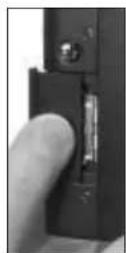
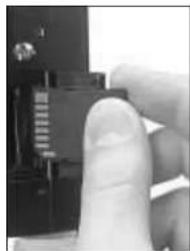
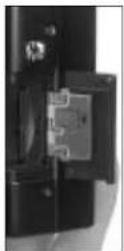
- Insérez la carte mémoire (A) dans le logement, les contacts vers l'arrière et le coin biseauté vers le bas. Poussez-la contre la résistance du ressort jusqu'à ce qu'elle s'enclenche en position.
- Refermez le volet en appuyant dessus et en le faisant glisser vers l'avant jusqu'à ce qu'il s'enclenche.
Pour retirer la carte mémoire, suivez ces instructions dans l'ordre inverse. Pour déverrouiller, la carte - comme indiqué sur le volet - doit d'abord être poussée un peu plus loin.
Remarques :
Ne touchez pas les contacts de la carte mémoire. Si vous ne pouvez pas insérer la carte mémoire, vérifiez qu'elle est correctement orientée.
Si vous ne pouvez pas fermer le volet après avoir retiré la carte mémoire, réessayez après avoir inséré et retiré la carte mémoire.
Lorsque vous ouvrez le volet (1.28) ou retirez la carte mémoire, la LED verte (1.21) clignote ; lors de la réinsertion, la LED rouge (1.20) s'allume pendant la lecture des données.
N'ouvrez pas le capot et ne retirez ni la carte mémoire ni la batterie lorsque le voyant rouge clignote, c'est-à-dire pendant l'enregistrement des données d'image. Sinon, les données sur la carte peuvent être détruites et l'appareil photo peut mal fonctionner.
Les champs électromagnétiques, les charges électrostatiques, ainsi que les défauts de l'appareil photo ou de la carte peuvent entraîner des dommages ou la perte des données sur la carte mémoire. Nous vous recommandons donc de transférer également les données sur un ordinateur et de les y sauvegarder (voir p. 181). Pour la même raison, nous vous recommandons de toujours conserver la carte dans la pochette antistatique jaune fournie.
Les réglages/commandes les plus importants
Mise en marche/arrêt de l'appareil photo
L'appareil photo se met en marche et s'éteint à l'aide de l'interrupteur principal (1.25). Pour cela, tournez-le sur la position appropriée, marquée ON et OFF. Si le sélecteur de mode enregistrement/lecture (1.14) est réglé sur l'un des modes d'enregistrement lors de la mise en marche, l'objectif passe de la position de repos à la position de veille et le voyant vert (1.21) s'allume.
Cependant, si le capuchon d'objectif est toujours en place, l'objectif ne peut pas passer en position de veille et le message d'erreur
RETIREZ LE CAPUCHON D'OBJECTIF ET APPUYEZ SUR LE BOUTON SET
apparaît sur l'écran LCD (1.32). Dans ce cas, retirez le capuchon d'objectif puis appuyez sur le
bouton VIEW/SET (1.31).
Lors de la mise en marche et de l'arrêt de l'appareil photo, aucun objet ne doit se trouver directement devant l'objectif, car cela l'empêcherait de passer dans les positions appropriées. Dans de tels cas, le message d'erreur décrit ci-dessus apparaît.
Si le sélecteur enregistrement/lecture est réglé sur lecture, le capuchon d'objectif peut rester en place lors de la mise en marche de l'appareil photo, jusqu'à ce que vous passiez à un mode d'enregistrement.
Viseur optique
Le LEICA DIGILUX dispose d'un viseur optique qui, comme sur les appareils photo traditionnels, peut être utilisé pour régler le cadrage lors du changement de focale et pour sélectionner la composition de l'image. Il est particulièrement utile en mode entièrement automatique (AUTO, voir p. 127).
Remarque :
Il n'est possible de vérifier visuellement le réglage de la mise au point et le cadre de l'image résultant que lors de l'utilisation du zoom numérique sur l'écran LCD (1.32).
Réglage dioptrique
Pour une vision optimale du sujet et des repères dans le viseur optique, il est nécessaire d'ajuster le réglage dioptrique en fonction de votre œil. Pour ce faire, utilisez la molette de blocage (1.19) située à gauche de l'oculaire du viseur (1.22) pour régler l'image du viseur afin de la voir nettement, y compris les repères.
Repères
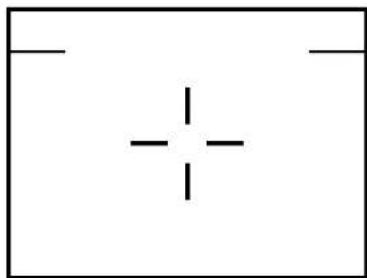
Il y a 2 groupes de repères dans le viseur optique :
_ Au centre se trouvent des croix pour aligner le sujet avec la zone de mesure autofocus, et _ deux traits horizontaux à gauche et à droite sur le bord supérieur pour la compensation de parallaxe, c'est-à-dire comme indication de la limite du champ image à des distances de prise de vue comprises entre 70 cm et 1 m avec le réglage téléobjectif du zoom.
Affichages LED
Les LED (diodes électroluminescentes) servent d'affichages d'état et d'avertissement.
La LED verte (1.21) clignote lorsque la batterie est en charge pour indiquer que la charge est en cours, ou que la capacité de la batterie est presque épuisée. Elle reste allumée en permanence lorsque la batterie est chargée mais que le chargeur secteur est toujours branché (voir p. 117).
La LED verte s'allume également après la mise sous tension de l'appareil pour confirmer qu'il est prêt à l'emploi. Pour confirmer que la mise au point automatique a été effectuée (Autofocus, voir p. 127), elle clignote une fois puis reste allumée. Cependant, si l'autofocus ne parvient pas à faire la mise au point, par exemple si la distance est trop courte, elle clignote.
Elle clignote également si le volet du logement pour carte mémoire (1.28) est ouvert ou si aucune carte mémoire n'est insérée.
La LED rouge (1.20) clignote jusqu'à ce que le flash intégré soit chargé, c'est-à-dire lorsqu'il n'est pas encore prêt à être utilisé (à nouveau). Même si la fonction flash a été désactivée, elle clignote si la lumière disponible n'est pas suffisante pour obtenir une photo correctement exposée sans utiliser le flash.
Elle reste allumée en permanence si le flash intégré est activé en appuyant sur le déclencheur (1.11) jusqu'au point de pression et qu'il est prêt à être utilisé (voir p. 131). Elle clignote également (pendant des durées variables selon le taux de compression réglé, voir p. 148) après la prise de vue, pendant le transfert des données d'image vers la carte mémoire.
Commutation des affichages du moniteur
Le bouton de sélection de l'affichage du moniteur (DISPLAY, 1.26) peut être utilisé pour allumer ou éteindre l'écran du moniteur en mode prise de vue ou lecture, ou pour choisir s'il doit apparaître avec ou sans affichages de fonctions.
En mode lecture, vous pouvez choisir entre un écran du moniteur sans ou avec affichages de fonctions, ou avec des affichages de fonctions étendus.
Vous faites défiler les différentes options d'affichage en boucle et les sélectionnez donc en appuyant une ou deux fois sur le bouton.
Les séquences :
En mode enregistrement :
Écran du moniteur avec affichages des fonctions - sans affichages des fonctions - éteint
En mode visualisation :
Écran du moniteur avec affichages des fonctions - avec affichages des fonctions étendus - sans affichages des fonctions
Les affichages en mode enregistrement
- Écran du moniteur avec affichages des fonctions
a. Mode d'exposition
b. Mode flash (pas dans le réglage par défaut : activation automatique du flash)
c. Mode de mise au point (uniquement pour les réglages macro et manuel, dans ce dernier cas également [●] (confirmation électronique du réglage de mise au point) ou ∞ (infini).
d. Résolution
e. Taux de compression des données d'image
f. Niveau de charge de la batterie
g. Images restantes/temps d'enregistrement
h. Repère pour le champ du télémètre Après la mise en marche de l'appareil photo ou après le changement du mode d'exposition (uniquement brièvement, pendant environ 6 s).
i. Date et heure
En outre, lorsque vous appuyez sur le déclencheur jusqu'au point de pression et avec la mise au point automatique activée
j. Signal de mise au point ● ; clignote si la mise au point est impossible ou incorrecte, reste allumé en continu si la mise au point est correcte. S'il reste allumé en continu, cela indique également que la mise au point est mémorisée.
En outre pour les modes d'exposition P, A, T et M
k. Réglage de la balance des blancs (pas en mode de balance automatique)
l. Méthode de mesure de l'exposition
En outre, si la fonction est réglée m. Repère pour la zone de mesure spot
En outre pour les modes d'exposition A, T et M n. Sensibilité ISO (pas en réglage par défaut : AUTO)
En outre (et uniquement) pour le mode d'exposition P et lorsque vous appuyez sur le déclencheur jusqu'au point de pression
o. Les valeurs de vitesse d'obturation et d'ouverture contrôlées automatiquement
En outre (et uniquement) pour les modes d'exposition A et T et lorsque vous appuyez sur le déclencheur jusqu'au point de pression
p. La vitesse d'obturation réglée manuellement (pour A) et les valeurs d'ouverture (pour T). Les flèches jaunes à droite et à gauche des chiffres indiquent les directions de réglage possibles : vers le haut et/ou vers le bas pour le mode priorité à l'ouverture pour des valeurs d'ouverture plus grandes ou plus petites, et vers la gauche et/ou la droite pour le mode priorité à la vitesse pour des vitesses d'obturation plus rapides ou plus lentes.
En outre (et uniquement) pour le mode d'exposition M et lorsque vous appuyez sur le déclencheur jusqu'au point de pression
q. La vitesse d'obturation et les valeurs d'ouverture réglées manuellement et l'équilibre de la lumière
Après la prise d'une photo et pendant les enregistrements vidéo
r. Point rouge clignotant
Si l'enregistrement du son est activé
s. Symbole correspondant
En mode d'enregistrement vidéo, seuls les affichages a, b, c, f, g, r et s apparaissent. Pendant l'enregistrement vidéo, a et q clignotent.
- Écran du moniteur sans affichages de fonctions
- Écran du moniteur éteint (impossible si le zoom numérique est activé)
Les affichages en mode de visualisation
- Écran du moniteur avec affichages de fonctions
a. ▶ pour le mode de visualisation b. Résolution c. Taux de compression des données d'image d. Niveau de charge de la batterie e. Numéro d'image/numéro total d'images/numéro de dossier/numéro d'image dans le dossier approprié f. Date et heure de l'image
- Écran du moniteur avec affichages de fonctions étendus En plus des affichages a à e et k :
g. Méthode de mesure de l'exposition
h. Exposition
i. Vitesse d'obturation j. Sensibilité ISO k. Mode flash I. Réglage de la balance des blancs (pas lorsque réglé sur AUTO)
- Écran du moniteur sans affichages de fonctions
Remarques :
Les fonctions/modes que vous avez réglés ne sont conservés que lorsque vous éteignez puis rallumez l'appareil en mode enregistrement (REC).
Si la fonction de zoom numérique (☐ D. ZOOM, voir p. 126) est activée, l'écran du moniteur ne peut pas être éteint.
Si la revue immédiate des photos est activée (AUTO REVIEW, voir p. 129), l'écran du moniteur apparaît brièvement - environ 2 s - même si le moniteur est éteint. Il s'éteint ensuite à nouveau.
Après la prise d'une photo et l'appui sur le bouton de revue et de confirmation d'entrée (VIEW/SET, 1.31), l'écran du moniteur apparaît même si le moniteur est éteint. Cependant, il s'éteint à nouveau après un court instant (voir p. 129).
Si le système de menus est activé, le moniteur ne peut pas être éteint.
Sélection des éléments de menu
De nombreux modes et fonctions du LEICA DIGILUX 1 sont utilisés via un système de menus, affiché clairement et étape par étape sur le moniteur LCD (1.32). Vous pouvez sélectionner les éléments de menu appropriés pour régler les différentes fonctions dans les divers modes d'enregistrement et de revue.
Vous pouvez également utiliser ce système de menus pour régler toutes les autres fonctions, telles que la date et l'heure ou le volume des tonalités de confirmation.
Pour vous familiariser, vous devriez suivre ou sélectionner les éléments de menu listés ci-dessous sur votre appareil pendant que vous lisez.
- Appuyez sur le bouton d'affichage du menu (MENU, 1.27)
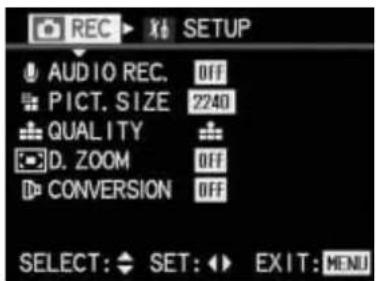
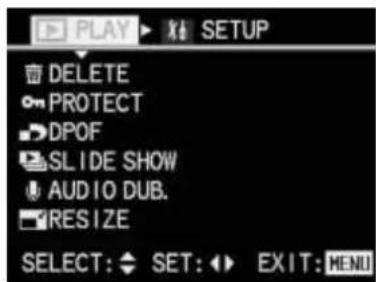
En modes d'exposition simple ou en rafale, le menu d'enregistrement apparaît alors, ou le menu de revue en mode revue (voir p. 110). Après leur apparition, les menus sont toujours dans leurs positions initiales – marquées en jaune : ☑ REC en mode enregistrement et ▶ PLAY en mode revue.
Remarque :
En mode d'enregistrement AUTO, seules 5 des 11 fonctions au total peuvent être sélectionnées (voir p. 108), et une seule pour les enregistrements vidéo (voir p. 109).
- À partir de ces positions initiales, vous pouvez alors soit : appuyer vers le haut ou vers le bas sur le pavé directionnel (1.29) pour sélectionner les éléments de menu souhaités, soit :
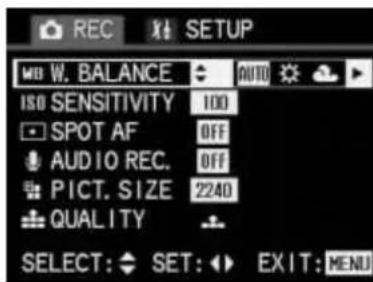
Appuyez sur la droite du pavé directionnel pour accéder au menu de réglage de base approprié (✗ SETUP).
Appuyer sur la gauche du pavé directionnel permet de quitter à nouveau cette zone de menu. Les éléments de menu actuellement activés sont marqués en jaune.
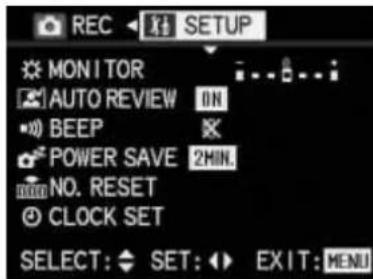
Veuillez noter que les menus d'enregistrement et de lecture contiennent plus de fonctions (11 ou 8, voir p. 108) que les 6 qui peuvent être affichées simultanément sur le moniteur. On accède à ces éléments de menu en continuant simplement à appuyer sur le bas du pavé directionnel.
- Vous pouvez ensuite appuyer sur la droite du pavé directionnel (6 fois en mode enregistrement, 5 fois en mode lecture) pour régler la fonction de l'élément de menu actuellement sélectionné.
Veuillez noter que :
Dans le menu d'enregistrement :
Les flèches apparaissant à gauche et/ou à droite des variantes de fonction indiquent la direction à utiliser sur le pavé directionnel pour sélectionner les autres réglages possibles.
La 1ère fonction (WB WHITE BALANCE, 4.1) permet d'effectuer 5 réglages, dont seuls les 3 premiers peuvent être affichés simultanément sur le moniteur. Les deux autres fonctions possibles sont accessibles en continuant simplement à appuyer sur la droite du pavé directionnel.
La dernière, la 11ème fonction (✗ PICT. ADJ., 4.11) possède un sous-menu, dans lequel les réglages s'effectuent essentiellement de la même manière que décrit ci-dessus.
Dans le menu de lecture, la plupart des fonctions ont également des sous-menus.
Les différentes fonctions de ces sous-menus se règlent essentiellement de la même manière que décrit ci-dessus - à l'aide des flèches jaunes, mais dans de nombreux cas en association avec les boutons MENU (1.27) et VIEW/SET (1.31).
- Vous enregistrez vos réglages soit en sélectionnant une autre fonction en appuyant sur le haut ou le bas du pavé directionnel, soit en appuyant à nouveau sur le bouton MENU pour quitter le système de menus.
Vous pouvez quitter le système de menus à tout moment en appuyant simplement à nouveau sur le bouton MENU.
Réglage de la date et de l'heure
La date peut être réglée entre 2001 et 2099. L'horloge au format 24 heures est utilisée pour afficher l'heure.
Réglage des données
- Appuyez sur la touche MENU (1.27). Que vous soyez en mode enregistrement ou lecture, cela n'a pas d'importance.
- Appuyez sur la droite du pavé directionnel (1.29) pour accéder au menu des réglages de base (✗ SETUP).
- Sélectionnez l'élément de menu Ⓧ CLOCK SET en appuyant plusieurs fois (6 fois en mode enregistrement, 5 fois en mode lecture) sur le bas du pavé directionnel.
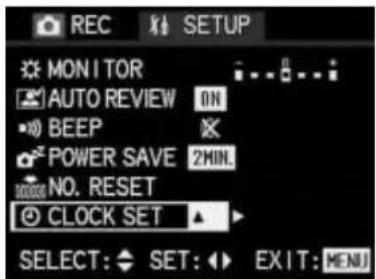
- Appuyez sur la droite du pavé directionnel.
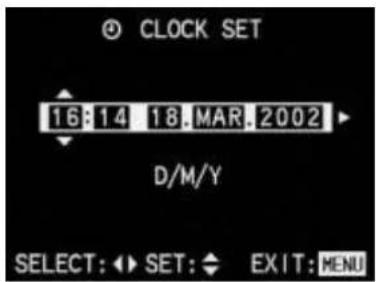
- Appuyez à nouveau sur la droite du pavé directionnel pour sélectionner le premier élément de données à régler. Cet élément est identifié par des flèches pointant vers le haut et vers le bas.
- Réglez la valeur souhaitée en appuyant sur le haut ou le bas du pavé directionnel. Appuyer sur le haut augmente la valeur, appuyer sur le bas la diminue. Les autres chiffres ou le mois se règlent de la même manière. La valeur/le mois réglé est enregistré en sélectionnant la valeur/le mois suivant.
- Après avoir réglé l'année, passez à la ligne suivante en appuyant sur la droite du pavé directionnel, où l'ordre d'affichage des chiffres peut être ajusté. Vous pouvez basculer entre Jour/Mois/Année (J/M/A) ou Mois/Jour/Année (M/J/A) en appuyant sur le haut ou le bas du pavé directionnel.
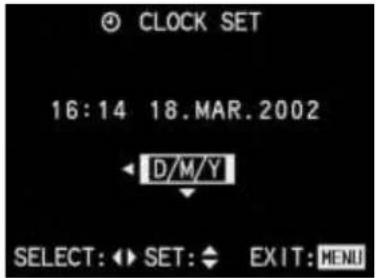
- Appuyez deux fois sur la touche MENU pour quitter le système de menus. L'écran de moniteur d'origine réapparaît.
- Vérifiez que la date et l'heure sont correctement réglées en éteignant puis en rallumant l'appareil.
Note :
Même si aucune batterie n'est insérée ou si elle est déchargée et que le bloc secteur/chargeur n'est pas connecté, le réglage de la date et de l'heure est conservé pendant environ 5 heures grâce à une batterie de secours intégrée. Cependant, après ce délai, la date et l'heure doivent être réinitialisées comme décrit ci-dessus.
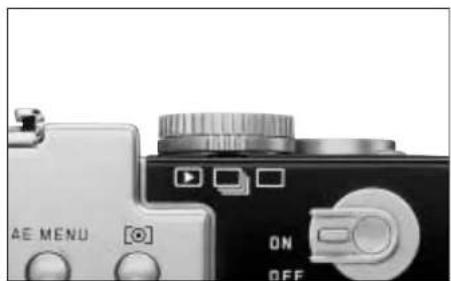
Sélecteur d'enregistrement/lecture
Ce sélecteur (1.14) permet de choisir le mode d'enregistrement souhaité :
☐ Prises de vue individuelles (voir p. 127)
Une photo est prise lorsque vous appuyez sur le déclencheur (1.11).
Prises de vue en série (voir p. 134)
Si vous maintenez le déclencheur enfoncé (et que la carte mémoire a une capacité suffisante), un maximum de 4/8 photos sont prises successivement, selon le taux de compression (voir p. 148), à une fréquence de 3,8 images/s.
▶ Mode lecture (voir p. 155)
Ce mode permet de visualiser les photos ou enregistrements sauvegardés.
Molette de réglage du mode d'exposition
Cette molette (1.15) permet de sélectionner les modes suivants :
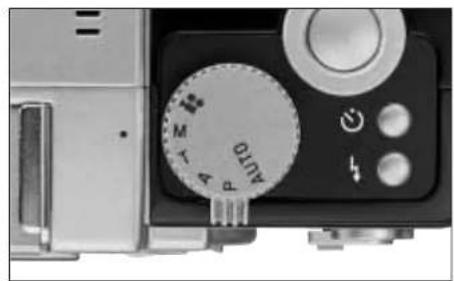
AUTO Entièrement automatique (voir p. 127)
Toutes les fonctions importantes pour l'exposition, telles que le mode d'exposition, la méthode de mesure de la lumière, le contrôle du flash et la mise au point, sont réglées automatiquement.
P Mode d'exposition automatique programmé (voir p. 135) La vitesse d'obturation et la valeur d'ouverture sont contrôlées automatiquement, mais d'autres fonctions peuvent être réglées selon la situation.
Mode priorité à l'ouverture (voir p. 136) La vitesse d'obturation est contrôlée automatiquement en fonction de l'ouverture réglée manuellement.
Mode priorité à la vitesse (voir p. 136) L'ouverture est contrôlée automatiquement en fonction de la vitesse d'obturation réglée manuellement.
Mode d'exposition manuel (voir p. 137) La vitesse d'obturation et l'ouverture sont réglées manuellement à l'aide de la balance de lumière électronique dans le moniteur.
Enregistrement vidéo (voir p. 128) Dans ce mode, vous pouvez enregistrer des scènes de différentes durées (selon la capacité de la carte mémoire) en images animées. La durée possible de vos enregistrements dépend de la capacité de la carte mémoire utilisée (environ 6 minutes avec la carte de 64 Mo fournie, voir p. 148).
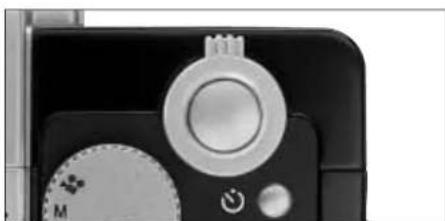
Déclencheur
Le déclencheur (1.11) fonctionne en deux étapes. Une pression légère (jusqu'au point de pression) active la mise au point automatique (Autofocus, voir p. 127) et la mesure de l'exposition (voir p. 138) et mémorise les valeurs déterminées. De plus, les valeurs de vitesse d'obturation et d'ouverture calculées et/ou sélectionnées sont affichées sur le moniteur LCD (1.32).
En appuyant à fond sur le déclencheur, vous prenez la photo ou commencez l'enregistrement vidéo. Les deux types d'enregistrement sont transférés sur la carte mémoire. L'enregistrement vidéo se termine en appuyant à nouveau à fond sur le déclencheur.
Remarques :
Le volume des tonalités de confirmation peut être modifié à l'aide du menu.
Le déclencheur doit être enfoncé doucement et sans à-coups pour éviter le flou. Avant d'enfoncer complètement le déclencheur, assurez-vous que la mise au point/autofocus et la mesure de l'exposition ont été effectuées, c'est-à-dire que le signal de mise au point terminée (●, 3.27) est affiché sur le moniteur LCD ou que la LED verte (1.21) est allumée.
Mode d'enregistrement
Utilisation du zoom optique
Le LEICA DC VARIO SUMMICRON
7-21 mm f/2-2.5 ASPH. dans le LEICA DIGILUX 1 est un objectif zoom 3x haute performance. Sa plage de focales correspond à 33-100 mm sur un appareil 35 mm et permet à la fois des cadrages plus larges, par exemple pour des photos d'intérieur, et une composition concentrée sur des sections individuelles du sujet, par exemple pour des portraits.
Réglage de la focale :
- Réglez le sélecteur d'enregistrement/lecture (1.14) et la molette de mode d'exposition (1.15) sur les fonctions souhaitées.
- Visez votre sujet à l'aide du viseur optique (1.22) ou de l'écran LCD (1.32).
- Sélectionnez le cadrage souhaité à l'aide de la commande de zoom (1.10) :
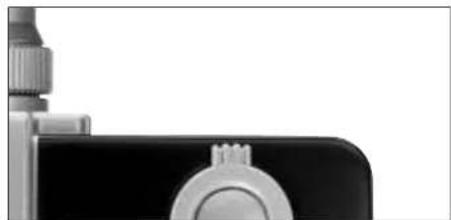
En appuyant vers la gauche, vous réduisez la distance focale (grand-angle) pour obtenir un cadrage plus large. En appuyant vers la droite, vous augmentez la distance focale (téléobjectif) pour un cadrage plus serré.
Une échelle graduée avec W (pour grand-angle) et T (pour téléobjectif) apparaît au centre de l'écran lors du zoom, ainsi qu'un repère indiquant le réglage approximatif de l'objectif.

- Les photos sont prises comme décrit dans la section « Utilisation du mode AUTO » (voir p. 127).
Remarque :
Sauf en mode macro (voir p. 142), la mise au point peut être effectuée à partir d'une distance d'environ 30 cm du sujet.
Utilisation du zoom numérique
En plus de la plage de zoom optique de 3x, la fonction de zoom numérique 2x permet de réduire encore la zone cadrée, c'est-à-dire que le centre de la zone du sujet est agrandi de deux fois. Cela donne une plage de distance focale totale de 6x.
Réglage de la fonction :
- Réglez le sélecteur d'enregistrement/lecture (1.14) sur l'un des modes d'enregistrement et la molette de mode d'exposition (1.15) sur la fonction souhaitée.
- Appuyez sur le bouton MENU (1.27).
- Sélectionnez la fonction ☐ D. ZOOM en appuyant (7x, l'élément de menu n'apparaît qu'après la 7e pression) vers le bas sur le pavé directionnel (1.29).
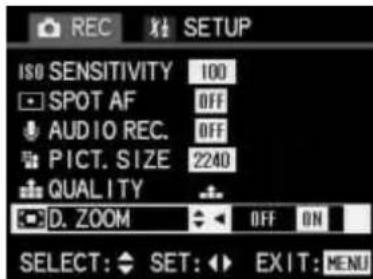
- Activez la fonction de zoom numérique en appuyant à droite sur le pavé directionnel. L'option actuellement réglée est marquée en jaune.
- Appuyez à nouveau sur le bouton MENU pour enregistrer votre réglage et quitter le système de menus. L'écran du moniteur d'origine réapparaît.
Le zoom et la prise de vue se font exactement de la même manière que décrit dans la section précédente (Utilisation du zoom optique). Cependant, l'échelle du zoom dans le moniteur est étendue vers la droite avec une zone de zoom numérique marquée en bleu. Le symbole correspondant ☐ apparaît également à côté lorsque vous modifiez la distance focale.
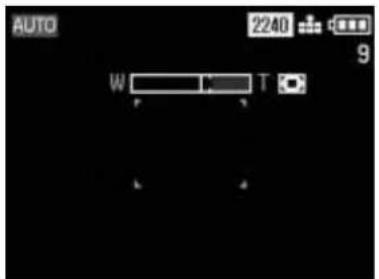
Remarques :
La fonction de zoom numérique n'est disponible que lorsque l'écran du moniteur est allumé.
La plage de zoom numérique supplémentaire ne peut pas être contrôlée dans le viseur optique.
La fonction de zoom numérique n'est pas disponible pour les enregistrements vidéo.
La fonction de zoom numérique fonctionne en réduisant la zone du capteur utilisée. Elle réduit donc la résolution et la qualité d'image.
Utilisation du mode AUTO
Pour une photographie rapide et entièrement automatique. Dans ce mode, tous les réglages importants pour la photographie sont effectués automatiquement : lorsque vous appuyez sur le déclencheur, tous les réglages d'exposition - vitesse d'obturation et ouverture ou utilisation du flash - et la mise au point - par autofocus - sont contrôlés automatiquement.
Réglage et utilisation du mode :
- Insérez une carte mémoire (voir p. 118).
- Allumez l'appareil photo (voir p. 119).
- Réglez le sélecteur Enregistrement/lecture (1.14) sur Expositions simples □ (voir p. 124).
- Réglez la molette de mode d'exposition (1.15) sur AUTO.
- Lors de l'utilisation du viseur optique (1.22) : visez votre sujet avec les fils croisés (champ de mesure autofocus) et appuyez sur le déclencheur (1.11) jusqu'au point de pression. Dès que la mise au point est effectuée, la LED verte (1.21) clignote une fois pour confirmer.
Lors de l'utilisation de l'écran LCD (1.32) :
Visez votre sujet avec le rectangle (champ de mesure autofocus, 3.17/18) et appuyez sur le déclencheur jusqu'au point de pression.
Dès que la mise au point est effectuée, le symbole ● (3.27) apparaît pour confirmer.
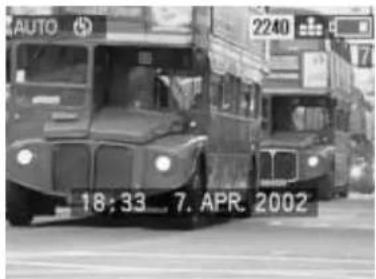
Si votre sujet principal est décentré et ne peut pas être détecté par le champ de mesure autofocus, utilisez la fonction de mémorisation exposition/mise au point (voir p. 139).
- Appuyez à fond sur le déclencheur pour prendre la photo.
Si la fonction de revue automatique est activée
(AUTO REVIEW, voir p. 129), l'image apparaîtra sur l'écran pendant environ 2 secondes après la prise de vue.
Remarques :
Si vous avez réglé un temps d'arrêt automatique (voir p. 179), l'appareil passe automatiquement en mode veille après le temps sélectionné. Vous pouvez le réactiver en appuyant sur le déclencheur ou en l'éteignant puis en le rallumant.
Selon les conditions de lumière, la luminosité de l'écran peut différer de celle des photos réelles. En particulier pour les longues expositions sur des sujets sombres, l'écran apparaît nettement plus sombre que la photo - correctement exposée.
Enregistrements vidéo
Vous pouvez également utiliser le LEICA DIGILUX 1 pour réaliser des enregistrements vidéo. La durée possible de vos séquences dépend de la capacité de la carte mémoire utilisée. La carte de 64 Mo fournie avec l'appareil permet des temps d'enregistrement d'environ 6 minutes. Les enregistrements sont effectués au format QuickTime (Movie), avec une résolution de 320x420 pixels et une fréquence d'images de 10B/s. Ces deux valeurs sont prédéfinies. Le logiciel requis se trouve sur les CD-ROM fournis, ou peut être téléchargé gratuitement sur Internet : http://www.apple.com/quicktime/download
Réglage et utilisation du mode :
- Insérez une carte mémoire (voir p. 118).
- Allumez l'appareil photo (voir p. 119).
- Réglez le sélecteur Enregistrement/lecture (1.14) sur l'un des modes d'enregistrement □/□ (voir p. 124).
- Réglez la molette de mode d'exposition (1.15) sur l'enregistrement vidéo ☐.
Le signal pour l'enregistrement sonore (2.2/3.6) apparaît également dans le champ de données (1.18) et dans la ligne de titre de l'écran du moniteur.
- Visez votre sujet avec le rectangle (champ de mesure autofocus, 3.17/18) dans le moniteur LCD (1.32) et appuyez sur le déclencheur (1.11) jusqu'au point de pression.
Dès que la mise au point est effectuée, le symbole ● apparaît comme confirmation.
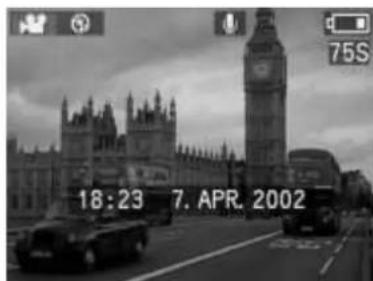
Remarque :
Au début des enregistrements vidéo (la première image), les réglages de mise au point et d'exposition sont enregistrés, c'est-à-dire qu'ils ne peuvent pas être modifiés pendant l'enregistrement. De même, la longueur focale ne peut pas être ajustée pendant l'enregistrement.
- Appuyez à fond sur le déclencheur pour démarrer l'enregistrement.
Cela démarre également l'enregistrement sonore.
- Appuyer à fond sur le déclencheur arrête l'enregistrement.
L'enregistrement vidéo se termine automatiquement lorsque la capacité de la carte mémoire est atteinte.
Les fonctions suivantes sont disponibles pour les enregistrements vidéo, bien qu'elles ne puissent pas être modifiées pendant l'enregistrement :
Réglage macro
Mise au point manuelle
_ Utilisation d'accessoires optiques
Remarques :
Les enregistrements vidéo sont toujours effectués avec l'enregistrement du son. Le symbole correspondant apparaît dans le champ de données et sur le moniteur.
Le temps d'enregistrement (restant) affiché dans le champ de données et sur le moniteur est une valeur approximative.
Au début des enregistrements vidéo (la première image), les réglages de mise au point, d'exposition et de distance focale sont enregistrés.
Avec d'autres types de cartes mémoire que celle fournie (c'est-à-dire une carte MultiMedia), les enregistrements vidéo peuvent être interrompus soudainement.
Utilisation de la visualisation automatique d'une seule image (AUTO REVIEW)
Si AUTO REVIEW est activé, chaque photo est affichée sur le moniteur pendant environ 2 secondes après sa prise. Cela vous permet de vérifier rapidement et facilement si la photo a été prise avec succès ou si vous devez la refaire.
Remarques :
La fonction AUTO REVIEW est toujours activée pour les séries d'expositions avec ou sans enregistrement sonore, les photos individuelles avec enregistrement sonore, et pour les séries d'expositions et de mises au point automatiques et l'enregistrement au format TIFF.
La fonction AUTO REVIEW n'est pas disponible en conjonction avec les enregistrements vidéo.
Pour les séries d'expositions et les modes de bracketing d'exposition et de mise au point automatiques, AUTO REVIEW affiche toujours uniquement la première photo.
Réglage de la fonction :
- Réglez le sélecteur Enregistrement/Visualisation (1.14) sur expositions simples ou en série.
- Appuyez sur le bouton MENU (1.27).
- Appuyez sur la droite du pavé directionnel (1.29) pour ouvrir le menu des réglages de base (SETUP).
- Réglez la fonction 📄 AUTO REVIEW en appuyant (2x) vers le bas sur le pavé directionnel.
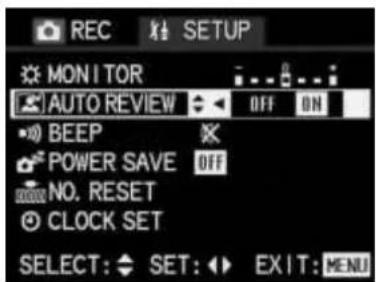
- Sélectionnez OFF ou ON en appuyant à gauche ou à droite sur le pavé directionnel.
La fonction active est marquée en jaune.
- Appuyez sur le bouton MENU pour enregistrer votre réglage et quitter le système de menus.
Vérification de la dernière photo (REVIEW)
Si la fonction de revue automatique d'image unique (AUTO REVIEW) est activée, la dernière photo prise apparaît immédiatement sur le moniteur (1.32) pendant environ 2 s. Cependant, vous pouvez également visualiser vos photos à tout moment.
Réglage de la fonction :
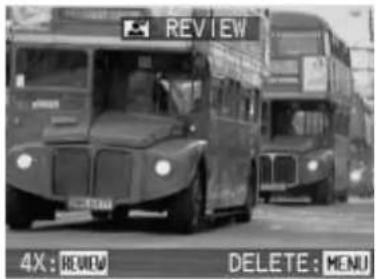
- Après avoir pris une photo, appuyez sur le bouton revue/agrandissement (VIEW/SET, 1.31).
La dernière photo prise est alors affichée sur le moniteur pendant environ 3 s.
Note :
Cette fonction n'est disponible que tant que l'appareil photo ne s'est pas éteint automatiquement (voir p. 179).
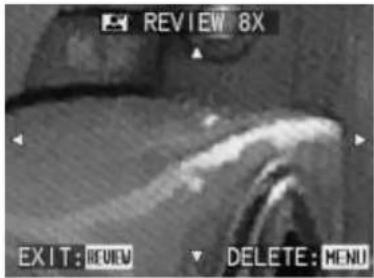
- Si vous appuyez à nouveau sur le bouton VIEW/SET pendant la visualisation de l'image agrandie, une zone recadrée de l'image agrandie 4x est affichée. Une nouvelle pression sur le bouton conduit à une zone recadrée agrandie à 8x. Si le bouton VIEW/SET est enfoncé pendant la visualisation de cet agrandissement, l'écran du moniteur d'origine réapparaît.
- Le pavé directionnel (1.29) peut être utilisé pour sélectionner n'importe quelle section de l'image à un agrandissement de 8x. Pour ce faire, appuyez sur la direction (à plusieurs reprises) dans laquelle vous souhaitez déplacer la zone recadrée. Si le bord de l'image est atteint dans une ou deux directions, cela est indiqué par le fait que les flèches correspondantes s'éteignent.

Remarques :
Si vous utilisez la fonction de bracketing, seule la première image de la dernière série est affichée. La fonction de visualisation n'est pas disponible pour les enregistrements vidéo.
De même, si un autre mode de prise de vue ou de lecture a été sélectionné après la prise de vue, ou si l'appareil photo a été éteint, la fonction de visualisation n'est pas disponible.
Suppression de l'image pendant la visualisation
Pendant qu'une image est affichée agrandie sur le moniteur à l'aide de cette fonction, vous pouvez en profiter pour la supprimer si vous le souhaitez.
- Pour ce faire, appuyez à nouveau sur le bouton MENU (1.27).
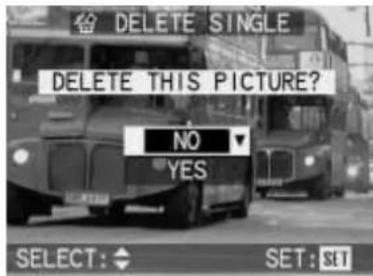
- Sélectionnez NON - pour conserver une image - ou OUI - pour supprimer - en appuyant vers le haut ou vers le bas sur le pavé directionnel.
- Enfin, appuyez sur le bouton VIEW/SET. Si vous avez précédemment sélectionné OUI, les données de l'image sont supprimées. L'écran du moniteur d'origine réapparaît.
Avertissement :
Les données de l'image sont supprimées définitivement. Vous ne pouvez pas les récupérer par la suite.
Prise de photos avec le flash intégré Six modes de flash sont disponibles pour différentes situations :
AUTO (activation automatique du flash) : c'est le mode par défaut.
Un symbole correspondant apparaît dans le champ de données LCD (1.18).
AUTO (activation automatique du flash et du pré-flash) pour réduire les effets d'« yeux rouges ». Les symboles correspondants apparaissent dans le champ de données LCD et sur le moniteur (1.32).
‡ (activation manuelle du flash) par exemple pour les photos en contre-jour, où votre sujet principal n'occupe pas tout le cadre et se trouve dans l'ombre (flash d'appoint). Les symboles correspondants apparaissent dans le champ de données LCD et sur le moniteur.
(activation manuelle du flash et du pré-flash) pour une combinaison des situations ou fonctions décrites ci-dessus. Les symboles correspondants apparaissent dans le champ de données LCD et sur le moniteur.
1 / 2 (activation automatique du flash et du pré-flash avec des vitesses d'obturation plus lentes) pour une reproduction simultanée plus adéquate (plus lumineuse), en particulier des arrière-plans sombres et un remplissage du flash au premier plan, ainsi que pour réduire l'effet d'« yeux rouges ».
Les symboles correspondants apparaissent dans le champ de données LCD et sur le moniteur.
Remarques :
Dans ce mode de flash, la synchronisation peut être réglée au début ou à la fin de l'exposition (voir p. 145).
Pour éviter des photos floues avec les vitesses d'obturation plus lentes, vous devez tenir l'appareil stable, c'est-à-dire le soutenir ou utiliser un trépied.
(désactivation manuelle du flash) pour les situations où la photographie au flash n'est pas autorisée ou appropriée, ou si vous souhaitez reproduire l'atmosphère d'éclairage réelle de vos photos.
Les symboles correspondants apparaissent dans le champ de données LCD et sur le moniteur.
Remarque :
Pour éviter des photos floues avec les vitesses d'obturation plus lentes impliquées dans ce mode de flash, vous devez tenir l'appareil stable, c'est-à-dire le soutenir ou utiliser un trépied.
Réglage de la fonction :
- Réglez le sélecteur d'enregistrement/lecture (1.14) sur l'un des modes d'enregistrement et la molette de mode d'exposition (1.15) sur la fonction souhaitée.
En appuyant à plusieurs reprises sur le bouton du mode flash (1.13), vous pouvez régler les différents types de fonctions. Ils défilent en boucle dans l'ordre indiqué ci-dessus. Les symboles correspondants apparaissent dans le champ de données (1.18) et sur le moniteur (1.32).
- Les photos sont prises comme décrit dans la section "Prise de vue en mode AUTO" (voir p. 127).
| Record modes | AUTO | P | A | T | M | |
| AUTO | X | X | X | X | X | - |
| AUTO | X | X | X | X | X | - |
| 1/2 | X | X | X | X | X | - |
| 1/2 | - | X | X | X | X | - |
| B/SLOW / B nd/SLOW | - | X | X | - | - | - |
| X | X | X | X | X | X |
Le tableau vous indique quels modes de flash peuvent être utilisés avec quels modes d'enregistrement.
La portée du flash pour la mise au point automatique (autofocus) et manuelle est la suivante :
en position grand-angle maximale environ 0,3-4,5 m en position téléobjectif maximale environ 0,3-3,5 m
en mode macro : en position grand-angle maximale environ 0,1-0,5 m en position téléobjectif maximale environ 0,2-0,5 m
Remarques :
Le flash intégré est automatiquement désactivé pour les enregistrements vidéo.
Il n'est possible de prendre que des photos individuelles avec le flash activé, c'est-à-dire que les expositions en série et les modes de bracketing automatique d'exposition et de mise au point ne peuvent pas être combinés avec l'utilisation du flash.
Vous pouvez corriger individuellement le contrôle de l'exposition au flash (voir p. 146).
Veuillez noter que vous ne devez pas couvrir la cellule de mesure de l'exposition au flash (1.3) avec vos doigts ou d'autres objets. Cela peut entraîner des expositions incorrectes.
Prise de vue avec le retardateur automatique
Le retardateur automatique vous permet de prendre une photo avec un délai de 2 ou 10 s. Ceci est particulièrement utile pour les photos de groupe, où vous souhaitez apparaître vous-même sur la photo, ou si vous voulez éviter que la photo soit floue en raison du bougé de l'appareil lors du déclenchement. Dans de tels cas, nous vous recommandons de monter l'appareil sur un trépied.
Remarques :
Le mode retardateur automatique n'est pas possible avec les enregistrements vidéo.
Il n'est possible de prendre que des photos individuelles avec le retardateur automatique activé, c'est-à-dire que les prises de vue en série et les modes de bracketing automatique de l'exposition et de la mise au point ne peuvent pas être combinés avec le mode retardateur automatique.
Réglage de la fonction :
- Réglez le sélecteur enregistrement/lecture (1.14) sur l'un des modes d'enregistrement et la molette de mode d'exposition (1.15) sur la fonction souhaitée.
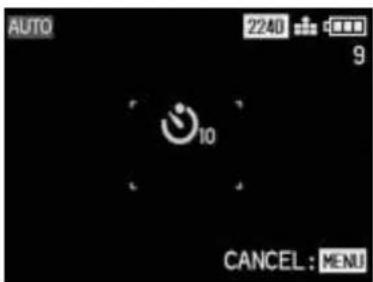
- En appuyant à plusieurs reprises sur le bouton du retardateur (☐, 1.12), vous pouvez régler les différents types de fonction. Ils défilent en boucle comme suit :
Mode retardateur avec délai de 10 s Mode retardateur avec délai de 2 s Retardateur désactivé (= réglage par défaut)
Les symboles correspondants apparaissent dans le champ de données LCD (1.18) et sur le moniteur (1.32) (mais sans indication de temps dans le champ de données).
- Appuyez à fond sur le déclencheur pour prendre la photo.
La progression - avec un délai de 10 s - est indiquée par le clignotement de la LED du retardateur automatique (1.5), d'abord lentement (à 1 Hz) puis plus rapidement (à 2 Hz) dans les 2 dernières secondes. En même temps, l'affichage sur le moniteur alterne entre blanc et bleu (à 1,6 Hz).
Avec un délai de 2 s, les affichages clignotent comme décrit ci-dessus pendant les 2 dernières secondes.
Remarques :
En mode retardateur automatique, la mise au point et l'exposition ne sont pas réglées lorsque le déclencheur atteint son point de pression, mais immédiatement avant la prise de vue.
La photo peut être annulée à tout moment pendant le délai du retardateur automatique en appuyant sur le bouton MENU (1.27).
Fonctions supplémentaires
Prise de vue en série
Vous pouvez non seulement utiliser le LEICA DIGILUX 1 pour prendre des photos individuelles, mais aussi pour produire des séquences d'images. Avec une fréquence d'images maximale de 3,8 images/s, un maximum de 4/8 images est possible dans ce mode, ce qui permet d'enregistrer des séquences de mouvement d'une durée maximale de 2 secondes.
Remarques :
Les prises de vue en série ne sont possibles ni avec les enregistrements vidéo, ni avec l'enregistrement de données d'image non compressées "TIFF" (voir p. 148).
Les prises de vue en série ne sont pas possibles lors de l'utilisation du flash. Si une fonction de flash est activée, une seule photo est prise.
Pour les images avec un taux de compression faible ⚙, un maximum de 4 images peut être pris en séquence ; avec un taux de compression élevé ⚙, le maximum est de 8 images.
La fréquence d'images maximale de 4 images/s n'est atteinte qu'avec des vitesses d'obturation de 1/25 s ou plus rapides. Quel que soit le nombre d'images prises dans une séquence, seule la première est ensuite affichée sur le moniteur (1.33) lors de l'utilisation des fonctions
REVIEW (voir p. 129) et AUTO REVIEW (voir p. 129).
Réglage de la fonction :
- Réglez le sélecteur d'enregistrement/lecture (1.14) sur prises de vue en série □ et la molette de mode d'exposition (1.15) sur la fonction souhaitée.
- Les photos sont prises comme décrit dans la section "Prise de vue en mode AUTO" (voir p. 127).
Photos avec son
Des photos individuelles peuvent être prises avec enregistrement sonore pendant 5 s maximum, par exemple pour des bruits d'accompagnement ou des commentaires sur la photo.
Remarque :
L'enregistrement sonore n'est pas possible lors de l'enregistrement des données au format TIFF (voir p. 148), pour les séries d'expositions (voir p. 134) ou pour les modes de bracketing automatique d'exposition et de mise au point (voir p. 140 et 144).
Réglage de la fonction :
- Réglez le sélecteur d'enregistrement/lecture (1.14) sur photo individuelle et la molette de mode d'exposition (1.15) sur la fonction souhaitée.
- Appuyez sur le bouton MENU (1.27).
- Sélectionnez la fonction AUDIO REC. dans le menu en appuyant (4x) vers le bas sur le pavé directionnel (1.29).
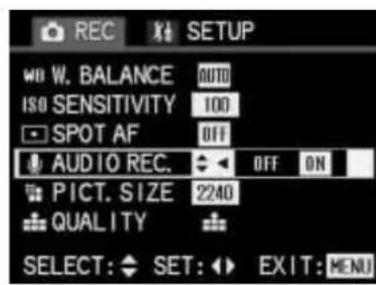
- Activez la fonction d'enregistrement sonore en appuyant à droite sur le pavé directionnel. L'option actuellement réglée est marquée en jaune.
- Appuyez à nouveau sur le bouton MENU pour enregistrer votre réglage et quitter le système de menu. L'écran du moniteur d'origine réapparaît, ainsi que les symboles correspondants (2.2/3.6) dans le champ de données LCD (1.18) et le moniteur.
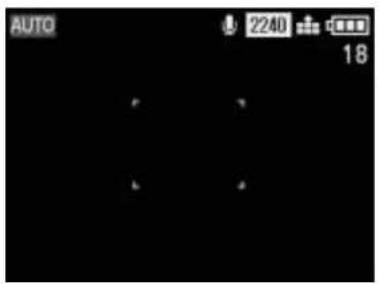
- Appuyez à fond sur le déclencheur (1.11) pour prendre la photo.
Notes :
Il n'est pas nécessaire de maintenir le déclencheur enfoncé pour continuer l'enregistrement sonore. Le microphone (1.16) pour l'enregistrement sonore est situé sur le dessus de l'appareil photo, de sorte que les commentaires parlés et le bruit de fond peuvent être enregistrés.
L'enregistrement sonore se termine après 5 secondes.
Prise de photos avec le mode d'exposition automatique programmé P
Comme pour le mode AUTO (voir p. 127), l'exposition est contrôlée par le réglage automatique de la vitesse d'obturation et de l'ouverture. Cependant, contrairement au mode AUTO, ce mode n'inclut pas obligatoirement d'autres réglages. Par exemple, avec P, vous pouvez librement sélectionner les modes de mise au point et de flash. De plus, une gamme de fonctions supplémentaires est disponible avec P.
La gamme complète des modes/fonctions disponibles avec le mode d'exposition automatique programmé P est la suivante :
Sélection du mode flash (voir p. 131) _ Compensation d'exposition du flash (voir p. 143) _ Réglage manuel d'un flash externe (voir p. 147) Sélection de la méthode de mesure d'exposition (voir p. 138) _ Compensation d'exposition (voir p. 139) _ Mode de bracketing d'exposition automatique (voir p. 140) _ Spot AF (voir p. 141) _ Mode de bracketing de mise au point automatique (voir p. 144) _ Retardateur automatique (voir p. 132) Sélection de la résolution (voir p. 148) _ Stockage des données d'image non compressées au format TIFF (voir p. 148) Sélection du réglage de balance des blancs (voir p. 150) Sélection de la sensibilité ISO (voir p. 151)
Réglage de la fonction :
- Réglez le sélecteur Enregistrement/lecture (1.14) sur l'un des modes d'enregistrement.
- Réglez la molette de mode d'exposition (1.15) sur P.
- Les photos sont prises comme décrit dans la section « Prise de photos en mode AUTO » (voir p. 127).
Notes :
Pour éviter des photos floues avec des sujets sombres et les vitesses d'obturation généralement plus lentes qui en résultent, vous devez tenir l'appareil photo stable, c'est-à-dire le soutenir ou utiliser un trépied.
Prise de photos avec le mode priorité vitesse T
Le mode priorité vitesse contrôle automatiquement l'exposition avec un réglage manuel de la vitesse d'obturation. Il est donc particulièrement adapté à la prise de photos de sujets en mouvement, où la netteté du mouvement représenté - déterminée par la vitesse d'obturation utilisée - est l'élément crucial de la composition. En présélectionnant manuellement une vitesse d'obturation suffisamment rapide, vous pouvez donc éviter un flou indésirable du mouvement - vous pouvez « figer » votre sujet. Ou, à l'inverse, vous pouvez exprimer la dynamique du mouvement avec un effet de « filé » délibéré en utilisant une vitesse d'obturation plus lente correspondante. Des vitesses d'obturation de 8 s à 1/1000 s peuvent être réglées, par demi-paliers.
Note :
Les modes de flash avec des vitesses d'obturation plus lentes (1/100 s, voir p. 132) et le réglage automatique de la sensibilité ISO (voir p. 151) ne sont pas disponibles avec le réglage automatique de l'ouverture.
Réglage de la fonction :
- Réglez le sélecteur d'enregistrement/lecture (1.14) sur l'un des modes d'enregistrement.
- Réglez la molette des modes d'exposition (1.15) sur T.
- Sélectionnez la vitesse d'obturation souhaitée en appuyant sur la gauche ou la droite du pavé directionnel (1.29).
- Les photos sont prises comme décrit dans la section « Prise de vue en mode AUTO » (voir p. 124).
Remarques :
Si des vitesses d'obturation de 1/500 s ou plus rapides sont réglées, la plage des valeurs d'ouverture contrôlées automatiquement est limitée : à 1/1000 s, seule l'ouverture f/8 est disponible ; à 1/750 s, seules des valeurs jusqu'à f/5,6 maximum ; à 1/500 s, jusqu'à f/4,8 maximum. Si, en raison de la luminosité du sujet trop élevée ou trop faible, une exposition correcte n'est pas possible avec la vitesse d'obturation réglée et les valeurs d'ouverture disponibles, la couleur de l'affichage de la valeur passe du blanc au rouge. Pour éviter les photos floues lors de l'utilisation de vitesses d'obturation plus lentes, vous devez tenir l'appareil stable, c'est-à-dire le soutenir ou utiliser un trépied.
Prise de vue en mode priorité à la vitesse A
Le mode priorité à la vitesse contrôle automatiquement l'exposition avec un réglage manuel de l'ouverture. Il est donc particulièrement adapté aux prises de vue où la profondeur de champ - déterminée par l'ouverture utilisée - est l'élément crucial de la composition.
En présélectionnant manuellement une valeur d'ouverture faible appropriée (= grande ouverture), vous pouvez réduire la plage de profondeur de champ, par exemple dans un portrait pour que le visage montré « se détache » clairement d'un arrière-plan sans importance ou distrayant. Ou, à l'inverse, avec une valeur d'ouverture élevée correspondante (= petite ouverture), vous pouvez augmenter la plage de profondeur de champ, afin de tout reproduire nettement, de l'avant-plan à l'arrière-plan, dans une photo de paysage. Des valeurs d'ouverture de 2,0 à 8,0 peuvent être réglées, par demi-paliers.
Remarques :
Selon le réglage de la longueur focale du zoom, la valeur d'ouverture minimale réglable varie en raison de la variation de la luminosité de l'objectif (entre 2,0 et 2,5, voir p. 126). Le réglage automatique de la sensibilité ISO (voir p. 151) n'est pas disponible en mode priorité à la vitesse.
Réglage de la fonction :
- Réglez le sélecteur Enregistrement/lecture (1.14) sur l'un des modes d'enregistrement.
- Réglez la molette du mode d'exposition (1.15) sur A.
- Réglez la valeur d'ouverture souhaitée en appuyant vers le haut ou vers le bas sur le pavé directionnel (1.29).
- Les photos sont prises comme décrit dans la section « Prise de vue en mode AUTO » (voir p. 127).
Remarques :
Si, en raison de la luminosité du sujet trop élevée ou trop faible, une exposition correcte n'est pas possible avec l'ouverture réglée et les vitesses d'obturation disponibles, la couleur de l'affichage de la valeur passe du blanc au rouge.
Pour éviter les images floues lors de l'utilisation de vitesses d'obturation plus lentes, vous devez tenir l'appareil stable, c'est-à-dire le soutenir ou utiliser un trépied.
Prise de vue avec réglage manuel de la vitesse d'obturation et de l'ouverture M
Si, par exemple, vous souhaitez obtenir un effet particulier qui n'est possible qu'avec une exposition très spécifique, ou si vous voulez vous assurer que plusieurs photos avec des cadrages différents aient une exposition absolument identique, vous pouvez utiliser le réglage manuel de la vitesse d'obturation et de l'ouverture.
Sur le LEICA DIGILUX 1, des vitesses d'obturation de 8 s à 1/1000 s peuvent être réglées, et des valeurs d'ouverture de 2 à 8, toutes deux par demi-paliers.
Remarque :
Les modes flash avec des vitesses d'obturation plus lentes ( 150W/150W2nd , voir p. 132) et le réglage automatique de la sensibilité ISO (voir p. 151) ne sont pas disponibles avec le réglage manuel de la vitesse d'obturation et de l'ouverture.
Réglage de la fonction :
- Réglez le sélecteur Enregistrement/lecture (1.14) sur l'un des modes d'enregistrement.
- Réglez la molette du mode d'exposition (1.15) sur M.
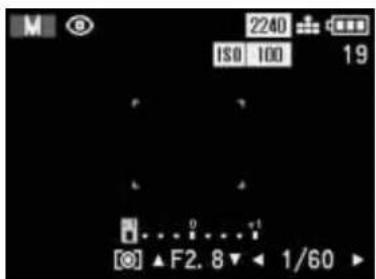
- Sélectionnez la vitesse d'obturation souhaitée (2.20) en appuyant à gauche ou à droite sur le pavé directionnel (1.29) et la valeur d'ouverture souhaitée (2.21) en appuyant vers le haut ou vers le bas.
Un indicateur de balance (2.19) apparaît au-dessus des chiffres dans le moniteur pour vous aider à ajuster l'exposition.
Il est divisé en pas de 1/4 et va de +1 à -1 IL. Dans cette plage, le repère bleu montre la différence entre votre réglage et le réglage correct selon la cellule d'exposition.
- Les photos sont prises comme décrit dans la section « Prise de vue en mode AUTO » (voir p. 127).
Remarques :
Si des vitesses d'obturation de 1/500 s ou plus rapides sont réglées, la plage des valeurs d'ouverture contrôlées automatiquement est limitée : à 1/1000 s, seule l'ouverture f/8 est disponible ; à 1/750 s, seules des valeurs jusqu'à un maximum de f/6,7 ; à 1/500 s, un maximum de f/4,8.
Si, en raison de la luminosité du sujet trop élevée ou trop faible, une exposition correcte n'est pas possible avec la vitesse d'obturation réglée et les valeurs d'ouverture disponibles, la couleur de l'affichage de la valeur passe du blanc au rouge.
Pour éviter les images floues lors de l'utilisation de vitesses d'obturation plus lentes, vous devez tenir l'appareil stable, c'est-à-dire le soutenir ou utiliser un trépied.
Sélection de la méthode de mesure de l'exposition
Le LEICA DIGILUX 1 vous propose une sélection de 3 méthodes de mesure de l'exposition. Elles permettent de s'adapter aux conditions de lumière dominantes, à la situation, à votre style de travail et à vos idées créatives.
Dans le réglage par défaut, l'appareil utilise la mesure multi-zones. ([◎])
Avec cette méthode de mesure, l'appareil analyse automatiquement les différences de luminosité du sujet et, en les comparant à des modèles de répartition de luminosité programmés, détermine la position probable du sujet principal et l'exposition (de compromis) la mieux adaptée.
Par conséquent, cette méthode est particulièrement adaptée à une photographie spontanée, simple mais fiable, même dans des conditions difficiles.
Logiquement, la mesure multi-zones est automatiquement
activée en mode d'exposition AUTO et pour les enregistrements vidéo.
Mesure pondérée centrale ([O])
Cette méthode de mesure accorde la pondération la plus élevée au centre du champ de l'image, mais enregistre également toutes les autres zones. Particulièrement lorsqu'elle est utilisée en conjonction avec le verrouillage de la mesure (voir p. 139), elle permet un réglage sélectif de l'exposition sur des sections particulières du sujet tout en tenant compte de l'ensemble du champ de l'image.
Mesure spot ([•])
Cette fonction de mesure se concentre exclusivement sur un petit champ au centre de l'image. Elle permet de mesurer avec précision de petits ou minuscules détails pour une exposition exacte - de préférence en conjonction avec le réglage manuel (voir p. 137) et convient donc principalement aux sujets (statiques) où l'on peut se permettre de prendre le temps de photographier.
Réglage de la fonction :
- Réglez le sélecteur d'enregistrement/lecture (1.14) sur l'un des modes d'enregistrement et la molette de mode d'exposition (1.15) sur P, A, T ou M.
En appuyant à plusieurs reprises sur le bouton de sélection de la méthode de mesure d'exposition ([@], 1.24), vous pouvez régler les 3 options. Elles défilent en boucle sans fin dans l'ordre indiqué ci-dessus.
Les symboles correspondants (2.6/3.22) apparaissent dans le champ de données (1.18) et sur le moniteur, et pour la mesure spot, un réticule bleu (3.16) apparaît également au centre du moniteur.
Vous pouvez utiliser ce réticule pour viser avec précision les détails à mesurer ; il est donc recommandé d'utiliser le moniteur pour la mesure spot.
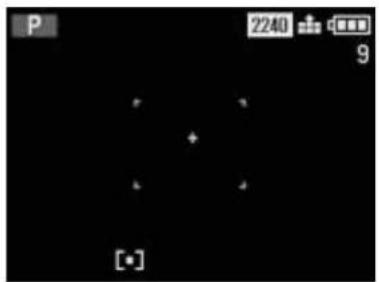
- Les photos sont prises comme décrit dans la section "Prise de vue en mode AUTO" (voir p. 127).
Verrouillage de la mesure
Pour des raisons de composition, il peut être bénéfique de ne pas avoir le sujet principal au centre de l'image. Cependant, le champ de mesure autofocus est alors normalement focalisé sur une section du sujet qui est nettement plus proche ou plus éloignée – le résultat serait normalement que le sujet principal soit flou. En principe, la même chose s'applique à la mesure d'exposition en ce qui concerne les différences de luminosité.
Dans de tels cas, avec tous les modes d'enregistrement, le verrouillage de la mesure vous permet d'abord de mesurer le sujet principal, puis de conserver ce réglage jusqu'à ce que vous ayez décidé de votre cadrage final et que vous souhaitiez prendre la photo.
Réglage de la fonction :
- Réglez le sélecteur enregistrement/lecture (1.14) et la molette des modes d'exposition (1.15) sur les fonctions souhaitées.
- Lors de l'utilisation du viseur optique (1.22) : visez votre sujet avec le réticule et enfoncez le déclencheur (1.11) jusqu'au point de pression.
Dès que la mise au point et l'exposition sont réglées (en modes enregistrement ou exposition AUTO, P, T, A et 🌐), la LED verte (1.21) clignote une fois pour confirmer.
Lors de l'utilisation de l'écran LCD (1.32) :
Visez votre sujet avec le rectangle (champ de mesure autofocus, 3.17/18) ou avec le réticule bleu (3.16) pour la mesure spot de l'exposition, puis enfoncez le déclencheur jusqu'au point de pression.
Dès que la mise au point et l'exposition sont réglées (en modes enregistrement ou exposition AUTO, P, T, A et ●●), ● apparaît pour confirmer.
- Maintenez le déclencheur enfoncé, puis décidez de votre cadrage final en déplaçant l'appareil.
- Enfoncez complètement le déclencheur pour prendre la photo.
Compensation d'exposition
Les posemètres sont calibrés sur une valeur moyenne de gris (réflexion de 18 %), ce qui correspond à la luminosité d'un sujet photographique normal, c'est-à-dire moyen. Si le détail pertinent du sujet ne répond pas à ces exigences, par exemple de grandes surfaces de neige ou, dans le cas contraire, une locomotive à vapeur noire remplissant le cadre, il est nécessaire d'apporter la compensation d'exposition appropriée.
Particulièrement lors de la prise de plusieurs photos à la suite, par exemple pour assurer une exposition correcte pour des sujets tels que ceux décrits ci-dessus, ou si pour une raison particulière vous voulez qu'une série de photos soit volontairement légèrement sous-exposée ou surexposée, la compensation d'exposition est une fonction très utile.
Contrairement au verrouillage de la mesure (voir p. 139), une fois réglée, elle reste effective jusqu'à ce qu'elle soit (volontairement) réinitialisée.
Remarque :
La compensation d'exposition n'est pas possible pour les enregistrements vidéo ni dans les modes d'exposition AUTO et M.
Réglage de la fonction :
- Réglez le sélecteur d'enregistrement/lecture (1.14) sur l'un des modes d'enregistrement et la molette de mode d'exposition (1.15) sur P, A ou T.
- Appuyez une fois sur le bouton AE-MENU (1.23).
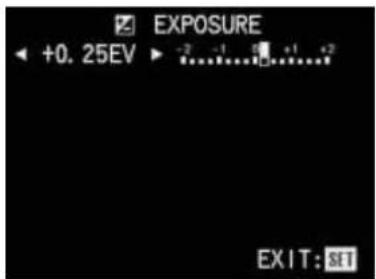
Remarque :
Le bouton AE-MENU sert à régler plusieurs types de fonctions. Elles défilent en boucle et peuvent donc être sélectionnées en appuyant plusieurs fois sur le bouton.
- Sélectionnez la valeur de compensation souhaitée en appuyant à gauche ou à droite sur le pavé directionnel (1.29). L'affichage numérique et le repère jaune indiquent votre réglage. Le symbole ☑ (2.8) apparaît dans le champ de données LCD pour indiquer qu'une compensation d'exposition est réglée.
- Pour confirmer et enregistrer votre réglage, appuyez sur le bouton VIEW/SET (1.31) ou appuyez 4 fois sur le bouton AE-MENU.
Les affichages correspondants disparaissent de l'écran LCD, et le symbole ☑ apparaît à la place pour indiquer la fonction activée, ainsi que la valeur de compensation dans la ligne inférieure (3.23).
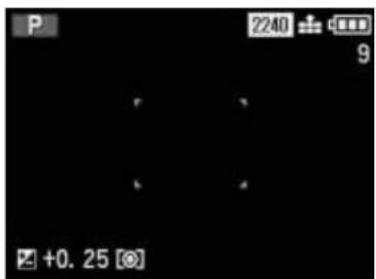
- Les photos sont prises comme décrit dans la section « Prise de vue en mode AUTO » (voir p. 127).
Prise de vue avec le mode de bracketing d'exposition automatique
De nombreux sujets attrayants sont très riches en contraste, c'est-à-dire qu'ils présentent à la fois des zones très claires et très sombres. L'effet peut être très différent selon les sections sur lesquelles vous basez votre exposition. Dans de tels cas, vous pouvez utiliser le mode de bracketing d'exposition automatique pour produire plusieurs alternatives avec une exposition graduée. Vous pouvez ensuite sélectionner la photo la plus appropriée pour une utilisation ultérieure.
4 graduations sont disponibles : 0,25, 0,5, 0,75 et 1 EV, ainsi que 2 nombres de photos : 3 ou 5. Les expositions sont dans l'ordre suivant : sous-exposition, exposition correcte, sur-exposition ; avec 5 photos, il y a 2 expositions supplémentaires avec des valeurs intermédiaires dans l'ordre correspondant. Une série de bracketing d'exposition n'est activée que pour un seul processus, c'est-à-dire que pour la répéter, vous devez la régler à nouveau.
Remarque :
Les séries d'expositions ne sont pas possibles en mode d'exposition automatique (AUTO), avec le stockage de données d'image non compressées (TIFF), ou lors de l'utilisation du flash. Avec une faible compression (☑), seules des séries de 3 expositions sont possibles.
Réglage de la fonction :
- Réglez le sélecteur d'enregistrement/lecture (1.14) sur l'un des modes d'enregistrement et la molette de mode d'exposition (1.15) sur P, A, T ou M.
- Appuyez deux fois sur le bouton AE-MENU (1.23).
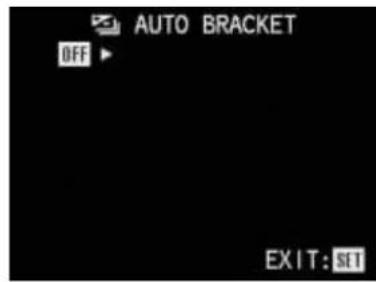
Remarque :
Le bouton AE-MENU sert à régler plusieurs types de fonctions. Elles défilent en boucle et peuvent donc être sélectionnées en appuyant à plusieurs reprises sur le bouton.
- Appuyez sur la droite du pavé directionnel (1.29) pour ouvrir le niveau de menu suivant pour cette fonction. Le symbole 📋 apparaît dans le champ de données LCD pour indiquer qu'une série de bracketing d'exposition automatique est réglée (3.11).
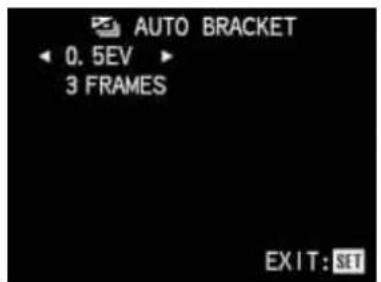
- Sélectionnez la graduation d'exposition souhaitée entre les images individuelles en appuyant respectivement sur la gauche ou la droite du pavé directionnel pour augmenter ou diminuer la graduation. Si vous souhaitez utiliser la graduation 0,25 EV affichée en premier, vous pouvez passer directement à l'étape 5.
Remarque :
Lorsque 0,25 EV est affiché, vous pouvez appuyer sur la gauche du pavé directionnel pour quitter ce niveau de menu et confirmer les réglages appropriés.
- Descendez à la ligne suivante en appuyant sur le bas du pavé directionnel, où vous pouvez sélectionner le nombre d'images souhaité.
Des flèches jaunes pointant vers le haut et la droite indiquent comment effectuer les réglages suivants.
- Appuyez sur la droite du pavé directionnel si vous souhaitez 5 images. Si vous souhaitez utiliser 3 images, l'option affichée en premier, vous pouvez passer directement à l'étape 7.
Remarque :
Si vous souhaitez ensuite modifier (à nouveau) la graduation d'exposition, appuyez sur le haut du pavé directionnel et procédez comme décrit au point 4.
- Pour confirmer et enregistrer votre réglage, appuyez sur le bouton VIEW/SET (1.31) ou appuyez 3 fois sur le bouton AE-MENU.
Les affichages décrits ci-dessus dans le moniteur LCD disparaissent, et l'icône 📋 apparaît à la place pour indiquer la fonction activée (3.24).
- Les photos sont prises comme décrit dans la section « Prise de vue en mode AUTO » (voir p. 127).
Utilisation de la mesure spot autofocus
Dans certaines situations ou pour certains sujets, il peut être crucial que des détails particuliers soient reproduits très nettement. Par exemple, pour les portraits, il est généralement recommandé que les yeux soient très bien définis.
La zone de mesure spot autofocus (3.17) est beaucoup plus petite que celle de la mesure standard (3.18) et permet de définir sélectivement ce type de détails – et elle reste automatique.
Remarque :
La mesure spot autofocus n'est pas disponible en mode AUTO ou 🌐.
Réglage de la fonction :
- Réglez le sélecteur enregistrement/lecture (1.14) sur l'un des modes d'enregistrement et la molette de mode d'exposition (1.15) sur P, A, T ou M.
- Appuyez sur le bouton MENU (1.27).
- Sélectionnez la fonction SPOT AF [•]F dans le menu en appuyant (3 fois) vers le bas sur le pavé directionnel (1.29).
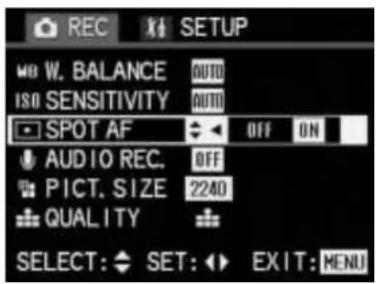
- Sélectionnez la fonction souhaitée en appuyant sur la gauche ou la droite de la croix directionnelle. L'option actuellement réglée est marquée en jaune.
- Appuyez à nouveau sur la touche MENU pour confirmer et enregistrer votre réglage et quitter le système de menus. Les affichages du moniteur décrits ci-dessus disparaissent, les affichages appropriés (2.5, 3.5) apparaissant dans le champ de données (1.8) et sur le moniteur pour indiquer que la fonction est activée, ainsi que les marques vertes plus étroites du champ de mesure AF (3.17) au centre de l'écran du moniteur.
- Les photos sont prises comme décrit dans la section « Prise de vue en mode AUTO » (voir p. 127).
Utilisation de la fonction macro
En mode AF, le LEICA DIGILUX 1 permet de prendre des photos à une distance allant jusqu'à 30 cm. La fonction macro complète la plage de mise au point automatique pour la représentation plein cadre de petits objets (rapport de reproduction 1:11) à des distances allant jusqu'à 6 cm (en position grand-angle maximale) ou 20 cm (en position téléobjectif maximale). La distance maximale au sujet en mode macro est de 50 cm.
Remarques :
La fonction macro n'est pas disponible pour les enregistrements vidéo ▶.
À très courte distance, utilisez le moniteur pour régler le cadrage, car l'erreur de parallaxe du viseur optique est trop importante dans ce cas. Si le mode AUTO est utilisé, la plage de fonctionnement du contrôle d'ouverture est limitée aux valeurs de f/4 à f/8 en raison de la profondeur de champ extrêmement faible pour les photos en gros plan et de la mise au point critique qui en résulte.
Réglage de la fonction :
- Réglez le sélecteur enregistrement/lecture (1.14) sur l'un des modes d'enregistrement et la molette de mode d'exposition (1.15) sur la fonction souhaitée.
- Réglez la molette de mode de mise au point (1.6) sur ↓. L'affichage ↓ apparaît alors dans le champ de données (1.8) et sur le moniteur (1.32) (2.17, 3.4.b).
- Les photos sont prises comme décrit dans la section « Prise de vue en mode AUTO » (voir p. 127).
Utilisation de la mise au point manuelle
Pour certains sujets et situations, il peut être avantageux de régler la mise au point vous-même plutôt que d'utiliser l'autofocus (voir p. 127). Par exemple, si le même réglage est nécessaire pour plusieurs photos et que l'utilisation du verrouillage de la mesure (voir p. 139) demanderait plus d'efforts, ou si le réglage pour les photos de paysage doit être maintenu à l'infini, ou si vous souhaitez faire la mise au point sur des détails particuliers, encore plus petits que le champ de mesure Spot AF (voir p. 141).
Les réglages de mise au point manuelle peuvent être contrôlés à l'aide de l'écran du moniteur (pas dans le viseur optique). Dans de nombreux cas (voir ci-dessous), des affichages apparaissent également sur le moniteur pour vous aider à régler la mise au point.
Remarques :
La plage de mise au point manuelle va de 6 ou 20 cm (en position grand-angle ou téléobjectif) à l'infini. La mise au point manuelle est également possible pour les enregistrements vidéo (●). Cependant, dès que l'enregistrement vidéo est démarré en appuyant sur le déclencheur, le dernier réglage est sauvegardé, c'est-à-dire qu'il n'est pas possible de modifier la mise au point pendant la séquence.
Si le réglage est effectué dans la plage grand-angle, il est possible que la mise au point ne soit plus correcte après un zoom vers la plage téléobjectif en raison de la faible profondeur de champ. L'inverse est également possible dans une moindre mesure, ce qui signifie que des corrections peuvent être nécessaires. Par conséquent, nous recommandons de toujours effectuer la mise au point dans la plage téléobjectif.
En raison de la plus grande profondeur de champ dans la plage grand-angle d'une part, et du réglage critique de la mise au point pour les photos en gros plan d'autre part, il est recommandé de ne pas effectuer la mise au point manuellement dans de telles situations en raison d'un manque de précision.
Réglage de la mise au point :
- Réglez le sélecteur d'enregistrement/lecture (1.14) et la molette de mode d'exposition (1.15) sur les fonctions souhaitées.
- Réglez la molette de mode de mise au point (1.6) sur la position MF. L'affichage correspondant (2.4, 3.4c) apparaît dans le champ de données (1.18) et sur le moniteur (1.32), et la LED verte (1.21) clignote.
Remarque :
Si vous avez réglé l'autofocus spot (voir p. 141), les affichages associés (2.5/3.5) restent également visibles, ainsi que le rectangle plus petit de la zone de mesure AF spot (3.17). En conséquence, les signaux de confirmation acoustiques et visuels énumérés au point 4 sont chacun basés sur les sections du sujet situées dans la zone de mesure AF réglée.
- Visez votre sujet avec le rectangle de la zone de mesure autofocus (3.17/18), et
- tournez lentement la bague de mise au point (1.9) jusqu'à ce que l'image ou le détail le plus important de l'image soit reproduit clairement sur le moniteur. Tourner vers la gauche, c'est-à-dire dans le sens inverse des aiguilles d'une montre (en regardant l'écran du moniteur), règle l'objectif vers l'infini pour des sujets plus éloignés, tandis que tourner vers la droite le règle pour des distances plus courtes jusqu'à 30 cm.
Lorsque votre réglage est proche de l'optimum, deux « crochets » carrés (3.28) apparaissent au-dessus du champ de mesure comme aide à la mise au point. Lorsque le réglage est correct, le point vert (3.27) apparaît également entre eux et la LED verte (1.21) s'allume.
Si les signaux sonores de confirmation sont activés (voir p. 178), deux bips brefs indiquent également que le réglage est correct.
Quelle que soit la mise au point correcte, avec le réglage correspondant, le symbole de l'infini (∞, 3.26) est affiché sous les crochets.
![P MF 2240 9 [●] ∞ [O]](/content/2026/03/533267/images/af6e1e97b238aa57e7b40972049707e4bbbc8e1c3137bbaa024753d760dfa92a.jpg)
Remarques :
La bague de mise au point utilise une transmission électrique et ne possède pas de butée à ses réglages de distance minimale et maximale. Par conséquent, il n'y a pas de positions de distance fixes.
La vitesse de rotation n'influence pas la vitesse de mise au point.
Il n'y a pas d'aide à la mise au point par très faible luminosité.
- Les photos sont prises comme décrit dans la section « Prise de vue en mode AUTO » (voir p. 127).
Prise de vue avec le mode de bracketing de mise au point automatique
La plupart des sujets sont composés de différents éléments, disposés en profondeur et donc - selon la distance, la focale et l'ouverture utilisées - reproduits avec des degrés de netteté variables. Selon la distance réglée, l'effet peut varier considérablement. Dans de tels cas, vous pouvez utiliser le mode de bracketing de mise au point automatique pour produire plusieurs alternatives avec différents niveaux de netteté. Vous pouvez ensuite sélectionner l'image la plus appropriée pour une utilisation ultérieure.
Deux nombres de photos sont disponibles : 3 ou 5.
Les photos sont prises dans l'ordre suivant :
_ vers la limite avant (proche) de la profondeur de champ concernée,
_ vers le sujet dans le champ de mesure (3.17/3.18),
_ vers la limite arrière (lointaine) de la profondeur de champ concernée.
Avec 5 images, les 2 supplémentaires sont prises avec des réglages entre ceux décrits ci-dessus.
Une fois qu'une série de bracketing de mise au point est terminée, elle est désactivée, c'est-à-dire que pour la répéter, vous devez la régler à nouveau.
Remarque :
Le mode de bracketing de mise au point automatique n'est pas possible en mode d'exposition AUTO, lors de l'utilisation du flash ou en conjonction avec le stockage d'images non compressées TIFF.
En basse compression, seules des séries de bracketing de mise au point avec 3 images sont possibles.
Réglage de la fonction :
- Réglez le sélecteur d'enregistrement/lecture (1.14) sur l'un des modes d'enregistrement et la molette de mode d'exposition (1.15) sur P, A, T ou M.
- Appuyez trois fois sur le bouton AE-MENU (1.23).
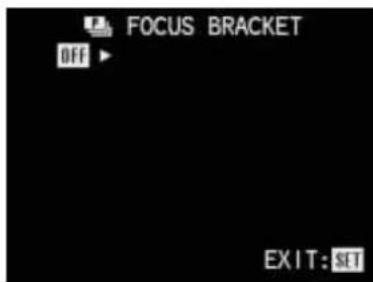
Remarque :
Le bouton AE-MENU est utilisé pour régler plusieurs types de fonctions. Elles défilent en boucle et peuvent donc être sélectionnées en appuyant à plusieurs reprises sur le bouton.
- Appuyez à droite sur le pavé directionnel (1.29) pour ouvrir le niveau de menu suivant pour cette fonction.
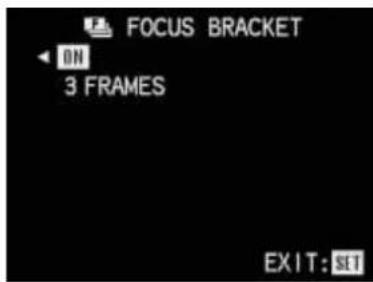
- Déplacez-vous sur la ligne ci-dessous en appuyant vers le bas sur le pavé directionnel, où vous pouvez sélectionner le nombre d'images souhaité.
Des flèches jaunes pointant vers le haut et vers la droite indiquent comment effectuer les réglages suivants.
- Appuyez sur la droite du pavé directionnel si vous voulez 5 images (possible uniquement avec un taux de compression faible).
Si vous voulez utiliser 3 images, qui est la première option affichée, vous pouvez passer directement à l'étape 6.
Remarque :
Lorsque 3 FRAMES est affiché, vous pouvez appuyer sur la gauche du pavé directionnel pour quitter ce niveau de menu et confirmer votre réglage.
- Pour confirmer et enregistrer votre réglage, appuyez sur le bouton VIEW/SET (1.31) ou appuyez deux fois sur le bouton AE-MENU.
Les affichages décrits ci-dessus sur l'écran LCD disparaissent, et l'icône 📄 apparaît à la place pour indiquer la fonction activée (3.29).
- Les photos sont prises comme décrit dans la section « Prise de vue en mode AUTO » (voir p. 127).
Prise de vue avec flash synchronisé en fin de pose
Le LEICA DIGILUX 1 vous permet de synchroniser le déclenchement du flash soit avec le début, soit avec la fin du temps de pose. Cela permet à la très courte exposition au flash d'avoir lieu soit au début, soit à la fin de l'exposition - relativement beaucoup plus longue - à la lumière ambiante. En particulier pour les sujets dans un environnement sombre, qui brillent ou réfléchissent la lumière - par exemple les véhicules - la synchronisation en fin de pose donne souvent un effet plus naturel.
Remarque :
Comme les différents moments de déclenchement du flash n'ont naturellement d'effet sur l'image qu'à des vitesses d'obturation lentes, la synchronisation en fin de pose est exclusivement disponible avec le mode flash /AUTO/ (voir p. 132) et non, en revanche, avec le mode AUTO, les modes d'exposition T et M, ou
Réglage de la fonction :
- Réglez le sélecteur d'enregistrement / de visualisation (1.14) sur l'un des modes d'enregistrement, la molette de mode d'exposition (1.15) sur P ou A, puis réglez le flash automatique et la pré-activation du flash avec des vitesses d'obturation lentes en appuyant à plusieurs reprises sur le bouton de sélection du mode flash (1.13).
Les symboles correspondants (2.1e, 3.2e) apparaissent alors dans le champ de données (1.18) et sur le moniteur (1.32).
- Appuyez sur le bouton MENU (1.27).
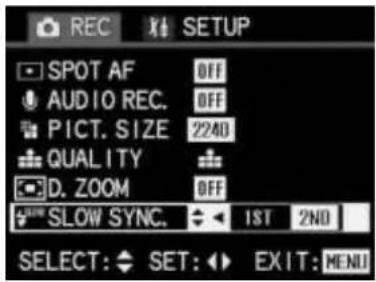
- Sélectionnez la fonction ♦ 100 SLOW SYNC dans le menu en appuyant (8 fois) vers le bas sur le pavé directionnel (1.29).
- Sélectionnez la fonction souhaitée en appuyant à gauche ou à droite sur le pavé directionnel. L'option actuellement réglée est marquée en jaune.
- Appuyez à nouveau sur le bouton MENU pour confirmer et enregistrer votre réglage et pour quitter le système de menu. Les affichages dans le moniteur décrits ci-dessus disparaissent, avec l'affichage ⏻/AUTO ⏻ (3.2f) apparaissant à la place pour indiquer la fonction activée. En revanche, l'affichage dans le champ de données ne change pas.
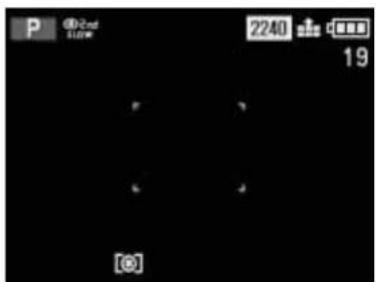
- Les photos sont prises comme décrit dans la section « Prise de vue en mode AUTO » (voir p. 127).
Remarque :
Pour éviter les photos floues avec des vitesses d'obturation plus lentes, vous devez tenir l'appareil photo stable, c'est-à-dire le soutenir ou utiliser un trépied.
Compensation d'exposition du flash
Cette fonction peut être utilisée pour réduire ou renforcer sélectivement l'exposition du flash indépendamment de l'exposition de la lumière ambiante, par exemple dans une photo prise à l'extérieur le soir, pour éclaircir le visage d'une personne au premier plan tout en conservant l'atmosphère d'éclairage.
Une fois réglée, une compensation d'exposition du flash reste effective jusqu'à ce qu'elle soit (délibérément) réinitialisée.
Remarque :
La compensation d'exposition du flash n'est pas possible pour les enregistrements vidéo (●) ni en mode d'exposition AUTO.
Réglage de la fonction :
- Réglez le sélecteur enregistrement/lecture (1.14) sur l'un des modes d'enregistrement et la molette de mode d'exposition (1.15) sur P, A, T ou M.
- Appuyez quatre fois sur le bouton AE-MENU (1.23).
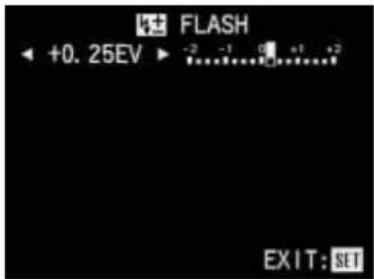
Remarque :
Le bouton AE-MENU sert à régler plusieurs types de fonctions. Elles défilent en boucle et peuvent donc être sélectionnées en appuyant plusieurs fois sur le bouton.
- Sélectionnez la valeur de compensation souhaitée en appuyant à gauche ou à droite sur le pavé directionnel (1.29). L'affichage numérique et le repère jaune indiquent votre réglage. Le symbole 4-5 (2.15) apparaît dans le champ de données LCD pour indiquer qu'une compensation d'exposition au flash est réglée.
- Pour confirmer et enregistrer votre réglage, appuyez sur le bouton VIEW/SET (1.31) ou sur le bouton AE-MENU. Les affichages décrits ci-dessus sur l'écran LCD disparaissent, remplacés par l'affichage µ2 pour indiquer la fonction activée, ainsi que la valeur de compensation sur la 2e ligne (3.30a).
![P +0,25 2240 9 [O]](/content/2026/03/533267/images/6c6c5bcd60a4f629f94af9fc6afa558b12b427b6b7bd9d70d743e58560bb01c6.jpg)
- Les photos sont prises comme décrit dans la section « Prise de vue en mode AUTO » (voir p. 127).
Utilisation d'un flash supplémentaire
Pour étendre la portée du flash, vous pouvez fixer un flash externe (plus puissant) sur le LEICA DIGILUX 1.
Remarques :
Il n'est pas possible de faire des enregistrements vidéo (●) en mode flash - même avec un flash externe (temps de charge !).
Si vous souhaitez contrôler vous-même l'exposition au flash à l'aide de la fonction MANUAL (voir ci-dessous), il est recommandé d'utiliser l'un des deux modes d'exposition de l'appareil dans lesquels vous réglez l'ouverture manuellement, c'est-à-dire le mode priorité à l'ouverture (A) ou le mode manuel (M). Dans les deux autres modes d'exposition (P et T), l'ouverture est réglée automatiquement, ce qui signifie qu'une exposition correcte au flash ne peut pas être
garantie. En mode priorité à l'ouverture, la vitesse d'obturation est réglée sur 1/30 s - 1/25 s.
Il est recommandé d'éteindre le flash intégré lors de l'utilisation d'un flash externe. Cependant, le flash intégré peut être utilisé pour un éclairage direct si vous utilisez le flash externe pour un éclairage indirect.
Veuillez vous référer au manuel correspondant pour plus de détails sur le réglage du flash.
Lorsqu'il est utilisé avec des flashs externes plus grands, l'appareil peut devenir quelque peu lourd en haut ; il est donc recommandé de retirer le flash avant de transporter l'appareil avec la courroie.
Réglage de la fonction :
- Assurez-vous que l'appareil et le flash sont éteints, puis insérez le pied du flash dans la griffe porte-flash de l'appareil (1.17).
- Allumez l'appareil.
- Réglez le sélecteur d'enregistrement/lecture (1.14) sur le mode photo unique et la molette de mode d'exposition (1.15) sur priorité à l'ouverture (A) ou manuel (M).
- Appuyez sur le bouton MENU (1.27).
- Sélectionnez la fonction EXT FLASH dans le menu en appuyant (9x) vers le bas sur le pavé directionnel (1.29).
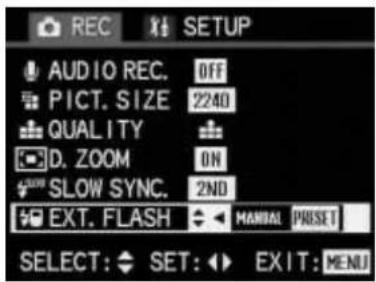
- Sélectionnez la fonction souhaitée en appuyant à gauche ou à droite sur le pavé directionnel. L'option actuellement définie est marquée en jaune. Si vous sélectionnez PRESET, la vitesse d'obturation - 1/60 s - et la sensibilité ISO sont contrôlées automatiquement quel que soit le mode d'exposition sélectionné. Vous devez régler la sensibilité - sur ISO 100 - et l'ouverture - sur 2,8 - sur le flash. PRESET est donc toujours la fonction recommandée si vous souhaitez simplifier les choses au maximum, c'est-à-dire automatique. En revanche, vous pouvez utiliser la fonction MANUAL pour effectuer les réglages sur l'appareil vous-même.
- Appuyez à nouveau sur le bouton MENU pour confirmer et enregistrer votre réglage et quitter le système de menus. Les affichages décrits ci-dessus disparaissent de l'écran, et l'écran précédent réapparaît.
- Allumez le flash. Un affichage apparaît à l'écran pour indiquer que le flash est fixé, soit avec un M supplémentaire (3.30.ba, pour MANUEL) soit sans (3.30.bb, pour PRÉRÉGLÉ).
- Les photos sont prises comme décrit dans la section « Prise de vue en mode AUTO » (voir p. 127).
Réglage de la résolution
Les données d'image peuvent être enregistrées avec quatre réglages de pixels différents, c'est-à-dire des résolutions. Cela vous permet de les ajuster précisément à l'utilisation prévue ou à la capacité de la carte mémoire disponible.
À la résolution la plus élevée (ce qui signifie également le volume de données le plus important), que vous devez sélectionner pour une qualité optimale pour les tirages plus grands, il est bien sûr possible d'enregistrer considérablement moins de photos sur une carte qu'à la résolution la plus basse, qui est parfaitement adaptée pour envoyer une photo par e-mail ou pour un site Web.
Résolutions disponibles
Réglage sur :
2240 correspond à 2240 x 1680 pixels 1600 correspond à 1600 x 1200 pixels 1120 correspond à 1120 x 840 pixels 640 correspond à 640 x 480 pixels
Remarque :
Pour les enregistrements vidéo (●), la résolution est fixée à 320 x 240 pixels à 10 B/s.
Réglage de la fonction :
- Réglez le sélecteur d'enregistrement/lecture (1.14) sur l'un des modes d'enregistrement et la molette de mode d'exposition (1.15) sur la fonction souhaitée.
- Appuyez sur le bouton MENU (1.27).
- Sélectionnez la fonction ■ PICT. SIZE dans le menu en appuyant (5 fois) sur la touche bas du pavé directionnel (1.29).
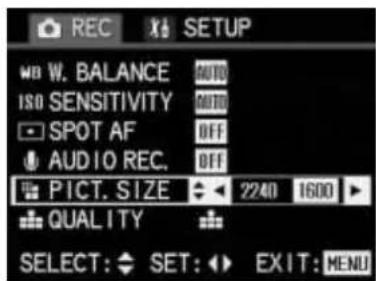
- Sélectionnez la résolution souhaitée en appuyant sur la touche gauche ou droite du pavé directionnel. L'option actuellement définie est marquée en jaune.
- Appuyez à nouveau sur le bouton MENU pour enregistrer votre réglage et quitter le système de menu. L'écran du moniteur d'origine réapparaît, ainsi que les symboles correspondants (2.12/3.7) et le nombre de photos restantes ou le temps d'enregistrement dans le champ de données (1.18) et sur le moniteur.
Réglage du taux de compression
Les données d'image peuvent être enregistrées à trois taux de compression différents (processus de réduction des données). Cela vous permet de les ajuster précisément à l'utilisation prévue ou à la capacité de la carte mémoire disponible. Les données non compressées, qui contiennent le plus d'informations sur l'image et que vous devriez sélectionner pour un traitement ultérieur avec des programmes de traitement d'image, permettent bien sûr d'enregistrer considérablement moins de photos par carte mémoire que la compression la plus élevée, avec des informations d'image réduites, ce qui est parfaitement adapté à l'envoi d'une photo par e-mail ou pour un site Web.
Taux de compression disponibles :
Réglage sur :
taux de compression faible
taux de compression élevé
Enregistrement non compressé TIFF
(Tagged Image File Format)
Remarques :
En mode d'enregistrement AUTO, l'enregistrement de données non compressées TIFF n'est pas disponible.
L'enregistrement de données non compressées au format TIFF prend beaucoup plus de temps que les données compressées - dans les cas extrêmes, c'est-à-dire pour des sujets avec beaucoup de détails, jusqu'à environ 30 s. Cela est indiqué par les signaux rouges qui apparaissent pendant l'enregistrement ; la LED rouge (1.20) est constamment allumée et le signal rouge dans le moniteur (3.12) clignote. Le taux de compression pour les enregistrements vidéo ne peut pas être modifié.
Un taux de compression élevé peut entraîner la perte de structures très fines dans le sujet.
Le nombre restant de photos ou le temps d'enregistrement affiché dans l'écran LCD, le champ de données et le moniteur ne change pas nécessairement à chaque prise de vue. Cela dépend du sujet, car les structures très fines entraînent des volumes de données plus élevés, tandis que les surfaces homogènes en entraînent de plus faibles. Les détails du tableau sont basés sur la taille de fichier maximale possible pour la résolution définie. Les tailles de fichier sont souvent plus petites, selon le contenu de l'image et le taux de compression, ce qui signifie que la capacité mémoire restante est alors plus grande que celle calculée et affichée précédemment.
Résolution Taux de compression
| TIFF |
| Single pictures | 2240 x 1680 | 64 | 32 | 5 |
| 1600 x 1200 | 124 | 64 | 10 | |
| 1120 x 840 | 242 | 124 | 20 | |
| 640 x 480 | 484 | 298 | 59 | |
| Video recordings | 320 x 240 | 362 s |
Remarque :
Les détails du tableau se rapportent à la carte mémoire de 64 Mo fournie et aux réglages par défaut. Cependant, si vous modifiez les fonctions, le nombre de photos résultant sera différent.
Réglage de la fonction :
- Réglez le sélecteur d'enregistrement/lecture (1.14) sur l'un des modes d'enregistrement et la molette de mode d'exposition (1.15) sur la fonction souhaitée.
- Appuyez sur le bouton MENU (1.27).
- Sélectionnez la fonction QUALITÉ dans le menu en appuyant (6 fois) vers le bas sur le pavé directionnel (1.29).
- Sélectionnez le taux de compression souhaité en appuyant à gauche ou à droite sur le pavé directionnel.
L'option actuellement définie est marquée en jaune.
- Appuyez à nouveau sur le bouton MENU pour enregistrer votre réglage et quitter le système de menus. L'écran du moniteur d'origine réapparaît, ainsi que les symboles correspondants (2.13/3.8) et le nombre de photos restantes ou le temps d'enregistrement dans le champ de données et le moniteur.
Réglage de la balance des blancs
En photographie électronique, la balance des blancs assure une reproduction neutre, c'est-à-dire naturelle, des couleurs dans toute lumière. Elle repose sur le fait que l'appareil est réglé à l'avance pour reproduire une couleur particulière comme étant blanche. Avec le LEICA DIGILUX 1, vous pouvez choisir parmi sept réglages différents :
Commande automatique, qui donne presque toujours des résultats corrects,
cinq préréglages fixes pour les sources de lumière les plus courantes,
par exemple pour les photos en extérieur en plein soleil,
par exemple pour les photos en extérieur par temps nuageux,
par exemple pour les photos en intérieur avec des lampes halogènes,
par exemple pour les photos en intérieur avec un éclairage fluorescent,
par exemple pour les photos en intérieur avec un éclairage électronique (principalement) au flash, et
un réglage manuel
Remarque :
Pour faciliter au maximum l'utilisation de l'appareil photo, en mode d'exposition AUTO, la balance des blancs est fixée sur le réglage automatique.
Réglage de la fonction :
- Réglez le sélecteur d'enregistrement/lecture (1.14) sur l'un des modes d'enregistrement et la molette de mode d'exposition (1.15) sur P, A, T ou M.
- Appuyez sur le bouton MENU (1.27).
- Sélectionnez la fonction WB W.BALANCE dans le menu en appuyant (1x) vers le bas sur le pavé directionnel (1.29).
- Vous pouvez régler les 7 options en appuyant à plusieurs reprises sur la gauche ou la droite du pavé directionnel. Elles défilent en boucle continue comme suit :
AUTO
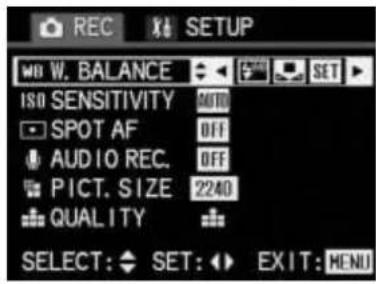
L'option actuellement définie (en dehors du réglage manuel) est marquée en jaune.
Si vous avez sélectionné le réglage automatique ou l'un des préréglages, les réglages supplémentaires sont effectués comme suit :
- Appuyez à nouveau sur la touche MENU pour confirmer et enregistrer votre réglage et quitter le système de menus. L'écran du moniteur d'origine réapparaît. WB ou le symbole du préréglage correspondant apparaît également dans le champ de données et sur le moniteur.
- Les photos sont prises comme décrit dans la section « Prise de vue en mode AUTO » (voir p. 127).
Réglage manuel de la balance des blancs
En revanche, si vous avez sélectionné la balance des blancs manuelle, l'affichage correspondant SET clignote pour indiquer que cette fonction nécessite des réglages supplémentaires. Pour ce faire, procédez comme suit :
- Appuyez sur la touche VIEW/SET (1.31).
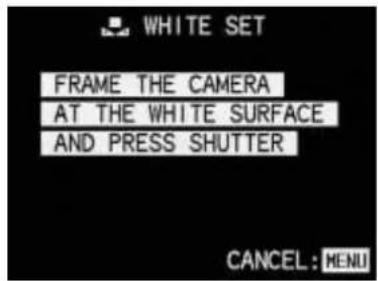
- Visez un objet dont vous savez qu'il est blanc ou gris neutre. Il doit remplir le cadre dans le moniteur.
- Appuyez à fond sur le déclencheur et maintenez-le enfoncé.
Selon la lumière disponible, vous pouvez voir comment les couleurs « incorrectes » à l'origine sont corrigées après un court instant. Lorsque le réglage est effectué, l'affichage revient aux éléments du menu.
- Les photos sont prises comme décrit dans la section « Prise de vue en mode AUTO » (voir p. 127).
Réglage de la sensibilité ISO
En photographie traditionnelle, la valeur ISO est choisie pour tenir compte de la sensibilité à la lumière du film utilisé. Les films plus sensibles permettent des vitesses d'obturation plus rapides et/ou des ouvertures plus petites, ou vice versa, à luminosité égale.
Le réglage ISO sur le DIGILUX 1 permet également d'ajuster la vitesse d'obturation/valeur d'ouverture en fonction des exigences de la situation, en 3 étapes. Cependant, comme la sensibilité réelle du capteur ne peut pas être modifiée, dans ces cas, la seule chose qui est définie est la quantité de lumière qui doit être reproduite en blanc.
Par conséquent, la qualité d'image optimale est obtenue à ISO 100, la plus basse des 3 réglages possibles. Les deux sensibilités plus élevées, ISO 200 et ISO 400, entraînent une plage de contraste progressivement plus faible et, éventuellement, un léger noircissement des zones sombres de l'image.
Pour une utilisation facile, un réglage automatique est également disponible.
Remarque :
En mode AUTO et pour les enregistrements vidéo (●), la sensibilité est fixée au réglage automatique (AUTO). Dans les modes de priorité à l'ouverture et à la vitesse (A, T) et le mode manuel (M), ce réglage AUTO n'est pas disponible.
Réglage de la fonction :
- Placez le sélecteur d'enregistrement/lecture (1.14) sur l'un des modes d'enregistrement et la molette de mode d'exposition (1.15) sur P, A, T ou M.
- Appuyez sur le bouton MENU (1.27).
- Sélectionnez la fonction SENSIBILITÉ ISO dans le menu en appuyant (2x) sur la touche bas du pavé directionnel (1.29).
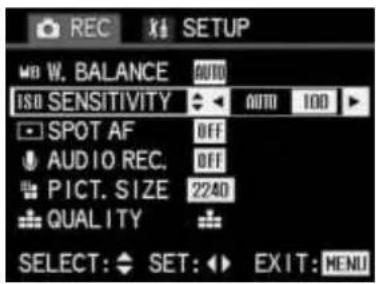
- Vous pouvez régler les options (voir point 3) en appuyant à plusieurs reprises sur la touche gauche ou droite du pavé directionnel. Elles défilent en boucle comme suit :
AUTO 100 200 400
L'option actuellement réglée est marquée en jaune.
- Appuyez à nouveau sur le bouton MENU pour confirmer et enregistrer votre réglage et quitter le système de menus. L'écran du moniteur d'origine réapparaît. Si une valeur (autre que AUTO) a été réglée, elle apparaît également dans le champ de données et sur le moniteur.
- Les photos sont prises comme décrit dans la section "Prise de vue en mode AUTO" (voir p. 127).
Réglage des propriétés de l'image (contraste, netteté, saturation des couleurs)
L'un des nombreux avantages de la photographie électronique par rapport à la photographie traditionnelle est qu'il est très facile de modifier les propriétés critiques d'une image, c'est-à-dire celles qui déterminent son caractère. Alors que les logiciels de retouche photo – après l'enregistrement et le transfert sur un ordinateur – offrent une grande liberté pour cela, le LEICA DIGILUX 1 lui-même vous permet d'influencer trois des propriétés les plus importantes de l'image avant même de prendre la photo :
Le contraste, c'est-à-dire la différence entre les zones claires et sombres, détermine si une image a un effet plus "pâle" ou "brillant". Par conséquent, le contraste peut être influencé en augmentant ou en réduisant cette différence, c'est-à-dire en rendant les zones claires plus claires et les zones sombres plus sombres, ou vice versa. _ Une reproduction nette - au moins du sujet principal - en utilisant le réglage de distance correct est une condition préalable pour une image réussie. En retour, l'impression de netteté donnée par une image est, dans une large mesure, déterminée par la netteté des contours, c'est-à-dire la petitesse de la transition clair/sombre sur les contours de l'image. L'effet de netteté peut donc être modifié en augmentant ou en réduisant ces zones. _ La saturation des couleurs détermine si les couleurs de l'image apparaissent comme "pâles" et pastel ou "vives" et colorées. Alors que l'éclairage et les conditions météorologiques (brumeux/clair) sont donnés comme conditions pour la photo, la reproduction peut certainement être influencée ici.
En plus de la reproduction normale ("STD"/standard), c'est-à-dire inchangée, pour chacune des trois propriétés d'image, vous pouvez - indépendamment - également sélectionner une option affaiblie (LOW) ou renforcée (HIGH).
Remarque :
Il n'est pas possible de modifier les propriétés d'image pour les enregistrements vidéo ou en mode d'exposition AUTO.
Réglage de la fonction :
- Réglez le sélecteur enregistrement/lecture (1.14) sur l'un des modes d'enregistrement et la molette de mode d'exposition (1.15) sur P, A, T ou M.
- Appuyez sur le bouton MENU (1.27).
- Sélectionnez la fonction ✪ PICT. ADJ. (RÉGLAGE IMAGE) dans le menu en appuyant (11x) vers le bas sur le pavé directionnel (1.29).
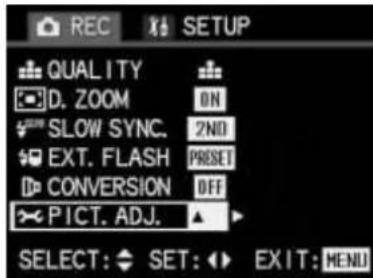
- Ouvrez le sous-menu correspondant en appuyant à droite sur le pavé directionnel.)

- Sélectionnez le contraste souhaité en appuyant à gauche et/ou à droite sur le pavé directionnel. L'option actuellement définie est marquée en jaune.
- Passez aux deux autres propriétés d'image en appuyant vers le bas sur le pavé directionnel. Elles se règlent comme décrit au point 4. L'option actuellement définie est marquée en jaune.
- Appuyez deux fois sur le bouton MENU pour enregistrer votre réglage et quitter le système de menus. L'écran du moniteur d'origine réapparaît.
Utilisation d'accessoires d'objectif
Votre spécialiste photo vous proposera des accessoires d'objectif qui, à l'aide d'un adaptateur, peuvent être utilisés sur le LEICA DIGILUX 1. Cet équipement supplémentaire vous permet d'étendre ou de réduire la focale de l'objectif pour une zone cadrée encore plus petite ou plus grande.
Leica propose également un adaptateur spécial pour une utilisation avec les longues-vues TELEVID (n° de code 42302), qui offre une méthode simple pour prendre des photos de l'image agrandie jusqu'à 60x de la longue-vue.
Les filtres standard E49 peuvent également être utilisés avec un adaptateur spécial (réf. 18 609). Leica propose un filtre UVA correspondant (réf. 13 238) et un filtre polarisant universel qui se déplie pour la visée et le réglage (réf. 13 356).
Remarques :
Les accessoires d'objectif peuvent également être utilisés pour les enregistrements vidéo.
Si l'appareil est configuré pour l'utilisation d'accessoires d'objectif, le flash intégré est désactivé. La mesure de distance externe est également désactivée. Le processus de mise au point est donc plus lent et le délai de déclenchement est plus long.
Veuillez consulter les manuels correspondants pour plus de détails sur les accessoires d'objectif.
Réglage de la fonction :
- Réglez le sélecteur d'enregistrement/lecture (1.14) et la molette de mode d'exposition (1.15) sur les fonctions souhaitées.
- Appuyez sur le bouton MENU (1.27).
- Sélectionnez la fonction ▶CONVERSION dans le menu en appuyant (10 fois) vers le bas sur le pavé directionnel (1.29).
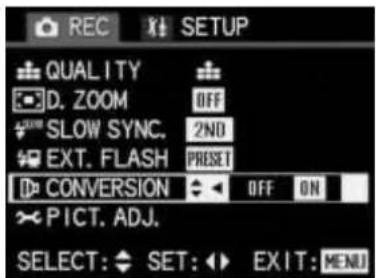
- Sélectionnez la fonction souhaitée en appuyant à gauche ou à droite sur le pavé directionnel. L'option actuellement réglée est marquée en jaune.
- Appuyez à nouveau sur le bouton MENU pour confirmer et enregistrer votre réglage et pour quitter le système de menu. Les affichages décrits ci-dessus disparaissent de l'écran, qui affiche alors le symbole ☐ (3.3) pour indiquer que la fonction est active. Le symbole approprié (6), 3.2g) apparaît également pour indiquer que le flash est désactivé.
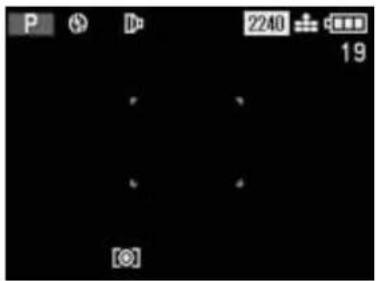
- Dévissez la bague avant de l'objectif (1.9) dans le sens inverse des aiguilles d'une montre.
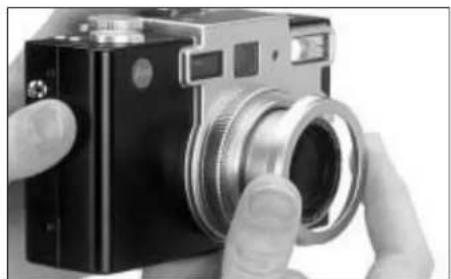
- Vissez l'adaptateur et/ou l'accessoire d'objectif dans le sens des aiguilles d'une montre sur la monture d'objectif.
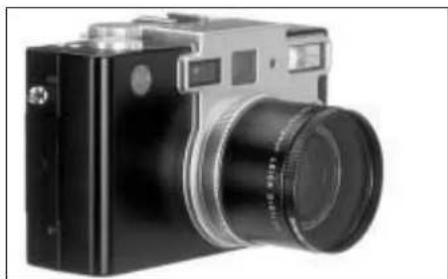
- Les photos sont prises comme décrit dans la section "Prise de vue en mode AUTO" (voir p. 127).
Remarques :
Utilisez le moniteur (1.32) pour déterminer le cadrage lors de l'utilisation d'accessoires d'objectif.
Mode de visualisation
Visualisation de photos individuelles
Comme décrit dans la section "Vérification de la dernière photo (REVIEW)" à la p. 129, les photos sont brièvement affichées sur le moniteur immédiatement après leur prise. En revanche, le mode de visualisation vous permet de voir les photos à tout moment, sans limite de temps, par exemple pour décider si vous souhaitez supprimer une photo ou pour voir d'autres photos sur la carte mémoire.
Remarques :
Le LEICA DIGILUX 1 enregistre les photos selon la norme DCF (Design Rule for Camera File System).
Cet appareil photo produit des fichiers image au format Exif JPEG 2.0/2.5 (Joint Photographic Expert Group) ou au format TIFF.
Il peut être impossible de visualiser des fichiers qui n'ont pas été créés par le LEICA DIGILUX 1, ou la qualité peut être altérée. Dans ce cas, le moniteur reste noir et --- s'affiche comme numéro de fichier (voir ci-dessous).
Réglage de la fonction / Sélection des photos :
- Réglez le sélecteur Enregistrement/Visualisation (1.14) sur visualisation ▶. La dernière photo prise est alors affichée. Tous les affichages disparaissent du champ de données et PLAY apparaît à la place.
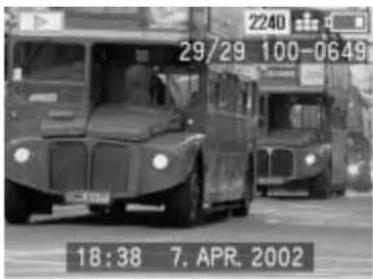
- Pour voir la photo suivante ou précédente, appuyez sur la gauche ou la droite du pavé directionnel (1.29). En le maintenant enfoncé (environ 2 s), vous pouvez faire défiler rapidement les photos. Comme les photos défilent en boucle continue, vous pouvez atteindre toutes les photos dans les deux sens. Les numéros de photo et de fichier dans le moniteur changent en conséquence.
Visualisation de photos individuelles avec le son
Comme déjà décrit dans la section "Photos avec son" à la p. 134, vous pouvez également enregistrer du son avec vos photos si vous le souhaitez. Le LEICA DIGILUX 1 peut lire ce son avec
Les images correspondantes. Elles peuvent ensuite être utilisées ultérieurement, par exemple dans le cadre d'une présentation ou comme aide à l'archivage.
Réglage et utilisation de la fonction :
- Réglez le sélecteur Enregistrement/lecture (1.14) sur lecture ▶. La dernière photo prise est alors affichée.
- Sélectionnez la photo souhaitée avec enregistrement sonore en appuyant sur gauche ou droite sur le pavé directionnel (1.29).
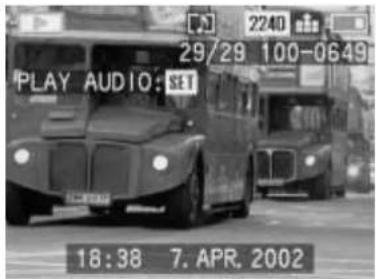
- Pour lire l'enregistrement, appuyez sur le bouton VIEW/SET (1.31).
Pendant la lecture, la ligne PLAY AUDIO SET dans le moniteur disparaît, et la LED rouge (1.20) est allumée en continu.
Remarques :
Pour la lecture, assurez-vous que le haut-parleur (1.30) n'est pas couvert, par exemple par un de vos doigts.
La lecture ne peut pas être interrompue et il n'est pas possible de sélectionner ou de régler d'autres fonctions pendant qu'elle est en cours.
Le volume de lecture peut être réglé selon vos préférences ou la situation en cinq étapes.
Réglage du volume :
- Réglez le sélecteur Enregistrement/lecture (1.14) sur lecture ▶.
- Appuyez sur le bouton MENU (1.27).
- Sélectionnez SETUP (menu des réglages par défaut) en appuyant sur la droite de la croix directionnelle (1.29).
- Sélectionnez la fonction (1) VOLUME en appuyant deux fois sur le bas de la croix directionnelle.
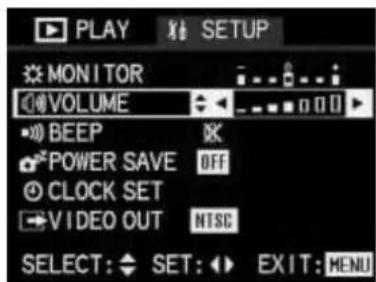
- Sélectionnez le volume souhaité en appuyant sur la gauche ou la droite de la croix directionnelle. Six niveaux sont disponibles, la hauteur de la barre représentant le volume. Le réglage est indiqué par la barre en jaune.
- Appuyez à nouveau sur la touche MENU pour confirmer et enregistrer votre réglage et quitter le système de menus. Les affichages du menu disparaissent de l'écran, qui affiche à nouveau les informations précédentes.
Visualisation simultanée de neuf images maximum
Le LEICA DIGILUX 1 vous permet de visualiser simultanément jusqu'à 9 images (ou moins si moins d'images sont enregistrées) sur l'écran, par exemple pour avoir une vue d'ensemble ou trouver plus rapidement l'image souhaitée.
Réglage de la fonction / Sélection des images :
- Placez le sélecteur Enregistrement/Visualisation (1.14) sur ▶.
La dernière image prise est alors affichée.
Toutes les informations disparaissent du champ de données et PLAY s'affiche à la place.
Remarque :
Les images stockées dans différents dossiers sont affichées séparément, même si le nombre total d'images est inférieur à 9.
- Poussez le levier de zoom (1.10) vers la gauche (position grand-angle).
En poussant le levier de zoom vers la droite (position téléobjectif), vous pouvez restaurer à sa taille normale l'image marquée d'un numéro jaune.
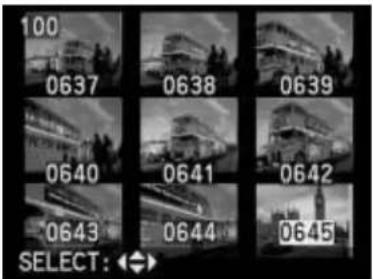
- Vous pouvez utiliser la croix directionnelle (1.29) pour afficher les autres images enregistrées sur l'écran ou les sélectionner.
En appuyant sur la gauche ou le haut de la croix directionnelle, vous accédez aux images avec des numéros inférieurs ; à droite ou en bas, à celles avec des numéros supérieurs. Le haut et le bas permettent de passer d'une ligne à l'autre. Après les numéros les plus élevés et les plus bas, la séquence d'images disposées en boucle sans fin recommence depuis le début.
L'image sélectionnée est identifiée par un numéro jaune.
Zoom et sélection du recadrage pour l'examen d'images individuelles
Pour évaluer plus précisément une image individuelle sur le moniteur, vous pouvez l'agrandir jusqu'à 16 fois en plusieurs étapes et sélectionner n'importe quel recadrage. De même, il est possible d'afficher jusqu'à six images - considérablement réduites - en séquence sur le moniteur.
Remarques :
Le zoom et la sélection du recadrage ne sont pas possibles pour les enregistrements vidéo.
Plus l'image est agrandie, plus la qualité de reproduction sur le moniteur diminue, en raison de la résolution proportionnellement plus faible.
Il peut ne pas être possible d'agrandir les images provenant d'autres types d'appareils photo.
Réglage de la fonction / Sélection des images :
- Sélectionnez l'image souhaitée comme décrit dans la section « Examen d'images individuelles » à la page 155, points 1 et 2.
Les étapes suivantes diffèrent selon la fonction sélectionnée.
Agrandissement de l'image et sélection du recadrage
- Appuyez sur le levier de zoom (1.10) vers la droite (position téléobjectif).
Les affichages précédents disparaissent du moniteur et l'image précédemment affichée est agrandie de 2x.
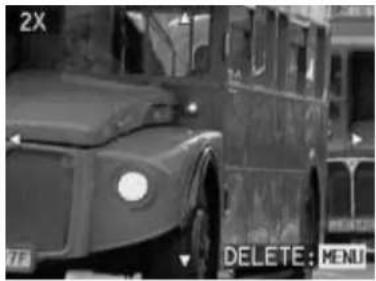
Le facteur d'agrandissement peut être augmenté pour des zones recadrées encore plus petites en appuyant à plusieurs reprises sur le levier de zoom (jusqu'à 4x au total) pour un agrandissement maximal de 16x. Appuyer sur le levier de zoom vers la gauche (position grand angle) réduit l'image.
Les affichages changent en fonction du réglage actuel.
- Vous pouvez utiliser le pavé directionnel (1.29) pour sélectionner n'importe quel recadrage à n'importe quel agrandissement. Pour ce faire, appuyez dans la direction dans laquelle vous souhaitez déplacer la zone recadrée.
Si le bord de l'image est atteint dans une ou deux directions, cela est indiqué par l'extinction des flèches correspondantes.
Si, après avoir visualisé l'image agrandie, vous décidez de ne pas l'utiliser, vous pouvez la supprimer immédiatement à ce stade.
- Appuyez sur le bouton MENU (1.27).
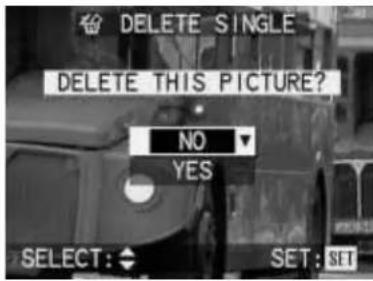
- Sélectionnez NON - pour conserver une image - ou OUI - pour la supprimer - en appuyant vers le haut ou vers le bas sur le pavé directionnel.
- Enfin, appuyez sur le bouton VIEW/SET. Si vous avez précédemment sélectionné OUI, les données de l'image sont supprimées.
Remarque :
Les images protégées doivent d'abord être déverrouillées avant de pouvoir être supprimées. Voir la section "Protection des images" à la page 162 pour plus de détails.
Avertissement :
Les données d'image sont définitivement supprimées. Vous ne pouvez pas les récupérer par la suite.
Examen des enregistrements vidéo
Tout comme les images individuelles, les enregistrements vidéo peuvent être visualisés sur le moniteur.
Notes :
Seuls les fichiers vidéo au format QuickTime Motion JPEG peuvent être lus. Par conséquent, il peut être impossible de lire des fichiers vidéo à d'autres normes ou enregistrés avec d'autres appareils photo.
Réglage de la fonction / Sélection des images :
- Réglez le sélecteur Enregistrement/Revue (1.14) sur Revue ▶.
La dernière photo prise est alors affichée.
Tous les affichages disparaissent du champ de données et PLAY apparaît à la place.
- Appuyez sur gauche ou droite sur le pavé directionnel (1.29) pour ouvrir le fichier vidéo souhaité. Maintenez-le enfoncé pour faire défiler rapidement les fichiers. Comme les fichiers défilent en boucle, vous pouvez atteindre tous les enregistrements dans les deux sens. La première image de l'enregistrement vidéo sélectionné est alors affichée.
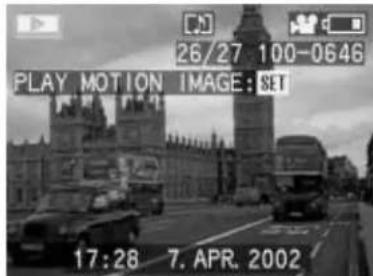
- Appuyez sur le bouton VIEW/SET (1.31) pour démarrer la lecture de l'enregistrement vidéo. Vous pouvez utiliser le pavé directionnel comme décrit ci-dessous à tout moment pendant la lecture.
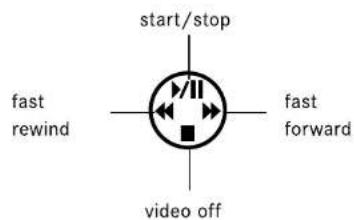
Remarque : Lors de l'utilisation de cartes mémoire à haute capacité, le retour rapide peut être plus lent.
Suppression d'images
Les images sur la carte mémoire peuvent être supprimées à tout moment. Cela peut être utile, par exemple, si vous avez déjà enregistré les images sur d'autres supports, si vous n'en avez plus besoin ou si vous devez libérer de l'espace mémoire sur la carte.
Le LEICA DIGILUX 1 vous offre également la possibilité de supprimer des images individuelles, ou plusieurs ou toutes les images en même temps, selon vos besoins.
Remarque :
Les images protégées doivent d'abord être déverrouillées avant de pouvoir être supprimées. Voir la section "Protection des images" à la page 162 pour plus de détails.
Avertissement :
Les images sont définitivement supprimées. Vous ne pouvez pas les récupérer par la suite.
Réglage de la fonction :
- Sélectionnez l'image souhaitée comme décrit dans la section « Visualisation d'images individuelles » à la page 155, sous les points 1 et 2.
- Appuyez sur le bouton MENU (1.27).
- Sélectionnez la fonction ☑ SUPPRIMER dans le menu en appuyant (1x) vers le bas sur le pavé directionnel (1.29).
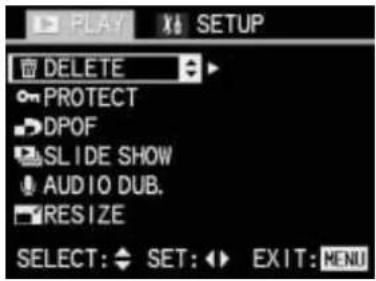
- Ouvrez le sous-menu en appuyant vers la droite sur le pavé directionnel.
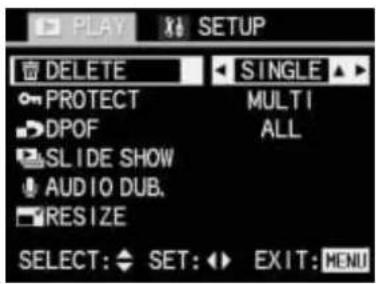
Les étapes suivantes diffèrent selon la fonction sélectionnée.
Suppression d'images individuelles
- Ouvrez le sous-menu correspondant en appuyant vers la droite sur le pavé directionnel.
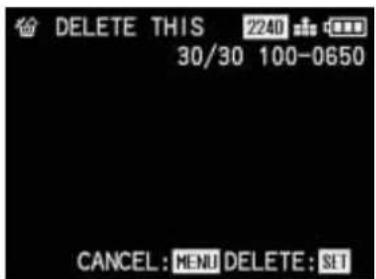
- Pour supprimer l'image, appuyez sur le bouton VIEW/SET (1.31).
Si une image est supprimée, la suivante apparaît alors dans le moniteur.
Remarque :
Pendant une opération, vous pouvez également sélectionner les autres images en appuyant sur la droite et/ou la gauche de la croix directionnelle.
- Appuyez une fois sur la touche MENU pour revenir au niveau de menu précédent, ou deux fois pour quitter le système de menus.
Suppression de plusieurs images simultanément
- Sélectionnez MULTI en appuyant sur le bas et/ou le haut de la croix directionnelle pour supprimer jusqu'à 50 images simultanément.
La ligne de menu est marquée en jaune et la flèche décrite ci-dessus au point 4 apparaît, ainsi qu'une autre flèche pointant vers le haut.
- Ouvrez le sous-menu correspondant en appuyant sur la droite de la croix directionnelle.
Les affichages de l'image et du menu disparaissent de l'écran ; ils sont remplacés par jusqu'à 6 images en format miniature, chacune avec son numéro, l'image active étant marquée en jaune.
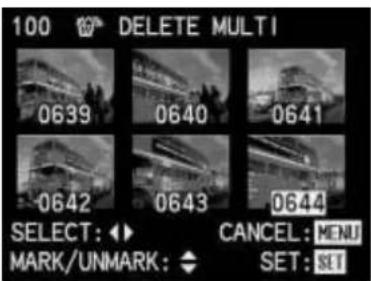
- Sélectionnez chaque image à supprimer individuellement en appuyant sur la gauche et/ou la droite de la croix directionnelle. Le numéro de l'image active est toujours affiché en jaune.
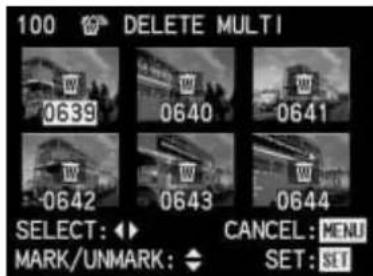
- Marquez chaque image à supprimer individuellement en appuyant sur le haut de la croix directionnelle.
Le symbole ☑ apparaît sur l'image concernée, ou annulez le marquage en appuyant sur le bas de la croix directionnelle ; le symbole ☑ disparaît.
- Appuyez sur la touche VIEW/SET pour supprimer les images sélectionnées.
Les images disparaissent, l'écran devient gris et VEUILLEZ PATIENTER... apparaît brièvement pendant la suppression des données. Les images suivantes apparaissent ensuite.
- Appuyez une fois sur la touche MENU pour revenir au niveau de menu précédent, ou deux fois pour quitter le système de menus.
Suppression de toutes les images de la carte mémoire
- Sélectionnez TOUT en appuyant sur le bas de la croix directionnelle pour supprimer toutes les images de la carte mémoire. La ligne de menu est marquée en jaune et les flèches gauche et droite décrites ci-dessus au point 4 apparaissent, ainsi qu'une autre flèche pointant vers le haut.
- Ouvrez le sous-menu associé en appuyant sur la droite de la croix directionnelle.
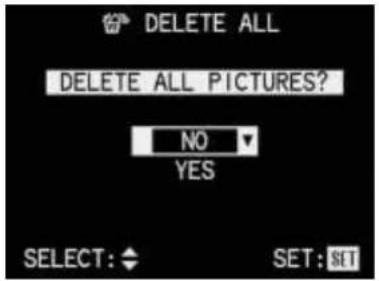
- Appuyez sur le haut ou le bas de la croix directionnelle pour sélectionner NON afin de conserver une image ou OUI pour la supprimer.
- Enfin, appuyez sur le bouton VIEW/SET. Si vous avez précédemment sélectionné OUI, les données de l'image sont supprimées.
L'image en arrière-plan disparaît, l'écran du moniteur devient gris et VEUILLEZ PATIENTER... apparaît brièvement pendant la suppression des données. AUCUNE IMAGE VALIDE À LIRE apparaît ensuite.
- Appuyez une fois sur le bouton MENU pour revenir au niveau de menu précédent ou deux fois pour quitter le système de menus.
Formatage de la carte mémoire
Il n'est normalement pas nécessaire de formater (initialiser) la carte mémoire. Cependant, si le message d'erreur ERREUR CARTE MÉMOIRE s'affiche, cela est nécessaire.
Avertissement :
Lors du formatage, toutes les informations sur la carte, telles que les fichiers image, les enregistrements sonores et toutes autres données, par exemple les fichiers musicaux, sont irrémédiablement perdues. Vous devriez donc prendre l'habitude de transférer toutes vos images sur un support de stockage de masse sécurisé, par exemple le disque dur de votre ordinateur, dès que possible.
Remarques :
N'éteignez pas l'appareil photo pendant le formatage de la carte mémoire.
Si la carte mémoire a été formatée sur un autre appareil, tel qu'un ordinateur, vous devriez la reformater dans l'appareil photo.
Si la carte mémoire ne peut pas être formatée, vous devriez demander conseil à votre revendeur ou à Leica.
Réglage de la fonction :
- Réglez le sélecteur d'enregistrement/lecture (1.14) sur lecture ▶.
- Appuyez sur le bouton MENU (1.27).
- Sélectionnez la fonction [✗] FORMAT dans le menu en appuyant (8 fois) vers le bas sur le pavé directionnel (1.29).
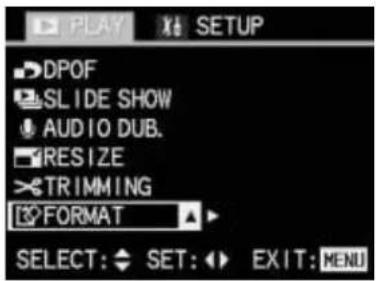
- Ouvrez le sous-menu correspondant en appuyant à droite sur le pavé directionnel.
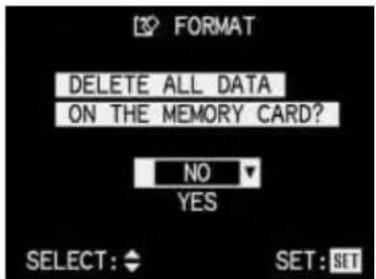
- Appuyez vers le haut ou vers le bas sur le pavé directionnel pour sélectionner NON ou OUI.
NON si vous ne voulez pas formater la carte afin de préserver les données d'images enregistrées. OUI si vous voulez définitivement formater la carte, même si les fichiers d'images restants seront perdus (marqués d'une flèche vers le haut et en jaune lorsqu'ils sont activés).
- Enfin, appuyez sur le bouton VIEW/SET (1.31). Si vous avez précédemment sélectionné NON, le sous-menu disparaît et le menu de revue réapparaît.
Si vous avez précédemment sélectionné OUI, l'image et les affichages disparaissent, l'écran du moniteur devient gris et VEUILLEZ ATTENDRE... apparaît brièvement pendant le formatage de la carte mémoire. Le message suivant apparaît alors : AUCUNE IMAGE VALIDE À LIRE.
Protection des images
Les images enregistrées sur la carte mémoire peuvent être protégées contre une suppression accidentelle.
Remarques :
Lors du formatage de la carte mémoire, même les images protégées sont supprimées.
Si vous tentez de supprimer des images protégées, des messages d'avertissement apparaissent sur le moniteur. Lors de la suppression d'une seule image : CETTE IMAGE EST
PROTÉGÉE, lors de la suppression de plusieurs ou de toutes les images : CERTAINES IMAGES NE PEUVENT PAS ÊTRE SUPPRIMÉES. Si vous souhaitez toujours supprimer, retirez la protection comme décrit ci-dessous. La protection contre la suppression n'est effective que sur cet appareil photo.
Réglage de la fonction :
- Sélectionnez l'image souhaitée comme décrit dans la section « Visualisation d'images individuelles » à la page 155, points 1 et 2.
- Appuyez sur le bouton MENU (1.27).
- Sélectionnez la fonction PROTEGER dans le menu en appuyant (2x) vers le bas sur le pavé directionnel (1.29).
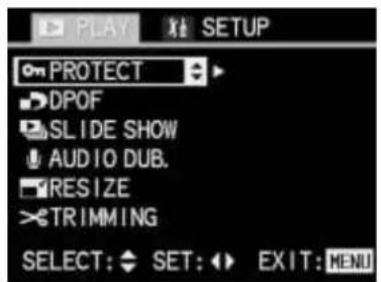
- Ouvrez le sous-menu en appuyant à droite sur le pavé directionnel.
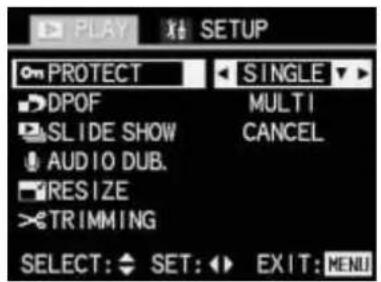
Les étapes suivantes diffèrent selon la fonction sélectionnée.
Protection d'images individuelles / Suppression de la protection
- Ouvrez à nouveau l'image en appuyant à droite sur le pavé directionnel. Le symbole PROTEGER apparaît en haut à gauche de l'écran.
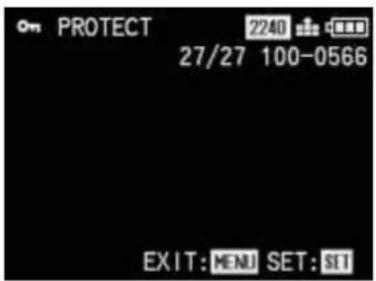
- Pour protéger l'image, appuyez sur le bouton VIEW/SET.
L'affichage à l'écran change, avec maintenant NE PLUS PROTEGER en haut à gauche, et le symbole d'une image protégée en dessous.
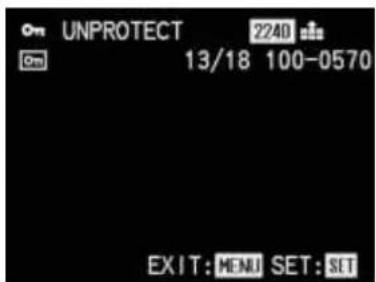
Remarque :
Ces affichages apparaissent également si une image déjà protégée est ouverte.
Pour retirer la protection, appuyez également sur le bouton VIEW/SET.
Les affichages reviennent à ceux décrits au point 5.
Remarque :
Pendant cette opération, vous pouvez également sélectionner les autres images en appuyant à droite et/ou à gauche sur le pavé directionnel.
- Appuyez une fois sur le bouton MENU pour revenir au niveau de menu précédent, ou deux fois pour quitter le système de menus.
Protection de plusieurs images sur la carte mémoire
- Sélectionnez MULTI en appuyant vers le bas sur le pavé directionnel pour protéger plusieurs images sur la carte mémoire. La ligne de menu est surlignée en jaune et la flèche décrite ci-dessus au point 4 apparaît, ainsi qu'une flèche supplémentaire pointant vers le haut.
- Ouvrez le sous-menu associé en appuyant à droite sur le pavé directionnel.
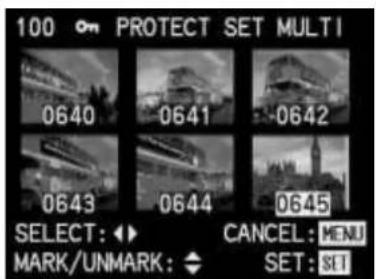
- Sélectionnez chaque image à protéger individuellement en appuyant à gauche et/ou à droite sur le pavé directionnel.
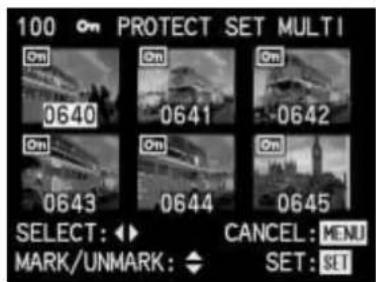
Le numéro de l'image active est toujours affiché en jaune.
- Marquez chaque image à protéger individuellement en appuyant vers le haut sur le pavé directionnel. Le symbole ☐ apparaît sur l'image concernée, ou annulez le marquage en appuyant vers le bas sur le pavé directionnel : le symbole ☐ disparaît.
- Appuyez sur le bouton VIEW/SET pour protéger les images sélectionnées. Les petites images et les affichages du moniteur disparaissent, l'écran du moniteur devient gris et VEUILLEZ PATIENTER... apparaît pendant l'enregistrement des réglages. La dernière image active apparaît ensuite en plein écran avec les affichages d'origine. Pour les images marquées en conséquence, le symbole de protection ☐ apparaît également au centre de l'en-tête.
Suppression de tous les réglages de protection
- Sélectionnez ANNULER en appuyant vers le bas et/ou vers le haut sur le pavé directionnel si vous souhaitez supprimer tous les réglages de protection existants. La ligne de menu est surlignée en jaune et les flèches gauche et droite décrites ci-dessus au point 4 apparaissent, ainsi qu'une flèche supplémentaire pointant vers le haut.
- Ouvrez le sous-menu associé en appuyant à droite sur le pavé directionnel.
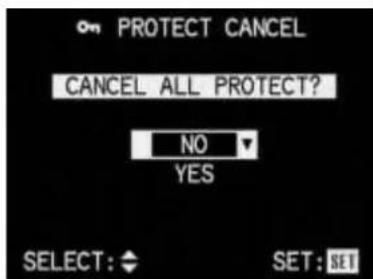
- Appuyez sur la croix directionnelle vers le haut ou vers le bas pour sélectionner NON afin de conserver ou OUI (marqué d'une flèche vers le haut et en jaune, si activé) pour supprimer tous les réglages de protection.
- Enfin, appuyez sur le bouton VIEW/SET. Si vous avez précédemment sélectionné OUI, tous les réglages de protection sont supprimés. Le premier niveau de menu réapparaît à l'écran.
- Appuyez sur le bouton MENU pour quitter le système de menus.
Réglages de commande d'impression (DPOF) sur la carte mémoire
Comme en photographie traditionnelle, vous pouvez faire tirer des photos numériques par un laboratoire photo ou les imprimer vous-même sur des machines appropriées, ou les imprimer à l'aide d'imprimantes compatibles.
Avec votre LEICA DIGILUX 1, vous pouvez préparer ce type de commande d'impression à l'avance, en définissant combien de photos et lesquelles vous souhaitez commander sur la carte mémoire. Cela se fait à l'aide du standard DPOF (Digital Print Order Format).
Le LEICA DIGILUX 1 vous offre également la possibilité de marquer des photos individuelles, ou plusieurs, ou toutes les photos en même temps, ainsi que de définir des quantités d'impression individuelles allant jusqu'à 99 exemplaires pour chaque photo marquée.
Remarques :
Si les fichiers image ne sont pas compatibles avec le standard DCF, il n'est pas possible de faire des réglages de commande d'impression sur la carte mémoire. Ce standard spécifie la structure des fichiers.
Si les réglages de commande d'impression avec cet appareil incluent des photos qui ont déjà été définies comme faisant partie d'une séquence de revue automatique (DIAPORAMA, voir p. 176) sur d'autres appareils, ces réglages sont écrasés. La séquence de revue automatique ne contient alors que les photos pour lesquelles des réglages de commande d'impression existent.
Réglage des fonctions :
- Sélectionnez la photo souhaitée comme décrit dans la section « Revue de photos individuelles » à la p. 155, points 1 et 2.
- Appuyez sur la touche MENU (1.27).
- Sélectionnez la fonction DPOF dans le menu en appuyant (3 fois) vers le bas sur le pavé directionnel (1.29).
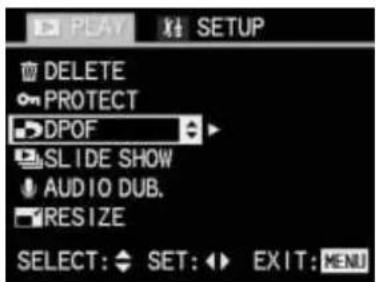
- Ouvrez le sous-menu en appuyant vers la droite sur le pavé directionnel.
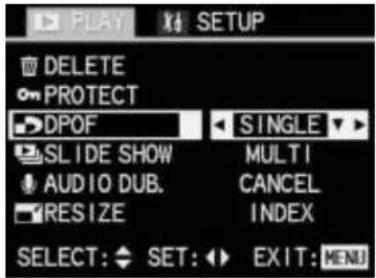
Les étapes suivantes diffèrent selon la fonction sélectionnée.
Réglages de commande d'impression pour une image
- Ouvrez le sous-menu correspondant en appuyant vers la droite sur le pavé directionnel.
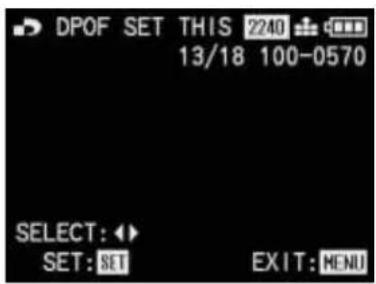
Remarque :
Au cours des étapes 5, 6 et 7, vous pouvez à tout moment appuyer vers la droite et/ou vers la gauche sur le pavé directionnel pour sélectionner d'autres images à marquer.
- Appuyez sur la touche VIEW/SET (1.31) pour marquer l'image affichée comme celle pour laquelle vous souhaitez effectuer les réglages de commande d'impression.
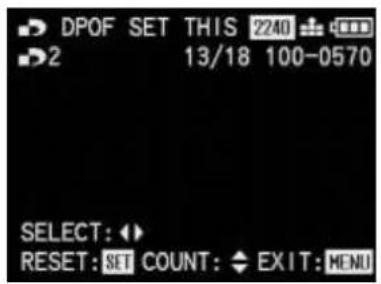
Remarques :
Si vous ne souhaitez qu'un seul exemplaire de cette image, vous pouvez passer directement à l'étape 8. Les réglages déjà effectués peuvent être supprimés à ce stade en appuyant à nouveau sur la touche VIEW/SET.
- Si vous souhaitez plus d'un exemplaire, réglez le nombre en appuyant vers le bas et/ou vers le haut sur le pavé directionnel, vers le bas pour un nombre inférieur, vers le haut pour un nombre supérieur. Maintenez la direction correspondante enfoncée pour faire défiler rapidement les nombres.
Remarque :
Les chiffres de l'affichage ne défilent pas en boucle, c'est-à-dire qu'à partir de 1, on ne peut que monter, et à partir de 99, on ne peut que descendre.
- Appuyez une fois sur la touche MENU pour enregistrer votre réglage et revenir au niveau de menu précédent, ou deux fois pour quitter le système de menu. Sur le moniteur, le symbole du réglage de l'ordre d'impression, y compris le nombre de copies saisi, apparaît également dans l'en-tête à droite, à côté du symbole du mode de révision.
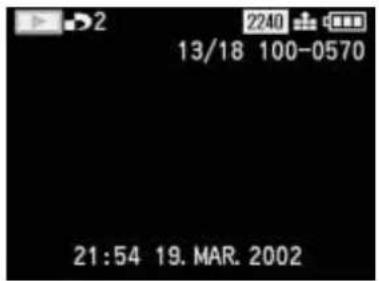
Suppression de réglages individuels de l'ordre d'impression
Les réglages déjà effectués peuvent être supprimés à tout moment en répétant les étapes 1 à 5 décrites ci-dessus et en appuyant sur la touche VIEW/SET.
Réglages de l'ordre d'impression pour plusieurs photos
- Sélectionnez MULTI en appuyant vers le bas et/ou vers le haut sur le pavé directionnel, si vous souhaitez marquer jusqu'à 50 photos simultanément. La ligne de menu est marquée en jaune et la flèche décrite ci-dessus au point 4 apparaît, ainsi qu'une autre flèche pointant vers le haut.
- Ouvrez le sous-menu correspondant en appuyant à droite sur le pavé directionnel.
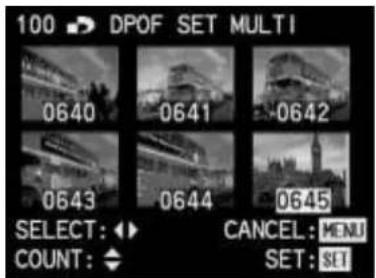
- Sélectionnez chaque photo à marquer individuellement en appuyant à gauche et/ou à droite sur le pavé directionnel. Le numéro de la photo active est toujours affiché en jaune.
- Pour chaque photo sélectionnée, réglez individuellement le nombre de copies souhaité en appuyant vers le haut et/ou vers le bas sur le pavé directionnel, le symbole ▶ y compris la quantité réglée apparaît sur la photo concernée, ou annulez le
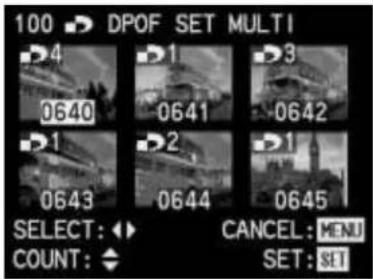
réglage en appuyant (à plusieurs reprises) vers le bas sur le pavé directionnel.
Le symbole ▶ disparaît. Maintenez la direction correspondante enfoncée pour faire défiler rapidement les chiffres.
- Appuyez sur la touche VIEW/SET pour enregistrer tous les réglages. Les petites photos et les affichages du moniteur disparaissent, l'écran du moniteur devient gris et VEUILLEZ PATIENTER... apparaît pendant l'enregistrement des réglages. La dernière photo active apparaît alors en plein écran avec l'original
À l'écran, le symbole du réglage de l'ordre d'impression, y compris le nombre de copies saisi, apparaît également dans l'en-tête des images marquées, à droite du symbole du mode de révision.
Suppression de tous les réglages d'ordre d'impression
- Sélectionnez ANNULER en appuyant vers le bas et/ou vers le haut sur la croix directionnelle si vous souhaitez supprimer tous les marquages DPOF existants. La ligne de menu est surlignée en jaune et la flèche décrite ci-dessus au point 4 apparaît, ainsi qu'une autre flèche pointant vers le haut.
Remarque :
La flèche clignotante pointant vers la droite n'apparaît que si des réglages d'ordre d'impression existent. S'il n'y en a pas, il est impossible d'accéder au sous-menu et les étapes décrites ci-dessous ne s'appliquent pas.
- Ouvrez le sous-menu correspondant en appuyant sur la droite de la croix directionnelle.
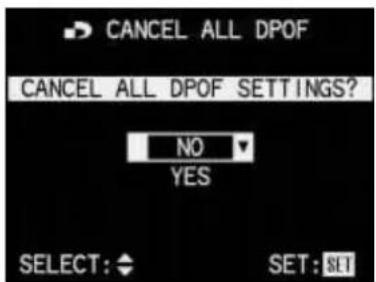
- Appuyez sur le haut ou le bas de la croix directionnelle pour sélectionner NON afin de conserver tous les réglages d'ordre d'impression, ou OUI pour les supprimer.
- Enfin, appuyez sur le bouton VISUALISER/RÉGLER. Si vous avez sélectionné OUI précédemment, tous les réglages d'ordre d'impression sont supprimés.
L'image en arrière-plan disparaît, l'écran du moniteur devient gris et VEUILLEZ PATIENTER... apparaît pendant la suppression des réglages. Le niveau de menu d'origine réapparaît ensuite.
- Appuyez sur le bouton MENU pour quitter le système de menus.
Réglages d'ordre d'impression pour une planche contact
En plus des copies de taille normale, de nombreux laboratoires photo proposent également une "planche contact". Cette planche contact affiche les images d'une carte mémoire en format miniature. Elles facilitent la commande de copies supplémentaires et servent de forme simple d'archivage.
- Sélectionnez INDEX en appuyant sur le bas de la croix directionnelle, si vous souhaitez commander une planche contact. La ligne de menu est surlignée en jaune et les flèches gauche et droite décrites ci-dessus au point 4 apparaissent, ainsi qu'une autre flèche pointant vers le haut.
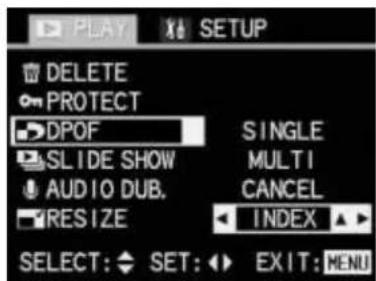
- Ouvrez le sous-menu correspondant en appuyant sur la droite de la croix directionnelle.
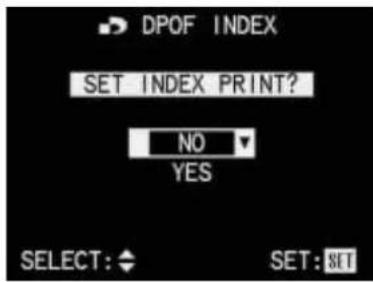
- Sélectionnez NON si vous ne souhaitez pas de planche contact ou OUI si vous en souhaitez une, en appuyant sur le haut ou le bas de la croix directionnelle.
- Enfin, appuyez sur le bouton VIEW/SET. Si vous avez précédemment sélectionné OUI, la commande est enregistrée. L'image en arrière-plan disparaît brièvement, l'écran du moniteur devient gris et VEUILLEZ PATIENTER... apparaît pendant l'enregistrement de la commande. Le niveau de menu d'origine réapparaît ensuite.
- Appuyez sur le bouton MENU pour quitter le système de menus.
Suppression des paramètres de commande d'impression pour une planche contact
Une commande de planche contact peut être supprimée indépendamment de tous les autres paramètres de commande d'impression. Pour ce faire, répétez les étapes décrites dans "Suppression de tous les paramètres de commande d'impression".
Fonctions supplémentaires
Ajout de son à des images existantes (DOUBLAGE AUDIO)
Avec le LEICA DIGILUX 1, vous pouvez ajouter jusqu'à 10 secondes d'enregistrement sonore à chaque image ultérieurement, par exemple comme commentaire.
Remarques :
Une fois enregistré, un enregistrement sonore ne peut pas être supprimé, seulement écrasé par un nouvel enregistrement (voir ci-dessous à partir du point 5).
Les enregistrements sonores ultérieurs ne sont possibles ni pour les images au format TIFF (voir p. 148), ni pour les enregistrements vidéo (voir p. 128), ni pour les images protégées (voir p. 162).
Réglage de la fonction :
- Sélectionnez l'image souhaitée comme décrit dans la section "Examen d'images individuelles" à la p. 155, points 1 et 2.
Remarque :
Les images qui ont déjà un enregistrement sonore sont identifiées sur le moniteur par le symbole correspondant (3.6) dans l'en-tête, et par une 3ème ligne supplémentaire avec : LIRE AUDIO : SET pour indiquer comment le son est lu.
- Appuyez sur le bouton MENU (1.27).
- Sélectionnez la fonction ⬆ AUDIO DUB dans le menu en appuyant (5x) vers le bas sur le pavé directionnel (1.29).

- Revenez à l'image en appuyant sur la droite du pavé directionnel.
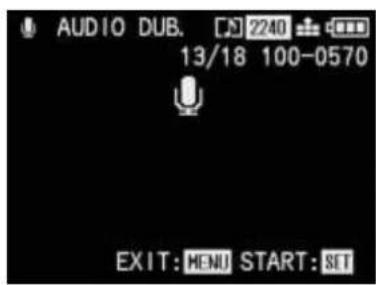
Remarque :
Pendant les étapes 4 et 5, vous pouvez également sélectionner les autres images avec la droite et la gauche du pavé directionnel, afin de pouvoir également leur ajouter du son.
Les deux étapes suivantes ne sont nécessaires que si un enregistrement sonore existe déjà pour cette image. Sinon, vous pouvez continuer comme décrit à partir du point 7.
- Appuyez sur le bouton VIEW/SET (1.31).
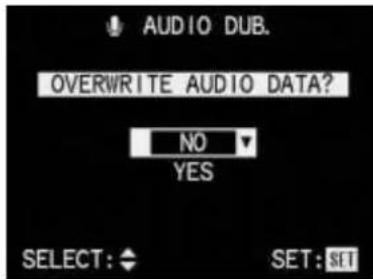
- Appuyez vers le haut ou vers le bas sur le pavé directionnel pour sélectionner NON ou OUI.
NON si vous souhaitez conserver l'enregistrement sonore existant, c'est-à-dire que vous ne voulez pas un nouvel enregistrement. OUI si vous souhaitez écraser l'enregistrement sonore existant avec un nouveau (marqué d'une flèche vers le haut et en jaune, si activé).
- Enfin, appuyez sur le bouton VIEW/SET pour démarrer l'enregistrement sonore.
Si vous avez précédemment sélectionné NON, le sous-menu disparaît et les affichages décrits au point 4 apparaissent.
Si vous avez précédemment sélectionné OUI, le symbole du microphone, auparavant blanc, devient bleu et clignote pendant la durée de l'enregistrement. En dessous, une rangée de 10 petits triangles noirs apparaît, qui deviennent jaunes un à un à intervalles d'une seconde pour indiquer la progression du temps d'enregistrement maximal de 10 s.
Sur la ligne du bas, seul STOP : SET reste à droite pour indiquer comment l'enregistrement sonore peut être terminé à tout moment.
Ensuite, les affichages reviennent à leur état d'origine, le symbole d'enregistrement sonore apparaissant également dans l'en-tête.
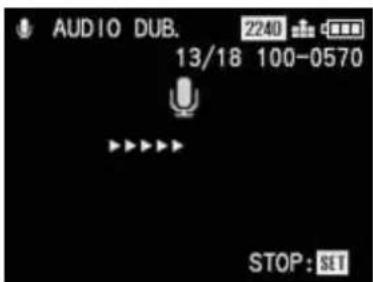
- Appuyez à nouveau sur la touche VIEW/SET si vous souhaitez interrompre l'enregistrement sonore.
Les affichages reviennent alors à l'état décrit au point 4, avec le symbole d'enregistrement sonore également visible dans l'en-tête.
- Appuyez deux fois sur la touche MENU pour désactiver l'enregistrement sonore et quitter le système de menus.
Réduction de la résolution après l'enregistrement
Vous pouvez réduire la résolution d'une image déjà enregistrée à une date ultérieure. Ceci est particulièrement recommandé si vous souhaitez augmenter la capacité mémoire restante de la carte, envoyer l'image en pièce jointe par e-mail ou l'utiliser dans le cadre d'un site Web.
Remarques :
La résolution des enregistrements vidéo, des images enregistrées au format TIFF et des images d'une résolution de 640 x 480 pixels ou avec un rapport hauteur/largeur autre que 4:3 ne peut pas être réduite.
Les enregistrements sonores existants sont supprimés lors de la réduction de la résolution.
Pour les images enregistrées avec d'autres appareils, cela peut ne pas être possible.
Réglage de la fonction :
- Sélectionnez l'image souhaitée comme décrit dans la section "Examen d'images individuelles" à la page 155, points 1 et 2.
- Appuyez sur la touche MENU (1.27).
- Sélectionnez la fonction ☐ RESIZE dans le menu en appuyant (6 fois) sur la touche bas du pavé directionnel (1.29).
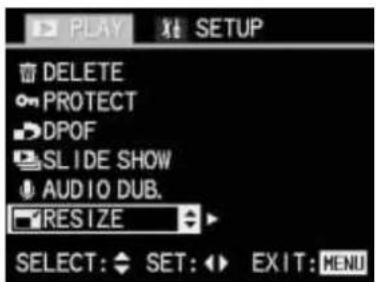
- Revenez à l'image en appuyant sur la flèche droite de la croix directionnelle.
S'il est possible de réduire la résolution, l'écran du moniteur suivant apparaît :
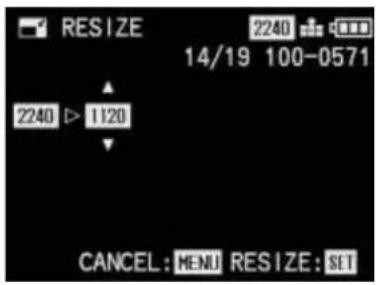
Remarque :
Pendant l'étape 4, vous pouvez également sélectionner les autres images avec les flèches droite et gauche de la croix directionnelle, afin de réduire également leur résolution.
S'il n'est pas possible de réduire la résolution (pour les raisons indiquées ci-dessus dans "Remarques"), l'écran du moniteur ci-dessus apparaît avec les différences suivantes :
CAN'T RESIZE THIS PICTURE est affiché au centre de l'écran, et
Sur la ligne du bas, seul CANCEL: MENU est affiché pour indiquer comment quitter ce niveau de menu.
L'étape suivante n'est nécessaire que s'il n'est pas possible de réduire la résolution. Sinon, vous pouvez continuer comme décrit à partir du point 6.
- Dans ce cas, sélectionnez une autre image dont vous souhaitez réduire la résolution en appuyant sur la flèche gauche ou droite de la croix directionnelle.
L'étape suivante n'est nécessaire que si vous souhaitez réduire la résolution de plus d'un niveau. Sinon, vous pouvez continuer comme décrit à partir du point 7.
- Sélectionnez la résolution souhaitée en appuyant sur les flèches haut et/ou bas de la croix directionnelle. Selon qu'une résolution inférieure, supérieure ou les deux sont disponibles, les symboles de flèches correspondants apparaissent. 1600 = 1600 x 1200 1120 = 1120 x 840 640 = 640 x 480
- Appuyez sur le bouton VIEW/SET (1.31).
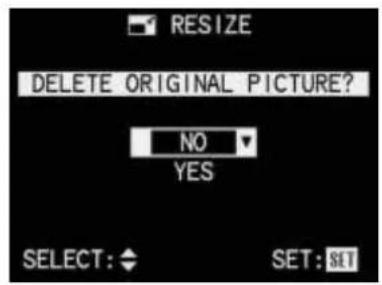
- Appuyez sur haut ou bas sur le pavé directionnel pour sélectionner NON ou OUI.
NON si vous souhaitez conserver l'image avec la résolution d'origine et stocker en plus celle avec la résolution réduite.
OUI si, au contraire, vous voulez effacer l'image avec la résolution d'origine et ne stocker que celle avec la résolution réduite (marquée d'une flèche vers le haut et en jaune lorsqu'elle est activée).
- Enfin, appuyez sur le bouton VIEW/SET pour enregistrer l'image avec la résolution réduite.
Si vous avez précédemment sélectionné NON,
L'image et les affichages disparaissent pendant un court instant, l'écran du moniteur devient gris et VEUILLEZ ATTENDRE... apparaît pendant que l'image est enregistrée à la résolution réduite (en plus de la résolution d'origine). Le menu de revue apparaît ensuite. Si vous appuyez à nouveau sur la droite du pavé directionnel, le nouveau fichier image avec la résolution réduite apparaît (ainsi que le nouveau numéro d'image). Si vous avez précédemment sélectionné OUI,
L'image et les affichages disparaissent pendant un court instant, l'écran du moniteur devient gris et VEUILLEZ ATTENDRE... apparaît pendant que le fichier image avec la résolution d'origine est supprimé et réenregistré avec la résolution réduite. Le menu de revue apparaît ensuite. Si vous appuyez à nouveau sur la droite du pavé directionnel, le nouveau fichier image avec la résolution réduite apparaît (ainsi que le nouveau numéro d'image).
Remarque :
Les versions (supplémentaires) de résolution sont numérotées de la même manière que les nouvelles images, c'est-à-dire qu'elles sont ajoutées à la fin, quel que soit le numéro de l'image d'origine.
- Appuyez sur le bouton MENU pour quitter le système de menus.
Modification du recadrage après l'enregistrement
Avec le LEICA DIGILUX 1, vous pouvez modifier ultérieurement le recadrage des images déjà enregistrées. Ce recadrage permet de supprimer les zones moins importantes sur un ou plusieurs bords ou de mettre davantage en évidence le sujet principal, optimisant ainsi la composition de l'image.
Cependant, il faut tenir compte des points suivants :
Si le recadrage (initialement plus petit) est ensuite agrandi à la taille de l'image d'origine, cela implique toujours une réduction simultanée de la résolution, car un nombre inférieur de pixels doit couvrir la même surface.
Remarque :
Le recadrage n'est pas possible pour les enregistrements vidéo, les images enregistrées au format TIFF, les images avec un enregistrement sonore et les images avec une résolution de 640 x 480 pixels, ainsi que pour celles enregistrées sur d'autres appareils.
Réglage de la fonction :
- Sélectionnez l'image souhaitée comme décrit dans la section « Examen d'images individuelles » à la page 155, points 1 et 2.
- Appuyez sur le bouton MENU (1.27).
- Sélectionnez la fonction > RECADRAGE dans le menu en appuyant (7x) vers le bas sur le pavé directionnel (1.29).
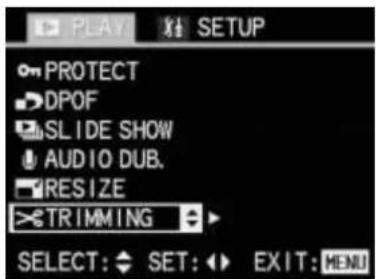
- Revenez à l'image en appuyant à droite sur le pavé directionnel.
S'il est possible de réduire la résolution, l'écran du moniteur suivant apparaît :
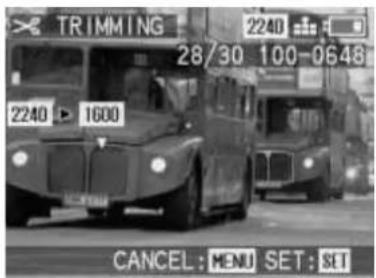
Remarque :
Pendant l'exécution de l'étape 4, vous pouvez également sélectionner les autres images en utilisant la droite et la gauche sur le pavé directionnel, afin de pouvoir également modifier leur recadrage.
S'il n'est pas possible de modifier le recadrage (pour les raisons indiquées ci-dessus sous « Remarques »), l'écran du moniteur ci-dessus apparaît avec les différences suivantes :
- IMPOSSIBLE DE RECADRER CETTE IMAGE est affiché au centre de l'écran, et
- sur la ligne du bas, seul ANNULER : MENU est affiché pour indiquer comment quitter ce niveau de menu.
L'étape suivante n'est nécessaire que s'il n'est pas possible de modifier le recadrage. Sinon, vous pouvez continuer comme décrit à partir du point 6.
- Dans de tels cas, sélectionnez une autre image pour laquelle vous souhaitez modifier le recadrage en appuyant à gauche ou à droite sur le pavé directionnel.
L'étape suivante n'est nécessaire que si vous souhaitez réduire la résolution de plus d'un niveau. Sinon, vous pouvez continuer comme décrit à partir du point 7.
- Sélectionnez la résolution souhaitée en appuyant vers le haut et/ou vers le bas sur le pavé directionnel. Selon qu'une résolution inférieure, supérieure ou les deux sont disponibles, des flèches jaunes pointant vers le bas, vers le haut ou les deux apparaissent respectivement en dessous, au-dessus ou en dessous et au-dessus de la résolution suggérée, pour indiquer les options de réglage.
1600 = 1600 × 1200
1120 = 1120 × 840
640 = 640 × 480
Remarque :
Plus la résolution sélectionnée est basse, plus le recadrage central résultant est petit. Plus le recadrage est petit, plus il peut être déplacé du centre à l'étape 8.
- Appuyez sur le bouton VIEW/SET.
Les affichages décrits ci-dessus au point 4 apparaissent sur le moniteur, avec une flèche jaune pointant vers l'extérieur au bord du moniteur au centre, pour indiquer comment le recadrage peut être modifié.
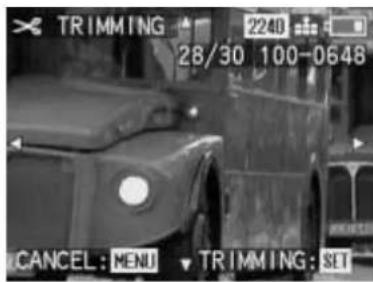
- Sélectionnez le recadrage souhaité à l'aide du pavé directionnel.
Sur le moniteur, l'image « se déplace » dans la direction où vous appuyez sur le pavé directionnel.
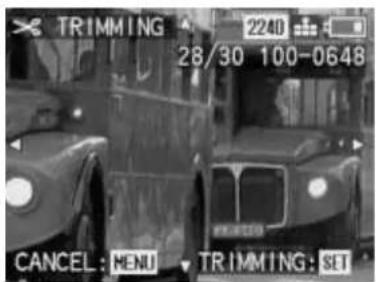
Remarque :
Les bords de l'image d'origine sont les limites de vos déplacements.
- Appuyez à nouveau sur le bouton VIEW/SET.
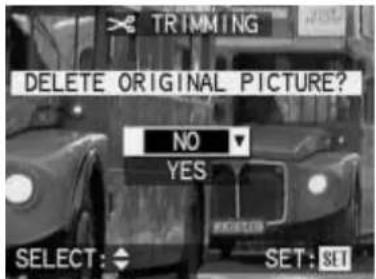
- Appuyez vers le haut ou vers le bas sur le pavé directionnel pour sélectionner NON ou OUI.
NON, si vous souhaitez conserver l'image avec la résolution et le recadrage d'origine et stocker en plus celle avec la résolution réduite et le recadrage modifié.
OUI, si au contraire vous souhaitez effacer l'image avec la résolution et le recadrage d'origine et ne conserver que celle avec la résolution réduite et le recadrage modifié (marquée d'une flèche vers le haut et en jaune, si activé).
- Enfin, appuyez sur la touche VISUALISATION/REGLAGE pour enregistrer l'image avec la résolution réduite.
Si vous avez précédemment sélectionné NON,
L'image et les affichages disparaissent pendant un court instant, l'écran du moniteur devient gris et VEUILLEZ PATIENTER... apparaît pendant que l'image est enregistrée avec le nouveau recadrage (en plus de l'image d'origine). Le menu de révision apparaît ensuite. Si vous appuyez alors à nouveau sur la droite du pavé directionnel, le nouveau fichier image avec le nouveau recadrage apparaît (ainsi que le nouveau numéro d'image).
Si vous avez précédemment sélectionné OUI,
L'image et les affichages disparaissent pendant un court instant, l'écran du moniteur devient gris et VEUILLEZ PATIENTER... apparaît pendant que le fichier image avec la résolution d'origine est supprimé et réenregistré avec le nouveau recadrage. Le menu de révision apparaît ensuite. Si vous appuyez alors à nouveau sur la droite du
pavé directionnel, le nouveau fichier image avec le nouveau recadrage apparaît (ainsi que le nouveau numéro d'image).
Remarque :
Les versions (supplémentaires) de résolution sont numérotées de la même manière que les nouvelles images, c'est-à-dire qu'elles sont ajoutées à la fin, quel que soit le numéro de l'image d'origine.
- Appuyez sur la touche MENU pour quitter le système de menus.
Création de nouveaux numéros de dossier
Le LEICA DIGILUX 1 écrit les numéros d'image sur la carte mémoire dans l'ordre croissant. Initialement, tous les fichiers correspondants sont stockés dans un seul dossier. Vous pouvez créer un nouveau dossier à tout moment, que vous pouvez utiliser pour stocker les images suivantes, par exemple pour les regrouper plus clairement.
Réglage de la fonction :
- Réglez le sélecteur Enregistrement/révision (1.14) sur les expositions simples ou en série.
- Appuyez sur la touche MENU (1.27).
- Appuyez sur la droite du pavé directionnel pour ouvrir le menu des réglages par défaut (SETUP).
- Sélectionnez la fonction ☐ NO. RESET dans le menu en appuyant (5x) sur le bas du pavé directionnel (1.29).
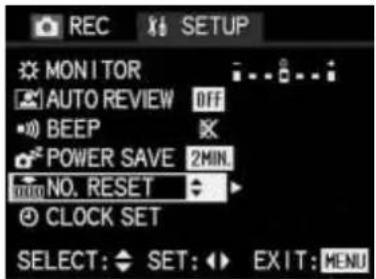
- Ouvrez le sous-menu correspondant en appuyant sur la droite du pavé directionnel.
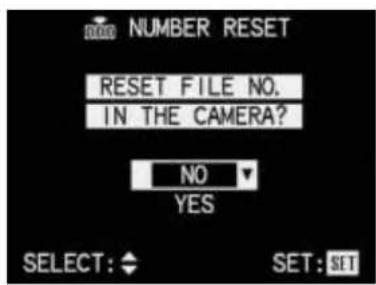
- Sélectionnez NO pour conserver le numéro de dossier existant ou YES (marqué d'une flèche vers le haut et en jaune si activé) pour un nouveau numéro en appuyant sur le haut ou le bas du pavé directionnel.
- Enfin, appuyez sur le bouton VIEW/SET. Si vous avez sélectionné YES précédemment, le nouveau numéro de dossier est défini pour les photos suivantes.
Le premier niveau de menu réapparaît dans le moniteur.
- Appuyez sur le bouton MENU pour quitter le système de menus.
L'écran du moniteur d'origine réapparaît.
Lecture automatique d'une série de photos (DIAPORAMA)
Avec le LEICA DIGILUX 1, vous pouvez lire automatiquement une séquence de photos enregistrées sur la carte mémoire sur le moniteur de l'appareil ou sur l'écran d'un ordinateur connecté, comme un diaporama. Vous pouvez également choisir la durée d'affichage de chaque photo et si des enregistrements sonores doivent être lus en même temps.
Remarques :
La lecture automatique n'est pas disponible pour les enregistrements vidéo.
Réglage de la fonction :
- Réglez le sélecteur Enregistrement/lecture (1.14) sur lecture ▶.
- Appuyez sur le bouton MENU (1.27).
- Sélectionnez la fonction DIAPORAMA dans le menu en appuyant (4 fois) sur la flèche vers le bas de la croix directionnelle (1.29).
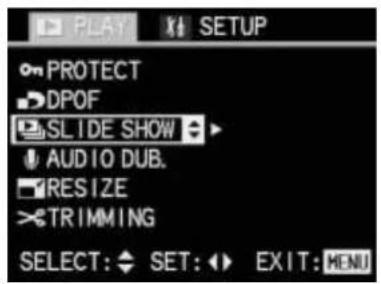
- Ouvrez le sous-menu en appuyant sur la flèche droite de la croix directionnelle.
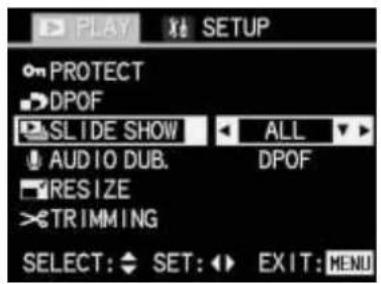
- Continuez les réglages à partir de l'étape 6 si toutes les images doivent être affichées.
Cependant, si seules les images avec des paramètres d'ordre d'impression doivent être affichées, sélectionnez DPOF en appuyant sur la flèche vers le bas de la croix directionnelle. Les autres réglages sont les mêmes.
La ligne de menu est marquée en jaune et les flèches gauche et droite décrites ci-dessus au point 4 apparaissent, ainsi qu'une flèche supplémentaire pointant vers le haut.
- Ouvrez le sous-menu correspondant en appuyant sur la flèche droite de la croix directionnelle.
Les trois étapes suivantes ne sont nécessaires que si vous souhaitez modifier le temps d'affichage des images individuelles. Sinon, vous pouvez démarrer la lecture automatique comme décrit au point 13.
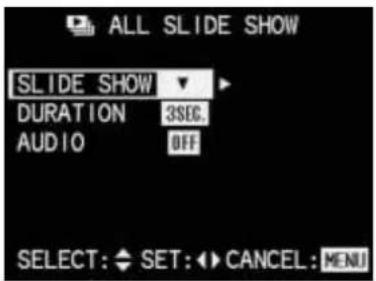
- Appuyez sur la flèche vers le haut ou vers le bas de la croix directionnelle pour sélectionner DURÉE 3SEC.
La ligne de menu est marquée en jaune, des flèches pointant vers le haut et vers le bas sont également affichées, ainsi que deux des quatre temps d'affichage disponibles 1 SEC, 2 SEC, 3 SEC, 5 SEC à droite. Selon le temps visible, des flèches pointant vers la gauche et/ou la droite apparaissent également.
Sélectionnez le temps d'affichage souhaité en appuyant sur la flèche gauche ou droite de la croix directionnelle. Le temps sélectionné est marqué en jaune.
- Revenez à l'élément de menu DIAPORAMA en appuyant sur la flèche vers le haut de la croix directionnelle.
- Les trois étapes suivantes ne sont nécessaires que si vous souhaitez lire des enregistrements sonores. Sinon, vous pouvez démarrer la lecture automatique comme décrit au point 13.
Sélectionnez AUDIO ON en appuyant sur la flèche vers le bas de la croix directionnelle. La ligne de menu est marquée en jaune, une flèche pointant vers le haut est affichée, ainsi que ON et OFF à droite. Selon que la lecture des enregistrements sonores est activée ou désactivée, une flèche pointant vers la gauche ou la droite apparaît également.
- Sélectionnez le type de fonction souhaité en appuyant sur la flèche gauche ou droite de la croix directionnelle. Le type de fonction sélectionné est marqué en jaune.
- Sélectionnez le type de fonction souhaité en appuyant à gauche ou à droite sur la croix directionnelle. Le type de fonction sélectionné est marqué en jaune.
- Revenez à l'élément de menu DIAPORAMA en appuyant sur la touche haut du pavé directionnel.
- Démarrez la lecture automatique en appuyant sur la touche droite du pavé directionnel.
Certains affichages changent. Pendant un court instant, les éléments suivants apparaissent :
dans l'en-tête DIAPORAMA COMPLET ;
en dessous, DÉMARRER DIAPORAMA, et
en dessous, STOP : MENU pour indiquer comment arrêter la lecture.
La lecture automatique se poursuit ensuite avec de courts intervalles sombres entre les images jusqu'à ce que vous appuyiez sur le bouton MENU. Le seul affichage est le nom du fichier et le numéro consécutif de l'image en haut à droite.
- Appuyez sur le bouton MENU pour arrêter la lecture automatique.
L'image ne change plus, le message FIN DU DIAPORAMA apparaît au centre de l'écran pendant un court instant, puis les affichages d'origine réapparaissent sur le moniteur.
Réglage de la luminosité de l'écran LCD
La luminosité de l'écran LCD du LEICA DIGILUX 1 peut être réglée afin de l'optimiser pour chaque situation, c'est-à-dire les conditions de lumière ambiante.
Remarques :
Le réglage de la luminosité de l'écran a un effet sur la durée de vie de la batterie : plus il est lumineux, plus il consomme d'énergie et donc plus la durée de vie est courte.
Pour cette raison, la luminosité est toujours réinitialisée à la valeur par défaut lorsque l'appareil photo est éteint.
Réglage de la fonction :
- Appuyez sur le bouton MENU (1.27). Peu importe que vous soyez en mode enregistrement ou lecture.
- Appuyez sur la droite du pavé directionnel (1.29) pour ouvrir le menu des réglages par défaut Ⓧ SETUP.
- Sélectionnez le niveau de luminosité souhaité en appuyant sur la gauche et/ou la droite du pavé directionnel. Le niveau sélectionné de l'échelle est marqué en jaune. Aux deux réglages maximum, la flèche correspondante disparaît.
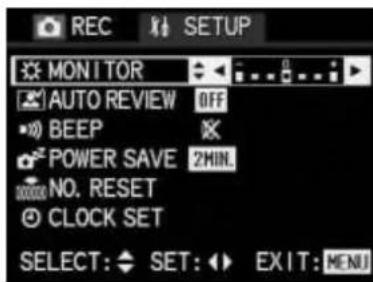
- Appuyez à nouveau sur le bouton MENU pour quitter le système de menus.
Réglage des tonalités de confirmation
Avec le LEICA DIGILUX 1, vous pouvez décider si vous souhaitez que vos réglages et autres fonctions soient confirmés par un signal acoustique – deux volumes sont disponibles – ou si le fonctionnement de l'appareil photo et la prise de vue proprement dite doivent être essentiellement silencieux.
La confirmation est un bip, qui retentit à chaque étape et lorsque la mise au point et l'exposition sont calculées et enregistrées lorsque le déclencheur est enfoncé à mi-course.
Réglage de la fonction :
- Appuyez sur le bouton MENU (1.27). Peu importe que vous soyez en mode enregistrement ou lecture.
- Appuyez sur la droite du pavé directionnel (1.29) pour ouvrir le menu des réglages par défaut ⌘ SETUP.
- Sélectionnez la fonction ▶) BEEP dans le menu en appuyant (3x) sur la flèche bas du pavé directionnel.
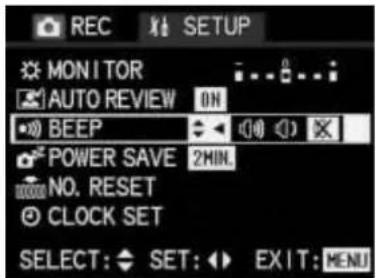
- Appuyez sur la droite ou la gauche du pavé directionnel pour sélectionner (bip de confirmation fort), (bip de confirmation faible) ou (pas de bip de confirmation). La fonction active est marquée en jaune.
- Appuyez sur le bouton MENU pour enregistrer votre réglage et quitter le système de menus.
Réglage de l'extinction automatique (POWER SAVE)
Cette fonction fait passer l'appareil photo en mode veille après un certain temps, ce qui économise l'énergie en désactivant les affichages du moniteur et du champ de données, par exemple. Vous pouvez choisir d'activer ou non cette fonction et, si oui, après combien de temps vous souhaitez que l'appareil passe en veille. Vous pouvez ainsi adapter cette fonction à vos méthodes de travail personnelles et prolonger considérablement la durée de vie de votre batterie.
Remarques :
Si vous faites fonctionner l'appareil photo directement sur secteur à l'aide du bloc secteur/chargeur, l'extinction automatique n'est pas disponible. Si l'extinction automatique est activée et que la batterie doit être chargée, vous devez éteindre l'appareil photo avec l'interrupteur principal (1.25) avant de brancher le bloc secteur/chargeur sur la prise de l'appareil. Si vous laissez l'appareil allumé dans cette situation, des dysfonctionnements sont possibles.
Réglage de la fonction :
- Appuyez sur le bouton MENU (1.27). Que vous soyez en mode enregistrement ou en mode lecture, cela n'a pas d'importance.
- Appuyez sur la droite du pavé directionnel (1.29) pour ouvrir le menu des réglages par défaut ⌘ SETUP.
- Sélectionnez la fonction POWER SAVE dans le menu en appuyant (4x) sur la flèche bas du pavé directionnel.
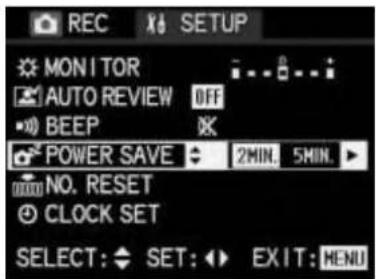
- Sélectionnez 2MIN, 5MIN, 10MIN ou OFF en appuyant sur gauche ou droite sur le pavé directionnel. Le réglage actif est marqué en jaune.
- Appuyez sur le bouton MENU pour enregistrer votre réglage et quitter le système de menus.
Lecture sur un téléviseur
Le LEICA DIGILUX 1 vous permet de visualiser ou de présenter vos photos sur un téléviseur, et donc sur un grand écran. L'appareil photo est connecté au téléviseur via le câble A/V fourni, après avoir été réglé sur le standard TV applicable dans votre pays – PAL ou NTSC.
L'écran du moniteur de l'appareil photo ("Livecam") peut également être reproduit sur des téléviseurs compatibles NTSC ou des moniteurs d'ordinateur.
Remarques :
La revue automatique (brève) des photos prises en mode enregistrement n'est pas possible sur un téléviseur.
N'utilisez pas d'autres câbles que celui fourni. Si votre téléviseur possède une prise péritel plutôt qu'une prise cinch, vous aurez également besoin d'un adaptateur approprié. Veuillez consulter le manuel correspondant pour connaître les réglages TV requis.
Sélection du standard TV
- Réglez le sélecteur Enregistrement/Revue (1.14) sur le mode revue ▶.
- Appuyez sur le bouton MENU (1.27).
- Appuyez sur droite sur le pavé directionnel (1.29) pour ouvrir le menu des réglages par défaut ⌘ SETUP.
- Réglez la fonction → VIDEO OUT en appuyant (6x) sur bas sur le pavé directionnel (1.29).
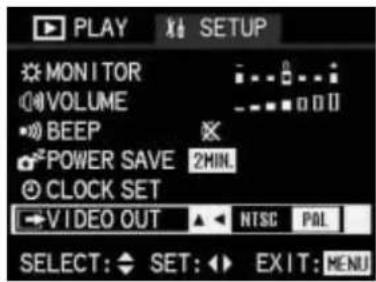
- Sélectionnez NTSC ou PAL en appuyant sur la droite ou la gauche de la croix directionnelle. Le réglage actif est marqué en jaune.
- Appuyez sur la touche MENU pour enregistrer votre réglage et quitter le système de menus. L'écran du moniteur d'origine réapparaît.
Connexion/lecture des images
- Éteignez l'appareil photo et le téléviseur.
- Branchez les petites fiches individuelles du câble dans la prise "A/V OUT" de l'appareil photo (1.35) et branchez les fiches cinch dans les prises correspondantes du téléviseur : la fiche jaune dans la prise vidéo, la fiche blanche dans la prise audio.
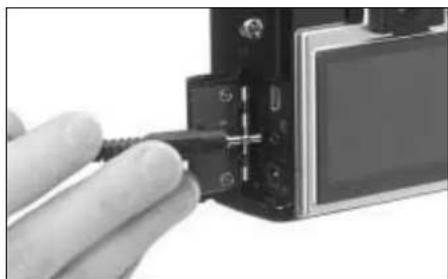
- Allumez le téléviseur et passez sur la chaîne AV.
- Allumez l'appareil photo et réglez le sélecteur Enregistrement/lecture (1.14) sur lecture ▶. L'image réglée sur l'appareil photo est alors reproduite sur le téléviseur.
Transfert de données vers un ordinateur
Le LEICA DIGILUX 1 est compatible avec les systèmes d'exploitation suivants :
_ Microsoft Windows : Windows 98, Windows ME, Windows 2000, Windows XP Apple Macintosh : MacOS 9, MacOS X
Connexion et transfert des données Pour Windows 98
- Connectez le DIGILUX 1 à un port USB libre de votre ordinateur à l'aide du câble USB fourni.
- Réglez le DIGILUX 1 en mode lecture (pas en mode enregistrement !).
- L'ordinateur détecte automatiquement l'appareil photo.
- Windows 98 lance alors l'assistant matériel. Lorsqu'il demande l'emplacement du pilote, indiquez votre lecteur de CD-ROM. Windows trouvera automatiquement le pilote pour le DIGILUX 1. Confirmez les demandes suivantes avec OK. Cette opération ne doit être effectuée que la première fois que vous vous connectez à l'ordinateur Windows 98.
- Le DIGILUX 1 apparaît comme un "périphérique de stockage amovible" avec sa propre lettre de lecteur, comme un disque dur dans l'Explorateur Windows.
- Pour transférer des données, ouvrez l'Explorateur Windows (clic droit sur DÉMARRER, puis clic gauche sur Explorateur).
- Ouvrez ensuite le dossier "DCIM" sous la lettre de lecteur appropriée, où vous trouverez des répertoires individuels appelés "100LEICA", "101LEICA"...
- À partir de là, vous pouvez copier les fichiers image dans un dossier de votre choix sur votre disque dur en utilisant la méthode normale de l'Explorateur Windows.
Pour Windows ME, Windows 2000, Windows XP
- Connectez le DIGILUX 1 à un port USB libre de votre ordinateur à l'aide du câble USB fourni.
- Réglez le DIGILUX 1 en mode lecture (pas en mode enregistrement !).
- L'ordinateur détecte automatiquement l'appareil photo. Sous Windows ME/2000/XP, vous n'avez pas besoin d'installer de pilote supplémentaire.
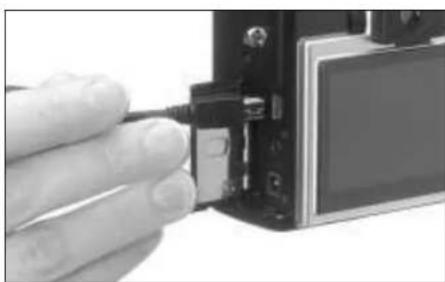
- Vous pouvez donc procéder comme décrit ci-dessus aux points 5-8.
Pour MacOS 9 et Mac OS X
- Connectez le DIGILUX 1 à un port USB libre de votre ordinateur à l'aide du câble USB fourni.
- Réglez le DIGILUX 1 en mode lecture (pas en mode enregistrement !).
- L'ordinateur détecte automatiquement l'appareil photo.
- Le DIGILUX 1 apparaît comme une icône sur le bureau, comme un CD-ROM par exemple.
- Pour transférer des données, ouvrez le dossier "DCIM" en double-cliquant sur l'icône DIGILUX 1. Vous y trouverez des répertoires individuels appelés "100LEICA", "101LEICA", etc.
- À partir de là, vous pouvez copier les fichiers image dans un dossier de votre choix sur votre disque dur de la manière habituelle.
Pour les autres ordinateurs
Les fichiers image peuvent être transférés sur ces ordinateurs à l'aide d'un lecteur de cartes SD en option. Pour plus de détails, consultez votre revendeur.
Format Epson PIM (Print Image Matching)
PRINT Image Matching est le premier système par lequel chaque image numérique inclut des instructions spécifiques sur le style d'impression exact à suivre au moment de l'impression (désigné par l'appareil photo au moment de la prise de vue). Les imprimantes et leurs pilotes sophistiqués offrent alors au photographe un contrôle total sur la qualité d'impression, permettant des réglages précis ou une impression entièrement automatisée en utilisant P.I.M. tel que défini dans l'appareil photo.
La nouvelle norme industrielle ExifPrint est une technologie basée sur P.I.M. et qui permet de profiter plus facilement du concept P.I.M. PRINT Image Matching II couvre des paramètres de réglage supplémentaires de P.I.M. et fonctionne avec ExifPrint pour offrir une performance complète de correspondance d'impression.
En mode PRINT Image Matching II, l'appareil photo peut transférer les données P.I.M.II avec les images vers un ordinateur, ou directement vers une imprimante capable d'imprimer à partir des cartes mémoire de l'appareil photo. Les instructions P.I.M.II dans l'image déterminent comment P.I.M.II est exécuté par le logiciel du pilote d'imprimante.
Les données PRINT Image Matching II fournissent le lien manquant dans les images numériques afin que le consommateur puisse utiliser les données P.I.M.II pour fournir des instructions à l'imprimante pour la qualité d'impression, grâce aux données P.I.M.II intégrées dans le fichier image de l'appareil photo numérique.
Pour profiter des informations P.I.M. II intégrées dans une image d'appareil photo numérique, il est nécessaire de disposer d'une imprimante compatible P.I.M.II. Les imprimantes sont disponibles pour une utilisation avec ou sans ordinateur. Pour une utilisation avec ordinateur, il est nécessaire d'avoir le support P.I.M. II dans le pilote d'imprimante et le logiciel P.I.M. II pour lire les informations P.I.M.II dans l'en-tête JPEG du fichier image de l'appareil photo numérique. Pour une utilisation sans ordinateur, aucun logiciel supplémentaire n'est nécessaire pour imprimer des images avec P.I.M.II, il suffit d'insérer la carte mémoire dans une imprimante autonome compatible P.I.M. II et d'exécuter l'impression. La technologie P.I.M. II garantit que les appareils photo numériques et les imprimantes fonctionnent ensemble parfaitement pour produire les meilleures impressions possibles.
Divers
Stockage de l'appareil photo
Si vous n'utilisez pas l'appareil photo pendant une période prolongée, nous vous recommandons de
- l'éteindre (voir p. 119)
- retirez la carte mémoire (voir p. 118)
- retirez le capuchon du moniteur, s'il est installé (voir p. 115)
- retirez la batterie (voir p. 116), et (après 5 heures, la durée de vie de la batterie de secours intégrée, la date et l'heure saisies sont perdues)
- remettez le capuchon d'objectif (voir p. 115).
Instructions d'entretien et de maintenance
Instructions générales d'entretien
N'utilisez pas l'appareil à proximité immédiate d'appareils dotés d'aimants puissants ou de champs magnétiques (par exemple, fours à micro-ondes, téléviseurs, consoles de jeux vidéo).
_ Si vous placez l'appareil sur ou très près d'un téléviseur, son champ magnétique peut interférer avec les enregistrements sonores et vidéo. _ Il en va de même pour une utilisation à proximité de téléphones mobiles. _ Les champs magnétiques puissants, par exemple ceux provenant de haut-parleurs ou de gros moteurs électriques, peuvent endommager les données stockées ou les images. _ Les champs magnétiques des fours à micro-ondes peuvent interférer avec les enregistrements sonores et vidéo. _ Si l'appareil ne fonctionne pas correctement en raison des effets des champs magnétiques, éteignez-le, retirez la batterie ou débranchez-le de la prise secteur, réinsérez la batterie ou rebranchez-le, puis rallumez-le.
_ N'utilisez pas l'appareil à proximité immédiate d'émetteurs radio ou de lignes à haute tension. _ Leurs champs magnétiques peuvent également interférer avec les enregistrements sonores et vidéo.
Protégez l'appareil du contact avec les sprays anti-insectes et autres produits chimiques agressifs. L'essence, le diluant et l'alcool ne doivent jamais être utilisés pour le nettoyage.
Certains produits chimiques et liquides peuvent endommager le boîtier de l'appareil ou la finition de surface. _ Comme le caoutchouc et les plastiques émettent parfois des produits chimiques agressifs, ils ne doivent pas rester en contact avec l'appareil pendant une longue période.
Assurez-vous que le sable et la poussière ne peuvent pas pénétrer dans l'appareil, par exemple sur la plage.
_ Le sable et la poussière peuvent endommager l'appareil et la carte mémoire. Vous devez y accorder une attention particulière lors de l'insertion et du retrait de la carte.
Assurez-vous que l'eau ne peut pas pénétrer dans l'appareil, par exemple lorsqu'il neige ou pleut et sur la plage.
_ L'humidité peut provoquer des dysfonctionnements et même des dommages irréparables à l'appareil et à la carte mémoire. _ Si des embruns salés atteignent l'appareil, mouillez un chiffon doux avec de l'eau du robinet, essorez-le soigneusement et essuyez l'appareil avec. Ensuite, essuyez soigneusement l'appareil avec un chiffon sec.
Le LEICA DIGILUX 1 est conçu exclusivement pour un usage privé. Ne l'utilisez pas pour une observation à long terme ou à des fins commerciales.
_ S'il est utilisé pendant très longtemps, la température interne de l'appareil peut provoquer des dysfonctionnements.
Écran LCD / Viseur /
Bague avant de l'objectif / Écran LCD
_ Si l'appareil est exposé à d'importantes variations de température, de la condensation peut se former sur l'écran. Essuyez-le soigneusement avec un chiffon doux et sec.
_ Si l'appareil est très froid lors de la mise en marche, l'écran sera initialement légèrement plus sombre que la normale. Dès que l'élément LCD se réchauffe, il retrouve sa luminosité normale.
L'écran LCD est fabriqué selon un processus de haute précision. Cela garantit que, sur un total d'environ 200 000 pixels, plus de 99,99 % fonctionnent correctement et que seulement 0,01 % restent sombres ou sont toujours allumés. Cependant, cela n'est pas un dysfonctionnement et n'altère pas la reproduction de l'image.
Viseur
_ Ne dirigez jamais le viseur et l'objectif vers le soleil, car cela peut entraîner de graves dommages aux composants internes.
Bague avant de l'objectif
_ Ne fixez que les accessoires prévus à l'objectif ; d'autres objets ne peuvent pas être fixés. _ Si vous souhaitez monter un accessoire, vous devez d'abord dévisser la bague avant dans le sens inverse des aiguilles d'une montre. Si un accessoire est monté, les coins de l'image peuvent s'assombrir lors d'un zoom dans la plage grand-angle (vignettage). Pour plus de détails, veuillez consulter les manuels des accessoires concernés.
Condensation
Si de la condensation s'est formée sur ou dans l'appareil, vous devez l'éteindre et le laisser reposer à température ambiante pendant environ une heure. Une fois que la température de l'appareil s'est adaptée à la température ambiante, la condensation disparaîtra d'elle-même.
Instructions d'entretien
Pour l'appareil
_ Débranchez le bloc secteur/chargeur avant de nettoyer l'appareil photo. _ Nettoyez l'appareil photo uniquement avec un chiffon doux et sec. Les saletés tenaces doivent d'abord être recouvertes d'un agent de nettoyage bien dilué, puis essuyées avec un chiffon sec.
Pour la batterie
La batterie lithium-ion rechargeable produit un courant par des réactions chimiques internes. Ces réactions sont également influencées par la température et l'humidité extérieures. Des températures très élevées ou très basses réduisent la durée de vie de la batterie. Retirez toujours la batterie si vous n'utilisez pas l'appareil photo pendant une longue période. Sinon, après plusieurs semaines, la batterie pourrait être complètement déchargée, c'est-à-dire que la tension est considérablement réduite, car l'appareil photo utilise un faible courant de veille (pour sauvegarder la date) même lorsqu'il est éteint. Une batterie complètement déchargée ne peut pas être rechargée.
_ Ne stockez la batterie que lorsqu'elle est déchargée. Pour de très longues périodes de stockage, elle doit être chargée et déchargée environ une fois par an. _ Gardez toujours les contacts de la batterie propres et facilement accessibles. Protégez les contacts des objets métalliques tels que les trombones ou les bijoux, qui peuvent provoquer des courts-circuits. Une batterie en court-circuit peut devenir très chaude et provoquer une combustion.
_ Si la batterie tombe, vérifiez que le boîtier et les contacts ne sont pas endommagés. L'utilisation d'une batterie endommagée peut endommager l'appareil photo. _ Les batteries ont une durée de vie limitée. _ Apportez les batteries usagées à un point de collecte afin qu'elles puissent être recyclées correctement. _ Ne jetez jamais la batterie au feu, car elle peut exploser.
Pour les cartes mémoire
_ Pendant qu'une image est enregistrée ou que la carte mémoire est lue, elle ne doit pas être retirée, l'appareil photo ne doit pas être éteint ni exposé à des vibrations. _ Ne stockez pas la carte mémoire dans des endroits exposés à des températures élevées, à la lumière directe du soleil, à des champs magnétiques ou à des décharges électrostatiques. _ Ne faites pas tomber la carte mémoire et ne la pliez pas, car cela pourrait l'endommager et entraîner la perte des données enregistrées. _ Retirez toujours la carte mémoire si vous n'utilisez pas l'appareil photo pendant une longue période. _ Ne touchez pas les contacts à l'arrière de la carte mémoire et gardez-les exempts de saleté, de poussière et d'humidité.
Stockage
_ Retirez toujours la batterie et la carte mémoire lors du stockage de l'appareil photo. _ Il est préférable de stocker l'appareil photo dans un conteneur fermé et rembourré afin que rien ne puisse l'endommager et qu'il soit protégé de la poussière. _ Stockez l'appareil photo dans un endroit où il n'y aura pas de températures élevées.
Structure des données sur la carte mémoire
Si les données enregistrées sur une carte sont transférées sur un ordinateur, la structure de dossiers suivante est utilisée :
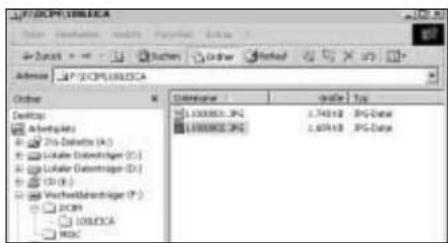
_ Les dossiers 100LEICA, 101LEICA, etc. peuvent être utilisés pour stocker jusqu'à 999 images. _ Le dossier MISC peut être utilisé pour stocker des images avec des paramètres d'ordre d'impression (DPOF).
Messages d'avertissement
PAS DE CARTE MÉMOIRE
Insérez une carte mémoire
CETTE CARTE MÉMOIRE EST PROTÉGÉE
Réinitialisez la protection en écriture de la carte mémoire.
PORTE DU LOGEMENT DE LA CARTE MÉMOIRE OUVERTE
Fermez le volet du logement de la carte mémoire.
AUCUNE IMAGE VALIDE À LIRE
Aucune photo n'est enregistrée sur la carte insérée. Pour pouvoir lire des images, prenez d'abord des photos ou insérez une autre carte contenant des photos.
CARTE MÉMOIRE PLEINE
Insérez une autre carte mémoire ou supprimez des photos dont vous n'avez plus besoin.
RETIREZ LE BOUCHON D'OBJECTIF ET APPUYEZ SUR LA TOUCHE SET
Le bouchon d'objectif était encore en place lors de la mise sous tension de l'appareil. Retirez-le puis appuyez sur la touche VIEW/SET.
ERREUR DE CARTE MÉMOIRE
Impossible d'accéder à la carte mémoire. Retirez-la puis réinsérez-la. La carte mémoire est peut-être endommagée.
ERREUR DE LECTURE
Les données sur la carte mémoire ne peuvent pas être lues. Ouvrez à nouveau l'image souhaitée.
ERREUR D'ÉCRITURE
Les données de l'image n'ont pas pu être écrites sur la carte mémoire. Retirez-la et réinsérez-la, ou éteignez puis rallumez l'appareil photo. Cependant, la carte mémoire est peut-être endommagée.
CETTE IMAGE EST PROTÉGÉE
Après avoir retiré la protection, l'image peut être supprimée ou écrasée.
CETTE IMAGE NE PEUT PAS ÊTRE SUPPRIMÉE / CERTAINES IMAGES NE PEUVENT PAS ÊTRE SUPPRIMÉES
Après avoir retiré la protection, les images peuvent être supprimées.
LE NOMBRE DE TIROIRS EST DÉPASSÉ
Vous souhaitez supprimer, protéger ou définir des paramètres d'ordre d'impression pour trop d'images en même temps.
NE PEUT PAS ÊTRE DÉFINI SUR CETTE IMAGE / NE PEUT PAS ÊTRE DÉFINI SUR CERTAINES IMAGES
Les images sur la carte mémoire ne sont pas compatibles avec la norme DCF, il n'est donc pas possible de définir des paramètres d'ordre d'impression ou des enregistrements sonores.
ERREUR DE CARTE MÉMOIRE
FORMATER CETTE CARTE ?
Le format des données sur la carte mémoire ne peut pas être lu par cet appareil photo. Formatez la carte mémoire avec cet appareil photo.
IMPOSSIBLE DE RECADRER CETTE IMAGE
Le recadrage ne peut pas être effectué pour cette image.
IMPOSSIBLE DE REDIMENSIONNER CETTE IMAGE
La résolution ne peut pas être réduite pour cette image.
Pannes et dépannage
- L'appareil photo ne répond pas lorsque je l'allume.
1-1. La batterie est-elle correctement insérée ou l'adaptateur secteur/chargeur est-il correctement connecté ?
1-2. La batterie est-elle suffisamment chargée ? Utilisez une batterie chargée.
- L'appareil photo s'éteint de nouveau dès que je l'allume.
2-1. La batterie est-elle suffisamment chargée pour faire fonctionner l'appareil ? Chargez la batterie ou insérez une batterie chargée.
2-2. Y a-t-il de la condensation ? Cela se produit si l'appareil est déplacé d'un endroit froid à un endroit chaud. Attendez que la condensation se soit évaporée.
- Je ne peux pas enregistrer une image.
3-1. Une carte mémoire est-elle insérée ?
3-2. Le sélecteur d'enregistrement/lecture n'est pas réglé sur l'un des modes d'enregistrement.
3-3. La carte mémoire est pleine. Supprimez les images dont vous n'avez plus besoin avant d'en prendre de nouvelles.
- L'image ne s'affiche pas sur le moniteur.
4-1. Le moniteur est-il éteint ?
- Le moniteur LCD est trop lumineux ou trop sombre.
5-1. Réglez la luminosité de votre moniteur selon vos préférences.
- L'image ou les images sur le moniteur sont floues.
6-1. Réglez correctement la mise au point ou sélectionnez un mode de mise au point automatique (AF, macro) et appuyez sur le déclencheur jusqu'au premier point de pression.
- Le flash ne fonctionne pas.
7-1. Le flash est désactivé ; sélectionnez un autre mode de flash.
- Je ne peux pas visualiser la photo.
8-1. Une carte mémoire est-elle insérée ?
8-2. Il n'y a pas de données sur la carte mémoire.
8-3. Le sélecteur d'enregistrement/lecture n'est pas réglé sur l'un des modes de lecture.
- Je ne peux pas visualiser la photo sur un téléviseur.
9-1. Vérifiez que le téléviseur et l'appareil photo sont correctement connectés.
9-2. Réglez le téléviseur sur l'entrée AV à laquelle l'appareil photo est connecté.
- L'appareil photo est connecté à un ordinateur mais je ne peux pas transférer les données.
10-1. Vérifiez que l'ordinateur et l'appareil photo sont correctement connectés.
Description de l'appareil et données techniques
Type/format de l'appareil photo : appareil photo numérique, capteur CCD 1/1,76" avec 4 millions de pixels, 3,9 millions effectifs.
Résolution variable : 2240 x 1680, 1600 x 1120, 1120 x 840, 640 x 480 pixels, 320 x 240 pour les enregistrements vidéo.
Données d'image : compression des données variable : haute, basse, aucune (norme TIFF).
Enregistrement des données : photos fixes : normes JPEG, TIFF (RGB) et DPOF.
Photos fixes avec enregistrement sonore : norme JPEG et 640 x 480 pixels en norme QuickTime Motion JPEG. Vidéos (enregistrements animés) : norme QuickTime Motion JPEG.
Supports de stockage : carte mémoire SD et MultiMediaCard.
Réglage de sensibilité : automatique jusqu'à ISO 100/21° pour AUTO et les vidéos, dans les autres modes d'exposition variable : ISO 100/21°, ISO 200/24° ou ISO 400/27°.
Balance des blancs : variable : automatique, préréglages pour lumière du jour, nuageux, éclairage halogène, lampes fluorescentes, flash électronique, et réglage manuel.
Objectif : LEICA DC VARIO-SUMMICRON 7-21 mm f/2-2.5 ASPH. (correspond à 33-100 mm en format 35 mm). Ajustement de la distance focale à l'aide d'un levier de zoom pratique situé sous le déclencheur.
Zoom numérique : max. 2x, combiné à l'objectif donne une plage de zoom totale de 6x.
Plage de réglage de distance : réglage automatique de la distance de 30 cm à l'infini. Réglage manuel de la distance de 6 cm à l'infini. En mode macro (AF) : limite de proximité en position grand-angle 6 cm, en position téléobjectif 20 cm.
Champ objet minimal : en mode macro en position grand-angle 6 cm et en position téléobjectif 20 cm (60 x 80 mm, rapport de reproduction 1:11).
Système autofocus : système combiné comprenant un AF infrarouge pour le réglage de base et un AF passif à comparaison de contraste pour le réglage fin.
Mode de bracketing de mise au point automatique : variable : 3 ou 5 images, chacune graduée dans la plage de profondeur de champ appropriée.
Modes d'exposition : automatique complet AUTO, automatique programmé P, priorité à l'ouverture A, priorité à la vitesse T et réglage manuel M. Automatique complet pour les vidéos.
Mesure de la lumière : multizone, pondérée centrale, spot.
Mémorisation de la mesure : une pression sur le déclencheur au point de pression mémorise la distance mesurée et les valeurs d'exposition.
Compensation d'exposition : ±2 IL par pas de 1/4 IL. Mode de bracketing automatique : 3 ou 5 images avec des graduations de 0,25, 0,75 ou 1 IL.
Plage de vitesses d'obturation : obturateur central mécanique avec fonction électronique supplémentaire. En
AUTO et P (avec réglage ISO automatique) : 1/8 à 1/1000 s ; en P (avec réglage ISO manuel) et A : 1 à 1/1000 s (avec mode flash normal à partir de 1/30 s) ; en T et M : 8 à 1/1000 s ; pour les enregistrements vidéo : 1/30 à 1/1000 s.
Prise de vue en rafale : maximum 3,8 images/s, maximum 8 images (avec compression de données élevée) ou 4 images (avec compression de données faible).
Modes de flash : activation automatique du flash (AUTO, aucun affichage sur l'écran), activation automatique du flash avec pré-flash (○), activation manuelle du flash (‡), activation manuelle du flash avec pré-flash (‡○), manuel (activation du flash et du pré-flash avec des expositions plus longues (○/○2e)/○1DW/○1DW)*, désactivation manuelle du flash (◇).
* Selon le réglage, soit avec synchronisation au début ou à la fin de l'exposition.
Compensation du flash : ±2 IL par pas de 1/4 IL.
Portée du flash intégré (à ISO 100/21°) : 0,3–4,5 m à 7 mm ou 0,3–3,5 m à 21 mm, nombre guide 10.
Temps de recyclage du flash intégré : environ 6 s avec une batterie neuve.
Portée du flash externe LEICA SF20 (à ISO 100/21°) : jusqu'à environ 10 m à 7 mm ou jusqu'à environ 8 m à 21 mm. Nombre guide 20.
Viseur : viseur à image réelle avec réticule pour le champ de mesure autofocus, repères pour les prises de vue rapprochées.
Grossissement du viseur : 0,3x à 7 mm ou 0,86x à 21 mm, correction dioptrique de -2,8 à +0,8 dioptries.
Écran : écran LCD TFT couleur 2,5" avec 200 000 pixels. Affichages : voir p. 104-110.
Déclenchement différé : optionnellement 2 ou 10 s (pas pour les enregistrements vidéo, pour AUTO uniquement 2 s), indiqué par la LED clignotante sur le devant de l'appareil et le symbole correspondant dans le champ de données et sur le moniteur.
Mise sous/hors tension de l'appareil : avec l'interrupteur principal à l'arrière de l'appareil. L'objectif se déplace en position de prêt ou de repos. Arrêt automatique optionnel de l'électronique de l'appareil après environ 3/5/10 minutes (mode veille). Réactivation en appuyant sur le déclencheur ou en éteignant puis rallumant l'appareil.
Connexions : prise mini USB 5 broches 1.1 pour le transfert rapide de données vers l'ordinateur, prise EIAC type 3 DC IN pour l'alimentation secteur, sortie A/V avec mini jack 2,5 mm pour la transmission d'images vers un téléviseur.
Compatibilité : EPSON Print Image System (PIM), Digital Print Order Format (DPOF), MacOS 9.x - MacOS X, Windows 98/ME/2000/XP.
Tension de fonctionnement : 9,5 V
Alimentation : batterie lithium-ion
Boîtier : boîtier externe en magnésium ultra-léger. Attache latérale pour dragonne ou courroie de poignet. Griffe porte-accessoires ISO avec contact central pour connecter des flashs externes plus puissants, par exemple LEICA SF20.
Pas de vis pour trépied : A1/4 DIN 4503 (1/4").
Dimensions (L x H x P) : 127 x 83,3 x 67,4 mm
Poids : environ 385 g / 460 g (sans / avec batterie)
Contenu de la livraison : bloc secteur/chargeur, batterie lithium-ion, carte mémoire SD 64 Mo, pare-soleil pour moniteur, câble A/V, câble USB, dragonne, Adobe Photoshop Elements 1.0 (Win/Mac), ACDSee 1.6 (Mac), ACDSee 3.1/3.11 (Win), Apple QuickTime 5 (Win/Mac), pilotes USB
Batterie : batterie lithium-ion, 7,2 V, 1400 mAh
Bloc secteur/chargeur
Entrée : AC 100-240 V, 50/60 Hz, adaptation automatique
Puissance absorbée : 21 VA (à 100 V), 31 VA (à 240 V)
Sortie DC 9,5 V, 1 A


- AVERTISSEMENT
- REMARQUE
- CONTENU DE LA LIVRAISON
- SOMMAIRE
- NOMENCLATURE
- GUIDE RAPIDE
- GUIDE DÉTAILLÉ
- PRÉPARATION
- LES RÉGLAGES/COMMANDES LES PLUS IMPORTANTS
- MODE ENREGISTREMENT
- FONCTIONS SUPPLÉMENTAIRES, MODE D'ENREGISTREMENT
- MODE DE VISUALISATION
- FURTHER FUNCTIONS, REVIEW MODE
- SLIDE SHOW
- DIVERS
- DÉSIGNATION DES PIÈCES
- BOÎTIER DE L'APPAREIL PHOTO
- VUE DE FACE
- VUE DE DESSUS
- VUE ARRIÈRE
- VUE DE GAUCHE
- VUE DE DROITE
- VUE DE DESSOUS
- AFFICHAGES DANS LE CHAMP DE DONNÉES LCD
- MODE FLASH
- ENREGISTREMENT SONORE
- MISE AU POINT MANUELLE
- AFFICHAGES SUR L'ÉCRAN LCD EN MODES D'ENREGISTREMENT
- AFFICHAGES DANS LE MONITEUR LCD EN MODE DE REVUE
- POUR LES RÉGLAGES DE BASE EN MODE D'ENREGISTREMENT
- PRÉCONFIGURATIONS
- PRISE DE PHOTOS/VIDÉOS
- VISUALISATION DES IMAGES
- FIXATION DE LA COURROIE DE TRANSPORT
- FIXATION DE LA DRAGONNE
- INSTALLATION DU CAPOT DE MONITEUR
- FIXATION DU CAPOT DE MONITEUR
- OUVERTURE DU CAPOT DE MONITEUR
- FERMETURE DU CAPOT DE MONITEUR
- REMARQUES
- MISE EN PLACE/RETRAIT DU CACHE-OBJECTIF
- INSERTION ET RETRAIT DE LA BATTERIE
- CHARGEMENT DE LA BATTERIE
- AVEC MONITEUR ALLUMÉ
- AVEC MONITEUR ÉTEINT
- AFFICHAGES DU NIVEAU DE CHARGE
- FONCTIONNEMENT SUR SECTEUR
- INSERTION ET RETRAIT DE LA CARTE MÉMOIRE
- MISE EN MARCHE/ARRÊT DE L'APPAREIL PHOTO
- RETIREZ LE CAPUCHON D'OBJECTIF ET APPUYEZ SUR LE BOUTON SET
- VISEUR OPTIQUE
- RÉGLAGE DIOPTRIQUE
- REPÈRES
- AFFICHAGES LED
- COMMUTATION DES AFFICHAGES DU MONITEUR
- LES AFFICHAGES EN MODE ENREGISTREMENT
- LES AFFICHAGES EN MODE DE VISUALISATION
- SÉLECTION DES ÉLÉMENTS DE MENU
- RÉGLAGE DE LA DATE ET DE L'HEURE
- SÉLECTEUR D'ENREGISTREMENT/LECTURE
- MOLETTE DE RÉGLAGE DU MODE D'EXPOSITION
- AUTO ENTIÈREMENT AUTOMATIQUE (VOIR P. 127)
- DÉCLENCHEUR
- MODE D'ENREGISTREMENT
- UTILISATION DU ZOOM OPTIQUE
- UTILISATION DU ZOOM NUMÉRIQUE
- UTILISATION DU MODE AUTO
- ENREGISTREMENTS VIDÉO
- UTILISATION DE LA VISUALISATION AUTOMATIQUE D'UNE SEULE IMAGE (AUTO REVIEW)
- RÉGLAGE DE LA FONCTION
- VÉRIFICATION DE LA DERNIÈRE PHOTO (REVIEW)
- SUPPRESSION DE L'IMAGE PENDANT LA VISUALISATION
- PRISE DE VUE AVEC LE RETARDATEUR AUTOMATIQUE
- FONCTIONS SUPPLÉMENTAIRES
- PRISE DE VUE EN SÉRIE
- PHOTOS AVEC SON
- NOTES
- PRISE DE PHOTOS AVEC LE MODE D'EXPOSITION AUTOMATIQUE PROGRAMMÉ P
- PRISE DE PHOTOS AVEC LE MODE PRIORITÉ VITESSE T
- NOTE
- PRISE DE VUE EN MODE PRIORITÉ À LA VITESSE A
- PRISE DE VUE AVEC RÉGLAGE MANUEL DE LA VITESSE D'OBTURATION ET DE L'OUVERTURE M
- SÉLECTION DE LA MÉTHODE DE MESURE DE L'EXPOSITION
- MESURE PONDÉRÉE CENTRALE ([O])
- MESURE SPOT ([•])
- VERROUILLAGE DE LA MESURE
- COMPENSATION D'EXPOSITION
- PRISE DE VUE AVEC LE MODE DE BRACKETING D'EXPOSITION AUTOMATIQUE
- UTILISATION DE LA MESURE SPOT AUTOFOCUS
- UTILISATION DE LA FONCTION MACRO
- UTILISATION DE LA MISE AU POINT MANUELLE
- RÉGLAGE DE LA MISE AU POINT
- PRISE DE VUE AVEC LE MODE DE BRACKETING DE MISE AU POINT AUTOMATIQUE
- PRISE DE VUE AVEC FLASH SYNCHRONISÉ EN FIN DE POSE
- COMPENSATION D'EXPOSITION DU FLASH
- UTILISATION D'UN FLASH SUPPLÉMENTAIRE
- RÉGLAGE DE LA RÉSOLUTION
- RÉGLAGE DU TAUX DE COMPRESSION
- RÉGLAGE DE LA BALANCE DES BLANCS
- RÉGLAGE MANUEL DE LA BALANCE DES BLANCS
- RÉGLAGE DE LA SENSIBILITÉ ISO
- AUTO
- RÉGLAGE DES PROPRIÉTÉS DE L'IMAGE (CONTRASTE, NETTETÉ, SATURATION DES COULEURS)
- UTILISATION D'ACCESSOIRES D'OBJECTIF
- VISUALISATION DE PHOTOS INDIVIDUELLES
- RÉGLAGE DE LA FONCTION / SÉLECTION DES PHOTOS
- VISUALISATION DE PHOTOS INDIVIDUELLES AVEC LE SON
- RÉGLAGE ET UTILISATION DE LA FONCTION
- RÉGLAGE DU VOLUME
- VISUALISATION SIMULTANÉE DE NEUF IMAGES MAXIMUM
- RÉGLAGE DE LA FONCTION / SÉLECTION DES IMAGES
- ZOOM ET SÉLECTION DU RECADRAGE POUR L'EXAMEN D'IMAGES INDIVIDUELLES
- AGRANDISSEMENT DE L'IMAGE ET SÉLECTION DU RECADRAGE
- EXAMEN DES ENREGISTREMENTS VIDÉO
- SUPPRESSION D'IMAGES
- SUPPRESSION D'IMAGES INDIVIDUELLES
- SUPPRESSION DE PLUSIEURS IMAGES SIMULTANÉMENT
- SUPPRESSION DE TOUTES LES IMAGES DE LA CARTE MÉMOIRE
- FORMATAGE DE LA CARTE MÉMOIRE
- PROTECTION DES IMAGES
- PROTECTION D'IMAGES INDIVIDUELLES / SUPPRESSION DE LA PROTECTION
- PROTECTION DE PLUSIEURS IMAGES SUR LA CARTE MÉMOIRE
- SUPPRESSION DE TOUS LES RÉGLAGES DE PROTECTION
- RÉGLAGES DE COMMANDE D'IMPRESSION (DPOF) SUR LA CARTE MÉMOIRE
- RÉGLAGE DES FONCTIONS
- RÉGLAGES DE COMMANDE D'IMPRESSION POUR UNE IMAGE
- SUPPRESSION DE RÉGLAGES INDIVIDUELS DE L'ORDRE D'IMPRESSION
- RÉGLAGES DE L'ORDRE D'IMPRESSION POUR PLUSIEURS PHOTOS
- SUPPRESSION DE TOUS LES RÉGLAGES D'ORDRE D'IMPRESSION
- RÉGLAGES D'ORDRE D'IMPRESSION POUR UNE PLANCHE CONTACT
- SUPPRESSION DES PARAMÈTRES DE COMMANDE D'IMPRESSION POUR UNE PLANCHE CONTACT
- AJOUT DE SON À DES IMAGES EXISTANTES (DOUBLAGE AUDIO)
- RÉDUCTION DE LA RÉSOLUTION APRÈS L'ENREGISTREMENT
- MODIFICATION DU RECADRAGE APRÈS L'ENREGISTREMENT
- CRÉATION DE NOUVEAUX NUMÉROS DE DOSSIER
- LECTURE AUTOMATIQUE D'UNE SÉRIE DE PHOTOS (DIAPORAMA)
- RÉGLAGE DE LA LUMINOSITÉ DE L'ÉCRAN LCD
- RÉGLAGE DES TONALITÉS DE CONFIRMATION
- RÉGLAGE DE L'EXTINCTION AUTOMATIQUE (POWER SAVE)
- LECTURE SUR UN TÉLÉVISEUR
- SÉLECTION DU STANDARD TV
- CONNEXION/LECTURE DES IMAGES
- TRANSFERT DE DONNÉES VERS UN ORDINATEUR
- FORMAT EPSON PIM (PRINT IMAGE MATCHING)
- STOCKAGE DE L'APPAREIL PHOTO
- INSTRUCTIONS D'ENTRETIEN ET DE MAINTENANCE
- INSTRUCTIONS GÉNÉRALES D'ENTRETIEN
- ÉCRAN LCD / VISEUR
- VISEUR
- BAGUE AVANT DE L'OBJECTIF
- CONDENSATION
- INSTRUCTIONS D'ENTRETIEN
- POUR LA BATTERIE
- POUR LES CARTES MÉMOIRE
- STOCKAGE
- STRUCTURE DES DONNÉES SUR LA CARTE MÉMOIRE
- MESSAGES D'AVERTISSEMENT
- PAS DE CARTE MÉMOIRE
- CETTE CARTE MÉMOIRE EST PROTÉGÉE
- PORTE DU LOGEMENT DE LA CARTE MÉMOIRE OUVERTE
- AUCUNE IMAGE VALIDE À LIRE
- CARTE MÉMOIRE PLEINE
- RETIREZ LE BOUCHON D'OBJECTIF ET APPUYEZ SUR LA TOUCHE SET
- ERREUR DE CARTE MÉMOIRE
- ERREUR DE LECTURE
- ERREUR D'ÉCRITURE
- CETTE IMAGE EST PROTÉGÉE
- CETTE IMAGE NE PEUT PAS ÊTRE SUPPRIMÉE / CERTAINES IMAGES NE PEUVENT PAS ÊTRE SUPPRIMÉES
- LE NOMBRE DE TIROIRS EST DÉPASSÉ
- NE PEUT PAS ÊTRE DÉFINI SUR CETTE IMAGE / NE PEUT PAS ÊTRE DÉFINI SUR CERTAINES IMAGES
- FORMATER CETTE CARTE
- IMPOSSIBLE DE RECADRER CETTE IMAGE
- IMPOSSIBLE DE REDIMENSIONNER CETTE IMAGE
- PANNES ET DÉPANNAGE
- DESCRIPTION DE L'APPAREIL ET DONNÉES TECHNIQUES
- BLOC SECTEUR/CHARGEUR
Marque : LEICA
Modèle : Digilux 1
Catégorie : Appareil photo