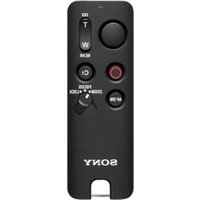
RM-PP401 - Télécommande SONY - Notice d'utilisation et mode d'emploi gratuit
Retrouvez gratuitement la notice de l'appareil RM-PP401 SONY au format PDF.


| Type de produit | Télécommande universelle SONY RM-PP401 |
| Compatibilités | Compatible avec divers appareils SONY et d'autres marques |
| Fonctions principales | Contrôle à distance des appareils audio/vidéo, fonctions de lecture, pause et arrêt |
| Alimentation électrique | Piles (type non spécifié) |
| Dimensions approximatives | Non spécifiées |
| Poids | Non spécifié |
| Type de batterie | Piles alcalines ou rechargeables (type non spécifié) |
| Tension | Non spécifiée |
| Entretien et nettoyage | Essuyer avec un chiffon doux, éviter les produits chimiques agressifs |
| Pièces détachées et réparabilité | Disponibilité variable selon le revendeur |
| Informations générales | Vérifier la compatibilité avec les appareils avant l'achat |
FOIRE AUX QUESTIONS - RM-PP401 SONY
Questions des utilisateurs sur RM-PP401 SONY
0 question sur cet appareil. Repondez a celles que vous connaissez ou posez la votre.
Poser une nouvelle question sur cet appareil
Téléchargez la notice de votre Télécommande au format PDF gratuitement ! Retrouvez votre notice RM-PP401 - SONY et reprennez votre appareil électronique en main. Sur cette page sont publiés tous les documents nécessaires à l'utilisation de votre appareil RM-PP401 de la marque SONY.
MODE D'EMPLOI RM-PP401 SONY
Remote Commander
Operating Instructions
RM-PP401
Precautions
On safety
Should any solid object or liquid fall into the cabinet, unplug the receiver and have it checked by qualified personnel before operating it any further.
On operation
Before connecting other components, be sure to turn off and unplug the receiver.
On cleaning
Clean the cabinet, panel and controls with a soft cloth slightly moistened with a mild detergent solution. Do not use any type of abrasive pad, scouring powder or solvent such as alcohol or benzine.
If you have any question or problem concerning your receiver, please consult your nearest Sony dealer.
About This Manual
The instructions in this manual are for model RM-PP401. Check your model number by looking at the lower right corner of the front side.
Conventions
The following icon is used in this manual:

Indicates hints and tips for making the task easier.
Before You Use Your Remote
Check that you received the following item with the remote:
R6 (size-AA) batteries (2)
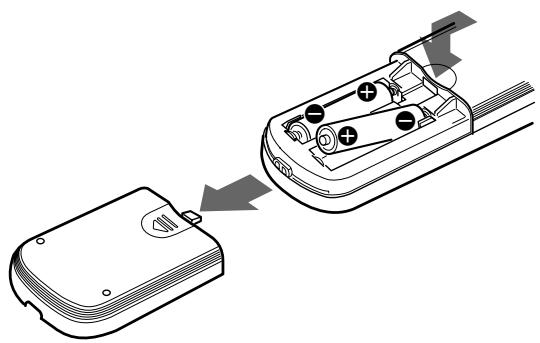
Inserting batteries into the remote
Insert two R6 (size-AA) batteries with the + and - properly oriented in the battery compartment. When using the remote, point it at the remote sensor on the receiver.
natural_image
Diagram showing a device transitioning from a battery into a car compartment, with no visible text or symbols.
When to replace batteries
Under normal conditions, the batteries should last for about 6 months. When the remote no longer operates the receiver, replace both batteries with new ones.
Notes
- Do not leave the remote in an extremely hot or humid place.
- Do not use a new battery with an old one.
- Do not expose the remote sensor of the receiver to direct sunlight or lighting apparatuses. Doing so may cause a malfunction.
- If you don't use the remote for an extended period of time, remove the batteries to avoid possible damage from battery leakage and corrosion.
TABLE OF CONTENTS
Location of Parts and Basic Remote
Operations 4
Parts Description 4
Advanced Remote Operations 11
Changing the Factory Setting of a Function Button 12
Operating Non-Sony Components 13
Additional Information 16
Troubleshooting 16
Specifications 17
Location of Parts and Basic Remote Operations
This chapter provides information on the location of buttons and how to use them to perform basic operations.
Parts Description
text_image
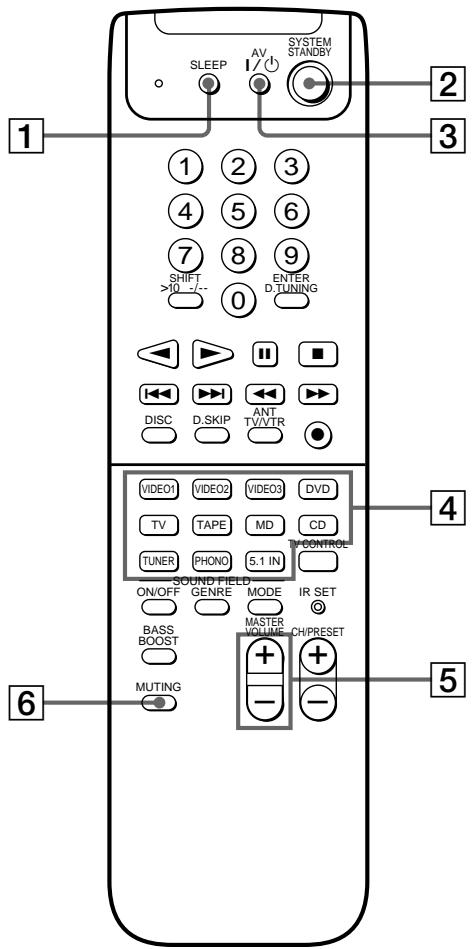
SLEEP AV SYSTEM STANDBY 1 2 3 1 2 3 4 5 6 7 8 9 SHIFT >10 -/- 0 ENTER D.TUNING DISC D.SKIP ANT TV/VTR VIDEO1 VIDEO2 VIDEO3 DVD TV TAPE MD CD TUNER PHONO 5.1 IN SOUND FIELD ON/OFF GENRE MODE IR SET BASS MASTER BOOST VOLUME CH/PRESET MUTING - -1 SLEEP button
Press repeatedly to activate the sleep function and the duration which the receiver turns off automatically.
② SYSTEM STANDBY switch
Press to turn off the receiver and other audio/video components at the same time.
3 AV I/ switch
Press to turn the audio and video components on or off.
4 Function buttons
Press one of the buttons to select the component you want to use. When you press a button, the receiver and the selected component turn on. If the component does not turn on, press the power switch on the component.
| To select | Press |
| VCR | VIDEO1 (VCR mode 3), VIDEO2 (VCR mode 1) , or VIDEO3 (VCR mode 2) ^a) |
| DVD player | DVD |
| TV, DBS tuner, or LD player^b) | TV |
| Tape deck | TAPE |
| MD deck | MD |
| CD player | CD |
| Built-in tuner | TUNER |
| Turntable | PHONO |
| the component connected to the 5.1/DVD INPUT jacks on the receiver | 5.1 IN |
a) Sony VCRs become operable when you press the VIDEO1, 2, or 3 button. These buttons correspond to VHS, Beta, and 8mm, respectively.
b) TV or DBS tuner (Direct Broadcasting Satellite): USA, Canadian, and Australian models only
TV or LD player: Models for all countries except the USA, Canada, and Australia
See the table on page 10 for information on the buttons you can use to control each component.
Note that the function buttons are factory-set as described in the table above. If you want to change the factory setting of the buttons to match your particular components, do the procedure “Changing the Factory Settings of a Function Button” on page 12.
Notes
- Before you turn on the receiver, make sure that you have turned the MASTER VOLUME control on the receiver to the leftmost position to avoid damaging your speakers.
- After you have selected VCR or DVD player, turn on the TV and set the TV's video input to match the component you selected.
5 MASTER VOLUME +/- buttons
Press to adjust the volume level of all speakers at the same time.
If you have pressed the TV CONTROL button:
Press to adjust the volume level of the TV speakers.
6 MUTING button
Press to mute the sound. The indicator to the left of the MUTING button on the receiver lights up when the sound is muted.
If you have pressed the TV CONTROL button:
Press to mute the sound from the TV.
text_image
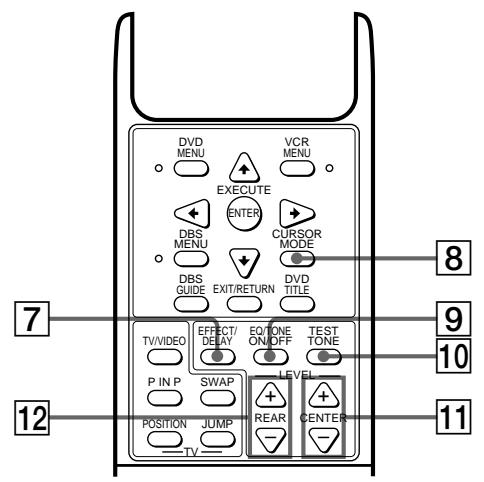
DVD MENU VCR MENU EXECUTE ENTER CURSOR MODE DBS MENU DBS GUIDE EXIT/RETURN DVD TITLE TV/VIDEO EFFECT/ DELAY EQ/TONE ON/OFF TEST TONE P.IN P SWAP LEVEL POSITION JUMP REAR CENTER TV- 8 9 10 11 7 12
Lift up the top cover.
text_image
SLEEP AV SYSTEM STANDBY 1 2 3 4 5 6 7 8 9 SHIFT >10 -/- 0 ENTER D.TUNING 14 15 16 DISC D.SKIP ANT TV/VTR VIDEO1 VIDEO2 VIDEO3 DVD TV TAPE MD CD TUNER PHONO 5.1 IN SOUND FIELD ON/OFF GENRE MODE IR SET BASS MASTER BOOST VOLUME CHIPRESET MUTING - -7 EFFECT/DELAY button
Press the button repeatedly to adjust the amount of effect or delay time*.
* “DELAY” appears on the display window on the receiver only when the PRO LOGIC sound field is selected; “EFFECT” appears when a sound field except PRO LOGIC is selected.
Note
The EFFECT/DELAY button does not operate on receivers that have the CURSOR MODE button.
8 CURSOR MODE button
Press this button repeatedly to select any of the following three cursor modes. The indicator for the selected cursor mode lights up to the left of the display window on the receiver. The indicator turns off when you press the SET UP button on the receiver.
| When the cursor mode is | You can |
| SURROUND | Change the delay time and the effect level |
| BASS/TREBLE or EQ | Adjust the tone (bass/treble) of the front speakers. Press the EQ/ TONE ON/OFF button to activate the tone effect. |
| INDEX | Enter an index name for a preset station or program source |
Note
The CURSOR MODE button does not operate on receivers that have no cursor buttons.
9 EQ/TONE ON/OFF button
Press to turn the tone effect on or off. The TONE indicator on the receiver lights up while the tone effect is turned on.
Note that if you have adjusted the tone using the CURSOR MODE button and cursor buttons, the adjusted tone will be produced whenever you turn on the tone effect.
10 TEST TONE button
After selecting the PRO LOGIC sound field, press to output a test tone.
11 LEVEL CENTER +/- buttons
Press to adjust the volume level of the center speaker.
12 LEVEL REAR +/- buttons
Press to adjust the volume level of the rear speakers.
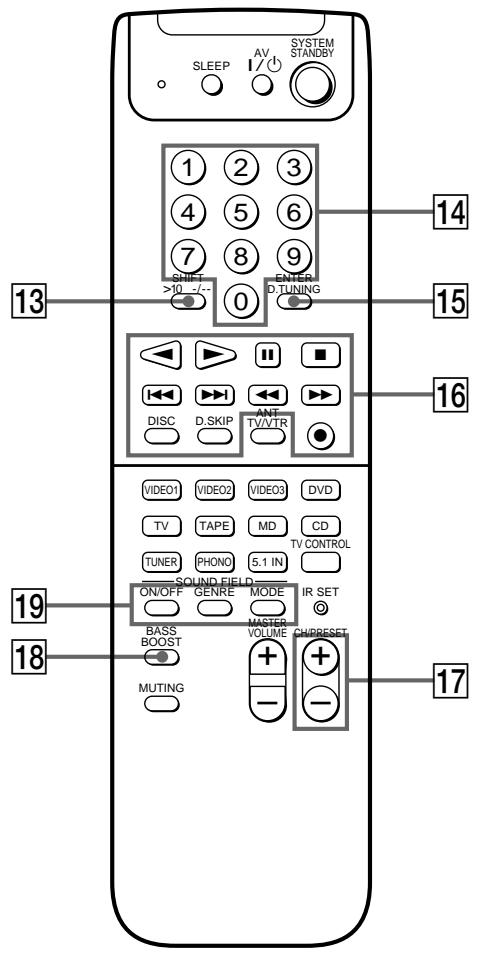
13 SHIFT >10 -/-- button
If you have selected tuner:
Press repeatedly to select a memory page for presetting radio stations or tuning to preset stations.
If you selected VCR, TV, LD player, tape deck, MD deck, or CD player:
Press before inputting a channel or track number of eleven or higher.
14 Numeric buttons (1 to 0)
Inputs the corresponding numeric value. When inputting a channel, disc, or track number, 0 selects 10.
15 ENTER D.TUNING button
If you have selected tuner:
Press to enter direct tuning mode.
If you have selected VCR, DVD player, LD player, TV, DBS tuner, tape deck, MD deck, or CD player:
After selecting a channel, disc, or track using the numeric buttons, press to enter the value.
16 Tape/disc operation buttons
The following table describes the component operated by each button and the function of the buttons.
| Button(s) | Component(s) | Function |
| Tape deck | Starts play on the reverse side of the cassette | |
| VCR, DVD player, LD player, tape deck, MD deck, CD player, DAT deck | Starts play on the front side of the cassette | |
| VCR, DVD player, LD player, tape deck, MD deck, CD player, DAT deck | Pauses play or recording or starts recording when the component is in recording standby | |
| VCR, DVD player, LD player, tape deck, MD deck, CD player, DAT deck | Stops play | |
| VCR, DVD player, LD player, MD deck, CD player, DAT deck | Skips tracks | |
| VCR, LD player, tape deck, MD deck, DAT deck | Fastwinds or rewinds | |
| DVD player, CD player | Searches tracks in the forward or backward direction |
| Button(s) | Component(s) | Function |
| ● | tape deck, MD deck, DAT deck | Sets the tape deck in recording standby |
| ● + ▶ (if pressed together) | VCR, Tape deck, DAT deck | Starts recording. You can press ◀ for the tape deck or DAT deck instead of ▶. |
| DISC | CD player | Selects a disc (CD player with a multi-disc changer only) |
| D.SKIP | CD player | Skips a disc (CD player with a multi-disc changer only) |
See the table on page 10 for information on the buttons that you can use to control each component.
17 CH/PRESET +/- buttons
Press repeatedly to select a preset station or channel.
18 BASS BOOST button
Press to increase the bass of the front speakers. The BASS BOOST indicator on the receiver lights up when the function is turned on.
19 SOUND FIELD ON/OFF button
Press to turn the sound field on or off.
GENRE button
Press to select the sound field group you want.
MODE button
Press to select a sound field from the group you selected.
text_image
DVDMENU EXECUTE ENTER VCR MENU DBS MENU CURSOR MODE DBS GUIDE EXIT/RETURN DVD TITLE TV/VIDEO P. IN P SWAP POSITION JUMP TV EFFECT/ DELAY EQ/TONE ON/OFF TEST TONE LEVEL REAR CENTER 20 21 22 23 24
Lift up the top cover.
text_image
27 SLEEP AV SYSTEM STANDBY 1 2 3 4 5 6 7 8 9 SHIFT >10 -/- 0 ENTER D.TUNING DISC DSKIPT ANT TV/VTR VIDEO1 VIDEO2 VIDEO3 DVD TV TAPE MD CD TUNER PHONO 5.1 IN TV CONTROL SOUND FIELD ON/OFF GENRE MODE IR SET BASS MASTER BOOST VOLUME CH/PRESET MUTING + + - -20 DVD MENU button
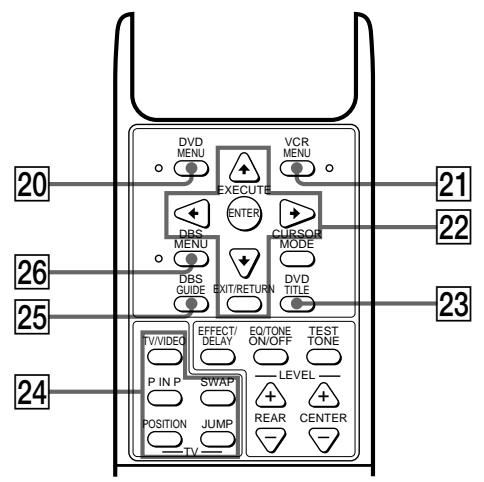
Press to display the DVD menu. Then use the cursor buttons on the remote to perform the menu operations (see “22 Cursor buttons (♠/♦/♦/♦), ENTER button, and EXIT/RETURN button” on this page).
21 VCR MENU button
Press to display the VCR menu on the TV screen. Then use the cursor buttons on the remote to perform the menu operations (see “22 Cursor buttons (↑/↓/←/→), ENTER button, and EXIT/RETURN button” on this page).
Note
After you press the VCR MENU button, the remote is set to control the VCR that corresponds with VCR 1. Before pressing the button, make sure to set the VCR input mode to VCR 1.
22 Cursor buttons (♠/♦/♦/♦), ENTER button, and EXIT/RETURN button
After pressing the CURSOR MODE button or SET UP button on the receiver, use the cursor buttons to make specific settings (see page 6).
After pressing the VCR MENU, DVD MENU, DVD TITLE, DBS MENU, or DBS GUIDE button, use these buttons to perform the following operations:
Cursor buttons: To select a menu item
ENTER button: To enter the selection
EXIT/RETURN button: To return to the previous menu or exit the menu
Some of these buttons do not operate after a particular button is pressed. See the table below to find out which buttons operate after which button is pressed.
| Operable buttons | The button pressed first | |||
| CURSOR MODE | DBS MENU DBS GUIDE | VCR MENU | DVD MENU DVD TITLE | |
| Cursor buttons | ● | ● | ● | ● |
| ENTER | ● | ● | ● | |
| EXIT/RETURN | ● | ● | ||
Note
Be sure to press the cursor buttons right after you press the VCR MENU, DVD MENU, DVD TITLE, DBS MENU, or DBS GUIDE button. The cursor buttons become inactive for menu operations when:
— They are not pressed within five seconds
— You close the top cover of the remote
In either cases, the cursor buttons revert back to receiver operations.
23 DVD TITLE button
Press to display the DVD title menu. Then use the cursor buttons on the remote to perform the menu operations (see “22 Cursor buttons (♠/♦/♦/♦), ENTER button, and EXIT/RETURN button” on page 8).
24 TV/VIDEO button
Press to change the input mode of the TV.
P IN P button
Press to activate the picture-in-picture function*.
SWAP button
Press to swap the small and large pictures*.
POSITION button
Press to change the position of the small picture*.
JUMP button
Press to toggle between the previous and the current channels.
* Only with Sony TVs with the picture-in-picture function.
25 DBS GUIDE button
Press to display the DBS guide. Then use the cursor buttons on the remote to perform the menu operations (see “22 Cursor buttons (♠/♦/♦/♦), ENTER button, and EXIT/RETURN button” on page 8).
26 DBS MENU button
Press to display the DBS menu. Then use the cursor buttons on the remote to perform the menu operations (see “22 Cursor buttons (♠/♦/♦/♦), ENTER button, and EXIT/RETURN button” on page 8).
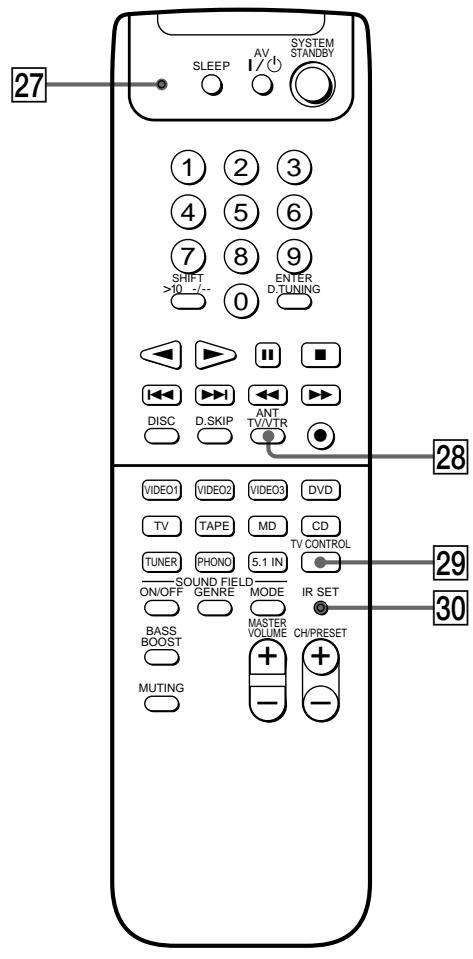
27 Program indicator
Lights up whenever any button on the remote is pressed. Also lights up during programming (see page 13).
28 ANT TV/VTR button
Press repeatedly to select the signal to be output from the antenna terminal of the VCR (TV signal or video signal).
29 TV CONTROL button
If you are using a Sony TV, you can use this remote to operate the TV without turning on the receiver. When you press this button, the TV turns on and switches to TV input.
30 IR SET button
Use this button to program the remote with the signals to control non-Sony components (see page 13).
Table of buttons that you can use to control each component
| Component Button(s) | CD player | DAT deck | MD deck | Tape deck (A and B) | LD player | VCR (VHS, Beta, 8mm) | TV | DBS tuner | DVD player |
| AV I/∅ | ● | ● | ● | ● | ● | ● | ● | ||
| Numeric buttons | ● | ● | ● | ● | ● | ● | ● | ● | ● |
| SHIFT >10 -/-- | ● | ● | ● | ● | ● | ● | |||
| ENTER D.TUNING | ● | ● | ● | ● | ● | ● | ● | ● | |
| ◀ | ● | ||||||||
| ▶ | ● | ● | ● | ● | ● | ● | ● | ||
| || | ● | ● | ● | ● | ● | ● | ● | ||
| ■ | ● | ● | ● | ● | ● | ● | ● | ||
| |◀◀/▶▶| | ● | ● | ● | ● | ● | ● | |||
| ◀◀/▶▶ | ● | ● | ● | ● | ● | ● | ● | ||
| DISC | ●* | ||||||||
| D.SKIP | ●* | ||||||||
| ANT TV/VTR | ● | ● | ● | ||||||
| ● | ● | ● | ● | ||||||
| ● + ▶ | ● | ● | ● | ||||||
| ● + ◀ | ● |
* CD player with a multi-disc changer only.

If you press the TV CONTROL button
The remote is set to operate only Sony TVs. In this case, only the following buttons are operable:
- TV/VIDEO button
- CH/PRESET +/- buttons
- MASTER VOLUME +/- buttons
- MUTING button
Advanced Remote Operations
This chapter describes how to change the factory setting of a function button and how to set the remote to control non-Sony components.
text_image
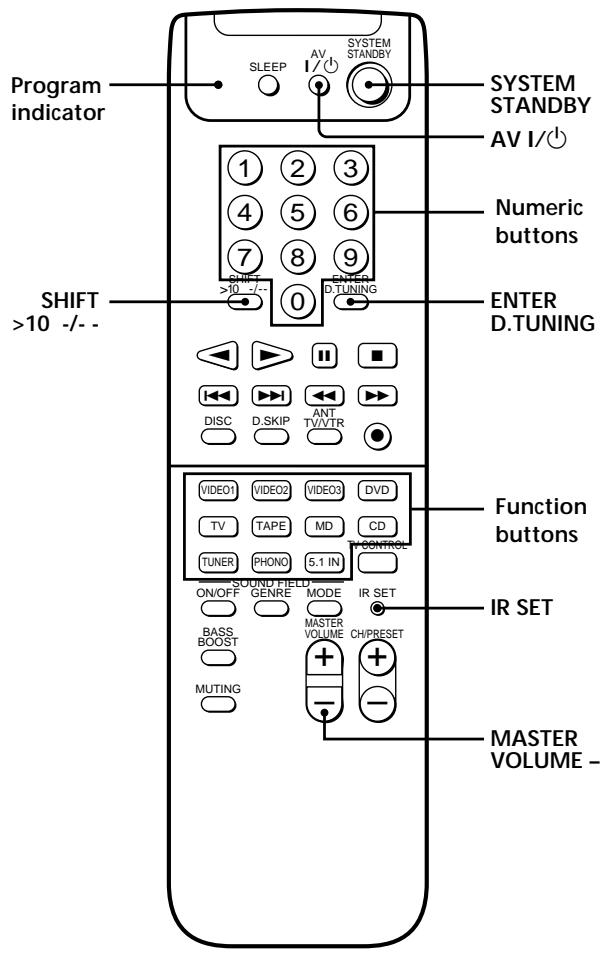
Program indicator SYSTEM STANDBY AV I/ SHIFT >10 -/- Numeric buttons ENTER D.TUNING FUNCTION buttons IR SET MASTER VOLUME -Brief descriptions of buttons used for advanced remote operations
Program indicator: Lights up during programming operations.
SYSTEM STANDBY: Press this switch together with the AV I/⏻ switch and MASTER VOLUME – button to reset all the function buttons to the factory settings or to clear the programmed signals.
AV I/☐: Press this switch together with the SYSTEM STANDBY switch and MASTER VOLUME – button to reset all the function buttons to the factory settings or to clear the programmed signals.
Numeric buttons: Used when changing the factory settings of the function buttons or specifying the make of the component that you want to control using the remote.
ENTER D.TUNING: Used when changing the factory settings of the function buttons or programming the remote.
Function buttons: Comes with factory settings that you can change.
IR SET: Press to program the remote.
MASTER VOLUME -: Press this button together with the SYSTEM STANDBY and AV I/⏻ switches to reset all the function buttons to the factory settings or to clear the programmed signals.
SHIFT >10 -/--: Used when changing the factory settings of the function buttons.
Changing the Factory Setting of a Function Button
You can change the factory settings of the function buttons (page 5) to suit the components in your system. For example, if you connect a Sony LD player to the VIDEO 2 jacks on the receiver, you can set the VIDEO2 button on this remote to control the LD player.
Note, however, that the settings of the TUNER, PHONO, and 5.1 IN buttons cannot be changed.
1 Press down the button corresponding to the component you want to assign to a function button (button 6 for the LD player, for example).
Each button and its corresponding components are shown below.
| Button | Component |
| 1 | CD player |
| 2 | DAT deck |
| 3 | MD deck |
| 4 | Tape deck A |
| 5 | Tape deck B |
| 6 | LD player |
| 7 | VCR (Beta) |
| 8 | VCR (8 mm) |
| 9 | VCR (VHS) |
| 0 | TV |
| SHIFT >10 -/-- | DBS tuner, satellite tuner, or cable box |
| ENTER D.TUNING | DVD player |
2 While pressing down the button corresponding to the component, press down the function button whose setting is to be changed (the VIDEO2 button, for example).
The VIDEO2 button is now set to control the Sony LD player.
To reset a button to its factory setting
Repeat the procedure above.
To reset all function buttons to their factory settings
First press down MASTER VOLUME –, then AV I/∅, and then SYSTEM STANDBY.
Operating Non-Sony Components
You can program the remote to control non-Sony components. Once the control signals have been memorized, you can use those components as part of your system.
Furthermore, you can also program this remote for Sony components that the remote is unable to control. Note that the remote can control the components that accept infrared wireless control signals only.
1 Do the procedure of "Changing the Factory Setting of a Function Button" on page 12, if necessary.
2 Press IR SET. The program indicator lights up.
3 Press the function button for the component you want to control (except the 5.1 IN buttons). For example, if you are going to control a CD player, press CD.
4 Press the numeric buttons to enter the numeric code (or one of the codes if more than one code exist) corresponding to the component and the make of the component you want to control. See the tables on pages 14 and 15 for information on the numeric code(s) corresponding to the component and the make of the component.
5 Press ENTER D.TUNING. When the program indicator goes off, the component(s) can then be controlled using this remote.
6 Repeat Steps 2 to 5 to control other components.
If programming is unsuccessful, check the following:
- If the program indicator does not light up, the batteries are weak. Replace both batteries.
- If you do not do Step 3 within one minute after pressing the IR SET button in Step 2, the remote automatically exits learning mode. Start again from Step 2.
Notes
- Programmed components will not turn on when you press a function button. You have to turn on the component's power switch.
- The numeric codes are based on the latest information available for each brand. There is a chance, however, that your component will not respond to some or all of the codes.
- All of the functions on this remote may not be available when used with your particular component.
Clearing all programmed signals
To clear all the programmed signals, do the following procedure. The remote is reset to its factory-setting.
1 Press IR SET to turn on the program indicator.
2 First press down MASTER VOLUME –, then AV I/⏻, and then SYSTEM STANDBY until the program indicator flashes twice, then goes off.
The numeric codes corresponding to the component and the make of the component
Use the numeric codes in the tables below to control non-Sony components and also Sony components that the remote is normally unable to control. Since the remote signal that a component accepts differs depending on the model and year of the component, more than one numeric code may be assigned to a component. If you fail to program your remote using one of the codes, try using other codes.
Notes
- The numeric codes are based on the latest information available for each brand. There is a chance, however, that your component will not respond to some or all of the codes.
- All of the functions on this remote may not be available when used with your particular component.
To control a CD player
| Make | Code(s) |
| DENON | 03, 04 |
| FISHER | 05, 06 |
| JVC | 07, 08, 09 |
| KENWOOD | 10, 11, 12 |
| MAGNAVOX | 13, 18 |
| MARANTZ | 18 |
| ONKYO | 14, 15, 16 |
| PANASONIC | 17 |
| PHILIPS | 18 |
| PIONEER | 19 |
| RCA | 20, 21, 22 |
| SONY | 01, 02 |
| TECHNICS | 17, 23, 24 |
| YAMAHA | 25, 26, 27 |
To control a DAT deck
| Make | Code(s) |
| PIONEER | 02 |
| SONY | 01 |
To control an MD deck
| Make | Code(s) |
| DENON | 02 |
| JVC | 03 |
| KENWOOD | 04 |
| SONY | 01 |
To control a tape deck
| Make | Code(s) |
| DENON | 02 |
| FISHER | 03 |
| JVC | 04, 05 |
| KENWOOD | 06, 07 |
| NAKAMICHI | 08 |
| PANASONIC | 13 |
| PHILIPS | 09, 10 |
| PIONEER | 11 |
| SONY | 01 |
| TECHNICS | 12, 13 |
| YAMAHA | 14, 15 |
To control an LD player
| Make | Code(s) |
| PANASONIC | 05, 06, 07 |
| PIONEER | 08 |
| SONY | 01, 02, 03, 04 |
To control a VCR
| Make | Code(s) |
| AIWA | 04, 05, 10, 50 |
| AKAI | 06, 07, 08, 09 |
| BLAUPUNKT | 40 |
| EMERSON | 11, 12, 13, 14, 15, 16, 50 |
| FISHER | 17, 18, 19, 20 |
| GENERAL ELECTRIC | 21, 22, 30 |
| GOLDSTAR | 23, 53 |
| GRUNDIG | 24 |
| HITACHI | 22, 25, 29, 41 |
| ITT/NOKIA | 17 |
| JVC | 26, 27, 28, 36 |
| MAGNAVOX | 30, 31, 38 |
| MITSUBISHI/MGA | 32, 33, 34, 35 |
| NEC | 36 |
| PANASONIC | 29, 30, 37, 38, 39, 40 |
| PHILIPS | 29, 30, 31 |
| PIONEER | 29 |
| RCA/PROSCAN | 22, 29, 30, 31, 41, 47 |
| SAMSUNG | 42, 43, 44, 45 |
| SANYO | 17, 20, 46 |
| SHARP | 48, 49 |
| SONY | 01, 02, 03 |
| TELEFUNKEN | 51, 52 |
| TOSHIBA | 47 |
| ZENITH | 54 |
To control a TV
| Make | Code(s) |
| DAEWOO | 02, 04, 05, 06, 07, 15 |
| FISHER | 08 |
| GOLDSTAR | 02, 03, 11, 12, 15, 34 |
| GRUNDIG | 17, 34 |
| HITACHI | 02, 13, 14, 15 |
| ITT/NOKIA | 21, 22 |
| JVC | 16 |
| MAGNAVOX | 02, 03, 18 |
| MITSUBISHI/MGA | 02, 03, 19 |
| NEC | 02, 03, 20 |
| PANASONIC | 09, 24 |
| PHILIPS | 15, 18 |
| PIONEER | 09, 25, 26, 40 |
| RCA/PROSCAN | 02, 10, 27, 28, 29 |
| SAMSUNG | 02, 03, 15, 31, 32, 33, 34 |
| SANYO | 08 |
| SHARP | 35 |
| SONY | 01 |
| TELEFUNKEN | 23, 36, 37, 38 |
| THOMSON | 30, 37, 39 |
| TOSHIBA | 35, 40, 41 |
| ZENITH | 42, 43 |
To control a DBS tuner, satellite tuner, or cable box
| Make | Code(s) |
| PANASONIC | 03, 06, 07 |
| PIONEER | 08, 09 |
| RCA | 04, 05 |
| SONY | 01, 02 |
| ZENITH | 10, 11 |
To control a DVD player
| Make | Code(s) |
| PANASONIC | 02 |
| PIONEER | 03 |
| SONY | 01 |
| TOSHIBA | 04 |
Additional Information
Troubleshooting
If you experience any of the following difficulties while using the receiver, use this troubleshooting guide to help you remedy the problem. Should any problem persist, consult your nearest Sony dealer.
The remote does not function.
→ Point the remote at the remote sensor R on the receiver.
→ Remove any obstacles in the path between the remote and the receiver.
→ Replace both batteries in the remote with new ones, if they are weak.
→ Make sure you select the correct function on the remote.
→ Pressing the TV CONTROL button sets the remote to operate the TV only. If this mode is on, press a function button on the remote or one of the FUNCTION buttons on the receiver before operating the receiver or another component.
Specifications
General
| Remote control system | Infrared control |
| Power requirements | 3 V DC with two R6 (size-AA) batteries |
| Dimensions | 210 × 56 × 268 mm ( 8^3/_8 × 2^1/_4 × ^11/_16 inches) |
| Mass (approx.) | 125 g (4.4 oz) excluding batteries |
Design and specifications are subject to change without notice.