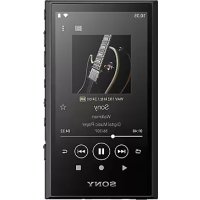
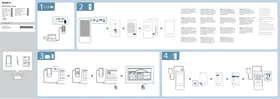
NWZ-A816 - Lecteur mp3 SONY - Notice d'utilisation et mode d'emploi gratuit
Retrouvez gratuitement la notice de l'appareil NWZ-A816 SONY au format PDF.


| Type de produit | Lecteur MP3 numérique |
| Capacité de stockage | 8 Go |
| Formats audio supportés | MP3, WMA, AAC, Linear PCM |
| Écran | Écran LCD de 2 pouces |
| Autonomie de la batterie | Jusqu'à 33 heures de lecture |
| Type de batterie | Batterie lithium-ion rechargeable |
| Dimensions approximatives | 90 x 40 x 9 mm |
| Poids | 70 g |
| Connectivité | USB 2.0 |
| Fonctions principales | Lecture de musique, radio FM, enregistrement audio |
| Entretien et nettoyage | Essuyer avec un chiffon doux, éviter les produits chimiques |
| Pièces détachées et réparabilité | Réparabilité limitée, pièces disponibles auprès de Sony |
| Sécurité | Ne pas exposer à l'eau, éviter les températures extrêmes |
| Informations générales | Compatible avec Windows et Mac, logiciel de gestion de musique inclus |
FOIRE AUX QUESTIONS - NWZ-A816 SONY
Questions des utilisateurs sur NWZ-A816 SONY
0 question sur cet appareil. Repondez a celles que vous connaissez ou posez la votre.
Poser une nouvelle question sur cet appareil
Téléchargez la notice de votre Lecteur mp3 au format PDF gratuitement ! Retrouvez votre notice NWZ-A816 - SONY et reprennez votre appareil électronique en main. Sur cette page sont publiés tous les documents nécessaires à l'utilisation de votre appareil NWZ-A816 de la marque SONY.
MODE D'EMPLOI NWZ-A816 SONY
System Requirements
- Computer:
- IBM PC/AT or compatible computer preinstalled with the following Windows operating systems*.
- Windows XP Home Edition (Service Pack 2 or later)/Windows XP professional (Service Pack 2 or later)/Windows XP Media Center Edition (Service Pack 2 or later)/Windows XP Media Center Edition 2004 (Service Pack 2 or later)/Windows XP Media Center Edition 2005 (Service Pack 2 or later)/Windows Vista Home Basic/Windows Vista Home Premium/Windows Vista Business/Windows Vista Ultimate
- Not supported by 64 bit version OS.
- Not supported by OSs other than above.
-
- Excluding OS Versions not supported by Microsoft.
CPU: Pentium III 1.0 GHz or higher
RAM: 128 MB or more (For Windows Vista, 512 MB or more)
- Excluding OS Versions not supported by Microsoft.
- Hard Disk Drive: 380 MB or more of available space.
- Display: Screen Resolution: 800 × 600 pixels (or higher) (recommended 1,024 × 768 or higher), Color: 8 bit or higher (recommended 16 bit)
- CD-ROM drive: Supporting Digital Music CD playback capabilities using WDM. To create original CDs, a CD-R/RW drive is required.
Sound board - USB port (Hi-Speed USB is recommended)
- Internet Explorer 6.0 or later, Windows Media Player 10 or 11 (Windows Media Player 11 recommended. Some computers that already have Windows Media Player 10 installed may encounter file limitation (AAC, video files, etc.) that can be transferred by dragging and dropping).
Adobe Flash Player 8 or higher needs to be installed. - Broadband Internet connection is required to use Electronic Music Distribution (EMD) or to visit the web site.
We do not guarantee operation for all computers even if they meet the above System Requirements. Not supported by the following environments:
Personally constructed PCs or operating systems / An environment that is an upgrade of the original
manufacturer-installed operating system / Multi-booT environment / Multi-monitor environment / Macintosh
SONY

Table of Contents
Owner's Record
The model and serial numbers are located on the back of the player. Record them in the space provided below. Refer to these numbers in the spaces whenever you call upon your Sony dealer regarding this product.
Model No.
Serial No.
About the Manual
The use of the player is described in this "Quick Start Guide," in the "Operation Guide" (PDF file).
-Quick Start Guide: Explains basic operation of the player, including importing, transferring, and playing music songs, videos and photos.
-Operation Guide: Explains advanced features of the player and offers troubleshooting information.
- Troubleshooting: Explains symptoms, causes and remedies when the player has problems.
-Precautions: Explains important notes to prevent accidents.
Introduction 4
Getting Started 6
Supplied Accessories 6
Before Connecting the Player 7
Charging the Battery. 7
Turning the Player On and Off 8
Selecting the Display Language. 9
Installing the Operation Guide and Software 10
Getting Data 12
Transferring Data 13
Playing Music 20
Playing Videos/Photos 22
Parts and Controls 24
About the Home menu 26
Introduction
Thank you for purchasing the NWZ-A815/A816/A818*.
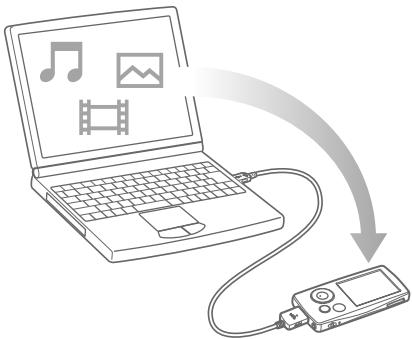
To begin using the player, first import music songs, videos and photos into your computer and then transfer them to the player.
After transferring the data to the player, you can enjoy them wherever you go.
- Depending on the country/region in which you have purchased the player, some models may not be available.
Getting Started (page 6)
Getting Data (page 12)
3 Transferring Data (page 13)
4 Playing Data
Songs ( page 20) Videos/Photos ( page 22)
About sample data*
The player is pre-installed with sample data. To delete this data, use Windows Explorer. If you delete sample data, you cannot restore it, and we cannot supply any replacement data.
* In some countries/regions some sample data is not installed.
Supplied Accessories
Please check the accessories in the package.
□ Headphones (1)
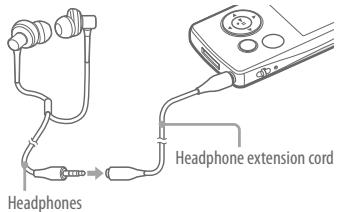
- Headphone extension cord (1)
EARBuds Size S, L) 1
USB cable*1 (1)
□ Attachment (1) Use when connecting the player to the optional cradle, etc.
CD-ROM*2*3(1)
-MP3 Conversion Tool
- Windows Media Player 11
-Operation Guide (PDF file)
Quick Start Guide (this manual) (1)
1 Do not use any USB cable other than the supplied USB cable or the specified optional dedicated cables.
2 Do not attempt to play this CD-ROM in an audio CD player.
*3 Depending on the country/region in which you have purchased the player, the supplied software may be different.
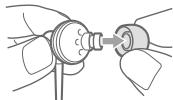
How to install the earbuds correctly
If the earbuds do not fit your ears correctly, low bass sound may not be heard. To enjoy better sound quality, change the size of the earbuds or adjust the earbud position to sit on your ears comfortably and fit your ears snugly.
At purchase, M size earbuds are installed. If the earbuds do not fit your ears, try one of the other supplied sizes, S or L.
When you change the earbuds, make sure to install the earbuds with the headphones properly to prevent accidentally leaving the earbuds inside your ears.
Before Connecting the Player
Before connecting the player to your computer, make sure that the OS is Windows XP (Service Pack 2 or later) or Windows Vista, and the installed Windows Media Player version on your computer is 10 or 11.
Charging the Battery
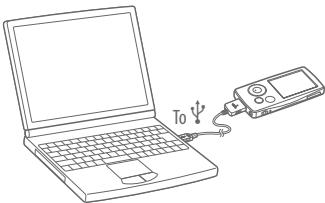
The player's battery is recharged while the player is connected to a running computer. When you insert the connector of the USB cable into the player, do so with the mark facing up.
When the remaining battery indication of the display shows: FULL, charging is complete. When you use the player for the first time, or if you have not used the player for a long time, recharge it fully until FULL appears on the screen. Charging takes about 3 hours when the battery power is completely used up.
Note
- Do not leave the player connected for extended periods to a laptop computer that is not connected to AC power, because the player may discharge the computer's battery.
Turning the Player On and Off
To turn on the player
Press any button to turn the player on.
To turn off the player
If you press and hold the OPTION/PWR OFF button (F page 25), the player enters the stand-by mode and the screen turns off to save battery power. If you press any button while in the standby mode, the "Now Playing" screen, etc., appears and the player is ready for operation.
Furthermore, if standby mode is retained for about a day, the player turns off completely automatically. If you press any button when the player is turned off, the start up screen appears first, then the "Now Playing" screen appears.
Selecting the Display Language
Be sure to set the display language before using the player. Otherwise, garbled characters may appear on the display.
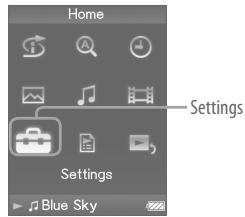
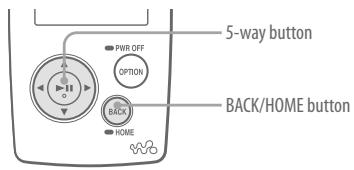
Press and hold the BACK/HOME button until the Home menu appears.
Press the / / / button to select (Settings), and then press the button to confirm.
3 Press the / / / button to select "Language Settings," and then press the button to confirm.
Press the / / / button to select a language, and then press the button to confirm.
Installing the Operation Guide and Software
You can install the Operation Guide (PDF file) and software from the supplied CD-ROM following the steps below.
1 Turn on the computer to start Windows.
2 Log on as an administrator. When installing, it is required to log on your computer as an administrator.
3 Insert the supplied CD-ROM into your computer. The install wizard will start automatically. Read the messages displayed on the screen carefully, and follow the on-screen instructions.
4 When the install menu appears on the screen, click on the item to install on the left side of the screen, and then click the [Install] button on the right lower side of the screen.
Follow the on-screen instructions to install.
When you install the Operation Guide (PDF file), select Operation Guide.
To view the Operation Guide (PDF file)
After installation is completed, a icon appears on the desktop of the computer. You can view the Operation Guide by clicking the icon.
Note
- To view the Operation Guide, you need Adobe Reader 5.0 or later, or Adobe Reader software in your computer. Adobe Reader can be downloaded from the Internet for free.
Getting Data
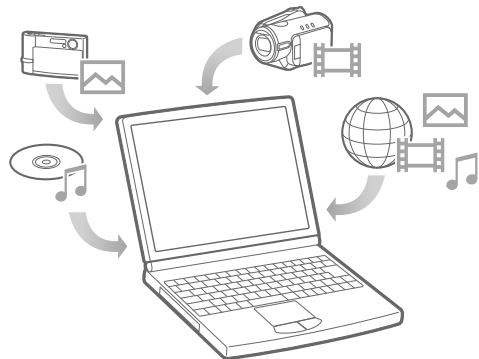
To enjoy transferring data to the player, you need to import data, such as audio, video or photos from the Internet, audio data from CDs, photo data from a digital camera, or video data from a video camera to your computer before using the player. To import audio data from CDs, you need to use appropriate software for importing.
Transferring Data
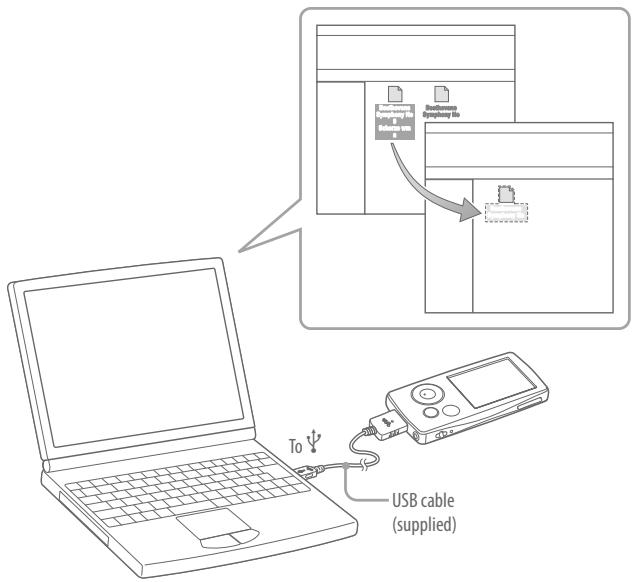
You can directly transfer data by dragging and dropping using Windows Explorer on your computer.

Hints
- You can also transfer data to the player using Windows Media Player. For details about usage, or support on Windows Media Player, refer to the Windows Media Player information from the following web site: http://support.microsoft.com/
- Some computers that already have Windows Media Player 10 installed may encounter file limitation (AAC, video files, etc.) that can be transferred by dragging and dropping. If you install Windows Media Player 11 (for details, see "Installing the Operation Guide and software") from the supplied CD-ROM, you can solve this problem, then you can transfer by dragging and dropping again. Before installing Windows Media Player 11 on your computer, make sure to check whether your software or service corresponds to Windows Media Player 11.
1 Connect the player to your computer using the supplied USB cable. Insert the connector of the USB cable into the player with the mark facing up.
2 Select the player on Windows Explorer, and then drag and drop files. The player appears on Windows Explorer as [WALKMAN.]

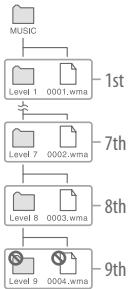
Playable data hierarchy has rules. Transfer data properly, see the following illustrations. Data hierarchy may differ, depending on your computer environment.
For songs
(On Windows Explorer)
Drag and drop files or folders into the "MUSIC" folder. However, beyond the 8th level, nothing will be recognized.
(On the player)
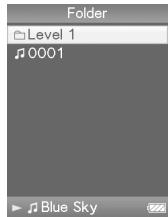
Folders are displayed in the folder name order first, then files are displayed in the file name order. In this case, the upper or lower case letters are not distinguished.
For videos
(On Windows Explorer)
Drag and drop files or folders into the "VIDEO" folder.
On the 1st level, the "VIDEO" folder will recognize either a file or a folder. Files and folders beyond the 2nd level will not be recognized.
However, files on the 2nd level will be recognized.
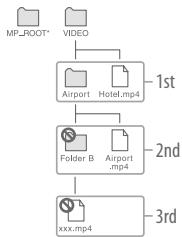
* The "MP_ROOT" folder is used only when the player connects using certain dedicated software, or device. When you transfer data by dragging and dropping, use the "VIDEO" folder.
(On the player)
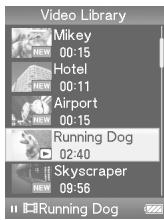
Video files are displayed in the order they are transferred by dragging and dropping. (The latest data is at the top.)

Hint
- You can set JPEG files as a thumbnails of video files, by placing JPEG files in the corresponding video folders. When you display the video list, you can see the thumbnails (small pictures to display on the menu) for the video files on the player.
To display a thumbnail for a video file, create a JPEG file (horizontal 160 × vertical 120 dots, extension: .jpg) and name it the same as the desired video file, then store it in the video file folder.
For photos
(On Windows Explorer)
Drag and drop files or folders into the "PICTURE" or "DCIM" folder.
On the 1st level, the "PICTURE" folder will recognize either a file or a folder. The "DCIM" folder will only recognize a folder. Only files on the 2nd level will be recognized by both "DCIM" and "PICTURE" folders. However, beyond the 2nd level, nothing will be recognized.
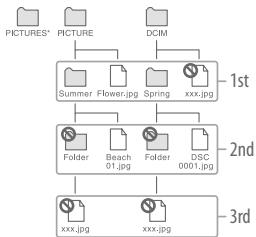
* Data hierarchy of "PICTURES" is the same as the "PICTURE" folder.
(On the player)
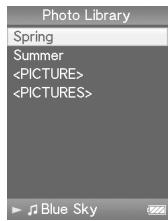
Folders under the "PICTURE" and "DCIM" folders are displayed in alphabetical order. Files in the 1st level of the "PICTURE" folder are stored in the
Notes
- Do not disconnect the USB cable while "Do not disconnect." appears on the player or the data being transferred may be damaged.
- You cannot change folder names or delete the "MUSIC", "MP_ROOT", "VIDEO", "PICTURES", "PICTURE" and "DCIM" folders.
- Do not change folder or file names directly under the "MP_ROOT" folder. Otherwise, they will not be displayed on the player.

Hints
- ATRAC files need to be converted using the supplied MP3 Conversion Tool. (Audio data purchased from a music distribution service on the Internet cannot be converted.) To use the supplied MP3 Conversion Tool, install the supplied CD-ROM on your computer and select the icon from the left side of the install menu, then click [Start] on the bottom-right. Note that when converting ATRAC files to MP3 files, the ATRAC files are not deleted. You can also delete the ATRAC files by setting the Option.
- You can create playlists using another transfer capable software for creating playlists, or the supplied Windows Media Player 11. For details on operation, refer to Help of the software, or ask its manufacturer.
- You can set cover art using another transfer capable software for setting cover art, or the supplied Windows Media Player 11. For details on operation, refer to Help of the software or ask its manufacturer.
Supported file format
| Music | ||
| File format | MP3 (MPEG-1 Layer3) file format, ASF file format, MP4 file format, Wave-Riff file format | |
| Codec | MP3 | File extension:.mp3 |
| WMA | File extension:.wma (Compatible with WM-DRM10) | |
| AAC-LC*1 | File extension:.mp4,.m4a,.3gp | |
| Linear PCM | File extension:.wav | |
| Video | ||
| File format | MP4 file format, "Memory Stick" video format | |
| Codec | Video | AVC (H.264/AVC) File extension:.mp4,.m4v |
| MPEG-4 File extension:.mp4,.m4v | ||
| Audio | AAC-LC | |
| Photo*2 | ||
| File format | Compatible with DCF 2.0/Exif 2.21file format | |
| Codec | JPEG | File extension: .jpg |
^1 Copyright protected AAC-LC files cannot be played back.
2 Some photo files may not be playable, depending on their file formats.
After transferring data to the player, the data is stored in the "Music Library" of the player. You can search for a song by album name, artist name, genre, etc., and play it back. This section explains how to search for a song by album name and play it back.
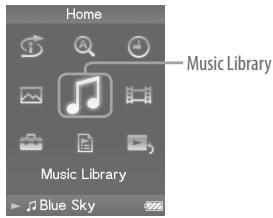
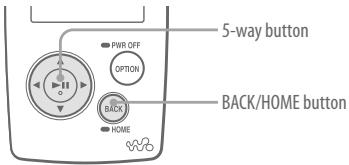
After disconnecting the USB cable between the player and computer, press and hold the BACK/HOME button until the Home menu appears.
2 Press the / / / button to select (Music Library), and then press the button to confirm.
The list screen appears.
Press the / / / button to select "Album," and then press the button to confirm.
The album list appears.
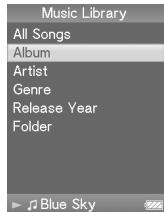
List screen
Press the / / / button to select an album, and then press the button to confirm.
The song list for the selected album appears.
Press the / / < 1 / > button to select a song, and then press the button to confirm.
The "Now Playing" screen appears. The selected song starts to play back and subsequent songs play in sequence.
Press the / button to find the beginning of the previous, next, or the currently playing song. Press and hold the / button to go back or forth quickly. To pause the playback, press the button on the "Now Playing" screen.
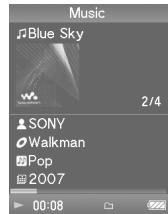
Now Playing screen

Hints
- Cover art is displayed only when songs have cover art information (page 18).
- Press the button on the "Now Playing" screen to display the cursor and move it up or down through items using the / button. When genre, album title, or any other characteristic is selected using the cursor, press the button to display the song list of the currently playing album or artist list matching the genre of the currently playing song.
- If "Unknown" appears as an album name., etc, you can search the album or song by folder. Select "Folder" in step 3, and then continue to operate.
-
The player offers the following operations. For details, refer to "Playing Music" or "Setting the Music" in the Operation Guide (PDF file).
-
Playing songs repeatedly or in shuffle mode.
- Adjusting sound quality.
-
Changing the album list display format.
-
To delete songs from the player, use the software you used to transfer the songs, or Windows Explorer.
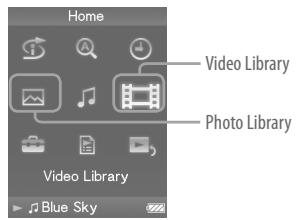
Videos transferred using Windows Explorer are stored in the "Video Library," and photos are stored in the "Photo Library." You can play a video or show a photo by selecting it from the appropriate list.
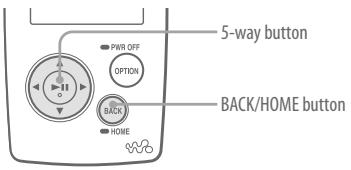
Press and hold the BACK/HOME button until the Home menu appears.
2 Press the / / / button to select (Video Library) or (Photo Library), and then press the button to confirm.
The video list or the photo folder list appears.
3 Press the / / / button to select a video or a photo folder, and then press the button to confirm. To play back a photo, select a photo from the photo list, and press the button to confirm.
The selected video or photo starts to play back.

- The player offers the following operations. For details, refer to "Playing Videos" or "Playing Photos" in the Operation Guide (PDF file).
- Changing the display direction of a video or photo.
- Changing the video or photo list display format.
- Playing a slide show.
- To delete video and photo files from the player, use the software you used to transfer the files, or Windows Explorer.
- When you want to display thumbnails for video files, place JPEG files of the same name in the corresponding video folders.
Note
- Thumbs nails may not be displayed, depending on the file format.
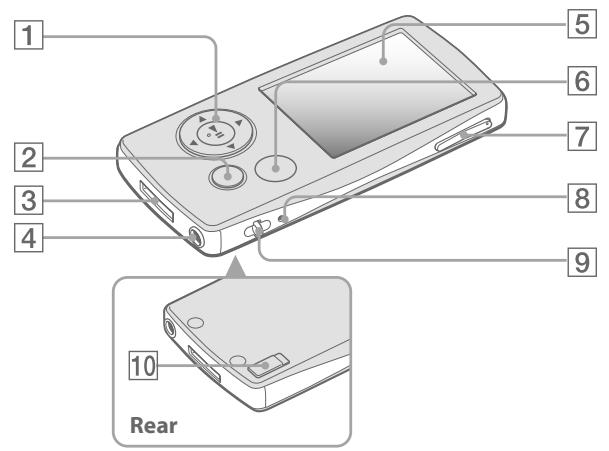
Front
1 5-way button
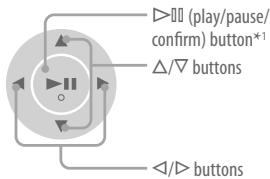
Press the button to start playback. Press the button to confirm after selecting an item with the / / / button. The 5-way button performs different functions, depending on the displayed screens. For details, refer to the "Player Controls and Their Screens" of the Operation Guide (PDF file).
2 BACK/HOME button*2
Press to go up one list screen level, or to return to the previous menu. Press and hold the BACK/HOME button to display the Home menu.
3 WM-PORT jack
Use this jack to connect the supplied USB cable, or optional peripheral devices, such as supported accessories for the WM-PORT.
4 Headphone jack
For connecting the headphones or the.
headphone extension cord. Insert the jack pin until it clicks into place. If the.
headphones are not connected properly, the sound may be affected.
When using the headphone extension cord
Display
The display may vary, depending on functions. For details, refer to the Operation Guide (PDF file).
6 OPTION/PWR OFF button\*2
Displays the Option menu. If you press and hold the OPTION/PWR OFF button, the screen turns off and the player enters the standby mode. If the standby mode is retained for about a day, the player turns off completely automatically (page 8).
7 VOL +^*1 / - button
Adjusts the volume.
8 RESET button
Reset the player when you press the RESET button with a small pin, etc.
9 Strap hole
This is used to attach a strap (sold separately).
10 HOLD switch
You can protect the player against accidental operation by using the HOLD switch when carrying it. By sliding the HOLD switch in the direction of the arrow, all operation buttons are disabled. If you slide the HOLD switch to the opposite position, the HOLD function is released.
1 There are tactile dots. Use them to help with button operations.
2 Functions marked with on the player are activated if you press and hold the corresponding buttons.
About the Home menu
The Home menu appears when you press and hold the BACK/HOME button of the player. The Home menu is the starting point to play audio, search for songs, change settings, etc.
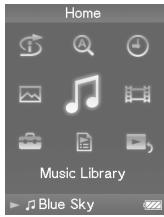
| Intelligent Shuffle Plays back songs randomly. |
| Initial Search Searches for songs, albums or artists by the initial letter. |
| Clock Display Displays the current time. |
| Photo Library Plays back photos on the player (®page 22). |
| Music Library Plays back songs on the player (®page 20). |
| Video Library Plays back videos on the player (®page 22). |
| Settings Sets functions, and player settings. |
| Playlists Plays back songs which are registered in playlists. |
| Now Playing Displays the “Now Playing” screen. |
The method to use or set player functions, troubleshooting information, etc., are explained in the Operation Guide (PDF file). Also refer to the Operation Guide (PDF file) for more information about advanced features.
Using the player control
Use the 5-way button to operate this player.
Press the / / / button to select the item in the menu, and then press the button to confirm. To return to the previous screen, press the BACK/HOME button. If you press and hold the button, the screen returns to the Home menu.
For example, when you want to play back a song by selecting (Music Library) on the Home menu, the menu changes as follows.
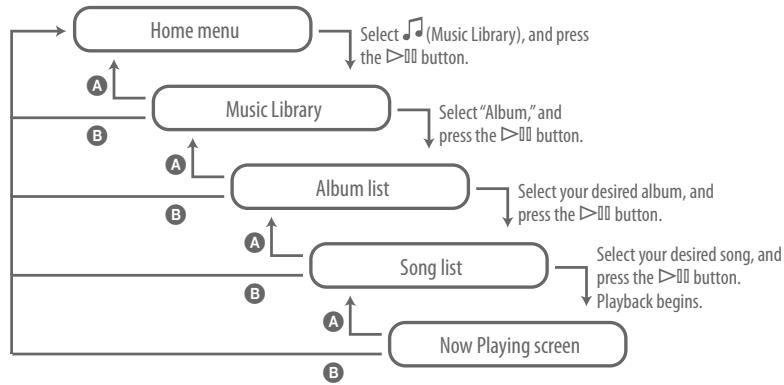
A Press the BACK/HOME button.
Press and hold the BACK/HOME button.
For the Customers in Netherlands Voor de Klanten in Nederland
Gooi de batterij Niet weg maar leverdeer in als Klein chemisch afval (KCA).
Notice for the customer in the countries applying EU Directives
The manufacturer of this product is Sony Corporation, 1-7-1 Konan, Minato-ku, Tokyo, Japan. The Authorized Representative for EMC and product safety is Sony Deutschland GmbH, Hedelfinger Strasse 61, 70327 Stuttgart, Germany. For any service or guarantee matters please refer to the addresses given in separate service or guarantee documents.
Notice for users
- The recorded song is limited to private use only. Use of the song beyond this limit requires permission of the copyright holders.
-
Sony is not responsible for incomplete recording/downloading or damaged data due to problems of the player or computer.
-
The ability to display the languages on the supplied software will depend on the installed OS on your computer. For better results, please ensure that the installed OS is compatible with the desired language you want to display.
- We do not guarantee all the languages will be able to be displayed properly on supplied software.
- User-created characters and some special characters may not be displayed.
Depending on the types of the text and characters, the text shown on the player may not be displayed properly on device. This is due to: - The capacity of the connected player.
- The player is not functioning normally.
- Content information is written in the language or the character that is not supported by the player.
On Copyrights
- ATRAC is trademark of Sony Corporation.
- "WALKMAN" and "WALKMAN" logo are registered trademarks of Sony Corporation.
- Microsoft, Windows, Windows Vista and Windows Media are trademarks or registered trademarks of Microsoft Corporation in the United States and/or other countries.
DSEE and CLEAR are trademarks of Sony Corporation.
Adobe, Adobe Reader and Adobe Flash Player are trademarks or registered trademarks of Adobe Systems Incorporated in the United States and/or other countries.
- MPEG Layer-3 audio coding technology and patents licensed from Fraunhofer IIS and Thomson.
- IBM and PC/AT are registered trademarks of International Business Machines Corporation.
- Macintosh is a trademark of Apple Inc.
- Pentium is a trademark or a registered trademark of Intel Corporation.
- This software is based in part on the work of the Independent JPEG Group.
- All other trademarks and registered trademarks are trademarks or registered trademarks of their respective holders. In this manual, ^TM and ^ * marks are not specified.
This product is protected by certain intellectual property rights of Microsoft Corporation. Use or distribution of such technology outside of this product is prohibited without a license from Microsoft or an authorized Microsoft subsidiary.
Content providers are using the digital rights management technology for Windows Media contained in this device ("WM-DRM") to protect the integrity of their content ("Secure Content") so that their intellectual property, including copyright, in such content is not misappropriated. This device uses WM-DRM software to play Secure Content ("WM-DRM Software"). If the security of the WM-DRM Software in this device has been compromised, owners of Secure Content ("Secure Content Owners") may request that Microsoft revoke the WM-DRM Software's right to acquire new licenses to copy, display and/or play Secure Content. Revocation does not alter the WM-DRM Software's ability to play unprotected content. A list of revoked WM-DRM Software is sent to your device whenever you download a license for Secure Content from the Internet or from a PC. Microsoft may, in conjunction with such license, also download revocation lists onto your device on behalf of Secure Content Owners.
Program ©2007 Sony Corporation
Documentation ©2007 Sony Corporation

Printed on 70% or more recycled paper using VOC (Volatile Organic Compound)-free vegetable oil based ink.
For the latest information
If you have any questions about or issue with this product, visit the following web sites.
For customers in the USA: http://www.sony.com/walkmansupport
For customers in Canada: http://www.sony.ca/ElectronicsSupport/
For customers in Europe: http://support.sony-europe.com/DNA