NWD-B105 - Lecteur mp3 SONY - Notice d'utilisation et mode d'emploi gratuit
Retrouvez gratuitement la notice de l'appareil NWD-B105 SONY au format PDF.


| Type de produit | Lecteur MP3 |
| Capacité de stockage | 1 Go |
| Formats audio supportés | MP3, WMA |
| Autonomie de la batterie | 20 heures |
| Type de batterie | Batterie rechargeable Li-ion |
| Dimensions approximatives | 90 x 25 x 10 mm |
| Poids | 50 g |
| Écran | Écran LCD monochrome |
| Connectivité | USB 2.0 |
| Fonctions principales | Lecture de musique, radio FM, enregistrement vocal |
| Entretien et nettoyage | Essuyer avec un chiffon doux, éviter l'humidité |
| Pièces détachées et réparabilité | Réparabilité limitée, pièces disponibles auprès du fabricant |
| Sécurité | Ne pas exposer à l'eau, éviter les températures extrêmes |
| Informations générales | Compatible avec Windows et Mac, logiciel de gestion de musique inclus |
FOIRE AUX QUESTIONS - NWD-B105 SONY
Questions des utilisateurs sur NWD-B105 SONY
0 question sur cet appareil. Repondez a celles que vous connaissez ou posez la votre.
Poser une nouvelle question sur cet appareil
Téléchargez la notice de votre Lecteur mp3 au format PDF gratuitement ! Retrouvez votre notice NWD-B105 - SONY et reprennez votre appareil électronique en main. Sur cette page sont publiés tous les documents nécessaires à l'utilisation de votre appareil NWD-B105 de la marque SONY.
MODE D'EMPLOI NWD-B105 SONY
SONY

Disposal of Old Electrical & Electronic Equipment (Applicable in the European Union and other European countries with separate collection systems)
This symbol on the product or on its packaging indicates that this product shall not be treated as household waste. Instead it shall be handed over to the applicable collection point for the recycling of electrical and electronic
equipment. By ensuring this product is disposed of correctly, you will help prevent potential negative consequences for the environment and human health, which could otherwise be caused by inappropriate waste handling of this product. The recycling of materials will help to conserve natural resources. For more detailed information about recycling of this product, please contact your local Civic Office, your household waste disposal service or the shop where you purchased the product.
Applicable accessories: Headphones
For the Customers in Netherlands Voor de klanten in Nederland
Gooi de batterijn Niet weg maar lever deze in als Klein chemisch afval (KCA).
Notice for the customer in the countries applying EU Directives
The manufacturer of this product is Sony Corporation, 1-7-1 Konan, Minato-ku, Tokyo, Japan. The Authorized Representative for EMC and product safety is Sony Deutschland GmbH, Hedelfinger Strasse 61, 70327 Stuttgart, Germany. For any service or guarantee matters please refer to the addresses given in separate service or guarantee documents.
For the Customers who purchased the product in Japan
日本でお買申請いだいは客様へ
電波障害自主規制にて
ご装置は、情報处理装置等電波障害自主規制協議會(VCCI)の基準に基くクラスB情報技術裝置です。ご装置は、家庭環境で使用するごを目的とていいたします、ご装置がラジア或テビュン受信機に近接て使用くださいますと、受信障害を wakes起ごはご)+(2)
取拔說明書從了正的取拔也到下。
Notice for users
- The recorded song is limited to private use only. Use of the song beyond this limit requires permission of the copyright holders.
- Sony is not responsible for incomplete recording/downloading or damaged file due to problems of the player or computer.
-
The ability to display the languages on supplied software will depend on the installed OS on your computer. For better results, please ensure that the installed OS is compatible with the desired language you want to display.
-
We do not guarantee all the languages will be able to be displayed properly on supplied software.
-
User-created characters and some special characters may not be displayed.
Depending on the types of the text and characters, the text shown on the player may not be displayed properly on device. This is due to:
- The capacity of the connected player.
- The player is not functioning normally.
- Content information is written in the language or the character that is not supported by the player.
On static electricity from the human body
On rare occasions, you may not be able to operate the player due to strong static electricity from the human body. If this happens, leave the player for about 30 seconds to one minute. You will then be able to operate the player normally again.

Printed on 70% or more recycled paper using VOC (Volatile Organic Compound)-free vegetable oil based ink.
Table of Contents
Getting Started. 6
Supplied Accessories. 6
Parts and Controls 8
HOME menu 10
Basic Operations 12
Turning the Player On and Off. 12
Charging the Battery. 13
Transferring Music Manually 15
Playing Music 17
Playing Music. 17
Searching for songs by folder and file name 18
Searching for songs by artist, album, or song name. 19
Changing the Play Mode 23
Setting the Sound Quality 25
Listening/Recording FM Radio (NWD-B103F/B105F only) 27
Listening to FM Radio in the Manual Tuning Mode 27
Listening to FM Radio in the Preset Tuning Mode 29
Presetting Desired Broadcast Stations 29
Selecting Broadcast Stations in the Preset Tuning Mode 32
Recording FM Radio 33
Playing Back Recorded FM Radio Programs 34
Listening/Recording Voice 36
RecordingSound 36
Playing Back the Recorded Sound Files 37
Settings 39
Changing the Settings. 39
Using "Auto Transfer" software 43
Transferring Music Automatically 43
Troubleshooting 46
Troubleshooting 46
Messages. 57
Additional Information 60
Precautions 60
Specifications 65
Index 69
Getting Started
Thank you for purchasing the NWD-B103/B105/B103F/B105F*1.
By transferring songs from your computer to the player by drag and drop, you can enjoy them wherever you go. You can also listen to FM radio (NWD-B103F/B105F only) and record voice using the player.
The built-in flash memory of the player stores the "Auto Transfer" software. Since the software can be used as is, stored on the flash memory, no installation on the computer is necessary. You can transfer audio files automatically just by connecting to the computer (page 43).
Supplied Accessories
Please check the accessories in the package.
□ Headphones (1)
Operation Guide (this manual)*2 (1)
Quick Start Guide*3 (1)
□ "Auto Transfer" software*4
1 Depending on the country/region in which you have purchased the player, some models may not be available.
2 Depending on the country/region in which you have purchased the player, the Operation Guide is supplied only by PDF file in the player's memory (not a printed manual).
3 The Quick Start Guide is not supplied when your Operation Guide is supplied by a printed manual.
4 The "Auto Transfer" software is stored in the built-in flash memory of the player. For details about this software, see "Using "Auto Transfer" software" (® page 43).
About the serial number
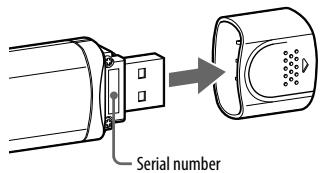
The serial number provided for the player is required for the customer registration. The number is shown on the rear of the USB connector base of the player.
Note on formatting the player
Operation Guide (PDF file) and the "Auto Transfer" software are stored in the built-in flash memory of the player. If the built-in flash memory is formatted, all files including Operation Guide (PDF file) and the "Auto Transfer" software will be erased. Be sure to verify the files stored in memory prior to formatting and export necessary files to the hard disk of your computer or other device.
If you format the built-in flash memory of the player by accident, download Operation Guide (PDF file) or the "Auto Transfer" software from the support web site (47 page 47) and store it in the built-in flash memory of the player.
Parts and Controls
Front
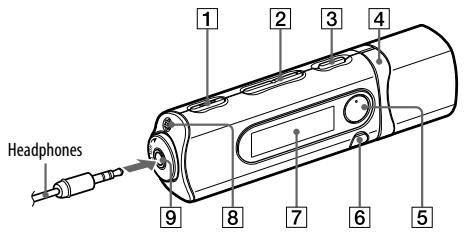
1 REC/STOP button (pages 33, 36)
Starts/stops recording. You can record the sound from the microphone or the currently received FM program (NWD-B103F/B105F only).
2 VOL +^*1 / - button Adjusts the volume.
3 |/ (Power ON/OFF) button ( page 12) Turns on/off the player.
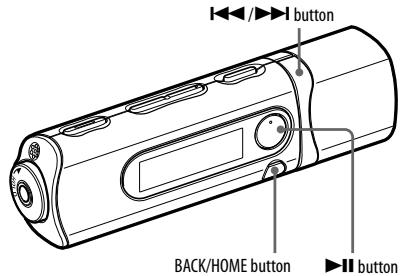
4 1/▶ button (pages 11, 22) Selects a song, album, artist, folder or menu item. You can also skip to the beginning of the song/album/artist/folder, fast-forward or fast-rewind.
5 II*1 button (pages 11, 18) Starts/pauses song playback or pauses/ restarts recording. When a menu appears on the display, use this button to confirm menu item.
6 BACK/HOME*2 button ( page 11) Returns to the previous menu. Press and hold this button to display the HOME menu.
7 Display ( page 21)
8 Microphone (page 36)
9 (Headphone) jack When connecting the headphones, insert the plug until it clicks into place. If connected improperly, it may not sound right.
1 There are tactile dots. Use them to help with button operations.
^2 Functions which are marked near the buttons are activated if you press them. Likewise functions marked near the buttons, are activated if you press and hold them.
Rear
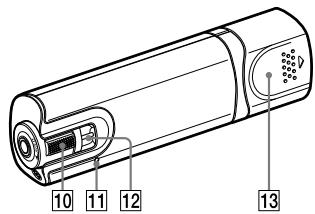
10 HOLD switch
You can protect the player against accidental operation by using the HOLD switch when carrying it.
By rotating the HOLD switch in the direction of the arrow (一) , all the buttons are inoperable. If you press buttons while the HOLD function is activated, "HOLD" and the current time appears in the display. (The current time appears only when the clock is set (F page 41).)
If you rotate the HOLD switch to the opposite position, the HOLD function is released.
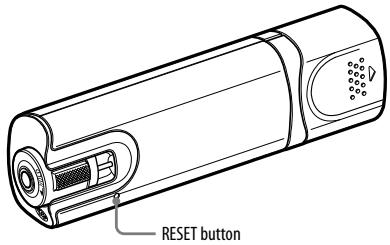
11 RESET button (page 46)
Reset the player when you press the RESET button with a small pin, etc.
When you turn on the player after resetting it, the player activates resuming the previous setting items.
12 Strap hole
This is used to attach a strap (sold separately).
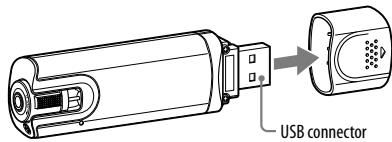
USB cap
Remove the USB cap and connect the USB connector of the player to a USB connector on your computer.
To remove the USB cap
Remove the USB cap as shown below.
HOME menu
The HOME menu appears when you turn on the player or press and hold the BACK/ HOME button of the player. The HOME menu is the starting point to play songs, listen to FM radio*1, play recorded sound files, and change settings.
HOME menu


Music Library
4 icons appear in the display with the current selection in the center. The current icon changes depending on the function you use.
| Voice | Plays/deletes recorded sound file (®page 37). |
| Music Library | Plays transferred songs on the player (®page 17). |
| FM*1 | Plays FM radio, or plays back or deletes a recorded FM program (®page 27). |
| Settings | Sets function settings of music, FM*1, voice recording, or the player (®page 39). |
^*1 NWD-B103F/B105F only
To operate the HOME menu
When menu items appear on the HOME menu, press the 1 / button to select an item, and then press the button to confirm.
When menu items appear on the HOME menu and you press the BACK/HOME button, the screen returns to the previous menu. If you press and hold it, the screen returns to the HOME menu.
For example, when you want to play back a song by selecting (Music Library) on the HOME menu, the menu changes as follows.
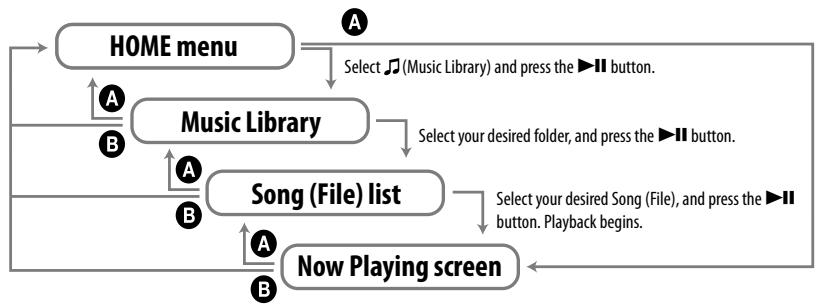
A Press the BACK/HOME button.
Press and hold the BACK/HOME button.
Turning the Player On and Off
To turn on the player
Press the / (Power ON/OFF) button so that the screen appears. The player activates resuming the previous setting items.
To turn off the player
When the player is turned on, press and hold the | / | (Power ON/OFF) button until "POWER OFF..." appears.

Hint
- If there is no operation for a certain period of time, the display turns off automatically and the player enters stand-by status. In this status, the player consumes very little battery power.
Charging the Battery
The player's battery is recharged while the player is connected to a running computer. Remove the USB cap and connect the USB connector to a USB port on your computer.
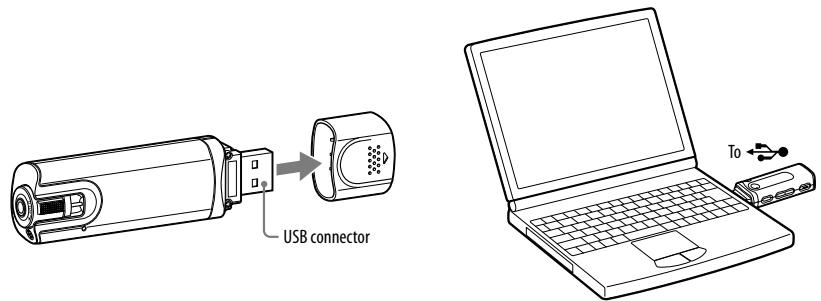
When the remaining battery indication of the display shows: Full, charging is complete. When you use the player for the first time, or if you have not used the player for a long time, recharge it fully until Full appears on the screen. For details on charging time or battery life, see page 67.
Note
- Be careful not to accidentally bump or put stress on the player when it is connected to your computer. It may be damaged.
On the remaining battery indication
The battery icon in the display (F page 21) changes as shown below. See F page 67 for details on battery duration.

The battery power gets low as shown in the battery icon. If "LOW BATTERY" appears, you cannot operate the player. In this case, charge the battery by connecting to your computer.
Notes
- Charge the battery in an ambient temperature of between 5 to 35^ .
- The number of times the battery can be recharged before it is used up is approximately 500 times. This number differs, depending on the conditions under which you use the player.
- The battery indicator on the display is only an estimate. For example, one section of black in the indicator will not always indicate exactly one-fourth of the battery's charge.
- "DATA ACCESS" appears in the display while the player accesses the computer. Do not disconnect the player while "DATA ACCESS" appears or the file being transferred may be destroyed.
- When disconnecting the player from your computer, follow the procedure below.
1 Double-click (Remove Hardware) in the task tray in the lower right portion of the screen. In the windows that appears, click [USB Mass Storage Device] or [USB Disk], and then click [Stop]. 2 Click [OK].
③ When "Safe To Remove Hardware" appears on the screen, disconnect the player from the computer.
The icon and the messages displayed may be different depending on the installed OS.
- The control buttons on the player are all disabled while it is connected to a computer.
- Some USB devices connected to the computer may interfere with the proper operation of the player.
- We do not guarantee the recharge of the battery using personally assembled computers or modified computers.
Transferring Music Manually
Connect the player to your computer and transfer an audio file to the player.
Note
- Only MP3/WMA files can be played on the player (page 65).
1 Connect the player directly to a USB port on your computer. If the screen for selecting what you want Windows to do appears, select [Open folder to view files] and click [OK], and then go to step 3.
2 Double-click [My Computer] - [WALKMAN] or [Removable Disk].
3 Open the folder ([My Music], etc.) from where you want to transfer the audio files, and then drag and drop them onto the player's drive. The audio files are transferred to the player. You can also transfer files to the player by dragging and dropping a folder.
To delete songs transferred to the player
Connect the player to your computer, and then delete any unnecessary audio files using Windows Explorer.

Hint
- You can transfer audio files automatically from a desired folder every time you connect the player to your computer using the "Auto Transfer" software (4 page 43).
Notes
- Be careful not to accidentally bump or put stress on the player when it is connected to your computer. It may be damaged.
- The player does not use SonicStage software (SonicStage software, developed by Sony, manages music on a computer or transfers music to other types of players). For this player, you can transfer music simply by dragging and dropping, not using SonicStage.
- Do not disconnect the player while a file is being transferred. If you do, the file being transferred may be damaged.
- When disconnecting the player from your computer, follow the procedure below.
① Double-click (Remove Hardware) in the task tray in the lower right portion of the screen. In the windows that appear, click [USB Mass Storage Device] or [USB Disk], and then click [Stop].
② Click [OK].
③ When "Safe To Remove Hardware" appears on the screen, disconnect the player from the computer.
The icon and the messages displayed may be different depending on the installed OS.
- If the player is disconnected while files are being transferred, unnecessary files may be left in the player. In this case, transfer usable files back to the computer and format the player (@ page 42).
- Some files may not be played back with the player due to copyright protection.
- The player can display up to a combined total of 999 files and folders, and folders of up to 8 levels. Although you can transfer more files or folders to the player, the player cannot display or play any files, folders, or levels that exceed this limit.
- It may take time to start up the player or display the file/folder list when many files or folders are stored on the player.
Playing Music
Playing Music
You can search for desired songs in the following ways.
- Searching for songs by folder and file name ("Folder/File Name Sort" mode)
- Searching for songs by artist, album, and song name ("Artist/Album/Song Sort" mode)
Note
Before playing songs:
- Confirm that the battery power is not low or exhausted (G page 14). If it is low or exhausted, recharge the battery (G page 13).
- Disconnect the player from the computer.
- Release the HOLD function (@ page 9).
- Turn on the player (page 12).
Searching for songs by folder and file name
You can search the desired song by the folder/file name.
Press and hold the BACK/HOME button until the HOME menu appears.
Press the I /I button to select (Music Library), and then press the button to confirm.
The following lists of transferred songs and folders appear.
- "Now Playing": Plays back the last file* you listened to.
- "Play All": Plays back all songs on the player.
- Folder name: Displays the level 1 folders.
- Song name: Displays the level 1 songs.
- "Artist/Album/Song Sort": Switches to the "Artist/Album/Song Sort" mode. In this mode, you can search for desired songs by artist, album, and song name.
- File includes the song, recorded FM radio program (NWD-B103F/B105F only), or recorded sound using the "Voice" menu, that you last listened to.
3 Press the I< / button to select an item, and then press the button to confirm.
To find the song you want, repeat this step.
4 Press the I< button to select a song, and then press the button to confirm.
Playback starts.
Notes
- The player can display up to a combined total of 999 files and folders, and folders of up to 8 levels. Although you can transfer more files or folders to the player, the player cannot display or play any files, folders, or levels that exceed this limit.
- It may take time to start up the player or display the file/folder list when many files or folders are stored on the player.
To return to the previous menu
Press the BACK/HOME button.
Searching for songs by artist, album, or song name
You can search the desired song by artist/album/song name.
Press and hold the BACK/HOME button until the HOME menu appears.
Press the I / button to select (Music Library), and then press the button to confirm.
The following lists appear.
- "Now Playing": Plays back the last file* you listened to.
- "All Songs": Searches for a song by song name.
"Artist": Searches for a song by artist. - "Album": Searches for a song by album.
- "Folder/File Name Sort": Switches to the "Folder/File Name Sort" mode. In this mode, you can search for desired songs by folder and file name.
- File includes the song, recorded FM radio program (NWD-B103F/B105F only), or recorded sound using the "Voice" menu, that you last listened to.
3 Press the I< button to select an item, and then press the button to confirm.
To find the song you want, repeat this step.
4 Press the I / button to select a song, and then press the button to confirm.
Playback starts.
Notes
- Only songs that have ID3 tag information can be automatically classified by the player.
- If an artist or album has no name, "Unknown" appears. If any songs have no name, assigned file names for each song (without extension) appear.
- The player can display up to a combined total of 999 files and folders, and folders of up to 8 levels. Although you can transfer more files or folders to the player, the player cannot display or play any files, folders, or levels that exceed this limit.
- It may take time to start up the player or display the file/folder list when many files or folders are stored on the player.
To return to the previous menu
Press the BACK/HOME button.
Display
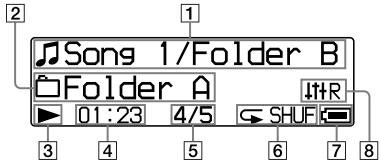
When selecting the "Folder/File Name Sort" mode
When selecting "Artist/Album/Song Sort" mode
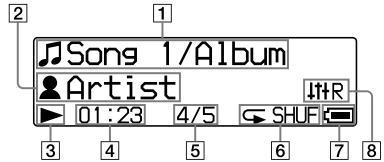
1 Song title/Folder name indication
For the "Folder/File Name Sort" mode, displays song title and folder name currently play back.
For the "Artist/Album/Song Sort" mode, displays song title and album title currently played back. When you select "All Songs," the current song title/current artist name is displayed.
2 Playback range indication
Displays the playback range.
3 Playing status indication
Displays the current play mode (▶:
playback.:pause,:fast-rewind (or fast-forward),:skip to the beginning of the current (or next) song).
5 Current song number/total song number indication
Displays the song number currently selected or being played back and the total number of songs.
6 Play mode indication
Displays the current play mode icon ( page 24). If the play mode is set to "Normal," no icon appears.
7 Remaining battery indication
Displays the remaining battery power.
Equalizer mode indication
Displays the current equalizer mode ( page 26).
4 Elapsed time indication
Displays the elapsed time.
On other operations for playback
| To | Button operation |
| Pause the song | Press the ➔II button. |
| Restart playback | Press the ➔II button while the song is paused. |
| Skip to the beginning of the current (or next) song | Press the I♣( ➔I ) button. |
| Fast-rewind (or fast-forward) the current song. | Press and hold the I♣( ➔I ) button during playback and release it at the desired point. |
Hint
- The player offers a variety of play modes, including random play and selected repeat play (F page 24). You can also change the sound quality with the equalizer settings (F page 26).
Changing the Play Mode
The player offers a variety of play modes, including random play and selected repeat play.
Press and hold the BACK/HOME button until the HOME menu appears.
2 Press the I< / button to select (Settings), and then press the button to confirm.
3 Press the I< / button to select "Music Settings," and then press the button to confirm.
4 Press the I< button to select "Play Mode," and then press the button to confirm.
Press the I / button to select the desired play mode, and then press the button to confirm.
To return to the previous menu
Press the BACK/HOME button.
List of play modes
| Setting item/Icon | Description |
| “Normal”/No icon | After the current song ends, all songs in the selected folder/album/artist are played once. (Default setting) |
| Repeat all/→ | After the current song ends, all songs in the selected folder/album/artist are played repeatedly. |
| Repeat 1 song/→1 | The current song is played repeatedly. |
| Repeat shuffle all/→SHUF | After the current song ends, all songs in the selected folder/album/artist are played in random order. |
Setting the Sound Quality
You can set your desired sound quality according to the music genre, etc.
Press and hold the BACK/HOME button until the HOME menu appears.
2 Press the 144 / 1 button to select (Settings), and then press the 11 button to confirm.
Press the I< / button to select "Music Settings," and then press the button to confirm.
4 Press the I< / button to select "Equalizer," and then press the button to confirm.
Press the I< / button to select the desired equalizer setting, and then press the button to confirm.
To return to the previous menu
Press the BACK/HOME button.
List of equalizer settings
| Setting item/Icon | Description |
| “EQ OFF”/No icon | Turns off the equalizer (Default setting). |
| “EQ Heavy”/↓↑H | Emphasizes high and low ranges for a more powerful sound. |
| “EQ Rock”/↓↑R | Emphasizes high and low ranges for a powerful sound. |
| “EQ Classical”/↓↑CL | Emphasizes high and low ranges, so that even soft sounds can be heard easily. |
| “EQ Pop”/↓↑P | Stresses the middle range audio, ideal for vocals. |
| “EQ Jazz”/↓↑J | Emphasizes high and low ranges for a lively sound. |
| “EQ Custom”/↓↑CU | User-customizable sound settings. When you press the ↓←/▶按钮 to select “Edit,” and then press the ▷ button, you can edit the sound setting. To edit the sound setting, press the ↓←/▶按钮 to select the band (5 bands: 100 Hz to 10 kHz) and press the ▷ button to confirm. Then press the ↓←/▶按钮 to select the sound level (7 levels: -3 to +3) and press the ▷ button to confirm. Repeat this step to set the sound level of every band. If you return to the previous menu using the BACK/HOME button after setting the sound level, the setting you have changed will be canceled. Be sure to press the ▷ button to confirm. |
Listening to FM Radio in the Manual Tuning Mode
Be sure to connect the headphones to the player, or the player cannot receive any FM signal.
Press and hold the BACK/HOME button until the HOME menu appears.
2 Press the I< / button to select FM (FM), and then press the button to confirm.
3 Check that "Manual" is selected, and then press the button to confirm.
The player enters the manual tuning mode.
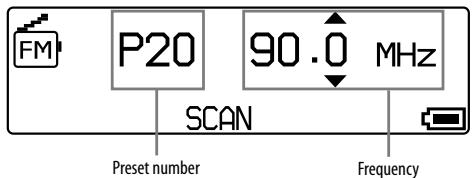
Notes
- The preset number is shown only when the current frequency is already preset (page 29).
- The illustrated FM tuner screen may be different from your model.
Press the I< button to select the previous (or next) frequency.
The frequency is changed by 0.1MHz
| To | Button operation |
| Select the next frequency | Press the ➔ button. |
| Select the previous frequency | Press the ↓ button. |
| Select the next receivable broadcast station | Press and hold the ➔ button. |
| Select the previous receivable broadcast station | Press and hold the ↓ button. |

Hint
- By pressing and holding the button during FM reception, the previous (or next) broadcast station is found. If the broadcast station is receivable, the signal is accepted.
To return to the previous menu
Press the BACK/HOME button.
To improve the reception
The headphone's cord serves as the antenna, so extend it as far as possible.
Listening to FM Radio in the Preset Tuning Mode
Presetting Desired Broadcast Stations
You can preset up to 30 receivable broadcast stations (P01 to P30) in your area automatically using the "FM Auto Preset" function.
When you use the FM tuner for the first time, or when you move to a new area, we recommend presetting receivable broadcast stations using the "FM Auto Preset" function.
Note
- The "FM Auto Preset" operation will delete already preset broadcast stations.
Press and hold the BACK/HOME button until the HOME menu appears.
Press the I / button to select (Settings), and then press the button to confirm.
Press the I / button to select "FM Settings," and then press the button to confirm.
Press the I< button to select "FM Auto Preset," and then press the button to confirm.
Press the I< button to select "OK," and then press the button to confirm.
The receivable broadcast stations will be preset in order from low to high frequency. "COMPLETE" appears when presetting is completed, then the first preset station is received.
Note
- The preset number is always sorted from low to high frequency order.
To stop automatic presetting
Select "Cancel" in step 5 and press the button to confirm.
To return to the previous menu
Press the BACK/HOME button.
To preset broadcasting stations manually
Press and hold the button during FM reception.
2 Press the I< / button to select "Add Preset," and then press the button to confirm.
3 Press the I / button to select the preset number you want to assign to the current frequency, and then press the button to confirm. The current frequency is preset and the preset number appears to the left of the frequency. If you select a preset number that is already assigned to another frequency, the message confirming whether to replace the setting appears. Selecting "OK" and pressing the button will replace the setting.
To delete a preset broadcast station
Press and hold the button during FM reception.
2 Press the I<Delete Preset, and then press the II button to confirm.
3 Press the I / button to select the preset number you want to delete, and then press the button to confirm.
4 Press the I< / button to select "OK," and then press the button to confirm.
The preset broadcast station is deleted.
Selecting Broadcast Stations in the Preset Tuning Mode
You cannot select broadcast stations if no broadcast stations are preset. Preset the receivable stations using the "FM Auto Preset" function (F page 29), or preset the broadcast stations manually (F page 31).
Press and hold the BACK/HOME button until the HOME menu appears.
2 Press the I< / button to select FM (FM), and then press the button to confirm.
3 Press the I< / button to select "Preset," and then press the button to confirm.
The player enters the preset tuning mode.
4 Press the I< button to select the previous (or next) preset number.
Recording FM Radio
Press and hold the REC/STOP button while listening to the station you want to record.
The player goes to standby to record.
2 Press the REC/STOP button. Recording starts.
3 To stop recording, press the REC/STOP button. The recording is saved as a file named FRnnnn*.mp3 in the [Record] - [FM] folder. * File names are automatically assigned from "FR0001.mp3" to "FR9999.mp3."
Hints
- You can also record FM radio by pressing briefly the REC/STOP button in step 1, selecting "OK," and pressing the button to confirm.
- Recording in poor reception areas may result in noise. Record where reception is good.
- To pause recording, press the button. Press it again to continue recording.
Note
- When you rename files of the [Record] folder on your computer, or put files which have been imported to your computer back into the [Record] folder, you may not be able to play them on the player. In this case, transfer the files which have been imported to your computer on the player to the folders other than the [Record] folder, and then play them back as audio content.
Playing Back Recorded FM Radio Programs
Press and hold the BACK/HOME button until the HOME menu appears.
2 Press the I< I button to select FM (FM), and then press the button to confirm.
3 Press the I< / button to select "Play Rec Data," and then press the button to confirm.
Press the I< button to select a recorded FM radio program you want, and then press the button to confirm.

Hint
- To listen to all recorded FM radio programs, select "Play All" in step 4.
To return to the previous menu
Press the BACK/HOME button.
To delete recorded FM radio programs
Press and hold the BACK/HOME button until the HOME menu appears.
2 Press the I< / button to select FM (FM), and then press the button to confirm.
3 Press the I<Delete Rec Data, and then press the II button to confirm.
Press the I< button to select the recorded FM radio program you want to delete, and then press the button to confirm.
Press the I< / button to select "OK," and then press the button to confirm.
The selected FM radio program is deleted.

Hints
- To delete all recorded FM radio programs, select "Delete All" in step 4.
- To stop deleting, select "Cancel" in step 5.
Recording Sound
You can record sound from the microphone of the player and play recorded sound files using the "Voice" menu. The recorded sound files will be in MP3 format.
Note
- Recording sound cannot work in the "FM" (NWD-B103F/B105F only) or "Settings" function. Change the function to "Voice" or "Music Library" to record sound.
1 In the "Voice" or "Music Library" function, press and hold the REC/STOP button.
The player goes to standby to record.
2 Press the REC/STOP button. Recording starts.
To stop recording, press the REC/STOP button.
The recording is saved as a file named VRnnnn*.mp3 in the [Record] - [Voice] folder.
- File names are automatically assigned from "VR0001.mp3" to "VR9999.mp3".

Hints
- You can also record sound by pressing briefly the REC/STOP button in step 1, selecting "OK," and pressing the button to confirm.
- To pause recording, press the button. Press it again to continue recording.
- You can change the bit rate of the audio file. For details, see "Rec Settings" (page 40).
Note
- When you rename files of the [Record] folder on your computer, or put files which have been imported to your computer back into the [Record] folder, you may not be able to play them on the player. In this case, transfer the files which have been imported to your computer on the player to the folders other than the [Record] folder, and then play them back as audio content.
Playing Back the Recorded Sound Files
Press and hold the BACK/HOME button until the HOME menu appears.
2 Press the I< I button to select (Voice), and then press the II button to confirm.
3 Press the I< / button to select "Play Rec Data," and then press the button to confirm.
4 Press the I< button to select a recorded sound file you want, and then press the button to confirm.

nt
- To listen to all recorded sound files, select "Play All" in step 4.
To return to the previous menu
Press the BACK/HOME button.
Listening/Recording Voice (continued)
To delete the recorded sound files
Press and hold the BACK/HOME button until the HOME menu appears.
2 Press the I / button to select (Voice), and then press the button to confirm.
3 Press the I< / button to select "Delete Rec Data," and then press the button to confirm.
4 Press the I / button to select the recorded sound file you want to delete, and then press the button to confirm.
Press the I< button to select "OK," and then press the button to confirm.
The selected sound file is deleted.

Hints
- To delete all recorded sound files, select "Delete All" in step 4.
- To stop deleting, select "Cancel" in step 5.
Settings
Changing the Settings
You can change the various settings using the "Settings" menu. The following procedure is the basic way to change settings.
Press and hold the BACK/HOME button until the HOME menu appears.
2 Press the I< / button to select (Settings), and then press the button to confirm.
3 Press the I< / button to select the item you want, and then press the button to confirm.
4 Repeat step 3 and change its value, and then press the button to confirm each time.
To return to the previous menu
Press the BACK/HOME button.
"Music Settings"
| Setting | Description |
| "Play Mode" | Selects a variety of play modes, including random play and selected repeat play. For details, see “Changing the Play Mode”(® page 23). |
| “Equalizer” | Selects a desired sound quality according to the music genre, etc. For details, see “Setting the Sound Quality”(® page 25). |
"FM Settings"(NWD-B103F/B105F only)
| Setting | Description |
| “FM Auto Preset” | Presents receivable broadcast stations automatically. For details, see “Preseting Desired Broadcast Stations”(®page 29). |
| “Rec Settings” | |
| Setting | Description |
| “Codec”(voice record settings) | Selects a level of recording quality from “Low(96kbps),” “Mid(128kbps),” or “High(192kbps).”The higher the level is, the more memory the player uses for recording sound. “Mid(128kbps)” is set by default. |
"Common Settings"
| Setting | Description |
| “Set Date-Time” | Adjusts the date and time. To set a numerical value, use the !/ button. To move the highlighted slider, use the ! button. |
| “AVLS(Volume Limit)” | Selects whether or not to set “AVLS(Volume Limit)” (Automatic Volume Limiter System) to limit the maximum volume to prevent auditory disturbance or distraction. With “AVLS(Volume Limit), you can listen to music at a comfortable volume level. “AVLS OFF” is set by default. |
| “Beep” | Selects to turn on/off the beep sound when pressing buttons. To turn on the beep sound, set to “Beep ON.” To turn off the beep sound, set to “Beep OFF.” “Beep ON” is set by default. |
| “Power Save Mode” | Selects the power save setting. When set to “Save ON Normal,” the power save screen appears in the display when no operation is performed for about 15 seconds. When set to “Save ON Super,” the screen disappears when no operation is performed for about 15 seconds. This setting uses the least battery consumption. When set to “Save OFF,” the icon(s) or letter(s) appears in the display constantly during playback or FM reception (NWD-B103F/B105F only). “Save ON Normal” is set by default. |
"Information"
Information such as the model name, built-in flash memory capacity, and firmware version can be displayed.
1: model name
2: built-in flash memory capacity
3: version information for the player's firmware
"Language"
Selects the display language from "English," "Espanol," "Français," "Portugues," "Pycckn," "简体中文," "繁體中文," or "社門."
"Reset All Settings"
You can reset the player to the default settings. Resetting the player does not delete the songs you have transferred to the player.
When you want to reset the all settings, select "OK" to confirm.
"Format"
You can format the built-in flash memory of the player. If the memory is formatted, all files will be erased and all setting values returned to their defaults. Be sure to verify the files stored in memory prior to formatting and export any necessary files to the hard disk of your computer or other device.
When you want to format the player, select "OK" to confirm.
Note
- When the remaining battery is low, you cannot format the player. Charge the battery before formatting.
Using "Auto Transfer" software
Transferring Music Automatically
You can transfer audio files automatically from a desired folder every time you connect the player to your computer using the "Auto Transfer" software.
When you use the "Auto Transfer" software for the first time, transfer audio files as follows.
1 Connect the player directly to a USB port on your computer.
If the screen for selecting what you want Windows to do appears, select [Launch Auto Transfer] and click [OK]. "Auto Transfer" stored in the built-in flash memory of the player starts up, and then go to the step 3.
2 Double-click [My Computer] - [WALKMAN] or [Removable Disk] (AutoTransfer.exe).

Set the desired items on the "Settings" screen.
Automatic search folder
You can specify a folder as the automatic search folder when you connect the player to your computer. [My Music] and [Desktop] are specified (checked) by default. If you want to search audio files from folders other than [My Music] and [Desktop], select a folder to search from.
"Specified folder(s)"
Folders to be searched except for [My Music] and [Desktop] appear. When you click [Add], the folder select screen appears and you can add a folder that is in "Specified folder(s)." If you want to delete a folder from "Specified folder(s)," select it, and then click [Remove].
"Search all folders"
When you check [Search all folders and drives], audio files will be searched from the hard disk drive(s) and folders in your computer.
Note
- If you check [Search all folders and drives], search time may increase.
"Advanced"
The "Advanced Settings" screen appears. You can specify the extension for an audio file or folder to be transferred. For details, see "Setting items of the "Advanced Settings" screen" (@ page 45).
Click [OK].
The screen for transfer appears and transfer starts.
When transferring completes, a message appears on the "Transfer log" section of the screen. Click × at the right of the screen to close.
![SONY NWD-B105 - Click [OK]. - 1](/content/2019/11/47060/images/2cc00d1f57eb97a3c979c184dd355b86d33de453748b240e04436f66f06b9aca.jpg)
Hints
- To stop transferring audio files, click [Stop transfer] on the screen for transfer.
- When you click [Settings] on the screen for transfer, the "Settings" screen appears. When you click [Display destination folder], the root folder of the player (removable disk) appears on Windows Explorer.
To quit "Auto Transfer" software
Even if you close the screen of "Auto Transfer" software, the "Auto Transfer" software will not be quit. To quit the "Auto Transfer" software, right-click the icon from the notification area, at the lower right of Desktop, then select [Exit Application] from menu.
When you connect the player to your computer after the first time
The screen for transfer appears and transfer starts.
Only audio files that have not been transferred to the player are transferred.
Setting items of the "Advanced Settings" screen
You can set the following items on the "Advanced Settings" screen.
"Set files/destination for transfer"
Extensions of audio files to be transferred and a list of destination folders appear.
- [Add]
You can add an extension to an audio file to be transferred and the destination folder.
[Edit]
You can change the extension setting currently selected.
- [Remove]
You can delete the extension currently selected.
"Clear transfer history"
When you click [Clear], the history of the audio file transferred before by "Auto Transfer" is cleared. If you clear the history, when you connect the player to your computer next time, all audio files in "Specified folder(s)" are transferred to the player.
Note on formatting the player
The "Auto Transfer" software is stored in the built-in flash memory of the player. If the built-in flash memory is formatted, all files including the "Auto Transfer" software will be erased. Be sure to verify the files stored in memory prior to formatting and export necessary files to the hard disk of your computer or other device. If you format the built-in flash memory of the player by accident, download the "Auto Transfer" software from the support web site (@ page 47) and store it in the built-in flash memory of the player.
Troubleshooting
If the player does not function as expected, try the following steps to resolve the issue.
1 Find the symptoms of the issue in the following troubleshooting tables, and try any corrective actions listed.
Press the RESET button with a small pin, etc.
If you press the RESET button while operating the player, stored files and settings on the player may be deleted.
When you turn on the player after resetting it, the player activates resuming the previous setting items.
3 Look for information about the issue on one of the support Web sites.
For customers in Europe, visit: http://support.sony-europe.com/DNA
For customers in Latin America, visit: http://www.sony-latin.com/index.crp
For customers in other countries/regions, visit: http://www.css.ap.sony.com
For customers who purchased the overseas models, visit:
http://www.sony.co.jp/overseas/support/
4 If the approaches listed above fail to resolve the issue, consult your nearest Sony dealer.
Operation
| Symptom | Cause/Remedy |
| There is no sound. | ·The volume level is set to zero. →Turn the volume up (®page 8). ·The headphone jack is not connected properly. →Connect the headphone jack properly (®page 8). ·The headphone plug is dirty. →Clean the headphone plug with a soft dry cloth. ·No audio files are stored in the built-in flash memory. →If “NO DATA” appears, transfer audio file(s) from the computer. |
| Songs cannot be played. | ·The battery is consumed. →Charge the battery fully (®page 13). →If the player does not react, even after charging the battery, press the RESET button to reset the player. |
| Noise is generated. | ·A device emitting radio signals, such as a mobile phone is being used near the player. →When using such devices as mobile phones, keep them away from the player. ·Audio data is damaged. →Delete the audio file(s) then transfer again. When transferring audio files, close any other applications to avoid file damage. |
| Buttons do not work. | ·The HOLD switch is set to the direction of the arrow (←). →Rotate the HOLD switch to the opposite direction of the arrow (←) (@ page 9). ·The player contains moisture condensation. →Wait a few hours to let the player dry. ·The remaining battery is low or insufficient. →Charge the battery by connecting to the computer (@ page 13). →Even after charging the battery, nothing is changed, press the RESET button to reset the player (@ page 46). |
| Playback does not stop. | ·With the player, there is no difference between stopping and pausing. When you press the ➔ button, ➔ appears and playback pauses/stops. |
| Symptom | Cause/Remedy |
| The player does not work. | ·The remaining battery is insufficient. →Charge the battery by connecting to the computer (@ page 13). →Even after charging the battery, nothing is changed, press the RESET button to reset the player (@ page 46). ·Delete unnecessary files. At least 20 MB of some free space is necessary to function normally. You can check the free space by clicking [My Computer], right-clicking [WALKMAN] or [Removable Disk], and then opening the [Properties] window by left-clicking. |
| It takes time to start up the player. | ·It may take time to start up the player if many files or folders are stored on the player, or audio data transferred to the player has a lot of ID3 tag information. Wait until the start-up animation appears. |
| The transferred songs cannot be found. | ·The built-in flash memory of the player was formatted using Windows Explorer. →Format the built-in flash memory using the “Format” menu of the player (@ page 42). ·The player was disconnected from the computer while files were being transferred. →Transfer usable files back to your computer and format the built-in flash memory using the “Format” menu of the player (@ page 42). |
| There is no sound from the right channel of the headphones. Or the right channel sound is heard from both sides of the headphones. | ·The headphone jack is not fully inserted. →If the headphones are not connected correctly, sound will not be output properly. Connect the headphones into the jack until it clicks (@ page 8). |
| Playback has stopped suddenly. | ·The remaining battery is insufficient. →Charge the battery by connecting to the computer (®page 13). |
| The player cannot format. | ·The remaining battery is low or insufficient. →Charge the battery by connecting to the computer (®page 13). |
Display
| Symptom | Cause/Remedy |
| “□” appears for a title. | • Characters that cannot appear on the player are involved. → Rename the title with appropriate characters on the computer. |
| “Unknown” is displayed for a title. | • The title has no name. → Operate in the “Folder/File Name Sort” mode. |
Power
| Symptom | Cause/Remedy |
| The power does not turn on. | ·If you press the \(/ \bigcirc\) button immediately after turning off the player, the player does not start due to the shut down processing. Wait for a few seconds, then turn on the power. |
| Symptom | Cause/Remedy |
| Battery life is short. | ·The operating temperature is below 5 °C. →Battery life becomes shorter due to the battery characteristics. This is not malfunction. ·Battery charging time is not enough. →Charge the battery until充满 appears. ·By adjusting the settings or managing the power supply properly, it is possible to save the battery power and use the player for a longer time (40 page 41). ·The battery is required to be replaced. →Consult your nearest Sony dealer. |
| The player cannot charge the battery. | ·The player is not connected to a USB port on your computer properly. →Disconnect the player, and then reconnect it. ·The battery is charged in an ambient temperature out of the range of 5 °C to 35 °C. →Charge the battery in an ambient temperature of 5 °C to 35 °C. ·Your computer is not on. →Turn on the computer. ·Your computer enters Sleep or hibernate status. →Release the computer from Sleep or hibernate status. |
| Charging completes very quickly. | ·If the battery is already almost fully charged when charging begins, little time is needed to reach full charge. |
Recording
| Symptom | Cause/Remedy |
| “MEMORY IS FULL REMOVE CONTENT” is displayed even though the maximum recording time is not reached. | ·The player can display up to a combined total of 999 files and folders. Although you can transfer more files or folders to the player, the player cannot display or play any files, folders, or levels that exceed this limit. →Delete unnecessary files until the combined total of files and folders becomes 999 or less. →Export the recorded files to a computer. |
| The recording remaining time remains the same even though files are deleted. | ·Due to system restrictions, the record remaining time may not recover even though some short files are deleted. |
| Cannot record. | ·The player memory is low. →Delete unnecessary files. →Export the recorded files to a computer. Necessary free space may vary, depending on the bit rate or recording time. ·The player can display up to a combined total of 999 files and folders. Although you can transfer more files or folders to the player, the player cannot display or play any files, folders, or levels that exceed this limit. →Delete unnecessary files until the combined total of files and folders becomes 999 or less. →Export the recorded files to a computer. ·The player is connected to a computer. →Disconnect the player from the computer. |
| The total of the recorded time and the remaining time does not match the maximum recording time. | ·When you record many short files, they may be recorded with automatically inserted blank spaces between files due to system restrictions. This causes an increase in total recorded time and results in the mismatch. |
| Symptom | Cause/Remedy |
| Recorded files cannot be deleted. | ·The file or the folder which cannot be deleted is set to [Read-only] on a computer. →Display the data in Windows Explorer, and uncheck [Read-only] in [Properties] of the file or folder. ·The battery power is low or exhausted. →Charge the battery fully (®page 13). |
| The folder is not deleted even though recorded files have all been deleted. | ·Files other than the recorded files are included in the folder. →Open the data in Windows Explorer, and delete the files other than files recorded by the player. |
Connection with the computer/"Auto Transfer" software
| Symptom | Cause/Remedy |
| “Auto Transfer” software does not start up. | If the “Auto Transfer” software does not start up by connecting the player to the computer, double-click [My Computer] - [WALKMAN] or [Removable Disk] - (AutoTransfer.exe).You may have deleted the “Auto Transfer” software.→ Download the “Auto Transfer” software from the support web sites (® page 47) and store it in the built-in flash memory of the player. |
| “USB CONNECT” does not appear when the player is connected to the computer. | The player's USB connector is not connected to a USB port on your computer properly.→ Disconnect the player, and then reconnect it.A USB hub is being used.→ Connect the player directly to a USB port as connection via a USB hub may not work. However, a USB hub that supplies power can be used.Another application is running on the computer.→ Disconnect the player, wait a few minutes, and reconnect it. If the problem persists, disconnect the player, restart the computer, and then reconnect the player. |
| The player is not recognized by the computer when it is connected to the computer. | · The player's USB connector is not connected to a USB port on your computer properly. → Disconnect the player, and then reconnect it. · A USB hub is being used. → Connect the player directly to a USB port as connection via a USB hub may not work. However, a USB hub that supplies power can be used. · The USB port on your computer may have a problem. Connect the player's USB connector to another USB port on your computer. |
| Audio files cannot be transferred to the player from your computer. | · The player's USB connector is not connected to a USB port on your computer properly. Make sure that “DATA ACCESS” or “USB CONNECT” appears on the display. → Disconnect the player, and then reconnect it. · There is not enough free space in the built-in flash memory. → Delete unnecessary songs to increase free space. · Abnormal file(s) exists on the player. → Transfer your necessary files back to your computer and format the player (@ page 42). · An audio file is damaged. → Delete the audio file then transfer it again. When transferring the audio file, close any other applications to avoid file damage. |
| Symptom | Cause/Remedy |
| Only a small number of songs can be transferred to the player. | There is not enough free space in the built-in flash memory. →Delete unnecessary songs to increase free space. Non-audio data is stored in the built-in flash memory. →Move non-audio files to the computer to increase free space. |
| The player becomes unstable while it is connected to the computer. | A USB hub is being used. →Connect the player directly to a USB port as connection via a USB hub may not work. However, a USB hub that supplies power can be used. |
FM Tuner (NWD-B103F/B105F only)
| Symptom | Cause/Remedy |
| You cannot hear the FM broadcast well. | The receiving frequency is not fully tuned in. → Select the frequency manually to improve reception (®page 27). |
| Reception is weak and sound quality is poor. | The radio signal is weak. → Listen to the FM broadcast near a window since the signal may be weak inside buildings or vehicles. The headphone cord is not extended enough. → The headphone cord functions as an antenna. Extend the headphone cord as far as possible. |
| The FM broadcast is affected by interference. | A device emitting radio signals, such as a mobile phone is being used near the player. → When using such devices as mobile phones, keep them away from the player. |
Other
| Symptom | Cause/Remedy |
| There is no beep sound when the player is operated. | “Beep” is set to “Beep OFF”→ Set “Beep” to “Beep ON” (® page 41). |
| The beep sound level varies. | The beep sound level varies according to the current volume of the player. |
| The player gets warm. | The player may be warm when the battery is being charged and just after charging. The player also may get warm when a large amount of files are transferred. This is normal and is not cause for concern. Set the player aside for a while to allow it to cool down. |
| The date and time have been reset. | If you left the player for a while with the battery used up, the date and time may be reset.→ This is not a malfunction. Charge the battery until F001 appears on the screen (® page 13) and set the date and time again (® page 41). |
| All settings of the player have been reset. | You moved, deleted, or renamed the system files. Or, the built-in flash memory of the player was formatted using other than the “Format” menu of the player.→ If you do any of the above operations, the system will be restructured and all settings of the player will be reset when you disconnect the player from the computer or other devices. If the player does not function normally after you format the player using other than the “Format” menu of the player, format the built-in flash memory using the “Format” menu of the player (® page 42). |
Messages
Follow the instructions below if a message appears in the display.
| Message | Meaning | Remedy |
| AVLS (blinks) | The volume level exceeds the rated value while "AVLS(Volume Limit)" is enabled. | Turn the volume down or disable "AVLS(Volume Limit)" (® page 41). |
| CHARGING | The battery is being charged. | This is not an error. Wait until the battery is charged fully. However, you can use the player with the battery not charged fully. |
| DATA ACCESS | Accessing the built-in flash memory. | This message appears while the built-in flash memory is being accessed. Please wait for access to complete. |
| FILE ERROR | • The file cannot be read. • The file is not normal. • The player cannot play certain files because of incompatible formats. • Transferring has been interrupted forcefully. | • Transfer the normal audio file back to the computer and then format the player. • If the song which cannot be played is unnecessary, you can delete it from the built-in flash memory. |
| HOLD | The player cannot be operated because the HOLD switch is set to the HOLD position. | To operate the player, rotate the HOLD switch to the opposite position (®page 9). |
| LOW BATTERY | The battery is low. | You must charge the battery (®page 13). |
| MEMORY FULL | ·There is not enough free space in the built-in flash memory. ·You are trying to record the FM radio (NWD-B103F/B105F only) or sound while the player has a combined total of 999 files and folders. ·You have changed the files in the [Record] folder. | ·Connect the player to the computer and delete any unnecessary songs to increase free space on the player. ·You cannot record more than 999. Connect the player to the computer and delete any unnecessary songs or files. ·Copy the files of the [Record] folder to your computer, and then delete the [Record] folder of the player. Then transfer those files which you have copied to a folder other than the [Record] folder on your computer to play them on the player as audio content. |
| Message | Meaning | Remedy |
| MEMORY IS FULL REMOVE CONTENT | ·The data base cannot be made because the memory of the player is full. ·You are trying to record the FM radio (NWD-B103F/B105F only) or sound while the player has a combined total of 999 files and folders. ·You have changed the files in the [Record] folder. | ·Delete unnecessary files. At least 20 MB of some free space is necessary to function normally. You can check the free space by clicking [My Computer], right-clicking [WALKMAN] or [Removable Disk], and then opening the [Properties] window by left-click. ·You cannot record more than 999. Connect the player to the computer and delete any unnecessary songs or files. ·Copy the files of the [Record] folder to your computer, and then delete the [Record] folder of the player. Then transfer those files which you have copied to a folder other than the [Record] folder on your computer to play them on the player as audio content. |
| NO DATA | There are no audio files in the built-in flash memory. | Transfer audio files. |
| NO ITEM | No song exists in the selected item. | Transfer audio files. |
| READ ONLY | You are trying to delete [Read-only] songs. | Uncheck [Read-only] in the folder or song of the [Properties] window on a computer. |
| USB CONNECT | The player is connected to a computer. | This is not an error. You cannot operate the controls on the player while connecting to a computer. |
Precautions
On safety
- Be sure not to short-circuit the terminals of the player with other metallic objects.
- Do not touch the rechargeable battery with bare hands if it is leaking. Since battery liquid may remain in the player, consult your nearest Sony dealer if the battery has leaked. If the liquid gets into your eyes, do not rub your eyes as it may lead to blindness. Wash out your eyes with clean water, and consult a doctor.
Also, if the liquid gets on to your body or clothes, wash it off immediately. If you do not, it may cause burns or injury. If you get burned or injured by the liquid from the battery, consult a doctor.
- Do not pour water or put any foreign object in the player. Doing so may cause fire or electric shock. If this occurs, turn off the player immediately, and consult your nearest Sony dealer or Sony Service Center.
- Do not put the player into the fire.
- Do not take apart or remodel the player. Doing so can result in electric shock. Consult your nearest Sony dealer or Sony Service Center for exchange of rechargeable batteries, internal checks or repair.
On installation
- Do not put any heavy object on top of the player or apply a strong shock to the player. It may cause a player to malfunction or damage.
- Never use the player where it will be subjected to extremes of light, temperature, moisture or vibration. The player may become discolored, distorted or damaged.
- Never leave the player exposed to high temperature, such as in a car parked in the sun or under direct sunlight.
- Do not leave the player in a place subject to excessive dust.
- Do not leave the player on an unstable surface or in an inclined position.
-
If the player causes interference to radio or television reception, turn the player off and move it away from the radio or television.
-
When using the player, remember to follow the precautions below in order to avoid warping the cabinet or causing the player to malfunction.
-
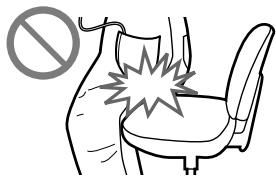
Make sure not to sit down with the player in your back pocket.
-
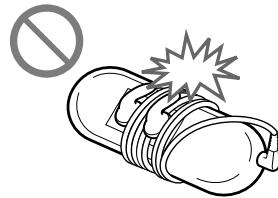
Make sure not to put the player into a bag with the headphones/earphones cord wrapped around it and then subject the bag to strong impact.
-
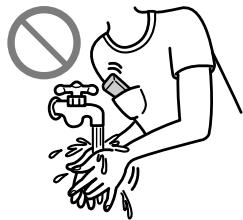
Do not expose the player to water. The player is not waterproof. Remember to follow the precautions below.
-
Be careful not to drop the player into a sink or other container filled with water.
- Do not use the player in humid locations or bad weather, such as in the rain or snow.
- Do not get the player wet.
If you touch the player with wet hands, or put the player in a damp article of clothing, the player may get wet and this may cause a malfunction of the player.
- When you unplug the headphone from the player, make sure to hold the headphone plug to unplug it. Pulling the headphone cord itself may cause damage to the headphone cord.
On heat build-up
Heat may build up in the player while charging if it is used for an extended period of time.
On the headphones
Road safety
Avoid listening with your headphones in situations where hearing must not be impaired.
Preventing hearing damage
Avoid using the headphones at a high volume. Hearing experts advise against continuous, loud and extended play. If you experience a ringing in your ears, reduce the volume or discontinue use.
Do not turn the volume up high all at once, especially when using headphones.
Turn up the volume gradually so that loud sound will not hurt your ears.
Caring for others
Keep the volume at a moderate level. This will allow you to hear outside sounds and to be considerate to the people around you.
Warning
If there is lightning when you are using the player, take off the headphones immediately.
If you experience an allergic reaction to the supplied headphones, stop using them at once and contact a doctor.
On the use
- When using a strap (sold separately), be careful to avoid hooking it on objects you pass by. Furthermore be careful not to swing the player by the strap to avoid bumping people.
- Refrain from using the player according to the in-flight announcements during take off or landing in an aircraft.
- Note that condensation may form temporarily in cases such as when the player is moved quickly from a low-temperature environment to a high temperature environment or used in a room that has a heater just turned on. Condensation creates a phenomenon where moisture in the air adheres to surfaces such as metal panels, etc., and then changes to liquid. If condensation forms in the player, leave it turned off until the condensation disappears. If you use the player with condensation present, a malfunction may result.
On the LCD
- Do not push the LCD screen strongly. Color spots may appear or the LCD panel may be damaged.
- If the player is used in a cold place, ghosting may occur. This does not indicate a failure.
- If the player is used in a cold or hot place, contrast may be affected.
On cleaning
- Clean the player's case with a soft cloth, such as cleaning cloth for eyeglasses.
- If the player's case becomes very dirty, clean it with a soft cloth slightly moistened with water or a mild detergent solution.
- Do not use any type of abrasive pad, scouring powder, or solvent, such as alcohol or benzene, as it may mar the finish of the case.
- Be careful not to let water get into the player from the opening near the connector.
- Clean the headphone plug periodically.
- If you have any questions or problems concerning the player, please consult your nearest Sony dealer.
On software
Copyright laws prohibit reproducing the software or the manual accompanying it in whole or in part, or renting the software without the permission of the copyright holder.
- In no event will SONY be liable for any financial damage, or loss of profits, including claims made by third parties, arising out of the use of the software supplied with player.
- In the event a problem occurs with this software as a result of defective manufacturing, SONY will replace it. However, SONY bears no other responsibility.
- The software provided with the player cannot be used with equipment other than that which is so designated.
- Please note that, due to continued efforts to improve quality, the software specifications may be changed without notice.
- Operation of this player with software other than that provided is not covered by the warranty.
-
The ability to display the languages on supplied software will depend on the installed OS on your computer. For better results, please ensure that the installed OS is compatible with the desired language you like to display.
-
We do not guarantee all the languages will be able to be displayed properly on supplied software.
- User-created characters and some special characters may not be displayed.
- The explanations in this manual assume that you are familiar with the basic operations of Windows. For details on the use of your computer and operating system, please refer to the respective manuals.
About the customer support Web sites
If you have any questions about or issue with this product, visit the following Web sites.
For customers in Europe: http://support.sony-europe.com/DNA
For customers in Latin America: http://www.sony-latin.com/index.crp
For customers in other countries/regions: http://www.css.ap.sony.com
For customers who purchased the overseas models:
http://www.sony.co.jp/overseas/support/
Specifications
Audio compression technology (supported bit rates and sampling frequency ^*1 )
- MP3 (MPEG-1 Audio Layer-3)
32 to 384 kbps variable bit rate-compliant, 11.025 to 48kHz
- WMA*2 (Windows Media Audio)
48 to 320 kbps variable bit rate-compliant, 22.05 to 48kHz
^1 Sampling frequency may not correspond to all encoders.
2 Copyright protected WMA files cannot be played back.
Maximum recordable number of songs and time (Approx.)
The approximate times are based on a transferred 4-minute MP3 format song.
Other playable audio file format song and time number may be different than MP3 format.
| NWD-B103/B103F | NWD- B105/B105F | |||
| Bit rate | Songs | Time | Songs | Time |
| 64 kbps | 490 | 32 hr. 40 min. | 990 | 66 hr. 00 min. |
| 128 kbps | 250 | 16 hr. 40 min. | 500 | 33 hr. 20 min. |
| 256 kbps | 125 | 8 hr. 20 min. | 250 | 16 hr. 40 min. |
| 320 kbps | 99 | 6 hr. 30 min. | 200 | 13 hr. 20 min. |
Maximum recordable time (Approx.)
The times below are estimated for the case where only FM (NWD-B103F/B105F only) or Voice audio files are stored. The time may differ, depending on the conditions under which the player is used.
| NWD-B103/B103F | NWD-B105/B105F | |
| Codec (Bit rate) | Time | Time |
| High(192kbps) | 11 hr. 00 min. | 22 hr. 20 min. |
| Mid(128kbps) | 16 hr. 20 min. | 33 hr. 20 min. |
| Low(96kbps) | 22 hr. 00 min. | 44 hr. 20 min. |
Capacity (User available capacity)\*1
NWD-B103/B103F: 1 GB (Approx. more than 910MB = 977,105,060 bytes)
NWD-B105/B105F: 2 GB (Approx. more than 1.81GB = 1,943,472,701 bytes)
*1 Available storage capacity of the player may vary.
A portion of the memory is used for data management functions. Documents (PDF file): approx.
10 MB and the "Auto Transfer" software: approx. 1 MB are not included.
Output (headphones)
Frequency response:
20 to 20,000Hz (when playing data file, single signal measurement)
FM tuner (NWD-B103F/B105F only)
- Preset: 30 preset
FM Frequency range: 87.5 to 108.0MHz
Antenna
Headphone cord antenna
Interface
Headphone: Stereo mini
Hi-Speed USB (USB 2.0 compliant)
Operating temperature
5^ C to 35^ C
Power source
Built-in 240mA lithium-ion battery
- USB power (from a computer through a USB connector of the player)
Charging time
USB-based charging
Approx. 120 minutes
Battery life (continuous playback)\*1 (Approx.)
*1 This is when "Power Save Mode" (page 41) is set to "Save ON Super." The battery duration will vary depending on temperature and usage.
| Status of the player | NWD-B103/B105 | NWD-B103F/B105F |
| Playback at MP3 128 kbps | 12 hours | 12 hours |
| Playback at WMA 128 kbps | 9 hours | 9 hours |
| At receiving FM broadcasting (NWD-B103F/B105F only) | — | 7 hours |
Display
3-line Color LCD
Dimension (w/h/d, projecting parts not included)
25.0× 88.5× 14.1mm
Dimension (w/h/d)
25.0× 89.9× 16.7mm
Mass
Approx. 30g
Minimum System Requirements (for the player)
Computer
IBM PC/AT or compatible computer preinstalled with the following Windows operating systems: Windows 2000 Professional (Service Pack 4 or later) / Windows XP Home Edition (Service Pack 2 or later) / Windows XP Professional (Service Pack 2 or later) / Windows XP Media Center Edition (Service Pack 2 or later) / Windows XP Media Center Edition 2004 (Service Pack 2 or later) / Windows XP Media Center Edition 2005 (Service Pack 2 or later) / Windows Vista Home Basic / Windows Vista Home Premium / Windows Vista Business / Windows Vista Ultimate Not supported by 64 bit version OS. Not supported by OSs other than above.
- CPU: Pentium III 450 MHz or higher (For Windows Vista, Pentium III 800 MHz or more)
RAM: 128 MB or more (For Windows Vista, 512 MB or more) -
Display:
-
Screen Resolution: 800 × 600 pixels (or higher) (recommended 1,024 × 768 or higher)
- Colors: High Color (16 bit) (or higher)
- USB port (Hi-Speed USB is recommended)
We do not guarantee operation for all computers even if they meet the above System Requirements.
Not supported by the following environments:
- Personally constructed computers or operating systems
- An environment that is an upgrade of the original manufacturer-installed operating system
- Multi-boot environment
- Multi-monitor environment
- Macintosh
Design and specifications are subject to change without notice.
Index
Symbols
HCL (EQ Classical) 26
CU (EQ Custom) 26
H(EQ Heavy). 26
J(EQ Jazz) 26
tTP (EQ Pop) 26
HTR (EQ Rock). 26
(Repeat all) 24
G1 (Repeat 1 song) 24
SHUF (Repeat shuffle all) 24
A
Accessories 6
Artist 19,21
Artist/Album/Song Sort mode 21
AVLS(Volume Limit) 41
B
BACK/HOME button 8,11
Battery. 13
Beep (Beep sound) 41
Bit rate. 65
C
Codec (voice record settings) 40
Computer. 68
D
Date setting. 41
Display 21
E
Equalizer 26
F
Fast-forward 22
Fast-rewind. 22
FM 27,40
FM Auto Preset. 29
Folder/File Name Sort mode. 21
Format (Initialize) 42, 49
H
Headphones. 6, 8, 61, 62
HOLD switch 9
HOME menu. 10
I
Information 42
Initialize (Format) 42, 49
L
Language 42
M
Manual tuning. 27
Messages 57
Microphone. 8
MP3 15, 33, 36, 65, 67
Music Library. 10, 18
P
Playback. 17
Play Mode. 23
Power. 8, 12
Power Save Mode. 41
Preset tuning 32
R
Radio 27,40
Recharging. 13
Recording 33, 36
Remaining battery. 14, 21
Repeat. 24
RESET (the player) 46
Reset All Settings 42
S
Serial Number 7
Set Date-Time 41
Settings. 39
Shuffle 24
Sound quality. 25
T
Time setting. 41
Transferring. 15, 43
Troubleshooting 46
Tuner 27,40
V
Voice. 10,37
Volume. 8, 62
VOL + / - button 8
W
WMA 65,67
- "WALKMAN" and "WALKMAN" logo are registered trademarks of Sony Corporation.
- Microsoft, Windows, Windows Vista and Windows Media are trademarks or registered trademarks of Microsoft Corporation in the United States and/or other countries.
- Adobe and Adobe Reader are trademarks or registered trademarks of Adobe Systems Incorporated in the United States and/or other countries.
- MPEG Layer-3 audio coding technology and patents licensed from Fraunhofer IIS and Thomson.
- IBM and PC/AT are registered trademarks of International Business Machines Corporation.
- Macintosh is a trademark of Apple Inc.
- Pentium is a trademark or a registered trademark of Intel Corporation.
US and foreign patents licensed from Dolby Laboratories. - All other trademarks and registered trademarks are trademarks or registered trademarks of their respective holders. In this manual, ^TM and ^ * marks are not specified.
This product is protected by certain intellectual property rights of Microsoft Corporation. Use or distribution of such technology outside of this product is prohibited without a license from Microsoft or an authorized Microsoft subsidiary.
Program ©2007 Sony Corporation
Documentation ©2007 Sony Corporation