
MZ-R55 - Lecteur MiniDisc SONY - Notice d'utilisation et mode d'emploi gratuit
Retrouvez gratuitement la notice de l'appareil MZ-R55 SONY au format PDF.


| Type de produit | Lecteur/enregistreur MiniDisc portable |
| Marque | Sony |
| Modèle | MZ-R55 |
| Dimensions (L × H × P) | 78,9 × 18,9 × 84 mm |
| Poids (sans accessoires) | 147 g |
| Poids (avec batterie NH-14WM) | 190 g |
| Alimentation | Adaptateur secteur CA (fourni), batterie rechargeable Ni-MH NH-14WM (fournie), 2 piles AA LR6 (non fournies) |
| Autonomie batterie (enregistrement stéréo) | Environ 2,5 h avec NH-14WM |
| Autonomie batterie (lecture) | Environ 4 h avec NH-14WM |
| Support d'enregistrement | MiniDisc enregistrable (MDW-74 jusqu'à 74 min stéréo, 148 min mono) |
| Formats audio | ATRAC (compression adaptative), échantillonnage 44,1 kHz (enregistrement), 32/44,1/48 kHz (entrée numérique) |
| Entrées | Line In (optique/mini-jack), Microphone (mini-jack avec alimentation plug-in), Line In analogique (RCA via câble) |
| Sorties | Line Out (mini-jack), Casque/ télécommande (mini-jack) |
| Fonctions principales | Enregistrement stéréo/mono, synchronisation numérique, AGC, marquage de plages, édition (effacer, déplacer, nommer), horodatage, mémoires anti-choc (40 s), Mega Bass numérique |
| Affichage | Écran LCD avec rétroéclairage (10 caractères, indicateurs de mode, niveau, batterie) |
| Télécommande | Télécommande filaire avec écran LCD rétroéclairé, molette de navigation |
| Entretien et nettoyage | Nettoyer l'extérieur avec un chiffon doux sec. Ne pas utiliser de solvants. Nettoyer la lentille avec un coton-tige sec si nécessaire. |
| Sécurité | Interrupteur HOLD pour verrouiller les commandes, AVLS (limiteur de volume), protection contre les chocs et les interférences |
| Pièces détachées et réparabilité | Batterie NH-14WM, adaptateur secteur, câbles, télécommande, pochette. Réparation par un technicien agréé Sony. |
FOIRE AUX QUESTIONS - MZ-R55 SONY
Questions des utilisateurs sur MZ-R55 SONY
0 question sur cet appareil. Repondez a celles que vous connaissez ou posez la votre.
Poser une nouvelle question sur cet appareil
Téléchargez la notice de votre Lecteur MiniDisc au format PDF gratuitement ! Retrouvez votre notice MZ-R55 - SONY et reprennez votre appareil électronique en main. Sur cette page sont publiés tous les documents nécessaires à l'utilisation de votre appareil MZ-R55 de la marque SONY.
MODE D'EMPLOI MZ-R55 SONY



MZ-R55
©1998 by Sony Corporation


1 AC
AC


AC


6
10
12
2
14
15
16
17
17
18
19
20
21
21
-AVLS 22
22
23
23

24 1 24 24 25 25 26 27

31 32 32 32

33 35 37 38 40 41 43 45
Mode d'emploi
Mode d'emploi 48


AC


100V


AC



AC



MD CD DAT

AC

AC
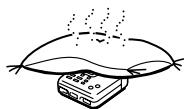


1 ①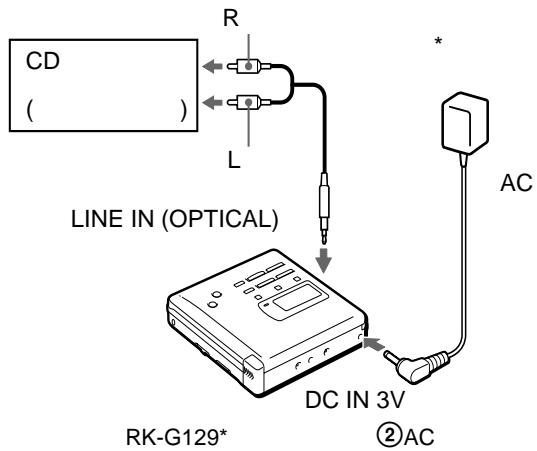
CD
RK-G136*
2 ① OPEN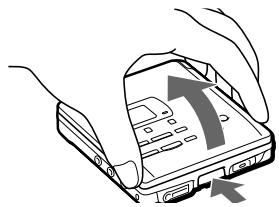
(2)
3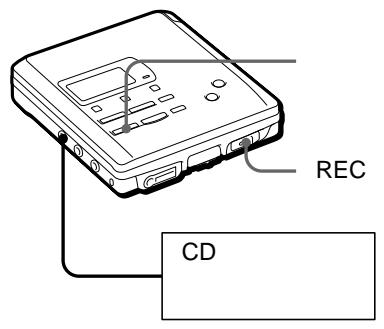
①REC
REC
② CD
Data Save Toc Edit
1
31
② REMOTE
2
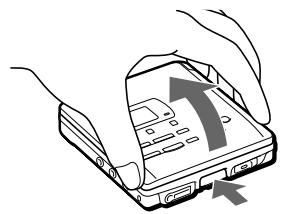
① OPEN
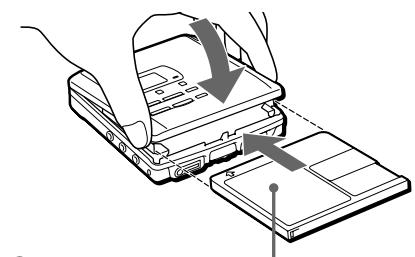
(2)
3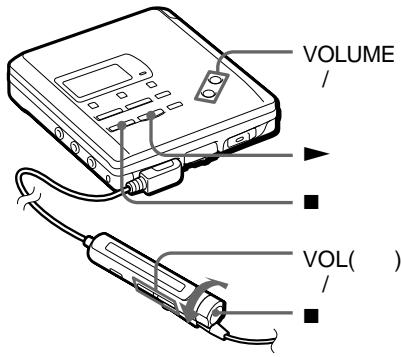
① ( ) ② VOLUME (VOL) /
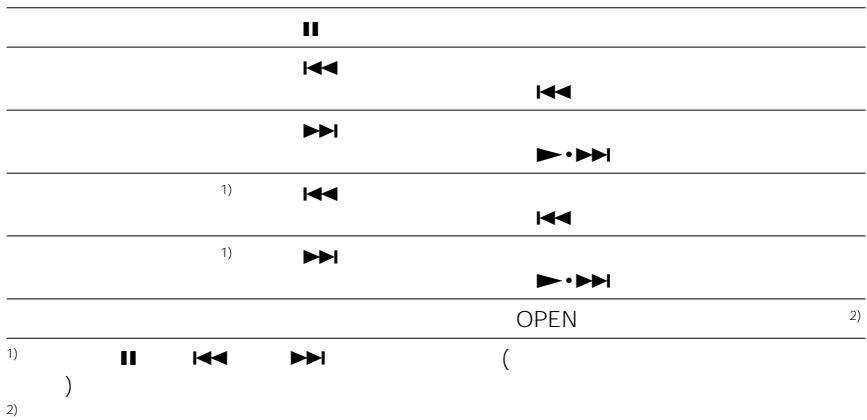
23
AC
(

2
CD
LIGNE
2
15
LIGNE
10
LIGNE
SORTIE LIGNE
CD

·2


( )
25
( )
25
18
CD CD MD BSCS
BS
DAT
CD
AC
CD
CD
AC
(ESP)
CD CD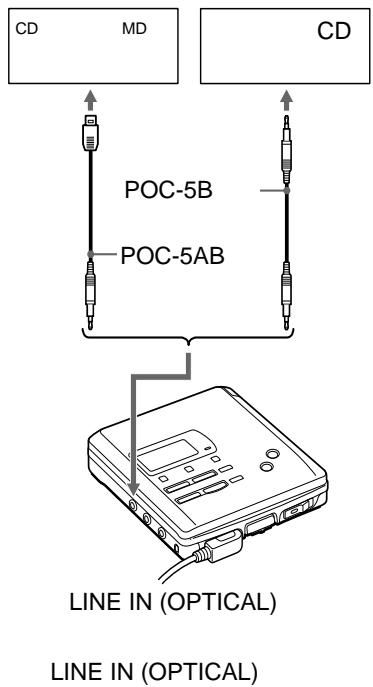
LINE IN
CD

3
2
SYNCHROREC
17
12
1 SYNCHRO REC ON
SYNC
2REC
3
ECM-
717 ECM-MS907 ECM-MS957
1 MIC SENS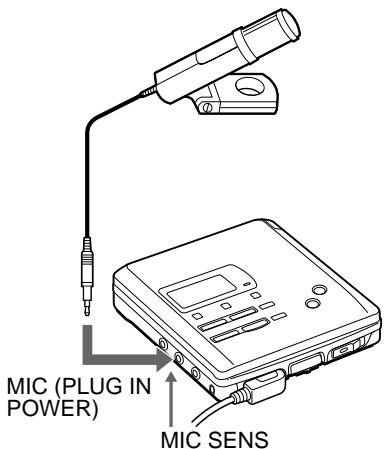
HIGH
LOW
2
REC
10
(OPTICAL)
ENTRÉE LIGNE
2 MODE
Enregistrement mono
MODE
3 II
4


ARRÊT
MARCHE
SORTIE LIGNE


12 dB
1 ENREG.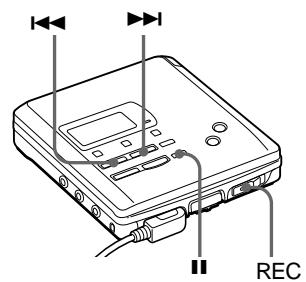
2
Enregistrement manuel
2 ENREG.
4 II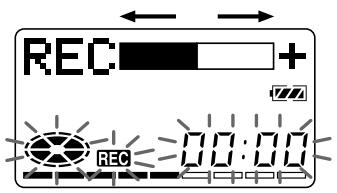
2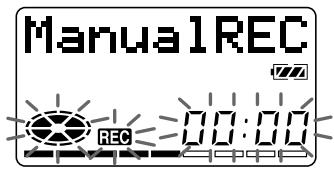
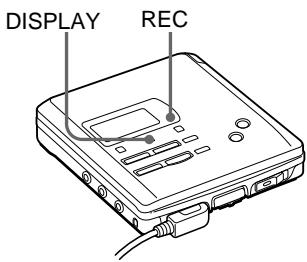
1 DISPLAY
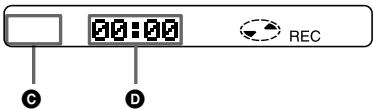
| A | B | C | D |
| 1) | 1) | _ | |
| 1) |
| A | B | C | D |
| 1) | 1) | ||
| 2) | 2) | _ | 2) |
| 1) | |||
| 2) |
REC
3 ( )
22
1 3
1 DIGITAL MEGA BASS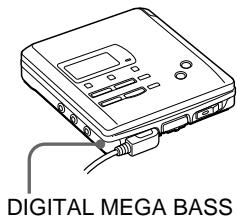
1 MODE (PLAY MODE)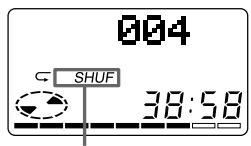
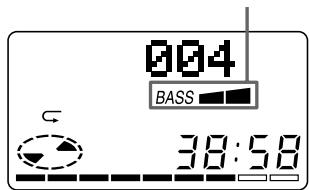
BASS
BASS□

LINE OUT
-AVLS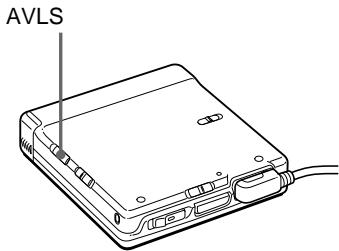
1 AVLS
LIMIT
AVLS
1 DISPLAY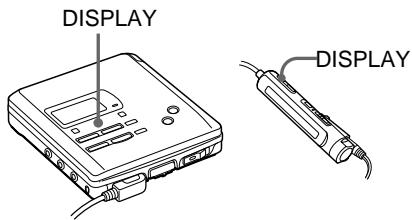
| A | B | C | D | ||
| 1) | 1) | ||||
| 1) | 1) | ||||
| 1) | |||||
| 2) | 2) | 2) | |||
| 1) | |||||
| 2) | |||||

1 HOLD
HOLD

HOLD
RK-G129
RK-G136 LINE OUT
LINE OUT

- Toc Edit

1
1
25
1
EDIT/ENTER
:Name
2

Effacer
3 MODIFIER/ENTRER
Tout effacer ?
Appuyer
ENTRER
MARQUE PISTE
4 MODIFIER/ENTRER
Édition de la table des matières
DISQUE VIERGE
1
MARQUE PISTE
MARQUE ACTIVE
) MARQUE PISTE
MARQUE DE PISTE
1 11
2 00:00
3 T MARK MARK OFF
2 1
1 EDIT/ ENTER 1:Name 1 2:Move 3 EDIT/ENTER MV003 003 4 002 TMARK 5 EDIT/ENTER
1 DISPLAY 2
:Name 1
200 1 1700 800 1 / 500 200
2 :Move 3 003 003 4 003 002 TRACK MARK 5
1
2 EDIT/ENTER :Name 3 EDIT/ENTER 4 4
VOLUME
DISPLAY
MODE
TMARK
5 4
6 EDIT/ENTER
1
2 EDIT/ENTER
:Name
3 EDIT/ENTER
4 27~28 4 6
1 EDIT/ENTER
:Name
2 ENTER
:Name EDIT/ENTER
3 27~28 4 6
TMARK






1 5 4 2 DISPLAY 2 6 2 :Name 3 4
1 2 DISPLAY 2
:Name
REPÈRE DE PISTE
A Z
0 9
1
1 AFFICHAGE 2
:Nom
2

1 3
EDIT/ENTER (2)


:Name
3
29
4
6

3 CHARGE
Charging
NH-14WM
3
2

3
CHARGE
4 AC
1 AC
| 2) | ||
| NH-14WM | 2.5 | 4 |
| LR6(SG)2 | 5 | 10 |
| NH-14WM | 9.5 | 16 |
| LR6(SG)2 | ||

LOW
BATT
AC
AC
EIAJ
AC
| AC | (31 ) | |
| CD | (10 15 ) | |
| CD (ESP) | ||
| ( ) | ||
| PROTECTED | ||
| ( ) | (18 / ▷) | |
| (P/B ONLY ) | ||
| ( DISC FULL ) | ||
| 12 | ||
| II | (20 ) | |
| /REMOTE | ||
| VOLUME / (VOL / ) | ||
| AVLS NORM | ||
| (22 ) | ||
| AC | ||
| 2 (20 ) | ||
| --y--m--d | (20 ) | |
| (20 ) | ||
DAT
| FULL | |||||
| (60 74 TR) | |||||
| TR FULL | 1 | ||||
| 254 | 1 | ||||
| 12 | |||||
| (60 74 ) | 2 | 2 | 6 | ||
BLANK DISC
DISC ERR
DISC FULL 12
Data Save ( )
Toc Edit ( 44
BUSY 1
NAME FULL 200
1700 1 500
Hi DC in AC AC
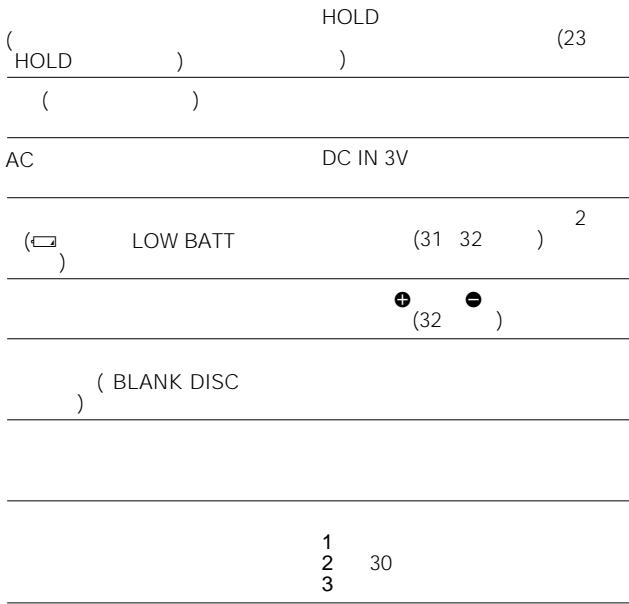
HOLD HOLD (23)
LOW BATT (31 32
MEM OVER
NO COPY (SCMS) (LINE IN)
NO DISC
NO SIGNAL
P/B ONLY
(
PROTECTED
SORRY
1
LINE OUT
DIGITAL MEGA BASS
TMARK
TEMP OVER
TR FULL
254
254
TrPROTECT
)
EDITING
· ( )
1
.
.
(
GaAlAs
= 780 nm
148 (MDW-74)
74 (MDW-74)
400 rpm / 900 rpm (CLV)
(ACIRC)
44.1 kHz
32 kHz / 44.1 kHz / 48 kHz
(ATRAC)
EFM
2
20–20 000 Hz ±3 dB
0,22–0,78 mV
69–194 mV
*
5 mW + 5 mW
16 Ω
194 mV
10 kΩ
NH-14WM ( )
32 ( )
(32
78,9 × 18,9 × 84 mm
(/
147 g
NH-14WM
AC
(1)
(1)
(1)
3
(1)
(1)
(1)
(1)
(1)
(1)
NH-14WM
BC-9HM
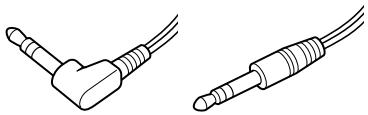
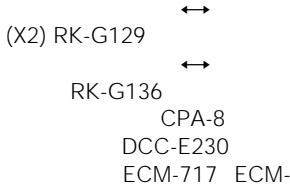
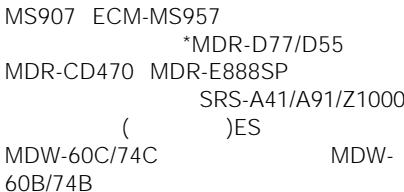
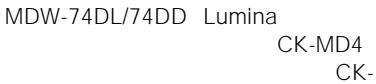

64 mm
(MD)
(CD)
ATRAC (Adaptive Transform Acoustic Coding) CD
Édition TOC
TOC : Table des matières
(BS : 32 kHz,
DAT : 48 kHz
MD
(44,1 kHz)
MD
CD
TOC
Édition TOC
1 FIN RECHERCHE 11 2 ENREG 19 3 AFFICHAGE 19 22 4 19 22 45 5 DC IN 3V 10 6 MODE 21 7 1
11 13
8 ENTREE LIGNE (OPTIQUE)
10 15
MIC (ALIMENTATION PAR PRISE)
17
SENSIBILITE MIC 17 11 SORTIE LIGNE 23 12 MEGA BASS NUMERIQUE
21
13 /CHARGE 11 13 31 14 13 15 31 16 EDITION/ENTREE 24 17 AVLS 22 18 ENREG. SYNCHRO 16 19 VOLUME 13 20 MARQUE TEMPORELLE 24 21 11 13 22 ENREG 11 23 OUVERTURE 10 11 24 MAINTIEN 23 25 REGLAGE HORLOGE 20 26 Ω/TELECOMMANDE 12
1
19 22
7
20
12
2
8
21
3
9
31
4
10
19 22
5
6
11
11
REC DATE
12
19 20 22
13
1
6 11 13
2
7 PLAY MODE (21)
DISPLAY (19 22)
4
9 VOL (13)
3 (11 13)
10 PISTE MARQUÉE (27)
4
11 (19 22)
5
MAINTIEN
23
Mode d'emploi
Bienvenue !
Bienvenue dans le monde du MiniDisc ! Voici quelques-unes des capacités et fonctionnalités que vous découvrirez avec le nouveau magnétophone MiniDisc.
- Enregistreur MD Walkman dans un boîtier ultra-compact — Presque aussi petit qu'un MD Walkman de lecture seule ; facile à transporter dans votre poche ou votre sac.
- Conception à faible consommation d'énergie — Fonctionne avec une seule pile rechargeable de type "chewing-gum".
- Fonction d'étiquetage simultané — Fini l'attente de la fin de l'enregistrement ; vous pouvez étiqueter les pistes et les disques pendant que le MD est en cours d'enregistrement.
- Télécommande LCD rétroéclairée à 9 caractères avec fonctions d'édition — Vous pouvez maintenant étiqueter les pistes et les disques, changer l'ordre des pistes, etc., avec la télécommande à bâtonnet facile à utiliser.
- Mémoire anti-chocs — Compense jusqu'à 40 secondes d'erreurs de lecture optique.
- Enregistrement haute fidélité — Enregistrement haute fidélité à faible bruit et faible distorsion via la prise d'entrée numérique optique.
- Enregistrement numérique synchronisé — Lors de l'enregistrement à partir d'un équipement numérique avec sortie optique, l'enregistreur démarre et met en pause automatiquement l'enregistrement en synchronisation avec le fonctionnement de la source numérique.
- Convertisseur de fréquence d'échantillonnage — Cet appareil vous permet d'enregistrer des programmes provenant d'équipements numériques utilisant d'autres fréquences d'échantillonnage, comme un tuner BS ou une platine DAT.
- Long enregistrement en son monaural — Vous pouvez enregistrer jusqu'à 148 minutes sur un disque en utilisant l'enregistrement monaural.
- Fonction d'horodatage — L'horloge intégrée enregistre automatiquement la date et l'heure à chaque enregistrement.
- AGC numérique (contrôle automatique du gain) — Réglage automatique du niveau d'enregistrement sans sacrifier la qualité sonore numérique.
- Fonction de titrage — Vous pouvez voir les titres des disques et des pistes sur l'afficheur de l'unité principale ou de la télécommande pendant la lecture ou l'enregistrement d'un MD.
Présentation des commandes
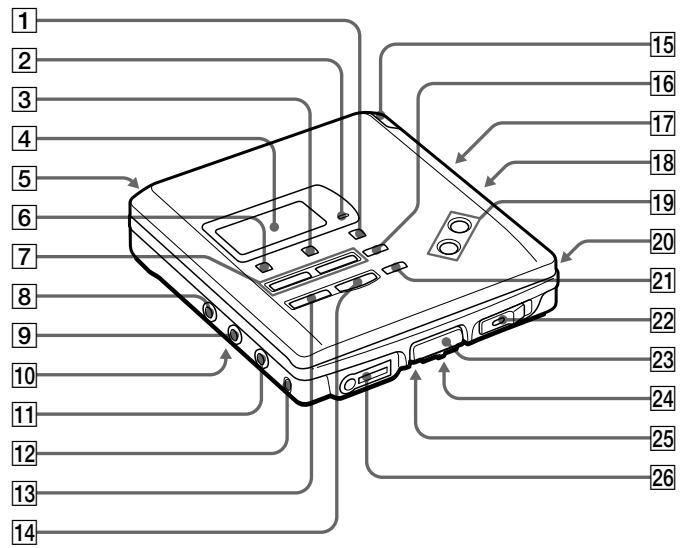
Les numéros correspondent aux illustrations du texte japonais (pages 45 à 47).
L'enregistreur
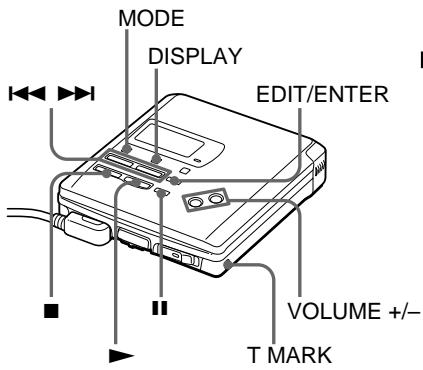
1 Bouton END SEARCH 2 Voyant REC 3 Bouton DISPLAY Appuyez pour afficher le mode de lecture actuel, le temps restant de la piste en cours, le temps restant du disque ou la date et l'heure d'enregistrement. 4 Fenêtre d'affichage 5 Prise DC IN 3V 6 Bouton MODE Chaque pression sur ce bouton pendant la lecture d'un MD change le mode de lecture : lecture normale, répétition de tout, répétition d'une piste ou répétition aléatoire. Appuyez pendant l'enregistrement pour sélectionner l'enregistrement monaural. 7 Boutons / (recherche/AMS) 8 Prise LINE IN (OPTICAL) 9 Prise MIC (PLUG IN POWER) 10 Interrupteur MIC SENS (sensibilité du micro) (en bas) 11 Prise LINE OUT 12 Bouton DIGITAL MEGA BASS Appuyez pour accentuer les basses. 13 Bouton (arrêt)/CHARGE 14 Bouton (lecture) 15 Compartiment à piles 16 Bouton EDIT/ENTER 17 Interrupteur AVLS (système limiteur de volume automatique) (en bas) Faites glisser sur LIMIT pour limiter le volume maximal. 18 Interrupteur SYNCHRO REC (enregistrement synchronisé) 19 Boutons VOLUME + / -
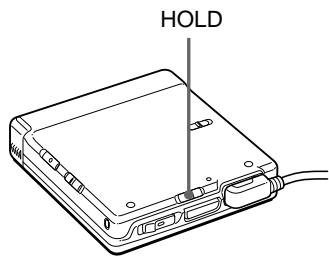
20 Bouton TMARK (marque de piste) 21 Bouton II (pause) 22 Interrupteur REC (enregistrement) 23 Bouton OPEN 24 Interrupteur HOLD
Faites glisser pour verrouiller les commandes de l'enregistreur.
25 Bouton CLOCK SET (en bas) 26 Prise /REMOTE (casque/télécommande)
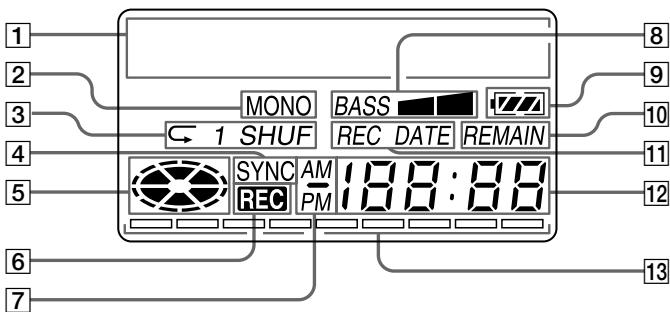
La fenêtre d'affichage de l'enregistreur
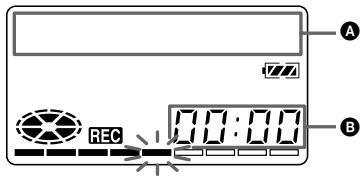
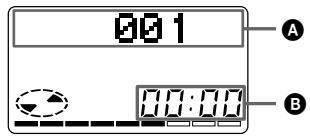
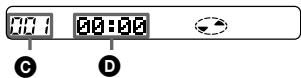
1 Affichage des informations de caractères Affiche le nom du disque et de la piste*, la date, les messages d'erreur, les numéros de piste, etc.
- Les noms de disque et de piste n'apparaissent que sur les MD qui ont été étiquetés électroniquement.
2 Indication MONO (mono) 3 Indication du mode de lecture Indique le mode de lecture du MD.
(répétition de tous) : Toutes les pistes sont lues en répétition. 1 (répétition d'une seule) : Une piste est lue en répétition. SHUF (répétition aléatoire) : Les pistes sont répétées dans un ordre aléatoire.
4 Indication SYNC (enregistrement synchronisé) S'allume pendant l'enregistrement synchronisé. 5 Indication du disque
Indique que le disque tourne pour l'enregistrement, la lecture ou l'édition d'un MD.
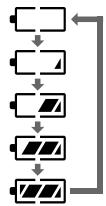
6 Indication REC S'allume pendant l'enregistrement. Clignote en mode veille d'enregistrement. 7 Indication AM/PM S'allume avec l'indication de l'heure en système 12 heures. 8 Indication Mega bass 9 Indication de la batterie Indique l'état de la batterie. Pendant la charge de la batterie rechargeable, cette indication montre l'état de charge.
10 Indication REMAIN (temps/pistes restants) S'allume avec le temps restant de la piste, le temps restant du MD ou le nombre de pistes restantes. 11 Indication REC DATE (date d'enregistrement/date actuelle) S'allume avec la date et l'heure d'enregistrement du MD. Lorsque seul "DATE" est allumé, la date et l'heure actuelles sont affichées. 12 Affichage de l'heure Affiche le temps écoulé de la piste en cours d'enregistrement ou de lecture. 13 Niveau du signal Affiche le niveau du MD en cours de lecture ou d'enregistrement.
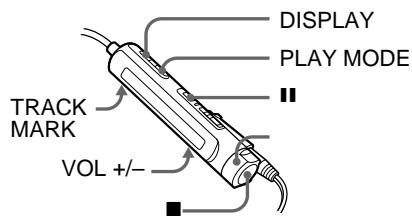
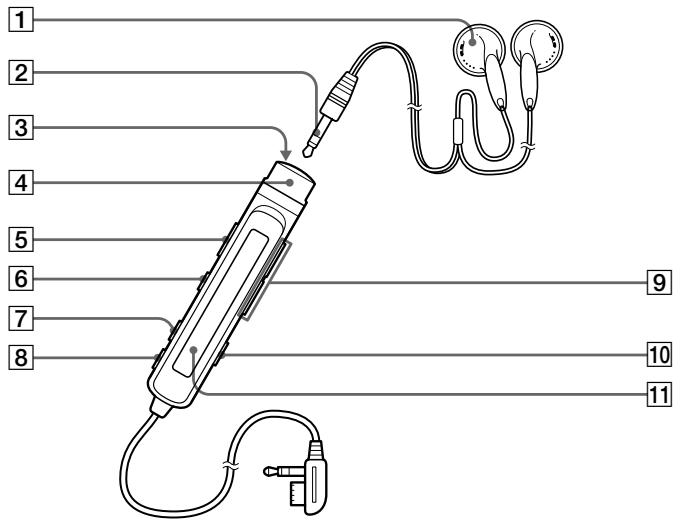
Le casque avec télécommande
1 Casque Peut être remplacé par un casque en option. 2 Mini-prise stéréo 3 Bouton (arrêt) 4 Commande
Pour la lecture, tournez vers · en mode arrêt.
Tournez vers pendant la lecture pour rechercher le début de la piste suivante ; maintenez cette position pour avancer rapidement.
Tournez vers pendant la lecture pour rechercher le début de la piste précédente ; maintenez cette position pour reculer.
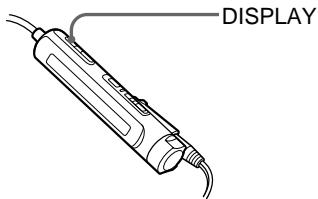
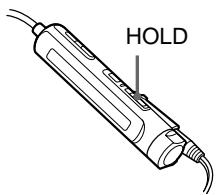
5 Interrupteur HOLD Faites glisser pour verrouiller les commandes de la télécommande. 6 Bouton II (pause) 7 Bouton PLAY MODE 8 Bouton DISPLAY 9 Boutons VOL (volume) + / - Lorsque l'interrupteur AVLS est activé, vous ne pouvez pas augmenter le volume au maximum. Pour augmenter le volume au-delà du niveau limité, réglez l'interrupteur AVLS sur arrêt. 10 Bouton TRACK MARK 11 Fenêtre d'affichage
Enregistrez immédiatement un MD !
Voir les illustrations dans le texte japonais (pages 10 à 11).
Utilisez un câble ligne (non fourni) pour connecter une source analogique. Le son sera envoyé depuis l'équipement connecté comme signal analogique mais sera enregistré numériquement sur le disque. Si vous souhaitez enregistrer des programmes depuis des équipements numériques ou un microphone, voir "Différentes façons d'enregistrer".
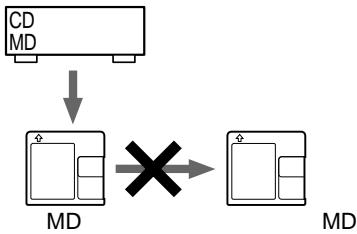
Les MD préenregistrés ne peuvent pas être réenregistrés.
1 Effectuez les connexions (connectez solidement).
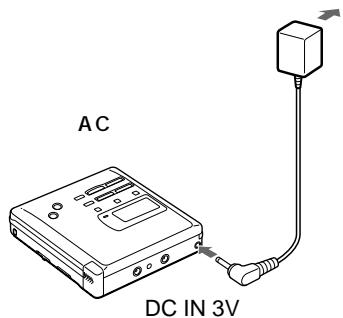
① Connectez la prise LINE IN (OPTICAL) de l'enregistreur aux prises LINE OUT R(rouge)/L(blanche) de la source avec un câble ligne. L'enregistreur passe automatiquement en entrée analogique. ② Connectez la prise DC IN 3V de l'enregistreur à une prise murale avec l'adaptateur secteur fourni.
Lorsque l'enregistreur a différentes sources sonores connectées en même temps, il bascule sur l'entrée numérique, microphone ou analogique dans cet ordre de priorité.
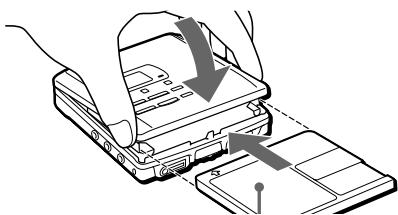
2 Insérez un MD enregistrable.
① Appuyez sur OPEN et ouvrez le couvercle. ② Insérez un MD enregistrable avec l'étiquette vers le haut, puis appuyez sur le couvercle pour le fermer.
3 Sélectionnez le point de départ de l'enregistrement.
Si vous souhaitez ajouter un enregistrement à la fin de l'enregistrement précédent, appuyez sur END SEARCH.
(Si vous souhaitez commencer l'enregistrement depuis le début, ignorez cette étape).
4 Commencez l'enregistrement.
① Appuyez et faites glisser l'interrupteur REC vers la droite.
"REC" s'allume et l'enregistrement commence.
② Lisez la source sonore.
Le niveau du son enregistré est ajusté automatiquement.
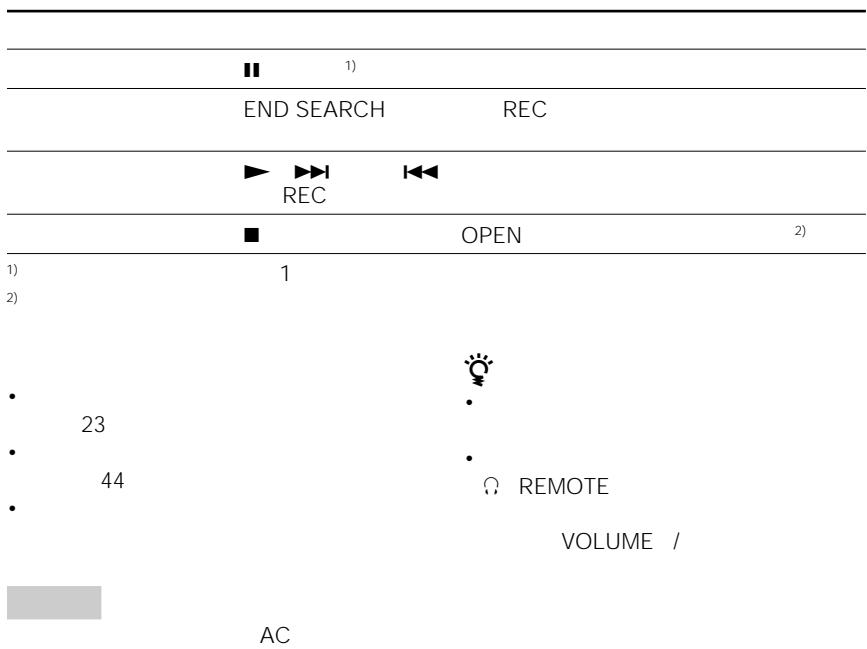
Pour arrêter l'enregistrement, appuyez sur ■.
Ne déplacez pas ou ne secouez pas l'enregistreur et ne débranchez pas la source d'alimentation pendant que l'indication "Data Save" ou "Toc Edit" clignote à l'écran.
| To | Press |
| Pause | 1.1) Press again to resume recording. |
| Record over partway through the previous recording | ▶, ➔ or ⇑ to find the start point of recording and press to stop. Then slide the REC switch. |
| Remove the MD | ■, then press OPEN and open the lid.2) |
1) Une nouvelle marque de piste est ajoutée à l'endroit où vous avez appuyé sur I, et l'enregistrement sera marqué avec le nouveau numéro de piste lorsque vous reprendrez l'enregistrement. 2) Une fois le couvercle ouvert, le point de départ de l'enregistrement changera pour le début de la première piste. Lors de l'enregistrement sur un MD déjà enregistré, vérifiez le point de départ de l'enregistrement sur l'écran.
Si l'enregistrement ne démarre pas
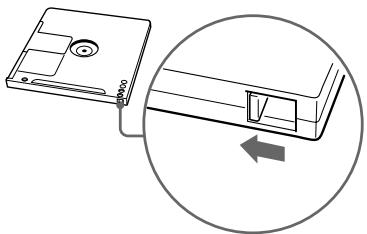
Assurez-vous que le MD n'est pas protégé en écriture. Si la languette sur le côté du MD est ouverte, faites-la glisser en arrière pour que la languette soit visible.
Remarque
Si l'alimentation est interrompue (par exemple, la batterie est retirée ou épuisée, ou l'adaptateur secteur est débranché) pendant que l'enregistreur fonctionne, le couvercle ne s'ouvrira pas tant que l'alimentation n'est pas rétablie.
Lire un MD tout de suite !
Voir les illustrations dans le texte japonais (pages 12 à 13).
Si vous souhaitez utiliser la batterie rechargeable, assurez-vous de la recharger avant de l'utiliser (voir page 31).
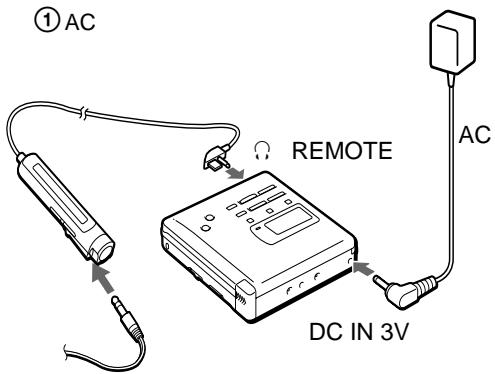
1 Effectuez les connexions (connectez solidement).
① Connectez le casque avec télécommande (fourni) à la prise / REMOTE. ② Connectez la prise DC IN 3V de l'enregistreur à une prise murale avec l'adaptateur secteur fourni.
2 Insérez un MD.
① Appuyez sur OPEN et ouvrez le couvercle. ② Insérez un MD avec l'étiquette vers le haut, puis appuyez sur le couvercle pour le fermer.
3 Commencez la lecture.
① Appuyez sur ▶ (tournez la commande sur ▶ · ▶ → 1 sur la télécommande). Un bref bip retentit dans les écouteurs. ② Appuyez sur les boutons VOLUME + / - pour régler le volume.
Pour arrêter la lecture, appuyez sur ■.
| To | Do this (Beeps in the headphones) |
| Pause | Press Ⅱ. (Continuous short beeps) Press Ⅱ again to resume play. |
| Find the beginning of the current track | Press Ⅰ once. Turn the control to Ⅰ on the remote control. (Three short beeps) |
| Find the beginning of the next track | Press Ⅱ once. Turn the control to Ⅱ•Ⅱ•Ⅰ on the remote control. (Two short beeps) |
| Go backwards while playing1) | Keep pressing▶. Keep the control turned to▶ on the remote control. |
| Go forward while playing1) | Keep pressing▶. Keep the control turned to▶ on the remote control. |
| Remove the MD | ■, then press OPEN and open the lid.2) |
1) Pour reculer ou avancer rapidement sans écouter, appuyez et maintenez enfoncé ⏮ ou ▶ (maintenez la commande tournée sur la télécommande). 2) Une fois le couvercle ouvert, le point de départ de la lecture revient au début de la première piste.
Si la lecture ne démarre pas
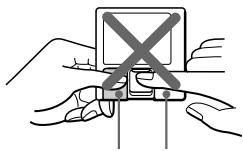
Assurez-vous que l'enregistreur n'est pas verrouillé. S'il est verrouillé, faites glisser l'interrupteur HOLD dans le sens opposé à la flèche.
Utilisation d'écouteurs en option Utilisez des écouteurs avec une mini-prise stéréo. Vous ne pouvez pas utiliser d'écouteurs avec une micro-prise.
Remarques
- Le son peut sauter pendant la lecture lorsque l'enregistreur est soumis à des vibrations continues, comme lors d'un jogging.
- Si l'alimentation est interrompue (par exemple, la pile est retirée ou épuisée, ou l'adaptateur secteur est débranché) pendant le fonctionnement de l'enregistreur, le couvercle ne s'ouvrira pas tant que l'alimentation n'est pas rétablie.
Différentes méthodes d'enregistrement
Connexion des entrées numériques et analogiques
L'enregistreur sélectionne l'entrée numérique ou analogique selon la manière dont la source sonore est connectée.
| Input Difference | Digital input | Analog (line) input |
| Connectable source | Equipment with an optical digital output jack | Equipment with an analog (line) output jack |
| Usable cord | Digital cable (with an optical or an optical-mini plug) | Line cable (with 2 phono plugs or a stereo-mini plug) |
| Signal from the source | Digital | Analog Even when a digital source (such as a CD) is connected, the signal sent to the recorder is analog. |
| Recorded track numbers | Marked (copied) automatically •at the same positions as the source. •when recording is paused. | Marked •after more than 2 seconds of silence. •when recording is paused. You can erase unnecessary marks after recording. |
| Recorded sound level | Same as the source | Adjusted automatically. You can also adjust it manually. |
Enregistrement avec entrée numérique (câble optique requis)
Voir l'illustration dans le texte japonais (page 15).
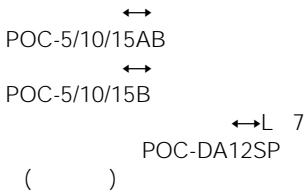
Connectez une source numérique à l'aide d'un câble optique (POC-5B ou POC-5AB, non fourni) pour effectuer des enregistrements numériques. L'enregistrement numérique est possible même à partir d'un équipement numérique avec des fréquences d'échantillonnage différentes, comme une platine DAT ou un tuner BS, grâce au convertisseur de fréquence d'échantillonnage intégré.
1 Connectez la prise LINE IN (OPTICAL) de l'enregistreur à la sortie numérique optique de la source avec un câble optique (non fourni). L'enregistreur passe automatiquement en entrée numérique. 2 Connectez la source d'alimentation. Pour utiliser sur secteur, voir "Enregistrement d'un MD immédiatement !" Pour utiliser d'autres sources d'alimentation, voir page 60. 3 Insérez un MD enregistrable. Appuyez sur OPEN pour ouvrir le couvercle, insérez un MD enregistrable et fermez le couvercle. 4 Appuyez et faites glisser l'interrupteur REC vers la droite. "REC" s'allume et l'enregistrement commence. 5 Lancez la lecture de la source sonore.
Pour arrêter l'enregistrement, appuyez sur ■.
Remarques
- Lors de l'enregistrement à partir d'un lecteur CD portable, faites-le fonctionner sur secteur et désactivez la fonction anti-saut (telle que ESP*).
- La sortie numérique peut être désactivée sur certains lecteurs CD portables lorsque le lecteur n'est pas alimenté sur secteur.
- Protection électronique contre les chocs
Enregistrement synchronisé à partir d'une source numérique
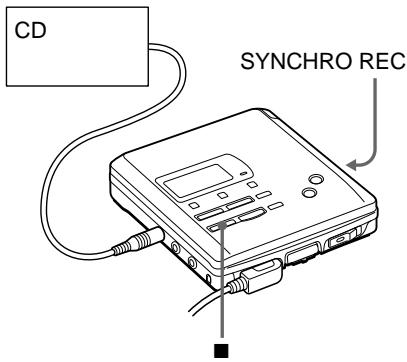
Voir l'illustration dans le texte japonais (page 16).
Vous pouvez facilement copier une source numérique sur un MD en utilisant l'interrupteur SYNCHRO REC. Avant l'enregistrement synchronisé, assurez-vous d'avoir effectué la connexion numérique et d'avoir inséré un MD enregistrable.
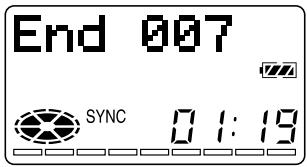
1 Faites glisser l'interrupteur SYNCHRO REC sur ON.
"SYNC" s'allume dans l'afficheur.
2 Appuyez et faites glisser l'interrupteur REC vers la droite.
"REC" s'allume dans l'afficheur.
L'enregistreur commence l'enregistrement lorsque vous démarrez la lecture de la source.
Pour arrêter l'enregistrement, appuyez sur ■.
Conseils
- Vous ne pouvez pas mettre l'enregistrement en pause manuellement pendant l'enregistrement synchronisé.
- Lorsqu'aucun son ne provient de la source pendant plus de 3 secondes pendant l'enregistrement synchronisé, l'enregistreur se met automatiquement en pause. Lorsque le son revient de la source, l'enregistrement synchronisé reprend. Si l'enregistreur MD reste en pause d'enregistrement pendant plus de 5 minutes, l'enregistrement s'arrête automatiquement.
- Il peut arriver que l'enregistrement ne se mette pas automatiquement en pause pendant l'enregistrement synchronisé même s'il n'y a pas de son enregistré sur la source, selon le niveau de bruit de la source.
Remarque
Ne basculez pas SYNCHRO REC après l'étape 2. L'enregistrement pourrait ne pas se faire correctement.
Enregistrement à partir d'un microphone
Voir l'illustration dans le texte japonais (page 17).
Branchez un microphone sur la prise MIC (PLUG IN POWER). Utilisez un microphone stéréo ECM-717, ECM-MS907, ECM-MS957, etc. (non fourni).
1 Sélectionnez la sensibilité avec le commutateur MIC SENS. En général, réglez-le sur HIGH. Pour enregistrer des sons forts comme un concert en direct, réglez-le sur LOW. 2 Insérez un MD enregistrable. Appuyez sur OPEN pour ouvrir le couvercle, insérez un MD enregistrable et fermez le couvercle. 3 Appuyez sur le commutateur REC et faites-le glisser vers la droite. "REC" s'allume et l'enregistrement commence.
Pour arrêter l'enregistrement, appuyez sur
Remarques
- Vous ne pouvez pas enregistrer via le microphone lorsqu'un câble optique est connecté à la prise LINE IN (OPTICAL). L'enregistreur commute automatiquement l'entrée dans l'ordre suivant : entrée optique, entrée microphone, entrée analogique.
- Le microphone peut capter le son de fonctionnement de l'enregistreur lui-même. Dans ce cas, éloignez le microphone de l'enregistreur.
Enregistrement en monaural pour doubler la durée normale d'enregistrement d'un MD
Voir l'illustration dans le texte japonais (page 17).
Avant l'enregistrement, effectuez les connexions à la source sonore et à la source d'alimentation, et insérez un MD enregistrable.
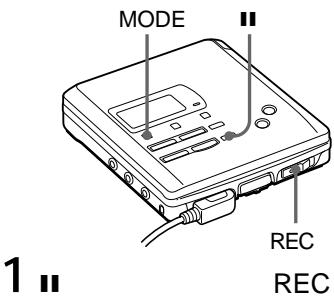
1 Tout en appuyant sur I, appuyez et faites glisser l'interrupteur REC vers la droite.
L'enregistreur se met en pause d'enregistrement.
2 Appuyez sur MODE. « Mono REC » apparaît à l'écran et l'enregistreur passe en mode d'enregistrement monaural. 3 Appuyez à nouveau pour démarrer l'enregistrement. 4 Démarrez la source sonore.
Conseils
- L'enregistreur revient en mode d'enregistrement stéréo lorsque vous appuyez sur pour arrêter l'enregistrement.
- Si vous enregistrez en monaural à partir d'une source stéréo, les sons des canaux gauche et droit seront mélangés.
- Les MD enregistrés en monaural ne peuvent être lus qu'avec un lecteur/enregistreur MD doté de la fonction de lecture monaurale.
- Le son enregistré via une entrée numérique peut être surveillé en stéréo via un casque, etc.
Réglage du niveau d'enregistrement (enregistrement manuel)
Voir l'illustration dans le texte japonais (page 18).
Lorsque vous enregistrez avec une entrée analogique (ligne), le niveau sonore est ajusté automatiquement. Si nécessaire, vous pouvez régler le niveau manuellement.
1 Tout en maintenant II enfoncé, maintenez l'interrupteur REC vers la droite pendant plus de 2 secondes. « ManualREC » apparaît et l'enregistreur se met en veille d'enregistrement. 2 Lancez la lecture de la source. 3 Tout en observant le vumètre à l'écran, réglez le niveau d'enregistrement en appuyant sur ▸▸ (+) ou ▸▸ (-). Réglez le niveau pour qu'il atteigne la barre de niveau d'entrée de -12 dB. 4 Appuyez à nouveau pour démarrer l'enregistrement.
Conseils
- L'enregistreur revient au réglage automatique du niveau lorsque vous appuyez sur pour arrêter l'enregistrement. Le niveau d'enregistrement doit être réglé pendant que l'enregistreur est en mode veille. Vous ne pouvez pas le régler pendant l'enregistrement.
Réglage de l'horloge pour horodater l'enregistrement
Voir les illustrations dans le texte japonais (page 20).
Pour horodater la date et l'heure sur le MD lors de l'enregistrement, vous devez régler l'horloge.
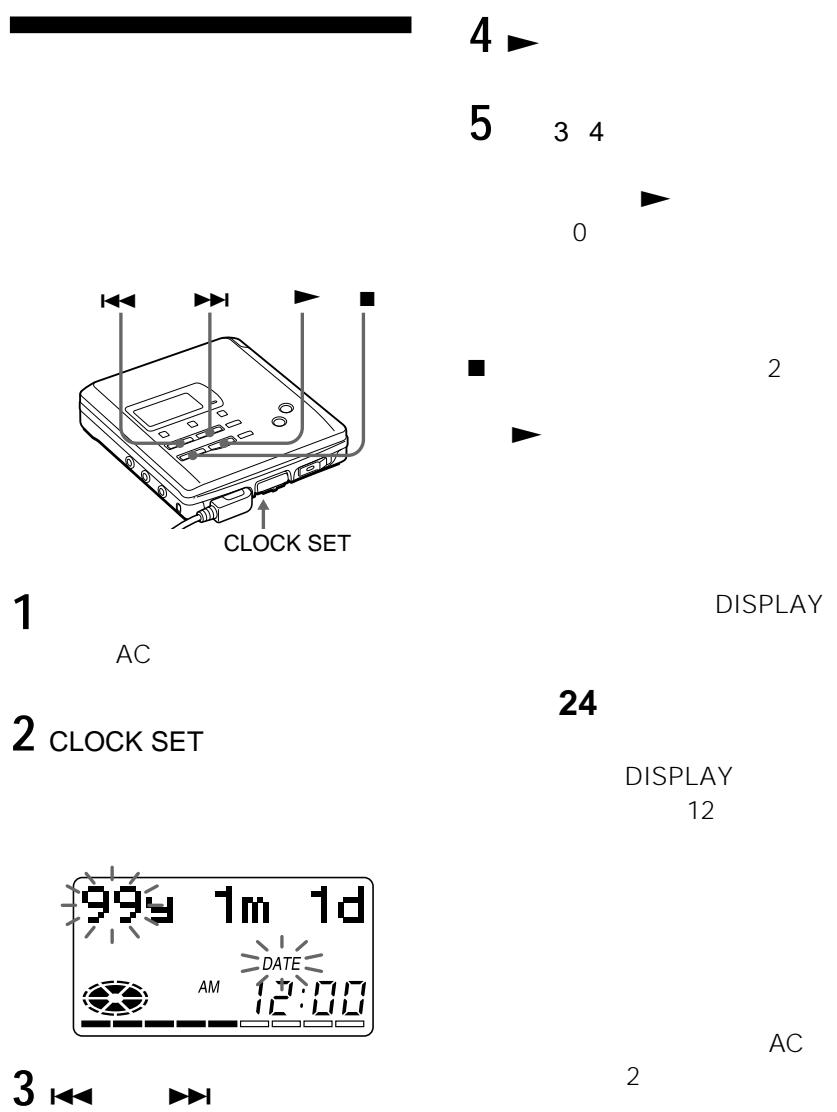
1 Connectez l'adaptateur secteur fourni. 2 Appuyez sur CLOCK SET en bas de l'enregistreur avec un objet pointu. Les chiffres de l'année clignotent. 3 Modifiez l'année en cours en appuyant sur ⊢ ou ▸▸. Pour changer les chiffres rapidement, maintenez enfoncé ⊢ ou ▸▸. 4 Appuyez sur ▸ pour valider l'année. Le chiffre du mois clignote. 5 Répétez les étapes 3 et 4 pour saisir le mois, le jour, l'heure et la minute actuels. Lorsque vous appuyez sur ▸ pour valider les minutes, l'horloge démarre.
Si vous faites une erreur lors du réglage de l'horloge
Appuyez sur ■ et répétez les étapes ci-dessus.
Appuyez sur ▸ pour localiser le chiffre à modifier.
Pour afficher l'heure au format 24 heures
Appuyez sur DISPLAY pendant le réglage de l'horloge. Pour passer au format 12 heures, appuyez à nouveau sur DISPLAY.
Charge de la batterie interne de l'horloge
Après avoir réglé l'horloge, laissez l'enregistreur branché sur le secteur pendant environ 2 heures pour charger la batterie interne de l'horloge. Une fois chargée, la batterie interne dure environ un mois sans être connectée à aucune source d'alimentation. L'enregistreur charge automatiquement la batterie interne lorsqu'il fonctionne sur secteur, sur batterie rechargeable ou sur piles sèches.
Différentes façons de lire
Lecture répétée de plages
Voir les illustrations dans le texte japonais (page 21).
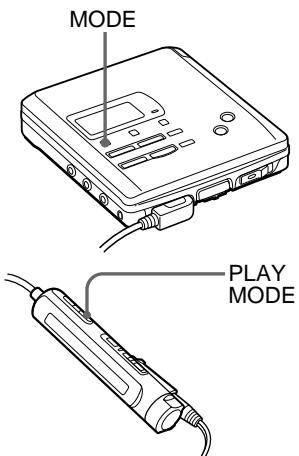
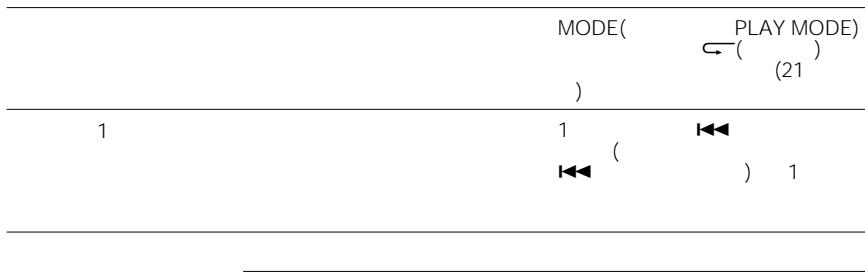
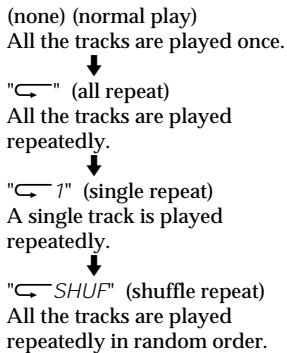
Appuyez sur MODE (PLAY MODE sur la télécommande) pendant que l'enregistreur lit un MD.
Chaque pression sur MODE (PLAY MODE sur la télécommande) change le mode de lecture comme suit :
Connexion à une chaîne stéréo
Voir l'illustration dans le texte japonais (page 23).
Connectez la prise LINE OUT de l'enregistreur aux entrées ligne d'un amplificateur ou d'un magnétophone à l'aide d'un câble ligne (non fourni). La sortie est analogique. L'enregistreur lit le MD numériquement et envoie des signaux analogiques à l'équipement connecté.
Édition des plages enregistrées
Vous pouvez éditer vos enregistrements.
Les MD prémasterisés ne peuvent pas être édités.
Remarques
- Lorsque vous appuyez sur ■ après une édition, "Toc Edit" clignote pendant environ une seconde. Ne déplacez pas l'enregistreur, ne le secouez pas et ne coupez pas l'alimentation pendant que l'indication clignote.
- Vous ne pouvez pas éditer un MD dont la languette de protection est ouverte. Avant l'édition, fermez la languette sur le côté du MD.
Effacement d'une plage
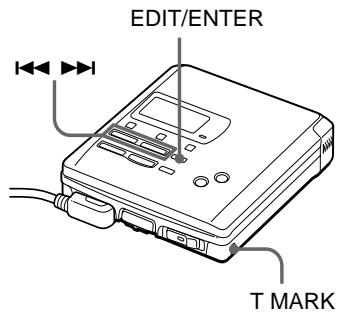
Voir l'illustration dans le texte japonais (page 24).
Vous pouvez effacer rapidement une piste enregistrée. Notez qu'une fois un enregistrement effacé, vous ne pouvez plus le récupérer.
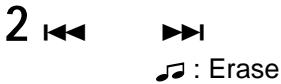
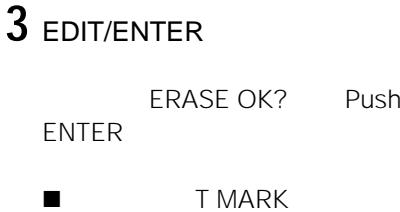
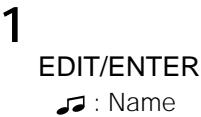
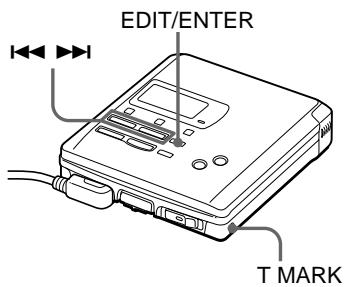
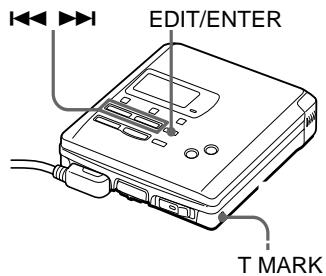
1 Appuyez sur EDIT/ENTER pendant la lecture de la piste à effacer. " : Name" clignote à l'écran et l'enregistreur lit la piste sélectionnée en boucle. 2 Appuyez plusieurs fois sur ou jusqu'à ce que " : Erase" clignote à l'écran. 3 Appuyez à nouveau sur EDIT/ENTER. "Erase OK?" et "Push ENTER" s'affichent en alternance. Pour annuler l'effacement, appuyez sur ou T MARK.
Pour effacer une partie d'une piste
Ajoutez des marques de piste au début et à la fin de la partie à effacer, puis effacez cette partie.
Effacement de tout un disque
Voir l'illustration dans le texte japonais (page 24).
Vous pouvez effacer toutes les pistes d'un disque en une fois. Notez qu'une fois un enregistrement effacé, vous ne pouvez plus le récupérer.
1 Appuyez sur EDIT/ENTER sur l'enregistreur. 2 Appuyez plusieurs fois sur ou jusqu'à ce que " : Erase" clignote à l'écran. 3 Appuyez à nouveau sur EDIT/ENTER.
"All Erase?" et "Push ENTER" s'affichent en alternance. Pour annuler l'effacement, appuyez sur ou T MARK.
4 Appuyez à nouveau sur EDIT/ENTER.
"Toc Edit" clignote à l'écran et toutes les pistes seront effacées. Lorsque l'effacement est terminé, "BLANK DISC" s'affiche à l'écran.
Ajout d'une marque de piste
Voir l'illustration dans le texte japonais (page 25).
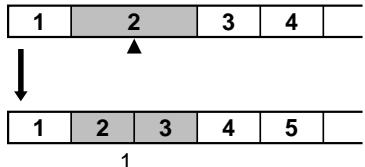
Vous pouvez insérer une marque de piste dans une piste.
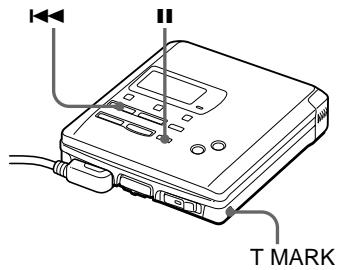
1 Pendant la lecture ou la pause d'un MD, appuyez sur T MARK sur l'enregistreur au point où vous souhaitez marquer.
"MARK ON" s'affiche et le repère de plage est ajouté.
Pour ajouter des repères de plage pendant l'enregistrement.
Appuyez sur T MARK pendant l'enregistrement (sauf en enregistrement synchronisé).
Effacement d'un repère de plage
Voir les illustrations dans le texte japonais (page 25).
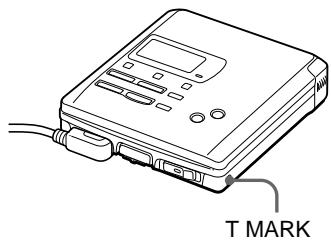
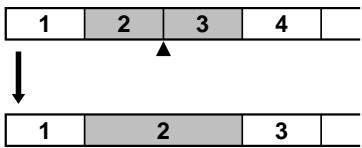
Lors d'un enregistrement avec entrée analogique (ligne), des repères de plage inutiles peuvent être enregistrés. Vous pouvez effacer un repère de plage pour fusionner les plages avant et après le repère.
1 Pendant la lecture de la plage contenant le repère à effacer, appuyez sur I pour mettre en pause. 2 Repérez le repère en appuyant légèrement. "00:00" clignote à l'écran. 3 Appuyez sur T MARK pour effacer le repère. "MARK OFF" s'affiche. Le repère est effacé et les deux plages sont fusionnées. Le numéro de la nouvelle plage fusionnée sera celui de la première plage et les plages suivantes seront renumérotées.
Déplacement de plages enregistrées
Voir les illustrations dans le texte japonais (page 26).
Vous pouvez modifier l'ordre des plages enregistrées.
Sur l'enregistreur
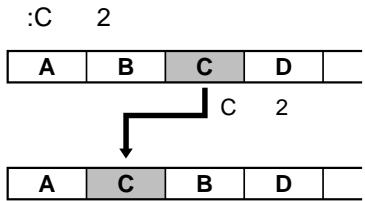
1 Appuyez sur EDIT/ENTER pendant la lecture de la plage à déplacer. " :Name" clignote à l'écran et l'enregistreur lit la plage sélectionnée en boucle. 2 Appuyez sur ou à plusieurs reprises jusqu'à ce que "Move" clignote à l'écran. 3 Appuyez à nouveau sur EDIT/ENTER. 4 Appuyez sur ou à plusieurs reprises pour sélectionner le numéro de la plage de destination. Pour annuler le déplacement, appuyez sur ou T MARK. 5 Appuyez à nouveau sur EDIT/ENTER. La plage est déplacée vers la plage de destination sélectionnée.
Sur la télécommande
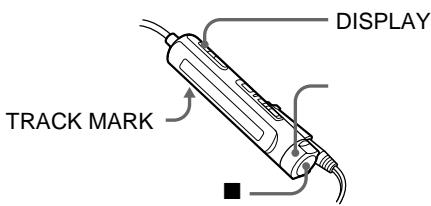
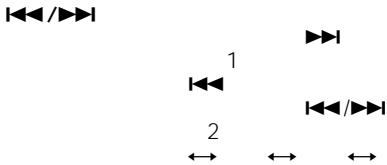
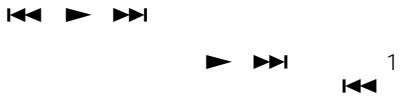
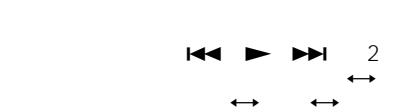
1 Appuyez sur DISPLAY pendant 2 secondes ou plus pendant la lecture de la plage à déplacer. " : Name" clignote à l'écran et l'enregistreur lit la plage sélectionnée en boucle. 2 Tournez la molette jusqu'à ce que " :Move apparaisse à l'écran. 3 Appuyez. 4 Tournez la molette pour sélectionner le numéro de la plage de destination. 5 Appuyez à nouveau. La plage sélectionnée se déplace juste avant la plage de destination.
Étiquetage des enregistrements
Voir l'illustration dans le texte japonais (page 27).
Vous pouvez nommer les pistes pendant la lecture, les disques à l'arrêt, et les deux pendant l'enregistrement. Chaque nom peut contenir jusqu'à 200 lettres.
Chaque disque peut contenir jusqu'à 1700 lettres alphanumériques ou 800 caractères katakana en lecture ou à l'arrêt, et 500 lettres alphanumériques ou 200 caractères katakana pendant un enregistrement.
Étiquetage sur l'enregistreur
Étiquetage d'un disque à l'arrêt
1 Insérez un disque. Pour étiqueter un disque déjà dans l'enregistreur, appuyez sur arrêt. 2 Appuyez sur EDIT/ENTER. ": Nom" clignote à l'écran. 3 Appuyez à nouveau sur EDIT/ENTER. 4 Appuyez sur ou à plusieurs reprises pour sélectionner une lettre et appuyez sur pour la saisir. La lettre sélectionnée cesse de clignoter et le curseur se déplace à la position de saisie suivante. Appuyez sur pour basculer entre katakana, alphabet et symboles/chiffres. Appuyez sur VOLUME + / - pour déplacer le curseur à gauche ou à droite.
Appuyez sur lors de la saisie de l'alphabet, des symboles ou des chiffres pour changer la lettre en la précédente/suivante. Appuyez sur pour revenir en arrière.
Appuyez sur DISPLAY pour insérer un espace et taper une nouvelle lettre.
Appuyez sur MODE pour supprimer une lettre et décaler toutes les lettres suivantes vers la gauche.
Appuyez sur ou T MARK pour annuler l'étiquetage.
5 Répétez l'étape 4 et saisissez tous les caractères du nom de l'étiquette. 6 Appuyez sur EDIT/ENTER. La piste ou le disque est étiqueté.
Étiquetage d'une piste pendant la lecture
1 Insérez un disque et lisez la piste que vous souhaitez étiqueter. 2 Appuyez sur EDIT/ENTER. " :Nom" clignote à l'écran. 3 Appuyez à nouveau sur EDIT/ENTER. 4 Suivez les étapes 4 à 6 de "Étiquetage d'un disque à l'arrêt" ci-dessus.
Étiquetage d'une piste ou d'un disque pendant l'enregistrement
1 Appuyez sur EDIT/ENTER pendant l'enregistrement. " : Nom" clignote à l'écran. 2 Pour étiqueter une piste, appuyez à nouveau sur EDIT/ENTER.
Pour étiqueter un disque, appuyez sur ou à plusieurs reprises jusqu'à ce que « : Name » clignote à l'écran, puis appuyez sur EDIT/ENTER. 3 Suivez les étapes 4 à 6 de « Étiquetage d'un disque en mode arrêt » ci-dessus.
Lorsque l'enregistrement est arrêté pendant l'étiquetage d'une plage ou d'un disque pendant l'enregistrement, ou lorsque la lecture passe à la plage suivante pendant l'étiquetage d'une plage pendant la lecture, la saisie à ce moment est entrée automatiquement.
Étiquetage à partir de la télécommande
Étiquetage d'un disque en mode arrêt
1 Insérez un disque.
Pour étiqueter un disque déjà dans l'enregistreur, appuyez sur ■ pour arrêter.
2 Appuyez sur DISPLAY pendant 2 secondes ou plus.
« S :Name » clignote à l'écran.
3 Appuyez sur ■.
Le disque est prêt à être étiqueté.
4 Tournez la commande pour sélectionner une lettre et appuyez sur pour valider.
La lettre sélectionnée cesse de clignoter et le curseur passe à la position de saisie suivante.
Appuyez pour basculer entre le katakana, l'alphabet et les symboles/chiffres.
Appuyez sur VOLUME + / - pour déplacer le curseur à gauche ou à droite.
Tournez la commande sur lors de la saisie de l'alphabet, des symboles ou des chiffres pour changer la lettre en la précédente/suivante. Tournez sur 1 1 pour revenir en arrière.
Appuyez sur DISPLAY pour insérer un espace et saisir une nouvelle lettre.
Appuyez sur PLAY MODE pour supprimer une lettre et décaler toutes les lettres suivantes vers la gauche.
Appuyez sur TRACK MARK pour annuler le marquage.
5 Répétez l'étape 4 et saisissez tous les caractères du nom du label. 6 Maintenez la pression pendant 2 secondes ou plus.
La piste ou le disque est marqué.
Marquage d'une piste pendant la lecture
1 Insérez un disque et lisez la piste que vous souhaitez marquer. 2 Appuyez sur DISPLAY pendant 2 secondes ou plus.
" : Nom" clignote à l'écran.
3 Appuyez sur.
Le disque est prêt à être marqué.
4 Suivez les étapes 4 à 6 de "Marquage d'un disque en mode arrêt" ci-dessus. Saisissez le caractère sélectionné.
Marquage d'une piste ou d'un disque pendant l'enregistrement
1 Appuyez sur DISPLAY pendant 2 secondes ou plus pendant l'enregistrement.
" : Nom" clignote à l'écran.
2 Pour marquer une piste, appuyez sur ■.
Pour étiqueter un disque, tournez la commande sur
ou :Name" clignote à l'écran, puis appuyez sur DISPLAY.
3 Suivez les étapes 4 à 6 de « Étiquetage d'un disque en mode arrêt » ci-dessus.
Pour annuler l'étiquetage, appuyez sur
▶ Sources d'alimentation
Vous pouvez utiliser l'enregistreur sur...
courant domestique. - une batterie rechargeable nickel-hydrure métallique (fournie). - des piles sèches (non fournies).
Il est préférable d'utiliser l'enregistreur sur courant domestique lors d'un enregistrement de longue durée.
Chargement d'une batterie rechargeable nickel-hydrure métallique
Voir les illustrations dans le texte japonais (page 31).
Avant d'utiliser la batterie rechargeable nickel-hydrure métallique fournie pour la première fois, vous devez la charger.
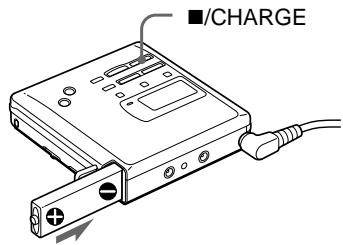
1 Connectez l'adaptateur secteur fourni. 2 Insérez la NH-14WM dans l'enregistreur et fermez le couvercle. Lorsque la charge est terminée, l'indicateur de batterie disparaît. Une batterie complètement déchargée met environ 3 heures à se charger complètement. 3 Appuyez sur /CHARGE. « Charging » clignote, apparaît à l'écran et la charge commence.
Astuce
Pendant la charge, les autres opérations de l'enregistreur ne sont pas possibles.
Utilisation avec une batterie rechargeable nickel-hydrure métallique
Voir l'illustration dans le texte japonais (page 32).
Assurez-vous que la batterie rechargeable est complètement chargée.
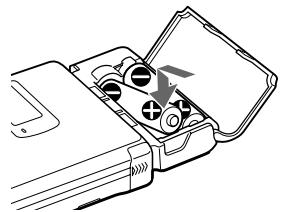
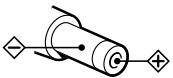
1 Insérez la batterie rechargeable nickel-hydrure métallique complètement chargée en respectant la polarité.
Utilisation avec des piles sèches
Voir l'illustration dans le texte japonais (page 32).
Utilisez le boîtier de piles.
1 Fixez le boîtier de piles fourni. 2 Insérez les piles sèches en respectant la polarité.
Remarques
- Ne mélangez pas une pile neuve avec une pile usagée. Ne mélangez pas différents types de piles sèches.
- Arrêtez l'appareil avant de remplacer la batterie, même si vous ne changez qu'une des deux batteries.
Durée de vie des piles
| Batteries | Recording Playback | |
| NH-14WM nickel metal hydride rechargeable battery | Approx. 2.5 hours | Approx. 4 hours |
| R6(size AA) | Approx. | Approx. |
| Sony alkaline dry batteries | 5 hours | 10 hours |
| LR6(SG) × 2 | ||
| NH-14WM +LR6(SG) × 2 | Approx. 9.5 hours | Approx. 16 hours |
Quand remplacer les piles
Lorsque les piles sèches ou la batterie rechargeable sont faibles, le symbole clignote ou "LOW BATT" s'affiche. Remplacez les piles sèches ou rechargez la batterie rechargeable.
Remarques sur les piles sèches
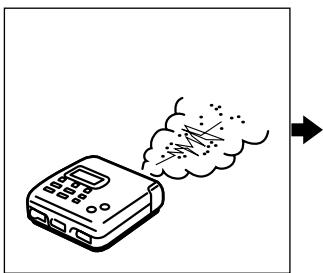
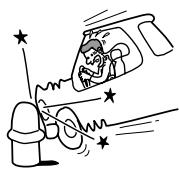
Une utilisation incorrecte des piles peut entraîner une fuite du liquide ou l'éclatement des piles. Pour éviter de tels accidents, respectez les précautions suivantes :
- Insérez correctement les pôles + et - des piles.
- Ne mélangez pas des piles neuves et usagées, ni des piles de types différents.
- N'essayez pas de recharger les piles.
- Lorsque l'enregistreur n'est pas utilisé pendant une longue période, retirez les piles.
- En cas de fuite des piles, essuyez soigneusement le liquide dans le compartiment à piles avant d'insérer de nouvelles piles.
- Lors du remplacement des piles sèches, remplacez les deux piles par des neuves.
- L'enregistreur fonctionne avec une seule pile sèche mais peut ne pas fonctionner correctement ; utilisez toujours deux piles sèches.
Informations complémentaires
Messages
Si l'enregistreur ne peut pas effectuer une opération, des messages d'erreur peuvent clignoter dans la fenêtre d'affichage comme suit.
BLANK DISC :
Vous avez essayé de lire un MD sans enregistrement.
DISC ERR :
L'enregistreur ne peut pas lire le MD (il est rayé ou sale). Réinsérez le MD. Si le même message apparaît toujours, remplacez le MD.
DISC FULL :
Il n'y a plus d'espace pour enregistrer sur le MD (moins de 12 secondes disponibles).
Sauvegarde des données :
Le lecteur MD enregistre des informations (sons) de la mémoire vers le disque.
Attendez que ce processus soit terminé. N'exposez pas le lecteur à des chocs physiques et ne coupez pas l'alimentation.
Édition TOC :
Le lecteur MD enregistre des informations (positions de début et de fin de piste) de la mémoire vers le disque. Attendez que ce processus soit terminé. N'exposez pas le lecteur à des chocs physiques et ne coupez pas l'alimentation.
OCCUPÉ :
Vous avez essayé d'utiliser l'enregistreur pendant qu'il accédait aux données enregistrées. Attendez que le message disparaisse (dans de rares cas, cela peut prendre environ une minute).
NOM COMPLET :
Vous avez essayé de saisir plus de 200 lettres pour nommer une seule piste ou un disque.
Vous avez essayé de saisir un total de plus de 1700 lettres pour les noms de pistes ou de disques pendant la lecture ou l'arrêt.
Vous avez essayé de saisir un total de plus de 500 lettres pour les noms de pistes ou de disques pendant un seul enregistrement.
Entrée Hi DC :
L'alimentation est supérieure à celle requise. Utilisez les sources d'alimentation recommandées.
MAINTIEN :
Vous avez essayé de faire fonctionner l'enregistreur avec l'interrupteur HOLD poussé dans le sens de la flèche. Remettez l'interrupteur en position initiale.
LOW BATT :
La batterie rechargeable ou les piles sèches sont faibles. Rechargez la batterie rechargeable ou remplacez les piles sèches.
MEMOVER :
Vous avez commencé l'enregistrement alors qu'aucune indication ne s'affichait, l'enregistreur recevant des vibrations continues. Placez l'enregistreur sur une surface stable et recommencez l'enregistrement.
NO COPY :
Vous avez essayé de faire une copie à partir d'un disque protégé par le système de gestion de copie en série. Vous ne pouvez pas faire de copies à partir d'une source connectée numériquement qui a elle-même été enregistrée via la connexion numérique. Utilisez plutôt la connexion analogique.
NO DISC :
Vous avez essayé de lire ou d'enregistrer sans disque dans l'enregistreur.
NO SIGNAL :
L'enregistreur n'a pas pu détecter les signaux d'entrée numériques. Assurez-vous que la source est connectée fermement. Si le message apparaît pendant l'enregistrement, appuyez sur pour terminer l'enregistrement.
P/B ONLY :
Vous avez essayé d'enregistrer ou de modifier un MD prémasterisé (P/B signifie lecture).
PROTECTED :
Vous avez essayé d'enregistrer ou de modifier un MD dont la languette est en position de protection contre l'enregistrement.
DÉSOLÉ :
Vous avez essayé d'effacer un repère de plage pendant la lecture du MD ou au début de la première plage.
Vous avez essayé d'effacer un repère de plage pour combiner des plages que l'enregistreur ne peut pas combiner.1)
Vous avez essayé d'appuyer sur DIGITAL MEGA BASS alors que la prise LINE OUT est branchée.
Vous avez essayé d'appuyer sur ou T MARK pendant l'enregistrement synchronisé.
TEMPOVER :
La chaleur s'est accumulée dans l'enregistreur. Attendez que l'enregistreur refroidisse.
TR FULL :
Vous avez essayé d'enregistrer plus de 254 plages.
TrPROTECT :
Vous avez essayé d'enregistrer par-dessus ou de modifier une plage qui a été protégée contre l'enregistrement.2
1) Si vous avez enregistré ou effacé de nombreuses fois sur le même MD, les données d'une seule plage peuvent être dispersées sur tout le MD. Lorsque les données sont dispersées en groupes de moins de 12 secondes, l'enregistreur ne pourra pas combiner les plages. 2) MiniDiscs protégés — Certains enregistreurs MD vous permettent de protéger des plages individuelles contre l'enregistrement. Cependant, cet enregistreur n'offre pas cette fonctionnalité.
ÉDITION
Vous avez appuyé sur une touche de l'enregistreur pendant l'édition sur la télécommande, ou vice versa.

http://www.world.sony.com/
Sony Corporation, 141-0001 Tokyo, Shinagawa-ku, Kita-Shinagawa 6-7-35
Pour toute demande, veuillez contacter le service clientèle au numéro suivant :
• Tokyo (03) 5448-3311 • Nagoya (052) 232-2611 • Osaka (06) 6539-5111
- MZ-R
- SYNCHRO REC ON
- REC
- DISPLAY
- CHARGE
- AC
- BLANK DISC
- ÉDITION TOC
- MD
- MODE D'EMPLOI
- BIENVENUE
- PRÉSENTATION DES COMMANDES
- L'ENREGISTREUR
- LA FENÊTRE D'AFFICHAGE DE L'ENREGISTREUR
- LE CASQUE AVEC TÉLÉCOMMANDE
- ENREGISTREZ IMMÉDIATEMENT UN MD
- SI L'ENREGISTREMENT NE DÉMARRE PAS
- REMARQUE
- LIRE UN MD TOUT DE SUITE
- SI LA LECTURE NE DÉMARRE PAS
- UTILISATION D'ÉCOUTEURS EN OPTION UTILISEZ DES ÉCOUTEURS AVEC UNE MINI-PRISE STÉRÉO. VOUS NE POUVEZ PAS UTILISER D'ÉCOUTEURS AVEC UNE MICRO-PRISE
- REMARQUES
- DIFFÉRENTES MÉTHODES D'ENREGISTREMENT
- CONNEXION DES ENTRÉES NUMÉRIQUES ET ANALOGIQUES
- ENREGISTREMENT AVEC ENTRÉE NUMÉRIQUE (CÂBLE OPTIQUE REQUIS)
- POUR ARRÊTER L'ENREGISTREMENT, APPUYEZ SUR
- ENREGISTREMENT SYNCHRONISÉ À PARTIR D'UNE SOURCE NUMÉRIQUE
- CONSEILS
- ENREGISTREMENT À PARTIR D'UN MICROPHONE
- ENREGISTREMENT EN MONAURAL POUR DOUBLER LA DURÉE NORMALE D'ENREGISTREMENT D'UN MD
- RÉGLAGE DU NIVEAU D'ENREGISTREMENT (ENREGISTREMENT MANUEL)
- RÉGLAGE DE L'HORLOGE POUR HORODATER L'ENREGISTREMENT
- SI VOUS FAITES UNE ERREUR LORS DU RÉGLAGE DE L'HORLOGE
- POUR AFFICHER L'HEURE AU FORMAT 24 HEURES
- CHARGE DE LA BATTERIE INTERNE DE L'HORLOGE
- DIFFÉRENTES FAÇONS DE LIRE
- LECTURE RÉPÉTÉE DE PLAGES
- CONNEXION À UNE CHAÎNE STÉRÉO
- ÉDITION DES PLAGES ENREGISTRÉES
- EFFACEMENT D'UNE PLAGE
- POUR EFFACER UNE PARTIE D'UNE PISTE
- EFFACEMENT DE TOUT UN DISQUE
- AJOUT D'UNE MARQUE DE PISTE
- EFFACEMENT D'UN REPÈRE DE PLAGE
- DÉPLACEMENT DE PLAGES ENREGISTRÉES
- SUR L'ENREGISTREUR
- SUR LA TÉLÉCOMMANDE
- ÉTIQUETAGE DES ENREGISTREMENTS
- ÉTIQUETAGE SUR L'ENREGISTREUR
- ÉTIQUETAGE D'UN DISQUE À L'ARRÊT
- ÉTIQUETAGE D'UNE PISTE PENDANT LA LECTURE
- ÉTIQUETAGE D'UNE PISTE OU D'UN DISQUE PENDANT L'ENREGISTREMENT
- ÉTIQUETAGE À PARTIR DE LA TÉLÉCOMMANDE
- ÉTIQUETAGE D'UN DISQUE EN MODE ARRÊT
- MARQUAGE D'UNE PISTE PENDANT LA LECTURE
- MARQUAGE D'UNE PISTE OU D'UN DISQUE PENDANT L'ENREGISTREMENT
- SOURCES D'ALIMENTATION
- CHARGEMENT D'UNE BATTERIE RECHARGEABLE NICKEL-HYDRURE MÉTALLIQUE
- UTILISATION AVEC UNE BATTERIE RECHARGEABLE NICKEL-HYDRURE MÉTALLIQUE
- UTILISATION AVEC DES PILES SÈCHES
- QUAND REMPLACER LES PILES
- REMARQUES SUR LES PILES SÈCHES
- INFORMATIONS COMPLÉMENTAIRES
- MESSAGES
- DISC ERR
- DISC FULL
- SAUVEGARDE DES DONNÉES
- OCCUPÉ
- NOM COMPLET
- ENTRÉE HI DC
- MAINTIEN
- LOW BATT
- MEMOVER
- NO COPY
- NO DISC
- NO SIGNAL
- P/B ONLY
- PROTECTED
- DÉSOLÉ
- TEMPOVER
- TR FULL
- TRPROTECT
- ÉDITION
Marque : SONY
Modèle : MZ-R55
Catégorie : Lecteur MiniDisc