
MZ-R55 - MiniDisc Player SONY - Free user manual and instructions
Find the device manual for free MZ-R55 SONY in PDF.
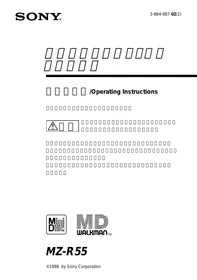


| Product type | Portable MiniDisc player/recorder |
| Brand | Sony |
| Model | MZ-R55 |
| Dimensions (L × H × D) | 78.9 × 18.9 × 84 mm |
| Weight (without accessories) | 147 g |
| Weight (with NH-14WM battery) | 190 g |
| Power supply | AC mains adapter (supplied), rechargeable Ni-MH NH-14WM battery (supplied), 2 AA LR6 batteries (not supplied) |
| Battery life (stereo recording) | Approx. 2.5 h with NH-14WM |
| Battery life (playback) | Approx. 4 h with NH-14WM |
| Recording medium | Recordable MiniDisc (MDW-74 up to 74 min stereo, 148 min mono) |
| Audio formats | ATRAC (adaptive compression), 44.1 kHz sampling (recording), 32/44.1/48 kHz (digital input) |
| Inputs | Line In (optical/mini-jack), Microphone (mini-jack with plug-in power), Analog Line In (RCA via cable) |
| Outputs | Line Out (mini-jack), Headphone/remote (mini-jack) |
| Main functions | Stereo/mono recording, digital synchronization, AGC, track marking, editing (erase, move, name), time stamp, shock-proof memory (40 s), digital Mega Bass |
| Display | Backlit LCD (10 characters, mode indicators, level, battery) |
| Remote control | Wired remote with backlit LCD, jog dial |
| Maintenance and cleaning | Clean the exterior with a soft, dry cloth. Do not use solvents. Clean the lens with a dry cotton swab if necessary. |
| Safety | HOLD switch to lock controls, AVLS (volume limiter), shock and interference protection |
| Spare parts and repairability | NH-14WM battery, mains adapter, cables, remote, pouch. Repair by a Sony authorized technician. |
Frequently Asked Questions - MZ-R55 SONY
User questions about MZ-R55 SONY
0 question about this device. Answer the ones you know or ask your own.
Ask a new question about this device
Download the instructions for your MiniDisc Player in PDF format for free! Find your manual MZ-R55 - SONY and take your electronic device back in hand. On this page are published all the documents necessary for the use of your device. MZ-R55 by SONY.
USER MANUAL MZ-R55 SONY
/Operating Instructions



MZ-R55
©1998 by Sony Corporation


68
1 AC
AC


AC


6
10
12
2
14
15
16
17
17
.18
19
20
21
21
-AVLS 22
22
23
23

24 1 24 24 25 25 26 27

31 32 32 32

33 35 37 38 40 41 43 45
Operating Instructions
Operating Instructions 48


AC


100V


AC



AC



MD CD DAT

AC

AC


1 ①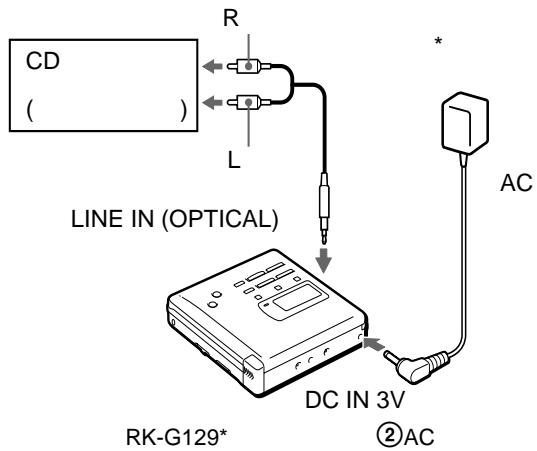
CD
RK-G136*
2 ① OPEN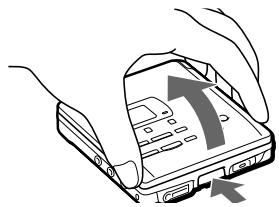
(2)
3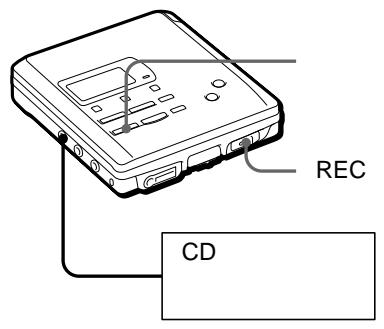
①REC
REC
② CD
Data Save Toc Edit
1
31
② REMOTE
2
① OPEN
(2)
3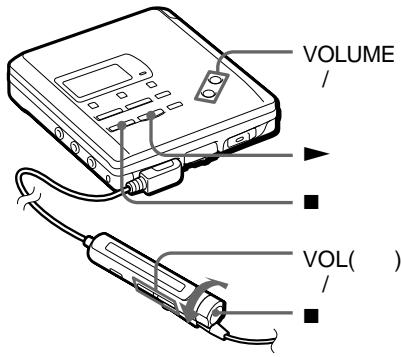
| 2) | ||
| NH-14WM | 2.5 | 4 |
| LR6(SG)2 | 5 | 10 |
| NH-14WM | 9.5 | 16 |
| LR6(SG)2 | ||
1) 2)

LOW
BATT
AC
AC
EIAJ
AC
• .
.
| AC | (31 ) | |
| CD | (10 15 ) | |
| CD (ESP) | ||
| ( ) | ||
| PROTECTED | ||
| ( ) | (18 / ▷) | |
| (P/B ONLY ) | ||
| ( DISC FULL ) | ||
| 12 | ||
| II | (20 ) | |
| /REMOTE | ||
| VOLUME / (VOL / ) | ||
| AVLS NORM | ||
| (22 ) | ||
| AC | ||
| 2 (20 ) | ||
| --y--m--d | (20 ) | |
| (20 ) | ||
DAT
| FULL | |||||
| (60 74 TR) | |||||
| TR FULL | 1 | ||||
| 254 | 1 | ||||
| 12 | |||||
| (60 74 ) | 2 | 2 | 6 | ||
BLANK DISC
DISC ERR
DISC FULL 12
Data Save ( )
Toc Edit ( 44
BUSY 1
NAME FULL 200
1700 1 500
Hi DC in AC AC
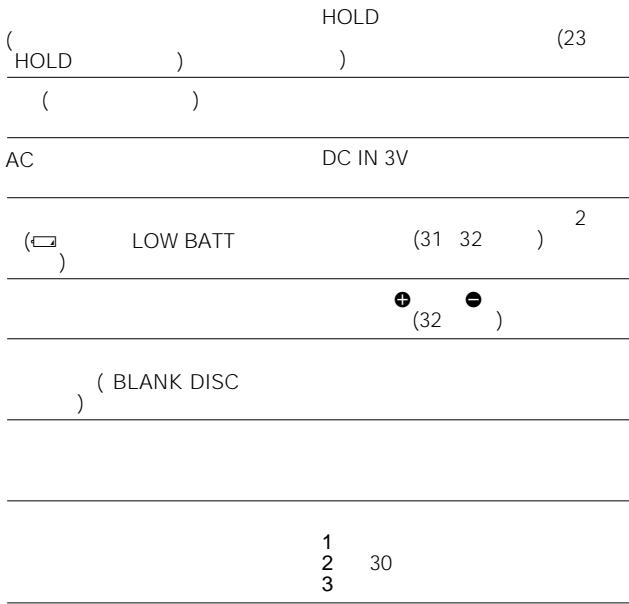
HOLD HOLD (23)
LOW BATT (31 32
MEM OVER
NO COPY (SCMS) (LINE IN)
NO DISC
NO SIGNAL
P/B ONLY
(
PROTECTED
SORRY
1
LINE OUT
DIGITAL MEGA BASS
TMARK
TEMP OVER
TR FULL
254
254
TrPROTECT
)
EDITING
· ( )
1
.
.
(
GaAlAs
= 780 nm
148 (MDW-74)
74 (MDW-74)
400rpm 900rpm (CLV)
(ACIRC)
44.1kHz
32kHz/44.1kHz/48kHz
(ATRAC)
EFM
2
1
20 20,000Hz±3dB
0.22 0.78mV
69 194mV
*
5mW+5mW
16Ω
194mV
10 kΩ
NH-14WM ( )
78.9 × 18.9 × 84 mm
147g
190g(
NH-14WM
AC
(1)
(1)
(1)
3
(1)
(1)
(1)
(1)
(1)
(1)
NH-14WM
BC-9HM

1
64mm
(MD)
(CD)
ATRAC (Adaptive Transform Acoustic Coding) CD
TOC EDIT
TOC (Table Of Contents)
(BS: 32kHz,
DAT: 48kHz
MD
(44.1kHz)
MD
CD
TOC
Toc Edit
CD -0:03
0:00
MD
(SCMS)
IN
LINE
1 END SEARCH 11 2 REC 19 3 DISPLAY 19 22 4 19 22 45 5 DC IN 3V 10 6 MODE 21 7 1
11 13
8 LINE IN (OPTICAL)
10 15
MIC (PLUG IN POWER)
17
MICSENS 17 11 LINE OUT 23 12 DIGITAL MEGA BASS
21
13 /CHARGE 11 13 31 14 13 15 31 16 EDIT/ENTER 24 17 AVLS 22 18 SYNCHROREC 16 19 VOLUME 13 20 TMARK 24 21 11 13 22REC 11 23 OPEN 10 11 24 HOLD 23 25 CLOCK SET 20 26 Ω/REMOTE 12
1
19 22
7
20
12
2
8
21
3
9
31
4
10
19 22
5
6
11
11
REC DATE
12
19 20 22
13
1
6 11 13
2
7 PLAY MODE (21)
DISPLAY (19, 22)
4
9 VOL (13)
3 (11, 13)
10 TRACK MARK (27)
4
11 (19, 22)
5
HOLD
23
Operating Instructions
Welcome!
Welcome to the world of the MiniDisc! Here are some of the capabilities and features you'll discover with the new MiniDisc Recorder.
- Recording MD Walkman in an ultracompact body — Almost as small as a playback-only MD Walkman; easy to carry in your pocket or bag.
- Low power consumption design — Runs on a single "chewing gum" type rechargeable battery.
- Simultaneous labeling feature — No more waiting for the recording to end; you can label tracks and discs while the MD is being recorded.
- 9-letter, backlit LCD remote control with editing capabilities — You can now label tracks and discs, change track sequence, etc., with the easy-to-operate stick remote controller.
- Shock-resistant memory — Offsets up to 40 seconds of optical read errors.
- High-fidelity recording — Low-noise, low-distortion, high-fidelity recording through the optical digital input jack.
- Digital synchro-recording — When recording from a digital equipment with optical output, the recorder automatically starts and pauses recording in sync with operation on the digital source.
- Sampling rate converter - This unit enables you to record programs from digital equipment using other sampling rates, such as a BS tuner or DAT deck.
- Long recording with monaural sound — You can record up to 148 minutes on a disc using monaural recording.
- Date and time stamp function — The built-in clock automatically records the date and time whenever you make a recording.
- Digital AGC (Auto Gain Control) — Automatic recording level adjustment without sacrificing superb digital sound.
- Title function — You can see disc and track titles in the display on the main unit or the remote control while you are playing/recording an MD.
Looking at the controls
The numbers are keyed to the illustrations in the Japanese text (pages 45 to 47).
The recorder
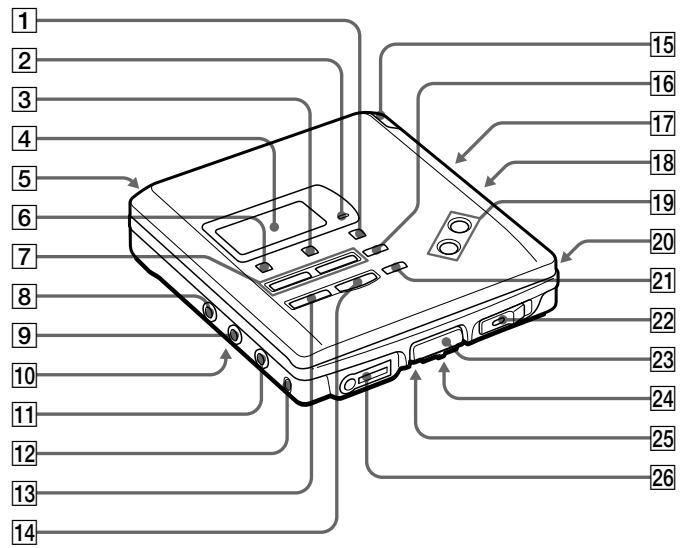
1 END SEARCH button 2 REC lamp 3 DISPLAY button Press to display the current play mode, the remaining time of the current track, the remaining time of the disc, or the recording date and time. 4 Display window 5 DC IN 3V jack 6 MODE button Each time you press here while playing an MD, the recorder plays the MD in a different play mode: normal play, all repeat, single repeat, or shuffle repeat. Press here while recording to select monaural recording. 7 \Vdash / \triangleright (search/AMS) buttons 8 LINE IN (OPTICAL) jack 9 MIC (PLUG IN POWER) jack 10 MIC SENS (mic sensitivity) switch (at the bottom) 11 LINE OUT jack 12 DIGITAL MEGA BASS button Press to emphasize bass sound. 13 (stop)/CHARGE button 14 (play) button 15 Battery compartment 16 EDIT/ENTER button 17 AVLS (Automatic Volume Limiter System) switch (at the bottom) Slide to LIMIT to limit the maximum volume. 18 SYNCHRO REC (synchro-recording) switch 19 VOLUME + / - buttons
20 TMARK (track mark) button 21 II (pause) button 22 REC (record) switch 23 OPEN button 24 HOLD switch
Slide to lock the controls of the recorder.
25 CLOCK SET button (at the bottom) 26 \bigcirc /REMOTE (headphones/remote) jack
The display window of the recorder
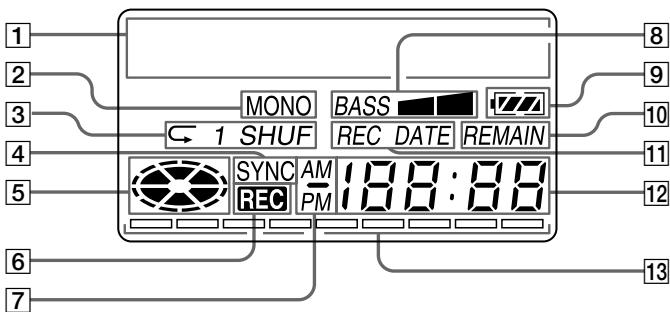
1 Character information display Displays the disc and track name*, date, error messages, track numbers, etc.
- Disc and track names appear only with MDs that have been electronically labeled.
2 MONO(monaural) indication 3 Play mode indication Shows the play mode of the MD.
\hookleftarrow (all repeat): All tracks play repeatedly. \hookrightarrow 1(single repeat): One track plays repeatedly. SHUF(shuffle repeat): Tracks will be repeated in random order.
4 SYNC (synchro-recording) indication Lights up while synchro-recording. 5 Disc indication
Shows that the disc is rotating for recording, playing or editing an MD.
6 REC indication Lights up while recording. Flashes when standing by for recording. 7 AM/PM indication Lights up along with the time indication in the 12-hour system. 8 Mega bass indication 9 Battery indication Shows battery condition. While charging the rechargeable battery, this indication shows the charging condition.
10 REMAIN (remaining time/tracks) indication Lights up along with the remaining time of the track, remaining time of the MD, or remaining number of tracks. 11 REC DATE (recorded/current date) indication Lights up along with the date and time the MD was recorded. When only "DATE" lights up, the current date and time are displayed. 12 Time display Shows the elapsed time of the track being recorded or played. 13 Level meter Shows the level of the MD being played or recorded.
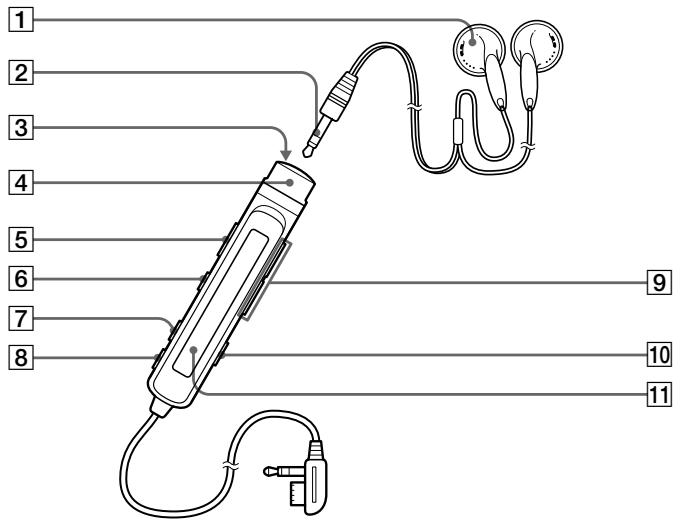
The headphones with a remote control
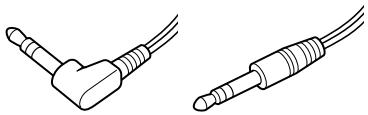
1 Headphones Can be replaced with optional headphones. 2 Stereo mini plug 3 (stop) button 4 Control
To play, turn to ▸ · ▸ ▸ during stop.
Turn to ▸ ● ▸ ▸ during play to search the beginning of the succeeding track; hold in this position to fast-forward.
Turn to ⊢ during play to search the beginning of the preceding track; hold in this position to rewind.
5 HOLD switch Slide to lock the controls of the remote control. 6 II (pause) button 7 PLAY MODE button 8 DISPLAY button 9 VOL (volume) + / - buttons When the AVLS switch is set on, you cannot increase the volume to the maximum. To increase the volume above the limited level, set the AVLS switch to off. 10 TRACK MARK button 11 Display window
Recording an MD right away!
See the illustrations in the Japanese text (page 10 to 11).
Use a line cable (not supplied) to hook up an analog source. The sound will be sent from the connected equipment as analog signal but will be recorded digitally on the disc. If you want to record programs from digital equipments or a microphone, see "Various ways of recording".
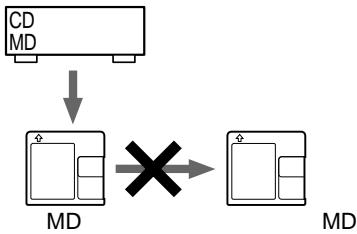
Premastered MDs cannot be recorded over.
1 Make connections (Connect securely).
1 Connect the LINE IN (OPTICAL) jack of recorder to the LINE OUT R(red)/L (white) jacks of the source with a line cable. The recorder switches to analog input automatically. 2 Connect the DC IN 3V jack of the recorder to a wall outlet with the supplied AC power adaptor.
When the recorder has different sound sources connected at the same time, the recorder switches to the digital, microphone, or analog input in this order of priority.
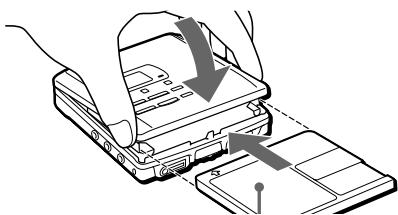
2 Insert a recordable MD.
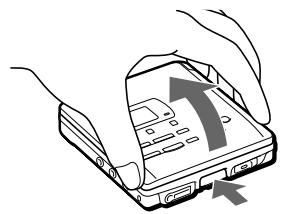
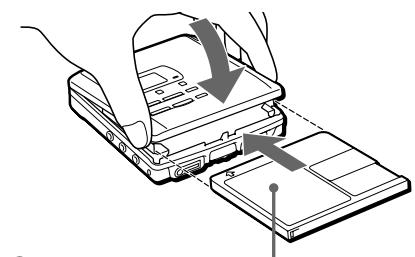
1 Press OPEN and open the lid. 2 Insert a recordable MD with the label side facing up, and press the lid down to close.
3 Select recording start point.
If you want to add a recording to the end of the previous recording, press END SEARCH.
(If you want to start recording from the beginning, skip this step).
4 Start recording.
① Press and slide the REC switch to the right.
"REC" lights up and recording starts.
② Play the sound source.
The level of the recorded sound is adjusted automatically.
To stop recording, press ■.
Do not move or jog the recorder or disconnect the power source while the "Data Save" or "Toc Edit" indication is flashing in the display.
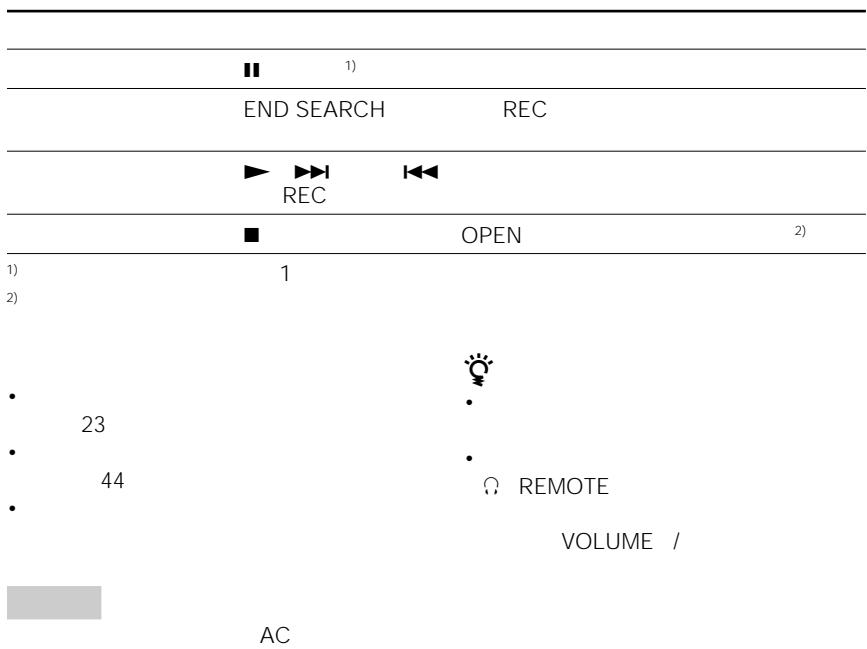
| To | Press |
| Pause | 1.1) Press again to resume recording. |
| Record over partway through the previous recording | ▶, ➔ or ⇑ to find the start point of recording and press to stop. Then slide the REC switch. |
| Remove the MD | ■, then press OPEN and open the lid.2) |
1) A new track mark is added at the point where you pressed I, and the recording will be marked with the new track number when you resume recording. 2) Once you open the lid, the point to start recording will change to the beginning of the first track. When recording on a recorded MD, check the point to start recording on the display.
If the recording does not start
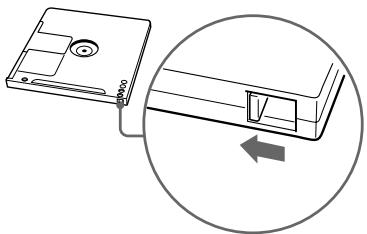
Make sure the MD is not record-protected. If the tab at the side of the MD is open, slide it back so the tab is visible.
Note
If the power supply is disrupted (i.e. the battery is removed or becomes exhausted or the AC power adaptor is disconnected) when the recorder is operating, the lid will not open until the power is restored.
Playing an MD right away!
See the illustrations in the Japanese text (pages 12 to 13).
If you want to use the rechargeable battery, be sure to recharge it before playing (see page 31).
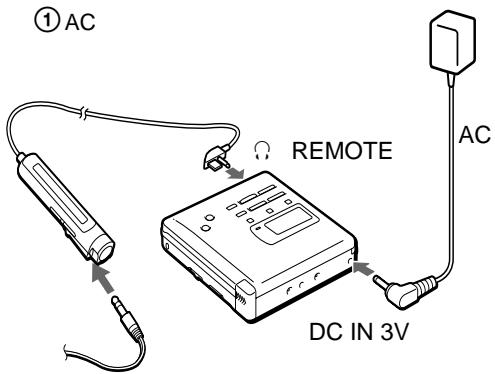
1 Make connections (Connect securely).
① Connect the remote control-equipped headphones (supplied) to the REMOTE jack. ② Connect the DC IN 3V jack of the recorder to a wall outlet with the supplied AC power adaptor.
2 Insert an MD.
① Press OPEN and open the lid. ② Insert an MD with the label side facing up, and press the lid down to close.
3 Start playing.
① Press ▶ (Turn the control to ▶·▶→1 on the remote control). A short beep sounds in the headphones. ② Press the VOLUME +/− buttons to adjust the volume.
To stop play, press ■.
| To | Do this (Beeps in the headphones) |
| Pause | Press Ⅱ. (Continuous short beeps) Press Ⅱ again to resume play. |
| Find the beginning of the current track | Press Ⅰ once. Turn the control to Ⅰ on the remote control. (Three short beeps) |
| Find the beginning of the next track | Press Ⅱ once. Turn the control to Ⅱ•Ⅱ•Ⅰ on the remote control. (Two short beeps) |
| Go backwards while playing1) | Keep pressing▶. Keep the control turned to▶ on the remote control. |
| Go forward while playing1) | Keep pressing▶. Keep the control turned to▶ on the remote control. |
| Remove the MD | ■, then press OPEN and open the lid.2) |
1) To go backwards or forward quickly without listening, press and hold down ⏮ or ▶ (keep the control turned on the remote control). 2) Once you open the lid, the point to start play will change to the beginning of the first track.
If the playback does not start
Make sure the recorder is not locked. If it is locked, slide the HOLD switch in the opposite direction of the arrow.
When using optional headphones Use headphones with a stereo mini-plug. You cannot use headphones with a microplug.
Notes
- The sound may skip during playback when the recorder is exposed to continuous vibration, such as while jogging.
- If the power supply is disrupted (i.e. the battery is removed or becomes exhausted or the AC power adaptor is disconnected) when the recorder is operating, the lid will not open until the power is restored.
Various ways of recording
Connecting digital and analog inputs
The recorder selects digital or analog input according to how the sound source is hooked up.
| Input Difference | Digital input | Analog (line) input |
| Connectable source | Equipment with an optical digital output jack | Equipment with an analog (line) output jack |
| Usable cord | Digital cable (with an optical or an optical-mini plug) | Line cable (with 2 phono plugs or a stereo-mini plug) |
| Signal from the source | Digital | Analog Even when a digital source (such as a CD) is connected, the signal sent to the recorder is analog. |
| Recorded track numbers | Marked (copied) automatically •at the same positions as the source. •when recording is paused. | Marked •after more than 2 seconds of silence. •when recording is paused. You can erase unnecessary marks after recording. |
| Recorded sound level | Same as the source | Adjusted automatically. You can also adjust it manually. |
Recording with digital input (optical cable required)
See the illustration in Japanese text (page 15).
Connect to a digital source using an optical cable (POC-5B or POC-5AB, not supplied) to make digital recordings. Digital recording is possible even from digital equipment with different sampling rates, such as a DAT deck or a BS tuner, using the built-in sampling rate converter.
1 Connect the LINE IN (OPTICAL) jack of the recorder to the optical digital output jack of the source with an optical cable (not supplied). The recorder switches to digital input automatically. 2 Connect the power source. To use on AC power, see "Recording an MD right away!" To use on other power sources, see page 60. 3 Insert a recordable MD. Press OPEN to open the lid, insert a recordable MD, and close the lid. 4 Press and slide the REC switch to the right. "REC" lights up and recording starts. 5 Play the sound source.
To stop recording, press ■.
Notes
- When recording from a portable CD player, play it on AC power and disable the anti-skip function (such as ESP*).
- Digital output may be disabled on some portable CD players when the player is not run on AC power.
- Electronic Shock Protection
Synchro-recording from a digital source
See the illustration in Japanese text (page 16).
You can easily dub a digital source on an MD by using the SYNCHRO REC switch. Before synchro-recording, be sure to make digital connection and insert a recordable MD.
1 Slide the SYNCHRO REC switch to ON.
"SYNC" lights up in the display.
2 Press and slide the REC switch to the right.
"REC" lights up in the display.
The recorder starts recording when you start playing the source player.
To stop recording, press ■.
Tips
- You cannot pause recording manually during synchro-recording.
- When there is no sound from the source player for more than 3 seconds during synchro-recording, the recorder stands by for recording automatically. When the sound comes from the source player, the recorder starts synchro-recording again. When the MD player is in recording pause for longer than 5 minutes, recording stops automatically.
- There may be cases when recording does not pause automatically during synchro-recording even when there are no recorded sound on the sound source, depending on the noise level of the source.
Note
Do not switch SYNCHRO REC after step 2. Recording may not be made properly.
Recording from a microphone
See the illustration in the Japanese text (page 17).
Connect a microphone to the MIC (PLUG IN POWER) jack. Use a stereo microphone ECM-717, ECM-MS907, ECM-MS957, etc., not supplied).
1 Select the sensitivity with the MIC SENS switch. Usually, set it to HIGH. When recording loud sounds such as a live concert, set it to LOW. 2 Insert a recordable MD. Press OPEN to open the lid, insert a recordable MD, and close the lid. 3 Press and slide the REC switch to the right. "REC" lights up and recording starts.
To stop recording, press
Notes
- You cannot record through the microphone while an optical cable is connected to the LINE IN (OPTICAL) jack. The recorder automatically switches input in the following order: optical input, microphone input, and analog input.
- The microphone may pick up the operating sound of the recorder itself. Use the microphone away from the recorder in such cases.
Recording in monaural for double the normal recording time of an MD
See the illustration in the Japanese text (page 17).
Before recording, make connections to the sound source and the power source, and insert a recordable MD.
1 While pressing I, press and slide the REC switch to the right.
The recorder stands by for recording.
2 Press MODE. "Mono REC" appears in the display, and the recorder switches to monaural recording. 3 Press again to start recording. 4 Start the sound source.
Tips
- The recorder switches back to stereo recording when you press to stop recording.
- If you record in monaural from a stereo source, the sounds from left and right will be mixed.
- The MDs recorded in monaural can be played back only with an MD player/recorder that has the monaural playing function.
- Sound recorded through digital input can be monitored in stereo through headphones, etc.
Adjusting the recording level (Manual recording)
See the illustration in the Japanese text (page 18).
When you record with an analog (line) input, the sound level is adjusted automatically. If necessary, you can set the level manually.
1 While holding down II, hold the REC switch to the right for more than 2 seconds. "ManualREC" appears, and the recorder stands by for recording. 2 Play the source. 3 While observing the level meter in the display, adjust the recording level by pressing >> (+) or >> (-). Set the level so that it hits the -12dB bar input level. 4 Press again to start recording.
Tips
- The recorder switches back to automatic level adjustment when you press to stop recording. The recording level should be adjusted while the recorder is in standby mode. You cannot adjust it while recording.
Setting the clock to stamp the recorded time
See the illustrations in the Japanese text (page 20).
To stamp the date and time on the MD when you record, you need to set the clock.
1 Connect the supplied AC power adaptor. 2 Press CLOCK SET at the bottom of the recorder with a pointed object. The digits of the year flash. 3 Change the current year by pressing || or >>. To change the digits rapidly, keep pressing || or >>. 4 Press > to enter the year. The digit of the month flashes. 5 Repeat steps 3 and 4 to enter the current month, date, hour, and minute. When you press > to enter the minute, the clock starts operating.
If you make a mistake while setting the clock
Press ■, and repeat the steps above.
Press > to locate the digit to be changed.
To display the time in the 24-hour system
Press DISPLAY while setting the clock. To change the clock to the 12-hour system, press DISPLAY again.
Charging the built-in battery for the clock
After setting the clock, leave the recorder connected to the AC power for about 2 hours to charge the built-in battery for the clock. Once charged, the built-in battery will last for about a month without being connected to any of the power sources. The recorder will automatically charge the built-in battery while operating on AC power, a rechargeable battery or dry batteries.
Various ways of playback
Playing tracks repeatedly
See the illustrations in the Japanese text (page 21).
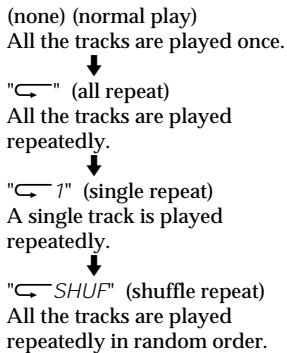
Press MODE (PLAY MODE on the remote control) while the recorder is playing an MD.
Each time you press MODE (PLAY MODE on the remote control), the play mode indication changes as follows:
Connecting to a stereo system
See the illustration in Japanese text (page 23).
Connect the LINE OUT jack of the recorder to the line in jacks of an amplifier or a tape player with a line cable (not supplied). The output is analog. The recorder plays the MD digitally and sends analog signals to the connected equipment.
Editing recorded tracks
You can edit your recordings.
Premastered MDs cannot be edited.
Notes
- When you press ■ after editing, "Toc Edit" flashes for about a second. Do not move or jog the recorder or disconnect the power source while the indication is flashing.
- You cannot edit on an MD with its tab open for protection. Before editing, close the tab at the side of the MD.
Erasing a track
See the illustration in the Japanese text (page 24).
You can quickly erase a recorded track. Note that once a recording has been erased, you cannot retrieve it.
1 Press EDIT/ENTER while playing the track you want to erase. " : Name" flashes in the display, and the recorder plays the selected track repeatedly. 2 Press or repeatedly until " : Erase" flashes in the display. 3 Press EDIT/ENTER again. "Erase OK?" and "Push ENTER" appear alternately in the display. To cancel erasing, press or T MARK.
To erase a part of a track
Add track marks at the beginning and the end of the part you want to erase, then erase the part.
Erasing a whole disc
See the illustration in the Japanese text (page 24).
You can erase all the tracks on a disc at a time. Note that once a recording has been erased, you cannot retrieve it.
1 Press EDIT/ENTER on the recorder. 2 Press or repeatedly until " : Erase" flashes in the display. 3 Press EDIT/ENTER again.
"All Erase?" and "Push ENTER" appear alternately in the display. To cancel erasing, press or T MARK.
4 Press EDIT/ENTER again.
"Toc Edit" flashes in the display, and all the tracks will be erased. When erasing is complete, "BLANK DISC" appears in the display.
Adding a track mark
See the illustration in the Japanese text (page 25).
You can insert a track mark into a track.
1 While the recorder is playing or pausing an MD, press T MARK on the recorder at the point you want to mark.
"MARK ON" appears in the display, and the track mark is added.
To add track marks while recording.
Press T MARK while recording (except while Synchro-recording).
Erasing a track mark
See the illustrations in the Japanese text (page 25).
When you record with analog (line) input, unnecessary track marks may be recorded. You can erase a track mark to combine the tracks before and after the track mark.
1 While playing the track with the track mark you want to erase, press I to pause. 2 Find the track mark by pressing slightly. "00:00" flashes in the display. 3 Press the T MARK to erase the mark. "MARK OFF" appears in the display. The track mark is erased and the two tracks are combined. The number of the newly combined track will be that of the first track and the succeeding tracks will be renumbered.
Moving recorded tracks
See the illustrations in the Japanese text (page 26).
You can change the order of the recorded tracks.
On the recorder
1 Press EDIT/ENTER while playing the track you want to move. "O:Name" flashes in the display and the recorder plays the selected track repeatedly. 2 Press or repeatedly until "Move" flashes in the display. 3 Press EDIT/ENTER again. 4 Press or repeatedly to select the destination track number. To cancel moving, press or T MARK. 5 Press EDIT/ENTER again. The track moves to the selected destination track.
On the remote control
1 Press DISPLAY for 2 seconds or longer while playing the track you want to move. "O:Name" flashes in the display and the recorder plays the selected track repeatedly. 2 Turn the control until "O:Move" appears in the display. 3 Press. 4 Turn the control to select the destination track number. 5 Press again. The selected track moves just before the destination track.
Labeling recordings
See the illustration in the Japanese text (page 27).
You can name tracks during playback, discs during stop, and both during recording. Each name can be as long as 200 letters.
Each disc can hold up to 1700 alphanumeric letters or 800 katakana characters during playback or stop, and 500 alphanumeric letters or 200 katakana characters during one recording.
Labeling on the recorder
Labeling a disc during stop
1 Insert a disc. To label a disc that is already in the recorder, press to stop. 2 Press EDIT/ENTER. "O:Name" flashes in the display. 3 Press EDIT/ENTER again. 4 Press or repeatedly to select a letter and press to enter. The selected letter stops flashing and the cursor moves to the next input position. Press to switch between katakana, the alphabet, and symbols/numbers. Press VOLUME +/- to move the cursor to left or right.
Press > when inputting alphabet, symbol or numbers to change the letter to the one before/next one. Press > to go back.
Press DISPLAY to insert a blank space to type in a new letter.
Press MODE to delete a letter and move back all following letters to the left.
Press or T MARK to cancel labeling.
5 Repeat step 4 and enter all characters of the label name. 6 Press EDIT/ENTER. The track or disc is labeled.
Labeling a track during playback
1 Insert a disc and play the track you want to label. 2 Press EDIT/ENTER. " :Name" flashes in the display. 3 Press EDIT/ENTER again. 4 Follow steps 4 to 6 of "Labeling a disc during stop" above.
Labeling a track or a disc during recording
1 Press EDIT/ENTER during recording. " : Name" flashes in the display. 2 To label a track, press EDIT/ENTER again.
To label a disc, press or repeatedly until " : Name" flashes in the display, then press EDIT/ENTER. 3 Follow steps 4 to 6 of "Labeling a disc during stop" above.
When the recording is stopped while labeling a track or a disc during recording, or when the playback moves on to the next track while labeling a track during playback, the input at that point is entered automatically.
Labeling on the remote control
Labeling a disc during stop
1 Insert a disc.
To label a disc that is already in the recorder, press ■ to stop.
2 Press DISPLAY for 2 seconds or longer.
" S :Name" flashes in the display.
3 Press ■.
The disc is ready to be labeled.
4 Turn the control to select a letter and press the confirm button to enter.
The selected letter stops flashing and the cursor moves to the next input position.
Press to switch between katakana, the alphabet, and symbols/numbers.
Press VOLUME + / - to move the cursor left or right.
Turn the control to the right or left when inputting alphabet, symbols, or numbers to change the letter to the next or previous one. Turn to the far left to go back.
Press DISPLAY to insert a blank space to type in a new letter.
Press PLAY MODE to delete a letter and move all following letters to the left.
Press TRACK MARK to cancel labeling.
5 Repeat step 4 and enter all characters of the label name. 6 Keep pressing for 2 seconds or longer.
The track or disc is labeled.
Labeling a track during playback
1 Insert a disc and play the track you want to label. 2 Press DISPLAY for 2 seconds or longer.
" : Name" flashes in the display.
3 Press.
The disc is ready to be labeled.
4 Follow steps 4 to 6 of "Labeling a disc during stop" above. Enter the selected character.
Labeling a track or a disc during recording
1 Press DISPLAY for 2 seconds or longer during recording.
" : Name" flashes in the display.
2 To label a track, press ■.
To label a disc, turn the control to
or :Name" flashes in the display, then press DISPLAY.
3 Follow steps 4 to 6 of "Labeling a disc during stop" above.
To cancel labeling, press
▶Power sources
You can use the recorder on ...
house current. - a nickel metal hydride rechargeable battery (supplied). - dry batteries (not supplied).
It is preferable to use the recorder on house current when recording for a long time.
Charging a nickel metal hydride rechargeable battery
See the illustrations in the Japanese text (page 31).
Before using the supplied nickel metal hydride rechargeable battery for the first time, you must charge it.
1 Connect the supplied AC power adaptor. 2 Insert the NH-14WM into the recorder and close the lid. When charging is completed, the battery indication disappears. A completely discharged battery takes about 3 hours to charge fully. 3 Press /CHARGE. "Charging" flashes, appears in the display, and charging starts.
Tip
During charging, other operations on the recorder are not possible.
Using a nickel metal hydride rechargeable battery
See the illustration in the Japanese text (page 32).
Be sure the rechargeable battery is fully charged.
1 Insert the fully charged nickel metal hydride rechargeable battery with correct polarity.
Using dry batteries
See the illustration in the Japanese text (page 32).
Use the battery case.
1 Attach the supplied battery case. 2 Insert the dry batteries with correct polarity.
Notes
- Do not use a new dry battery mixed with a used one. Do not mix different types of dry batteries.
- Stop operation before replacing the battery even when you are changing either of the two batteries.
Battery life
| Batteries | Recording Playback | |
| NH-14WM nickel metal hydride rechargeable battery | Approx. 2.5 hours | Approx. 4 hours |
| R6(size AA) | Approx. | Approx. |
| Sony alkaline dry batteries | 5 hours | 10 hours |
| LR6(SG) × 2 | ||
| NH-14WM +LR6(SG) × 2 | Approx. 9.5 hours | Approx. 16 hours |
When to replace the batteries
When the dry batteries or rechargeable battery are weak, flashing or "LOW BATT" appears in the display. Replace the dry batteries or charge the rechargeable battery.
Notes on dry batteries
Incorrect battery usage may lead to leakage of battery fluid or bursting batteries. To prevent such accidents, observe the following precautions:
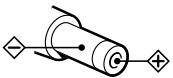
- Insert the + and - poles of the batteries correctly.
- Do not install new and used batteries or different kinds of batteries together.
- Do not try to recharge the batteries.
- When the recorder is not be used for a long time, be sure to remove the batteries.
- If a battery leak should develop, carefully and thoroughly wipe away battery fluid from the battery compartment before inserting new ones.
- When replacing the dry batteries, replace both batteries with new ones.
- The recorder does operate with one dry battery but may not operate properly; always use two dry batteries.
Additional information
Messages
If the recorder cannot carry out an operation, error messages may flash in the display window as follows.
BLANK DISC :
You tried to play an MD with no recording on it.
DISC ERR:
The recorder cannot read the MD (it is scratched or dirty). Reinsert the MD. If the same message still appears, replace the MD.
DISC FULL :
There is no more space to record on the MD (less than 12 seconds available).
Data Save:
The MD player is recording information (sounds) from the memory to the disk.
Wait until this process is completed. Do not expose the player to any physical shock, nor disrupt power supply.
Toc Edit :
The MD player is recording information (track start and end position) from the memory to the disk. Wait until this process is completed. Do not expose the player to physical shock, nor disrupt power supply.
BUSY:
You tried to operate the recorder while it was accessing the recorded data. Wait until the message goes out (in rare cases, it may take about a minute).
NAME FULL :
You tried to enter more than 200 letters to label a single track or disc.
You tried to enter a total of more than 1700 letters for track or disc names during playback or stop.
You tried to enter a total of more than 500 letters for track or disc names during a single recording.
Hi DC in :
The power supply is higher than required. Use the recommended power sources.
HOLD:
You tried to operate the recorder with the HOLD switch slid in the direction of the arrow. Slide back the switch.
LOW BATT:
The rechargeable battery or dry batteries are weak. Charge the rechargeable battery or replace the dry batteries.
MEMOVER:
You started recording when there is no indication in the display, with the recorder receiving continuous vibration. Put the recorder on the stable place and start recording again.
NO COPY:
You tried to make a copy from a disc that is protected by the Serial Copy Management System. You cannot make copies from a digitally connected source which was itself recorded using the digital connection. Use the analog connection instead.
NO DISC:
You tried to play or record with no disc in the recorder.
NO SIGNAL :
The recorder could not detect digital input signals. Make sure that the source is connected firmly. If the message appears while recording, press to end recording.
P/B ONLY:
You tried to record or edit on a premastered MD (P/B means playback).
PROTECTED :
You tried to record or edit on an MD with its tab in the record-protect position.
SORRY:
You tried to erase a track mark while playing the MD or at the beginning of the first track.
You tried to erase a track mark to combine tracks the recorder cannot combine.1)
You tried to press DIGITAL MEGA BASS when the LINE OUT jack is plugged in.
You tried to press or T MARK during synchro-recording.
TEMPOVER:
Heat has built up in the recorder. Wait until the recorder cools down.
TR FULL:
You tried to record more than 254 tracks.
TrPROTECT :
You tried to record over or edit a track which has been protected from being recorded over.
1) If you have recorded or erased many times on the same MD, the data of a single track may be scattered throughout the MD. When the data is scattered in groups of less than 12 seconds long, the recorder will not be able to combine the tracks. 2) Track-protected MiniDiscs — Some MD recorders will let you protect individual tracks from being recorded over. This recorder, however, does not offer this feature.
EDITING
You pressed a key on the recorder while editing on the remote control, or vice versa.

- OPERATING INSTRUCTIONS
- MZ-R
- AC
- BLANK DISC
- TOC EDIT
- MD
- WELCOME
- LOOKING AT THE CONTROLS
- THE RECORDER
- THE DISPLAY WINDOW OF THE RECORDER
- THE HEADPHONES WITH A REMOTE CONTROL
- RECORDING AN MD RIGHT AWAY
- IF THE RECORDING DOES NOT START
- NOTE
- PLAYING AN MD RIGHT AWAY
- IF THE PLAYBACK DOES NOT START
- WHEN USING OPTIONAL HEADPHONES USE HEADPHONES WITH A STEREO MINI-PLUG. YOU CANNOT USE HEADPHONES WITH A MICROPLUG
- NOTES
- VARIOUS WAYS OF RECORDING
- CONNECTING DIGITAL AND ANALOG INPUTS
- RECORDING WITH DIGITAL INPUT (OPTICAL CABLE REQUIRED)
- TO STOP RECORDING, PRESS
- SYNCHRO-RECORDING FROM A DIGITAL SOURCE
- TIPS
- RECORDING FROM A MICROPHONE
- RECORDING IN MONAURAL FOR DOUBLE THE NORMAL RECORDING TIME OF AN MD
- ADJUSTING THE RECORDING LEVEL (MANUAL RECORDING)
- SETTING THE CLOCK TO STAMP THE RECORDED TIME
- IF YOU MAKE A MISTAKE WHILE SETTING THE CLOCK
- TO DISPLAY THE TIME IN THE 24-HOUR SYSTEM
- CHARGING THE BUILT-IN BATTERY FOR THE CLOCK
- VARIOUS WAYS OF PLAYBACK
- PLAYING TRACKS REPEATEDLY
- CONNECTING TO A STEREO SYSTEM
- EDITING RECORDED TRACKS
- ERASING A TRACK
- TO ERASE A PART OF A TRACK
- ERASING A WHOLE DISC
- ADDING A TRACK MARK
- ERASING A TRACK MARK
- MOVING RECORDED TRACKS
- ON THE RECORDER
- ON THE REMOTE CONTROL
- LABELING RECORDINGS
- LABELING ON THE RECORDER
- LABELING A DISC DURING STOP
- LABELING A TRACK DURING PLAYBACK
- LABELING A TRACK OR A DISC DURING RECORDING
- LABELING ON THE REMOTE CONTROL
- POWER SOURCES
- CHARGING A NICKEL METAL HYDRIDE RECHARGEABLE BATTERY
- USING A NICKEL METAL HYDRIDE RECHARGEABLE BATTERY
- USING DRY BATTERIES
- WHEN TO REPLACE THE BATTERIES
- NOTES ON DRY BATTERIES
- ADDITIONAL INFORMATION
- MESSAGES
- DISC ERR
- DISC FULL
- DATA SAVE
- BUSY
- NAME FULL
- HI DC IN
- HOLD
- LOW BATT
- MEMOVER
- NO COPY
- NO DISC
- NO SIGNAL
- P/B ONLY
- PROTECTED
- SORRY
- TEMPOVER
- TR FULL
- TRPROTECT
- EDITING
Brand : SONY
Model : MZ-R55
Category : MiniDisc Player