
MZ-R910 - MiniDisc Player SONY - Free user manual and instructions
Find the device manual for free MZ-R910 SONY in PDF.


| Product Type | MiniDisc Player/Recorder |
| Brand | Sony |
| Model | MZ-R910 |
| Dimensions (unit only) | 78.9 × 72.0 × 17.1 mm (w/h/d) |
| Dimensions (with battery case) | 80.0 × 75.5 × 20.0 mm (w/h/d) |
| Weight (unit only) | 108 g |
| Weight (with battery case) | 135 g |
| Power supply | Rechargeable Ni-MH battery NH-14WM (1.2 V, 1350 mAh) / 1 LR6 alkaline battery / DC 3 V AC adapter |
| Playback time (stereo) | Approx. 30 h (rechargeable battery), 44 h (LR6 alkaline battery) |
| Recording time (stereo) | Approx. 12 h (rechargeable battery), 12 h (LR6 alkaline battery) |
| Recording formats | Standard stereo, LP2 (2×), LP4 (4×), monaural |
| Inputs | Line In (optical), Line In (analog), Microphone (PLUG IN POWER) |
| Outputs | Headphone / Line Out (3.5 mm jack) |
| Main functions | Synchro recording, group mode, track marking, Digital Sound Preset, playback speed control, G-Protection anti-skip |
| Included remote control type | Remote control with LCD display (RM-MC11EL or similar) |
| Included accessories | NH-14WM battery, BC-9HM charger, AC adapter, remote control, earphones |
| Compatible batteries | NH-14WM (rechargeable) or LR6 (alkaline) in external case |
| Operating temperature | 0 °C to 40 °C |
| Maintenance | Clean with a soft dry cloth; do not use solvents |
| Safety precautions | Do not expose to moisture, use only the recommended adapter, do not short-circuit the battery |
| Spare parts available | NH-14WM battery, BC-9HM charger, optical cables, remote control, earphones |
| Repairability | Repair by Sony authorized center; some parts interchangeable |
Frequently Asked Questions - MZ-R910 SONY
User questions about MZ-R910 SONY
0 question about this device. Answer the ones you know or ask your own.
Ask a new question about this device
Download the instructions for your MiniDisc Player in PDF format for free! Find your manual MZ-R910 - SONY and take your electronic device back in hand. On this page are published all the documents necessary for the use of your device. MZ-R910 by SONY.
USER MANUAL MZ-R910 SONY
/Operating Instructions



MDLP
"WALKMAN"
MZ-R910
©2002 Sony Corporation

6 9
1 1 AC
AC
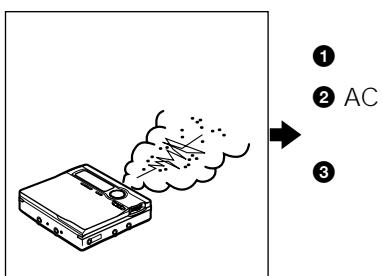
Warning
Caution


Tel.03-5353-0336
Warning Caution 6 10 11
14 17 21
MDLP 25
28
29
29
30
31
33
34
35
37
39
41
42
LINE OUT 44
45
45
1 53
55
56
57
58
59
59
60
62
64
-AVLS 65
66
67
67
68
69
71
72
74
76
84
85
86
88
Operating Instructions
Operating Instructions 89
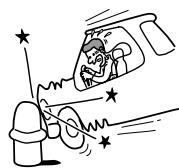
Prohibited
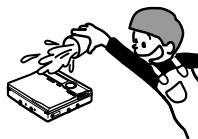
Prohibited
AC
100V
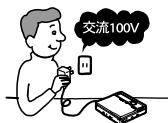
Mandatory
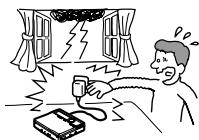
Do not touch
AC
Prohibited
Caution
Warning
Caution
AC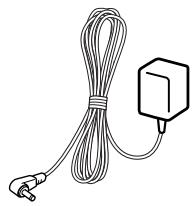
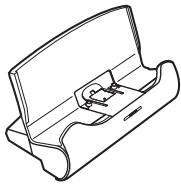
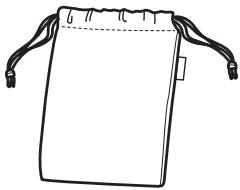
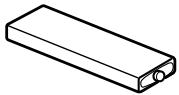
Battery NH-14WM(A) carrying case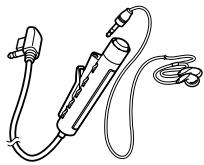
AC DC IN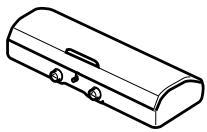
MD
Q&A 2
AC100 240V
AC
Danger
TMARK
END SEARCH
VOLUME /
GROUP/CANCEL
DC IN 3V
OPEN

11
(MENU /ENTER
LINE IN (OPT) 13 REC MIC (PLUG IN POWER) 15 HOLD 16 O/LINE OUT
1 6 2 7 3 8 LP2 /LP4 4 9 5 10
11
DISPLAY 2 PLAY MODE 3 RPT/ENT repeat / 8 VOL / enter 4 SOUND 9 5 10 HOLD 6 11 7

1 5 2 6 3 7 4 8
AC
1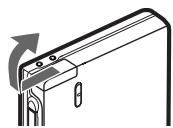
NH-14WM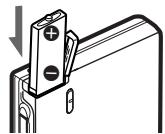
0 3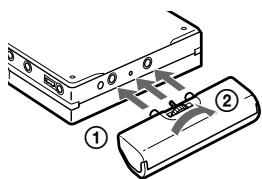
2
AC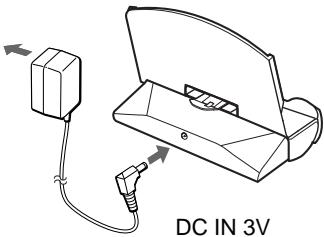
CHARGE 6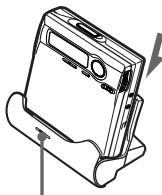
NH-14WM
CHARGE
AC AC
3
O/LINE OUT
AC
DC IN 3V
AC
Charging
CHG
3

NH-14WM
AC
AC
AC
CHG
CHG
| LP2 | LP4 | |
| 12 | 17 | 21 |
| 12 | 19 | 23 |
| 30 | 43 | 52 |
| LP2 | LP4 | |
| 30 | 38 | 42 |
| 44 | 52 | 62 |
| 79 | 95 | 110 |
68
CD
BS
87
AC
24
26
1
① OPEN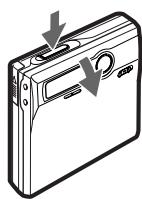
2
CD
MD
DVD



CD
AC
LINE IN (OPT)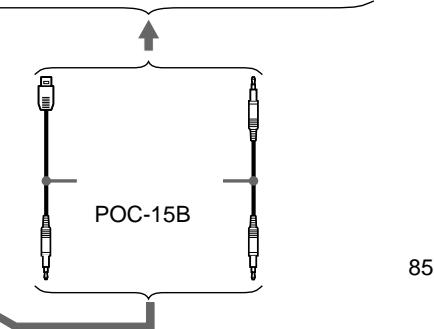
3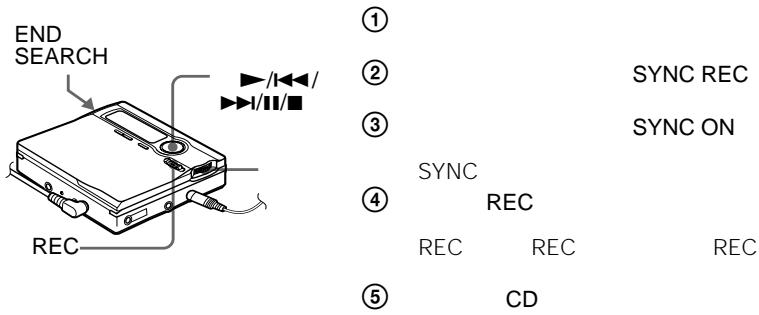
③ SYNC OFF
28
3

.
86
3
5
MDLP
25
12
LINE IN (OPT)
LINE IN
30
3/LINE OUT
VOLUME /
1 ① OPEN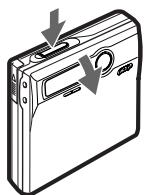
2 ①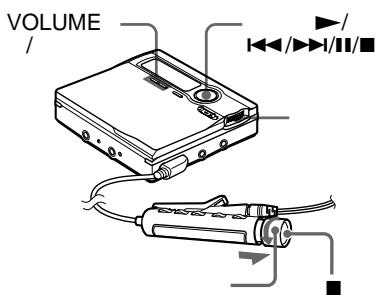

② VOLUME / VOL /
AC
10 3
1

CD
LINE IN
2
17
LINE IN
24
| LINE IN | ||||
| CD | DVD | LINE OUT | ||
| CD | ||||
| 17 | 24 | |||
| CD | ||||
| 1) | CD MD | 2 | 86 | |
| CD MD 86 | 2 | |||
| 3 | ||||
| REC | 30 | 30 | ||
| 1) | ( ) | 59 | ||
CD CD MD BSCS
(


MDLP
SP
2 (LP2) 4 (LP4)
MDLP
SP 2
MDLP MDLP
1
2
MODE
3
| 1) | 2) | ||
| SP | 80 | ||
| LP2 | LP2 | 160 | |
| LP4 | LP4 | 320 | |
| 4) | MONO | 160 | |
1)
LP2
2) 3) 80 4)
4REC
5

LP:
MDLP
LP:
MDLP
LP:
MDLP
LP:
LP:
1
2
OPTION
3
LP Stamp
4
Stamp
OFF
LP:
4 Stamp ON
ATRAC DSP TYPE-R 19
1
MDLP
DC IN 3V
AC
O/LINE OUT
- LP4
4
LP2
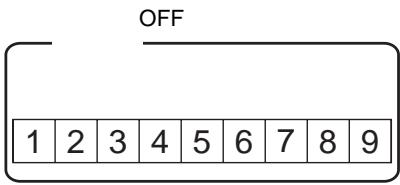
CD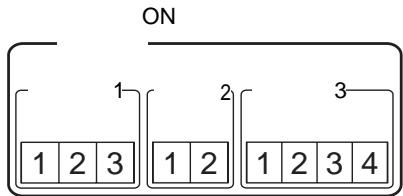
1 99
0; Favorites//1-5;Rock//6-9;Pops//
①
(2)
(3)
① Favorites ②1 5 Rock ③ 6 9 Pops
ON


1
Group--
·1
1GROUP 2
GROUP ON
ON
2 OFF
1 DISPLAY 2 EDIT
2 GROUP
3 GROUP ON
G ON
3 GROUP OFF OFF
ON 1 END SEARCH 2REC 3
1
.
.
ON
1GROUP
36
25


1
2
OPTION
3
REC-Posi
3REC
4
End
From
4
4 From Here

REC-Posi

From Here
END SEARCH
25
1

3
END SEARCH
.
ON
27
From End
LINE IN (OPT)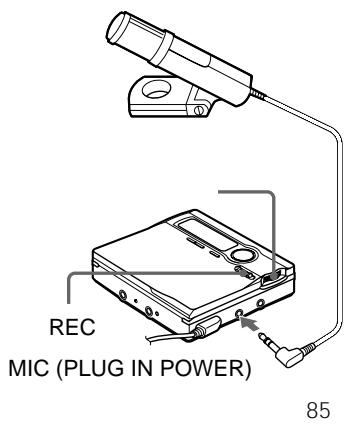
1 OFF 2REC
17
1 MIC SENS 2 3 SENS HIGH SENS LOW
SENS HIGH SENS LOW
1 2 TIME MARK OFF
3
TMARK
| OFF | — |
| 5min. ON | 5 |
| 10min. ON | 10 |
| 15min. ON | 15 |
3 OFF
REC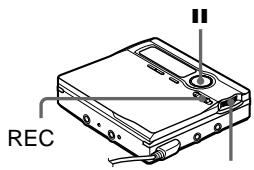
11
REC

RecVolume
ManualREC

4 Auto REC

③ SYNC OFF
20
SYNC ON
(3)
1
2
DISPLAY
3
LapTime

RecRemain

GP Remain

AllRemain

Clock

ON/OFF
4 A 3 3 LapTime A B C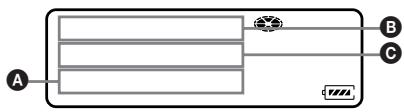
— (LapTime)
RecRemain
GP Remain
AllRemain
Clock
ON/OFF
1DISPLAY D/E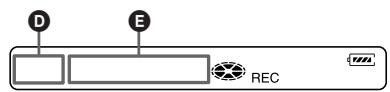
ON/OFF

1 2 3
SET
OPTION
CLOCK
4
5
4
0

1 2 3 1
DISPLAY
Clock
DISPLAY
24
TMARK
12
3
3




Index
1
- (Index) (Time)
1 2
1 DISPLAY 2 SEARCH

311
•
Time
1 2 311 1 2 31
26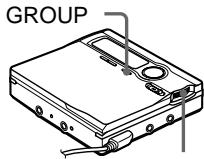
1
2GROUP 2
ON
36
1 2DISPLAY 2 3 GROUP 4 GROUP ON
ON
ON
Group--
1
ON/OFF
ON OFF
ON 1
OFF 1
37
OFF
64
OFF
GROUP 2
4 GROUP OFF
1 GROUP 10 ON
25 1

1 PLAYMODE 25

1
PGM
1 2 PLAY MODE
1 1 Track nuffle
3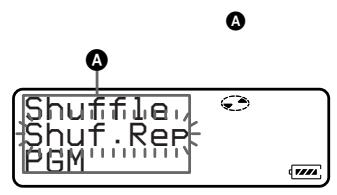
B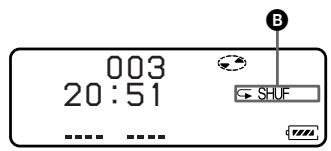
A/B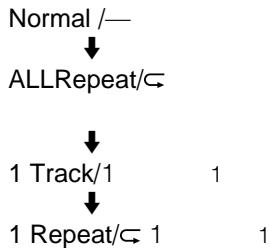

Shuffle/SHUF

Shuf. Rep/SHUF

PGM/PGM
1
PGMRepat/PGM
PLAYMODE
103
13:52

S
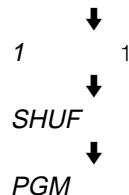
2
2
RPT/ENT C
1
3
PGM
002<PGM01
00:00
PGM
3 2
4
2
1
1 PGM PLAYMODE 2 RPT/ENT

3 2 4 RPT/ENT 2


64 ON
35

2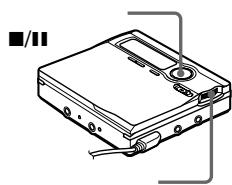
- SOUND1
Bass
1 Treble
±0
- SOUND2
Bass
3 Treble ±0
1
2
3
1 SOUND 2
SOUND
SOUND
1 SOUND
SOUND 1
SOUND 2
1 2 3
SOUND 2
T Treble B Bass
4
T B
5
T
B
T B
- SOUND 1 SOUND 2
1
6

5 T B
1
SOUND
SOUND 1 SOUND 2

2 SOUND 2
B Bass
SOUND 2
T Treble
3 B T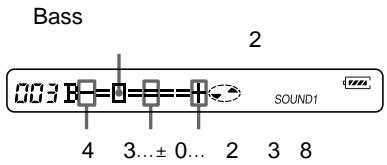
B T
23 SOUND 2
- SOUND 1
SOUND 2
23 SOUND
3 SOUND OFF
1
4
5
64
- /LINE OUT AUDIO OUT LINE OUT
O/LINE OUT
22
HeadPhone
7 80% 110% 5%
1 DISPLAY 2 2 SPEED
3 4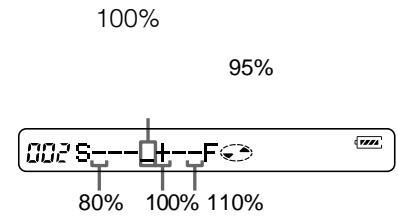

3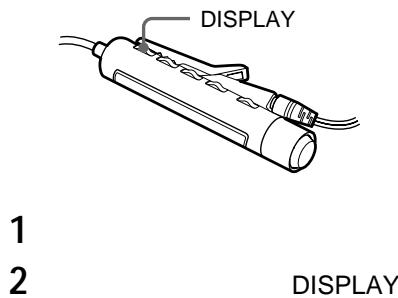
1 2
64
ON/OFF
4

3
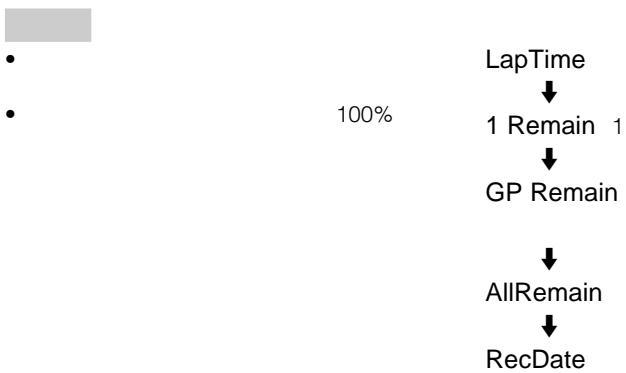
3 LapTime
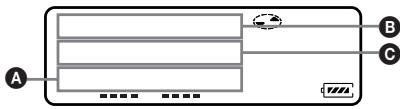
(A) B
C
— (LapTime)
1 Remain
1
GP Remain
AllRemain
RecDate
ON/OFF
1
DISPLAY
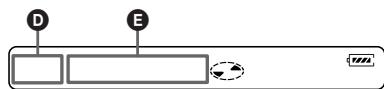
D/E
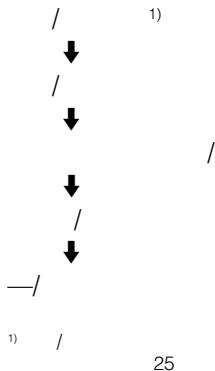
ON/OFF

31
LINE OUT
OUT
O/LINE

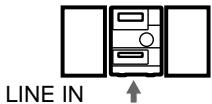
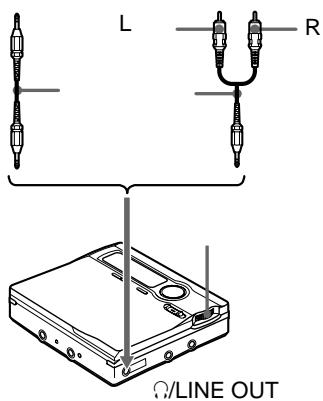
O/LINE OUT
O/LINE OUT AUDIO
OUT
1
2 AUDIO OUT
3 LINE OUT
- /LINE OUT AUDIO OUT LINE OUT
OUT
3 LINE OUT AUDIO OUT HeadPhone

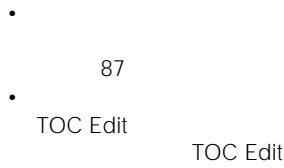


NAME FULL
49
MDLP LP: 25
1
.
ON 27
abc//def
//
27
2
3
4

Name

Name

Name

BCDEFGHI
abcdefghi
ON
EDIT

5 6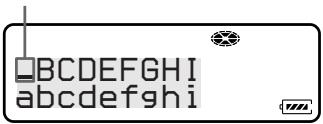






1 VOLUME +
VOLUME -
TMARK
CANCEL

3)






4
5



50
51
| 2 | |||||
| 47 48 | 2 4 | ||||
| 3 | |||||
| 1 | 48 | 5 7 | |||
| ON 27 | CANCEL CANCEL? | PushENTER | |||
| ON | 200 | ||||
| 2 | 27 | ||||
| 46 | 46 | 2 4 | |||
| 3 | 47 | 5 8 | |||
| 1 | |||||
| ON 27 | |||||
| ON 27 |
10
25
51
400
1
46 47
17
2 CANCEL
3END SAECH 2
Entry!

3
46
46
4
47
58
1
47 48
16
2
1 2
3
57
48
1
49
12
2
CANCEL
3 END SEARCH 2
CANCEL?
Push ENTER
1
49
12
DISPLAY 2
2
3 II
2
1
2
EDIT
3
Bank
Name
4
2
Entry!
1
46
14
1 DISPLAY 2
2END SEARCH
2
EDIT
3
Name Bank
4
13/14
2
3
1
1
2
EDIT
3
BankErase
4
Erase!
56 58
ON OFF
1
DISPLAY 2
2
EDIT
BankErase
3

4

ON
1
OFF 1
ON
CANCEL
CANCEL?
Push ENTER

13 1

1
DISPLAY 2

1324357489
ON
1 45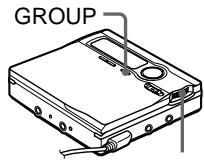
1 GROUP 2 ON 2 3 4
EDIT

Set
STR
6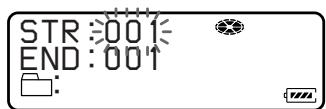
5
ON
7
46 47
47
1 DISPLAY 2
2
GROUP
3
GROUP ON
4
DISPLAY 2
5
EDIT
6
GP Set
7
8
9
57
48
5 6 5
6
:Release
Release? Push ENTER
7
GROUP 2 ON
2
36
3
4
5
EDIT
1 DISPLAY 2 2 GROUP 3 GROUP ON 4 36 5 6 DISPLAY 2 7 EDIT 8 GPRelase
Release? PushENTER
9
CANCEL DISPLAY 2


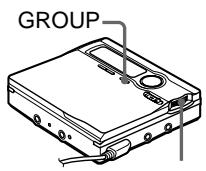
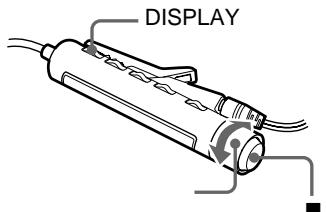
1GROUP 2 ON
2
3
1
4

Move
5


6


1
DISPLAY 2
2
GROUP
3
GROUP ON
4

4 DISPLAY 2
5
EDIT

1
6

Move
7

8

CANCEL
DISPLAY 2
5
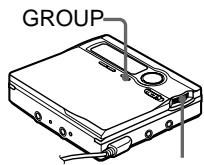
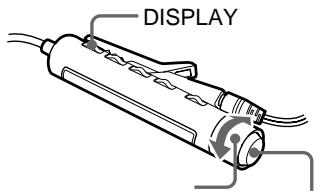
GROUP
2 ON
2 3 4
Move


1 DISPLAY 2
2
3
4 DISPLAY 2
5
6
7
CANCEL
DISPLAY 2
GROUP
GROUP ON
EDIT
GP Move
LINE IN
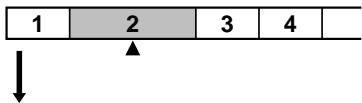
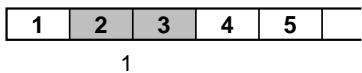
1 T MARK MARK ON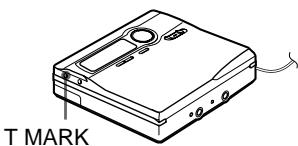
34 T MARK
29
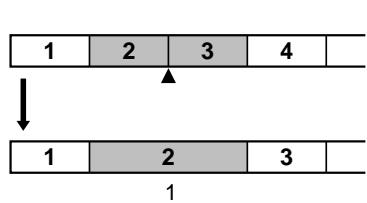
1 2 00:00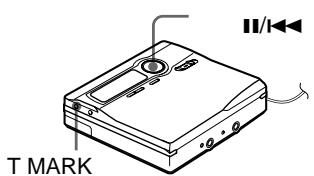
2 3 MARK 2 3T MARK MARK OFF
2 1
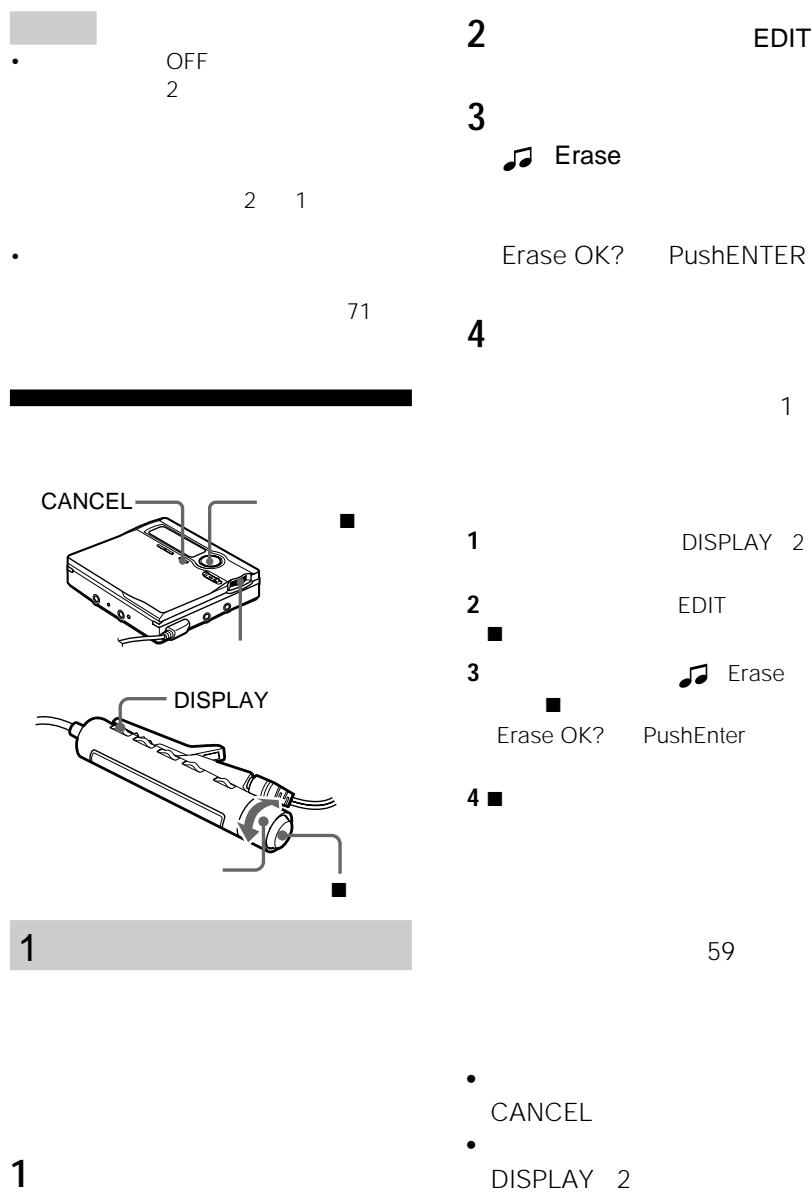
1
2
3
4
5

Erase
AllErase?
PushENTER
6
TOC Edit
BLANK DISC
00:00
CANCEL
1GROUP 2
ON
2
36
3
4
5
EDIT
6

Erase
GP Erase? Push ENTER
7
CANCEL
3
1 99
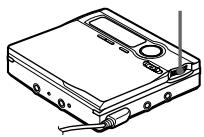
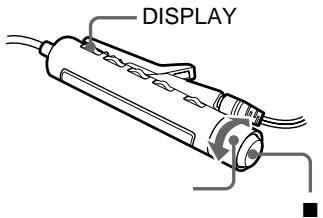
1
2
3
(·)
M-TIMER
ON
4
3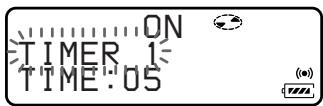
| TIMER 1 | 9 |
| TIMER 2 | Over the rainbow |
| TIMER 3 |
5
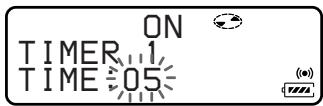
TIME:01 TIME:99 1 99 1
6
1
DISPLAY 2
2
M-TIMER
3

4 4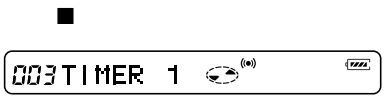
5
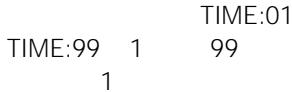
3 OFF
5
6
3
4
CANCEL
DISPLAY 2
•
CANCEL
DISPLAY 2
20 20
4 AVLS ON
AVLS
—AVLS
1 DISPLAY 2 OPTION 3 AVLS 4 AVLS ON
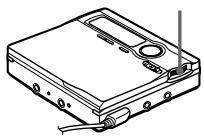
4 AVLS OFF
1 OPTION 3 AVLS
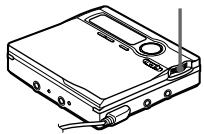
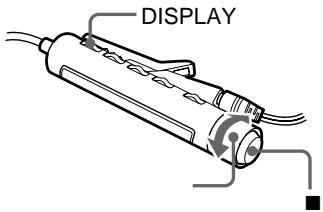
1 DISPLAY 2 OPTION
3 BEEP
4 BEEP OFF
5 4 BEEP ON
1 2 OPTION 3 BEEP 4 MAIN
UNIT REMOTE
MAIN UNIT REMOTE
5 BEEP
OFF
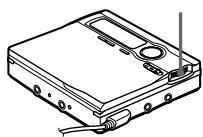
1 2 3
CONTRAST
4
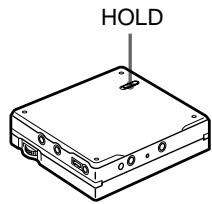
HOLD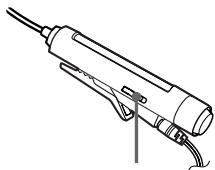
1 HOLD
HOLD
HOLD
HOLD

| LP2 | LP4 | |
| 30 | 38 | 42 |
| 44 | 52 | 62 |
| 79 | 95 | 110 |


| (JEITA1) | |||
| LP2 | LP4 | ||
| 2) | 12 | 17 | 21 |
| 12 | 19 | 23 | |
| 3) | 30 | 43 | 52 |
32 kHz/44.1 kHz/48 kHz
ATRAC
ATRAC3 — LP2/LP4
EFM
20 20,000 Hz±3 dB
1)
MIC
LINE IN
0.25mV
49mV
NH-14WM(A) 1.2 V, 1350 mAh
(MIN) Ni-MH 1
3 1
AC
DC 3V,
AC 100V, 50/60Hz
AC 100~240V, 50/60Hz
68
78.9 × 72.0 × 17.1 mm
/ /
3)
80.0 × 75.5 × 20.0 mm
/ /
108g
135g
1)
2)
3) JEITA
LINE OUT
| NH-14WM | NH-14WM | |
| BC-9HM | BC-9HM | |
| POC-5AB1)POC-10AB1)POC-15AB1)POC-5B2)POC-10B2)POC-15B2) | POC-15B2)POC-15AB1) | |
| ECM-717ECMMS907ECM-MS957 | ECM-717ECM-MS907ECM-MS957 | |
| 3) | MDR-EX70SLMDR-E888SP | MDR-EX70LPMDR-Q33LPMDR-A110LP |
| SRS-Z500SRS-Z750SRS-Z1000 | SRS-Z500 | |
| ES | MDW |
G136 MD CD
RM-MC11EL
MD
RM-MC12ELK
Looking at the controls
The numbers are keyed to the illustrations in the Japanese text (pages 11 to 13).
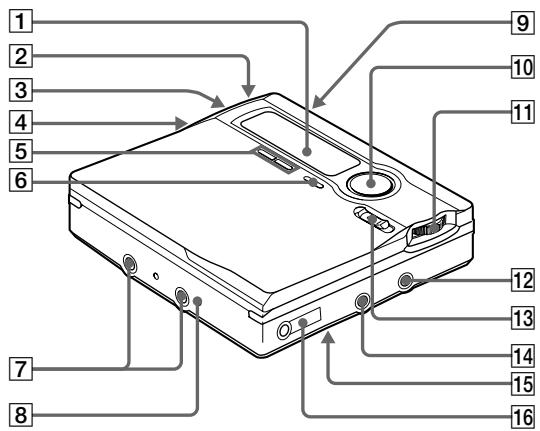
The recorder
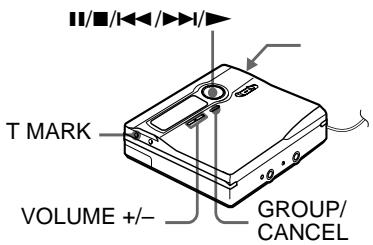
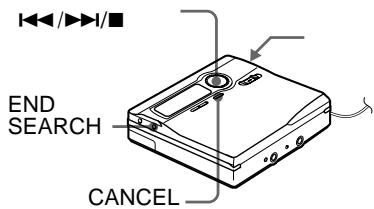
1 Display window 2 T MARK button 3 Battery compartment 4 END SEARCH button VOLUME + / - buttons
- The VOLUME + button has a tactile dot.
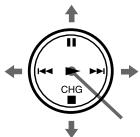
6 Terminals for attaching dry battery case 7 DC IN 3V jack GROUP/CANCEL button 9 OPEN button 10 5-way control key
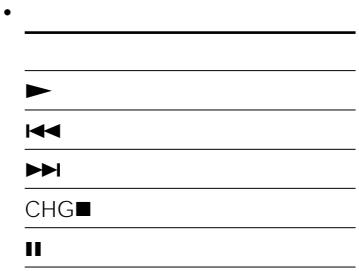
- For basic operations
Press ▶* to play/enter.
- The ▶ button has a tactile dot.
Press ▼▼ / ▲▲ to rewind/fast forward.
Press to pause.
Press CHG to stop/charge.
- For moving the cursor and entering selected items (during text entry and other settings).
11 Jog dial (MENU/ENTER) Press to enter the menu, turn to select, and then press to enter. LINE IN (OPT) jack MIC (PLUG IN POWER) jack There is a tactile dot beside the MIC (PLUG IN POWER) jack. 14 REC (record) switch 15 HOLD switch (at the rear) 16 ∩ LINE OUT jack
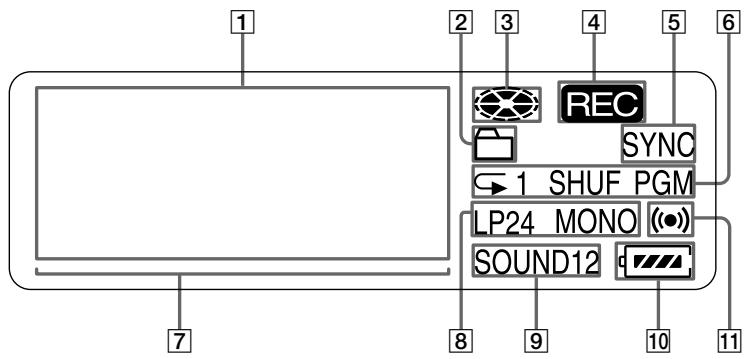
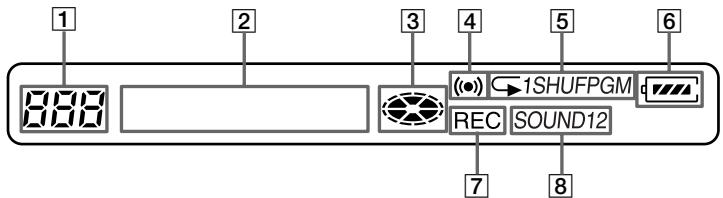
The display window of the recorder
1 Character information display Displays the track, group, or disc name, date, error messages, track numbers, etc. Names appear only with MDs that have been labeled. 2 Group indication 3 Disc indication
Shows that the disc is rotating for recording, playing or editing an MD.
4 REC indication Lights up while recording. Flashes when standing by for recording. SYNC (synchro-recording) indication Lights up while synchro-recording. 6 Play mode indication Shows the play mode of the MD. Level meter Shows the level of the MD being played. 8 LP2 (LP2 stereo), LP4 (LP4 stereo), MONO (monaural) indication Sound indication Lights up when Digital Sound Preset is on. 10 Battery level indication Shows approximate battery condition. While charging the rechargeable battery, this indication shows the charging condition. 11 Melody timer indication
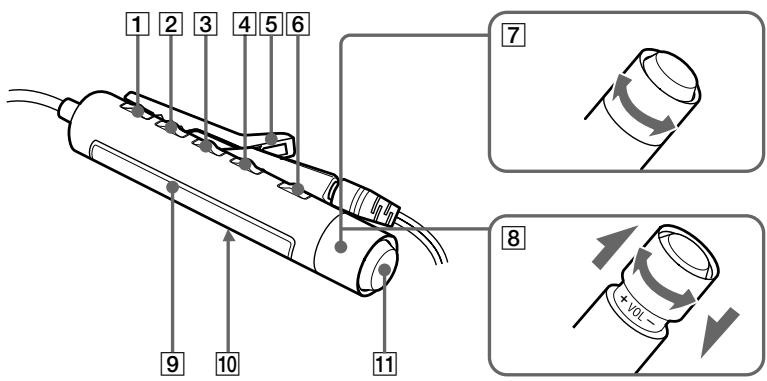
The headphones/earphones with a remote control
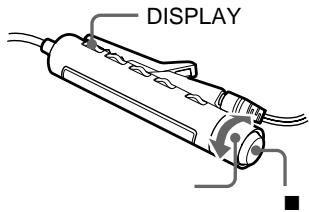
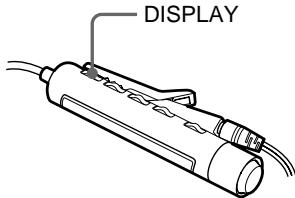
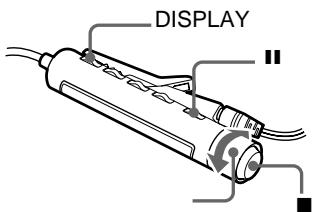
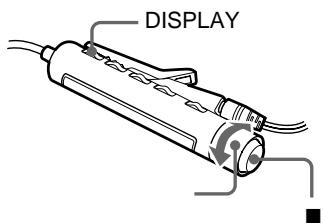
1 DISPLAY button 2 PLAY MODE button RPT/ENT (repeat/enter) button 4 SOUND button 5 II (pause) button 6 (stop/enter) button 7 Clip 8 Control (I<1/>l)
▶▶▶ : play, AMS, FF
REW
Turn or turn and hold to play, fast forward, rewind, etc.
9 Control (VOL +/-) Pull and turn to adjust the volume. 10 Display window 11 HOLD switch
The display window of the remote control
1 Disc indication 2 Track number display 3 Character information display 4 Play mode indication 5 SOUND indication 6 Battery level indication 7 REC indication 8 Group indication 9 Melody timer indication
List of menus
Menu functions
To use menu items on the recorder, press the jog dial to enter the menu, turn the dial to select the item, and then press the dial again to confirm the menu.
To use menu items on the remote control, press DISPLAY for 2 seconds or more, turn the control repeatedly to select the item, and then press to confirm the menu.
| menu of the recorder/the remote control | functions |
| EDIT/EDIT | Selecting editing operations (labeling tracks, groups, or discs, erasing tracks, groups, or discs, etc.) (pages 106 to 114). |
| DISPLAY/— | Displaying elapsed playing time, remaining playing time, etc. |
| PLAY MODE/— | Selecting the play mode (repeat play, shuffle play, etc.) (page 102). |
| RecVolume/— | Selecting the automatic or manual recording level adjustment (page 99). |
| REC MODE/— | Selecting the recording mode (SP stereo, LP2 stereo, LP4 stereo, or monaural) (page 96). |
| M-TIMER/M-TIMER | Setting the alarm (Melody timer) (page 114). |
| AUDIO OUT/— | Selecting Ω/LINE OUT jack output (page 104). |
| SOUND/— | Selecting "SOUND1", "SOUND2," or "SOUND OFF" (Digital Sound Preset) (page 103). |
| -/SPEED | Changing the playback speed during play (page 104). |
| -/GROUP | Turning the group function on and off (page 97). |
| PERSONAL/PERSONAL | Entering or erasing the disc information in the Personal Disc Memory (page 115). |
| SYNC REC/— | Selecting "SYNC ON" or "SYNC OFF" when synchro-recording (page 92). |
| TIME MARK/- — | Selecting the Auto Time Stamp setting (page 98). |
| MIC SENS/— | Selecting the microphone sensitivity (page 98). |
| -/SEARCH | Selecting the search mode (Index search/Time search) (page 100). |
| OPTION/ OPTION | • AVLS (Automatic Volume Limiter System) Selecting “AVLS ON” or “AVLS OFF”. |
| • BEEP Selecting “BEEP ON” or “BEEP OFF” for both “MAIN UNIT” or “REMOTE” for the recorder (page 116). Selecting “BEEP ON” or “BEEP OFF” for the remote control. | |
| OPTION/— | • REC-Posi Selecting the start point when recording (page 97). |
| • LP Stamp Selecting “Stamp ON” or “Stamp OFF” (page 96). | |
| • CONTRAST Adjusting the contrast of the display. | |
| • CLOCK Setting the clock (page 99). |
To check the menus and menu items that can be selected at each menu level, see the following pages in Japanese text.
Menus while the recorder is:
- stopped, see pages 78 and 79. —playing, see page 80. recording, see page 81.
Menus while the remote control is:
— stopped, see page 82. — playing or recording, see page 83.
Getting started!
See the illustrations in Japanese text (pages 14 and 15).
Charge the rechargeable battery before using. Even if the rechargeable battery is not charged, you can use the recorder as long as the AC power adaptor is connected.
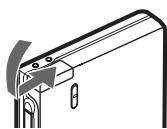
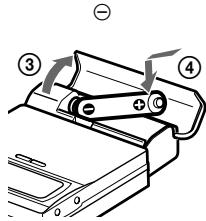
1 Insert the nickel metal hydride rechargeable battery (NH-14WM) into the recorder with the minus end first. To use the recorder with an alkaline dry battery, insert the dry battery into the dry battery case and attach it to the recorder. 2 Charging the rechargeable battery.
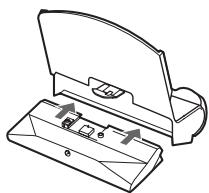
① Assemble the battery charging stand. Make sure all the parts of the battery charging stand are firmly attached. ② Connect the AC power adaptor to the battery charging stand and the AC adaptor to a wall outlet. ③ Place the recorder on the battery charging stand.
Verify that the CHARGE lamp lights up. Full charging takes about six hours. When it is completed, the charge lamp goes off.
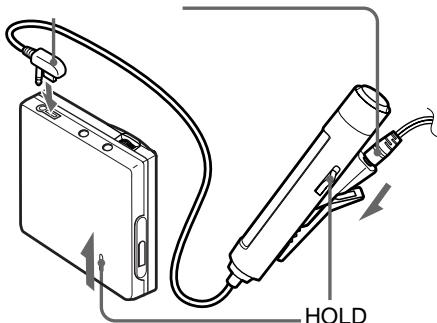
Do not operate the recorder when you place it on the battery charging stand or during the charging. If you do so, it may cause the recorder malfunction or prevent the battery from charging. 3 Connect headphones/earphones with the remote control to the recorder and slide HOLD to unlock the control.
For models supplied with the AC plug adaptor
If the AC power adaptor does not fit the wall outlet, use the AC plug adaptor.
Notes
- The supplied battery charging stand can be used only with this recorder. Any other models cannot be charged.
- Do not use the supplied battery charging stand to charge any other battery besides the supplied one or the one designated for it (NH-14WM).
- Though the battery charging stand and the battery may become hot during the charging procedure, this poses no danger.
- Be sure to use the supplied AC power adaptor.
- If you are recharging the battery for the first time or after a long period of disuse, the battery may not charge up to its rated capacity. This is a normal characteristic. After you use and recharge the battery a few times, it will return to its normal charge capacity.
- When the battery life of a fully charged rechargeable battery becomes about half the normal life, replace it.
- If the recorder will not be used for a long period of time, disconnect the AC power adaptor from a wall outlet and remove the recorder from the battery charging stand.
- Please note the following points when charging the battery directly with the AC power adaptor.
- If you press CHG immediately after charging has completed, charging will begin again. If this happens, press CHG again to stop the charging operation since the battery is already fully charged.
- Charging stops when you try to operate the recorder during charging.
Notes on dry battery
Incorrect battery usage may lead to leakage of battery fluid or bursting batteries. To prevent such accidents, observe the following precautions:
- Insert the + and - poles of the battery correctly.
- Do not try to recharge the battery.
- When the recorder is not be used for a long time, be sure to remove the battery.
- If a battery leak should develop, carefully and thoroughly wipe away battery fluid from the battery compartment before inserting new ones.
Recording an MD right away! (Synchro-recording)
See the illustrations in Japanese text (pages 17 and 18).
This section explains the basic procedure for making digital recordings using an optical cable connected to a CD player, BS recorder or other digital equipment. The recorder starts and stops recording in sync with the source sound. Track marks are added whenever they appear in the sound source. It is recommended to use the AC power adaptor when recording.
To record from a cassette deck, radio, etc. -> "Recording in analog (Analog Recording)" (page 95)
To record using a group mode, see "Recording tracks using the group function (Group Mode Recording)" (page 96).
1. Insert an MD.
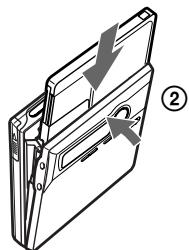
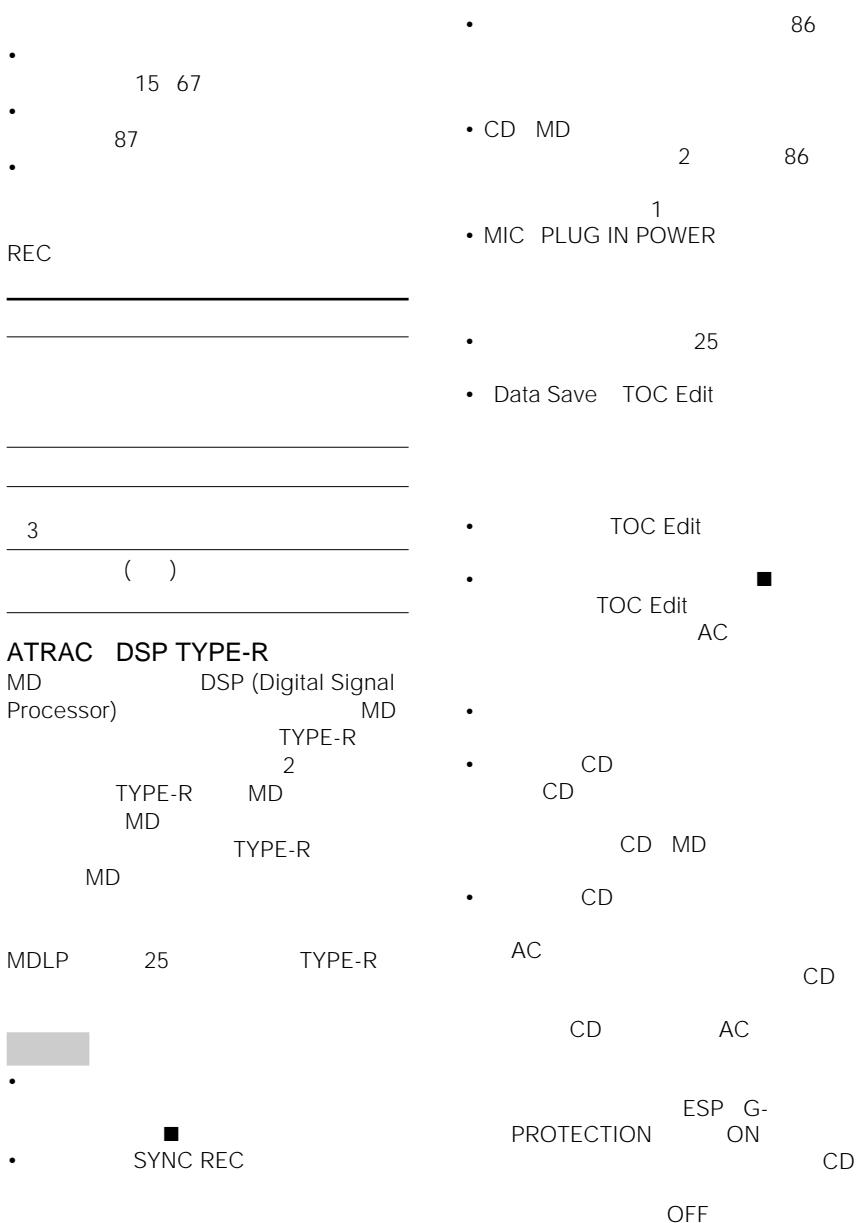
1. Press OPEN to open the lid. 2. Insert an MD with the label side facing front, and press the lid to close. Insert a recordable MD when recording.
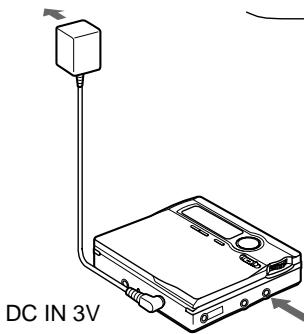
2. Make connections. (Insert the cables firmly and completely into the appropriate jacks.)
1. Connect the LINE IN (OPT) jack of the recorder to the digital (optical) out jacks of the source with an optical cable. The recorder switches to digital input automatically. 2. Connect the DC IN 3V jack of the recorder to a wall outlet with the AC power adaptor.
When the recorder has different sound sources connected at the same time, the recorder switches to the digital, microphone, or analog input in this order of priority.
3. Record an MD.
1. While the recorder is stopped, press the jog dial. 2. Turn the jog dial until "SYNC REC" flashes in the display, and then press to enter. 3. Turn the jog dial until "SYNC ON" flashes in the display, and then press to enter. To cancel synchro-recording, select "SYNC OFF" in this step. 4. Press and slide REC to the right. "REC" and the REC lamp on the REC switch light up and recording starts. 5. Play the source you want to record.
To stop recording, press
After you press to stop, the recorder will automatically turn off in about 10 seconds (when using batteries) or about 3 minutes (when using AC power adaptor).
Note
If you record on a previously recorded disc, the recorder is factory set to overwrite the entire contents of the disc. If you want the recording to start after the existing contents, do the procedure "Recording without overwriting existing material" (page 97) before step 3, "Record an MD" (this page).
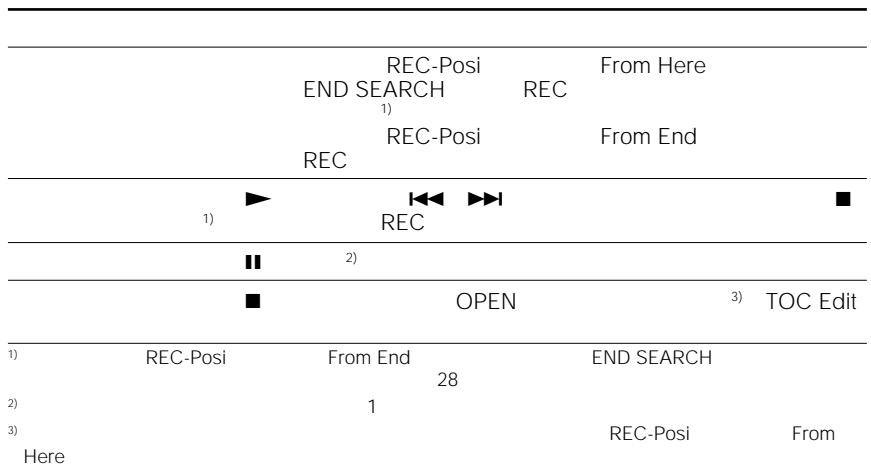
| To | Do this |
| Record from the end of the current contents1) | If “REC-Posi” is set to “From Here”, press END SEARCH, and then press and slide REC to the right. If “REC-Posi” is set to “From End”, press and slide REC to the right. |
| Record over partway through the previous recording | Press ▲, ▲, or ▲ to find the start point of recording and press ▲ to stop. Then press and slide REC to the right. |
| Pause | Press ▲.2) Press ▲ again to resume recording. |
| Remove the MD | Press ▲, then press OPEN to open the lid.3) |
1) If "REC-Posi" is set to "From End", recording operations will always start from the end of the previously recorded material without pressing END SEARCH.
2) A new track mark is added at the point when you press I again to resume recording while pausing; thus the remainder of the track will be counted as a new track. 3) If you open the lid while "REC-Posi" is set to "From Here", recording will begin from the top of the disc the next time you record. Check the point to start recording on the display.
If the recording does not start
- Make sure the recorder is not locked.
- Make sure the MD is not record-protected.
- Premastered MDs cannot be recorded over.
About the DSP TYPE-R for ATRAC
"TYPE-R" is a high-level Sony specification used in the Digital Signal Processor (DSP), which is the heart of the MiniDisc sound. This technology gives the MiniDisc recorder twice the signal processing capability as previous MiniDisc Walkman models. MDs recorded with this specification, "TYPE-R", produce near-MiniDisc deck-quality sound on MD players that support the specification. Even on MD players that do not support the specification, it produces higher quality sound than MDs recorded on ordinary MD players. This function works only when recording or playing in normal stereo. "TYPE-R" does not work when the recorder is in MDLP mode.
Notes
- The pause function cannot be turned on or off manually during synchro-recording. Press to stop recording.
- Do not switch the "SYNC REC" setting while recording. Recording may not be done properly.
- Even when there is no recorded sound on the sound source, there may be cases when recording does not pause automatically during synchro-recording due to the noise level emitted from the sound source.
- If a silent portion is encountered for approximately 2 seconds during synchrorecording from a sound source other than a CD or an MD, a new track mark is automatically added at the point where the silent portion ends.
- Synchro-recording cannot be done if the connecting cord is not an optical cable, or if the cable is connected to the MIC (PLUG IN POWER) jack.
- You cannot change the recording mode during recording.
- "Data Save" or "TOC Edit" flashes while data of the recording (the track's start and end points, etc.) is being recorded. Do not move or jog the recorder or disconnect the power source while the indication is flashing in the display.
- The lid does not open until "TOC Edit" disappears in the display.
- If the power supply is disrupted (i.e. the battery is removed or becomes exhausted or the AC power adaptor is disconnected) during a recording or editing operation, or while "TOC Edit" appears in the display, then it will not be possible to open the lid until power is restored.
- You can make a digital recording only from an optical type output.
- When recording from a portable CD player, set the CD player to pause, and then do the recording procedure on the recorder.
- Note the following when recording from a portable CD player:
Some portable CD players may not be capable of digital out unless powered by the AC power. If this is the case, connect the AC power adaptor to the portable CD player and use it on AC power as the power source. - On some portable CD players, optical output may not be possible when using an anti-skip function (e.g., ESP* or G-PROTECTION). If this is the case, turn off the anti-skip function.
- Electronic Shock Protection
Playing an MD right away!
See the illustrations in Japanese text (page 21).
If you want to use the rechargeable battery, be sure to recharge them before playing (page 91).
1 Insert an MD.
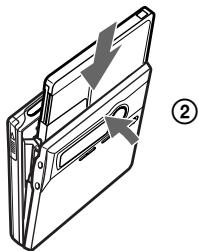
① Press OPEN to open the lid. ② Insert an MD with the label side facing front, and press the lid to close.
2 Start playing.
① Press on the recorder. Turn the control towards ▶▶▶ on the remote control.
A short beep sounds in the headphones/earphones.
Press VOLUME + / - on the recorder to adjust the volume. Pull and turn the control towards VOL + or towards VOL - on the remote control.
To stop play, press ■.
After you press to stop, the recorder will automatically turn off in about 10 seconds (when using batteries) or about 3 minutes (when using AC power adaptor).
Playback starts from the point you last stopped playing. To start playback from the beginning of the disc, press for 2 seconds or more on the recorder, or turn and hold the control towards for 2 seconds or more on the remote control.
| To | Do this |
| Select the track directly viewing the track number or name. | Turn the jog dial and press to enter. |
| Find the beginning of the current track1) | Press▶. Turn the control towards▶ on the remote control. |
| Find the beginning of the next track2) | Press▶. Turn the control towards▶ on the remote control. |
| Go backwards while playing | Keep pressing▶. Turn and hold the control towards▶ on the remote control. |
| Go forward while playing | Keep pressing▶▶. Turn and hold the control towards▶▶ on the remote control. |
| Pause | Press !. Press ! on the remote control. Press ! again to resume play. |
| Remove the MD | Press ■. Press ■ on the remote control. Then press OPEN to open the lid.3) |
1) If you press twice continuously while playing the first track of the disc, the recorder goes to the beginning of the last track on the disc. 2) If you press ▶ during the last track of the disc, the recorder goes to the beginning of the first track on the disc. 3) Once you open the lid, the point to start play will change to the beginning of the first track (except when the disc information has been stored in the Personal Disc Memory).
If the playback does not start
Make sure the recorder is not locked. If it is locked, slide the HOLD switch in the opposite direction of the arrow.
Suppressing the skips of the sound (G-PROTECTION)
The G-PROTECTION function was developed to provide a higher level of shock resistance than that of existing players in order to allow the recorder to be used while jogging.
Note
The playback sound may skip if:
- the recorder receives stronger continuous shock.
- a dirty or scratched MiniDisc is played.
When using the headphones/earphones connect them directly to the recorder
1 Press the jog dial 2 Turn the dial until "AUDIO OUT" flashes in the display, and then press to enter. 3 Turn the jog dial until "HeadPhone" appears in the display, and then press to enter.
Various ways of recording
Connecting digital (optical) and analog (line) inputs
The recorder selects digital or analog input according to how the sound source is hooked up.
| Input Difference | Digital (optical) input | Analog (line) input |
| Connectable source | Equipment with an digital (optical) output jack | Equipment with an analog (line) output jack |
| Usable cord | Optical cable (with an optical or an optical-mini plug) | Line cable (with 2 phono plugs or a stereo-mini plug) |
| Signal from the source | Digital | Analog Even when a digital source (such as a CD) is connected, the signal sent to the recorder is analog. |
| Track marks1) | Marked (copied) automatically •at the same positions as the source2). •after more than 2 seconds of blank or low-level segment3). •when recording is paused while synchro-recording4). | Marked •after more than 2 seconds of blank or low level segment. •while the recorder is paused while recording. •automatically at specified intervals when the Auto time stamp is on. You can erase unnecessary marks after recording. |
| Recorded sound level | Same as the source. You can also adjust it manually (Digital REC level control). | Adjusted automatically. You can also adjust it manually. |
1) You can erase unnecessary marks after recording ("Erasing a track mark", page 113) 2) When the sound source is a CD or an MD. 3) With a sound source other than a CD or an MD. 4) The recorder pauses automatically when it encounters a section with no audio signal for 3 seconds or more.
Note
Track marks may be copied incorrectly:
- when you record from some CD players or multi disc players using digital (optical) input.
- when the source is in shuffle or program play mode while recording using digital (optical) input. In this case, play the source in normal play mode.
- when programs with audio that is digitally broadcast (e.g., digital TV) are recorded through the digital (optical) input.
Recording in analog (Analog Recording)
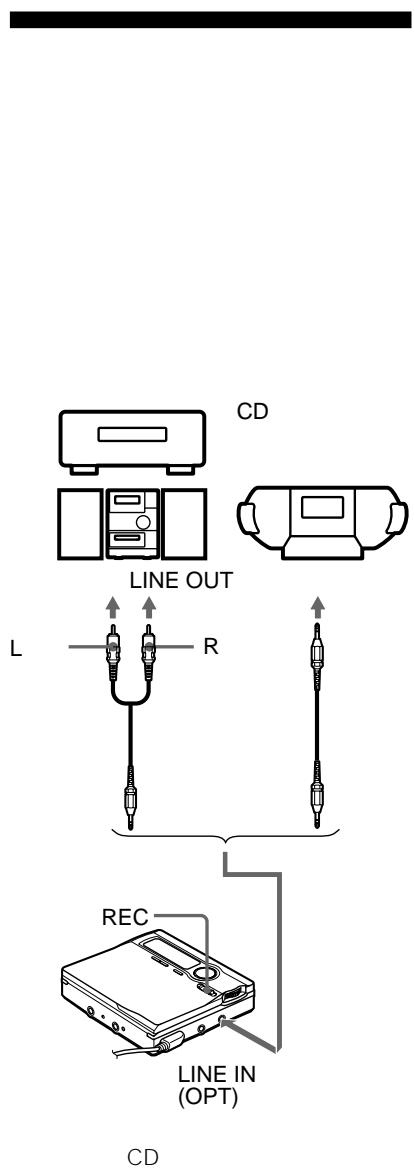
See the illustration in Japanese text (page 24).
The sound will be sent from the connected equipment as analog signal but will be recorded digitally on the disc.
1 Connect the LINE IN (OPT) jack of the recorder to the line output jack of the source with an line cable (not supplied). The recorder switches to analog input automatically. 2 Connect the power source. To use on AC power, see "Recording an MD right away!". 3 Press and slide REC to the right. "REC" and the REC lamp lights up and recording starts. 4 Play the sound source.
Note
If you temporarily stop a recording operation by pressing ■, a new track mark will be added at that point when you press ■ again to resume recording. The recording resumes on a new track.
Long-time recording (MDLP)
See the illustration in Japanese text (page 25). Select each recording mode according to the recording time that you want.
Stereo recording is possible at 2 times (LP2) or 4 times (LP4) the normal recording time (MDLP mode). MDs recorded in monaural or MDLP mode can be played back only on MD components with monaural or MDLP mode.
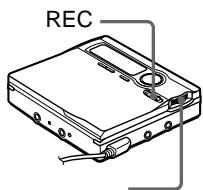
1 Press the jog dial. 2 Turn the jog dial until "REC MODE" flashes in the display, and then press to enter. 3 Turn the jog dial to select the desired recording mode. The recording mode can be selected from "none" (standard stereo mode), "LP2" (2x normal recording mode), "LP4" (4x normal recording mode), and "MONO" (monaural). 4 Press and slide REC to the right. Recording starts. 5 Start the sound source.
When you do not want "LP:" added at the beginning of the track
When recording in MDLP mode, this recorder adds "LP:" at the front of every track name automatically. "LP:" appears when you try to play or edit these tracks on a recorder or player that does not support MDLP mode (but not on a recorder or player that supports MDLP mode). If you change the recorder setting so that "LP:" is not added, you'll be able to enter longer track names by using the entire text string.
1 While the recorder is stopped, press the jog dial. 2 Turn the jog dial until "OPTION" flashes in the display, and then press to enter. 3 Turn the jog dial until "LP Stamp" flashes in the display, and then press to enter. 4 Turn the jog dial until "Stamp OFF" flashes in the display, and then press to enter.
If you want "LP:" added, select "Stamp ON" in this step, and then press the jog dial.
Notes
- It is recommended that you use the AC power adaptor for MDLP recordings.
- During monaural recording of a stereo sound source connected through the digital (optical) input jack, you can still monitor the recorded sound in stereo by using headphones/earphones connected the /LINE OUT jack.
- When you record in LP4 stereo mode, momentary noise may be produced on very rare occasions with certain sound sources. This is because of the special digital audio compression technology that enables a recording time 4 times longer than normal. If noise is produced, it is recommended that you record in normal stereo or LP2 stereo mode to obtain better sound quality.
Recording tracks using the group function (Group Mode Recording)
See the illustrations in Japanese text (pages 26 and 27).
What is the group function (group mode)?
It is a function that allows you to separate tracks on a disc into different groups for playback, recording, and editing. It is convenient for managing multiple CD albums recorded in MDLP (LP2 stereo/LP4 stereo) mode onto a single MD. You can create a maximum of 99 groups on a disc.
How is group information recorded? When recording in group mode, the group information is written to the disc name recording area automatically.
Therefore, the character string written in the disc name recording area is displayed in its entirety as the disc name if you load an MD recorded in group mode into a system that does not support group mode, or if you try to edit the contents of a disc on this recorder with the group mode turned off.
You can change the character string by performing the procedure of "Relabeling recordings" in "Labeling/relabeling recordings" (page 105). However, if you rewrite this character string by mistake, you may be unable to use the group function of that MD.
Notes
- The group function setting is stored even if you eject the MD or turn off the recorder.
- In group mode, the recorder treats all tracks without group settings as belonging to the last group on the disc. The last group is indicated in the display window on the recorder as "Group --." Within a group, the tracks appear in their order on the disc, not their order within the group.
- Note that a group setting cannot be made if the total character count for the tracks, groups, and disc name on the disc exceeds the maximum number that can be input.
To activate the group mode
To record tracks in group mode, you must first turn the group mode on before the start of recording.
On the recorder
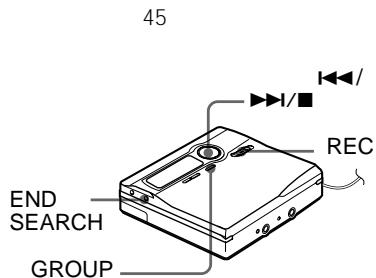
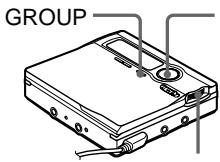
1 Press GROUP for 2 seconds or more. "G" and "GROUP ON" light up in the display and the group mode turns on. To cancel the group mode, press GROUP for 2 seconds or more.
On the remote control
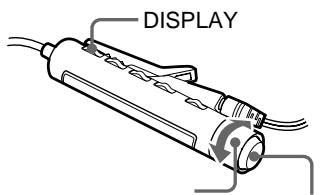
1 Press DISPLAY for 2 seconds or more. 2 Turn the control repeatedly until "GROUP" flashes in the display, and then press to enter. 3 Turn the control repeatedly until "GROUP ON" flashes in the display, and then press to enter. "G" lights up in the display and the group mode turns on. To cancel the group mode, select "GROUP OFF" in step 2.
Recording a track into a new group
- Turn the group mode on. 1 Press END SEARCH. 2 Press and slide REC to the right. 3 Play the source sound.
To stop recording, press
The material that was recorded up until was pressed is entered as a new group.
Recording a track into an existing group
- Insert a disc with group settings.
- Turn the group mode on.
1 Press GROUP slightly. " " flashes and you can select a group directly (group skip mode). 2 Within 5 seconds, press or repeatedly until the group you want the track to belong to appears. 3 Press and slide REC to the right. 4 Play the source sound. Newly recorded track is added after the current contents.
Notes
- Even if "REC-Posi" is set to "From Here", newly recorded tracks are inserted after the existing tracks in the specified group without recording over the current contents.
- Group skip mode turns off automatically in step 2 if nothing is done within 5 seconds. To continue the procedure, do step 1 again.
Recording without overwriting existing material
See the illustration in Japanese text (page 28).
If you wish to avoid overwriting the current contents of an MD, do the following procedure. All new material will then be recorded from the end of the current contents.
1 While the recorder is stopped, press the jog dial. 2 Turn the jog dial until "OPTION" flashes in the display, and then press to enter. 3 Turn the jog dial repeatedly until "REC-Posi" flashes in the display, and then press to enter. 4 Turn the jog dial repeatedly until "From End" flashes in the display, and then press to enter.
To start recording from the current point Select "From Here" in step 4.
Notes
- The setting will remain even after the power is turned off.
- If you start recording while the recorder is in play-pause, the recording will begin from the point at which it is paused even when the "REC-Posi" is set to "From End".
Recording from a microphone
See the illustration in Japanese text (page 29).
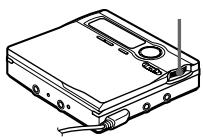
1 Connect a stereo microphone (ECM-717, ECM-MS907, ECM-MS957, etc., not supplied) to the MIC (PLUG IN POWER) jack. 2 Press and slide REC to the right.
To select microphone sensitivity
1 Press the jog dial while the recorder is stopped. 2 Turn the dial repeatedly until "MIC SENS" flashes in the display, and then press to enter. 3 Turn the jog dial repeatedly to select "SENS HIGH" (when recording a soft sound or a sound in the distance) or "SENS LOW" (when recording a loud sound or a sound at close range), and then press to enter.
Notes
- The recorder automatically switches input in the following order: optical input, microphone input, and analog input. You cannot record through the microphone while an optical cable is connected to the LINE IN (OPT) jack.
- The microphone may pick up the operating sound of the recorder itself. Use the microphone away from the recorder in such cases. Please note that the sound of recorder operations may be picked up if the microphone that you use has a short connector.
- Only the left-channel sound is recorded when a monaural microphone is used.
Adding track marks automatically at specified intervals (Auto Time Stamp)
See the illustration in Japanese text (page 29).
Use this feature to add track marks automatically at specified intervals when recording through the analog input connector or a microphone.
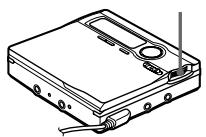
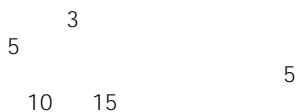
1 While the recorder is recording or in recording pause, press the jog dial. 2 Turn the jog dial repeatedly until "TIME MARK" flashes in the display, and then press to enter. 3 Turn the jog dial repeatedly until the desired time interval flashes in the display, and then press to enter. Select one of the following intervals: "OFF"
"5 min. ON" (track marks are added every 5 minutes.)
"10 min. ON" (track marks are added every 10 minutes)
"15 min. ON" (track marks are added every 15 minutes)
To cancel the setting, select "OFF" in this step.
Notes
Automatic track marking by Auto Time Stamp starts when you add a normal track mark to the disc (i.e., by pressing T MARK or II, etc.). - The setting will be lost when the recording is stopped.
Adjusting the recording level manually (Manual Recording)
See the illustrations in Japanese text (pages 30 and 31).
When you record, the sound level is adjusted automatically. If necessary, you can set the level manually during both analog and digital recording.
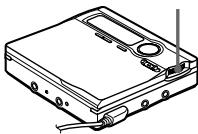
1 While holding down II, press and slide REC to the right.
The recorder stands by for recording.
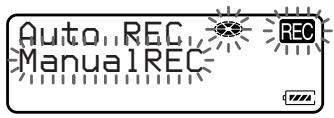
2 Press the jog dial. 3 Turn the jog dial until "RecVolume" flashes in the display, and then press to enter. 4 Turn the jog dial until "ManualREC" flashes in the display, and then press to enter.
To switch back to the automatic level adjustment, select "Auto REC" in this step.
5 Play the program source. 6 While observing the level meter in the display, adjust the recording level by turning the dial.
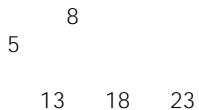
Set the level so that the meter segments light up between A (the fifth segment) and B (the ninth segment). If the level meter lights up to the right of B, reduce the input level.
The upper level meter shows the L channel input level and the middle meter shows the R channel input level. If your source is an externally connected component, be sure to cue the source to the beginning of the material to be recorded before you start playback.
7 Press again to start recording.
Notes
- If you press ■ during recording operation, the recorder will revert to automatic recording level adjustment mode the next time you start a recording operation.
- "RecVolume" cannot be selected in step 2 during synchro-recording. To set the recording level manually during synchro-recording, do the procedure below.
1 Do ① and ② of "Record and MD" (step 3 of "Recording an MD right away! (page 92)) and select "SYNC OFF" in ③. 2 Do steps 1 to 6 of manual recording procedure. Then do the procedure of "Record and MD" (step 3 of "Recording an MD right away! (page 92)) again.
Recording starts automatically whenever the source sound is played.
Setting the clock to stamp the recorded time
See the illustrations in Japanese text (page 33).
To stamp the date and time on the MD when you record, you first need to set the clock.
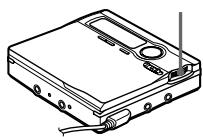
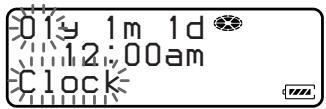
1 Press the jog dial while the recorder is stopped. 2 Turn the jog dial until "OPTION" flashes in the display, and then press to enter. 3 Turn the jog dial until "CLOCK SET" flashes in the display, and then press to enter.
The digits of the year flash.
4 Change the current year by turning the jog dial and press to enter. The digit of the month flash. 5 Repeat steps 4 to enter the current month, date, hour, and minute. When you press the jog dial to enter the minute, the clock starts operating.
If you make a mistake while setting the clock
Press to go back to a wrongly entered item, and then enter the correct value. You can skip a step by pressing ▸.
To display the current time on the recorder
1. When the recorder is not operating or while recording, press the jog dial. 2. Turn the dial until "DISPLAY" appears in the display, and then press to enter. 3. Turn the jog dial until "Clock" flashes in the display, and then press to enter. The current time appears in the display.
On the remote control
1. Press DISPLAY repeatedly until the current time appears in the display.
To display the time in the 24-hour system
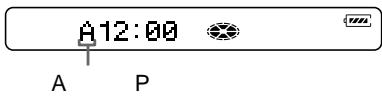
Press T MARK while setting the clock. To change the clock to the 12-hour system, press T MARK again.
To maintain the correct time
Once you set the clock, it will keep correct time as long as the recorder is connected to a power source, such as the rechargeable battery, alkaline dry battery, or AC power adaptor. However, if no power source is connected, the clock setting will change back to the factory setting after about 3 minutes. When changing the rechargeable battery or alkaline dry battery, make sure to do it within 3 minutes.
Notes
- Make sure the time is correctly set if you want the time stamp to be accurately recorded for an important recording.
- Under normal conditions, the clock may vary by about plus or minus 2 minutes per month.
Various ways of playback
Searching for a specific track or a position quickly (Quick Search)
See the illustrations in Japanese text (page 34).
You can perform two types of quick search.
- Index search — Searching quickly while monitoring track numbers or track names.
- Time search — Searching quickly while monitoring the elapsed time.
Selecting the search mode
The search mode can only be selected on the remote control while the recorder is stopped, playing, or in play-pause. The recorder is factory set to "Index".
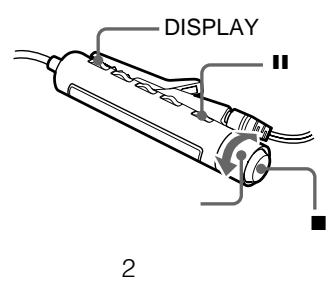
1 Press DISPLAY for 2 seconds or more. 2 Turn the control repeatedly until "SEARCH" flashes in the display, then press to enter. 3 Turn the control repeatedly until "Index" (index search) or "Time" (time search) flashes in the display, then press to enter.
Searching for a specific track while monitoring track numbers or track names (Index Search)
To perform an index search, set the search mode to "Index" in advance.
On the recorder
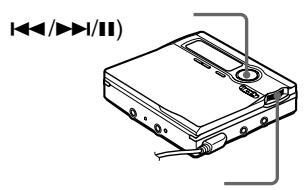
1 Turn the jog dial until the desired track appears in the display, then press the dial.
The selected track name appears in the display, and the recorder starts playing when the jog dial is pressed.
If the track has no name, the track number appears in the display.
On the remote control
1 Press while playing a disc. 2 Turn and hold the control until the desired track number or track name appears in the display. 3 Press to cancel the pause. Playback starts from the selected track.
Searching for a specific point while monitoring the elapsed time (Time Search)
To do a time search, set the search mode to "Time" in advance.
On the recorder
1 Press while playing a disc. 2 Keep pressing or until the desired point appears in the display. 3 Press to cancel the pause. Playback starts from the selected point.
On the remote control
1 Press while playing a disc. 2 Turn and hold the control until the desired point appears in the display. 3 Press to cancel the pause. Playback starts from the selected point.
Using the group function (Group Mode)
See the illustrations in Japanese text (pages 35 to 36).
The recorder can operate various playback with a disc which has group setting.
Listening to tracks in a specific group (Group Mode Playback)
- Insert a disc with group settings.
On the recorder
1 Start playback. 2 Press GROUP for 2 seconds or more to turn the group mode on. Playback stops at the end of the last track in the selected group. For details on selecting another group, see "Selecting and playing groups (Group Skip Mode)" (this page).
On the remote control
1 Start playback. 2 Press DISPLAY for 2 seconds or more. 3 Turn the control repeatedly until "GROUP" flashes in the display, and then press to enter. 4 Turn the control repeatedly until "GROUP ON" flashes in the display, and then press to turn the group mode on.
To turn off the group function
- On the recorder, press GROUP for 2 seconds or more again.
- On the remote control
Select "GROUP OFF" in step 4.
Note
In group mode, the recorder treats all tracks without group settings as belonging to the last group on the disc. The last group is indicated in the display window on the recorder as "Group - - ." Within a group, the tracks appear in their order on the disc, not their order within the group.
Selecting and playing groups (Group Skip Mode)
Operations are possible regardless of whether group mode is on or off. However, playback on the recorder will differ, depending on whether group mode is on or off.
- When group mode is on: Playback starts from the first track of the selected group and ends with the last track in the group.
- When group mode is off: Playback starts from the first track of the selected group and ends with the last track on the disc.
- The following procedure is used when group mode is on.
- Insert a disc with group settings.
On the recorder
1 Press GROUP slightly while playing. "□" flashes in the display and the group becomes selectable. 2 Within 5 seconds, turn the jog dial to select your desired group, and then press to enter. The recorder starts playing from the first track in the group.
On the remote control
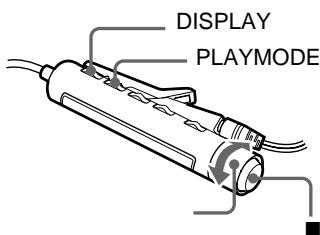
1 While the recorder is playing, press and hold PLAYMODE until "---" flashes in the display. The group skip mode turns on. 2 Within 5 seconds, turn the control repeatedly to select your desired group.
Note
If no operation is performed within 5 seconds after step 1, the group skip mode will be canceled and you will not be able to perform step 2 thereafter. To continue with step 1 at this point, repeat from the beginning of the procedure.
Changing a play mode
See the illustrations in Japanese text (pages 37 to 39).
Settings can be stored to the Personal Disc Memory.
Selecting a play mode
On the recorder
1 While the recorder is playing, press the jog dial. 2 Turn the jog dial until "PLAY MODE" flashes in the display, and then press to enter. 3 Turn the jog dial to select the play mode, and then press to enter.
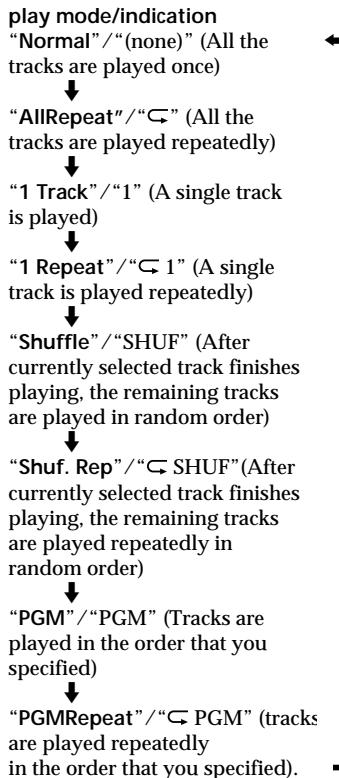
On the remote control
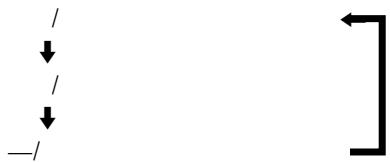
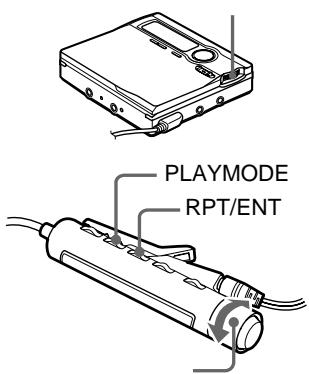
1 Press PLAYMODE during playback. Each time you press this button, the play mode changes as follows.
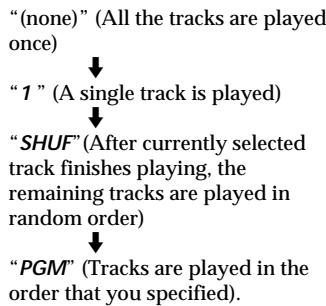
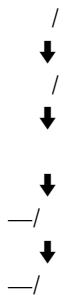
2 If you want to repeat playback in the selected play mode, press RPT/ENT. "C" appears in the display.
Creating a Program (Program Play)
You can set the program with up to 20 tracks.
On the recorder
1 Press the jog dial while "PGM" flashes in the display at step 2 of "Selecting a play mode." 2 Turn the jog dial to select a track, and then press to enter a track number. 3 Repeat step 2 to program more tracks. 4 Press the jog dial for 2 seconds or more.
On the remote control
1 While the recorder is playing, press PLAYMODE repeatedly until "PGM" flashes in the display. 2 Turn the control repeatedly to select a track, and then press RPT/ENT to enter a track number. 3 Repeat step 2 to program more tracks. 4 Press RPT/ENT for 2 seconds or more.
Notes
- All program settings are lost when the lid of the recorder is opened.
- If you turn group mode on or off during the setting of a program, program setting mode will be canceled, but the program contents up to that point will remain.
- You cannot turn group mode on or off while programming tracks.
- If you turn group mode on during program play, the program play is canceled.
Adjusting treble and bass (Digital Sound Preset)
See the illustrations in Japanese text (pages 39 and 41).
You can adjust the treble and bass to suit your taste. The recorder can store two sets of treble-bass adjustments, which can then be selected later during playback.
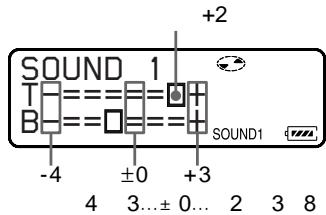
The sound can be adjusted in 8 steps (-4, -3, ... ± 0, ... + 2, +3) . Settings can be stored to the Personal Disc Memory.
Selecting the sound quality
Factory settings of the Digital Sound Preset are as follows:
- "SOUND1": bass +1, treble ±0
- "SOUND2": bass +3, treble ±0
On the recorder
1 Press the jog dial. 2 Turn the jog dial until "SOUND" flashes in the display, and then press to enter. 3 Turn the jog dial until "SOUND 1" or "SOUND 2" flashes in the display, and then press to enter.
On the remote control
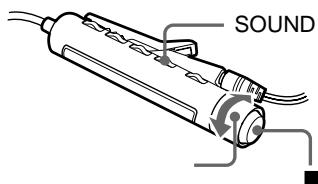
1 Press SOUND on the remote control repeatedly to select "SOUND 1" or "SOUND 2".
Adjusting the sound quality
On the recorder
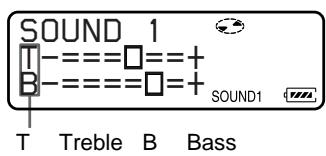
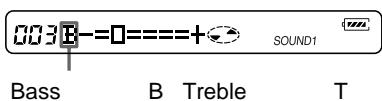
1 Press the jog dial. 2 Turn the jog dial until "SOUND" flashes in the display, and then press to enter. 3 Turn the jog dial until "SOUND 1" or "SOUND 2" flashes in the display. The display shows the currently selected T (treble) and B (bass) settings. 4 Select "T" or "B" pressing or. You can change the adjust of the item in which the cursor is flashing.
5 Turn the jog dial to adjust the sound level. To move the cursor between "T" to "B": Press or I.
To switch between "SOUND 1" to "SOUND 2":
Press I repeatedly to move the cursor to the top row, and then turn the jog dial.
6 Press the jog dial to enter.
The sound settings are saved and the playback display appears again.
On the remote control
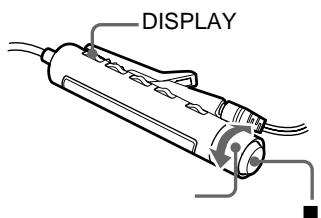
1 Press SOUND on the remote control repeatedly to select "SOUND 1" or "SOUND 2". 2 During playback, press SOUND for 2 seconds or more. The recorder changes to B-setting mode. Pressing the SOUND button for 2 seconds again changes the recorder back to T-setting mode. 3 Turn the control repeatedly to adjust the bass or treble.
To switch "B" and "T":
Press SOUND for 2 seconds or more.
To switch "SOUND 1" and "SOUND 2":
Press SOUND for a short time.
4 Press to enter.
To cancel the Digital Sound Preset
- On the recorder
Select "SOUND OFF" in step 3.
- On the remote control
Press SOUND repeatedly until nothing appears in the display.
Notes
- Digital Sound Preset becomes inoperative when the "AUDIO OUT" parameter for the / LINE OUT jack is set to "LINE OUT". In this case, set the "AUDIO OUT" to "HeadPhone" (page 94).
- When you use the Digital Sound Preset, the sound may break or become distorted depending on the settings or the track. In this case, change the settings of the sound quality.
- Changing to another Digital Sound Preset during a recording operation will not affect the quality of recorded sound.
To change playback speed (Speed Control)
See the illustrations in Japanese text (pages 41 and 42).
The playback speed can be adjusted in 7 steps (80%, 85%, ...100%, 105%, 110%). The setting can be stored to the Personal Disc Memory.
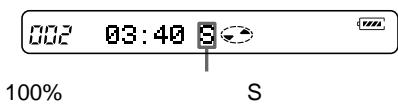
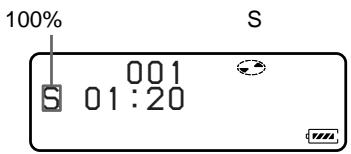
1 Press DISPLAY for 2 seconds or more during playback. 2 Turn the control repeatedly until "SPEED" flashes in the display, and then press to enter. The recorder changes to speed-setting mode. 3 Turn the control repeatedly to select the playback speed. "^+" shows the normal speed and the cursor shows the playback speed you are selecting. 4 Press to set the playback speed. "S" appears in the display when the speed is changed.
Notes
- The playback sound will be affected by the playback speed.
- All settings will be lost when you remove the disc from the recorder (except when the settings of the disc have been stored to the Personal Disc Memory).
Connecting to a stereo system (LINE OUT)
See the illustration in Japanese text (page 44).
Connect the /LINE OUT jack of the recorder to the LINE IN jacks of an amplifier or a tape recorder with a line cable (RK-G129 or RK-G136, not supplied). The output is analog. The recorder plays the MD digitally and sends analog signals to the connected equipment.
When connecting a line cable to the O/LINE OUT jack
When connecting a line cable (not supplied), be sure to set the "AUDIO OUT" parameter for the / LINE OUT jack.
1 Press the jog dial. 2 Turn the dial until "AUDIO OUT" flashes in the display, and then press to enter. 3 Turn the dial until "LINE OUT" flashes in the display, and then press to enter.
Notes
- If the "AUDIO OUT" parameter for the / LINE OUT jack is set to "LINE OUT", VOLUME + / - or Digital Sound Preset will not function.
- The "AUDIO OUT" parameter for the OPT/LINE OUT jack cannot be set to "LINE OUT" when the supplied remote control is connected.
- When you connect the headphones/earphones directly to the recorder, set the "AUDIO OUT" parameter for the OPT/LINE OUT jack to "HeadPhone".
Editing recorded tracks
You can edit your recordings by adding/erasing track marks or labeling tracks and discs.
Premastered MDs cannot be edited.
Notes on editing
- You cannot edit tracks on an MD that is record-protected. Before editing tracks, close the tab on the side of the MD.
- If you perform an editing operation while playing, editing results will not be recorded until you stop the recorder and "TOC Edit" disappears in the display.
- Do not move or jog the recorder while "TOC Edit" is flashing in the display.
- The lid does not open until "TOC Edit" disappears in the display after editing.
- When the group mode is on, editing can be performed only for the tracks registered into the selected group.
TOC = Table of Contents
Labeling/relabeling recordings
See the illustrations in Japanese text (pages 45 to 48).
You can name tracks, groups and discs using the recorder's character palette.
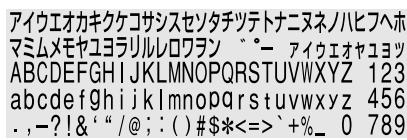
Available characters
- Katakana characters (Japanese model only)
- Capital and small letters of the English alphabet.
- Numbers 0 to 9 • !" # $ % & ( ) * . ; < = > ?
@ _ ` + - ' , / : _ (space)
Numbers of characters you can input
Track, group, or disc name: Approx. 200 each (all available characters are mixed).
Numbers of characters you can input in a disc
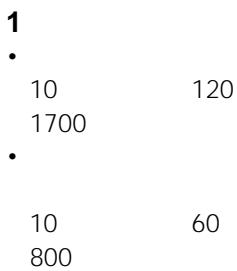
- Alphanumeric characters/symbols only Approx. 120 titles of about 10 characters each (a maximum of about 1,700 letters)
- Japanese katakana characters
- Approx. 60 titles of about 10 characters each (a maximum of about 800 letters)
The number of titles that can be stored on a disc depends on the number of characters that are input for track names, group names, and disc name.
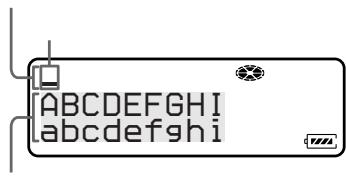
About the character palette
During operations on the recorder, characters can be selected from the character palette in the display.
Since only a part of the character palette is visible on the display, use the 5-way control key to move the cursor and enter characters.
For configuration of the character palette, see page 45 in Japanese text.
Notes
- "NAME FULL" appears when you try to enter more than 1,700 characters on a disc. Enter a shorter name for the track, group, or disc, or set the "LP Stamp" setting to "Stamp OFF" so that "LP:" is not added at the beginning of the track name.
- When labeling a disc which has been recorded using the group function, make sure group mode is on in order to prevent the group management information from being overwritten by mistake.
- If you enter the symbol "/" between the characters in disc names such as "abc/def," you may be unable to use the group function.
Labeling recordings
On the recorder
1 Insert a disc and do the following.
To label a track:
Start playing or recording the track you want to label, and then label the track while the recorder is playing or recording.
To label a group:
Turn the group mode on (page 97) and start playing or recording the track within the group you want to label, and then label the group while the recorder is playing or recording.
To label a disc:
Label a disc while the recorder is stopped or recording.
If you label a disc with group settings, turn the group mode on (page 97).
2 While the recorder is stopped, press the jog dial. 3 Turn the jog dial until "EDIT" flashes in the display, and then press to enter. 4 Turn the dial until the following item appears in the display, and then press to enter.
When labeling a track: " : Name" When labeling a group: " : Name"
When labeling a disc: " : Name"
The cursor flashes in the letter input area and the track, group, or disc is ready to be labeled.
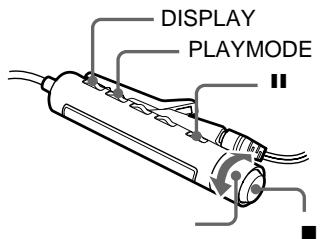
5 Press ■.
The cursor shifts from the letter input area to the character palette.
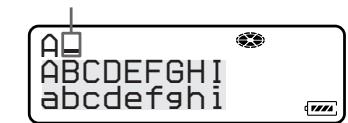
6 Select a letter with the 5-way control key and press to enter.
The selected letter appears in the letter input area and the cursor moves to the next input position.
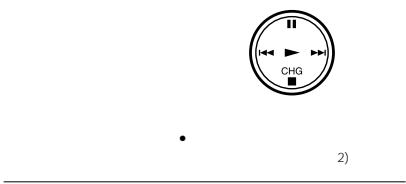
The buttons used for character input and their functions are listed below.
| Functions1) | Operations |
| To move the cursor in the character palette. | 5-way control key. Turn the jog dial (move the cursor upward or downward)2). |
| To select a character in the letter input area. | Turn the jog dial. |
| To enter a letter. | Press▶. Press the jog dial. |
| To move the cursor from the letter input area to the character palette. | Press ■. |
| To move the cursor from the character palette to the letter input area. | Press CANCEL. |
| To enter a name. | Press▶ or the jog dial for 2 second or more. |
| To insert a blank space before the cursor in the letter input area. | Press VOLUME +. |
| To delete a letter in the letter input area. | Press VOLUME -. |
| To display “:”, “-” and Press T MARK. |
| “/” repeatedly at the input position in the letter input area. |
| To cancel labeling in the letter input area. | Press CANCEL. |
1) Functions of the buttons and control may differ depending on where the cursor is in the letter input area or the character palette. 2) If phrases are stored in the name bank, the first phrase stored appears in the display (page 107). 7 Repeat step 6, and then enter all characters of the label name. 8 Press down the jog dial for 2 seconds or more. The disc is labeled.
On the remote control
1 Insert a disc. See step 1 of "On the recorder" to check the varieties of name you can label (page 105). 2 Press DISPLAY for 2 seconds or more. 3 Turn the control repeatedly until "EDIT" flashes in the display, and then press to enter. 4 Turn the control repeatedly until the following item appears in the display, and then press to enter. When labeling a track: "J: Name" When labeling a group: "GP: Name" When labeling a disc: " : Name" 5 Turn the control repeatedly to select a letter and press to enter.
The selected letter stops flashing and the cursor moves to the next input position.
| Functions | Operation |
| To switch between katakana, capital letters, small letters, numbers/ symbols and phrases1). | Press Ⅰ |
| To move the cursor to the left or right. | Pull and turn the control (VOL +/-). |
| To change the letter to the one before/next one. | Turn the control (▲▼/▶→). |
| To insert a blank space to type in a new letter. | Press DISPLAY. |
| To cancel labeling. | Press DISPLAY for 2 seconds or more. |
To delete a letter and move back all following letters to the left, press PLAYMODE.
1) If phrases are stored in the name bank, the first phrase stored appears in the display (page 107). 6 Repeat step 5 and enter all characters of the label name. 7 Keep pressing for 2 seconds or longer. The track or disc is labeled.
To cancel labeling
Press CANCEL on the recorder. Press DISPLAY for 2 seconds or more on the remote control.
Notes
- When the recording is stopped while labeling a track, a group, or a disc during recording, or when the playback moves on to the next track while labeling a track during playback, the input at that point is entered automatically.
- "LP:" has automatically been added at the beginning of the track names for tracks recorded in MDLP mode.
- You cannot label or relabel the premastered disc.
Relabeling recordings
On the recorder
1 Insert a disc and do the following. To relabel a track:
Start playing a track you want to relabel, and change a track name while the recorder is playing.
To relabel a group:
Turn the group mode on (page 97) and start playing or recording a track within the group you want to relabel, and change the group name while the recorder is playing or recording.
To relabel a disc:
Relabel the disc while the recorder is stopped or recording.
If you relabel a disc with group settings, turn the group mode on (page 97).
2 Follow steps 2 to 4 of "Labeling recordings" (page 105) to display a track, group, or disc name. 3 Follow steps 5 to 8 of "Labeling recordings" (page 106), and then keep pressing the jog dial for 2 seconds or more.
On the remote control
1 Insert a disc and do the following. See step 1 of "On the recorder" to check the varieties of name you can relabel. 2 Follow steps 2 to 4 of "On the remote control" (page 106) in "Labeling recordings" to display a track, group, or disc name. 3 Follow steps 5 to 7 of "On the remote control" (pages 106 and 107) in "Labeling recordings", and then keep pressing the ■ for 2 seconds or more.
To cancel labeling
Press CANCEL on the recorder.
Press DISPLAY for 2 seconds or more on the remote control.
Notes
- Track and disc titles that were entered in Japanese katakana characters will appear in Roman letters on minidisc players that do not support the display of katakana characters. Such titles will be marked with a "^" at the beginning and the end.
- You cannot relabel premastered MDs or label MDs that have not been recorded.
- The recorder cannot rewrite a track, group, or disc name of more than 200 letters that was created by another device.
Storing phrases frequently used in labeling (Name Bank Function)
See the illustrations in Japanese text (page 50). Phrases that you often use while labeling can be stored in the recorder's memory. Approximately 25 phrases of about 10 characters each (with a total character count of about 400) can be stored in the phrase bank. The actual number will depend on the length of each phrase.
Storing phrases while labeling a track or disc
You can store phrases in three ways.
- Storing phrases while labeling a track, group, or disc: You can store phrases while labeling a track, group, or disc by doing the procedure "Labeling recordings" (page 105).
- Storing phrases from a previously labeled track, group, or disc:
You can store an existing track, group, or disc name as a phrase.
- Inputting and storing phrases:
You can store frequently used phrases in advance, and then retrieve and use them when labeling a track, group, or disc.
Storing phrases while labeling a track or disc
On the recorder
1 Follow steps 1 to 7 of "Labeling recordings" (pages 105 and 106) to enter a phrase. 2 After entering the phrase, press CANCEL to remove the cursor from the character palette to the letter input area. 3 Press END SEARCH for 2 seconds or more. "Entry!" appears in the display and the cursor flashes after the phrase you just stored. 4 If you continue labeling operation, do steps 5 to 8 of "Labeling recordings" (page 106).
On the remote control
1 Follow steps 1 to 6 of "On the remote control" (pages 106 and 107) in "Labeling recordings" to enter a phrase. 2 After entering the phrase, press for 2 seconds or more. 3 If you continue labeling operation, do steps 5 to 7 of "On the remote control" (pages 106 and 107) in "Labeling recordings".
Storing phrases from a previously labeled track, group, or disc
On the recorder
1 Follow steps 1 and 2 of "Relabeling recordings" (page 107) and display the track, group, or disc name that contains the phrase that you want to store. 2 Press / repeatedly to move the cursor to the right of the phrase. 3 Press END SEARCH for 2 seconds or more to store the phrase.
On the remote control
1 Follow steps 1 and 2 of "On the remote control" in "Relabeling recordings" (page 107) and display the track, group, or disc name that contains the phrase that you want to store. 2 Pull and turn the control towards VOL + or VOL - to move the cursor to the right of the phrase. 3 Press for 2 seconds or more to store the phrase.
Entering and storing phrases
On the recorder
1 Press the jog dial. 2 Turn the dial until "EDIT" flashes in the display, and then press to enter. 3 Turn the jog dial until "Name Bank" flashes in the display, and then press to enter. 4 Follow steps 5 to 8 of "Labeling recordings" (page 106) to enter a phrase. "Entry!" appears in the display and the phrase is stored.
On the remote control
1 Press DISPLAY for 2 seconds or more. 2 Turn the control repeatedly until "EDIT" flashes in the display, and press to enter. 3 Turn the control repeatedly until "Name Bank" flashes in the display, and then press to enter. 4 Do steps 5 to 7 of "On the remote control" in "Labeling recordings" (pages 106 and 107) to enter a phrase.
Note
If you have entered and then stored a phrase, you cannot retrieve it by following the procedure of "Searching a phrase by displaying the stored phrase one by one". When you retrieve a stored phrase, follow the procedure of "Searching for a phrase by its first letter."
Using a retrieved phrase for labeling
There are two ways to retrieving phrases for labeling.
- Searching for a phrase by displaying the stored phrase:
You can retrieve a phrase by keyword, and then use the phrase in a new label.
- Searching for a phrase by its first letter:
You can retrieve a phrase by its first letter, and then use the phrase in a new label.
Searching for a phrase by displaying the stored phrase
On the recorder
1 Follow steps 1 and 4 of "Labeling recordings" (pages 105 and 106). A track, group, or disc is ready to be labeled. 2 Press END SEARCH so that the phrase stored in the recorder's memory appears in the display. 3 Press to move the cursor from the letter input area to the character palette. 4 Turn the jog dial until the desired phrase flashes in the display.
Turning the jog dial causes the phrases stored in the recorder's memory to appear one by one in sequential order.
5 Press the jog dial while the phrase you want flashes in the display. The phrase is selected and lights up in the letter input area. 6 Press the jog dial for 2 seconds or more. The phrase is retrieved. 7 If you continue labeling operation, do steps 5 to 8 of "Labeling recordings" (page 106).
On the remote control
1 Follow steps 1 to 4 "On the remote control" in "Labeling recordings" (page 106). 2 Press I repeatedly until the phrase stored in the recorder's memory appears in the display. 3 Turn the control repeatedly. Turning the control causes the phrases
stored in the recorder's memory to appear one by one.
4 Press slightly while the phrase you want is shown in the display. 5 If you continue labeling operation, do steps 6 to 7 of "On the remote control" in "Labeling recordings" (page 107).
Searching for a phrase by its first letter
On the recorder
1 Follow steps 1 to 5 of "Labeling recordings" (pages 105 and 106). A track, group, or disc is ready to be labeled. 2 Turn the jog dial until the letter which the desired phrase begins with. 3 END SEARCH to search so that the phrase corresponding to the letter appears. 4 Press to move the cursor from the letter input area to the character palette. 5 Turn the jog dial until the desired phrase flashes in the display and then press the jog dial.
The phrase is selected and lights up in the letter input area.
6 Press the jog dial for 2 seconds or more. The selected phrase is retrieved. 7 If you continue labeling operation, do steps 5 to 8 of "Labeling recordings" (page 106).
On the remote control
1 Follow steps 1 to 5 "On the remote control" in "Labeling recordings" (pages 106 and 107). 2 When labeling a track, group, or disc, turn the control repeatedly until the letter which the desired phrase begins with flashes in the display. 3 Press I repeatedly to search so that the phrase corresponding to the letter appears.
When the letter appears, turn the control towards ▸ ▸ ▸ until the desired phrase appears one by one.
4 Press while the phrase you want is shown in the display. 5 Press for 2 seconds or more. 6 If you continue labeling operation, do steps 5 to 7 of "On the remote control" in "Labeling recordings" (pages 106 and 107).
Erasing phrases
On the recorder
1 While the recorder is stopped, press the jog dial. 2 Turn the dial until "EDIT" appears, and then press to enter. 3 Turn the jog dial until "BankErase" appears, and then press to enter. 4 Turn the jog dial until the phrase you want to erase flashes in the display, and then press to enter.
"Erase!" appears and the phrase is erased.
On the remote control
1 While the recorder is stopped, press DISPLAY for 2 seconds or more. 2 Turn the control repeatedly until "EDIT" flashes in the display, and press to enter. 3 Turn the control repeatedly until "BankErase" appears in the display, and then press to enter. 4 Turn the control repeatedly until the phrase you want to erase appears, and then press ■ to enter.
To cancel the operation
Press CANCEL on the recorder.
Press DISPLAY for 2 seconds or more on the remote control.
Registering tracks or groups as a new group (Group Setting)
See the illustrations in Japanese text (pages 53 and 54).
Do the following procedure to register tracks or groups as a new group. The tracks or groups must, however, be sequential. If the desired tracks or groups are not consecutive, you must move them to make them consecutive before you can register them ("Moving recorded tracks", page 111). The operation of this function depends on whether group mode is on or off.
- When group mode is ON:
Several groups are registered as one group. A track without group setting can be registered to an existing group.
- When group mode is OFF:
Several tracks are registered as one group. The following section explains the operation when group mode is on.
On the recorder
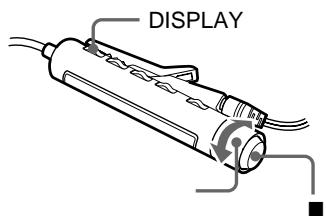
1 Press GROUP for 2 seconds or more to turn the group mode on. 2 While the recorder is stopped, press the jog dial. 3 Turn the jog dial until "EDIT" flashes in the display, and then press to enter. 4 Turn the jog dial until "GP: Set" flashes in the display, and then press to enter. 5 Turn the jog dial until the number or name of the desired first track flashes in the display, and then press to enter. This selects the first track of the new group. Even when the group mode is on, track numbers appear according to their order on the disc, not their order within the group. 6 Turn the jog dial until the number or name of the desired last track flashes in the display, and then press to enter. This selects the last track of the new group. 7 Follow steps 4 to 8 of "Labeling recordings" (page 106) to label a group.
On the remote control
1 Follow the procedure of "To activate the group mode" (page 97) to turn the group mode on. 2 While the recorder is stopped, press DISPLAY for 2 seconds or more. 3 Turn the control repeatedly until "EDIT" flashes in the display, and then press to enter. 4 Turn the control repeatedly until "GP: Set" flashes in the display, and then press to enter. 5 Turn the control repeatedly until the number or name of the desired first track flashes in the display, and then press to enter. 6 Turn the control repeatedly until the number or name of the desired last track flashes in the display, and then press to enter. 7 Follow steps 5 to 7 of "On the remote control" in "Labeling recordings" (pages 106 and 107) to label a group.
Notes
- In step 5, the first track must be either the first track of an existing group or a track that does not belong to a group.
- When selecting the last track in step 4, make sure the track comes after the one selected in step 5. The last track must be either the last track of an existing group or a track that does not belong to a group.
To release a group setting
See the illustrations in Japanese text (page 55).
On the recorder
1 Press GROUP for 2 seconds or more to turn the group mode on. 2 Play a group that you want to release and check the contents ("Selecting and playing groups (Group Skip Mode)" (page 101)). 3 Press ■. 4 Press the jog dial. 5 Turn the jog dial until "EDIT" flashes in the display, and then press to enter. 6 Turn the jog dial until "▶: Release" flashes in the display, and press to enter. "Release?" and "PushENTER" appear in the display. 7 Press the jog dial to enter. The group setting of the selected group is released.
On the remote control
1 Follow the procedure of "To activate the group mode" (page 97) to turn the group mode on. 2 Play a group that you want to release and check the contents (see "Selecting and playing groups (Group Skip Mode)" (page 101)). 3 Press ■. 4 Press DISPLAY for 2 seconds or more. 5 Turn the control repeatedly until "EDIT" flashes in the display, and then press to enter. 6 Turn the control repeatedly until "GPRelase" flashes in the display, and then press to enter. 7 Press to enter.
Moving recorded tracks
See the illustrations in Japanese text (page 56).
You can change the order of the recorded tracks.
On the recorder
1 While playing the track you want to move, press the jog dial. 2 Turn the jog dial until "EDIT" flashes in the display, and then press to enter. 3 Turn the jog dial until "Move" flashes in the display, and then press to enter. The selected track number or name of the group that the selected track belongs flashes in the display. If the track has been labeled, press ▶ to make the track name appear in the display. Press ▶ to display the track number again. 4 Turn the jog dial until the destination track number flashes in the display. 5 Press the jog dial to enter. The track moves to the selected destination track.
On the remote control
1 Press DISPLAY for 2 seconds or more. 2 Turn the control repeatedly until "EDIT" flashes in the display, and then press to enter. 3 Turn the control repeatedly until "Move" flashes in the display, and then press to enter. 4 Turn the control repeatedly to select the destination track number. 5 Press to enter.
To cancel moving
Press CANCEL on the recorder.
Press DISPLAY for 2 seconds or more on the remote control.
Note
If the disc has group settings, turn group mode on before moving a track. Moving a track with group mode off may affect the structure of the group.
Moving a track to a different group
See the illustration in Japanese text (page 57).
On the recorder
1 Press GROUP for 2 seconds or more to turn the group mode on. 2 While playing the track you want to move, press the jog dial. 3 Turn the jog dial until "EDIT" flashes in the display, and then press to enter. 4 Turn the jog dial until "Move" flashes in the display, and then press to enter. 5 Turn the jog dial until the destination group flashes in the display, and then press to enter.
The group number to which the currently playing track belongs flashes in the middle section of the display. If the group has been labeled, press the right arrow to display the group name. Press the left arrow to return to the group number display.
6 Turn the jog dial until the number of the destination track within the group flashes in the display, and then press to enter.
The selected track number or name of the group that the selected track belongs flashes in the display. If the track has been labeled, press the right arrow to make the track name appear in the display. Press the right arrow to display the track number again.
On the remote control
1 Follow the procedure of "To activate the group mode" (page 97) to turn the group mode on. 2 Press DISPLAY for 2 seconds or more while the track you want to move is playing. 3 Turn the control repeatedly until "EDIT" flashes in the display, and then press the play/pause button. 4 Turn the control repeatedly until "Move" flashes in the display, and then press to enter. 5 Turn the control repeatedly until the destination group flashes in the display, and then press to enter.
6 Turn the control repeatedly until the number of the destination track within the group flashes in the display, and then press to enter.
To cancel moving
Press CANCEL on the recorder.
Press DISPLAY for 2 seconds or more on the remote control.
Changing the order of a group on a disc (Group Move)
See the illustrations on Japanese text (page 58).
On the recorder
1 Press GROUP for 2 seconds or more. 2 While playing a track within a group whose order you want to change, press the jog dial. 3 Turn the jog dial until "EDIT" flashes in the display, and then press to enter. 4 Turn the jog dial until "Move" flashes in the display, and then press to enter.
The group number to which the currently playing track belongs flashes in the middle section of the display. If the group has been labeled, press ▸ to display the group name. Press ▸ to return to the group number display.
5 Turn the jog dial to select the destination point on the disc, and then press to enter.
On the remote control
1 Follow the procedure of "To activate the group mode" (page 97) to turn the group mode on. 2 While playing a track within a group whose order you want to change, press DISPLAY for 2 seconds or more. 3 Turn the control repeatedly until "EDIT" flashes in the display, and then press to enter. 4 Turn the control repeatedly until "GP: Move" appears in the display and then press to enter. 5 Turn the control repeatedly to select a destination point on the disc, and then press ■ to enter.
To cancel moving
Press CANCEL on the recorder.
Press DISPLAY for 2 seconds or more on the remote control.
Adding a track mark
See the illustrations in Japanese text (page 59).
You can add a track mark so that the part after the new track mark is counted as new track. You cannot add a track mark on a track that has been checked-out from your computer.
1 While playing or pausing an MD, press T MARK on the recorder at the point you want to mark.
"MARK ON" appears in the display, and the track mark is added.
To add track marks while recording (except while synchrorecording)
Press T MARK at the point you want to add a track mark. You can use Auto Time Stamp to add track marks automatically at specified intervals (except while digital recording).
Erasing a track mark
See the illustrations in Japanese text (page 59).
When you record with analog (line) input, unnecessary track marks may be recorded where recording level is low. You can erase a track mark to combine the tracks before and after the track mark. You cannot erase a track mark on a track that has been checked-out from your computer.
1 While playing the track with the track mark you want to erase, press I to pause. 2 Find the track mark by pressing slightly.
"MARK" appears in the display for 2 seconds.
3 Press T MARK to erase the mark. "MARK OFF" appears in the display. The track mark is erased and the two tracks are combined.
To cancel erasing
Press CANCEL on the recorder.
Press DISPLAY for 2 seconds or more on the remote control.
Notes
- When you erase a track mark between the two consecutive tracks that are registered into different groups, the second track is reregistered into the group containing the first track. In addition, if you combine a track that is registered to a group with a track that is not registered to a group (two consecutive tracks), the second track takes the same registration setting (such as the recording date, track name, etc.) as the first track. However, when the group function is on, you can only combine tracks within the selected group.
- You cannot erase track marks according to the system limitations.
Erasing tracks
See the illustration in Japanese text (page 60).
You can quickly erase recorded tracks, all the tracks and data of the MD, or groups. Note that once a recording has been erased, you cannot retrieve it. Make sure of the contents you are erasing.
To Erase a track
On the recorder
1 While playing the track you want to erase, press the jog dial. 2 Turn the jog dial repeatedly until "EDIT" flashes in the display, and then press to enter. 3 Turn the jog dial until "Erase" flashes in the display, and then press to enter.
"Erase OK?" and "PushENTER" appear in the display.
4 Press the jog dial to enter. The track is erased and the next track starts to play. All the tracks after the one erased are automatically renumbered.
On the remote control
1 While playing the track you want to erase, press DISPLAY for 2 seconds or more. 2 Turn the control repeatedly until "EDIT" flashes in the display, and then press to enter. 3 Turn the control repeatedly until "Erase" flashes in the display, and then press to enter. 4 Press to enter.
To erase a part of a track
Add track marks at the beginning and the end of the part you want to erase, then erase the part.
To erase the whole disc
1 While the recorder is stopped, press the jog dial. 2 Turn the jog dial until "EDIT" flashes in the display, and then press to enter. 3 Turn the jog dial until "Erase" flashes in the display, and then press to enter. "AllErase?" and "PushENTER" appear in the display. 4 Press the jog dial to enter. "TOC Edit" flashes in the display, and all the tracks will be erased. When erasing is complete, "BLANKDISC" flashes and "00:00" appears in the display.
To erase a group
1 Press GROUP for 2 seconds or more to turn the group mode on. 2 Follow steps 1 and 2 of the procedure described under "On the recorder" in "Selecting and playing desired groups (Group Skip Mode)" (page 101) to check the contents. 3 Press to stop playback. 4 Press the jog dial, turn the dial until "EDIT" flashes in the display, and then press the dial again.
5 Turn the jog dial until "Erase" flashes in the display, and then press the jog dial. The group name, "GP Erase?" and "PushENTER" appear in the display. 6 Press the jog dial again. The group is erased.
To cancel erasing
Press CANCEL on the recorder.
Press DISPLAY for 2 seconds or more on the remote control.
Other operation
Setting the alarm (Melody Timer)
See the illustrations in Japanese text (pages 62 and 63).
You can set the alarm to go off in 1 to 99 minutes. The alarm sounds even while the recorder is stopped.
The following sounds can be selected:
"TIMER 1" Classical music 1
"TIMER 2" Classical music 2
"TIMER 3" Beeps
On the recorder
1 While the recorder is stopped, playing, or play-paused, press the jog dial. 2 Turn the jog dial until "M-TIMER" flashes in the display, and press to enter. 3 Turn the jog dial until "ON" flashes in the display, and then press to enter. () lights up in the display and the alarm sound can be selected. 4 Turn the jog dial repeatedly to select the alarm sound, and then press to enter. The alarm sound is set. 5 Turn the jog dial repeatedly to select the elapsed time.
One rotation of the control changes the elapsed time setting (TIME :) by 1 minute, within a range of 1 to 99 minutes. To change the time quickly, keep turning the jog dial.
6 Press the jog dial. Melody timer is set. The time remaining until the alarm is shown in the display while the recorder is stopped or play-paused. To show the remaining time during play, do steps 1 to 3. After verifying the time, press CANCEL.
On the remote control
1 While the recorder is stopped, playing, or play-paused, press DISPLAY for 2 seconds or more. 2 Turn the control repeatedly until "M-TIMER" flashes in the display, and then press to enter. 3 Turn the control repeatedly until "ON" flashes in the display, and then press to enter. 4 Turn the control repeatedly to select the alarm sound, and then press to enter. The time is set. 5 Turn the control repeatedly to select the elapsed time. To change the time quickly, turn and hold the control. 6 Press to enter. The Melody timer is set. To show the remaining time during play, do steps 1 to 3. After verifying the time, press DISPLAY for 2 seconds or more.
To check the time remaining on the alarm while playing
Follow steps 1 to 3 on the recorder or steps 1 to 4 on the remote control. The remaining time and the selected sound appear in the display. Press CANCEL on the recorder or DISPLAY for 2 seconds or more on the remote control after you checked.
To cancel setting the alarm
Press CANCEL on the recorder, or press DISPLAY for 2 seconds or more on the remote control.
To cancel Melody Timer
Select "OFF" in step 3.
To stop the alarm
Press any button.
Notes
- The settings will be lost when you start recording.
- The timer will begin counting down (using the factory setting) from the moment you select "ON" in step 3. The recorder will begin counting down again from the moment you change the elapsed time in step 5.
Storing the settings for individual discs (Personal Disc Memory)
See the illustrations in Japanese text (page 64).
The recorder can store the various settings for each disc, and then retrieve them automatically whenever the disc is inserted. Do the following procedure to store the volume, playback mode, group mode playback, playback order, sound quality (Digital Sound Preset), and playback speed (Speed control) settings for a disc.
On the recorder
1 While the recorder is stopped, playing, or play-paused, press to enter. 2 Turn the jog dial until "PERSONAL" flashes in the display, and then press to enter. "Entry?" flashes in the display. 3 Press the jog dial. "Entry OK" appears in the display and the disc settings are stored in the recorder.
On the remote control
1 While the recorder is stopped, playing, or play-paused, press DISPLAY for 2 seconds or more. 2 Turn the control repeatedly until "PERSONAL" flashes in the display, and then press to enter. 3 Press to enter.
To erase information
- On the recorder
In step 3, turn the jog dial until "Erase?" flashes in the display, and then press to enter.
- On the remote control
In step 3, turn the control until "Erase?" flashes in the display, and then press to enter.
Notes
- The settings for up to 20 discs can be stored. Any settings stored afterwards will replace the settings for the least used disc among the 20.
- If you add tracks or perform an editing operation (not including labeling) to a disc whose settings have been stored on the recorder, the disc will no longer be recognizable by the recorder and the stored information will become useless. In this case, store the settings again.
Turning off the beep sound
See the illustrations in Japanese text (page 66).
Using the recorder, you can turn off the beep sound on the recorder and the remote control. Using the remote control, you can turn off the beep sound on the remote control only. To turn off the beep sound by using remote control, see "Menu functions" (page 90).
1 Press the jog dial. 2 Turn the jog dial until "OPTION" flashes in the display, and then press to enter. 3 Turn the jog dial until "BEEP" flashes in the display, and then press to enter. 4 Turn the jog dial until "MAIN UNIT" or "REMOTE" flashes in the display, and then press to enter.
MAIN UNIT: when turning off the beep sound on the recorder.
REMOTE: when turning off the beep sound on the remote control.
5 Turn the jog dial until "BEEP OFF" flashes in the display, and then press to enter.
To turn on the beep sound
Select "BEEP ON" in step 5.
▶Power sources
You can use the recorder on...
house current. - a nickel metal hydride rechargeable battery (supplied). - dry battery (not supplied).
It is preferable to use the recorder on house current when recording for a long time. When using a battery, make sure it is a fully charged rechargeable battery or a new alkaline dry battery to prevent operations (e.g., recording and editing.) from failing due to insufficient battery power.
Battery life
The battery life may be shorter due to operating conditions and the temperature of the location.
When recording (JEITA) (Unit: approx. hours)
| Batteries | Stereo | LP2 | LP4 |
| NH-14WM(A) | 12 | 17 | 21 |
| nickel metal hydride rechargeable battery2) | |||
| LR6 alkaline dry battery3) | 12 | 19 | 23 |
| NH-14WM(A) | 30 | 43 | 52 |
| nickel metal hydride rechargeable battery + one LR6 |
1) Measured value by the standard of JEITA (Japan Electronics and Information Technology Industries Association). 2) When using a 100% fully charged rechargeable battery. 3) When using a Sony LR6 (SG) "STAMINA" alkaline dry battery (produced in Japan).
When playing (JEITA)
(Unit: approx. hours)
| Batteries | Stereo | LP2 | LP4 |
| NH-14WM(A) | 30 | 38 | 42 |
| nickel metal hydride rechargeable battery | |||
| LR6 alkaline dry battery | 44 | 52 | 62 |
| NH-14WM(A) | 79 | 95 | 110 |
| nickel metal hydride rechargeable battery + one LR6 |
When to replace the batteries
When the dry battery or rechargeable battery are weak, flashing or "LOW BATT" appears in the display. Replace the dry battery or charge the rechargeable battery.
The battery level indicator is approximate. It may be more or less than the indication depending on the operating condition.
Note
Stop the recorder before replacing battery.
Messages
If the recorder cannot carry out an operation, error messages may flash in the display window as follows.
BANK FULL :
The phrase bank is almost full and cannot store the phrase you tried to enter. Delete some phrases from the phrase bank, and then reenter the new phrase.
BLANKDISC :
You tried to play an MD with no recording on it.
BUSY:
You tried to operate the recorder while it was accessing the recorded data. Wait until the message goes out (in rare cases, it may take a few minutes).
Data Save :
The MD recorder is recording information (sounds) from the memory to the disc. Wait until this process is completed. Do not expose the recorder to any physical shock, nor disrupt power supply.
DISC FULL :
There is no more space to record on the MD.
EMPTY:
You tried to erase data in the phrase bank but no data have been recorded.
Hi DC in:
The power supply is higher than required. Use the recommended power sources.
HOLD:
You tried to operate the recorder with the HOLD switch slid in the direction of the arrow. Slide back the switch.
LINE OUT :
You pressed VOL + / - while the "AUDIO OUT" parameter is set to "LINE OUT." Use the jog dial to set the "AUDIO OUT" parameter to "HeadPhone."
LOW BATT:
The rechargeable battery or dry battery is weak. Charge the rechargeable battery or replace the dry battery.
MEM OVER :
You started recording with the recorder receiving continuous vibration. Put the recorder on the stable place and start recording again.
MENU:
You pressed a key on the remote control while selecting a menu on the recorder.
NAME FULL :
You tried to enter more than 200 letters to label a single track or disc.
You tried to enter a total of more than 1700 letters for track or disc names.
NO COPY:
You tried to make a copy from a disc that is protected by the Serial Copy Management System. You cannot make copies from a digitally connected source which was itself recorded using the digital connection. Use the analog connection instead.
NO DISC:
You tried to play or record with no disc in the recorder.
No Entry! :
You tried to erase a setting in the Personal Disc Memory on a disc that contains no settings in the Personal Disc Memory.
NO SIGNAL :
The recorder could not detect digital input signals. Make sure that the source is connected firmly. If the message appears while recording, press to end recording.
NO TEXT:
You tried to use the CD text copying function to copy a track or disc name from a CD that has no text data.
NV ERROR :
Internal processing was not correctly done. Reinsert the disc or try repeating the recorder operation. If the same message appears again, a mechanical problem may be the cause. In this case, consult your nearest Sony dealer.
P/B ONLY:
You tried to record or edit on a premastered MD (P/B stands for playback).
PROTECTED:
You tried to record or edit on an MD with its tab in the record-protect position.
REC ERR:
The recording is not correctly done. Place the recorder at no vibration and record again. The disc is dirty (with oil stain or finger prints), scratched, or out of standard. Record again with another disc.
READ ERR:
The recorder cannot read the disc information correctly. Reinsert the disc.
SORRY:
You tried to set Digital Sound Preset while the "AUDIO OUT" parameter is set to "LINE OUT." Use the jog dial to set the "AUDIO OUT" parameter to "HeadPhone."
You tried to erase a track mark while playing the MD or at the beginning of the first track.
You tried to erase a track mark to combine tracks the recorder cannot combine (a track recorded in different recording mode such as in LP2 and LP4, or a track recorded through analog connection and digital connection)*.
You tried to overwrite a track mark. You tried to press II, T MARK or REC MODE while synchro-recording or the joint text function is active.
- If you have recorded or erased many times on the same MD, the data of a single track may be scattered throughout the MD. When the data is scattered in groups of less than 12 seconds long, the recorder will not be able to combine the tracks.
TEMPOVER:
Heat has built up in the recorder. Wait until the recorder cools down.
TOC Edit:
The MD recorder is recording information (track start and end position) from the memory to the disc. Wait until this process is completed. Do not expose the recorder to physical shock, nor disrupt power supply.
TOC ERR:
The recorder cannot read the disc information correctly. Insert another disc. If it is no problem to erase all the contents of the disc, erase all (page 114).
TR FULL:
You tried to record more than 254 tracks.
TrPROTECT:
You tried to record over or edit a track which has been protected from being recorded over*.
- Track-protected MiniDiscs — Some MD recorders will let you protect individual tracks from being recorded over. This recorder, however, does not offer this feature.
6
- OPERATING INSTRUCTIONS
- CAUTION
- WARNING
- DANGER
- MDLP
- LP
- GROUP
- DISPLAY 2 EDIT
- LINE OUT
- LINE IN
- LOOKING AT THE CONTROLS
- THE RECORDER
- THE DISPLAY WINDOW OF THE RECORDER
- THE HEADPHONES/EARPHONES WITH A REMOTE CONTROL
- THE DISPLAY WINDOW OF THE REMOTE CONTROL
- LIST OF MENUS
- MENU FUNCTIONS
- GETTING STARTED
- FOR MODELS SUPPLIED WITH THE AC PLUG ADAPTOR
- NOTES
- NOTES ON DRY BATTERY
- RECORDING AN MD RIGHT AWAY! (SYNCHRO-RECORDING)
- TO STOP RECORDING, PRESS
- NOTE
- IF THE RECORDING DOES NOT START
- ABOUT THE DSP TYPE-R FOR ATRAC
- PLAYING AN MD RIGHT AWAY
- TO STOP PLAY, PRESS
- IF THE PLAYBACK DOES NOT START
- SUPPRESSING THE SKIPS OF THE SOUND (G-PROTECTION)
- WHEN USING THE HEADPHONES/EARPHONES CONNECT THEM DIRECTLY TO THE RECORDER
- VARIOUS WAYS OF RECORDING
- CONNECTING DIGITAL (OPTICAL) AND ANALOG (LINE) INPUTS
- RECORDING IN ANALOG (ANALOG RECORDING)
- LONG-TIME RECORDING (MDLP)
- WHEN YOU DO NOT WANT "LP:" ADDED AT THE BEGINNING OF THE TRACK
- RECORDING TRACKS USING THE GROUP FUNCTION (GROUP MODE RECORDING)
- WHAT IS THE GROUP FUNCTION (GROUP MODE)
- HOW IS GROUP INFORMATION RECORDED? WHEN RECORDING IN GROUP MODE, THE GROUP INFORMATION IS WRITTEN TO THE DISC NAME RECORDING AREA AUTOMATICALLY
- TO ACTIVATE THE GROUP MODE
- ON THE RECORDER
- ON THE REMOTE CONTROL
- RECORDING A TRACK INTO A NEW GROUP
- RECORDING A TRACK INTO AN EXISTING GROUP
- RECORDING WITHOUT OVERWRITING EXISTING MATERIAL
- RECORDING FROM A MICROPHONE
- TO SELECT MICROPHONE SENSITIVITY
- ADDING TRACK MARKS AUTOMATICALLY AT SPECIFIED INTERVALS (AUTO TIME STAMP)
- ADJUSTING THE RECORDING LEVEL MANUALLY (MANUAL RECORDING)
- SETTING THE CLOCK TO STAMP THE RECORDED TIME
- TO DISPLAY THE CURRENT TIME ON THE RECORDER
- TO MAINTAIN THE CORRECT TIME
- VARIOUS WAYS OF PLAYBACK
- SEARCHING FOR A SPECIFIC TRACK OR A POSITION QUICKLY (QUICK SEARCH)
- SELECTING THE SEARCH MODE
- SEARCHING FOR A SPECIFIC TRACK WHILE MONITORING TRACK NUMBERS OR TRACK NAMES (INDEX SEARCH)
- SEARCHING FOR A SPECIFIC POINT WHILE MONITORING THE ELAPSED TIME (TIME SEARCH)
- USING THE GROUP FUNCTION (GROUP MODE)
- LISTENING TO TRACKS IN A SPECIFIC GROUP (GROUP MODE PLAYBACK)
- TO TURN OFF THE GROUP FUNCTION
- SELECTING AND PLAYING GROUPS (GROUP SKIP MODE)
- CHANGING A PLAY MODE
- SELECTING A PLAY MODE
- CREATING A PROGRAM (PROGRAM PLAY)
- ADJUSTING TREBLE AND BASS (DIGITAL SOUND PRESET)
- SELECTING THE SOUND QUALITY
- ADJUSTING THE SOUND QUALITY
- TO CANCEL THE DIGITAL SOUND PRESET
- TO CHANGE PLAYBACK SPEED (SPEED CONTROL)
- CONNECTING TO A STEREO SYSTEM (LINE OUT)
- WHEN CONNECTING A LINE CABLE TO THE O/LINE OUT JACK
- EDITING RECORDED TRACKS
- NOTES ON EDITING
- LABELING/RELABELING RECORDINGS
- AVAILABLE CHARACTERS
- NUMBERS OF CHARACTERS YOU CAN INPUT
- NUMBERS OF CHARACTERS YOU CAN INPUT IN A DISC
- ABOUT THE CHARACTER PALETTE
- LABELING RECORDINGS
- TO LABEL A TRACK
- TO LABEL A GROUP
- TO LABEL A DISC
- TO CANCEL LABELING
- RELABELING RECORDINGS
- STORING PHRASES FREQUENTLY USED IN LABELING (NAME BANK FUNCTION)
- STORING PHRASES WHILE LABELING A TRACK OR DISC
- STORING PHRASES FROM A PREVIOUSLY LABELED TRACK, GROUP, OR DISC
- ENTERING AND STORING PHRASES
- USING A RETRIEVED PHRASE FOR LABELING
- SEARCHING FOR A PHRASE BY DISPLAYING THE STORED PHRASE
- SEARCHING FOR A PHRASE BY ITS FIRST LETTER
- ERASING PHRASES
- TO CANCEL THE OPERATION
- REGISTERING TRACKS OR GROUPS AS A NEW GROUP (GROUP SETTING)
- TO RELEASE A GROUP SETTING
- MOVING RECORDED TRACKS
- TO CANCEL MOVING
- MOVING A TRACK TO A DIFFERENT GROUP
- CHANGING THE ORDER OF A GROUP ON A DISC (GROUP MOVE)
- ADDING A TRACK MARK
- TO ADD TRACK MARKS WHILE RECORDING (EXCEPT WHILE SYNCHRORECORDING)
- ERASING A TRACK MARK
- TO CANCEL ERASING
- ERASING TRACKS
- TO ERASE A TRACK
- TO ERASE A PART OF A TRACK
- TO ERASE THE WHOLE DISC
- TO ERASE A GROUP
- OTHER OPERATION
- SETTING THE ALARM (MELODY TIMER)
- TO CHECK THE TIME REMAINING ON THE ALARM WHILE PLAYING
- TO CANCEL SETTING THE ALARM
- TO CANCEL MELODY TIMER
- TO STOP THE ALARM
- STORING THE SETTINGS FOR INDIVIDUAL DISCS (PERSONAL DISC MEMORY)
- TO ERASE INFORMATION
- TURNING OFF THE BEEP SOUND
- TO TURN ON THE BEEP SOUND
- POWER SOURCES
- BATTERY LIFE
- WHEN PLAYING (JEITA)
- WHEN TO REPLACE THE BATTERIES
- MESSAGES
- BANK FULL
- BLANKDISC
- BUSY
- DATA SAVE
- DISC FULL
- EMPTY
- HI DC IN
- HOLD
- LOW BATT
- MEM OVER
Brand : SONY
Model : MZ-R910
Category : MiniDisc Player