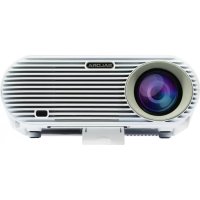
60BHD3500 - Projecteur SALORA - Notice d'utilisation et mode d'emploi gratuit
Retrouvez gratuitement la notice de l'appareil 60BHD3500 SALORA au format PDF.


Choisissez votre langue et indiquez votre email : nous vous enverrons une version traduite specifiquement.
| Type de produit | Projecteur DLP |
| Marque | Salora |
| Modèle | 60BHD3500 |
| Résolution native | 1920 x 1080 pixels (Full HD) |
| Luminosité | 3 000 lumens |
| Durée de vie de la lampe | Jusqu'à 20 000 heures (mode économique) |
| Dimensions (L x P x H) | 315 x 245 x 110 mm |
| Poids | 2,8 kg |
| Alimentation | 100-240 V AC, 50/60 Hz |
| Consommation électrique | 250 W (max), < 0,5 W en veille |
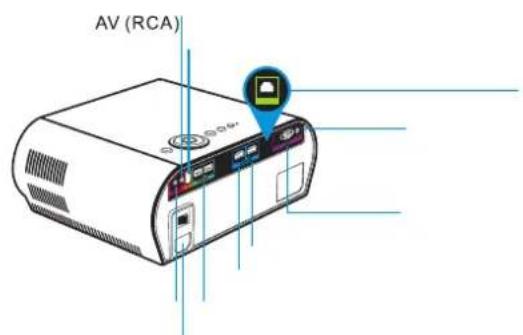
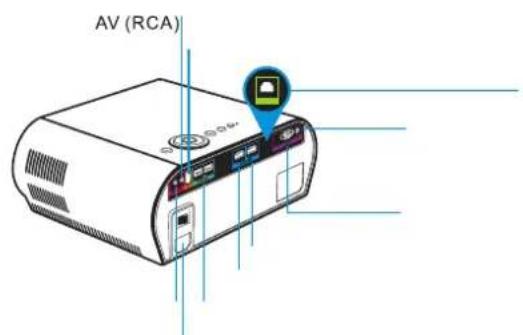
| Entrées vidéo | HDMI, VGA, AV (RCA), USB |
| Sortie audio | Prise casque 3,5 mm, haut-parleur intégré (2 x 5 W) |
| Fonctions principales | Correction trapézoïdale, zoom numérique, mode Éco, Smart Engine, Office Viewer |
| Entretien et nettoyage | Nettoyer le filtre à air toutes les 500 heures, dépoussiérer l'objectif avec un chiffon doux |
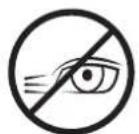
| Sécurité | Ne pas regarder directement le faisceau lumineux, éteindre avant nettoyage, utiliser une prise mise à la terre |
| Pièces détachées et réparabilité | Lampe remplaçable, filtre à air accessible; contacter le service après-vente pour les réparations |
| Température de fonctionnement | 0 °C à 40 °C |
| Haut-parleur intégré | Oui, 2 x 5 W stéréo |
| Connectivité sans fil | Non (utilisation avec câble) |
| Support mural | Compatible avec fixation standard (non fournie) |
| Accessoires inclus | Télécommande, câble d'alimentation, câble VGA, notice d'utilisation |
FOIRE AUX QUESTIONS - 60BHD3500 SALORA
Comment allumer et éteindre le projecteur ?
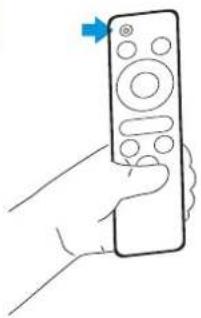
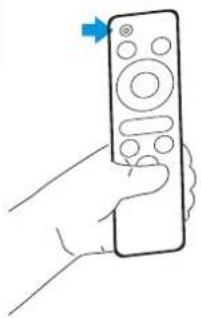
Appuyez sur le bouton Power situé sur le dessus du projecteur ou sur la télécommande. Pour éteindre, appuyez deux fois rapidement ou maintenez enfoncé jusqu'à l'arrêt.
Comment connecter un ordinateur portable au projecteur ?
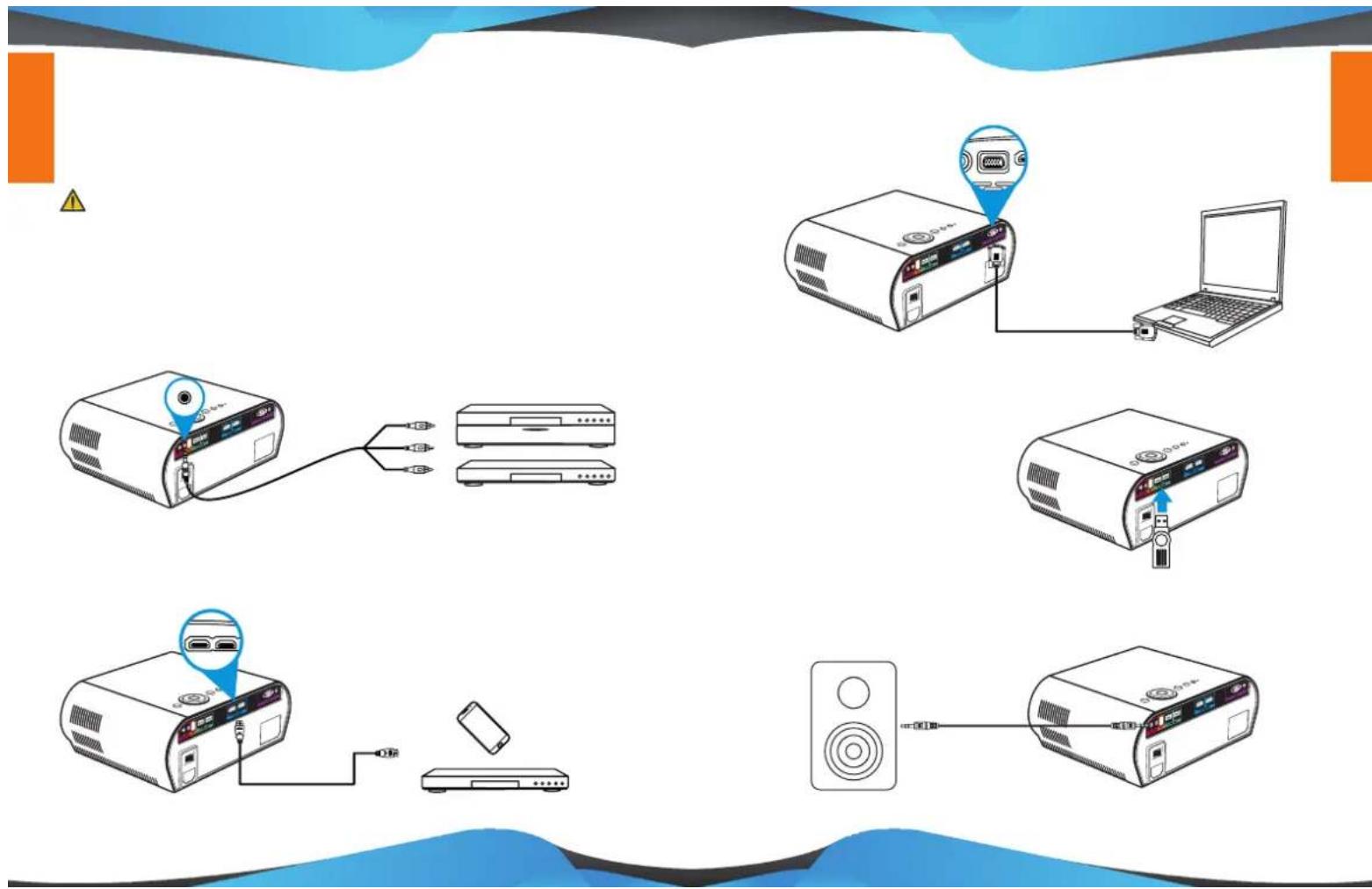
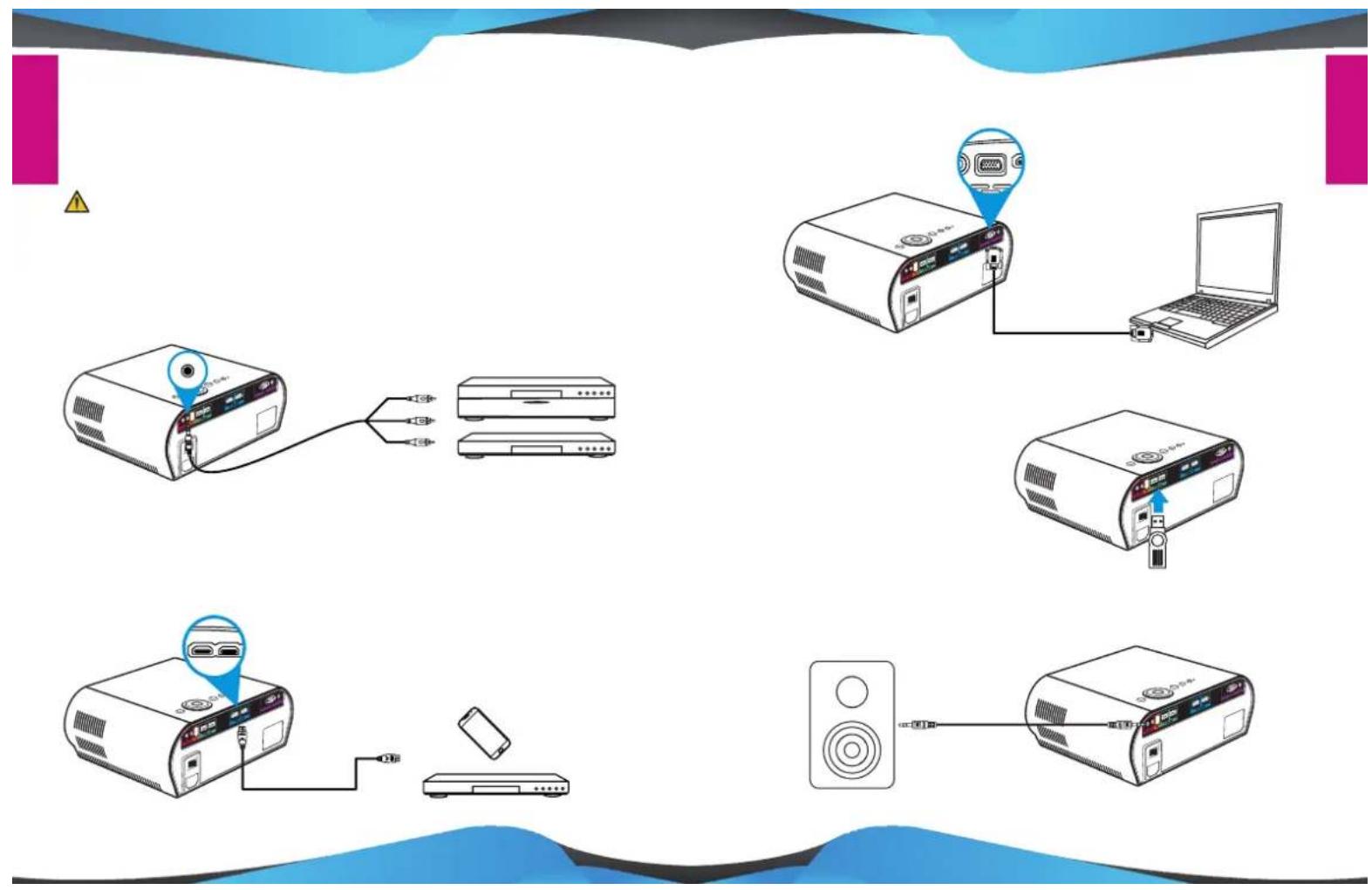
Utilisez un câble HDMI ou VGA (fourni). Branchez une extrémité sur le projecteur et l'autre sur l'ordinateur. Sélectionnez la source correspondante avec le bouton Source.
Que faire si l'image est floue ?
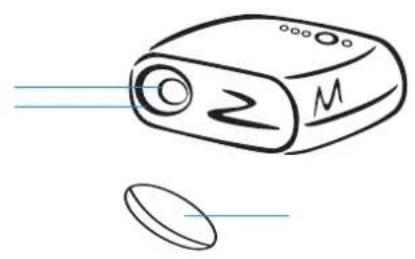
Tournez la bague de mise au point située sur l'objectif. Assurez-vous que la distance de projection est adéquate (consultez le tableau dans la notice).
Comment nettoyer le filtre à air ?
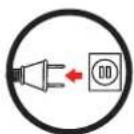
Éteignez le projecteur et débranchez-le. Ouvrez le volet du filtre, retirez le filtre et dépoussiérez-le avec un aspirateur ou une brosse douce. Replacez-le après séchage.
Pourquoi l'image est-elle inversée ?
Allez dans le menu Configuration > Projection et choisissez l'orientation correcte : avant, arrière, plafond avant ou plafond arrière selon l'installation.
Puis-je utiliser le projecteur sans télécommande ?
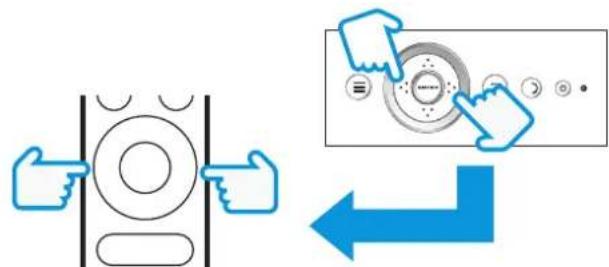
Oui, les boutons de contrôle sont situés sur le dessus du projecteur : Power, Menu, Source, navigation et OK.
Comment régler la luminosité ?
Appuyez sur Menu, allez dans Image > Luminosité, puis ajustez avec les touches + ou -. Vous pouvez aussi activer le mode Éco pour réduire la luminosité et prolonger la durée de vie de la lampe.
Le projecteur chauffe, est-ce normal ?
Oui, il produit de la chaleur. Assurez-vous que les orifices de ventilation ne sont pas obstrués et que le filtre à air est propre. Une surchauffe peut déclencher une protection automatique.
Comment connecter un appareil audio externe ?
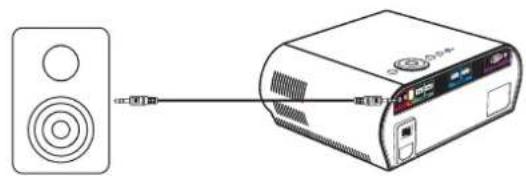
Branchez un câble audio de la sortie Audio Out du projecteur (prise casque) à l'entrée de votre système audio. Vous pouvez aussi utiliser le haut-parleur intégré.
Où trouver la lampe de rechange ?
Contactez le service après-vente Salora ou un revendeur agréé. Référez-vous au modèle 60BHD3500 pour commander une lampe compatible.
Questions des utilisateurs sur 60BHD3500 SALORA
0 question sur cet appareil. Repondez a celles que vous connaissez ou posez la votre.
Poser une nouvelle question sur cet appareil
Aucune question pour l'instant. Soyez le premier à en poser une.
Téléchargez la notice de votre Projecteur au format PDF gratuitement ! Retrouvez votre notice 60BHD3500 - SALORA et reprennez votre appareil électronique en main. Sur cette page sont publiés tous les documents nécessaires à l'utilisation de votre appareil 60BHD3500 de la marque SALORA.
MODE D'EMPLOI 60BHD3500 SALORA
SALORA
natural_image
Red circular icon with a white stylized device resembling a camera or projector, no text or symbols present.
natural_image
Abstract geometric design with blue and gray triangular shapes on white background (no text or symbols)
natural_image
Illustration of a laptop with a red checkmark on the screen (no text or symbols)I








natural_image
Illustration of four electronic devices: a remote control unit, a closed folder, a remote control unit, and a connected cable (no text or symbols present)
natural_image
Simple line drawing of a device with lens and screen, no text or symbols present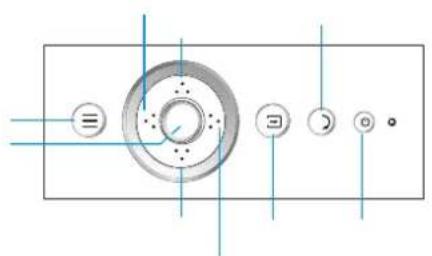
!
natural_image
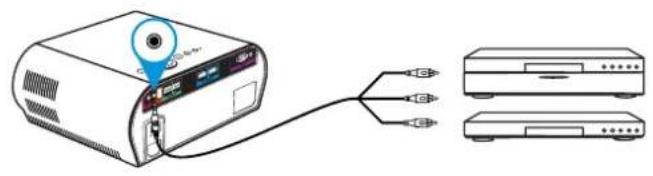
Diagram of a projector connected to two separate devices (no text or symbols present)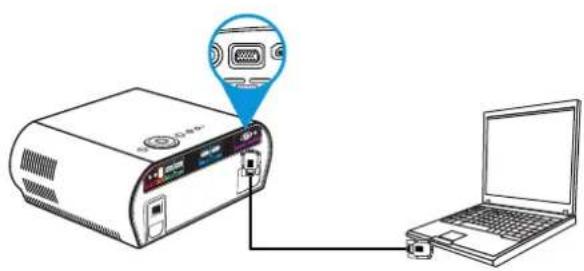
natural_image
Diagram showing a projector connected to a laptop via cable, with an icon highlighting the port (no text or symbols present)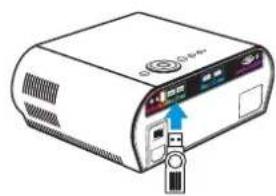
natural_image
Illustration of a computer monitor with an attached USB port and indicator lights (no text or symbols visible)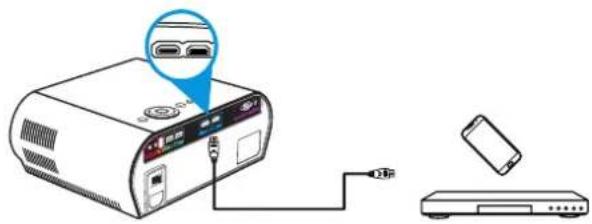
natural_image
Diagram showing a speaker connected to an electronic device (no text or symbols present)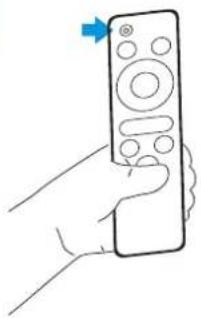
natural_image
Line drawing of a hand holding a remote control with a blue arrow pointing to the right (no text or symbols)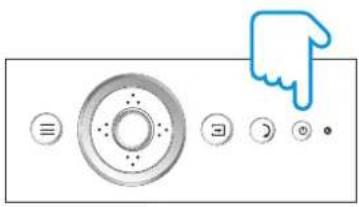
natural_image
Pure graphical icons of a control panel with circular buttons and a hand cursor, no text or symbols present.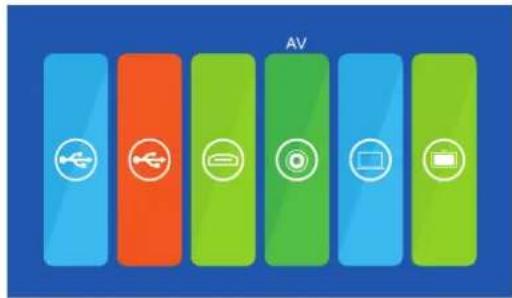
natural_image
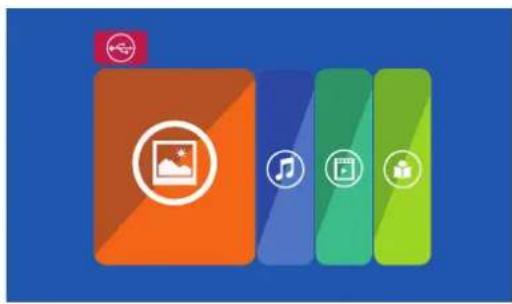
Abstract graphic with four colored blocks (orange, blue, green, light green) and a small icon on the left, set against a blue background (no text or symbols)





natural_image
Abstract geometric design with blue and orange shapes on white background (no text or symbols)
natural_image
Illustration of a laptop with a red checkmark on the screen (no text or symbols)
natural_image
Abstract blue wave-like shape with black outline and horizontal lines, no text or symbols present
natural_image
Simple line drawing of a device with lens and screen, no text or symbols present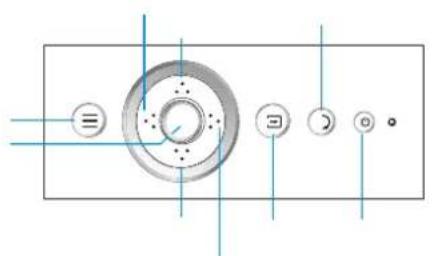
natural_image
Line drawing of a hand holding a remote control with a blue arrow pointing to the right (no text or symbols)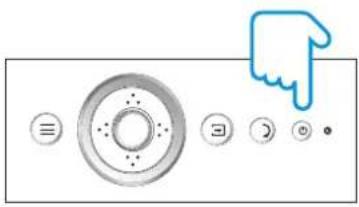
natural_image
Pure graphical icons of a computer control panel with no text or symbols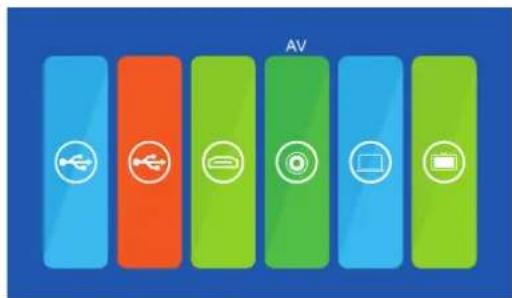
natural_image
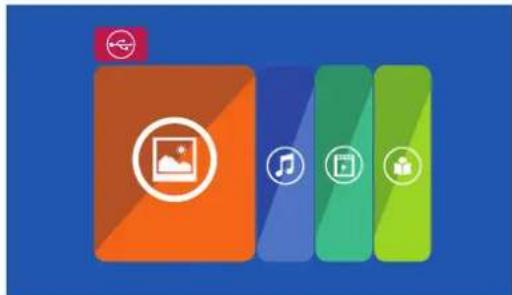
Abstract graphic with four colored blocks (orange, blue, green, light blue) and a small icon on the top-left corner, set against a solid blue background (no text or symbols)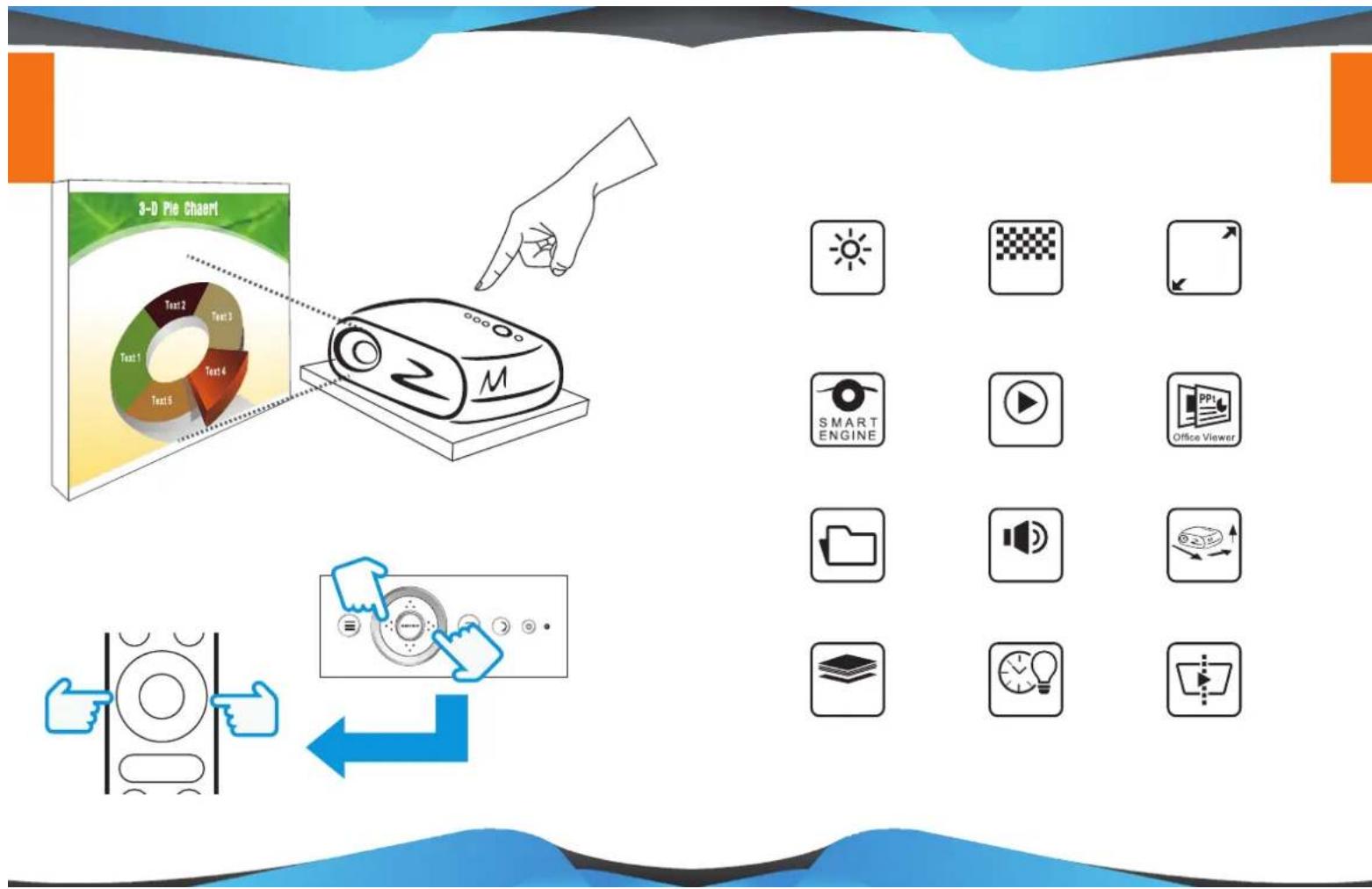

natural_image
Abstract geometric design with blue, gray, orange, and magenta blocks on white background (no text or symbols)
natural_image
Illustration of a laptop with a red checkmark on the screen (no text or symbols)
natural_image
Abstract blue wave-like shape with black edges and horizontal lines, no text or symbols present
natural_image
Simple line drawing of a projector with lens and screen, no text or symbols present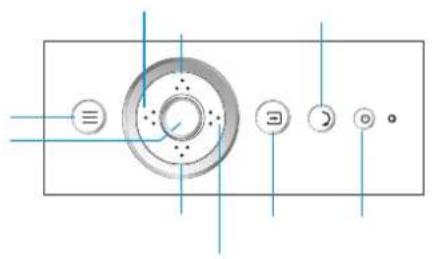
natural_image
Pure diagram of a circular mechanical component with internal holes and control buttons, no text or symbols present.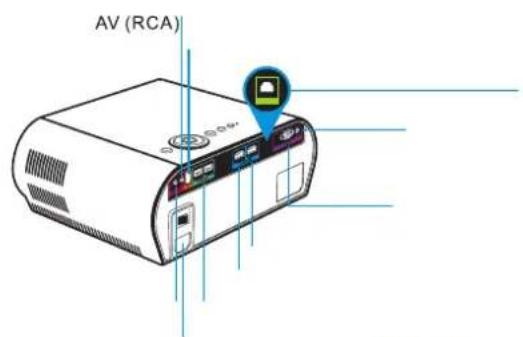
flowchart
graph TD
    A[" projector"] -->|Wireless cable to next port| B["PC"]
    B --> C["PC"]
    C --> D["Laptop"]
    D --> E["Pod with USB port"]
    E --> F["Speaker"]
    F --> G["Monitor"]
natural_image
Line drawing of a hand holding a remote control with a blue arrow pointing to the right (no text or symbols)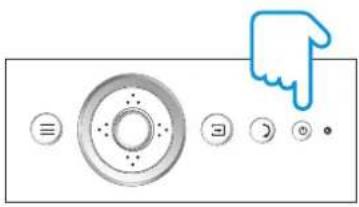
natural_image
Pure graphical icons of a control panel with circular buttons and a pointing hand (no text or symbols)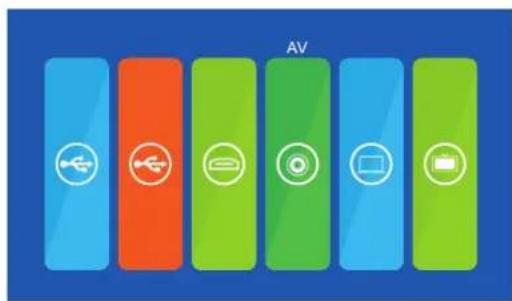
natural_image
Abstract graphic with four colored blocks (orange, blue, green, yellow) and a small icon on the top-left corner, set against a blue background (no text or symbols)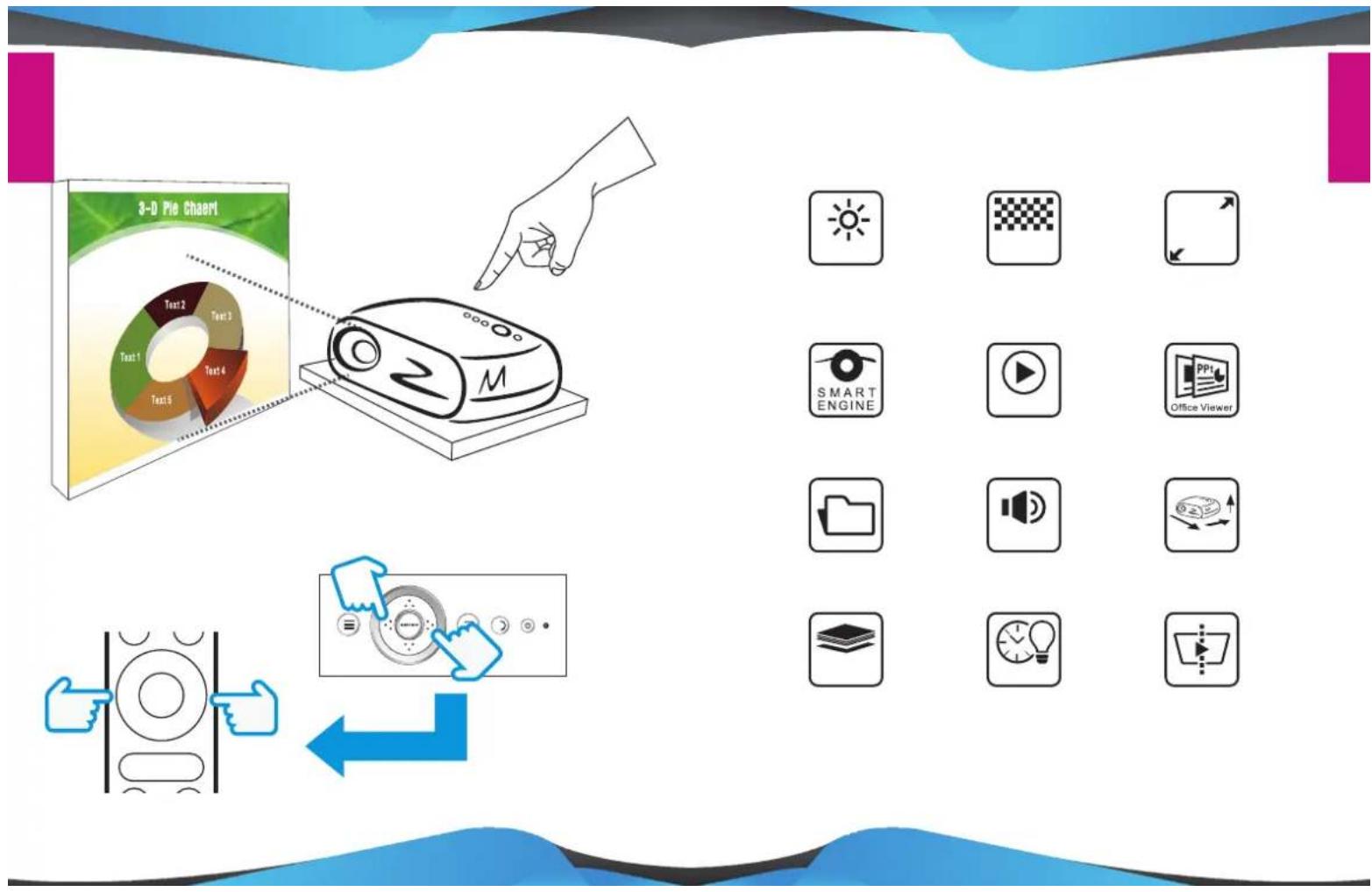
natural_image
Abstract geometric design with blue and gray shapes and horizontal lines (no text or symbols)
Sommaire
Cliquez un titre pour y accéder
Assistant notice
Powered by Anthropic
En attente de votre message
Informations produit
Marque : SALORA
Modèle : 60BHD3500
Catégorie : Projecteur