
SPIRIT 7670 LM - GPS de navigation MIO - Notice d'utilisation et mode d'emploi gratuit
Retrouvez gratuitement la notice de l'appareil SPIRIT 7670 LM MIO au format PDF.

| Type de produit | GPS de navigation |
| Marque | Mio |
| Modèle | SPIRIT 7670 LM |
| Écran | Écran tactile couleur |
| Alimentation | Batterie lithium-ion interne non remplaçable ; charge via adaptateur secteur (5V/1A) ou chargeur voiture |
| Connectivité | Bluetooth, USB, prise casque, fente microSD, connecteur AV IN (selon modèle) |
| Réception GPS | Antenne GPS intégrée (vue dégagée du ciel nécessaire) |
| Cartes | Cartes préchargées avec mise à jour à vie (sous réserve d’activation) |
| Informations trafic | Récepteur TMC intégré via le chargeur voiture faisant antenne (selon pays) |
| Modes de navigation | Voiture, camion (optionnel), piéton |
| Fonctions avancées | IQ Routes, LearnMe Pro, Back-On-Track, assistant de stationnement, capture de position/trajet |
| Bluetooth | Appels mains libres, synchronisation du répertoire téléphonique |
| NavPix™ | Navigation vers des photos géolocalisées |
| Affichage | Vue 3D/2D, réglage jour/nuit automatique, zoom automatique |
| Langues | Multilingue (français disponible) |
| Mise à jour | Via le logiciel MioMore Desktop sur ordinateur |
| Entretien | Nettoyer avec un chiffon doux non pelucheux ; éviter l’humidité et les températures extrêmes |
| Sécurité | Ne pas monter obstruant la vue du conducteur ; ne pas utiliser en conduisant ; respecter les lois locales |
| Pièces détachées et réparabilité | Batterie non remplaçable par l’utilisateur ; aucune pièce détachée fournie ; contacter un service agréé |
| Informations générales | Appareil de la série Spirit 5000/7000, notice disponible en PDF gratuitement |
FOIRE AUX QUESTIONS - SPIRIT 7670 LM MIO
Questions des utilisateurs sur SPIRIT 7670 LM MIO
0 question sur cet appareil. Repondez a celles que vous connaissez ou posez la votre.
Poser une nouvelle question sur cet appareil
Téléchargez la notice de votre GPS de navigation au format PDF gratuitement ! Retrouvez votre notice SPIRIT 7670 LM - MIO et reprennez votre appareil électronique en main. Sur cette page sont publiés tous les documents nécessaires à l'utilisation de votre appareil SPIRIT 7670 LM de la marque MIO.
MODE D'EMPLOI SPIRIT 7670 LM MIO
Hardware
User Manual
Spirit 5000/7000
Series
Important safety information
PLEASE READ CAREFULLY BEFORE INSTALLING PRODUCT IN VEHICLE
| This is the safety alert symbol. It is used to alert you to potential personal injury hazards. Obey all safety messages that follow this symbol to avoid possible injury or death. | |
| WARNING indicates a potentially hazardous situation which, if not avoided, could result in death or serious injury. | |
| CAUTION indicates a potentially hazardous situation which, if not avoided, may result in minor or moderate injury. | |
| CAUTION used without the safety alert symbol indicates a potentially hazardous situation which, if not avoided, may result in property damage. |
WARNING
Removing original equipment, adding accessories or modifying your vehicle could affect the vehicle's safety or make it illegal to operate in some jurisdictions.
Follow all product instructions and all instructions in your vehicle owner's manual regarding accessories or modifications.
Consult your country's and/or state's laws regarding operation of a vehicle with any accessories or modifications.
It is your sole responsibility to place, secure and use your Mio in a manner that will not cause accidents, personal injury or property damage. Always observe safe driving practices.
Do not mount your Mio in a way that may interfere with the safe operation of the vehicle, the deployment of air bags or other safety equipment.
Do not operate your Mio while driving.
Before you use your Mio for the first time, familiarize yourself with your device and its operation.
On main roads, the distance to an exit calculated by your Mio may be further than the distance shown on road signs. Road signs show the distance to the start of an exit while your Mio shows the distance to the next intersection, i.e., the end of the exit ramp or road. To prepare to exit a road, always follow distance information on road signs.
The use of information regarding safety or speed camera locations may be subject to local laws in the country of use. You are responsible for checking that you can legally use the information in your country or in the country where the information will be used.
CAUTION
Do not handle your Mio while it is hot. Let the product cool, out of direct sunlight.
At full power, prolonged listening to your Mio via headphones or earphones can damage the ear of the user.
CAUTION
Do not expose your Mio to direct sunlight in an unattended vehicle for prolonged periods. Overheating may damage the unit.
To discourage theft, do not leave your Mio, mounting bracket or any cables in plain view in an unattended vehicle.
Warning Notice to Drivers in the United States
State law may prohibit drivers in states such as Arizona, California and Minnesota from mounting objects on their windshields while driving. Please make sure you research and follow your most current State laws. An alternative mounting option may be provided in the box with your product; or see our website for additional mounting alternatives. Mio does not take any responsibility for any fines, penalties, or damages that may be incurred as a result of disregarding this notice.
Home charger-specific safety information
WARNING
To charge your Mio from the mains power, use the home charger (Input: 100-240V AC 50-60Hz; Output: 5V DC 1A Max) supplied by Mio as an accessory (may be sold separately). Using other home chargers with your Mio could result in serious injury or property damage.
Never use the charger if the plug or cord is damaged.
Do not expose the charger to moisture or water. Do not use the charger in a high moisture environment. Exposure to water may cause electrical sparks or fires.
Never touch the charger when your hands or feet are wet.
Allow adequate ventilation around the charger when using it to operate your Mio or charge the internal battery. Do not cover the charger with paper or other objects that will reduce ventilation. Do not use the charger while it is inside a carrying case or other container.
Ensure that the charger is connected to a power source with the correct fitting and voltage requirements. The voltage requirements can be found on the home charger casing and/or packaging.
Do not attempt to service the charger as this could result in personal injury. Replace the charger if it is damaged or exposed to excess moisture.
Internal battery-specific safety information
WARNING
Your Mio contains a non-replaceable internal lithium-ion battery. The battery may burst or explode if mishandled, releasing hazardous chemicals. To reduce the risk of fire or burns, do not disassemble, crush or puncture the battery.
Recycle or dispose of the battery safely and properly according to local laws and regulations. Do not dispose of the battery in fire or water.
About the battery
■ Use a specified battery in the equipment.
■ CAUTION: The battery can burst or explode, releasing hazardous chemicals. To reduce the risk of fire or burns, do not disassemble, crush, puncture, or dispose of in fire or water.
■ Important instructions (for service personnel only)
■ Caution: Risk of explosion if battery is replaced by an incorrect type. Dispose of used batteries according to the instructions.
■ Replace only with the same or equivalent type recommended by the manufacturer.
■ The battery must be recycled or disposed of properly.
■ Use the battery only in the specified equipment.
CAUTION
Only use the correct home charger (may be sold separately) or in-car charger supplied by Mio to charge your Mio internal battery.
Only use your Mio internal battery with your Mio unit.
The Mio battery will stop charging when the ambient temperature is less than 0^ C ( 32^ F) or more than 40^ C ( 104^ F).
Failure to adhere to these warnings and cautions may lead to death, serious injury or property damage. Mio disclaims all liability for installation or use of your Mio that causes or contributes to death, injury or property damage or that violates any law.

WARNING This product, its packaging and its components contain chemicals known to the State of California to cause cancer, birth defects or reproductive harm. This Notice is being provided in accordance with California's Proposition 65.
Marking labels located on the exterior of your Mio indicate the regulations that your model complies with. Please check the marking labels on your Mio and refer to the corresponding statements in this chapter. Some notices apply to specific models only.
C€
Products with the CE marking comply with Radio & Telecommunication Terminal Equipment Directive (R&TTE) (1999/5/EC), the Electromagnetic Compatibility Directive (2004/108/EC) and the Low Voltage Directive (2006/95/EC) - issued by the Commission of the European Community. Compliance with these directives implies conformity to the following European Standards:
■ EN 300 328 V1.8.1
■ EN 300 440-1 V1.6.1
■ EN 300 440-2 V1.4.1
■ EN 301 489-1 V1.9.2
■ EN 301 489-3 V1.6.1
■ EN 301 489-17 V2.2.1
■ EN 55022: 2010
■ EN 55024: 2010
■ EN 60950-1:2006+A11:2009+A1:2010+A12:2011+A2:2013
EN 62479: 2010 The manufacturer cannot be held responsible for modifications made by the User and the consequences thereof, which may alter the conformity of the product with the CE Marking.
Declaration of conformity
Hereby, MiTAC declares that this Mio Spirit 5000/7000 series is in compliance with the essential requirements and other relevant provisions of Directive 1999/5/EC.
Bluetooth

Bluetooth®
Bluetooth QD ID D027003
WEEE

This product must not be disposed of as normal household waste, in accordance with the EU directive for waste electrical and electronic equipment (WEEE - 2002/96/EC). Instead, it should be disposed of by returning it to the point of sale, or to a municipal recycling collection point.
Important safety information....2
Home charger-specific safety information....3
Internal battery-specific safety information....3
Compliance....4
Bluetooth 4
WEEE 4
Welcome....6
Important information for using the manual....6
Disclaimer 6
Mounting your Mio in a vehicle....7
Enabling Traffic (TMC) Reception....7
Getting to know your Mio....8
How do I turn on my Mio?......9
Using the power button....9
Resetting the device....9
How do I charge the battery? 10
How do I charge the battery in a vehicle?....10
How do I charge the battery via my computer? 10
How do I charge the battery at home or work?....10
How do I play videos on my Mio via AV IN?......10
Reference....11
What is GPS?......11
How does my Mio receive GPS signals? 11
Caring for your Mio....11
Troubleshooting....12
Thank you for purchasing this Mio. Please read this manual carefully before using your Mio for the first time. Keep this manual in a safe place and use as your first point of reference.
Important information for using the manual
It is important to understand the terms and typographical conventions used in this manual.
Formatting
The following formatting in the text identifies special information:
| Convention | Type of Information |
| Bold | Components or items displayed on screen, including buttons, headings, field names and options. |
| Italics | Indicates the name of a screen. |
Icons
The following icons are used throughout this manual:
| Icon | Description |
| Note | |
| Tip | |
| Warning |
Terms
The following terms are used throughout this manual to describe user actions.
| Term | Description |
| Press | Press and release a button quickly. |
| Tap | Press and release an item displayed on the touch screen. |
| Select | Tap an item in a list or tap a command from a menu. |
Disclaimer
Not all models are available in all regions.
Depending on the specific model purchased, the colour and look of your device and accessories may not exactly match the graphics shown in this document.
Mio operates a policy of ongoing development. Mio reserves the right to make changes and improvements to any of the products described in this document without prior notice. Mio does not warrant that this document is error-free. The screenshots and other presentations shown in this manual may differ from the actual screens and presentations generated by the actual product. All such differences are minor and the actual product will deliver the described functionality as presented in this User Manual in all material respects.
Revision: R01
(7/2015)
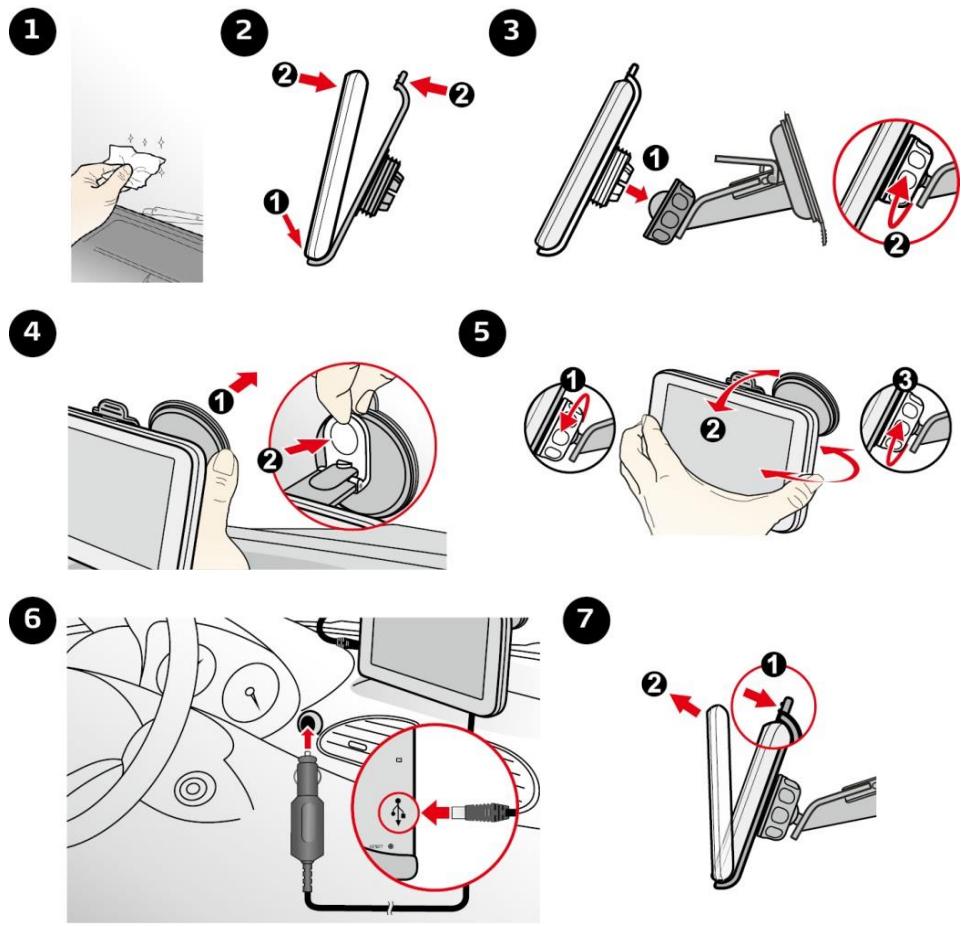
Mounting your Mio in a vehicle
CAUTION:
- Never mount your Mio where the driver's field of vision is blocked.
- If the windscreen is tinted with a reflective coating, it may be athermic and impact the GPS reception. In this instance, please mount your Mio where there is a “clear area” - usually just beneath the rear-view mirror.
- To protect your Mio against sudden surges in current, connect the in-car charger only after the car engine has been started.
Enabling Traffic (TMC) Reception
Traffic information is available in selected models and countries only.
If your Mio has a built-in TMC receiver, you can receive live traffic information via the in-car charger which is used as an antenna.
For information on using traffic information on your Mio, see the Software User Manual.
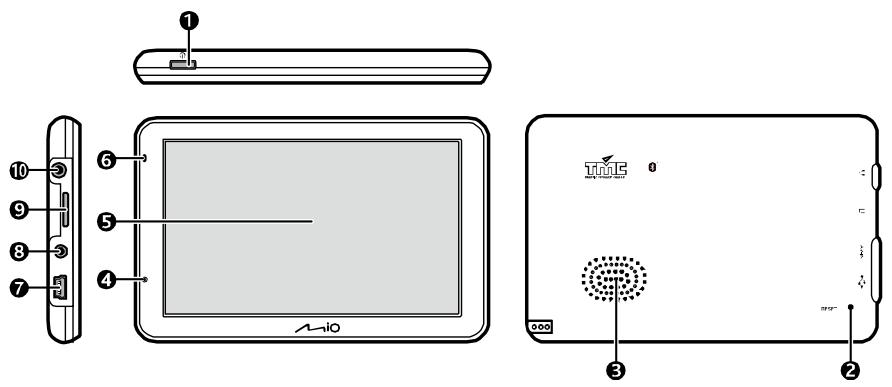
① Power button
② Reset button
3 Speaker
4 Microphone (not on all models)
5 Touch screen
⑥ Battery indicator
7 Connector for in-car charger, USB cable* and home charger*
*may be sold separately
8 Connector for AV cable (not on all models)
9 Slot for MicroSD memory card
10 Earphone jack
How do I turn on my Mio?
Using the power button
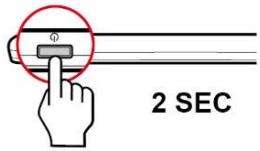
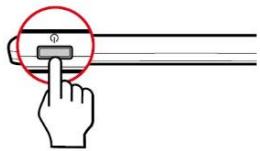
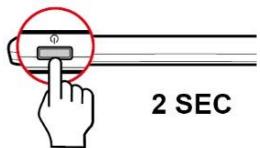
For the initial start-up, press and hold the power button for 2 seconds to turn on your device.
text_image
2 SECFor normal operation, turn off the device by briefly pressing the power button. Your Mio will enter a suspended state. When you next briefly press the power button, your Mio will return to the Main Menu.
text_image
Diagram showing a hand pressing a button on a horizontal bar with a circular annotation highlighting the pointer.To turn off your Mio, press and hold the power button for 2 seconds.
text_image
2 SECResetting the device
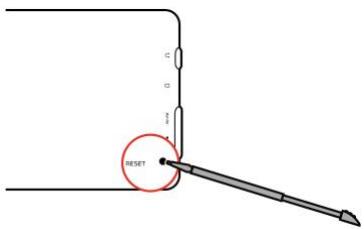
Occasionally, you may need to perform a hardware reset when your Mio stops responding; or appears to be "frozen" or "locked-up." Insert a small rod, such as a straightened paperclip, into the reset button of your device.
text_image
RESETHow do I charge the battery?

The battery may not be fully charged when you use your Mio for the first time.
CAUTION: For optimal performance of the battery, note the following:
- Do not charge the battery when the temperature is high (e.g. in direct sunlight).
■ There is no need to fully discharge the battery before charging.
■ When leaving your Mio for long periods, turn off your Mio to save battery power.
The battery indicator light on your Mio indicates the level of internal battery charge:
- red - battery charging
How do I charge the battery in a vehicle?
To charge your Mio in a vehicle, plug the in-car charger into 🎨 on the left side of your Mio and the other end into the vehicle power socket.
How do I charge the battery via my computer?

For optimal charging results, ensure that your Mio is turned off while connected to your computer.
- Turn on your computer.
- Plug the large end of the USB cable (may be sold separately) directly into a USB port on your computer (not a USB hub) and plug the small end into 🐘 on the left side of your Mio.
CAUTION: When your Mio is turned on and connected to a computer, it is recognized as an external mass-storage device. Do NOT delete any files that are pre-installed on your Mio. Deleting the files can cause your Mio to crash.
How do I charge the battery at home or work?
You can use an optional home charger to charge the battery.
To charge your Mio using a mains power socket, plug the home charger cable into 🎨 on the left side of your Mio and the mains power charger into the power socket.

The home charger is not included with all models and may be purchased separately (see www.mio.com for iils).
How do I play videos on my Mio via AV IN?

The AV IN function is not available on all models. The AV IN function supports NTSC/PAL (interlace) hats.
Your Mio has an AV IN connector that can turn your Mio into an external screen to display video playback from an external composite video source.
Connect your Mio to an AV external source via an AV cable (not provided). The system will automatically detect the signals and switch to the AV mode. To exit the AV mode, simply disconnect the AV cable.
What is GPS?
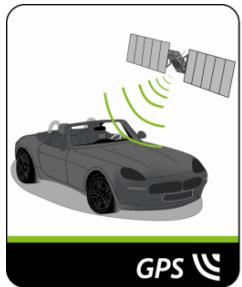
The Global Positioning System (GPS) is available at any time, free of charge, and is accurate to within 5m (15ft). GPS navigation is made possible by a network of satellites that orbit the Earth at around 20,200km (12,552mi). Each satellite transmits a range of signals which are utilized by GPS receivers, such as your Mio, to determine an exact location. Although a GPS receiver can detect signals from up to 12 satellites at any time, only four signals are required to provide a position or "GPS fix" (latitude and longitude), for vehicle navigation systems.
How does my Mio receive GPS signals?
Your Mio receives GPS signals via the internal GPS antenna. To guarantee the optimum GPS signal strength, ensure your Mio is outdoors, or in a vehicle outdoors, and has an unobstructed view of the sky. GPS reception is not usually affected by weather, however, very heavy rain or snow may have a negative effect on your reception.
natural_image
Illustration of a car with a satellite and green signal waves, no text or symbols present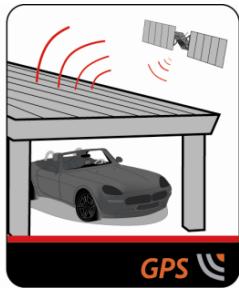
natural_image
Illustration of a car parked under a roof with signal waves and satellite dish in background (no text or symbols)Caring for your Mio
Taking good care of your Mio will ensure trouble-free operation and reduce the risk of damage to your Mio:
- Keep your Mio away from excessive moisture and extreme temperatures.
- Avoid exposing your Mio to direct sunlight or strong ultraviolet light for extended periods of time.
■ Do not place anything on top of your Mio or drop objects on your Mio.
■ Do not drop your Mio or subject it to severe shock. - Do not subject your Mio to sudden and severe temperature changes. This could cause moisture condensation inside the unit, which could damage your Mio. In the event of moisture condensation, allow your Mio to dry out completely before use.
- The screen surface can easily be scratched. Avoid touching it with sharp objects. Non-adhesive generic screen protectors designed specifically for use on portable devices with LCD panels may be used to help protect the screen from minor scratches.
- Never clean your Mio when it is turned on. Use a soft, lint-free cloth to wipe the screen and the exterior of your Mio.
■ Do not use paper towels to clean the screen. - Never attempt to disassemble, repair or make any modifications to your Mio. Disassembly, modification or any attempt at repair could cause damage to your Mio and even bodily injury or property damage and will void any warranty.
- Do not store or carry flammable liquids, gases or explosive materials in the same compartment as your Mio, its parts or accessories.
Troubleshooting
If you encounter a problem you cannot solve, contact an authorized service centre for assistance.
| Problems | Solutions |
| Your Mio does not turn on when using battery power. | The remaining battery power may be too low to operate your Mio. Charge the battery using the in-car charger, home charger (may be sold separately) or USB cable (may be sold separately), then try again. |
| Screen responds slowly. | The remaining battery power may be too low to operate your Mio. If the problem still persists, reset your Mio. |
| Screen freezes. | Reset your Mio. |
| Screen is hard to read. | Increase the screen brightness. |
| Cannot establish a connection with a computer. | Ensure that your Mio and your computer are both turned on before trying to establish a connection.Make sure that the cable is securely plugged into the USB port on your computer and on your Mio. Connect the USB cable (may be sold separately) directly to your computer, not a USB hub.Reset your Mio before connecting the USB cable (may be sold separately). Always disconnect your Mio before you restart your computer. |
Software User Manual
Spirit 5000/7000
Series
Contents 2
Welcome....5
Important information for using the manual 5
Disclaimer 5
How do I get started?......6
How do I use the touch screen? 7
Navigating on the screen....7
Main Menu 7
How do I navigate through the menu screens?......8
How do I use the Keyboard screen? 8
How do I go from A-B?......10
How do I use the FIND wizard?......10
How do I plan my first trip?....11
How do I preview the destination on map? 12
How do I preview a route? 12
Truck mode....13
Pedestrian mode....14
How do I view my route? 15
How do I select the route type?....15
The driving map....15
How do I change the route configuration? 16
How do I view my route statistics? 17
How do I adjust the volume? 17
How do I zoom in/out the map?....18
How do I view the traffic status on my route?....18
Advanced routing functions....19
How do I create a trip with multiple stops? 20
How do I capture a location or a journey? 22
How do I capture the GPS co-ordinates of my location?....22
How do I capture a journey?......22
How do I navigate to a location I have captured? 23
How do I navigate to the saved car location? 23
How to view a journey I have captured? 23
My Places....24
How do I save a location as My Place or Home? 24
How do I navigate to a location I have saved? 24
How do I navigate to Home?......25
How do I navigate to a recent place?......25
How do I edit a saved location in My Places?......25
How do I navigate to a NavPix™? 26
How do I search for a POI?......28
How do I find the nearest POIs using Near Me?......28
How do I find the POIs using EXPLORE? 30
How do I search for a POI by type? 32
How do I search for a POI by keyword? ....33
How do I receive current traffic information via TMC? 34
How will I know when a traffic event occurs? 34
Traffic overview screen....34
How do I view a list of all events on my route? 35
How do I view traffic details? 36
Traffic messages....37
Traffic preferences....38
How do I make a hands-free call? 39
How do I pair a Bluetooth mobile phone with my Mio? 39
How do I manage contacts on my Mio? 39
How do I make a phone call? 39
How do I receive a phone call? 40
In-call options....40
How do I view my call history? 41
What can I customise? 42
Audio....42
Screen 42
Safety....43
Route options....44
Map display....45
My Maps 45
Language 45
Units....46
Time Zone 46
Bluetooth 46
Trip Meter 46
Device 47
Demo 48
Help....48
What is MioMore Desktop? 49
How do I install MioMore Desktop onto my computer? 49
My Subscriptions....50
My Maps....51
Custom POIs....54
Photo Album....56
Image Search....60
Application Gallery....61
Unlock Features 62
Redeem....62
MY PLACES....63
TRIP PLANNER....65
MY MIO 66
For more information....70
Point of Interest categories....70
Traffic and other TMC events....72
Online support 74
Mio Advantage....74
Speed limit....74
Safety camera POIs....74
Copyright 74
Welcome
Thank you for purchasing this Mio. This manual has been prepared to guide you through the operation of your Mio from first set-up through to continuous use. Please read this manual carefully before using your Mio for the first time. Keep this manual in a safe place and use as your first point of reference.
Important information for using the manual
It is important to understand the terms and typographical conventions used in this manual.
Formatting
The following kinds of formatting in the text identify special information:
| Convention | Type of Information |
| Bold | Mio components or items displayed on screen, including buttons, headings, field names and options. |
| Italics | Indicates the name of a screen. |
Icons
The following icons are used throughout this manual:
| Icon | Description |
| [0TW6] | Note |
| [0KC4] | Tip |
| [A+E36] | Warning |
Disclaimer
Mio operates a policy of ongoing development. Mio reserves the right to make changes and improvements to any of the products described in this document without prior notice. Mio does not warrant that this document is error-free. The screenshots and other presentations shown in this manual may differ from the actual screens and presentations generated by the actual product. All such differences are minor and the actual product will deliver the described functionality as presented in this User Manual in all material respects.

The first time you use your Mio it may take several minutes to establish a GPS connection.
How do I turn my Mio on for the first time?
To get started for the first time, complete the following steps:
- Read the Important Safety Information
- Position your Mio in your vehicle
Follow the instructions in the Quick Start Guide.
CAUTION: Ensure that your Mio does not obstruct the driver's view, or interfere with the operation of the vehicle airbags and safety devices.
- Turn your Mio on
Your Mio will turn on and display the Language screen.
- Select your preferred language
From the Select Language screen, tap your preferred language.
- You can change your preferred language while using your Mio.
- Read the warning message
The Safety Agreement screen will display after you have selected your preferred language. Read the Safety Agreement message. To confirm that you have read and understood the message, tap Accept.
-
View the Tutorial
-
To move forward through the Tutorial screen, tap Next. To view the previous screen, tap
■ To skip the Tutorial screen, tap Skip.


To prevent the Tutorial from displaying on each start-up, tap the Show tutorial on start-up option to
deselect it. To enable the tutorial again, select the option from Main Menu → 🎨 → Help → View Tutorial.
- Customise the device
Follow the on screen instructions to select your preferred distance unit, date format, and time format.
- Unlock your Mio
Depending on your Mio model, you may need to enter a Startup Key (which is printed on the side of the box) and then tap OK to unlock the device. You will only have to do this the first time you use your Mio.

It is recommended that you keep a copy of the Startup Key in a safe place.
- Set up Home
The Home setup wizard only appears on the first time you start your Mio.
- Tap OK to set up your home immediately using the address-entry wizard.
- You can tap Cancel to skip the wizard, and then select you home later in My Places.
When you have finished the steps above, the Main Menu screen will display. If you have a GPS fix, you can start to use Mio to plan your trip.
How do I use the touch screen?
Navigating on the screen
To operate your Mio, touch the screen with your fingertip. You can perform the following actions:
Tap
Press and release an item displayed on the touch screen.
Select
Tap an item in a list or tap a command from a menu.
Main Menu
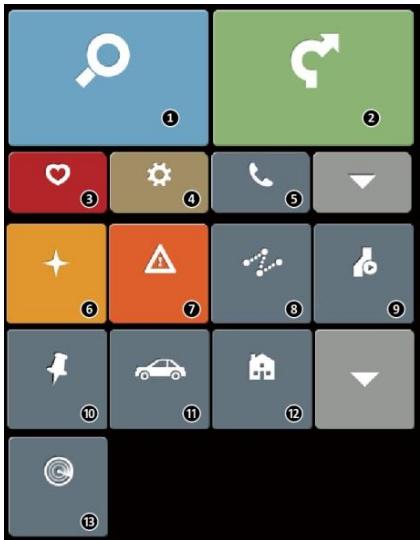
The Main Menu is your starting point for searching for a destination. The Main Menu also allows you to customise your Mio, view saved locations as My Place/Home, and search for POIs nearby, and so on.

Main Menu screen options and the order of the options may differ from the above, depending on your region, maps installed or model of Mio.

Tap

to show the next page of Main Menu.
text_image
Grid of 24 colored and white icons representing various application or service categories, including search, refresh, alarm, and car.① Search for places, areas and streets to help plan your route.
② Display the Map screen.
③ Access your saved locations.
4 Configure your Mio to enhance your navigation experience.
⑤ Use your Mio as a hands-free car kit (for selected models).
⑥ Explore the area around your current position or destination.
⑦ Receive live traffic information on your route and set traffic preferences.
8 Add or begin a planned trip with multiple waypoints.
⑨ Display the calculated route in simulation mode.
10 Record GPS coordinates of a location or a journey.
11 Select your navigation mode: Car, Truck (for selected models), or Pedestrian.
12 Set or navigate to your home address.
13 Search for Points of Interest nearby.
How do I navigate through the menu screens?
How do I return to the Main Menu screen?
You can return to the Main Menu screen at any time by:
- tapping the MAIN MENU button ( [icon] ) in the title bar of the menu screen, which allow you to navigate through the menu screens easily.
In some menu screens (such as the Keyboard screen), the MAIN MENU button (☐) will not appear in the title bar. In this instance, you have to tap the BACK button (←) repeatedly.
How do I use the BACK button in the title bar?
- From the Main Menu screen, tap the desired menu button to enter the menu screen.
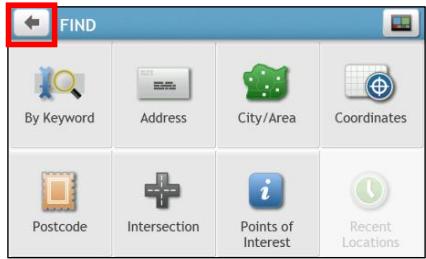
For example, tapping will lead you to the FIND screen.
- The system provides the BACK button (←) in the title bar of the menu screen, which allows you to navigate through the menu screens easily. You can return to the previous screen by tapping the BACK button.
text_image
FIND By Keyword Address City/Area Coordinates Postcode Intersection Points of Interest Recent LocationsHow do I use the tabs in the title bar?
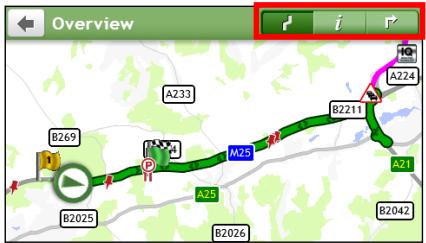
In some menu screens (such as the map Overview screen), the system provides the tab buttons in the title bar that allow you to enter the additional page in the menu screen. Simply tap the desired tab to change the view.
text_image
Overview A233 B269 M25 A224 B2211 A21 B2025 A25 B2026 B2042
The selected tab will be highlighted as a darker-colour tab.
How do I use the Keyboard screen?
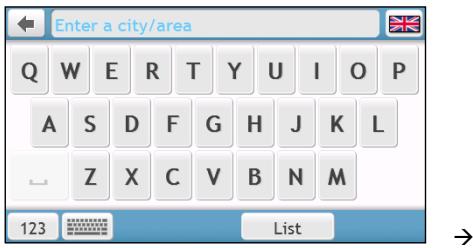
The Keyboard screen will display when you are required to enter text, such as when searching for a street name. Search results will be listed in matching order, with the closest matches appearing on the screen. A maximum of 99 results will display.
The Keyboard screen can display with various layouts depending on the information you need to enter, including alphabet, number, alternate characters and combinations of these.
text_image
Enter a city/area Q W E R T Y U I O P A S D F G H J K L Z X C V B N M 123 List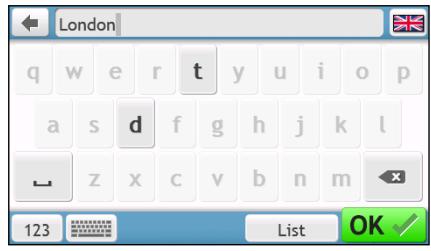
text_image
London q w e r t y u i o p a s d f g h j k l z x c v b n m 123 List OKHow do I enter characters/numbers?
■ To select a character, tap the character.
- To delete a character, tap ✗. Tap and hold ✗ to delete the entire text.
■ To enter numbers, tap 123.
How can I set my keyboard preference?
- From the Keyboard screen, tap 📄. The Keyboard preference screen will display.
- Select the preferred keyboard type from the list.
How do I go from A-B?

WARNING: For your safety, enter destination information before you start a journey. Do not enter a destination while driving.
How do I use the FIND wizard?
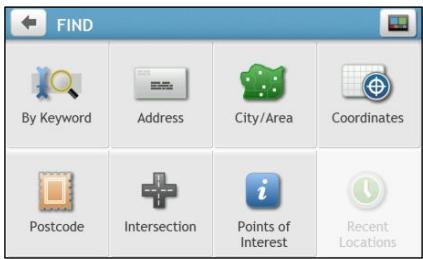
Your Mio is equipped with maps that provide street-level detail for door-to-door navigation, including Points of Interest such as accommodation, parking areas, petrol stations, railway stations and airports. The FIND wizard allows you to search the location easily.
- On the Main Menu, tap 📋 to display the FIND screen.
text_image
FIND By Keyword Address City/Area Coordinates Postcode Intersection Points of Interest Recent Locations- Complete the following:
| If you want to ... | Then ... |
| search for an address, | tap  . . |
| search all information on the device - city, streets, named sites, features, landmarks or venues, | tap  |
| search for a city/area, | tap  |
| search a location by postcode, | tap  |
| search for a Point of Interest, | tap [40WY] |
| search for a location using a GPS coordinate, | tap [BKAX] |
| search for a street intersection, | tap  |
| navigate to a recently visited location, | tap [DYBT] |

For further instructions on searching for a POI, refer to the "How do I search for a POI?" section.
How do I plan my first trip?
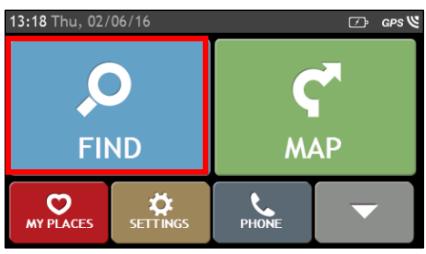
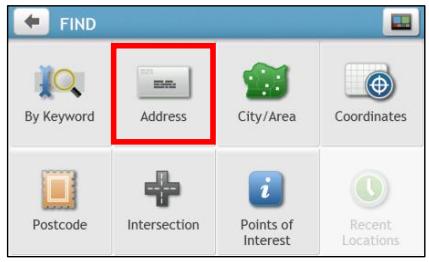
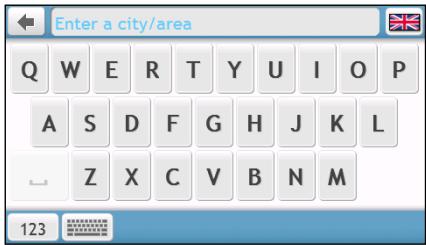
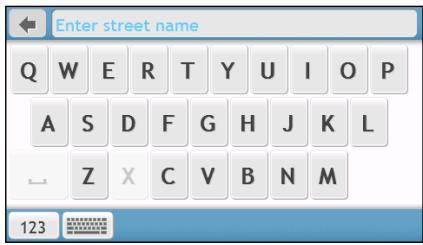
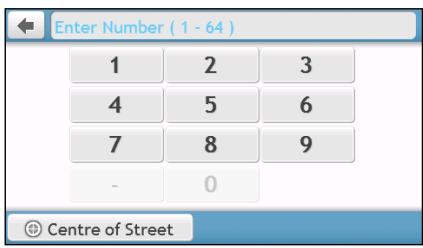
Using your Mio to plan your first trip is easy. There are several ways to select your destination. Complete the following to navigate to a street address that you know using the FIND address wizard.
text_image
13:18 Thu, 02/06/16 FIND MAP MY PLACES SETTINGS PHONE→
text_image
FIND By Keyword Address City/Area Coordinates Postcode Intersection Points of Interest Recent Locations→
text_image
Enter a city/area Q W E R T Y U I O P A S D F G H J K L Z X C V B N M 123→
text_image
Enter street name Q W E R T Y U I O P A S D F G H J K L Z X C V B N M 123→
text_image
Enter Number ( 1 - 64 ) 1 2 3 4 5 6 7 8 9 - 0 © Centre of Street→
text_image
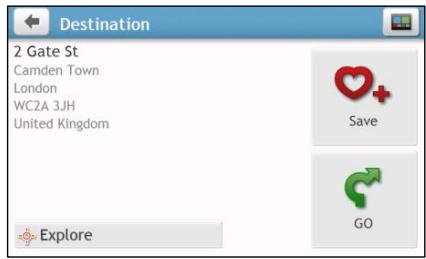
Destination 2 Gate St Camden Town London WC2A 3JH United Kingdom Explore Save GOWhen it is the first time you use FIND wizard, the Select Country screen will appear before the FIND screen. Select your country and then you can start searching location.
If needed, you can change the country to search location. To select the other country, tap the National Flag button (e.g. 📁) in the title bar of the Keyboard screen before you search the city.
Complete the following:
| If you want to ... | Then ... |
| calculate the route and start navigating, | tap  |
| save the location as a favourite, | tap  |
| save the location as Home, | tap [Y06W] → ♥. The Edit screen will display. Tap 🔊+. |
| explore the map, | tap  |
How do I preview the destination on map?
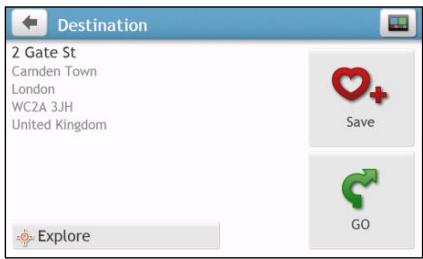
After searching an address (or a POI), you can preview the destination on map to explore the area near the location. On the Destination screen, tap the 📷 button to display the destination preview map as below.
text_image
Destination 2 Gate St Camden Town London WC2A 3JH United Kingdom Explore Save GOOn the destination preview map, you can:
- Tap the + / - button to zoom in/out the map.
■ View the information of your destination that is shown at the top of the Map screen. - Tap on a street/area/POI to display the related information of the location near your destination.
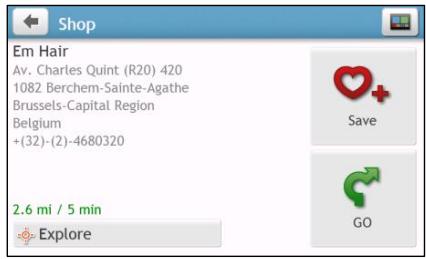
- Tap on the map to select the other destination. The information of the selected street/area/POI near your destination will be displayed. Tapping the check mark will bring up the Destination screen of the selected location.

text_image
Em Hair, Av. Charles Quint (R20) 420, 1082 B.. Marl Pargarijeli R20 Charles Quint R. de Termo Dendermondsestra Av. des Bardanes
text_image
Em Hair Av. Charles Quint (R20) 420 1082 Berchem-Sainte-Agathe Brussels-Capital Region Belgium +(32)-(2)-4680320 2.6 mi / 5 min ExploreHow do I preview a route?

Route simulation is not available on all models.
Depending on your Mio model, you will be able to plan a route in simulation mode that allows you to:
■ preview a route.
■ plan and view a route without a GPS fix, such as when you are inside a building.
The following steps will show you how to preview a route.
- On the Main Menu, tap

- Select a departure point through the Leaving from screen.

If you have a GPS fix, you can simply select the Here button (A) so that you do not need to select a departure point. Otherwise, use the FIND address wizard, Explore map, My Places/Recent places menu home to set the departure point if you want the demonstrated route to start elsewhere.
-
Select a destination point through the Going to screen.
-
When done, tap

- The Map screen will display the calculated route in route simulation mode. Select a route type and tap G, and the route demonstration will start automatically.
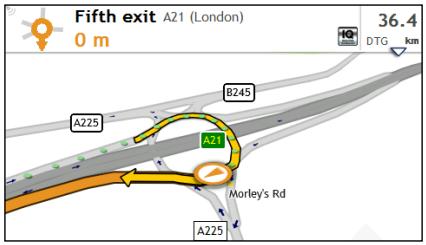
text_image
Fifth exit A21 (London) 0 m 36.4 DTG km B245 A225 A21 Morley's Rd A225
The simulated route will be displayed as orange colour.
Truck mode

The Truck mode is not available on all models and is only available in selected countries.
This feature is specifically designed for large vehicles. The Truck mode enables, with the input of your vehicle or trailer details, to calculate safer and more efficient routes to avoid the length/width/height/weight restricted tunnels and bridges, as well as sharp turns and narrow country lanes.

WARNING: Do not rely solely on this product and its features. Using this product does not change the requirement for a driver to take full responsibility for his behaviour. This responsibility includes observing all traffic rules and regulations in order to avoid accidents, personal injury or property damage.
How can I plan my route using Truck mode?
- On the Main Menu, tap

- Tap Truck depending on your large vehicle type.
- Complete the following:
| If you want to ... | Then ... |
| set the details for your truck, | enter the following data of the truck:▪ total truck weight▪ maximum axle weight▪ total truck length▪ maximum truck width▪ maximum truck heighti You must complete the details of the truck settings before you can use Truck mode to plan your route. |
| set how you want to receive the speed limit alerts, | tap Speed limit display / Speed limit alerts to turn it on or off. |
| limit the route planning while shipping hazardous materials in the truck, | tap Has Hazmat to turn it on or off. |

When in Truck mode, your route will be displayed using

icon.
How do I activate Truck mode after the free trial?
Your Mio comes with pre-activated Truck mode service for one-month free trial. You will be prompted to purchase (from Mio e-shop online) and re-activate the service when the trial period has expired.
A product key will be sent to you via email when you have subscribed. You will need to use this product key to activate your subscription. (For more information, refer to the “What is MioMore Desktop?” section.)
Pedestrian mode
The Pedestrian mode allows you to navigate to your destination using roads and paths appropriate for a pedestrian, including road where driving may be prohibited (like pedestrian zones for example).
When in Pedestrian mode, you will not be routed onto motorways and their associated on/off ramps (slip roads). If your destination is more than 10 kilometres (6.3 miles) away, a warning message is displayed indicating that the route is a long way to walk.
How can I set my navigation mode to Pedestrian?
- On the Main Menu, tap

- Tap Pedestrian.

When in Pedestrian mode, your route will be displayed using

icon.
How do I view my route?
How do I select the route type?
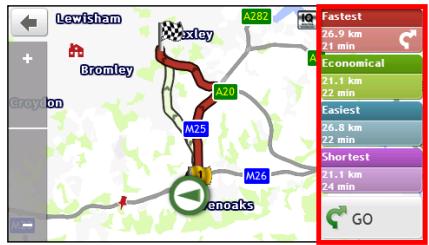
Depending on your Mio model, the Select Route Type screen will be displayed when you tap from the Destination screen. All of the four route types (Fastest, Economical, Easiest, and Shortest) will be calculated.
text_image
Lewisham Bromley A20 A282 M25 M26 enoks Fastest 26.9 km 21 min Economical 21.1 km 22 min Easiest 26.8 km 22 min Shortest 21.1 km 24 min GOSelect your preferred route and tap 📁 to start navigating.

For more information about setting the preferred route type, refer to the Route options section in "What can I customise?"
The driving map
When you select a route type and tap 📄, the Map screen will display. You will be directed to your destination by spoken and visual instructions.

The driving map will be displayed automatically when:
■ a route is calculated and selected.
■ the device is reset and the user is on a route.
Alternatively, you can access the Map screen manually by tapping 📊 on the Main Menu.
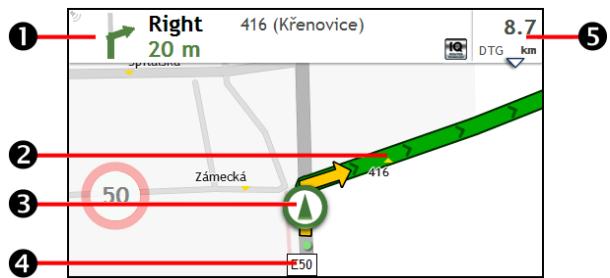
text_image
Right 20 m 416 (Křenovice) 8.7 DTG km Zámecká 416 50 50| Item | Description | |
| 1 | Direction and distance of next turn | The direction and distance to your next turn.Tap 📋 to repeat the vocal instruction. |
| 2 | Current route | Your current route is highlighted. |
| 3 | Current position | Your current position is marked with [IMAGE]. |
| 4 | Address bar | The current address will be displayed in the text box at the bottom of the Map screen. |
| 5 | Distance and time information | Tap to expand and select the following options:DTG (Distance to Go)TTG (Time to Go)km/h or mph (speed) and compass headingETA (Estimated Time of Arrival)Time |

Depending on your driving route, you may see some icons that provide different information on your Map screen. Please note that these icons will not be always displayed during your journeys.
For example: the Speed Limit icon (100) on the Map screen. The Speed Limit icon shows the speed limit of the current road. If greyed out, you are below this speed limit. When over set limit, you will be warned with an audible and visual warning.
How do I change the route configuration?
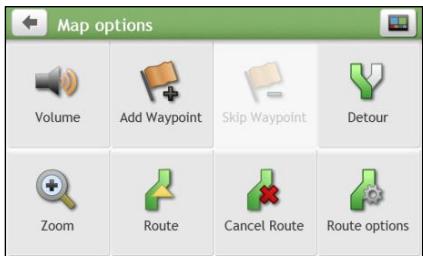
Tap anywhere on the Map screen to bring up the Map options screen, which allows you to change the route-related configuration.
For more information about changing the route configuration, refer to the following sections in this manual.
text_image
Map options Volume Add Waypoint Skip Waypoint Detour Zoom Route Cancel Route Route optionsHow do I view my route statistics?
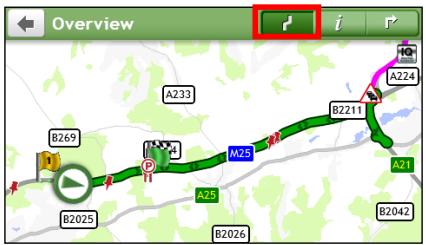
- From the Map options screen, tap

- Tap the tabs in the title bar to view the additional information in the different screens.
text_image
Overview A233 B269 A24 M25 B2211 A21 B2025 A25 B2026 B2042 A224
text_image
Information Time to destination 1 min Distance to go 2.2 km Estimated Time of Arrival 04:00 Distance travelled 14.7 km Time travelled 15 min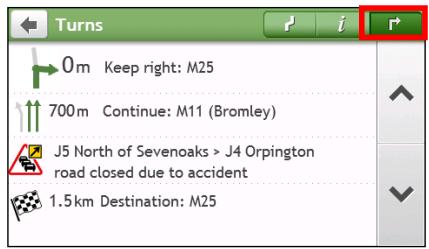
text_image
Turns 0 m Keep right: M25 700 m Continue: M11 (Bromley) J5 North of Sevenoaks > J4 Orpington road closed due to accident 1.5 km Destination: M25- Your Mio provides information on your:
■ time to destination
■ time taken for trip
distance to go
■ stationary time
■ estimated time of arrival
■ TTD/DTG/ETA for the journey*
■ distance travelled
■ Traffic delay*
* Depending on the route calculated, you may see more information on the screen such as the estimated time/distance to the next stop when your trip contains multiple waypoints and the traffic delay information if a traffic event occurs in your trip.
How do I adjust the volume?
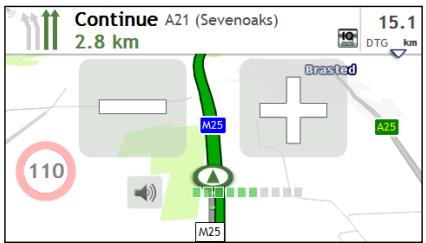
- From the Map options screen, tap
- The volume buttons will be displayed on the Map screen in translucent mode.
text_image
Continue A21 (Sevenoaks) 2.8 km 15.1 DTG km Brasted M25 A25 110 M25- Complete the following:
| If you want to ... | Then ... |
| increase/decrease the volume, | tap  / [TH2S]The volume bar indicates the current volume level. / [TH2S]The volume bar indicates the current volume level. |
| mute/unmute, | tap  The speaker icon indicates the status:[OSWD] : muted The speaker icon indicates the status:[OSWD] : muted  : unmuted : unmuted |

The volume buttons will automatically disappear after the map is idled for 5 seconds.
How do I zoom in/out the map?
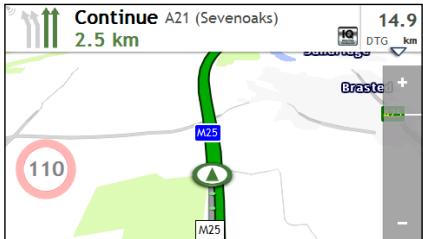
- From the Map options screen, tap

- The zoom buttons will be displayed on the Map screen in translucent mode.
text_image
Continue A21 (Sevenoaks) 2.5 km 14.9 DTG km M25 Braste + 110 M25- Complete the following:
| If you want to ... | Then ... |
| zoom in the map, | tap and hold +. |
| zoom out the map, | tap and hold -. |

The zoom buttons will automatically disappear after the map is idled for 5 seconds.
How do I view the traffic status on my route?

Traffic information is not available on all models and is only available in selected countries.
On the Main Menu, tap 🔒 to display the Traffic screen.
For more information, refer to the "How do I receive current traffic information via TMC?" section.
Advanced routing functions
IQ Routes™
Your Mio features IQ Routes, which intelligently anticipates congested roads at peak times so that they can be avoided. IQ Routes does this by using historical, anomalised data from millions of fellow drivers. Since IQ Routes helps you automatically avoid predicted heavy congestion, you will be able to save time and money during your journeys.

IQ Routes is not available on all models and is only available in selected countries.
LearnMe Pro™
With LearnMe Pro technology, your Mio includes an intelligent capability that learns and adapts to your personal driving style. Over time, your Mio learns your preference for road types and driving speeds, turns and more. Your Mio will save the information and provide a more personalised route and accurate time of arrival the next time you plan a trip.

For more information about IQ Routes and LearnMe Pro settings, refer to the Route options section in at can I customise?"
Back-On-Track™ automatic rerouting
You will be redirected if you make a wrong turn. A message informing you that your route is being re-calculated will display at the top of the screen.
To cancel a route re-calculation, tap ✗ from the Map options screen. A warning will display asking you to confirm the cancellation. If confirmed, both the re-calculation and your current route will be cancelled.
Parking assistant
You will be reminded of the parking information when you are arriving at the destination (within 1 km) of the route. Simply tap the icon on the Map screen to show the nearby parking lots that are sorted by distance.
How do I create a trip with multiple stops?
TRIP PLANNER is not available on all models and is only available in selected countries.
Depending on your Mio model, you will be able to set multiple stops or waypoints for your trip. Your route will be calculated to go via each of these points in the specified order.
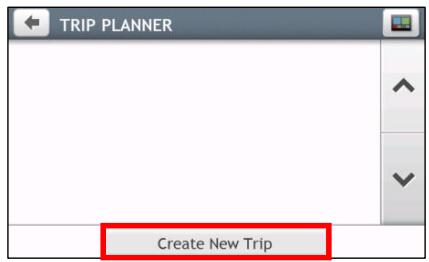
- On the Main Menu, tap 📋. The TRIP PLANNER screen will display.
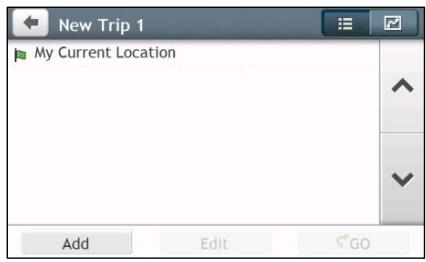
- Tap Create New Trip. The Edit screen will display.
text_image
TRIP PLANNER Create New Trip
text_image
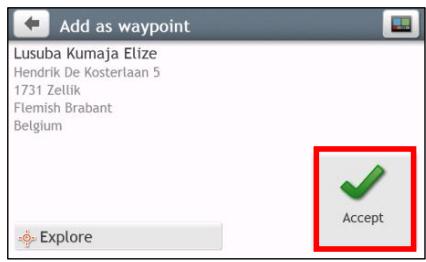
New Trip 1 My Current Location Add Edit GO- Tap Add. The Add as waypoint screen will display. Use the FIND address wizard, Explore map, My Places/Recent Locations menu or Here/Return to start to set the waypoint.
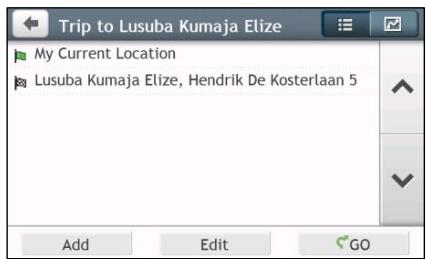
- When your search is done, tap √. The waypoint is added and the Edit screen will display.
text_image
Add as waypoint Lusuba Kumaja Elize Hendrik De Kosterlaan 5 1731 Zellik Flemish Brabant Belgium Explore Accept
text_image
Trip to Lusuba Kumaja Elize My Current Location Lusuba Kumaja Elize, Hendrik De Kosterlaan 5 Add Edit GO- Complete the following:
| If you want to ... | Then ... |
| add another waypoint, | tap Add. The Add as waypoint screen will display. Return to step 3. i Waypoints added after a multi-stop trip has commenced will not be included in the current route. |
| navigate to your selected destination, | tap ↗. The Map screen will display the calculated route. |
| edit the trip, | tap Edit, then you can:▪ optimise your trip by selecting Optimise.▪ change the trip title by selecting Rename.▪ delete the planned trip by selecting Delete. |

The Optimise function does not take all factors into account. Your waypoints might be reordered to reduce your estimated travel distance. Be sure to confirm the trip on the map and make adjustments as appropriate, particularly if your trip returns to the start location.
How do I edit the waypoints in the trip?
- On the Main Menu, tap 📋. The Trip Planner screen will display.
- Tap the trip to edit.
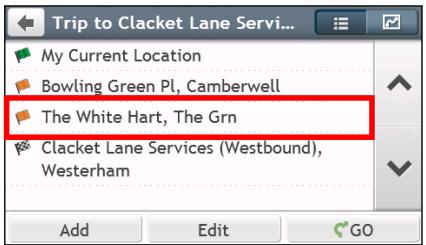
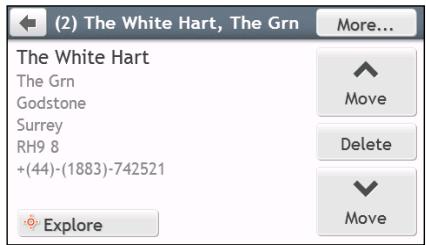
- Tap a waypoint in the trip. The Preview screen will display.
text_image
Trip to Clacket Lane Servi... My Current Location Bowling Green Pl, Camberwell The White Hart, The Grn Clacket Lane Services (Westbound), Westerham Add Edit GO
text_image
(2) The White Hart, The Grn More... The White Hart The Grn Godstone Surrey RH9 8 +(44)-(1883)-742521 Move Delete Move Explore- Complete the following:
| If you want to ... | Then ... |
| delete a waypoint, | tap Delete, then select OK. |
| change the order of the waypoint, | tap ▲ or ▼. |
How do I skip a waypoint during a multi-stop trip?
- Tap anywhere on the Map screen to bring up the Map options screen.
- Tap 1-, then select Yes. The next waypoint will be skipped and the route recalculated to the following waypoint.

You can also add waypoints during the trip by selecting

from the Map options screen.
How do I capture a location or a journey?
The capture functionality is not available on all models.
Your Mio has a capture feature which allows you to record GPS co-ordinates of a location and capture a journey and save them so you can navigate back at a later time.
How do I capture the GPS co-ordinates of my location?
- Tap on the Main Menu.
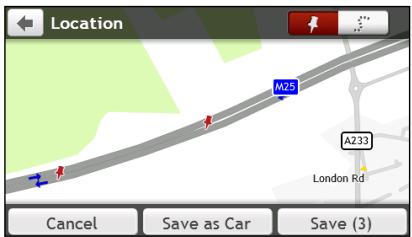
- The Capture screen will display.
text_image
Location M25 A233 London Rd Cancel Save as Car Save (3)- Tap Save, or wait for 5 seconds. You will hear a shutter sound to indicate that the GPS co-ordinates have been saved. The location is saved in My Places.

Tap Save as Car will save the current car location in My Places.
How do I capture a journey?
To enable capturing of journeys, you must first enable Capture Journey from Main Menu → ➕ ➔ Route options. For more information, refer to the “What can I customise?” section.
- At the beginning of the journey you would like to record, tap Clear. All travel that you have made (i) since midnight, (ii) the previous time you tapped Clear, or (iii) last captured a journey, will be deleted.
- Travel on your journey. Your Mio will keep a record of where you travel.
- At the end of your journey, tap 🎨 on the Main Menu.
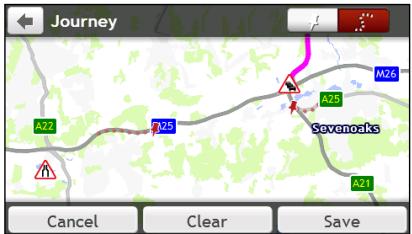
- On the Capture screen, tap 📋. The Journey screen will display.
text_image
Journey A22 A25 M26 A25 Sevenoaks A21 Cancel Clear Save- Tap Save, then Yes. The journey is saved in My Places.
How do I navigate to a location I have captured?
- On the Main Menu, tap ♥. The MY PLACES screen will display.
- Tap the captured destination you want to travel to ( ) . The Preview screen will display.
- Tap 📄. Your Mio will calculate the route from your current location. The Map screen will display.
How do I navigate to the saved car location?
- On the Main Menu, tap ♥. The MY PLACES screen will display.
- Tap Find My Car. The Find My Car screen will display.
- Tap 📄. Your Mio will calculate the route from your current location. The Map screen will display.
How to view a journey I have captured?
- On the Main Menu, tap 🤖. The MY PLACES screen will display.
- Tap the captured journey you want to view ( ).
My Places has all your saved locations.
How do I save a location as My Place or Home?
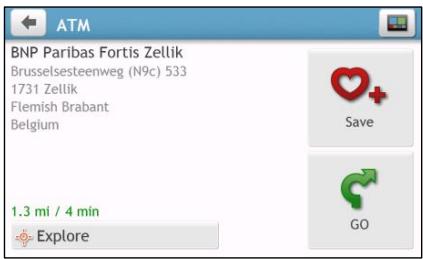
- Search for an address until the Preview screen is displayed.
text_image
ATM BNP Paribas Fortis Zellik Brusselsesteenweg (N9c) 533 1731 Zellik Flemish Brabant Belgium 1.3 mi / 4 min Explore Save GO- Tap ♥+. The Save screen will display. The location has been added to My Places.
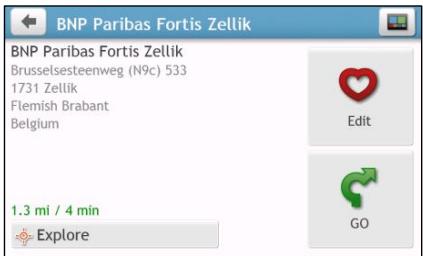
text_image
BNP Paribas Fortis Zellik Brusselsesteenweg (N9c) 533 1731 Zellik Flemish Brabant Belgium Edit 1.3 mi / 4 min Explore GO- To save the location as Home, tap ♥. The Edit screen will display.
Tap 📋+. The location has been set as Home.
How do I navigate to a location I have saved?
- On the Main Menu, tap 🤐. The MY PLACES screen will display.
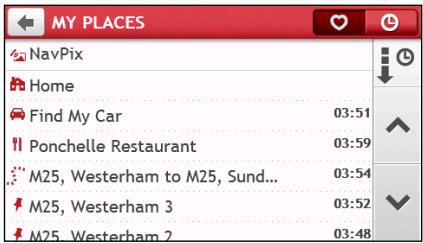
text_image
MY PLACES NavPix Home Find My Car 03:51 Ponchelle Restaurant 03:59 M25, Westerham to M25, Sund... 03:54 M25, Westerham 3 03:52 M25, Westerham 2 03:48
Tap the Sort by button on the top of the scrolling buttons to change the sorting order of the items:

: by time

: by name

: by type
-
Tap the favourite destination you want to travel to. The Preview screen will display.
-
Tap 📄. Your Mio will calculate the route from your current location. The Map screen will display.
How do I navigate to Home?
If you have not set an address as Home, the first time you try to navigate to Home you will be prompted to search for an address using the address-entry wizard.
- On the Main Menu, tap 🤊. The MY PLACES screen will display.
- Tap 🏠. The Preview screen will display.
- Tap G. Your Mio will calculate the route from your current location. The Map screen will display.

Once your home has been set on your Mio, simply tap on the Main Menu and you will be directed to Home quickly.
How do I navigate to a recent place?
To make navigating to an address easier, your Mio will automatically save all your start locations and destinations in a list of recent places.
- On the Main Menu, tap 🤊. The MY PLACES screen will display.
- Tap 📋. The Recent Locations screen will display.
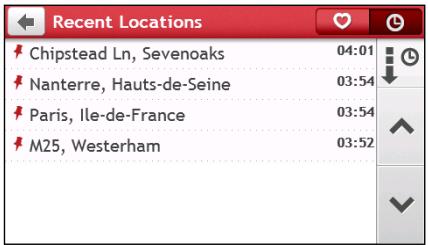
text_image
Recent Locations Chipstead Ln, Sevenoaks 04:01 Nanterre, Hauts-de-Seine 03:54 Paris, Ile-de-France 03:54 M25, Westerham 03:52- Tap a recent place. The Preview screen will display.
- Tap 📄. Your Mio will calculate the route from your current location. The Map screen will display.
How do I edit a saved location in My Places?
- On the Main Menu, tap 🤊. The MY PLACES screen will display.
- Select a location to edit. The Preview screen will display.
- Tap ♥. The Edit screen will display.
- Complete the following:
| If you want to ... | Then ... |
| save the location as Home, | tap 📄+. |
| rename the location, | tap ♥I. The Keyboard screen will display. After you have edited the name, tap OK. |
| delete the location, | tap ♥x. |
How do I navigate to a NavPix™?

NavPix™ is not available on all models and is only available in selected countries.
NavPix ^™ is an image or picture, normally of a location, which contains embedded GPS co-ordinates that you can navigate to.
To navigate to a NavPix™ location, either a GPS fix must have been available when the NavPix™ was taken, or GPS co-ordinates have been added using MioMore Desktop.
How do I navigate to a NavPix™ in an album?

For more information about importing the NavPix™ to your Mio, refer to the Photo Album section in at is MioMore Desktop?"
-
On the Main Menu, tap 🤖. The MY PLACES screen will display.
-
Tap NavPix.
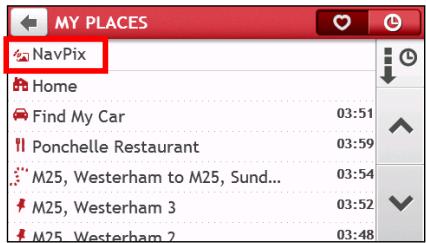
text_image
MY PLACES NavPix Home Find My Car 03:51 Ponchelle Restaurant 03:59 M25, Westerham to M25, Sund... 03:54 M25, Westerham 3 03:52 M25, Westerham 2 03:48- From the list select the album ( ) you want. The album contains your pictures and displays them as thumbnails.
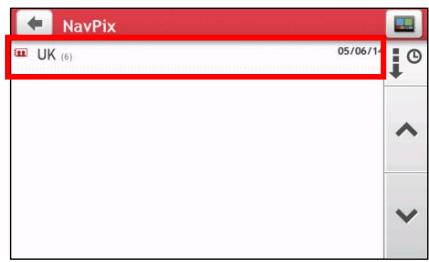
text_image
NavPix UK (6) 05/06/14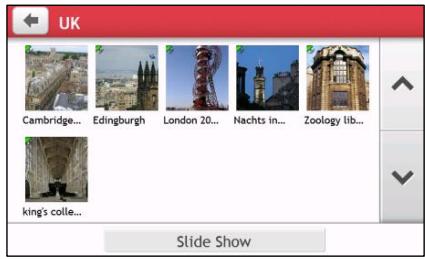
text_image
UK Cambridge... Edinburgh London 20... Nachts in... Zoology lib... king's colle... Slide Show| Item | Description |
 | Tap to return to the previous screen. |
| NavPixTM thumbnail | A thumbnail of a NavPixTM contained in the album. To select a NavPixTM, tap the thumbnail. |
 | Indicates that the picture is a NavPixTM, with embedded GPS co-ordinates. |
| Slide Show | Displays all images in the album as a full-screen slideshow. |
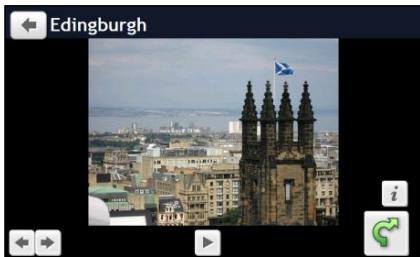
- Tap the thumbnail of the NavPix™. The NavPix™ will appear in full-screen.
natural_image
Exterior view of Edinburgh featuring a Gothic cathedral with a flagpole and city skyline in the background (no signage visible)| Item | Description |
 | Tap to start/stop slideshow. |
| Gawxal | Tap to display the Navpix Details screen. |
| Gawxcl | Tap to calculate the route, open the Map screen and start navigating. |
| Gwrel | Tap to scroll through your NavPixTM. |
How do I edit the NavPix™?
- From the Album screen, tap the thumbnail of the NavPix™. The NavPix™ will appear in full-screen.
- Tap i. The NavPix Details screen will display.
- Complete the following:
| If you want to ... | Then ... |
| calculate the route and start navigating, | tap [IMAGE]. The Map screen will display. |
| edit the NavPixTM, | tap [IMAGE].To save the location as Home, tap [IMAGE].To rename the title of the NavPixTM, tap [IMAGE].To delete the NavPixTM, tap [IMAGE]. |
| explore the map, | tap [IMAGE]. |
How do I search for a POI?
A POI (Point of Interest) is a named site, feature, landmark or public venue which can be displayed as an icon on the map. POIs are grouped by category, such as petrol stations, parks, beaches and museums.
How do I find the nearest POIs using Near Me?
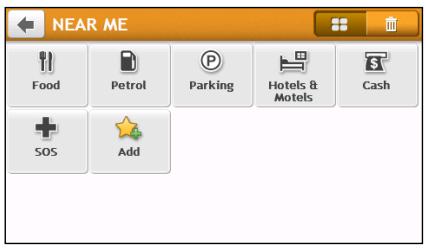
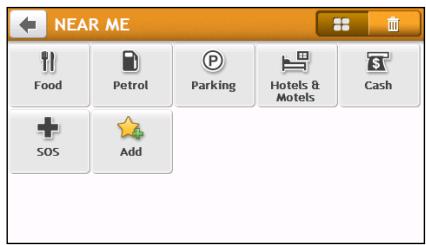
Near Me services allows you to quickly search the local area for common types of important POIs.
text_image
NEAR ME Food Petrol Parking Hotels & Motels Cash SOS Add | Search for the nearest restaurants, cafes, fast-food premises and other dining establishments. |
 | Search for the nearest petrol stations. |
 | Search for the nearest parking places. |
 | Search for the nearest hotels and motels. |
 | Search for the nearest banks and ATMs. |
| [GBXB] | Search for the nearest emergency services, including hospitals and police. |
 | Customise the categories for search. |

- On the Main Menu, tap 📋. The Near Me screen will display.
- Select the desired POI category (for example, Food). The search result will be listed in the Select POI screen.
text_image
NEAR ME Food Petrol Parking Hotels & Motels Cash SOS Add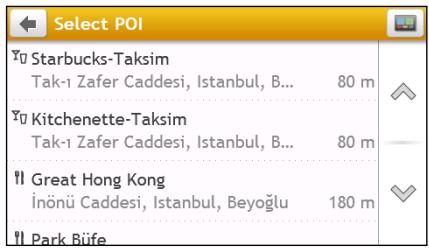
text_image
Select POI Yo Starbucks-Taksim Tak-1 Zafer Caddesi, Istanbul, B... 80 m Yo Kitchenette-Taksim Tak-1 Zafer Caddesi, Istanbul, B... 80 m Yl Great Hong Kong Inönü Caddesi, Istanbul, Beyoğlu 180 m Yl Park Büfe- Tap ∧ or √ to scroll up or down the list. Select the desired item to display the destination screen.
- Complete the following:
| If you want to ... | Then ... |
| calculate the route and start navigating, | tap [3272]. The Map screen will display. |
| save the location as a favourite, | tap  + The location will be saved in My Places immediately. + The location will be saved in My Places immediately. |
| explore the map, | tap  |
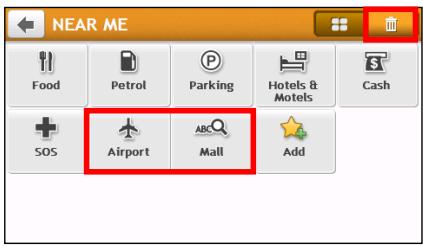
How do I customise the categories for search?
- On the Main Menu, tap 📋. The Near Me screen will display.
- Tap
- From the pop-up message screen, do one of the following:
| If you want to ... | Then ... |
| add the categories by POI type, | tap POI type.Select the desired category for search. |
| add the categories by keywords, | tap Keywords.Enter the keyword of the category for search. |

- To delete the added categories, tap 📄. Select the category to remove and then tap Delete.
text_image
NEAR ME Food Petrol Parking Hotels & Motels Cash SOS Airport Mall Add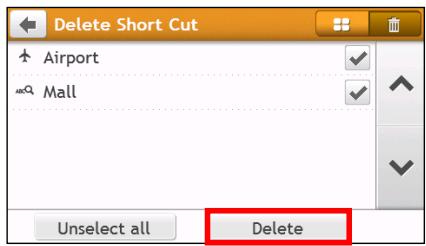
text_image
Delete Short Cut Airport Mall Unselect all DeleteHow do I find the POIs using EXPLORE?

EXPLORE is not available on all models and is only available in selected countries.
Depending on your Mio model, you can search for the POIs using Explore map. The Explore map allows you to explore the local area to find Points of Interest (POIs) or navigate to an address. If you do not have a GPS fix, the map will display your last known position.
-
On the Main Menu, tap 🎨. The Explore screen will display.
-
On the Explore map, you can:
-
View the information of the selected POI that is shown at the top of the screen.
- Tap and drag the map to explore your desired local area.
- Tap the map to display a POI Cluster showing POIs in the surrounding area. Tap a POI icon to show more information and navigate to the POI.
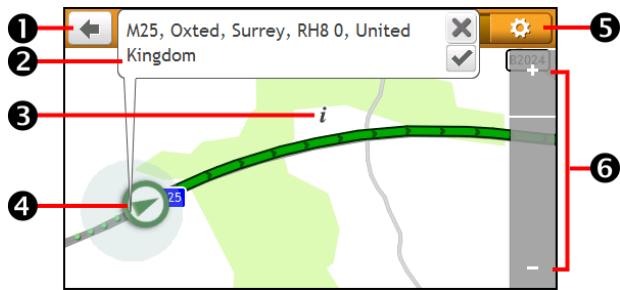
text_image
M25, Oxted, Surrey, RH8 0, United Kingdom i 25| Item | Description | |
| 1 |  | Tap to return to the previous screen. |
| 2 | Information area | Display the information of the selected POI/position. |
| 3 | POI Cluster | To display a POI Cluster, tap an area on the Explore map.Tap an icon or street name in the POI Cluster to view information and options. |
| 4 | Current position | Your current position is marked with [IMAGE]. |
| 5 | [53CK] | Tap to display the POI Display screen, allowing you to set POI preferences. |
| 6 |  / [IMAGE] / [IMAGE] | To zoom in or out, tap and hold + or - . Zooming in or out will increase or decrease the area contained within the Explore area. |
How do I find a POI using the POI Cluster?
Tapping on the POI selected will bring up the screen with the POI destination details.
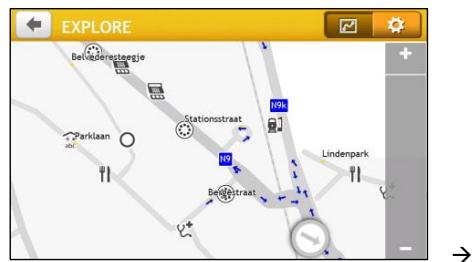
text_image
EXPLORE Beijderesteegje Parklaan Stationsstraat N9 N08 Lindenpark Beijderstraat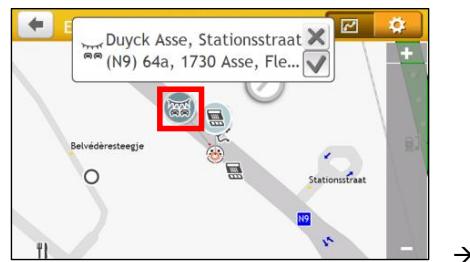
text_image
Duyck Asse, Stationsstraat (N9) 64a, 1730 Asse, Fle... Belvédéresteegje Stationsstraat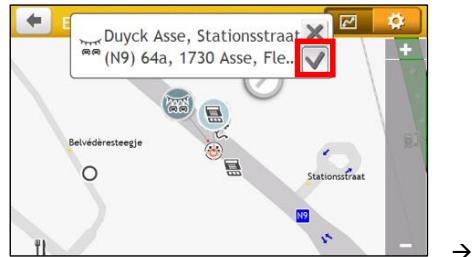
text_image
Duyck Asse, Stationsstraat (N9) 64a, 1730 Asse, Fle... Belvédéresteegje Stationsstraat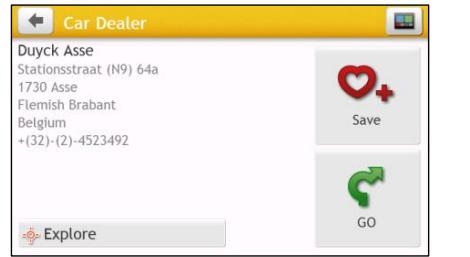
text_image
Duyck Asse Stationsstraat (N9) 64a 1730 Asse Flemish Brabant Belgium +(32)-(2)-4523492 Explore Save GOComplete the following:
| If you want to ... | Then ... |
| calculate the route and start navigating, | tap 📋. The Map screen will display. |
| save the location as a favourite, | tap ♥+. The location will be saved in My Places immediately. |
| explore the map, | tap 🔍. |
How do I set my POI preferences?
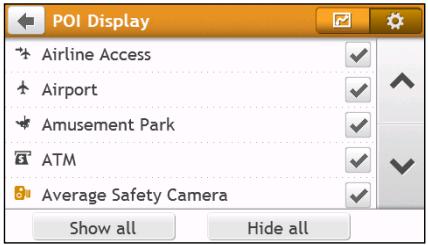
Points of Interest (POIs) are grouped into categories. You may choose to either display (or hide) icons of all POI categories on the Map screen, or only display the icons from selected categories.
For example, you may only be interested in entertainment venues and want to disable other categories such as schools.
- Tap 🎨. The POI Display screen will display.
text_image
POI Display Airline Access Airport Amusement Park ATM Average Safety Camera Show all Hide all- Complete the following:
| If you want to ... | Then ... |
| display all POI icons (i.e. icons from all categories), | tap Show all. |
| display no POI icons, | tap Hide all. Hiding POIs will stop you from finding them when using explore mode/cluster search. Hiding POIs will stop you from finding them when using explore mode/cluster search. |
| select a specific POI category icon for display on the Map screen, | tap the required POI category to show ( [✓ ) or hide[H48C] ) on the Map screen.Repeat until all required categories are selected. |
| return to the Explore map, | tap  |
Hiding POIs will stop you from finding them when using more mode/cluster search.
he required POI category to show ( √ ) or hide ) on the Map screen.
tap
- Your preferences are automatically saved.
How do I search for a POI by type?
- On the Main Menu, tap

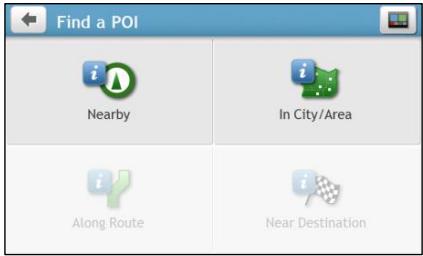
- Tap i. The Find a POI screen will display.
text_image
Find a POI Nearby In City/Area Along Route Near Destination- Complete the following:
| If you want to ... | Then ... |
| search for the POIs near your current location, | tap  |
| search for the POIs in a specified city or area, | tap  . The Keyboard screen will display. After you have entered a name of a city/area, tap OK. . The Keyboard screen will display. After you have entered a name of a city/area, tap OK. |
| search for the POIs on your route, | tap  |
| search for the POIs near your destination, | tap  |
- The POI Type Selection screen will display. Complete the following:
| If you want to ... | Then ... |
| search for POIs by keyword, | tap  . The Keyboard screen will display. After you have entered a keyword, tap OK. . The Keyboard screen will display. After you have entered a keyword, tap OK. |
| search for restaurants, cafes, fast-food premises and other dining establishments, | tap [WWSA] |
| search for petrol stations, | tap [YYRG] |
| search for parking places, | tap [DE550] |
| view more POI types, | tap  . The POI Type List screen will display. Select a POI type. . The POI Type List screen will display. Select a POI type. |
| search for hotels and motels, | tap [1Y864] |
| search for banks and ATMs, | tap  |
| search for emergency services, | tap [YY73] |
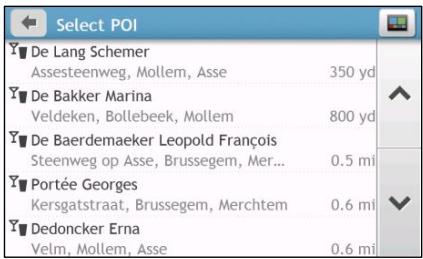
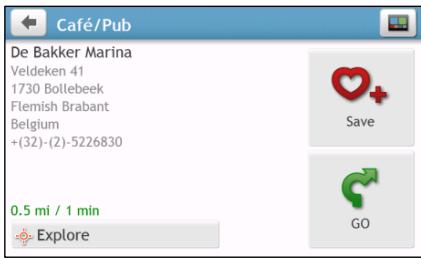
- The POI List screen will display. Tap the desired item from the list.
text_image
Select POI De Lang Schemer Assesteenweg, Mollem, Asse 350 yd De Bakker Marina Veldeken, Bollebeek, Mollem 800 yd De Baerdemaeker Leopold François Steenweg op Asse, Brussegem, Mer... 0.5 mi Portée Georges Kersgatstraat, Brussegem, Merchtem 0.6 mi Dedoncker Erna Velm, Mollem, Asse 0.6 mi
text_image
Café/Pub De Bakker Marina Veldeken 41 1730 Bollebeek Flemish Brabant Belgium +(32)-(2)-5226830 0.5 mi / 1 min Explore Save GO- Complete the following:
| If you want to ... | Then ... |
| calculate the route and start navigating, | tap [YK=7]. The Map screen will display. |
| save the location as a favourite, | tap [CZXK]. The location will be saved in My Places immediately. |
| explore the map, | tap [XTB6] |
How do I search for a POI by keyword?
Complete the following to navigate to a POI or the street address that you find by keyword.
- On the Main Menu, tap

-
Tap ✦ . Enter the keyword of the POI or Street Address that you want to search.
-
Complete the following:
| If you want to ... | Then ... |
| calculate the route and start navigating, | tap [SAYK] . The Map screen will display. |
| save the location as a favourite, | tap [GZKK] + . The location will be saved in My Places immediately. |
| explore the map, | tap [B6WK] |
How do I receive current traffic information via TMC?
Traffic information is not available on all models and is only available in selected countries.
Your Mio can receive current traffic information for all main roads, motorways and major cities, enabling you to avoid potential delays on your route. Event messages and traffic icons will display as they occur. If an event message obscures your current location, the map will adjust to display both the message and your location.
How does my Mio receive traffic information?
The Traffic Message Channel (TMC) broadcasts real-time traffic information via the FM Radio Data System (RDS). FM radio stations transmit TMC data on a cycle of several minutes, with hundreds of events able to be broadcast to TMC receivers.
You have to pay for TMC service in other countries.
How will I know when a traffic event occurs?
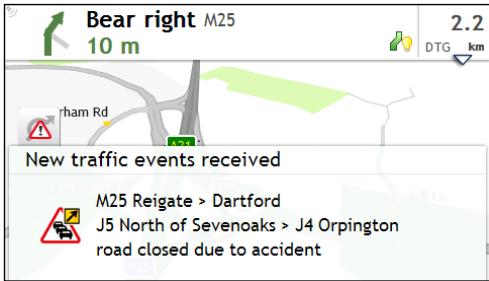
When travelling through an area in which you can receive traffic updates, your Mio will decode these events and display them on-screen. An icon will display at the event location on the Map screen, and an audible warning is given if an event is on your route. Where an event spans a specific distance, the road will be highlighted and arrows will indicate the direction affected.
text_image
Bear right M25 10 m 2.2 DTG km rham Rd New traffic events received M25 Reigate > Dartford J5 North of Sevenoaks > J4 Orpington road closed due to accidentA message will display at the bottom of the screen with the road name, the section of road affected and the type of event that has occurred. The message remains on screen for 8 seconds and is added to the All traffic events.

When the message is suppressed, the TMC icon ( ) will be displayed on the Map screen. You can tap the icon to bring up the All traffic events screen.
Traffic overview screen
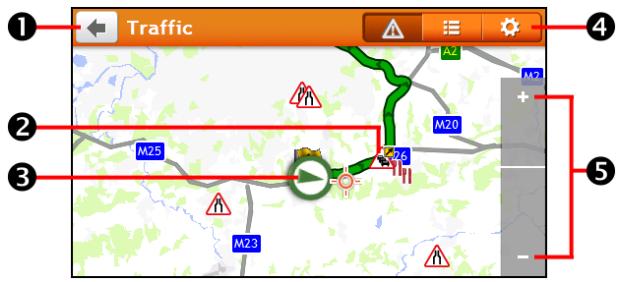
When you see the traffic event message on your driving Map screen, you can open the Traffic screen to display a general overview of the traffic situation on your route, including all events in the immediate vicinity.
On the Main Menu, tap 🔒 to display the Traffic screen.
text_image
Traffic M25 M20 Z6 M23 M2 A2 + - ① ② ③ ④ ⑤| Item | Description | |
| 1 |  | Tap to return to the previous screen. |
| 2 | Event icon | Displays icon to indicate type of event. |
| 3 |  ent position ent position | Your current position is marked with [IMAGE]. |
| 4 | Title bar tabs | Tap to change the display between the Traffic, All traffic events, and Traffic Options windows. |
| 5 | [Y02X] / [0ZZZ] | To zoom in or out, tap and hold + or - |
How do I view a list of all events on my route?
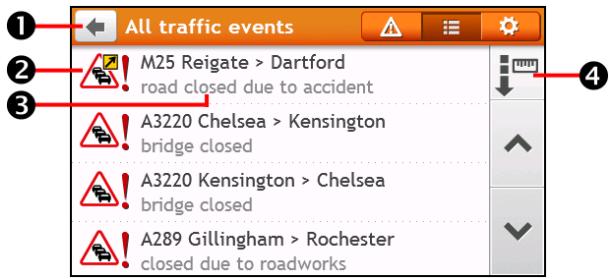
Your Mio creates a list of events as they are received, which is displayed on the All traffic events screen.
On the Traffic screen, tap

text_image
All traffic events M25 Reigate > Dartford road closed due to accident A3220 Chelsea > Kensington bridge closed A3220 Kensington > Chelsea bridge closed A289 Gillingham > Rochester closed due to roadworks| Item | Description | |
| 1 |  | Tap to return to the previous screen. |
| 2 |  t icon t icon | Displays an icon to indicate type of event. |
| 3 | Event description | Displays details of the Event, including:Name of road and direction in which Event is taking place.Location of where Event begins and ends.> indicates an Event from a location, to a location.< > indicates an Event between locations.Type of Event. |
| 4 | Sort by | Tap to change the sorting order of the items:[EX&C] : by distance  : by road name : by road name |
How do I view traffic details?
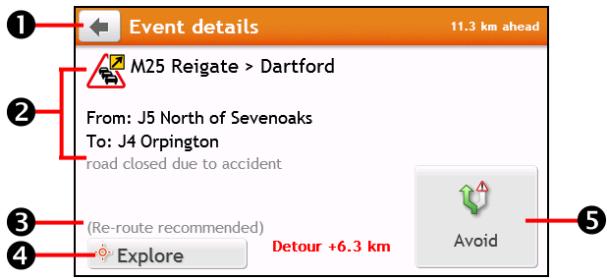
On the All traffic events screen, tap the event you want to view. The Event Details screen will display.
text_image
Event details 11.3 km ahead M25 Reigate > Dartford From: J5 North of Sevenoaks To: J4 Orpington road closed due to accident (Re-route recommended) Explore Detour +6.3 km Avoid| Item | Description | |
| 1 |  | Tap to return to the previous screen. |
| 2 | Event icon and description | Displays details of the Event, including:Name of road and direction in which Event is taking place.Location of where Event begins and ends.> indicates an Event from a location, to a location.< > indicates an Event between locations.Type of Event. |
| 3 | Detour information | Displays details of detour recommendation, if any. |
| 4 | Explore | Tap to explore the map. |
| 5 | Avoid | Tap to initiate a new route to avoid the event. Only available if a detour or re-route is available.The Unavoid Area button is displayed when a re-route has been calculated. |

When the detour information is provided, the details will be displayed as detour recommendation on the
Event details screen.
How do I know if a detour is recommended?
When a Traffic or Clearance event occurs on your route, a detour will often be recommended. The detour event message will display in the status bar on Map screen.

Detours are only recommended for Traffic or Clearance Events on a calculated route.
How do I avoid an event on my route?
- On the All traffic events screen, tap the event. The Event Details screen will display.
- If a detour has been calculated to avoid an event on your route, Avoid is available; tap to accept the new route and avoid the event. The Map screen will display.
Traffic messages
The Event Details screen displays detour status information.
Detour Not Available messages
If a detour is not available, one of the following messages will display:
| Message | Description |
| This Event is not locatableThis clearance is not locatable | A specific location for the Event cannot be identified. |
| This Event does not affect your routeThis clearance does not affect your route | The Event is not on the current leg of your journey, or is behind your current position. |
| You are avoiding this EventYou have accepted this clearance | The Event is not on the current leg of your journey. |
| You are too distant to re-routeYou are too distant to accept this clearance | The Event is currently too distant to affect your journey. |
| Detour not foundClearance route not found | A detour / re-route could not be calculated. |
Detour recommended messages
If a detour is recommended, one of the following messages will display:
| Message | Description |
| Finding detour ... Recalculating route ... | Your Mio is calculating a new route. During calculation, the % complete will display.Exiting this screen before the new route is calculated will cancel the operation. |
| Detour distance ... Clearance change | A detour has been calculated. The difference between the distance of your current route and the proposed route is displayed. |
Traffic preferences
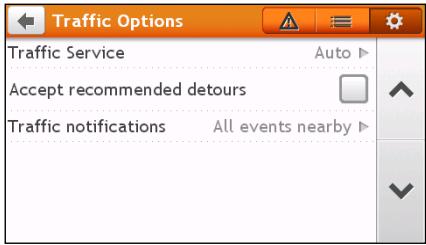
You can view your current traffic system status and change options by customising the traffic preferences.
text_image
Traffic Options Traffic Service Auto ▶ Accept recommended detours Traffic notifications All events nearby ▶TMC Service
- On the Traffic Options screen, tap Traffic Service. The Traffic Service screen will display.
The TMC service screen displays the frequency of the radio station currently used to receive traffic event information. A bar shows the strength of the traffic signal being received; the more green bars the stronger the signal.
- To change your preferred radio station, select your preferred radio station from the list. You can select Automatic to receive the traffic signal automatically.
Accept recommended detours automatically
When the Accept recommended detours is selected, your route will be re-planned automatically when the detour is recommended by the traffic event.
Traffic event notification
- On the Traffic Options screen, tap Traffic notifications. The Traffic notifications screen will display.
- Complete the following:
| If you want to ... | Then ... |
| view all traffic events nearby, | select All events nearby. |
| view the traffic events on your route, | select Only events on my route. |
| view the traffic events with detour information provided, | select Only if a detour is recommended. |
| reject the traffic signal, | select Turn off notifications. |
Hands-free calling is not available on all models.
How do I pair a Bluetooth mobile phone with my Mio?
- On the Main Menu, tap 📋 → Bluetooth → On. The Bluetooth function of your Mio is now in discoverable mode.
- From your mobile phone, turn on the Bluetooth function and scan for nearby Bluetooth devices.
- Select Mio Spirit from the list.
- To pair with your Mio, enter 0000 or 1234 on your mobile phone.
To pair another Bluetooth mobile phone with your Mio, first disconnect the current Bluetooth connection on the mobile phone, and then repeat the above procedure to set up a new connection.
How do I manage contacts on my Mio?
Your Mio uses contacts created on your mobile phone. On your Mio, tap Phone on the Main Menu and select if you want to download the phonebook of your mobile phone.
■ To search for a contact, tap Filter.
- To add a contact's number to your Favourites, tap and tap the desired contact from the list. Then tap next to the desired number. Tap to remove the item from the list.
■ To update the phonebook, tap
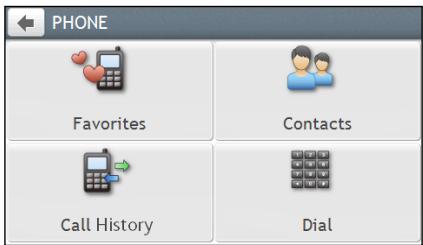
How do I make a phone call?
Using the keypad
- On the Main Menu, tap
text_image
PHONE Favorites Contacts Call History Dial-
From the Phone screen, tap
-
Enter the number you want to call.
■ To delete the last digit entered, tap ✗.
■ To clear the entire number, tap and hold ✗.
- To delete the last digit entered, tap ✗
- To clear the entire number, tap and hold ✗

International calls require a country code to be included in the phone number. On your Mio, the country code is separated from the rest of the number sequence by a + sign. If you are making an international call, tap and hold 0 until the + sign displays.
- Tap Call to place the call.
From the phonebook
- On the Main Menu, tap

- From the Phone screen, tap

- Tap the desired item from the contact list.
- Tap 📞 next to the desired phone number to place the call.
How do I receive a phone call?
- When you receive a call, the Incoming call screen will display.
- Complete the following:
| If you want to ... | Then ... |
| answer the call, | tap Answer. |
| reject the call, | tap Ignore. |
In-call options
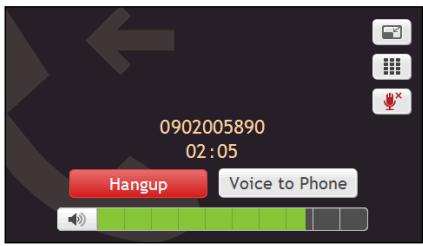
When a call is in progress, the in-call screen will display as below:
text_image
0902005890 02:05 Hangup Voice to PhoneComplete the following:
| If you want to ... | Then ... |
| display the Main Menu, | tap [IMAGE]. |
| display the keypad screen, | tap [IMAGE]. |
| switch off the microphone so the receiving party cannot hear you, | ▪ tap [IMAGE] to mute.▪ tap [IMAGE] to unmute. |
| transfer the call to your phone, | tap Voice to Phone. |
| end the call, | tap Hang up. |
| adjust the volume, | tap [IMAGE] to increase or decrease the volume.[IMAGE]The phone volume adjustment does not change the device volume. |
How do I view my call history?
From the Call History screen you can view a list of Incoming Calls, Outgoing Calls and Missed Calls.
The Call History screen lists the calls made during the time your Mio is connected to a mobile phone. Numbers are arranged by time with the most recent time at the top. Your Mio can store up to 30 numbers; limited to 10 entries for incoming, outgoing and missed calls each.
- On the Main Menu, tap

- From the Phone screen tap

- To add a number to your Favourites, tap 🤔 next to the desired number. Tap 🤔 to remove the item from the list.
- Tap an item in the list. The Call Record screen will display.
- Complete the following:
| If you want to ... | Then ... |
| delete the call from history, | tap . |
| place a call, | tap . |

To delete all calls in call history, tap

from the Call History screen.
What can I customise?
Depending on your Mio model, certain setting options may not be available.
There are various customisation options available to enhance your navigation experience.
- On the Main Menu, tap 📋. The Settings screen will display.
- Select the option you want to customise from the Settings screen.
- Once you change the settings and return to the previous screen, your preferences are automatically saved.
Settings screen options and the order of the options may differ, depending on your region, maps installed or model of Mio.

While changing the settings, the check box next to the option indicates the setting status:

: on/enabled

: off/disabled
Audio
Complete the following:
| If you want to ... | Then ... |
| increase/decrease the volume, | tap + / - .You can simply tap on the Volume bar so that the volume will be set immediately at the position you tapped. The Volume bar indicates the current volume level. |
| mute/unmute, | tap .The speaker icon indicates the status: : muted : unmuted |
| hear which letter you have tapped when you tap the touch screen, | tap Touch audio to turn it on or off. |
Screen
Complete the following:
| If you want to ... | Then ... |
| change the displayed screen mode, | tap Screen mode and select:Auto: set to automatically change between Day and Night modes.Day: set the screen to be displayed in Day mode.Night: set the screen to be displayed in Night mode. |
| change the screen brightness in day/night mode, | tap + / - on the Day brightness/Night brightness bar.The brightness bar indicates the brightness level.Warning: Your Mio can heat up when the brightness scale is set high, therefore, use lower brightness whenever acceptable.[GABH] You can simply tap on the brightness bar so that the screen brightness will be set immediately at the position you tapped. |
Safety
Complete the following:
| If you want to ... | Then ... |
| Enable/disable the warning message after long-distance driving, | tap Driver fatigue alert to turn it on or off. |
| enable/disable speed limit alerts, which warn you of the speed limit on any given road, | ■ tap Speed limit display to turn it on or off.■ tap Speed limit alerts and select:○ Off: disable the speed limit alert.○ Auto: set the system to alert automatically while your speed is above the limit.○ Speed limit + 5 km/h (+ 3 mph): set the system to alert while your speed is 5 km/h (3 mph) or more above the limit.○ Speed limit + 10 km/h (+ 7 mph): set the system to alert while your speed is 10 km/h (7 mph) or more above the limit. |
| set the speed limit alerts manually, | tap Set manual speed alert to select the speed limit or turn it off. |
| enable/disable a visual warning if the screen is accessed in a moving vehicle, | tap Warn me not to operate my Mio while driving to turn it on or off. |
| set how you want to receive the camera and safety alerts, | tap Safety Camera / Mobile Safety Camera / Average Safety Camera / Red Light Camera / Dangerous zone to select:■ No alerts■ Visual alert■ Visual & Audible alerts |
Route options
Complete the following:
| If you want to ... | Then ... |
| change the navigating mode, | tap Mode to select Car, Truck or Pedestrian. |
| set route type options for your route, | tap Route type to select your route type preference from the list:▪ Fastest: The route that should be the fastest when navigating.▪ Easiest: The simplest route with the least number of turns and favours motorways where appropriate.▪ Economical: The route with least number of stops, turns and urban areas which should save on fuel usage.▪ Shortest: The route with the shortest physical length.[1#25] If you do not select the preferred route type, Choose on map is set as default for this option. All of the four route types will be calculated after your search. Then, you have to select one route type on the map to start navigating. |
| set types of road options for your route, | tap Types of road.▪ The Types of road screen will display.▪ Select your road preference from the list. Avoiding ferry routes may prevent you from navigating between certain countries, even when a bridge or tunnel exists. Avoiding ferry routes may prevent you from navigating between certain countries, even when a bridge or tunnel exists. |
| set the routing preference, | tap Advanced routing to turn the IQ Routes / LearnMe Pro functions on or off.▪ Use historic traffic speed date: enable/disable the IQ Routes function.▪ Use learned driver behaviour: enable/disable the LearnMe Pro function.▪ Driving speed records: display the information of your driving speed in Motorway / Highway / Major road / Minor road. |
| set the avoidance manually, | tap Custom Avoidance.▪ Tap Add Avoid Road and then follow the on screen instructions to select the avoid road from the map view screen.▪ Tap Add Avoid Area and then follow the on screen instructions to select the avoid area from the map view screen. Once the avoidance has been set, it will not be added to your route while you are planning the trip.To edit the assigned avoidance, tap the item from the Custom Avoidance screen and then select Enabled/Disabled, Rename, or Delete. |
| display the installed custom POI, | tap Custom POI alerts. |
| display landmarks on your route, | tap Landmark guidance to turn it on or off. |
| record mileage for your route to generate expense reports, | tap Mileage recorder to turn it on or off. |
| record your journey, | tap Capture Journey to turn it on or off. |
Map display
Complete the following:
| If you want to ... | Then ... |
| enable/disable automatic zooming during navigation, | tap Auto-zoom map when navigating to turn it on or off.If selected, the Map screen will automatically zoom in or out, depending on your speed, to allow optimal viewing of your route. |
| display “no entry” icons on “no entry” roads on the Map screen, | tap Show no-entry road signs to turn it on or off.When turned on, the map display performance can slow down due to the number of no entry roads in some major cities. |
| set your Map screen preference, | tap Map to select between a 3D or 2D view of the Map screen. |
| change the map colour scheme, | tap Map scheme, then select a colour scheme from the list. |
My Maps
Complete the following:
| If you want to ... | Then ... |
| view the map information, | tapMap versionto display a list of all maps, providing the following information:NameDateVersion/Build numberCoverage area |
| select a set of maps to load, | tapMap set, then select your preference from the list. |
| check the expiring maps, | tapExpiring mapsto display a list of maps that are to expire soon. |
Language
The available settings of the Language option can be customised by adding/deleting the voice file through MioMore Desktop when your Mio is connected to the computer. For more information, refer to the My Mio section in "What is MioMore Desktop?"
Complete the following:
| If you want to ... | Then ... |
| change the on-screen language, | tap Language and select your preferred language from the list. |
| change the voice scheme, | tap Voice and select your preferred voice scheme from the list. |
Units
Complete the following:
| If you want to ... | Then ... |
| change the distance units, | tap Distance units and then select your preferred distance unit type. |
| change the time format, | tap Time format and then select your preferred time format. |
| change the date format, | tap Date format and then select your preferred date format type. |
Time Zone
Complete the following:
| If you want to ... | Then ... |
| set the time zone automatically, | select Auto time zone. |
| change the time zone manually, | select Manual time zone, then adjust the setting by tapping -/+ . |
Bluetooth
Complete the following:
| If you want to ... | Then ... |
| enable the Bluetooth function, | tap On. |
| disable the Bluetooth function, | tap Off. |
Trip Meter
The Trip Meter option displays the information of your trips.

: display the current trip

: display all trips
Device
Complete the following:
| If you want to ... | Then ... |
| delete the saved information on your Mio, | tap Delete saved information:▪ Tap Delete My Places and tap Yes when the warning dialog box displays. The data saved in My Places will be deleted.▪ Tap Delete recent locations and tap Yes when the warning dialog box displays. The data of recent locations will be deleted.▪ Tap Delete planned trips and tap Yes when the warning dialog box displays. The planned trips saved on your Mio will be deleted.▪ Tap Delete phone data and tap Yes when the warning dialog box displays. |
| restore factory default settings, | tap Restore factory defaults.When the warning dialog box displays, tap Yes. Your Mio will restart. i The Restore factory defaults option allows you to restore default factory settings but will not delete recent locations or saved My Places destinations. i When you restore factory defaults, your LearnMe Pro profile will be cleared form the device. |
| reset the GPS, | tap Reset GPS.When the warning dialog box displays, tap Yes. i Occasionally, the GPS fix may need to be reset. This may occur if the receiver has been transported a long distance since last being used; for example, to a different country, and is still trying to establish the previous position. |
| record a GPS log of your trip, | tap GPS logging to turn it on or off. |
Demo
i Demo will begin when the device is connected to power via genuine Mio AC Chargers.
Complete the following:
| If you want to ... | Then ... |
| enable a shop demonstration of Mio Spirit to be played, | select a demonstration country from the list and tap Start.Tap OK. Your Mio will restart.When your Mio is in Shop demo mode, you will see the navigation demonstration of the pre-defined route without having to set a destination. i You cannot operate your Mio properly in Shop demo mode. |
Help
Complete the following:
| If you want to ... | Then ... |
| view the tutorial, | tap View Tutorial.To display the tutorial on each start-up, select the Show tutorial on start-up option on the initial screen of tutorial. |
| view copyright and trademark information, | tap About. |
What is MioMore Desktop?
MioMore Desktop is a suite of tools you can use to access greater functionality and product information via your computer.
MioMore Desktop allows you to:
■ obtain software updates
■ manage maps
■ search online for local POIs
■ manage custom POIs
■ plan trips
■ manage safety camera subscriptions
■ browse the Mio website for special offers
Can I use MioMore Desktop with my computer?
Ensure your computer has the following minimum system requirements before installing MioMore Desktop:
IBM compatible PC
■ Microsoft Windows Vista, Windows 7 or Windows 8
■ Internet Explorer 6 or later versions
DVD drive
USB port
■ Internet connection for activation

Microsoft .NET 2.0, 3.0 and 3.5 will be installed on your computer as part of the installation of MioMore
Desktop.
How do I install MioMore Desktop onto my computer?
CAUTION: When your Mio is turned on and connected to a computer, it is recognised as an external mass-storage device. Do NOT delete any files that are pre-installed on your Mio. Deleting the files can cause your Mio to crash.
- Close all programs on your computer.
-
Insert the MioMore Desktop Application Installer DVD into your computer DVD drive. The MioMore Desktop installer will start.
If your computer does not automatically launch the DVD, start the installation manually: Start → Run. Type D:\Install.exe where "D" is the letter assigned to your DVD drive, then click OK. -
Select your preferred language for MioMore Desktop.
-
Click Install Software, then Install MioMore Desktop.
-
Follow the screen prompts to install MioMore Desktop:
■ Review and accept the Licence Agreement for MioMore Desktop when prompted.
■ Select a destination folder for MioMore Desktop when prompted.
- When the installation is complete, click Finish. MioMore Desktop will open.
- If prompted to connect your Mio to your computer, complete the following:
- Plug the large end of the USB cable (supplied) directly into a USB port on your computer (not a USB hub) and plug the small end into the USB Socket ( ) on the bottom of your Mio.

Where possible, plug the USB cable into a USB port at the back of your computer.
■ Turn on your Mio, and then select the Computer option from the pop-up message screen.

If prompted to update your Mio software, follow the on-screen prompts.
- You are now ready to use MioMore Desktop for your Mio.
From now on, you can access MioMore Desktop via: Start → All Programs → Mio → MioMore Desktop.
My Subscriptions
MioMore Desktop → My Subscriptions
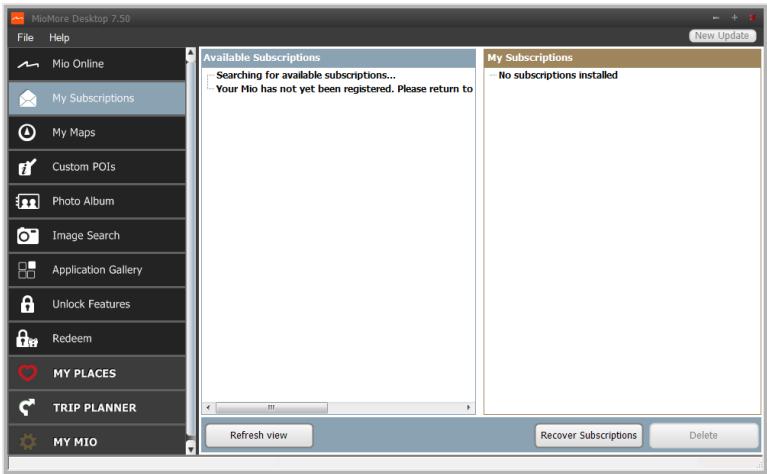
text_image
MioMore Desktop 7.50 File Help Mio Online My Subscriptions My Maps Custom POIs Photo Album Image Search Application Gallery Unlock Features Redeem MY PLACES TRIP PLANNER MY MIO Available Subscriptions Searching for available subscriptions... Your Mio has not yet been registered. Please return to New Update My Subscriptions No subscriptions installed Refresh view Recover Subscriptions Delete
Subscription information is not available on all models and is only available in selected countries.
Your Mio contains pre-loaded subscriptions, such as safety camera and travel book information. For the latest subscription updates, visit: www.mio.com

Safety Camera alerts can be set to enable a warning sound or visual warning when on your route.
How do I purchase a subscription?
- Select a type of subscription. A list of regions will display.
- Select a region. A list of available subscriptions will display.
- Select a subscription or offer, then click Purchase an activation key from the Mio store. The Mio Store website will open.
- Follow the prompts to purchase your subscription.
A product key will be sent to you via email when you have subscribed. You will need to use this product key to activate your subscription.
How do I activate my subscription?
MioMore Desktop → Unlock Features
- Enter your product key.
- Follow the prompts to activate your subscription.
How do I update subscriptions on my Mio?
The My Subscriptions section will display a list of subscriptions already installed on your Mio:
| Icon | Description |
| Red | Expired subscriptions.▪ Right click to purchase a new subscription. |
| Yellow | Available subscriptions.▪ Right click to update and purchase new subscription. |
| Green | Active subscriptions.[GTZW] No updates are available for these subscriptions. |
How do I recover my subscription?
If your subscriptions are deleted and you want to recover them, click Recover Subscriptions at the bottom-right corner in My Subscriptions to recover all subscriptions.
My Maps
My Maps allows you to install new maps, remove maps from your Mio and purchase new maps.

The downloaded/purchased map (*.iso) from Mio Store website will be saved on your computer's map folder (e.g. C:\username\Documents\Maps) and then displayed in My Maps. The default map folder may vary depending on your Operating System. You can change the setting of MioMore Desktop to locate the map folder where you save the map by clicking MY MIO → Options → My Maps → Change.
MioMore Desktop → My Maps
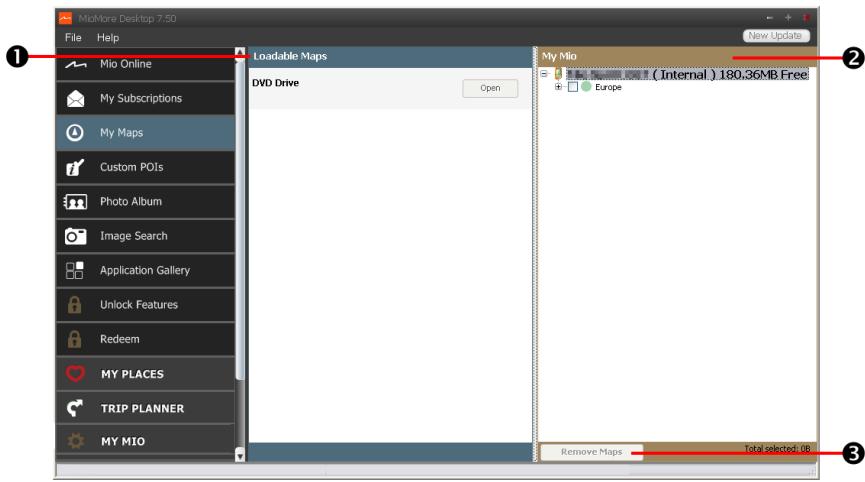
text_image
MiOMore Desktop 7.50 File Help Mio Online My Subscriptions My Maps Custom POIs Photo Album Image Search Application Gallery Unlock Features Redeem MY PLACES TRIP PLANNER MY MIO New Update Loadable Maps DVD Drive Open My Mio ( Internal ) 180,36MB Free Europe Remove Maps Total selected: 08| Component | Description | |
| 1 | Loadable Maps | A list of maps on the DVD or available for purchase via the Mio Store website. Select a map source (e.g. DVD Drive) and then click Open to display the Map Source section.From the map Source section, click Install Maps to install the selected map to your Mio. Otherwise, click Upwards to return to the Loadable Maps section. |
| 2 | My Mio | A list of maps installed on your Mio. |
| 3 | Remove map | Click to remove the selected map from your Mio. |
How do I download a map update?
Occasionally Mio may offer you free updates, including software applications, maps, voice commands, and more. If a free map update is available and your Mio is connected to your computer, a message will display when you first start MioMore Desktop.
- From the pop-up message window, click View to display the Device Updates screen that contains the available updates.
- Select the desired map update and click Download. MioMore Desktop will start to download immediately.

Before downloading, you can change the download folder by clicking Change Path.
- During the download operation, you can:
■ View the download status from the downloading bar.
■ Stop the download by clicking ✗.
■ Pause the download by clicking ☐, and then resume download at a later time by clicking ▶.
- When finished, the downloaded map update will be displayed in My Maps.
How do I install maps onto my Mio?
Your Mio comes with one or more pre-activated maps. Map files take up space on your Mio's internal memory. If you do not use a map file, you can remove it to free up space. You can later reinstall it to your Mio if required.
You can install maps from the following:
■ DVD that came with your Mio,
■ The downloaded map update,
- The map that you have purchased separately to a memory card (for the models with the microSD slot) or your Mio internal memory.

You may need to purchase a Map Product Key to activate maps on the DVD that came with your Mio.
- Open MioMore Desktop, and then click My Maps.
- Select a map source (e.g. DVD Drive when a Map DVD has been inserted into your computer DVD drive) and then click Open to display the Map Source section.
■ The maps already installed on your Mio are green.
■ The maps that are unlocked and ready to be installed to your Mio are yellow.
■ The maps that require activation before being installed to your Mio are red.
■ The maps that are available for purchase from Mio are blue.

If your computer opens Windows Explorer when the DVD is inserted, close the Windows Explorer low.
- Complete the following:
| If the map to be installed is ... | Then ... |
| yellow | go to step 6. |
| red | the map needs to be activated via the Internet before it can be installed; continue to step 4. |
- If you connect to the Internet via a dial-up connection, connect to the Internet now.
- Follow the prompts to activate your Map Product Key, including:
■ Enter the Map Product Key when prompted.
- Your computer will connect to the Internet and activate your Map Product Key.
- When activation has completed, the map will change colour to yellow; continue to step 6.
- Click the map you want to install to your Mio. The map will change colour to a brighter yellow to indicate it has been selected. To deselect a map, click the map again.

You may need to install multiple maps to cover the required geographical area.
- Complete the following:
| If you want to ... | Then ... |
| install a yellow map, | go back to step 6. |
| install a red map, | the map needs to be activated via the Internet before it can be installed; go back to step 4. |
| install the selected maps to your Mio, | continue to step 8. |
- Select the destination media (Mio internal memory) for the selected maps, then click Install Maps. The selected maps will be installed and change colour to green.
- To use your Mio, disconnect the USB cable. You may need to manually reset your Mio.

WARNING: Do not disconnect the USB cable from the Mio USB Socket until the installed map or maps have changed colour to green.
How do I remove maps from my Mio?
- Open MioMore Desktop, and then click My Maps.
- From the My Mio panel, select the check box next to the map you want to remove.
- Click Remove Maps to remove the selected maps.
- Confirm that you want to remove the selected map when prompted. The map is removed from your Mio. You can reinstall these maps at any time via MioMore Desktop.
Custom POIs

Depending on your Mio model, some Custom POIs features may not be available.
MioMore Desktop → Custom POIs
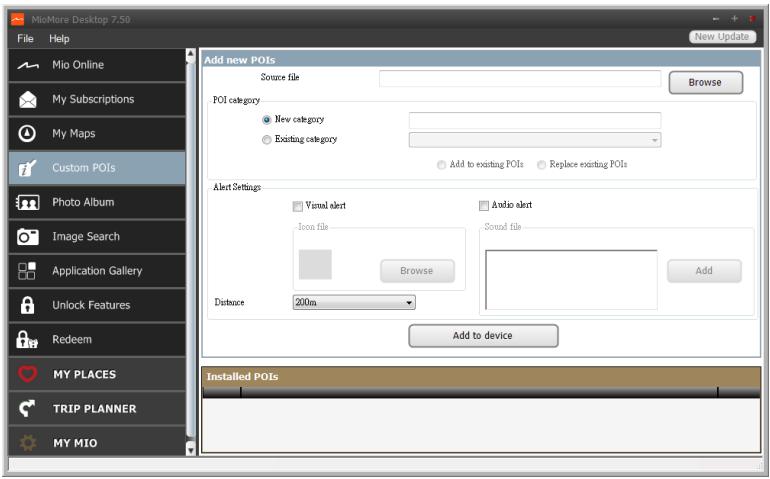
text_image
MioMore Desktop 7:50 File Help Mio Online My Subscriptions My Maps Custom POIs Photo Album Image Search Application Gallery Unlock Features Redeem MY PLACES TRIP PLANNER MY MIO Add new POIs Source file POI category New category Existing category Browse Add to existing POIs Replace existing POIs Alert Settings Visual alert Icon file Audio alert Sound file Browse Add Distance 200m Add to device Installed POIs New UpdateThe Custom POIs (Points of Interest) application allows you to create or import your own POI files. These are called custom POIs. Unlike preinstalled POIs, custom POIs can be removed from your Mio and can have audio as well as visual alerts associated with them.

To create your POI files, open Microsoft Excel and then enter the POI location details (including Longitude, Latitude, Name, and Description) in separate cells. Always use decimal degrees for coordinates and start a new location from a new line. When done, click File → Save As to save it as a *.csv file. Now you have successfully created a POI CSV file. The following displays the example of creating the POI file by using Microsoft Excel:
| A | B | C | D | |
| 1 | -0.29694 | 51.1076 | Horsham | A market town on the upper reaches of the River Arun in the centre of the Weald, West Sussex. |
| 2 | -0.16258 | 51.14468 | Gatwick Airport | London Gatwick Airport (IATA: LGW, ICAO: EGKK) |
| 3 | ||||
| 4 |

Various POI files are available for download free or by subscription from third-party websites. Ensure that downloaded files are in .csv (Comma Separated Values) format. Mio is not responsible for the content or accuracy of the information or the reliability or availability of these websites. The use of information regarding safety camera locations may be subject to local laws in the country of use. You are responsible for checking that you can use the information in your country or in the country where the information will be used.
How do I install custom Points of Interest?
- In the Add new POIs section, click Browse to select a source file. The Open dialog box will open.
- Select the file from your local or network drive, then click Open.
- From the POI Category section:
| If you want to ... | Then ... |
| use an existing custom POI category, | select the Existing category option, then select a type from the drop down list. |
| Replace an existing POI, | select the Existing category option and a type from the drop-down list, then select Replace existing POIs.[GH44] If you want to create a new POI instead, then select Add to existing POIs. |
| create a new custom POI category, | select the New category option, then type a name for the POI category. |
- Set Alert setting as required:
| If you want to ... | Then ... |
| enable a visual warning when a POI of this category is in close proximity, | select the Visual alert check box. |
| select an icon to display on the Map screen for POIs of this category, | click Browse to select the icon file from your local or network drive.When you have located the icon file, select it and click Open.The icon file must be a bitmap (*.bmp or *.png) graphic with a minimum size of 6x6 pixels and a maximum size of 32x32 pixels. If you do not select a custom icon, a default icon will display. If you do not select a custom icon, a default icon will display. |
| select the distance from a POI of this category at which the visual warning should display or the warning chime should sound, | select the distance from the Distance box.[HX22]To change the units used to measure distance for this POI category, from the tools menu click on options and from the general option select Use metric units check box. |
| enable a warning sound when a POI of this category is in close proximity, | select the Audio alert check box. |
| select a custom sound alert file to play when a POI of this category is in close proximity, | either select a sound file from the list, or click Add to select a sound file (.WAV format) from your local or network drive. When you have located the file, select it and click Open.[T638]If you do not select a custom sound file, a default sound alert will play. |
5. Click Add to device to add the POI to your Mio.

Each file corresponds to a POI category; for example, Hotels.csv will be listed on your Mio as the Hotels gory.
How do I delete a Custom POI file/category from my Mio?
- In the Installed POIs section, click Delete next to the file name. The file is removed from the list, but is not yet deleted.
- Accept the warning message. The selected file/category is deleted.
Photo Album

Depending on your Mio model, certain Photo Album features may not be available.
MioMore Desktop → Photo Album
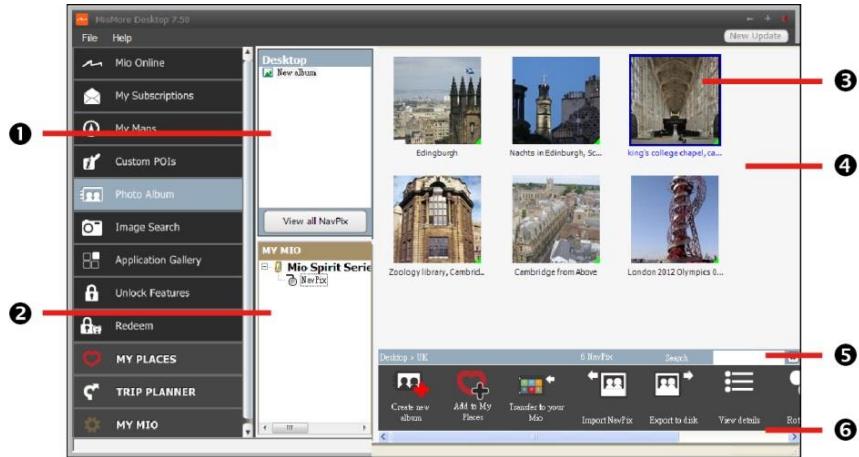
text_image
MioMore Desktop 7.50 File Help Mio Online My Subscriptions My Maps Custom POIs Photo Album Image Search Application Gallery Unlock Features Redeem MY PLACES TRIP PLANNER MY MIO Desktop New York View all NavPix MY MIO Mio Spirit Seric NewFox Edinburgh Nachts in Edinburgh, St... King's college chapel, St... Zoology library, Cambridge... Cambridge from Above London 2012 Olympics ... Desktop > UK 6 Netflix Search Create new albums AM to My Files Updates by your Mio Import NewFix Export to Eink View details RotPhoto Album is a MioMore Desktop application which allows you to copy, delete or move pictures or albums between the NavPix™ library on your Mio and the NavPix™ library on your computer.
| Component | Description | |
| 1 | Desktop albums | Displays a list of all albums stored in the NavPixTM library on your computer.▪ Click an album to display its contents in the Album display area.▪ Click View all NavPix to display all pictures stored in the NavPixTM library on your computer. |
| 2 | My Mio albums | Displays a list of albums stored on the Mio internal memory and on the memory card if one is inserted.▪ Click an album to display its contents in the Album display area. |
| 3 | Selected picture | When a thumbnail is selected it displays with a blue border. |
| 4 | Album display area | Displays thumbnails of pictures in the selected album. |
| 5 | Search | Type to search for a NavPixTM by name. |
| 6 | Toolbar | When a picture is selected, the icons which can be used will be active. |
Toolbar
| 1 | 2 | 3 | 4 | 5 | 6 | 7 | 8 | 9 |
| Button | Description | |
| 1 | Create new album | Click to create a new album in the NavPixTM library you are viewing. |
| 2 | Add to My Places | Click to transfer NavPixTM to My Places. |
| 3 | Transfer to your Mio or Transfer to your computer | If you are viewing NavPixTM in the NavPixTM library on your computer, this will display as Transfer to your Mio.Click to transfer the selected NavPixTM to your Mio.If you are viewing NavPixTM in the Mio library this will display as Transfer to your computer.Click to transfer the selected photo(s) to the NavPixTM library on your computer. |
| 4 | Import NavPixTM | Imports NavPixTM from your computer to the NavPixTM library on your computer. |
| 5 | Export to disk | Click to save NavPixTM to your computer or a network drive. |
| 6 | View details | Click to view the selected NavPixTM and edit NavPixTM details, including:NavPixTM namelatitudelongitudedescription |
| 7 | Rotate left | Rotates the selected NavPixTM 90° to the left. |
| 8 | Rotate right | Rotates the selected NavPixTM 90° to the right. |
| 9 | Delete NavPixTM | Click to delete the selected NavPixTM. |
How do I transfer pictures from Photo Album to my Mio?
You can transfer pictures from your computer to your Mio. You can import any JPEG (.jpg) into Photo Album, add or edit GPS information, and then copy the picture to your Mio.
- From the Toolbar section, select Import NavPix. The Open dialog box will display.
- Select a NavPix™ from a folder on your computer and click Open. Thumbnails of the NavPix™ will display in the Album display area.

You can also drag and drop a NavPix™ from a folder on your computer to an Album on your
MioMore Desktop.
- Either click and drag the required NavPix™ to an album in the Mio albums section, or click the Transfer to your Mio icon on the toolbar.

If you have transferred a NavPix™ with GPS coordinates you can then navigate to where the picture
was taken.
How can I view and edit pictures or albums on my computer?
| If you want to ... | Then ... |
| rotate a picture to left, | select the picture from the Album display area.Click Rotate left on the toolbar. |
| rotate a picture to right, | select the picture from the Album display area.Click Rotate Right on the toolbar. |
| view the picture details, | select the picture from the Album display area.Right-click and select View Details, or click View Details on the toolbar. |
| edit GPS information, | select the picture from the Album display area.Double click on the picture or click View Details on the toolbar.The following information will display: ○ Name ○ Latitude and Longitude ○ DescriptionEdit the details you want to modify.Click OK to save the changes. |
| delete a picture, | select the picture from the Album display area.Right click and select Delete or click Delete on the toolbar. |
What else can I do with pictures and albums on my computer?
| If you want to ... | Then ... |
| add a picture to another album, | in the Desktop albums section, select the album containing the NavPixTM you want to include in another album.Select the NavPixTM then drag it to the other album. i The selected NavPixTM is included in the new album, but is not moved, i.e., one instance of the NavPixTM in the library may be included in multiple albums. |
| remove a picture from an album, | in the Desktop albums section, select the album containing the NavPixTM you want to remove.Select the NavPixTM, right click and select Remove from album. i Click the Delete icon on the toolbar if you want to delete the NavPixTM from all albums. |
| add a NavPixTM to My Places, | in the Desktop albums section, select the album containing the NavPixTM you want to add to My Places.Select the NavPixTM, right click and select Add to My Places. |
| view and edit picture details, | select the picture then click the View Details icon on the toolbar. Edit the fields as required. |
| upload picture to the Flickr website, | in the Desktop albums section, select the album containing the NavPixTM you want to upload to the Flickr website.Select the NavPixTM, right click and select Upload to Flickr. i You need a Flickr account to upload NavPixTM. To create a Flickr account visit www.flickr.com |
| save a picture to your computer, | select the picture from the Album display area.Right click and select Export to disk or click Export to disk on the toolbar%.Navigate to a folder on your computer where you want to save the NavPixTM. |
| export to Google EarthTM(only NavPixTM with GPS coordinates can be exported to Google Earth), | in the Desktop albums section, select the album containing the picture you want to export to Google Earth.Select the NavPixTM, right click and select Export to Google Earth%.Navigate to a folder on your computer to save the file and then open it in Google Earth. i You need to install the Google Earth software on your computer to be able to view the file you have created. You can download Google Earth from earth.google.com |
| search for other NavPixTM, | right-click on the desired NavPixTM and select Search for NavPix near this. |
| view all pictures in the library, | click View all NavPix at the bottom of the Desktop album section. |
Photo Album preferences
MioMore Desktop → MY MIO → Options → Photo Album
Complete the following:
| If you want to ... | Then ... |
| change your NavPixTM location on your computer, | click Change.Select a location for your NavPixTM library.Click Save or OK. The warning message will display and you will be prompted to confirm your action.Your NavPixTM library is moved to the new location. |
| receive a warning message before deleting an image from your device, | select Warn me when permanently deleting a NavPix from my Mio check box. |
| receive a warning message before deleting an image from your NavPixTM library, | select Warn me when permanently deleting a NavPix from my library check box. |
| create a new folder every time you import new photos, | select the Import photos to a new album checkbox. |
| view NavPixTM when on a route, | select the Show NavPix on map checkbox. |
Image Search
MioMore Desktop → Image Search
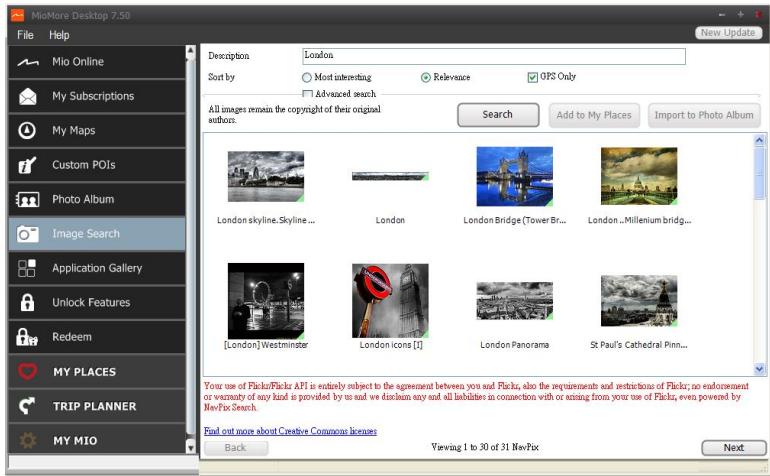
text_image
MioMore Desktop 7.50 File Help Mio Online My Subscriptions My Maps Custom POIs Photo Album Image Search Application Gallery Unlock Features Redeem MY PLACES TRIP PLANNER MY MIO Description: London Sort by: Most interesting Relevance OPS Only Advanced search All images remain the copyright of their original authors. Search Add to My Places Import to Photo Album London skyline.Skyline... London London Bridge (Tower Br... London ...Millenium bridg... [London]Westminster London icons [1] London Panorama St Paul's Cathedral Pinn... Your use of Flickr/Flickr API is entirely subject to the agreement between you and Flickr, also the requirements and restrictions of Flickr; no enforcement or warranty of any kind is provided by us and we disclaim any and all liabilities in connection with or arising from your use of Flickr, even powered by NewPix Search. Find out more about Creative Commons licenses Back Viewing 1 to 30 of 31 NewPix Next New UpdateImage Search is a MioMore Desktop application powered by Flickr™ allowing you to download photos and import them to Photo Album. You can then upload the photo to the Flickr website, transfer photos to your Mio, export pictures to Google Earth or search for other NavPix™ near the longitude and latitude of your NavPix™.
How do I download NavPix™ from the internet?
- In the Description field enter a search description for the image you are looking for.
- Select one of the Sort by options.
- Click Search. Thumbnails of the NavPix™ will be displayed in the NavPix™ display area.

You can narrow your search by selecting the Advanced search check box and then selecting a city from the drop down list or by entering latitude and longitude details.
How do I import NavPix™ to My Places?
- Select a picture or group of pictures you want to add to your My Places.
- Click Add to My Places. The selected image is added to My Places.
Application Gallery
MioMore Desktop → Application Gallery
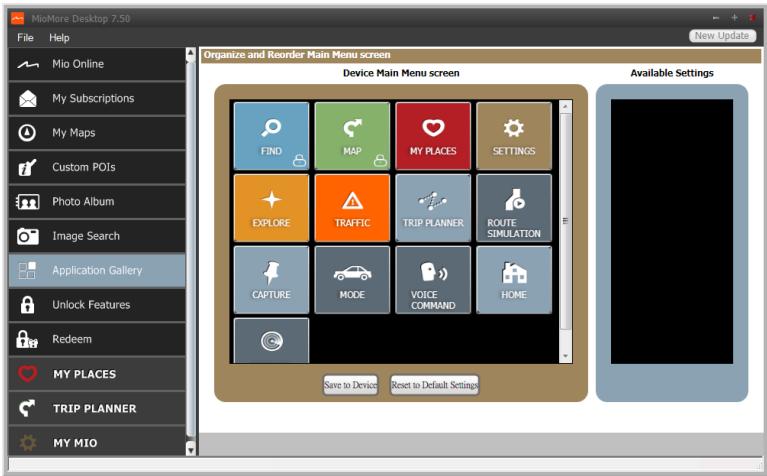
text_image
MioMore Desktop 7.50 File Help Mio Online My Subscriptions My Maps Custom POIs Photo Album Image Search Application Gallery Unlock Features Redeem MY PLACES TRIP PLANNER MY MIO Organize and Reorder Main Menu screen Device Main Menu screen FIND MAP MY PLACES SETTINGS EXPLORE TRAFFIC TRIP PLANNER ROUTE SIMULATION CAPTURE MODE VOICE COMMAND HOME Save to Device Reset to Default Settings Available SettingsApplication Gallery is a MioMore Desktop application that allows you to add, remove and rearrange applications on the Main Menu screen of your Mio.

Application Gallery screen items and the order of the options may differ from the above, depending on your region, maps installed or model of Mio.
How do I rearrange Main Menu applications on my Mio Main Menu?
- Select any application from the Device Main Menu screen section.
- Drag the application to the position that you would like it to appear on your Mio.
- Click Save to Device. The order of the Main Menu screen is saved on your Mio.

Click Reset to Default Settings to restore the Main Menu screen to the factory default order.
How do I remove an application from my Mio?

The following applications cannot be removed from your Mio:


- Select any application from the Device Main Menu screen section.
- Drag and drop the application to the Available Settings section.
- Click Save to Device. The application is removed from the Main Menu screen on your Mio and is no longer accessible.
How do I add an application to my Mio?
- Select any application from the Available Settings section.
- Drag and drop the application to the Device Main Menu screen section.
- Click Save to Device. The application is added to the Main Menu screen on your Mio.
Unlock Features
MioMore Desktop → Unlock Features
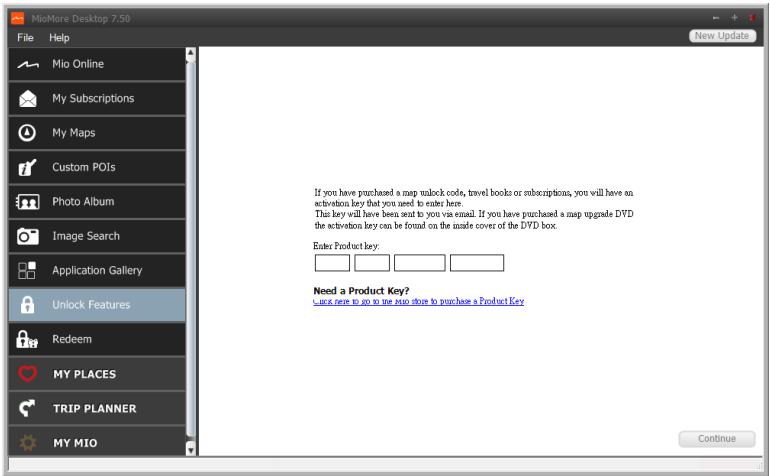
text_image
MioMore Desktop 7:50 File Help Mio Online My Subscriptions My Maps Custom POIs Photo Album Image Search Application Gallery Unlock Features Redeem MY PLACES TRIP PLANNER MY MIO New Update If you have purchased a map unlock code, travel books or subscriptions, you will have an activation key that you need to enter here. This key will have been sent to you via email. If you have purchased a map upgrade DVD the activation key can be found on the inside cover of the DVD box. Enter Product Key: Need a Product Key? use next to go to the same store to purchase a Product Key ContinueIf you have purchased a map unlock code or subscriptions for your Mio, you have to enter the activation key using the Unlock Features application.

Make sure you have an active Internet connection for this feature.

The activation key will be sent to you by email, or printed on the inside cover of the box if you purchase map update DVD. You can click the link on the screen to purchase an activation key online.
Redeem
MioMore Desktop → Redeem
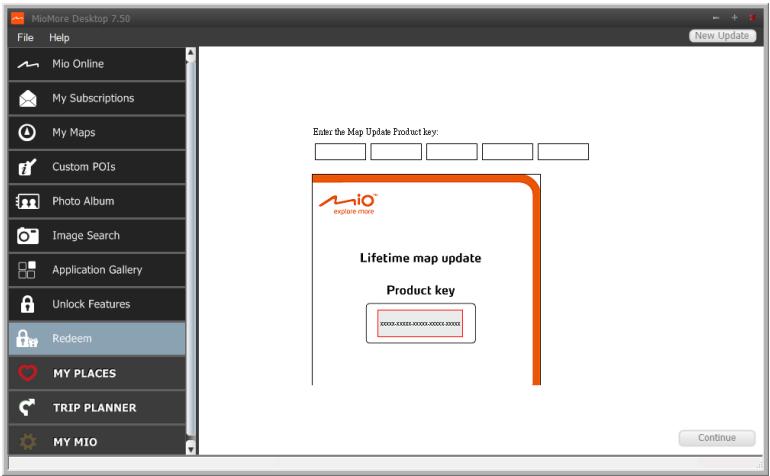
text_image
MioMore Desktop 7.50 File Help Mio Online My Subscriptions My Maps Custom POIs Photo Album Image Search Application Gallery Unlock Features Redeem MY PLACES TRIP PLANNER MY MIO New Update Enter the Map Update Product key: Mio® explore more Lifetime map update Product key 00000-00000-00000-00000-00000 ContinueTo redeem Mio's lifetime map update service, you need to enter the product key using the Redeem application. Please note that the product key can only be used once and is not transferable.

Make sure you have an active Internet connection for this feature.

The product key is printed on the flyer that is enclosed in the package.
MY PLACES
MioMore Desktop → MY PLACES
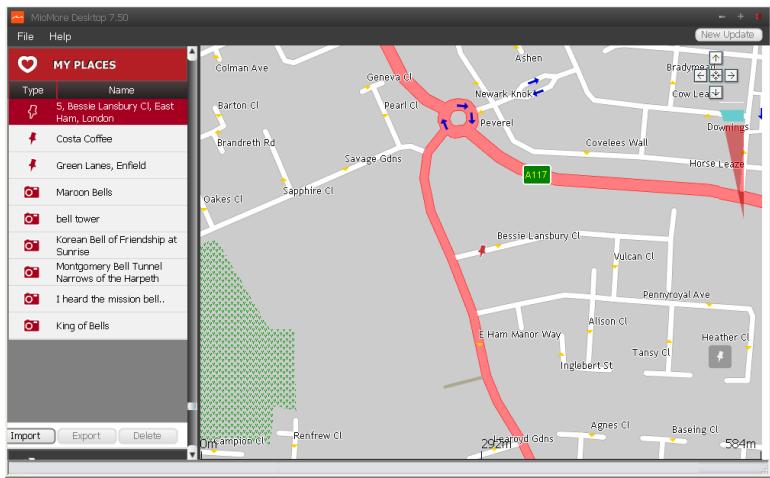
text_image
MioMore Desktop 7.50 File Help MY PLACES Type Name S, Bessie Lansbury Cl, East Ham, London Costa Coffee Green Lanes, Enfield Maroon Bells bell tower Korean Bell of Friendship at Sunrise Montgomery Bell Tunnel Narrows of the Harpeth I heard the mission bell.. King of Bells Import Export Delete New Update Colman Ave Barton Cl Brandreth Rd Oakes Cl Sapphire Cl Geneva Cl Pearl Cl Savage Gdns A117 Ashen Newark Knock Reverel Covelees Wall Horse Leaze Bessie Lansbury Cl Vulcan Cl Pennroyal Ave E Ham Mahor Way Allison Cl Inglebert St Tansy Cl Heather Cl Agnes Cl Baseling Cl 294m 584mMy Places includes saved addresses, captured journeys and sound, Points of Interest, NavPix™, and other locations. You can select, modify and delete places. You can also add locations from Connect and Image Search to My Places.

Make sure you have an active Internet connection for this feature.

You can install a maximum of 99 locations on your Mio via My Places.
How do I sort My Place locations?
You can sort My Place locations by type and name:
| If you want to ... | Then ... |
| sort My Place locations by type, | click Type on the My Places panel. |
| sort My Place locations by name, | click Name on the My Places panel. |
How do I import or export a location?
Complete the following:
| If you want to ... | Then ... |
| import a location from the computer to your Mio, | from the My Places panel, clickImport.The Open dialog box will open. Locate the file you want to import and then clickOpen.The supported file format for importing includes: *.KML and *.KMZ. |
| export a location from your Mio to the computer, | from the My Places panel, select a location and then click Export.The Save as dialog box will open. Enter a descriptive name for the file and then click Save. i The supported file format for exporting includes: *.KMZ. |

You can import/export a location by clicking File → Import (or Export) → My Places from the top of
MioMore Desktop Menu.
How do I edit a location from the map screen?
- From the My Places panel select the location you want to edit.
- Click the location icon on the map. The location summary pop-up will display.
- Complete the following:
| If you want to ... | Then ... |
| edit the location name, | click the location name.Enter a new name or edit the existing name. The location name is changed in both MioMore Desktop and your Mio. |
| edit the location notes, | click Edit notes.Enter notes. The location notes is changed in both MioMore Desktop and your Mio. |
| share the location, | click  An email will open ready to send to your friends. Your friend will receive the email with links to either save the image or to save the location in My Places in MioMore Desktop. An email will open ready to send to your friends. Your friend will receive the email with links to either save the image or to save the location in My Places in MioMore Desktop. If the location is a NavPixTM, your friend will receive the image as an attachment to the email.[SZ8K]If the location is a captured journey, your friend will receive the journey as a *.KMZ file attached to the email. Your friend will need to have Google Earth installed on the computer to view the KMZ file. If the location is a NavPixTM, your friend will receive the image as an attachment to the email.[SZ8K]If the location is a captured journey, your friend will receive the journey as a *.KMZ file attached to the email. Your friend will need to have Google Earth installed on the computer to view the KMZ file. If the location is a captured voice recording, your friend will receive the voice recording as a *.wav file attached to the email. If the location is a captured voice recording, your friend will receive the voice recording as a *.wav file attached to the email. |
| delete the location, | click  then click Yes to delete the location. then click Yes to delete the location. You can delete all locations in My Places by clicking [IMAGE] on the My Places panel. You can delete all locations in My Places by clicking [IMAGE] on the My Places panel. |
| export the location, | click  The Save as dialog box will open. Enter a descriptive name for the file and then click Save. The Save as dialog box will open. Enter a descriptive name for the file and then click Save. |
TRIP PLANNER
MioMore Desktop → TRIP PLANNER
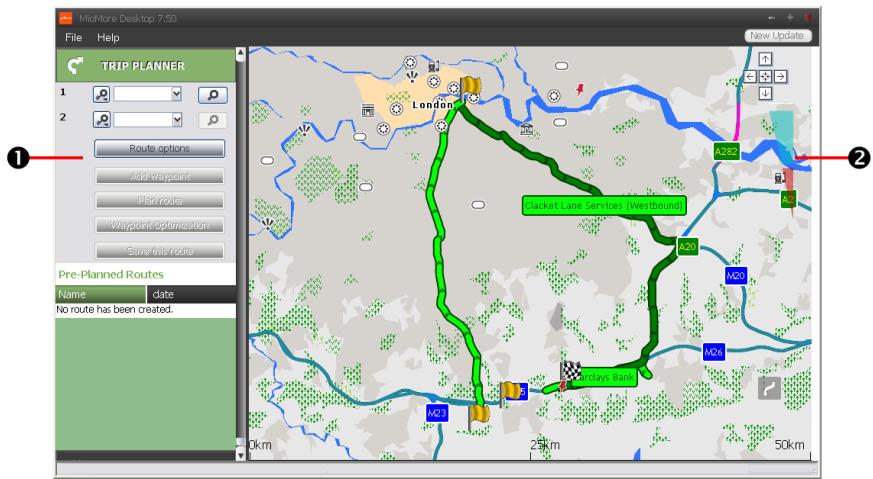
text_image
Midmore Desktop 7:50 File Help TRIP PLANNER 1 2 Route options Add waypoint Plan route Waypoint Optimization Save the route London A282 Clacket Lane Services (Westbound) A20 M20 M24 Barclays Bank No route has been created. New Update 1 2 Pre-Planned Routes Name date No route has been created.In addition to TRIP PLANNER ( ) on your Mio, TRIP PLANNER in MioMore Desktop allows you to pre-plan your trip on the computer.
| Component | Description | |
| 1 | Route planner | Plan a route by enteringFrompoint andTopoint. A list of planned routes will display in the Pre-planned Routes section. |
| 2 | Display area | Display the route on the map.You can also plan your route directly on the map. |
How do I pre-plan a route by search?
- From the Route planner panel, set your From point and To point.
You can find a location by:

: Keyword

: Address

: Postcode
Input your content and click your search results.

to start a search. You may need to select from a category list to narrow
- Complete the following:
| If you want to ... | Then ... |
| add a waypoint, | click Add Waypoint. |
| reset or remove a waypoint, | click ✗ next to the waypoint. |
| set the route preferences, | clickRoute optionand select:Mode: Select the Driving, Walking, or Truck(for selected models) mode to plan your route.Type of route: Select the Fastest, Shortest, Easiest, or Economical way to plan your route.Avoidance: Avoid Unsurfaced roads, Toll roads, Ferry routes, orSpecial zonein your route.[C&YY]The Route optionsettings will only apply to the route you are editing. |
| arrange the destinations in the most efficient order while two or more waypoints are included in the planned trip, | clickWaypoint Optimization. |
- Click Plan Route to calculate your route. The route will be displayed on the map.
- Click Save this route. The route is saved to the Pre-planned Routes section and your Mio simultaneously.
How do I pre-plan a route using the map?
- From the map displayed in the Display area, click

- The cursor will be marked with "Add route". Move the cursor and then click on the map to set the From point.
- The cursor will be marked with "Click to set destination". You can:
■ Move the cursor and then click on the map to set the waypoint.
■ Move the cursor and then double-click on the map to set the To point.
- When done, click Save this route. The route is saved to the Pre-planned Routes section and your Mio simultaneously.
How do I edit a route?
- From the Pre-planned Routes section select a route to edit.
- Complete the following:
| If you want to ... | Then ... |
| rename the route, | click the title of the route in the Name column, then enter a new name and press ENTER. Your changes are automatically saved. |
| delete a saved route, | click  next to the route you want to remove. next to the route you want to remove. |
MY MIO
MioMore Desktop → MYMIO
How do I change the displayed language for MioMore Desktop?
You can change the language for MioMore Desktop.
- Click Language.
- Select your preferred language.
How do I install or remove a voice file for my Mio?
My Voices is a MioMore Desktop application that allows you to install or remove voice files on your Mio.
- Click My Voices.
- Complete the following:
| If you want to ... | Then ... |
| install a voice file, | in the Available voice files section, select the voice file you would like to install.Click Install selected voices. |
| remove a voice file, | in the Available voice files section, select the voice file you would like to remove.Click Remove selected voices. |

Voice files take up space on your Mio's internal memory. If you do not use a voice file, you can remove it to free up space. You can later reinstall it to your Mio if required. The provided DVD of your Mio is needed while installing the voice file.
How do I report mileage?

Mileage Reporter is not available on all models.
Mileage Reporter is a MioMore Desktop feature that allows you to create expense reports (.csv format) based on the mileage and estimated fuel usage recorded by your Mio.
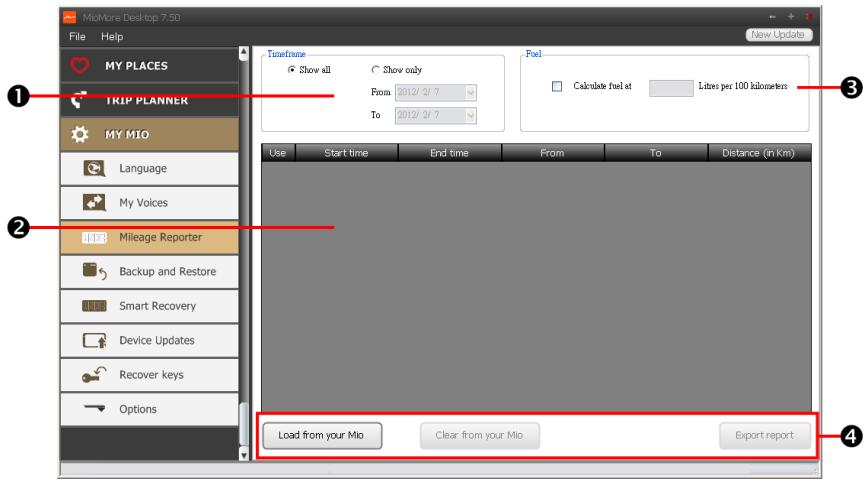
text_image
MioMore Desktop 7.50 File Help MY PLACES TRIP PLANNER MY MIO Language My Voices Mileage Reporter Backup and Restore Smart Recovery Device Updates Recover keys Options New Update Timeframe Show all Show only From 2012/2/7 To 2012/2/7 Fuel Calculate fuel at Letters per 100 kilometers Use Start time End time From To Distance (in Km) Load from your Mio Clear from your Mio Export report| Component | Description | |
| 1 | Timeframe | Specifies the time for which the mileage report will be created.Select Show All to include all recorded mileage. |
| 2 | Report panel | Displays your trip log data. |
| 3 | Fuel | Select to include the amount of fuel (estimate) used for the mileage recorded. If selected, specify the number of miles travelled per gallon, or miles/kilometers travelled per litre. |
| 4 | Report data buttons | Import report data from your Mio, clear all report data from your Mio or export data to a report (.csv). |

To use the Mileage Reporter function of MioMore Desktop, the Mileage recorder option must be enabled on your Mio. For more information, refer to the Route options section in "What can I customise?"

To change the Mileage Reporter preferences, click MioMore Desktop → MYMIO → Options → Mileage Reporter.
How do I backup and restore my Mio?
You can save backups of data from your Mio, and later restore it if required.
- Click Backup and Restore.
- Complete the following:
| If you want to ... | Then ... |
| backup your Mio, | click Create new backup.Select the data you would like to backup.Click OK. The backup will be saved to your computer. The backup will be listed on the Backup & Restore window. |
| restore a backup to your Mio, | select the backup from the list that you would like to restore.Click Restore, then click OK. The backup will be restored to your Mio. |
| delete a backup, | select the backup from the list that you would like to delete.Click Delete, then click OK. The backup will be deleted. |
How do I recover maps and voice files for my Mio?
The Smart Recovery application allows you to recover all data to fix your Mio if a problem occurs during operation, including software, maps, voice files, and subscriptions.
- Click Smart Recovery.

To use the Smart Recovery application to recover data, make sure you have an active Internet connection and the Installer DVD is inserted into your computer DVD drive.
- The available data will be displayed in the Maps and Voices fields. Select the desired data and click Recover to recover the data on your Mio.
How do I manually update my Mio?
Occasionally Mio may offer you free updates, including software applications, maps, voice commands, and more. You can manually check the available updates via the Device Updates function.
- Click Device Updates. The Device Updates screen that contains the available updates will display.

You can also open the Device Updates screen by clicking the New Update button at the top-right er of MioMore Desktop.
- Complete the following:
| If you want to ... | Then ... |
| download the updates, | select the available update from the list, and then lick Download.You can view the download status from the downloading bar. |
| stop/pause the download, | during the download:Clickto stop the download.Clickto pause the download; when paused, clickto resume downloading. |
| change the download folder, | click Change Path. |
- When completed, the downloaded file will be saved to the assigned folder.
■ For software update, the *.exe file will be launched automatically to install the update.
- For map/voice command update, the system will display the My Maps/Voice Command screen automatically to install the update.
How do I recover keys on my Mio?
The Recover keys application allows you to fix your Mio if a problem occurs during operation. Click the Recover keys option in the menu and then follow the prompts to complete the process.
How do I configure MioMore Desktop?

Depending on your Mio model, certain setting options may not be available.
- Click Options, and then select the desired setting options to configure.
- Complete the following:
| If you want to ... | Then ... |
| keep MioMore Desktop updated, | click General, and then select the Auto check for updates checkbox. When you select this option, every time you open MioMore Desktop, the available service packs and bug fixes will be downloaded from the Mio server and applied to your Mio. |
| change the units of measurement that MioMore Desktop uses, | click General, and then:Select or clear the Use metric units checkbox to change between imperial and metric units.Select or clear the Use decimal degrees checkbox to change between decimal degrees and latitude/longitude co-ordinates. |
| change the Mileage Reporter settings, | click Mileage Reporter, and then:Select or clear the Warn me when deleting all log files from my Mio checkbox.Select Distance per volume or Volume per distance to change the fuel economy style. |
| change the NavPixTM library location, | click Photo Album, and then click Change.For more information about configuring your Photo Album, refer to the “Photo Album” section. |
| change the location of where downloaded updates will be saved, | click My Maps, and then click Change.Select a folder for the updates. The downloaded updates are moved to the new location. |
For more information
Point of Interest categories
| Icon | Description | Icon | Description |
| [CT23] | Airport |  | Amusement park |
 | Art centre |  | ATM/Cash dispenser |
| [13W7] | Bank | [7BA3] | Bar/Pub |
| [14AX] | Beach |  | Breakdown service/Car repair facility |
| [BX87] | Bowling centre |  | Business facility or company |
| [DTCK] | Business office | [22SK] | Bus station |
| [2334] | Camping ground |  | Car dealer/Automobile dealer |
| [T0TY] | Casino | [36HX] | Cemetery |
 | Church | [KDB8] | Cinema |
| [66*9] | City hall | [18*9] | City, town or village |
| [151K] | Coffee shop | [40*K] | College/University |
| [148C] | Community centre | [7*4C] | Commuter railway station |
| [48K] | Courthouse | [100*7] | Dentist |
| [101K] | Doctor | [201*7] | Embassy |
| [20*1] | Exhibition centre | [20*1] | Ferry terminal |
| [5801] | Fire Brigade | [480K] | Golf course |
 | Government office | [17*K] | Grocery store |
| [164D] | Guest house | [26*8] | Higher education |
| [164S] | Hospital/Polyclinic | [248*0] | Hotel |
| [34*8] | Ice skating | [15*38] | Important tourist attraction |
| [28118] | Information/Tourist information office | [15*52] | Library |
| [31*14] | Marina/Yacht basin | [14*42] | Medical |
[2034] | MonumentMotoring organisation office | [31*24][7XAB] | Motorcycle dealerMountain pass |
| [YATW] | Museum |  | Music centre |
| [BASA] | Natural attraction |  | Nightlife |
 | Park and ride |  | Parking |
| [HH7T] | Parking garage |  | Park/Recreation area |
| [C67G] | Performance art/Theatre | [KAC28] | Petrol station |
 | Pharmacy | [Y23K] | Place of worship |
 | Police station |  | Post office |
 | Public restroom/Toilet facilities |  | Public sport airport |
| [DABH] | Railway crossing | [5S02] | Rental car agency |
 | Rest area | [CB31] | Restaurant |
| [5G2C] | Road accident black spot | [14V5] | Scenic/Panoramic views |
 | School | [23FT] | School zone |
 | Shop | [H4BW] | Shopping |
| [5CW2] | Ski resort/Ski lift station | [3052] | Speed check |
| [XWCK] | Sport centre | [8F28] | Sports hall |
| [BWC8] | Sports complex | [7W74] | Stadium |
| [43Y0] | Tennis court | [KY07] | Travel agency |
| [2033] | Transport ferry |  | Veterinarian |
| [WBCA] | Winery | [CS6T] | Zoo |

The POI categories and the order may differ, depending on your region, maps installed or model of Mio.
Branded Points of Interest
Branded Points of Interest are available on some maps. These include well known restaurants, accommodation providers, tourist attractions, Petrol stations, etc. The icon will usually display the company logo.
Point of Interest categories by subscription
| Icon | Description |
| Safety Cameras | |
| Safety Camera (Mobile) | |
| [22C2] | Safety Camera (Average) |
 | Red Light Camera |
My Places categories
| Icon | Description |
 | Home |
 | Saved locations |
 | Captured journey (for selected models) |
Traffic and other TMC events
Each TMC Event is sorted in to one of nine categories. When an Event is received, one of the following icons will display:
| Event | Avoided Event | Message Type | Event Description |
 |  | Danger | There is a dangerous situation on the route; for example, people are on the road. |
 |  | Traffic | Any event that will cause a delay on a route. |
 |  | Weather | Weather conditions are adversely affecting a route; for example, there is ice on the road. |
 |  | Warnings | There is a situation of which you should be aware on the route, but it is not serious enough to be considered a dangerous situation; for example, a minor accident has taken place. |
 |  | Forecast | An event is expected to occur on a route. |
 |  | Restrictions | There is a restricted flow of traffic on a route; for example, a lane has been closed on a motorway. |
 |  | Clearance | A traffic event that has now been cleared. |
 |  | Information | All other events. |
 |  | Roadworks | Roadworks are taking place on a route. |
If a Traffic or Clearance event has a recommended detour, the following icons will display:
| Event | Avoided Event | Message Type | Event Description |
 |  | Traffic Detour | A Traffic Event, for which a detour is recommended. |
 |  | Clearance Re-route | A Clearance Event, for which a re-route is recommended. |

Avoided Event icons will only display on the Map screen, at the event location.
Online support
For 24/7 help and support with Mio products, visit our Technical Support website at: www.mio.com
Mio Advantage
If you have a faulty product or you would like to speak to a member of our Technical Support team, register your Mio on Mio Advantage to obtain the Technical Support phone numbers for your region.
Speed limit
Mio products are designed to be used as an aid to safer driving. Mio does not condone speeding or any other failure to comply with your local traffic laws. It is your responsibility to drive within the posted speed limit at all times and to drive in a careful manner. Mio accepts NO liability whatsoever for you receiving any speeding fines or points on your license through using this device. Mio does not guarantee the accuracy of the data contained within this database either expressed or implied. In the event you receive a fine or any other penalty for speeding or contravention of any traffic law, or are involved in an accident, Mio is not responsible for any damages of any type. In some countries the data information regarding speed limits may conflict with local law and/or regulations. It is your responsibility to make sure that your use of the data is in compliance with local laws and/or regulations. Usage is at your own risk.
Safety camera POIs
Mio products are designed to be used as an aid to safer driving. You can receive messages to alert you to locations of safety cameras, which will enable you to monitor your speed through these areas. Mio does not warrant that all types and locations of safety camera data are available, as cameras may be removed, relocated or new cameras installed. Mio does not condone speeding or any other failure to comply with your local traffic laws. It is your responsibility to drive within the posted speed limit at all times and to drive in a careful manner. Mio accepts NO liability whatsoever for you receiving any speeding fines or points on your license through using this device. Mio does not guarantee the accuracy of the data contained within this database either expressed or implied. In the event you receive a fine or any other penalty for speeding or contravention of any traffic law, or are involved in an accident, Mio is not responsible for any damages of any type. In some countries the data information regarding safety or speed cameras may conflict with local law and/or regulations. It is your responsibility to make sure that your use of the data is in compliance with local laws and/or regulations. Usage is at your own risk.
Copyright
© MiTAC International Corporation. Mio is either a registered trademark or trademark of MiTAC International Corporation and is used under licence by Mio Technology Limited. All rights reserved.
The software contains proprietary information of MiTAC International Corporation; it is provided under a licence agreement containing restrictions on use and disclosure and is also protected by copyright law. Reverse engineering of the software is prohibited.
No part of this publication may be reproduced, stored in a retrieval system, or transmitted in any form or by any means, electronic, mechanical, photocopying, recording or otherwise, without the prior written permission of Mio.
IQ Routes is a registered trademark of TomTom International BV.
All other trademarks and registrations are the property of their respective owners.
Revision: R01
(7/2015)