
FIRE HD 10 - Tablette AMAZON - Notice d'utilisation et mode d'emploi gratuit
Retrouvez gratuitement la notice de l'appareil FIRE HD 10 AMAZON au format PDF.

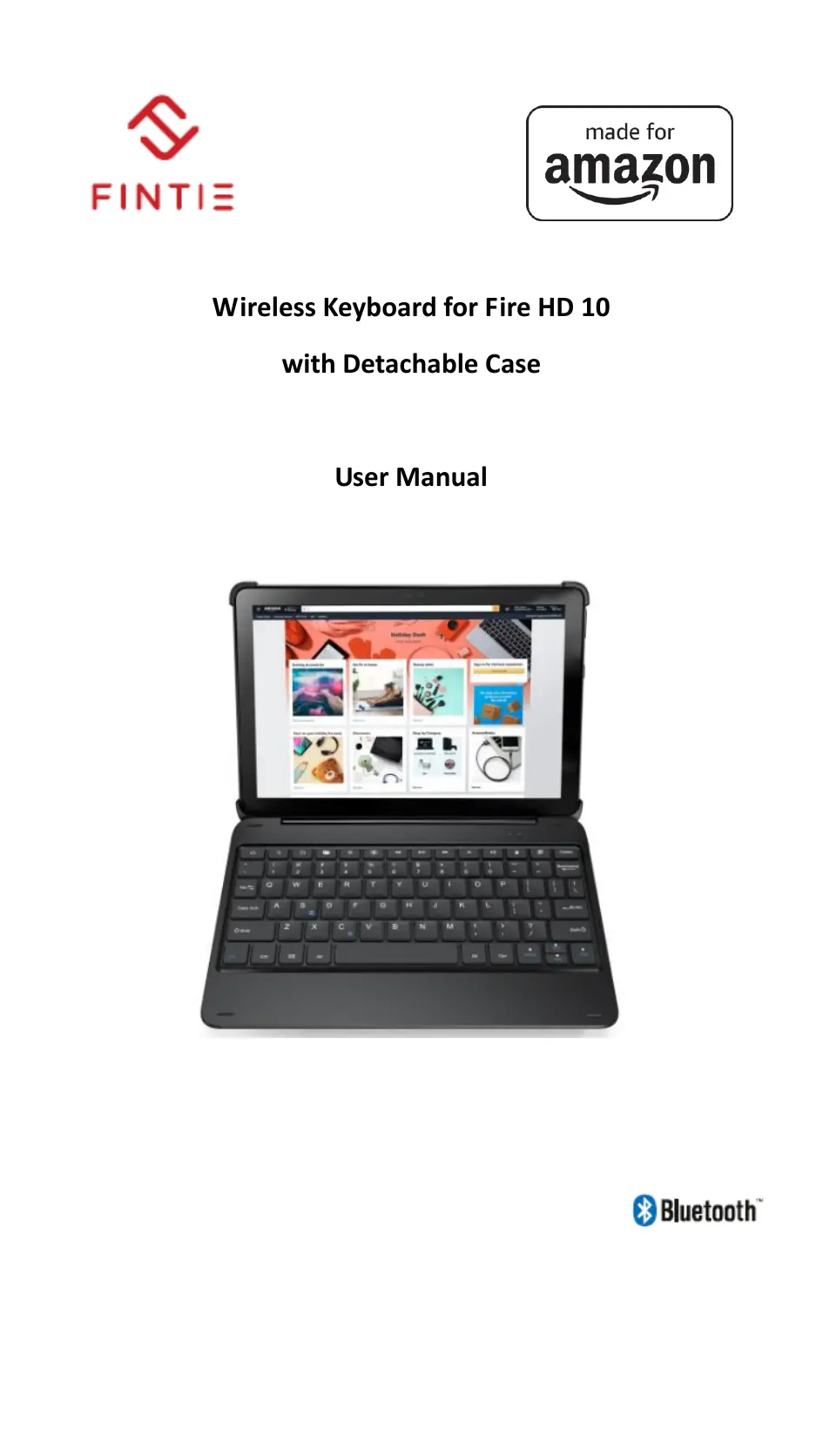

| Type de produit | Clavier Bluetooth avec étui détachable pour tablette Fire HD 10 |
| Alimentation | Batterie lithium-ion rechargeable 500 mAh, charge via port USB-C (chargeur non inclus), tension 3.0-4.2 V, courant de charge 200 mA, temps de charge ≤ 4 heures |
| Autonomie | 400 heures en utilisation continue, veille jusqu'à 365 jours |
| Connectivité | Bluetooth BLE 5.0, portée jusqu'à 10 mètres |
| Fonctions principales | Touches de raccourci (Accueil, Recherche, Retour, Dossier, Luminosité, Lecteur multimédia, Volume, Verrouillage, Silk, Email, Split Screen), indicateurs lumineux (alimentation, Bluetooth, Caps Lock, charge, batterie faible) |
| Contenu de l'emballage | Étui clavier, câble de chargement USB-C, manuel d'utilisation |
| Entretien et nettoyage | Utiliser un chiffon doux et humide (microfibre). Ne pas utiliser de produits chimiques, huiles ou solvants. Ne pas démonter le produit. |
| Sécurité | Ne pas poser d'objets lourds sur le clavier. Éliminer la batterie conformément aux lois locales. Tenir à l'écart des objets tranchants. |
| Réparabilité et support | En cas de dysfonctionnement, contacter le revendeur agréé. Site web : www.fintie.com, email : support@fintie.com, téléphone (Amérique du Nord) : 1-888-249-8201, (Europe) : +49 69 95094777 |
| Informations générales | Marque Fintie, modèle pour Amazon Fire HD 10. Compatible avec l'écran tactile de la tablette. Recyclage des déchets électriques selon la directive DEEE (au Royaume-Uni : www.recycle-more.co.uk) |
| Dimensions | Conçu pour tablette Fire HD 10 (non communiquées précisément) |
| Poids | Non spécifié |
FOIRE AUX QUESTIONS - FIRE HD 10 AMAZON
Questions des utilisateurs sur FIRE HD 10 AMAZON
0 question sur cet appareil. Repondez a celles que vous connaissez ou posez la votre.
Poser une nouvelle question sur cet appareil
Téléchargez la notice de votre Tablette au format PDF gratuitement ! Retrouvez votre notice FIRE HD 10 - AMAZON et reprennez votre appareil électronique en main. Sur cette page sont publiés tous les documents nécessaires à l'utilisation de votre appareil FIRE HD 10 de la marque AMAZON.
MODE D'EMPLOI FIRE HD 10 AMAZON
Wireless Keyboard for Fire HD 10
with Detachable Case
User Manual
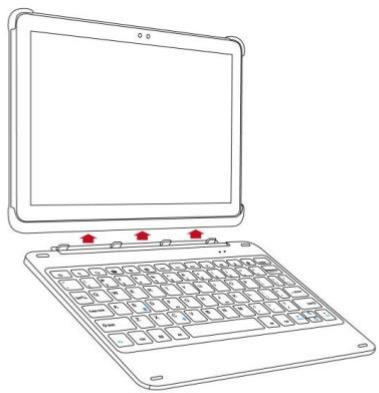
Installation and Removal
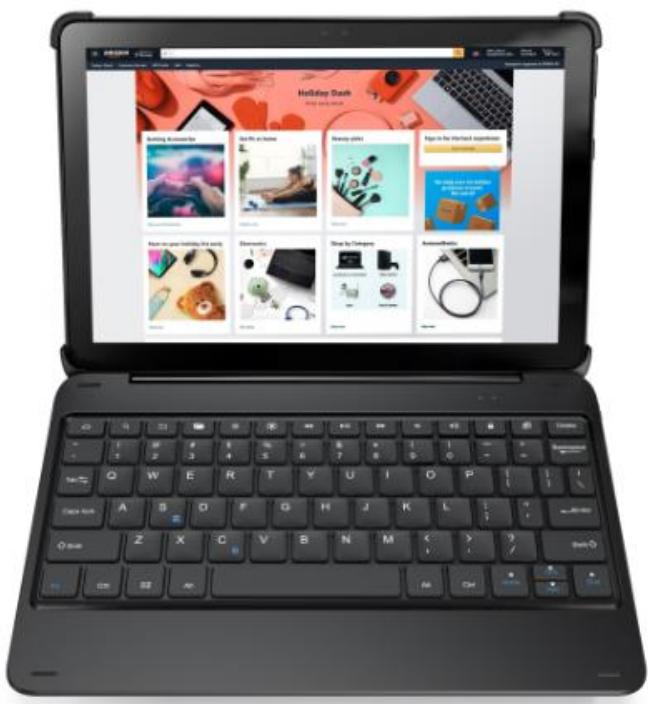
Install your device:
a. Press the bottom half of your device into the case and apply light pressure to snap it into place.
b. Then press the top half of your device into the case and check each corner to make sure your device is seated properly.
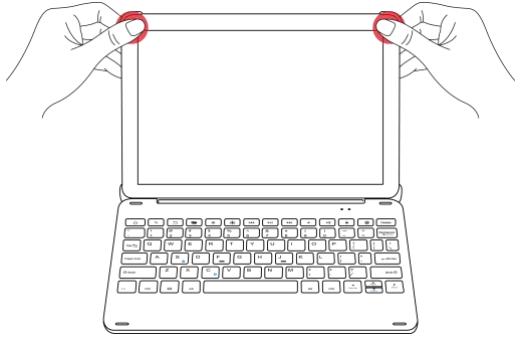
Remove your device:
a. Hold tablet on both sides and use thumbs to GENTLY push off the back cover.
b. Proceed GENTLY to peel cover.
c. Take tablet out.
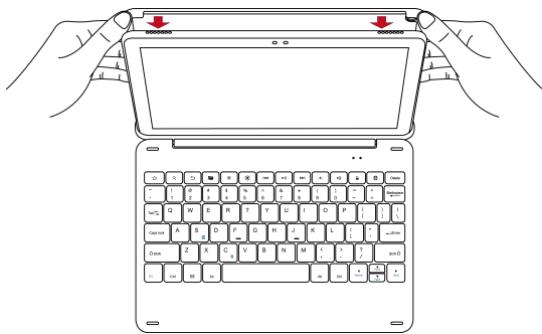
Detaching keyboard:
The keyboard and back cover are designed to allow separation. They attach together magnetically.
Pairing Steps
Step 1. Switch On/Off to On to turn your keyboard on.
Step 2. Press the "Fn + C" keys together to enter pairing mode.
Step 3. Verify your device's Bluetooth® settings are on.
Select Settings - Bluetooth - On.
Step 4. Select "Pair new device".
Step 5. Select "Fintie Keyboard" from your device's list of available devices to complete pairing.
Step 6. Select "Fintie Keyboard", the Bluetooth pairing indicator will turn off after successfully paired.
Sleep Mode
The keyboard will enter sleep mode after being idle for 30 minutes.
To activate it, press any key and wait for 3 seconds.
Charging your keyboard
- Plug the Type-C end of the charging cable into the keyboard and the other USB end into your preferred USB charger. (USB charger is not included.)
- When charging, the power indicator will turn red. Generally, it takes approximately 4 hours for a full charge. (Output: DC 5V/500mA.)
Package Contents
1 x Keyboard Case
1 x USB-C Charging Cable
1 x User Manual
Specifications
| Bluetooth Version | BLE 5.0 |
| Operating Range | Up to 10 meters |
| Working Voltage | 3.0-4.2V |
| Working Current | 1mA |
| Charging Current | 200mA |
| Sleeping Current | 0.01mA |
| Re-connect Time | 3 seconds |
| Reworking Time | 2 seconds |
| Stand-by Time | 365 days |
| Charge Time | ≤ 4 hours |
| Uninterrupted Work Time | 400 hours |
| Lithium Battery Capacity | 500 mAh |
Product Overview

① Power indicator: Turns blue for 3 seconds.
Bluetooth indicator: Flashes blue when pressing "Fn + C".
Caps Lock indicator: Blue light is on.
(2) Charging indicator: Red while charging.
Green when fully charged.
Low battery indicator: Flashes red when charging is required.
(3) Charging port: Only used for charging.
Keys and Function
| Home | Search for | Back |
| Open file folder | Brightness - | Brightness + |
| Previous track | Play/Pause | Next track |
| Volume - | Volume + | Lock screen |
| Open silk | Split Screen |
Troubleshooting
If your device doesn't respond to the keyboard, try the follow steps.
- Restart your device.
- Turn your keyboard off and back on.
- Forget and re-pair your keyboard.
- If your keyboard doesn't establish or maintain a Bluetooth connection, reset the Bluetooth module by charging your keyboard.
- After charging, if your keyboard doesn't operate correctly, please contact your authorized retailer.
Safety Tips
- Do not place heavy objects on the keyboard.
- Do not disassemble the product.
- Keep the product away from oils, chemicals, and organic liquids.
- Use only a damp, soft cloth, like microfiber, to wipe the keyboard.
- Dispose of battery according to local laws.
- Keep away from sharp objects.
***** For UK customers only ****
Recycling your old electrics is easy!
Recycle your electrical and electronic devices free at your local recycling centre. To find your nearest centre, visit www-recycle-more.co.uk and type in your postcode.
Why recycle?
Unwanted electrical equipment is the UK's fastest growing type of waste.
Many electrical items can be repaired or recycled, saving natural resources and the environment. If you do not recycle electrical equipment will end up in landfill where hazardous substances will leak out and cause soil and water contamination-harming wildlife and also human health.
We're proud to support your local authority in providing local recycling facilities for electrical equipment.
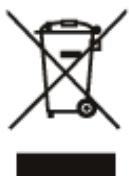
To remind you that old electrical equipment can be recycled, it is now marked with the crossed-out wheeled bin symbol. Please do not throw any electrical equipment (including those marked with this symbol) in your bin.
What is WEEE?
The Waste Electrical or Electronic Equipment (WEEE) Directive requires countries to maximize separate collection and environmentally friendly processing of these items.
How are we helping?
In the UK, distributors including retailers must provide a system which allows all customers buying new electrical equipment the opportunity to recycle their old items free of charge. As a responsible retailer, we have met the requirements placed on us by financially supporting the national network of WEEE recycling centers established by local authorities. This is achieved through membership of the national Distributor Take-back scheme (DTS).
To find more information on WEEE recycling and to locate your nearest recycling centre please visit www.recycle-more.co.uk.
IC Caution:
This device complies with Industry Canada licence-exempt RSS standard(s).
Operation is subject to the following two conditions:
(1) This device may not cause interference, and
(2) This device must accept any interference, including interference that may cause undesired operation of the device.
Contact Us
Website: www.fintie.com
Email: support@fintie.com
North America
Tel: 1-888-249-8201
(Monday-Friday: 9:00 AM - 5:00 PM EST)
Europe
Tel: +49 69 95094777
(Monday-Friday: 9:00 AM - 5:00 PM CET)

- Wireless Keyboard for Fire HD 10
- with Detachable Case
- User Manual
- Installation and Removal
- Install your device:
- Remove your device:
- Detaching keyboard:
- Pairing Steps
- Sleep Mode
- Charging your keyboard
- Package Contents
- Specifications
- Product Overview
- Keys and Function
- Troubleshooting
- Safety Tips
- ***** For UK customers only ****
- Recycling your old electrics is easy!
- Why recycle?
- What is WEEE?
- How are we helping?
- IC Caution:
- Contact Us
- North America
- Europe
Marque : AMAZON
Modèle : FIRE HD 10
Catégorie : Tablette