
TECHNIBOX S1 - TECHNIBOX S1+ - Récepteur satellite TECHNISAT - Notice d'utilisation et mode d'emploi gratuit
Retrouvez gratuitement la notice de l'appareil TECHNIBOX S1 - TECHNIBOX S1+ TECHNISAT au format PDF.


| Type de produit | Récepteur satellite HD numérique |
| Marque | TECHNISAT |
| Modèle | TECHNIBOX S1 / TECHNIBOX S1+ |
| Alimentation | 230 V / 50-60 Hz via adaptateur secteur fourni |
| Connectivité | HDMI, mini SCART, sortie audio numérique optique et coaxiale, audio analogique (RCA), port réseau RJ45, 2 ports USB, lecteur SD/MMC, lecteur de carte CONAX, slot CI/CI+ |
| Réception satellite | DVB-S2, compatible HD, décodeur intégré (CONAX, VIACCESS, IRDETO, SECA) |
| Enregistrement DVR | Enregistrement sur clé USB, disque dur externe ou carte SD/MMC ; timeshift, enregistrement instantané et programmé |
| Fonctions réseau | HbbTV, portail Internet, watchmi, mise à jour logicielle en ligne, partage de fichiers via UPnP |
| Guide des programmes (EPG) | SFI (SiehFern Info) avec téléchargement automatique |
| Télétexte | Affichage du télétexte sur les chaînes compatibles |
| Contrôle parental | Protection par code PIN, contrôle global et par utilisateur (TechniFamily) |
| Listes de chaînes | Listes de favoris, tri et filtrage, mise à jour via ISIPRO |
| Télécommande | Télécommande infrarouge avec piles (2 x 1,5 V micro) |
| Affichage | Afficheur LED sur le panneau avant (heure, état) |
| Dimensions | Environ 260 x 165 x 45 mm (estimation) |
| Poids | Environ 0,8 kg (estimation) |
| Entretien et nettoyage | Nettoyer avec un chiffon sec et doux ; ne pas utiliser de produits liquides ou abrasifs |
| Sécurité | Débrancher avant toute manipulation ; ne pas ouvrir le boîtier ; utiliser en intérieur uniquement |
| Garantie | 2 ans légaux + 1 an supplémentaire après enregistrement sous 4 semaines (3 ans au total) |
| Température d'utilisation | Climat tempéré, de 5°C à 35°C (estimation) |
| Pièces détachées et réparabilité | Contacter le SAV TechniSat ou le revendeur pour les réparations ; pas de pièces détachées grand public |
FOIRE AUX QUESTIONS - TECHNIBOX S1 - TECHNIBOX S1+ TECHNISAT
Questions des utilisateurs sur TECHNIBOX S1 - TECHNIBOX S1+ TECHNISAT
0 question sur cet appareil. Repondez a celles que vous connaissez ou posez la votre.
Poser une nouvelle question sur cet appareil
Téléchargez la notice de votre Récepteur satellite au format PDF gratuitement ! Retrouvez votre notice TECHNIBOX S1 - TECHNIBOX S1+ - TECHNISAT et reprennez votre appareil électronique en main. Sur cette page sont publiés tous les documents nécessaires à l'utilisation de votre appareil TECHNIBOX S1 - TECHNIBOX S1+ de la marque TECHNISAT.
MODE D'EMPLOI TECHNIBOX S1 - TECHNIBOX S1+ TECHNISAT
TechniSat
Quick start manual
Digit ISIO S2
Digital Twin HD Receiver with Internet access

With CONAX card reader and an interface for accepting a CI/CI+ module, plus DVR recording function via the USB interface.
For reception of free-to-air and encrypted (e.g. VIACCESS, CONAX, IRDETO, SECA etc.) HD satellite channels.
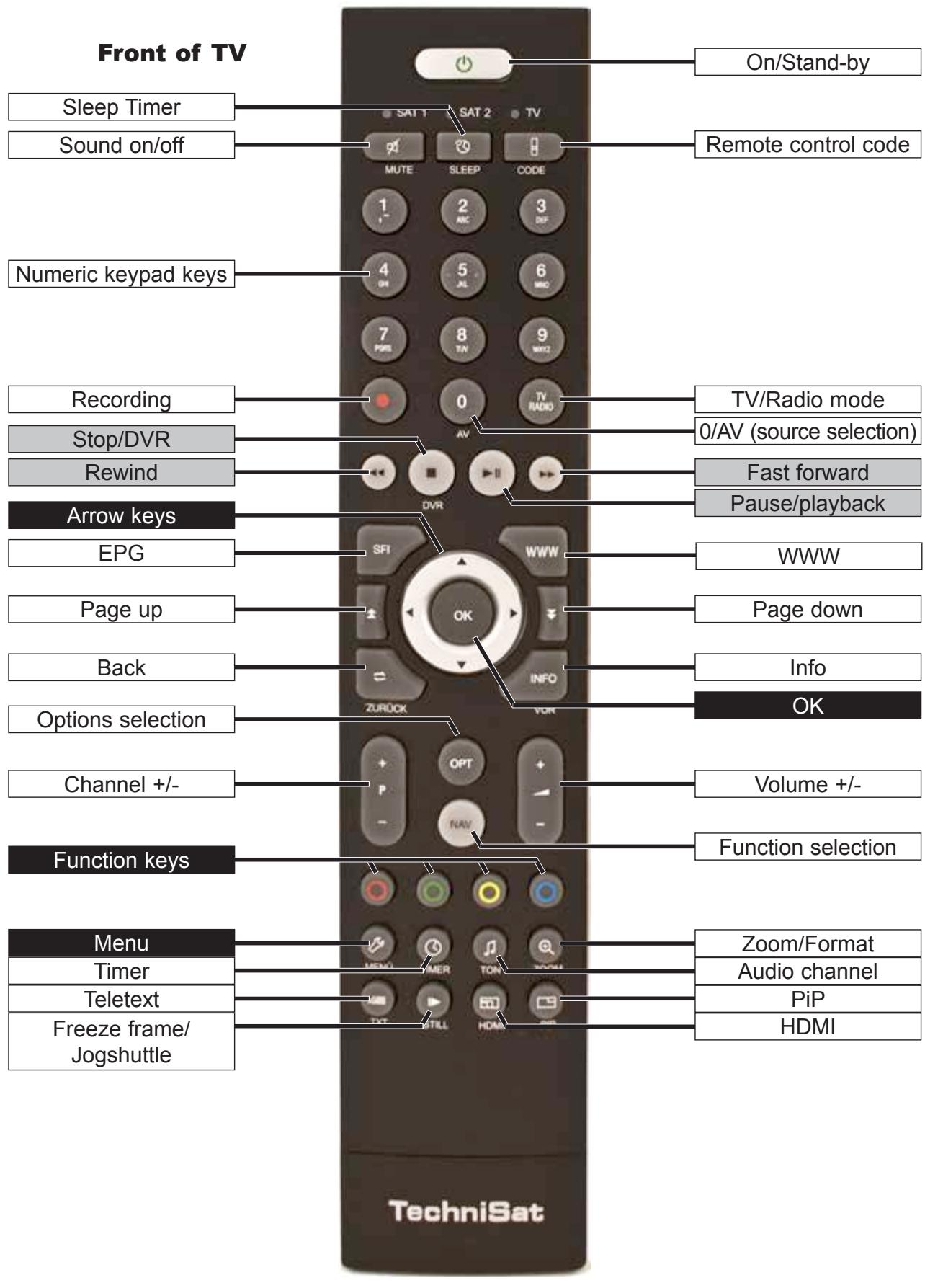
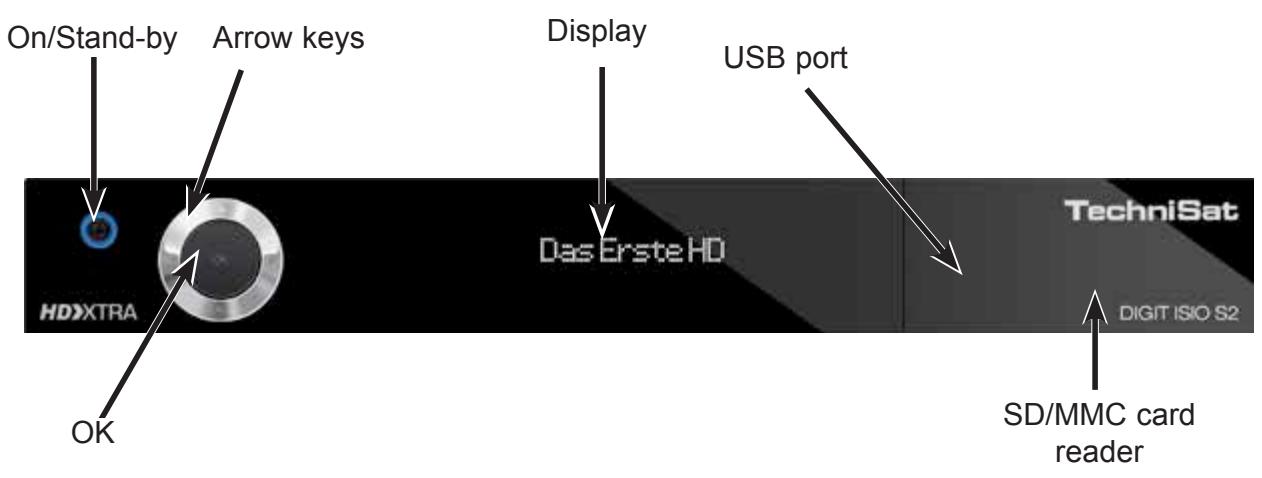
2 Illustrations
Inserting the CI/CI+ modules:
Consult the CI/CI+ module and card manufacturer's instructions.
Insert the smartcard you want into the relevant CI module.
Now carefully insert the CI module into the slot.
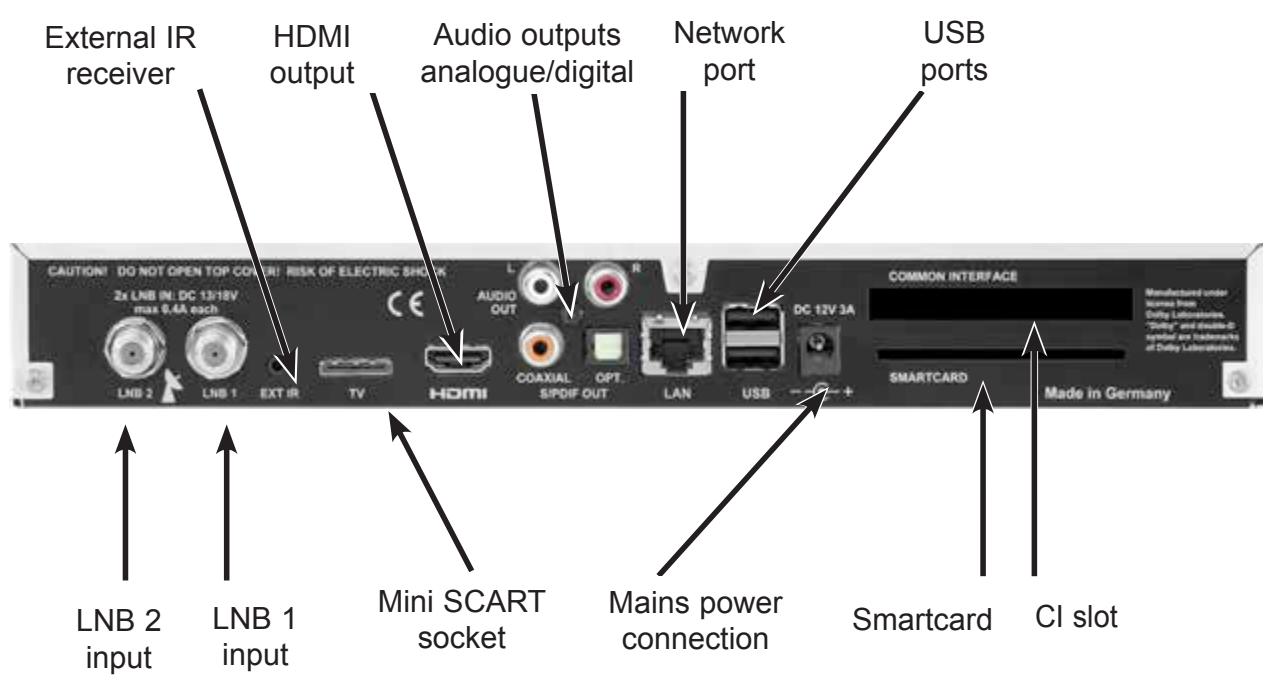
Rear of TV
Dear customer,
Congratulations on your decision to purchase the Digit ISIO S2 digital receiver.
The operating manual supplied is intended to help you to utilise the comprehensive functions of your new digital receiver to the fullest extent. We have kept the operating instructions as brief as possible and have used terminology that everybody can understand.
The range of functions of your receiver is constantly being expanded by means of software updates. This means that additional steps in the operation may be added that are not yet described in this operating manual, or the operation of existing functions may be changed. For this reason you should occasionally visit the TechniSat homepage, to download the latest version of the operating manual.
We wish you many years of viewing pleasure with your TechniSat Digit ISIO S2!
Your
TechniSat Team

HOMI
HDMI, the HDMI-Logo and High Definition Multimedia Interface are trademarks or registered trademarks of HDMI Licensing LLC.
This product incorporates copyright protected technologies that are protected by U.S. patents and other rights for the protection of the intellectual property of the Rovi Corporation. Reverse engineering and disassembly are prohibited.
This item incorporates copy protection technology that is protected by U.S. patents and other intellectual property rights of Rovi Corporation. Reverse engineering and disassembly are prohibited.
3 Please read this first
Before connecting and using the device, first check that everything has been supplied and familiarise yourself with the safety instructions.
You should have received:
1 digital receiver, 1 quick start manual, 1 CD-ROM,
1 remote control, 1 mains power cable, batteries (2 x 1.5 microcells)
3.1 Safety advice
For your own protection you should read the safety precautions carefully before using your new receiver.
The manufacturer accepts no liability for damage caused by inappropriate handling, or by non-compliance with the safety precautions.
Function-related discharge current may occur with electrical equipment. This is acceptable and poses no risk, even if it is experienced as a slight tingling.
To prevent such discharge current, mains operated devices (receivers, TVs etc) must always be installed or connected with the power switched off, i.e. all devices must be disconnected from the mains.
- The receiver must only be operated in a temperate climate.


- To ensure adequate ventilation, place the receiver on a flat, horizontal surface and do not place any objects on top of it. There are ventilation slots here to allow heat to be dissipated from the interior of the unit.
- Do not place any burning objects, such as lit candles, on top of the receiver.
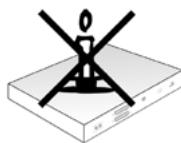
- Do not expose the receiver to water droplets or water spray, and do not place any objects filled with liquid, such as vases, on top of it. If water gets into the unit, immediately disconnect the mains plug and inform the service department.
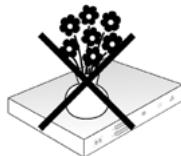
- Do not operate any sources of heat near the TV which may also heat it up.


-
Do not obstruct the ventilation slots.
-
Do not open the TV under any circumstances! You risk receiving an electric shock. Any necessary repairs to the receiver should only be carried out by qualified service personnel.
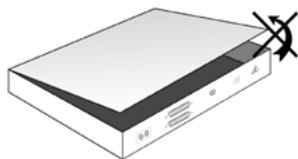
In the following circumstances you should disconnect the device from the mains power and consult an expert:
the power cable or mains plug is damaged
the device has been exposed to moisture or liquid has got into it
there are significant malfunctions
there is severe external damage.
3.2 Periods of non-use
During a storm or lengthy period of non-use (e.g. holiday), the receiver should be disconnected from the mains and the antenna cable removed.
Before you disconnect the receiver from the mains, you should first switch it to standby mode and wait until the time appears in the display or the red LED light is displayed.
3.3 Important notes on operation
Operation of the digital receiver is simplified by the use of so-called "On Screen Displays" (OSD). This also means that the number of keys on the remote control unit is reduced.
All functions are displayed on the screen, and can be controlled by using just a few control buttons.
Functions that are logically related are combined into a "MENU". The selected function will be highlighted.
The red, yellow, blue and green function keys are indicated by coloured bars at the bottom of the screen. In the various menus, these coloured bars represent different functions, which can be implemented by pressing the appropriately coloured keys (multi-function keys) on the remote control. The function keys are only active when a brief description is displayed in the relevant field.
The button identifications and terms that appear in the OSD menu are shown in bold type in this operating manual.
Help: where available, press the blue function key in the menus to display the help text; press again to close the help window.
3.4 Important information on data security
Before handing your receiver over to your dealer for maintenance purposes, we recommend that you remove all storage media and data carriers.
Restoring data is not part of maintenance or repair work. TechniSat accepts no responsibility for the loss of, or damage to, data during repair work.
3.5 Remote control/Changing the battery
Open the cover on the battery compartment at the rear of the remote control by pressing gently on the point indicated and pressing in the direction of the arrow.
Insert the supplied batteries, ensuring that the poles are the right way around (indicator visible in battery compartment).
Close the battery compartment again.
3.6 Disposal advice
The packaging material used for your receiver consists entirely of recyclable materials. Please sort the components appropriately, and dispose of them in line with your local waste disposal regulations.

At the end of its useful life, this receiver may not be disposed of with your regular household waste. It must be taken to a recycling collection point for electrical and electronic equipment.
This is indicated by the symbol on the product, the operating manual or the packaging.
The materials used can be re-used in accordance with their labelling.
By ensuring that valuable raw materials in old equipment are re-used, you can make a valuable contribution towards protecting our environment.
Please contact your local authority for the location of the nearest recycling point.
Please ensure that dead batteries from the remote control and electronic waste items are not included with your regular household refuse, but are correctly disposed of (either in special bins for problem waste, or at collection points at specialist dealers).

4 Connecting the DVB receiver
a. Mains connection
b. LNB 1 connection to the LNB Input 1 on the DVB receiver.
(Pleases note that the LNB must be connected with LNB Input1 when operating with an antenna signal.)
c. LNB 2 connection to the LNB Input 2 on the DVB receiver.
d. HDMI connection from the DVB receiver to the TV.
e. Connecting the audio outputs to a hi-fi/surround sound system.
f Connecting the DVB receiver to the network/Internet.
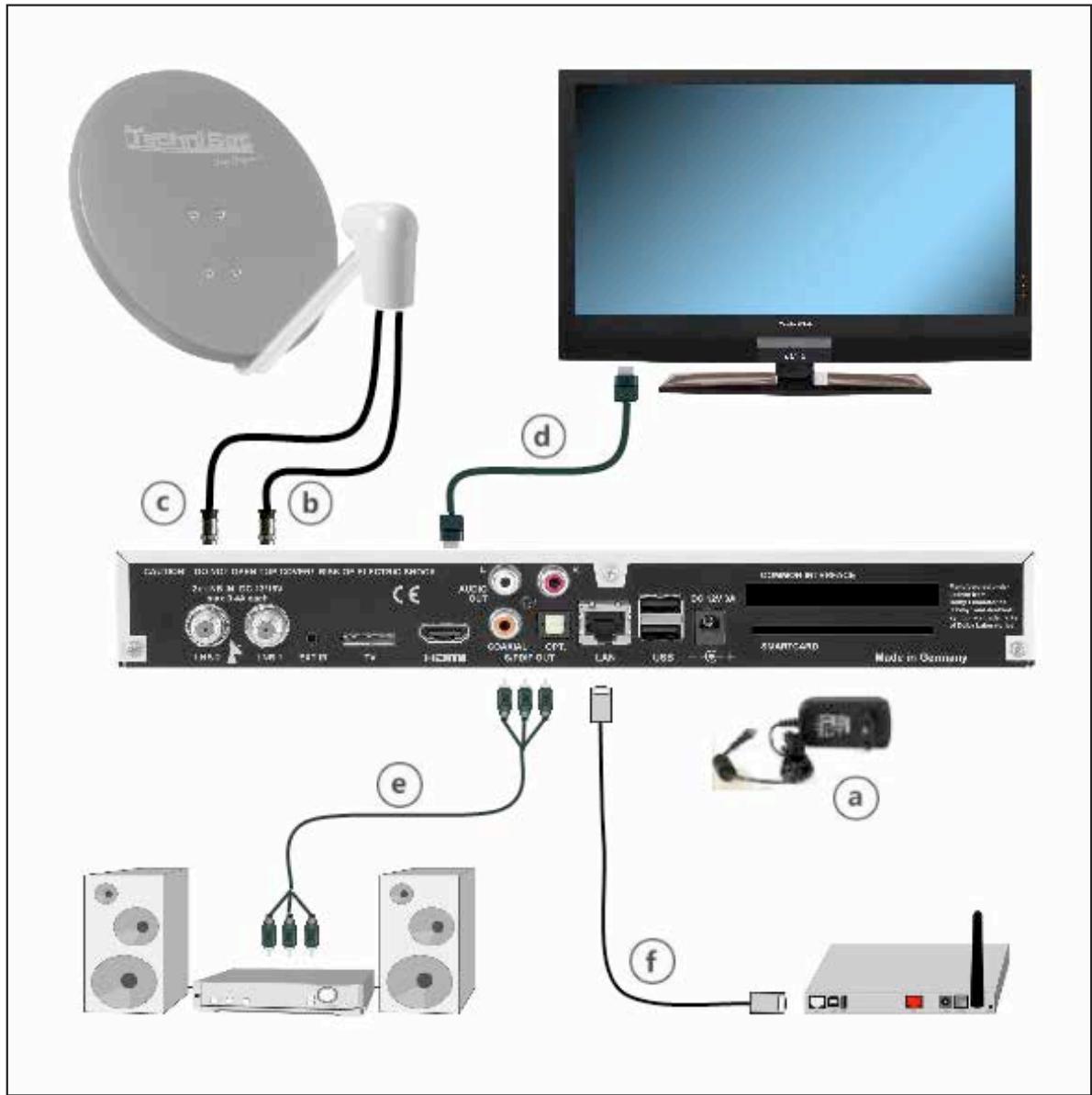
The following references (a b c etc.) relate to the illustration on page 18.
4.1 Mains power connection
The digital receiver should only be connected to the mains power supply once you have finished making all the connections to the various other components. This will prevent damage to the digital receiver or other components.
a Once you have made all the other connections in accordance with the following sections, use the power supply unit supplied to connect the receiver to a 230V / 50 - 60Hz mains power outlet.
4.2 External unit
4.2.1 Operating with 2 antenna signals
To be able to use the full scope of functions on the digital receiver you should operate the receiver on two separate antenna signals/antenna cables that are identically set up.
b, c Use appropriate coaxial cables to connect the LNB Inputs 1 and 2 on the digital receiver to your external unit. Note Section 7.6 (Antenna Settings) as well.
4.2.2 Operating with 1 antenna signal
In exceptional cases you can also operate the receiver using just one antenna signal. However, in this event the recording and PiP functions are only available to a limited extent. (see section 7.6.3)
b Connect the LNB input 1 on the digital receiver to your external unit using a suitable coaxial cable.
4.2.3 Operating with a rotating system
b During operation on a rotating system, connect the DiSEqC motor (level 1.2) with LNB input 1.
4.3 Connecting to a TV
d Connect the receiver (HDMI output) and TV receiver (HDMI input) using an HDMI cable. If your TV set is equipped appropriately, it will automatically switch to the HDMI input when the digital receiver is switched on.
Alternatively:
Connect the receiver (mini TV SCART socket) and the TV (SCART socket) via a mini SCART adapter (e.g. part no. 0000/3602) and a SCART cable. If your TV is equipped appropriately, it will automatically switch to AV - and hence satellite mode - when the digital receiver is switched on. It may be necessary to adjust the signal type on your TV (see section 7.3.6).
4.4 Hi-fi/surround sound amplifier
To achieve the best possible sound quality, you can connect your digital receiver to a hi-fi/ surround sound amplifier.
4.4.1 Digital
e If your amplifier has an appropriate electrical or optical input, connect the AUDIO OUT DIGITAL electrical socket to the electrical or optical input on your amplifier.
Depending on the signal provided by each individual broadcaster, sampling rates of 32, 44.1 and 48kHz are available. In addition, where broadcast, the Dolby Digital signal is also available on this output.
4.4.2 Analogue
e Use a suitable cable to connect the cinch sockets (Audio R and Audio L) on the digital receiver to an input on your hi-fi amplifier (e.g. CD or AUX; note that the phono input is not suitable!).
4.5 USB port
The USB port is used for updating the operating software and transferring data. Furthermore you can use the film, music and picture play functions (sections 8.19, 8.20 and 8.21) to access MPEG, MP3 and JPG files and the like on the USB storage medium. You can also insert a WLAN dongle, e.g. the TechniSat USB WLAN Adapter (part no. 0000/3633) or the TechniSat ISIO USB WLAN Adapter (part no. 0002/3633) into the USB port to connect the receiver to your existing WLAN network. When doing so please also note section 7.5.2 "WLAN Settings".
It is also possible to use a Bluetooth dongle to connect e.g. Bluetooth audio receivers to the receiver.
4.6 SD/MMC card reader
The SD card reader is used for updating the operating software and transferring data (DVR recordings or image, music and video files) to or from the hard disk. Furthermore you can use the image, music or film playback functions (sections 8.18, 8.19 and 8.20) to access the relevant files on the SD/MMC card (see section 23 "Technical Data").
4.7 Network port (RJ45)
You can use the network port to connect the receiver to your existing network. This enables you to use the programme providers' watchmi and Internet functions and HbbTV applications.
To do this also note section 7.5 "Network Settings".
5 Initial installation
After you have read the safety instructions and connected the device as described in section 4, you can then switch it on as described in section 7.
On initial installation of the TV, the AutolInstall installation wizard starts automatically. The installation wizard allows you to make the most important settings for your digital receiver in the simplest way possible.
Each step of the installation explains which settings can be made.
In the installation wizard start window, you can cancel the initial installation by pressing the red function button. The receiver then begins to run default pre-programming.
In the ensuing installation steps you can press the OK key to accept the preselected settings and move on to the next step of the installation.
i By pressing the Back key, you can go back to the previous installation step, so you can correct any wrong entries at any time.
The initial installation shown here simply serves as an example.
The exact process for the initial installation will depend on the settings you select. Therefore please follow all instructions displayed on screen carefully.
Menu language
When the installation wizard starts, you will first see a window for selecting the operating language.
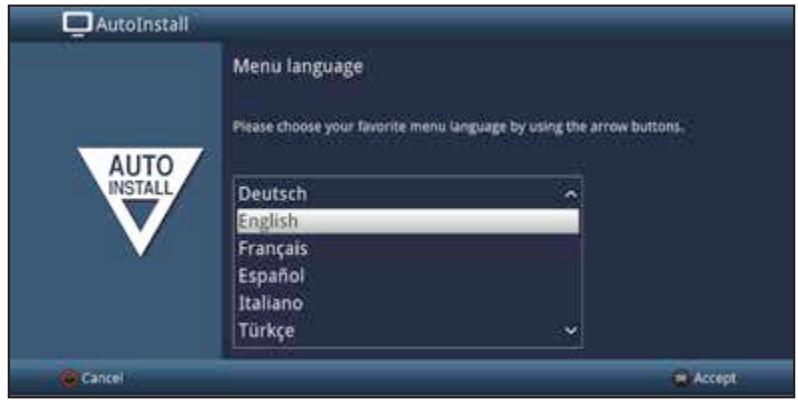
Use the arrow keys to highlight the operating language you want.
The preferred audio language will be set automatically according to this selection. As described in section 7.4.1, you can change the setting at any time.
Press the OK button to accept the setting and access the next stage of the installation wizard.
Country selection
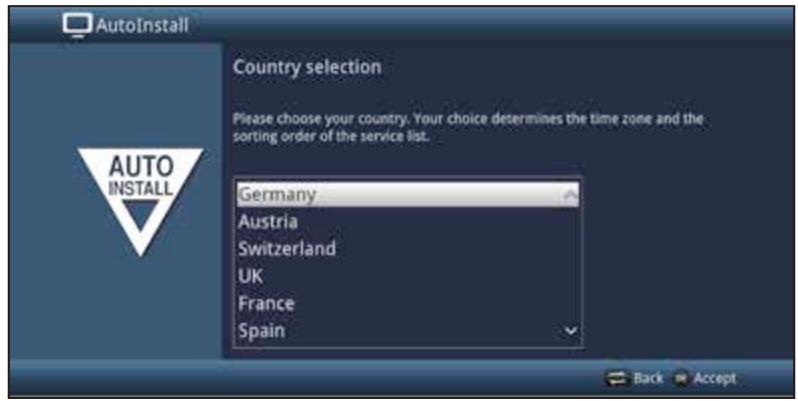
Use the arrow keys to select the country where the device is to be operated.
Automatic setting of the local time as well as changing to summer/winter time will take place based on your selection.
Channels will also be automatically sorted in the installation wizard according to this setting as well as following a channel search.
Press the OK key to accept the selection.
Picture format
Use the right/left arrow keys to set the picture format for the connected TV.
The picture format on the TV will be automatically adjusted according to your selection.
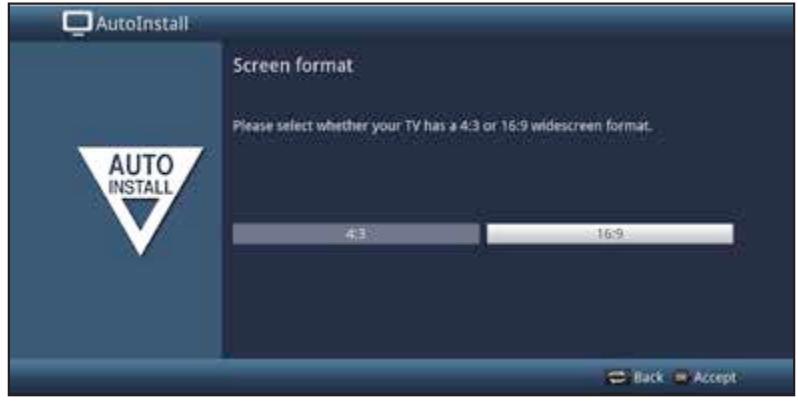
Confirm with the OK key to accept the selection.
Antenna signals
In this section in the installation wizard, select how many antenna cables are connected to the receiver.
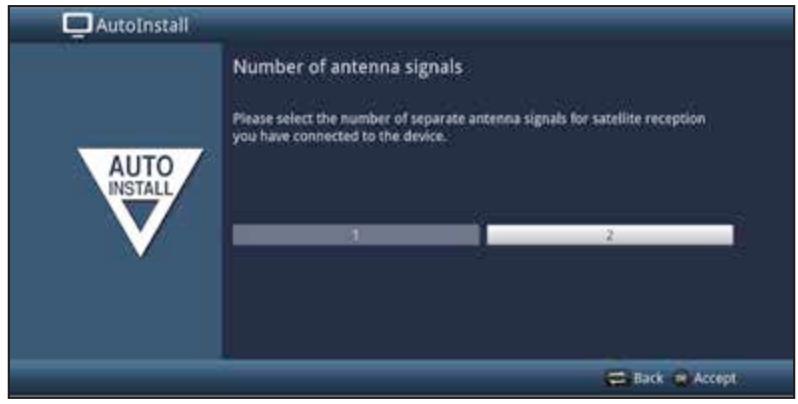
Use the right/left arrow keys to select whether you have connected 1 or 2 antenna signals.
Confirm with the OK key to accept the selection.
Antenna configuration
In this step of the installation you can adapt your digital receiver setup to the configuration of your antenna.
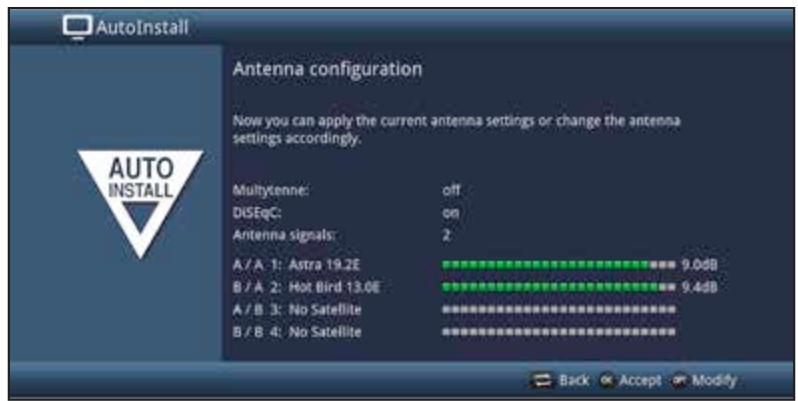
If you want to accept the default antenna setting, press the OK button.
If the configuration of your reception equipment does not conform to the default setting, press the Options key.
Then create the antenna settings as described in more detail in section 7.6 according to your reception equipment and press the Back button to go back to the antenna configuration overview.
Then confirm with the OK button to accept the settings.
Network configuration
In this step the TV automatically checks the network configuration.
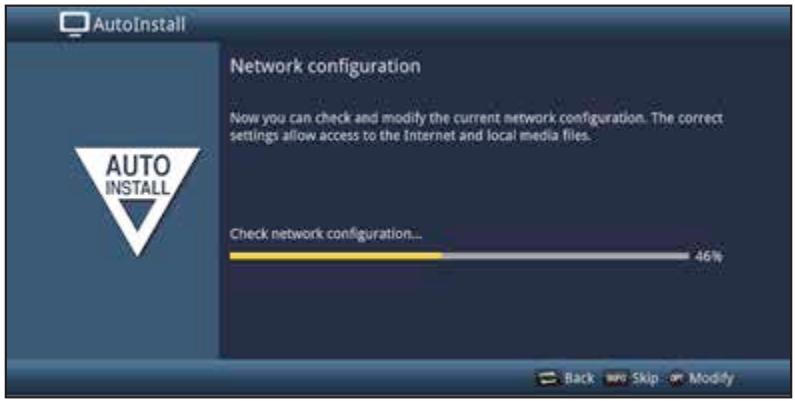
If you do not want to run the network configuration check, press the Info button.
If you want to check or modify the network settings, press the Options key.
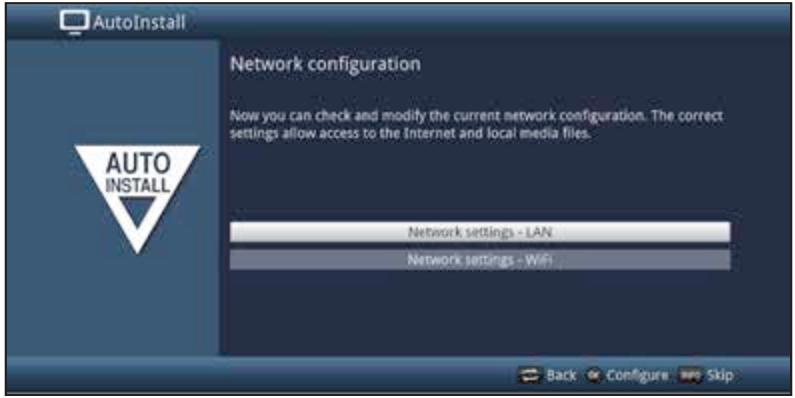
Use the up/down arrow keys to select whether you want to configure a LAN or WLAN network and press the OK button.
Now carry out the network settings as described in section 7.5.
The press the Info button to accept the settings. The network configuration check will then restart.
Software updates
The digital receiver will now check whether a new version of the software is available for the receiver. If a new software version is available, you can carry out an automatic software update.
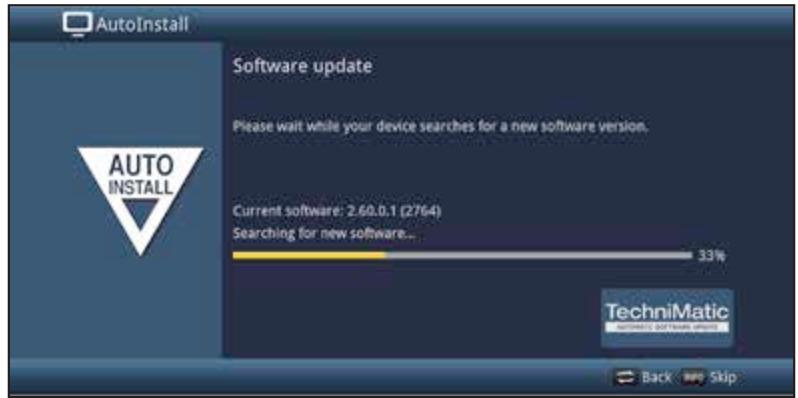
If you do not want to wait for a search for new software or a software download, you can, if necessary, skip this step by pressing the Info button.
If the search for new software or updates is skipped, your device will run another test at the time set in section 17.5.2 and automatically download the software, as long as this function is left active (section 17.5.1) and the device is in standby mode at that time.
If there is no new TV software available, you can press the OK button to go to the next step in the installation wizard.
If, on the other hand, new TV software is found, the automatic software update can be started by pressing the OK button.
The message "Updating software. Please wait" is displayed on the screen along with a progress bar showing the progress of the download.
Two additional progress bars then appear showing the progress of the individual updating steps on your device.
AutoInstall is then resumed.
Channel search/ISIPRO
You have various options for searching for new channels or updating the channel list. You can use the ISIPRO channel list function to download a new channel list for your receiver from the satellite or run a channel search.
To download an up-to-date channel list, use the up/down arrow keys to highlight the ISIPRO channel list update item.
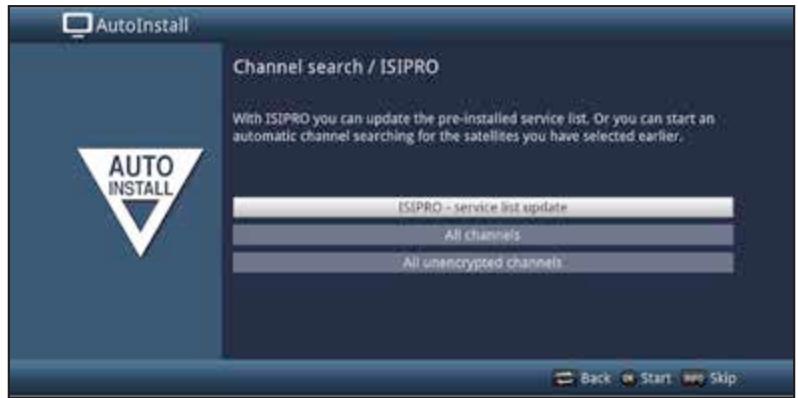
To download the available current channel list, use the up/down arrow keys to highlight the ISIPRO - service list update line and start the process by pressing the OK button.
The current channel list will now be downloaded via satellite. Please observe subsequent screen displays and notes under section 17.4.
If you want to run a channel search via satellite instead of updating the channel list, or if the DVB-S reception signal has not been configured, use the up/down arrow keys to highlight the All channels or All unencrypted channels field, then start the channel search process by pressing the OK button.
In this search, all selected satellites in the antenna configuration are automatically scanned for channels. This procedure may take several minutes. Please note all messages displayed on screen.
If the channel search/channel list update has been skipped, the default channel list will be loaded.
Regional programmes
Some broadcasters transmit channels with varying regional content. On this page you can define your preferences for these regional programmes. The selected regional programme is automatically set by switching to the relevant programme provider.
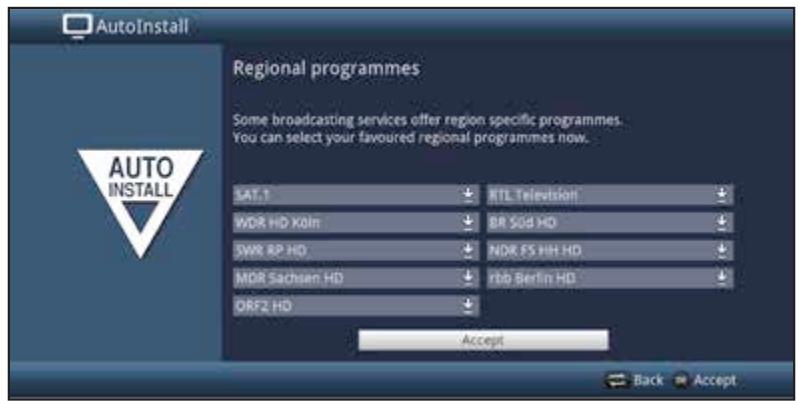
Use the arrow keys to highlight the programme provider whose preferred regional programming you want to specify.
Press the OK button to open a window with the regional programming available for this programme provider.
Use the up/down arrow buttons to select your preferred regional programming.
Press the OK button to close the window again.
To accept the selected regional programming, use the arrow keys to highlight the Accept field.
Confirming with the OK button takes you to the next step of the installation.
If you subsequently select another regional programme for a programme provider according to section 8.4.4, this will be saved in the same way for this programme provider.
ISIO Internet list updates
The receiver has a pre-programmed ISIO list with web links. This can be updated automatically.
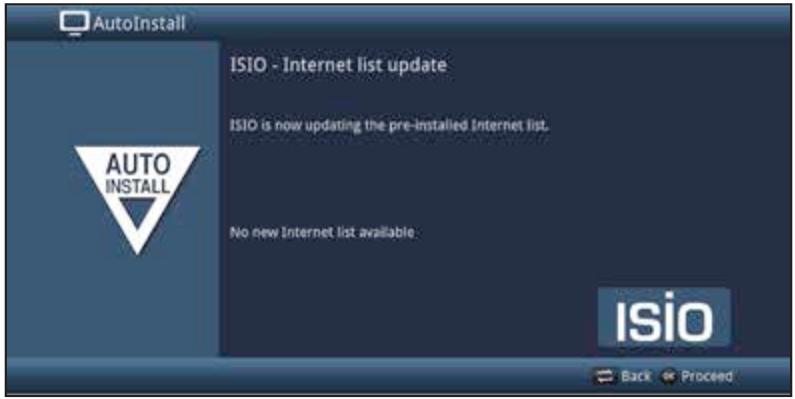
If you do not want to wait for the current ISIO Internet list to be downloaded, you can skip this process by pressing the Info button.
watchmi
In this step you can enable the watchmi service and select the channels you want to add to the TV list and the EPG overview.
The watchmi service is an online service operated by Axel Springer Digital TV Guide GmbH.
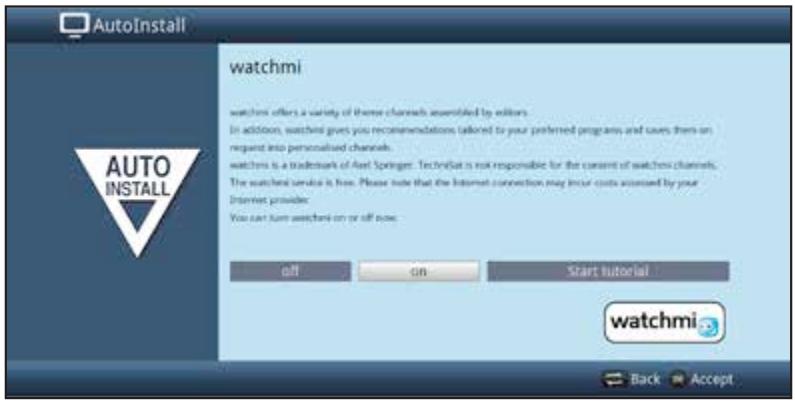
Enable the watchmi service by using the right/left arrow keys to select the on or off option and then press the OK button.
Select Start tutorial to see a brief introduction.
You will need an Internet connection to do so.
The general terms and conditions (Ts&Cs) for using the watchmi service will then be displayed.
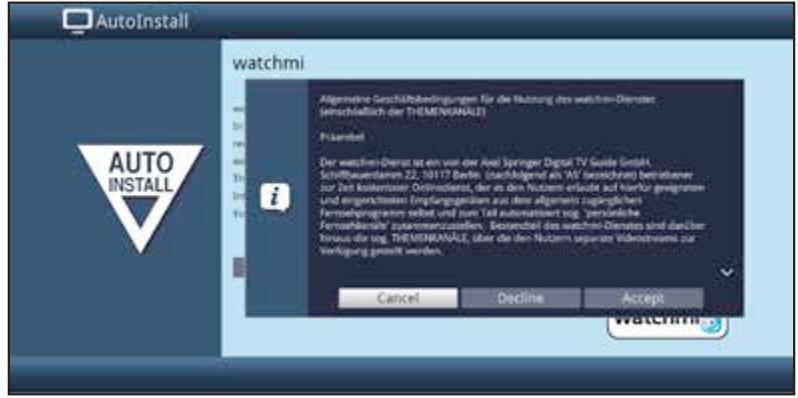
Use the up/down arrow keys to scroll through the Ts&Cs page by page.
Use the right/left arrow keys to select any of the following options:
Cancel: The Ts&Cs are closed and you can now decide whether you cant to switch watchmi on or off. The default selection is set to on.
Reject: The Ts&Cs are closed and you can now decide whether you cant to switch watchmi on or off. The default selection is set to on.
Accept: Use this to accept the general Ts&Cs. The data is also updated and in the next step you have the option of selecting the channels you want.
The current data for the watchmi channels is then loaded.
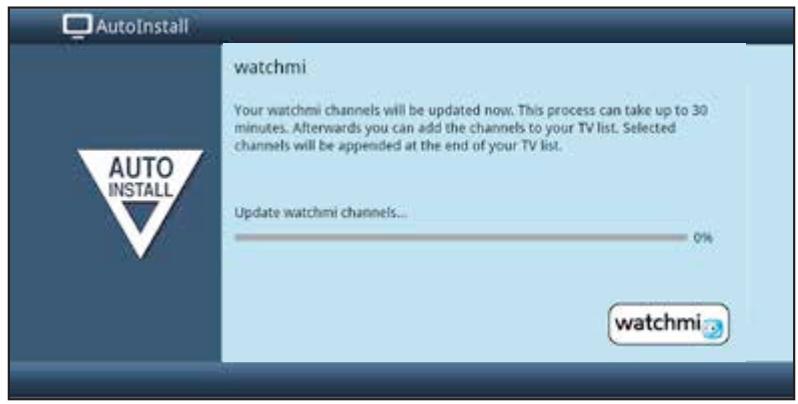
After the data has been updated, you have the option of selecting channels and adding them to your TV list.
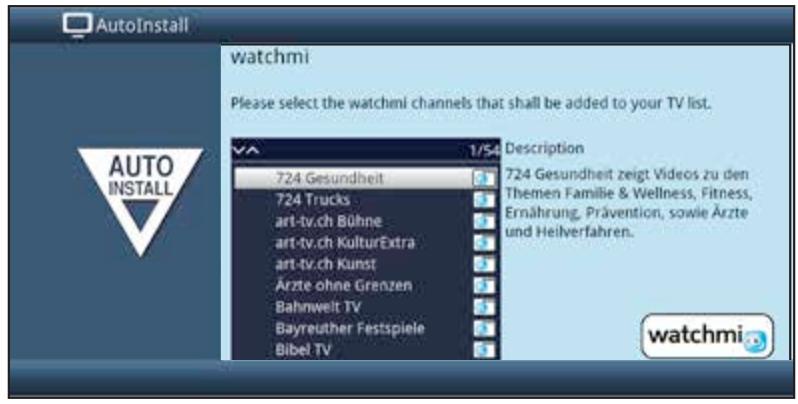
You can use the up/down arrow keys to move the selection bar over the channels and select the highlighted channels using the OK button.
The selected channels appear with a check mark next to them.
Highlight a selected channel again and press the OK button to remove this channel
A brief description of the highlighted channel appears on the right hand side.
You can use the yellow function key to select all broadcasters at once.
To confirm your selection, press the green function key.
You can change these settings again at any time. You can find the options under section 11.
Loading EPG data
Our digital receiver features an electronic programme guide (EPG) called SFI (SiehFern Info). You must first get the receiver to download the SFI data from the satellite to enable electronic programme guide data to be displayed.
For this reason, the receiver will automatically start downloading the SFI data after the channel list update or channel search is completed. This process can take up to 30 minutes.
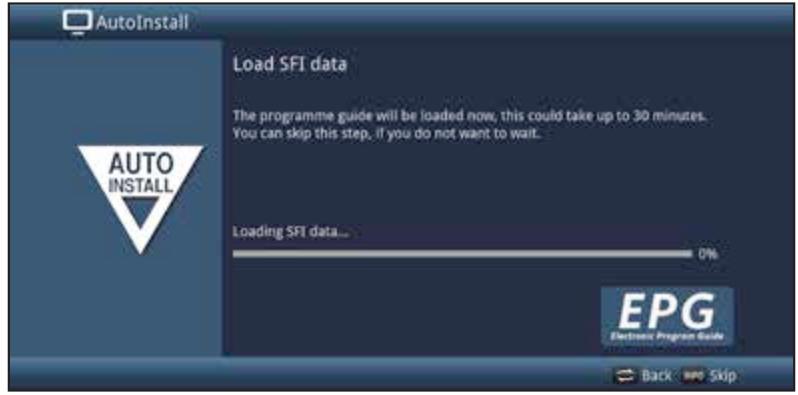
If you do not want to wait for the EPG data to download, you can skip the process by pressing the Info button.
The EPG data will then be automatically updated the following night, or you can update it manually at any time.
If you have skipped the EPG update, your device will automatically download the EPG data at the time set in section 14.2, as long as automatic EPG updating is kept active (section 14.1) and the device is also in standby mode at this time.
You can also run the update manually at any time (section 14.6).
Product registration
In this step you can register your product.
By doing so you will secure a warranty of up to 3 years. By registering your product with TechniSat, you will receive an additional one year of warranty claim from the date of purchase, as well as the two-year warranty claim under law. Your legal rights are not affected by this.
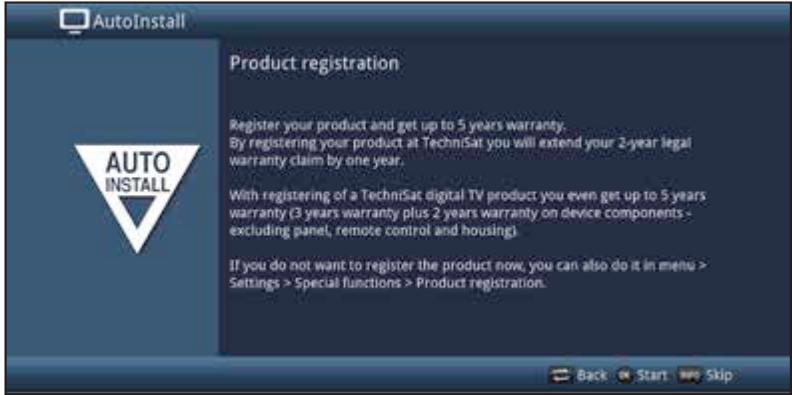
You will need an Internet connection to do so.
Exiting the installation wizard
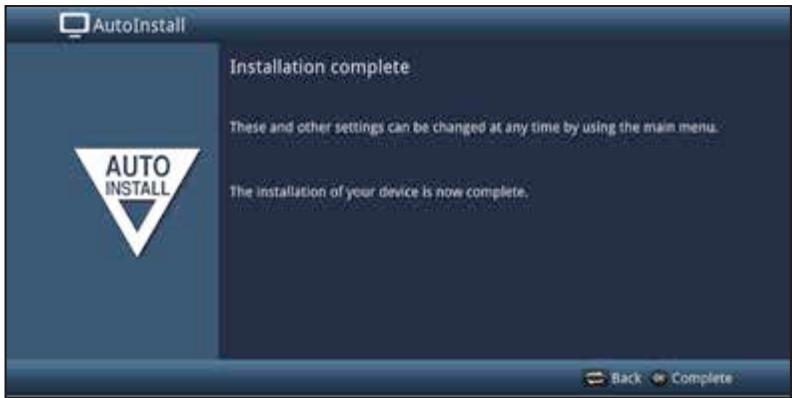
Confirm the final message from the installation assistant by pressing the OK button.
6 Basic operation
Dear Customer
The following section starts by covering basic operation as well as recurrent operating steps for the TV. This should make it easier to read the instruction manual, since it avoids repeated description of identical steps at each individual stage.
If a function or setting for the device has to be different from the basic operation, the difference in operation is described in detail at the relevant point in the instruction manual.
The so-called "On Screen Display" is used on your TV. This simplifies operation of the television since the buttons on the remote control can take on different functions. This makes it possible to reduce the number of buttons.
In this On Screen Display (OSD for short) the selected functions or settings are highlighted by a marking.
Furthermore, you will see a line at the bottom edge of the screen in which the various buttons on the remote control are shown with their current functions.
In this instruction manual the terms shown in the OSD as well as the buttons to be pressed are distinguished from the rest of the text by the print format used.
Warning - indicates an important note which you absolutely should observe in order to avoid problems with the device, loss of data or unwanted operation.
Tip - indicates a note about the function described as well as other functions associated with it and any others to be observed with reference to the respective place in the instruction manual.
6.1 Switching the television on/off
When the receiver is in standby mode, you can switch it on by pressing the On/Standby button on the remote control/device.
When operating normally you can switch the device to standby mode by pressing the On/Standby button.
When switching the receiver on and off, note section 8.1 as well.
6.2 Calling up the main menu and navigating through the menus/functions
The following example will illustrate how you reach the main menu and call up a submenu. The objective of the example is to call up the Picture settings menu.
Press the Menu button. The main menu appears on the screen.
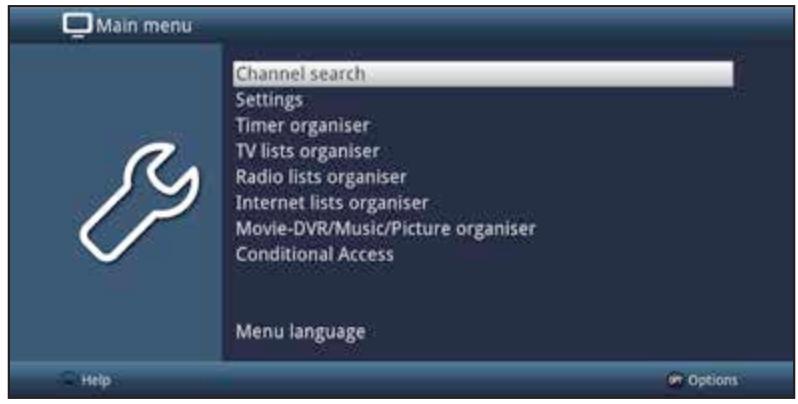
Select the Settings menu item by using the arrow keys to move the highlight to this item.
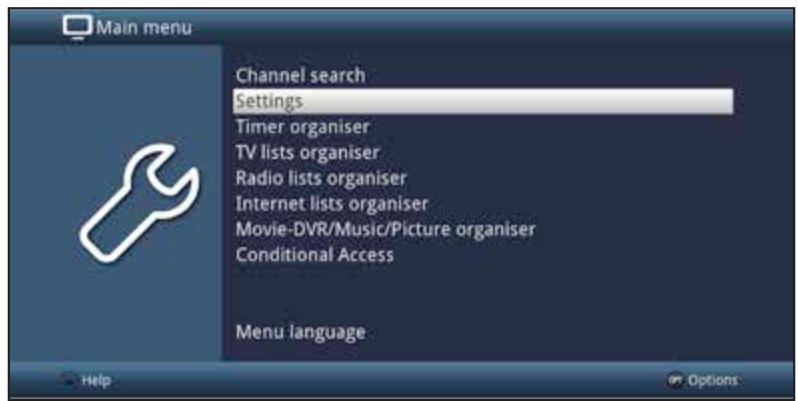
Press the OK button to open the Settings menu.
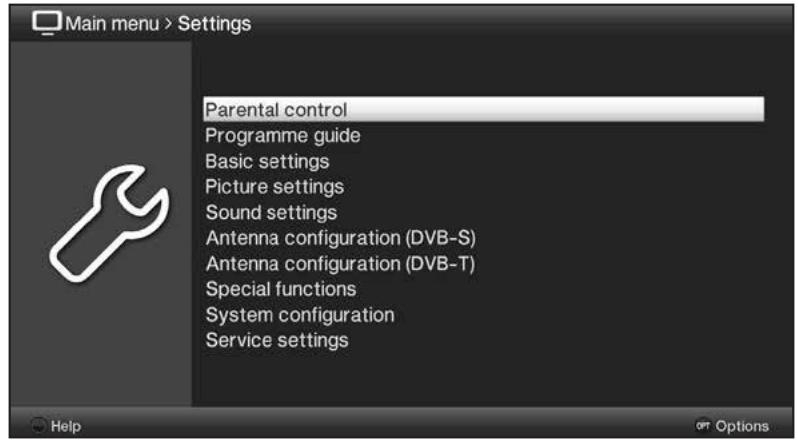
Use the up/down arrow keys to highlight the Picture settings item.
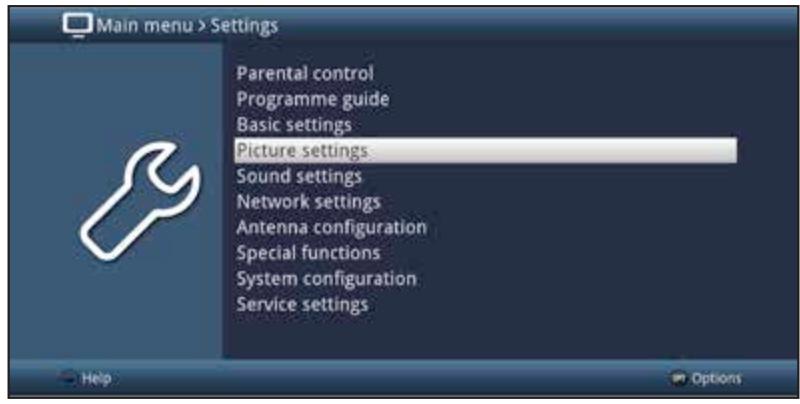
The Picture settings menu is opened by subsequently pressing the OK button.
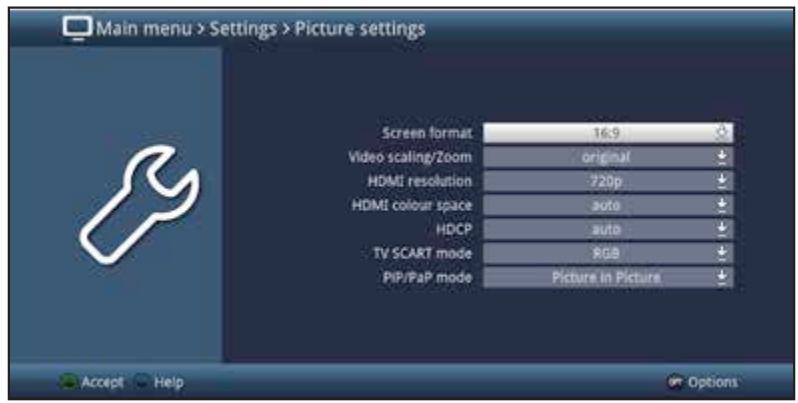
You can also highlight the individual menu items in the same way as you highlight an item on a submenu to open it and alter the respective settings.
The menu items in some menus have to be highlighted by moving sideways. This is done by pressing the right/left arrow keys.
i By pressing the up/down arrow keys it is possible to move the highlight from line to line and to move upwards and downwards page by page using the page up/down buttons.
You will see the so-called menu path in the uppermost line of the menu. This shows you the menu you are currently in and the path you took to reach this menu. In the example shown this is Main menu > Settings > Picture settings. The menu path is also shown throughout the instruction manual and shows you how you can reach the respective menu with the settings described.
If the blue function key with Help is displayed in the bottom line on the screen, a Help page can be displayed by pressing this button and hidden by pressing it again.
6.3 Accepting settings/Exiting menus and functions
In some menus and functions the changes made must be accepted manually in order to save them permanently. If this does not happen, the function or the values that existed before the change was made will be reset automatically on exiting the menu.
If an Accept field or the green function key with Accept is displayed in the bottom line of the screen, you can see that the changes made must be saved manually to be accepted.
By highlighting Accept using the right/left arrow keys and confirming with the OK button or by pressing on the green function key (Accept), the changes are saved and you return to the next menu level up.
Alternatively:
Press the Return button.
A request appears asking whether the changes you made should be applied.
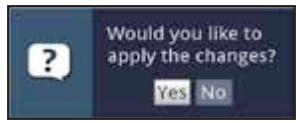
Use the right/left arrow keys to highlight Yes or No and confirm your selection by pressing the OK button.
Changes will now be saved or discarded according to your selection and you move back to the next menu level up.
Alternatively:
Press the Menu button to leave the menu directly.
The settings that need to be saved manually will be reset in this case.

If the green function key with Accept is not displayed on the bottom line of the screen, the changes are saved automatically on exiting the menu.
6.4 Changing a setting
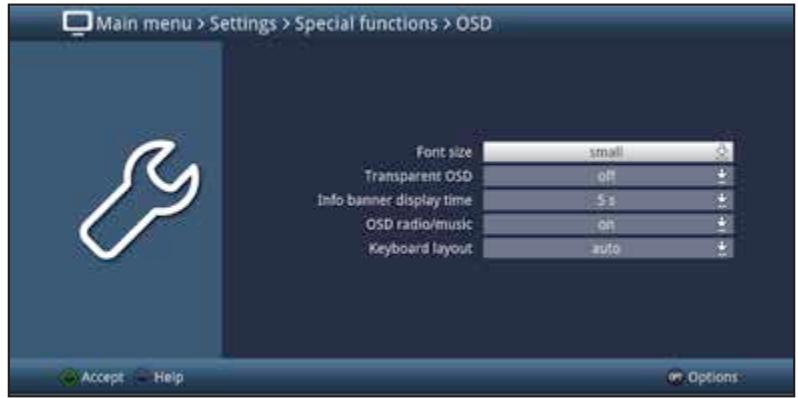
You can create settings using the arrow selection method, the selection list, by entering numbers and by using the virtual keyboard. The television specifies the method that can be used to change a highlighted setting. You can see this from the following displayed symbols:
- 《》 Arrow selection method (Point 5.4.1)
Arrows are shown on the left or right edge of the marking.
Selection list (Point 5.4.2)
The symbol is shown on the right edge of the marking.
-
0000 Entering numbers (Point 5.4.3)
-
Virtual keyboard (Point 5.4.4)
The symbol is shown on the right edge of the highlight.
6.4.1 Arrow selection method
If is shown on the left and on the right next to the set value, you can alter this using the left/right arrow keys.
6.4.2 Selection list
If is shown on the right next to the set value, the value is changed using the selection list.
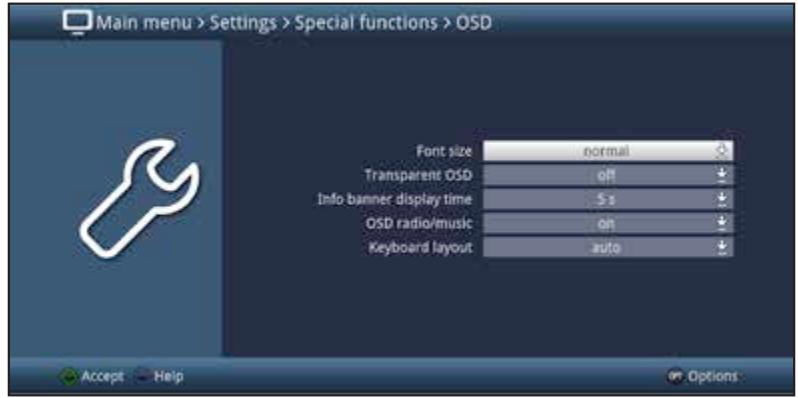
Press the OK button to open the selection list.
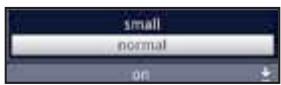
Highlight the setting you want using the up/down arrow keys.
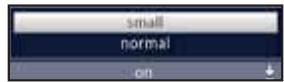
i By pressing the up/down arrow keys it is possible to move the highlight from line to line and to move upwards and downwards page by page using the page up/down buttons.
Confirm by pressing on the OK button. The selection list is closed again and the selected setting is shown in the menu.
6.4.3 Entering numbers
Enter the new setting you want using the numeric keypad key if a question mark or a number value 1234 is shown inside the highlight.
6.4.4 Virtual keyboard
If is shown on the right next to the set value, the value is amended using the virtual keyboard. You have three different keyboard options when using this data entry method.
You can switch the keyboard layout between the so-called QWERTY keyboard and the alphabetic keyboard; an SMS keyboard can also be used at any time.
The functionality of the QWERTY keyboard is identical to that of the alphabetic keyboard. They only differ in the arrangement of the various letters, numbers, characters and symbols.
Press the OK button to open the virtual keyboard.
The keyboard now appears in alphabetic form.
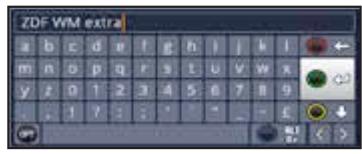
You can switch to the QWERTY keyboard and back to the alphabetic keyboard by pressing the Option button.
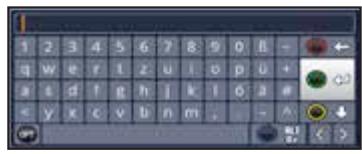
You can now enter the term you want as follows.
Arrow keys: Moves the highlight on the keys of the virtual keyboard.
OK: The highlighted character is added to the end of the term, or the highlighted function is executed.
/ Yellow function key: The keyboard switches between upper case/lower case.
/ Red function key: Pressing/holding down deletes the character in front of the blue highlight/the whole entry.
/ Green function key: The entered term is accepted.
/ Blue function key: The keyboard switches over to the alternative characters.
: Moves the blue highlight within the term.
The SMS keyboard is operated using the numeric pad on both the alphabetic and the QWERTY keyboard and can be used at any time. The coloured buttons thus incorporate the functions described above.
Press one of the numeric pad keys 0 - 9 and select the various letters, numbers, characters and symbols.
The first letter of the respective row of characters is highlighted after first pressing a numeric pad key.
The highlight then moves one field to the right for every additional press of the same numeric pad key.
Press as often as necessary to reach the desired character. This will be added to the entered term after a short delay.
The various numeric pad keys are assigned the following displayed letters, numbers, characters and symbols.
0:
1:
2: a b c d e f g h i j k l
3:
4:
5: 1x15x7
6:
7:
8: 1uv80r7n0
9: Wxzyzxy
Once you have reached the field you want with the highlight, you can then begin selecting the next character immediately since, in this case, the character is directly added to the term. If you wish to continue directly selecting a character from the same numeric pad key, you can add the previously highlighted character to the term by pressing the right arrow key.
6.5 Options selection
In some menus and operating modes (e.g. TV mode, music/images playback etc.), you have the option of calling up additional functions and options via the options selection function.
Press the Options button to open the options selection function in the lower right-hand corner of the screen.
In this example we can see the options selection for the channel list.
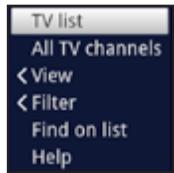
Every additional press of the Options button moves the highlight down one line each time.
Some options are selected directly in this window. Other options for a number of subordinate selection options are located in the options groups. Highlighting one of these option groups automatically opens a further window on the left.
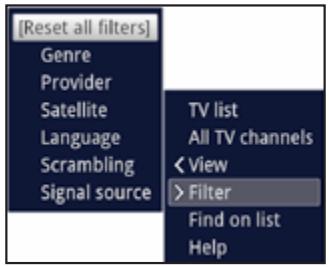
You can use the up/down arrow keys within the options group to highlight one of the options listed there.
i By pressing the up/down arrow keys it is possible to move the highlight from line to line and to move upwards and downwards page by page using the page up/down buttons.
The highlighted option is selected by pressing the OK button and you exit the options selection area.
If you do not want to select an option or wish to leave the options selection area without making any changes, simply press the Options button until it is hidden.
7 Operating the unit
7.1 Switching on
Switch the digital receiver on by pressing the On/Stand-by button either on the receiver panel or on the remote control.
7.2 Switching off
Press the On/Stand-by key either on the receiver panel or on the remote control to switch the receiver off again.
The receiver is now in ready mode (stand-by). Therefore the time is displayed in the receiver's display panel (if activated in section 7.2.4).
If the time is not displayed, this still needs to be acquired by the receiver. To do this, switch the receiver on and set it to receive e.g. ZDF for approx. 30 seconds to automatically acquire the time.
7.3 Selecting a channel
7.3.1 Using the channel up/down keys
Use the up/down arrow buttons on the receiver to select a channel, or use the Channel +/- buttons on the remote control to scroll up or down the channel settings.
7.3.2 Using the numeric pad keys
Use the numeric keypad keys to enter the number of the channel you want.
For example:
| 1 | for channel slot 1 | ||
| 1, then 4 | for channel slot 14 | ||
| 2, then 3, | then 4 | for channel slot 234 | |
| 1, then 5, | then 6 | then 7 | for channel slot 1567 |
When entering channel numbers with multiple digits, you have approx. three seconds after pressing a key to complete the entry.
If you wish to enter a number consisting of only one, two or three digits, you can speed up the entry procedure by keeping the key depressed a little longer on the last digit.
7.3.3 Using the Navigator (channel list)
Press the OK button.
The channel list navigator then appears. In TV mode only TV channels are shown, and in radio mode only radio channels are shown.
The channel currently selected is highlighted.
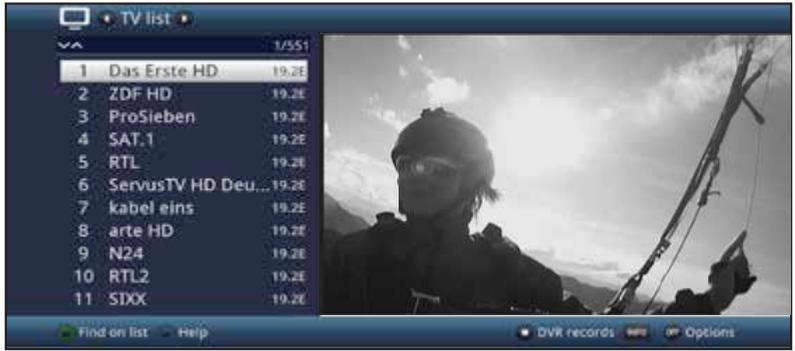
You can view additional data about the current programme by pressing the INFO button.
7.3.3.1 Selecting a channel
You can now highlight the channel you want using the up/down arrow keys, the page up/down keys and the numeric keypad keys.
Press the OK button to select the highlighted channel.
7.3.3.2 Selecting a list
To make it easier for you to find channels, your device provides various channel lists. You can select one of your Favourites lists (see section 12.1) and sort or filter the channels according to various criteria.
Press the OK button. The active channel list is now displayed.
You can now highlight the desired channel list using Option selection.
7.3.4 Calling up blocked channels
If a programme is selected that is blocked by the parental control function, the message Device PIN will be displayed on the screen.

Use the numeric keys to enter your PIN code.
The channel you want will be displayed.
or
Change to an unblocked channel as described in section 8.4.
If global parental control is enabled, the device PIN code will be requested again when the blocked channel is switched on. To make things easier for you, you only need enter the PIN code once during each operating phase.
When doing so pay careful attention to the information and settings for global and user-dependent parental control (TechniFamily) under section 15.2.
If the blocked channel involves an encrypted broadcaster, please refer to section 8.5.3 as well.
7.3.5 Return to last channel selected
Press the Back button on the remote control to return to the last channel selected.
Press the button again to return to the channel you were previously watching.
7.3.6 TV/Radio switchover
You can use the TV/Radio button to switch between TV and radio mode.
The television switches to the last radio programme listened to.
Alternatively you can also switch between TV and radio mode as described under sections 8.4 and 8.17.
To do this also note the setting for OSD Radio/Music in section 7.7.1.4.
7.3.7 Infobox
Each time the channel is changed, an infobox appears on the screen for the period of time set in section 7.7.1.3.
You can also access this manually by pressing the Info button on the remote control.

This Infobox displays the location and name of the selected channel, the title of the current programme and the currently active channel list.
The progress bars are coloured yellow according to the amount of transmission time already expired for the current programme. If the beginning of the progress bar is coloured red the transmission started too early, and if the end of the progress bar is coloured red the current programme has overrun.
Additional programme properties are also displayed:
For example:
for teletext
16:9 for 16:9 broadcasts
for encrypted channels
for Dolby Digital broadcasts
for subtitles
HbbTV for HbbTV
The current time is shown in the right-hand upper corner of the screen.
7.4 Receiving encrypted channels
Insert the NAGRAVISION/CONAX smartcard into the card slot in the integrated card reader. (gold-coloured chip facing down, and in the direction of insertion)
or
Insert a CI/CI+ module into the slot.
Insert the smartcard into the CI/CI+ module card slot. Ensure that the gold-coloured chip on the smartcard is facing upwards, in the direction in which the card is inserted.
Note section 8.5 in the instruction manual as well when doing so.
7.5 Volume control
You have the option of adjusting the volume on your digital receiver. This facilitates operation of the receiver, as it means you can access all the major functions on a single remote control, and will only rarely have to resort to using the remote control for the TV.
To adjust the volume of your TV, press Volume + to increase the volume, and Volume - to decrease it.
7.5.1 Using mute
To switch the sound off (mute), press the Sound on/off button - press the key again to switch the sound back on.
Throughout the time that the volume is switched to mute, the symbol appears at the upper right of the screen.
7.5.2 Selecting a different language/Sound option
Using the Options selection feature you can select the language/sound option you want via the Sound option.
When doing so please also note section 8.7 in the instruction manual.
7.6 Freeze frame
Press the Freeze frame key; the current TV picture will be displayed as a still picture.
Press this key again to return to normal operation.
The sound will continue to be reproduced normally during freeze frame.
7.7 Teletext
Your receiver can display teletext information on channels that broadcast teletext data. This is displayed by the symbol in the Info box.
Switch the teletext on by pressing the Teletext button.
7.8 HbbTV
The HbSv symbol in the Infobox indicates that the programme provider is offering an HbbTV application.
Switch to a channel that is broadcasting HbbTV data.
After a few seconds the box appears at the lower right of the screen indicating the availability of HbbTV content.
Launch the HbbTV application by pressing the red function key.
Depending on the speed of the Internet connection, there may be slow response times or short interruptions.
7.9 Subtitles
When switching to a programme being broadcast with subtitles, the subtitles symbol appears in the Info box.
Using the options selection, under the Subtitles menu item, you can select subtitles when you want to display them.
7.10 EPG overview
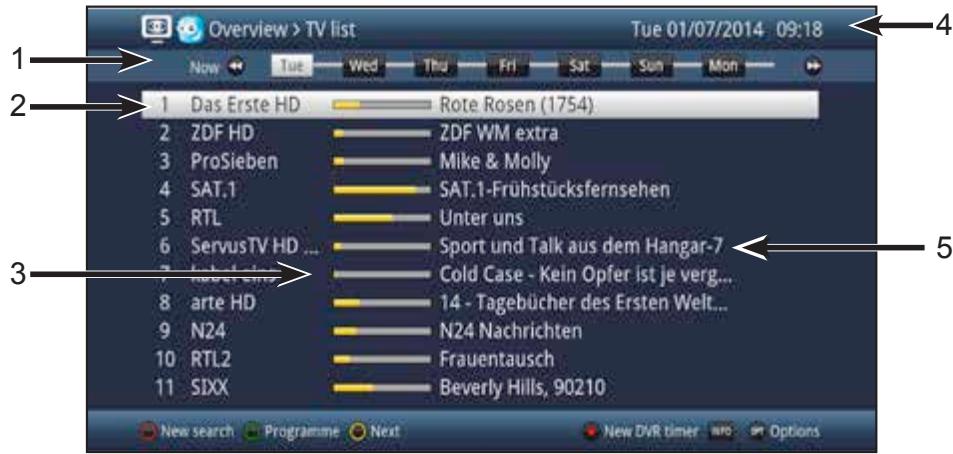
1: Viewing time > indicates when programmes are to be shown. Time line > a graphical display of the viewing time in the form of progress bars.
2: Channel name with the corresponding channel slot within the active channel list.
3: Progress bars or the start/stop time of the programme being shown.
4: The current date and the time.
5: Programmes on the channel being shown.
You can use the right/left arrow keys to switch the display time back and forth.
The progress bar in the time line is moved back and forth according to the display time.
You can use the yellow function key to switch directly to the display of current and next programmes.
By pressing the up/down arrow keys it is possible to move the highlight from line to line and to move page by page using the page up/down buttons.
If there is more information available on the highlighted programme, you can access and exit this by pressing the Info button.
By pressing the OK button you can switch directly to the highlighted channel.
7.11 Timer recordings
Your device has the following timer functions:
1. DVR timer
This function is used to switch your digital receiver on and off to record the selected programme onto the selected recording medium while you are out, according to section 10.4.1.
If the device is switched on by the DVR timer, this will be indicated by DVR Timer in the display.
2. Video recorder timer
If the video recorder timer is selected, your digital receiver will be switched on and off for the selected programme, allowing you to record programmes to an external recording unit, e.g. a video cassette or DVD recorder, while you are out.
3. Channel switching timer
If your receiver is in normal operating mode, it will switch to the programmed channel slot at the set time.
4. Alarm
If your receiver is in standby mode, it is switched on when the programmed channel slot is reached at the set time.
5. Series timer
To make it easier to find programmes, you can search for programme data highlighted in the SFI using any terms. The series timer function is used to automatically generate ongoing DVR timer settings for the programmes you find. Timer setting also continues after the SFI data has been updated. This removes the need for repeated manual programming of timers, e.g. to record episodes in a TV series.
7.12 Selecting a function
You can open the Navigation menu (NAV menu) to select the function you want by pressing the Navigator/Function selection button.
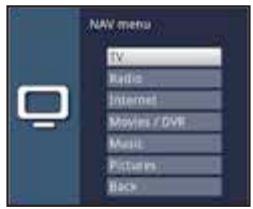
Use the up/down arrow buttons to highlight the function you want to access.
TV: TV mode: playing TV programmes.
Radio: Radio mode: playing radio programmes.
Internet: Internet mode: calls up the web links available in the Internet list.
Film/DVR: Film/DVR Navigator: access video files stored on a device connected to the USB port or on a shared network drive or available via UPhP (section 8.18).
Music: Music navigator: access MP3 titles stored on a device connected to the USB port or on a shared network drive or available via UPhP (section 8.19).
Pictures: Pictures navigator: access JPEG files stored on the internal hard disk, on a connected USB device or on a shared network drive or available via UPhP (section 8.20).
Confirm with OK to select the highlighted function.
When doing so pay careful attention to the information and settings for global and user-dependent parental control under section 15.
7.13 Using the Internet list to call up websites
From normal mode press the WWW button twice or:
If a website has already been opened, press the WWW button once. The Internet List Navigator now appears. The web link last called up is highlighted.
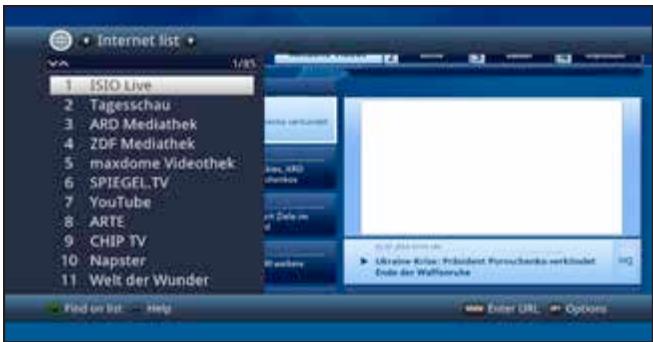
You can now highlight the web link you want using the up/down arrow keys, the page up/down keys and the numeric keypad keys.
Pressing the OK button opens the highlighted web link. The time it takes for the selected site to be displayed depends on the selected site and the bandwidth of your DSL connection.
8 DVR recording
The following recording modes are available for DVR recording:
1. Instant recording
Select this type of recording to immediately record the programme currently being broadcast at the push of a button.
2. Timer-controlled recording
This function is used to switch your digital receiver on and off to record the selected programme onto the recording medium while you are out. The timer can be either manually programmed or automatically programmed via the SFI function.
3. Timeshift recording
Timeshift recording enables time-shifted TV viewing. You can start to play back a programme while it is still recording (= timeshifting).
8.1 Instant recording
Switch to the channel on which the programme you want to record is being broadcast.
Press the Record button to record the current programme.
Press the Pause/playback button to play back the current programme from a particular point.
To continue playing back the programme from this point, press the Play/Pause button again.
You are now watching the programme with a time delay to the live broadcast (Timeshift), while the programme continues to be recorded in the background.
8.2 Timeshift function
The Timeshift function allows you to record and play back at the same time. This enables time-shifted viewing.
Hence you can start watching the beginning of a recording and skip through any sections already recorded (e.g. advertising slots). The live broadcast of the programme continues to be recorded at the same time (see section 9.1.3 in the instruction manual)
8.3 Ending manual recording
First select the recording to be ended by selecting the channel on which the recording is running as described under section 8.4.
Pressing the Stop button generates a query as to whether the recording should be saved or discarded.
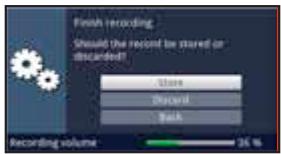
Select Save to save the recording, or Discard not to save the recording, or Back to continue with the recording.
8.4 Automatically end recording
Option 1
Press the On/Standby button. A request is now displayed asking what should happen to the recording in progress.
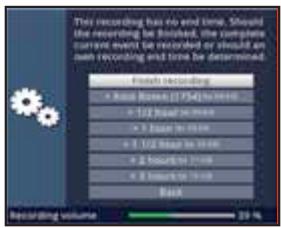
Select the line with the option you want.
8.5 DVR playback
You can access DVR recordings via the DVR Navigator.
8.5.1 Calling up the DVR Navigator/Starting DVR playback
The DVR Navigator can be called up in the following ways. Depending on whether you are currently in TV or radio mode, a list will appear of the existing TV or radio recordings on an inserted USB memory device or an inserted SD/MMC card or an available network drive.
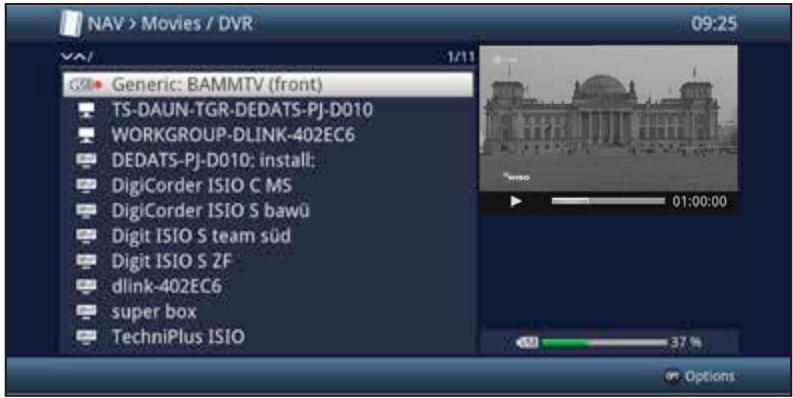
When doing so pay careful attention to the information and settings for global and user-dependent parental control under section 15.2.
The broadcast information can be displayed and hidden by pressing the Info button repeatedly.
You can start to play back a recording by highlighting it and confirming with OK.
8.5.2 When in TV mode
In TV mode press the Stop/DVR button to switch directly to the DVR Navigator.
or
Open the channel lists navigator by pressing the OK button and switch to the DVR Navigator by pressing the Stop/DVR button.
or
In the function selection select the Films/DVR item.
Now call up the My Recordings folder on your attached recording medium (section 10.4.1).
8.5.3 From playback of a running/ existing DVR recording
Press the OK button to open the DVR Navigator.
or
In the function selection select the Films/DVR item.
Now call up the My Recordings folder on your attached recording medium (section 10.4.1).
8.5.4 Pausing/freeze frame
To pause playback of a recording (freeze frame), press the Pause/Play button during playback.
Press the Pause/Playbutton again to resume playback from the same location.
8.5.6 Fast forward/rewind
Your DVR has fast forward and rewind functions so you can get to a specific place in a recording.
Press the Fast forward or Rewind button during playback.
The message "Fast forward " or "Rewind " appears.
The recording will now play in the specified direction at 4x speed.
If you press the Fast forward or Rewind button again, the speed will increase to 16x.
The message "Fast forward or "Rewind appears.
If you press the Fast forward or Rewind button again, the speed will increase to 64x.
The message "Fast forward or "Rewind appears.
By pressing the Fast forward or Rewind button again you can jump forwards or backwards in 10-minute increments.
When you get to the place you want in the recording, you can return to normal playing mode by pressing the Play/Pause button.
8.5.7 Setting tags
Skip as described above to a location in the recording where you want to add a tag.
Pressing the Record button sets a tag at the selected location.
i Tags can also be set or edited manually or automatically during recording (section 9.1.4) and in the DVR recordings menu (section 10.1.3.2), where this is enabled in automatic programme tagging (section 10.5.4).
8.5.8 Skipping to tags
During playback you have the option of navigating directly to locations in the recording where you have set tags.
Using the Tag menu item in the Options selection, select the tag to skip to the location you want in the recording.
8.5.9 Ending playback
Press the Stop button to end playback. Playback will end and your receiver will return to normal mode. In doing so the receiver "remembers" the place in the recording where playback ended. If you start playing this recording again, it will automatically resume at the point where you previously left off.
24 Troubleshooting guide
| Fault | Possible cause | Solution |
| Remote control does not work | Wrong remote control code used | Set the correct remote control code (see 7.2.5) |
| Batteries are dead | Replace batteries (see section 3.5) | |
| Various channels not shown in channel list | Wrong channel list selected | Select a different channel list (see section 8.4.3.1) |
| Programmes such as DSF and Tele 5 have interference at certain times | Interference from cordless DECT telephones | Increase distance between base station and receiver |
| Sound OK, no TV picture | Radio mode called up and radio background image is switched off | Check setting (see sections 7.7.1 and 8.4.7) |
| Scart plug not connected correctly | Connect Scart plug properly | |
| Picture not fully visible or distorted | Picture format not correctly set | Check picture format (see section 7.3.1) |
| Wrong picture display/ zoom selected | Check picture display/zoom in menu (see section 7.3.2) | |
| Check zoom setting (see section 8.12) | ||
| No picture, no sound, display not on | No mains voltage | Check mains adapter and plug |
| No picture via HDMI | HDMI resolution used is not supported by TV | Modify HDMI resolution (see section 7.3.3) for the correct device or connect via Scart lead |
| No sound via HDMI, picture OK | Wrong HDMI sound format selected | Check HDMI sound format (see section 7.4.5) |
| No sound or wrong audio playing | Dolby Digital active or wrong audio language selected | Check setting in menu (see sections 7.4.1 and 7.4.3) |
| Check Dolby Digital/language selection (see section 8.7) | ||
| Cannot receive channels that were previously being received | Antenna defective or not correctly adjusted | Check antenna |
| Channel transferred to a different transponder | Run a search (see section 16) | |
| Channel no longer being broadcast | None | |
| Intermittent appearance of square blocks in the picture. Switches to freeze frame intermittently, no sound. Screen black at certain times with the message "no signal". | Heavy rain or snow | Remove snow from dish antenna |
| Antenna incorrectly adjusted | Adjust antenna | |
| Dish too small for your location | Use larger antenna | |
| Obstacle between dish and satellite, e.g. a tree | Mount dish with clear line of sight | |
| No picture, no sound, display on | Short circuit in LNB connection | Switch off receiver, resolve short circuit, switch receiver back on |
| Faulty or missing cable connection | Check all cable connections (see section 4) | |
| Defective LNB | Replace LNB | |
| Incorrect external unit installed at receiver | Correct the settings (see section 7.6) | |
| Antenna incorrectly adjusted | Adjust antenna | |
| Antenna cannot be rotated | Motor not compatible with DiSEqC 1.2 | Use a suitable motor |
| Time not displayed while in standby mode | Time not acquired | Play e.g. ZDF for approx. 30 sec. |
| Standby clock switched off | Switch stand-by clock on (see section 7.2.4) | |
| Text in e.g. Infobox or SFlplus detailed information is hard to read at a distance | Character size set to "small" | Correct the settings (see section 7.7.7.1) |
| Receiver cannot be operated, switched on or off | Defective data stream -> receiver blocked | Hold down the On/Stand-by button on the receiver or the remote control for approx. 5 seconds. |
| Disconnect mains plug for approx. 5 seconds, then reconnect receiver | ||
| Perform Flash-Reset: Warning! All personal settings will be lost. > Remove mains adapter from the receiver > Press and hold Standby and the up arrow key on the device at the same time. > Reinsert the mains adapter while Standby and the up arrow key are pressed down > Keep both buttons pressed down for approx. 5 sec. then release. “Factory setting” appears in the display. | ||
| USB device not recognised | USB device formatted for wrong file system | Format USB device for FAT32 file format |
| Device automatically switches off after a certain time | Auto Standby function enabled | Check Auto Standby setting and disable if necessary. (see section 7.2.7) |
| PC will not connect to device; device will not connect to network | Wrong network settings | Check network settings (see section 7.5) |
| Network cable incorrectly connected | Check network connection | |
| DVR recording no longer possible | Selected storage medium is full | Delete existing recording(s) |
| Attach and use another storage medium. (see section 10.4.1) | ||
| Cannot delete DVR recordings | File system on storage medium is damaged | Check storage medium (section 10.4.2) |
| DVR recordings are not displayed | Selected storage medium is not attached. | Connect configured storage medium (see section 10.4.1) |
| Modify setting for storage medium (see section 10.4.1) | ||
| A second encrypted channel will not play. | The two selected channels are not on the same transponder | Select two channels that are on the same transponder. (see sections 8.4 and 8.4.10) |
| The CI dual decryption is not switched on | Switch on CI dual decryption (see section 19.1) | |
| The CI-/CI+ module used is not Dual Decrypt compatible | Use a "Dual Decrypt" compatible module |
TechniSat Warranty
How to get your three-year warranty
Step by step
- Register your products within four weeks of purchase - either by sending in your completed registration card (see reverse) or online at www.technisat.com.
- If, contrary to expectations, your equipment should develop a problem, in the first instance please contact your dealer or our technical hotline on +49 (0) 3925 9220 1800 (normal charges will apply for overseas calls).
- If the problem cannot be resolved by calling our hotline, please complete the Service Report in full (see reverse) and briefly describe the fault with your device.

- Send the faulty equipment to your dealer, in the original packaging, along with a proof of purchase (copy of invoice or till receipt) and all accessories.

Once the fault has been repaired, the Service Report will be returned to youalong with the repaired device with an appropriate comment from our service workshop.

Special note for TV customers:
5-year warranty after product registration of TechniSat digital televisions (3-year warranty + 2-year warranty on parts except for the screen, remote control, and housing parts)
TechniSat
Permanent added value and breathtaking technology
www.technisat.com
TechniSat
Guarantee certificate

Warranty
Dear Customer,
You have purchased a high quality TechniSat product that has been put through multiple quality tests and a stringent goods outwards check at every stage. Should you still encounter a problem with your equipment, contrary to expectations, you can always take advantage of a two-year legal warranty claim. This warranty claim can of course be exercised at any time without having registered the product. However, from the seventh month after the date of purchase, under legal provision, the obligation is on you to prove that the problem with the equipment already existed at the time of purchase. But TechniSat is offering you another solution. By submitting a fully completed and signed TechniSat registration card, your two-year legal warranty claim is converted into a three-year warranty. This releases you from your legal obligation to prove that the item was faulty, for a period of three years from the purchase of your equipment (based on the billing date). In the event of a claim under warranty, you will receive - at TechniSat's discretion - a free repair of your equipment or an as-new equivalent replacement device. To be sure of enjoying your warranty in full, make absolutely sure that only original TechniSat accessories (such as cables, plugs etc) are used during installation.
Invalidation of the warranty claim
All warranty claims are invalidated if the equipment interior is accessed by anyone other than TechniSat or if the equipment is modified (e.g. by hardware or software modifications). Service under warranty shall also not apply in the event of damage caused by incorrect installation or improper use, or in the event that manufacturer's numbers have been changed or rendered illegible, or mechanical damage has been caused by accident or impact. The guarantee does not cover compensation or expenses, specifically not loss of data, e.g. channel lists that have been set up or recordings on hard disks.
What to do in the event of damage
If you encounter a problem with your TechniSat equipment, despite the ultra-modern manufacturing and constant quality checking, we would ask you to first contact your dealer or our technical hotline on +49 (0) 3925 9220 1800 (normal charges will apply for overseas calls). If we cannot solve the problem in this manner, we would ask you to contact your dealer or supplier.
Please make sure you complete and send off the registration card!
Or you can conveniently register online at www.technisat.com
Note on
Making a claim under warranty
The warranty can only be invoked if:
- the fully completed registration card has been received by us no later than 4 weeks after purchase, or you have registered the product online during this period.
- you have first attempted to resolve the issue by contacting your dealer or our technical hotline on +49 (0) 3925 9220 1800 (normal charges will apply for overseas calls).
- you have filled out the Service Report in full, including a precise description of the problem.
- the defective equipment is returned to the vendor, including any accessories (e.g. network cables, remote control etc), but not smartcards and CI modules (that are not included with delivery), in the original packaging, along with a proof of purchase (copy of invoice or till receipt) and the completed Service Report. The Service Report will be returned to you along with the repaired device with an appropriate comment from our service workshop.
How to register your product
1) Registration by post:
cut out the completed TechniSat registration card along the dotted line, place in an envelope with the appropriate postage affixed and send to the following address (see right):
TechniSat Teledigital GmbH
- TechniSat Warranty
Nordstrasse 4a
D-39418 Stassfurt
Germany
2) Online registration:
Just complete the guarantee form you will find online at the TechniSat website (www.technisat.com) and your product will be registered with TechniSat.
Service Report in the event of a claim under warranty
If, contrary to expectations, you encounter a problem with your equipment, despite the ultra-modern manufacturing and constant quality checking, we would ask you to first contact our technical hotline on +49 (0) 3925 9220 1800 (normal charges will apply for overseas calls). If we cannot solve the problem in this manner, we would ask you to contact your dealer or supplier. If you do so, please complete the following Service Report beforehand.
Service Report
Serial No.:
Item number:
Note
The serial and item numbers are located on the back of the box or directly on the equipment.
Description of fault
Please briefly explain the problem with your equipment
Surname:
First name:
Street:
Post
code:




Telephone:
optional

Please note that a repair under warranty can only be carried out quickly and smoothly if this Service Report is completed in full, and submitted with a proof of purchase (delivery note, invoice, till receipt etc), the defective equipment in the original packaging, including all accessories (e.g. network cable, remote control) and a precise description of the problem. The Service Report will be returned to you along with the repaired device with an appropriate comment from our service workshop.
Your TV carries the CE mark and complies with all requisite EU standards.
Subject to change for amendments and printing errors. Version 07/14
Duplication and reproduction only with the publisher's approval
TechniSat and Digit ISIO S2 are registered trademarks
of TechniSat Digital GmbH
PO Box 560
54541 Daun
Germany
www.technisat.de
Technical Hotline
Mon. - Fri. 8am - 7pm
+49 (0) 3925 9220 1806
(0.14 EUR/Min. from a German landline,
up to 0.42 Euro/Min. from a mobile phone.)
Caution!
If you encounter a problem with this equipment, please contact our Technical Hotline initially.
If the TV needs to be sent to us for any reason, please only use the following address:
TechniSat Teledigital AG
Service Center
Nordstr. 4a
39418 Stassfurt, Germany

- TechniSat
- Quick start manual
- Digit ISIO S2
- Digital Twin HD Receiver with Internet access
- Dear customer,
- Please read this first
- Safety advice
- Periods of non-use
- Important notes on operation
- Important information on data security
- Remote control/Changing the battery
- Disposal advice
- Connecting the DVB receiver
- Mains power connection
- External unit
- Operating with 2 antenna signals
- Operating with 1 antenna signal
- Operating with a rotating system
- Connecting to a TV
- Alternatively:
- Hi-fi/surround sound amplifier
- Digital
- Analogue
- USB port
- SD/MMC card reader
- Network port (RJ45)
- Initial installation
- The initial installation shown here simply serves as an example.
- Menu language
- Country selection
- Picture format
- Antenna signals
- Antenna configuration
- Network configuration
- Software updates
- Channel search/ISIPRO
- Regional programmes
- ISIO Internet list updates
- watchmi
- Loading EPG data
- Product registration
- Exiting the installation wizard
- Basic operation
- Dear Customer
- Switching the television on/off
- Calling up the main menu and navigating through the menus/functions
- Accepting settings/Exiting menus and functions
- Changing a setting
- Arrow selection method
- Selection list
- Entering numbers
- Virtual keyboard
- Options selection
- Operating the unit
- Switching on
- Switching off
- Selecting a channel
- Using the channel up/down keys
- Using the numeric pad keys
- Using the Navigator (channel list)
- Selecting a channel
- Selecting a list
- Calling up blocked channels
- Return to last channel selected
- TV/Radio switchover
- Infobox
- Receiving encrypted channels
- Volume control
- Using mute
- Selecting a different language/Sound option
- Freeze frame
- Teletext
- HbbTV
- Subtitles
- EPG overview
- Timer recordings
- DVR timer
- Video recorder timer
- Channel switching timer
- Alarm
- Series timer
- Selecting a function
- Using the Internet list to call up websites
- DVR recording
- Instant recording
- Timer-controlled recording
- Timeshift recording
- Instant recording
- Timeshift function
- Ending manual recording
- Automatically end recording
- Option 1
- DVR playback
- Calling up the DVR Navigator/Starting DVR playback
- When in TV mode
- From playback of a running/ existing DVR recording
- Pausing/freeze frame
- Fast forward/rewind
- Setting tags
- Skipping to tags
- Ending playback
- TechniSat Warranty
- How to get your three-year warranty
- Special note for TV customers:
- Guarantee certificate
- Invalidation of the warranty claim
- What to do in the event of damage
- Note on
- Making a claim under warranty
- The warranty can only be invoked if:
- How to register your product
- 1) Registration by post:
- TechniSat Teledigital GmbH
- - TechniSat Warranty
- 2) Online registration:
- Service Report in the event of a claim under warranty
- Service Report
- Note
- Description of fault
Marque : TECHNISAT
Modèle : TECHNIBOX S1 - TECHNIBOX S1+
Catégorie : Récepteur satellite